
Choose when automatic work is welcome
Keep automatic starts within limits
Let useful work start at a suitable time. Global limits protect all automatic starts; each routine's Settings fine-tunes its timing, interruptions and requirements. Engine Limits keep pending work and evaluations within chosen capacities.
Choose controls for all routines or one routine
This guide covers the gear beside the global Routines Enabled switch. See the global reference below.
Let each helper run at the right time
Wait for suitable power, connection, screen or app conditions, and choose what happens when another script is busy. This tour uses one disabled App Activated example, previews each option, then cancels without saving.
Use the per-routine reference or read this narration below. This is an options tour, not a runtime test of every restriction.
Global limits and engine capacity
Protect unsuitable power and screen states
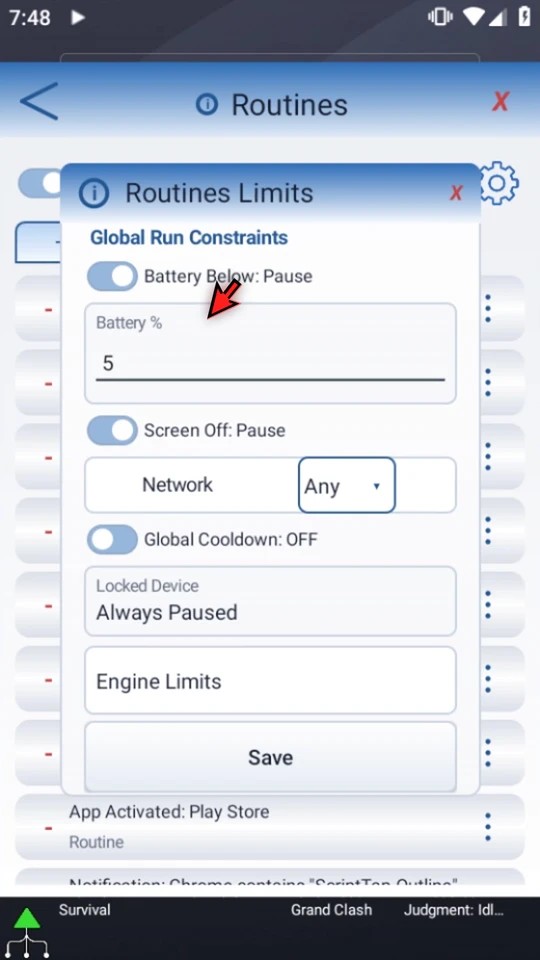
Open Main Overlay's menu, choose Routines, then open the gear. Battery Below: Pause prevents starts below the selected percentage; the example shows 5%. Screen Off: Pause adds a screen-off restriction. Locked devices are always paused. A skipped start does not switch off the routine's saved enabled preference.
Require a suitable connection
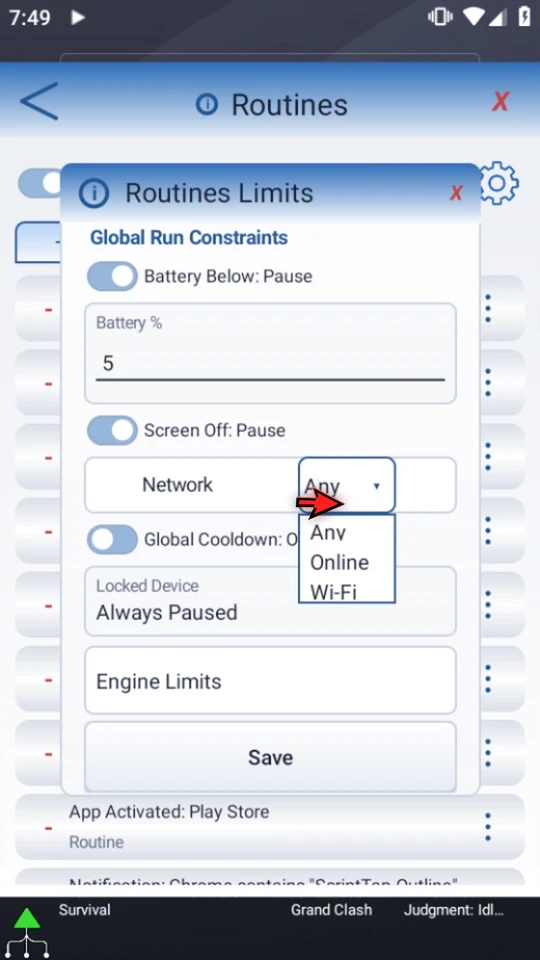
Any adds no network requirement, Online requires a connected network, and Wi-Fi requires Wi-Fi. Select the state appropriate for your task. A connection requirement does not guarantee that a specific server or website can be reached.
Space successful starts across routines
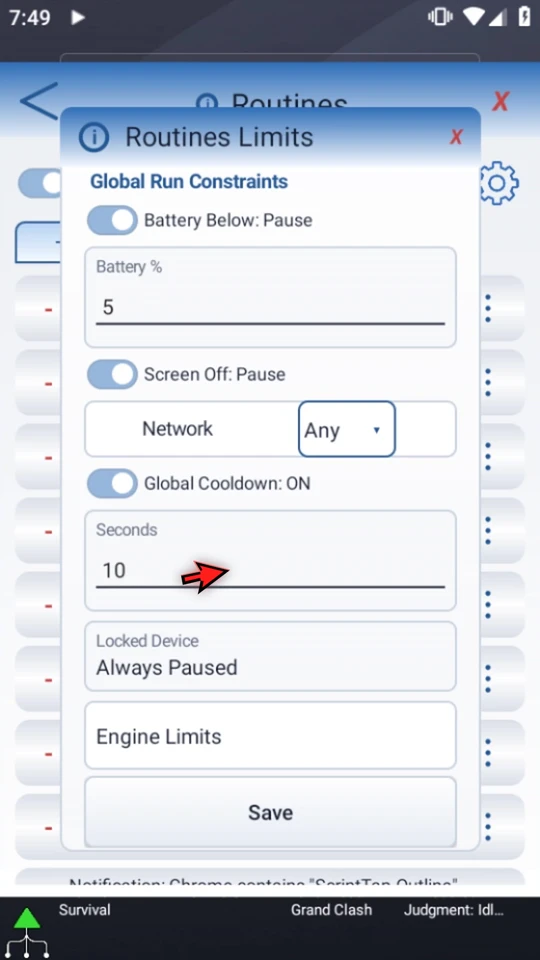
Turn Global Cooldown on to reveal its seconds field. It spaces successful Routine starts across all routines; it does not create a repeat schedule. The tour shows the field, then restores the switch to OFF without saving a change.
Keep queued work and evaluations bounded
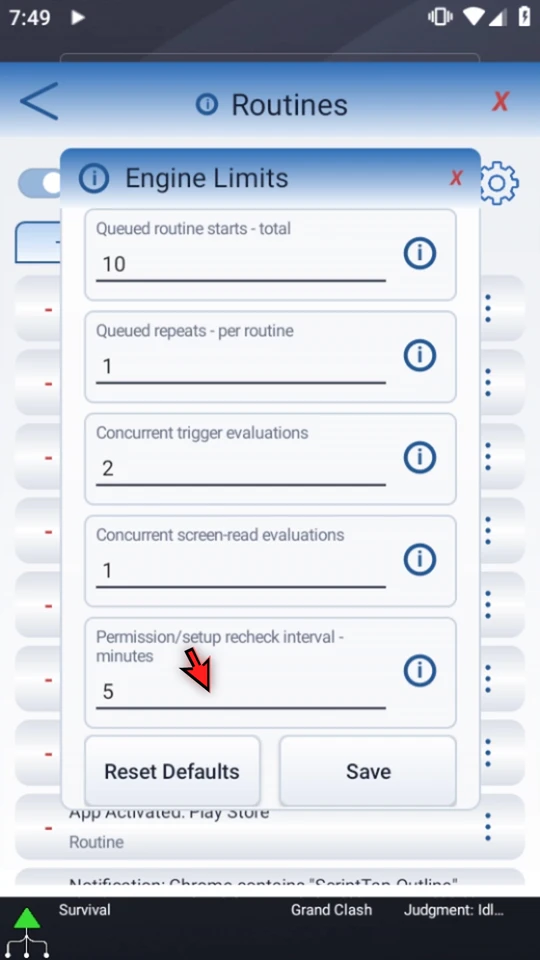
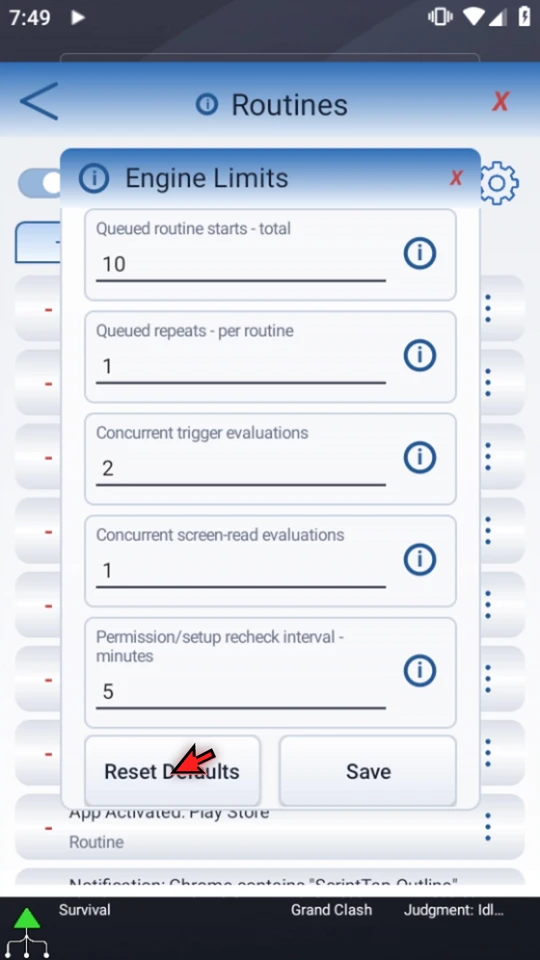
Save intended global changes before opening the separate Engine Limits screen. Its demonstrated defaults are:
- Total queued starts: 10. Limits distinct Routine starts waiting behind an active script.
- Queued repeats per routine: 1. Limits repeated fires retained for an already queued routine.
- Concurrent trigger evaluations: 2. Limits trigger evaluation work.
- Concurrent screen-read evaluations: 1. Limits screen-reading evaluation work.
- Permission/setup recheck: 5 minutes. A separate setup recheck interval, not a trigger's polling frequency.
These are engine capacities, not extra concurrent touches or script branches. Keep conservative defaults unless your task gives you a clear reason to change them.
Distinguish Save from Reset Defaults
Save applies edited engine numbers. Reset Defaults applies engine defaults immediately, without another Save press. It leaves global run constraints and individual Routine conditions alone. The video points to both buttons but uses neither, then closes the tour with X.
Fine-tune one routine without changing its script
Watch the per-routine tour. Open a routine's three-dot menu → Settings. Edit changes its script or trigger; Enable/Disable changes its desired state. Delete sends the routine to the Recycle Bin, not its target script.
Separate checking, spacing and a run-time limit
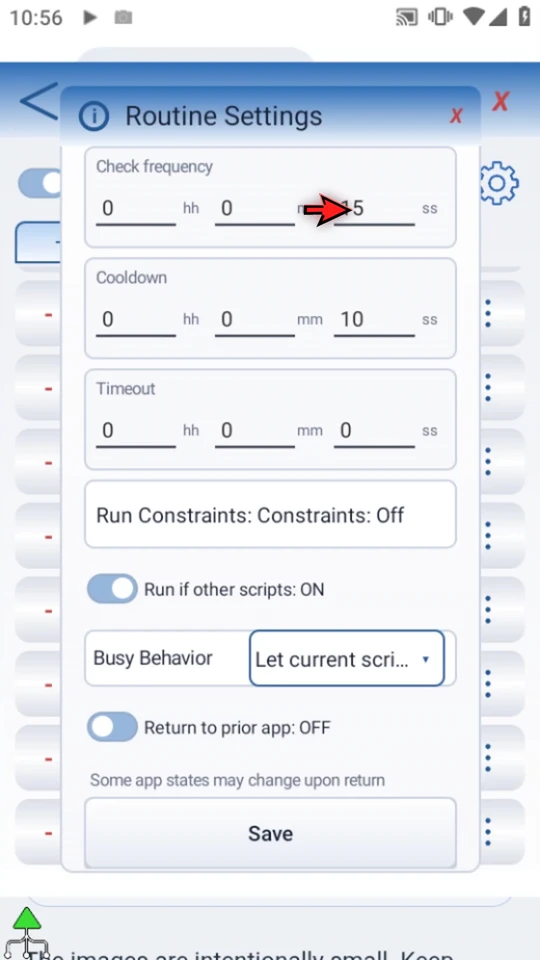
Check frequency controls polling, not a Time trigger's Repeat Frequency. An event-only Notification routine has no polling field. Cooldown spaces successful fires of this one routine. Timeout limits the script run; zero leaves the limit unset. Re-arming rules still apply.
The tour shows this App Activated example's saved values: check every 15 seconds, cooldown 10 seconds, timeout 0. These are not universal defaults for every trigger.
Choose whether an automatic start may interrupt
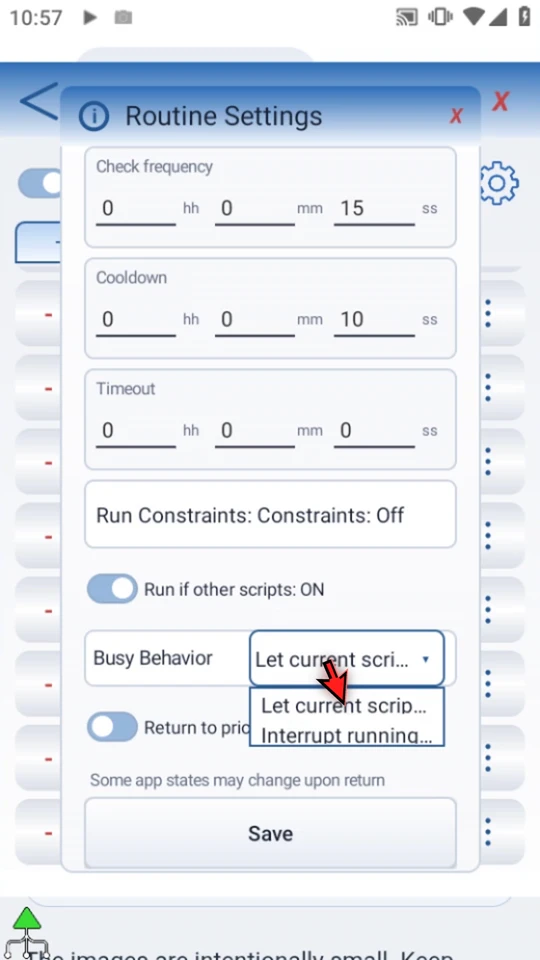
Run if other scripts OFF skips the start while another script runs. With it ON, Let current script finish queues the routine from the result that triggered it; it does not check the condition again when dequeued. Interrupt running script stops the current run, without undoing its actions.
Return to prior app can bring the previous foreground app back afterward. It does not restore an exact page, scroll position or earlier app state. The tour previews ON, then restores OFF.
Allow starts only in a suitable time window
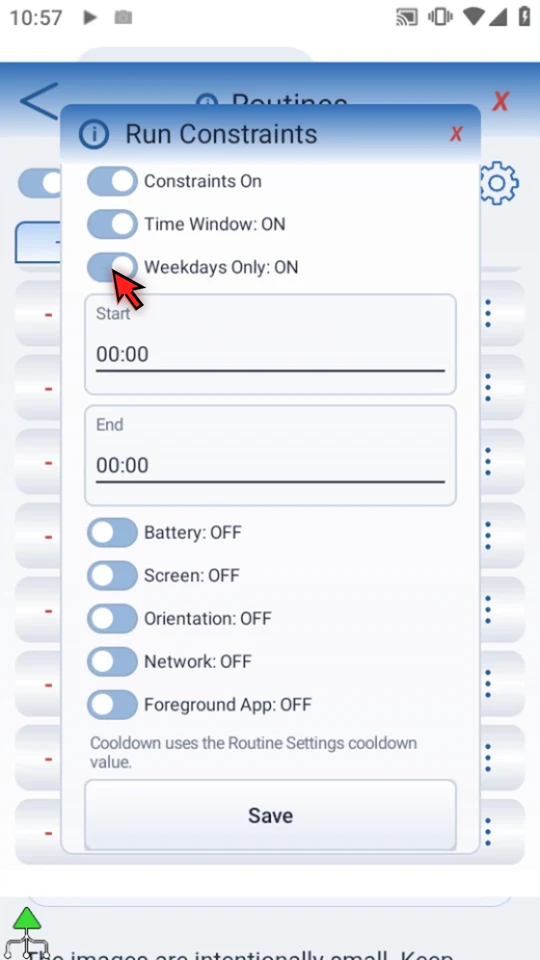
Save intended timing or busy-behavior changes before opening the separate Run Constraints screen. Turn its master Constraints switch ON, then enable the requirements you need. Enabled requirements work together.
Time Window uses a 24-hour Start and End, and can cross midnight. It restricts when a routine may start; it does not schedule occurrences. Weekdays Only means Monday through Friday; OFF permits any day.
Wait for suitable power and screen conditions
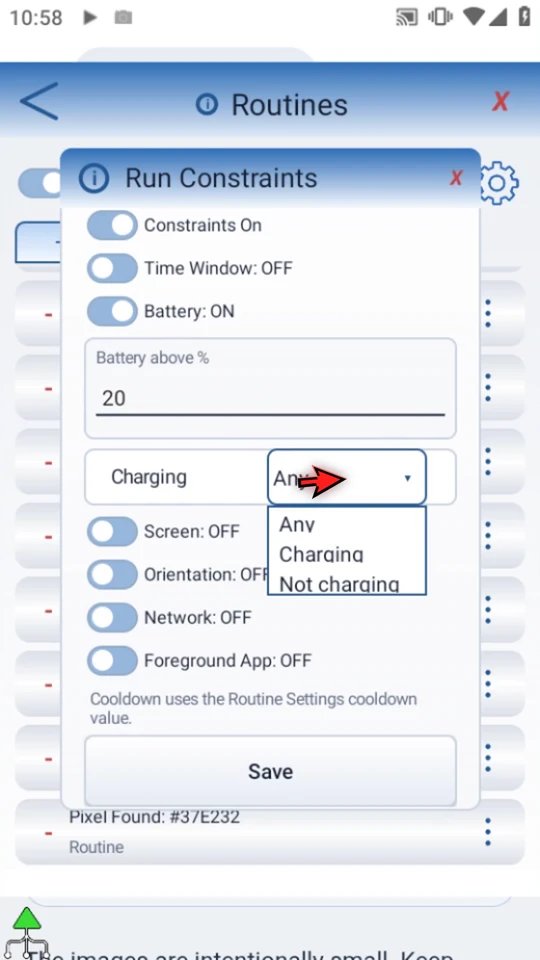
Battery can require a level above your chosen percentage and a charging state. The example threshold is 20%; Charging choices are Any, Charging and Not charging.
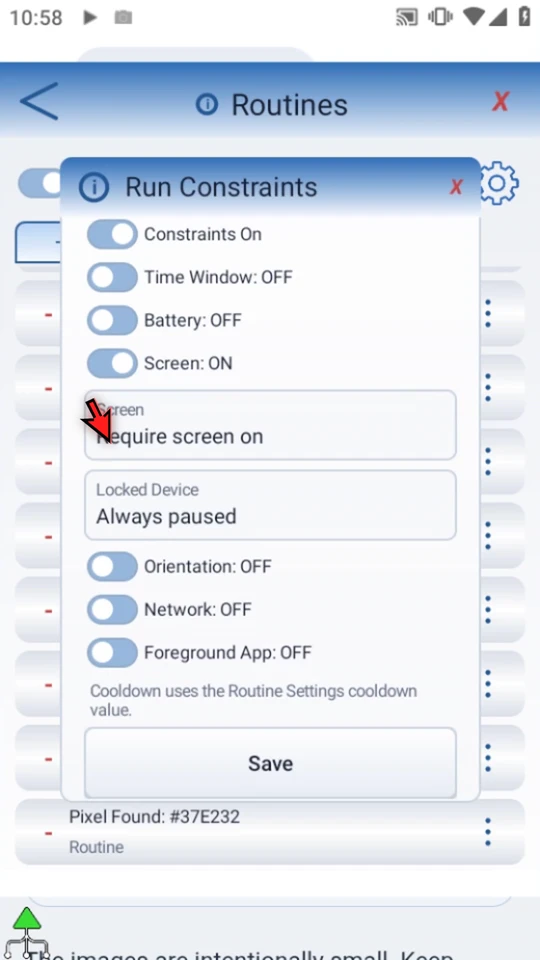
Screen requires the screen to be on. Locked-device execution is always paused. Orientation can require Portrait or Landscape; Any adds no orientation restriction.
Choose a compatible connection requirement
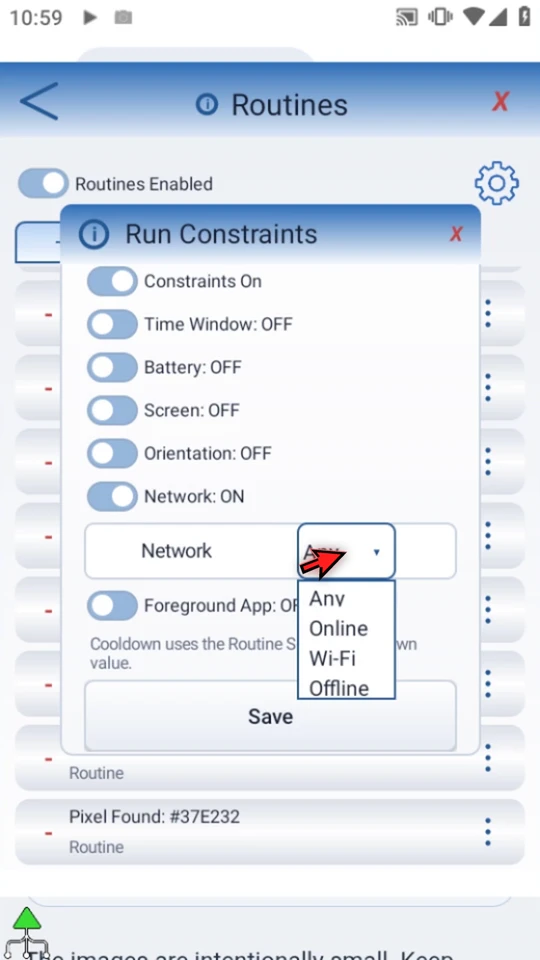
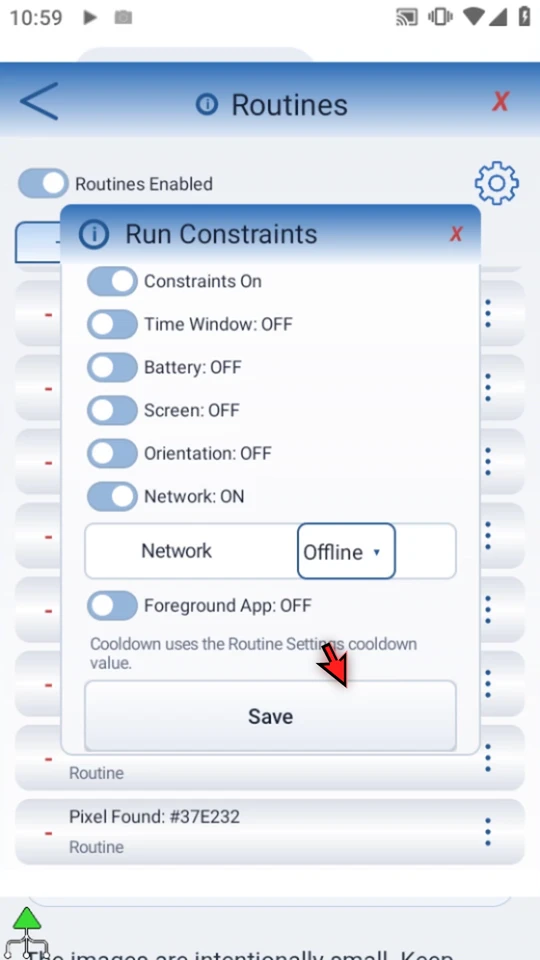
This routine's Network choices are Any, Online, Wi-Fi and Offline. Offline is a per-routine option; the global Network menu has only Any, Online and Wi-Fi.
A local requirement cannot override a conflicting global restriction. For example, requiring Offline locally while globally requiring Online cannot be satisfied together. A connected network also does not guarantee a particular server is reachable.
Avoid interrupting the wrong app
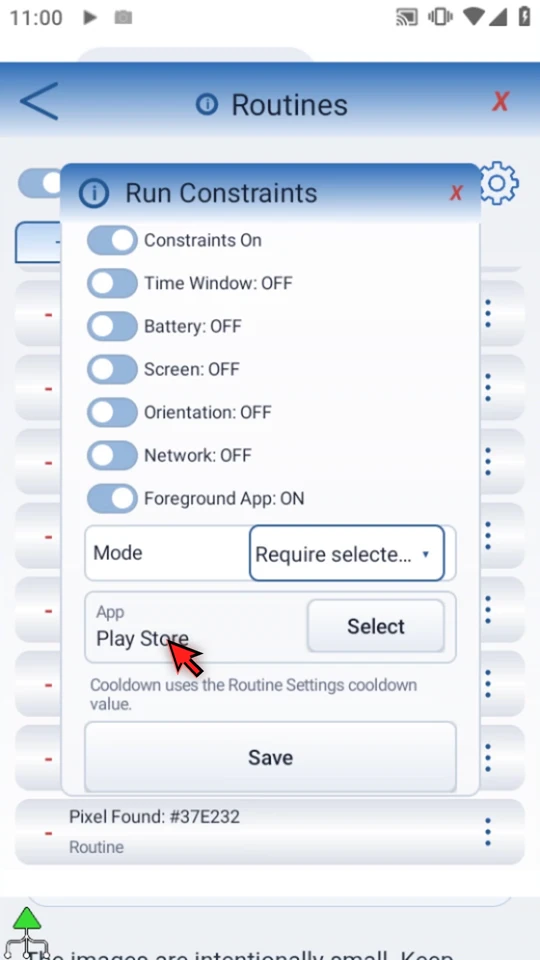
Foreground App can require the selected app to be active, or block starts while that app is active. Use Select to choose an installed app. The tour selects Play Store only in an unsaved preview.
Save in Run Constraints applies those conditions for this routine. Cooldown still uses Routine Settings; there is no second cooldown here. Because this is a tour, we close with X and save nothing.
Use Stats to explain a start or a skip
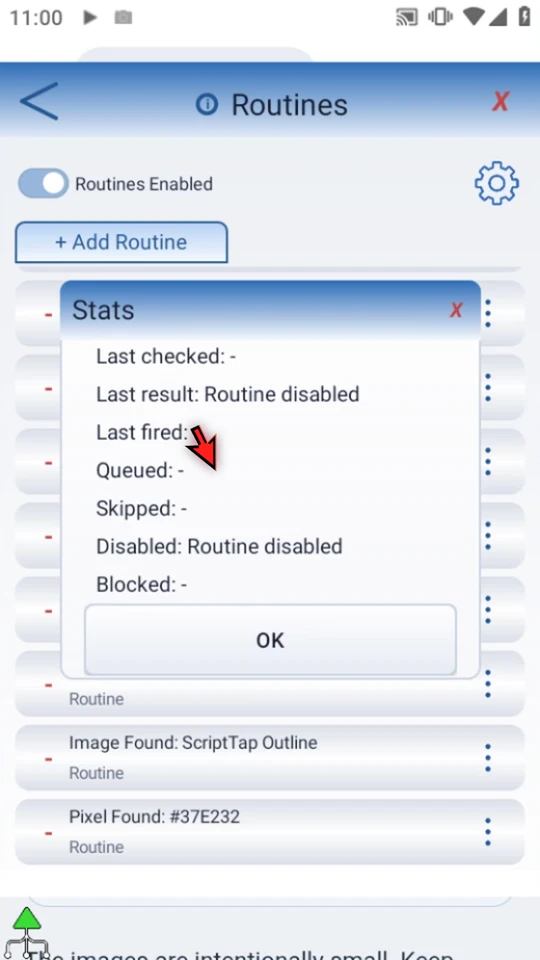
Open the routine's menu → Stats. Last checked, result, fired, queued, skipped, disabled and blocked explain this app session. Missing recent stats do not prove the routine has never run.
The recorded example honestly reports Routine disabled, with dashes for the other activity fields. An enabled checkmark is only a preference, not proof that access, conditions and run limits allow execution. Use a short visible confirmation to test a real trigger and script.
A restriction is not a schedule
A trigger decides what event or condition can start a Routine. Global and individual restrictions determine whether that start is currently allowed. Cooldown spaces successful starts; queue limits bound waiting work. None of these controls changes the commands inside the target script.
Test a new automatic workflow with a short visible confirmation, inspect its blocked or skipped reasons, and enable only the Routines you need. A menu tour is not a runtime test of every restriction.
Continue with a practical example
Read the global-limits narration
Automatic starts should help without interrupting at the wrong moment. Routine limits and settings control when work is allowed, how often conditions are checked, and what happens when another script is busy. This is an options tour; our test routines stay disabled.
Open the main overlay menu and choose Routines. Trial or premium access is required. The global switch can pause all routines together. Turn it back on when you are ready, then enable only the individual routines you actually need.
Open the gear for Routines Limits. Battery Below Pause prevents starts below your chosen battery percentage; here it is five percent. Screen Off Pause adds a screen-off restriction. These limits skip starts rather than changing a routine's enabled preference.
Network can allow any state, require a connected network, or require Wi-Fi. Use the requirement that fits your task. A network requirement is not a promise that a particular website or server is reachable.
Global Cooldown spaces successful routine starts across all routines. Turn it on to reveal its seconds field. It does not create a repeat schedule. Locked devices are always paused, even if you relax another screen setting.
Save global changes before opening the separate Engine Limits screen. These advanced controls limit pending work and evaluation capacity. They do not change the commands inside your scripts.
The total queue limits how many distinct routine starts can wait behind an active script. The per-routine limit controls repeated fires retained for one already queued routine. These caps help prevent one busy condition from building a long backlog.
The next limits control simultaneous trigger evaluations and screen-read evaluations, not simultaneous touches or extra script branches. Permission and setup recheck is a separate interval in minutes; it is not the trigger's checking frequency. Keep the defaults unless you have a clear reason to change them.
Save applies edited numbers. Reset Defaults applies the engine defaults immediately, without another Save press. It leaves global run constraints and each routine's conditions alone. We will use neither button and close this tour without changing the engine settings.
Read the per-routine settings narration
Keep an automatic helper from interrupting at the wrong time. Each routine has its own timing, busy behavior, and run requirements. Use them to wait for suitable power, connection, screen, or app conditions. This is an options tour; our example stays disabled.
Open your routine's three-dot menu and choose Settings. We are using the disabled App Activated example. Edit changes its script or trigger; Enable and Disable change its desired state. Delete sends the routine to the Recycle Bin rather than deleting its target script.
Check frequency controls polling. It is not the Time trigger's Repeat Frequency, and an event-only Notification routine has no polling field. Cooldown spaces successful fires of this routine. Timeout limits the script run; zero leaves that limit unset. The trigger's re-arming rule still applies.
If Run if other scripts is off, a busy device skips this start. With it on, Let current script finish queues the routine from the result that triggered it; the condition is not checked again when dequeued. Interrupt running script stops the current run, without undoing its actions.
Return to prior app can bring the previous app back after the routine. It does not restore the exact page, scroll position, or earlier app state. Some app states may change upon return. We will leave this option off.
Save timing or busy-behavior changes before opening the separate Run Constraints screen. Turn Constraints on, then enable only the requirements you need. Enabled requirements work together. We will preview the sections one at a time and close without saving them.
Time Window limits when a routine may start; it does not create scheduled occurrences. Set a twenty-four-hour start and end time. A window can cross midnight. Weekdays Only means Monday through Friday; off permits any day of the week.
Battery can require a level above the chosen percentage and a charging state. Here the threshold is twenty percent. Charging can be unrestricted, required, or excluded. This is useful for optional work that should wait for suitable power conditions.
Screen requires the screen to be on. Locked-device execution remains paused. Orientation can require portrait or landscape; Any adds no orientation restriction. These checks let a routine wait until the device is in a suitable state.
This routine's Network requirement is separate from the global limit. It adds an Offline option as well as Any, Online, and Wi-Fi. A local requirement cannot override a conflicting global restriction, so choose settings that can be satisfied together.
Foreground App can require a selected app to be in front, or block the routine while that app is active. Pick an installed app with Select. This can keep an automatic helper from interrupting a screen where you need to work undisturbed.
Save in this screen applies the conditions for this routine. Cooldown still uses the value in Routine Settings; there is no second cooldown here. Because this was only a tour, close with the X and leave the saved conditions unchanged.
Use Stats to understand an automatic start. Last checked, result, fired, queued, skipped, disabled, and blocked details explain this app session. No recent stats does not prove a routine has never run. A checkmark is a preference, not proof that access, conditions, and run limits currently allow execution.
Start with conservative limits and a short visible confirmation. Test the trigger and saved script on your device, inspect blocked or skipped reasons, and enable only the routines you need. This tour leaves the test routines disabled and the original settings unchanged.