
Start at the useful moment
Start a script when you need it
Let a time, app, notification, or screen condition start a useful script automatically. A routine connects one condition → one saved script, so you do not have to press Play for every occurrence.
Choose a trigger, then try a useful example
Continue when a small color cue is ready
Use a ready light or status indicator to start a useful follow-up. Pixel Found checks one configured point or short line for a chosen color, then starts your saved script. It needs no image asset. This example watches green pixels in a neutral practice icon and opens a visible confirmation.
Prepare a small, recognizable follow-up
Reuse the Routine script from the Time example: one Standard PromptMe, header Started, and a Done button writing Boolean b1. The routine condition decides when this completed script starts; it is not a command inside that script.
The video edits our disabled Pixel Found example. For a new one, open Main Overlay menu → Routines → + Add Routine, pick your completed script, then choose Trigger → Pick → Pixel Found, under On Screen or Recent.
Choose the color that means something useful
Enter a literal six-digit RGB value in Hex Color. RGB means red, green and blue. Here we use 37E232, a green pixel in the practice icon. The GetPixelColor guide explains reading a screen color; this video enters an already known value.
Pixel Found checks color at configured coordinates. It does not recognize a complete picture, read text, or automatically search every screen location.
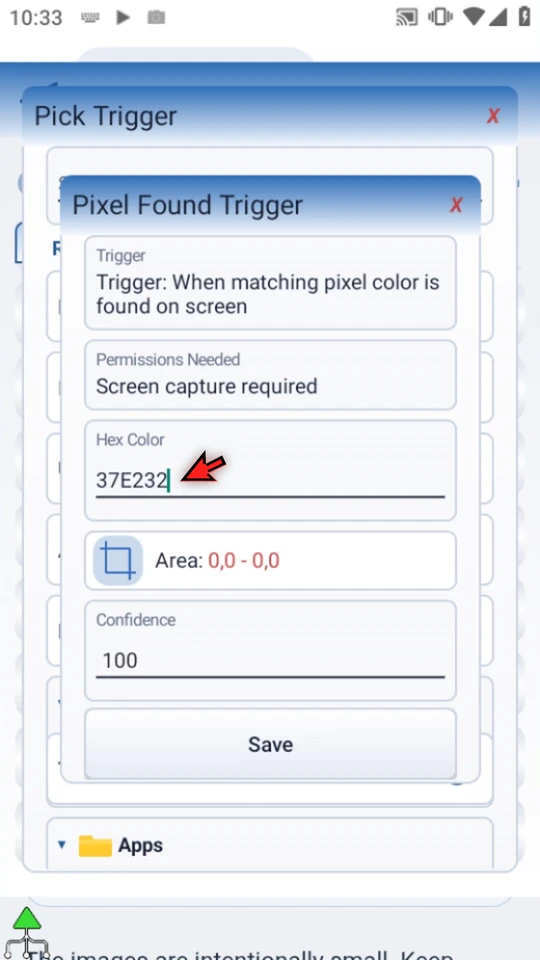
Limit the check to a point or short line
Choose the Area selector button. Allow screen capture if Android asks. Drag both corner handles around a tiny part of the cue, open the selector gear and choose Line Mode, then save with the checkmark.
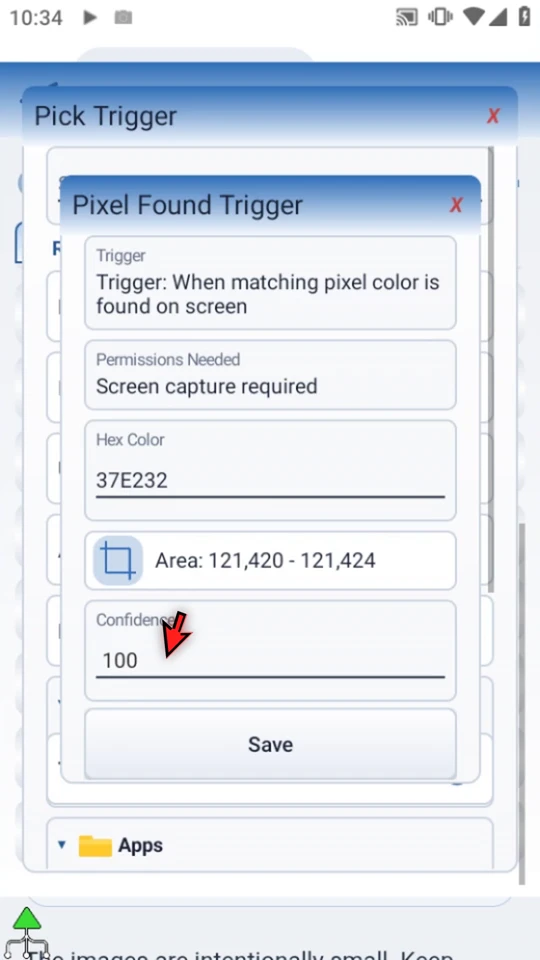
The recorded selection is the inclusive vertical line 121,420–121,424, five pixels long. These values belong to this device and layout: do not copy them blindly. A broad rectangle is not valid for this trigger. Prefer stable interior pixels over edges that blend with the background.
Match strictly enough, then save both levels
Confidence 100 requires an exact RGB color at a sampled point. Lower confidence permits more per-channel color difference; it is not a probability of success. We keep 100. Save the trigger, review Run: Routine and When: Pixel Found: #37E232, then save the parent Routine Editor.
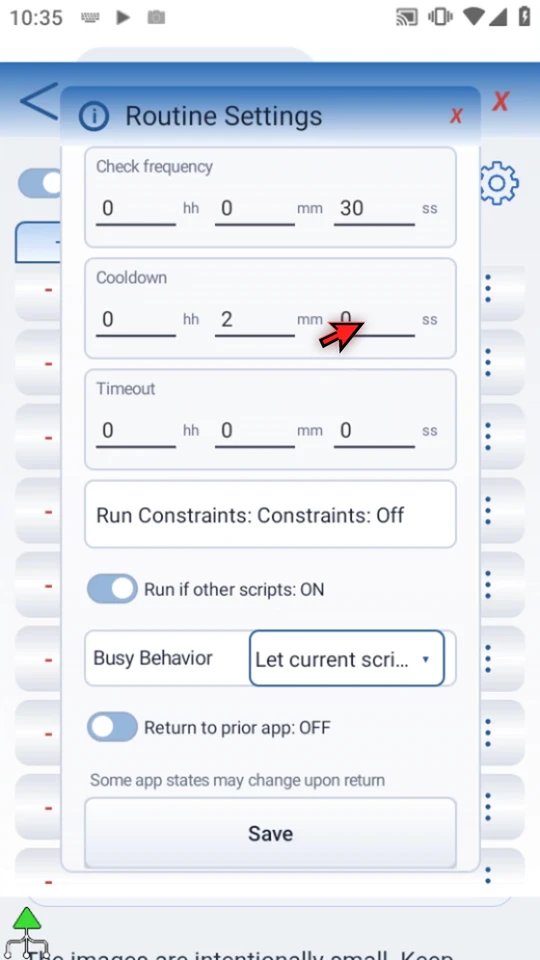
From this routine's menu, open Settings. The example keeps the normal 30-second check frequency and sets Cooldown to 0hh 2mm 0ss, then saves. Cooldown spaces successful starts; it does not make checking continuous.
Test the nonmatching state first
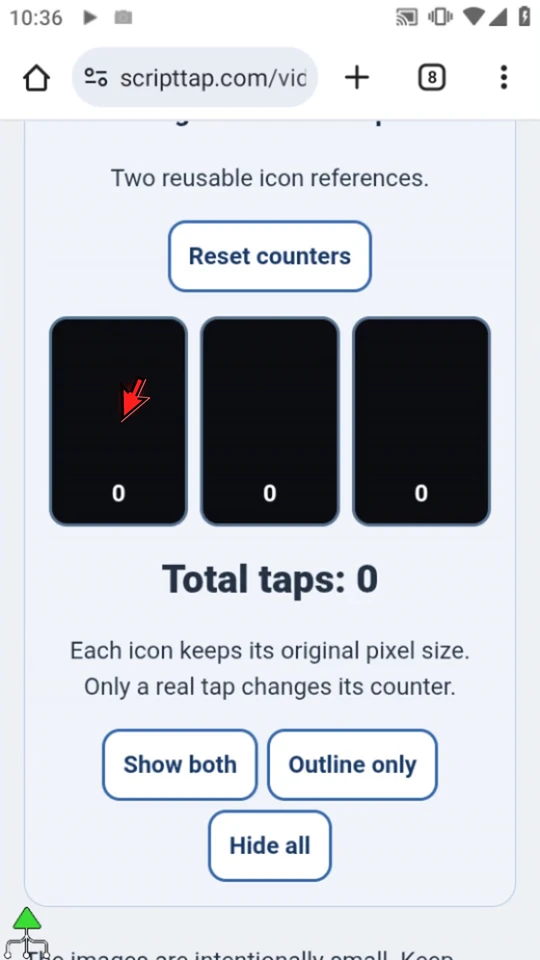
Close Routines and choose Hide all on the practice page. Its tiles stay in place but the green cue disappears. Return to Routines, enable only this example and keep the global Routines Enabled switch ON. Close Routines again.
The recording retains over 41 seconds without a confirmation while the cue is hidden; the edited video shortens unchanged waiting. Trial or premium access, ScriptTap open with Accessibility connected, an unlocked device, available screen capture and normal run constraints still apply.
Restore the cue without pressing Play
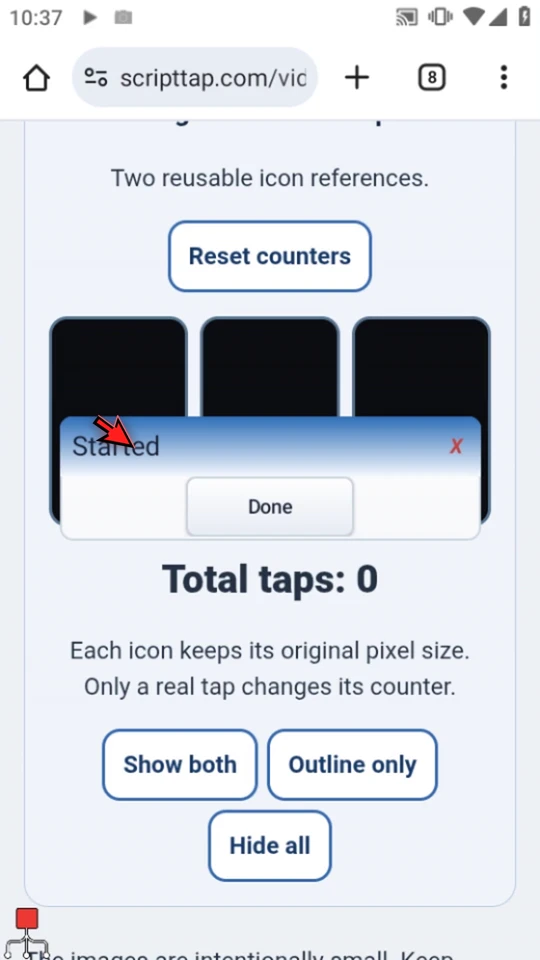
Choose Show both. Keep the page at the same position so the configured line still crosses the cue. At a later scheduled check, the real Started prompt opens automatically. Choose Done to finish.
The actual visible-cue wait in this recording was about 24 seconds; only unchanged idle footage is shortened. Checks are periodic, not instant or continuous. Your own follow-up might continue a workflow when a ready indicator turns green.
Disable the test and check the real device
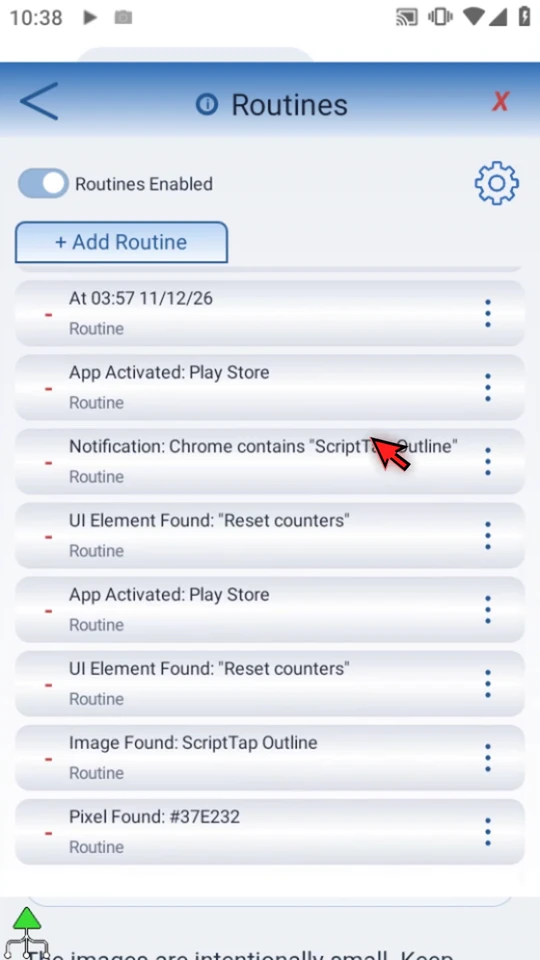
Return to Routines and disable this example only. If the list returns to its top, scroll back to verify the minus beside the correct Pixel Found row. A still-visible color can fire again after cooldown; disappearance is not required for this trigger's default re-arming.
Retest if scale, orientation, theme, page position or layout changes. See Routine Controls for timing and run constraints.
Read the Pixel Found narration
Start a workflow when a small color cue appears, such as a ready light or a status indicator. A Pixel Found routine checks a configured point or short line for your chosen color, then runs a script. No image asset is needed.
Open the routine's menu and choose Edit. Script selects what will run; Trigger selects when it will run. We are reusing Routine, the simple confirmation script from the earlier Routines guide, so an automatic start is easy to see.
Choose Pick beside Trigger, then Pixel Found. It looks for a color in a specific screen location. It does not recognize the whole picture, read text, or search the entire screen automatically.
Enter the target's six-digit RGB hex color. Here we use the green from the practice icon. The GetPixelColor command can read a screen color for you; its separate guide explains that setup. Keep the screen appearance stable when choosing a color.
Choose Area, then drag the two corners around a tiny part of the green icon. Open the selector's settings and switch to Line Mode, then save. This gives us a short vertical line rather than a broad rectangle. Use a stable interior color, not an edge that blends with the background.
Confidence is the color-matching strictness. One hundred percent requires the exact RGB color. Lower values allow more color difference; they are not a probability of success. We will keep one hundred here, then save the trigger and the routine.
The routine's Settings control when it checks and how soon it can run again. Our check frequency is thirty seconds. A two-minute cooldown keeps this example from repeatedly opening confirmations while the same color remains visible. Choose values that suit your workflow.
For a clear test, close Routines and choose Hide all on the practice page. The layout stays in place, but the green cue disappears. Return to Routines, enable only our Pixel Found example, and keep the main Routines switch on.
With the green hidden, the routine has nothing to match. Checks are periodic, not continuous, so a change may wait for the next check. Screen capture must be available, the device must be unlocked, and the routine's run constraints still apply.
Choose Show both to restore the green cue. Leave the page in the same position so the selected line still crosses it. At the next matching check, the prepared script starts automatically. The Started prompt is our visible confirmation.
Choose Done to finish the confirmation. Your real script could continue a task when a ready indicator turns green, or react when a small status light changes. Test the color and coordinates on the device and layout where the routine will actually run.
Return to Routines and disable the example after testing. A color that stays visible can trigger again after the cooldown, so do not leave a test routine armed accidentally. Use the Routine Controls guide for more scheduling and run options.
React when a recognizable image appears
Start a useful follow-up even when an app exposes no helpful Accessibility label. Image Found compares a saved image with a bounded screen area, then starts your chosen script. This example recognizes part of the ScriptTap Home-screen icon and automatically opens a visible confirmation.
Choose a small, recognizable follow-up
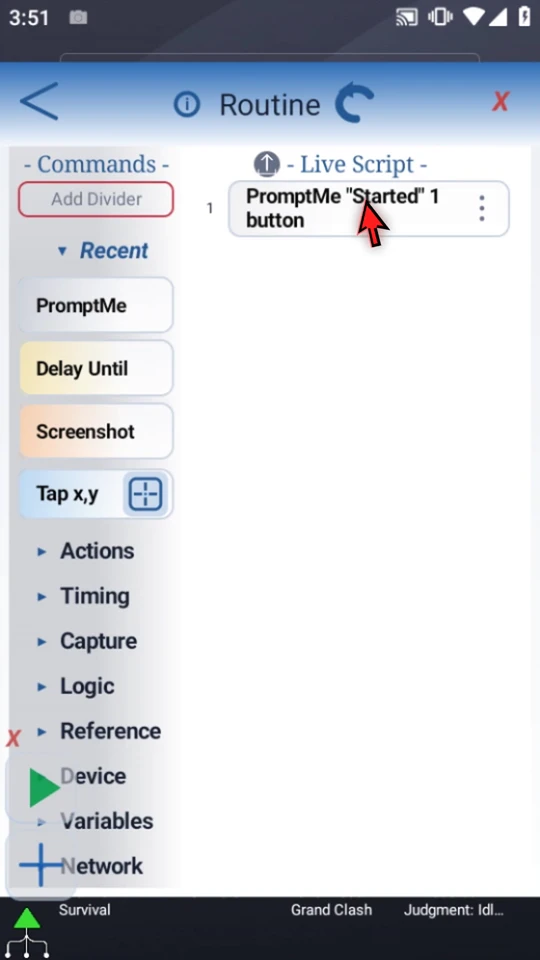
Build and test the Routine script from the Time example: one Standard PromptMe, header Started, and a Done button writing Boolean b1. The image condition chooses when this completed script starts; it is not a command inside that script.
The video edits our existing, disabled Image Found example. For a new setup, open Main Overlay menu → Routines → + Add Routine. Use the Script Pick button, search by name, and select your saved script.
Reuse an existing reference image
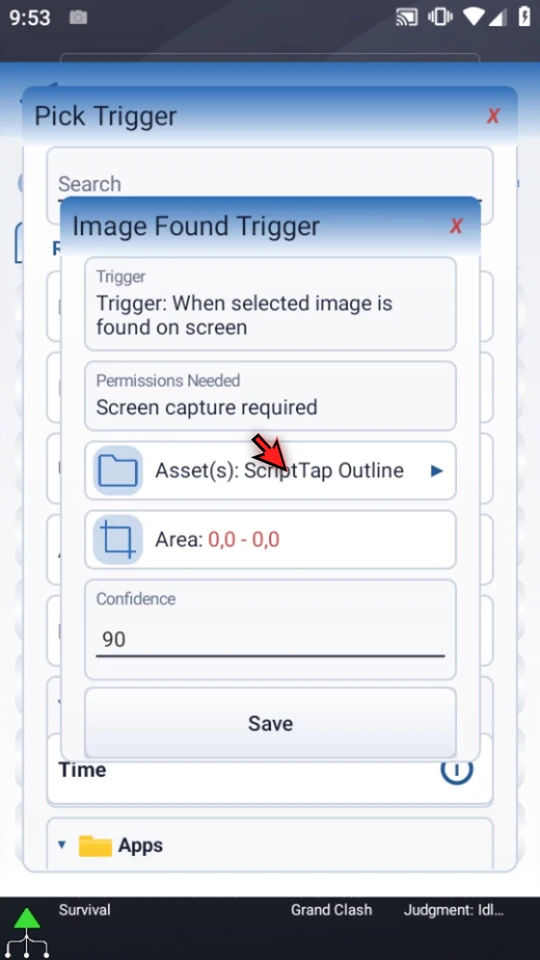
Choose Trigger → Pick → Image Found, available under On Screen or Recent. Open Asset and choose the reference. Here we reuse the small ScriptTap Outline made from part of the launcher icon.
Use the separate Asset Creation tutorial for screenshot capture and cropping. Assets stay script-owned; this routine refers to the selected existing asset. Keep its owning script available: erasing a script also removes its Asset Library folder.
Search where the image is expected
Choose Area. If Android asks, allow screen capture. Drag both handles around the expected location, then press the selector's checkmark. The area must contain the selected asset; this example's minimum is 8 × 9 pixels.
Our search surrounds the ScriptTap icon. A compact, stable region avoids unnecessary matching work and unrelated look-alikes. Your coordinates depend on your device and layout, so do not copy this video's values blindly.
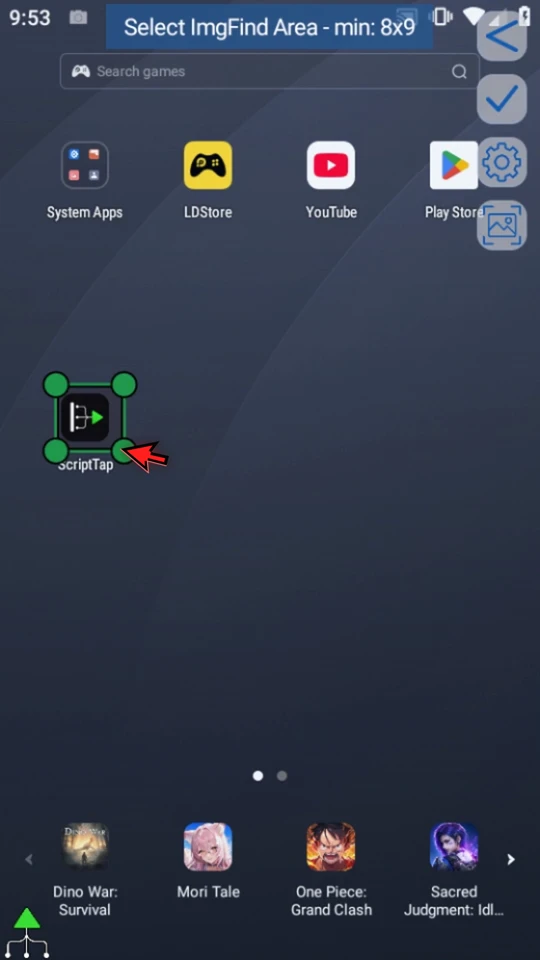
Choose an appropriate matching threshold
Confidence requires a closer aggregate image match as the value rises; 100% means exact active pixels. This example keeps 90. It is not an AI probability, and Image Found has no separate tolerance control.
Test both matching and similar-looking nonmatching states. A lower threshold can accept unwanted objects; a higher one can reject a changed scale, theme or unstable edge.
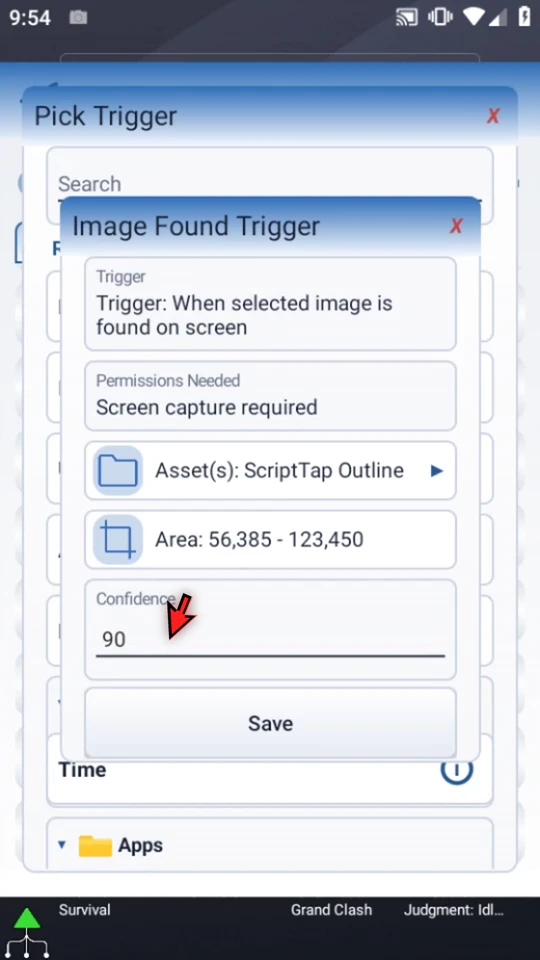
Save both levels, then enable deliberately
Save the trigger, check Run: Routine and When: Image Found: ScriptTap Outline, then save the parent Routine Editor. Enable this routine with its left marker and keep the global Routines Enabled switch ON. Leave unrelated routines unchanged.
Trial or premium access, ScriptTap open with Accessibility connected, an unlocked device, available screen capture and the normal run constraints still apply. A desired-enabled marker alone is not proof that setup is complete.
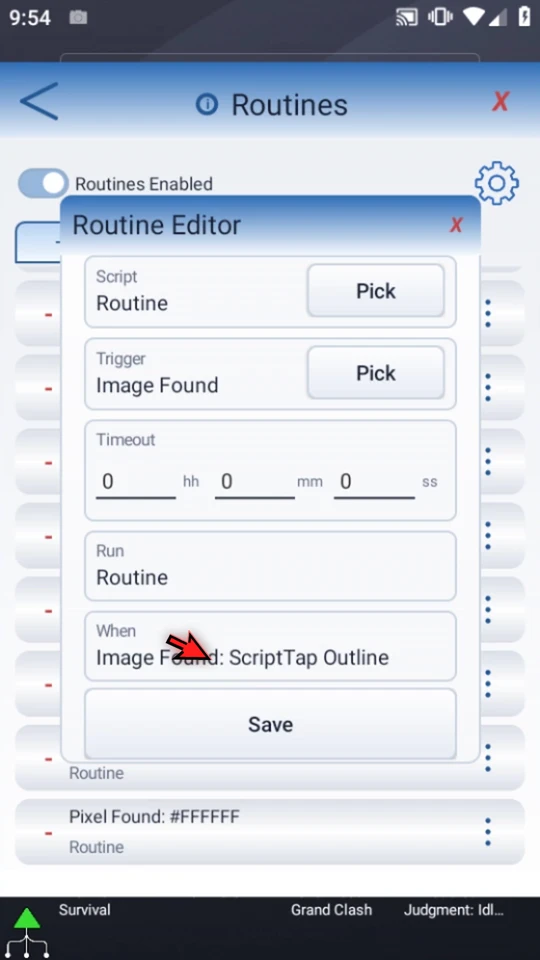
Expose the target without pressing Play
Close Routines to make the icon visible. The periodic image check starts the confirmation automatically. Started is the real script result; choose Done to finish.
The default Image Found check interval is 60 seconds. The first eligible check in this recording matches immediately after closing Routines; that does not make the trigger continuous or promise an instant response in other cases. The complete Home-to-prompt transition is retained.
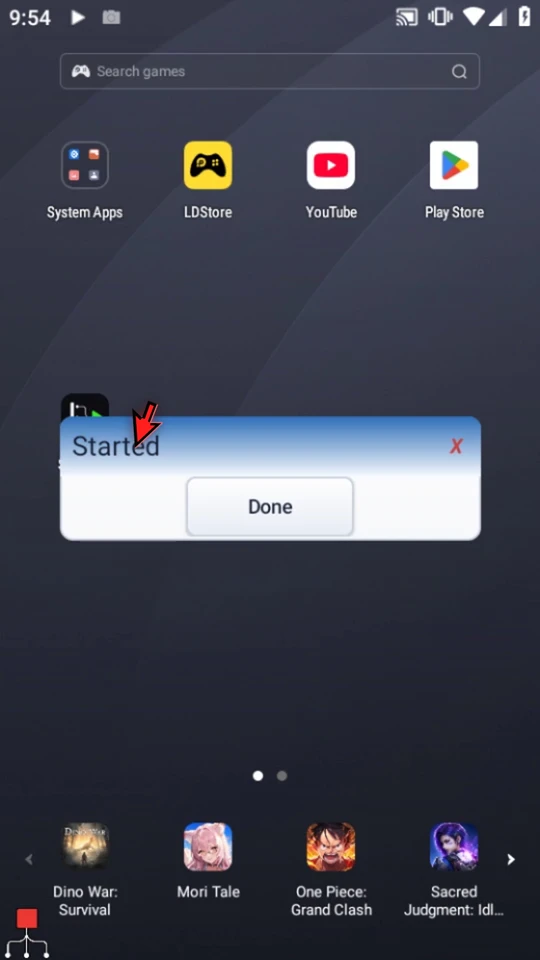
Disable the example when testing is finished
Return to Routines and disable this example only. If the list returns to its top, scroll back to verify the correct row has a minus. Image Found can fire again while the same image remains visible, subject to checking frequency, cooldown, busy behavior and other limits.
Unlike App Activated and UI Element Found, the default Image Found behavior does not require the image to disappear before it may fire again. Use Routine Controls to choose suitable timing and constraints.
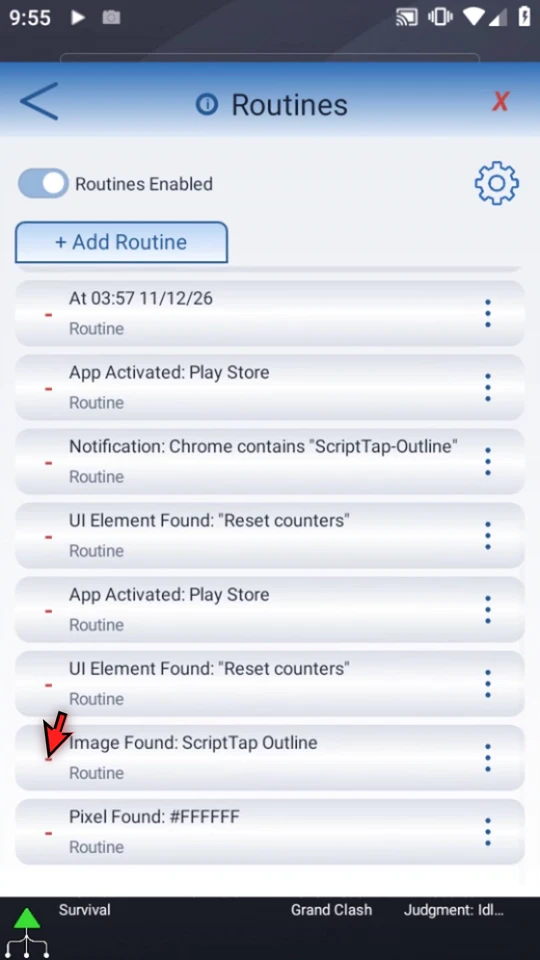
Read the Image Found narration
Start a workflow when a visual target appears, even when it has no useful accessibility label. An Image Found routine checks a chosen screen area for a saved image, then runs your script. Our example recognizes part of the ScriptTap icon and opens a confirmation.
Open the routine's menu and choose Edit. Routines are separate from scripts: the Script field chooses what runs, and Trigger chooses when it runs. We are continuing the confirmation script introduced in the Routines guides.
Pick your completed script. Search narrows the library without scrolling through unrelated examples. Here, choose Routine, which displays Started and waits for Done. A visible confirmation makes the automatic start easy to recognize.
Choose Pick beside Trigger, then Image Found. You can find it under On Screen or in Recent. This is image matching, not text recognition and not a search through accessibility labels.
Select the saved image you want to recognize. We are reusing ScriptTap Outline. The separate Asset Creation guide explains how to capture and crop an image; you do not need to recreate it for every guide.
Choose Area. If Android asks, allow screen capture. Drag both handles to surround the location where the target should appear, then save the selection. Keep the region large enough to contain the asset, but avoid searching unnecessary screen space.
Confidence controls how closely the captured pixels must match the saved image. One hundred percent is exact matching. We will use ninety here. A lower setting accepts more visual difference, so test it against similar-looking objects and backgrounds.
Save the trigger, then review Run and When in the Routine Editor and save the routine. The selected script must be complete and allowed to run. Saving this previously disabled routine does not replace the decision to enable it.
Enable the routine with its left-hand marker and keep the main Routines switch on. If Android asks, allow screen capture. Close the Routines screen so the target image is visible. The routine starts its script automatically; no manual Play press is needed.
Checks are periodic, not continuous. Image Found uses a one-minute check interval by default. The device must be unlocked, setup must be available, and run constraints still apply. After a scheduled match, our confirmation opens.
Started confirms that the image condition launched the prepared script. Choose Done to finish it. This example only displays a prompt; your own script could perform the next useful steps after a visual target appears.
Return to Routines and disable the example when you finish testing. Image Found can fire again while the same image remains visible, subject to its check interval and cooldown. Disabling this routine leaves the others unchanged.
Use a small, stable image and a focused search area. Review the separate Asset Creation and Routine Controls guides for transparent cropping, check frequency, cooldown, and run constraints. Test the complete workflow on the device where it will run.
Get a confirmation when a useful button is available
React to a meaningful button or label without relying on fixed screen coordinates. UI Element Found checks information exposed through Android Accessibility. This example watches the Reset counters button on a public practice page in Chrome, then automatically shows the saved Started confirmation. It does not press the page's button.
Prepare a small follow-up and a neutral target
Build and test the shared Routine script from the Time example: one Standard PromptMe with header Started and a Done button writing Boolean b1. Open the public practice controls in Chrome on the Android device and keep Reset counters visible. Return Home before configuring the new routine.
Open Main Overlay menu → Routines → + Add Routine, choose that saved script, then choose UI Element Found. The script's command is reused unchanged.
Match the field that expresses readiness
Enter Reset counters as Query, choose Target: Text, and choose Match: Exact. Exact matches the whole field; Contains matches a fragment, while Regex uses a text pattern. Other targets can read a description, view identifier or class when the app exposes it.
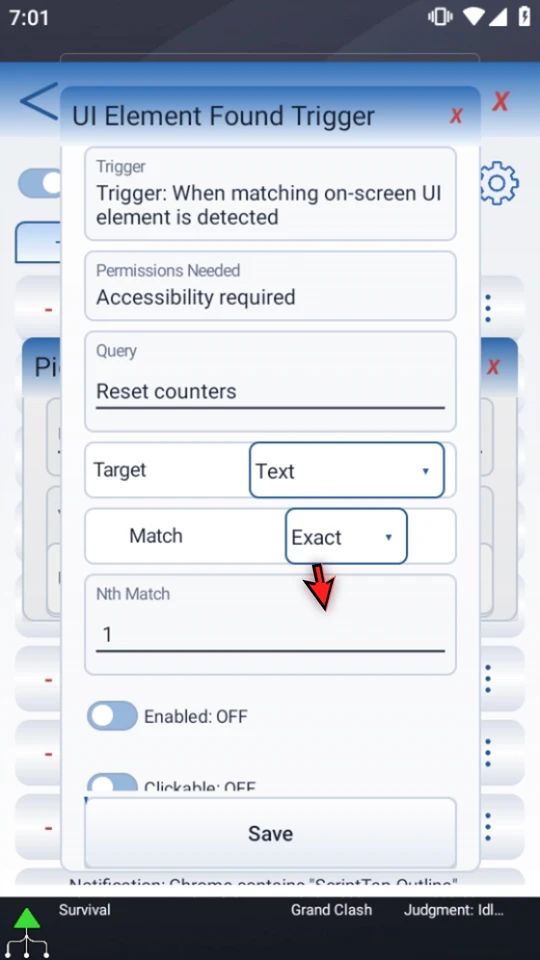
Exclude unrelated matches
Keep Nth Match: 1 and Visible: ON. Enabled and Clickable are optional extra requirements: leaving them OFF does not require disabled or unclickable elements. Set Package Filter: com.android.chrome so an identical label in another app does not qualify.
This is Accessibility matching, not image matching or optical character recognition. A game or custom view may not expose the field you need; test the real app.
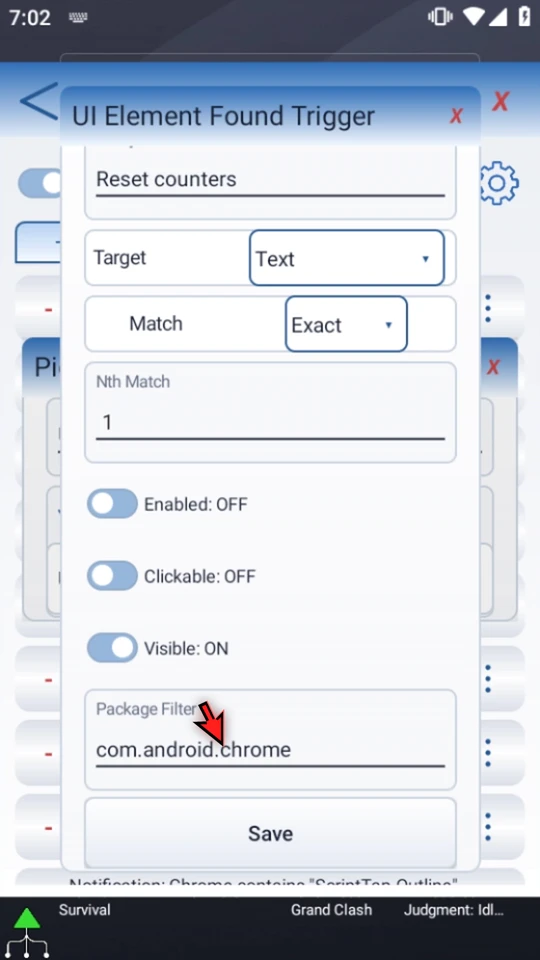
Save both levels and enable deliberately
Save the trigger, check Run: Routine and When: UI Element Found: Reset counters, then save the parent Routine Editor. Both the global Routines Enabled switch and this routine's checkmark must be ON. Trial or premium access, ScriptTap open with Accessibility connected, and an unlocked device are required. Leave unrelated routines as they were.
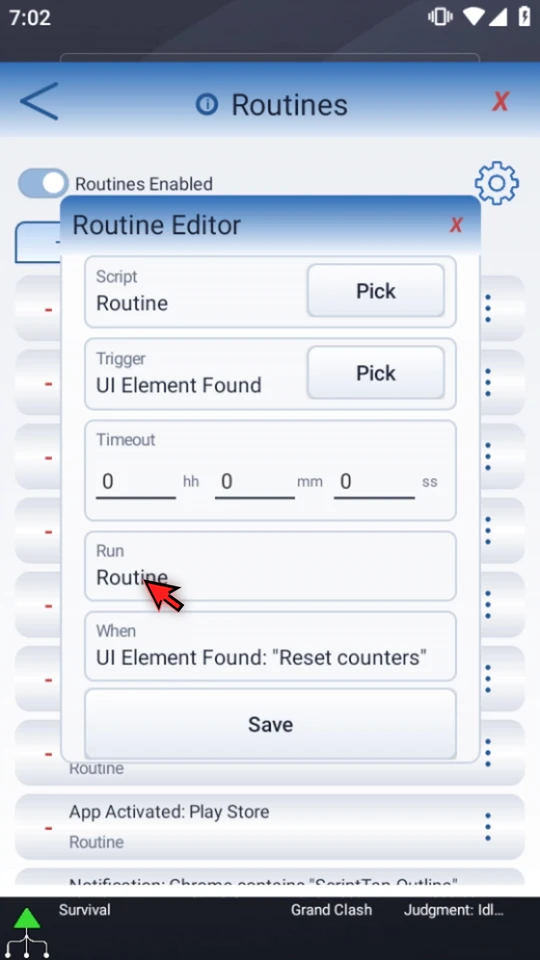
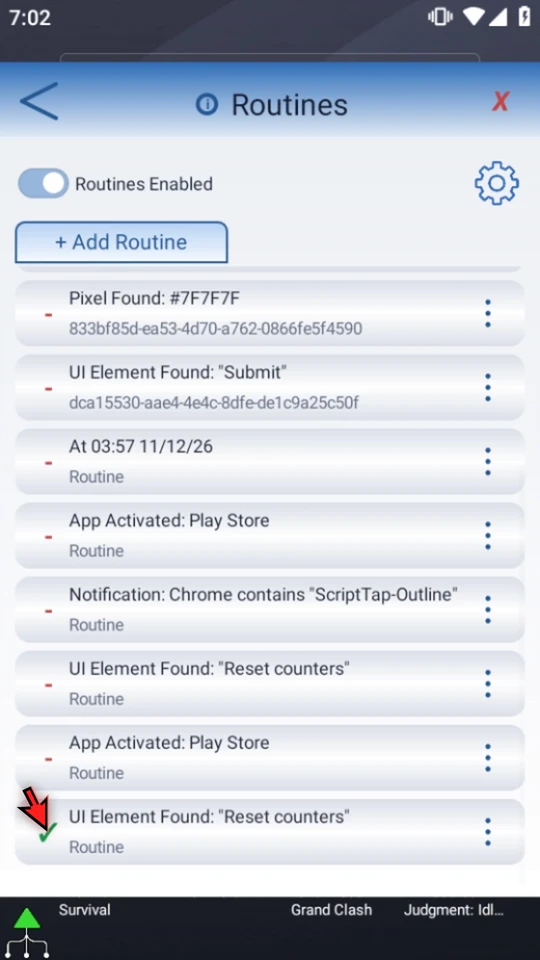
Return to the page without pressing Play
Close Routines, open Chrome and return to the prepared practice tab. In the video Chrome first offers Continue with this tab; the real return tap is retained. Keep the target button visible. The periodic check starts the saved confirmation automatically, without Main Overlay Play.
The real page-to-prompt wait is shown continuously. Missing access, cooldown, run constraints or a locked device can delay or prevent a start. Choose Done to finish the confirmation.
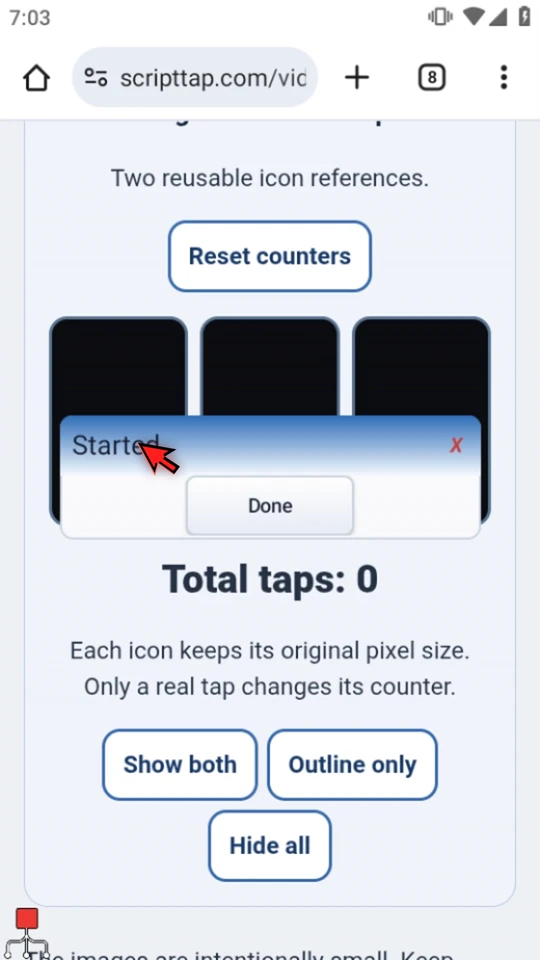
Turn off the test and understand re-arming
Return to Routines, scroll to this new row, then choose its menu → Disable. Check the minus beside the correct row; if the list returns to its top, scroll back.
By default, UI Element Found waits for a genuine nonmatching external observation before the same condition can fire again. ScriptTap's own confirmation or an unavailable observation is not that reset. Cooldown is a separate limit. Use this pattern for a readiness reminder, and test the condition on the device where you will use it.
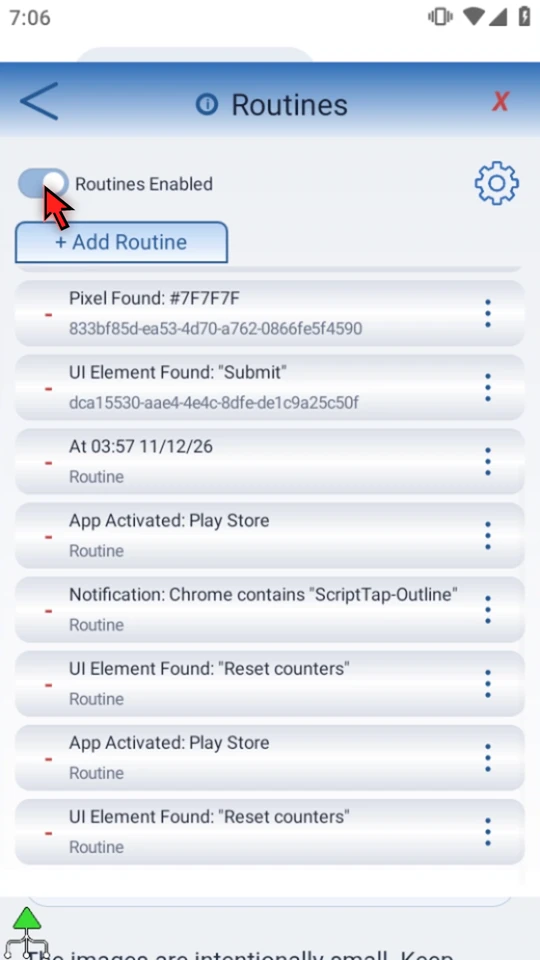
Read the UI Element Found narration
Show a helpful confirmation when a page exposes the button you are waiting for. The UI Element Found routine watches information provided through Android Accessibility, rather than matching an image or tapping a fixed screen position.
Open the main overlay menu, choose Routines, and add a new routine. Keep ScriptTap open, Accessibility connected, and the device unlocked. Routines require trial or premium access.
Pick the saved Routine script. It contains one PromptMe with the header Started and a Done button. Build and test this short confirmation first using the Time tutorial. The trigger decides when that saved script starts.
Open the trigger picker, search for UI Element Found, and choose it. This is useful when an app exposes a meaningful button or label that tells you a screen is ready.
Enter Reset counters as the query. That is a real button on our public practice page, already open in Chrome. This example reacts to the button being present. It does not press that button.
Set Target to Text and Match to Exact. The whole text field must match our query. Contains can match a fragment, while Regex uses a pattern. Other targets can inspect a description, view identifier, or class when the app exposes them.
Keep Nth Match at one and Visible on. Enabled and Clickable are optional extra requirements; leaving them off does not require a disabled or unclickable element. Set the package filter to com dot android dot chrome so an identical label in another app will not qualify.
Save the trigger, check the Run and When summaries, then save the routine itself. Both Routines Enabled and this routine's checkmark must be on. Leave unrelated routines unchanged.
Close Routines and return to the prepared page in Chrome. Keep Reset counters visible. Do not press Play. The visible element condition, not a manual start, will make the routine eligible.
Checks are periodic, so wait for the next check rather than expecting an instant response. Missing access, cooldown, run constraints, or a locked device can delay or prevent a start. This trigger reads accessible elements; it cannot discover text that the app does not expose.
Started appears automatically. Choose Done to finish the confirmation. The button remains visible on the page, showing the condition that caused this useful follow-up.
Return to Routines and disable only this new test through its menu. Check the minus beside the correct row. Your other scripts and routines are left as they were.
This trigger normally waits for a real nonmatching observation before the same condition can fire again. Its own confirmation is not that reset. Use this pattern for a readiness reminder, then test the saved script and condition on your own device before leaving the routine enabled.
Show a reminder when a particular app opens
Use App Activated for an app-specific reminder, checklist or helper. A check that observes the selected app in the foreground can start your saved script without a Play press. This example uses Play Store and the short Started confirmation from the Time tutorial.
Choose a ready follow-up, not an empty script
Prepare and test the Routine script from the Time example: one Standard PromptMe, header Started, and a Done button writing Boolean b1. Open Main Overlay menu → Routines → + Add Routine. Pick the saved script by name, then search the trigger picker for App Activated.
The stored routine target is independent of the script selected for manual Play. This example reuses the existing confirmation without changing its command.
Select the app where the reminder is useful
The trigger requires Foreground app access. If Android asks, complete that access setup. Choose Select and pick an installed, launchable app. Here the Play Store entry shows com.android.vending. This is app/package detection, not a website URL or a particular page inside the app.
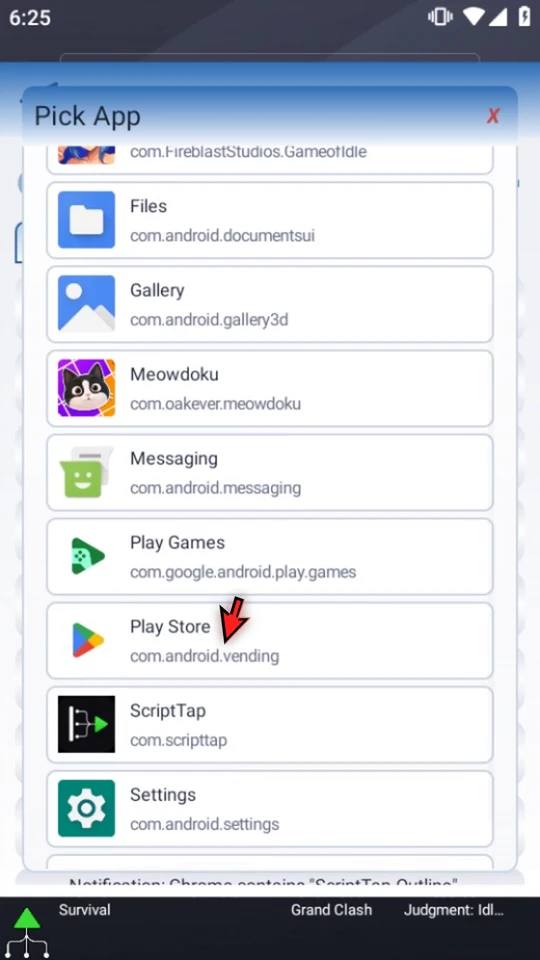
Save both levels and check the summaries
Save the App Activated trigger, then check Run: Routine and When: App Activated: Play Store in the parent Routine Editor. Save that editor too. A selected trigger draft alone is not a saved routine.
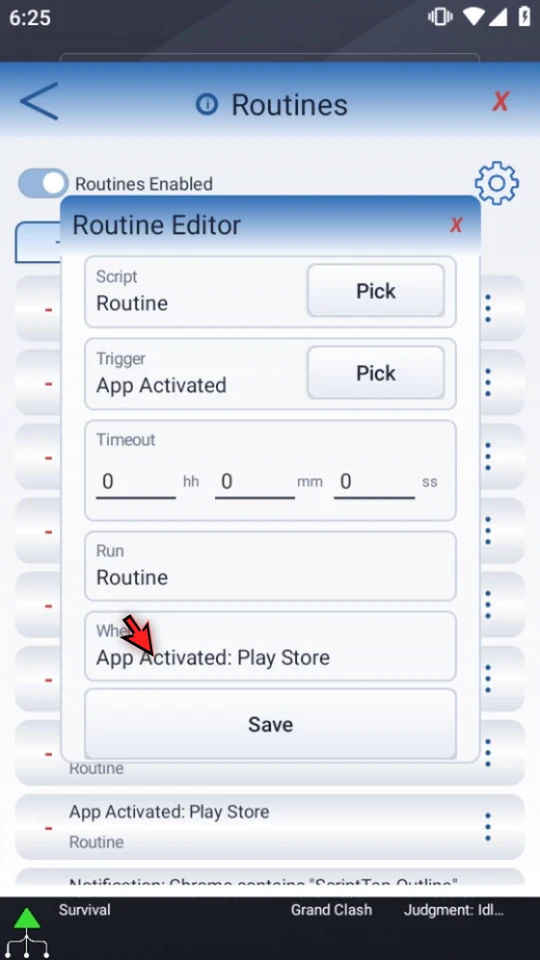
Enable the setup deliberately
Both Routines Enabled and this routine's checkmark must be ON. Leave unrelated routines as they were. Keep ScriptTap open, Accessibility connected, and the device unlocked. Trial or premium access is required; a manual-Play rewarded unlock does not unlock Routines.
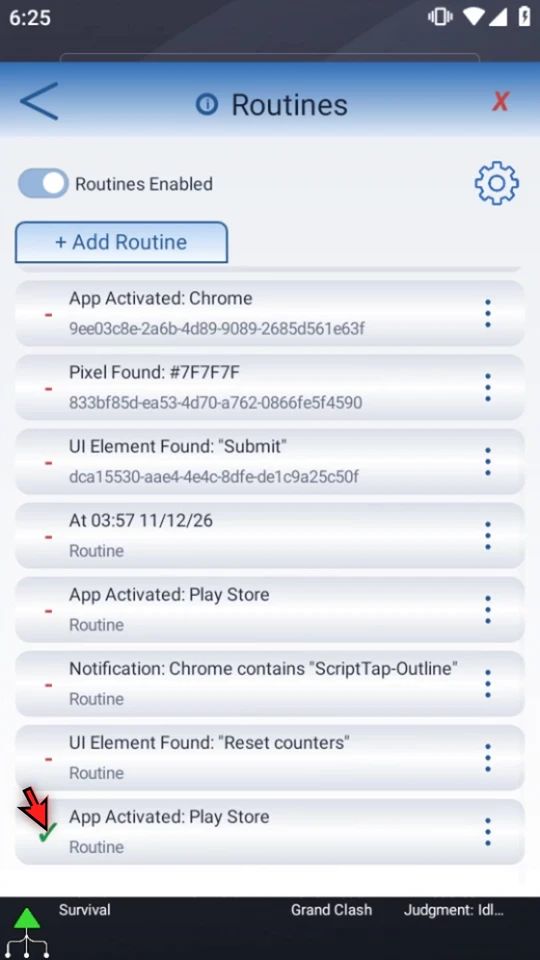
Open the selected app without pressing Play
Return Home and open Play Store. The real periodic wait is retained in the video through the automatic Started prompt. Choose Done to finish. Checks are not instant alarms; a brief visit can be missed, and access, cooldown, constraints or a locked device can delay or prevent a start.
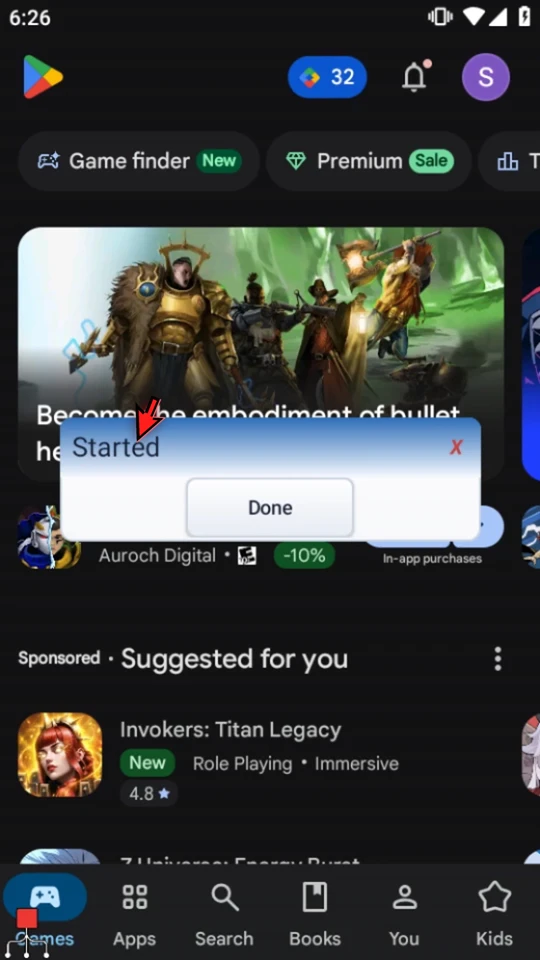
Turn off the test and understand the next visit
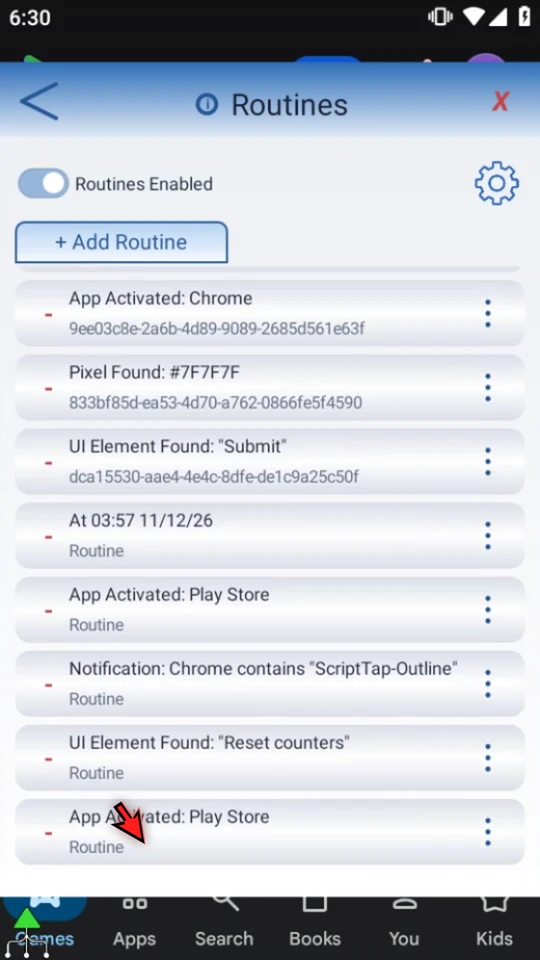
Return to Routines, scroll to this new row, and use its menu → Disable. A minus confirms desired-disabled. The video changes only the new test. If the list returns to its top after the change, scroll back to check the correct row.
App Activated does not repeatedly fire while the same foreground episode remains matched. Before a later visit can fire again, a check must observe a known external app that does not match. ScriptTap's own prompt or an unavailable/system-overlay observation is not that false observation. Cooldown is a separate limit and still applies.
Read the App Activated narration
Bring up a small reminder when you open a particular app. App Activated starts your saved script when that app is observed in the foreground. We will use the Play Store and the visible confirmation script from the Time tutorial.
Open the main overlay menu, then Routines, and choose Add Routine. Routines require trial or premium access. Keep ScriptTap open, its Accessibility connection active, and the device unlocked.
Pick the saved Routine script. Search by name and select it. This example contains one PromptMe with the header Started and a Done button. Build and test that short confirmation first, as shown in the Time guide.
Open the trigger's Pick button. Search for App Activated and select it. This checks an app's foreground package, not a website address or a particular screen inside the app.
Foreground app access is required. If Android asks, allow foreground app access. Use Select to open the app picker. Choose an app that is installed and launchable on this device.
Select the Play Store entry, scrolling if needed. Check the selected app and package before saving. In your own setup, choose the app where your reminder or helper script will be useful.
Save the trigger, then check the Run and When summaries and save the routine. Both the global Routines switch and this routine's checkmark must be on. Other test routines can stay disabled.
Return to the home screen and open the Play Store. Do not press Play for this test. The selected app becoming active is what makes the routine eligible to start its saved script.
Checks are periodic, so the confirmation may not appear at the instant the app opens. Missing access, a locked device, cooldown, and run constraints can still prevent or delay a start.
Started appears automatically. Choose Done to finish the confirmation. This shows that the app condition started the saved script, even if another script was selected in the editor.
Return to Routines, open this test routine's menu, and choose Disable. Only this new routine is changed. Keep your other routine settings as they were.
App Activated does not keep firing while the same app remains in front. Before a later visit can trigger again, a check must observe that the selected app is no longer active. Cooldown also still applies.
Use this pattern for an app-specific reminder or a short checklist. Test both the saved script and its trigger on the device you will use, then enable only the automatic starts you actually need.
React to an app notification without pressing Play
Use Notification to start a saved follow-up when an app delivers a relevant notification event. This example matches the filename of a small neutral image downloaded in Chrome and shows a Started confirmation.
Prepare a recognizable follow-up
Use the one-command Routine confirmation script from the Time example: Standard PromptMe, header Started, and a Done button with Boolean output b1. Build and manually test it first. Open the neutral practice page in Android Chrome and scroll to save ScriptTap Outline as a PNG, leaving the link ready.
Open Main Overlay menu → Routines → + Add Routine. Pick that saved script, then search the Trigger picker for Notification. The routine uses this stored target, not whichever script happens to be selected in the editor.
Match the app and the useful text
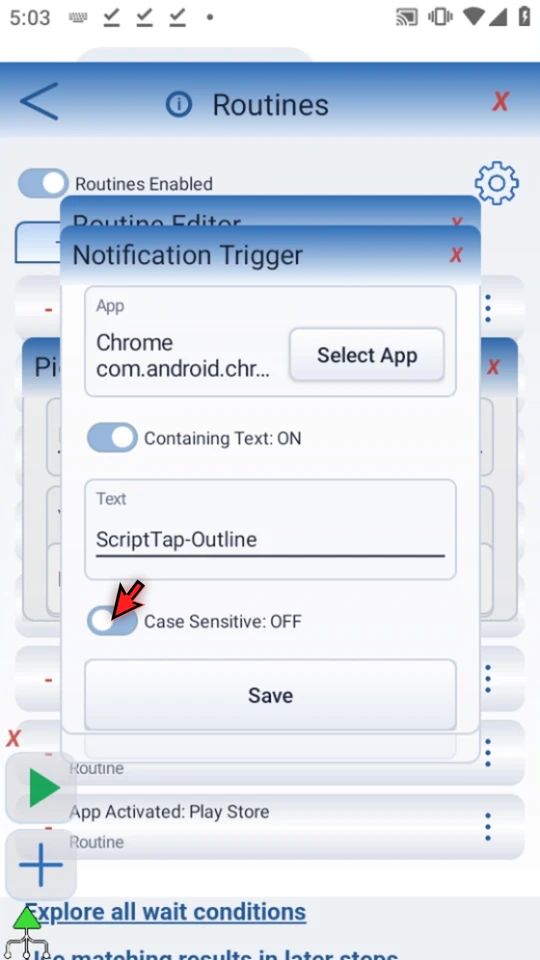
Choose Select App → Chrome. Turn Containing Text ON and type ScriptTap-Outline. Leave Case Sensitive OFF to ignore capitalization. This is a substring match, so the file extension and any copy number do not need to be included.
Containing Text OFF can match any accepted notification event from that app. ON narrows it to current notification fields; it does not search past messages. Select the app that actually posts the notification.
Enable this setup deliberately
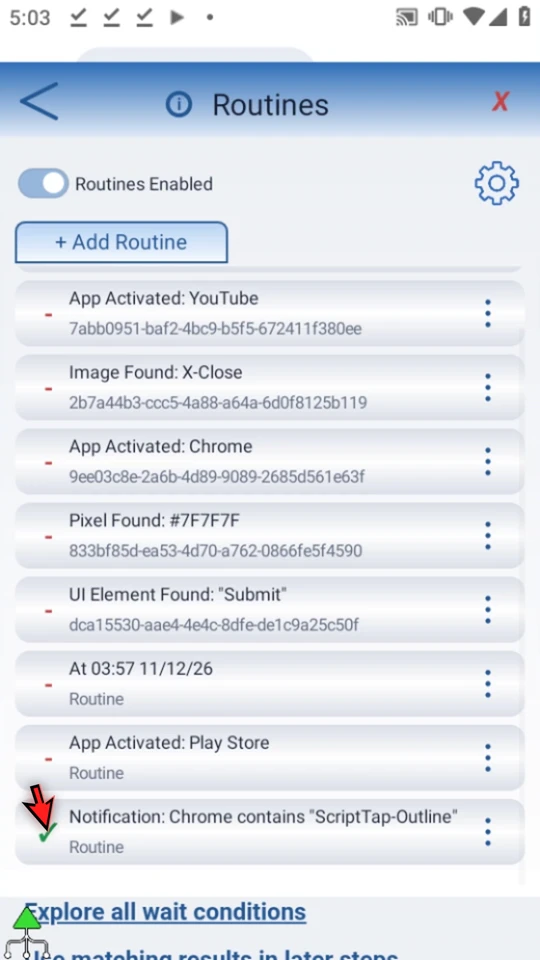
Save the trigger, check the Run and When summaries, then save the Routine Editor. Both Routines Enabled and this routine's checkmark must be ON. Keep ScriptTap open, connected and unlocked. Leave unrelated routines as they were.
Create a new event and see the result
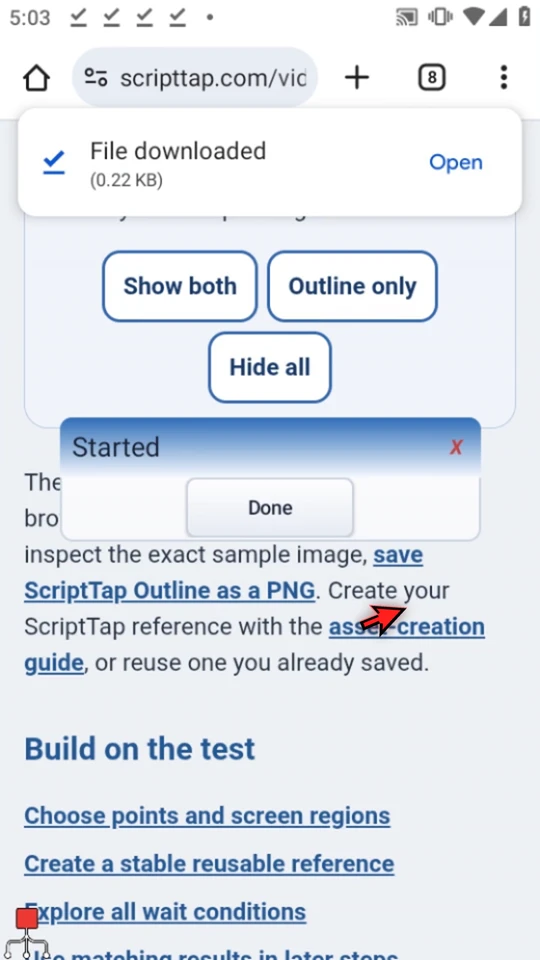
Return to Chrome and tap the PNG download link. If Chrome asks, choose Download again. The genuine notification starts Started automatically; choose Done to finish. Do not press Main Overlay Play for this test.
This example matches the filename, not a guaranteed download-completion stage. Android can omit Accessibility events for silent notification updates, and an app can omit or redact text. Test what your app actually delivers rather than assuming every visible update creates a match. Older notifications and rejected events are not replayed when you enable Routines, unlock the device, or reopen ScriptTap.
Turn the test off when finished
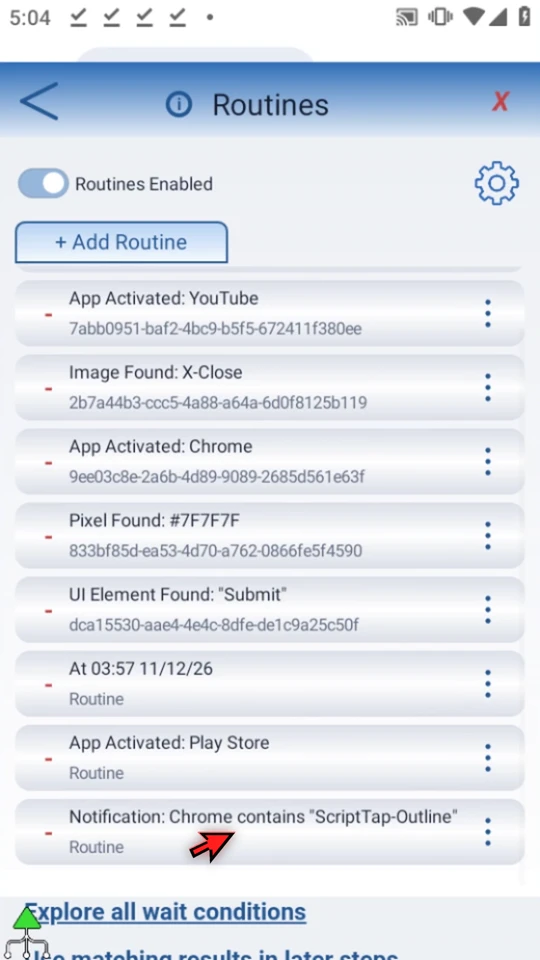
Return to Routines, scroll to this new row, and tap its left checkmark to disable it. If Main Overlay controls cover the row, tap the idle main button to hide them. A minus confirms desired-disabled. Cooldown, run constraints and required access still apply to enabled routines.
This overview previews all six forms. It does not save, enable, or run a routine.
Start a small reminder at a planned time
Use Time when you want a ready script to start automatically while you are using the unlocked device. This example shows a visible Started confirmation, so you can tell the trigger worked.
Make a short script you can recognize
Create and name a separate script. Manually drag PromptMe into it. Keep Standard and This Script Only, use the header Started, and add a Done button with Boolean output b1. Save, close the editor, and use Main Overlay Play once to check the script. Choose Done to finish this manual test.
Connect the saved script to a future local time
Open Main Overlay menu → Routines → + Add Routine. Pick the saved Routine script. Open the trigger's Pick button, search Time, and select it. Enter your own future local date and time using the displayed format; do not copy the video's past example date. Leave Repeat Every OFF for one occurrence, then save the trigger and Routine Editor.
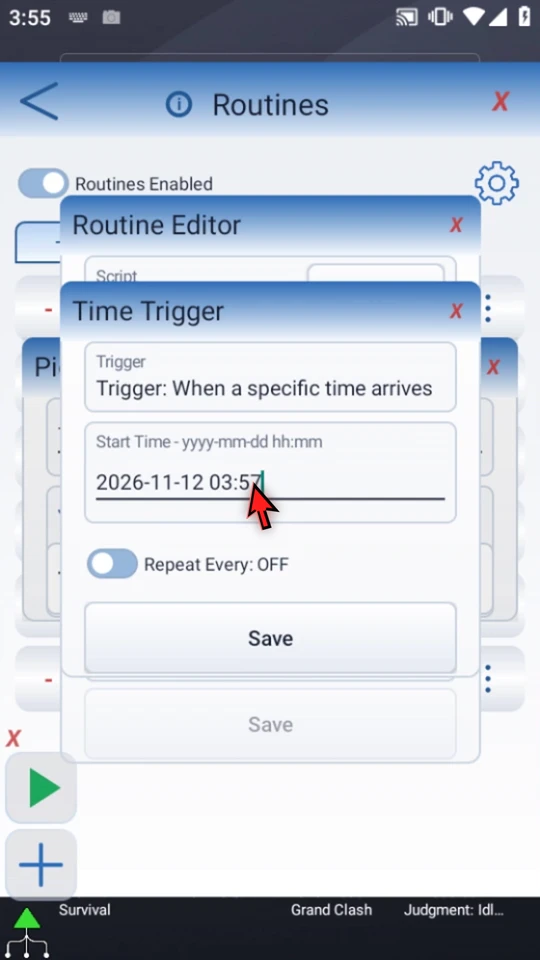
Wait without pressing Play again
Both the global Routines switch and this routine's checkmark must be ON. Leave ScriptTap open, connected and unlocked. The start time is the first eligible time—not an exact alarm. Periodic checks, missing access, or run constraints can affect the start.
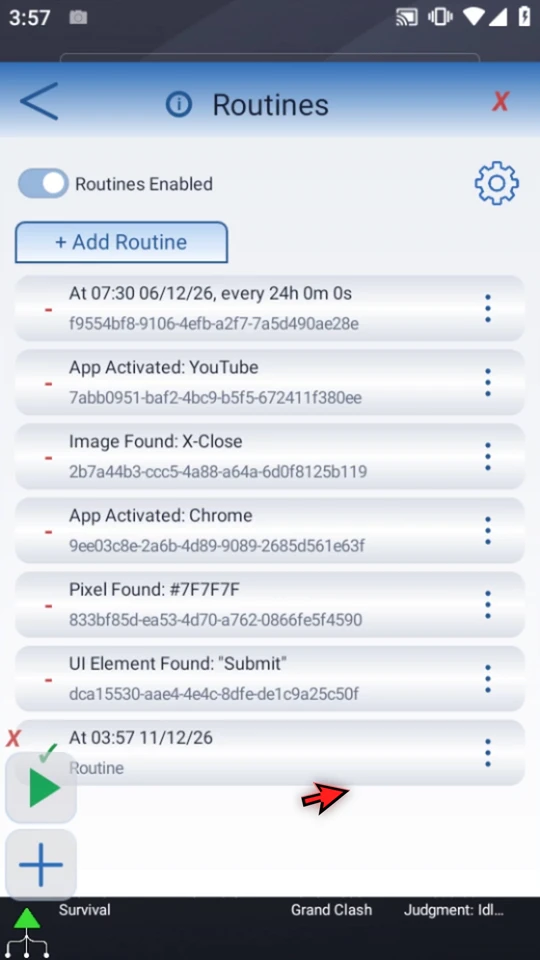
Confirm the automatic result, then disable the test
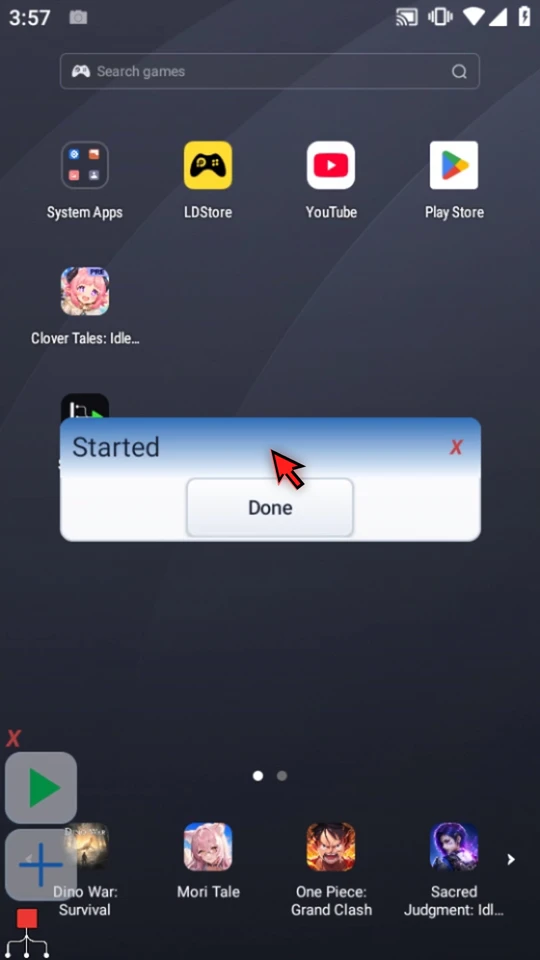
Started appears without a Play press. Choose Done to finish naturally, return to Routines, and use only this test routine's menu → Disable. One-time mode does not repeat the same scheduled occurrence. Repeat Frequency, checking frequency and cooldown are different controls; compare them below before making a repeating setup.
Choose the condition that solves your need
| You want to… | Choose | Configure |
|---|---|---|
| Show an on-screen reminder at a planned time while using the device. | Time | Start date/time; optional repeat interval. |
| Show a checklist when you open a particular app. | App Activated | Selected app; foreground app access. |
| Start a follow-up after an app's new notification, such as a download notice. | Notification | Source app; optional text and case sensitivity. |
| React to an accessible button or label that indicates readiness. | UI Element Found | Query, target, match mode and filters. |
| React when a distinctive picture appears in a known location. | Image Found | Saved reference, area and confidence. |
| React when a small status indicator reaches a particular color. | Pixel Found | Literal color, point or short line, confidence. |
Connect the trigger to a ready script
Open Routines and add a separate setup
Open Main Overlay menu → Routines → + Add Routine. Pick a saved script, then use the second Pick button for its trigger. Search the Trigger Library by name. Routines are separate from scripts, not editor commands.
Timeout limits the routine's script run; zero leaves that limit unset. Complete both script and trigger selections before saving.
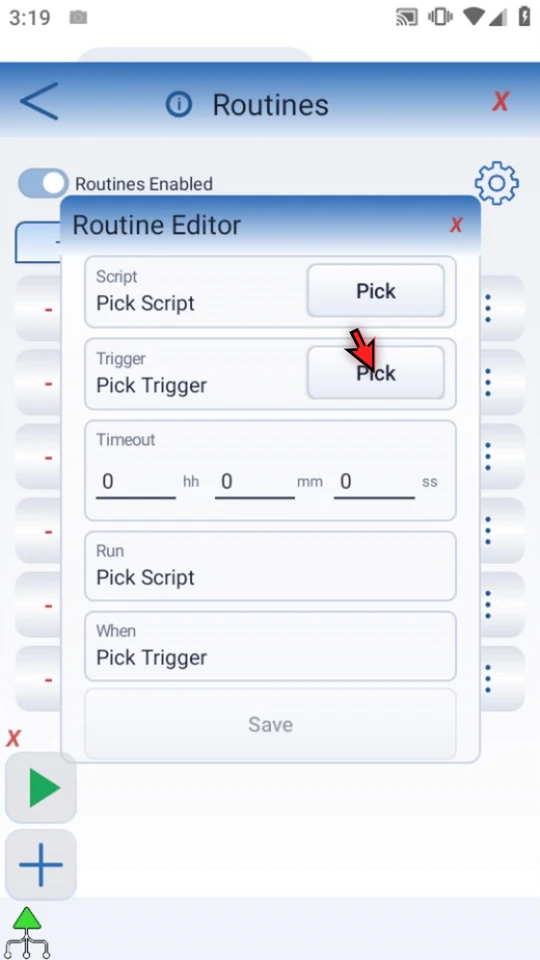
Time: schedule a useful start
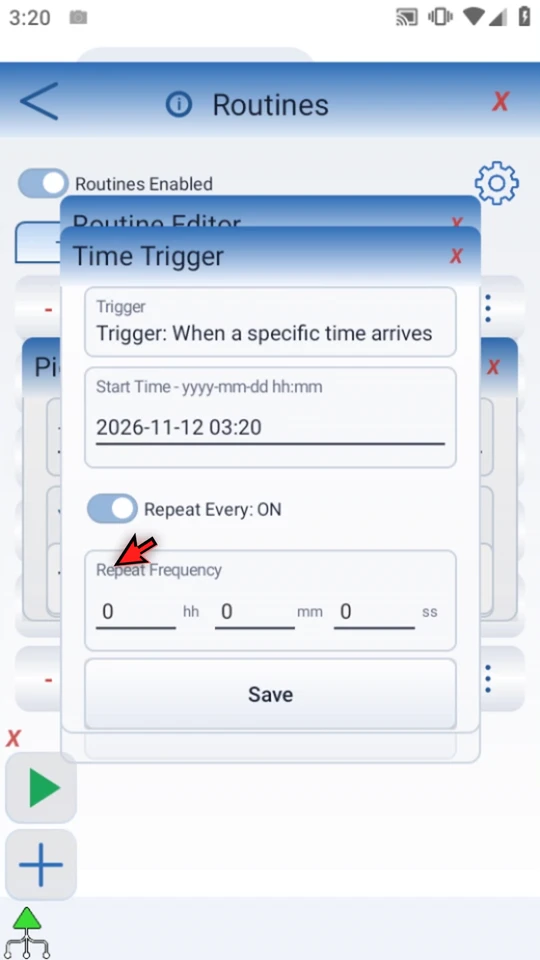
Enter the local start date and time in the displayed format. Repeat Every OFF creates one occurrence. Turn it ON for Repeat Frequency in hours, minutes and seconds; the minimum repeat is five seconds.
Checking frequency only checks which occurrence is due. Cooldown spaces successful starts; it does not repeat the same occurrence. Missed repeat occurrences during cooldown are not replayed in a batch.
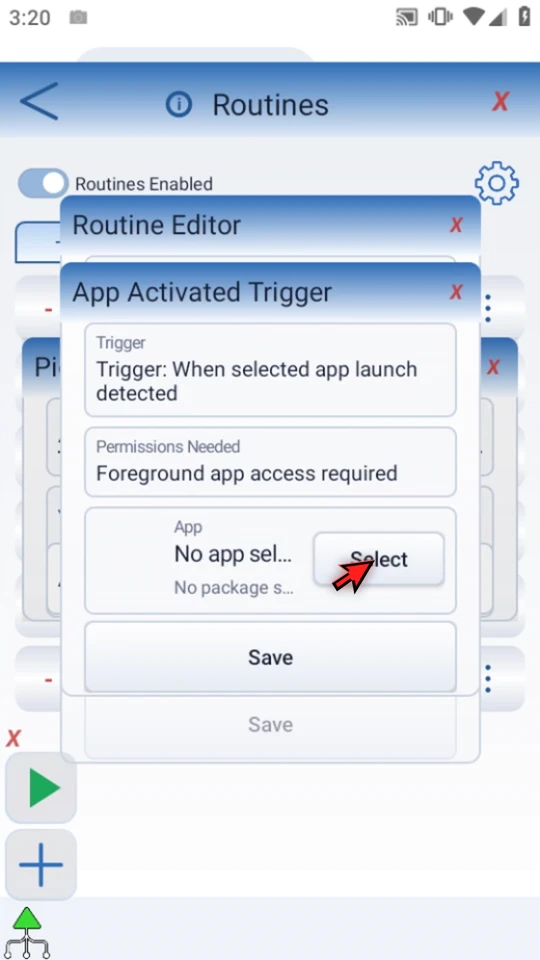
App Activated: respond to the foreground app
Select the app whose foreground state matters. Foreground app access is required. Checks are periodic, so a very brief appearance may be missed. After firing, the condition must be observed false before it can re-arm.
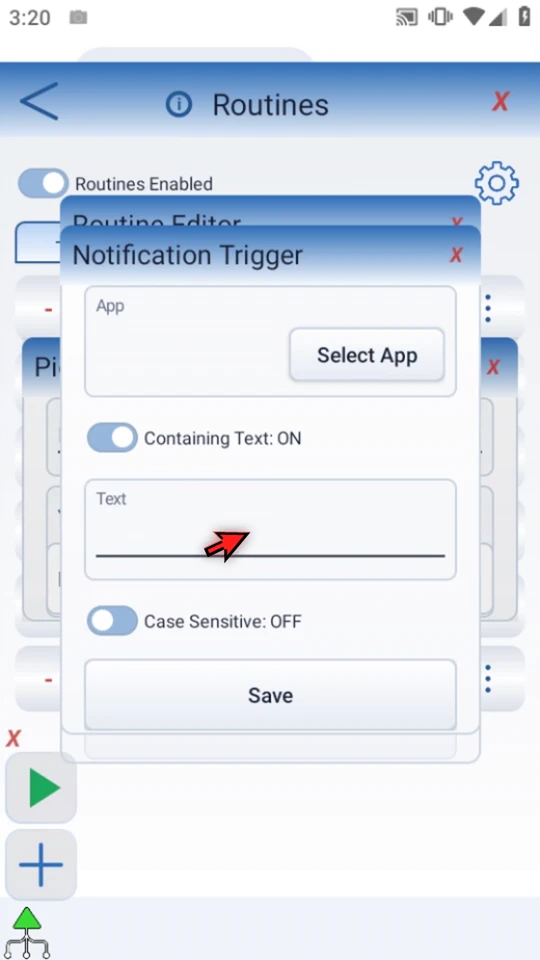
Notification: start a relevant follow-up
Select the source app. Containing Text OFF accepts any matching notification event from that app. Turn it ON to require a text fragment; Case Sensitive makes capitalization significant.
This event-driven trigger uses ScriptTap's Accessibility connection, not a polling timer or notification-history scan. It does not create the notification. Android or the source app may omit or redact text, so test your actual notification before relying on a text filter.
UI Element Found: use exposed app elements
Enter a query. Target chooses Any, Text, Content Description, View ID, or Class. Match supports Contains, Exact, and Regex; a regular expression is a text-matching pattern. Nth Match chooses among matches, starting at one.
Scroll for Enabled, Clickable, Visible and Package Filter. Visible is ON by default. The condition re-arms after an observed false result. It reads Accessibility elements, not pixels; some games and custom views expose little useful information.
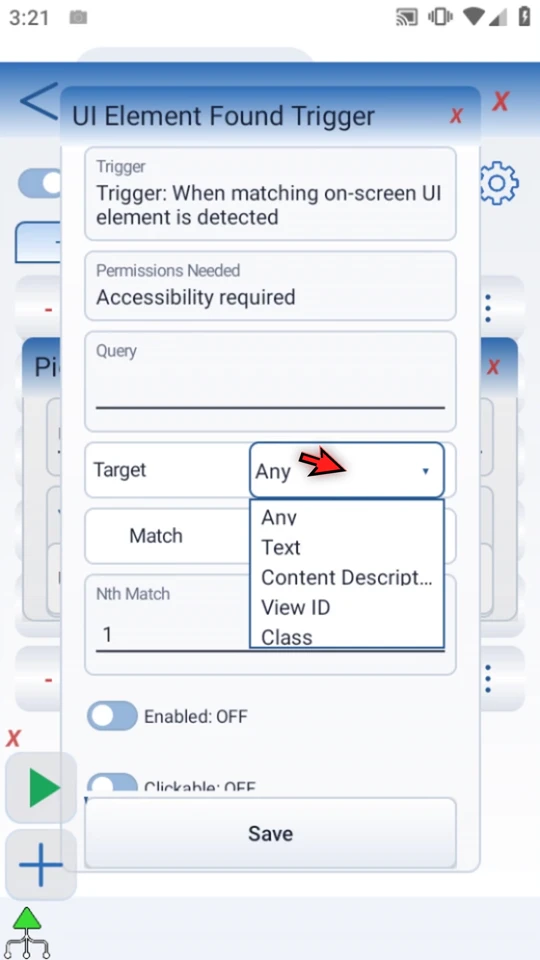
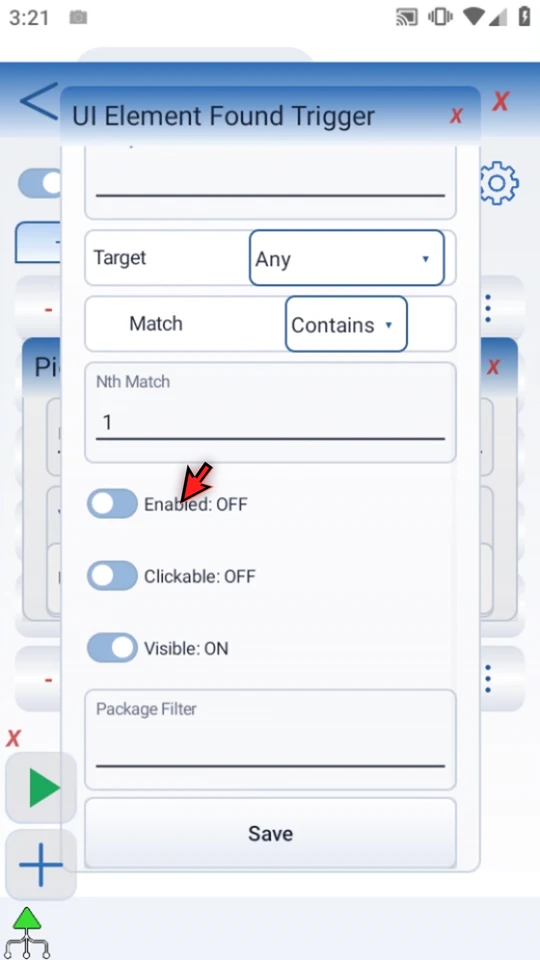
Image Found: recognize a stable reference
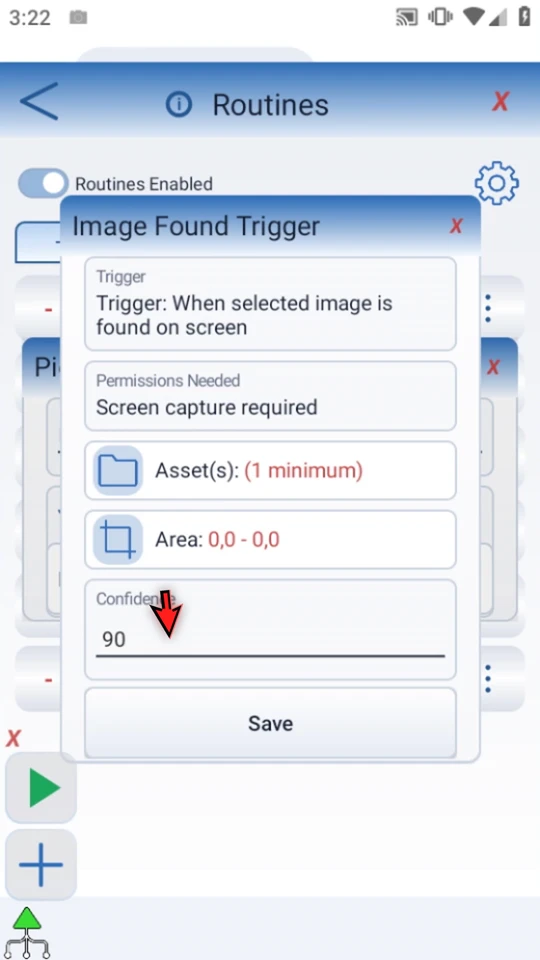
Select a saved reference, a focused screen area, and confidence. Higher confidence requires a closer aggregate picture match; 100 requires exact active pixels. Reuse the shared asset-creation guide instead of making a new crop for every use.
Screen capture is required. By default, an image that remains visible can trigger again after cooldown. Choose suitable checks and limits. Watch the focused Image Found example for a real automatic confirmation.
Pixel Found: use a small color signal
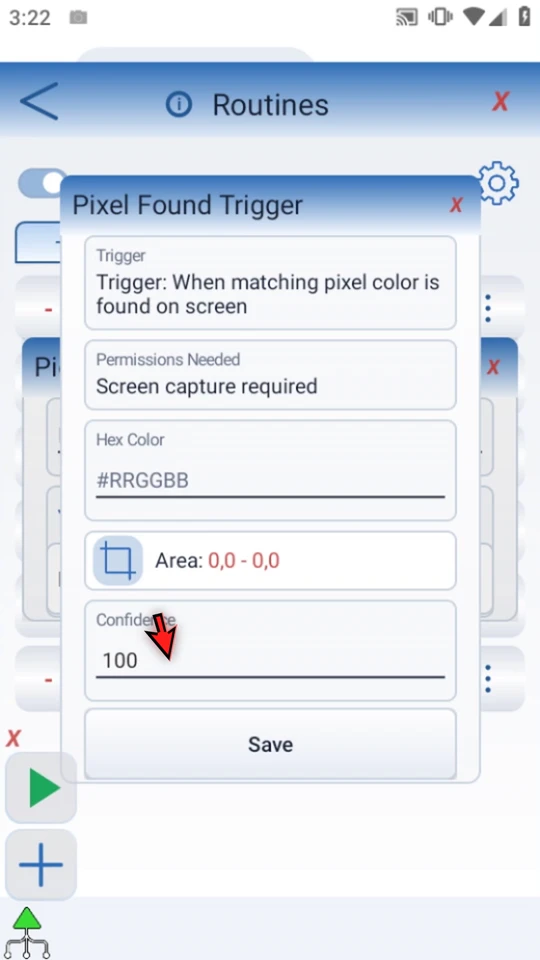
Enter a literal #RRGGBB color and select a point or short line, not a broad rectangle. Confidence 100 requires exact red, green and blue channel values; lower confidence allows more per-channel variation.
Screen capture is required. This condition can also repeat after cooldown while it matches. Test matching and non-matching states. Watch the focused Pixel Found example for a real hidden-cue test and automatic confirmation.
Enable deliberately, then test
Complete one trigger, choose a ready script, and save the Routine Editor. Both Routines Enabled and the routine's checkmark must be ON. A minus means desired-disabled. Missing access, a locked device, limits, or an invalid target can still prevent a start.
Start with a short visible confirmation such as PromptMe. Check the condition is the one you need, then disable the test routine before trying another example.
Do not confuse three timing controls
Repeat Frequency creates Time occurrences. Check frequency controls how often a polled condition is evaluated. Cooldown spaces successful fires. Notification is event-only, so its settings have no checking-frequency field.
App Activated and UI Element Found need an observed false condition to re-arm. Image Found and Pixel Found can re-fire after cooldown while still matching. Time uses distinct scheduled occurrences.