Command video guide
PromptMe
PromptMe asks for user input and makes the answers available to later commands. Regular mode is labelled Standard in the app. It waits for the user to answer. Mini provides compact controls and, with Persistent on, can remain available while later commands run. It has its own guide.
Create and name PromptMe Demo, then manually drag PromptMe into the blank editor. Keep Standard and This Script Only; Script Thread shares output variables within that thread. Set Header to Setup.
Enable Use Buttons, add Done → b1, then enable Use Toggles & Text. Under Use Toggles, add Flag → b2. Under Use Text, choose String, destination s1 and caption Name. Integer and Decimal accept the corresponding numeric types. Buttons are single-selection choices; toggles are independent. Each section supports up to six rows where applicable. A row's check mark removes it. Turning a section off retains its saved configuration.
Header and button fields allow eight characters, toggle captions six, and the text caption seventeen. These limits apply to authored labels, not the typed answer. A defined String variable can supply caption text. Save the form, then manually drag a second PromptMe below it with Header s1 and a single Next → b3 button. Keep Toggles & Text off on this second command.
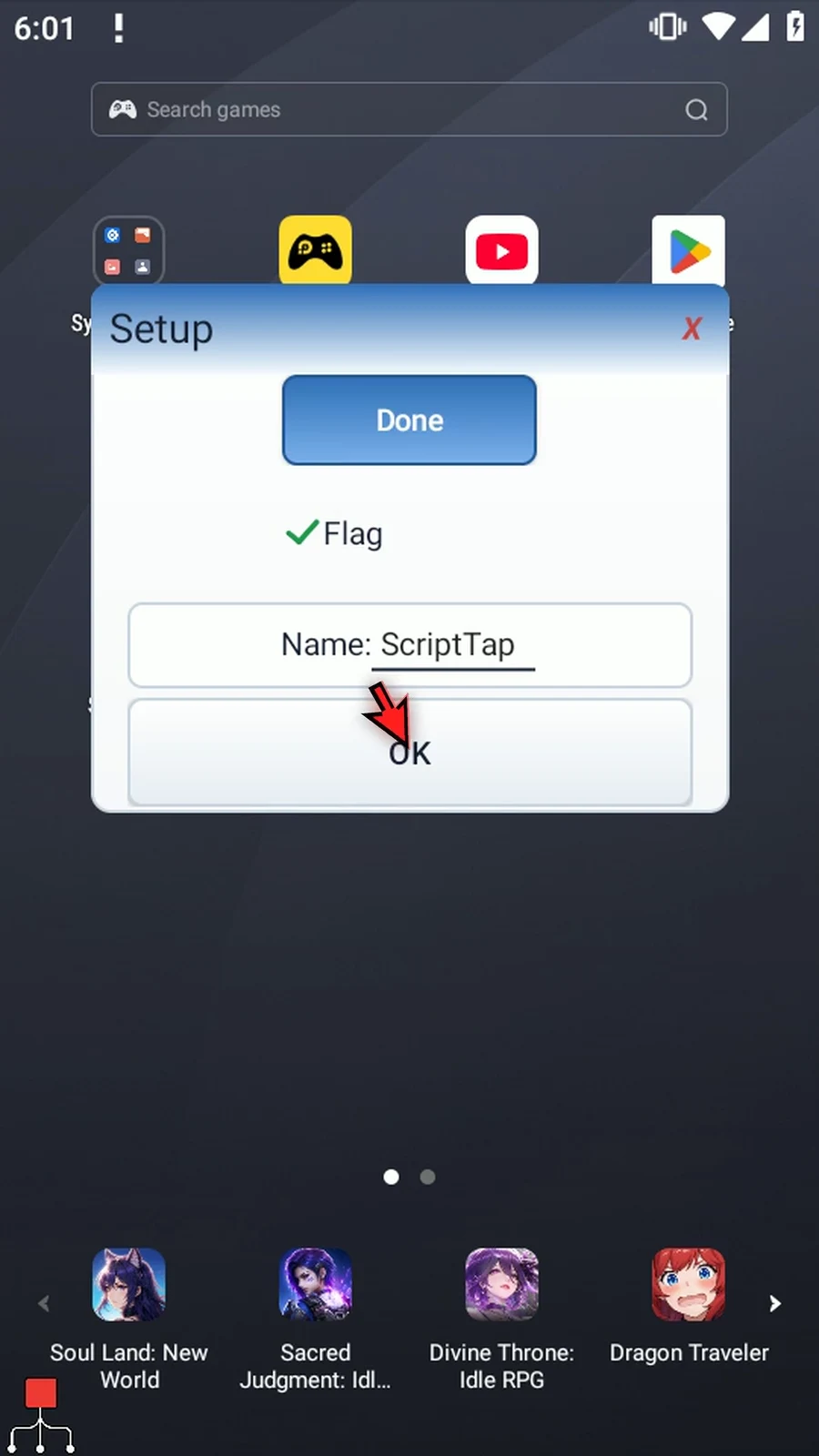
Close the editor and use Play. Drag the first dialog by its header, type ScriptTap in Name, turn Flag on and select Done. Mixed forms use OK to submit all answers. The second prompt resolves its s1 header to ScriptTap. Its buttons-only form continues immediately when Next is chosen, finishing the script.
PromptMe silently saves a position moved during script play on this device. An unchanged repeat opens at that last saved position. The video stops only the repeat check with the main Stop button; the earlier full run completes both commands.
Regular / Standard
Step-by-step guide
Step 01 PromptMe lets a script ask for choices or typed information, then use the answers in later commands. Standard is the regular dialog: the script waits while you answer. Mini has a separate guide.
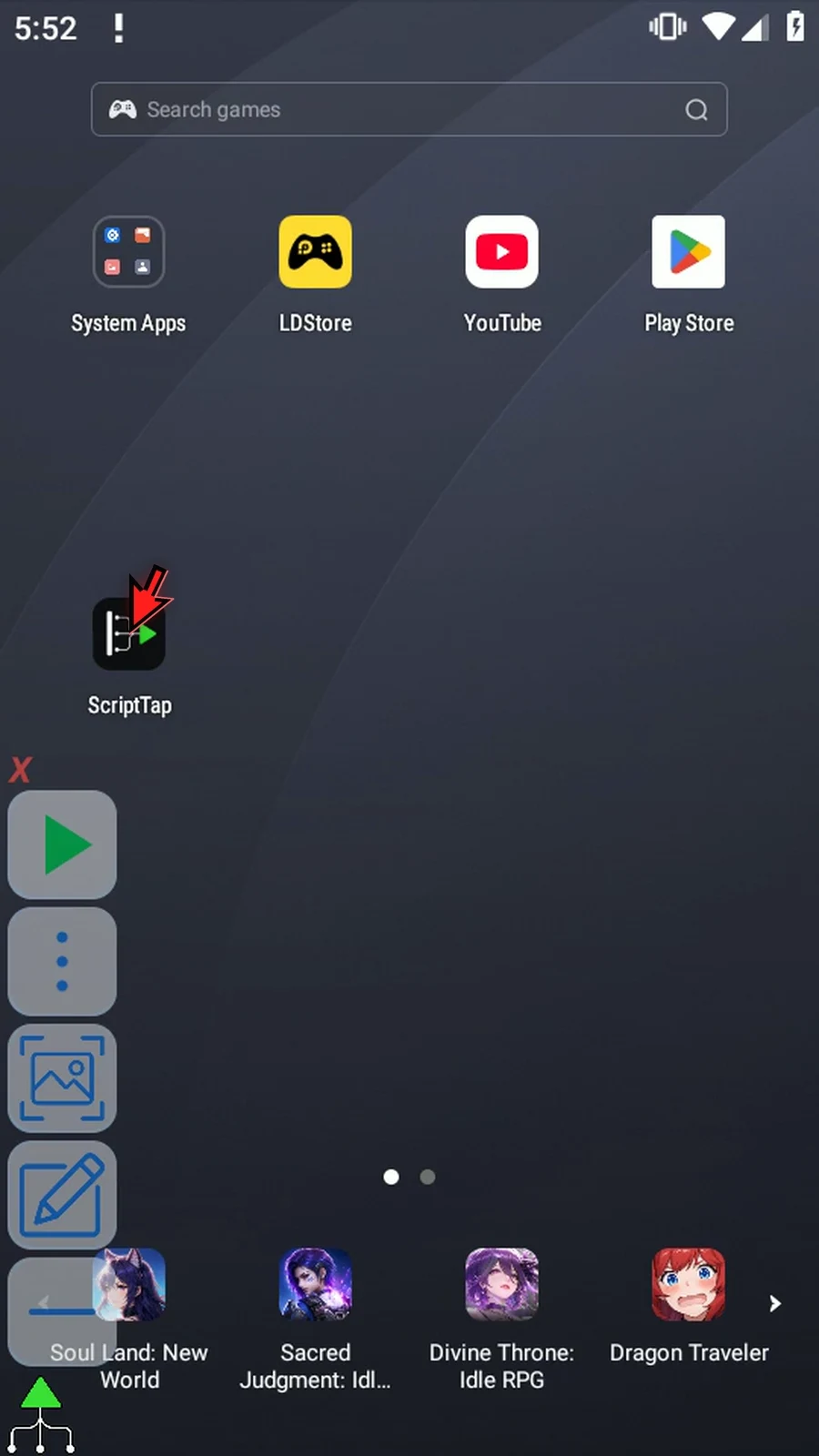
Step 02 Open Scripts from the main menu, then create a new blank script. We will leave existing scripts unchanged.
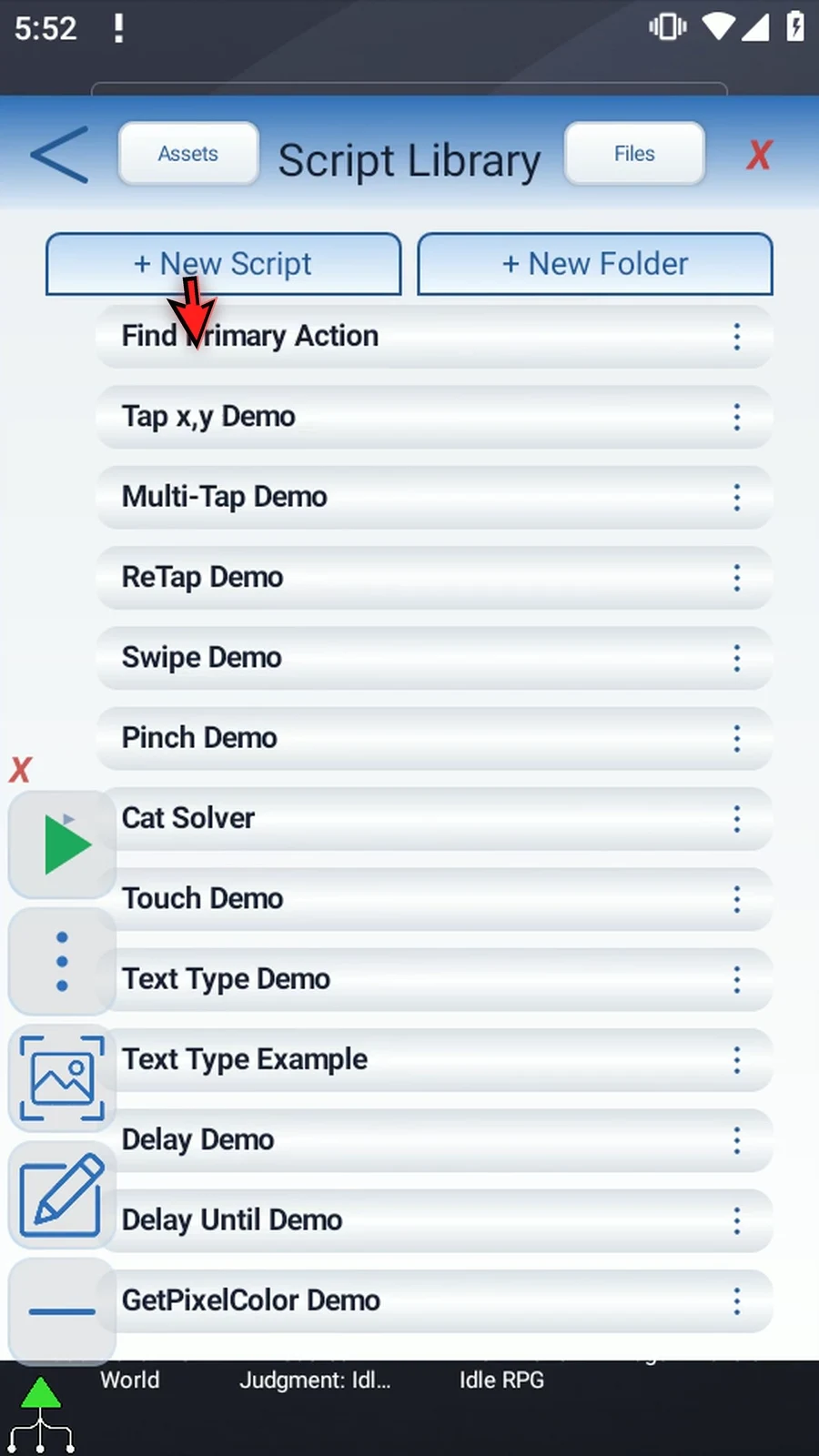
Step 03 Scroll to the new script and open its menu to rename it.
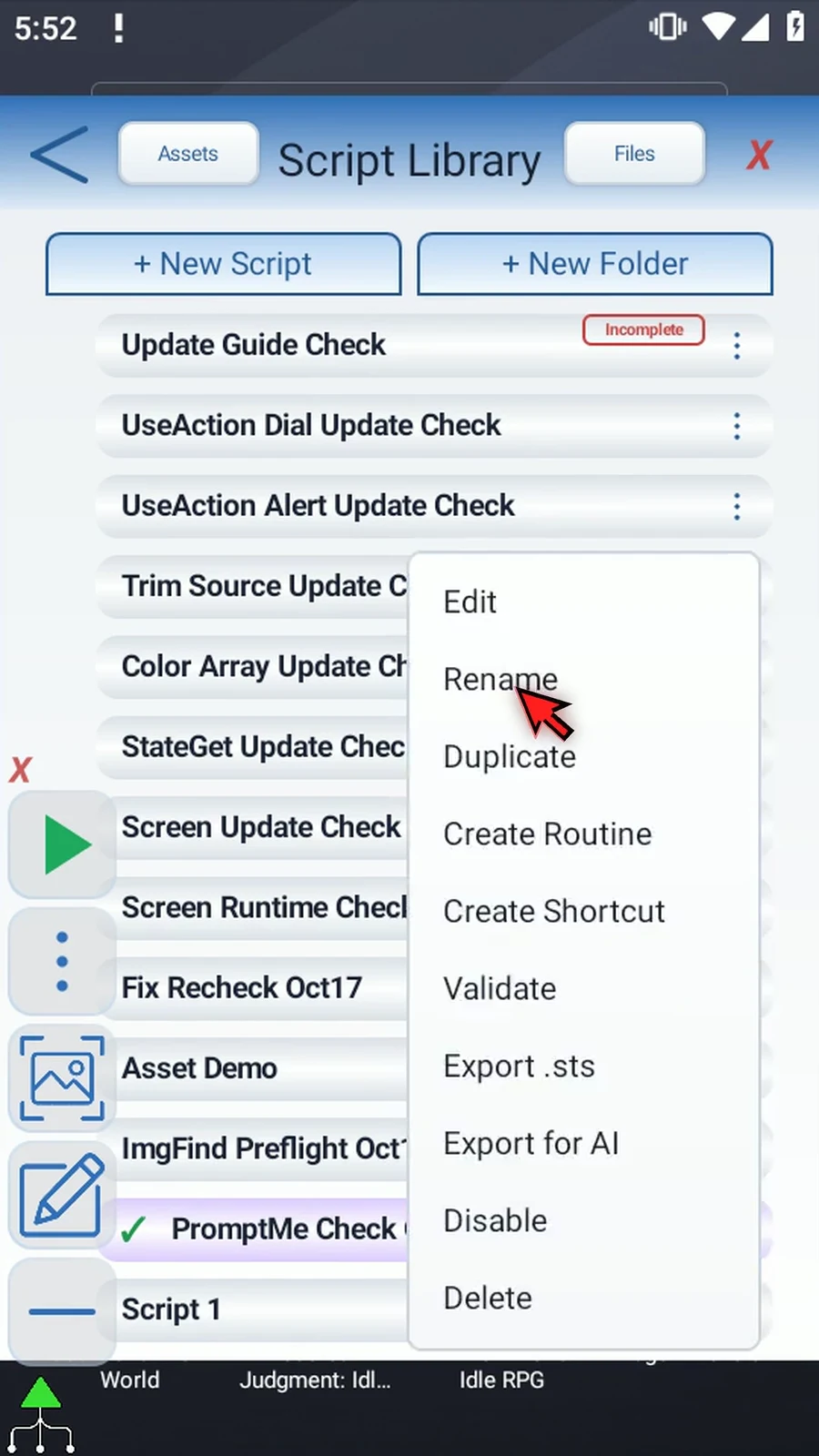
Step 04 Give the example a name. We will use PromptMe Demo. Select it, then open the script editor.
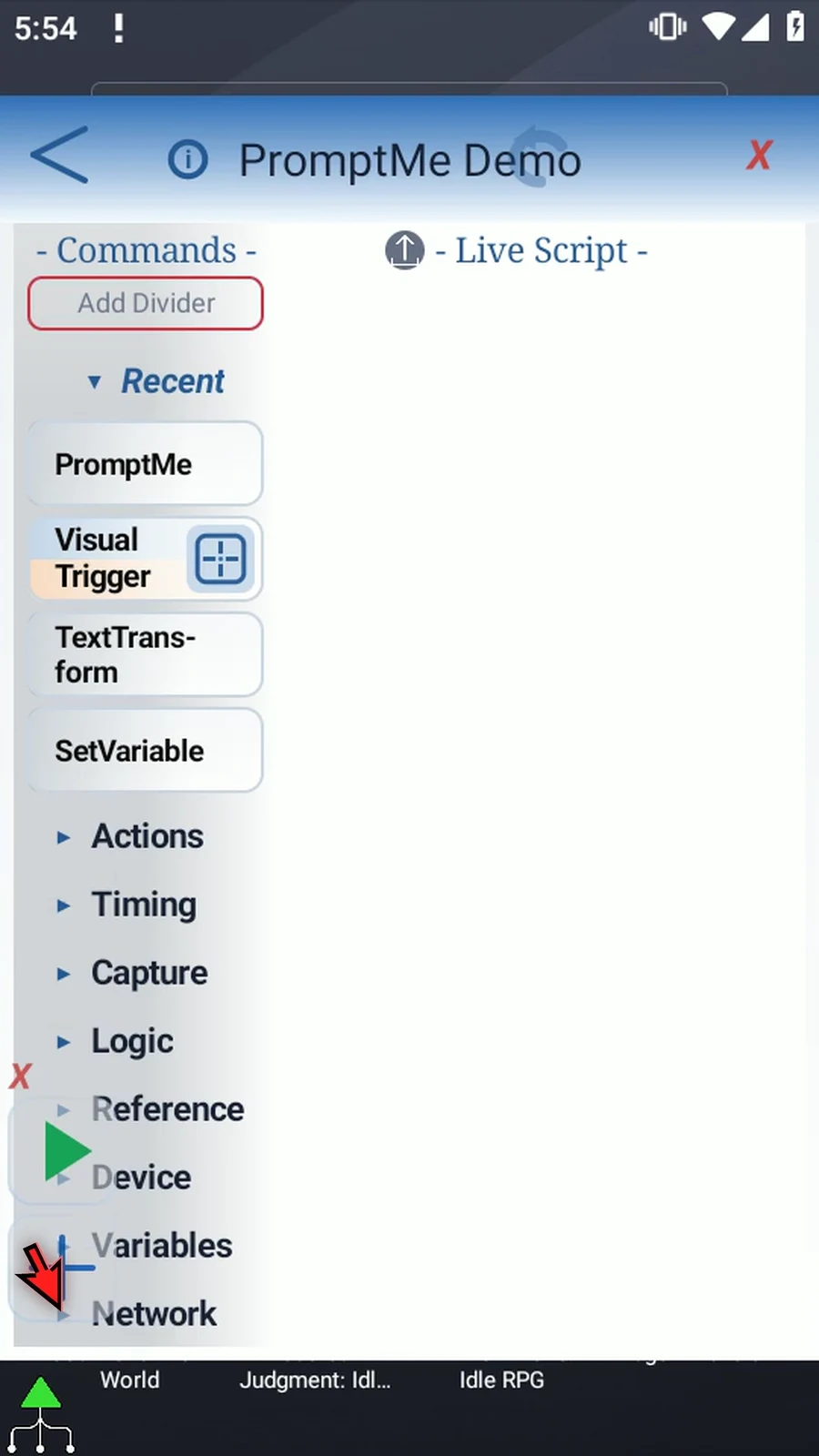
Step 05 Drag PromptMe from the command palette into the live script. Double-tap the new command to open its settings.
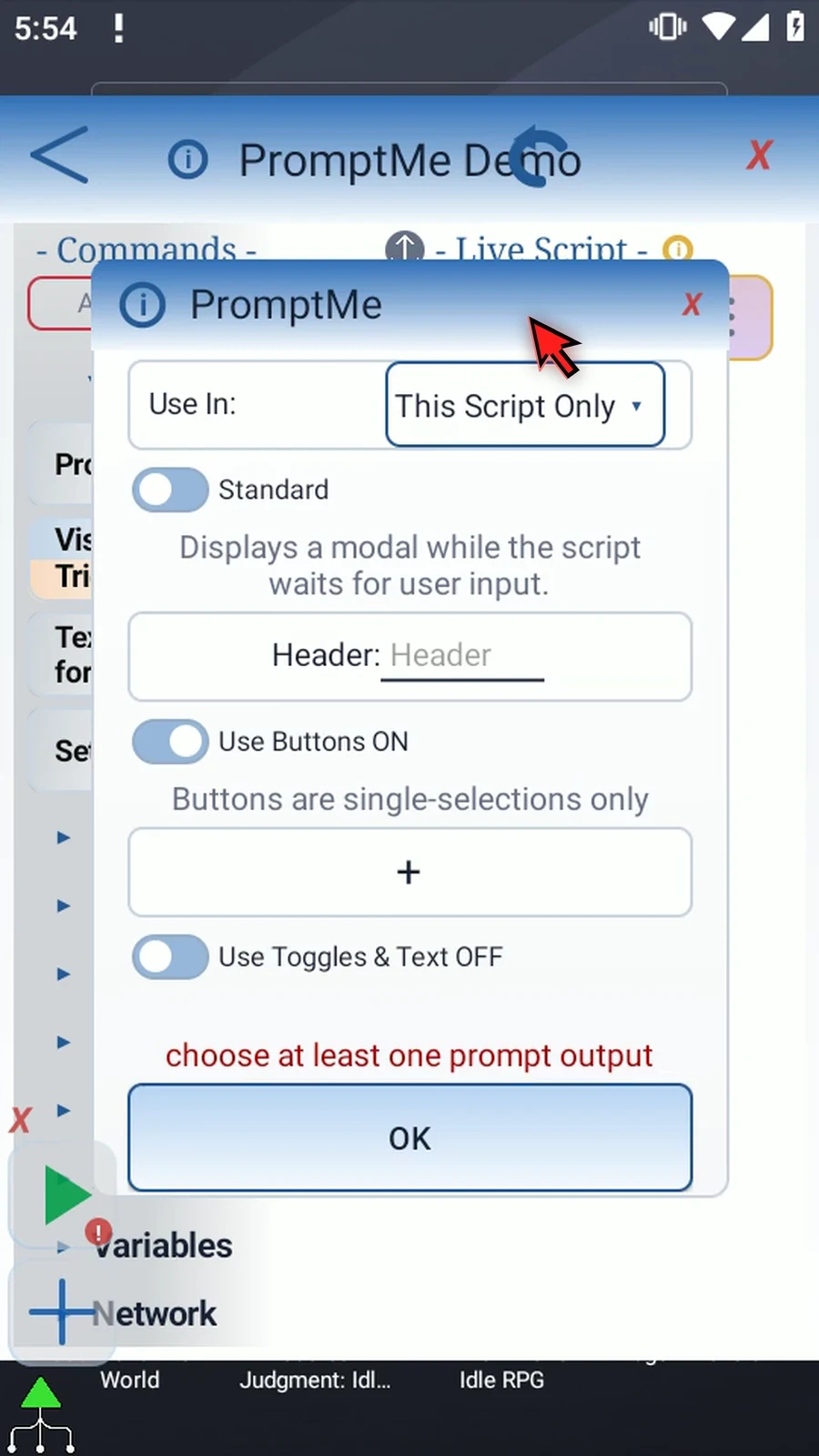
Step 06 Keep Standard selected for this regular form. Our first prompt will collect a name and a choice. A second prompt will display the saved name, so we can see the result.
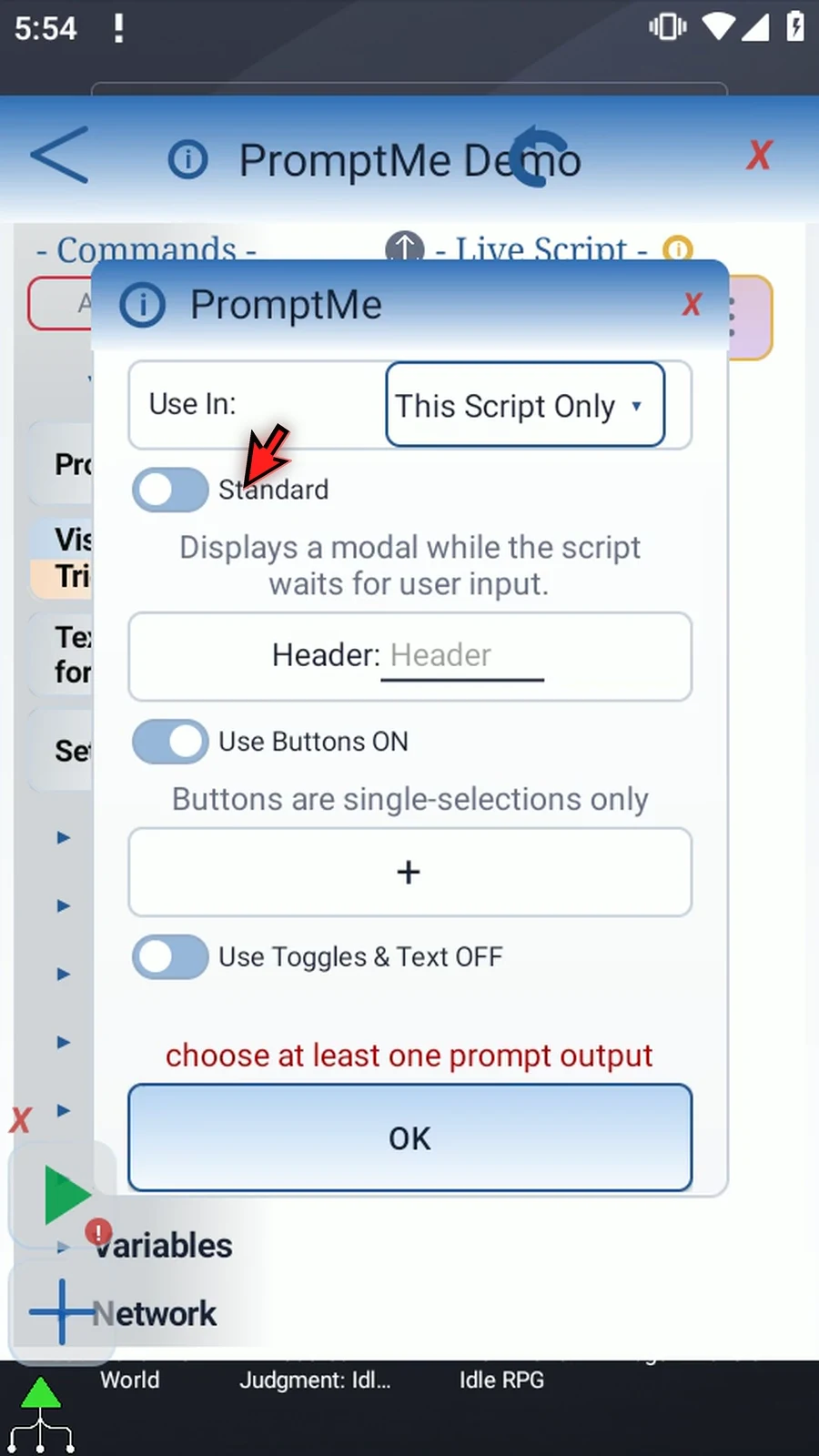
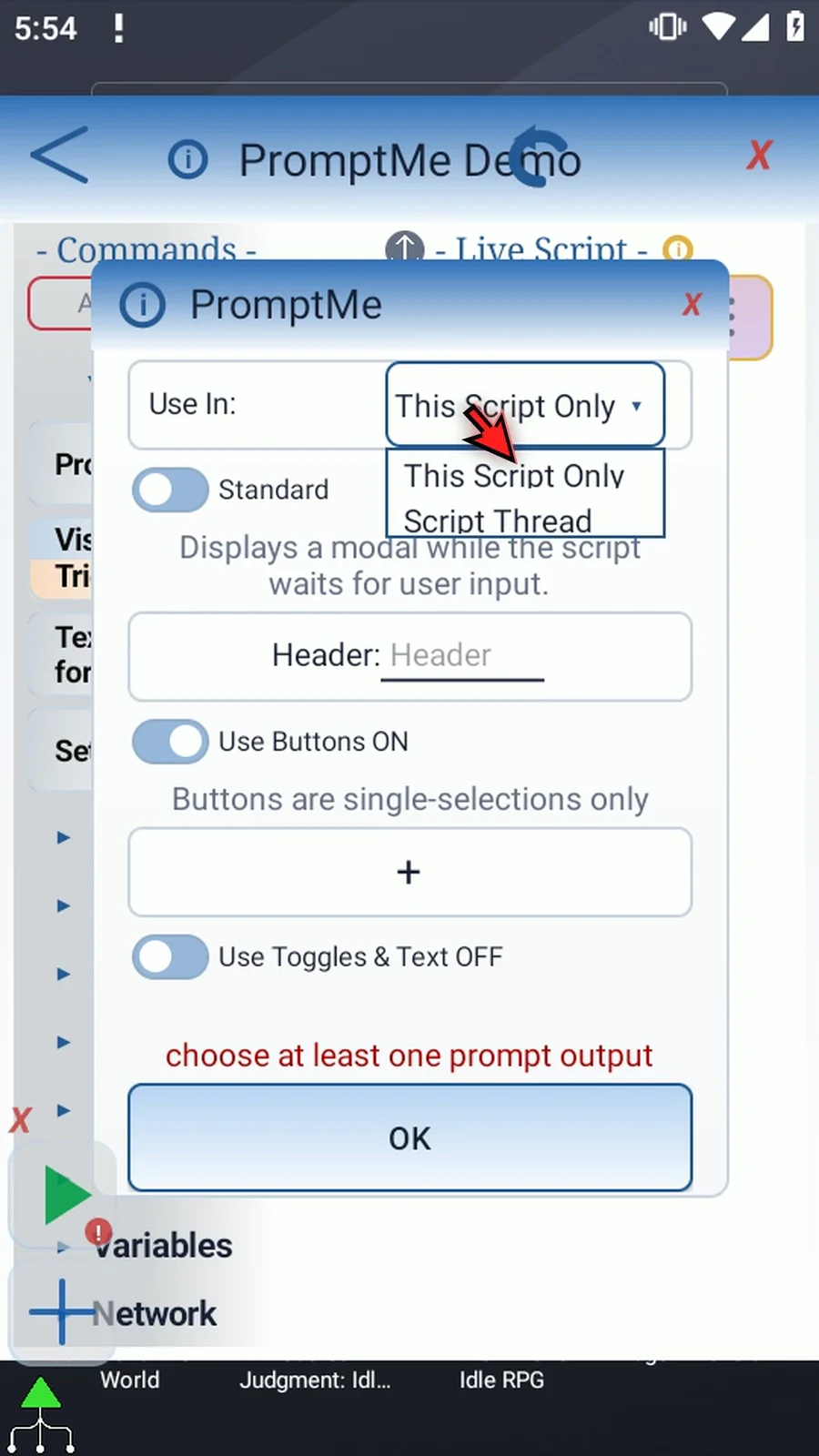
Step 07 Use In controls where the output variables are available. This Script Only keeps them local. Script Thread shares them with scripts in the same thread. We will keep This Script Only.
Step 08 Set the Header to Setup. This is the title the user will see during script play.
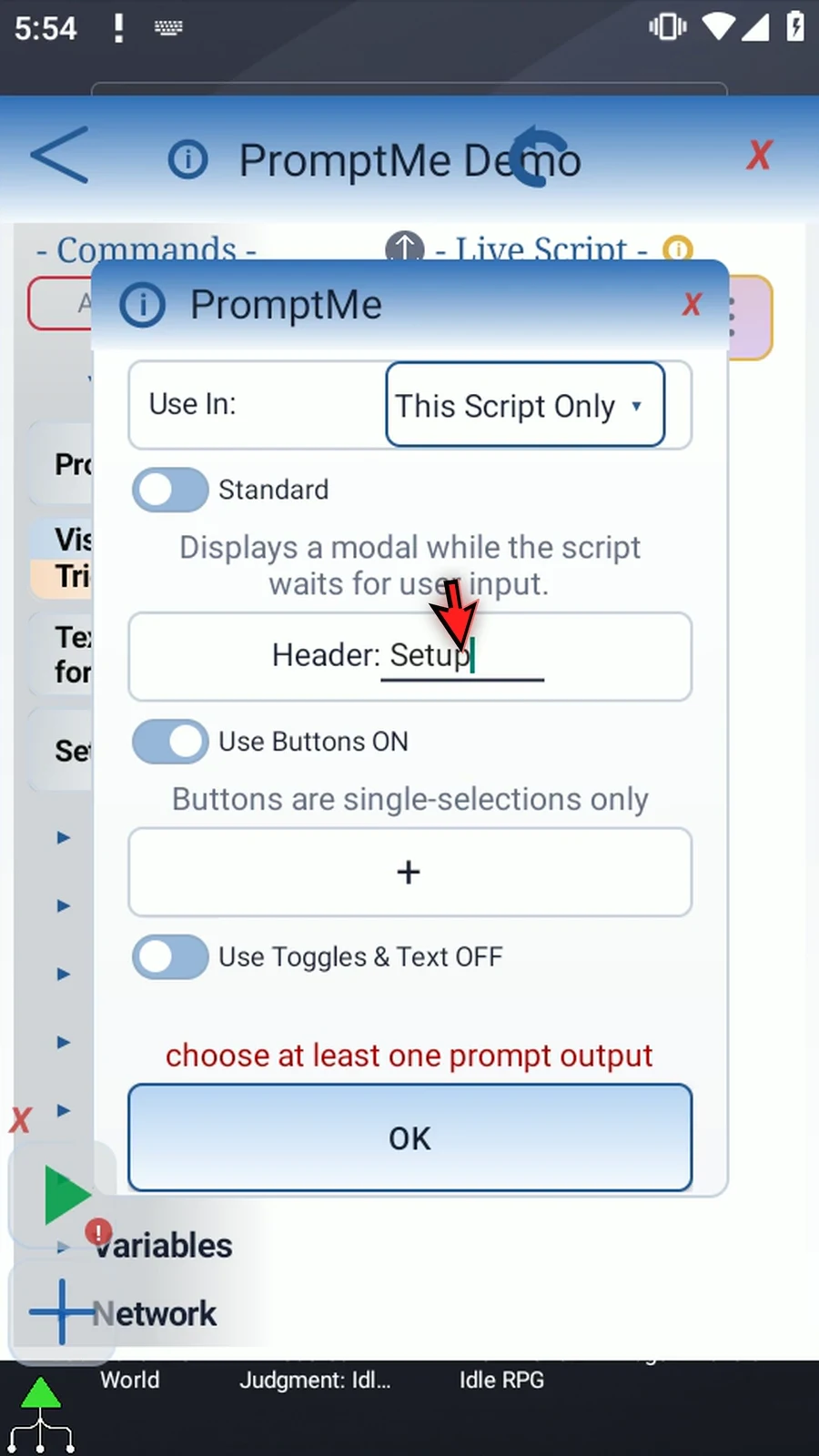
Step 09 Leave Use Buttons on and add a row. Give it the caption Done, and use b1 as its Boolean output. Buttons are single-selection choices: the chosen button is true, and the other button outputs are false.
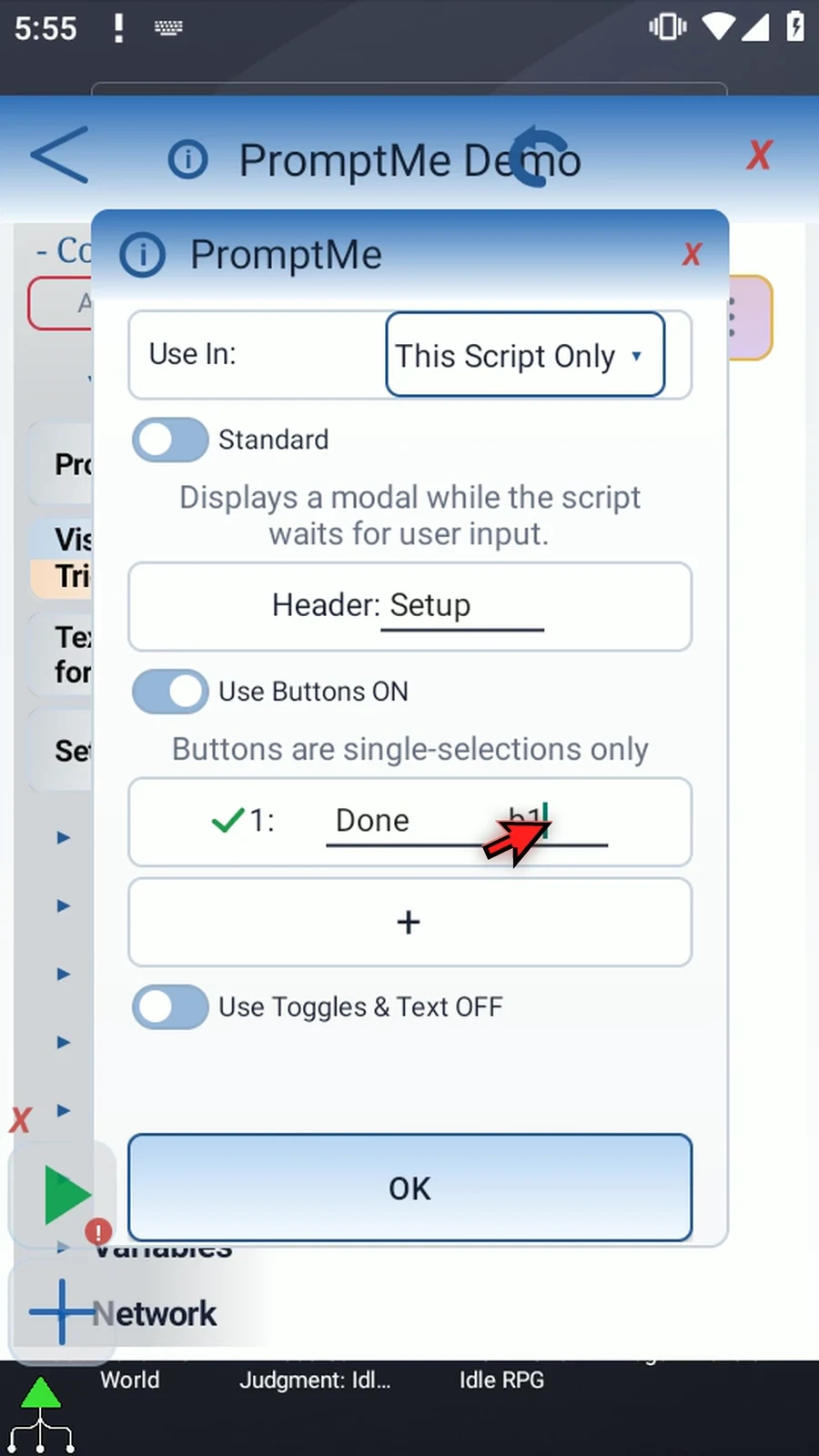
Step 10 You can add up to six buttons. The check mark beside a row removes that row; it is not a saved on or off setting. Here we add a spare row, then remove it.
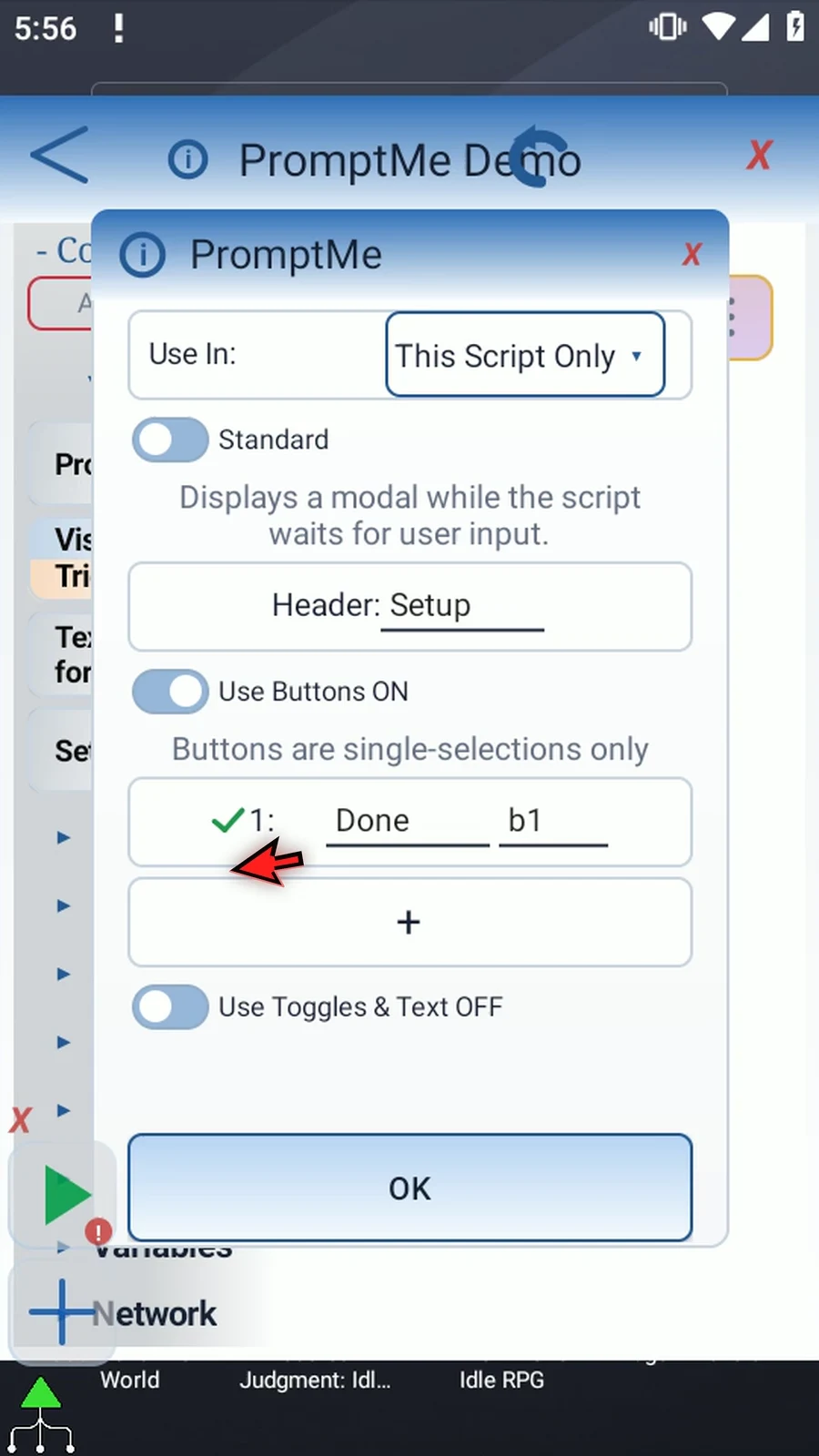
Step 11 Turning an input section off keeps its saved rows and destinations. Turn Use Buttons off, then on again, and the Done row is still there.
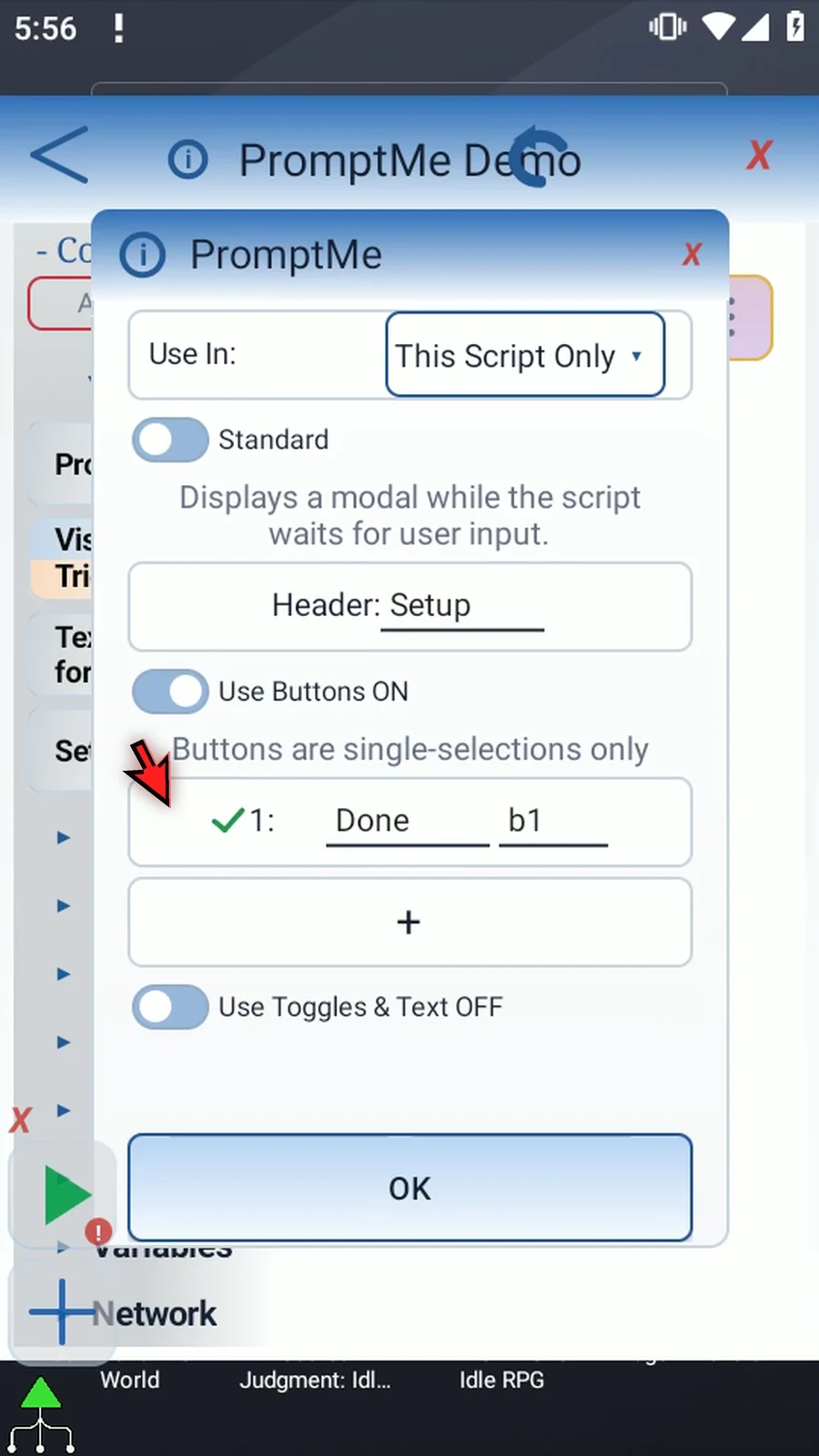
Step 12 Turn on Use Toggles and Text, then enable Use Toggles. Unlike buttons, toggles are independent choices, so several can be on together.
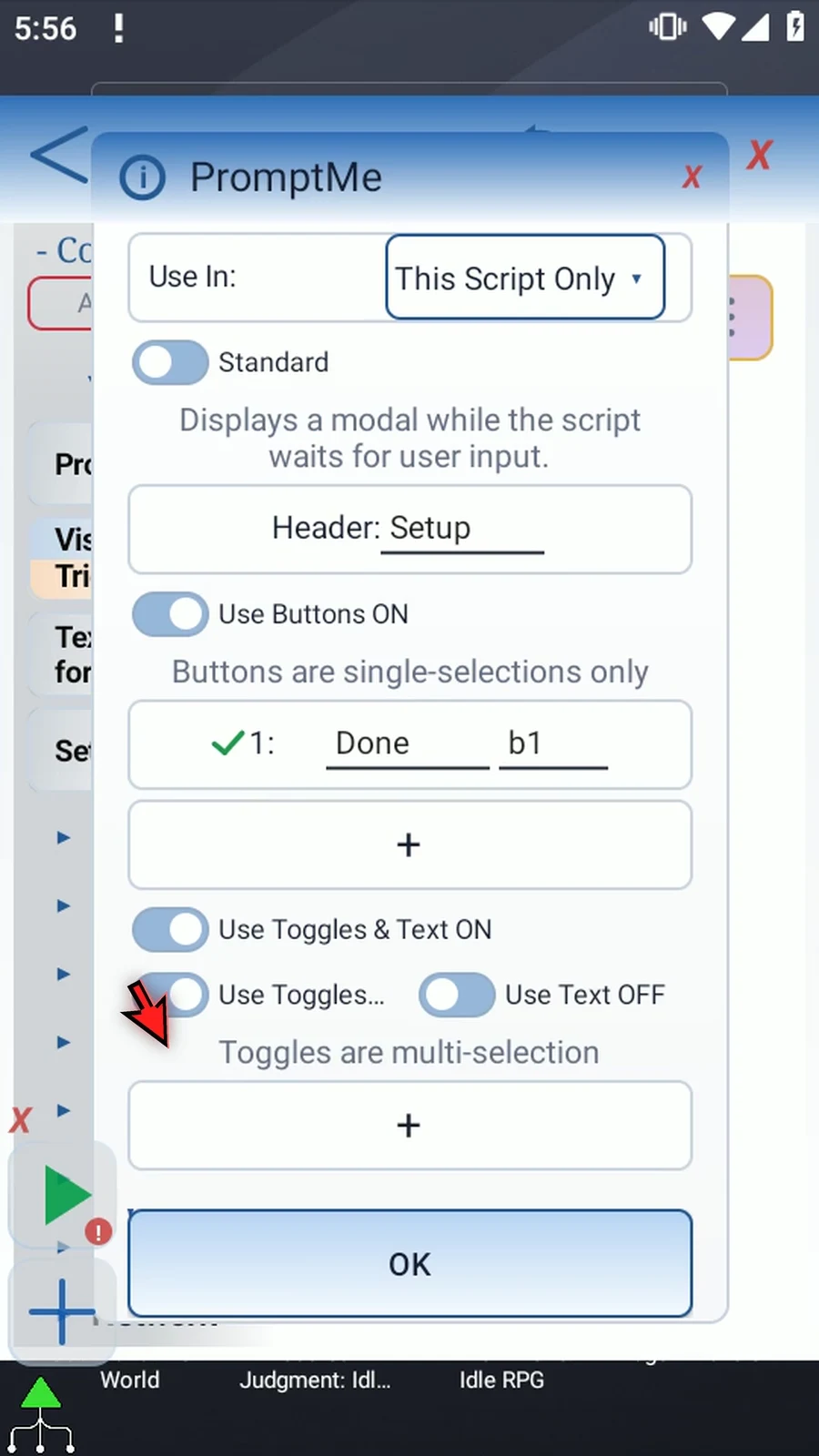
Step 13 Add a toggle named Flag and send its value to b2. You can have up to six toggle rows, each with its own Boolean output.
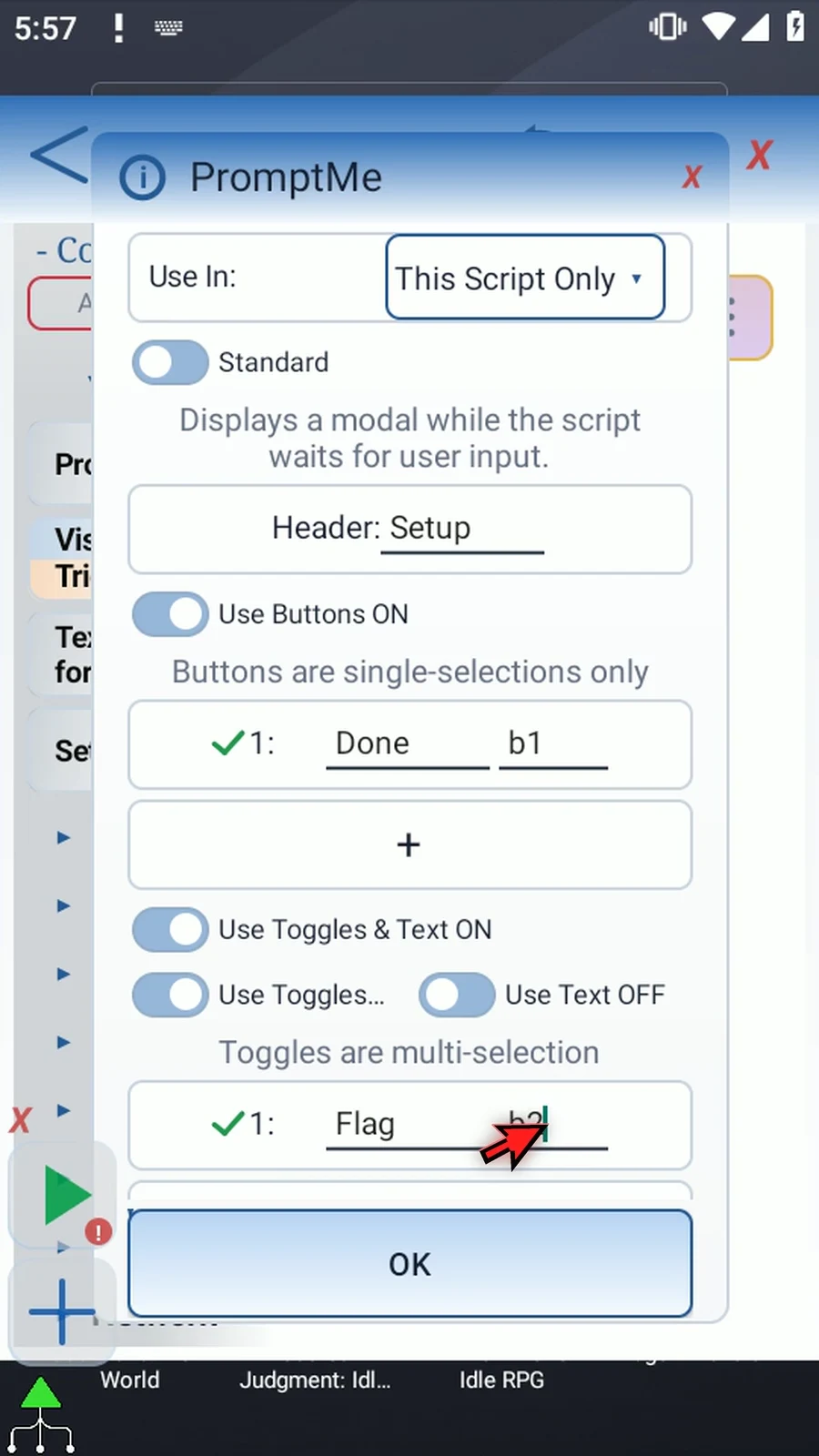
Step 14 Enable Use Text as well. The same regular prompt can combine buttons, toggles, and a typed answer.
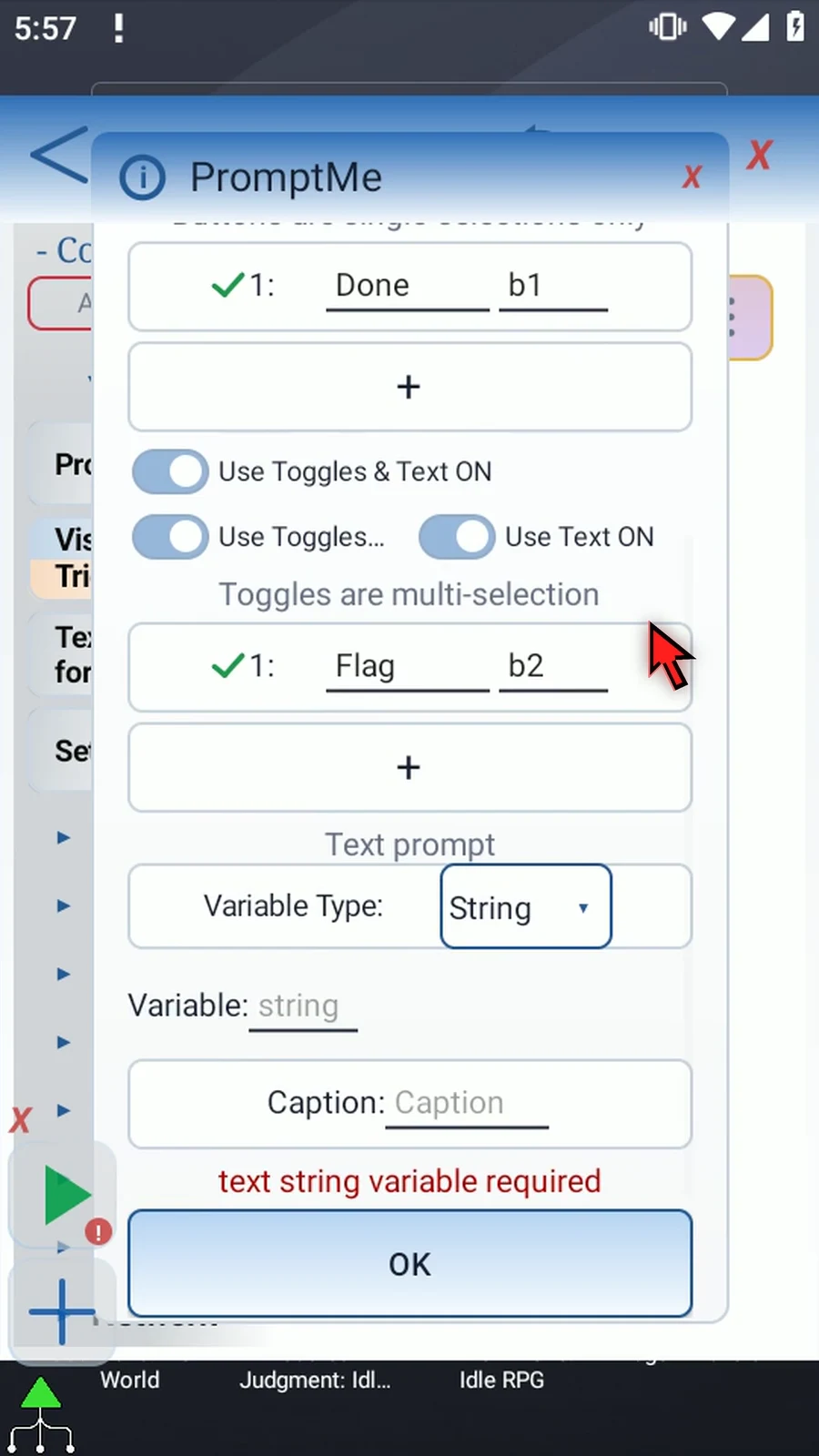
Step 15 Choose String for words, Integer for whole numbers, or Decimal for fractional numbers. The destination variable must have the matching type. We will keep String.
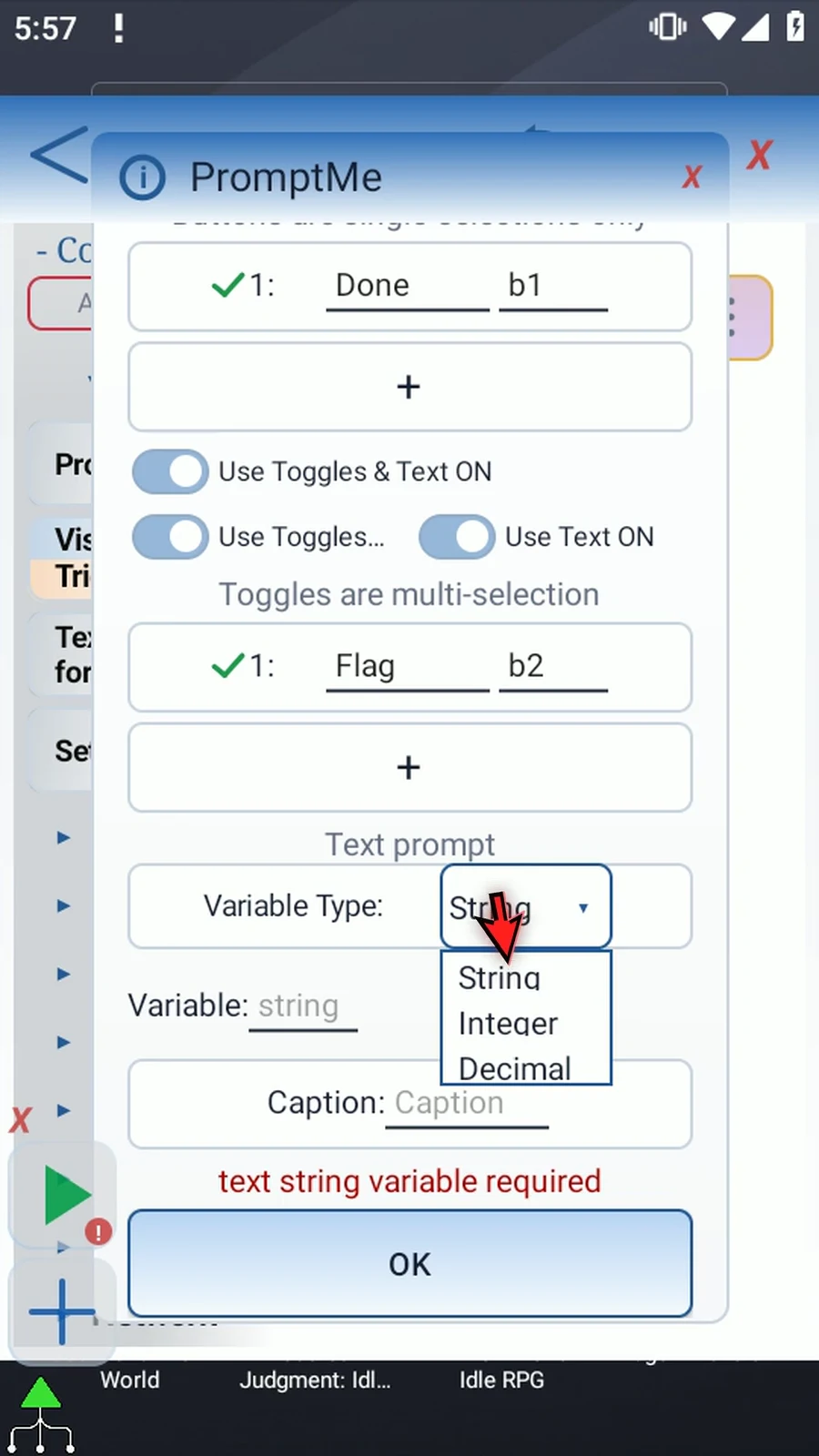
Step 16 Use s1 as the String destination and Name as the input caption. The caption labels the field; s1 receives what the user actually types.
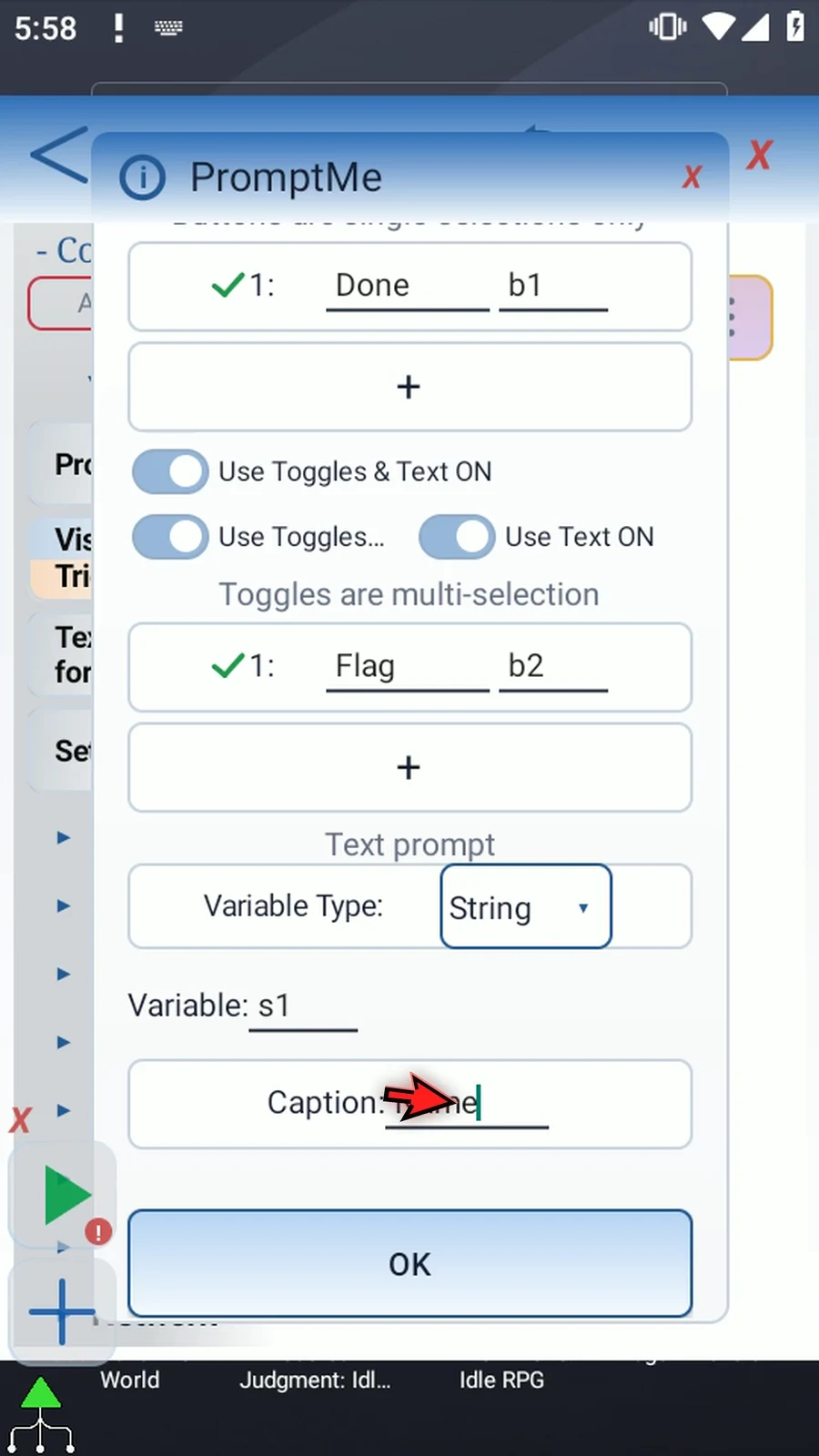
Step 17 Keep the labels short. Header and button fields allow eight characters, toggle captions allow six, and the text caption allows seventeen. These are label limits, not the length of the answer. A defined String variable can also supply caption text.
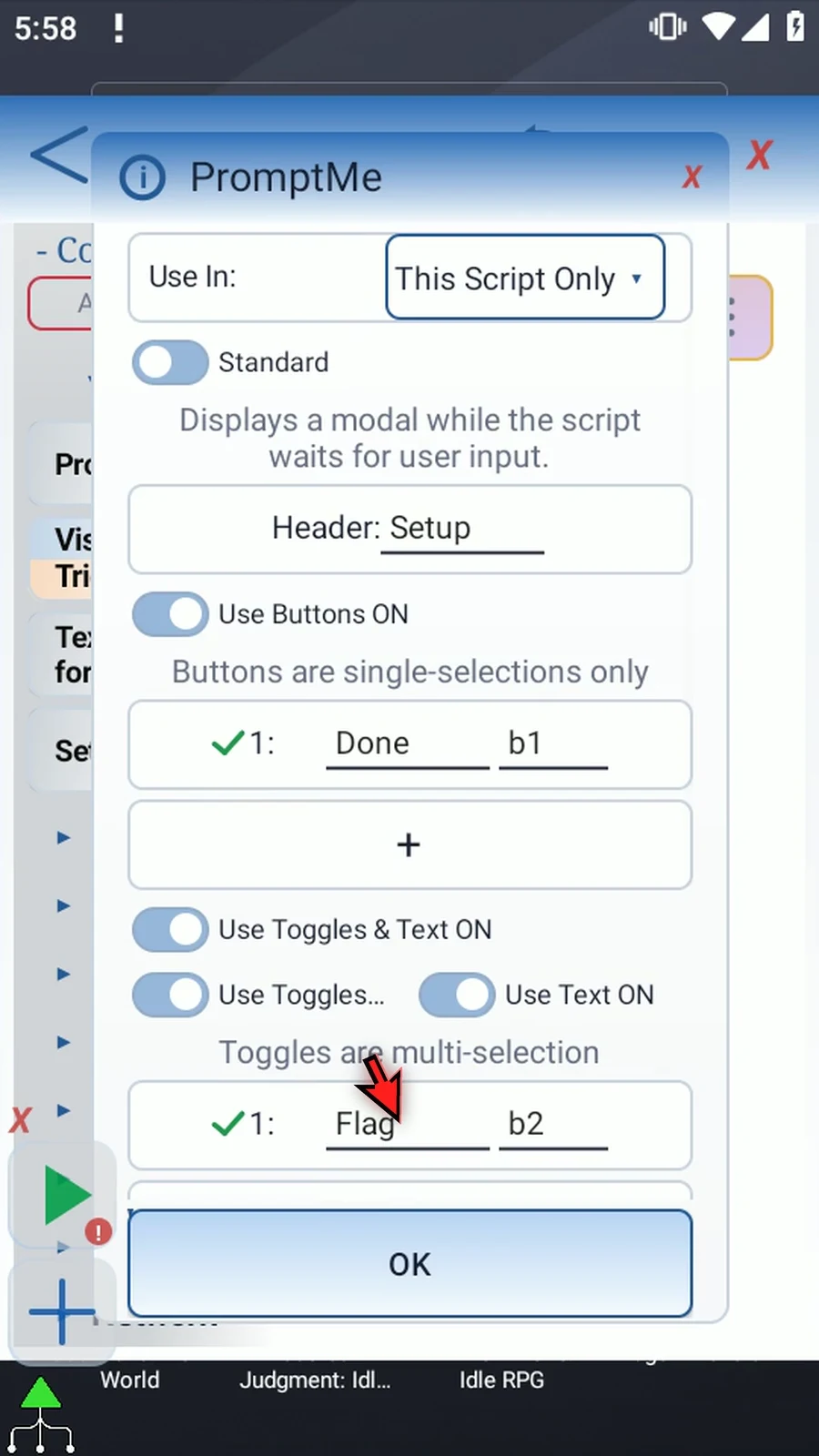
Step 18 Tap OK to save the form. It now has one button, one toggle, and a text input.
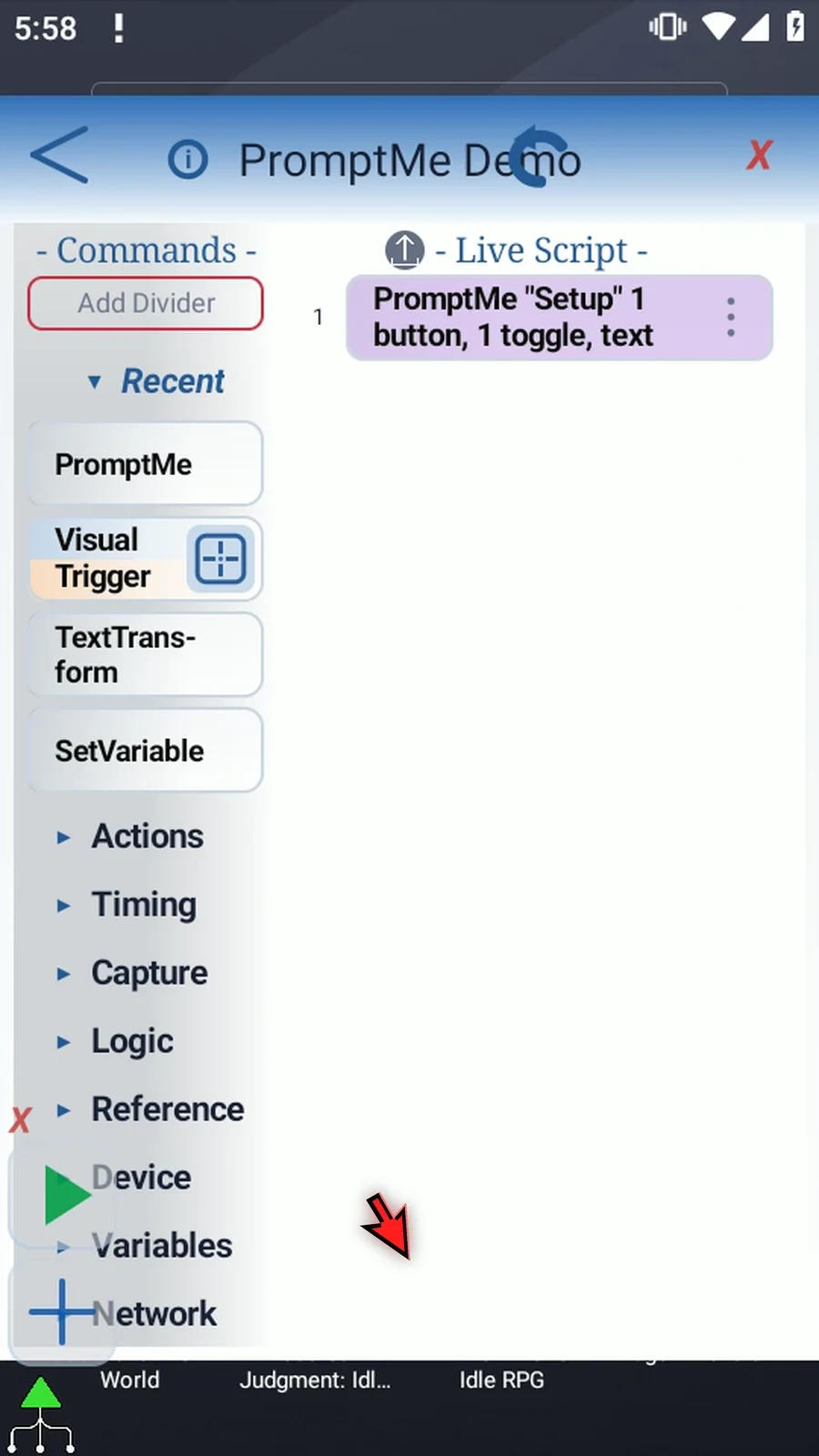
Step 19 Drag a second PromptMe below it. This one will show the answer from the first prompt, instead of asking for the same information again.
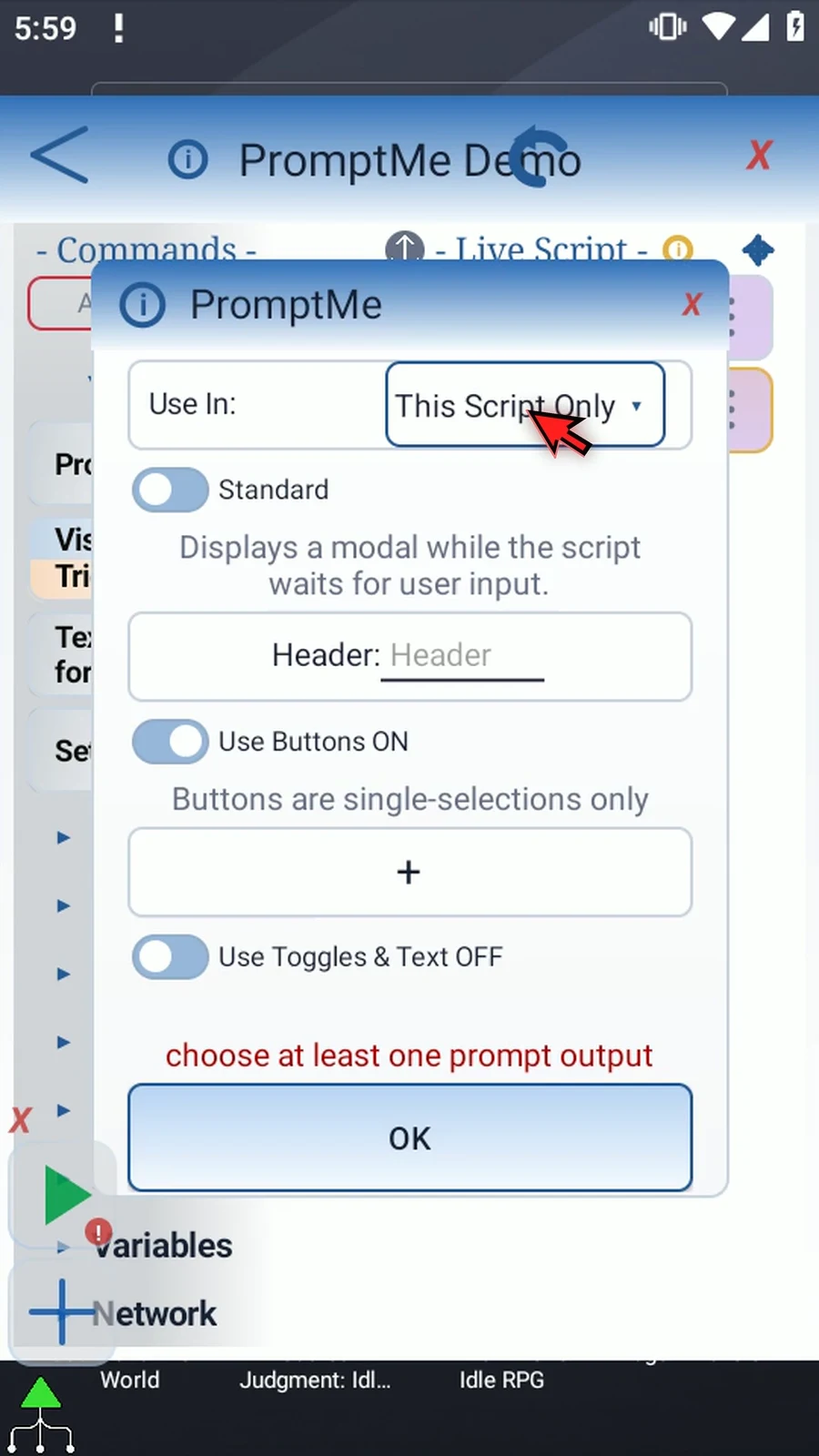
Step 20 Set its Header to s1. An exact defined String variable name is replaced with that variable's current value when the prompt opens.
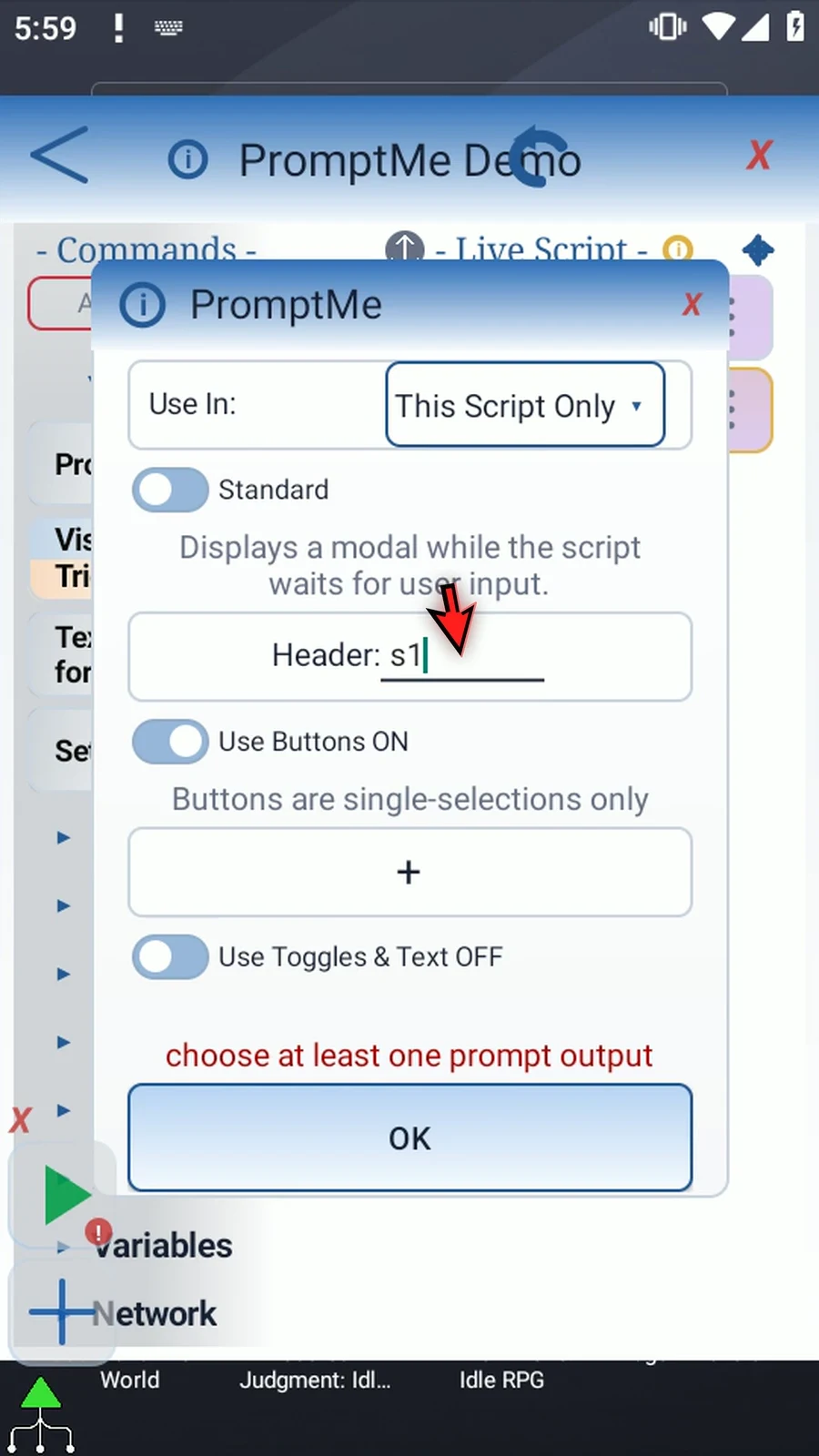
Step 21 Keep only Use Buttons enabled. Add a Next button with b3 as its output, then save. With buttons alone, choosing a button continues the script immediately; there is no separate OK step.
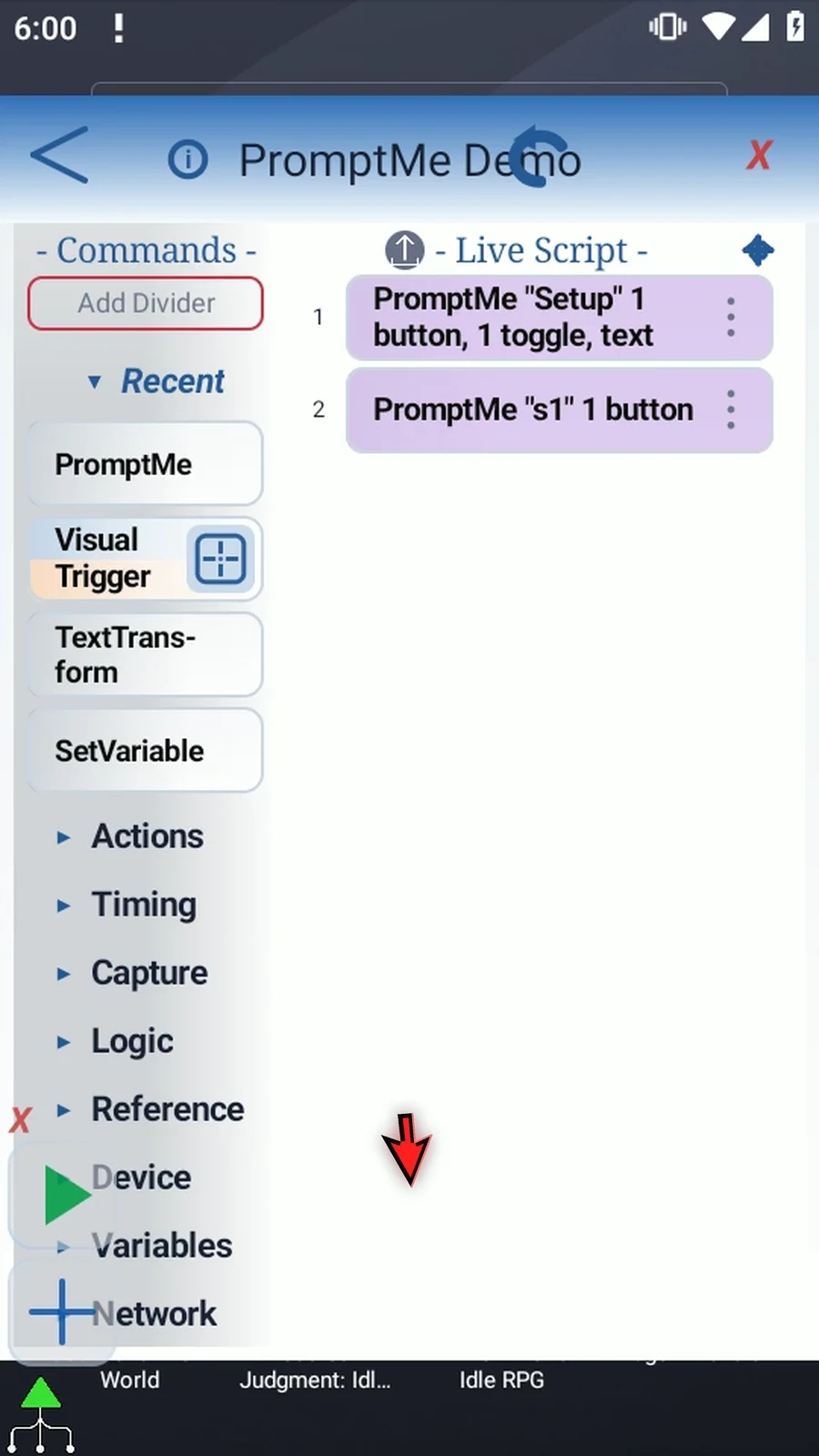
Step 22 When the script is complete, simply use the Play button in the main overlay.
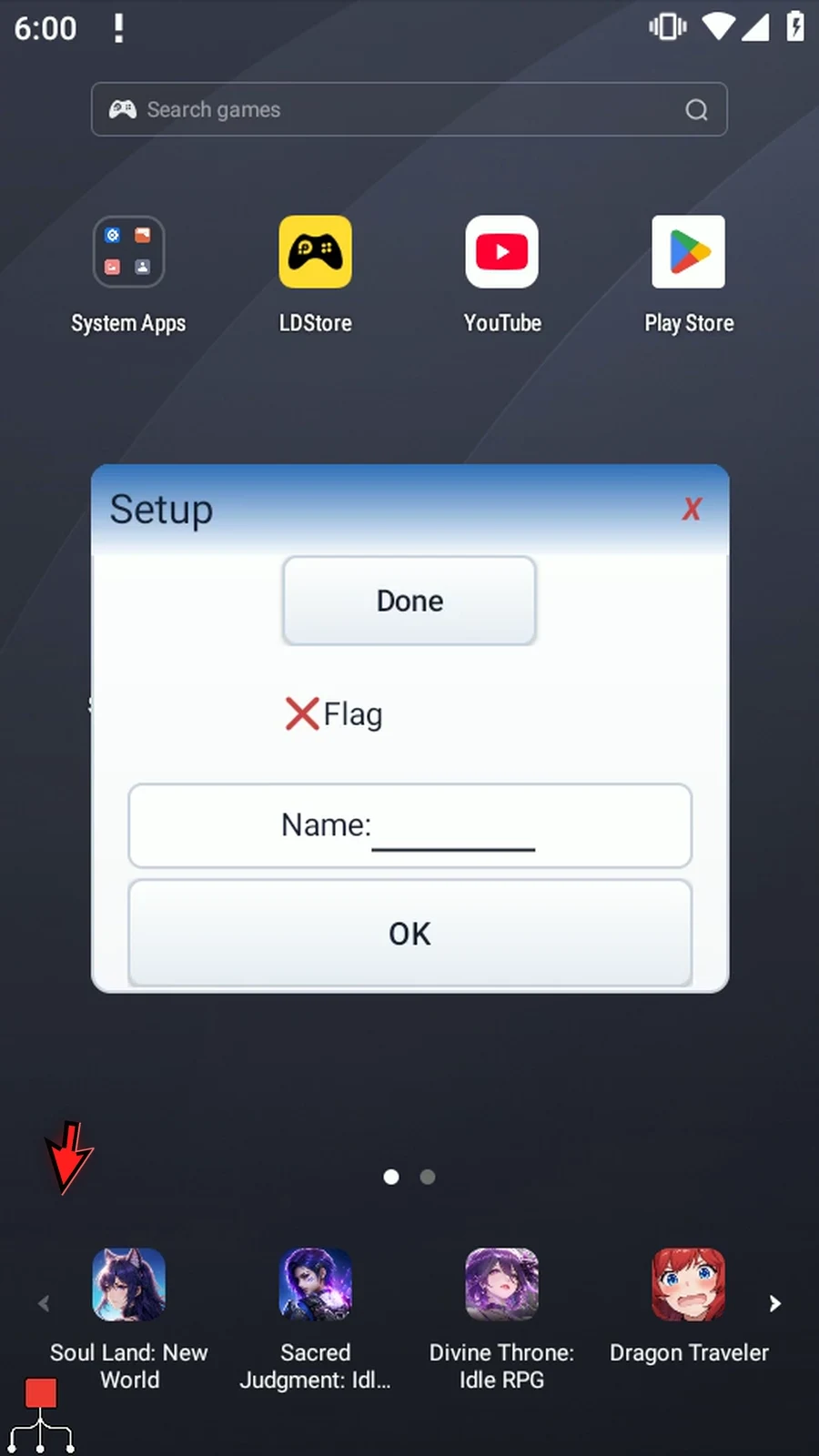
Step 23 The script pauses at the first prompt. You can move PromptMe during play by dragging its header. It silently remembers that position on this device for later runs.
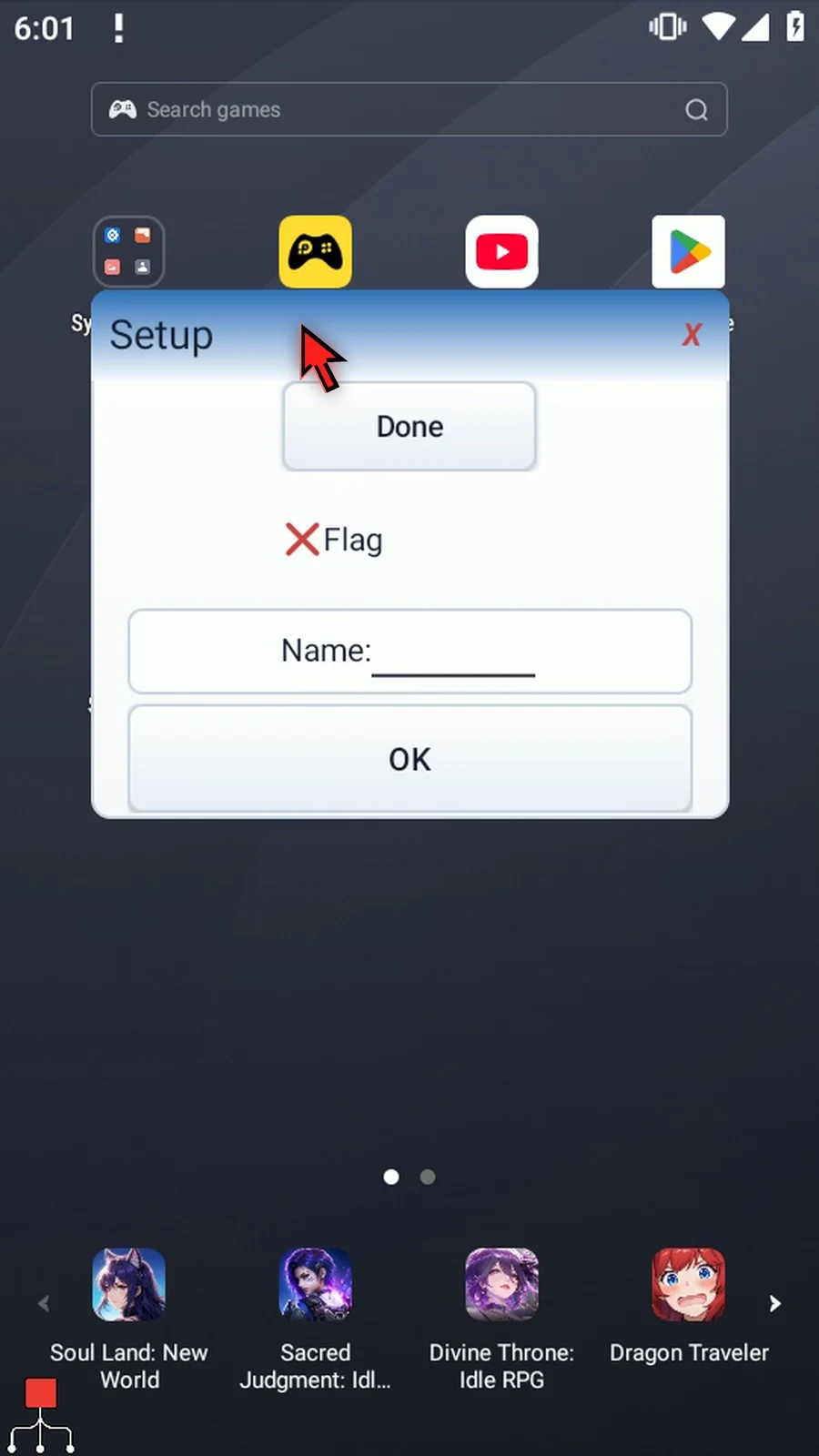
Step 24 Enter ScriptTap in the Name field. We will use ScriptTap in this example.
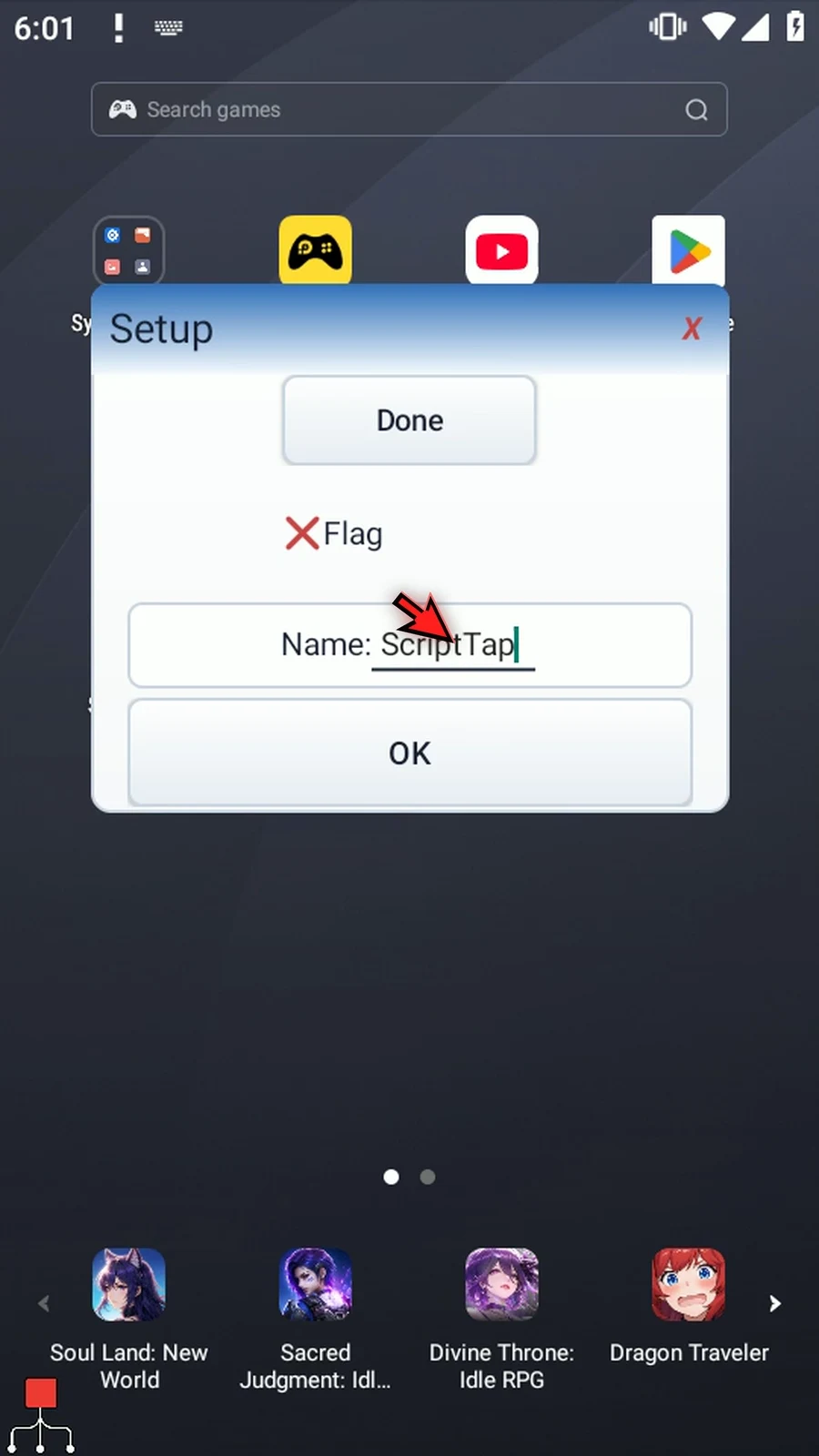
Step 25 Turn Flag on and select Done. The highlight marks the selected button. Because this form also contains text and a toggle, use OK to submit the answers and continue.
Step 26 The next prompt now shows ScriptTap as its header. That came from s1, the answer saved by the first prompt. The Boolean outputs are also available for later script logic.
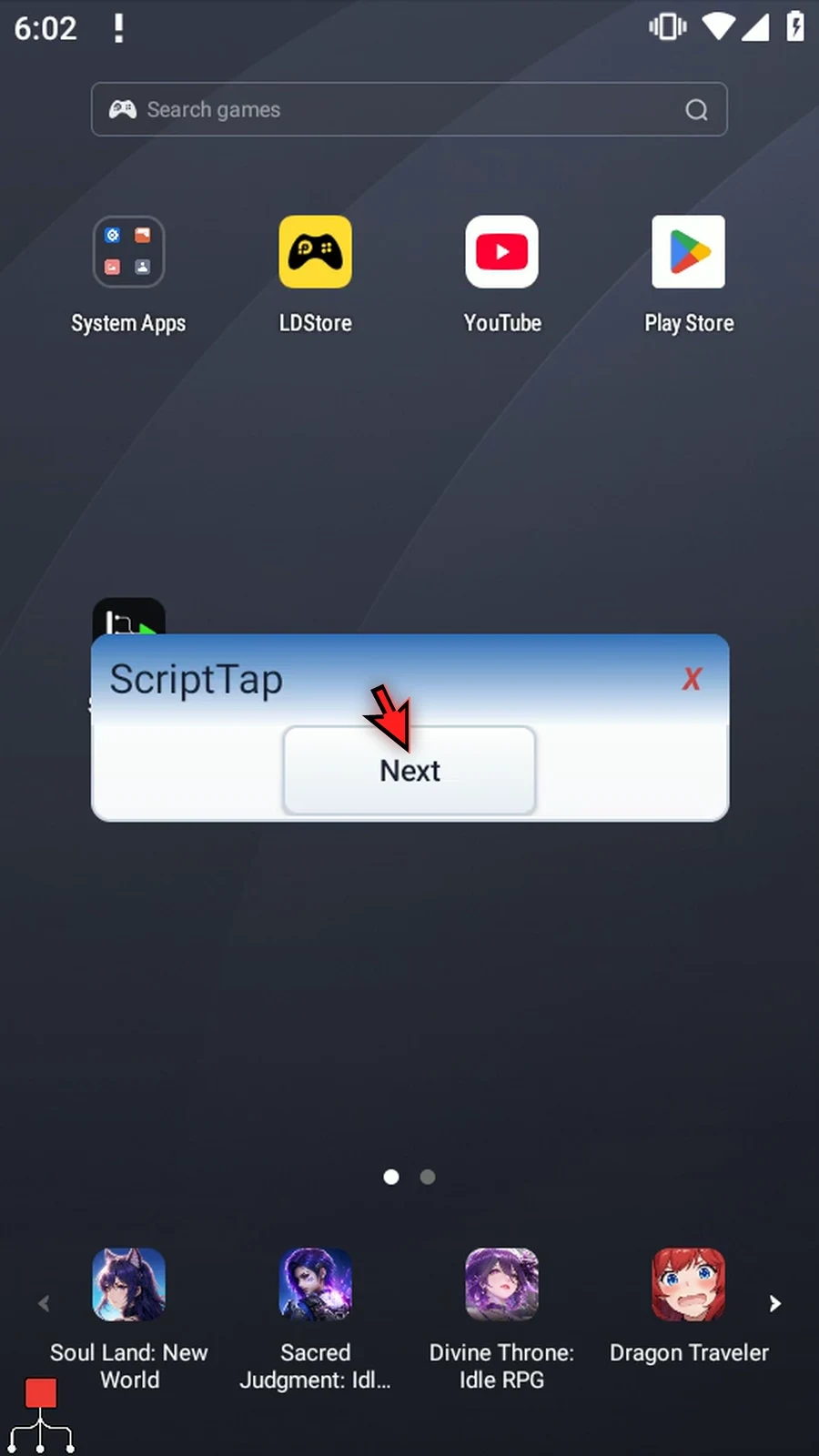
Step 27 Choose Next to continue. This is the last command, so the script finishes automatically.
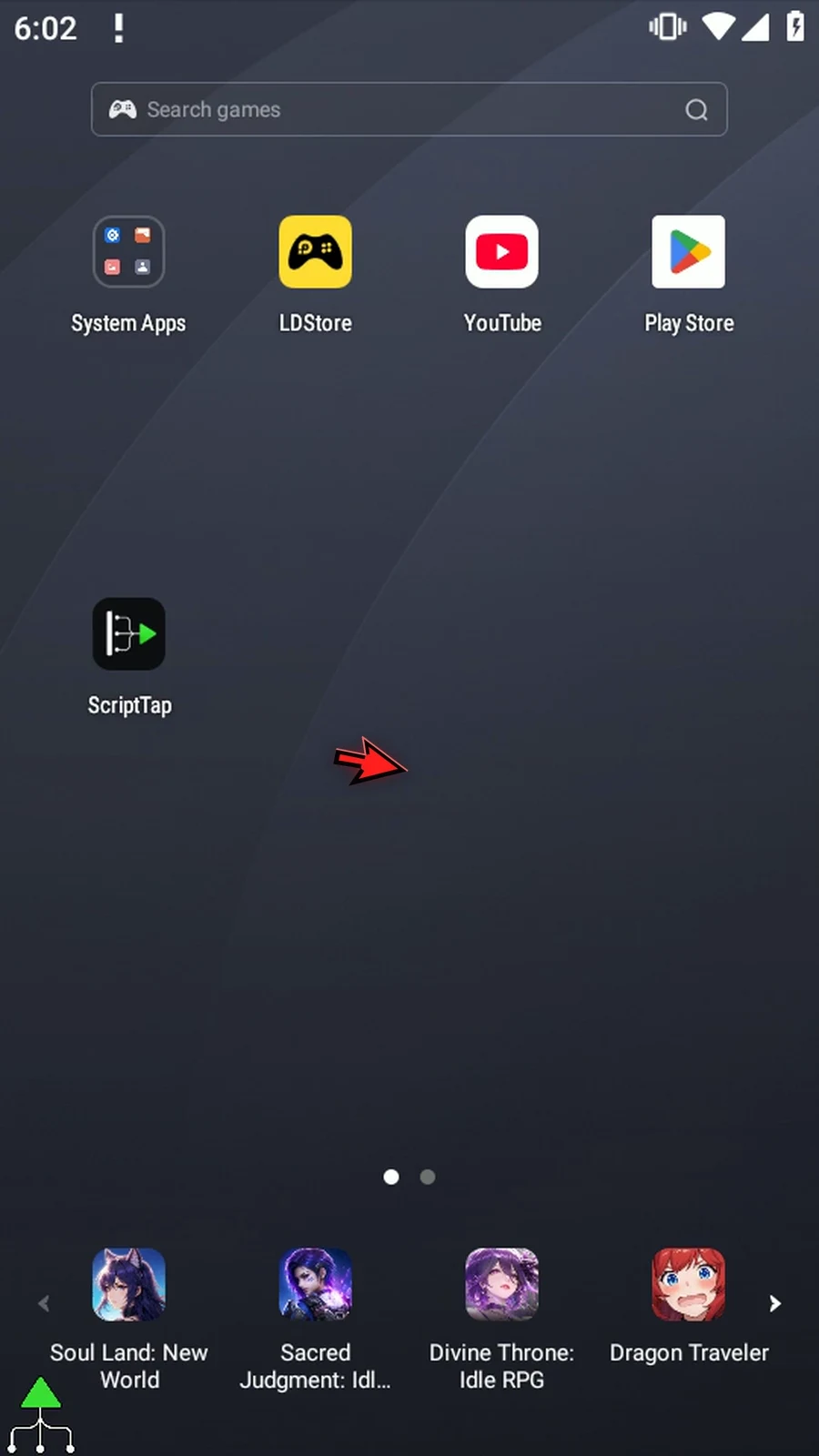
Step 28 Run the same script again without editing it. The first prompt opens at the last position we saved by dragging, rather than moving to a new place each time.
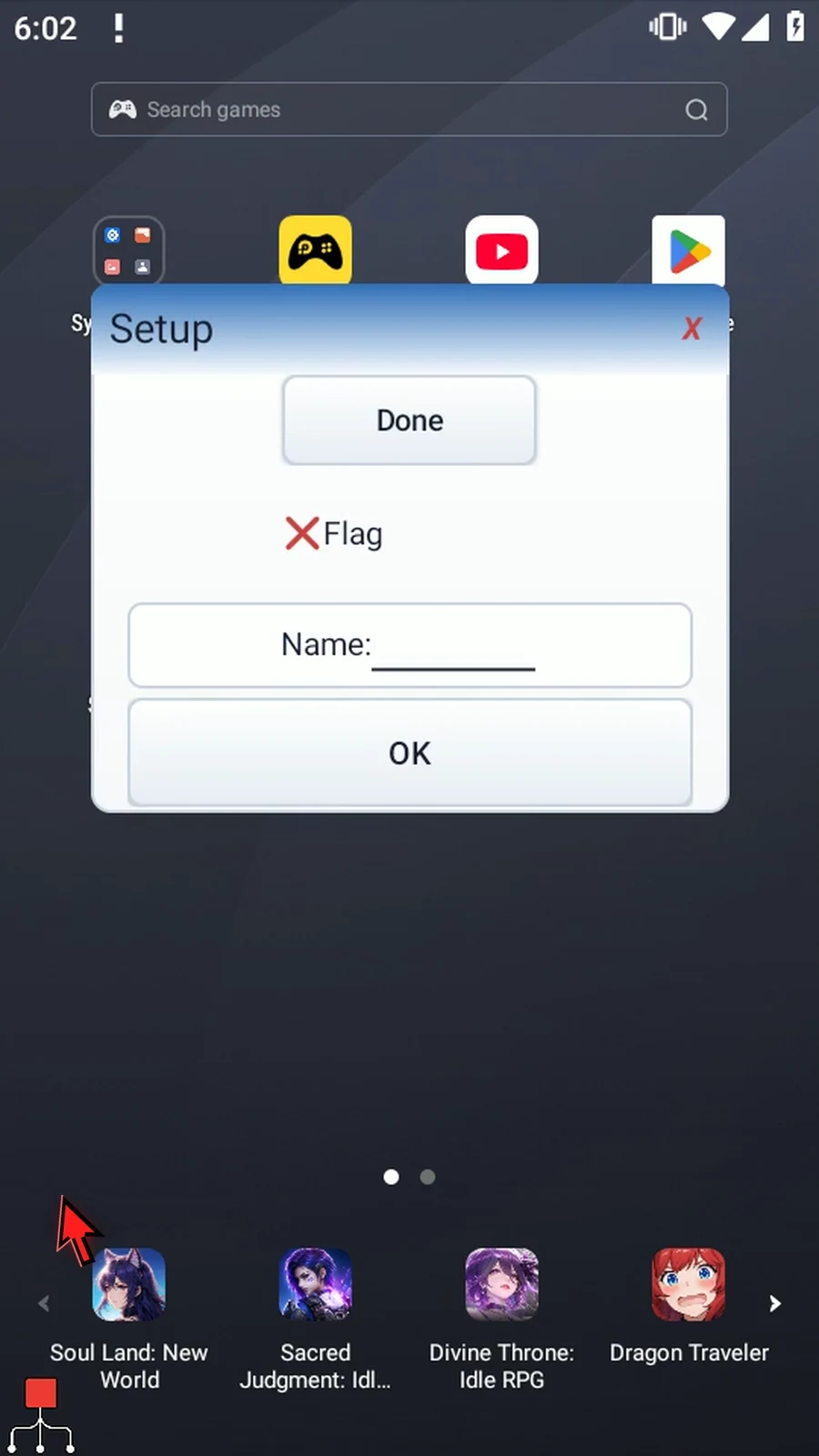
Step 29 We will stop this repeat check with the main Stop button. The saved position is kept; the earlier full run already demonstrated the completed result.
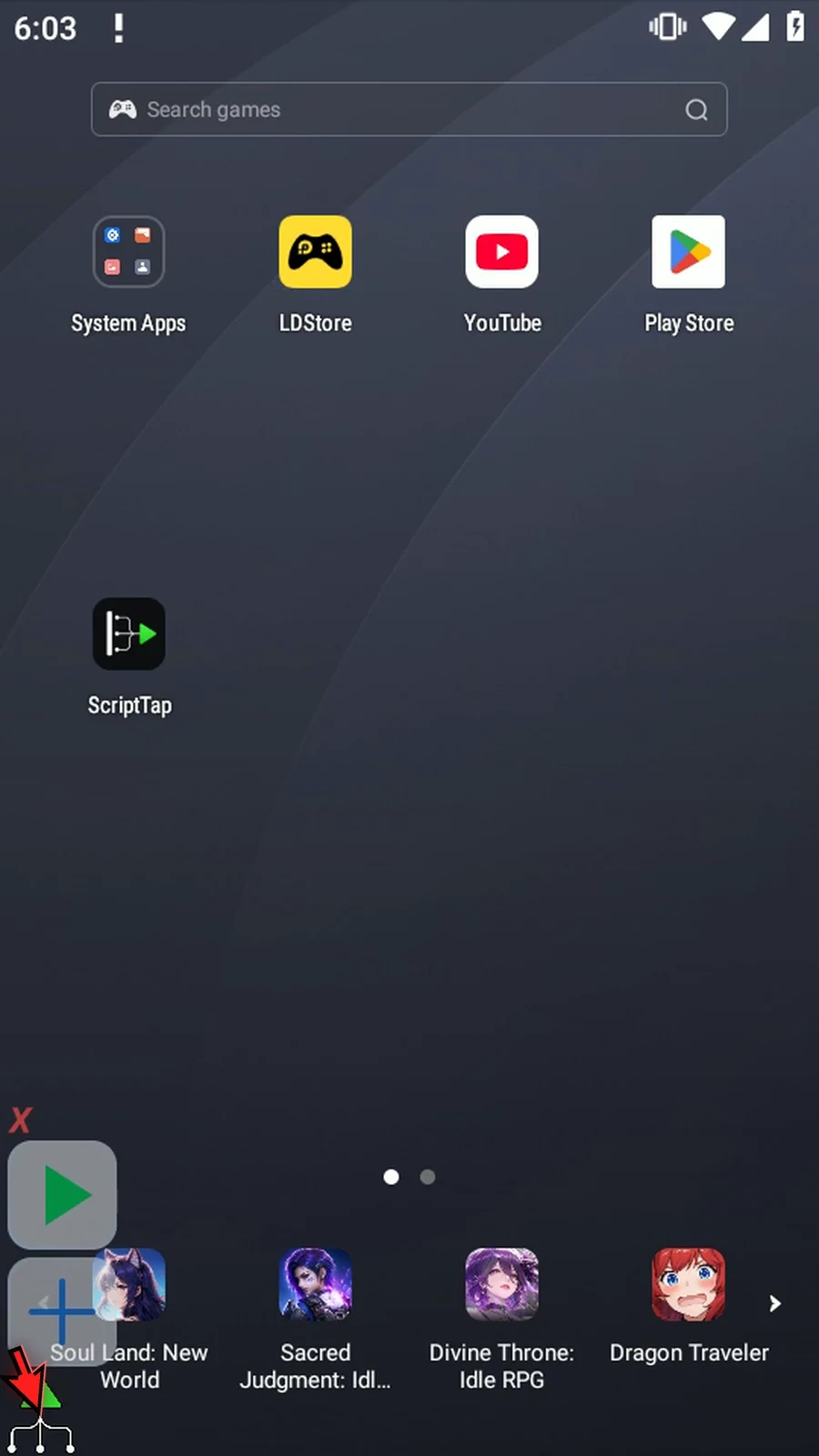
Step 30 Use regular PromptMe when a script needs user input before continuing. Use the Mini guide for compact controls that can remain available while the script runs.
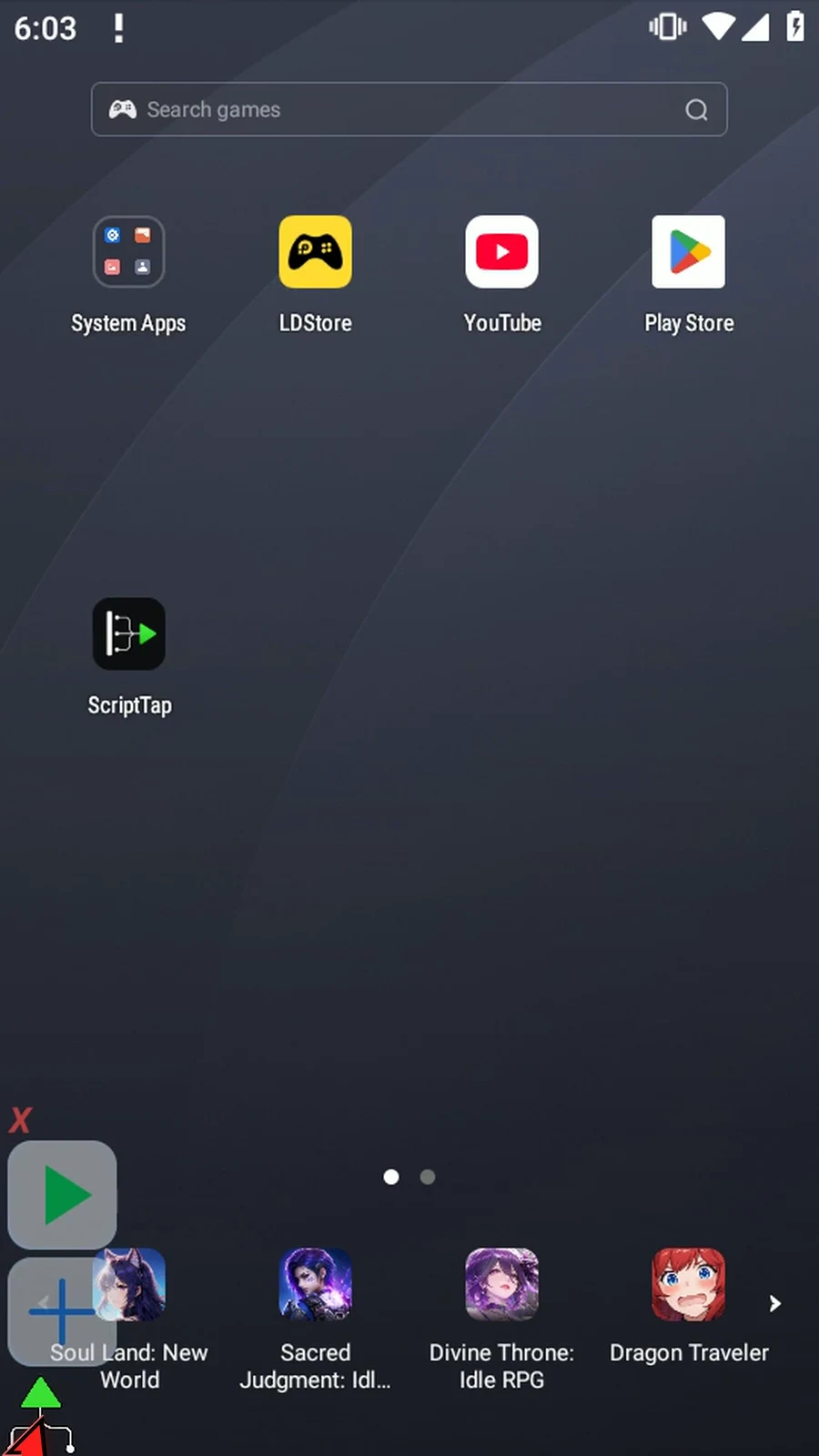
PromptMe Mini adds compact controls to a running script. Buttons return a numbered Integer choice; toggles update individual Boolean values. With Persistent on, the Mini stays available while later commands continue. Header off turns it into a small widget.
Continue the PromptMe Demo example from Regular. Remove only its first input form and keep the last regular confirmation. Change that confirmation's Header to Complete, retaining Next → b3. Manually drag a new PromptMe above it and choose Mini. Switching Standard/Mini clears settings exclusive to the outgoing mode.
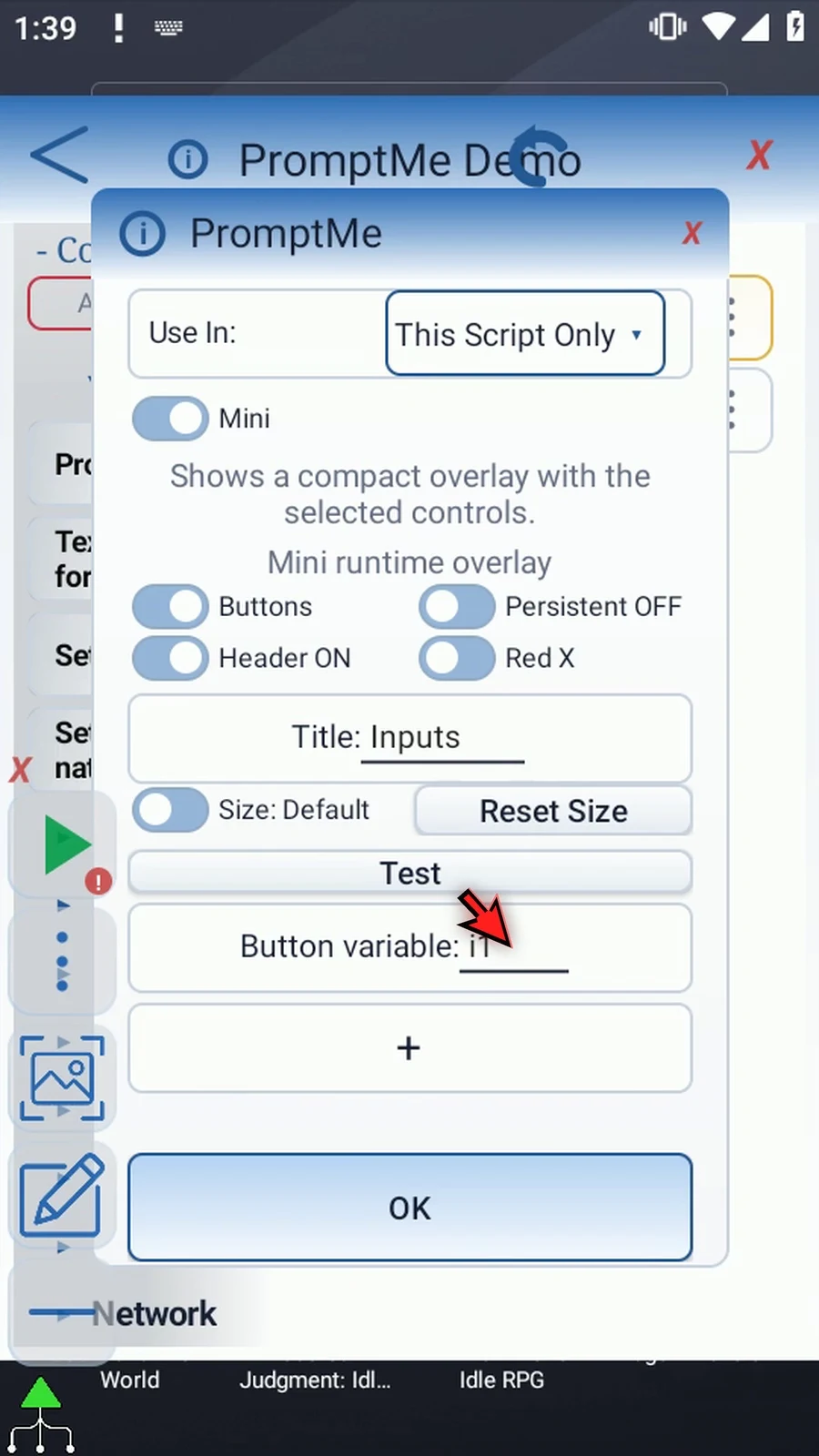
Use This Script Only for local outputs; Script Thread shares them with related scripts in that thread. Keep Buttons, Header on and Persistent off. Enter Title Inputs and Button variable i1. Add One and Two. All Mini buttons write to the same Integer output: the first row returns 1, the second 2, and so on. Captions do not set custom values.
A Mini supports up to six buttons or six toggles; a parent thread supports up to four Minis. Titles and button captions allow eight characters, toggle captions six. Test previews the controls for three seconds without playing the script or writing outputs. With Header on, choose Manual → Edit Size, drag a corner and keep it with the check mark. If Android asks, allow screen capture. Tap OK to save.
Play Mini → regular Complete. With Persistent off, the script waits for a Mini choice. Drag the Mini's header; PromptMe silently saves its position on this device. Choose Two to write 2 into i1 and advance to Complete, then Next to finish. An unchanged repeat opens in the same saved position. With Red X stops off, the Mini's X only closes that Mini and continues to the regular confirmation.
Turn Persistent on and Header off, save and play. The title, frame and close button disappear; controls fit automatically. The small widget and the regular confirmation appear together. Drag a button surface to move the widget without selecting it. Tap One, then Two: choices update while it remains available. Next completes the parent run and removes its Mini too.
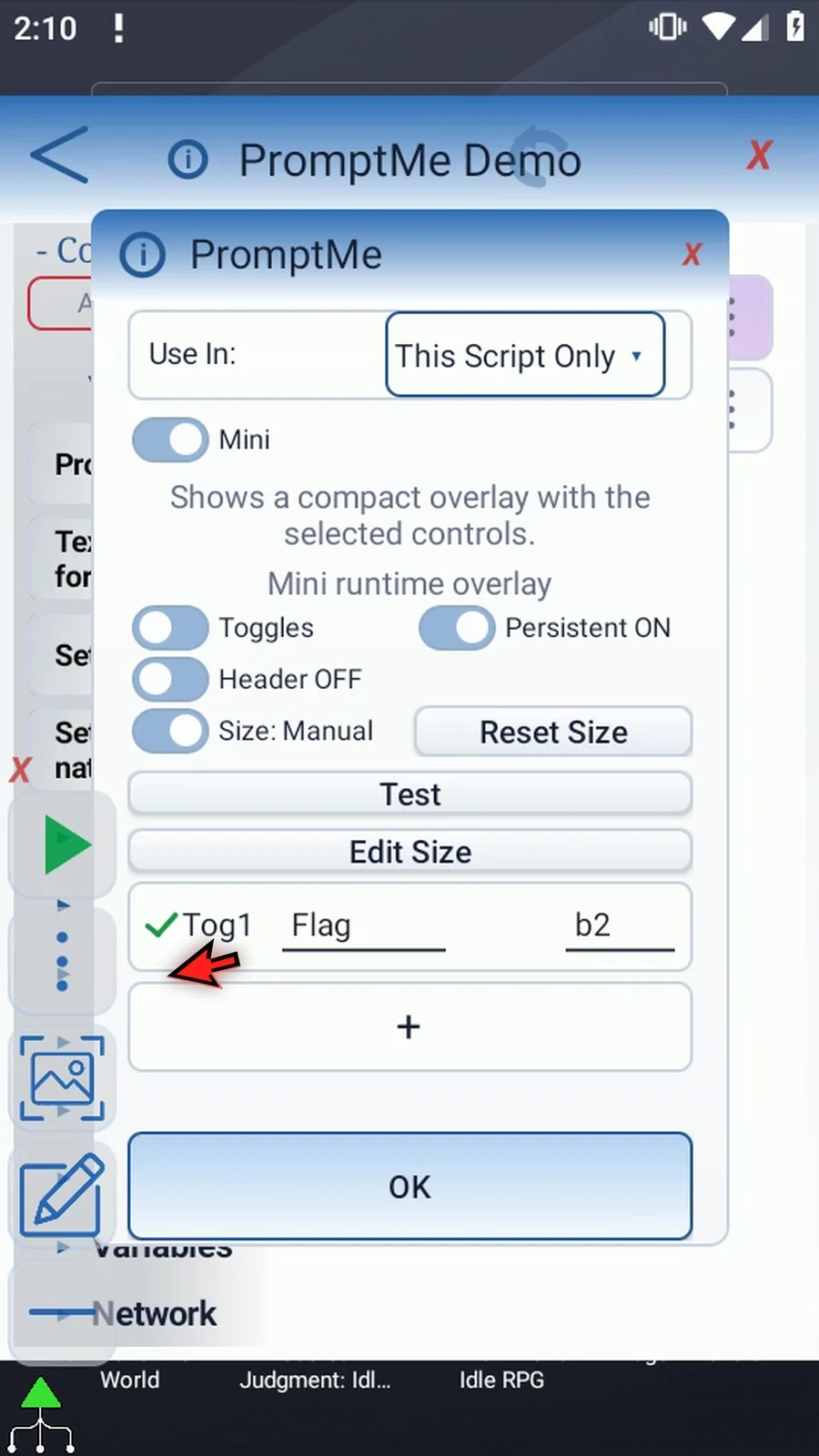
Switch Buttons to Toggles; the previous rows and Integer destination clear. Add Flag → b2. Each toggle has its own Boolean output. The editor row's check mark removes the row; it is not a runtime on/off setting. Reset Size restores Default and clears saved placement. With Header off the widget still fits its controls automatically.
Play the persistent Flag widget. A tap gives the green true check; another gives the red false minus. Controls can be changed repeatedly during the same run. Next finishes normally. Finally enable Header and Red X stops, save and play. Pressing the Mini's X stops the whole script, including the waiting regular prompt. Leave this option off when only that Mini should close.
Mini
Step-by-step guide
Step 01 PromptMe Mini adds compact controls to a running script. Buttons return a numbered choice; toggles change Boolean flags. Persistent mode lets those controls stay available while later commands continue.
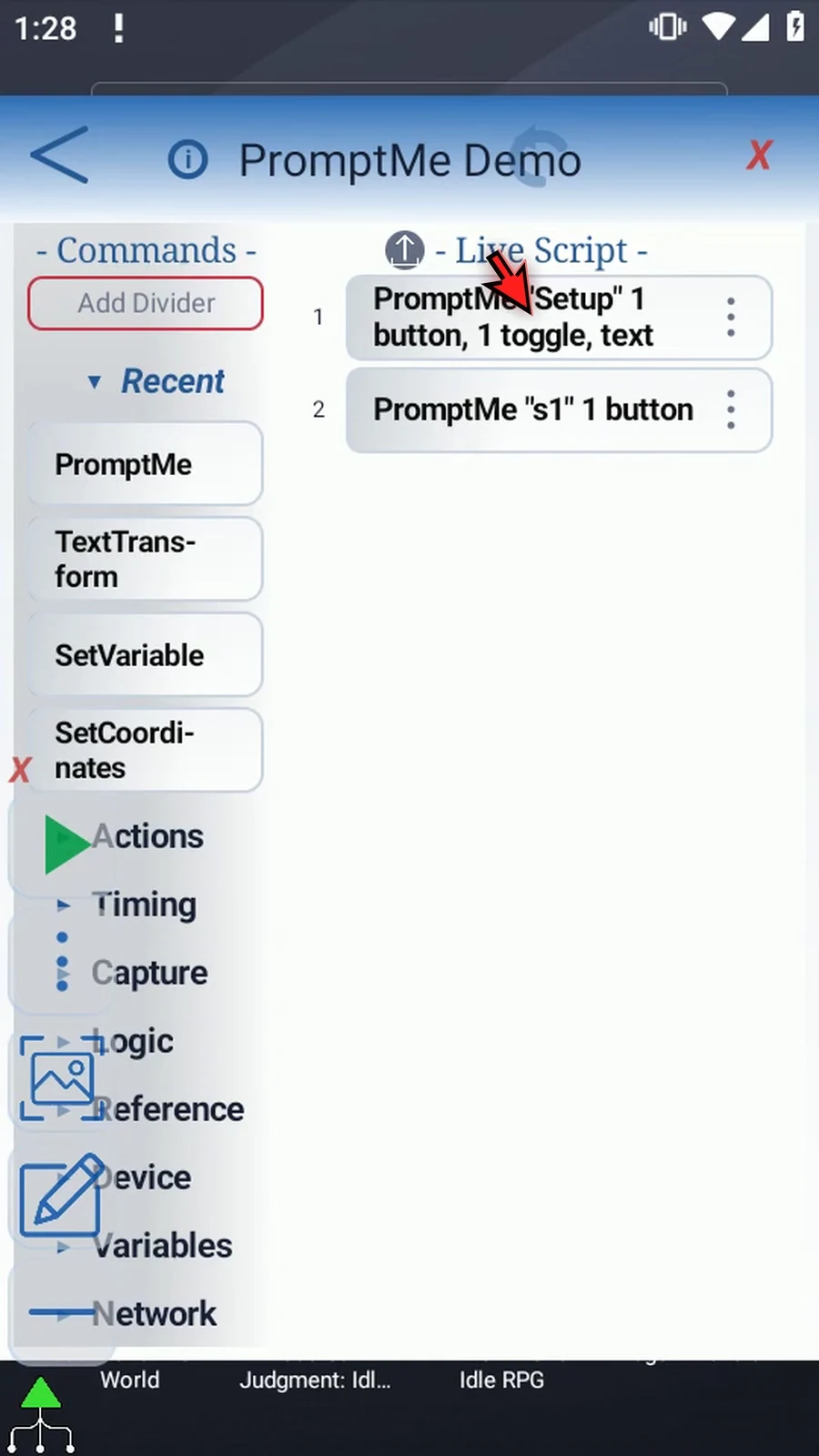
Step 02 Continue the example from the Regular guide. Keep its final confirmation prompt, but remove the first input form so we can replace it with a Mini.
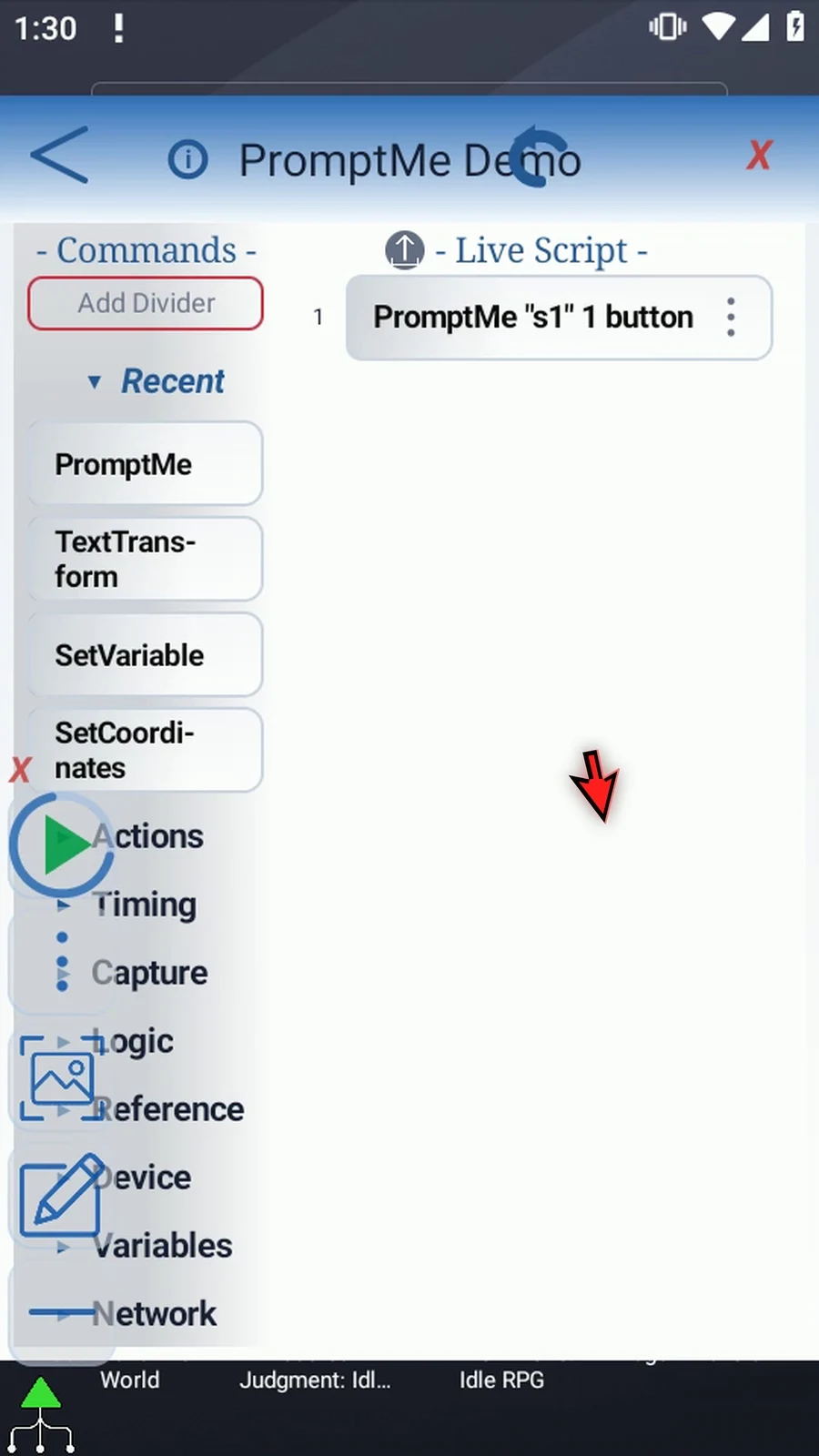
Step 03 Open the remaining PromptMe. Change its Header to Complete and keep Next. This supporting prompt will clearly show when the script has continued beyond the Mini.
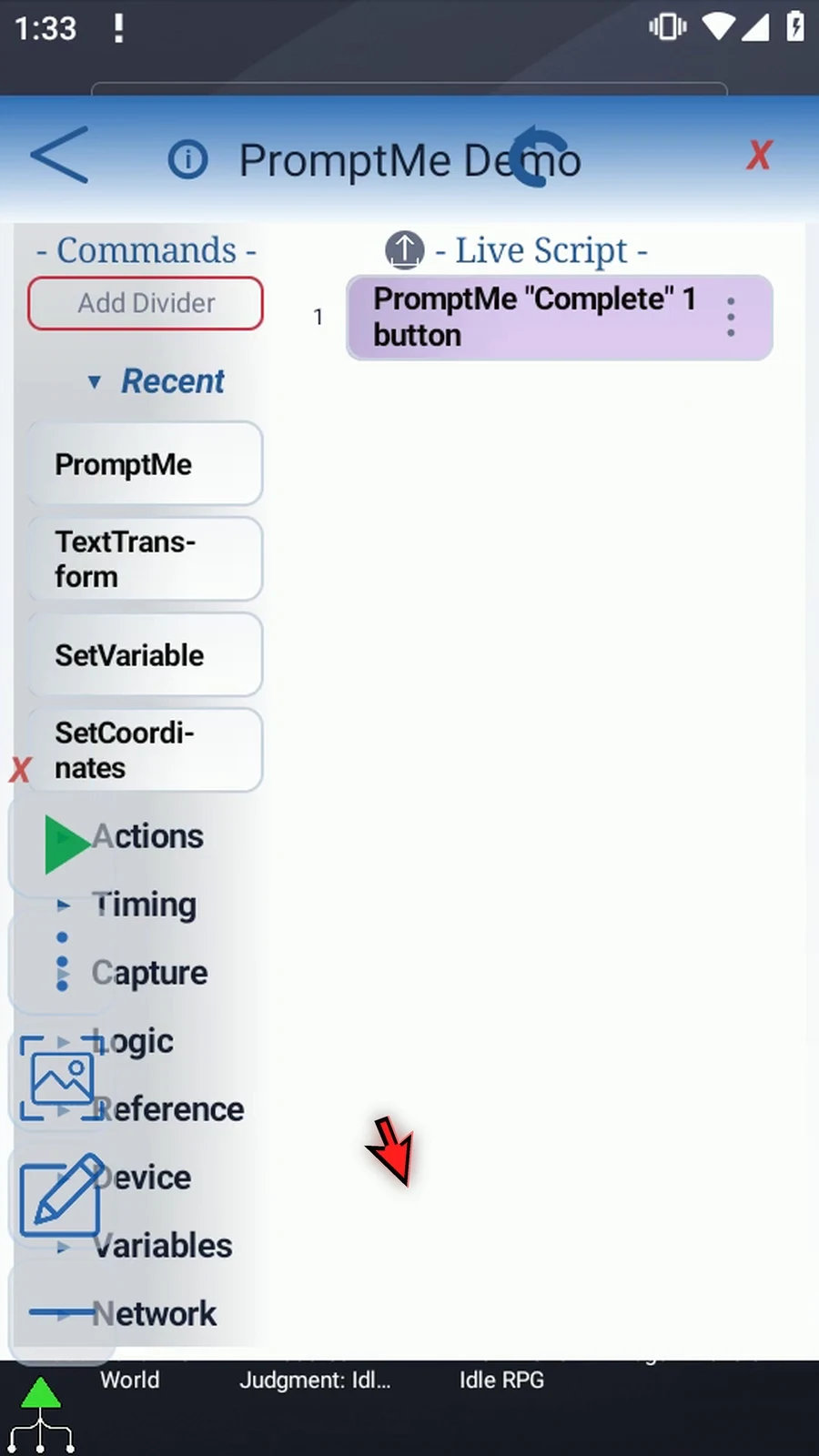
Step 04 Manually drag a new PromptMe above the confirmation. Double-tap the new row to edit it.
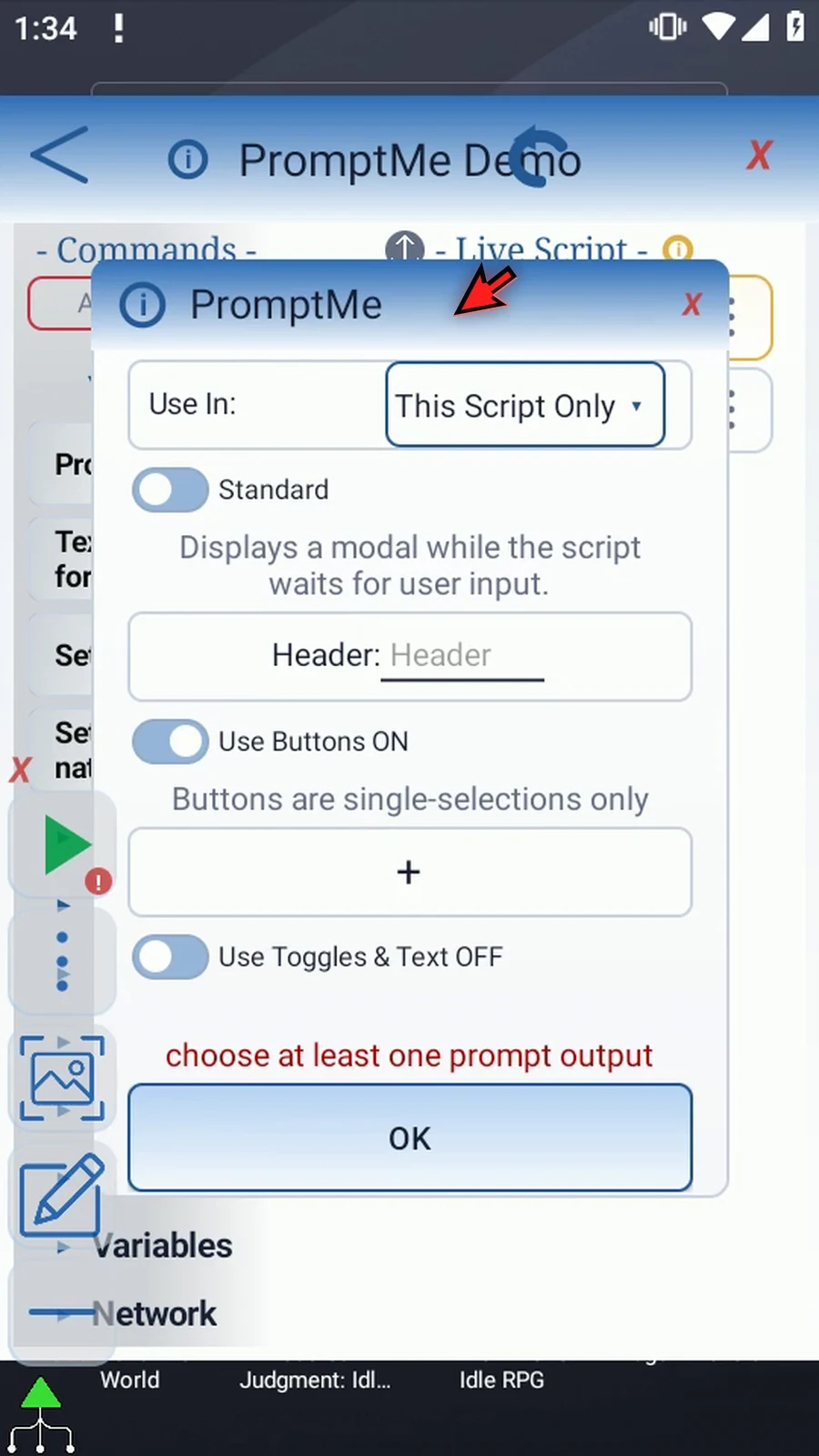
Step 05 Switch Standard to Mini. These are different modes, so switching clears settings that belong only to the previous mode.
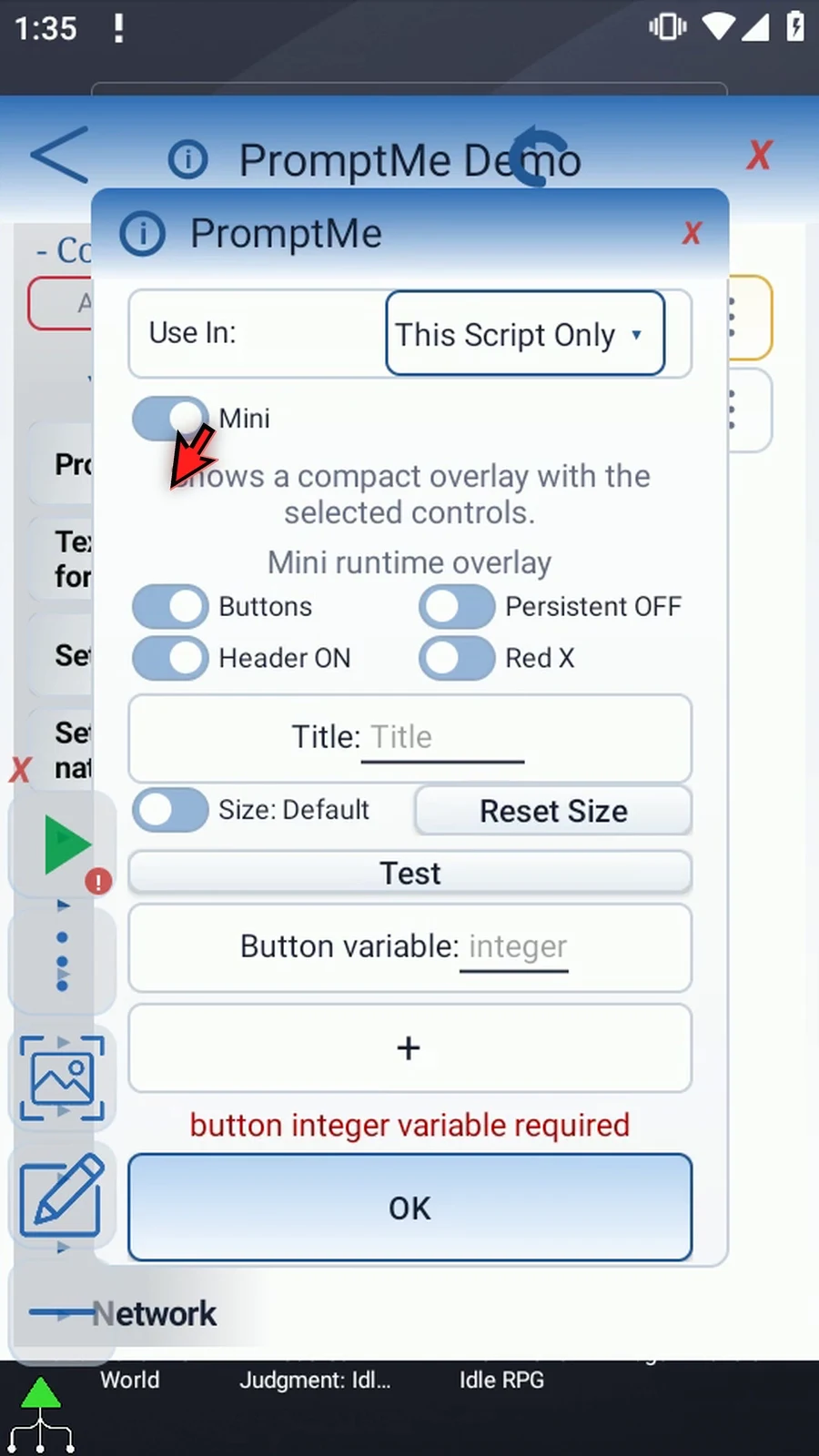
Step 06 Use In sets the output variable scope. This Script Only is local; Script Thread shares variables with related scripts in that thread. Keep This Script Only for this example.
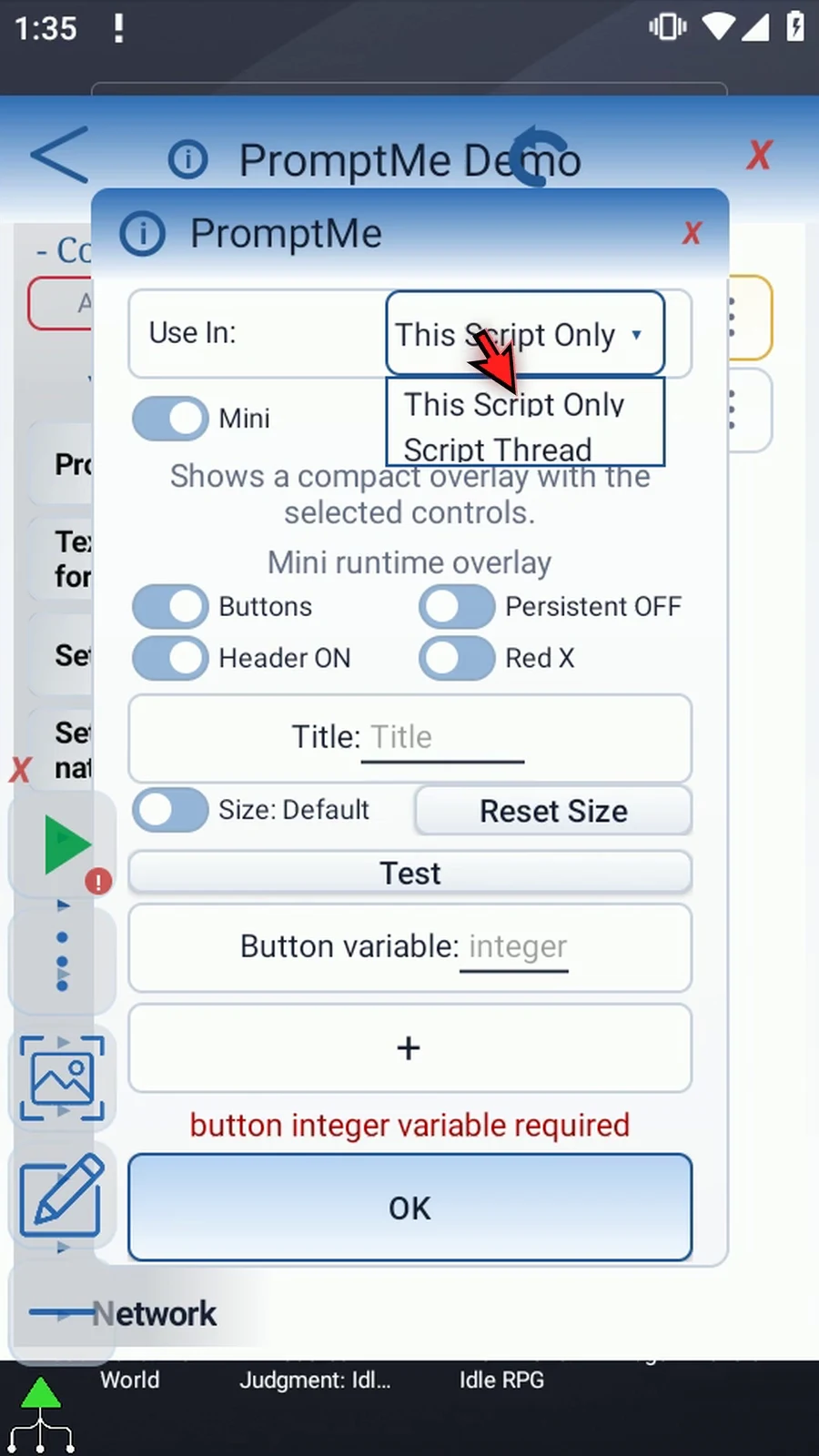
Step 07 Keep Buttons, Header on, and Persistent off. Set the Title to Inputs. With the header visible, the Mini has a title and a close button.
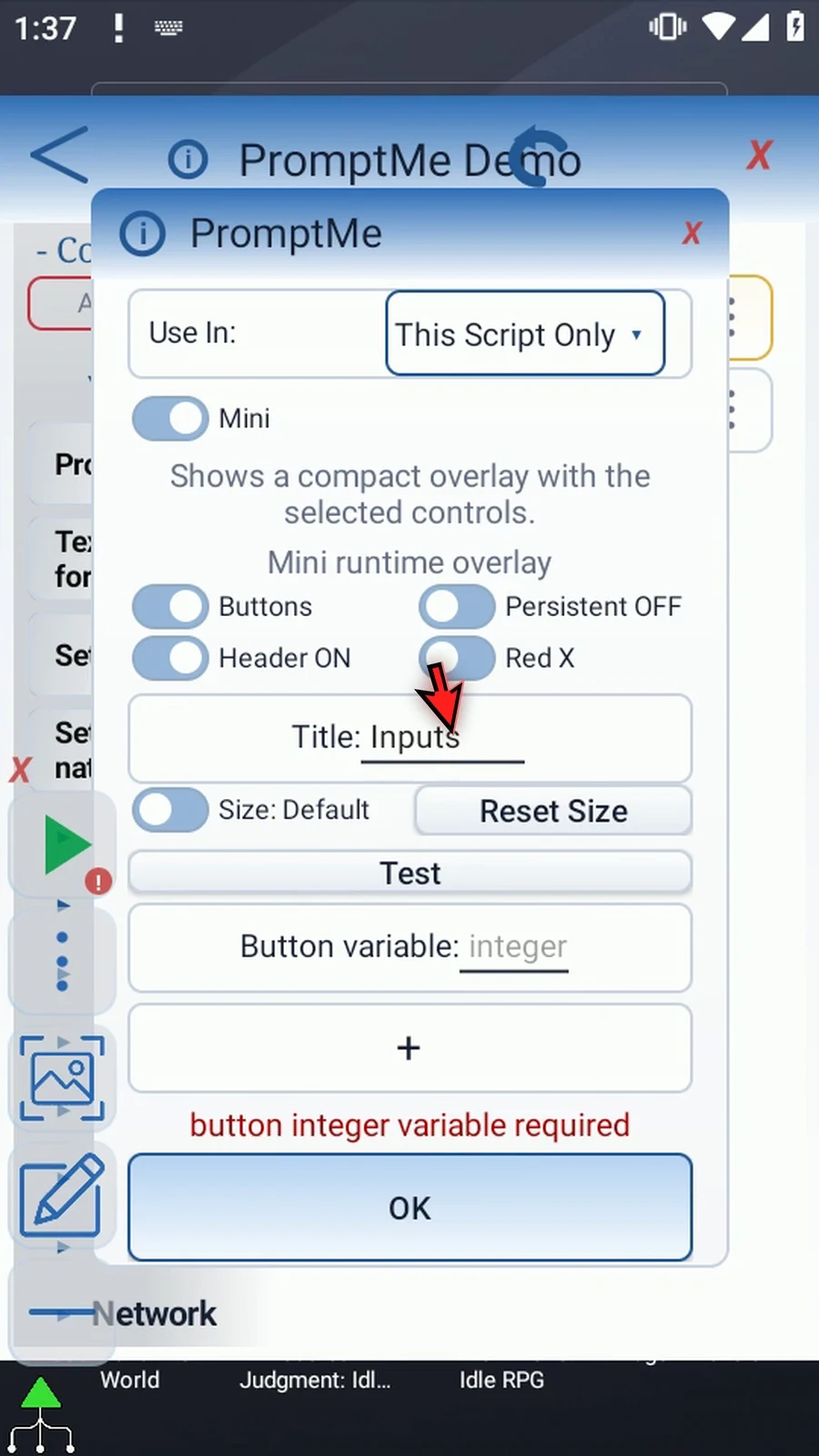
Step 08 Enter i1 as the Button variable. Mini buttons all use this one Integer output: the first row returns one, the second returns two, and so on.
Step 09 Add two button rows, named One and Two. Their return values come from row order, not from the words in their captions.
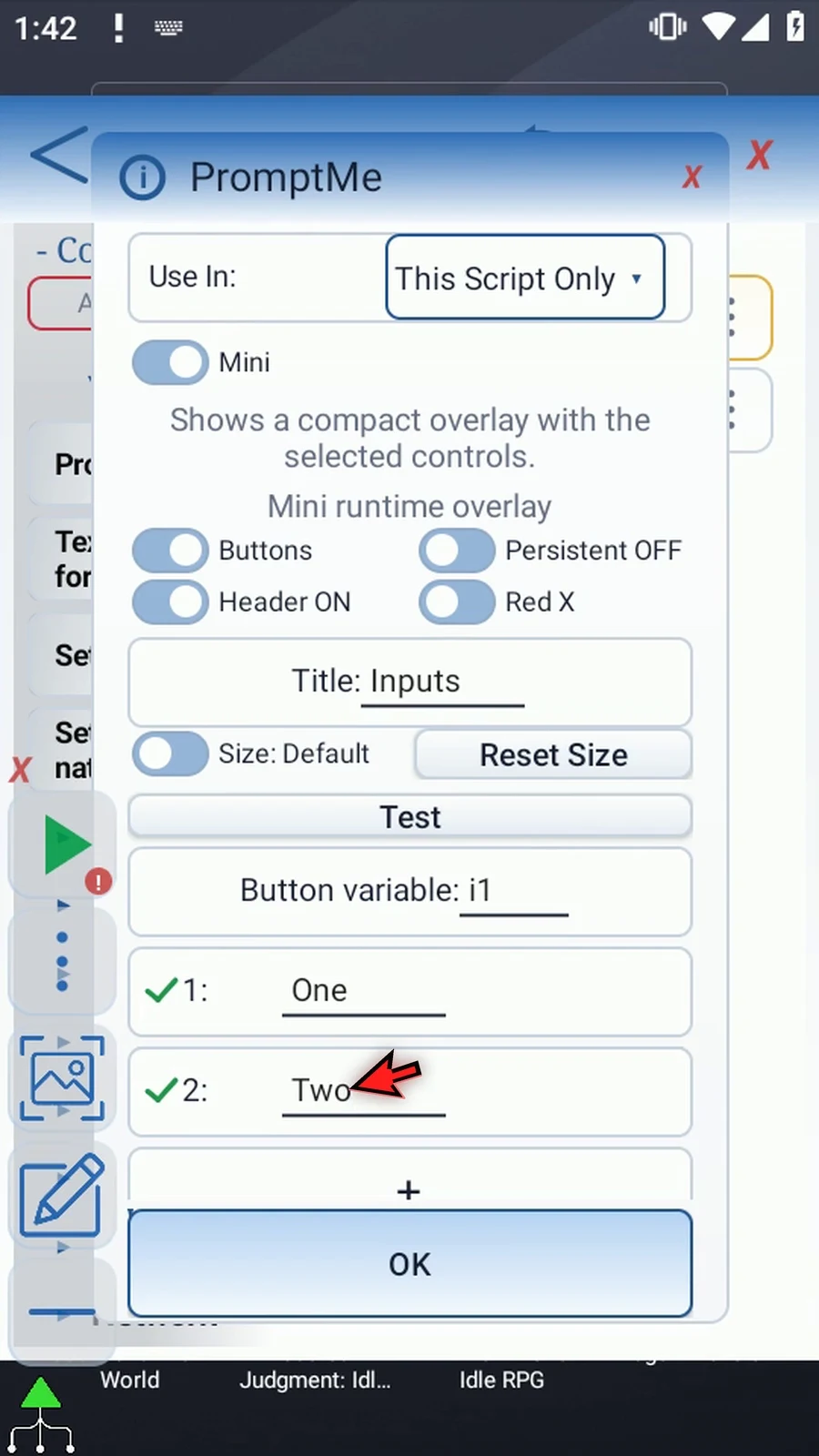
Step 10 A Mini supports up to six buttons or six toggles, and a parent script thread supports up to four Minis. Keep titles and button captions within eight characters; toggle captions allow six.
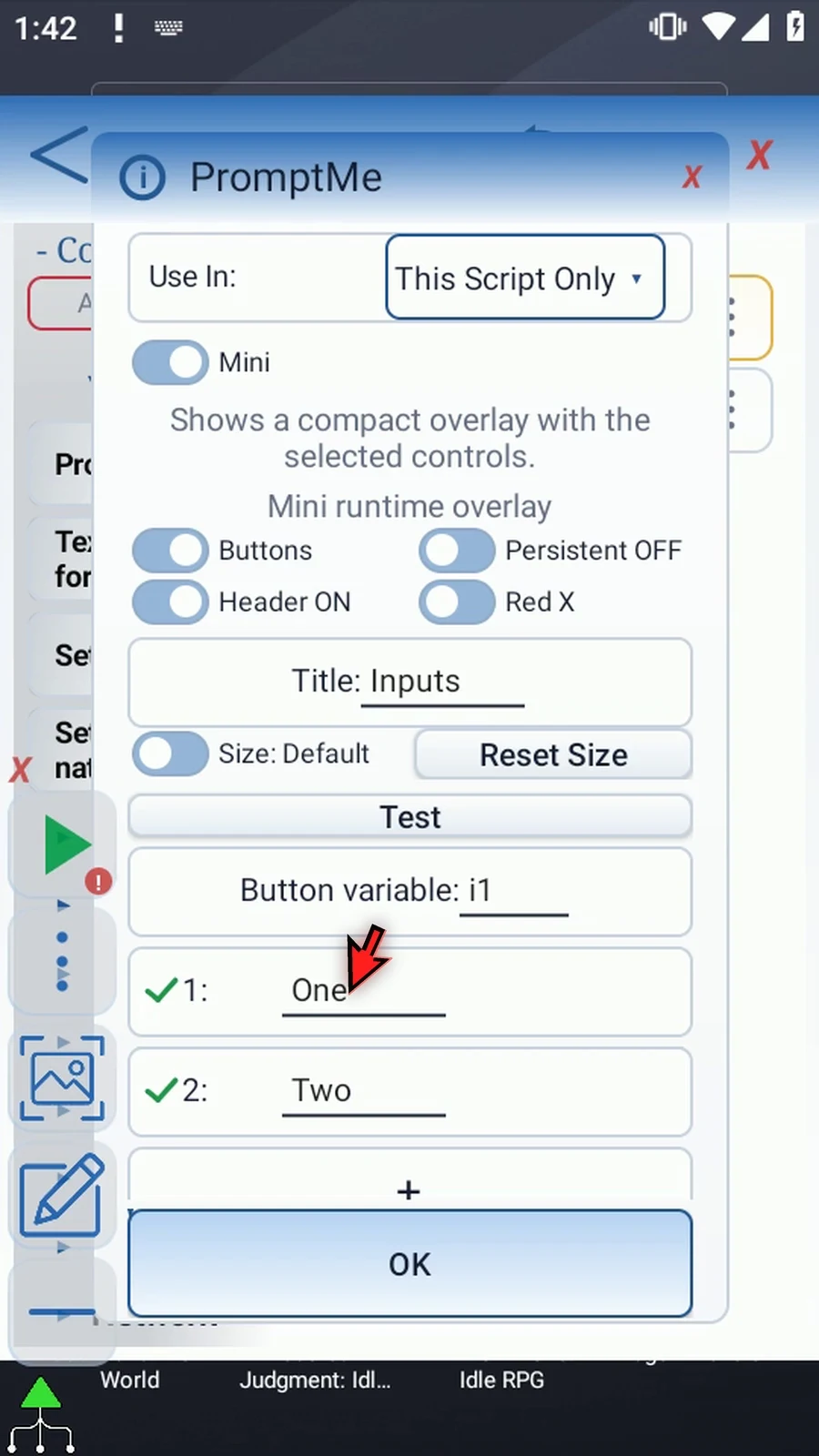
Step 11 Test gives a brief preview without playing the script or writing its outputs. The preview closes automatically after three seconds; it is not the running Mini.
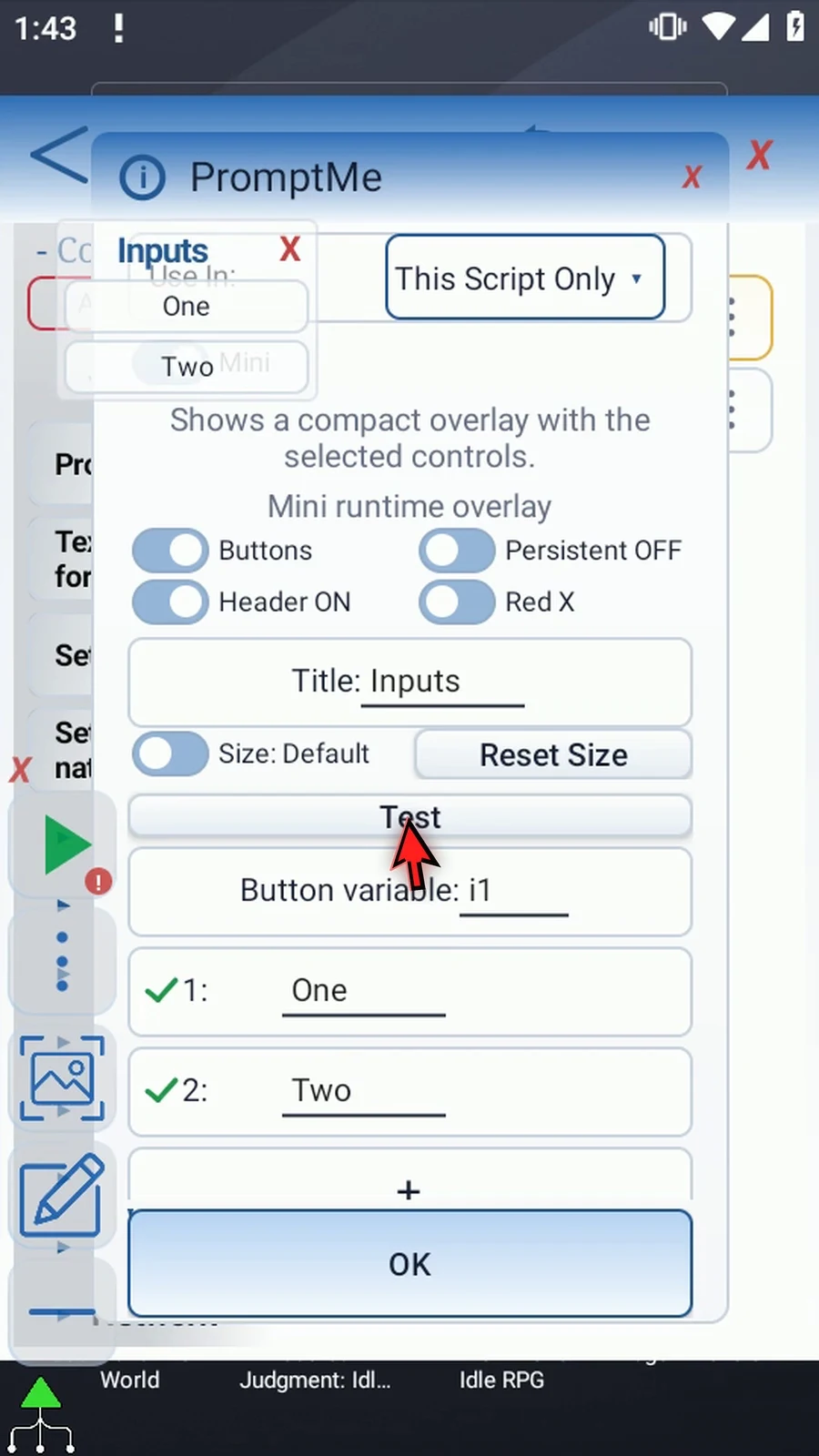
Step 12 With the header on, you can choose Manual size and open Edit Size. The corner handles resize the framed Mini.
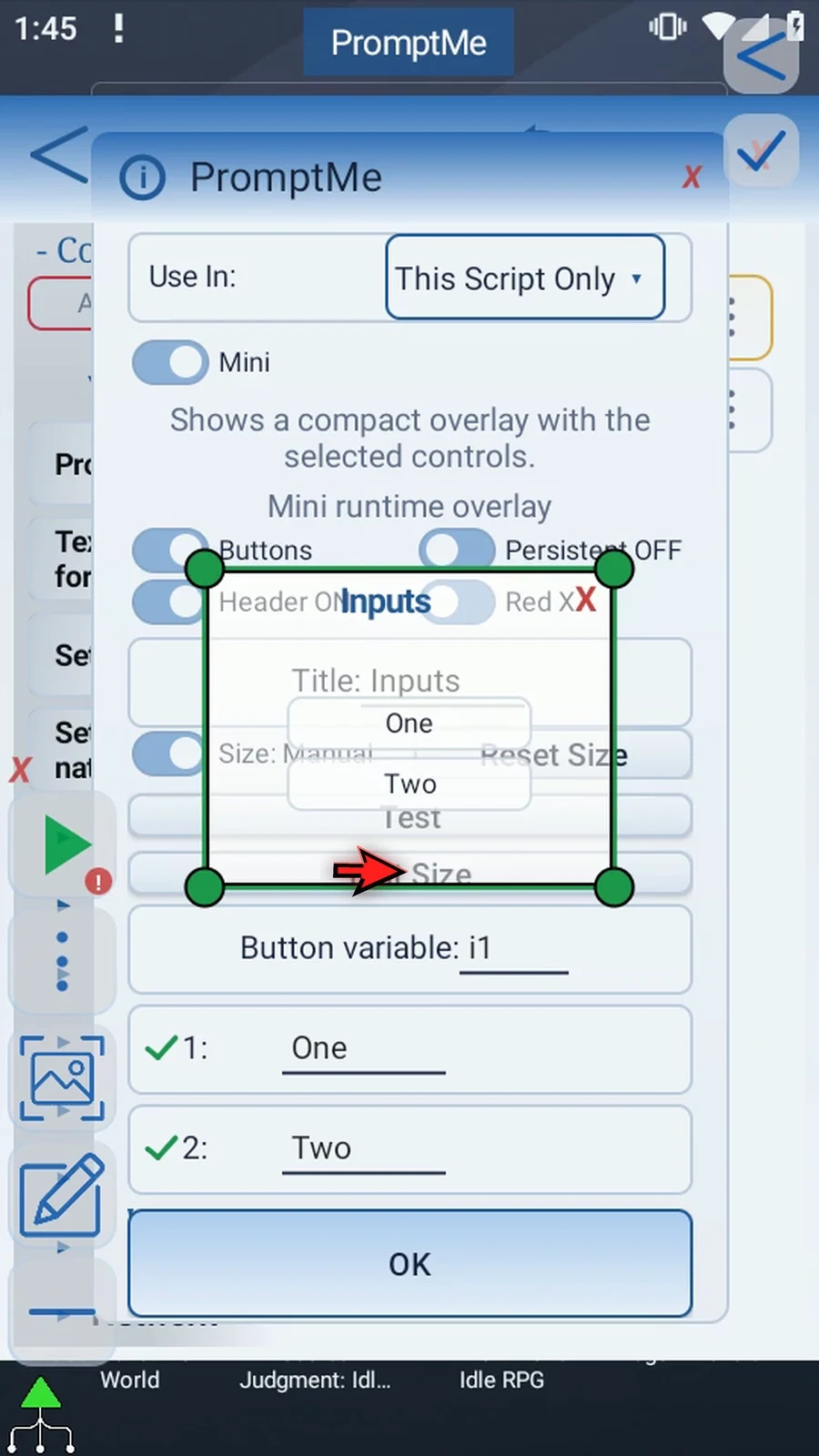
Step 13 Drag a corner to adjust the size. If Android asks, allow screen capture. Keep the controls comfortably large enough to use.
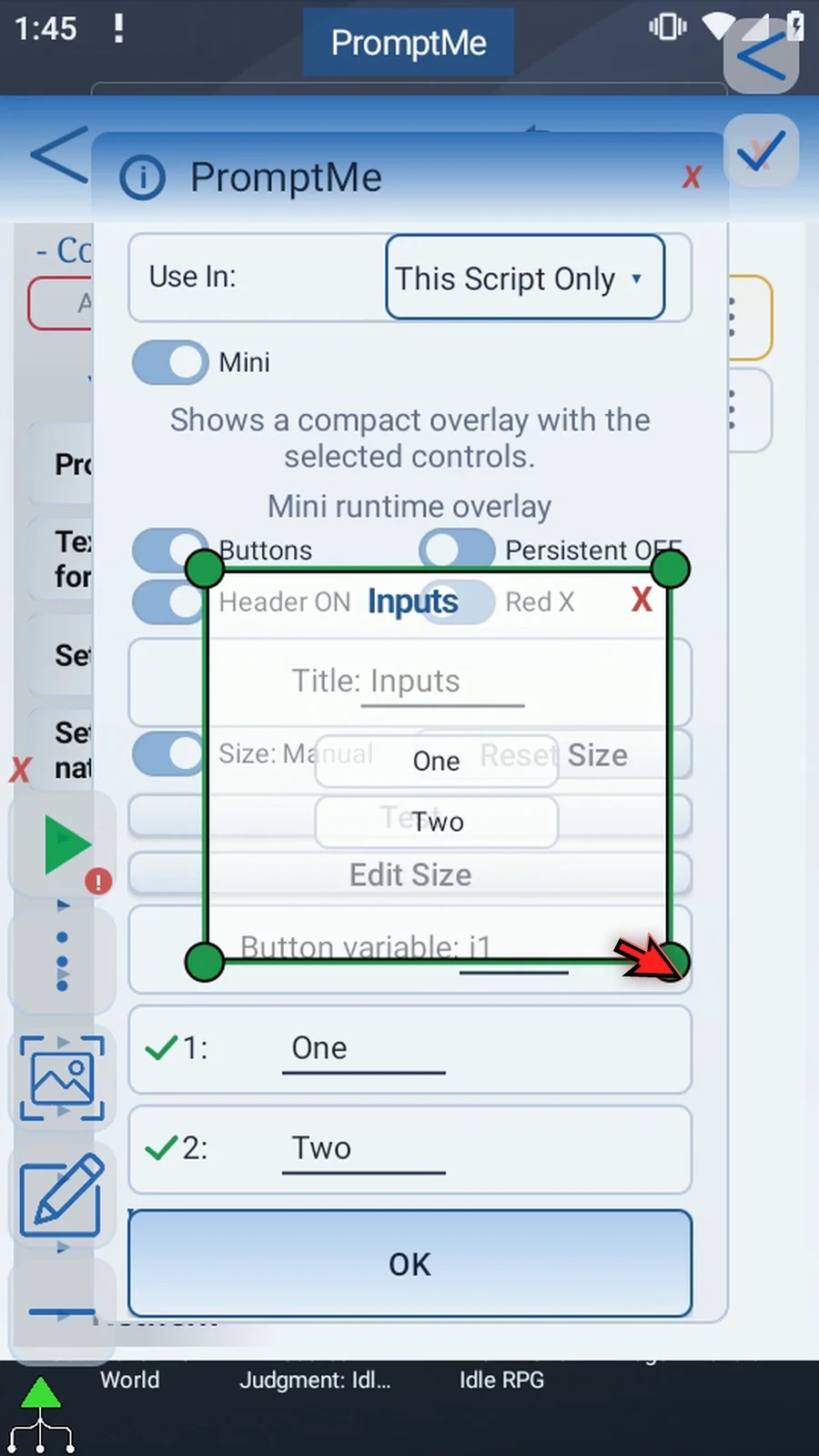
Step 14 Use the check mark to keep the size, then tap OK to save the command.
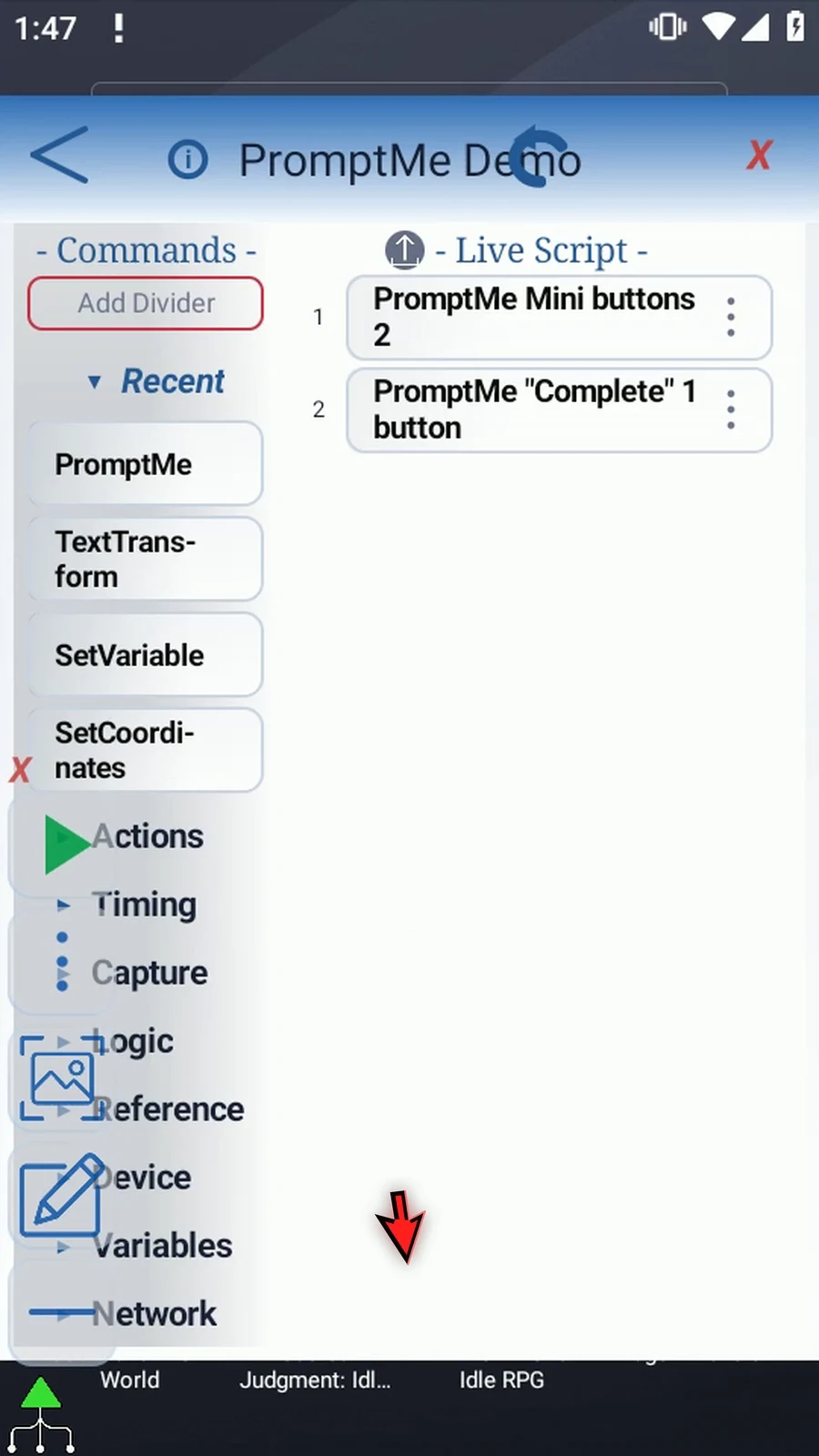
Step 15 Our script now has Mini first and the regular confirmation second. With Persistent off, the script waits for a Mini choice before reaching that confirmation. Close the editor.
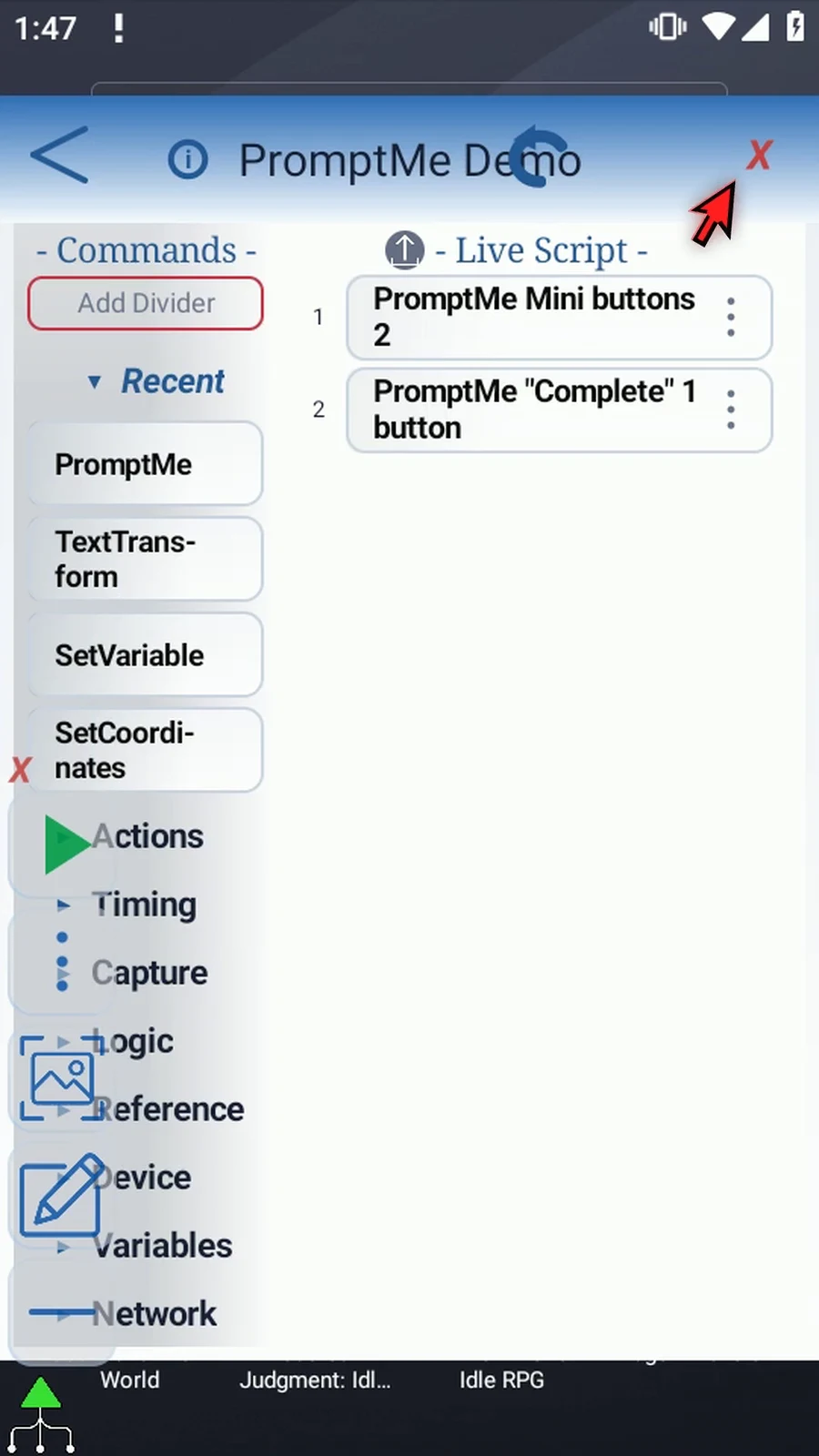
Step 16 When the script is complete, simply use the Play button in the main overlay.
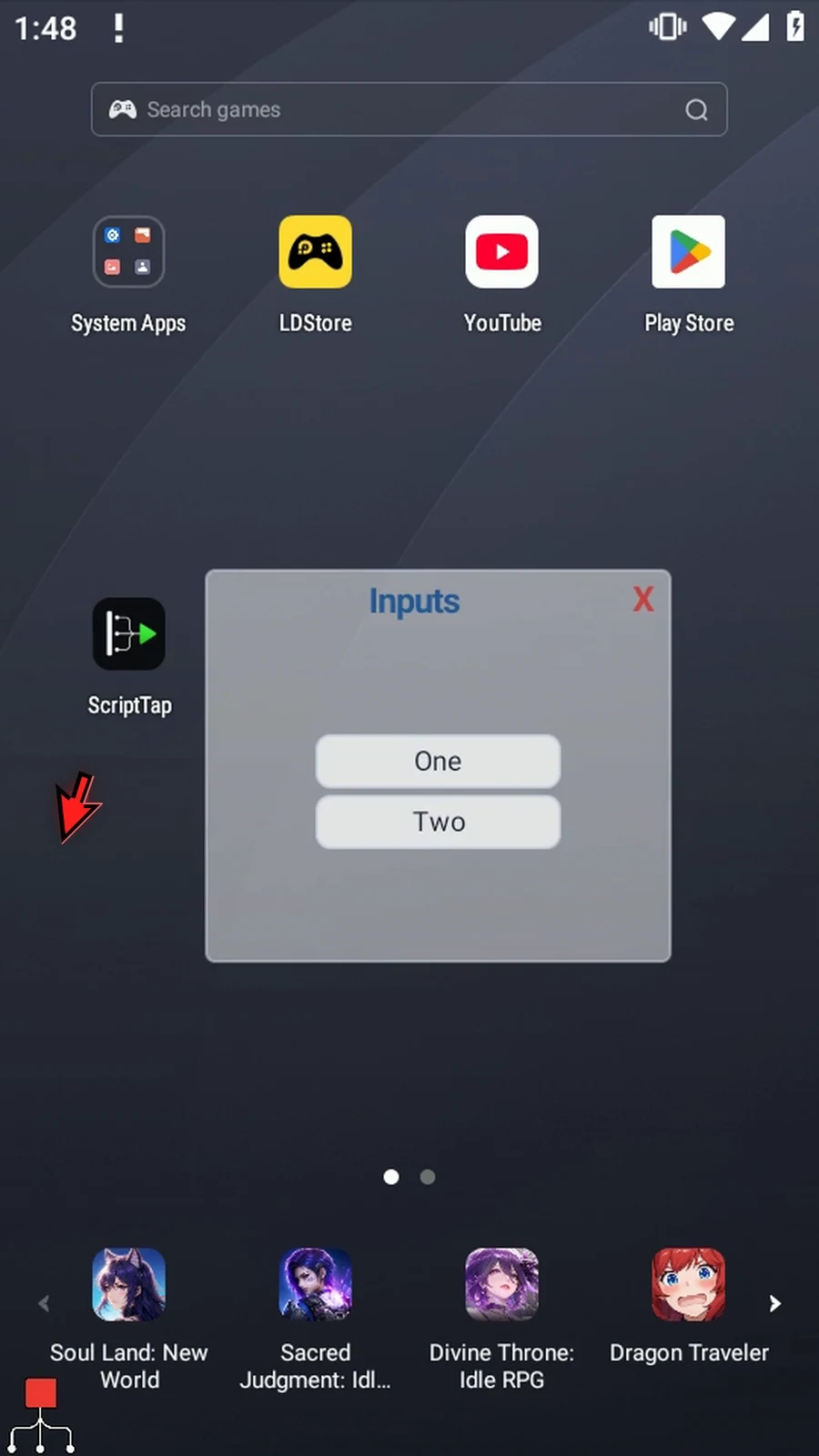
Step 17 The script is waiting at the Mini. Drag its header to move it. PromptMe silently saves the position on this device for consecutive runs.
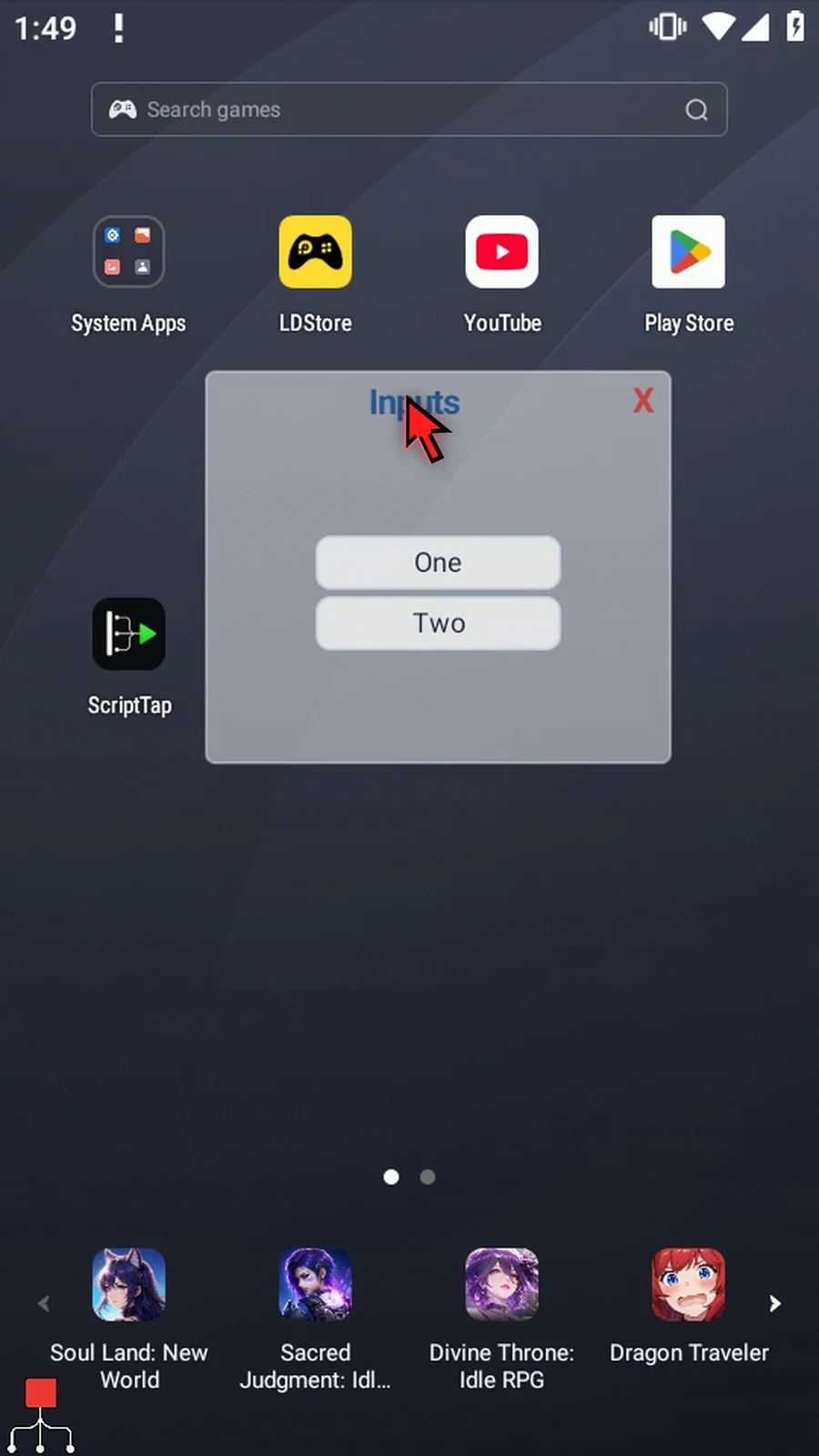
Step 18 Press Two. It writes two into i1, closes this nonpersistent Mini, and continues to the next command.
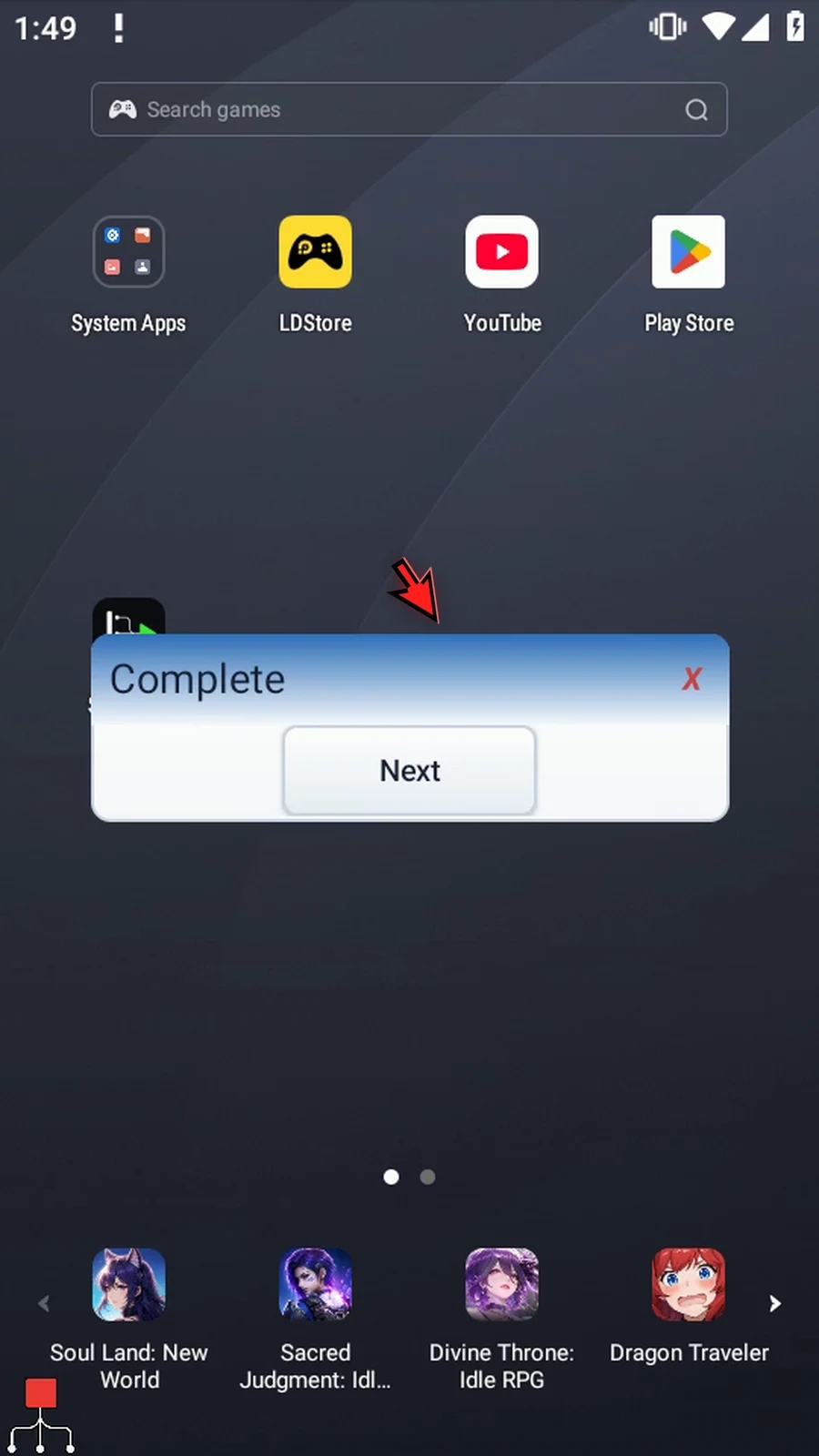
Step 19 Complete is our regular confirmation. Choose Next to finish the script automatically.
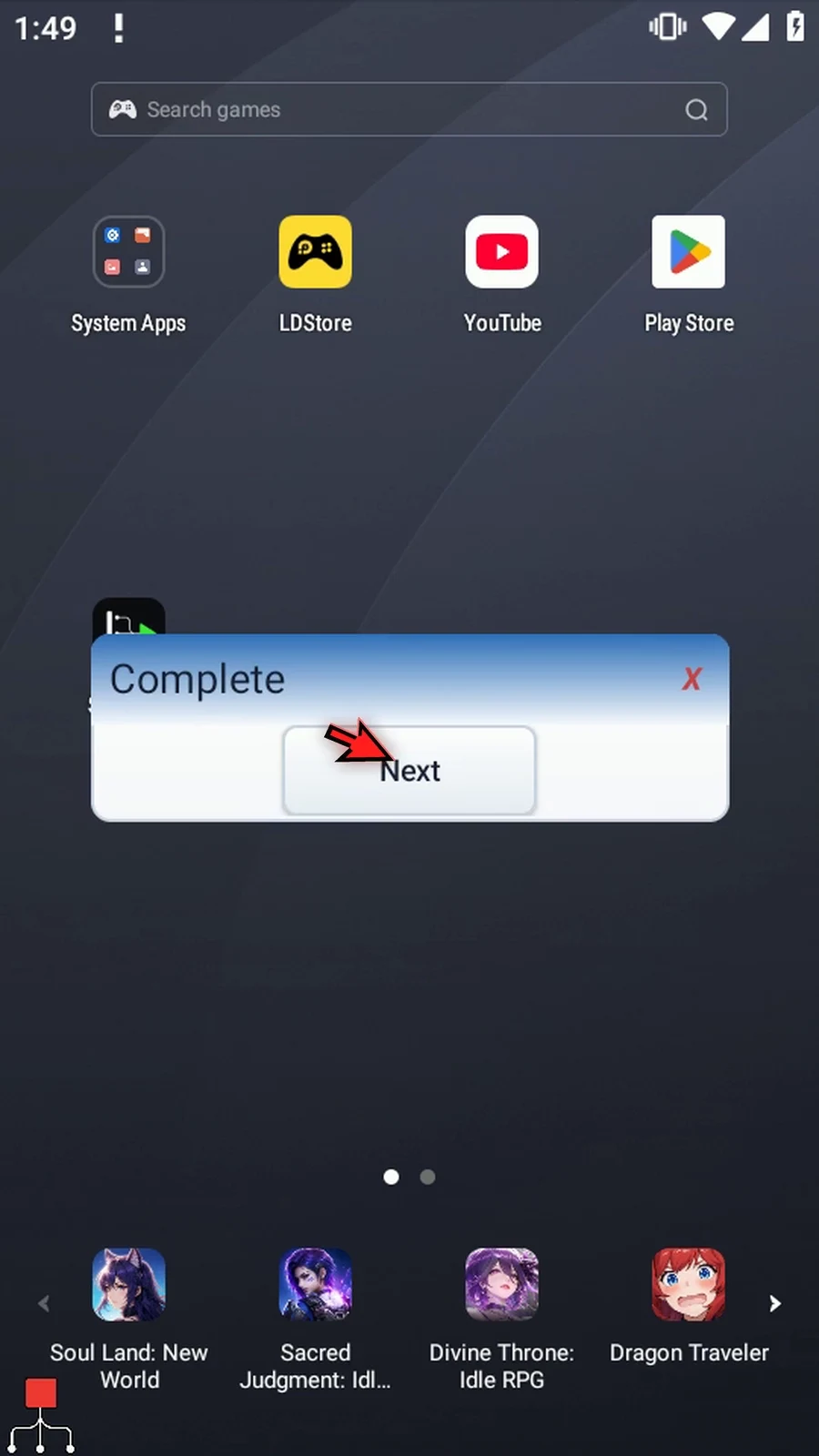
Step 20 Run the same script again without editing it. We are checking the saved position, not creating another Mini.
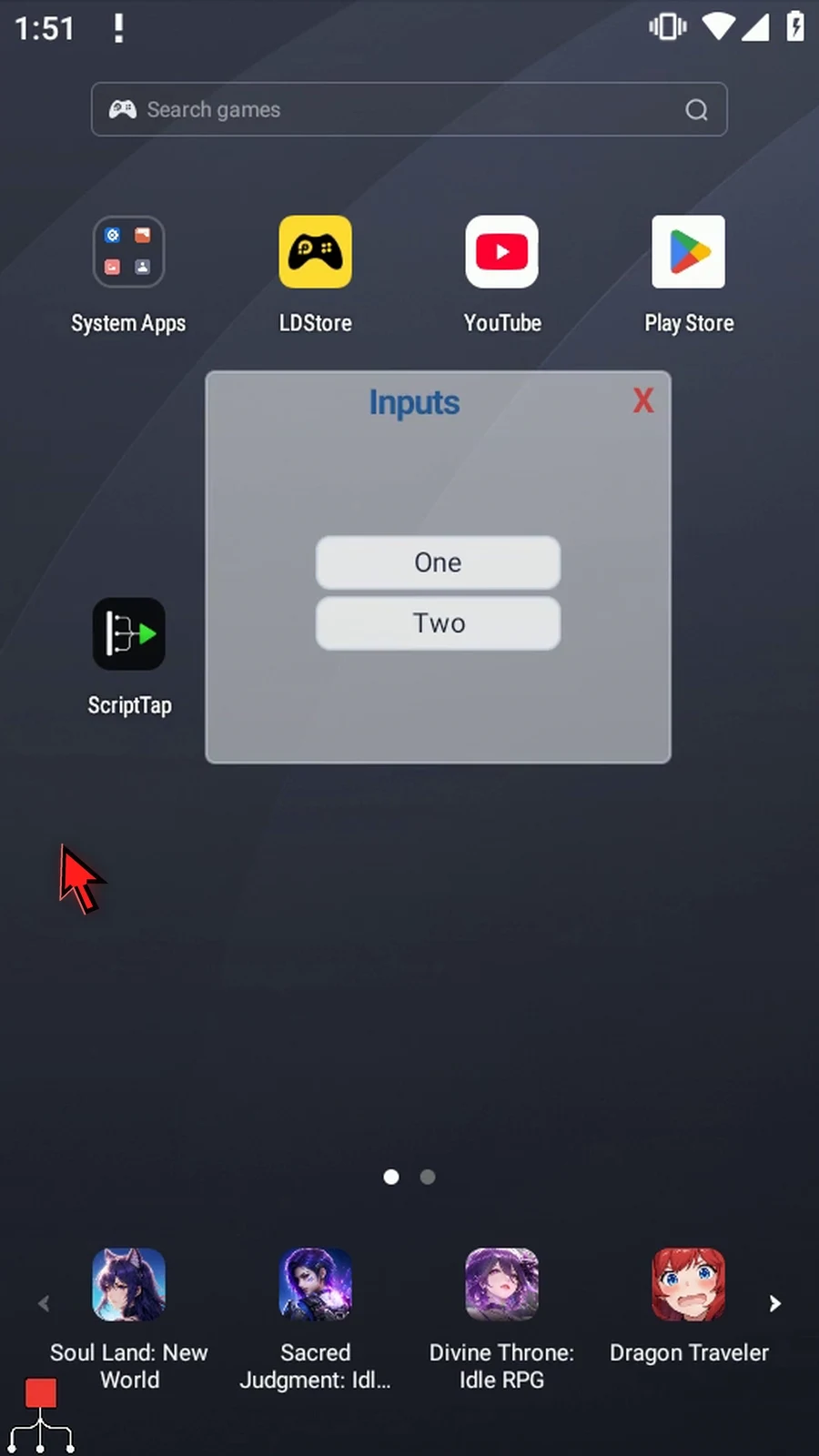
Step 21 The Mini opens where we last moved it. Moving it during play does not require editing the command or adding coordinates.
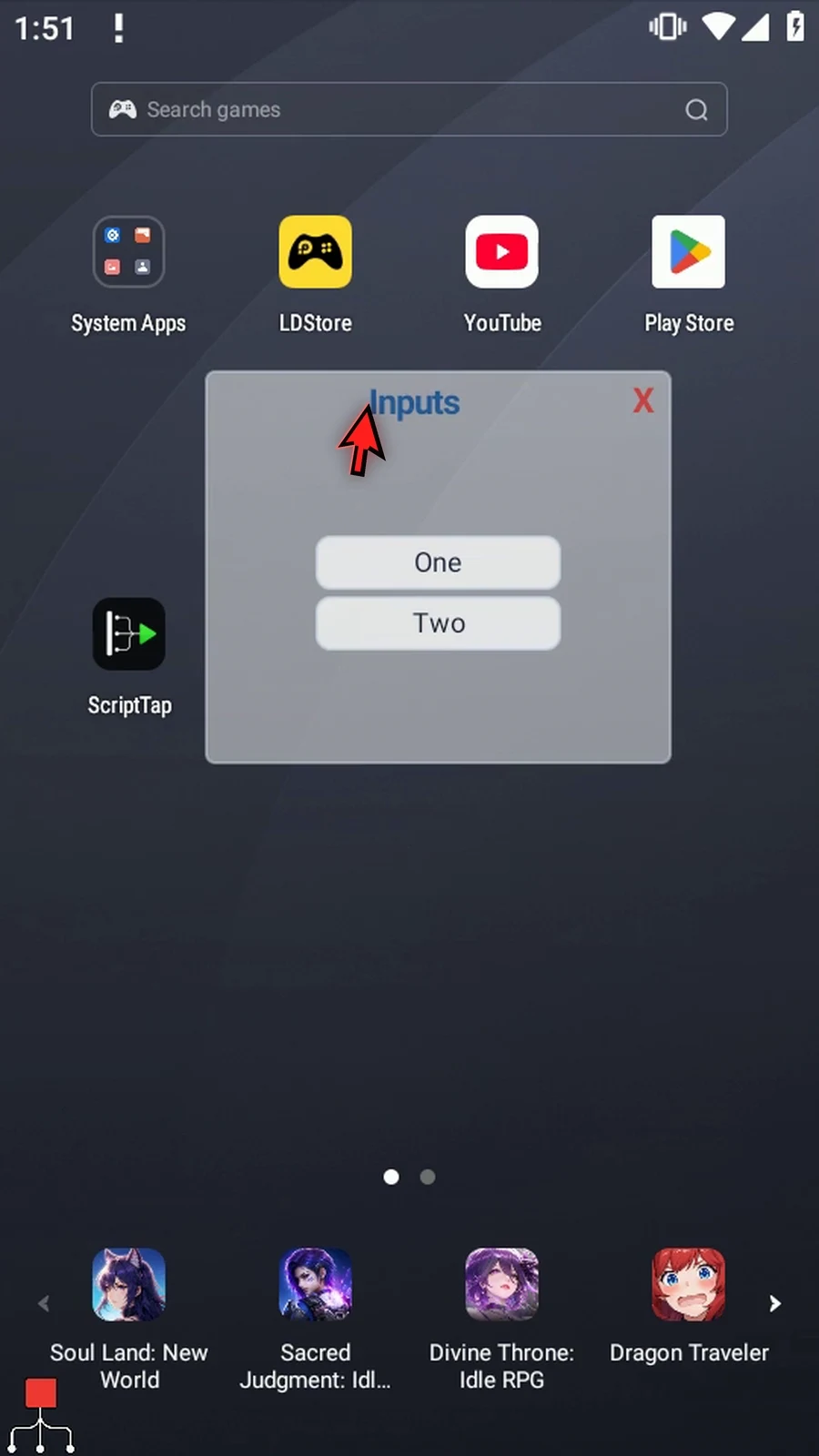
Step 22 With Red X stops off, the Mini's X only closes that Mini. The script continues to Complete. Choose Next to finish this check.
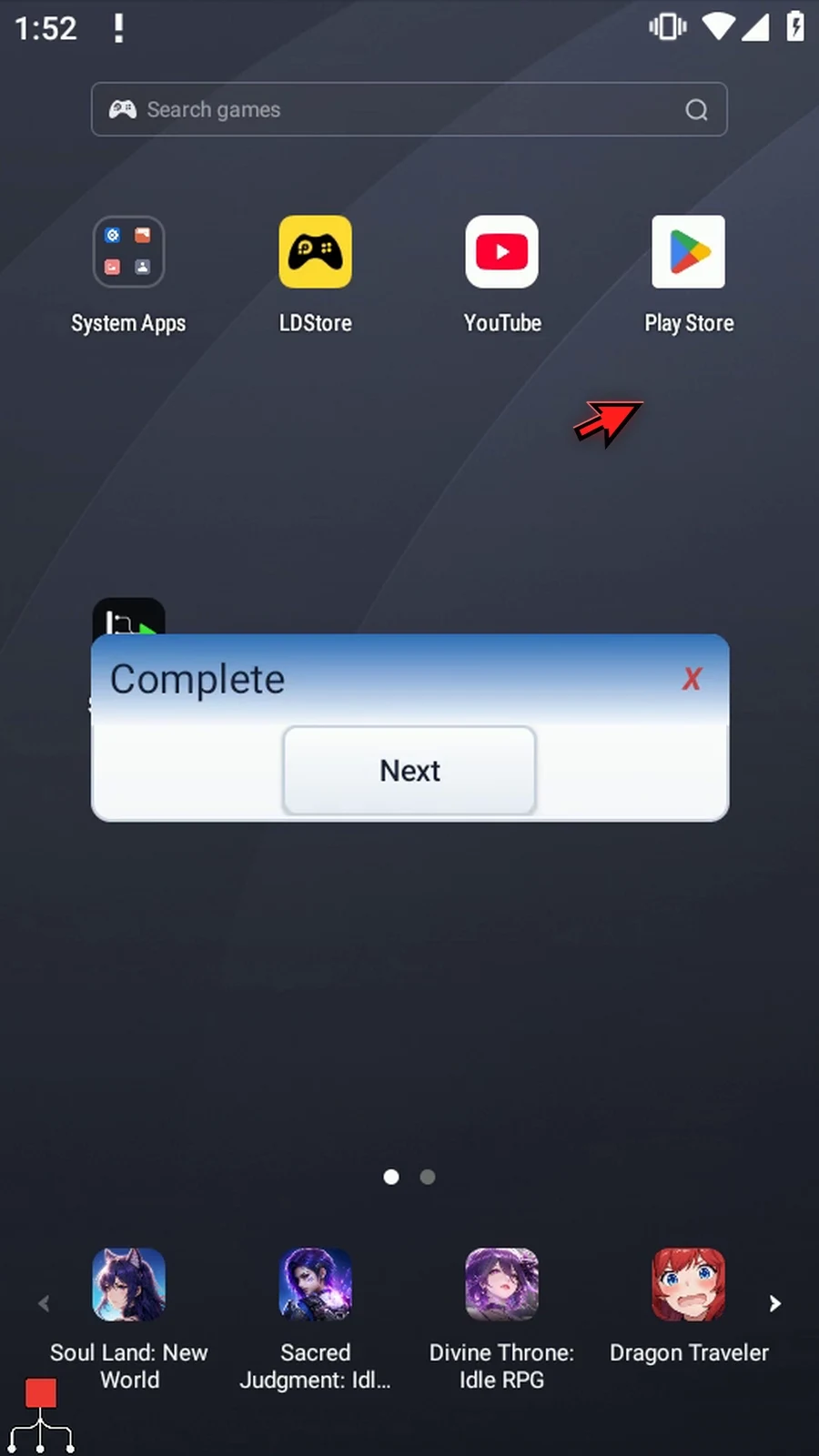
Step 23 Open the Mini again and turn Persistent on. Now it will stay available while later commands continue, instead of waiting for a choice first.
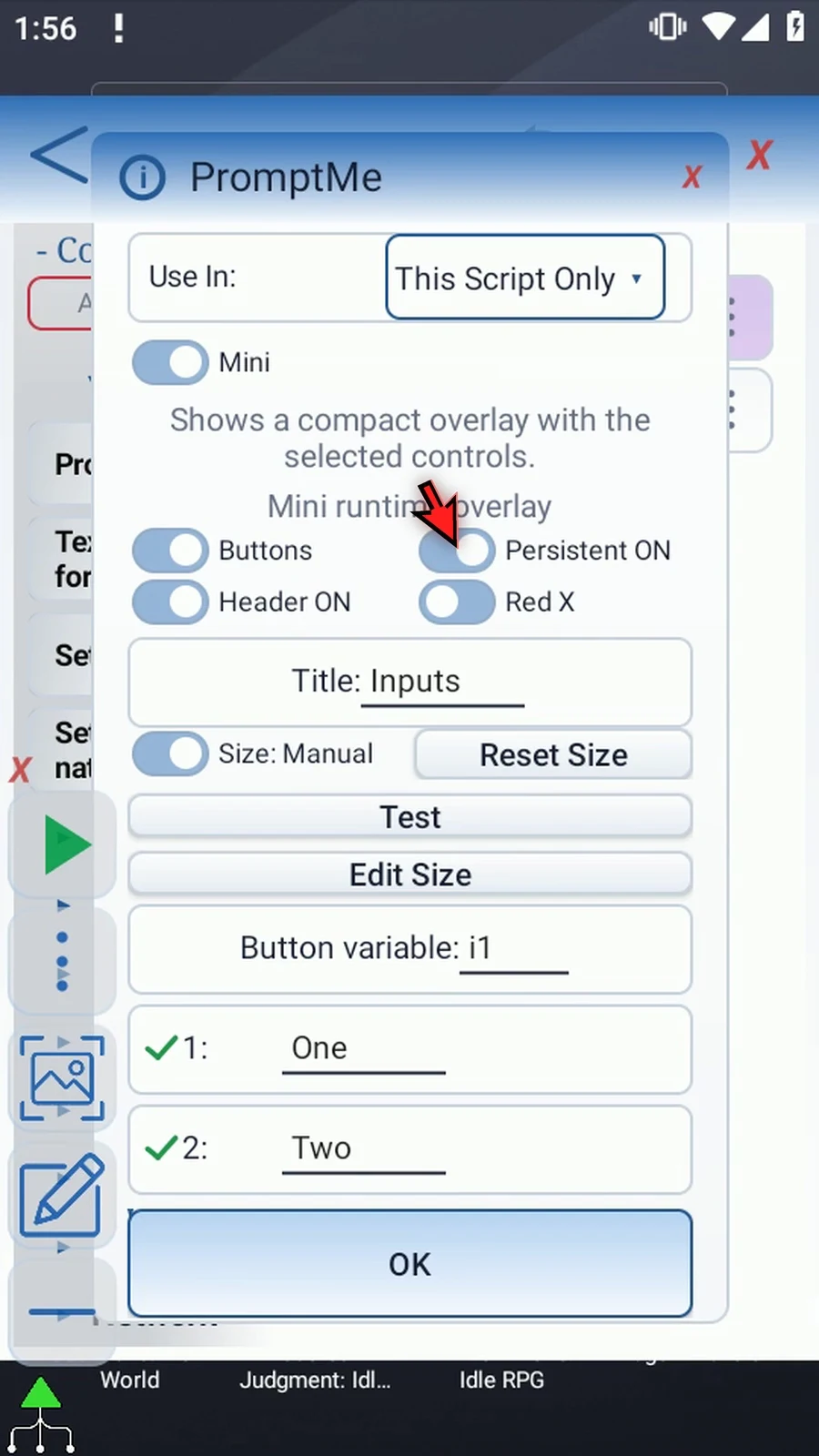
Step 24 Turn Header off for a small widget with just the controls. The title, frame and close button disappear, and the controls size themselves automatically. Save and close the editor.
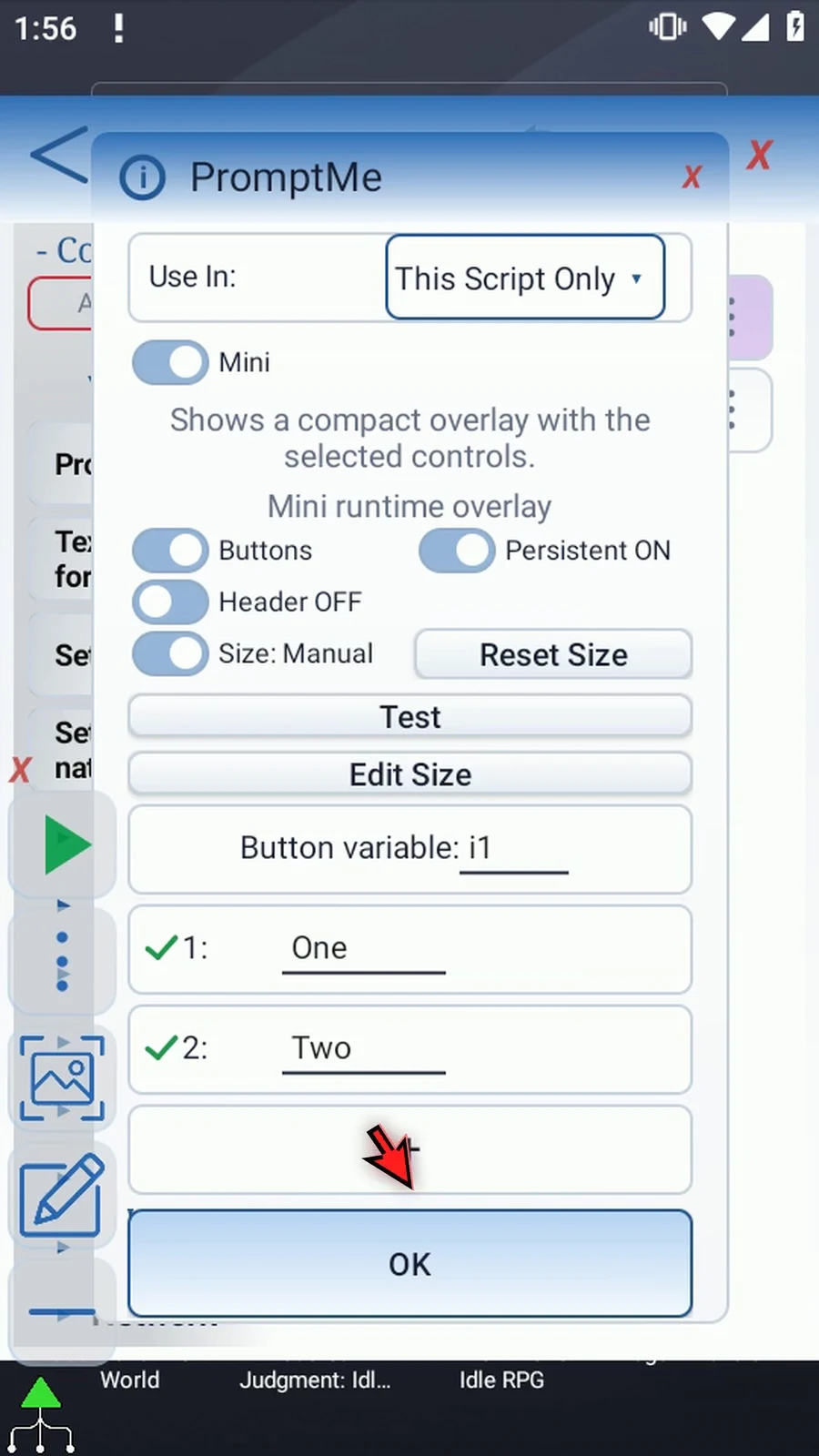
Step 25 When the script is complete, simply use the Play button in the main overlay.
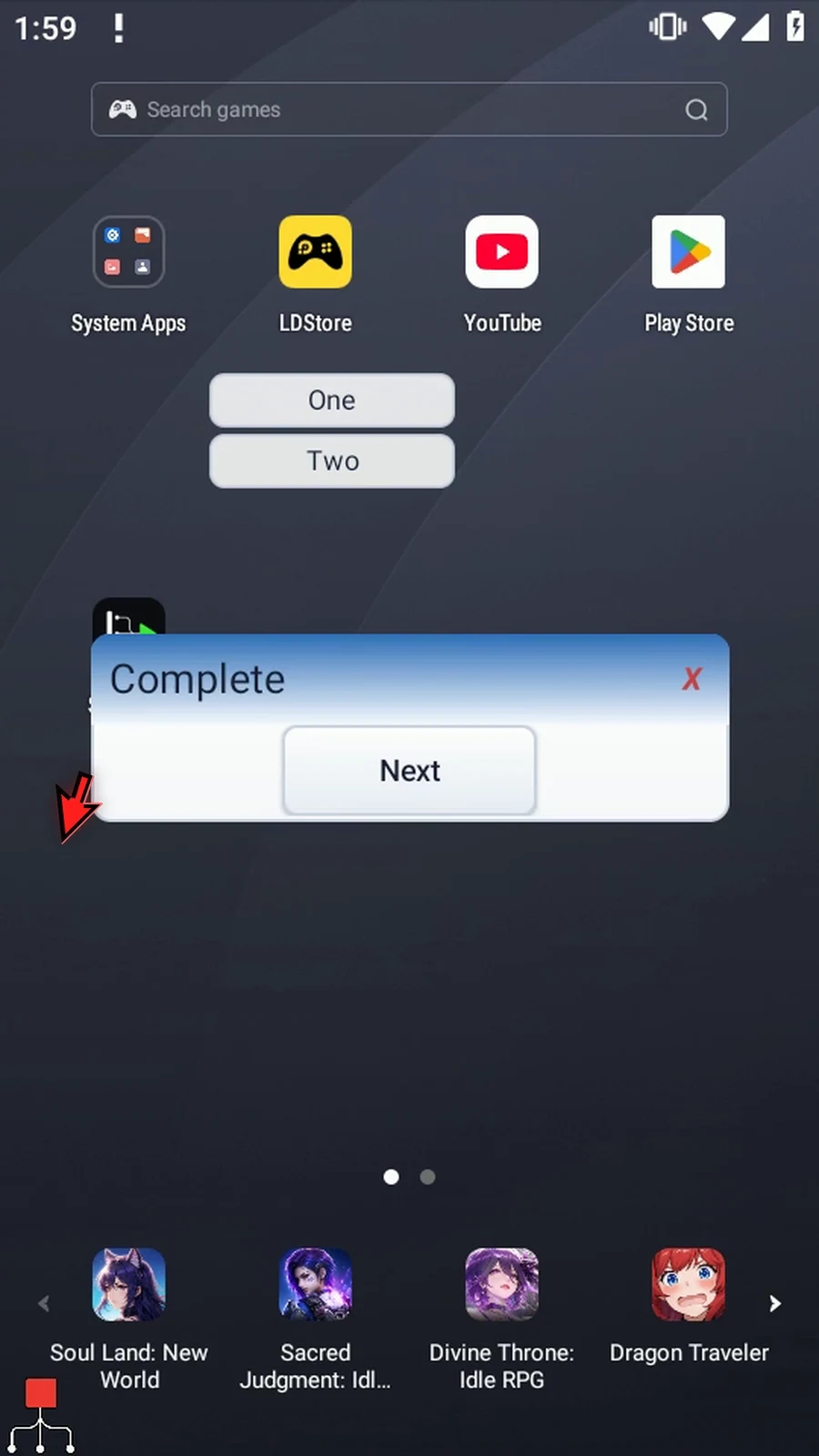
Step 26 The compact widget and Complete are visible together. Persistent Mini is still usable while the regular prompt waits for its own answer.
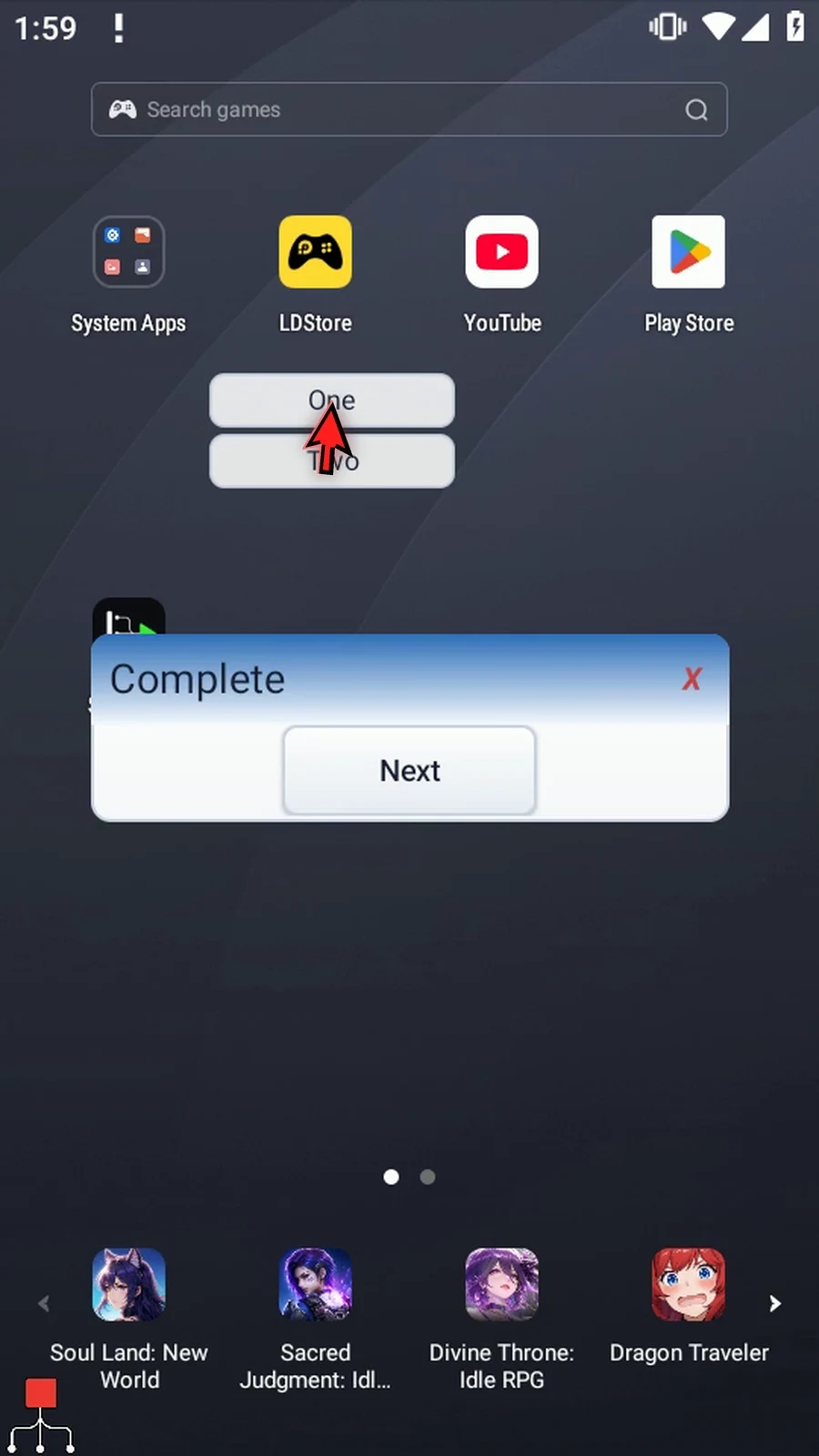
Step 27 Without a header, drag a button surface to move the widget. A drag moves it; a tap chooses the button.
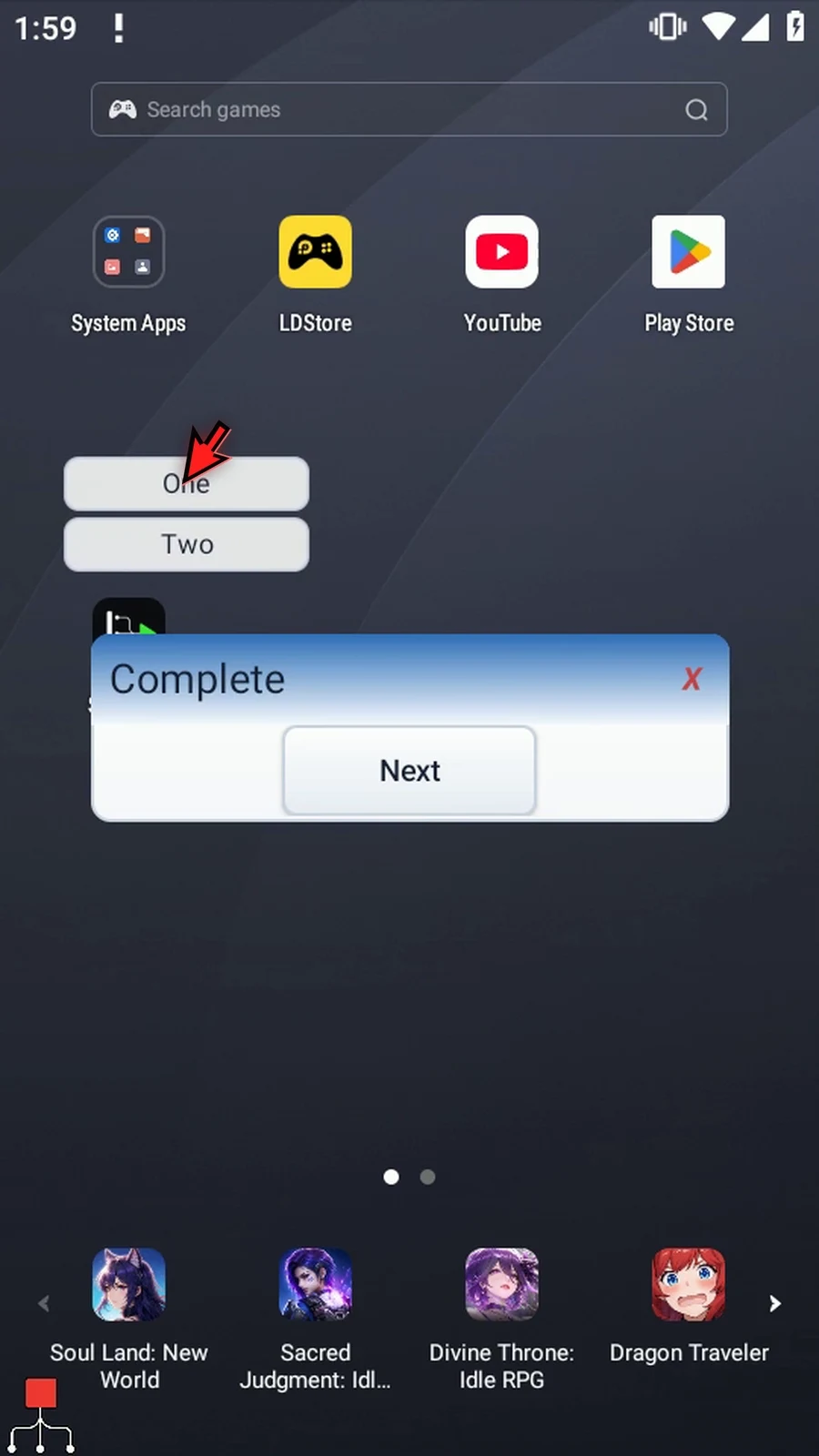
Step 28 Tap One, then Two. The selected choice changes from one to two, but the persistent widget stays available. Later commands can use i1.
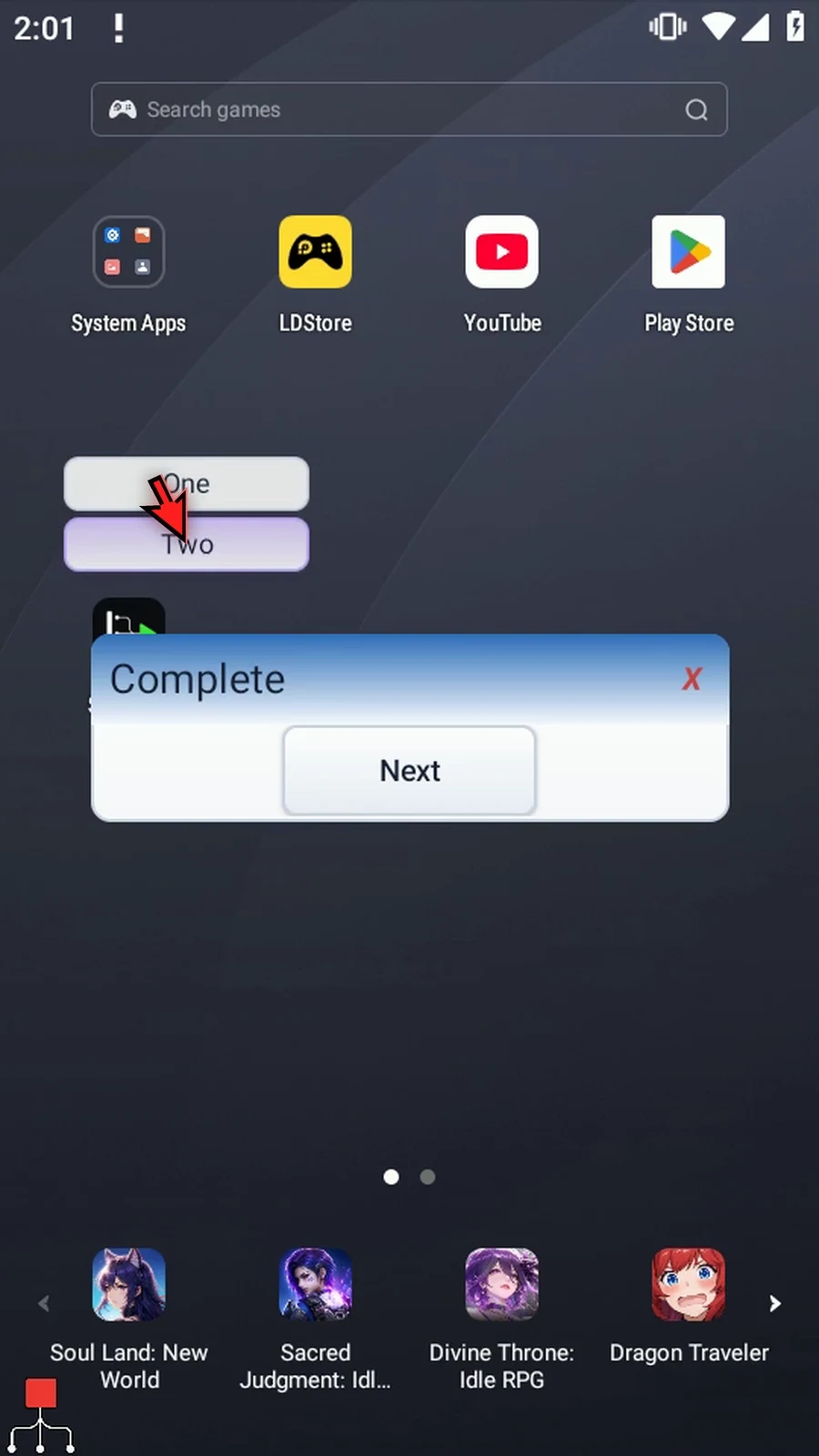
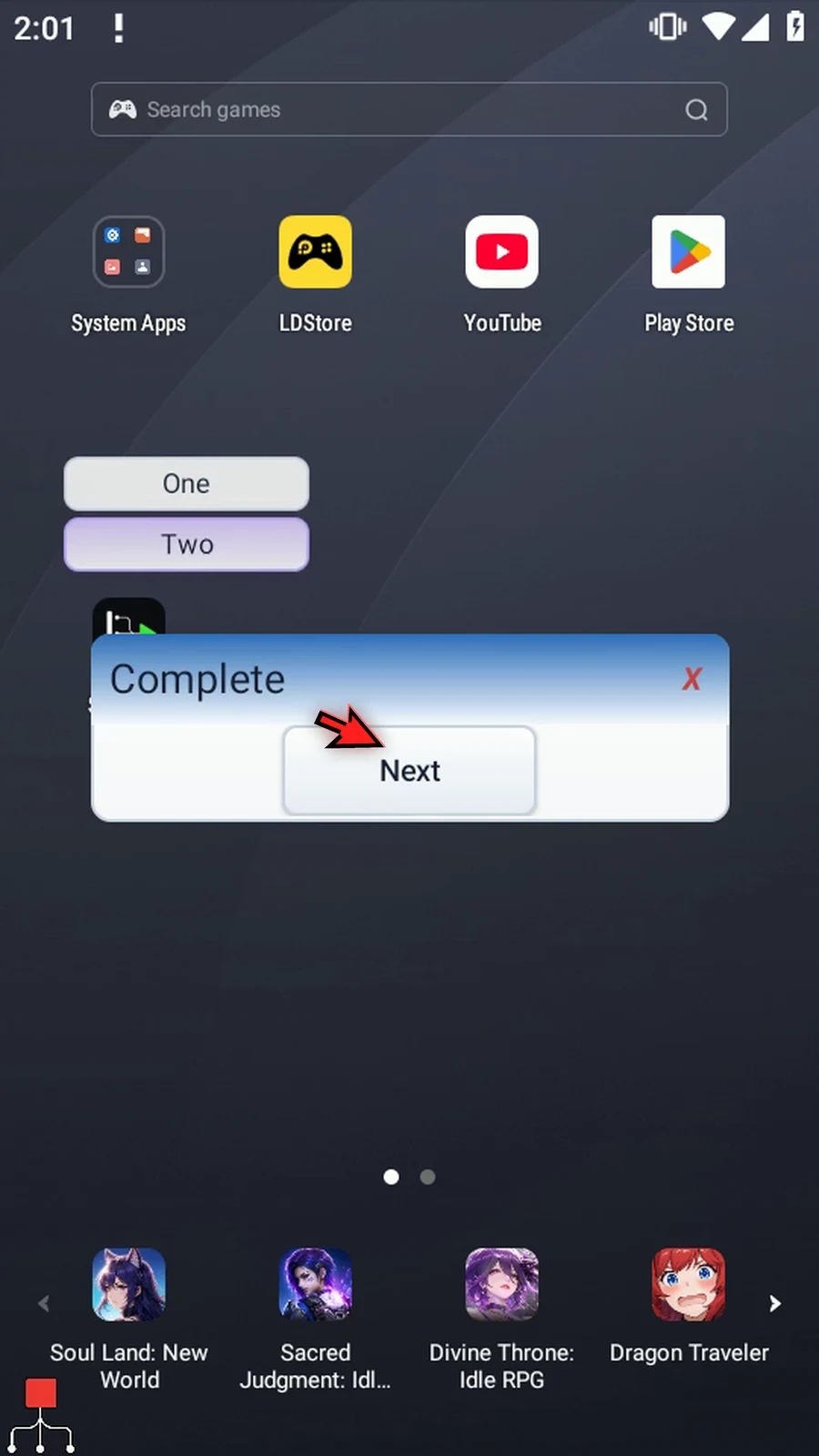
Step 29 Choose Next in Complete. When the parent run finishes, its persistent Mini is removed as well.
Step 30 Open the Mini and switch Buttons to Toggles. This mode change clears the old button rows and Integer destination, so we configure the Boolean controls separately.
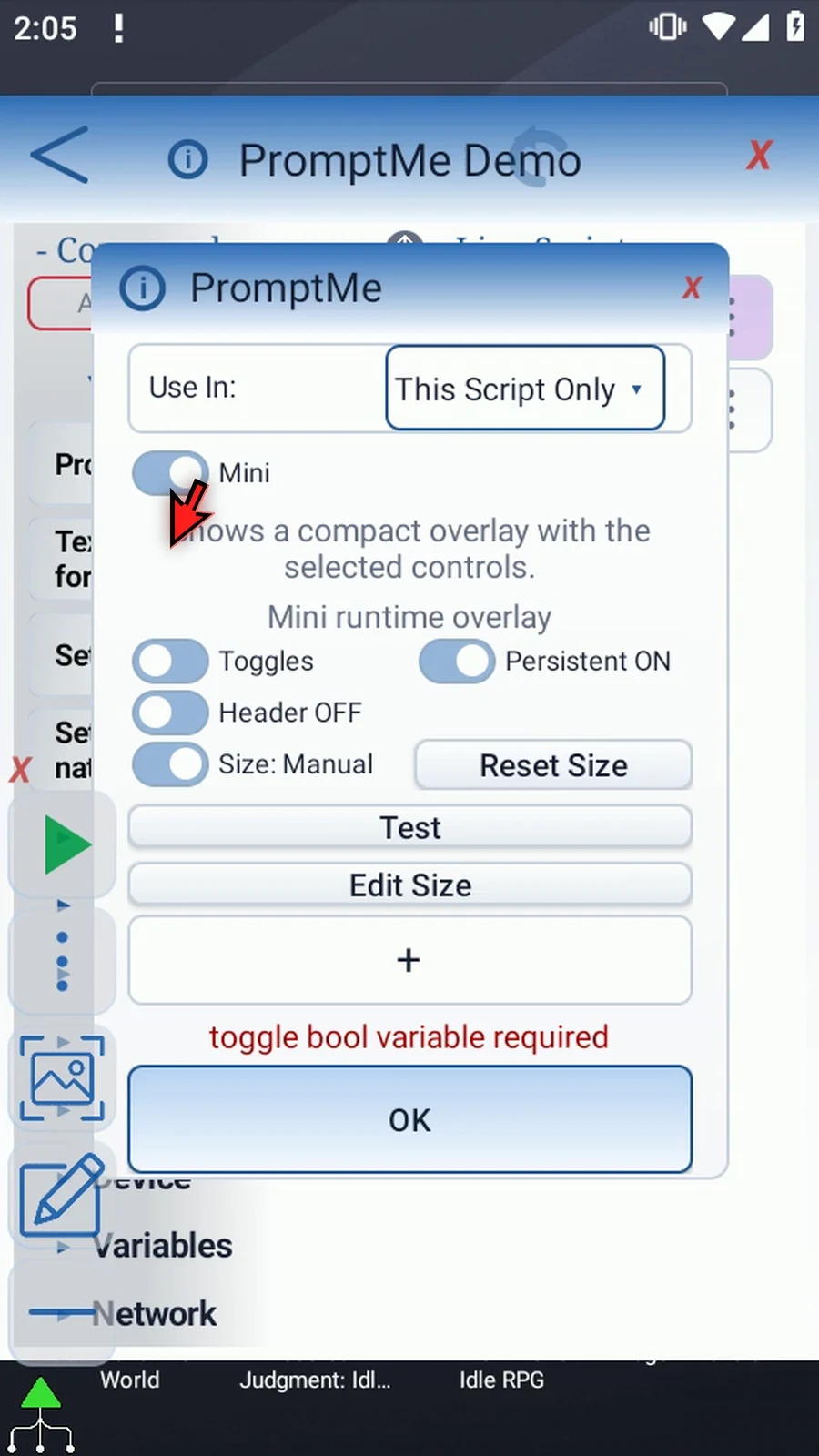
Step 31 Add a toggle named Flag with b2 as its Boolean output. Unlike numbered buttons, each toggle has its own Boolean variable.
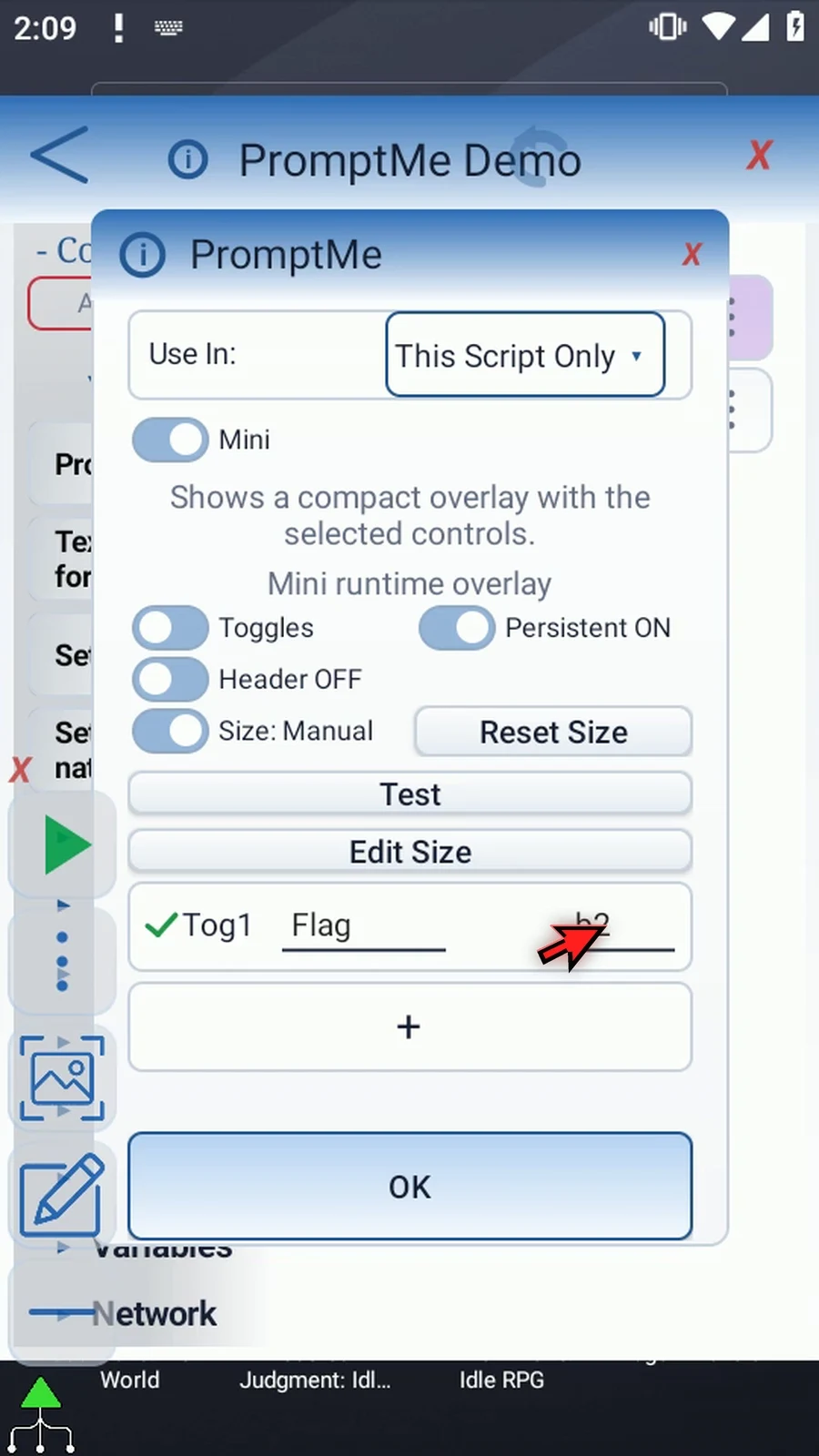
Step 32 The check mark beside an editor row removes that row; it is not its runtime on or off value. Here we add a spare row, then remove it.
Step 33 Reset Size returns to Default and clears the saved placement. With Header off, the widget still fits its controls automatically. Save and close the editor.
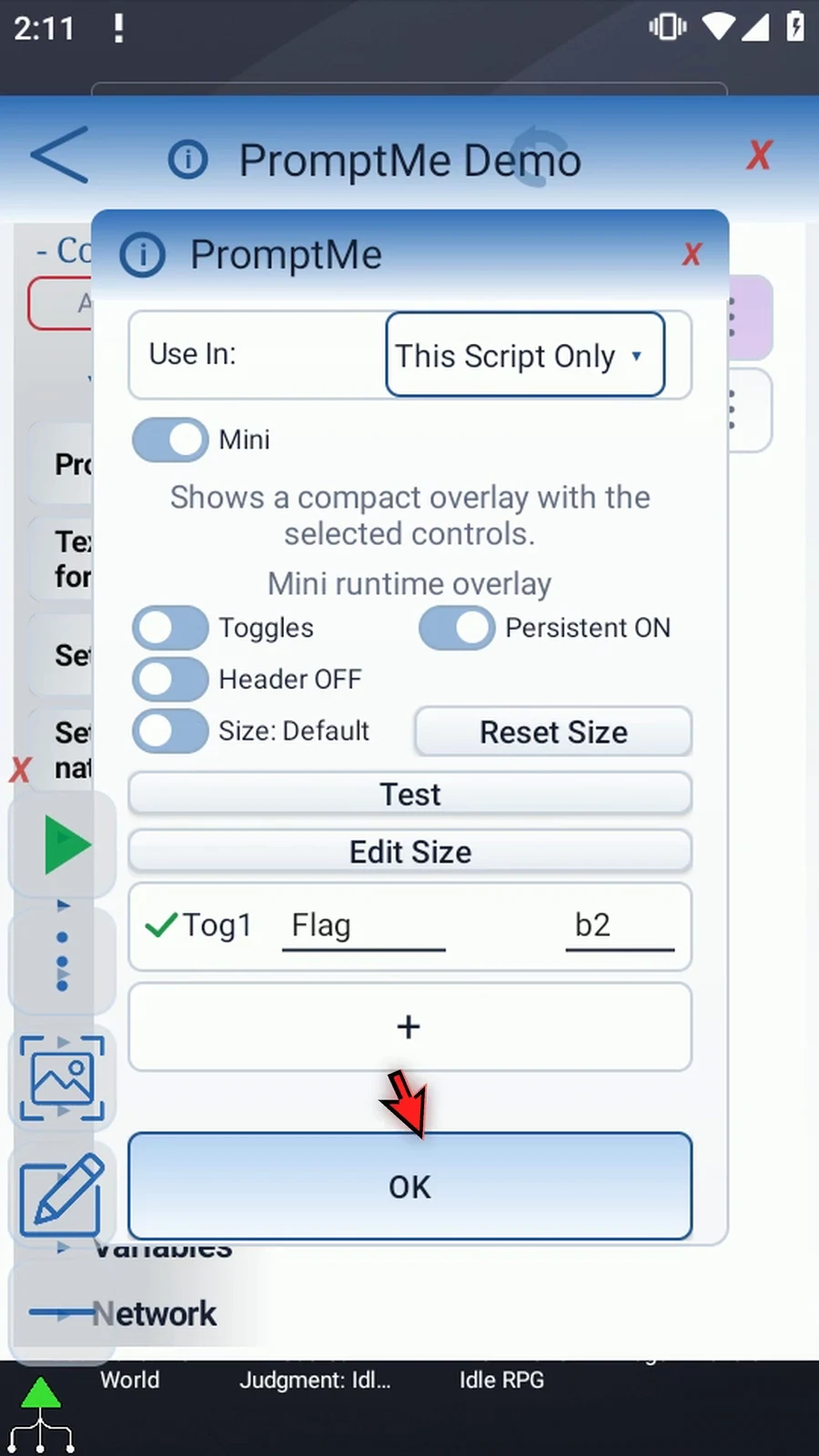
Step 34 When the script is complete, simply use the Play button in the main overlay.
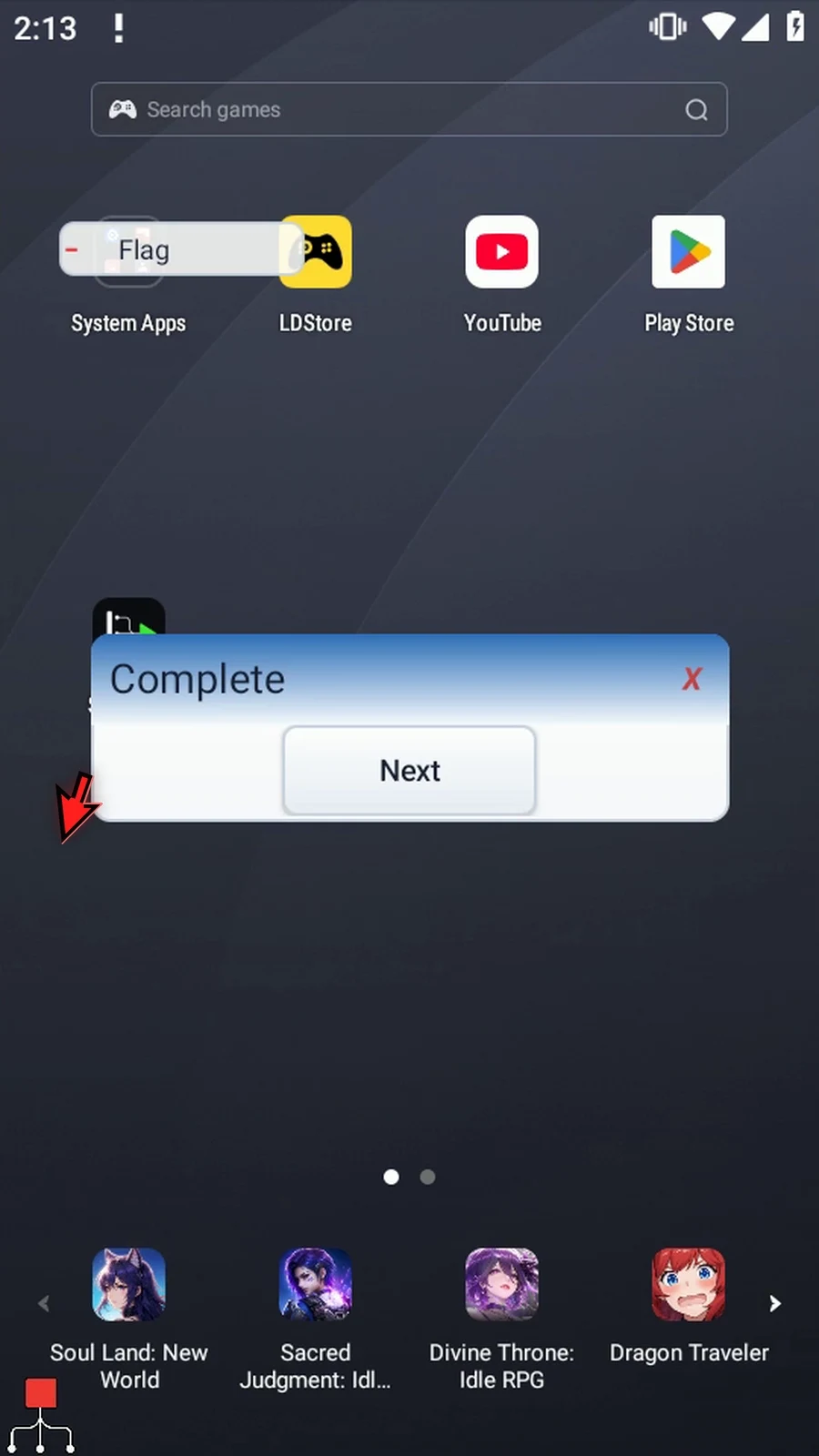
Step 35 Tap Flag to turn it on. The green check shows true, and b2 receives that Boolean value while the rest of the script continues.
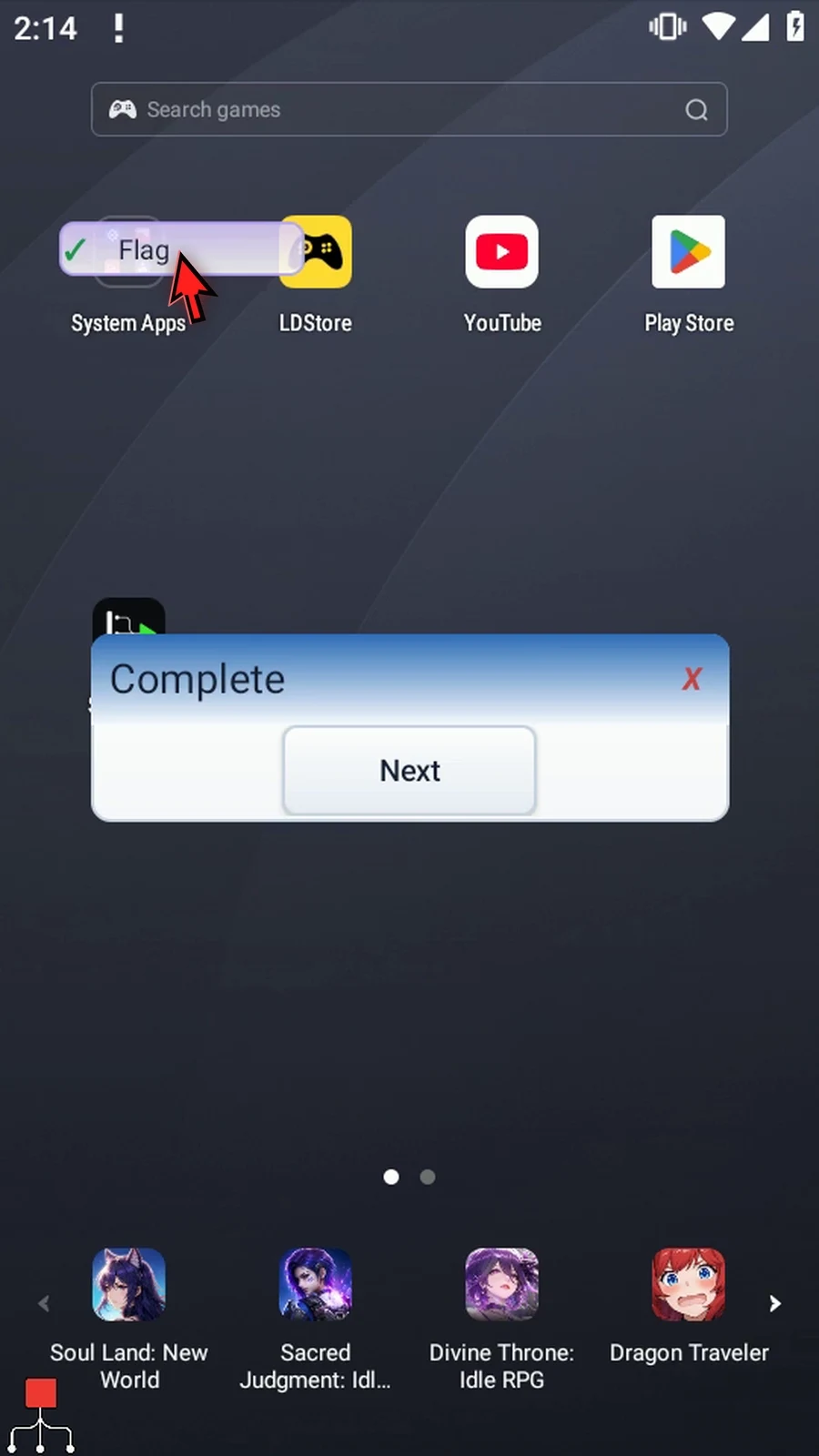
Step 36 Tap again for false, shown by the red minus. We will turn it on once more. Persistent controls can be changed more than once during the same run.
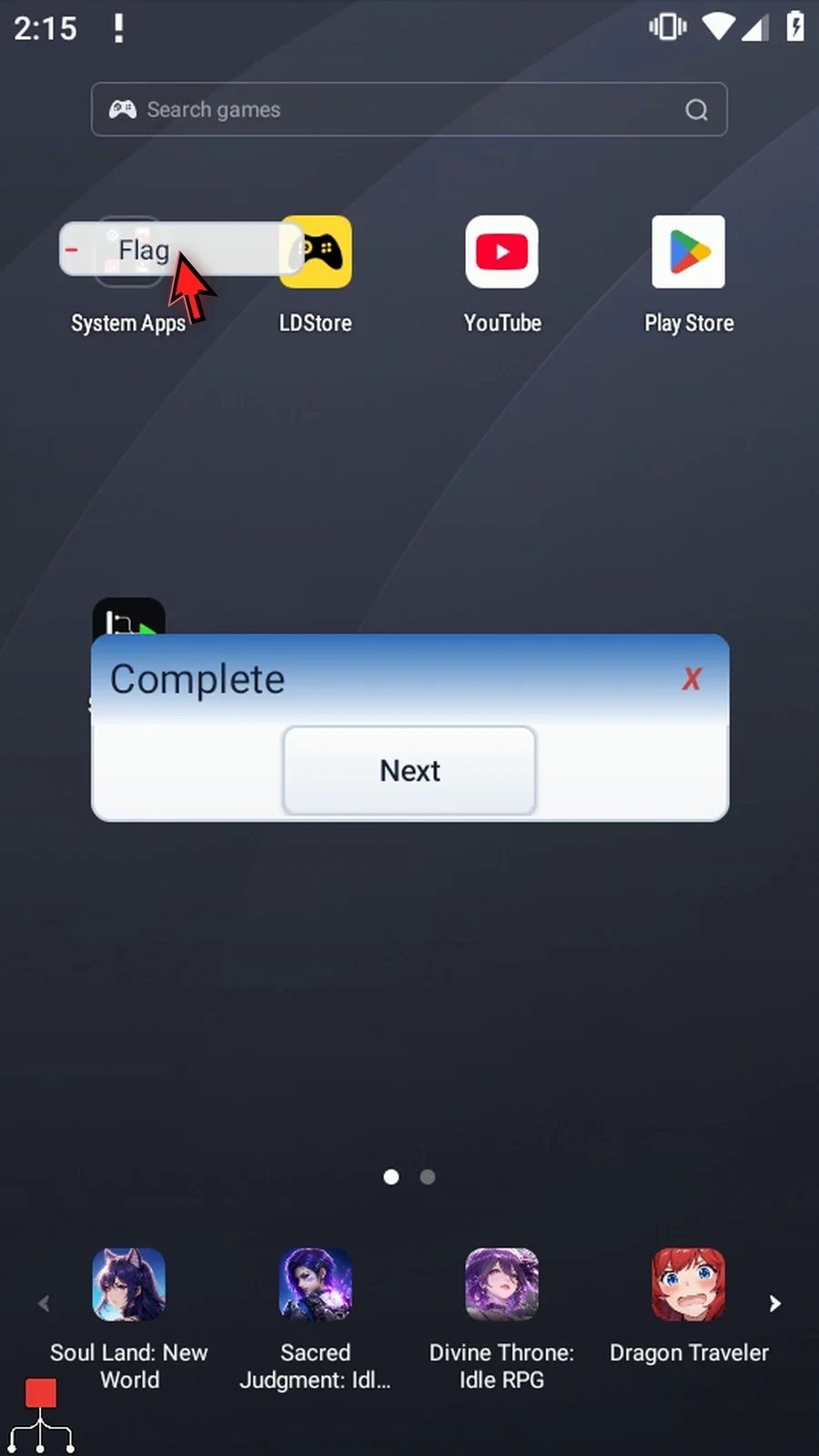
Step 37 Choose Next to finish. Both the prompt and its compact toggle are cleaned up automatically.
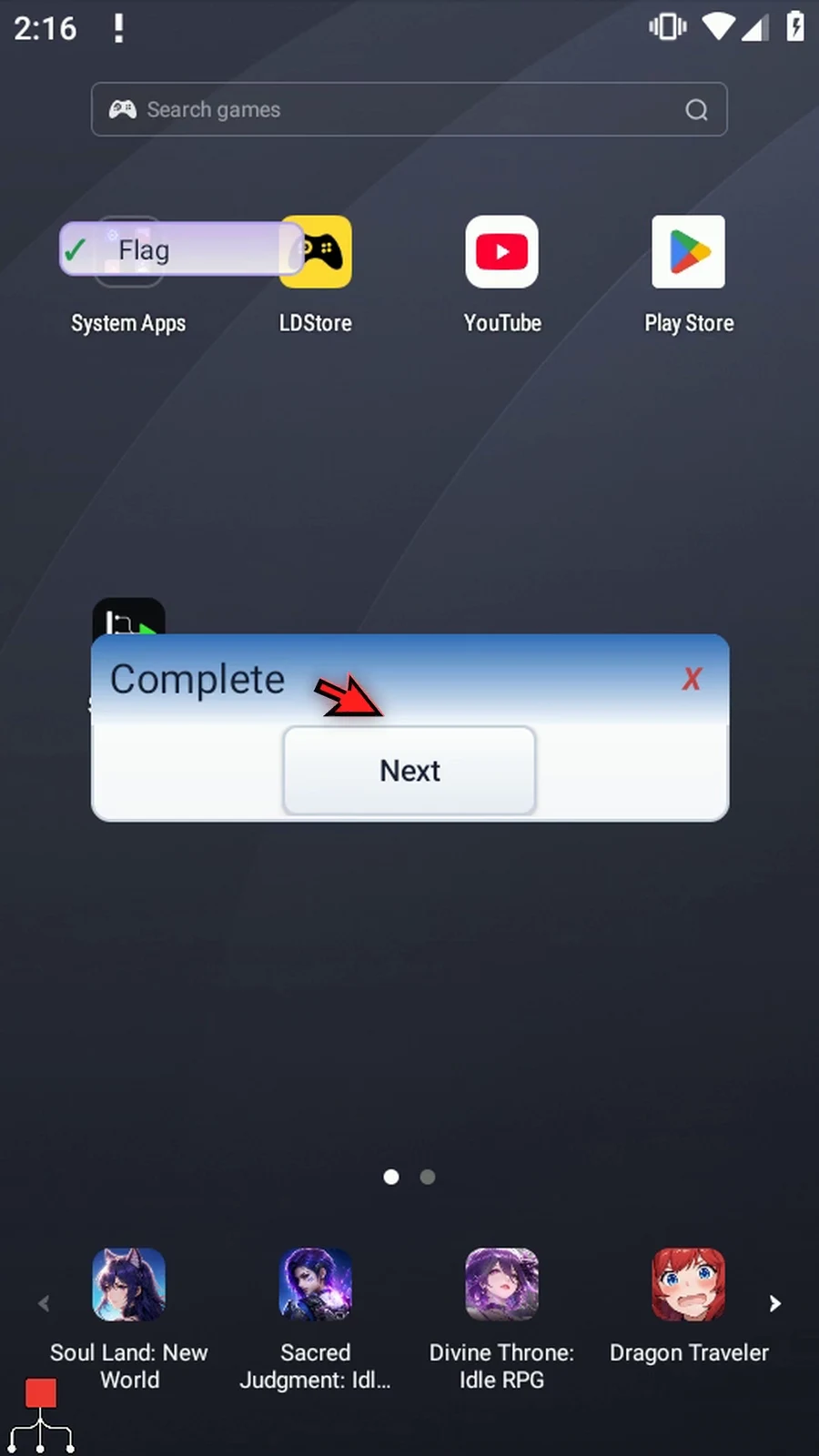
Step 38 Finally, open the Mini, turn Header on, and enable Red X stops. This option makes the Mini's X stop the whole script, rather than only close that Mini. Save and close the editor.
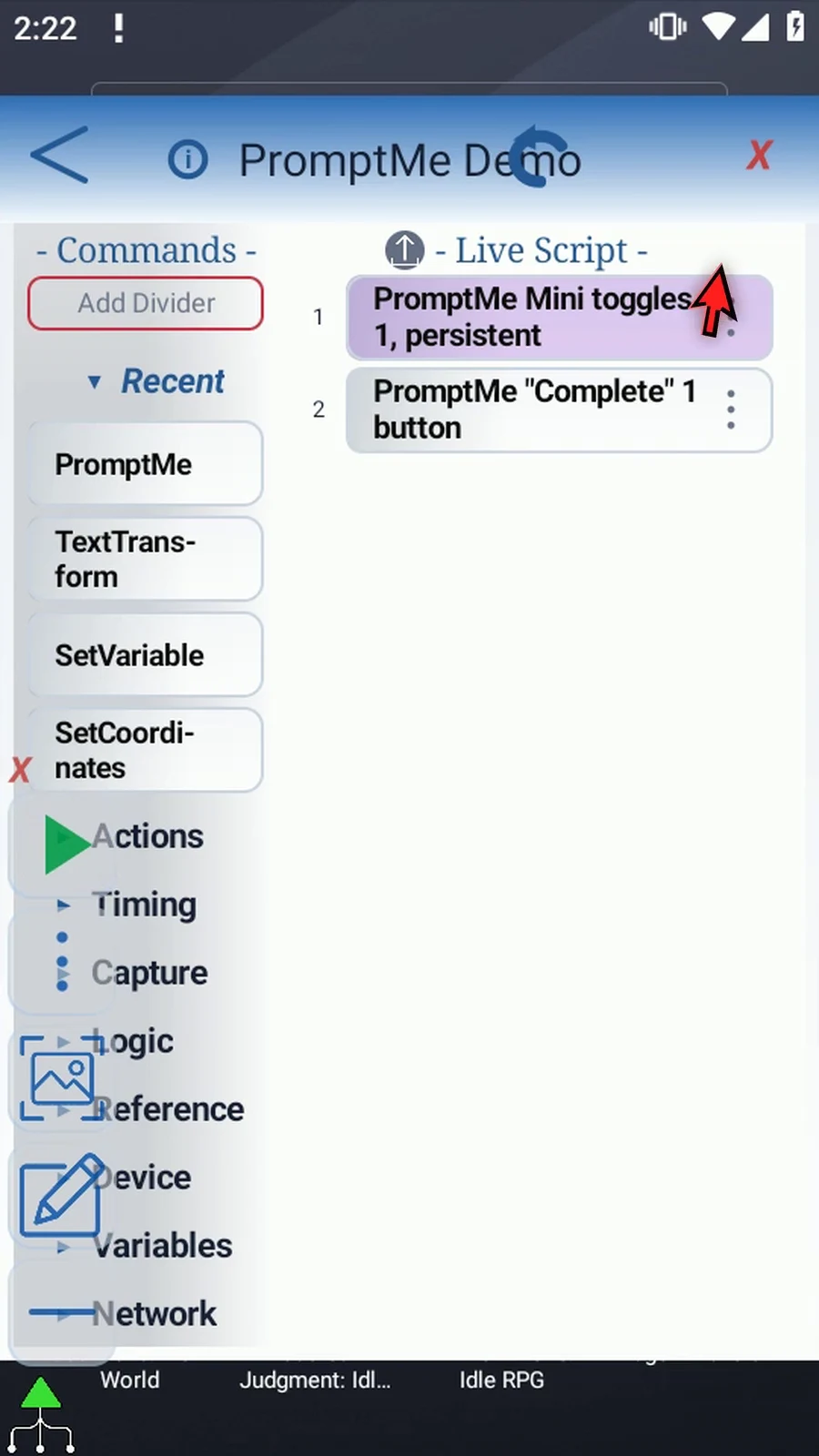
Step 39 When the script is complete, simply use the Play button in the main overlay.
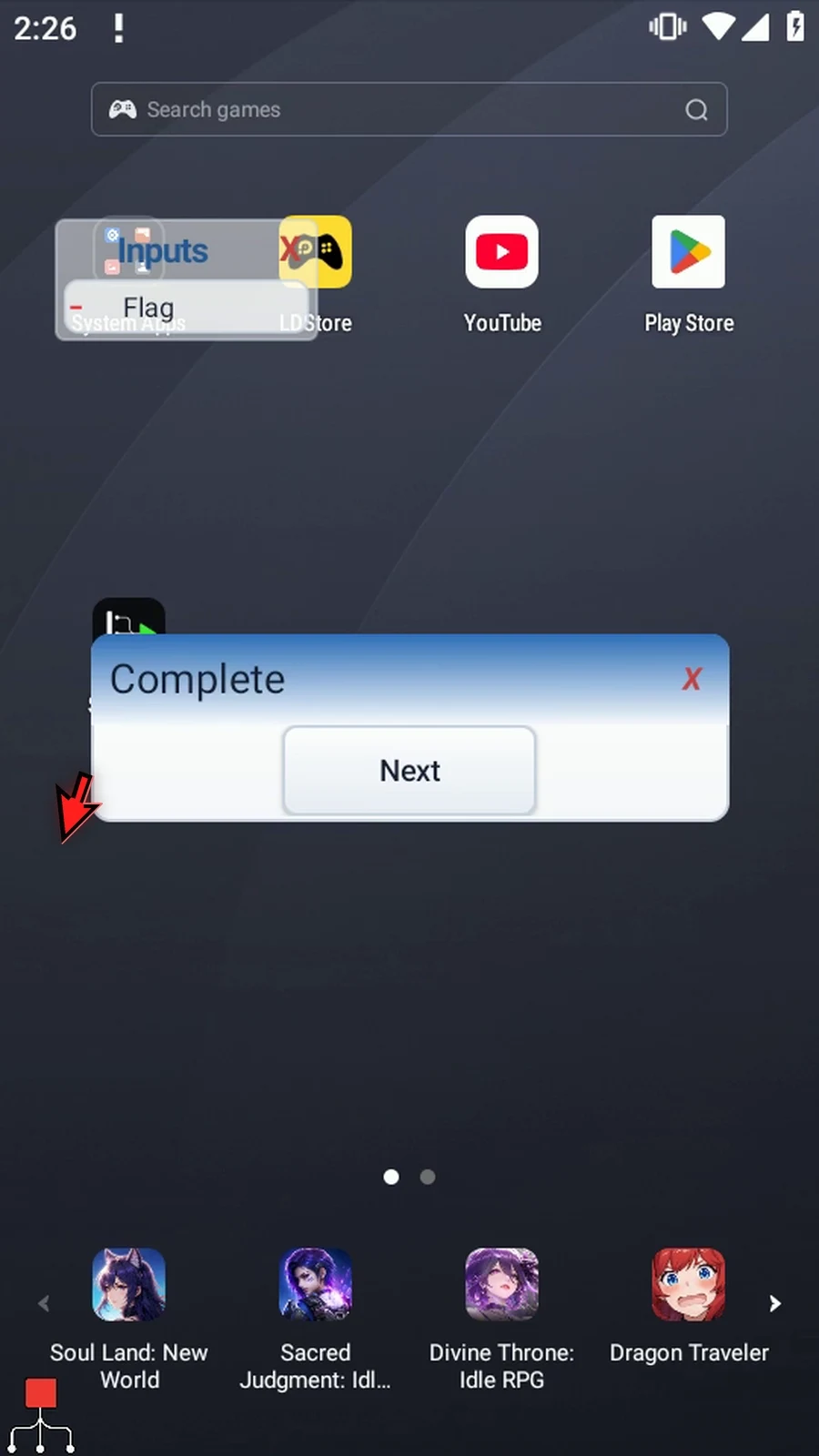
Step 40 Press the Mini's X. The entire run stops, so the waiting regular prompt closes too. Turn this option off when you only want to dismiss the Mini.
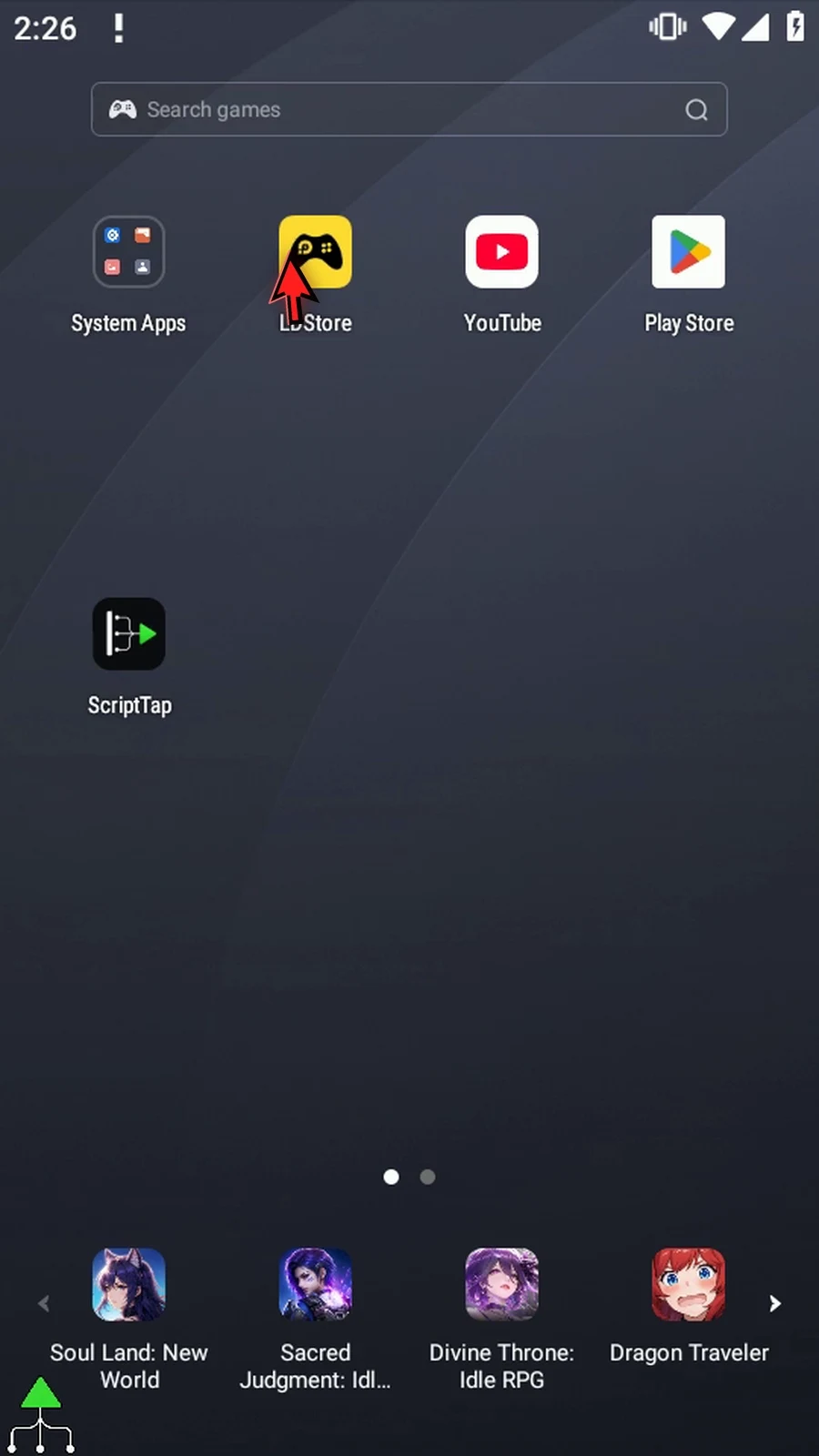
Step 41 Use Mini for compact choices and Boolean controls. Choose Persistent when those controls should remain available alongside later commands, and use Header off when you want the smallest widget.