Command video guide
ArrayGet
ArrayGet reads one position from an array and copies its value into an output variable. Use it when a later command needs an item chosen by your script, without changing the original array.
This guide builds a short working example: declare Integer array a with three slots, set a2 to 7, and set Integer index i1 to 2. ArrayGet then reads a[i1] into i2. Display shows 7 for five seconds, and PromptMe provides a Done confirmation.
Choose Get on the shared ArrayGet/Set palette tile before dragging it into the script. The existing command row keeps its original Get or Set type. This video covers ArrayGet, the read operation.
Declare the array before reading it. Match its scope and Value Type: Integer, Decimal, Boolean, Hex, String, or Time. This Script Only is local; Script Thread shares variables within the calling script thread.
Positions start at 1. Index accepts a literal position or a previously set Integer variable. An unwritten, invalid, or incompatible read returns the selected type’s neutral value, such as zero or an empty String. Check the declaration, type, scope, and index if the result is unexpectedly empty.
Read an array value with ArrayGet
Step-by-step guide
Step 01 Array Get copies a value from a chosen array position into another variable. An array is a numbered collection of values. Using an Integer variable as the index lets your script choose which item to read.
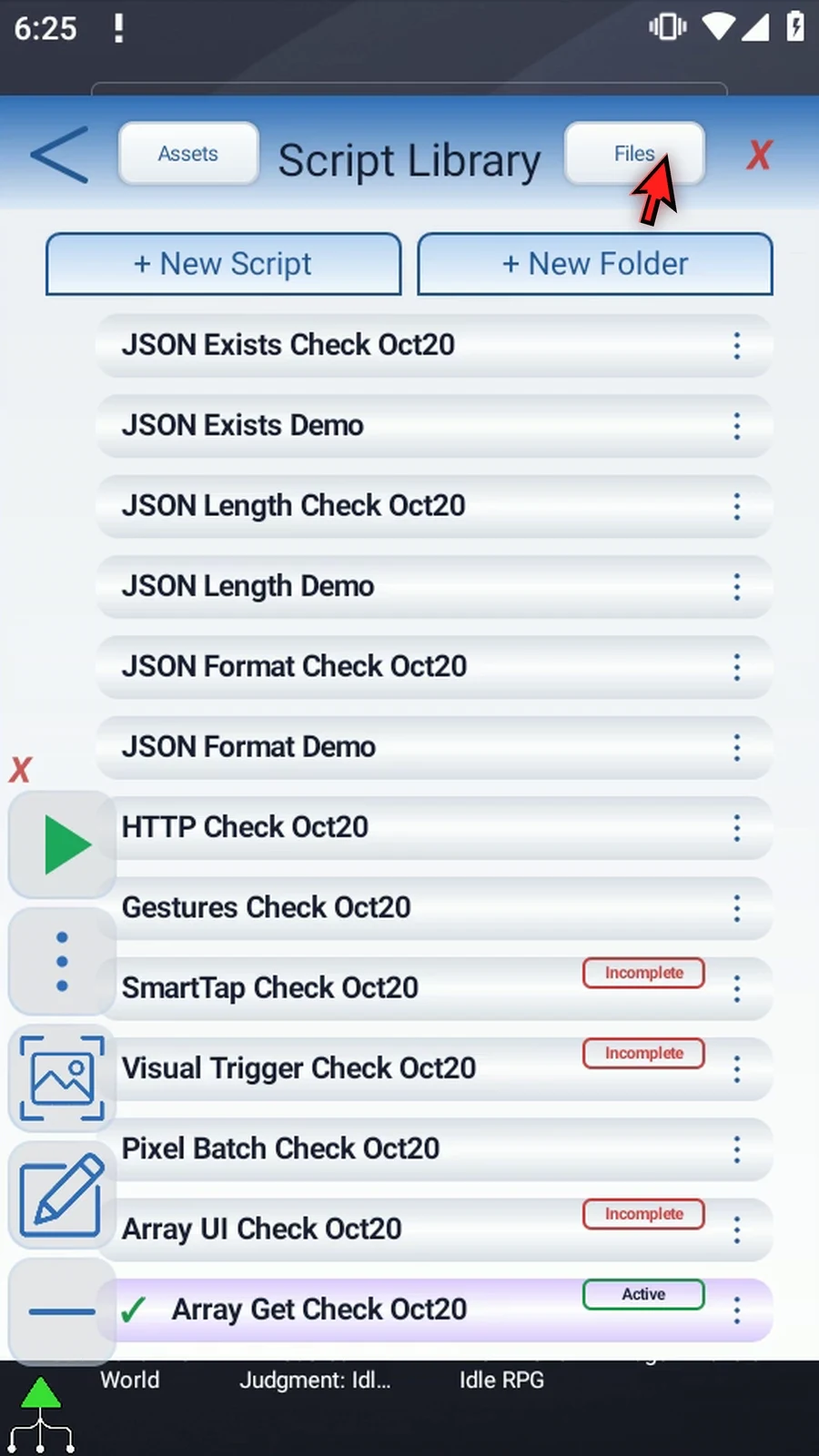
Step 02 Create a new blank script.
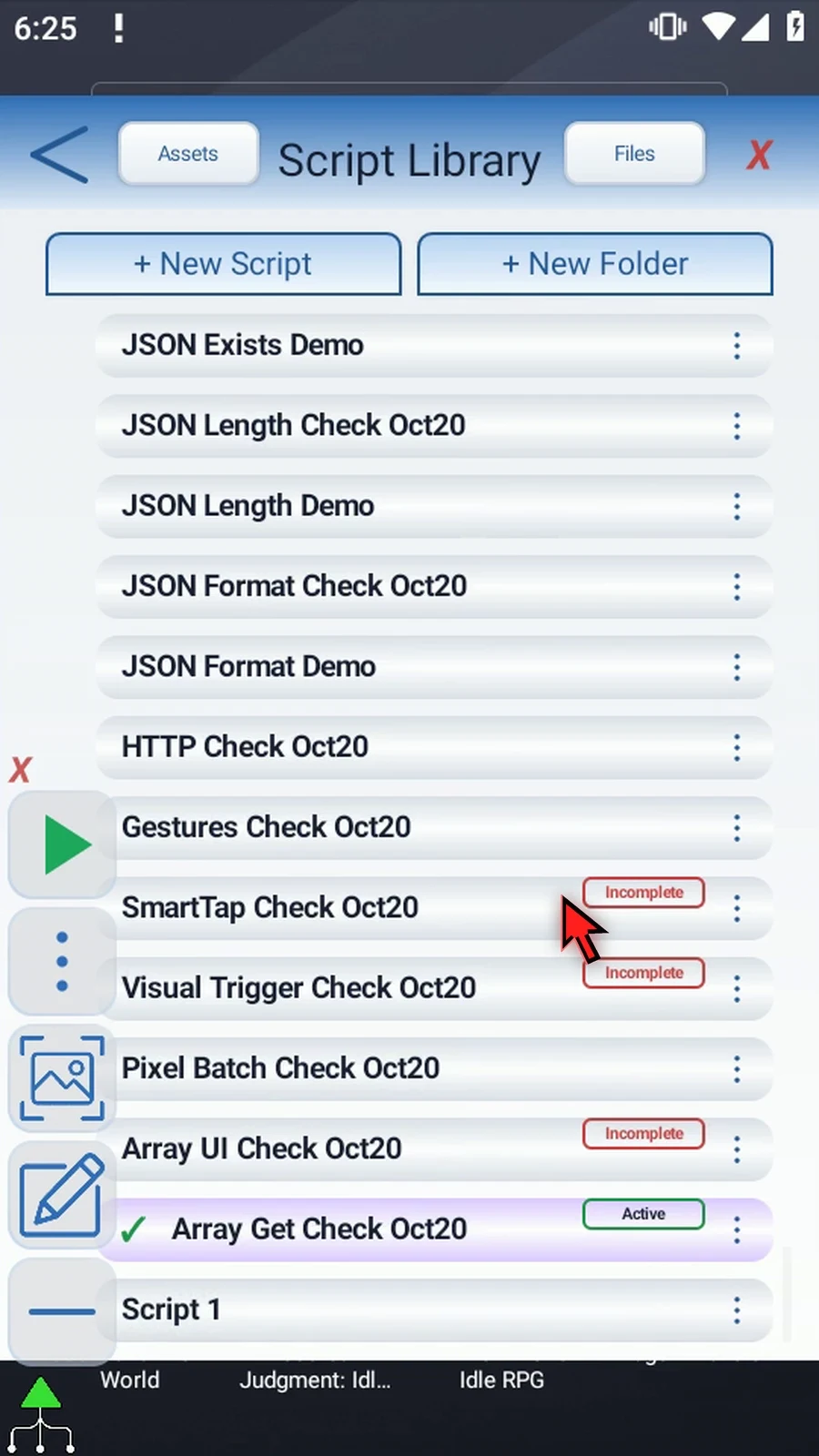
Step 03 Open the new script's menu and choose Rename.
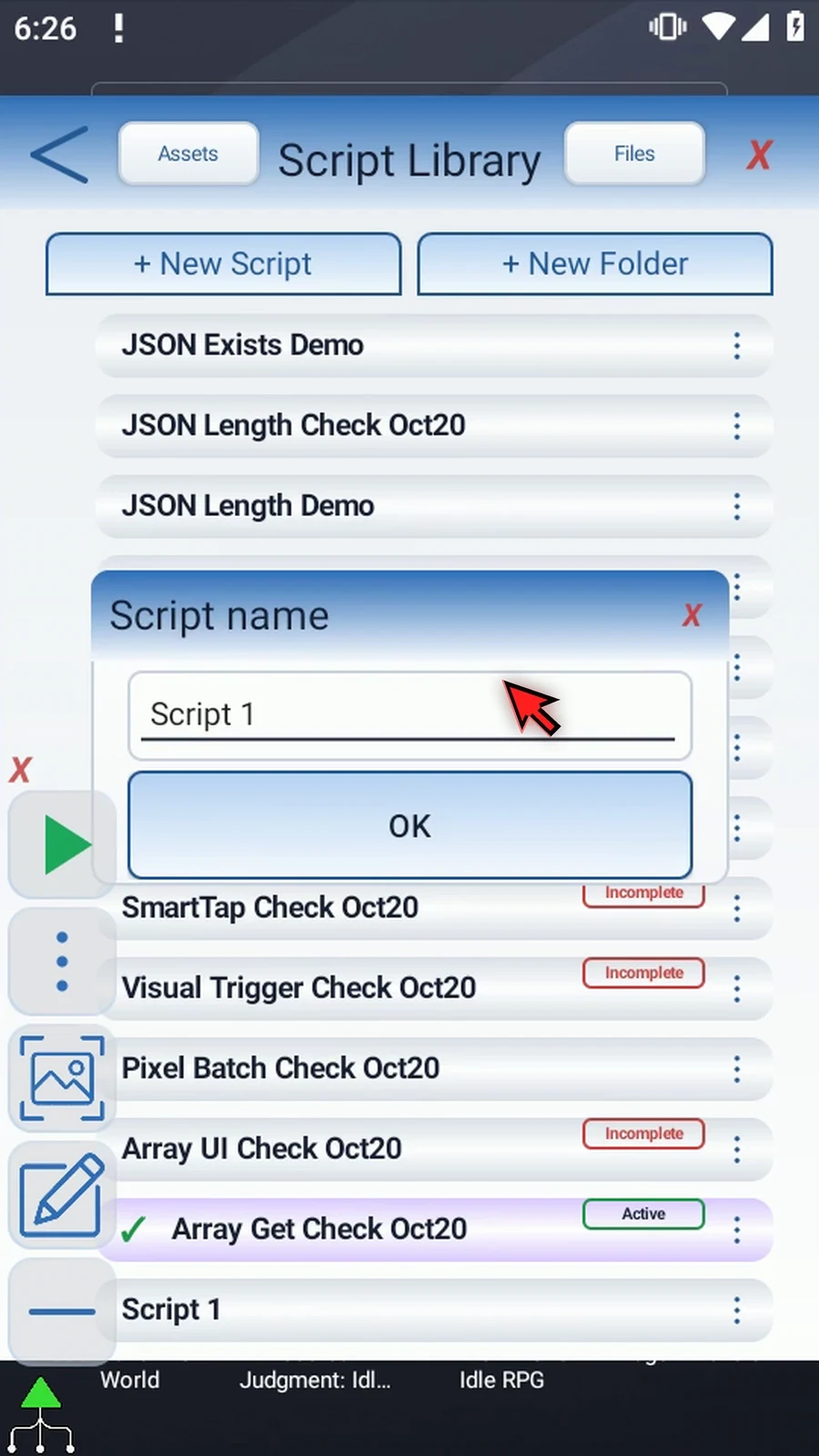
Step 04 Give the script a clear name and save it.
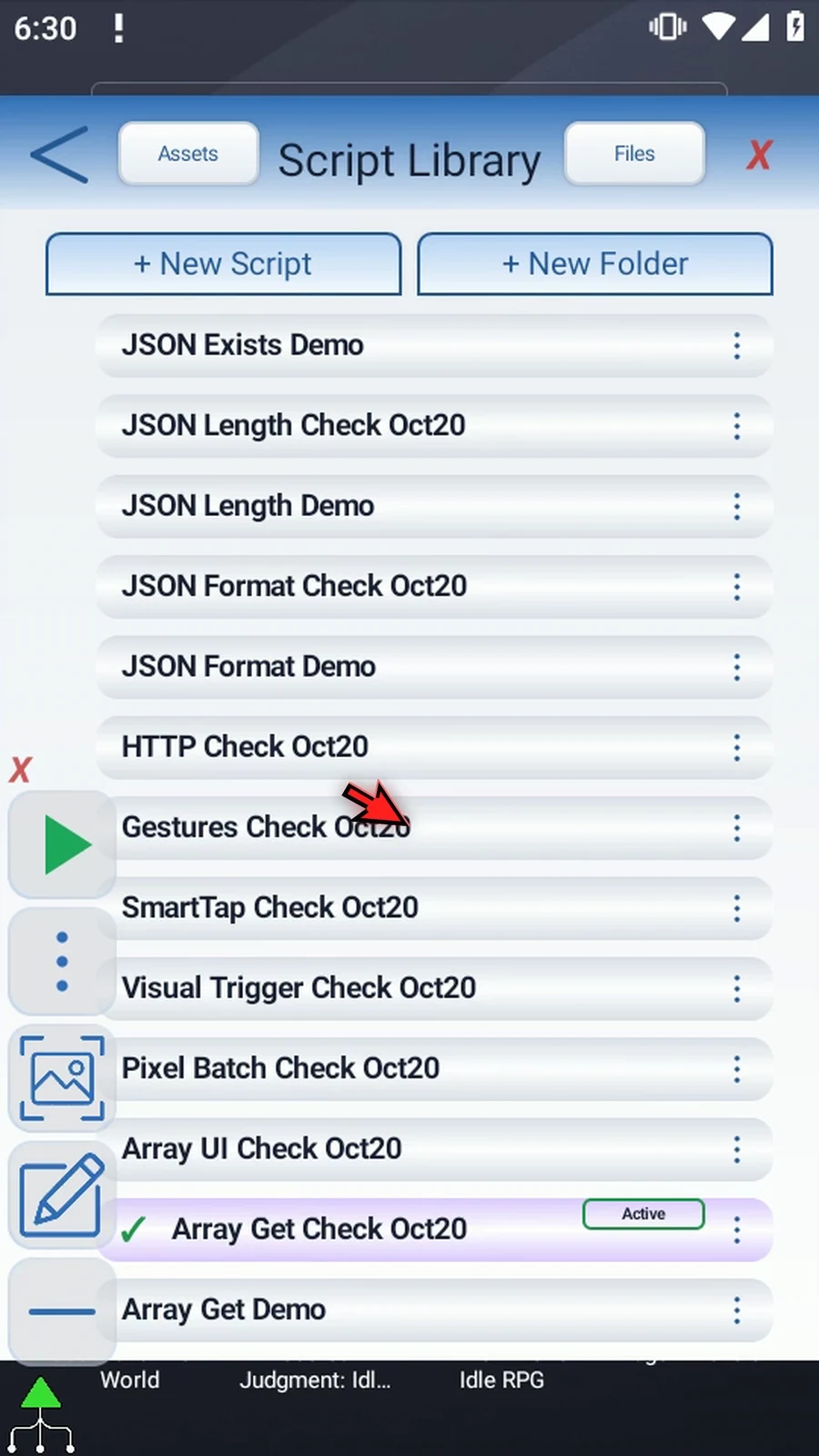
Step 05 Select the new script, close the library, and open its editor.
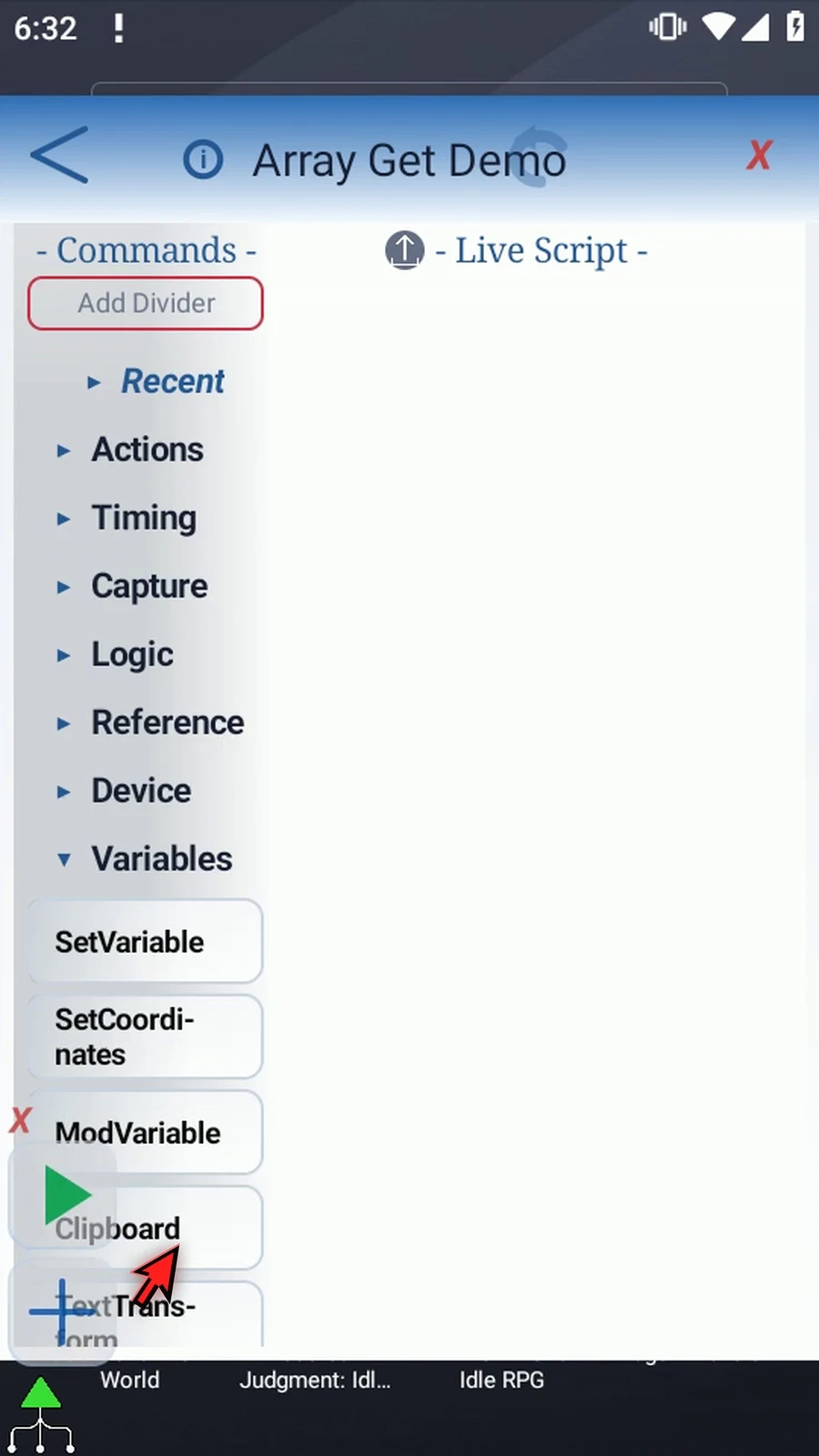
Step 06 Under Variables, drag SetVariable into the live script and open its row. We first need an array for Array Get to read.
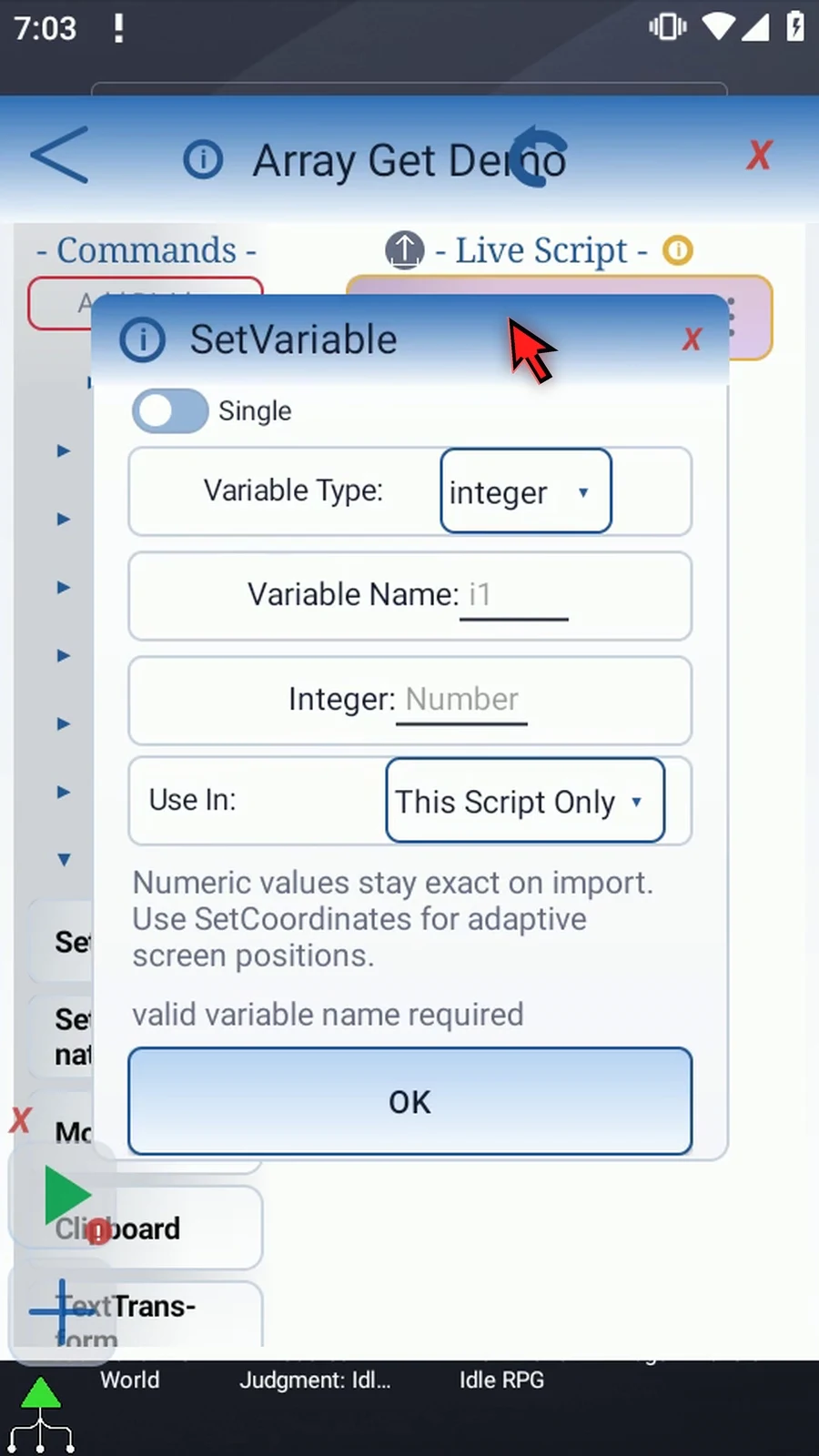
Step 07 Switch to Array mode. This reserves a numbered group of slots rather than setting one variable.
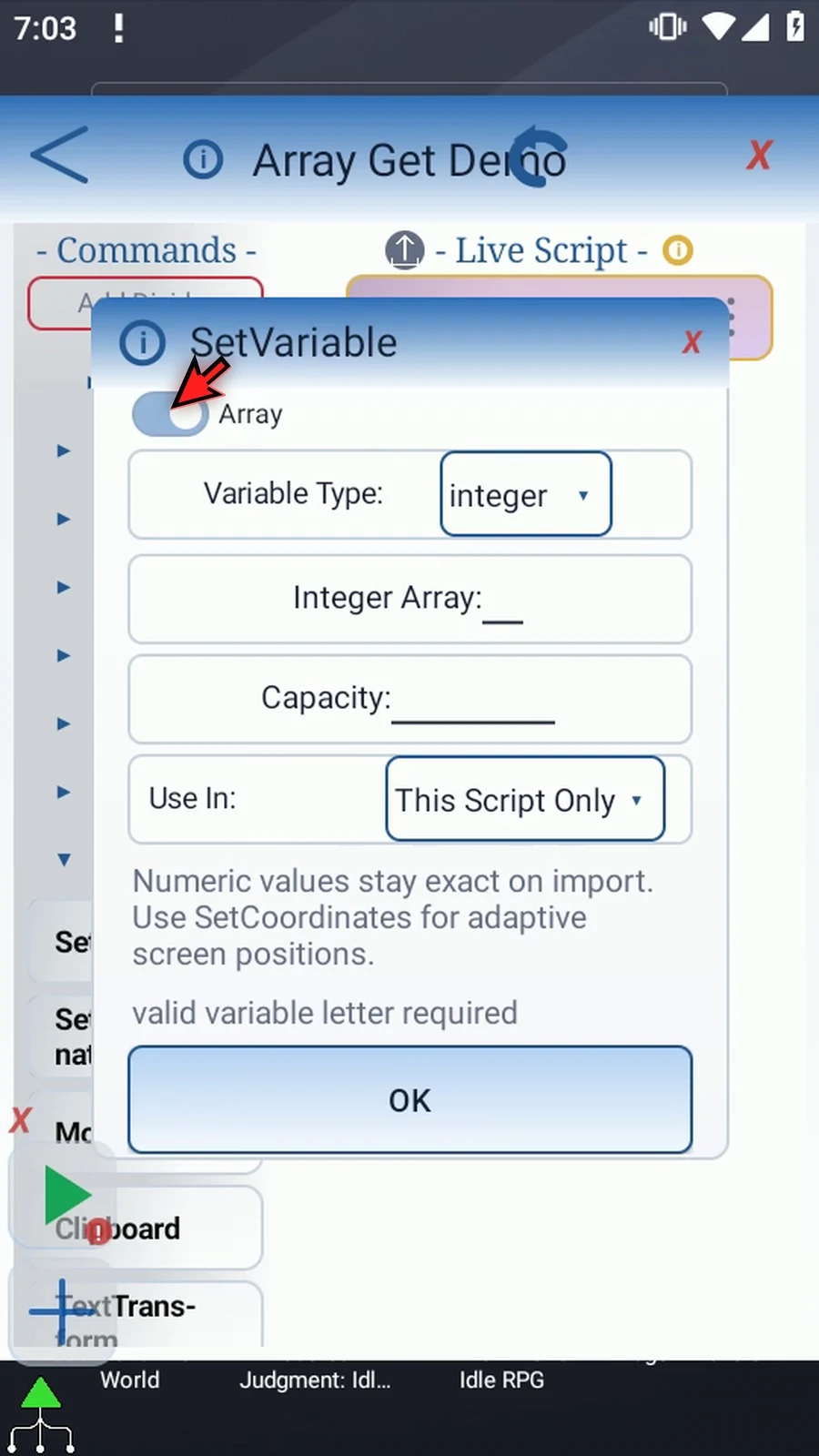
Step 08 Keep Integer because this example stores whole numbers.
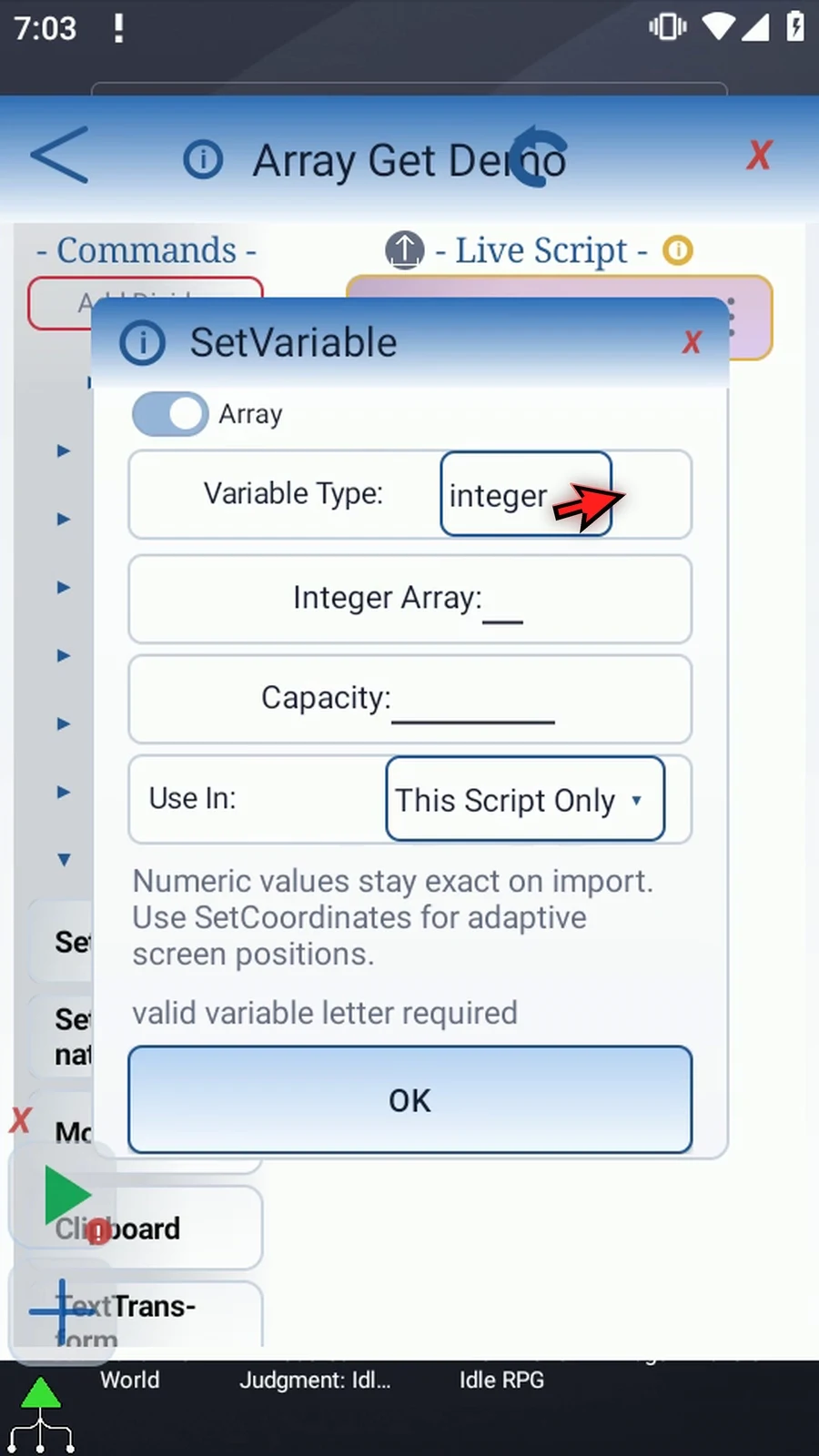
Step 09 Use array letter a and capacity three. Its positions are a one, a two, and a three. The declaration must run before Array Get.
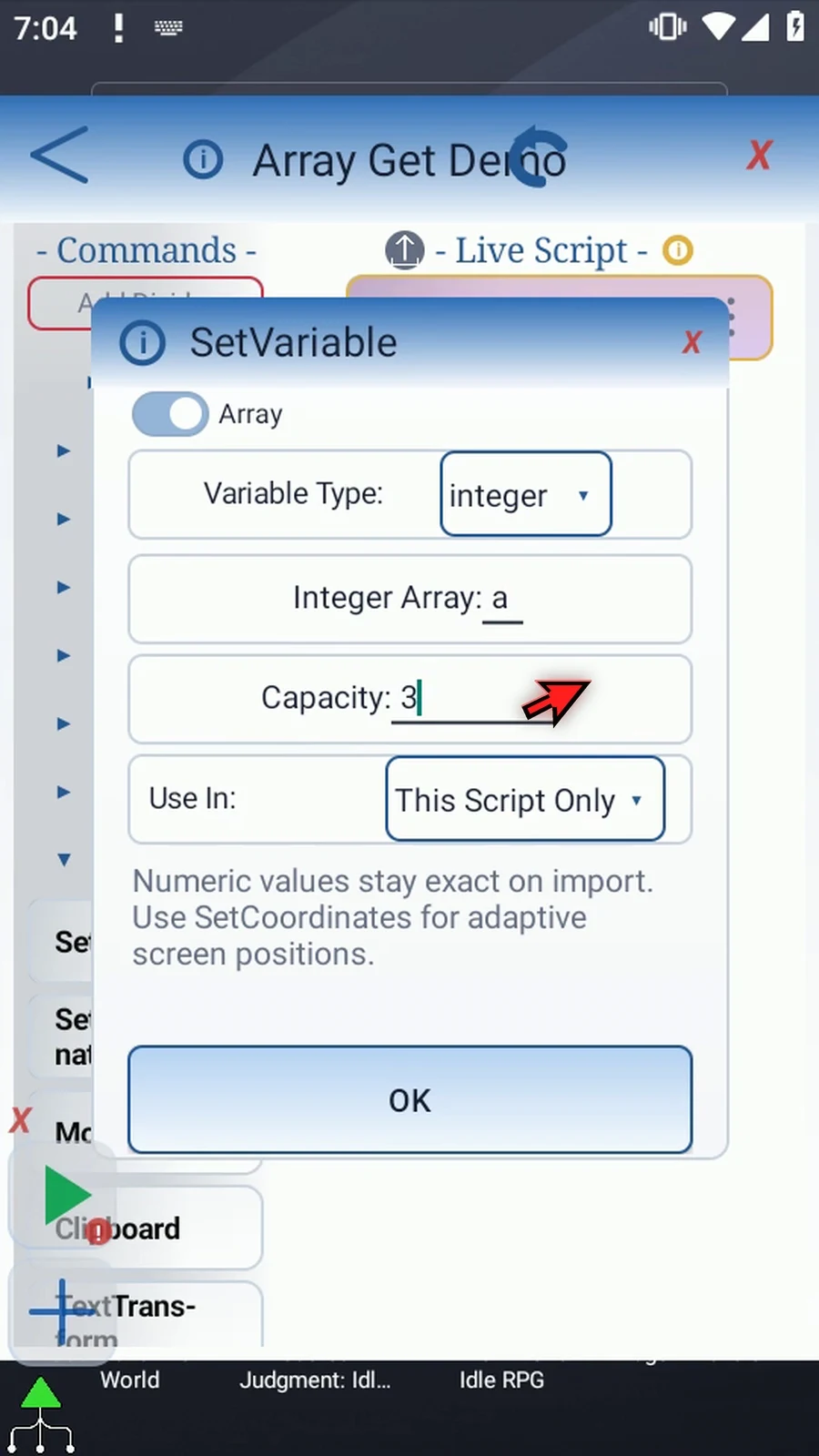
Step 10 Drag in a second SetVariable command below the declaration and open it.
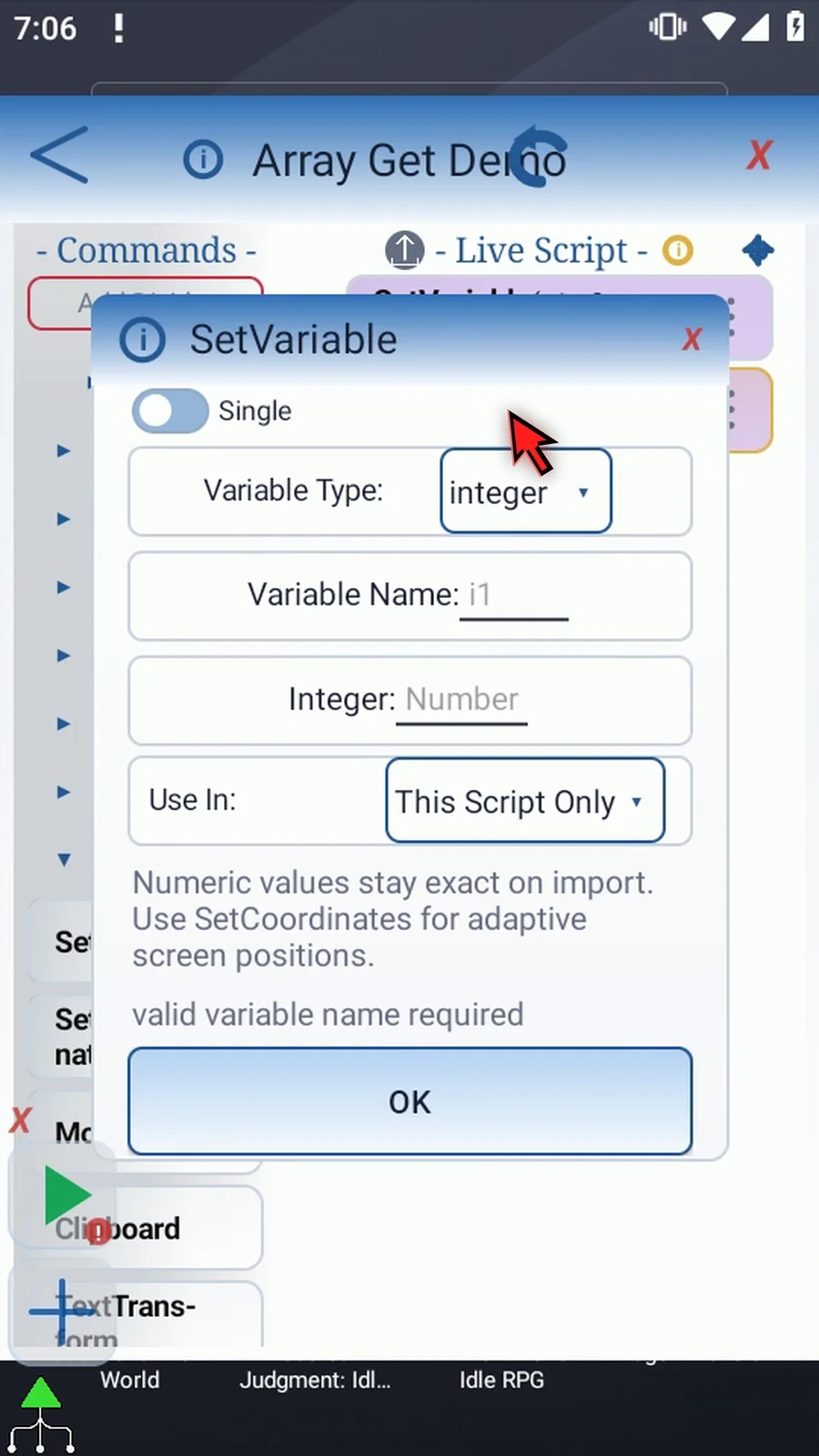
Step 11 Keep Single mode with the Integer type.
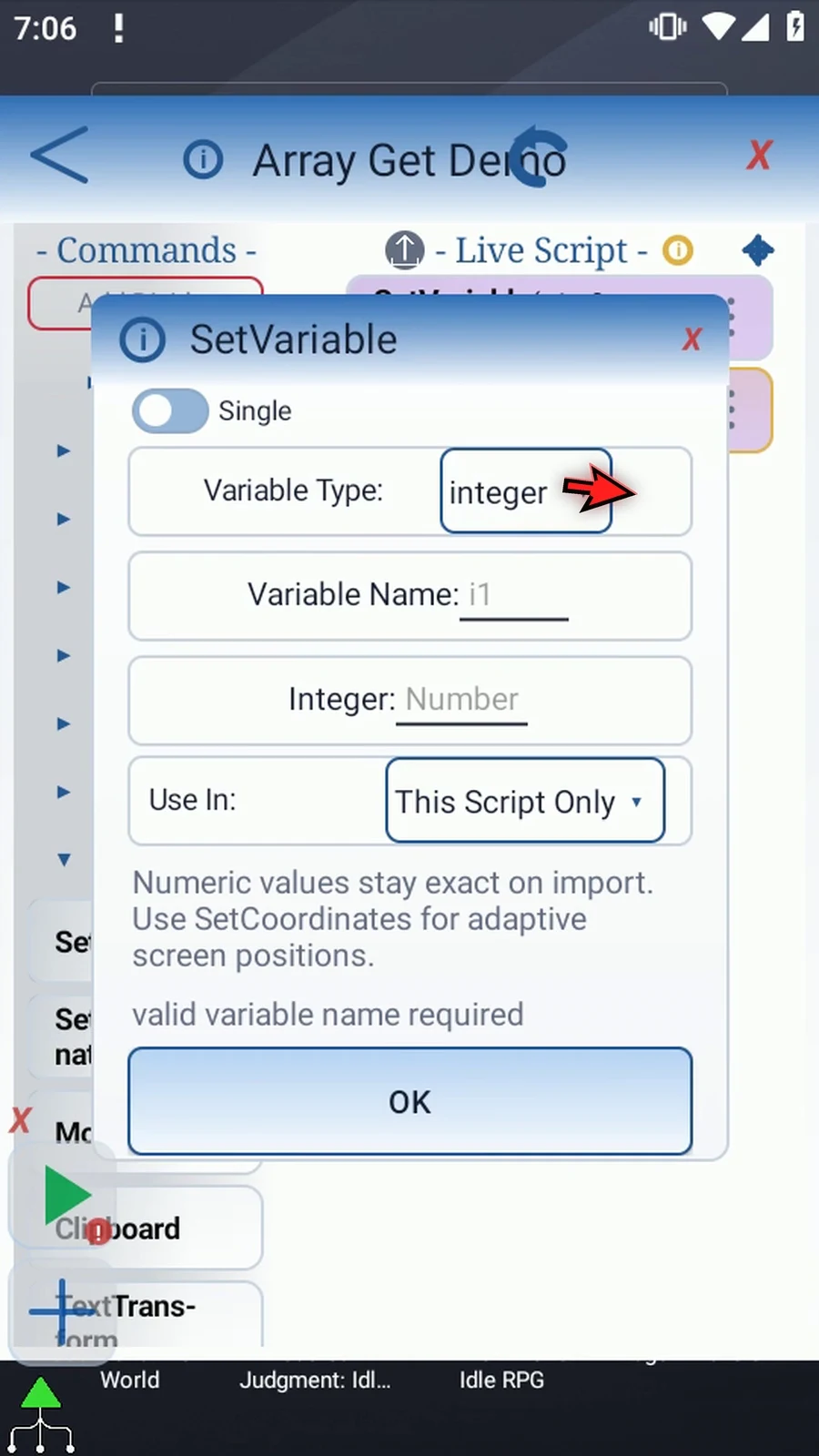
Step 12 Set a two to seven. This fills the second array position with a value we can recognize later.
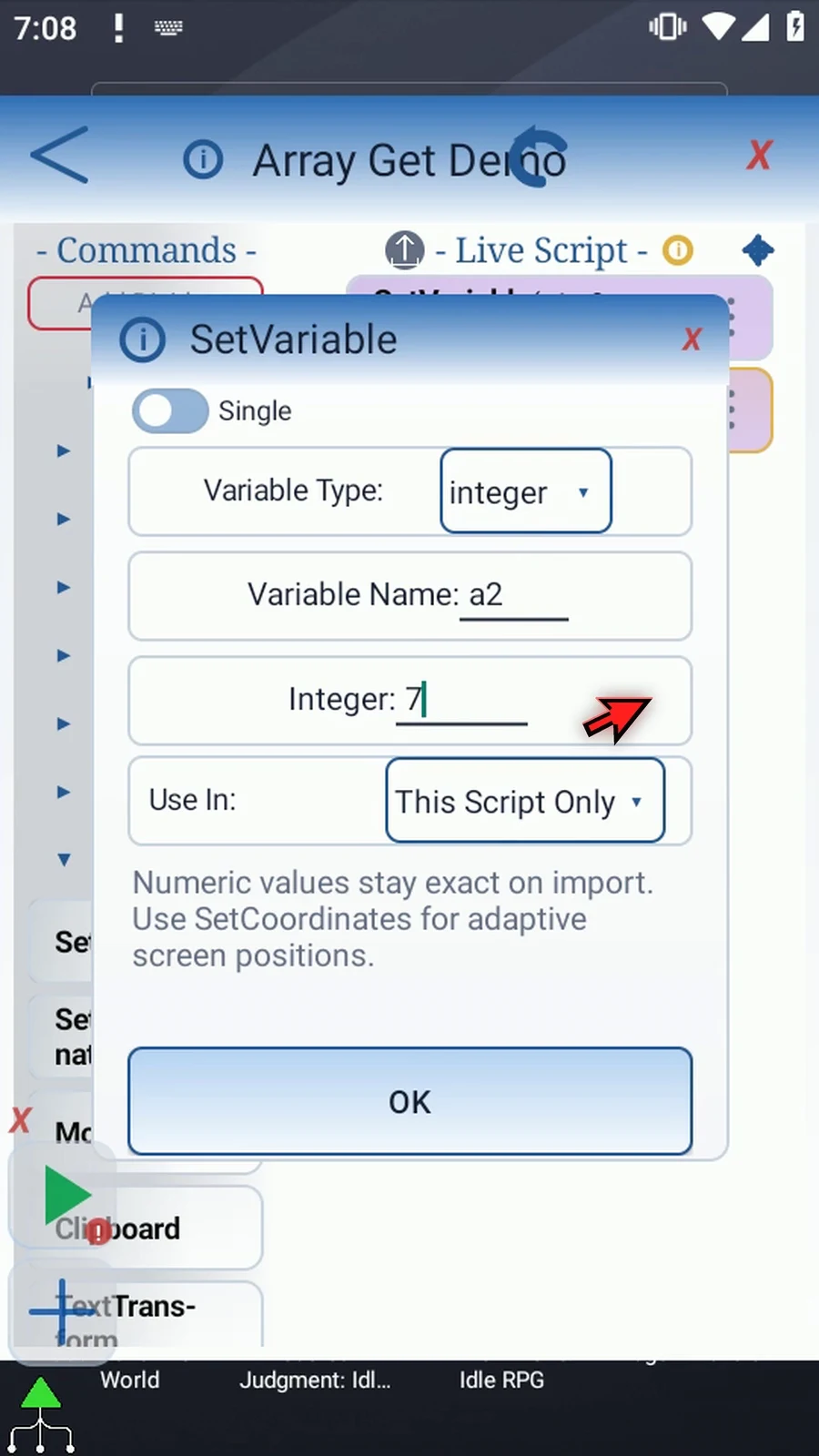
Step 13 Save that command. These setup steps give Array Get a real value to retrieve.
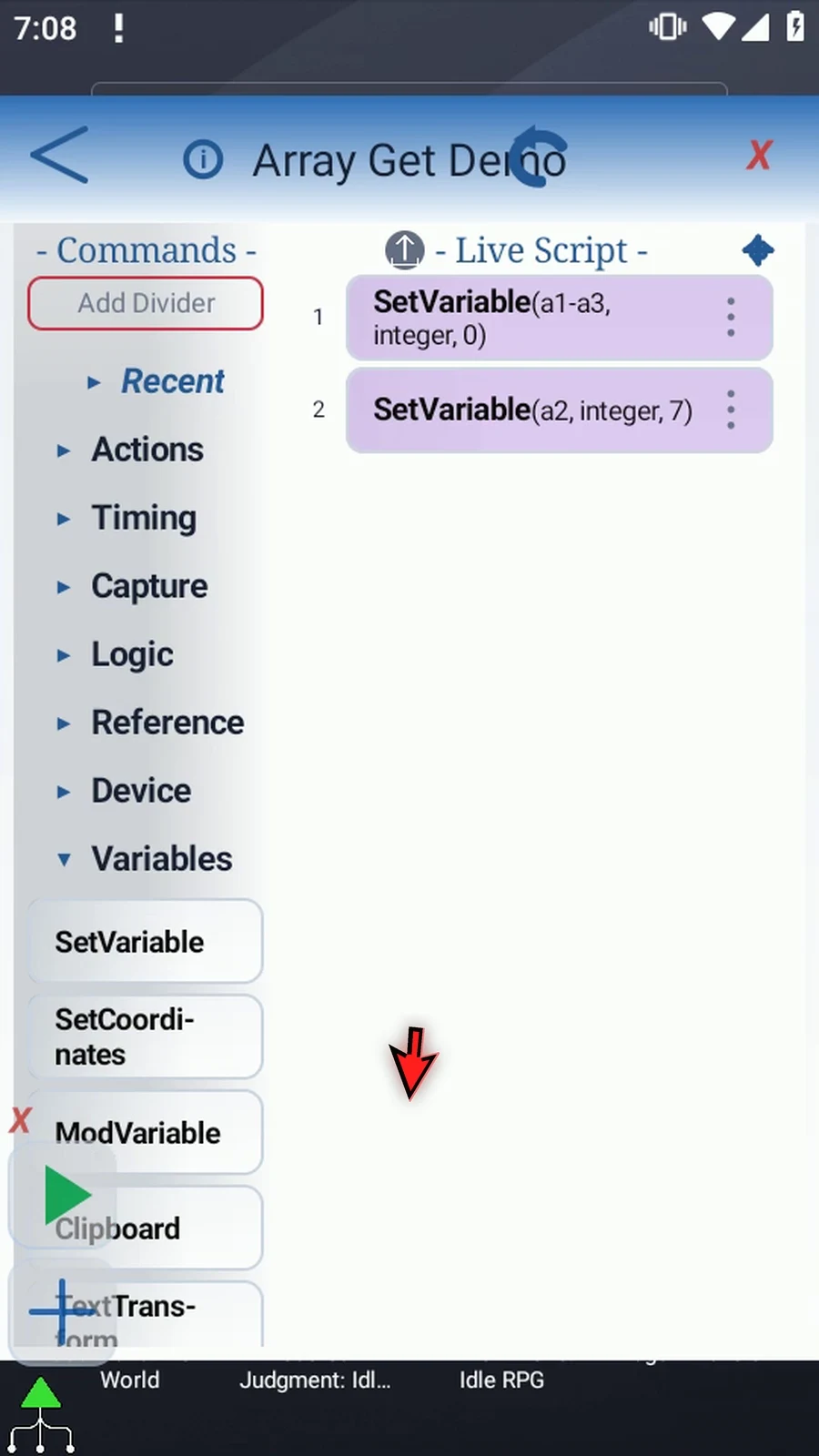
Step 14 Add one more SetVariable command for the index.
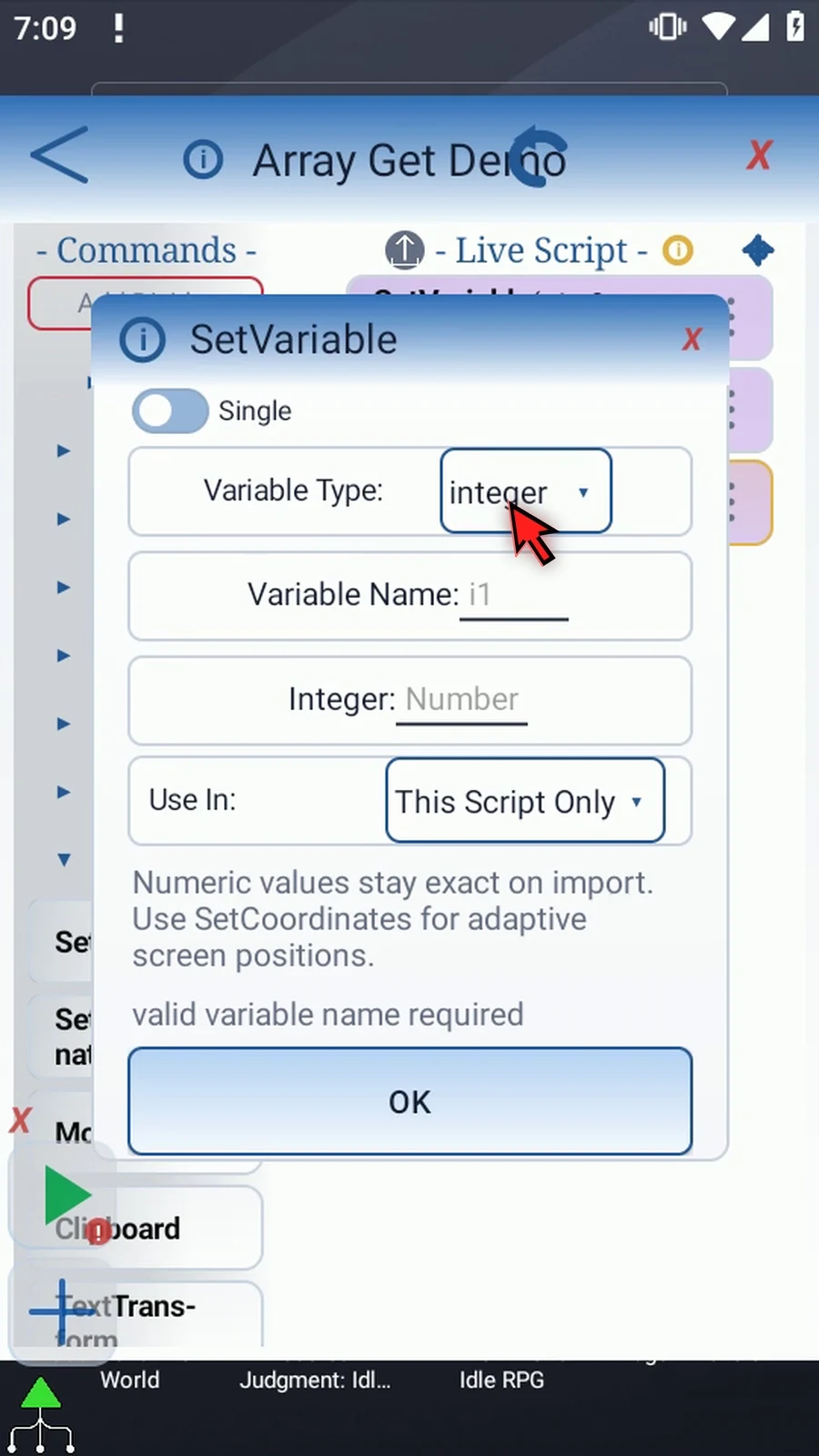
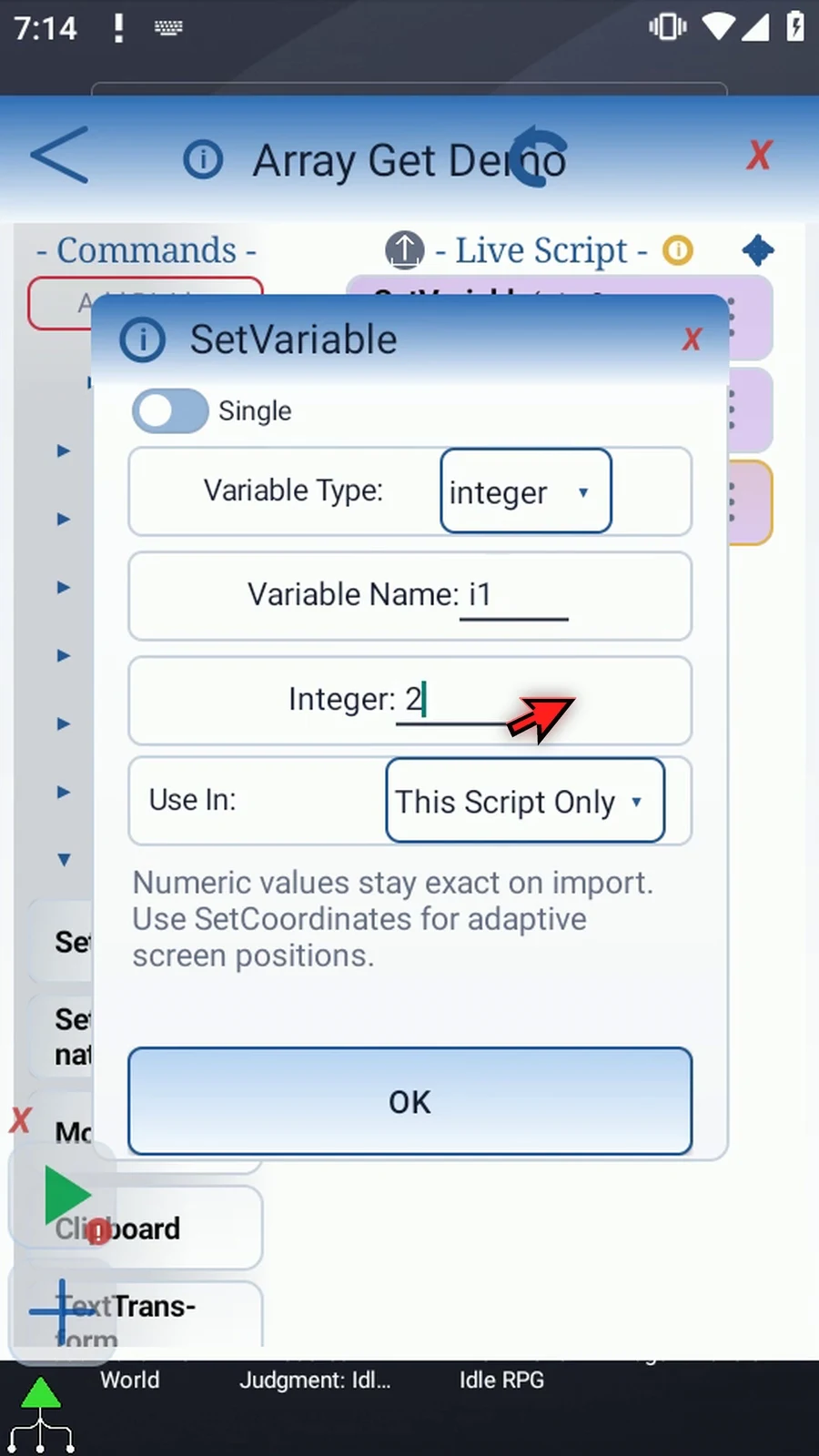
Step 15 Choose Integer, set its name to i one, and give it value two. Changing this value would make Array Get read a different position.
Step 16 Under Advanced, the shared tile switches between Get for reading and Set for writing. Choose Get before dragging. An existing row keeps its original command type.
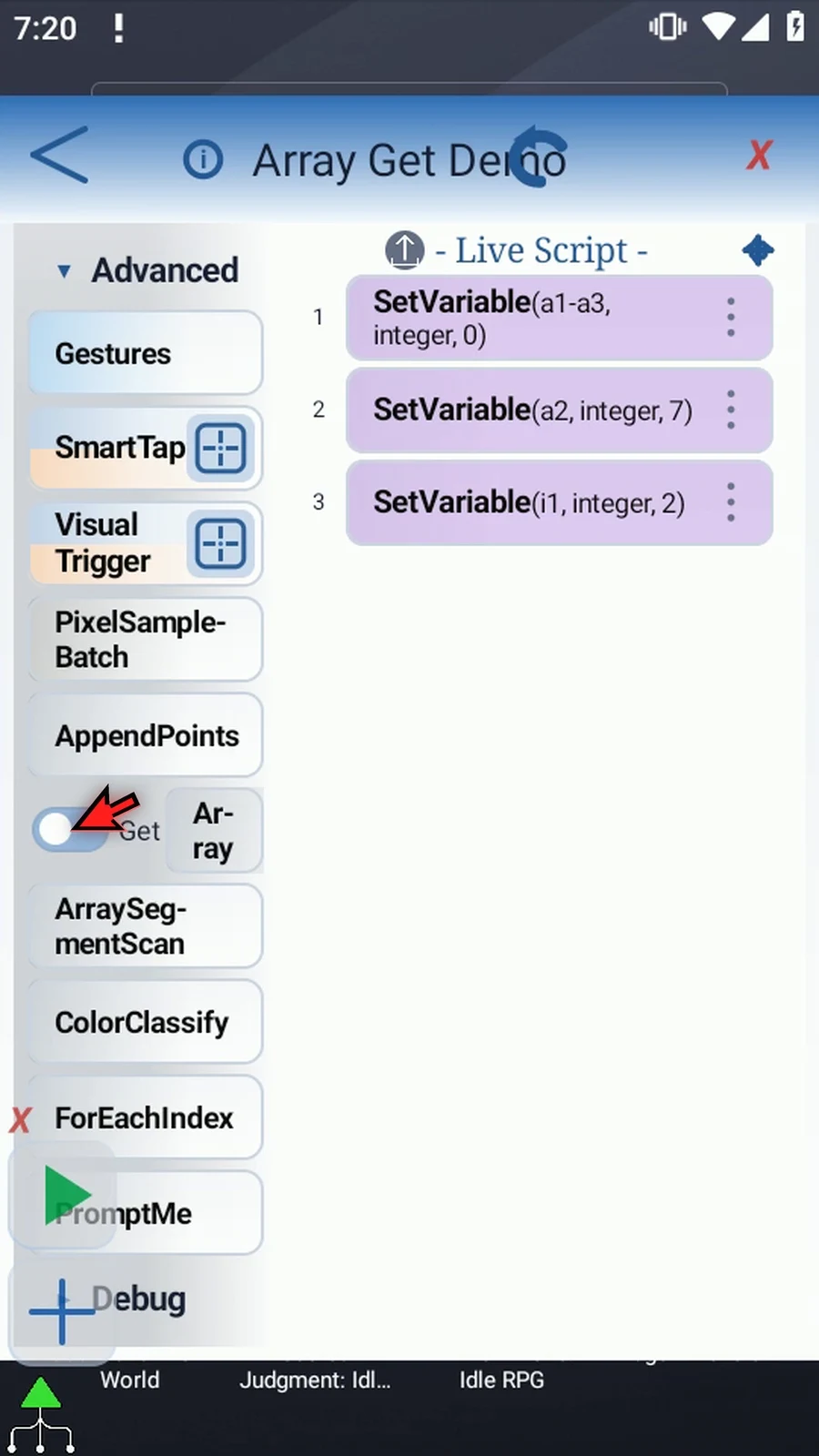
Step 17 Now drag Array Get below the setup commands and open its new row.
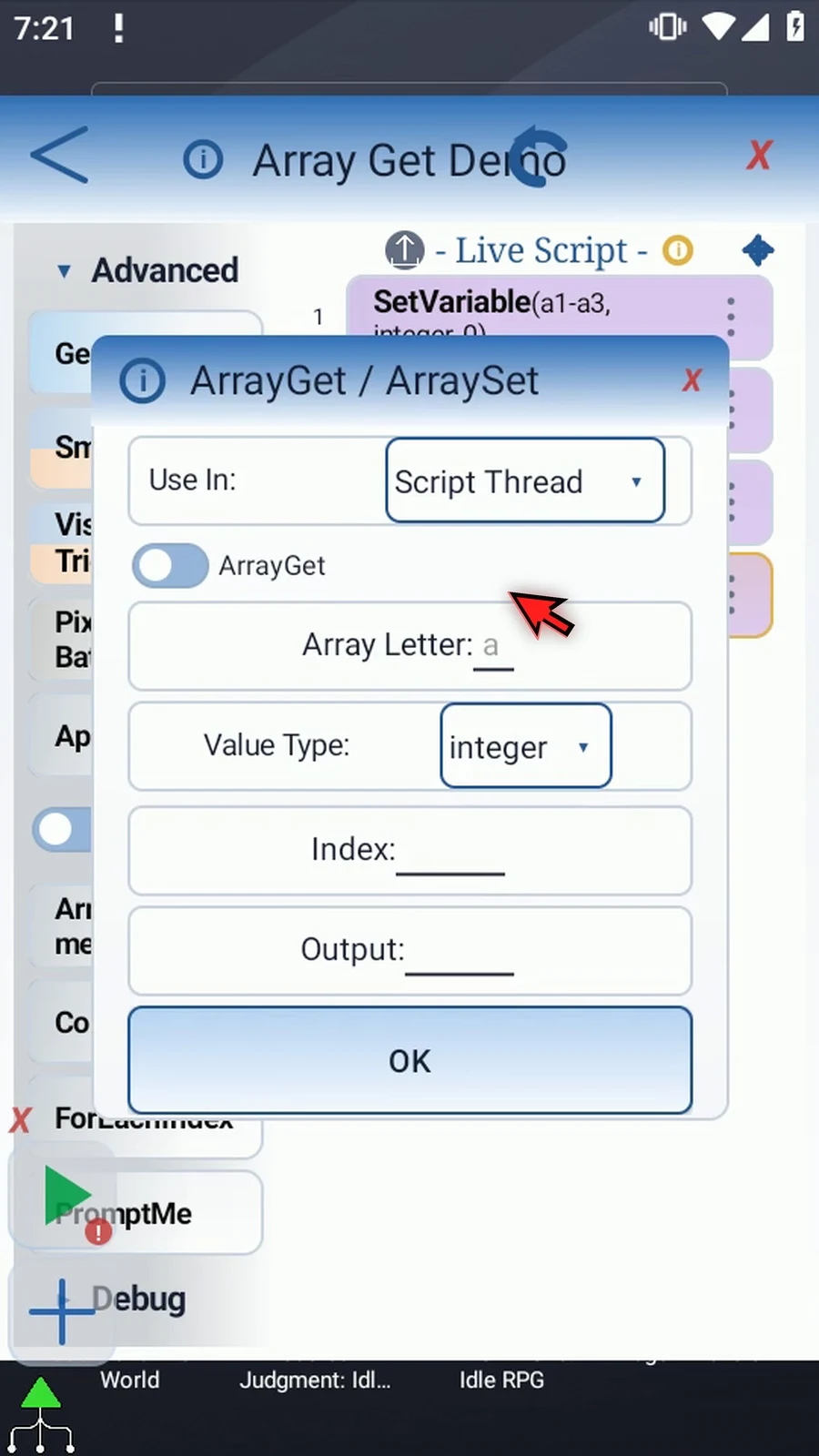
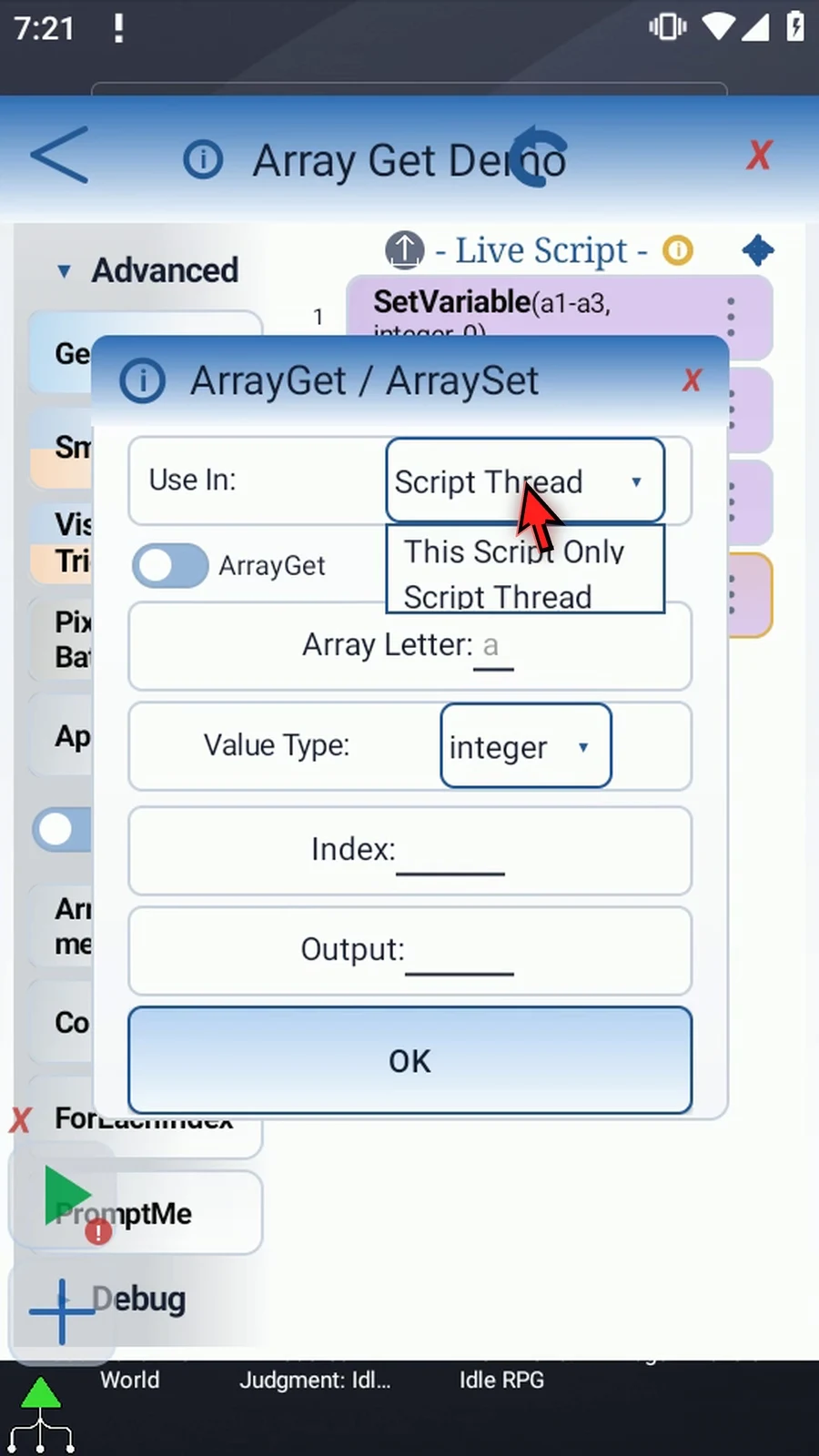
Step 18 Match the array's scope. This Script Only is local. Script Thread shares variables within the calling script thread. We will keep This Script Only throughout this example.
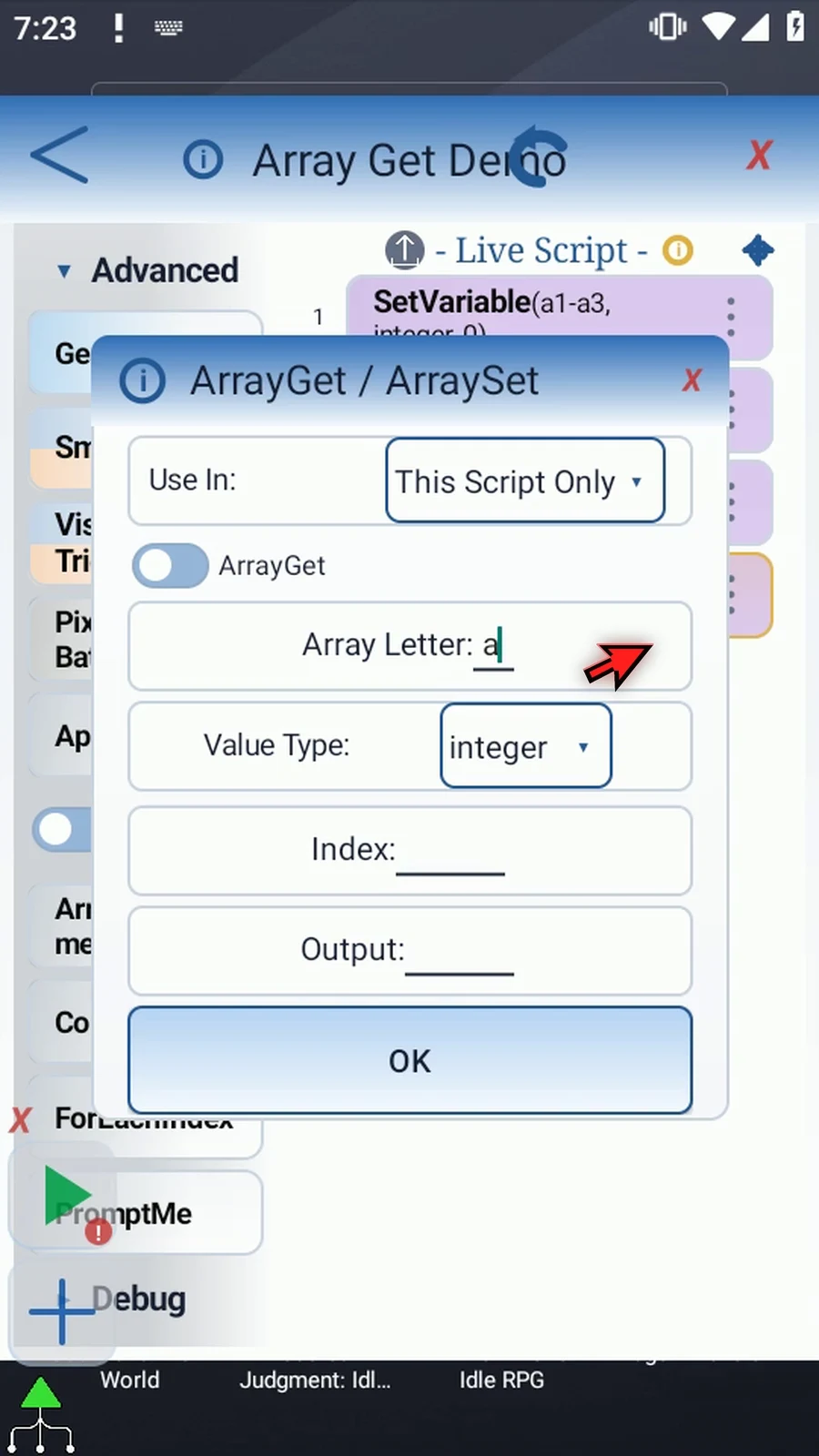
Step 19 Set Array Letter to a. Enter only the family letter here, not a numbered slot name.
Step 20 Value Type must match the declared array. Integer, Decimal, Boolean, Hex, String, and Time are available. Keep Integer for this number array.
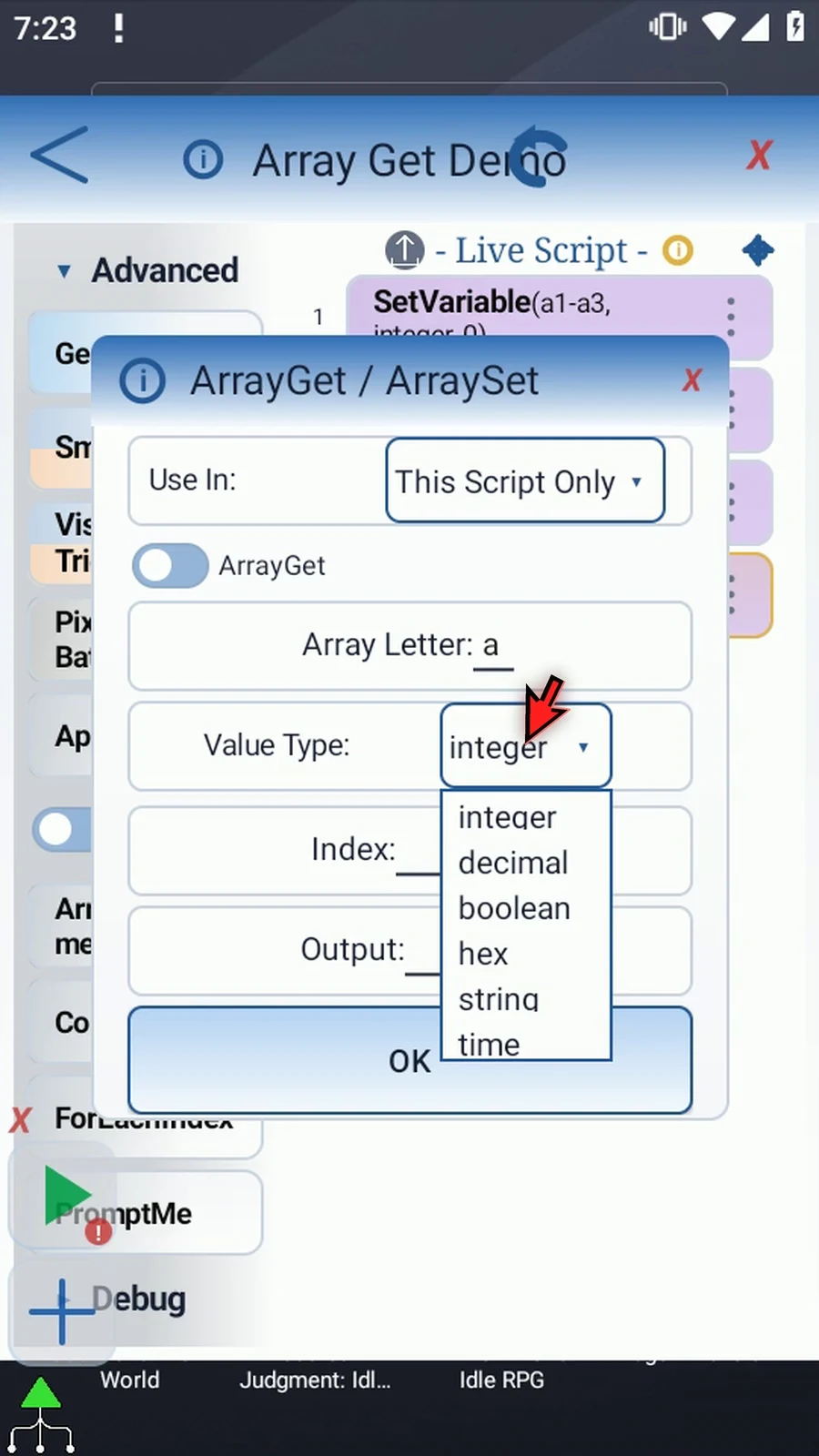
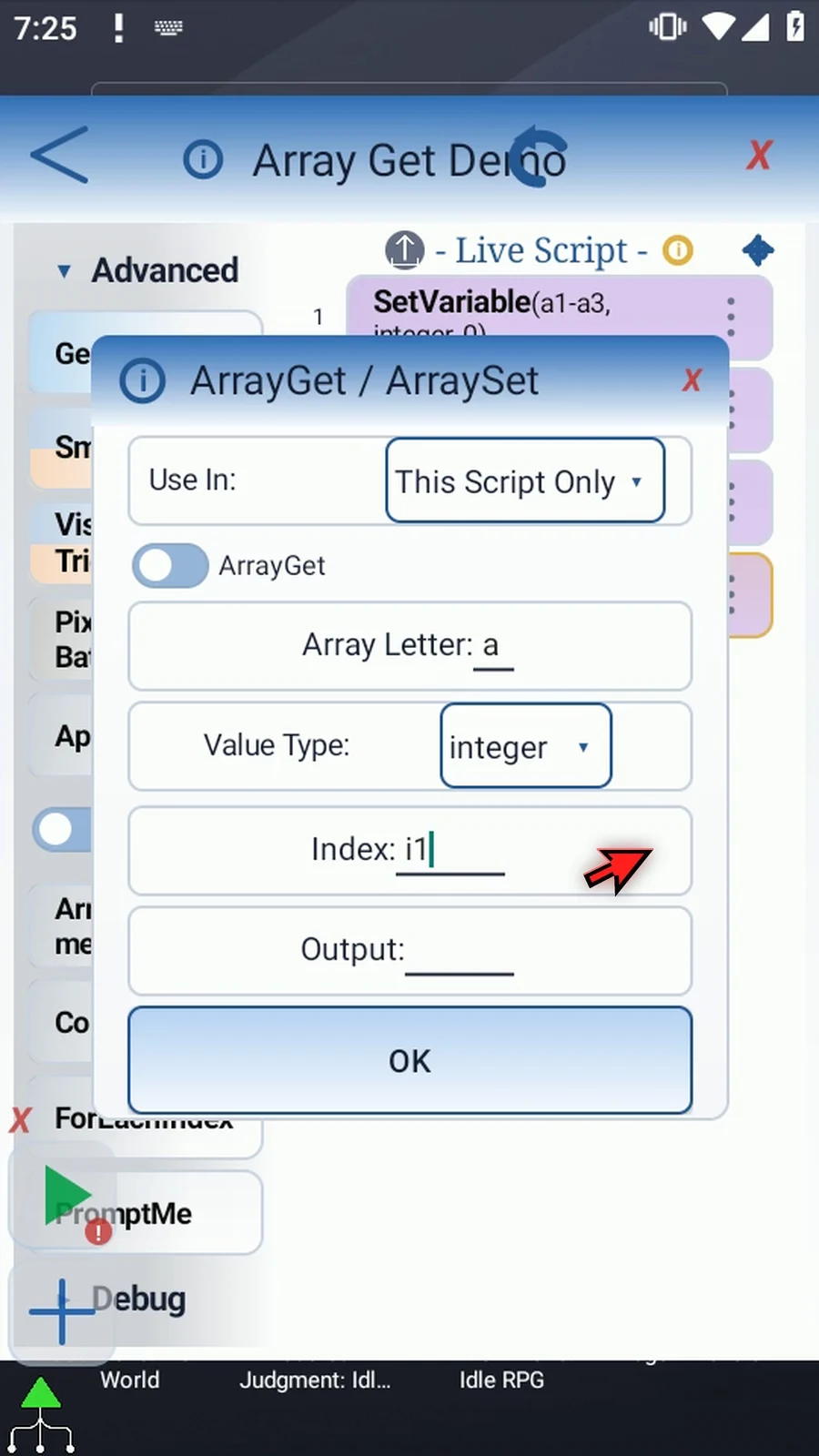
Step 21 Set Index to i one. Array Get uses its current Integer value, two, so this execution reads a two. You can also enter a literal position directly.
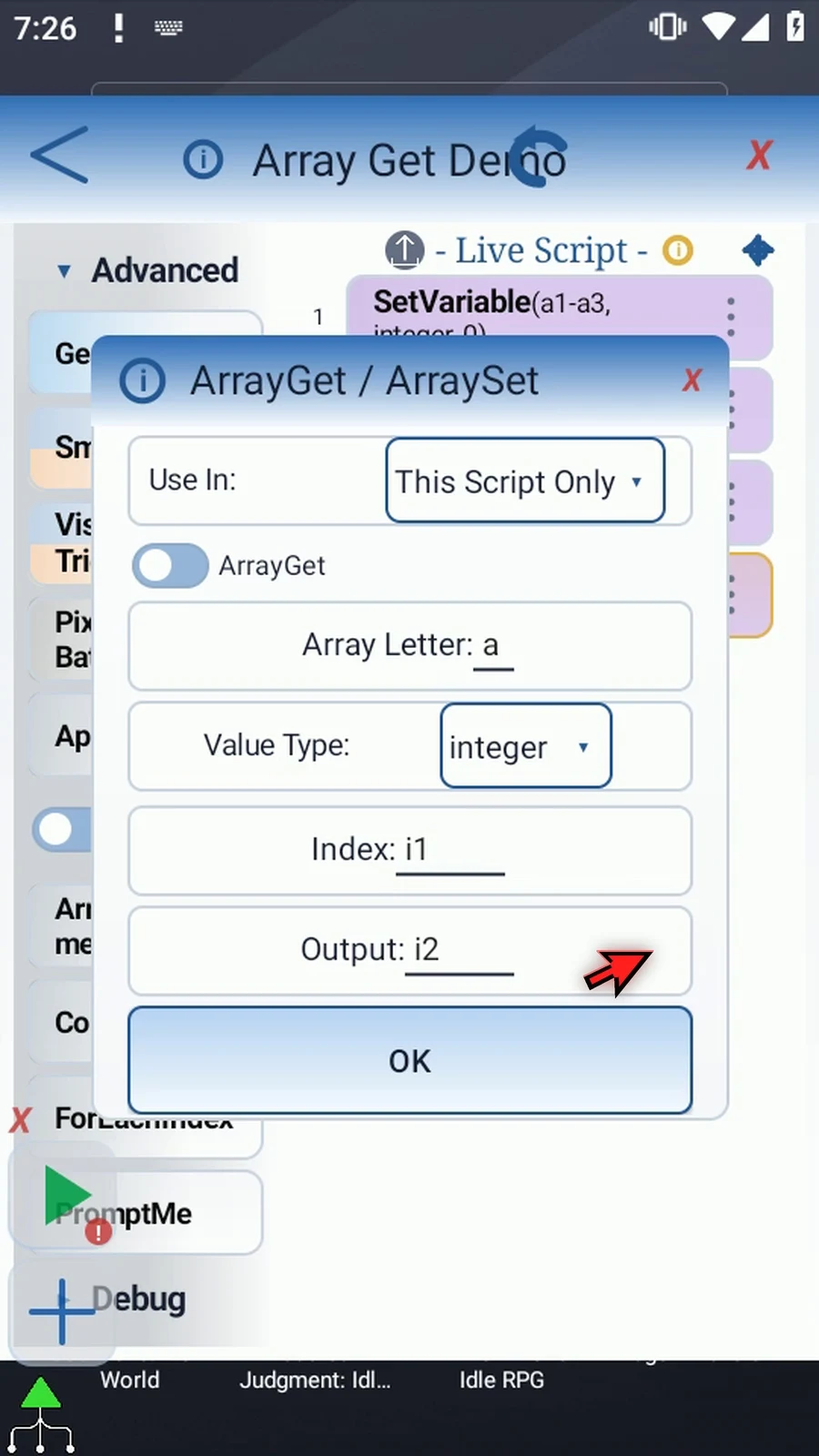
Step 22 Set Output to i two. The retrieved number is copied there; reading does not remove or change the original array value.
Step 23 Positions start at one. An unwritten, invalid, or incompatible read returns the selected type's neutral value, such as zero or an empty String. Check the array, type, and index if a result is unexpectedly empty.
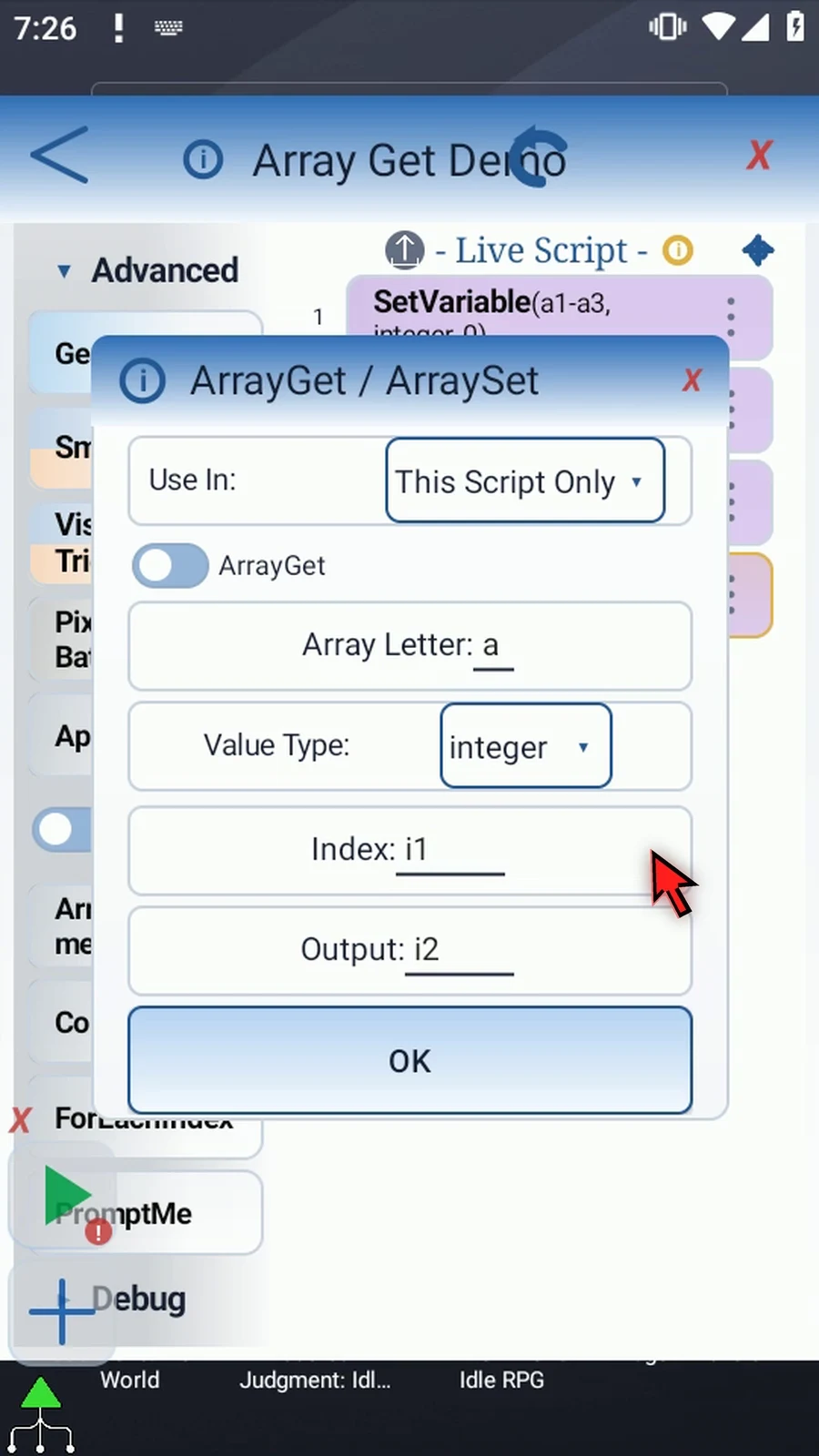
Step 24 Save Array Get.
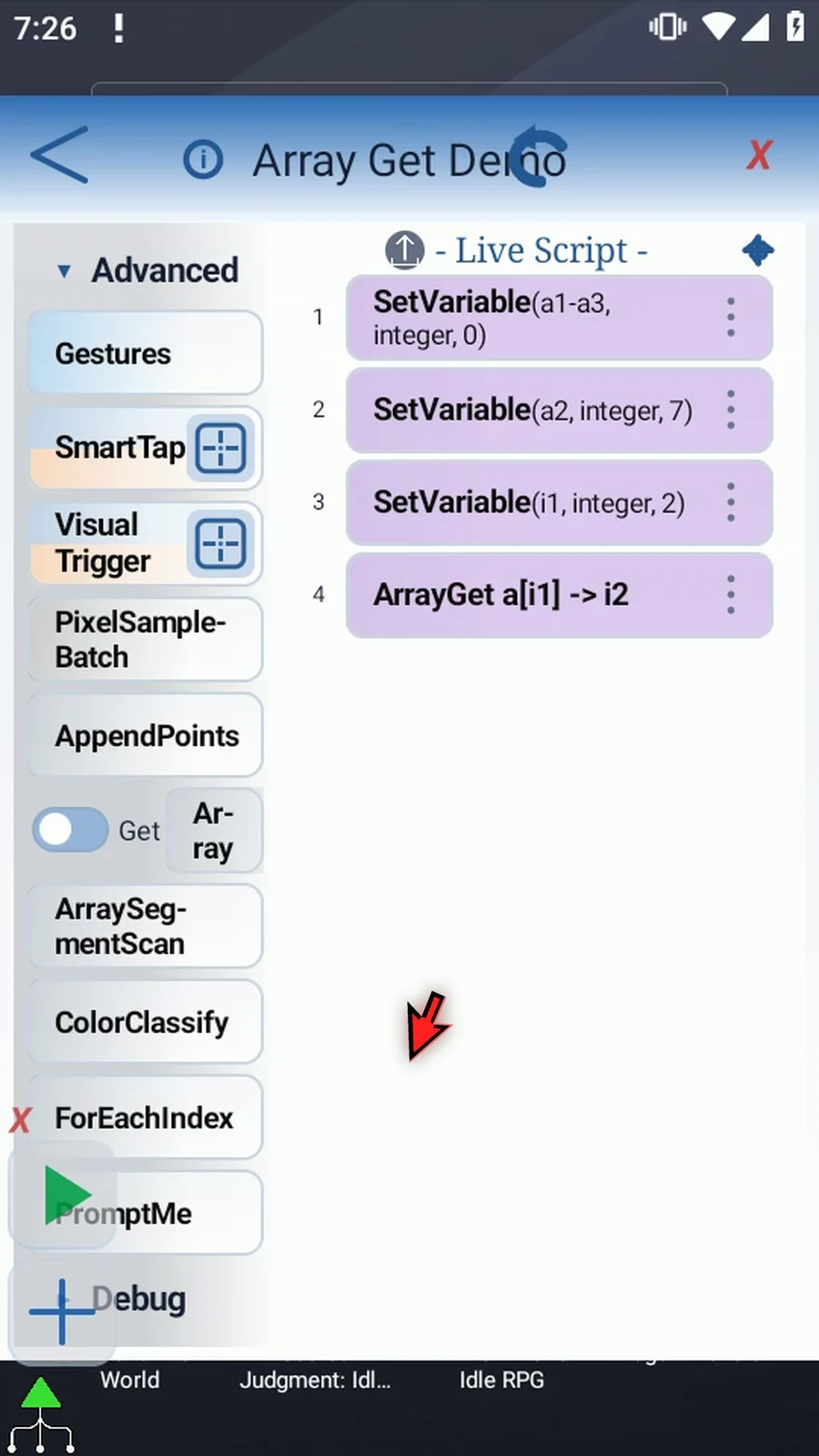
Step 25 Drag Display below Array Get and open it. This supporting command makes the retrieved number visible.
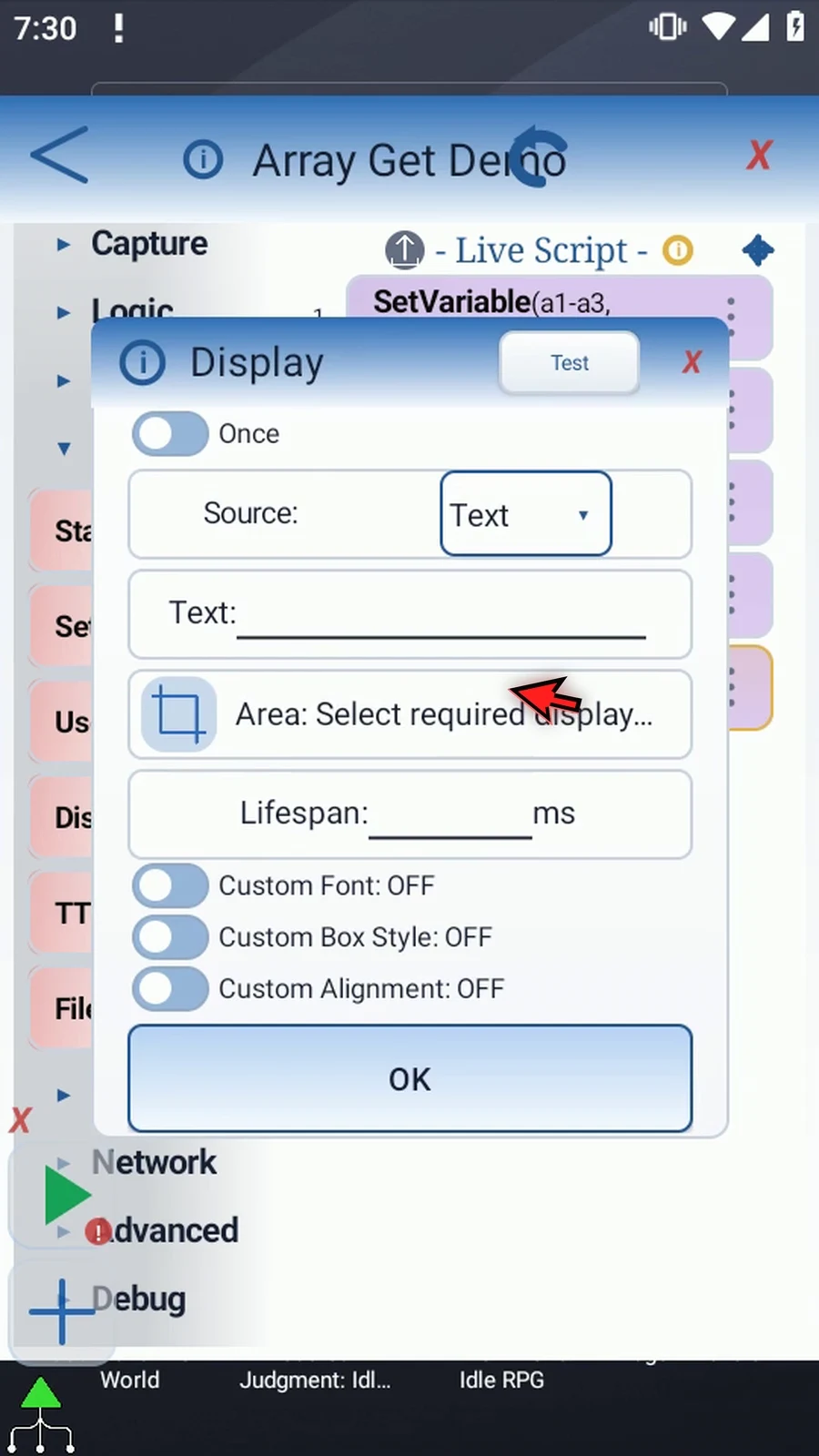
Step 26 Keep Once, choose Variable, and set i two as the source.
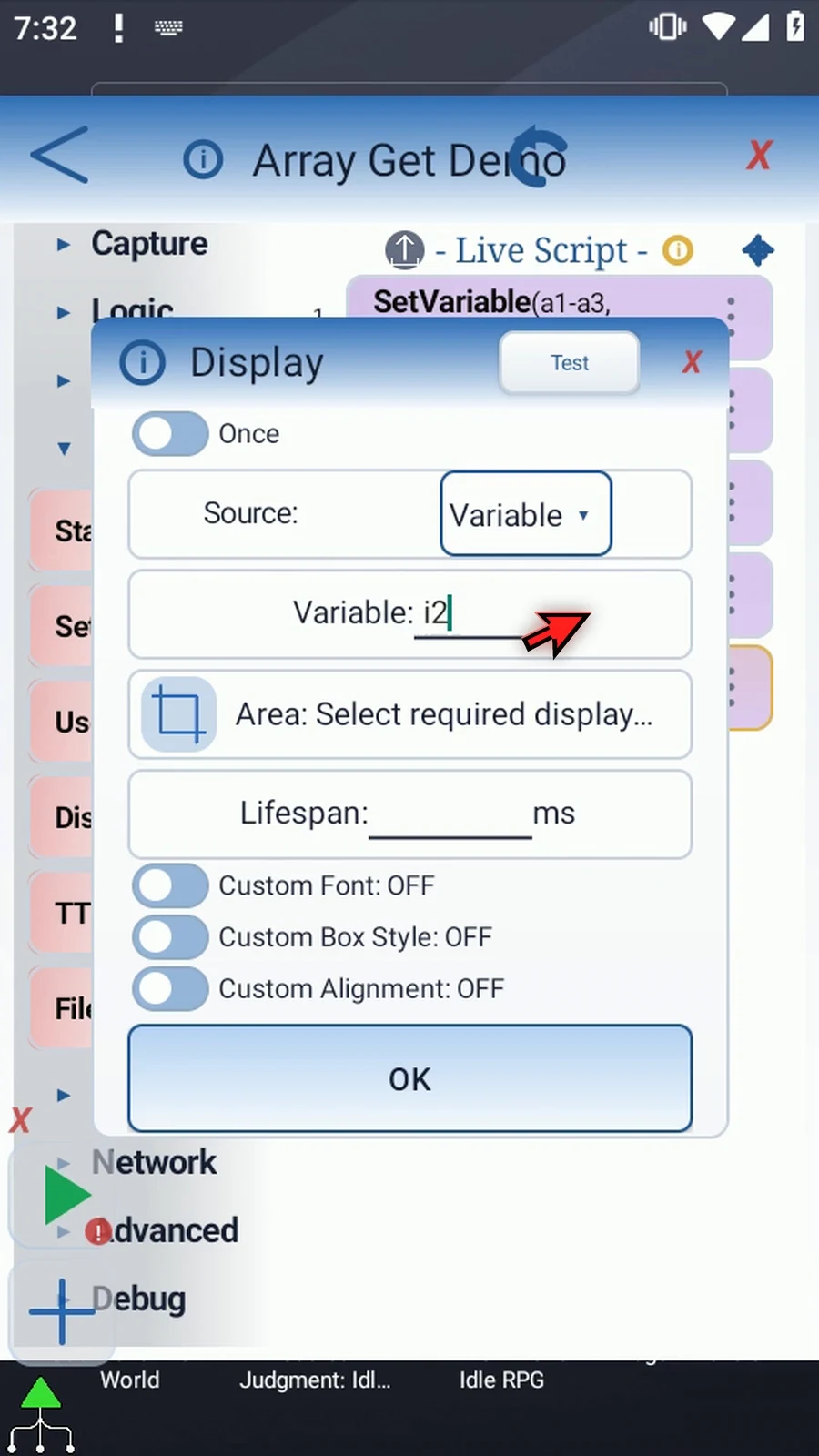
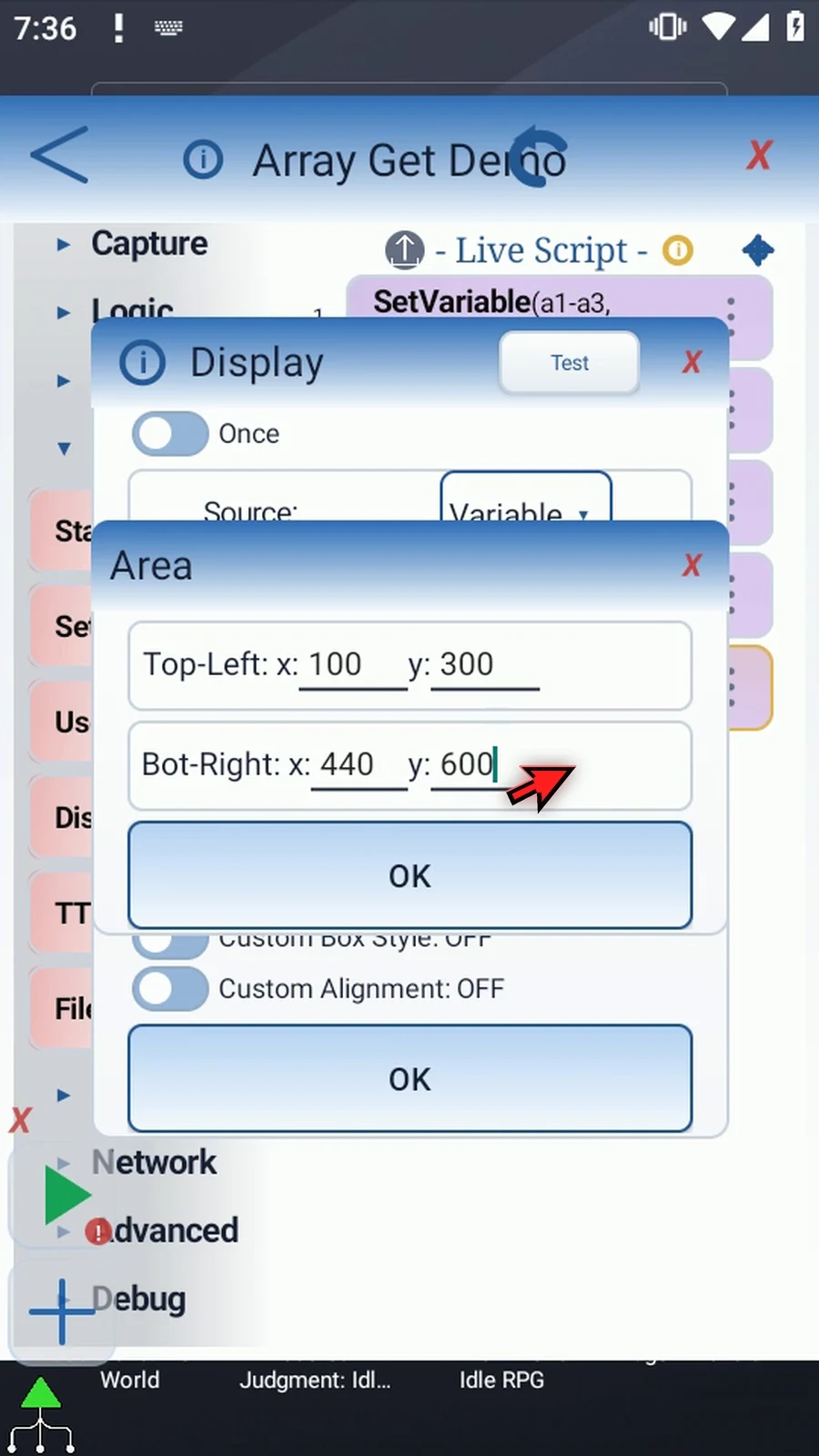
Step 27 Open the area's coordinate editor. Set the top left to one hundred, three hundred, and the bottom right to four hundred forty, six hundred. This defines where the result appears.
Step 28 Set Lifespan to five thousand milliseconds, or five seconds, then save. Display will show the number before the script continues.
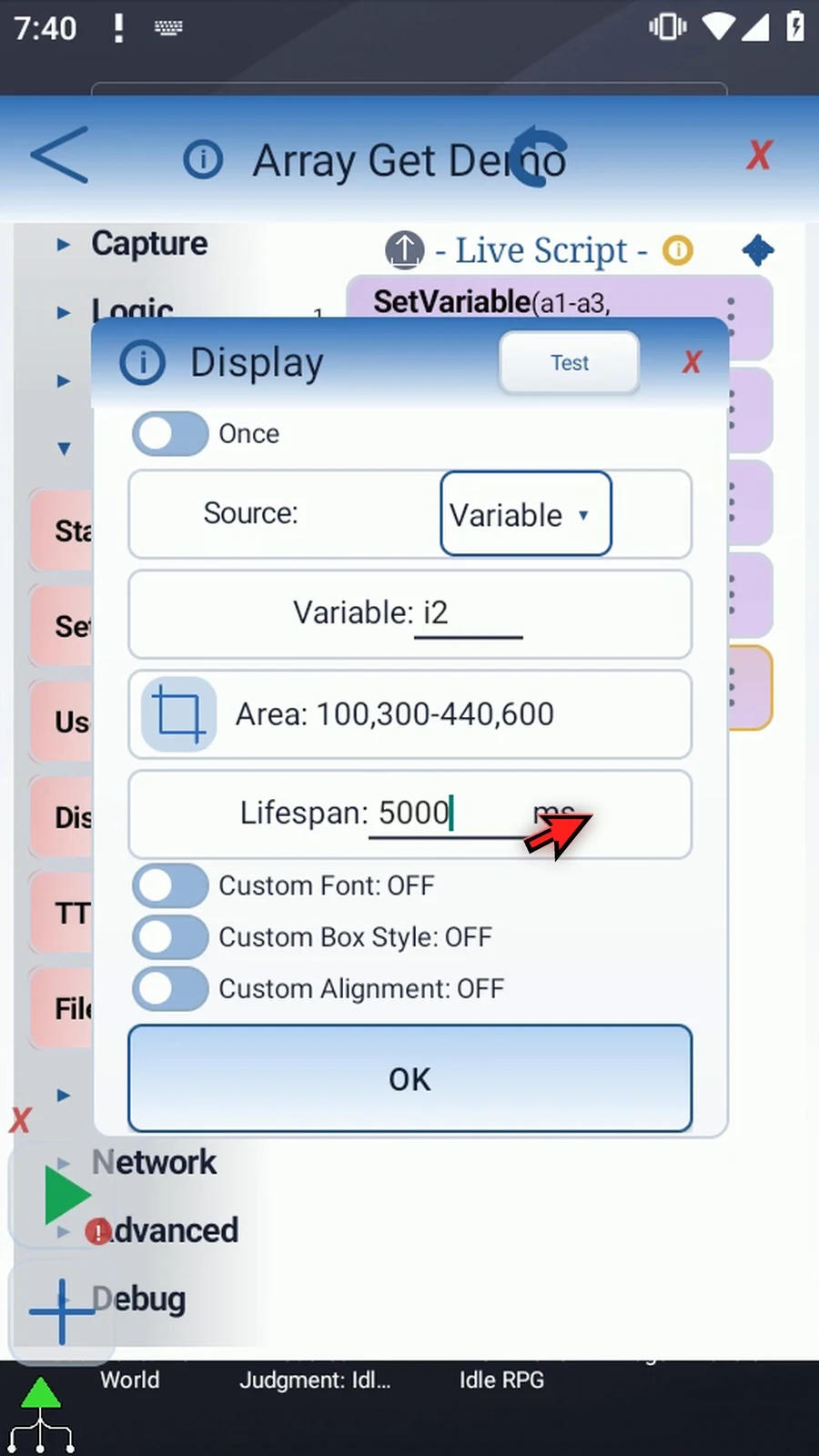
Step 29 Finally, drag PromptMe below Display and open it. This gives us a clear confirmation at the end.
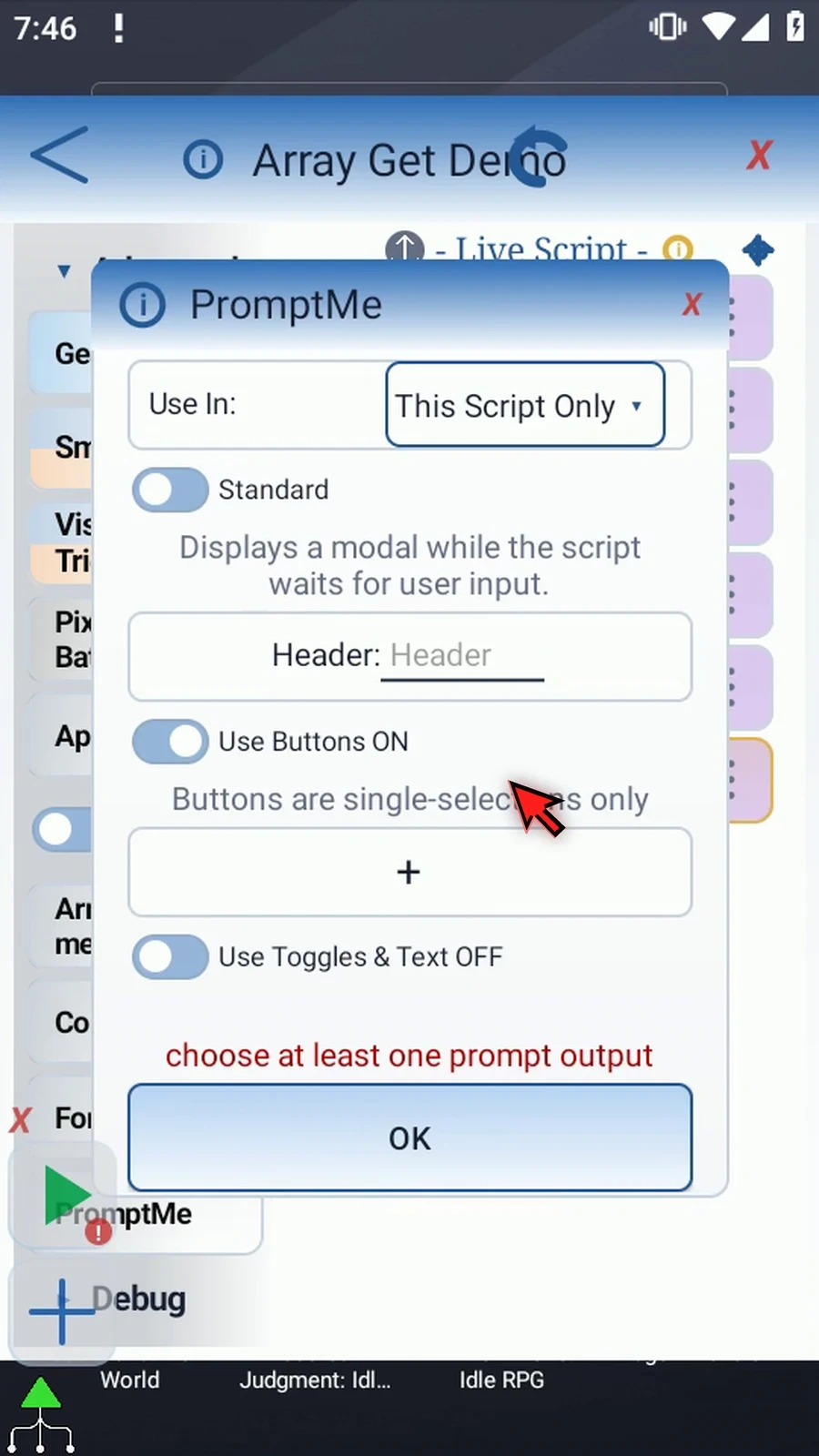
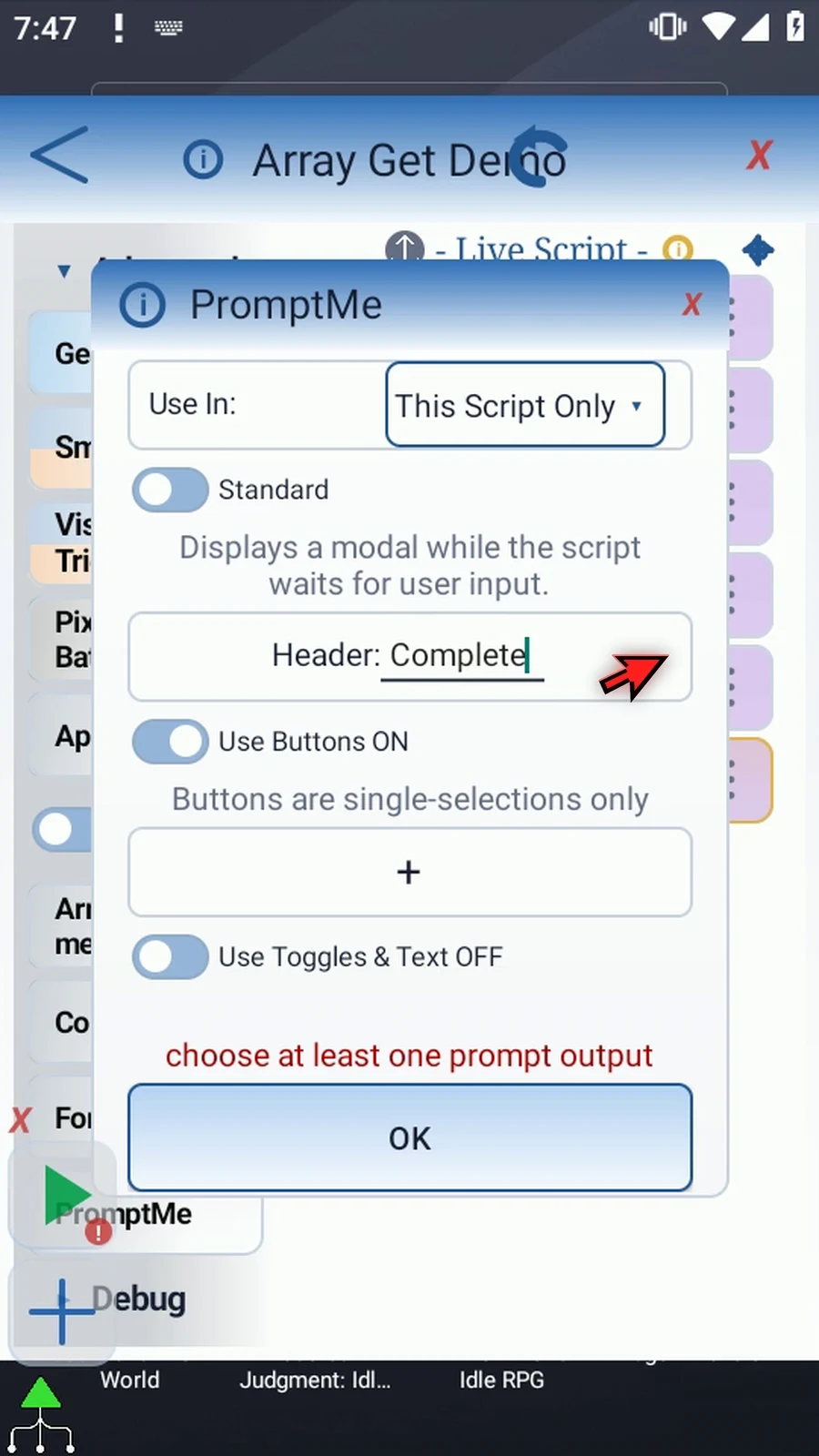
Step 30 Keep Standard mode and use Complete as the header.
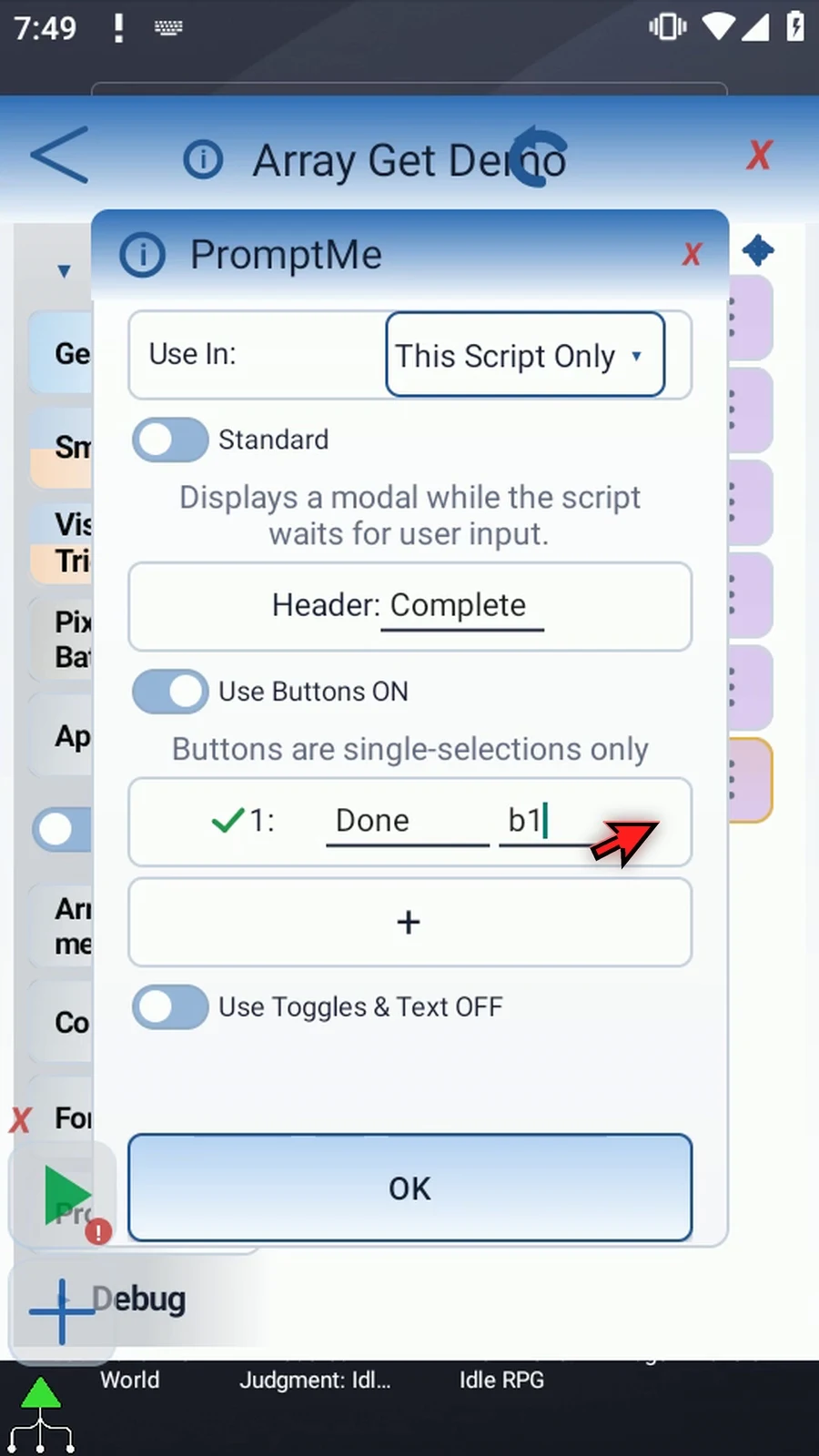
Step 31 Add a Done button with Boolean output b one, then save. The button lets us confirm the result and finish the script.
Step 32 The first three commands prepare the array, value, and index. Array Get performs the read. Display shows the number, and PromptMe confirms completion.
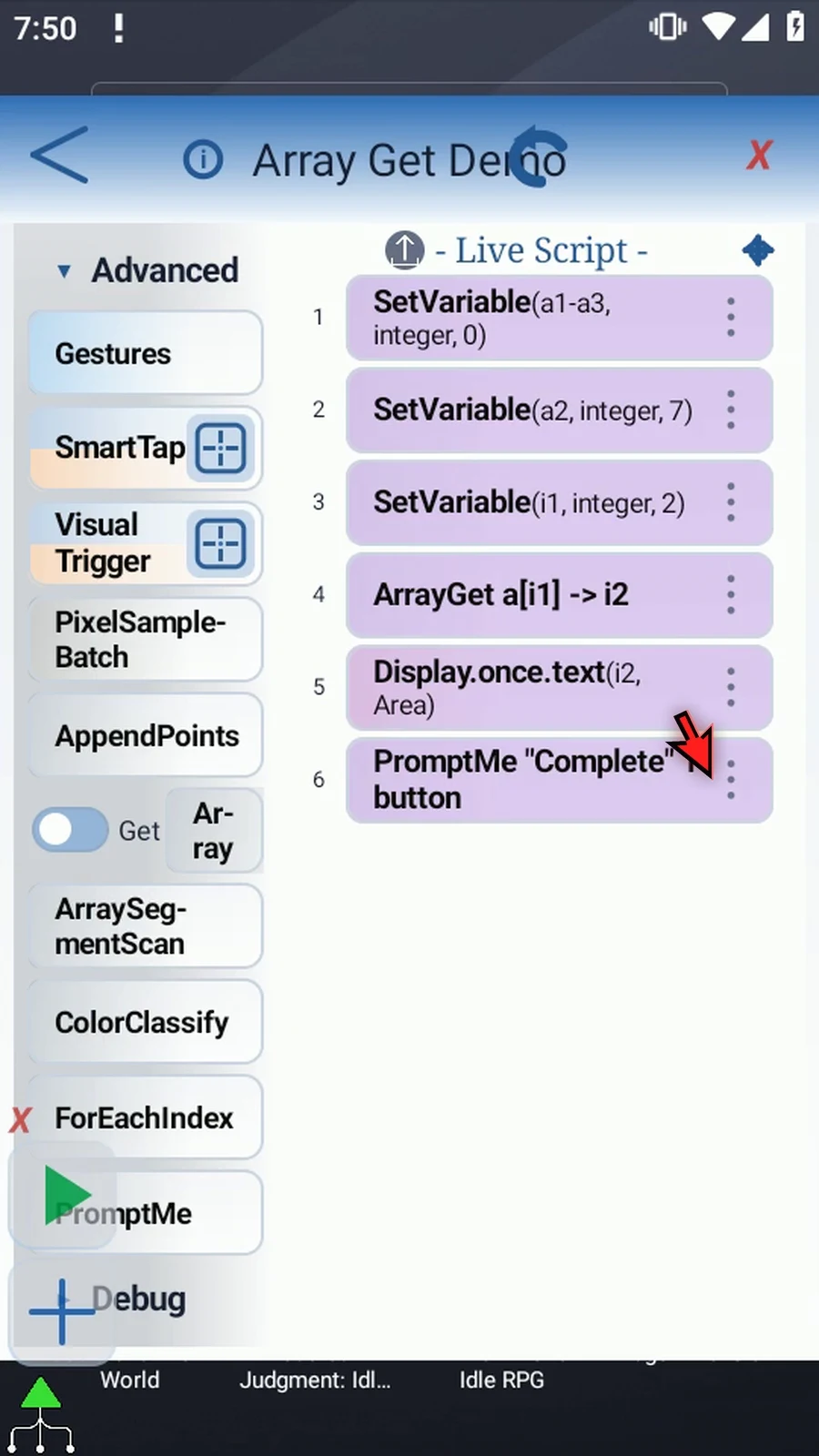
Step 33 Close the editor and expand the main overlay.
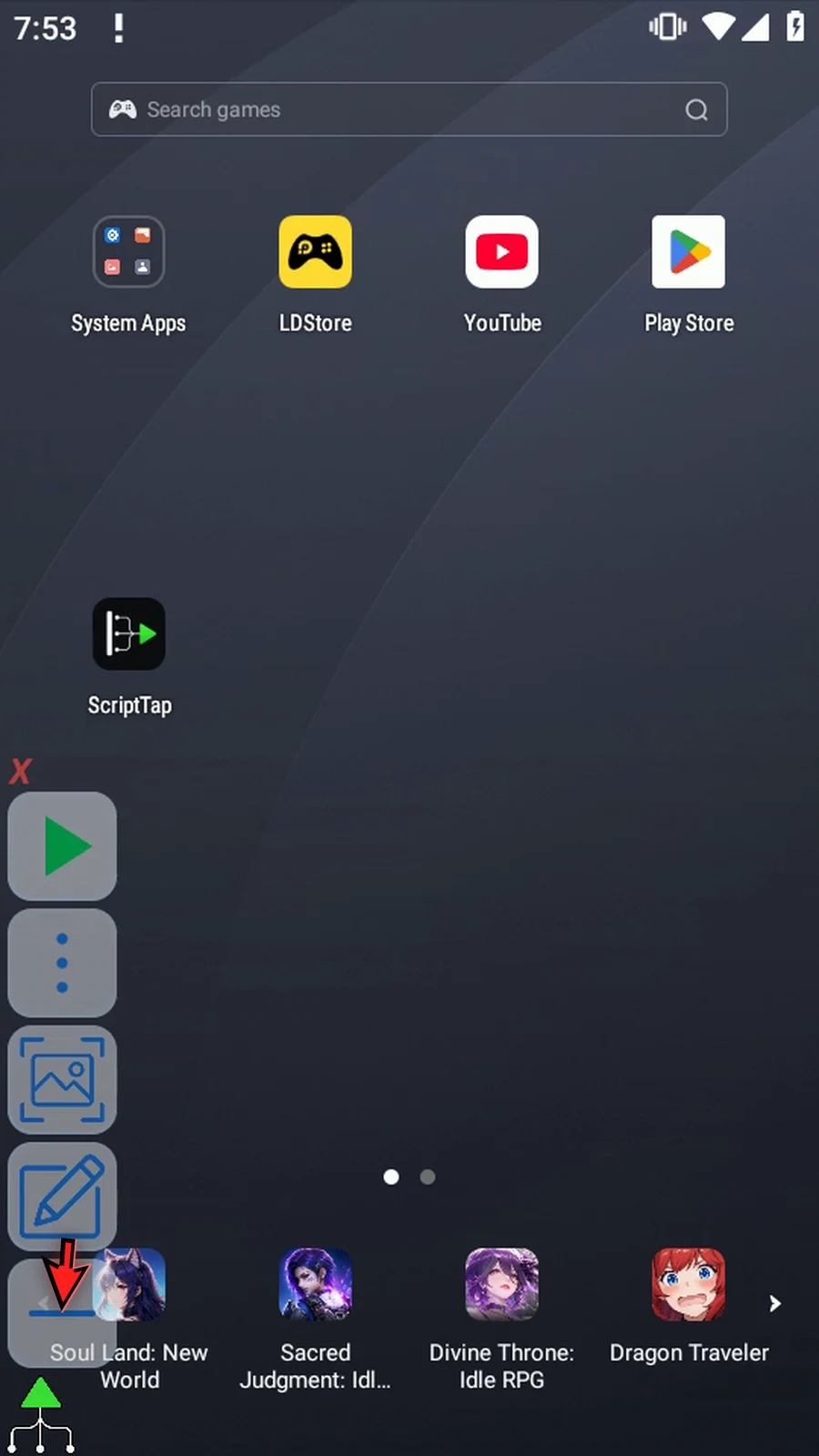
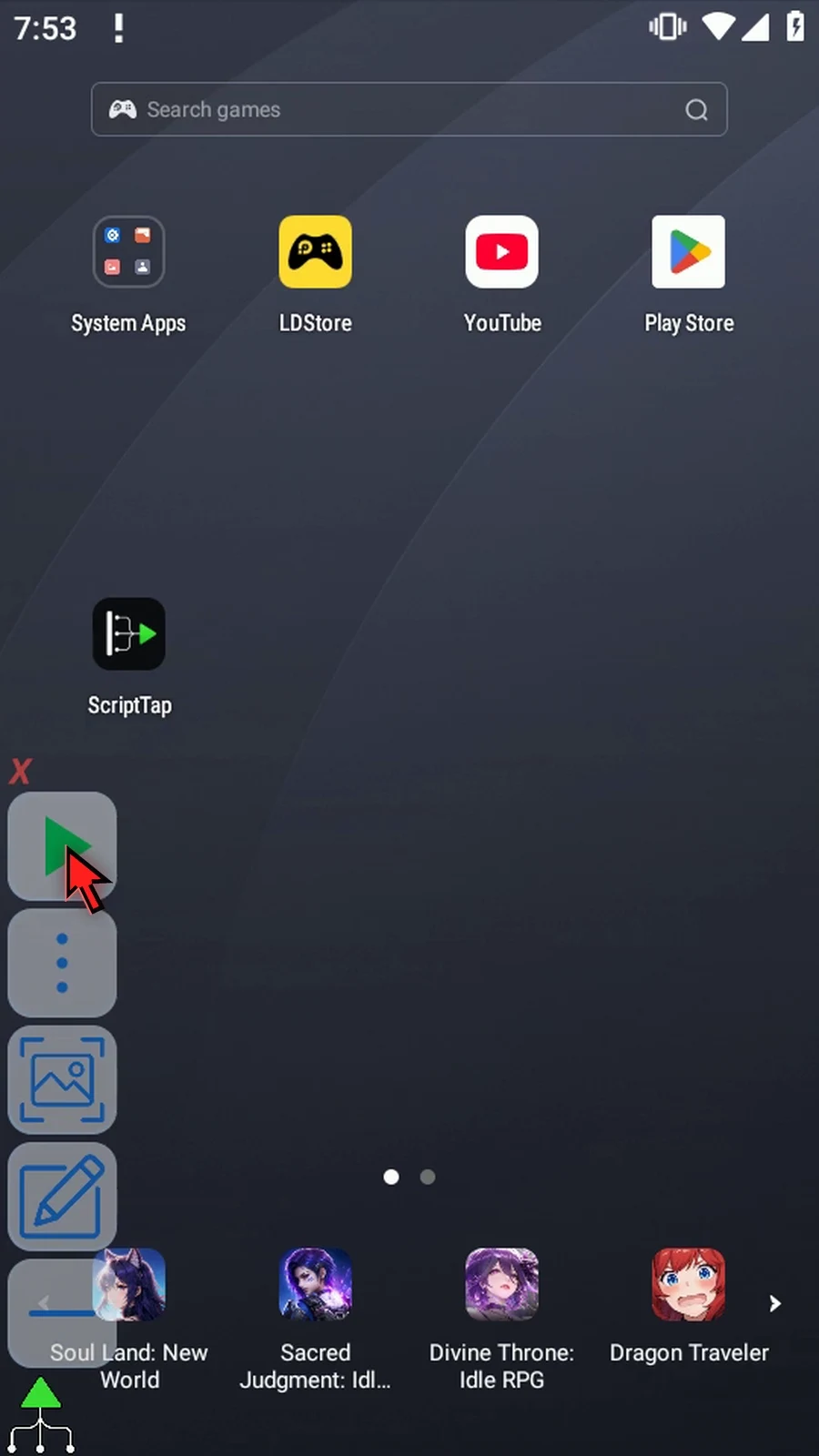
Step 34 When the script is complete, simply use the Play button in the main overlay.
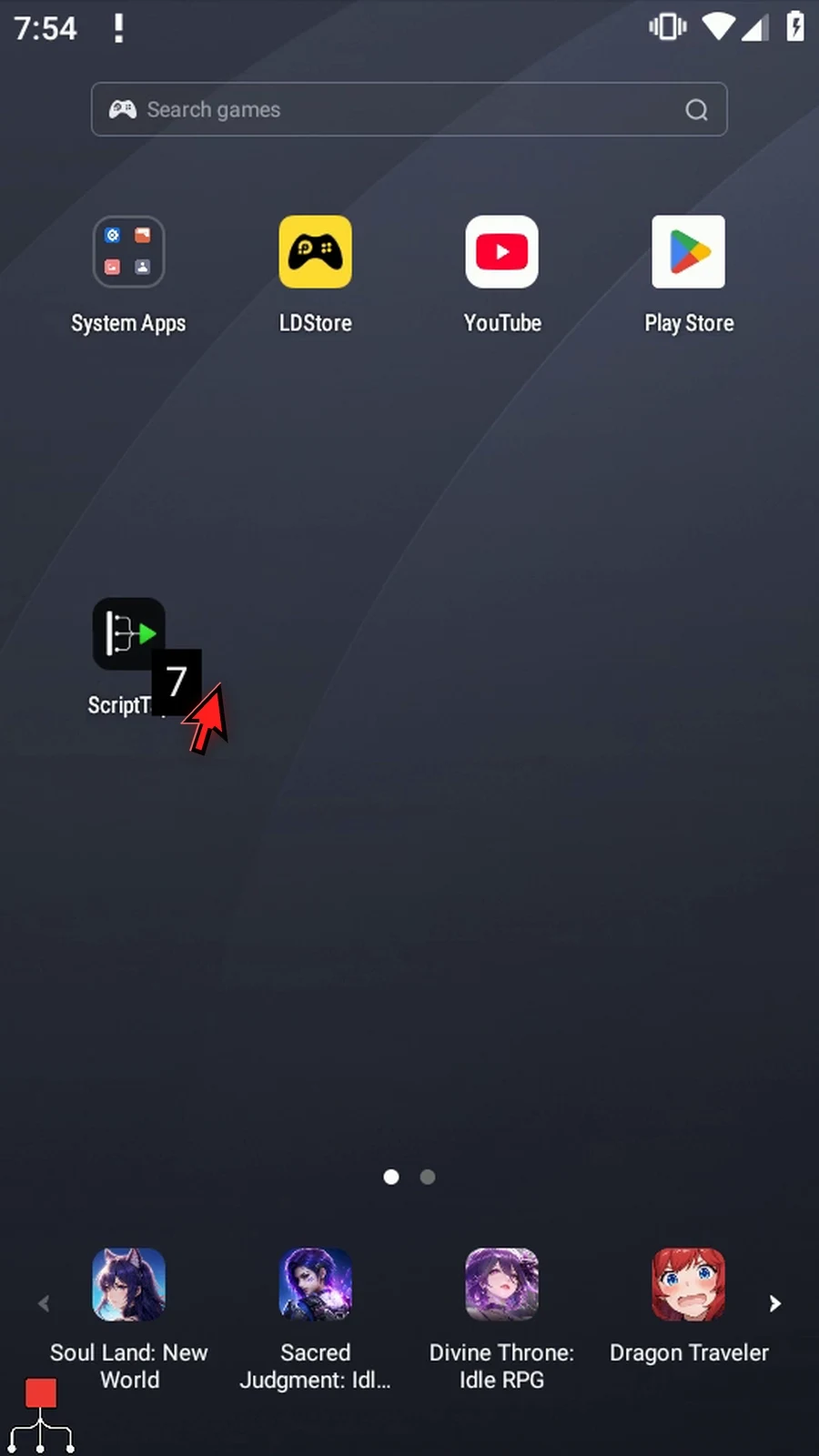
Step 35 Display shows seven, the value from position two.
Step 36 After five seconds, the confirmation appears. Choose Done to finish.
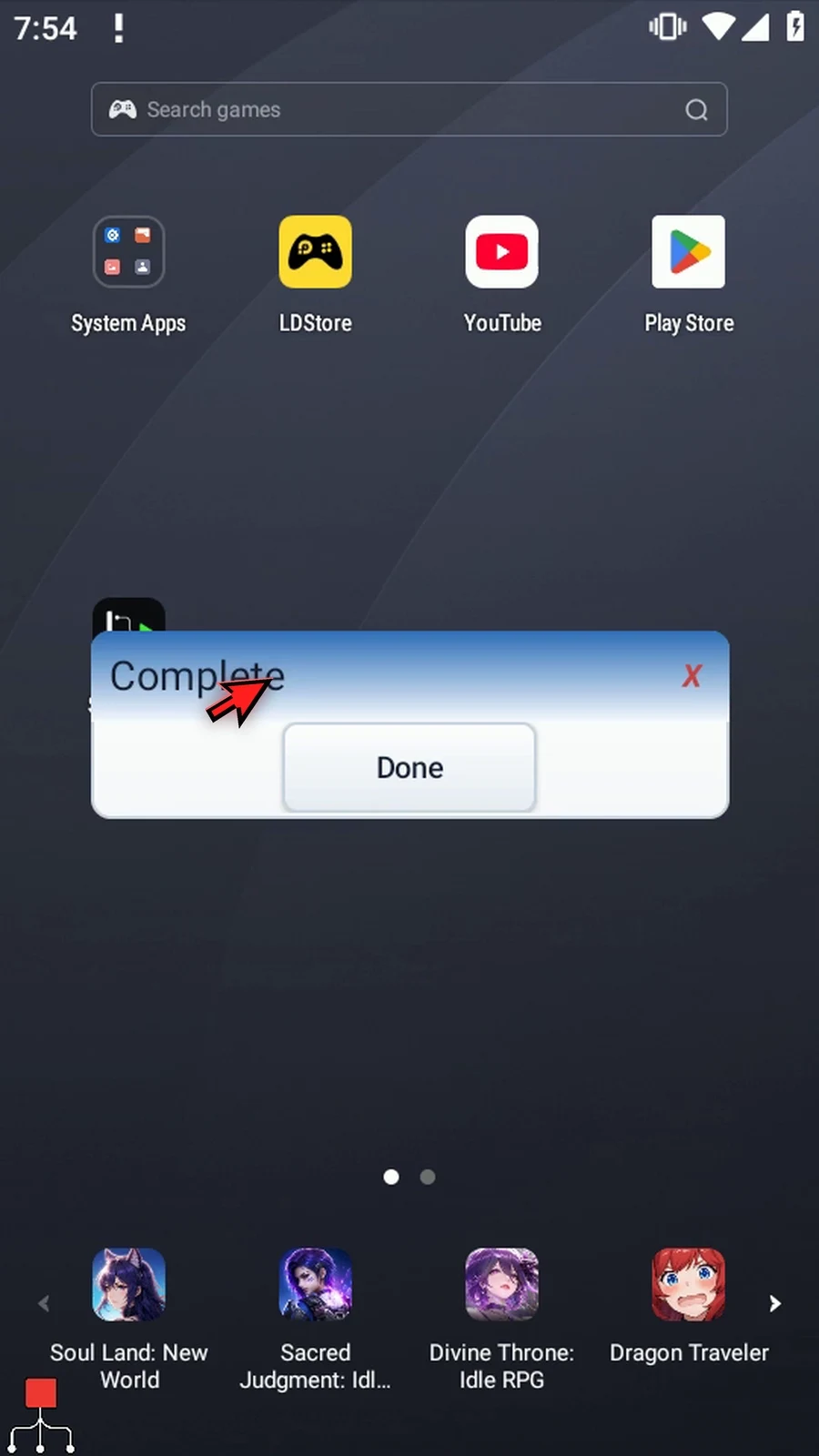
Step 37 The script finishes automatically after confirmation. Use Array Get whenever later commands need a value from a position chosen by your script.