Command video guide
Exclusive
Exclusive protects a section of your script from interference by other ScriptTap branches. While one branch holds Exclusive, the others wait before executing further commands or acquiring screen-read and gesture resources. It does not freeze or control Android apps.
Create and name a new blank script, then open the editor. Manually drag Loop from Logic. Set Repeat to 1, repeat Delay to 0, and Concurrent on. Its matching End Loop is added automatically. This branch runs separately while the parent continues after End Loop.
Under Timing, drag Delay between Loop and End Loop and set 1000 ms. Under Actions, drag Tap after Delay, still inside the loop. Inspect its settings, close them, and use the Tap row's crosshair to set coordinates. If Android asks, allow screen capture. Drag the target onto the Play Store icon and save with the checkmark.
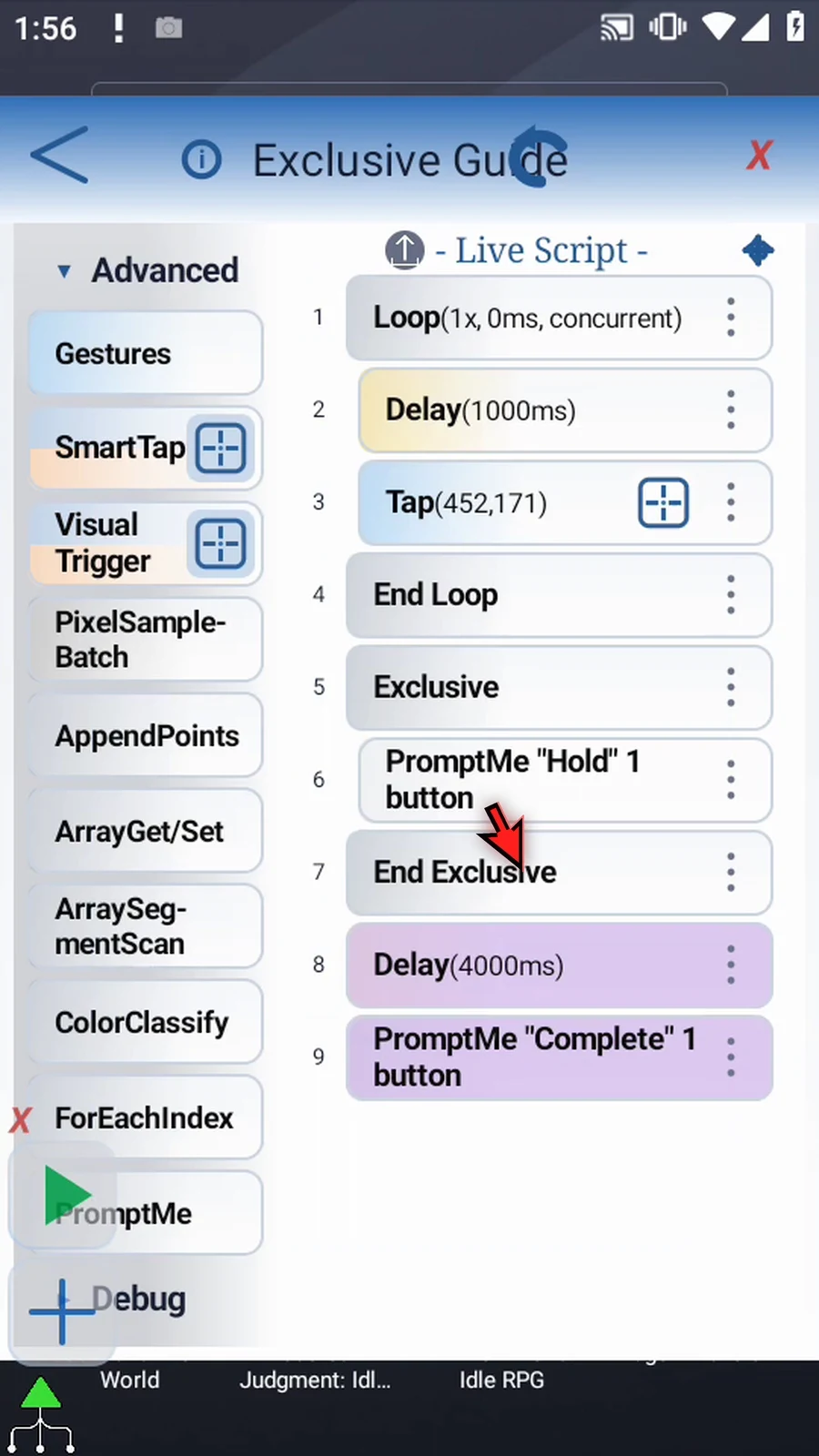
Under Logic, drag Exclusive after End Loop. ScriptTap adds End Exclusive automatically; there are no additional command settings. Under Advanced, drag PromptMe into the script and move it between Exclusive and End Exclusive. Keep the regular Standard style, Header Hold, and add a Release button with Boolean output b1. Leave Toggles & Text off and save.
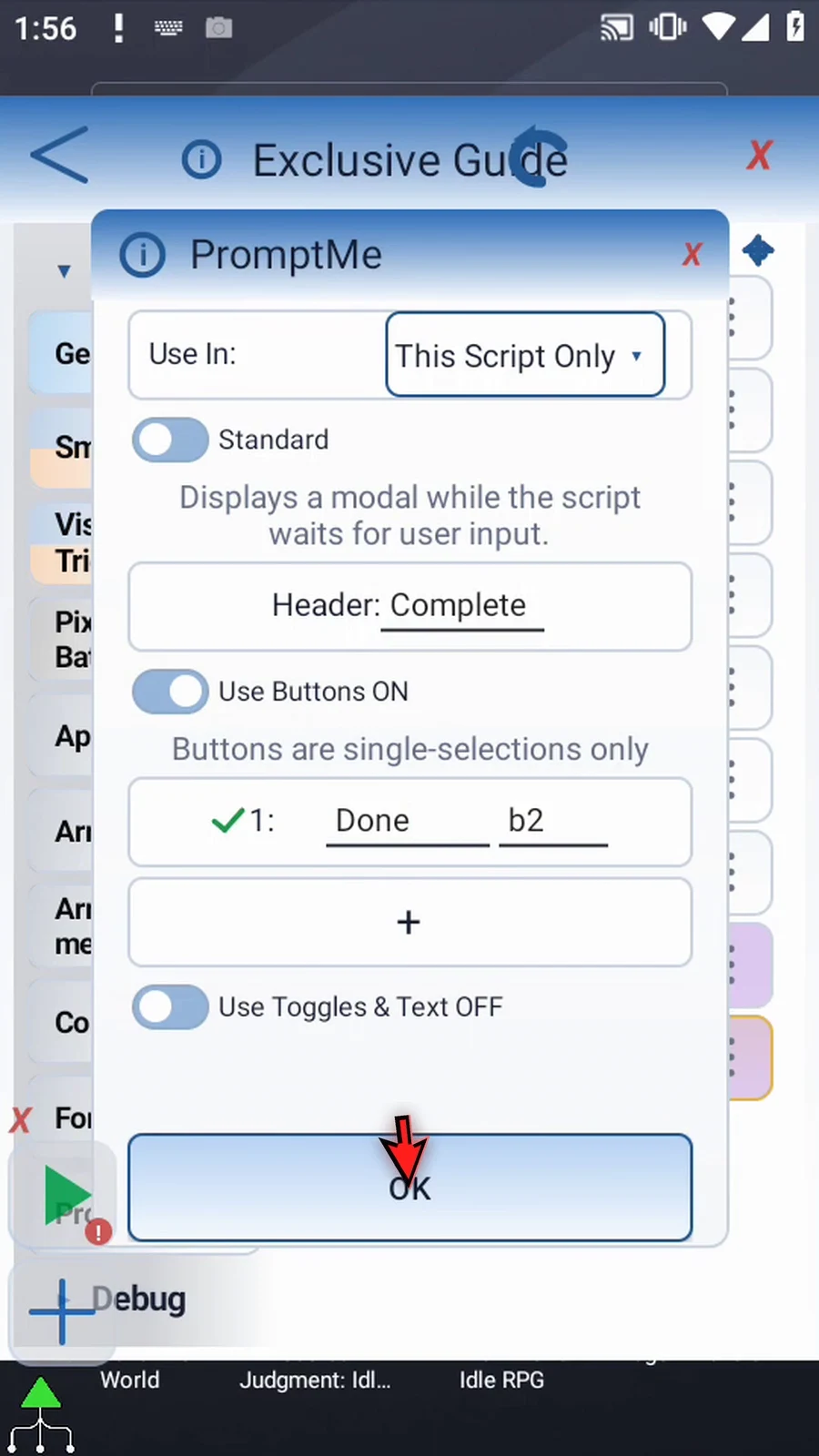
After End Exclusive, drag Delay and set 4000 ms, then drag a final PromptMe after it. Set Header Complete and a Done button with Boolean output b2. Both prompts use This Script Only. The button outputs provide clear acknowledgments; this example does not test those variables afterward.
Play the nine-command example from Home. Hold remains visible longer than the background delay, and the Play Store tap cannot run while Exclusive is held. Press Release: the main branch reaches End Exclusive and the background tap opens Google Play. The outside Delay and Complete prompt do not hold the other branch. Press Done to finish naturally; the permanent MainButton returns to Play and the extension stays collapsed.
An ordinary Delay or PromptMe waits only within its own branch. Inside Exclusive, that wait also holds other ScriptTap branches. The main runner, a called script, or a concurrent loop can own Exclusive. Nested blocks release other branches only after all active levels have ended. Break Exclusive exits the innermost protected section; Stop Script or runtime cleanup also releases owned scopes. Use Exclusive only around work that must run without branch interference.
Watch the walkthrough
Step-by-step guide
Step 01 Exclusive protects a section of your script from interruption by other ScriptTap branches. While that section runs, the other branches wait. We will hold a confirmation prompt inside Exclusive while a background branch waits to open Google Play.
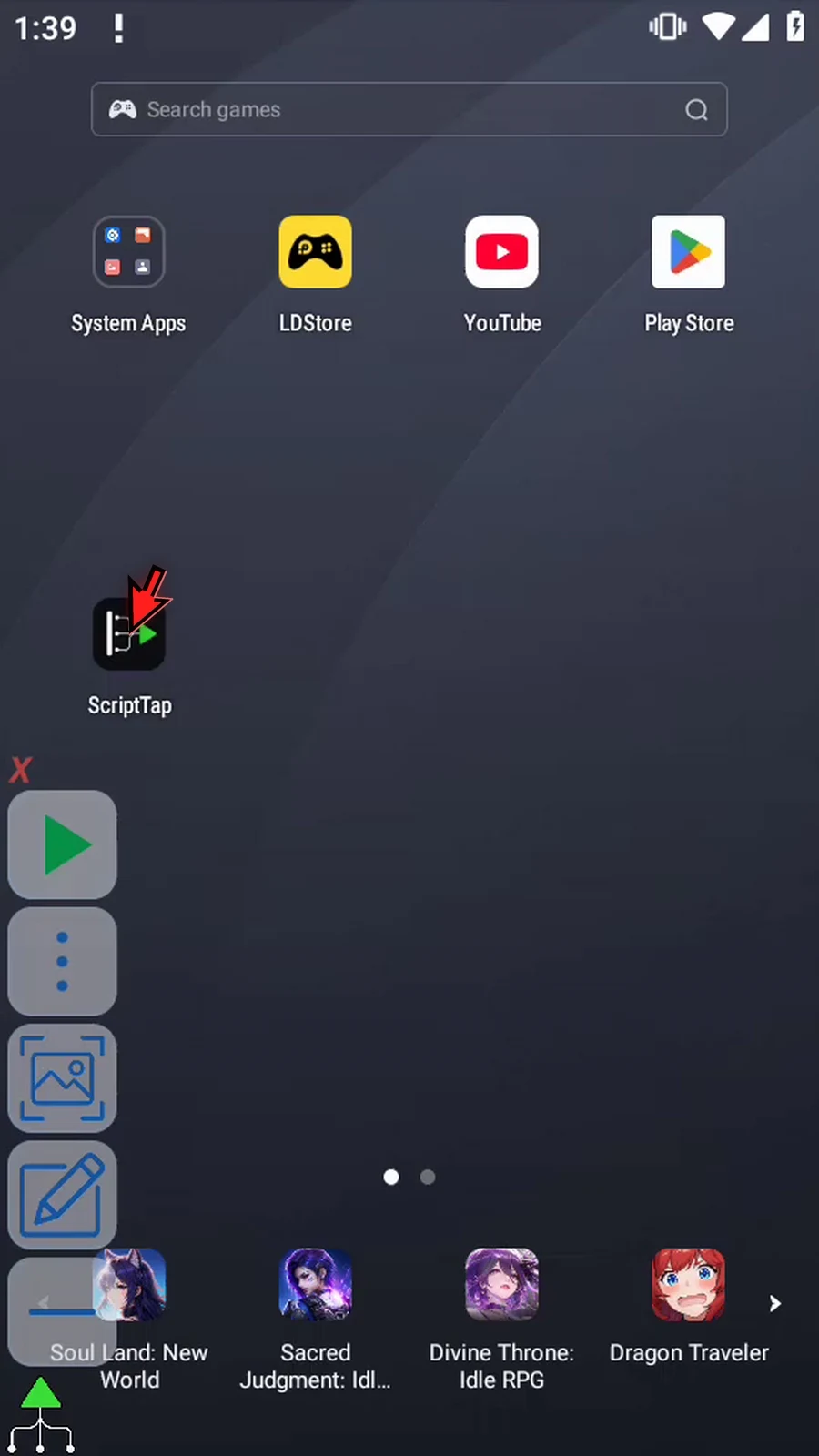
Step 02 Open Scripts, choose New Script, then Blank Script. We are creating a new example and leaving the existing scripts unchanged.
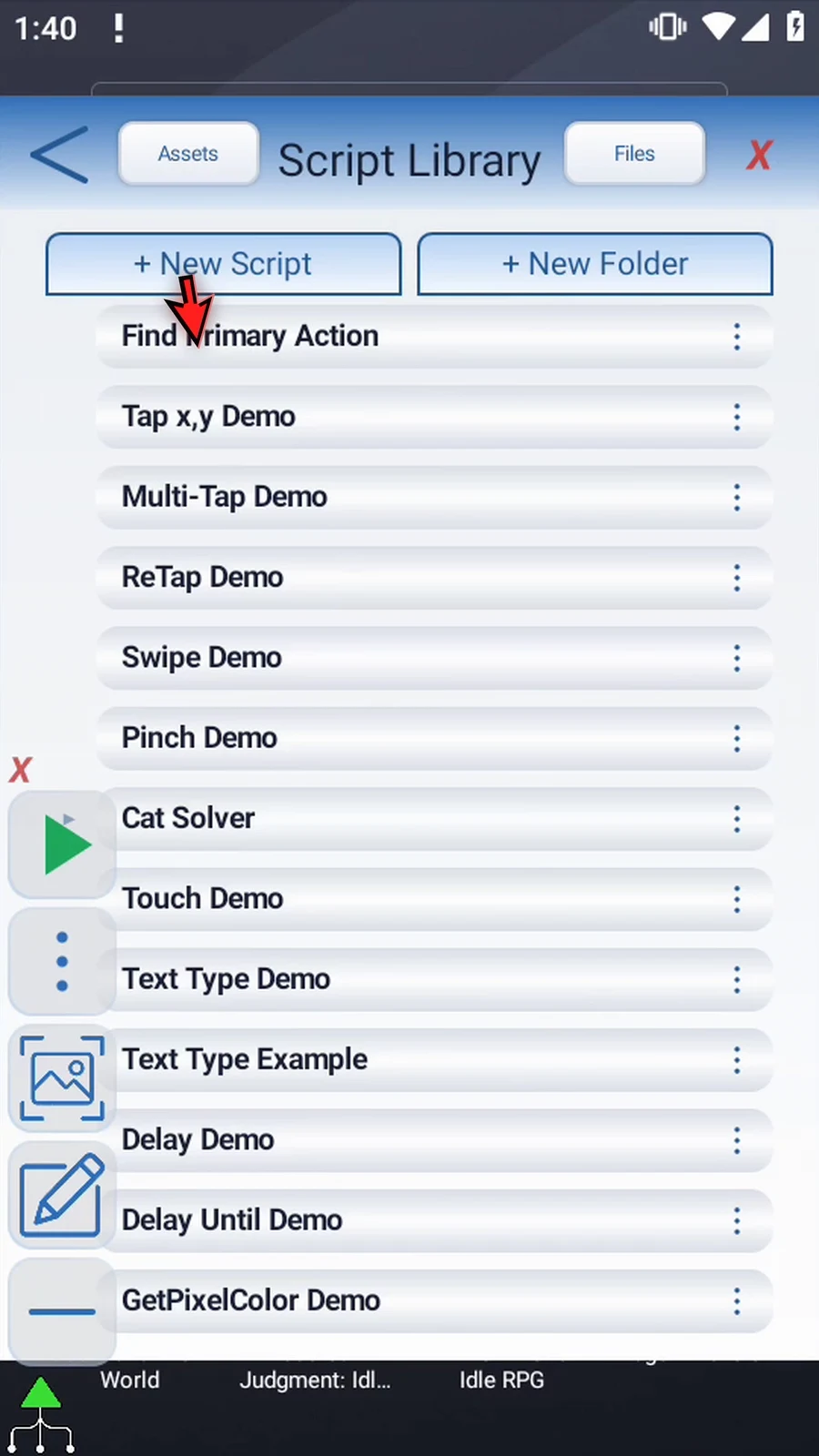
Step 03 Scroll to the new blank script. Leave the others unchanged. Open the new script menu and choose Rename.
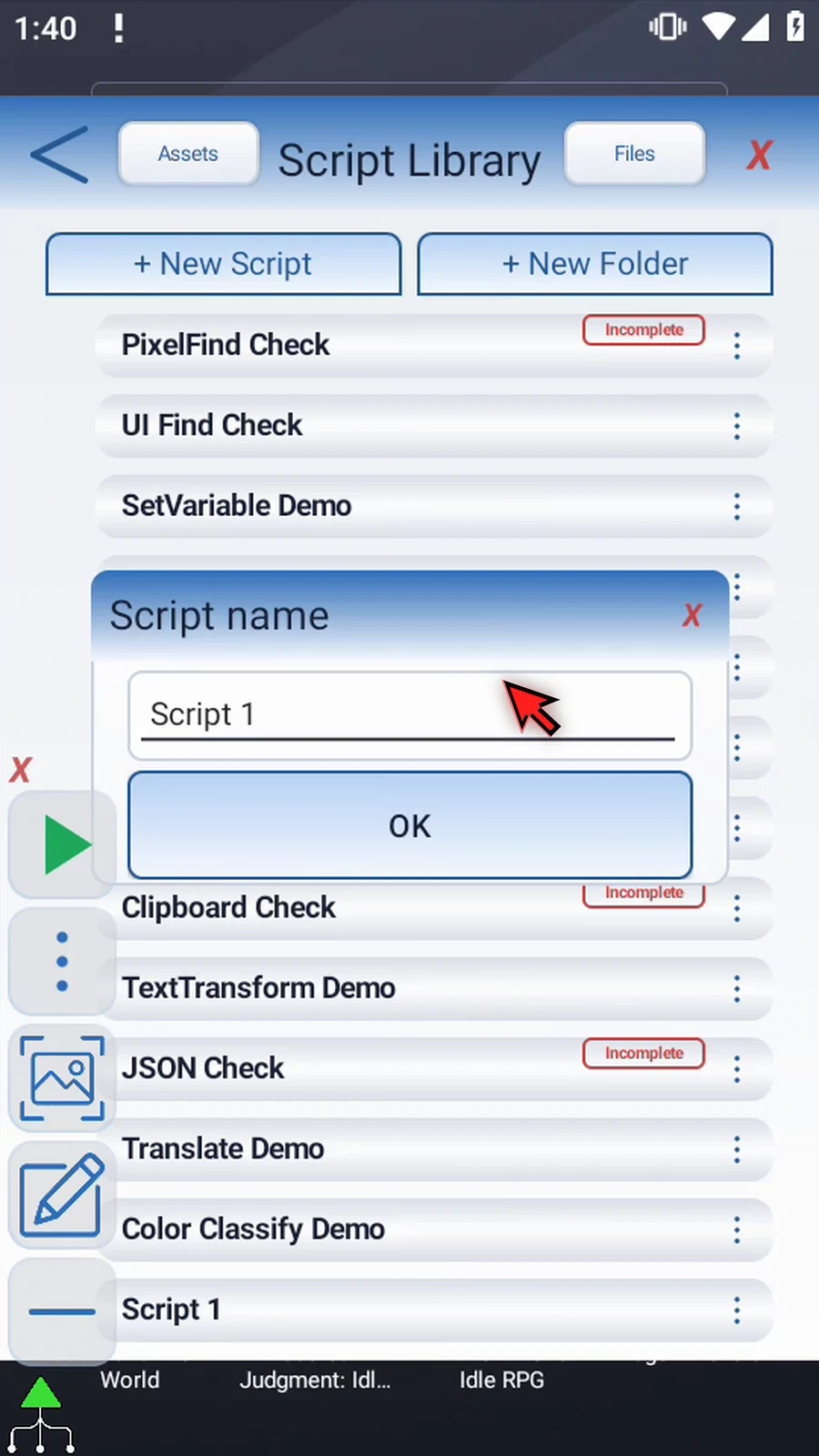
Step 04 Type a descriptive name for this example. Tap OK to save it, then select the new script so it becomes active.
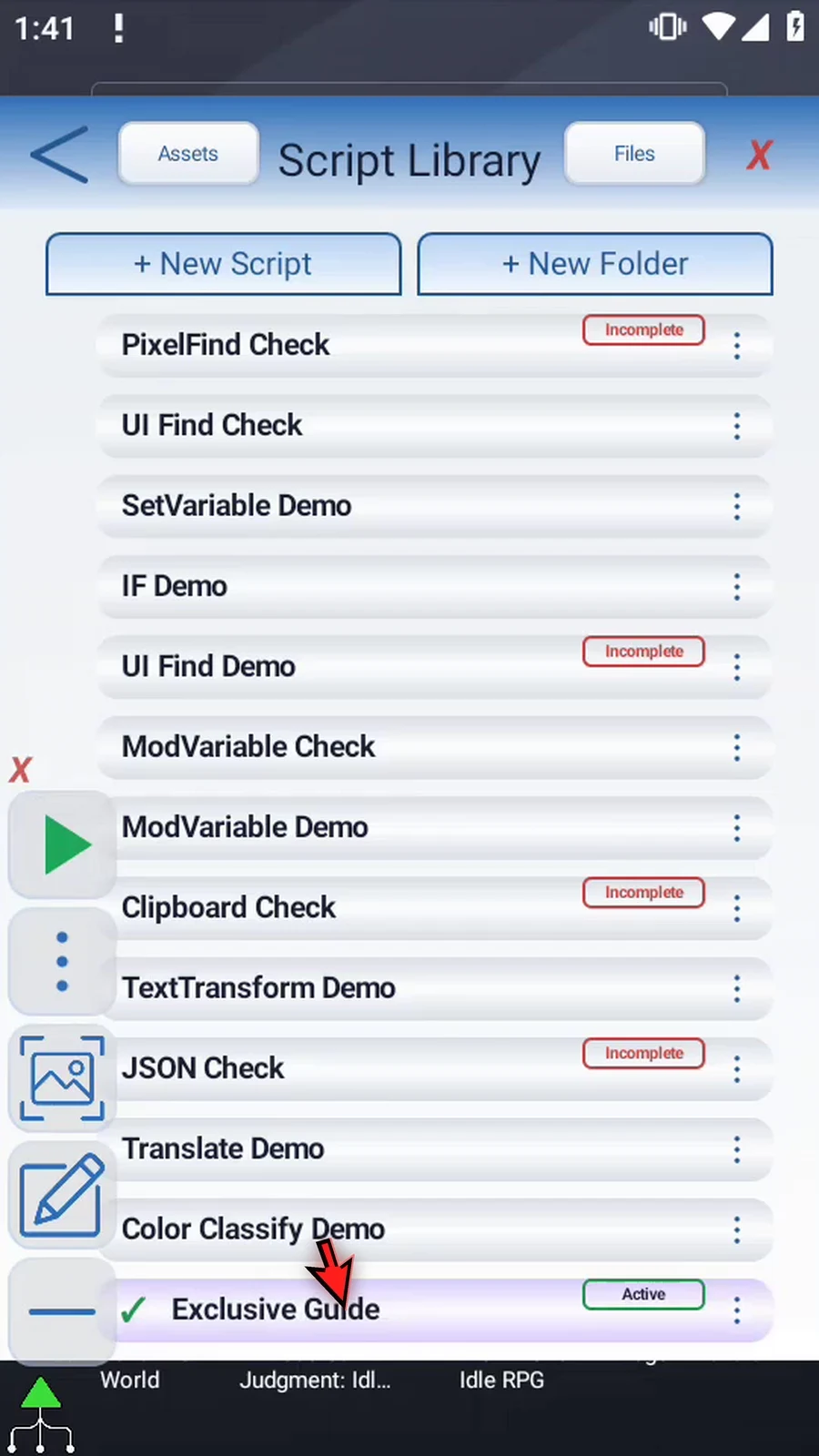
Step 05 Open the Script Editor. Collapse the extra overlay controls so the commands are clear. Collapse Recent, then expand Logic.
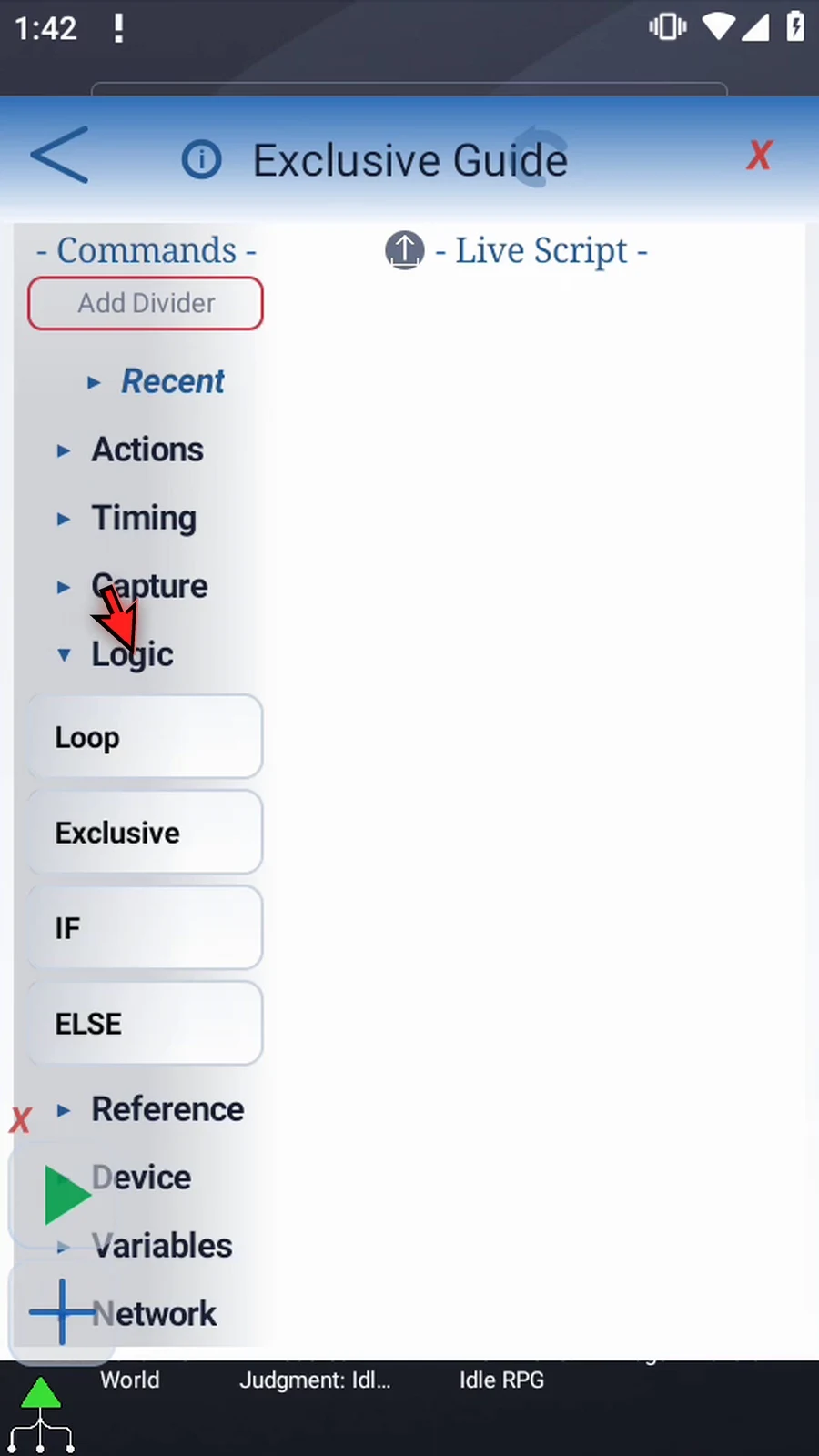
Step 06 First, drag Loop into the script. ScriptTap adds its matching End Loop automatically. This block will contain the background work.
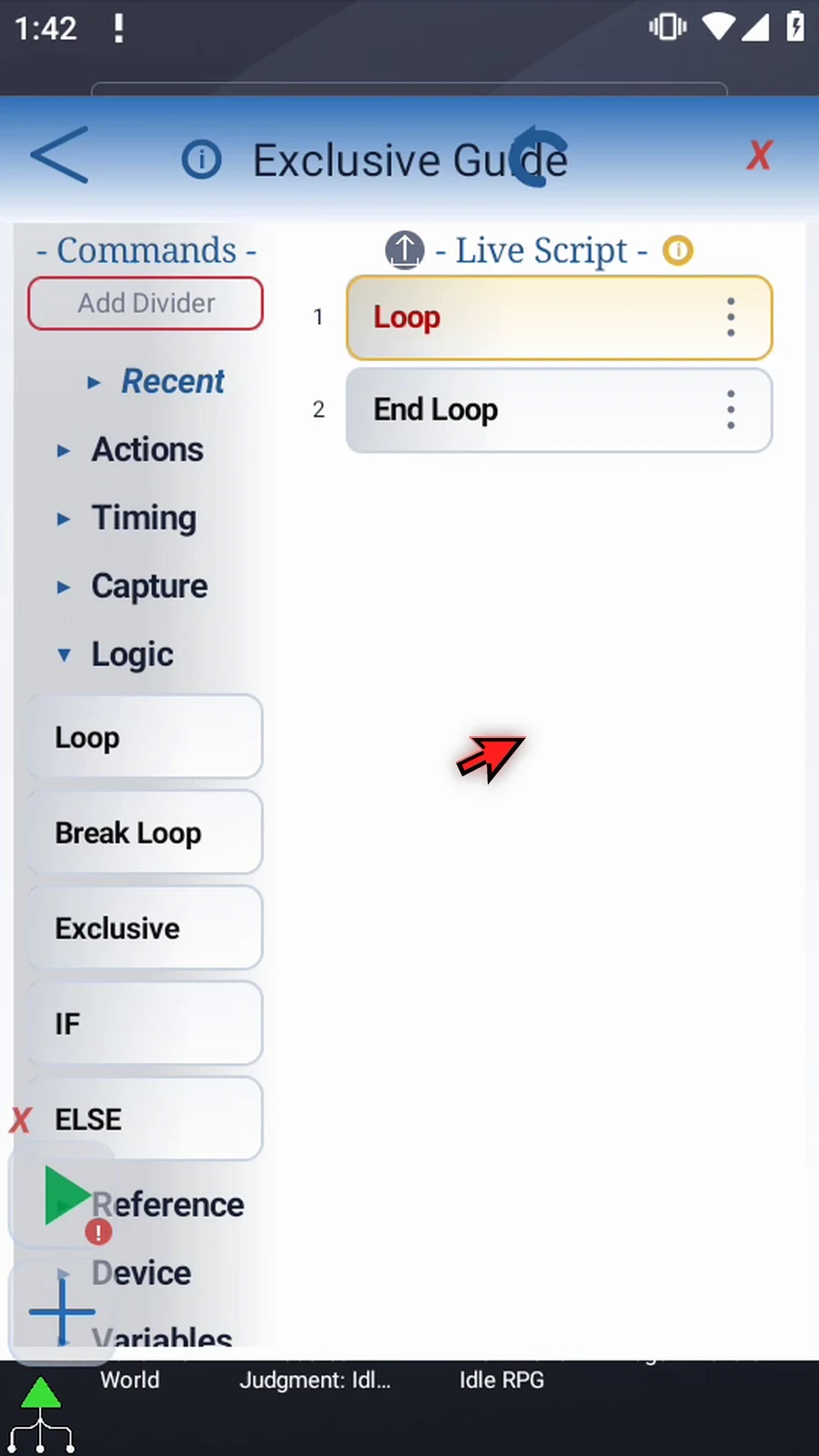
Step 07 Open Loop. Set one pass, leave the repeat delay at zero, and turn Concurrent on. This starts a separate branch while the main script continues after End Loop.
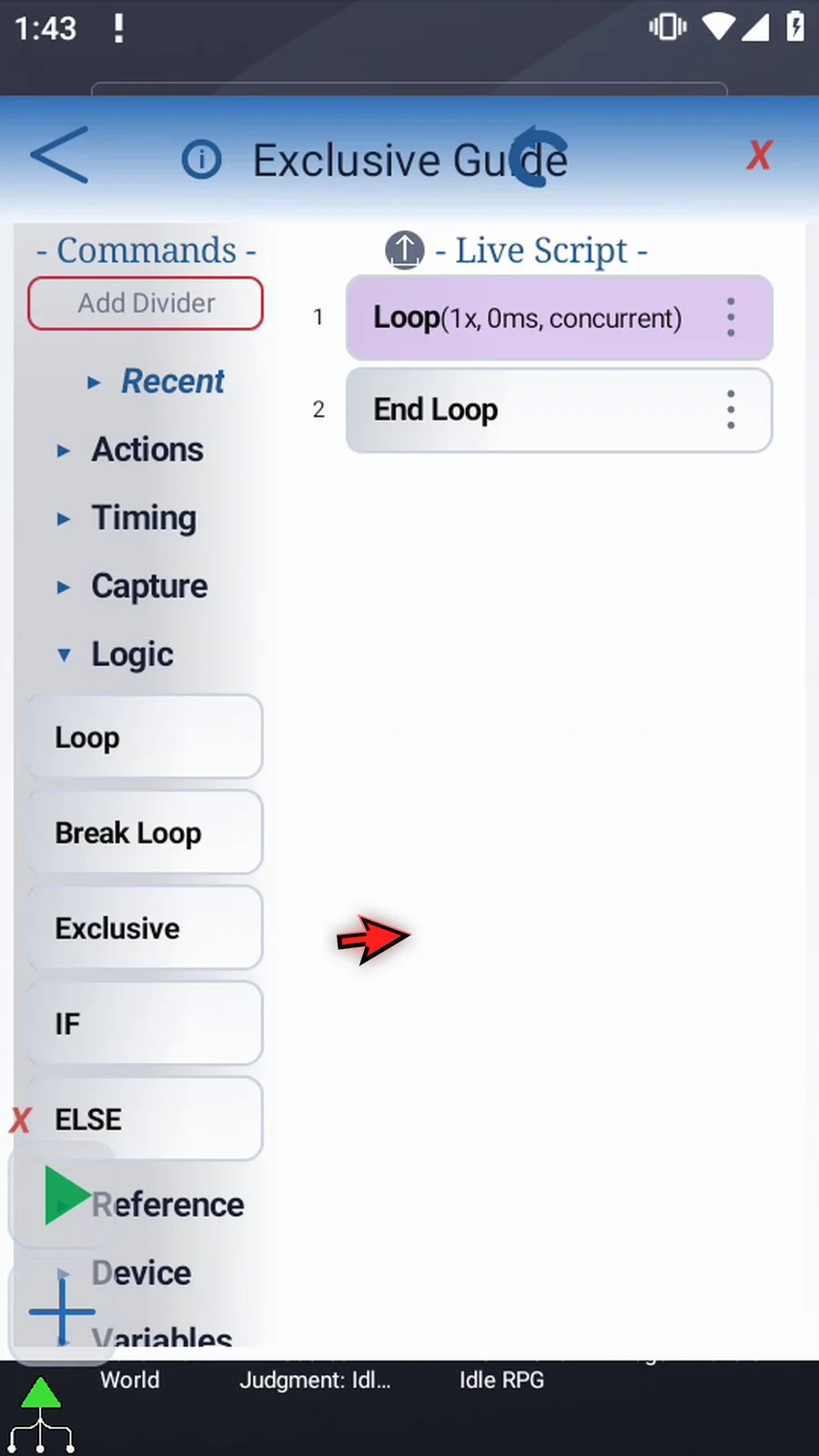
Step 08 Switch to Timing and drag Delay between Loop and End Loop. The background work goes between these two endpoints.
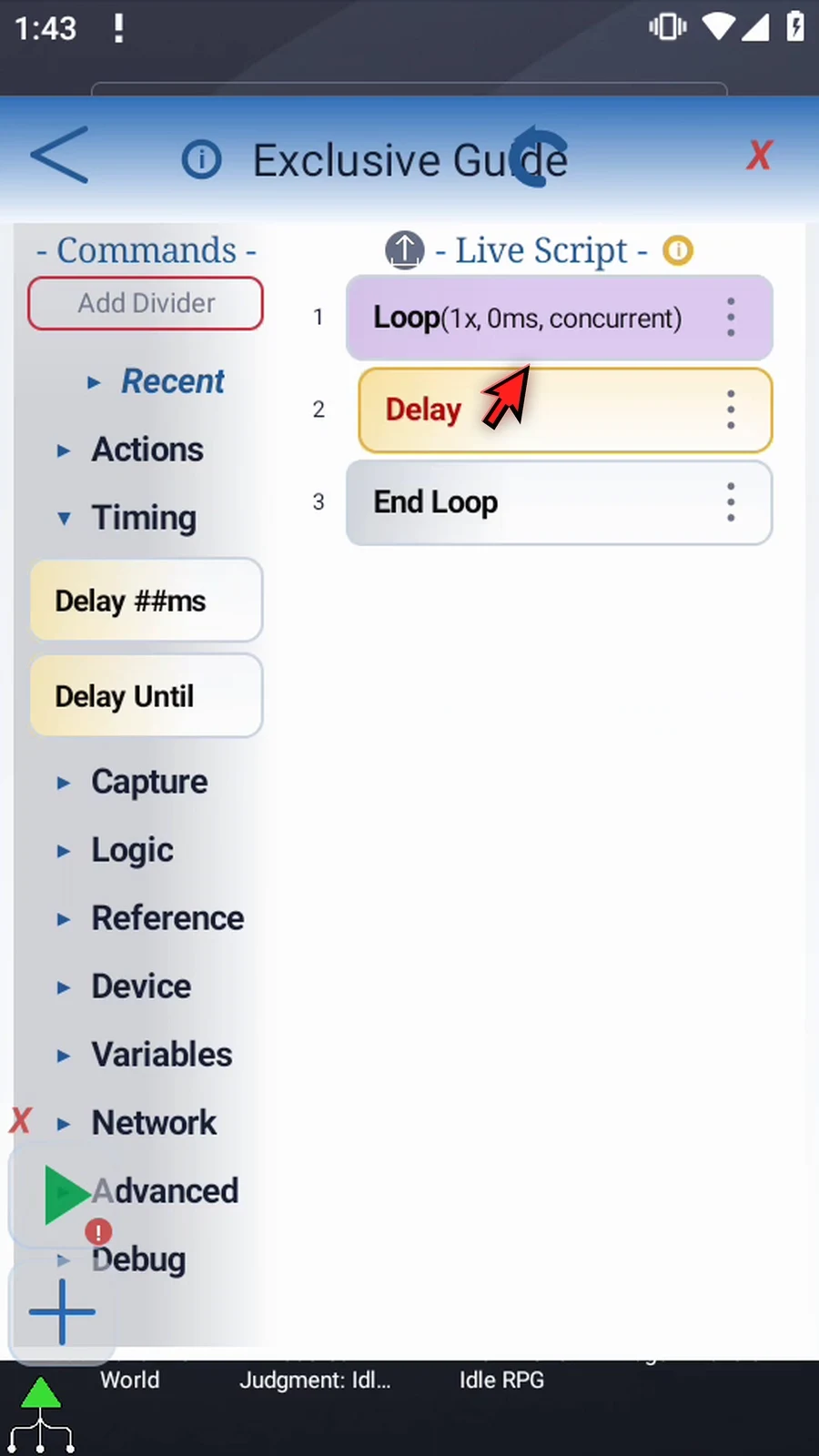
Step 09 Open Delay and set one thousand milliseconds. This gives the main branch time to enter Exclusive before the background tap.
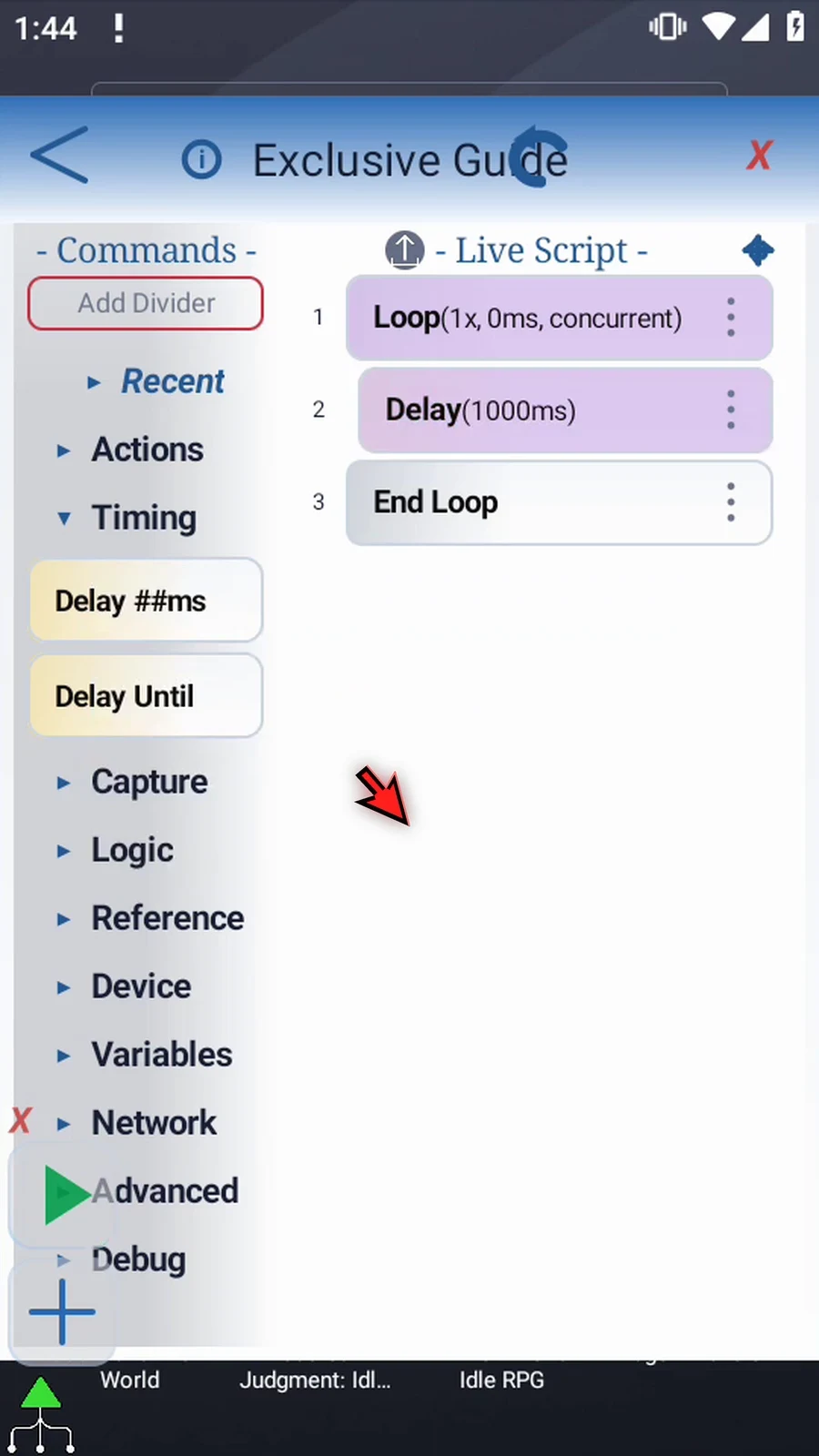
Step 10 Expand Actions and drag Tap after that delay, still inside the Loop. This will be the action that Exclusive temporarily holds back.
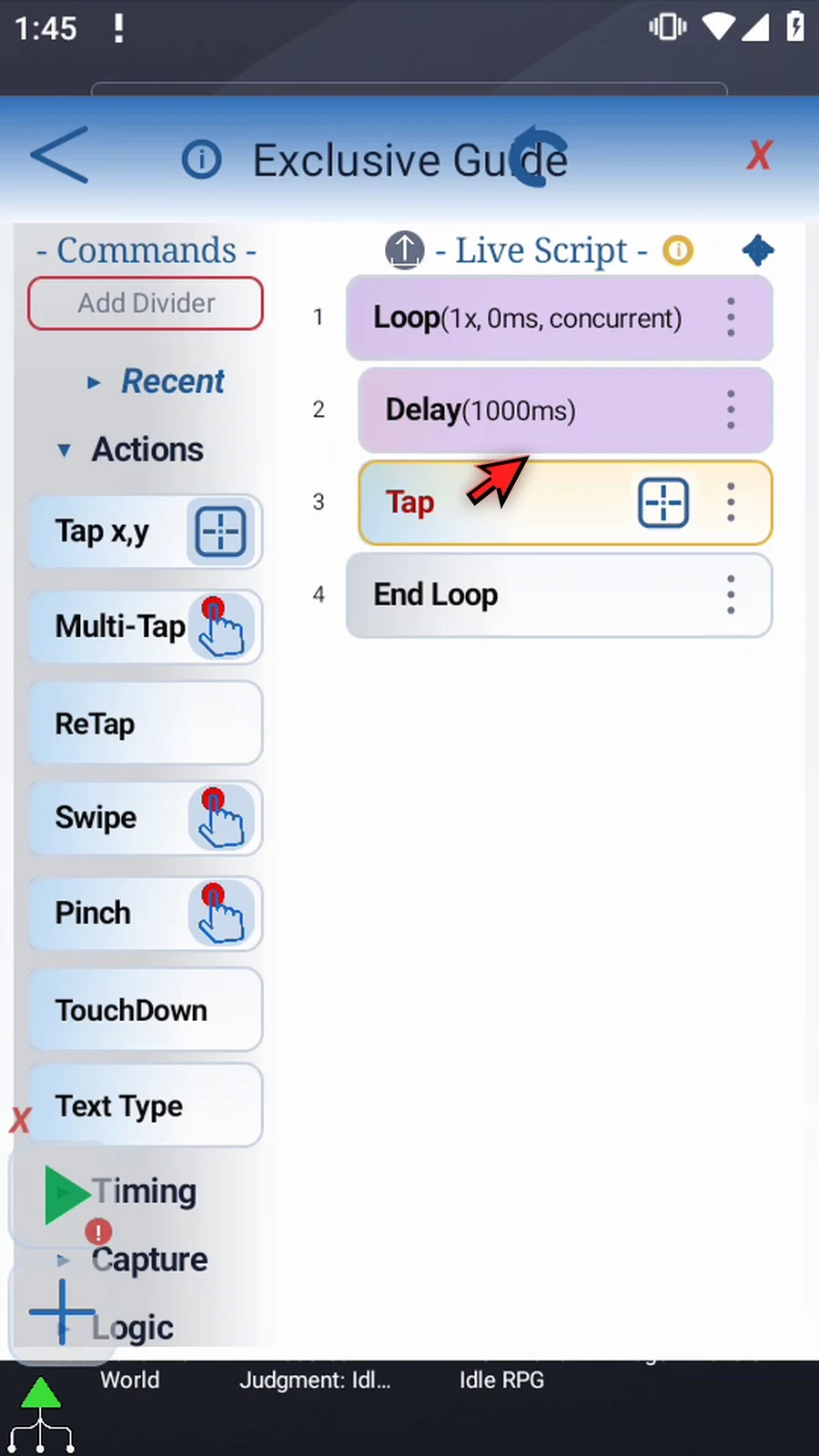
Step 11 Open Tap to inspect its settings, then close them and use the row's crosshair to set coordinates. If Android asks, allow screen capture.
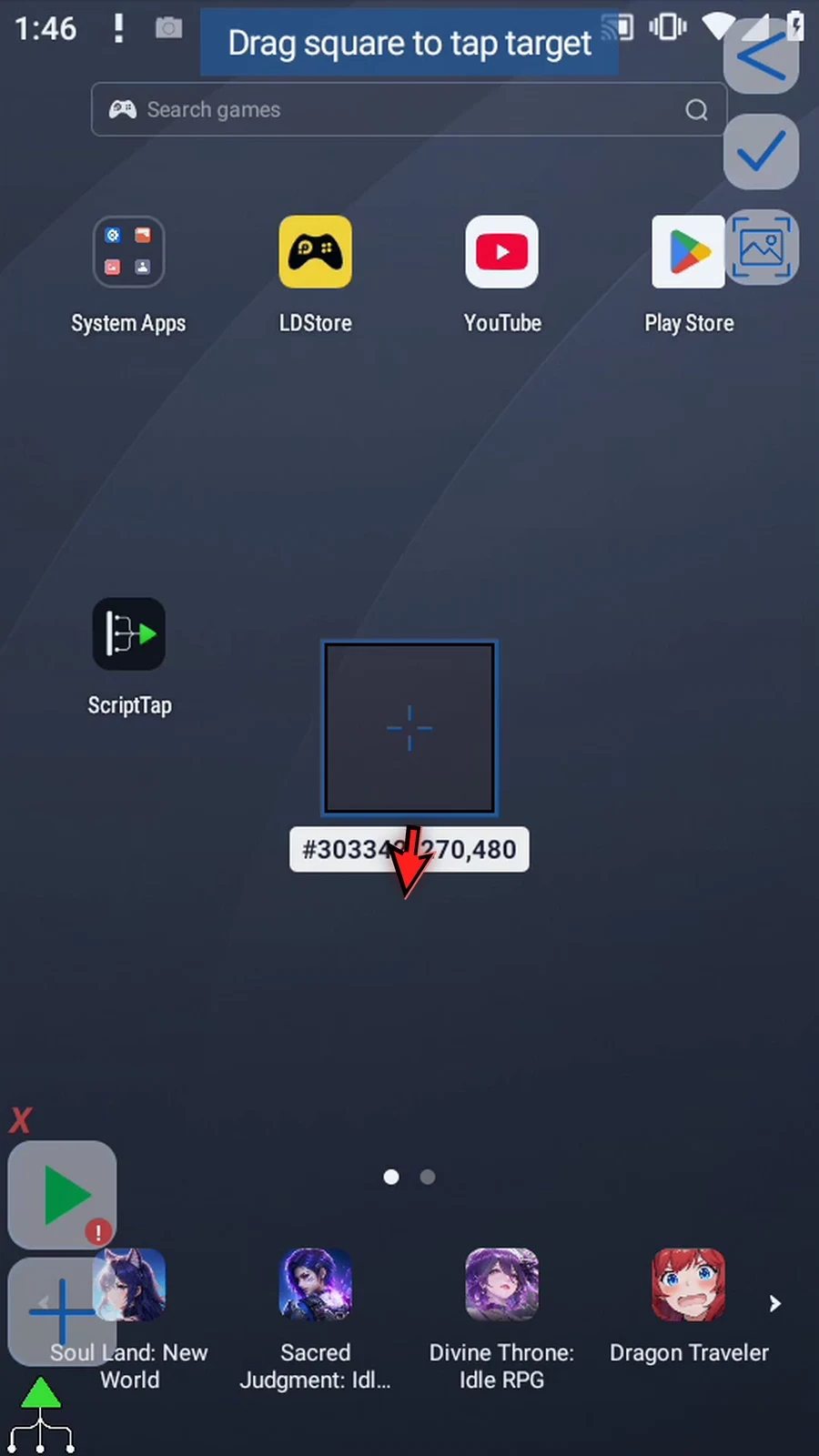
Step 12 Move the target onto the Play Store icon and save the position. The Tap row now shows the selected coordinates.
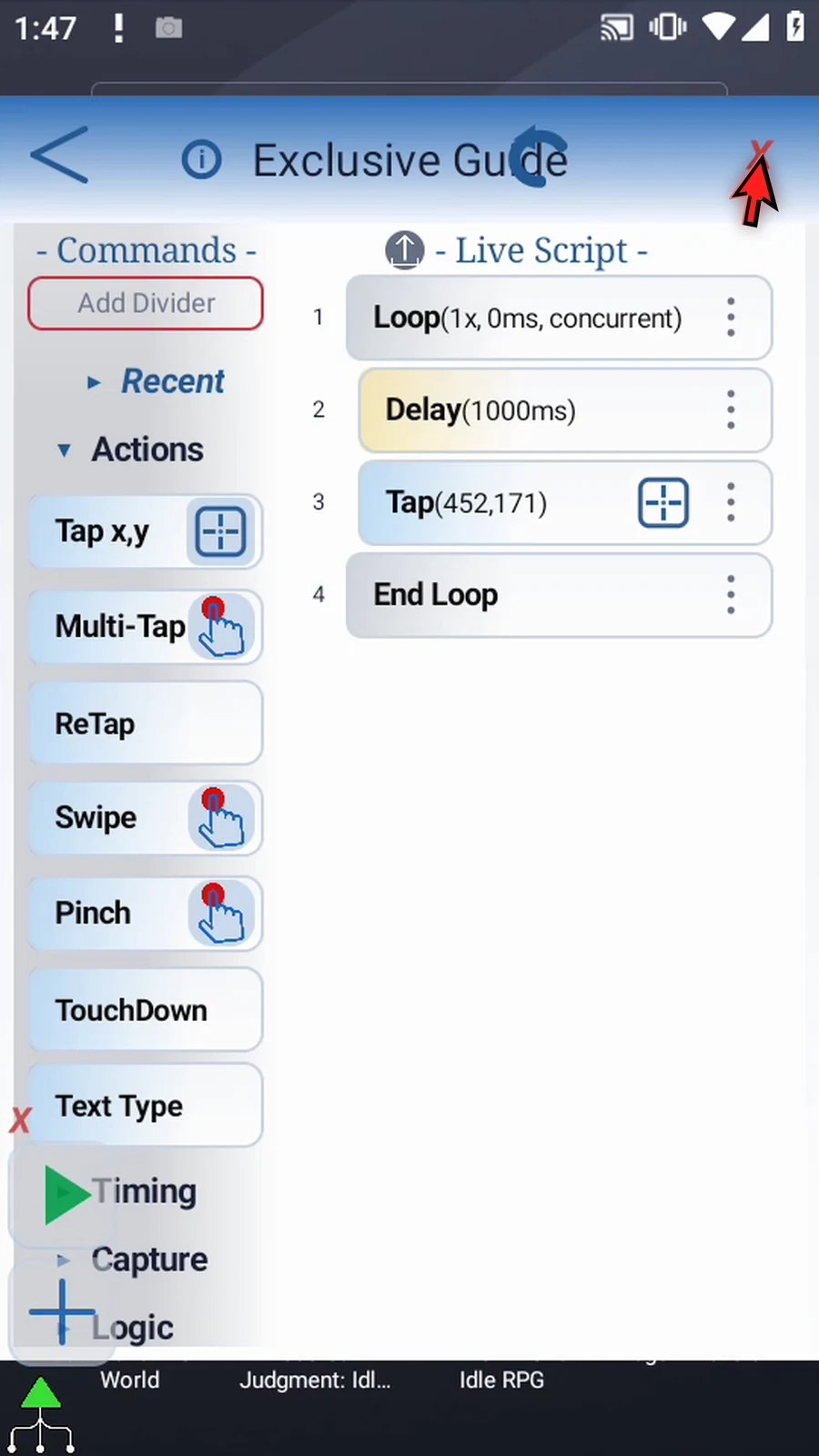
Step 13 Return to Logic and drag Exclusive after End Loop. Its matching End Exclusive is added automatically. There are no additional settings for this command.
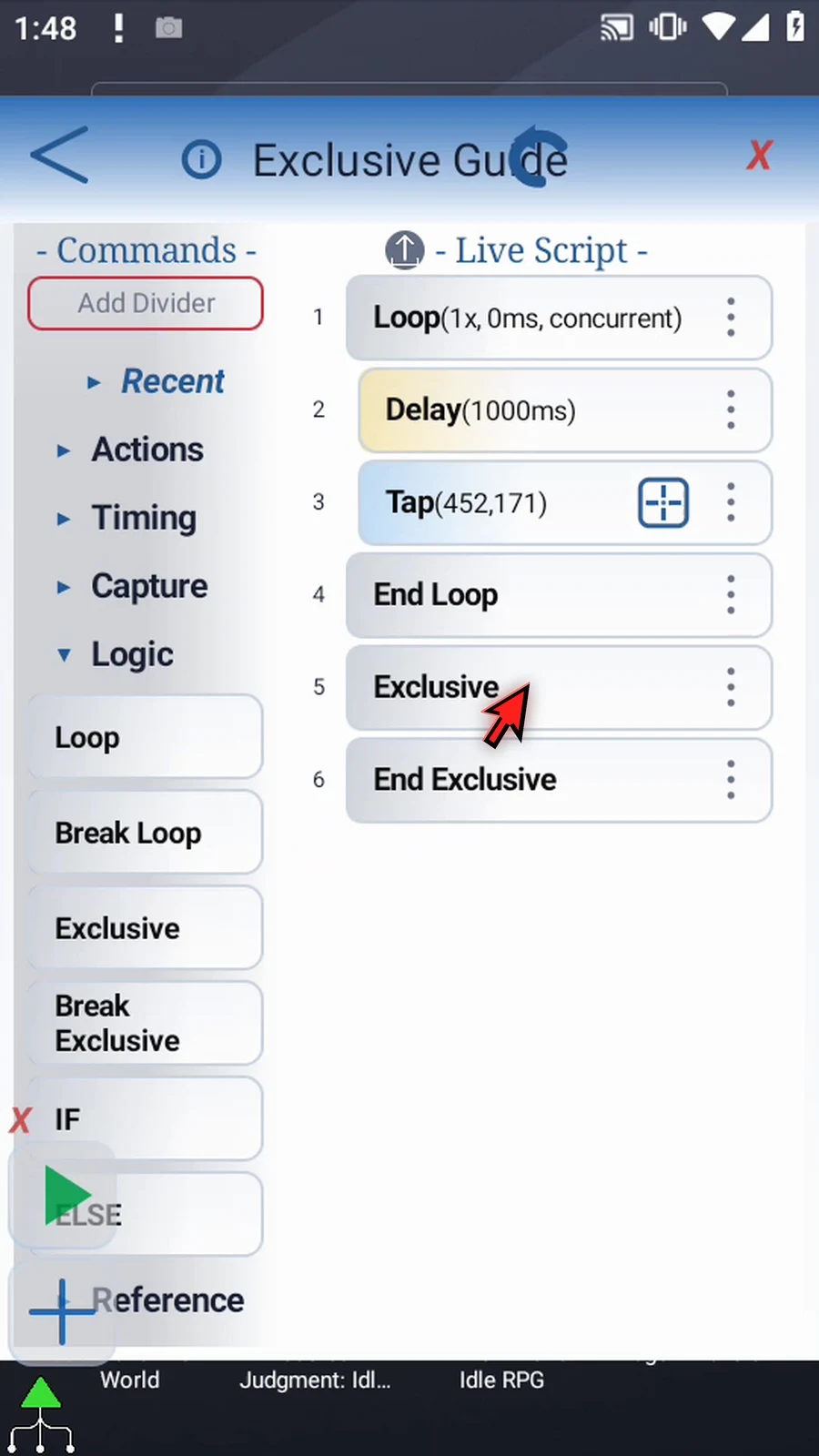
Step 14 Find PromptMe under Advanced and drag it into the script. We will use a confirmation prompt to keep the protected section open.
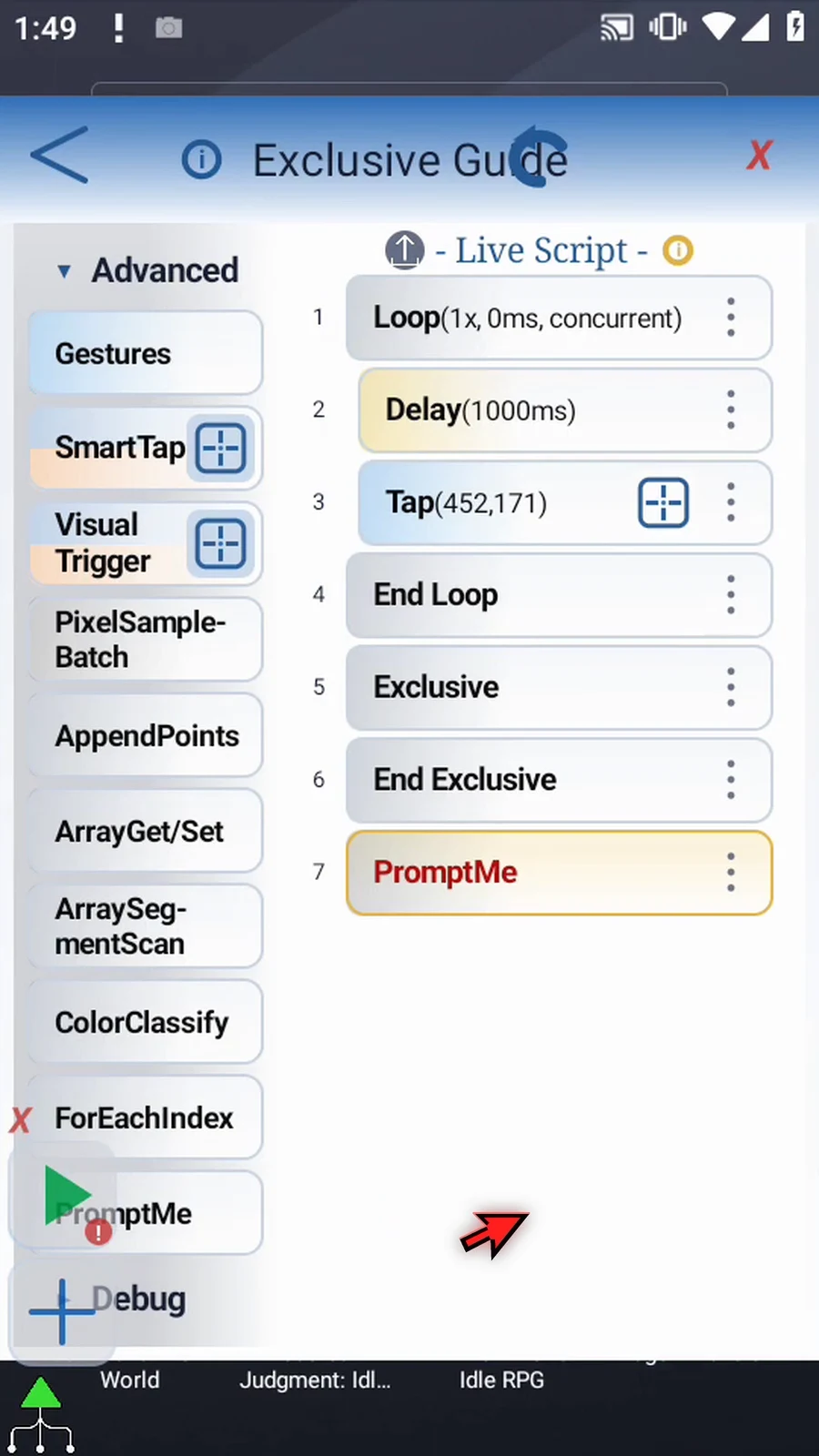
Step 15 Move PromptMe between Exclusive and End Exclusive. The script will stay in that protected section until we press Release.
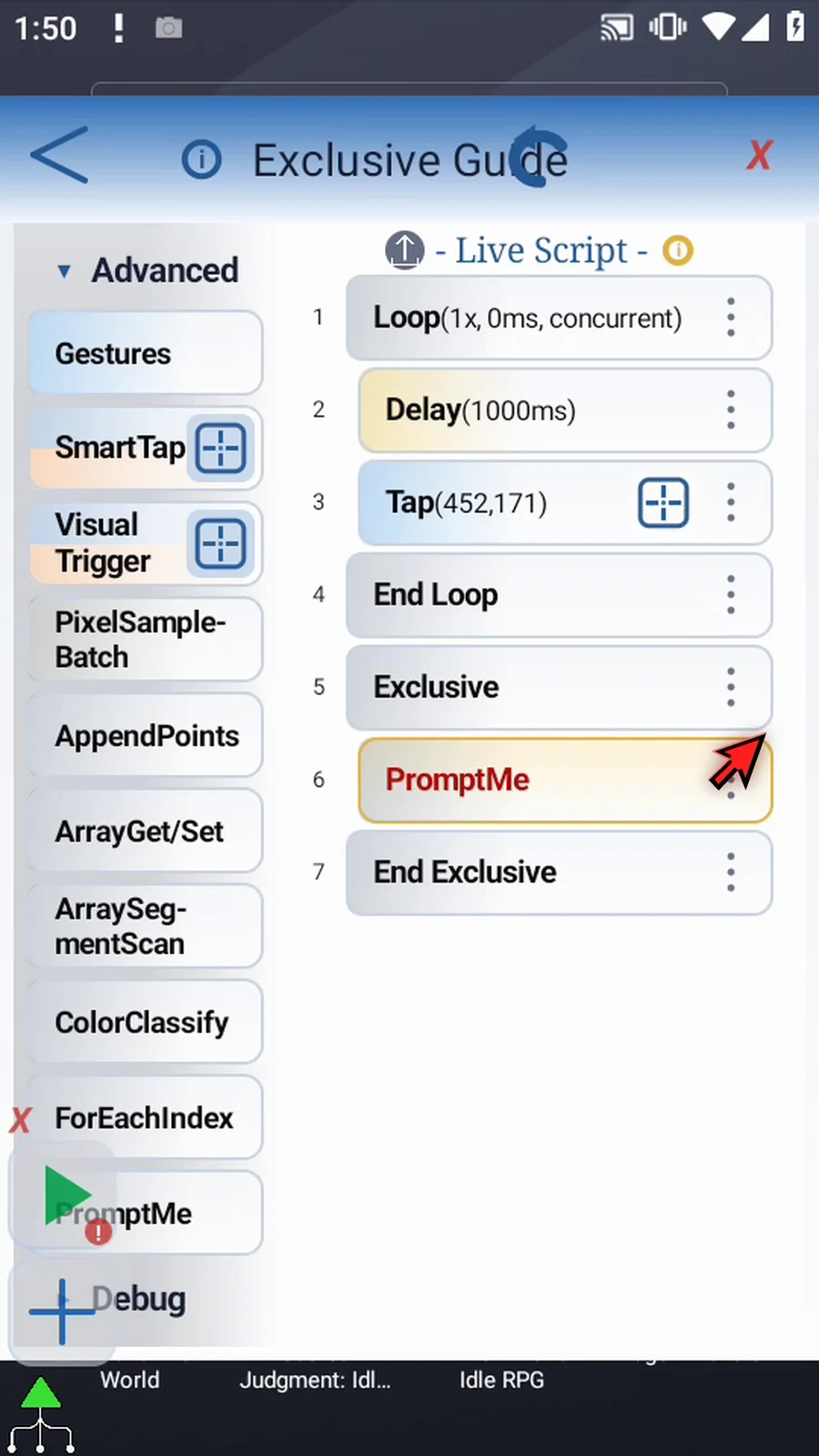
Step 16 Use the regular prompt style and set its header to Hold. Add a button named Release.
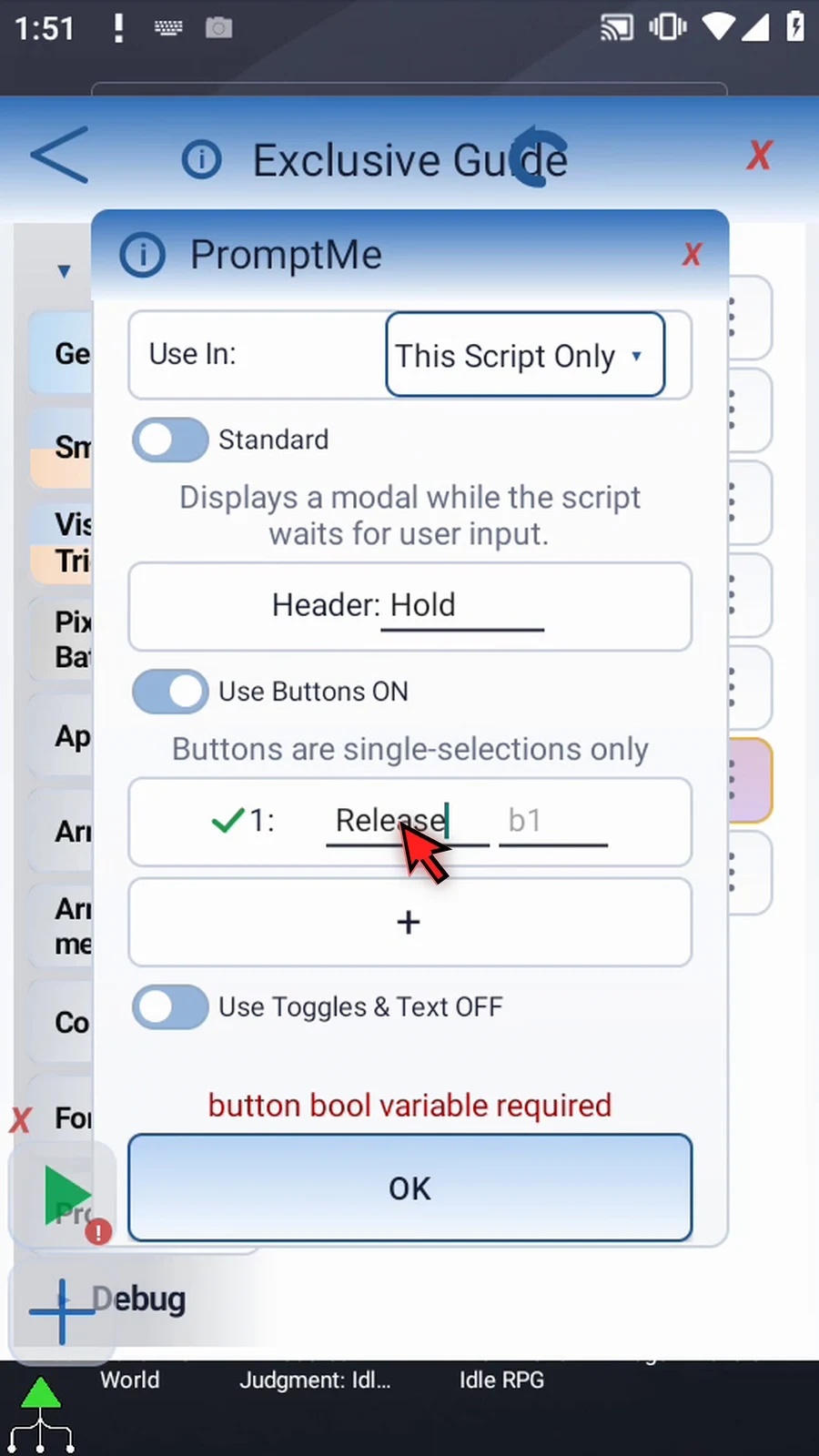
Step 17 Assign the button to Boolean b one and confirm. The button gives us a clear way to continue; this example does not test the variable afterward.
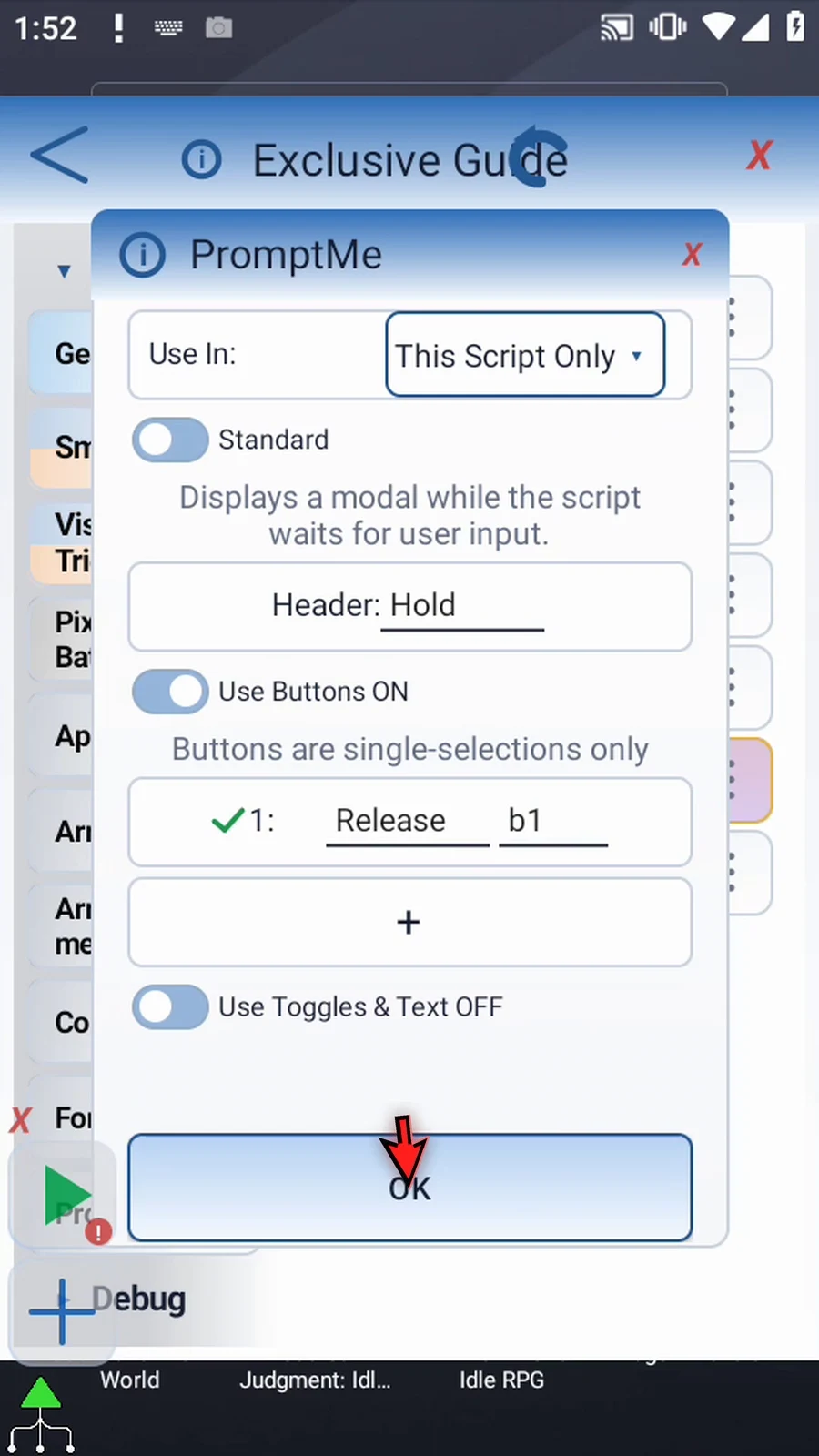
Step 18 Return to Timing and drag a Delay after End Exclusive. This wait is outside the protected section.
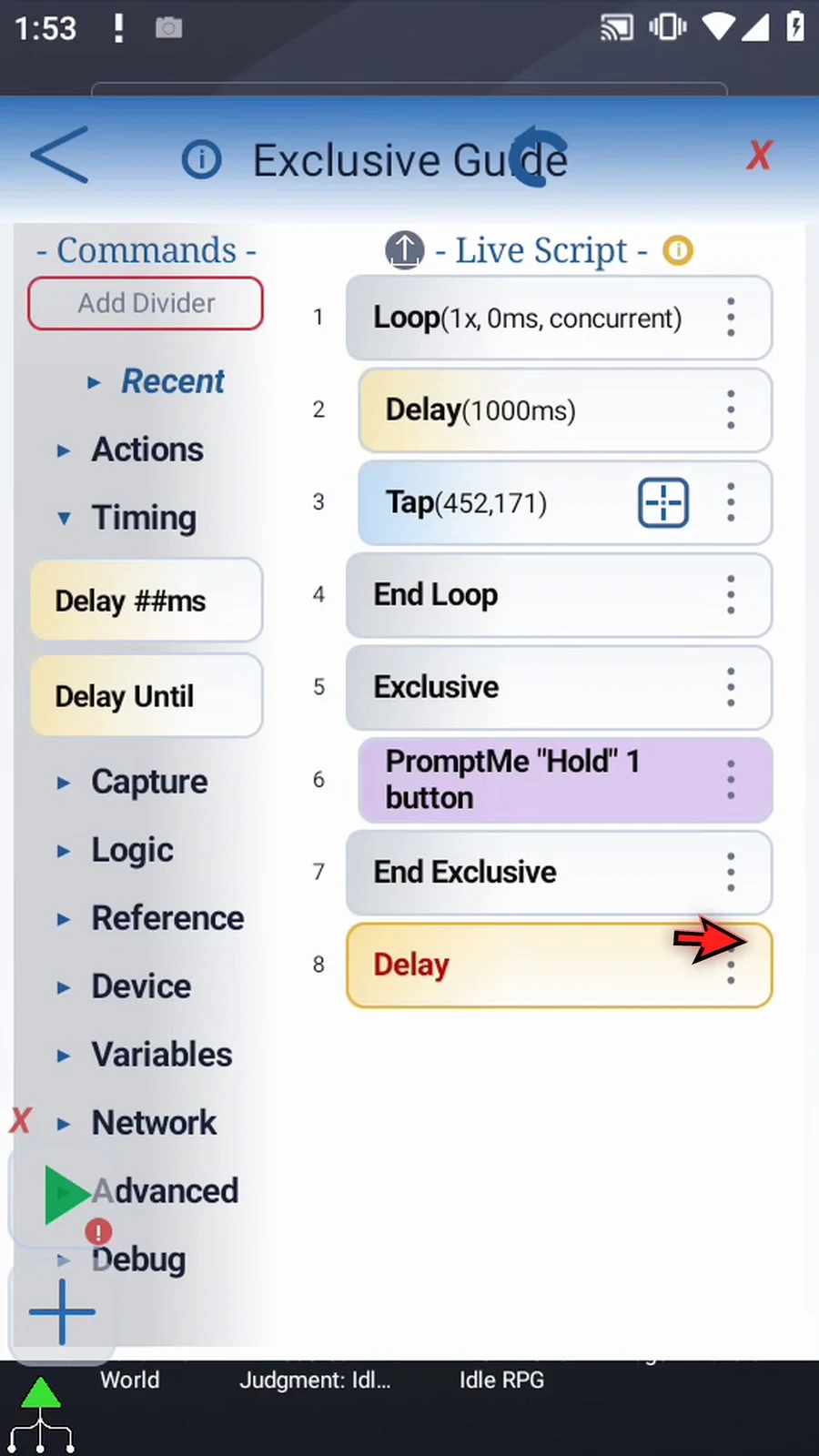
Step 19 Open Delay and set four thousand milliseconds. This gives Google Play time to finish opening after the background tap is released.
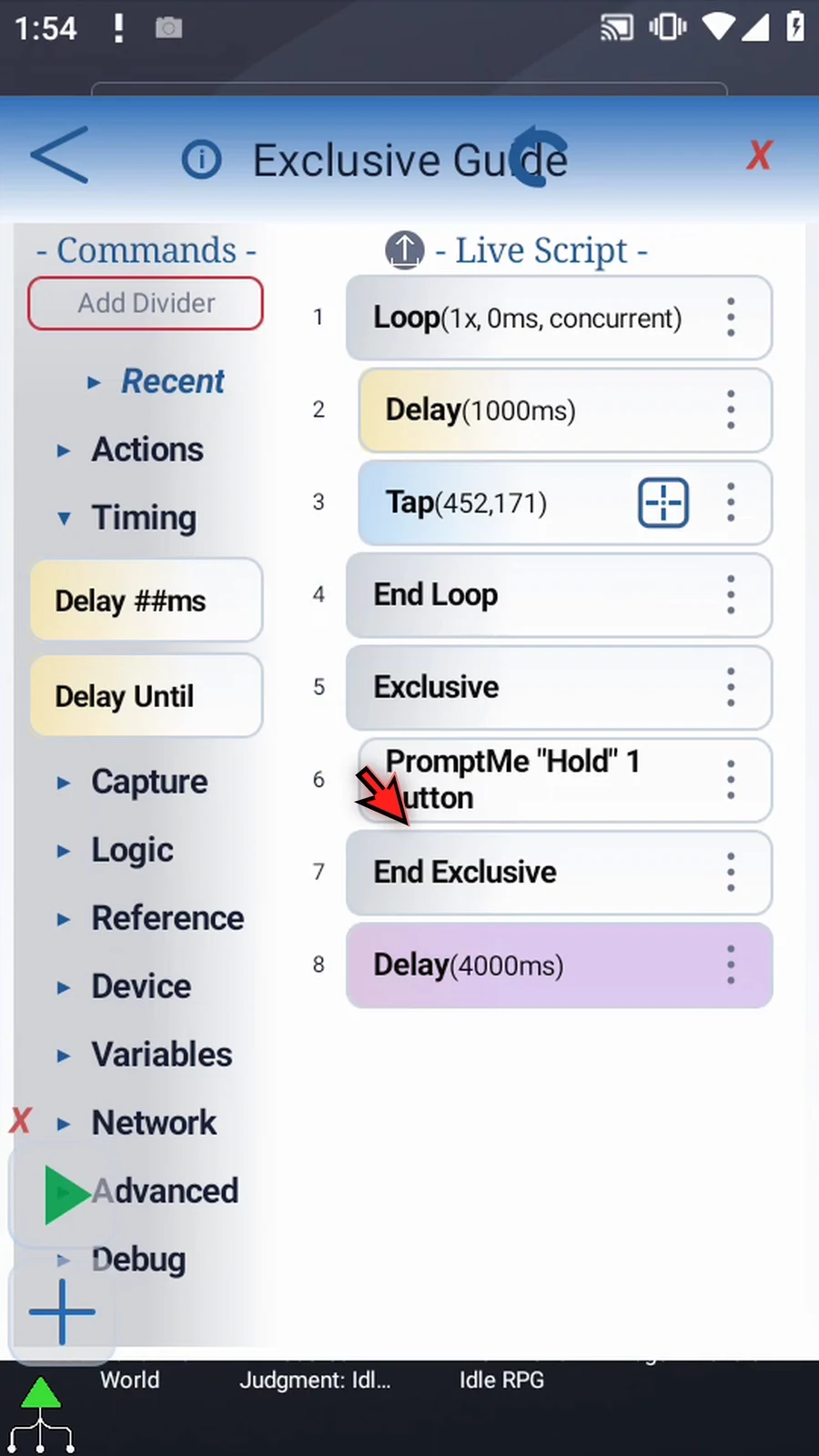
Step 20 Return to Advanced and drag one final PromptMe after the outside delay. This will confirm that the main script reached the end.
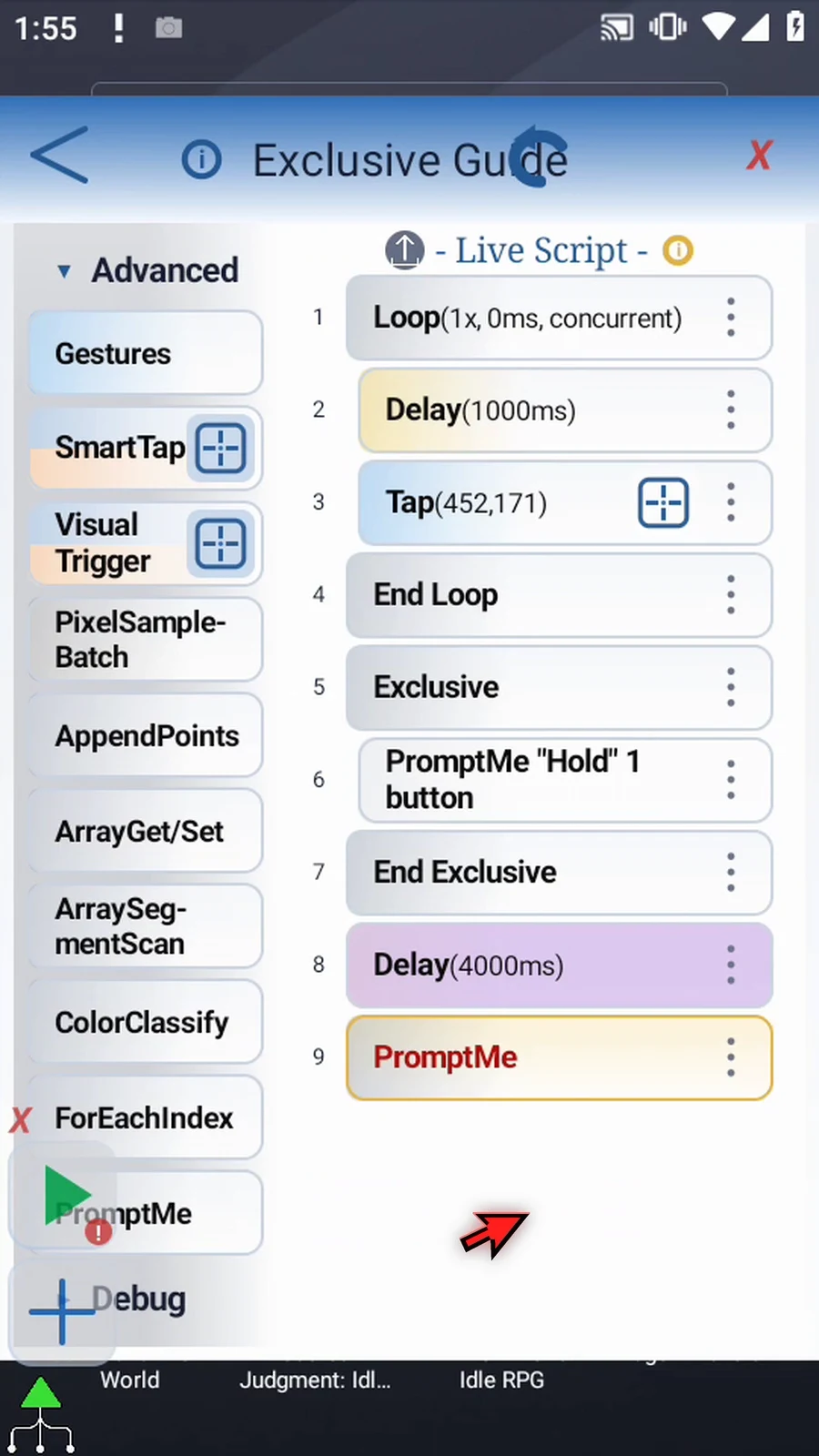
Step 21 Open the new PromptMe, keep the regular style, and set its header to Complete.
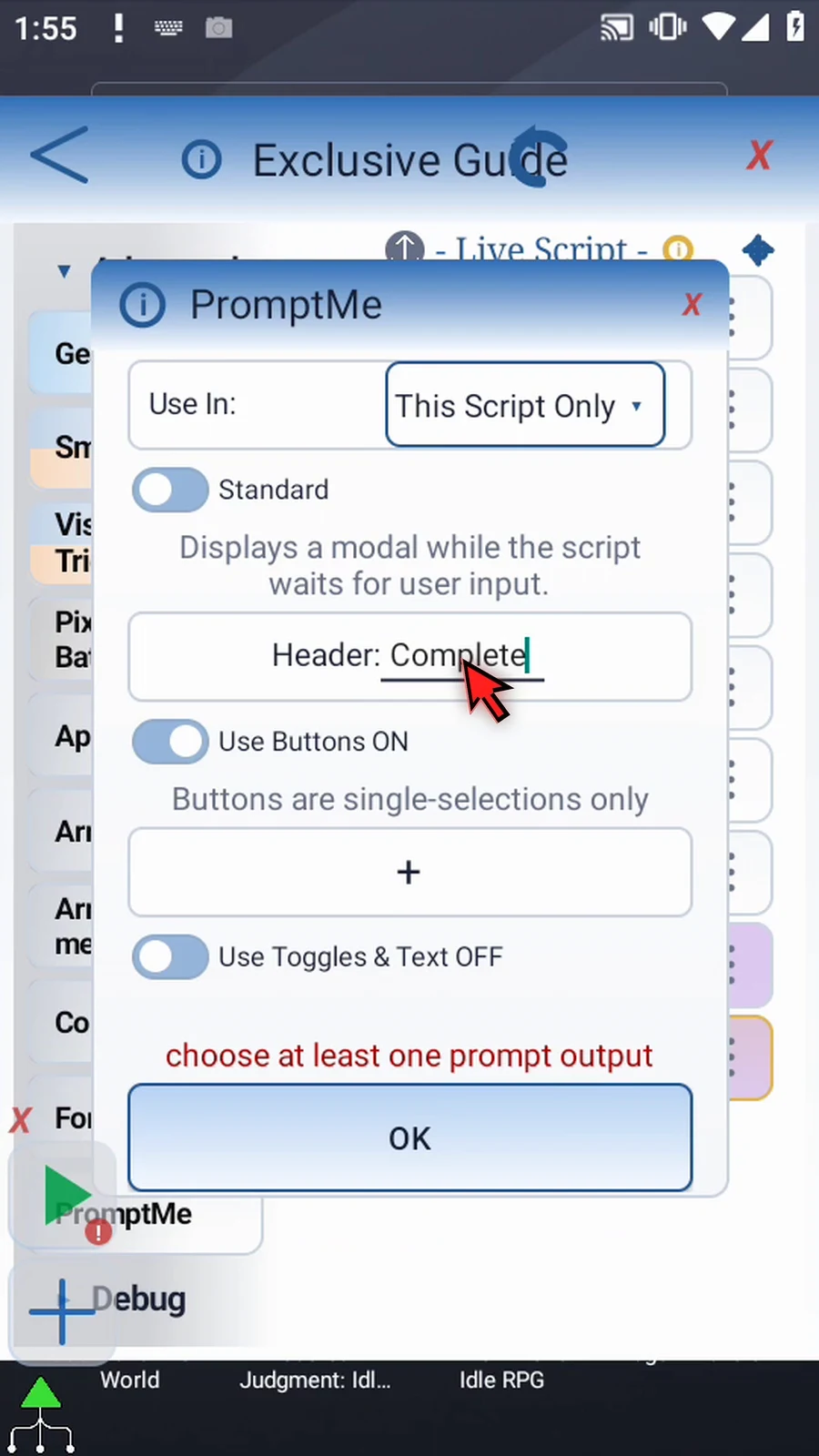
Step 22 Use Buttons is already on. Add a button and name it Done. Assign Boolean b two so the prompt has a valid output, then tap OK.
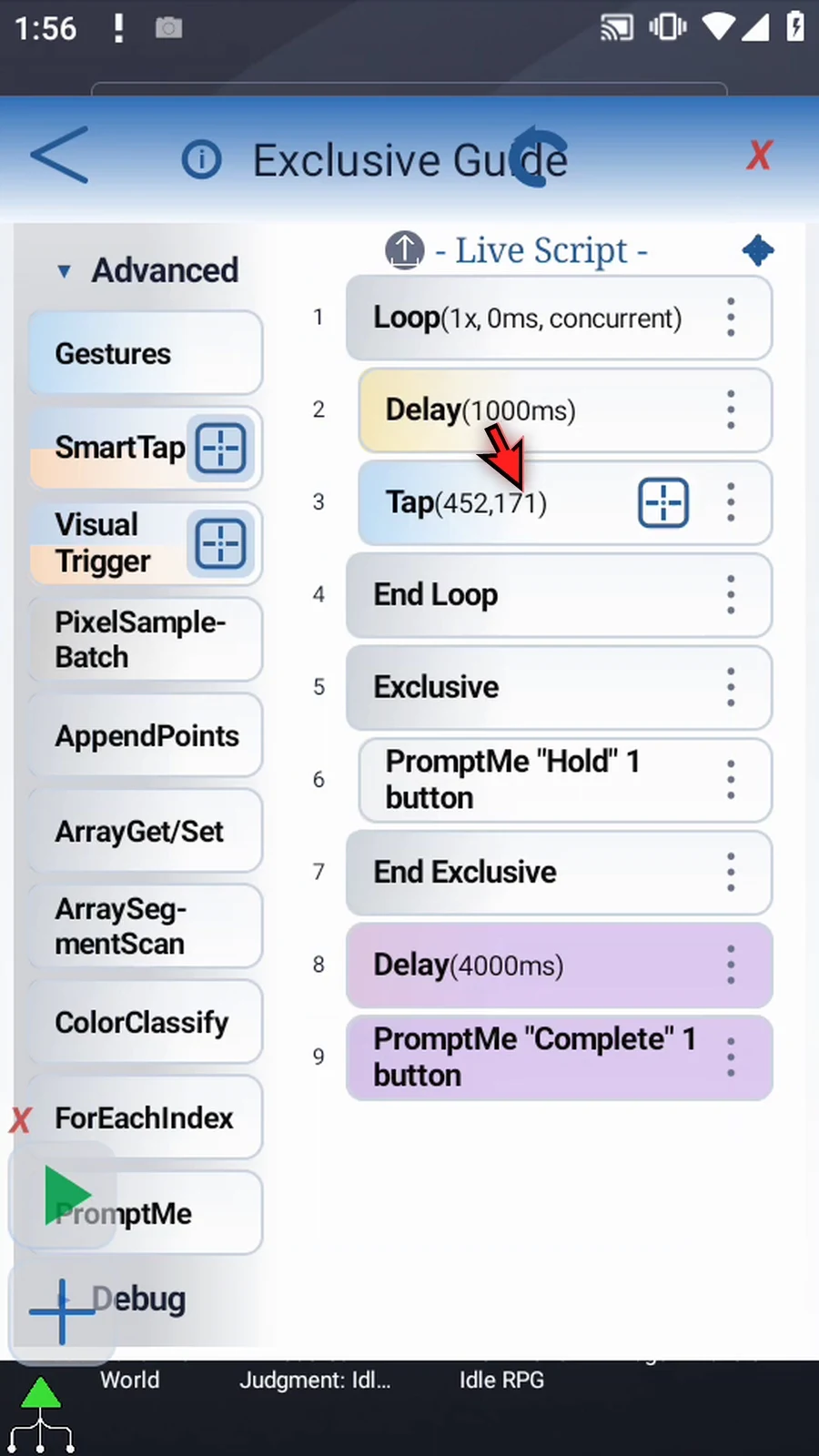
Step 23 Check the order. The concurrent Loop contains a one-second Delay and the Play Store tap. The main branch then enters Exclusive and waits at Hold. End Exclusive releases the other branches, followed by the opening delay and the Complete prompt.
Step 24 An ordinary Delay or PromptMe pauses only its own branch. Inside Exclusive, that wait also holds the other branches. Exclusive may be used by the main script, a called script, or a concurrent loop. With nested Exclusive blocks, other branches resume only after every active level has ended.
Step 25 End Exclusive releases the protected section normally. Break Exclusive exits the innermost one early. Stopping the script also releases its protected scopes. See the Break Exclusive guide for an early-exit example.
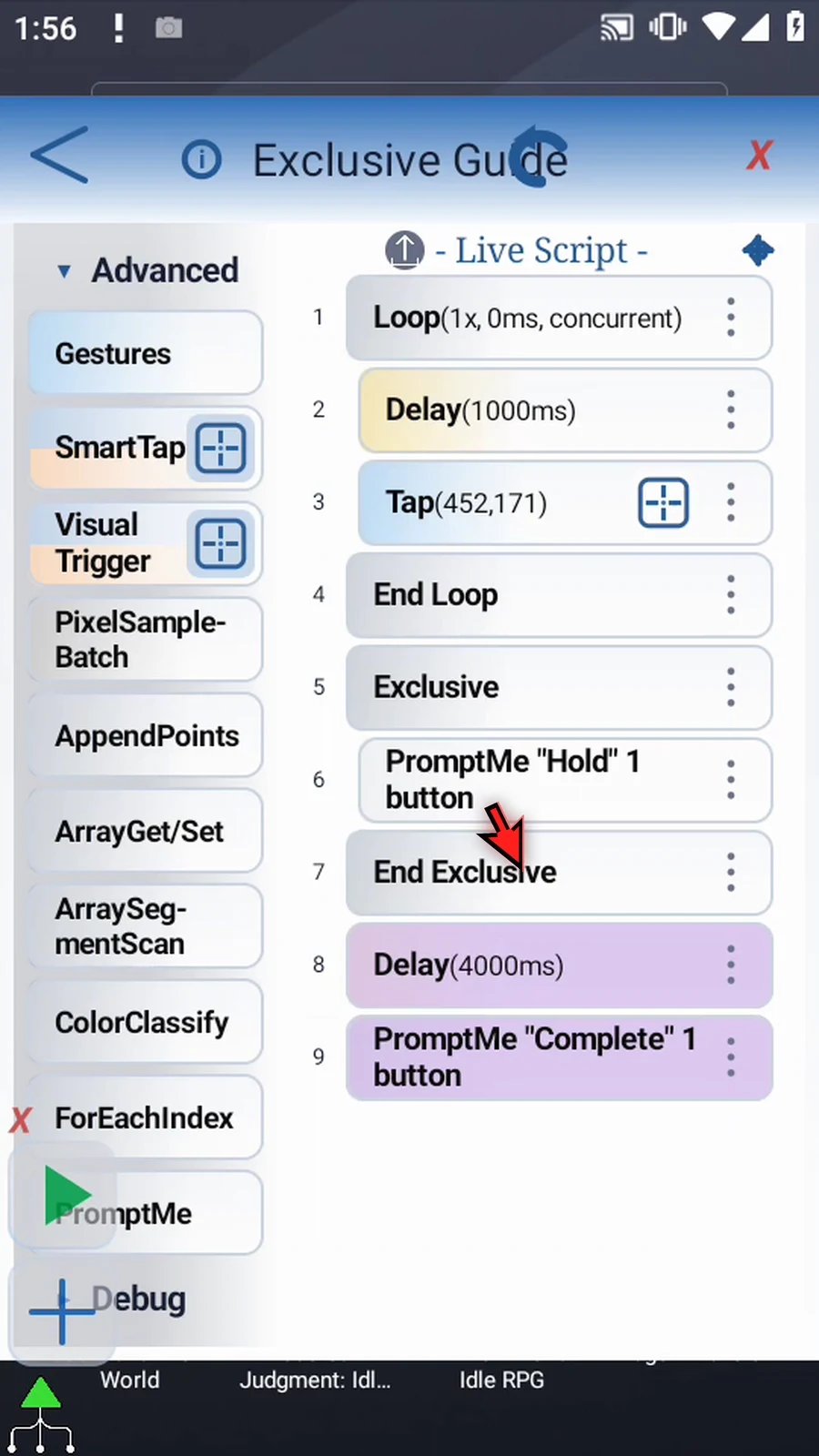
Step 26 When the script is complete, simply use the Play button in the main overlay.
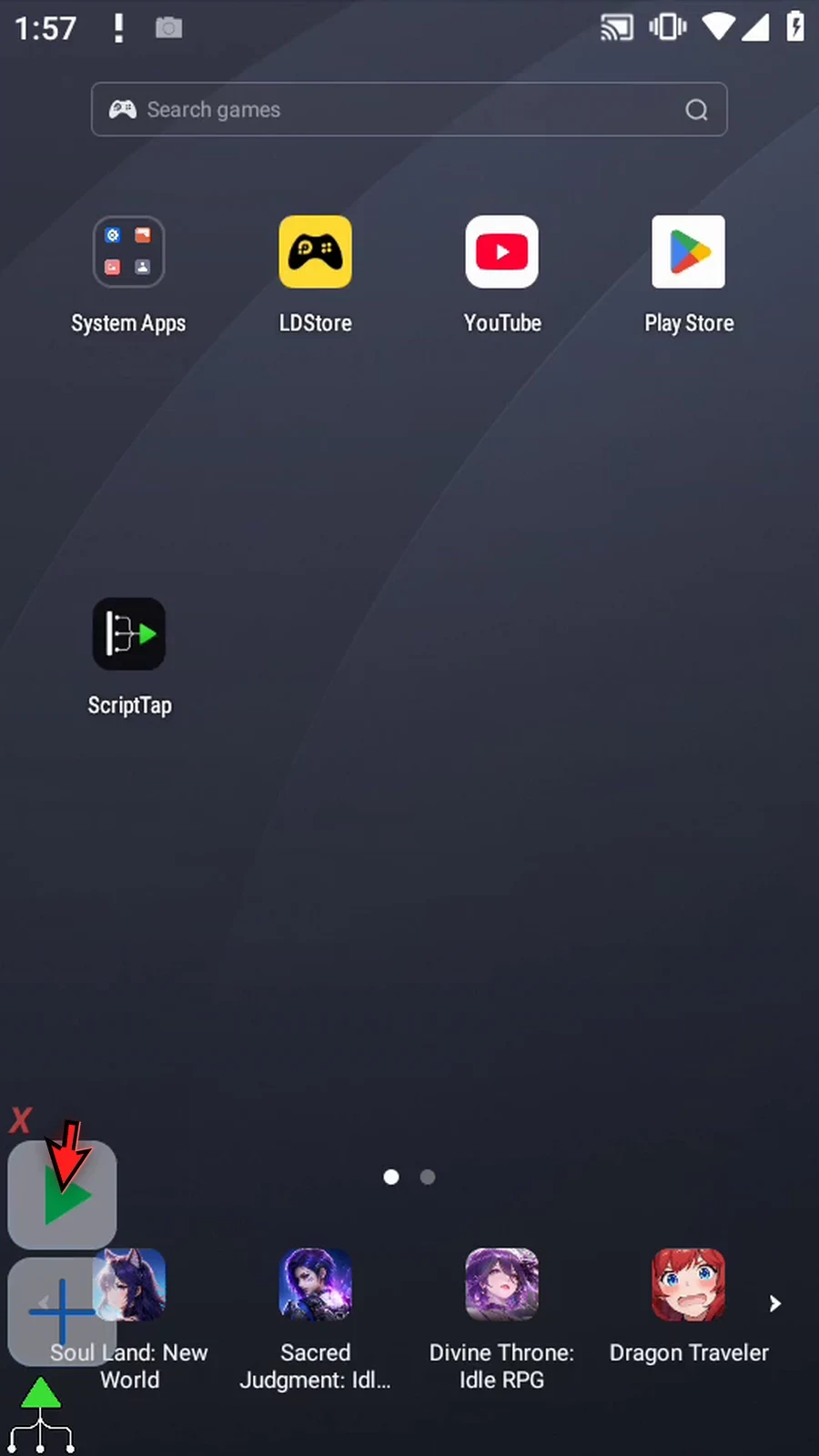
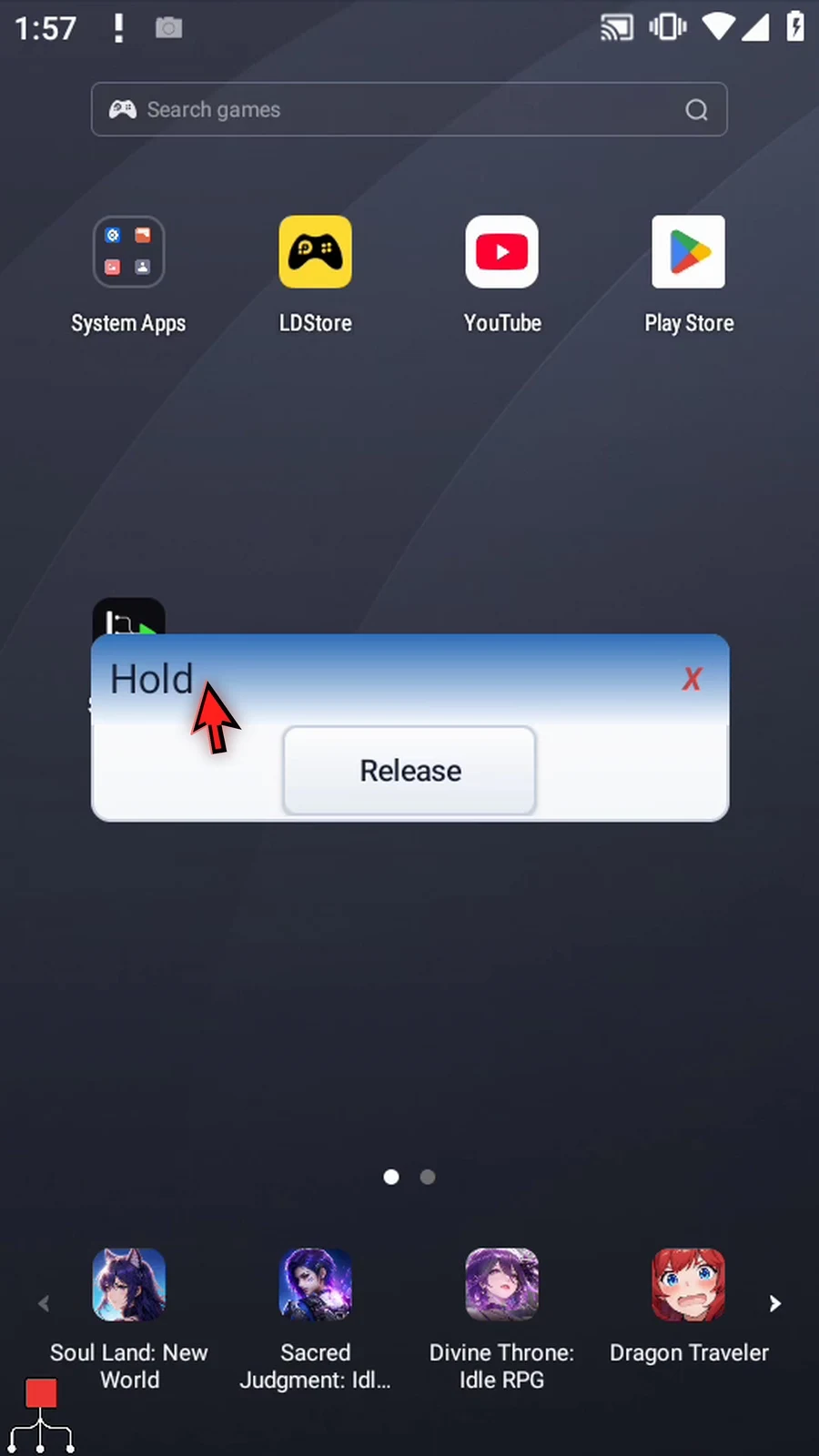
Step 27 The Hold prompt is inside Exclusive. We have waited longer than the background branch's one-second delay, but Home stays visible. The other ScriptTap branch cannot run its tap while this protected section is active.
Step 28 Tap Release. The main branch reaches End Exclusive, and the background tap is now allowed to run. Google Play opens. Exclusive controls ScriptTap branches, not the Android app itself.
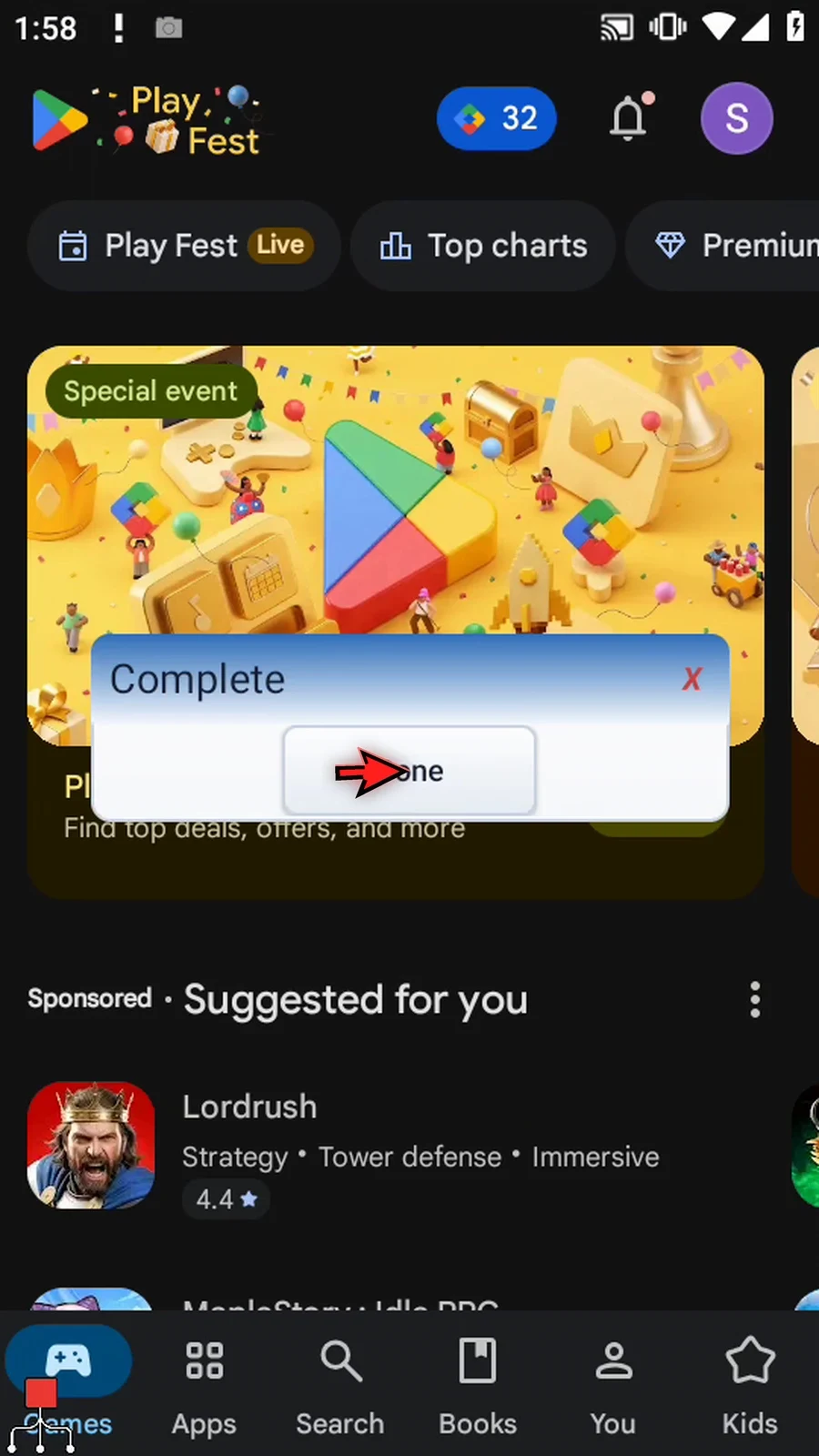
Step 29 The Complete prompt confirms that the script continued after the protected block. Tap Done to finish. Use Exclusive only around the section that must run without interference from other branches.