Command video guide
ModVariable
ModVariable calculates a value that later script commands can use. Basic combines two operands with addition, subtraction, multiplication or division. It does not tap, type into another app, or display a result by itself.
Create and name a separate script. Manually drag SetVariable from Variables, keep Single/Integer, and assign i1=5 with This Script Only. This supplies the value before the calculation.
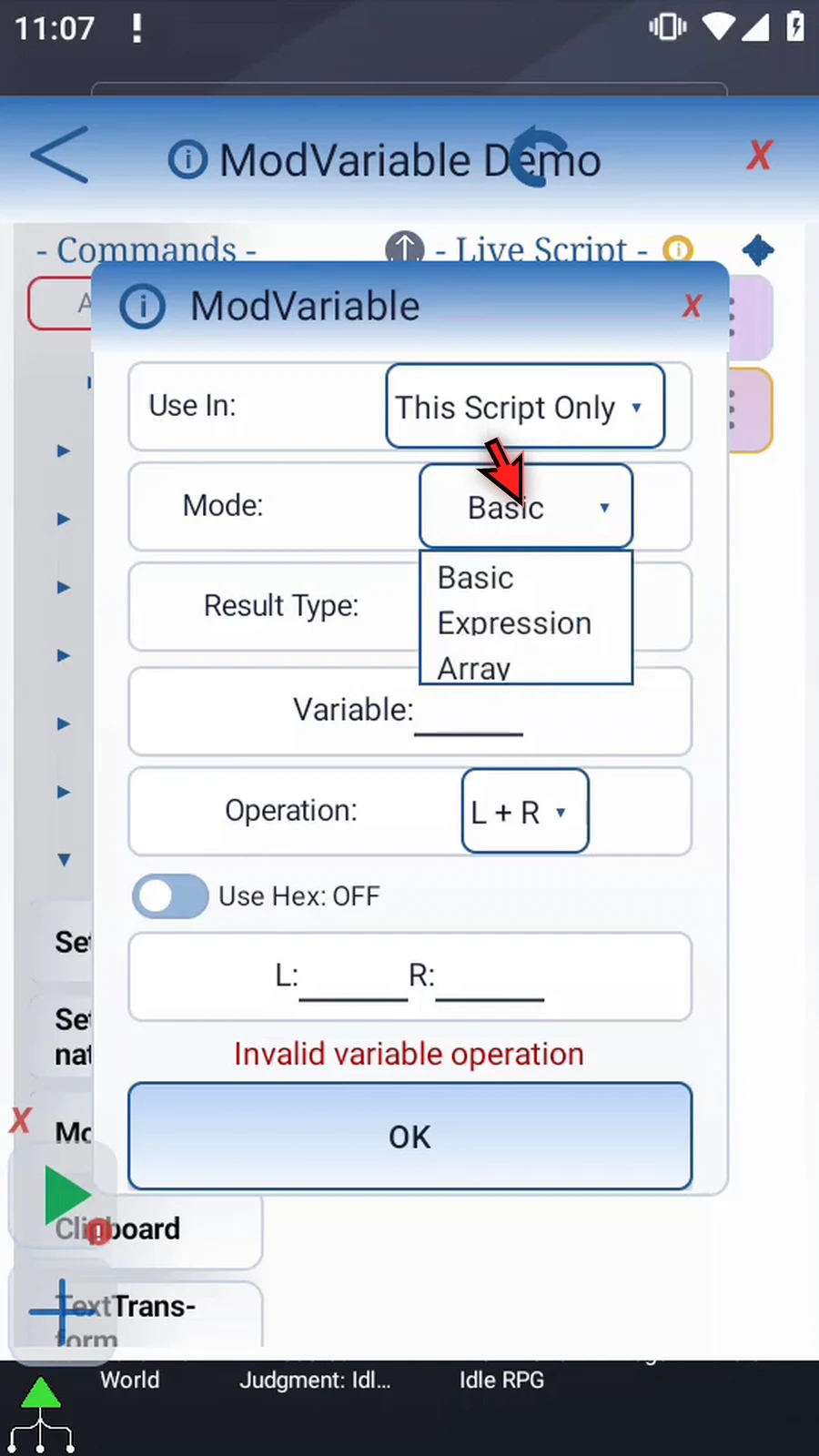
Manually drag ModVariable after the assignment. Open its frame and keep Basic. Expression supports a longer arithmetic expression; Array transforms declared numeric ranges in a batch.
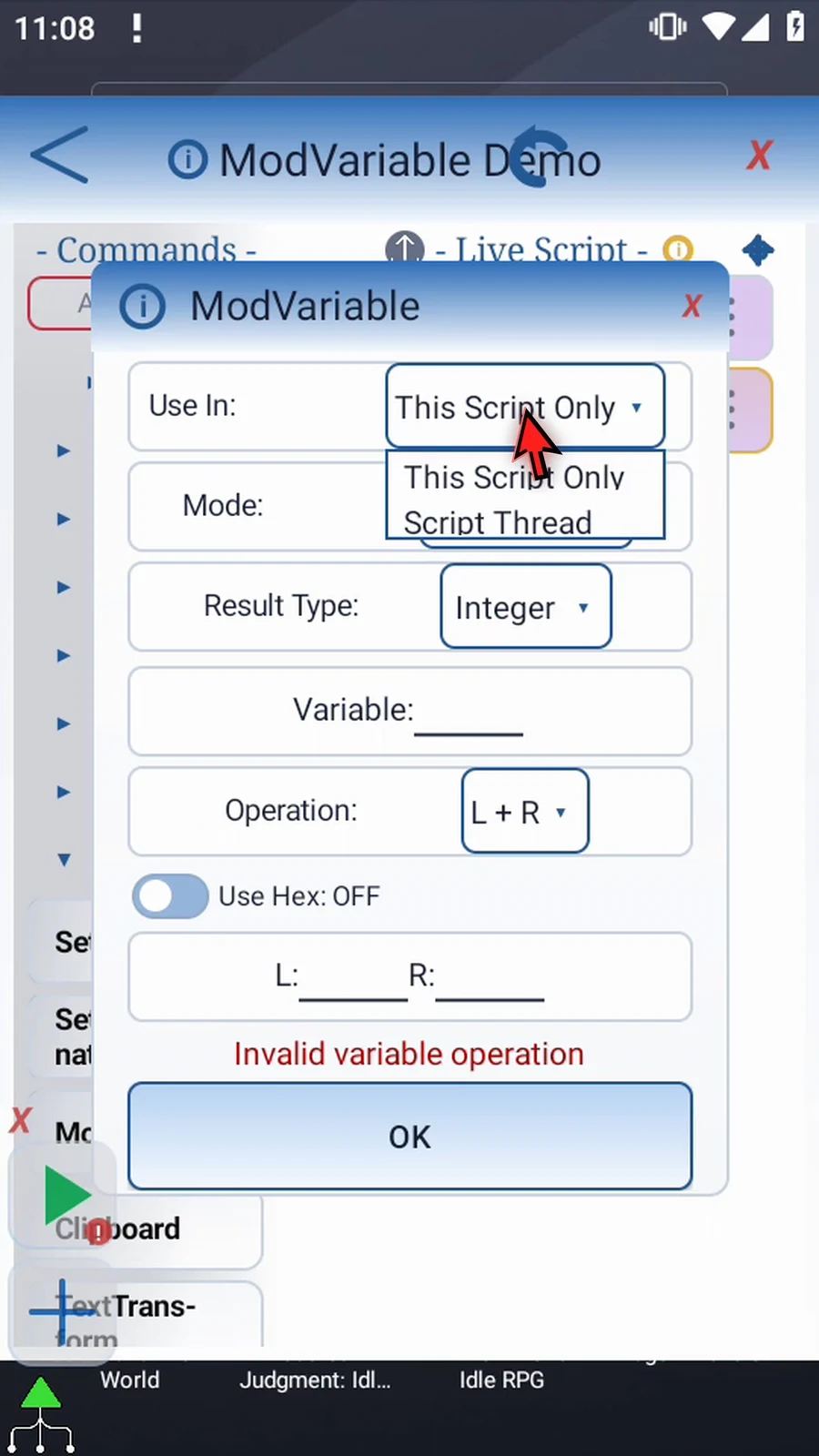
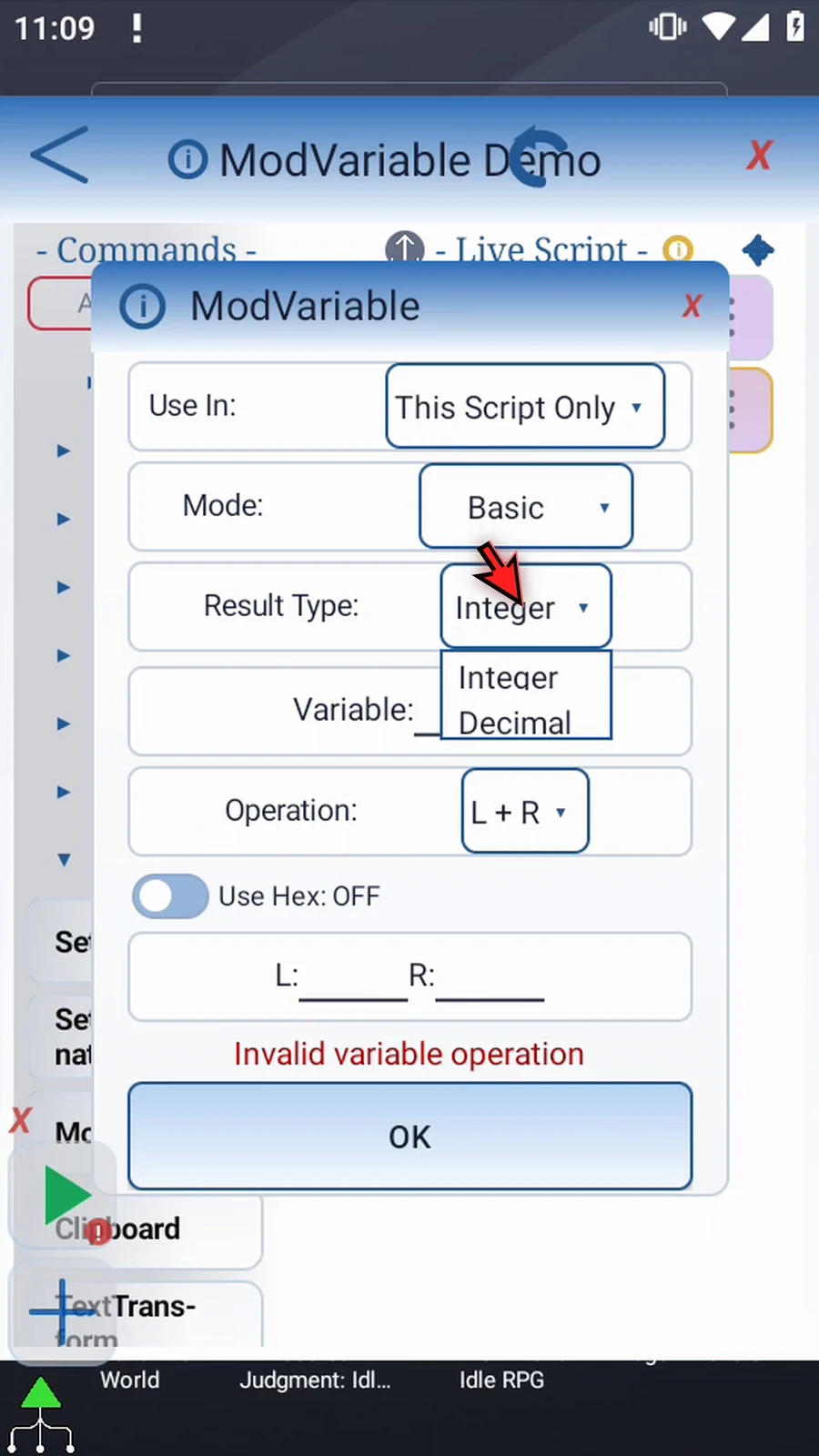
Use In: This Script Only keeps the result local; Script Thread shares it within the parent script thread. Keep local scope for this example. Result Type: Integer rounds to whole numbers with signed 32-bit limiting; Decimal keeps fractional results using up to 15 significant digits. An existing destination must match the selected numeric result type.
Set destination i1, Operation L+R, left operand i1 and right operand 2. Operands may be numeric literals or compatible variables written earlier. This reads the old value and writes the calculated answer back to the same destination.
Use Hex: Basic-only hexadecimal interpretation. Literal operands use six Hex digits (optional # or 0x prefix); Decimal variable operands are rounded and limited before the Hex operation. Use a Hex destination such as h1 for a Hex result. Result Type is hidden while Hex is on. This ordinary toggle preserves dormant operands. Keep it off here. Division by exact zero, invalid/nonfinite numeric input or a nonfinite result writes no answer, logs a warning and continues.
To make the calculation visible, manually drag Display after it. Keep Once, choose Variable source i1, select a clear screen area, and set lifespan to 10000 ms. Display supports numeric variables directly; PromptMe's header-variable resolution is String-only.
Manually drag a supporting PromptMe after Display. Keep Standard, use Header Complete, and add a Done button with Boolean output b1. Leave Use Toggles & Text off. This is a final confirmation, not the numeric-output mechanism.
Close the editor and use Play. Display shows the actual calculated 7 for its configured ten-second lifespan. Complete then appears; press Done to finish automatically. The stored answer is available to later commands.
Basic
Step-by-step guide
Step 01 Mod Variable calculates new values for later script commands. Basic combines two numbers using addition, subtraction, multiplication, or division. We will add two to a stored value, then display the result on screen.

Step 02 Open the main menu, then Scripts.
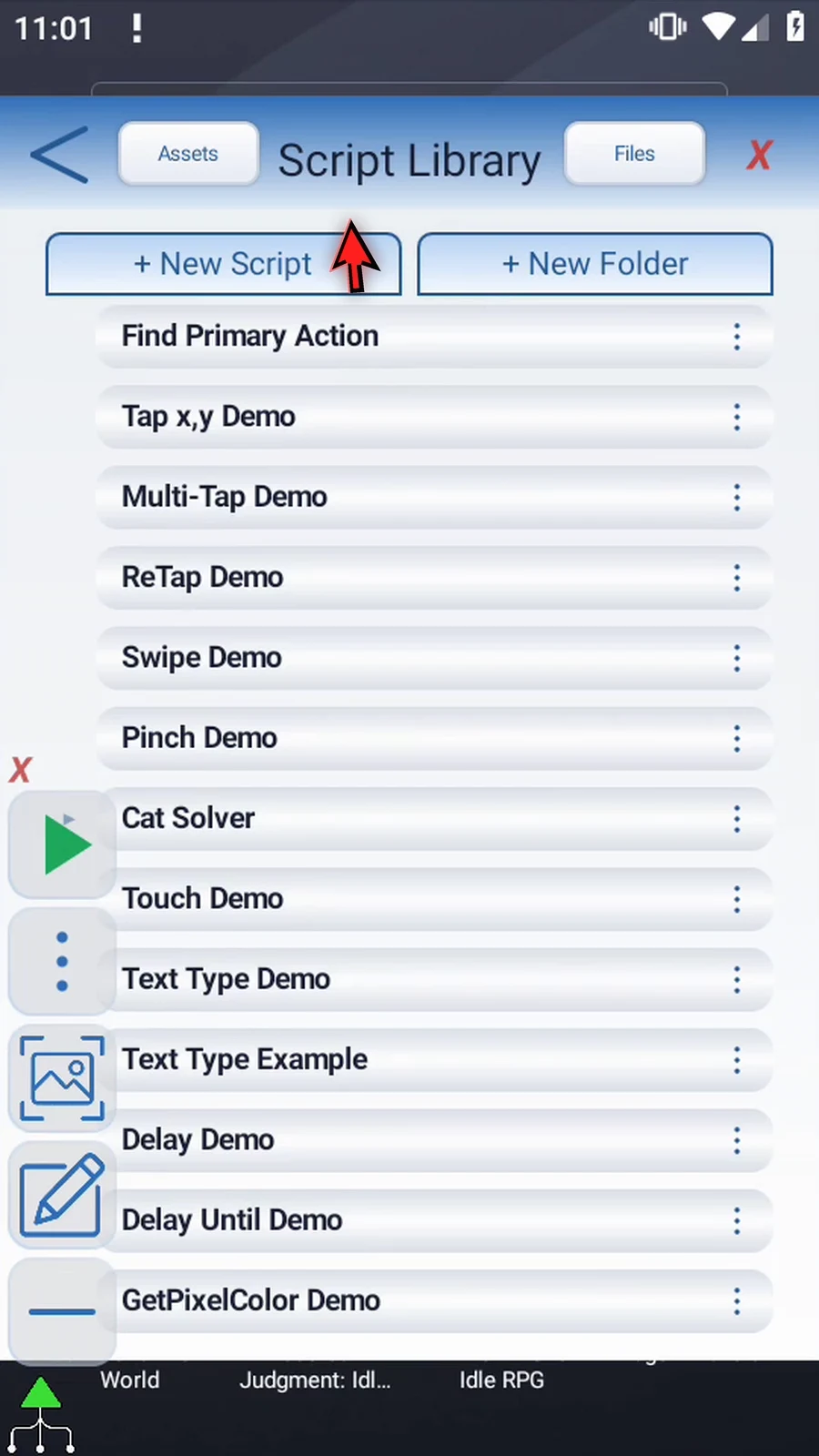
Step 03 Create a new blank script.
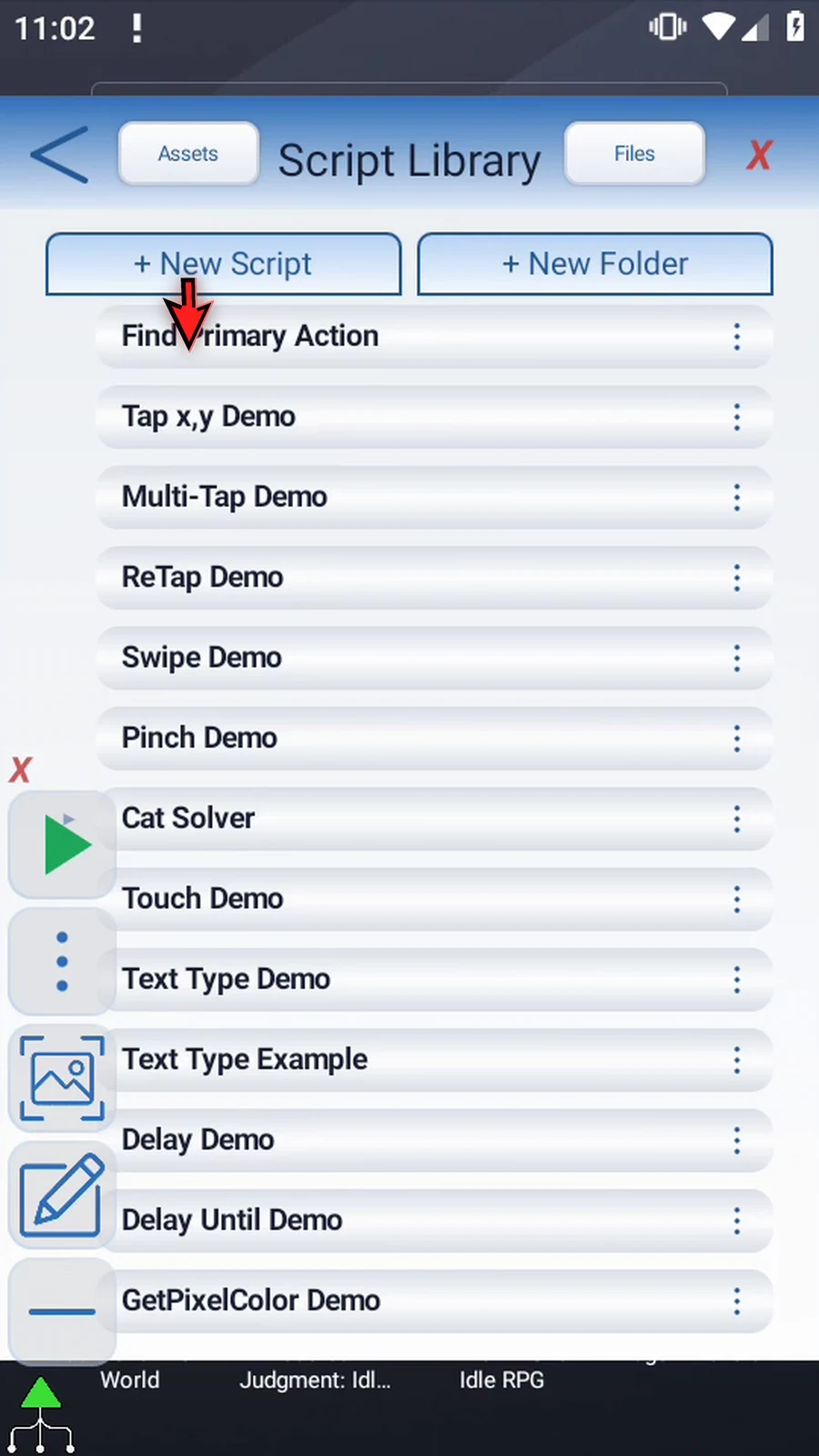
Step 04 Find the new script at the bottom of the library.
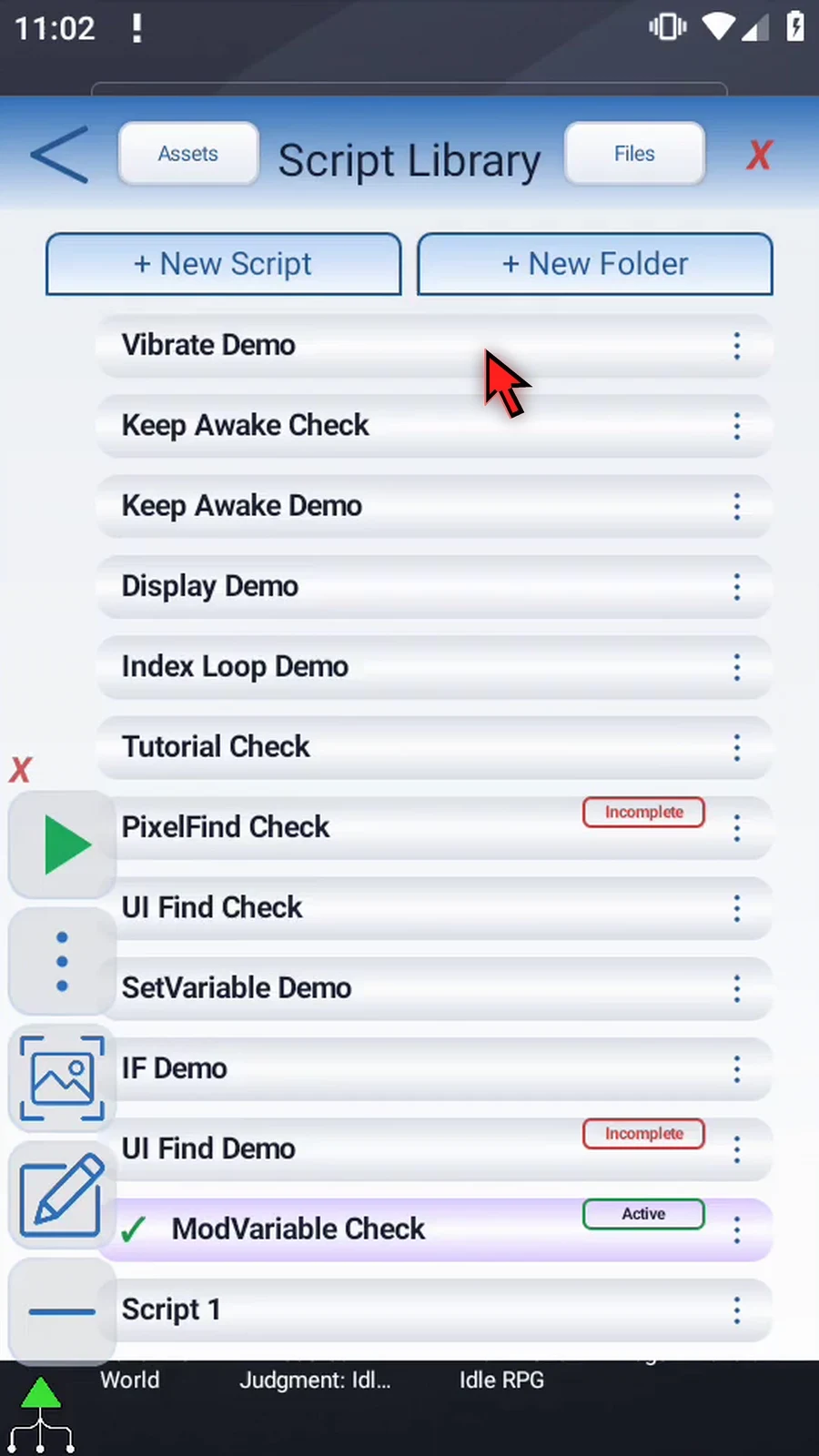
Step 05 Open its options, choose Rename, and pick a descriptive name.
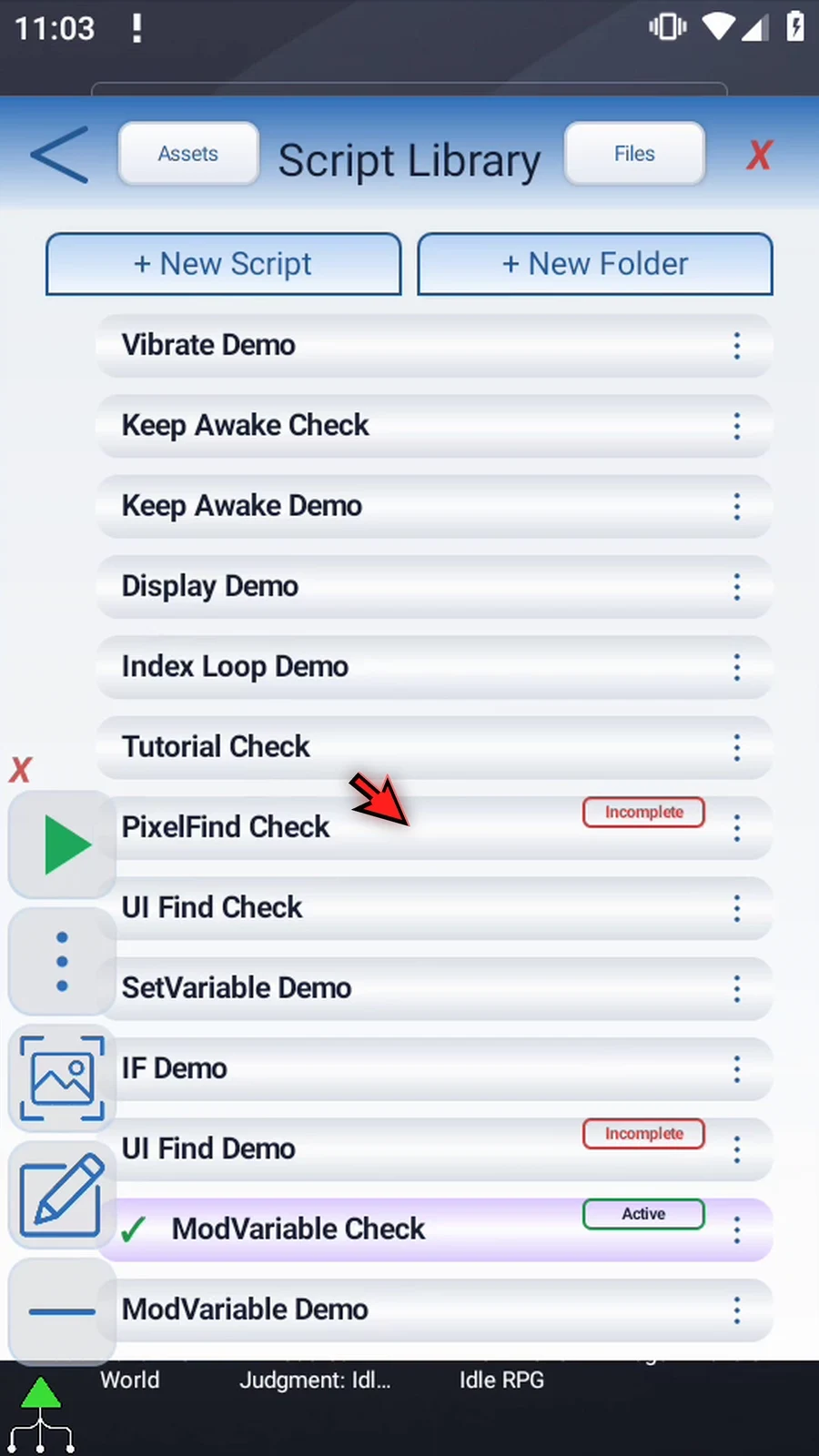
Step 06 Select the new script and open the editor. Collapse the extra overlay controls if needed. If Android asks, allow screen capture.
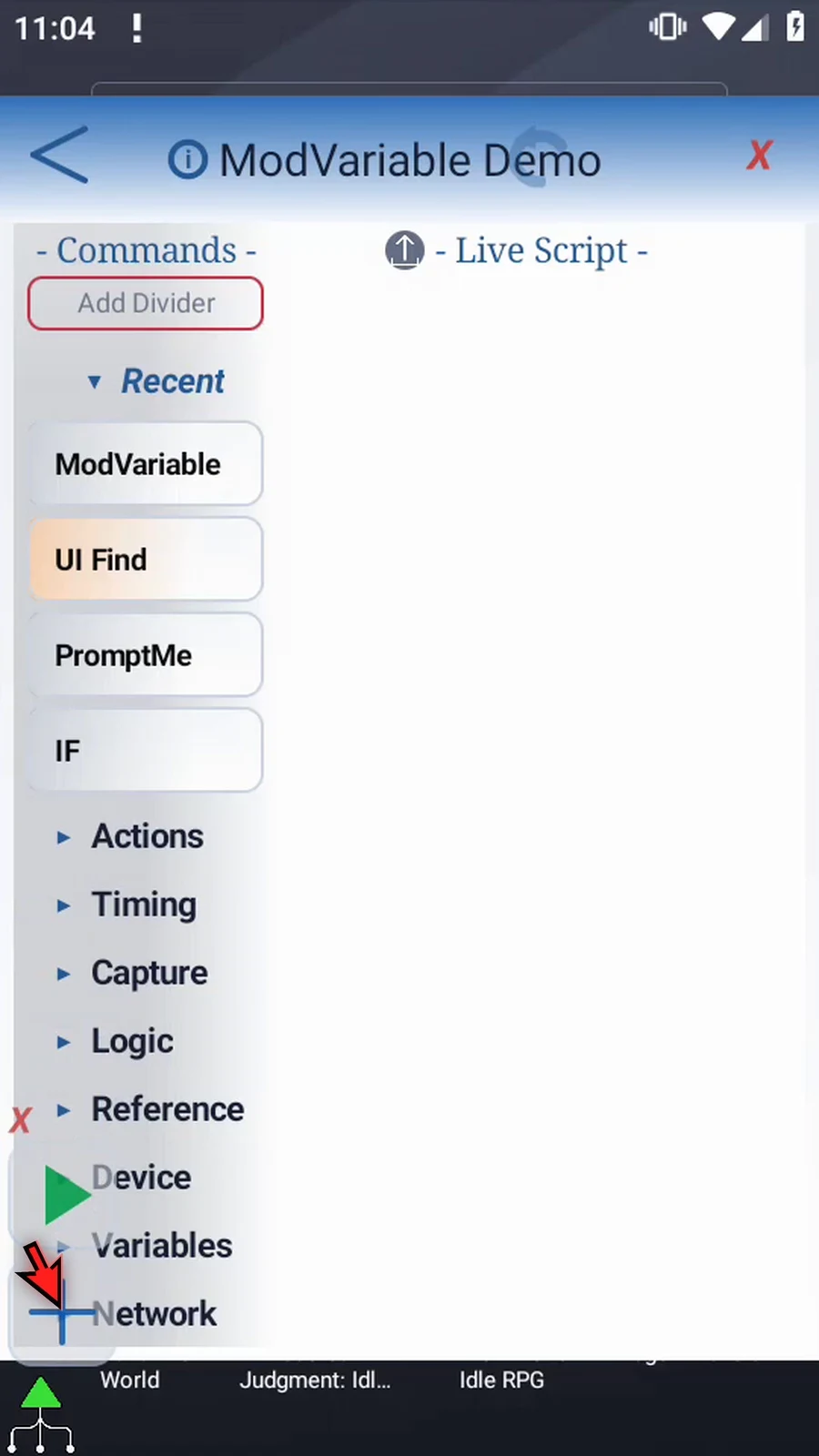
Step 07 Start with a value for the calculation. Expand Variables and drag Set Variable into the script.
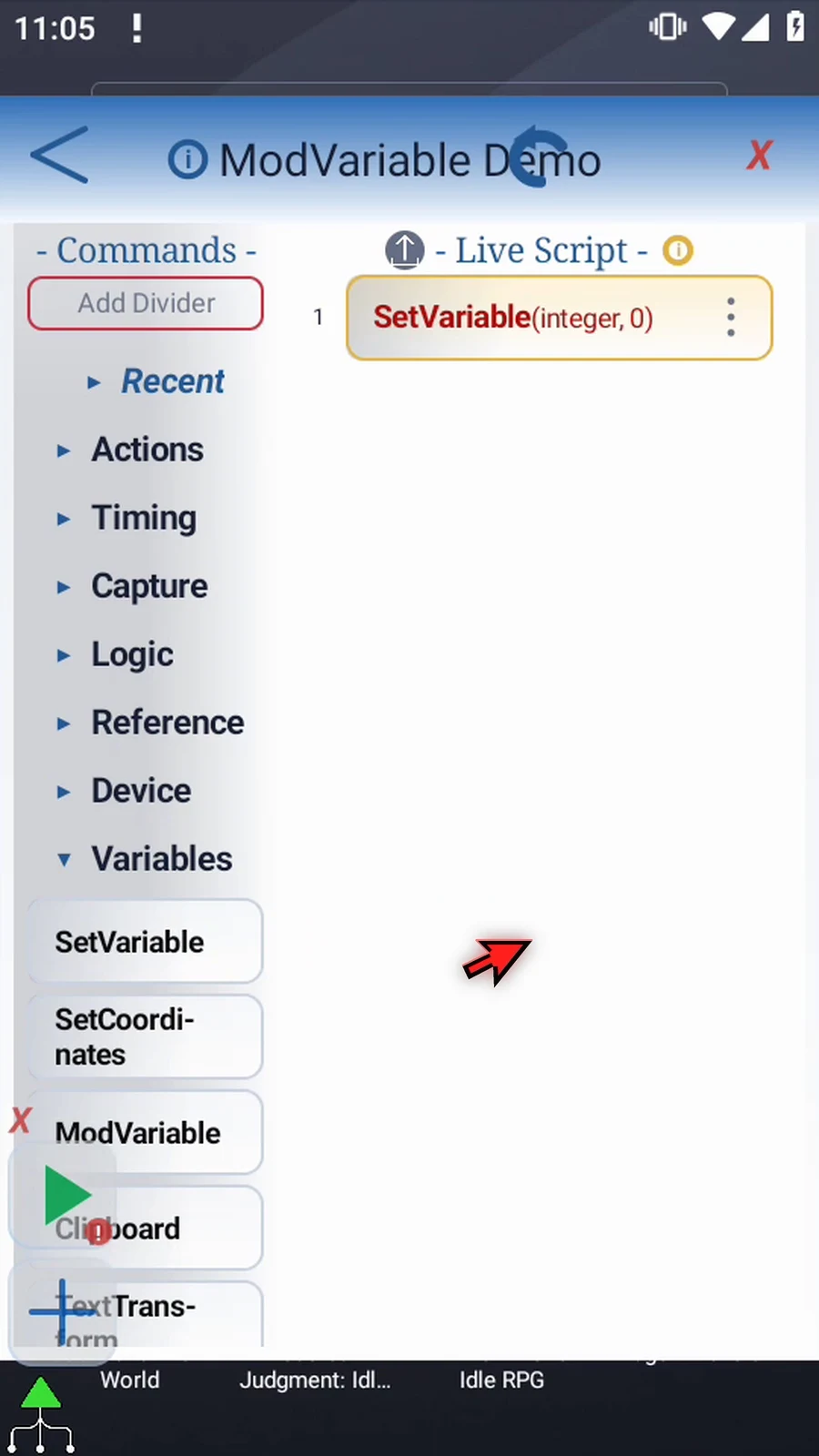
Step 08 Open the frame. Keep Single mode, and choose Integer as the variable type.
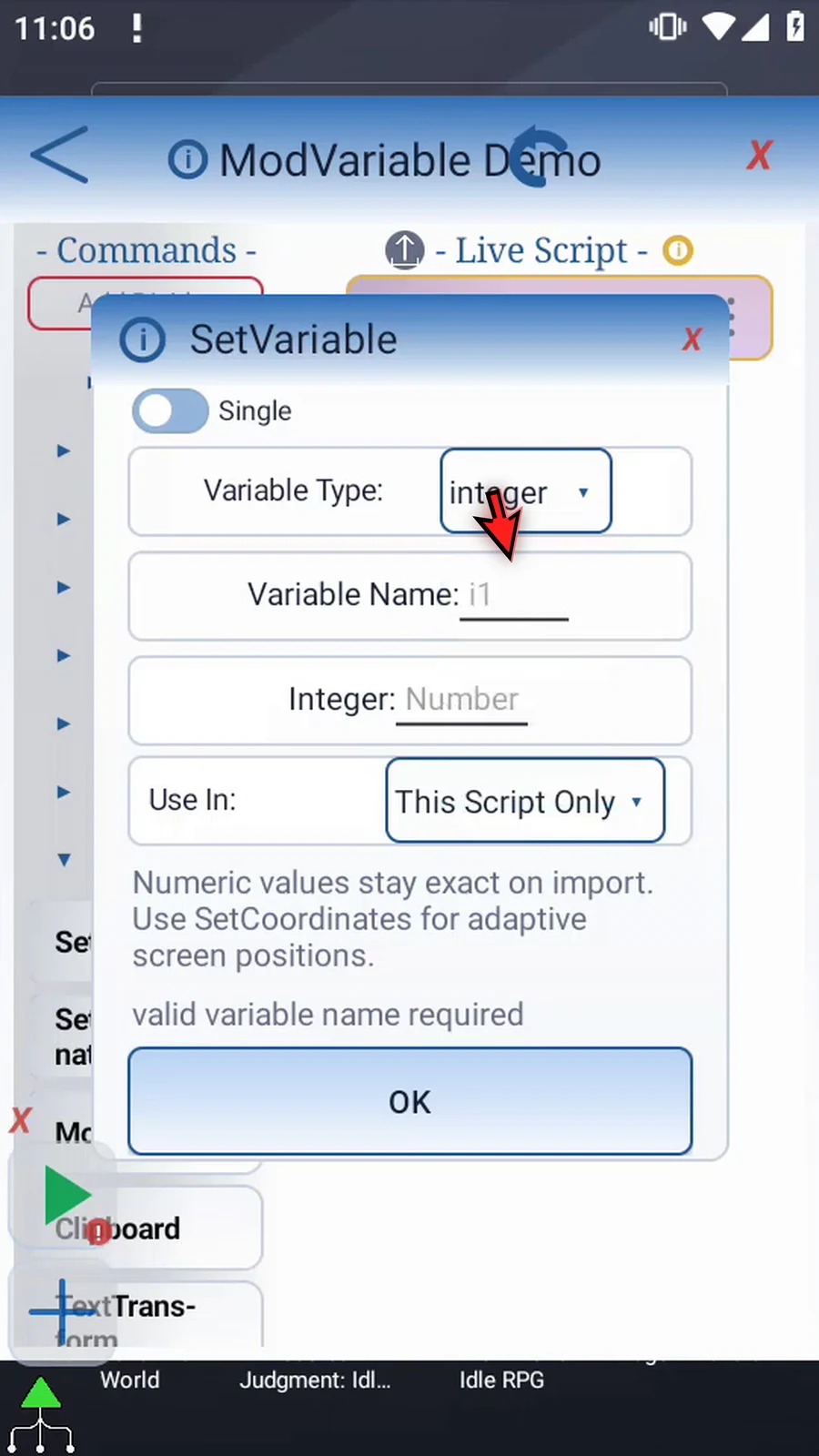
Step 09 Use i1 as the variable name, with a starting value of five. Keep This Script Only and tap OK. This command provides the value before the calculation runs.
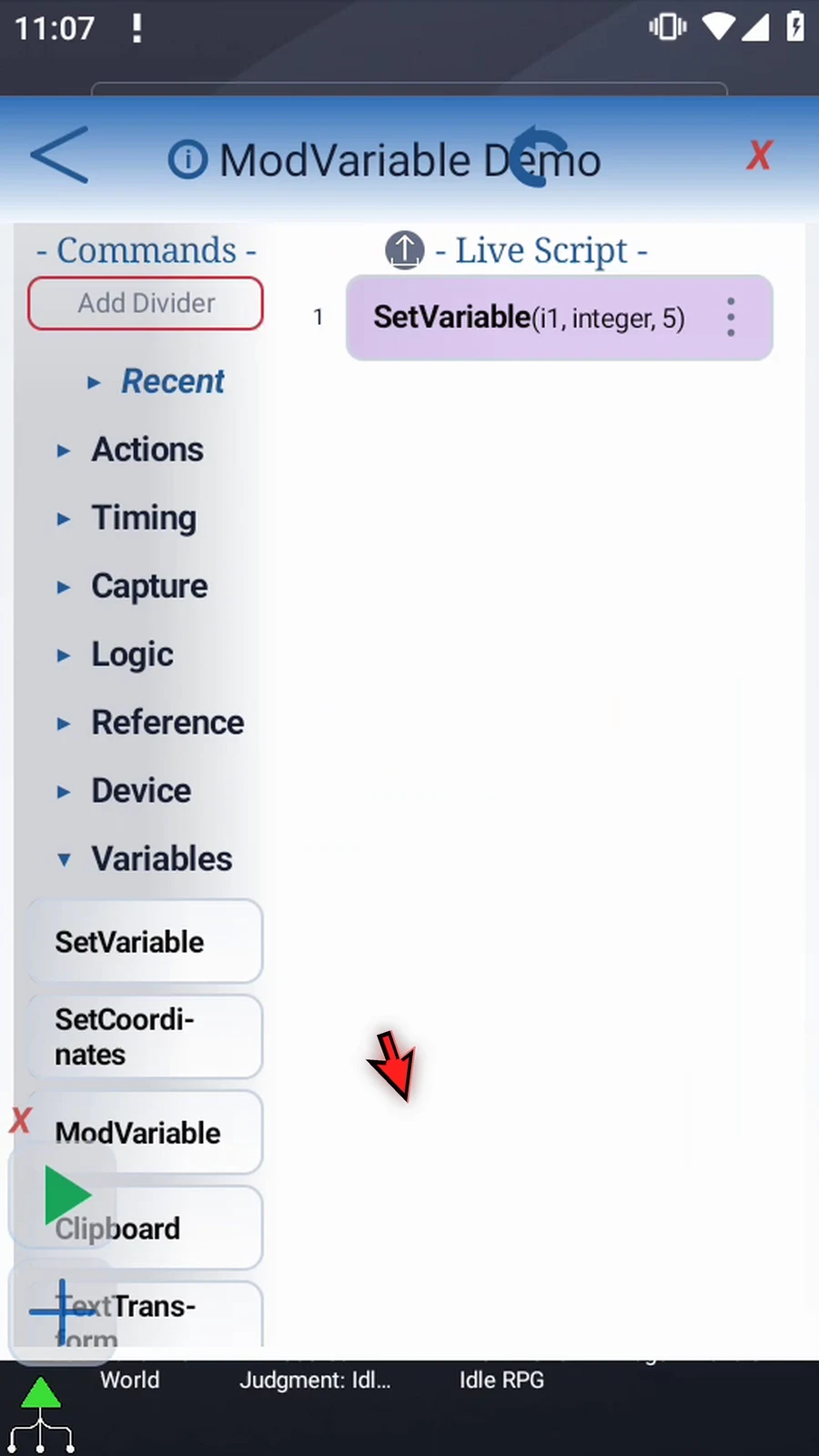
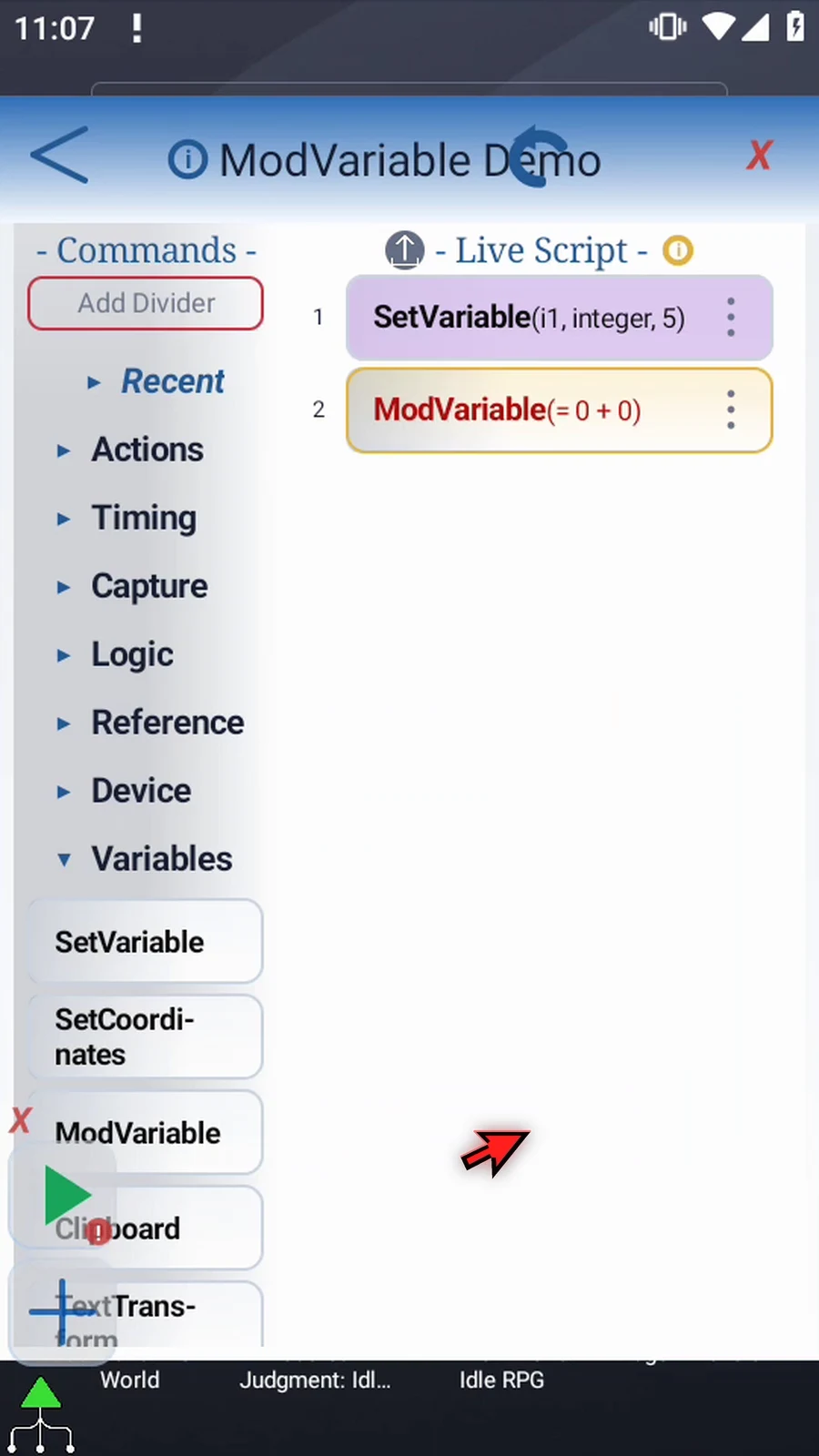
Step 10 Now drag Mod Variable below the assignment. Its position matters: the starting value must exist before we use it.
Step 11 Open Mod Variable and its Mode menu. Basic uses two operands. Expression and Array handle more complex calculations. Keep Basic for this example.
Step 12 Use In controls the result's scope. This Script Only keeps it local. Script Thread shares it across the parent script's call tree. Keep the same local scope as our starting value.
Step 13 Result Type can be Integer or Decimal. Integer rounds to a whole number within its supported range. For fractional answers, choose Decimal and a Decimal destination, such as d1. We will keep Integer.
Step 14 Enter i1 as the destination. This replaces the stored value with the calculation's result. You can also write to another variable of the matching type.
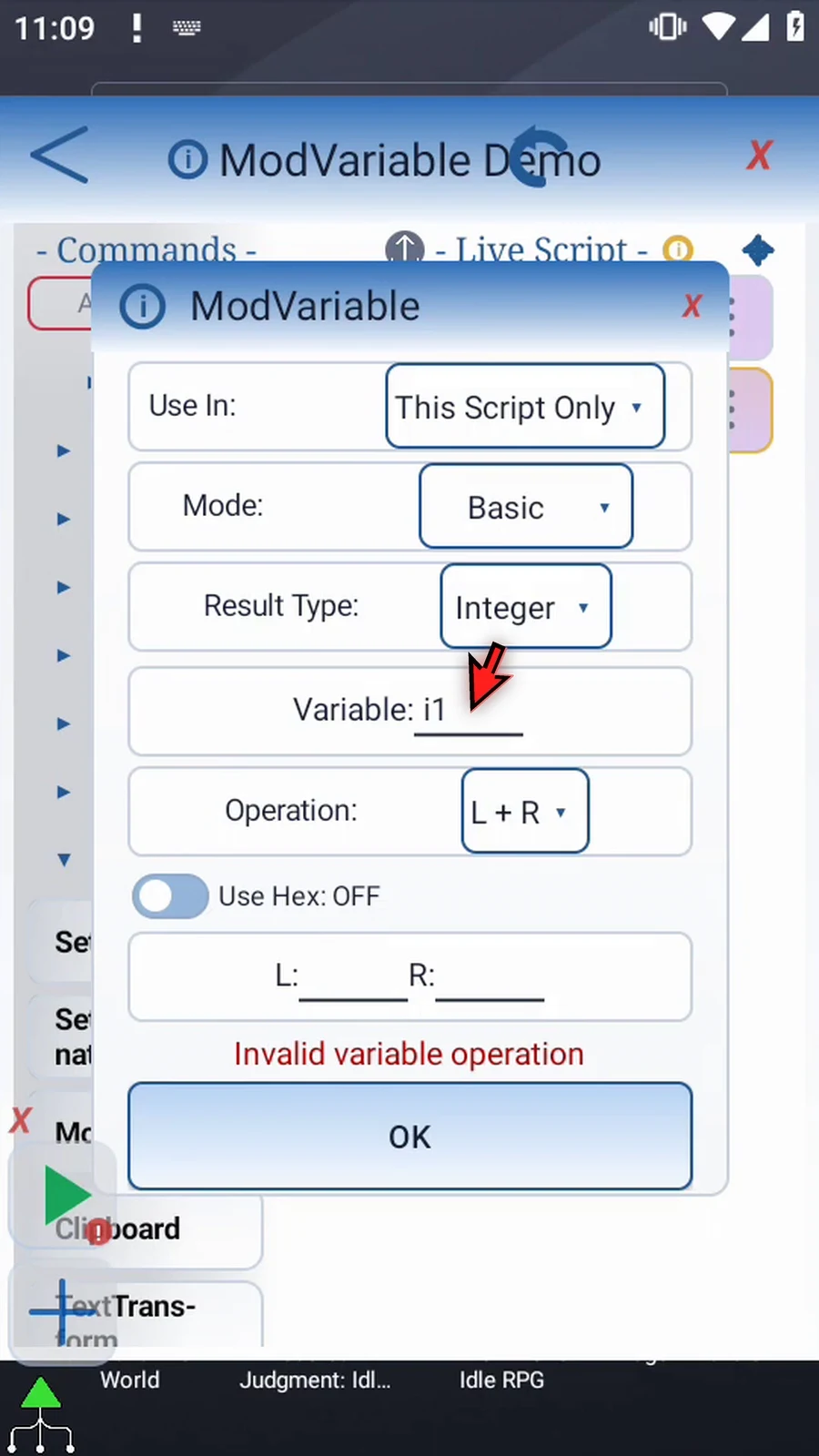
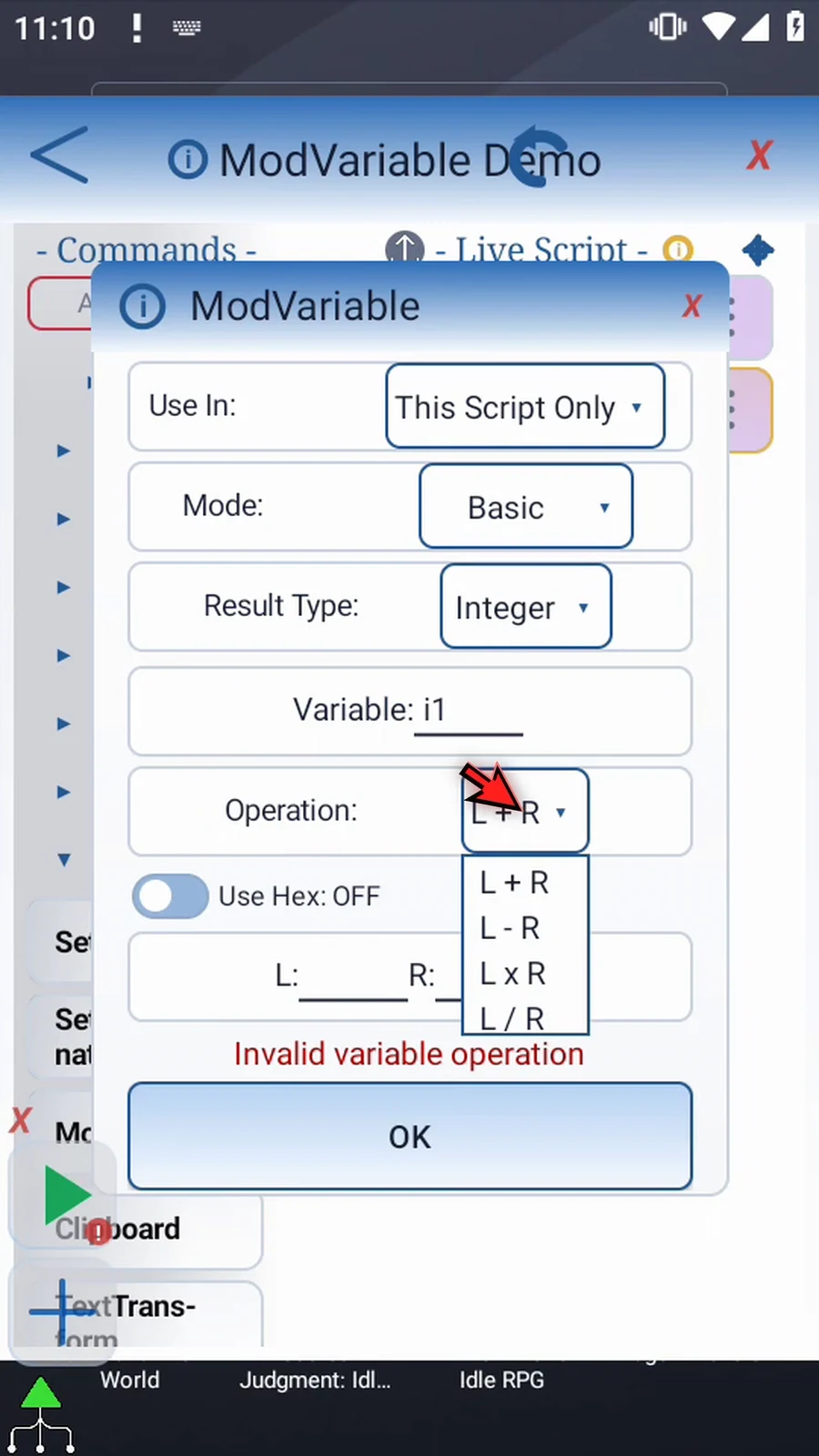
Step 15 The Operation menu offers plus, minus, multiply, and divide. L and R mean left and right operands. Choose plus.
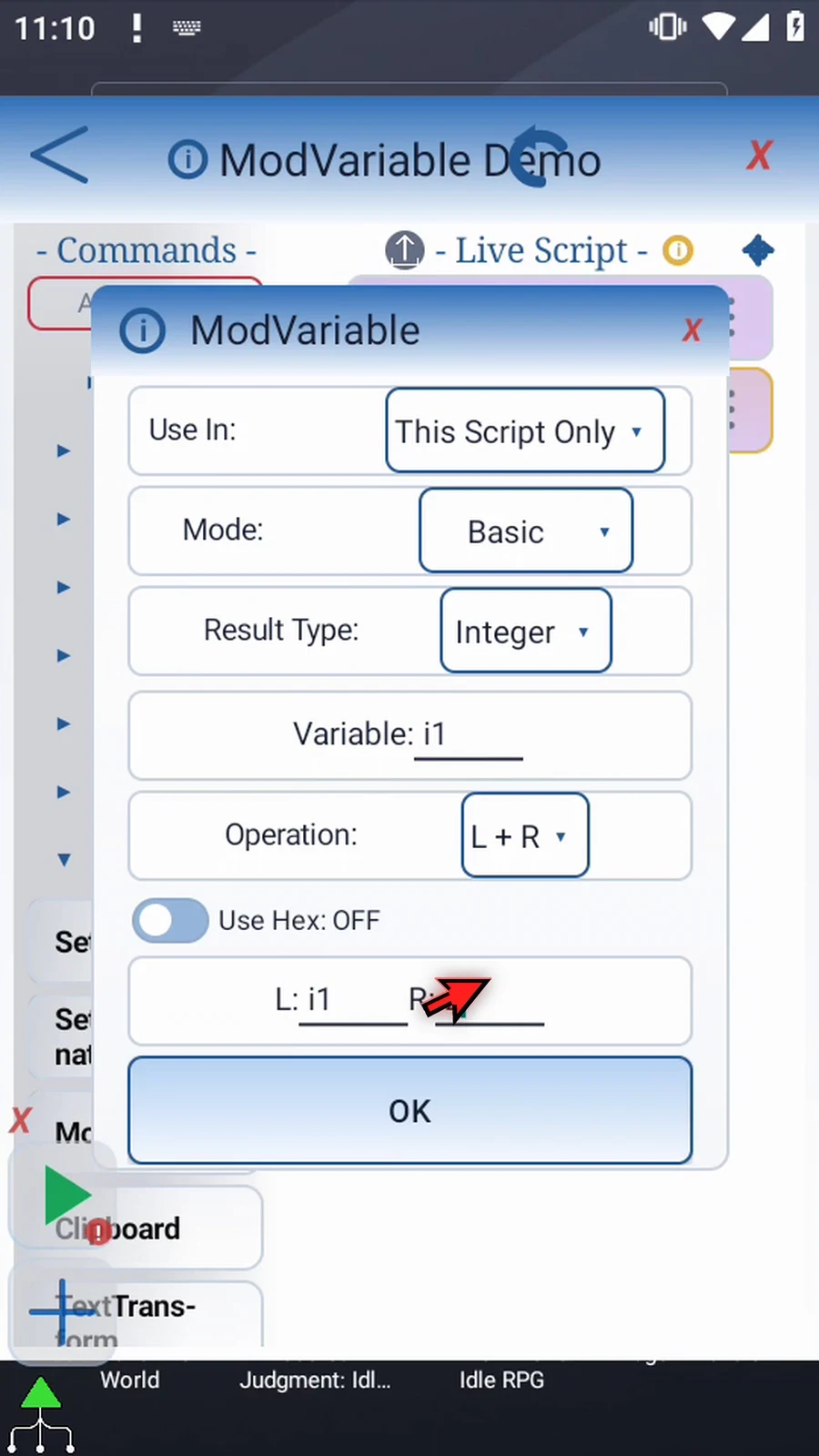
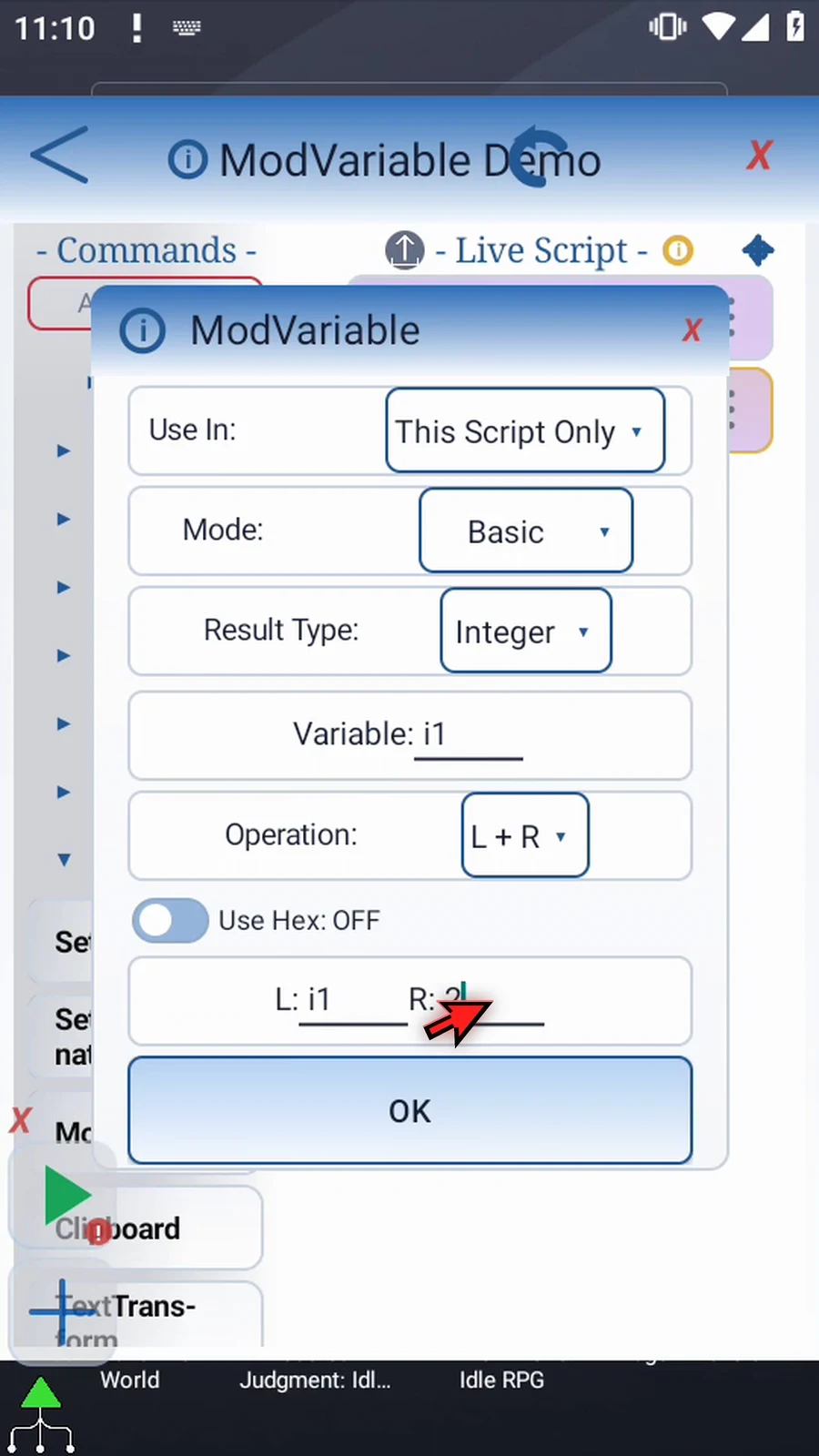
Step 16 Operands can be numbers or earlier numeric variables. Enter i1 on the left and two on the right. The command will read the current value, add two, and store the answer back in i1.
Step 17 Use Hex interprets literal operands as six-digit hexadecimal values. Use a Hex destination, such as h1, for a Hex result. The Result Type menu is hidden in this mode. Keep Hex off for our numeric example. This toggle preserves the retained operands.
Step 18 Use a nonzero divisor. Division by zero or a nonfinite result leaves the destination unchanged, logs a warning, and continues the script. Tap OK to save our valid calculation.
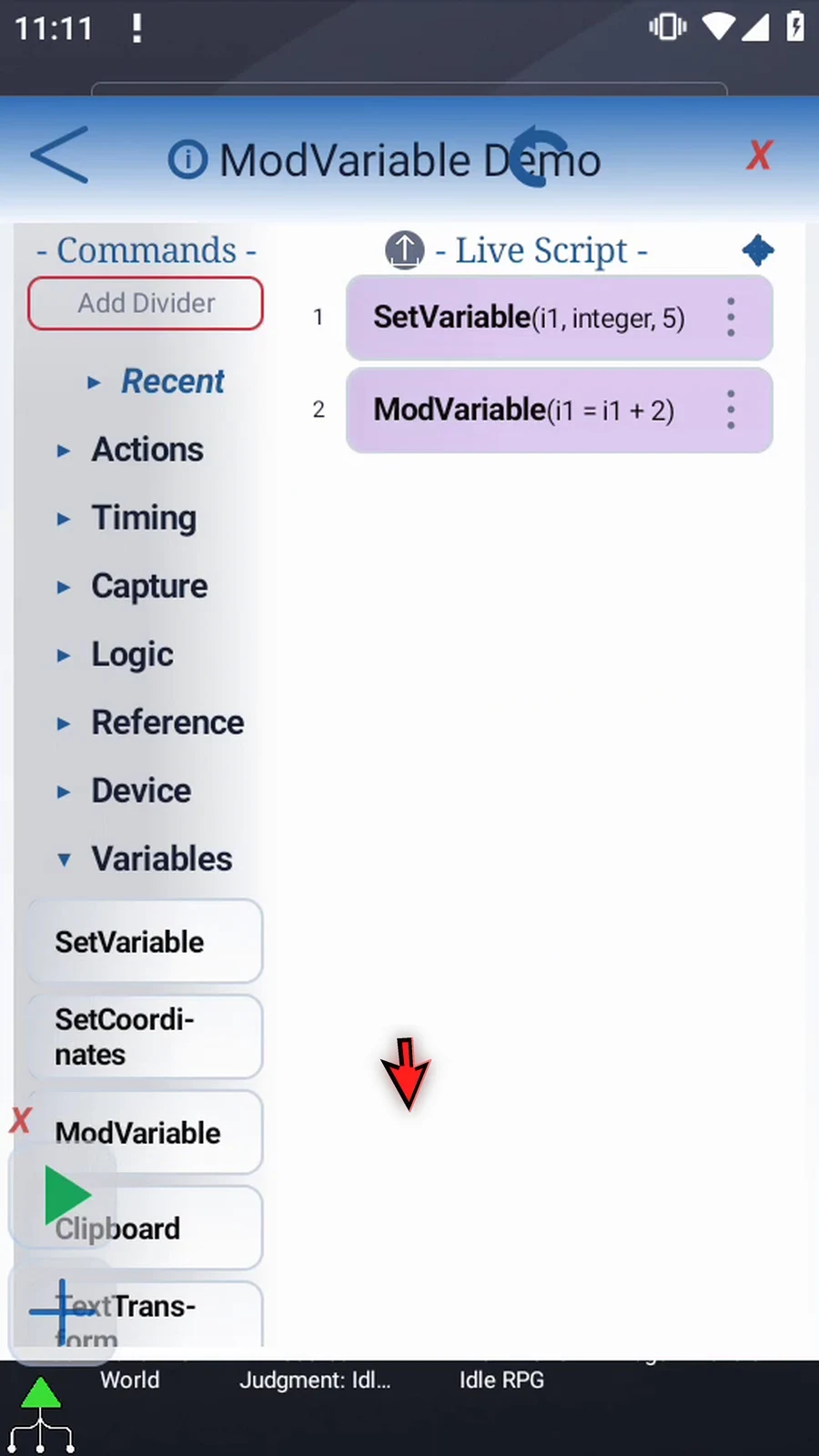
Step 19 To see the numeric answer, expand Device and drag Display after Mod Variable. Display can show a variable's actual value.
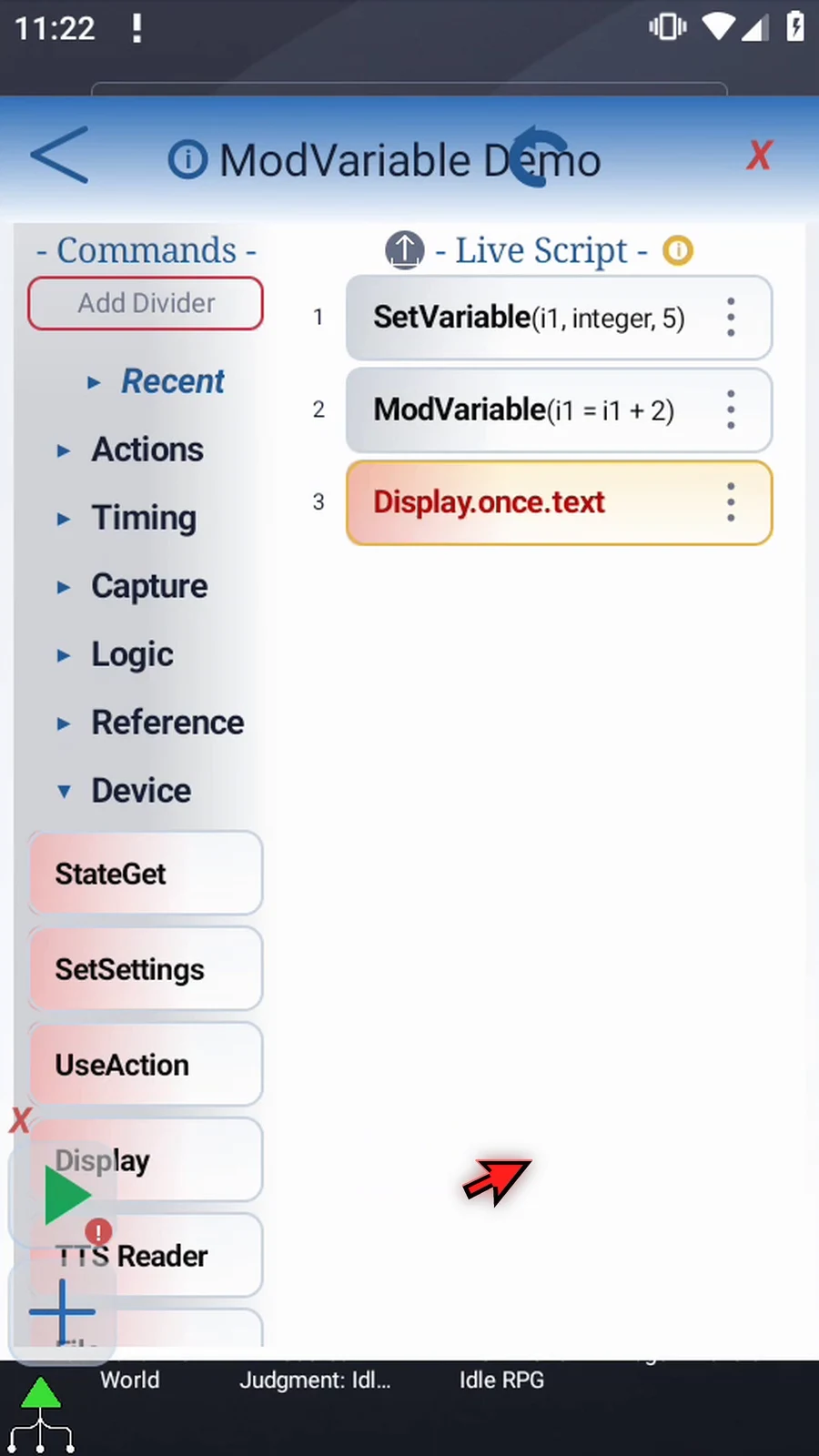
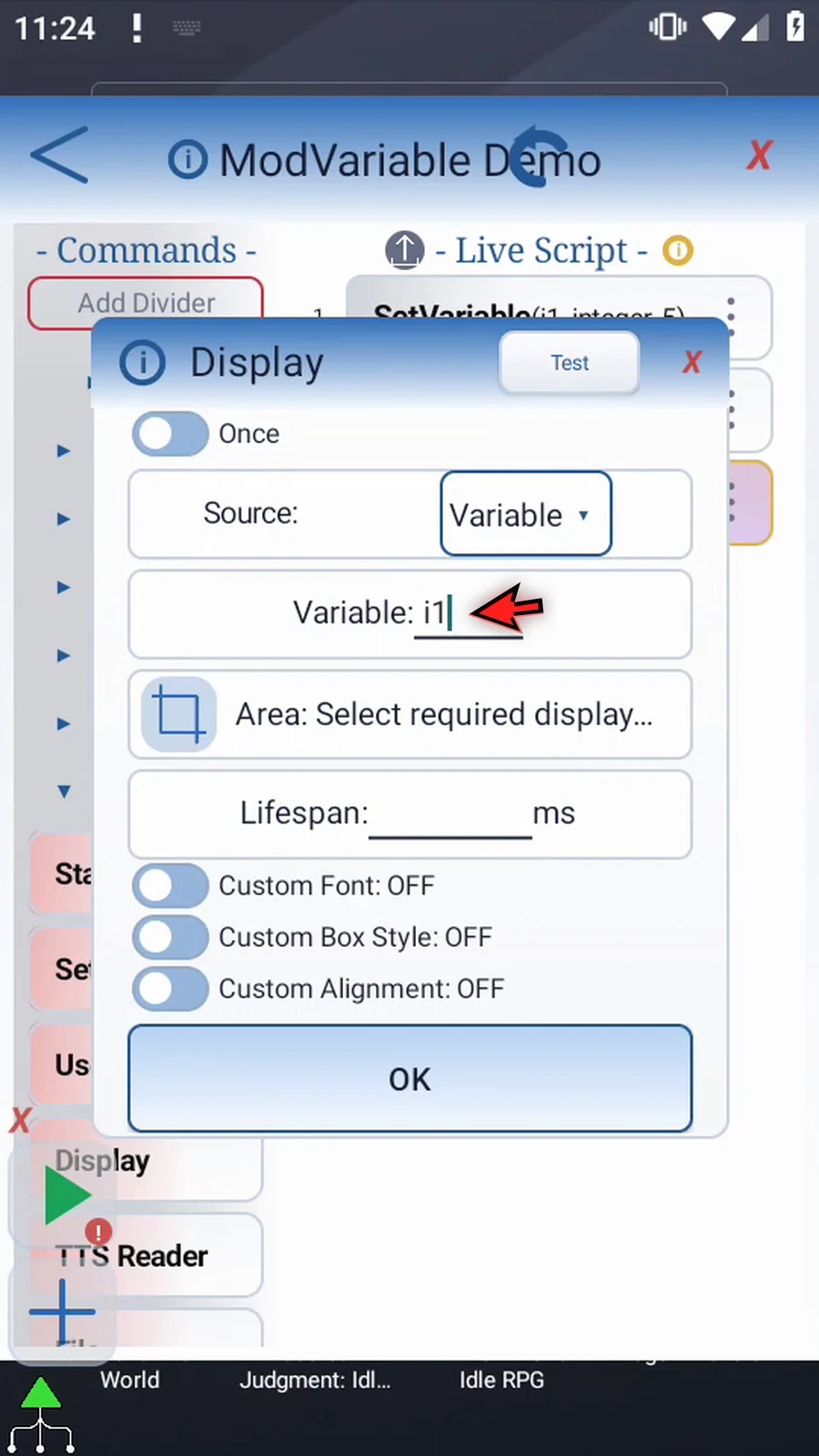
Step 20 Open Display. Keep Once mode, switch its source to Variable, and enter i1. This supporting command reads the result after the calculation.
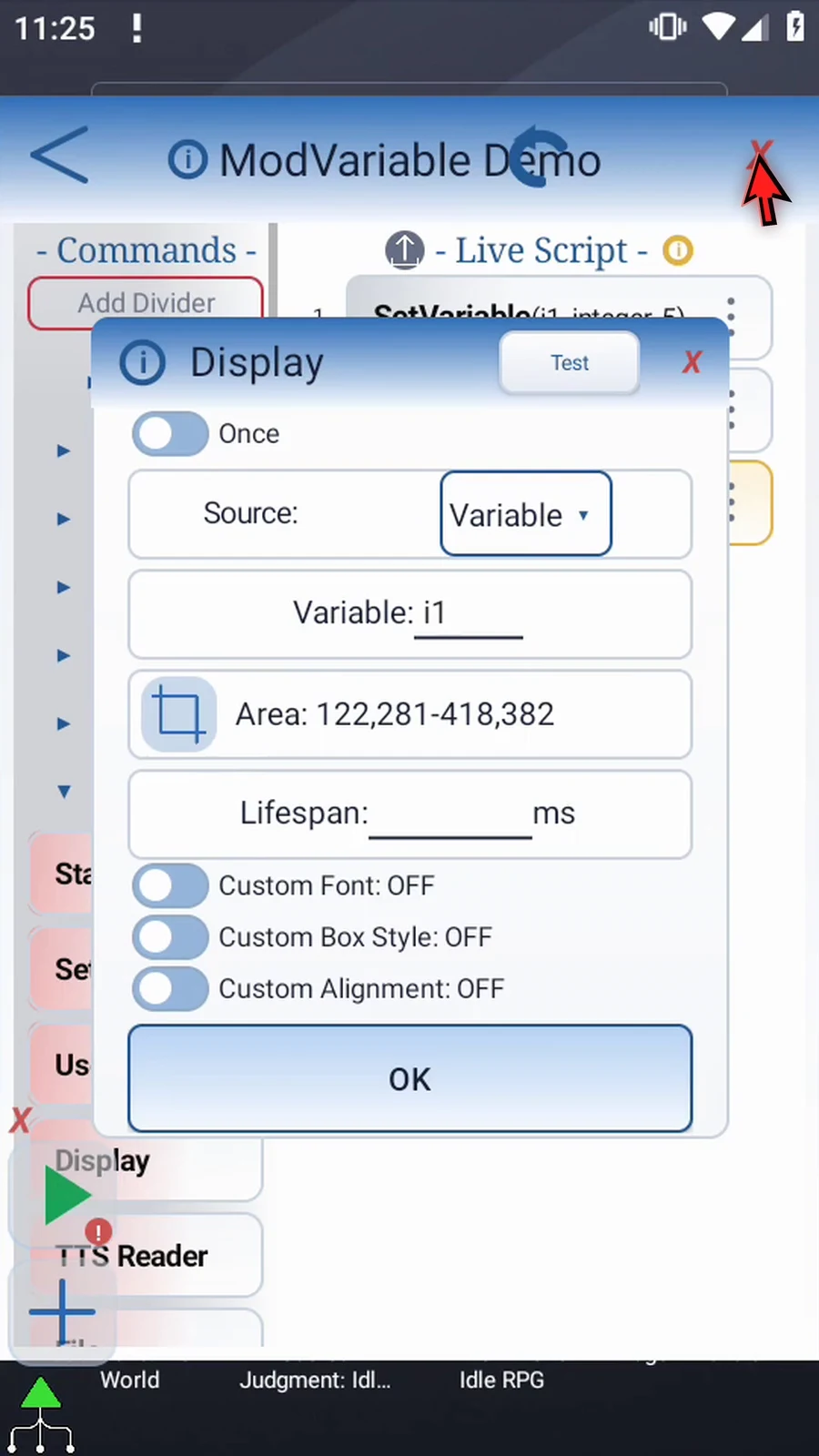
Step 21 Choose a clear area for the answer. Open the area selector, resize the box, and use the check mark to return.
Step 22 Set its lifespan to ten thousand milliseconds, giving us ten seconds to see the answer. Keep the other display settings at their defaults and tap OK.
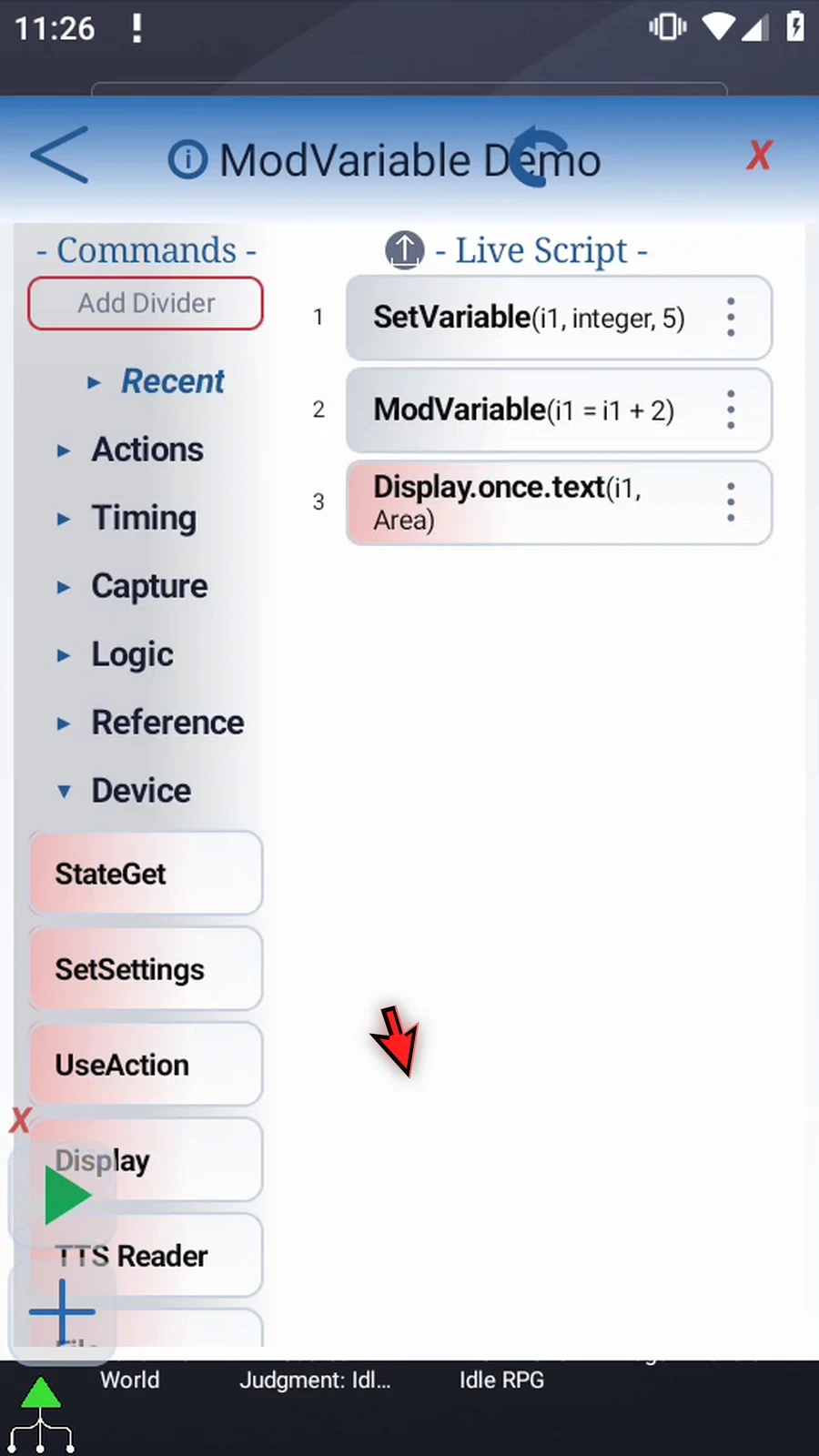
Step 23 Add Prompt Me after Display as a final confirmation. The numeric answer comes from Display; this prompt simply shows that execution reached the next command.
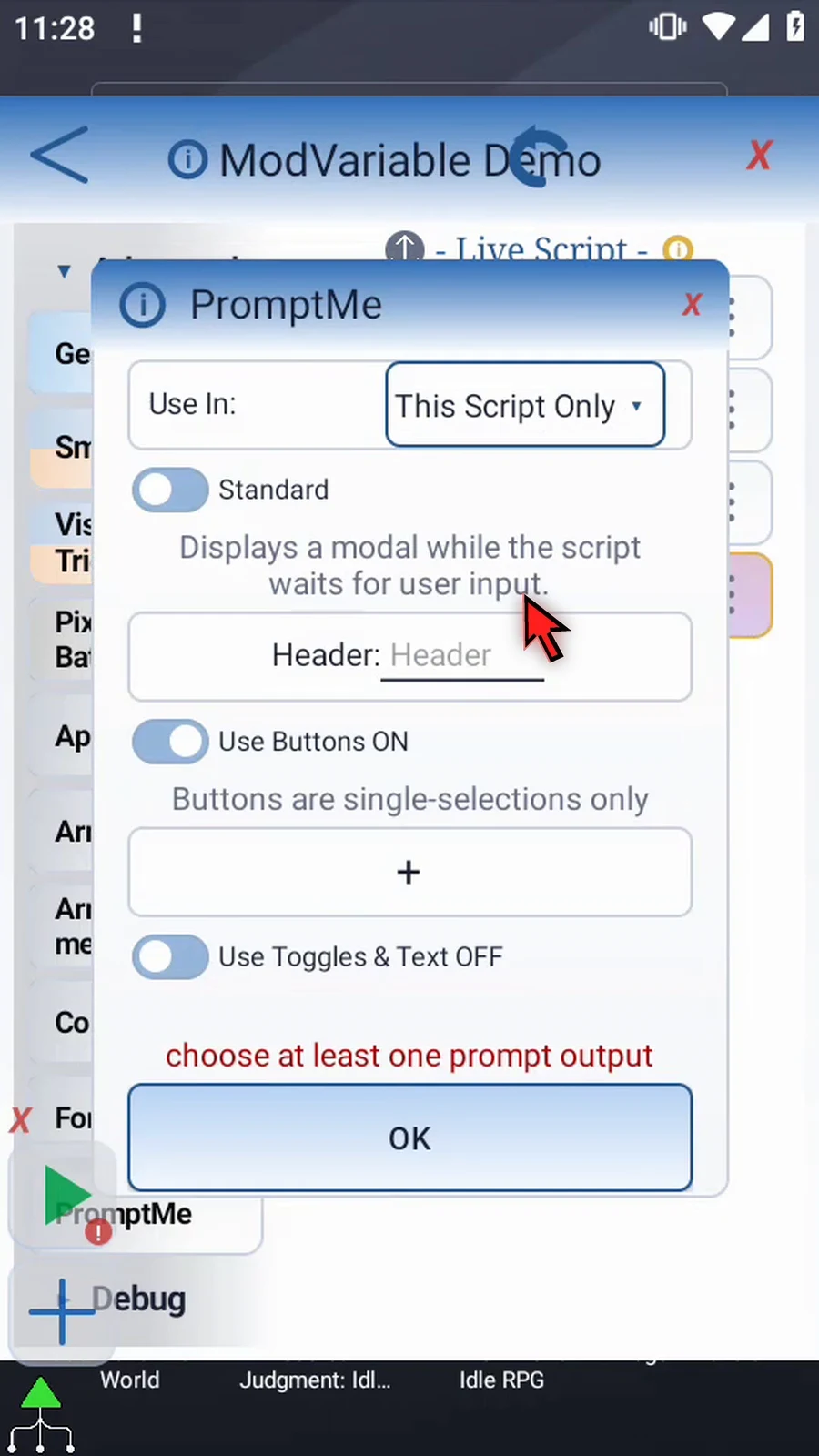
Step 24 Keep the regular Standard prompt, and give it the header Complete.
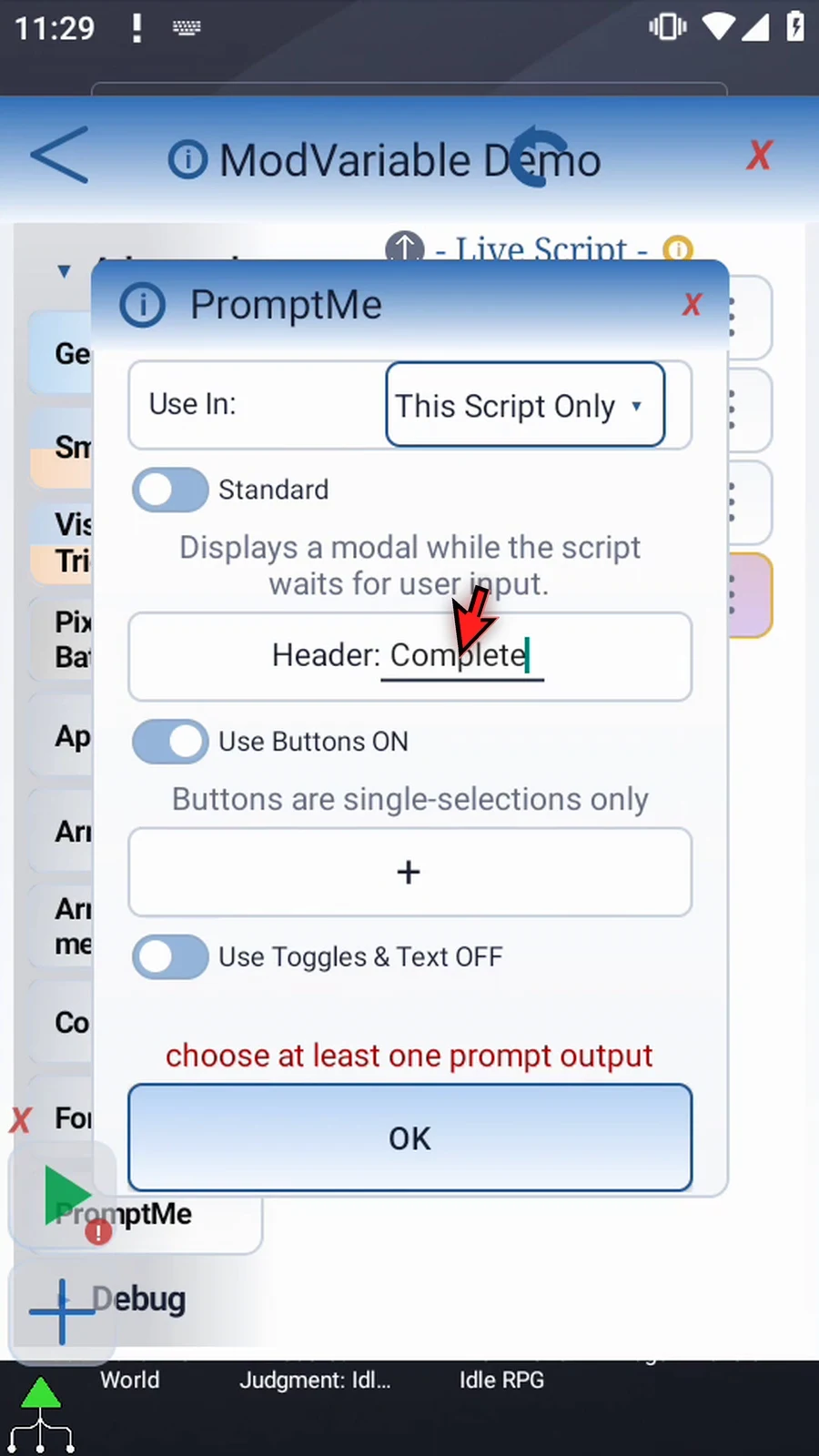
Step 25 Add one button named Done, using b1 for its Boolean output. This gives us a clear way to finish the confirmation. Tap OK.
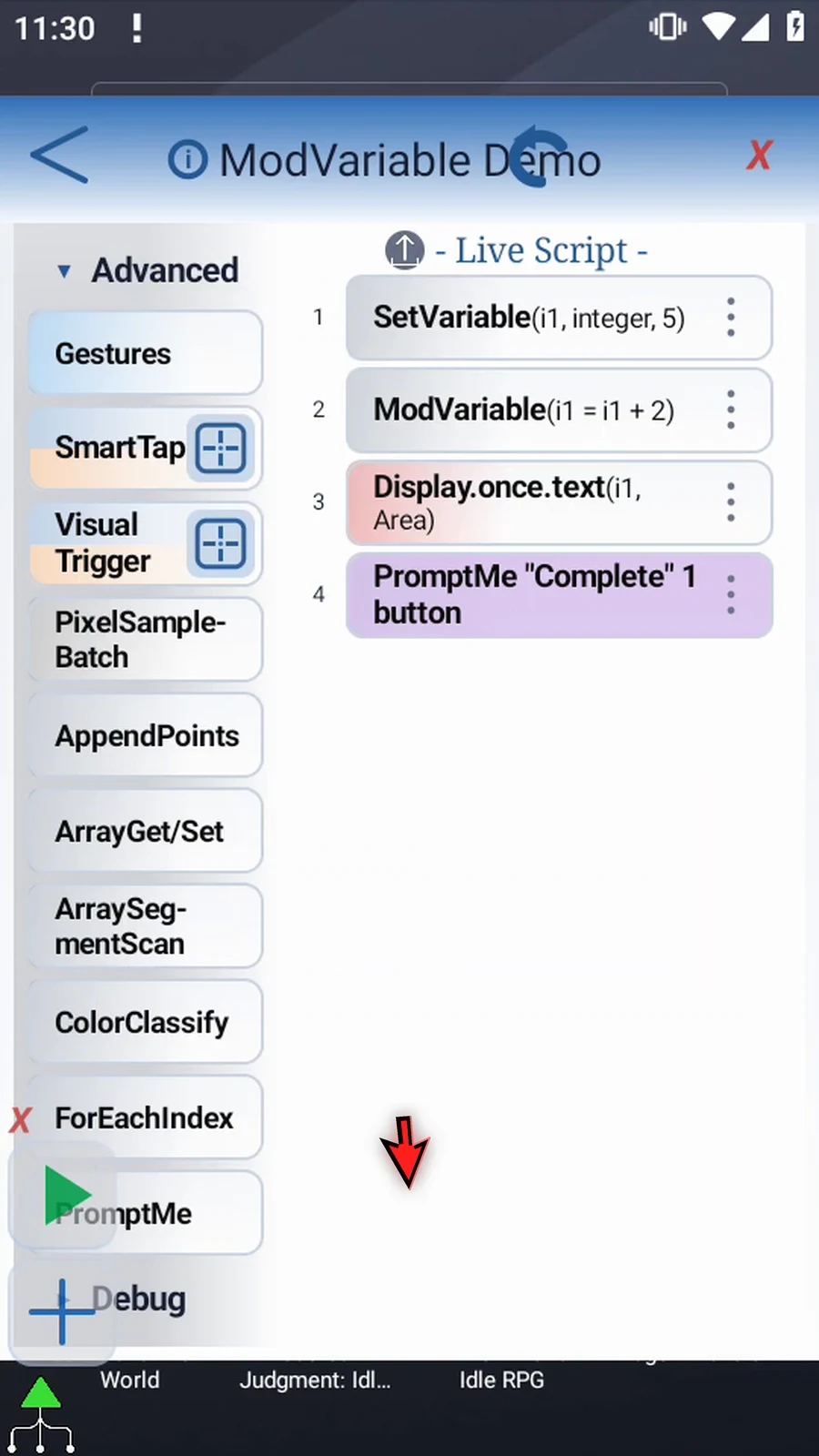
Step 26 The script now assigns five, adds two, displays the answer, and shows the confirmation. Close the editor to test it.

Step 27 When the script is complete, simply use the Play button in the main overlay.

Step 28 Display shows seven. Set Variable supplied five, and Mod Variable added two before the next command used the result.

Step 29 After ten seconds, Display closes and Complete appears. The script has reached its final confirmation.

Step 30 Press Done. The script finishes automatically. Use Basic when later actions need a value calculated from two numbers or numeric variables.
Expression combines several arithmetic steps in one ModVariable command. Use it when Basic's two operands are not enough. It writes a calculated value for later commands; it does not display that answer by itself.
Reuse the four-command script from Basic. Keep its first SetVariable assignment i1=5 and final Complete prompt. Open the existing ModVariable, select Mode → Expression, choose Result Type → Decimal, and enter destination d1. Keep This Script Only, matching the starting value's scope. A mode change clears fields belonging only to the outgoing mode.
Enter (i1+2)/2. The expression adds two to five, then divides by two. Decimal keeps the fractional answer 3.5; Integer rounds to a whole number within the signed 32-bit range. An existing destination must match the selected result type.
Expressions support +, -, *, /, parentheses and unary signs. Multiplication and division precede addition and subtraction; parentheses change that order. Operands can be earlier Integer or Decimal variables, or numeric literals including decimal and scientific notation.
Maximum length is 256 characters. This is arithmetic, not JavaScript: function calls and comparisons are not supported. Decimal results use up to 15 significant digits. Division by exact zero, invalid/nonfinite input or a nonfinite result leaves the destination unchanged, logs a warning and continues.
Save with OK. Open the existing Display, change only its source variable from i1 to d1, and keep the same area and 10000 ms lifespan. Save and close the editor.
Use Play in the main overlay. Display shows the actual 3.5 for its full configured lifespan. Complete appears afterward; press Done to let the script finish automatically. The fractional result remains available to later commands.
Expression
Step-by-step guide
Step 01 Expression mode combines several arithmetic steps in one Mod Variable command. Use it when two operands are not enough. We will reuse the Basic script and calculate a fractional answer from its stored value.
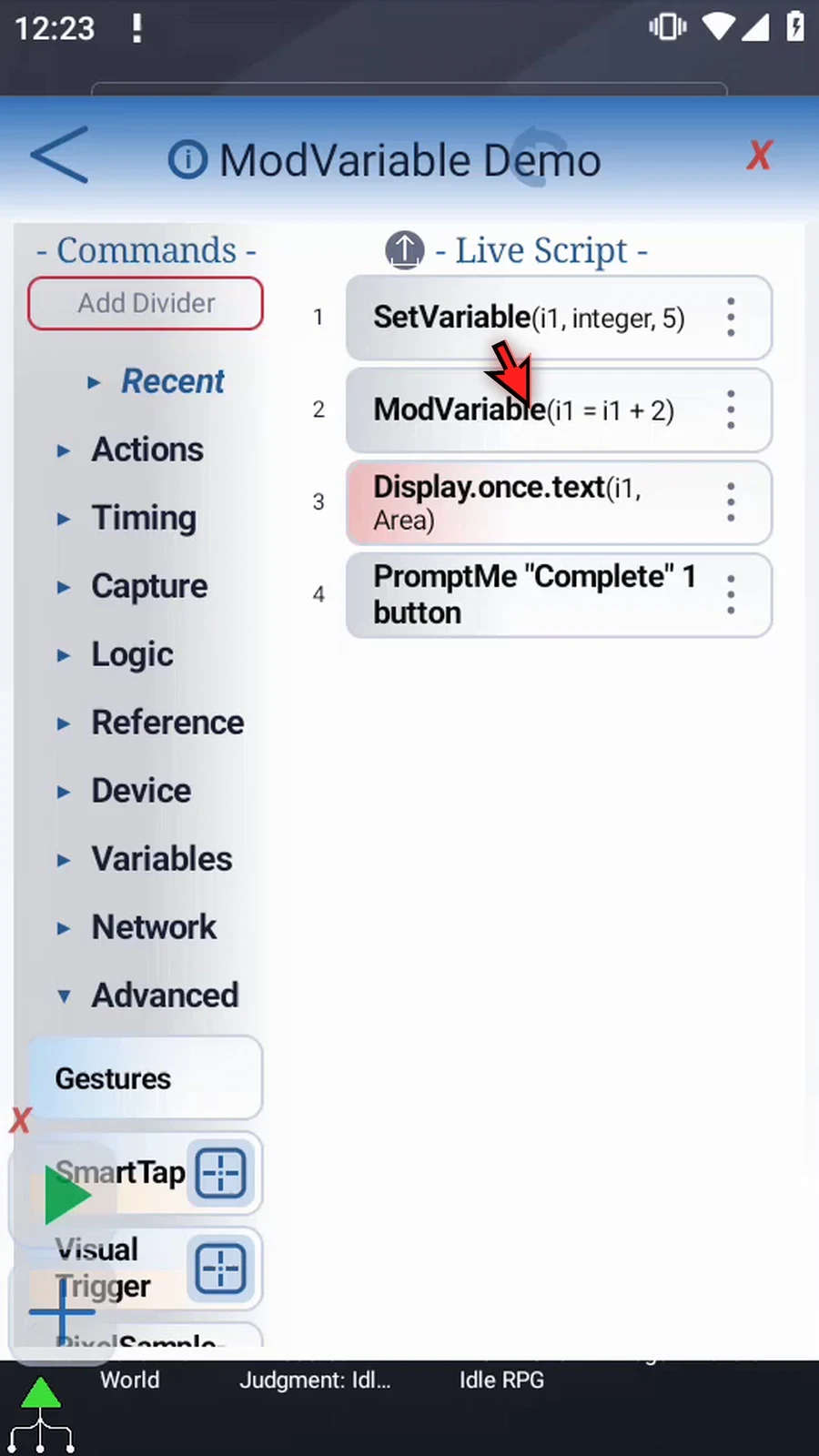
Step 02 Open Mod Variable, open Mode, and choose Expression. Changing modes clears fields that belong only to the old mode.
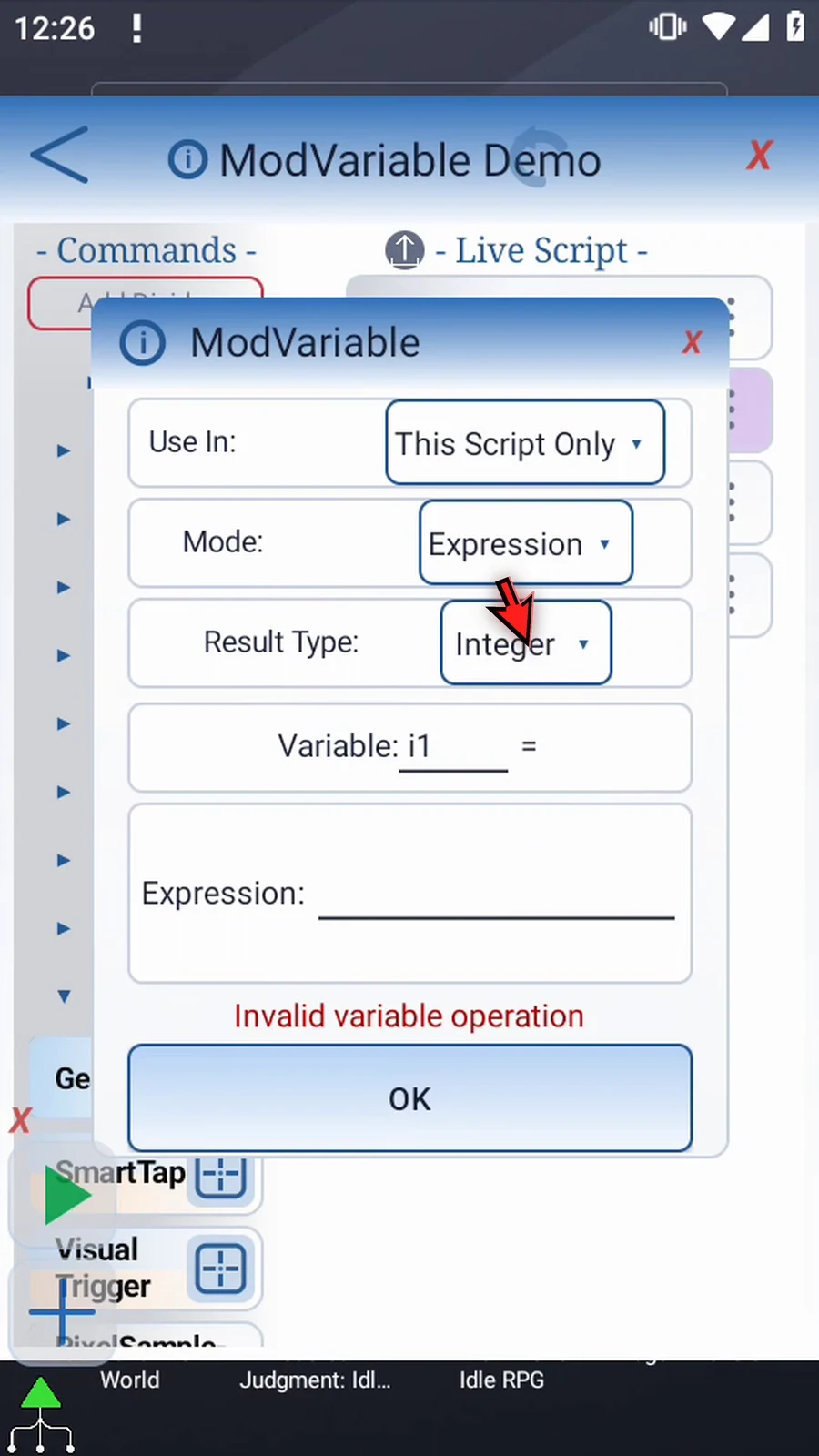
Step 03 Choose Decimal as Result Type so the answer can keep its fractional part. Integer instead rounds the answer to a whole number within its supported range.
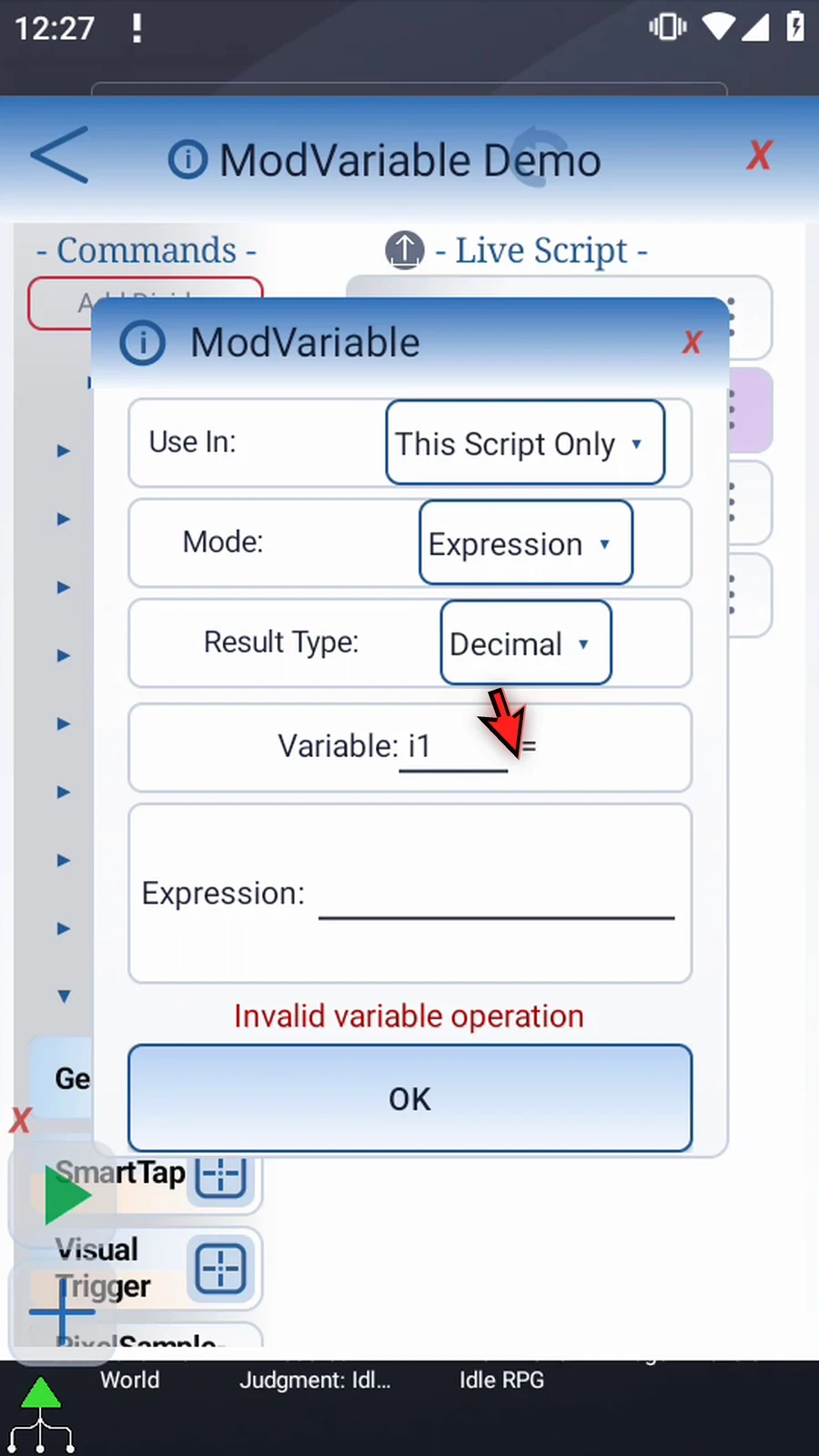
Step 04 Use d1 as the destination. Keep This Script Only, matching the scope of the starting value.
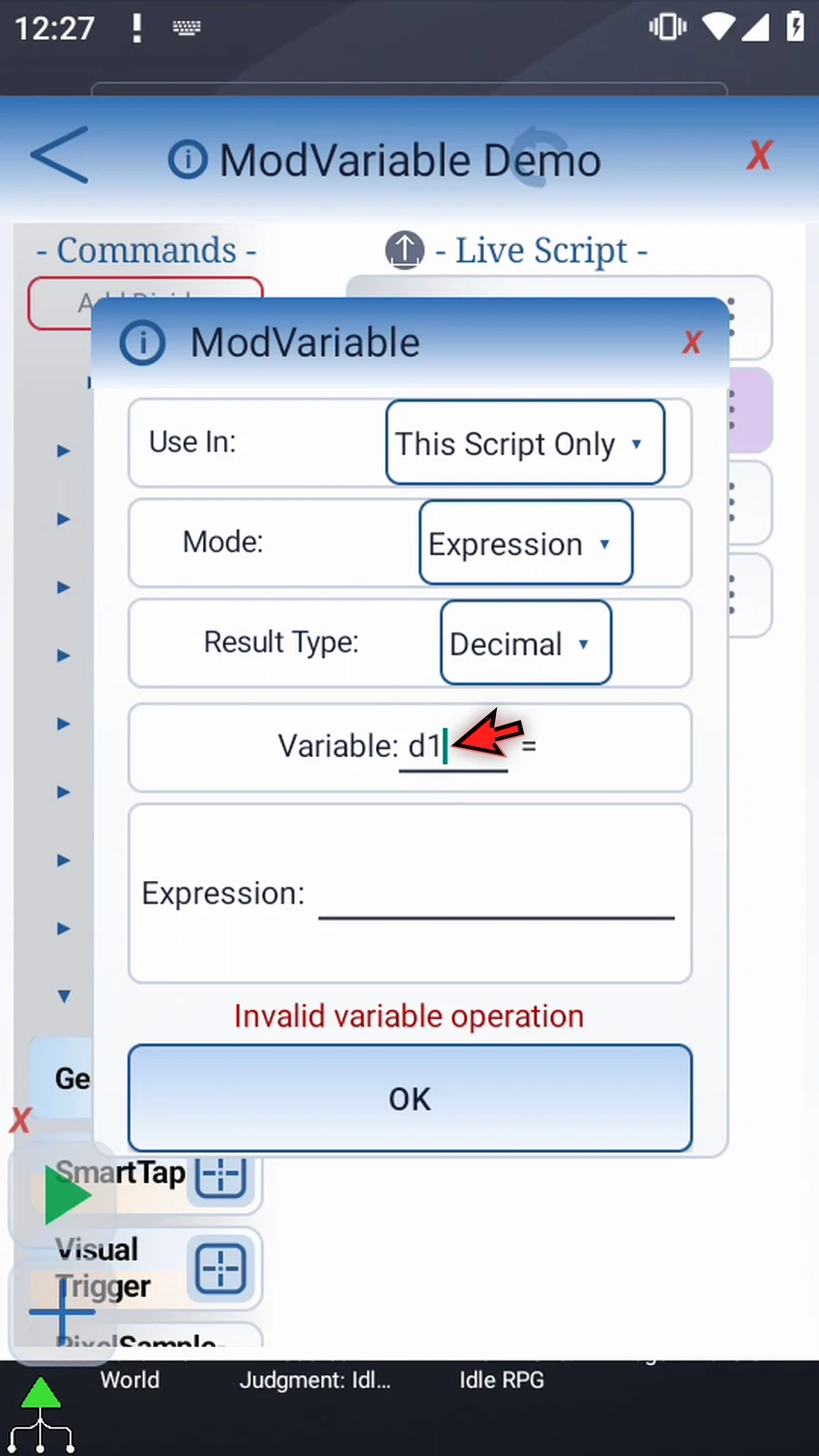
Step 05 Enter the expression shown here: open parenthesis, i1 plus two, close parenthesis, divided by two. Set Variable still supplies five, so the answer will be three point five.
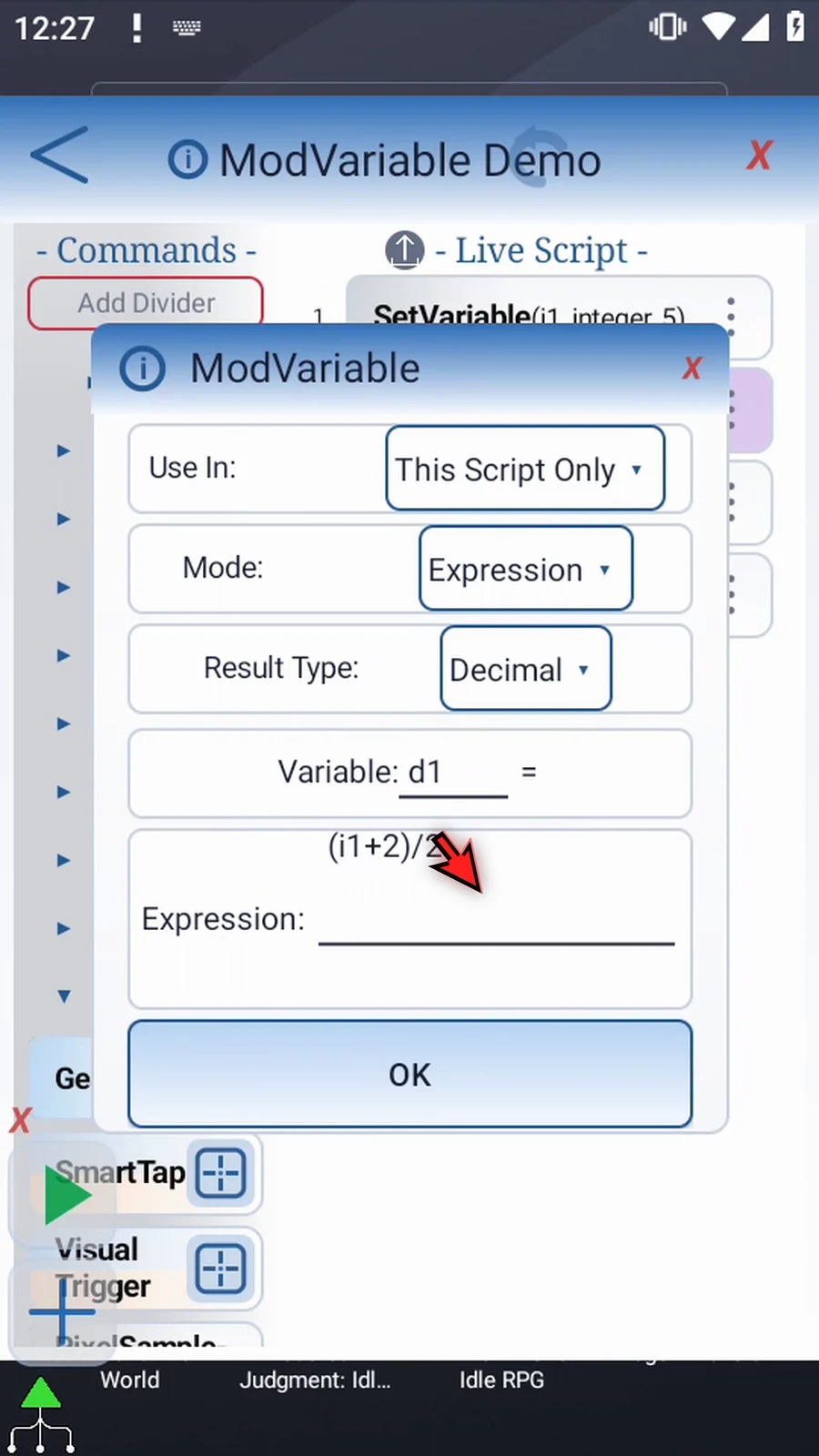
Step 06 Expressions support plus, minus, multiply, divide, parentheses, and unary signs. Multiplication and division run before addition and subtraction; parentheses change that order. Use earlier Integer or Decimal variables, or numeric literals, including decimals and scientific notation.
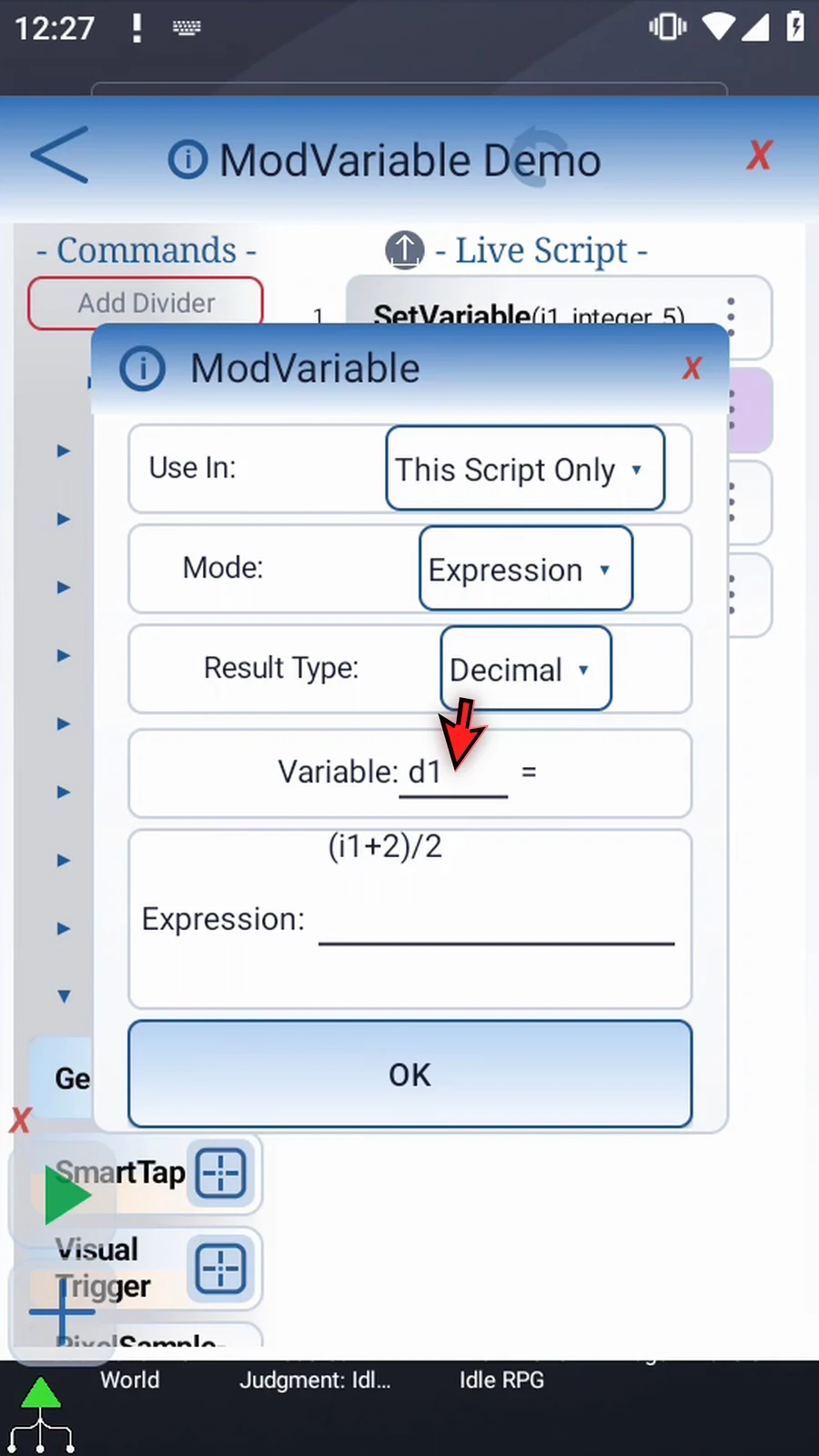
Step 07 Keep expressions within two hundred fifty-six characters. This is arithmetic, not JavaScript: function calls and comparisons are not supported. Decimal results use up to fifteen significant digits. Division by zero or a nonfinite result leaves the destination unchanged and logs a warning.
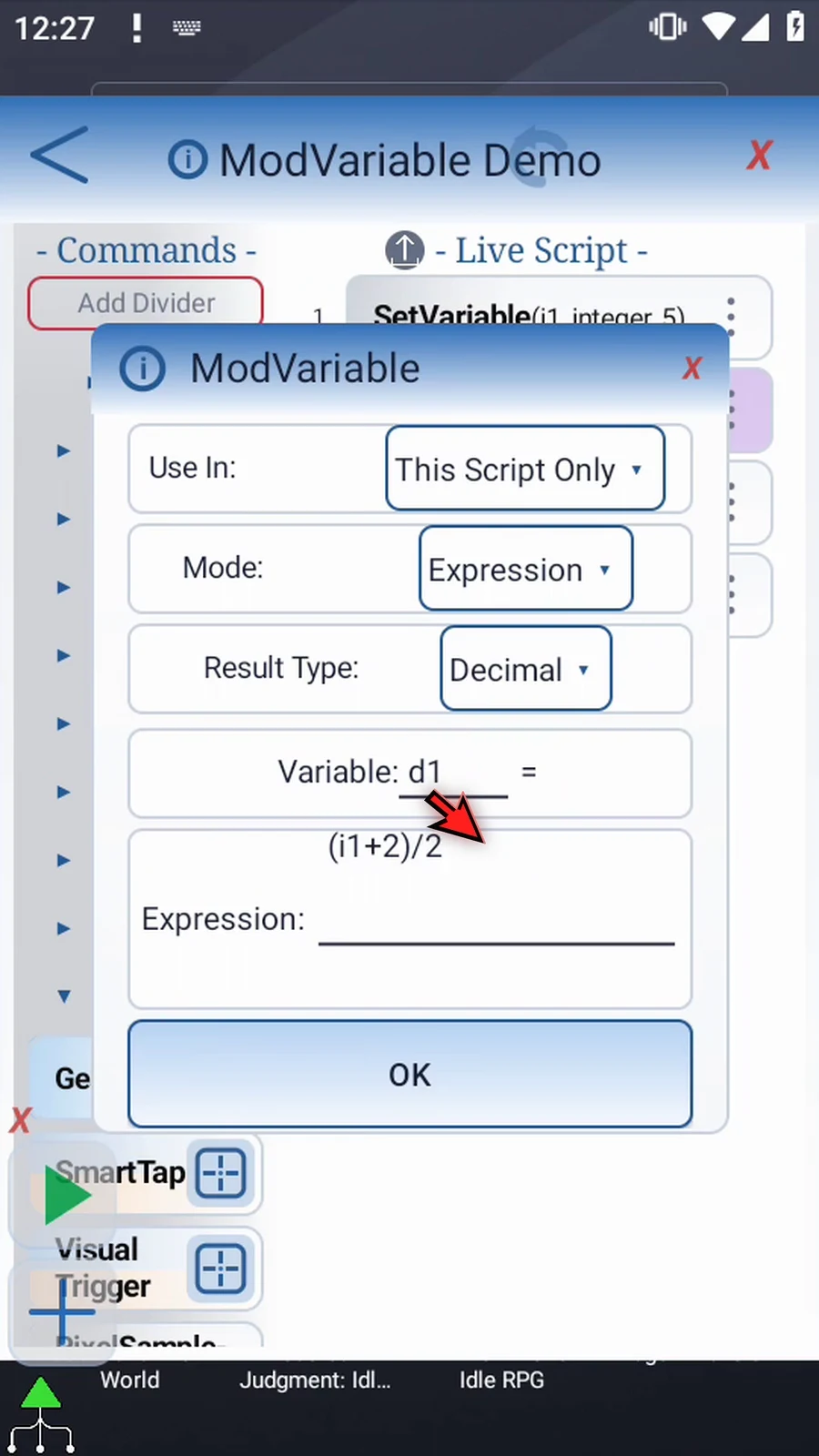
Step 08 Tap OK. The assignment still runs first, and the calculation now writes d1.
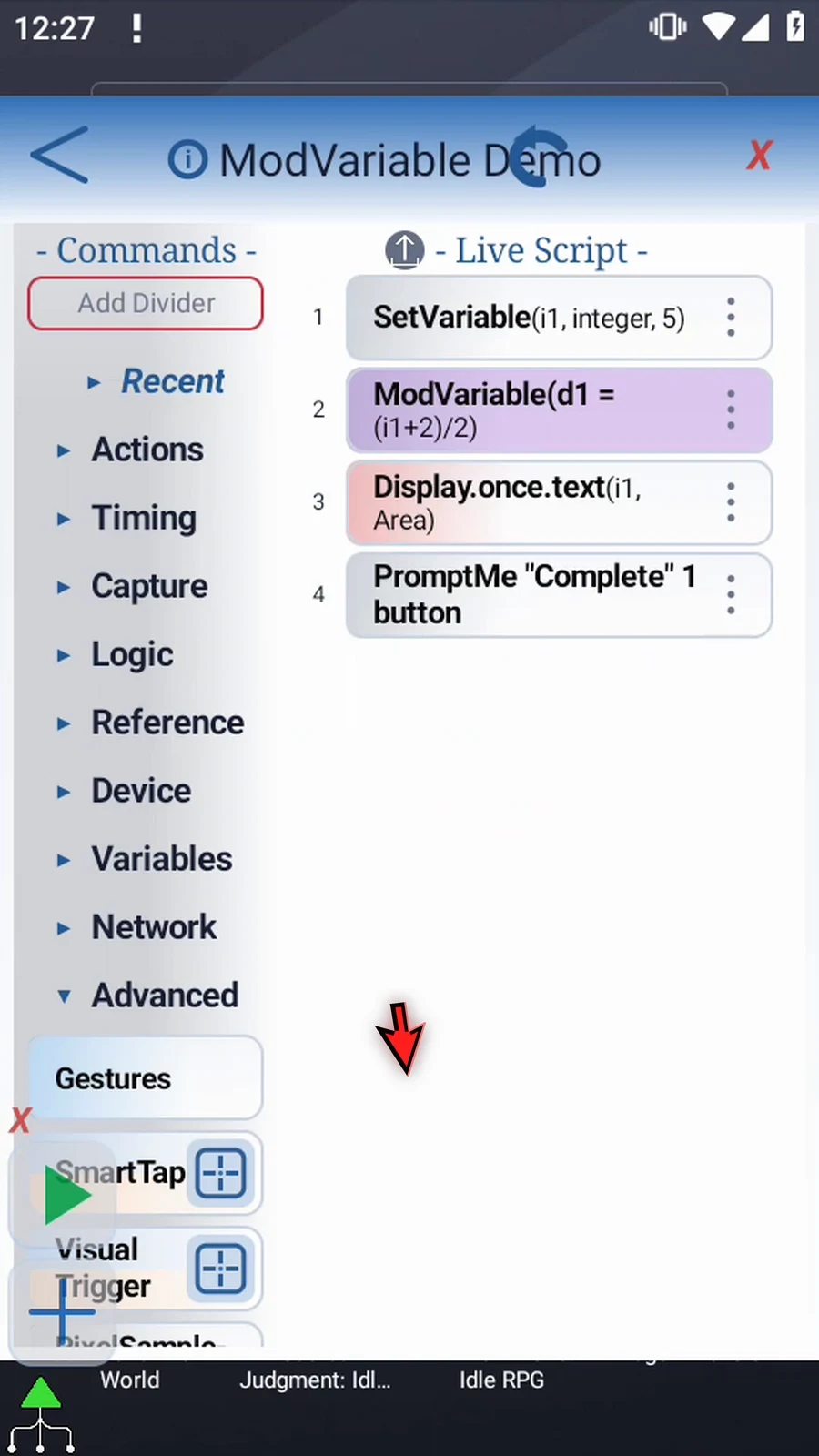
Step 09 Open the existing Display command. Change its source variable from i1 to d1, so it displays the new destination. Keep the same area and ten-second lifespan, then tap OK.
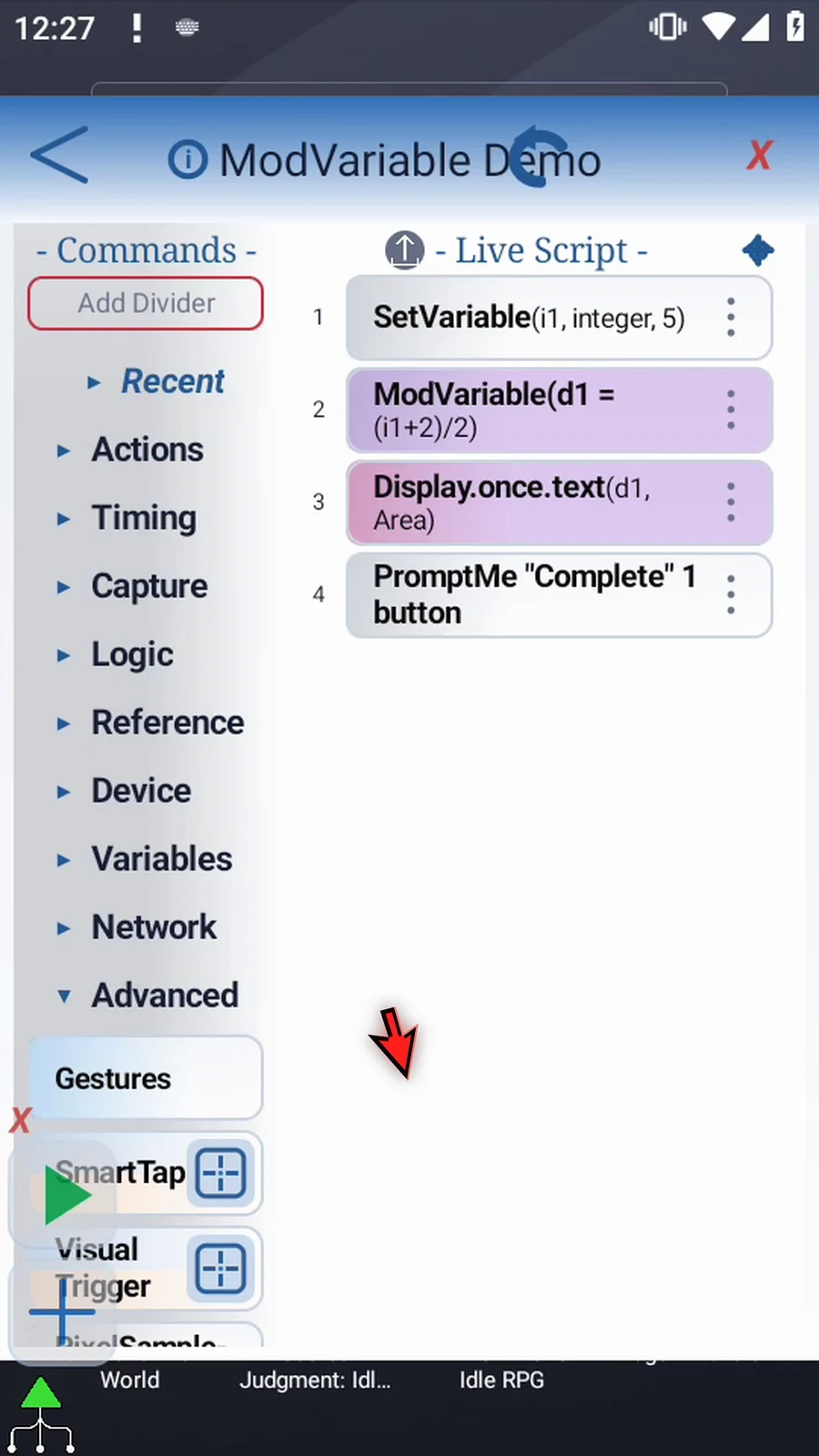
Step 10 Close the editor and test the same script.

Step 11 When the script is complete, simply use the Play button in the main overlay.

Step 12 Display shows three point five. The expression added two to five, then divided by two. Decimal preserved the fractional answer for later commands.

Step 13 After Display closes, Complete appears. The script has reached its final confirmation.

Step 14 Press Done. The script finishes automatically. Use Expression for a compact calculation with several arithmetic steps and a clearly chosen result type.
Array applies one arithmetic formula across several numeric slots in one batch. Use it to transform a range without adding a separate ModVariable for each slot. Inputs and the target must be declared Integer or Decimal families; select the target's matching Result Type explicitly.
Reuse the four-command example from Basic or Expression. Open its SetVariable, select Array, keep Integer, enter array letter n and Capacity 3, and keep This Script Only. This initializes three zero-valued slots before the calculation. Save with OK.
Open the existing ModVariable and select Mode → Array with Integer Result Type and the same local scope. Enter Target n, Start 1, and Count 3. Target accepts a single array letter, not a numbered variable. The writes begin at n1 and advance through the family.
Start fields and Count accept Integer literals or earlier Integer variables. Starts are one-based within 1..4096; Count controls attempted offsets within 0..4096. Zero attempts no writes. Choose explicit, valid ranges rather than relying on invalid-input behavior.
Enter expression a+i. In A Array, enter n with Start 1. Each offset reads the next input slot. The fixed lowercase aliases a, b, and c refer to rows A, B, and C; lowercase i is the 1-based offset within this selected range, not a scalar variable or the absolute destination index. Zero inputs plus offsets 1, 2, and 3 produce n1=1, n2=2, and n3=3.
Use one to three numeric input ranges. Every populated row needs its array letter and starting index, and every alias referenced by the expression needs a populated row. Leave B and C fully blank here. Arithmetic supports + - * /, parentheses, unary signs, and numeric literals, within 256 characters. Array expressions use the fixed aliases, not arbitrary scalar names, comparisons or JavaScript functions.
Results are staged before one atomic write, so the target can overlap an input range safely. If a result fails, including division by zero or a nonfinite result, no target slots from that batch are committed; a warning is logged and Play continues. Integer uses signed rounding and 32-bit limiting; Decimal uses up to 15 significant digits and preserves fractional results. This command has no screen, tap, file, clipboard or network side effect.
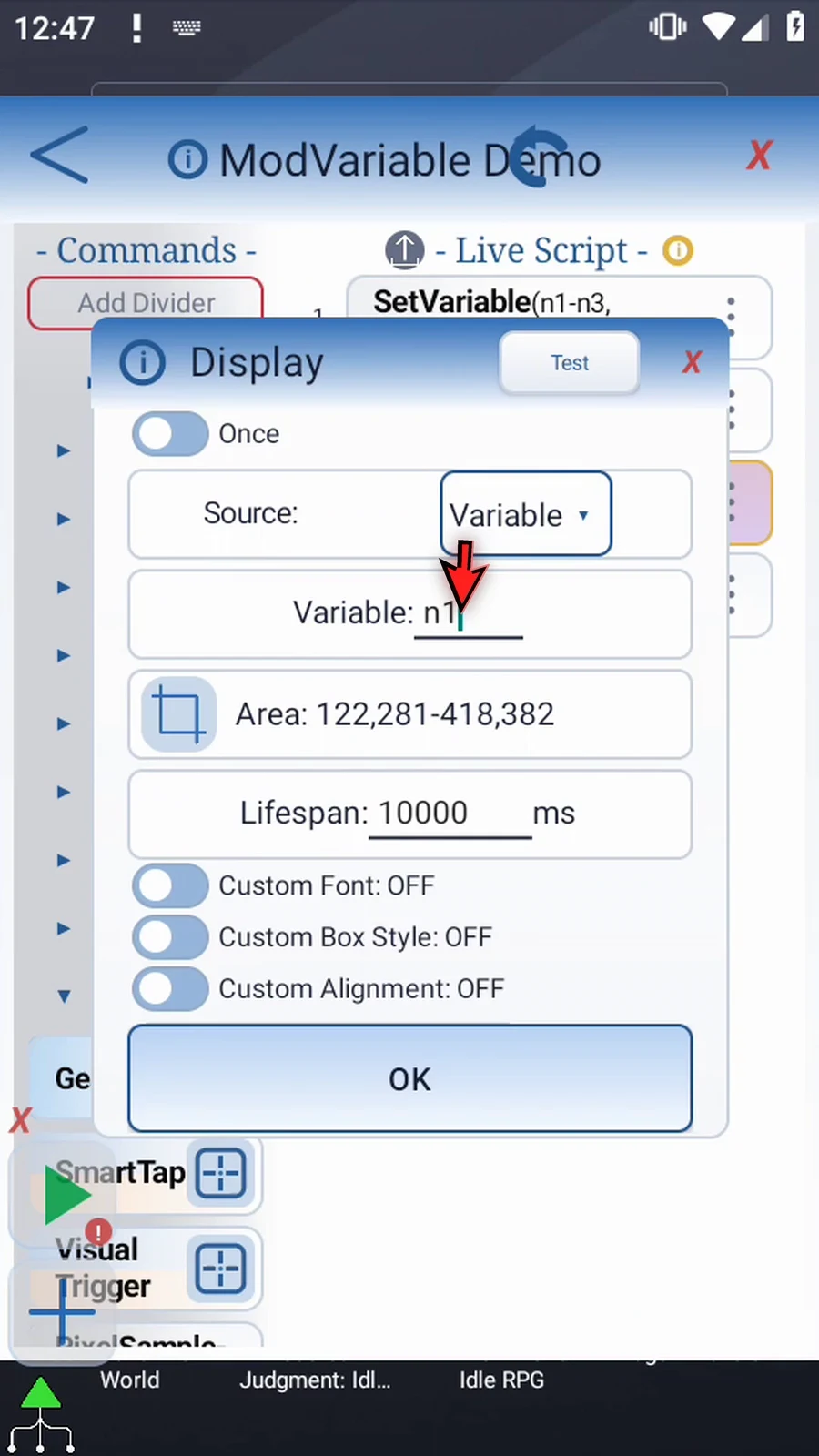
Save with OK. Change the existing Display source to n1, keeping its area and 10000 ms lifespan. Keep the final Complete/Done prompt unchanged. Close the editor and use Play: the actual first result 1 appears, then Complete. Press Done to finish.
Restore the overlay and reopen the editor. Change only Display's source to n3, save, and close. Use Play again: the same initialization and batch calculation run, and Display shows the actual last result 3. Complete and Done finish the second run automatically. Both recorded runs verify all three results; only the displayed slot differs.
Array
Step-by-step guide
Step 01 Array mode applies one formula to several numeric slots at once. Use it to transform a range without writing a separate calculation for each slot. We will reuse the four-command example and check its first and last results.
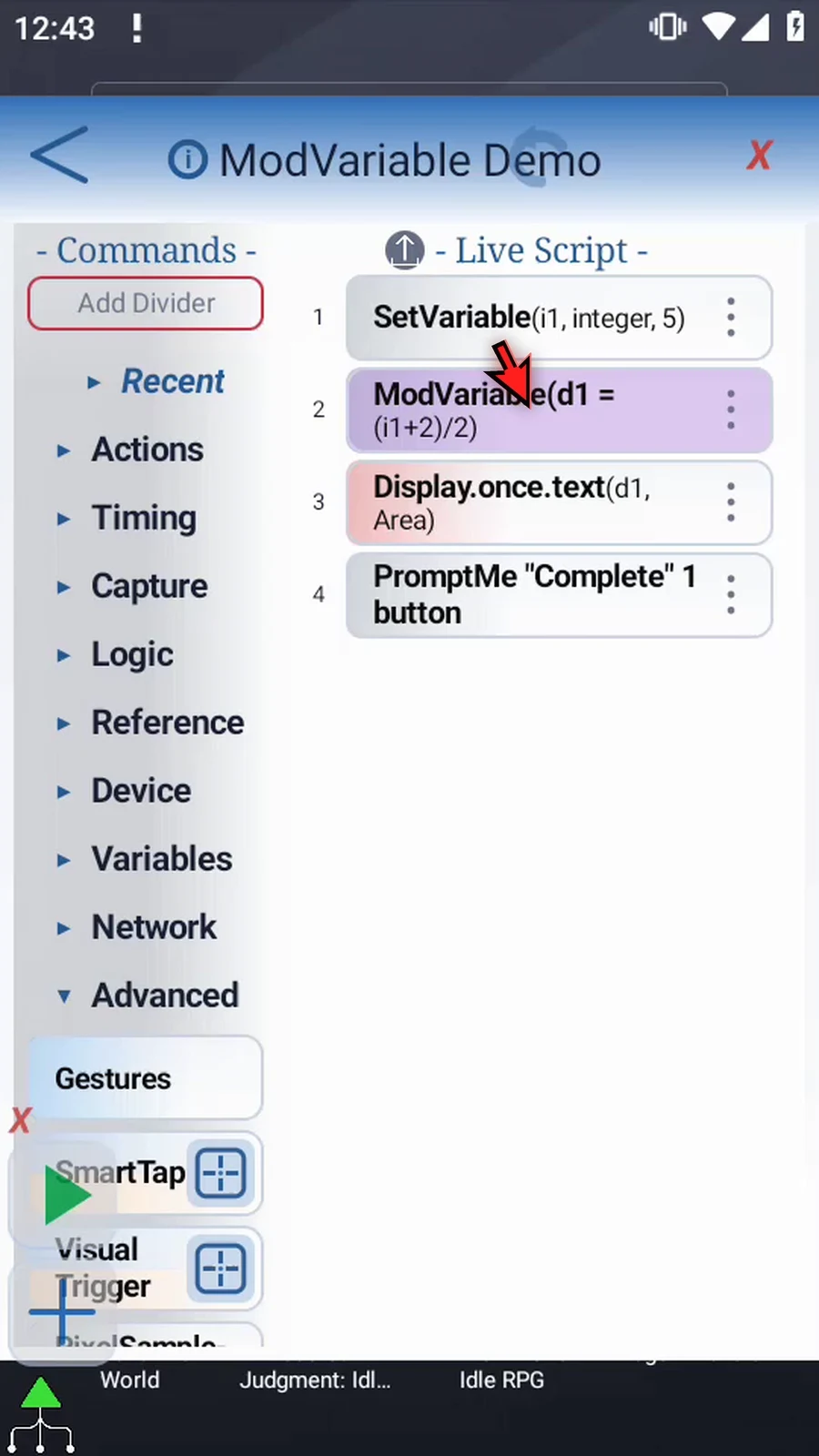
Step 02 Open Set Variable and switch to Array. Choose Integer, use array letter n, and initialize three slots. Keep This Script Only. These starting slots contain zero; Mod Variable needs a numeric family declared before it runs.
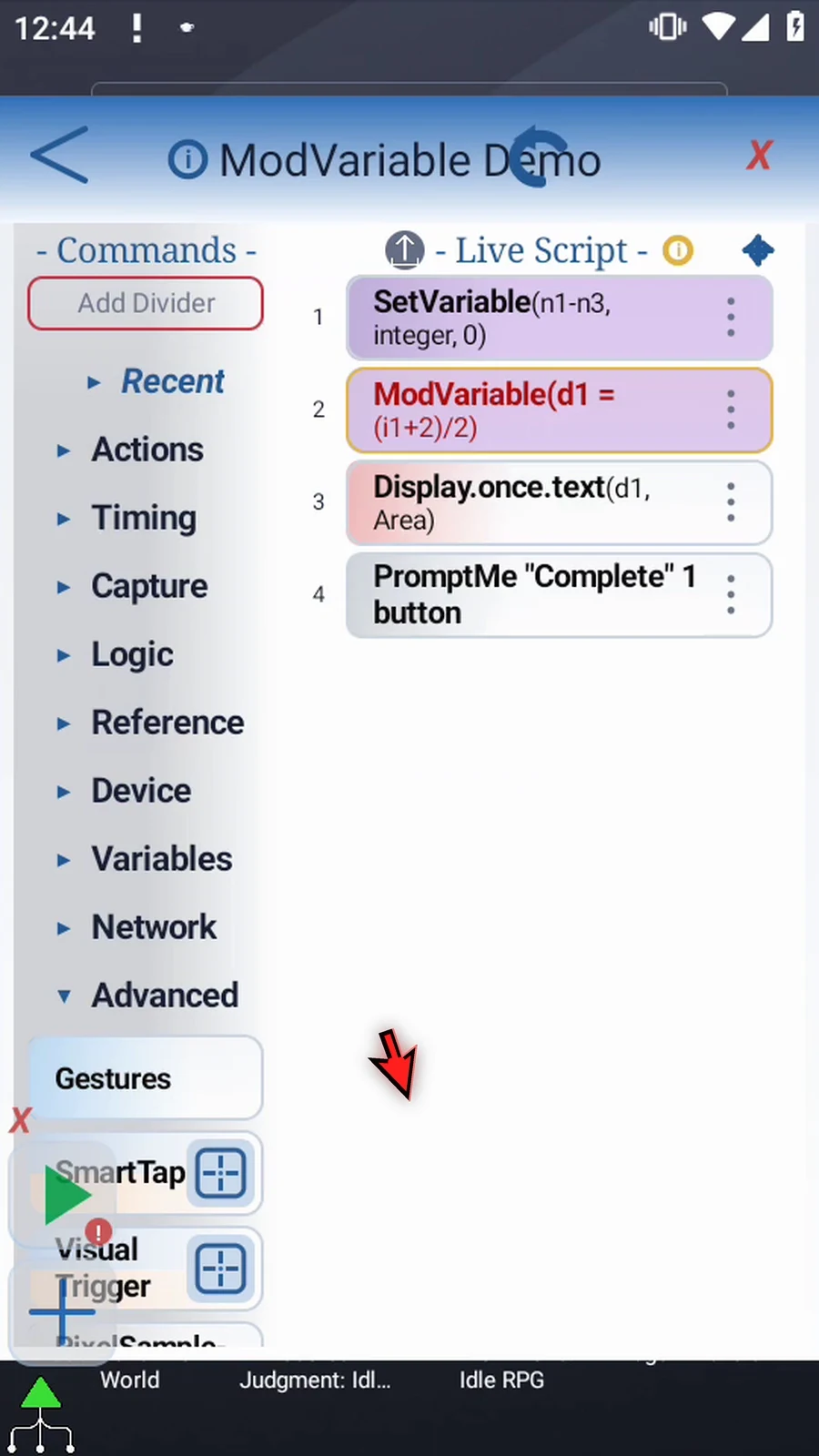
Step 03 Open Mod Variable and choose Array. Keep the same local scope. Select Integer as Result Type, matching the destination family. Decimal is also available when the destination is declared Decimal.
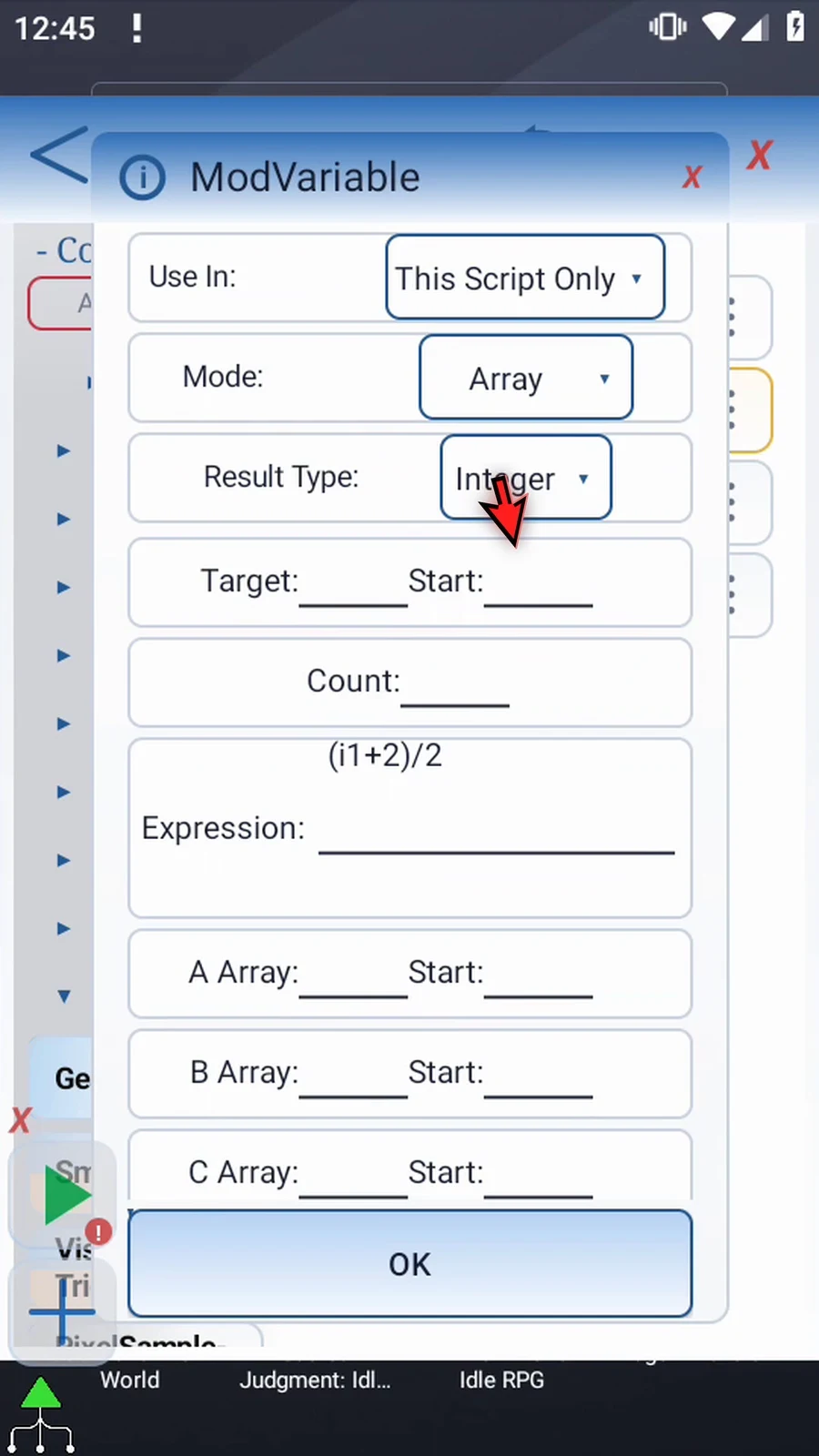
Step 04 Set Target to n and Start to one. Target takes an array letter, not a numbered variable. The first answer will go into n1, and later answers advance through that family.
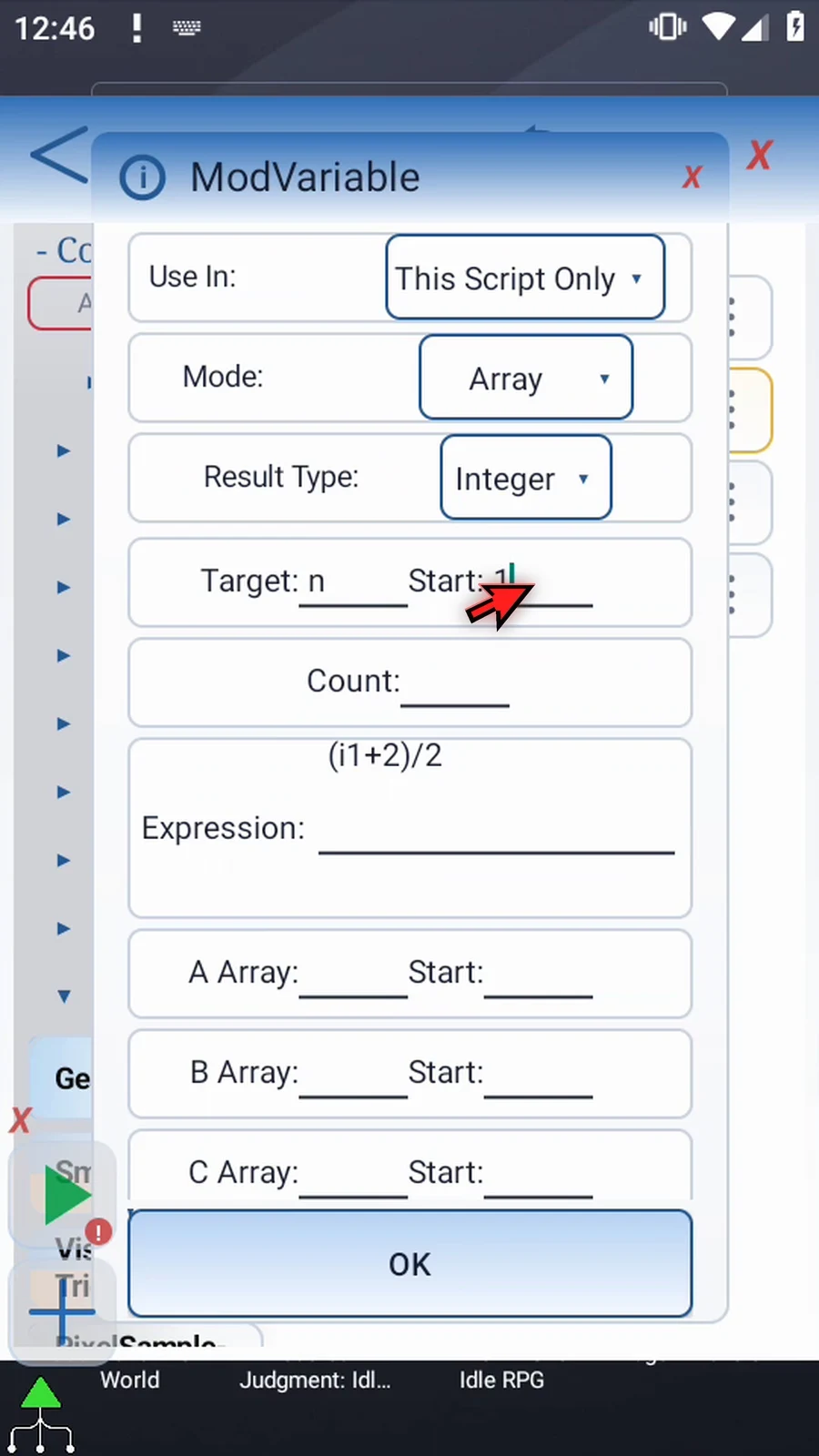
Step 05 Set Count to three. Start fields and Count accept Integer literals or earlier Integer variables. Starts are one-based, within one through four thousand ninety-six. Count can be zero, which attempts no writes.
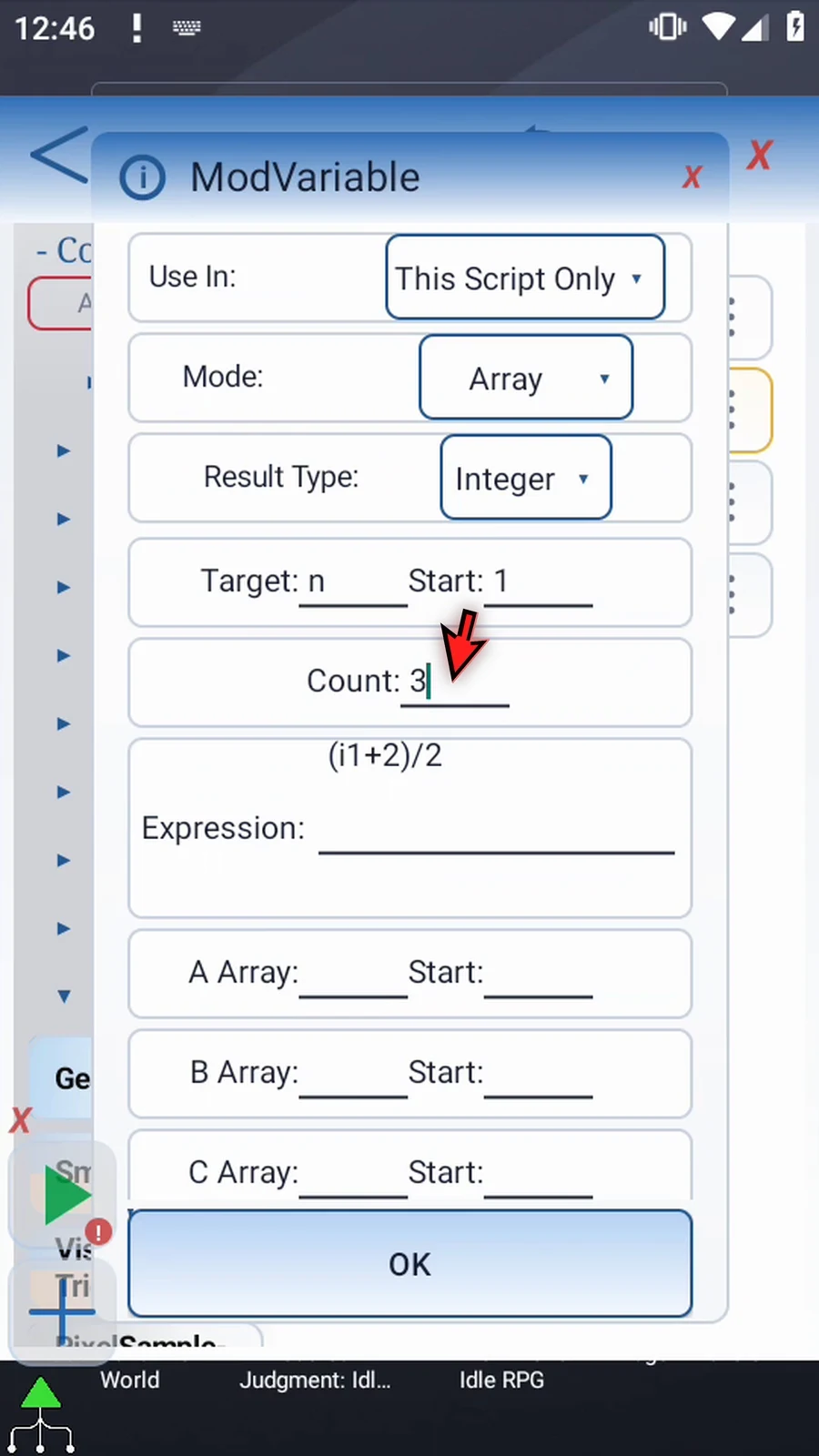
Step 06 Enter a plus i. Lowercase a is the current value from input row A. Lowercase i is the one-based offset of this calculation, starting again at one for the selected range.
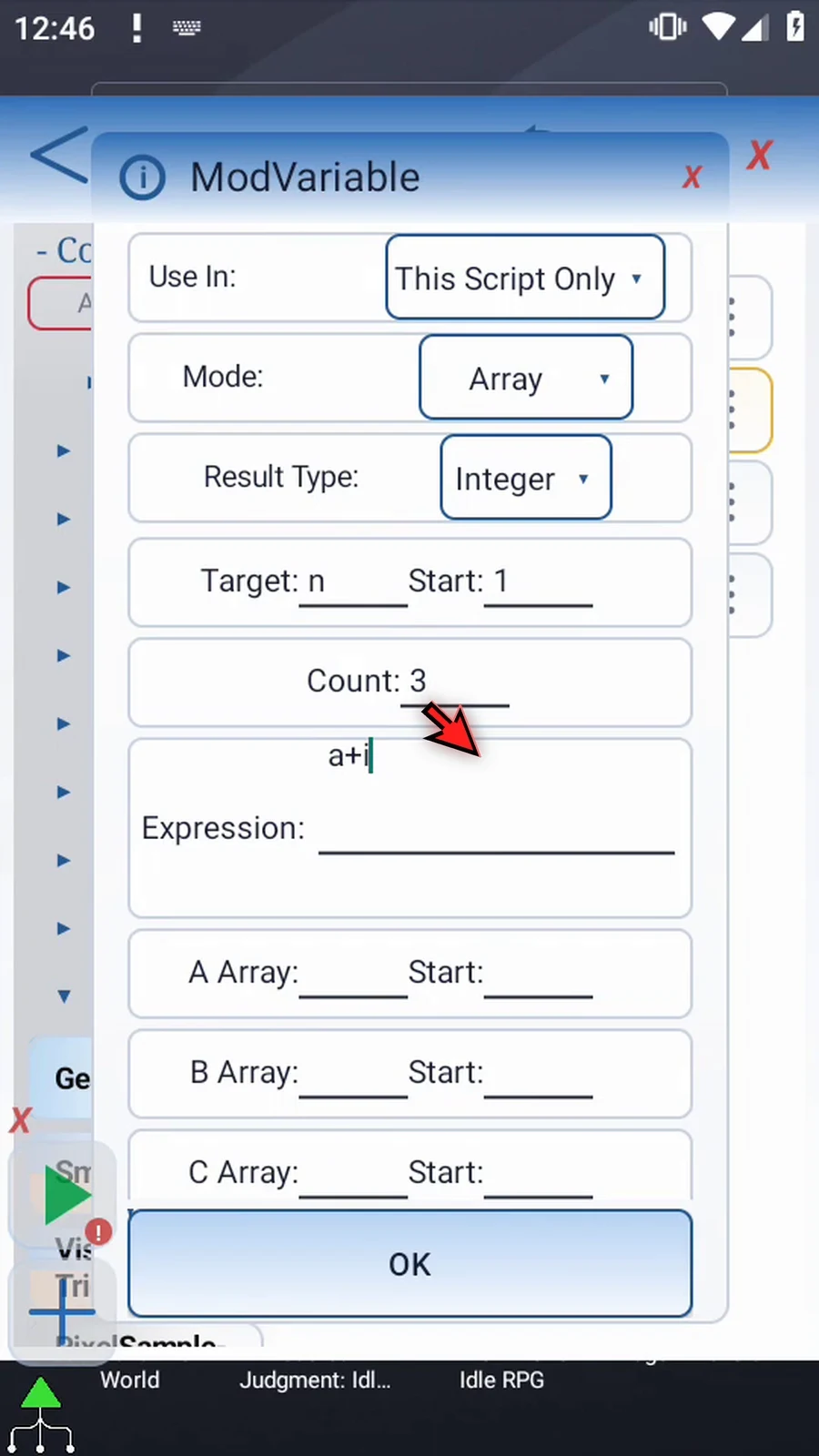
Step 07 For A Array, enter n and Start one. Each calculation reads the next input slot. Since the three starting values are zero, adding the offset produces one, two, and three.
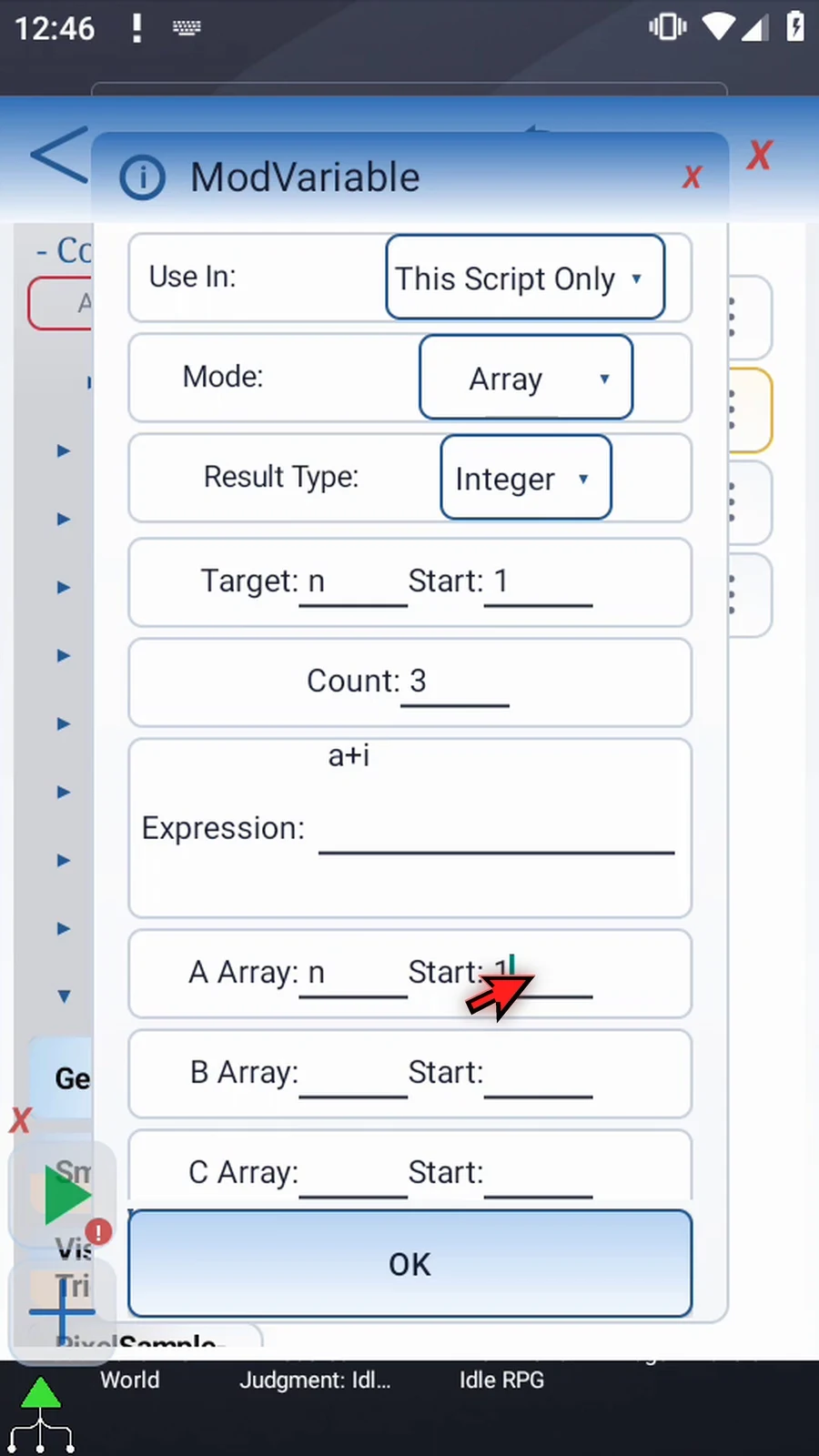
Step 08 You can use one, two, or three numeric input ranges. Rows A, B, and C provide the aliases a, b, and c. Each populated row needs its array letter and start. Leave the unused B and C rows blank in this example.
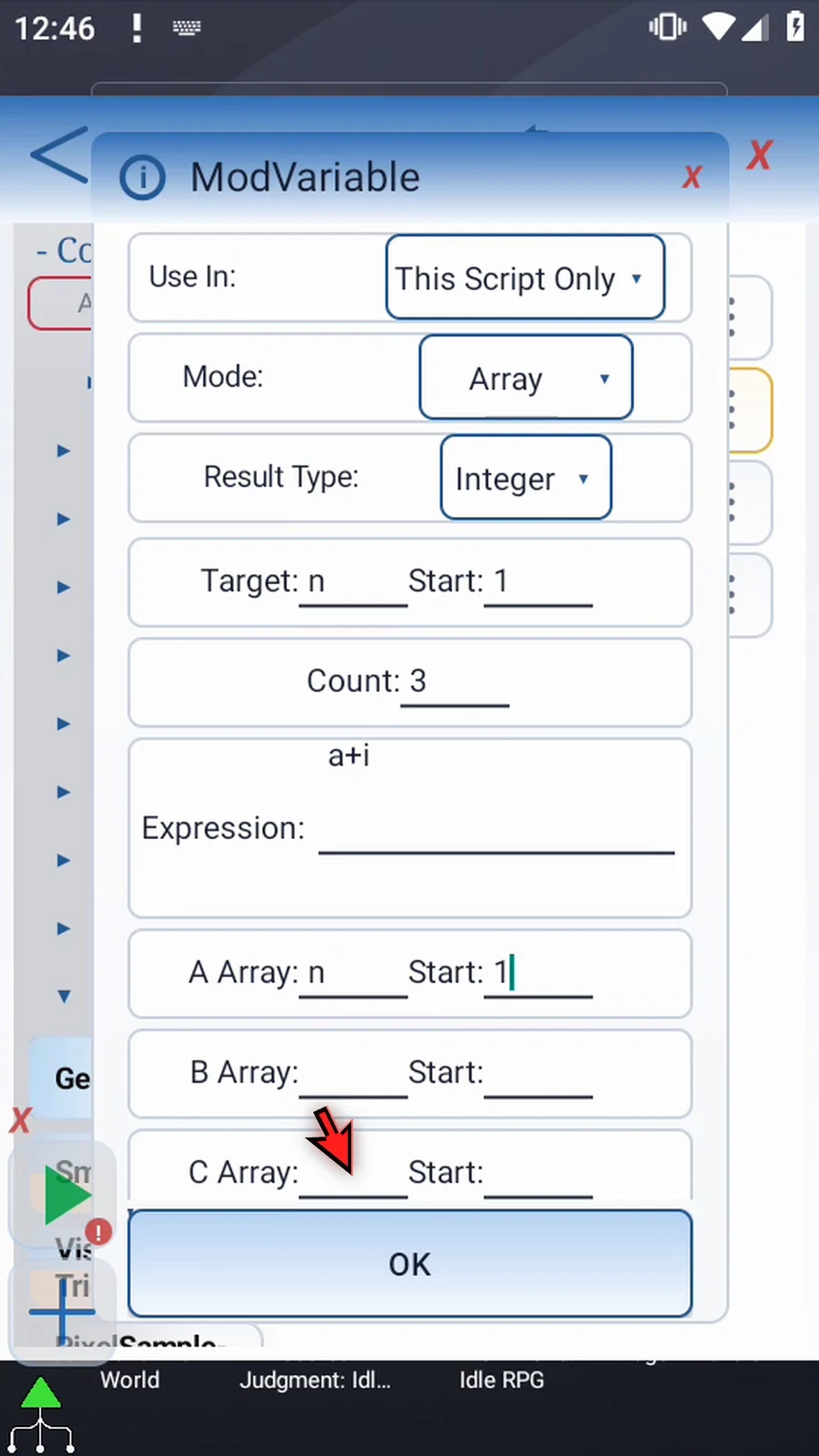
Step 09 Use arithmetic operators, parentheses, unary signs, and numeric literals. Keep the expression within two hundred fifty-six characters. Array expressions use these fixed aliases, not arbitrary scalar variable names or JavaScript functions.
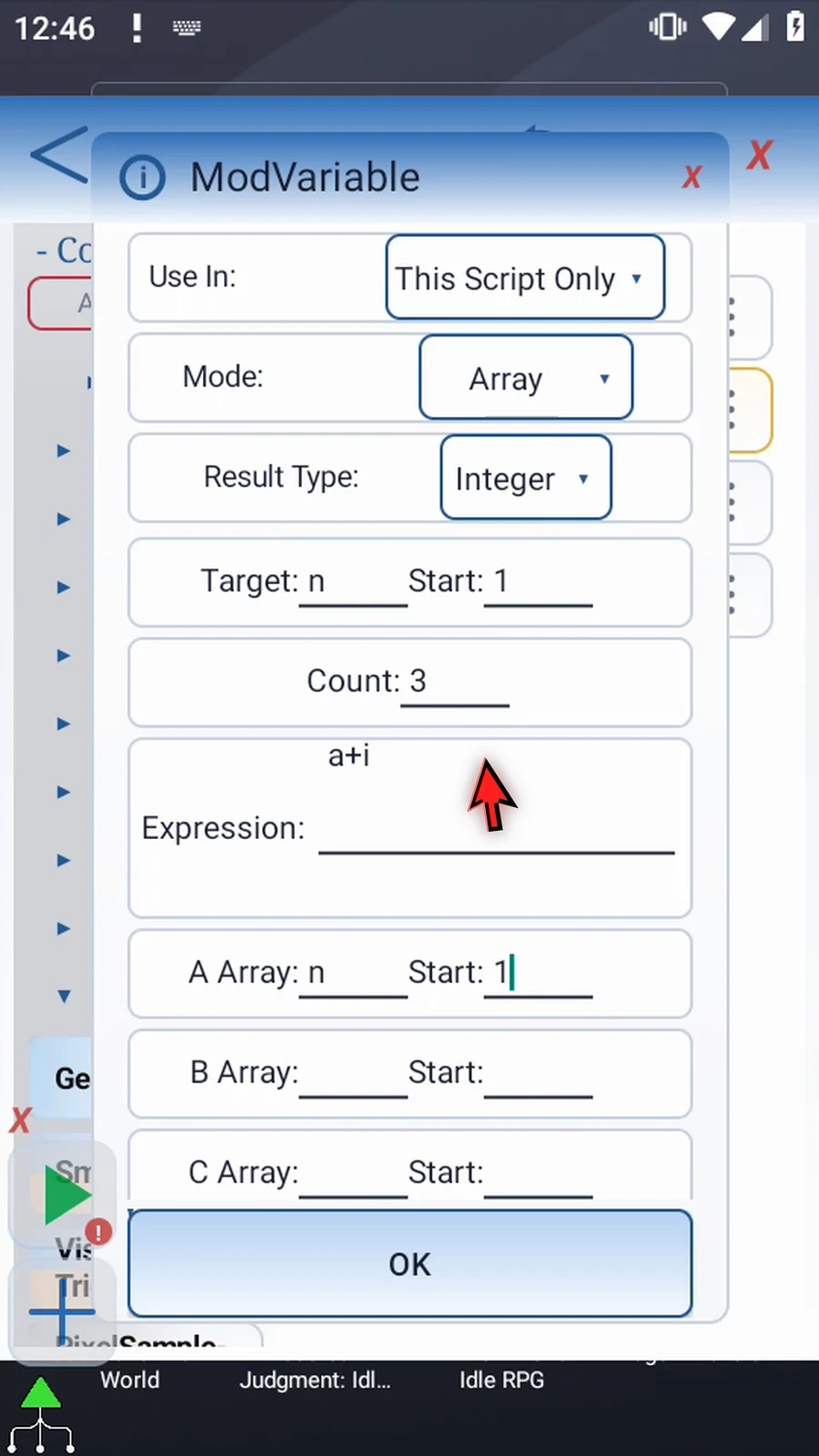
Step 10 The calculation stages its results before writing the batch. This lets the target safely overlap an input range. If an arithmetic result fails, no target slots from that batch are written; a warning is logged and play continues. Integer rounds and limits results; Decimal preserves fractional values.
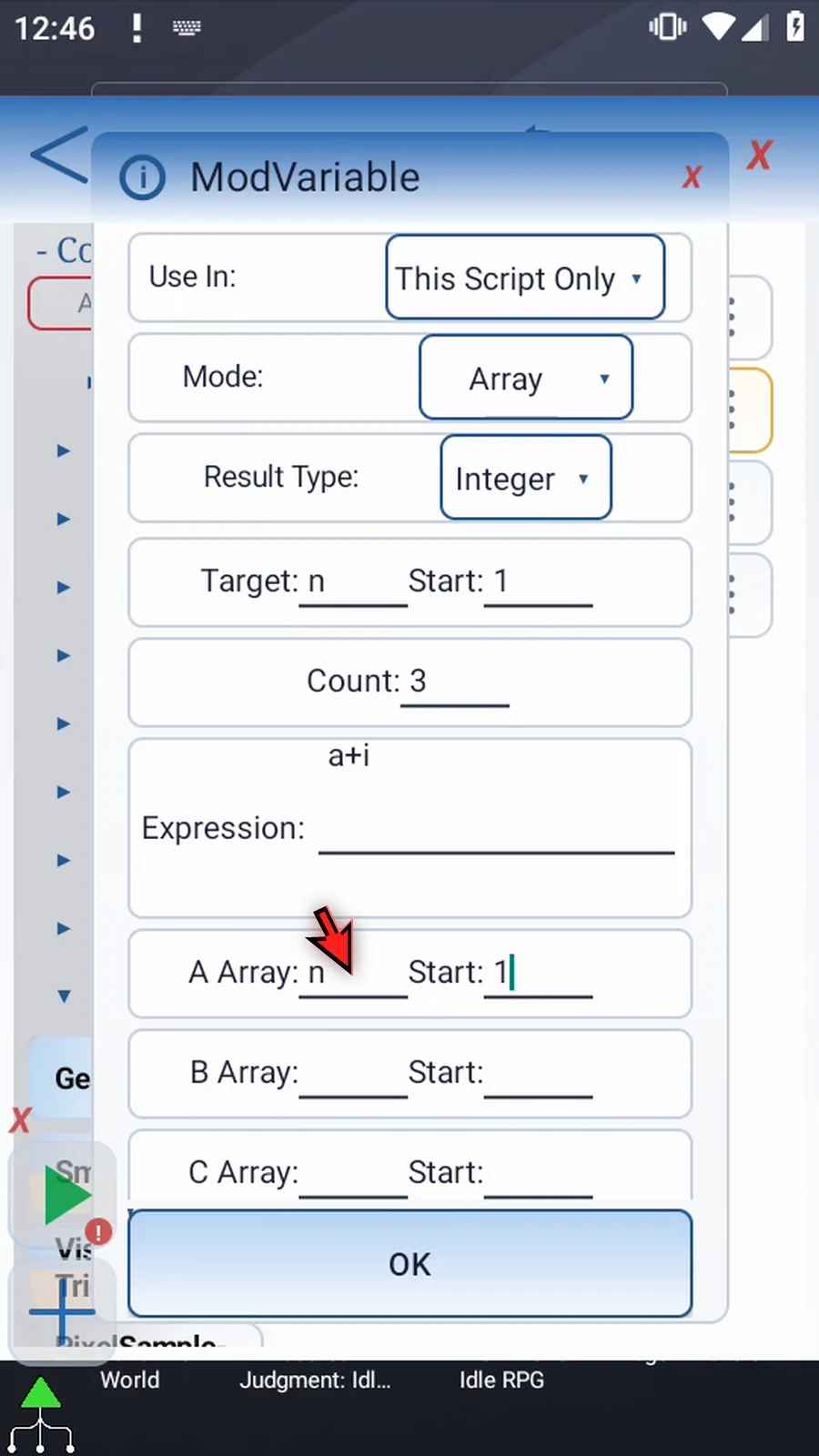
Step 11 Tap OK. The same script now initializes the range, calculates it, displays a selected result, and confirms completion.
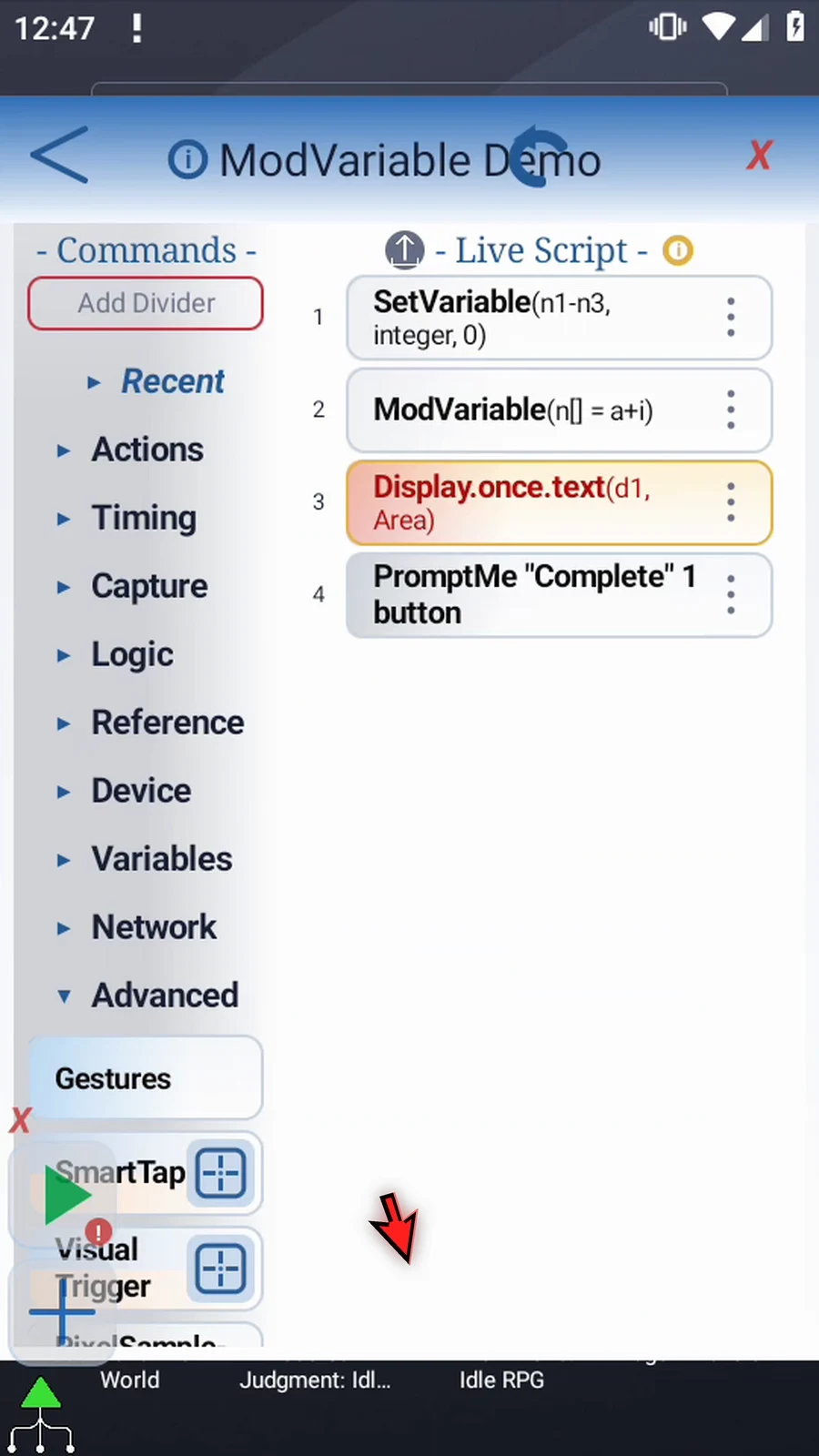
Step 12 Open the existing Display and change its source to n1. Keep the selected area and ten-second lifespan. This supporting command makes the first calculated value visible; it is not part of the arithmetic itself.
Step 13 Close the editor to test the calculation.

Step 14 When the script is complete, simply use the Play button in the main overlay.

Step 15 Display shows one, the result stored in n1. The zero from the first input slot was increased by offset one. The same batch also calculated the second and third slots.

Step 16 Complete appears after Display closes. Press Done to finish this run.

Step 17 To check the other end of the batch, restore the overlay and reopen the editor.
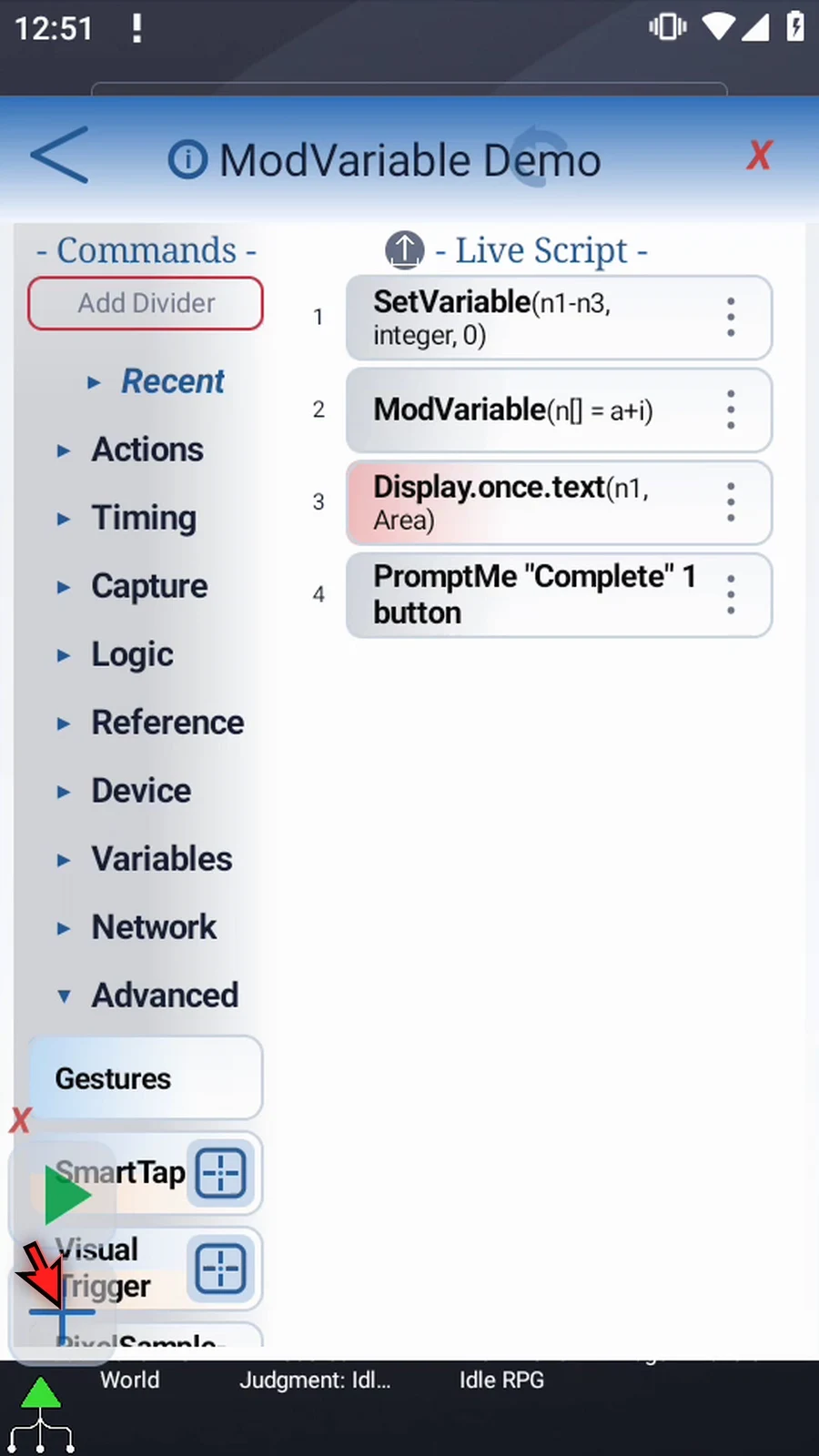
Step 18 Change only Display's source from n1 to n3. Leave the array declaration and calculation unchanged. Save, then close the editor.
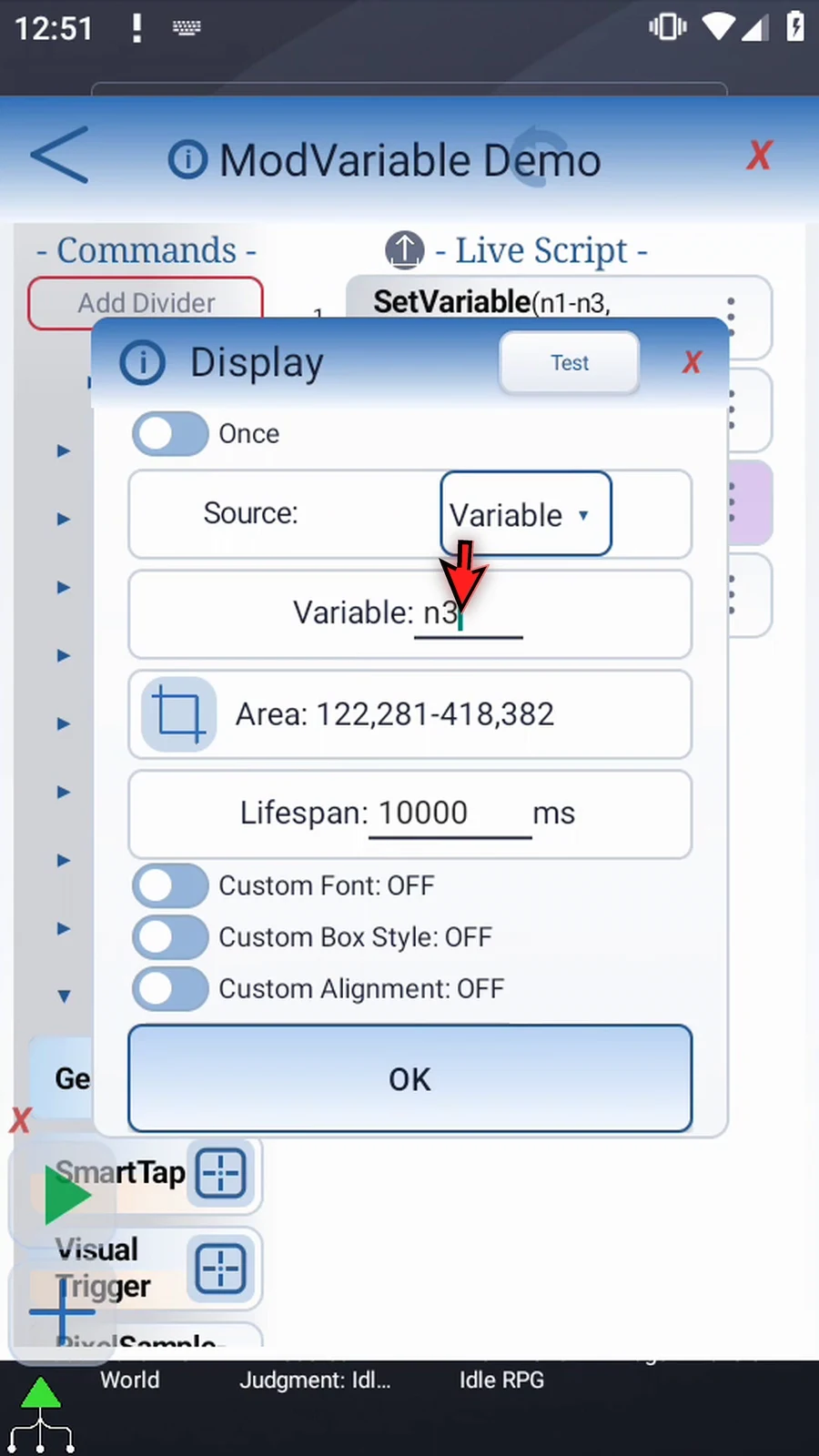
Step 19 When the script is complete, simply use the Play button in the main overlay.

Step 20 Now Display shows three. Each run starts with the same zero values and recalculates the range. This is the third result, using offset three, not three separate Mod Variable commands.

Step 21 When Complete appears, press Done. The script finishes automatically. Use Array mode when several numeric values need the same transformation, and keep your input ranges, destination type, and count explicit.