Command video guide
Delay Until
Wait until a clock time or a condition is reached before running the next command. This guide explains Time, Image, UI Element, Pixel, Variable, and Active App, then demonstrates Active App with Google Play.
For Image, UI Element and Pixel setups, refer to the ImgFind(), UIFind() and PixelFind() command guides.
The demo waits for Google Play, uses Delay 2000 ms for opening, then taps Search, focuses the search bar and types ScriptTap. Two additional one-second Delays let the Search tab and text field settle on this device. Match coordinates and timing to your own device.
Watch the walkthrough
Step-by-step guide
Step 01 Delay Until pauses your script until a chosen time or condition is reached. Use it when the next action depends on something being ready, rather than a fixed amount of time passing.
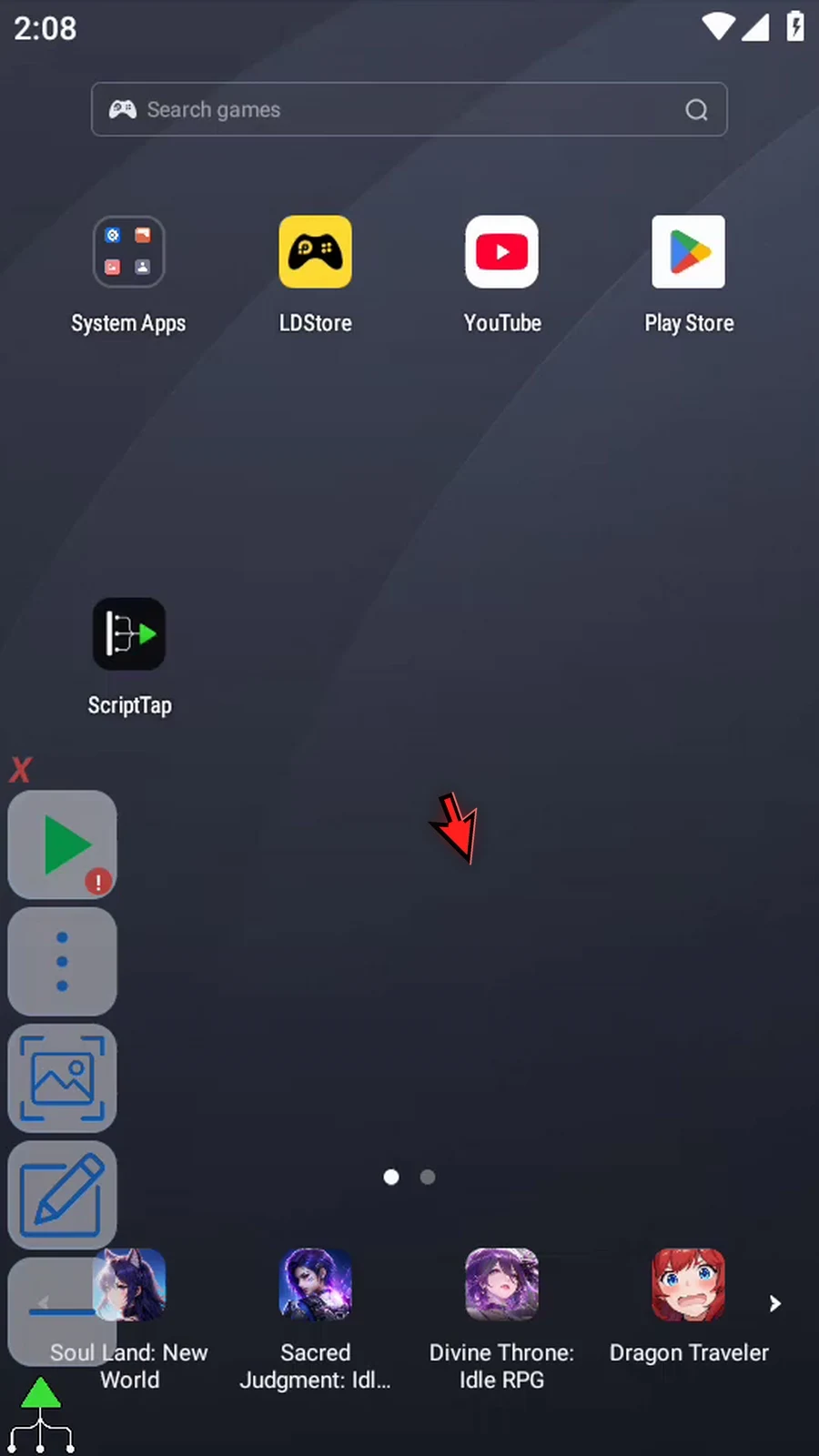
Step 02 Open Scripts. Tap New Script, then choose Blank Script.
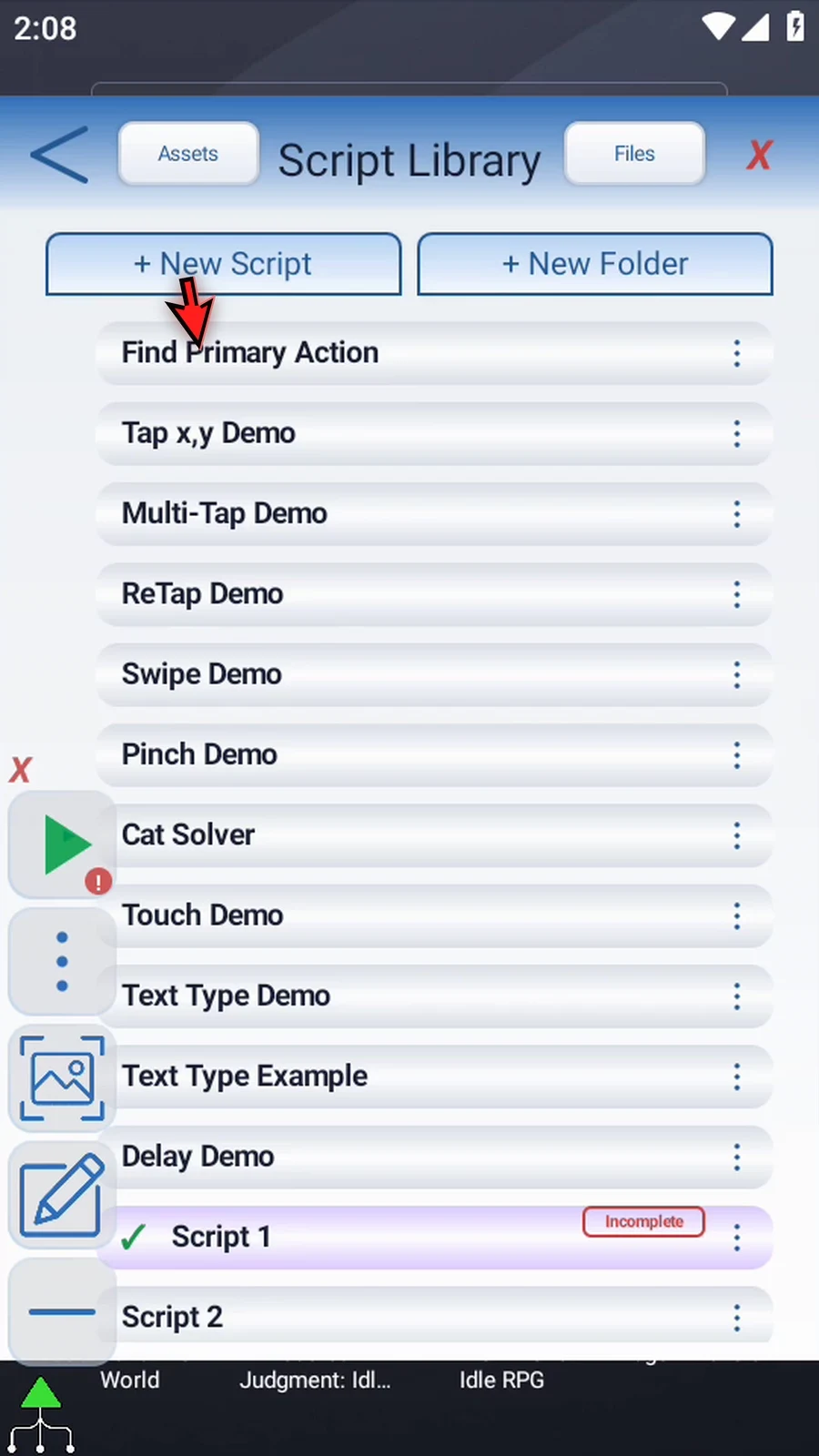
Step 03 Open its three-dot menu and choose Rename. Pick a name, then tap OK.
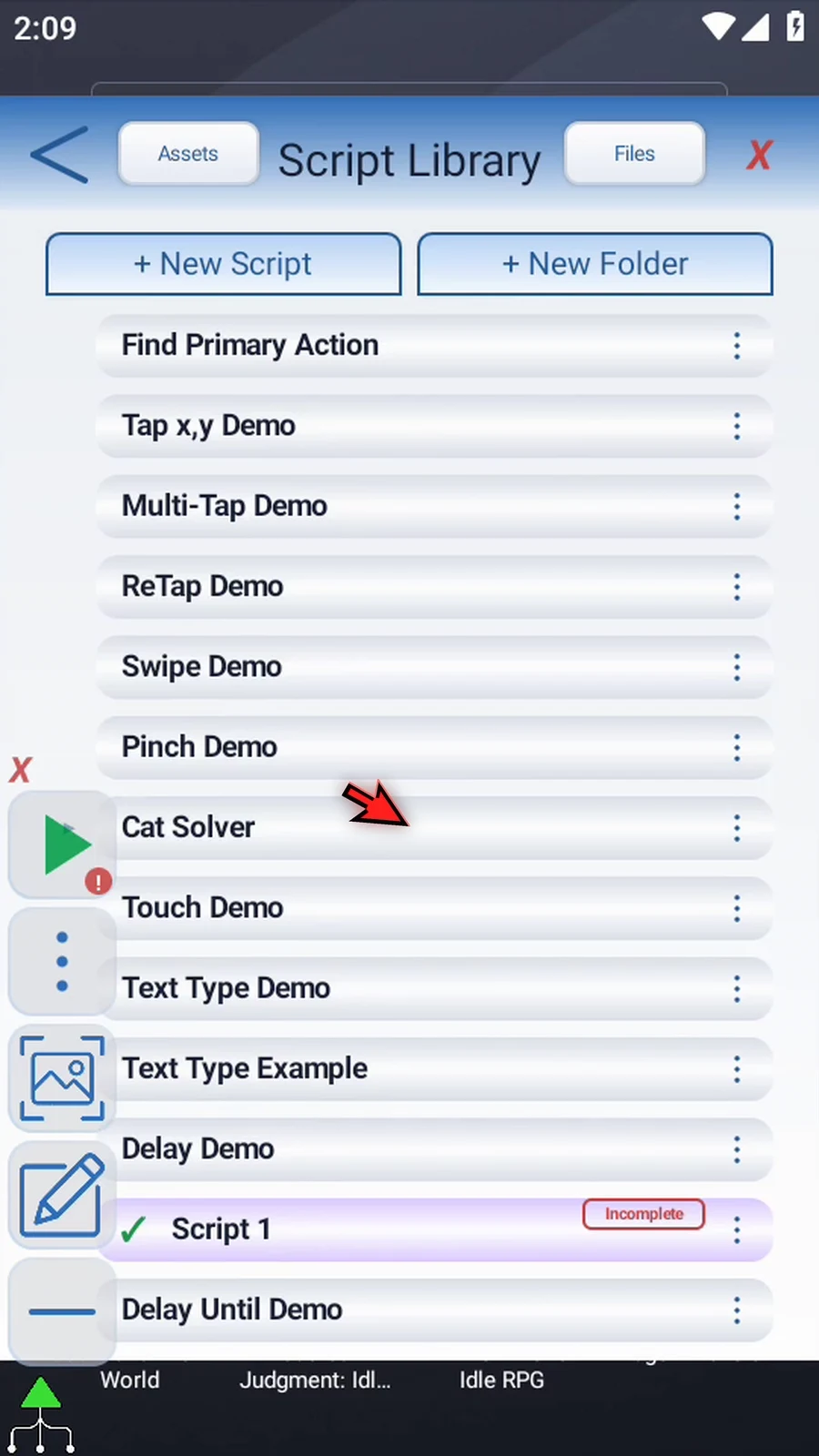
Step 04 Select your new script and open the Script Editor. Collapse the extra overlay controls.
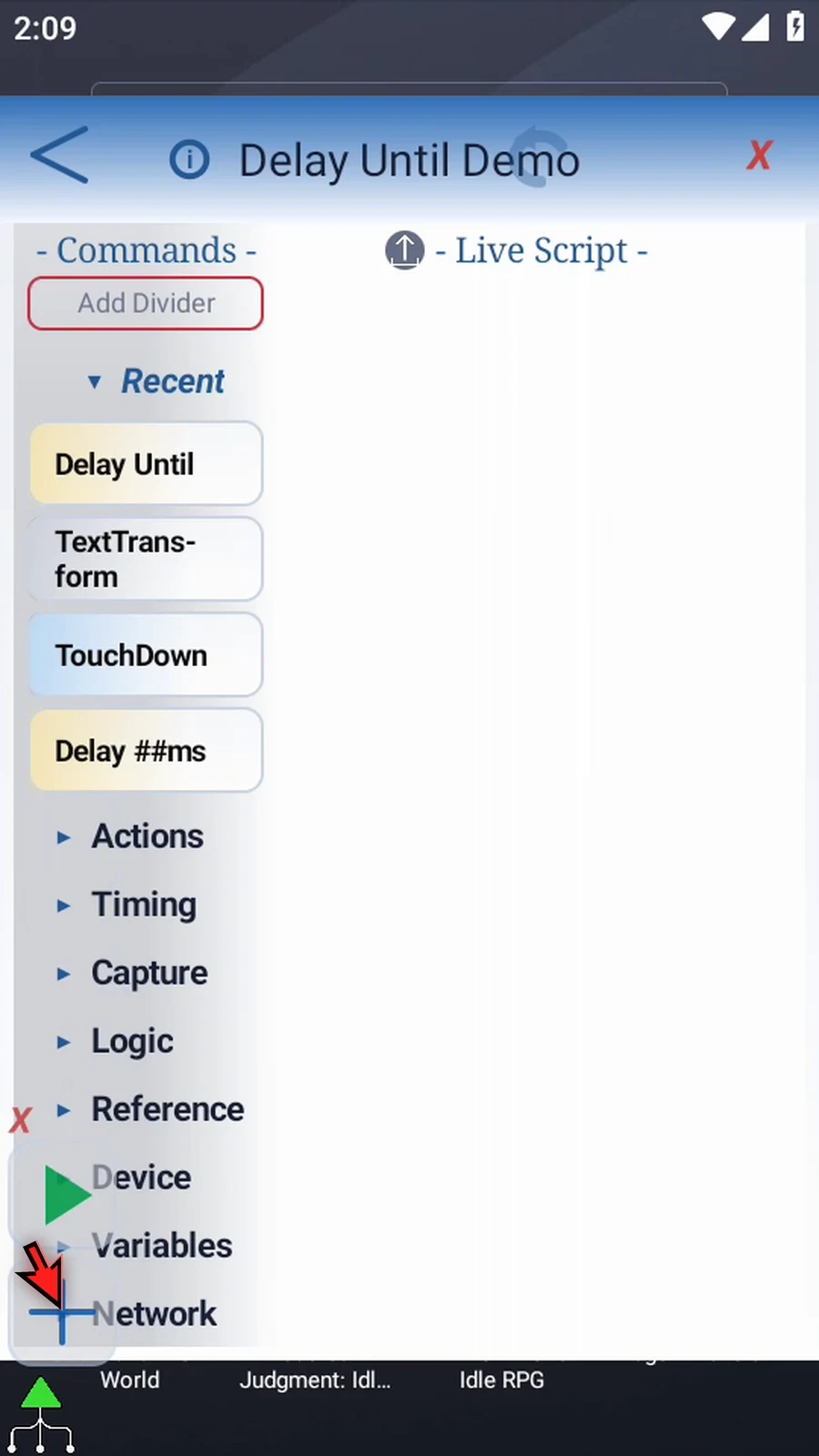
Step 05 Expand Timing and drag Delay Until into the script. Double-tap its frame to open the settings.
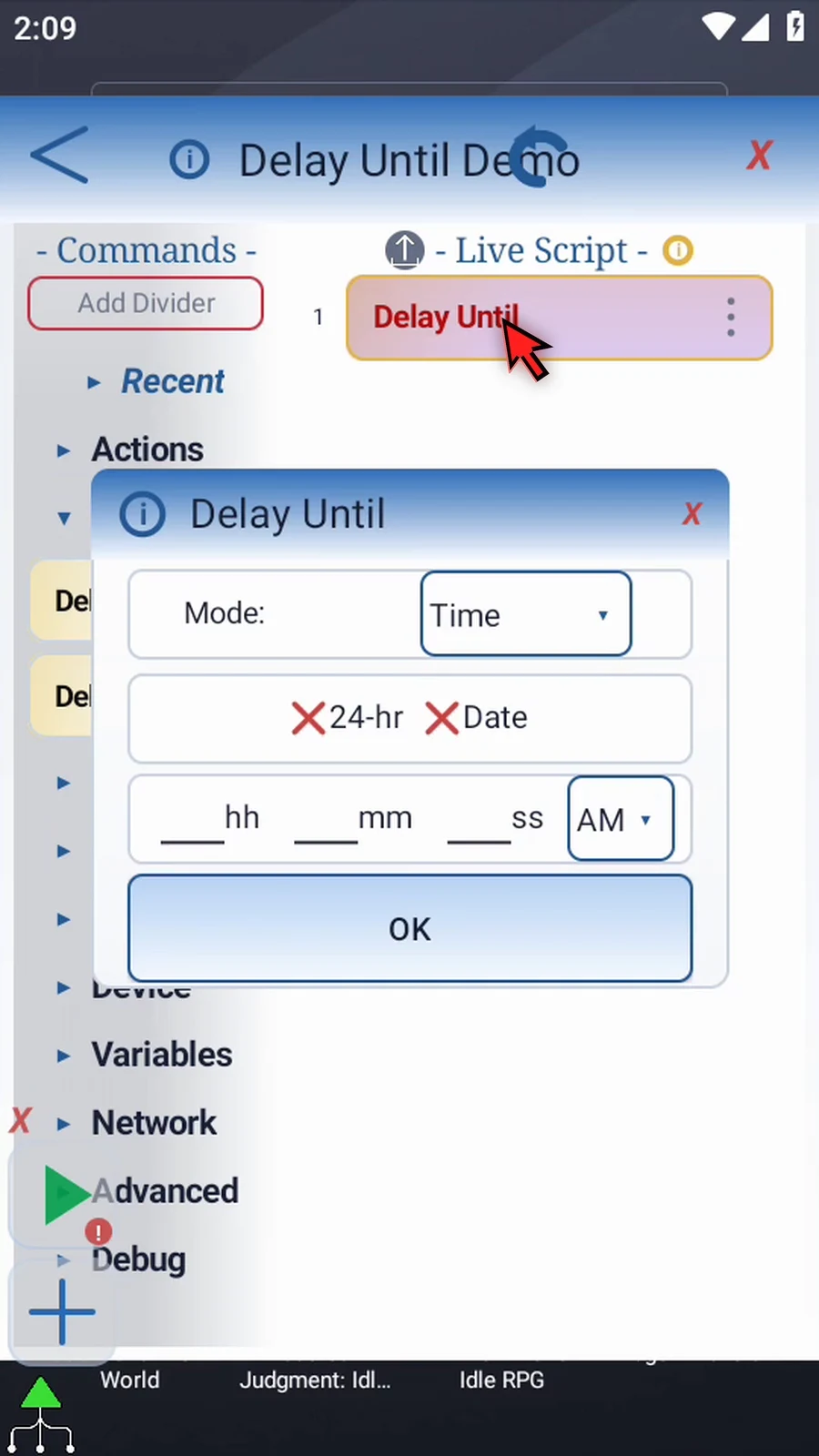
Step 06 Time waits for a clock time on your device. Enter the hour, minute, and second. Use AM or PM, or turn on twenty-four-hour time. Without a date, a time that has already passed waits until tomorrow.

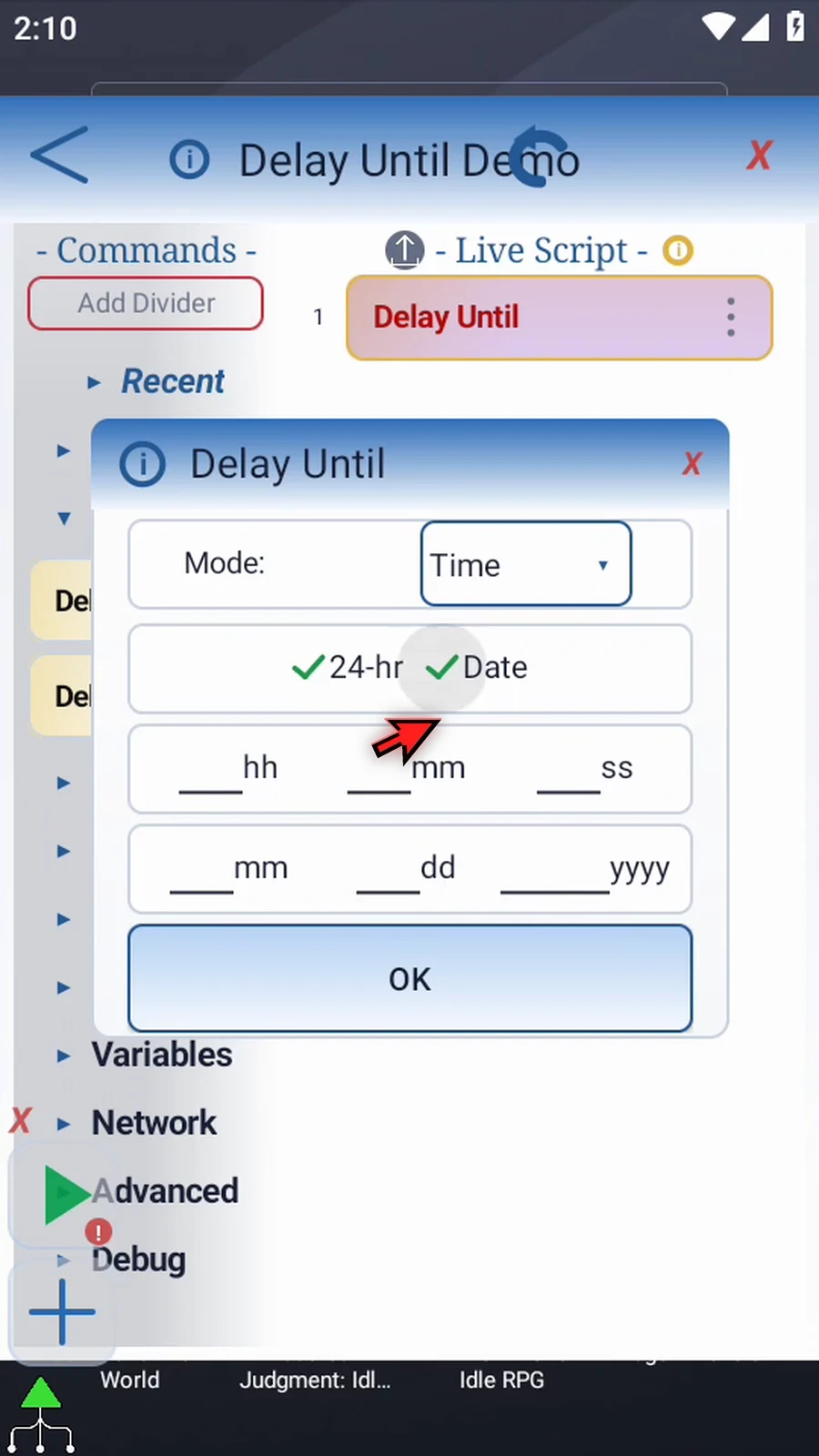
Step 07 Turn on Date to choose a specific month, day, and year as well. Use a valid calendar date. If that dated time has already passed, the command continues immediately.
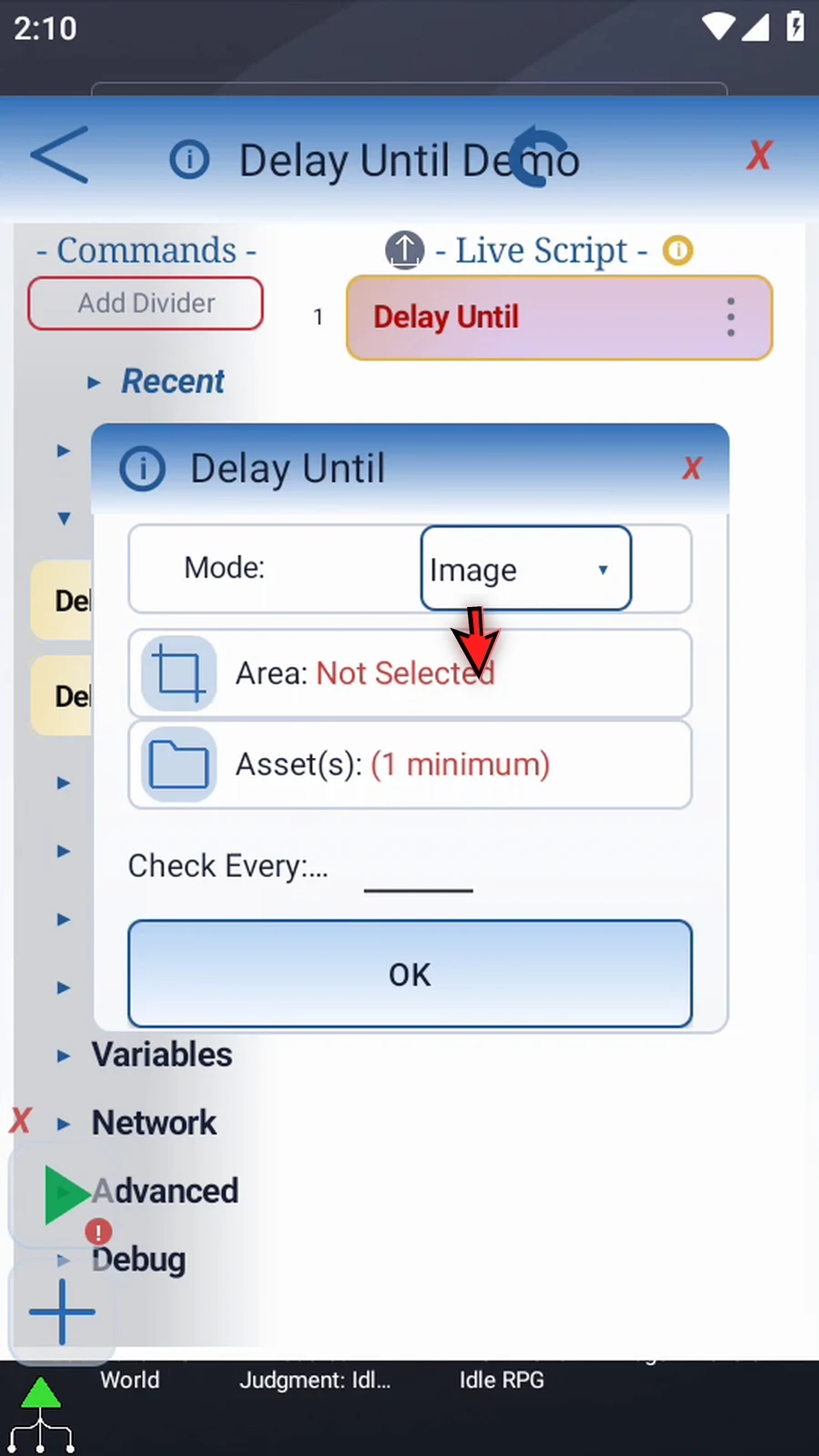
Step 08 Image waits until a saved image appears inside the selected screen area. Choose at least one image asset, the search area, and the match confidence. It waits for a match; it does not tap the image.
Step 09 UI Element waits until an app exposes a matching accessibility element. You can match text or another element property, choose Exact, Contains, or Regex, and narrow the result with an occurrence number, package, and element filters. This is not OCR.
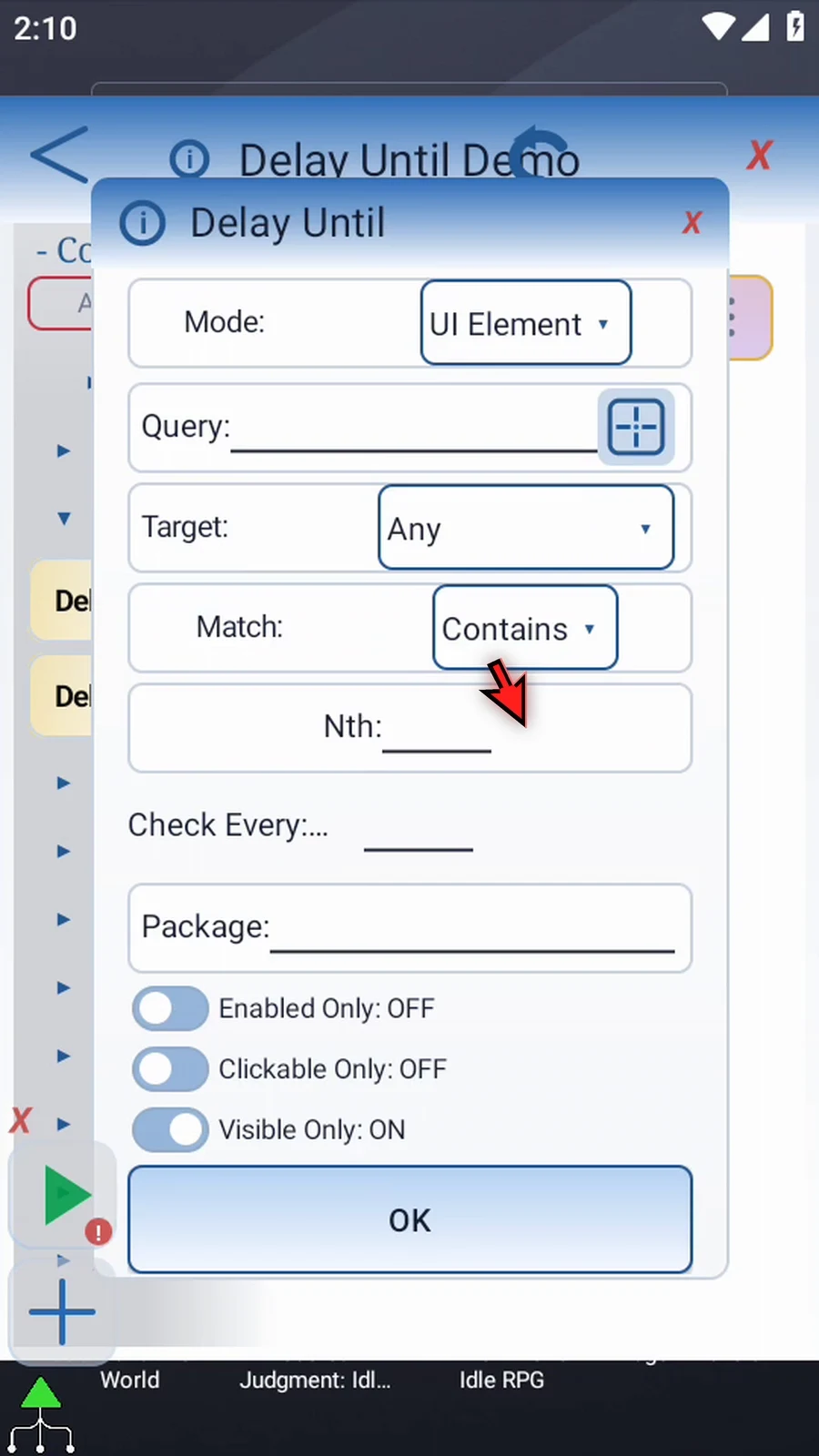
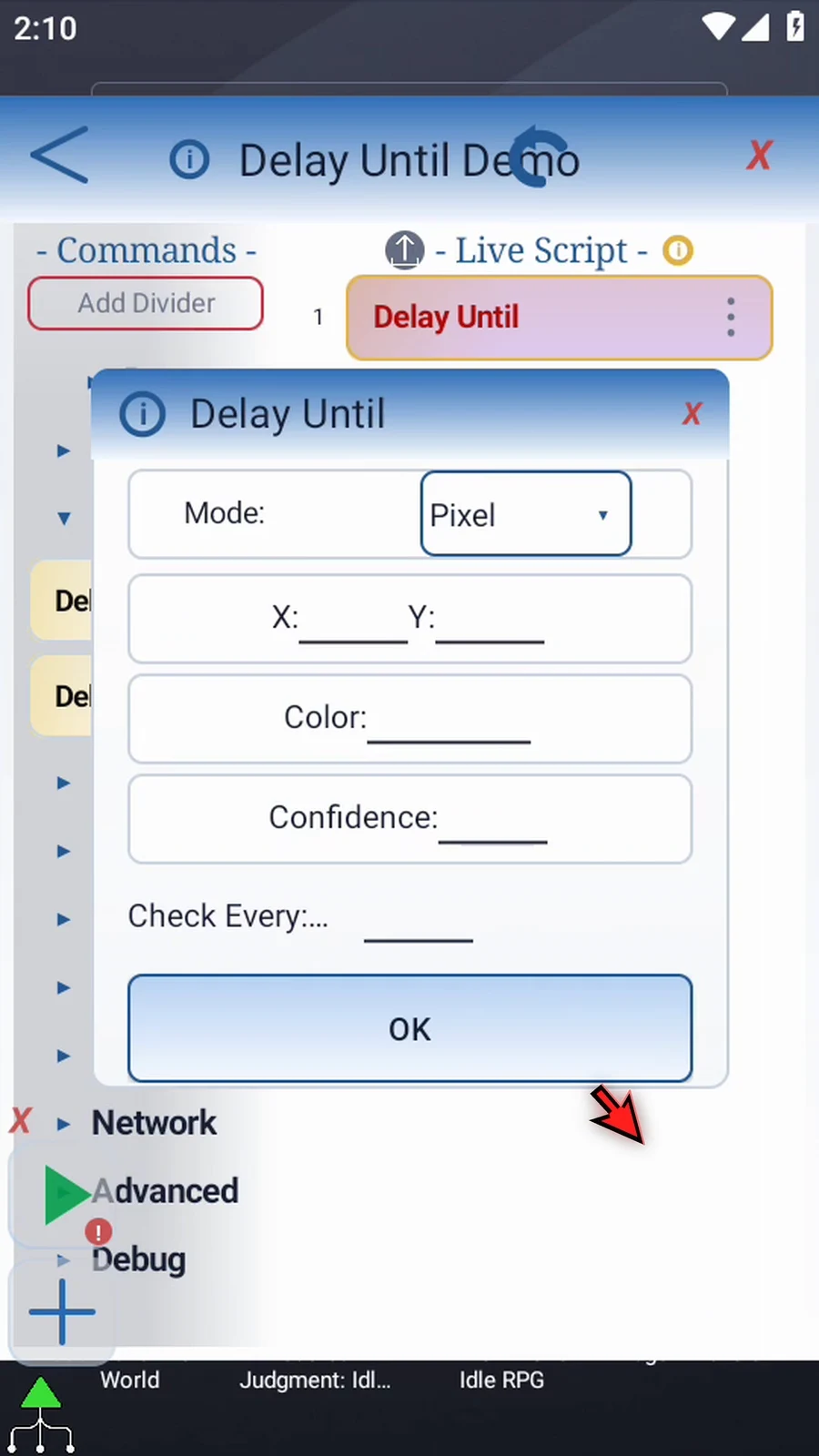
Step 10 Pixel waits until the color at one screen coordinate matches your target. Set the X and Y position, a Hex color or an earlier Hex variable, and the confidence.
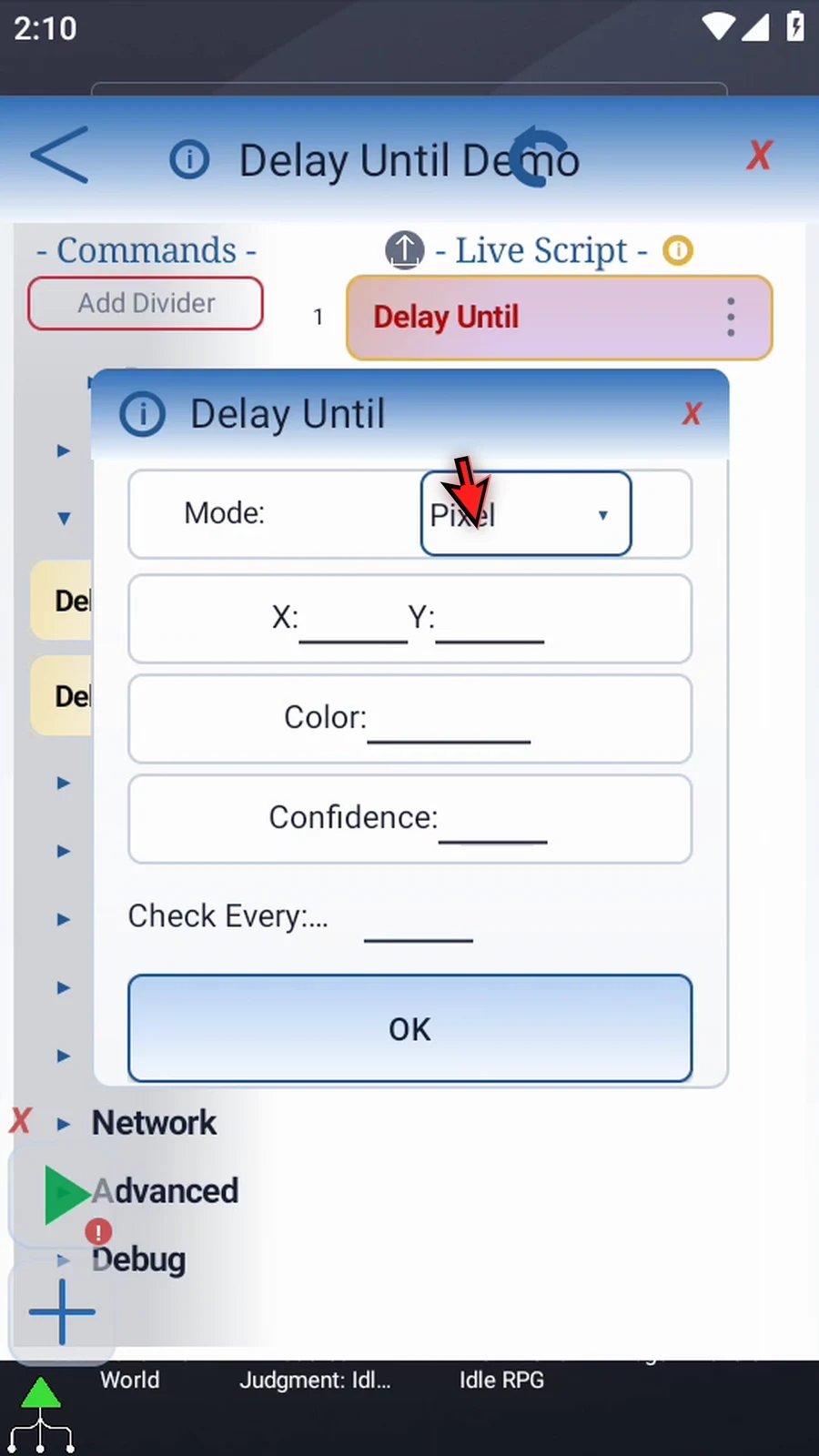
Step 11 For image, pixel, and UI element setup details, refer to the Image Find, Pixel Find, and UI Find command guides.
Step 12 Variable waits for a condition on a variable defined earlier in the script. Choose its name, value type, and the comparison target. The supported types are Boolean, Integer, Decimal, String, Hex, and Time.
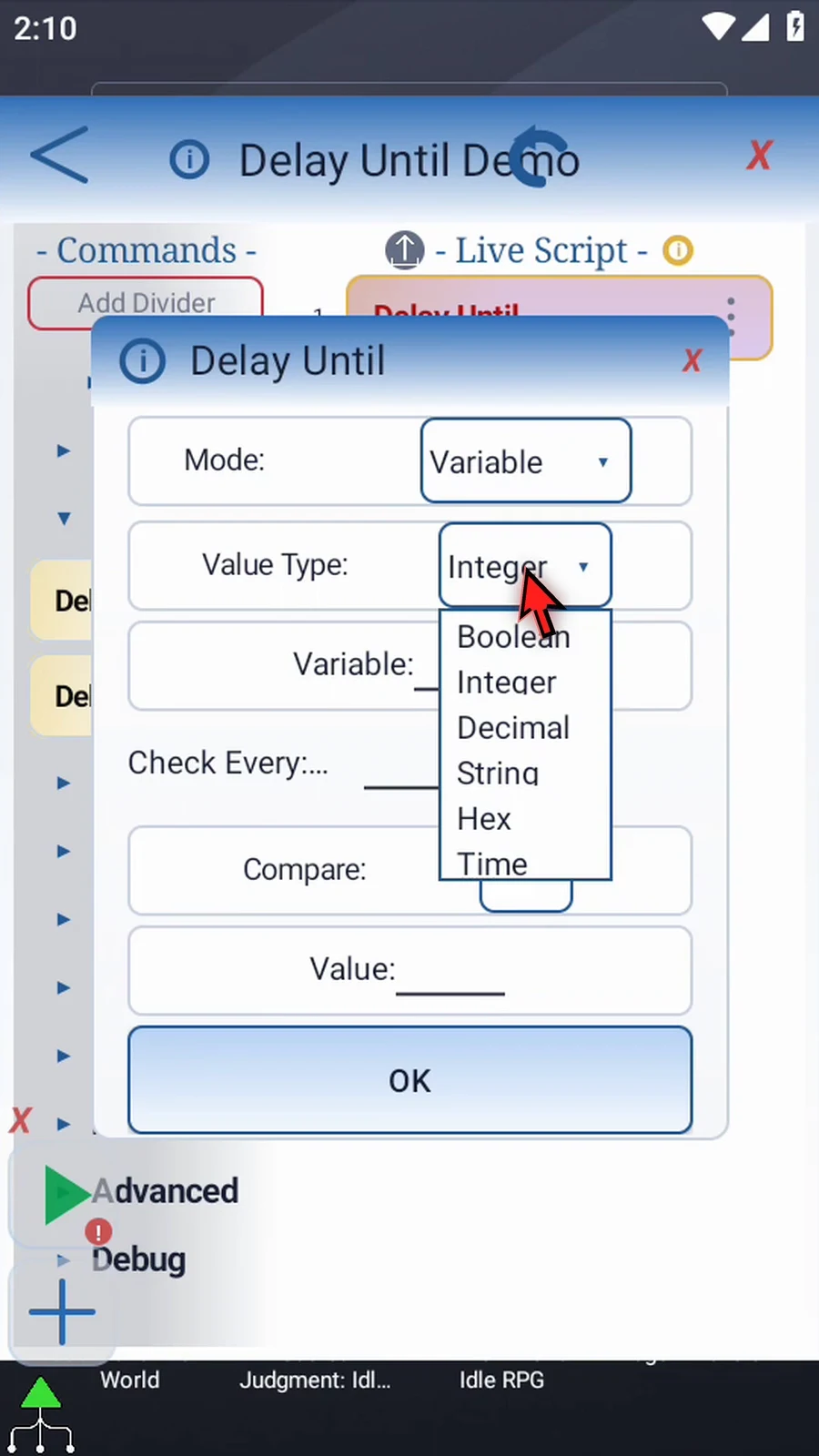
Step 13 Boolean and Hex use equality. Integer, Decimal, and Time also support not equal, greater than, less than, and their inclusive comparisons. Choose the comparison that must become true.
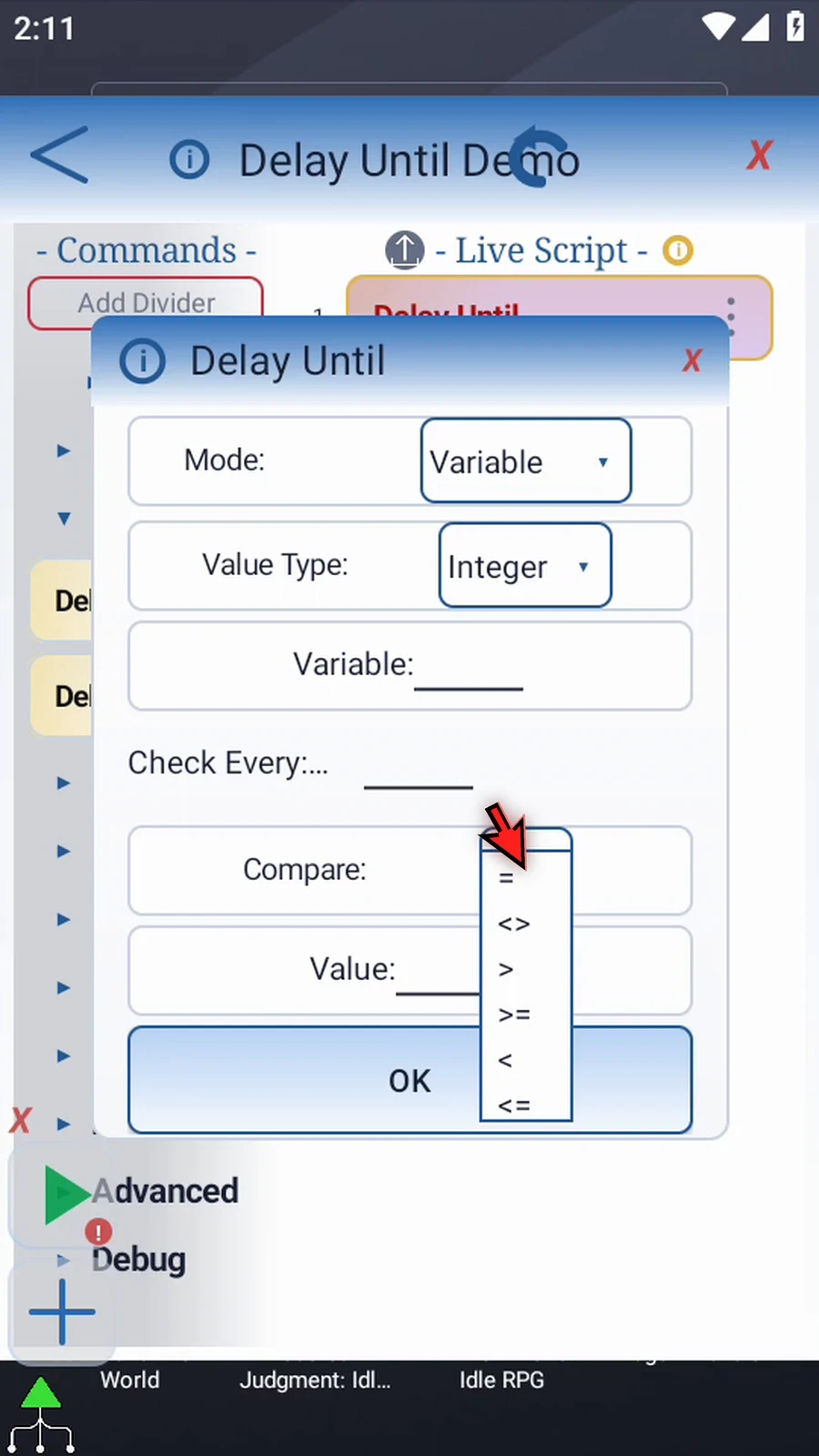
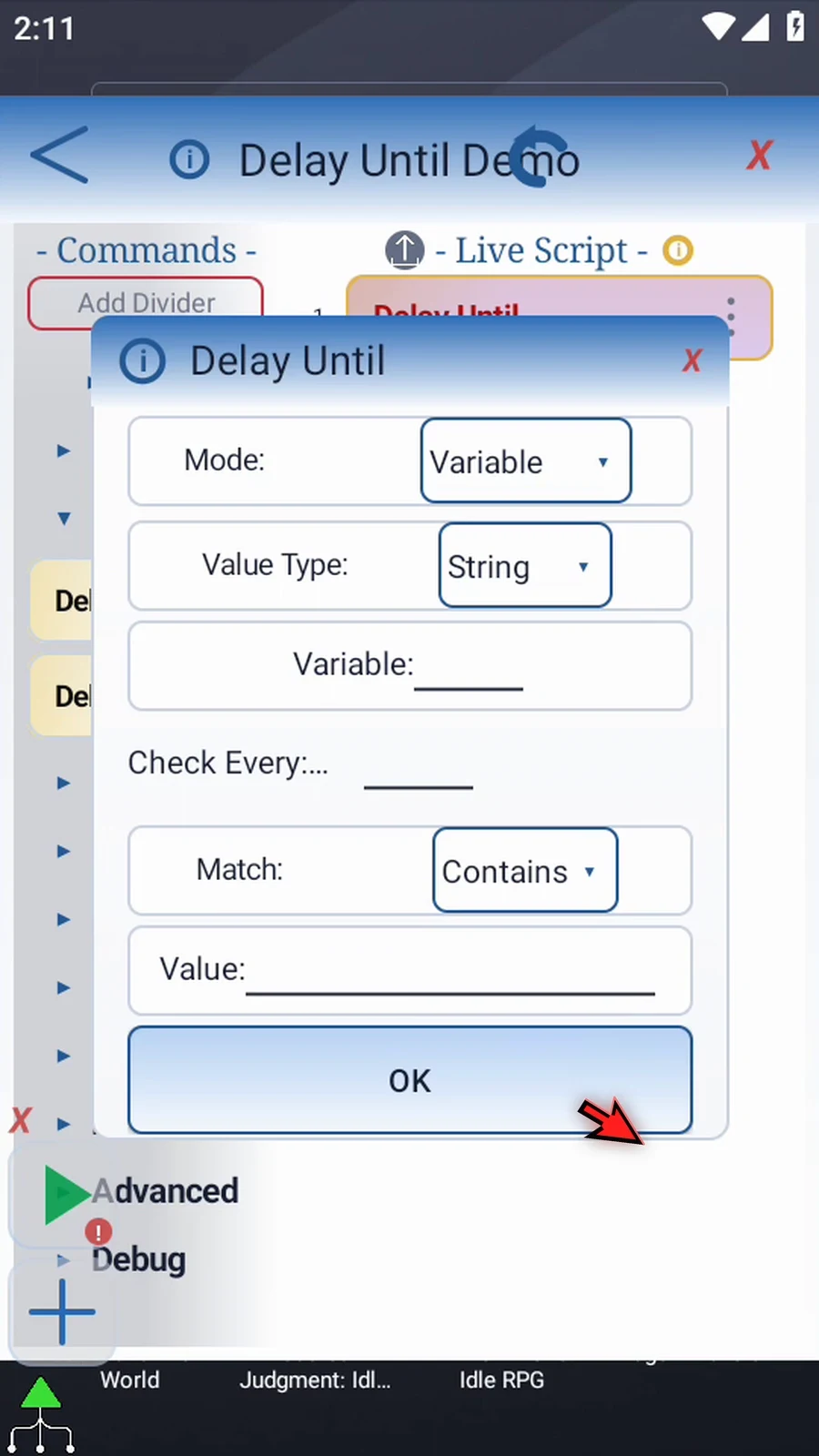
Step 14 For String values, Exact matches the whole text, Contains looks for part of it, and Regex uses a pattern. Delay Until only checks the condition. It does not change the variable or execute the commands that follow while it is waiting.
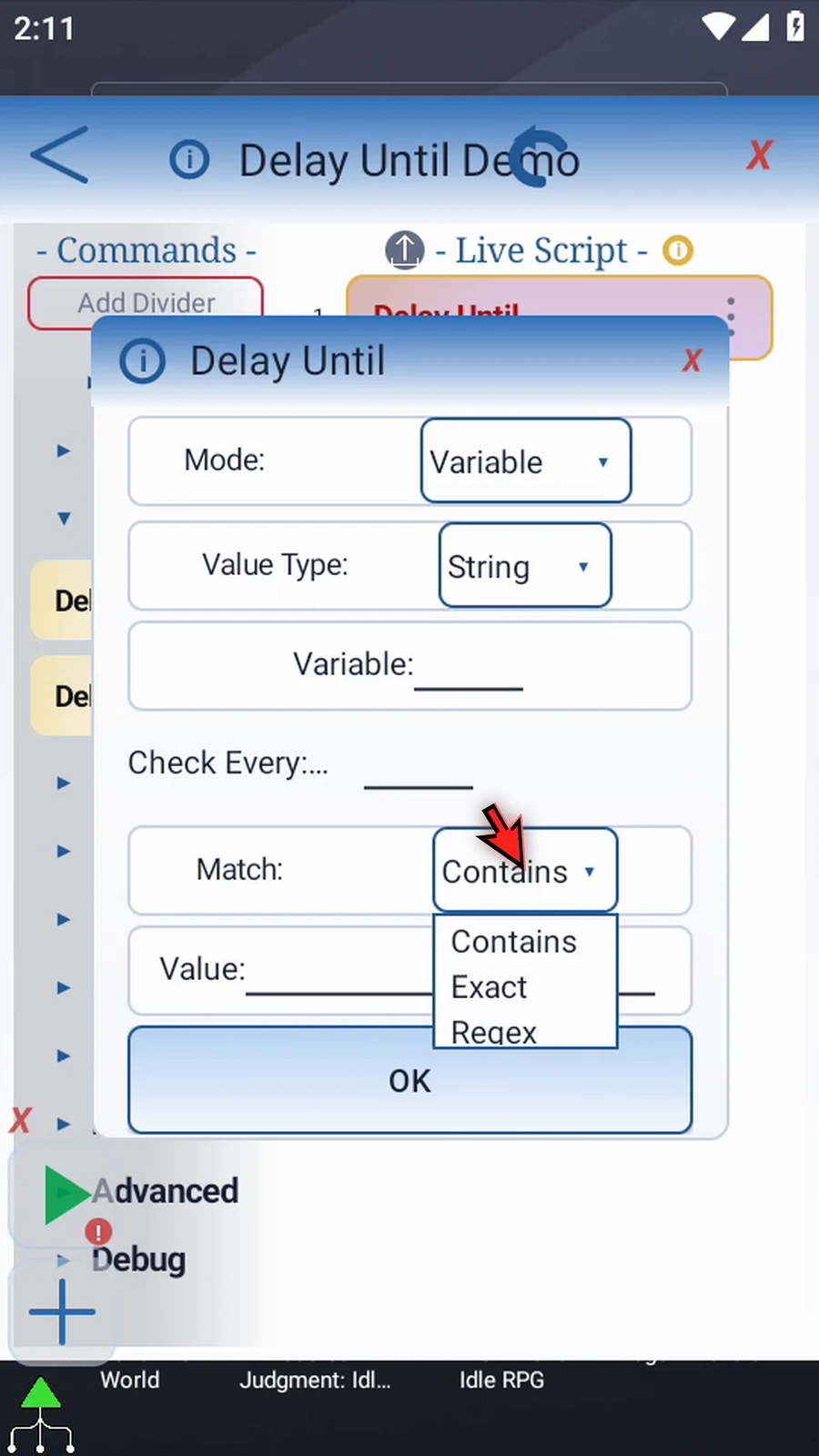
Step 15 Every mode except Time has Check Every, in milliseconds. This controls the pause between checks, not a maximum waiting time. Use a whole number from zero to sixty thousand. Zero adds no pause. Make sure the condition can become true, or use Stop to end the wait.
Step 16 In this demo, we will be using Active App. This mode waits until a specific app becomes active before continuing to the next command. It does not open the app for you. Switching modes clears the settings for the mode you leave.
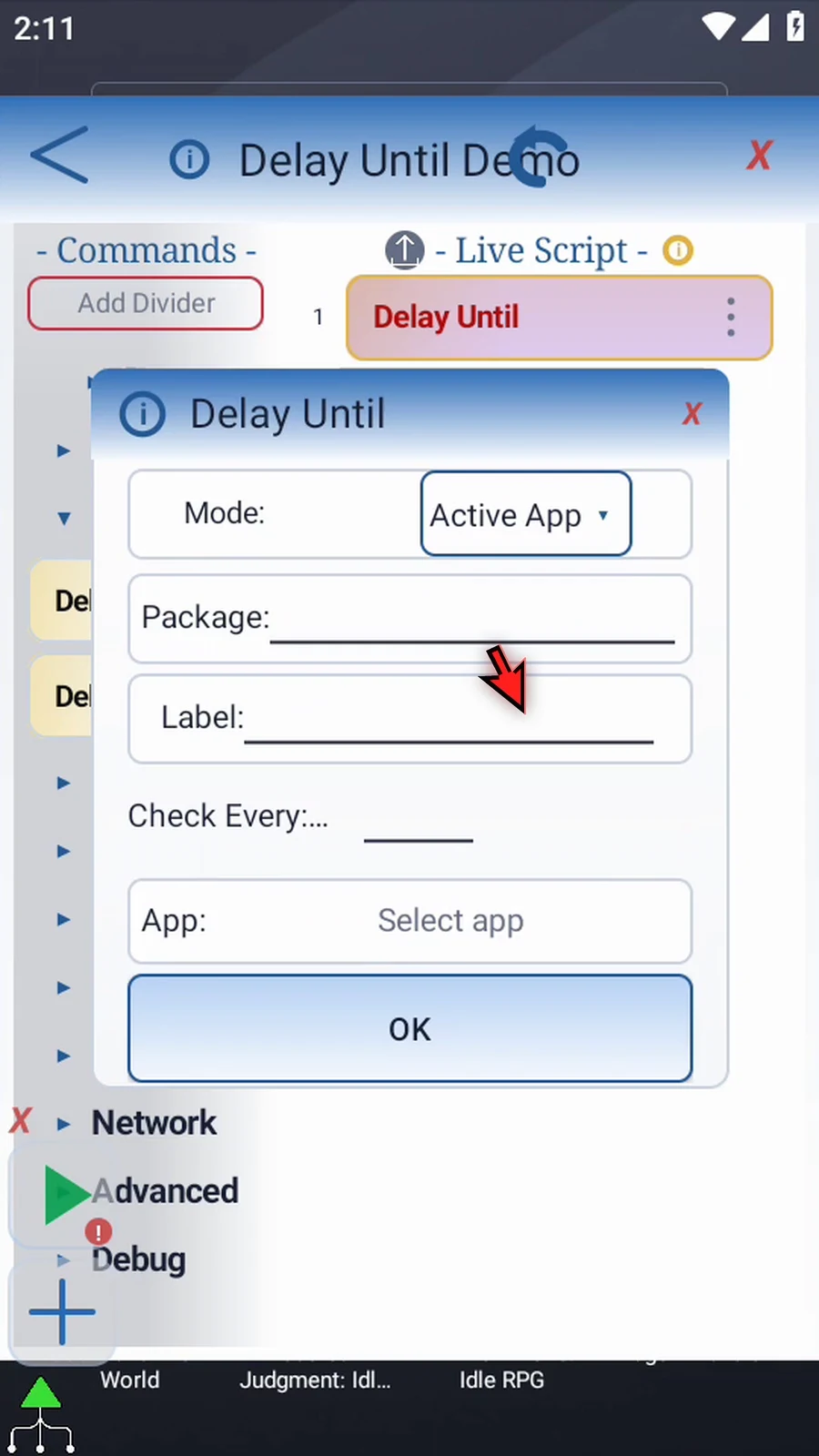
Step 17 Tap Select app and choose Google Play. The picker fills its package and label. The package identifies the app; the label is its readable name.
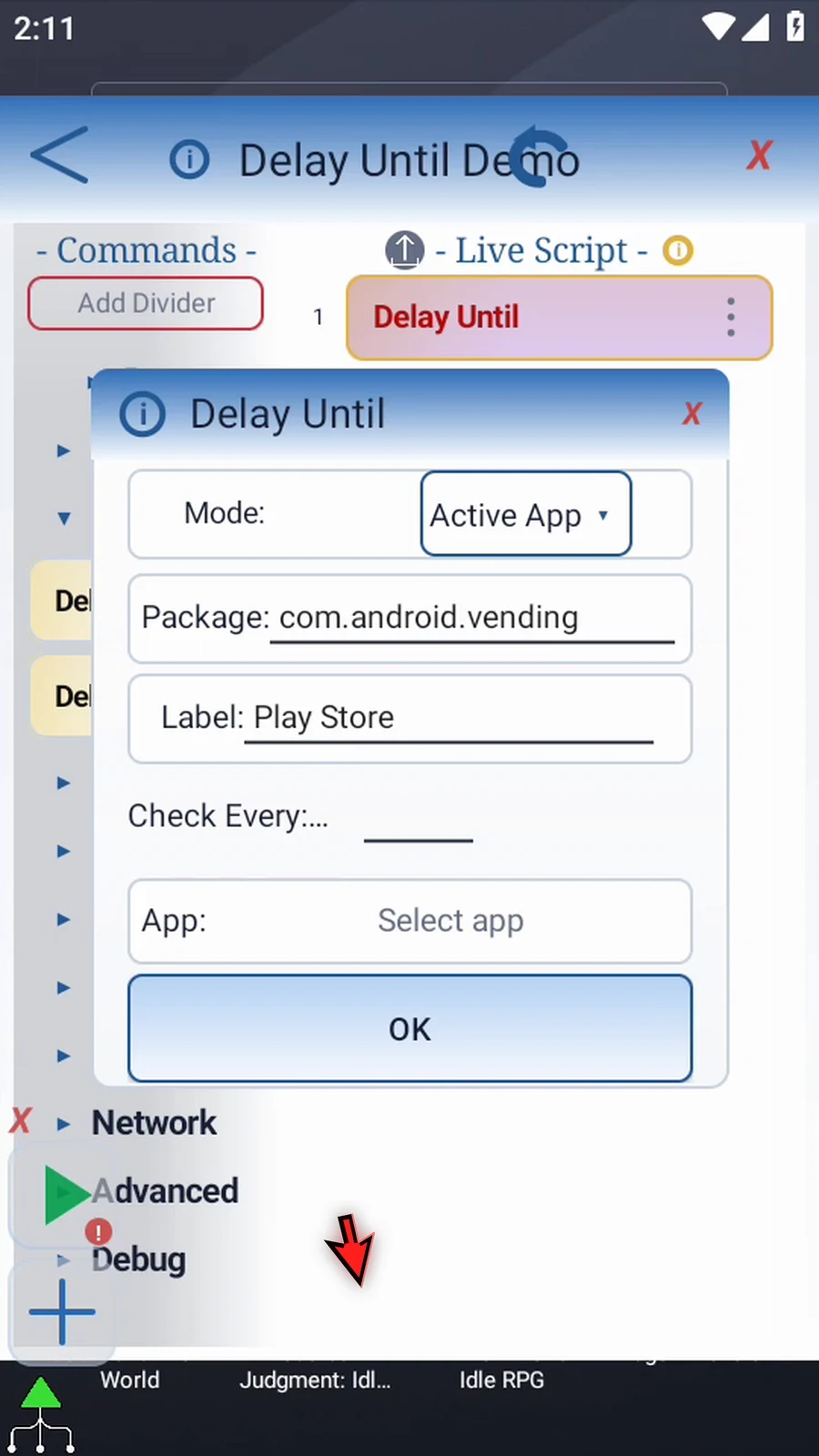
Step 18 Set Check Every to two hundred milliseconds, then tap OK to save.

Step 19 Drag Delay below Delay Until. Double-tap it and enter two thousand milliseconds. This gives Google Play two seconds to finish opening after it becomes active.
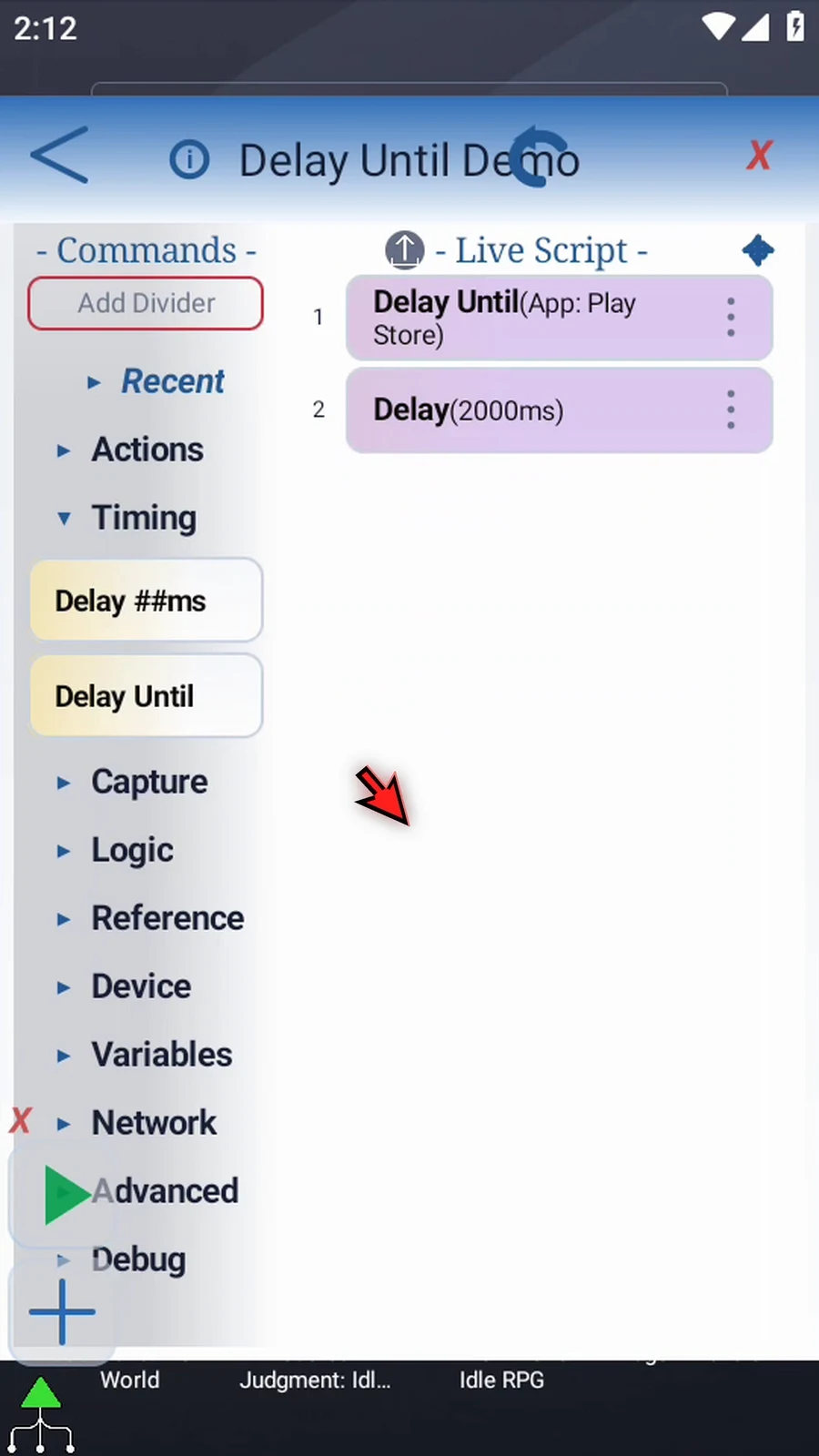
Step 20 Expand Actions and drag a Tap below Delay. Double-tap its frame and enter the coordinates of Google Play's Search icon at the bottom. Tap OK to save.

Step 21 Drag another Tap below it. Set this one to the search bar at the top, then tap OK. Use coordinates that match your own device layout.
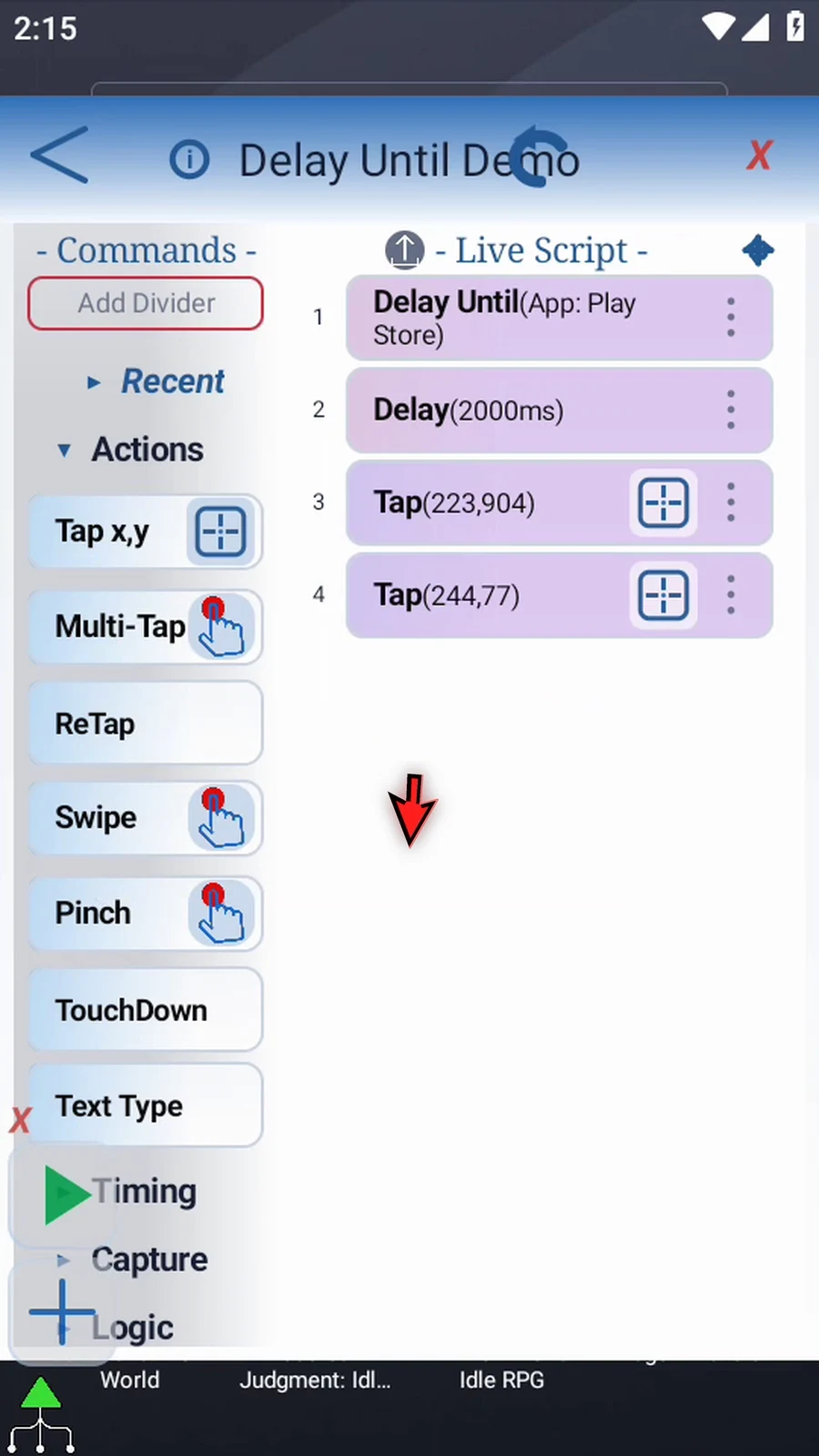
Step 22 Drag a Delay between the two taps and set it to one thousand milliseconds. This gives the Search tab time to appear before the next tap.
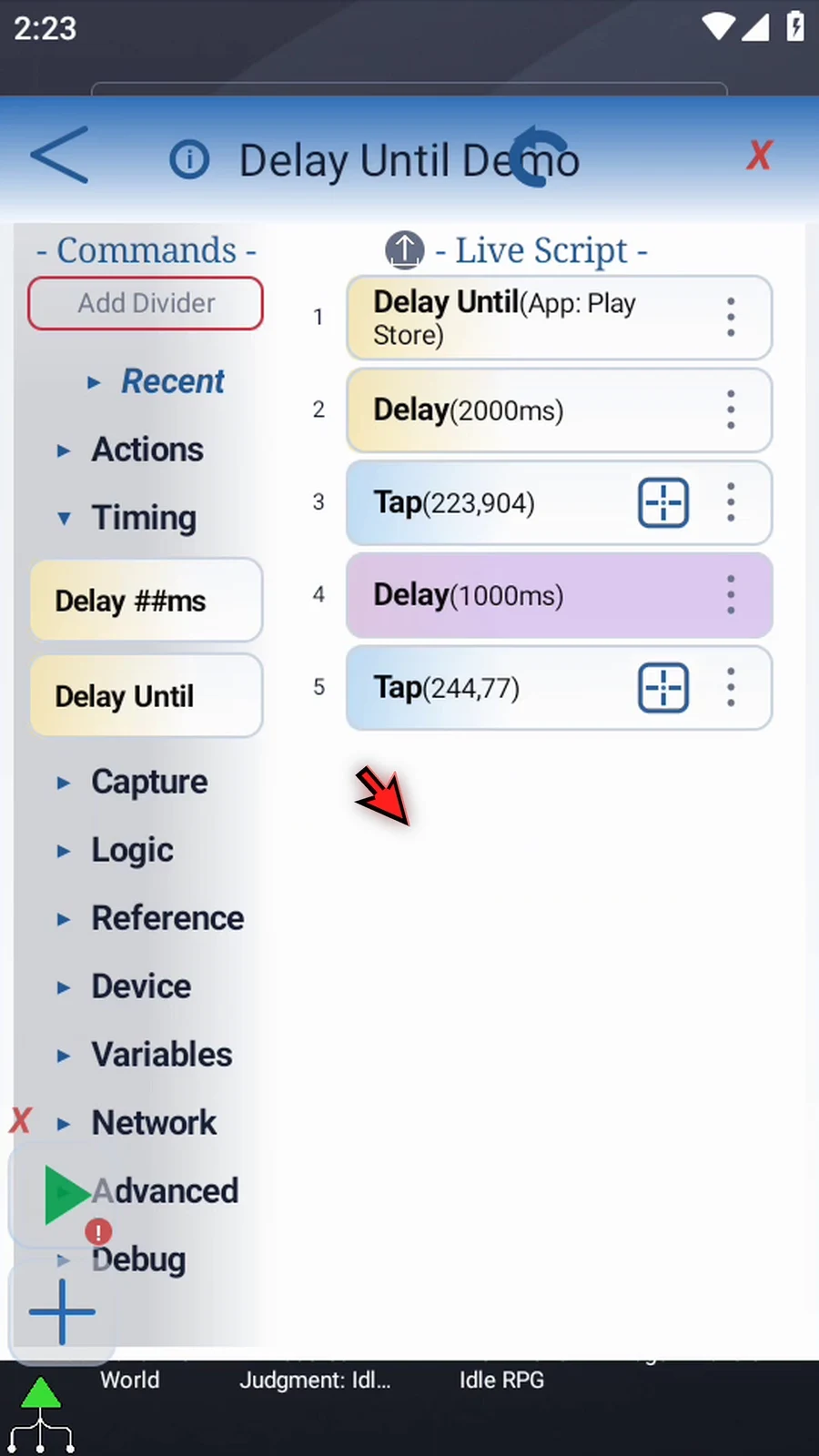
Step 23 Add one more Delay after the second tap, also set to one thousand milliseconds. This lets the search field gain focus before Text Type runs.
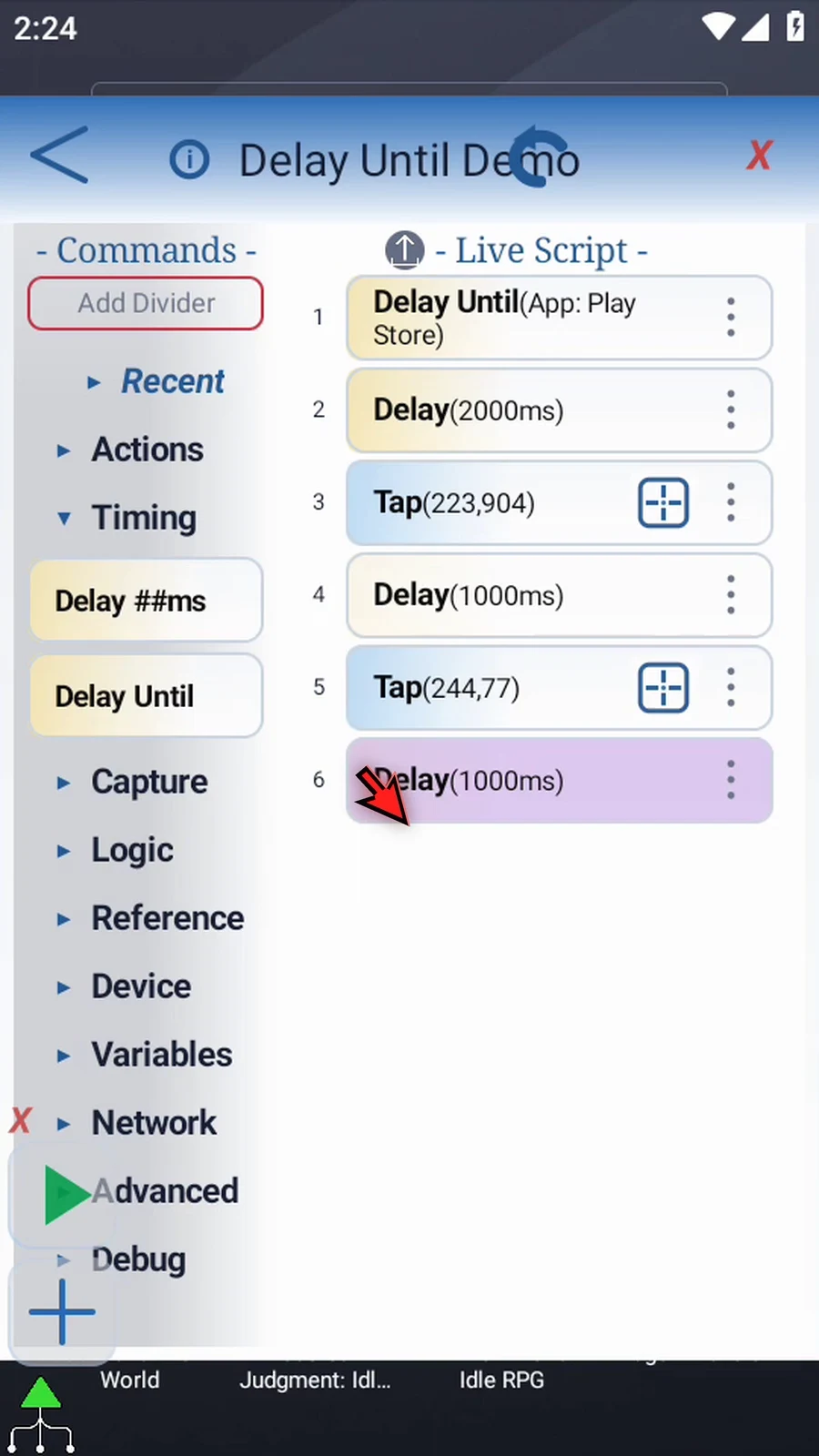
Step 24 Drag Text Type below the final delay. Enter ScriptTap for this example and leave Use Variable off. Tap OK to save. This types the search text into the focused field.
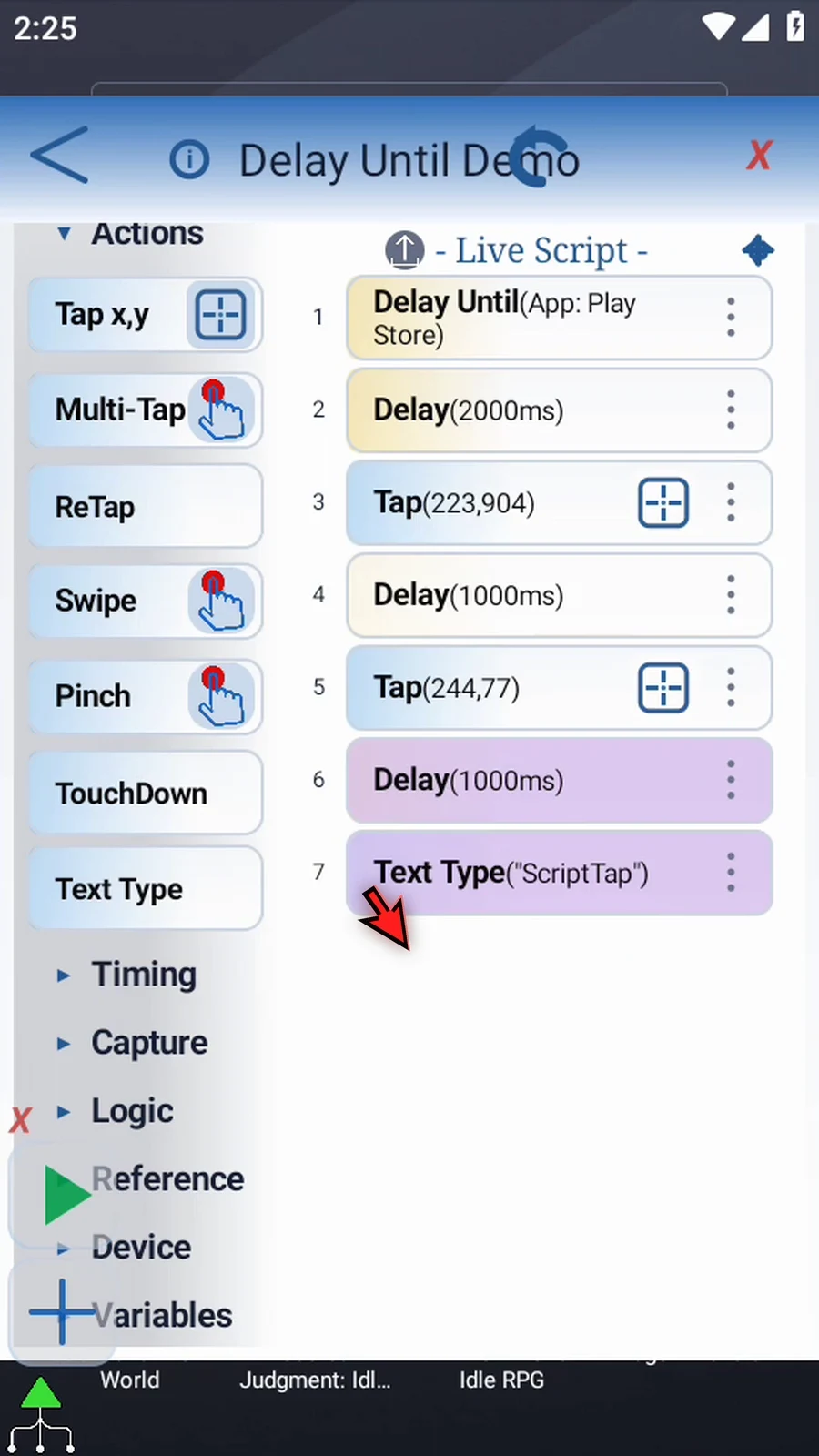
Step 25 The sequence waits for Google Play, gives it two seconds to open, then uses two taps and short pauses to reach the search field and type ScriptTap. Delay Until keeps the later commands from running before the right app is active.
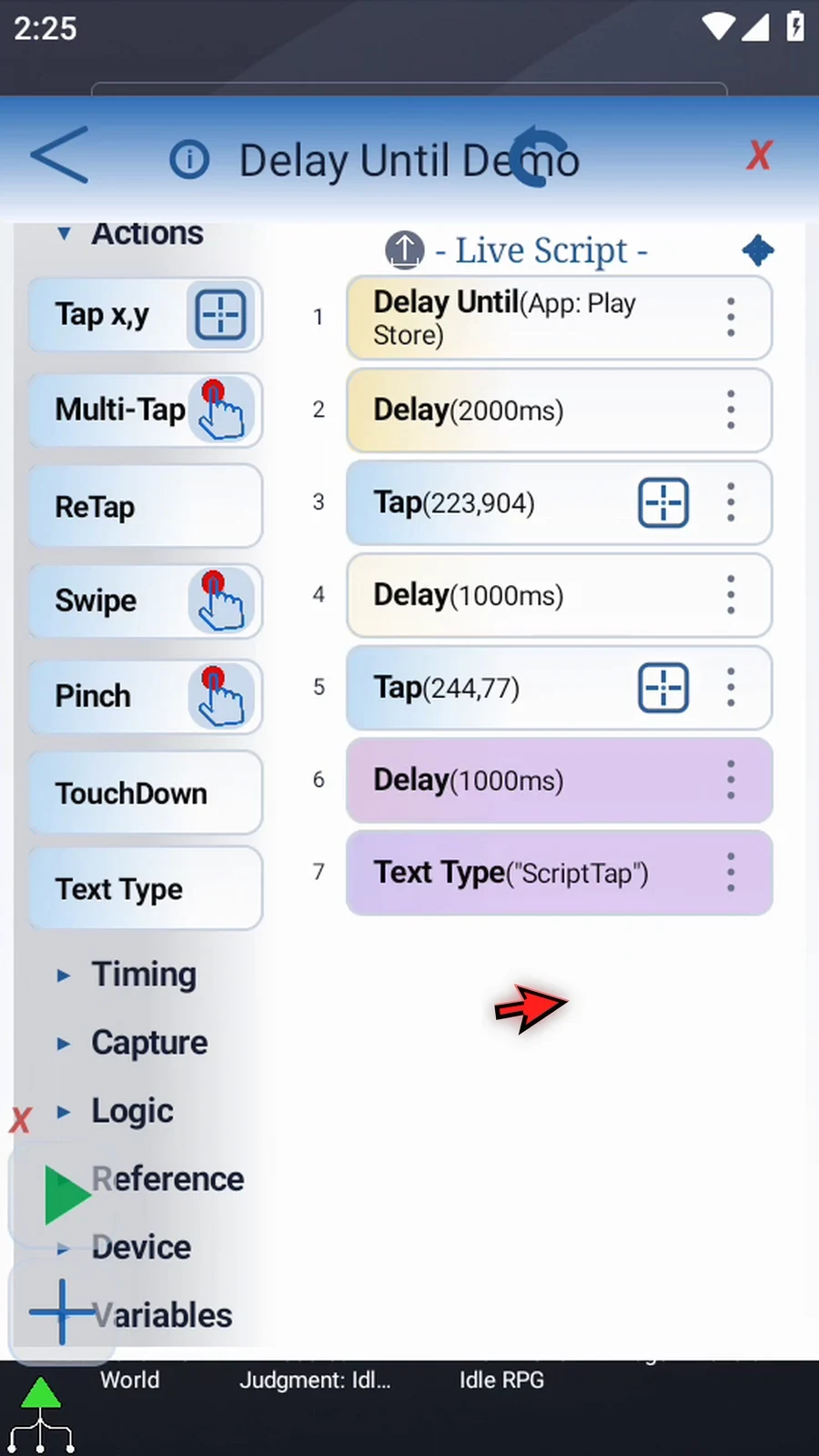
Step 26 Close the editor. When the script is complete, simply use the Play button in the main overlay.
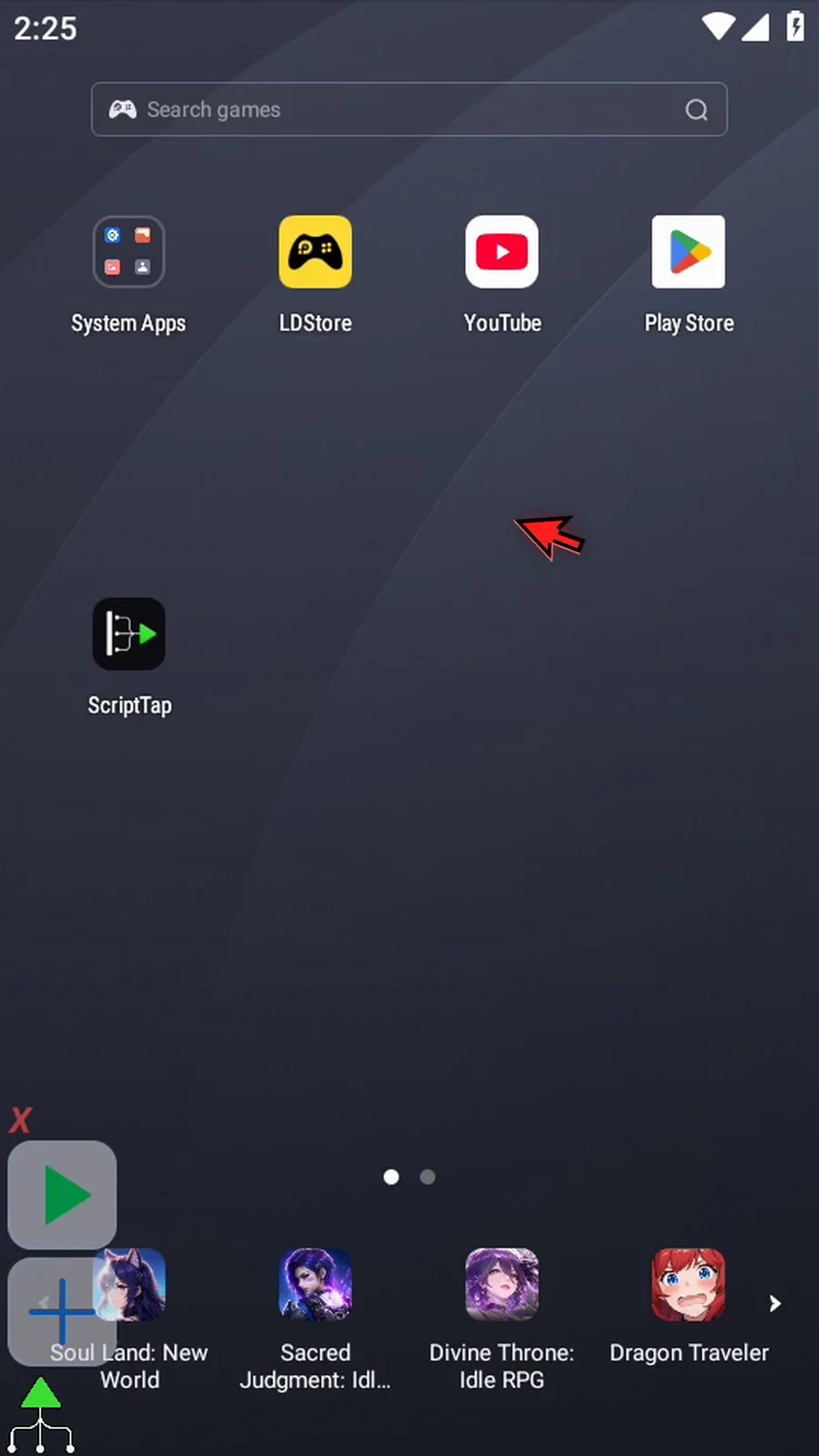
Step 27 Google Play is not active yet, so the script waits here. Now open Google Play. Once it becomes active, the script continues.
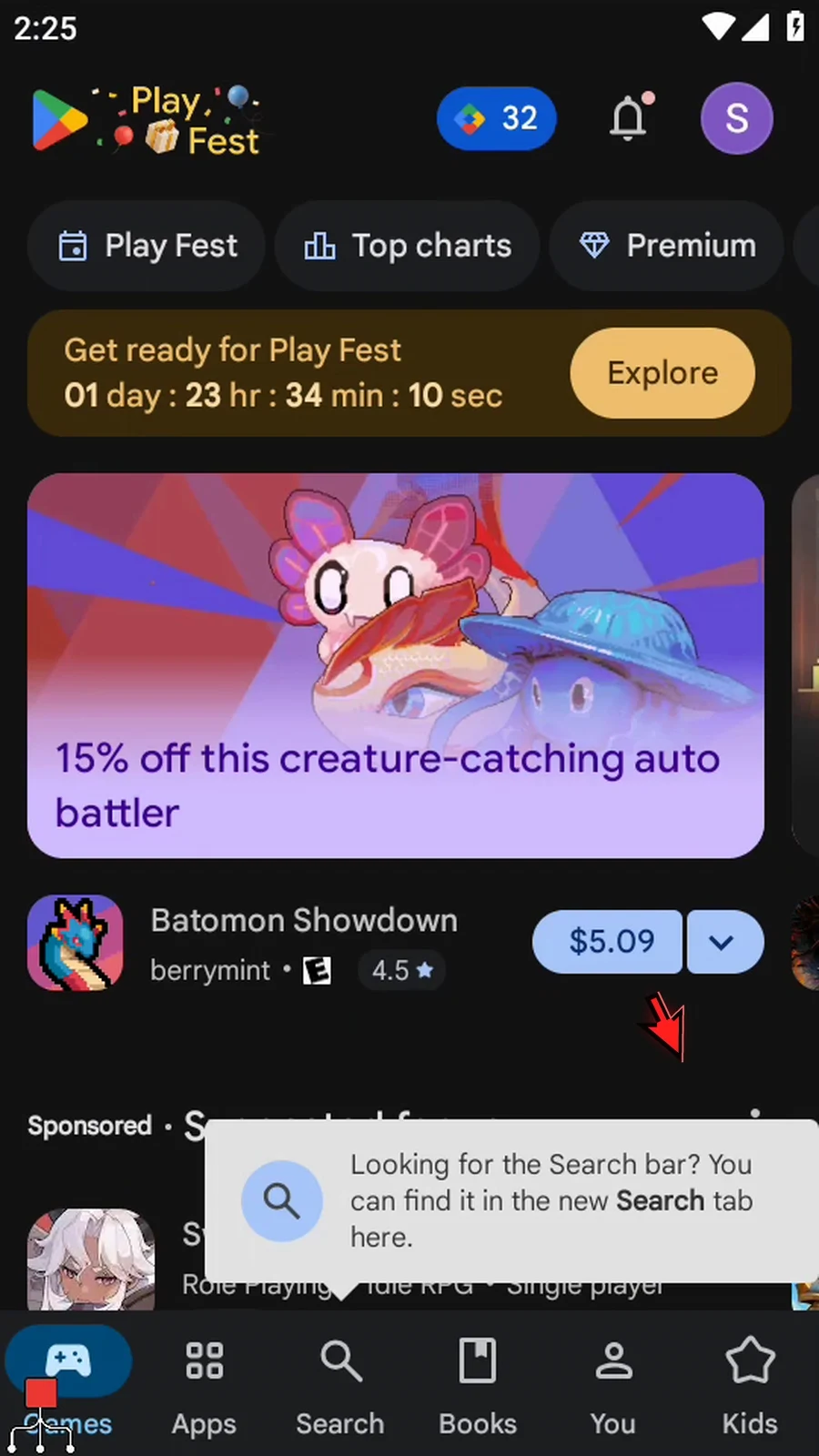
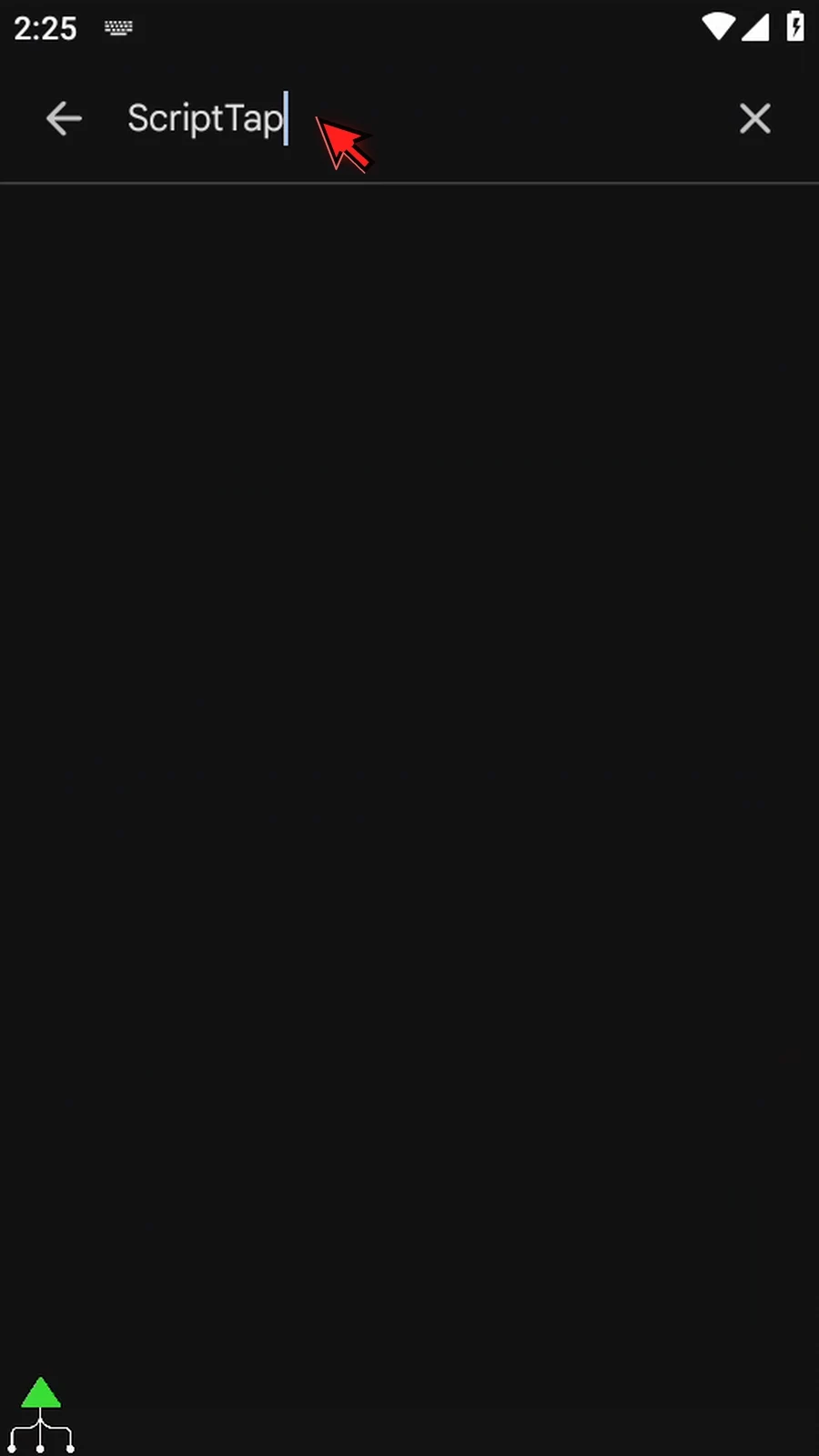
Step 28 After the wait, the script opens Search, focuses its search bar, and types ScriptTap. The completed search text is the visible result. The script stops automatically.