Command video guide
Loop
Repeat the commands between Loop and its matching End Loop without making copies of them. This guide explains the settings, then runs a prompt three times before showing a separate completion prompt.
- Repeat: the total number of passes. The count is read when the loop starts and runs at least once, including when a value resolves to zero.
- Delay: the wait in milliseconds before each repeat, not before the first pass or after the final pass.
- Infinite Loop: repeat until the loop is exited or the script is stopped.
- Concurrent: run the block in a separate branch while the parent continues after End Loop. The commands within that branch still run in order. Exclusive can temporarily hold other branches back.
Count and delay accept fixed non-negative Integers or Integer variables defined earlier, such as i1. The delay is read again before each repeat, so changing a delay variable can change the pacing. The demo uses count 3, delay 1000, Infinite Loop off and Concurrent off.
Watch the walkthrough
Step-by-step guide
Step 01 Loop repeats a group of commands without making copies of them. Place the actions between Loop and End Loop. In this example, a prompt will appear three times, followed by a separate completion prompt.
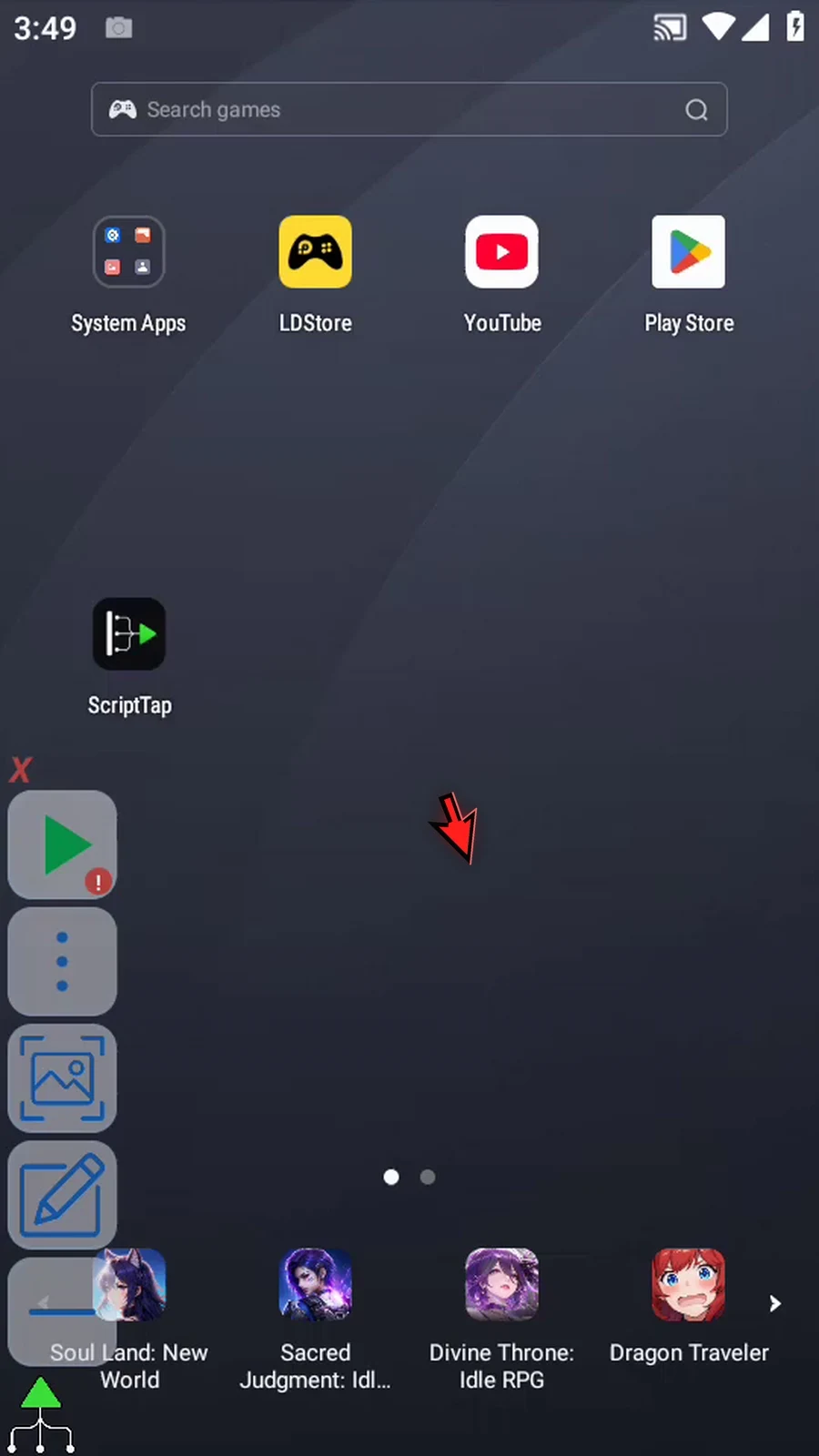
Step 02 Open Scripts. Tap New Script and choose Blank Script. We will build a separate example.
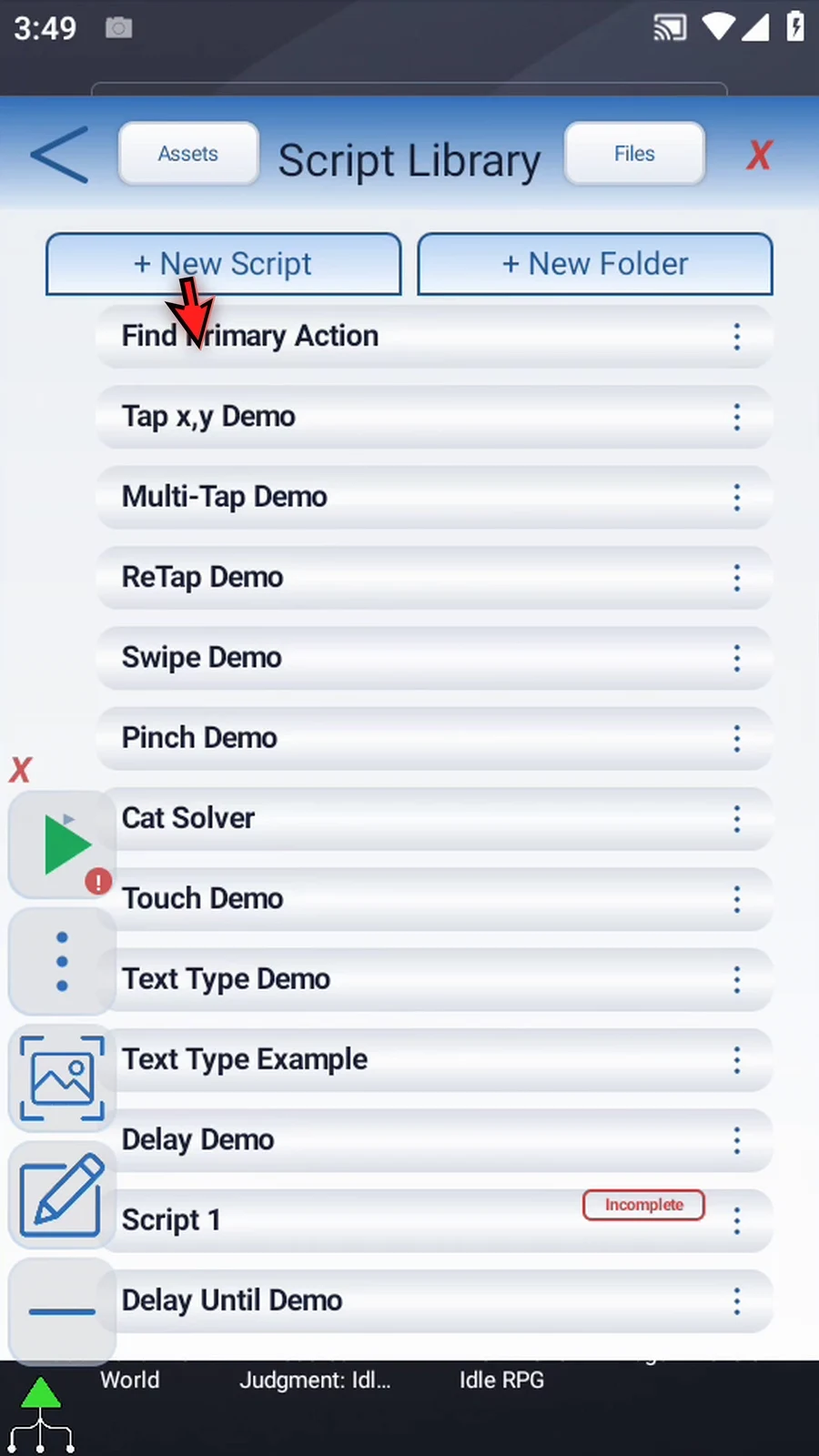
Step 03 Open the new script's three-dot menu, choose Rename, and give it a name. Tap OK.
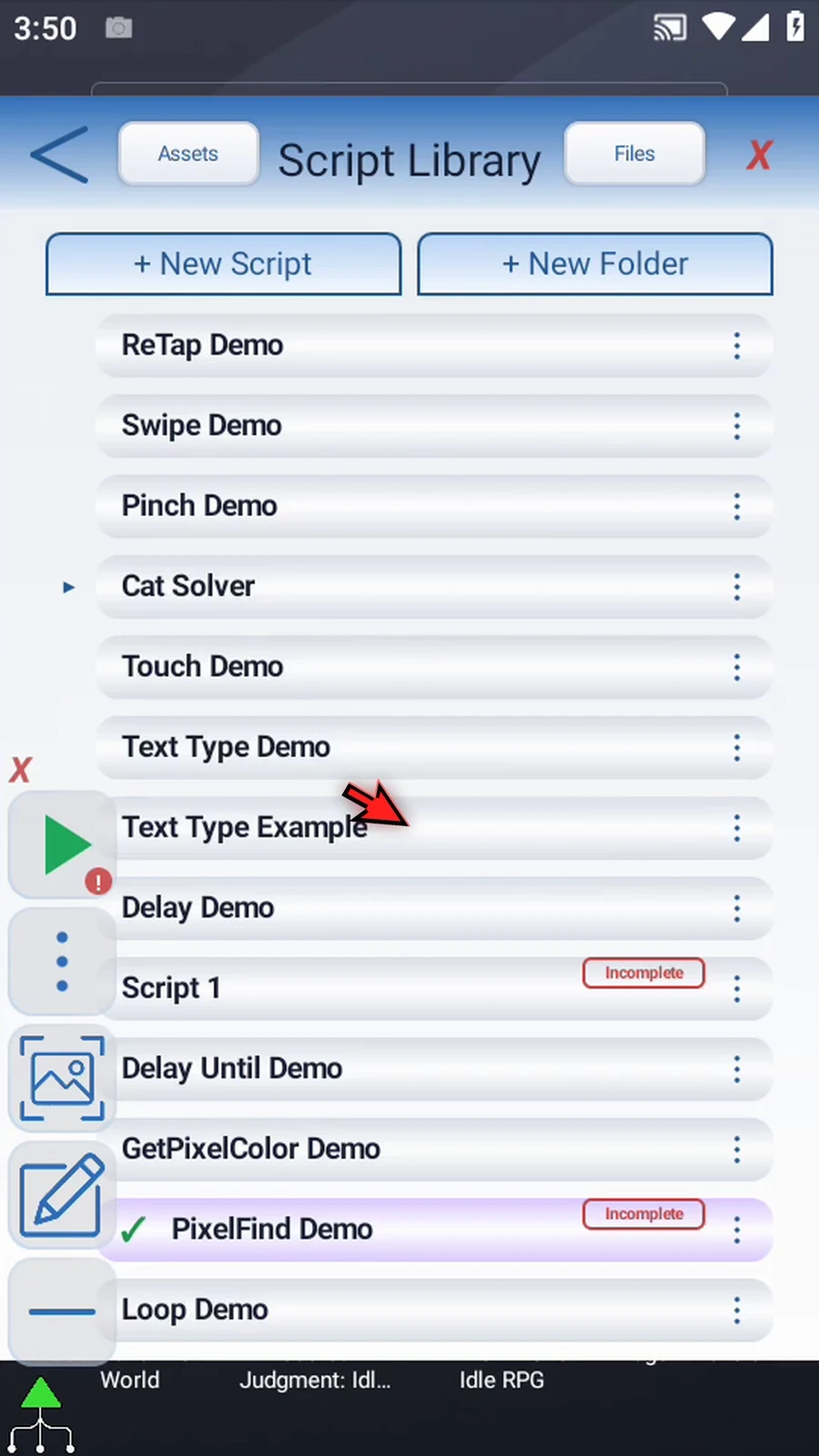
Step 04 Select the new script, open the Script Editor, and collapse the extra overlay controls.
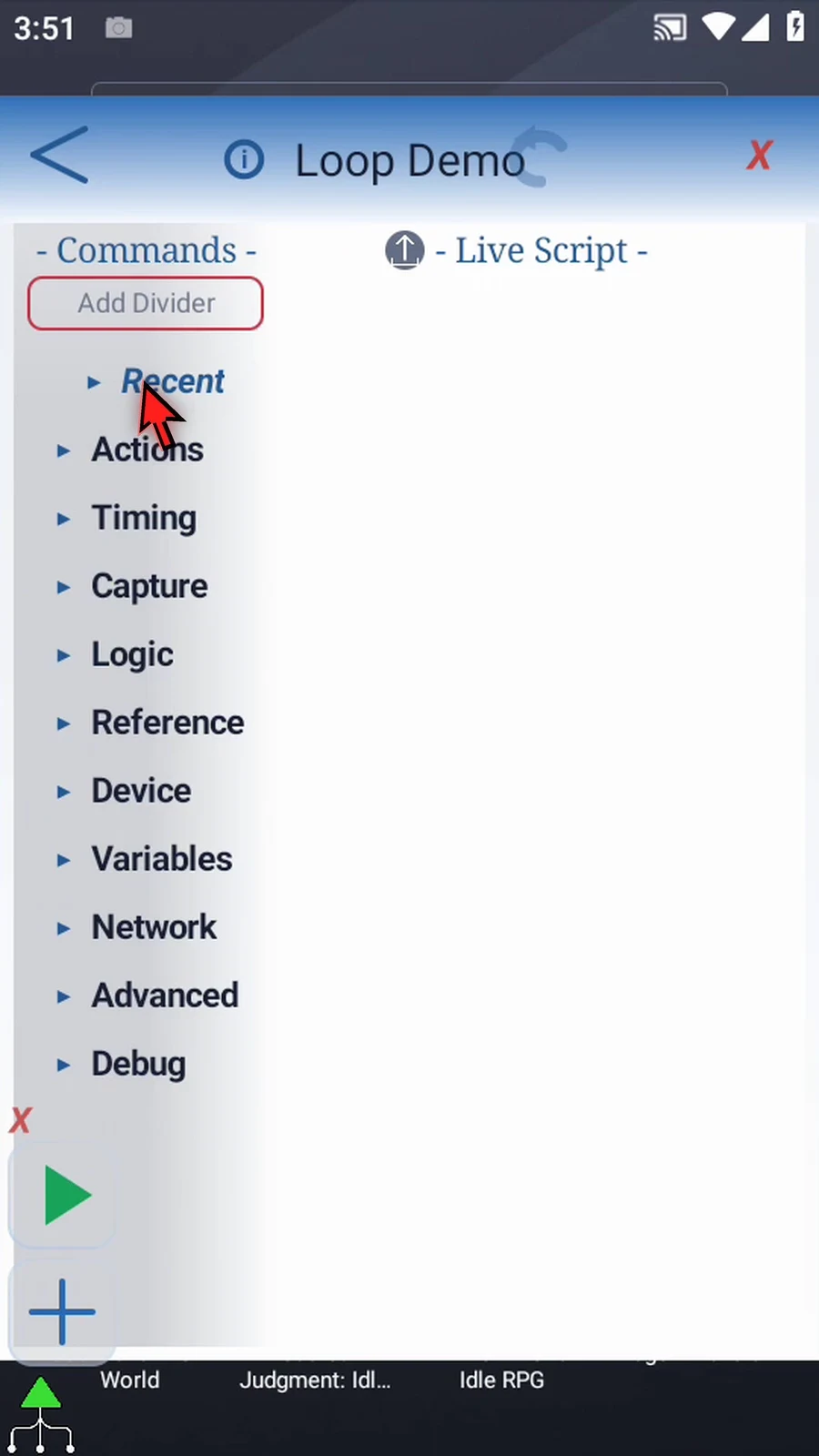
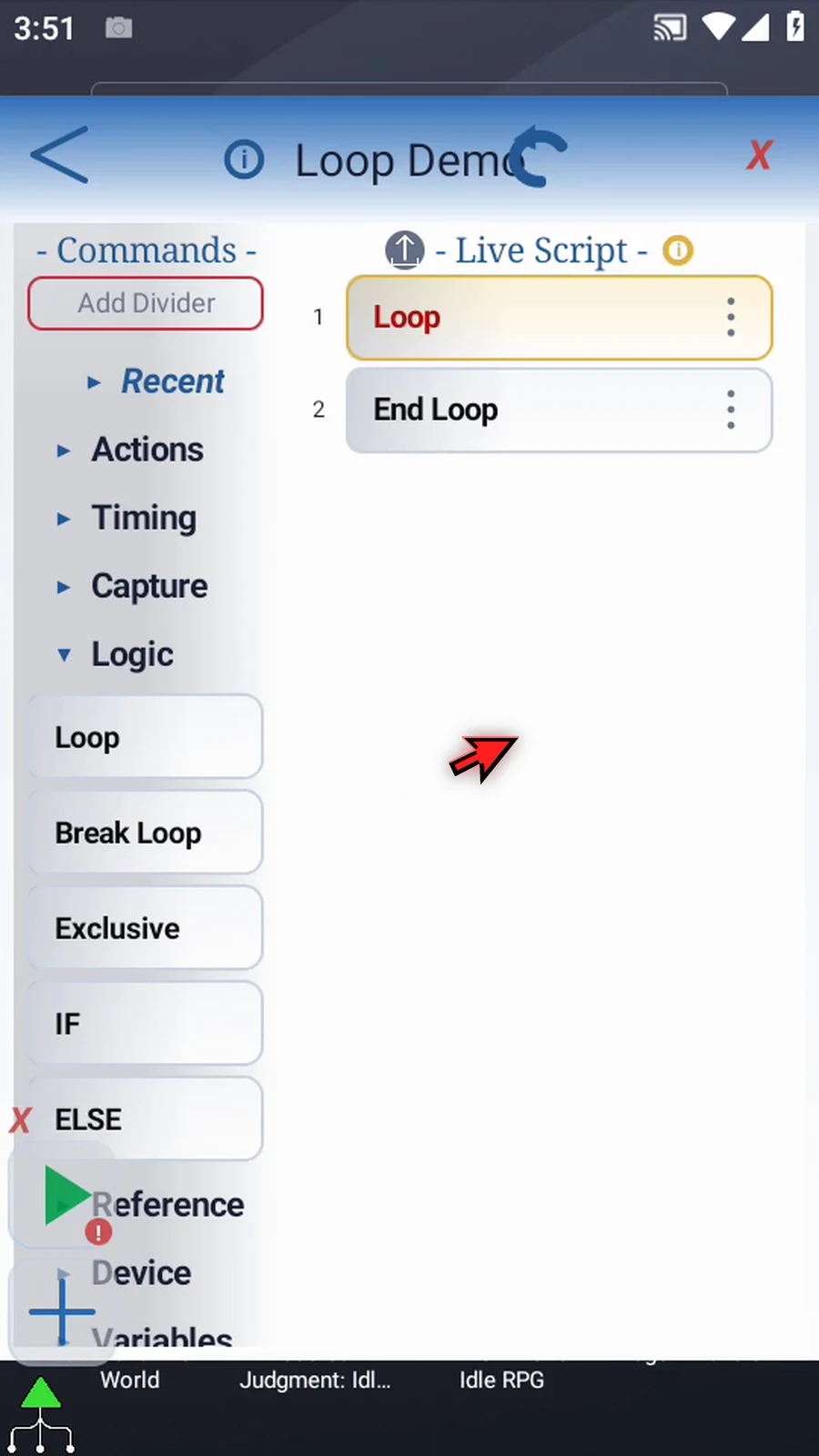
Step 05 Expand Logic and drag Loop into the script. ScriptTap adds the matching End Loop automatically. Everything between these two boundaries belongs to the loop.
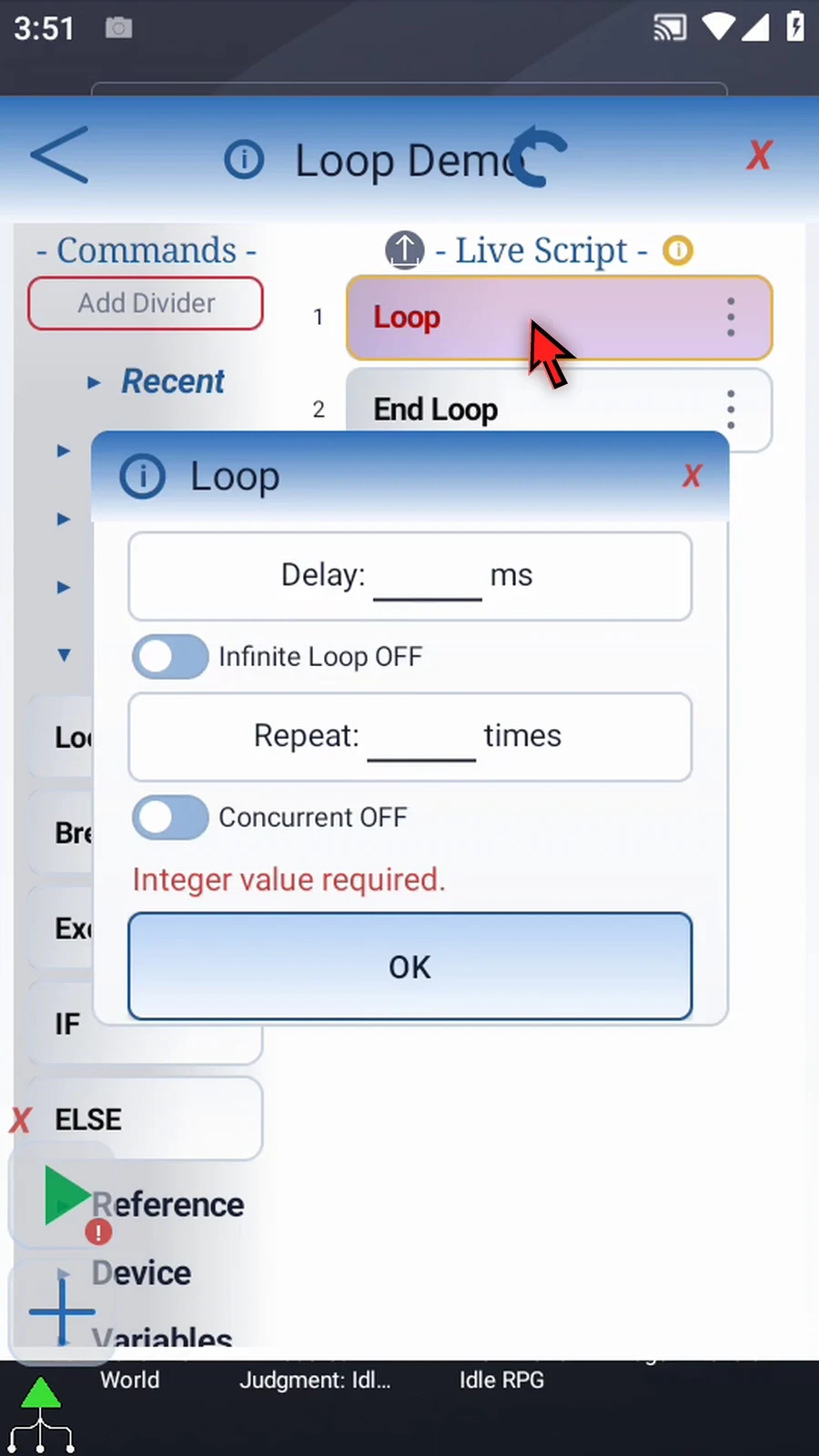
Step 06 Double-tap Loop to open its settings. The delay and repeat count control how the block runs.
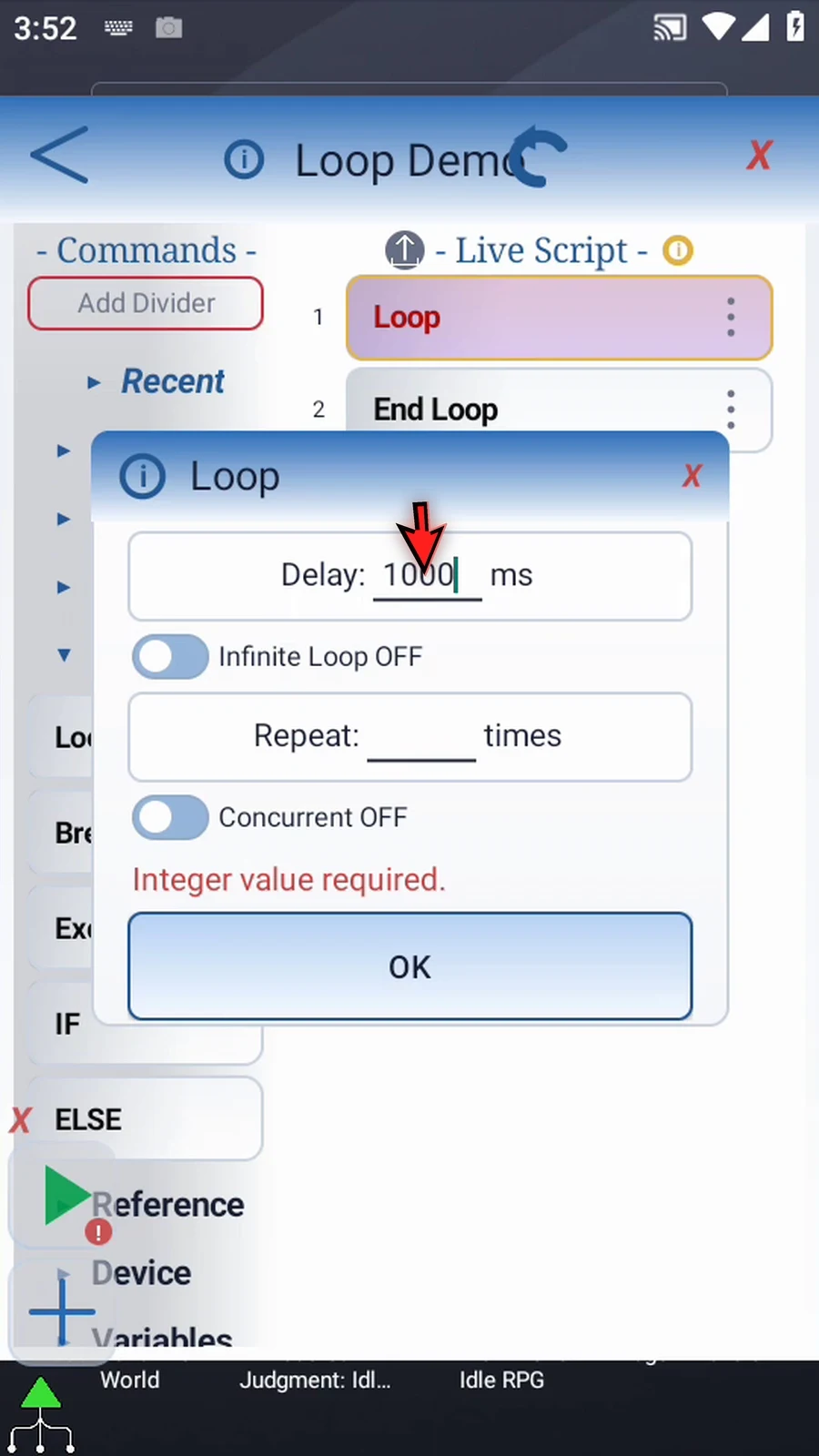
Step 07 Delay is the wait between completed passes, measured in milliseconds. It does not delay the first pass. Enter one thousand for a one-second gap between repeats.
Step 08 Keep Infinite Loop off and set Repeat to three. This means three total passes, not one pass plus three more.
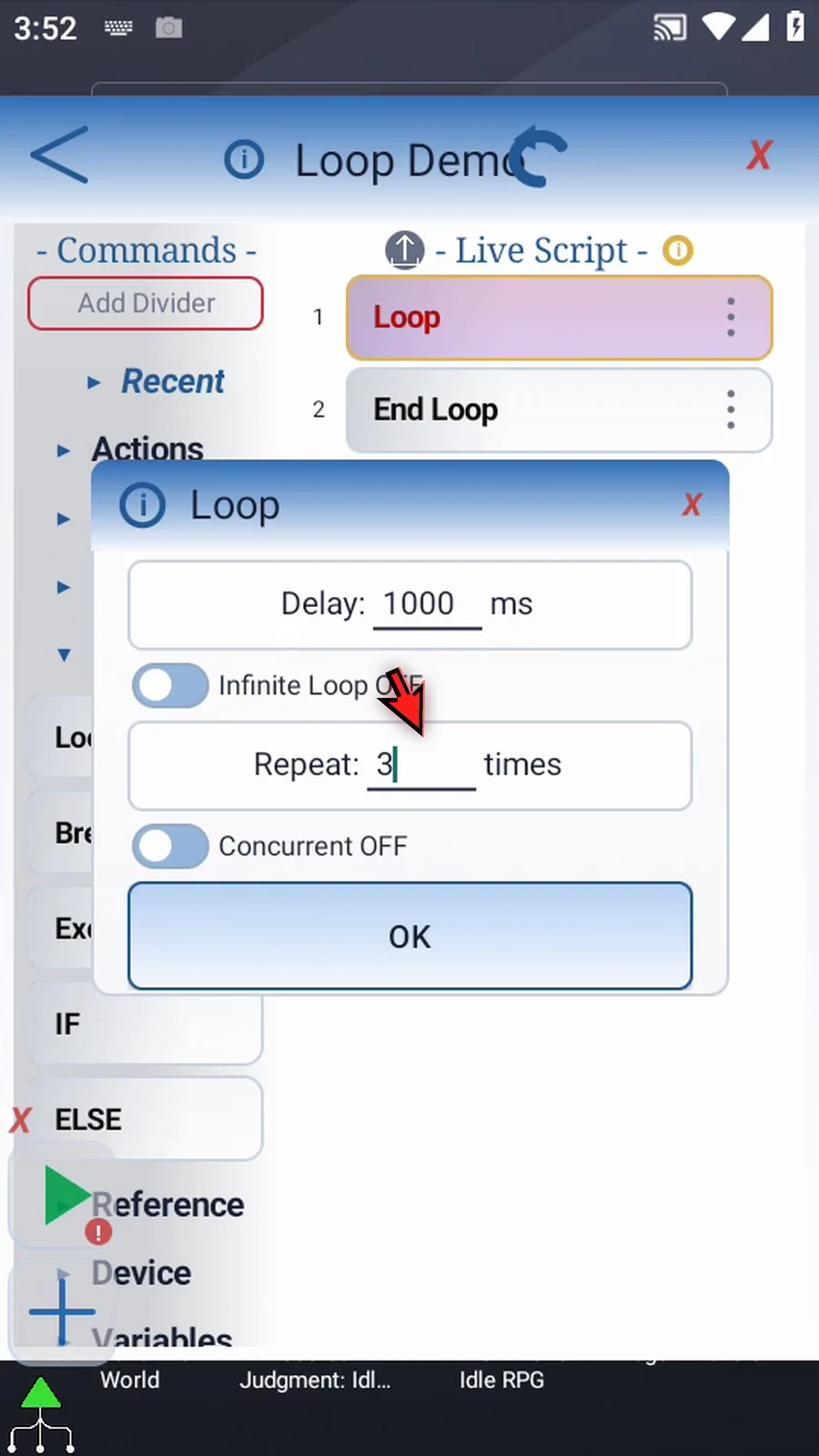
Step 09 Either field can also use an Integer variable defined earlier, such as i1. The repeat count is read when the loop starts. The delay is read again before each repeat, so a changing variable can change the pacing.
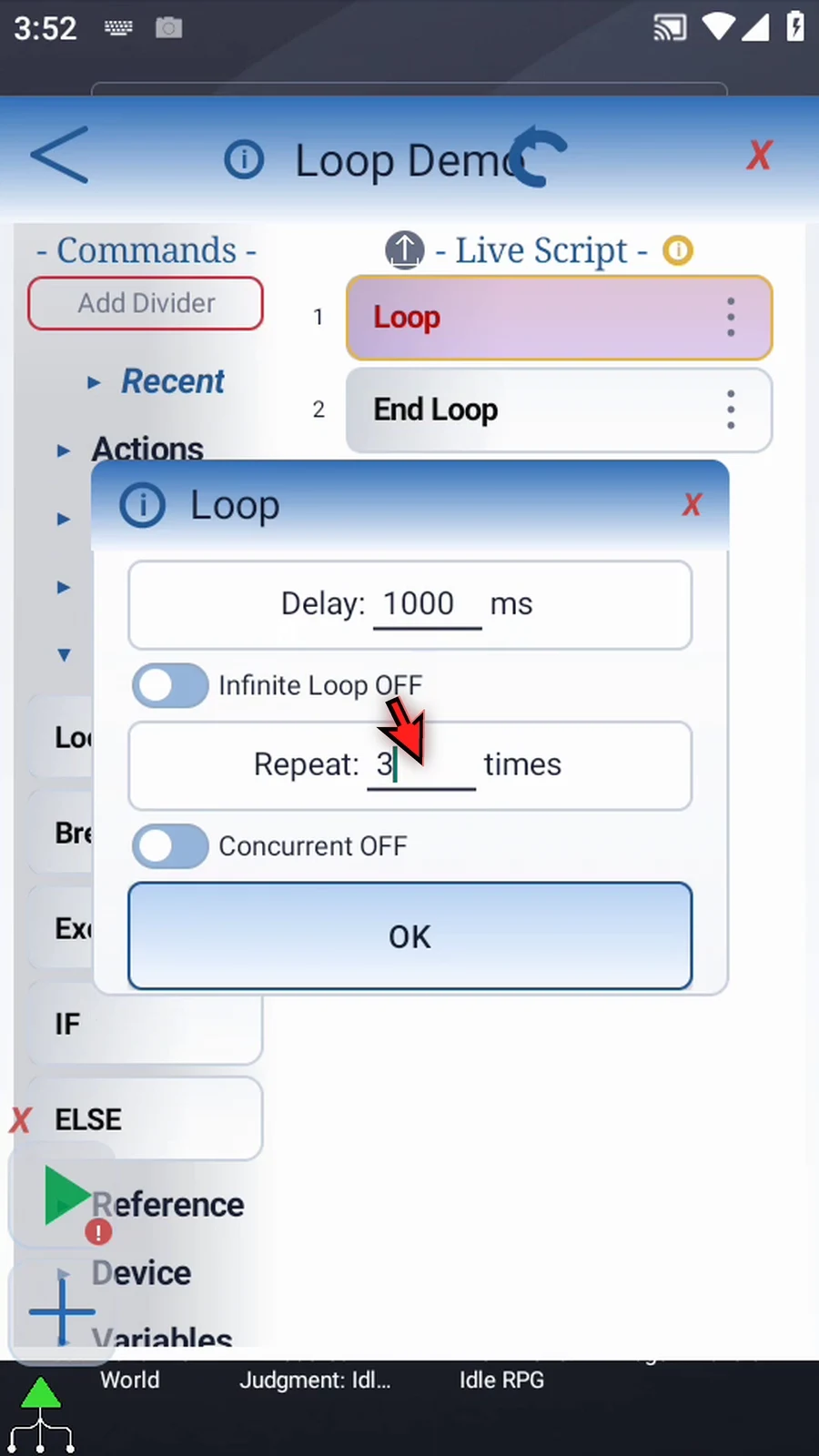
Step 10 Infinite Loop removes the fixed repeat count. The block keeps repeating until it is exited, for example with Break Loop, or the script is stopped.
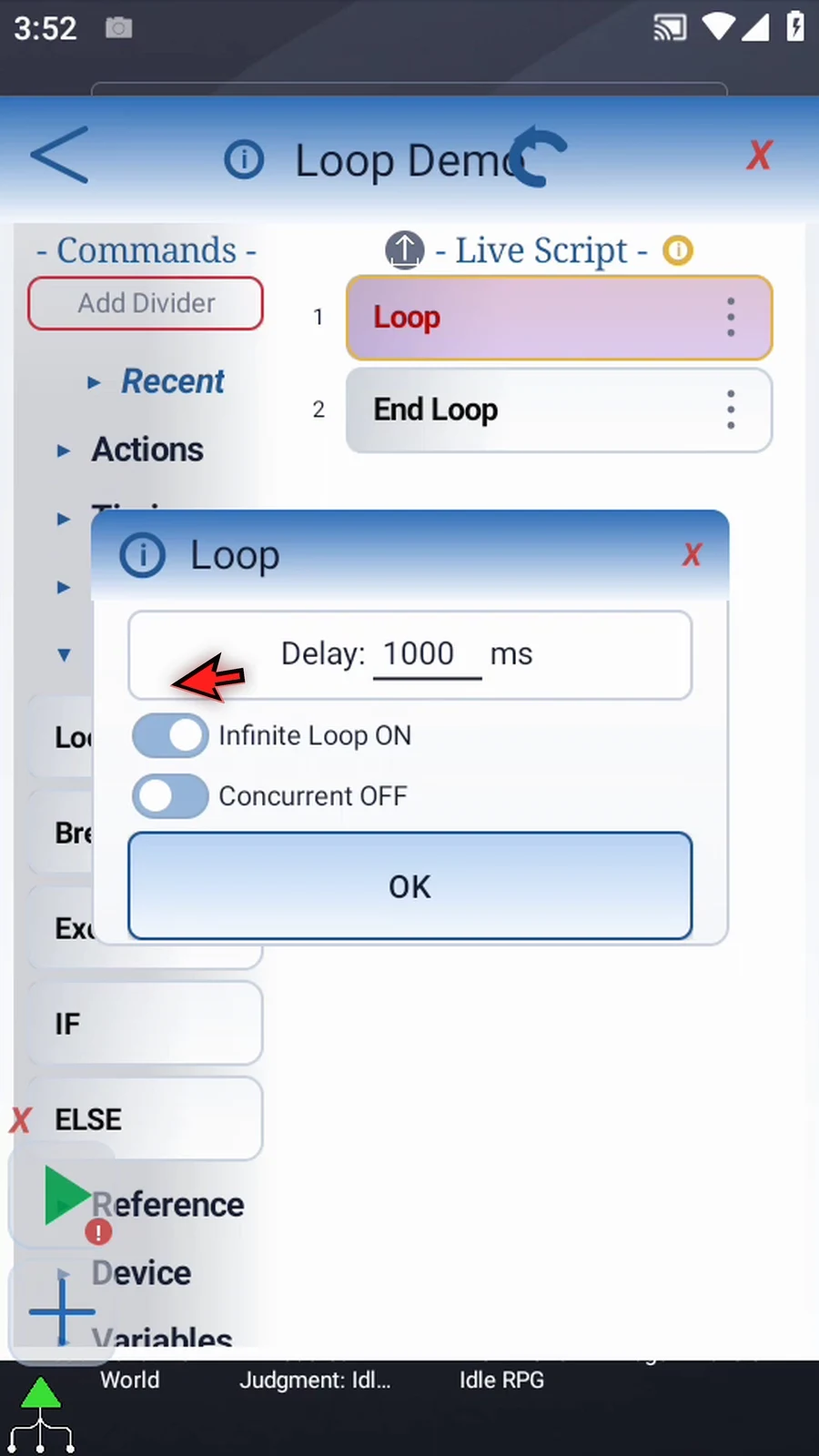
Step 11 Switch Infinite Loop off again and enter three for this example.
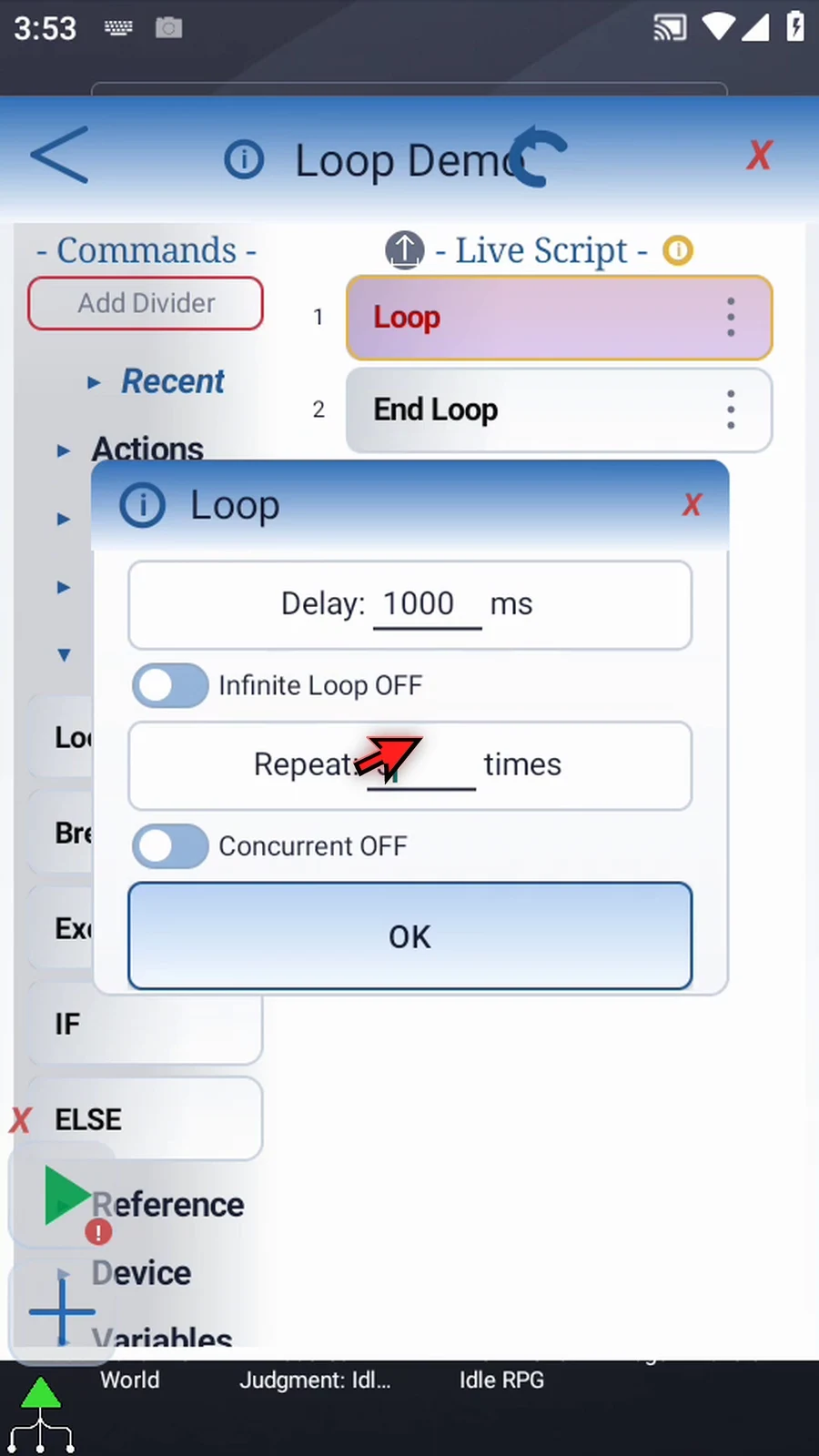
Step 12 Concurrent starts the loop as a separate branch. The parent script continues after End Loop while that branch runs. Commands inside the loop still run in order. Exclusive is the separate command for temporarily holding other branches back.
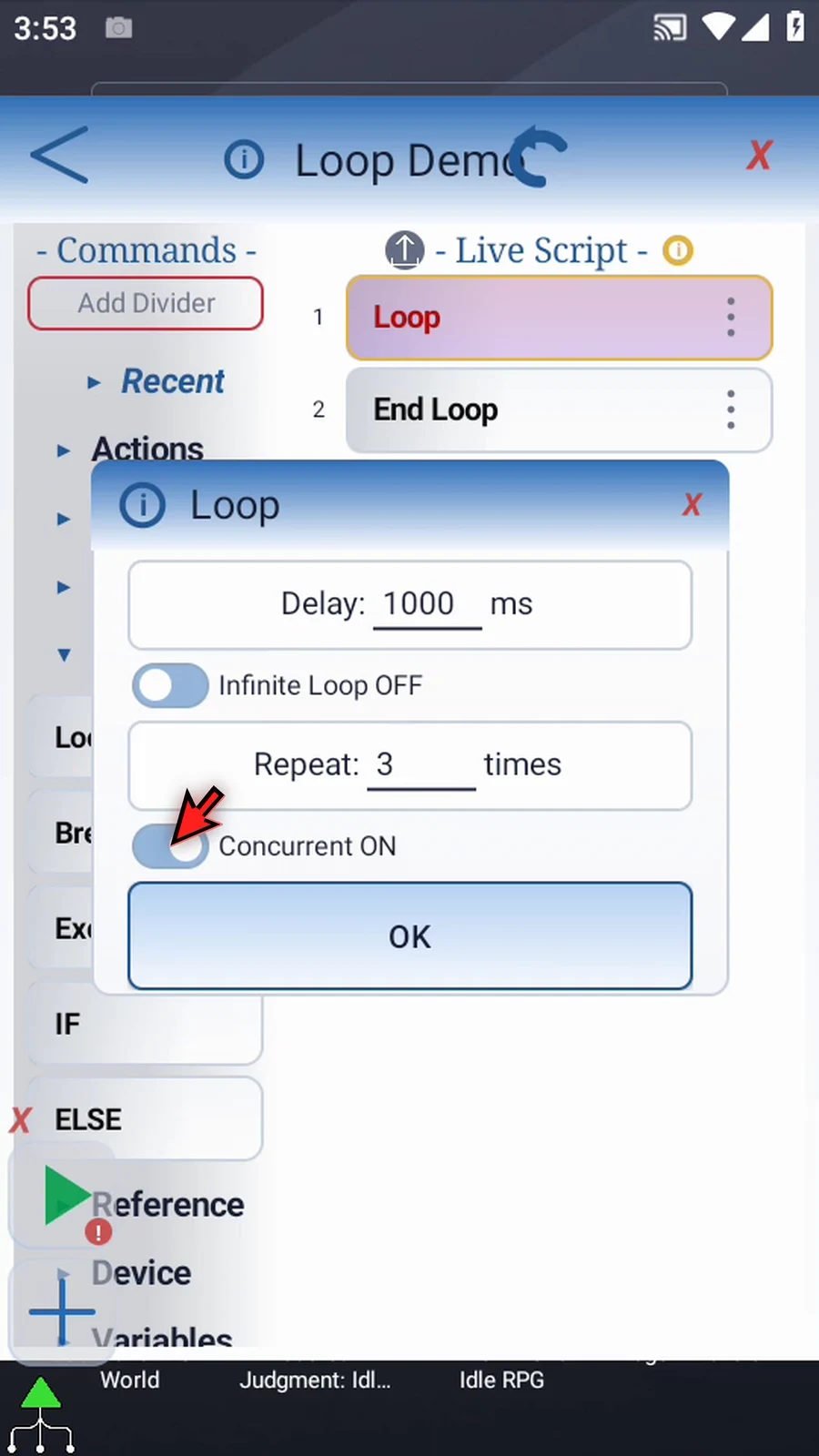
Step 13 For our demonstration, turn Concurrent off. The script will finish all three passes before continuing after End Loop.
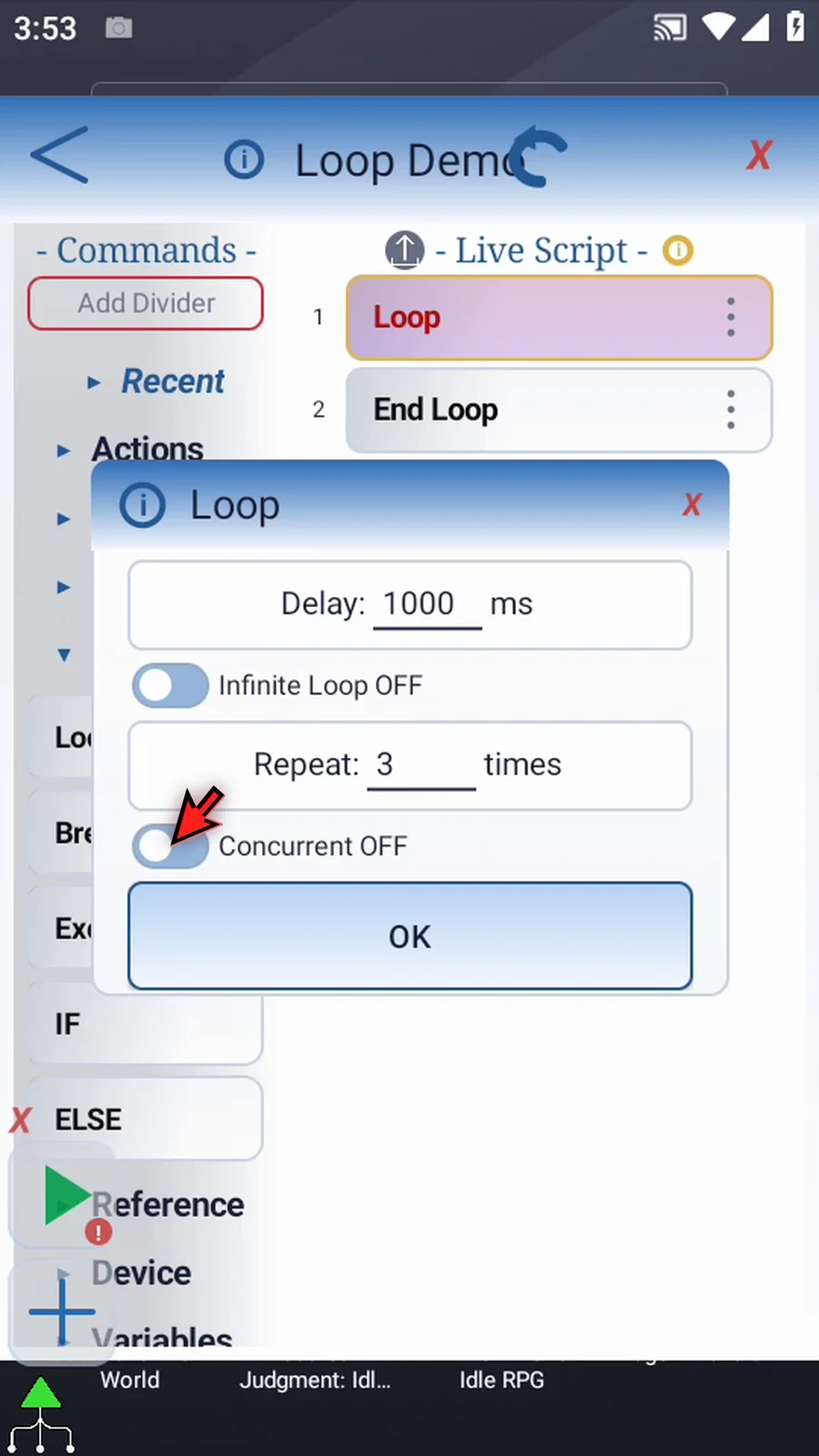
Step 14 Tap OK to save the loop settings.
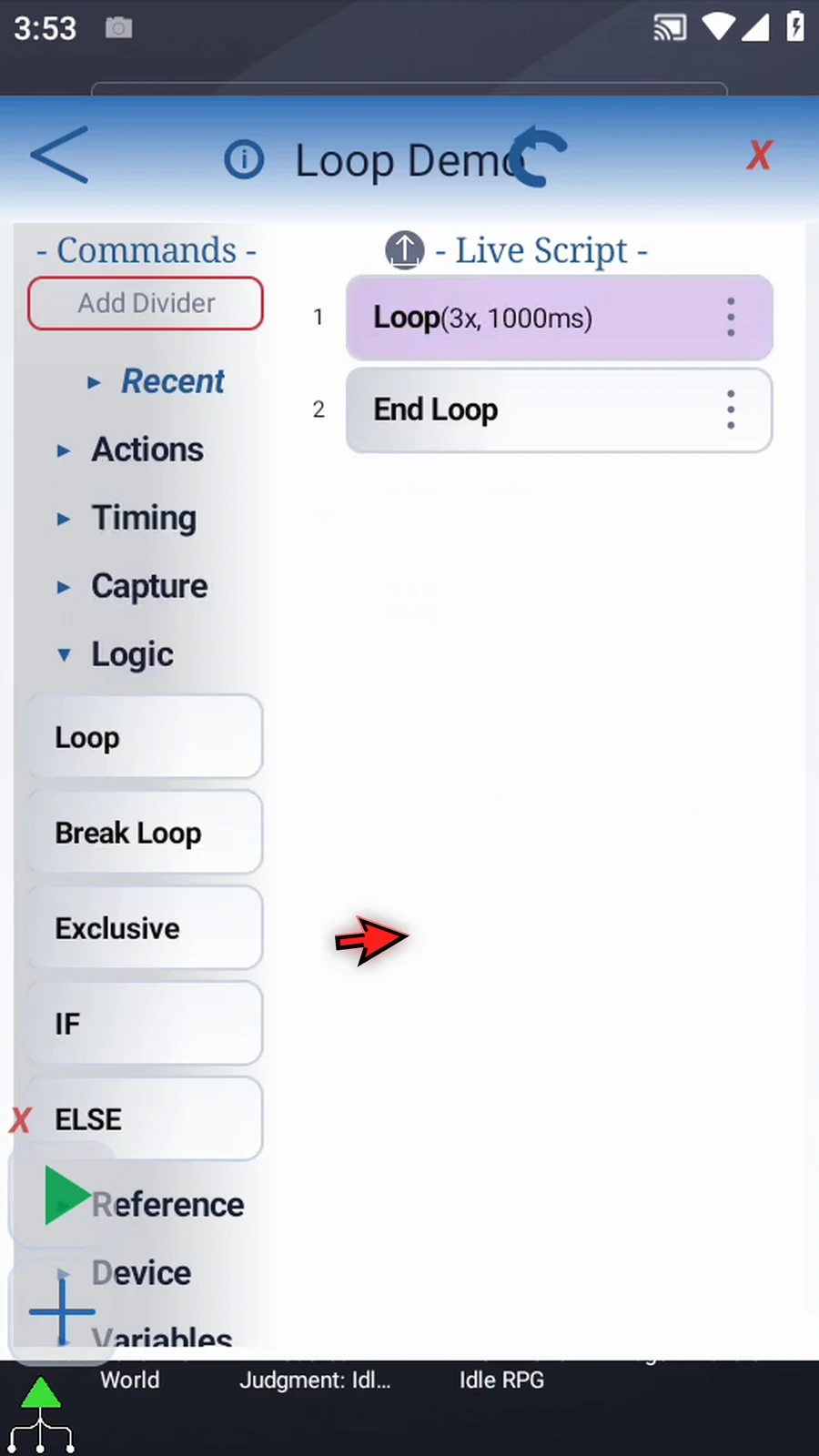
Step 15 Collapse Logic, expand Advanced, and scroll to PromptMe.
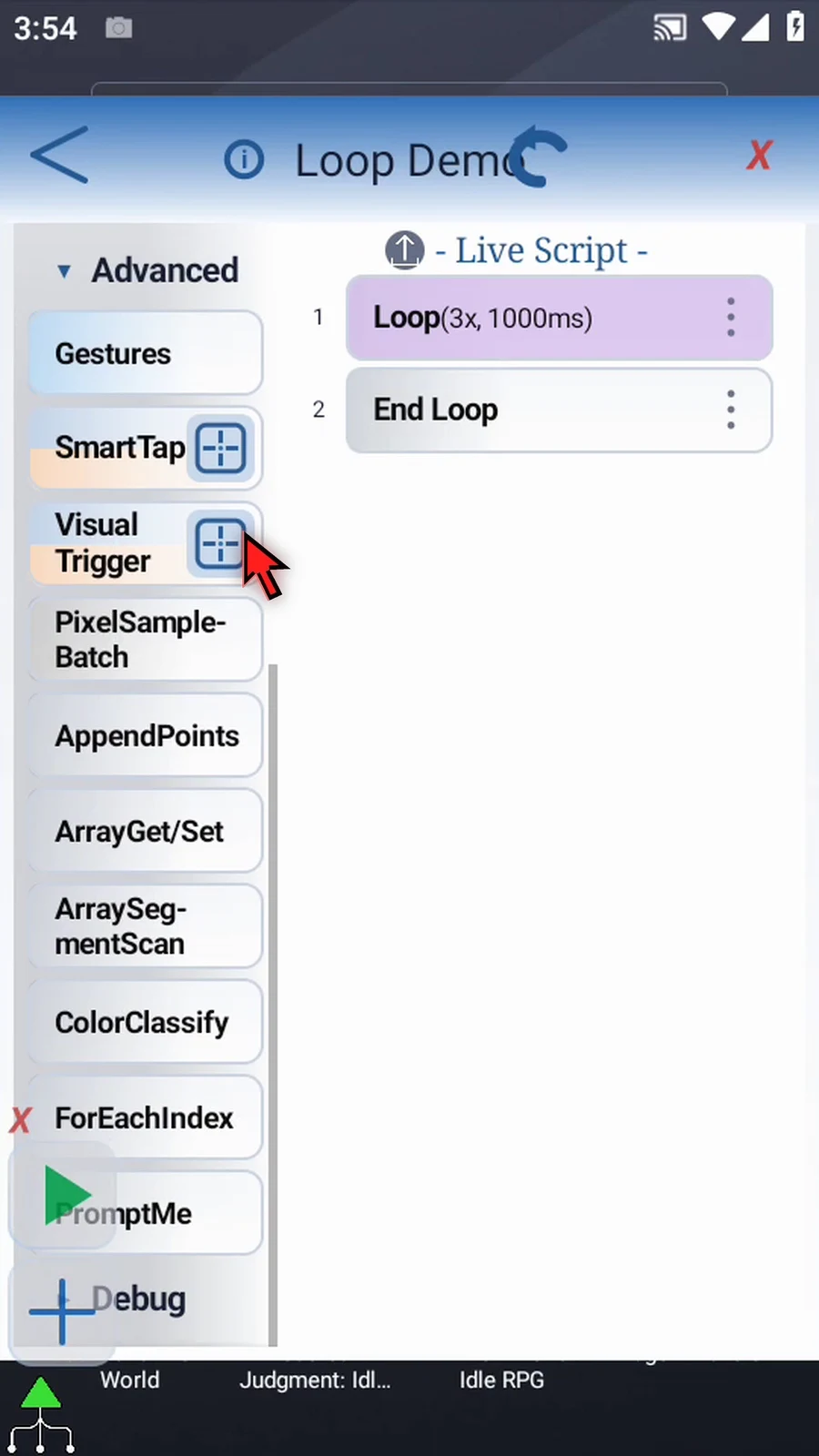
Step 16 Drag PromptMe into the script, then move its frame between Loop and End Loop.
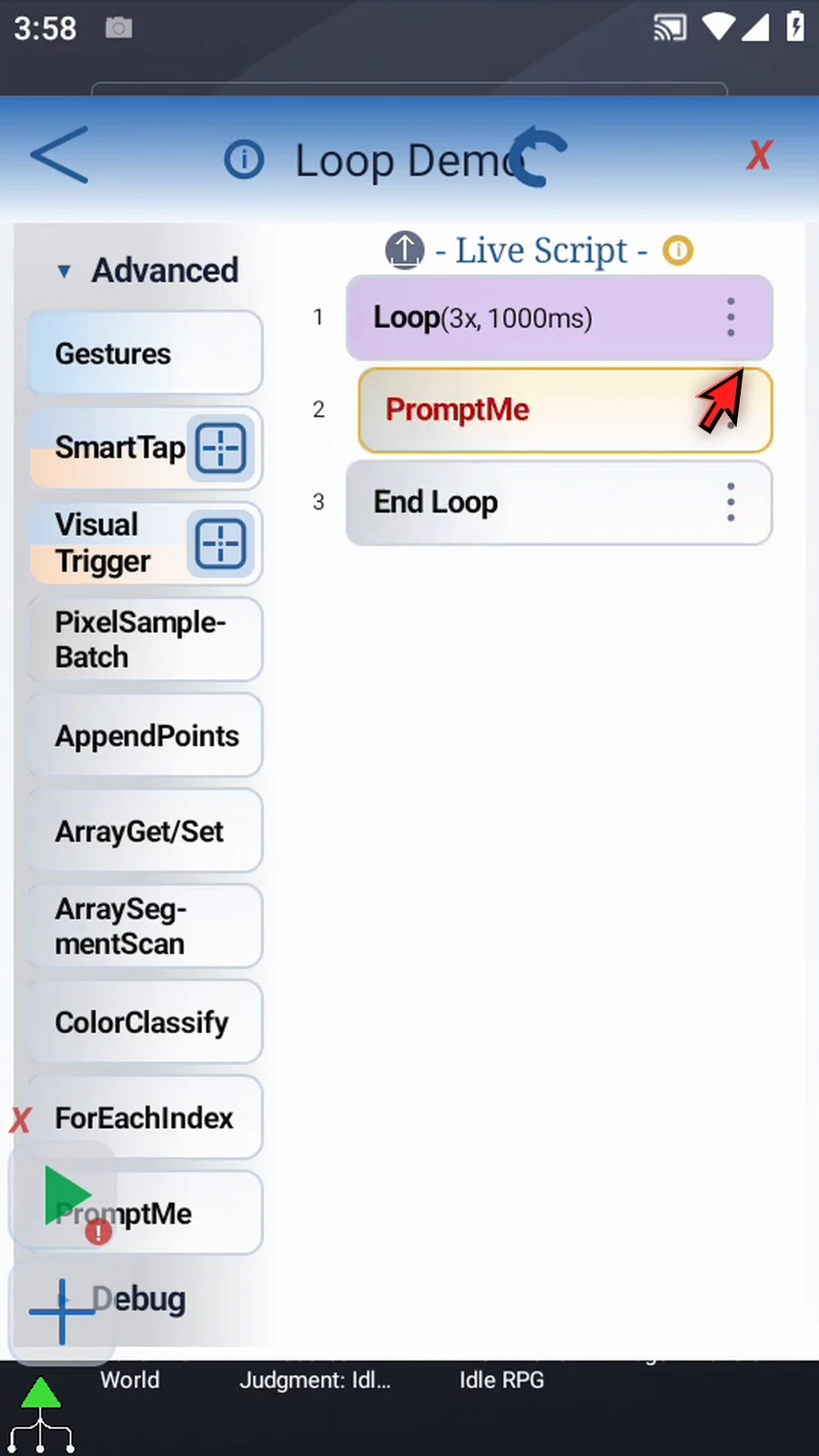
Step 17 This prompt makes each pass visible instead of repeating an action with no obvious result.
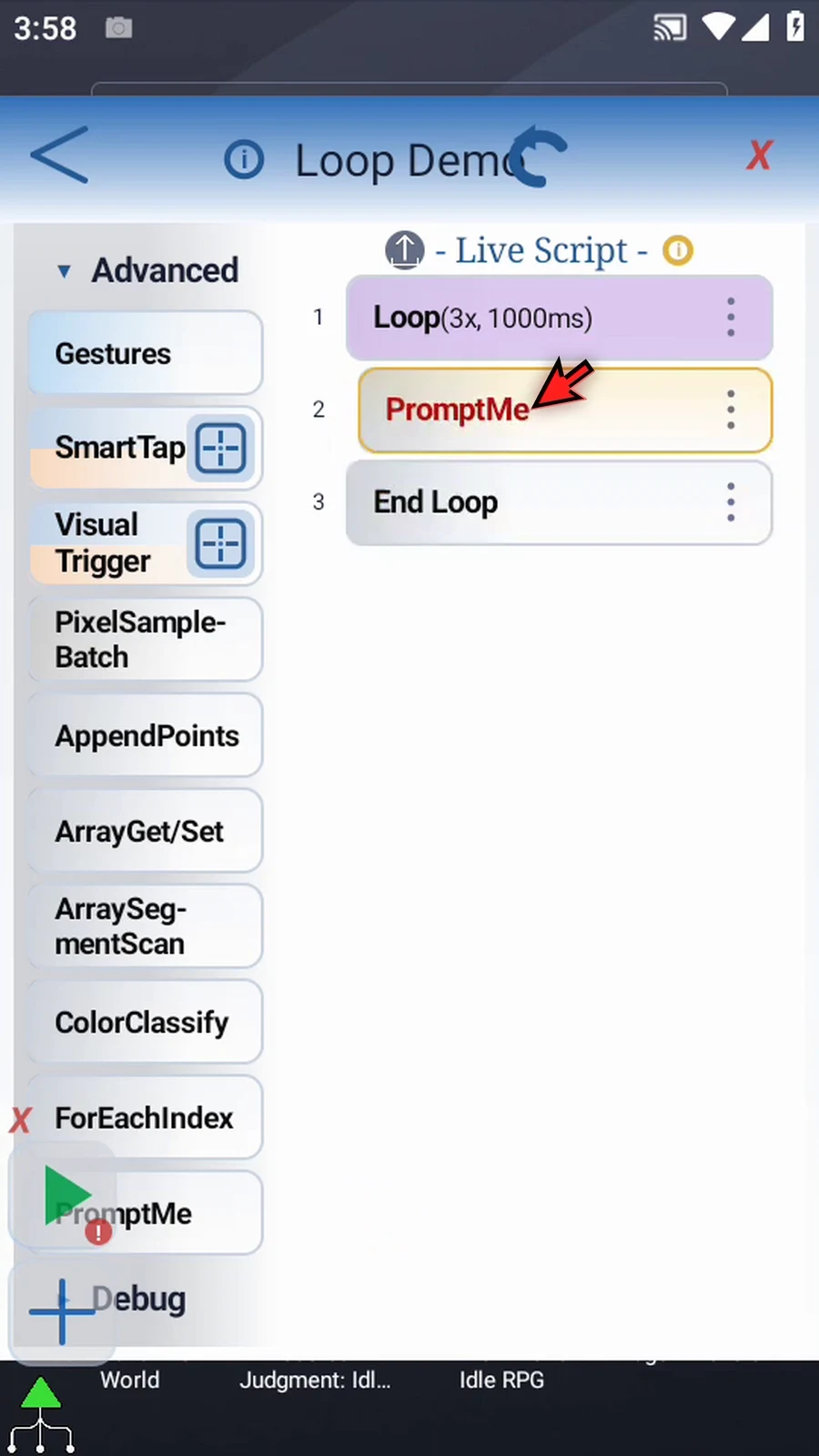
Step 18 Double-tap PromptMe. Keep Standard mode and enter Repeat as its header.
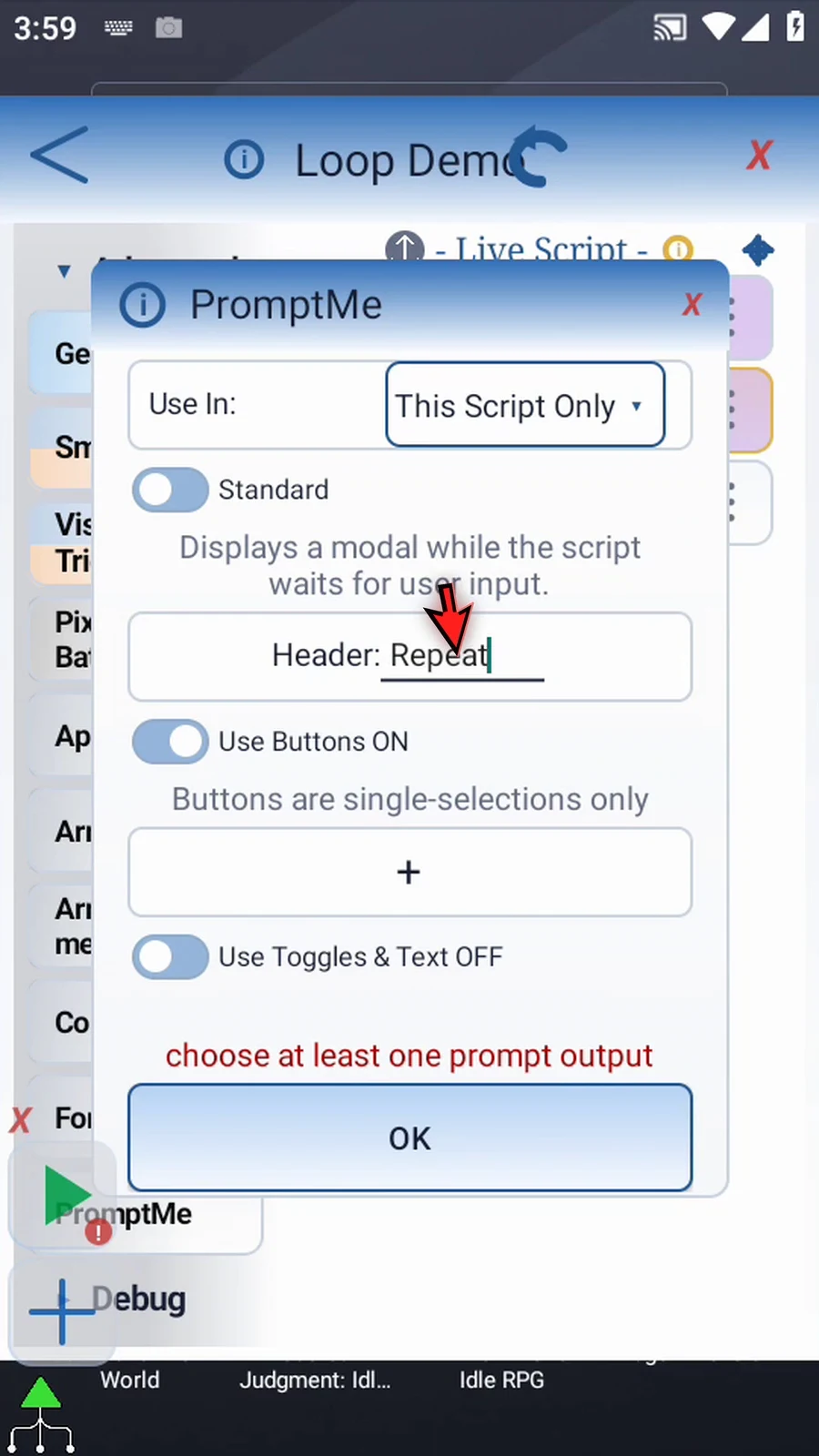
Step 19 Keep Use Buttons on. Add one button named Next with Boolean output b1. Tap OK. The script will wait for us to acknowledge each pass.
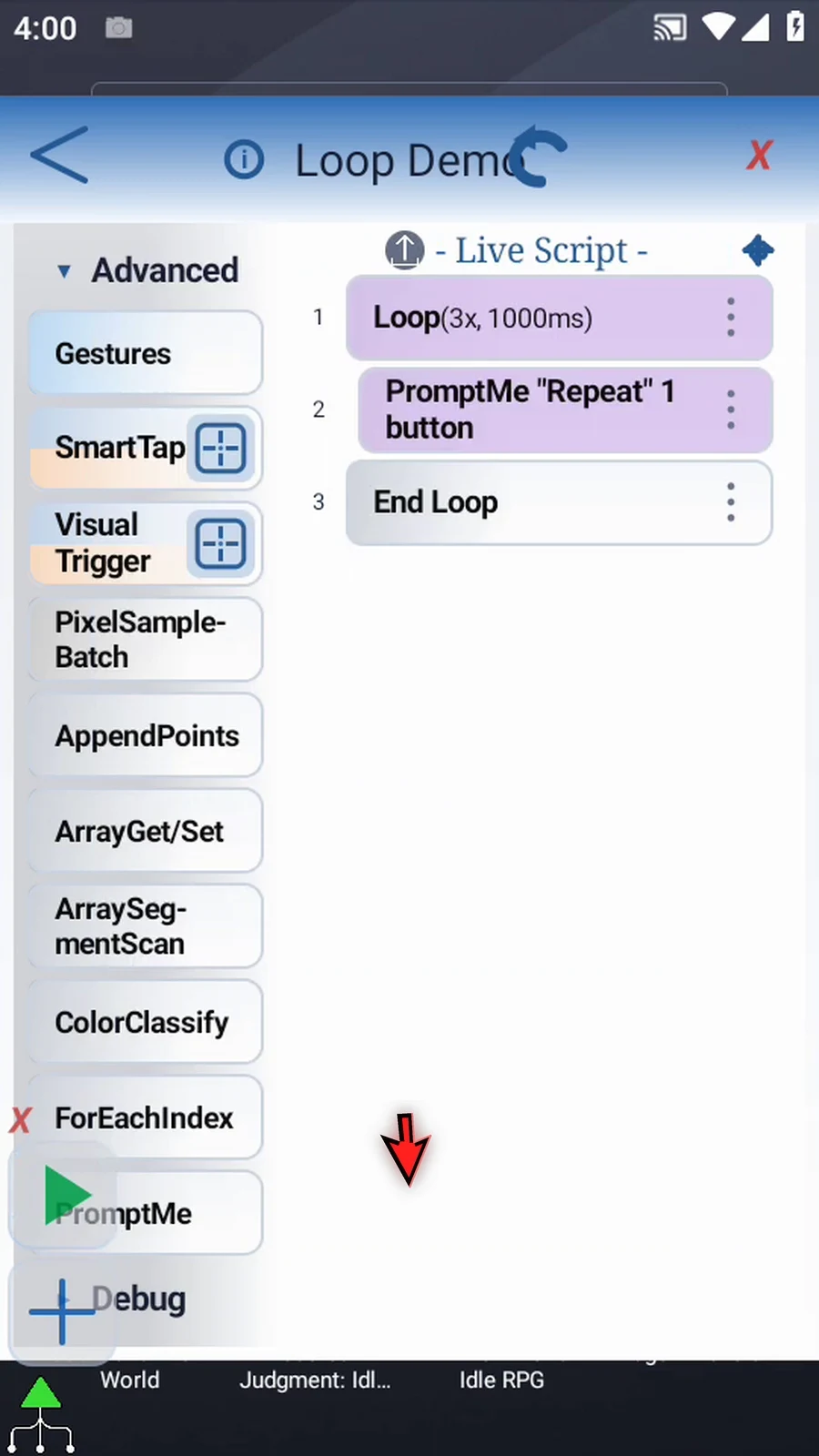
Step 20 Now drag a second PromptMe after End Loop. Because it is outside the block, this confirmation will appear only after the loop finishes.
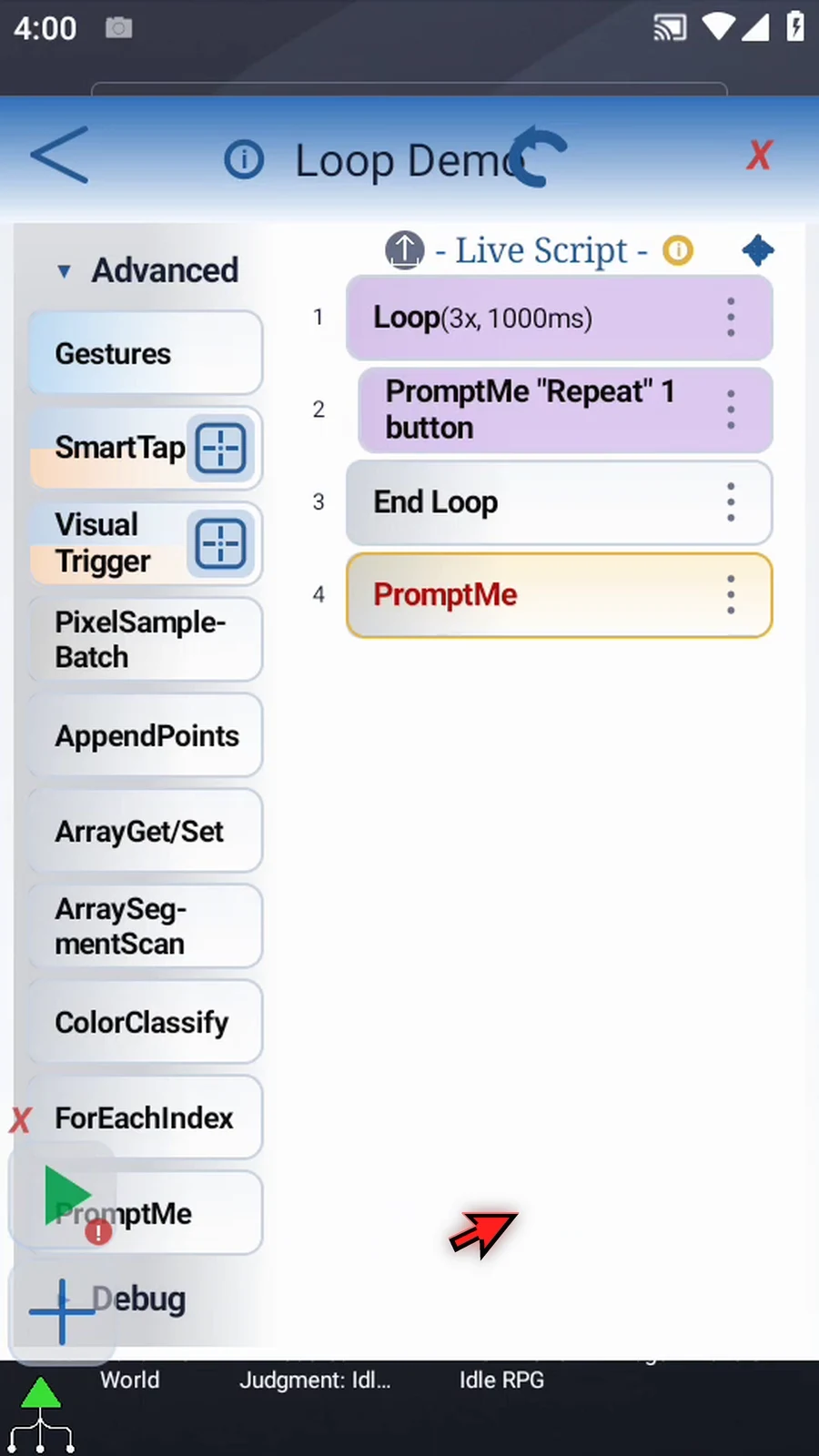
Step 21 Double-tap this prompt and enter Complete as its header.
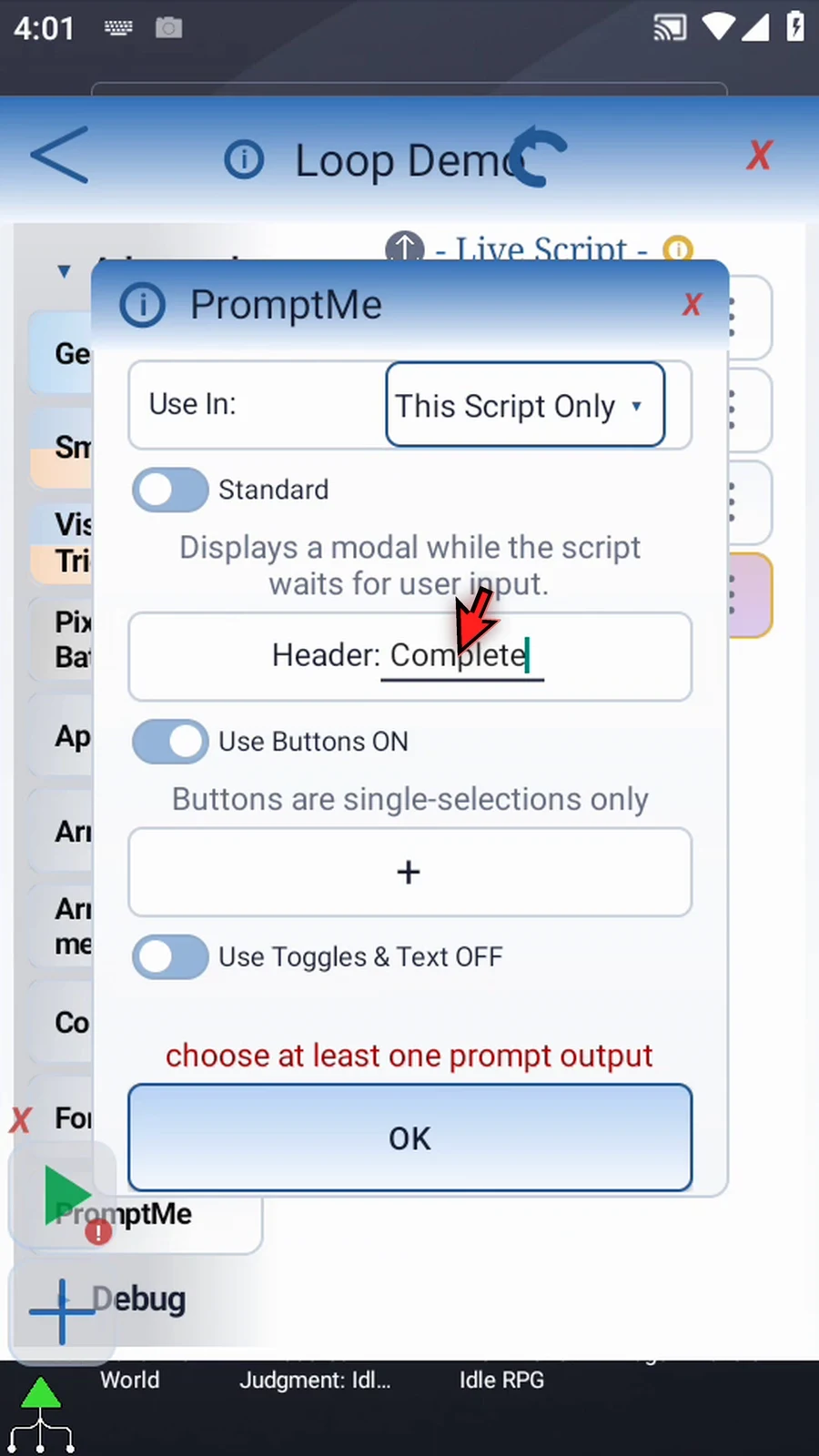
Step 22 Add a Done button with Boolean output b2. Tap OK to save the one-time confirmation.
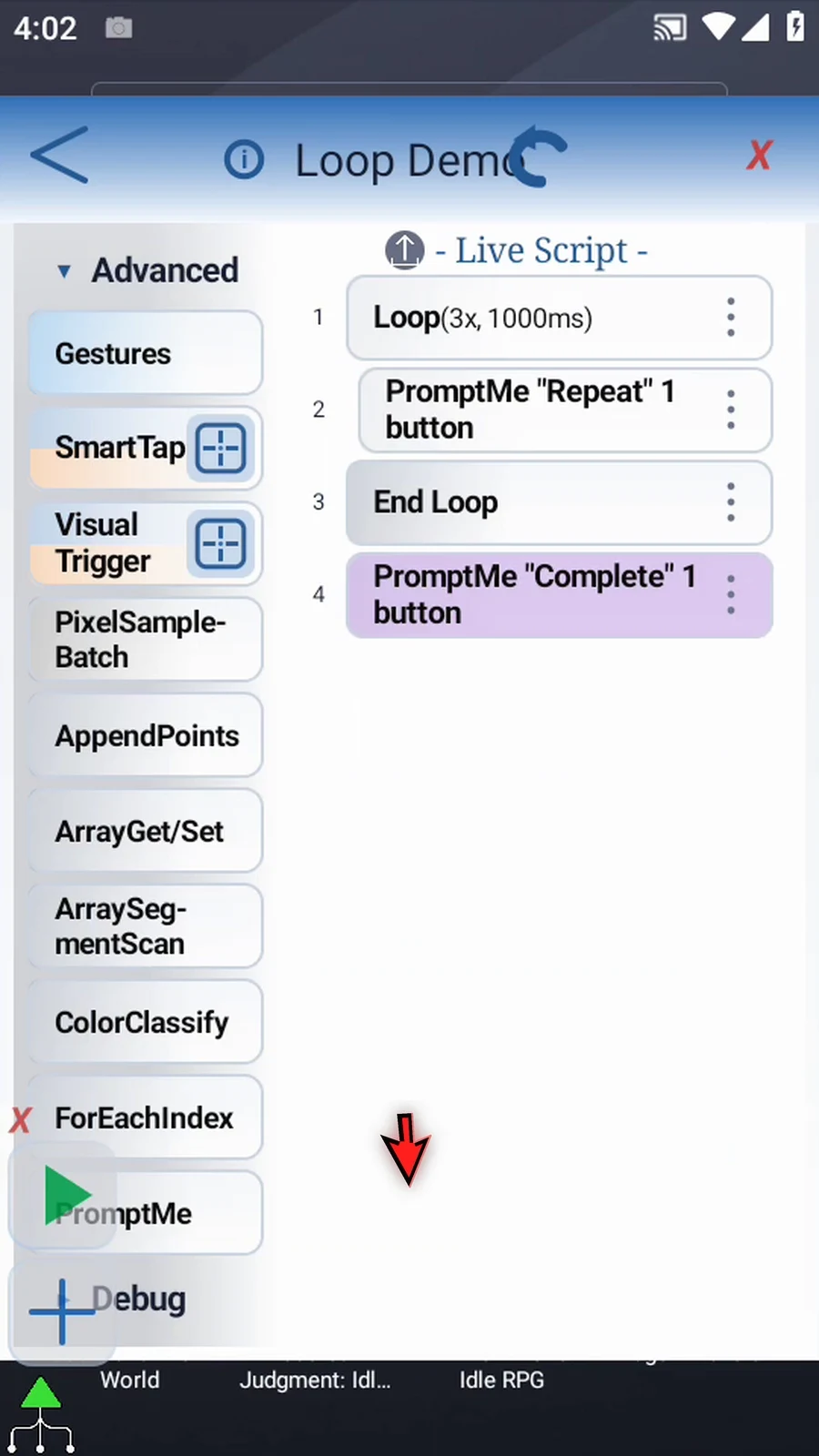
Step 23 The first prompt is inside the loop and will run three times, with a one-second gap between passes. The second prompt is after End Loop and will run once. Keep the matching boundaries around only the actions you want repeated.
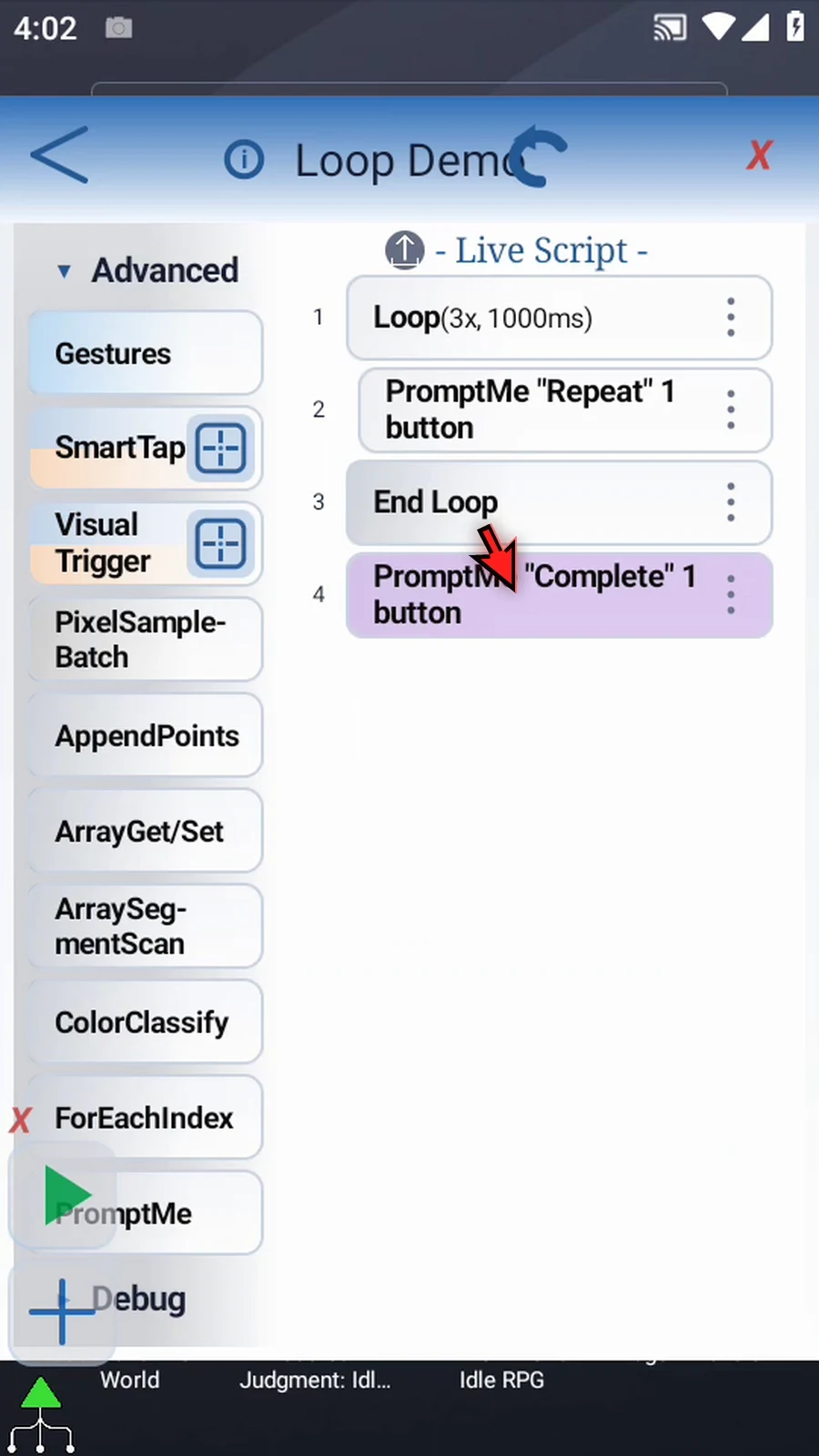
Step 24 When the script is complete, simply use the Play button in the main overlay.
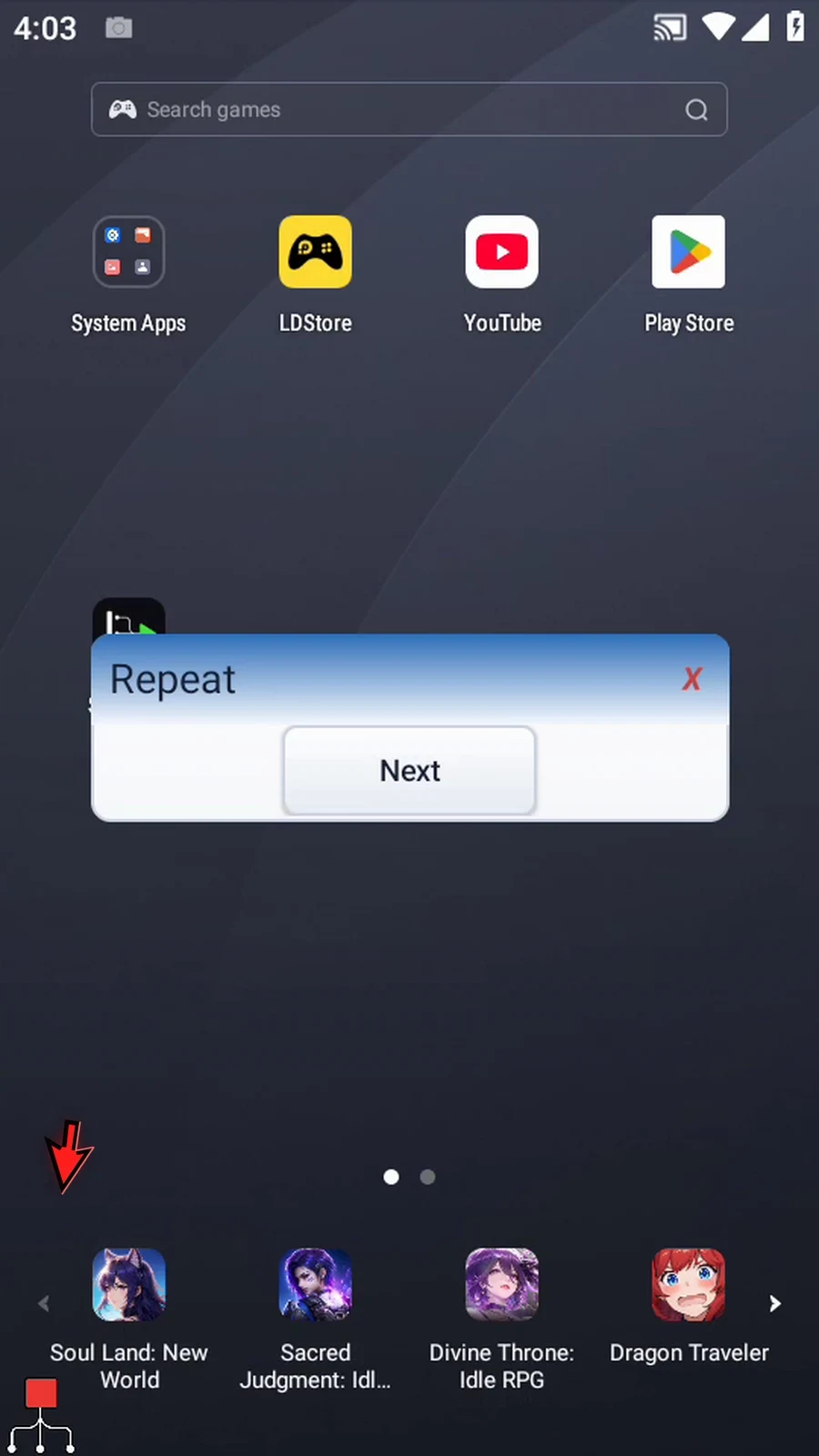
Step 25 Here is the first pass. PromptMe pauses this pass until we tap Next.
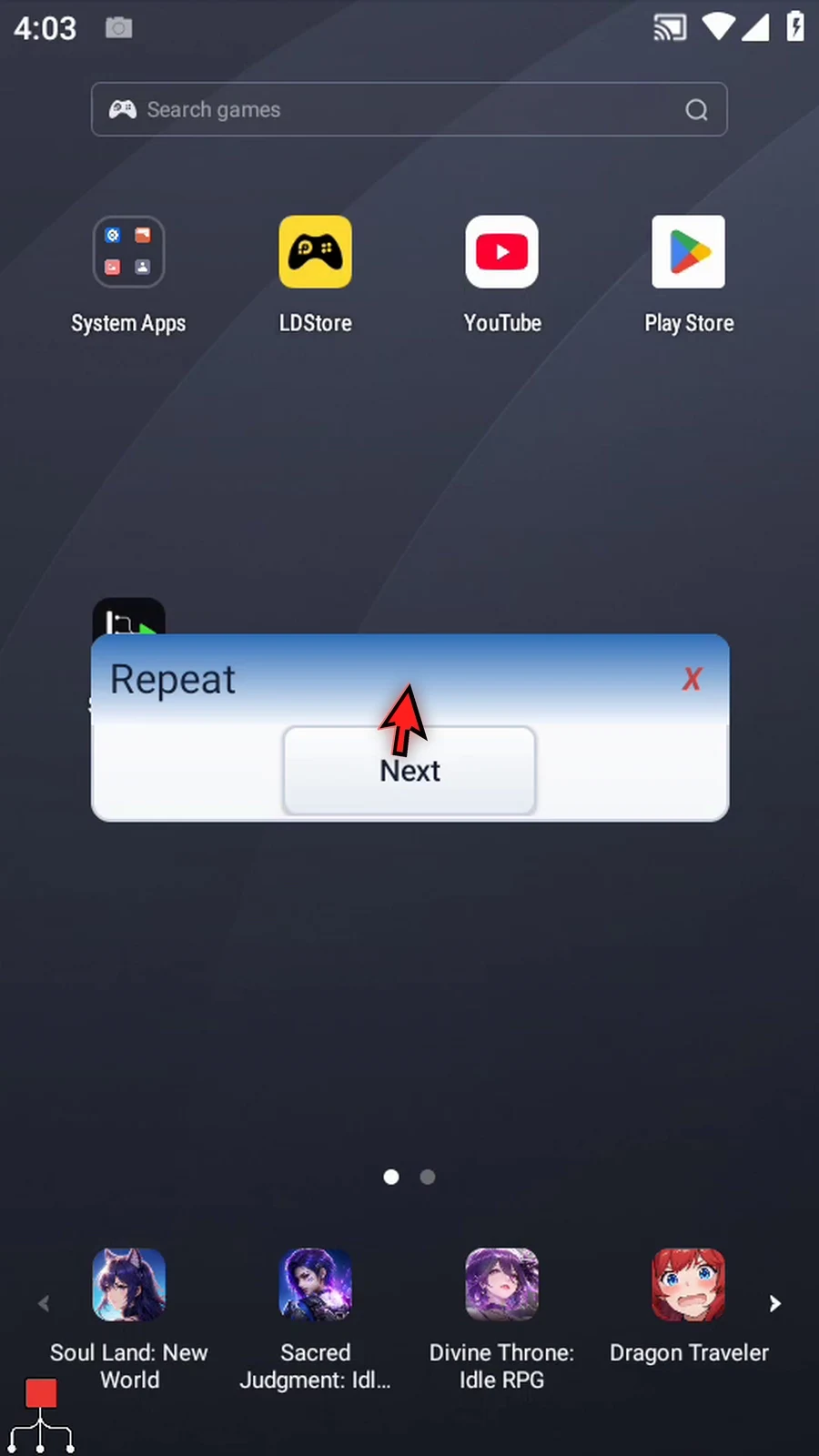
Step 26 Tap Next. Loop waits one second, then starts the second pass and shows the same prompt again.
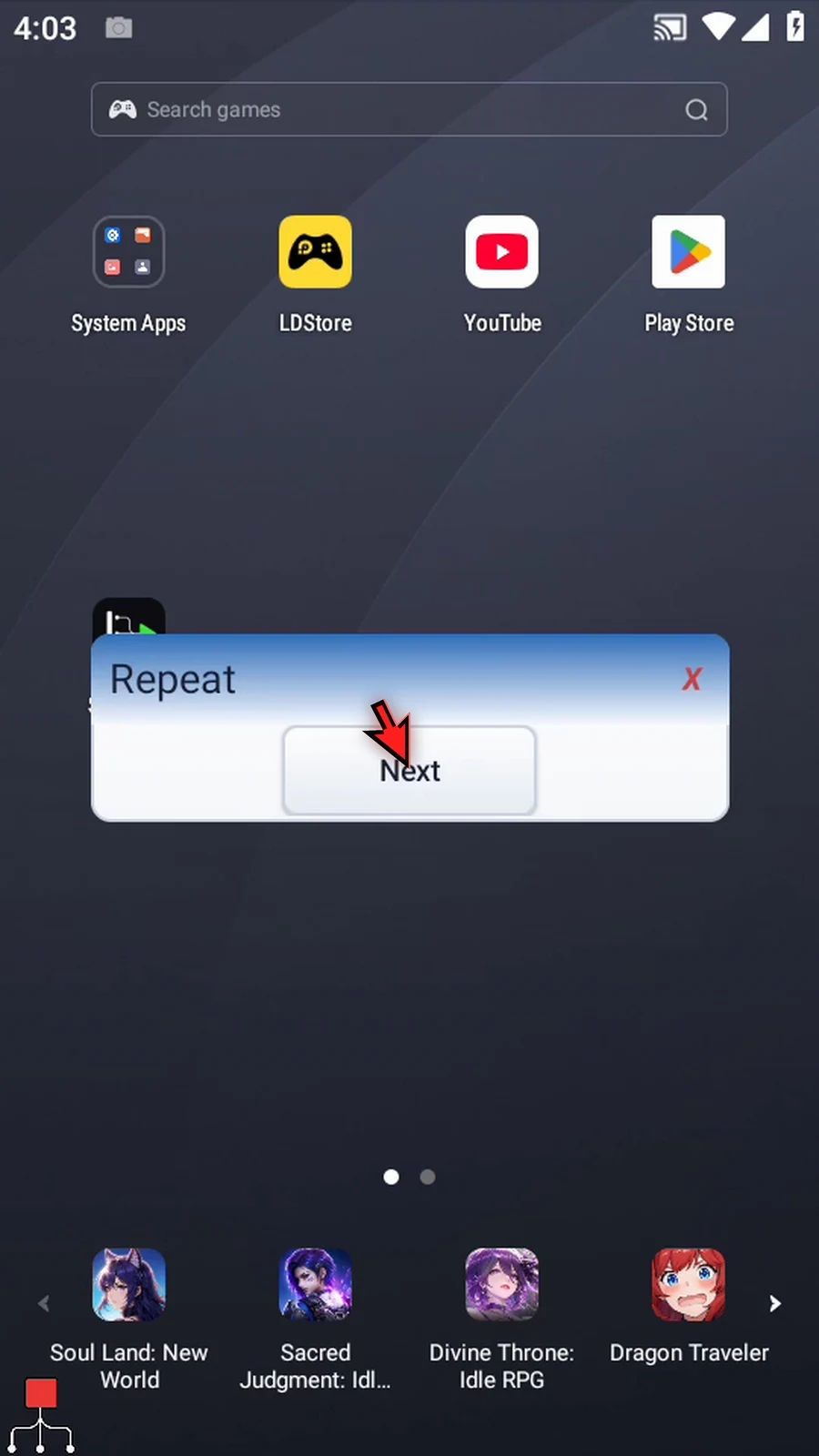
Step 27 Acknowledge the second pass. After the next one-second gap, the third pass begins.
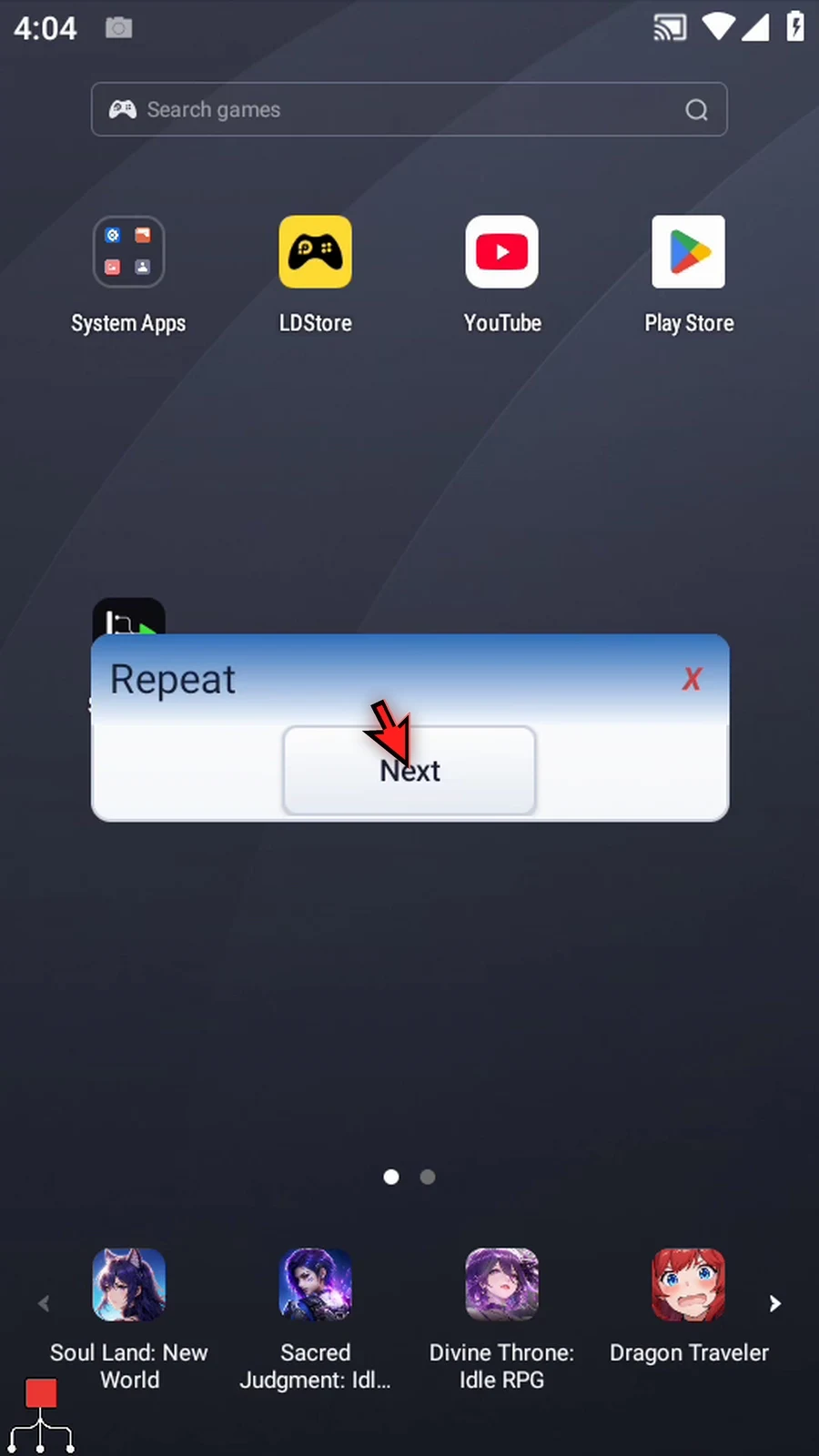
Step 28 Acknowledge the third pass. The repeat count is satisfied, so execution continues after End Loop and the Complete prompt appears. There is no fourth pass.
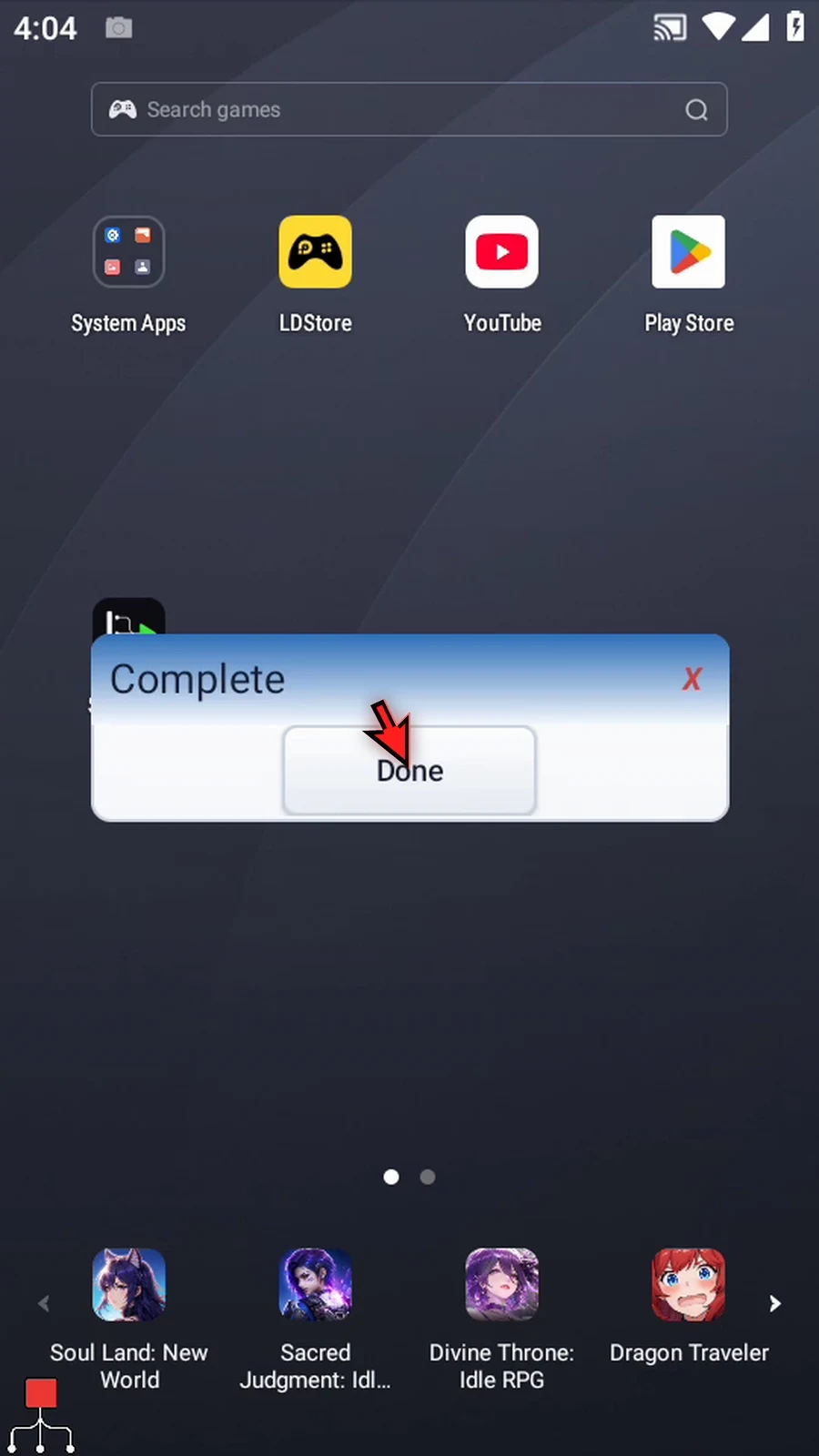
Step 29 Tap Done. The script finishes automatically. Use Loop whenever the same group of actions needs to run repeatedly without duplicating the commands.