Command video guide
Pinch
Capture two finger paths, edit their coordinates and duration, configure Concurrent, and replay the gesture.
Watch the walkthrough
Step-by-step guide
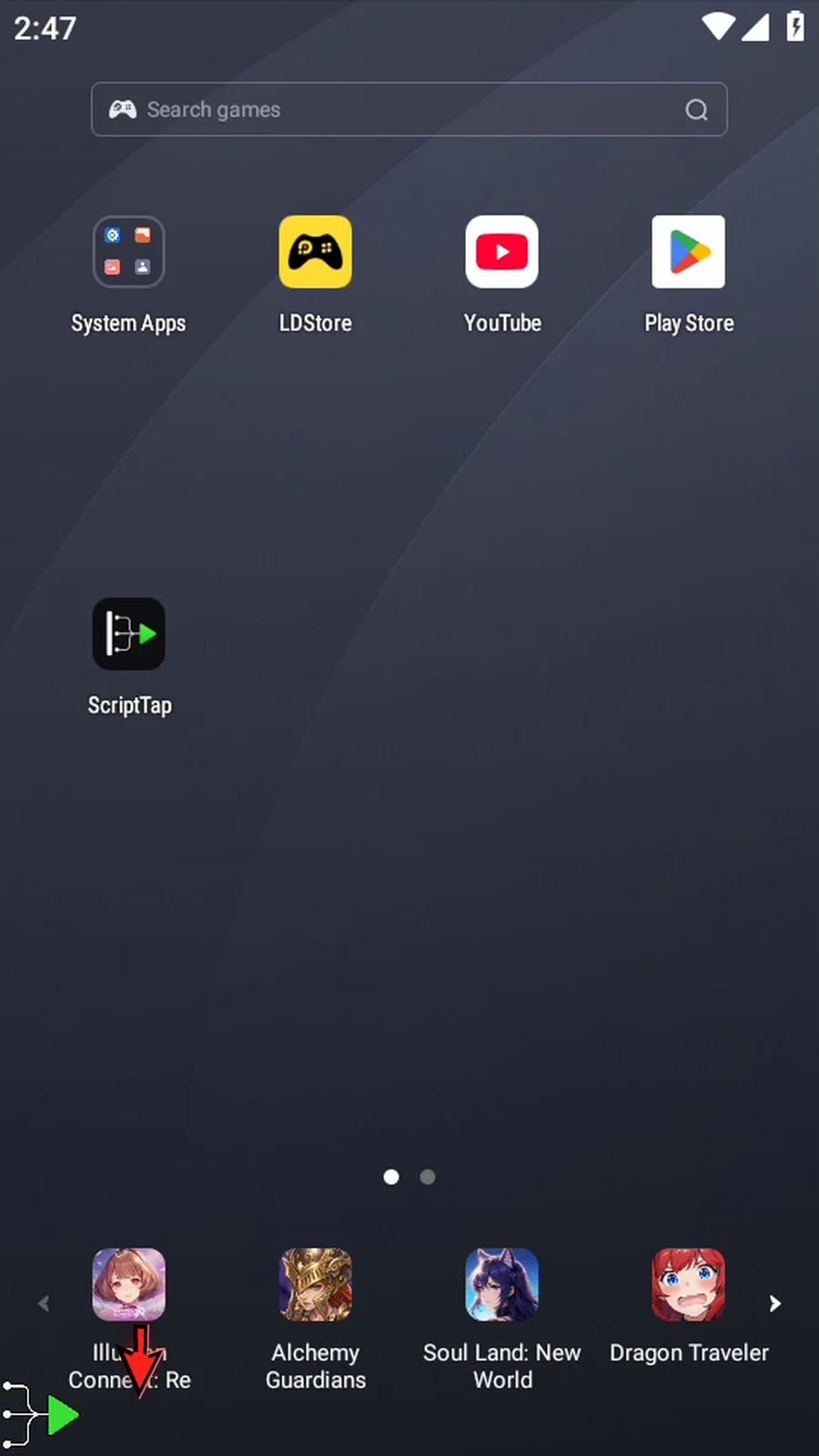
Step 01 Pinch captures two finger paths and plays them together. Start by opening the main overlay.
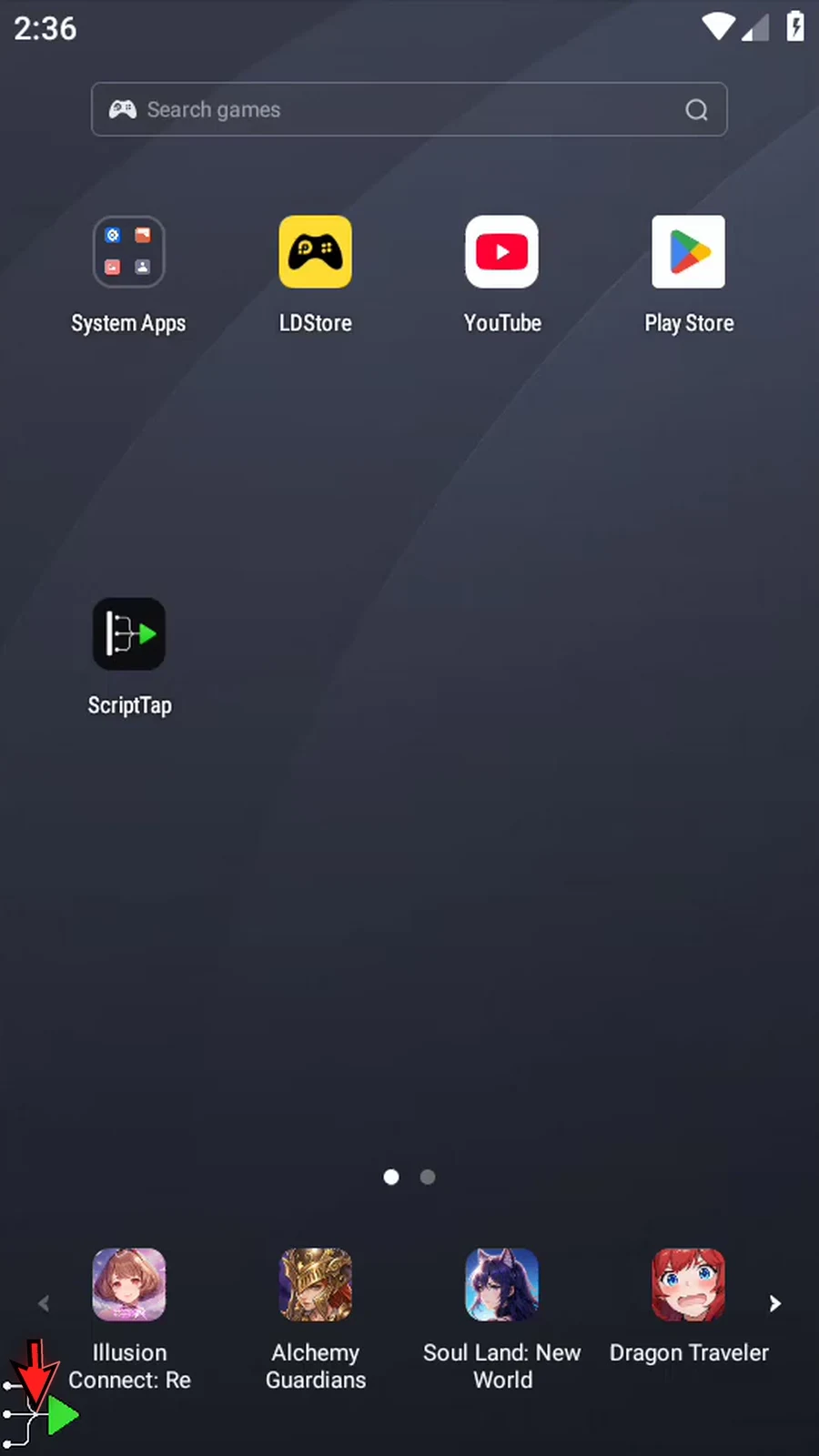
Step 02 Open the menu, then choose Scripts.
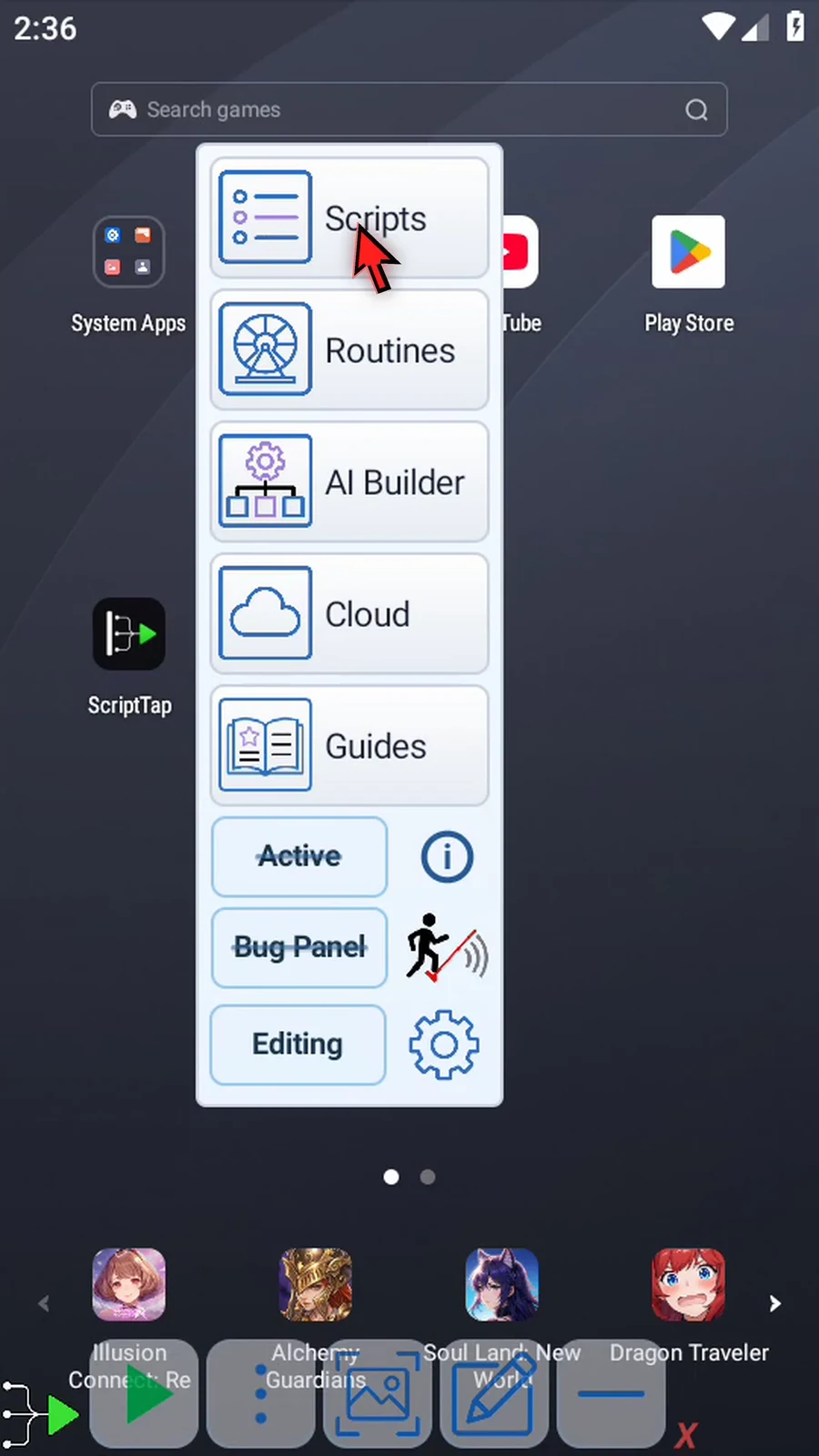
Step 03 Tap New Script.
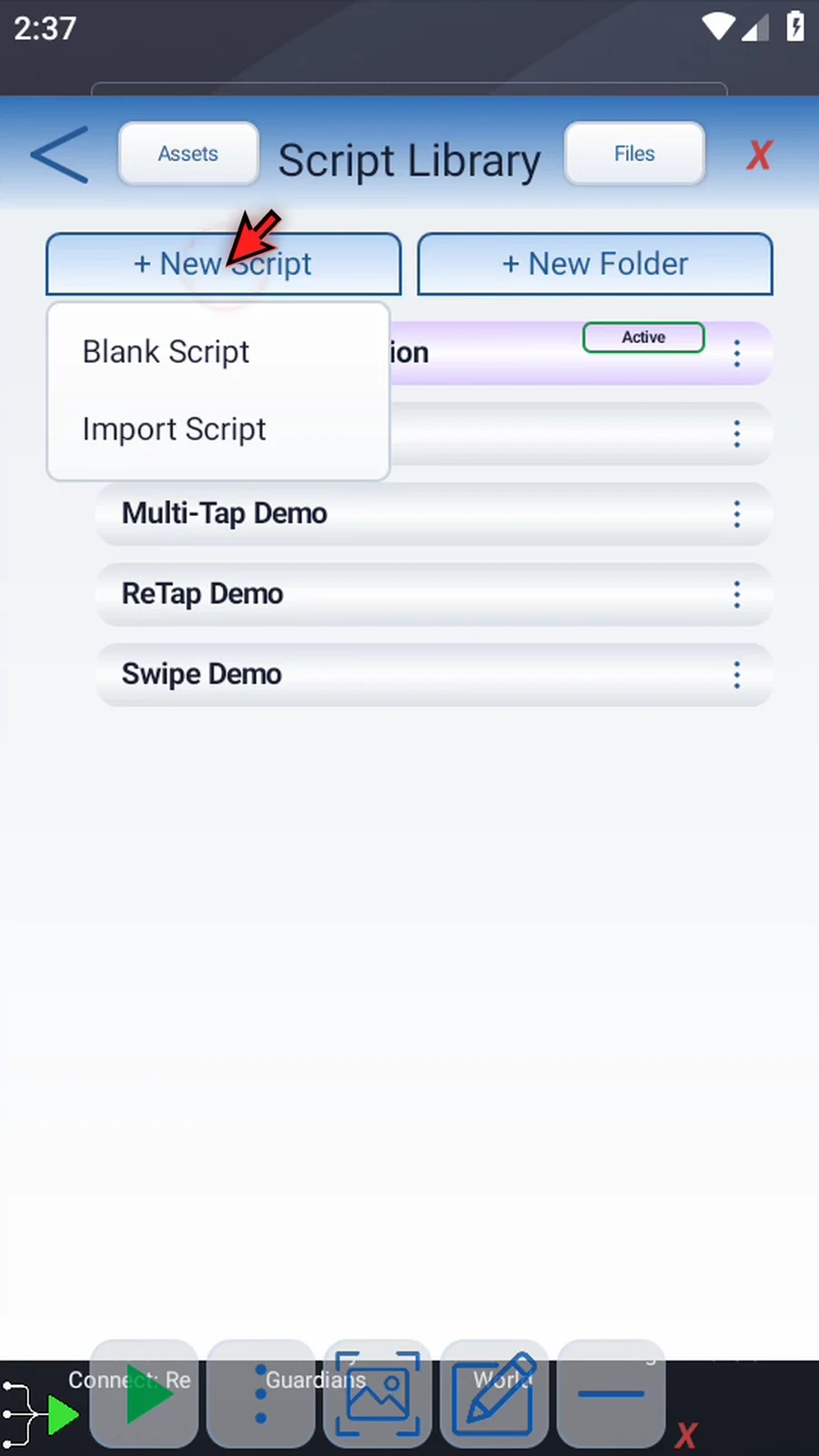
Step 04 Choose Blank Script to create an empty script.
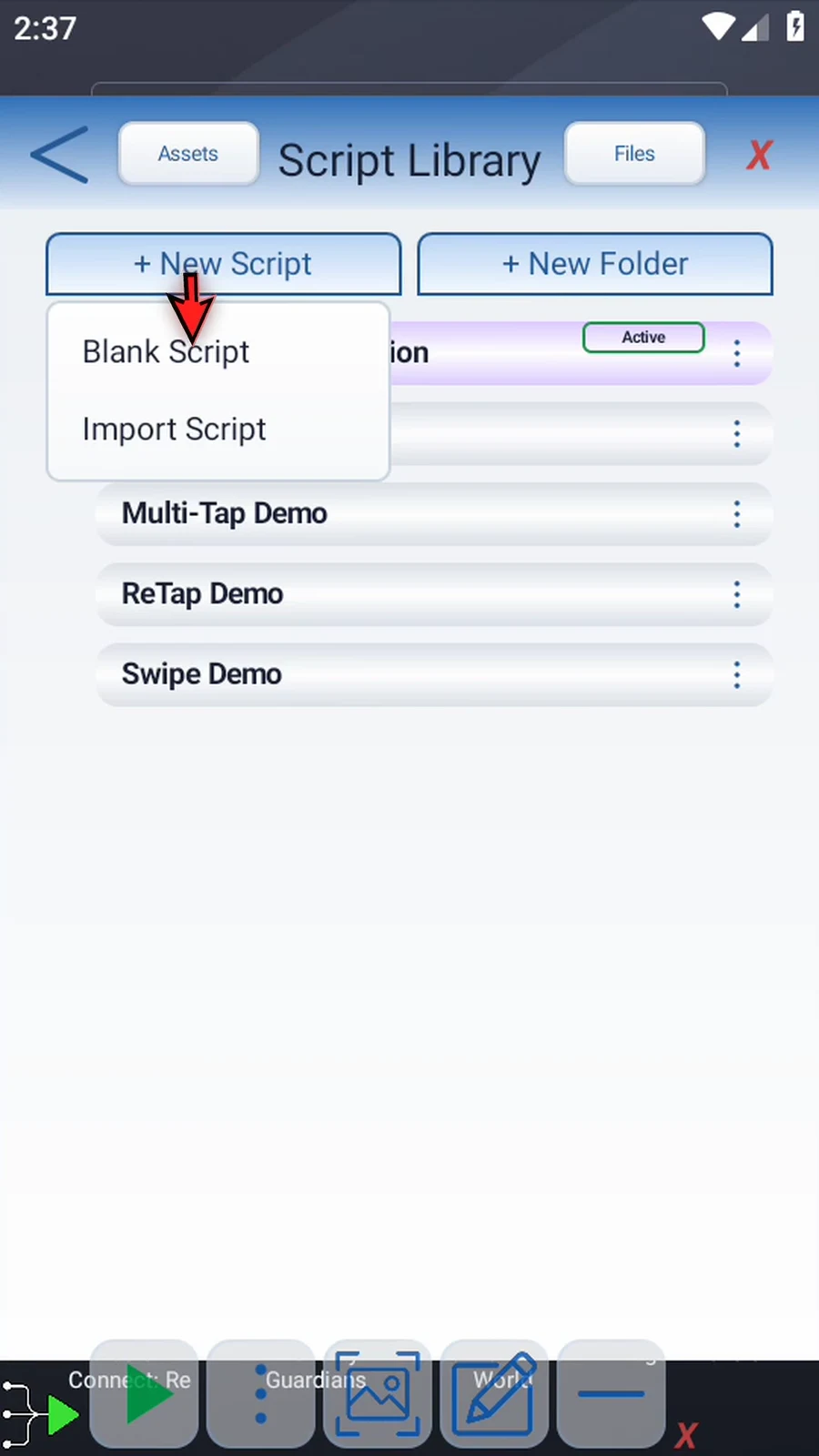
Step 05 Open the new script's three-dot menu.
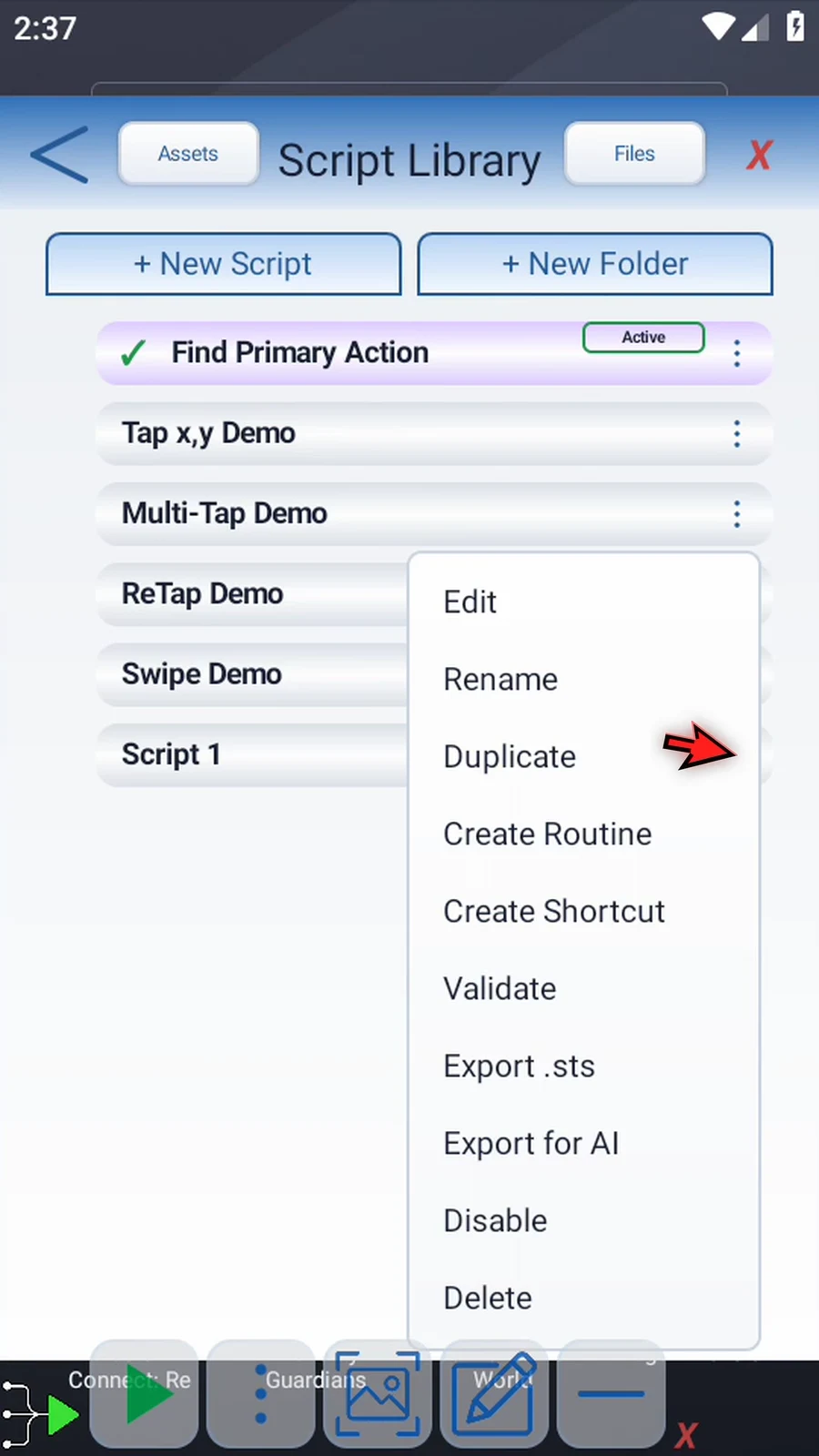
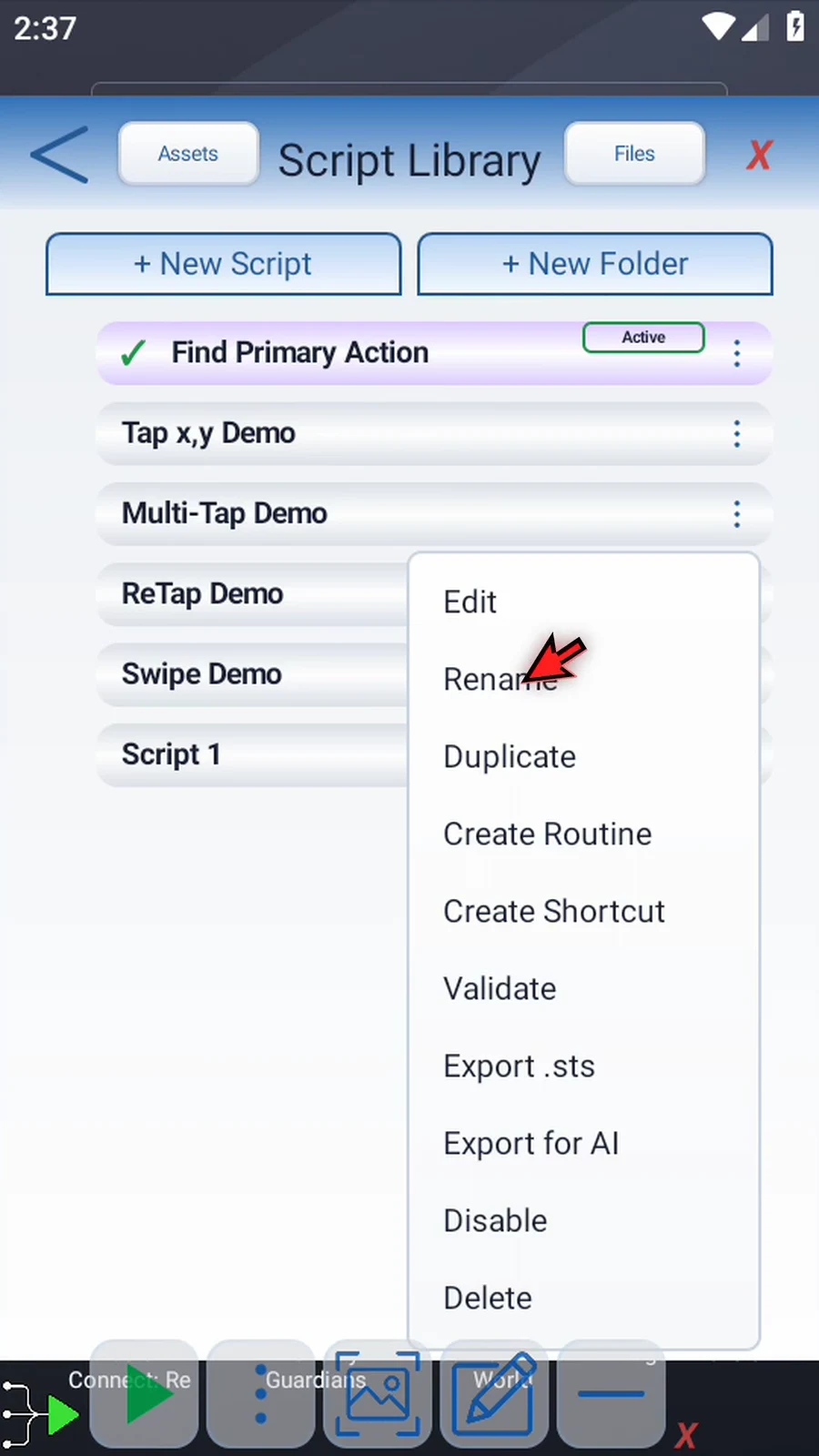
Step 06 Choose Rename.
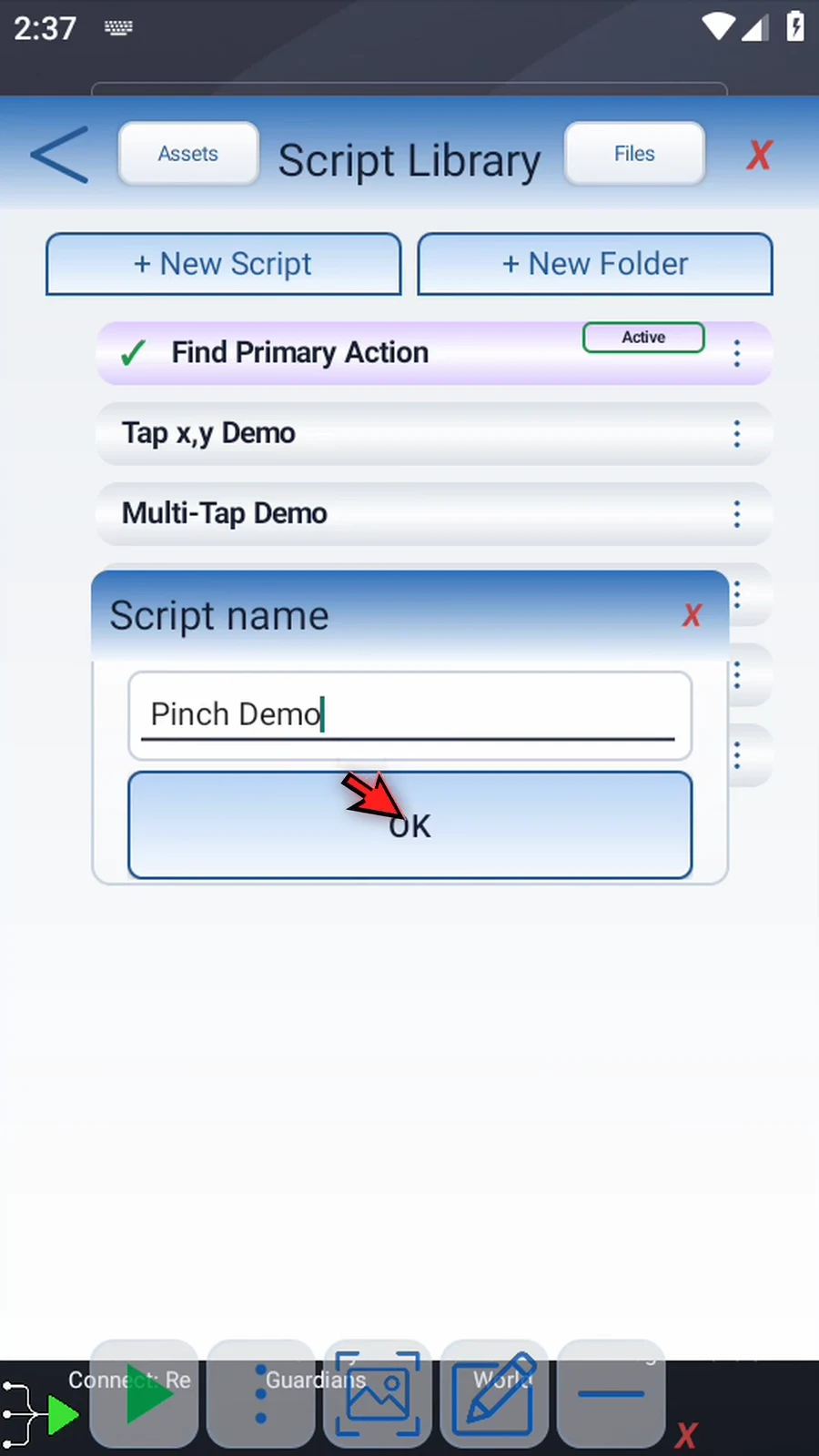
Step 07 Pick a name for your script, then tap OK.
Step 08 Select your script to make it active.
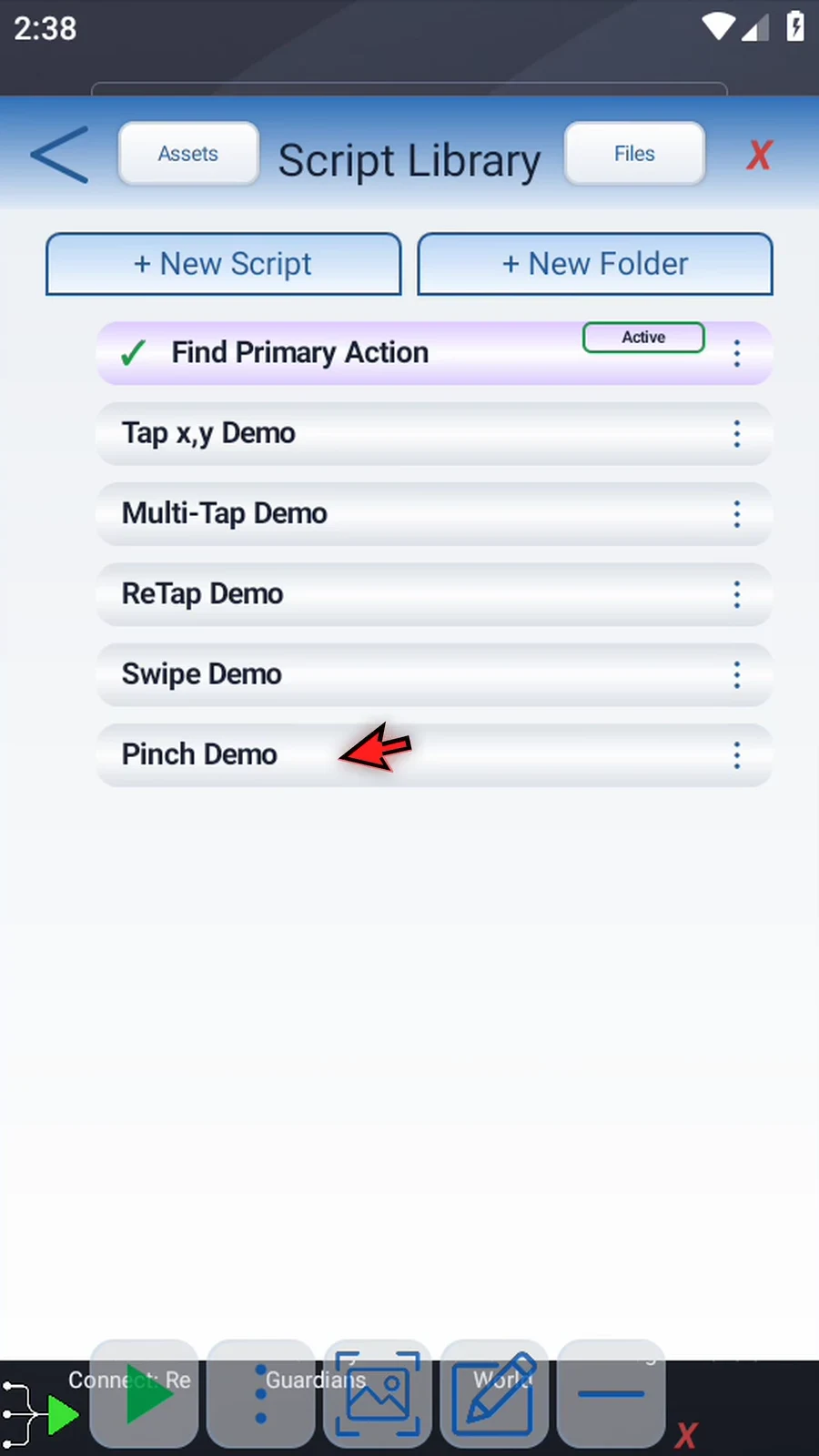
Step 09 Open the Script Editor from the main overlay.
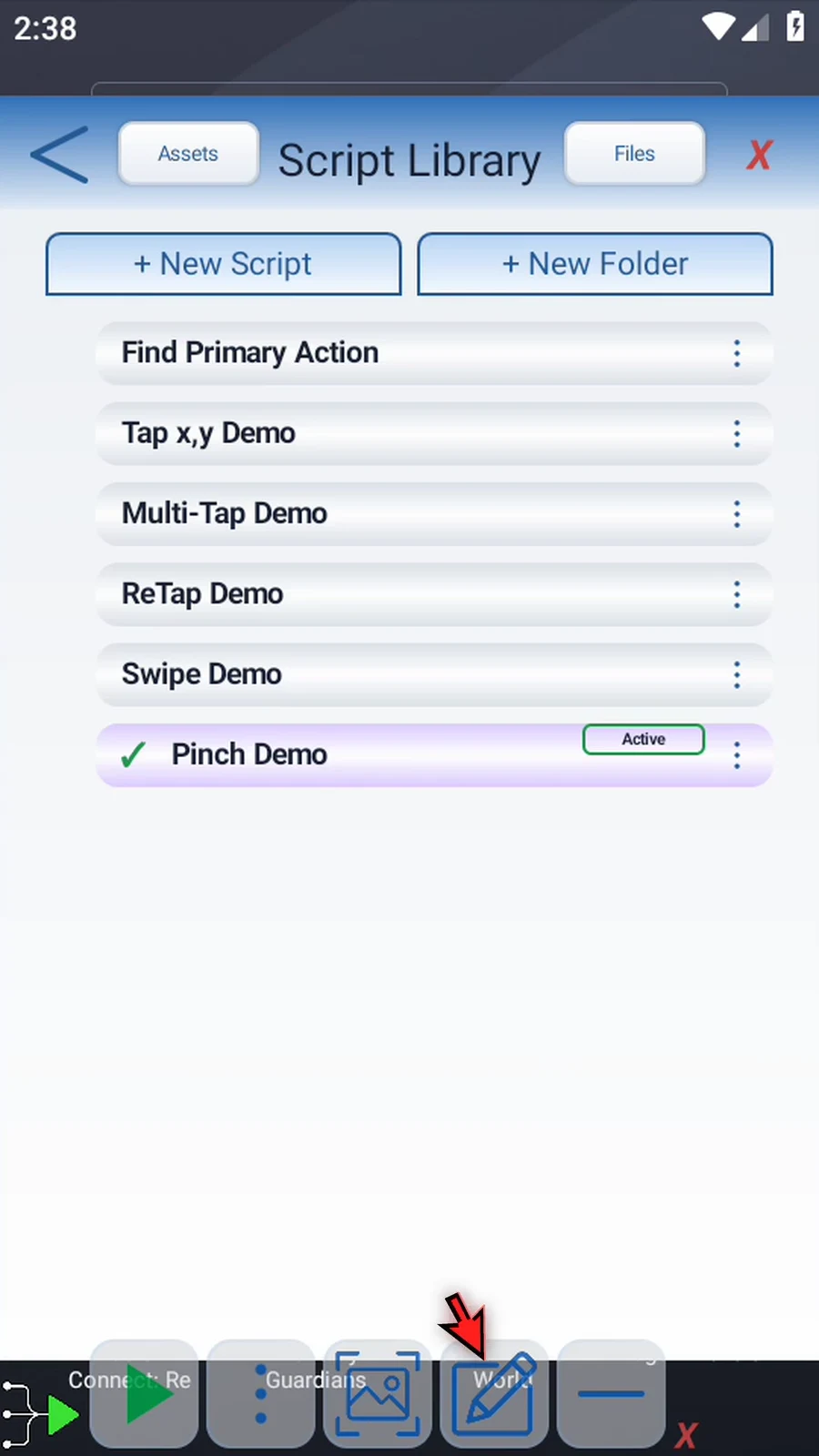
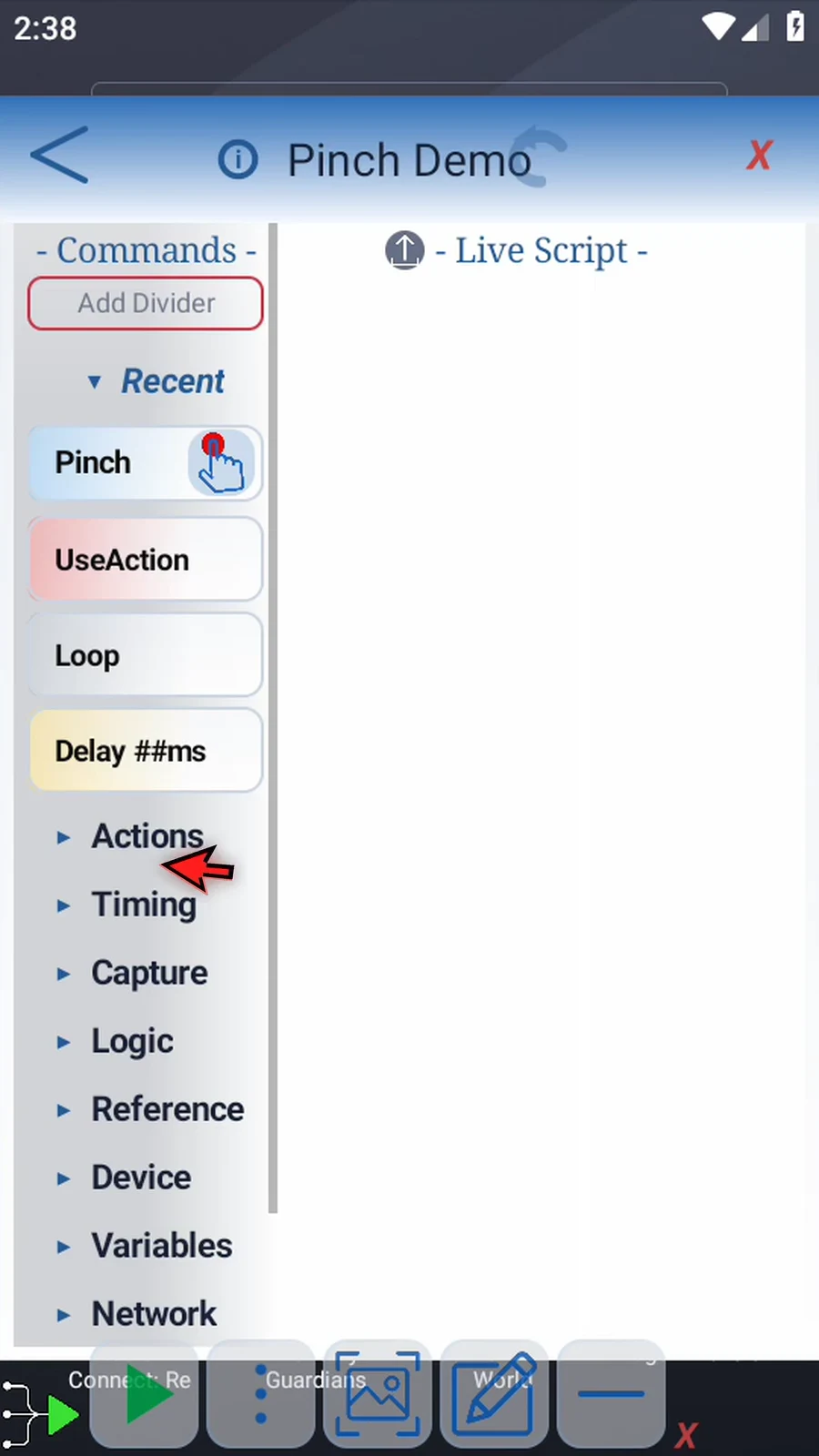
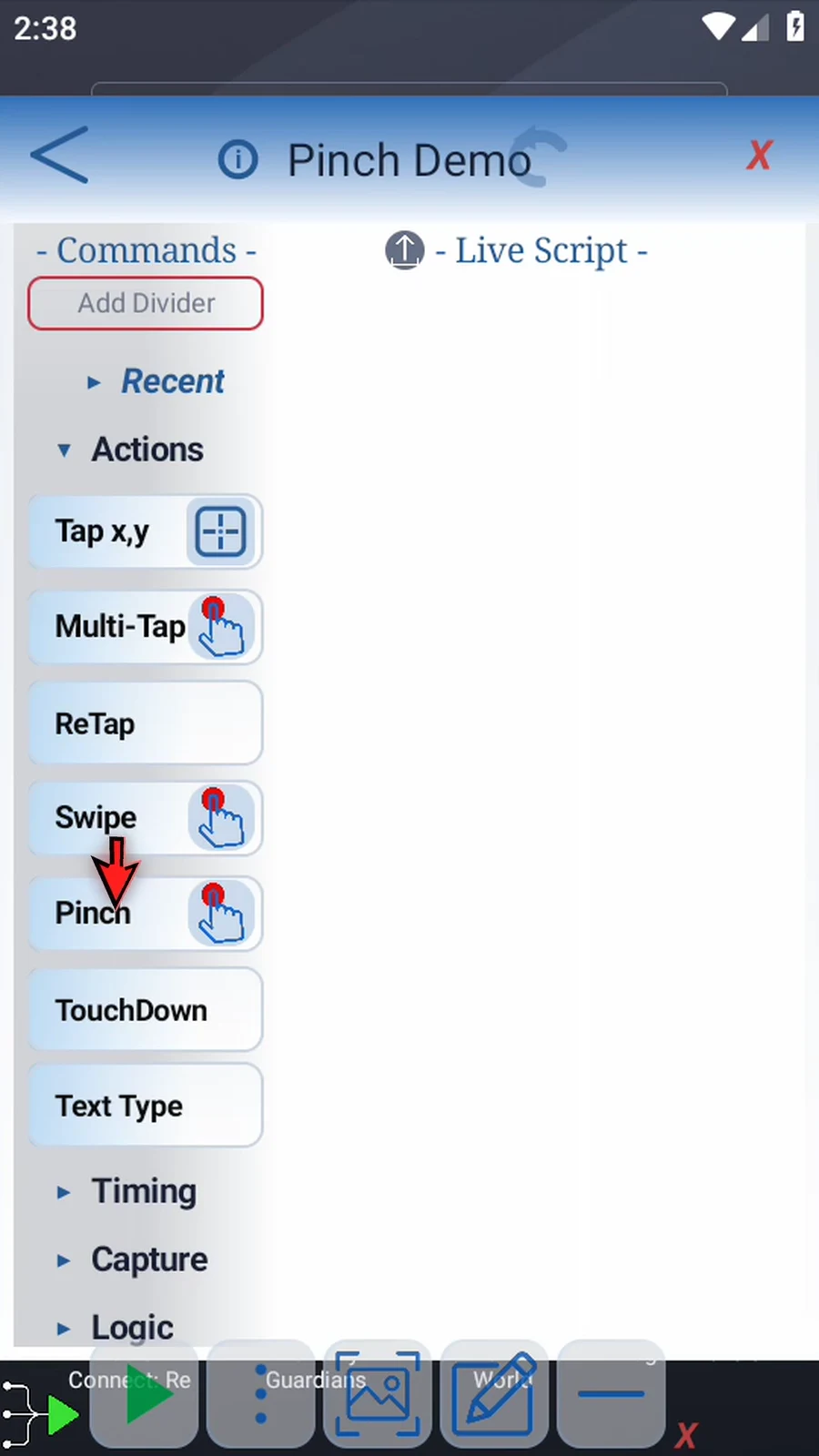
Step 10 Expand Actions to find Pinch.
Step 11 Double-tap Pinch to append it to the script.
Step 12 Double-tap the command frame to open its settings.
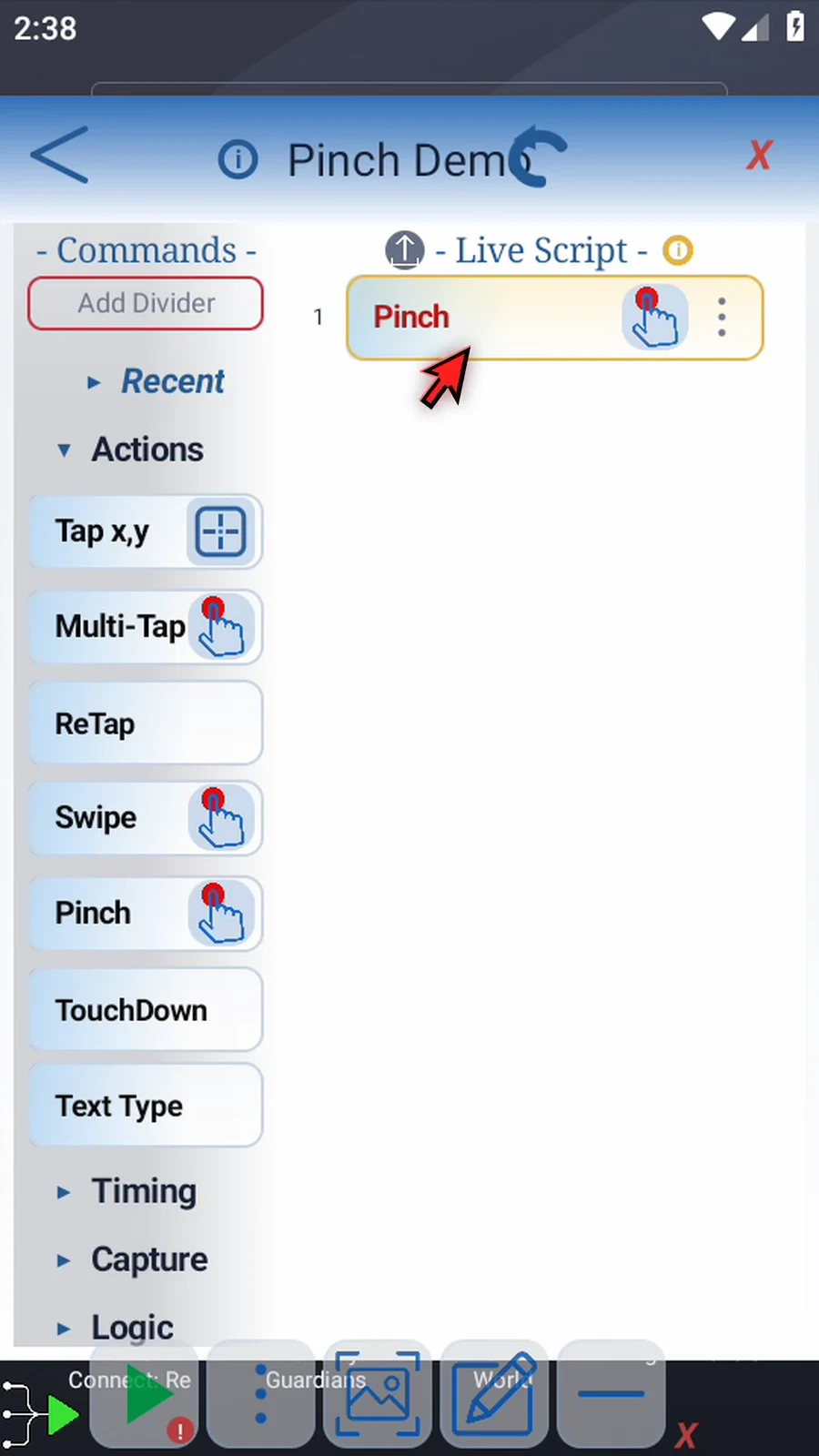
Step 13 Tap the recording icon. If Android asks, allow screen capture.
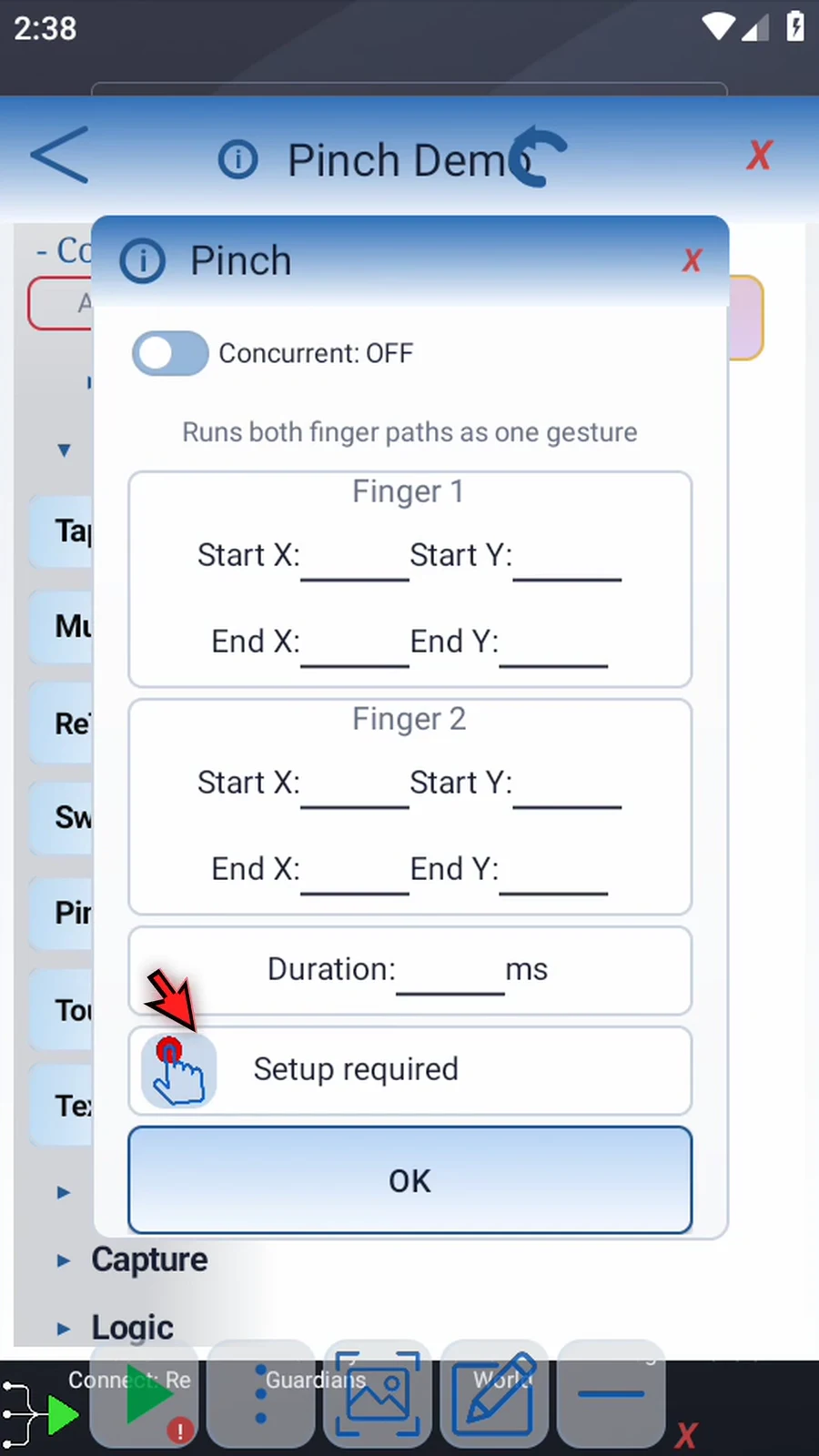
Step 14 Move two fingers toward each other. The blue and green lines show their paths. Lift both fingers to return.
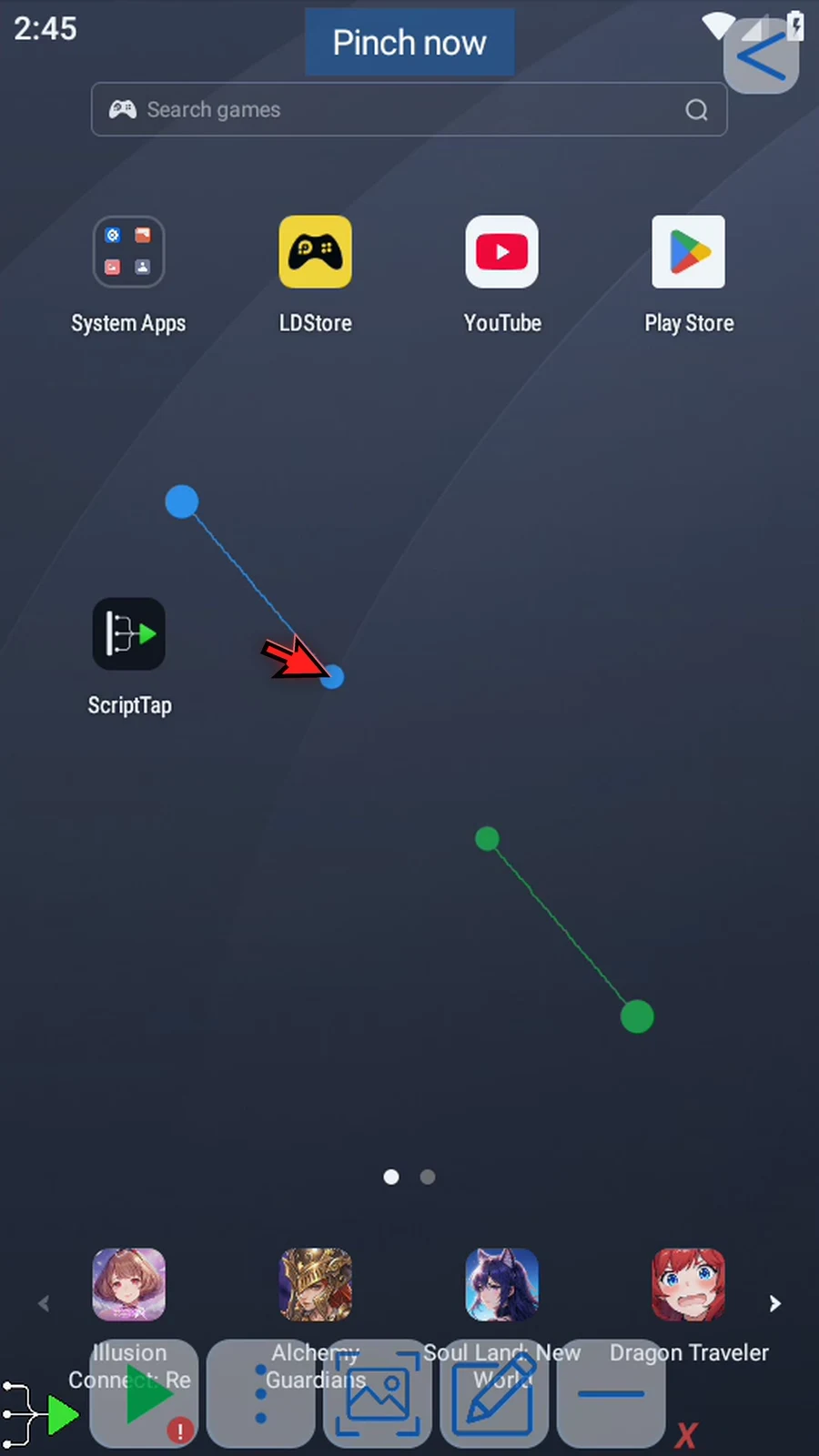
Step 15 Each finger has start and end X and Y coordinates. X runs across the screen; Y runs down it.
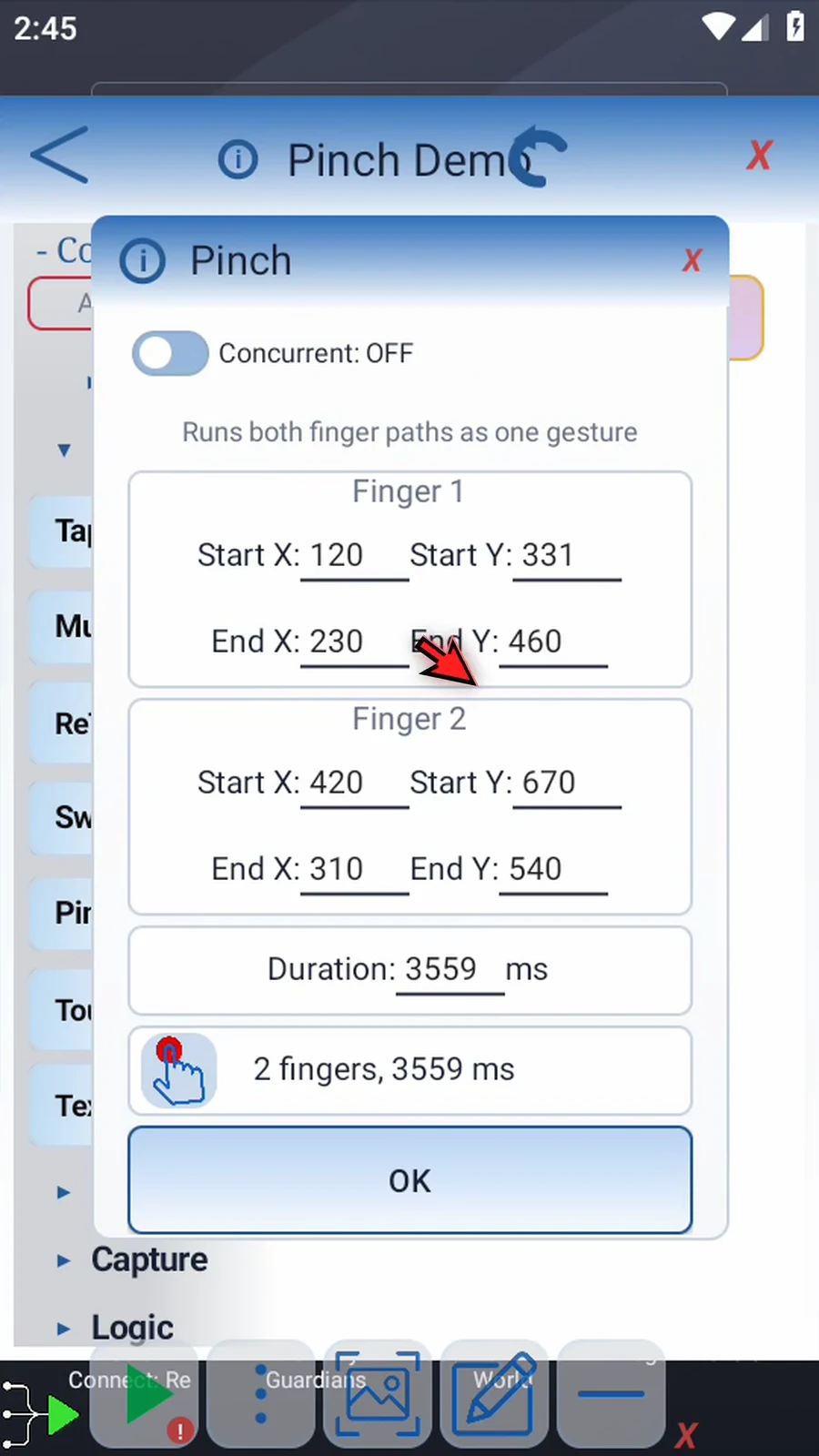
Step 16 Tap a coordinate to change where that finger begins or ends.
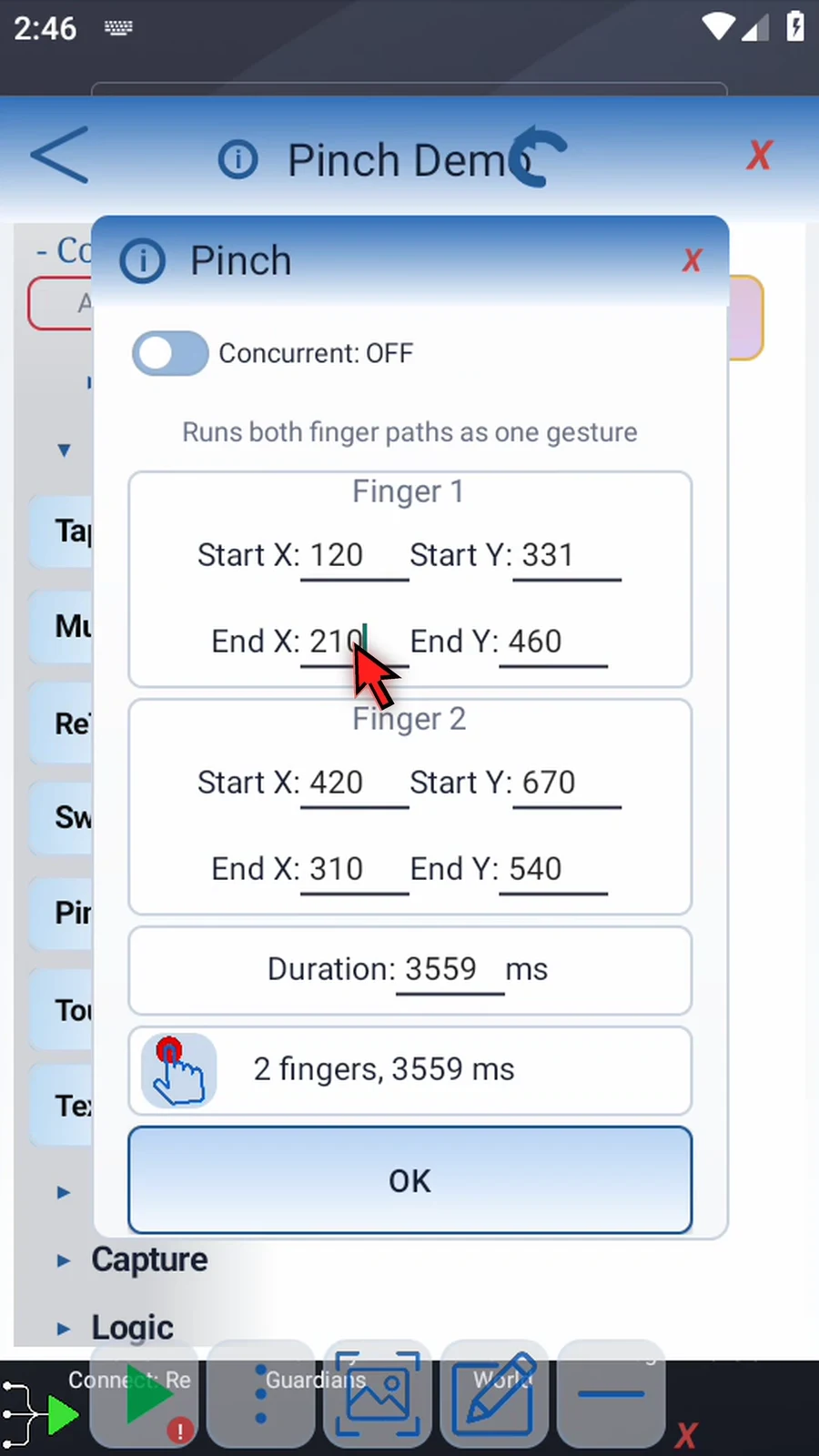
Step 17 Duration sets how long both paths take, in milliseconds. Enter a positive value; two thousand means two seconds.
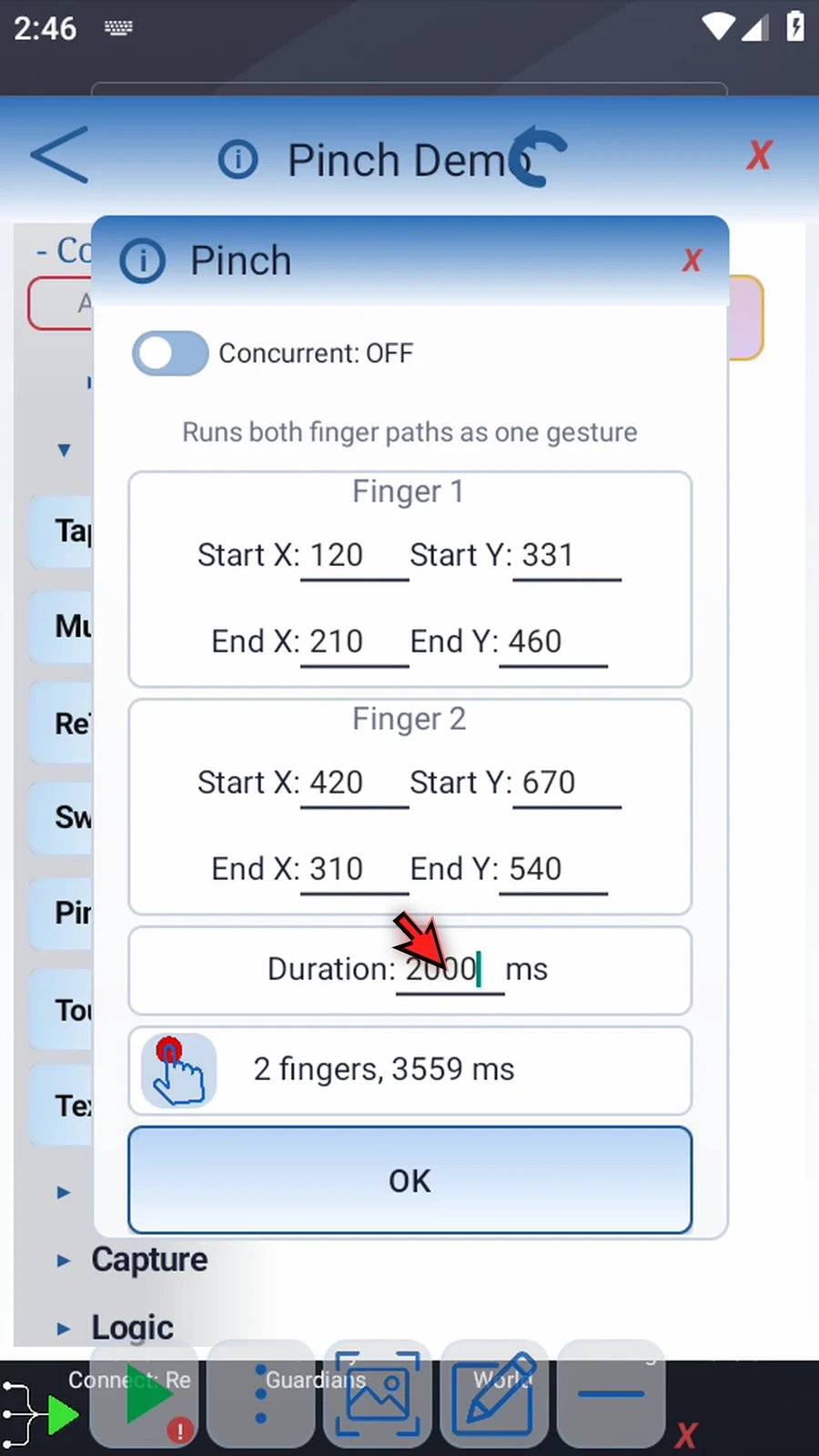
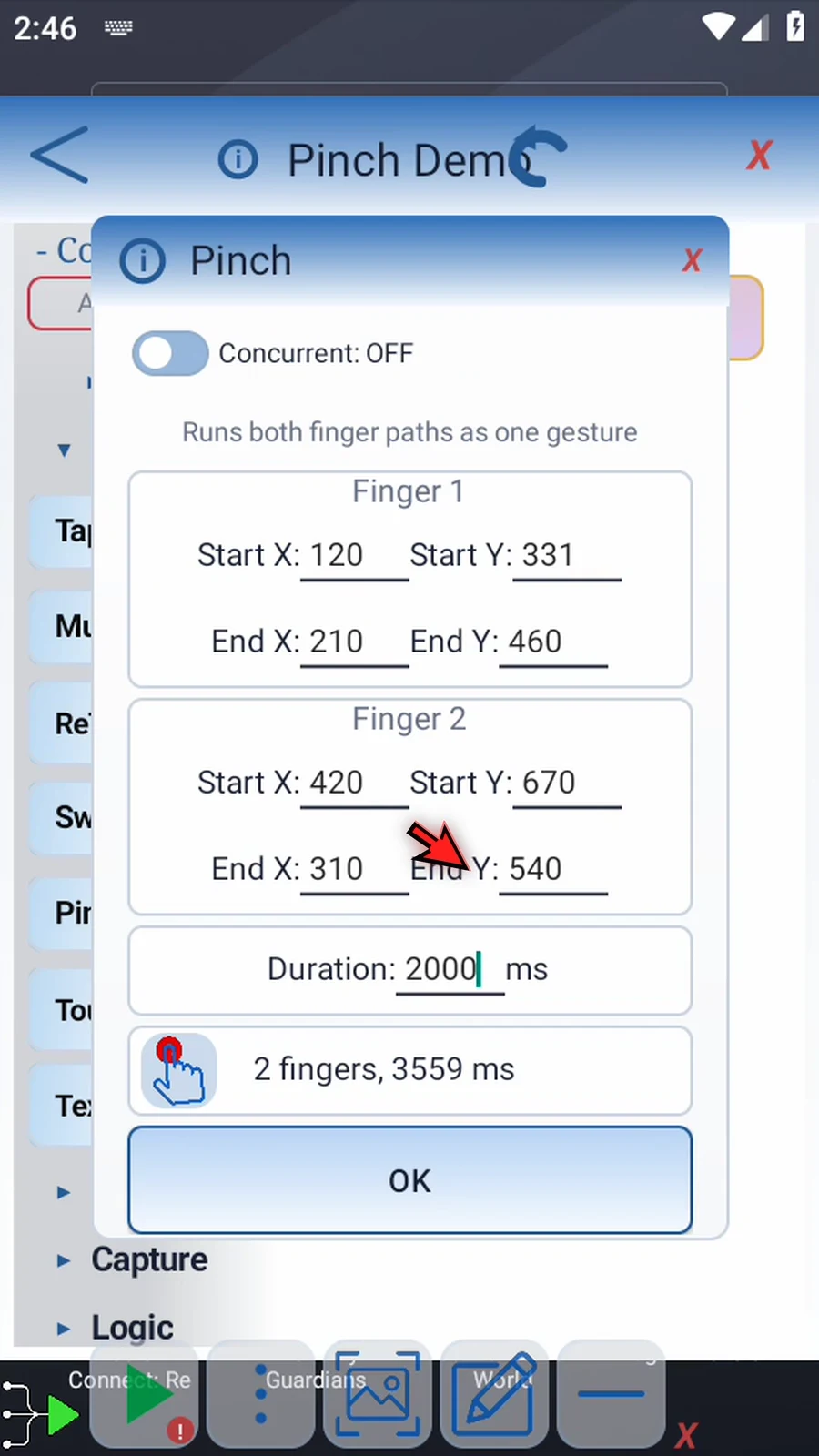
Step 18 Move the endpoints apart for a pinch out, or move both fingers in the same direction for a two-finger pan. Each path can have its own direction.
Step 19 Concurrent groups adjacent Swipe or Pinch commands that also have Concurrent on. The device's touch-point limit appears below the switch.
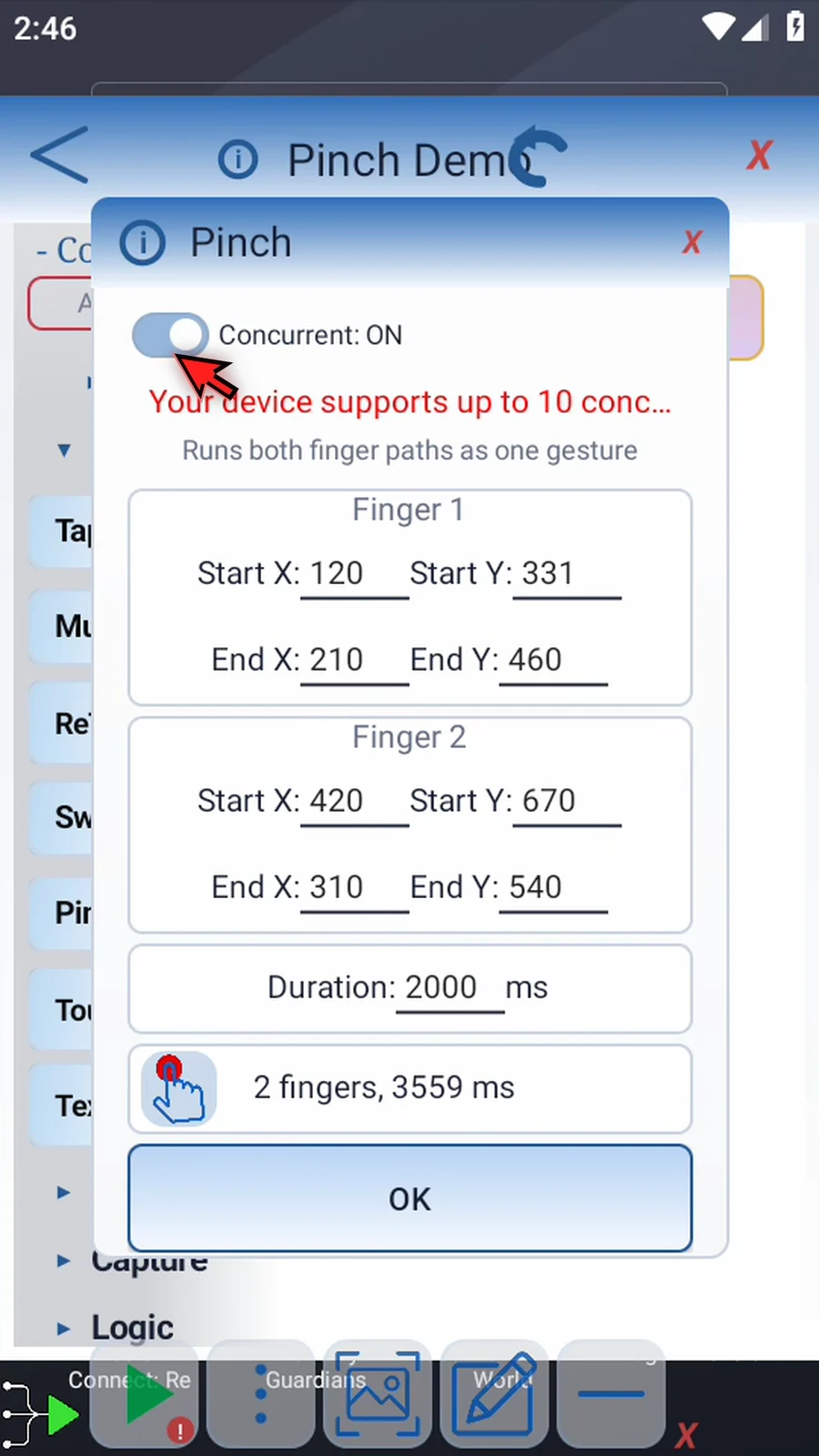
Step 20 Leave Concurrent off when this Pinch should run on its own. Its two fingers still move together.
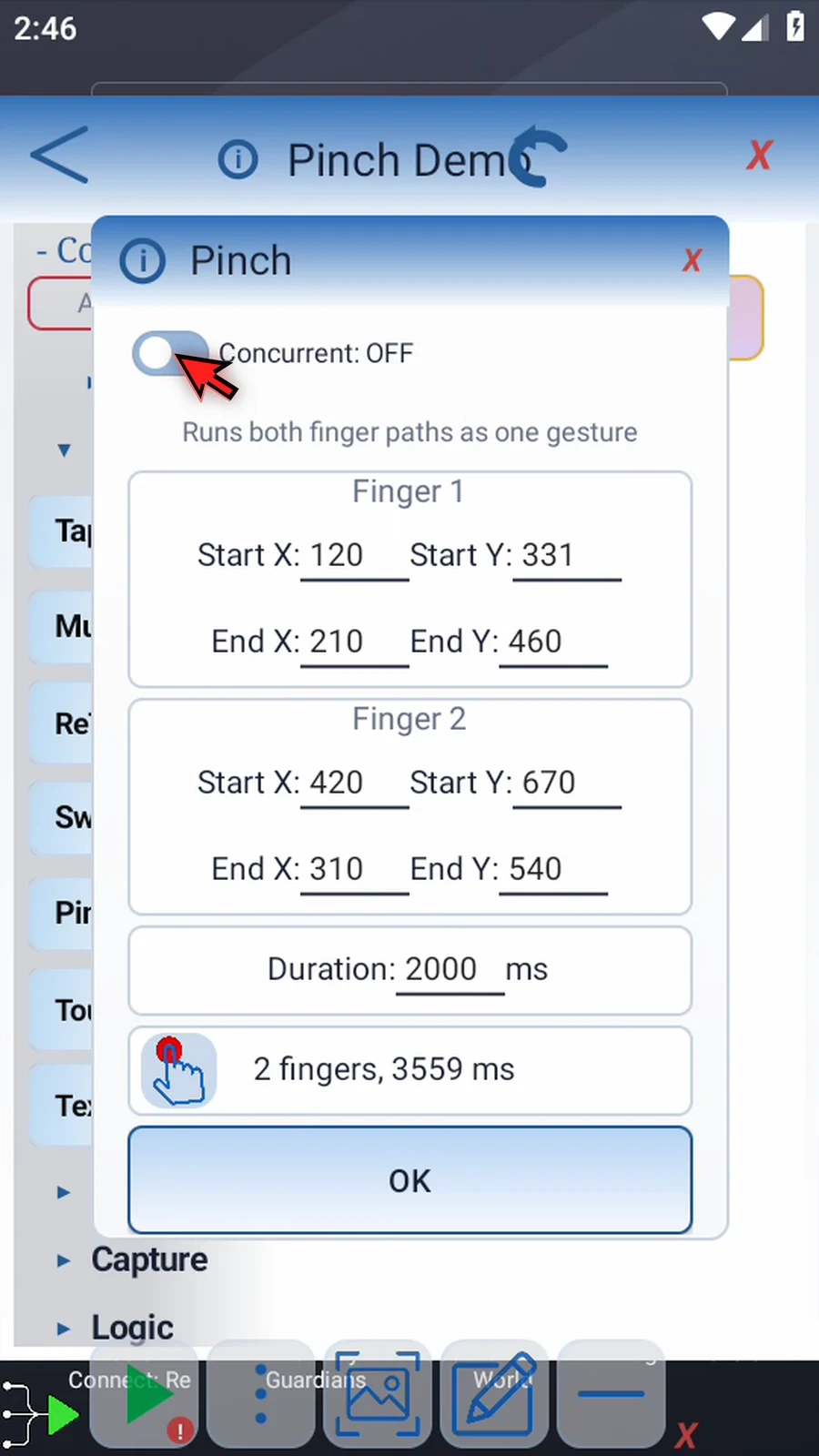
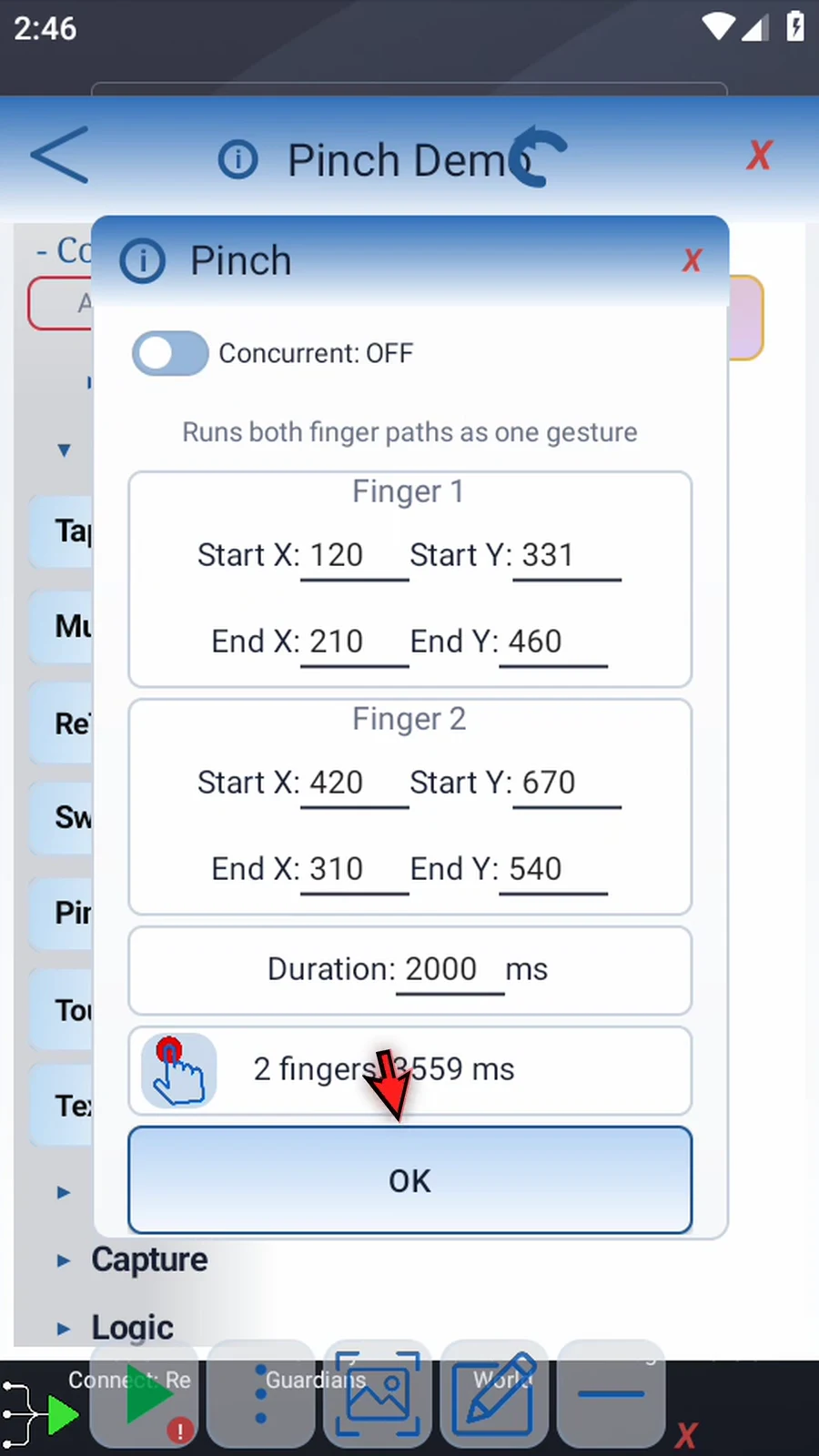
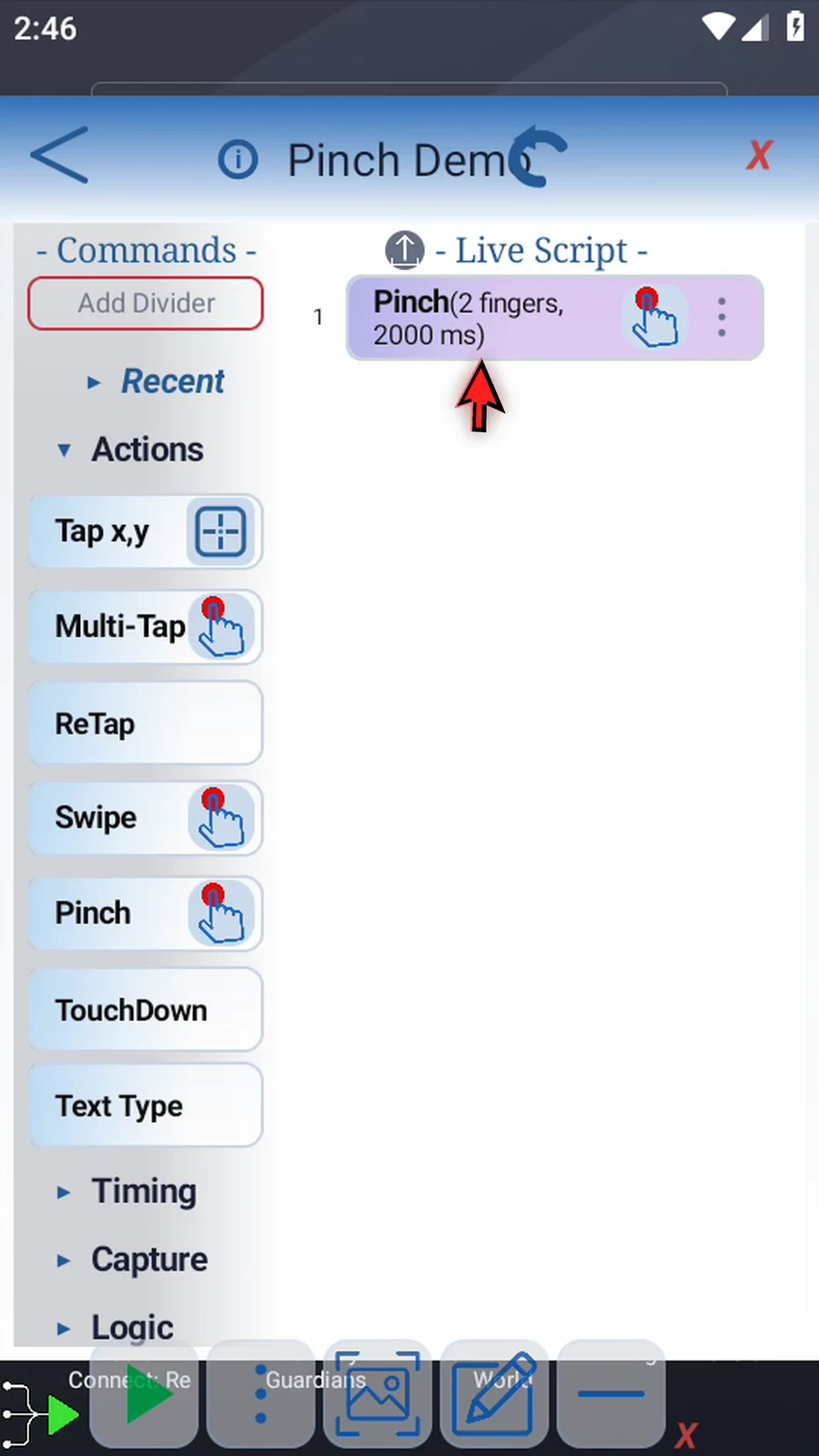
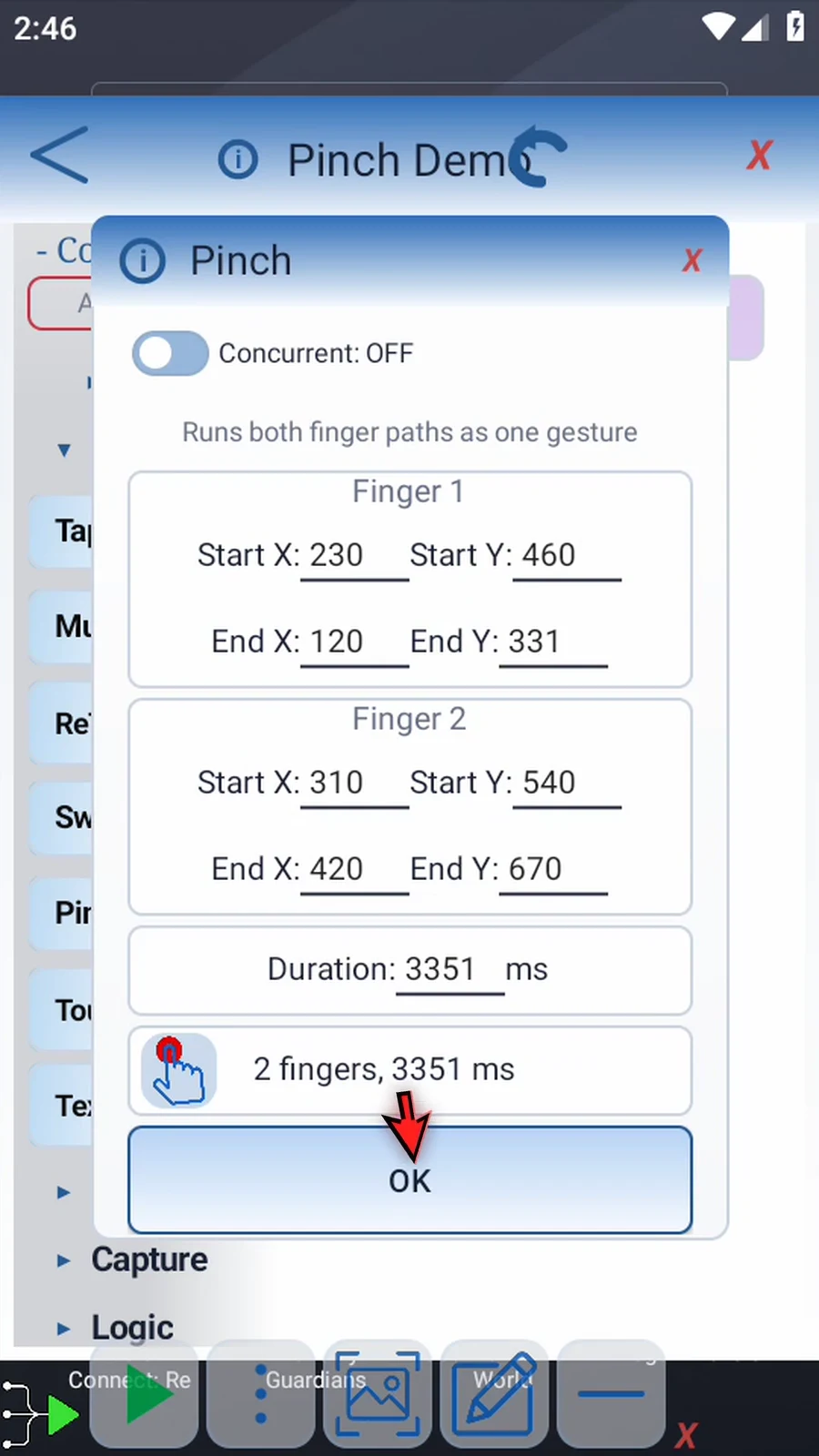
Step 21 Tap OK to save your coordinate and duration changes.
Step 22 To capture a replacement gesture, reopen the command settings.
Step 23 Tap the recording icon again. If Android asks, allow screen capture.
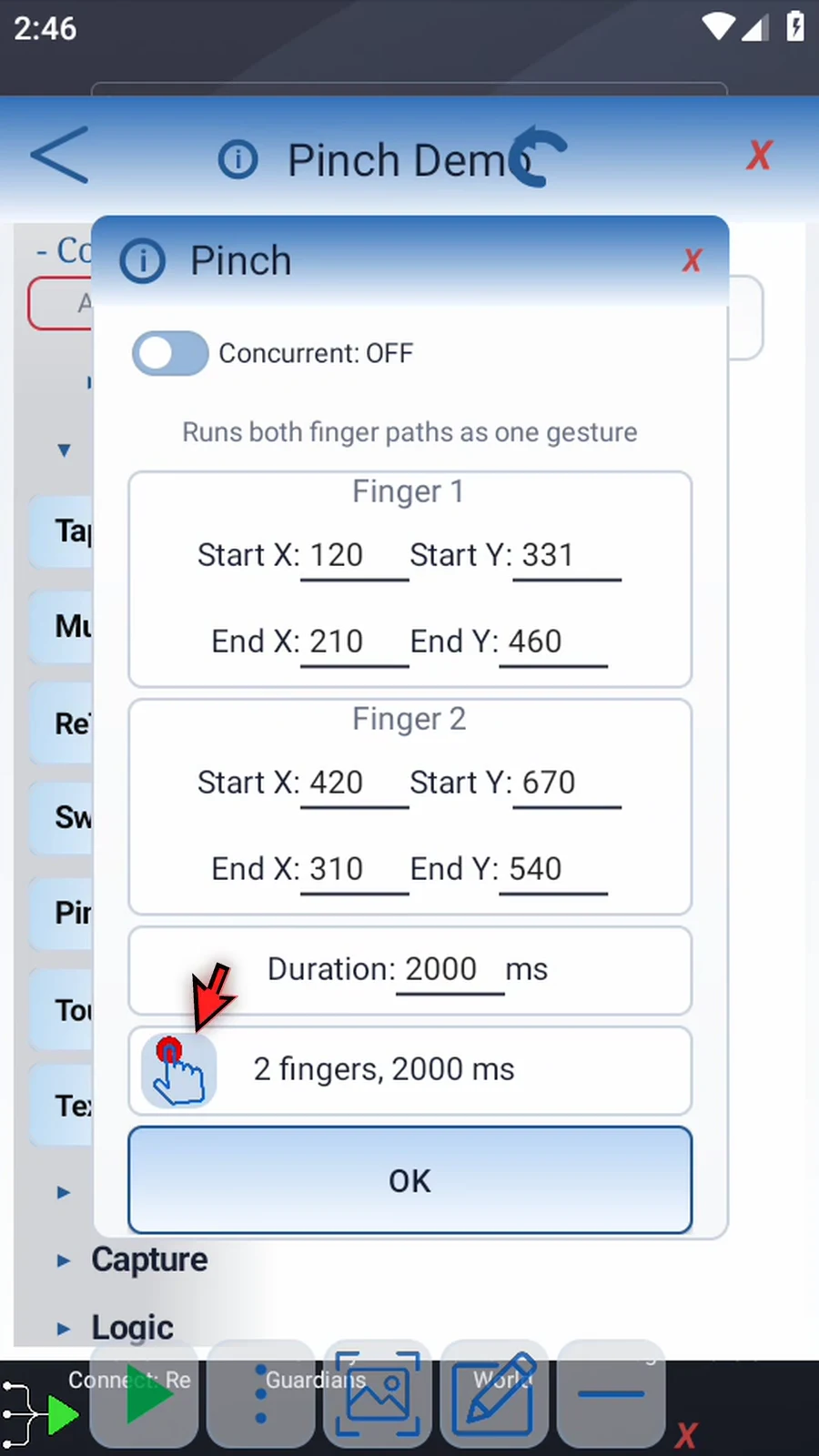
Step 24 This time, move two fingers apart. Keep both on the screen as the lines extend, then lift to finish.
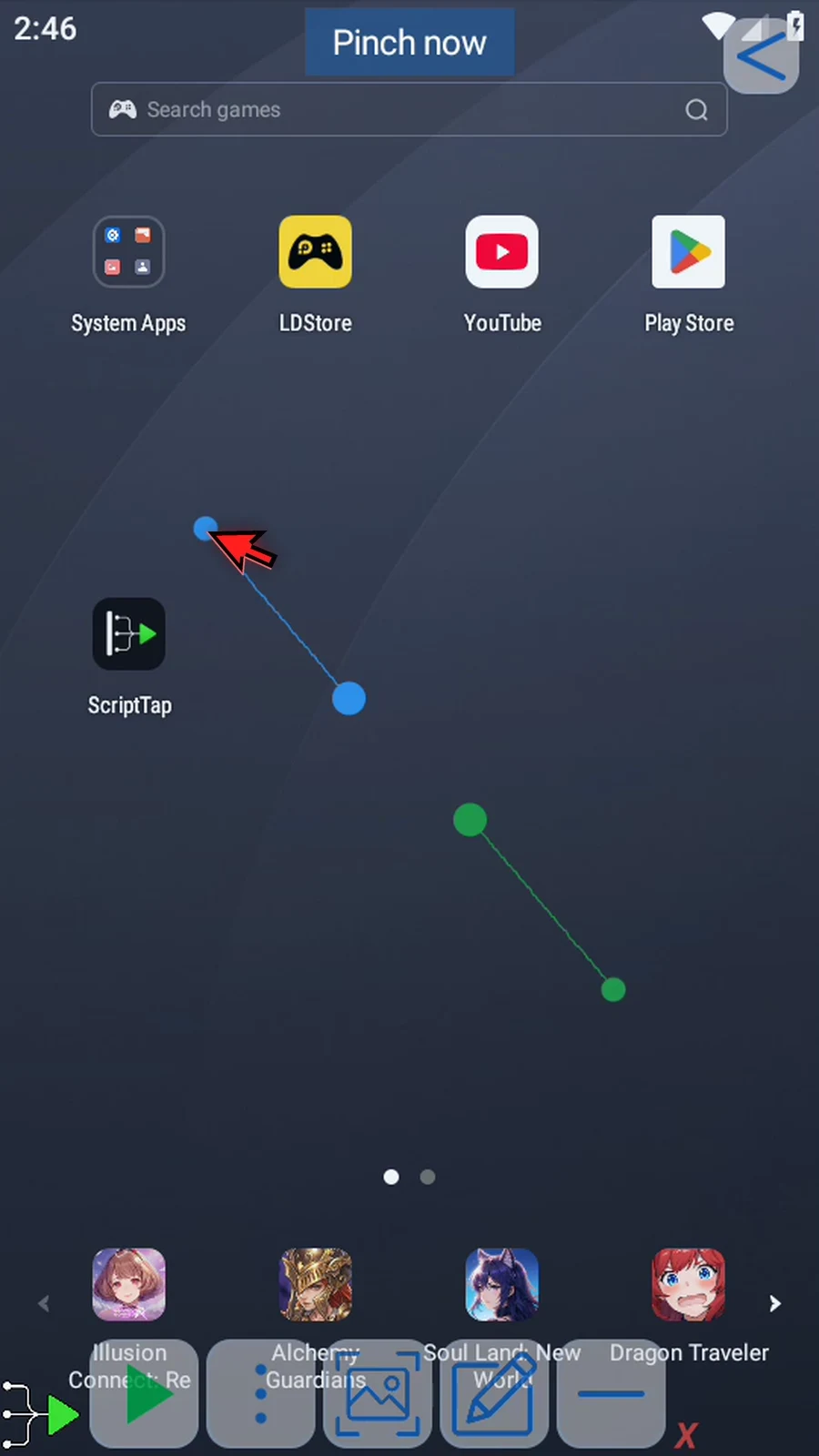
Step 25 The new capture replaces both paths and updates their coordinates and duration.
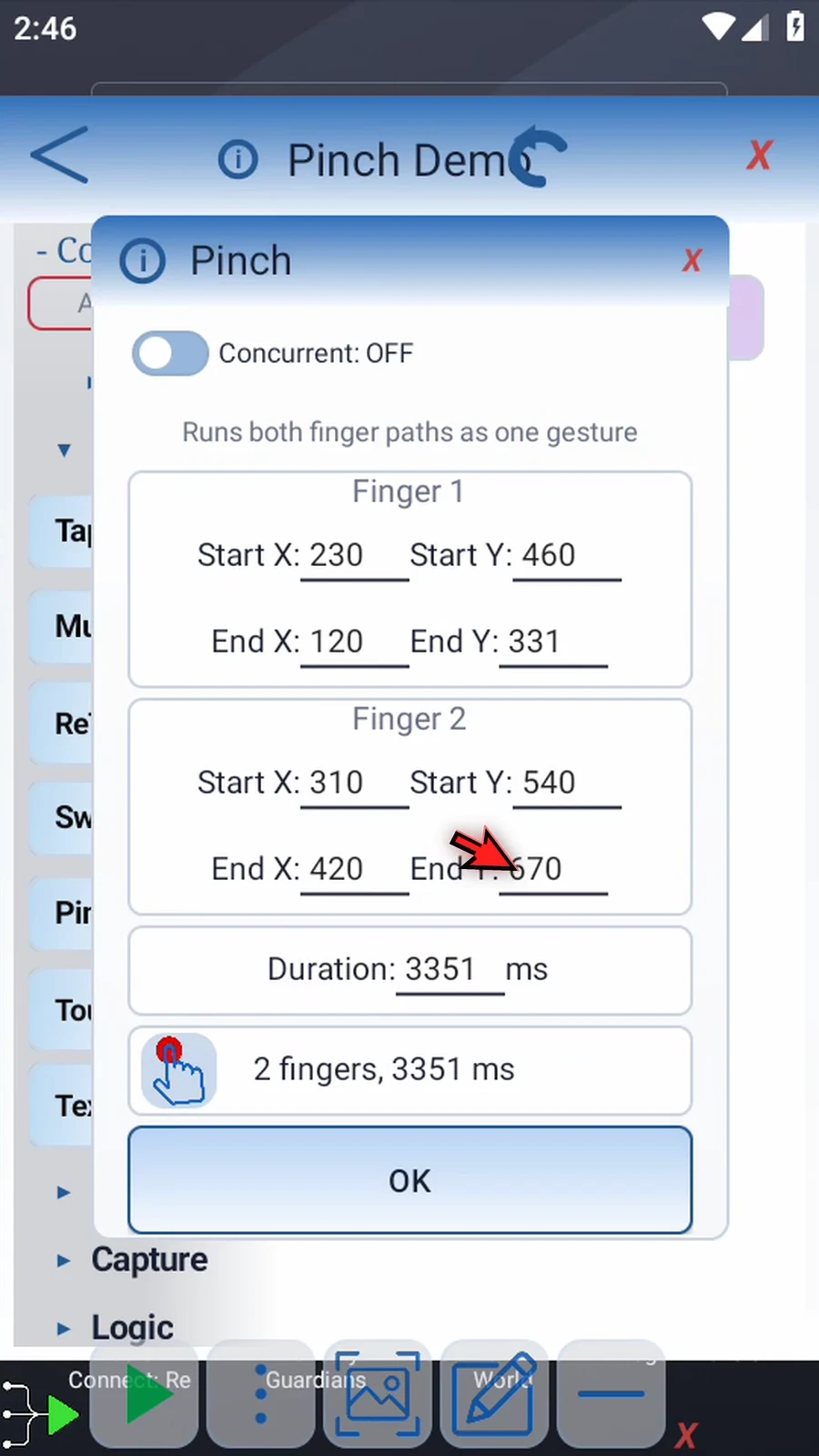
Step 26 Tap OK to save the replacement gesture, then close the editor.
Step 27 When the script is complete, simply use the Play button in the main overlay.
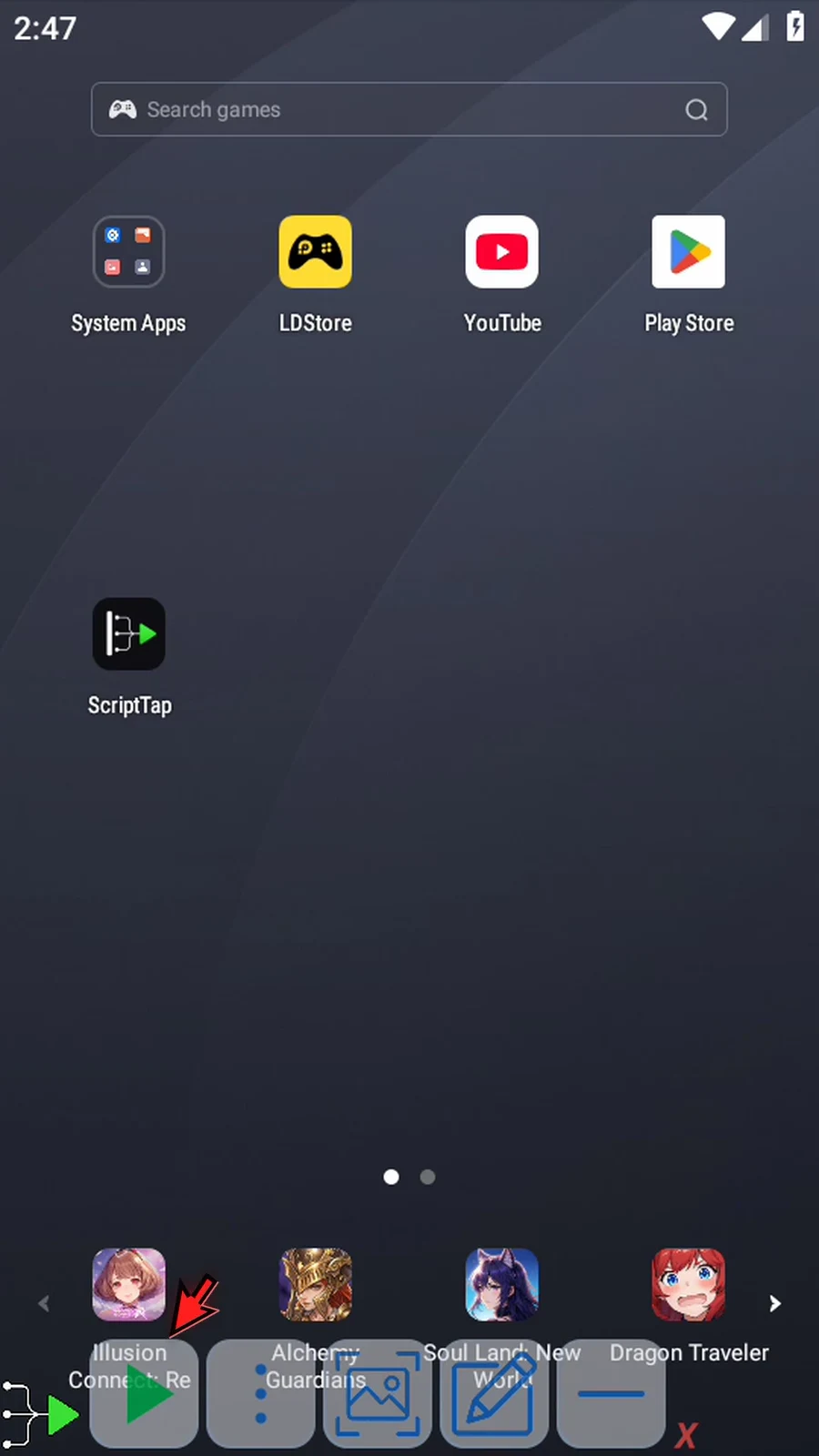
Step 28 The updated two-finger gesture runs, and the script stops automatically.