Command video guide
Gestures
Gestures combines timed taps, swipes and pauses in one coordinated command. Use it when several touch sequences need to work together. This Overview tours the editor without pressing Test or Play.
Create a named script, open Advanced, and manually drag Gestures into the live script. Double-tap the placed command to edit it. Existing examples stay unchanged.
Lane chooses the sequence being edited. Enabled lanes share a starting time and run together; rows inside one lane run in order. The following script command waits for the enabled lanes to finish. A Wait at the start offsets that lane without delaying the others.
Device shows the capacity reported by this device: ten lanes in this recording. The menu can offer more stored lane slots than the device can run. Keep enabled lanes within the supported capacity and test on the target device, especially above five simultaneous gestures: not all devices support more than five.
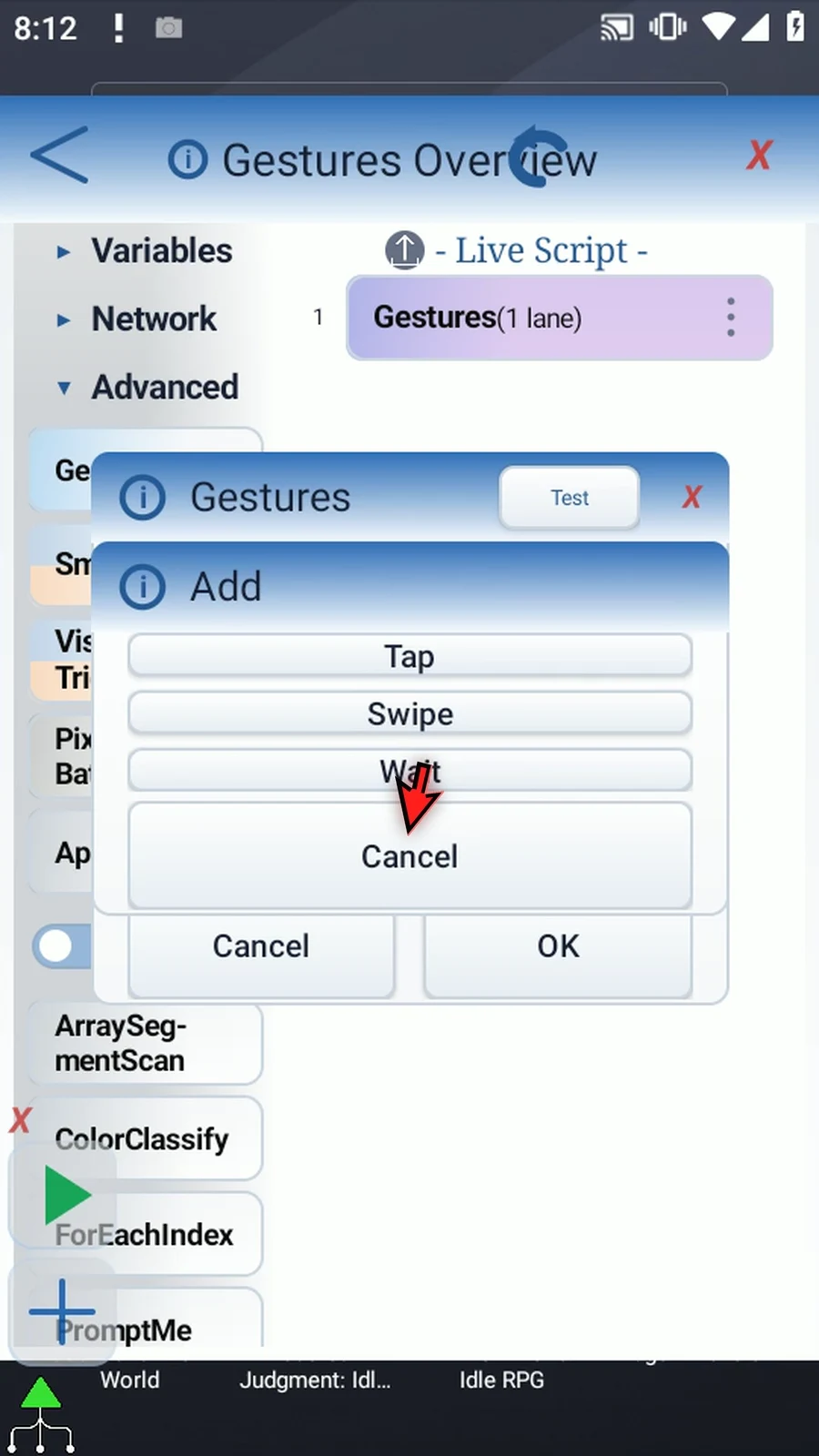
Enable a lane before adding rows with +. Tap, Swipe and Wait are composable building blocks, not mutually exclusive command modes.
| Row | Purpose and settings |
|---|---|
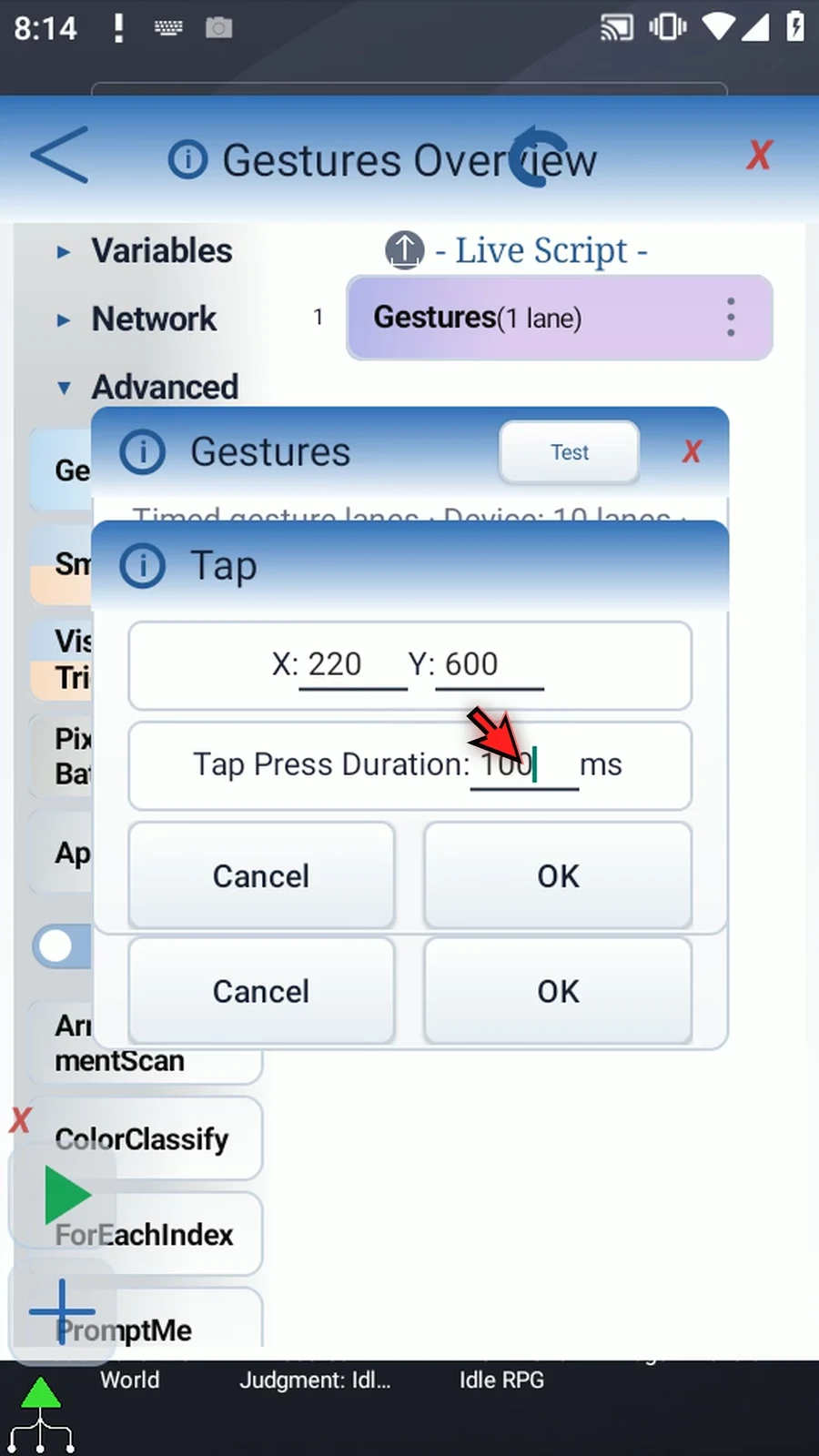
| Tap | Touch an X/Y position. Tap Press Duration holds contact for that many milliseconds; it is not a delay before the tap. Blank uses normal app tap timing. The tour enters X220, Y600, and 100 ms. |
| Swipe | Move continuously through X/Y/T path points. T is elapsed milliseconds from the swipe start, not a delay between points. Begin at zero and use strictly increasing times; the final T is the swipe duration. The tour enters (220,650,T0) to (220,450,T1000). |
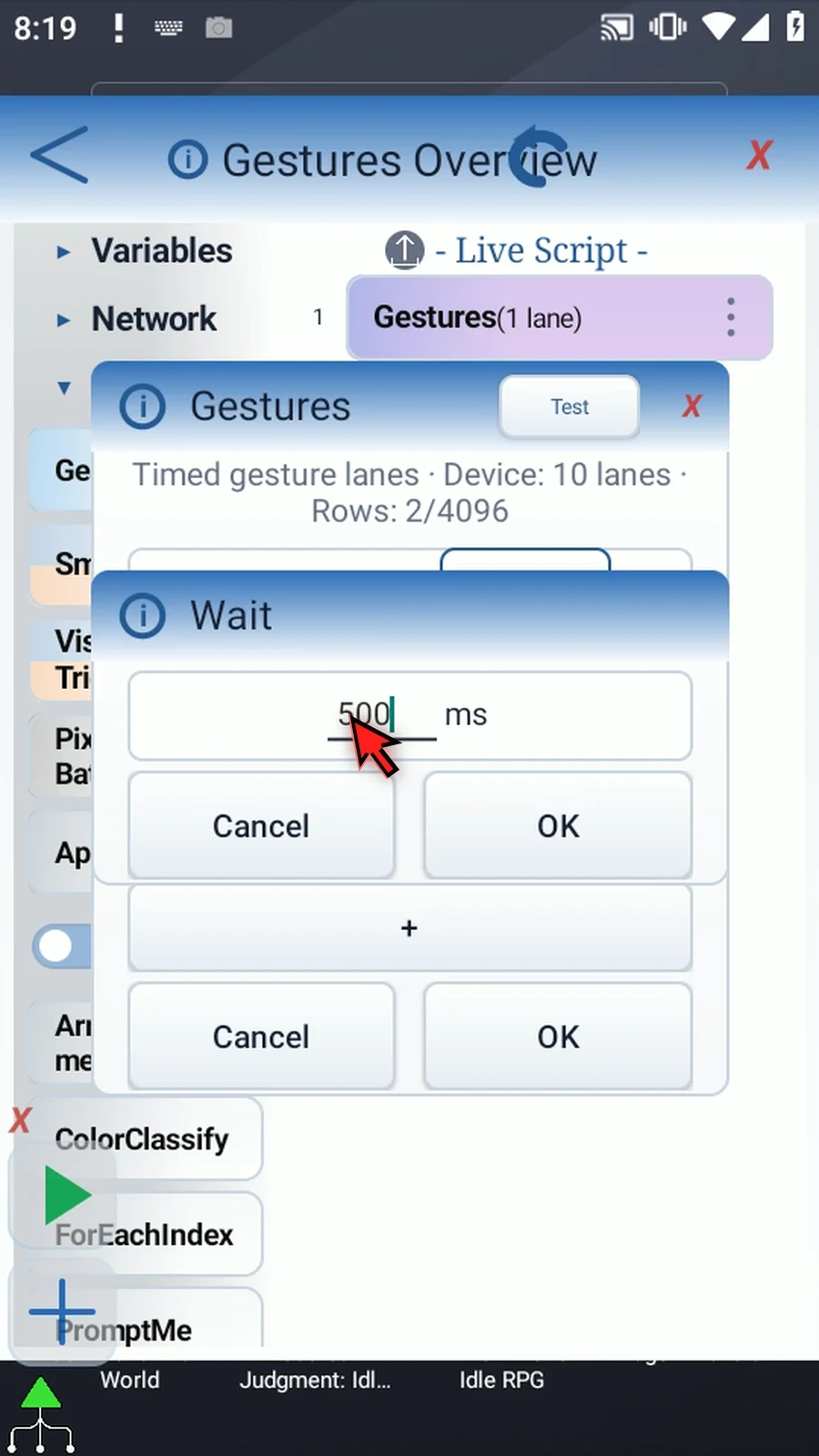
| Wait | Add no touch and delay later rows in this lane. Other lanes can continue. The tour uses 500 ms, or half a second. A Delay outside Gestures pauses the surrounding script sequence instead. |
Double-tap a row to edit it. The hand beside Tap selects its screen target; the hand beside Swipe records a continuous path and timing. These controls are identified here without opening a selector. A row's red X removes that row, not the whole command. Inside Swipe, + appends a path point and its red X removes that individual point; retain at least two valid points.
Turning Enabled OFF skips a lane without deleting its stored rows; ON reveals them again. Rows counts stored rows across the whole command, including disabled lanes, with a total limit of 4,096. In long lanes, scroll the row list to reach later rows and +. The inspected draft has Swipe1000 → Wait500 in Lane1 and Wait500 in Lane2, giving three total rows.
Test runs the current draft and returns to the editor. It performs real touches, so verify the target app and coordinates first. Row-editor OK accepts that row into the draft; main OK saves the full command, while main Cancel discards the settings session. This inspection ends with main Cancel: the newly placed command is not a finished program, and the temporary setup is removed after capture.
This Overview explains the editor controls. A practical Coordinated Lanes walkthrough is not currently available.
Overview
Step-by-step guide
Step 01 Gestures combines timed taps, swipes and pauses in one coordinated command. Use it when several touch sequences need to work together. This Overview explains the editor without playing a demonstration.
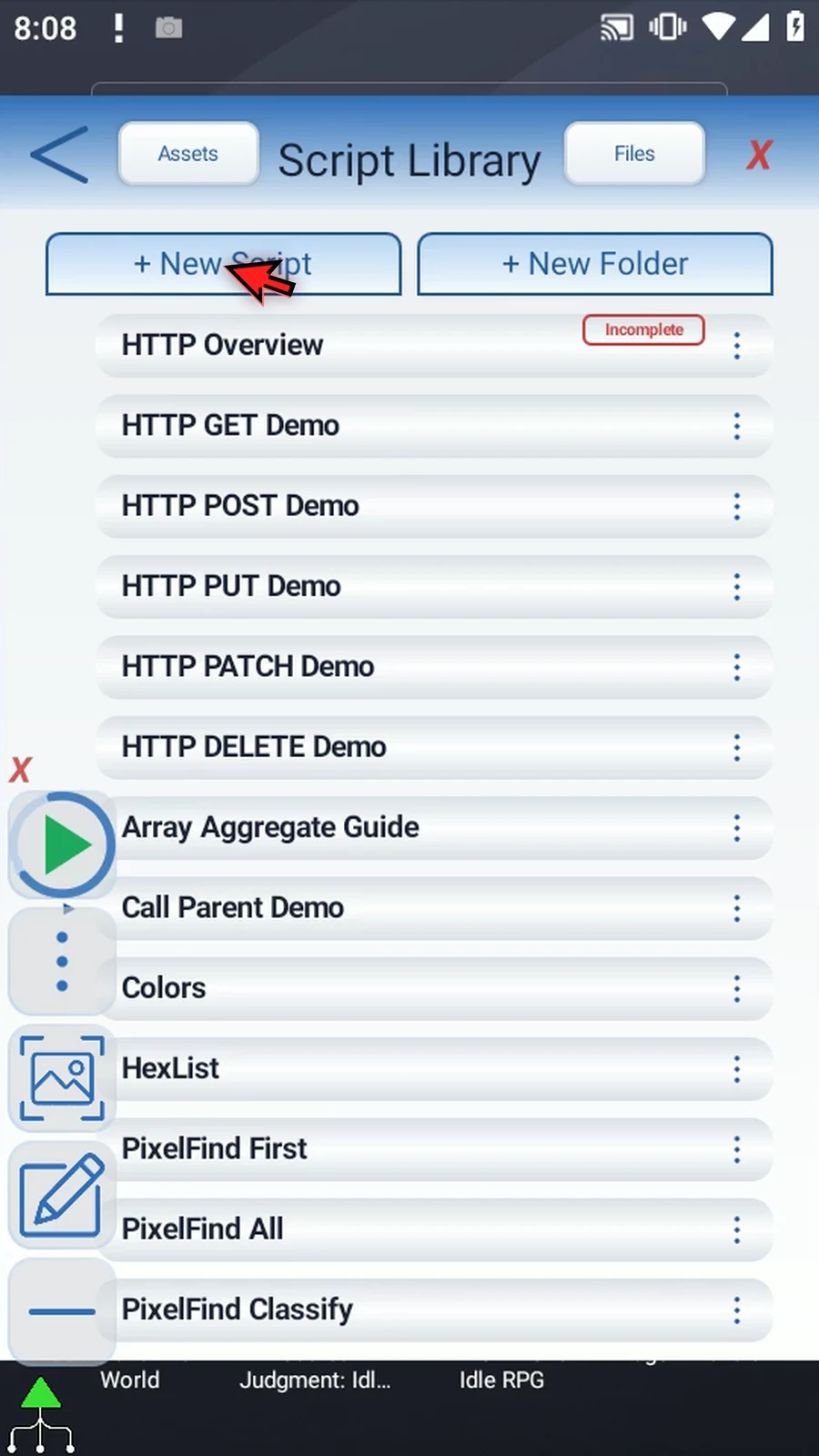
Step 02 Create a new script and give it a clear name. We will inspect a fresh command, keeping the existing examples unchanged.
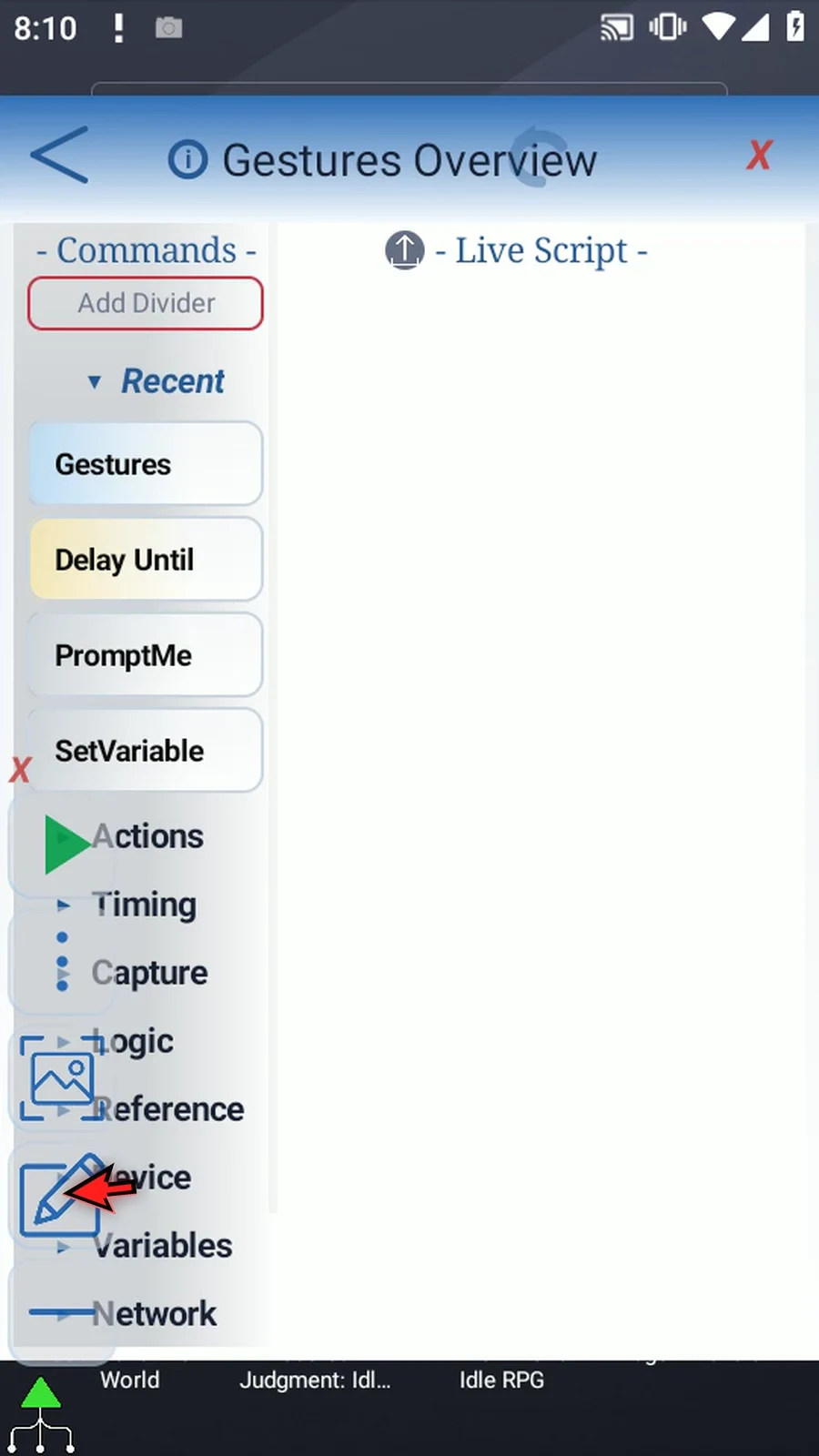
Step 03 Open Advanced and bring Gestures into view. Drag it into the live script, then open the placed command. The palette drag is how you add the command; opening the placed row edits its settings.
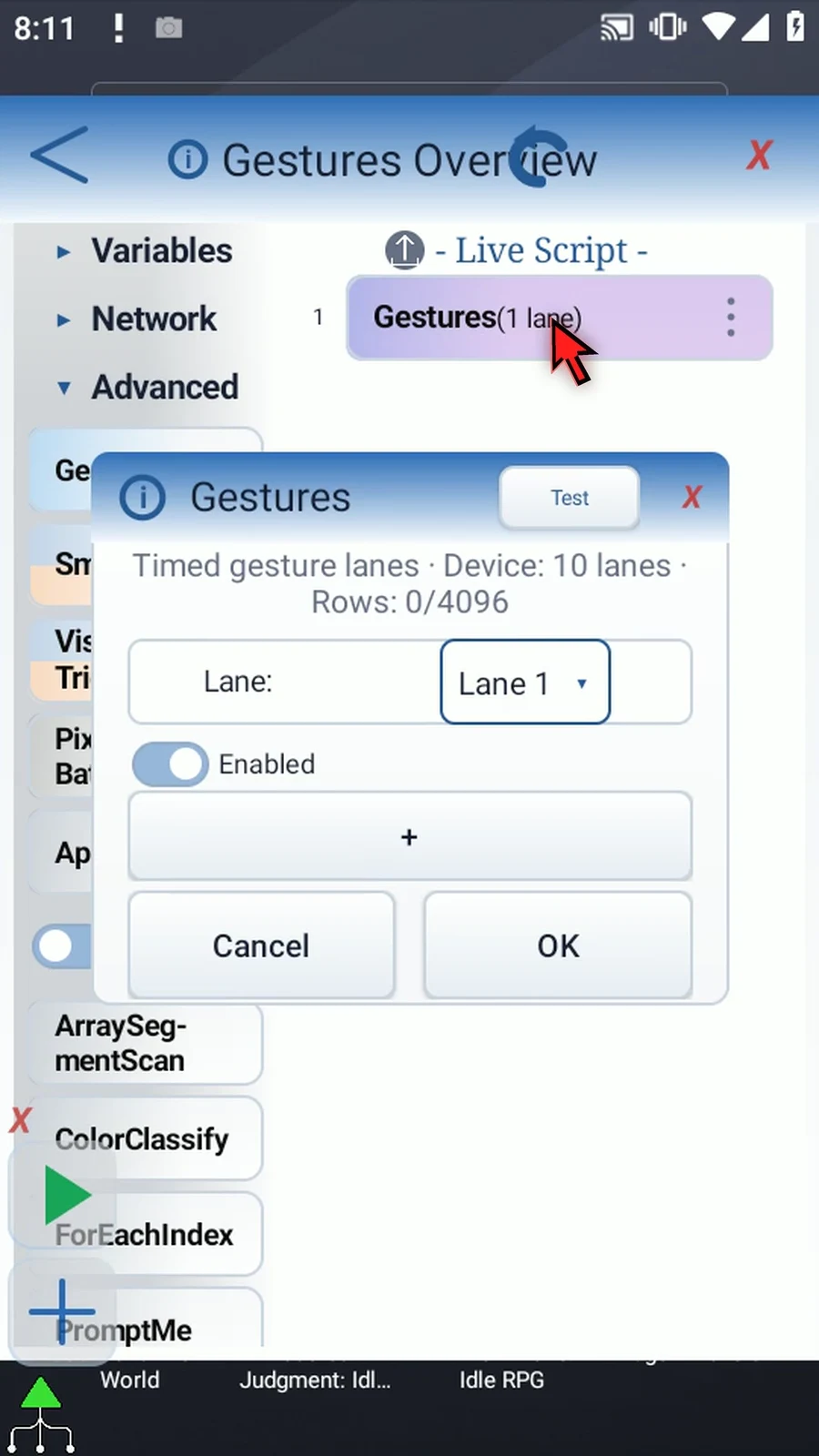
Step 04 Lane chooses the sequence you are editing. Enabled lanes share a starting time and run together, while rows inside each lane run in order. The next script command waits for the enabled lanes to finish. A Wait at the beginning can delay one lane's actions.
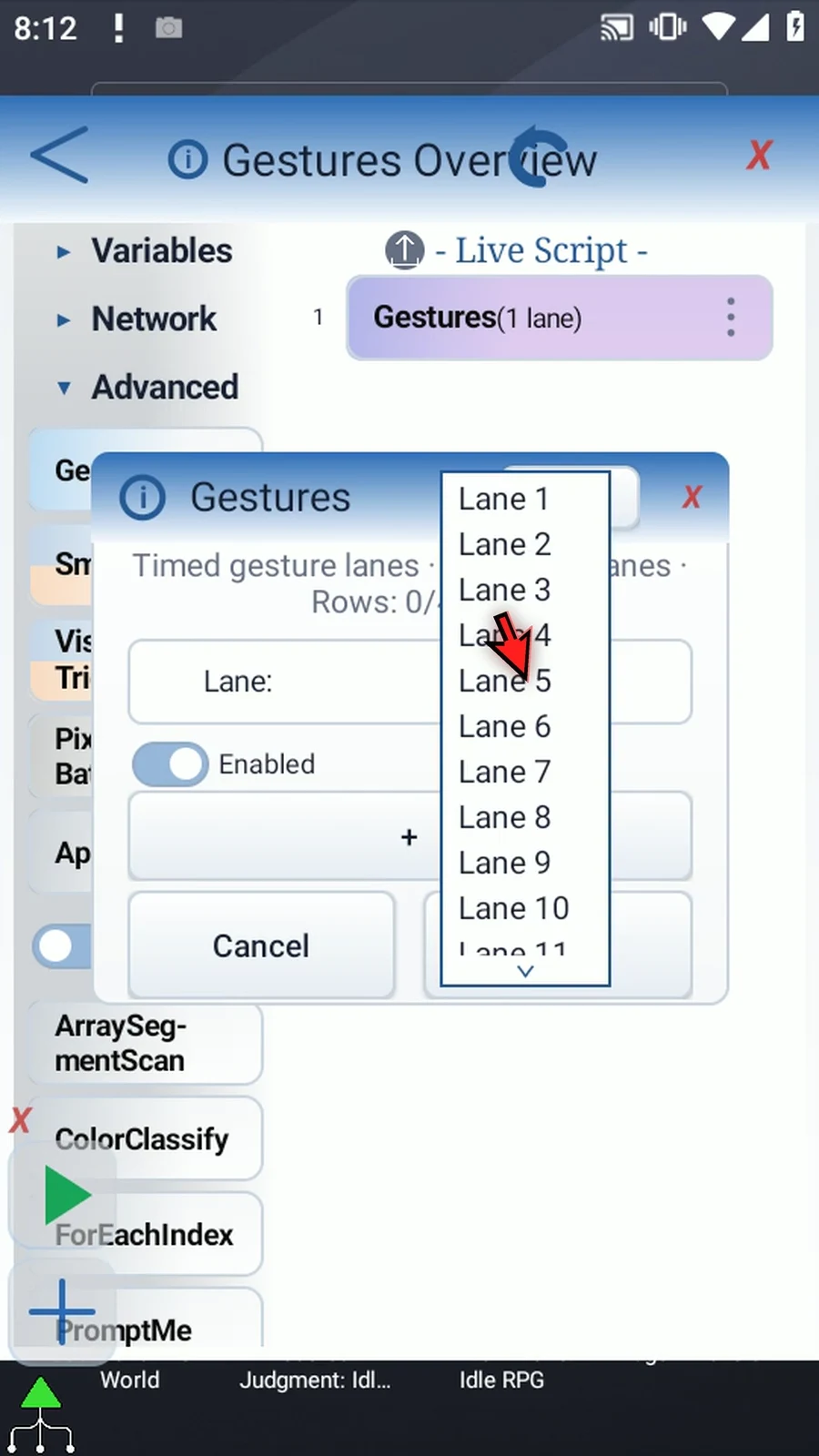
Step 05 Device shows the gesture capacity reported here. The menu can contain more lane slots than your device can run. Check this limit and test on the target device, especially beyond five simultaneous gestures, because not every device supports more than five.
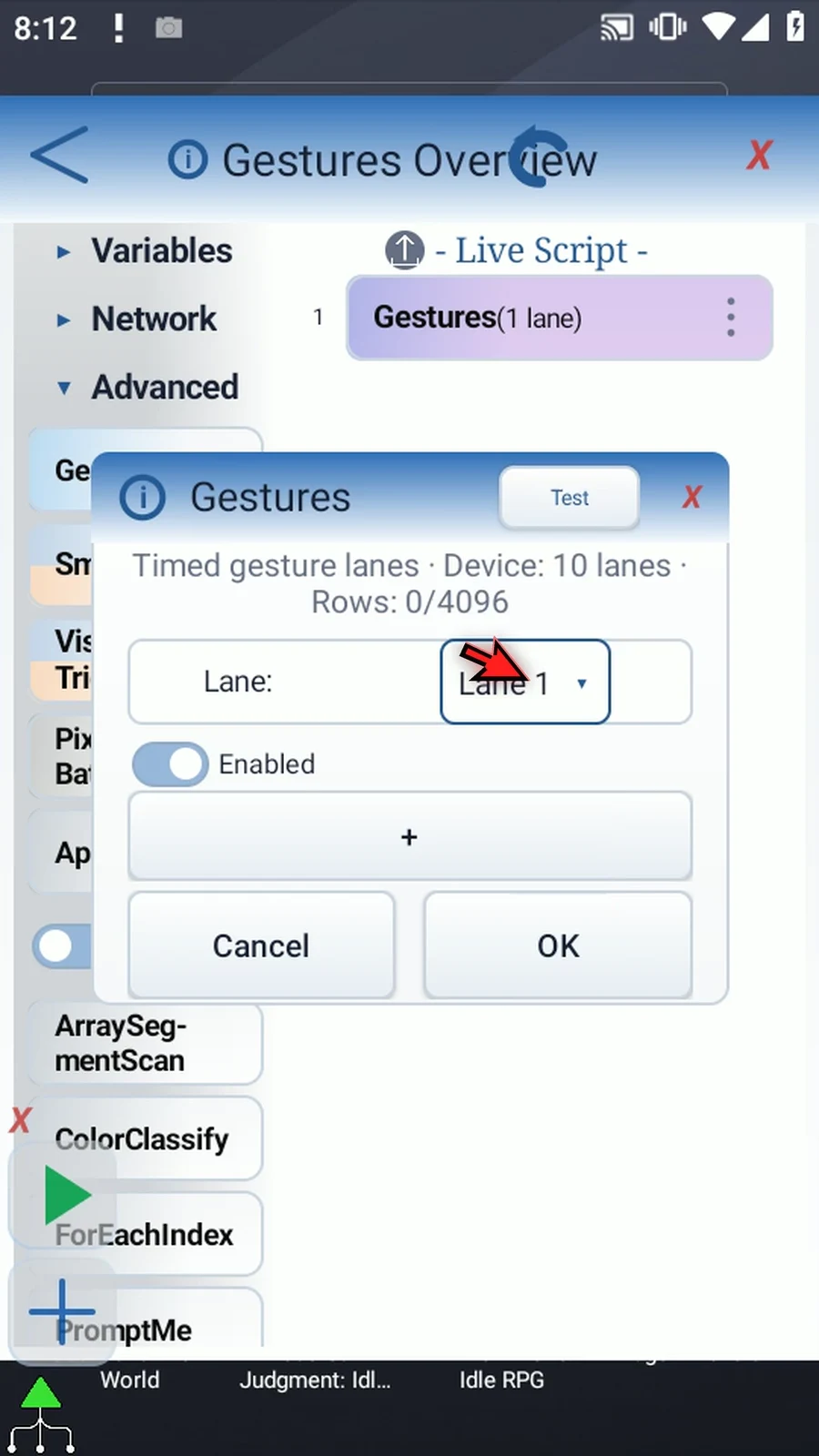
Step 06 Enable a lane before adding its rows. The plus button appends Tap, Swipe or Wait to that lane. These are building blocks you can combine, not three separate operating modes.
Step 07 Double-tap a Tap row to edit its X and Y position and Tap Press Duration. Press Duration is how long contact is held, not a pause before the tap. A blank duration uses the app's normal tap timing. Here we enter an explicit hundred milliseconds.
Step 08 The hand button beside Tap opens its target picker. The hand beside Swipe records a continuous path and its timing. Use the practical guide to see capture and playback; this Overview only points out these controls.
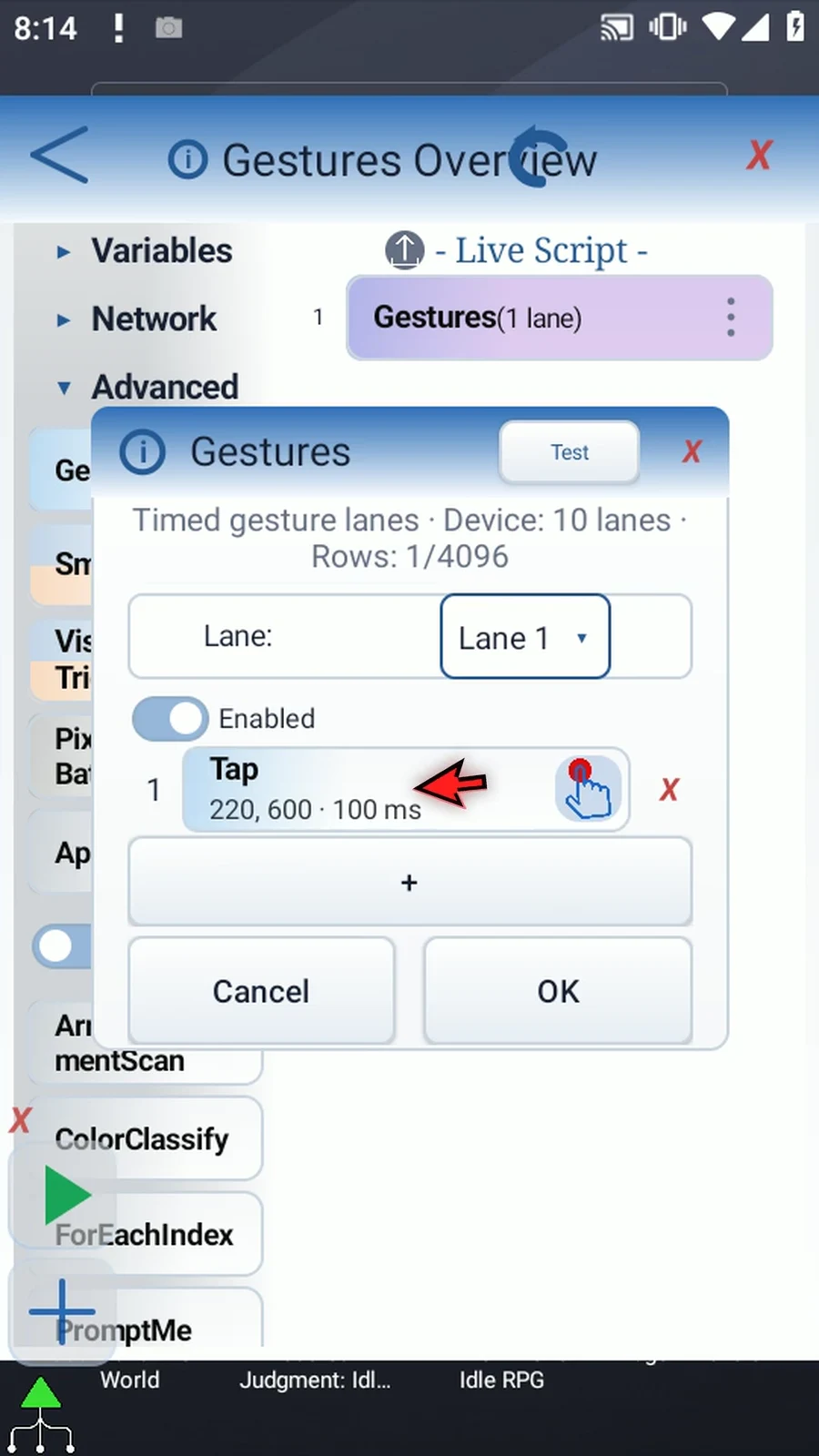
Step 09 A row's red X removes that row from the current draft. It does not delete the whole Gestures command. We will remove this Tap to inspect the next row type.
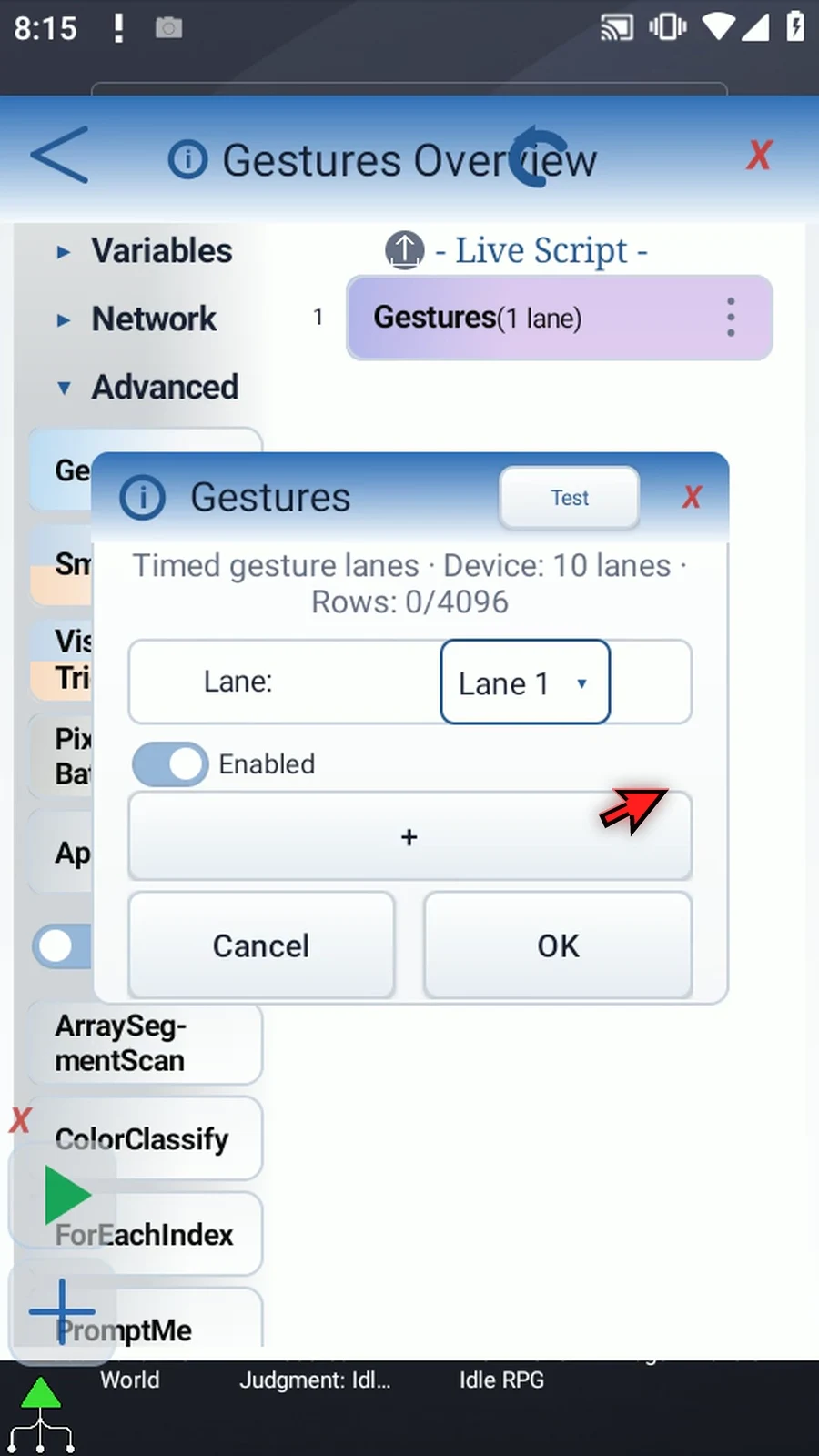
Step 10 Add Swipe, then double-tap its row to inspect the path points. Each point has X and Y coordinates and T, an elapsed time in milliseconds measured from the start of that swipe.
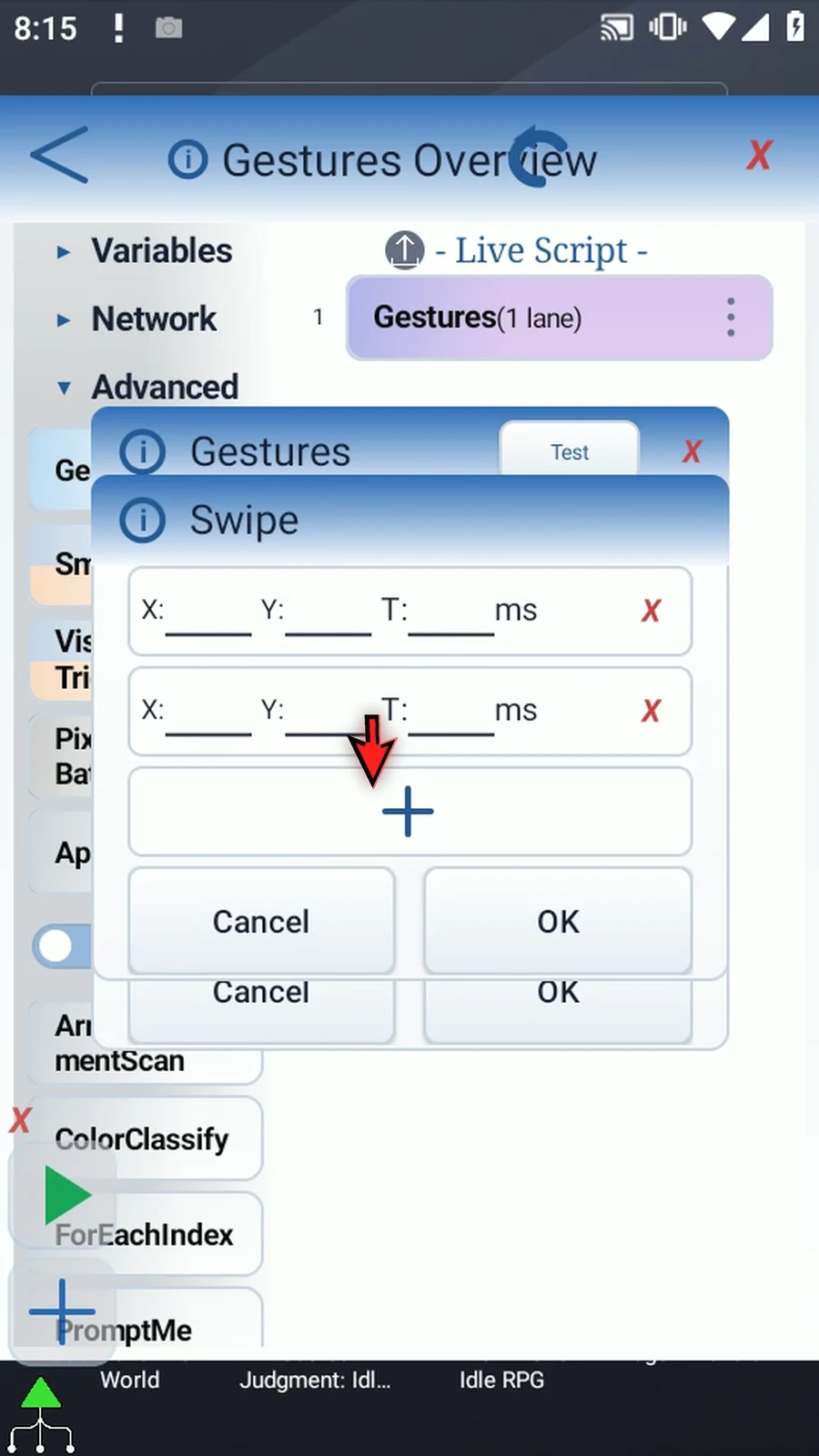
Step 11 For a simple two-point path, the first position is where the finger starts and the second is where it ends. Here we enter a vertical path from two hundred twenty, six hundred fifty to two hundred twenty, four hundred fifty, with times zero and one thousand milliseconds.
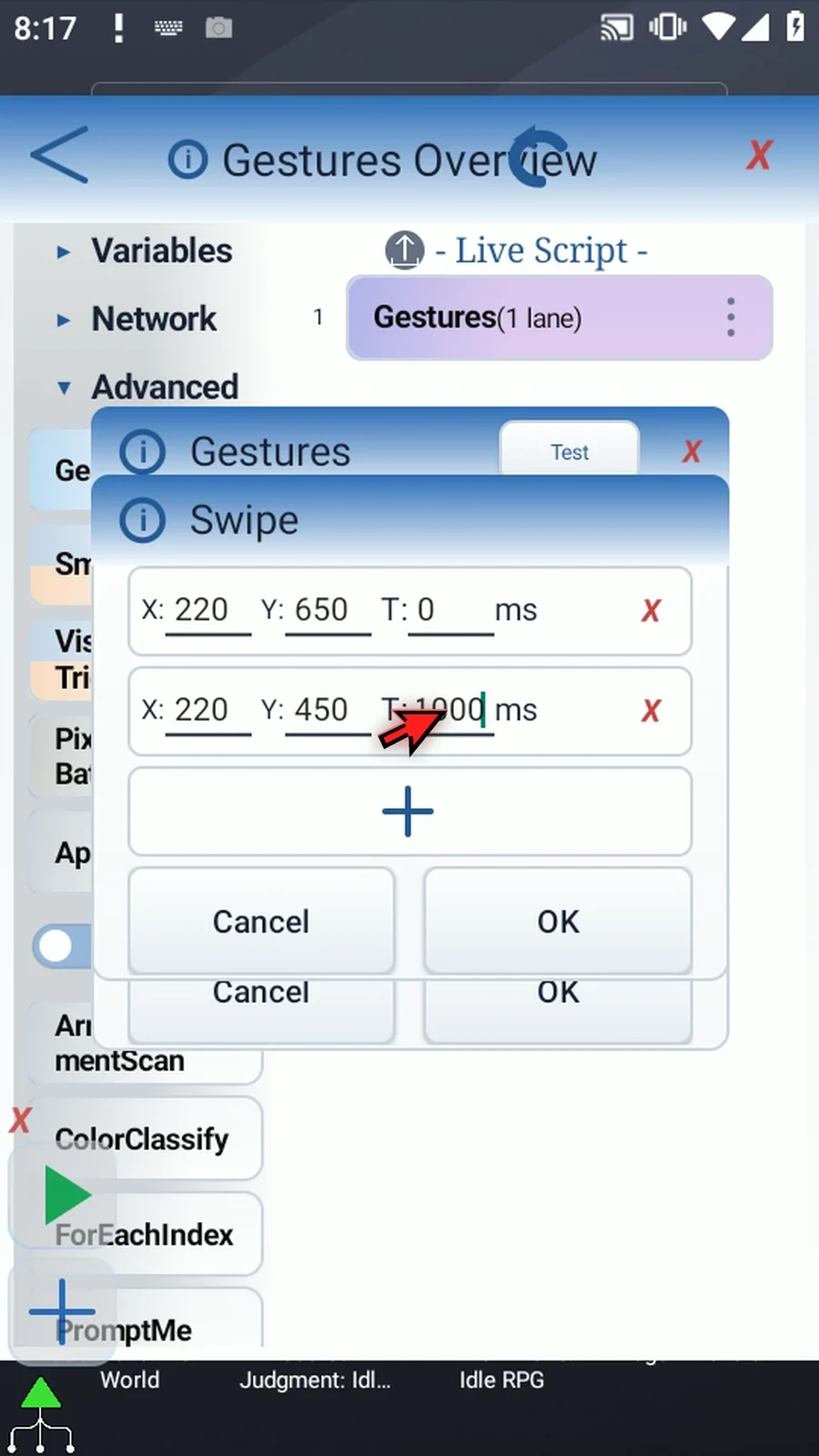
Step 12 T is not a separate delay between points. Start at zero and use strictly increasing times along the path. The final point's time sets the swipe duration. This example describes one continuous movement lasting one second.
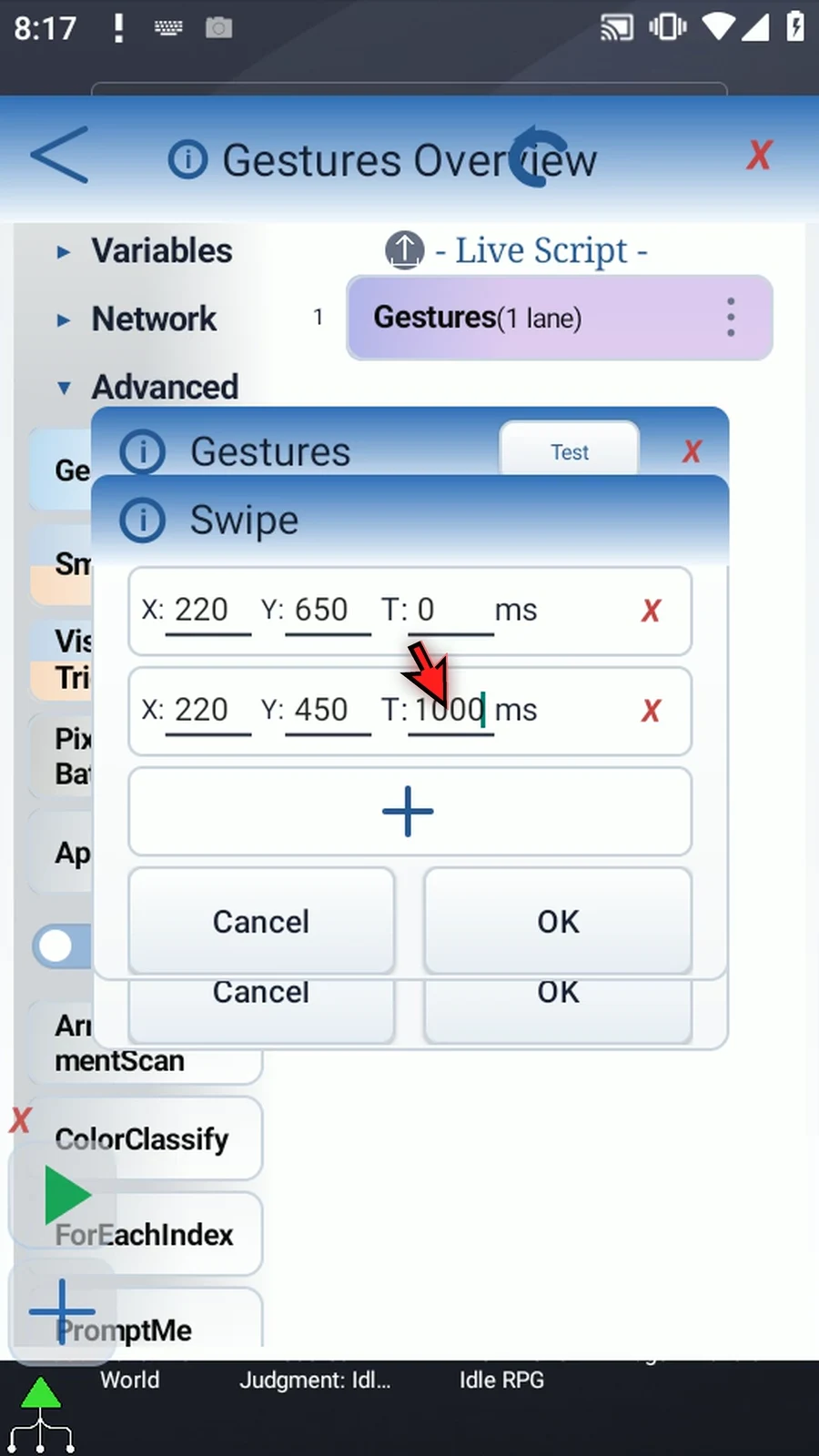
Step 13 The plus inside this editor appends another path point. Supply its position and a later time. Its red X removes that individual point; a swipe still needs at least two. We remove the new blank point and keep the two-point path.
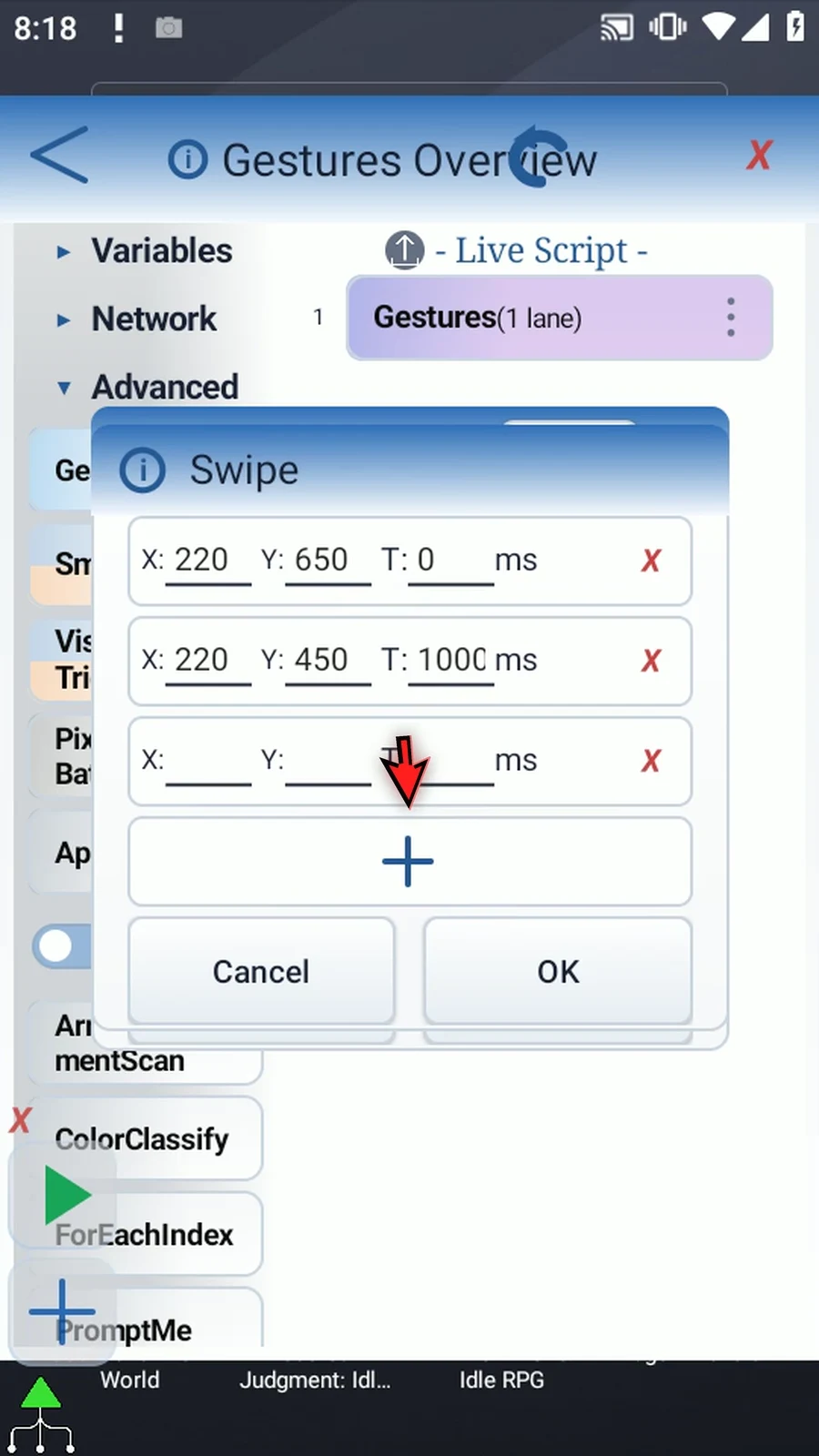
Step 14 Wait adds no touch. It delays whatever follows in this lane while the other lanes can continue. Enter a duration in milliseconds; five hundred means half a second. A Delay outside Gestures instead pauses the surrounding script sequence.
Step 15 Choose another lane to build a separate sequence. A new lane starts disabled. Turn Enabled on before adding rows. Starting that lane with Wait is how you can offset its later touches without delaying the first lane.
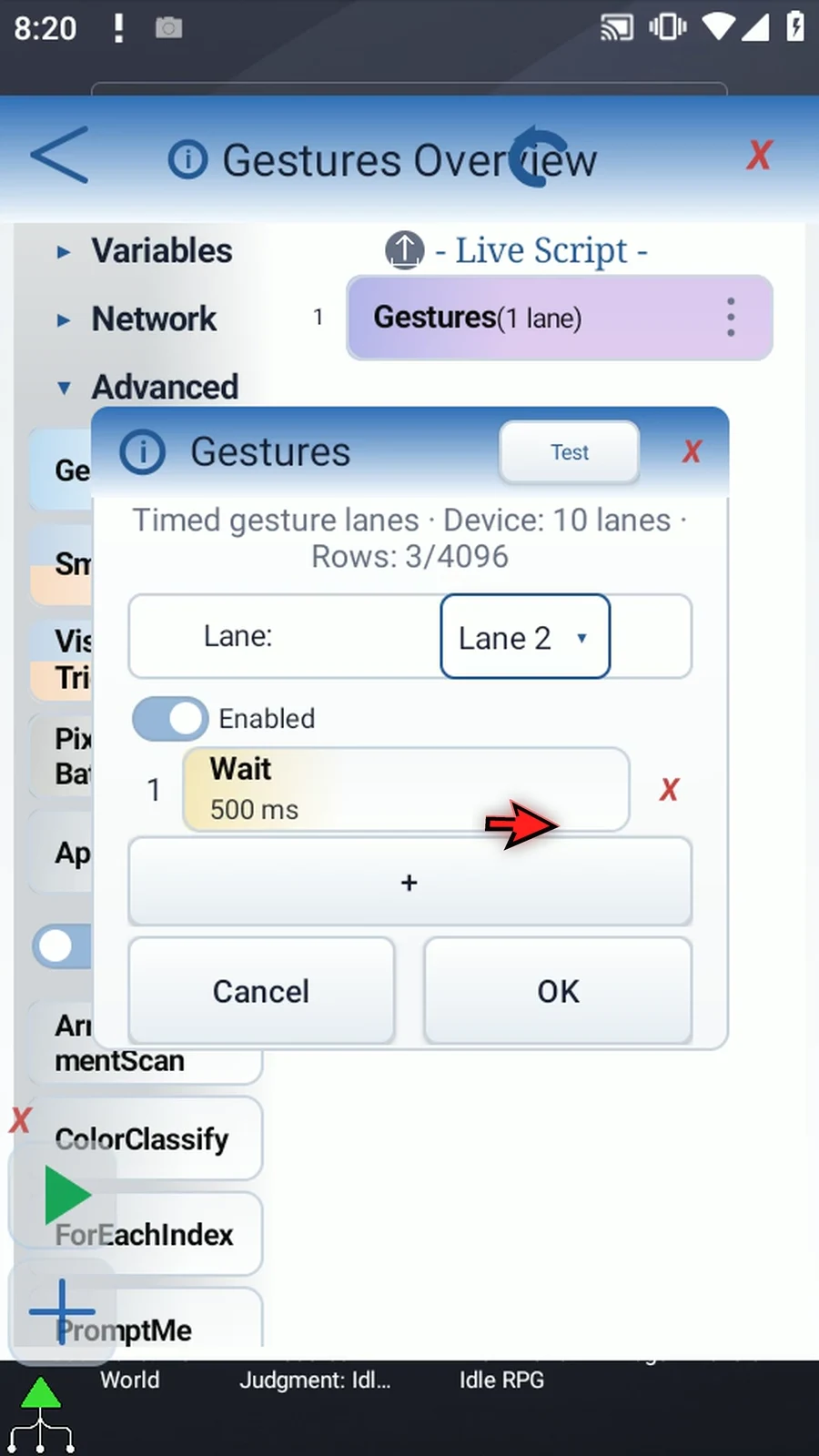
Step 16 Turning Enabled off skips that entire lane without deleting its rows. Turn it back on and the saved draft rows reappear. This lets you compare or temporarily exclude one part of a coordinated gesture program.
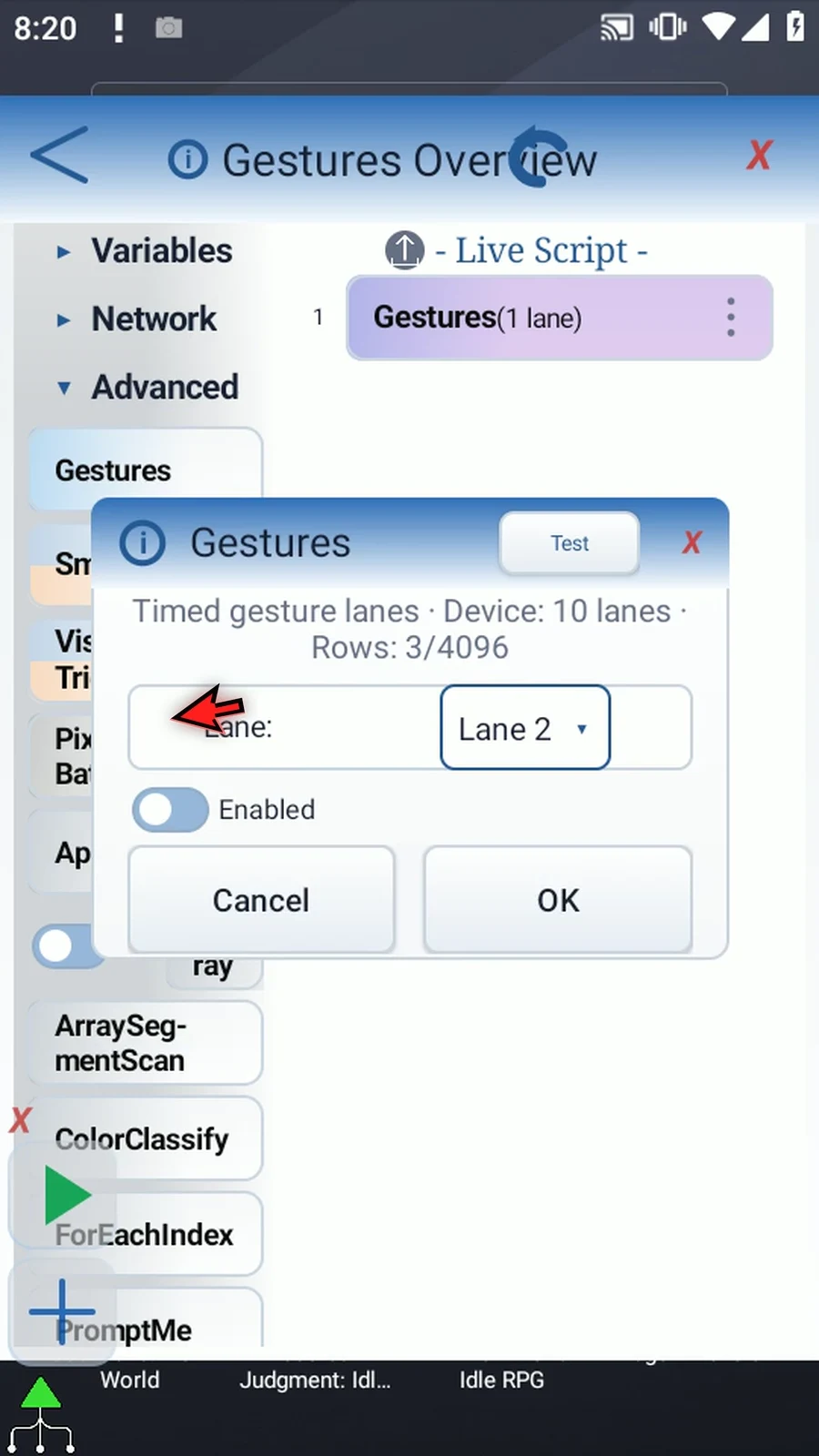
Step 17 Rows counts the stored rows across the whole command, not just the lane currently visible. The total limit is four thousand ninety-six. In a longer lane, scroll its row list to reach later steps and the add button. Small, clear programs are easier to verify.
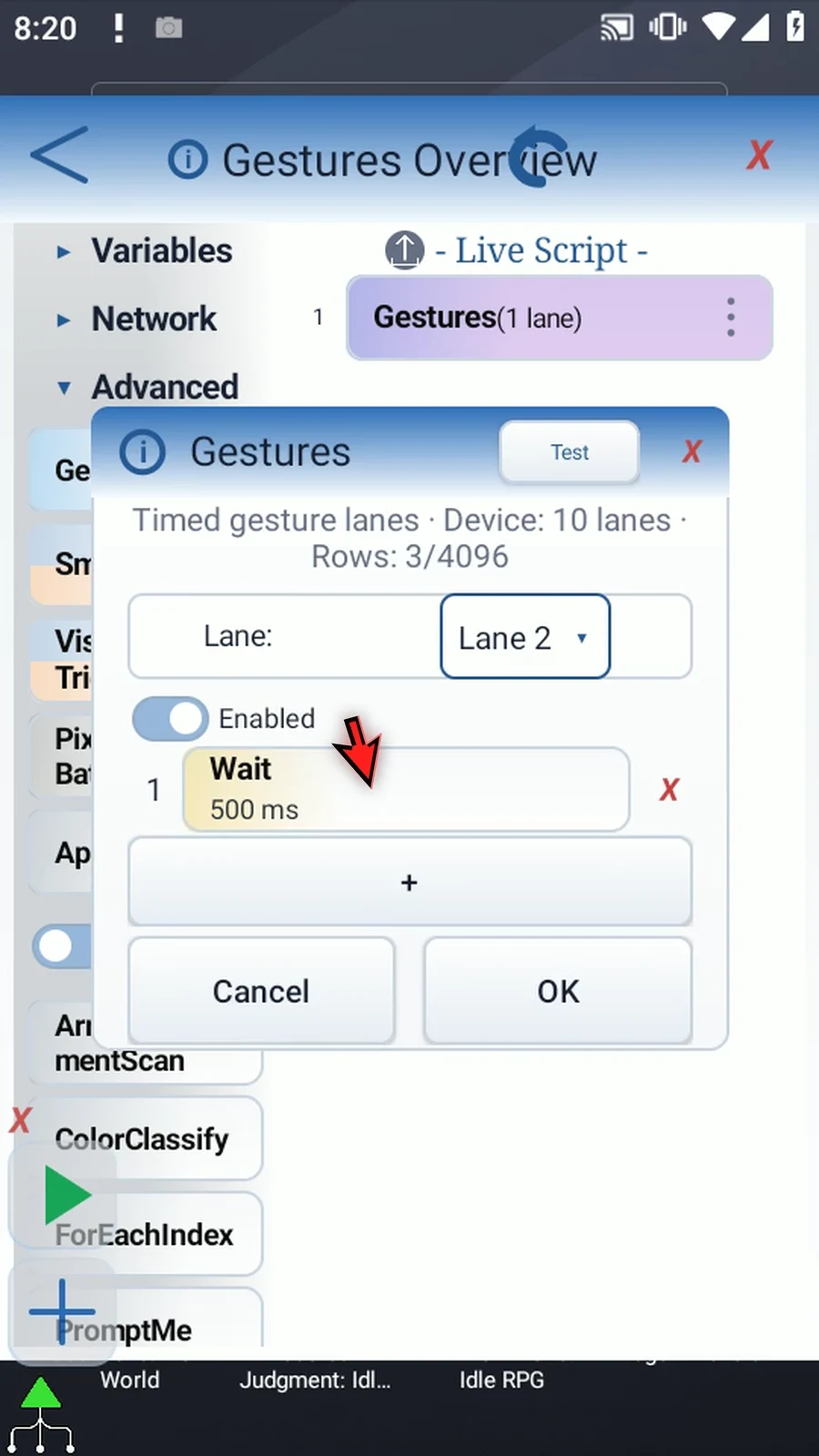
Step 18 Test runs the current gesture draft and returns to this editor. Check the target app and coordinates first: a test performs real touches. We do not press Test in this Overview. Use the practical guide for a complete, visible example.
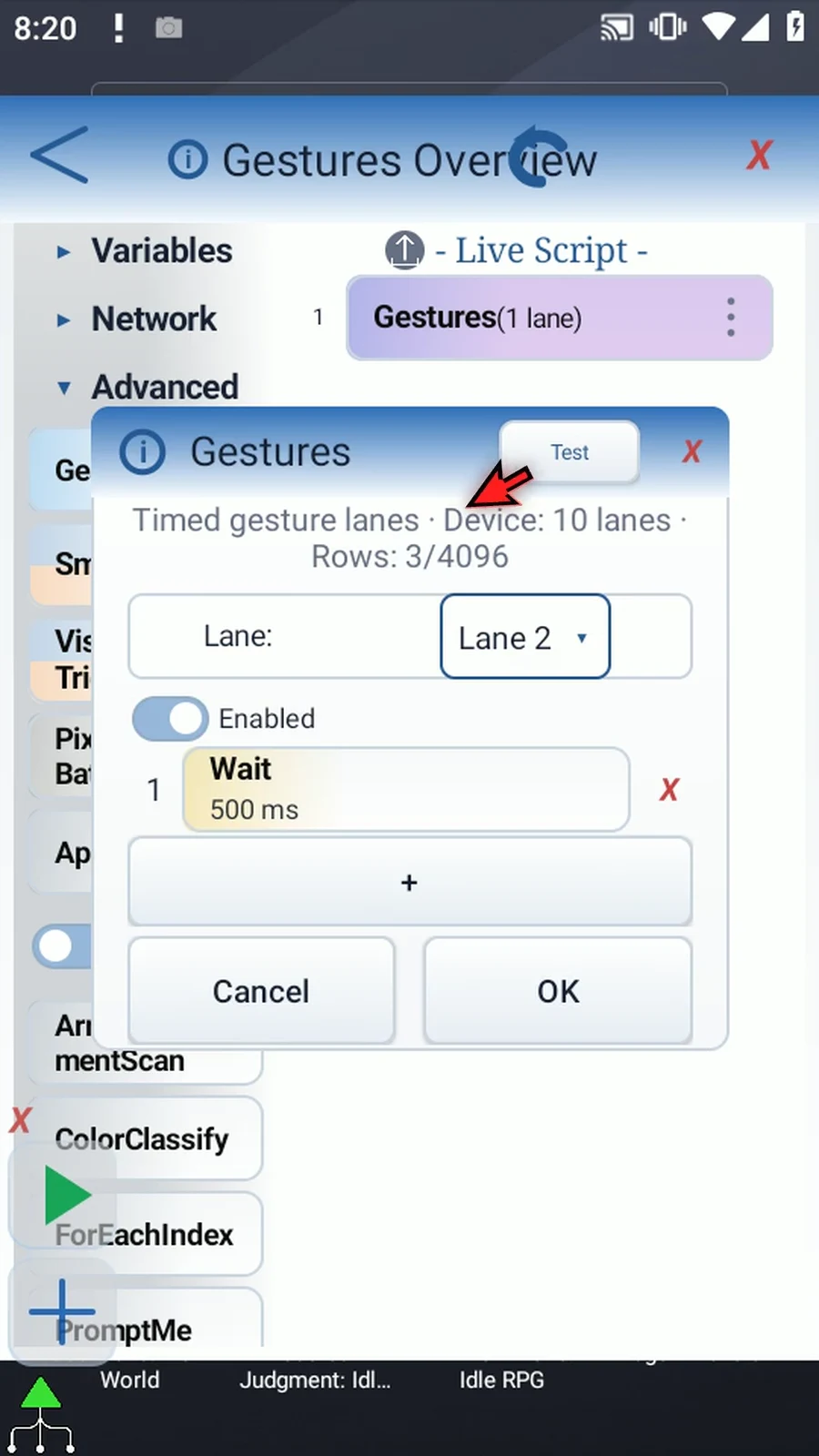
Step 19 A row editor's OK accepts that row into the draft. The main OK saves the complete Gestures command. Main Cancel discards this settings session. We cancel this inspection, so the newly placed command is not a finished gesture program.
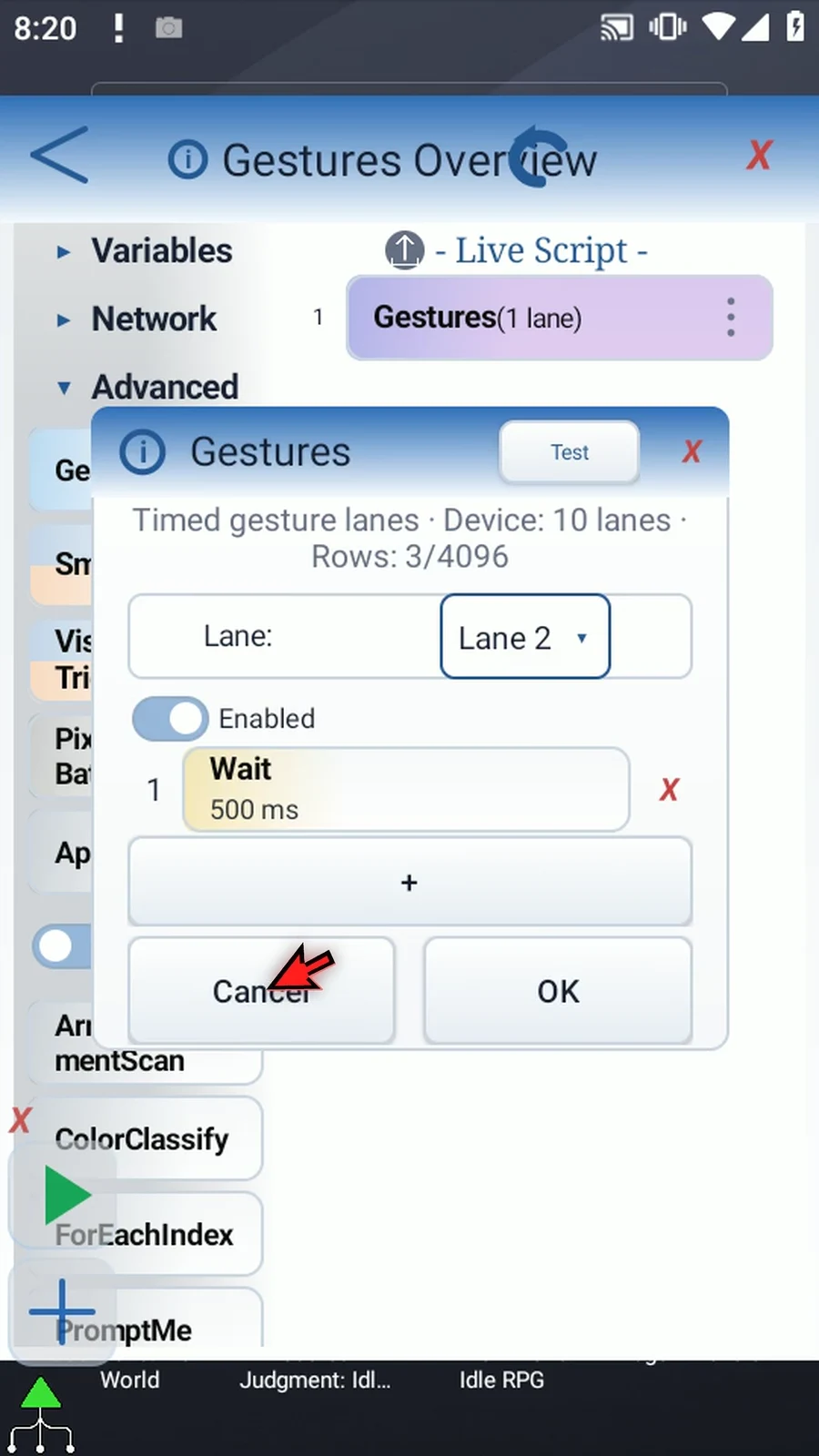
Step 20 Use Gestures for coordinated touch sequences: order the rows inside each lane, use Wait for timing, and keep enabled lanes within the device's capacity. The Coordinated Lanes guide shows the setup working in real time.