Command video guide
HTTP
HTTP lets a script request information from a website or web service and use the response in later commands. This Overview explains every method and its controls without sending a request. Separate working method guides are in preparation.
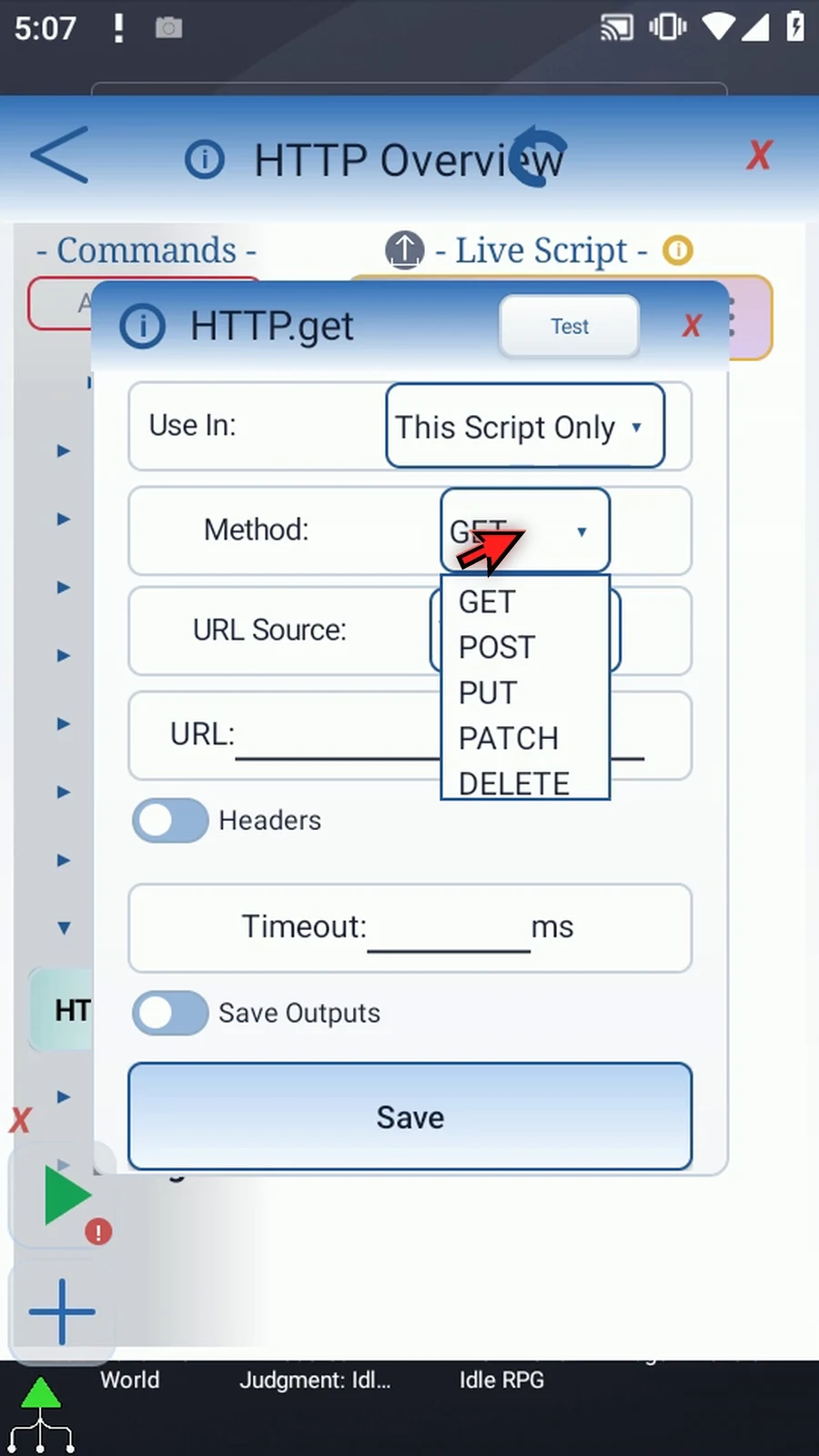
Choose GET to read, POST to submit or create, PUT to replace a complete resource, PATCH for a partial update, or DELETE to request removal. The service defines its own API. Use only endpoints and test resources you are authorized to access or change.
URL Source accepts Text or a prior String variable. Optional Headers have a name and a Text/String-variable value. POST, PUT and PATCH can send one raw UTF-8 body; GET and DELETE send no body. Set headers such as Content-Type as required by the service; the method does not format your data automatically.
Timeout is a literal 1000–60000 milliseconds. A blank or invalid visual value remains incomplete; enter a valid value before Play. Use In selects This Script Only or Script Thread for saved outputs.
Save Outputs independently enables Success (Boolean), Status (Integer), Body (String), and Error (String). Status 200–299 counts as success; a network or invalid-request failure has status 0. Response/error text is capped at 256 KB with a truncation note. Body output is available to later commands and Watch but is omitted from normal/verbose logs, generic variable events and finalVariables.
The request can follow up to five redirects. A 303 becomes GET; 301/302 changes POST to GET, while 307/308 preserves method and body. HTTPS-to-HTTP redirects reject, and cross-origin redirects omit configured headers. Check the service documentation before using a request that changes data.
Overview
Step-by-step guide
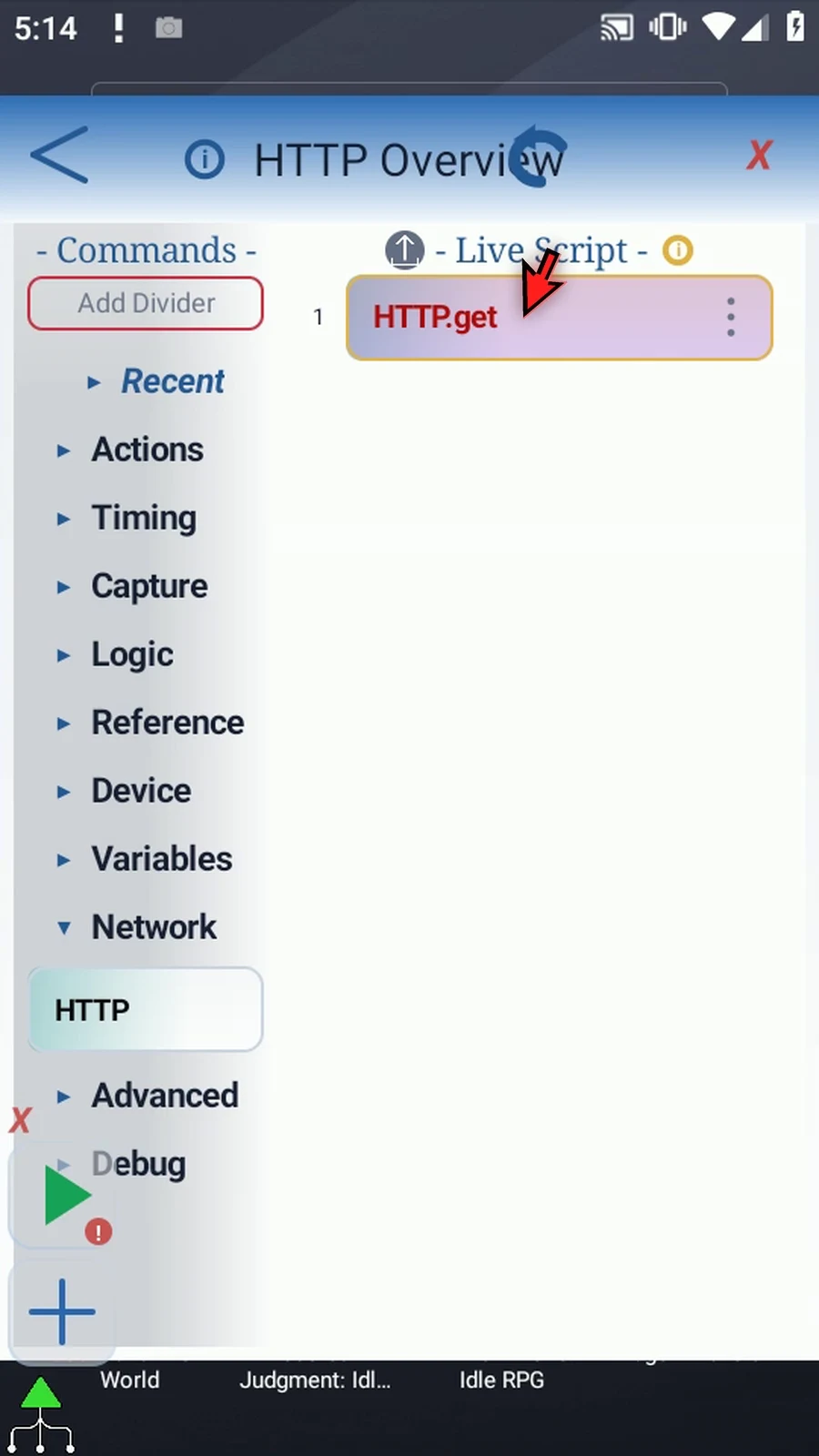
Step 01 HTTP connects your script to websites and web services. Use it to fetch data or send a request, then use the response in later commands. This overview explains the five methods and their settings without sending a request.
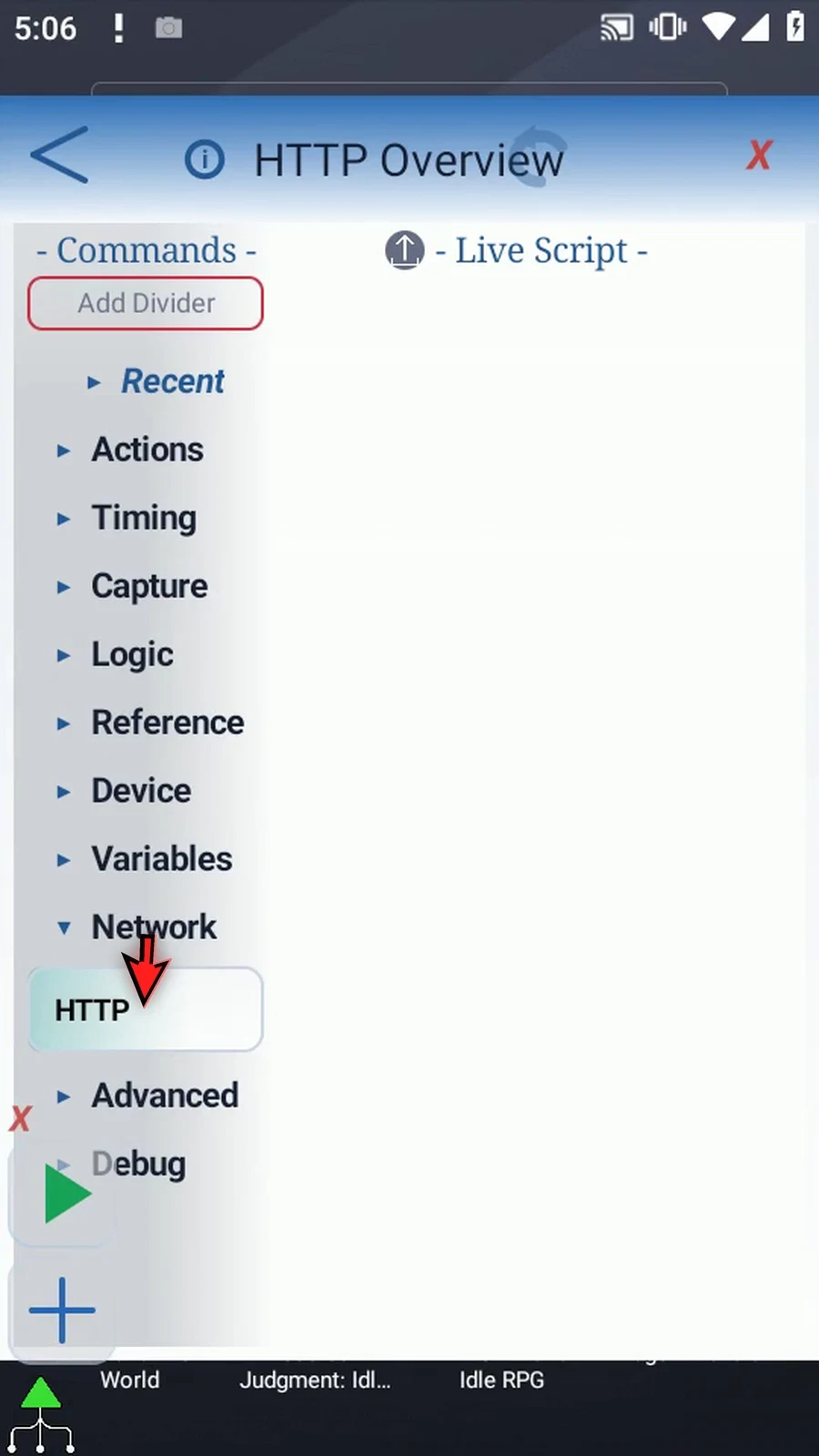
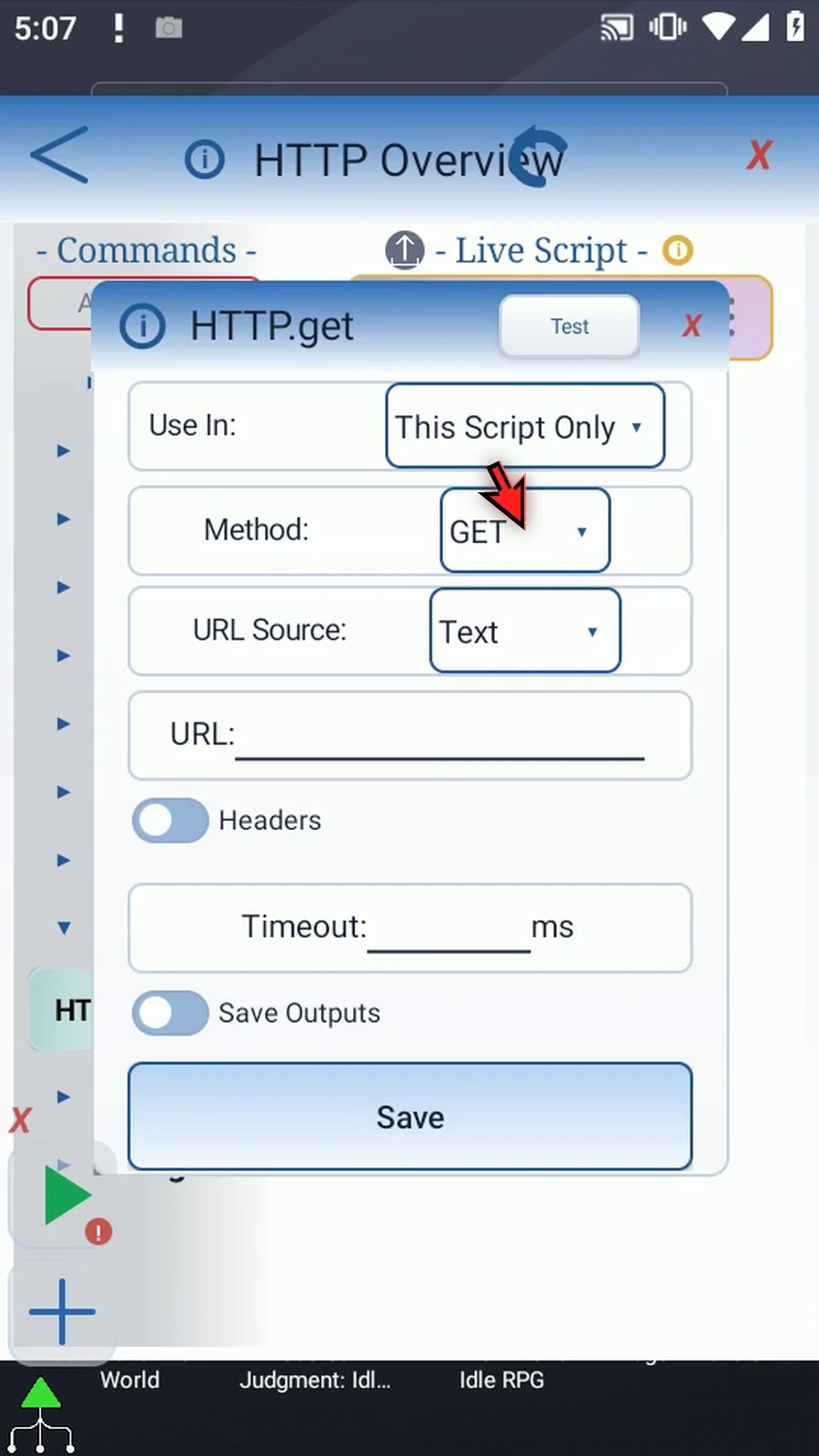
Step 02 Drag HTTP from Network into the script, then open the inserted row. The Method selector chooses what kind of request the command will send.
Step 03 Open Method to see GET, POST, PUT, PATCH, and DELETE. Choose the method required by the website or service you are using.
Step 04 GET reads information. Use it to retrieve something such as public text or data from a service. ScriptTap sends no request body with GET.
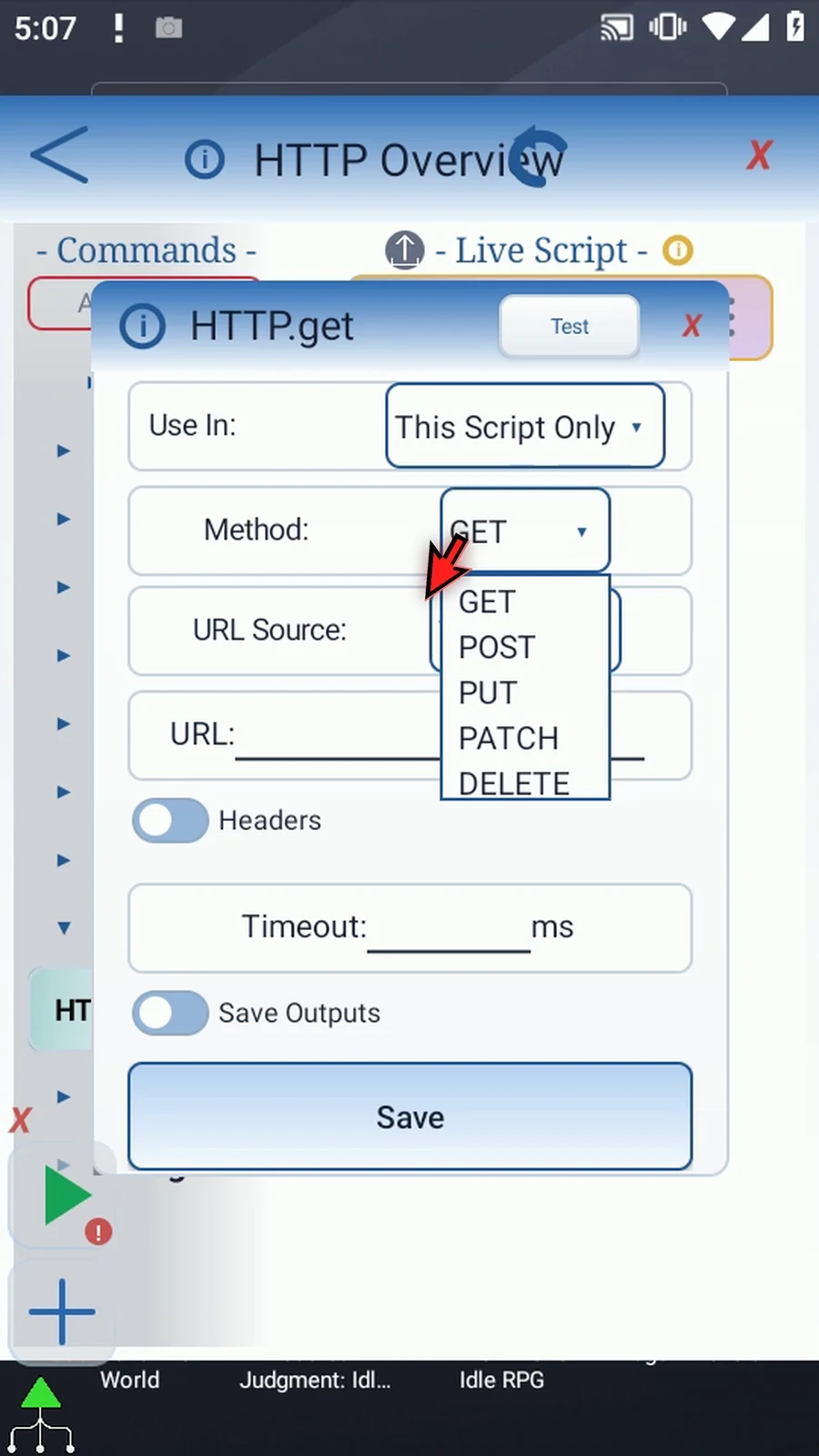
Step 05 POST submits information and often creates a new item. It can send a text body containing the data expected by the service. The exact result depends on that service's API.
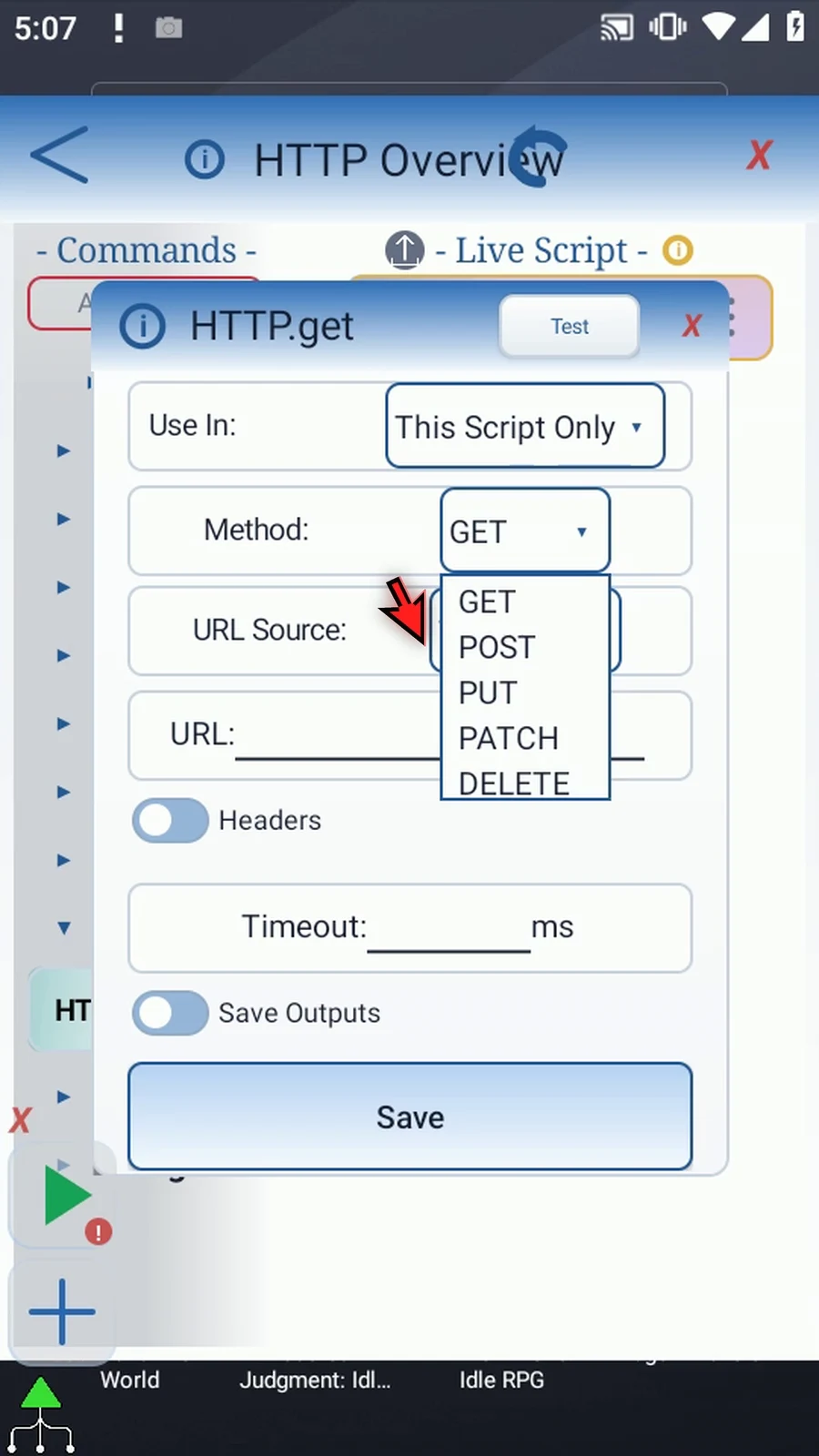
Step 06 PUT replaces a complete resource. Use it when the service expects the full replacement data, rather than only the fields that changed.
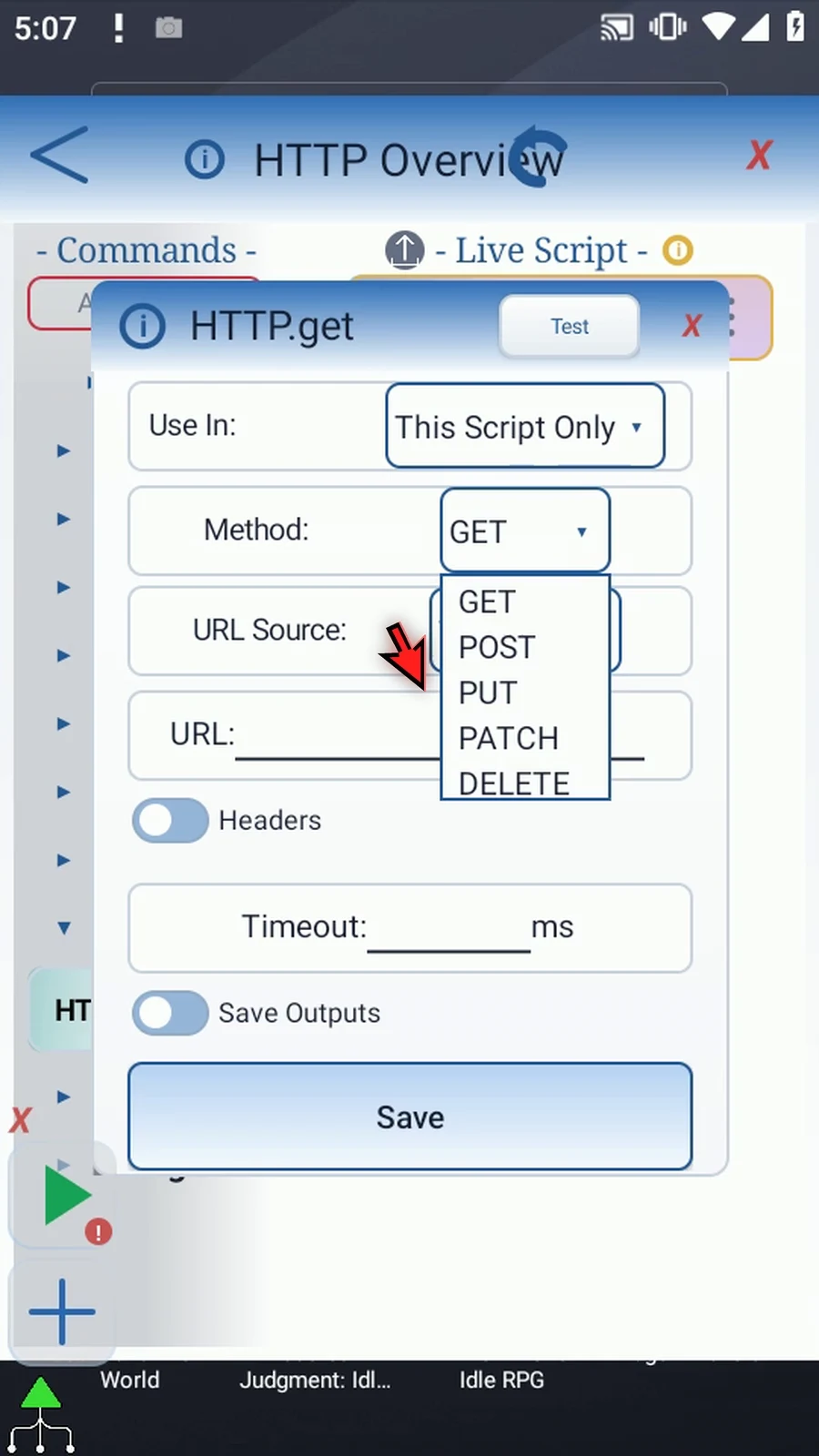
Step 07 PATCH applies a partial update. It is useful when a service lets you change selected parts of an existing item without replacing the whole item.
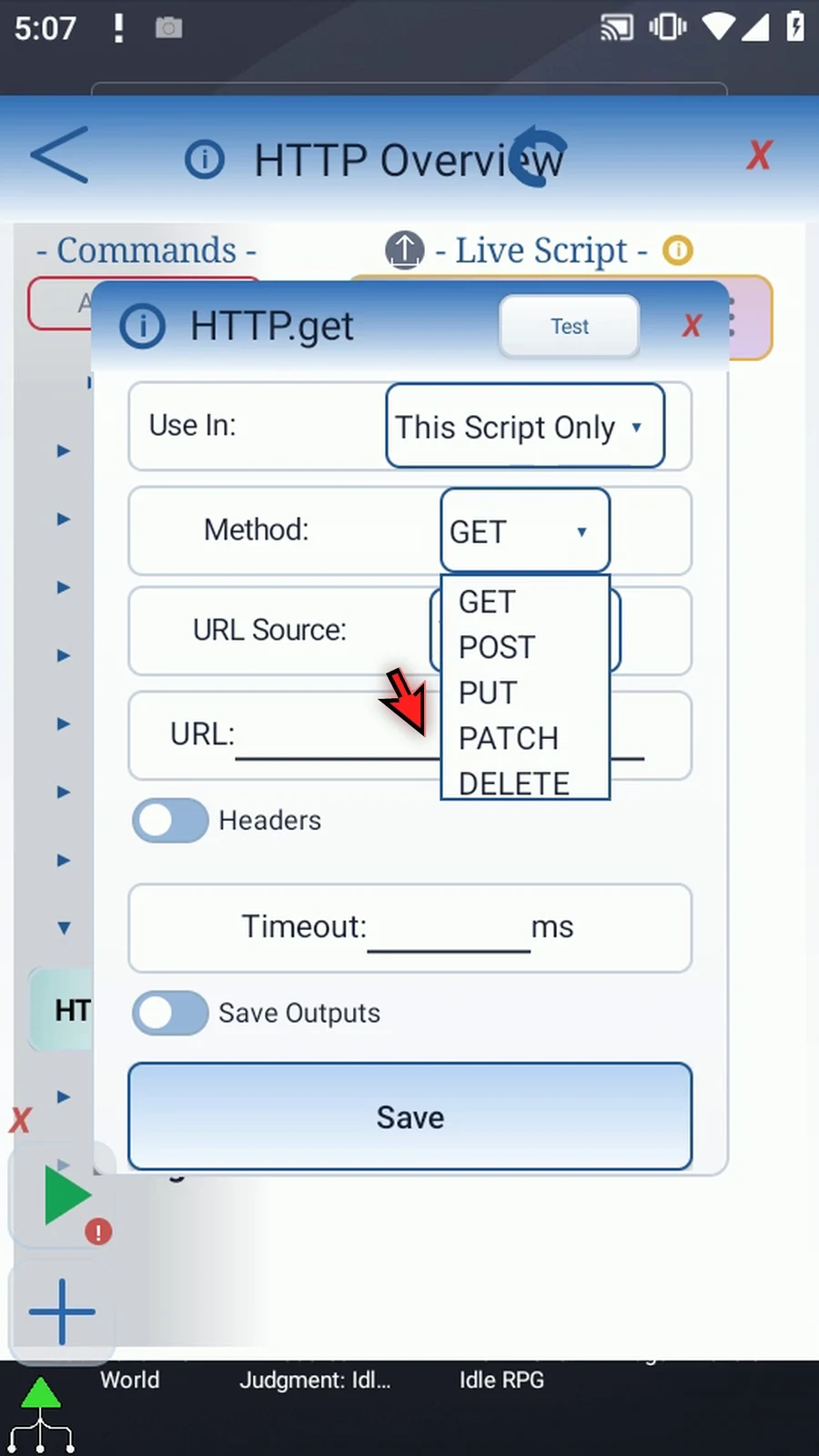
Step 08 DELETE requests removal of a resource and sends no body. POST, PUT, PATCH, and DELETE can change server data, so use only services and test resources you are authorized to modify.
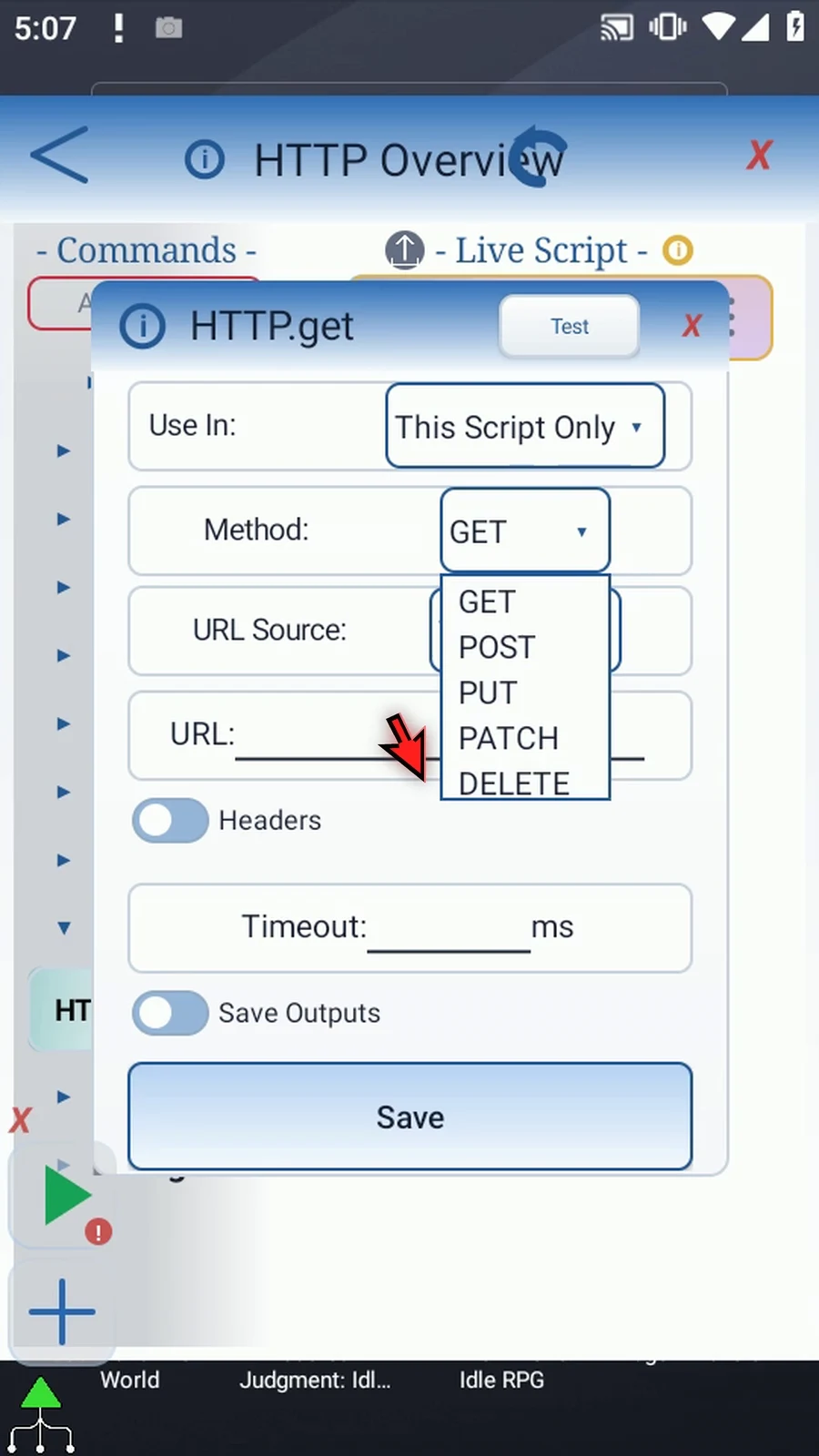
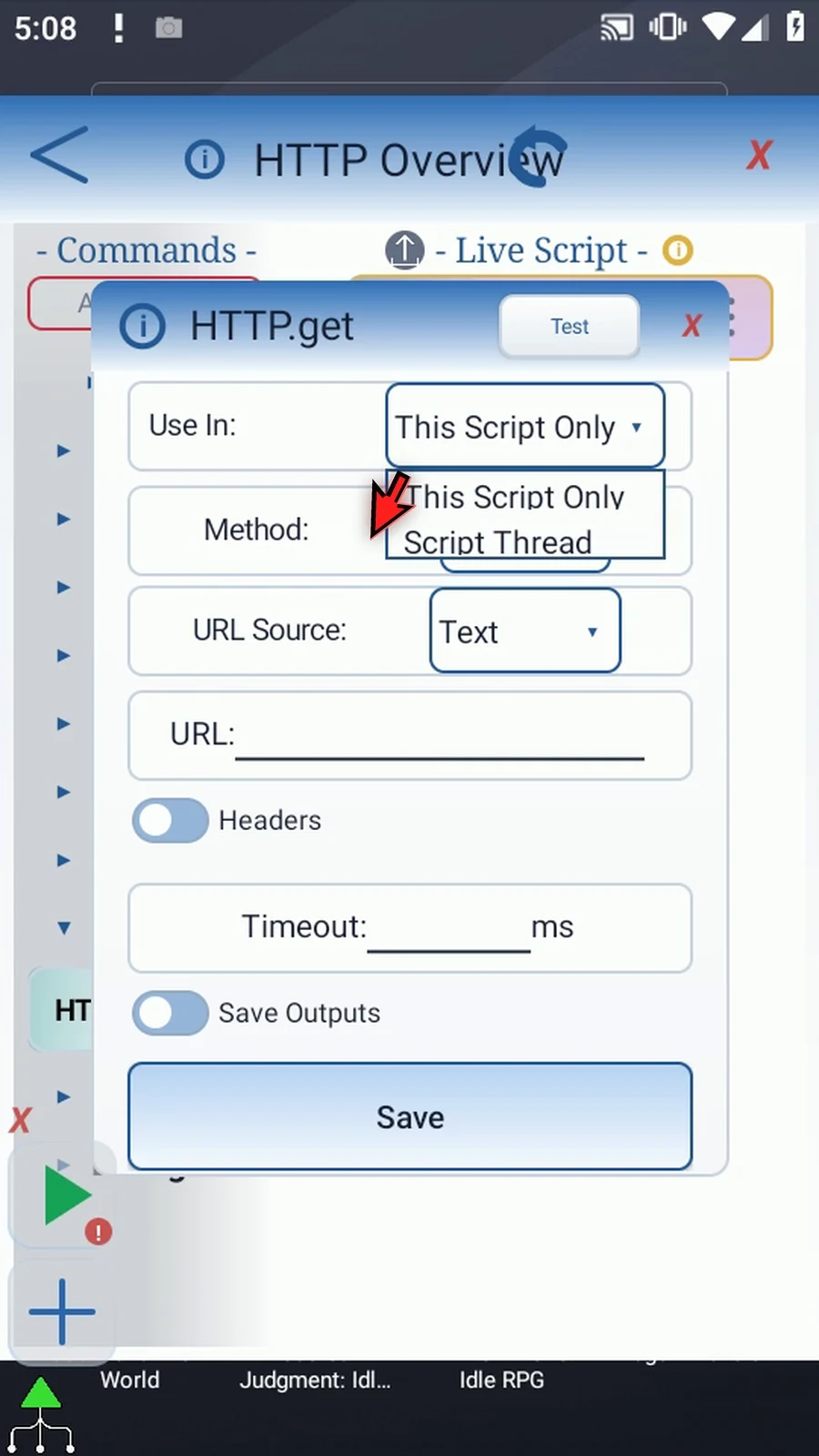
Step 09 Use In selects the scope for saved output variables: this script only, or this thread when results need to be shared with called scripts. Keep variable declarations and later reads in the matching scope.
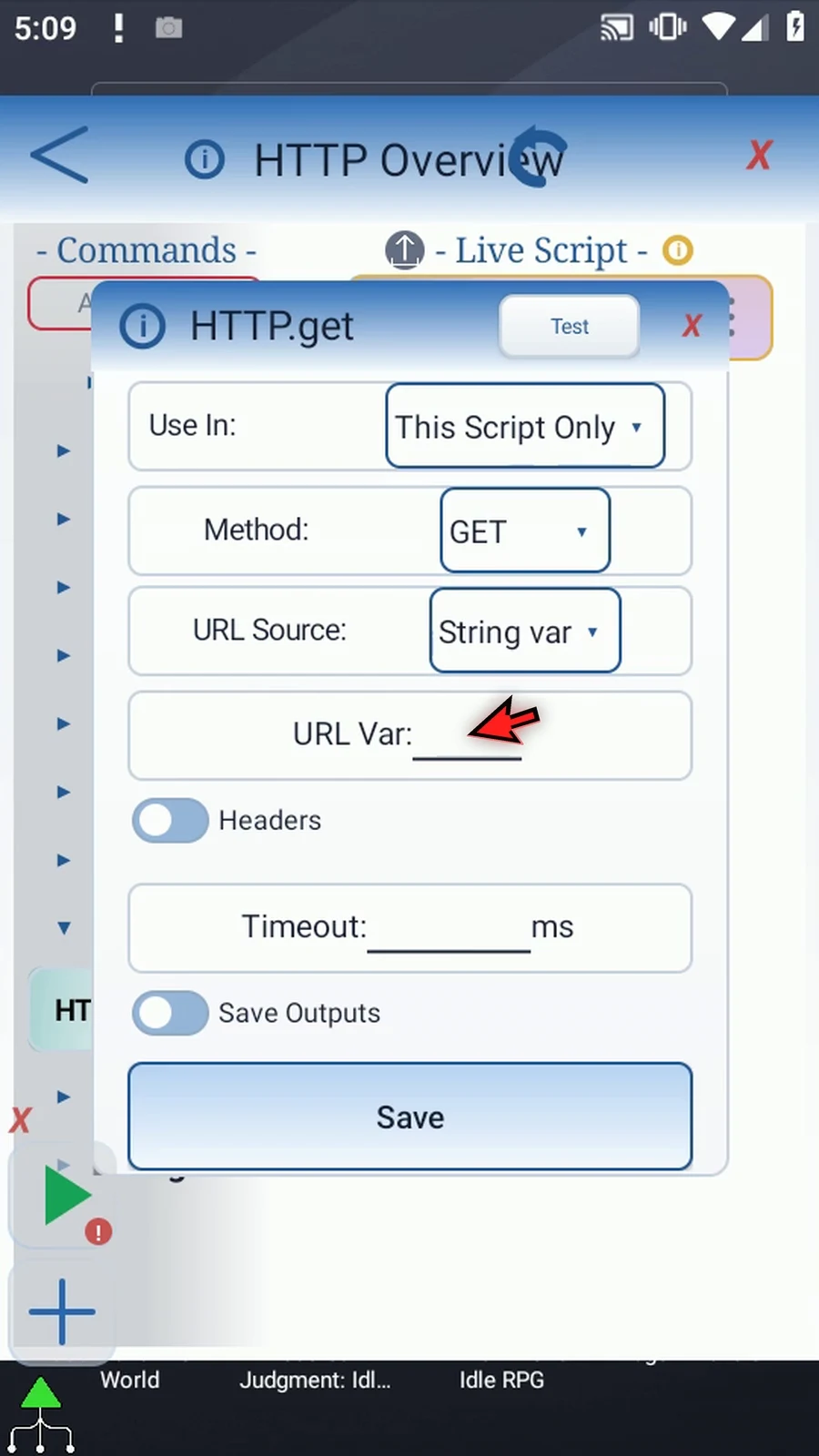
Step 10 URL Source can be Text or a String variable. Text lets you enter the address here. String variable uses a value prepared by an earlier command. Use the complete address required by the service, preferably with HTTPS.
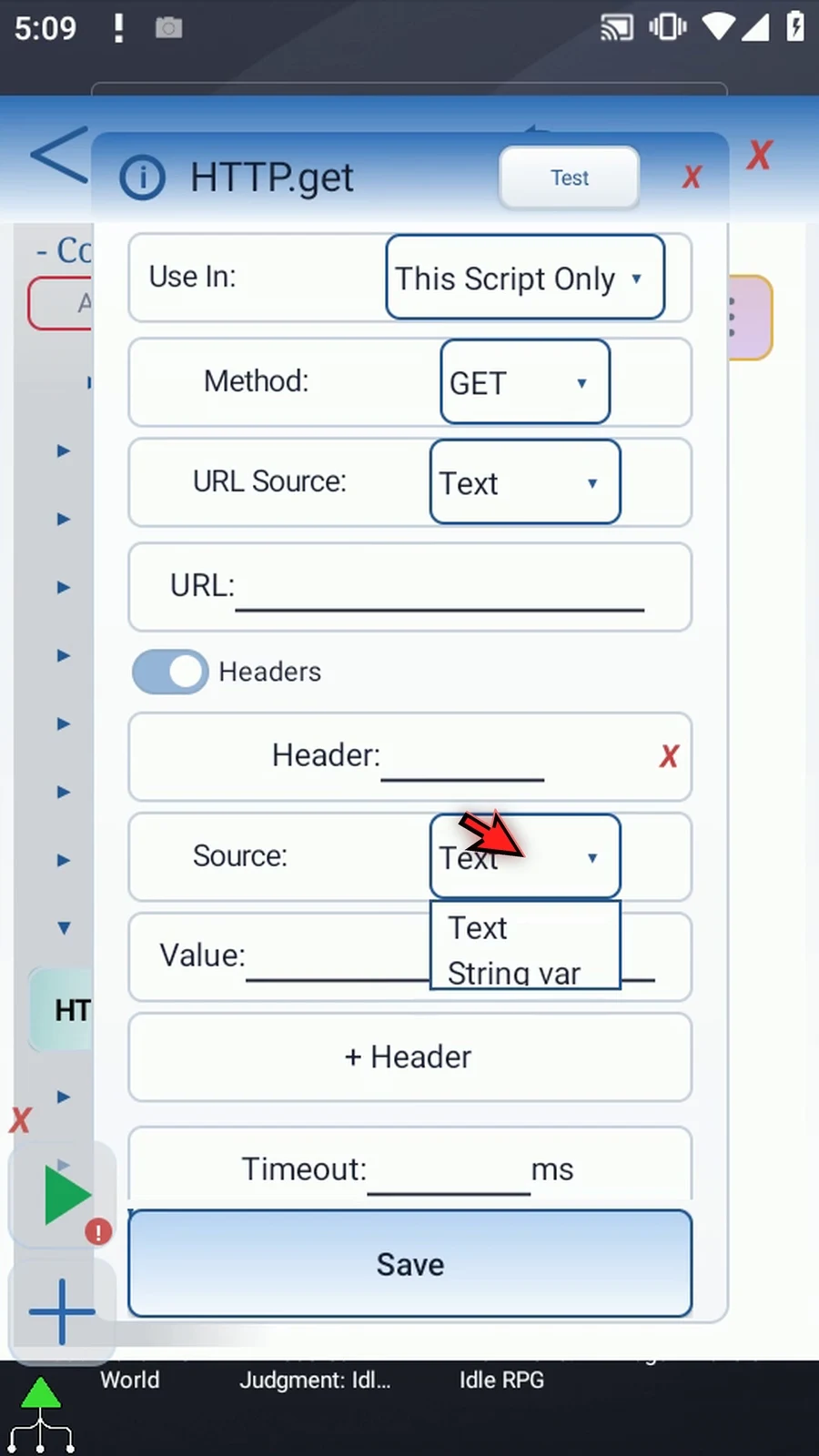
Step 11 Turn on Headers and add a row when the service needs extra request information. Enter the header name, then choose Text or a prior String variable for its value. For example, a service may require a Content Type header for JSON. Remove an unused row with its red X.
Step 12 Select POST to see the body controls. POST, PUT, and PATCH can send raw text or a prior String variable as the body. Set any headers required by the service; selecting a method does not automatically format your data as JSON.
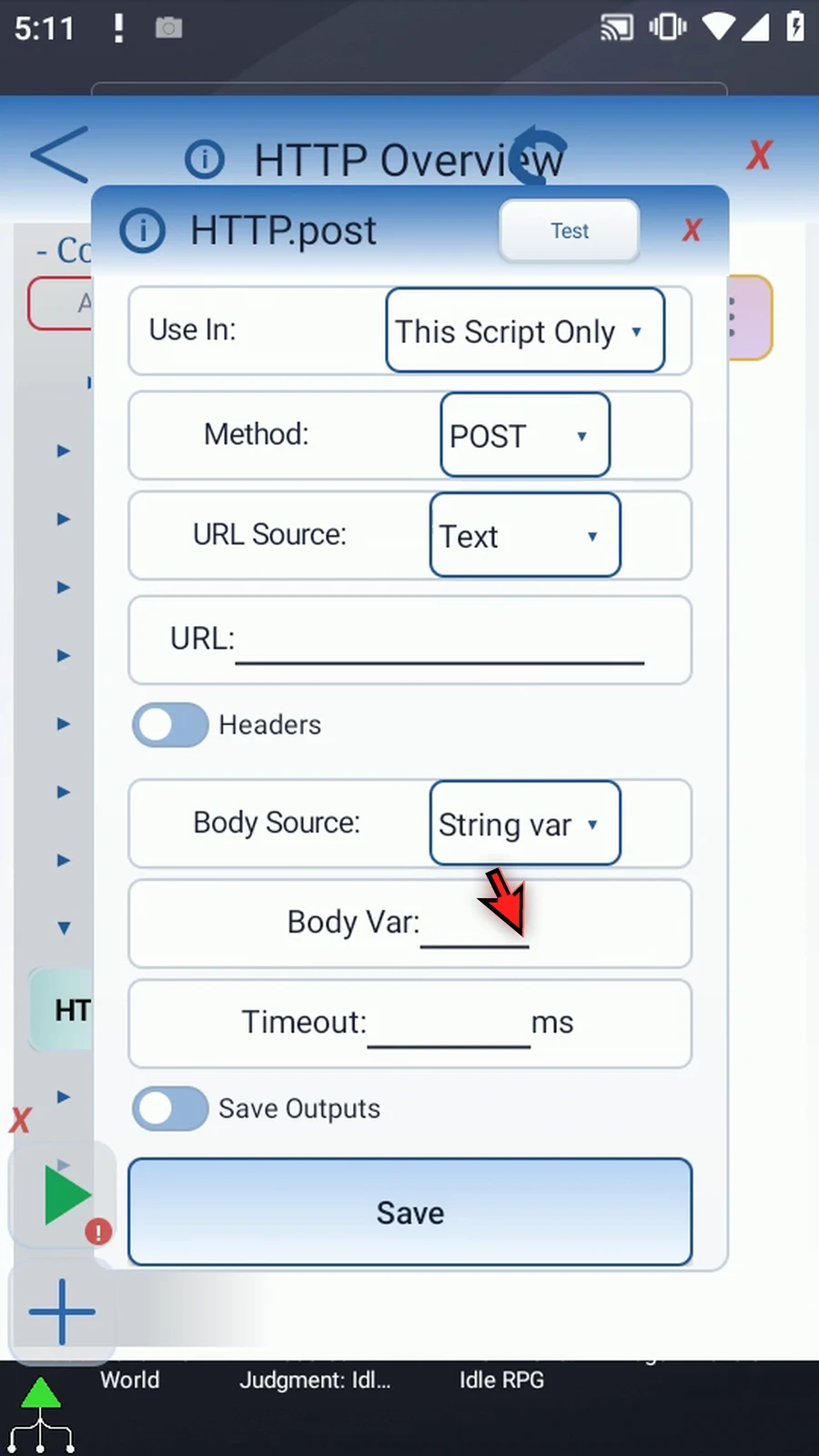
Step 13 Timeout limits how long the request may wait. Enter a literal number from one thousand to sixty thousand milliseconds. Ten thousand milliseconds is ten seconds. A blank timeout remains incomplete, so enter a valid value before playing your script.
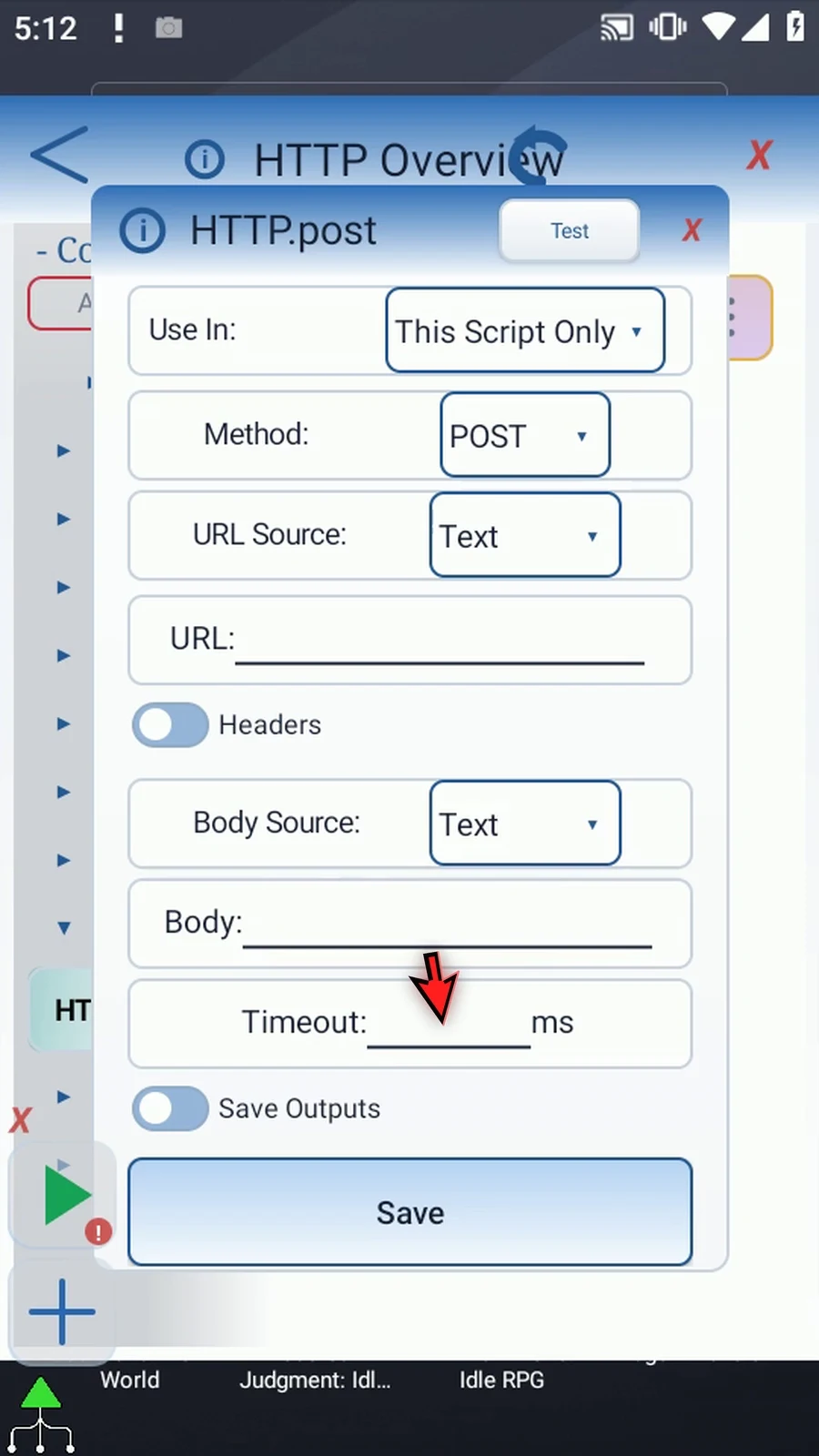
Step 14 Turn on Save Outputs to choose which results later commands will use. Each result has its own switch and destination, so you can save only what your script needs.
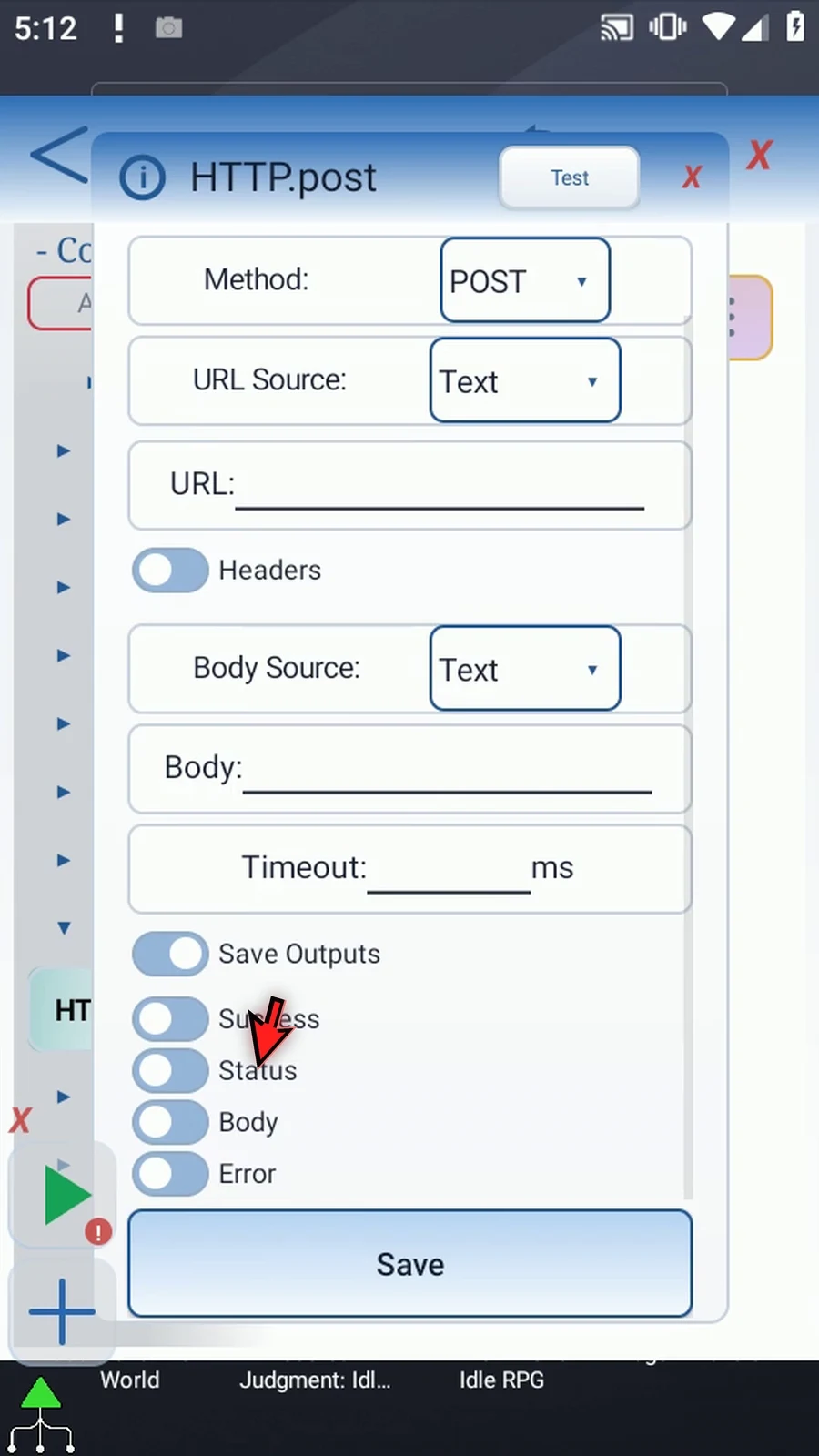
Step 15 Success saves a Boolean result. It is true for an HTTP status from two hundred through two hundred ninety nine. Use it to choose a success or failure branch later in the script.
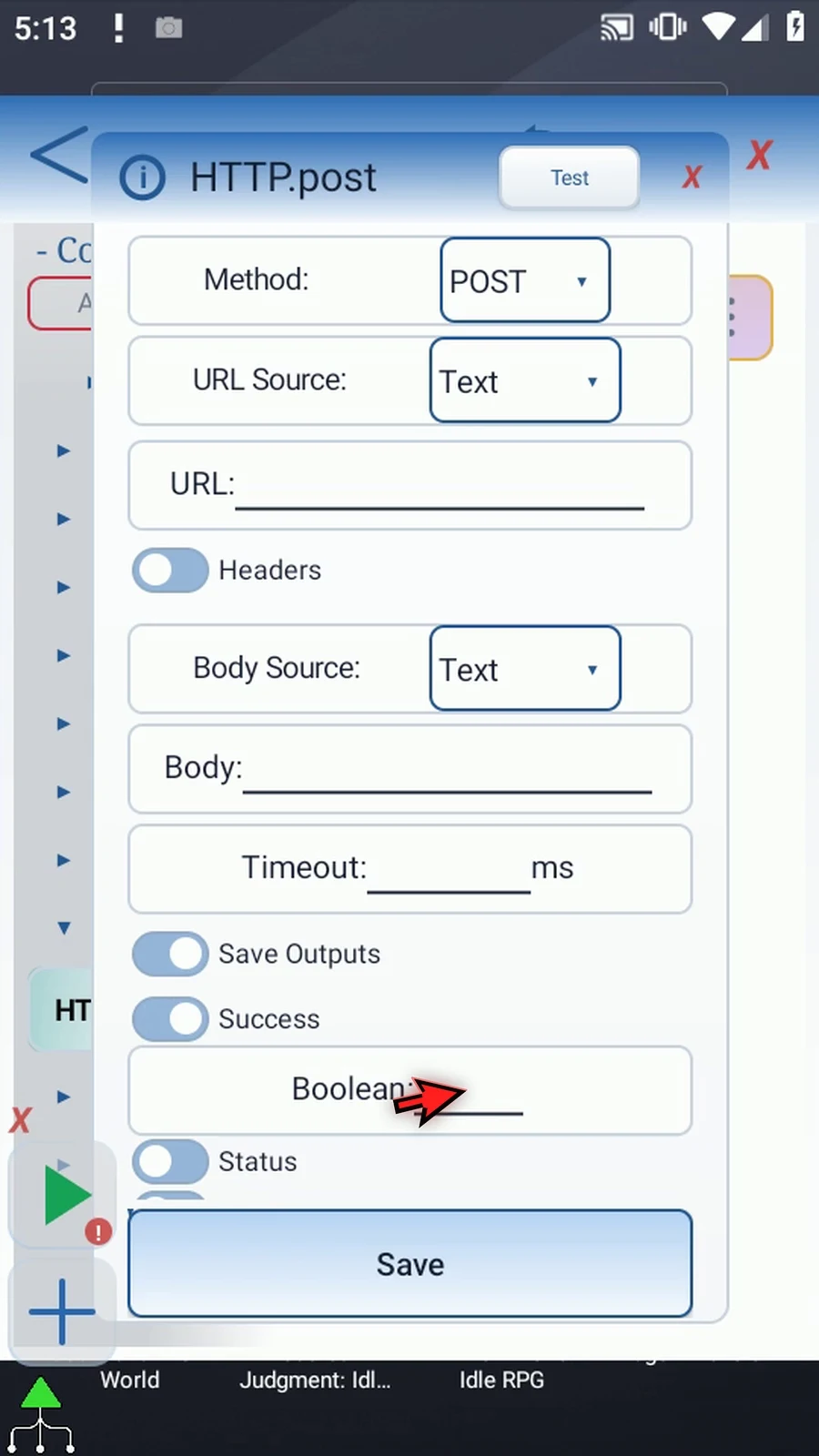
Step 16 Status saves the numeric HTTP status in an Integer variable. This helps distinguish responses such as success or not found. A network or invalid request failure uses status zero.
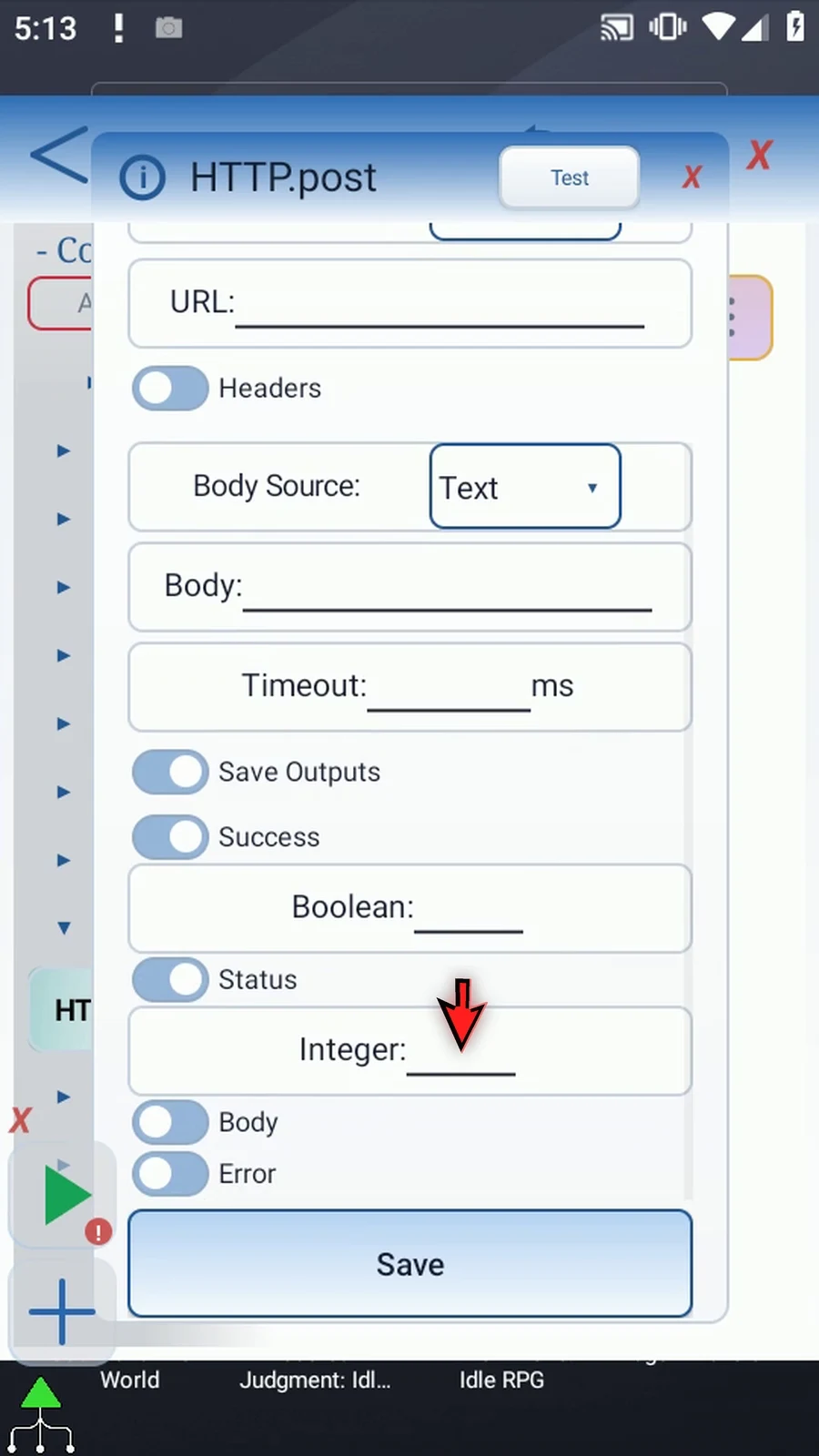
Step 17 Body saves response text in a String variable. A later JSON or Text Transform command can extract useful information from it. The response is limited to two hundred fifty six kilobytes, with a note if truncated.
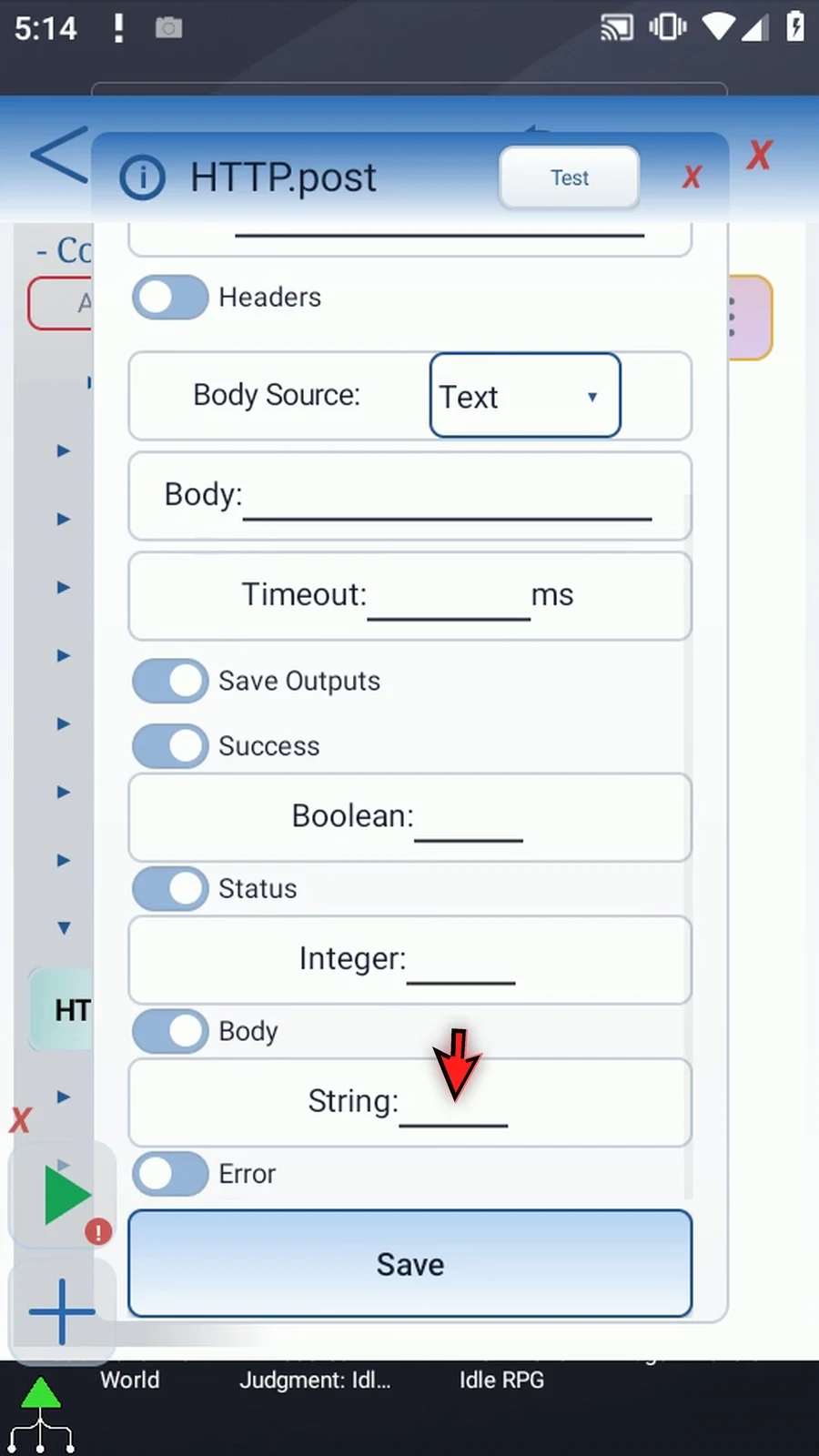
Step 18 Error saves a short error message in a String variable for later handling. Save it when you want your script to explain why a request failed, instead of relying only on a success flag.
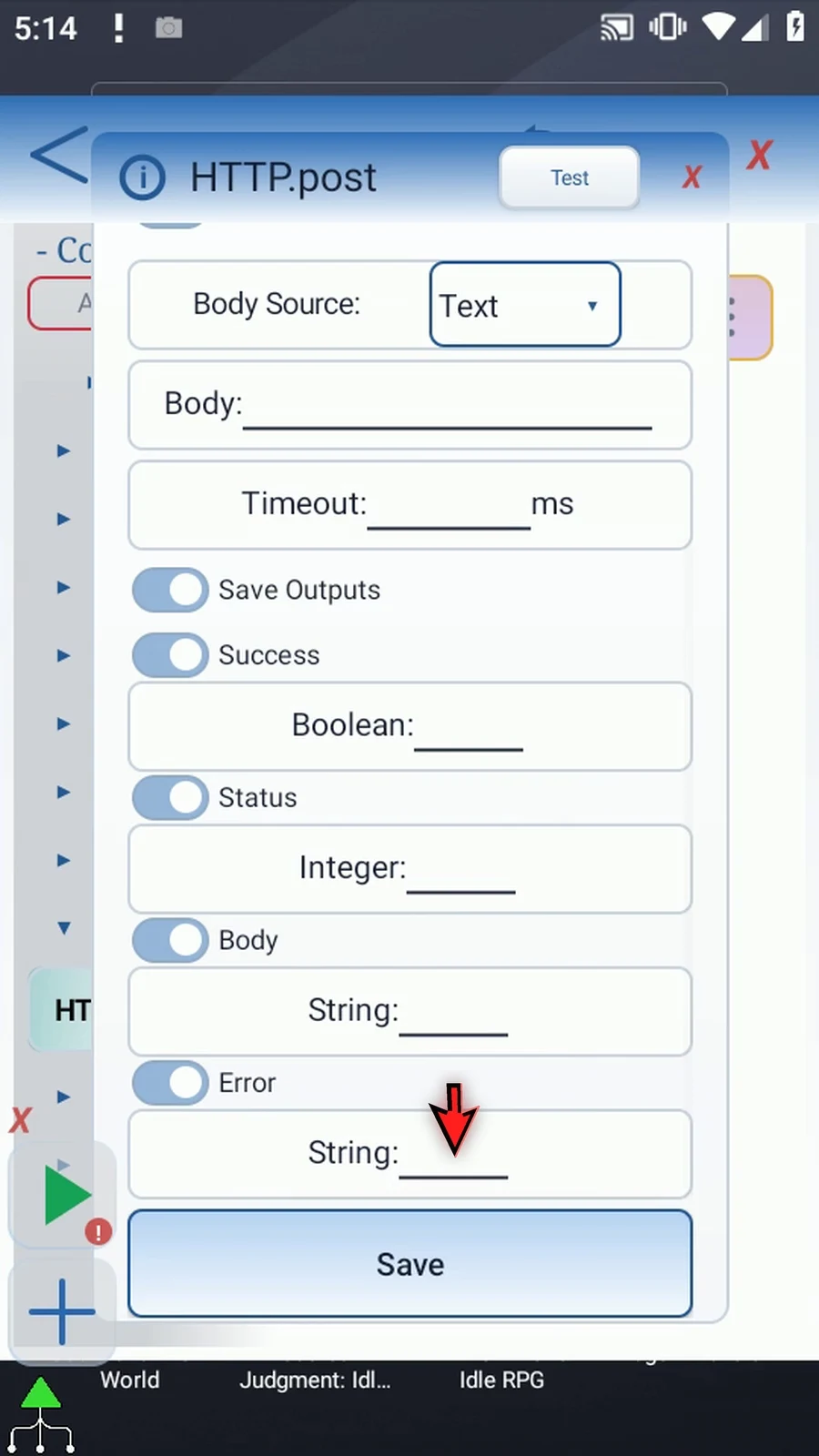
Step 19 This overview stops without testing or playing the command. Cancel the draft to return to the editor. Use the separate method guides for working examples with a visible result.