Command video guide
UI Find
UI Find locates Android controls by the Accessibility information an app exposes, without relying on fixed coordinates or image matching. It can activate a match and save a Found Boolean, the matched center, and a text or description String.
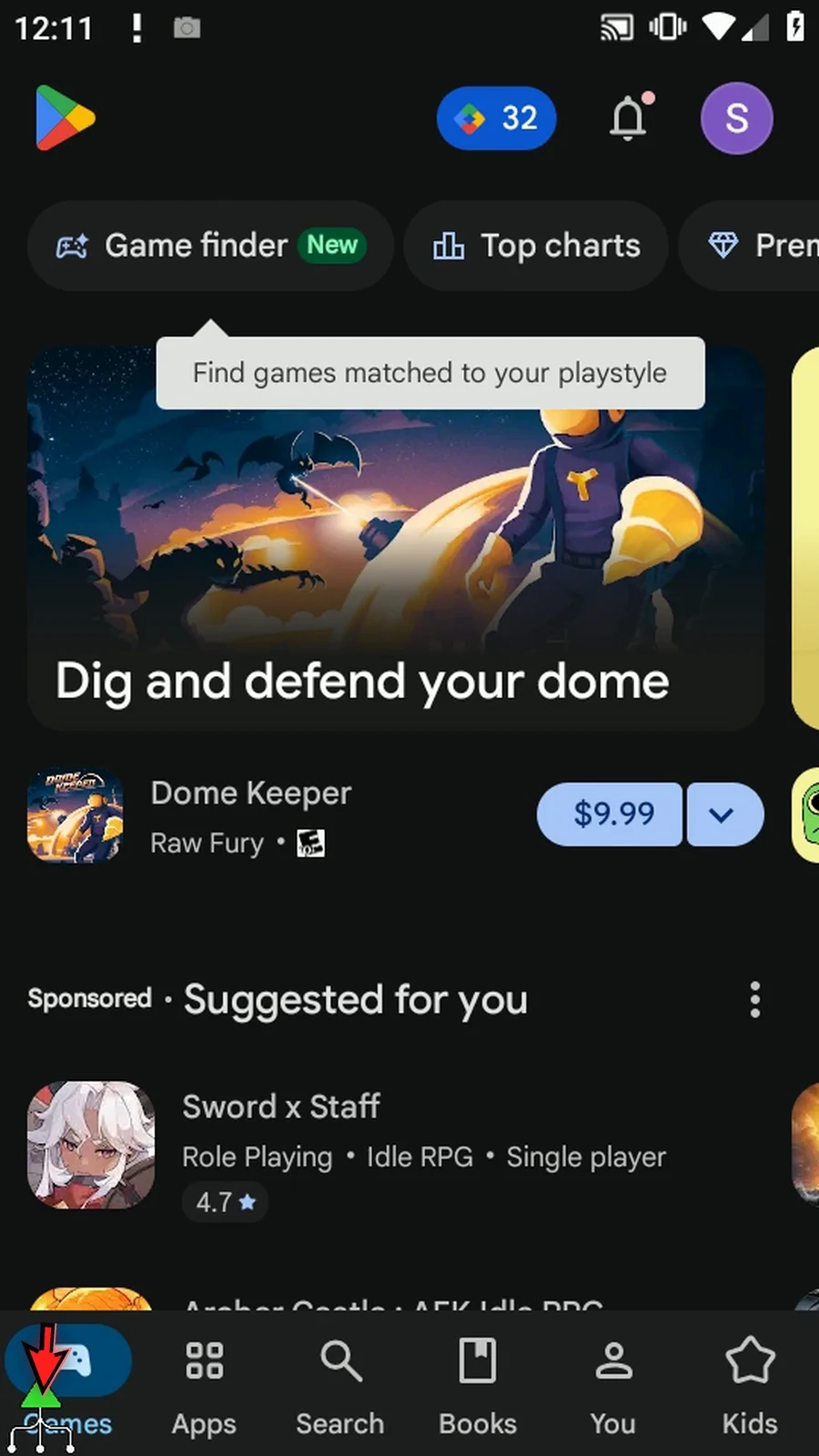
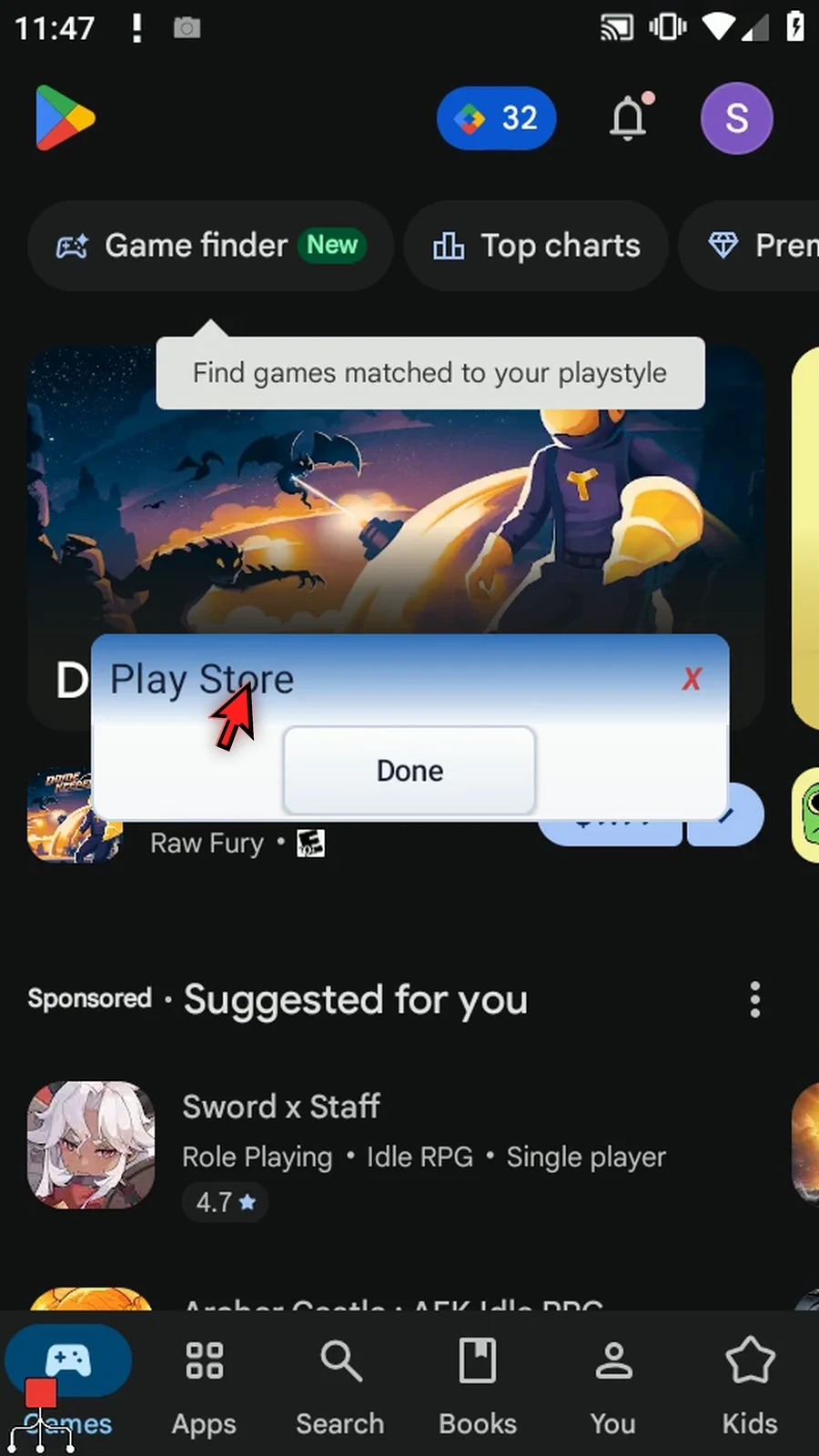
The Intro builds a two-command example on Android Home: select the Play Store icon with the element picker, use Content Description and Exact matching, save Found to b1, center coordinates to x1 and y1, and matched text to s1. Normal Tap opens Play Store; PromptMe displays the matched name and provides a Done confirmation through b2.
Target supports Any, Text, Content Description, View ID, and Class. Match supports Contains, Exact, and Regex. Nth is a positive whole-number literal starting at 1, not a variable. App Filter limits the search to an application package; Clear removes that restriction. Enabled Only, Clickable Only, and Visible Only refine which exposed controls qualify. Test checks matching without tapping or saving the draft.
Use This Script Only for local outputs or Script Thread to share them within the calling script thread. Output toggles retain dormant destinations. UI Find reads exposed Accessibility nodes, not screen-image text. Games, custom drawings, and some WebViews may expose few useful nodes; consider image matching or OCR for those surfaces. UseAction Open App can prepare an app before UI Find when necessary.
Intro / Normal Tap
Step-by-step guide
Step 01 UI Find locates Android controls using the Accessibility information an app exposes. It can tap a match and save its text or position for later commands. In this example, we will open Play Store and display the matched name.
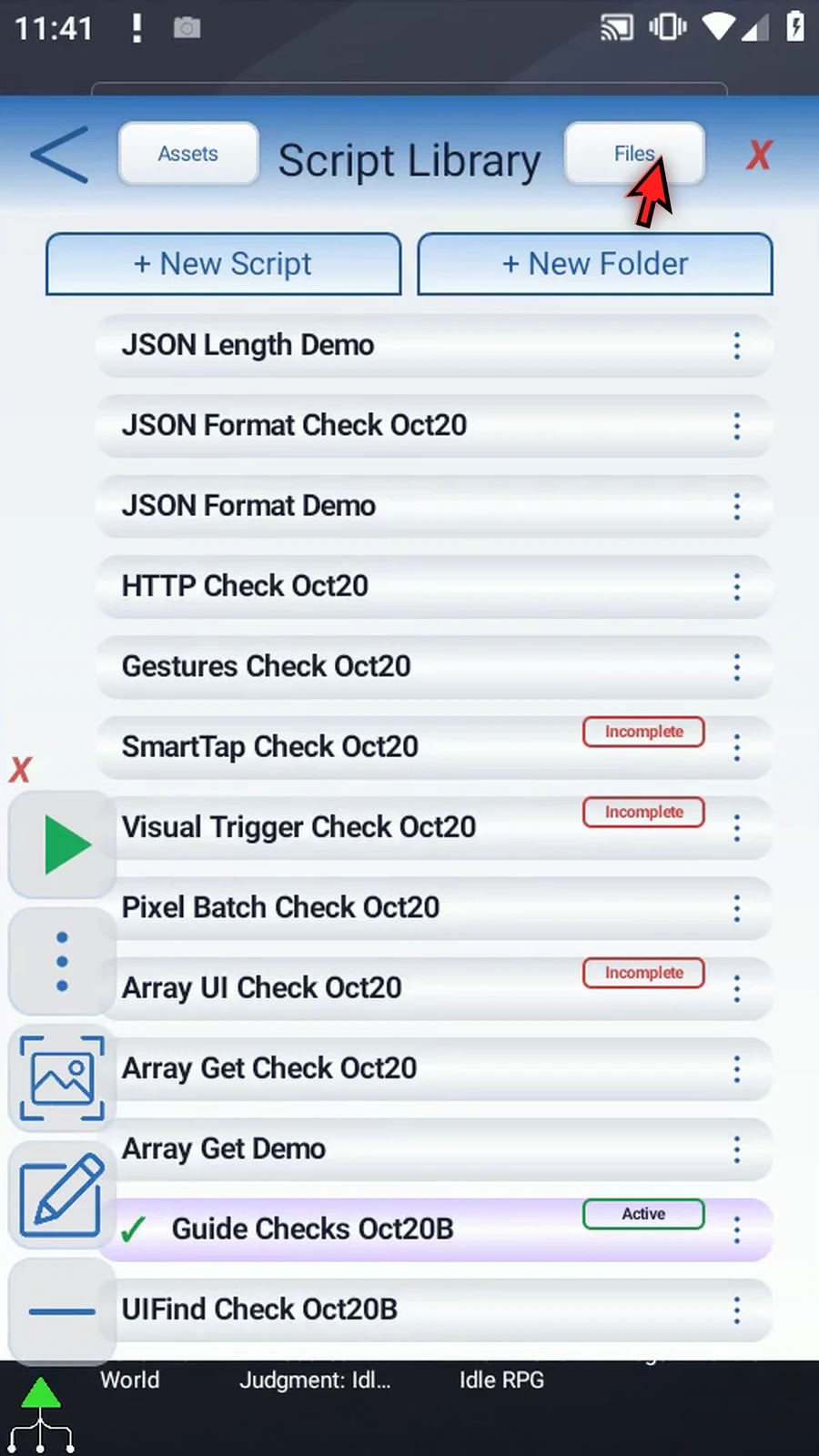
Step 02 In the Script Library, create a new blank script.
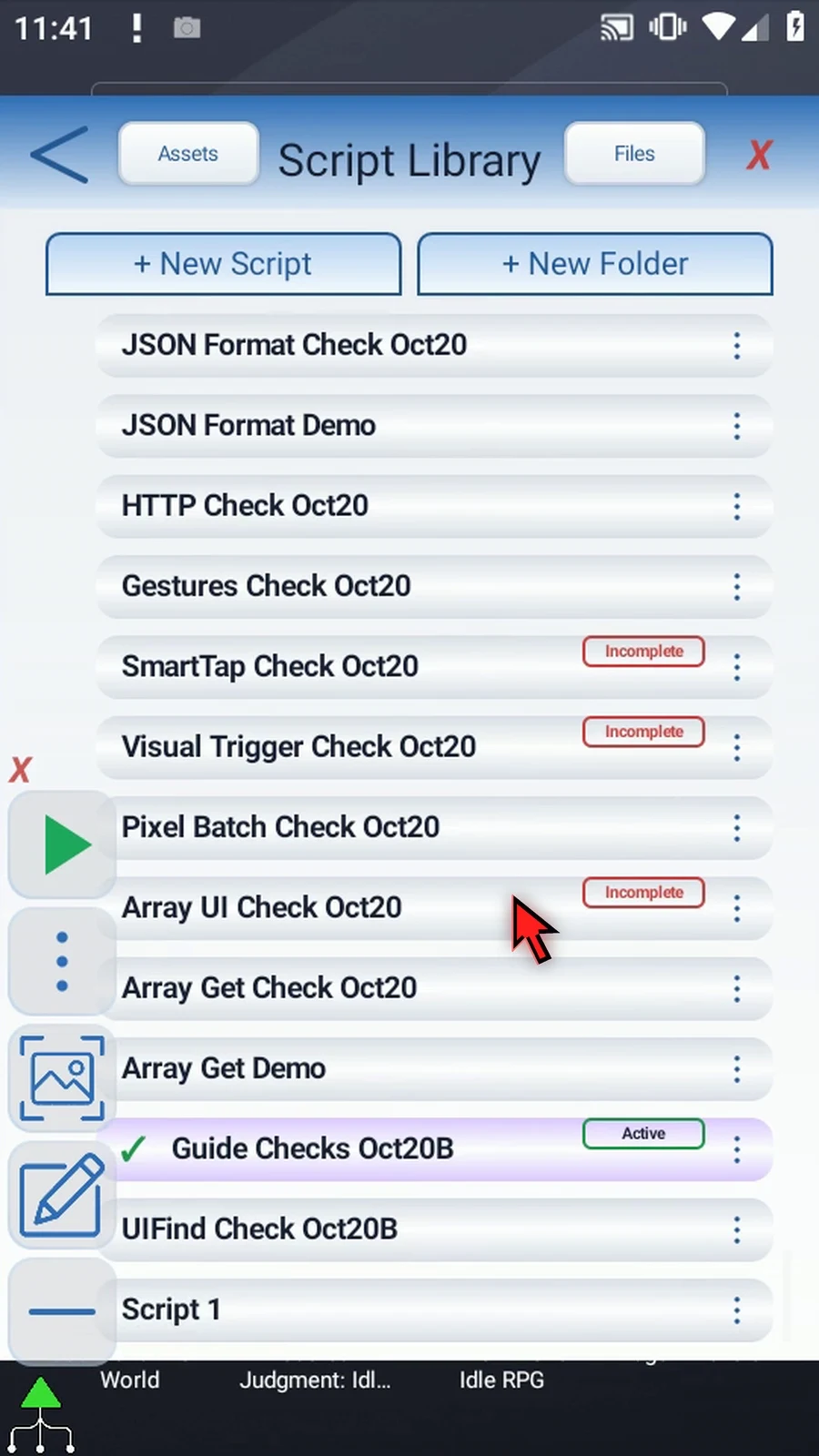
Step 03 Open the new script's menu, choose Rename, and give it a clear name.
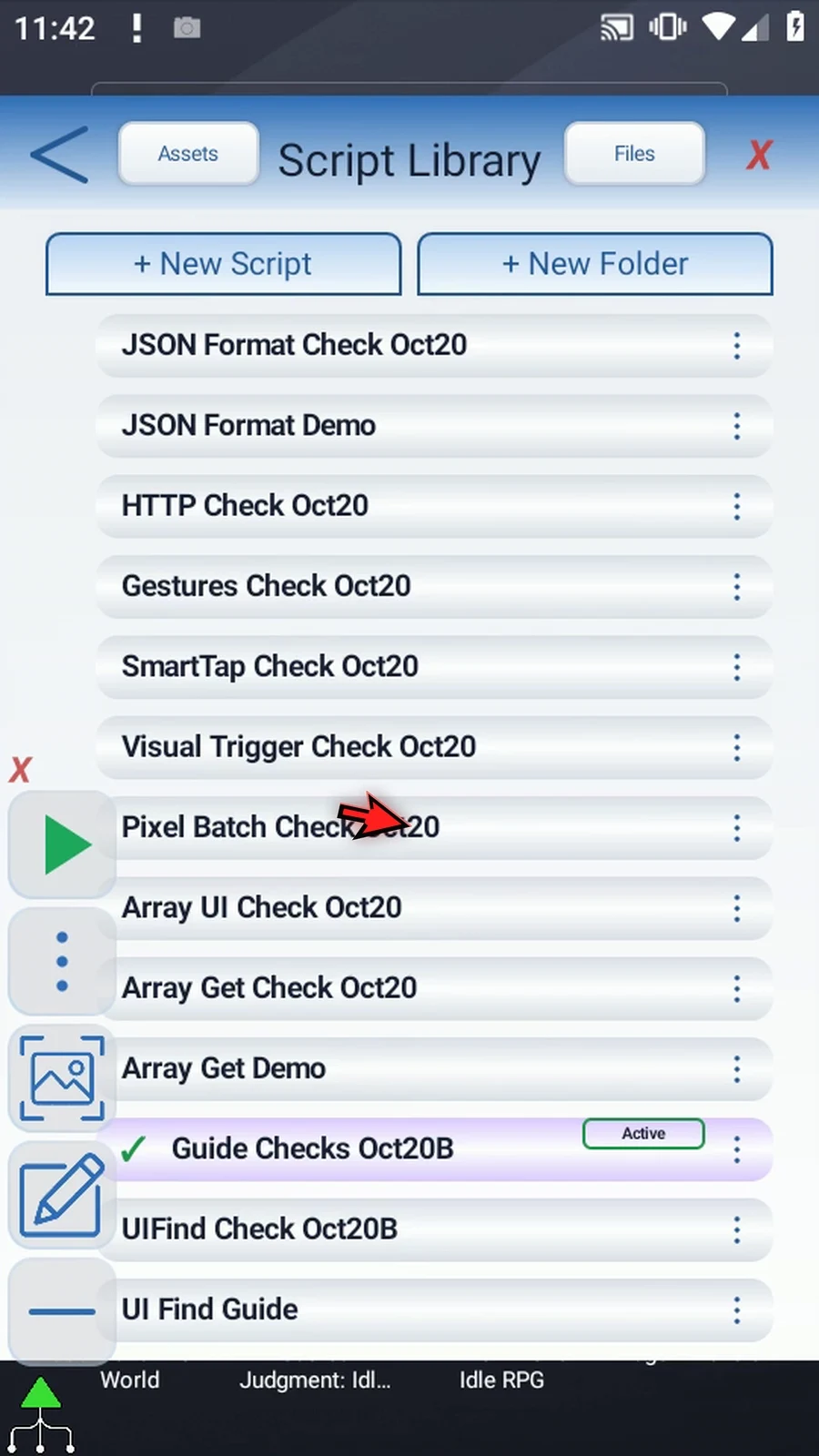
Step 04 Select the new script, close the library, and open its editor. Collapse the extra overlay controls to make room.
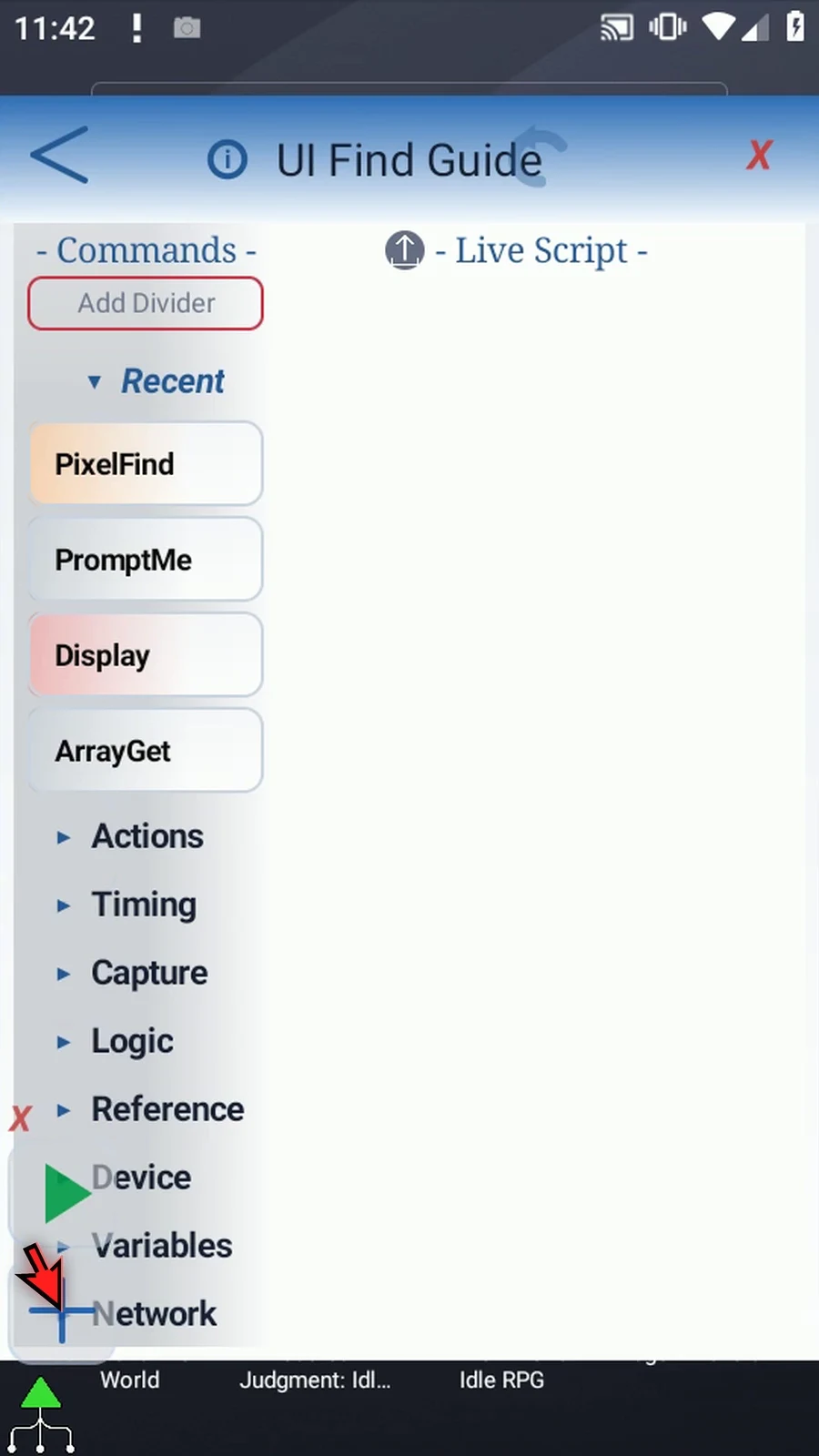
Step 05 Under Capture, drag UI Find into the live script. Double-tap the new row to configure it.
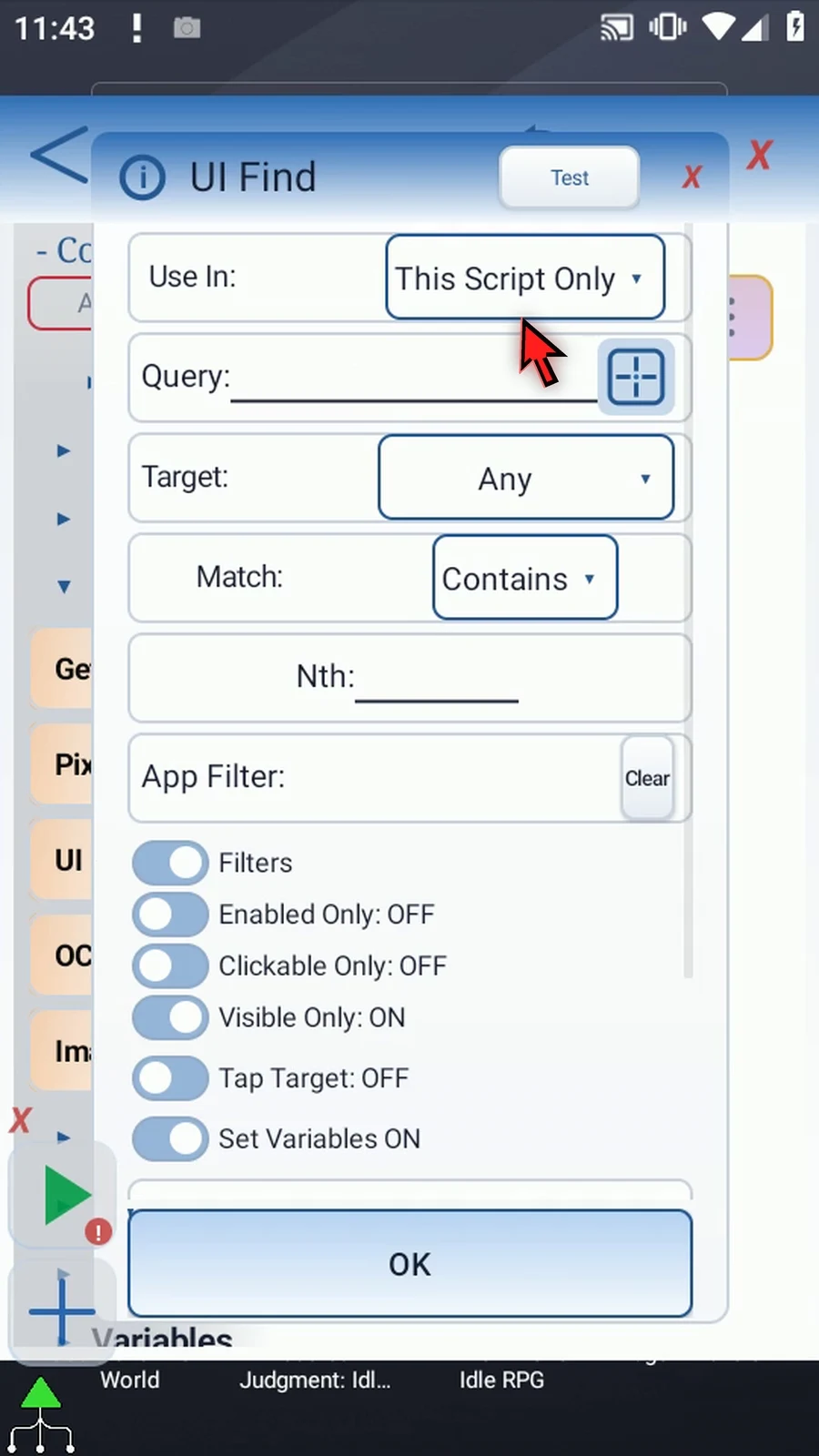
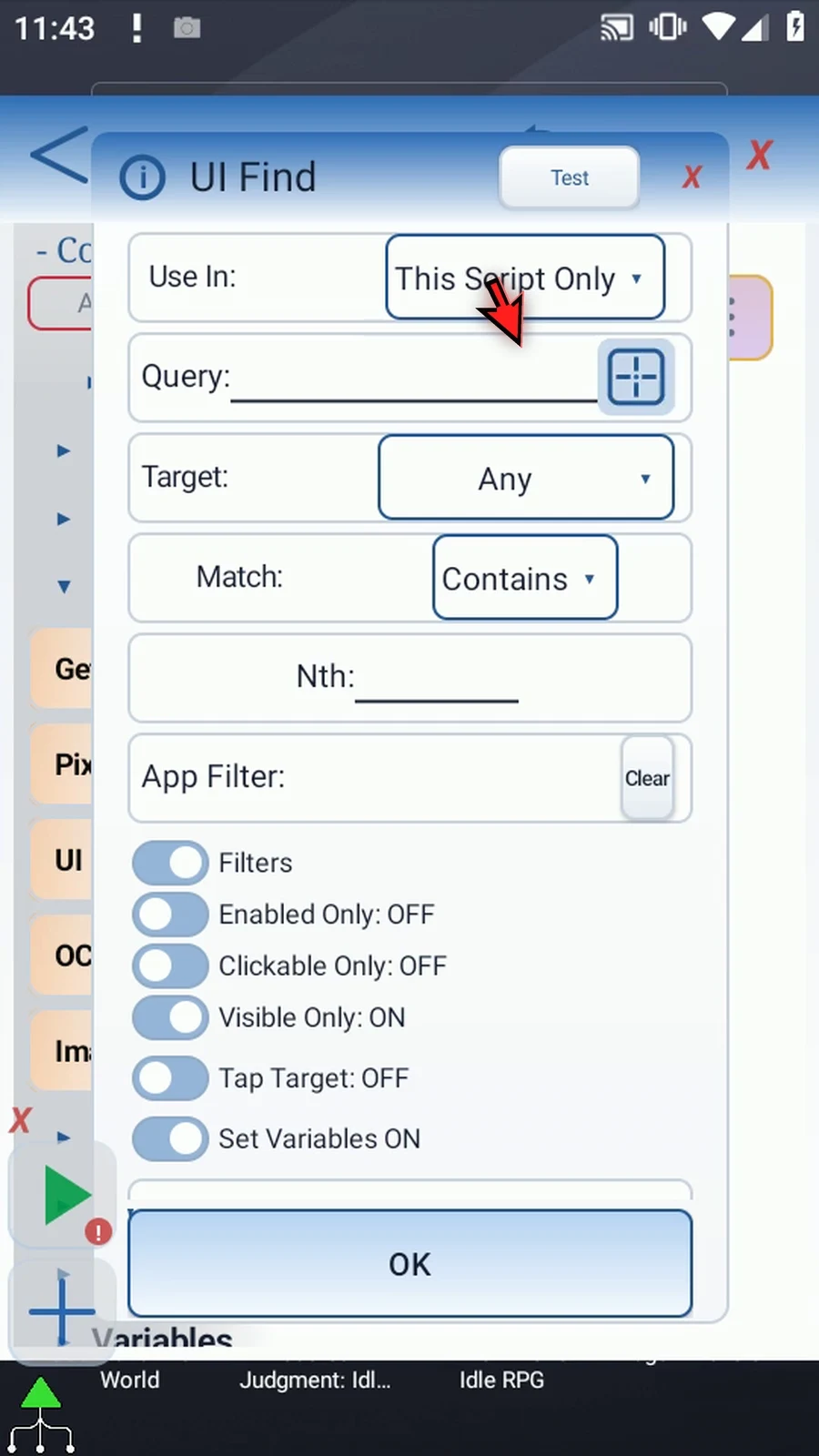
Step 06 Use In sets the scope of saved outputs. This Script Only keeps them local. Script Thread shares them within the calling script thread. Keep This Script Only here.
Step 07 Use the target-square beside Query to select a real exposed control. If Android asks, allow screen capture. UI Find's runtime itself reads Accessibility nodes, not screen images or OCR.
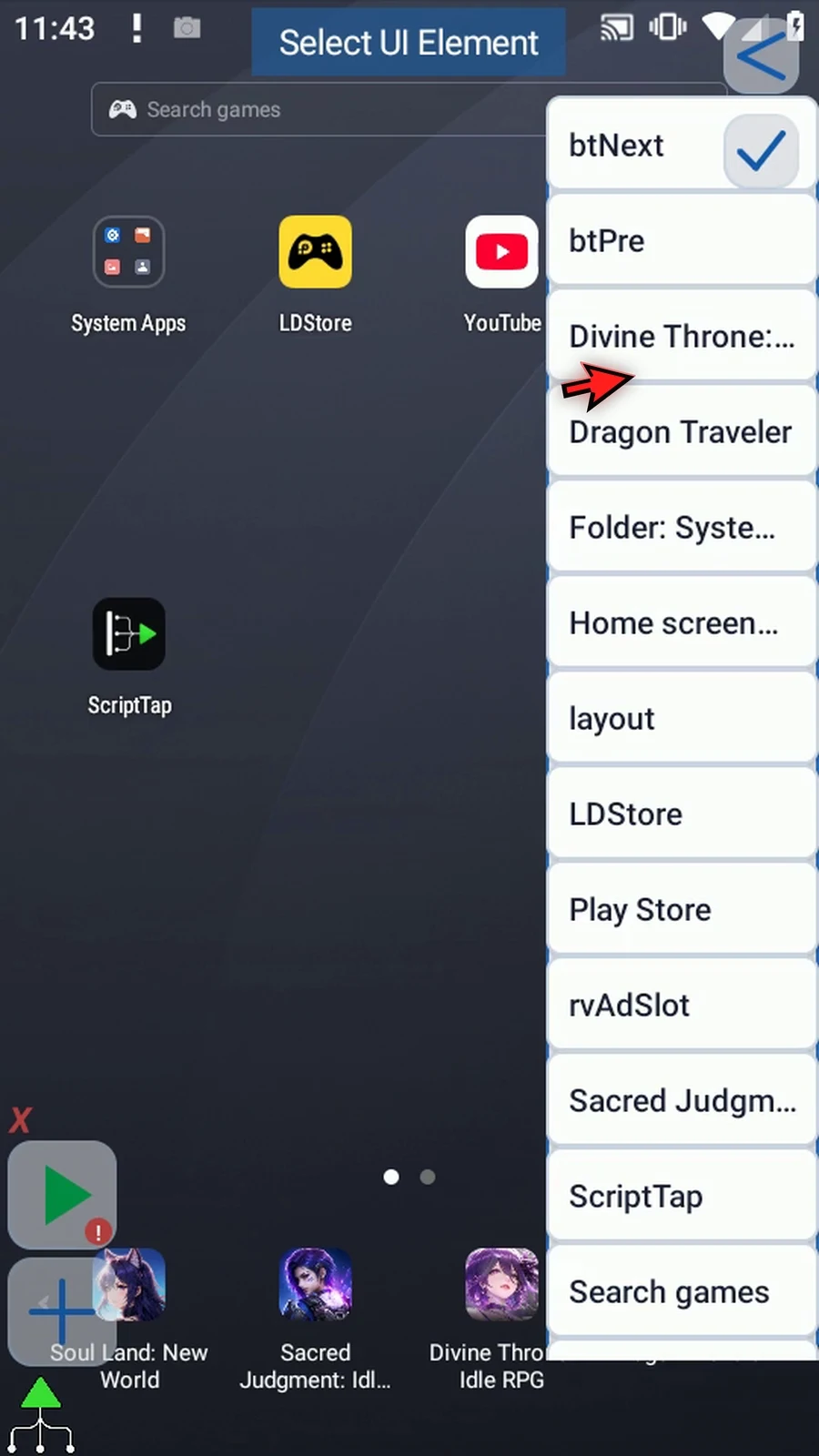
Step 08 Choose Play Store from the list and confirm. The picker fills the locator, including its app filter and match position.
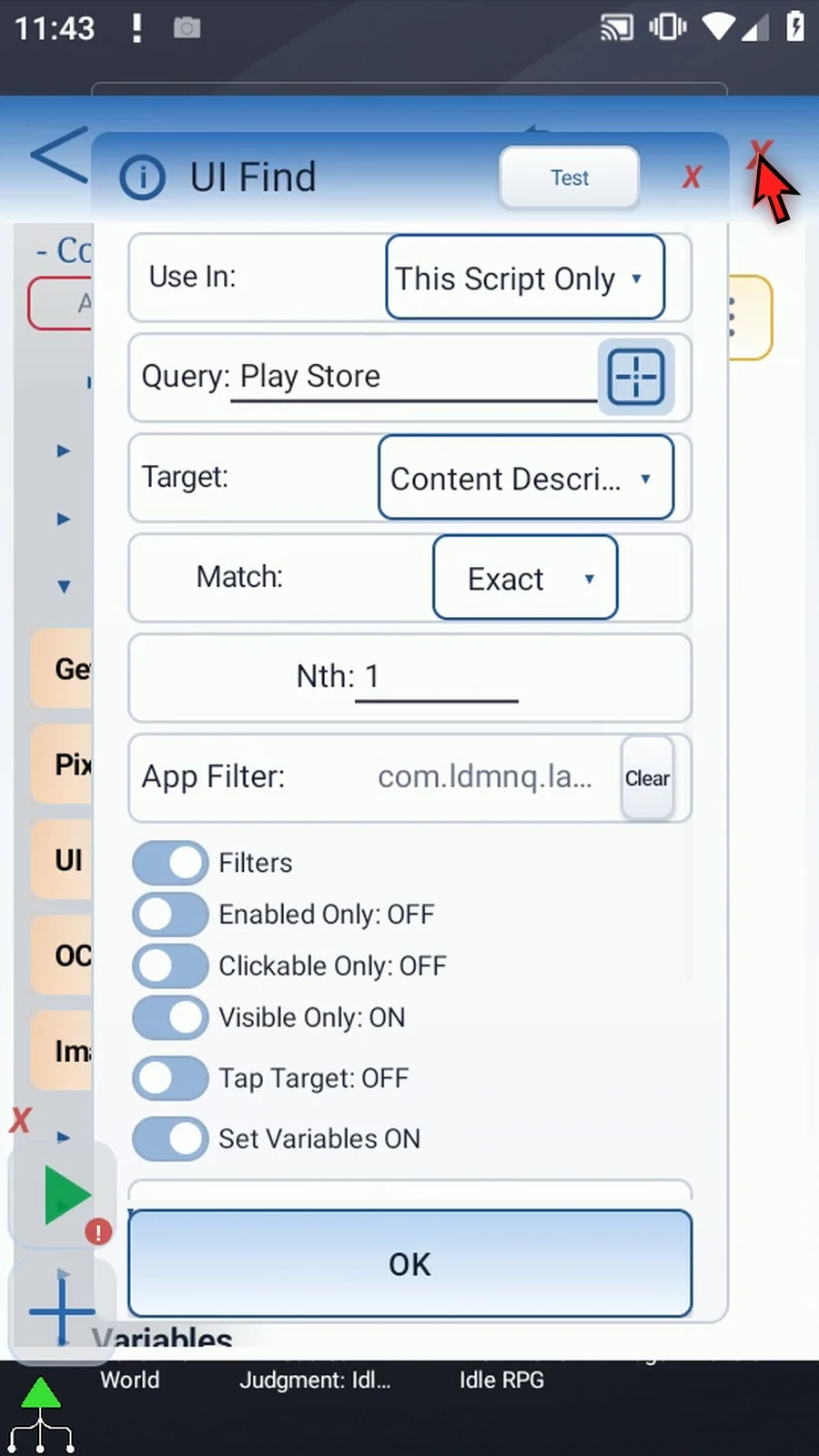
Step 09 Target chooses which information to search: any supported field, text, content description, view ID, or class name. The picker chose Content Description for this icon.
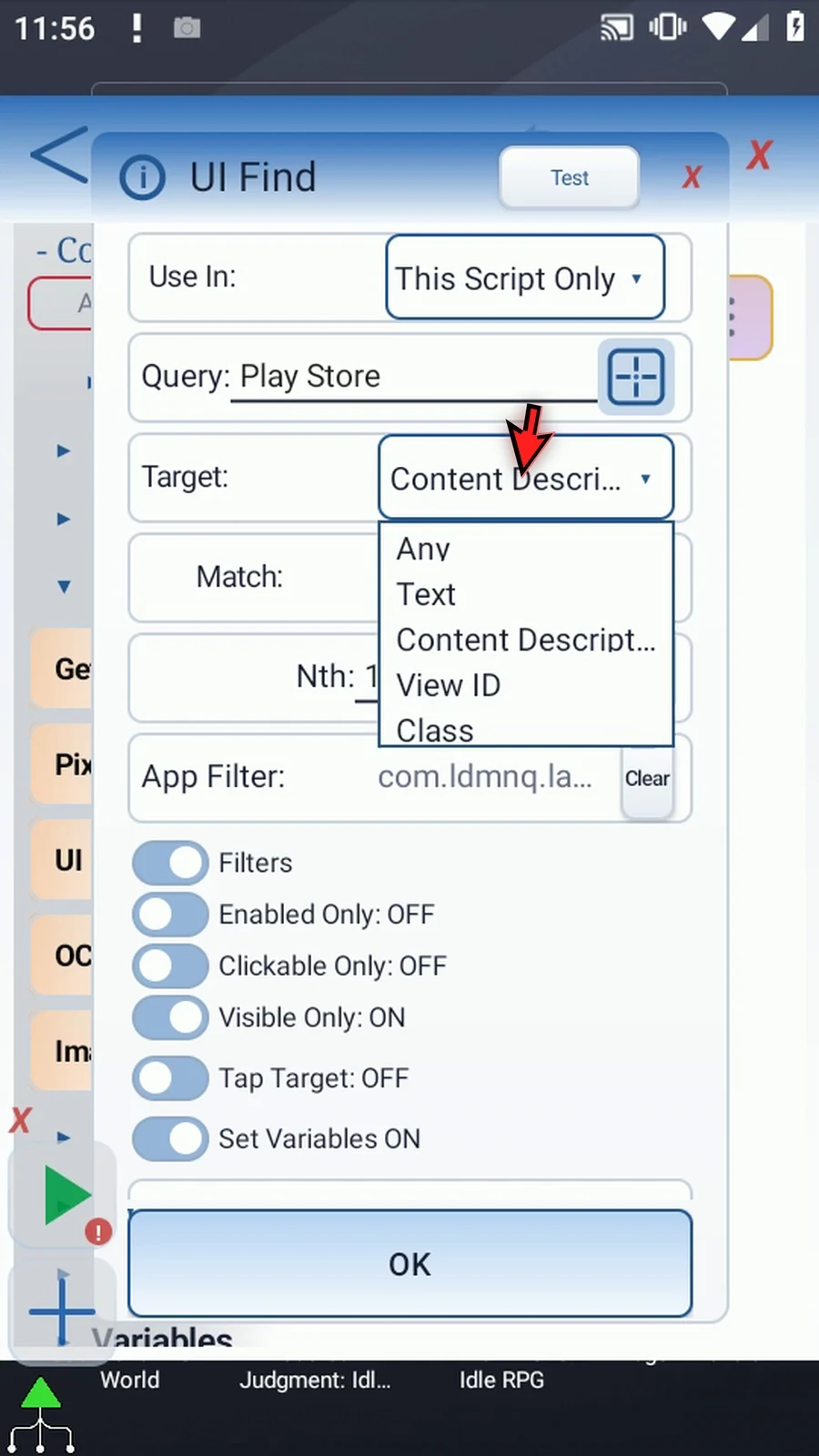
Step 10 Exact matches the complete value. Contains finds a value within longer text. Regex uses a regular expression for a pattern. Keep Exact for Play Store.
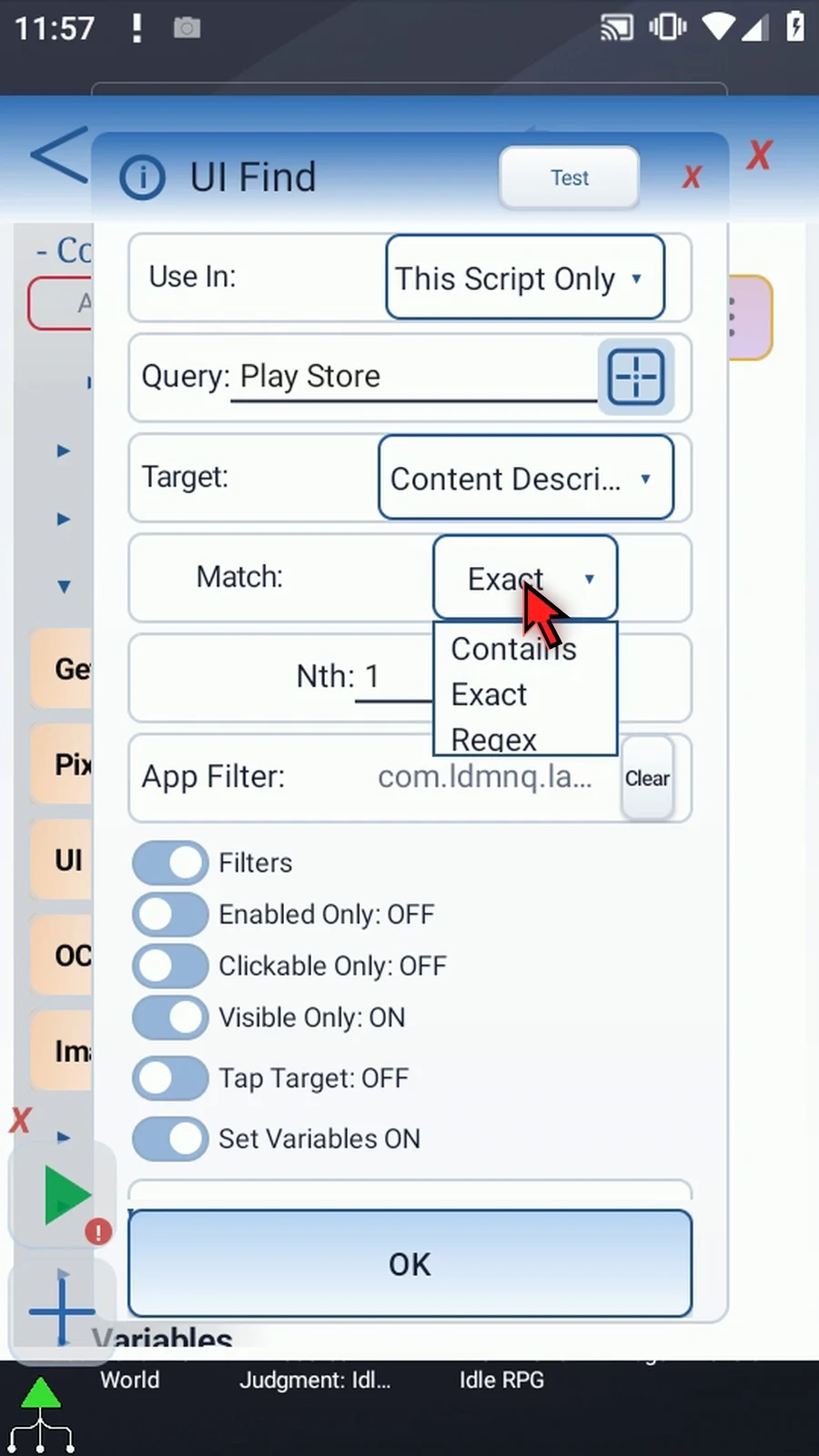
Step 11 Nth chooses a match when several controls qualify. It starts at one and accepts a positive whole-number literal, not a variable. We will keep one.
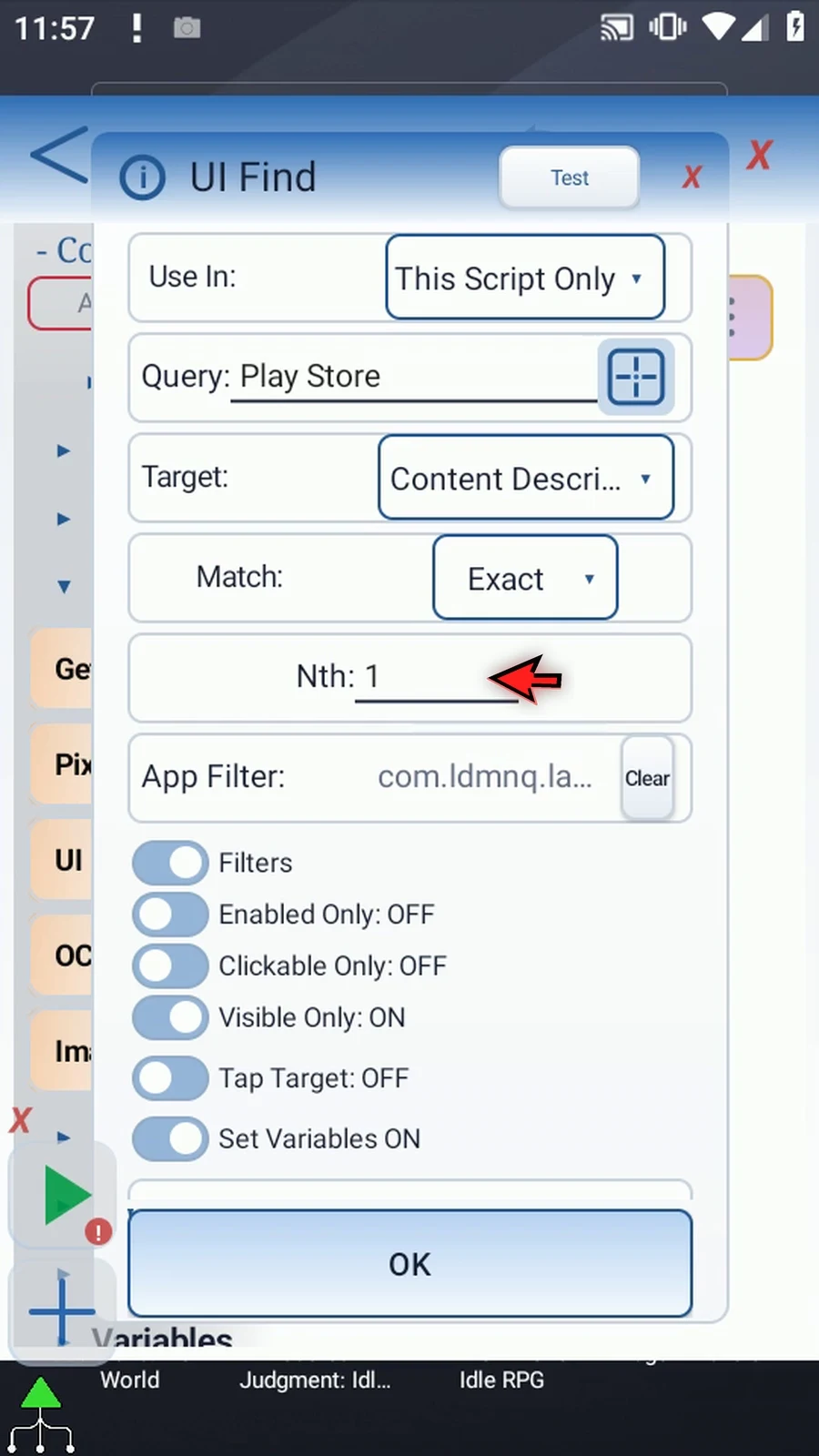
Step 12 App Filter limits the search to one app package. The picker has filled the launcher package. Clear removes that restriction when you need a cross-window search.
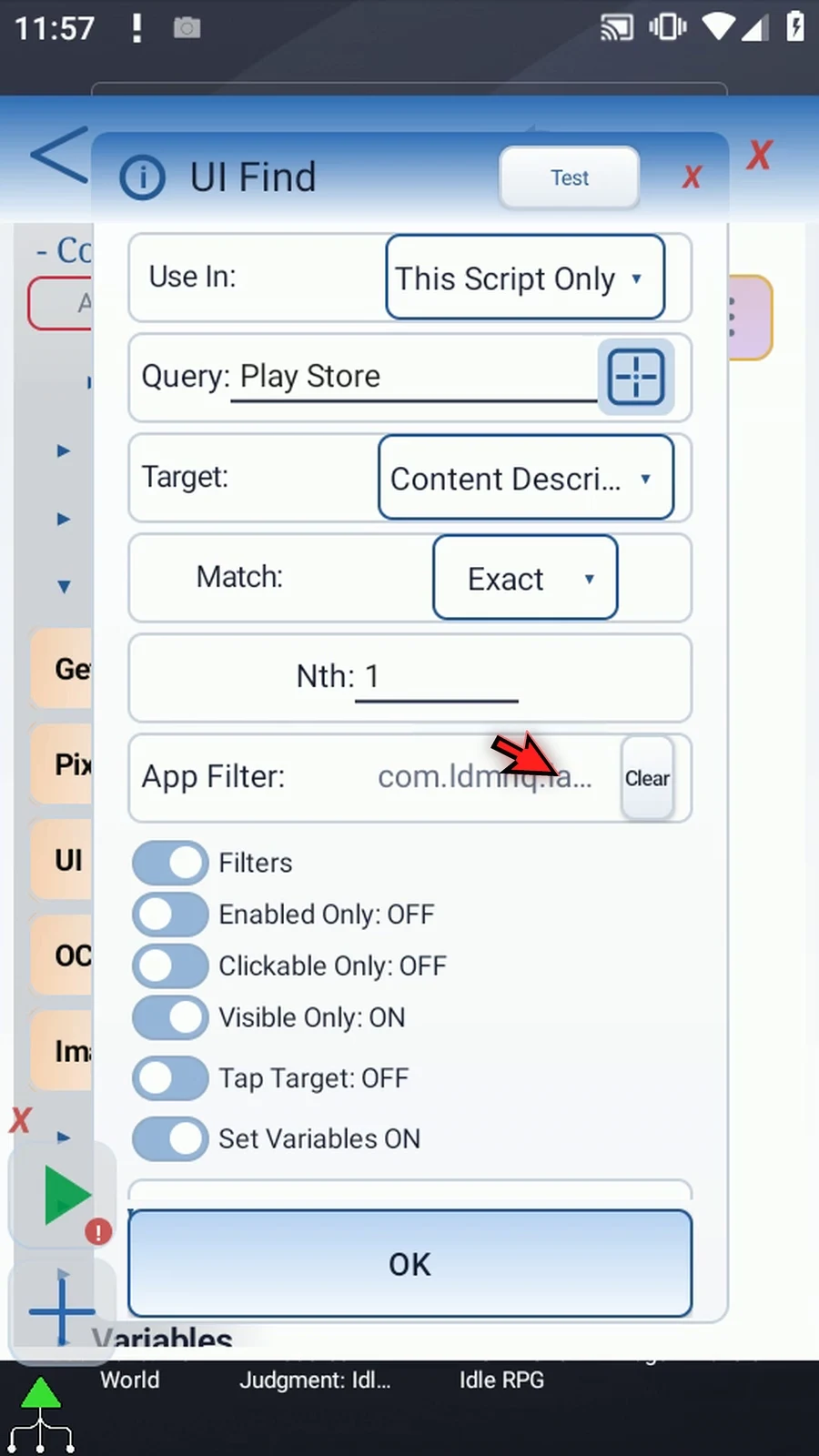
Step 13 The filters can require enabled, clickable, or visible controls. Keep Visible Only on here. Custom drawings, games, and some WebViews may expose little usable information; image matching or OCR may suit those surfaces better.
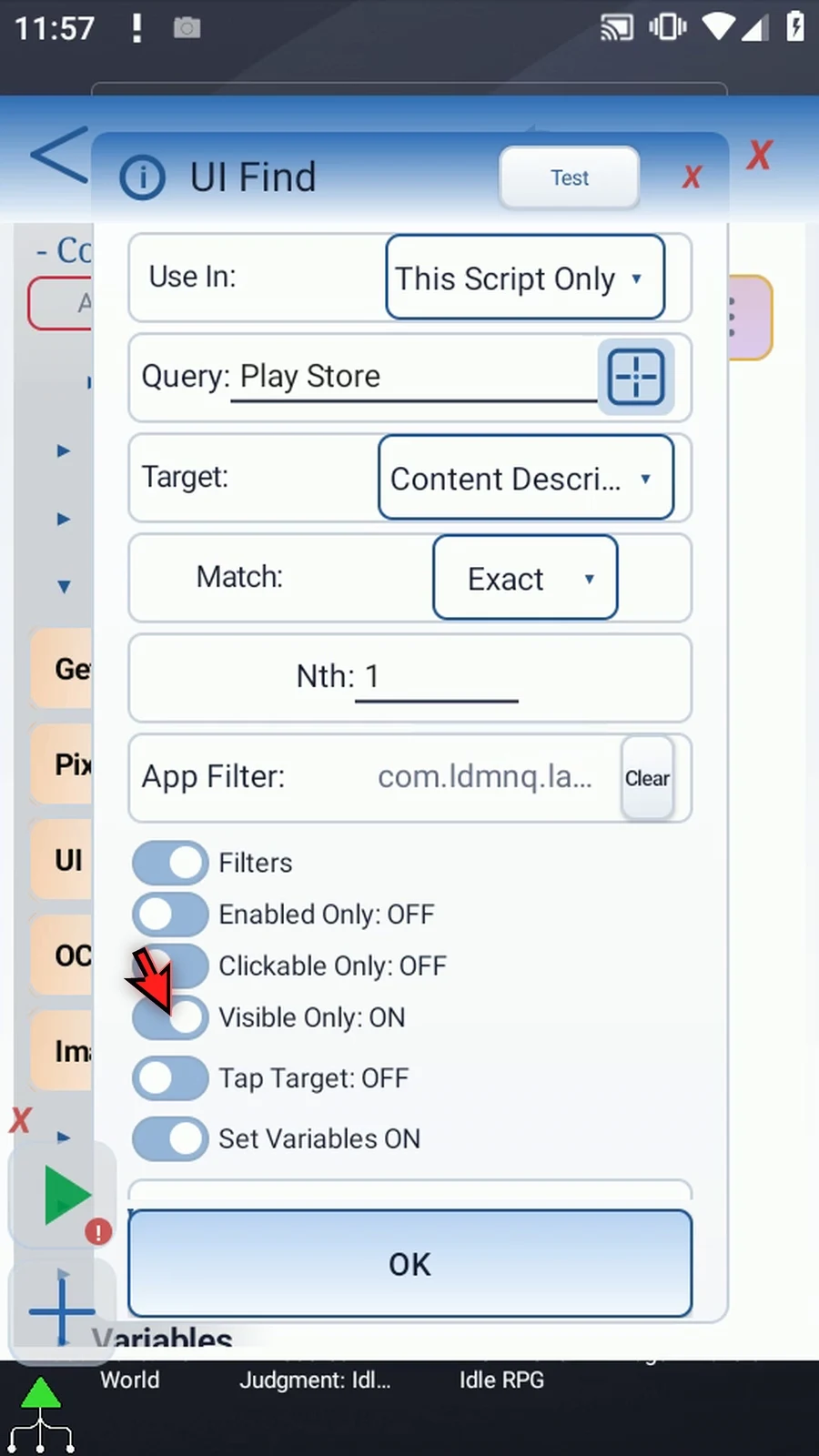
Step 14 Enable Tap Target and keep Normal Tap. This sends a physical tap to the matched control's center. Node Click is covered in the other tab; there are no separate fixed tap coordinates in UI Find.
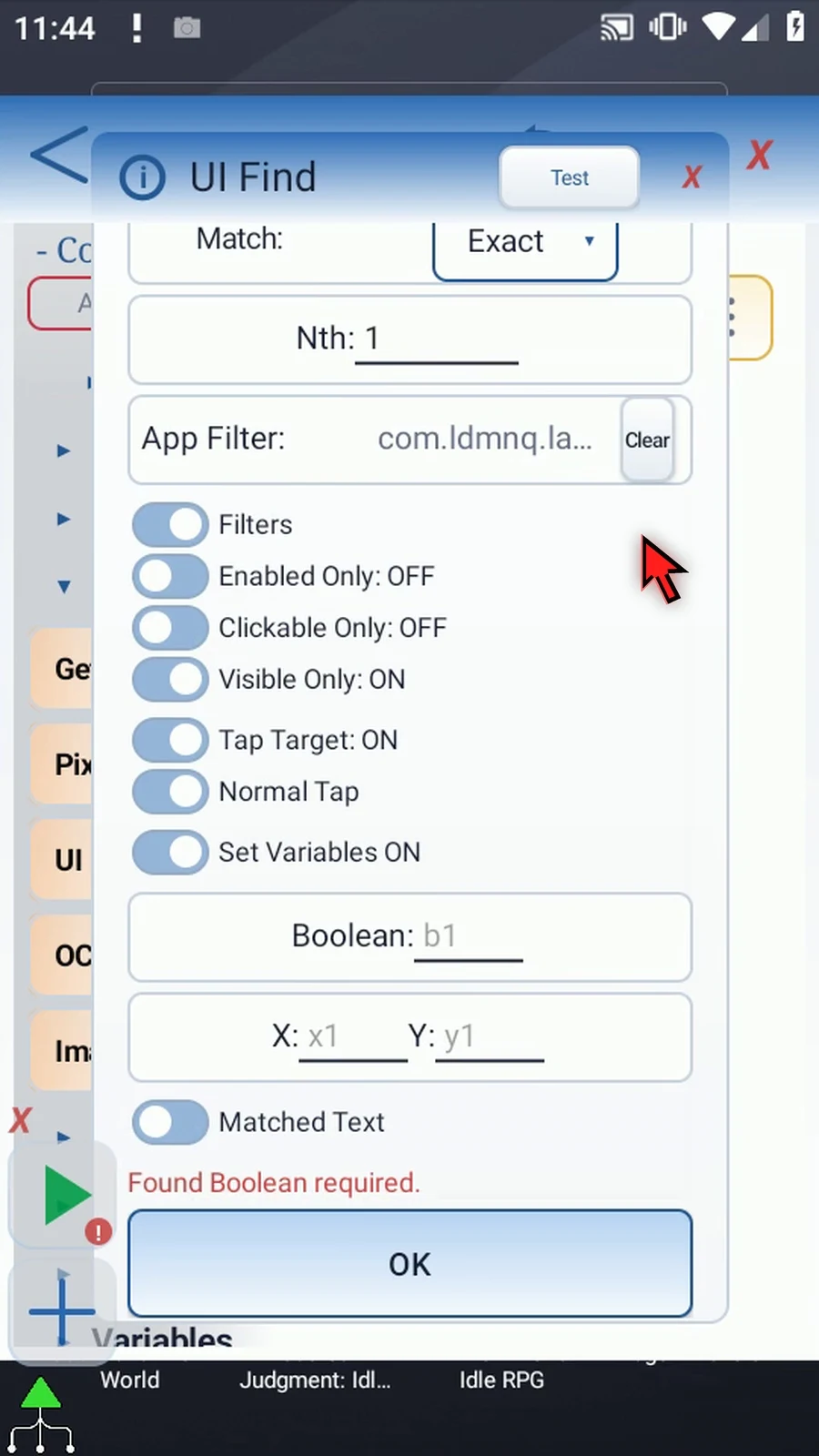
Step 15 Enable Set Variables and enter b one for the Found Boolean. Later commands can use this result to decide what to do next.
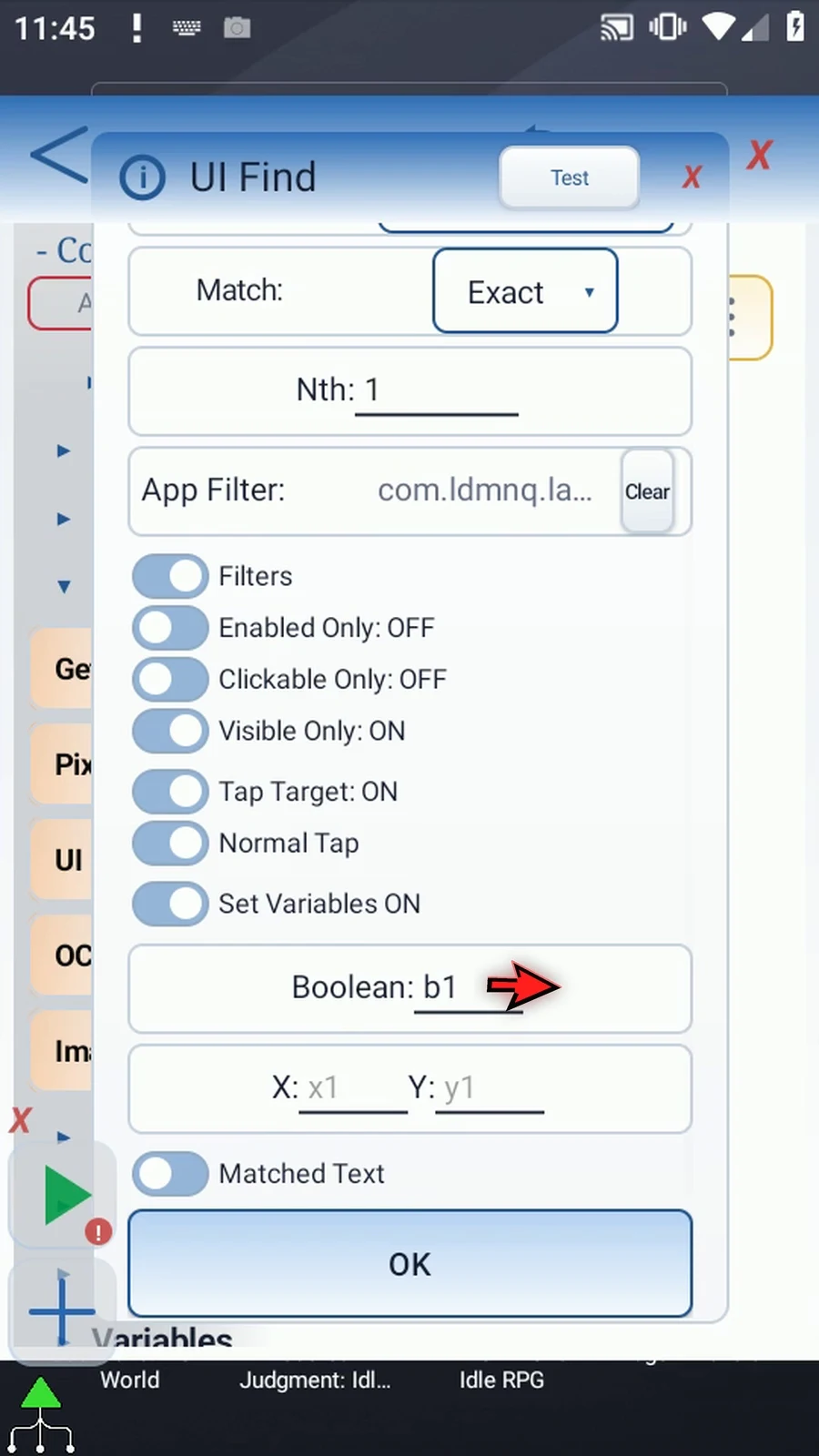
Step 16 Use x one and y one to save the matched center coordinates. These optional Integer outputs let later commands reuse the position.
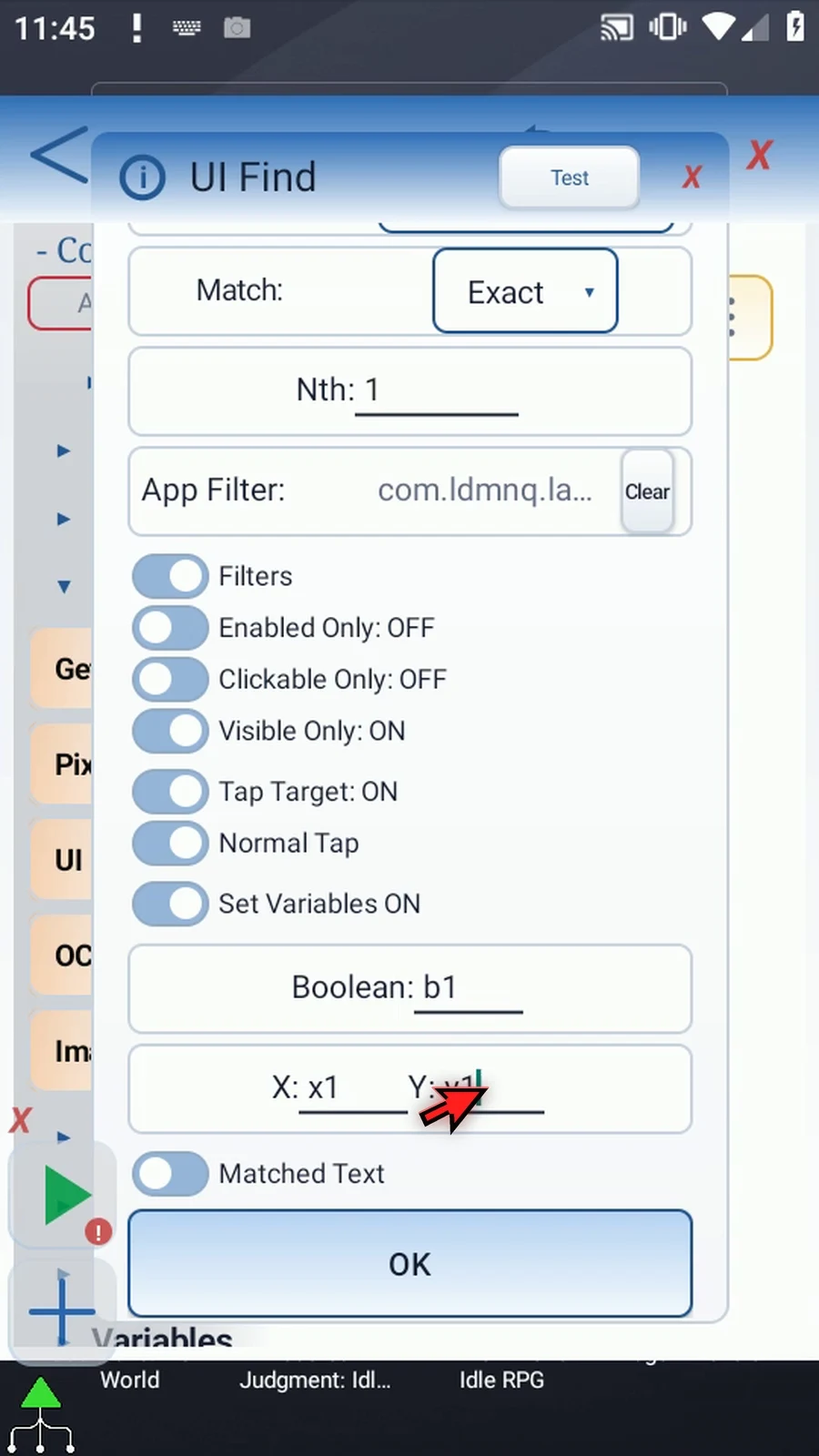
Step 17 Enable Matched Text and enter s one. This String will hold the matched control's text or description, which we can display with PromptMe.
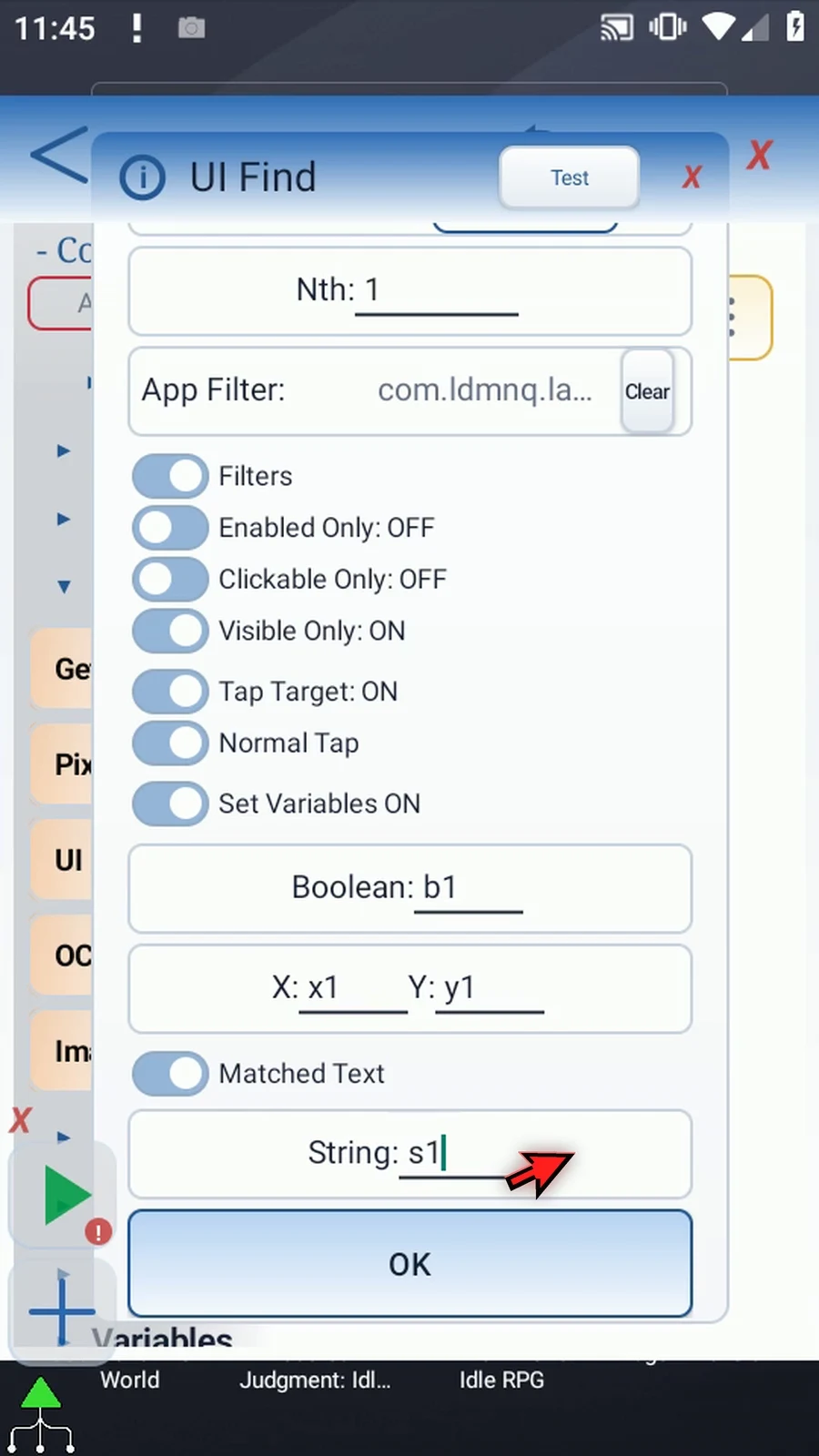
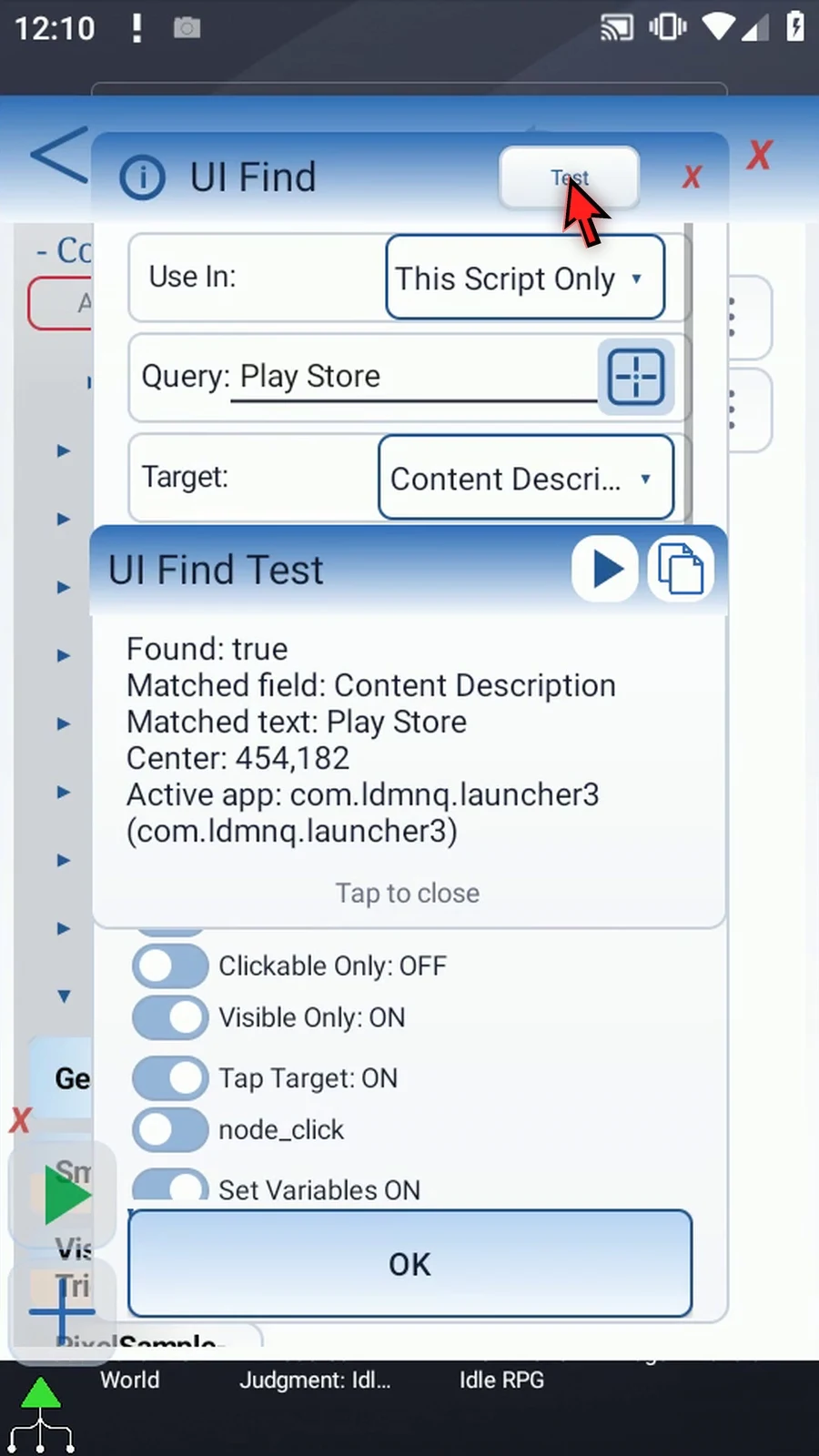
Step 18 Use Test to check the locator before playing. Test reports the match without tapping it or saving your draft.
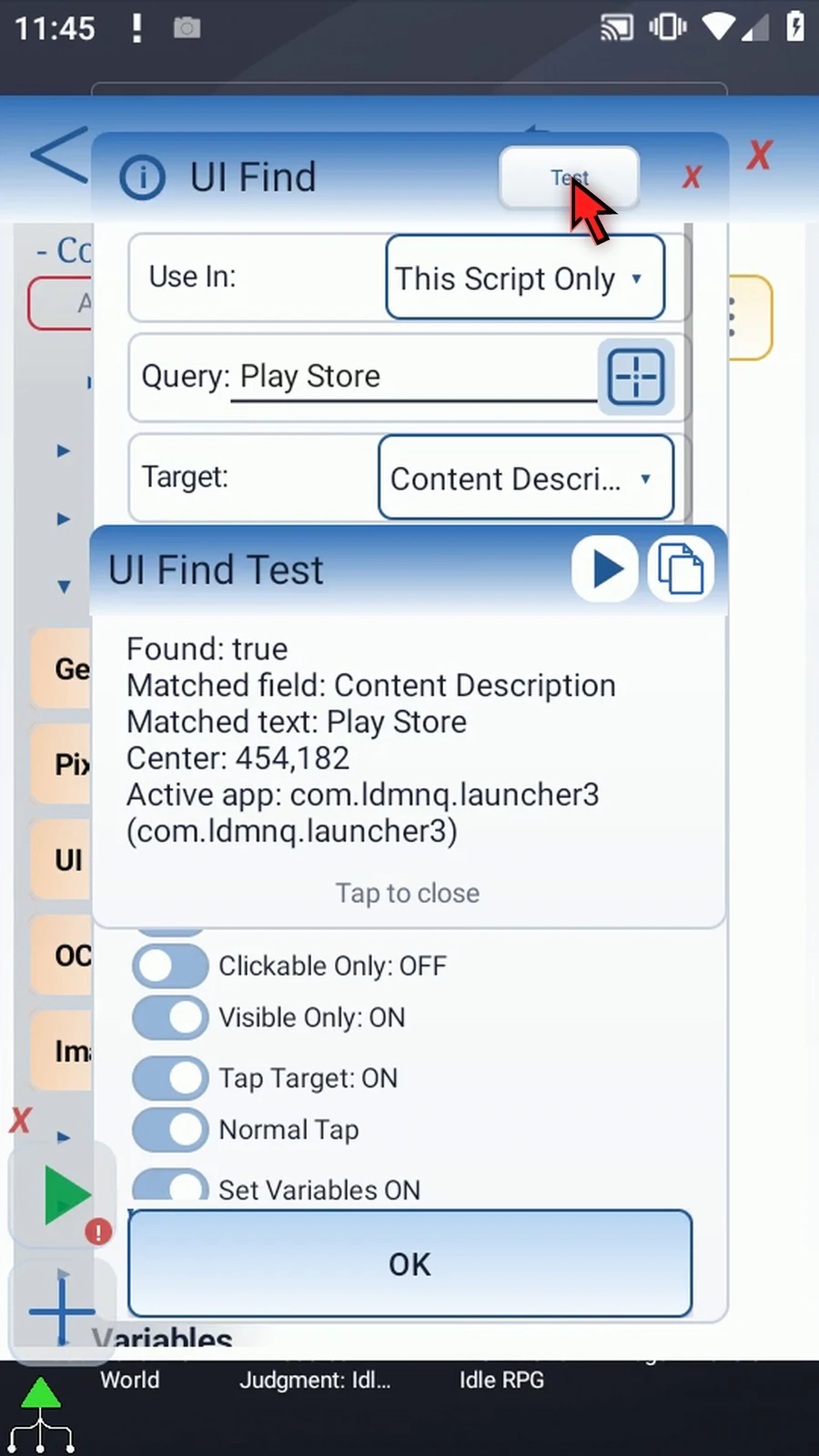
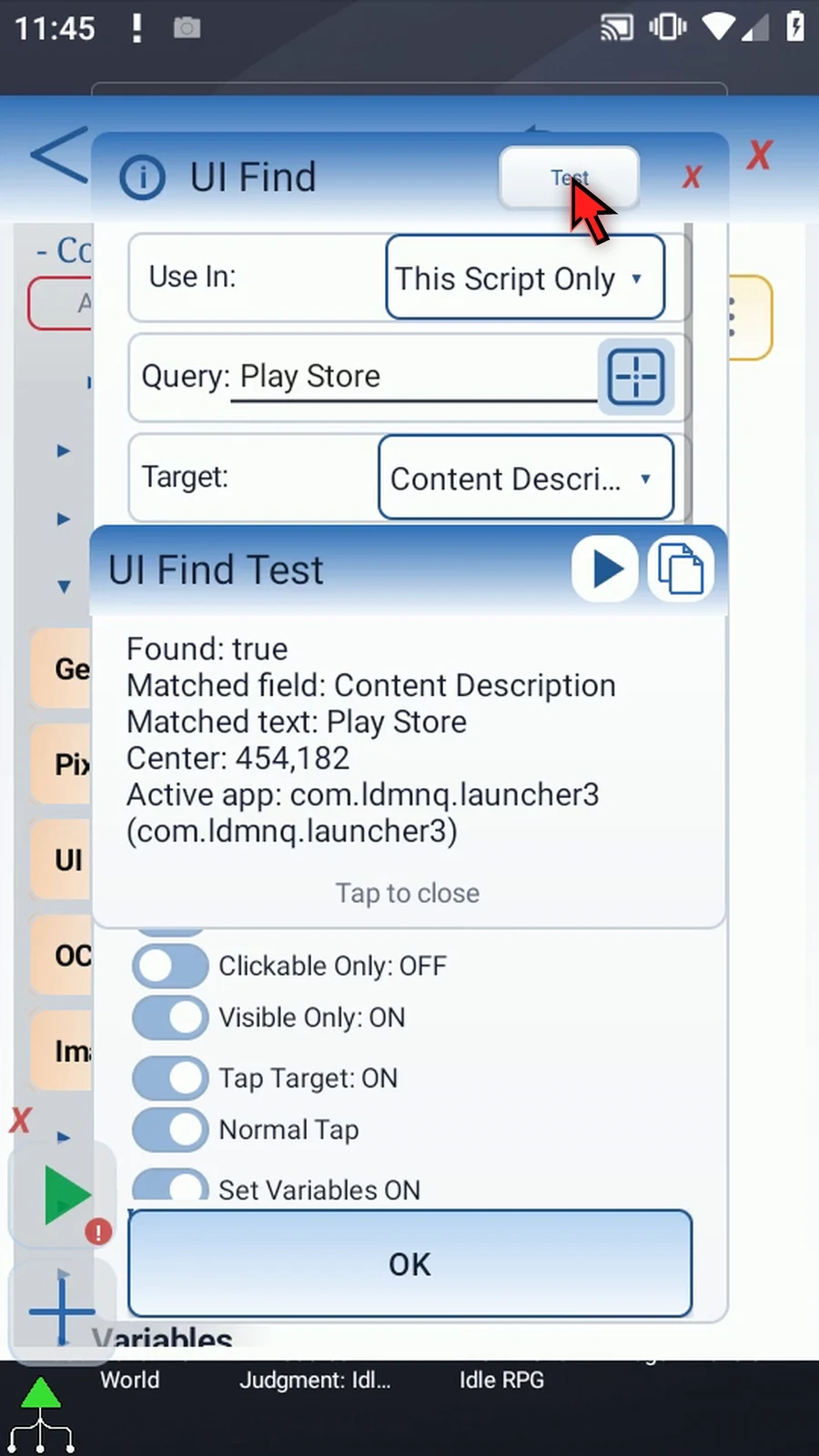
Step 19 The result finds Play Store and shows its description and center. Close this result, then save the command.
Step 20 Now drag PromptMe below UI Find and open it. This supporting command makes the saved matched text visible.
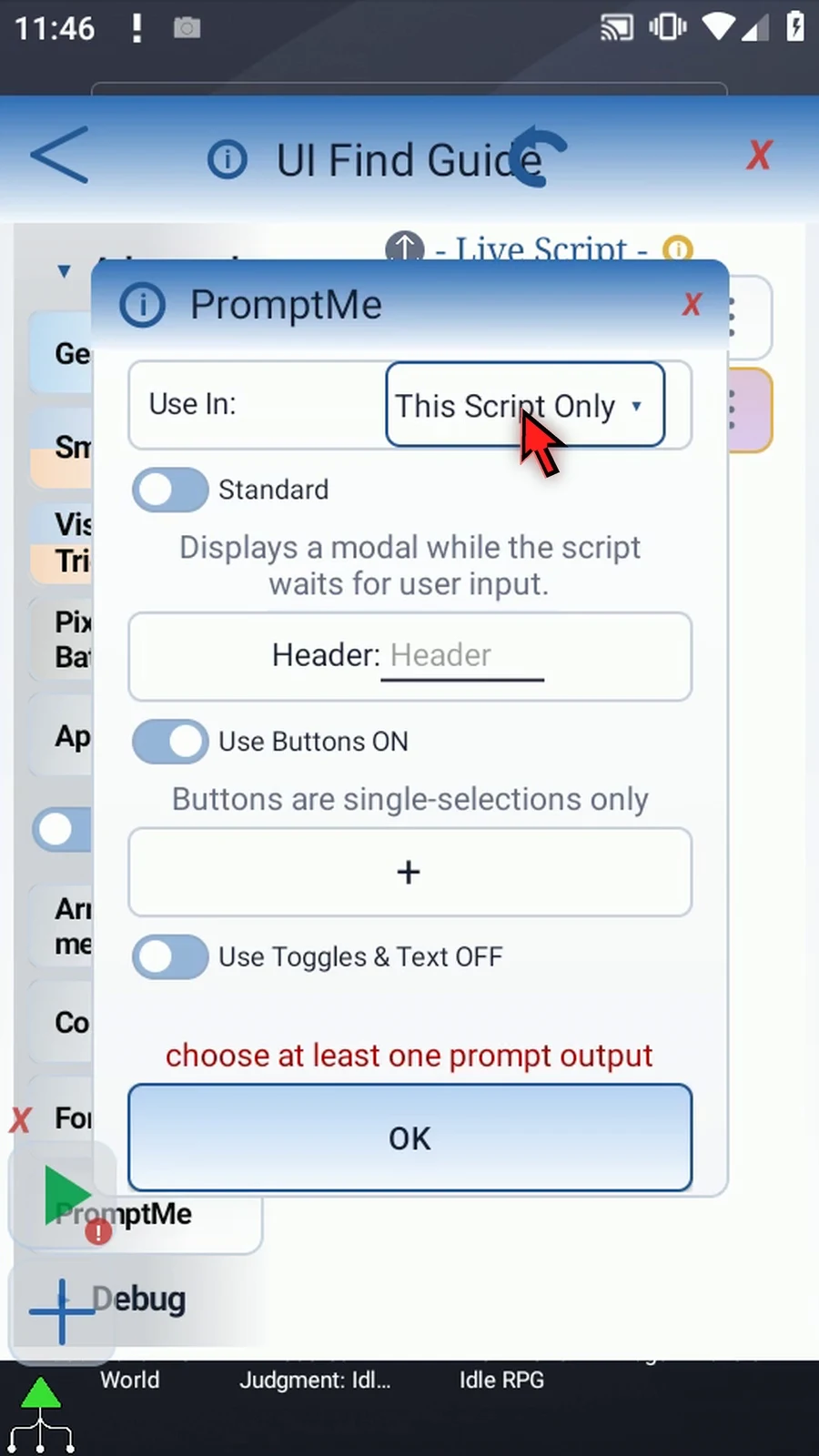
Step 21 Keep Standard mode and enter s one as the header. PromptMe will display the variable's value rather than the variable name.
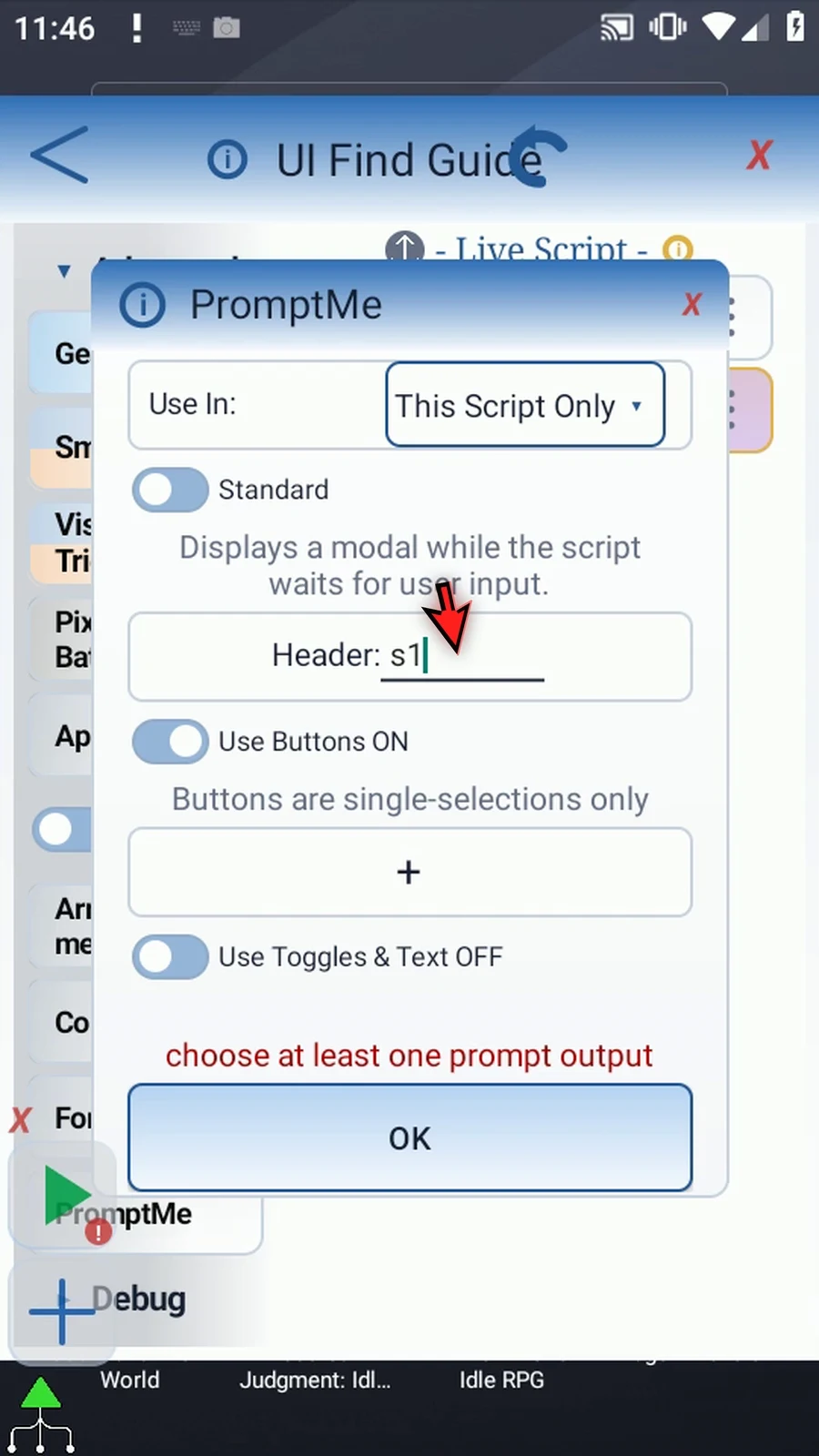
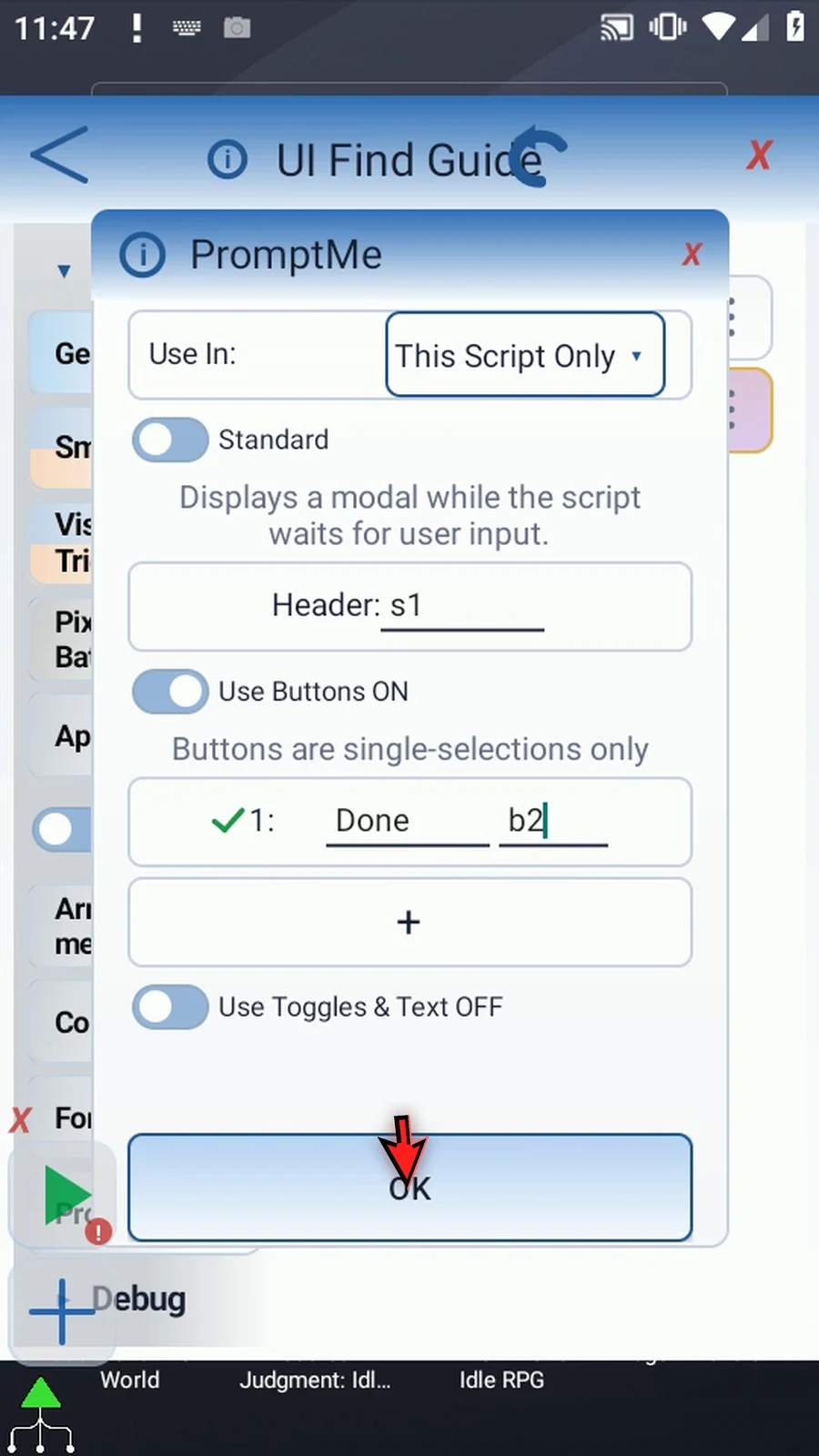
Step 22 Add a Done button with Boolean output b two, then save. This gives us a clear confirmation without replacing UI Find's Found result.
Step 23 The script needs only two commands. UI Find locates and taps the icon, then PromptMe shows the matched name. If another app must open first, add UseAction Open App before UI Find.
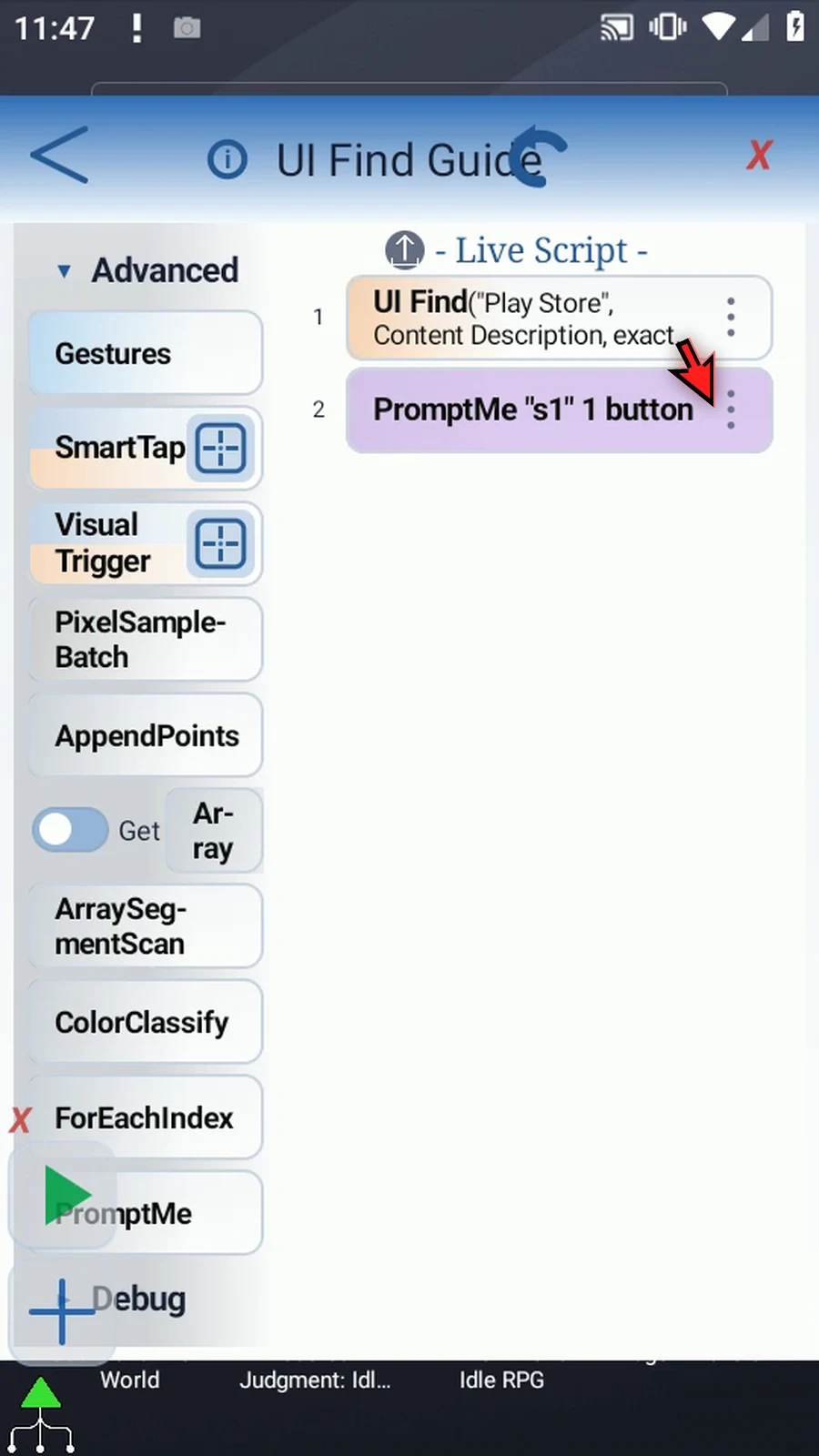
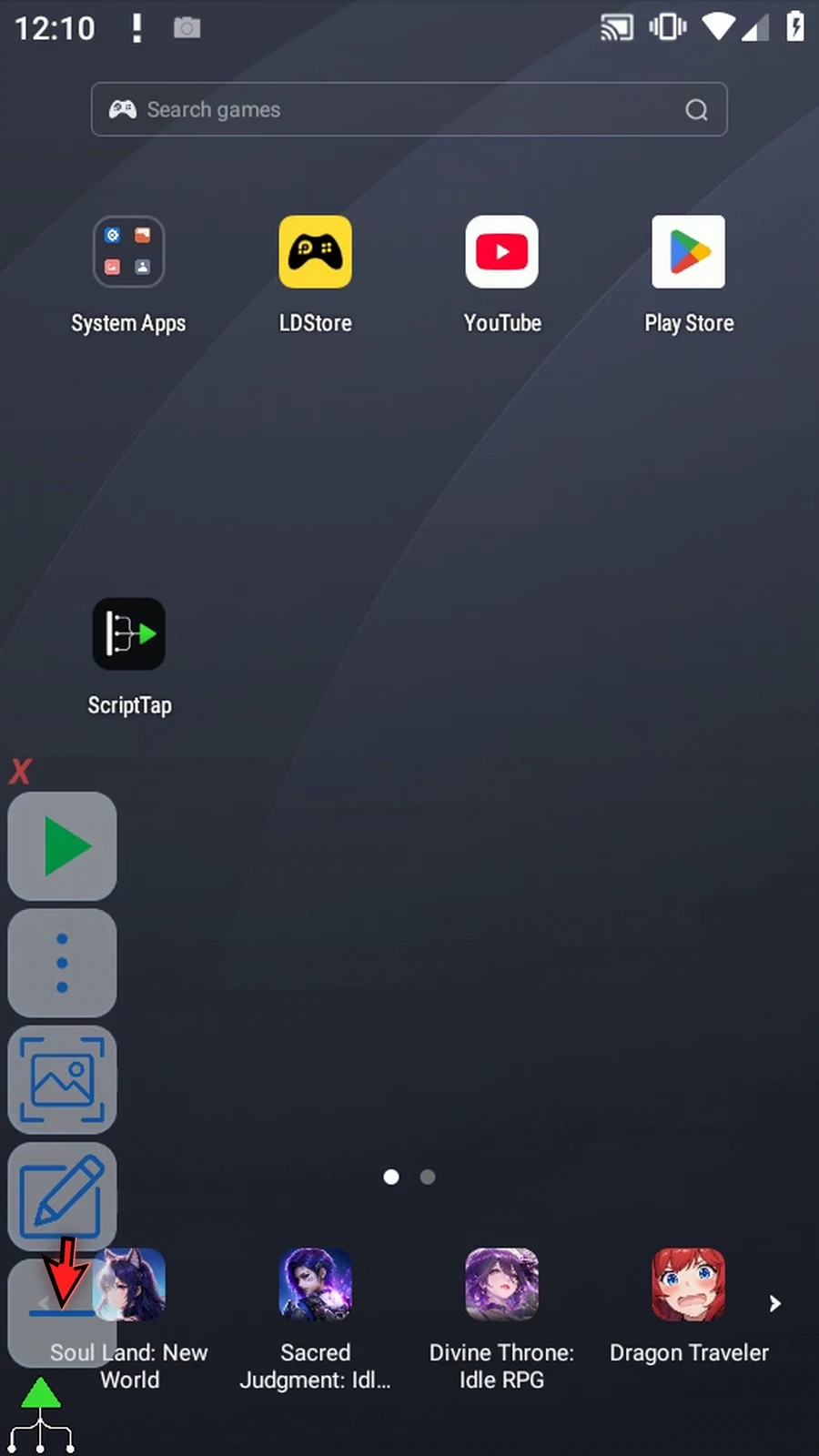
Step 24 Close the editor and expand the main overlay.
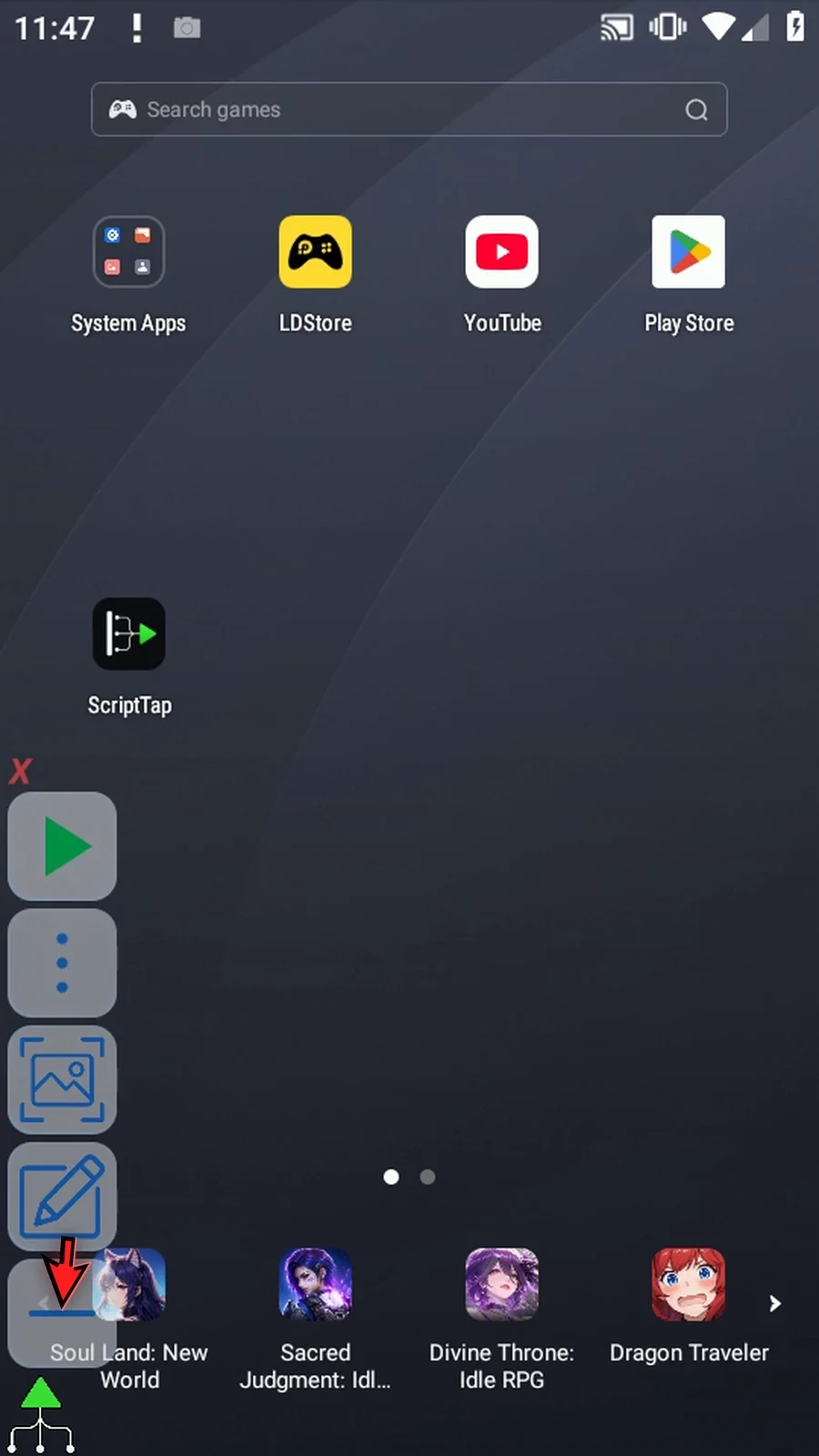
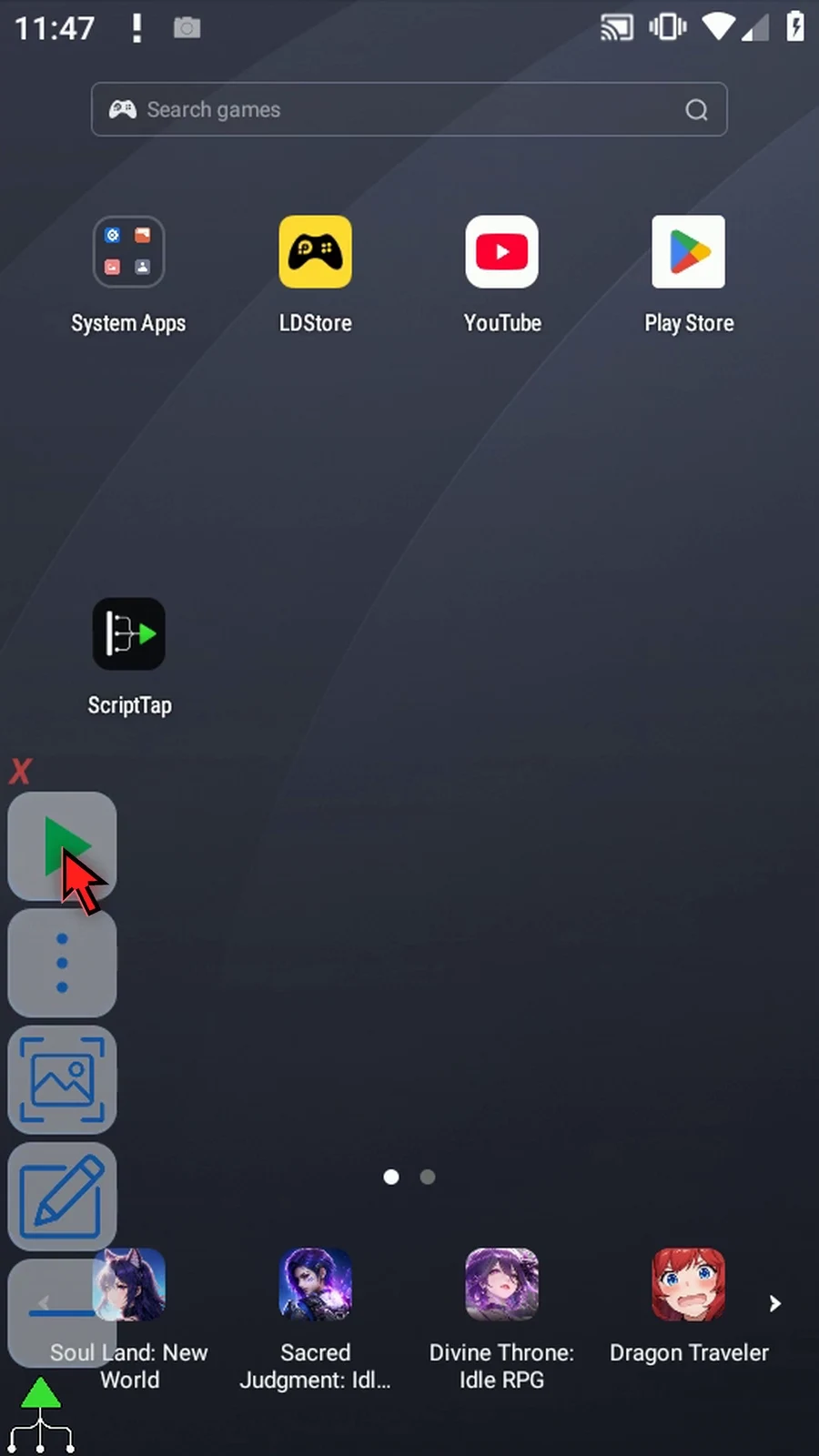
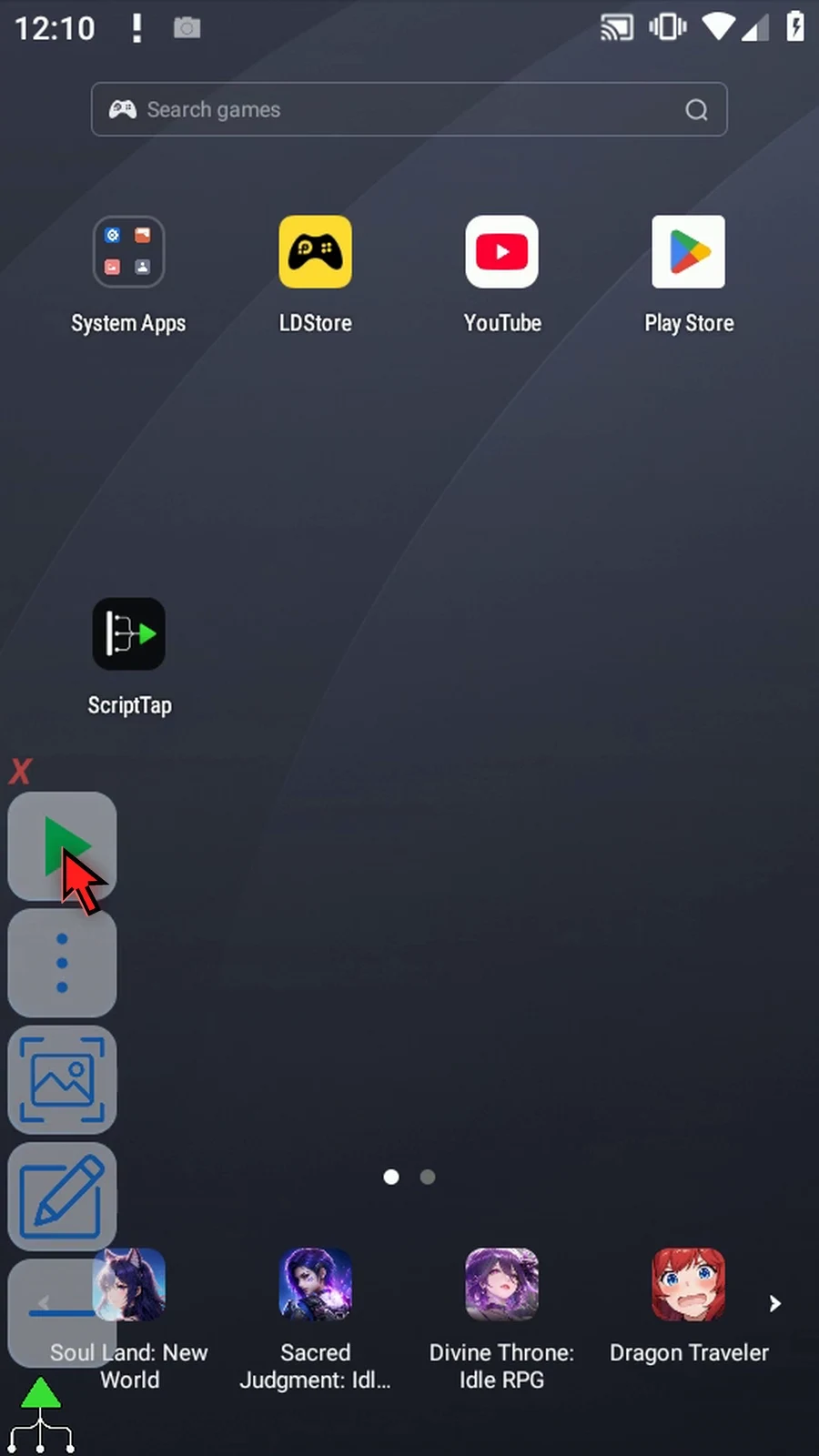
Step 25 When the script is complete, simply use the Play button in the main overlay.
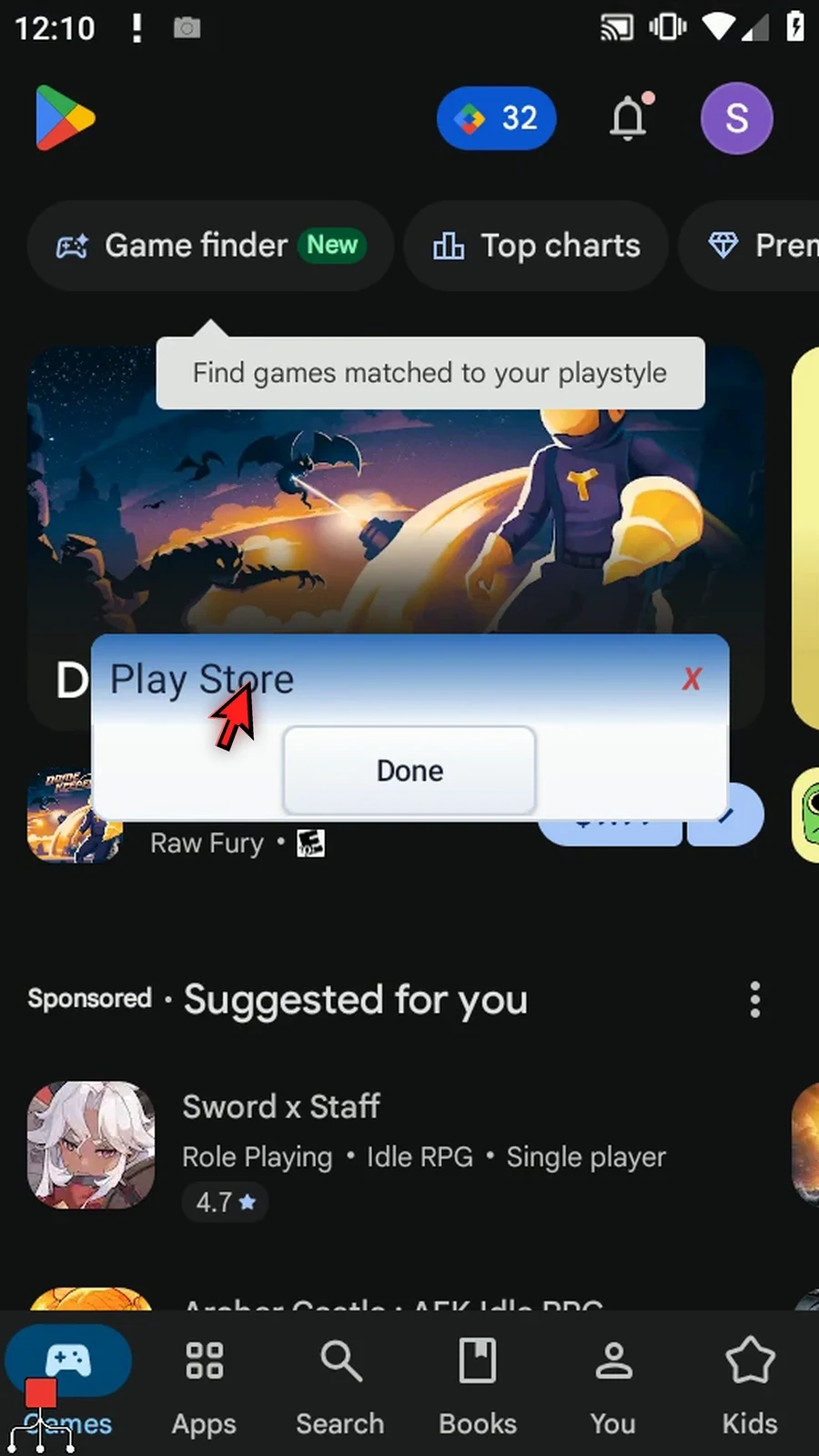
Step 26 Play Store opens, and PromptMe displays Play Store from s one. Choose Done to confirm the result.
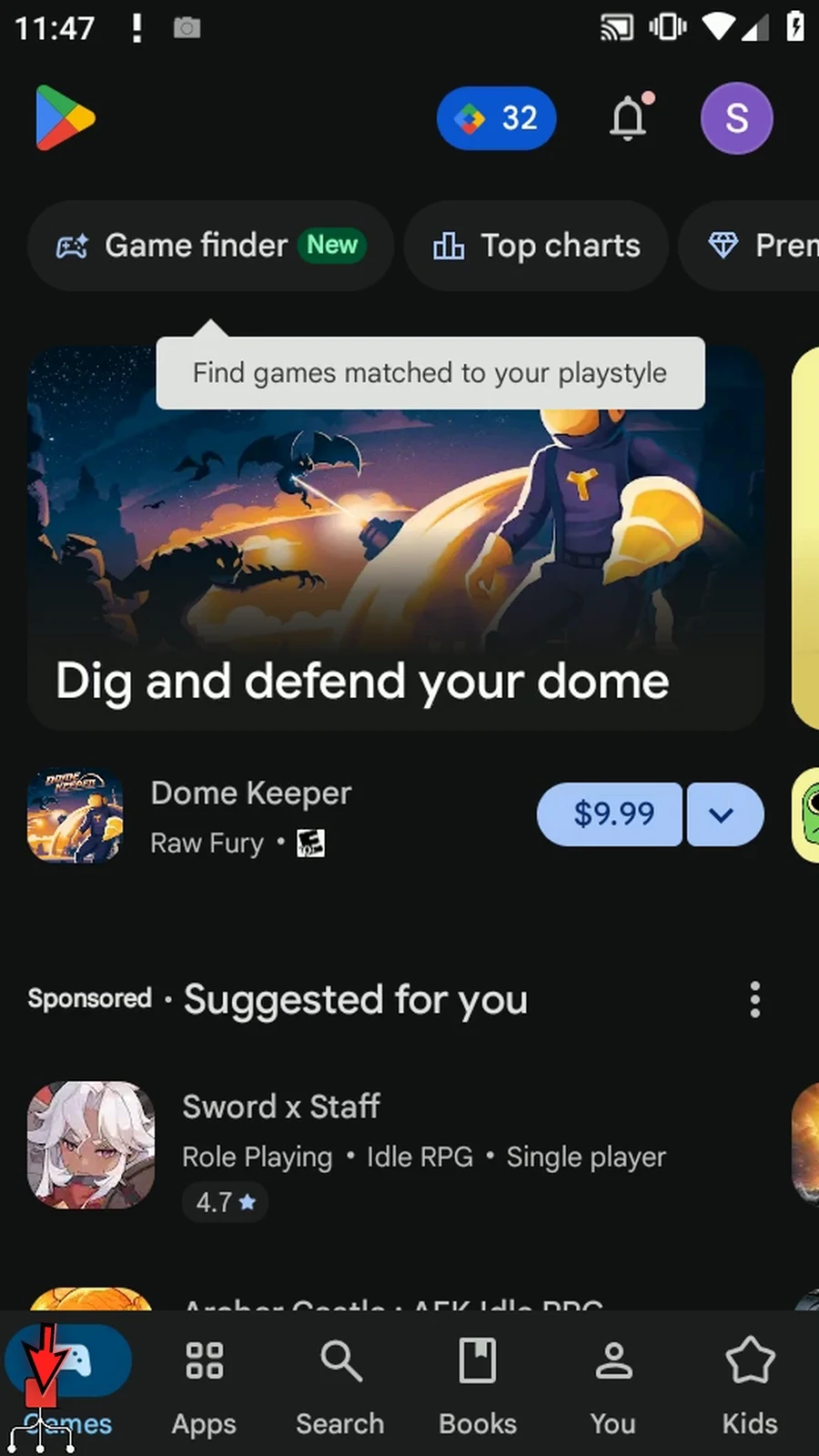
Step 27 The script finishes automatically after confirmation. UI Find is useful when an app exposes a meaningful control you can identify without relying on a fixed screen position.
Node Click activates the matched control through Android Accessibility instead of sending a physical center tap. The current editor labels this option node_click.
This follow-up reuses the Intro’s Play Store locator and PromptMe confirmation. Only the tap mode changes. The click is sent to the matched node or its nearest enabled click-capable ancestor; there is no gesture fallback. The target app must expose an appropriate action. Test still performs no tap.
Node Click
Step-by-step guide
Step 01 Node Click activates a matched Android control through Accessibility instead of sending a physical screen tap. We will reuse the Play Store locator and PromptMe confirmation from the Intro guide.
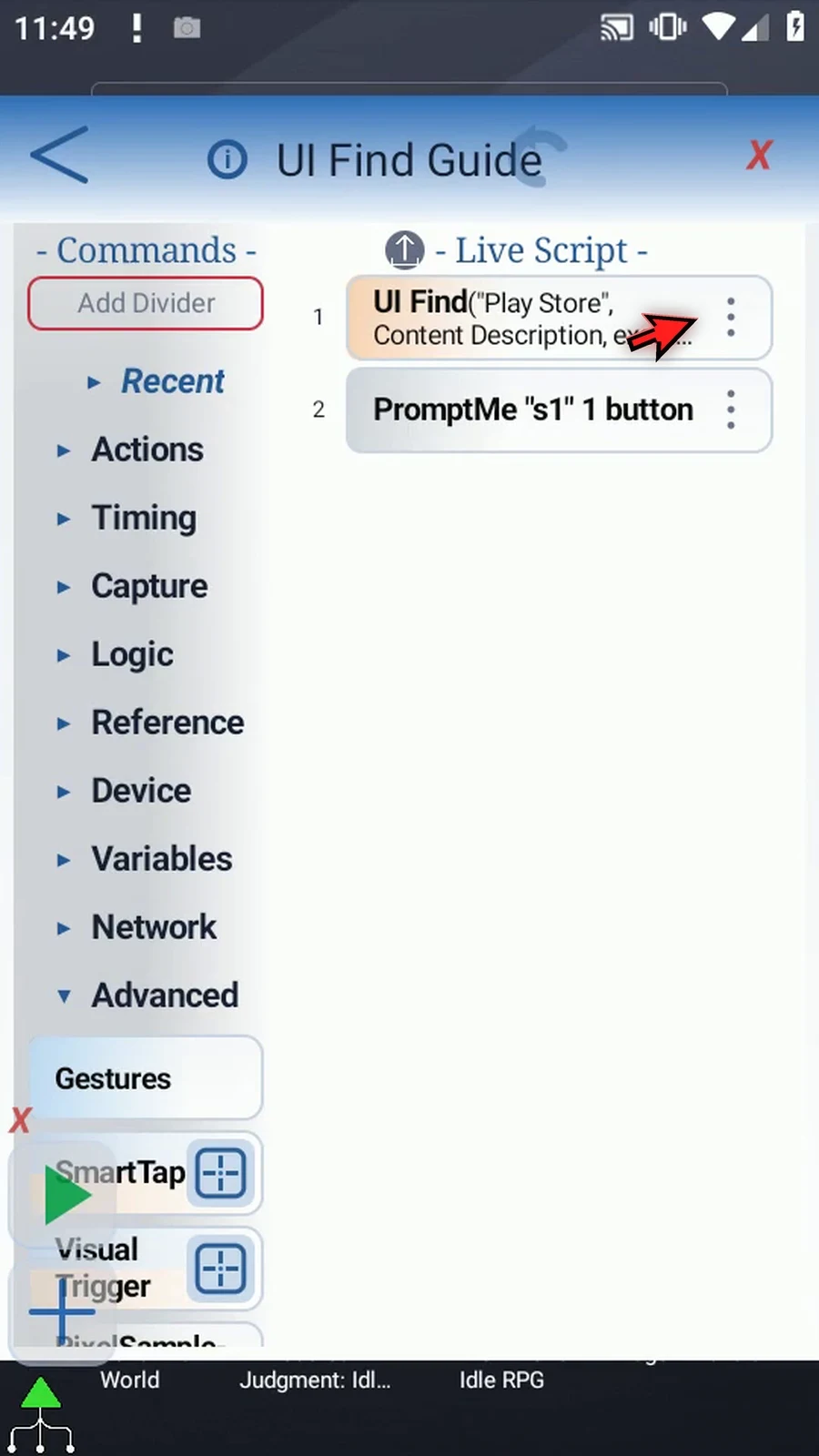
Step 02 Open UI Find. Its query, app filter, and saved outputs stay the same.
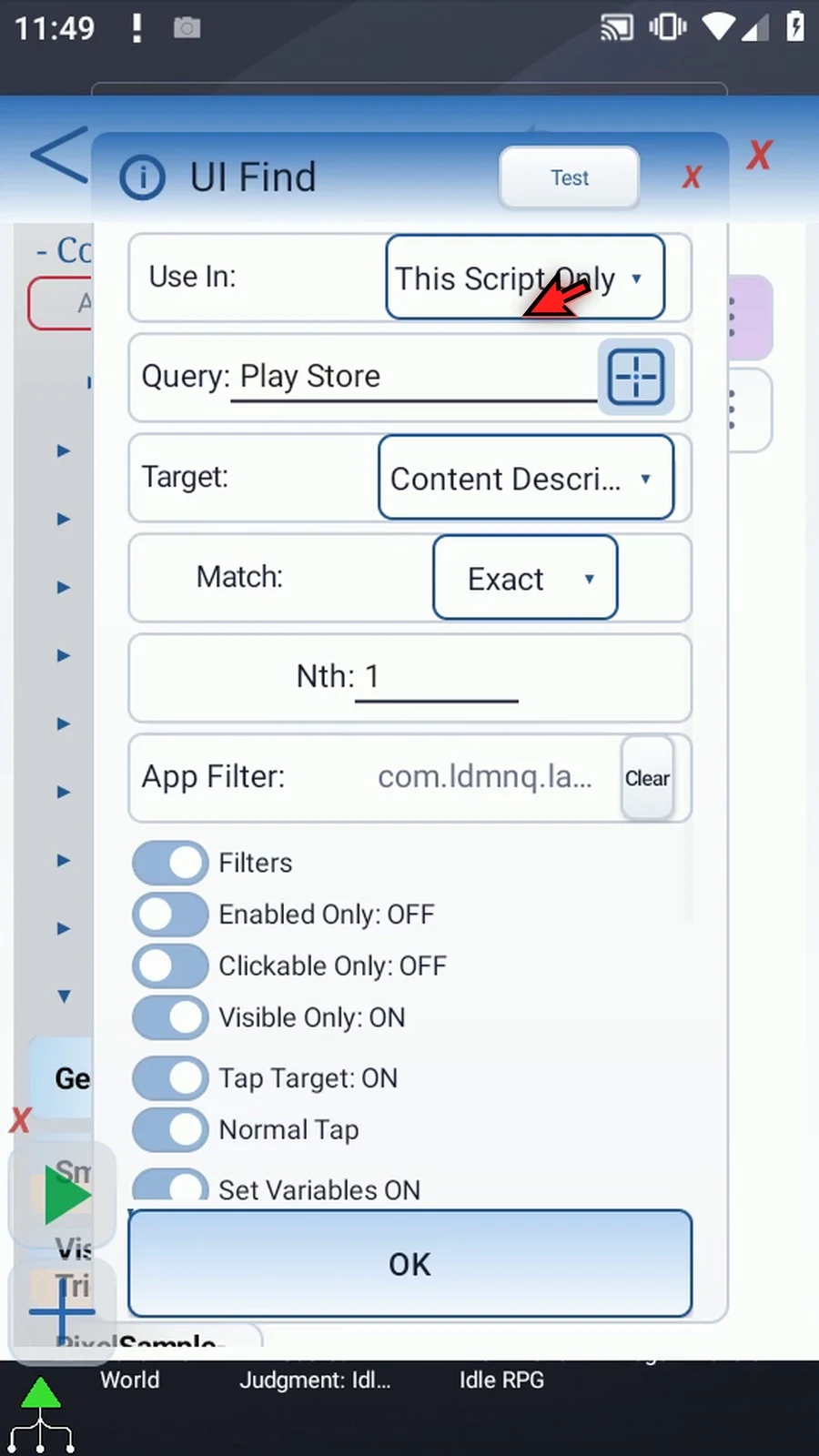
Step 03 Under Tap Target, switch Normal Tap to Node Click, shown here as node underscore click.
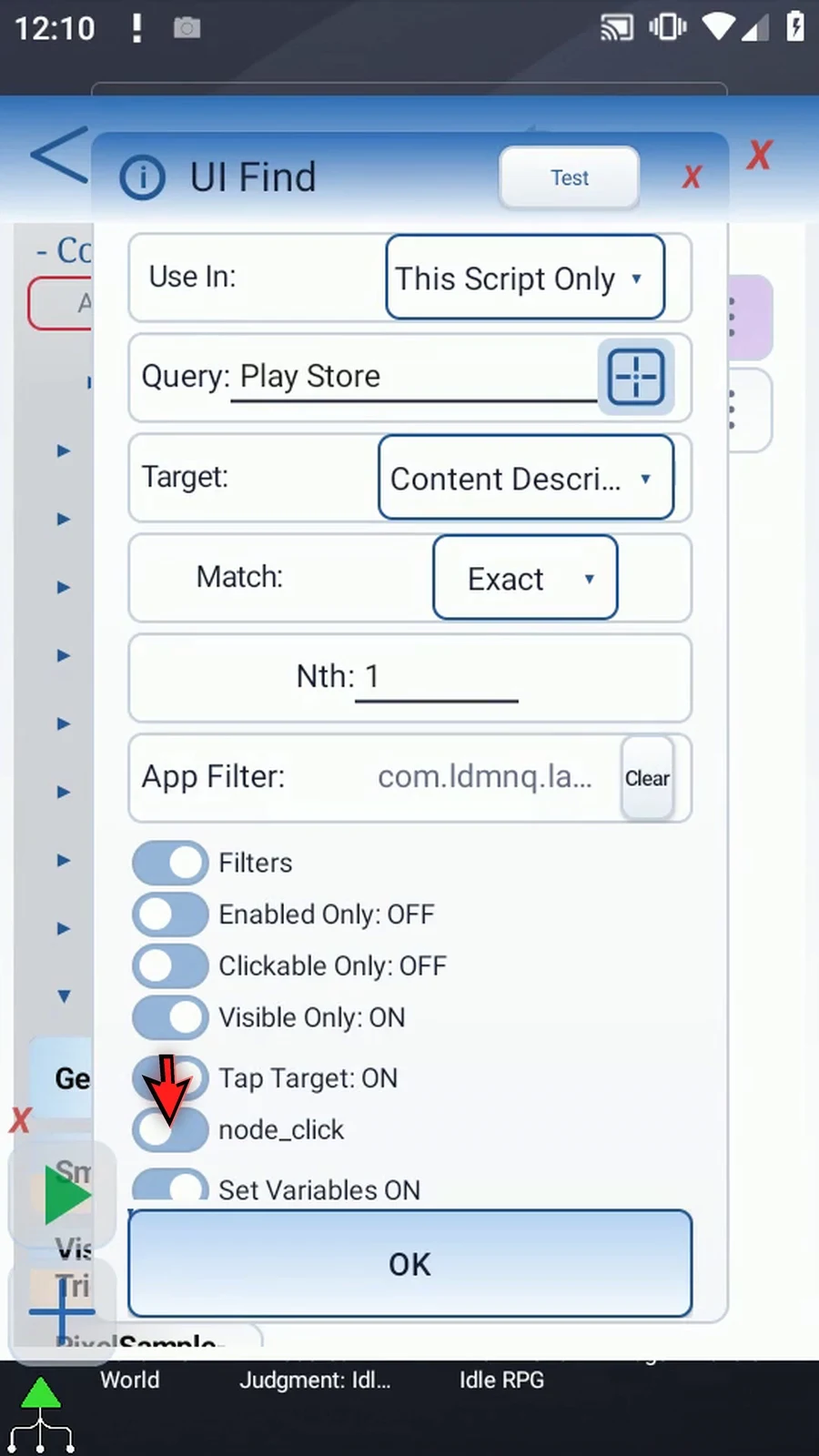
Step 04 This requests the control's click action, or that of its nearest enabled clickable ancestor. It does not fall back to a gesture tap. The target app must expose a suitable click action.
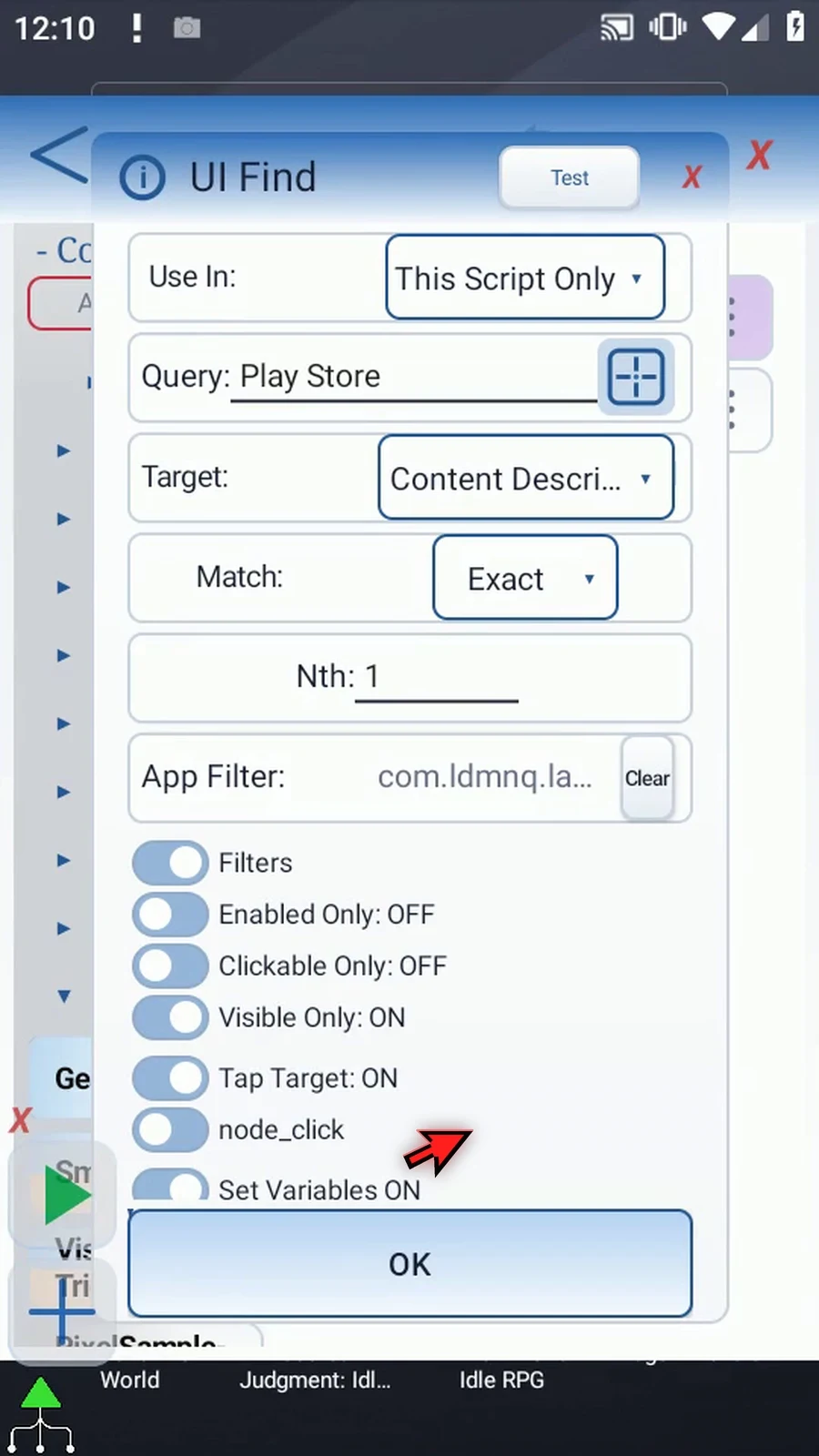
Step 05 Test still checks matching without activating the control. The neutral Play Store result confirms the locator; close it and save.
Step 06 Close the editor and expand the main overlay.
Step 07 When the script is complete, simply use the Play button in the main overlay.
Step 08 The app opens through Node Click, and PromptMe displays the same matched name. Choose Done to finish.
Step 09 The script finishes automatically. Choose Normal Tap when you need a physical center tap, or Node Click when the app provides an appropriate Accessibility action.