Command video guide
JSON
JSON lets later script steps work with structured data: extract a typed value, check whether a path exists, measure length, or return formatted JSON text. This introduction builds the shortest useful example: SetVariable prepares the JSON String, JSON extracts one property, and PromptMe displays its result.
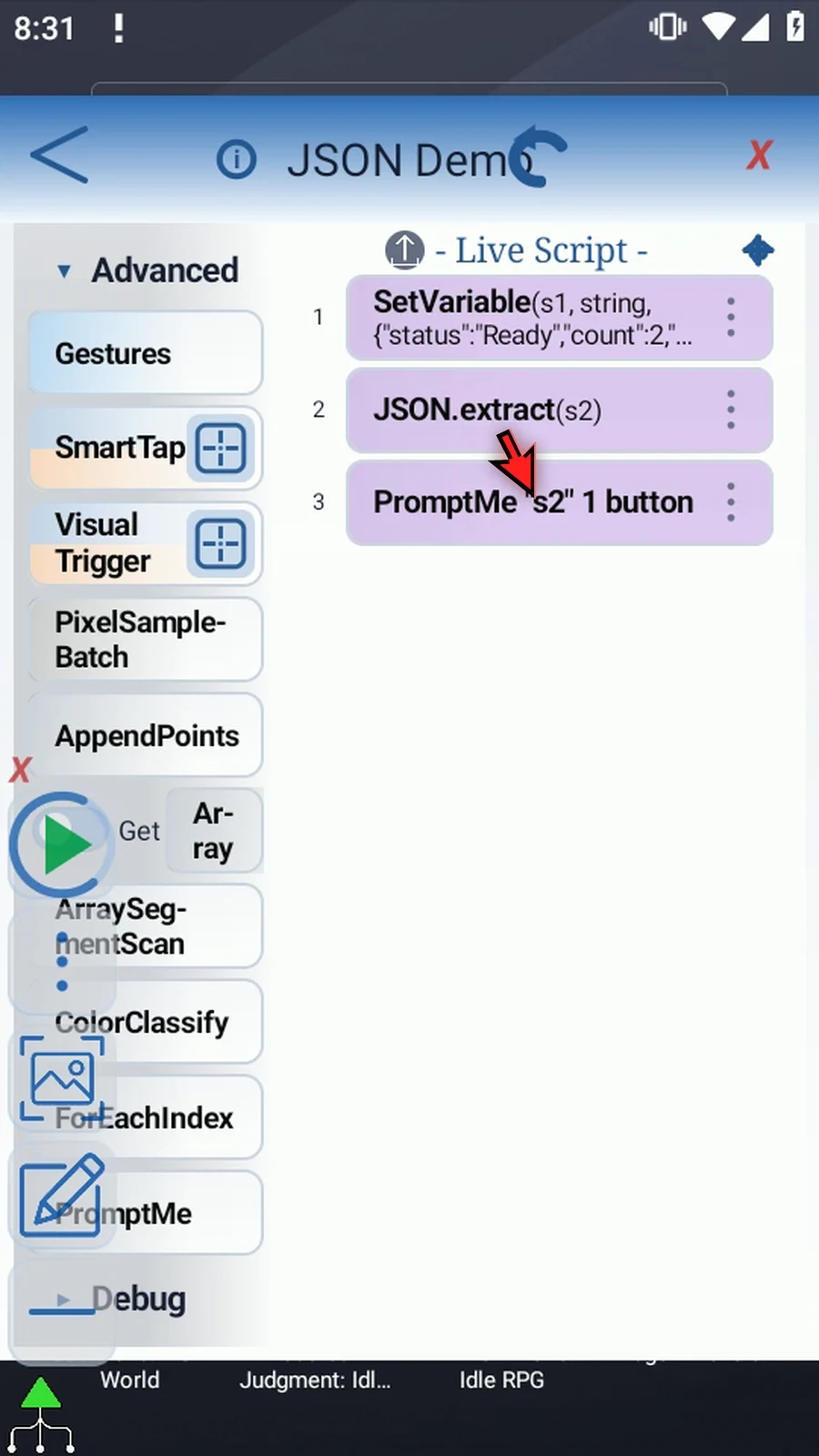
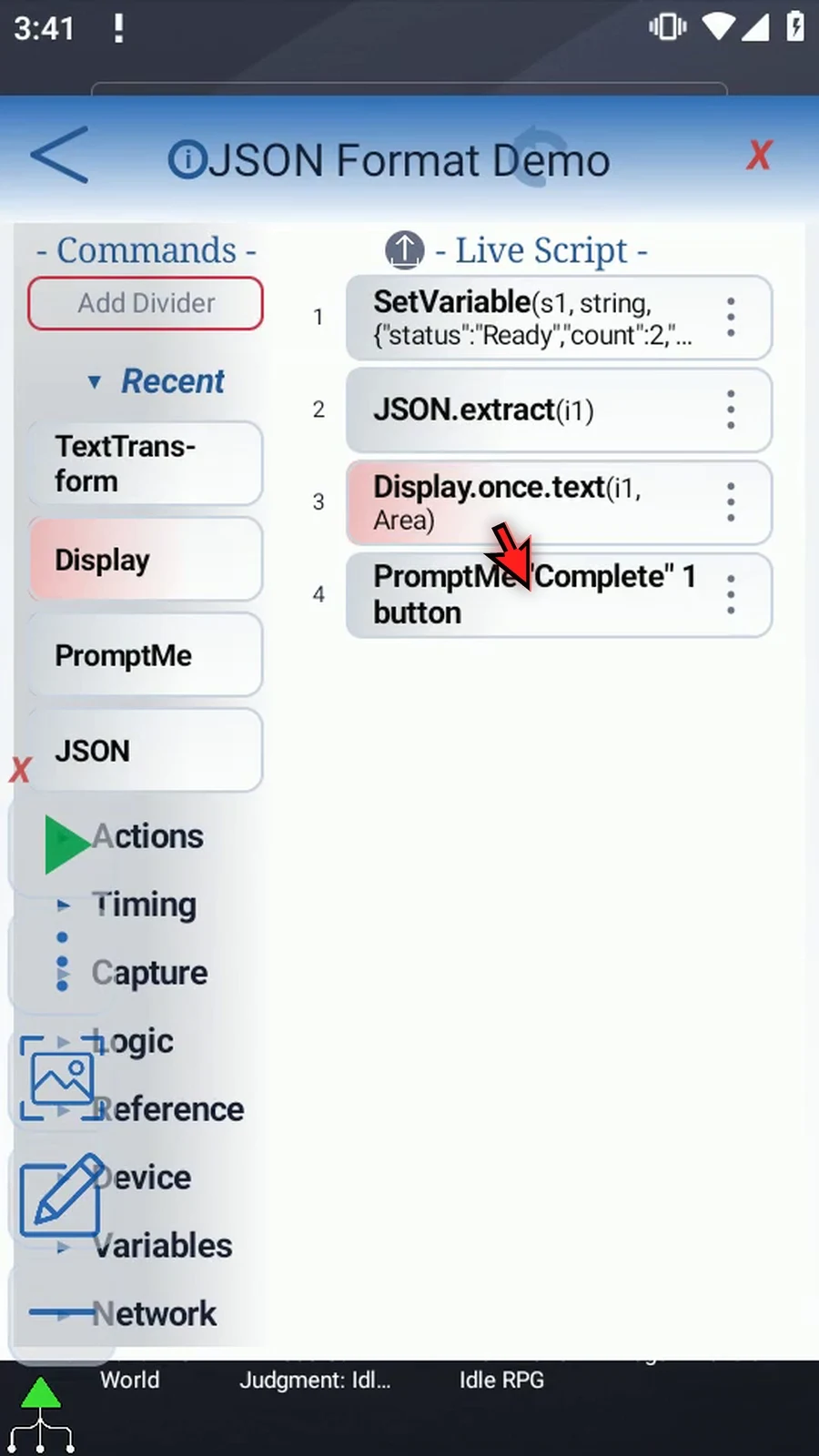
Create and rename a new Blank script. Manually drag all three commands into the live script in this order: SetVariable → JSON → PromptMe. Do not edit an existing script.
In SetVariable, keep Single and This Script Only, select String, name it s1, and enter this exact example:
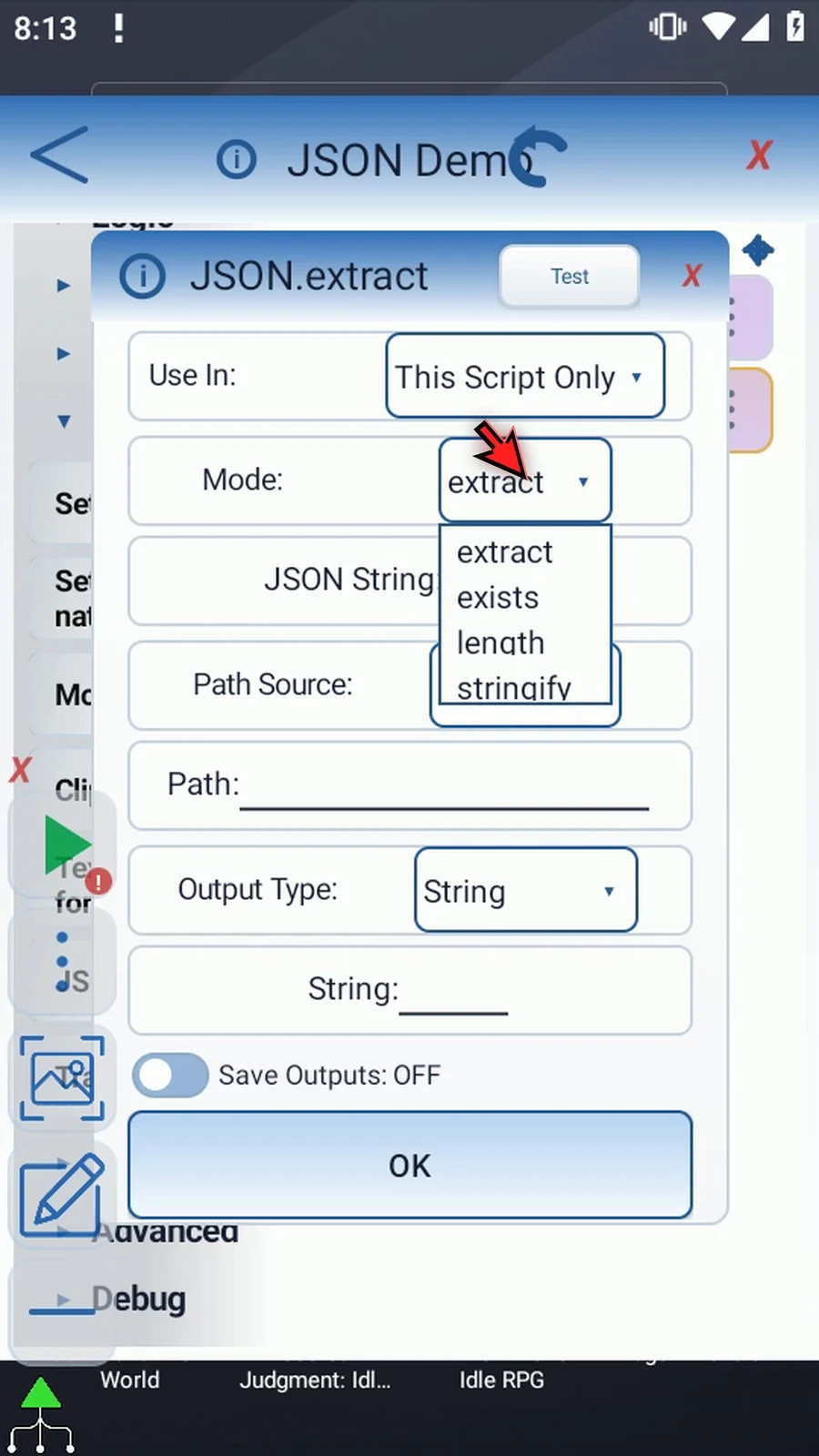
{"status":"Ready","count":2,"price":1.5,"enabled":true,"tags":["Demo","Guide"]}- Mode: Extract returns a typed value; Exists checks whether a path is present; Length counts array items, object keys or String characters; Stringify returns valid Compact or Pretty JSON text. This guide keeps Extract.
- JSON String:
s1names a prior String variable containing JSON. The JSON command does not accept a literal document, file, network response, clipboard or screenshot directly; use an earlier command to prepare the String. - Scope: keep This Script Only. Script Thread is available when outputs must be visible to called scripts within the same run.
- Path Source: Text for a fixed path, or String var for a path prepared by an earlier command. The video shows the variable field first, then returns to Text and enters
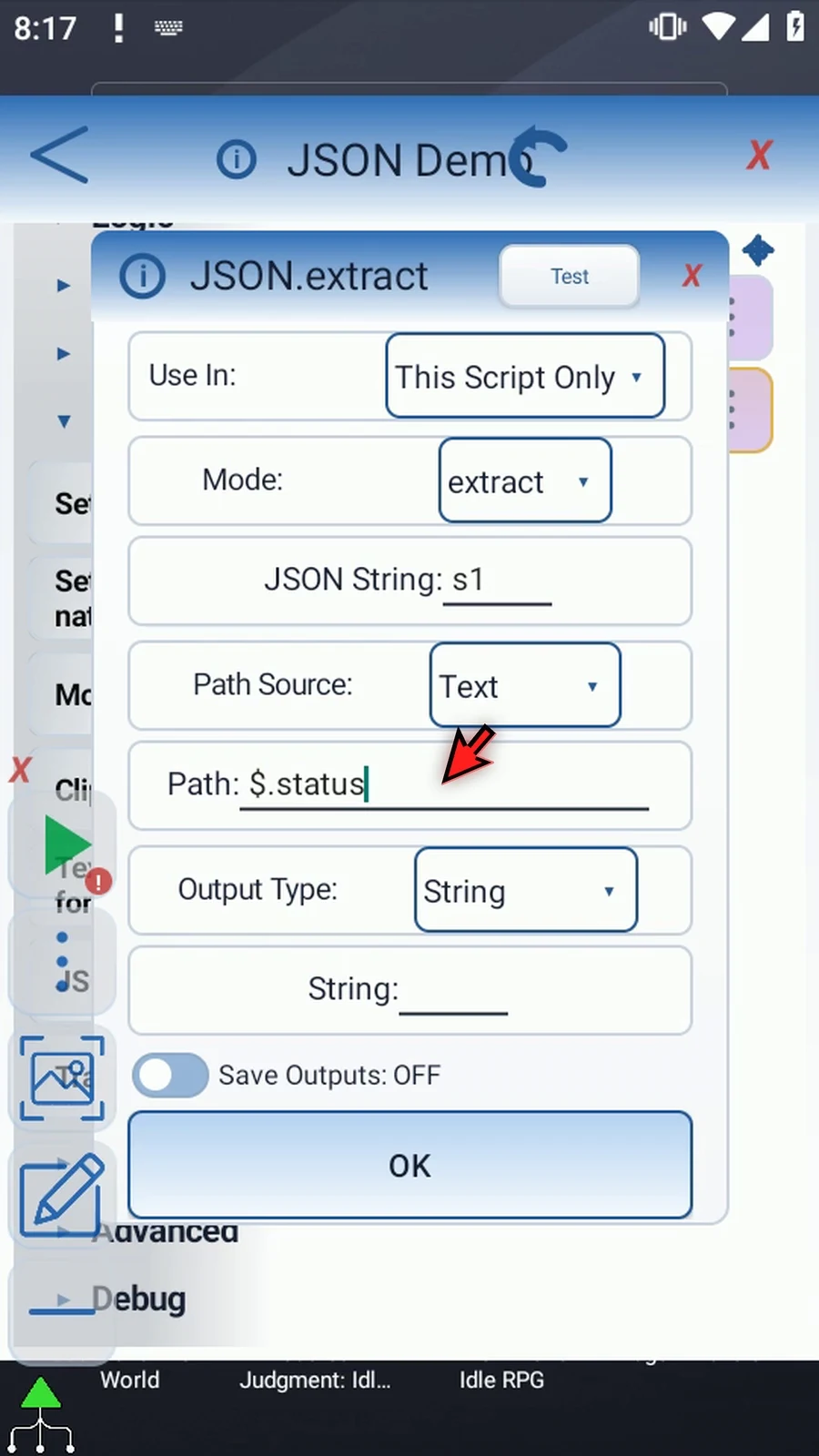
$.status. - Path grammar:
$selects the root;$.statusselects the case-sensitive status property;$.tags[0]selects the first tag. Nested dot names and double-quoted bracket keys such as$["key with spaces"]are supported. JSON array indexes start at zero. Wildcards, filters, recursive descent, expressions, slices and negative indexes are unsupported. - Output Type: keep String and enter
s2. String returns text without JSON quotation marks; a JSON null becomes an empty String. A non-String value fails this output type. Other supported outputs are Integer, Decimal, Boolean, String Array and JSON Text. - Optional outputs: independently enable Success Boolean
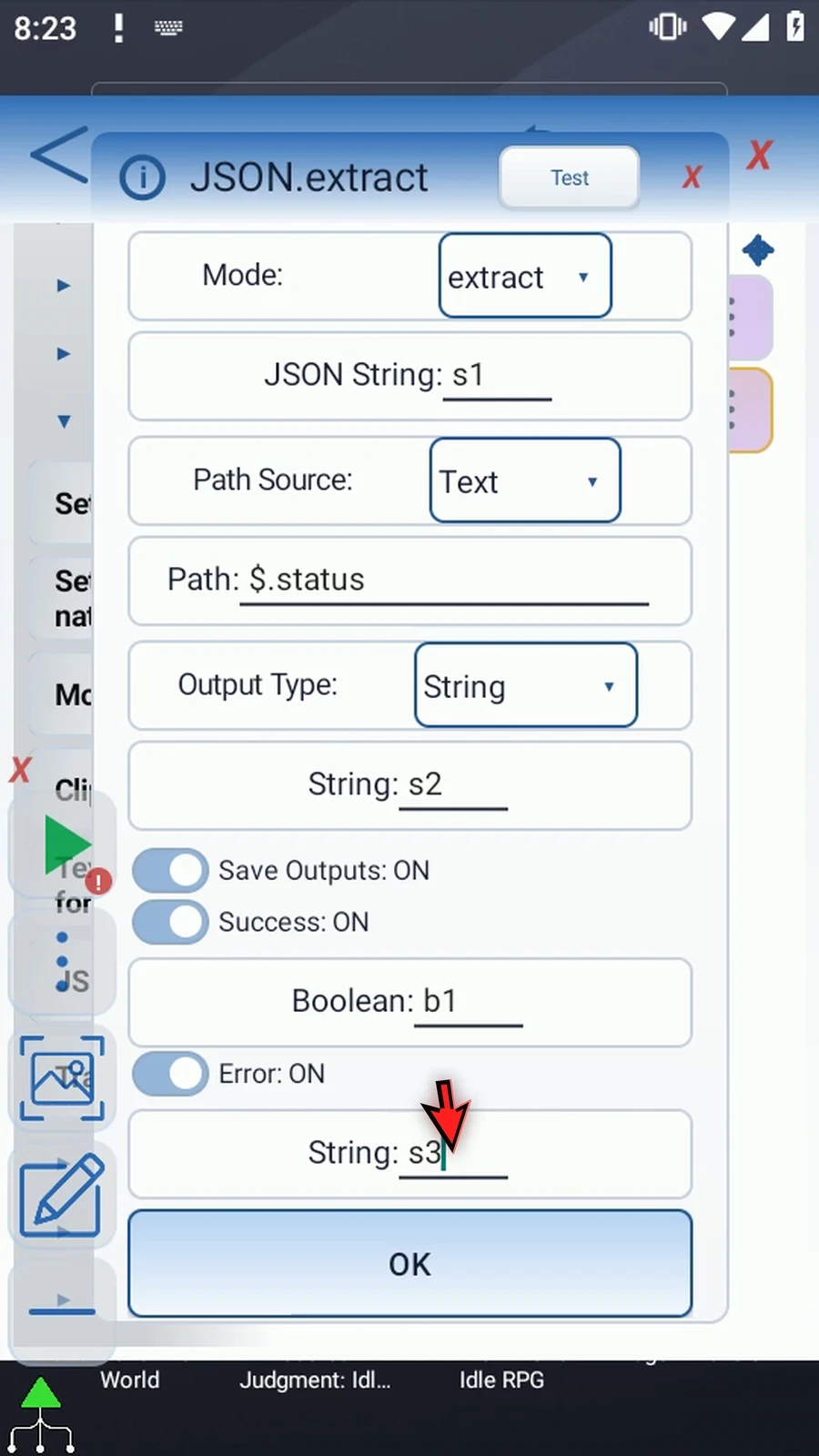
b1and Error Strings3under Save Outputs. Bad JSON, invalid or missing paths, and type mismatches fail safely. Success leaves Error empty. Keep these separate from the extracted value. - Test: previews the current configuration using available values without saving it. This example reports Success and Count 1. If required runtime values are unavailable, the editor explains that limitation. Always play the full script to verify the complete flow.
Save JSON, then configure Standard PromptMe with Header s2 and a Done button using Boolean b2. Play displays the actual extracted Ready text. Done closes the confirmation and the script finishes automatically.
True operation changes clear fields owned only by the operation being left. Ordinary output-enable gates preserve their child destinations. Select the intended operation before filling its settings. Text outputs are capped at the normal String limit; an optional Error output can report truncation even when the operation succeeds. Input JSON is not changed. JSON's own Run Log entries do not include the full input text; an earlier source command may log its own supplied value.
Intro & Extract String
Step-by-step guide
Step 01 The JSON command lets a script work with structured data instead of cutting values out of a long text string. It can extract a value, check whether a value exists, measure its length, or format it as JSON text. We'll extract a status and display the result.
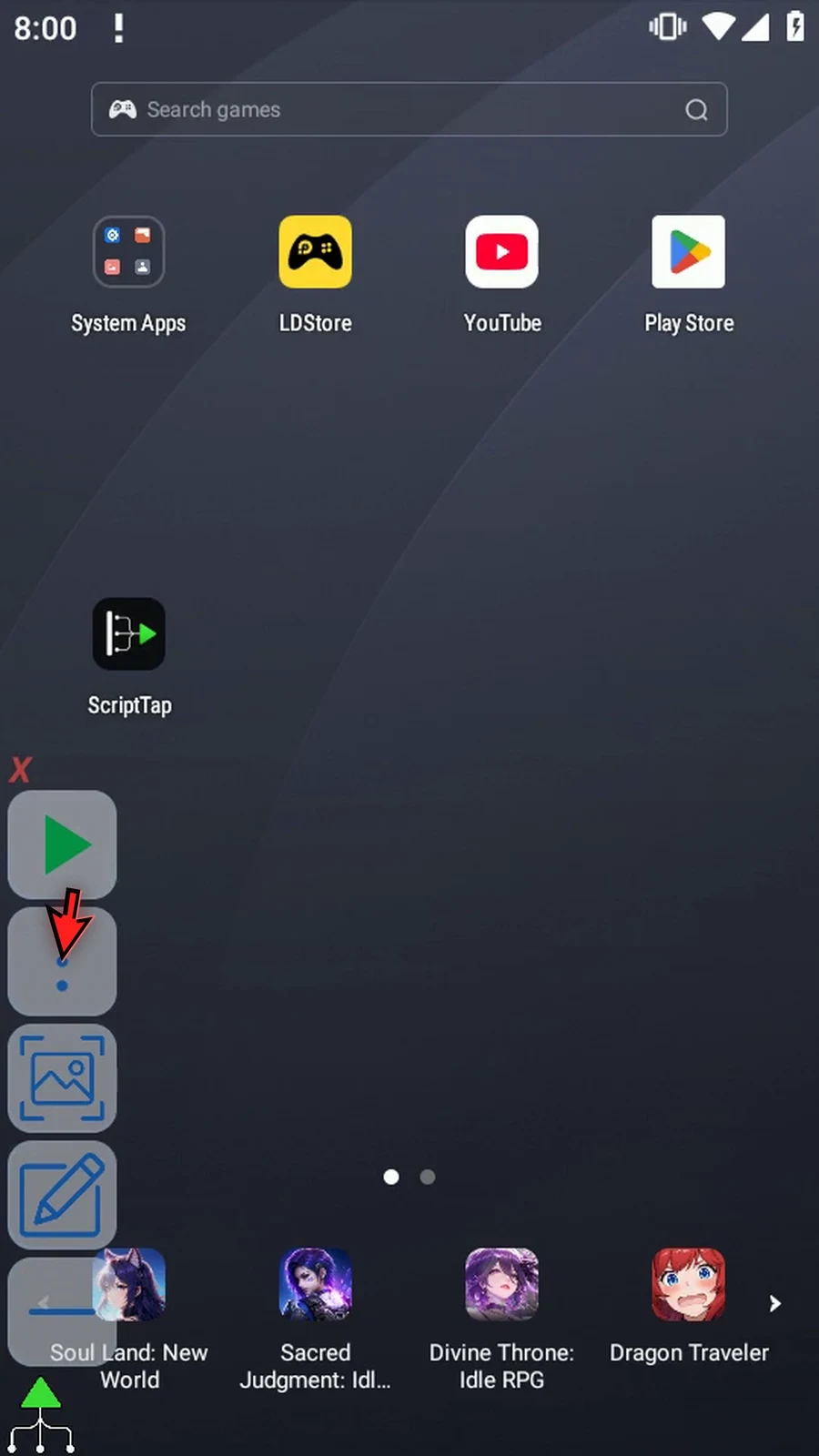
Step 02 Open Scripts from the main overlay menu. Create a new Blank script for this example.
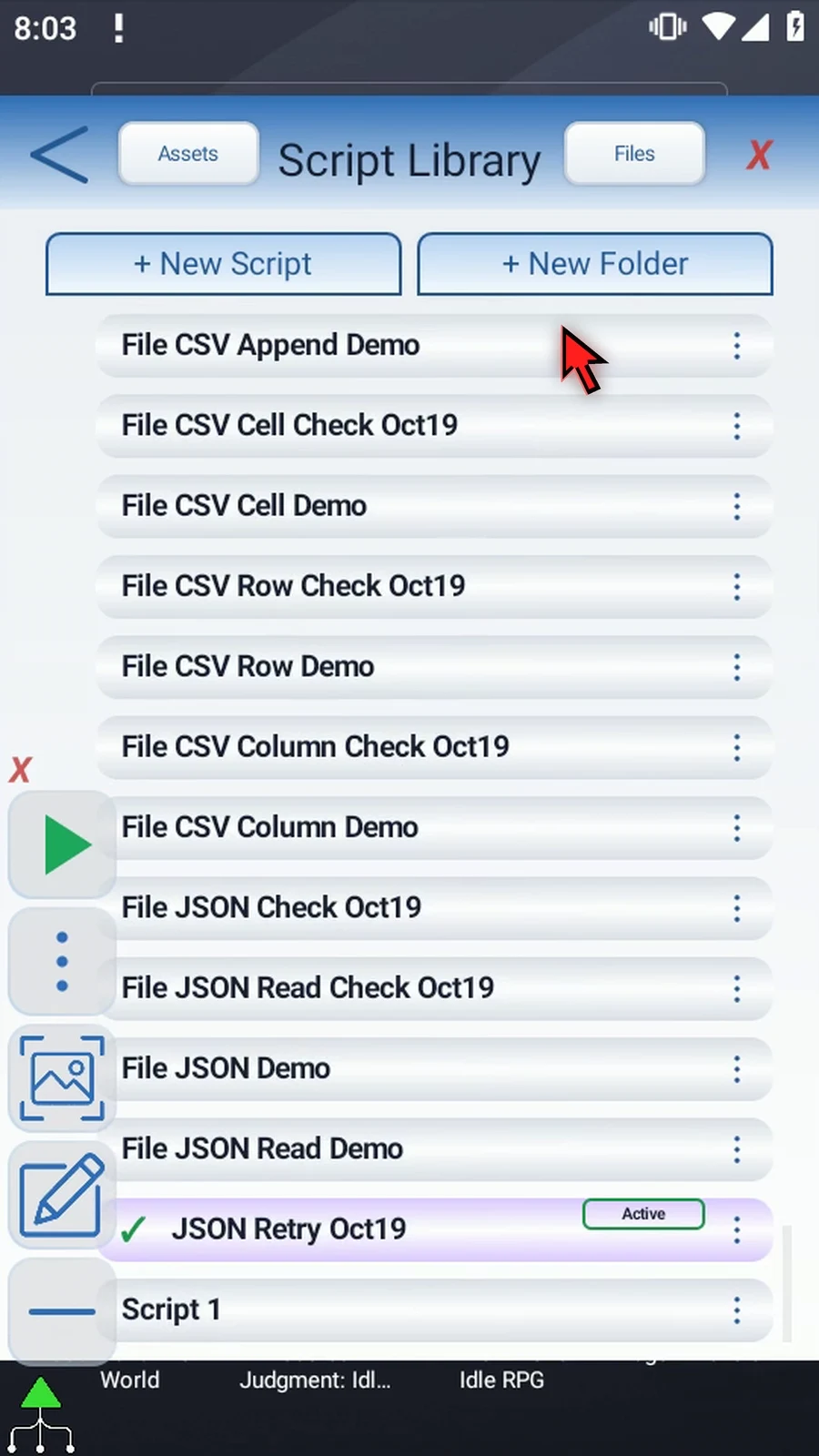
Step 03 Rename the new script, then select it. We'll keep this example separate from the scripts you already have.
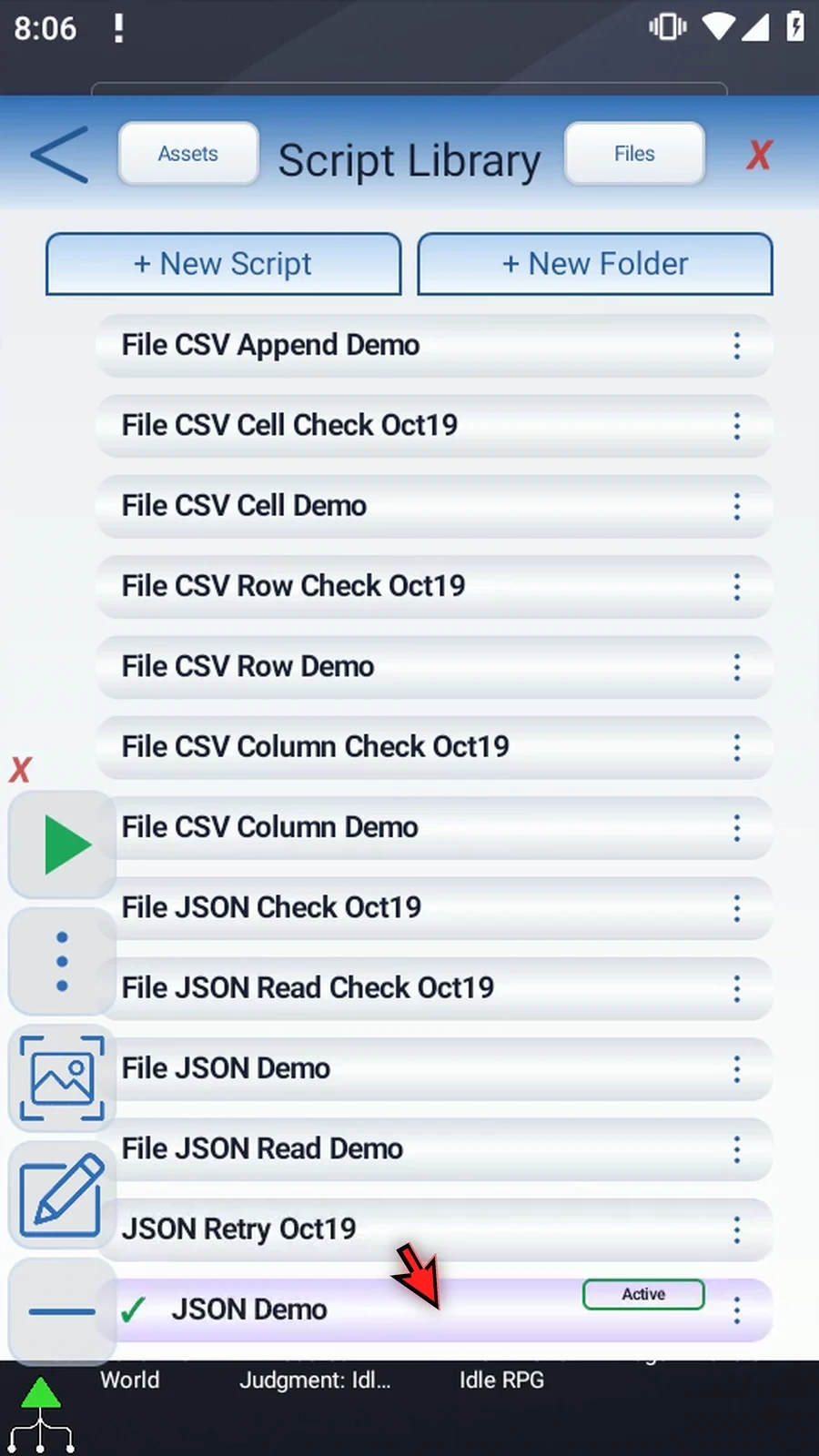
Step 04 Open the script editor. We'll build three commands: prepare our example data, extract one value, and show that value with PromptMe.
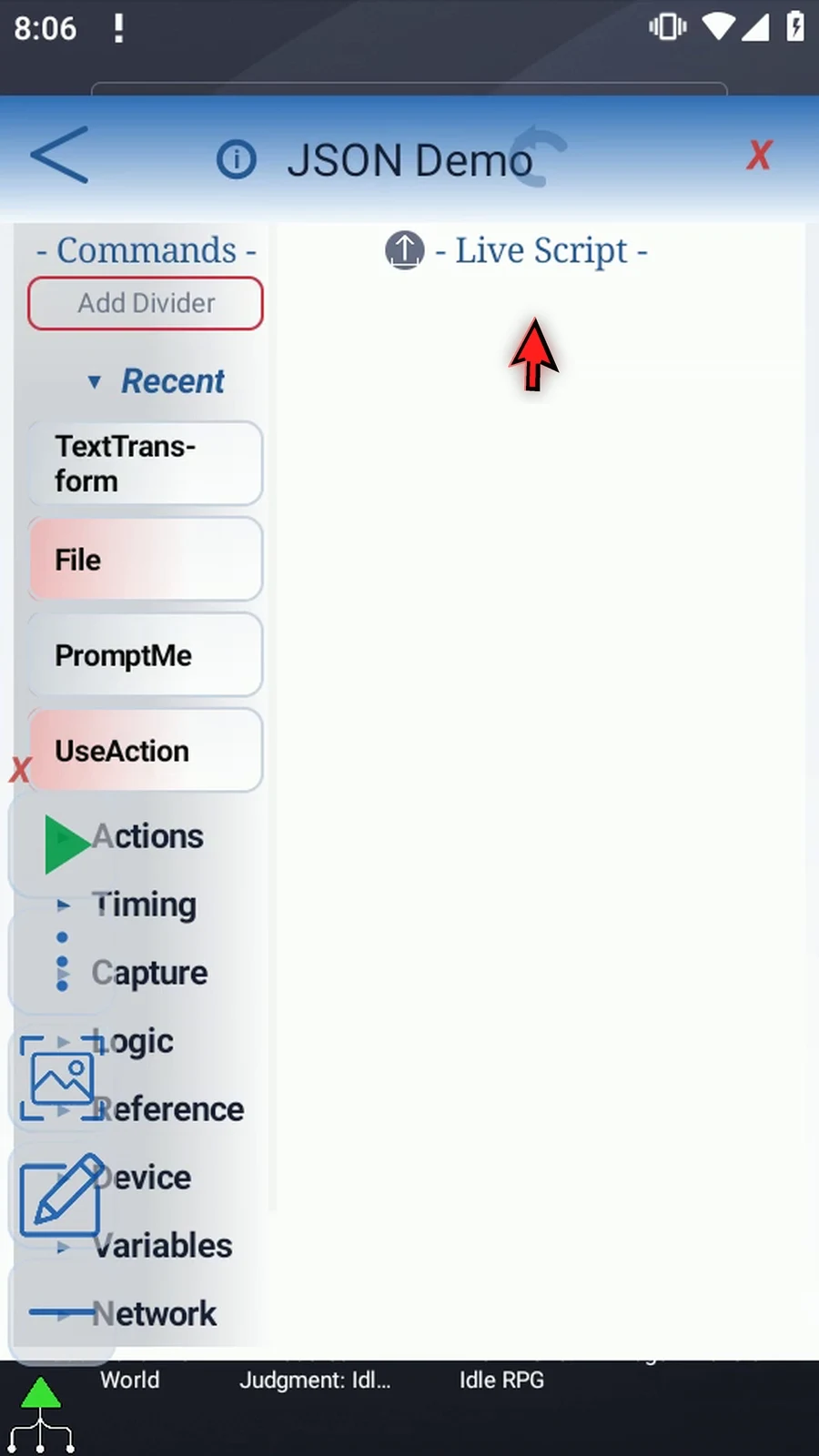
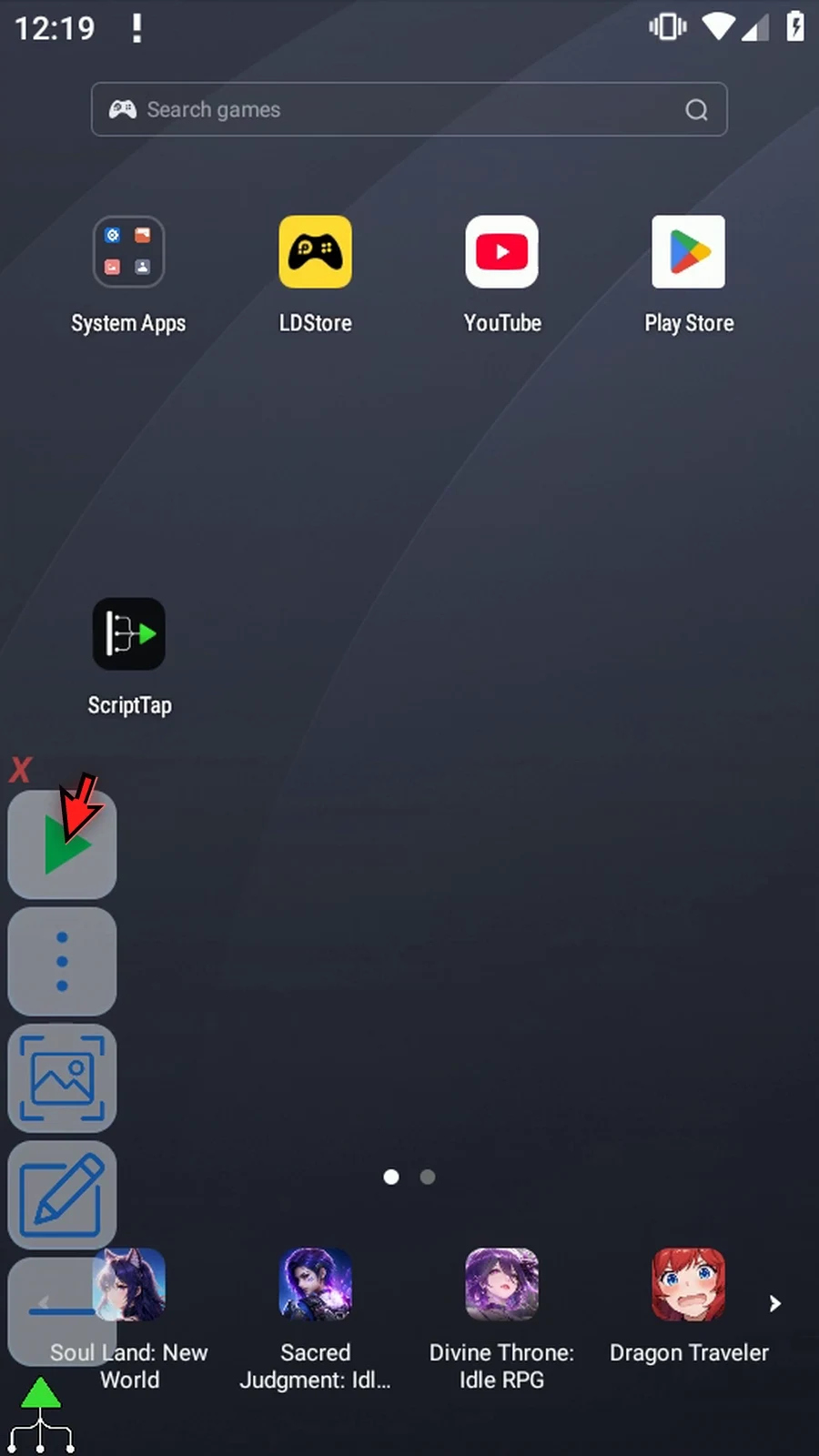
Step 05 Under Variables, drag SetVariable into the live script. This supporting command gives JSON some text to read.
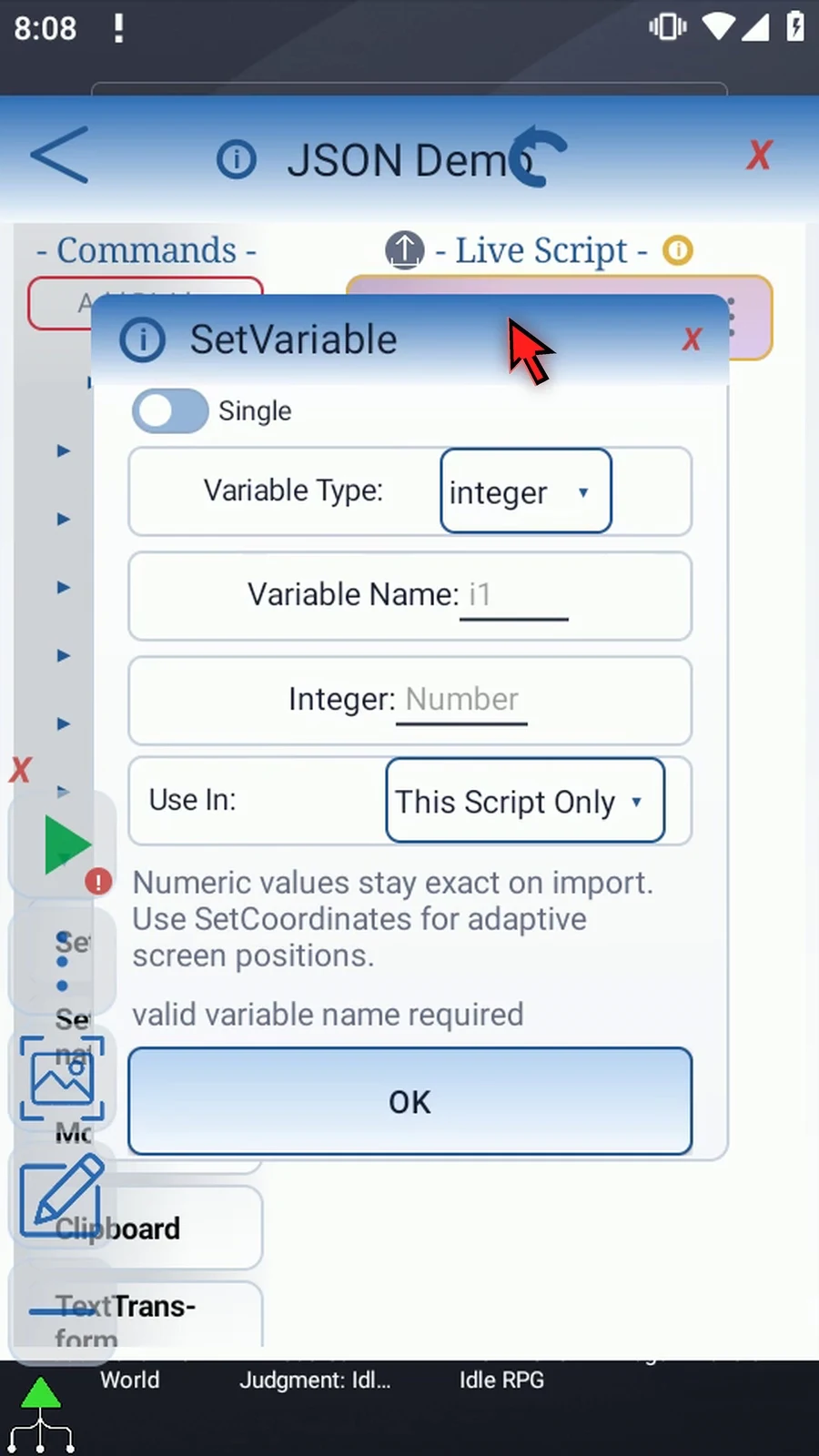
Step 06 Keep Single, choose String, and name the variable s1. Keep This Script Only for this example.
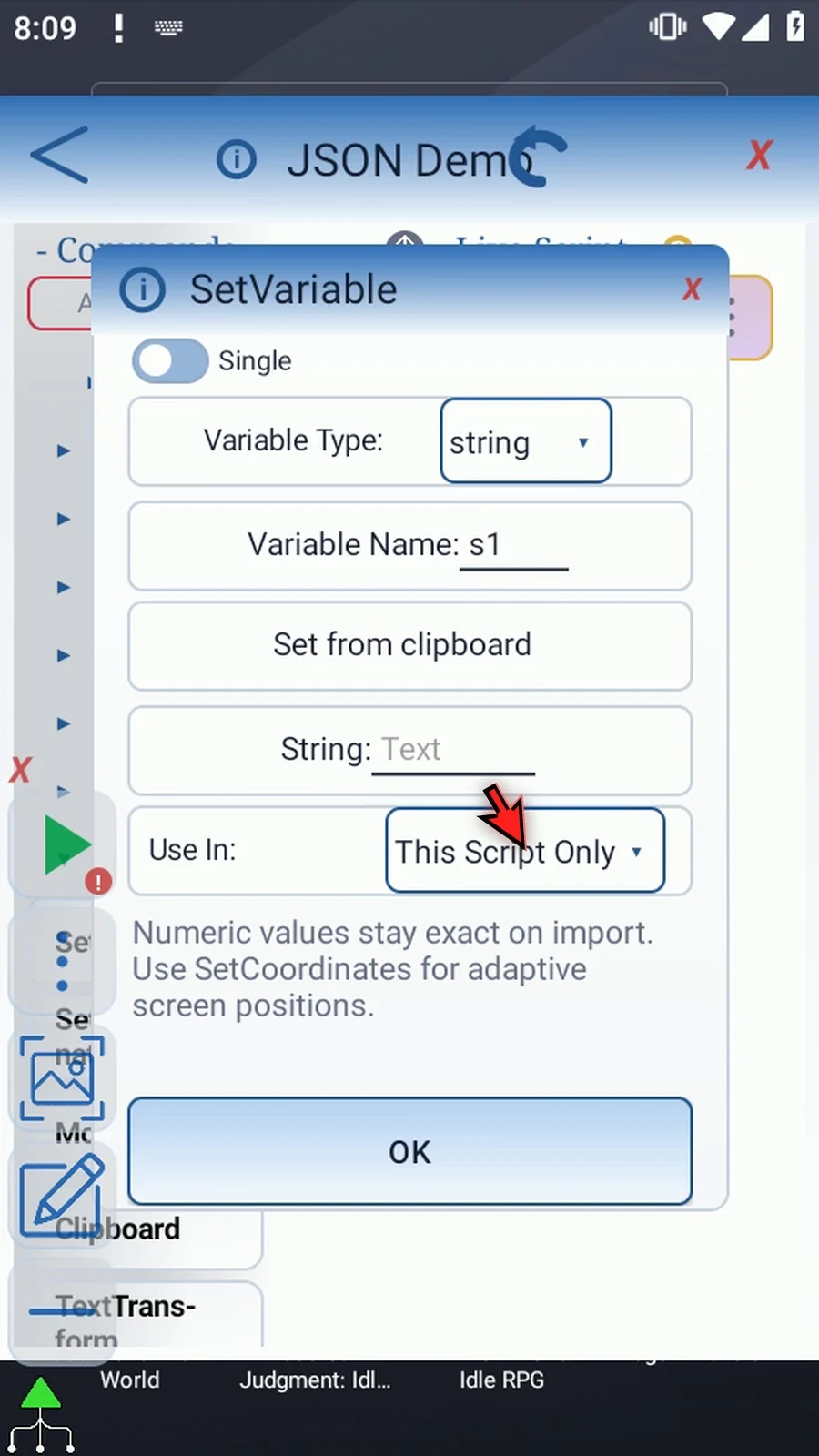
Step 07 Enter this small JSON object as the String value. JSON stores named values and lists using quotes, braces, and brackets. The complete example is also written below the video.
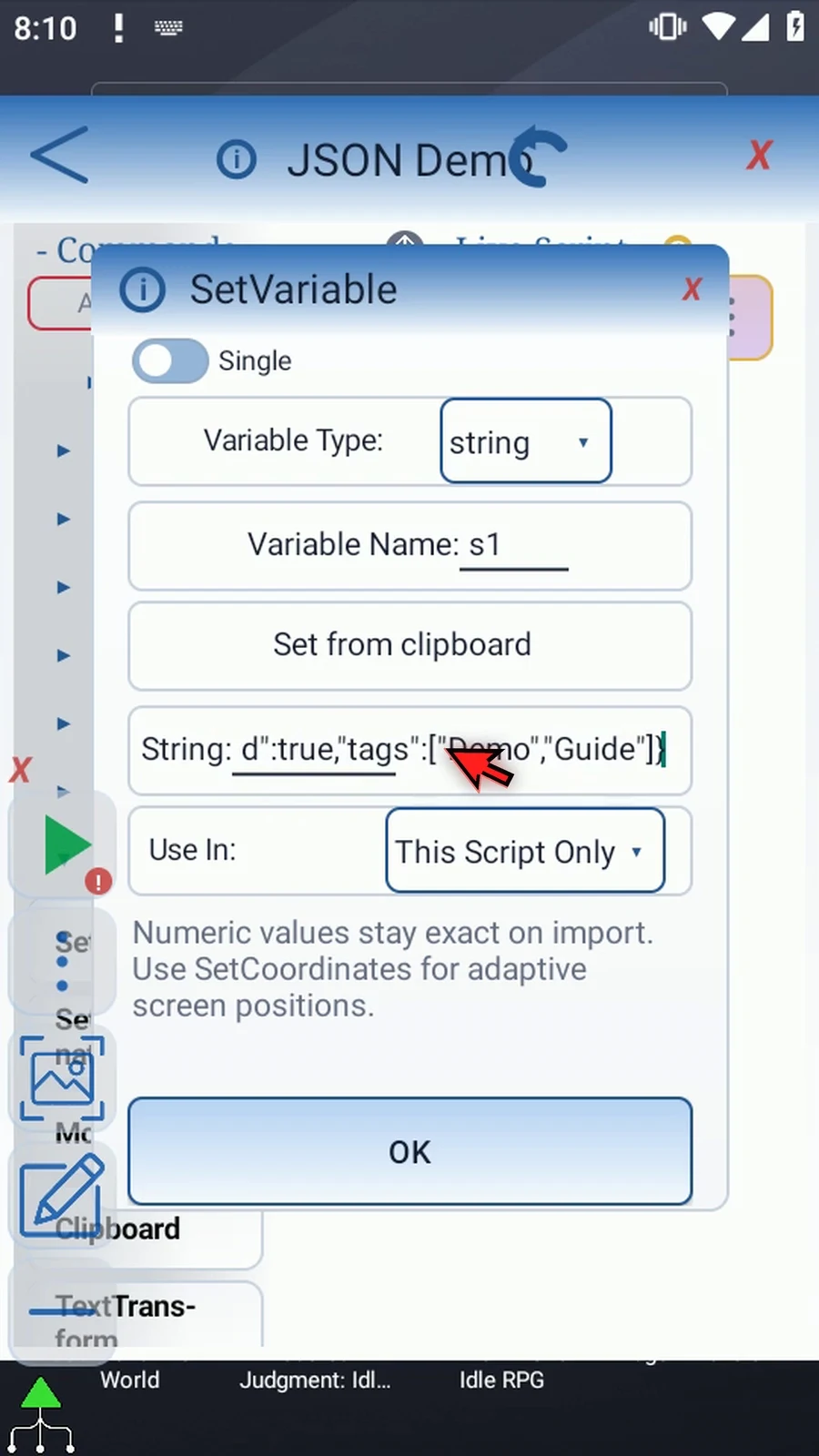
Step 08 Our object contains the status Ready, a count, a price, an enabled flag, and a list of tags. We'll use status now. The other values let the following guides reuse the same example.
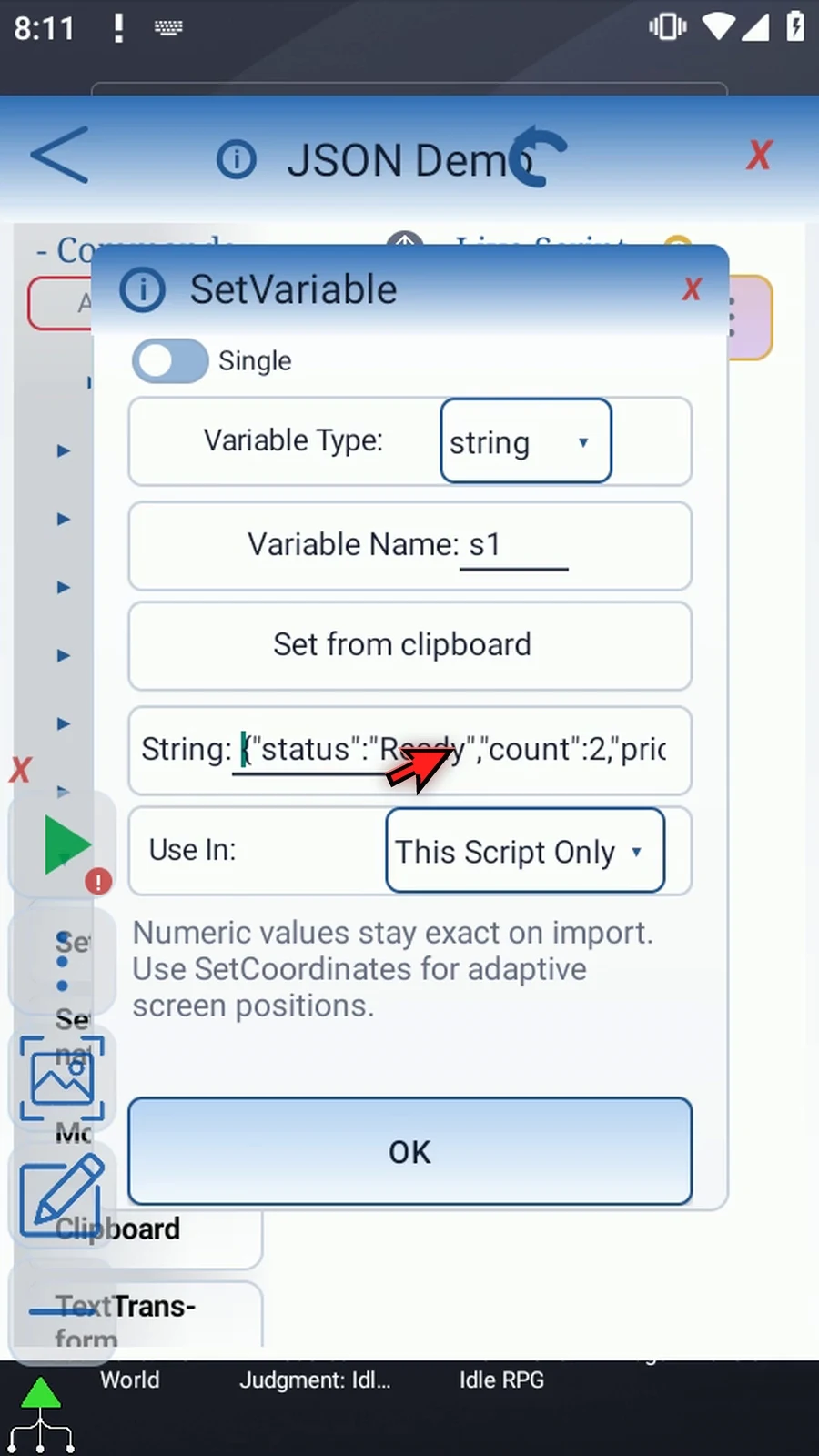
Step 09 Tap OK to save SetVariable. It will prepare s1 when the script plays.
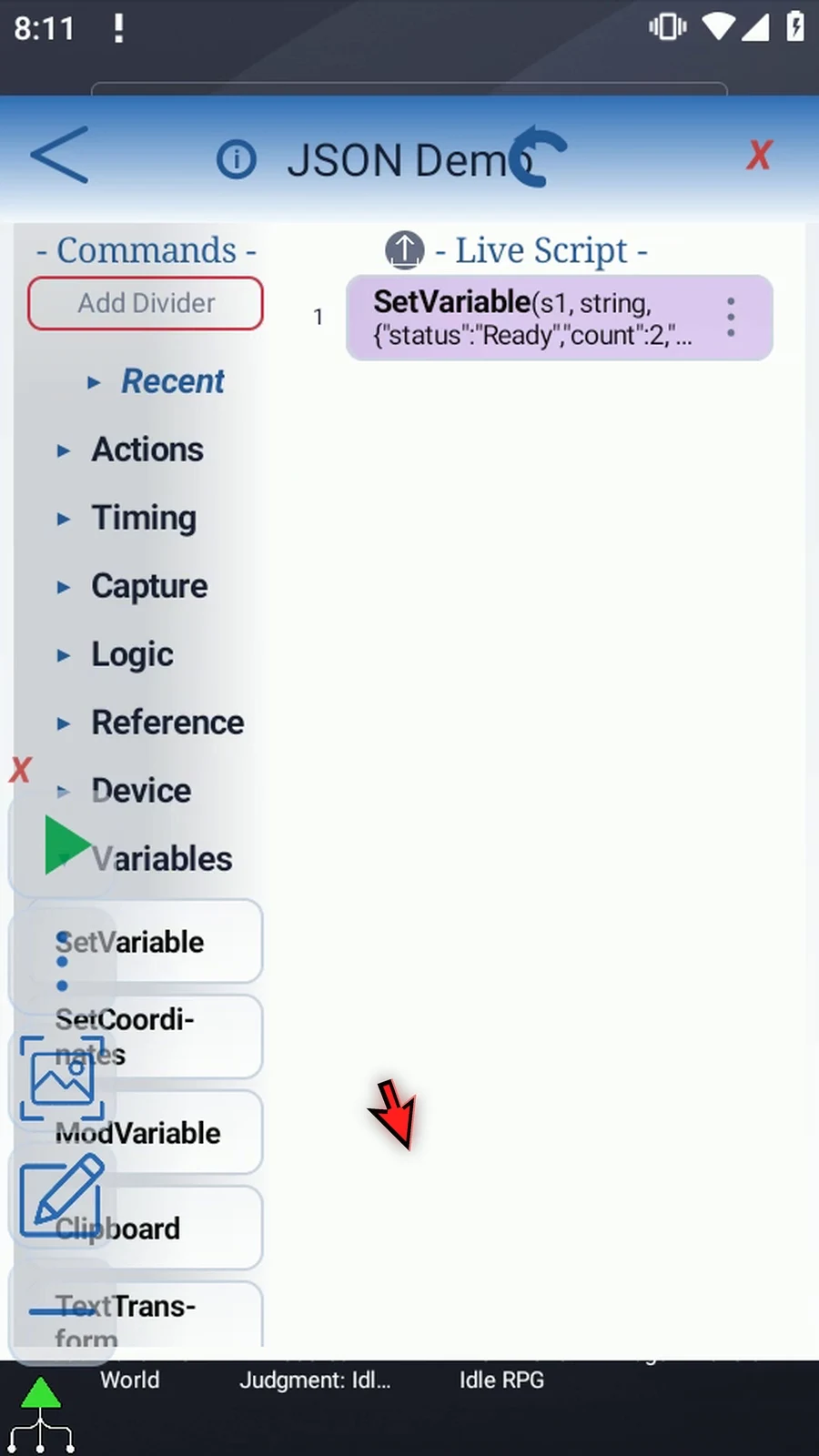
Step 10 Now drag JSON after SetVariable and open it. JSON must come after the command that supplies its input.
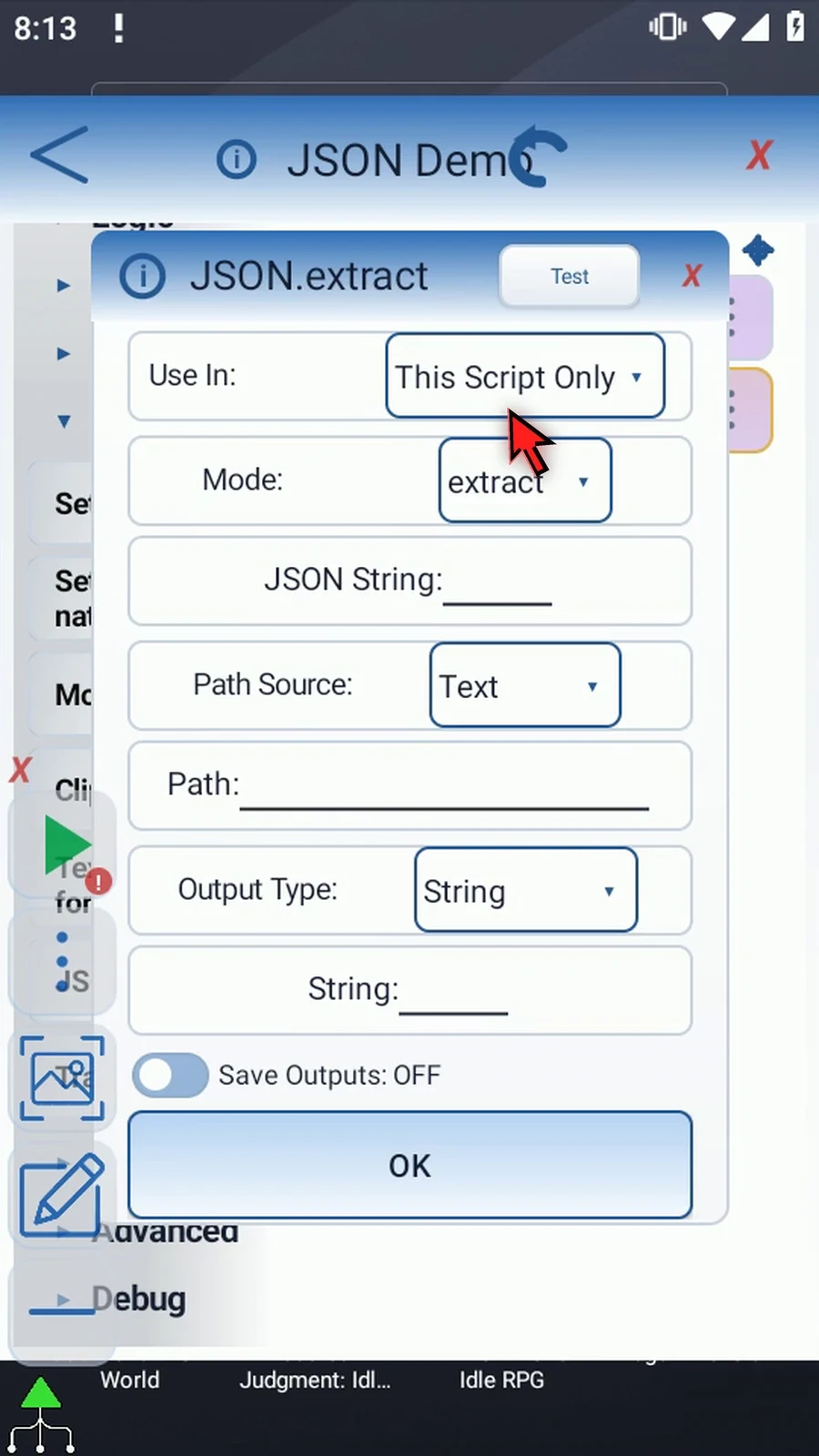
Step 11 Mode selects the operation. Extract returns a value. Exists checks whether a path is present. Length counts items, object keys, or text characters. Stringify returns formatted JSON text. Keep Extract for this guide.
Step 12 Keep This Script Only and set JSON String to s1. This field names the earlier String variable; it is not where you paste JSON data or choose a file.
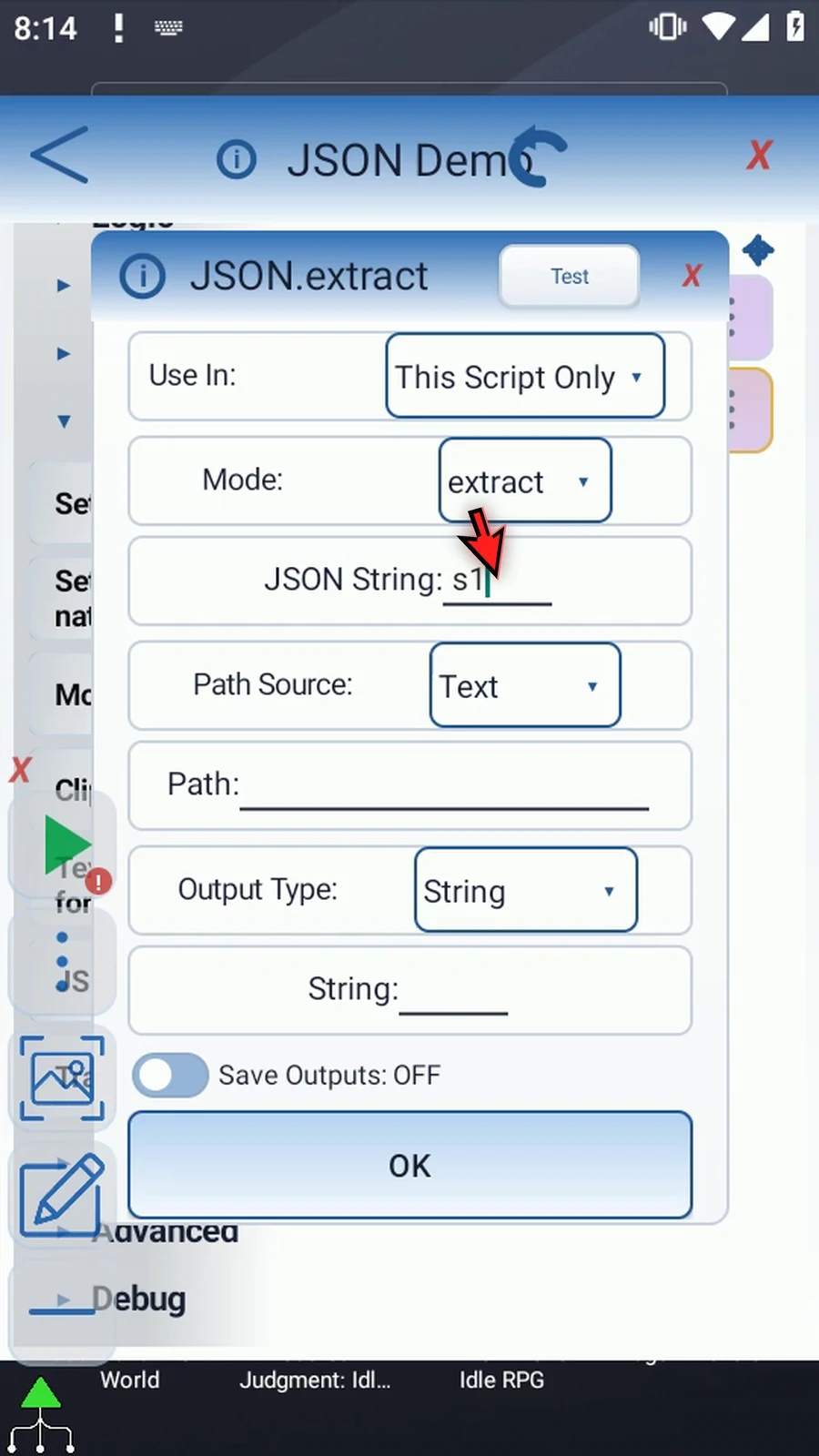
Step 13 Path Source can use a String variable when an earlier command decides which value to select. We'll use Text instead, so we can enter a fixed path directly.
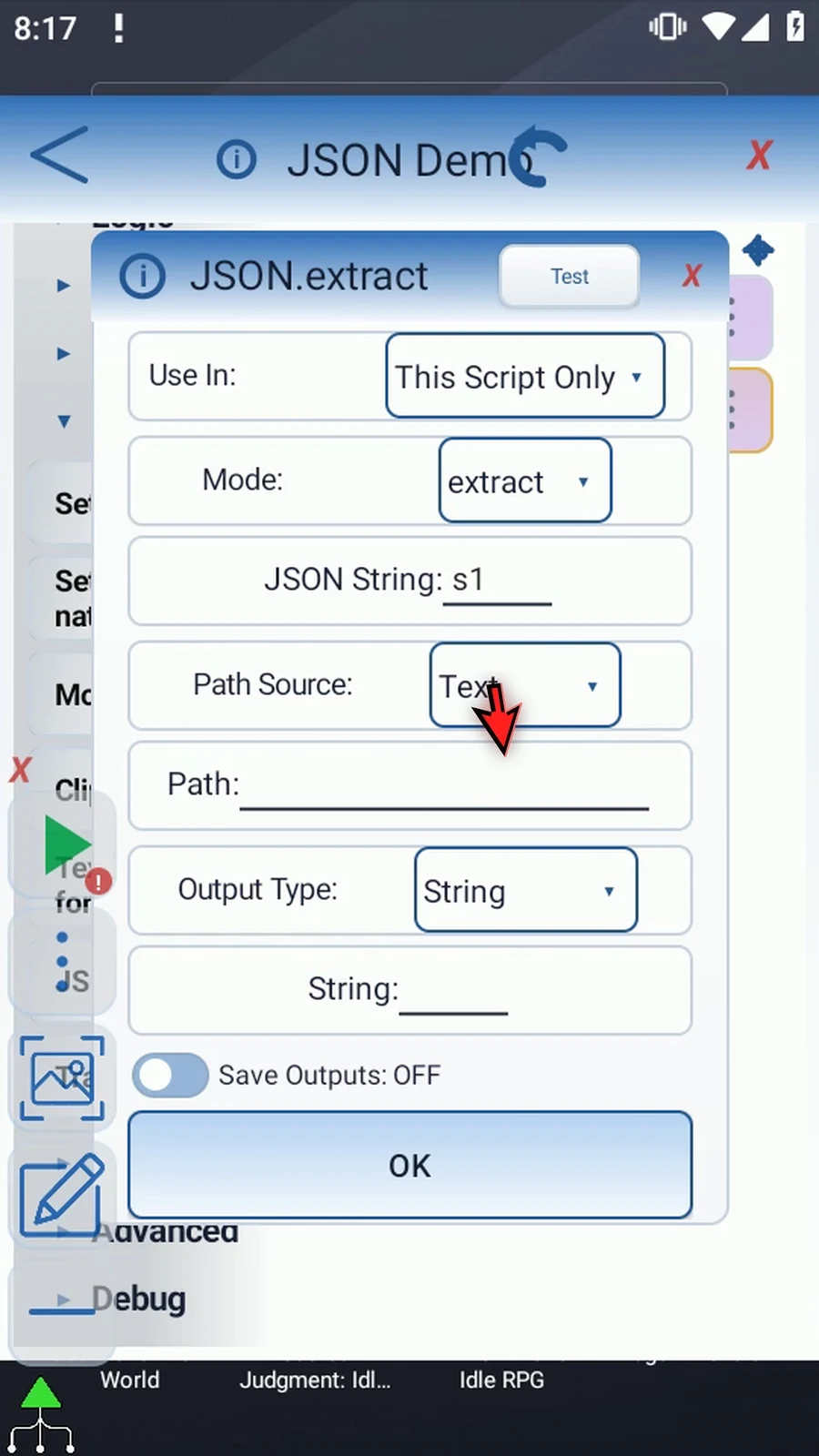
Step 14 Enter dollar sign, dot, status. The dollar sign means the root of the JSON data, and dot status selects its status property. Property names are case-sensitive.
Step 15 Paths can also use nested names or array indexes. JSON array indexes start at zero. Use the path examples below the video for keys with spaces. Wildcards and filters are not supported.
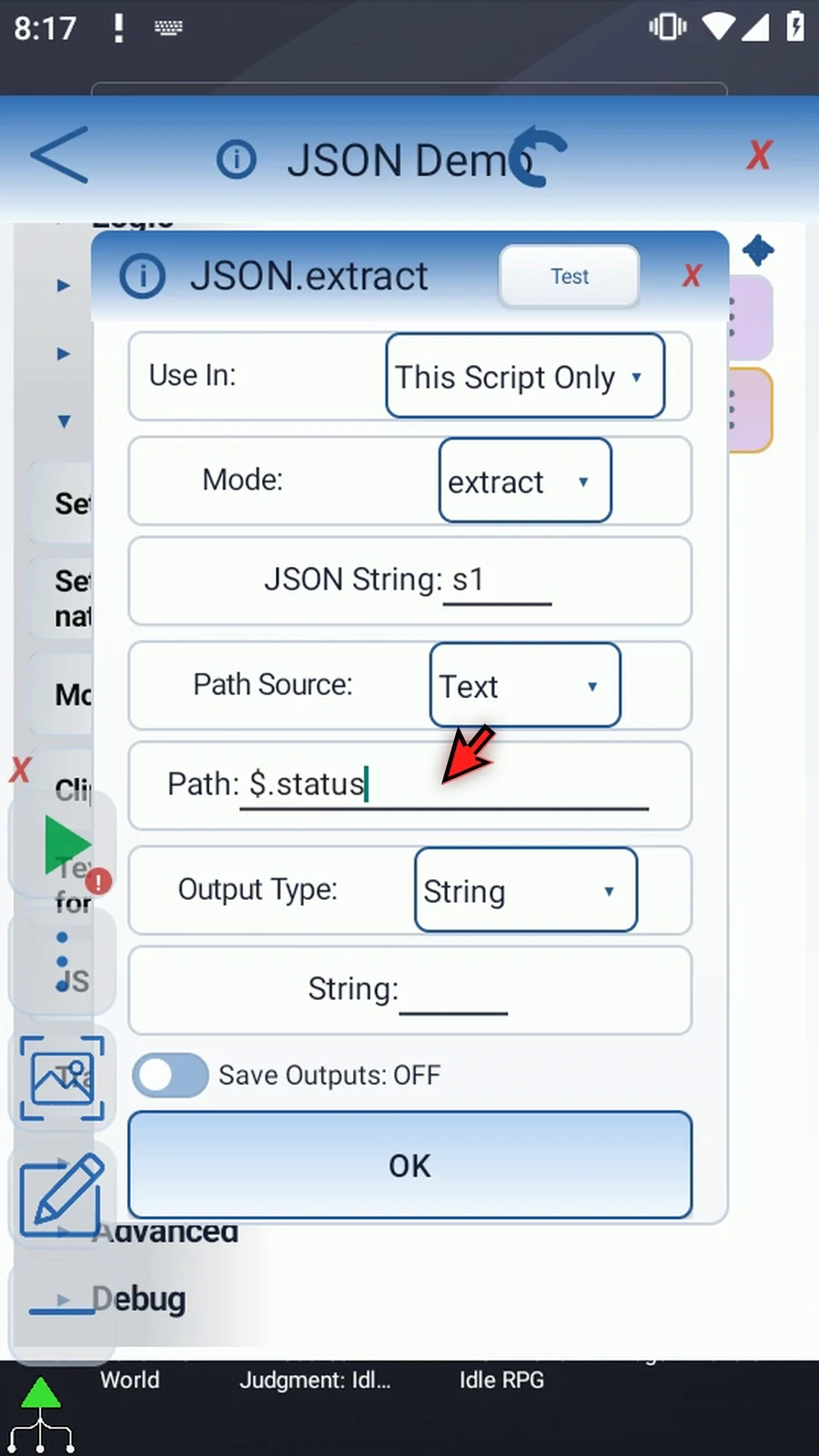
Step 16 Output Type must match the value you want: String, Integer, Decimal, Boolean, String Array, or JSON Text. Our status is text, so keep String. The other output types have their own examples.
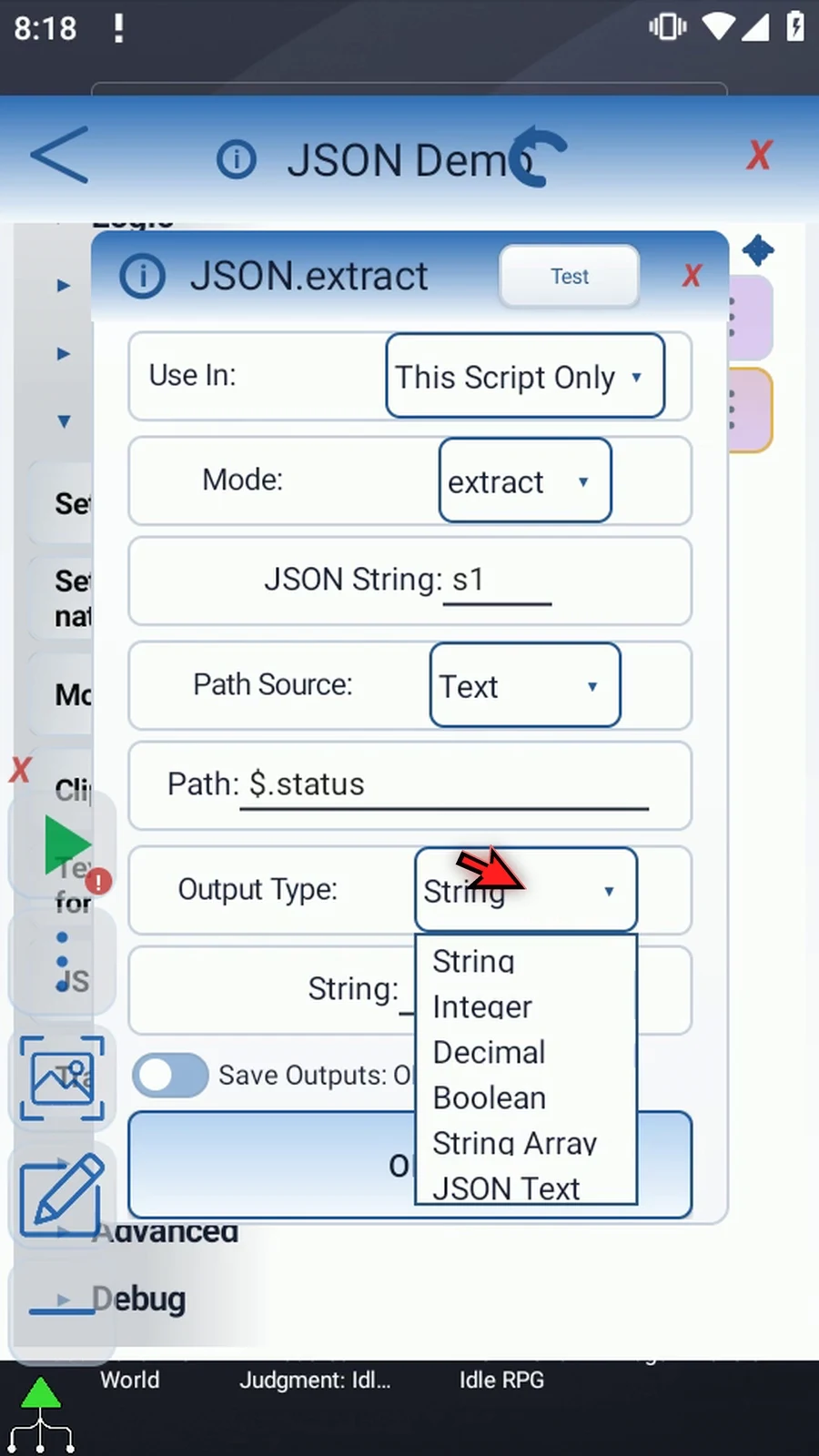
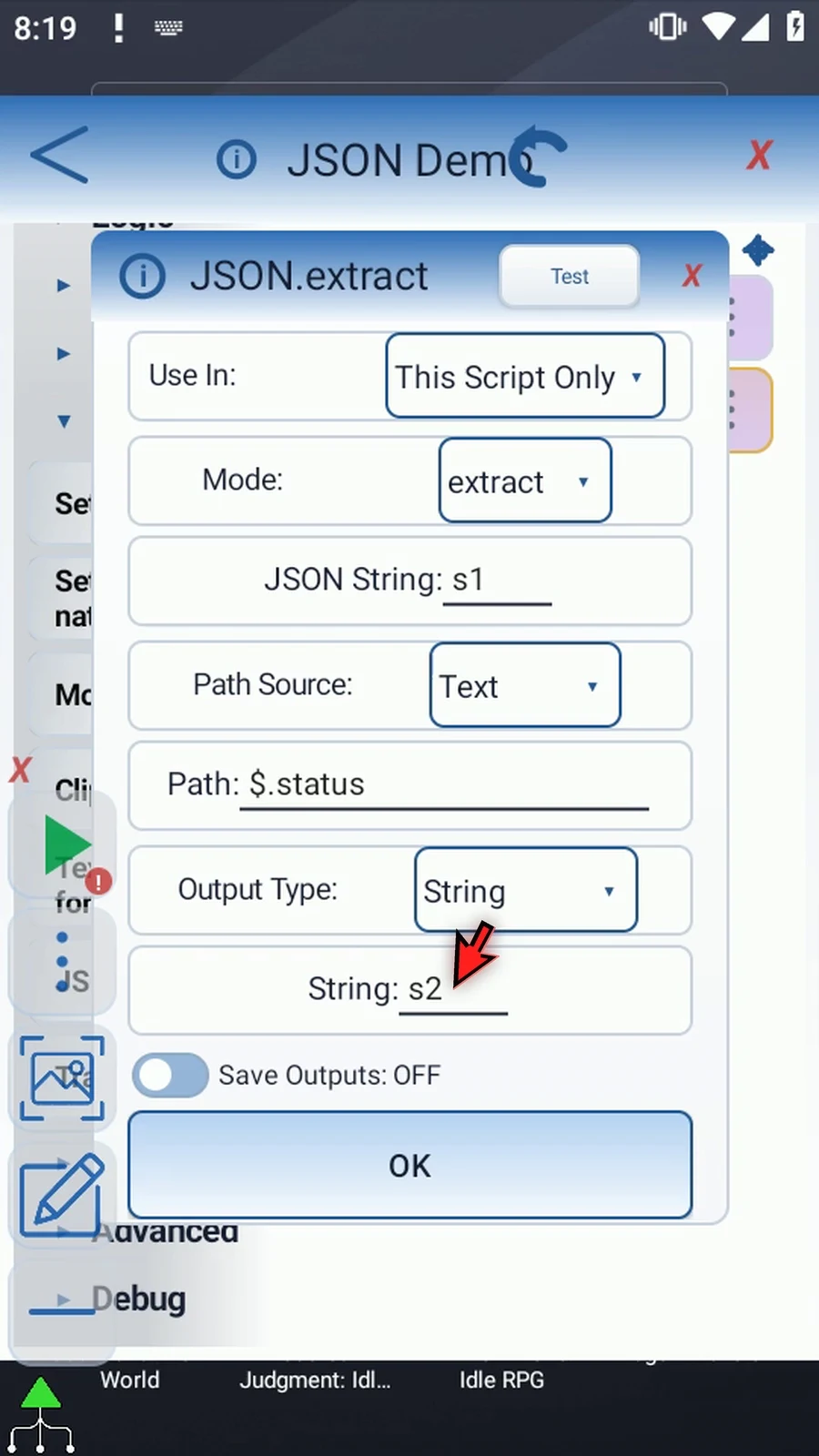
Step 17 Set the String output to s2. The original JSON remains in s1, while s2 will contain just the extracted status, without JSON quotation marks.
Step 18 Enable Save Outputs, then independently enable Success with Boolean b1 and Error with String s3. These report whether extraction worked and why it failed, separately from the value in s2.
Step 19 Invalid JSON, an unsupported path, a missing value, or the wrong output type can fail. Check Success and Error before using a result in a larger script. A successful extraction leaves the Error String empty.
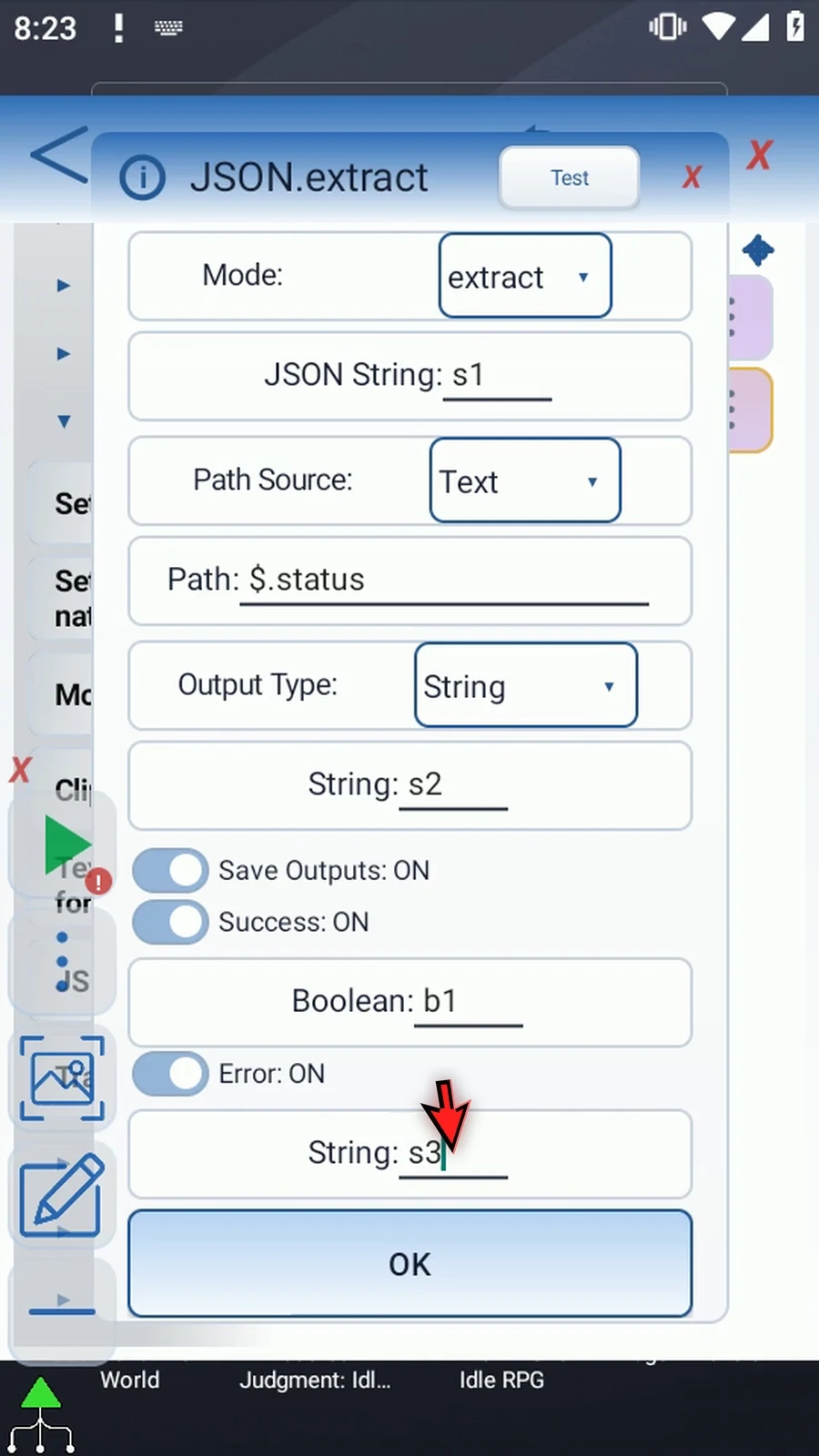
Step 20 Test checks the current configuration with available preview values. Here it reports Success and Count one, meaning one value was returned. Test does not save your changes or replace playing the complete script.
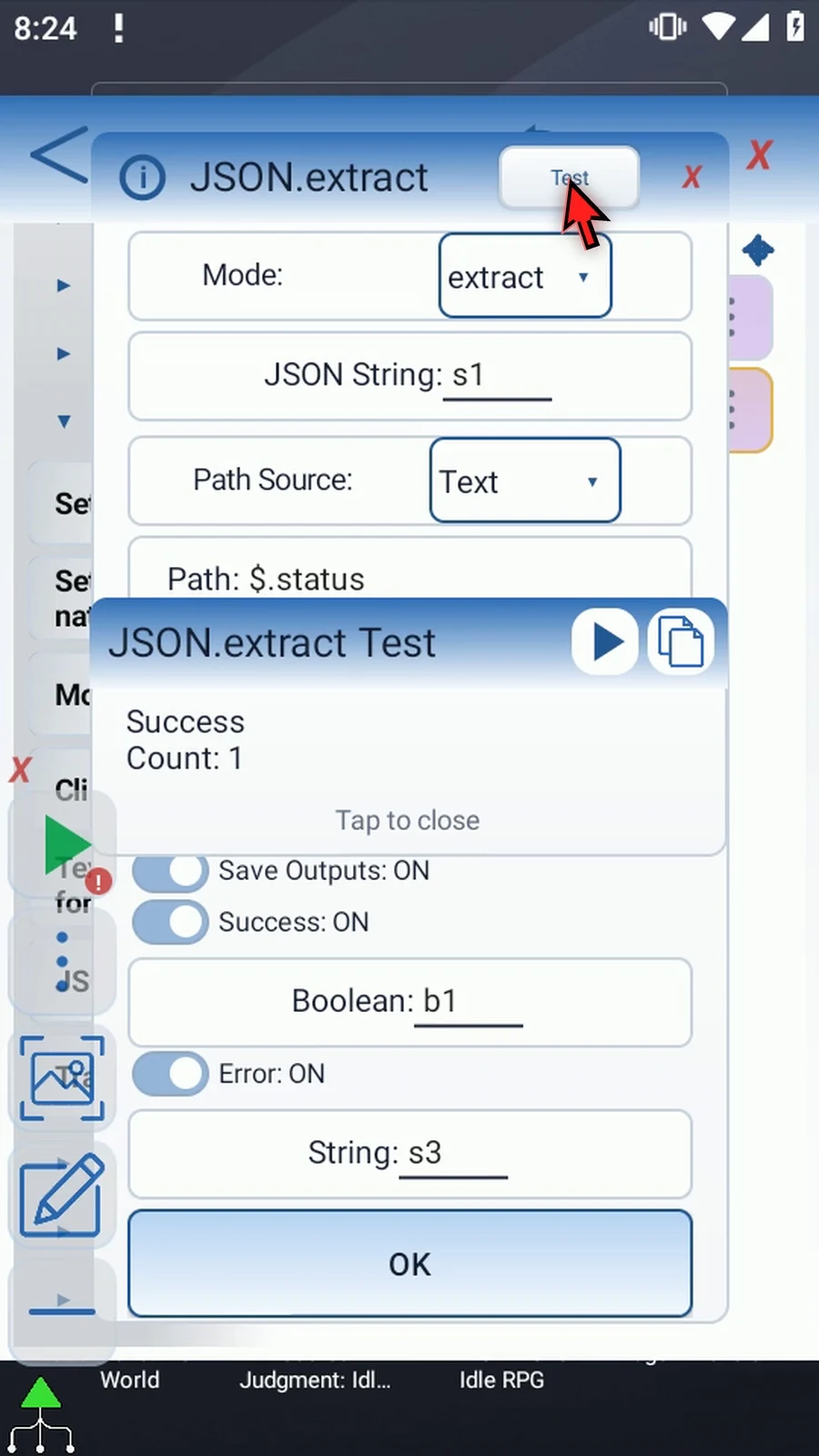
Step 21 Tap OK to save JSON. The live script now prepares s1, then extracts the status into s2.
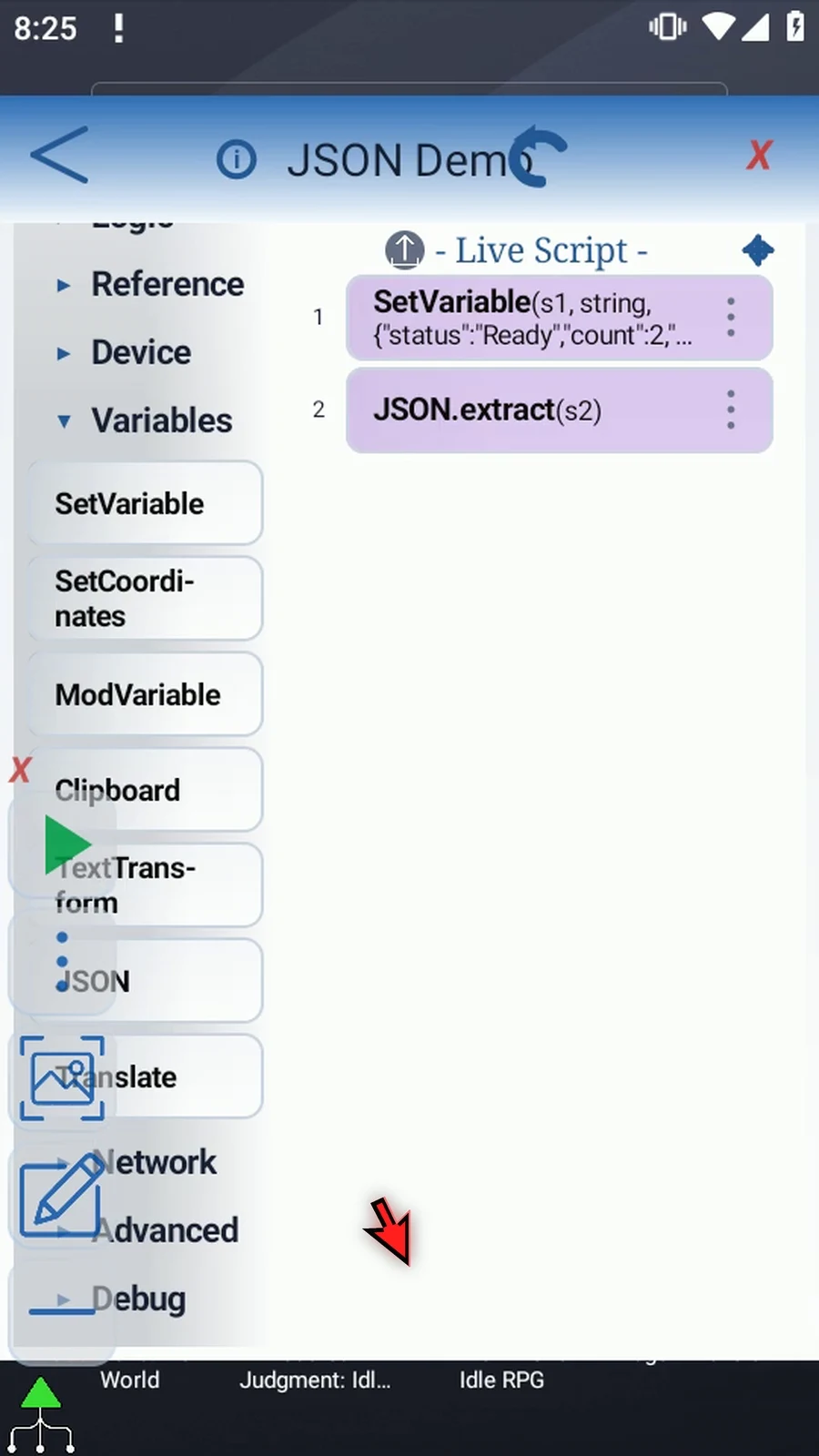
Step 22 Drag PromptMe after JSON. This supporting command makes the extracted value visible, so we can confirm what JSON actually returned.
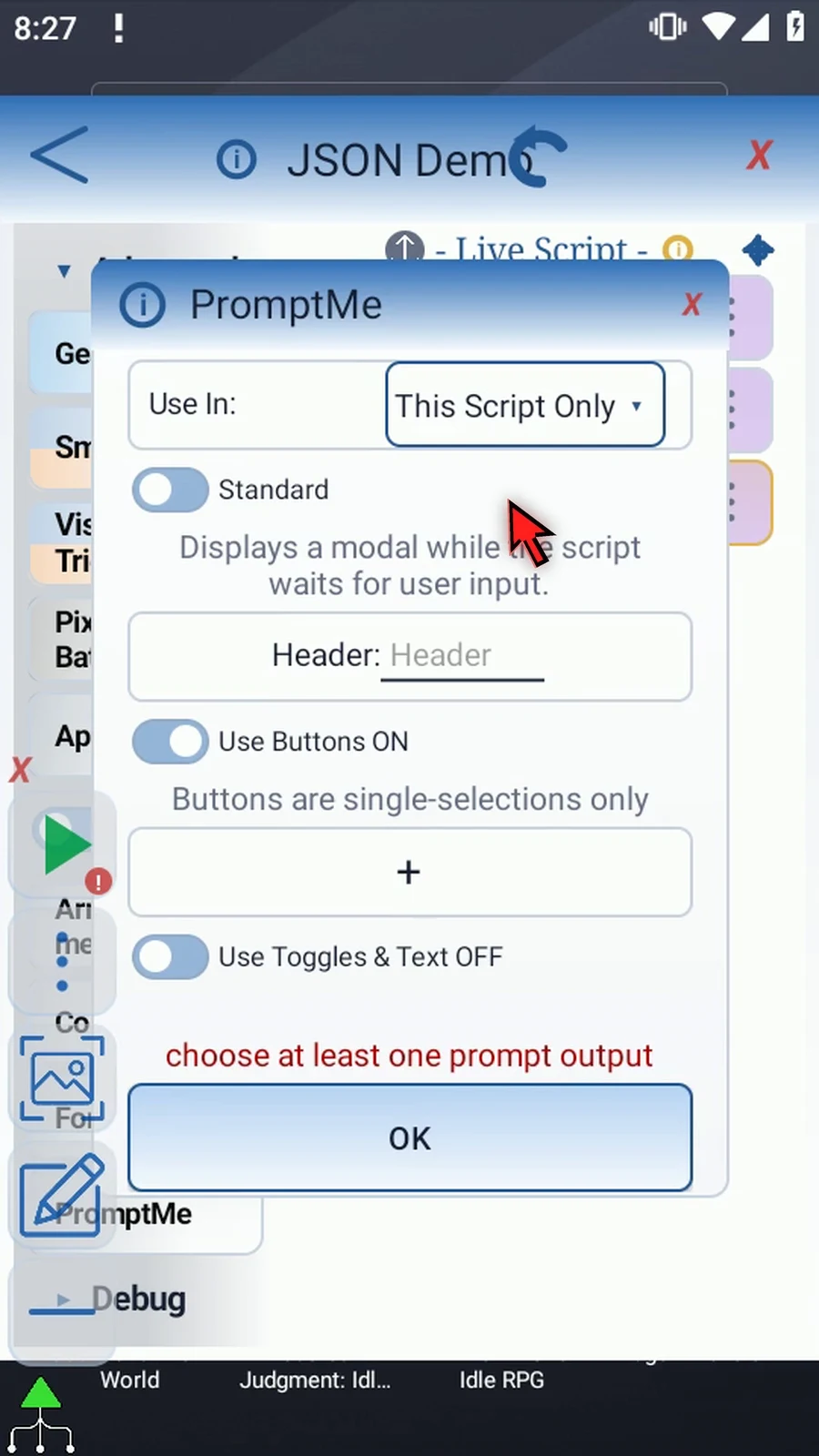
Step 23 Keep Standard mode and set Header to s2. PromptMe will display the result String, not the entire JSON object from s1.
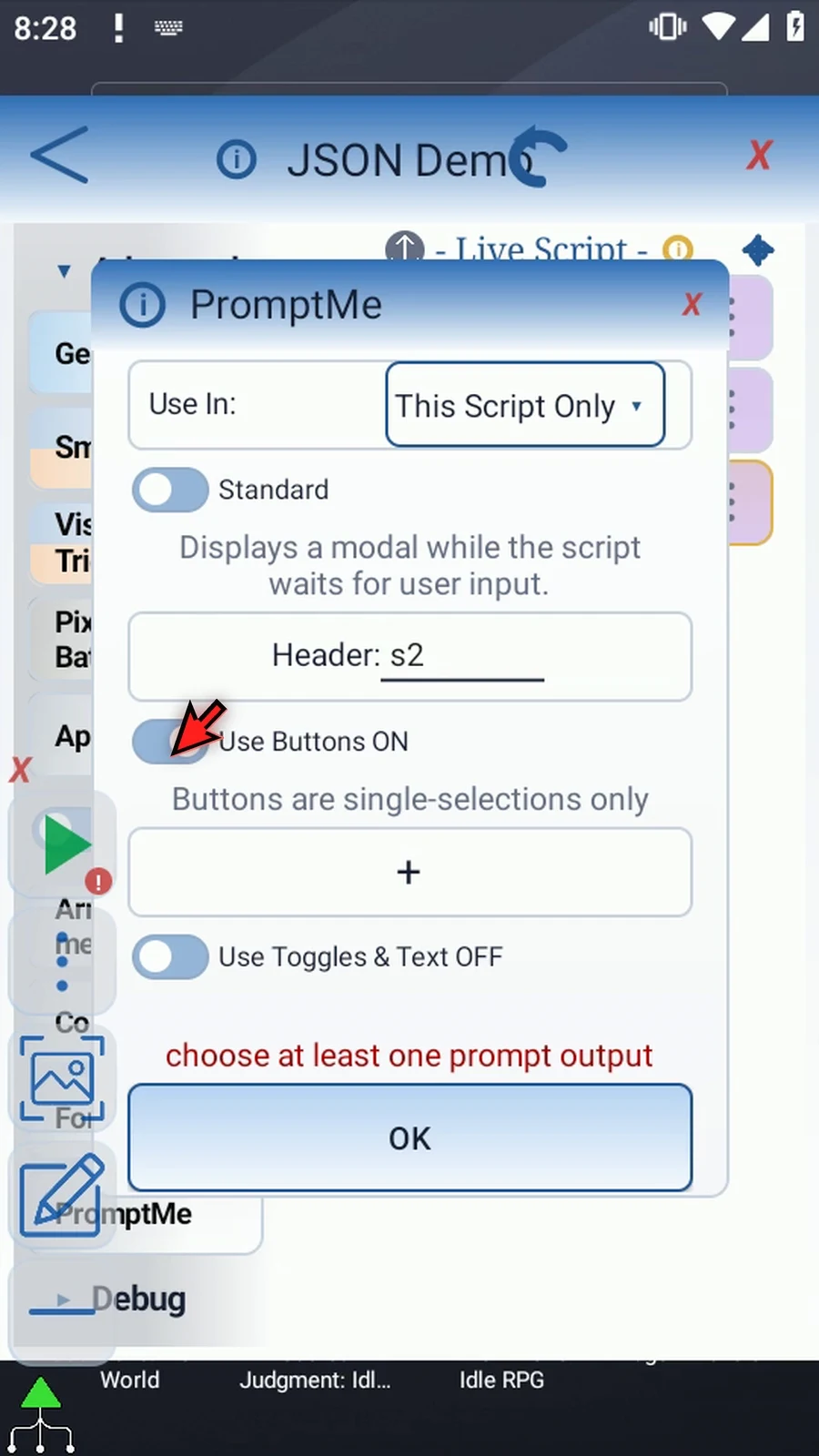
Step 24 Enable Buttons and add a Done button using Boolean b2. This gives us a clear way to close the confirmation after reading it.
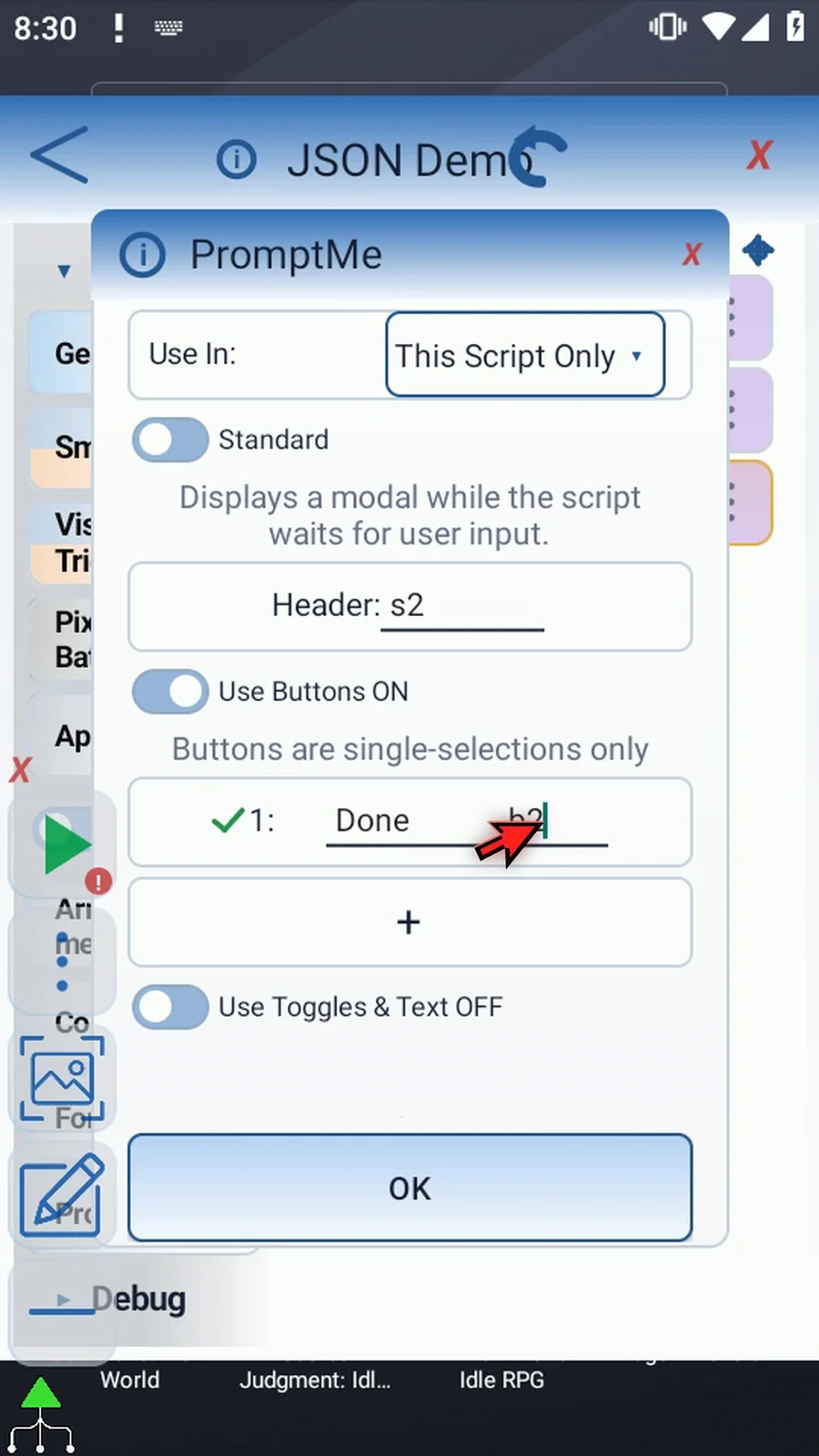
Step 25 Tap OK. The three-command script is ready: prepare the data, extract the status, then display it.
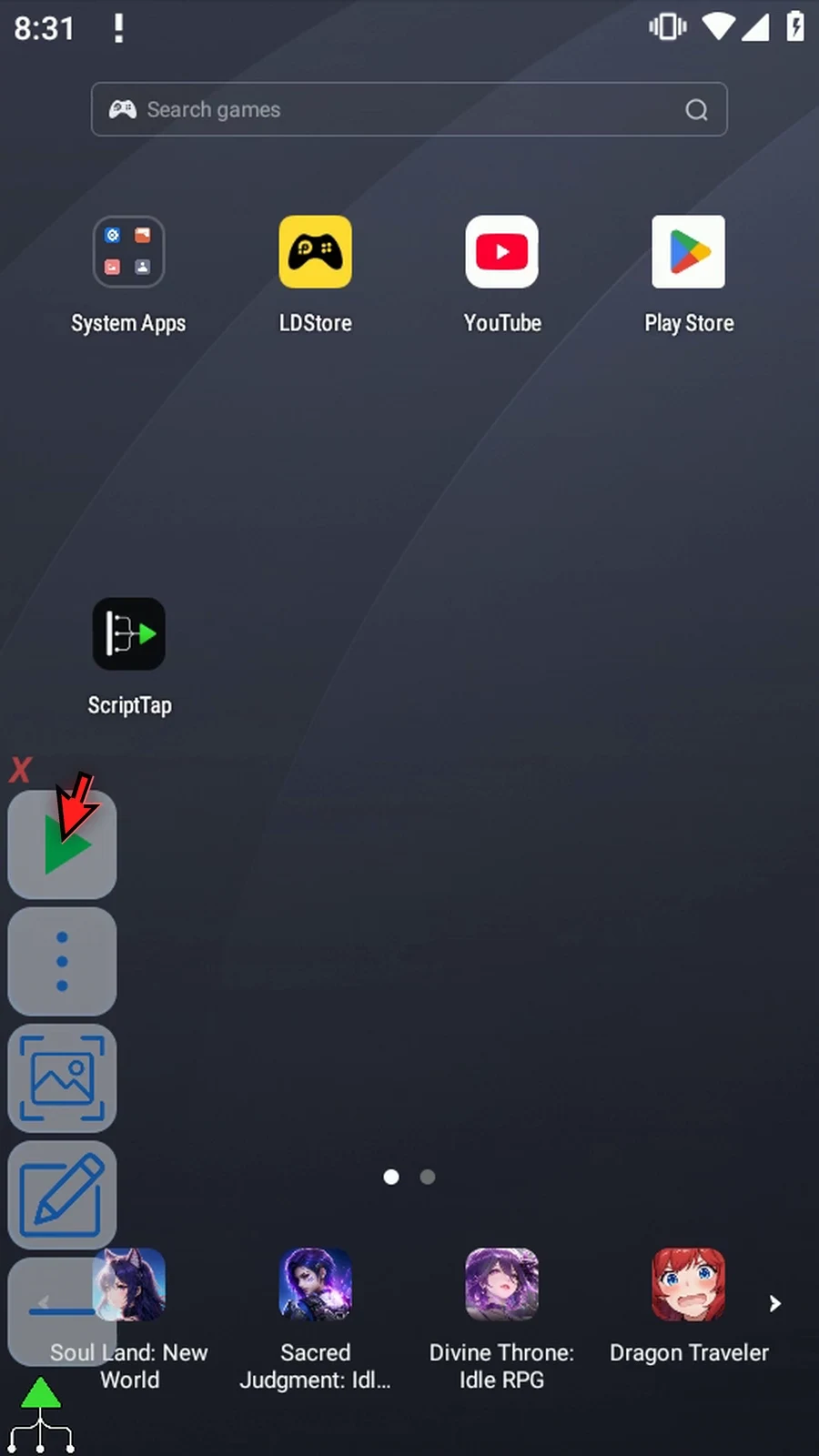
Step 26 When the script is complete, simply use the Play button in the main overlay.
Step 27 PromptMe shows Ready. JSON has selected the status property from s1 and written its text into s2. It has not copied the braces, quotes, or the other properties.
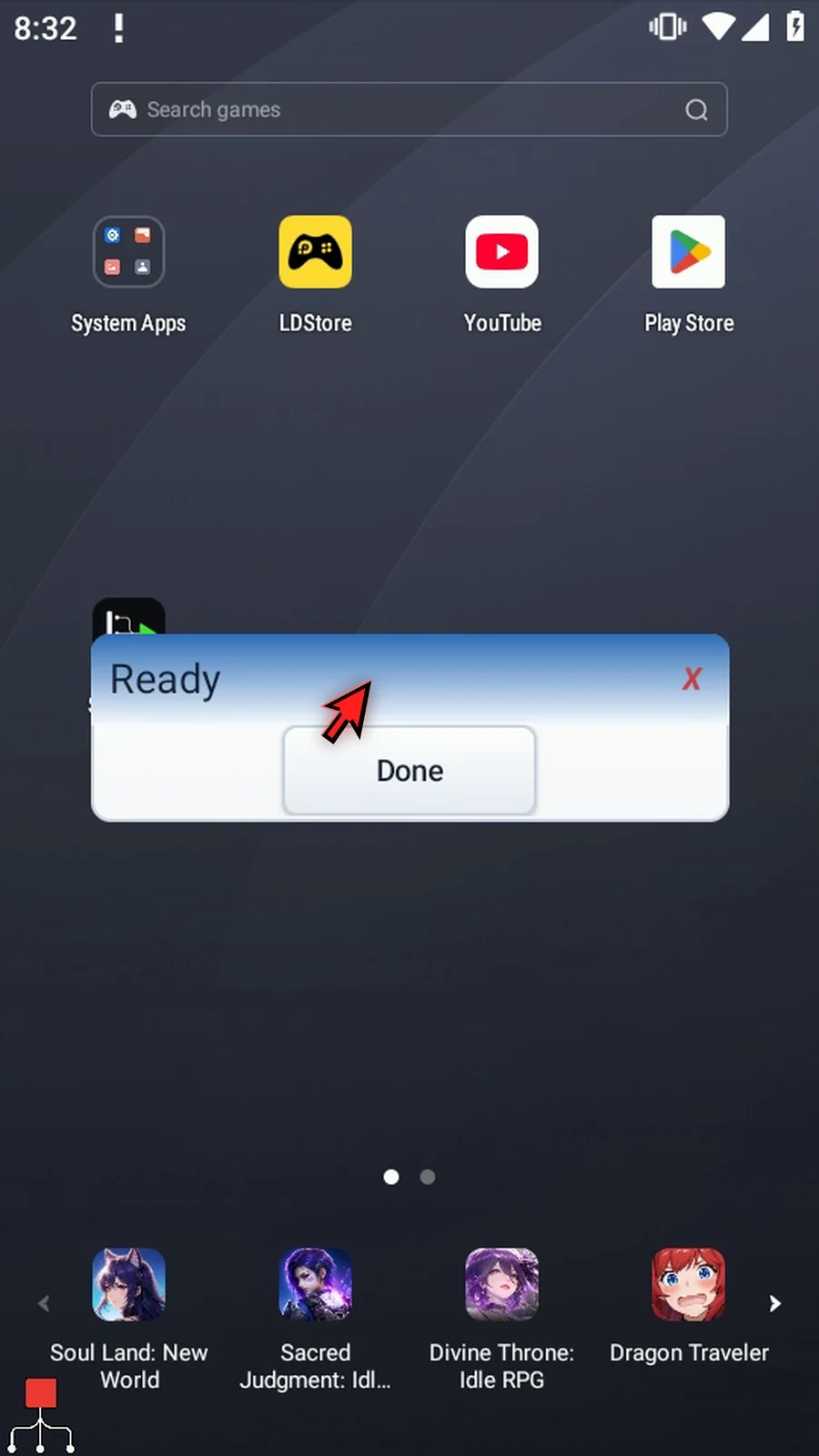
Step 28 Press Done. The confirmation closes and the script finishes automatically.
Step 29 Use JSON when later commands need a particular value from structured text. An earlier File or HTTP command can supply that text in a String variable. JSON itself does not open files or make network requests.
Extract Integer gives later math and conditions a whole number from structured JSON data. This guide reuses the exact object and source command built in Intro, then selects its count property.
- Keep Extract, JSON String
s1, Text Path Source and This Script Only. - Change Path to
$.count, choose Integer, and name the active Integer outputi1. The unquoted JSON number2becomes Integer2; the original JSON text is unchanged. - The selected JSON value must be numeric, whole and within signed 32-bit bounds, −2147483648 through 2147483647. Quoted numeric Strings, non-whole fractions, null, arrays, objects and out-of-range values fail this output type.
- Keep optional Success Boolean
b1and Error Strings3from Intro. Check them before relying on a result in a larger script. - Manually drag Display into the script and place it after JSON, before PromptMe. Choose Once, Source Variable
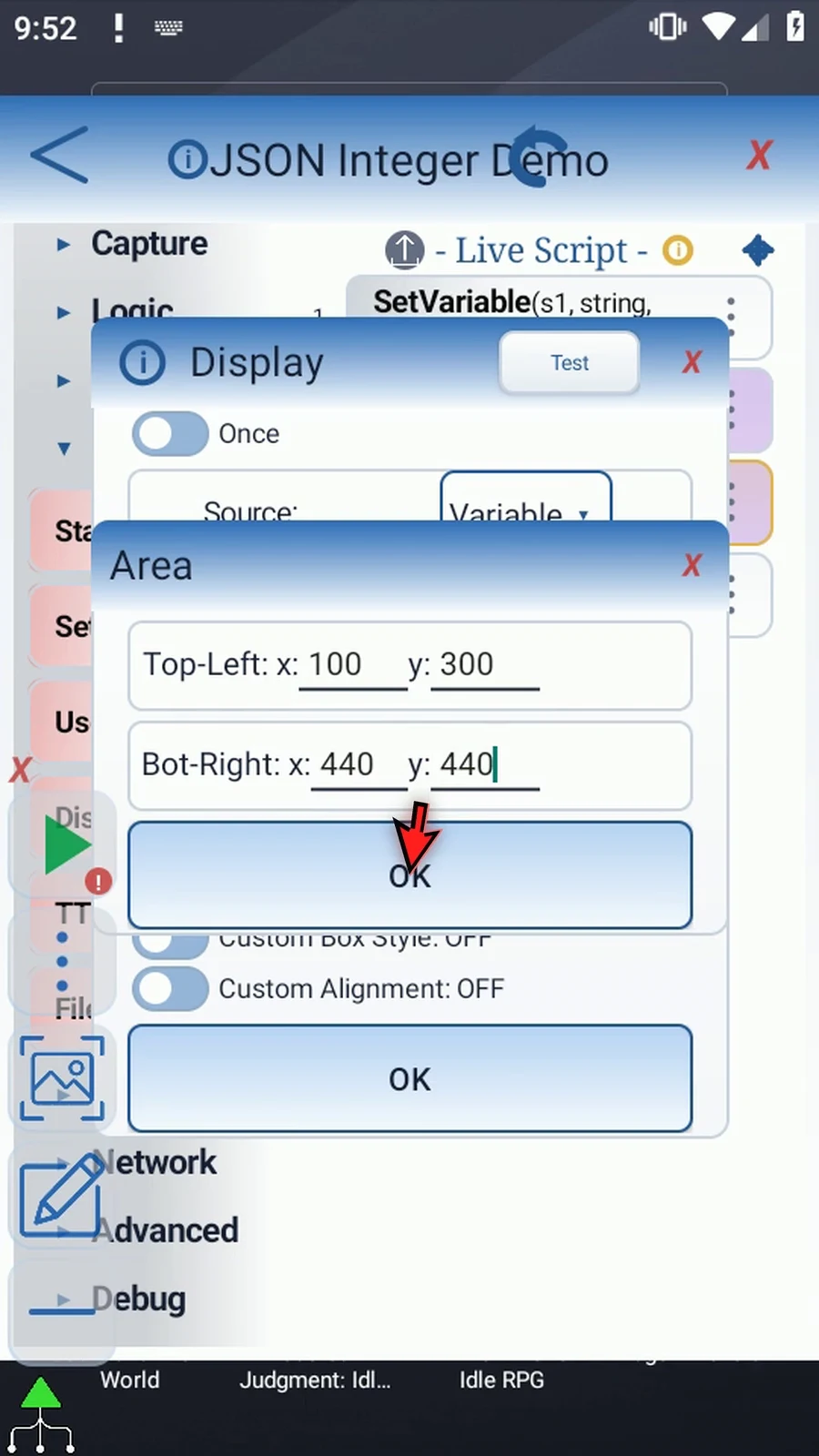
i1, manual Area top-left100,300and bottom-right440,440, and Lifespan5000ms. Keep default appearance. These coordinates are only for this example's 540×960 emulator. - Set Standard PromptMe Header to
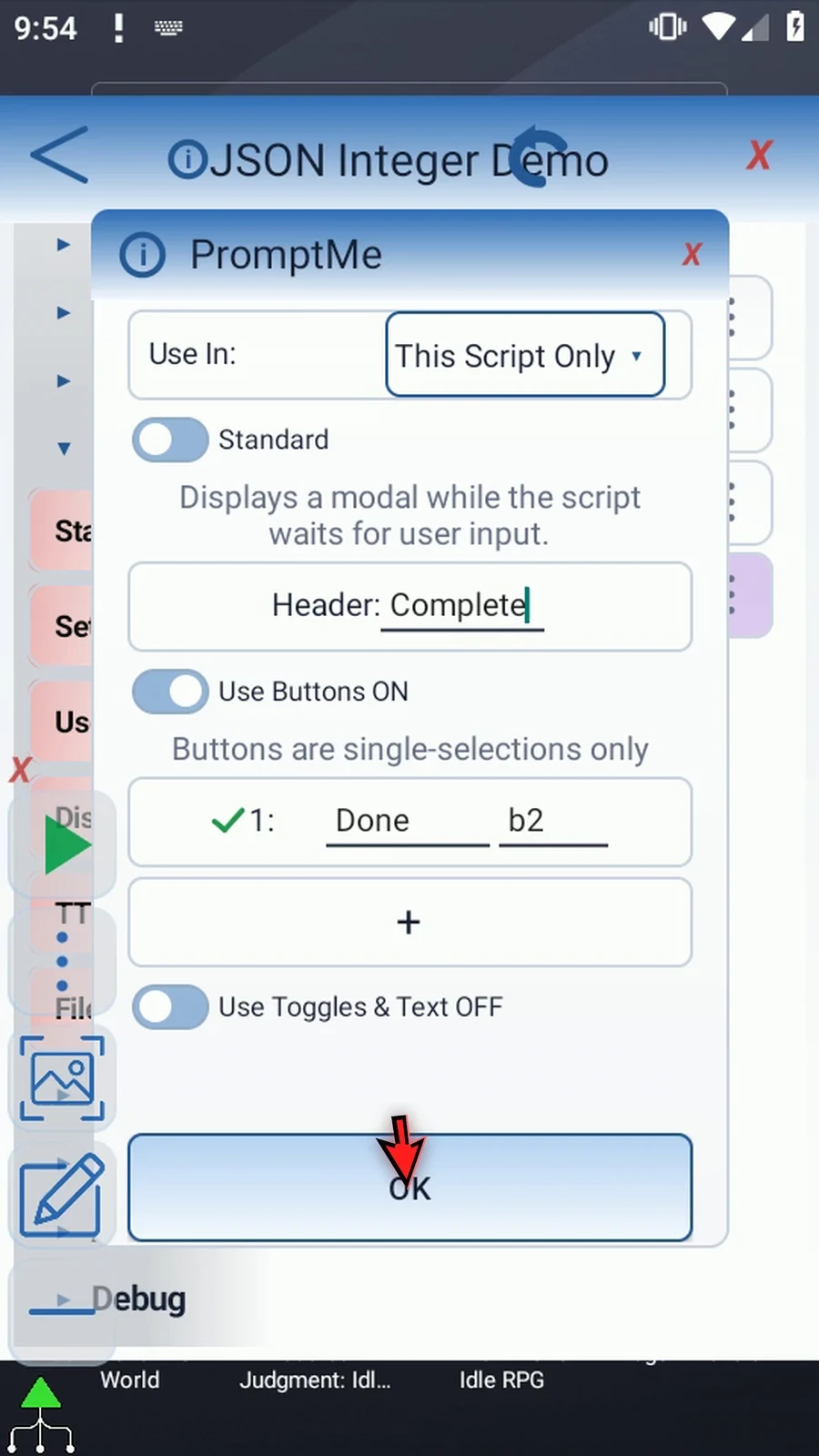
Completeand keep Done Booleanb2. PromptMe's Header resolves String variables, so Display makes the Integer result visible directly.
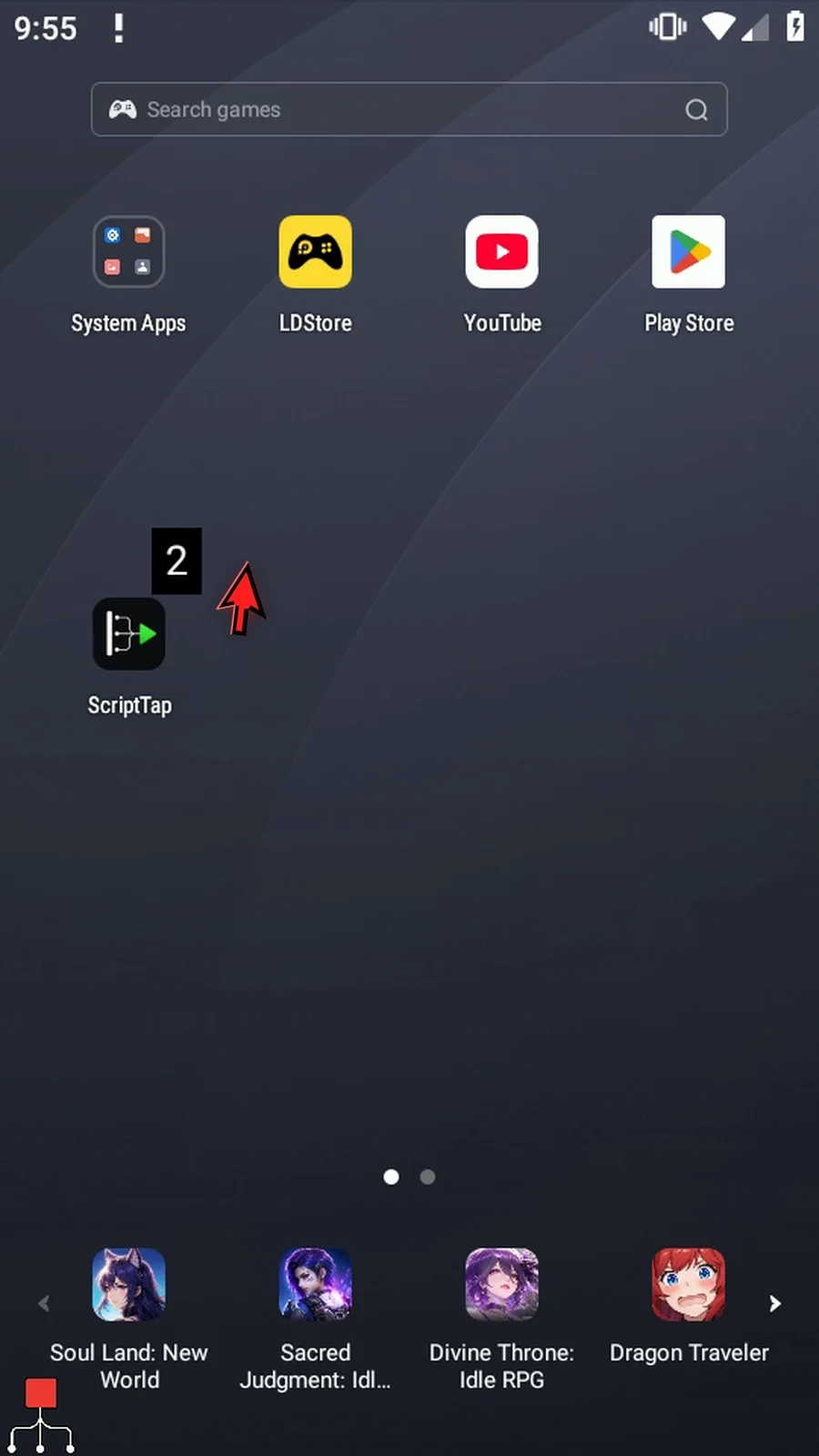
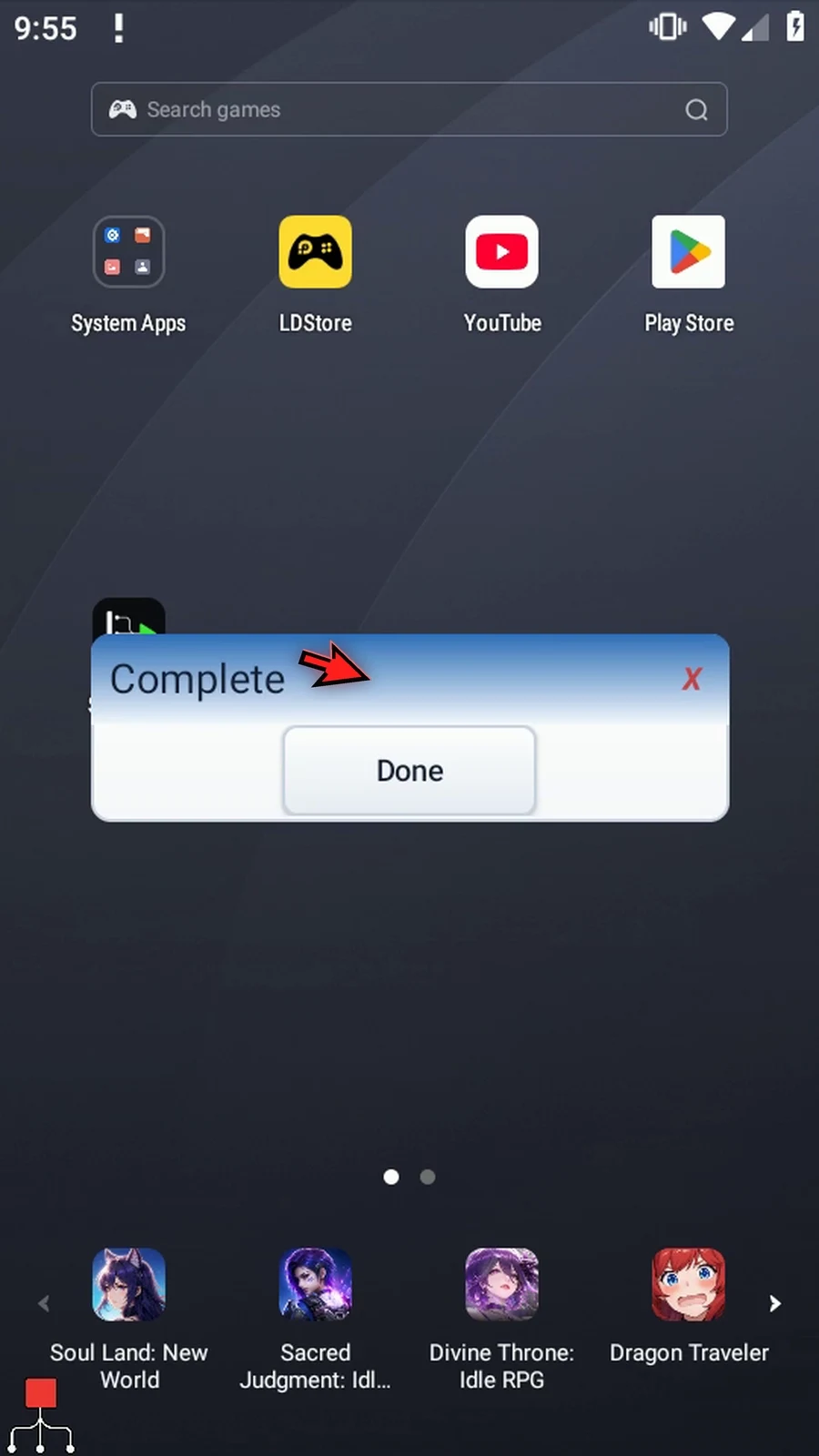
Play shows the actual number 2 for five seconds. Display then disappears, PromptMe confirms completion, and Done ends the script. Neither JSON nor Display types into or changes the underlying app.
Extract Integer
Step-by-step guide
Step 01 Extract Integer reads a whole-number value from JSON and puts it in an Integer variable for later math or conditions. We'll extract the count from our example object and display the number two.
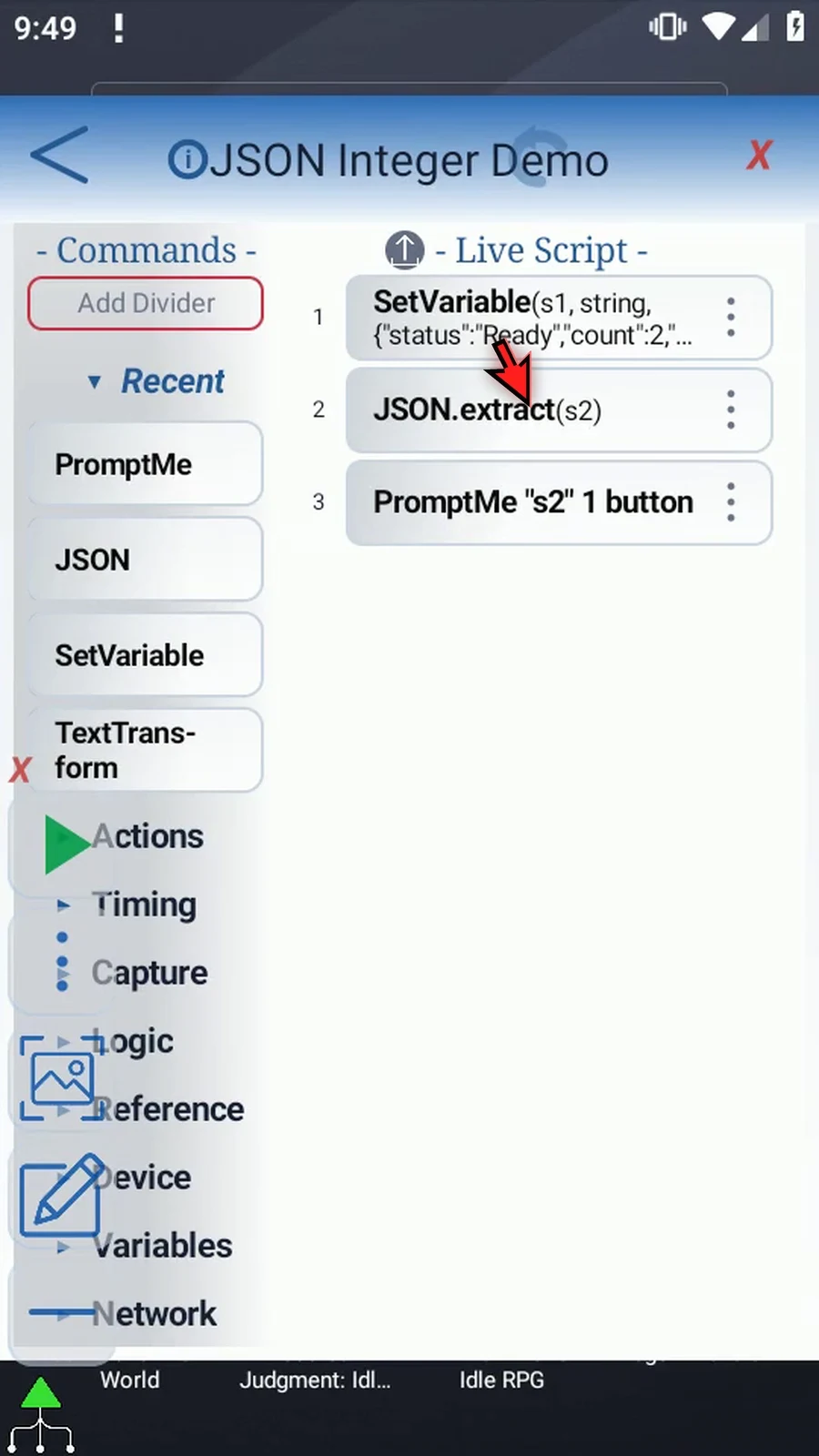
Step 02 Use the small JSON object and three-command script built in Intro. SetVariable still prepares s1. We'll change JSON's result type and add Display so the number is visible.
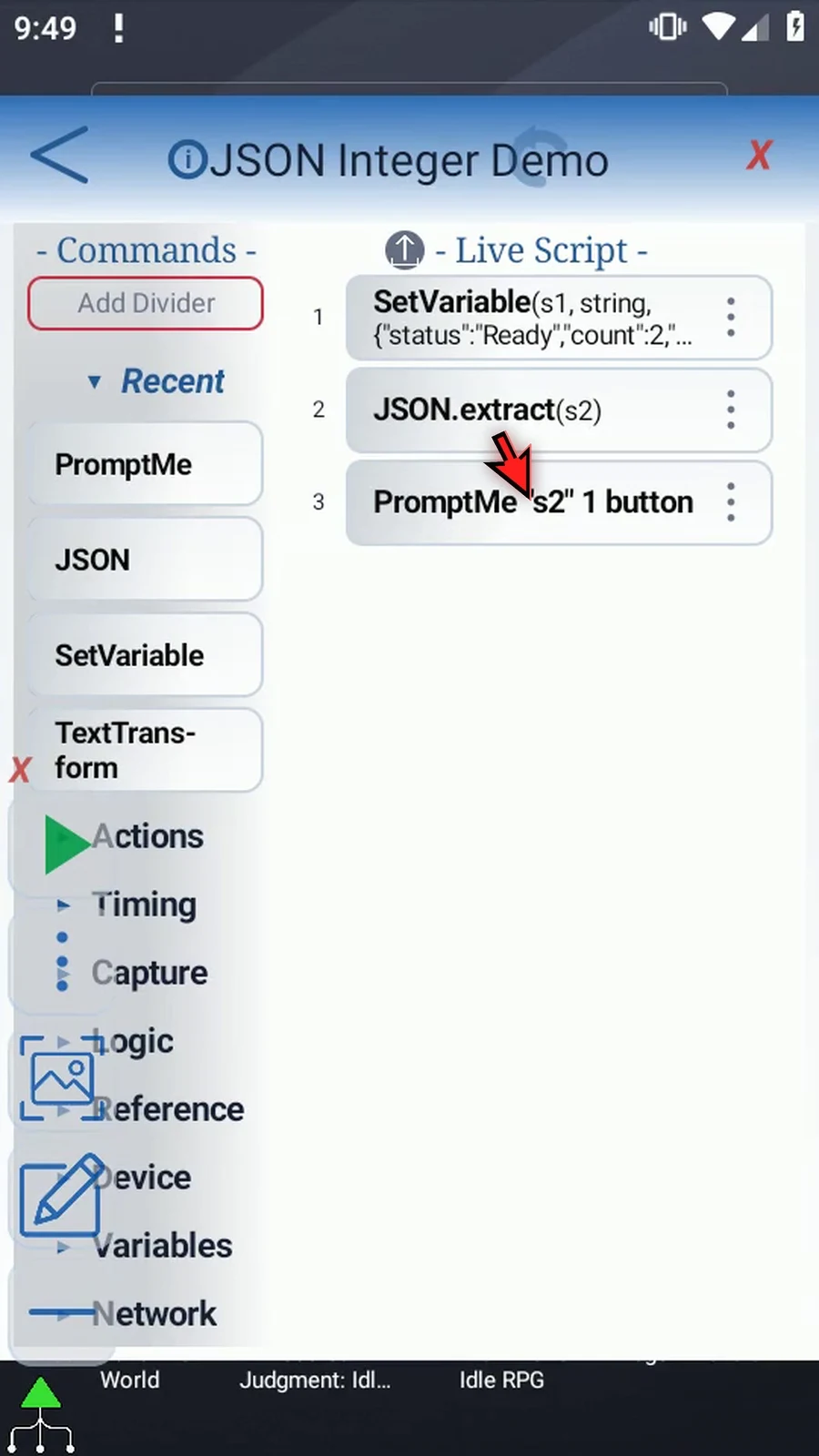
Step 03 Open JSON. Keep Extract, JSON String s1, Text as the Path Source, and This Script Only.
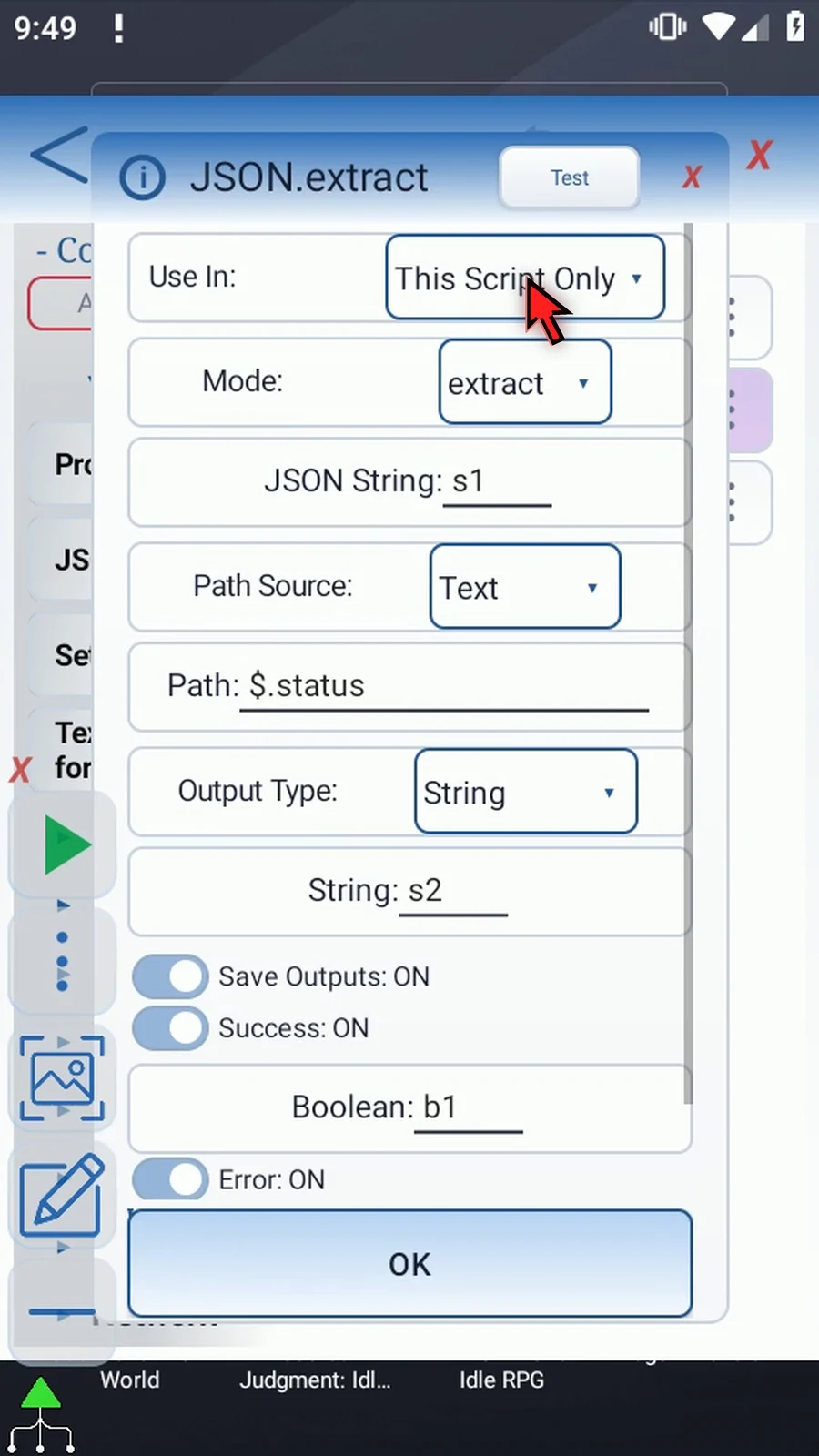
Step 04 Replace the path with dollar sign, dot, count. This selects our object's count property, which contains the unquoted number two.
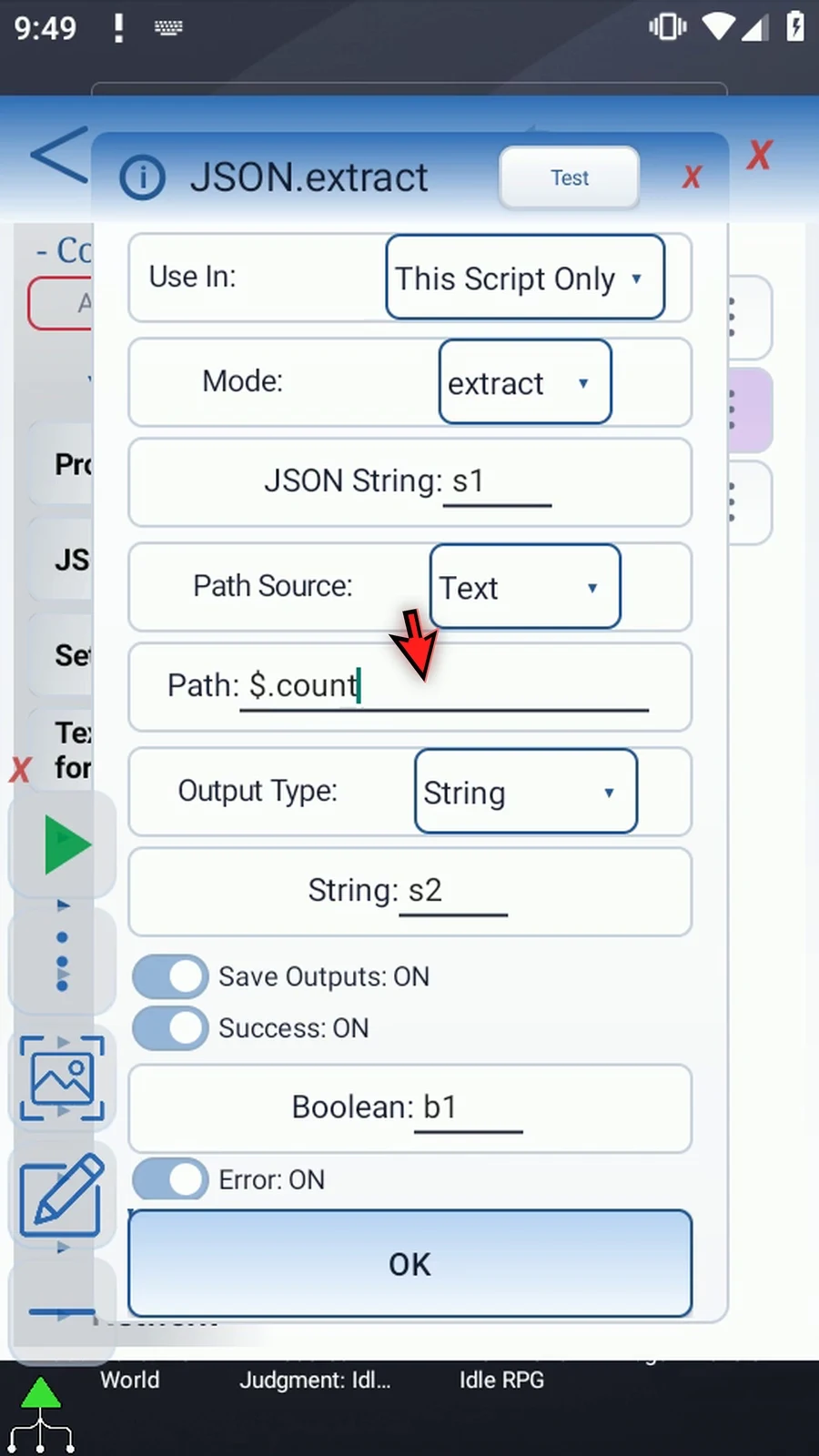
Step 05 Open Output Type and choose Integer. Use this for a whole numeric value within the signed thirty-two-bit range, not a quoted numeric String or a fractional value.
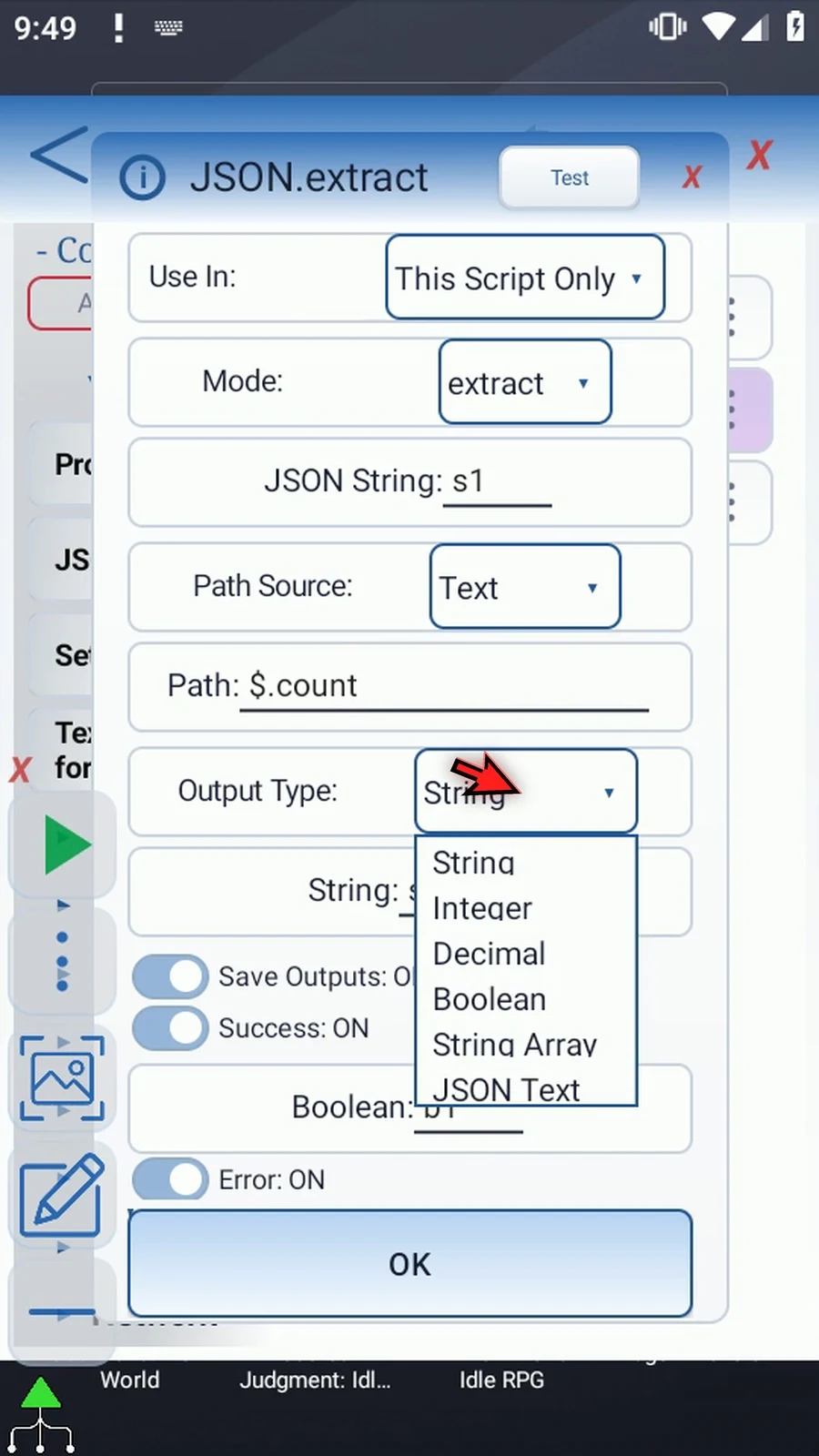
Step 06 Name the Integer output i1. The input JSON stays in s1; i1 receives the extracted number.
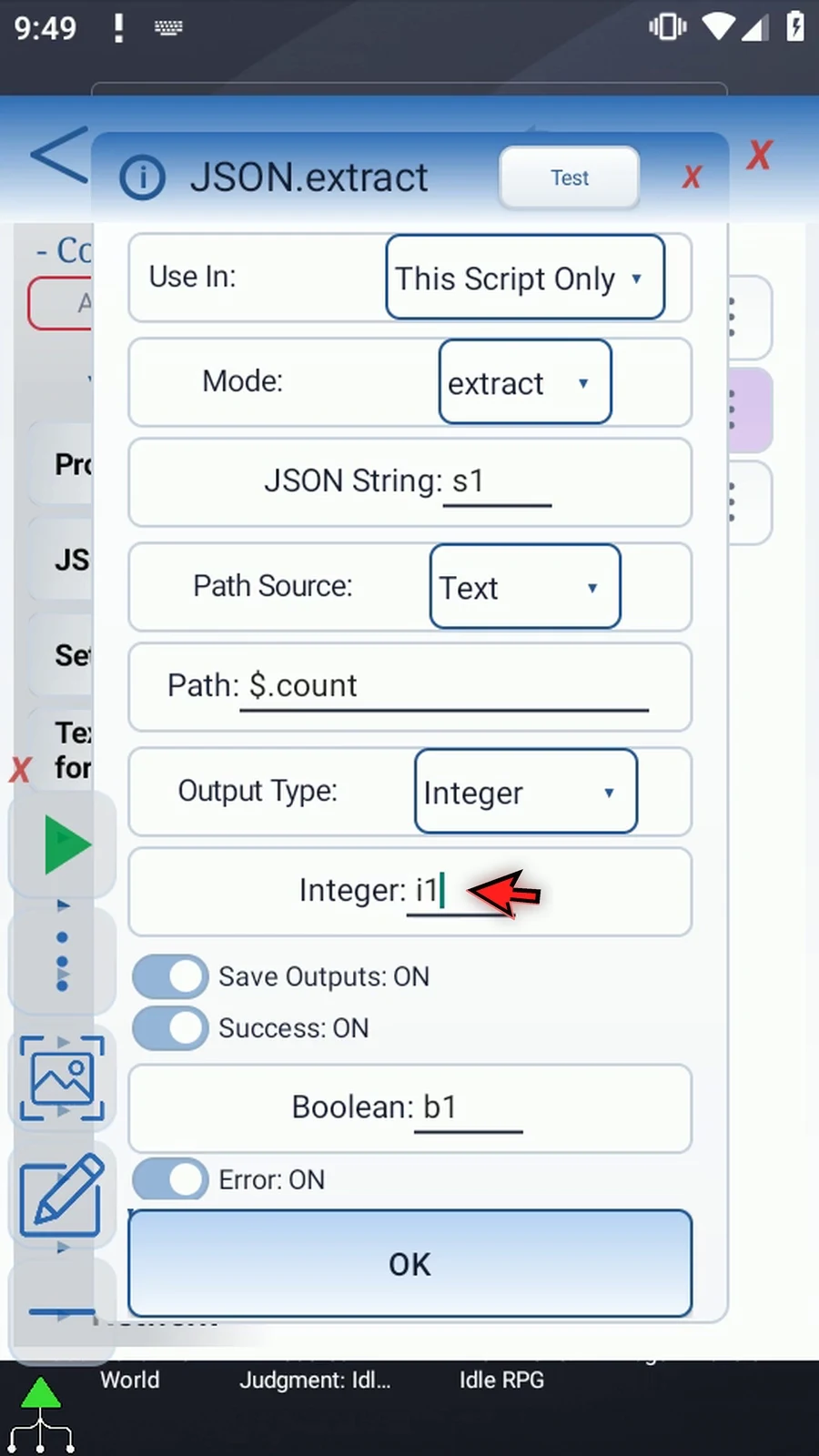
Step 07 Keep the Success and Error outputs from Intro, then tap OK. They report operation status independently of the value in i1.
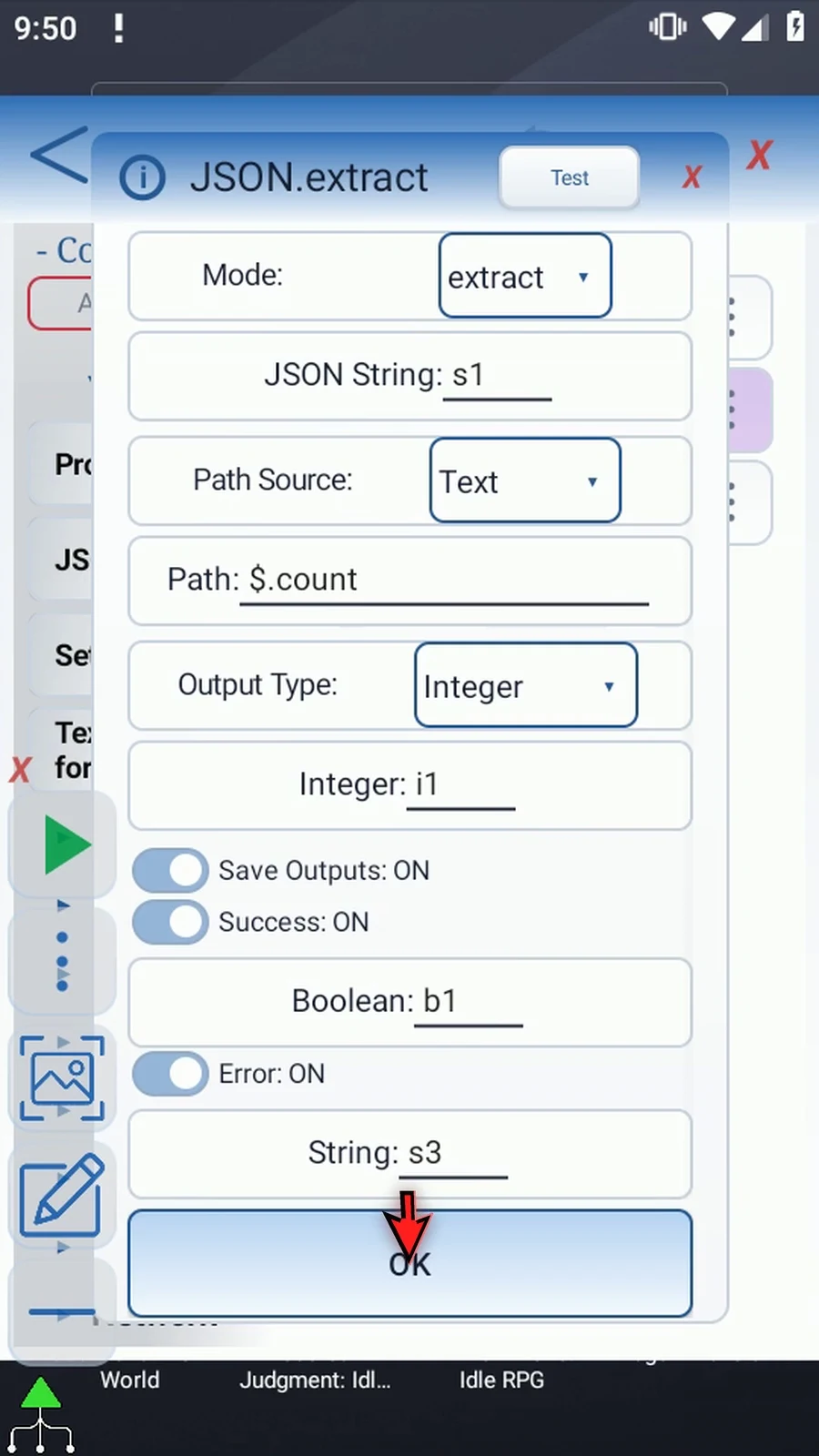
Step 08 Find Display under Device. This supporting command can show an Integer directly; PromptMe's Header reads String values instead.
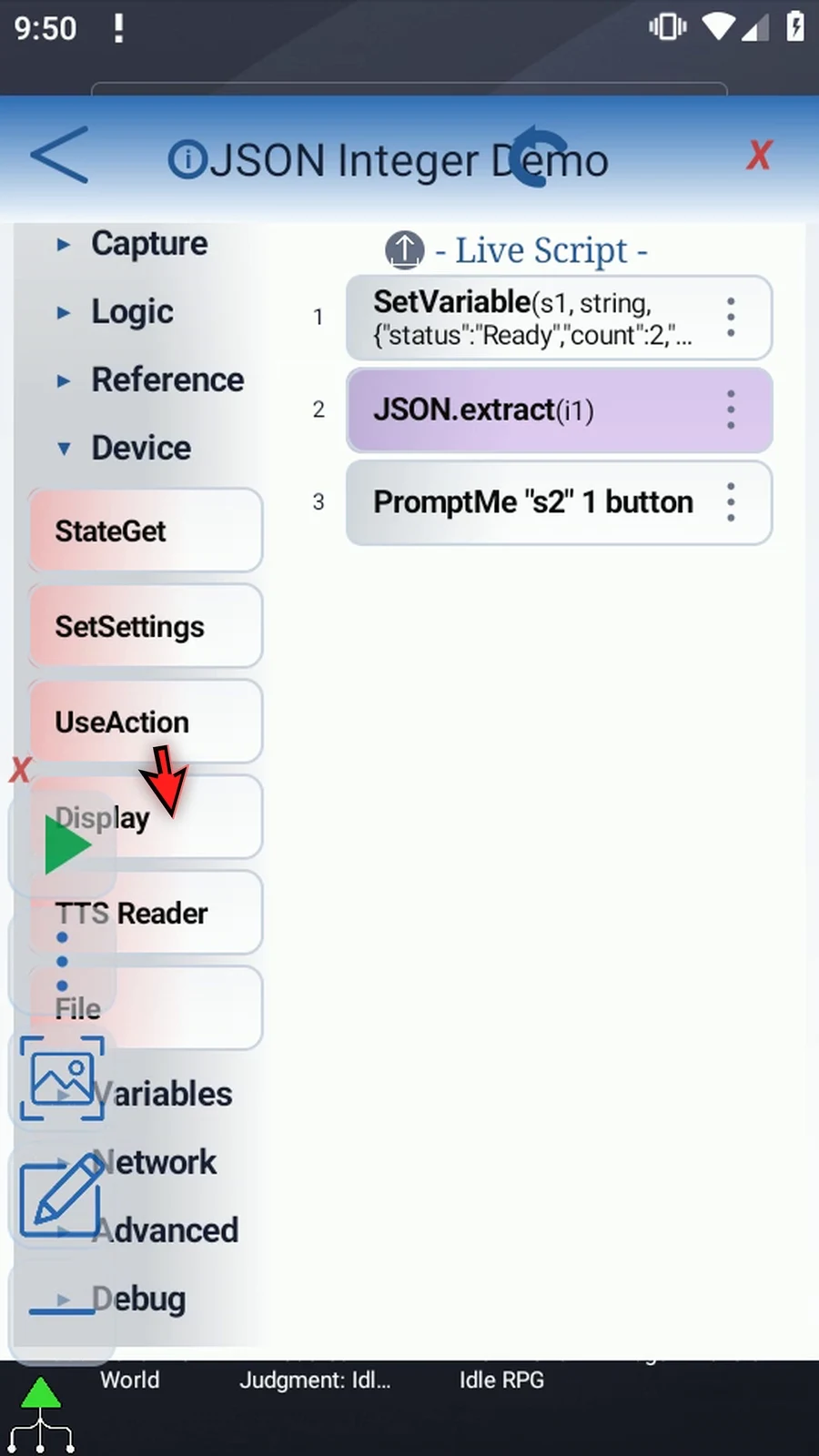
Step 09 Manually drag Display into the live script. Release at the blue insertion line.
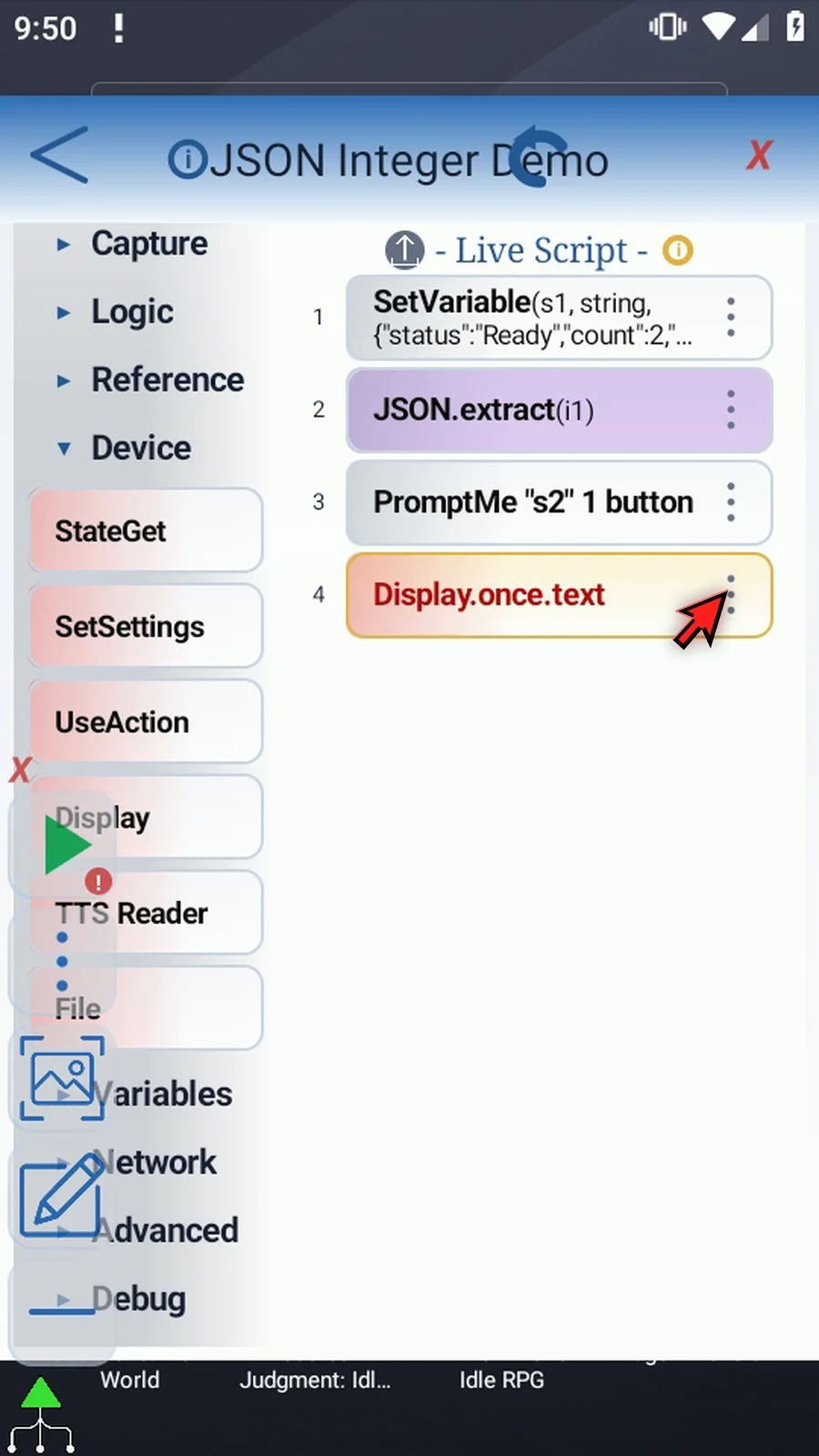
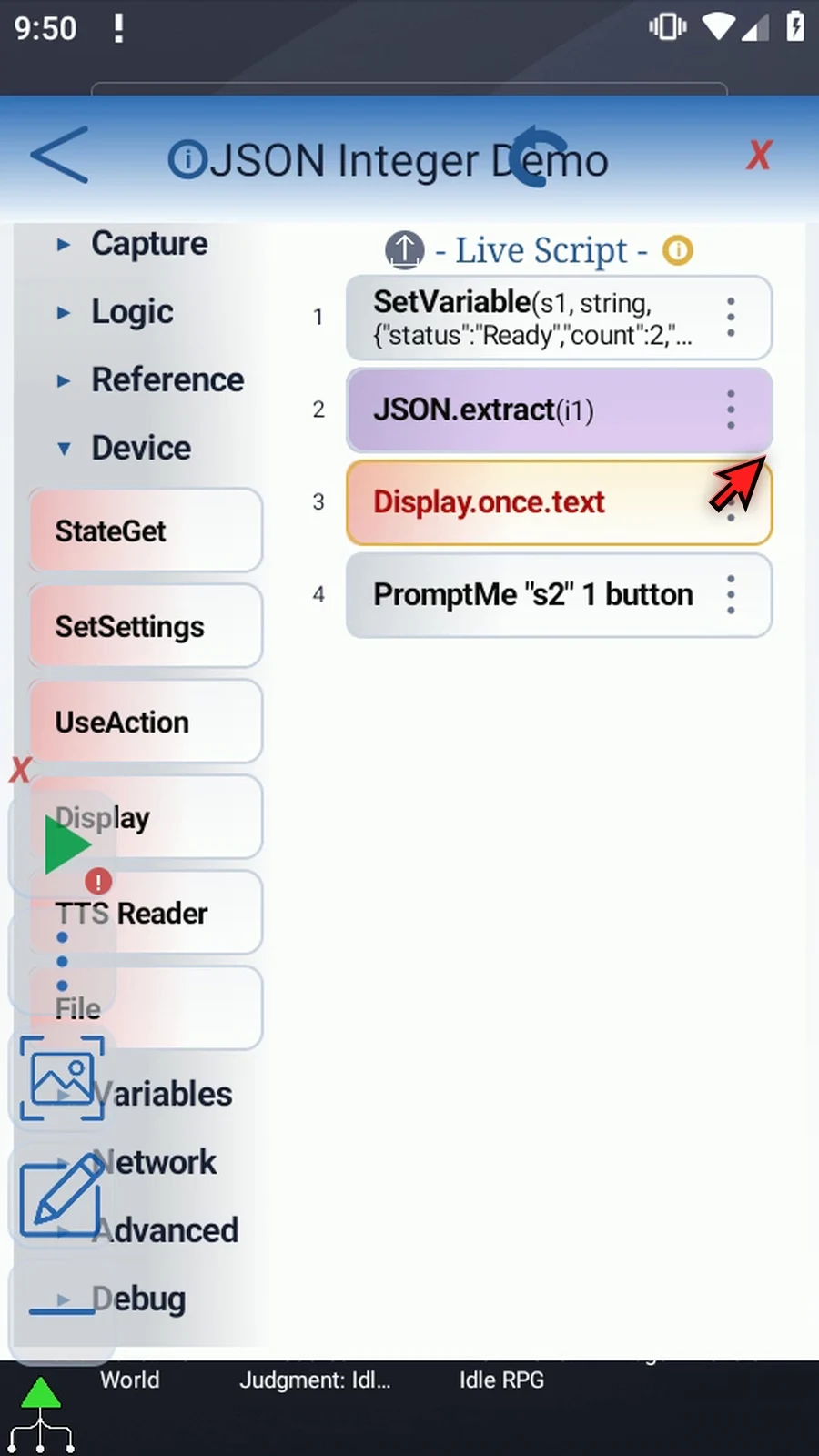
Step 10 Place Display after JSON and before PromptMe. The number must be extracted before it is shown, and the completion prompt comes last.
Step 11 Open Display. Keep Once, choose Variable as its Source, and enter i1. Display will read the number JSON produced.
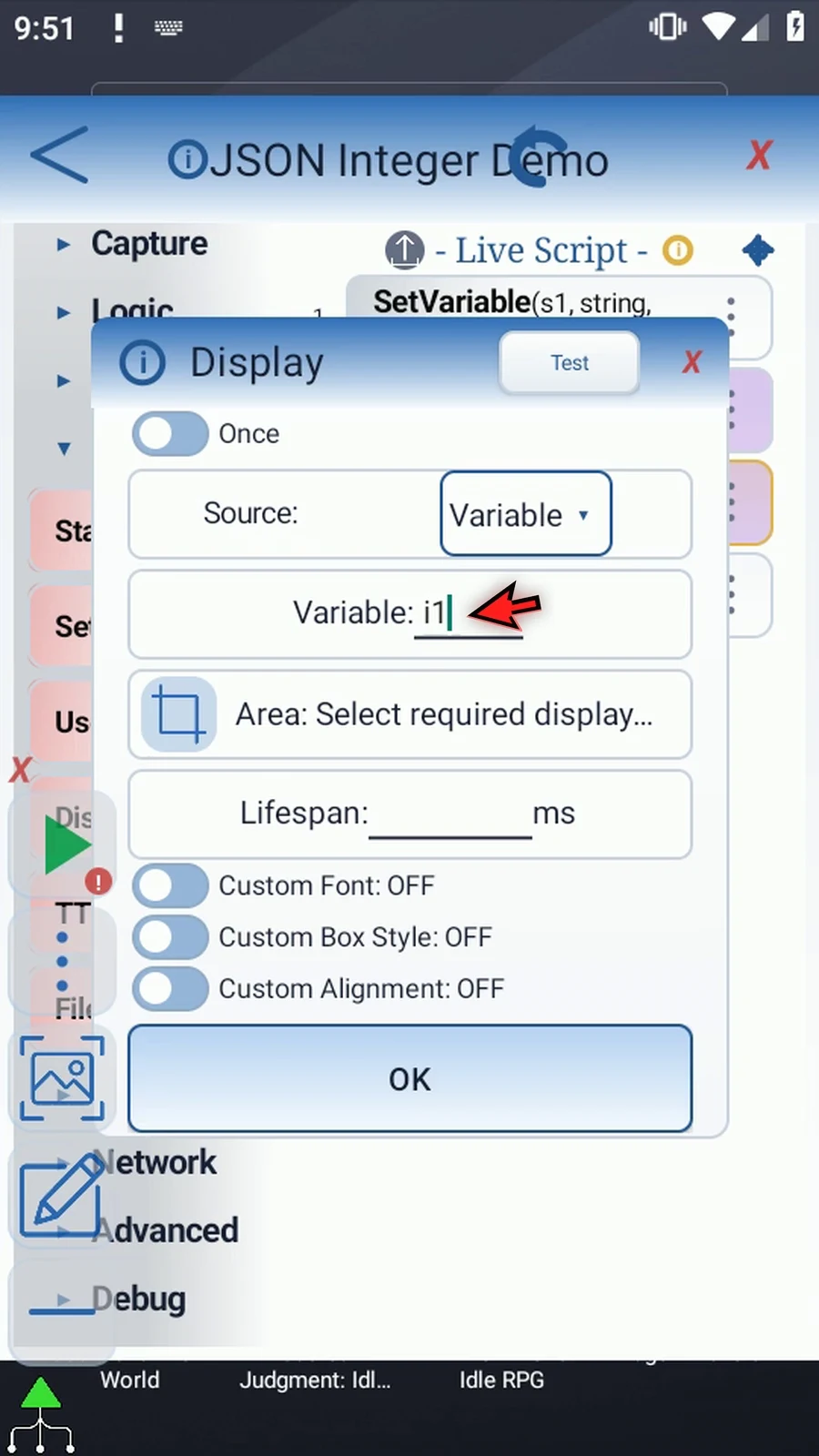
Step 12 Tap the Area coordinates to enter a small display region manually. This example does not need the screen selector.
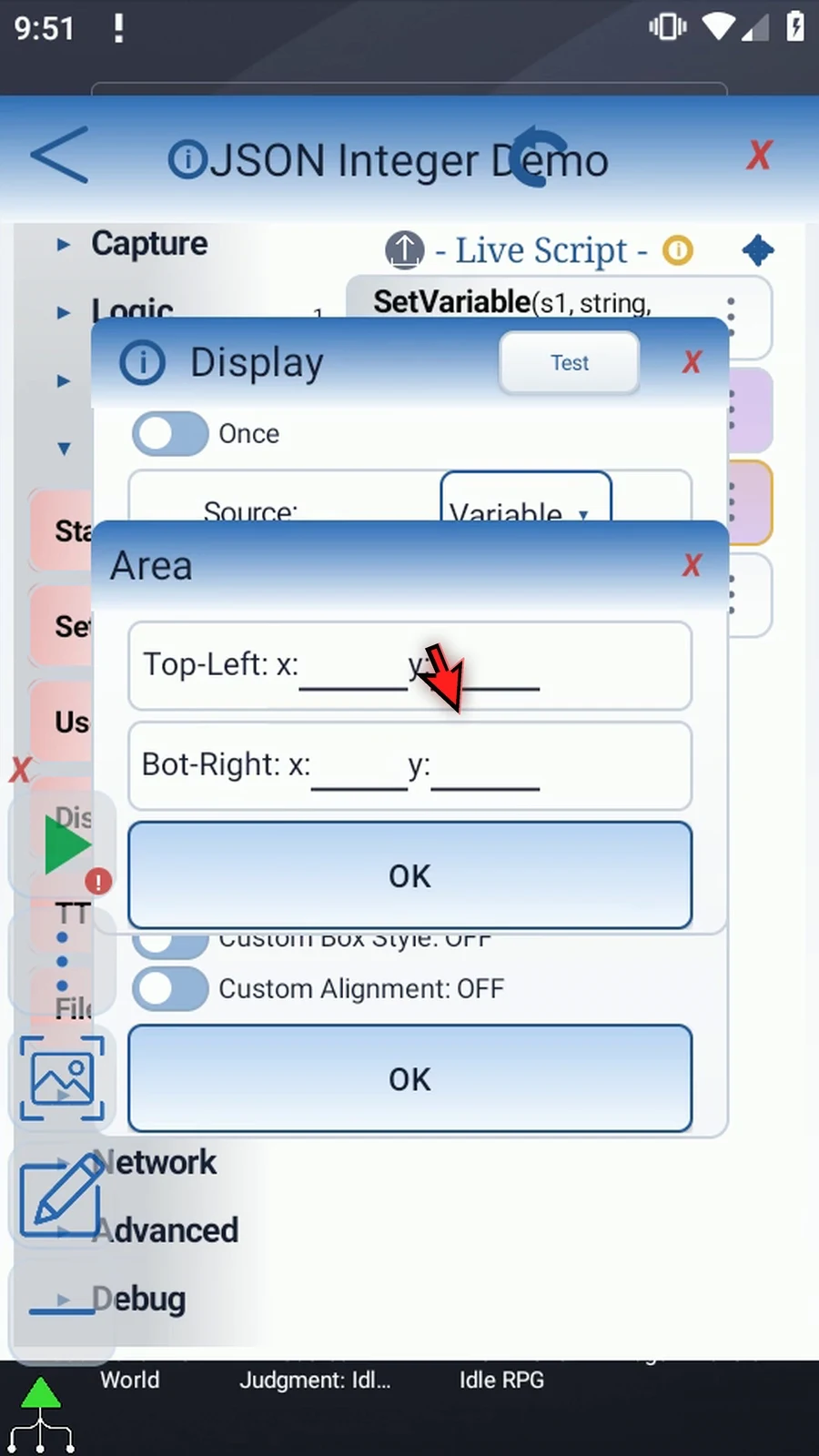
Step 13 Set the top-left corner to one hundred, three hundred. These coordinates position our short result on the home screen.
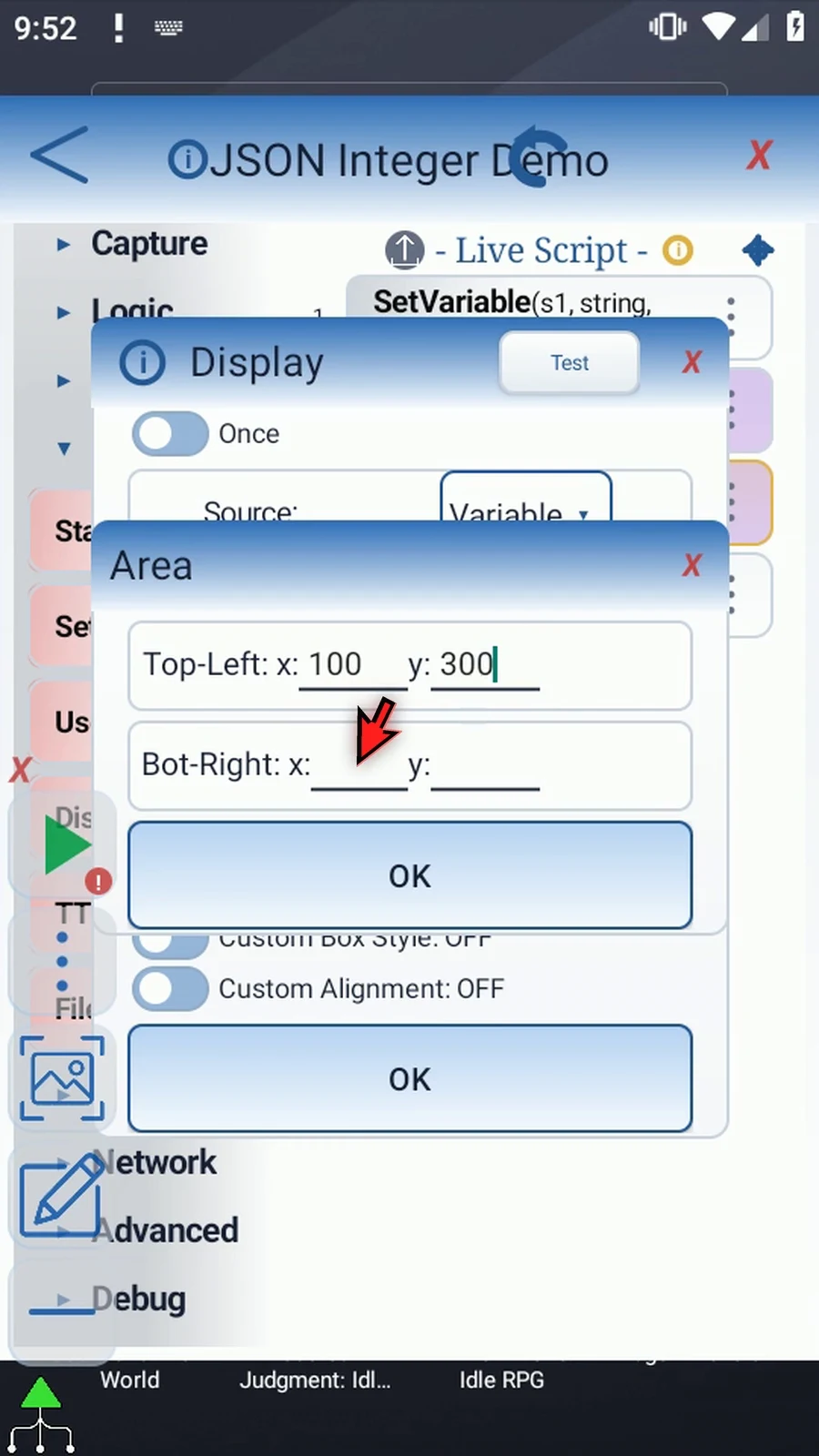
Step 14 Set the bottom-right corner to four hundred forty, four hundred forty, then confirm the Area.
Step 15 Set Lifespan to five thousand milliseconds, or five seconds. Once keeps this branch waiting while the number is displayed.
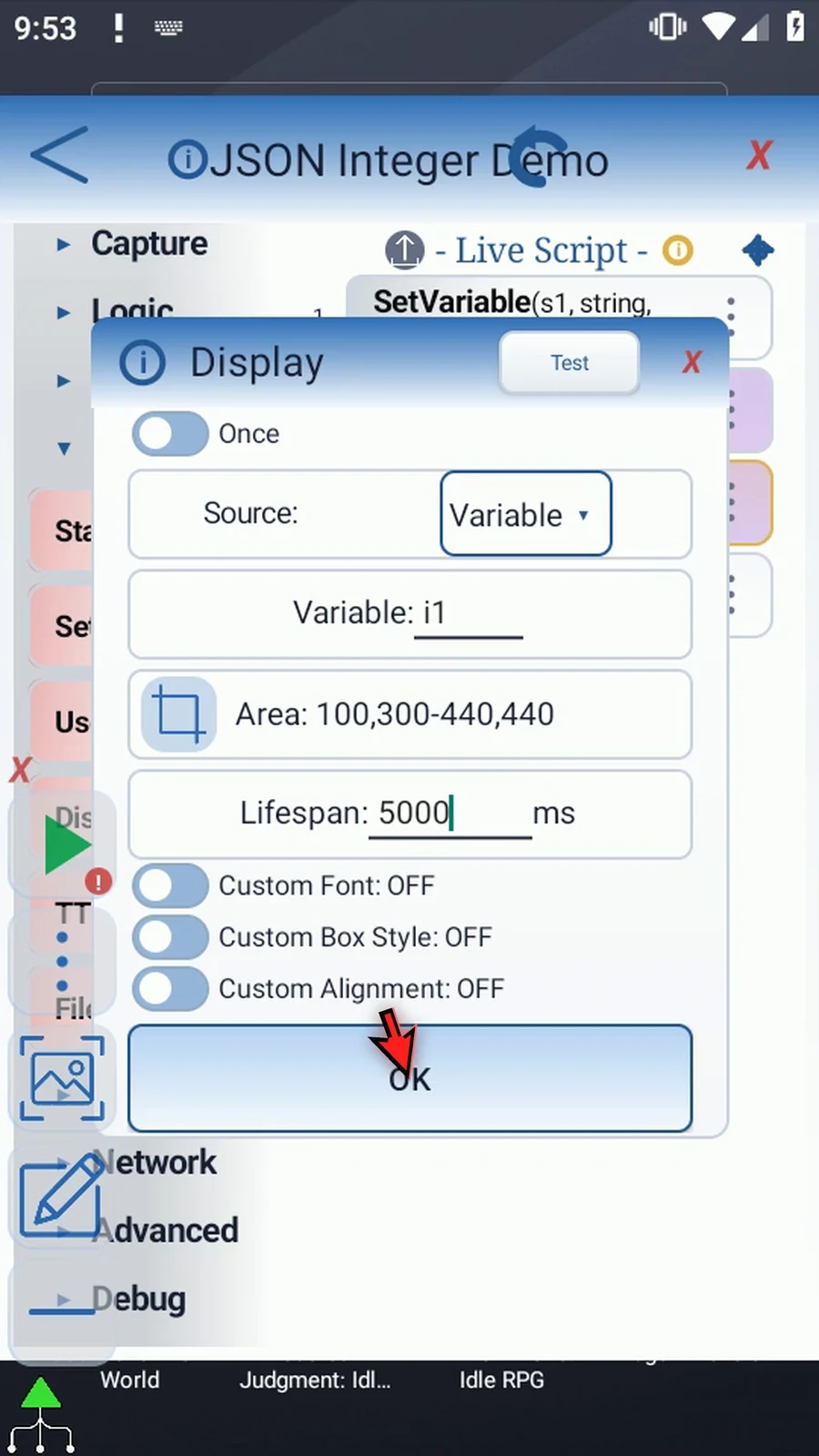
Step 16 Tap OK to save Display. It only shows the result; it does not type into the app or change i1.
Step 17 Open PromptMe, change its Header to Complete, and keep the Done button from Intro. This confirmation will show that the script continued after Display finished.
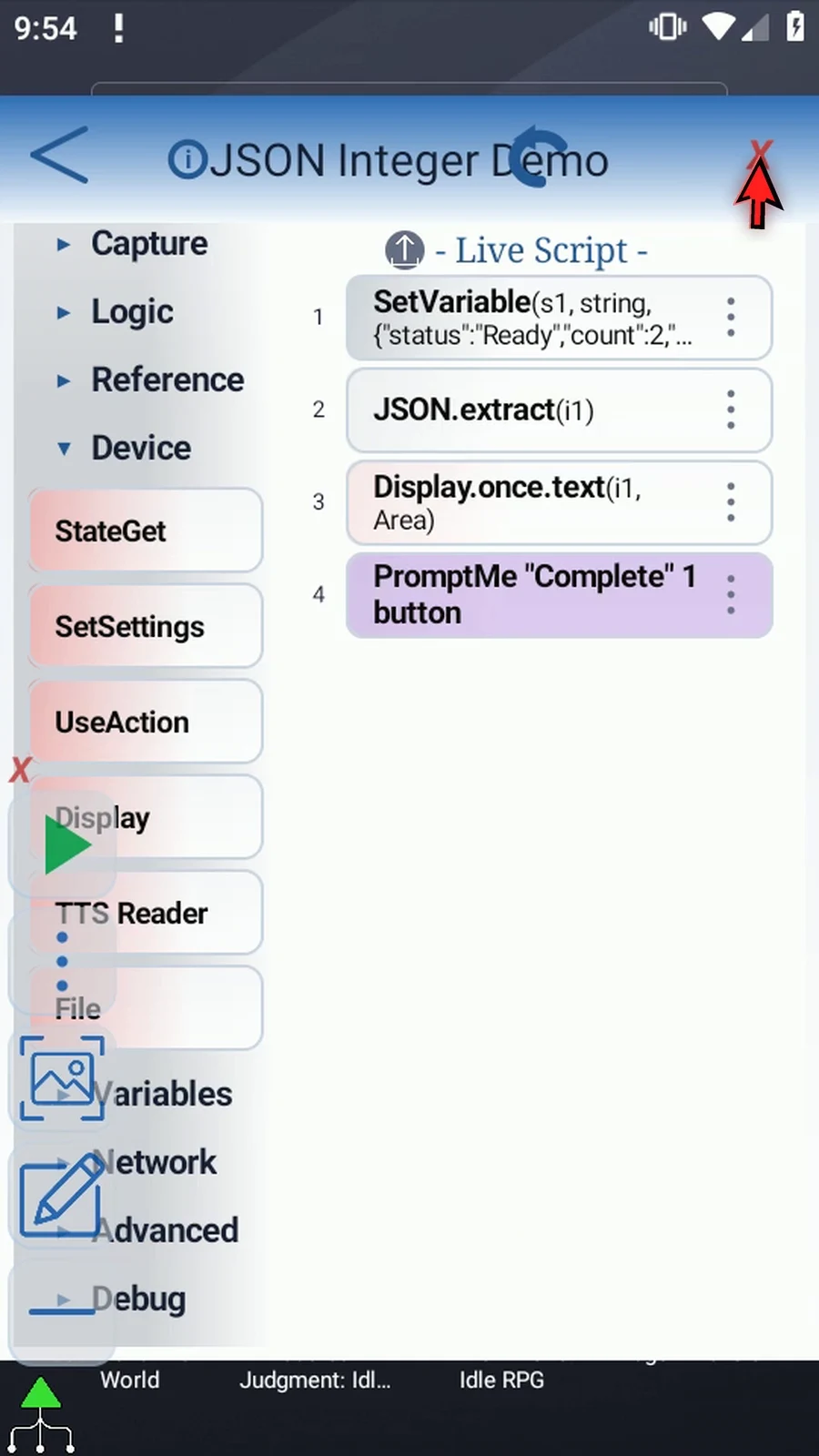
Step 18 The script now prepares JSON text, extracts an Integer, displays it for five seconds, and then confirms completion. Close the editor to try it.
Step 19 When the script is complete, simply use the Play button in the main overlay.
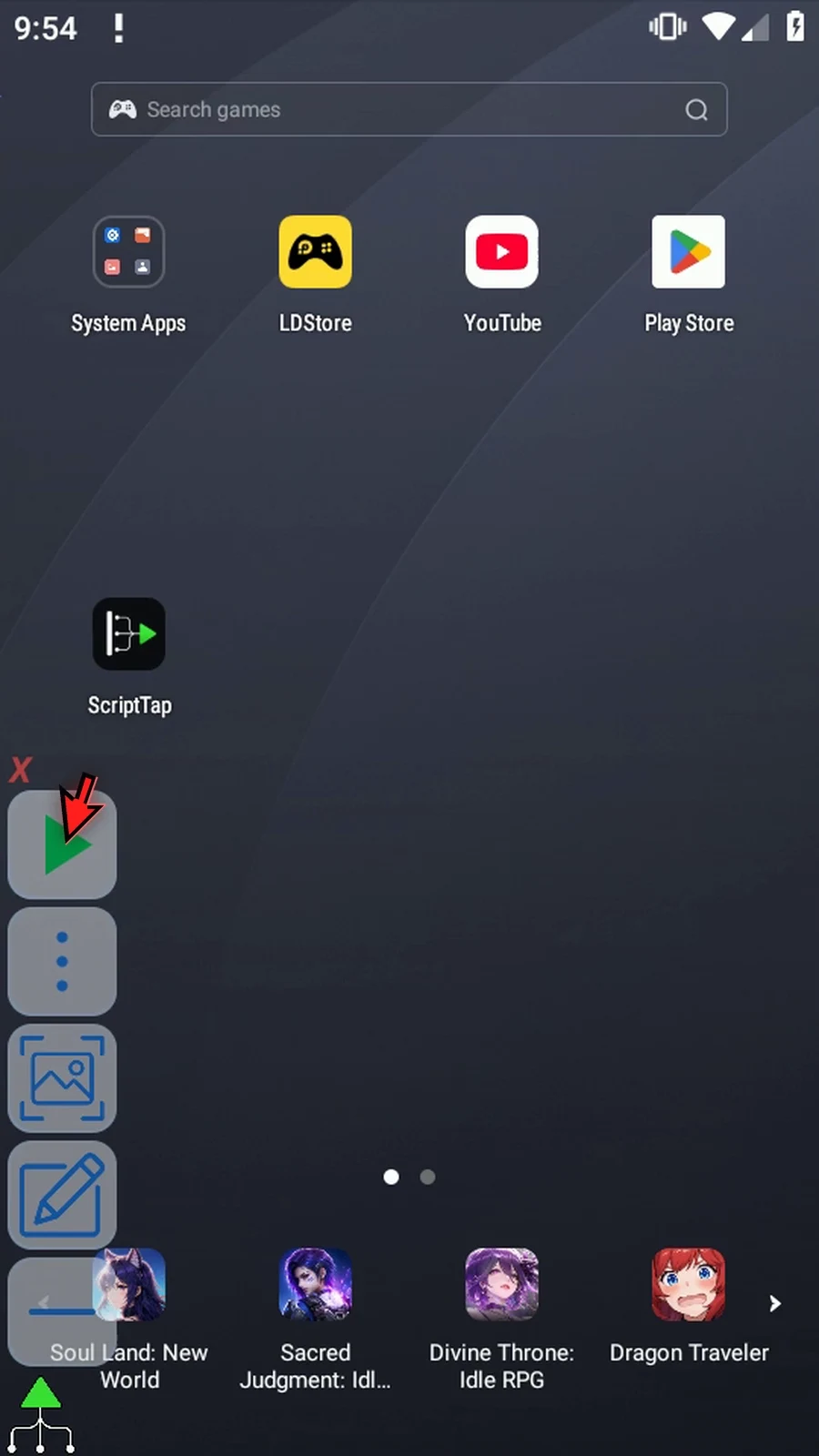
Step 20 The extracted count is two.
Step 21 Display has finished, and PromptMe confirms the script reached its final command.
Step 22 Press Done. The script finishes automatically. Use Integer extraction when later steps need a whole number from structured JSON data.
Extract Decimal makes a JSON number available to later calculations as a Decimal variable. This follow-up reuses the source JSON from Intro and the four-command script built in Extract Integer.
- Keep Extract, JSON String
s1, Text Path Source and This Script Only. - Change Path to
$.price, choose Decimal, and name the active outputd1. The unquoted JSON number1.5becomes Decimal1.5; the input String is unchanged. - Use this type for JSON numeric values, including fractional numbers. Quoted numeric Strings, Boolean values, null, arrays and objects do not match Decimal output.
- Keep optional Success Boolean
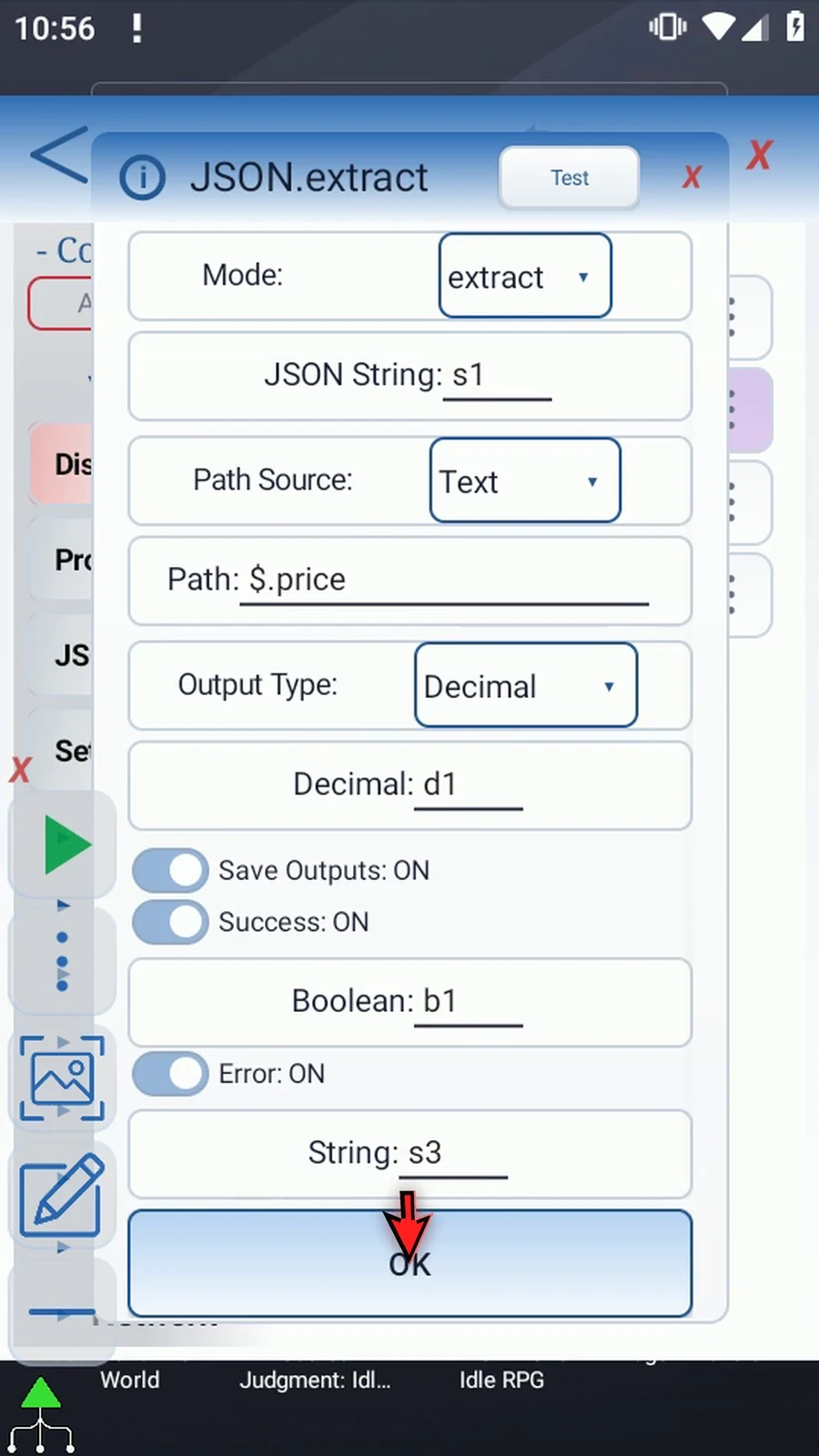
b1and Error Strings3. In a larger script, check them before relying on the extracted result. - In the existing Display, change Variable
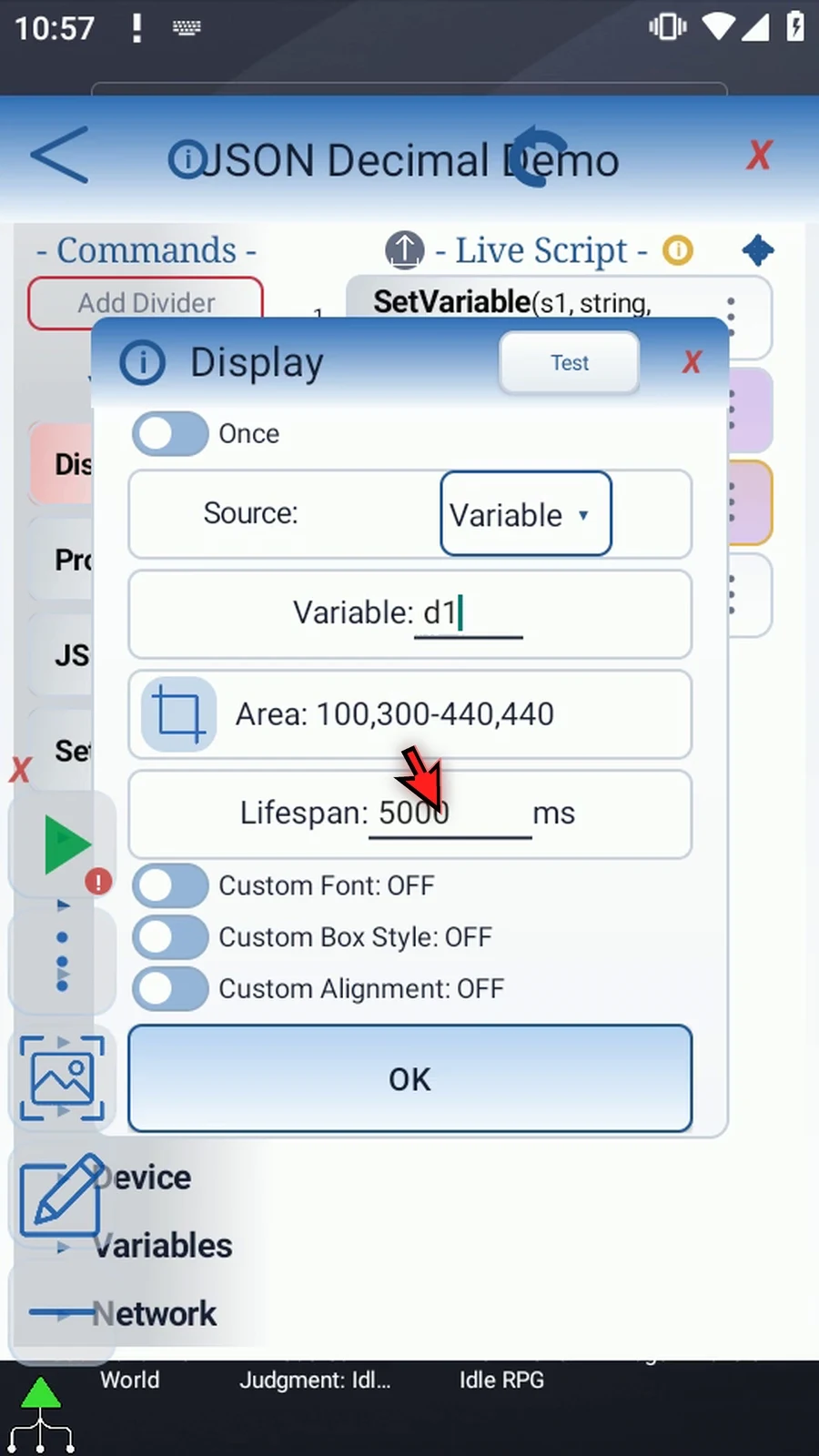
i1tod1. Keep Once, Area100,300–440,440, Lifespan5000ms and default appearance. The coordinates belong to this example's 540×960 emulator; use an appropriate area on your device. - Keep Standard PromptMe Header
Completeand Done Booleanb2. Display shows the number directly; the prompt confirms the script continued afterwards.
Play shows the actual 1.5, then Complete. Done finishes the script. No command in this example types into the underlying app. See Intro for the source object and manual command drags, and Extract Integer for Display insertion and Area setup.
Extract Decimal
Step-by-step guide
Step 01 Extract Decimal reads a JSON number into a Decimal variable for later calculations, including values with a fractional part. We'll extract one point five from our example object and display it.
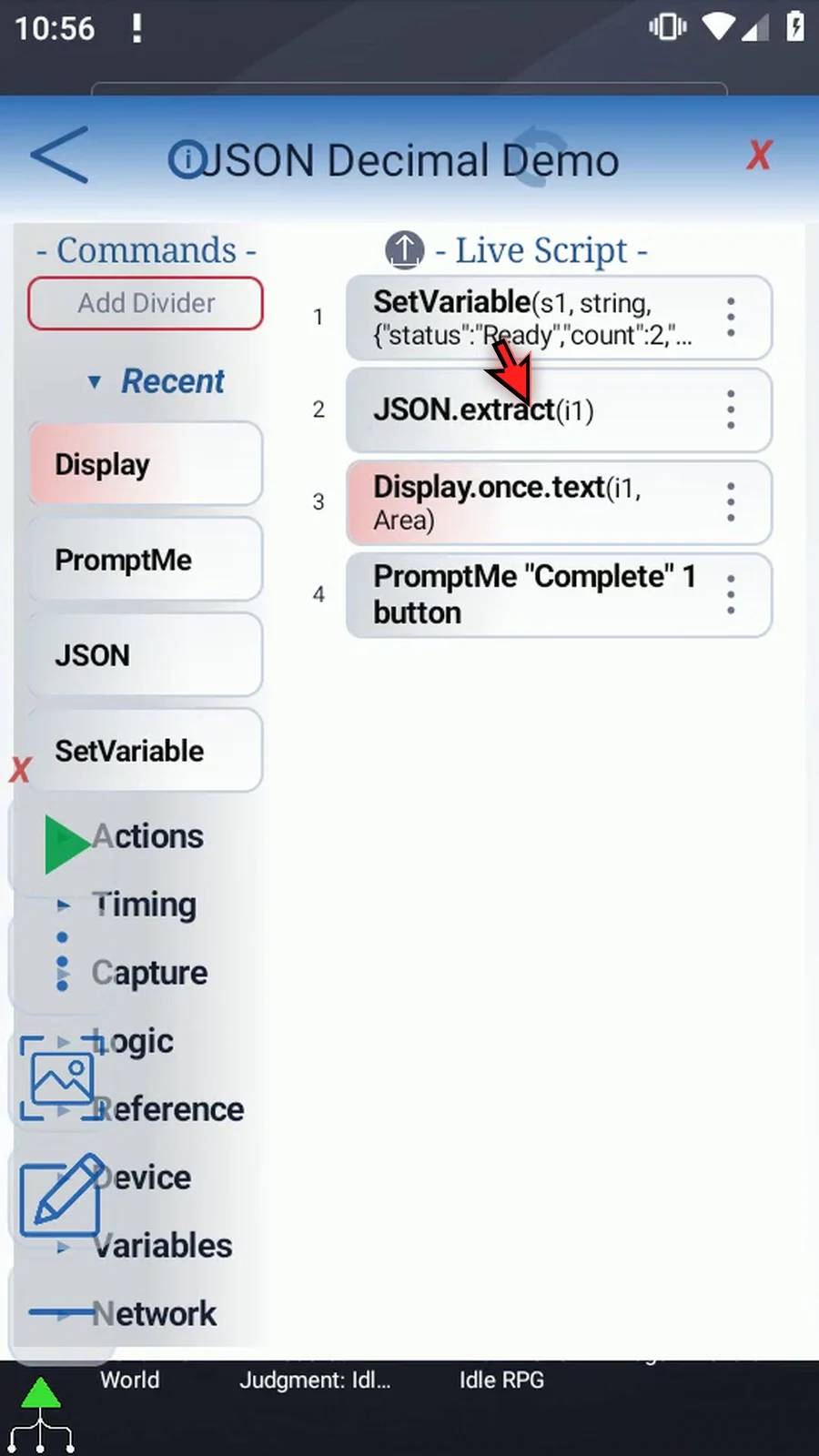
Step 02 Reuse the script from Extract Integer. Intro shows how to prepare the JSON text in s1, and the Integer guide shows how to add Display. We only need to change JSON and Display here.
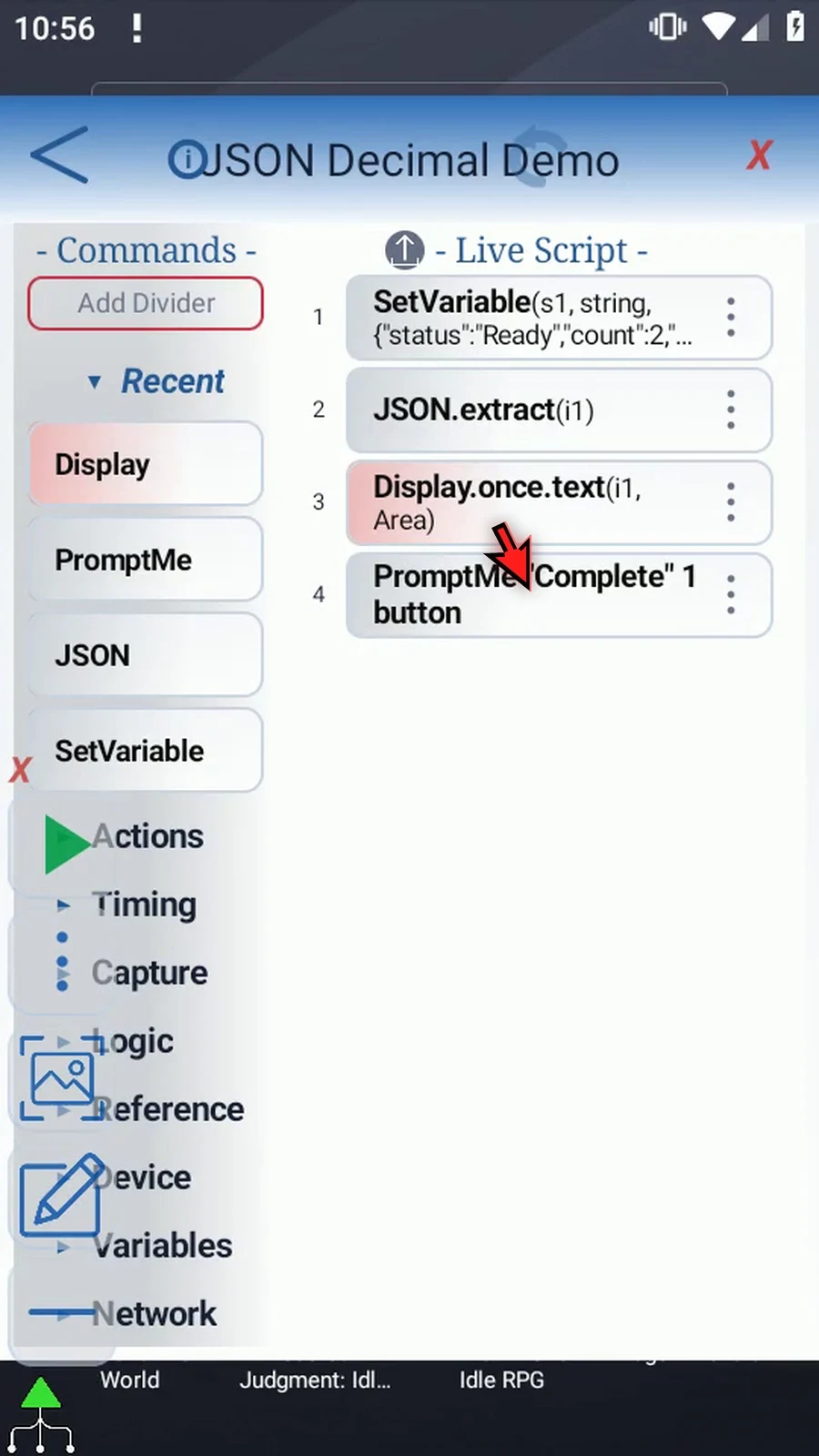
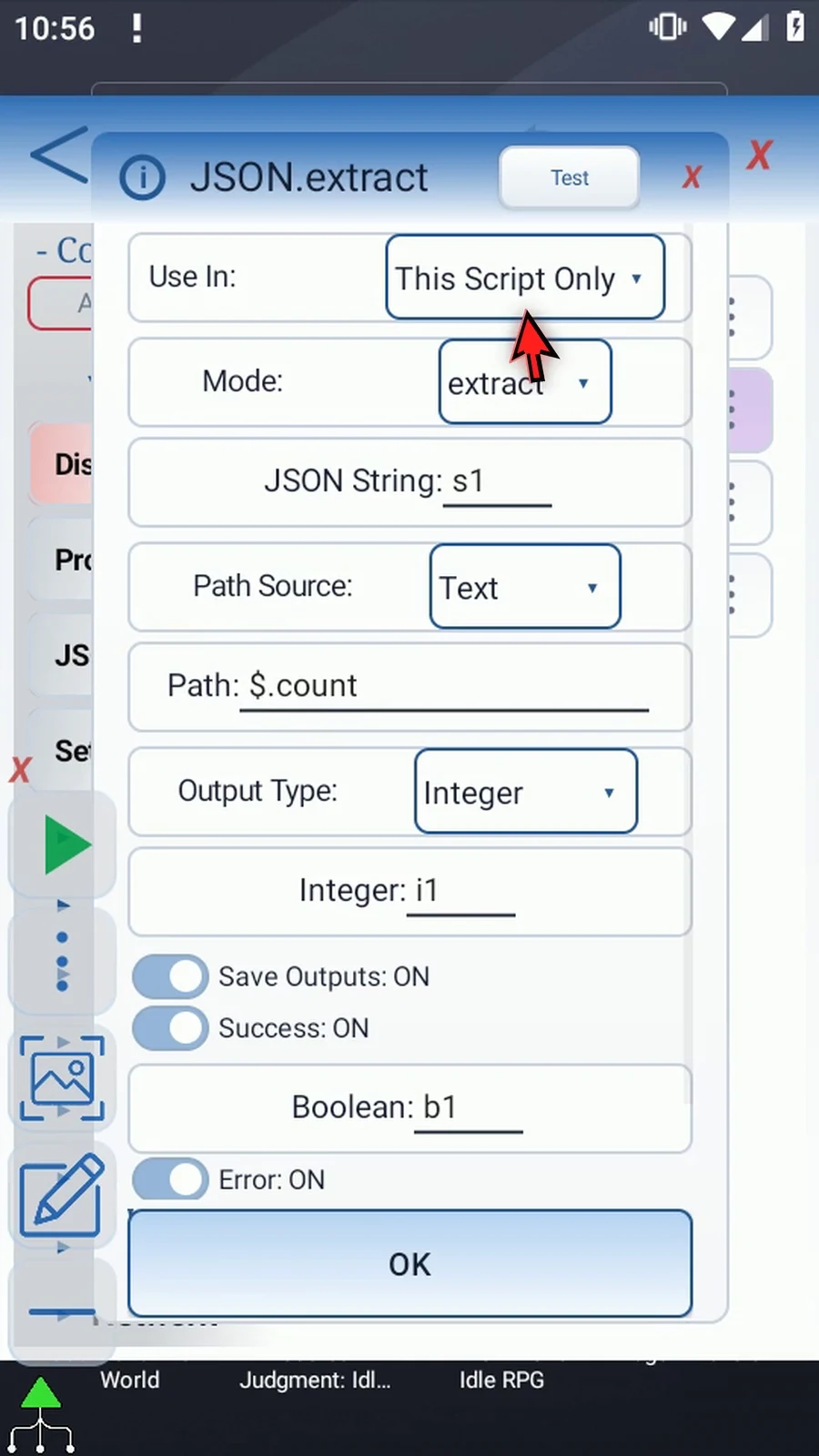
Step 03 Open JSON. Keep Extract, JSON String s1, Text as the Path Source, and This Script Only.
Step 04 Change the path to dollar sign, dot, price. Our price property contains the unquoted JSON number one point five.
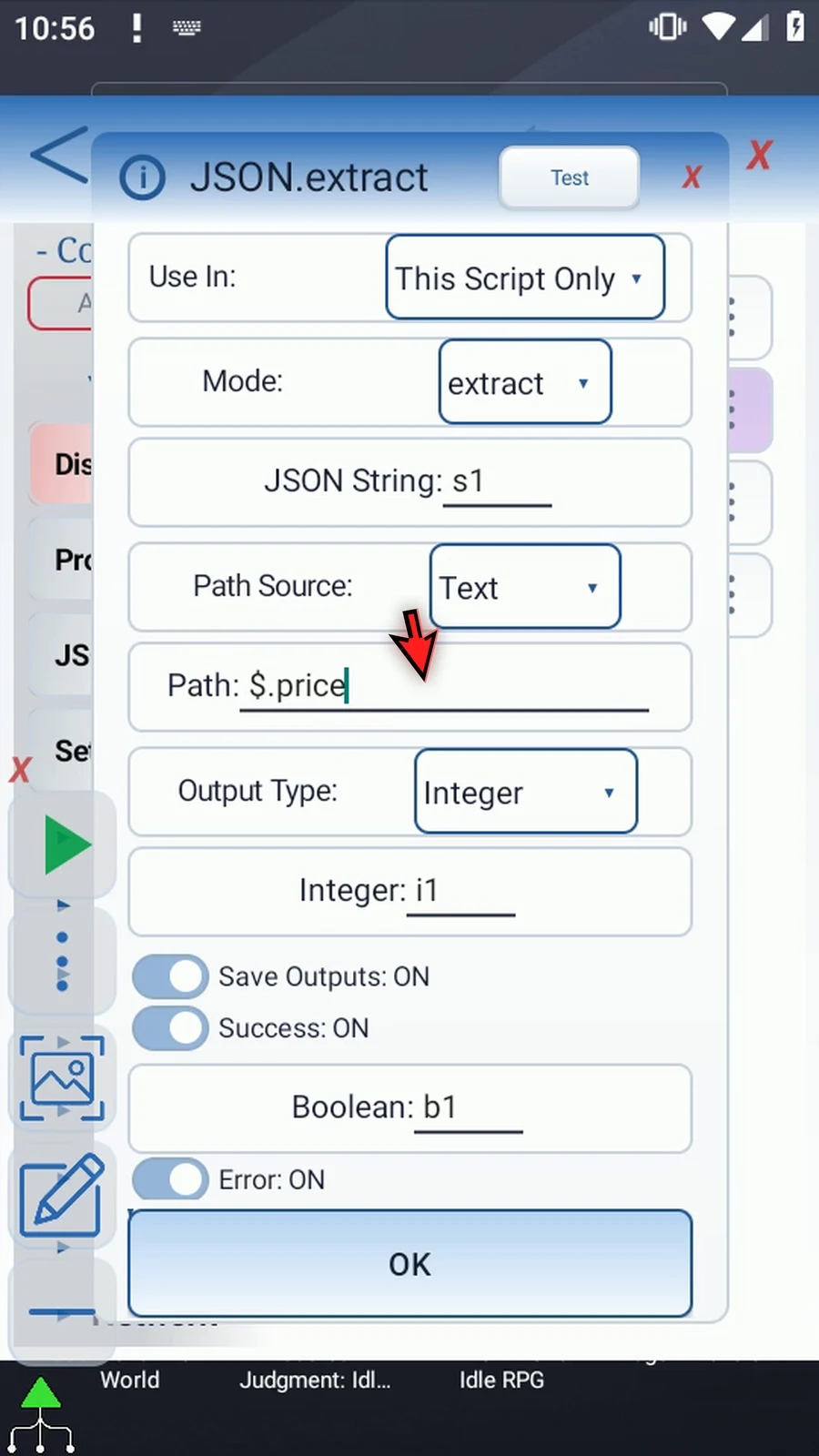
Step 05 Choose Decimal as the Output Type. This keeps the fractional value available for later math. Quoted numeric Strings and non-numeric values do not match this output type.
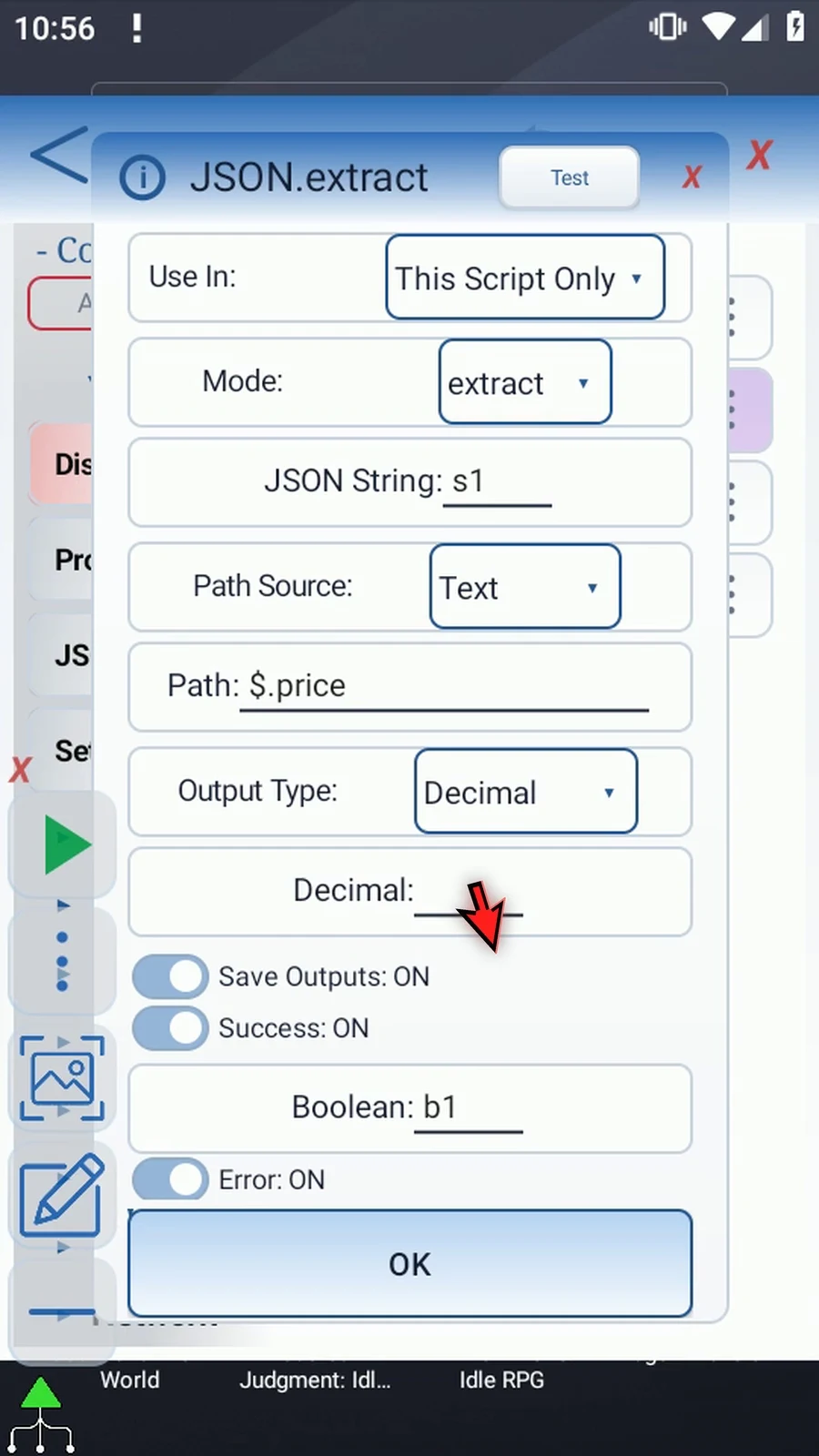
Step 06 Enter d1 as the Decimal destination. The original JSON stays in s1; d1 receives the selected number.
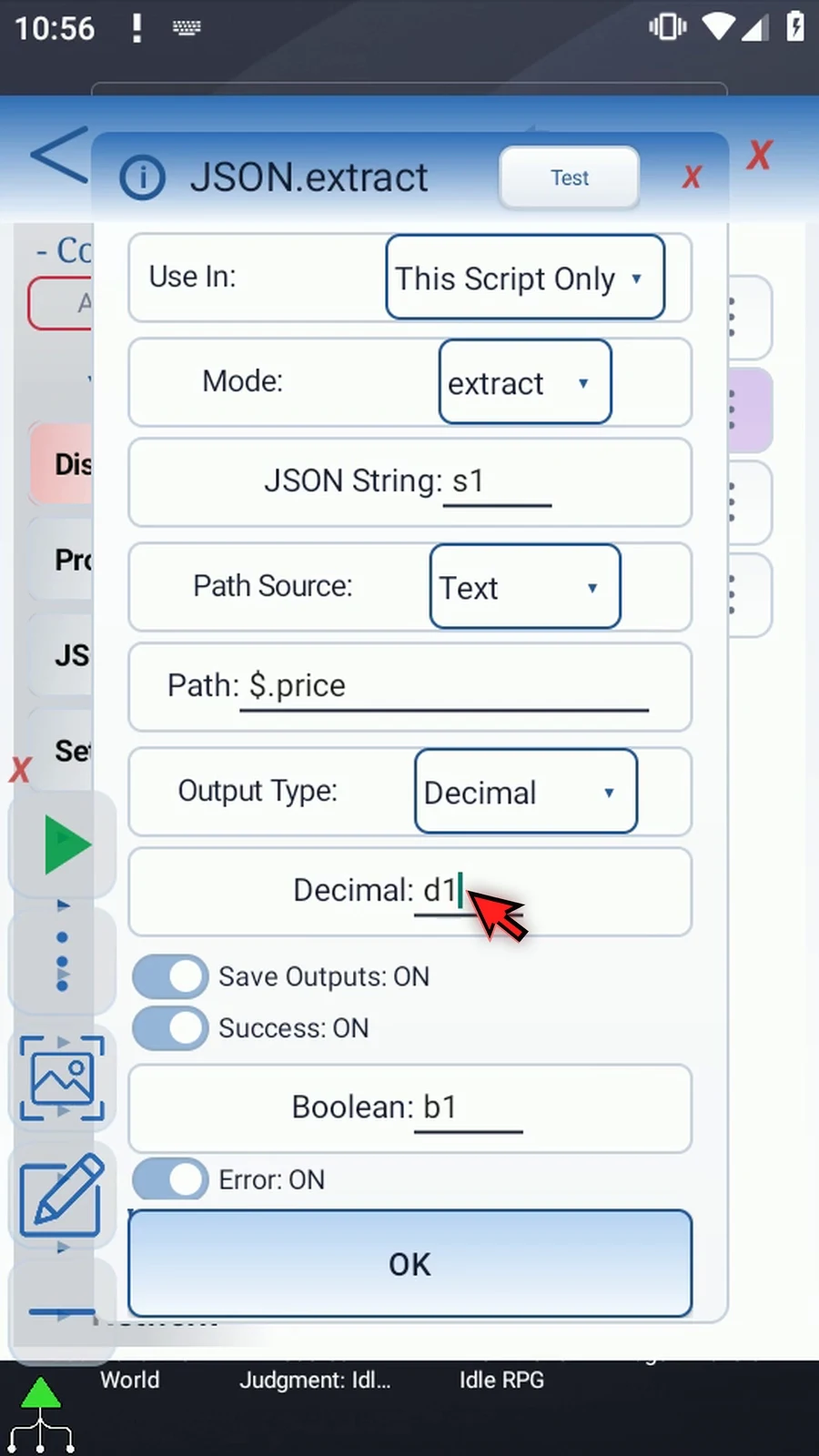
Step 07 Keep Success Boolean b1 and Error String s3 from the earlier example, then tap OK. These outputs tell later commands whether extraction succeeded.
Step 08 Open Display and change its Variable from i1 to d1. Keep Once, the existing manual Area, and the five-thousand-millisecond lifespan. Now Display will show our Decimal result for five seconds.
Step 09 Tap OK. Display only shows the extracted value; it does not type into the underlying app or change the variable.
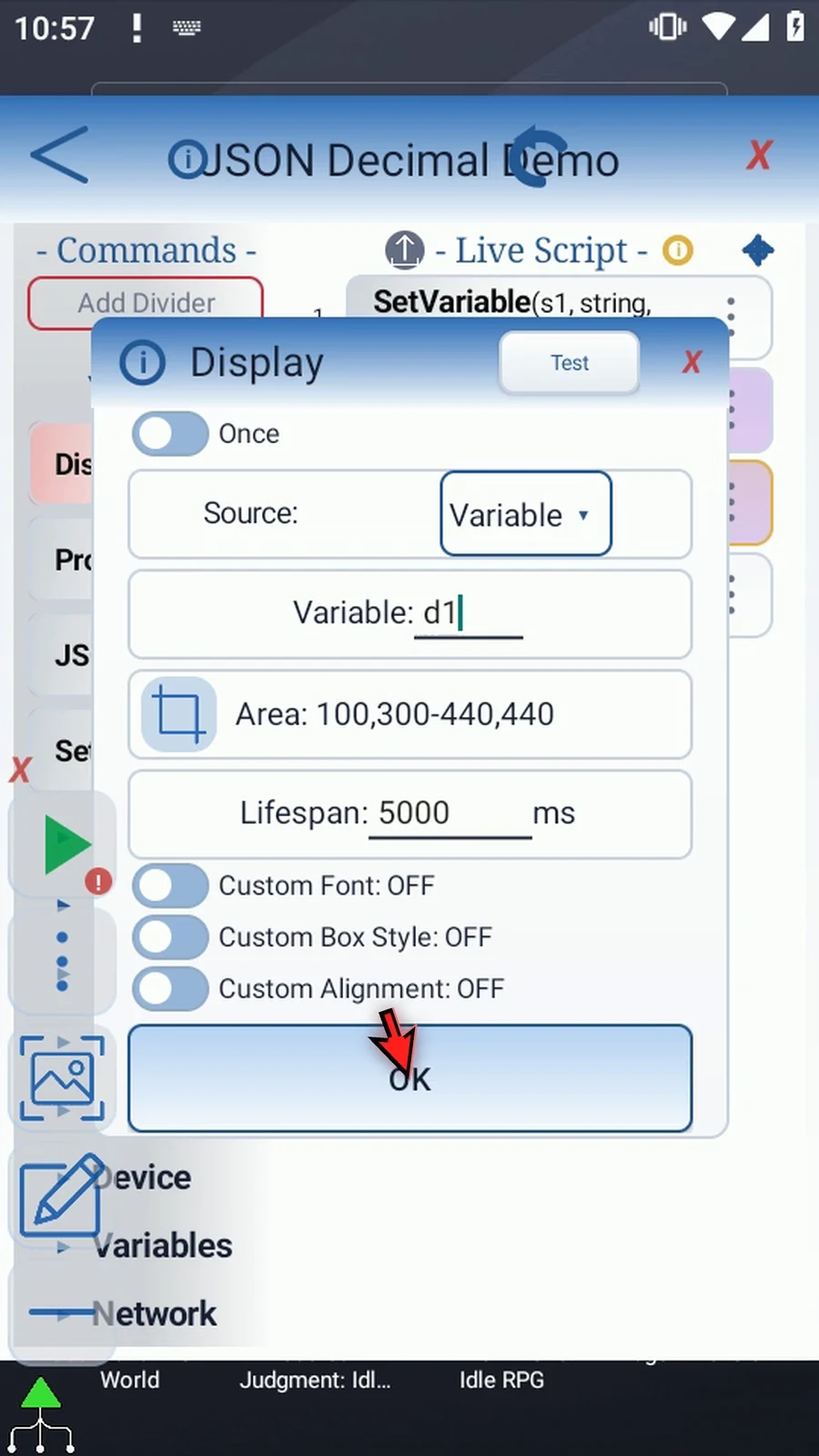
Step 10 The script prepares JSON, extracts its price into d1, displays the value, and then shows the Complete prompt. Close the editor to try it.
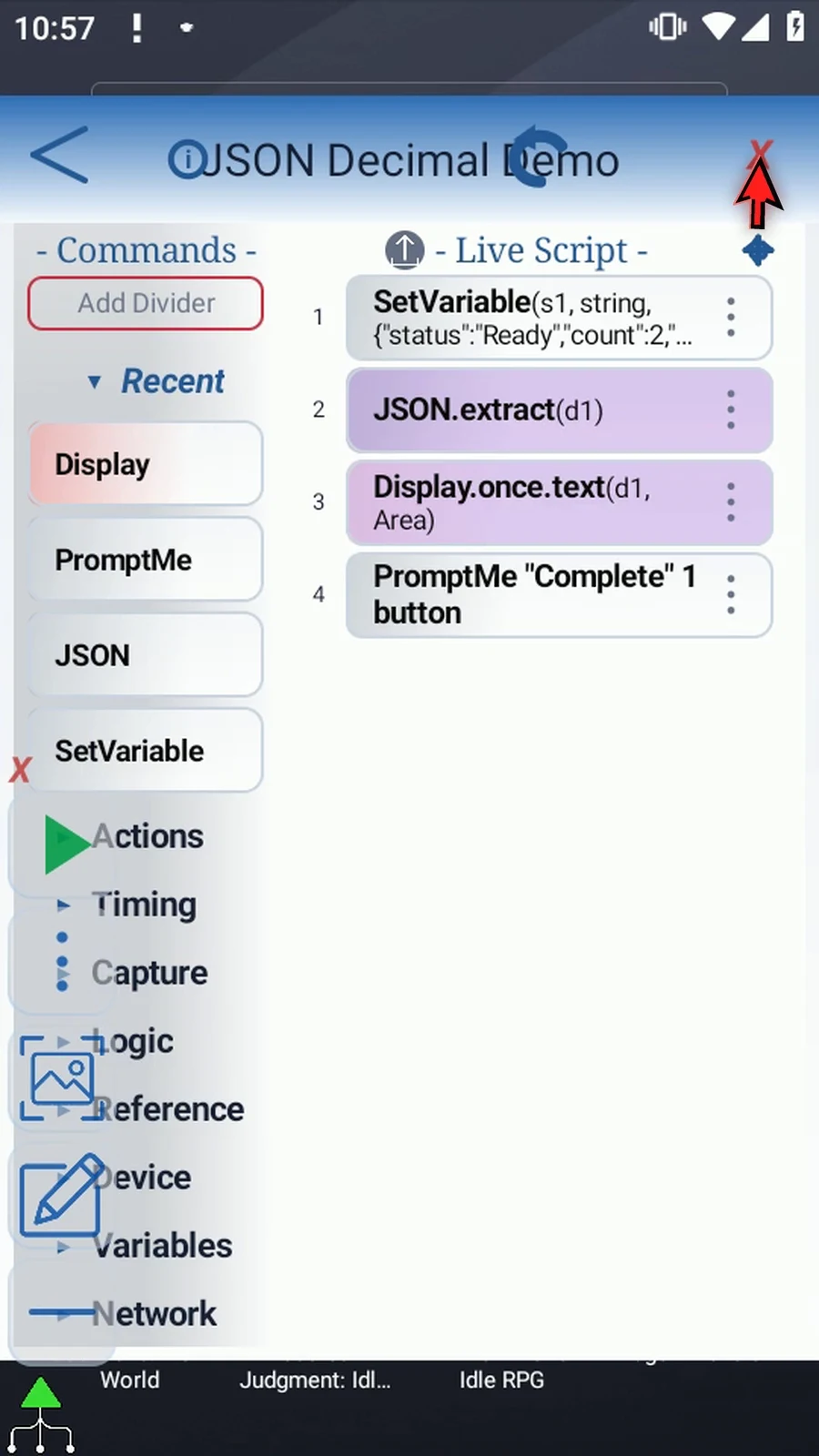
Step 11 When the script is complete, simply use the Play button in the main overlay.
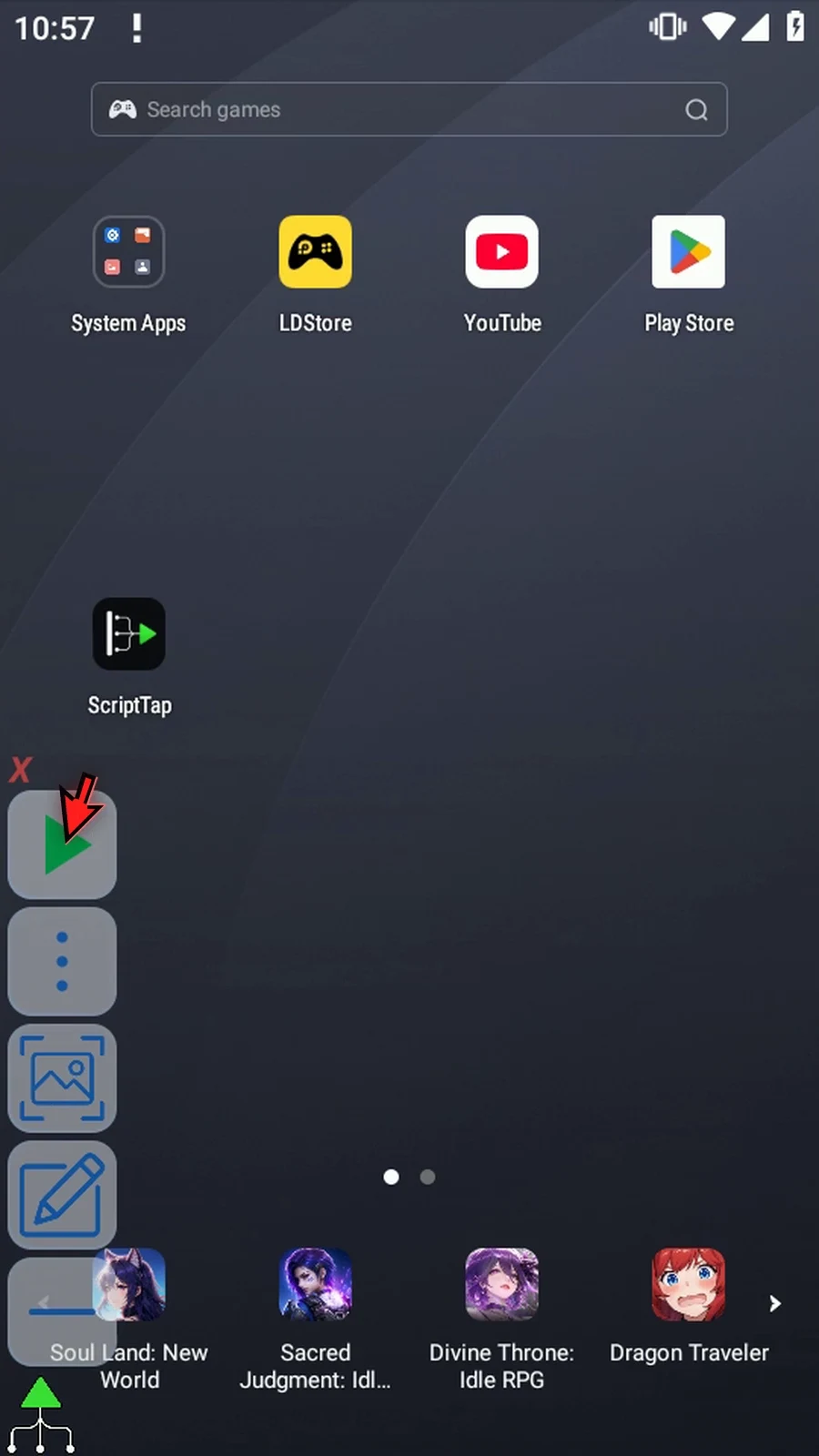
Step 12 The extracted Decimal is one point five.
Step 13 Display finishes, and PromptMe confirms that the script reached its final command.
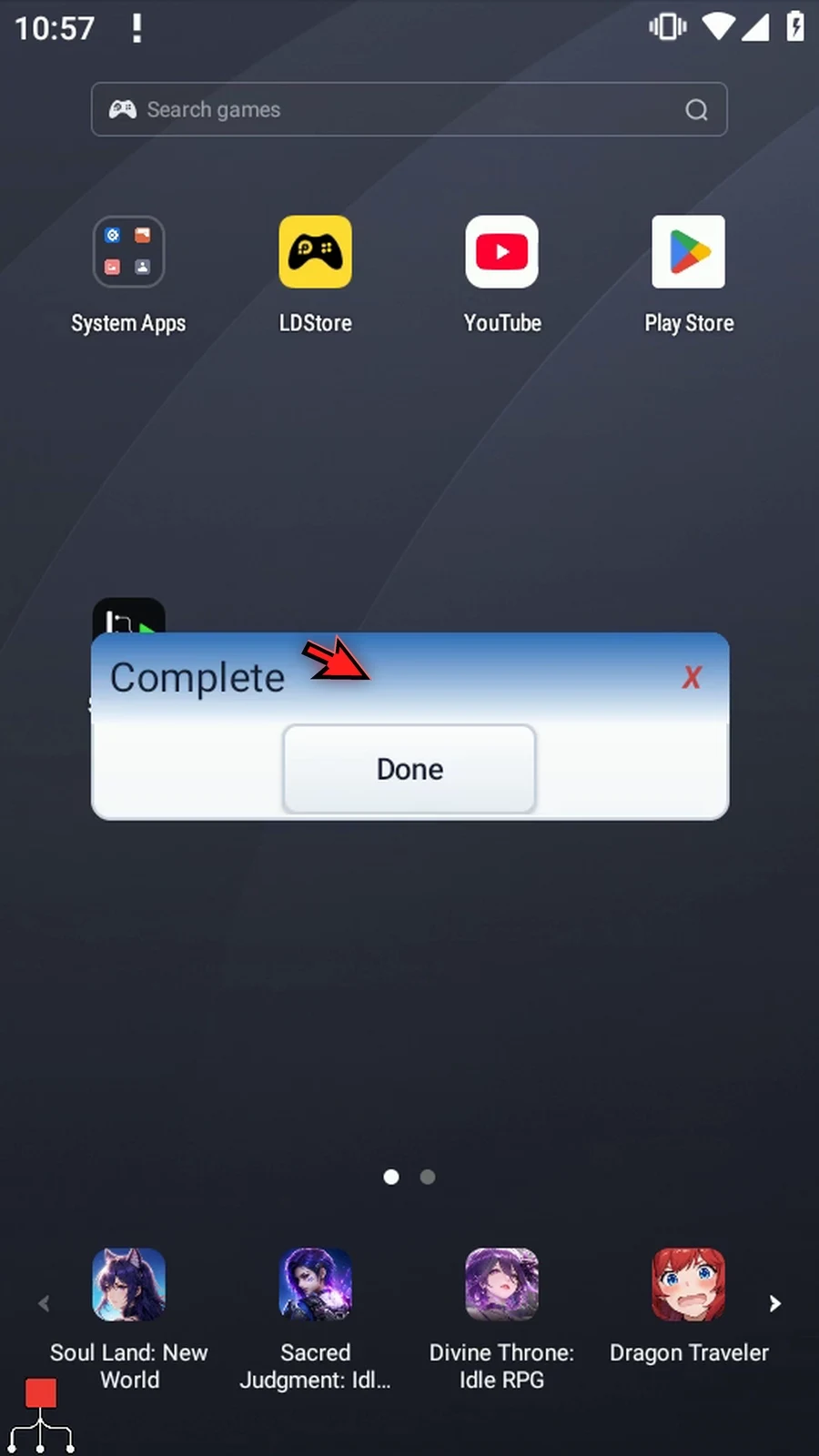
Step 14 Press Done. The script ends automatically. Use Decimal extraction when later commands need a numeric value that can include a fractional part.
Extract Boolean turns a JSON true or false value into a Boolean variable that later commands can use in conditions. This follow-up reuses the source object from Intro and the four-command example from Extract Integer and Extract Decimal.
- Keep Extract, JSON String
s1, Text Path Source and This Script Only. - Change Path to
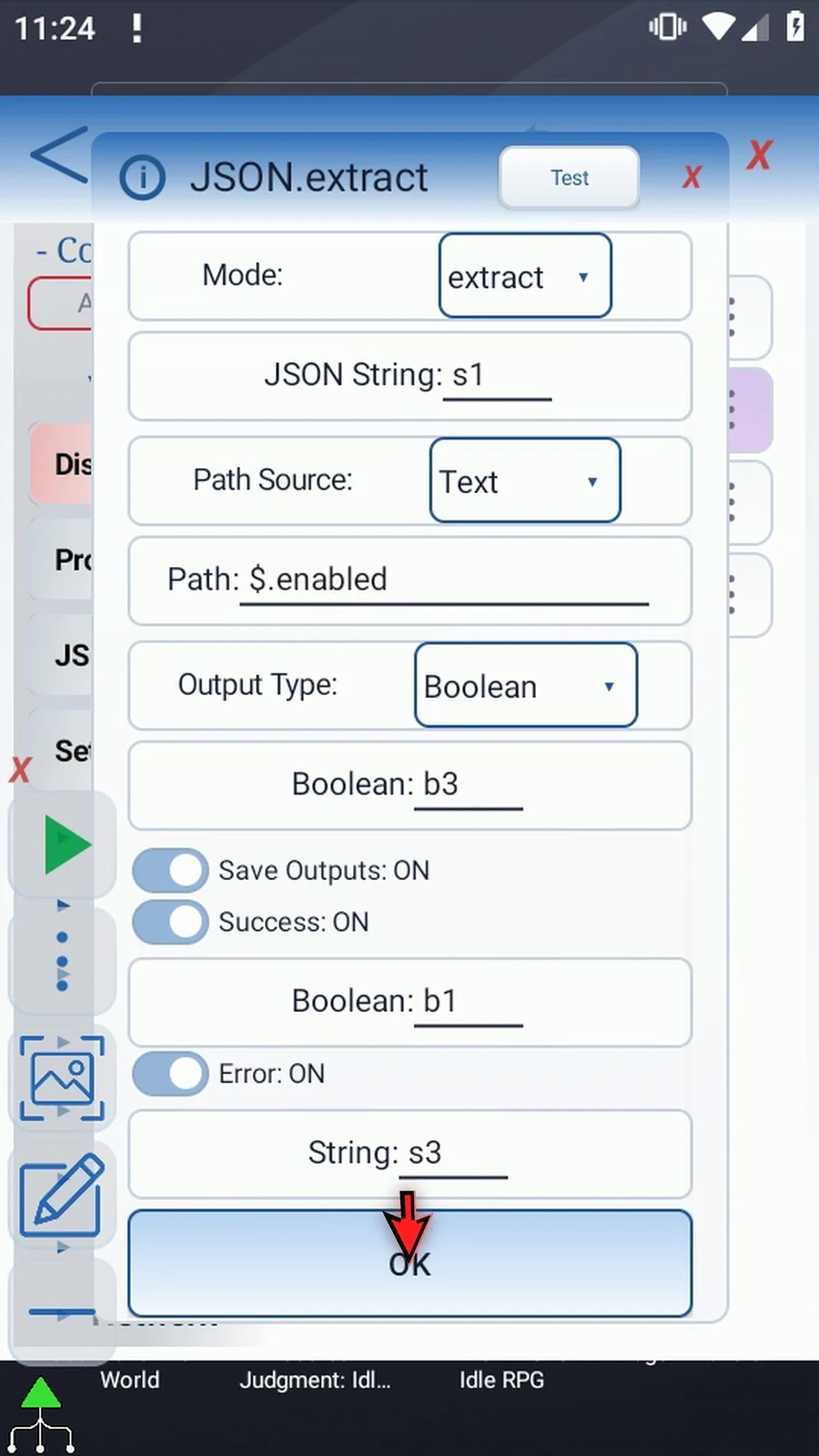
$.enabled, choose Boolean, and name the active outputb3. The unquoted JSONtruebecomes BooleanTrue. - This output type requires a JSON Boolean. Quoted words, numbers, null, arrays and objects do not match it. A successfully extracted
falseis a valid value, not an extraction failure. - Keep optional Success Boolean
b1and Error Strings3.b3is the selected value;b1separately reports whether extraction succeeded. Check status before relying on the result in a larger script. - Change Display Variable
d1tob3. Keep Once, Area100,300–440,440, Lifespan5000ms and default appearance. These coordinates are for the example's 540×960 emulator; choose an appropriate area on your device. - Keep Standard PromptMe Header
Completeand Done Booleanb2. Display shows the Boolean directly; the prompt confirms execution continued.
Play shows the actual True, then Complete. Done finishes the script. Nothing types into the underlying app, and s1 is unchanged. See Intro for source setup and manual command drags, and Extract Integer for Display insertion and Area setup.
Extract Boolean
Step-by-step guide
Step 01 Extract Boolean reads a JSON true or false value into a Boolean variable. Later commands can use that value in a condition, such as an IF block. We'll extract the enabled property and display the result.
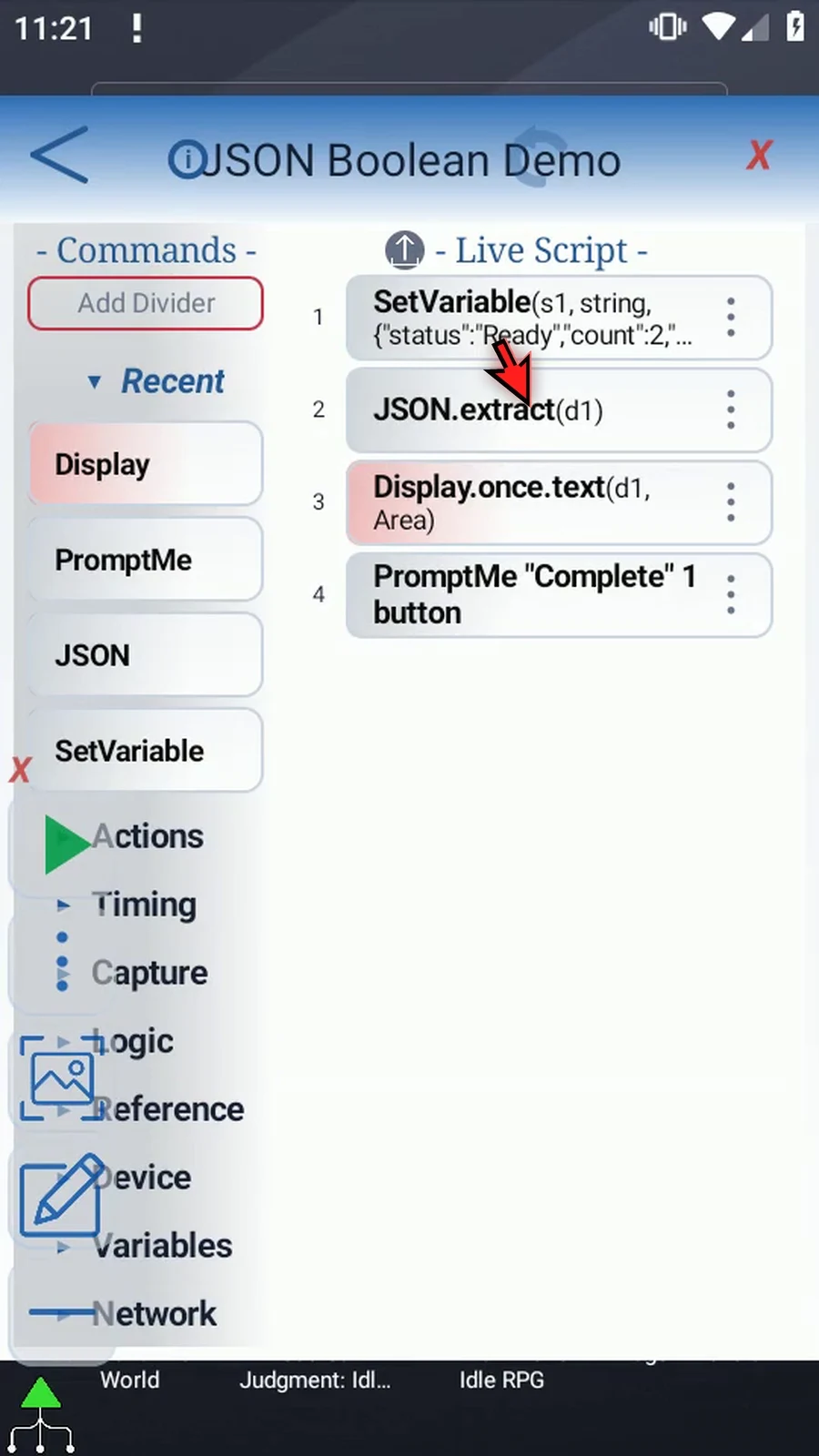
Step 02 Reuse our four-command example. Intro explains the source JSON in s1, and Extract Integer shows how to add Display by dragging it into the script. Here, we'll update JSON and Display.
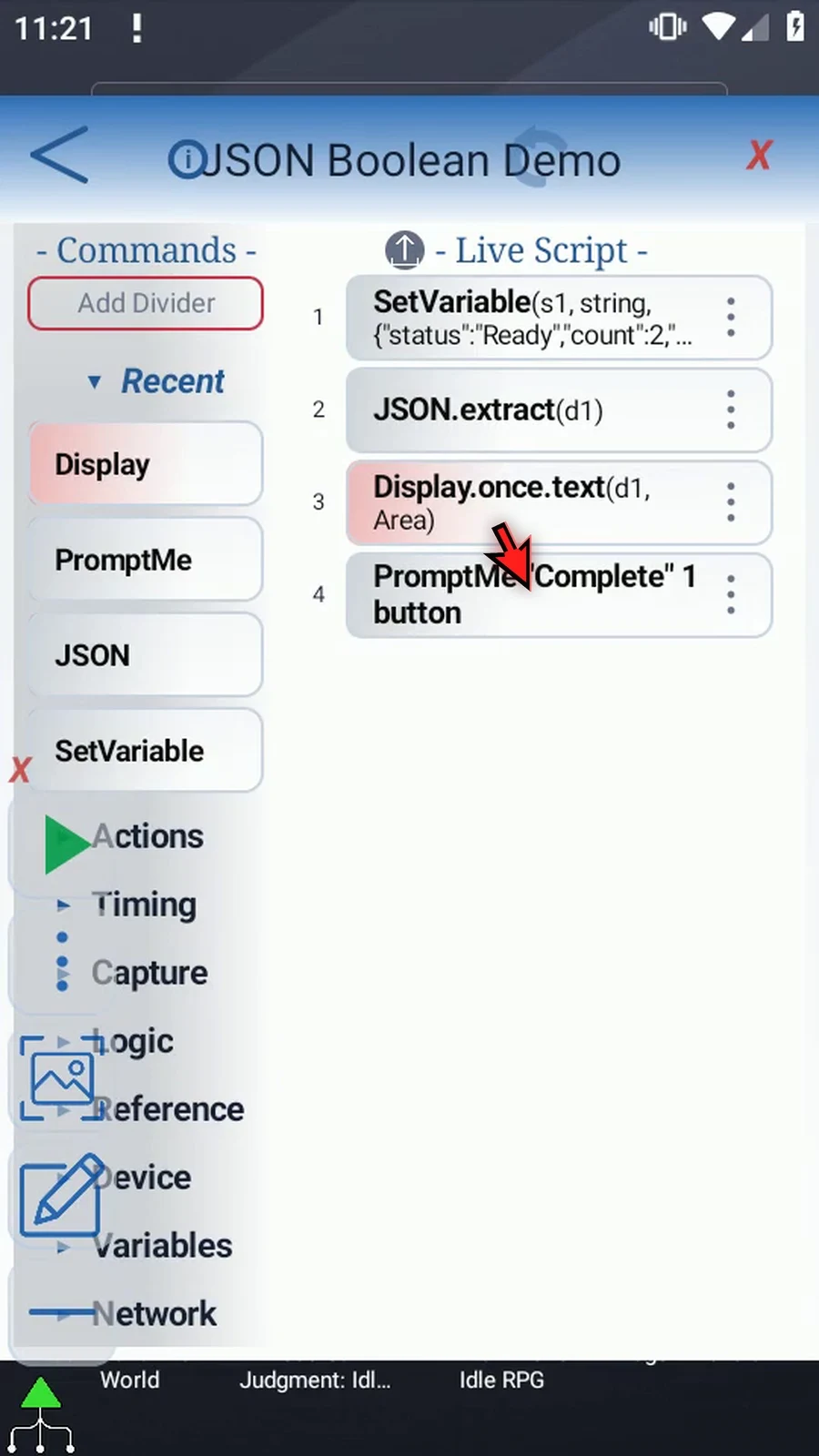
Step 03 Open JSON. Keep Extract, JSON String s1, Text as the Path Source, and This Script Only.
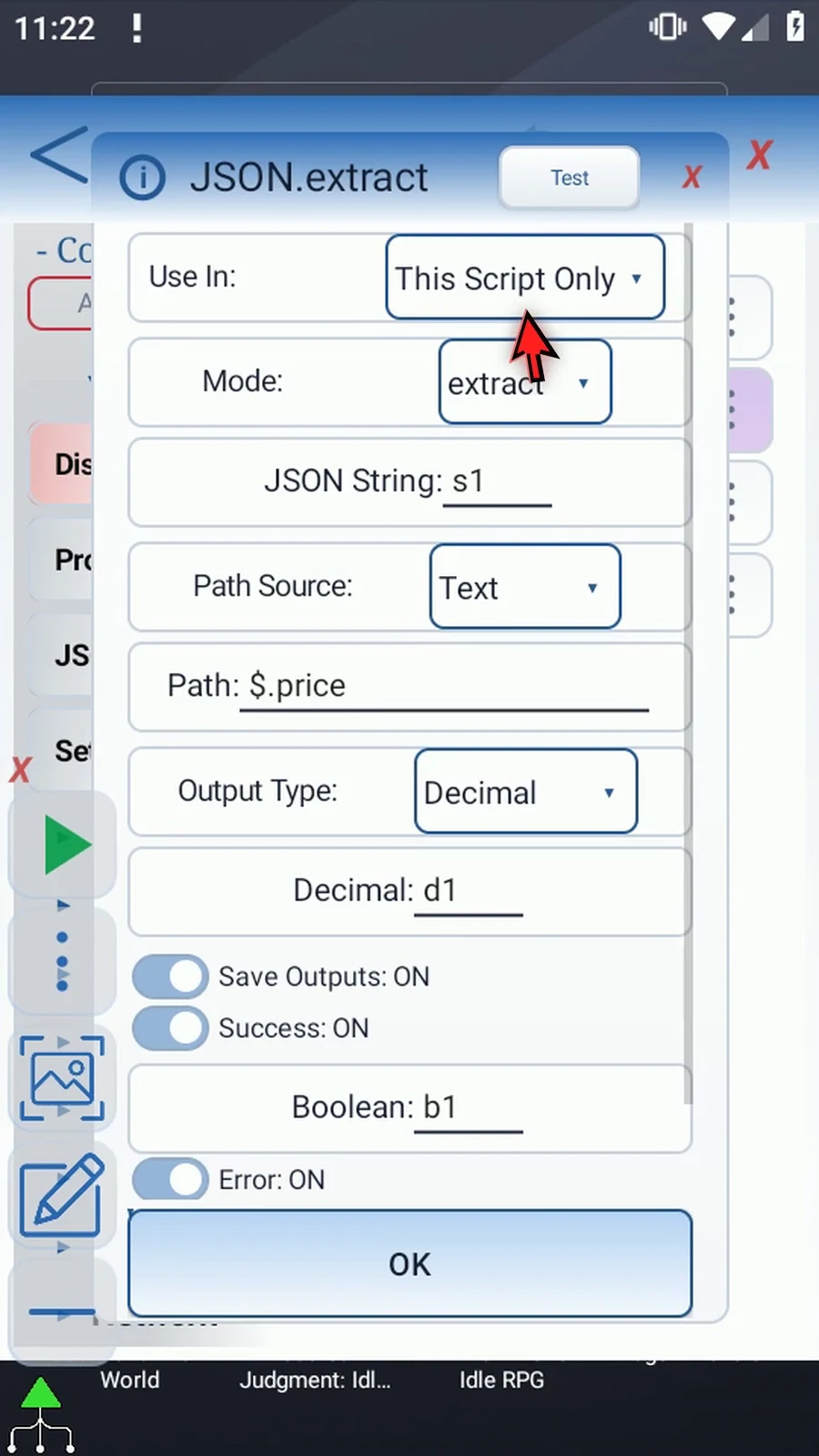
Step 04 Change the path to dollar sign, dot, enabled. Our example object stores the unquoted JSON value true in this property.
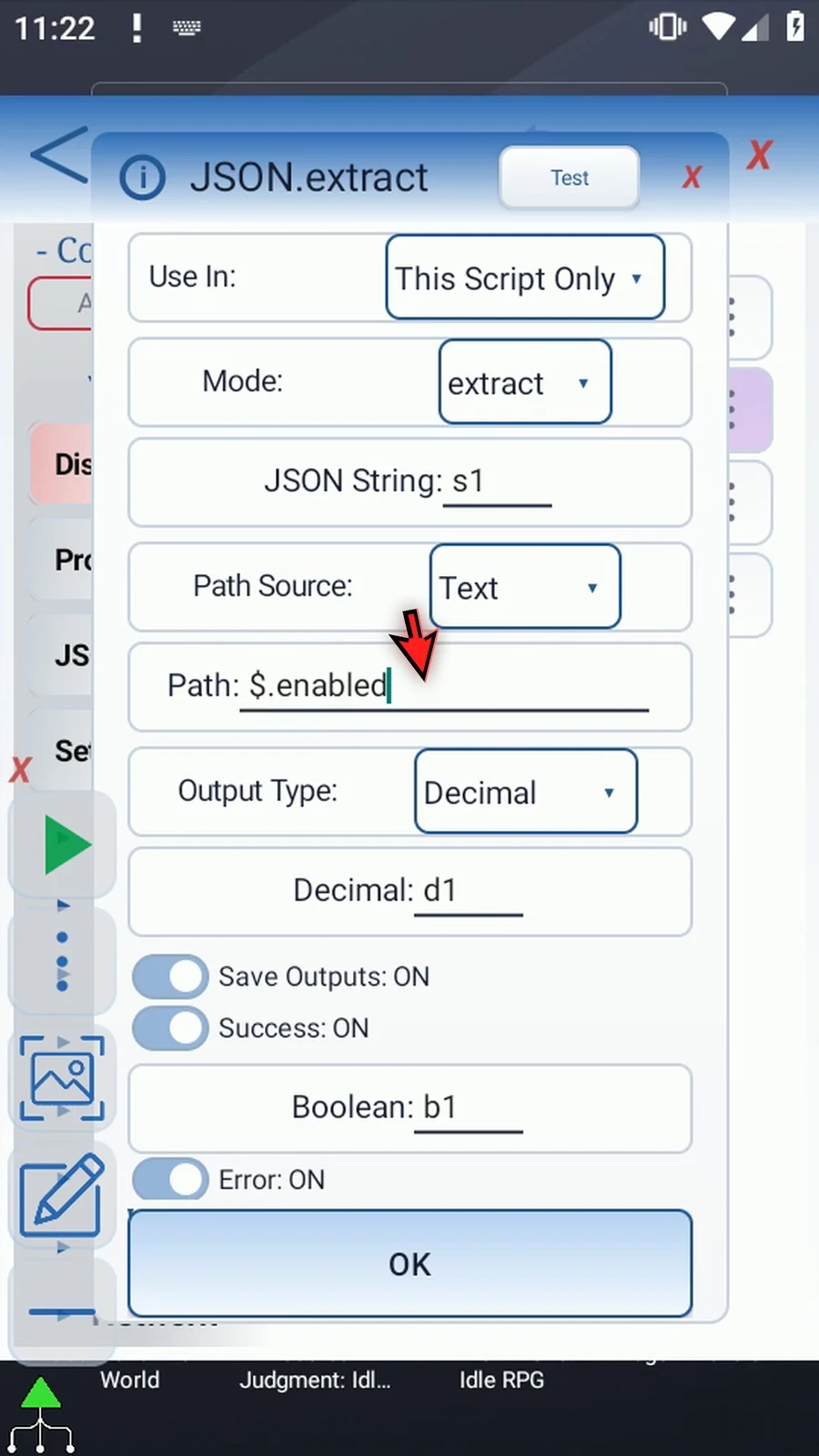
Step 05 Choose Boolean as the Output Type. This expects a JSON true or false value. A quoted word, a number, or null does not match Boolean output.
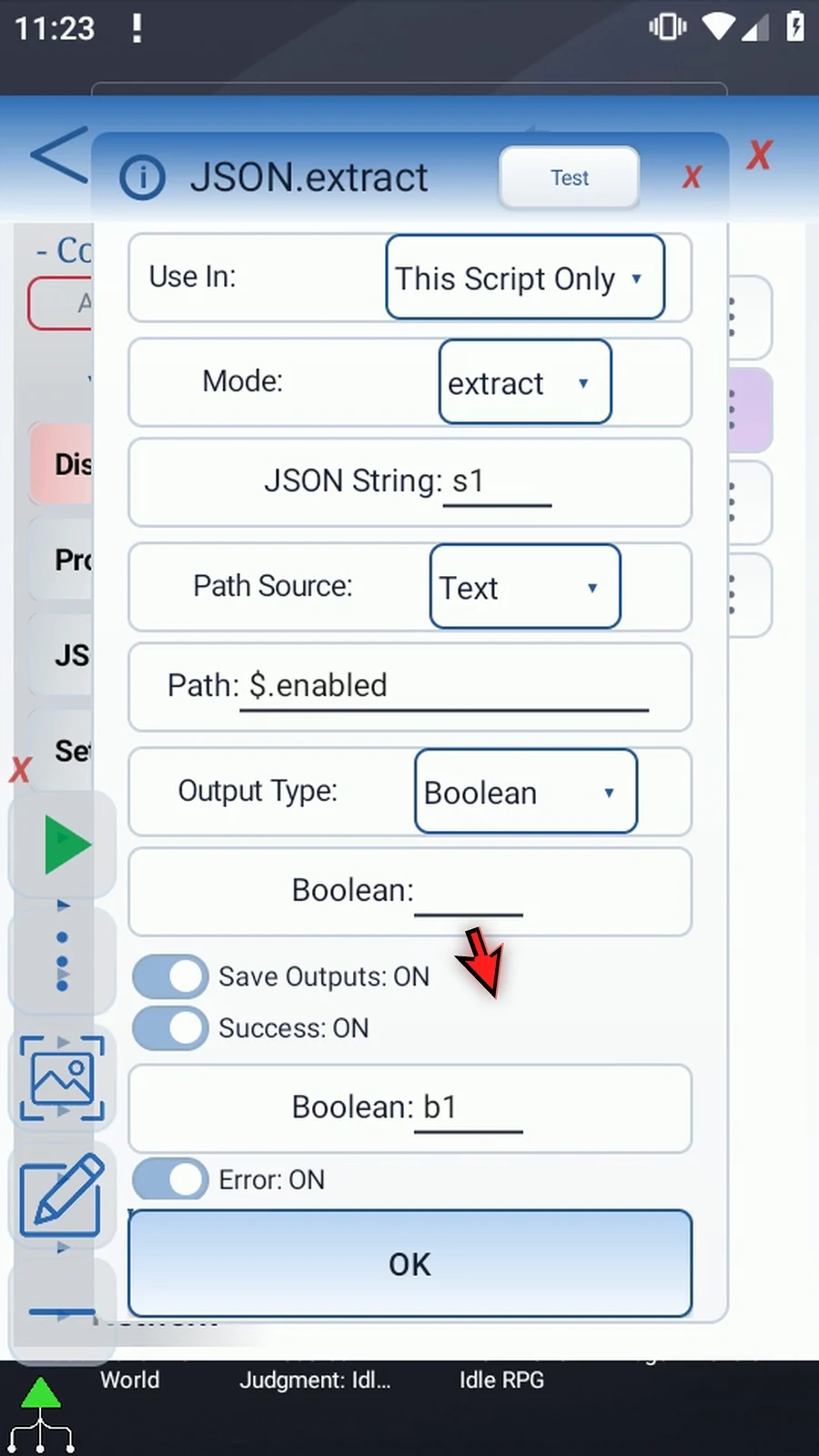
Step 06 Enter b3 as the Boolean destination. This is the extracted value, separate from b1, which reports whether the command succeeded. A false value can still be a successful extraction.
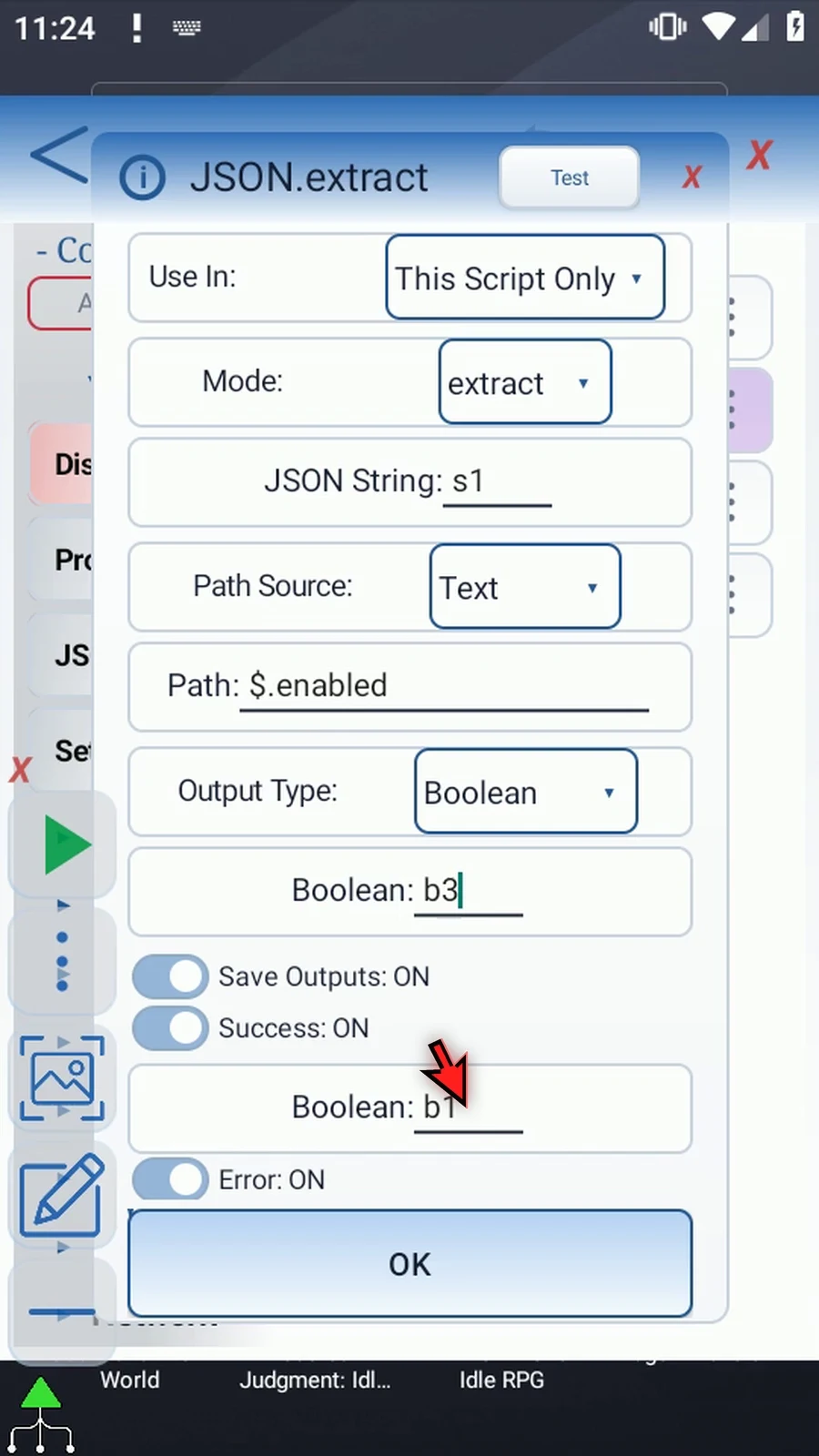
Step 07 Keep Success Boolean b1 and Error String s3, then tap OK. In a larger script, check these outputs before relying on the result.
Step 08 Open Display and change its Variable from d1 to b3. Keep Once, the existing manual Area, and the five-thousand-millisecond lifespan. This lets us see the extracted Boolean for five seconds.
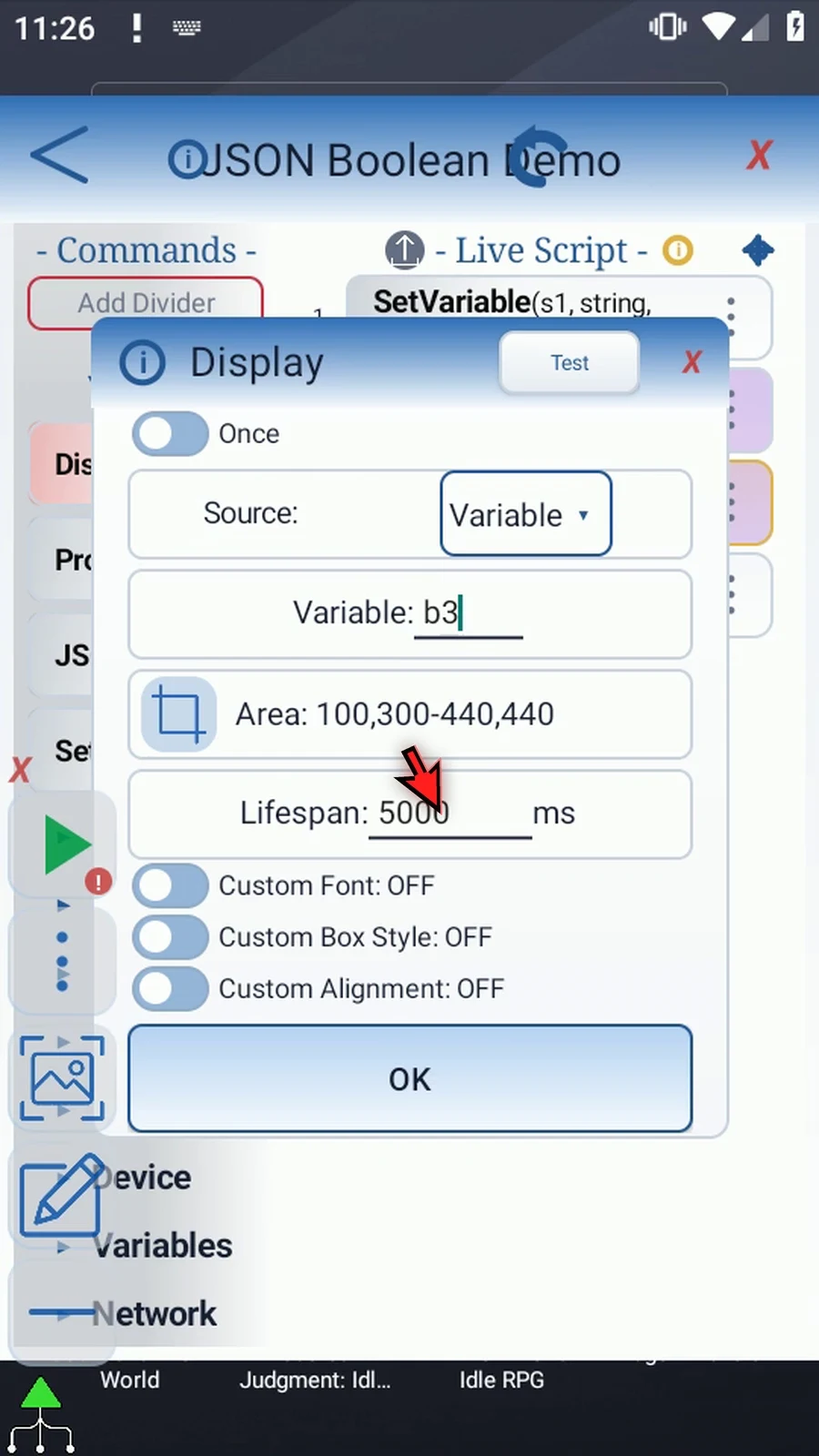
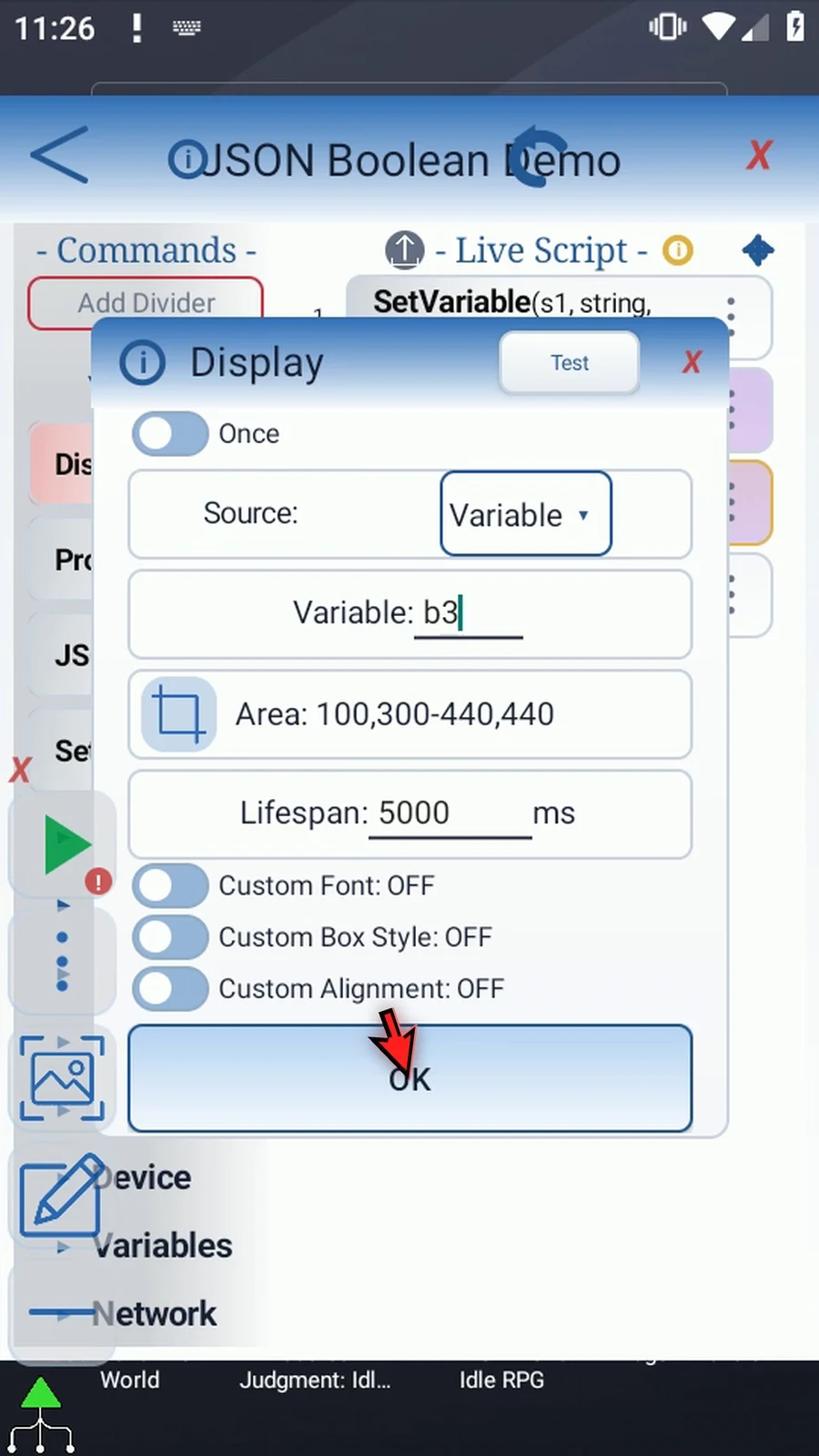
Step 09 Tap OK. Display only shows the value; it does not change it or type into the app underneath.
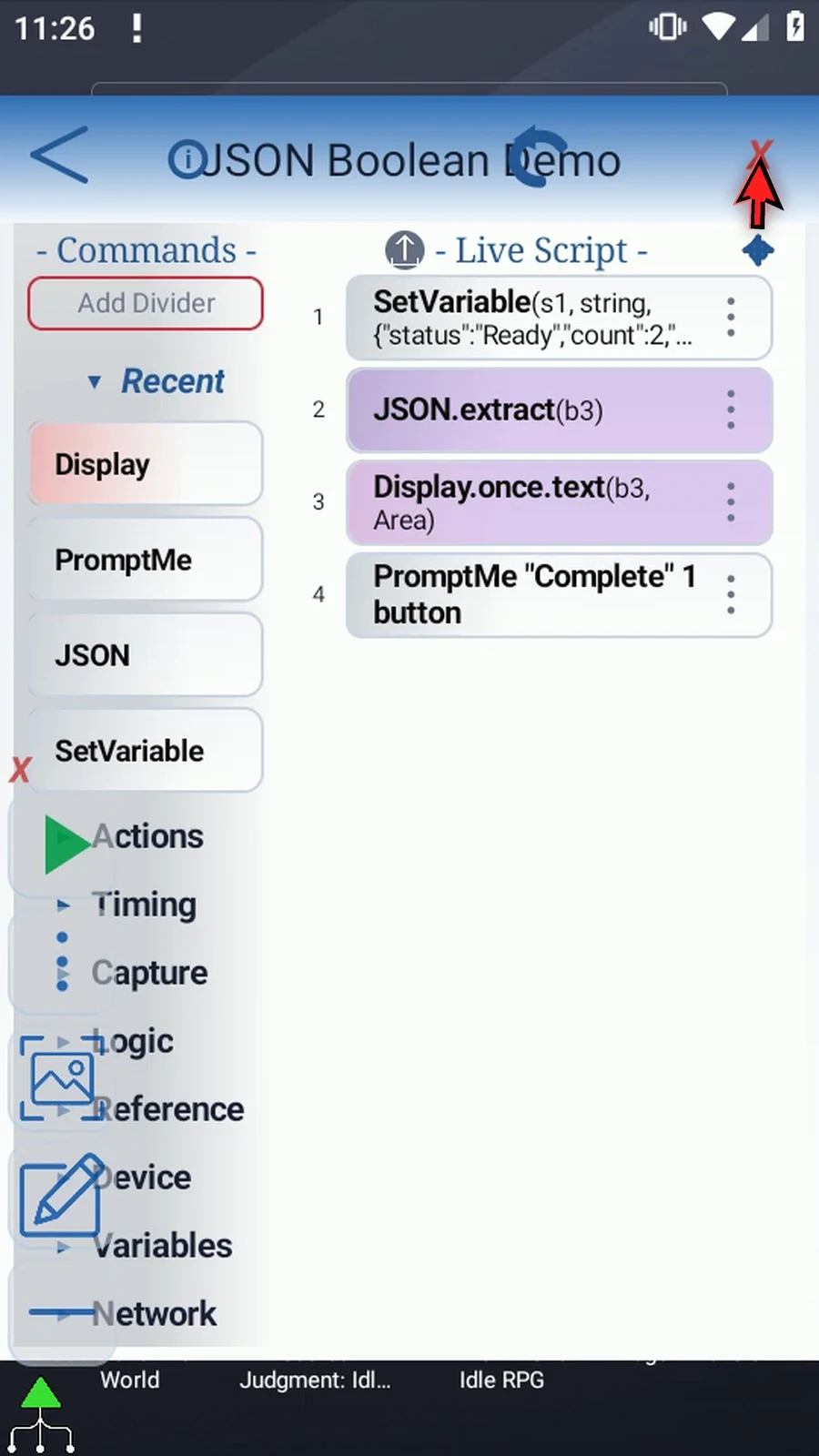
Step 10 The script prepares JSON, extracts enabled into b3, displays the value, and then shows the Complete prompt. Close the editor to try it.
Step 11 When the script is complete, simply use the Play button in the main overlay.
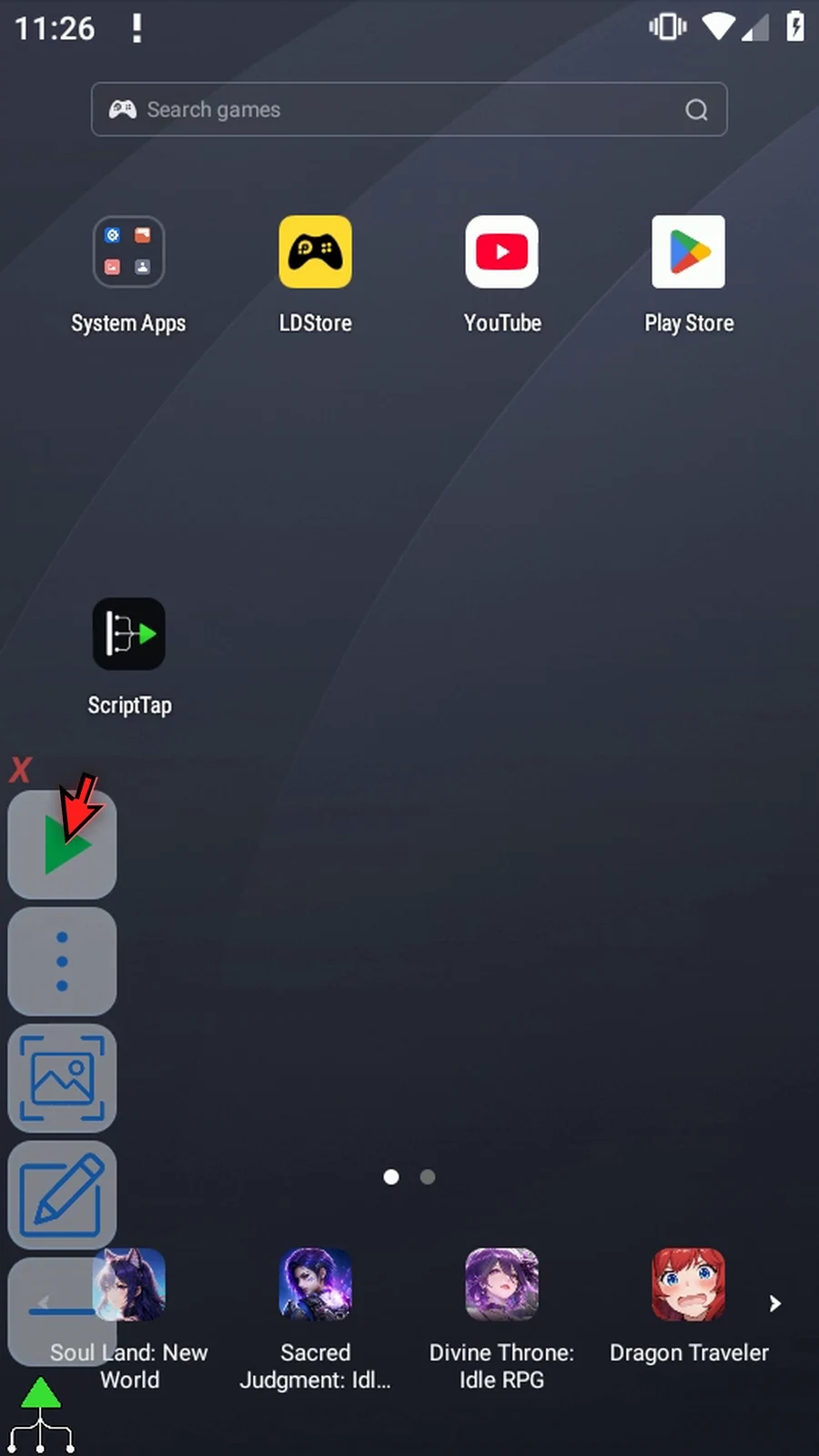
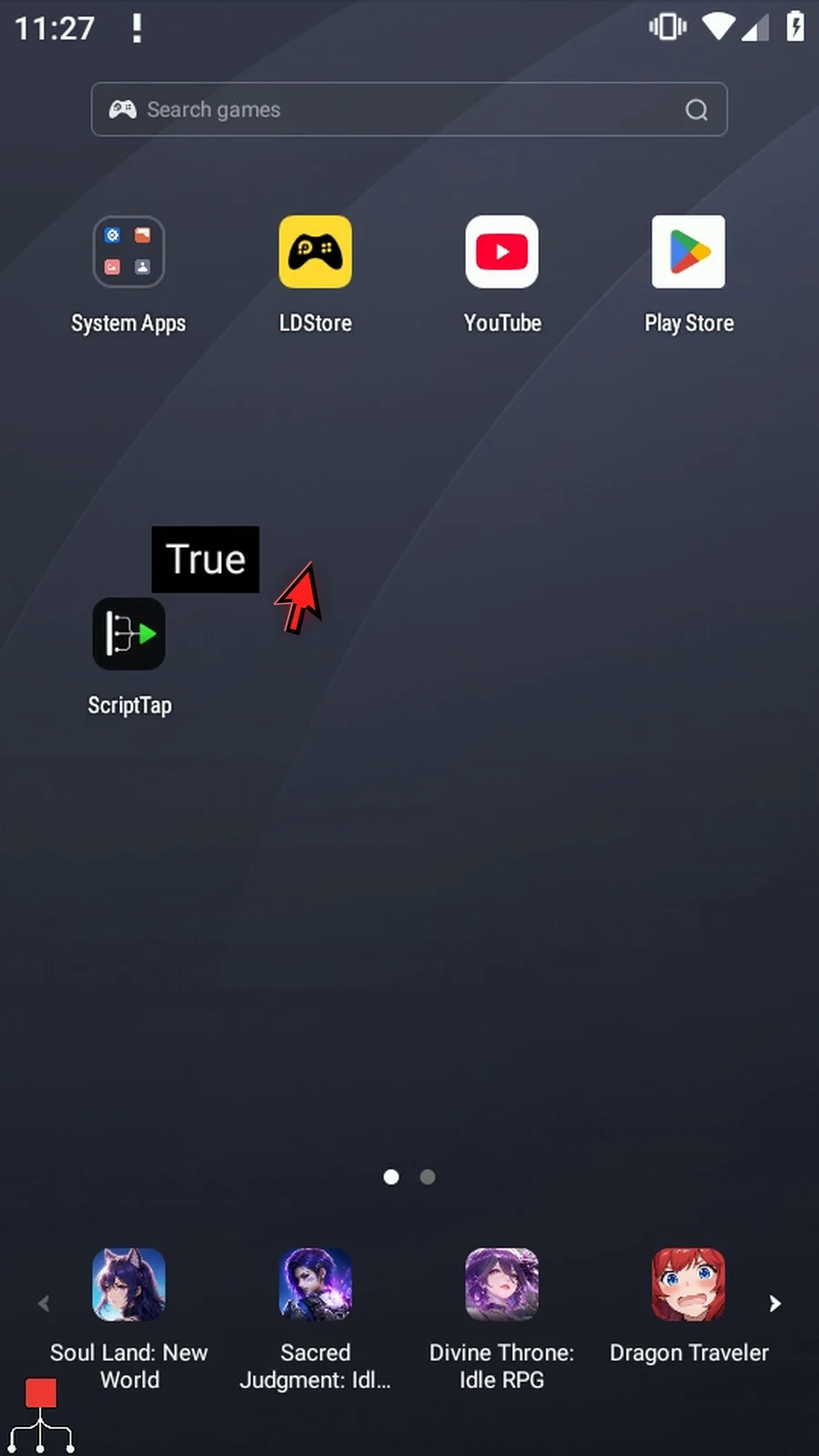
Step 12 The extracted Boolean is True.
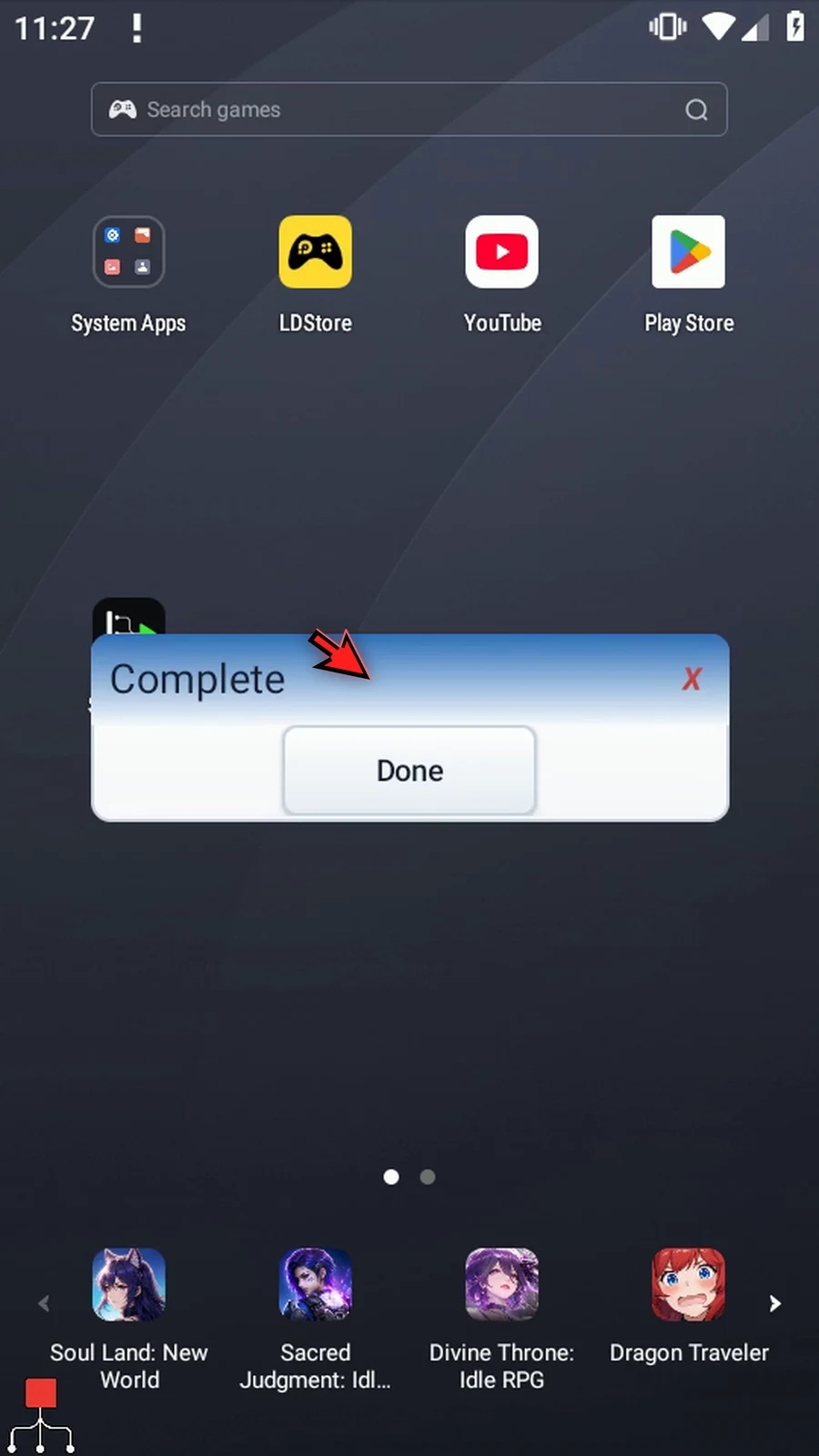
Step 13 Display finishes, and PromptMe confirms that the script reached its final command.
Step 14 Press Done. The script ends automatically. Use Boolean extraction when later commands need to act on a true or false value in JSON.
Extract String Array makes the items in a JSON list individually available in consecutive String variable slots. This follow-up starts from Intro and manually adds one supporting TextTransform Join so both results can be displayed in a single PromptMe header.
- Keep Extract, JSON String
s1, Text Path Source and This Script Only. Set Path to$.tagsand Output Type to String Array. - Set Array to
sand Start to4. The example's two tags becomes4 = Demoands5 = Guide. These are destination slots, not JSON source indexes. - Start accepts a positive whole number or an Integer variable prepared earlier. Keep the whole destination range within 1–4096, and avoid overlapping the input or other needed outputs.
- Non-null items are converted to text. Nested objects and lists are serialized as compact JSON text inside their slots. A null item causes a type mismatch. The source JSON String is unchanged.
- Enable optional Save Count and set its Integer destination to
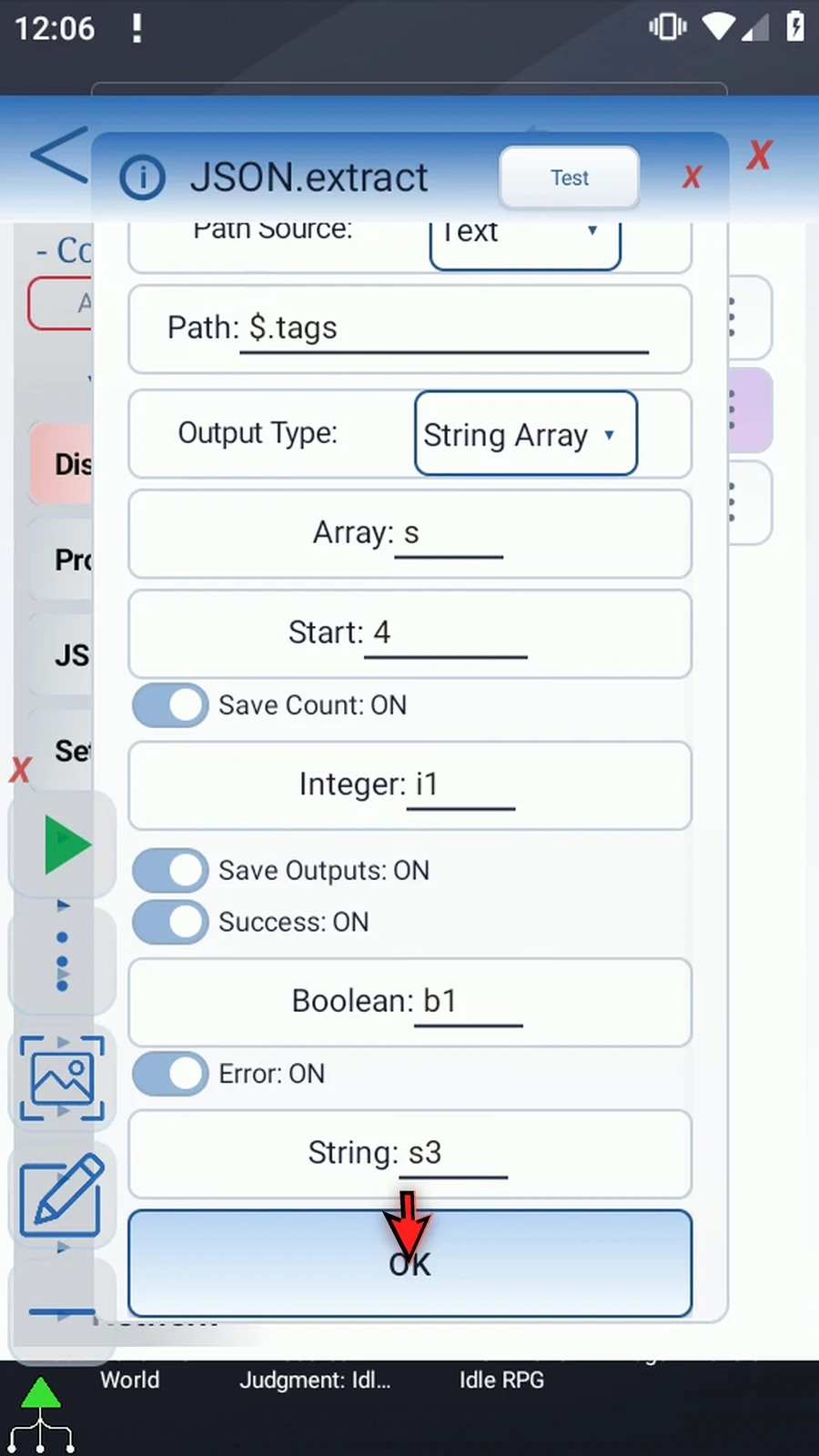
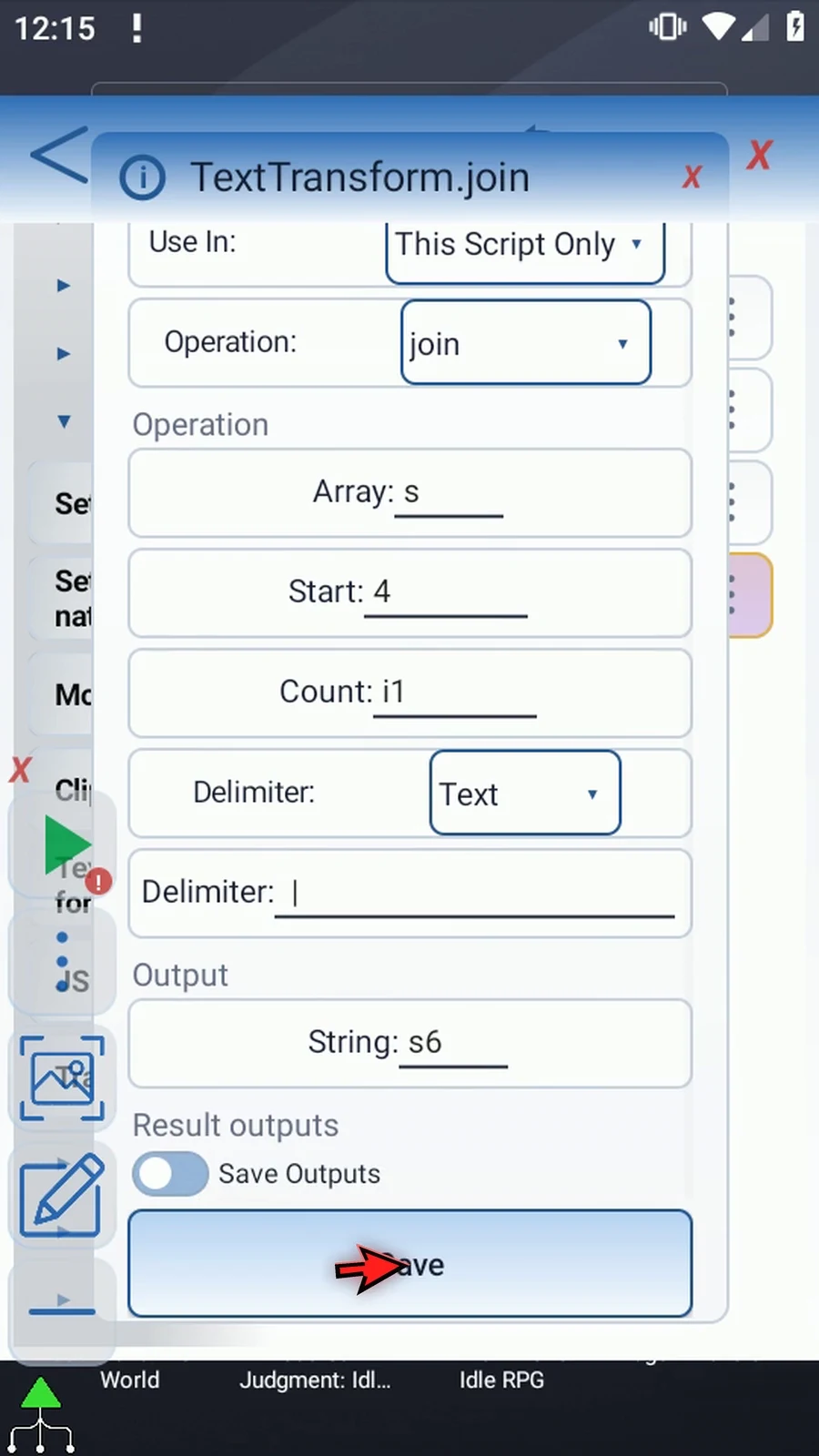
i1. Keep Success Booleanb1and Error Strings3; check status before relying on the returned values in a larger script. - Manually drag TextTransform into the script, choose Join, and use Array
s, Start4, Counti1, Text delimiter|, and output Strings6. Keep Join's optional status outputs off. - Drag Join before PromptMe, then set the Standard prompt's Header to
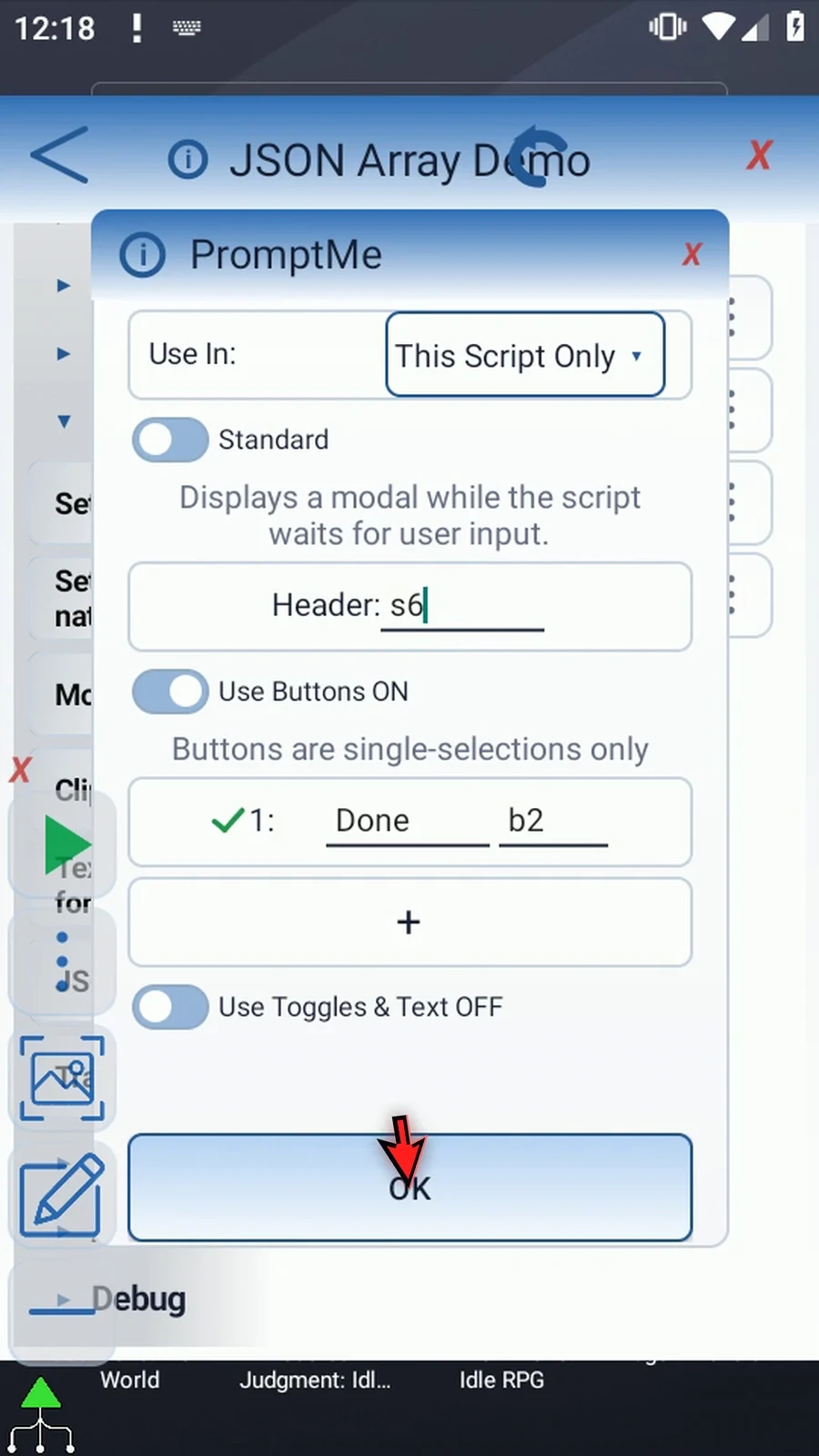
s6. Keep Done Booleanb2.
Play displays the genuine Demo | Guide result. JSON returned count 2, which Join used to read the two extracted slots. Done finishes the four-command script. Join is only for this visible confirmation; later commands can use the extracted slots separately. See Intro for source setup and original manual command drags, and the TextTransform Join guide for that supporting operation.
Extract String Array
Step-by-step guide
Step 01 Extract String Array turns a JSON list into consecutive String variable slots. Later commands can use each item separately. We'll extract two tags and join them only so both results are easy to see.
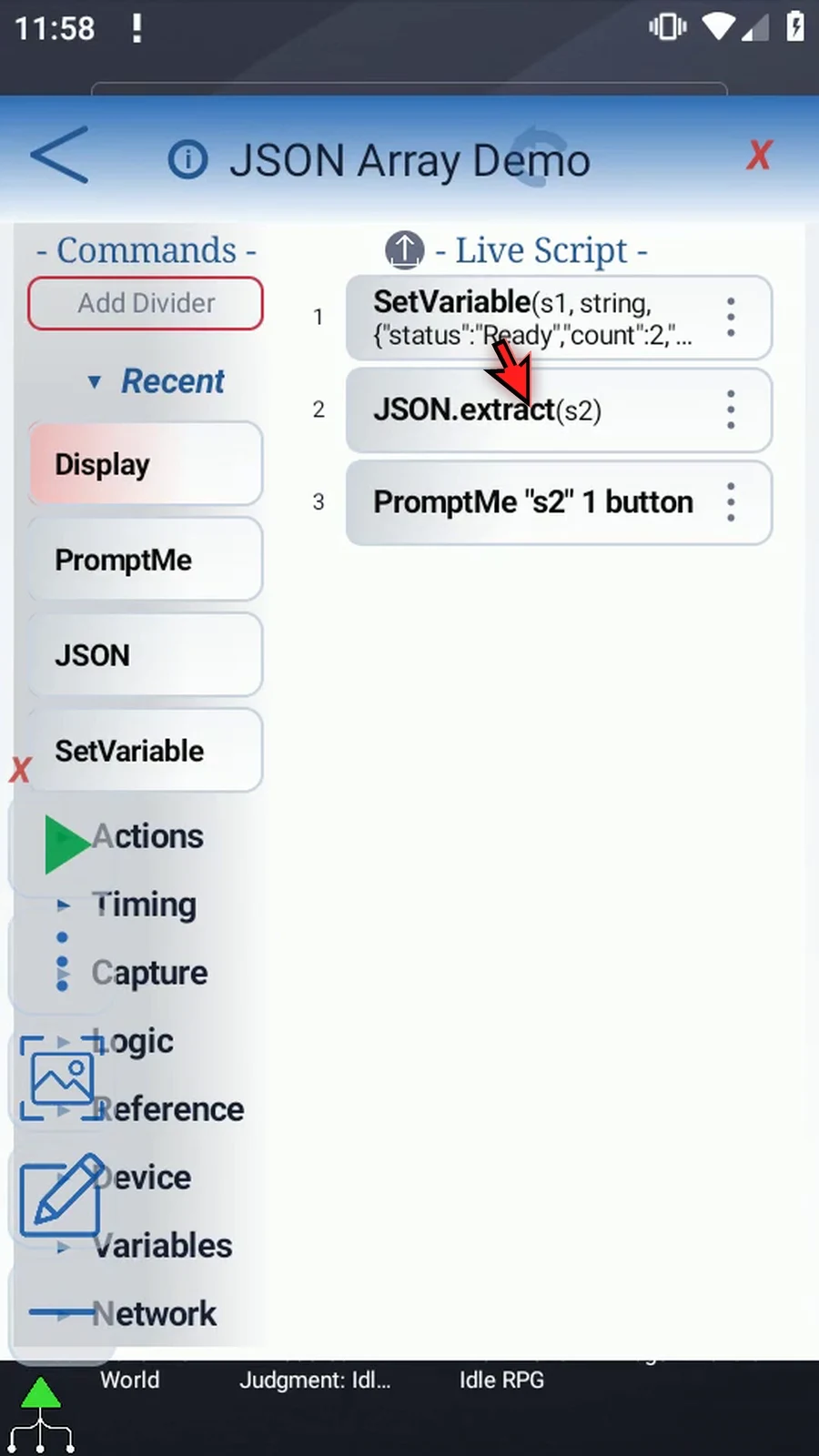
Step 02 Reuse the source JSON and the three-command script from Intro. It already prepares s1, extracts a value, and shows it with PromptMe. We'll change JSON and add one supporting Join command.
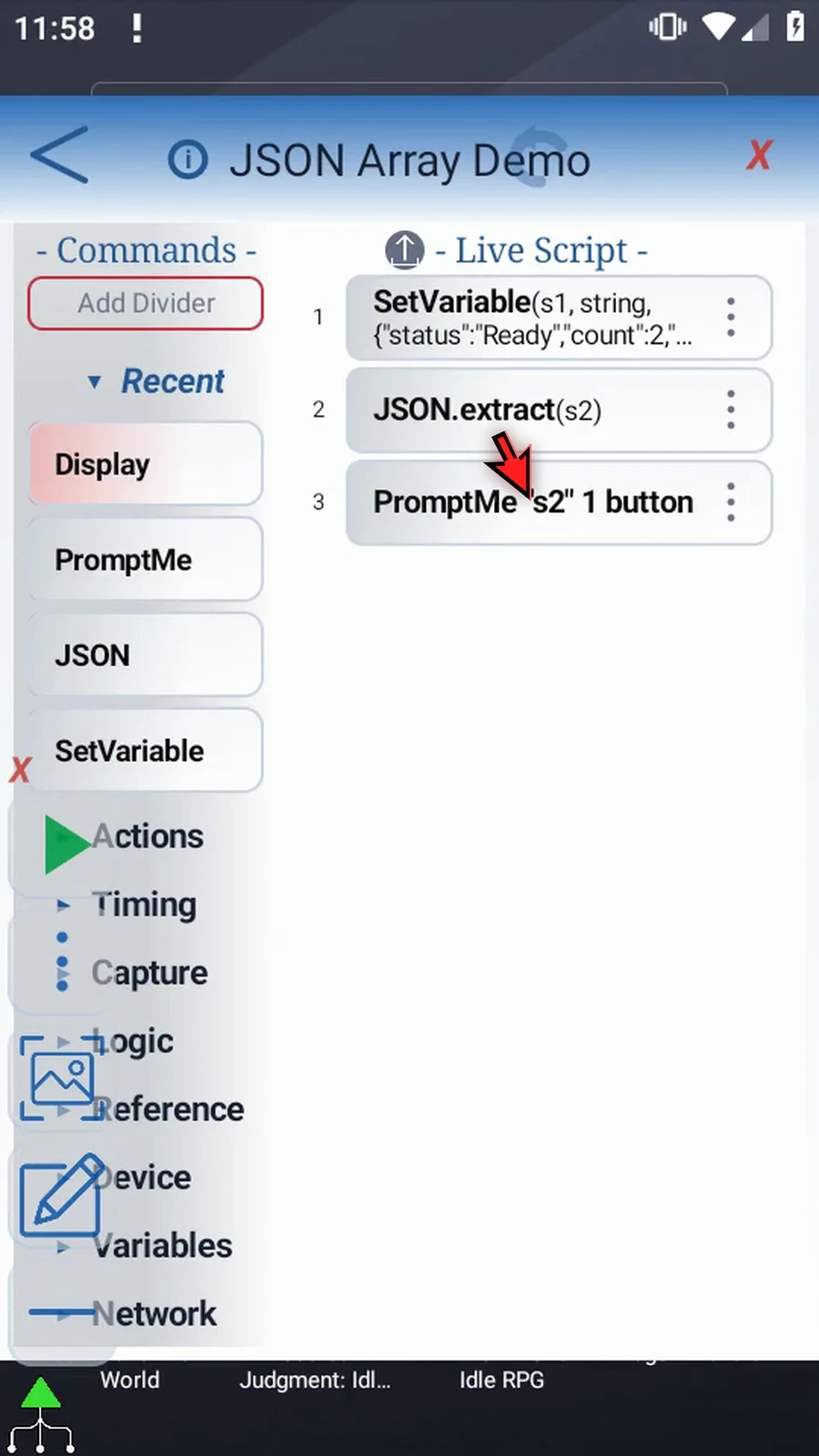
Step 03 Open JSON. Keep Extract, JSON String s1, Text as the Path Source, and This Script Only.
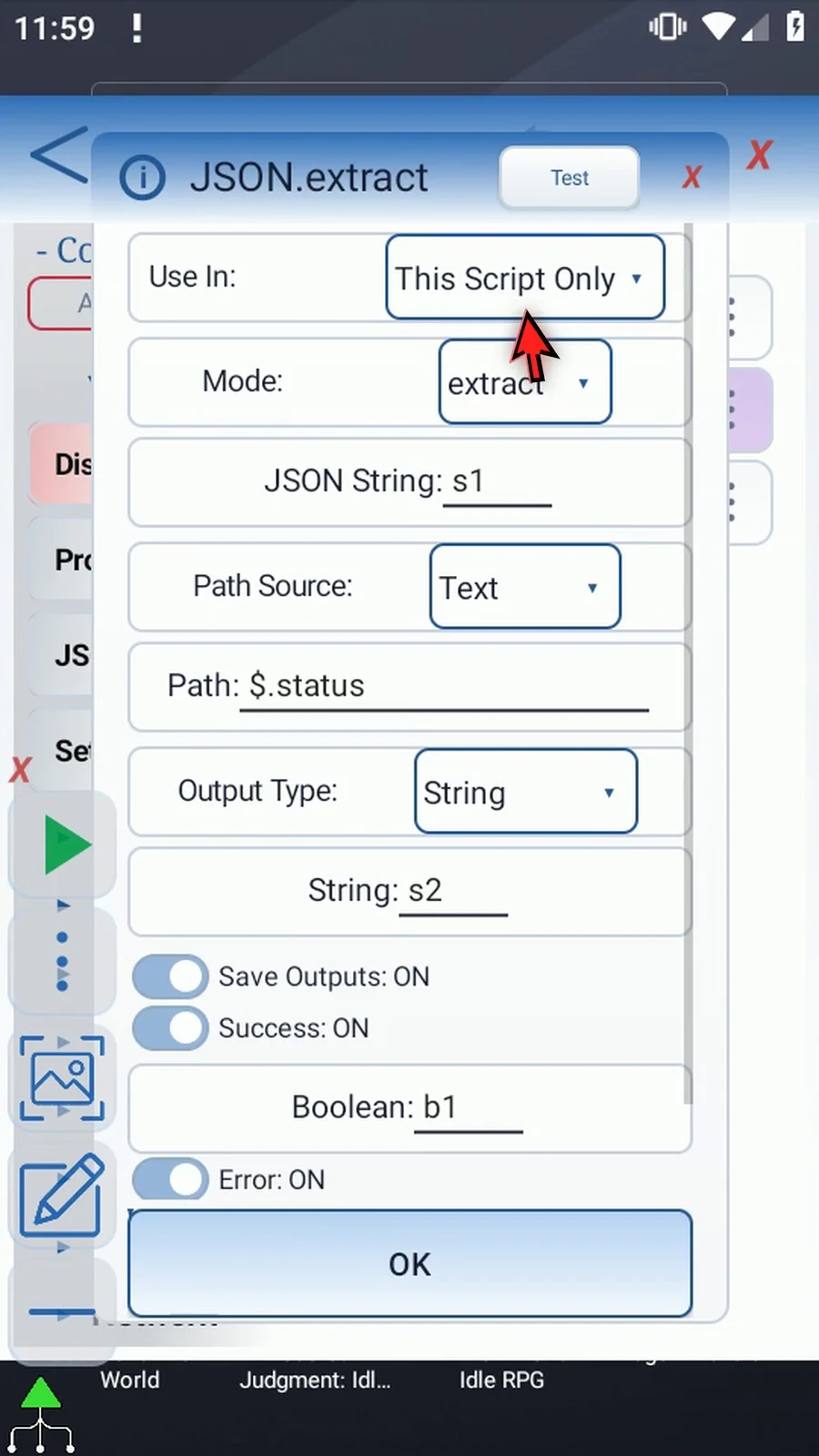
Step 04 Change the path to dollar sign, dot, tags. This property contains the two-item JSON list with Demo and Guide.
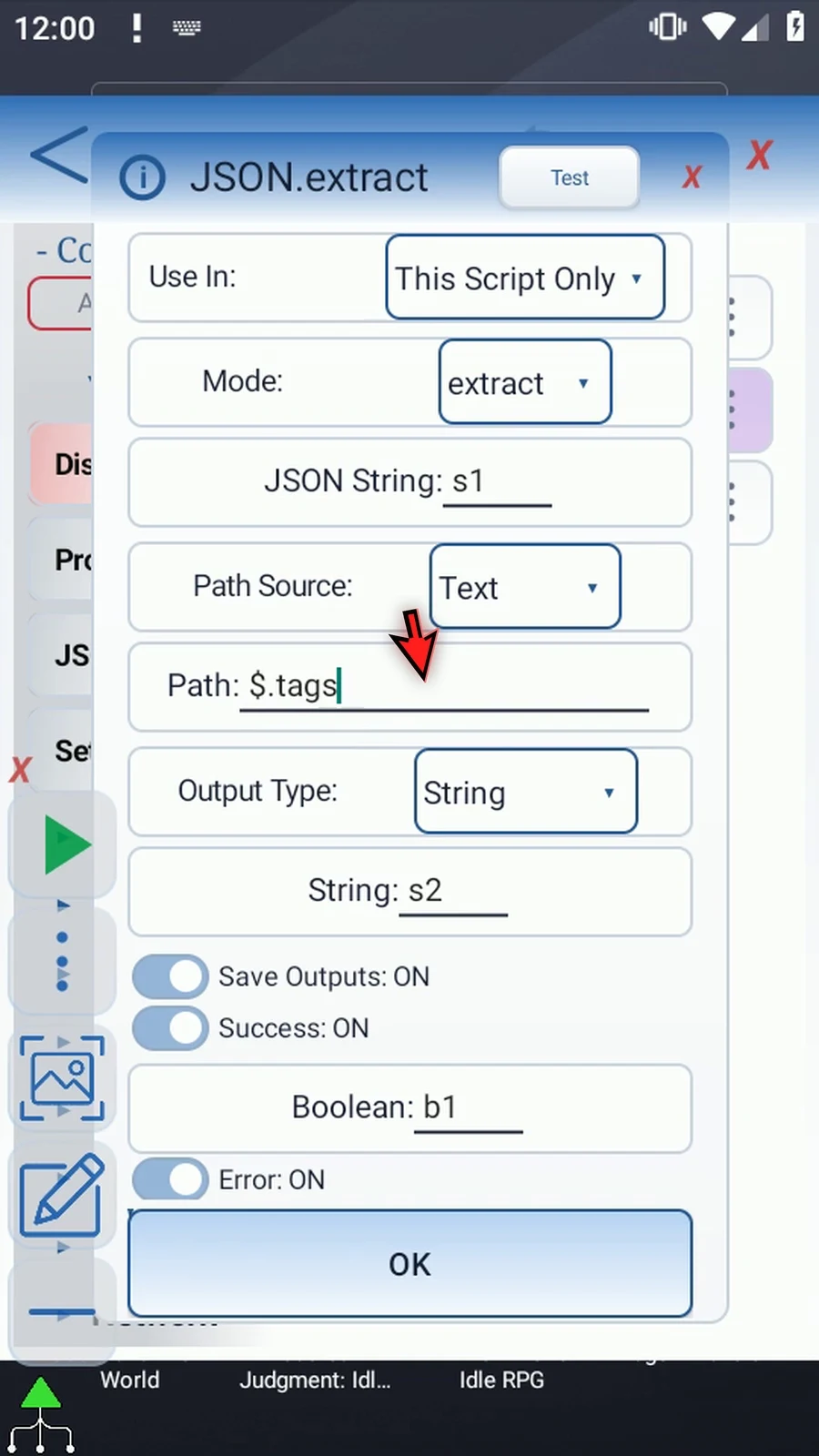
Step 05 Choose String Array as the Output Type. Instead of saving the whole list as one String, this option writes its items into consecutive String slots.
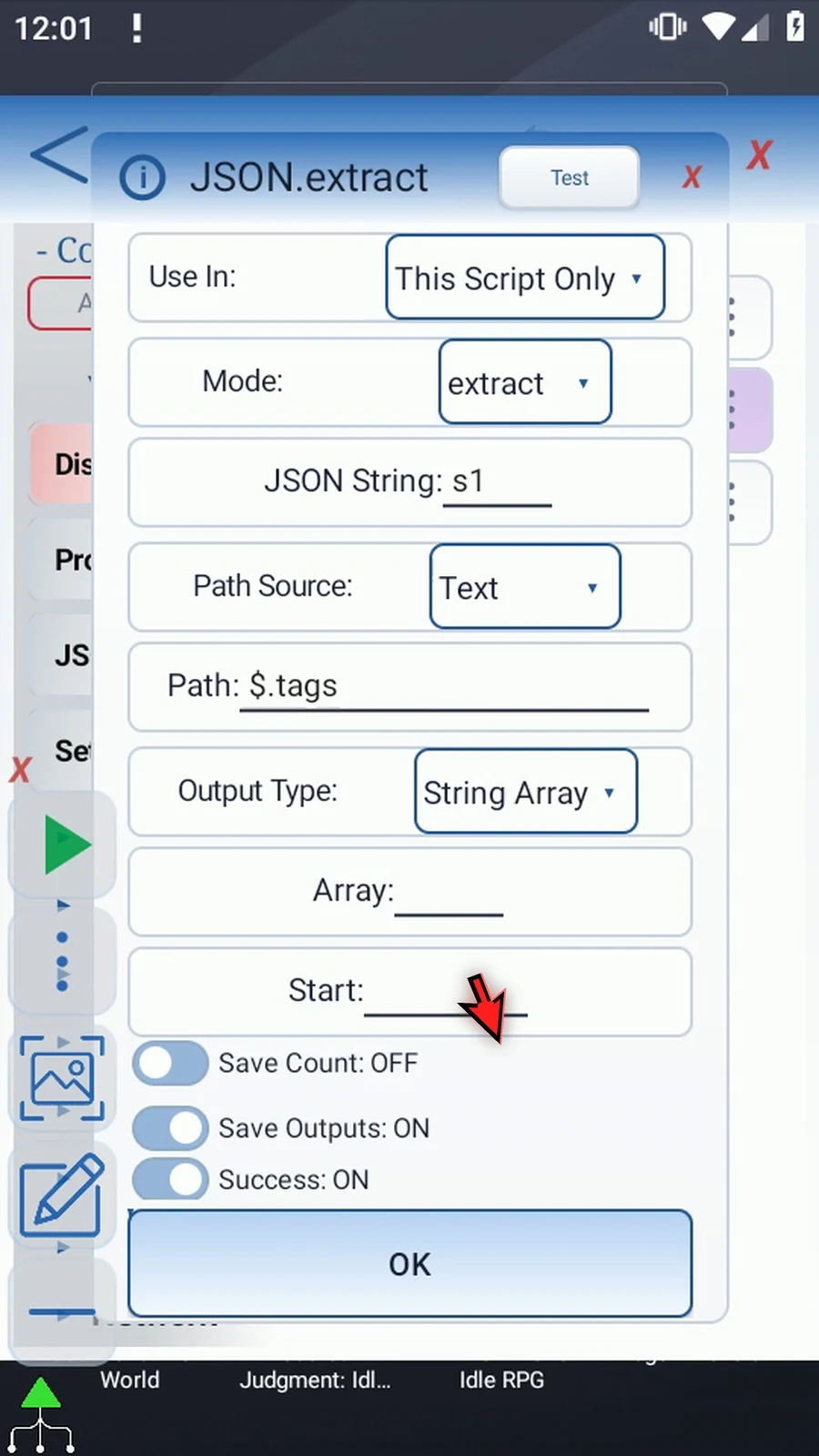
Step 06 Set Array to s, the String array. This is an array letter, not the name of a single variable.
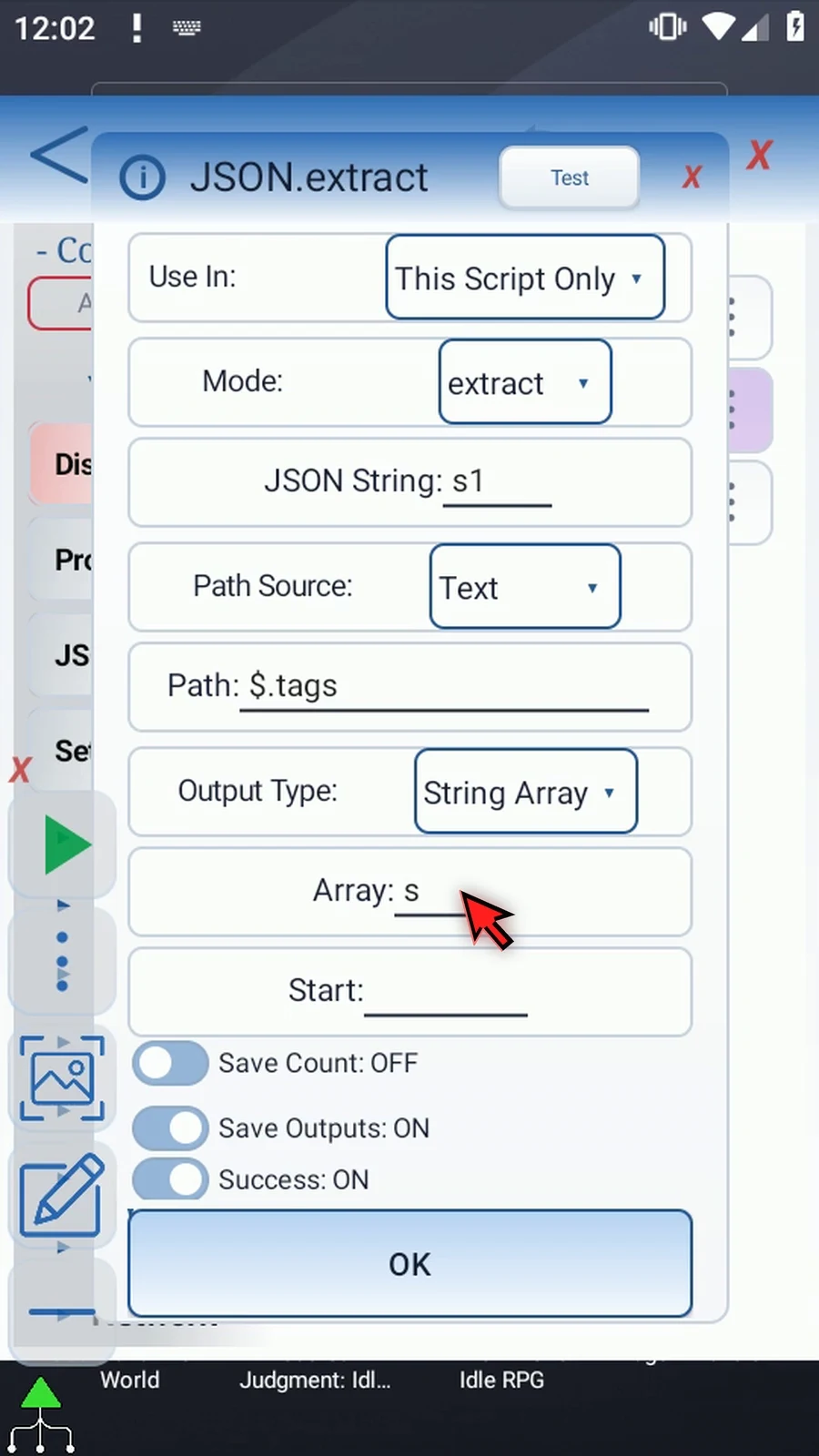
Step 07 Set Start to four. The first tag will go into s4, and the next into s5. This keeps them separate from our source in s1 and error output in s3.
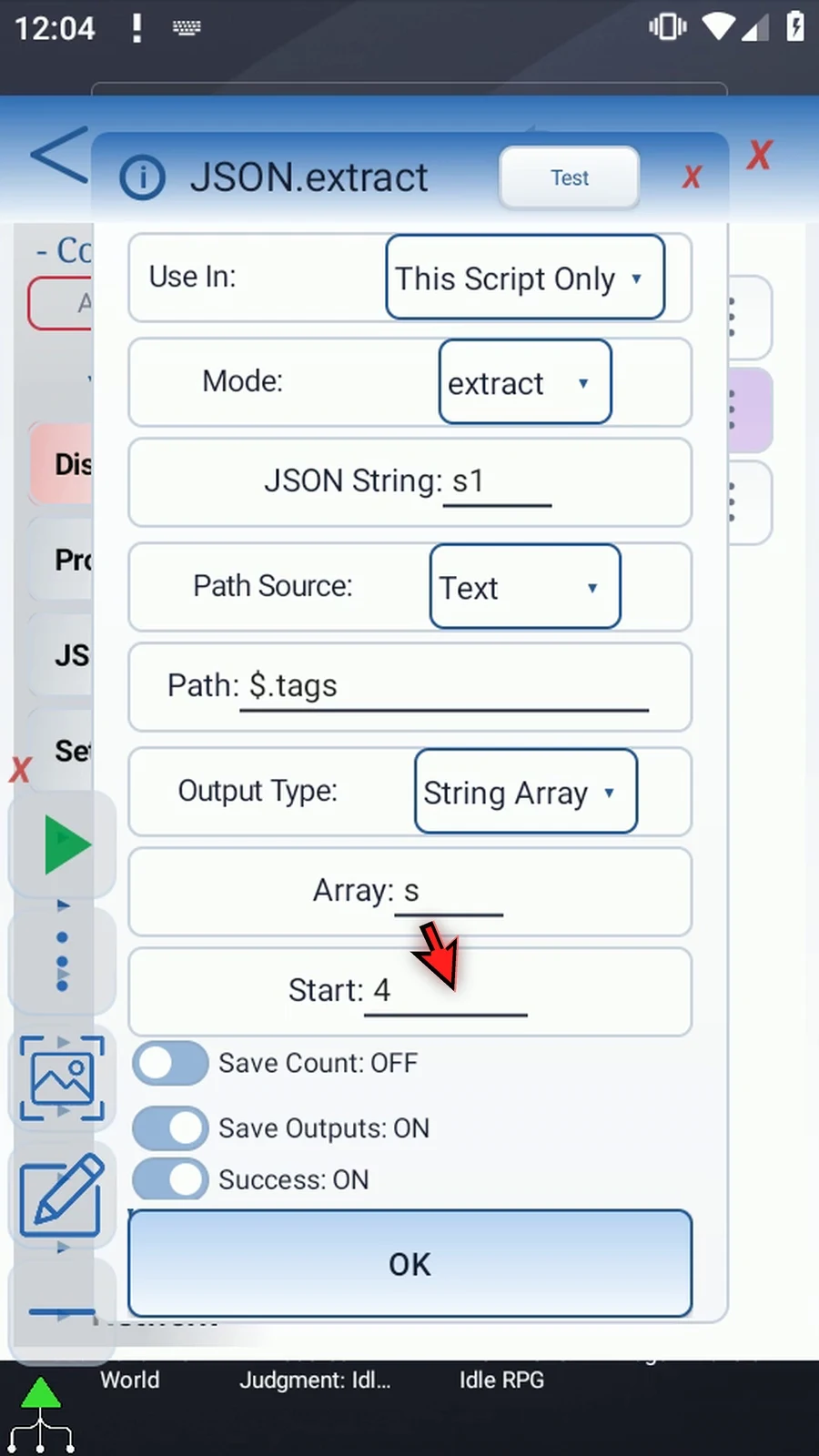
Step 08 Start accepts a positive whole number or an Integer variable prepared earlier. Keep every destination slot within one through four thousand ninety-six. The original JSON text stays unchanged.
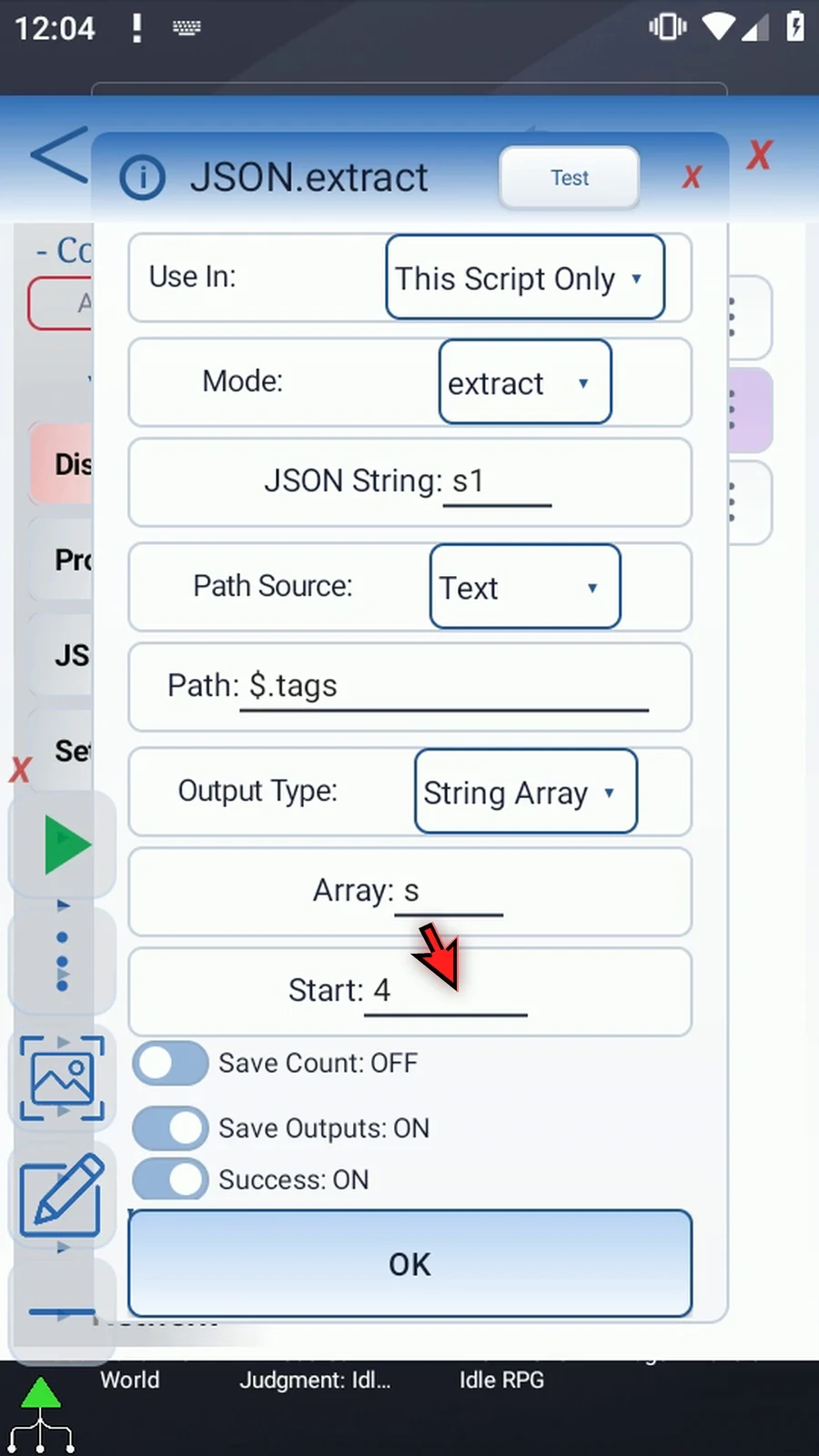
Step 09 Each non-null item becomes text. Nested objects and lists become JSON text inside their slots. A null item causes a type mismatch, so check the success and error outputs when working with unfamiliar data.
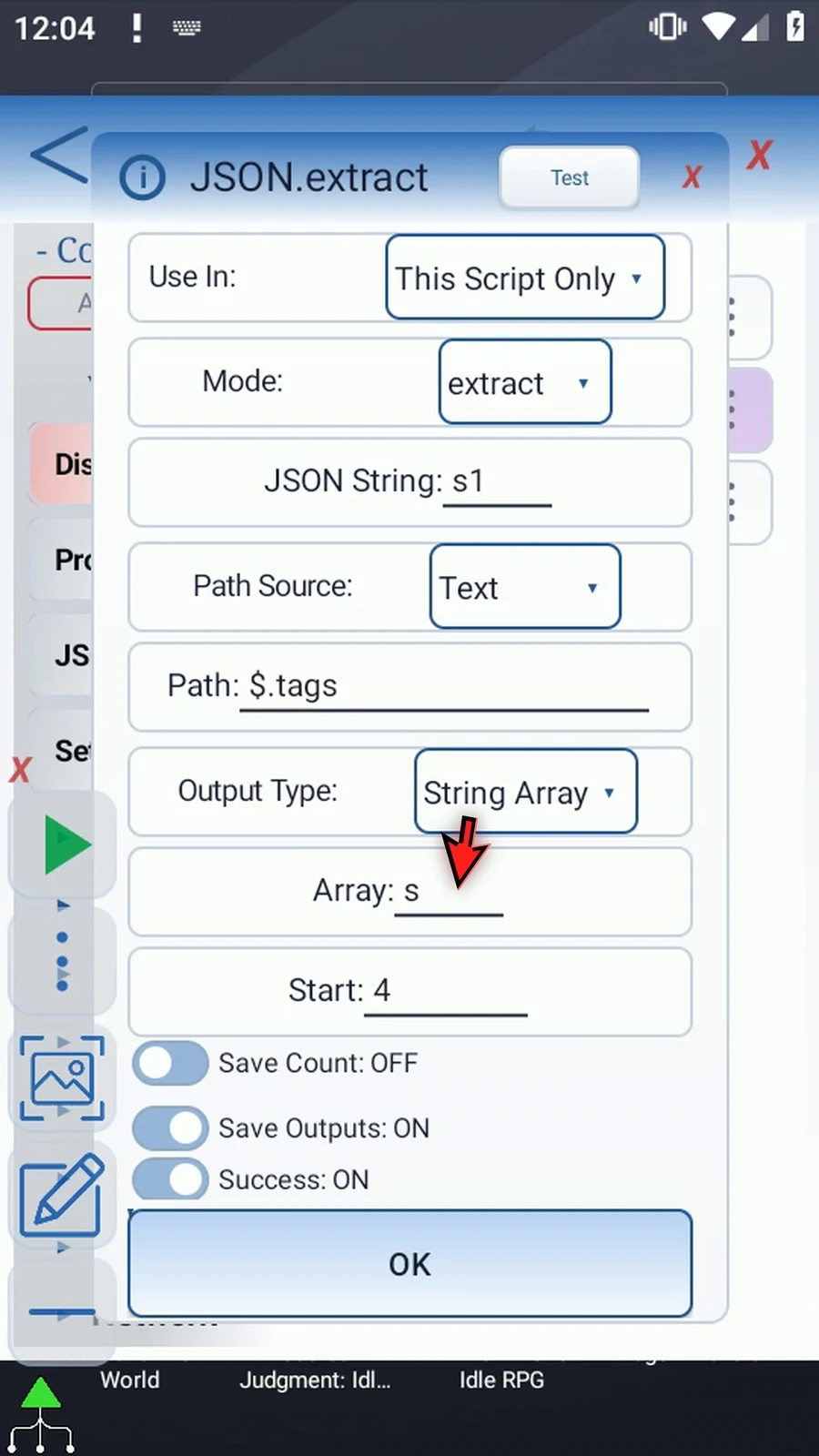
Step 10 Turn Save Count on and enter i1. This saves how many items were extracted. We'll use that number in Join, so its count follows the returned list.
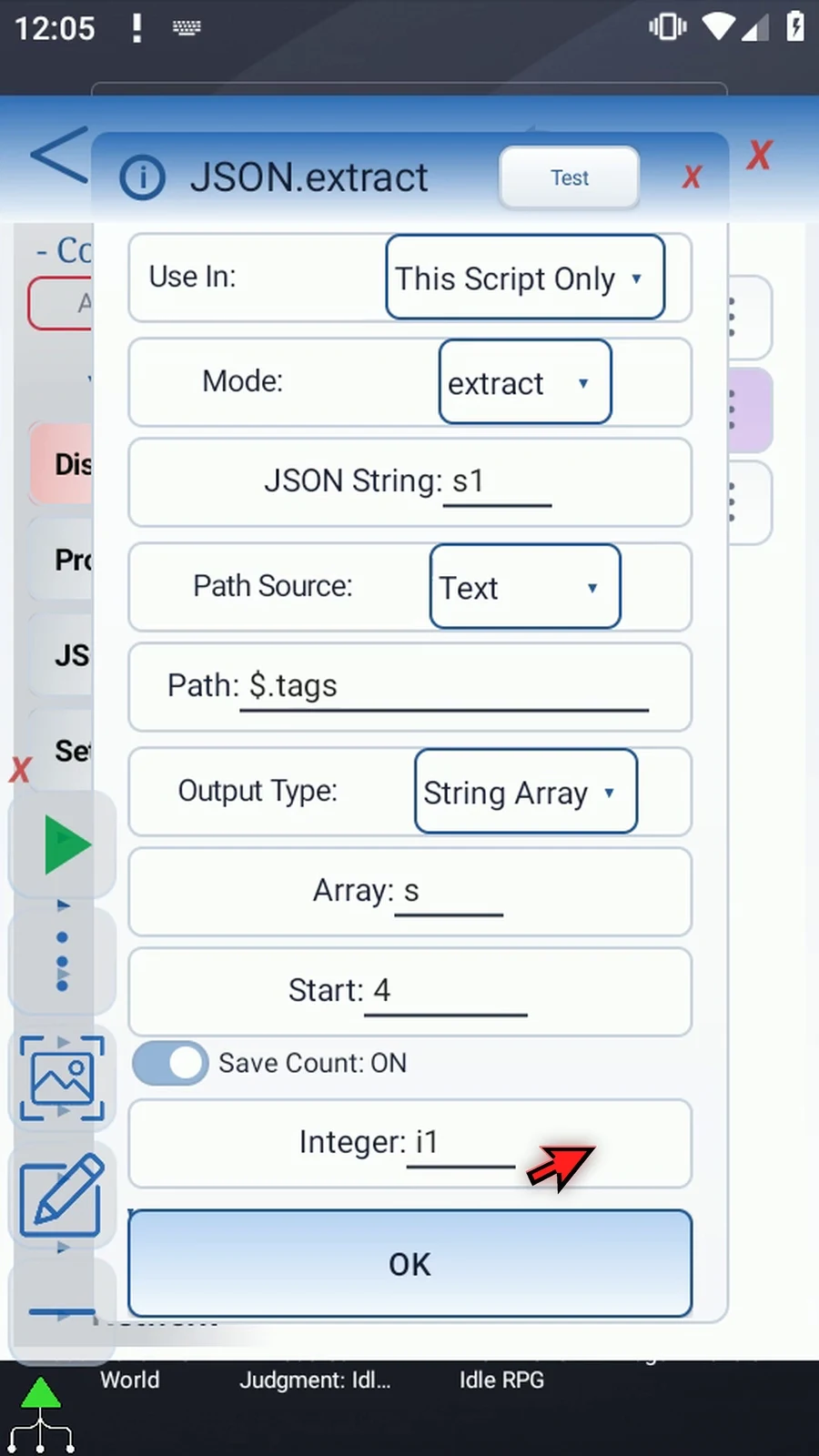
Step 11 Keep Success Boolean b1 and Error String s3, then tap OK. These report the operation; s4 and s5 hold the extracted tags.
Step 12 For a clear confirmation, we'll combine the tags with Text Transform's Join operation. Expand Variables and find Text Transform.
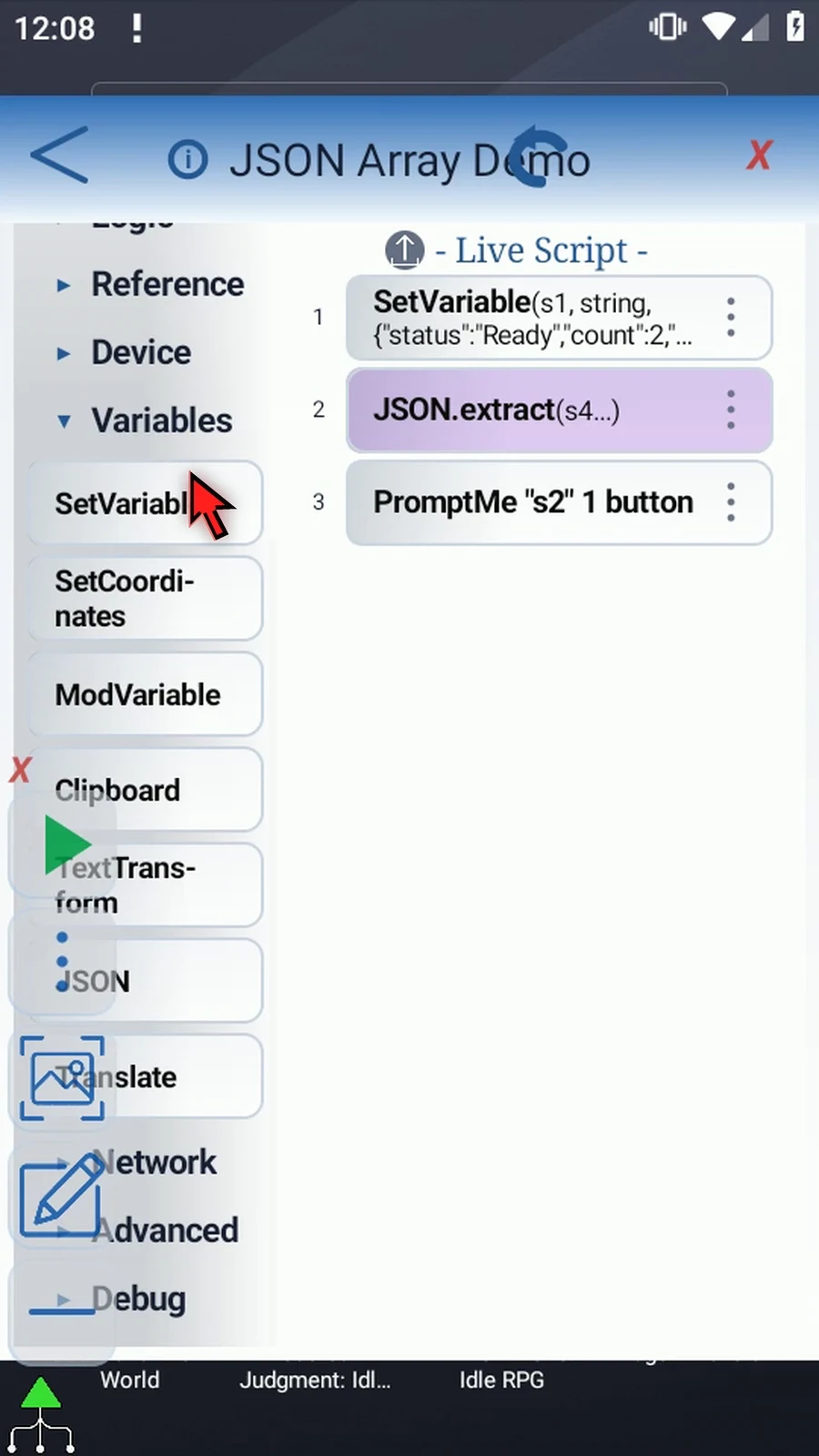
Step 13 Drag Text Transform into the script. We'll move it before PromptMe after saving its settings.
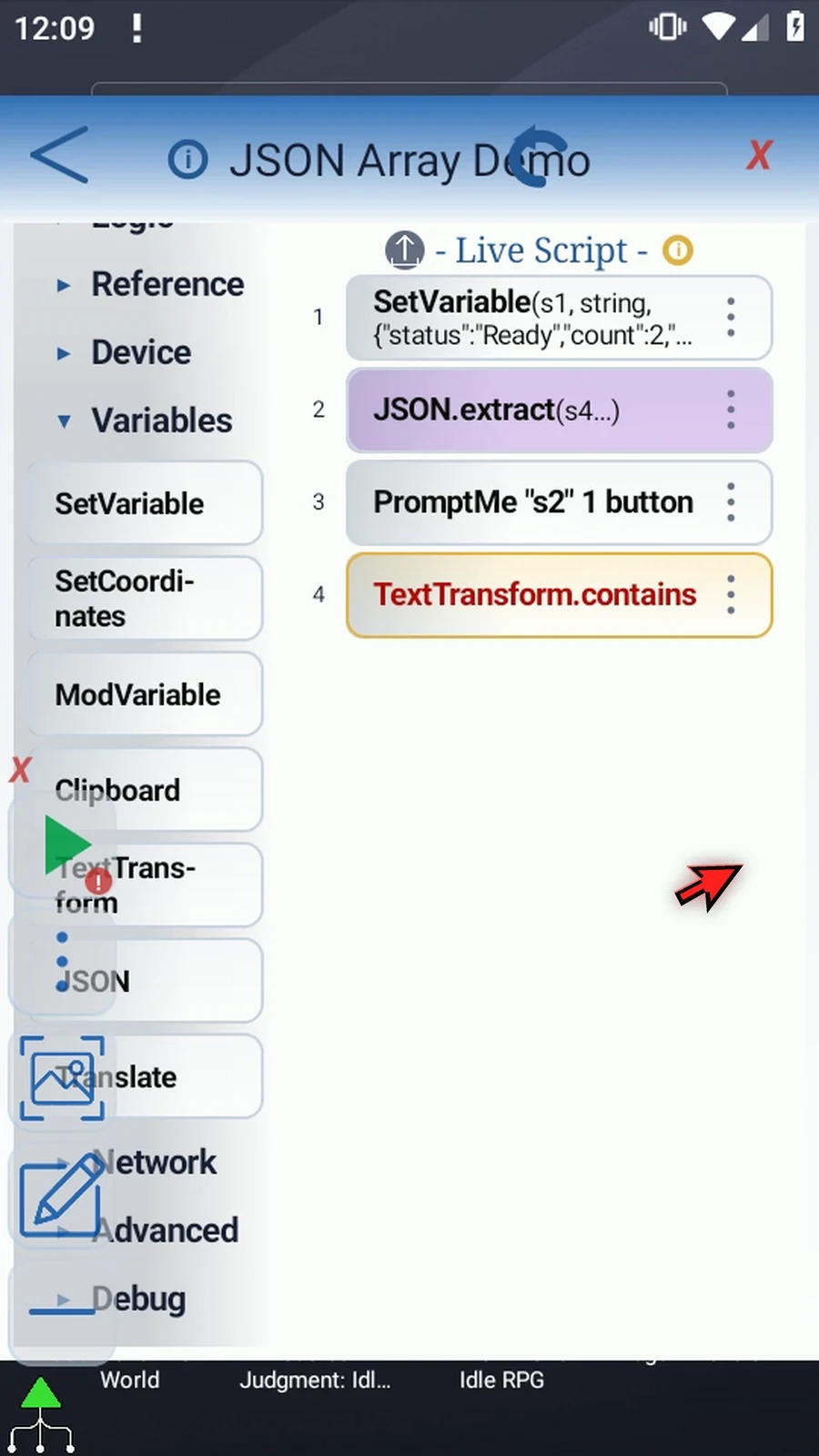
Step 14 Open the new command and choose Join. Keep This Script Only, so it uses the values returned by JSON.
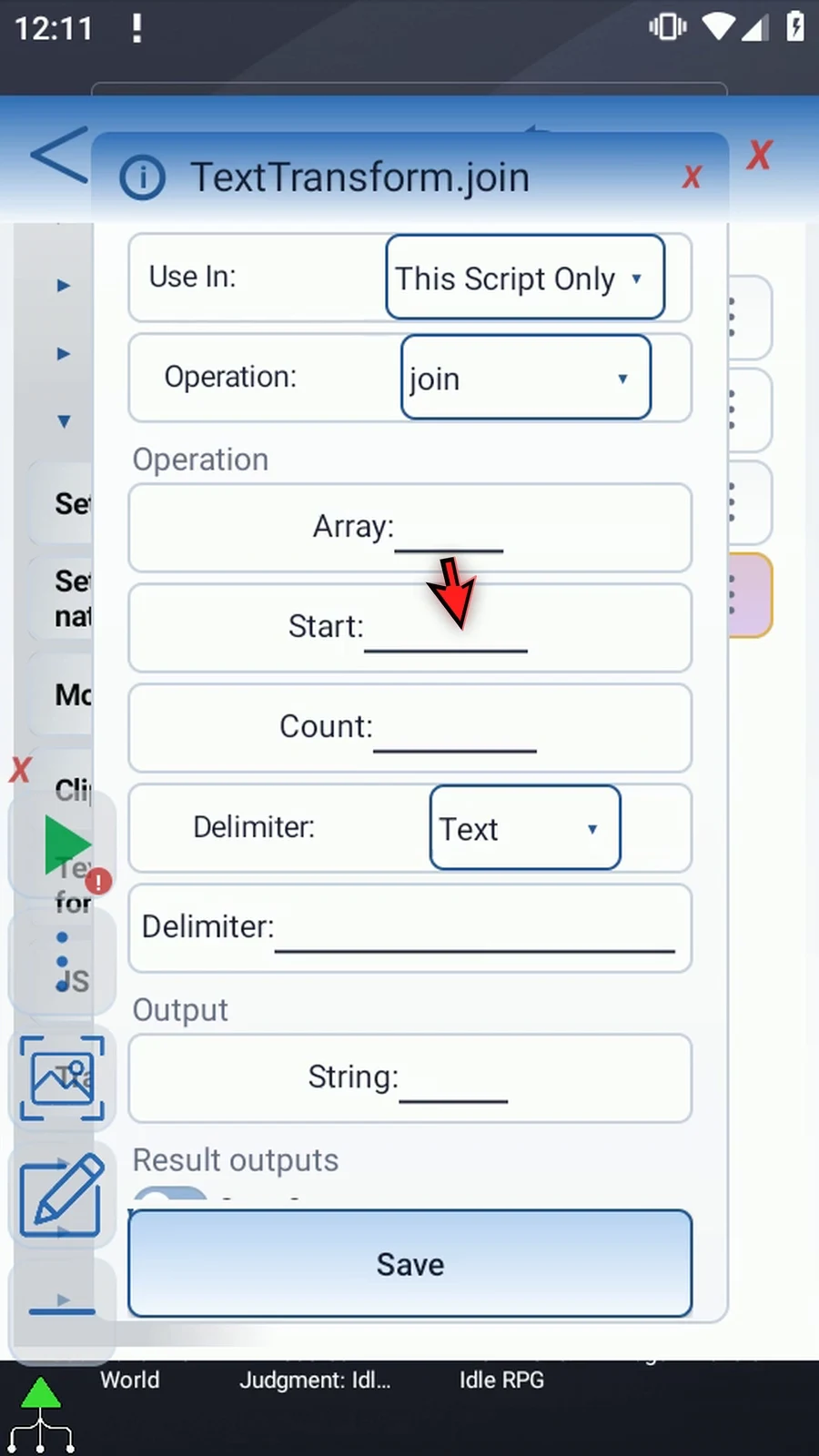
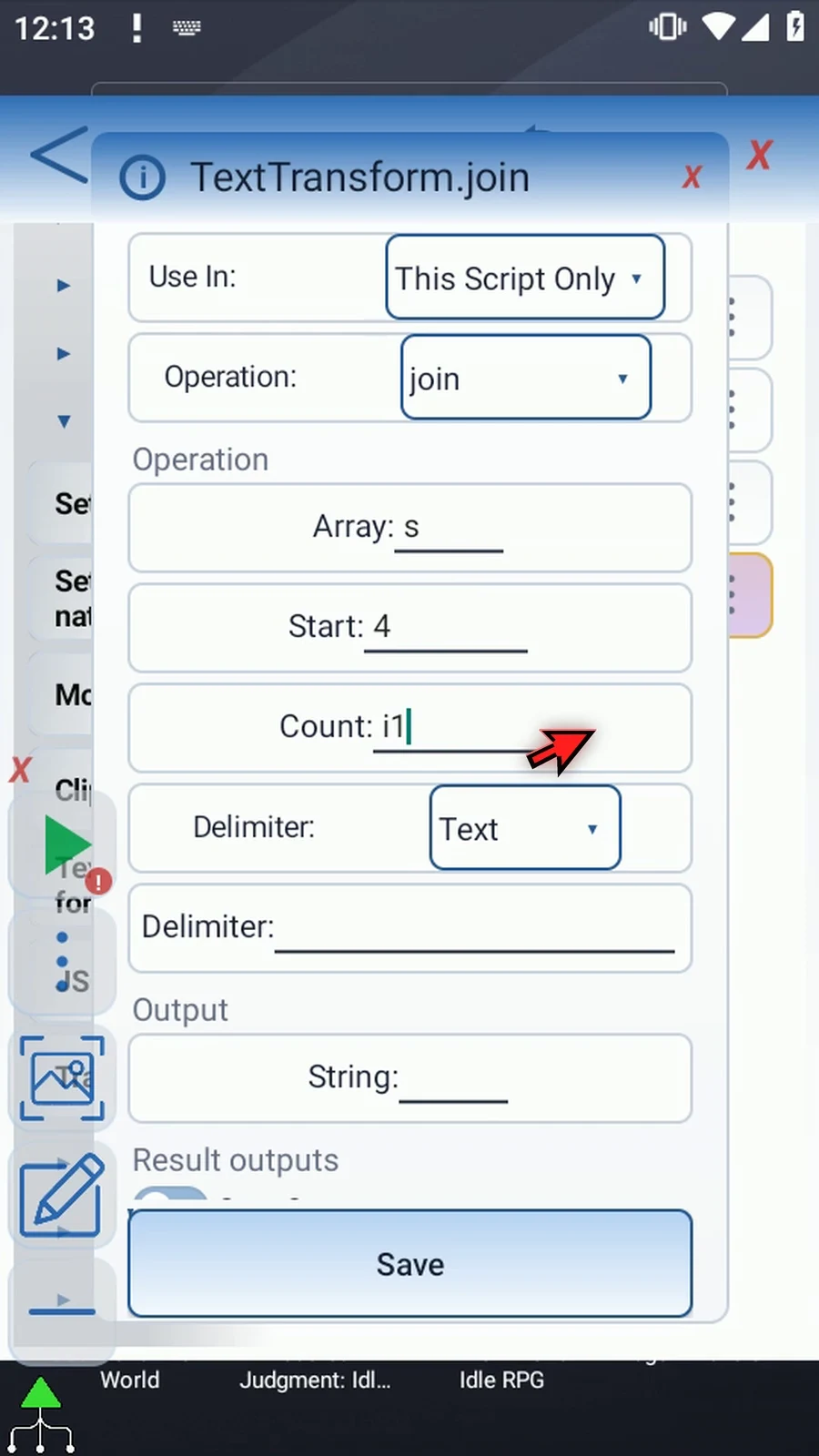
Step 15 Set Array to s and Start to four. Set Count to i1, the Integer returned by JSON. Join will read exactly that many slots, beginning at s4.
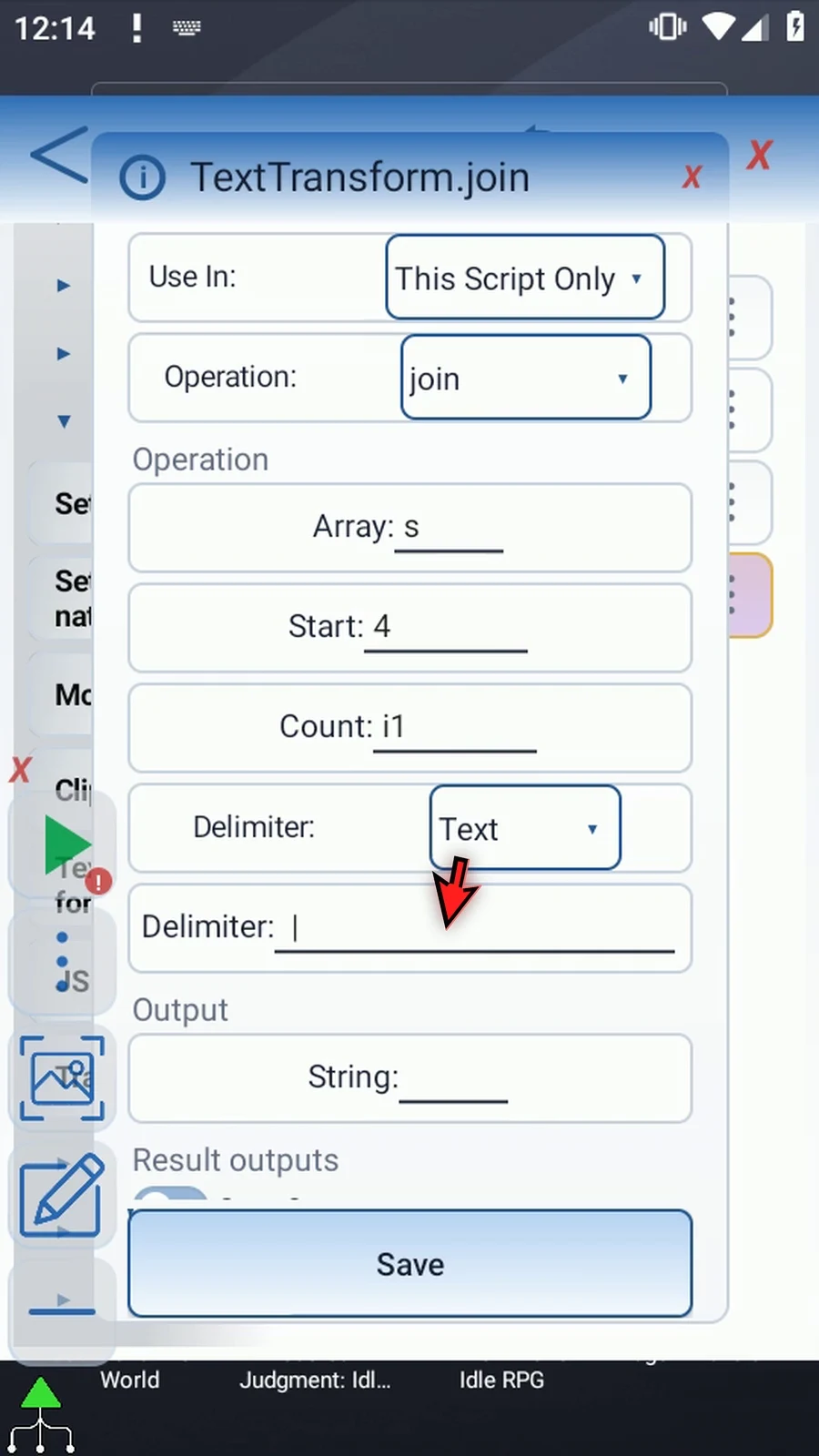
Step 16 Keep Delimiter set to Text. Enter a space, a vertical bar, and another space. This separates the tags in our confirmation without changing their original slots.
Step 17 Set Join's output String to s6. Keep its optional Save Outputs off, then save. The Text Transform Join guide explains this supporting command in more detail.
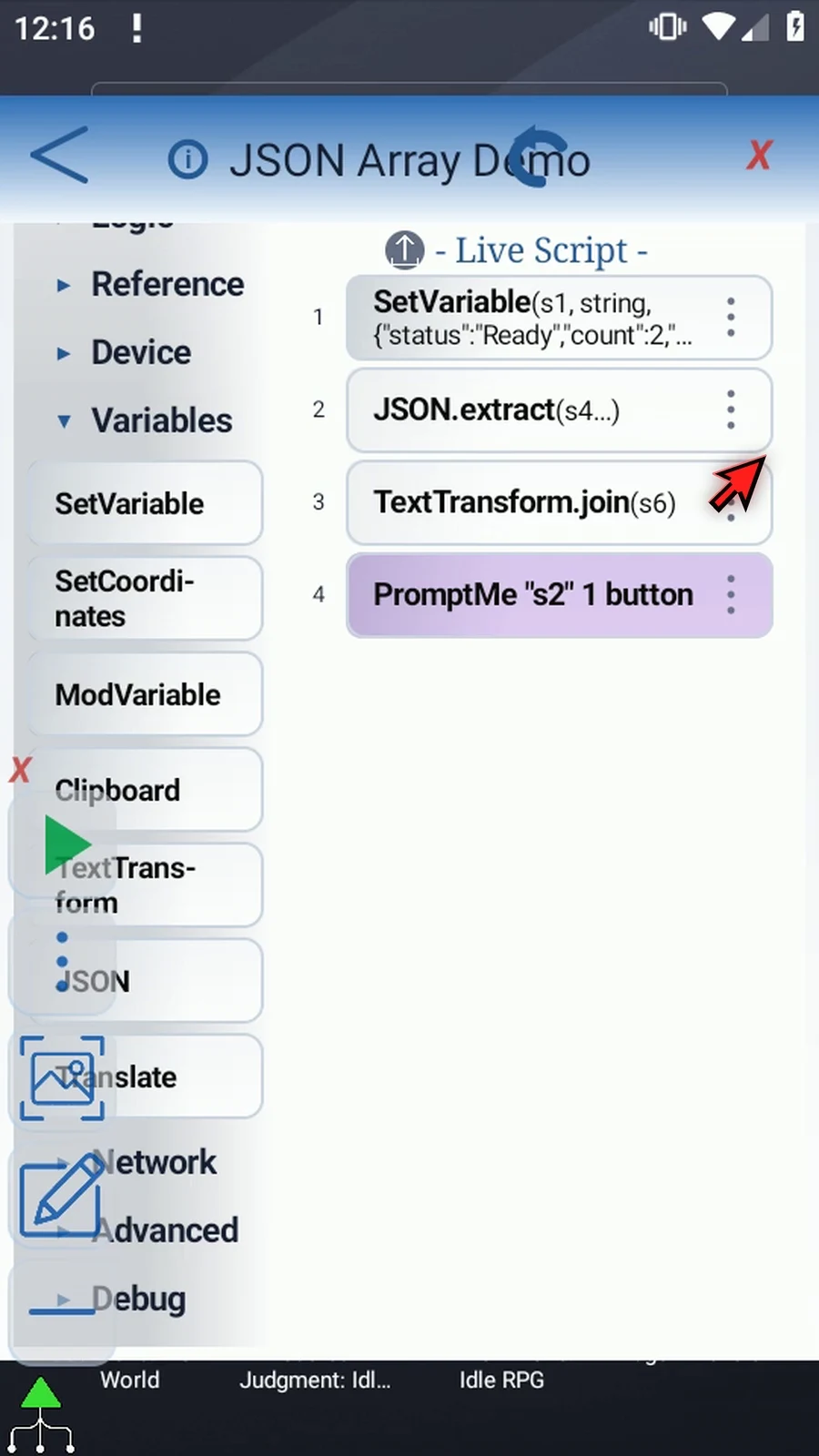
Step 18 Drag Join between JSON and PromptMe. JSON must fill the slots first; Join combines them, and PromptMe displays the combined result.
Step 19 Open the existing PromptMe and change its Header to s6. Keep Standard mode and the Done button with Boolean b2, then tap OK.
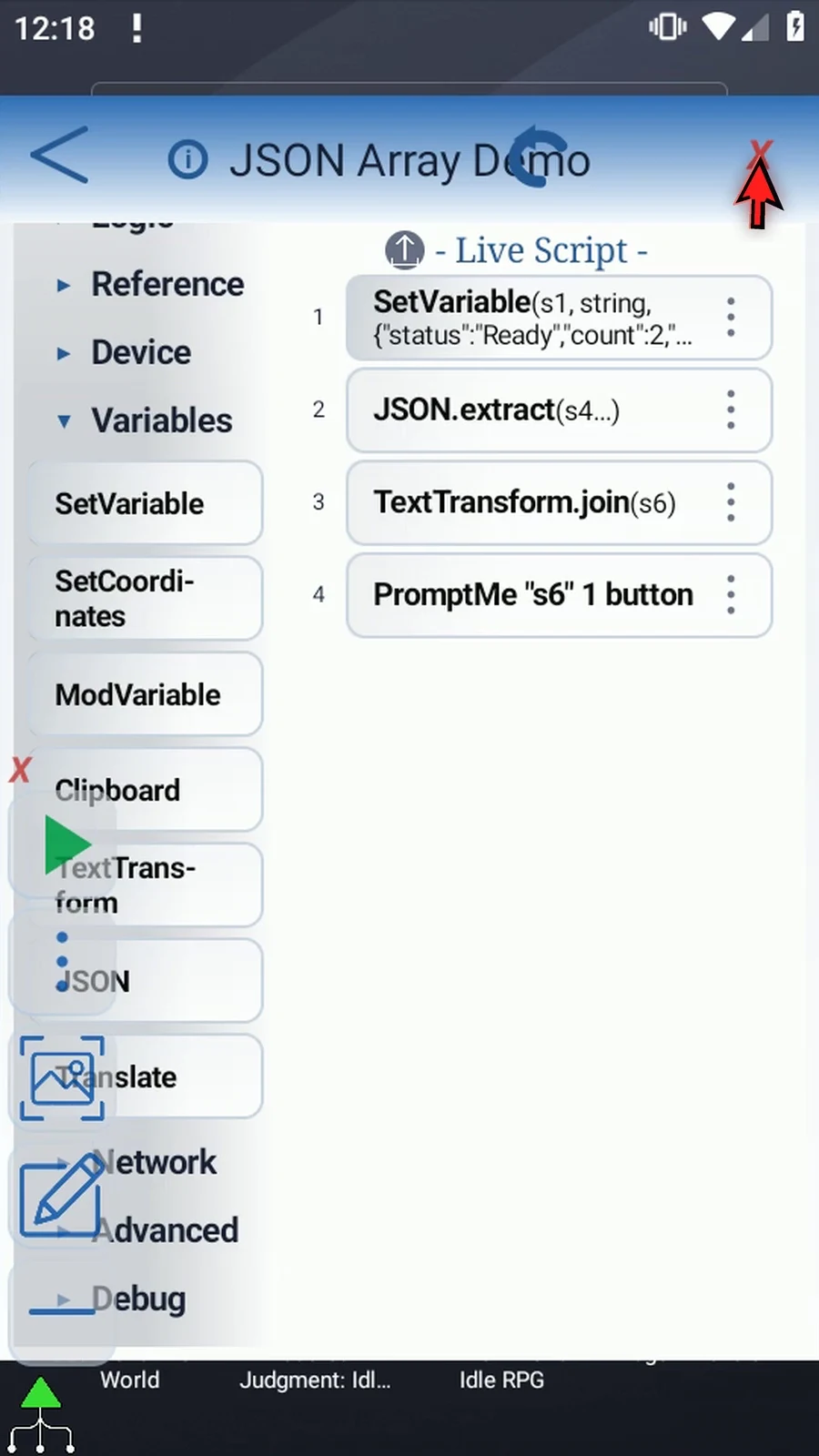
Step 20 The script prepares JSON, extracts the tags and their count, joins those tags, and displays the result. Close the editor to try it.
Step 21 When the script is complete, simply use the Play button in the main overlay.
Step 22 PromptMe shows Demo, then the separator, then Guide. These came from s4 and s5. The saved count was two, so Join read both extracted items.
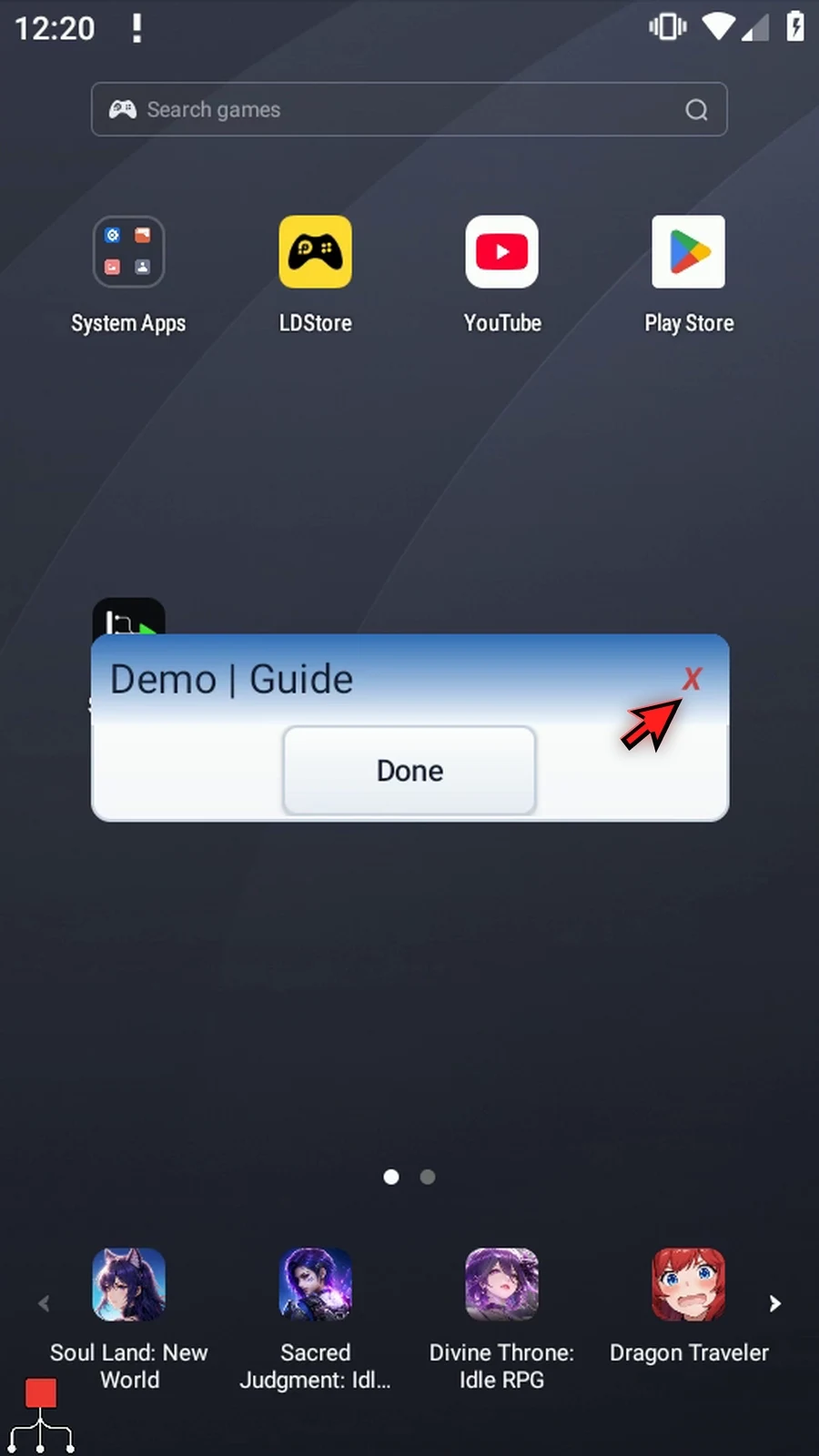
Step 23 Press Done. The script finishes automatically. Other scripts can use the extracted slots directly; Join is only here to make both values visible in one prompt.
Extract JSON Text keeps a selected JSON value in JSON form inside one String variable. Use it when a later command needs a whole nested object or list rather than separate variable slots.
- Continue from Intro's three-command example and original manual command drags. Keep Extract, JSON String
s1, Text Path Source and This Script Only. - Set Path to
$.tags, choose JSON Text, and enters2in its active String destination. JSON Text has its own output setting; the original source ins1stays unchanged. - The example saves
["Demo","Guide"]together ins2. Unlike String Array, it does not distribute the items into separate slots. - Objects and lists retain their JSON structure. Strings are quoted and escaped; numbers, Booleans and null retain their JSON representation. This mode emits compact JSON text.
- Keep Success Boolean
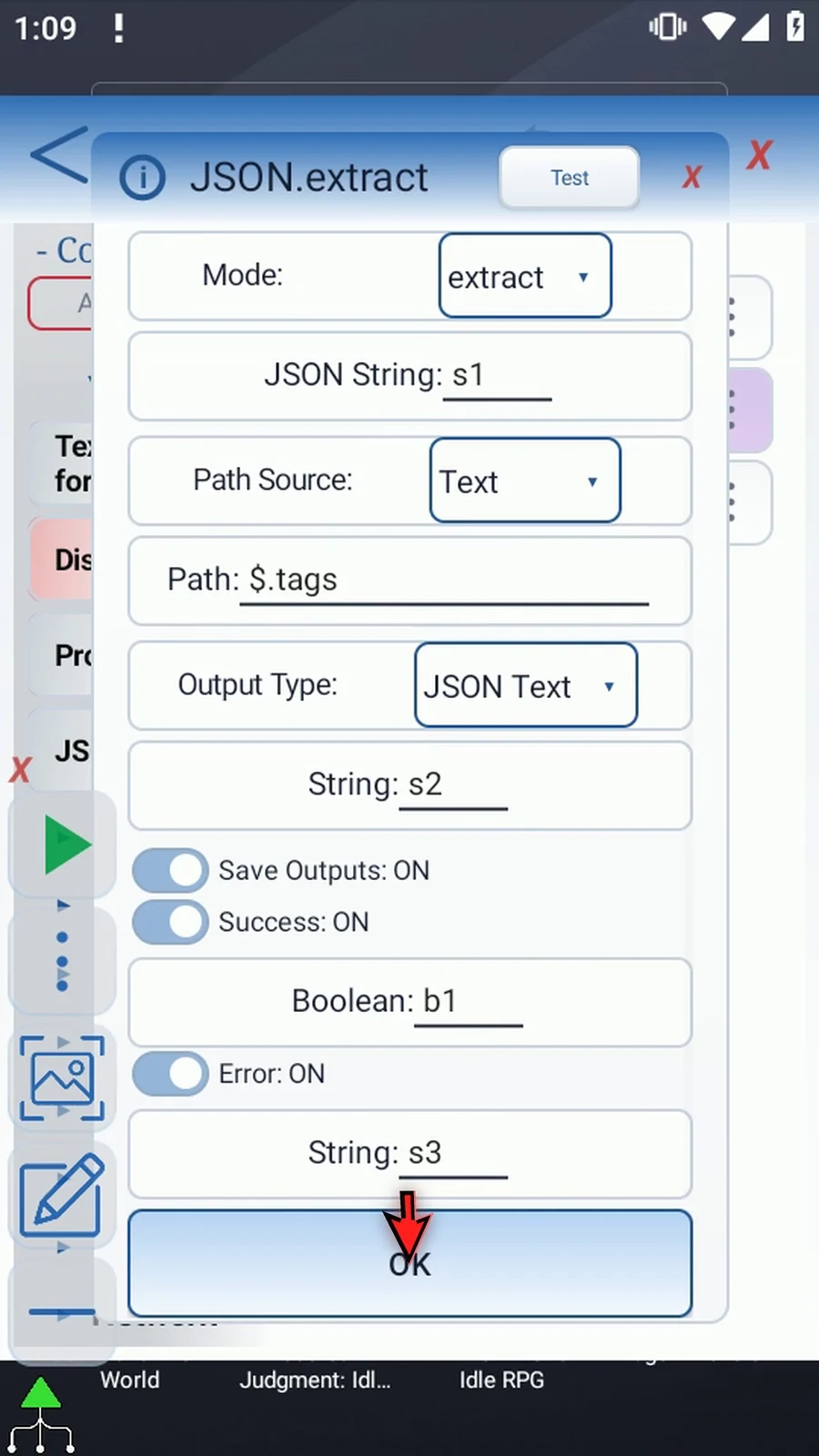
b1and Error Strings3. Check these outputs when the input or path may be invalid. - The existing Standard PromptMe Header
s2displays the actual extracted list. Done setsb2and completes the three-command script.
See Intro for source setup, path and scope details, and the original manual command insertions.
Extract JSON Text
Step-by-step guide
Step 01 Extract JSON Text saves a selected JSON value as JSON-formatted text in one String variable. This is useful when another command needs a whole nested object or list, rather than separate items. We'll extract our tags list and display it.
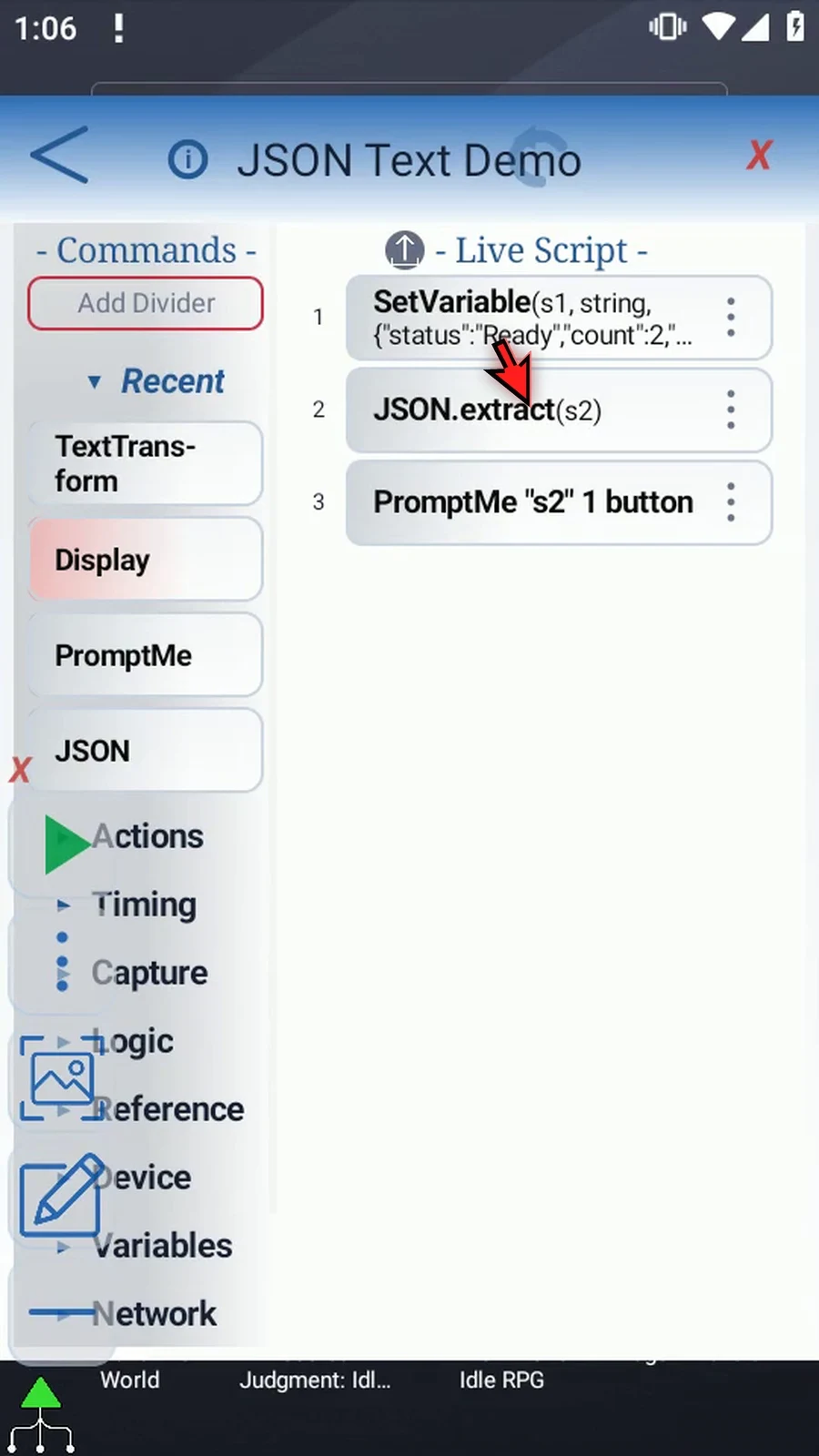
Step 02 Reuse the three-command script from Intro. Set Variable prepares the source in s1, JSON extracts the result, and PromptMe makes it visible. Intro shows the original setup and manual command drags.
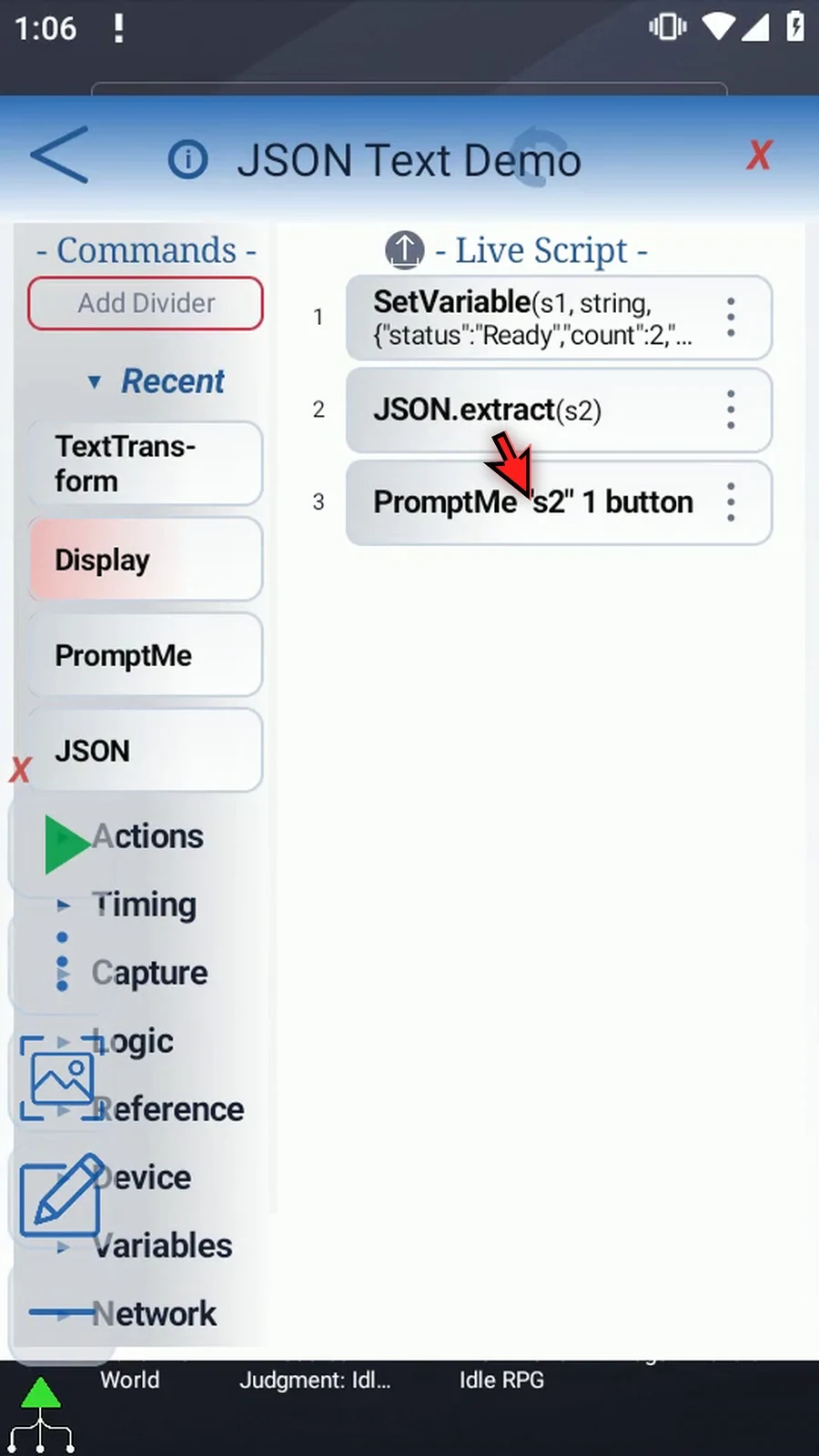
Step 03 Open JSON. Keep Extract, JSON String s1, Text as the Path Source, and This Script Only.
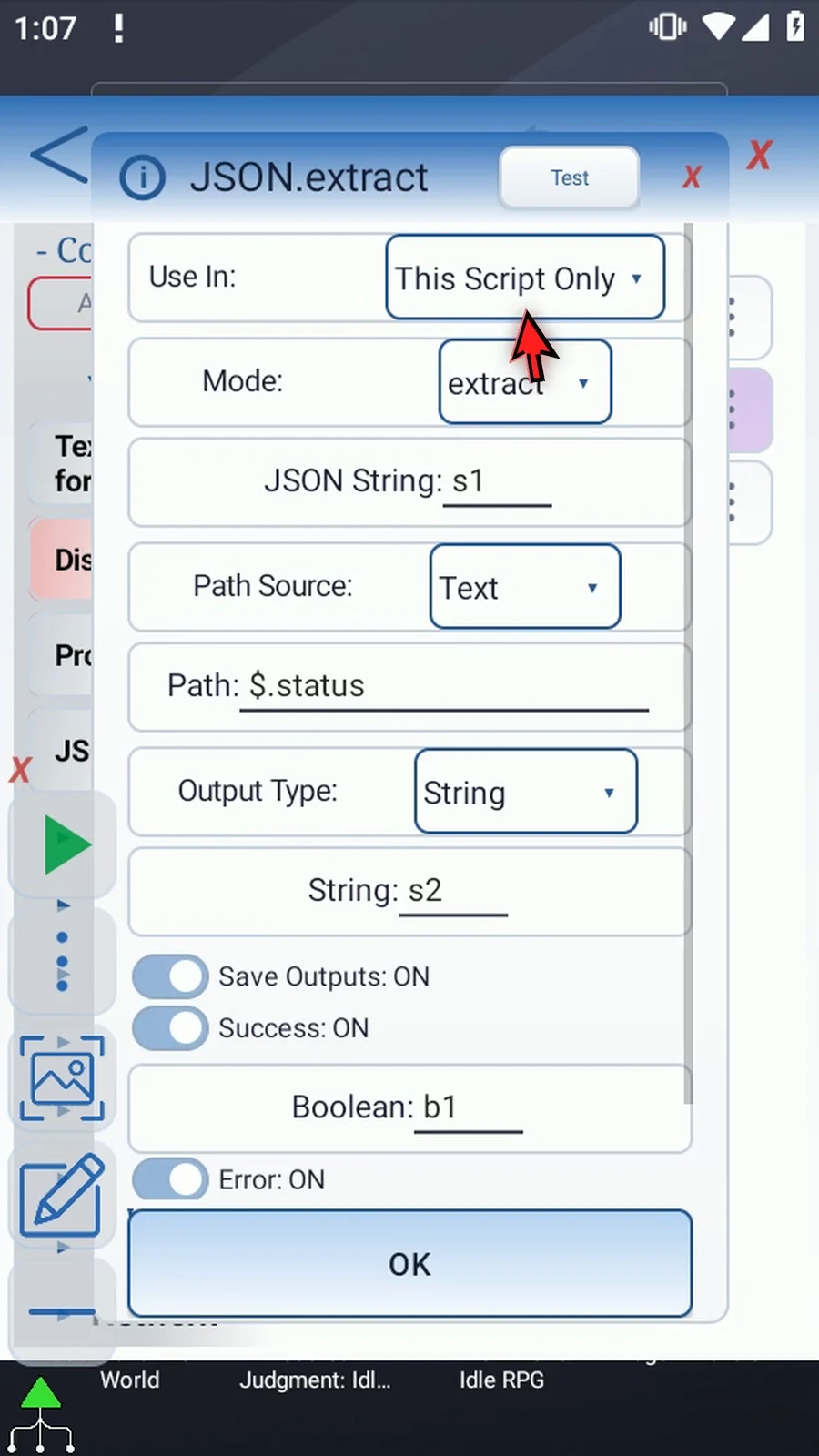
Step 04 Change the path to dollar sign, dot, tags. This selects the list containing Demo and Guide inside our source object.
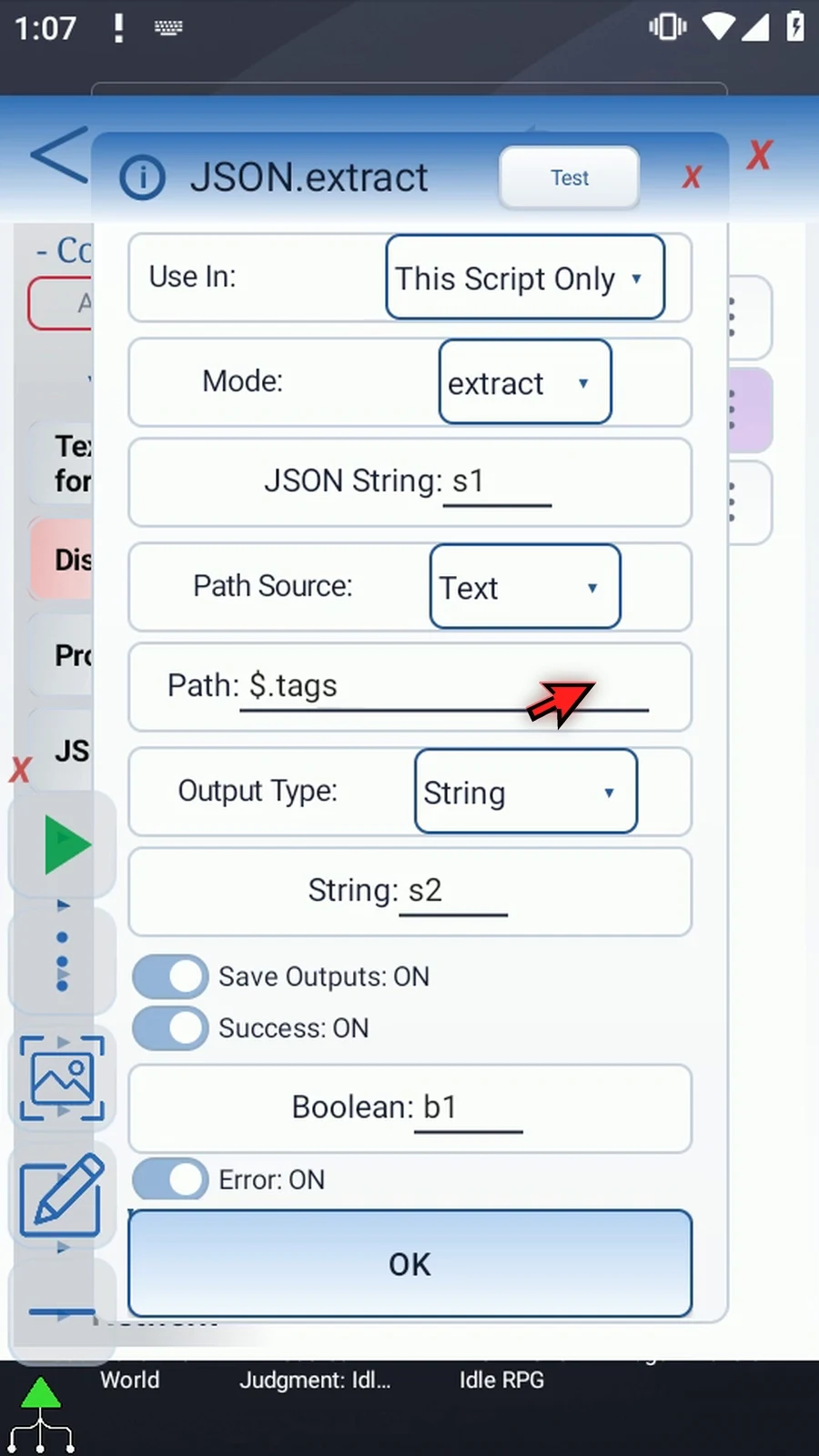
Step 05 Choose JSON Text as the Output Type. Unlike String Array, it keeps the selected list together in one String, including its JSON brackets and quotation marks.
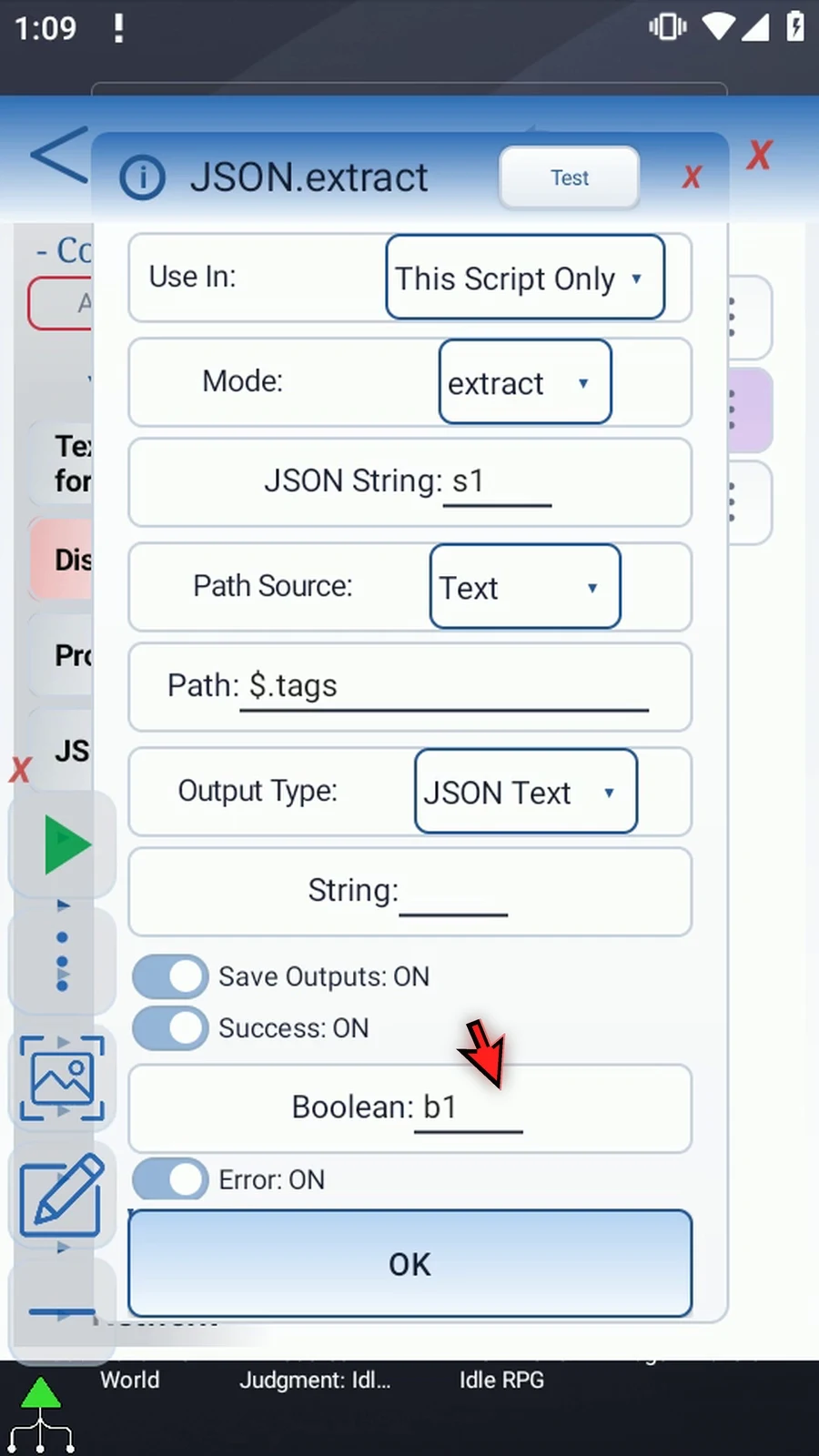
Step 06 Enter s2 as the String destination. This is a separate output setting for JSON Text. Our original JSON in s1 stays unchanged.
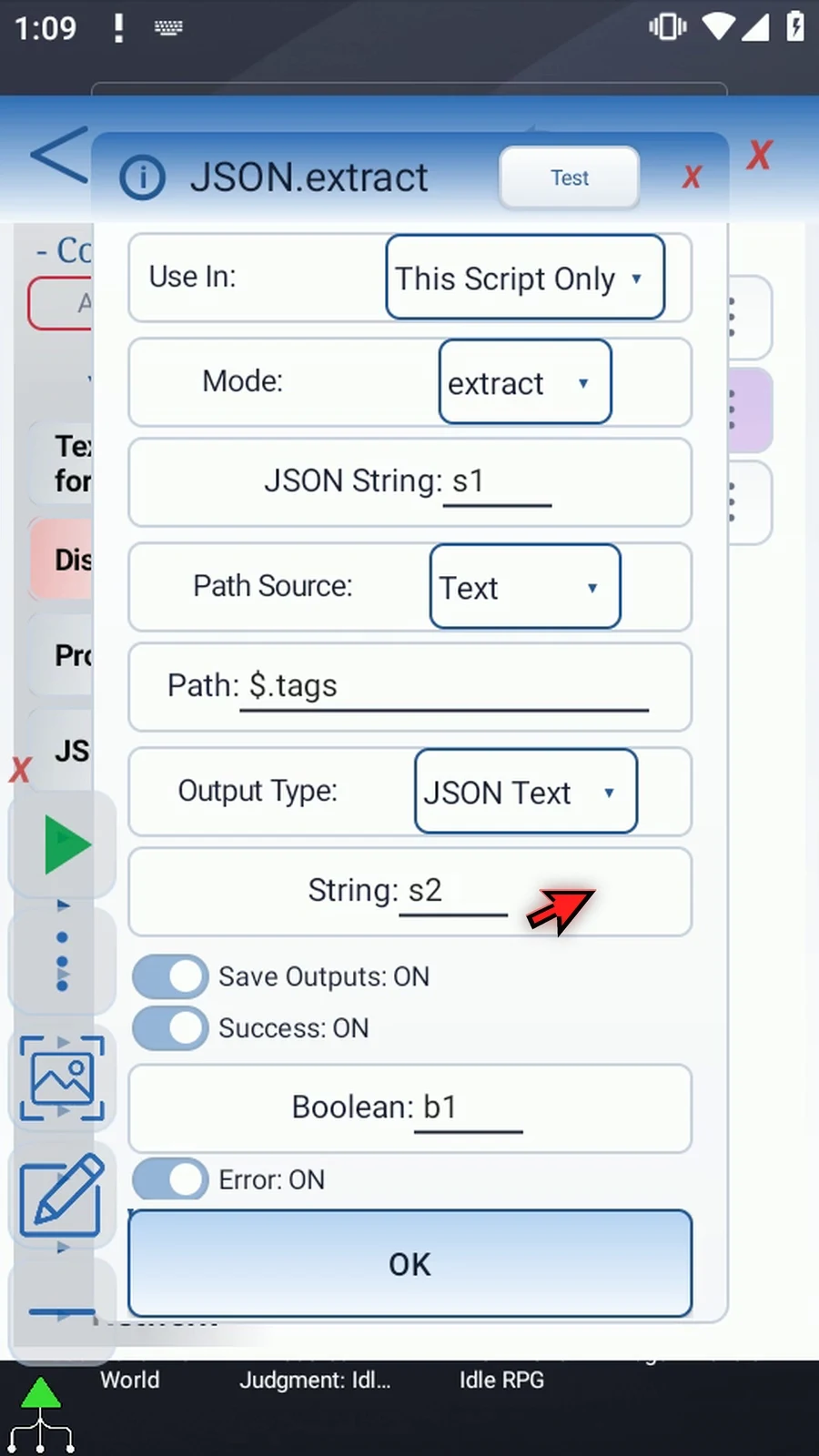
Step 07 Objects and lists remain JSON structures. A selected String is quoted and escaped as JSON text. Numbers, Booleans, and null also keep their JSON representation.
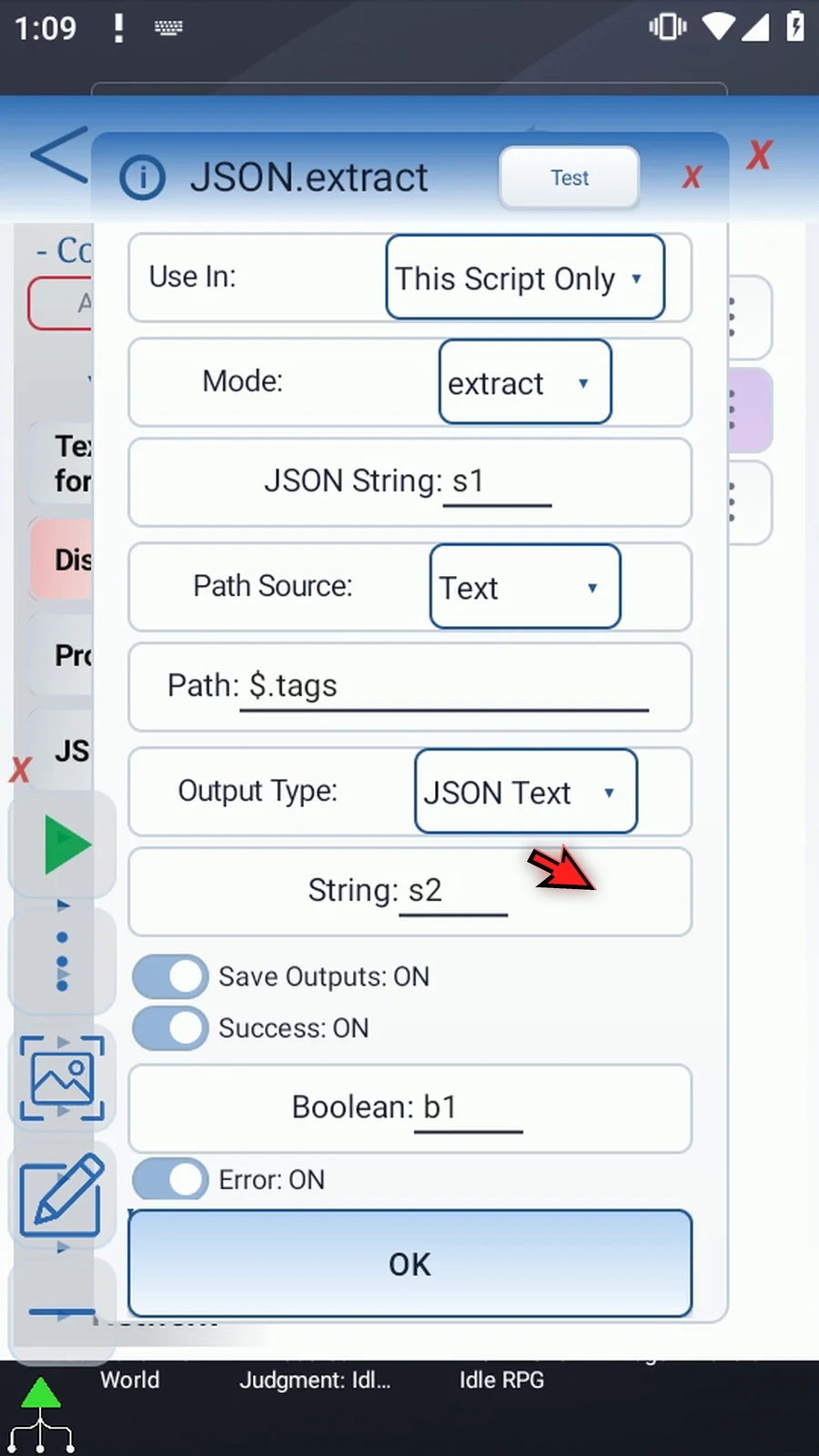
Step 08 Keep Success Boolean b1 and Error String s3, then tap OK. Check these outputs before using a result when the JSON or path may be invalid.
Step 09 PromptMe already uses s2 as its Header. No extra command is needed. Close the editor to try the three-command script.
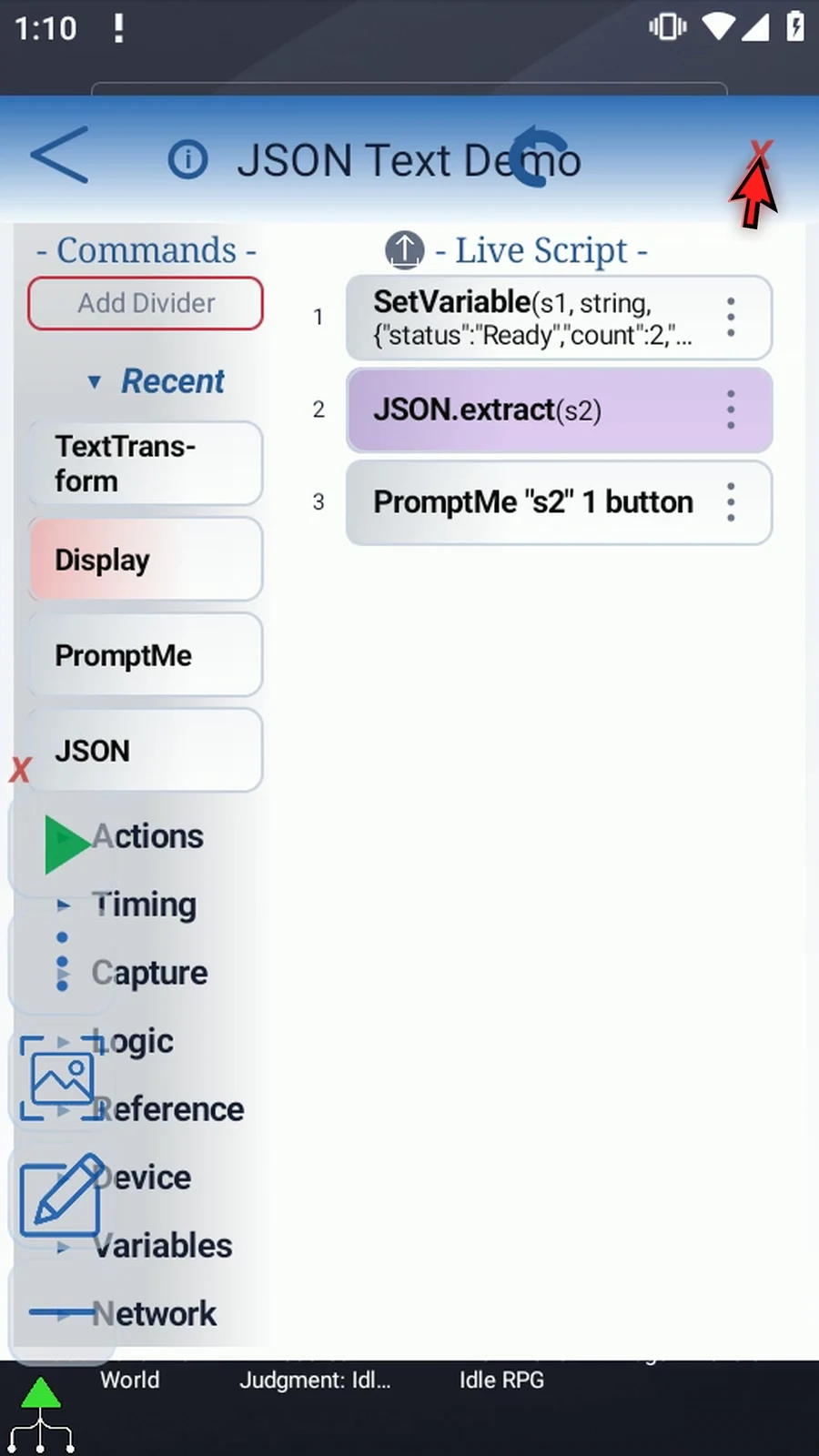
Step 10 When the script is complete, simply use the Play button in the main overlay.
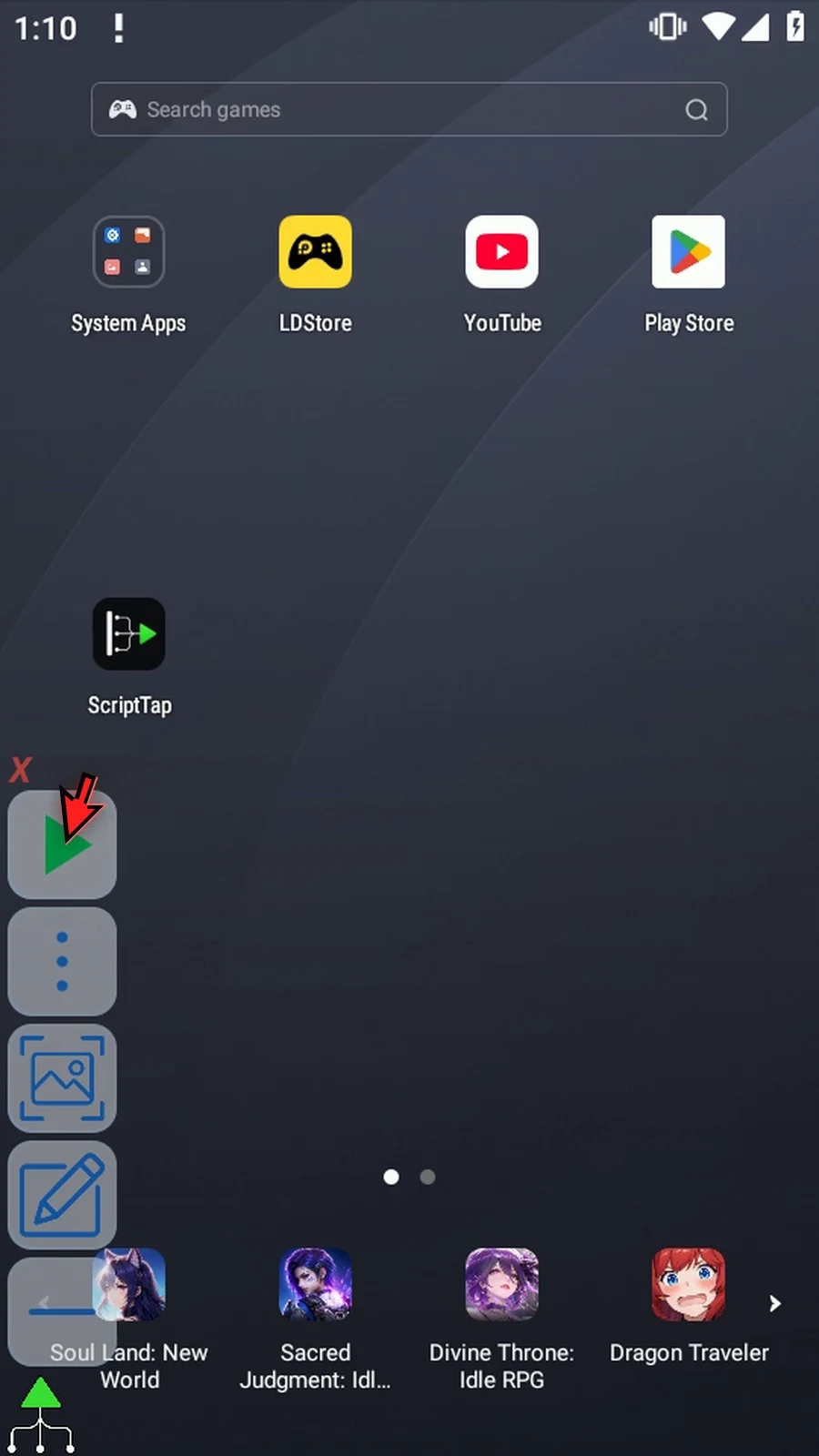
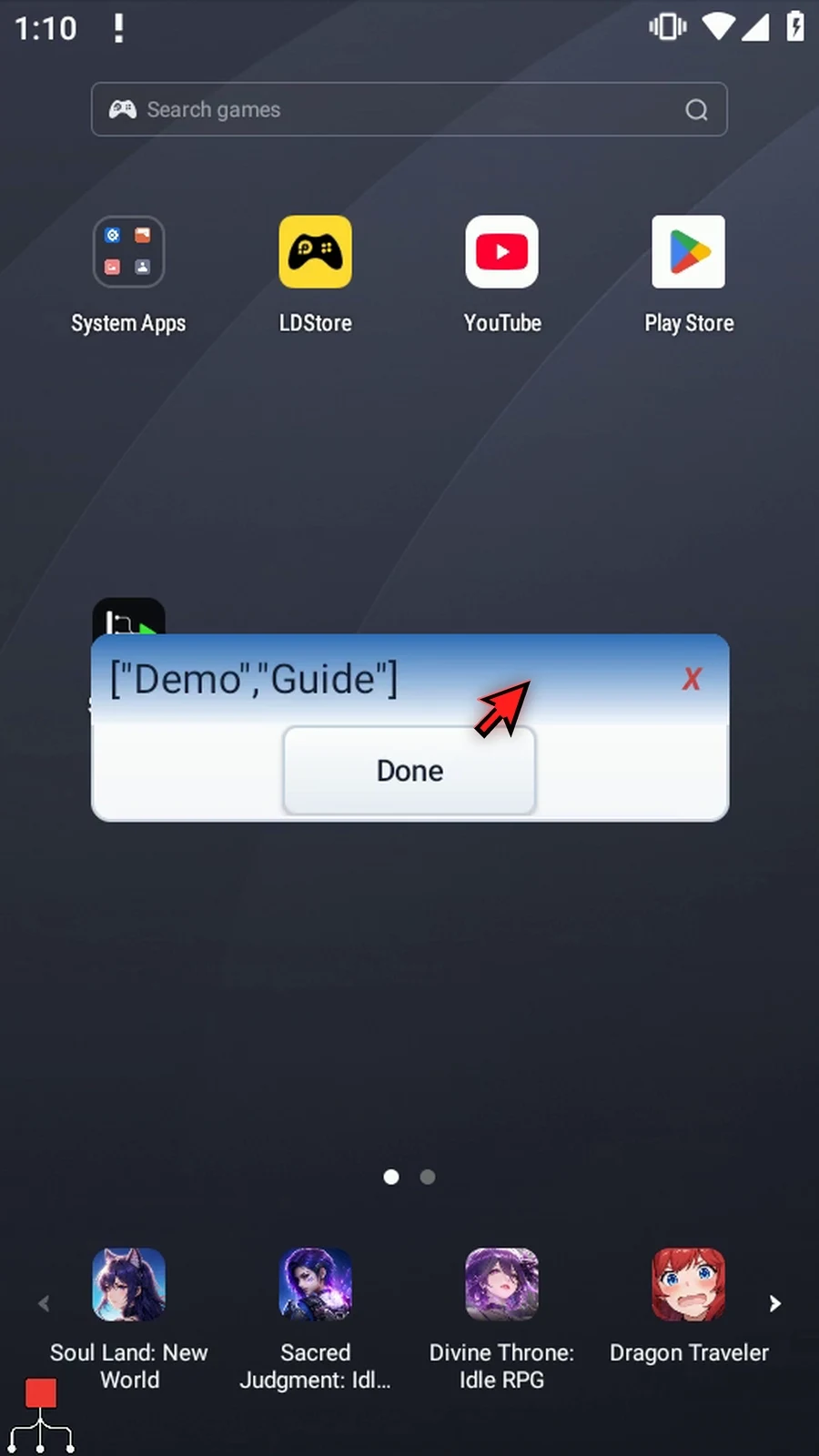
Step 11 PromptMe shows the whole two-item list, including the brackets, quotes, and comma. Both tags are stored together as valid JSON text in s2, ready for a later command.
Step 12 Press Done. The script ends automatically. Use JSON Text when you want to keep a selected value in JSON form, not split it into separate variable slots.
Exists checks whether a JSON path is present and saves a Boolean result. Use it before later commands, such as IF, that need to handle optional data.
- This follow-up reuses the four-command Boolean example. See Intro for the source JSON and Extract Integer for Display's original manual insertion.
- Keep JSON String
s1, Text Path Source and This Script Only. Change Mode from Extract to Exists, set Path to$.missing, and enterb3in the independent Boolean destination. - A present value counts even when it is false, zero, an empty String or null. Exists checks presence, not truthiness, and does not extract the selected value.
- Keep Success Boolean
b1and Error Strings3. A valid path that is absent returns False inb3while the check succeeds. Invalid JSON or invalid path syntax is an error. - The existing Display reads
b3in Once mode, with manual Area100,300–440,440and lifespan5000. Keep custom styles off. - Standard PromptMe displays the literal header Complete and Done Boolean
b2. It confirms that execution continued after Display.
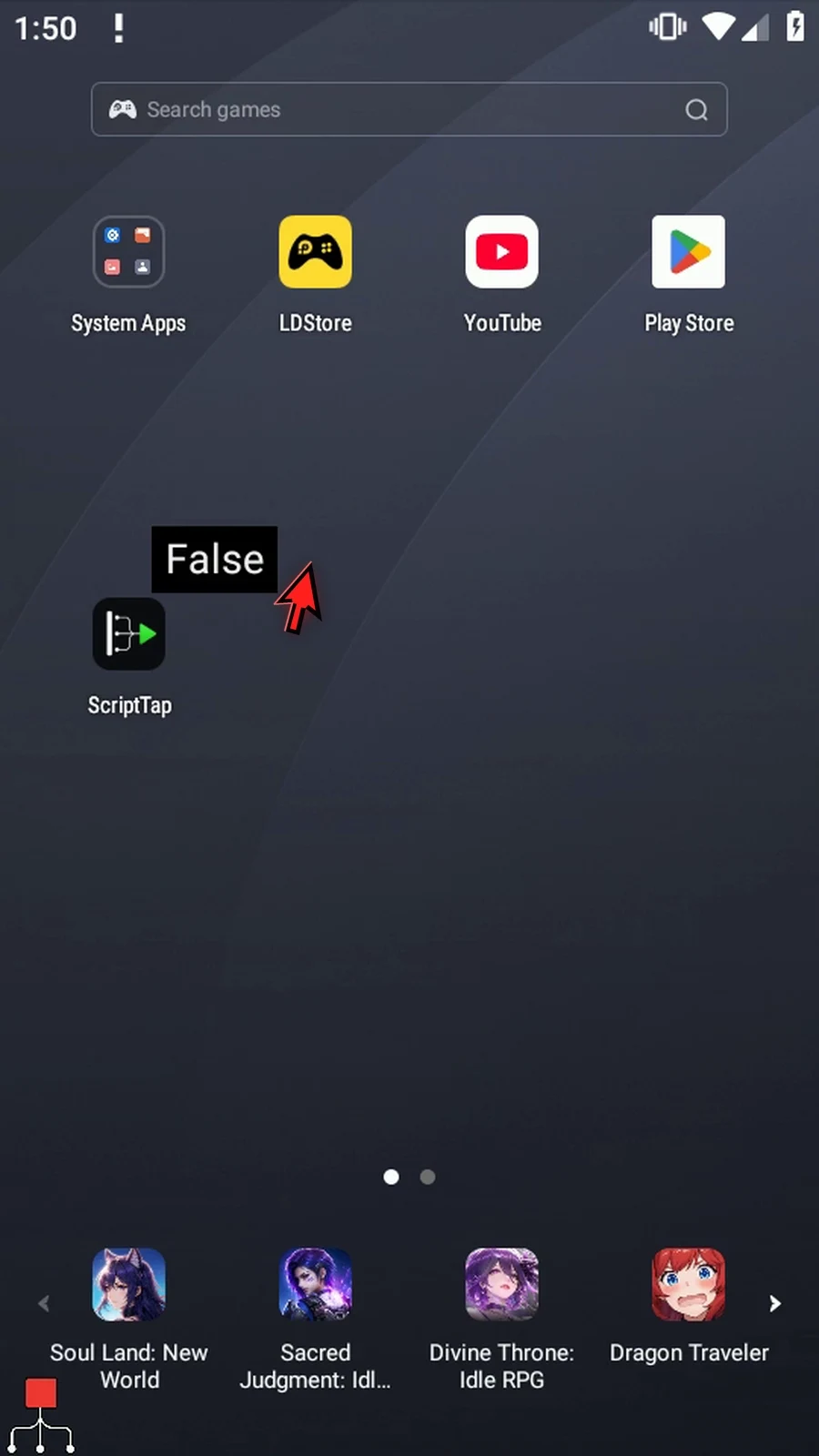
The actual example displays False because the property is absent, then shows Complete. Its run has b3=False, b1=True, an empty error string and no warnings or errors. Done completes the script; the original JSON in s1 is unchanged.
Exists
Step-by-step guide
Step 01 Exists checks whether a JSON path is present and saves a Boolean result. Later commands, such as IF, can use it to handle optional data. We'll check a deliberately missing property.
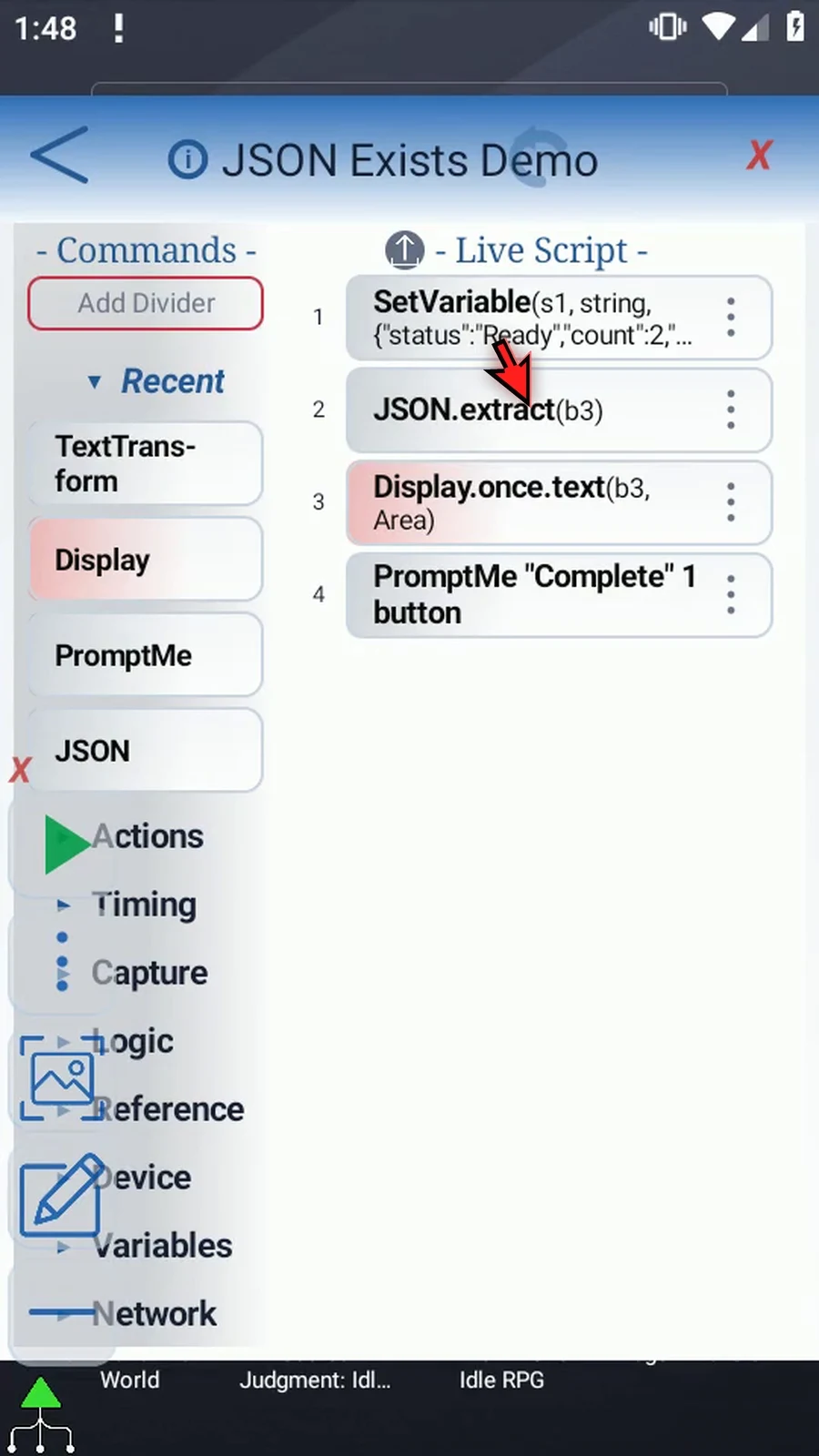
Step 02 Reuse our four-command Boolean example. Intro explains the JSON in s1, and Extract Integer shows Display's original manual drag. Here, only JSON needs changing.
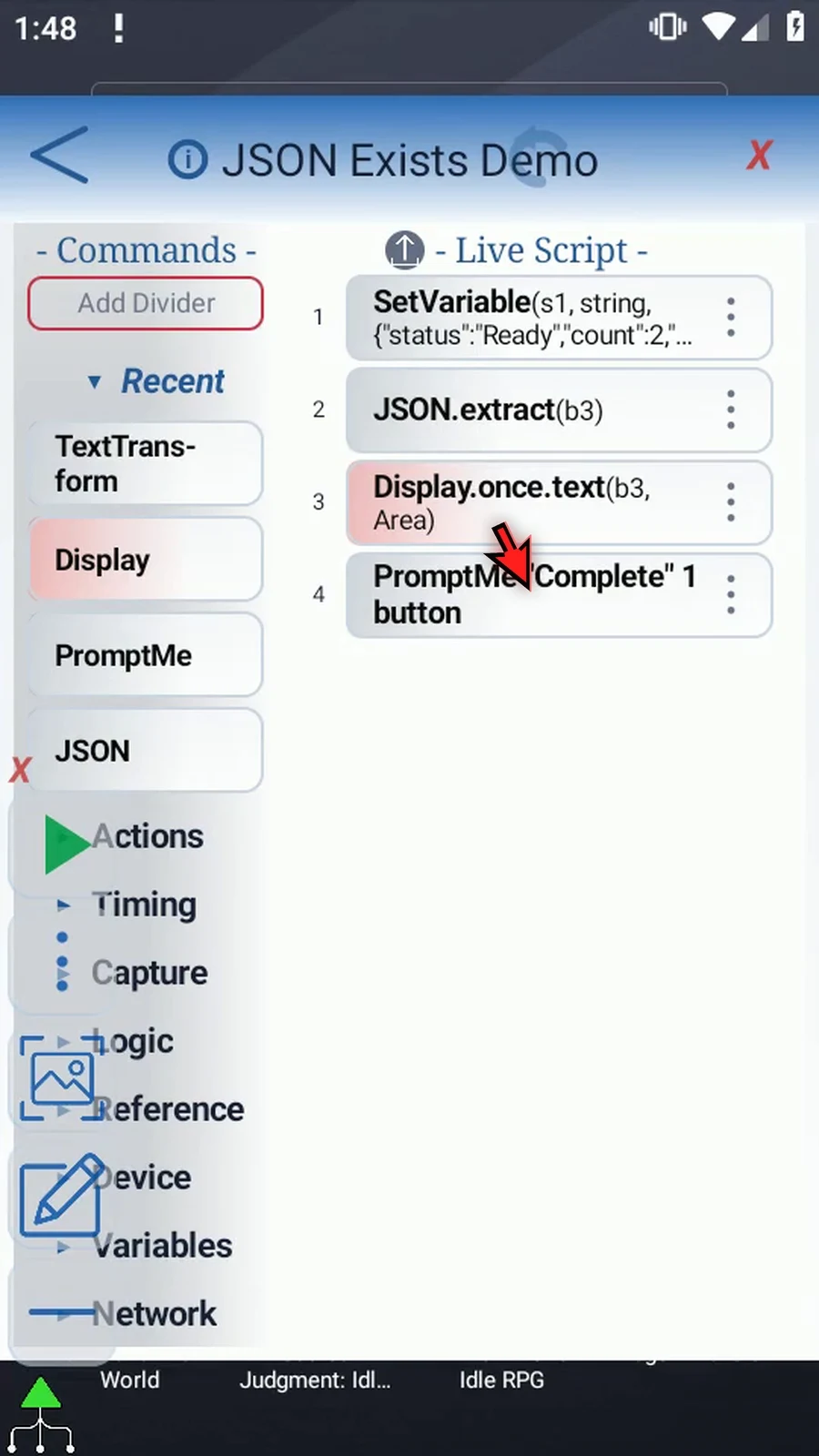
Step 03 Open JSON. Keep JSON String s1, Text as the Path Source, and This Script Only.
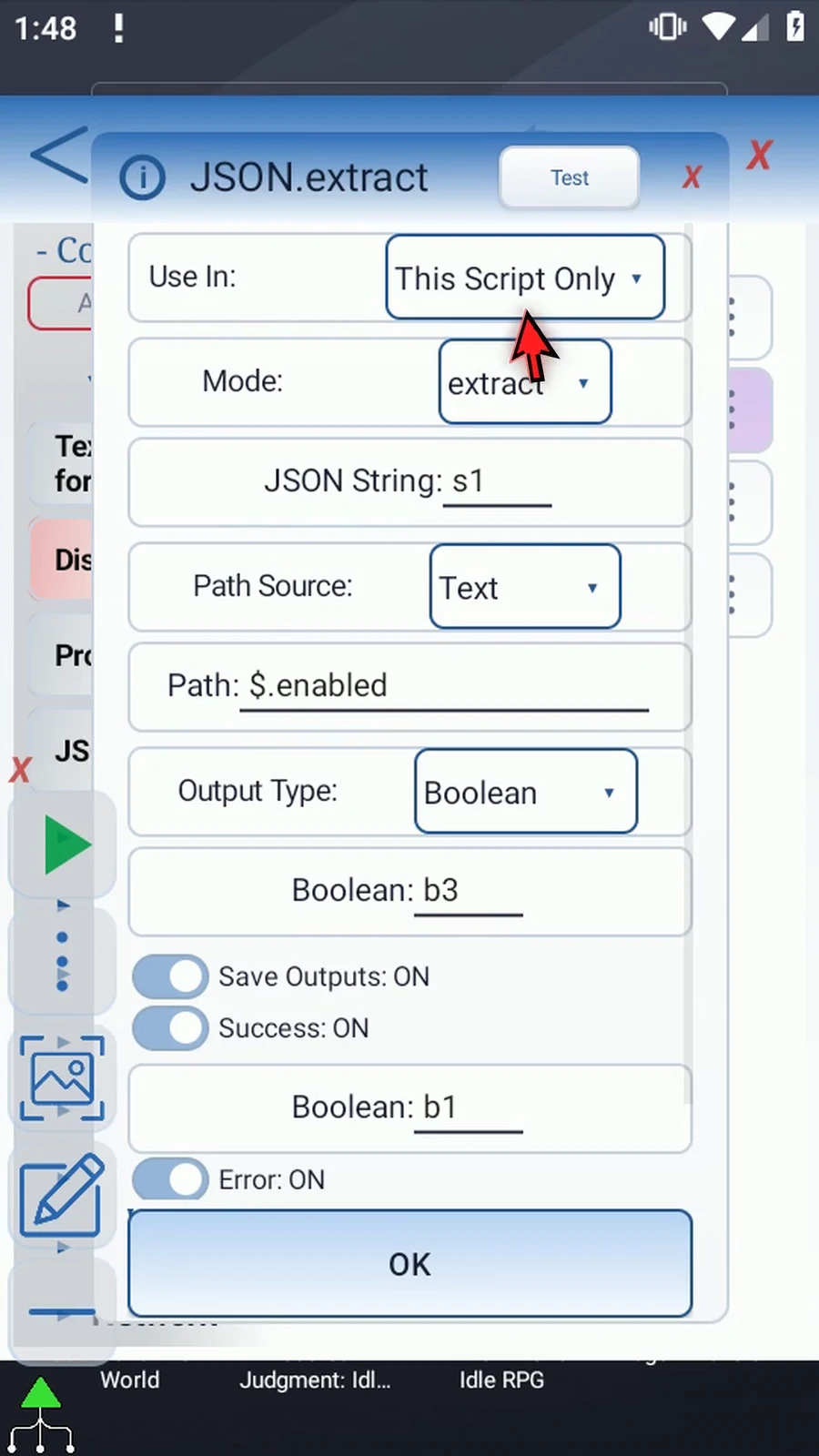
Step 04 Change Mode from Extract to Exists. It has its own Boolean output field; the Extract output settings are no longer used.
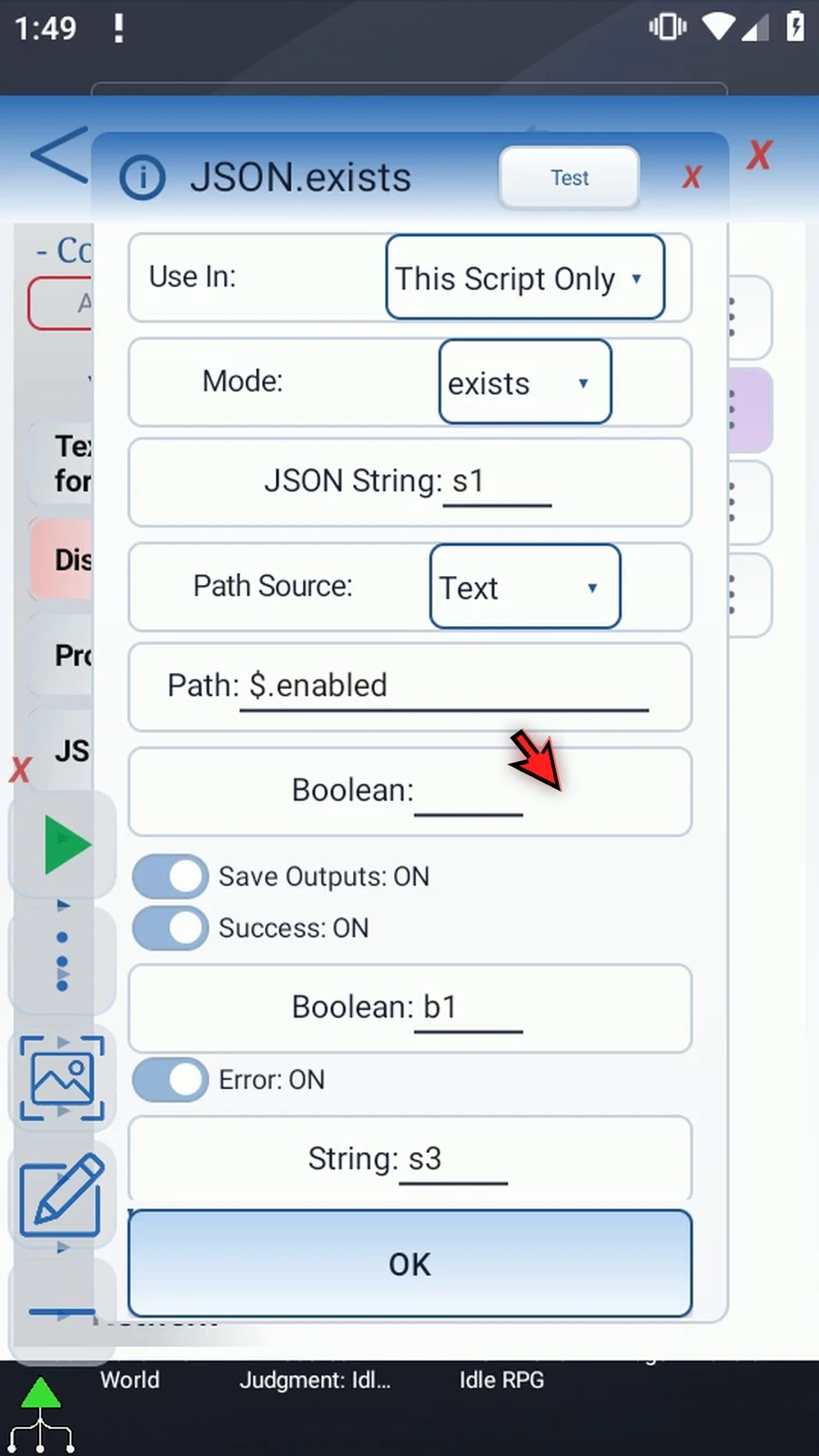
Step 05 Set Path to dollar sign, dot, missing. This property is deliberately absent from our example object.
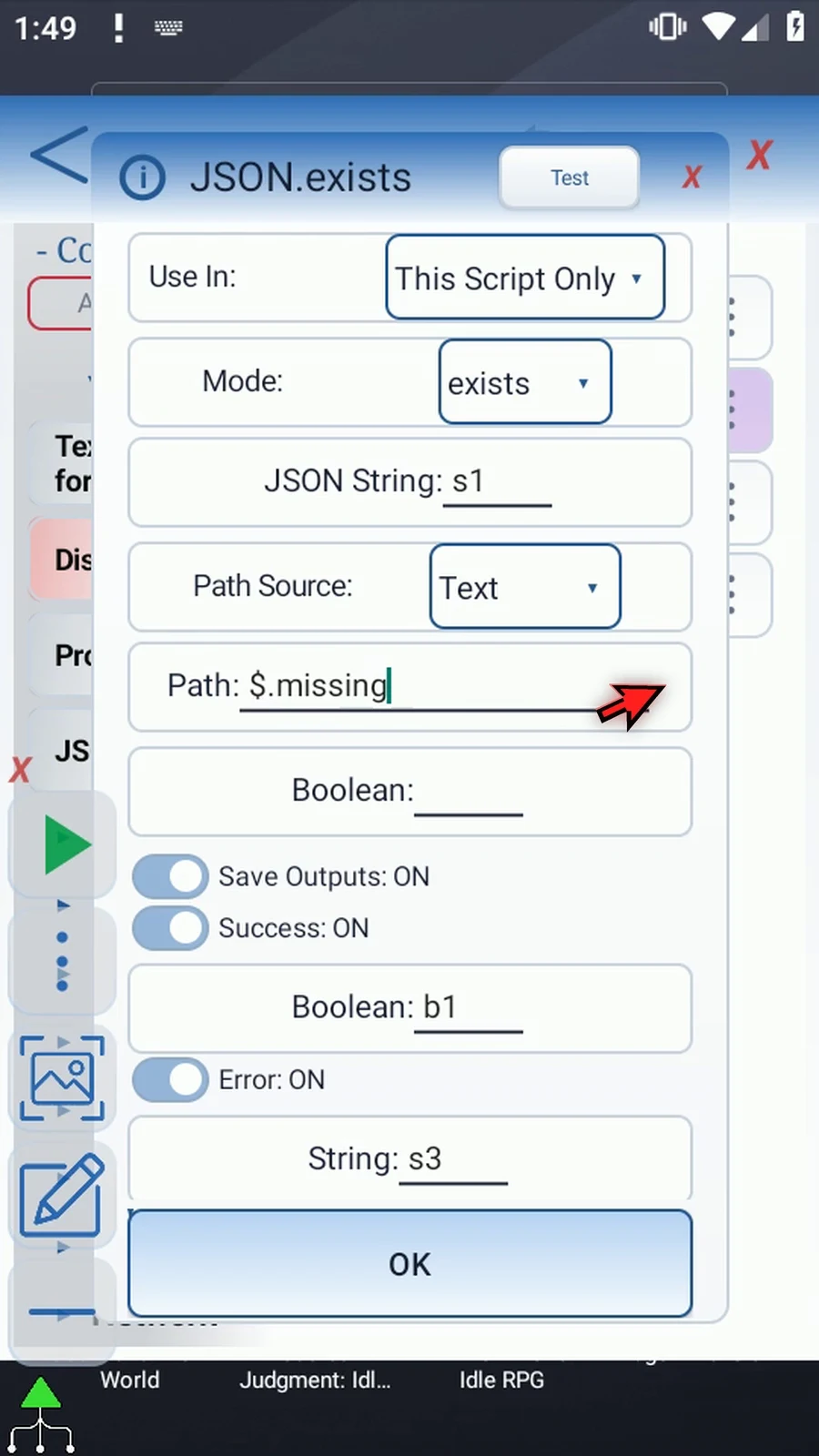
Step 06 Enter b3 as the Boolean destination. This stores the path-presence result, not the separate success status.
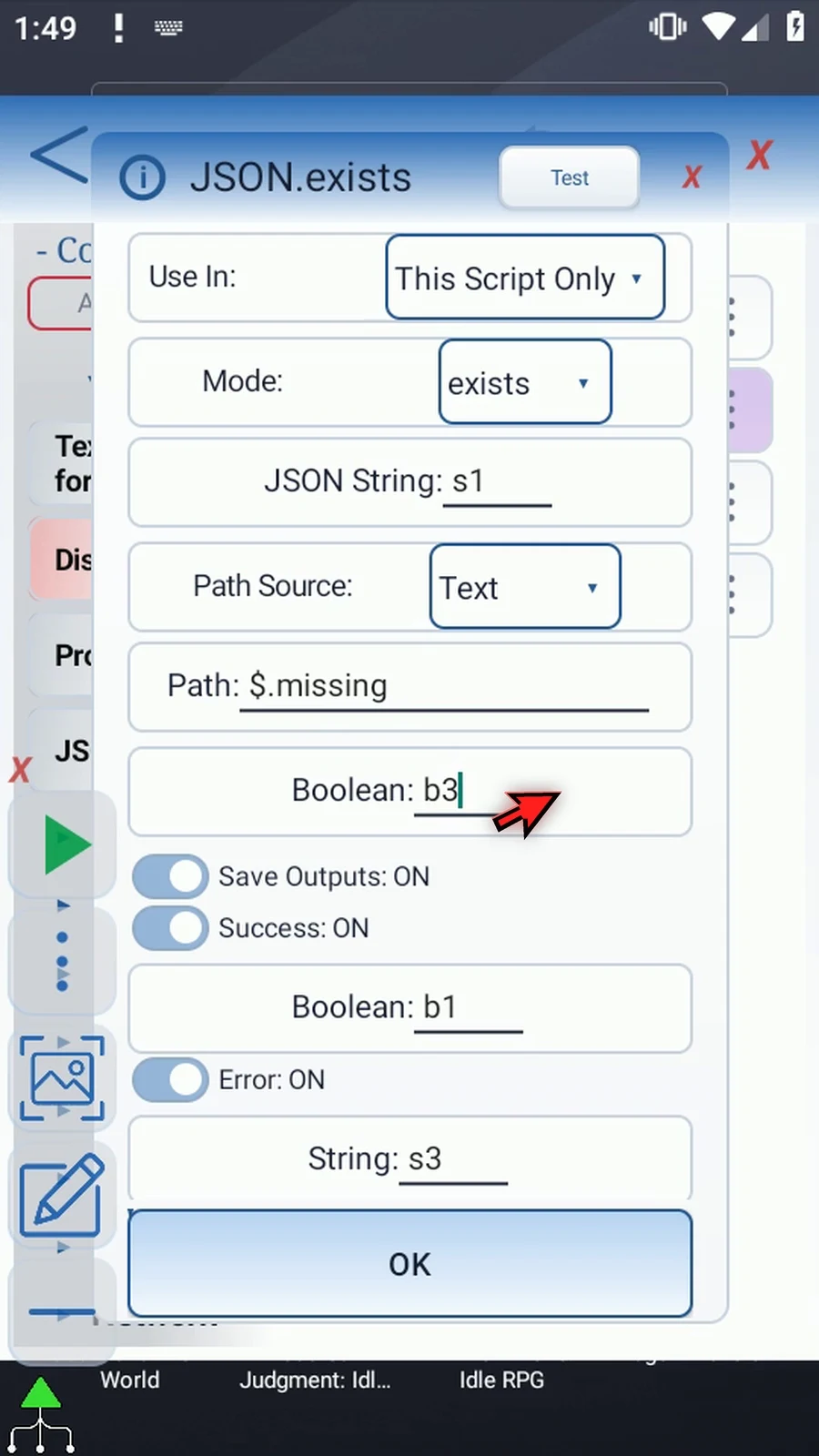
Step 07 A present value counts even if it is false, zero, an empty String, or null. Exists checks presence; it does not extract or judge the value.
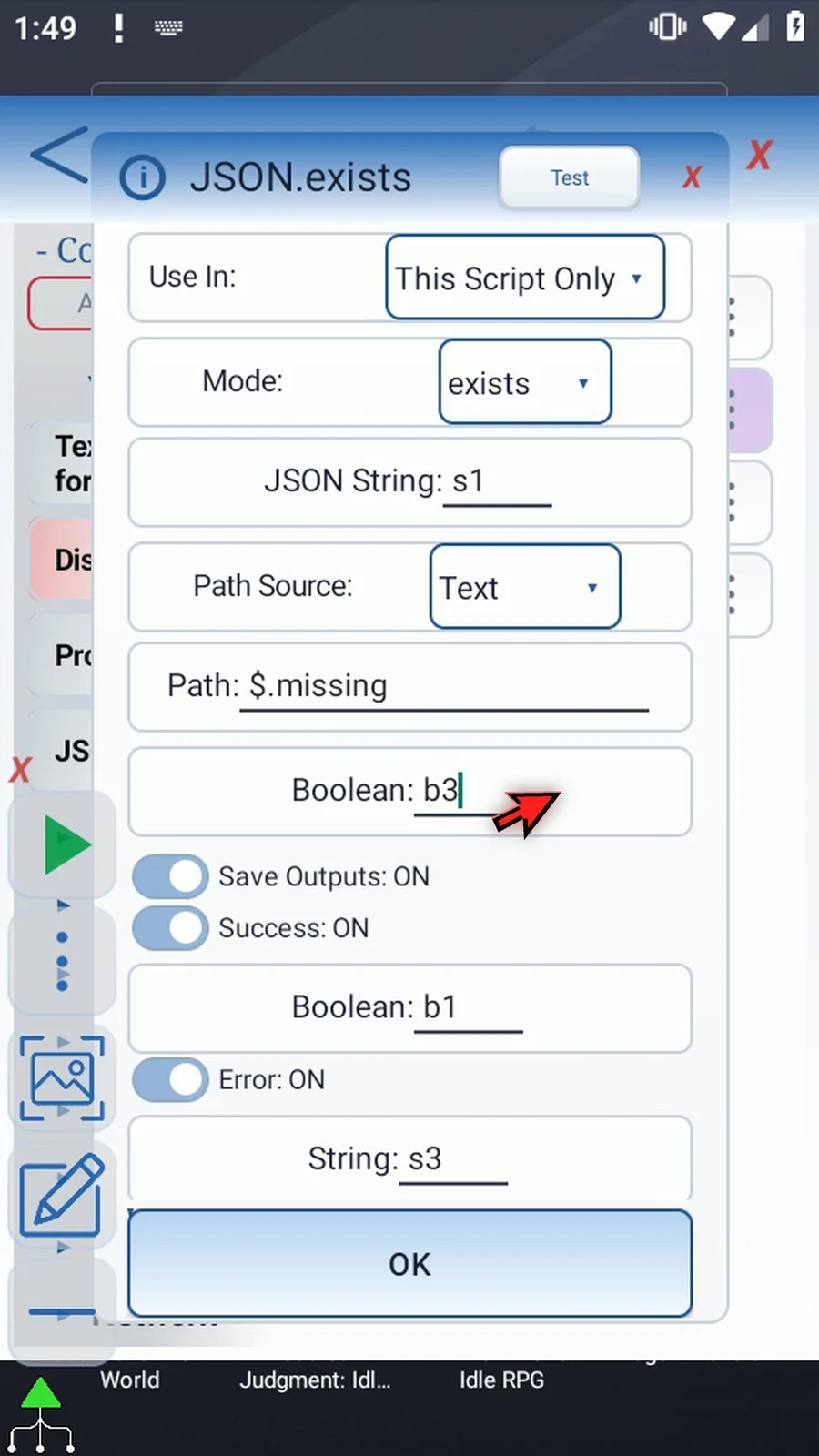
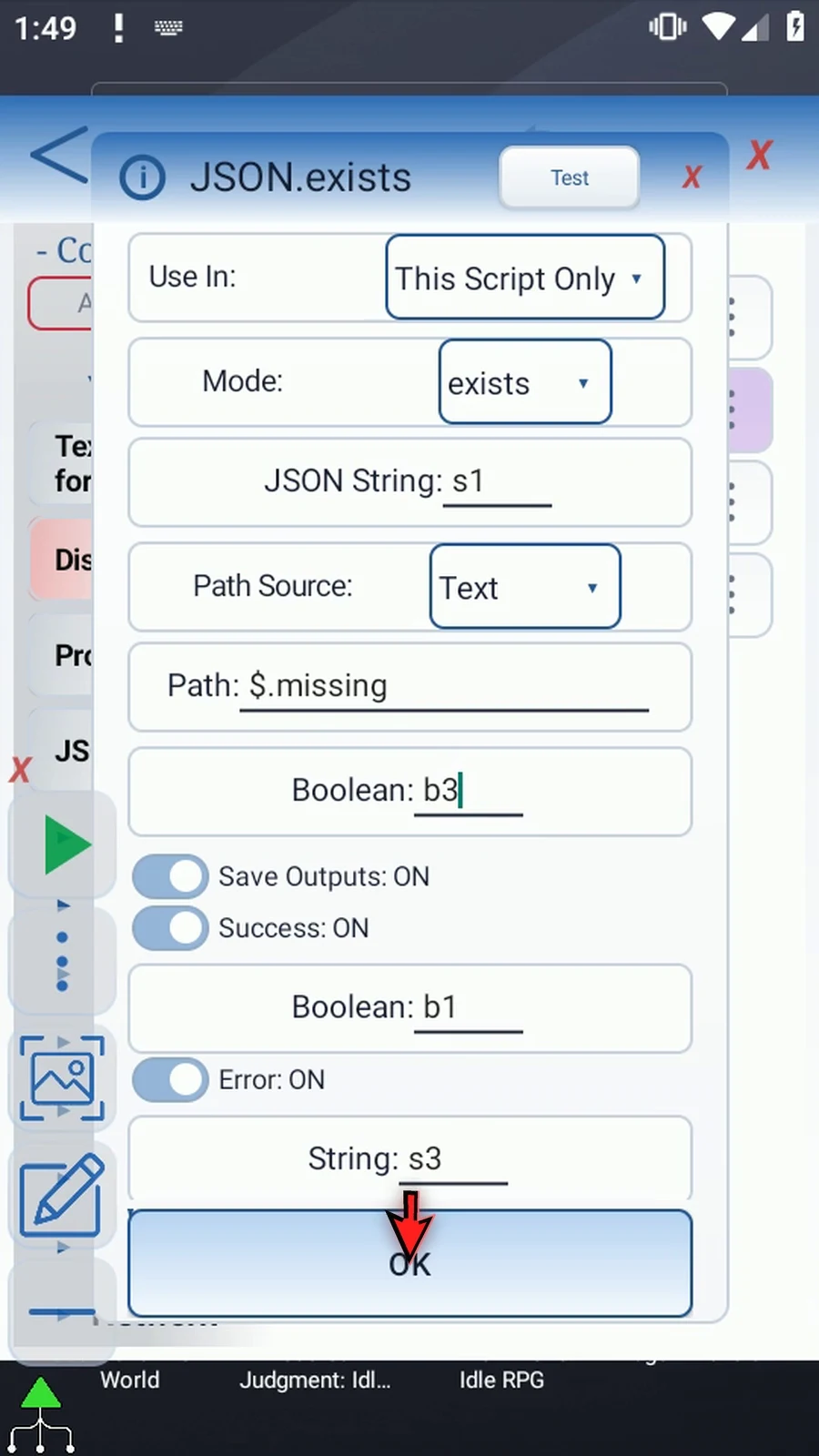
Step 08 Keep Success Boolean b1 and Error String s3, then tap OK. A missing path can be a successful check. Invalid JSON or invalid path syntax is an error.
Step 09 Display already reads b3 in Once mode, using our manual Area and a five-second lifespan. Keep these settings. PromptMe will confirm that execution continues afterwards.
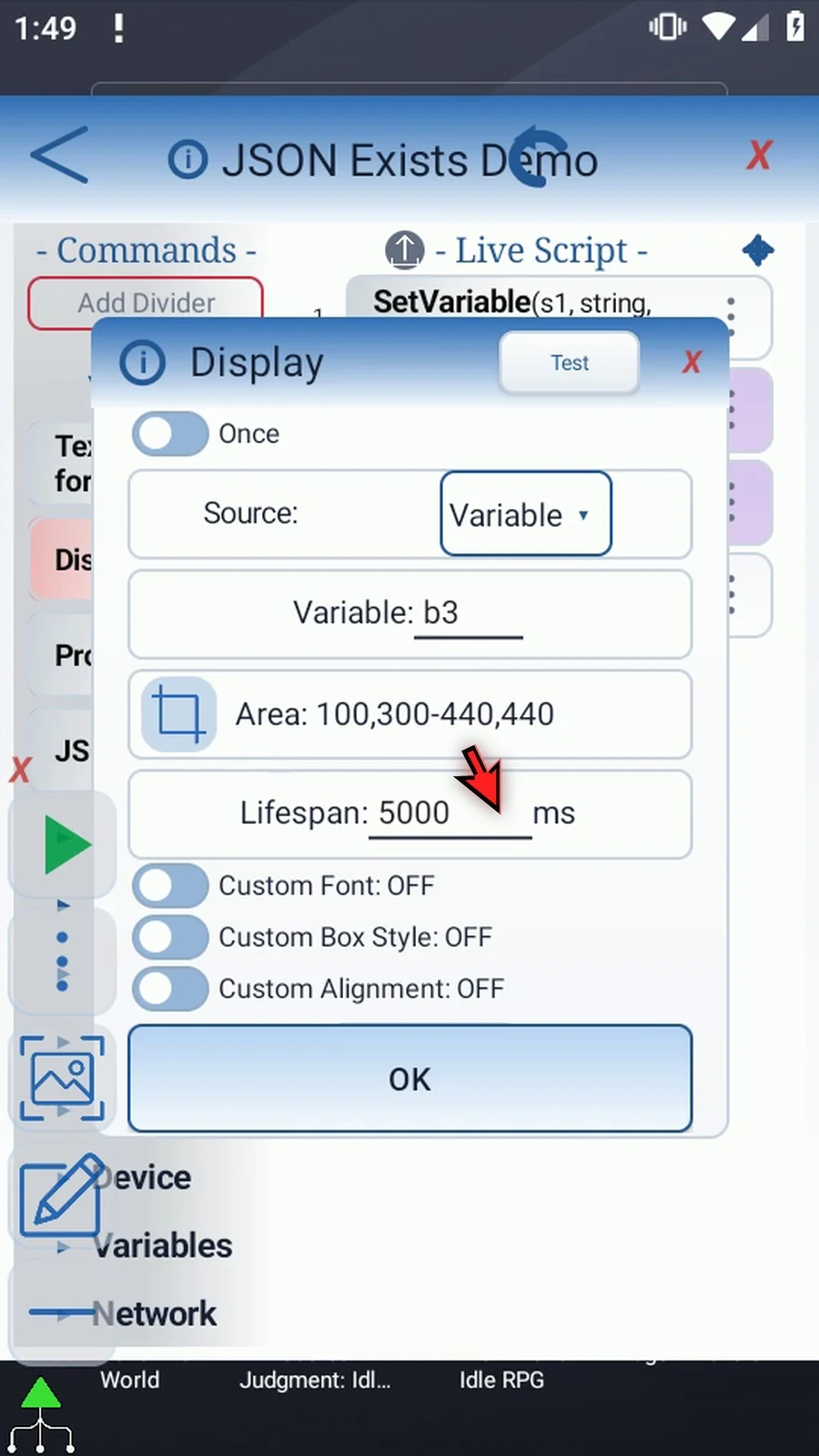
Step 10 Set Variable prepares the data, JSON checks for the path, and Display shows its Boolean. Close the editor to try it.
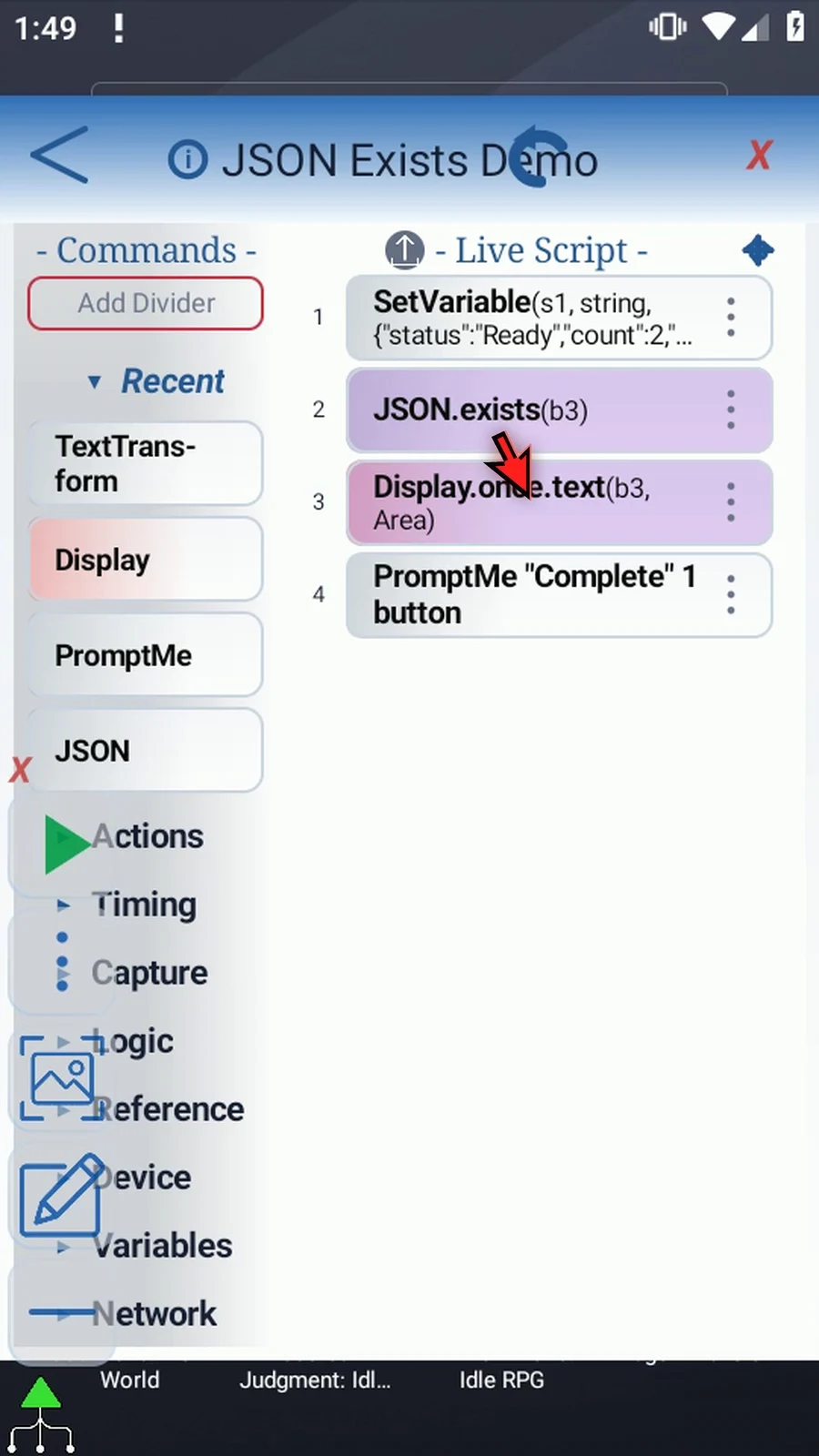
Step 11 When the script is complete, simply use the Play button in the main overlay.
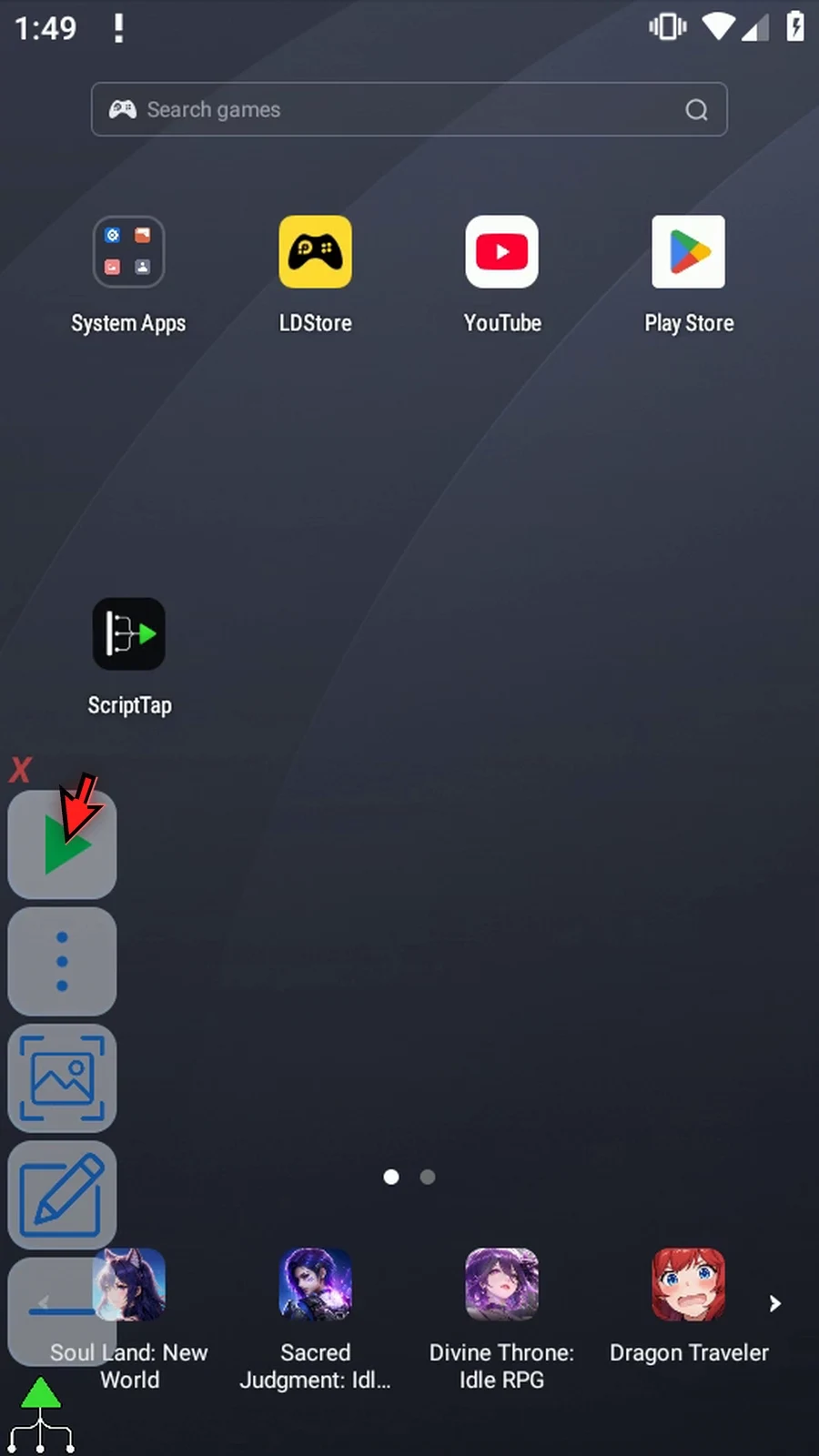
Step 12 False means that this path is not present.
Step 13 The Complete prompt confirms the script continued normally. The check succeeded even though its path-presence result was False.
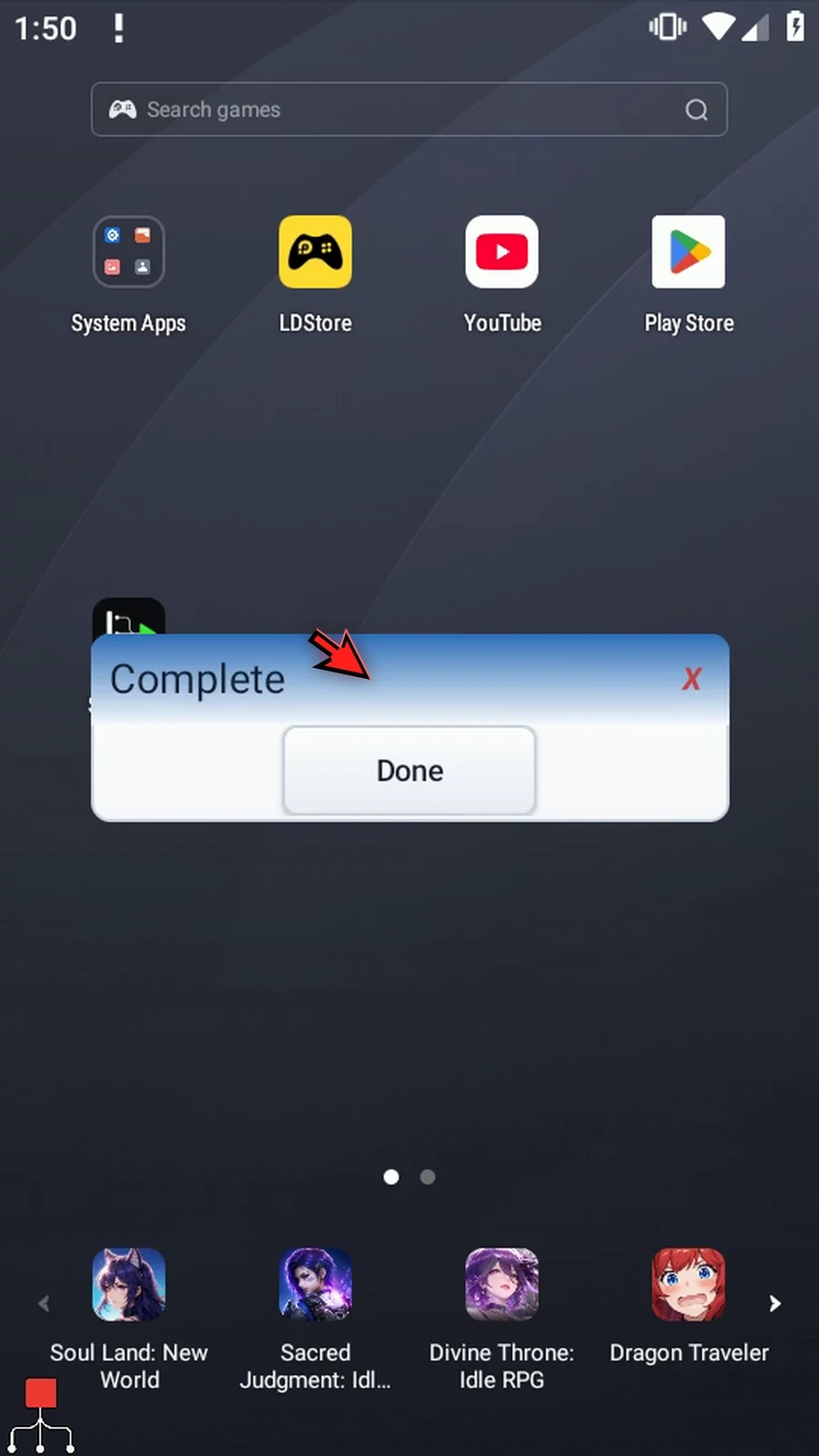
Step 14 Press Done. The script ends automatically. Use Exists before later commands that depend on whether a JSON property is available.
Length measures a selected JSON value and saves an Integer for later decisions or loops. It measures the selected value; it does not extract a property that already stores a number.
- This follow-up reuses the four-command Extract Integer example. Intro covers the JSON in
s1; Extract Integer shows Display's original manual insertion. - Keep JSON String
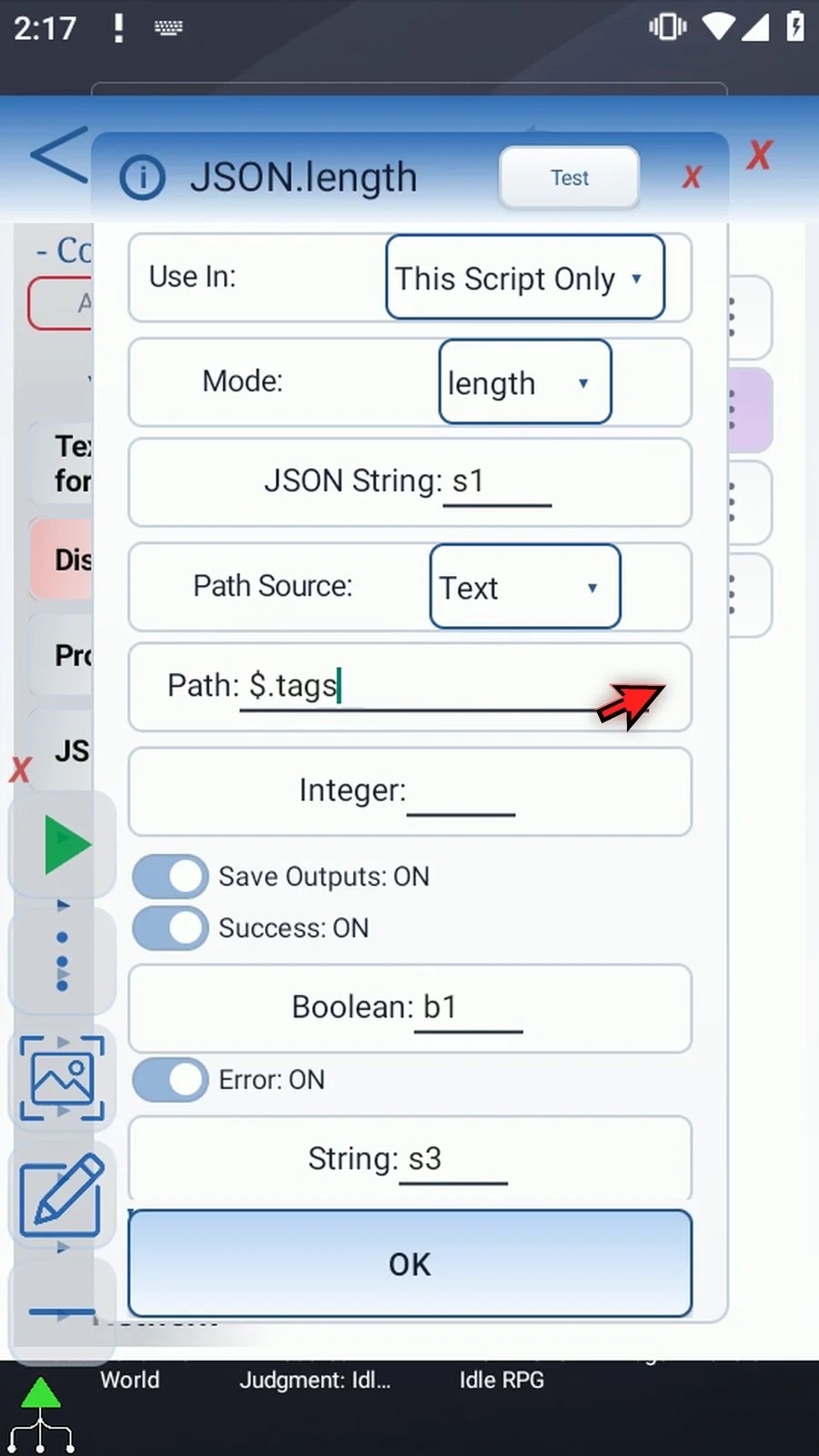
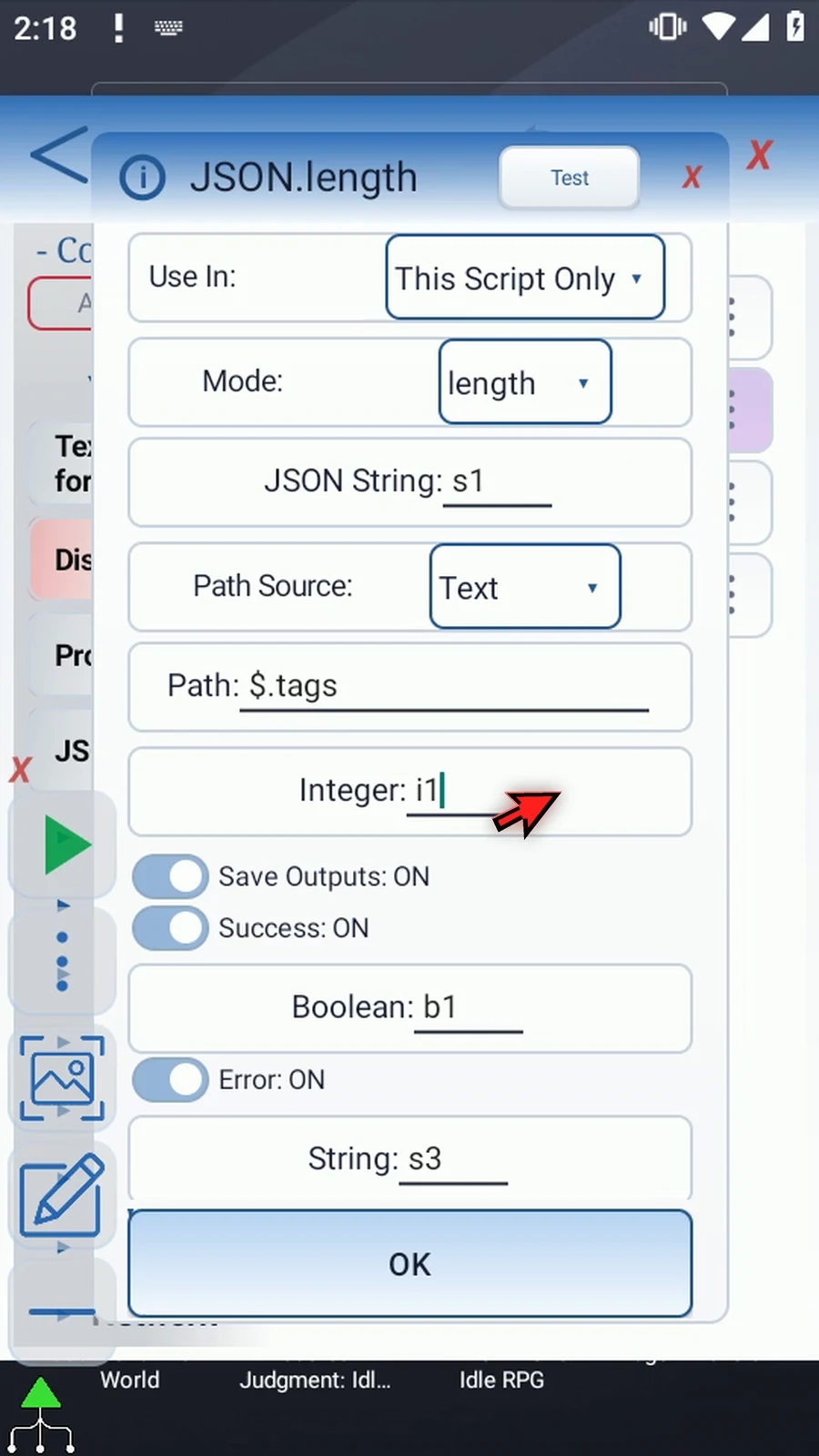
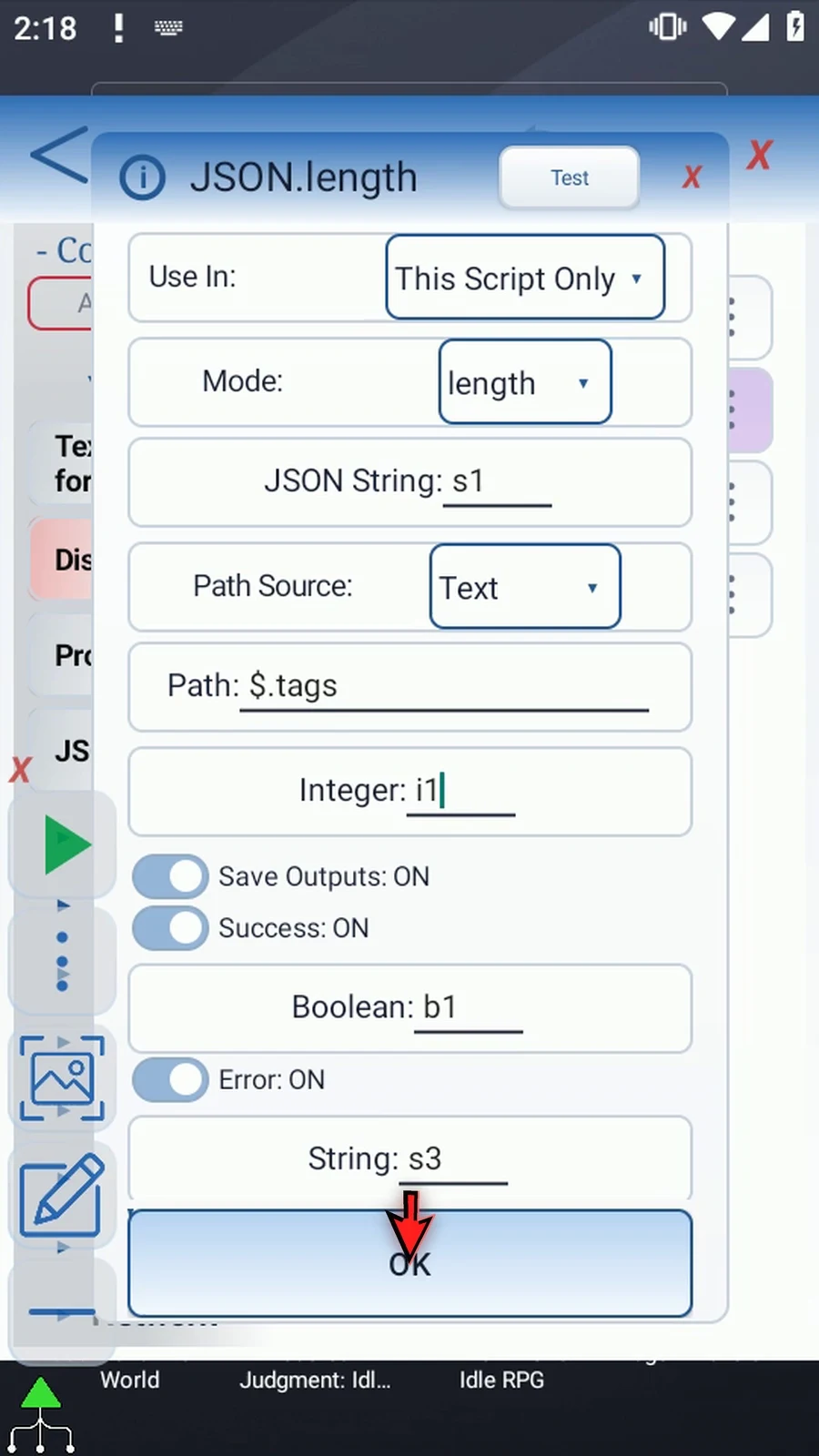
s1, Text Path Source and This Script Only. Change Mode from Extract to Length, enter Path$.tags, then enteri1in the independent Integer destination. - A list returns its item count. An object returns its own key count, not a recursive count of nested values. A String returns its Unicode code-point count; joined emoji may use several code points.
- Empty lists, objects and Strings return zero successfully. A missing path, number, Boolean or null cannot supply a length. Keep Success Boolean
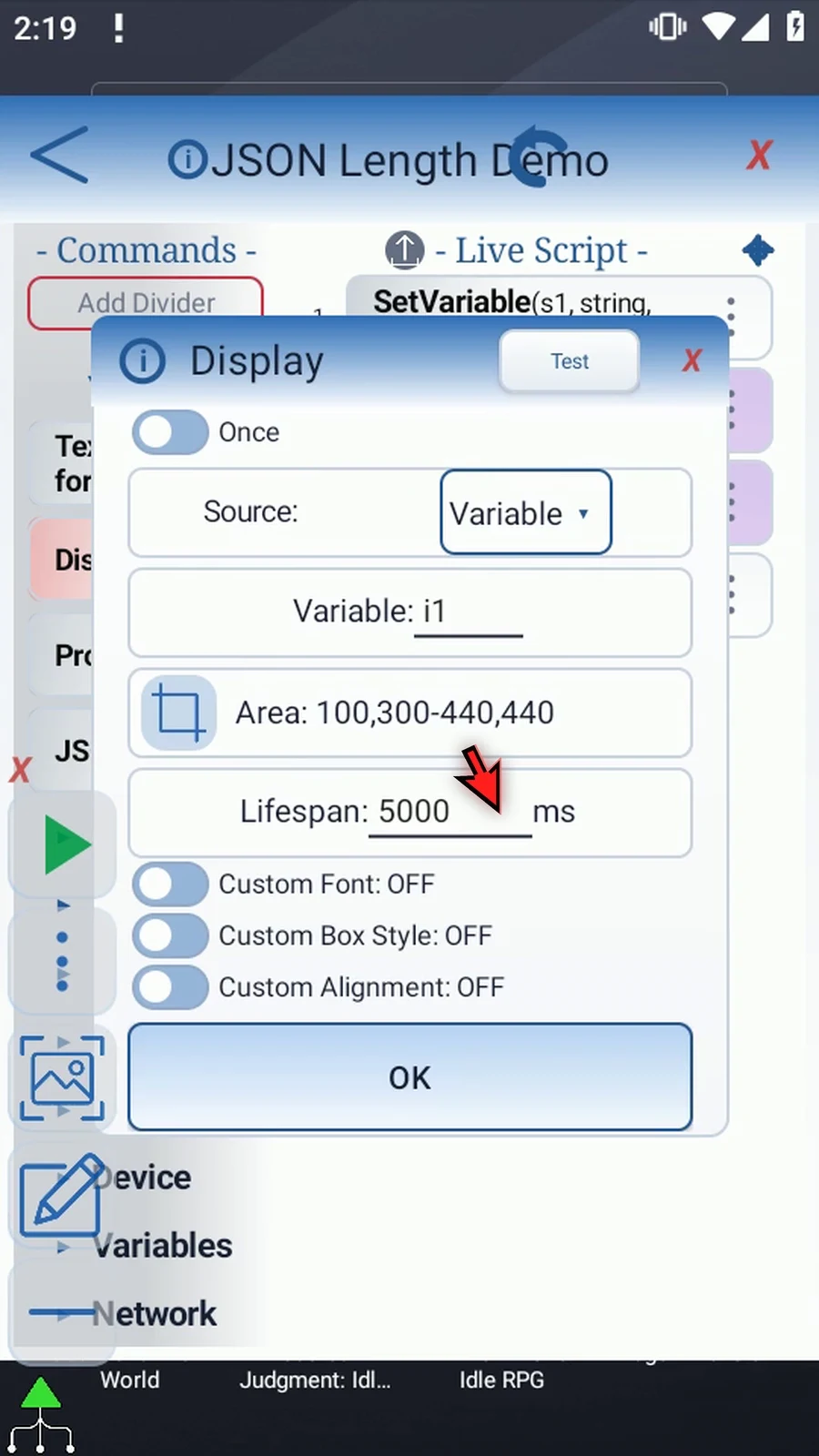
b1and Error Strings3to distinguish zero from failure; malformed JSON and invalid path syntax are errors too. - Display already reads
i1in Once mode, using manual Area100,300–440,440and lifespan5000, with all custom styles off. Standard PromptMe then shows the literal header Complete and Done Booleanb2.
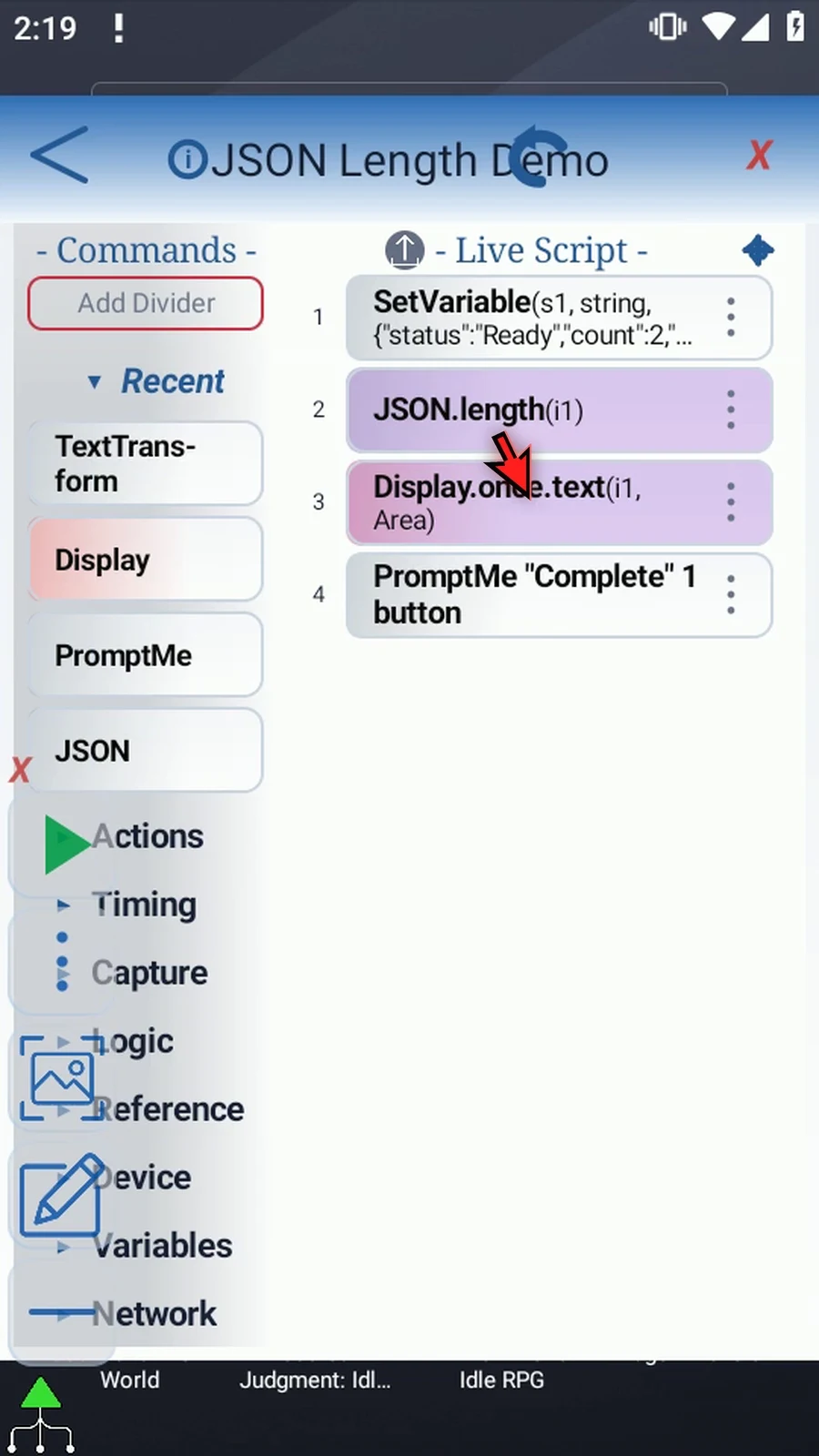
The genuine example displays 2 because tags contains Demo and Guide, then Complete. Four commands finish with no warnings or errors: i1=2, b1=True, an empty error string, and unchanged source JSON in s1.
Length
Step-by-step guide
Step 01 Length measures a selected JSON value and saves an Integer. Use the result in later decisions or loops. In this example, we'll count the items in a list, not extract a property that already contains a number.
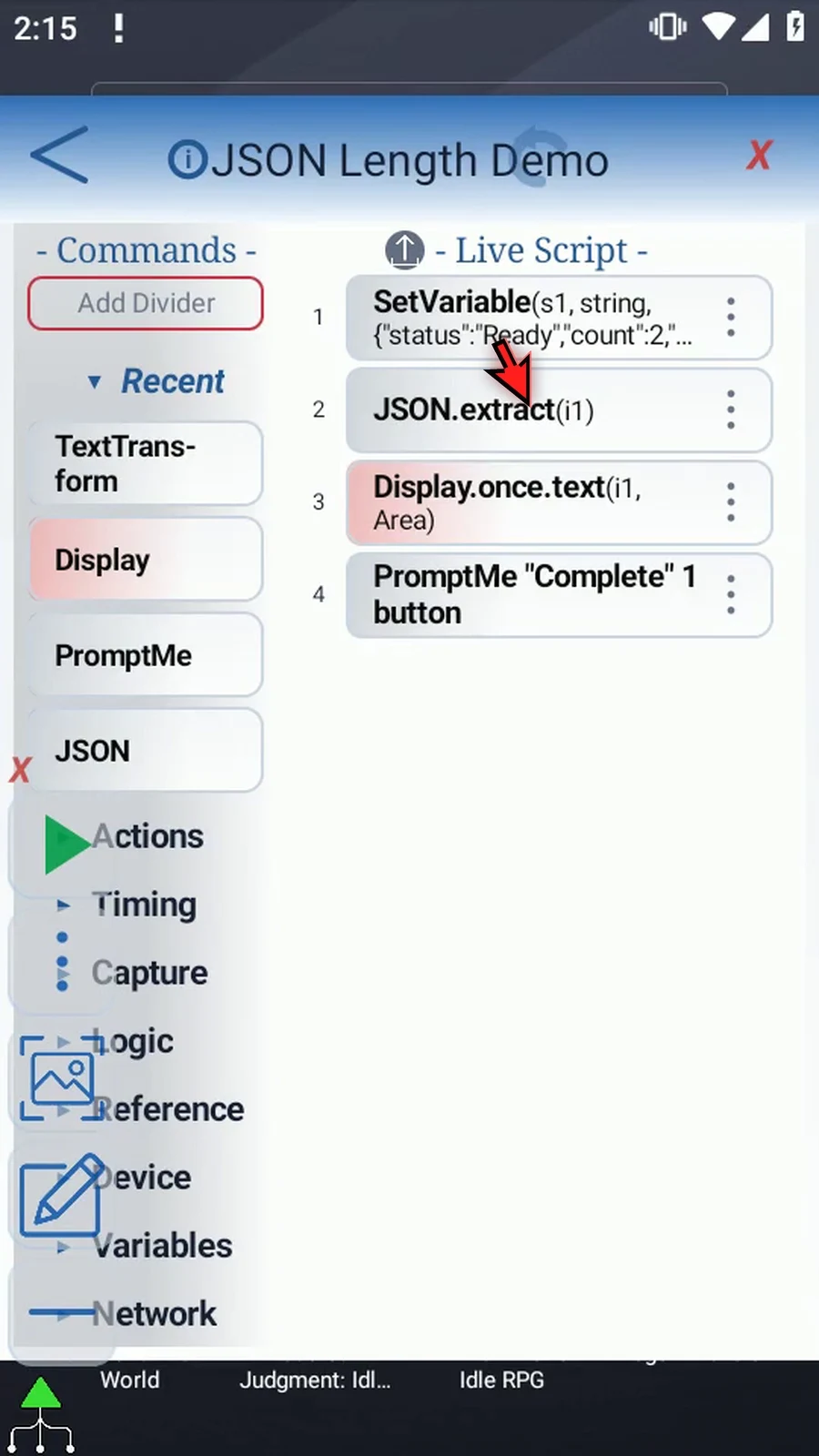
Step 02 Reuse the four-command Extract Integer example. Intro explains the JSON in s1, and Extract Integer shows Display's original manual insertion. Only the JSON command needs changing.
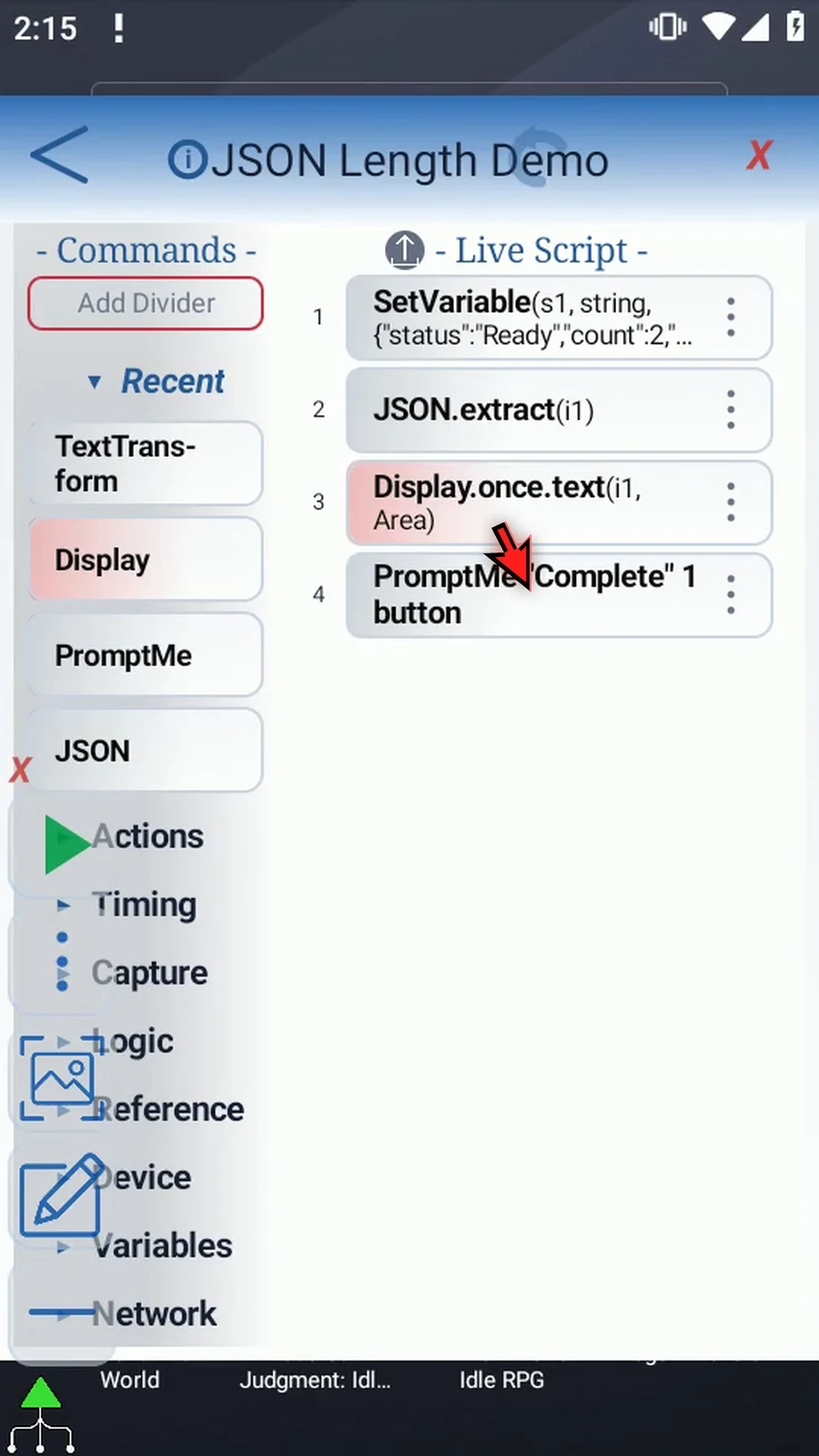
Step 03 Open JSON. Keep JSON String s1, Text as the Path Source, and This Script Only.
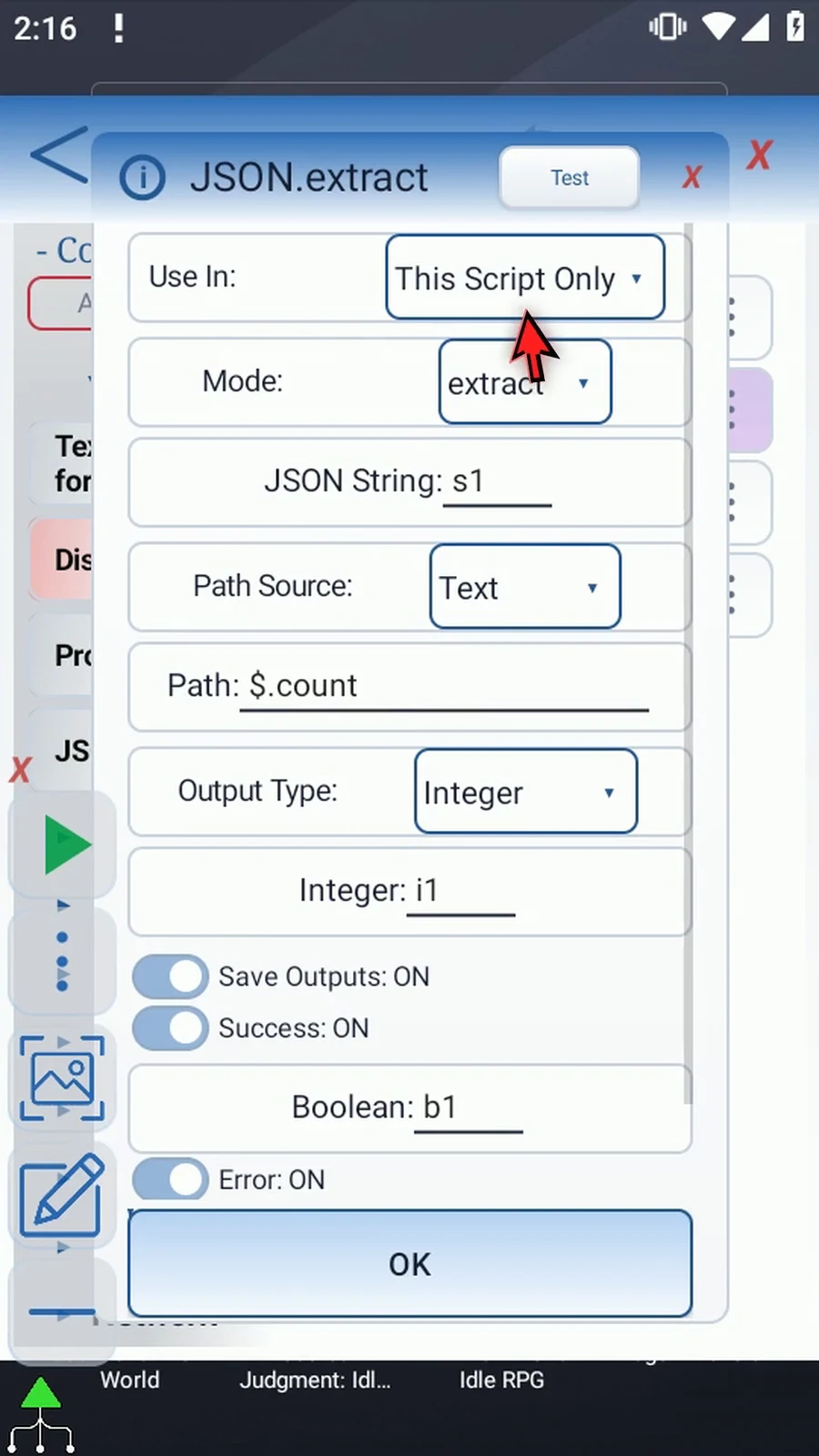
Step 04 Change Mode from Extract to Length. Its independent Integer destination replaces the Extract output settings.
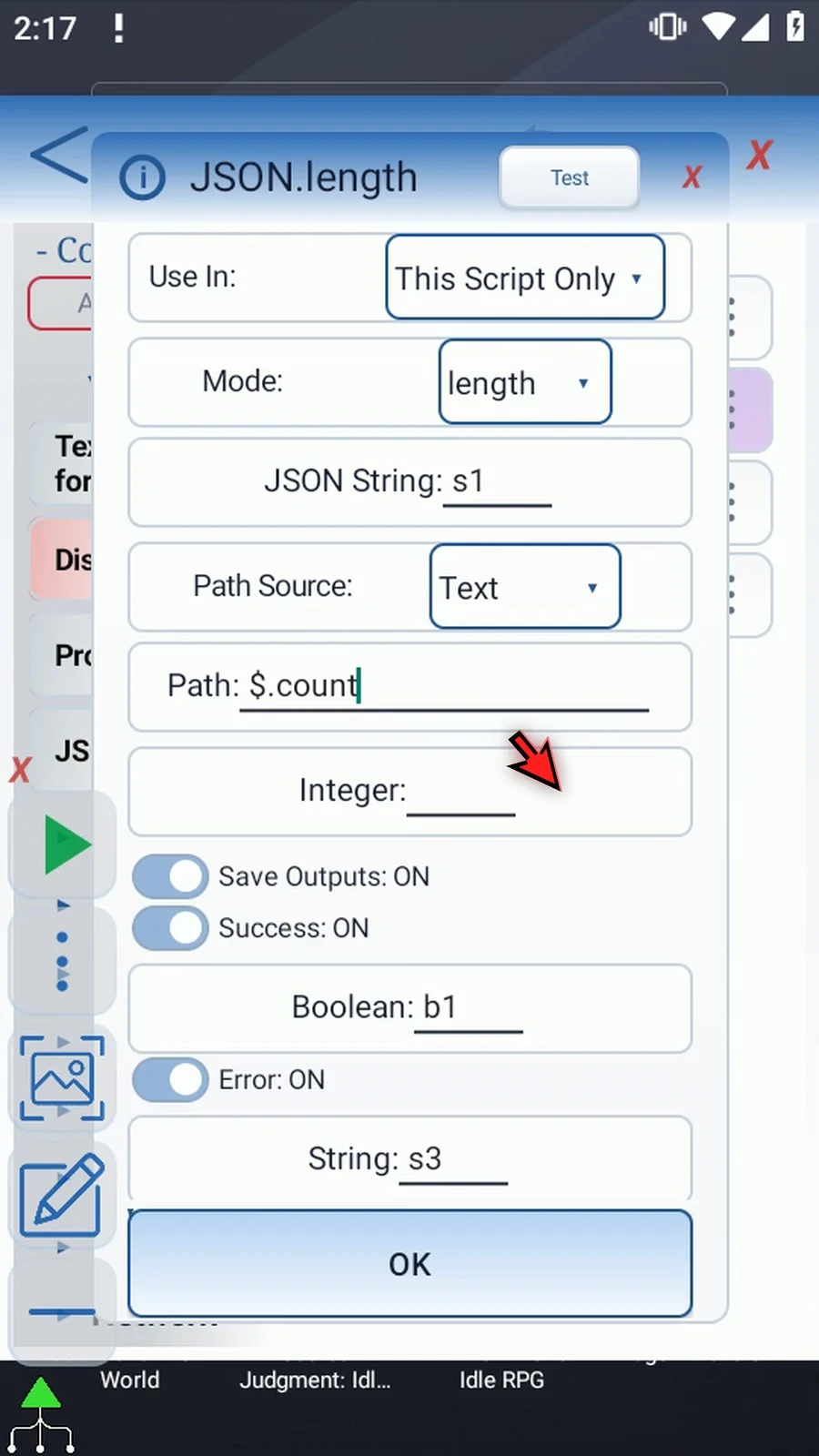
Step 05 Set Path to dollar sign, dot, tags. This selects the list containing Demo and Guide.
Step 06 Enter i1 as the Integer destination. Length will store the list's item count here without changing the original JSON.
Step 07 Length counts list items or an object's own keys, not nested values. For a String, it counts Unicode code points; joined emoji can use more than one. Empty lists, objects, and Strings have length zero.
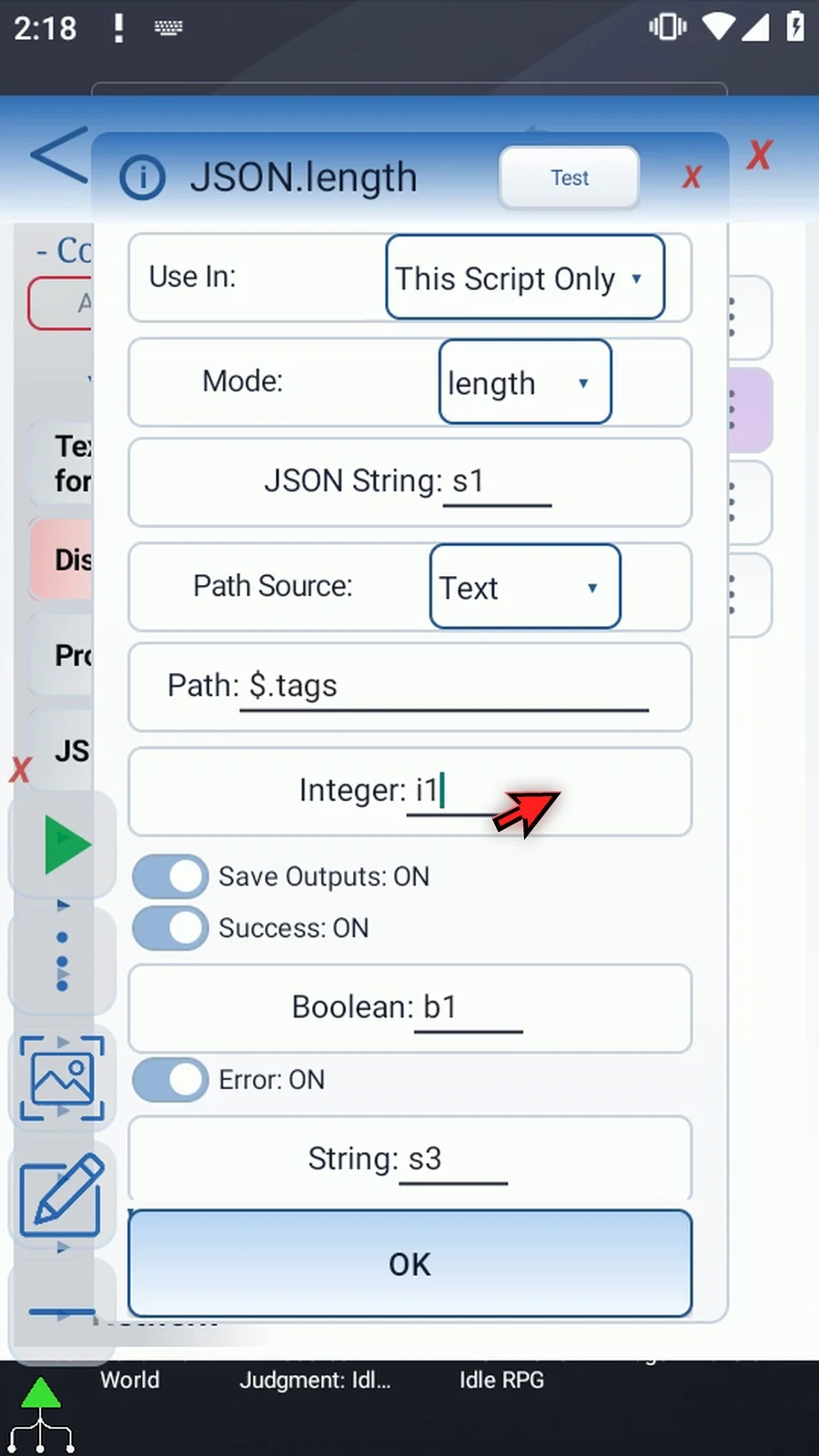
Step 08 Keep Success Boolean b1 and Error String s3, then tap OK. These distinguish a valid zero from a failed check. Missing paths, numbers, Booleans, and null cannot supply a length.
Step 09 Display already reads i1 in Once mode, using our manual Area and a five-second lifespan. Keep those settings. PromptMe will then show Complete to confirm the script continued.
Step 10 Set Variable prepares the data, JSON measures the list, and Display shows the count. Close the editor to try it.
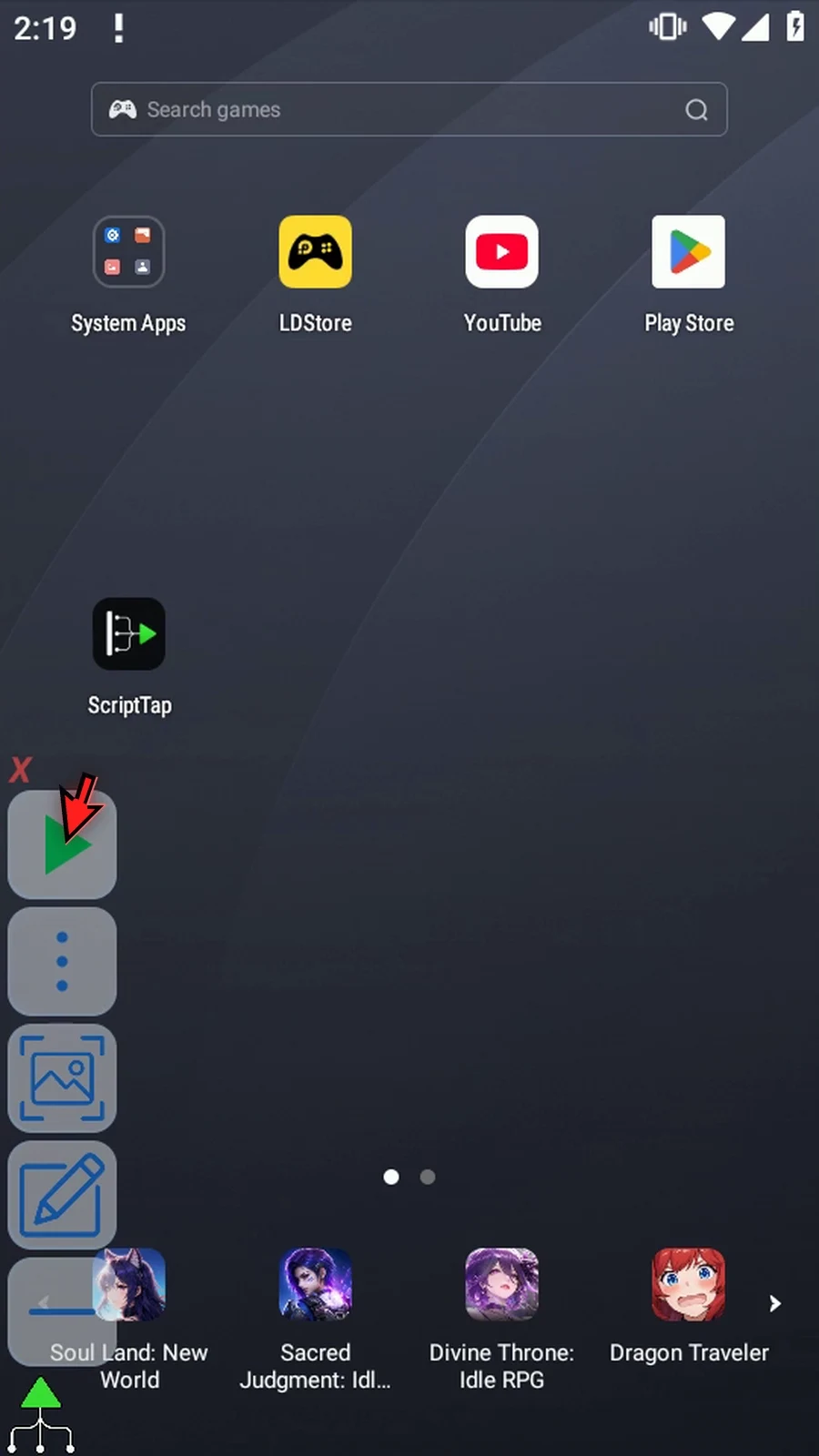
Step 11 When the script is complete, simply use the Play button in the main overlay.
Step 12 Two is the number of items in tags.
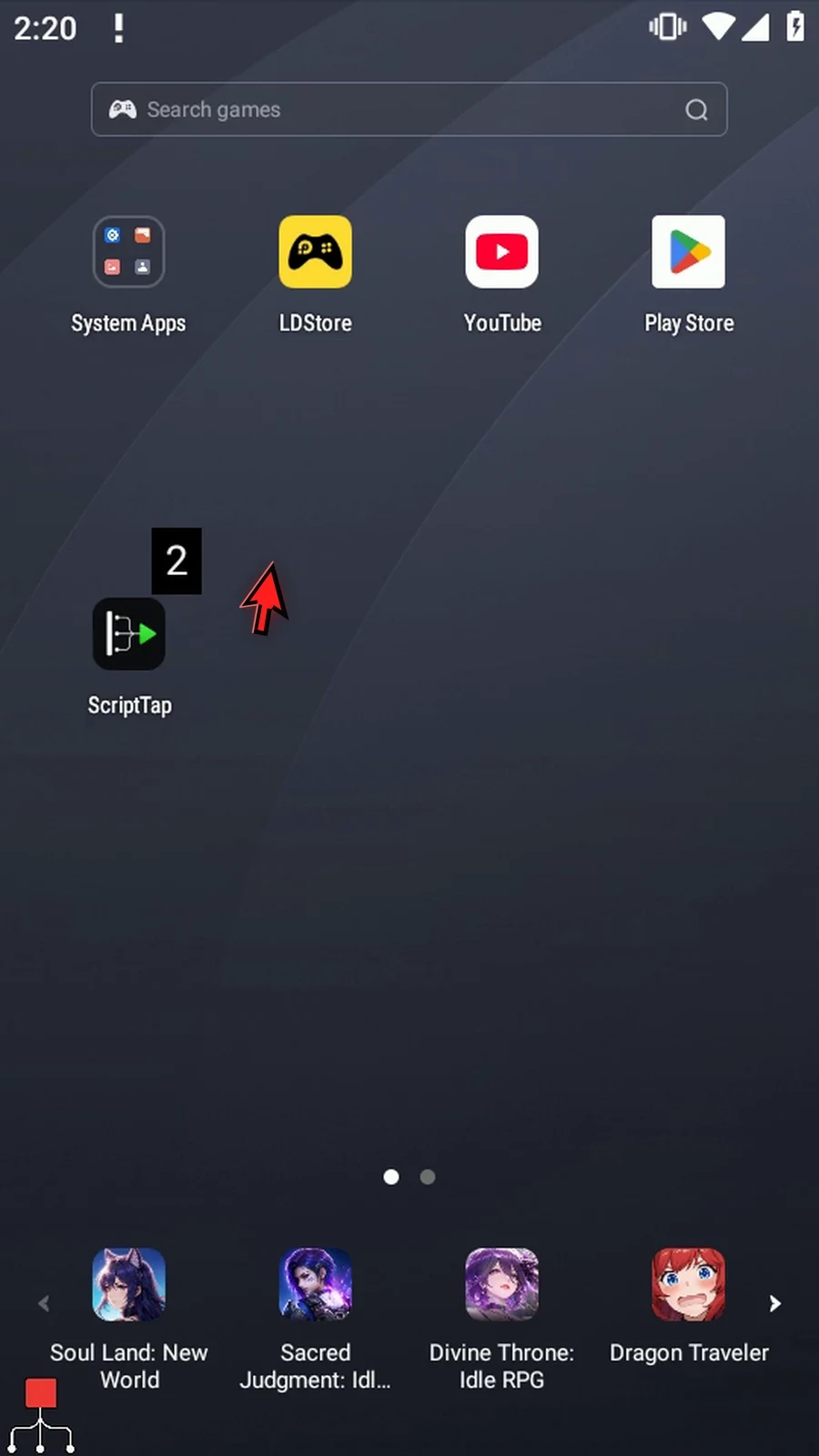
Step 13 Complete confirms that execution continued after Display. The JSON check succeeded, and i1 is ready for later commands that need the count.
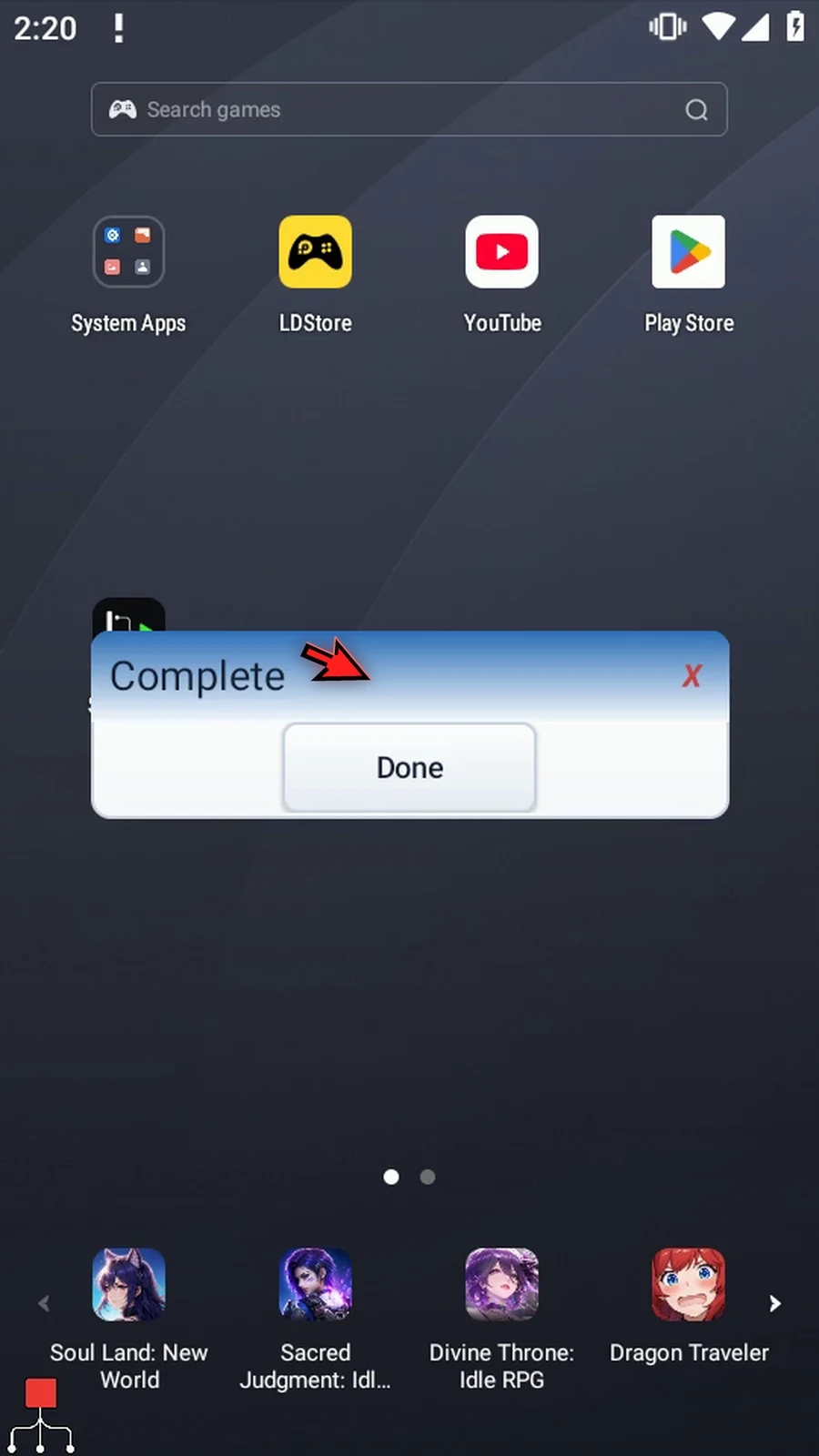
Step 14 Press Done. The script ends automatically. Use Length when later steps need the size of a selected JSON list, object, or String.
Stringify formats a selected JSON value into a String for later commands. Compact avoids extra layout; Pretty adds line breaks and indentation to structures. This one guide demonstrates both formats using the same list.
- Reuse a new named copy of the four-command Extract Integer example. Intro explains the source JSON in
s1, and Extract Integer shows Display's original manual insertion. - Keep JSON String
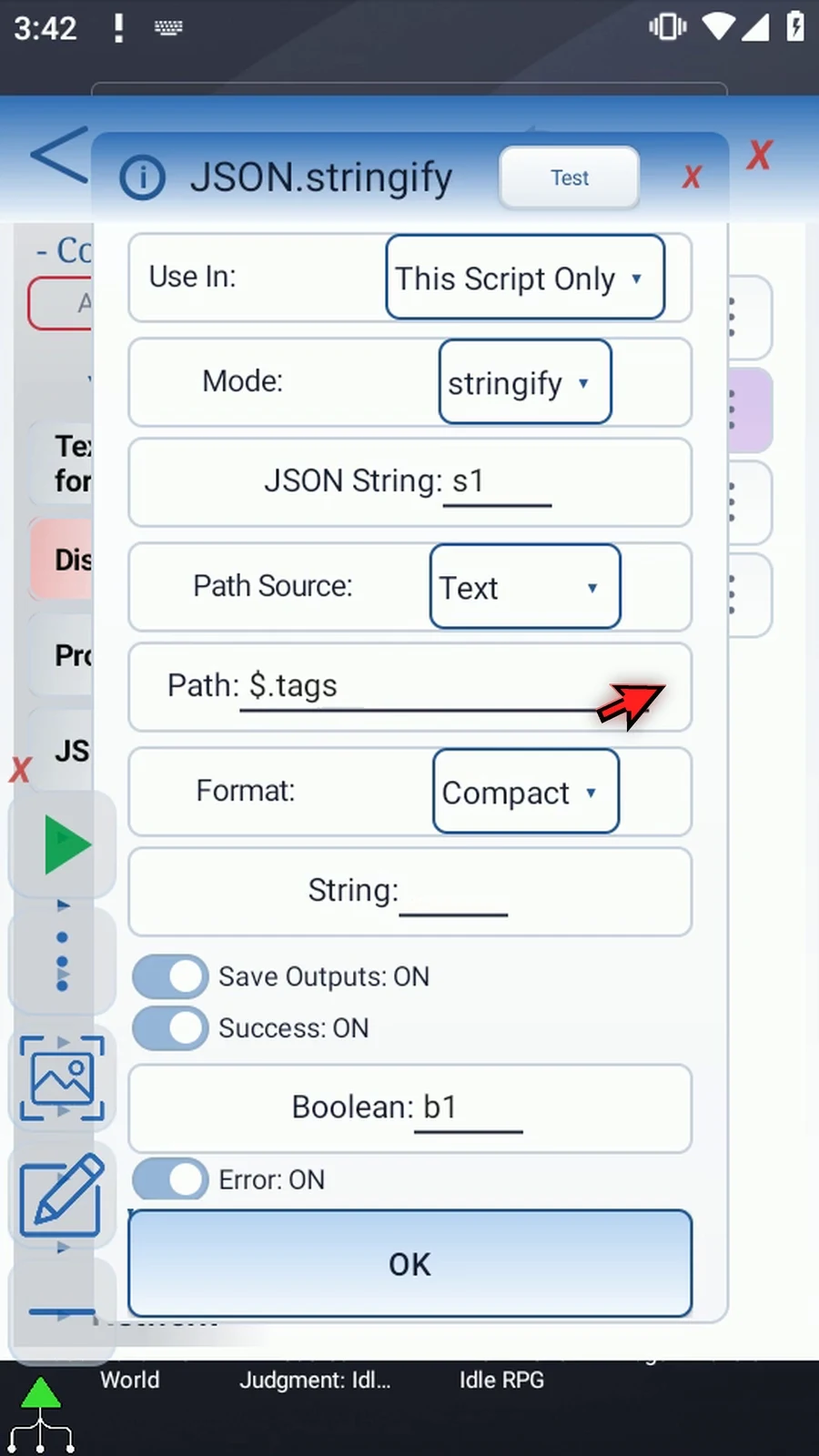
s1, Text Path Source and This Script Only. Change Mode to Stringify, set Path to$.tags, keep Compact and enter the independent String destinations2. - Path selects what is formatted:
$alone formats the whole document. Strings are quoted and escaped as JSON; lists and objects retain structure, while numbers, Booleans and null use JSON representation. - Keep Success Boolean
b1and Error Strings3. Invalid JSON, invalid path syntax and missing paths fail. A long result may reach the String byte limit and reportoutput_truncatedwhile Success remains True; check Error before reusing the result as JSON. - In Display, keep Once and Variable, change
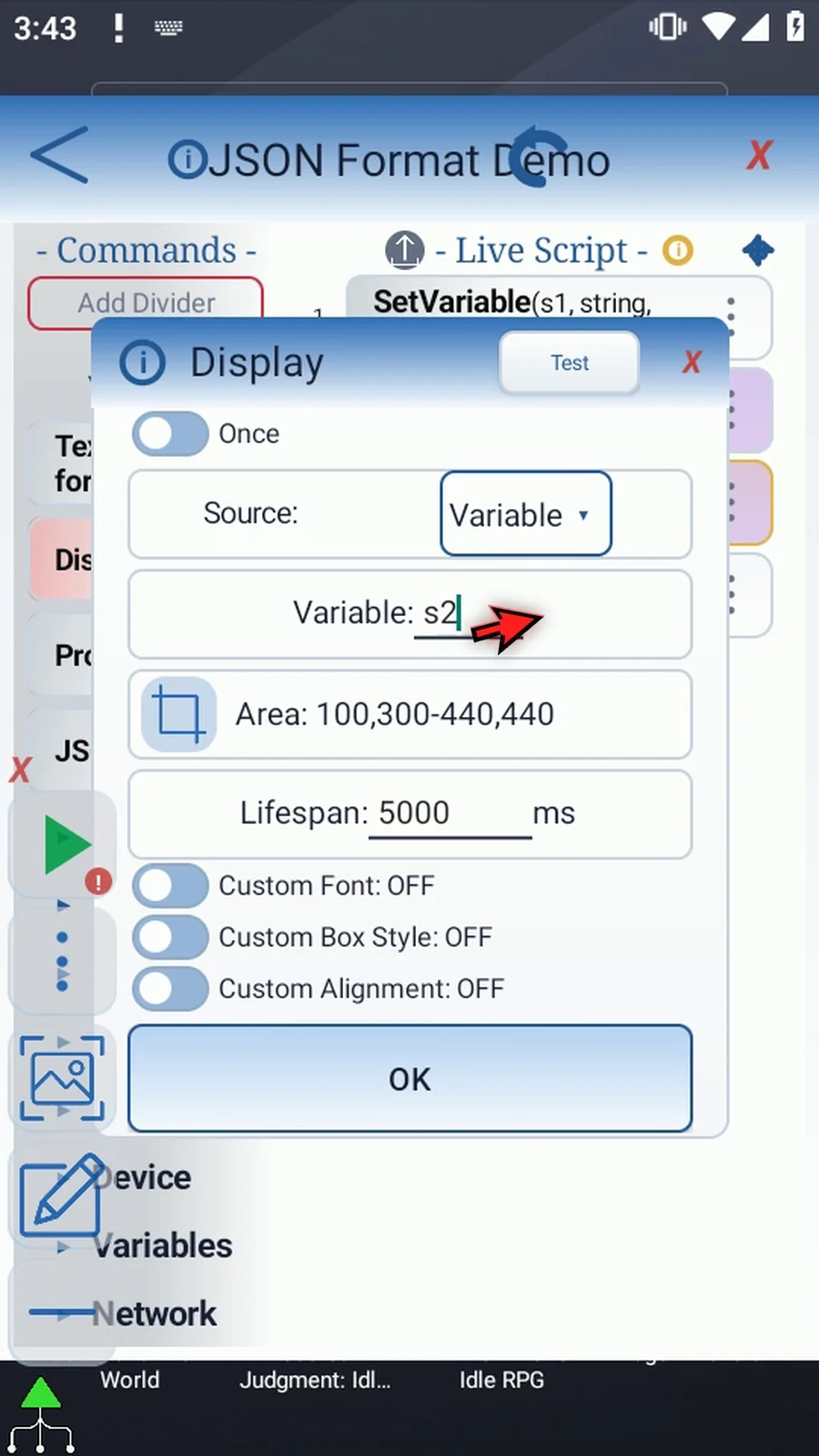
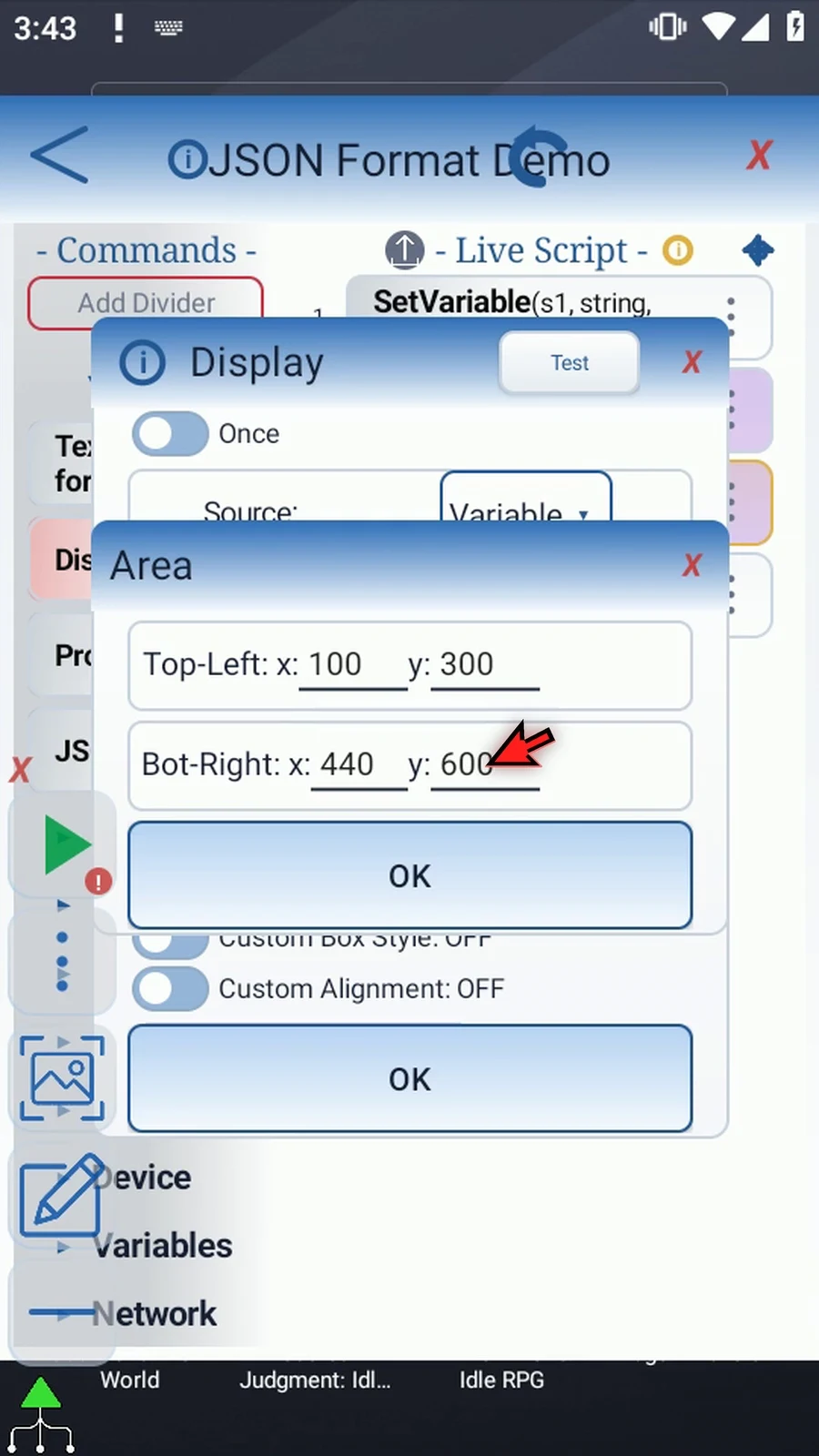
i1tos2, then tap the Area label. Keep top-left100,300and bottom-right X440, increasing bottom-right Y from440to600so the separate lines have room. Keep lifespan5000and all custom styles off. - Standard PromptMe retains the literal header Complete and Done Boolean
b2. Display shows the actual text, including line breaks; PromptMe confirms that execution continued. - Run Compact and press Done. Expand the overlay, reopen the editor and JSON, change only Format to Pretty, save, close the editor and play again.
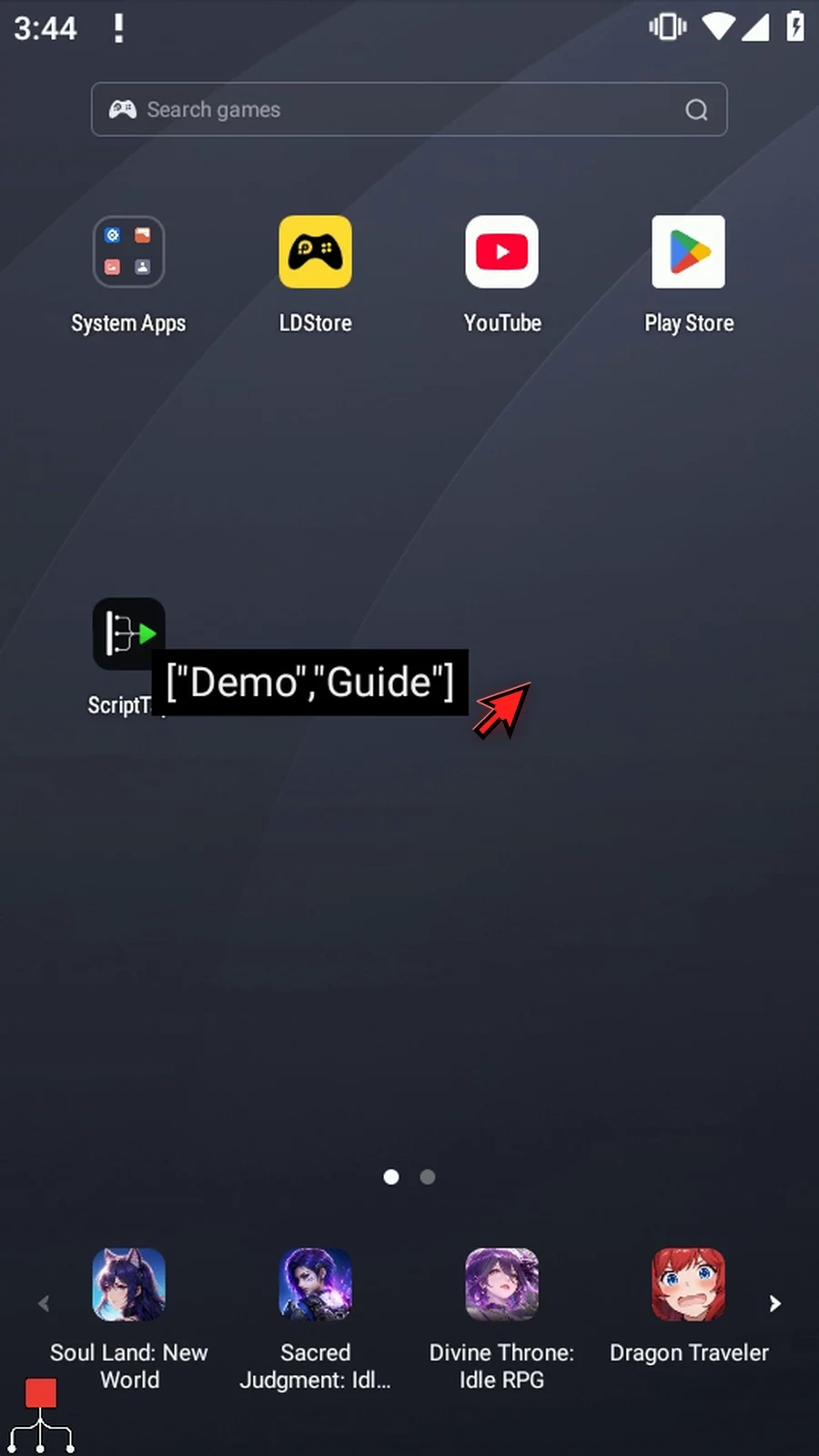
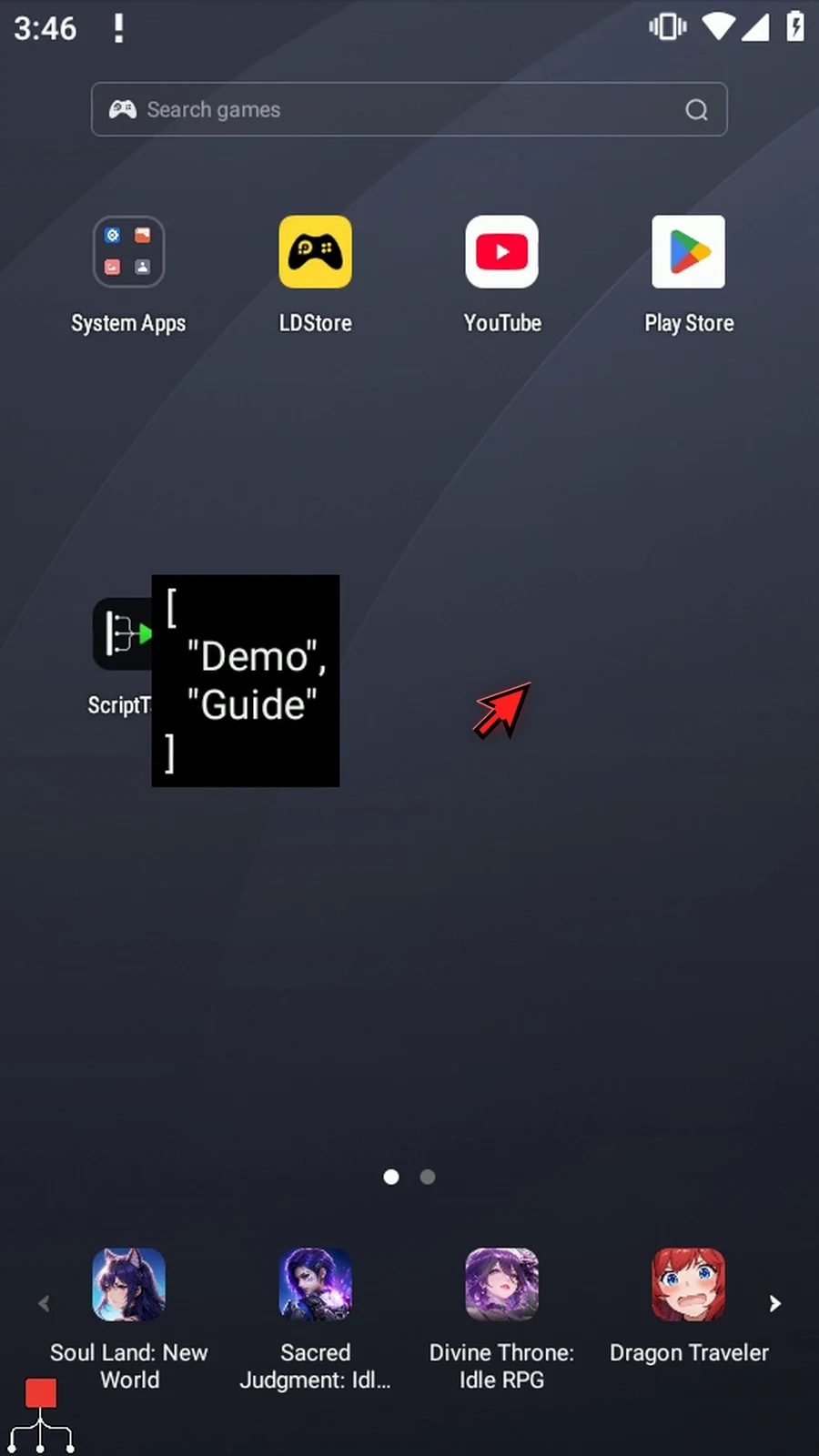
The genuine first run displays ["Demo","Guide"] on one line. The second displays the same list on four indented lines. Each five-second Display naturally leads to Complete and Done. Both four-command runs finish without warnings or errors, with b1=True, an empty error String and unchanged source JSON in s1.
Stringify
Step-by-step guide
Step 01 Stringify turns a selected JSON value into JSON text for later commands. Compact avoids extra formatting; Pretty adds readable layout. We'll display the same list in both formats.
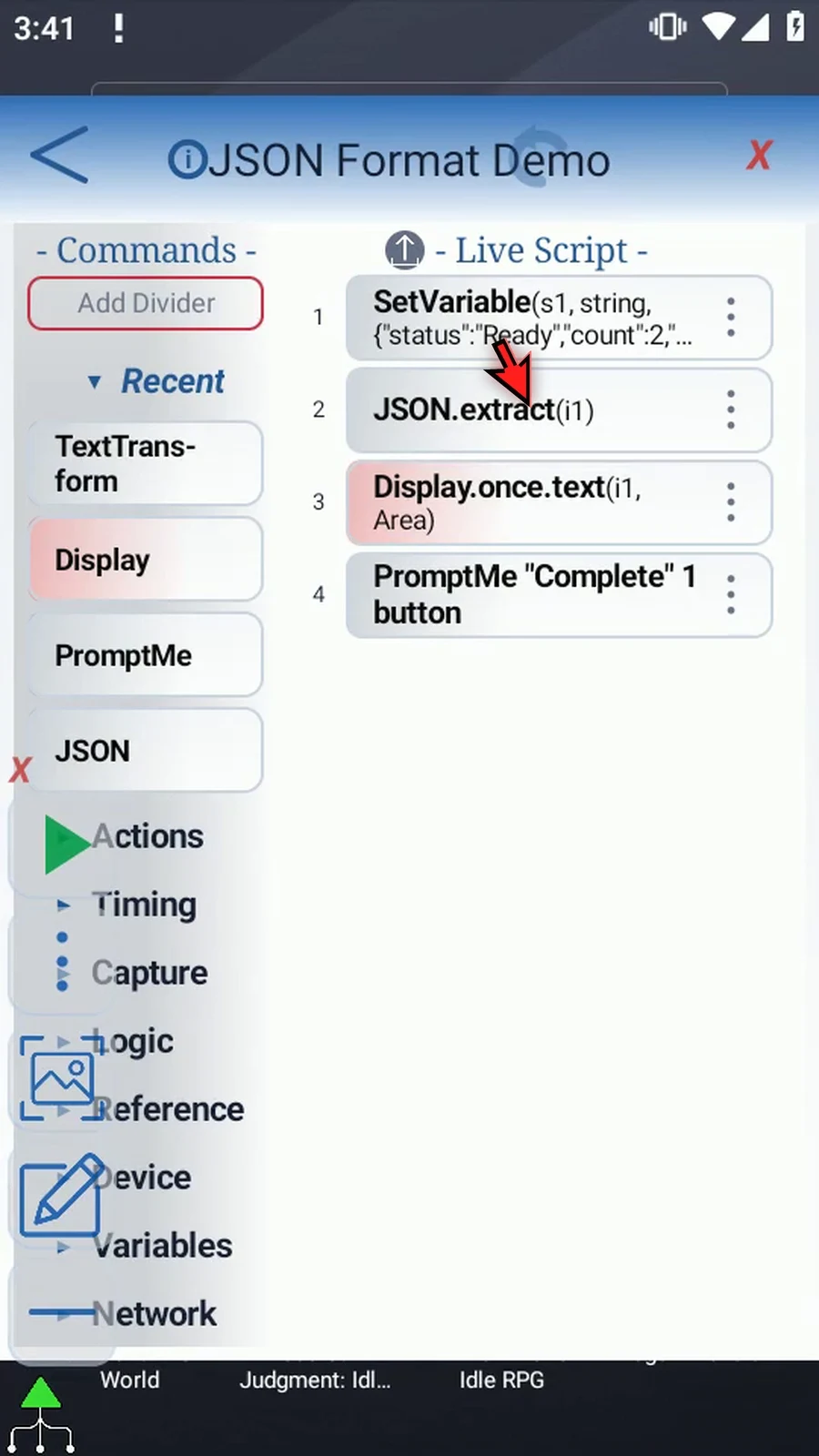
Step 02 Reuse the four-command Extract Integer example. Intro explains s1, and Extract Integer shows Display's manual insertion. We'll change the JSON operation and adapt Display for text.
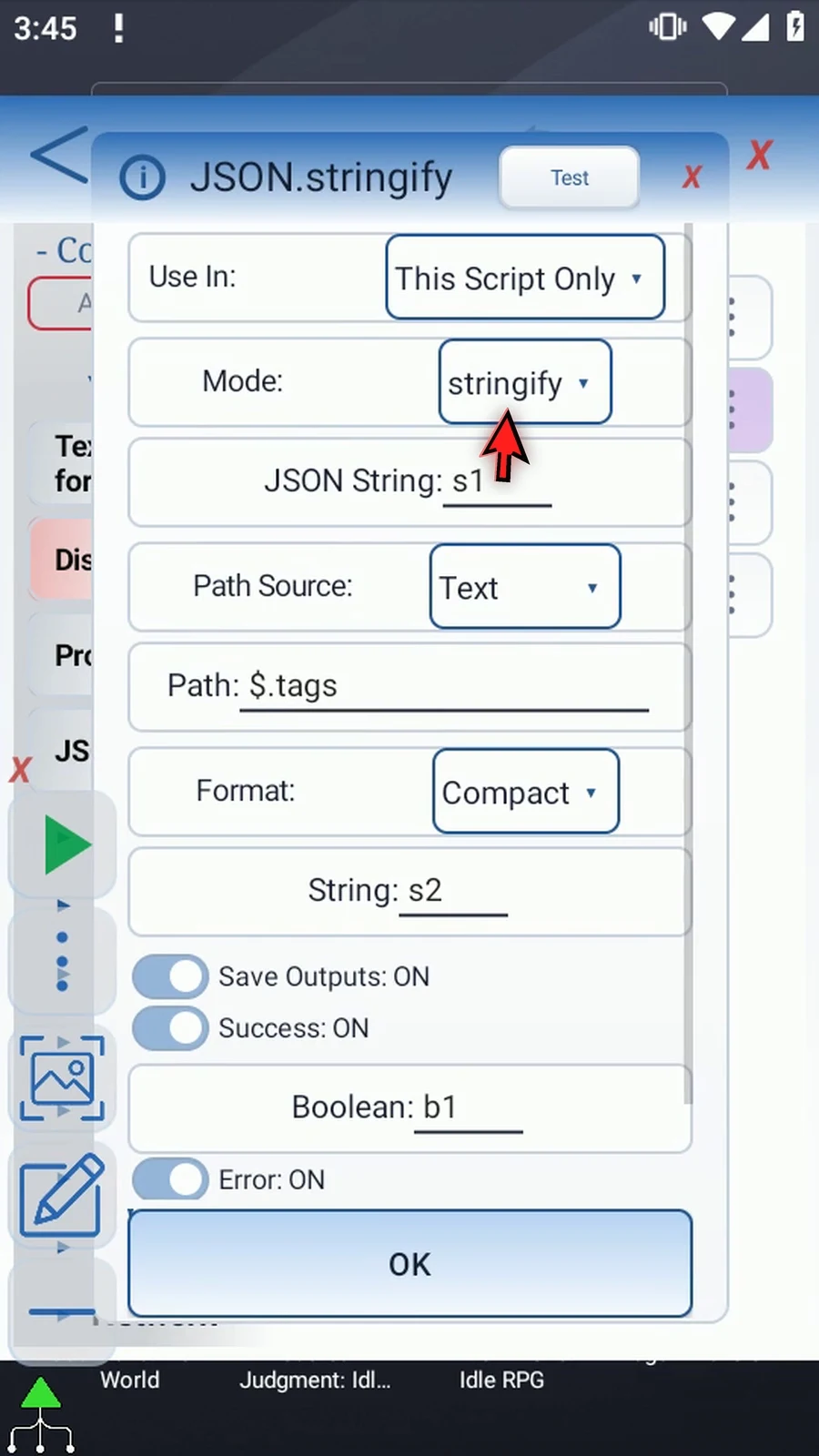
Step 03 Open JSON. Keep JSON String s1, Text as the Path Source, and This Script Only.
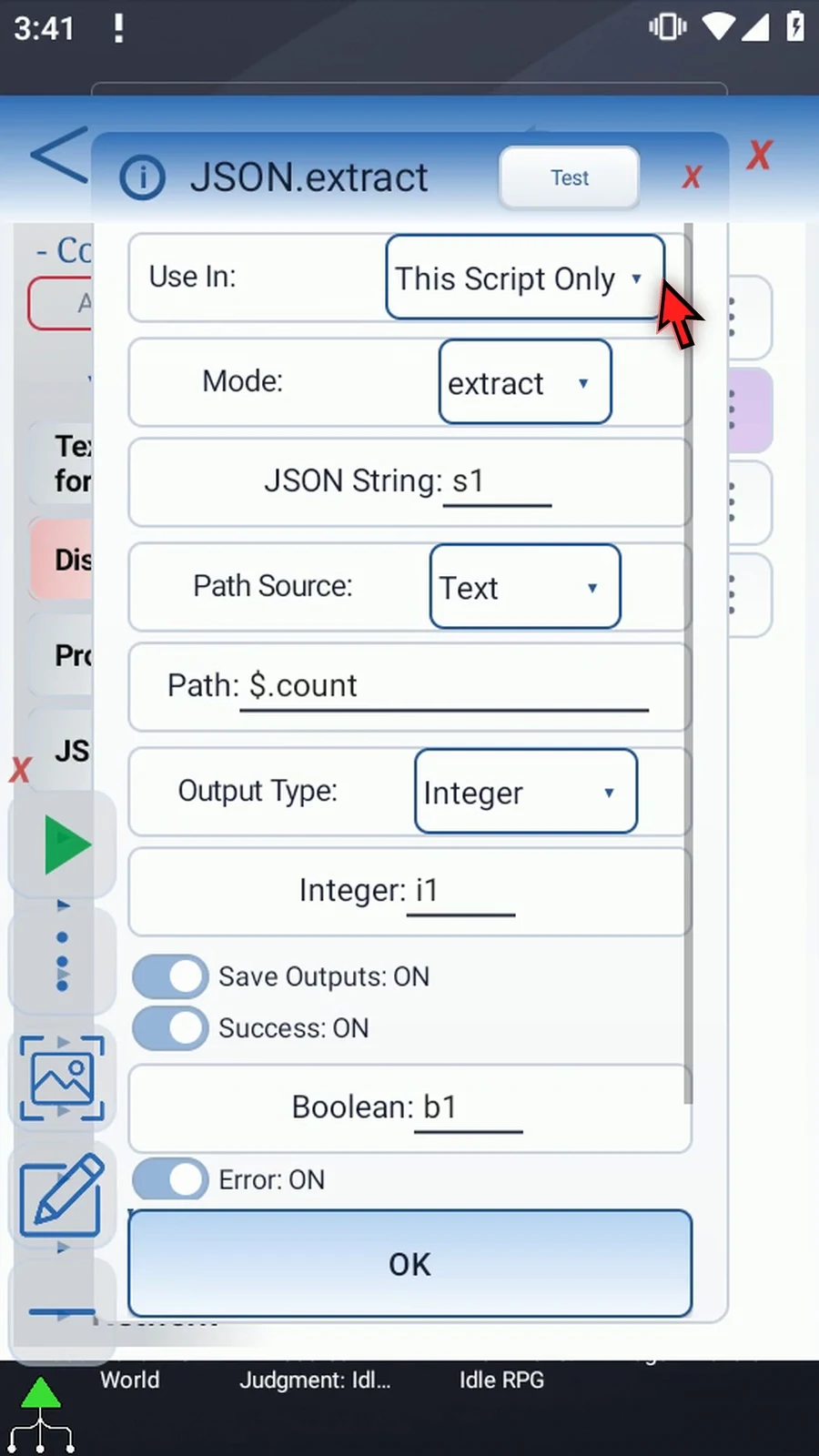
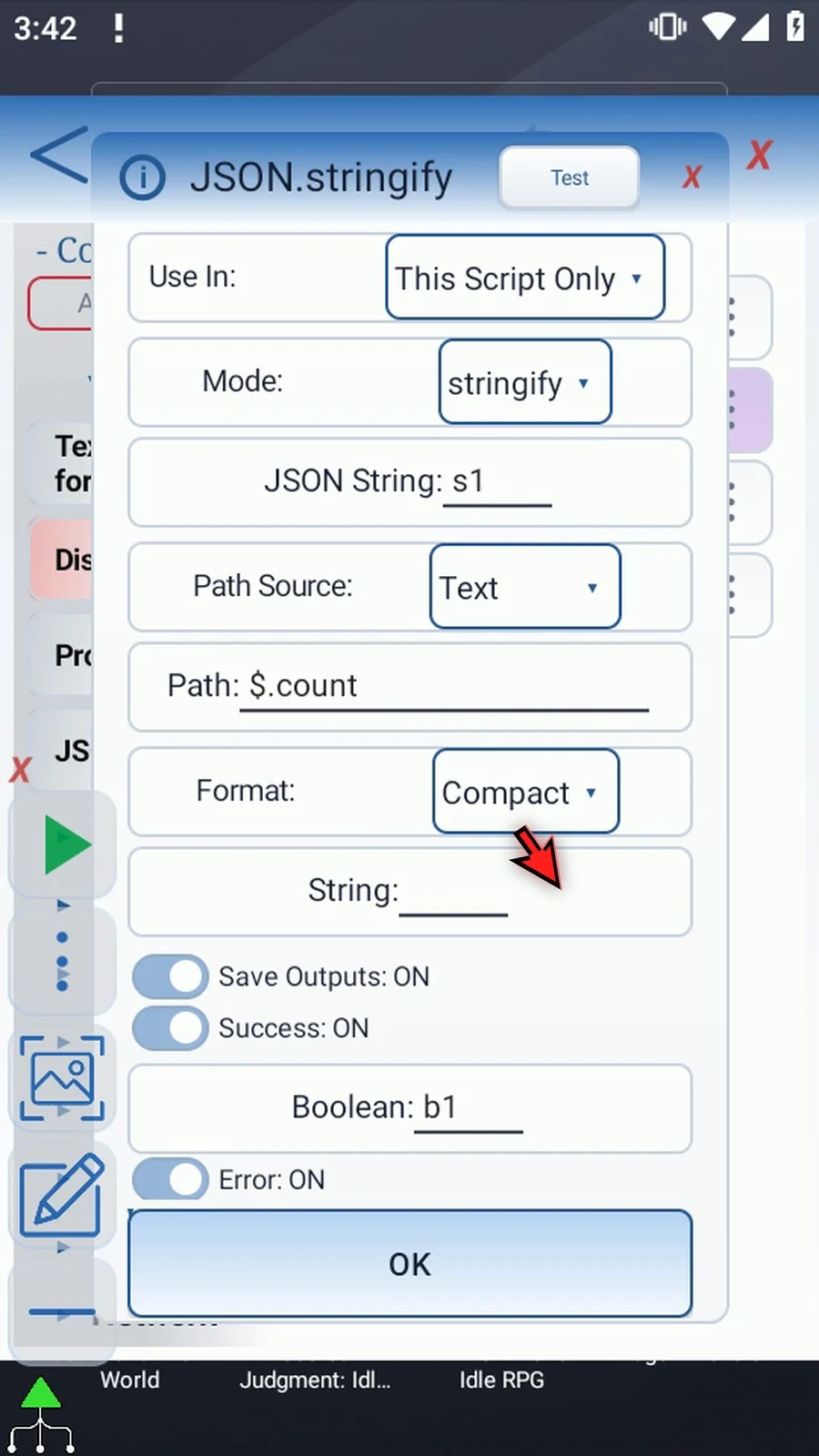
Step 04 Change Mode from Extract to Stringify. It has its own String destination and a Format choice.
Step 05 Set Path to dollar sign, dot, tags. This selects our list containing Demo and Guide.
Step 06 Keep Compact for the first run. We'll switch this same command to Pretty afterwards.
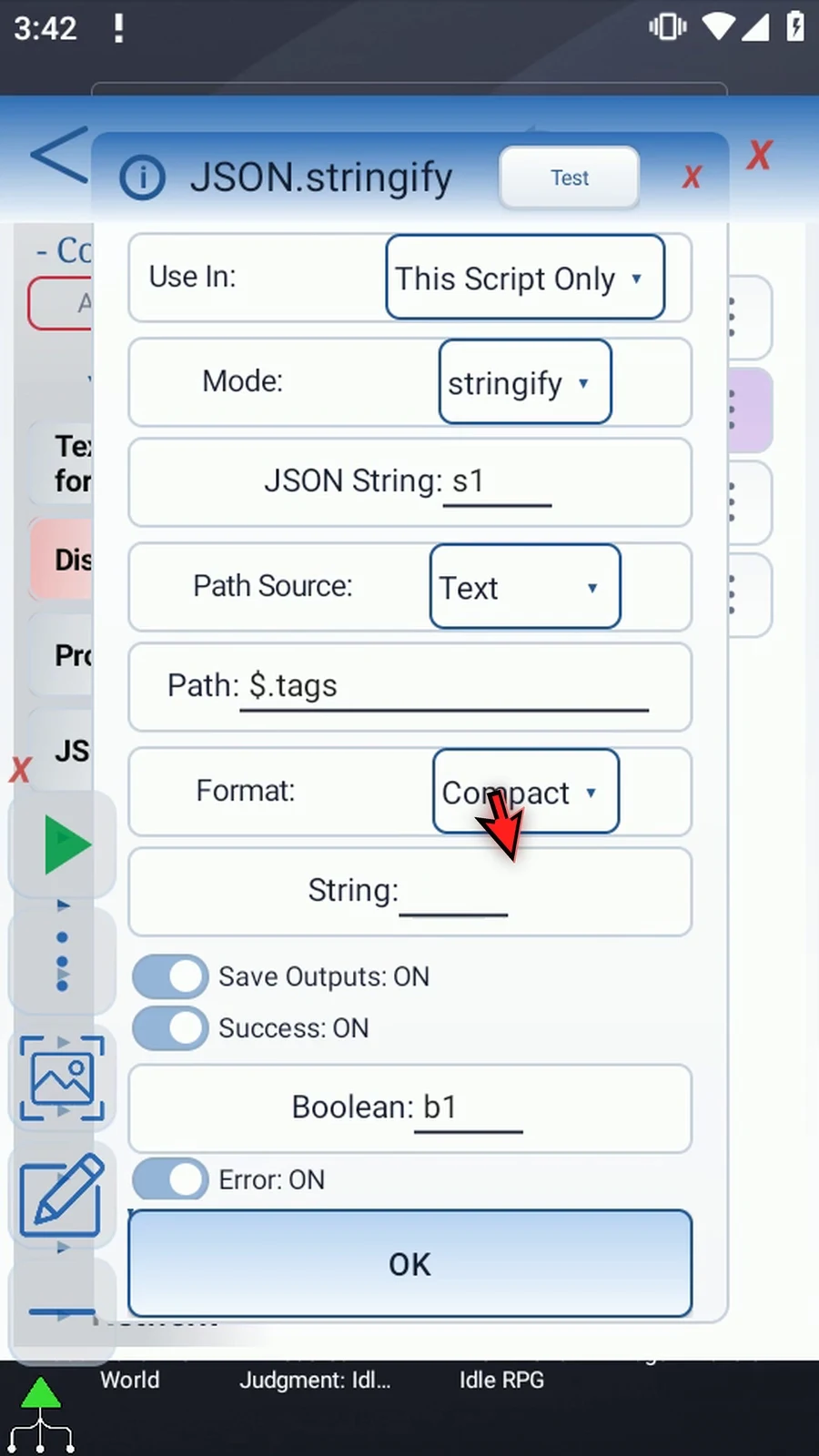
Step 07 Enter s2 as the String destination. Later commands will read the formatted JSON from this variable; the original s1 stays unchanged.
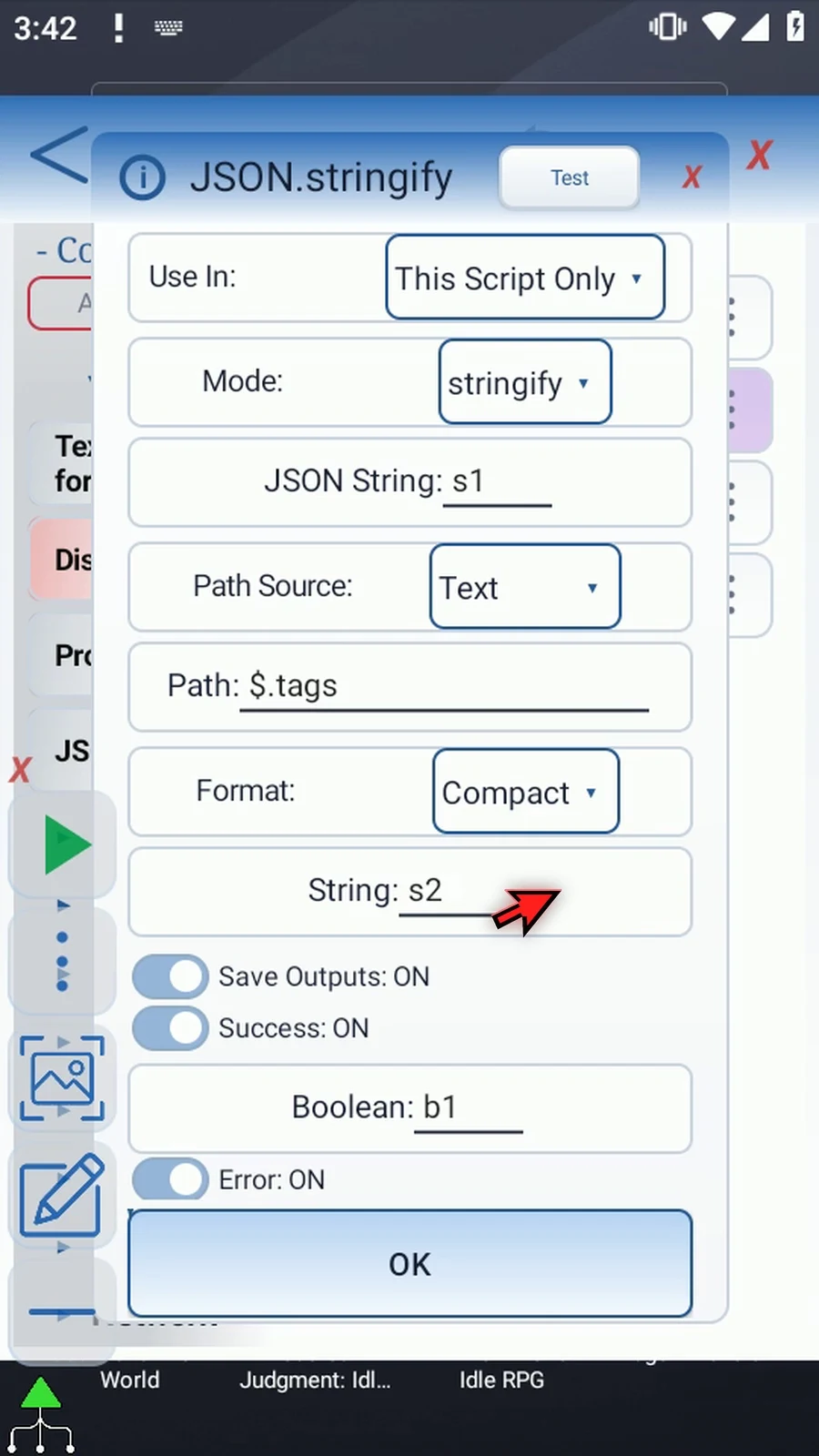
Step 08 Use dollar sign alone to format the whole document, or a path for just one value. Strings are quoted and escaped; lists and objects keep their structure. Numbers, Booleans, and null keep JSON form.
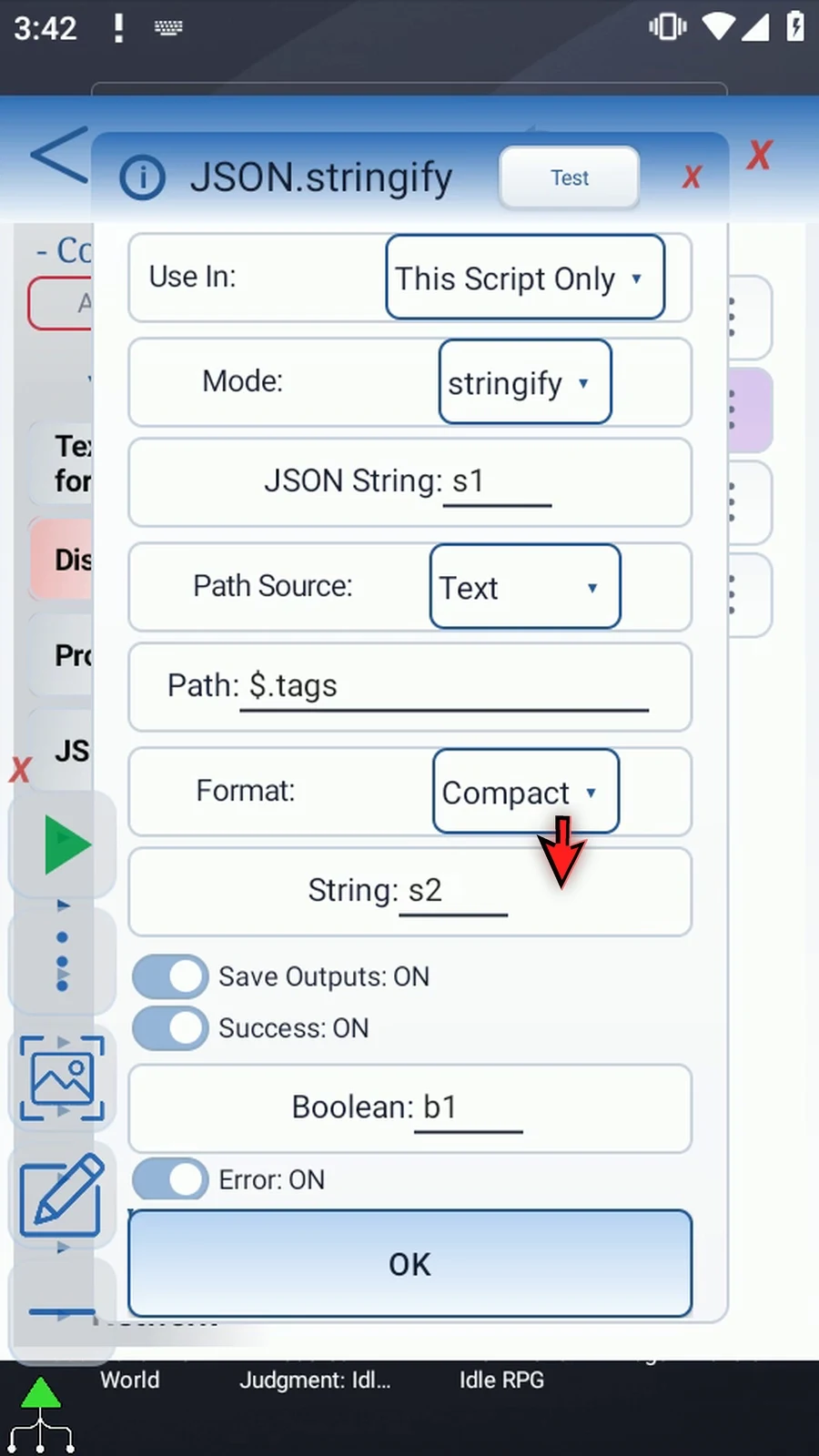
Step 09 Keep Success Boolean b1 and Error String s3. Scroll down to confirm both. Invalid JSON, invalid path syntax, or a missing path causes failure.
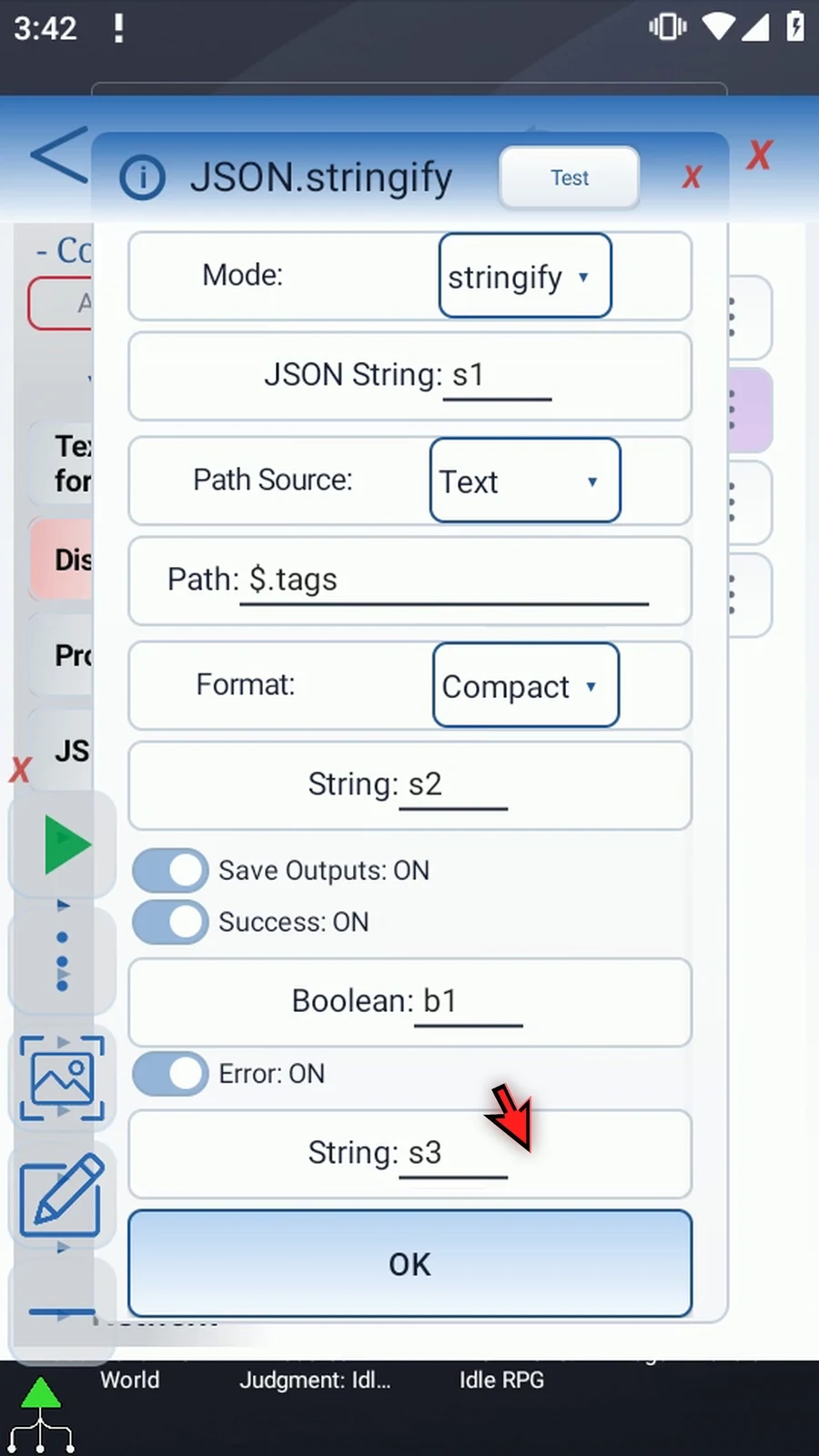
Step 10 Very long text can be shortened at the String byte limit. Error then reports output truncated, even if Success is True. Check the error before passing the result on as JSON.
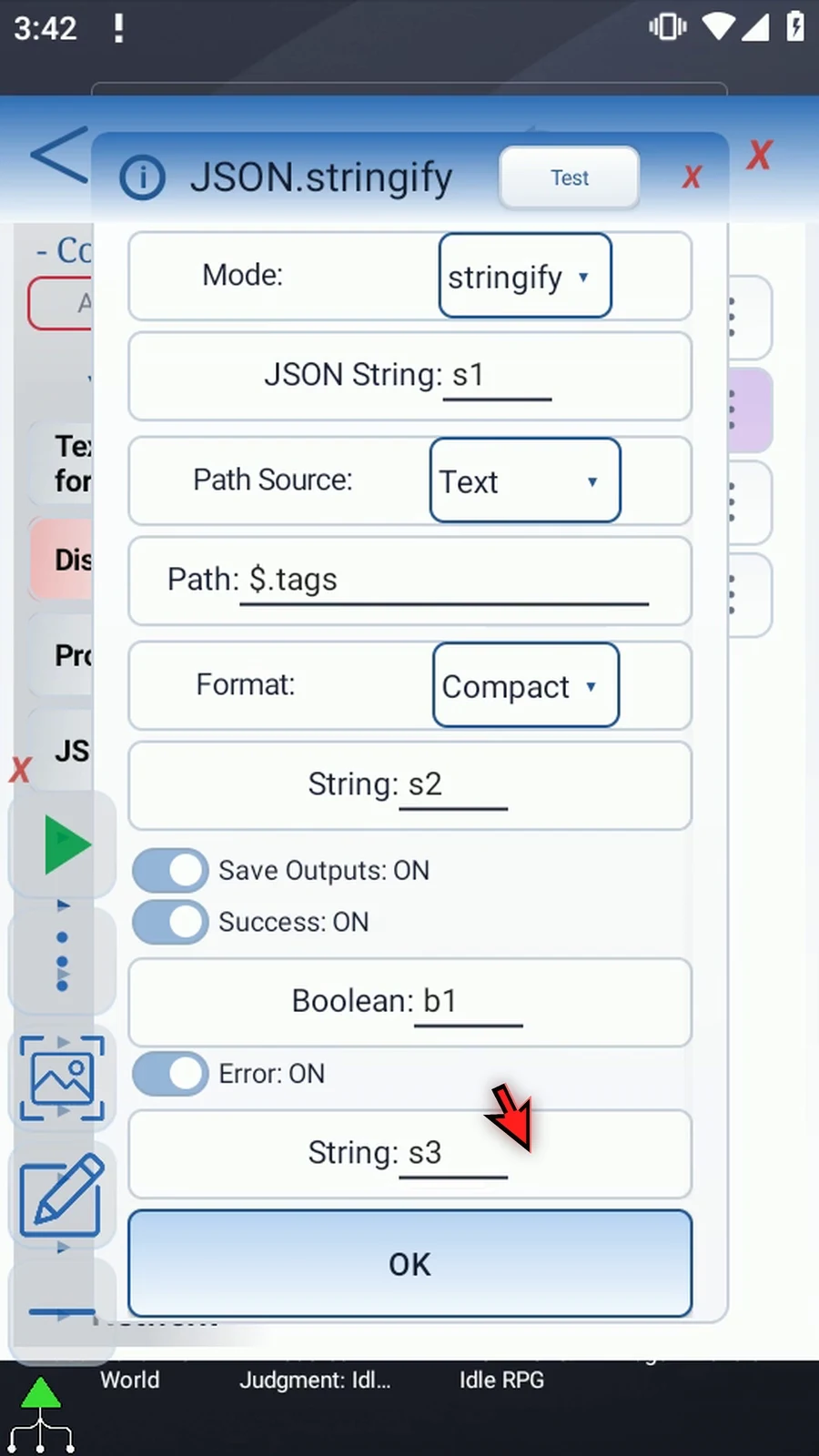
Step 11 Tap OK. Stringify will write the selected list as JSON text to s2.
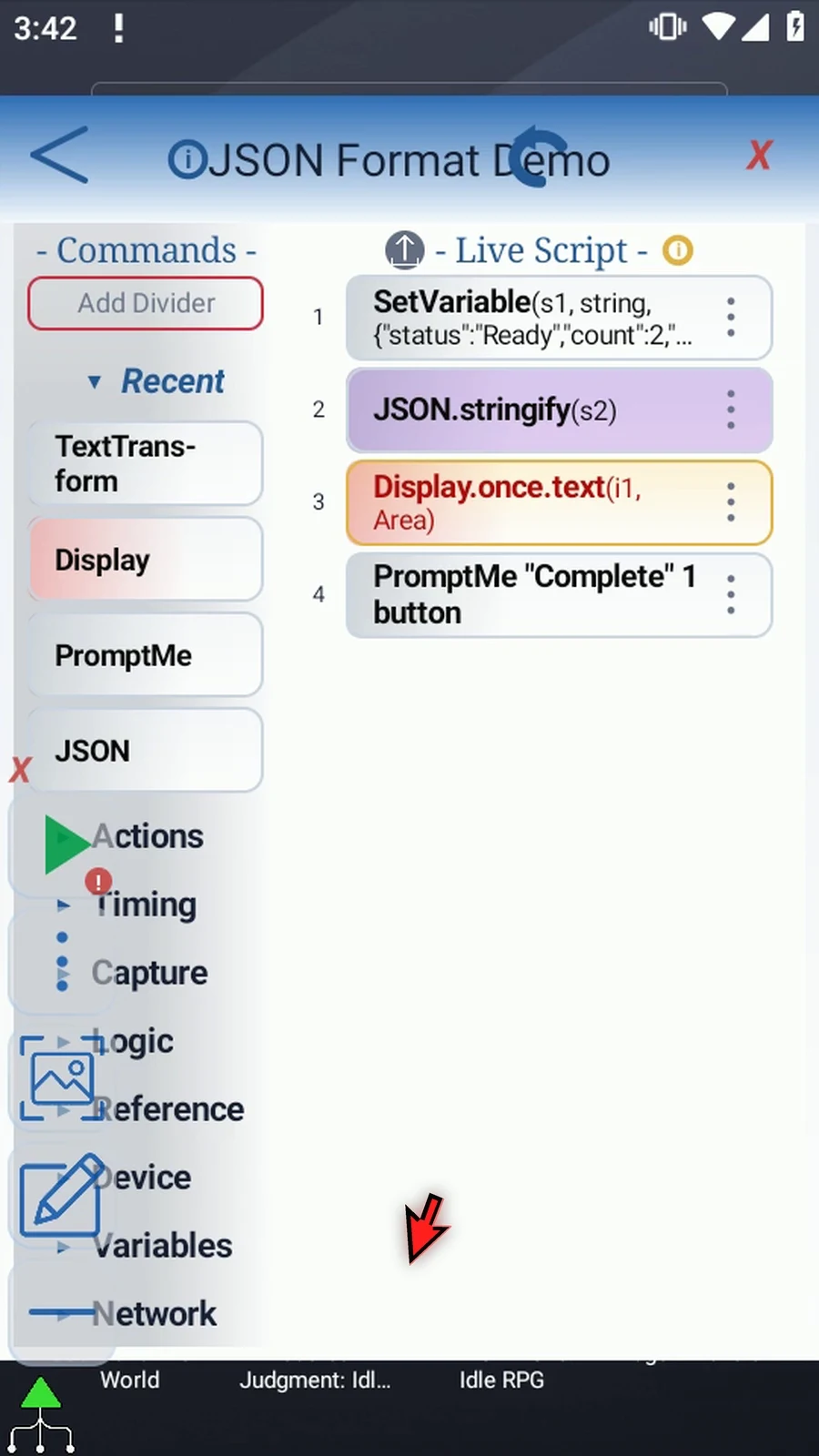
Step 12 Open Display. Keep Once and Variable, but change i1 to s2 so it reads the formatted text.
Step 13 Tap the Area label. Keep top-left one hundred, three hundred, and bottom-right X four hundred forty. Increase bottom Y to six hundred, leaving room for Pretty's separate lines.
Step 14 Keep the five-second lifespan and the custom styles off, then tap OK. PromptMe still shows Complete afterwards.
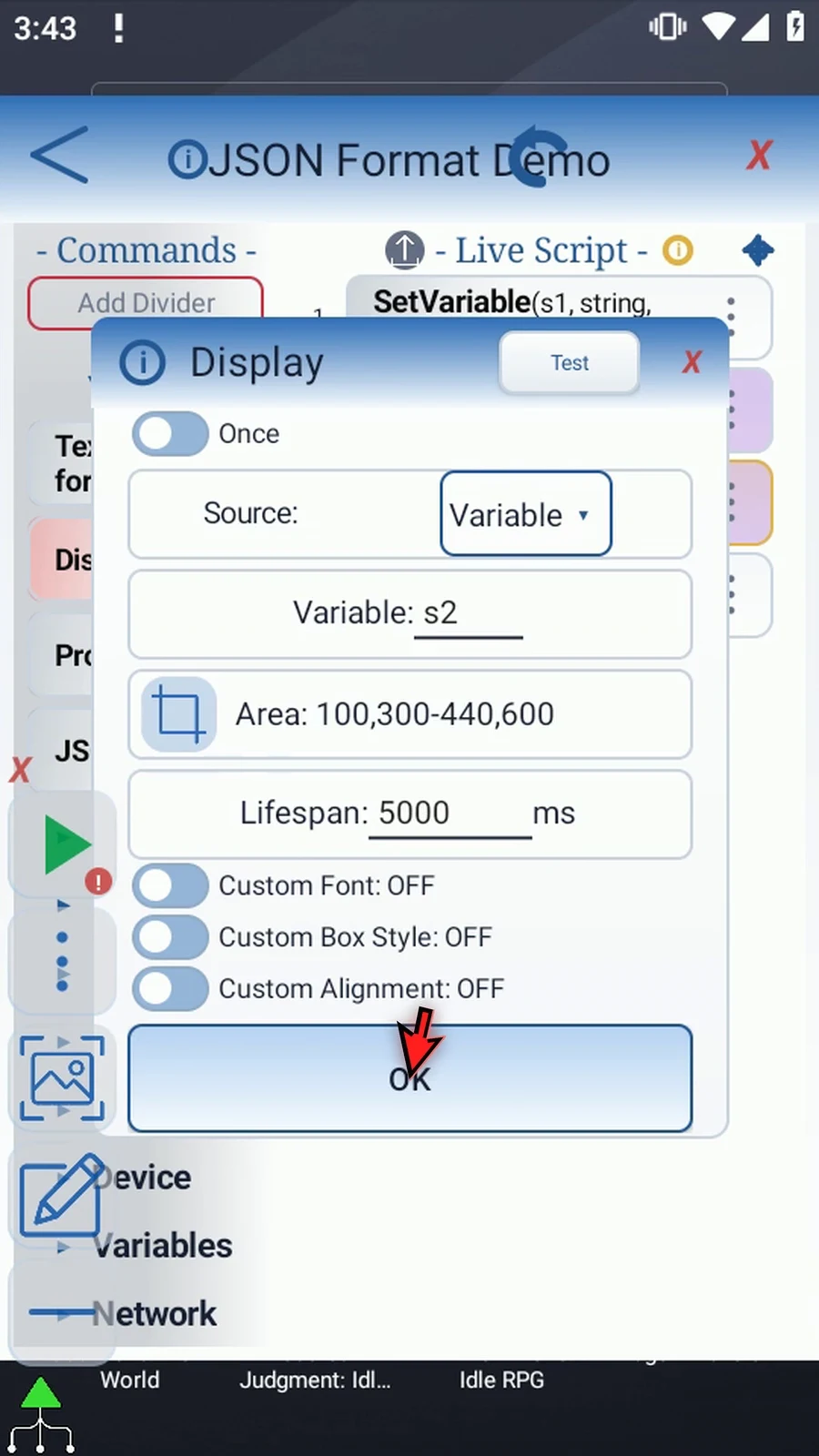
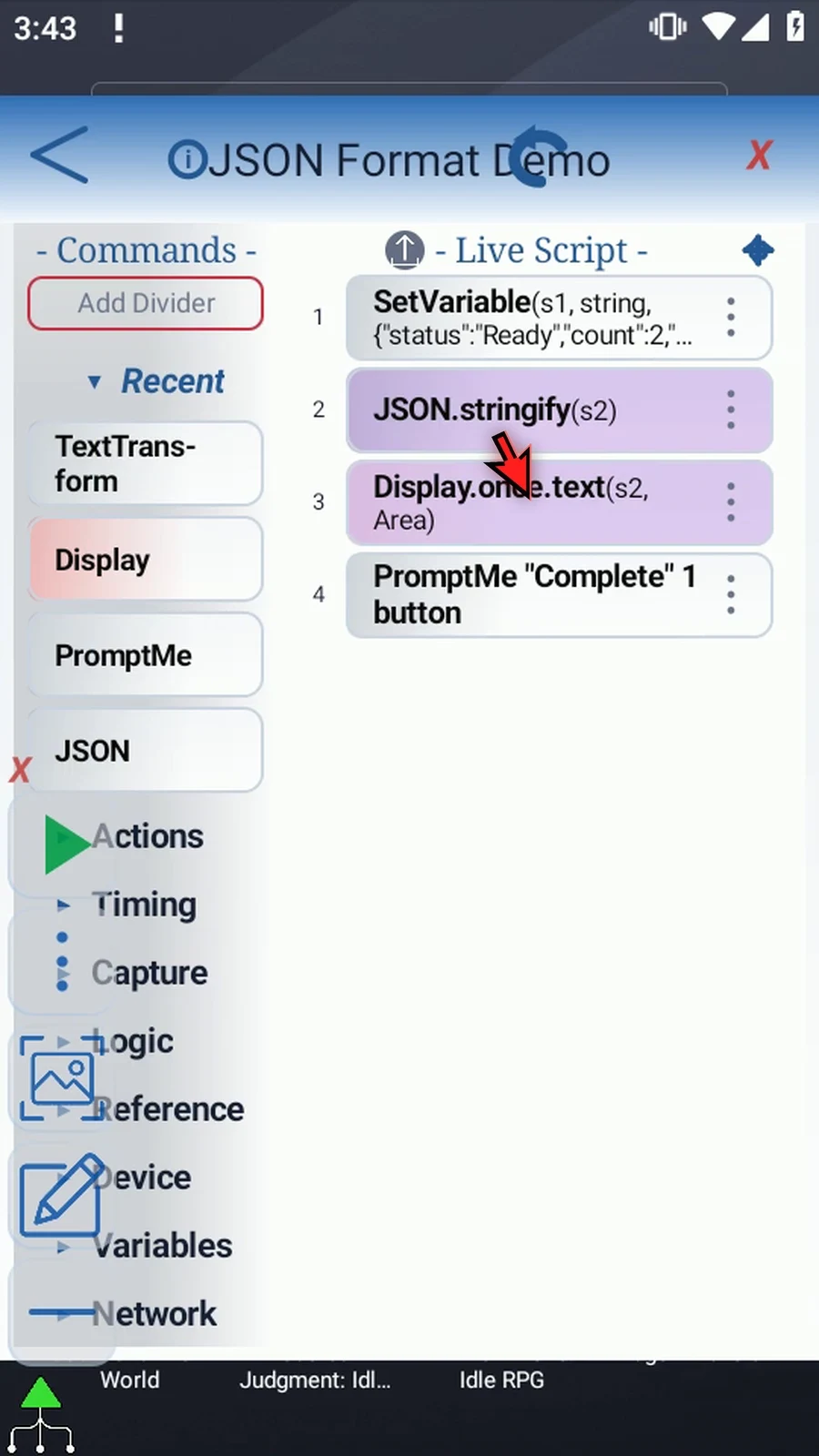
Step 15 Set Variable prepares JSON, Stringify formats tags, and Display shows s2. Close the editor to try Compact.
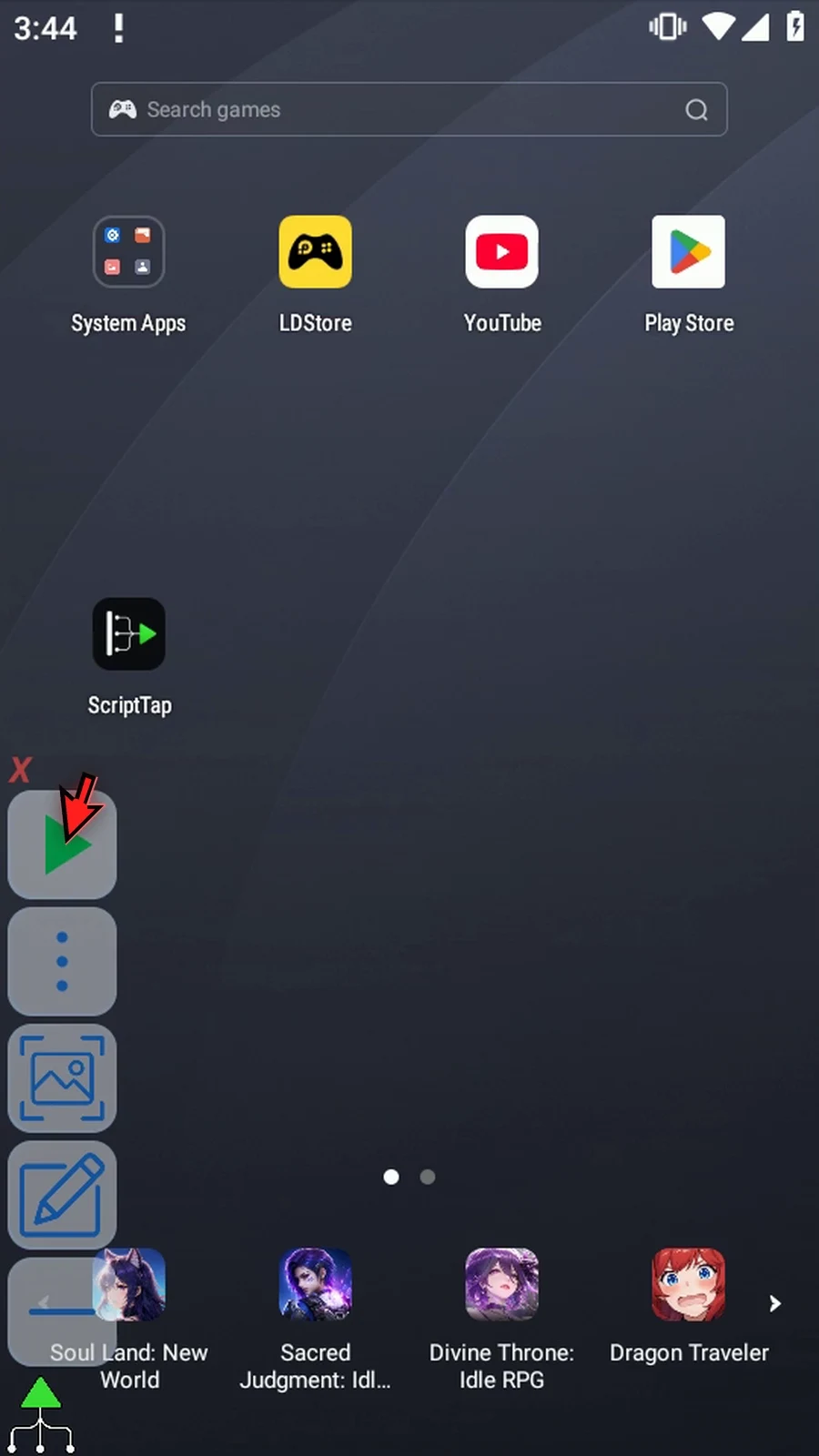
Step 16 When the script is complete, simply use the Play button in the main overlay.
Step 17 Compact keeps this list on one line, without extra layout spaces.
Step 18 Complete confirms that execution continued after displaying the text.
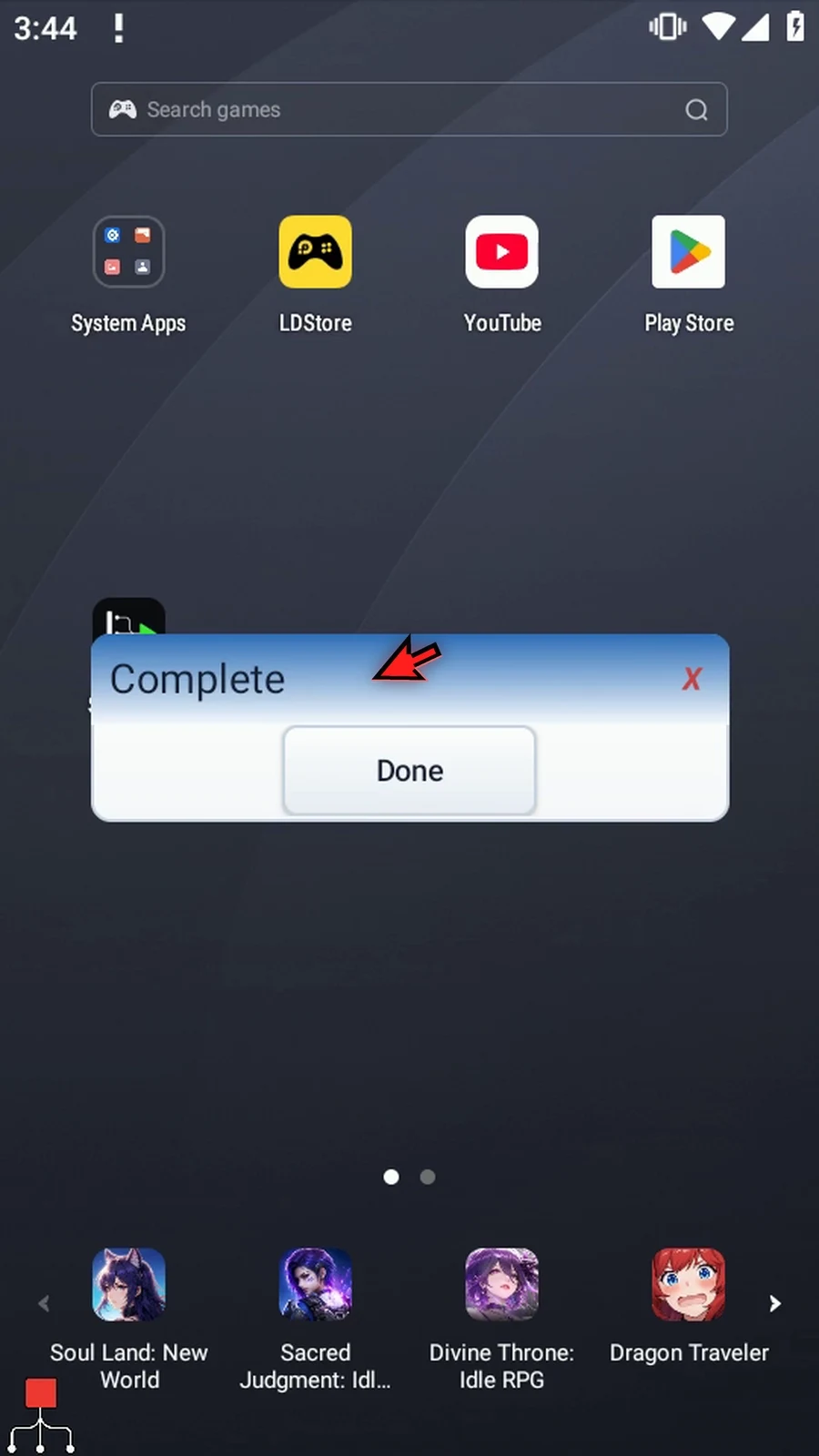
Step 19 Press Done to finish this run. We'll change only the format for the next one.
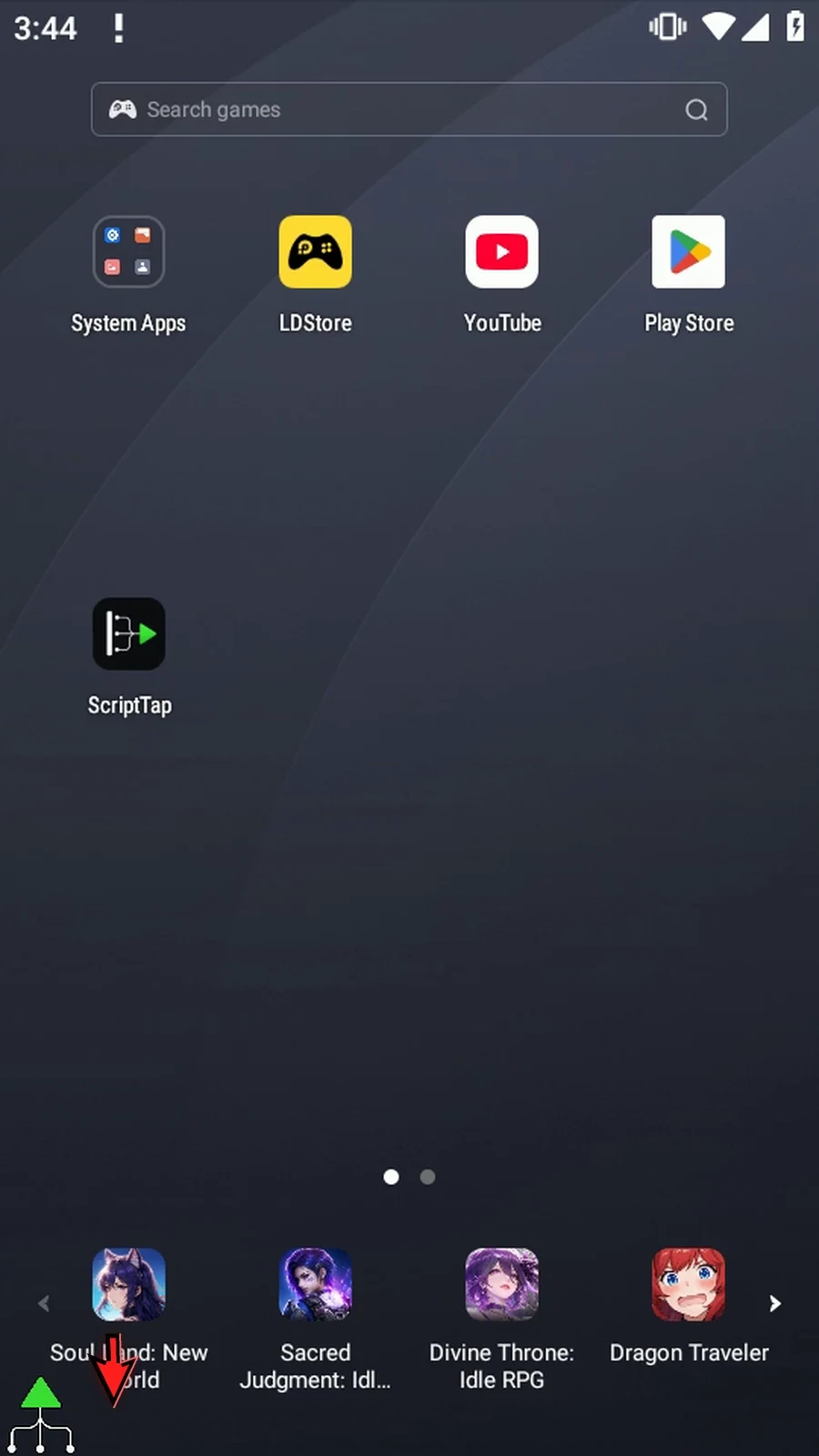
Step 20 Expand the main overlay and open the editor. Reopen JSON to keep the same data, path, and destination while changing the format.
Step 21 Change Format from Compact to Pretty. It adds line breaks and indentation to make structures easier to read, without editing the input.
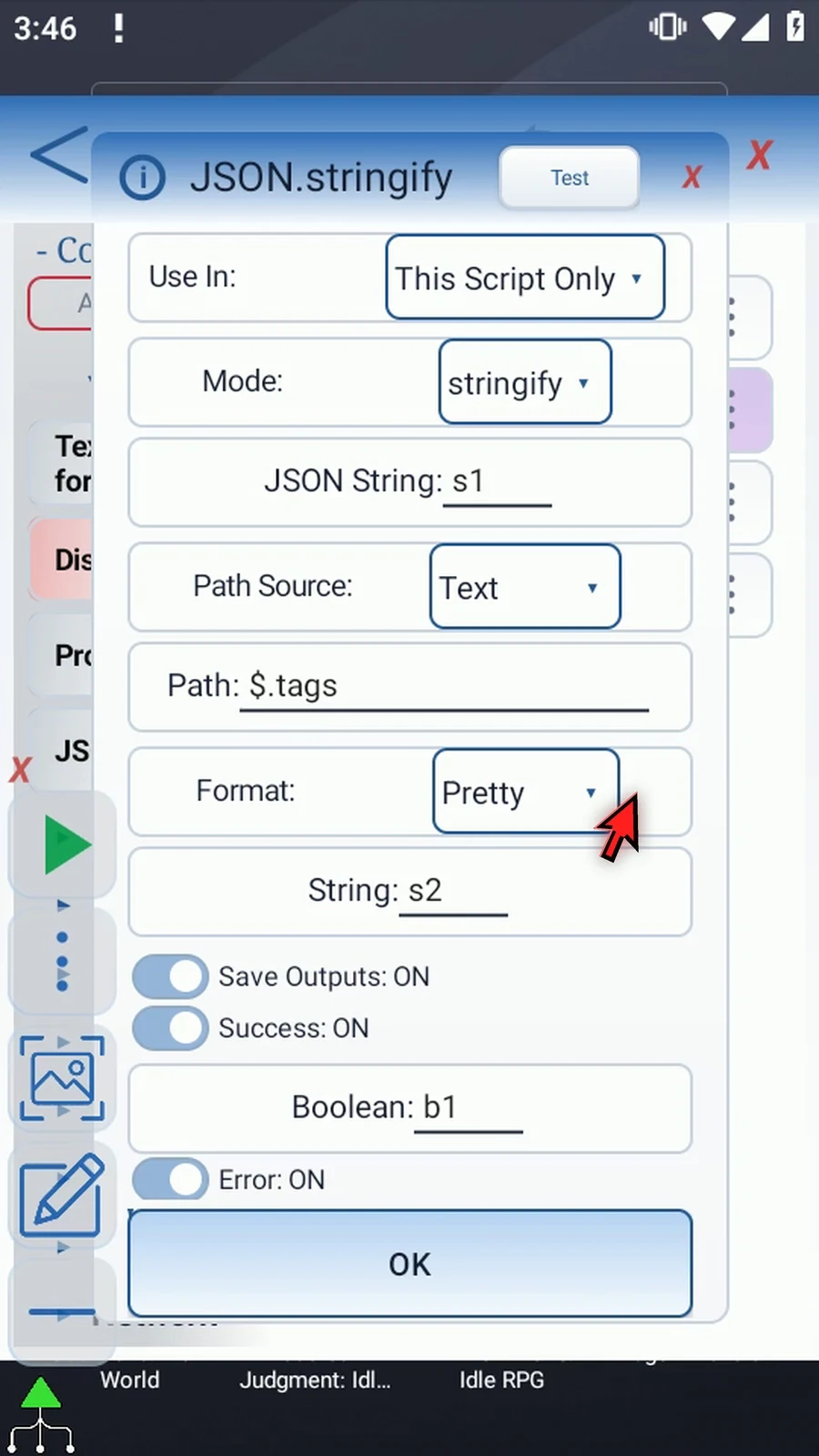
Step 22 Leave s1, the tags path, and s2 unchanged. Tap OK, then close the editor.
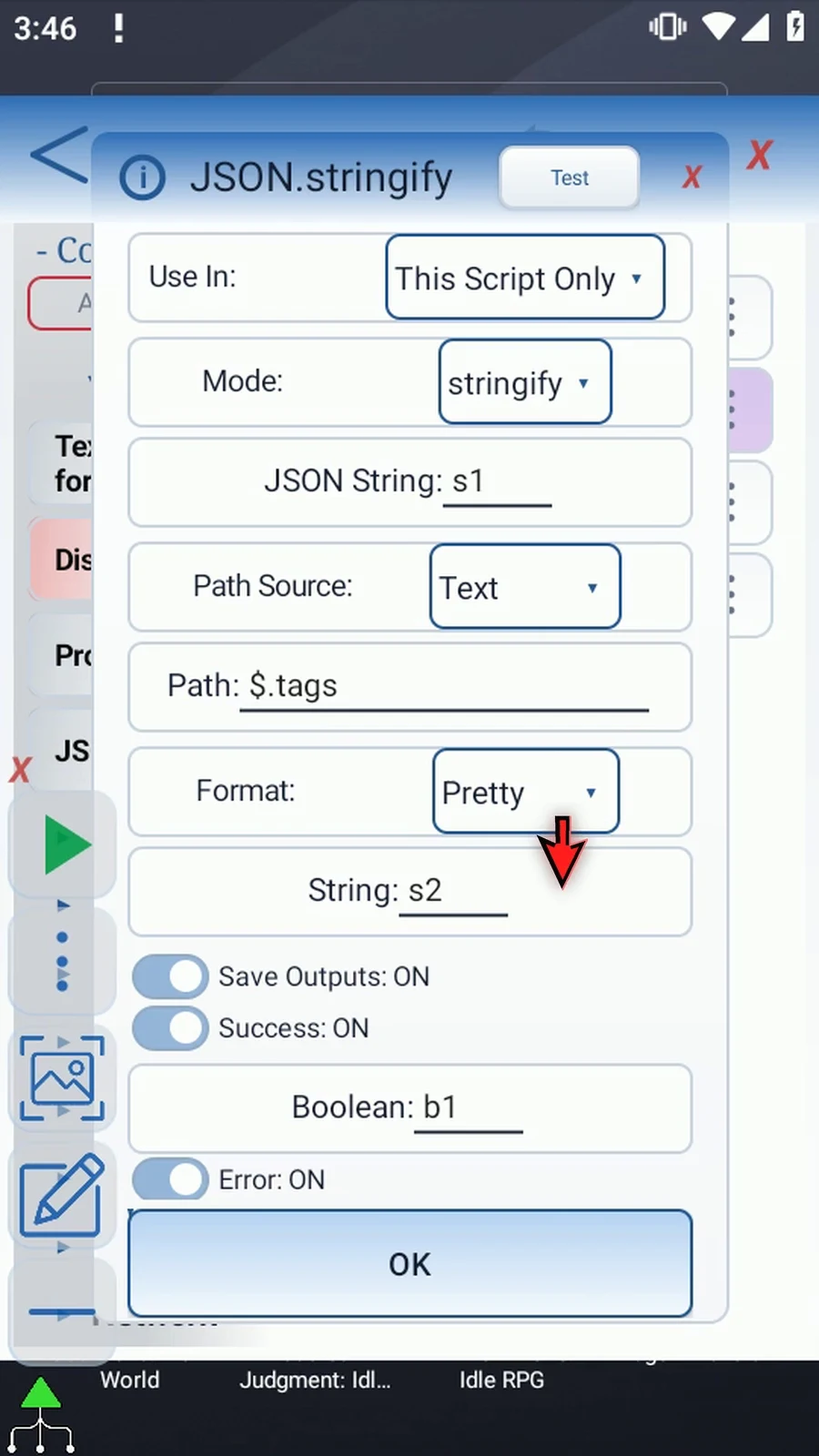
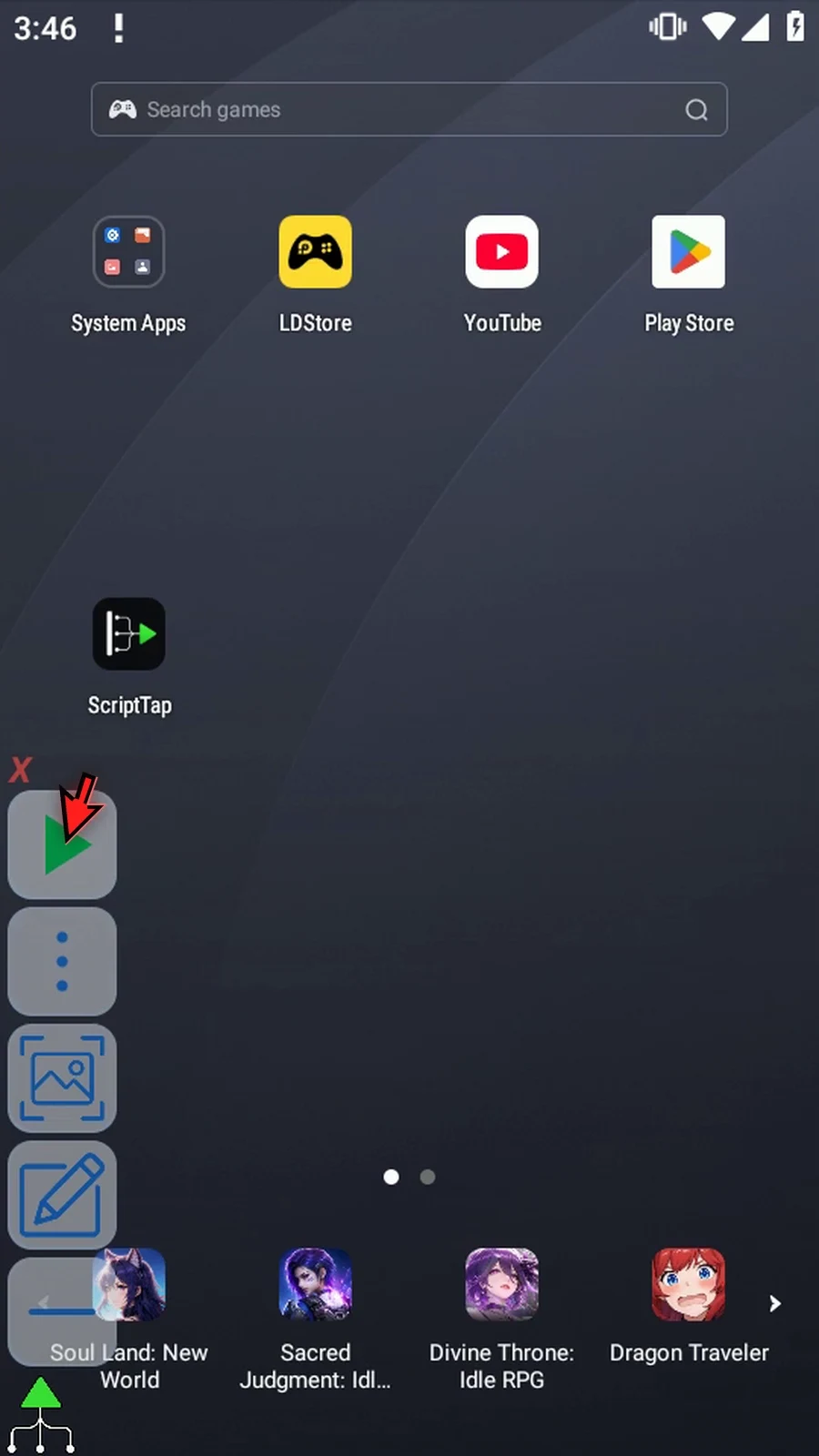
Step 23 When the script is complete, simply use the Play button in the main overlay.
Step 24 Pretty shows the same list on separate, indented lines.
Step 25 Complete confirms the second run continued normally. Both checks succeeded with an empty error string.
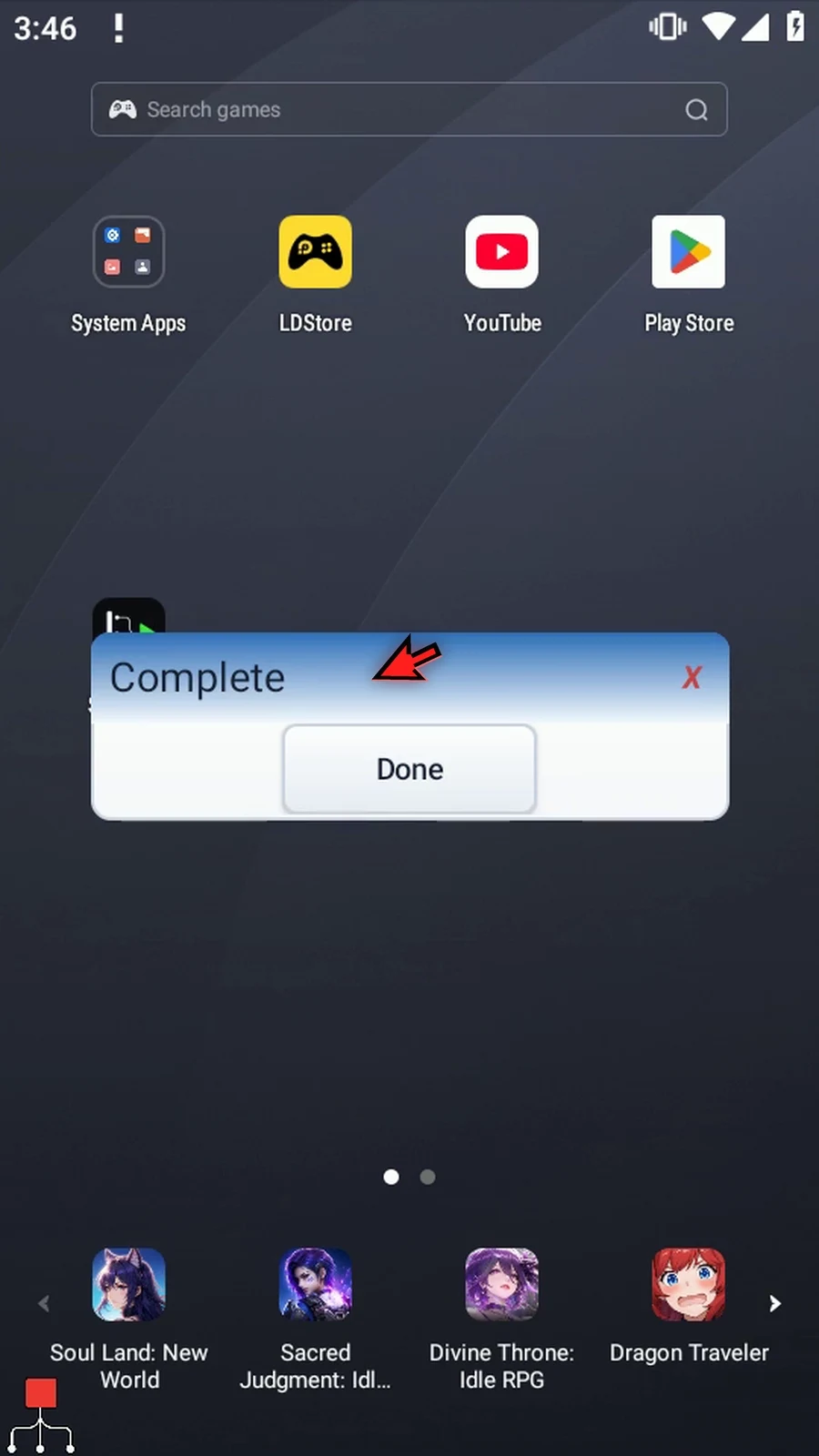
Step 26 Press Done. The script ends automatically. Choose Compact to avoid extra formatting, or Pretty when people need to read the structure.