Command video guide
OCR
OCR means optical character recognition. It turns text visible in an image into text a script can display or use in later commands. Read captures recognized text from a selected screen region; Find searches that region for matching text and can tap it. Both run on the device.
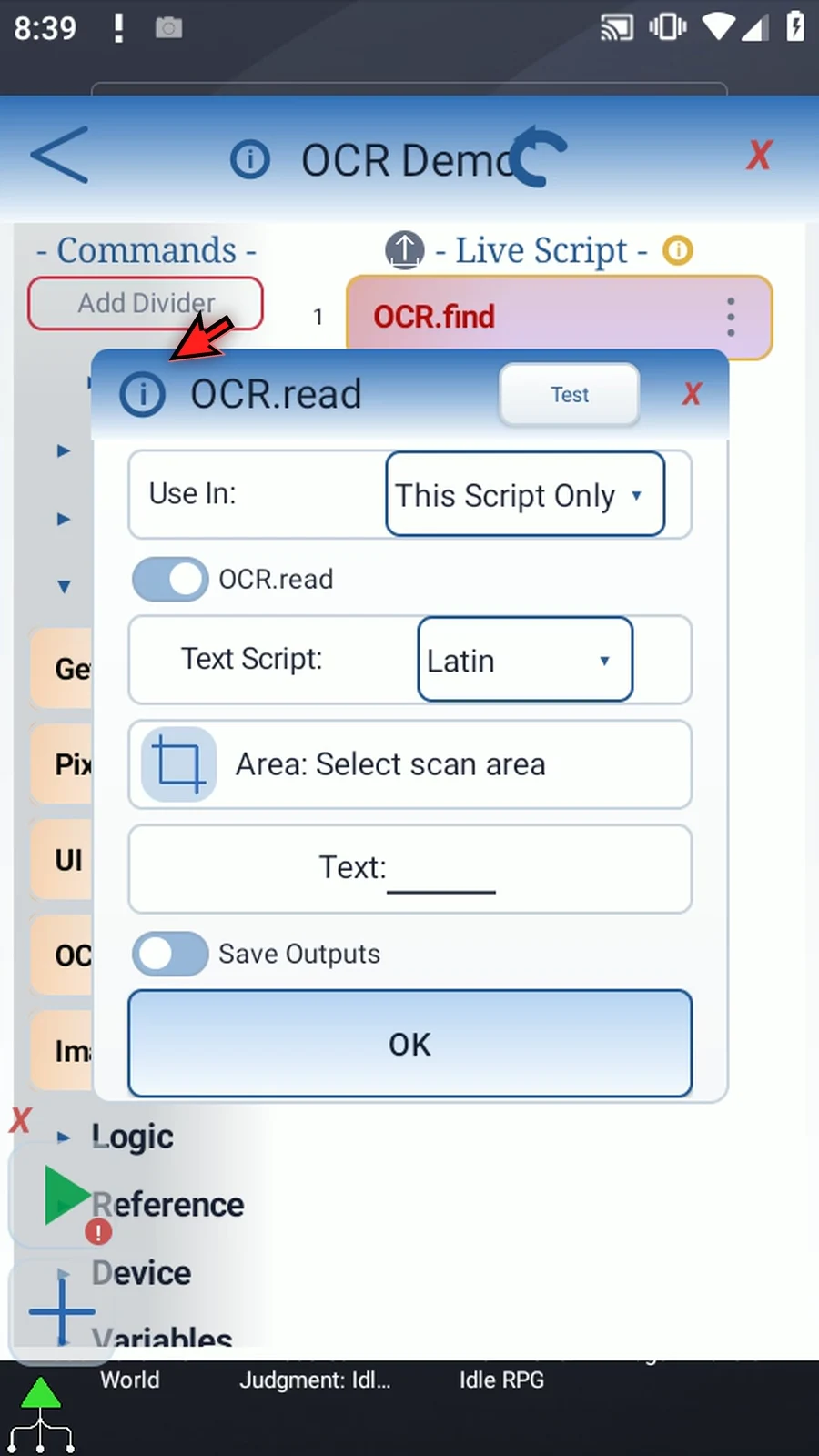
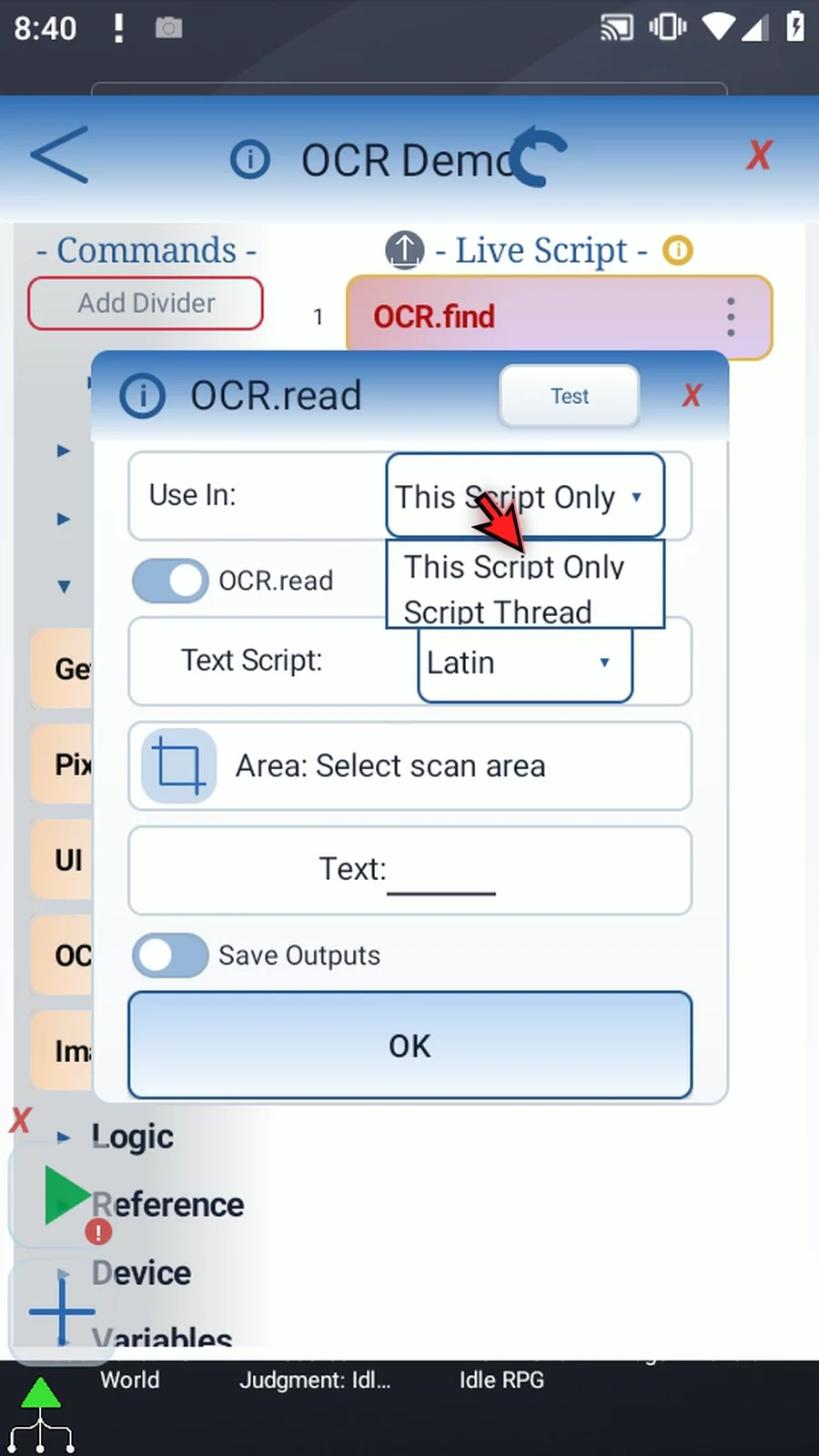
Create and name OCR Demo, manually drag OCR from Capture, and choose Read. This Script Only keeps output variables local; Script Thread shares them within that thread. Select the appropriate Text Script: Latin, Chinese, Devanagari, Japanese or Korean.
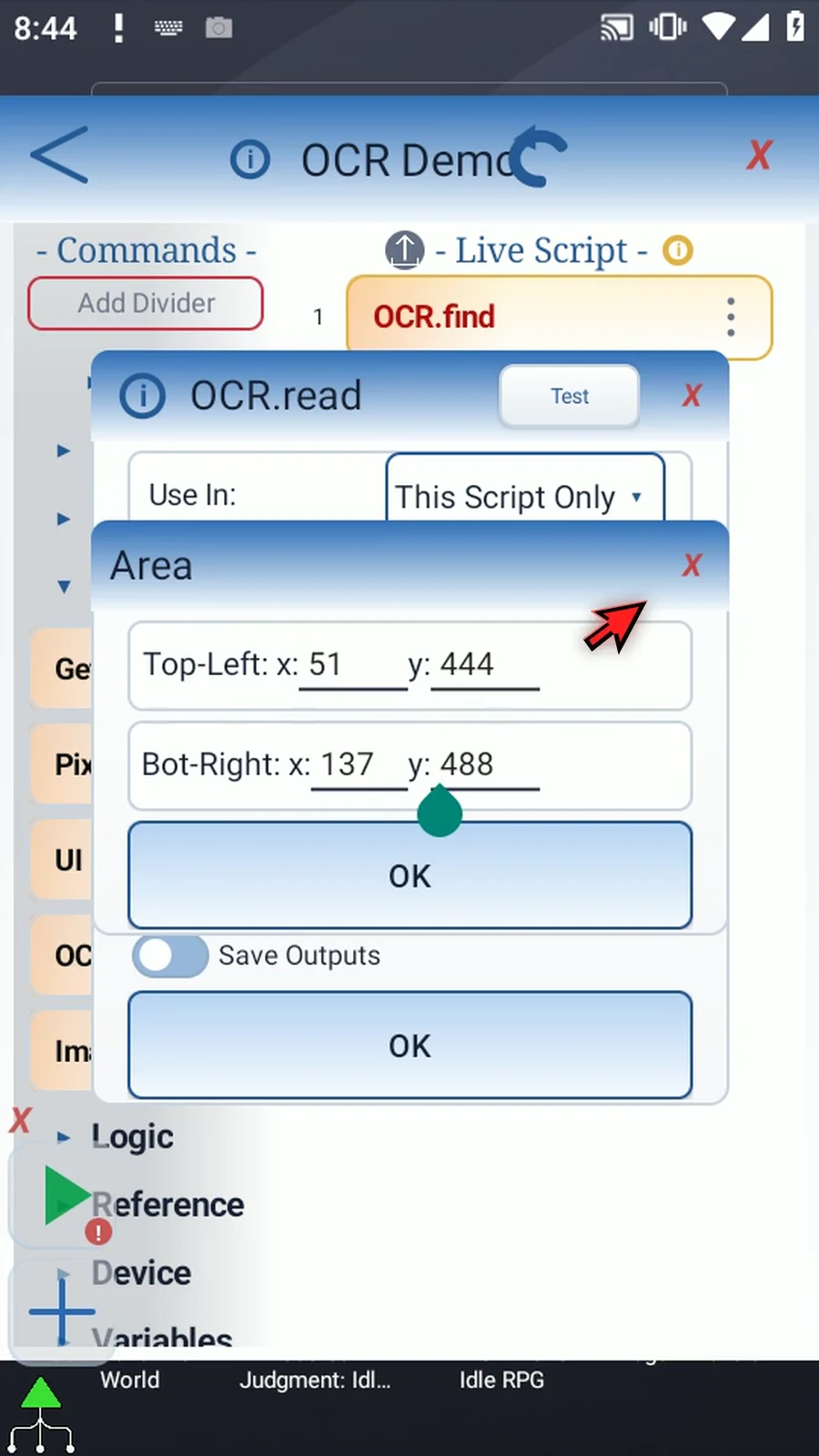
Use Area to select the complete ScriptTap launcher label, then save the region. If Android asks, allow screen capture. Double-tap the Area value to inspect exact top-left and bottom-right pixel coordinates; these fields also accept Integer variables written earlier in the script.
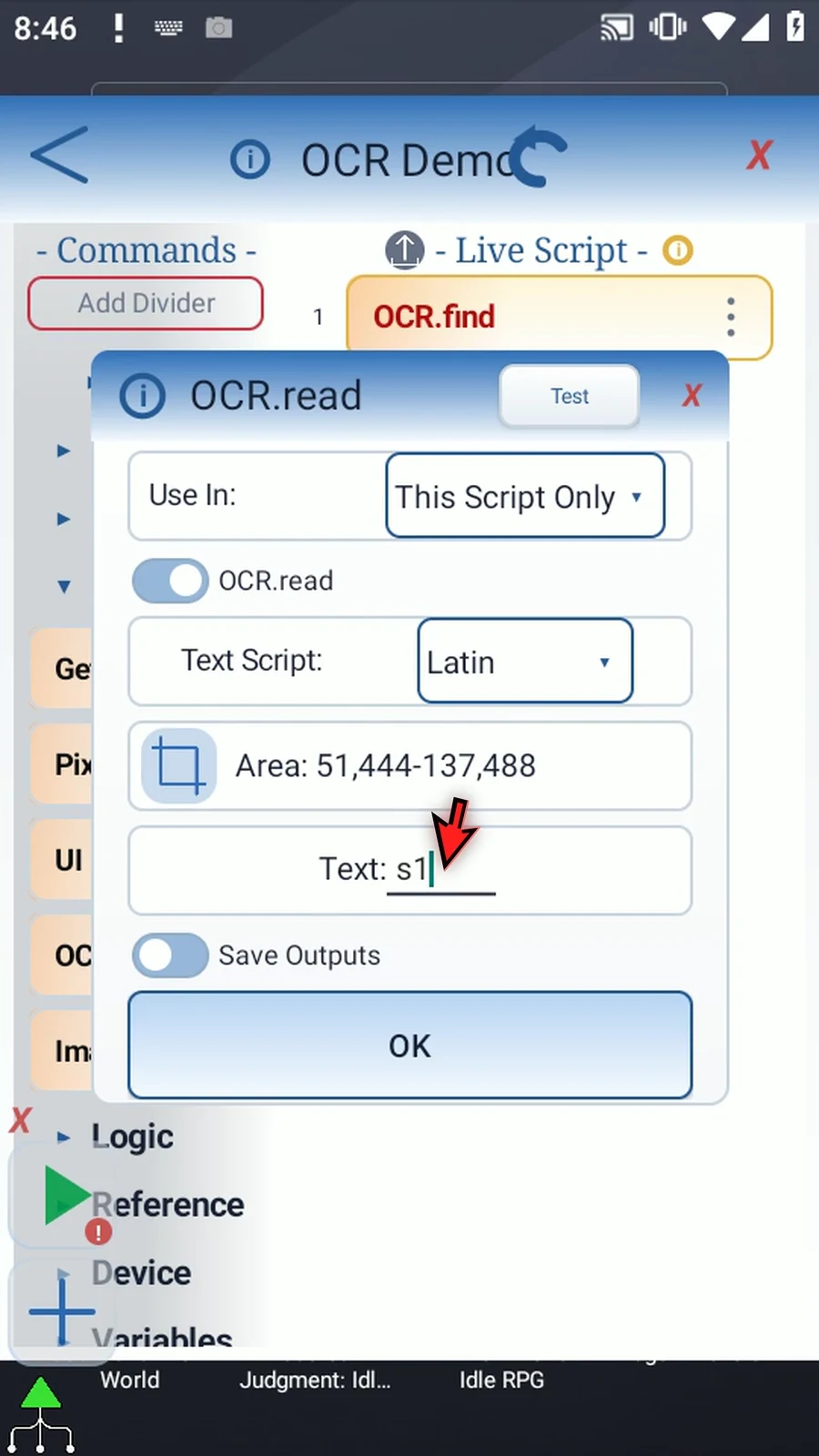
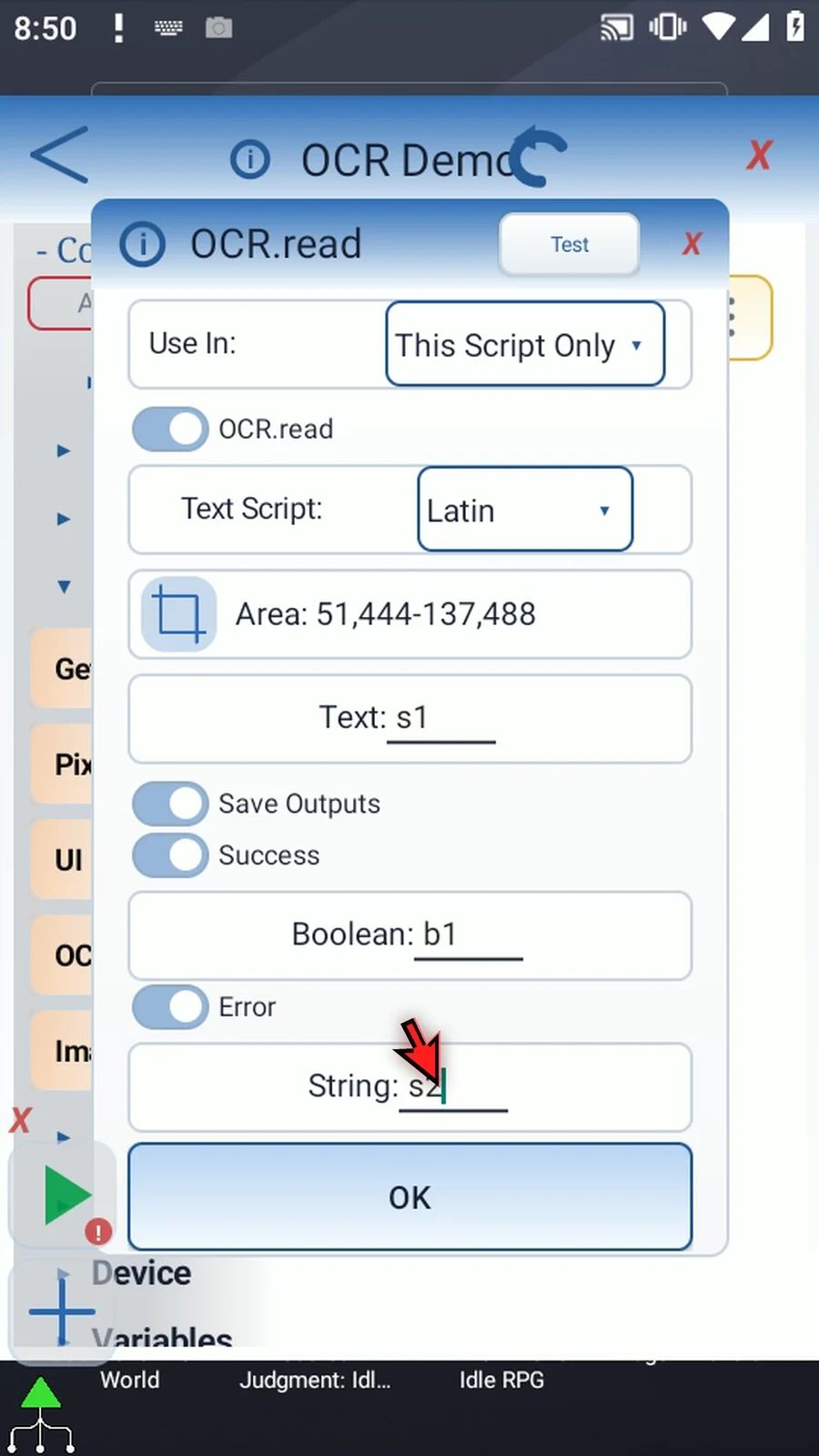
Set Text → s1. Under Save Outputs, enable Success → b1 and Error → s2. Success means recognition completed, and a successful read can be empty. It does not mean a particular word was found. Error text distinguishes capture or recognition problems from an empty result.
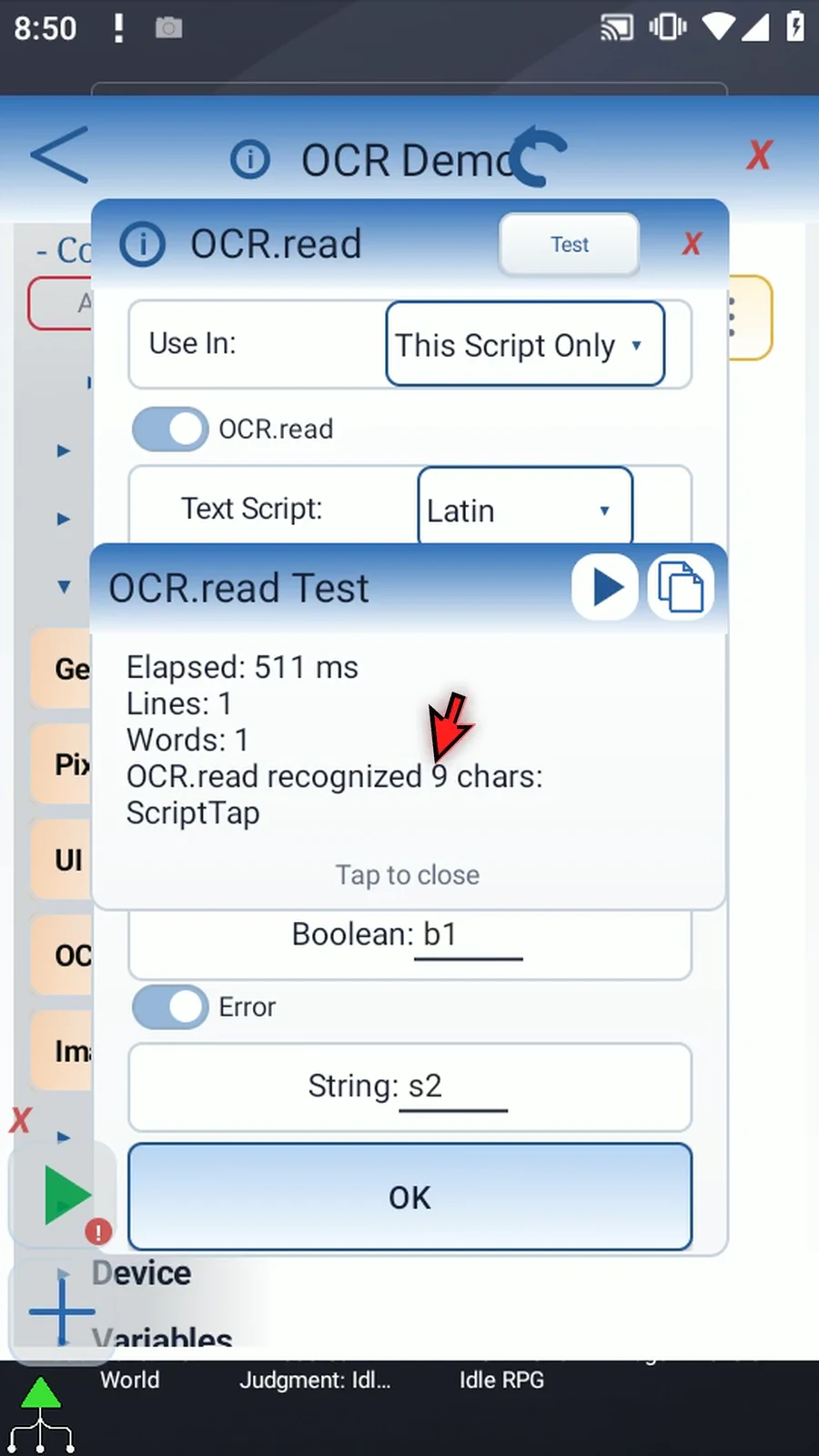
Use Test to confirm the selected region reads ScriptTap, then save. Manually drag PromptMe below OCR, keep Standard, set Header → s1, and add Done → b2. Keep Toggles & Text off. The prompt displays the recognized String rather than the literal variable token.
Close the editor and use Play. The prompt displays ScriptTap; choose Done to finish. Keep recognition regions focused, and test with the fonts and writing that the real script will encounter.
Read / OCR.read
Step-by-step guide
Step 01 O C R stands for optical character recognition. It converts text shown in an image into text the script can display or use in later commands. Read stores recognized text from a selected screen region in a String variable. Find locates specific text instead; it has a separate guide.
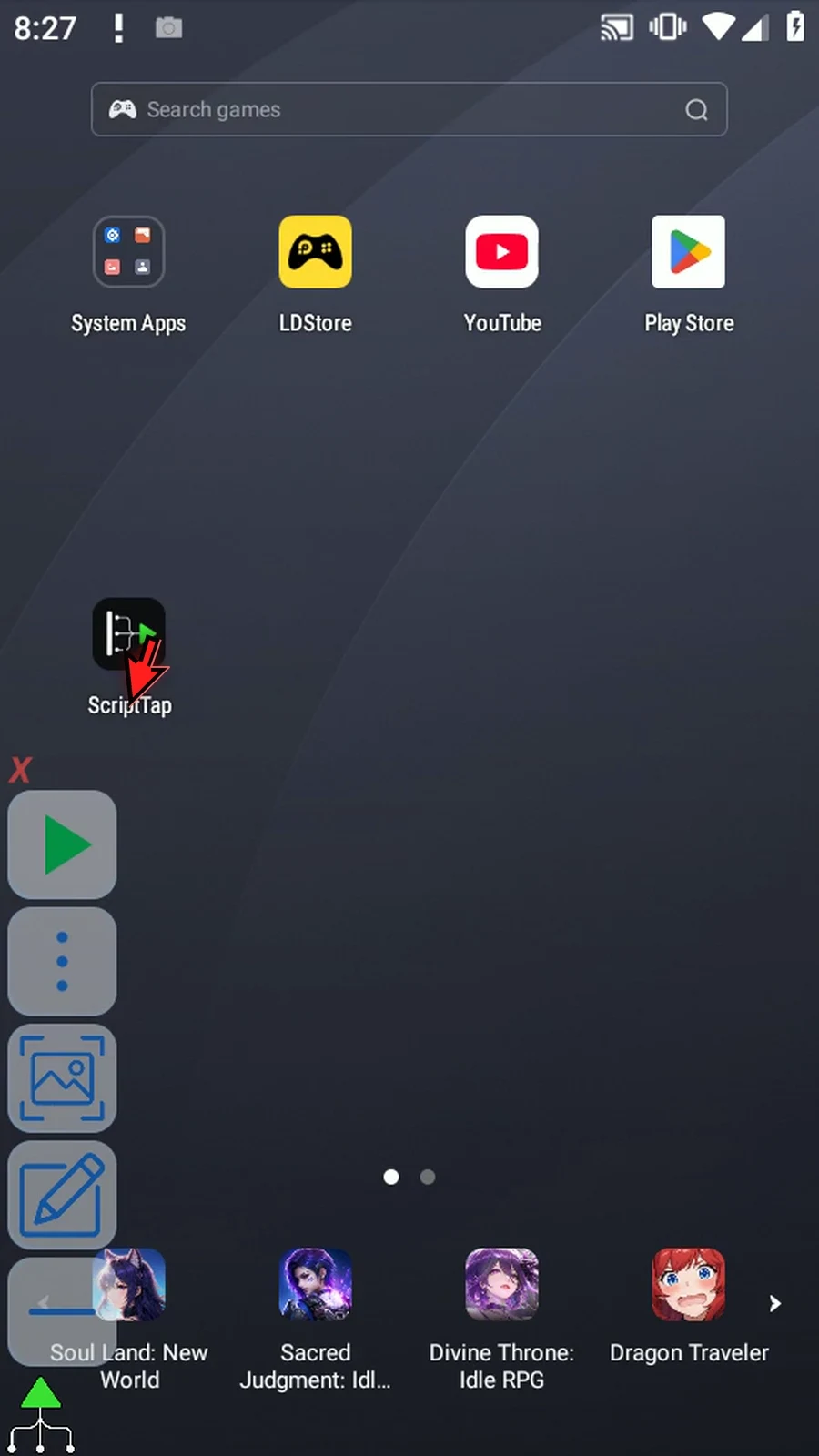
Step 02 Open Scripts from the main menu and create a new blank script. We will keep existing scripts unchanged.
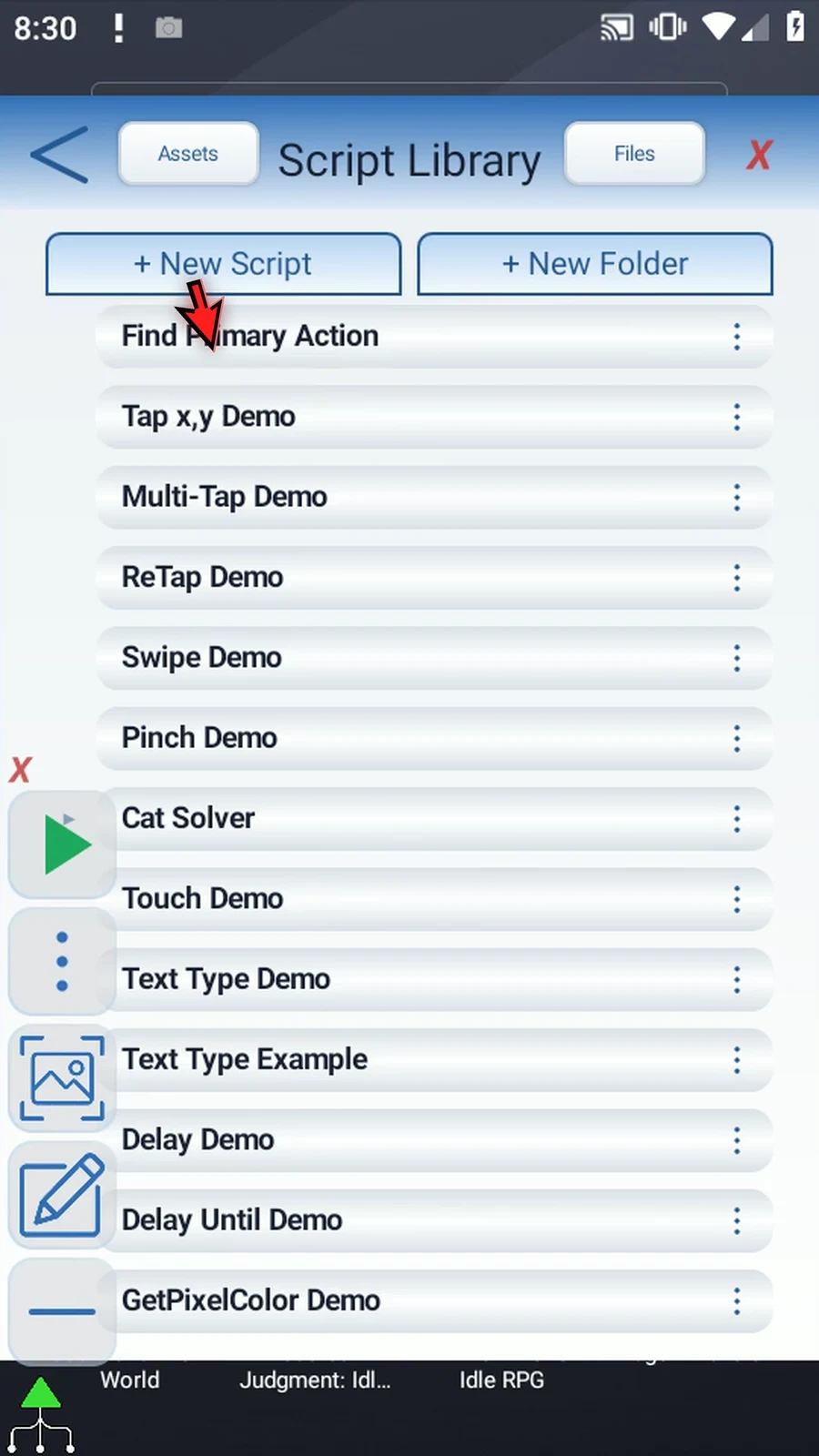
Step 03 Scroll to the new script and open its menu to rename it.
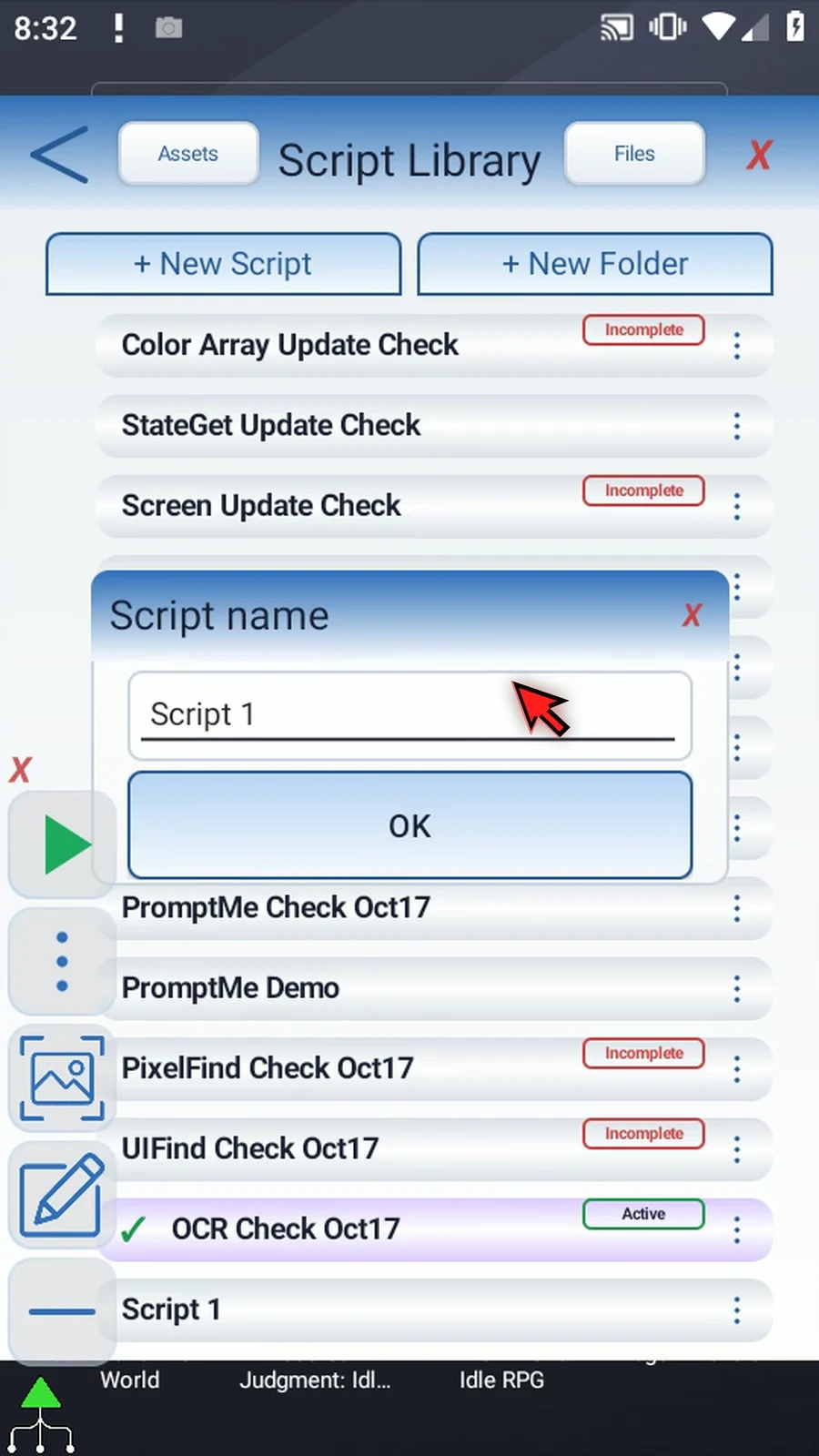
Step 04 Give the example a name. We will use O C R Demo. Select it and open the script editor.
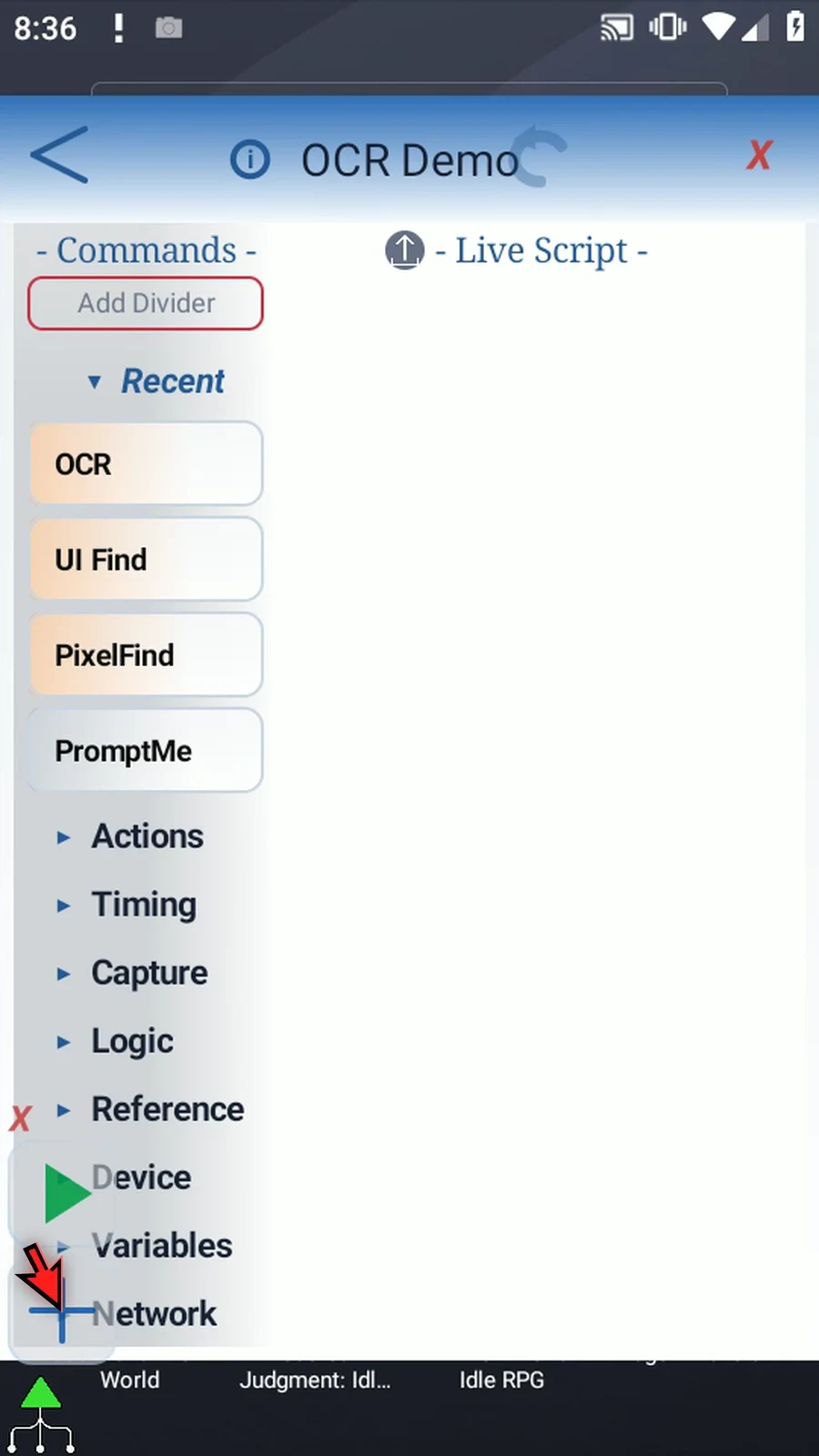
Step 05 Open Capture, then drag O C R into the live script. Double-tap the inserted command to open its settings.
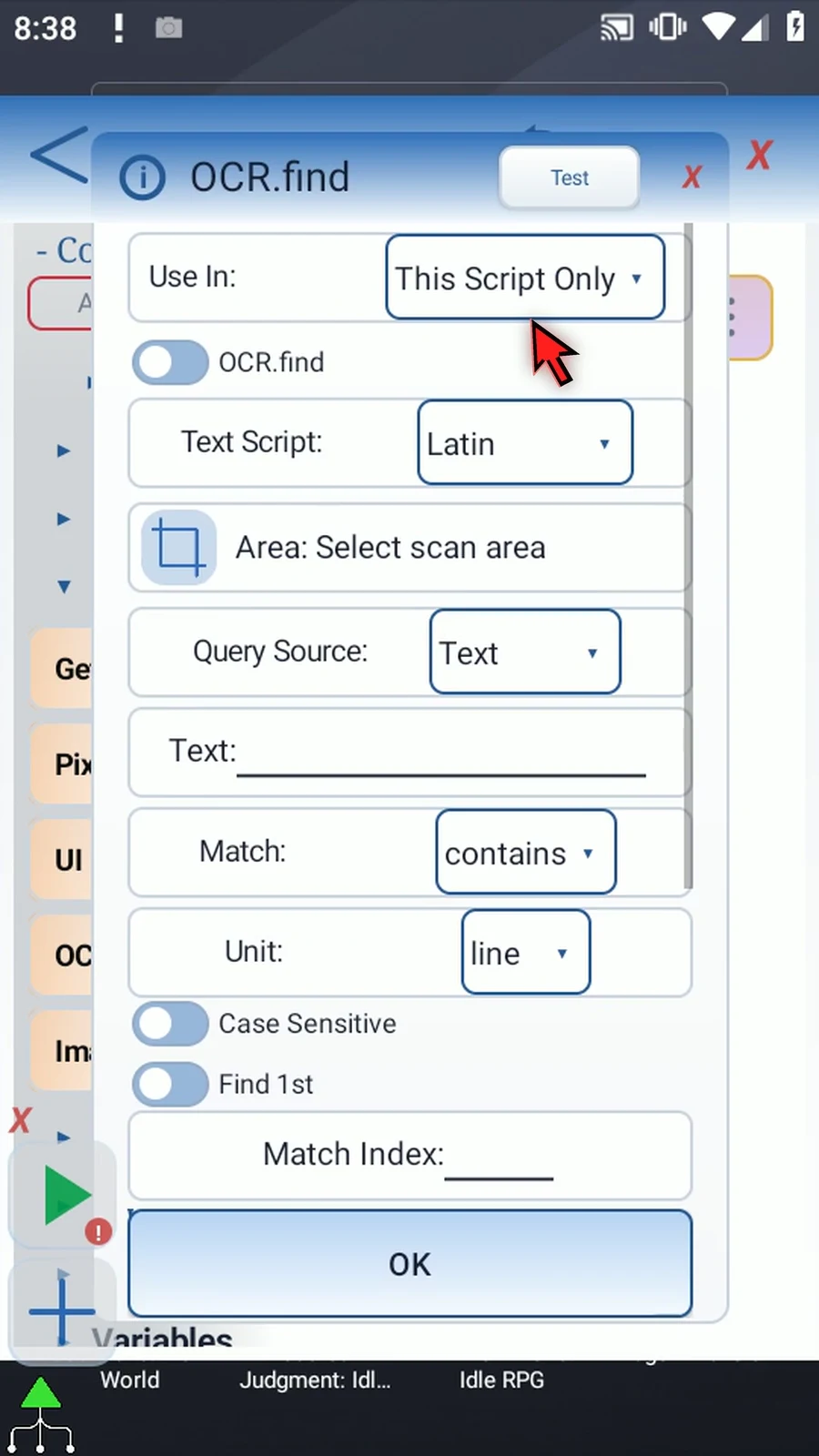
Step 06 Switch to Read. This mode reads all recognized text inside one selected region; it does not search for a particular phrase.
Step 07 Use In controls where the result variables are available. This Script Only keeps them local. Script Thread shares them within the thread. We will keep This Script Only.
Step 08 Choose the Text Script that matches the writing on screen. Latin, Chinese, Devanagari, Japanese, and Korean are available. We will use Latin for the ScriptTap label.
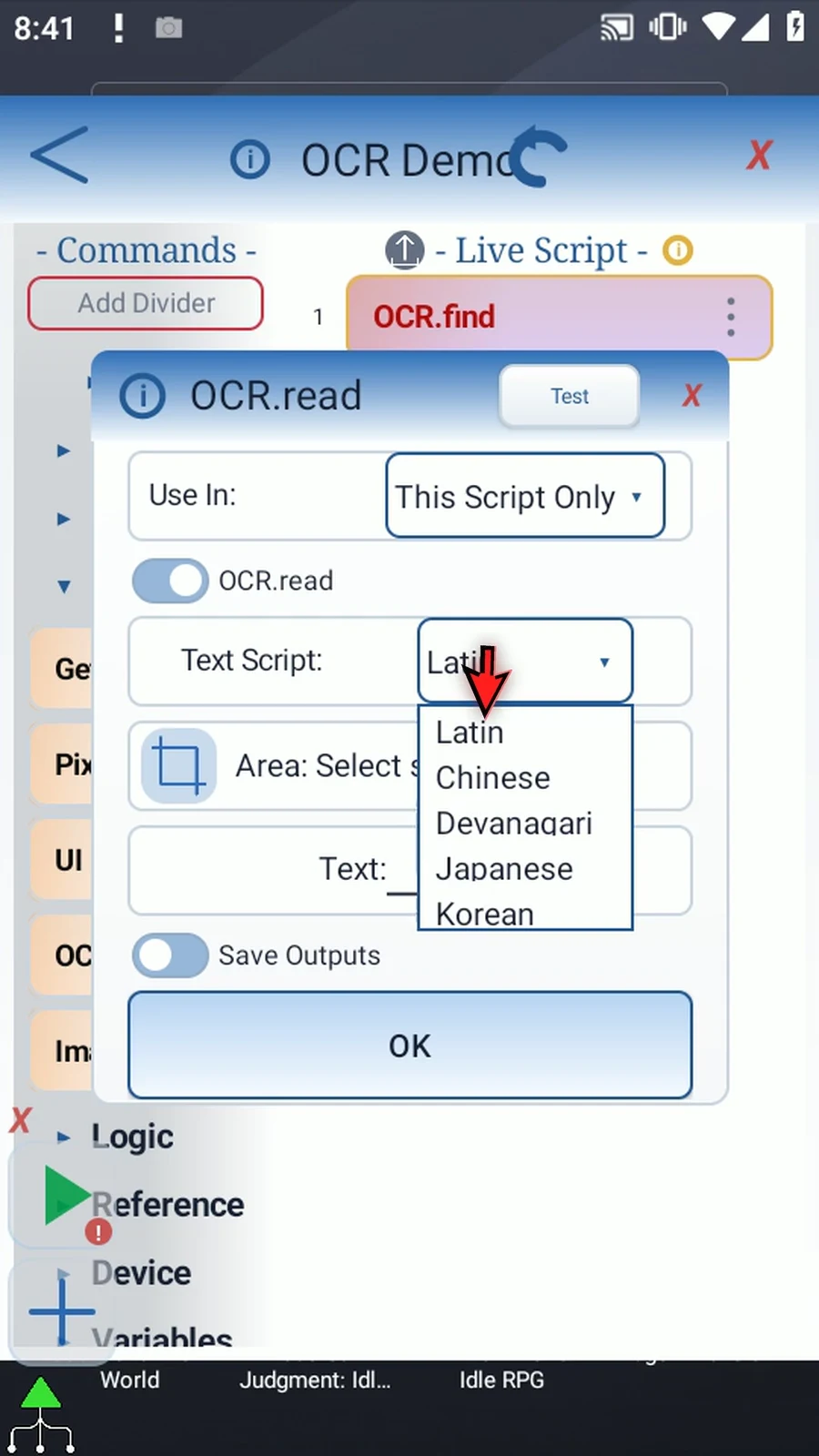
Step 09 Use the Area selector and resize the region around the ScriptTap label. Keep the text fully inside it. If Android asks, allow screen capture.
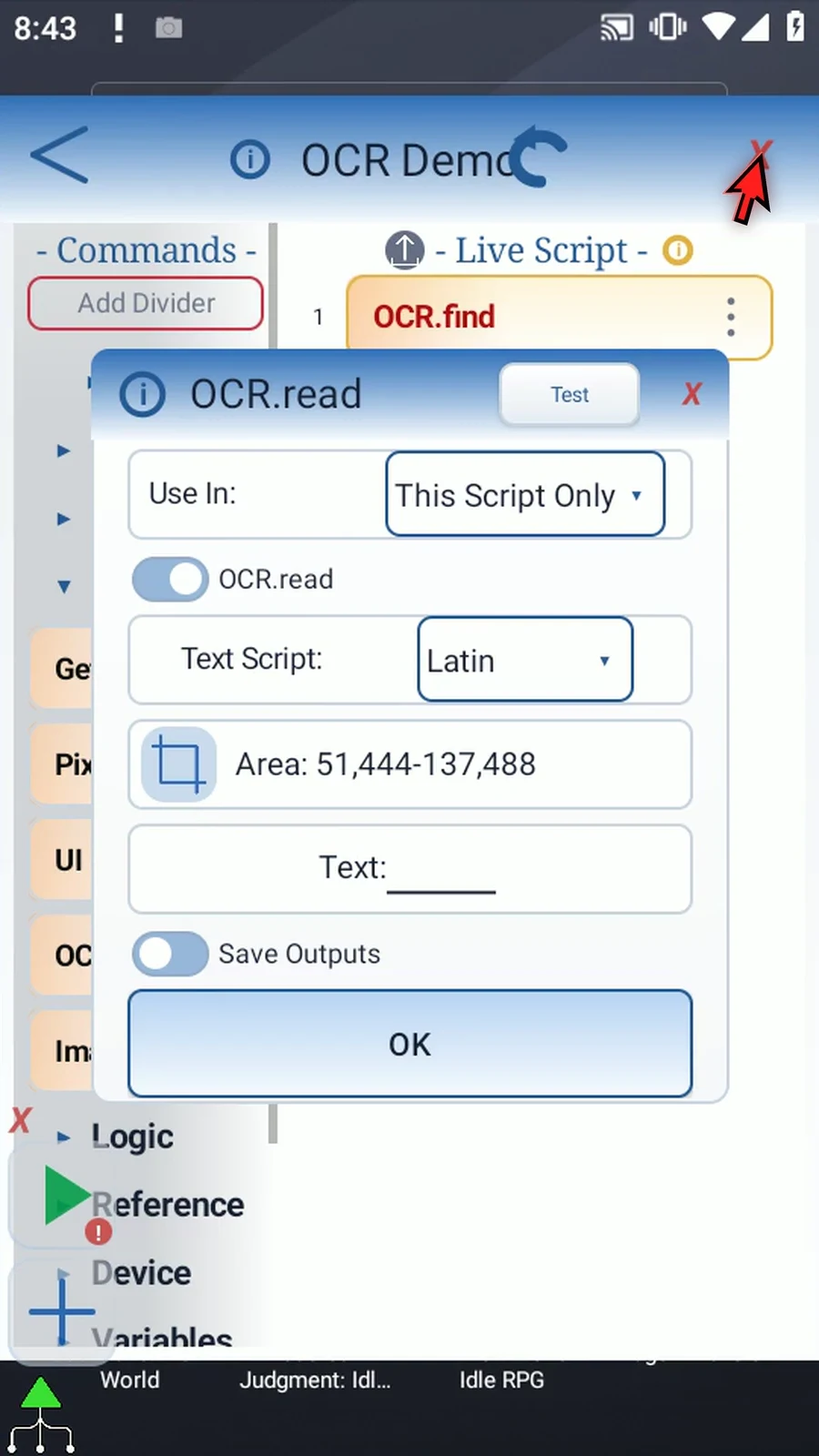
Step 10 Double-tap the Area value for exact coordinates. These fields accept pixel numbers or Integer variables written earlier in the script. We will keep our selected region.
Step 11 Set Text to s1. This String variable will receive the recognized text for use by later commands.
Step 12 Save Outputs adds optional status information. Enable Success and use b1 for its Boolean value. Enable Error and use s2 for any error message.
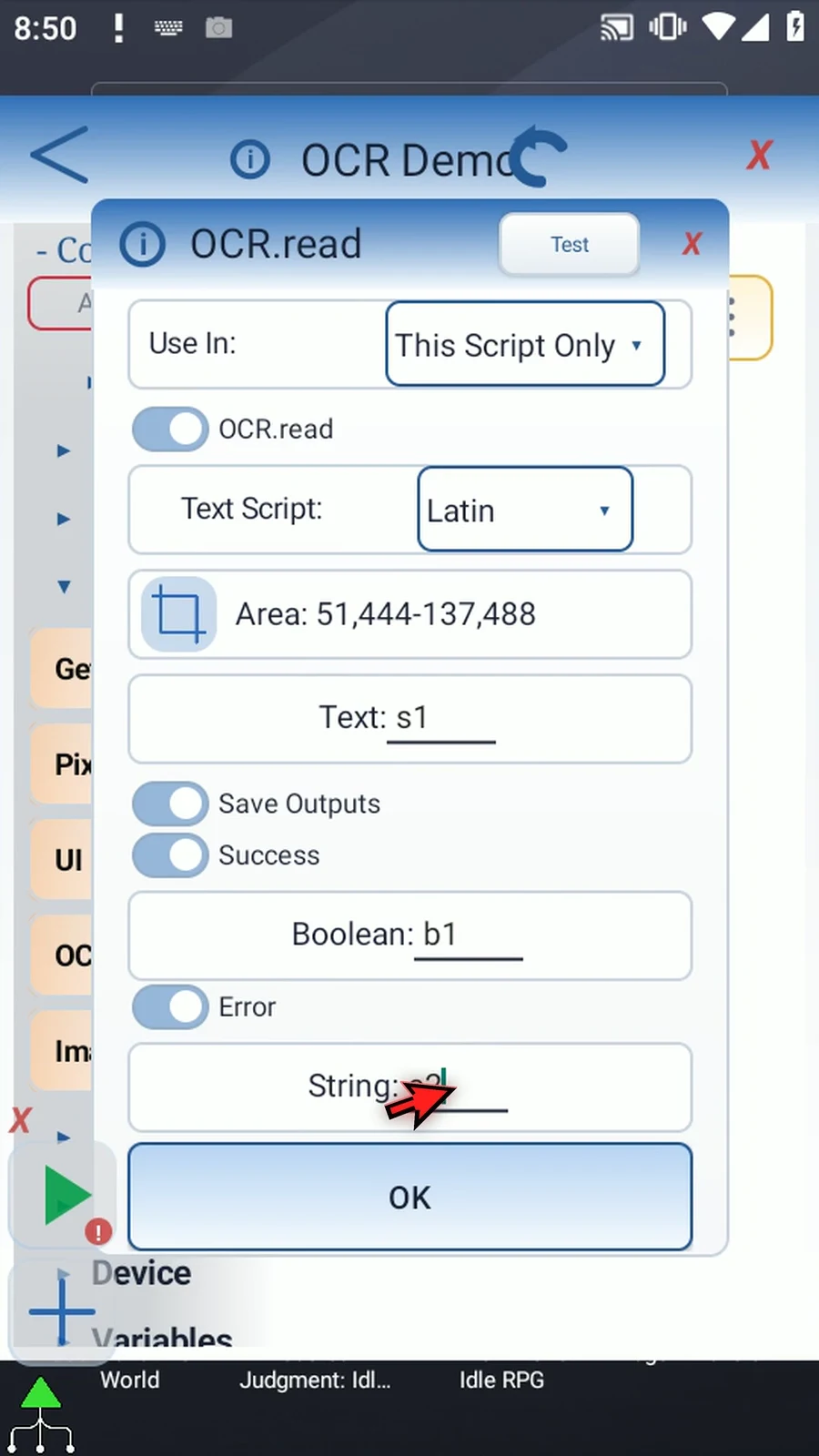
Step 13 Success means recognition completed, not that a particular word was found. A successful read can be empty. Error text helps distinguish a capture or recognition problem from an empty result.
Step 14 Use Test to check the selected region. Here it recognizes ScriptTap. This is a useful check before relying on the text in a longer script.
Step 15 Tap O K to save. Next, we will add a prompt so the recognized text has a clear visible result.
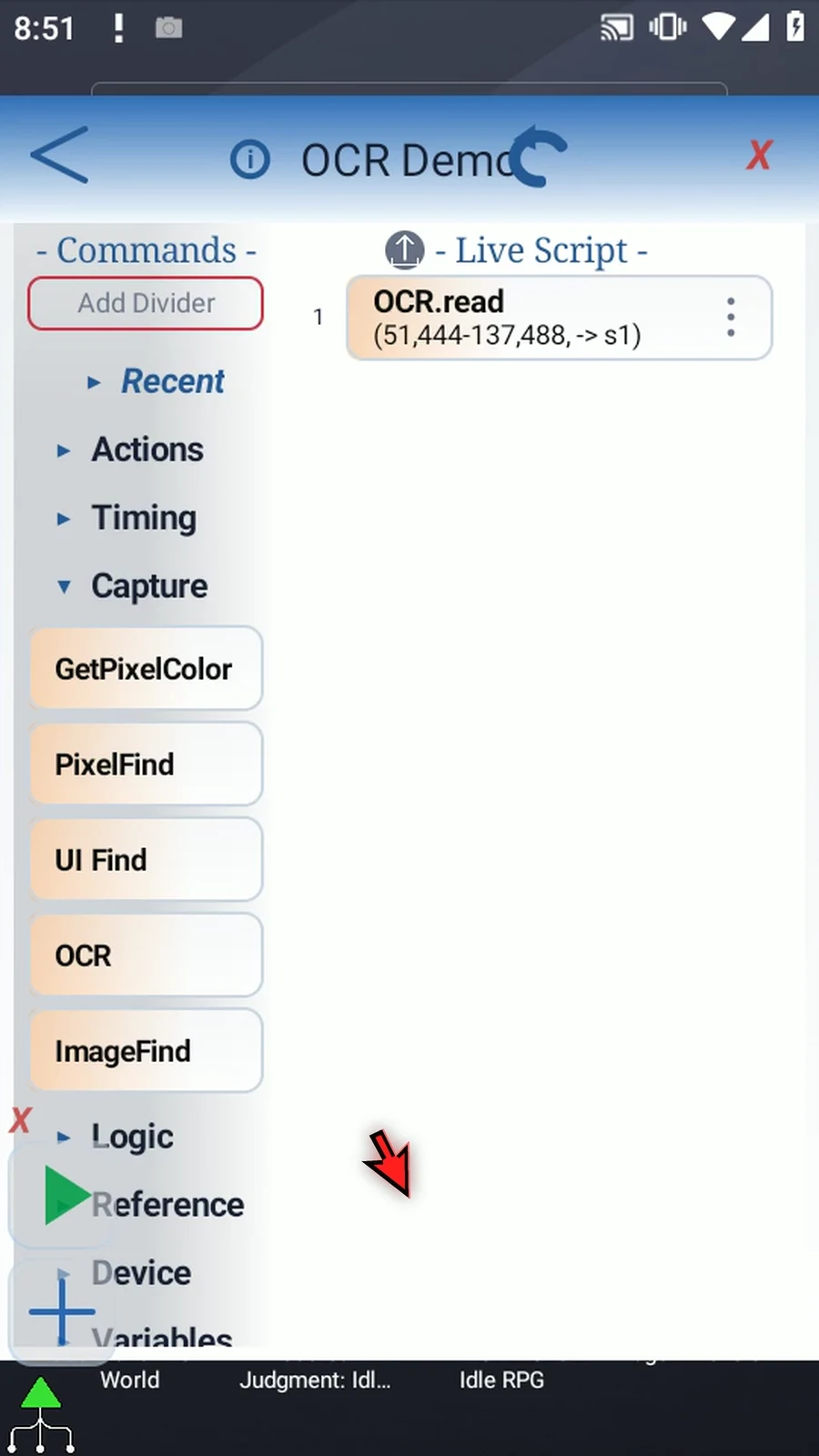
Step 16 Drag PromptMe below O C R. This supporting command will display the String produced by Read.
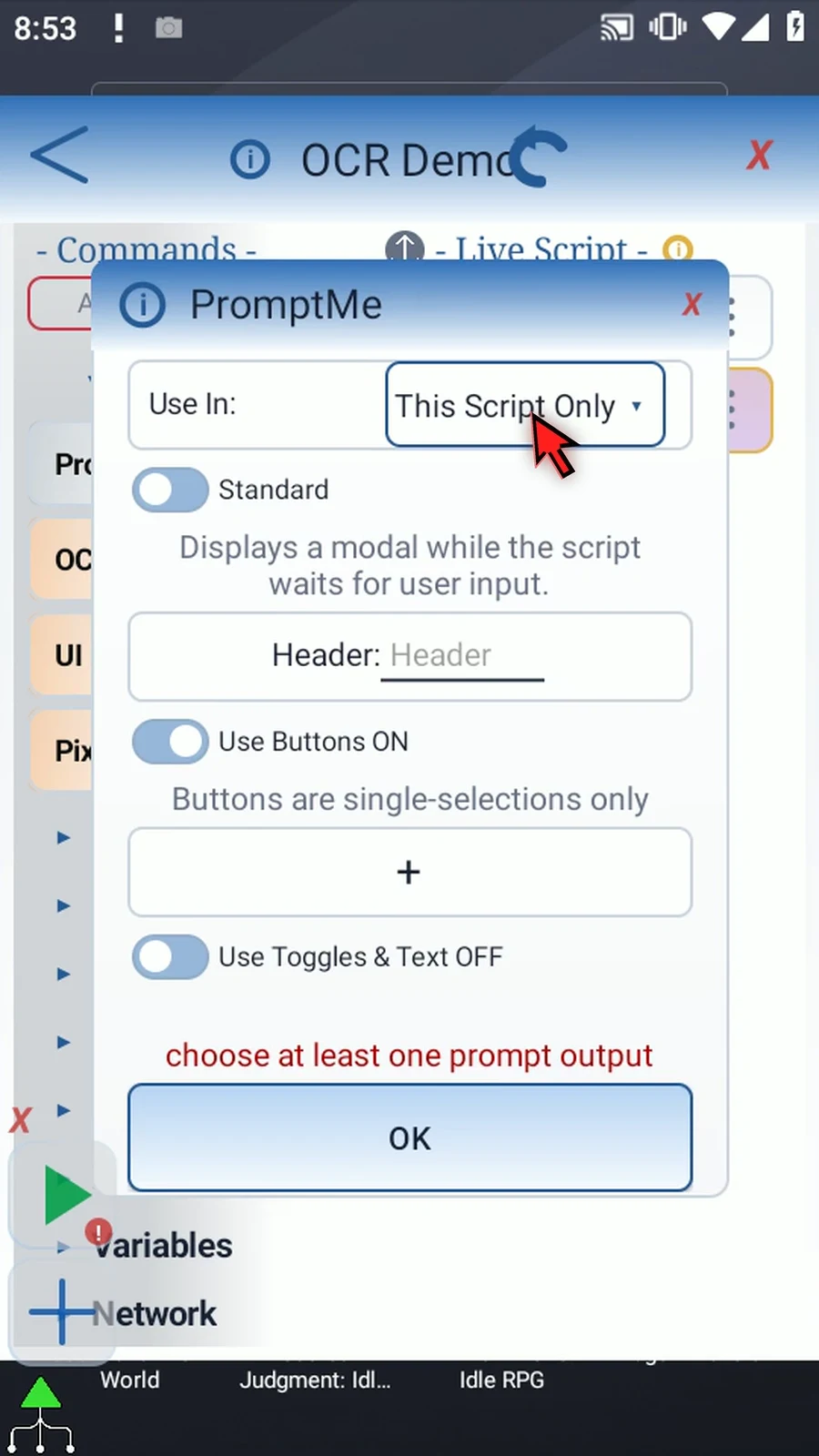
Step 17 Keep Standard and set Header to s1. Add a Done button with b2 as its Boolean output, then save. The header will use the String value, not the letters s one.
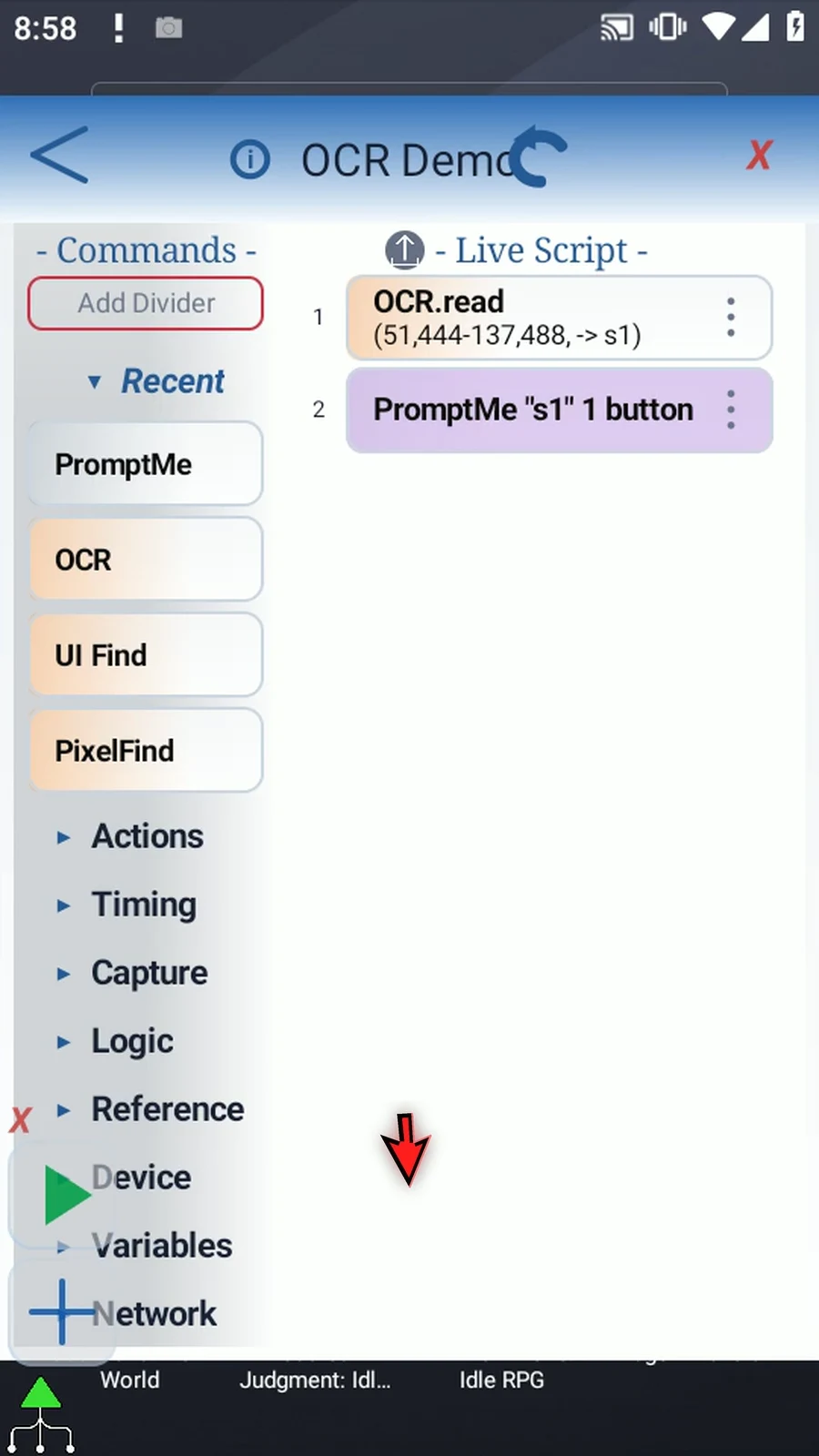
Step 18 When the script is complete, simply use the Play button in the main overlay.
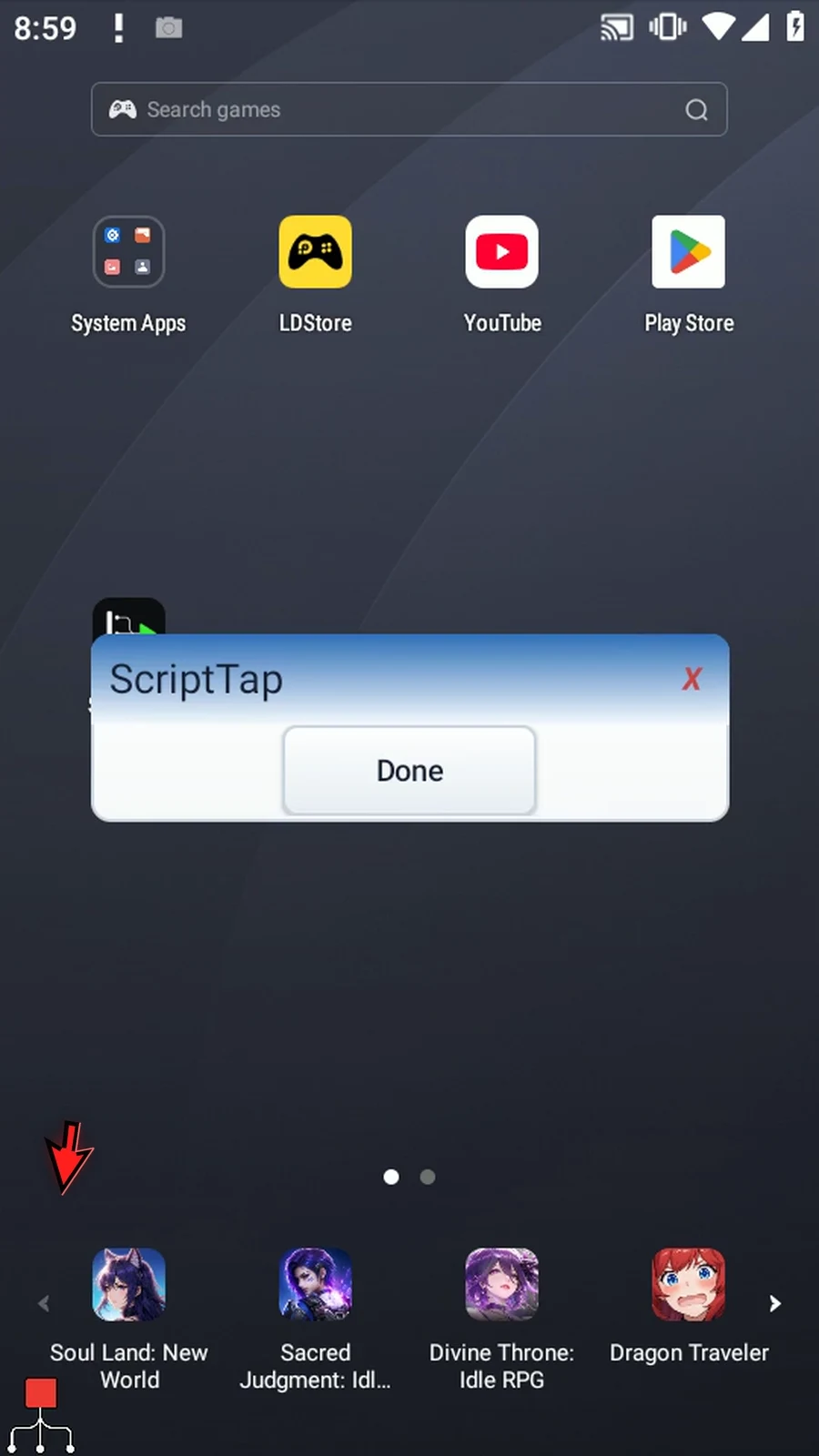
Step 19 The prompt shows ScriptTap. O C R read that from the screen and saved it in s1; PromptMe is only displaying the result. Choose Done to finish the script.
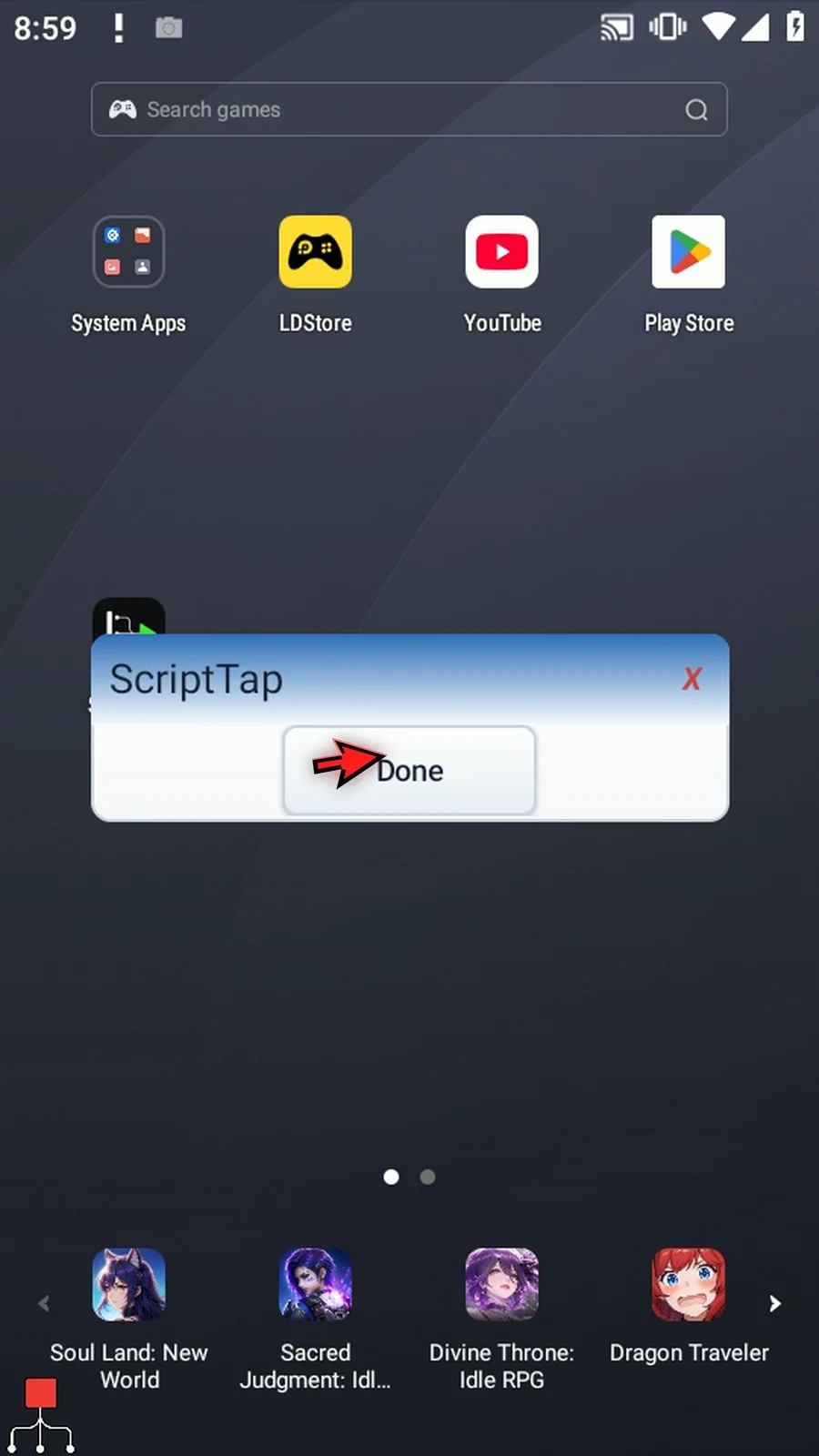
Step 20 Recognition runs on the device, using only the selected area. Keep that area focused and test with the fonts and writing your script will encounter. Use the Find guide when you need to locate or tap specific text.
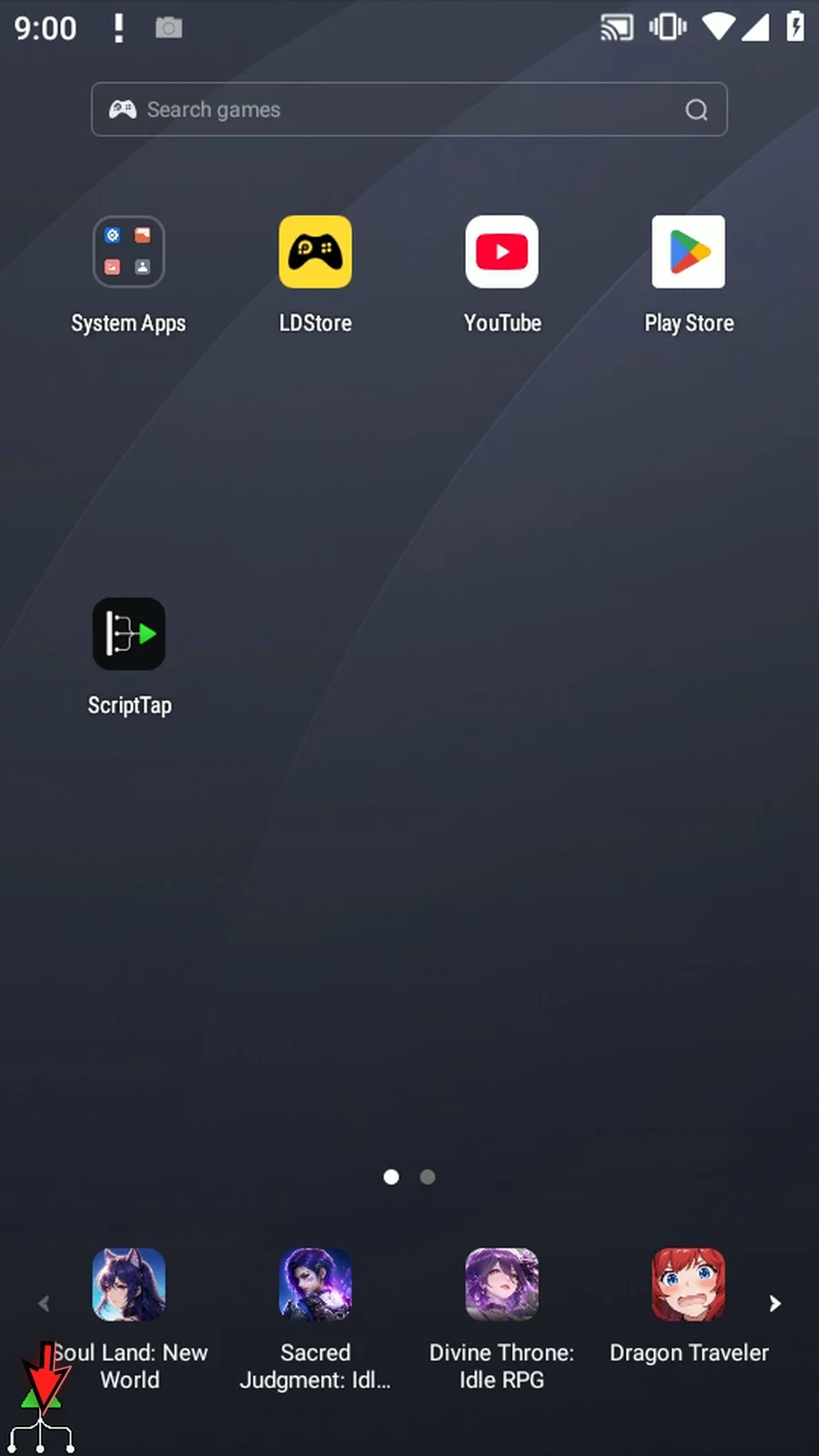
OCR means optical character recognition: converting text in an image into text the script can use. Find locates particular text in a selected screen region, optionally taps it, and saves its text and center coordinates. Use Read when you want all recognized text in the region instead.
Continue with OCR Demo from the Read guide, containing OCR followed by a Standard PromptMe with Header → s1 and Done → b2. Switch OCR to Find. Changing modes clears the outgoing mode's own settings, so configure Find's outputs again.
Keep Latin and select an Area enclosing the complete Play Store launcher label. If Android asks, allow screen capture. Query Source can be literal Text or a String variable written earlier. Use literal Play Store, Exact and line, with Case Sensitive off. Contains accepts part of a recognized unit, Exact compares the whole unit, and Regex uses a regular-expression pattern. Unit can be line or word.
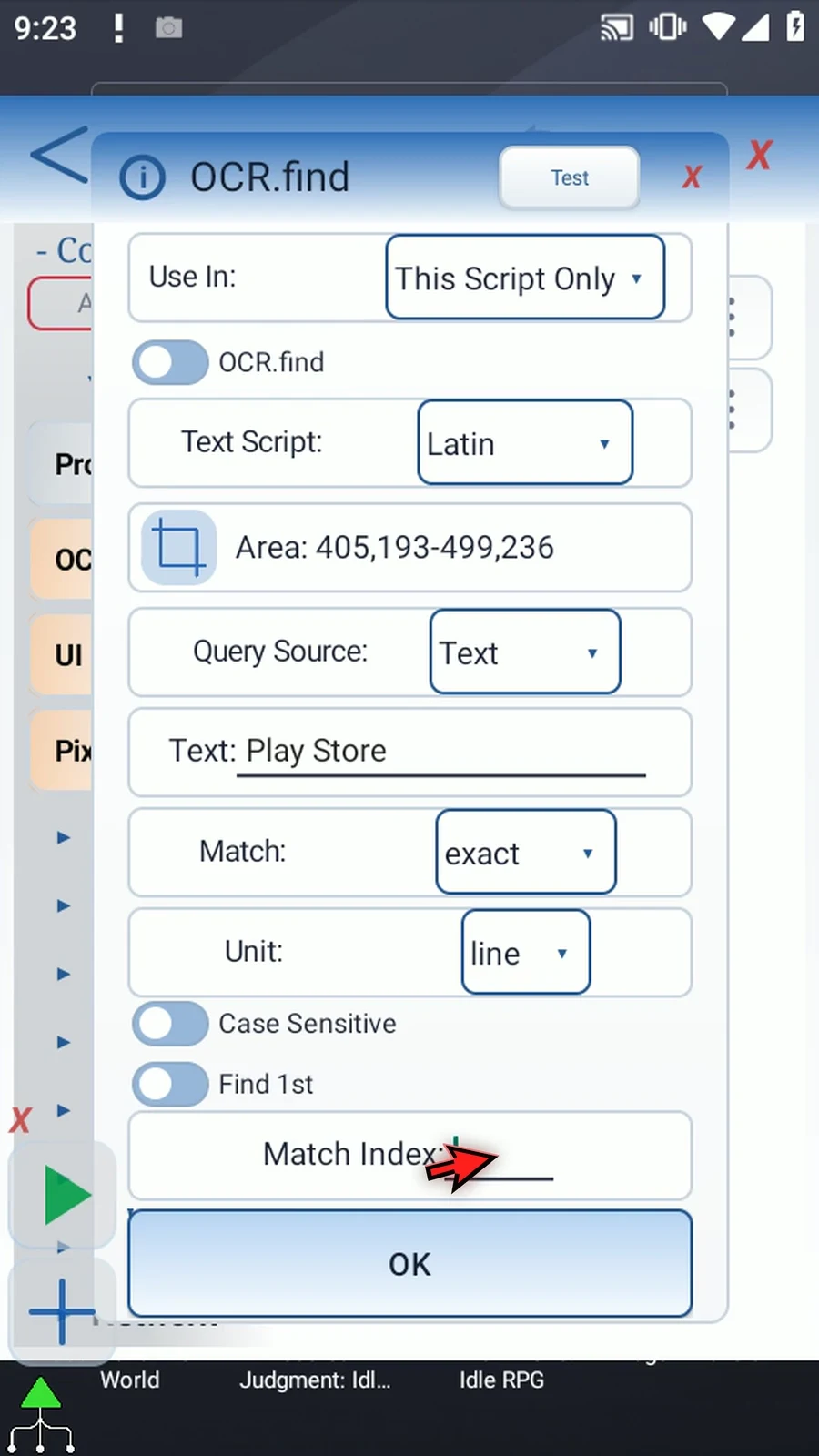
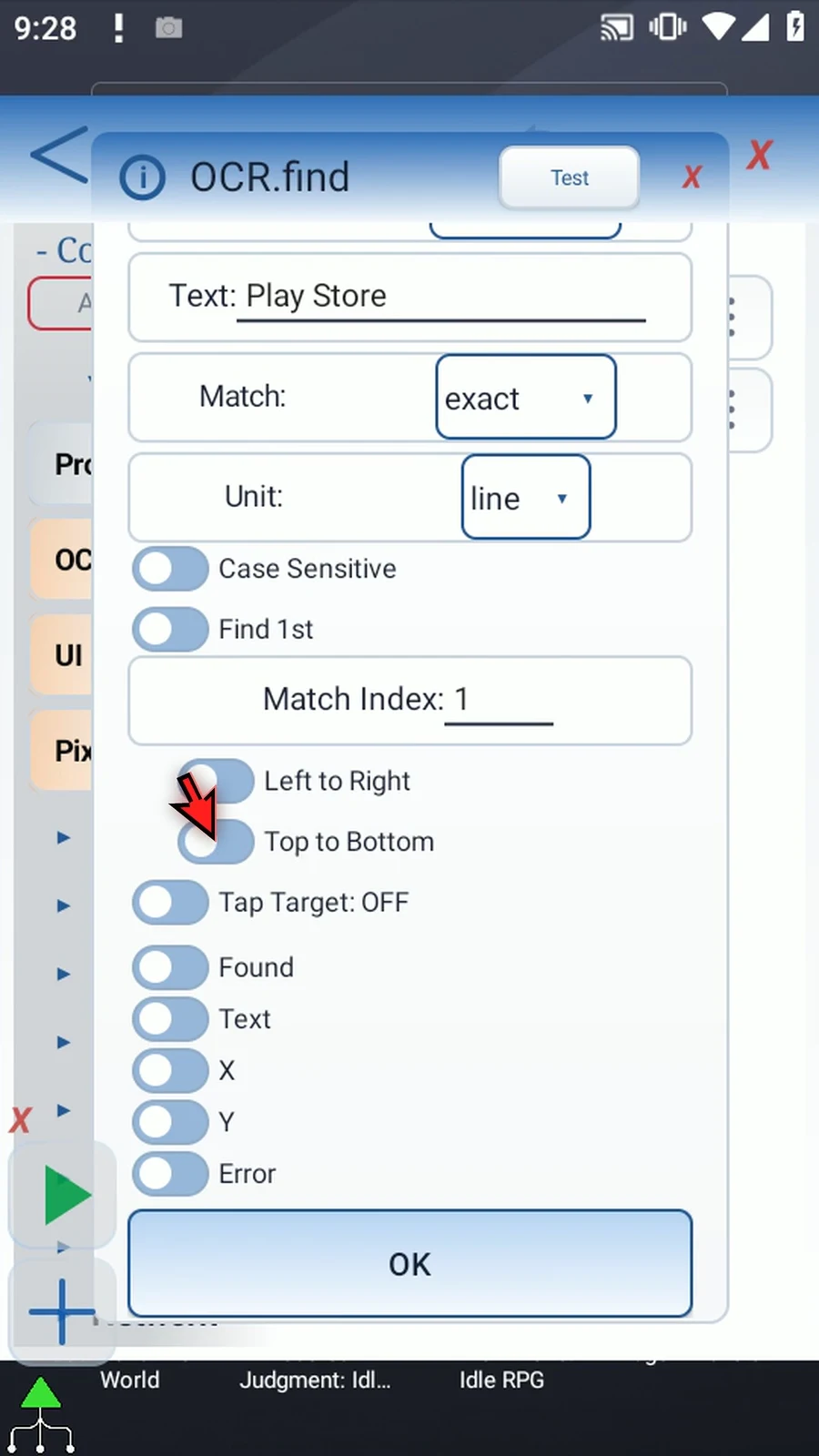
Find All evaluates matching units in top-to-bottom, left-to-right order. Its saved text and coordinates are still scalar outputs for the first match, not arrays. Find First uses a positive Match Index and the chosen horizontal and vertical scan directions. The index accepts a number or an Integer variable written earlier. Use index 1 and the default directions here.
Enable Tap Target and choose Center to tap the recognized match. Set Coordinates uses a fixed point after a match is found. For Find All, Center taps each match, while a fixed target is tapped only once. With Tap Target off, recognition does not tap the screen.
Enable Found → b1, Text → s1, X → x1, Y → y1 and Error → s2. X and Y are Integer outputs for the matched center. An ordinary no-match sets Found false, Text empty and saved coordinates to zero; it is distinct from a capture or recognition error.
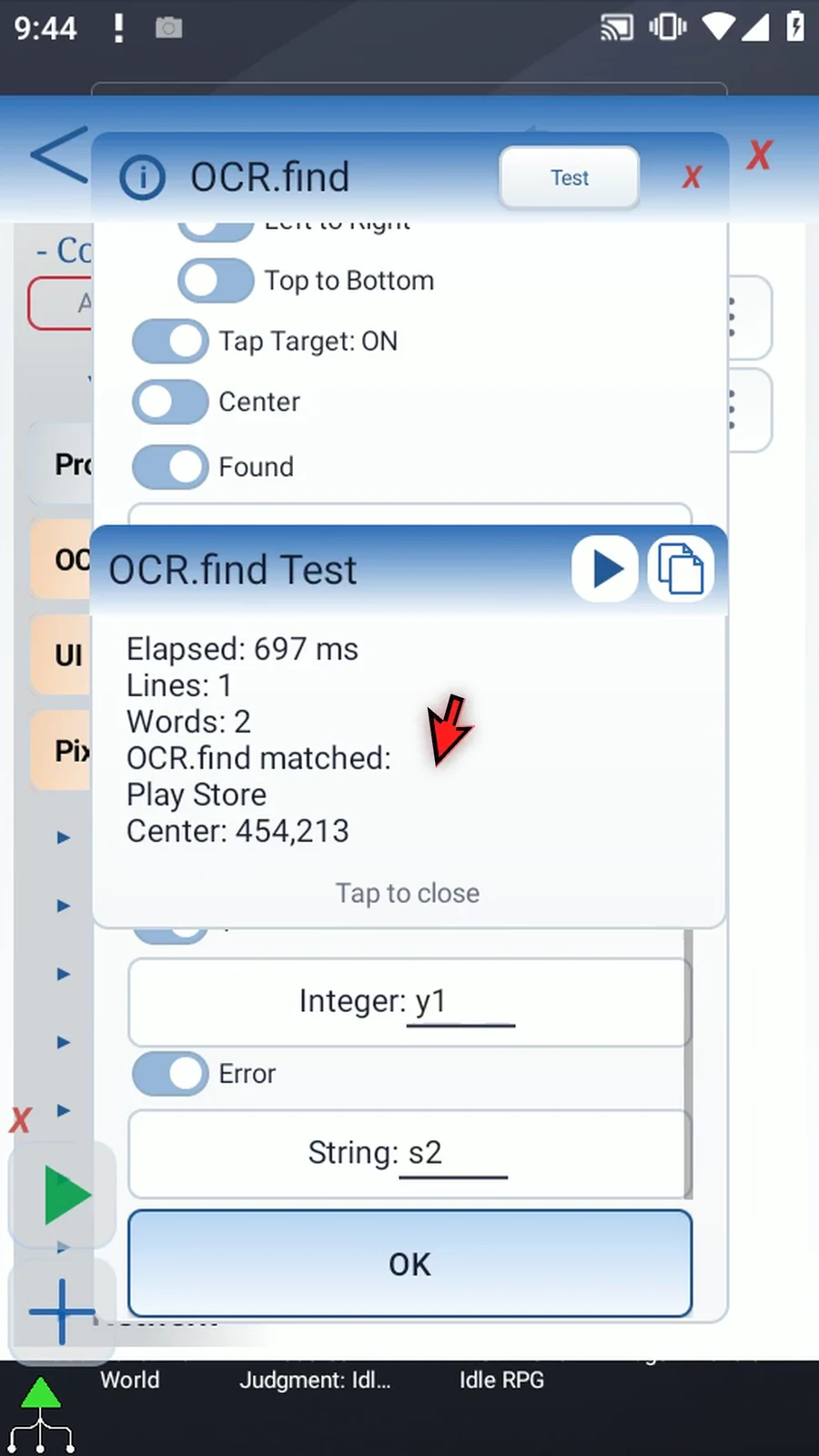
Test reports Play Store and center 454,213 without opening the app. Save, then manually drag Delay between OCR and PromptMe and set it to 1000 ms. Play finds and taps the label, lets the app open, and displays Play Store in the prompt. Choose Done to finish. This is useful when visible text identifies a target but no usable Accessibility element is exposed. Keep the search region focused and test on the actual screens.
Find
Step-by-step guide
Step 01 O C R stands for optical character recognition. It converts text shown in an image into text the script can display or use in later commands. Find looks for specific text in a selected screen region. It can tap the match or save its text and position, rather than reading the whole region like Read.
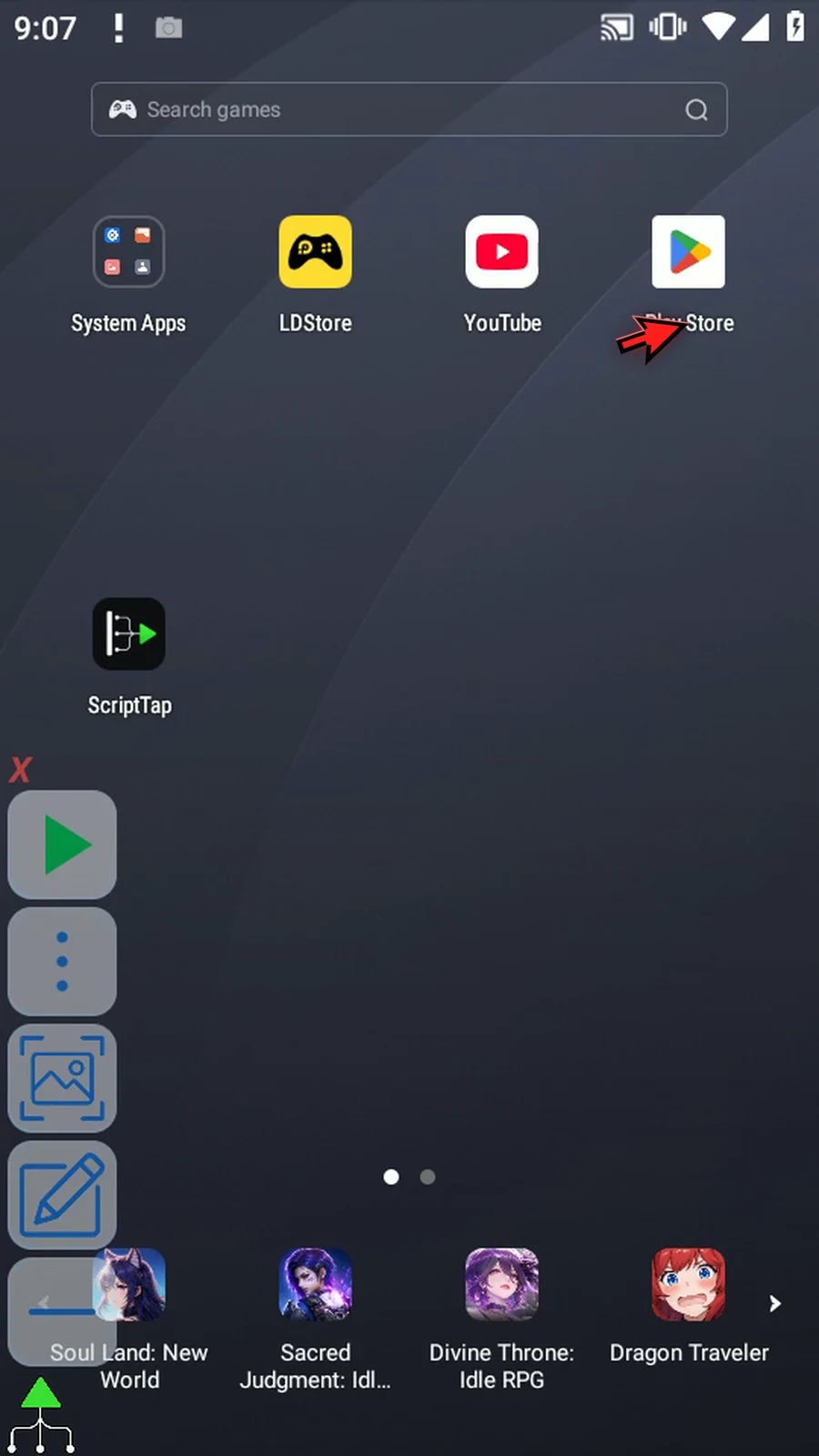
Step 02 We will continue with the example from the Read guide: O C R followed by a regular PromptMe with Header set to s1. The prompt will display the matched text.
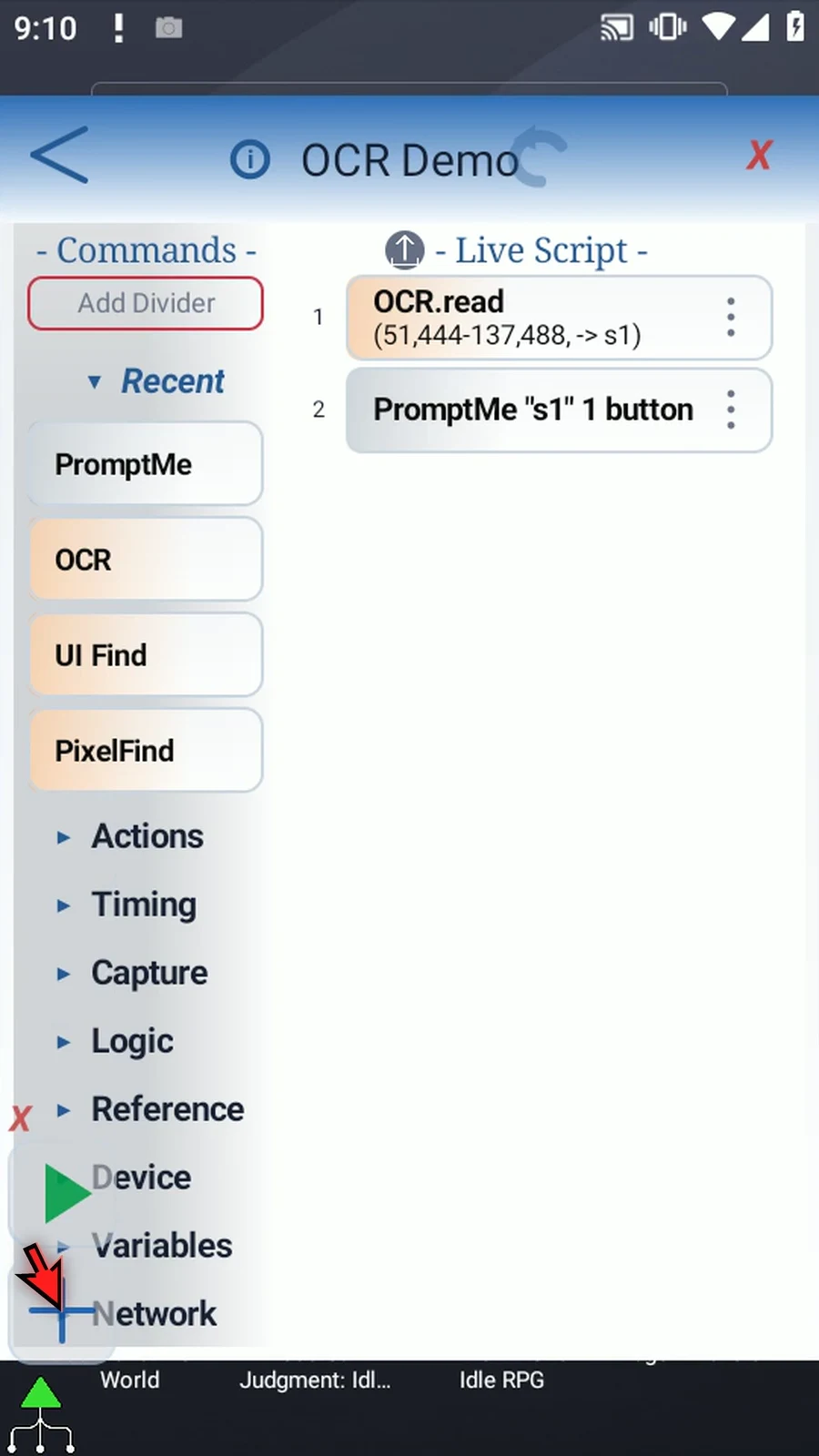
Step 03 Open the O C R command and switch to Find. Changing the mode clears the outgoing mode's own settings, so we will configure the Find outputs again.
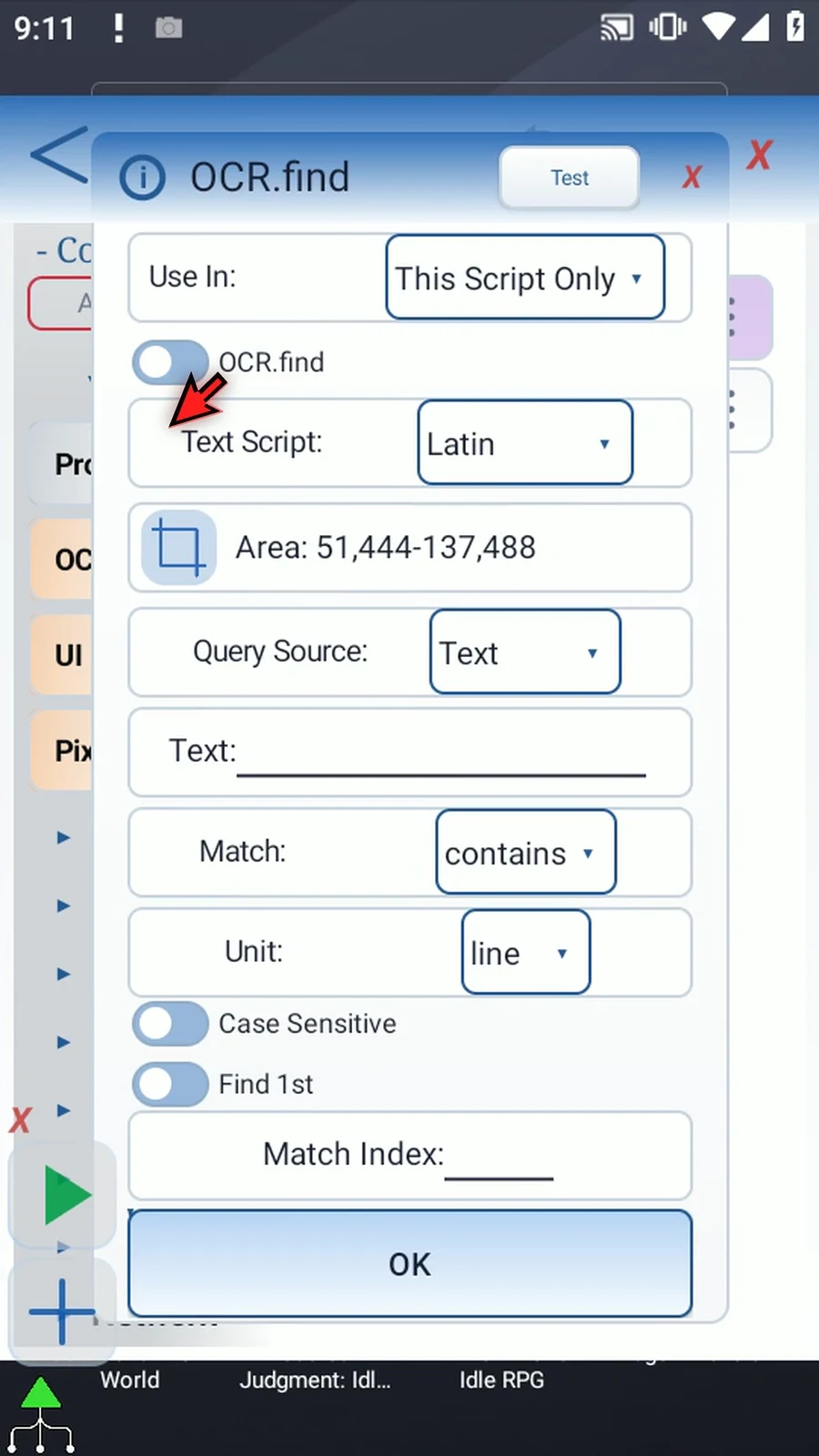
Step 04 Keep Latin and select an Area around the Play Store label on the home screen. If Android asks, allow screen capture. The region must include the whole label.
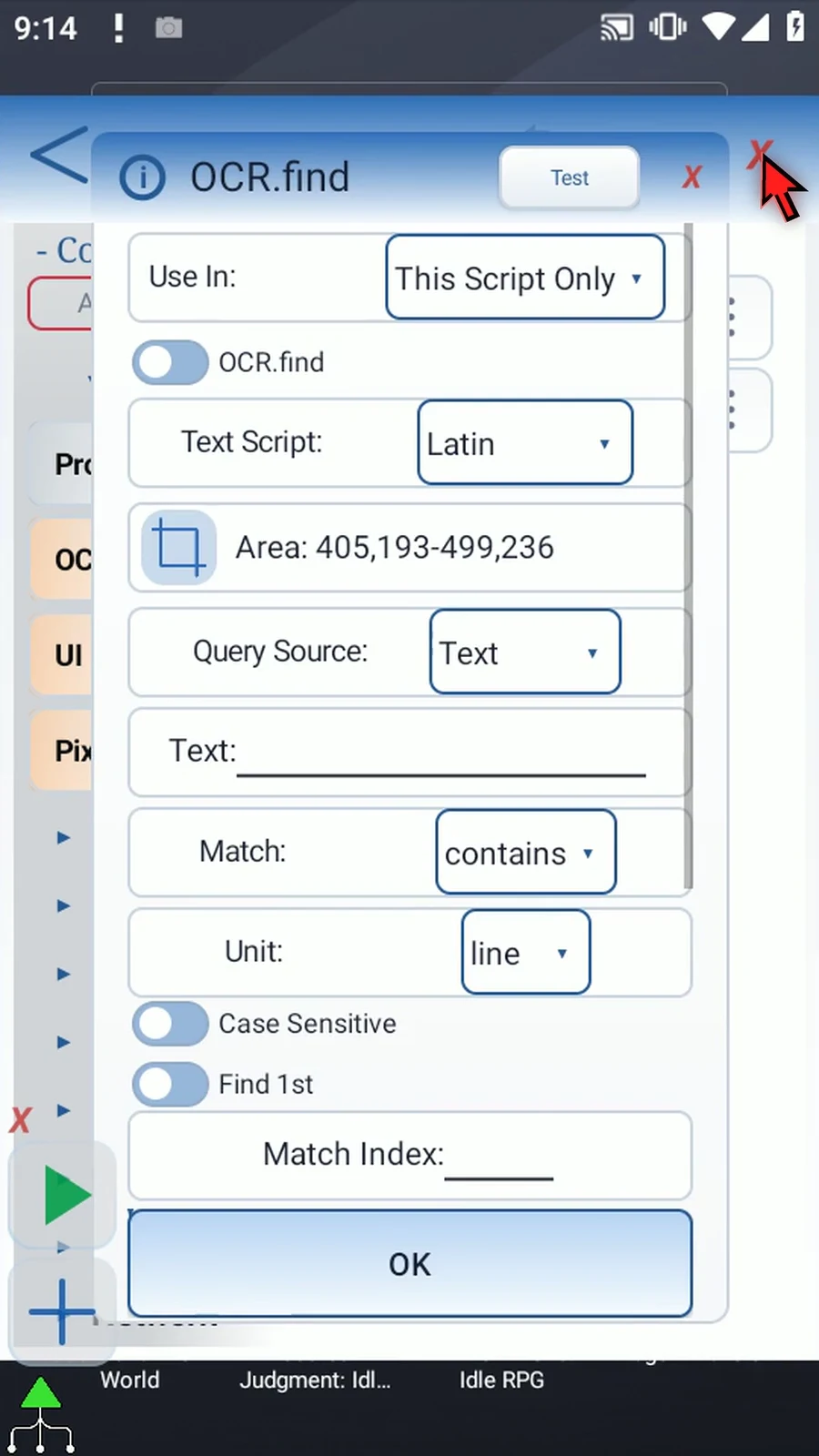
Step 05 Query Source can be Text that you enter here, or a String variable written by an earlier command. We will use Text in this example.
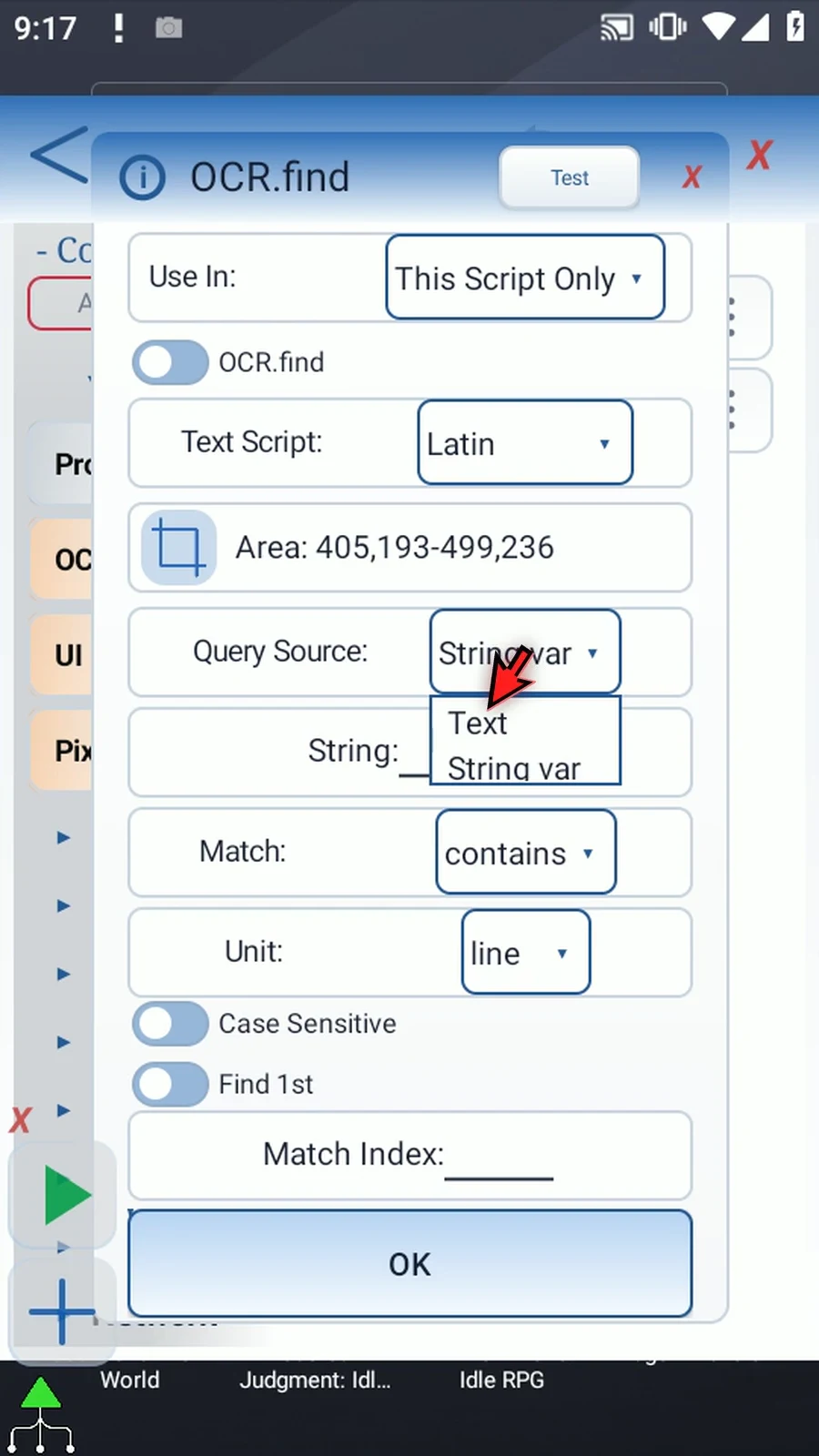
Step 06 Enter Play Store as the text to find. The query is compared with recognized text inside our selected area.
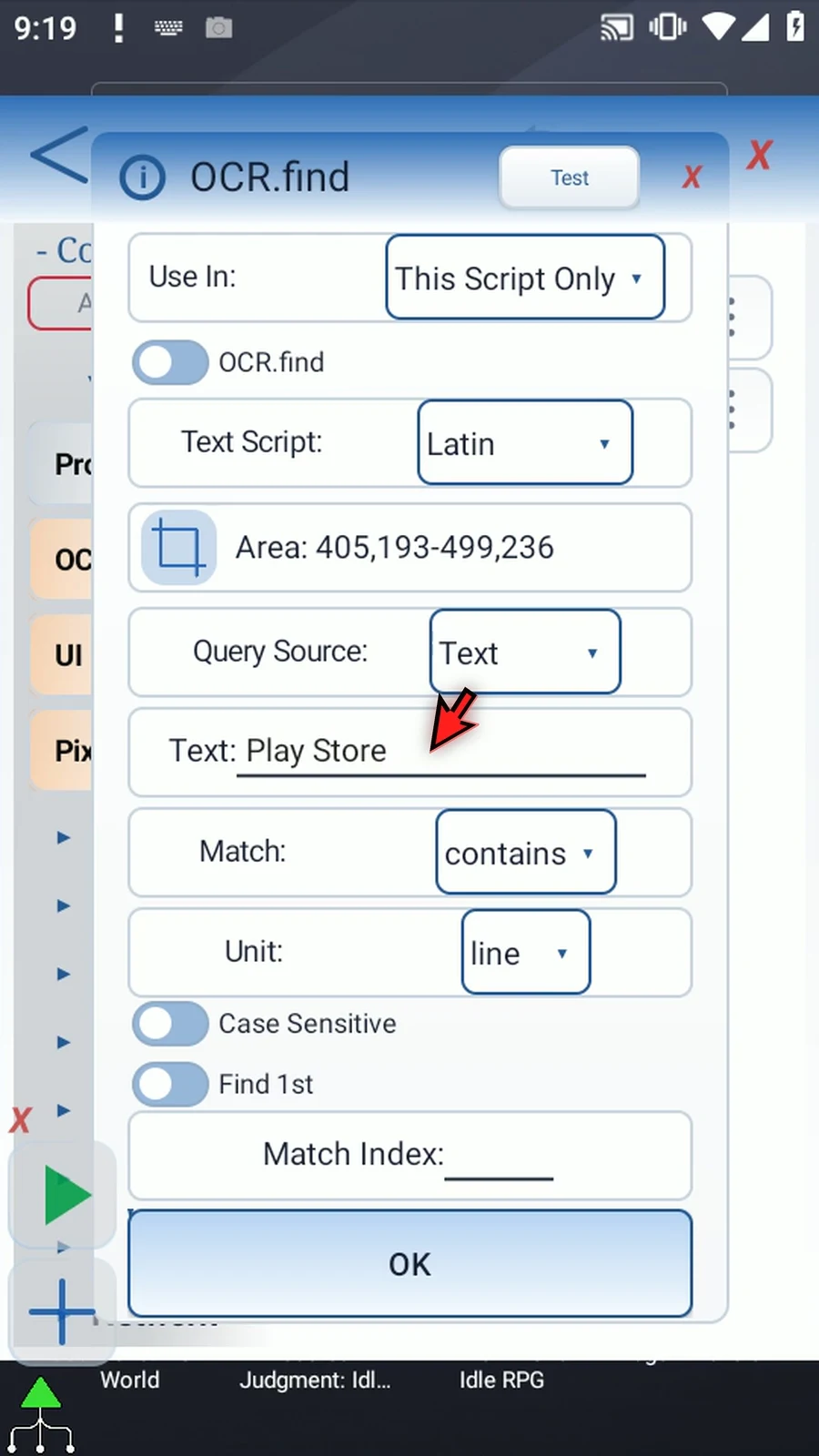
Step 07 Contains accepts part of the recognized text. Exact compares the whole selected text unit. Regex uses a regular-expression pattern. We will choose Exact.
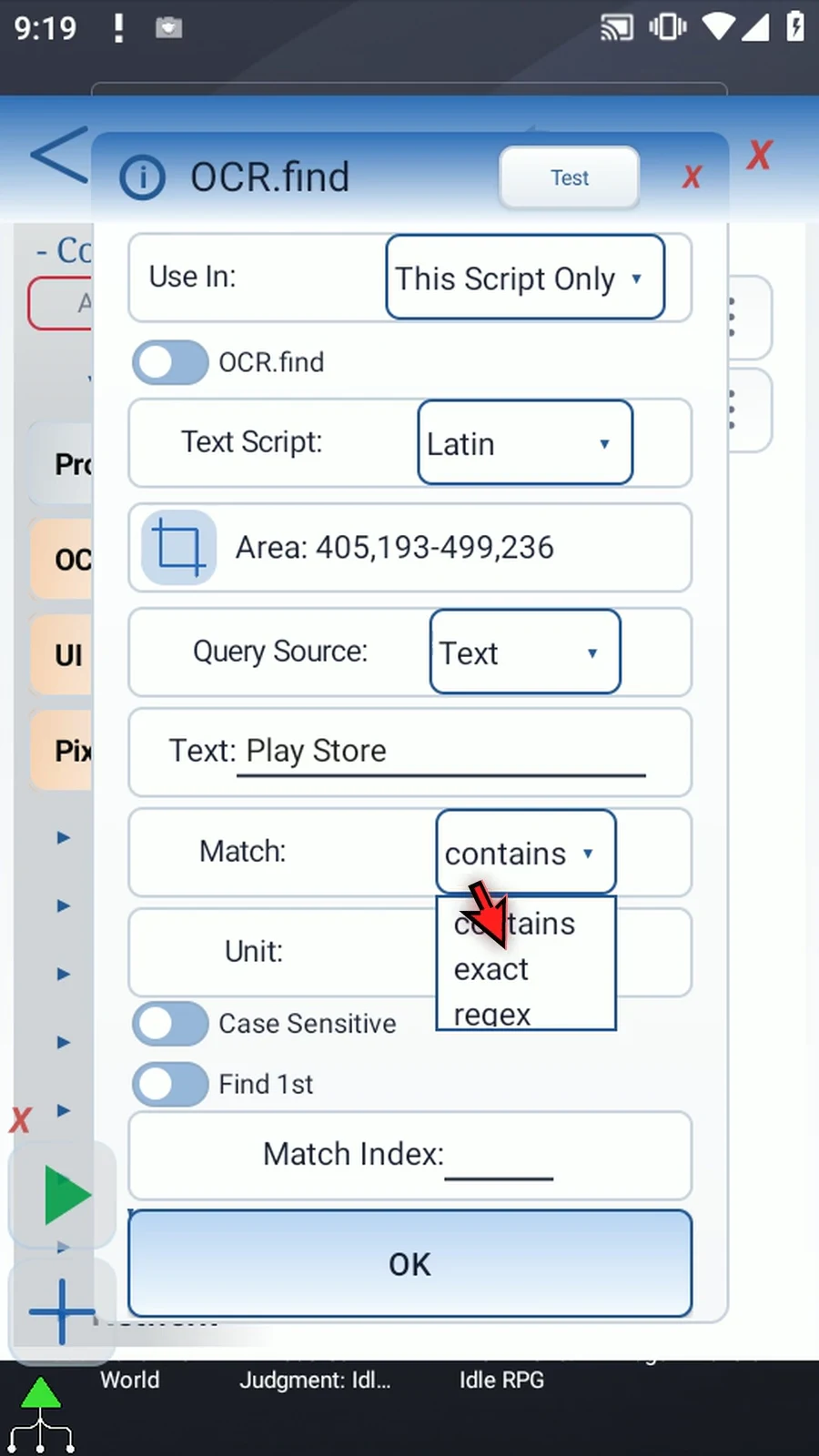
Step 08 Choose line for a complete line such as this two-word label, or word for individual words. Keep line here. Case Sensitive controls whether uppercase and lowercase must match.
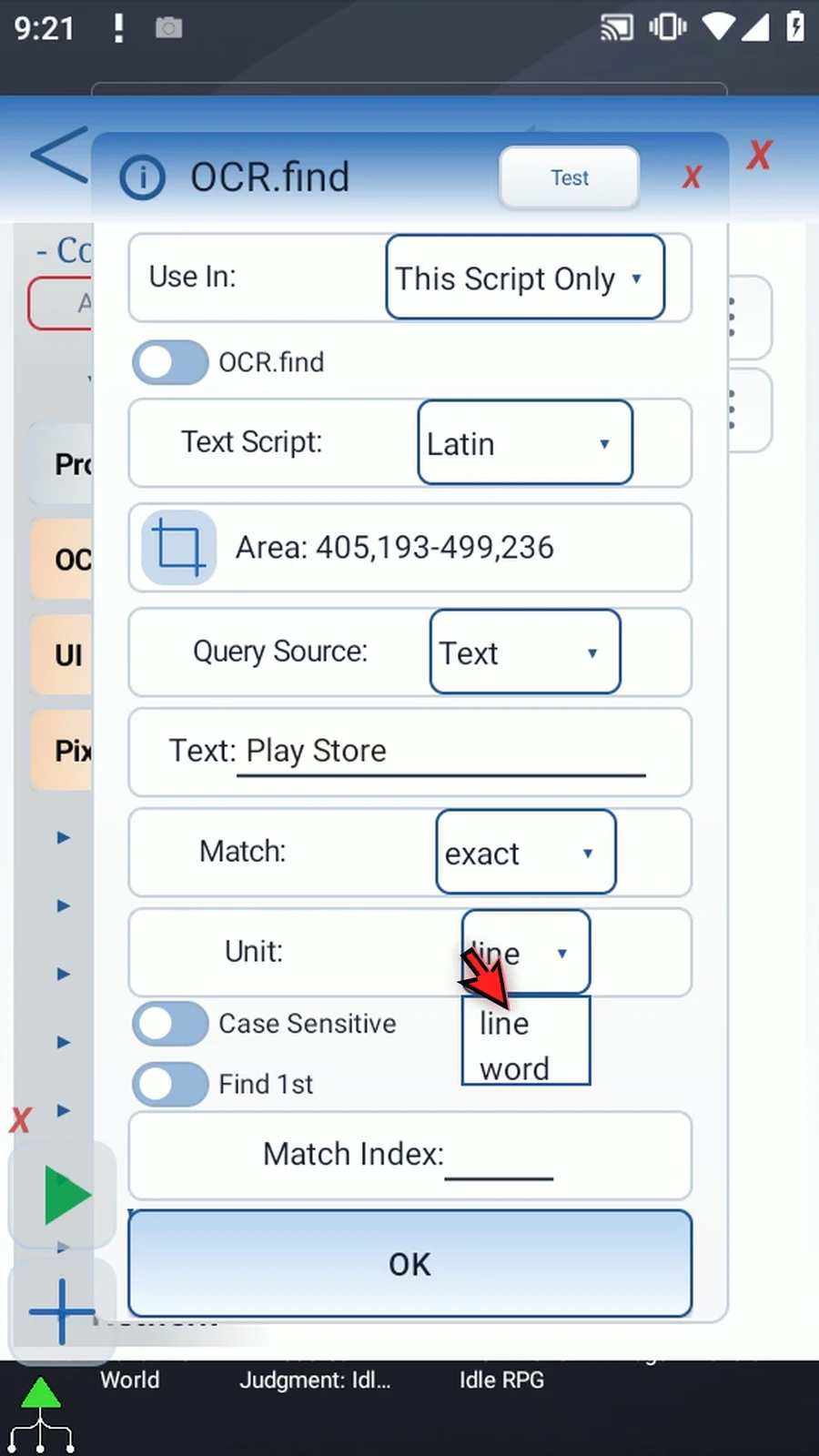
Step 09 Find All evaluates every matching line or word in top-to-bottom, left-to-right order. Its saved text and coordinates still describe the first match; they are not arrays of every result.
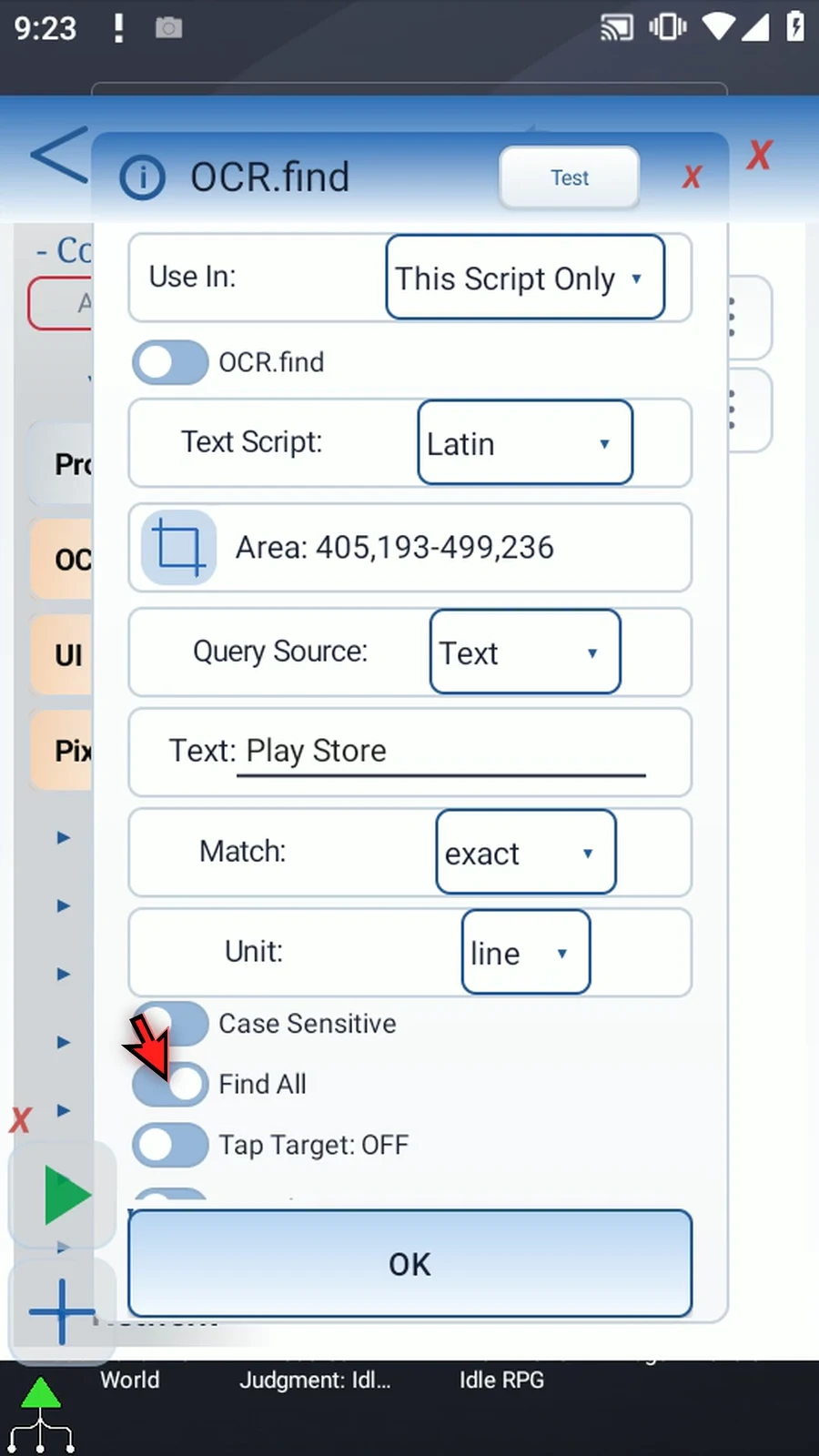
Step 10 Return to Find First for this example. Match Index selects a positive numbered match in the chosen scan order. Use a number or an Integer variable written earlier. We will enter one.
Step 11 The direction switches let you scan left to right or right to left, and top to bottom or bottom to top. Keep the default directions for this single label.
Step 12 Turn Tap Target on. Center taps the recognized match. Set Coordinates instead taps a fixed point only after a match is found. We will use Center to open Play Store.
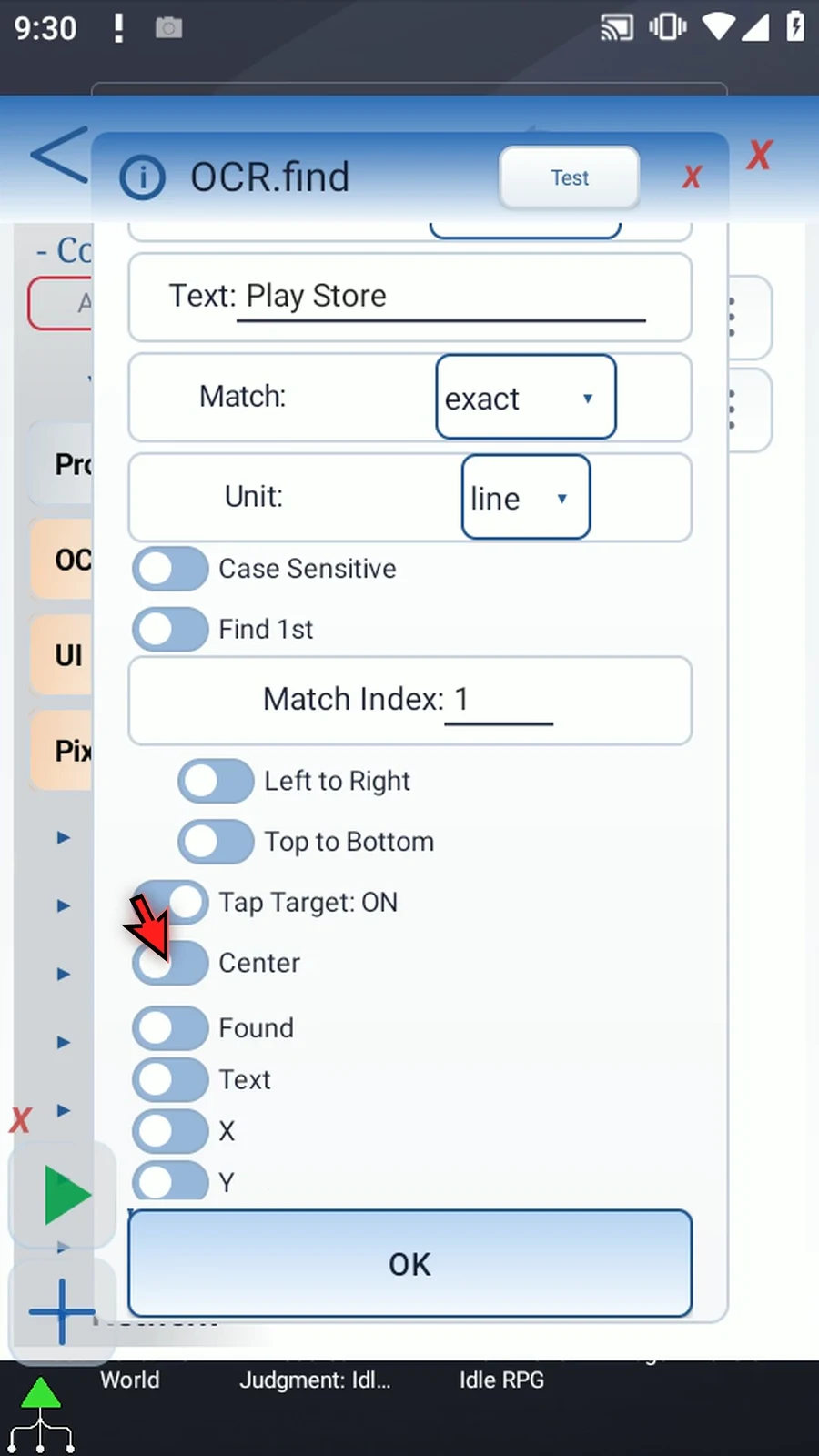
Step 13 With Find All, Center taps each match. A fixed target is tapped only once. Tap Target off performs no tap, so you can use the outputs without interacting with the screen.
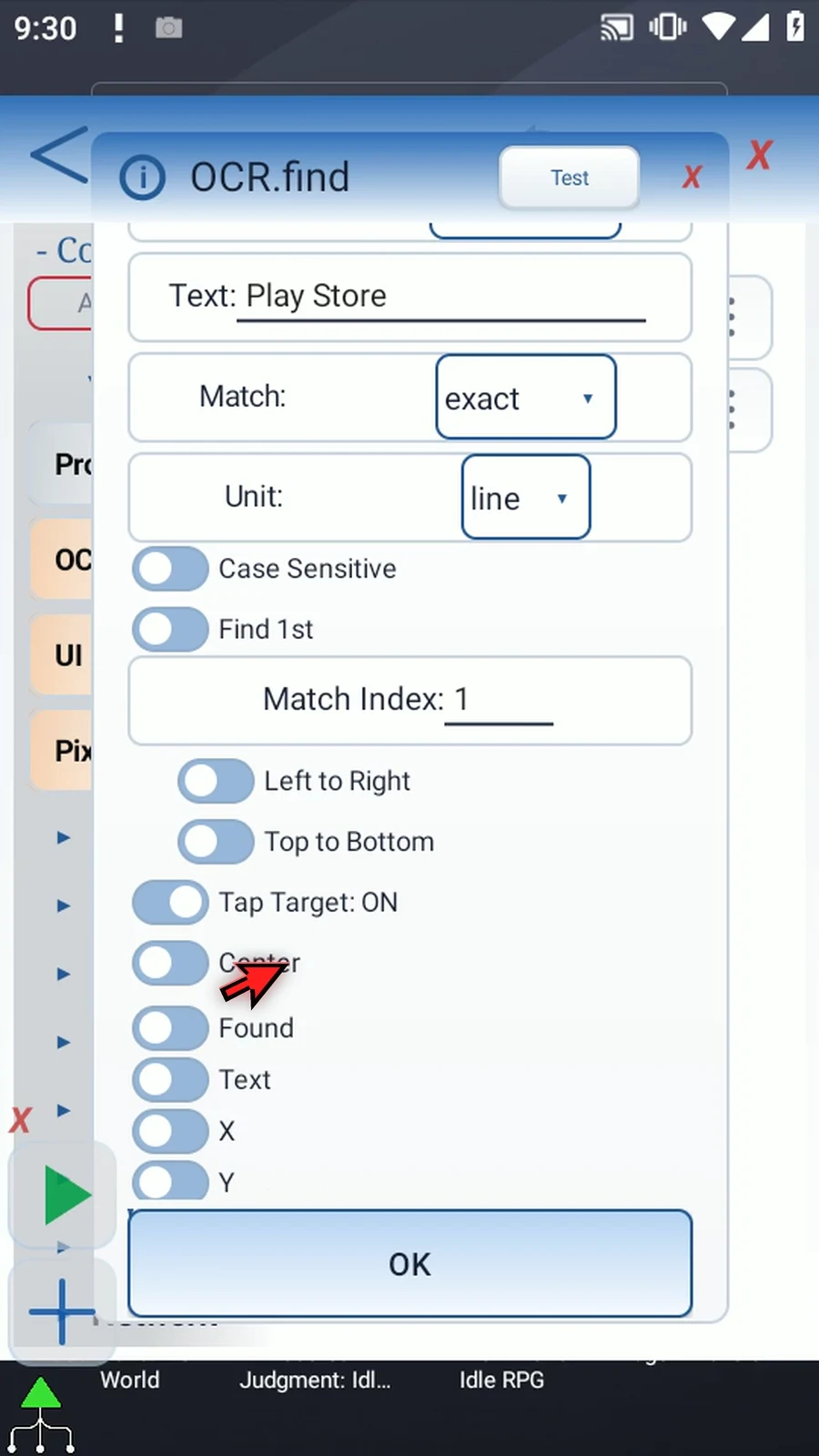
Step 14 Enable Found and use b1. This Boolean tells later commands whether a match was found.
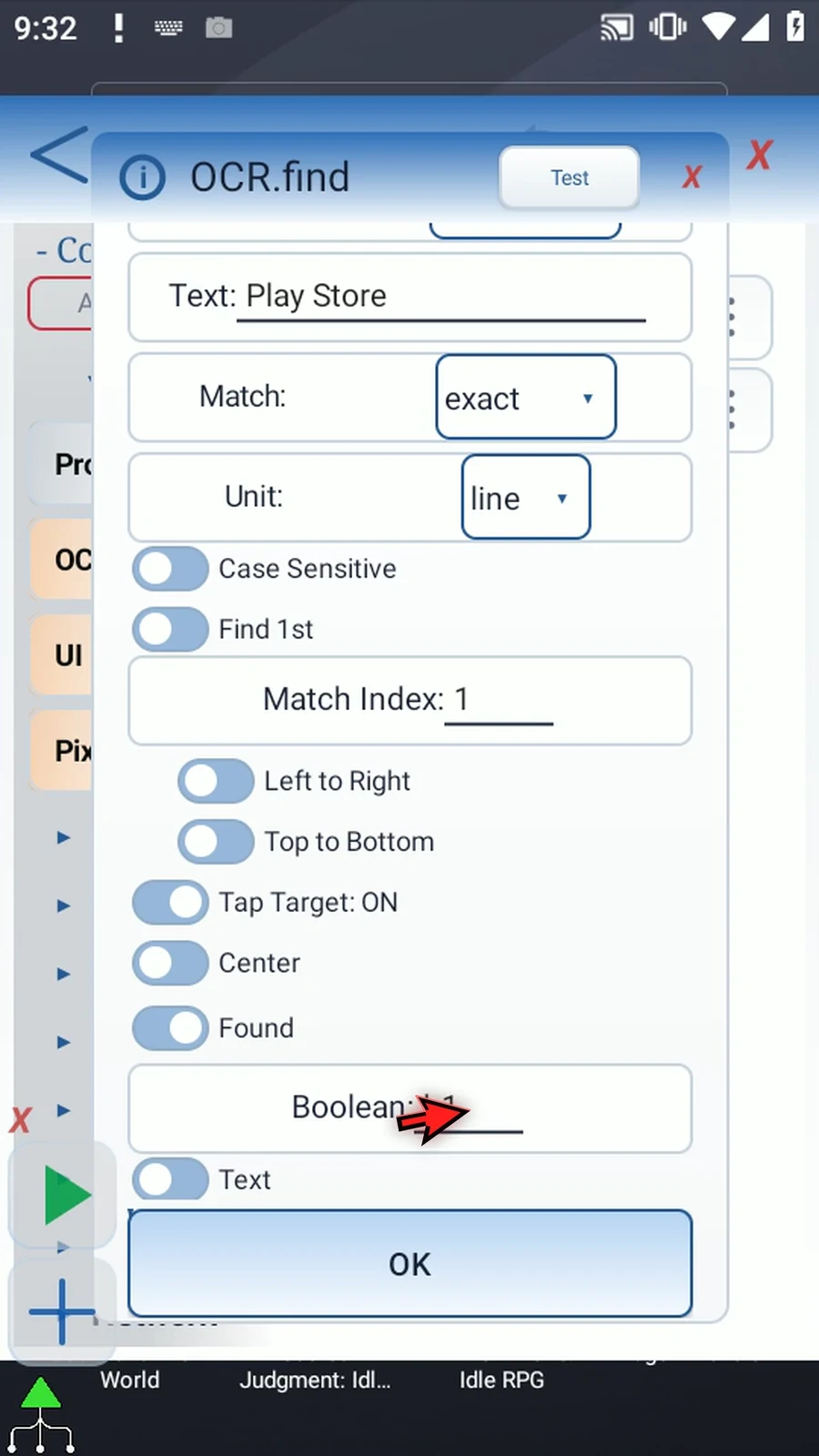
Step 15 Enable Text and use s1. Our existing PromptMe will display this matched String.
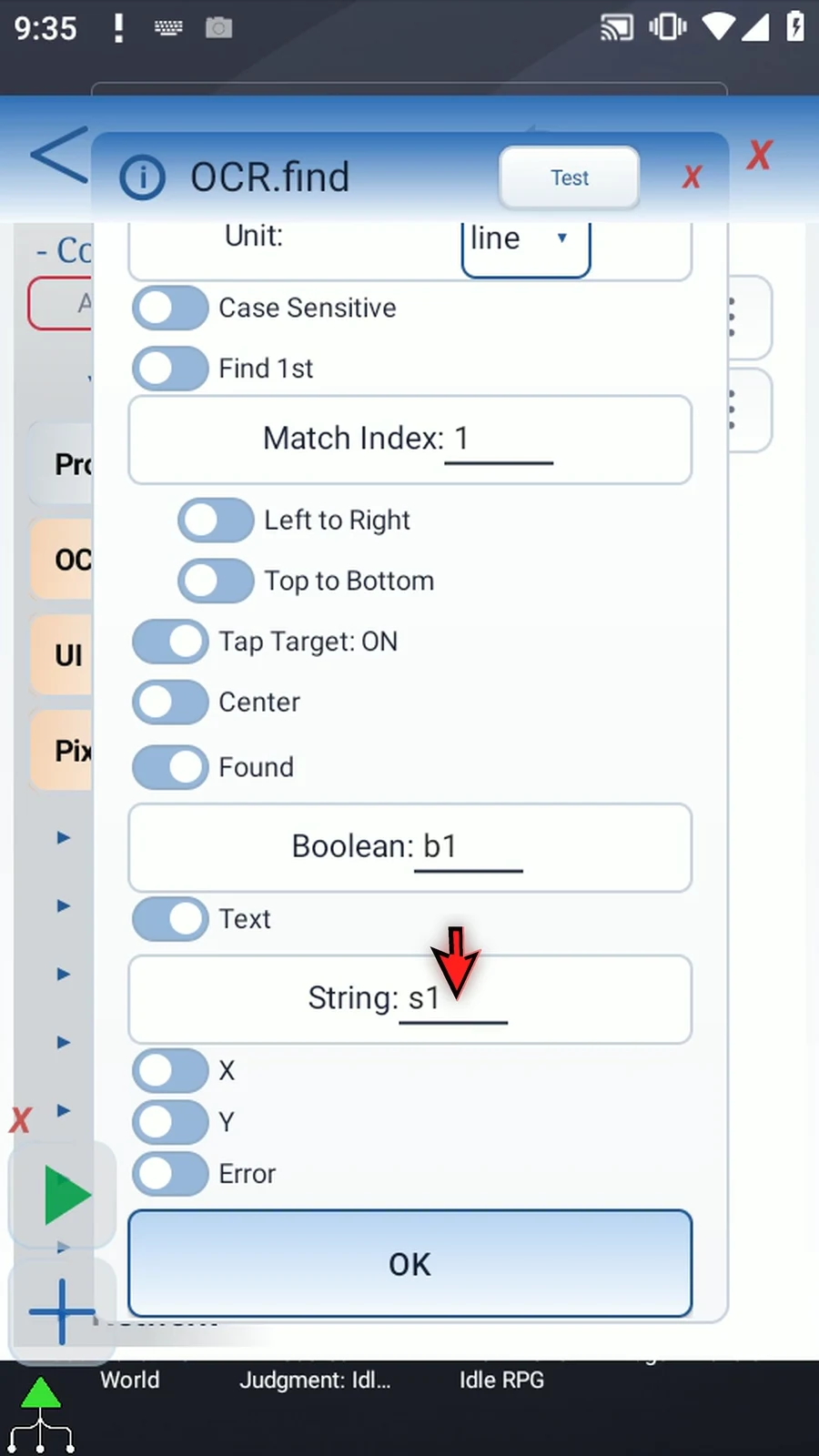
Step 16 X and Y are optional Integer outputs for the matched center. Enable them and use x1 and y1.
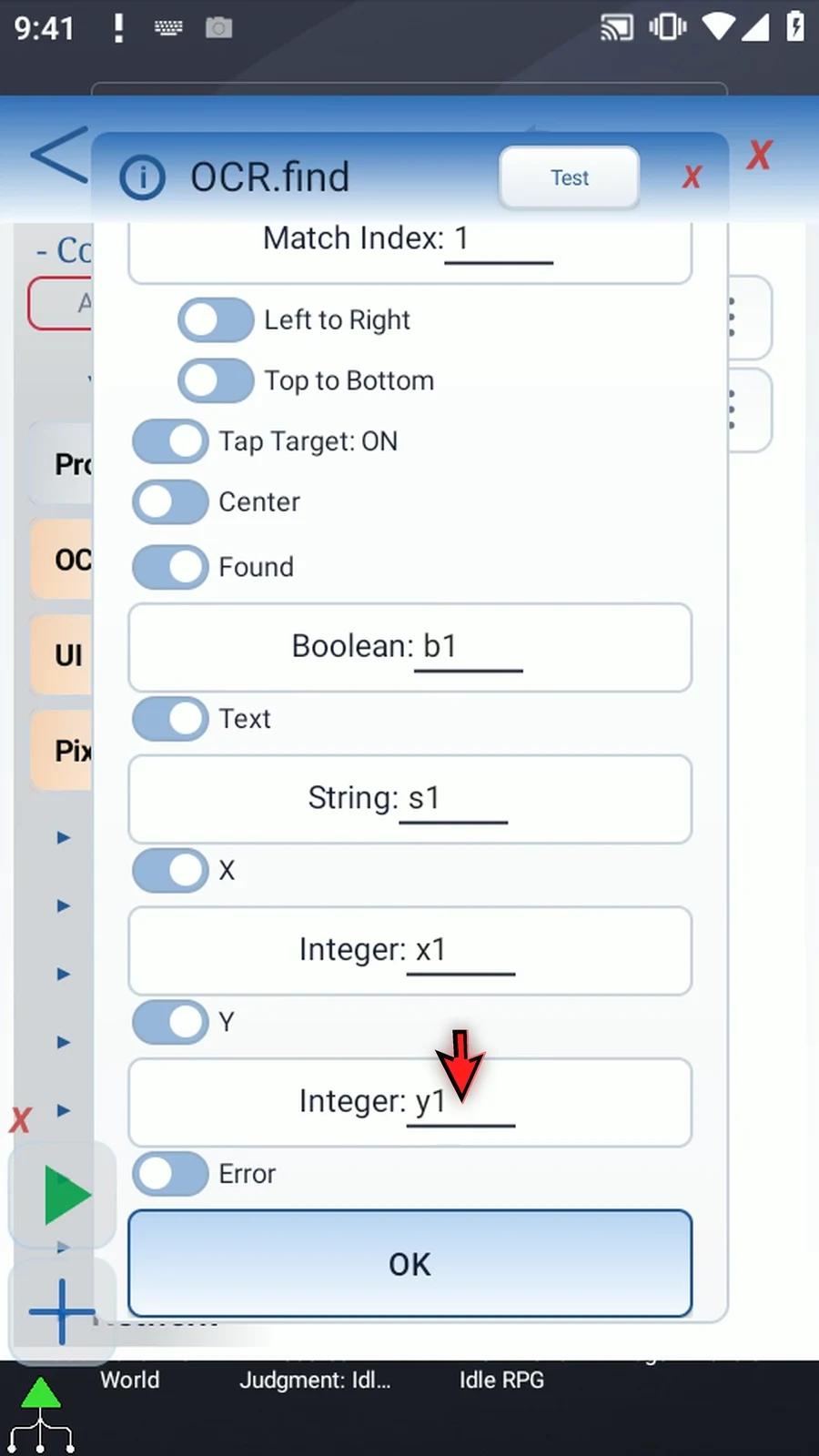
Step 17 Enable Error and use s2 for recognition or capture errors. An ordinary no-match result is different: Found is false, matched text is empty, and saved coordinates are zero.
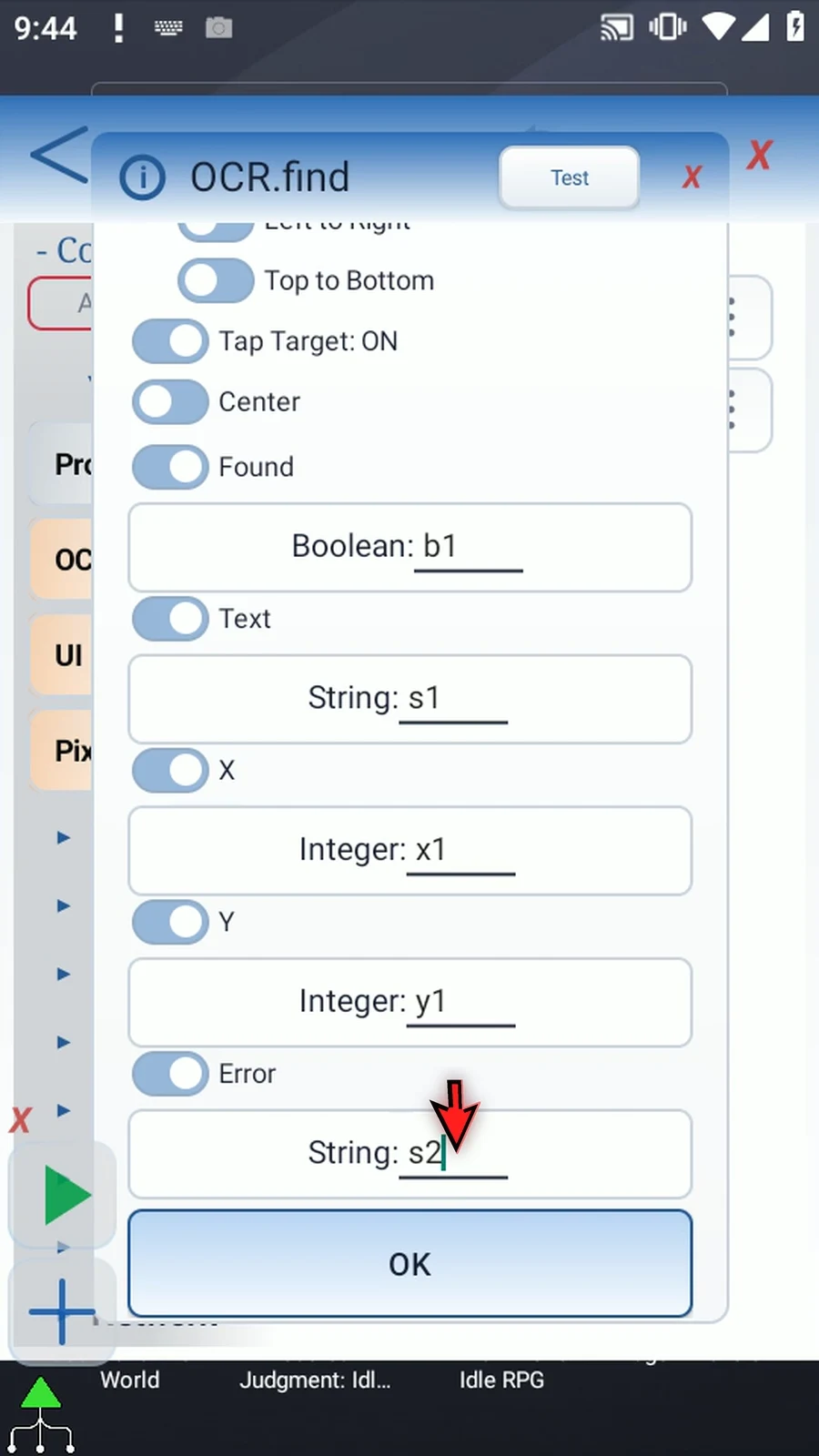
Step 18 Use Test before saving. It recognizes Play Store and reports the matched center without opening the app. Close the result and save the command.
Step 19 Drag Delay between O C R and PromptMe. Set it to one thousand milliseconds, so Play Store can finish opening before the confirmation appears.
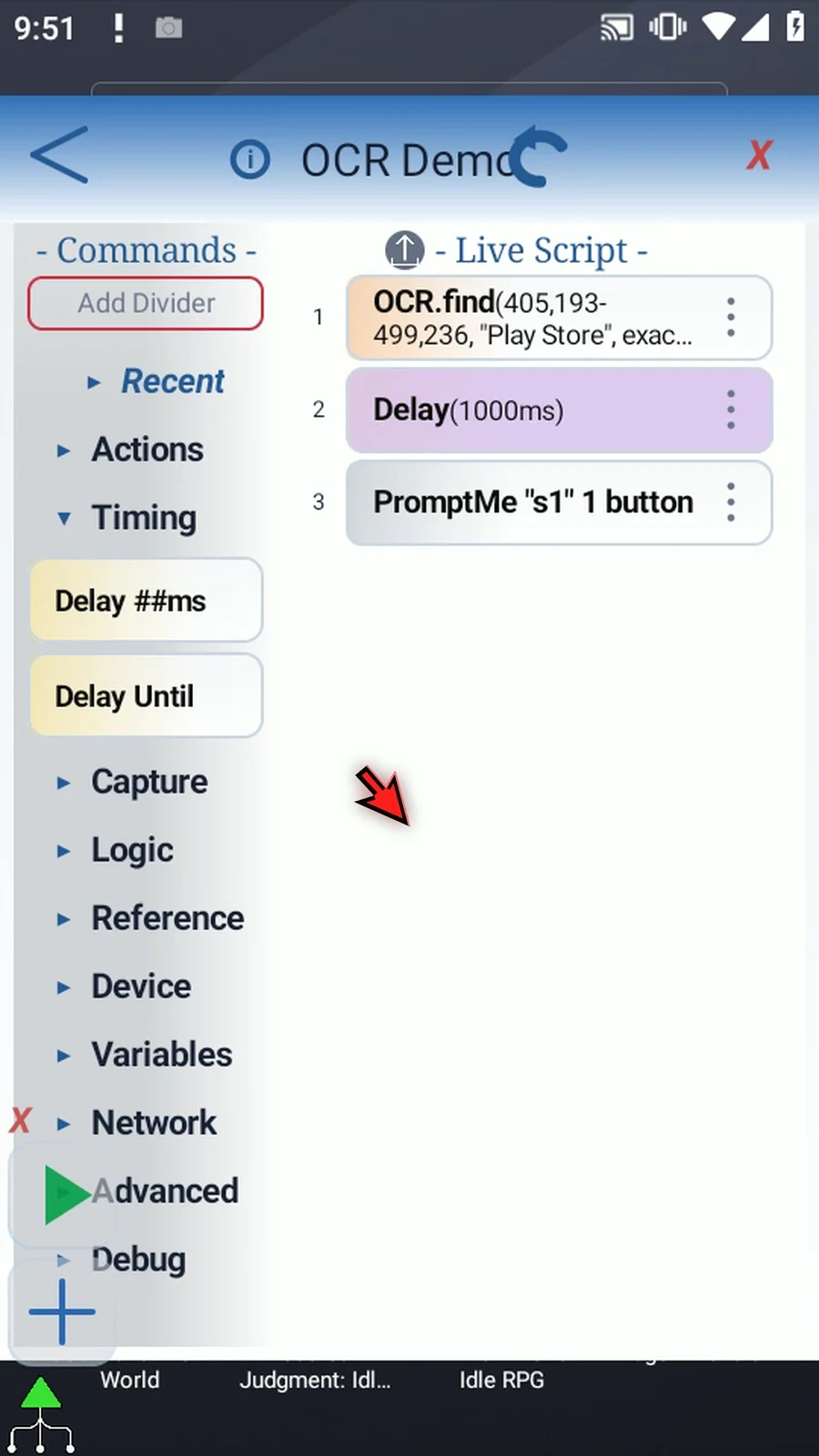
Step 20 The script now finds and taps Play Store, waits one second, then displays the matched text. The prompt is just a visible confirmation of the O C R result.
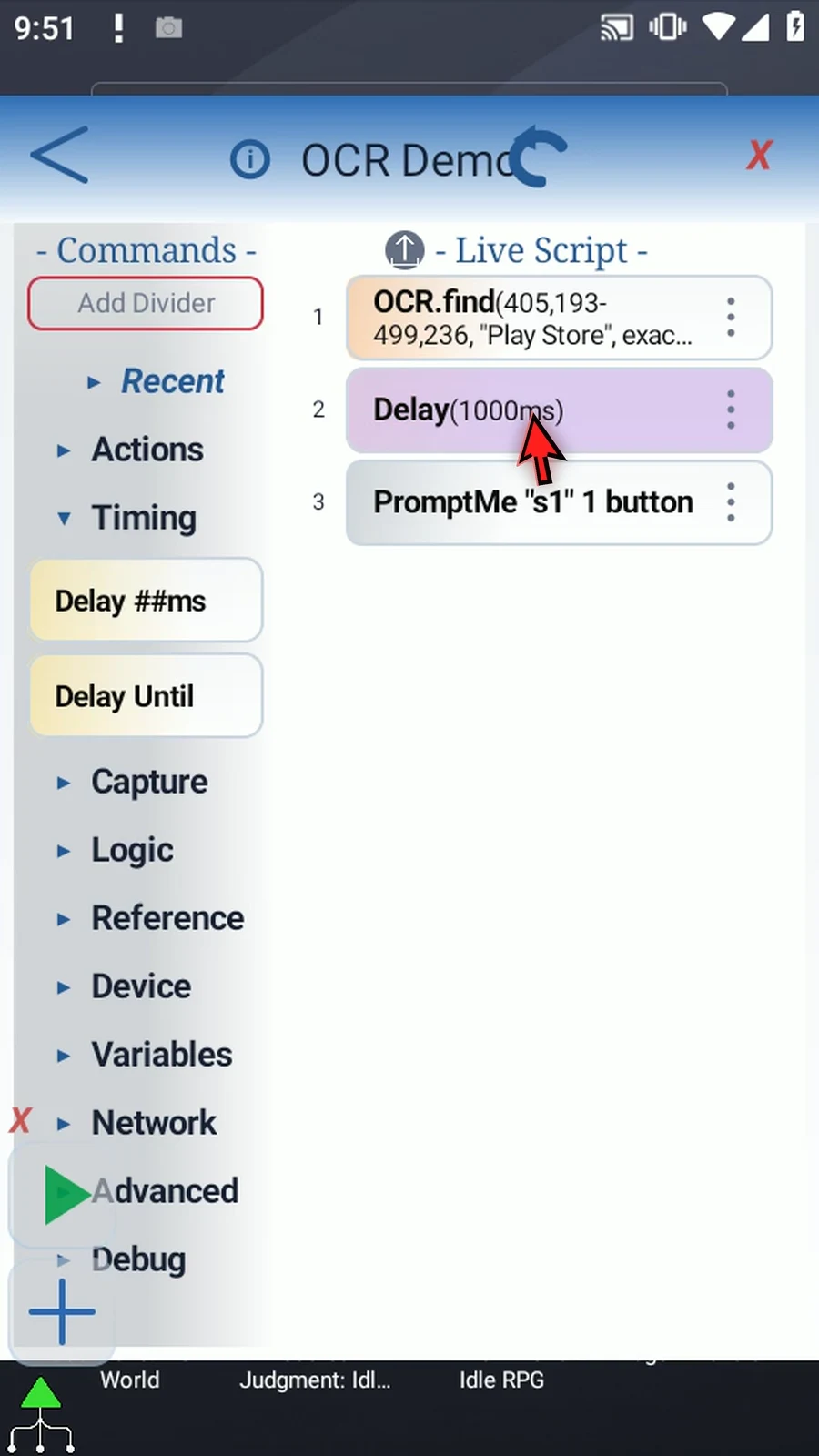
Step 21 When the script is complete, simply use the Play button in the main overlay.
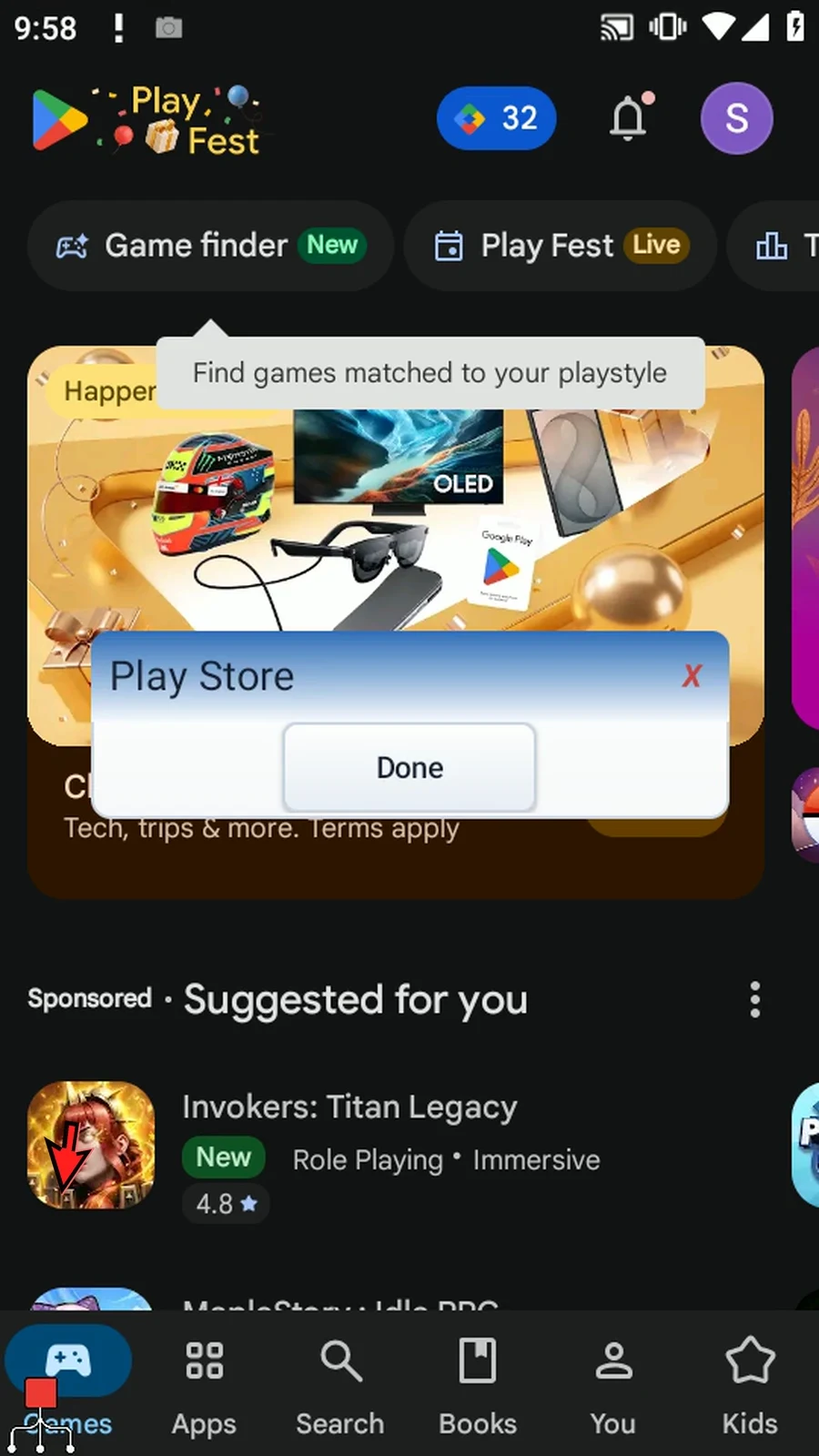
Step 22 Play Store opens, and the prompt shows Play Store from s1. The tap came from the recognized text's center, not a fixed coordinate entered for the tap.
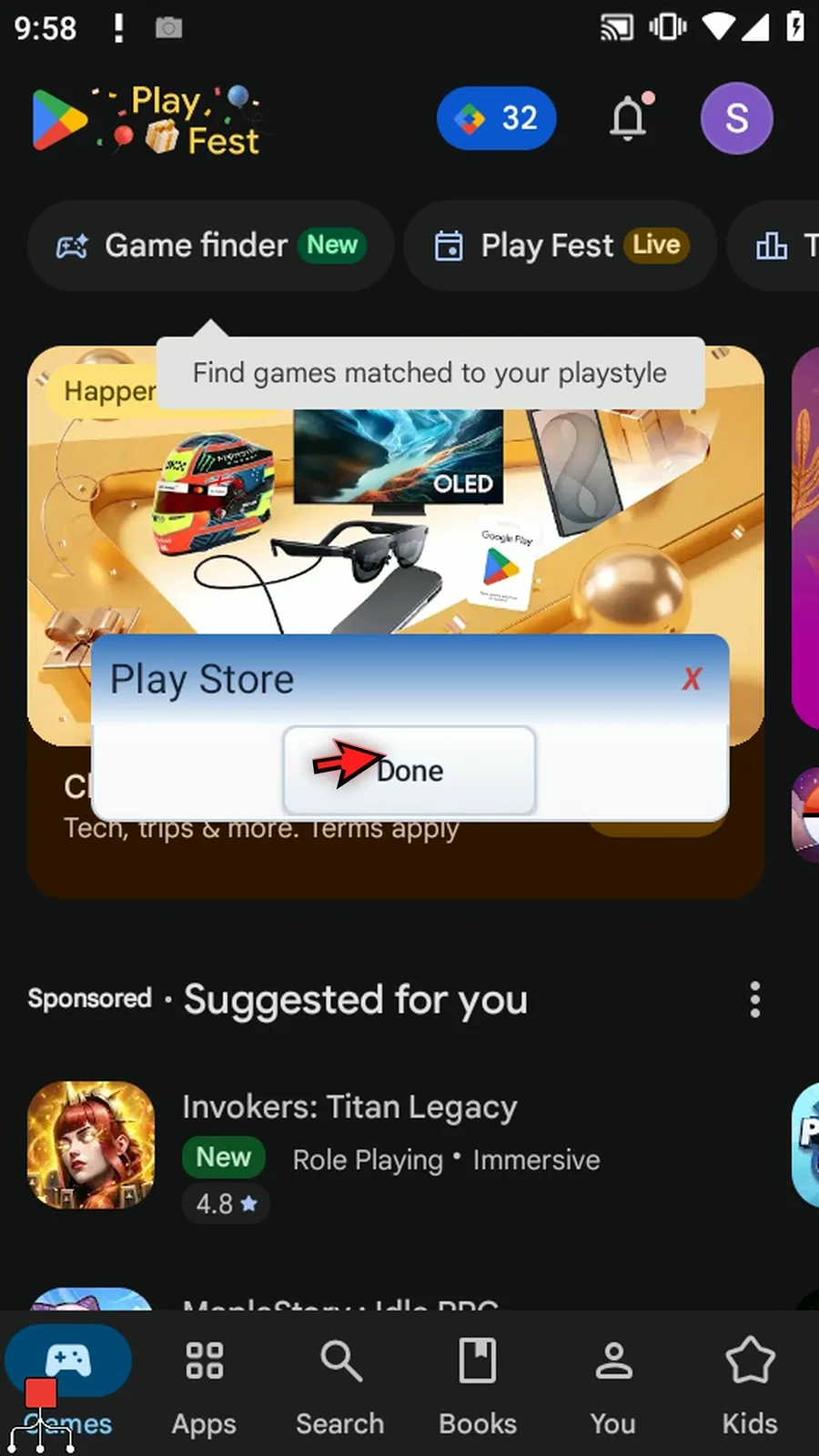
Step 23 Choose Done to finish. O C R Find is useful when visible text identifies a target but the app does not expose a usable Accessibility element.
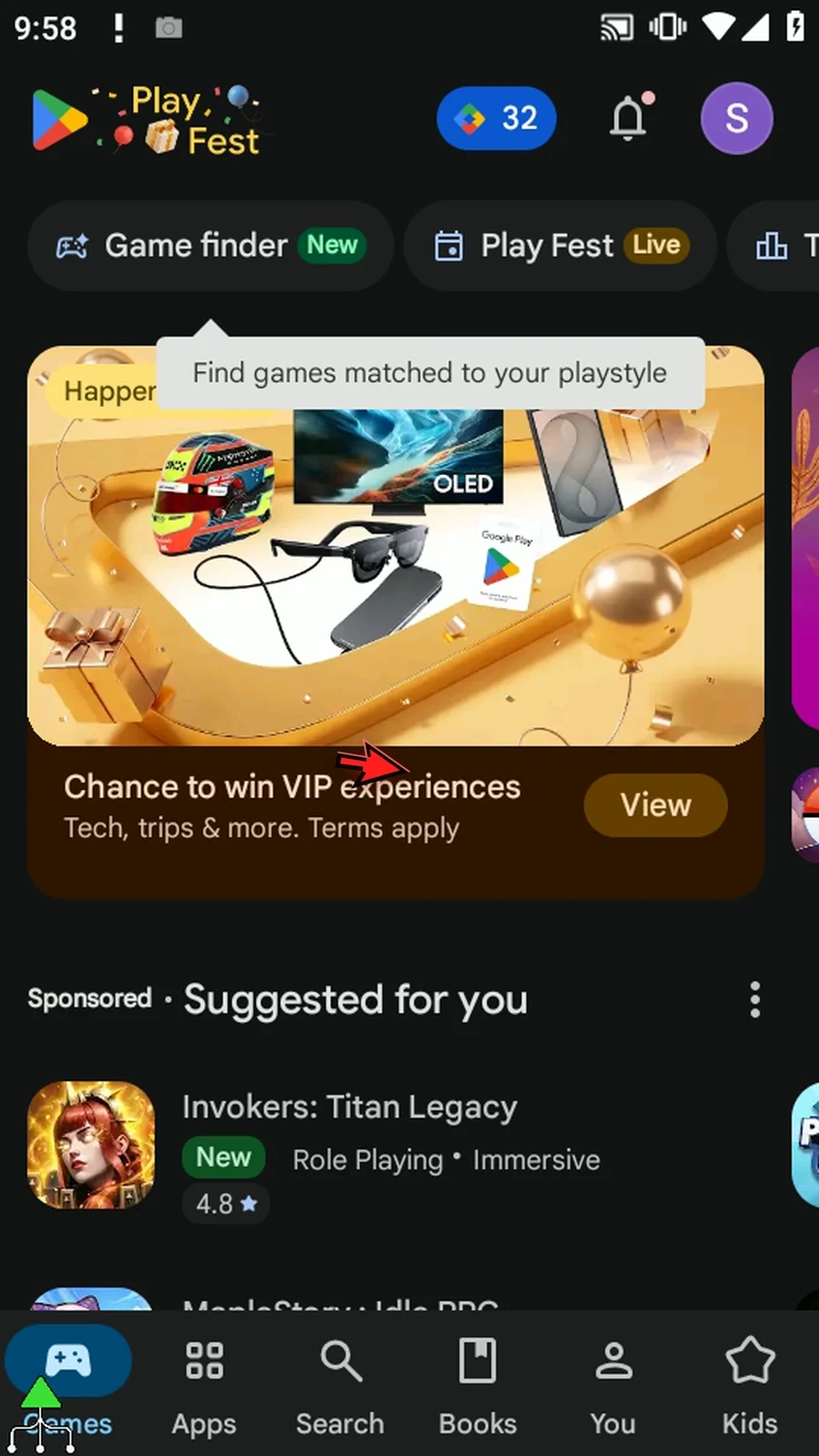
Step 24 Recognition happens on the device. Choose the correct Text Script, keep the search region focused, and test against the actual screens your script will use.