Command video guide
GoTo
GoTo changes where the current script continues by jumping to a named Label. Use it to skip a section or route execution to another part of the same script.
This guide duplicates the short Label example, leaving the original unchanged. Replace the copied GoTo with a genuine palette drag before Delay, then choose Complete from the destination selector.
- The destination Label must be in the current script.
- In this example, GoTo(:Complete) skips Delay(5000ms) and continues with the Reached prompt after Label(:Complete).
- GoTo does not evaluate a condition. Place it inside an IF block if the jump should be conditional.
- A backward jump can repeat a section indefinitely. Test that path carefully.
PromptMe makes the result visible. Its Done button only confirms the demonstration; it does not control the jump. The script then finishes automatically.
Watch the walkthrough
Step-by-step guide
Step 01 GoTo changes where a script continues by jumping to a named Label in the current script. Use it to skip a section or route execution to another part of your workflow.
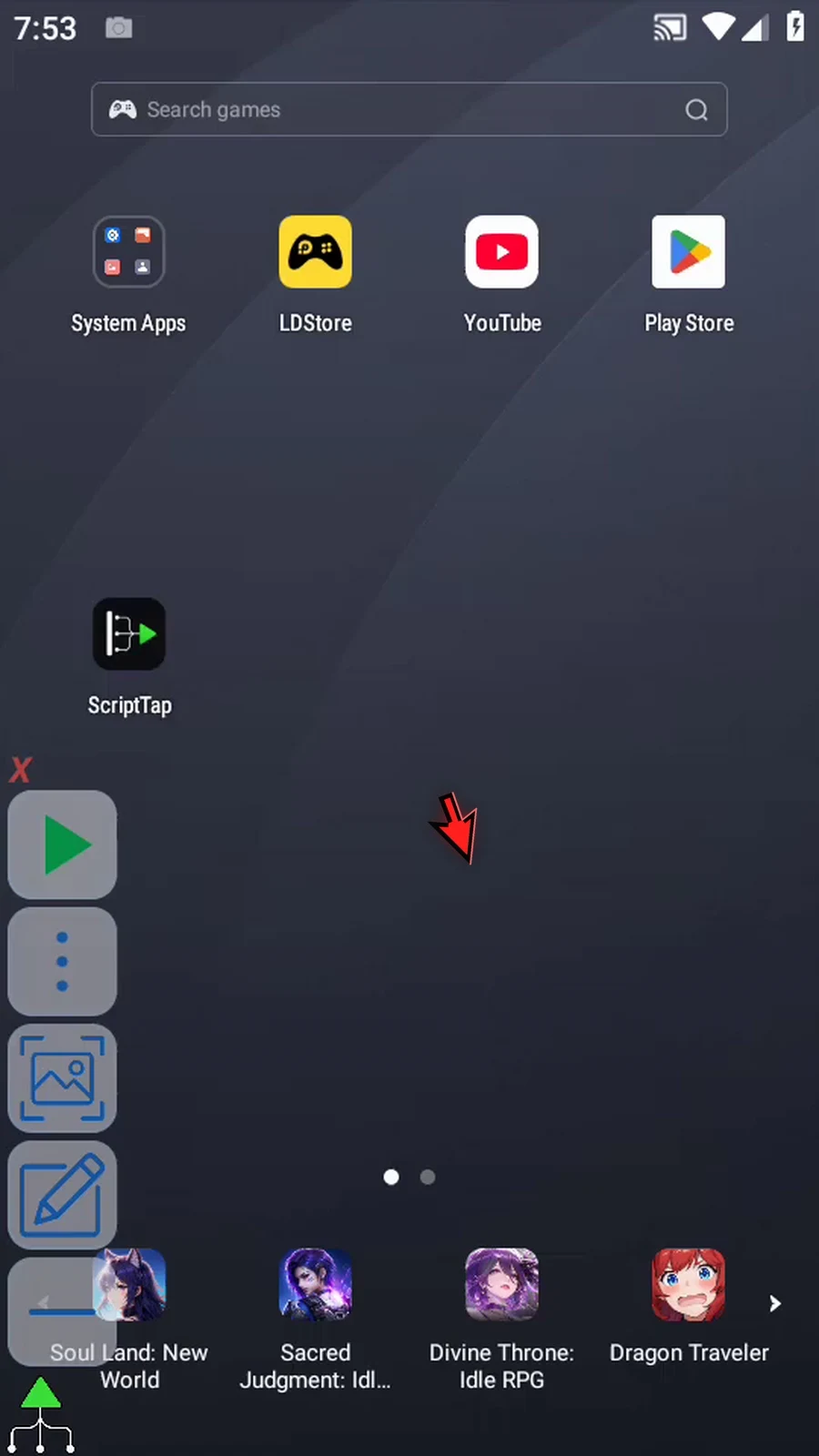
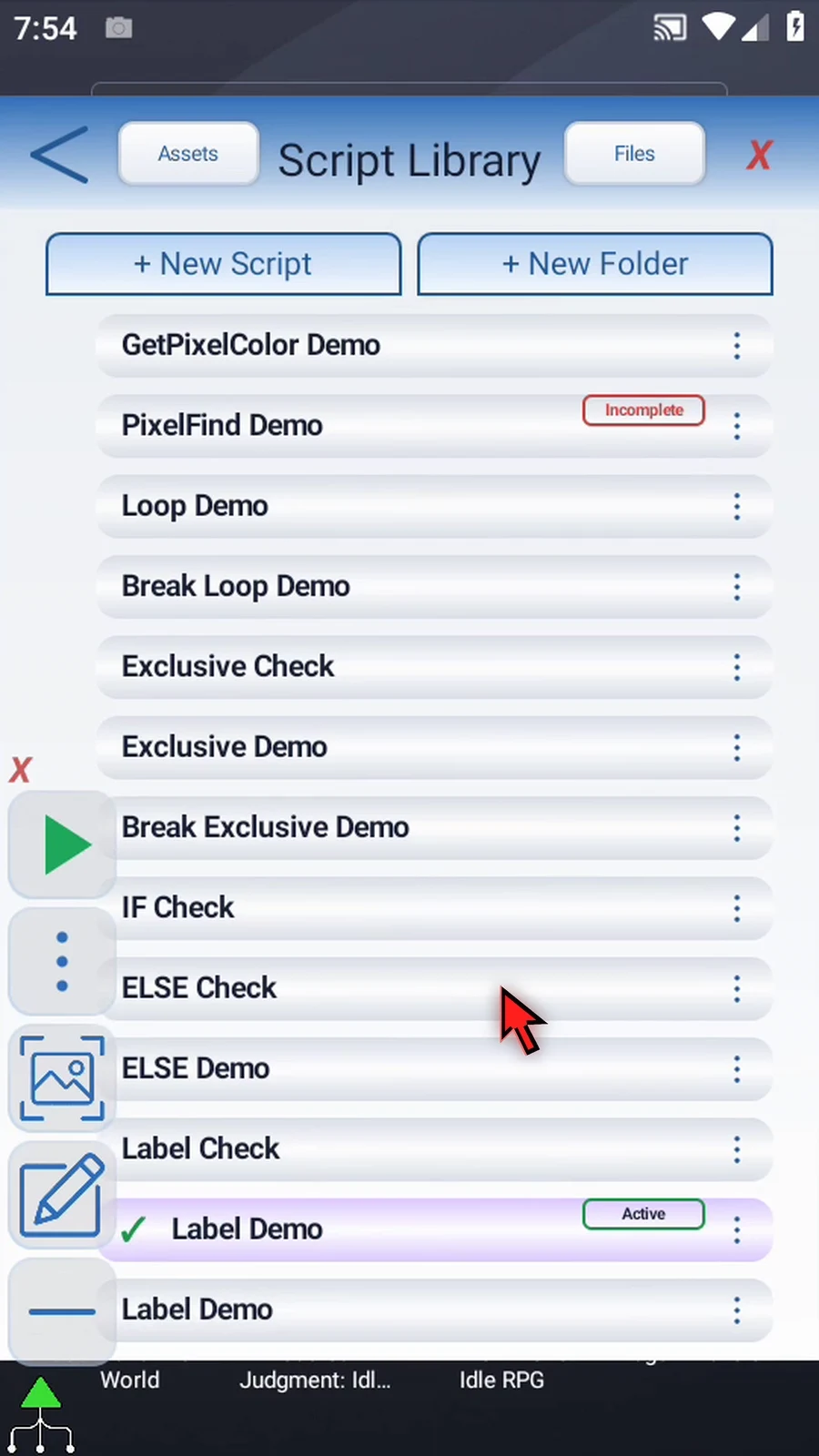
Step 02 We will reuse the short example from the Label guide. Open Scripts, find that example, and choose Duplicate. This gives us a separate copy and leaves the original unchanged.
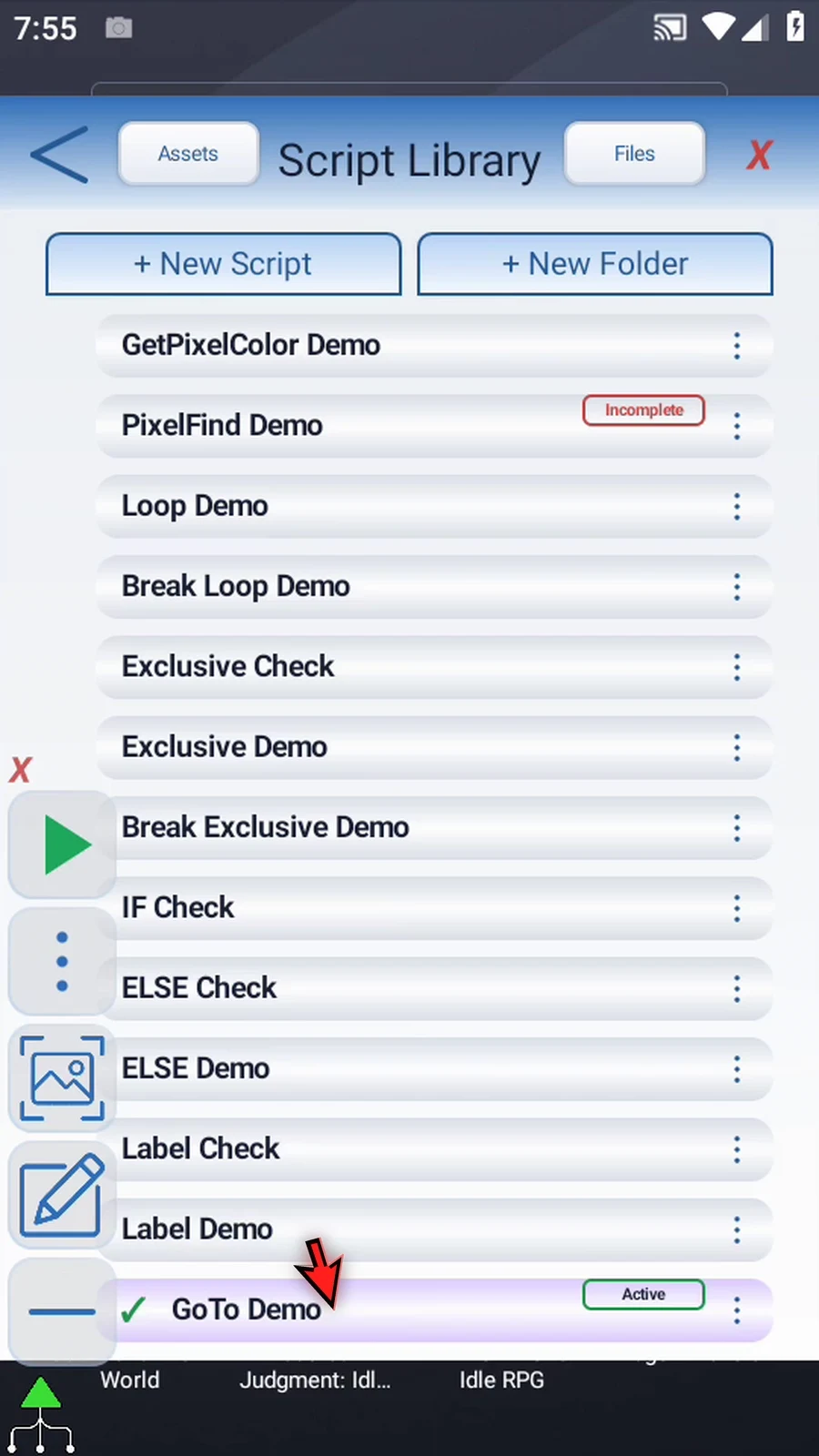
Step 03 Open the copy's menu and choose Rename. Give the new script a name, then confirm and select it.
Step 04 Open the Script Editor and collapse the extra overlay controls.
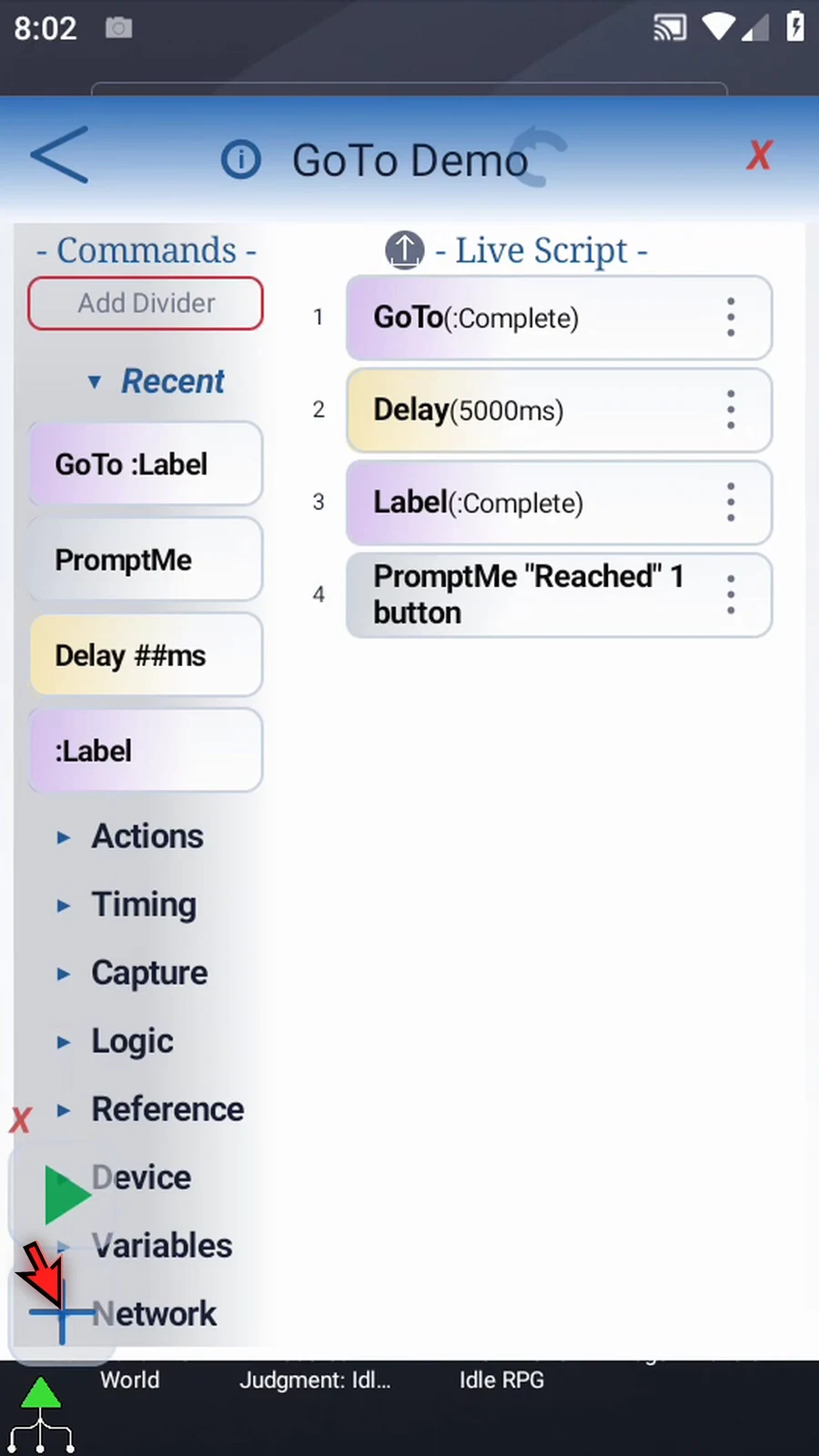
Step 05 The example contains GoTo, a five-second Delay, a Label named Complete, and a Reached confirmation prompt. We will replace only GoTo to show how to add and configure it.
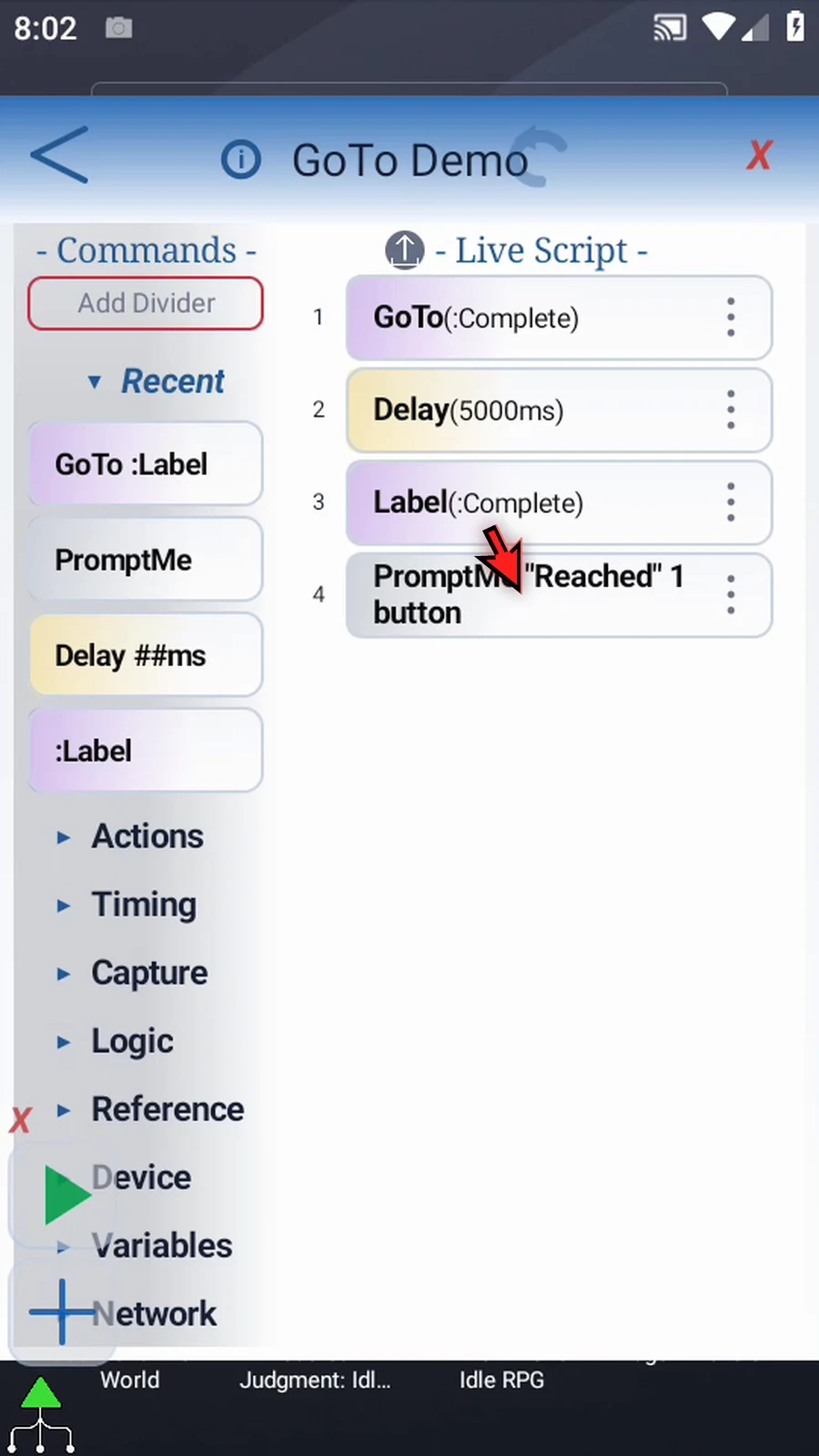
Step 06 Open the first command's menu and remove this copied GoTo. Leave Delay, Label, and the confirmation prompt in place.
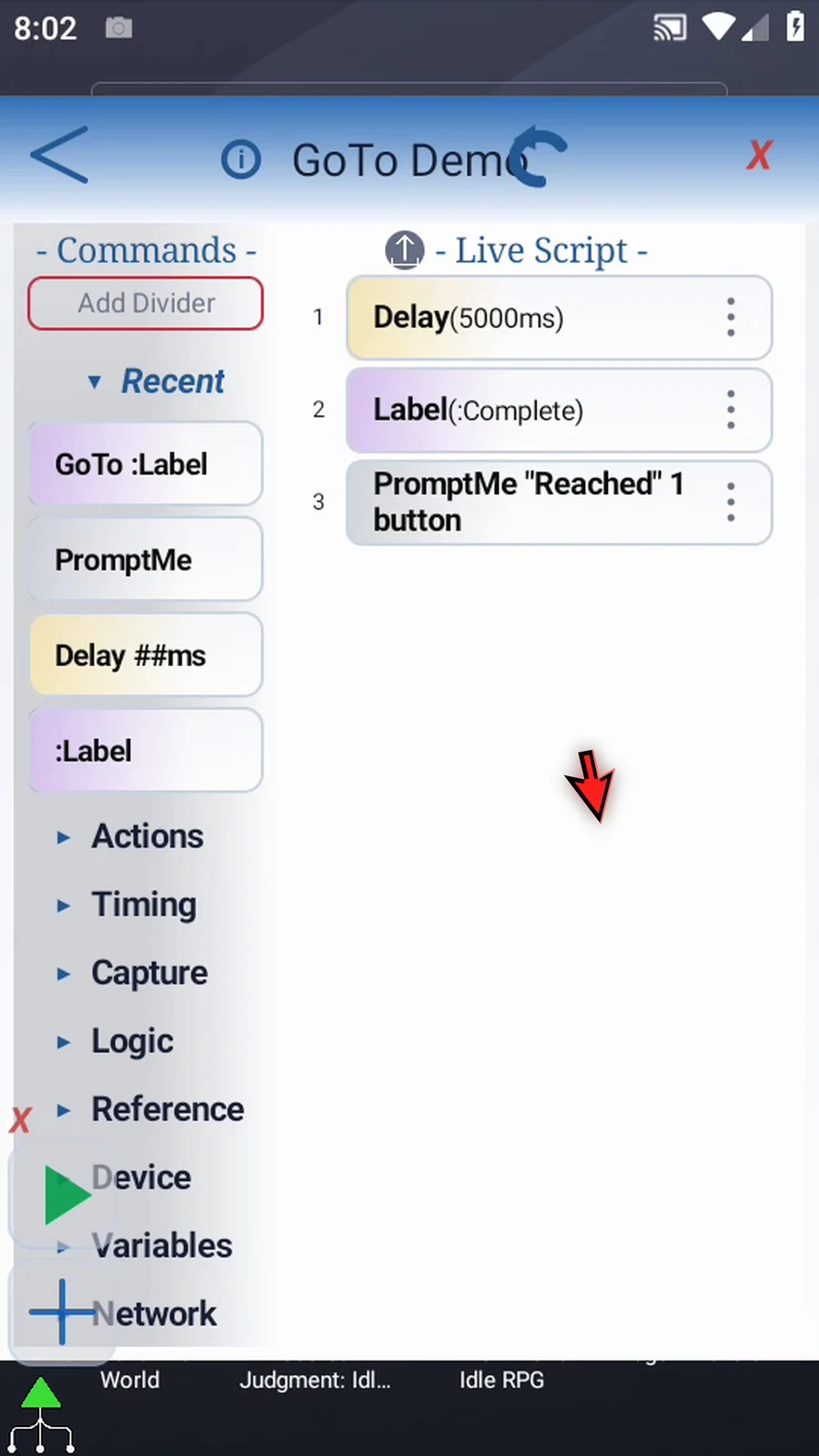
Step 07 Drag GoTo from Recent to the start of the script, before Delay. Watch the blue insertion line before releasing it. GoTo is also available in the Reference group.
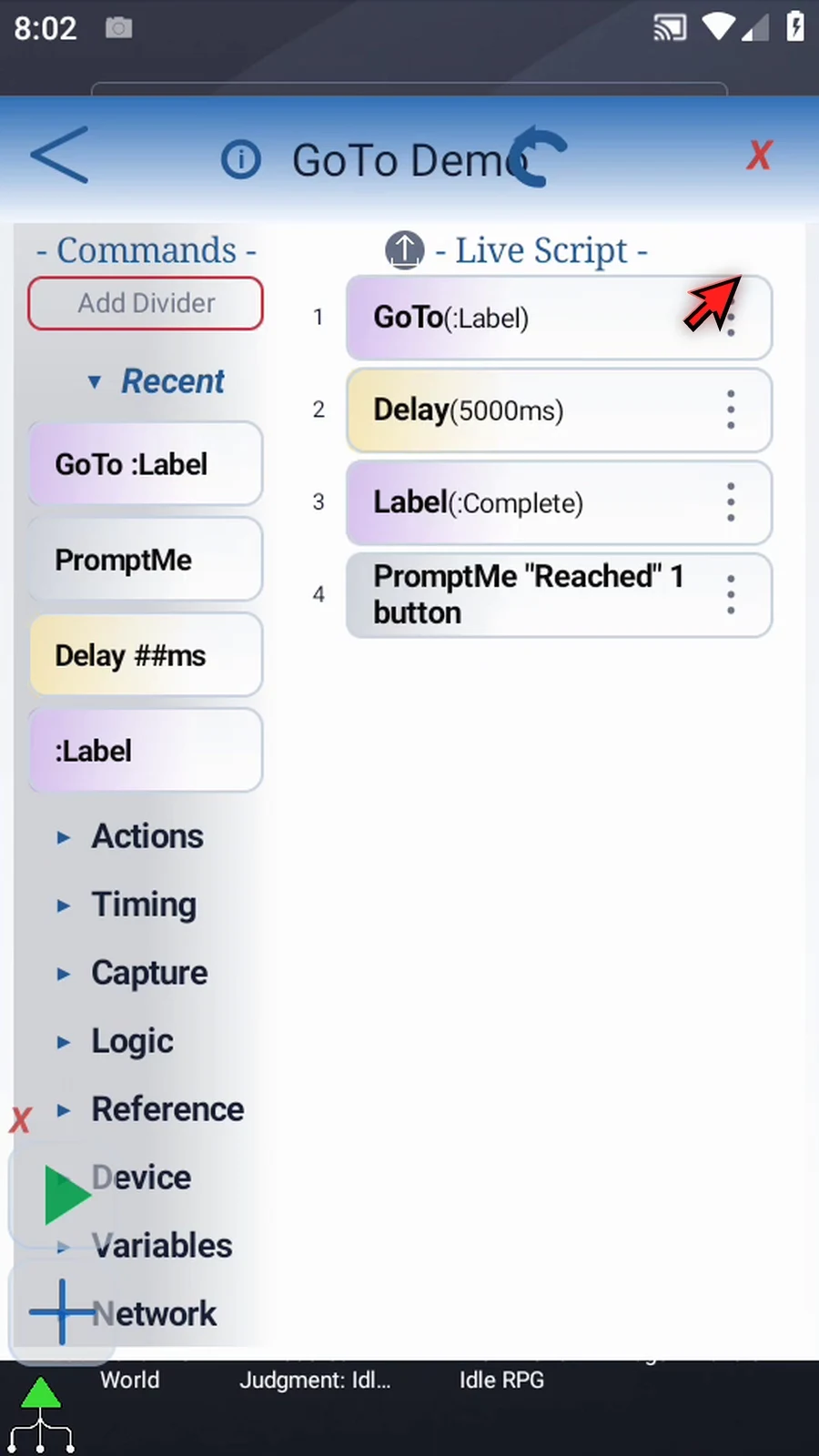
Step 08 Open GoTo. The selector lists labels in this script. Choose Complete to save the destination. The matching Label already exists below Delay.
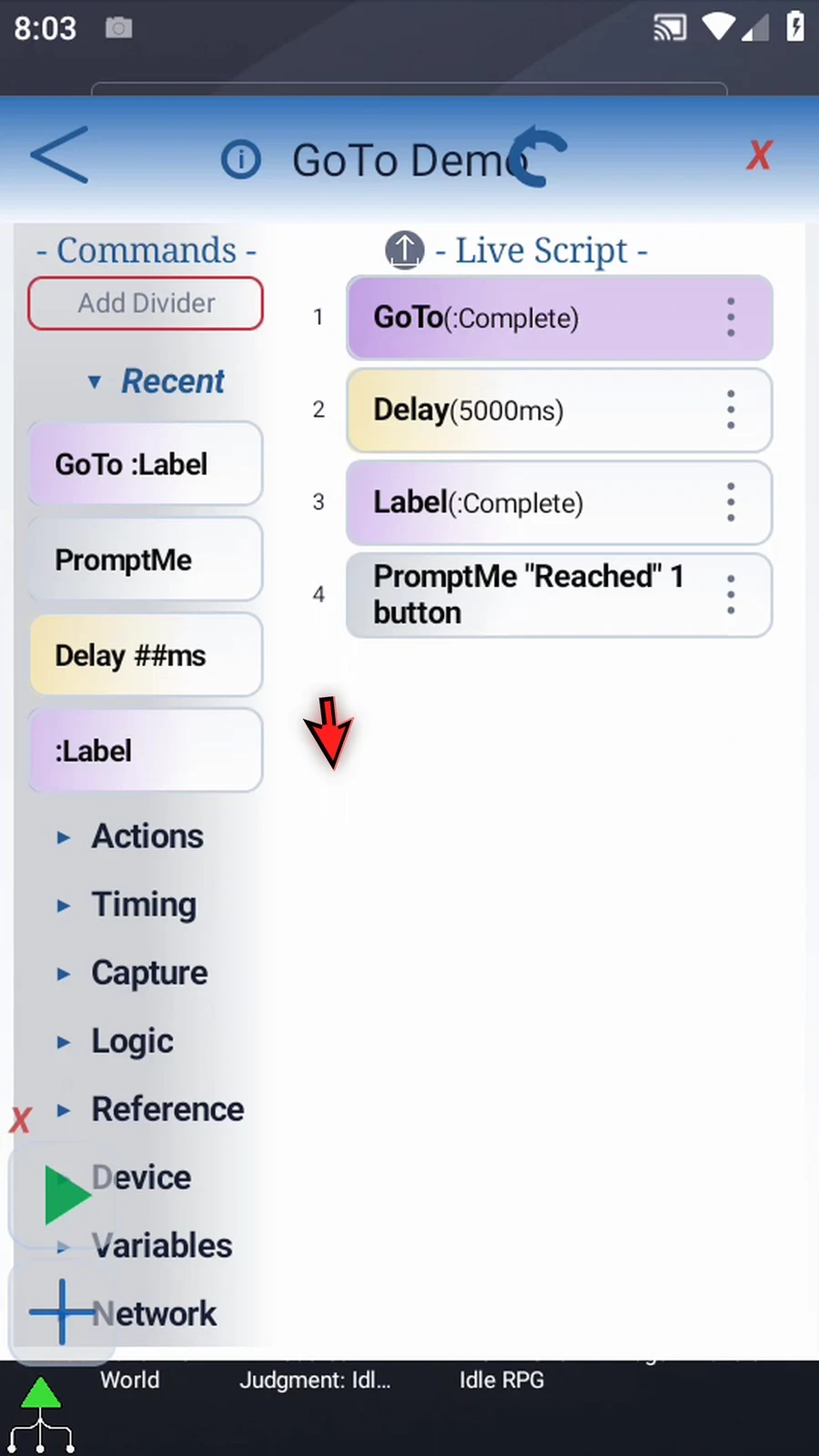
Step 09 When GoTo runs, it jumps directly to Complete. The five-second Delay between them is skipped. Execution then continues with the Reached prompt after Label.
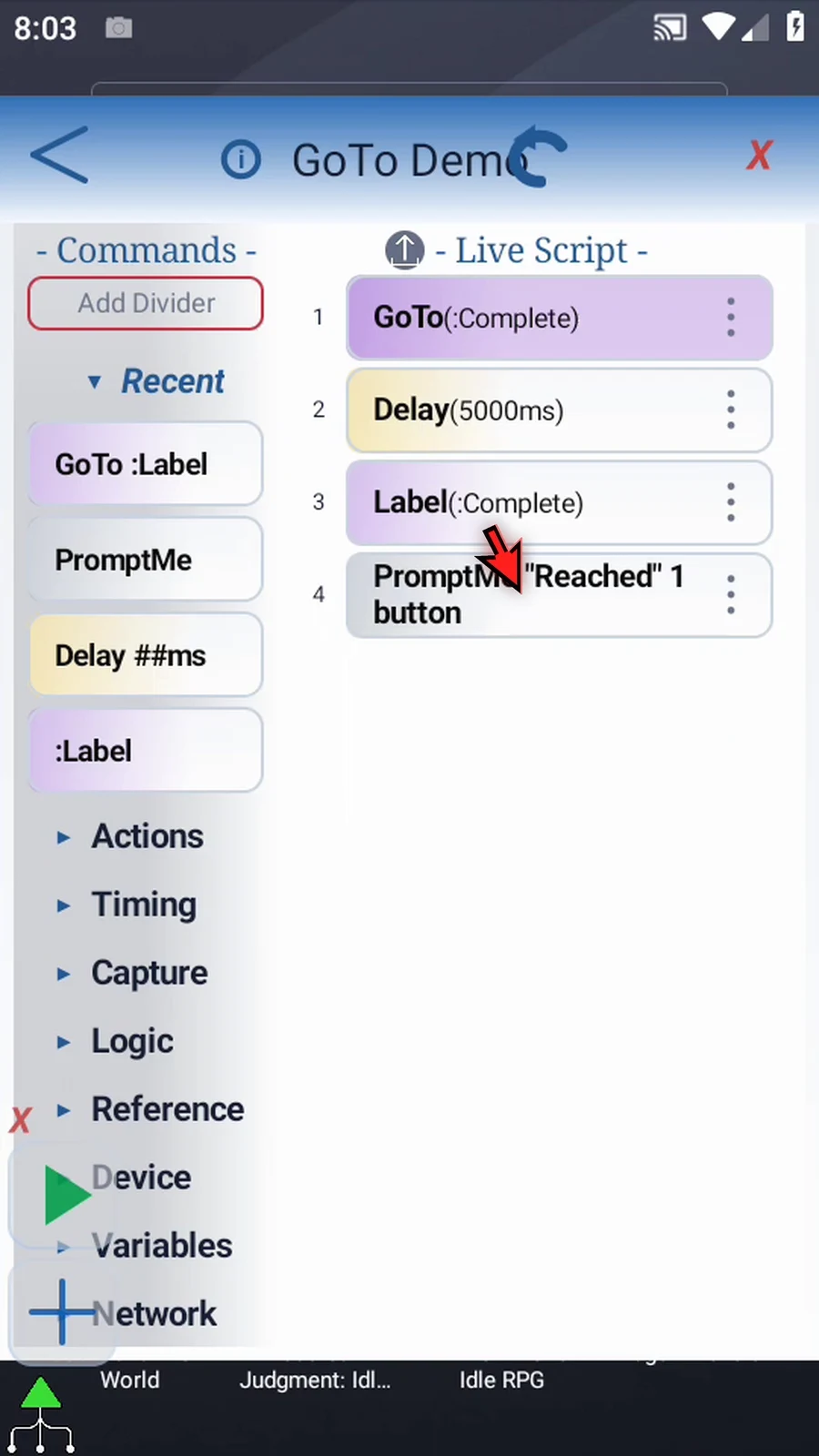
Step 10 GoTo does not test a condition. Place it inside an IF block when the jump should depend on a condition. A backward jump can repeat a section indefinitely, so test that path carefully.
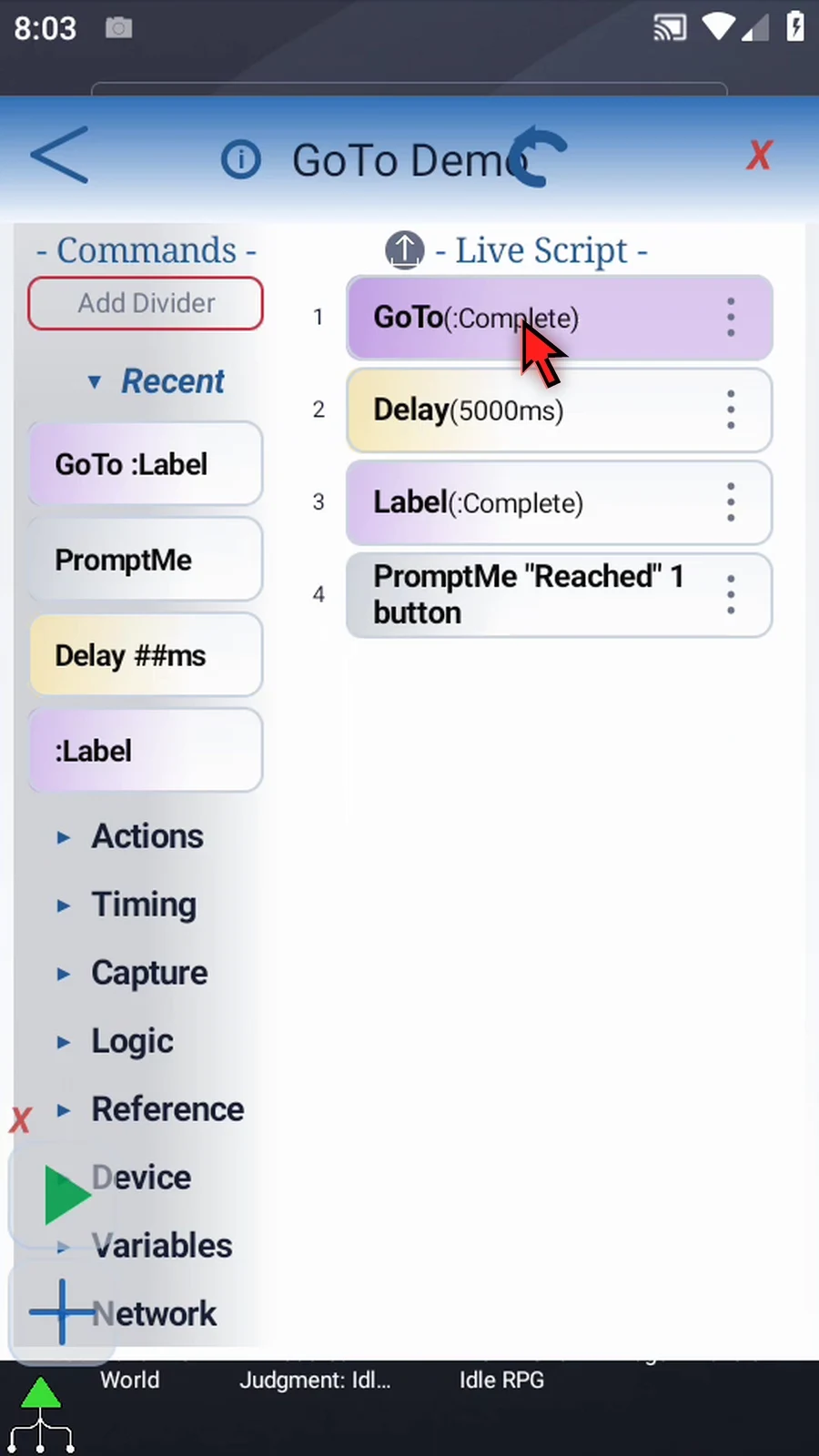
Step 11 When the script is complete, simply use the Play button in the main overlay.
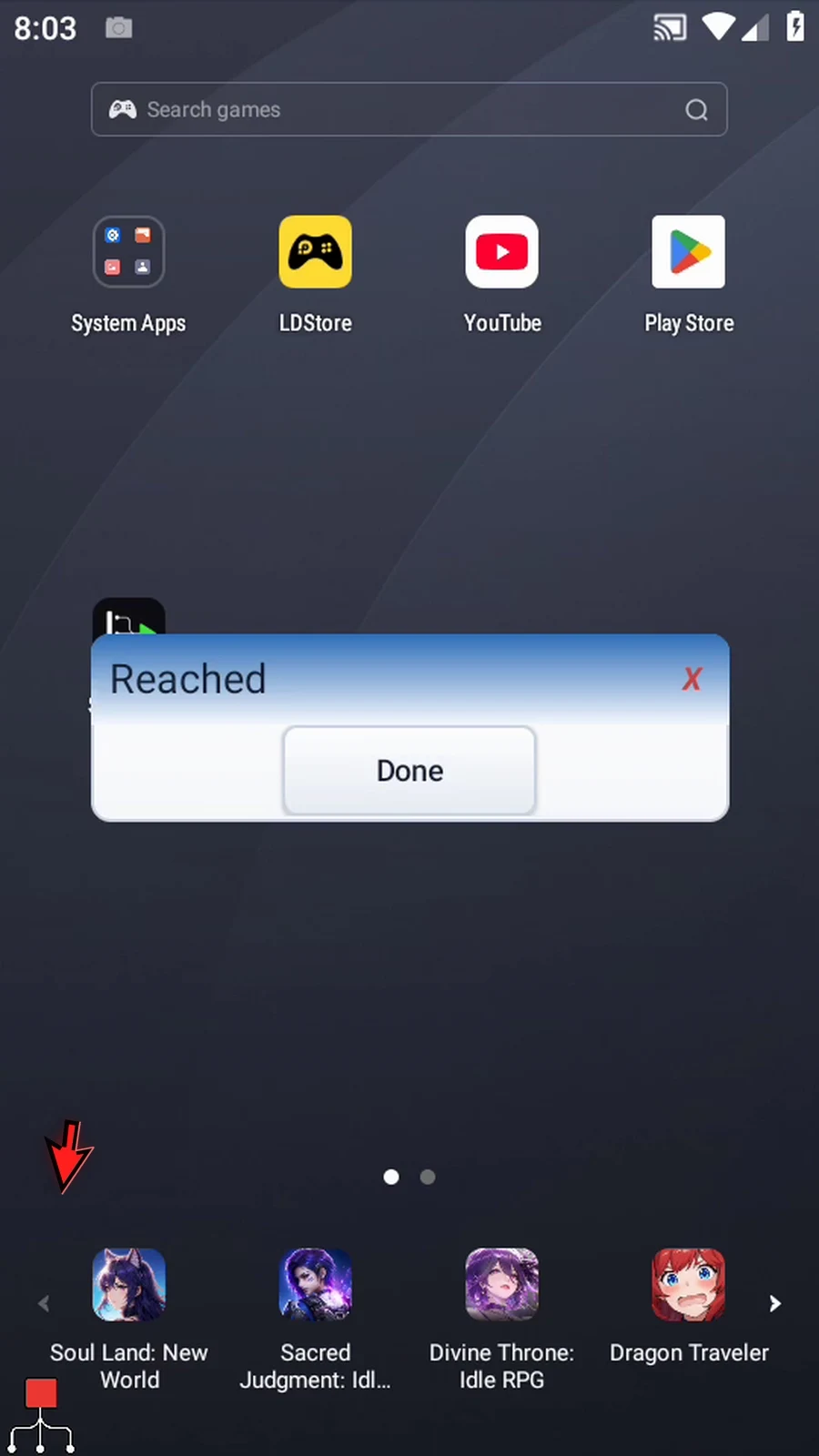
Step 12 Reached appears immediately. The script did not wait five seconds, because GoTo skipped Delay and continued at the selected Label.
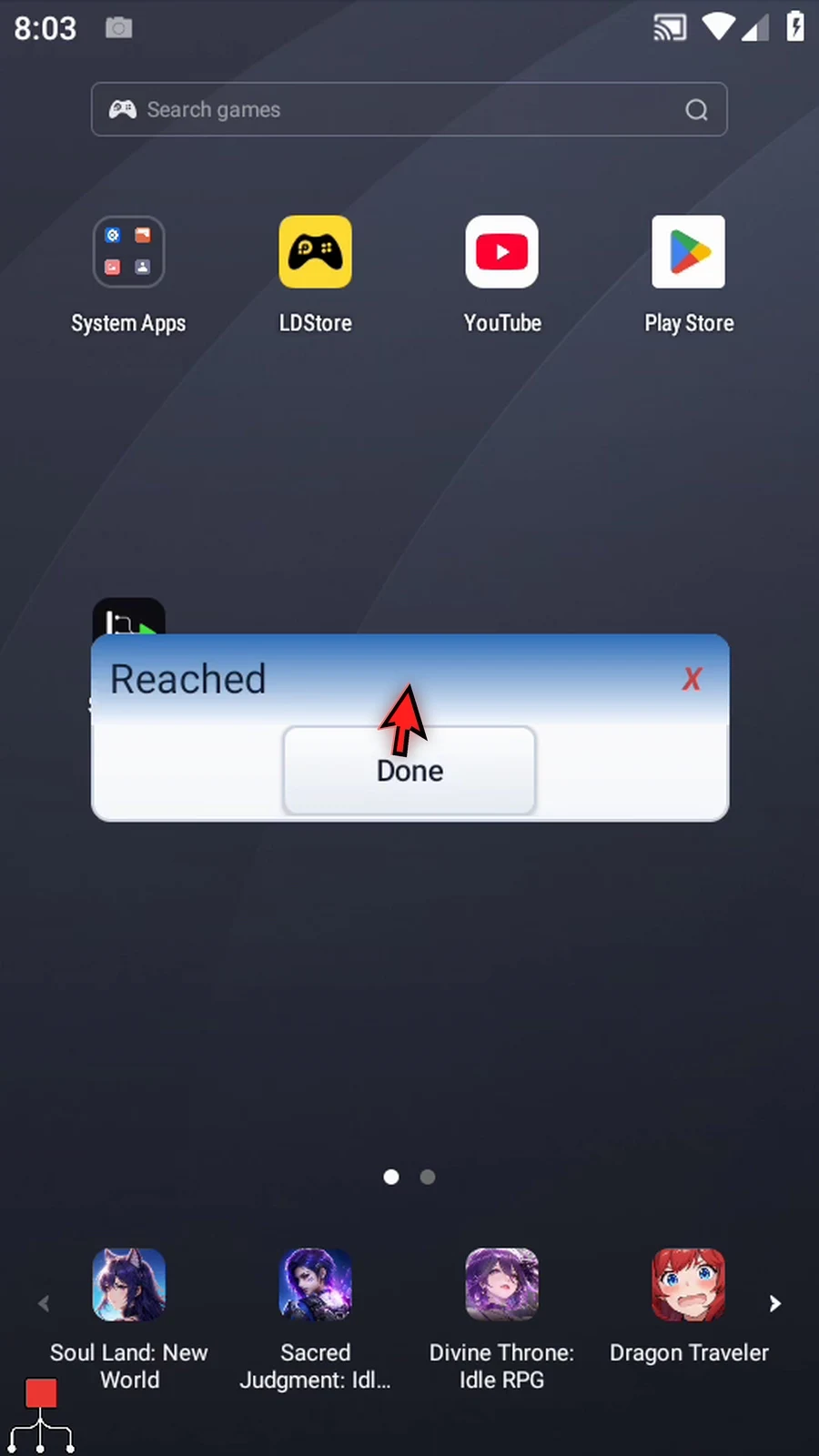
Step 13 Tap Done. The script finishes automatically. GoTo is for choosing a destination inside the current script; use a matching Label to mark where execution should continue.