Command video guide
Translate
Translate converts text stored in a String variable into another language, so later commands can use the translated value.
Create a new blank script, name it, and open the editor. If Android asks, allow screen capture. Manually drag SetVariable into the script, keep Single mode, choose String, and set s1=Hola. Keep This Script Only. Translate needs text supplied by an earlier command; its source is not a literal-text field.
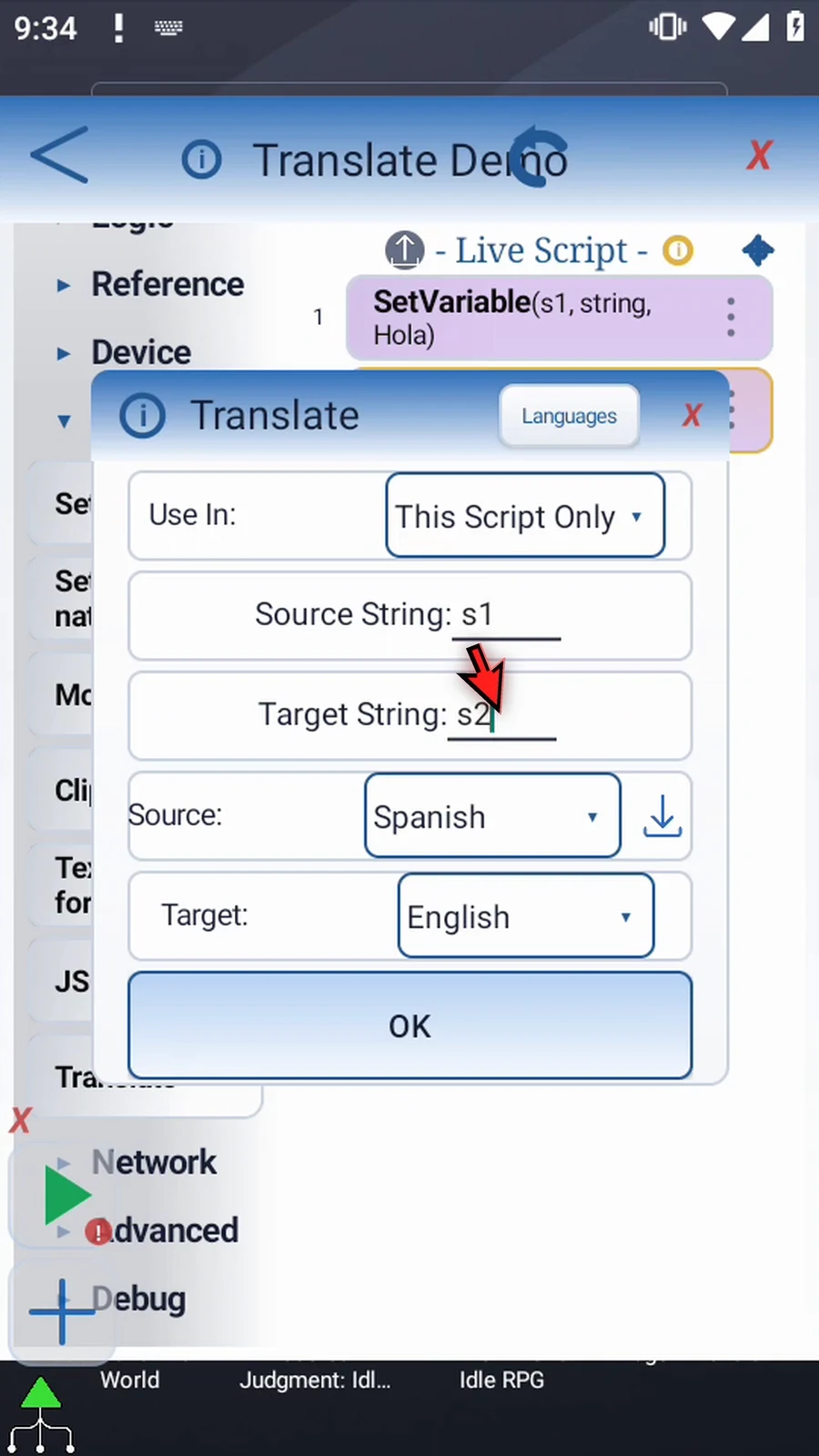
Find Translate under Variables and drag it after SetVariable. Open the added frame. Set Source String s1 and Target String s2. Both must be String variables with different names, preserving the original while the translated text is saved separately.
Select the source text's language and the desired target language explicitly; there is no automatic language detection. This example uses Spanish → English. The languages must be different supported choices.
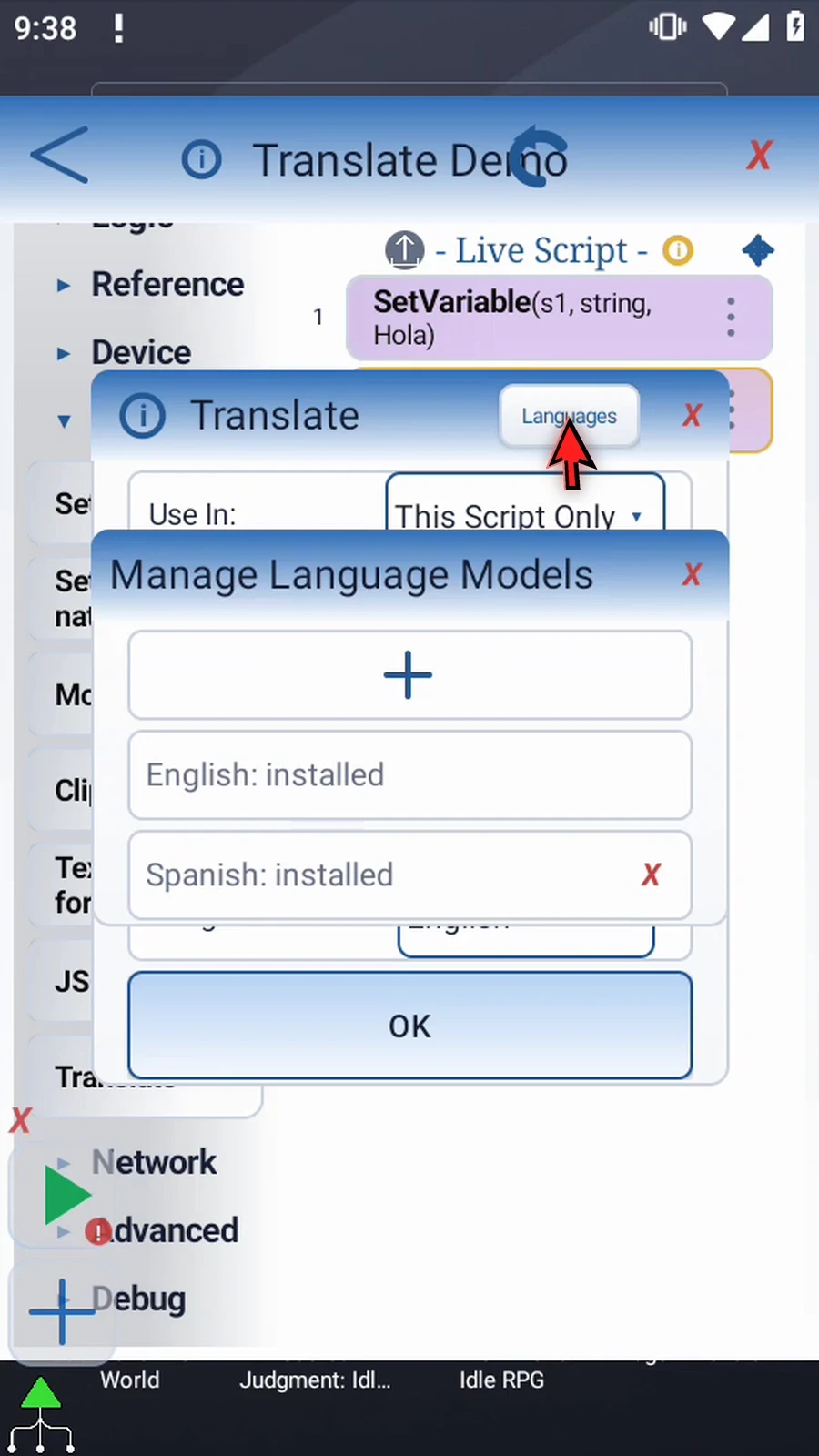
Both language models must be installed before Play. Languages opens Manage Language Models. A download arrow identifies a missing selected pack. In this guide, English is already installed; tap Spanish's arrow, choose Download Now, and wait. The manager then shows both languages installed. Setup downloads need an internet connection and may contact Google to fetch the chosen model. Playback never downloads models automatically; missing packs leave the command incomplete.
Use In selects the result scope: This Script Only keeps it local, while Script Thread shares it within the parent script's call tree. Keep the local scope and tap OK. Translation uses Google ML Kit on device, not a cloud translation service.
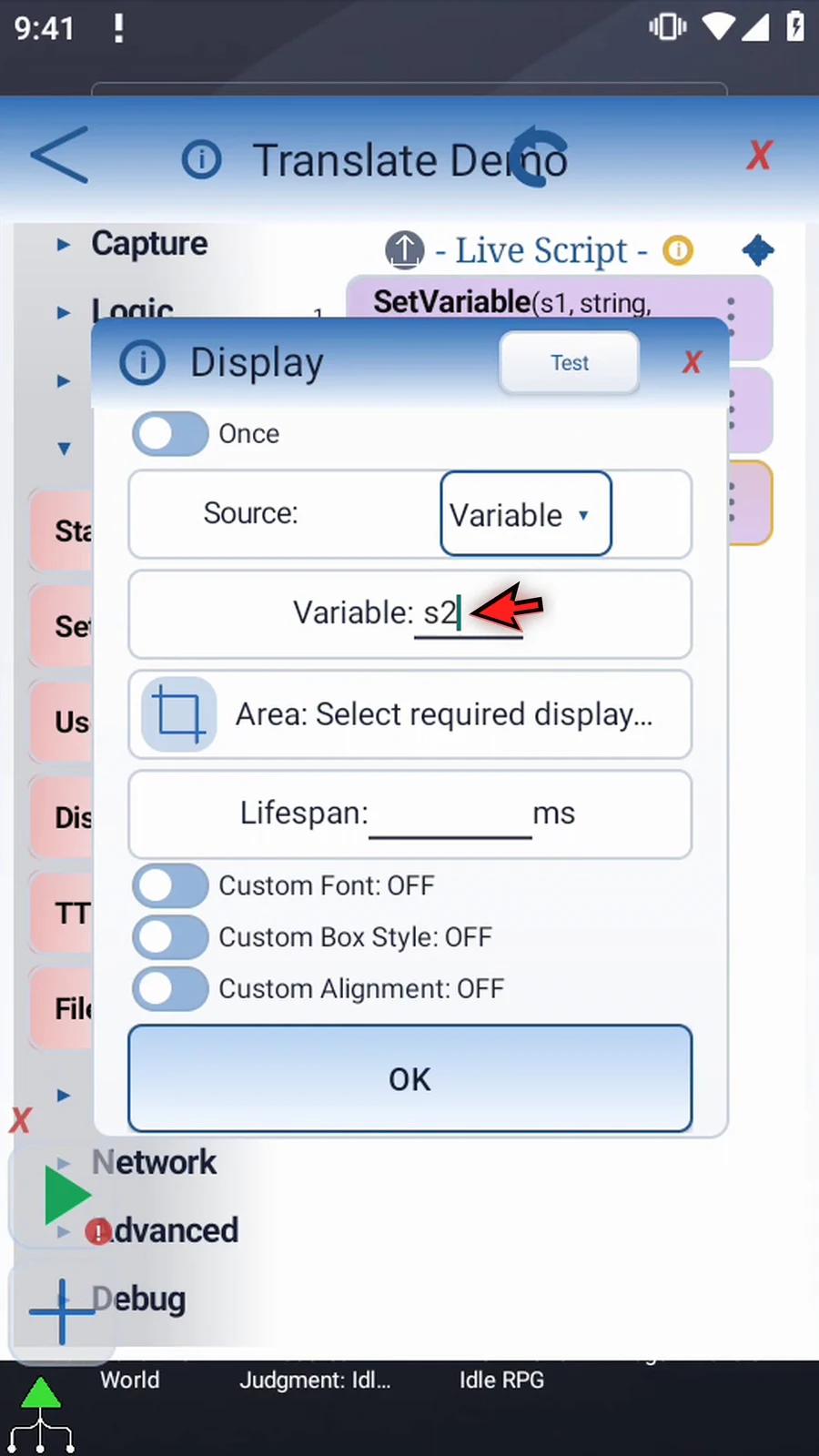
Drag Display after Translate to show the result. Keep Once mode, choose Variable, and enter s2. Use the visual area selector to resize a clear rectangle and confirm with the check mark. Set Lifespan 5000 ms, leave the appearance defaults unchanged, and tap OK.
Drag PromptMe after Display as a visible completion check. Keep the regular Standard prompt, set Header Complete, and add a Done button with Boolean output b1. Tap OK.
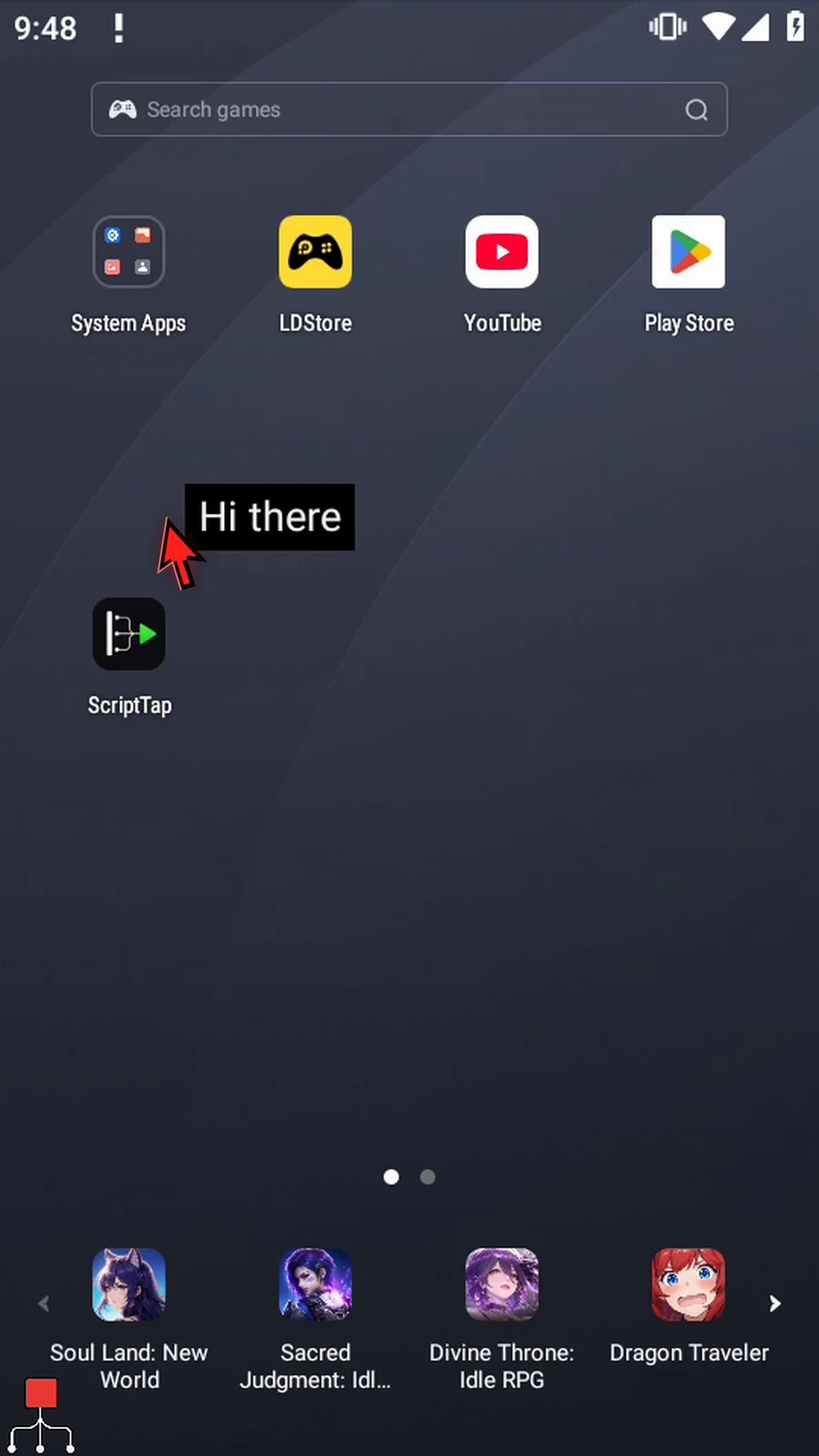
The four commands supply the source, translate it, display the result, and confirm completion. Close the editor and use Play. The actual model result in this example is Hi there in s2; s1 remains Hola. The complete timed display is followed by Complete. Press Done to finish automatically.
Watch the walkthrough
Step-by-step guide
Step 01 Translate converts text from one language into another for later script commands. In this example, we will translate the Spanish word Hola into English and display the result.
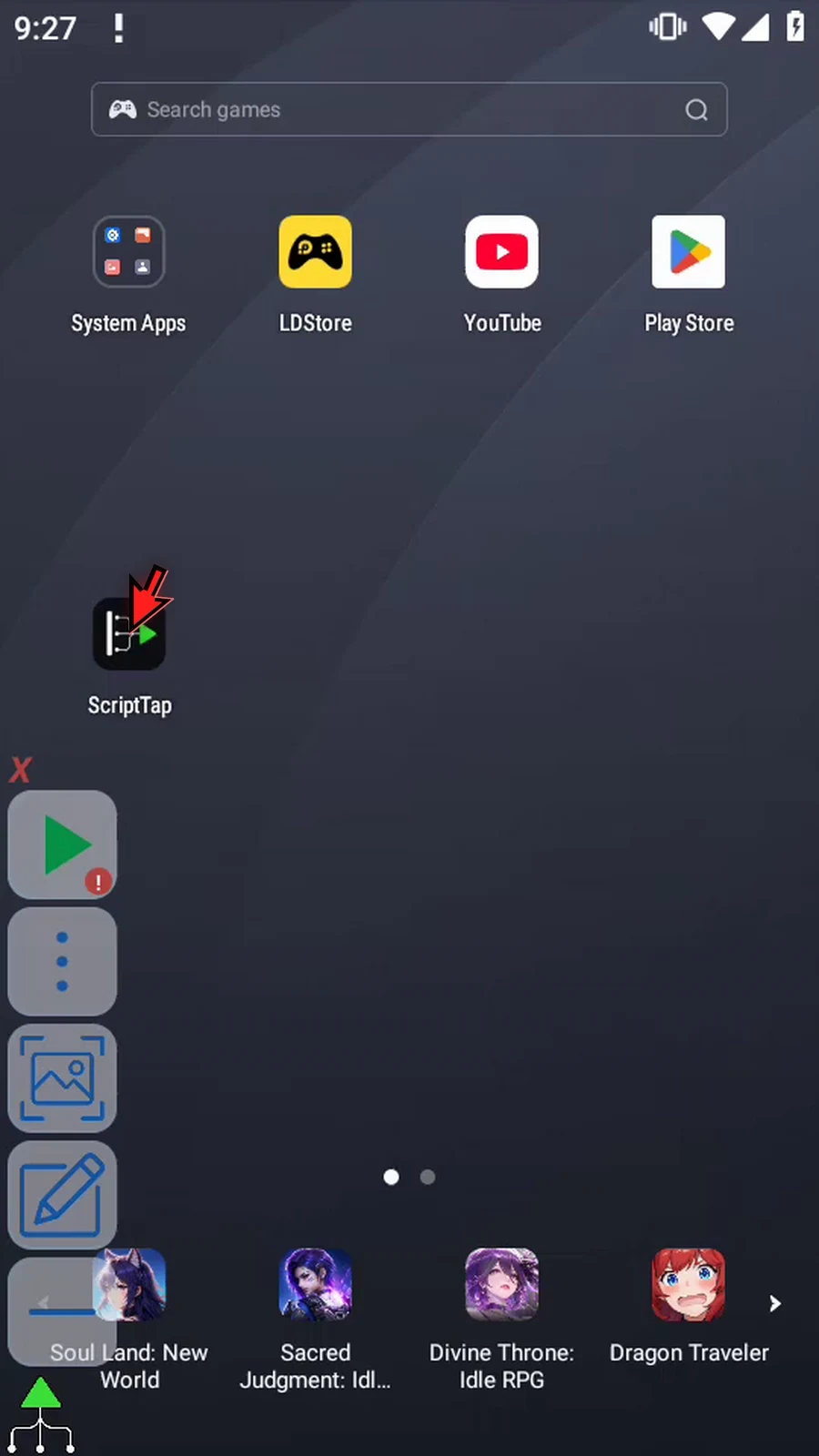
Step 02 Open the main menu, then Scripts.
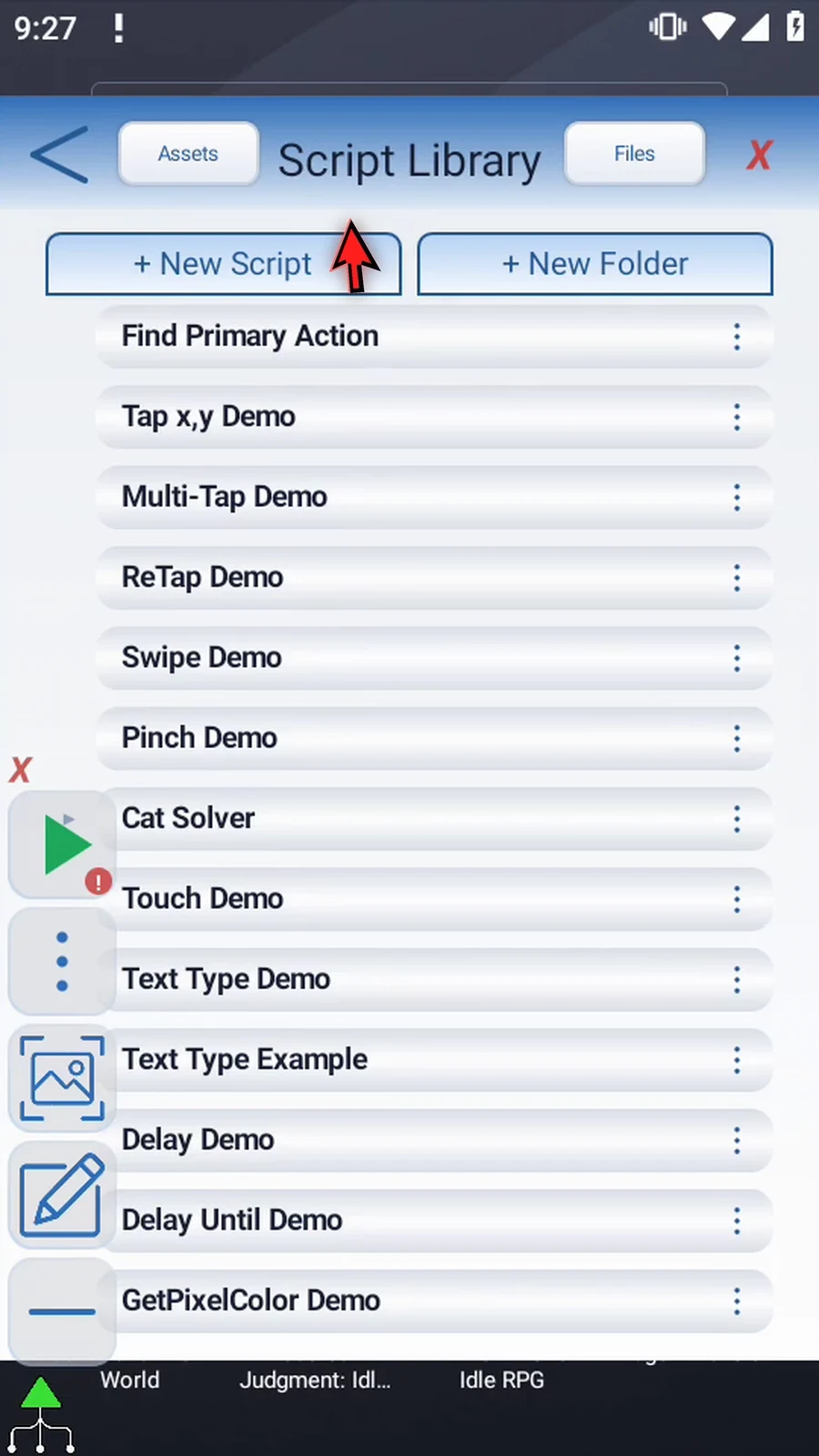
Step 03 Create a new blank script.
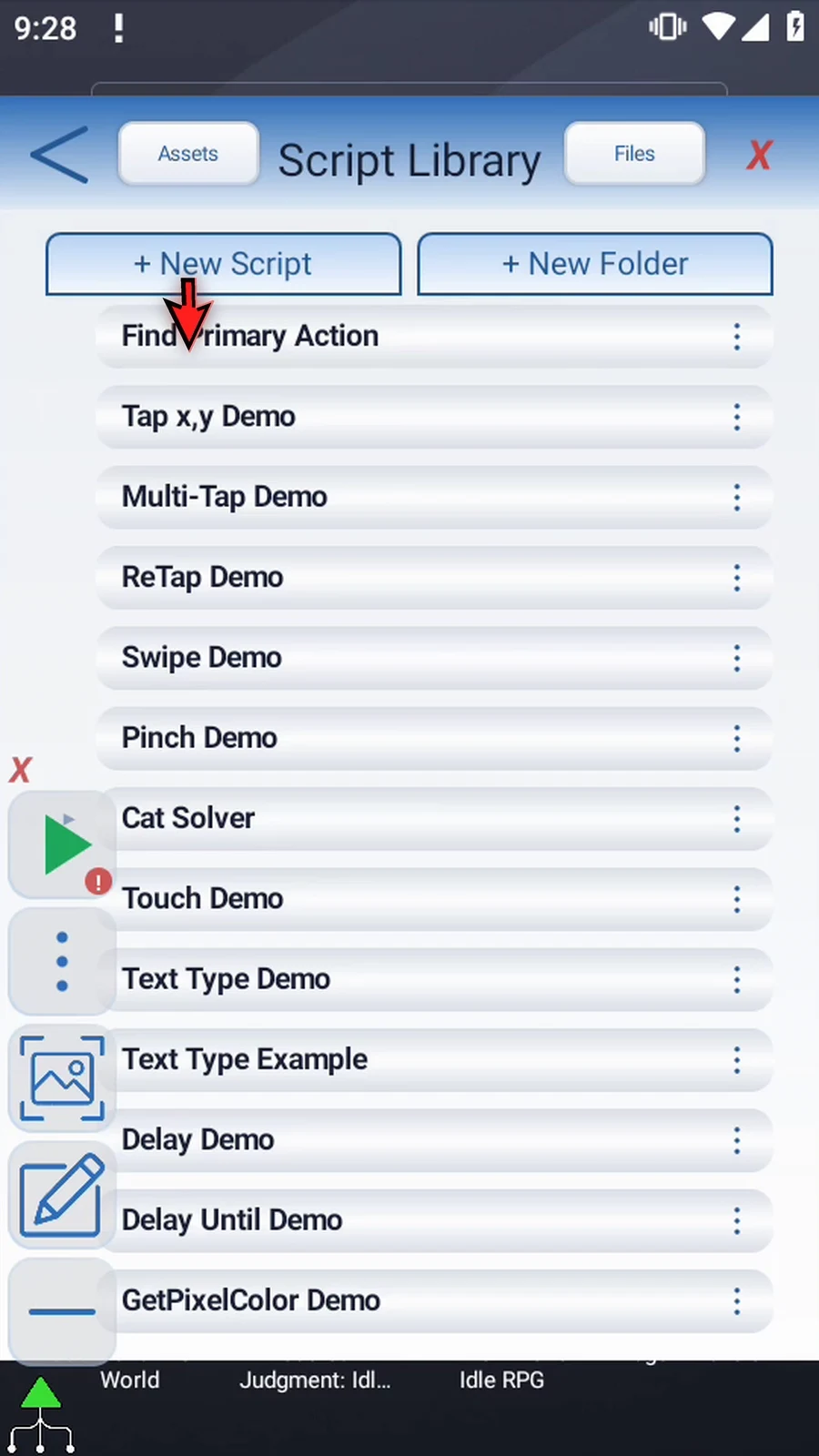
Step 04 Find the new script at the bottom of the library.
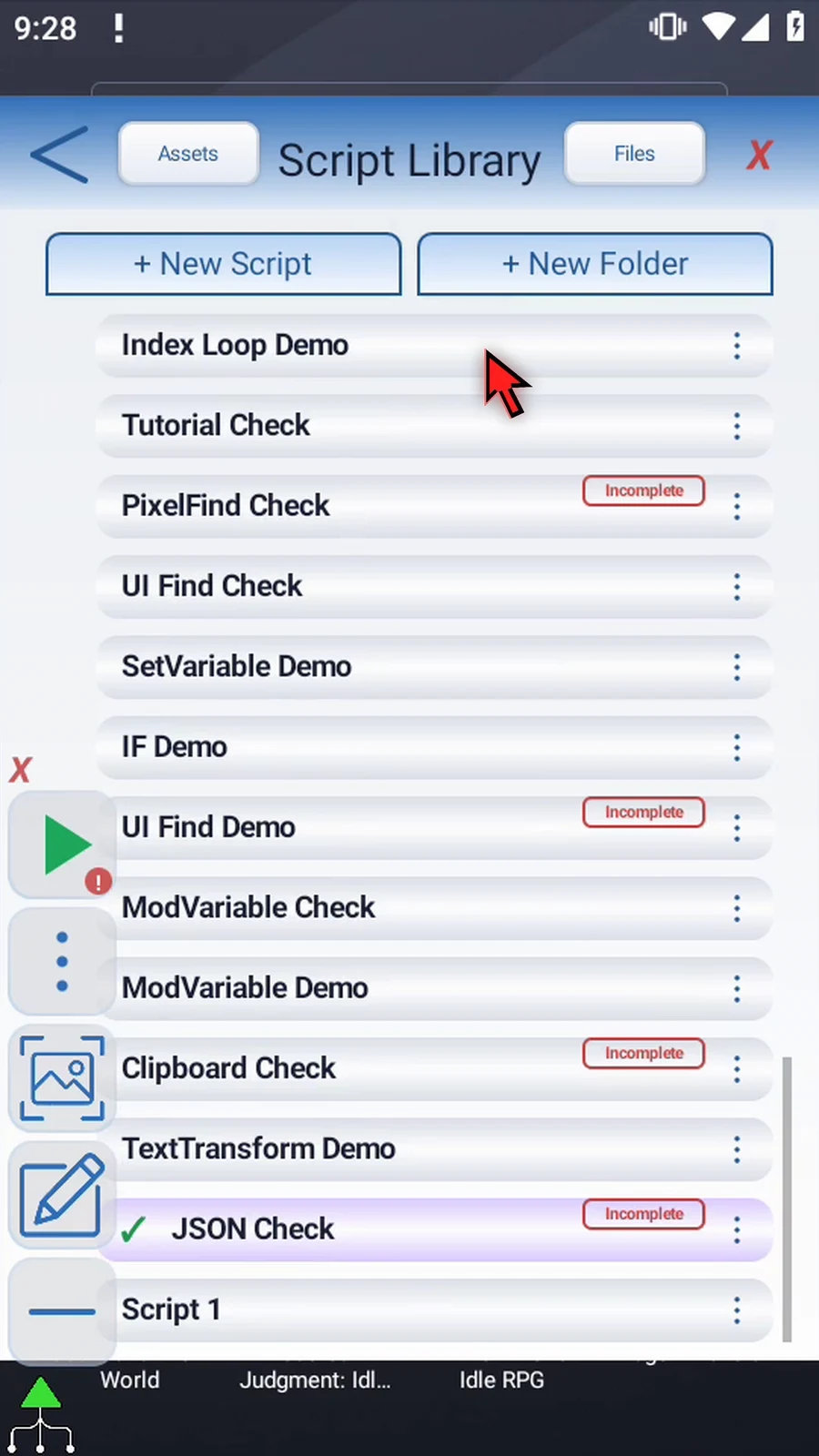
Step 05 Open its options, choose Rename, and pick a descriptive name.
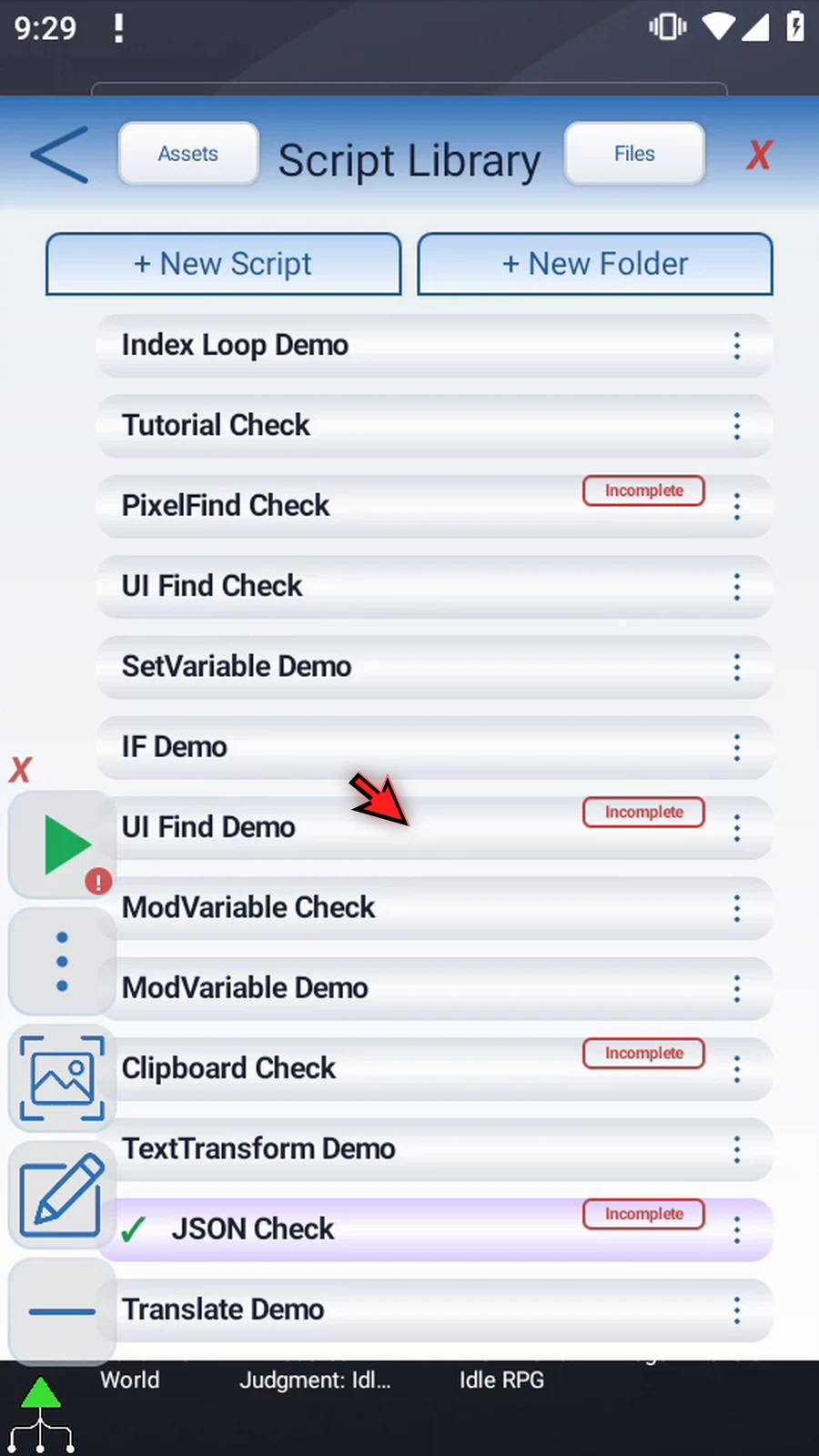
Step 06 Select the new script and open the editor. Collapse the extra overlay controls if needed. If Android asks, allow screen capture.
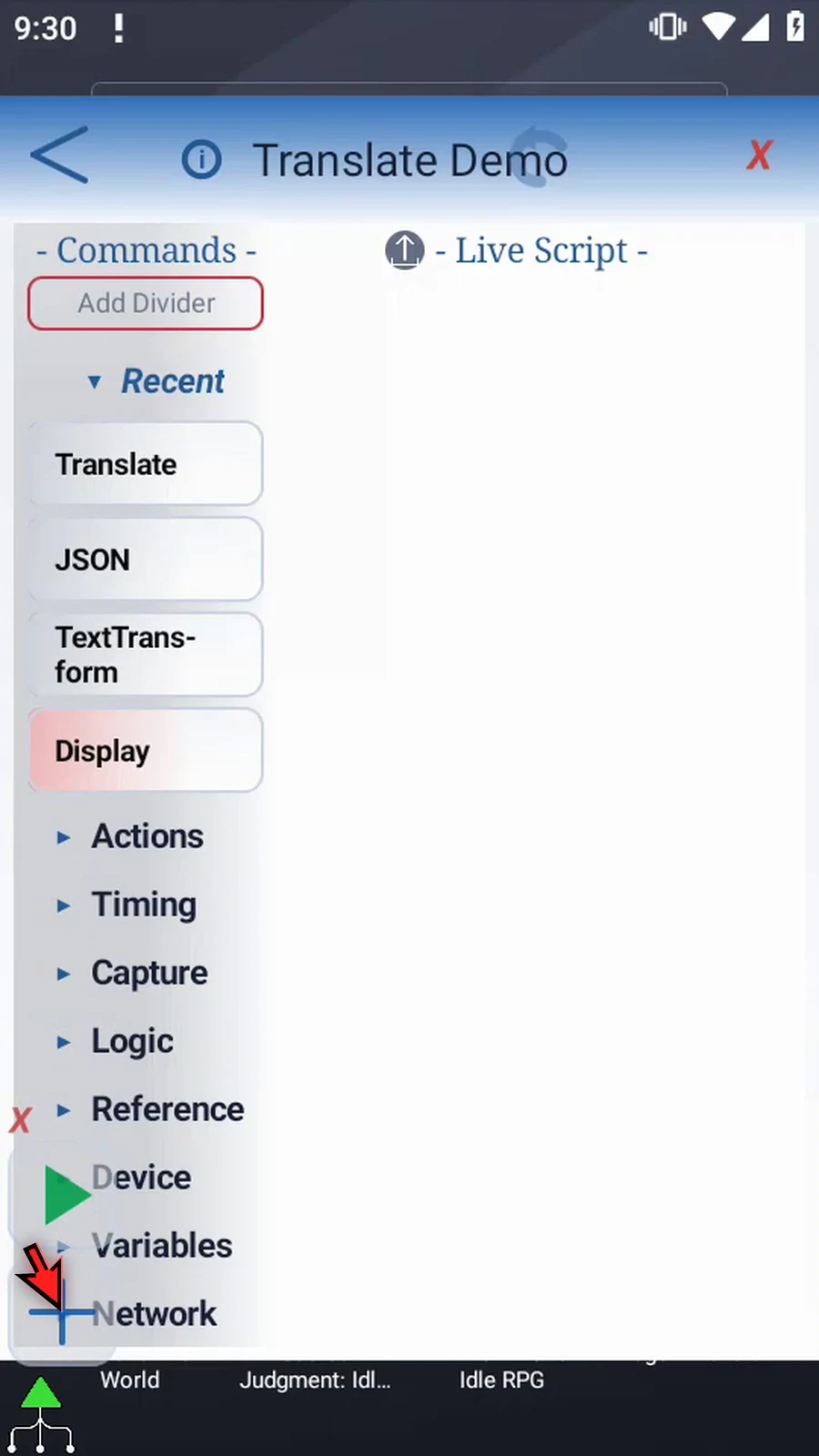
Step 07 Translate reads text from a String variable. Expand Variables and drag Set Variable into the script to provide that text.
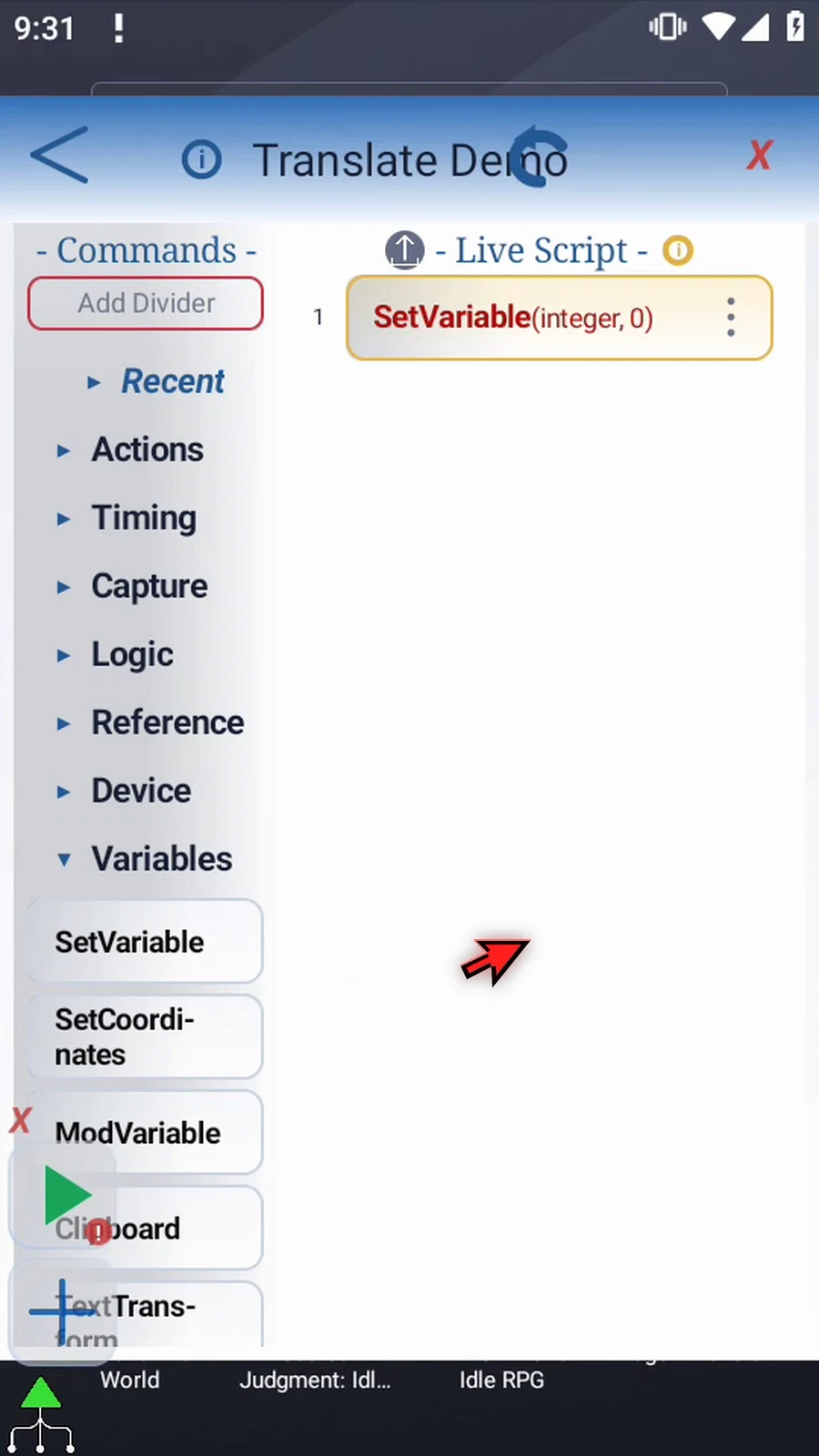
Step 08 Open the frame, keep Single mode, and choose String as the type.
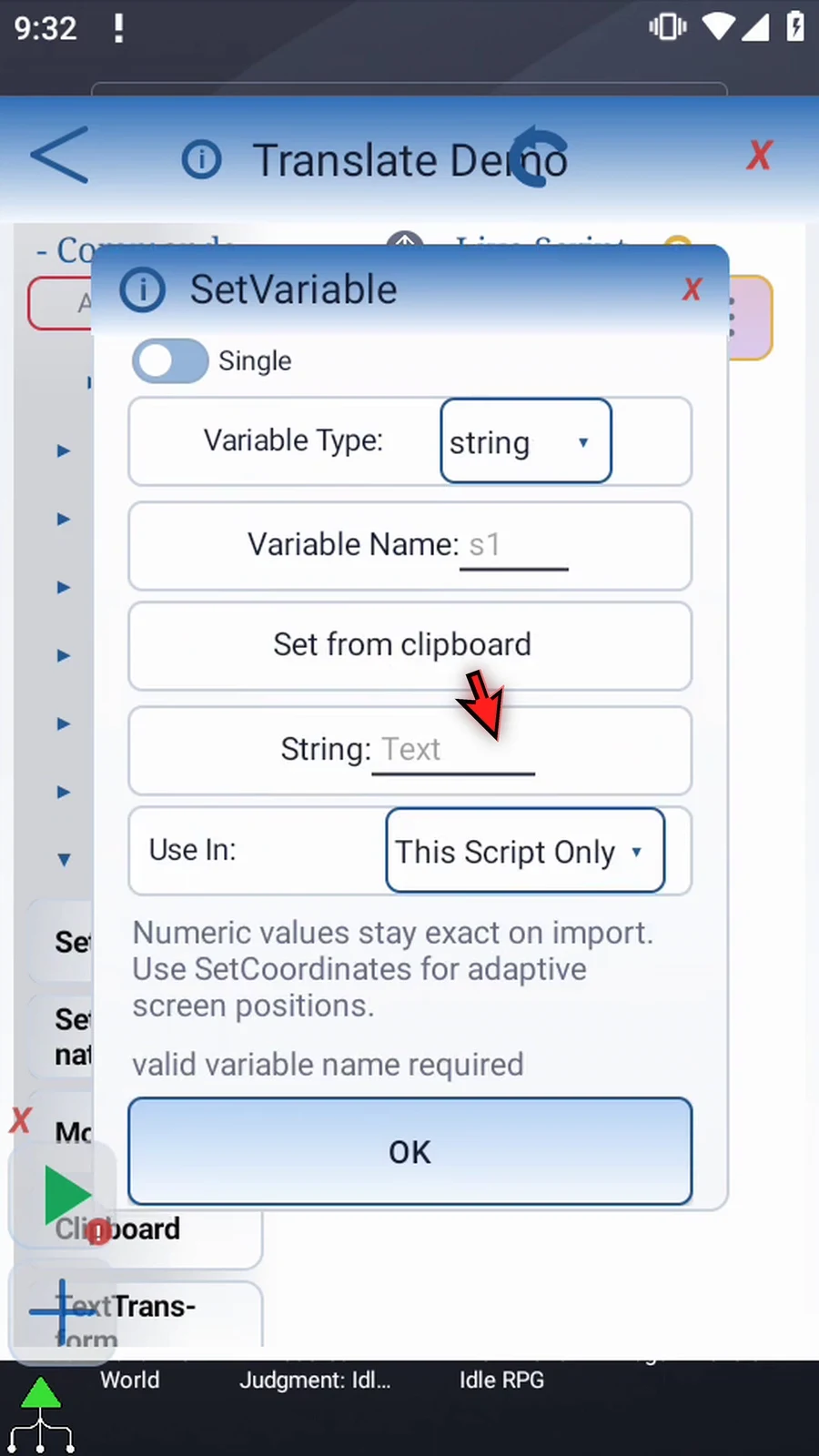
Step 09 Name it s1 and enter Hola as its value. Keep This Script Only and tap OK. This assignment runs before Translate.
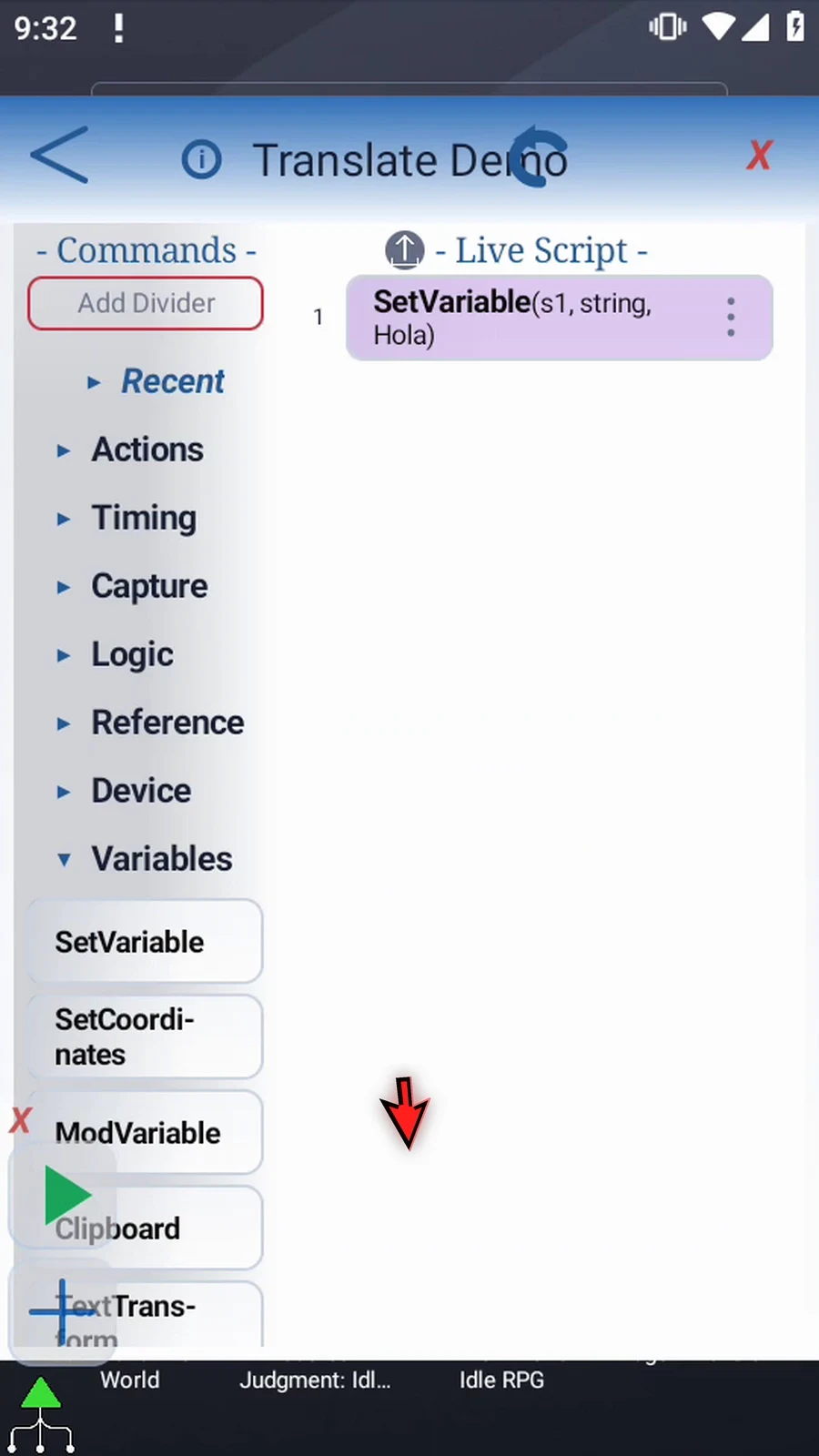
Step 10 Find Translate in Variables and drag it below the assignment. Then open its frame.
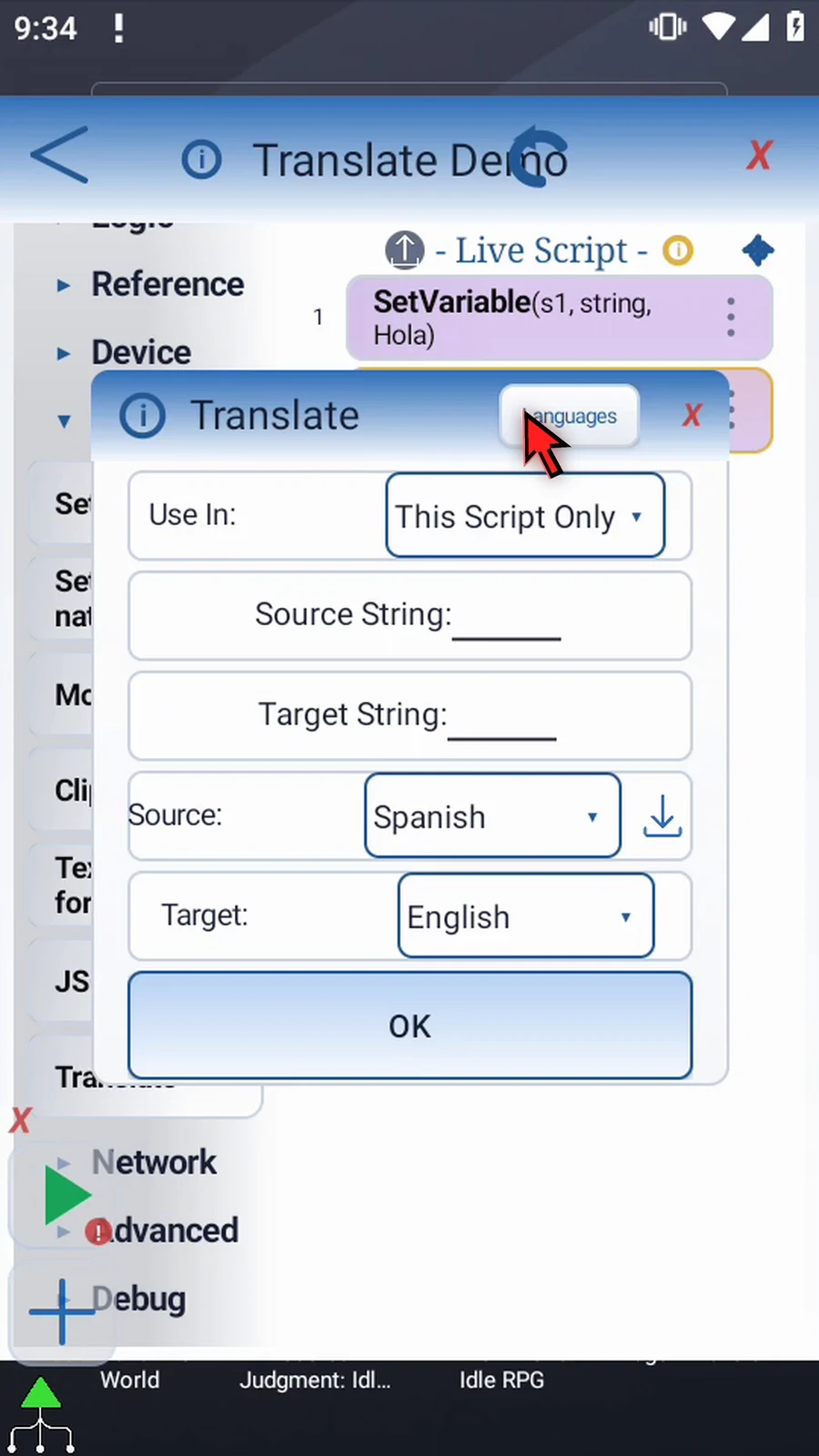
Step 11 Enter s1 as the Source String and s2 as the Target String. The target receives the translated text. Use different variables to keep the original text unchanged.
Step 12 Choose the text's language under Source, and the desired language under Target. There is no automatic language detection. In this example, keep Spanish as the source and English as the target.
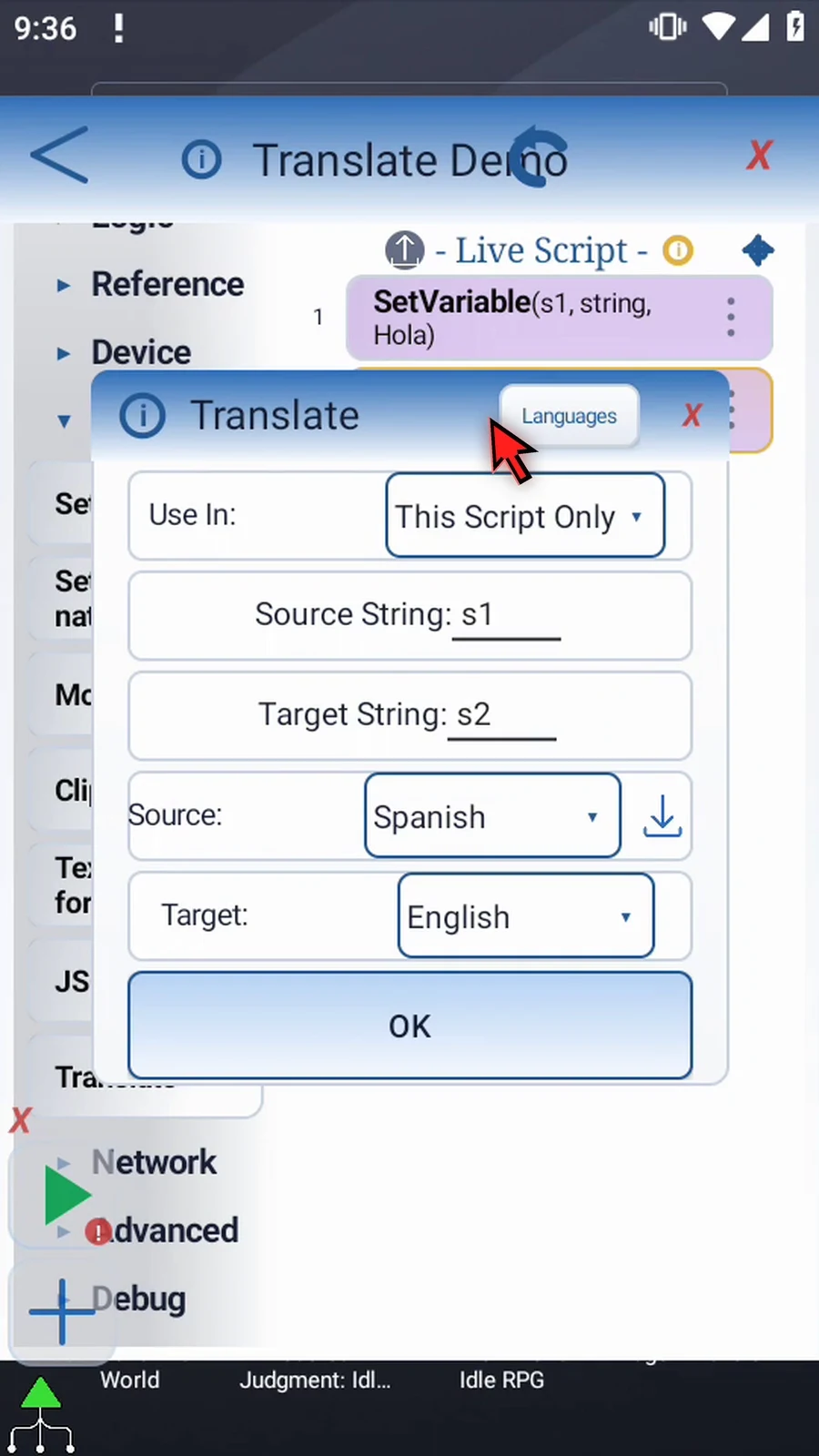
Step 13 Both language packs must be installed before the script can play. Languages opens the model manager. English is already installed here; Spanish still needs a download, indicated by the arrow beside Source.
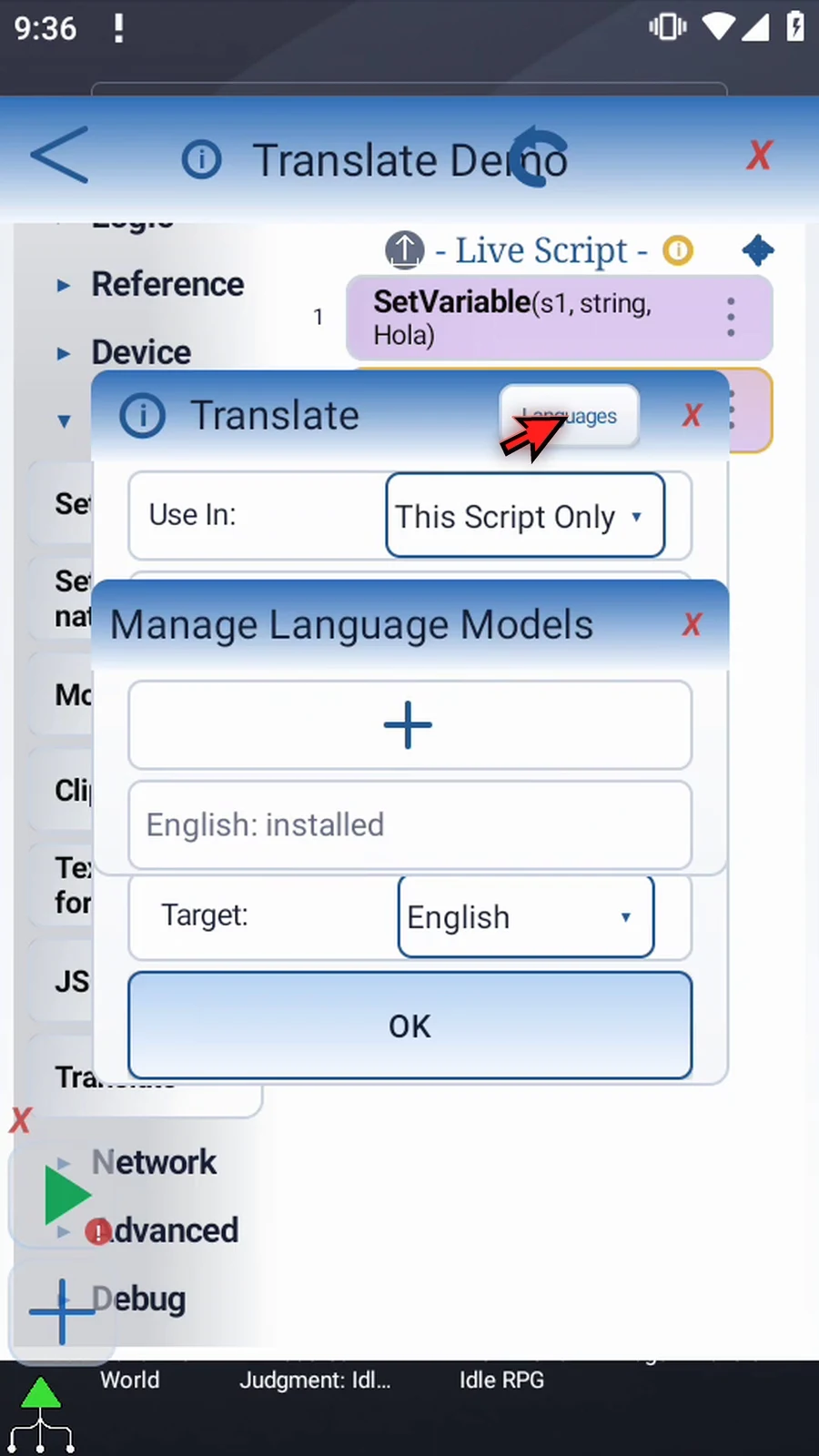
Step 14 Tap the arrow, choose Download Now, and wait for the pack to finish. This setup download needs an internet connection; the script does not download models during playback.
Step 15 Use In controls where the result is stored. This Script Only keeps it local; Script Thread shares it within the parent script's call tree. Keep the local scope here. Translation itself runs on device.
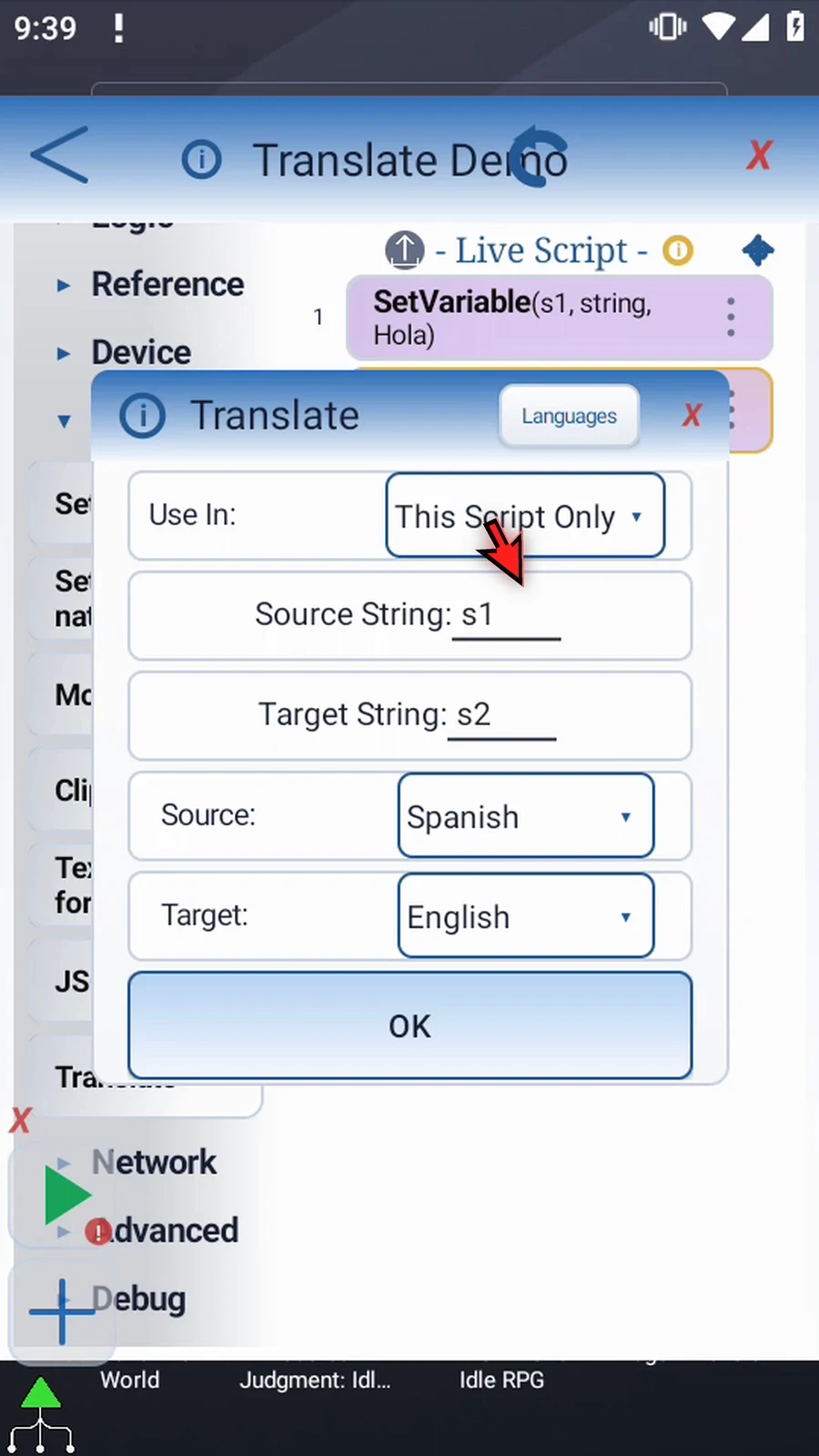
Step 16 Check s1 to s2, Spanish to English, then tap OK. The translated value will be available to commands that follow.
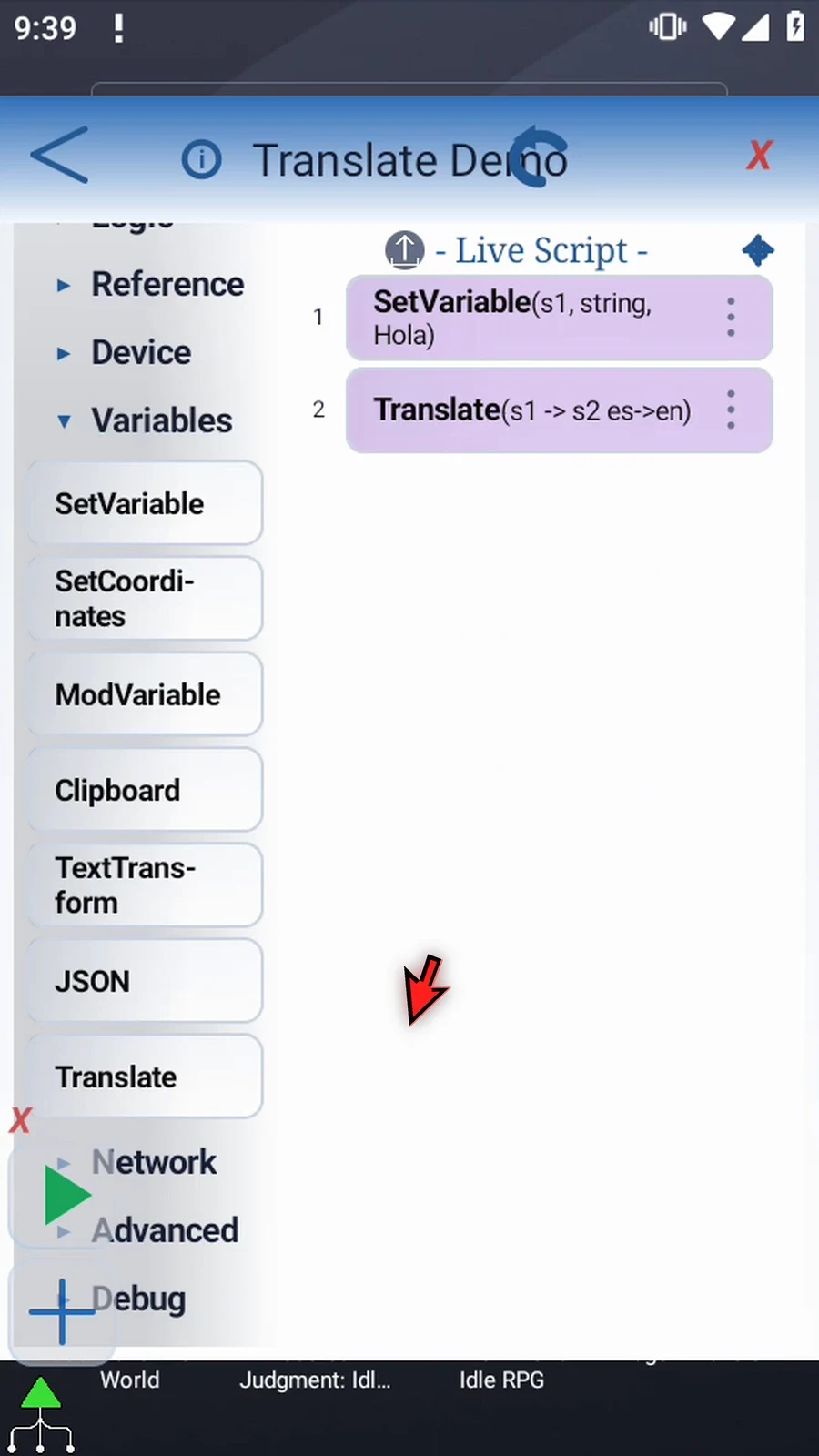
Step 17 To see that value, expand Device and drag Display after Translate. This supporting command makes the result visible.
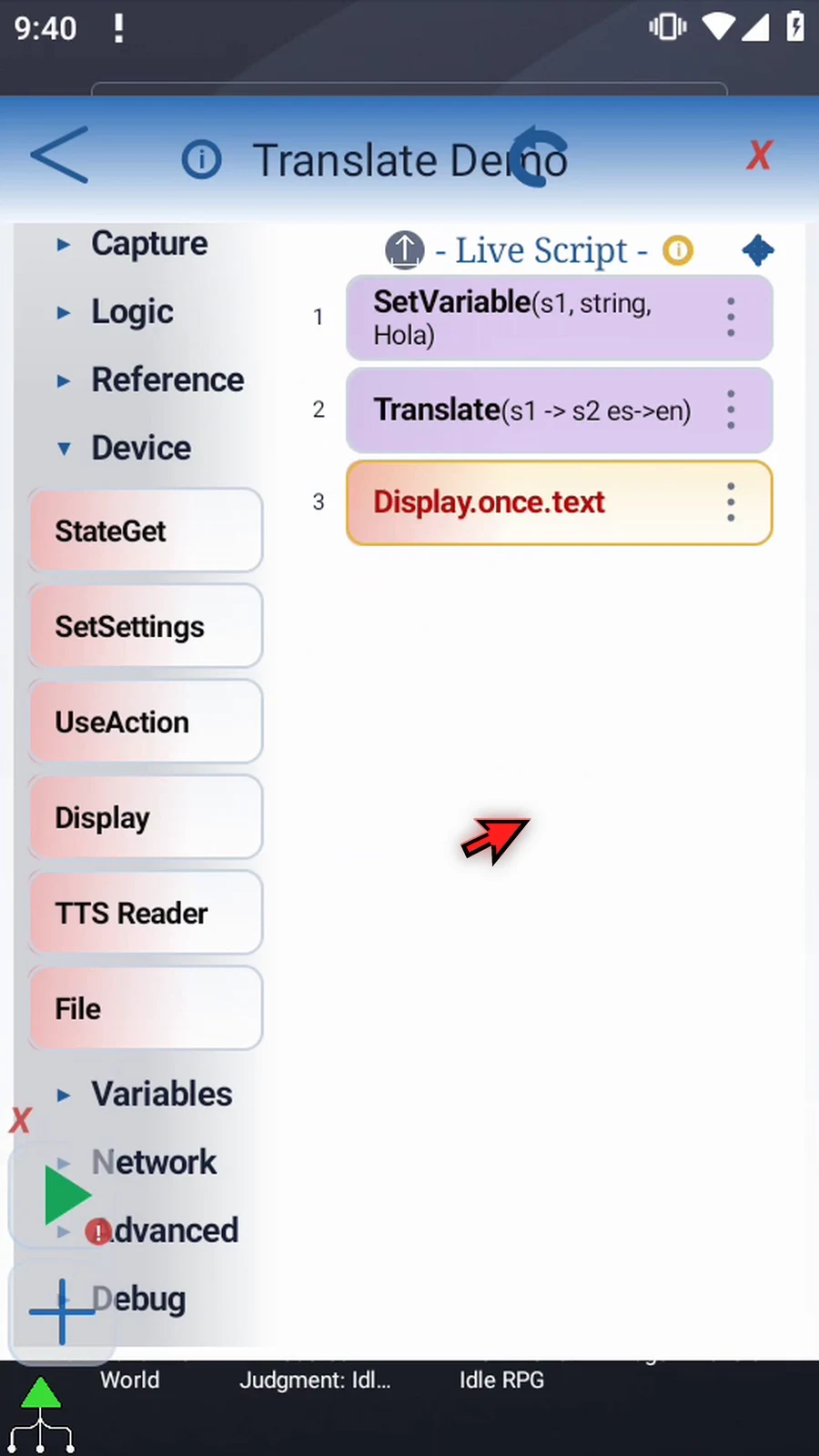
Step 18 Open Display, keep Once mode, choose Variable as the source, and enter s2.
Step 19 Open the area selector and resize the box to a clear area. Use the check mark to return.
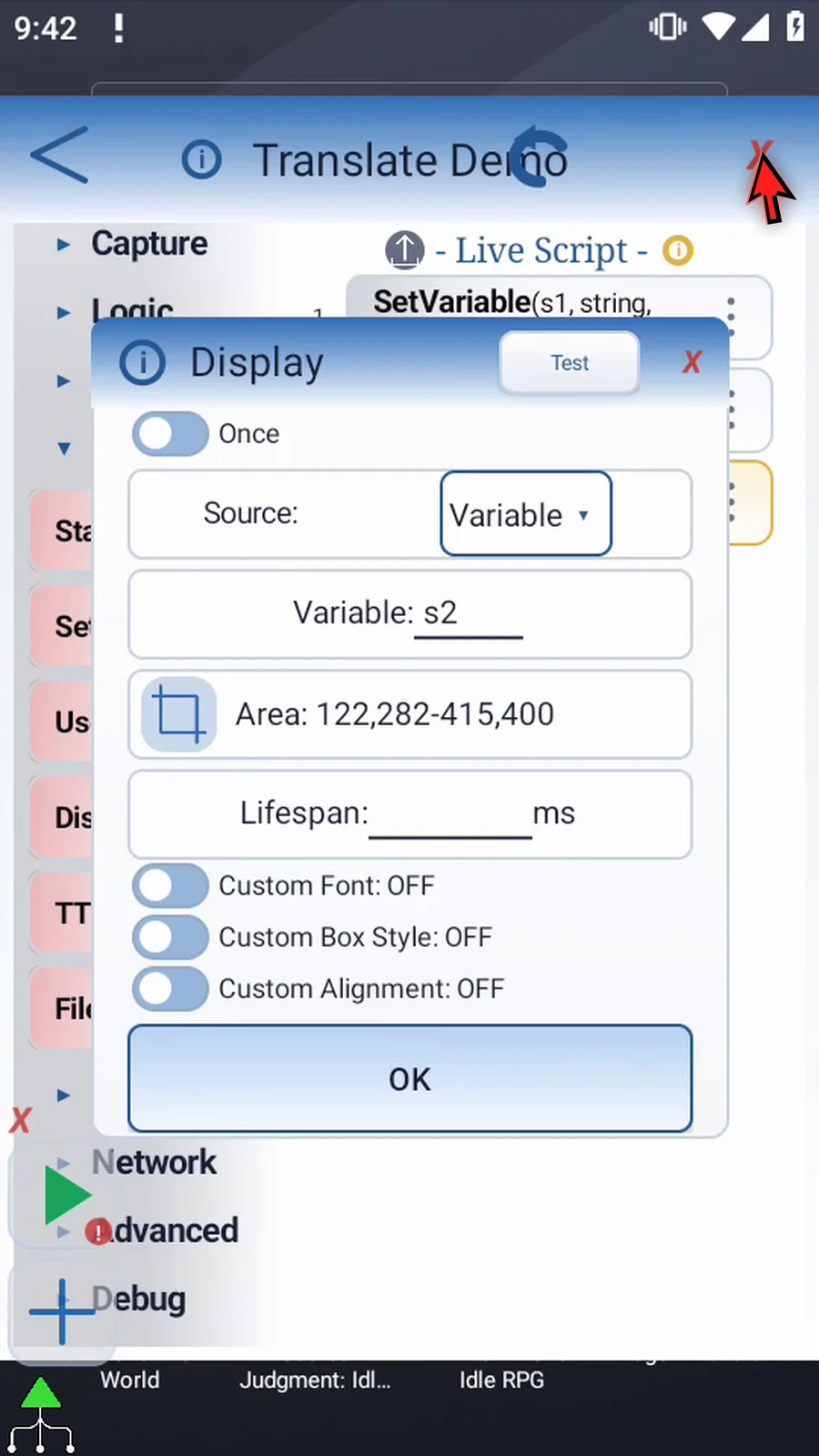
Step 20 Set its lifespan to five thousand milliseconds, giving us five seconds to see the result. Keep the other settings at their defaults and tap OK.
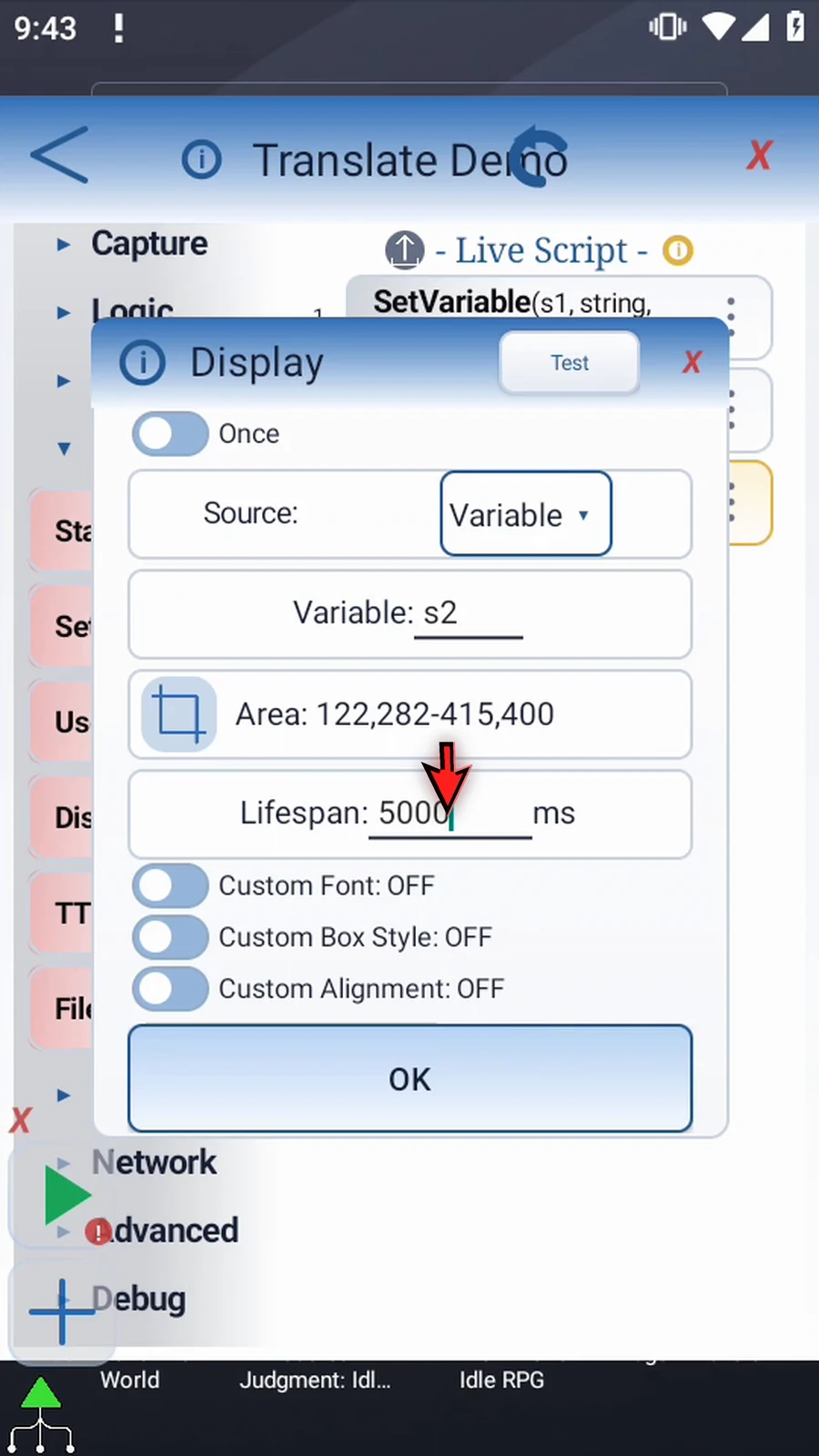
Step 21 Add Prompt Me after Display as a final confirmation. It shows that the script reached the next command.
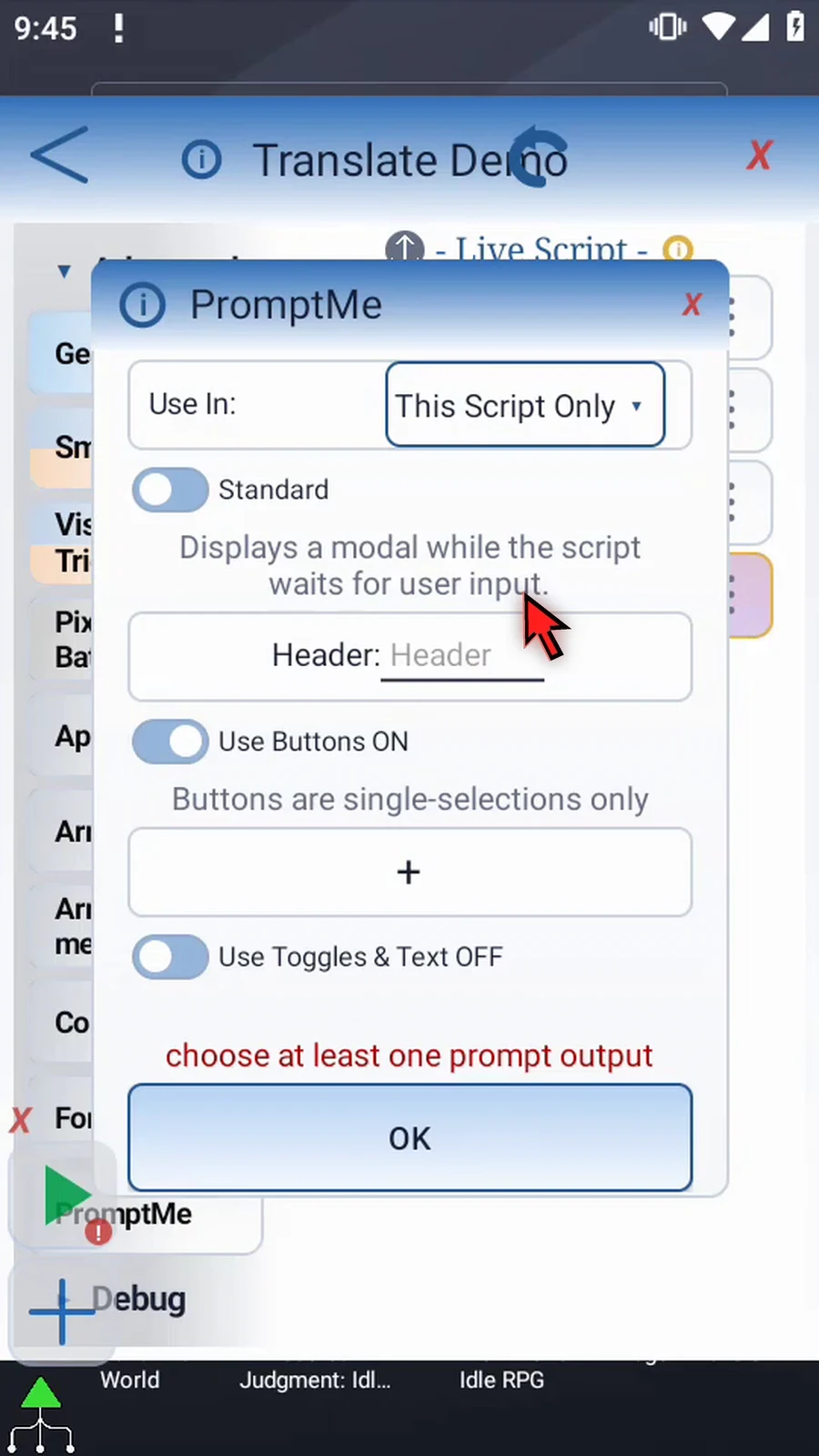
Step 22 Keep the regular Standard prompt, and give it the header Complete.
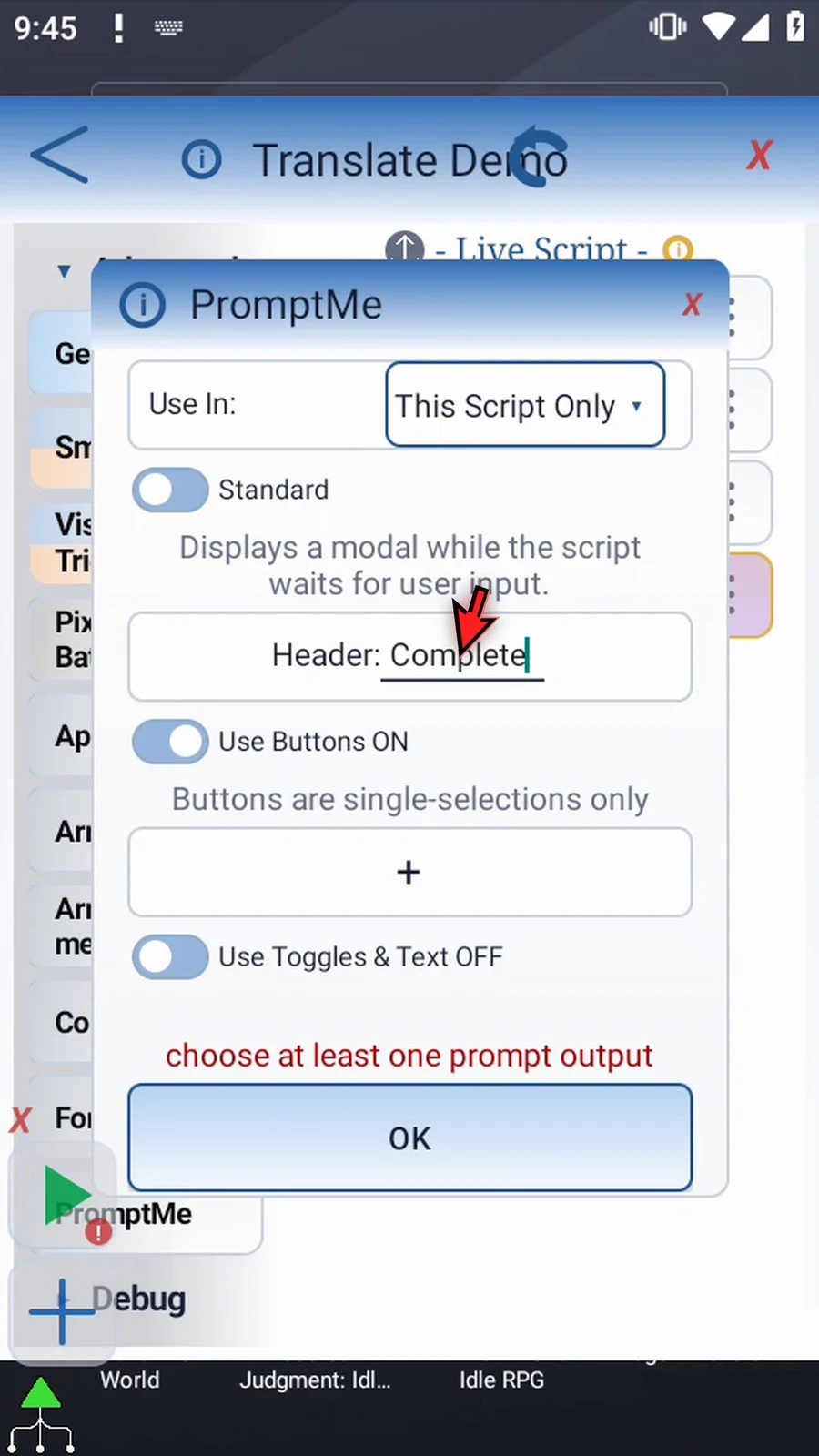
Step 23 Add a button named Done, using b1 for its Boolean output. Then tap OK.
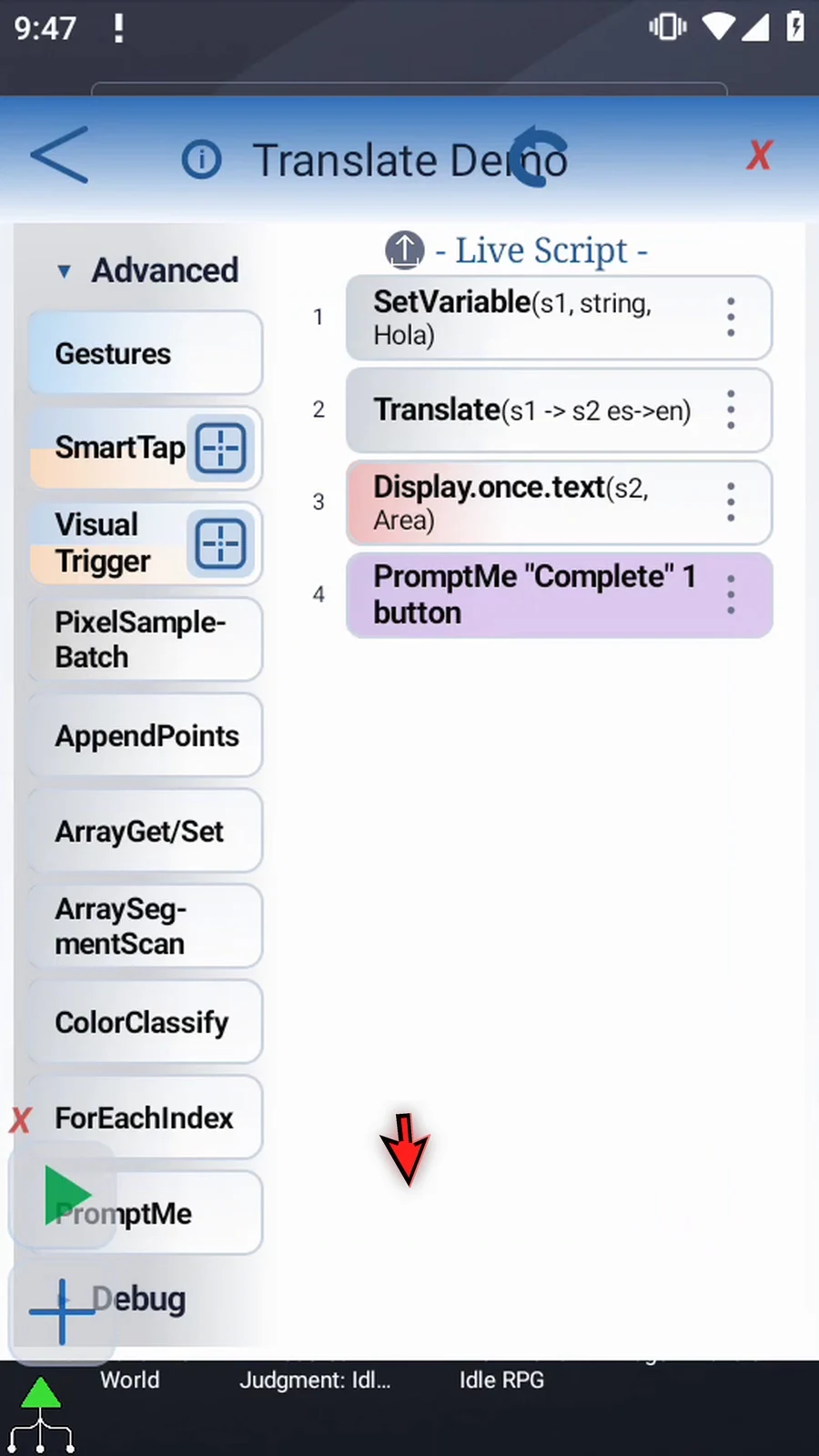
Step 24 Set Variable supplies the Spanish text. Translate saves English text in s2, Display shows it, and Prompt Me confirms completion. Close the editor.
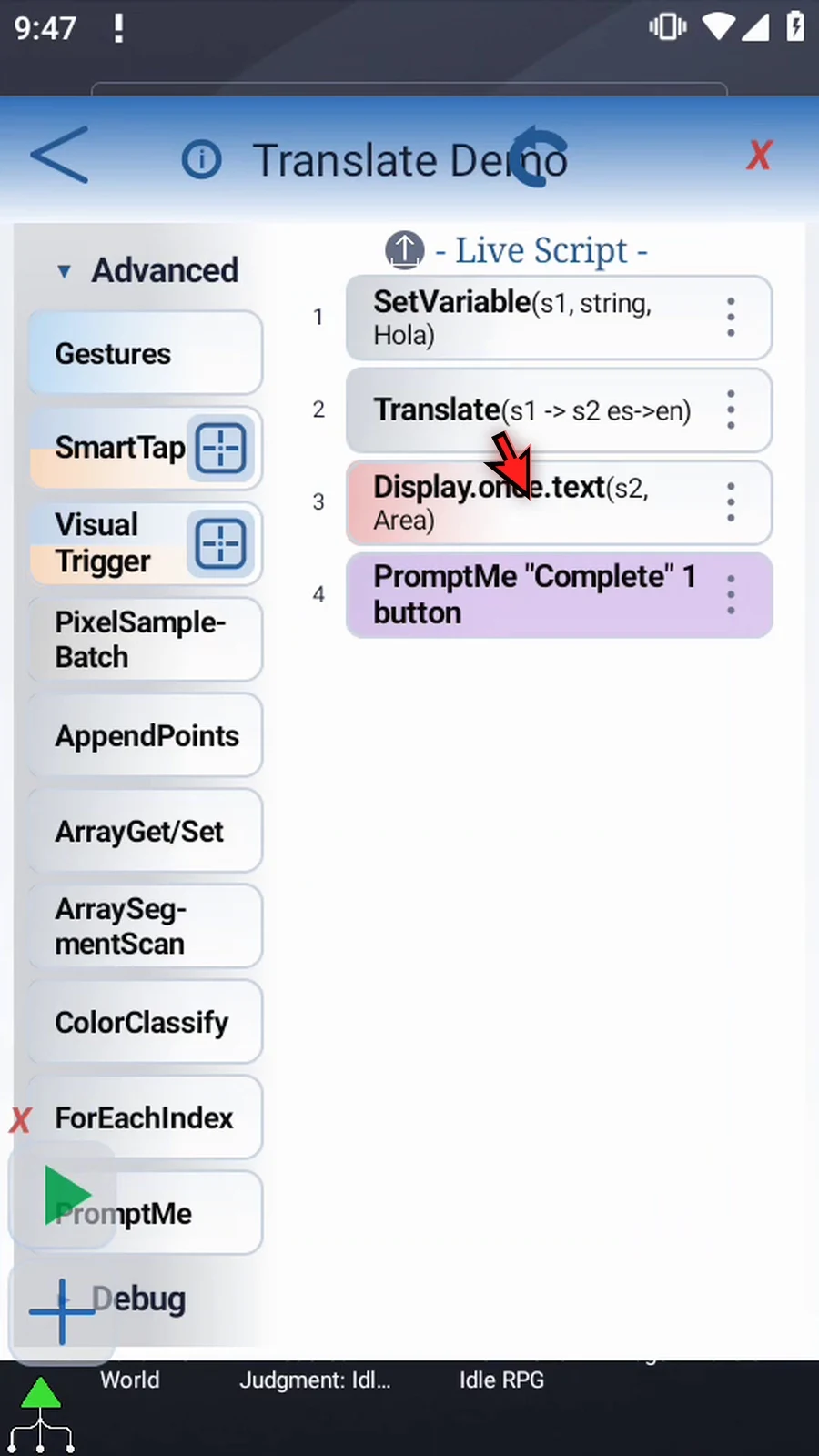
Step 25 When the script is complete, simply use the Play button in the main overlay.
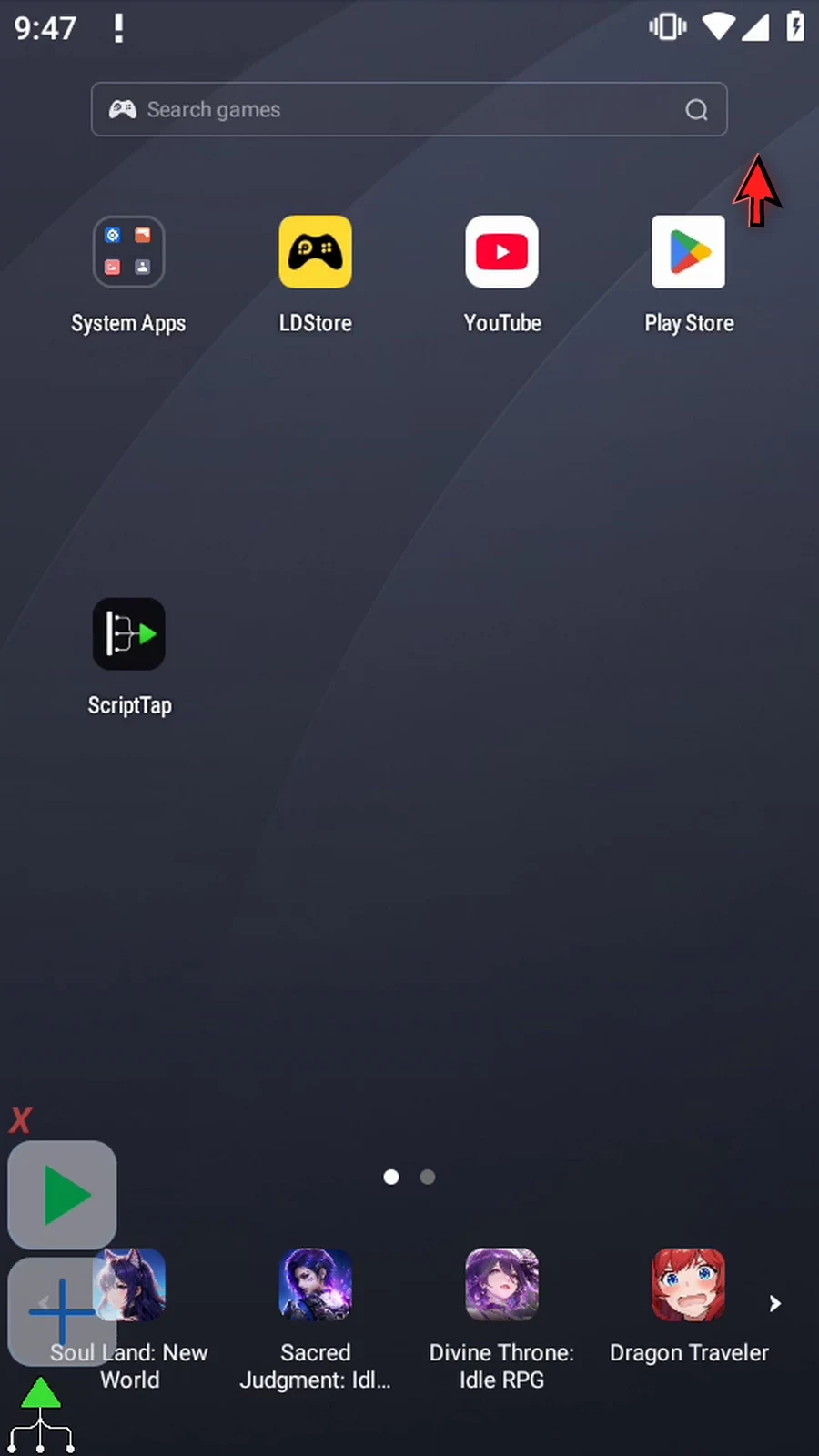
Step 26 The screen now says Hi there. Translate stored the English result in s2.
Step 27 Display closes, and Complete confirms that the script reached Prompt Me.
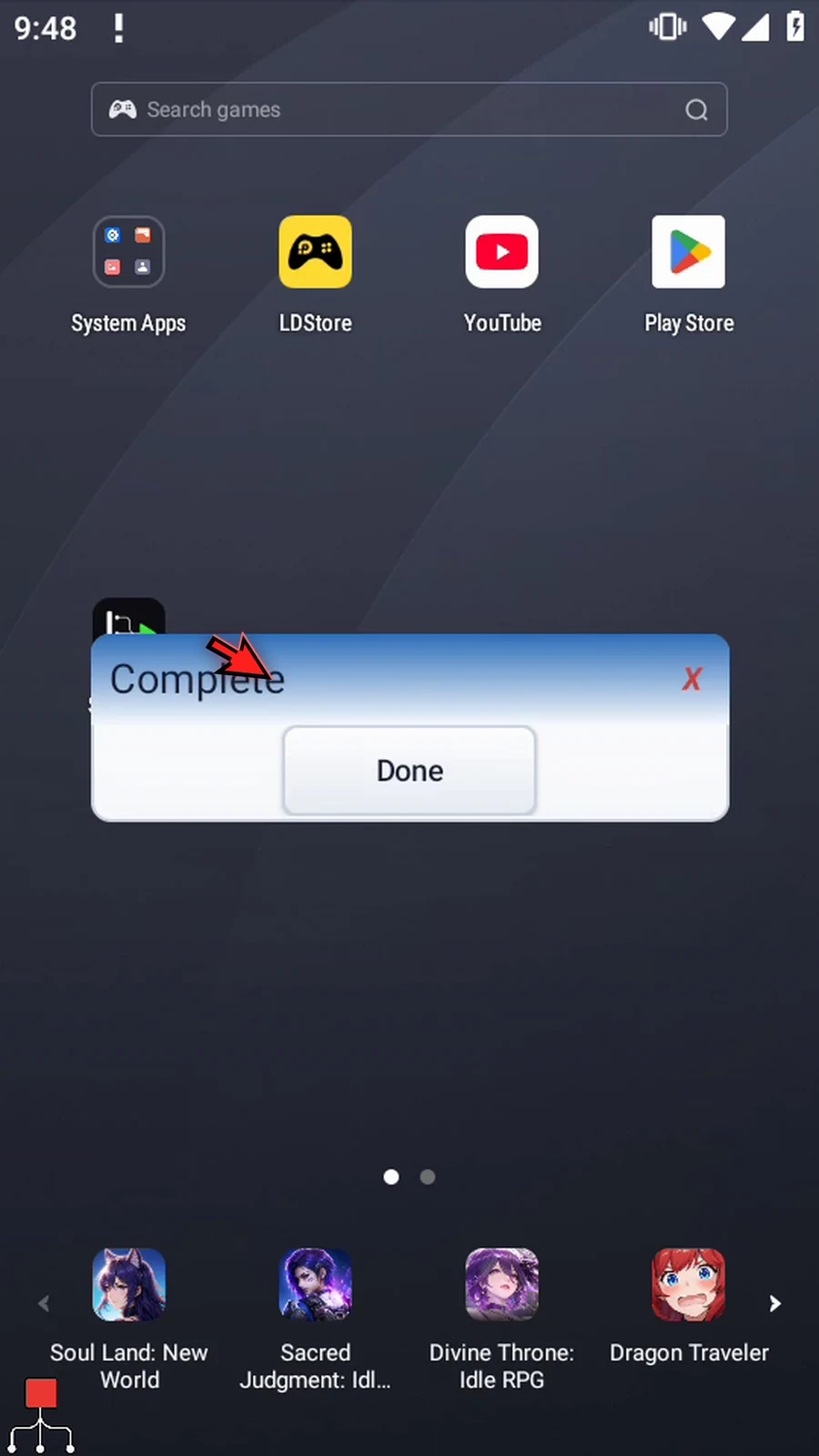
Step 28 Press Done. The script finishes automatically. Use Translate when later commands need text in another language, with both language packs installed in advance.