Command video guide
Delay
Pause a script before its next command. Build two taps, drag Delay between them, and use 1000 milliseconds to separate them by one second.
Watch the walkthrough
Step-by-step guide
Step 01 Delay pauses your script before the next command. Use it to give an app time to respond.
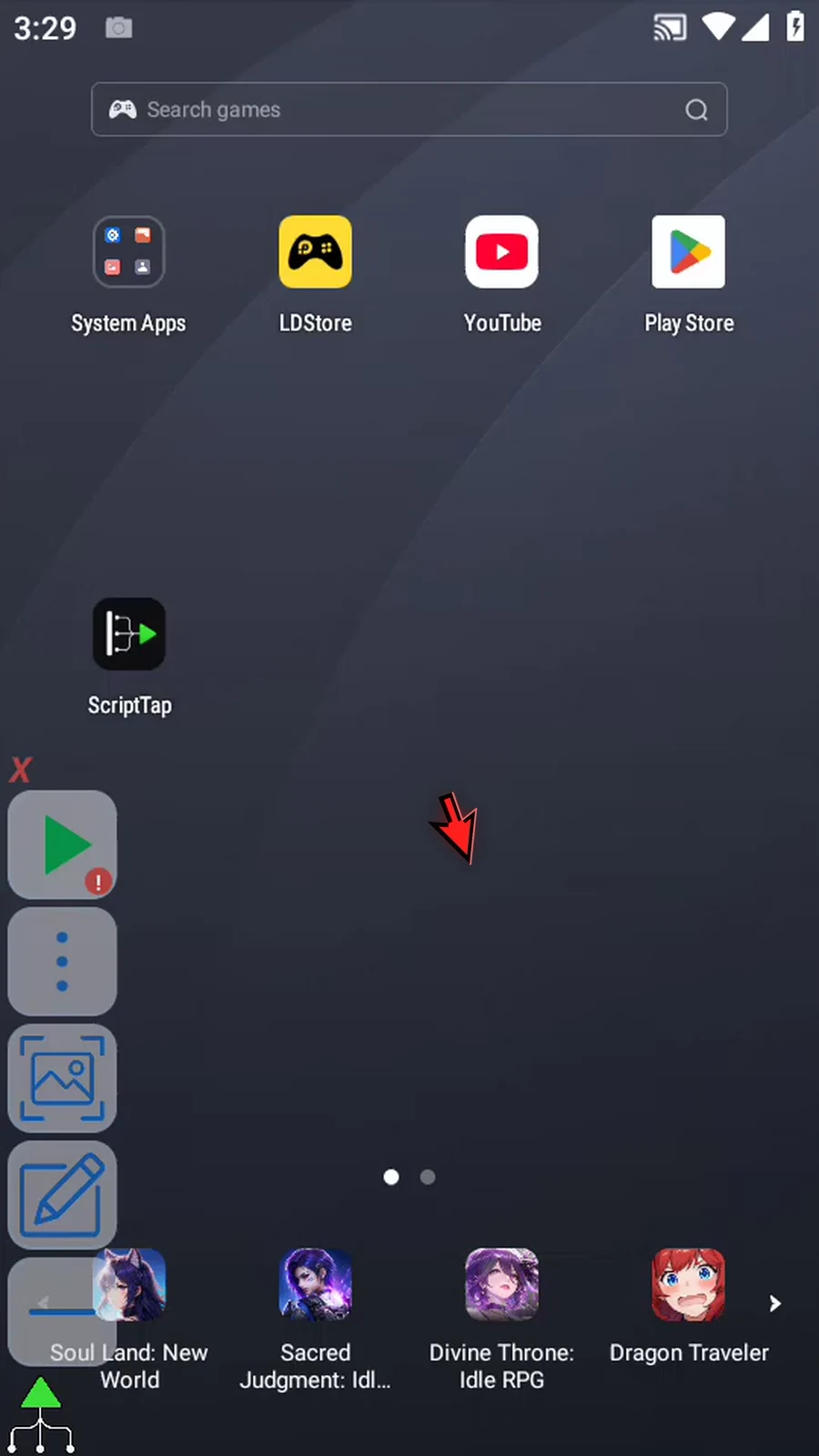
Step 02 Open Scripts. Tap New Script, then choose Blank Script.
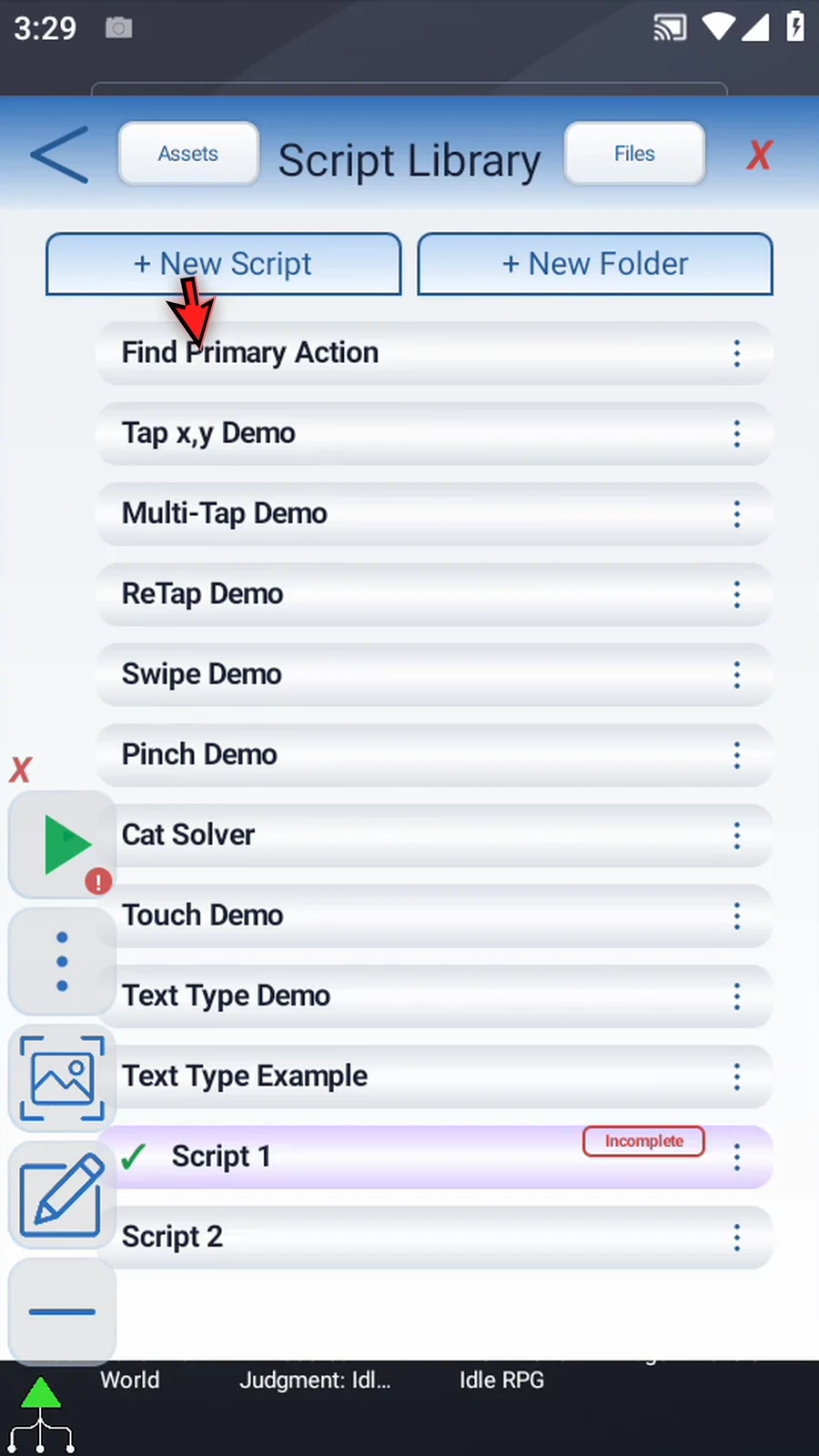
Step 03 Open its three-dot menu and choose Rename. Pick a name, then tap OK.
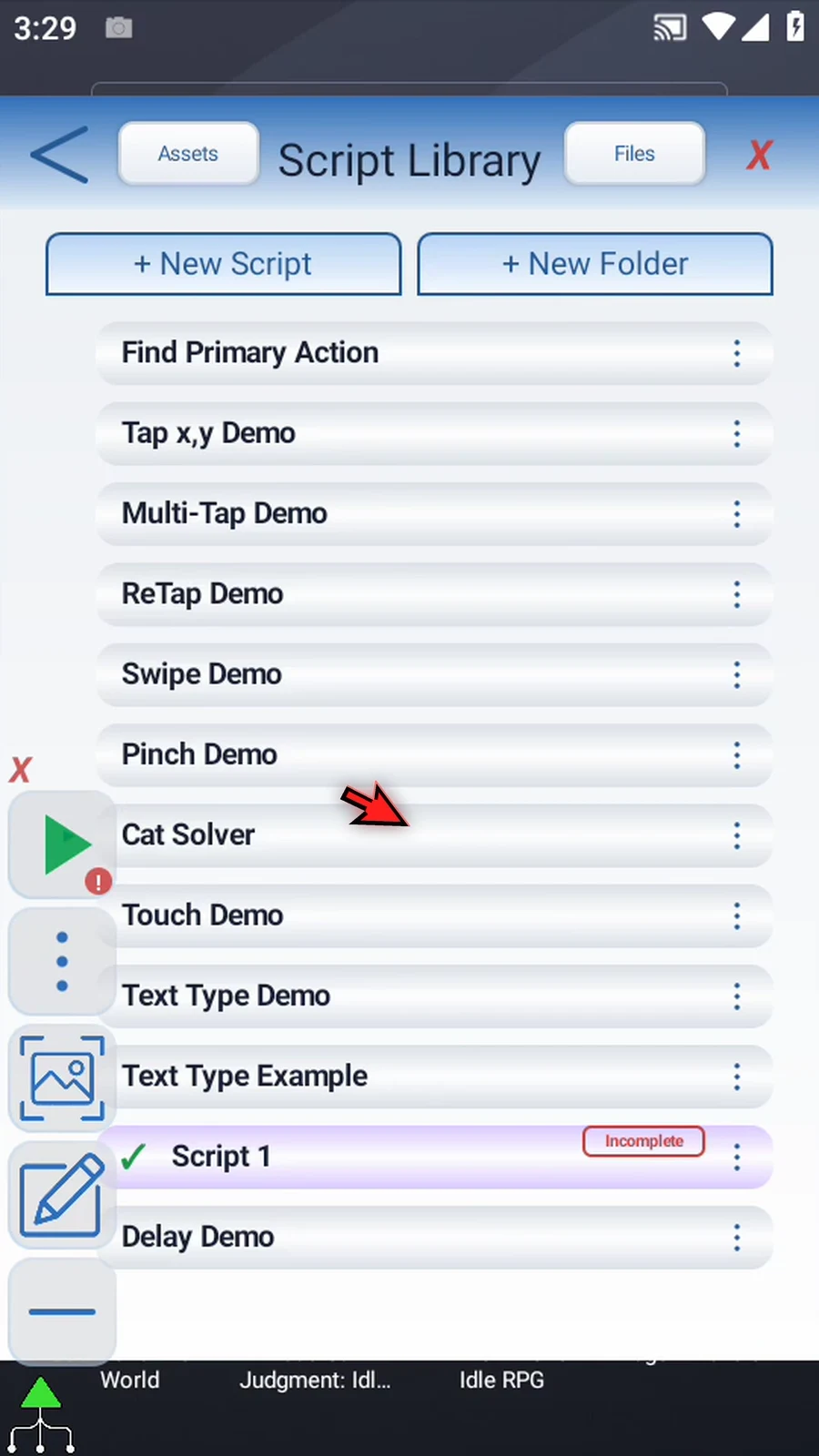
Step 04 Select your new script and open the Script Editor. Collapse the extra overlay controls.
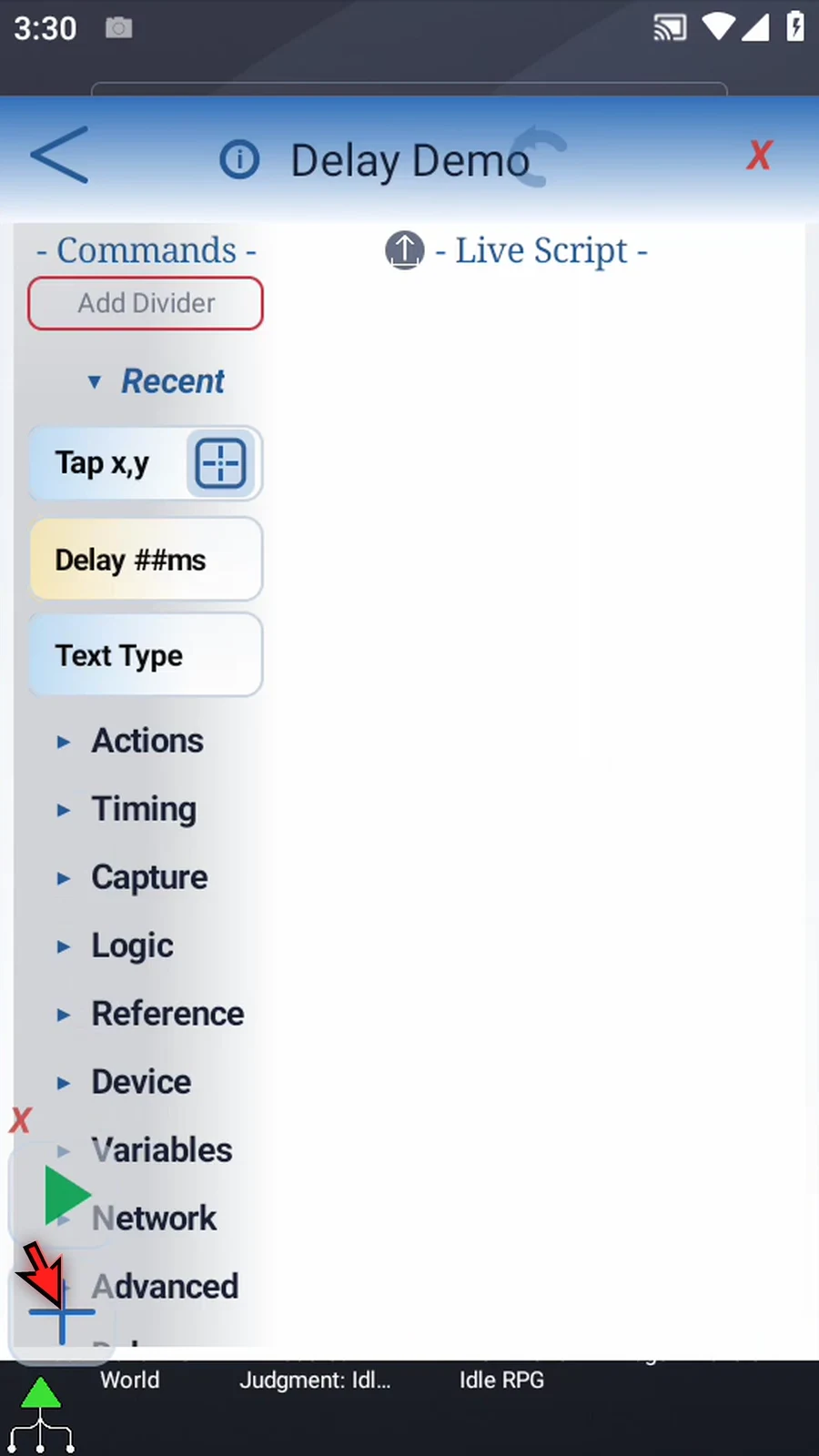
Step 05 Drag a Tap command into the script. Double-tap its frame and enter coordinates for an empty area of the home screen. Tap OK to save.
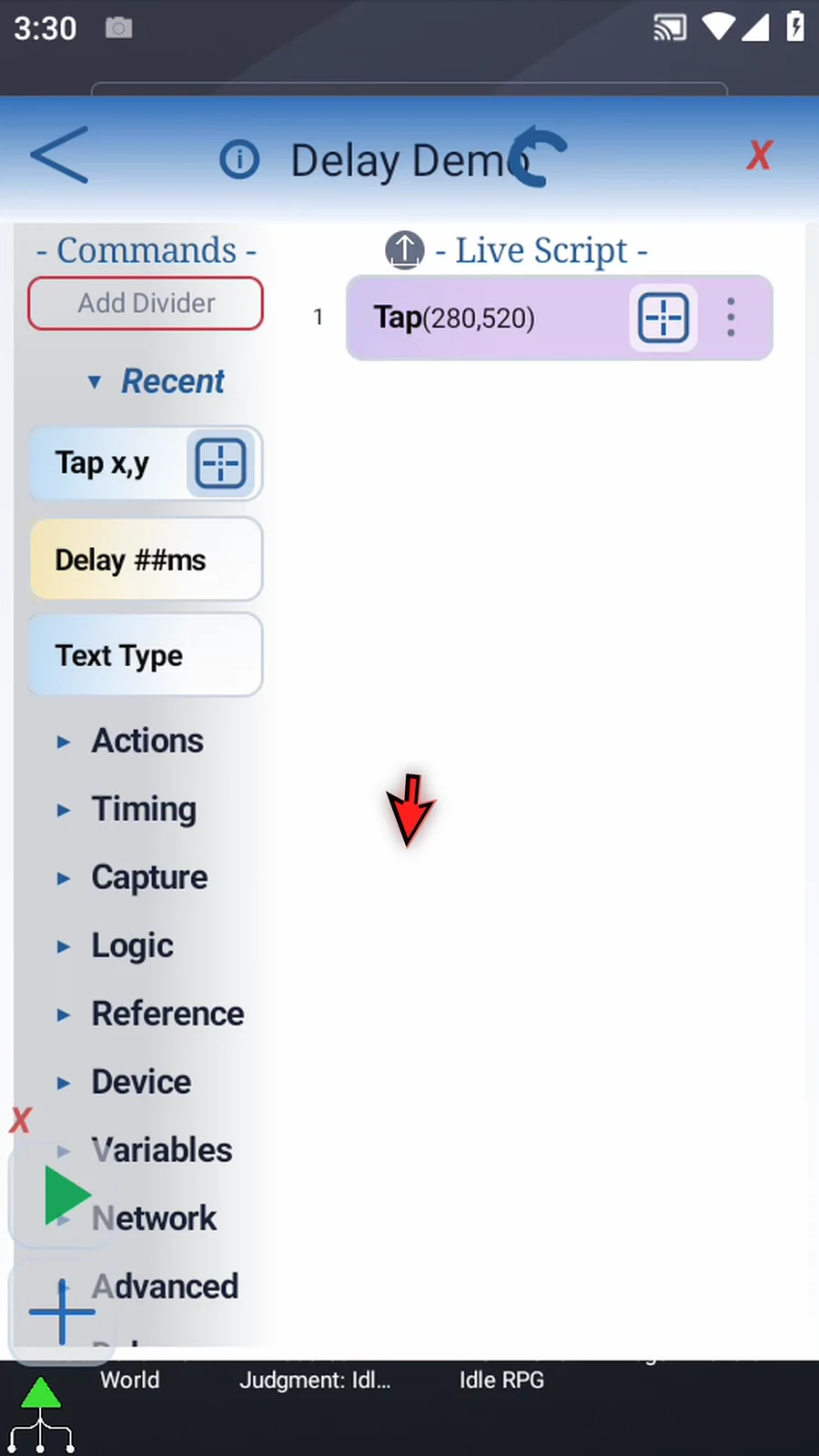
Step 06 Drag a second Tap below the first. Double-tap its frame, set another empty location away from the icons, and tap OK.
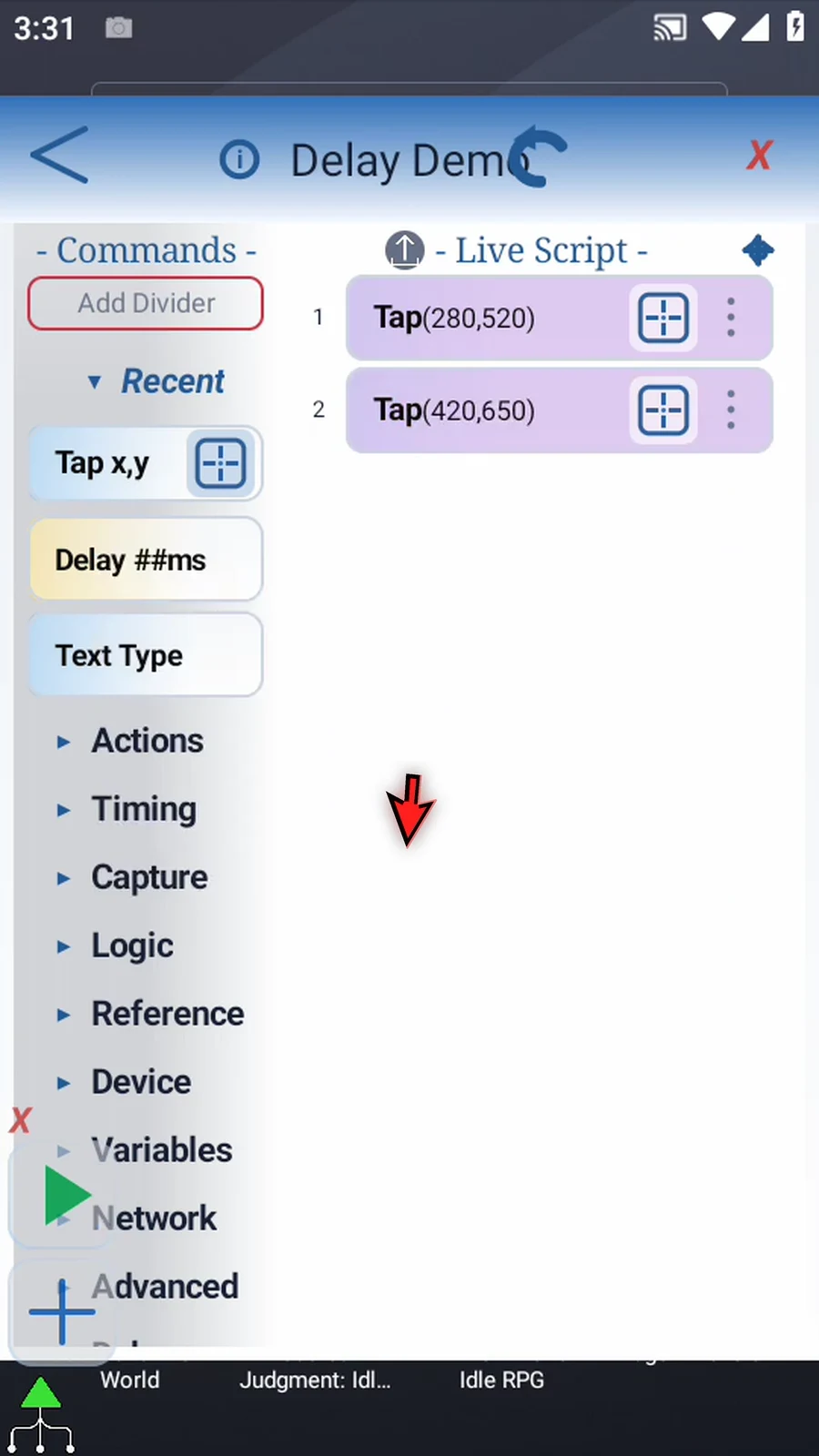
Step 07 If we play this script as it is, the two taps run in immediate succession. To spread them apart in time, add a Delay command.
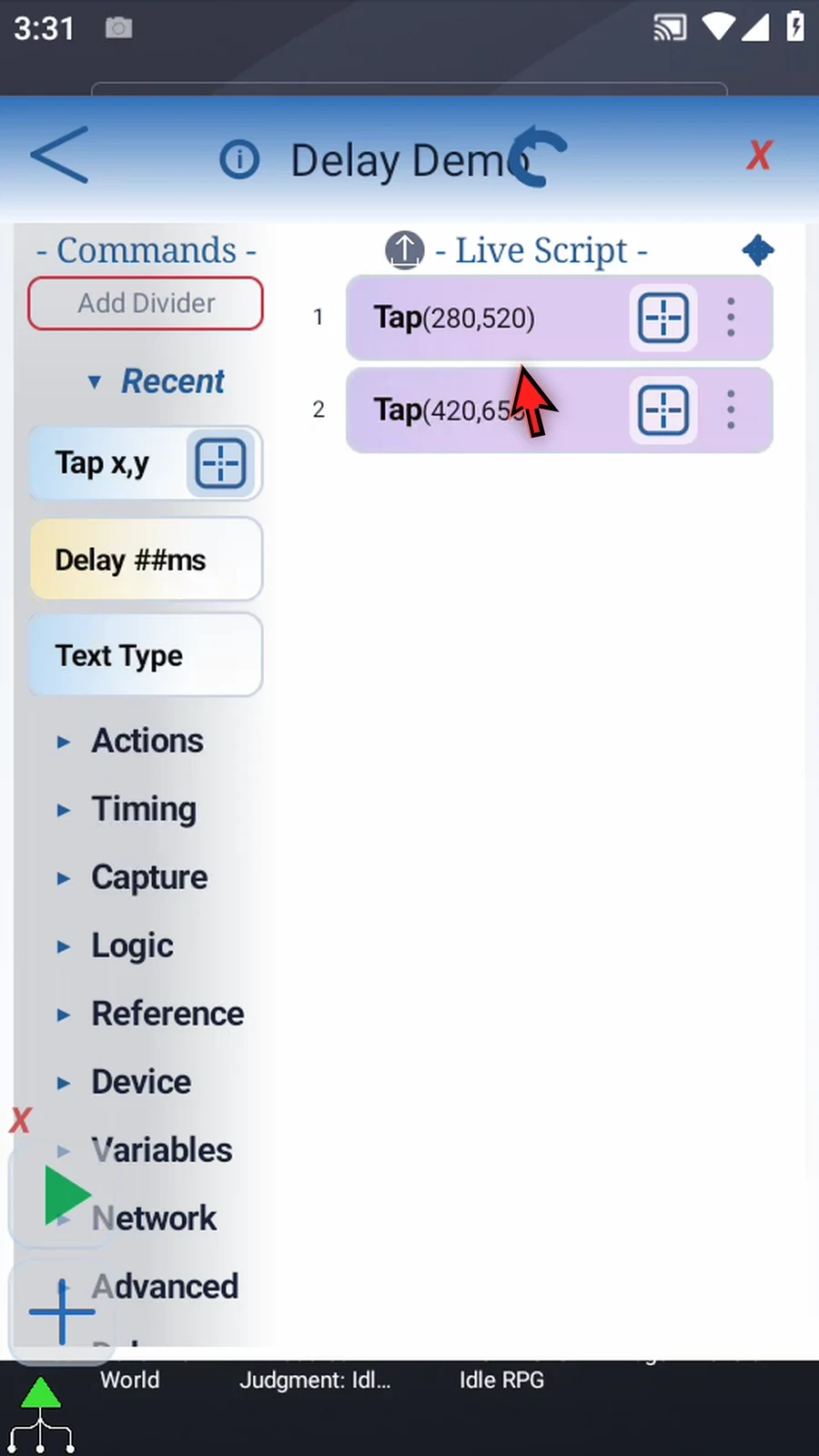
Step 08 Expand Timing. Drag Delay between the two taps and release at the blue insertion line.
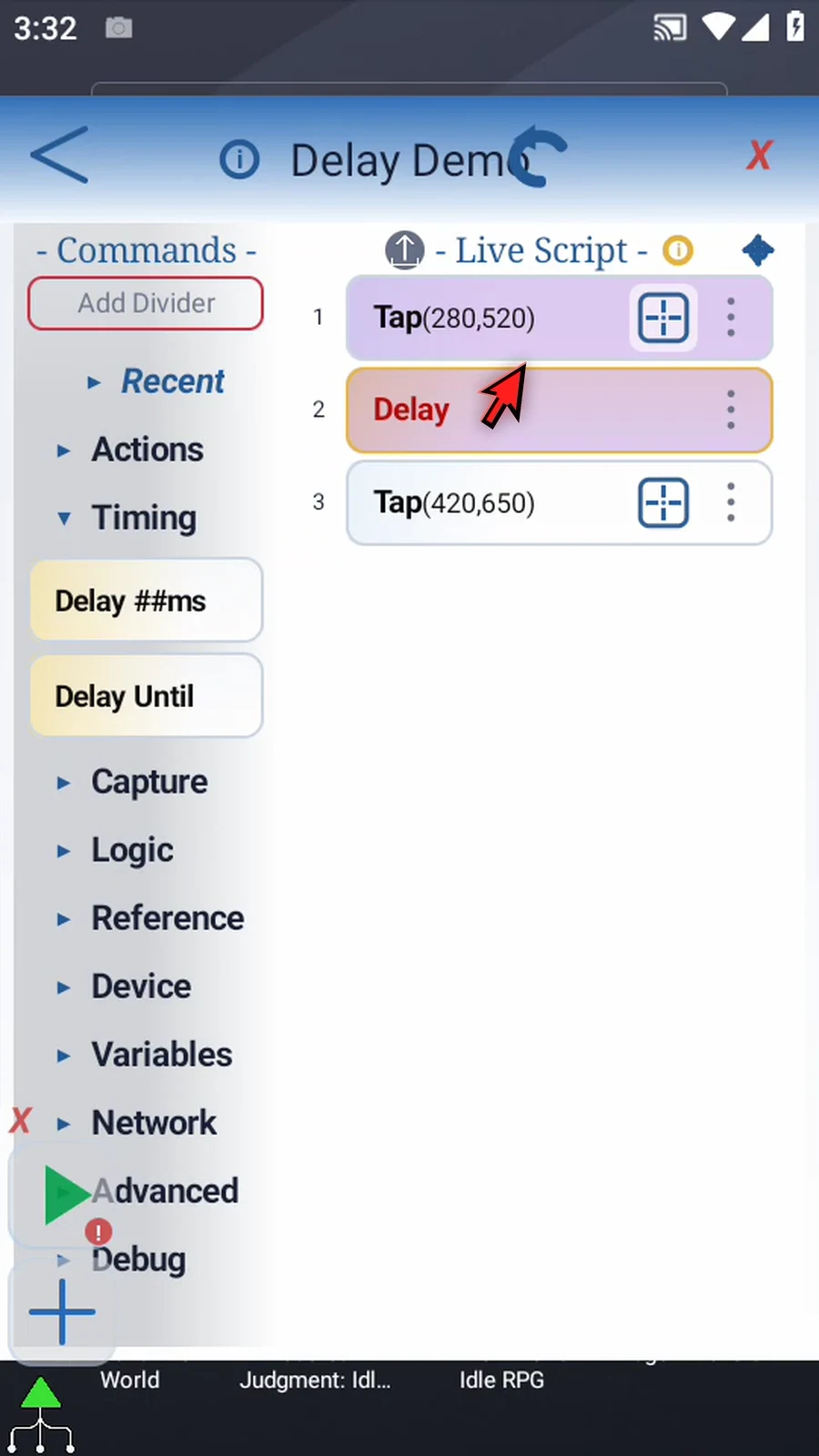
Step 09 Double-tap Delay. Enter one thousand milliseconds for a one-second pause, then tap OK.
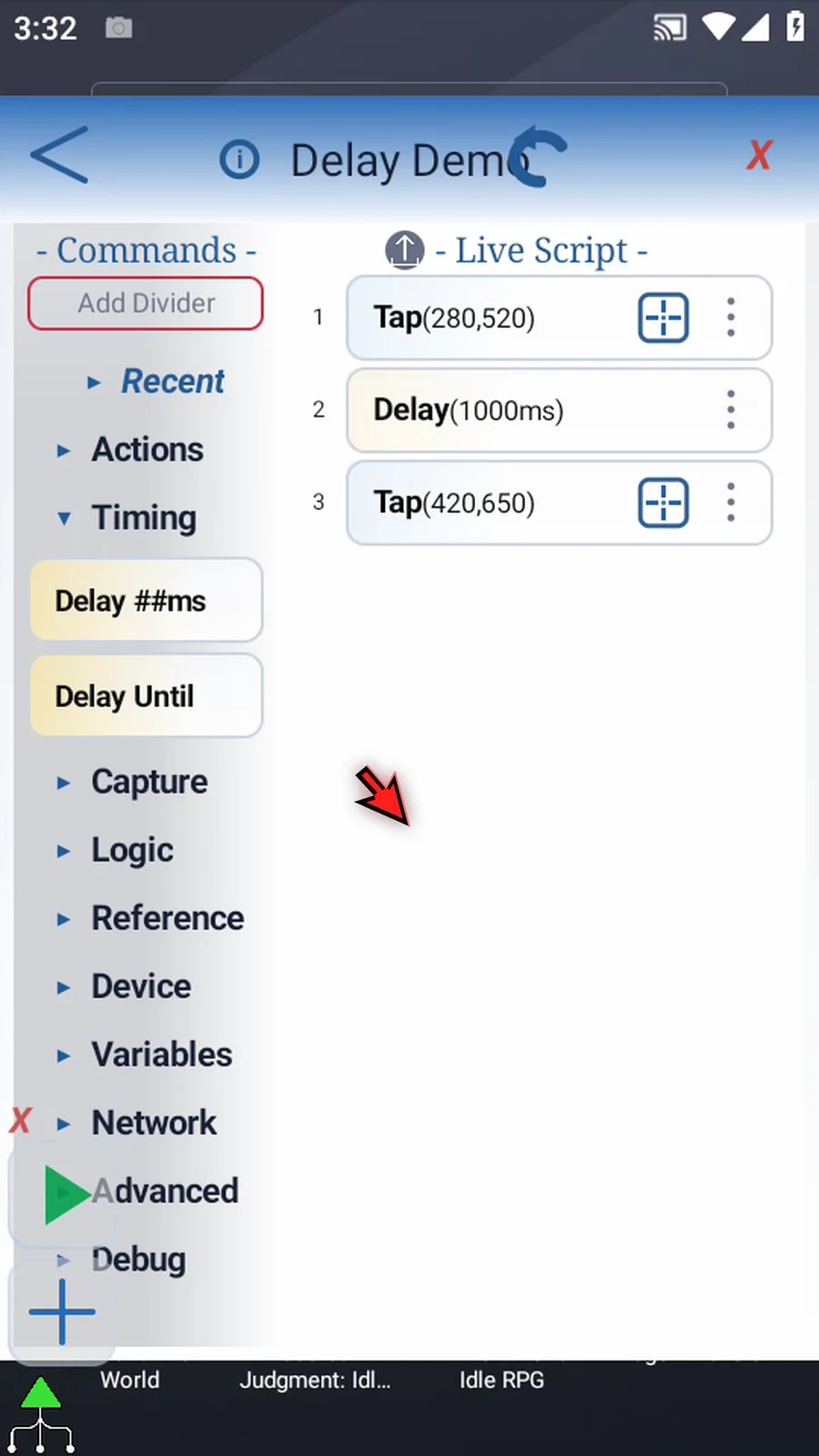
Step 10 You can also use an Integer variable defined earlier in the script instead of a fixed duration.
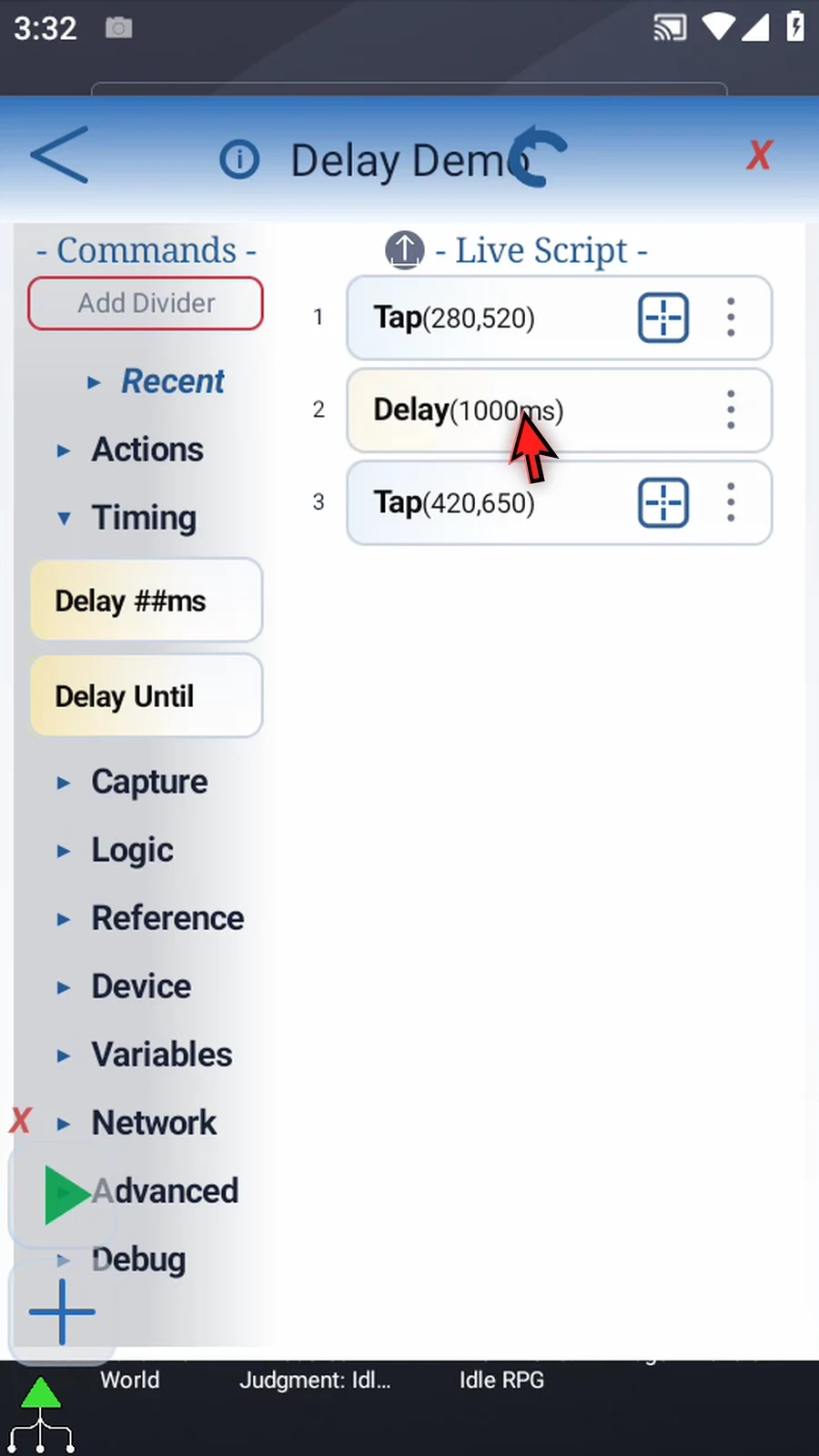
Step 11 Close the editor. When the script is complete, simply use the Play button in the main overlay.
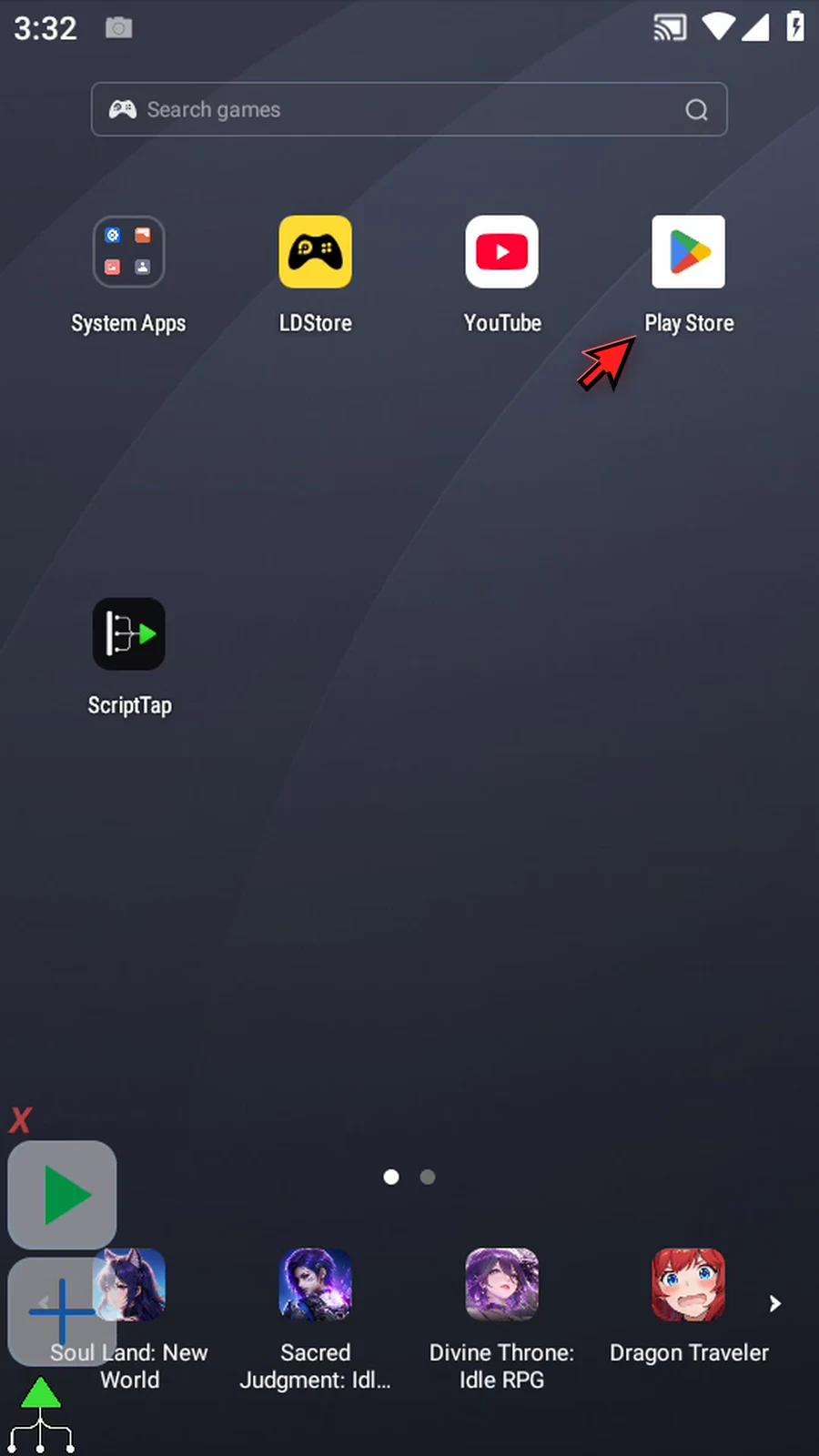
Step 12 The first tap runs, Delay waits one second, then the second tap runs. The script stops automatically.