Command video guide
ELSE
ELSE supplies the alternative path of an IF block. When the condition is false, commands after ELSE and before the matching End IF run instead of the true branch.
The guide copies a prepared five-command example: SetVariable stores 3 in Integer i1; IF checks i1 > 2; a Matched PromptMe sits inside IF; End IF closes the block; and a Complete PromptMe sits outside it. The copy leaves the original unchanged.
Drag ELSE after Matched, then drag a Fallback PromptMe between ELSE and End IF. Play once with i1 > 2, then change only the comparison to i1 > 5 and play again.
- True: Matched appears, Fallback is skipped, and Complete follows.
- False: Matched is skipped, Fallback appears, and Complete follows.
- Each IF group allows at most one ELSE before its matching End IF.
- ELSE has no separate condition or additional settings. Its enclosing IF selects the branch.
- Commands after End IF continue after either selected branch. ELSE does not stop the script.
Watch the walkthrough
Step-by-step guide
Step 01 ELSE gives an IF block an alternative path. When the IF condition is false, the commands after ELSE run instead. We will use two labeled prompts to make both paths easy to see.
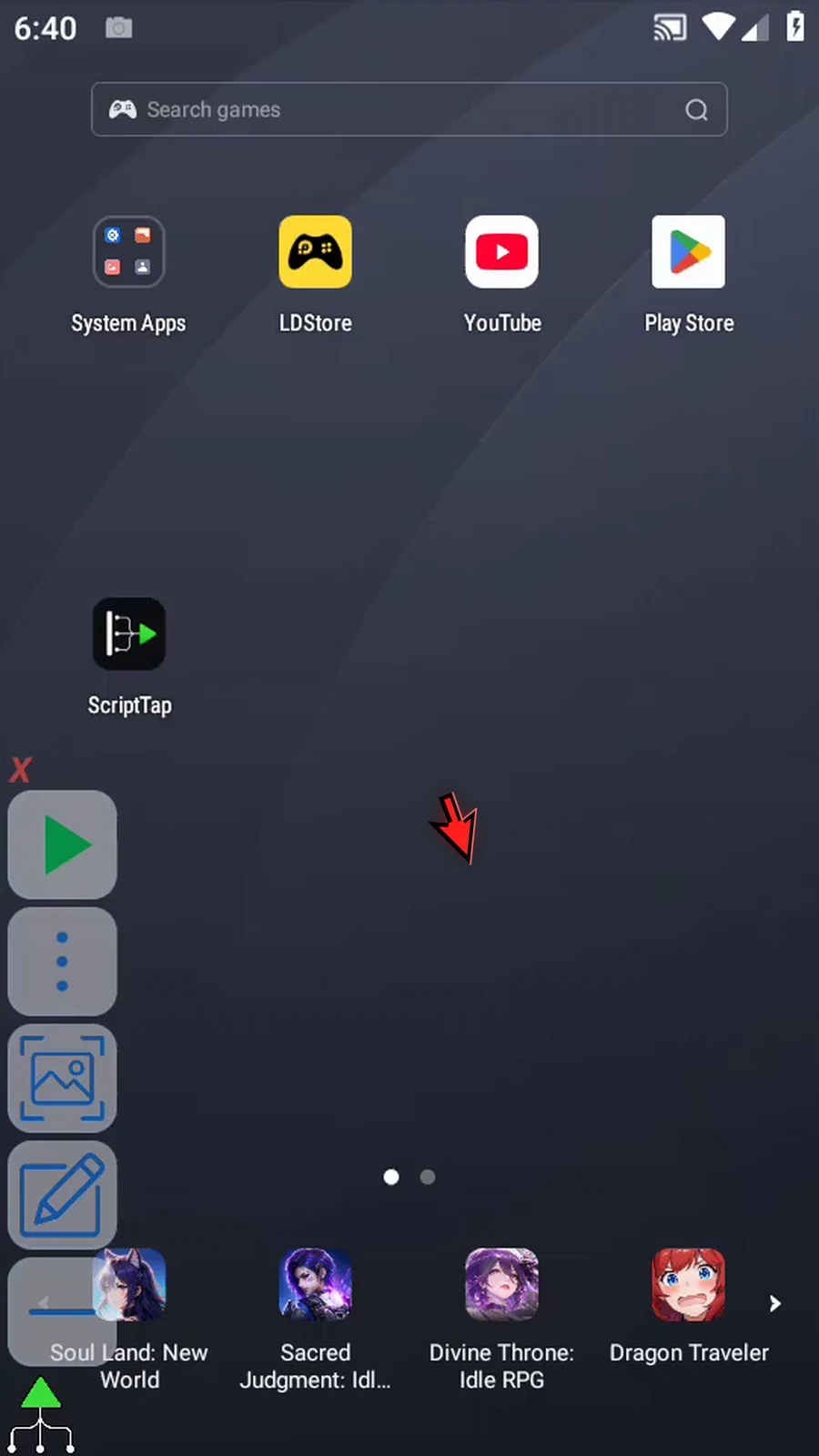
Step 02 We will start from a small prepared IF example. Open Scripts, find that example, and choose Duplicate from its menu. This gives us a separate copy and leaves the original unchanged.
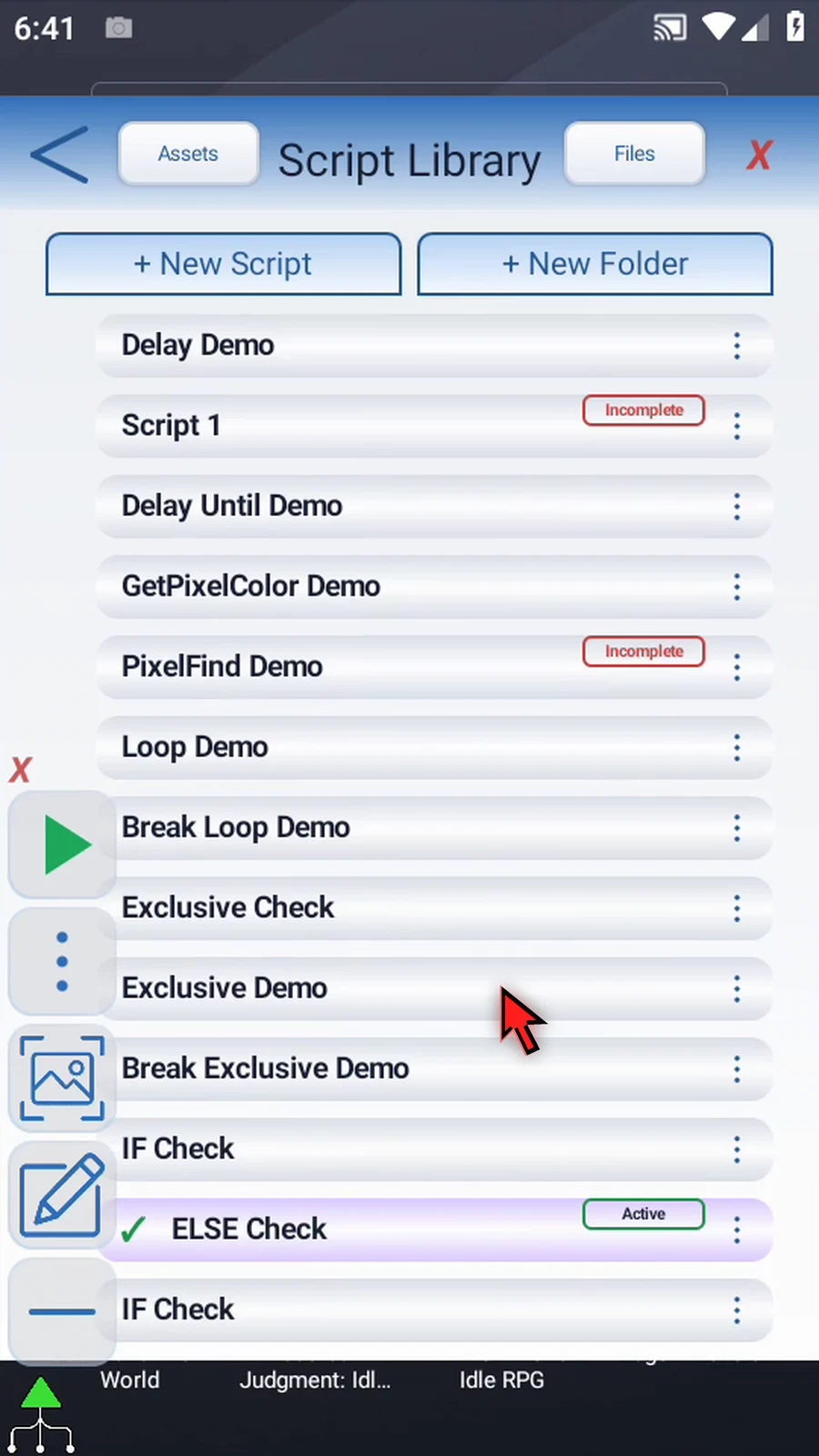
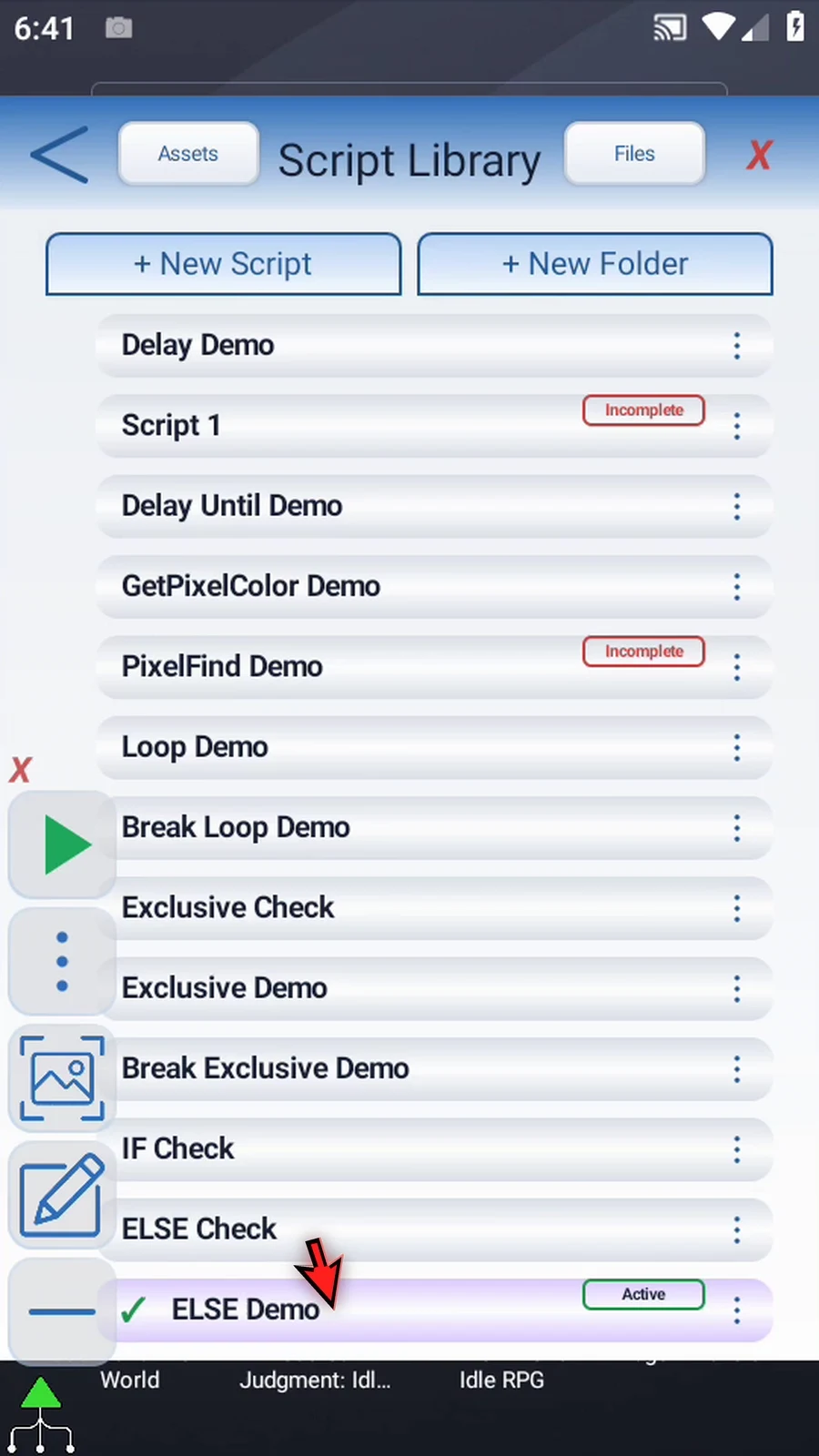
Step 03 Open the copy's menu and choose Rename. Give the new script a name, then tap OK and select it.
Step 04 Open the Script Editor and collapse the extra overlay controls.
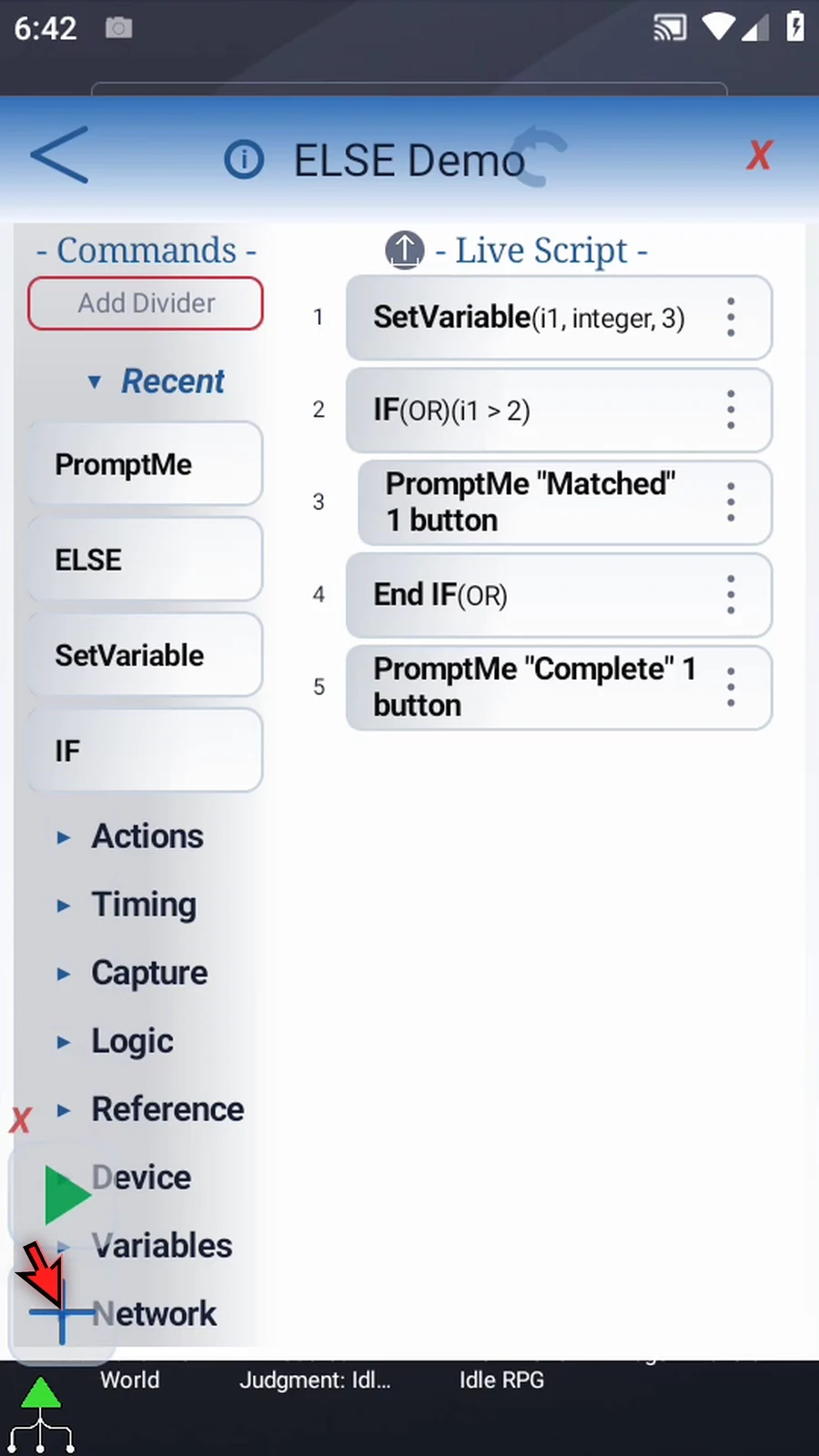
Step 05 The setup stores three in Integer i one. Its IF block checks whether that value is greater than two. Matched is inside the IF block, and Complete is after End IF. These prompts make the selected path and final continuation visible.
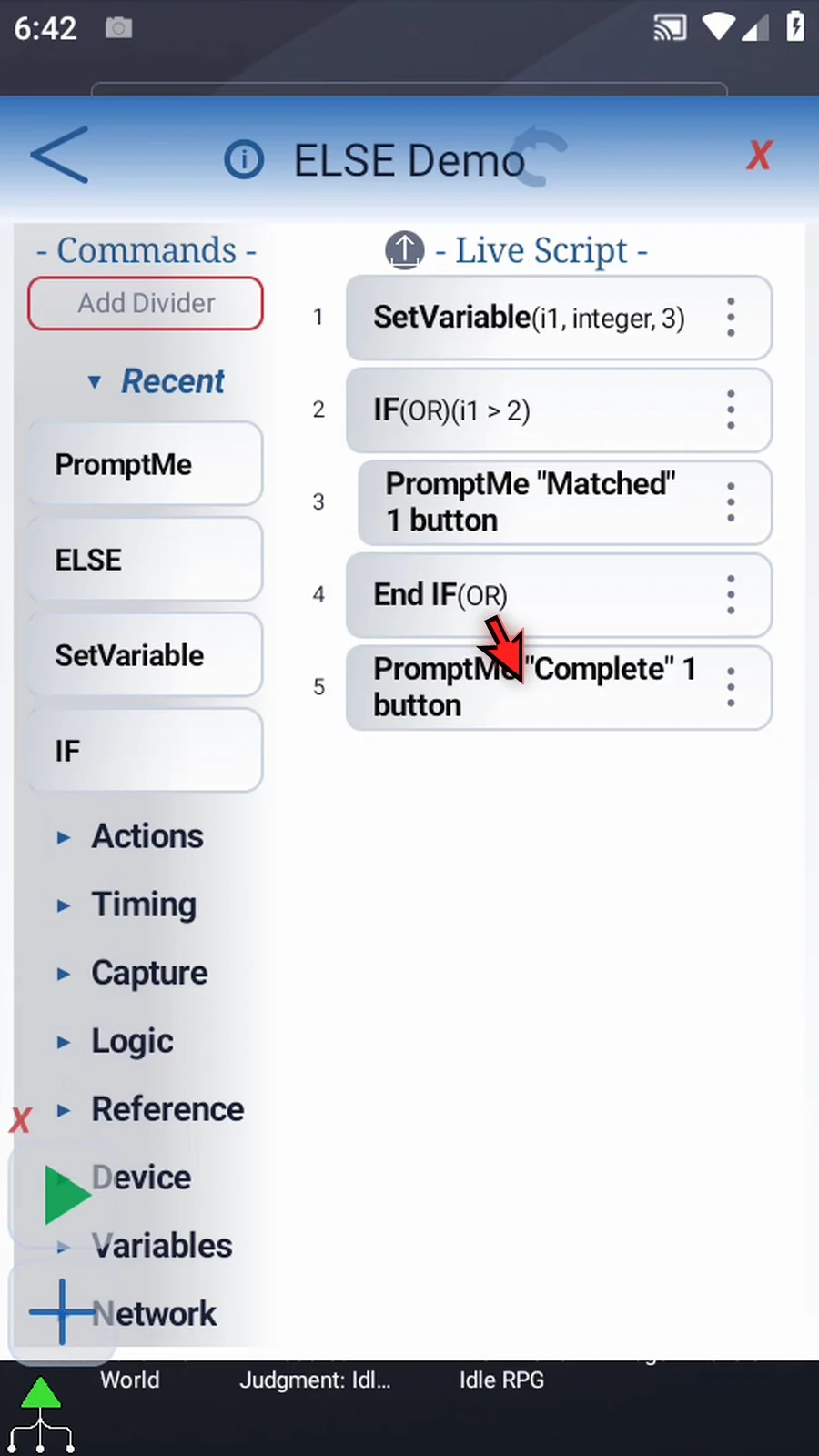
Step 06 Open IF to check the condition. Variable Name is i one, Relationship is greater than, and Value is two. Three is greater than two, so this condition is currently true. Confirm to return to the script.
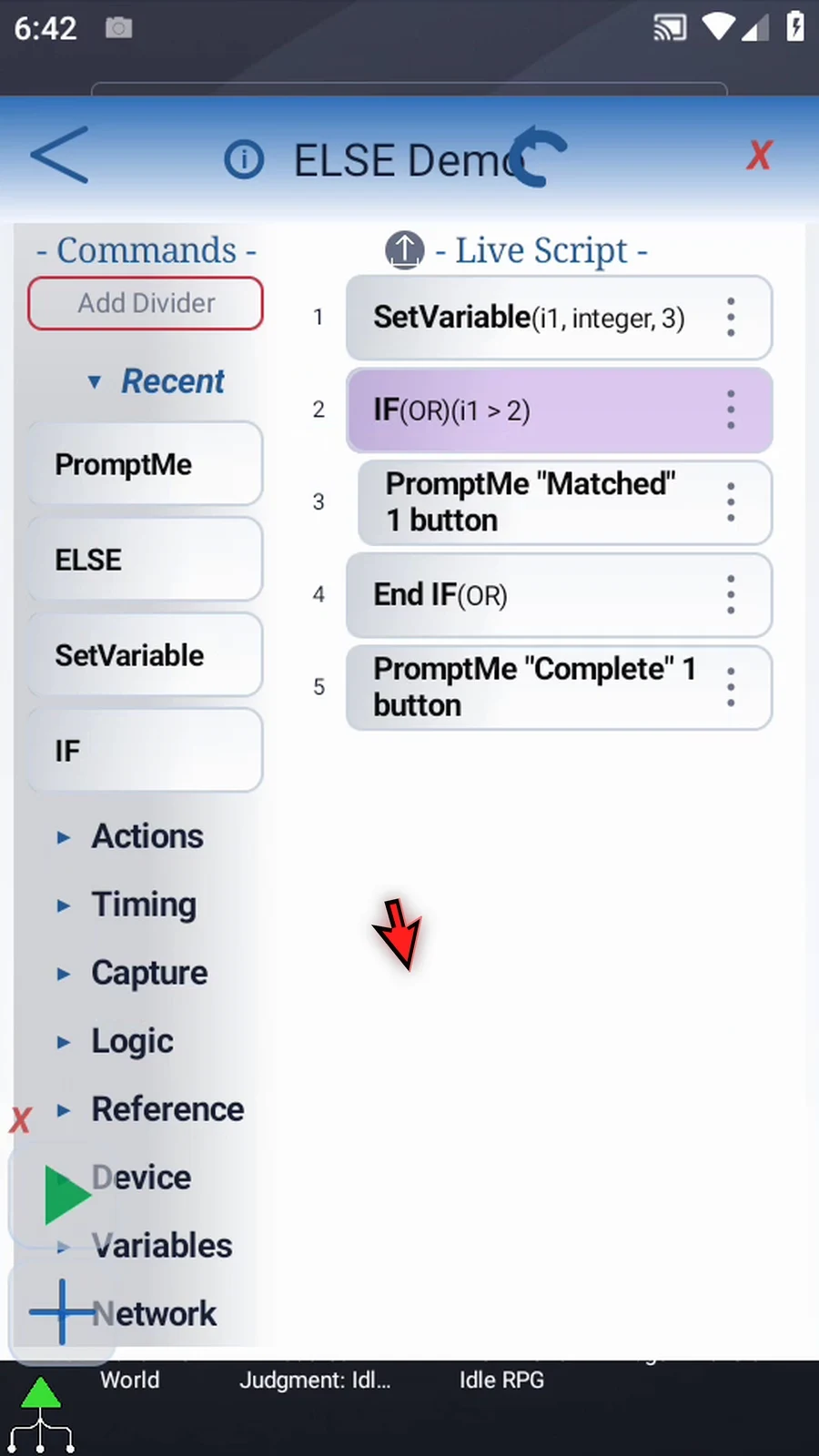
Step 07 Expand Logic and find ELSE. It has no additional command settings. An IF group can contain at most one ELSE, and it must stay before that group's matching End IF.
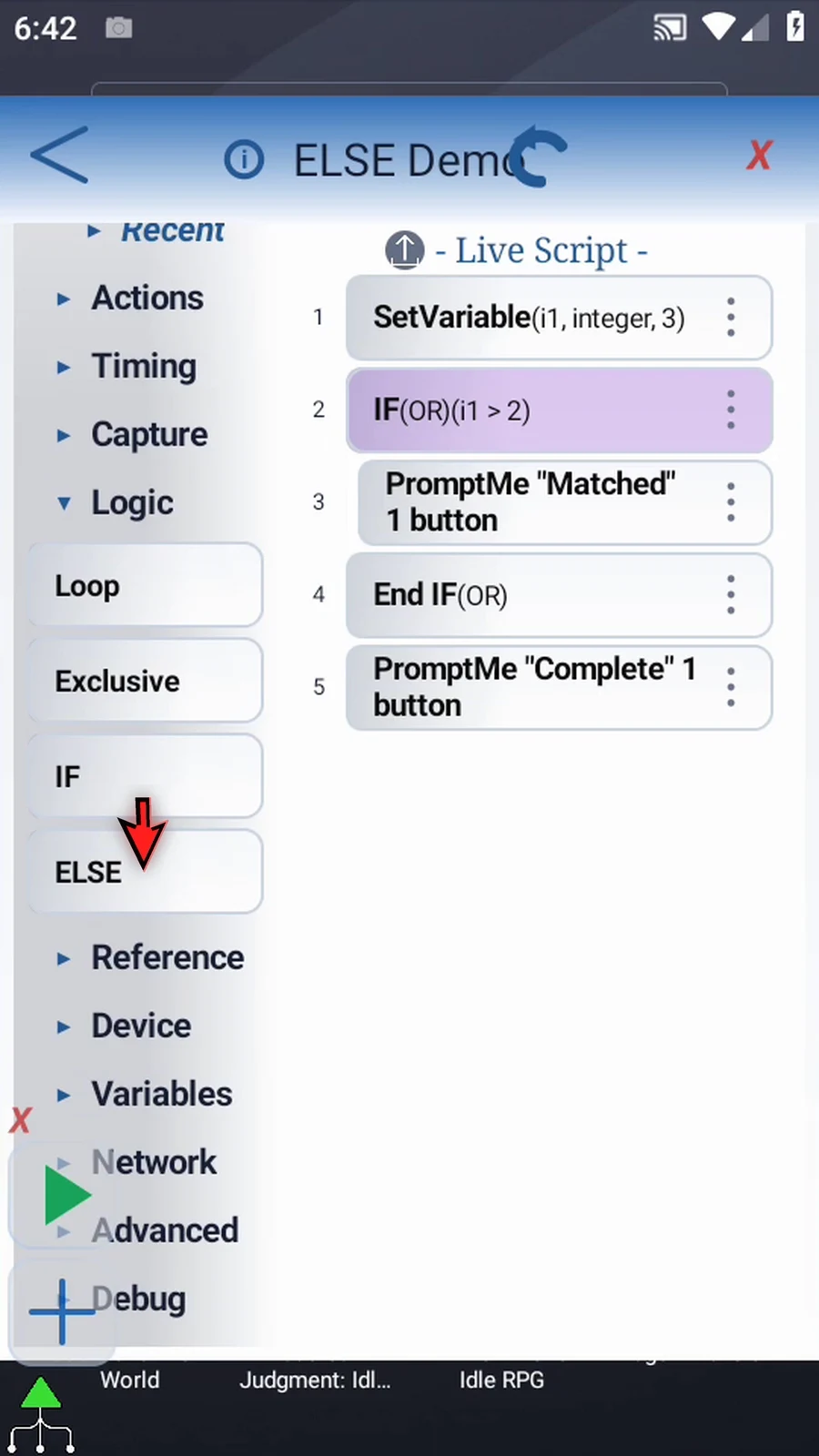
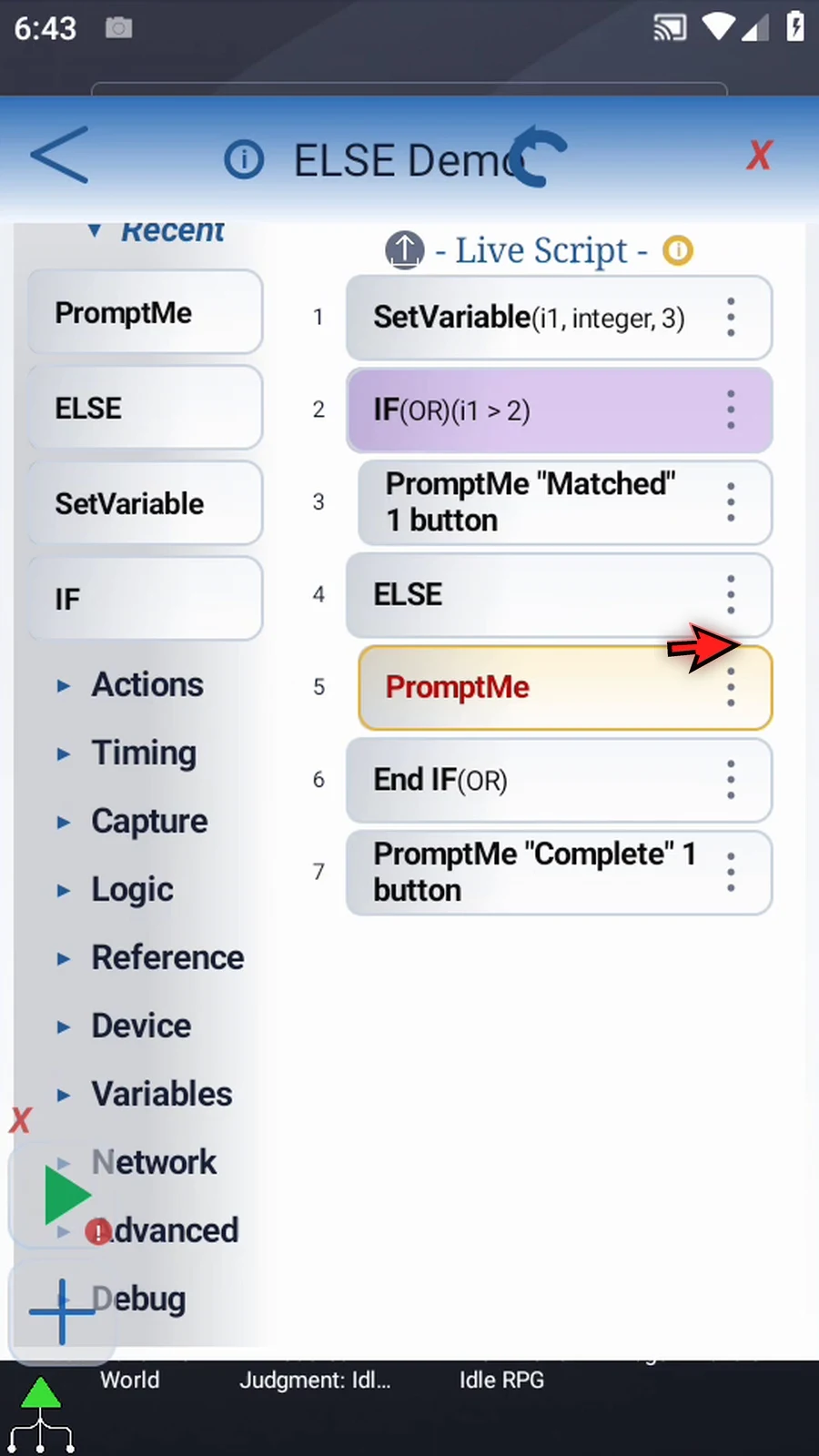
Step 08 Drag ELSE after the Matched prompt and before End IF. Watch the blue insertion line. The commands above ELSE belong to the true path; the commands below it, before End IF, belong to the false path.
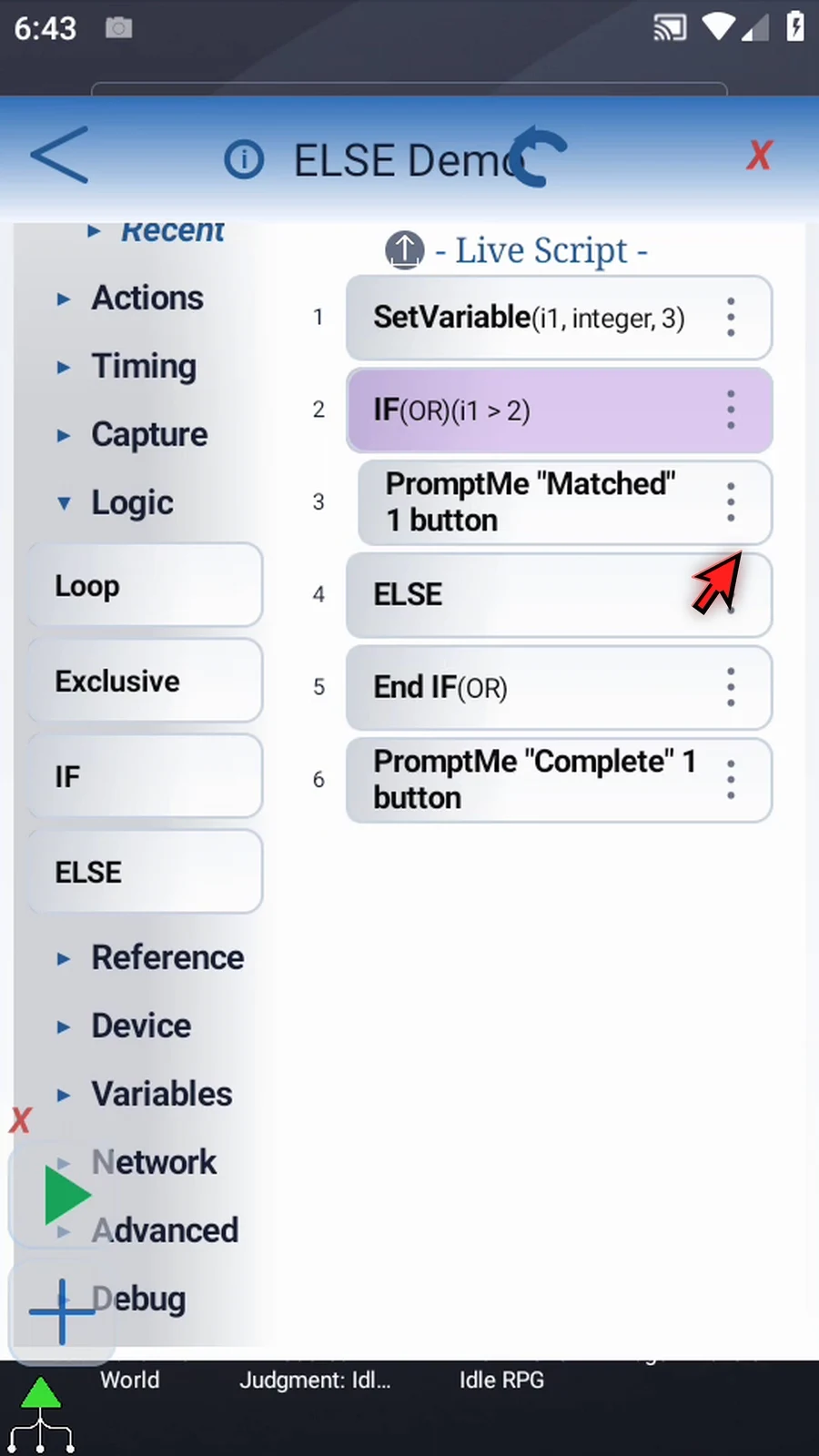
Step 09 Expand Recent and drag another PromptMe between ELSE and End IF. This will be our visible fallback action.
Step 10 Open the new prompt and keep the regular style. Set its header to Fallback, then add a button named Next.
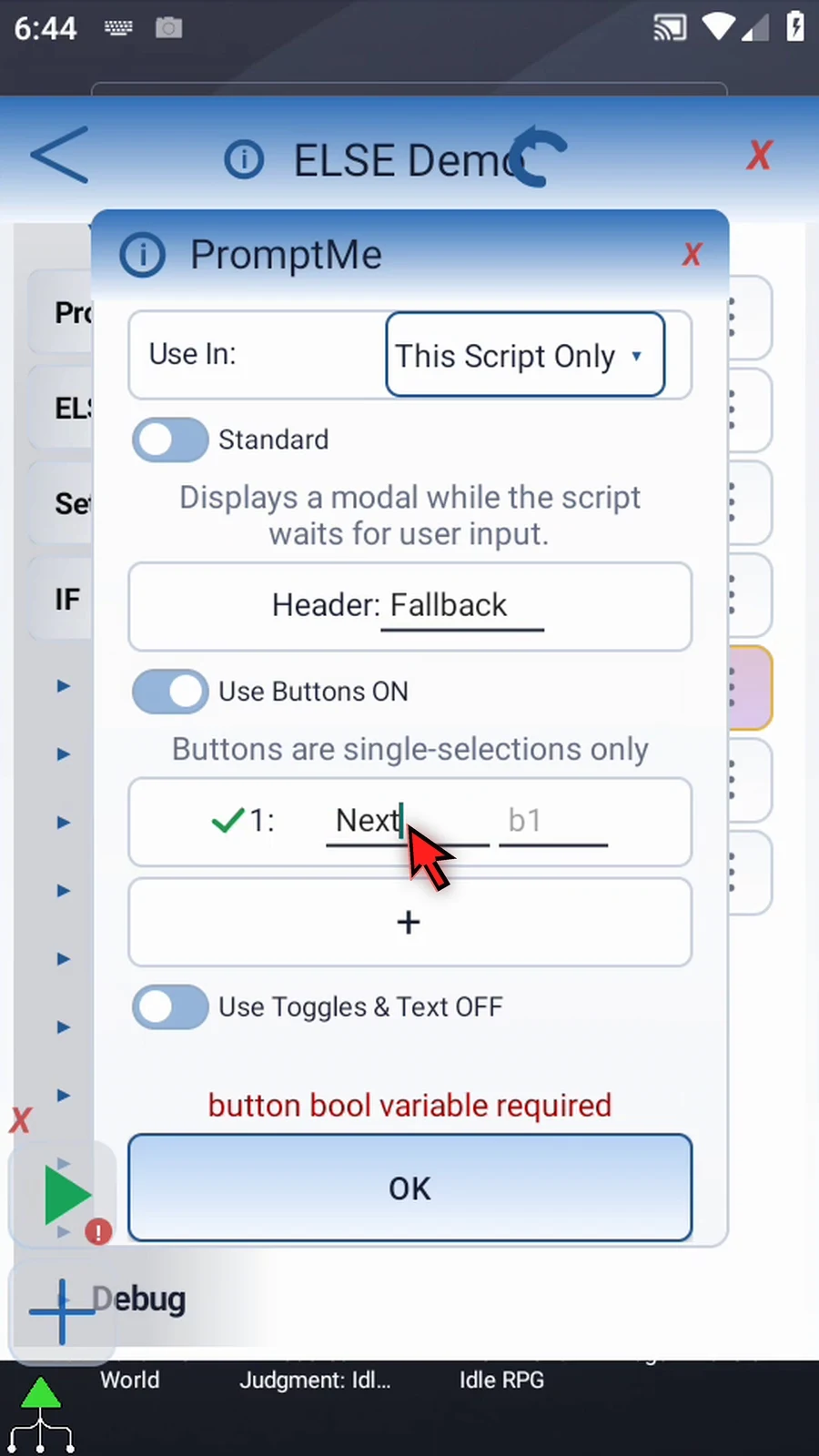
Step 11 Assign the button to Boolean b three and confirm. This button only lets us continue the demonstration; the IF condition still uses Integer i one.
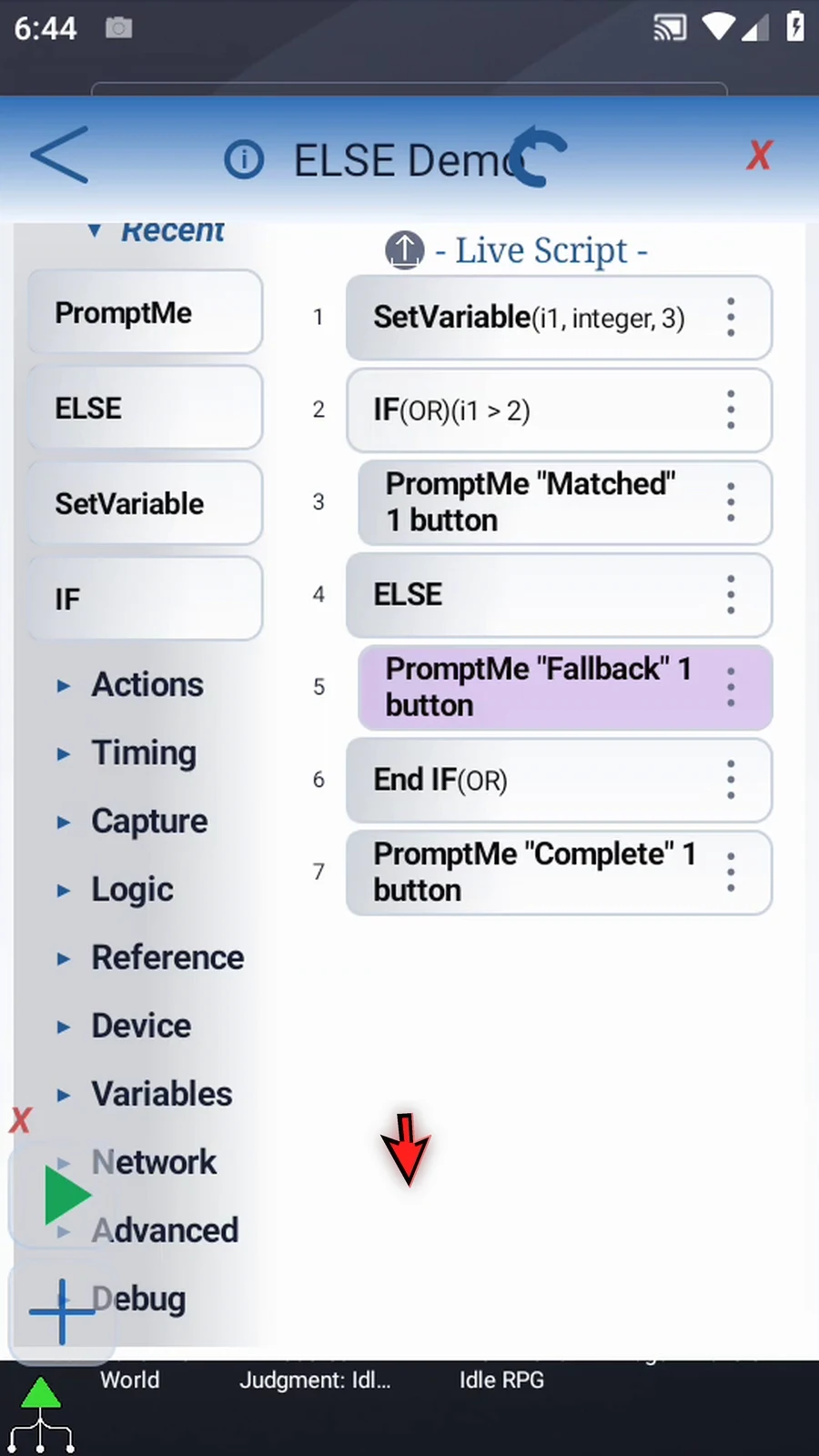
Step 12 The two paths now share one End IF. A true condition runs Matched and skips Fallback. A false condition skips Matched and runs Fallback. Either way, the script then reaches Complete outside the block.
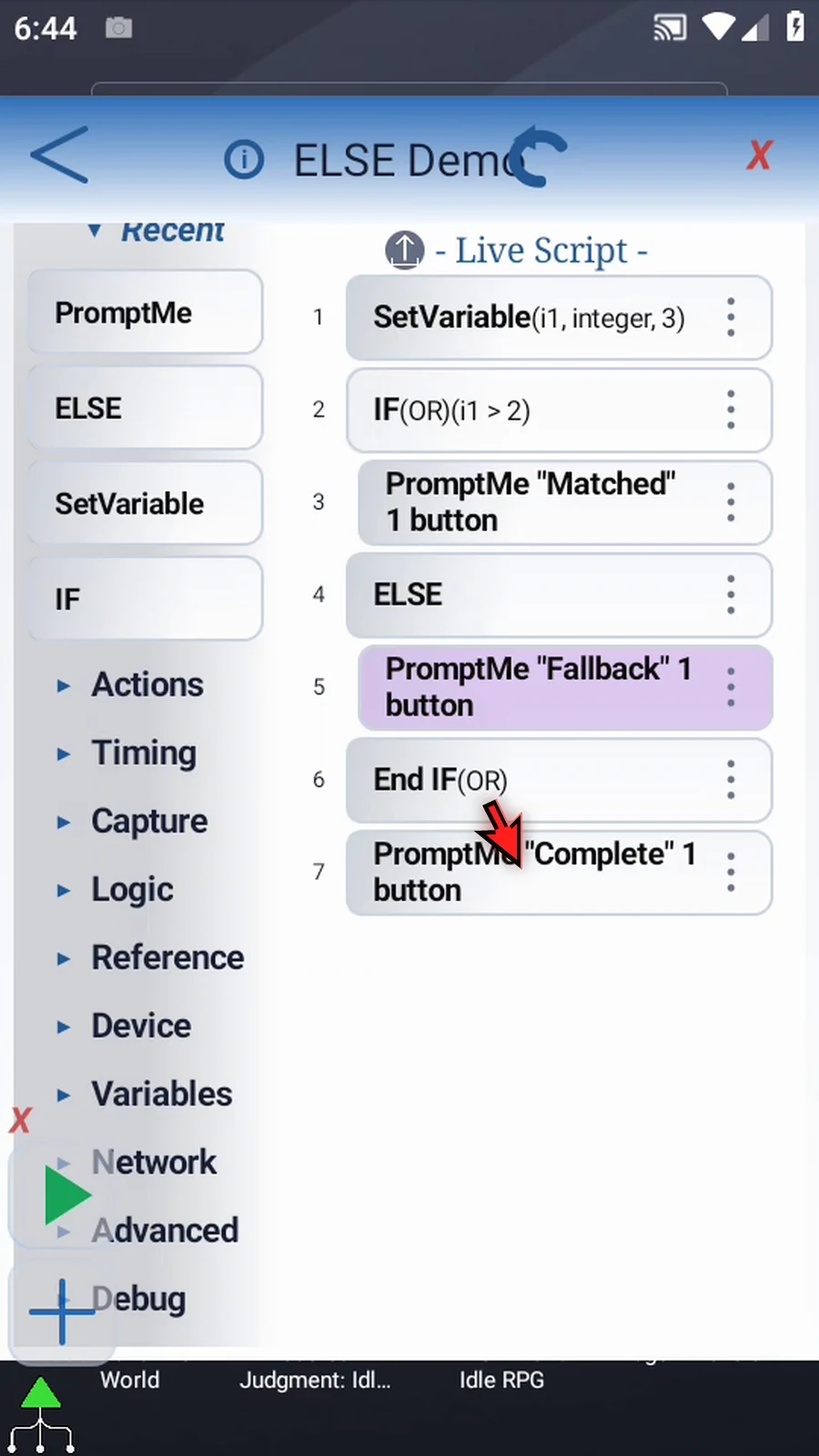
Step 13 When the script is complete, simply use the Play button in the main overlay.
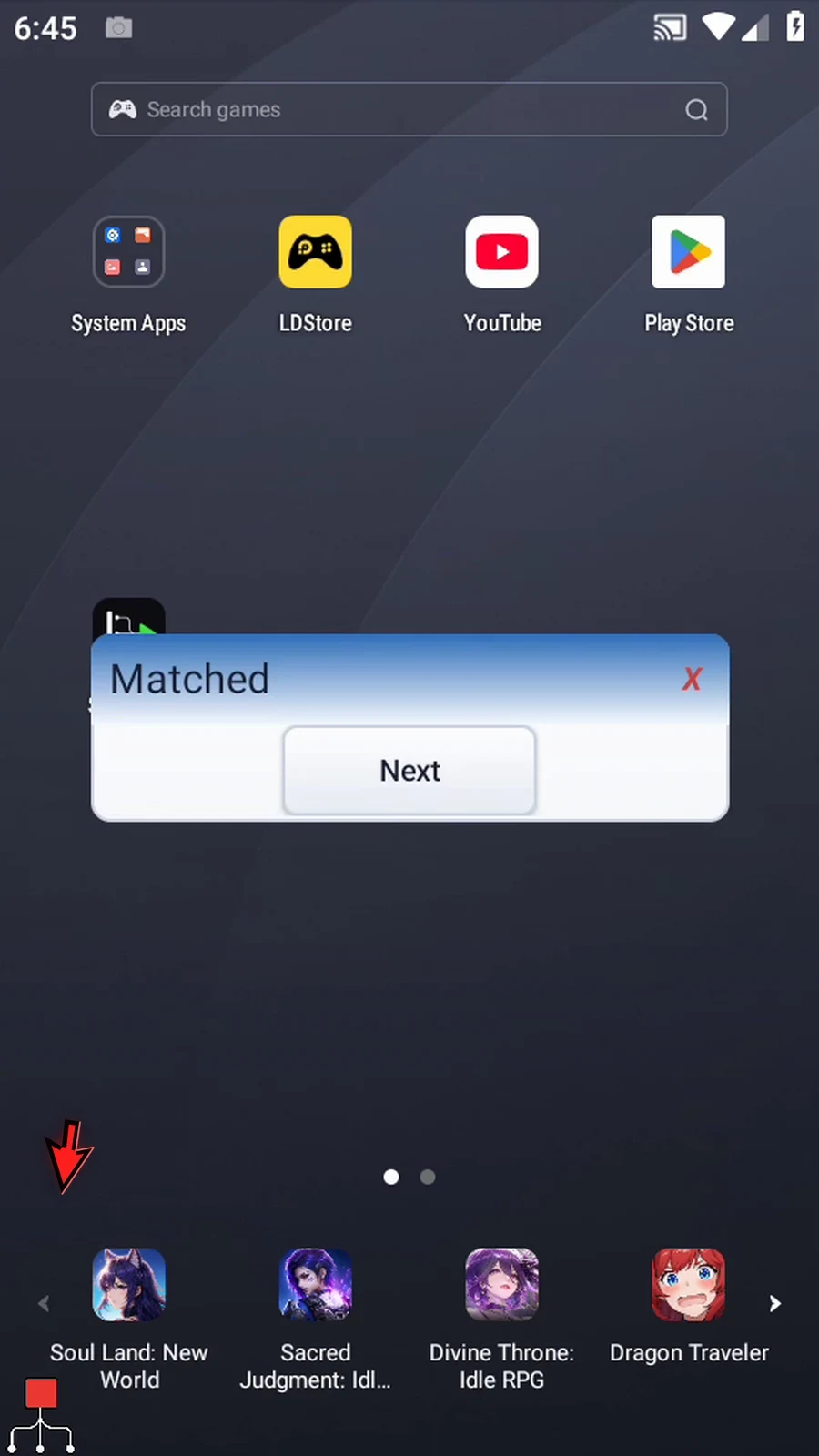
Step 14 Matched appears because three is greater than two. The IF branch is running; ELSE will not run its fallback commands on this pass.
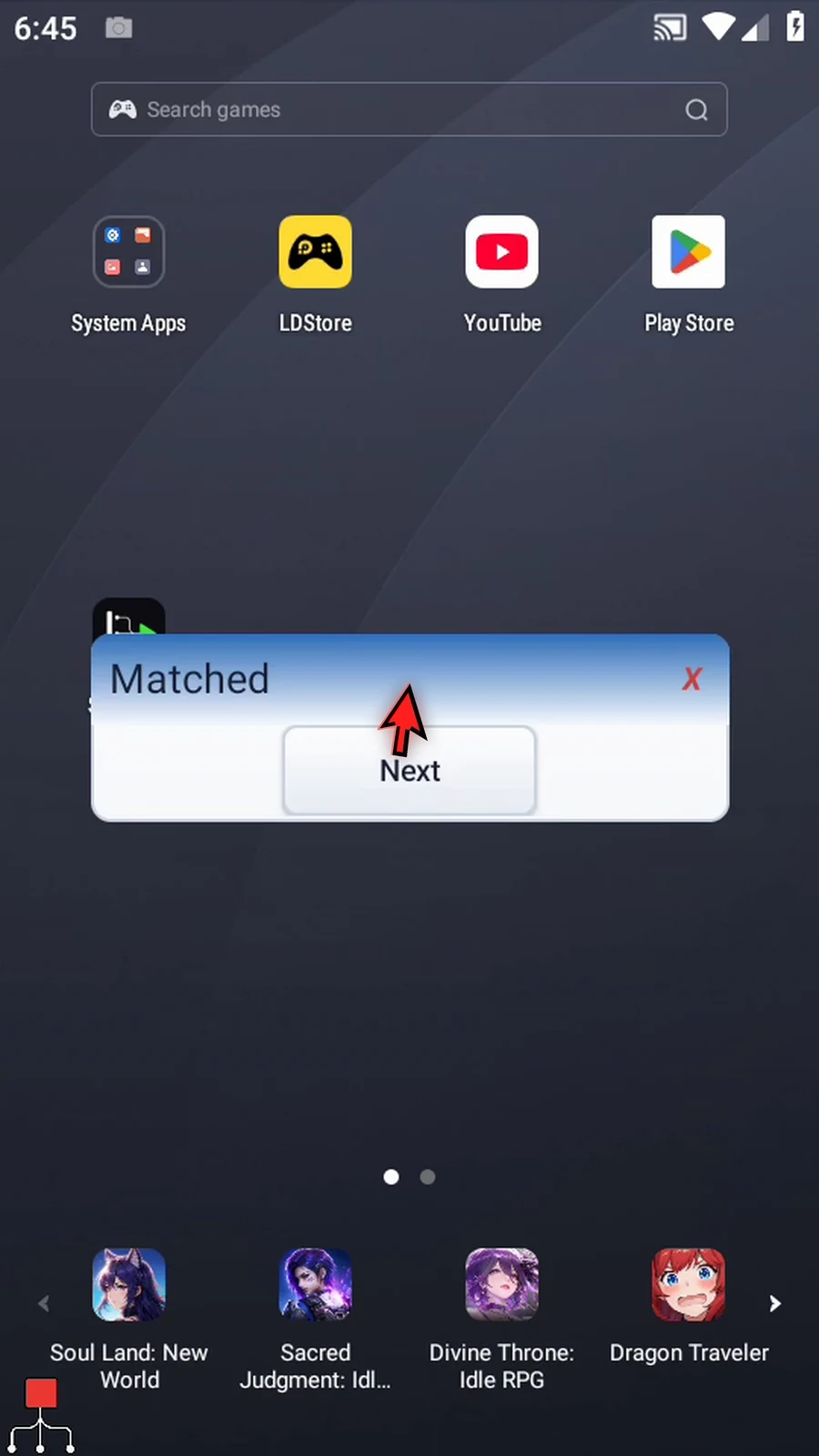
Step 15 Tap Next. Complete appears without showing Fallback. Execution has skipped the ELSE branch and continued after End IF.
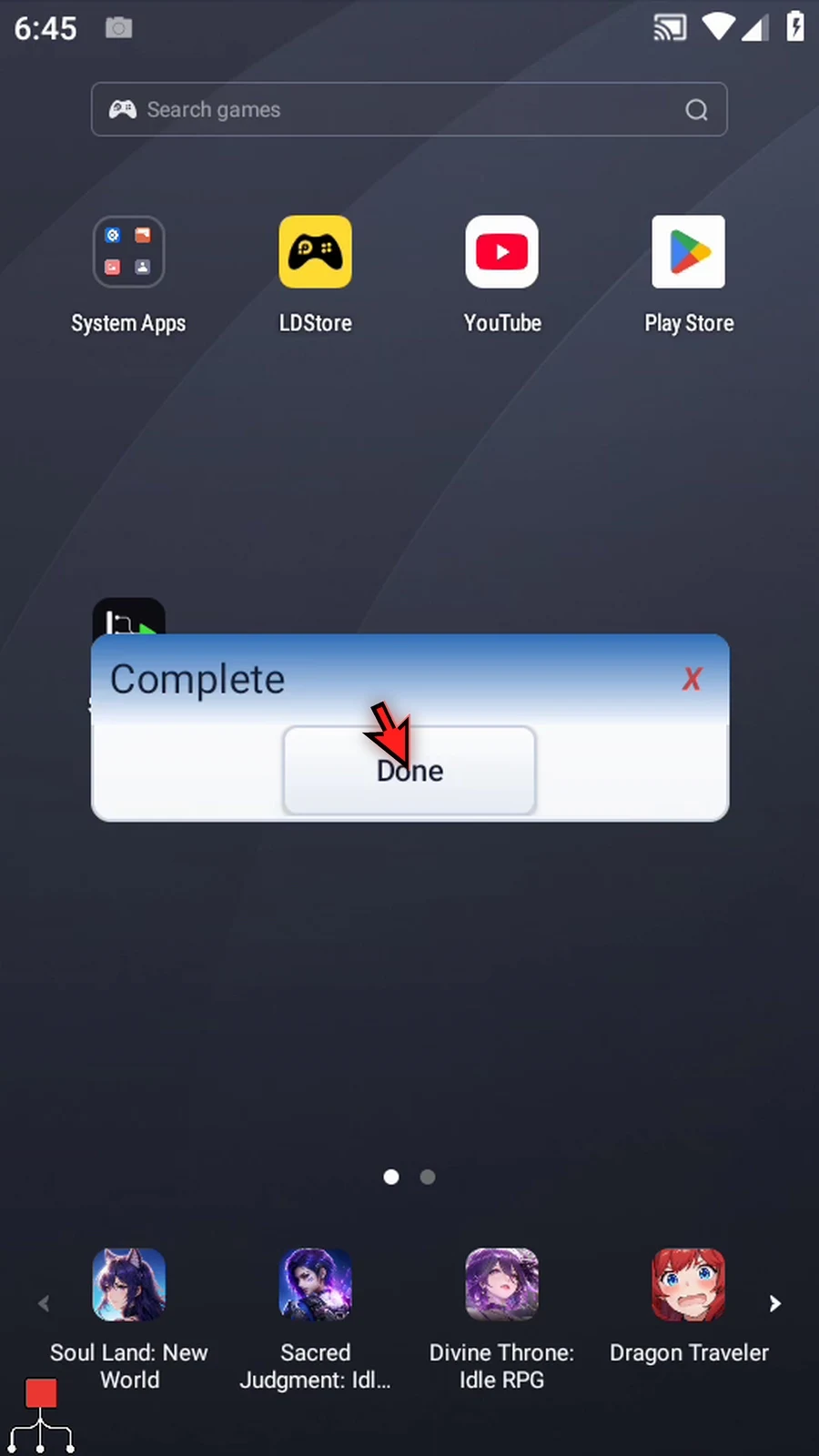
Step 16 Tap Done. The script finishes automatically. Now we will make the condition false to see what ELSE does.
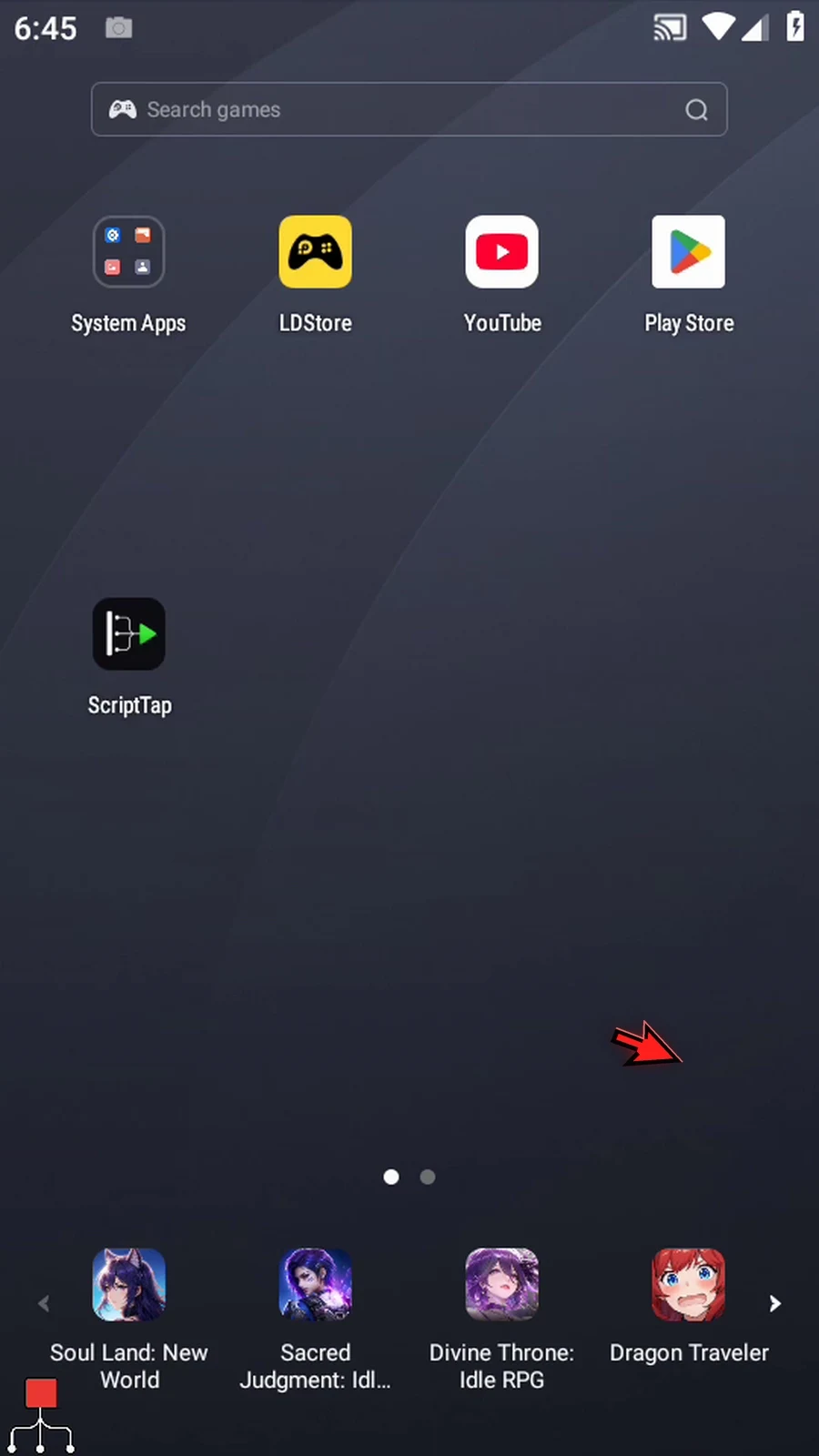
Step 17 Show the overlay controls, use the plus button to expand them, and return to the Script Editor.
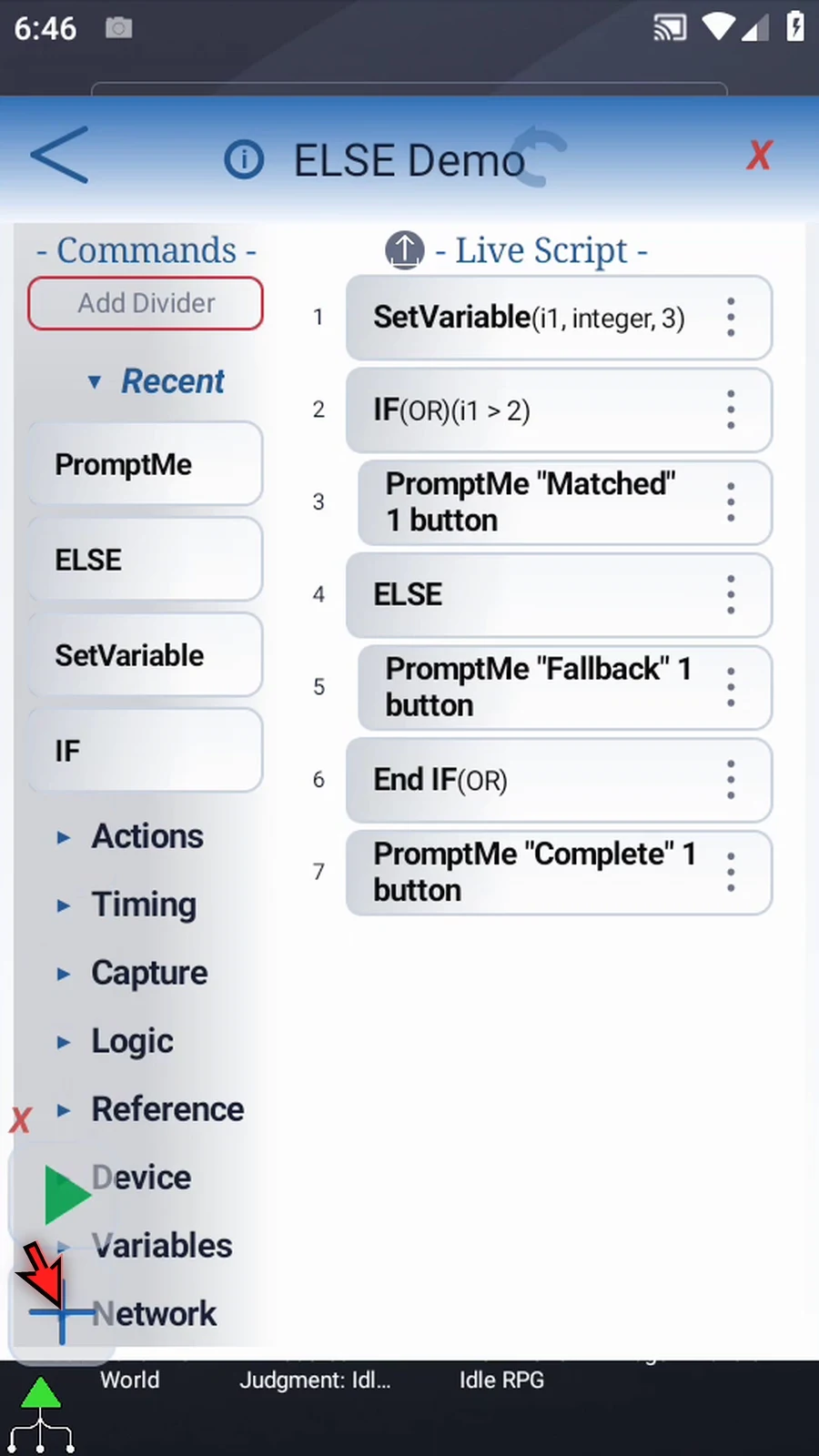
Step 18 Open IF and change Value from two to five, then confirm. We are changing only the comparison. SetVariable still stores three, and all three prompts remain in place.
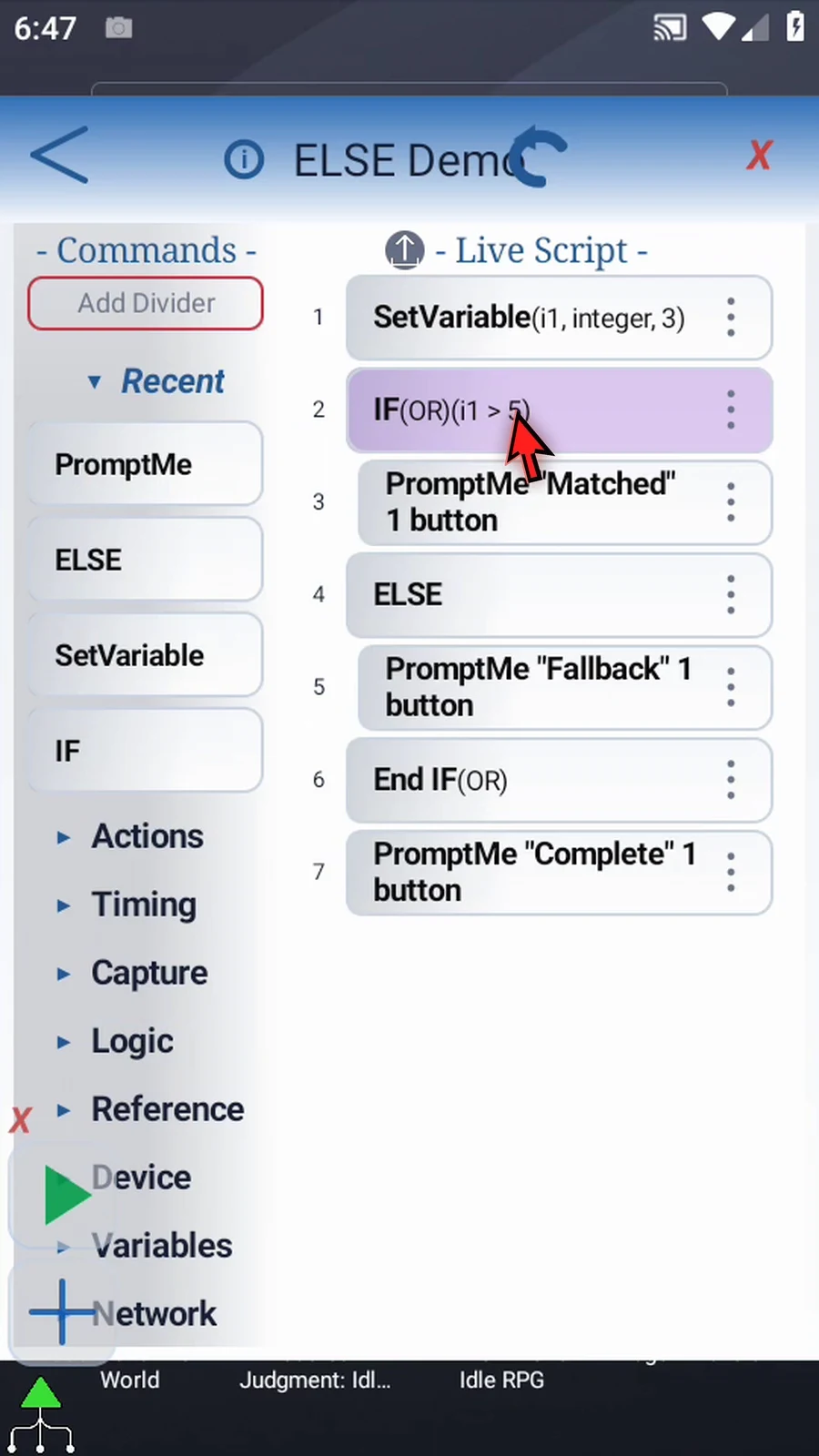
Step 19 Play the script again. Three is not greater than five, so the IF condition is now false.
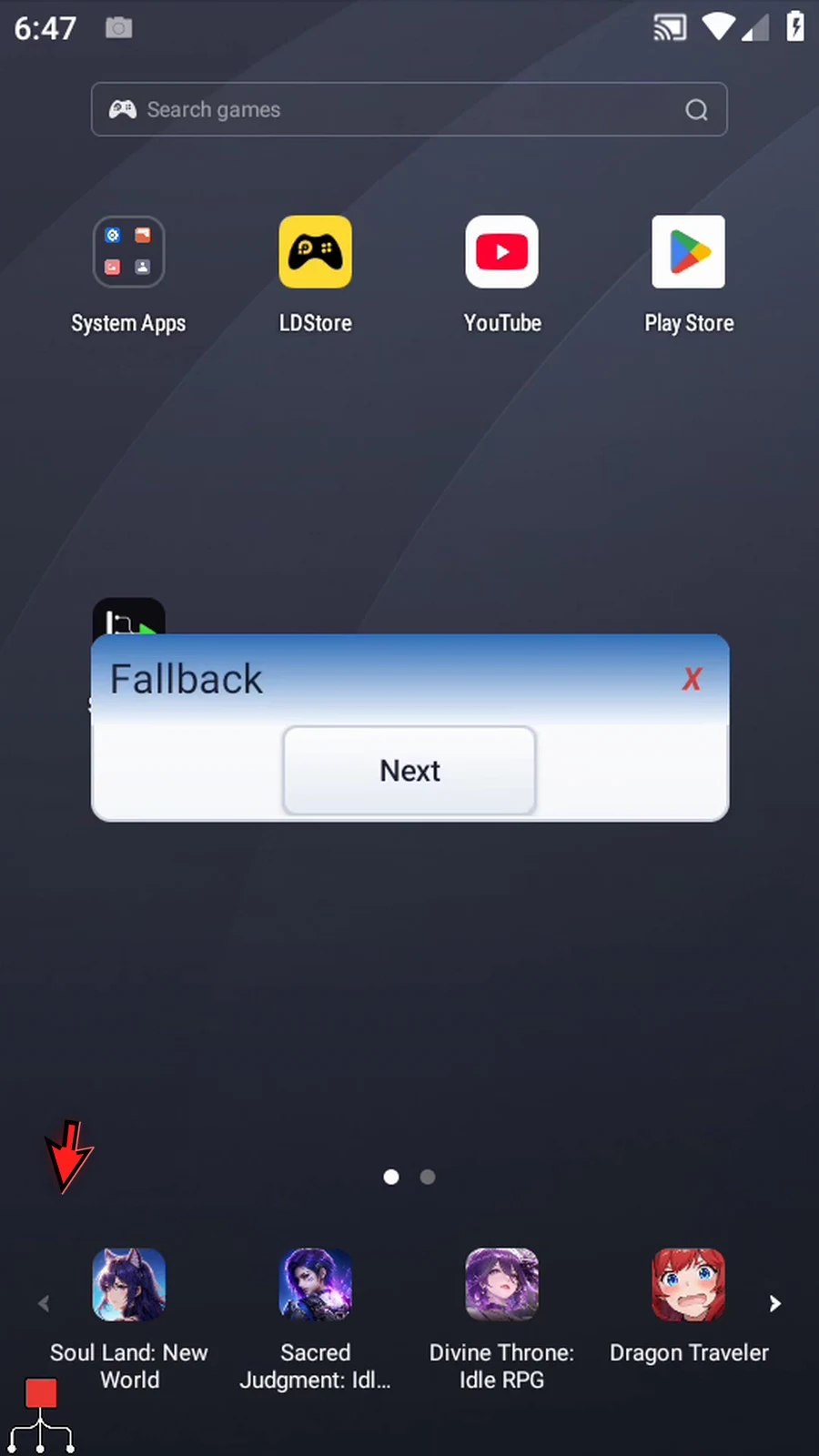
Step 20 Fallback appears instead of Matched. This is the purpose of ELSE: give the script a useful alternative when its IF condition is not met.
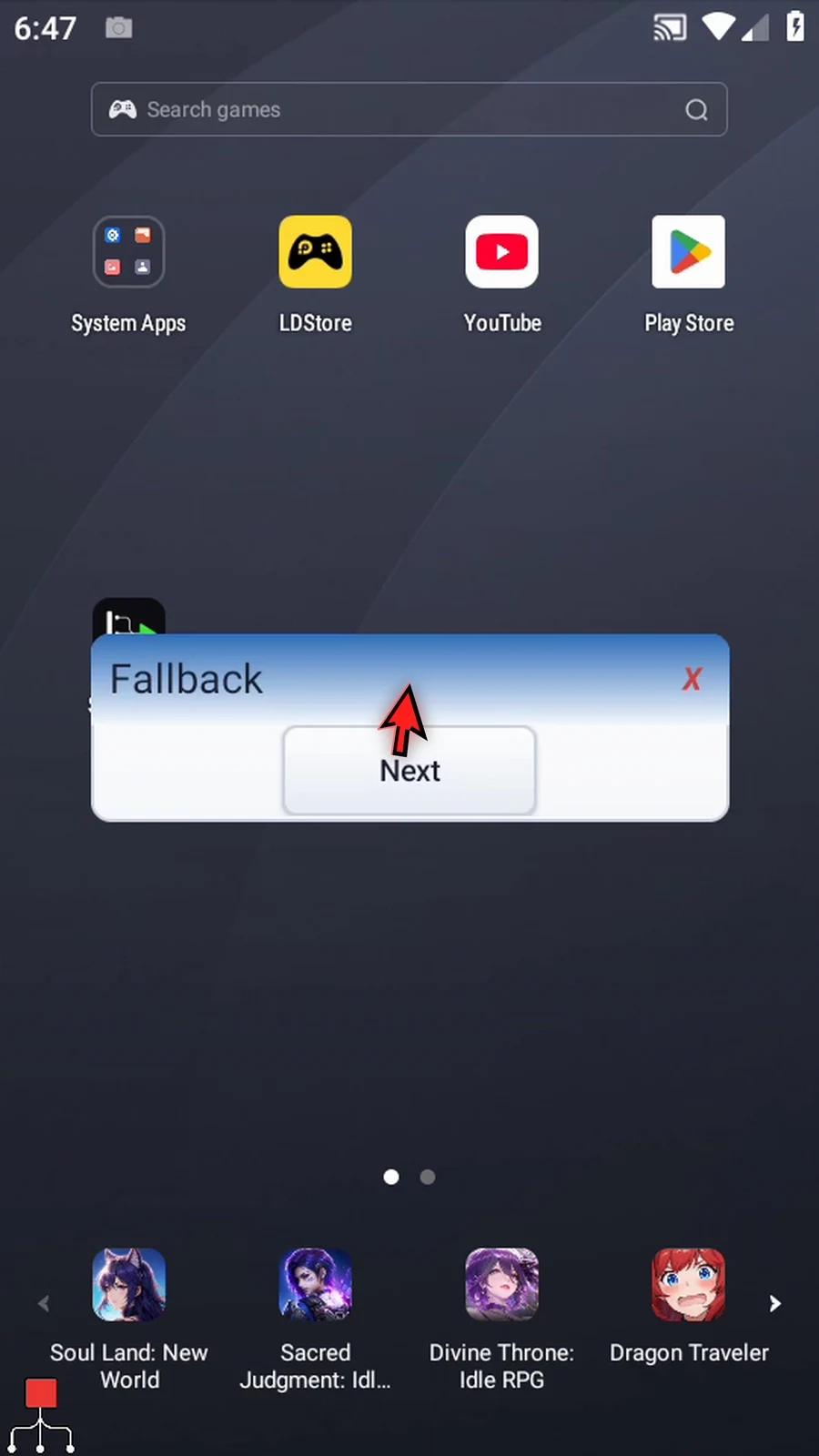
Step 21 Tap Next. Complete appears again, because commands after End IF run after either selected branch.
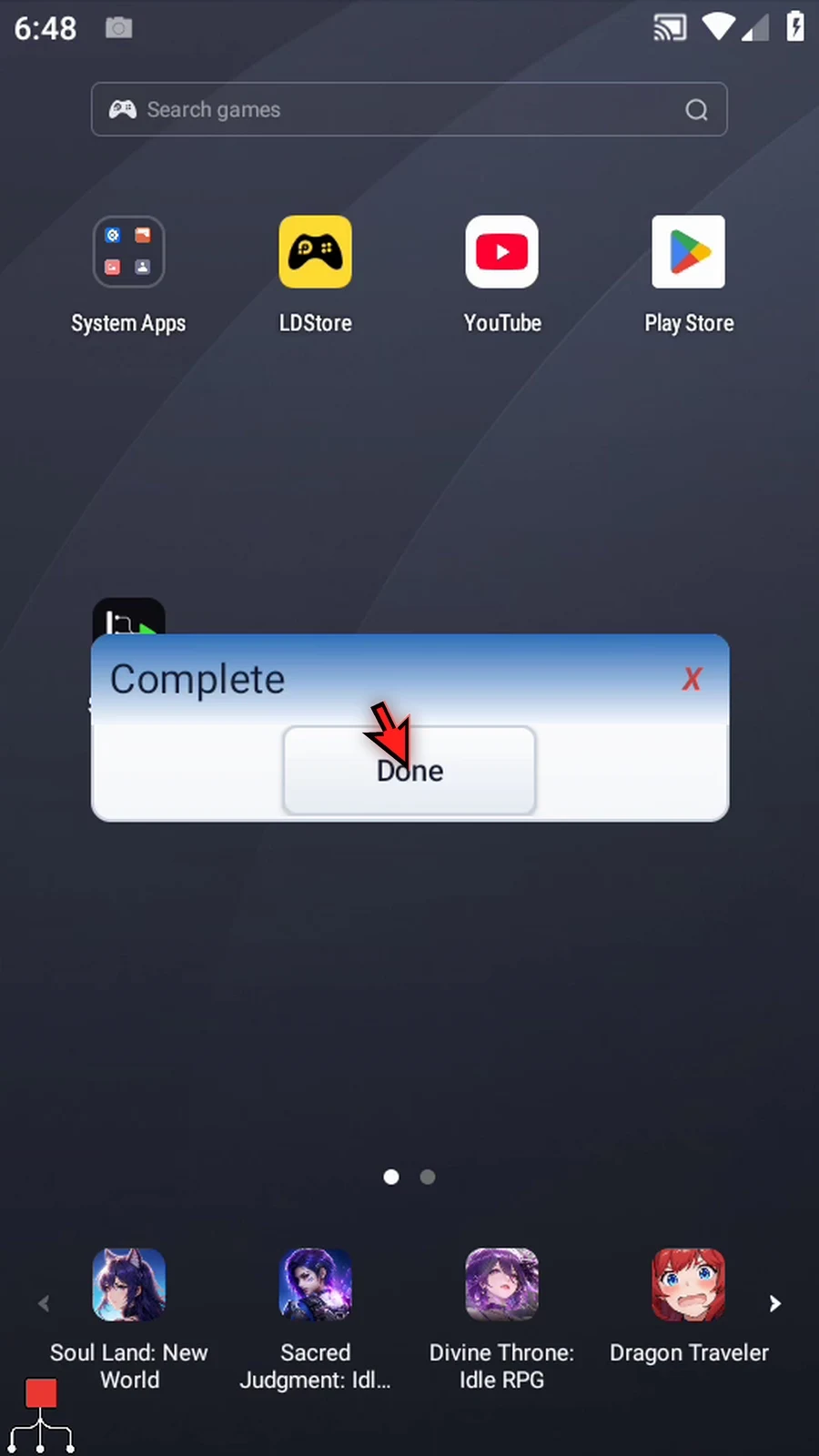
Step 22 Tap Done. The script stops automatically. Use ELSE for an alternative action, such as a retry or a different response. It belongs to its enclosing IF block and does not need its own condition.