
ScriptTap
Text Type

Command video guide

Text Type

Automatically enter literal text or a String variable into an editable field. Build a new script and fill Play Store's search box with ScriptTap without typing the query by hand.

Watch the walkthrough

Step-by-step guide

  1. Step 01

    Text Type automatically enters text into an editable field. Use it to fill search boxes, forms, or messages without typing them by hand.
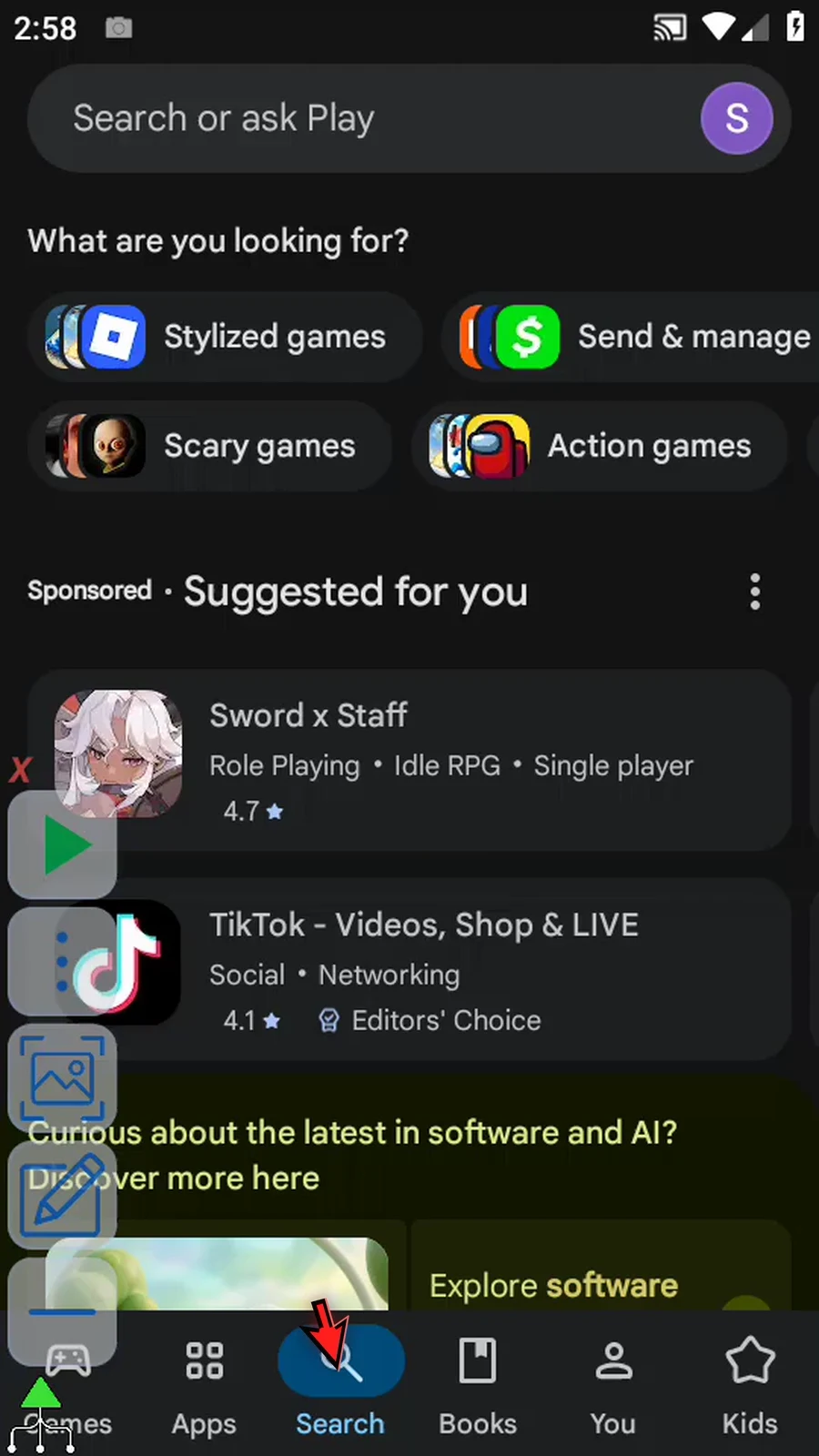
    Text Type step 1: Text Type automatically enters text into an editable field. Use it to fill search boxes, forms, or messages without typing them by hand.
  2. Step 02

    Open Scripts from the main menu. Tap New Script, then choose Blank Script.
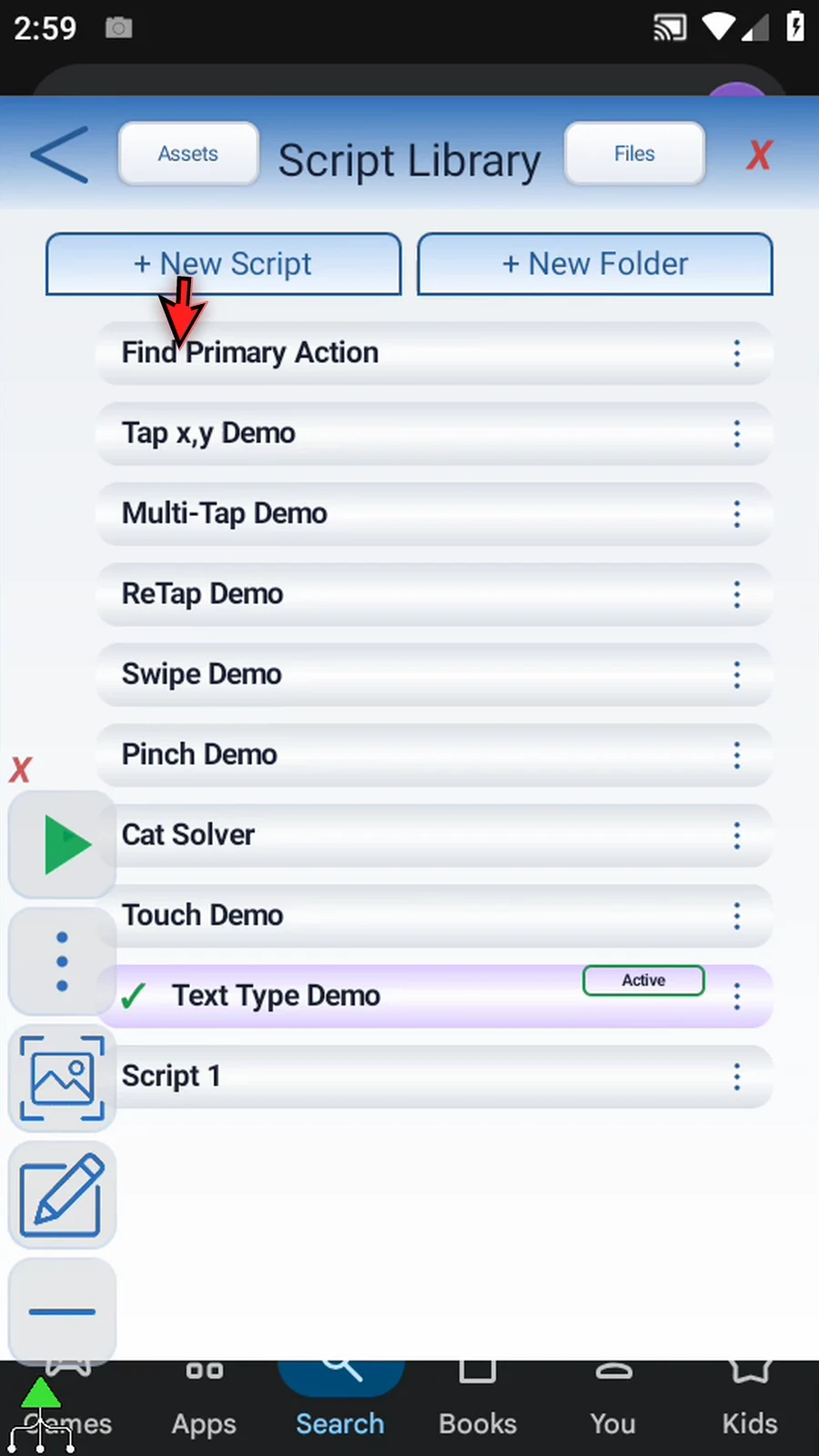
    Text Type step 2: Open Scripts from the main menu. Tap New Script, then choose Blank Script.
  3. Step 03

    Open the new script's three-dot menu and choose Rename. Pick a name, then tap OK.
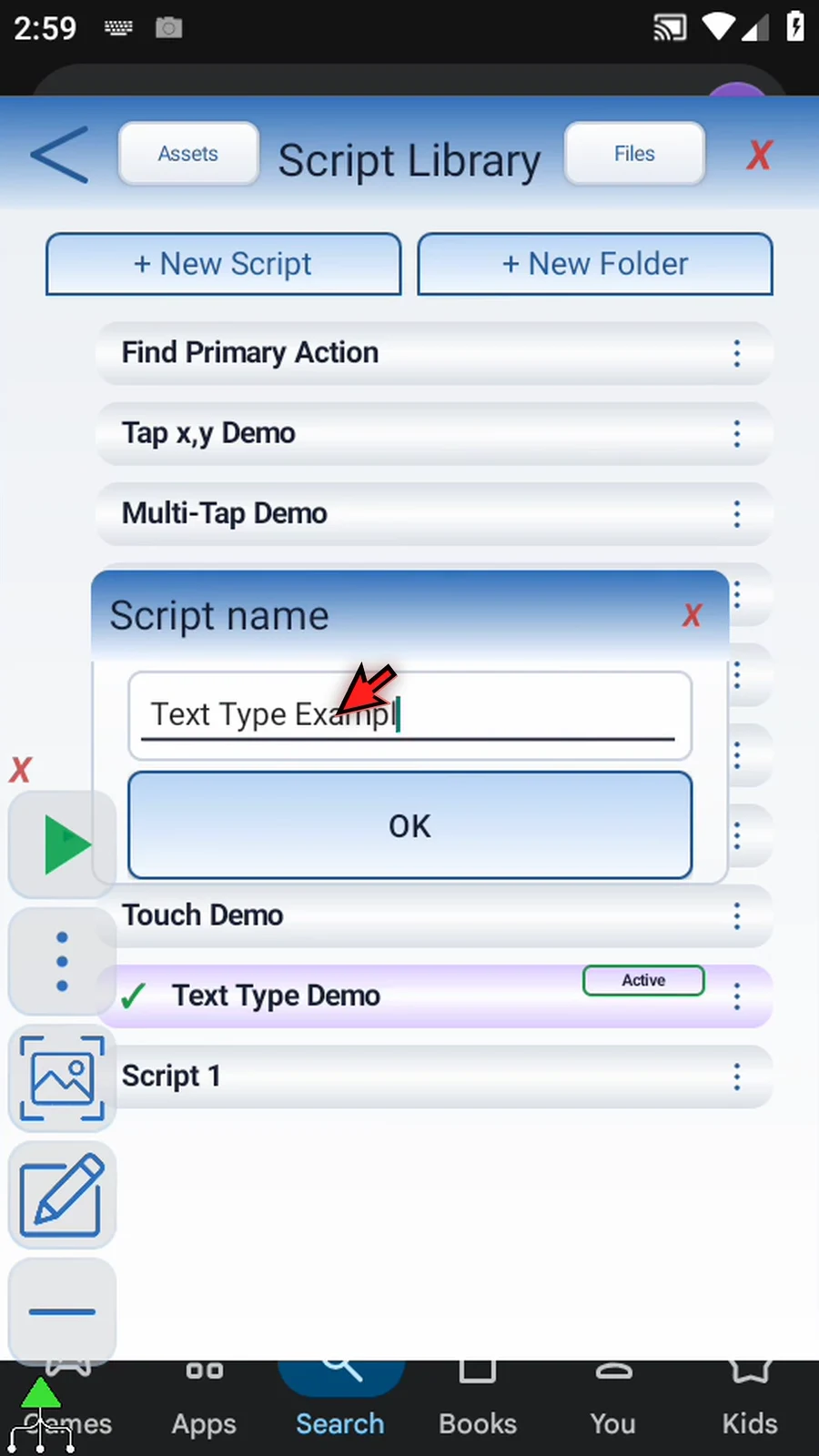
    Text Type step 3: Open the new script's three-dot menu and choose Rename. Pick a name, then tap OK.
  4. Step 04

    Select your new script and open the Script Editor. Collapse the extra overlay controls to clear the palette.
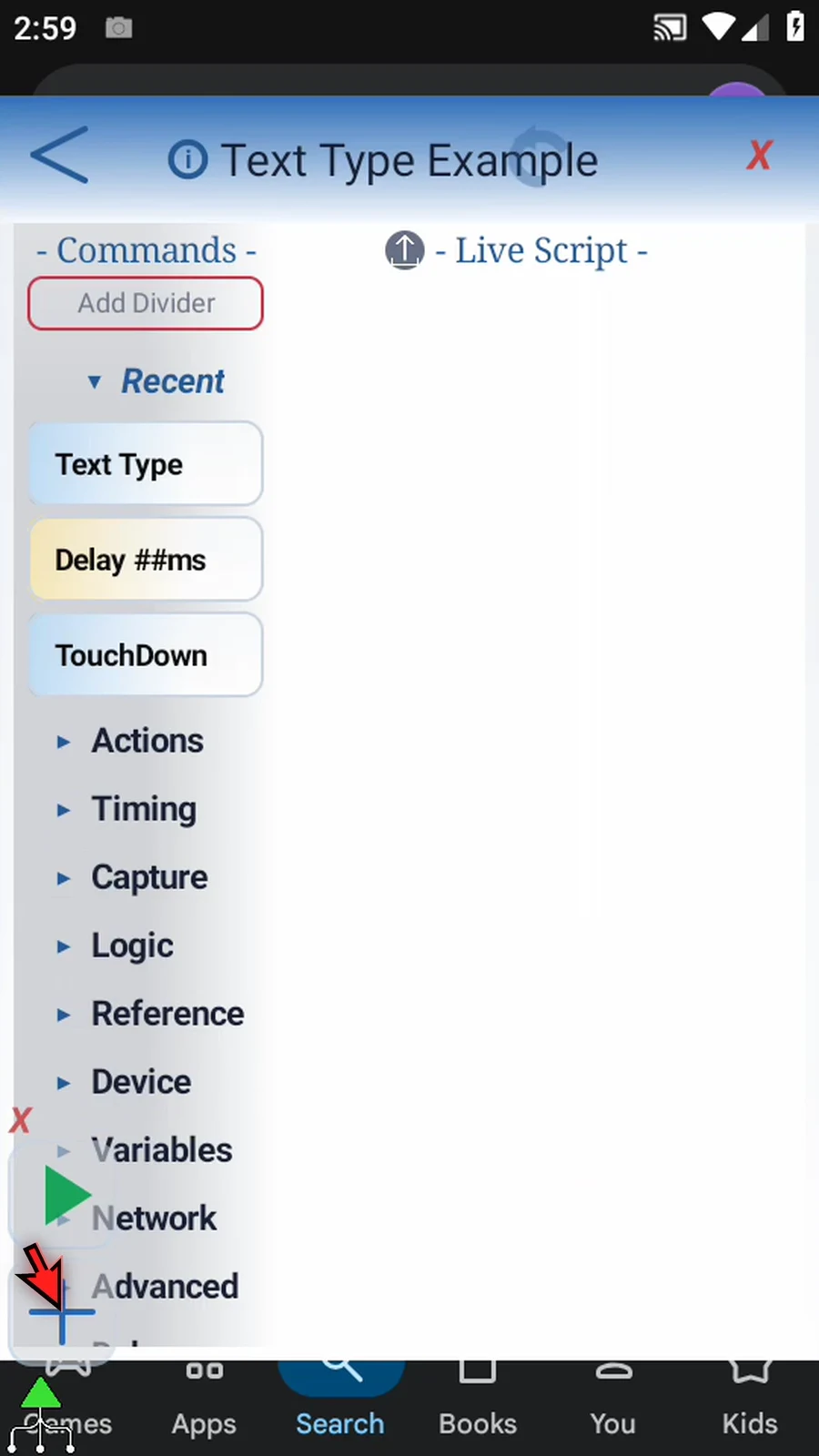
    Text Type step 4: Select your new script and open the Script Editor. Collapse the extra overlay controls to clear the palette.
  5. Step 05

    Expand Actions. Drag Text Type into the script and release at the blue insertion line.
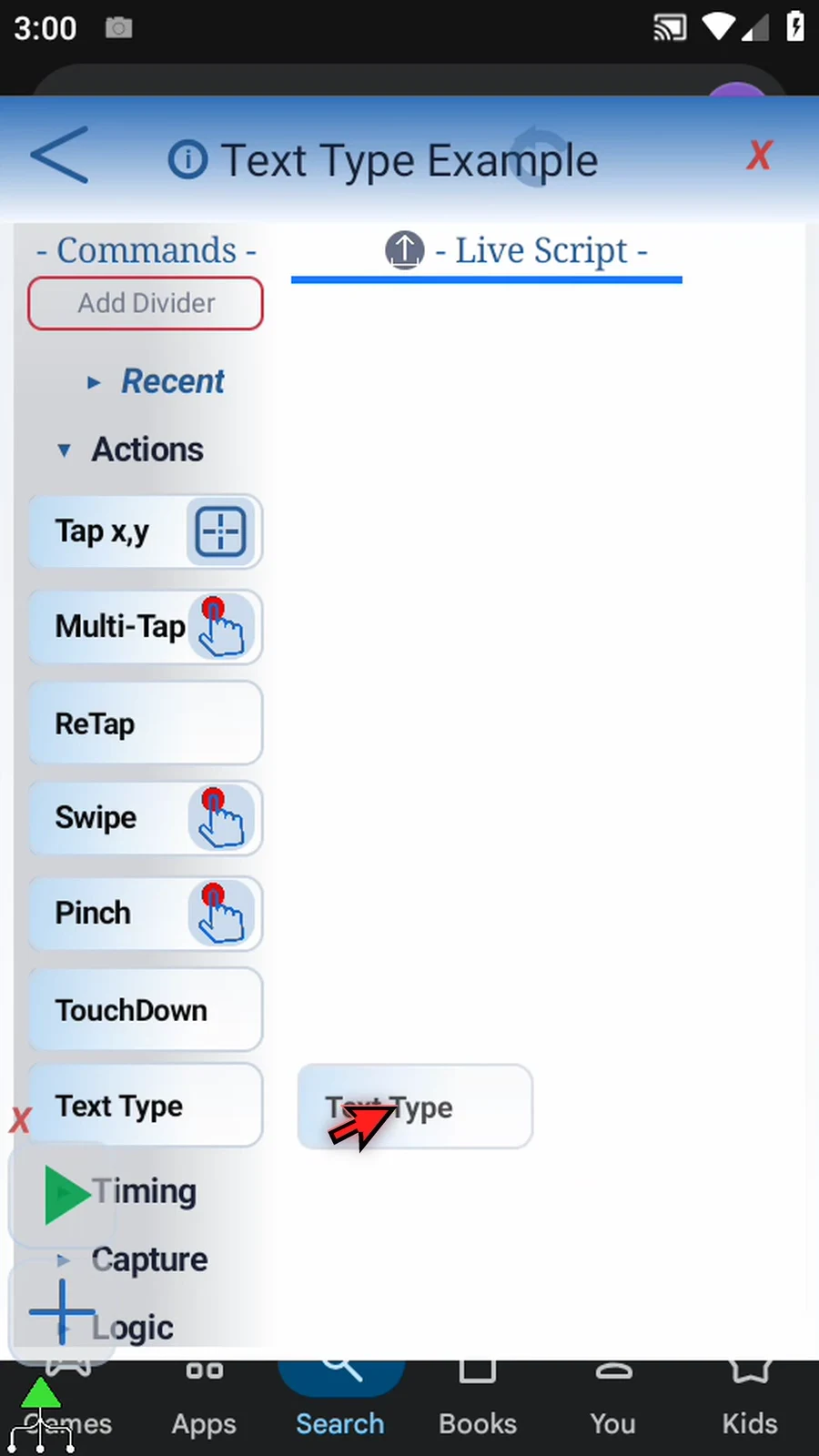
    Text Type step 5: Expand Actions. Drag Text Type into the script and release at the blue insertion line.
  6. Step 06

    Double-tap the new command frame to open its settings.
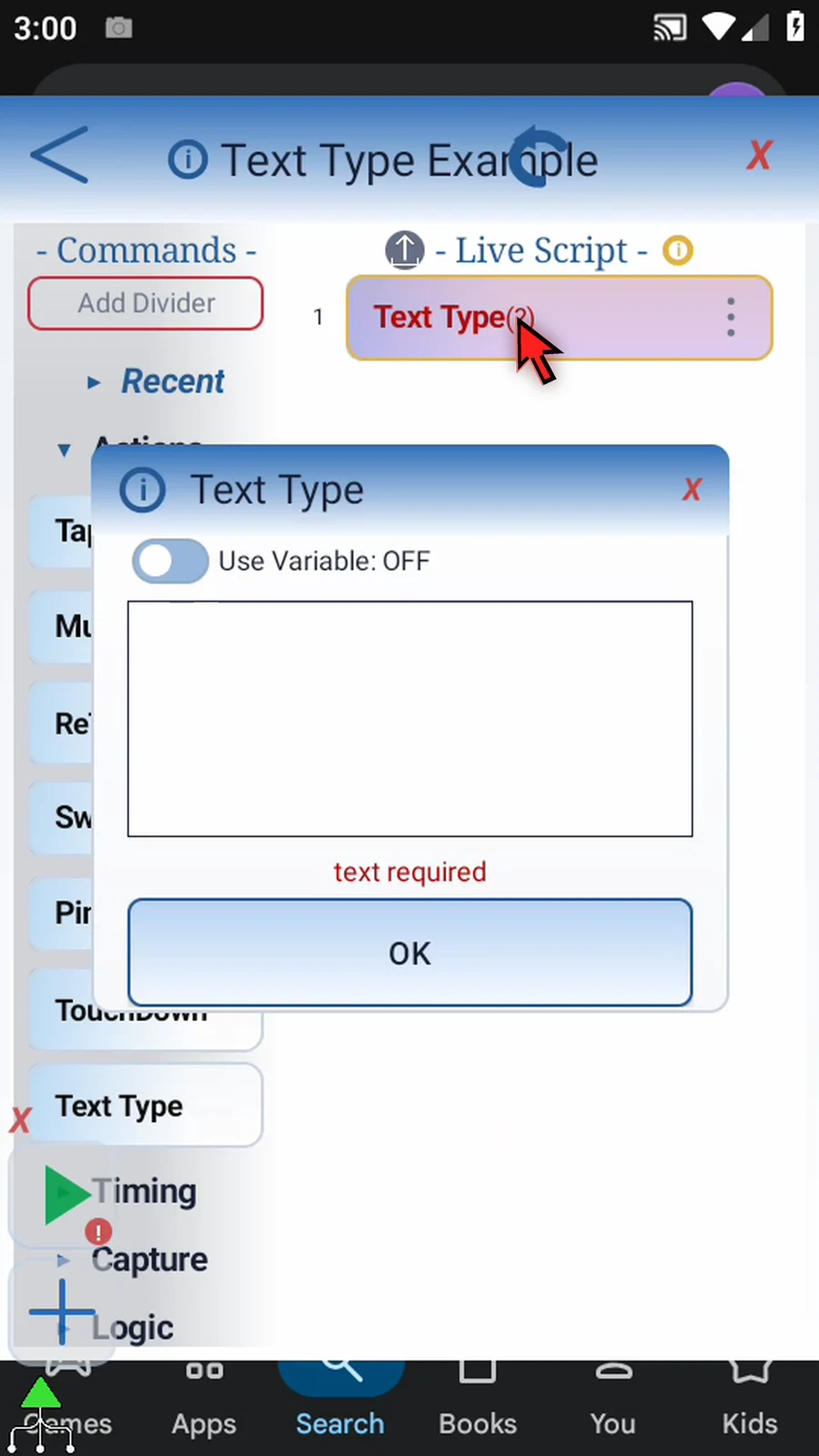
    Text Type step 6: Double-tap the new command frame to open its settings.
  7. Step 07

    Use Variable lets Text Type use a String variable defined earlier in your script.
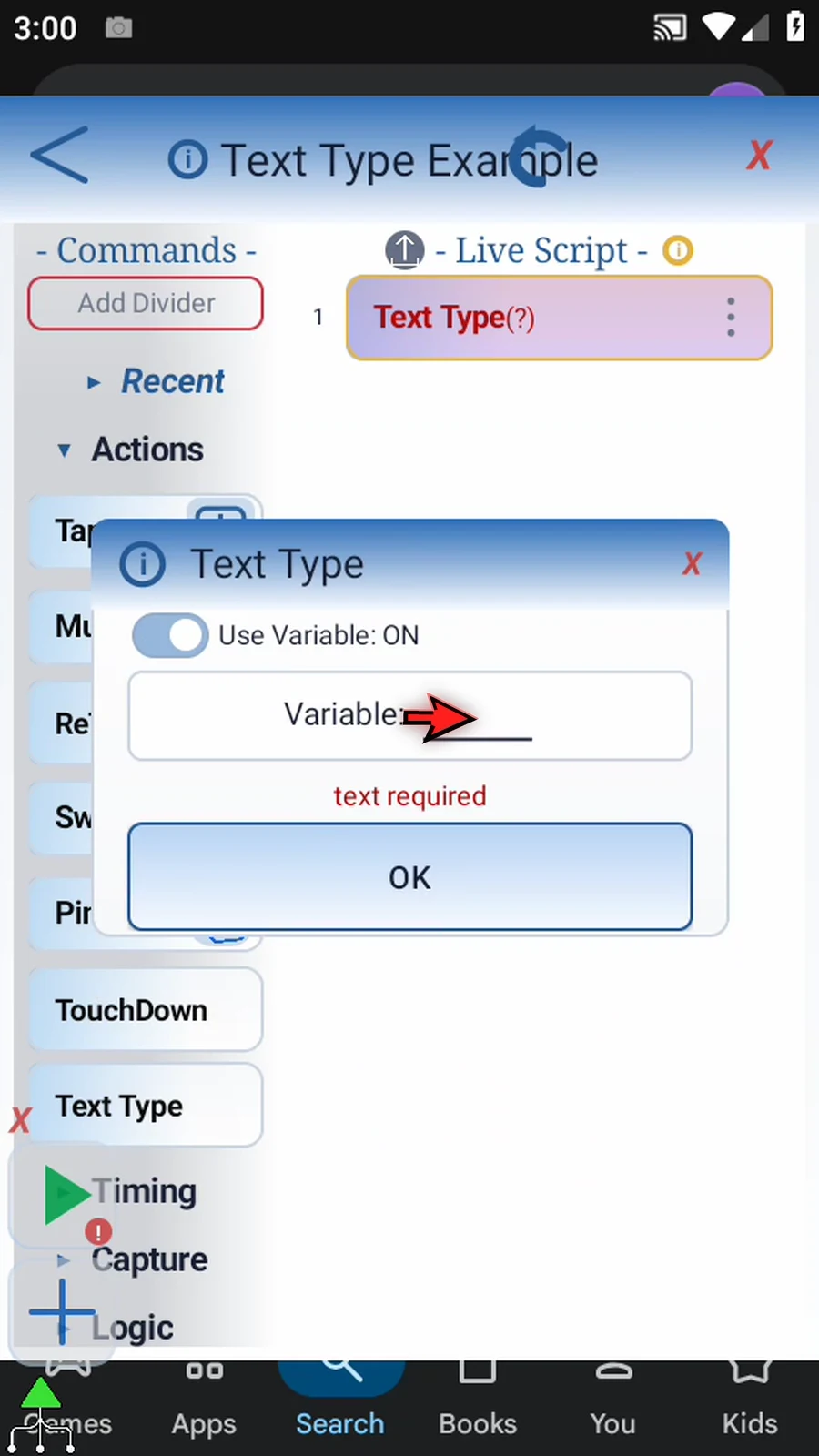
    Text Type step 7: Use Variable lets Text Type use a String variable defined earlier in your script.
  8. Step 08

    This example uses fixed text, so turn Use Variable off.
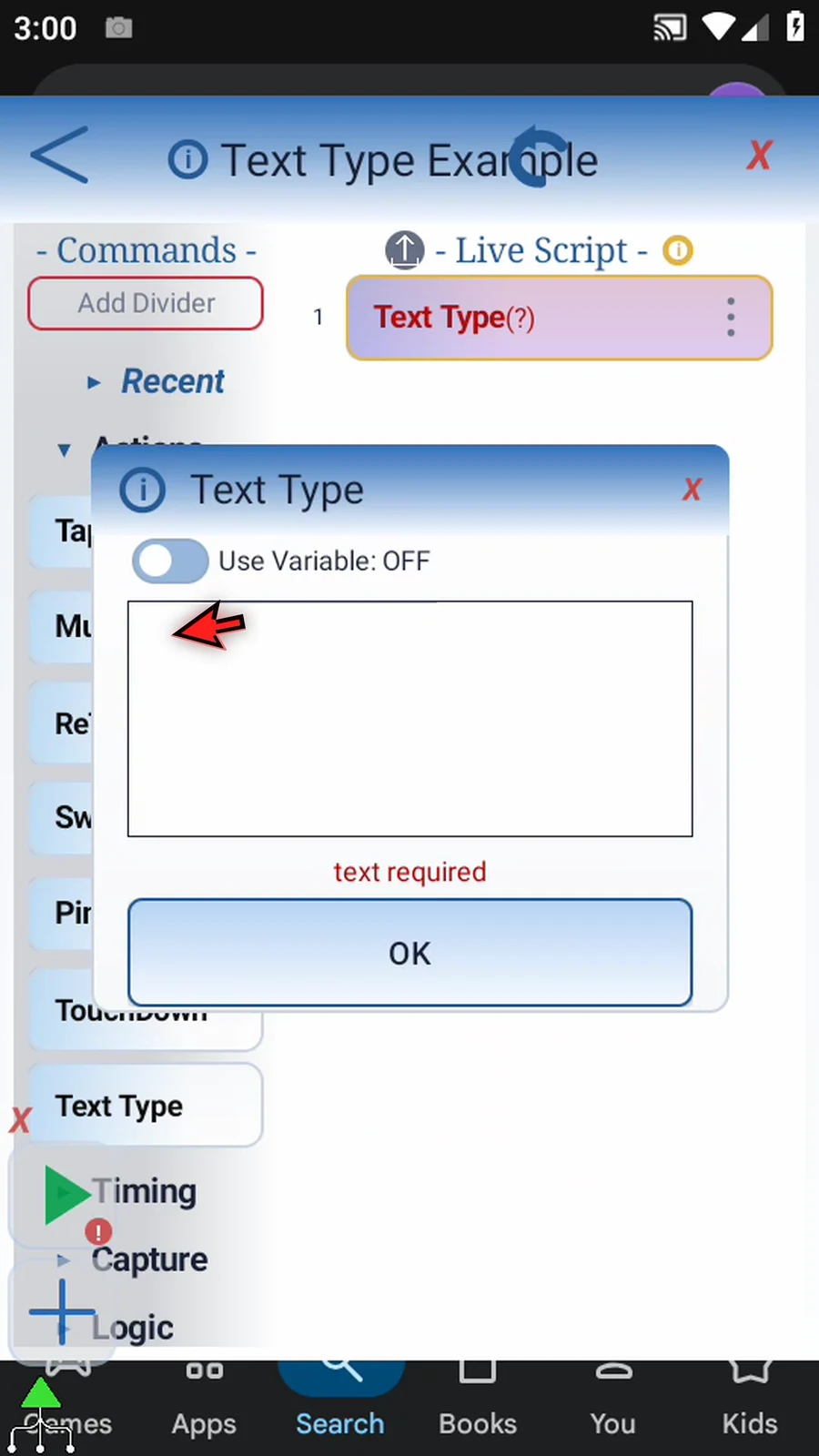
    Text Type step 8: This example uses fixed text, so turn Use Variable off.
  9. Step 09

    Enter the text you want ScriptTap to type. We'll use ScriptTap in this example.
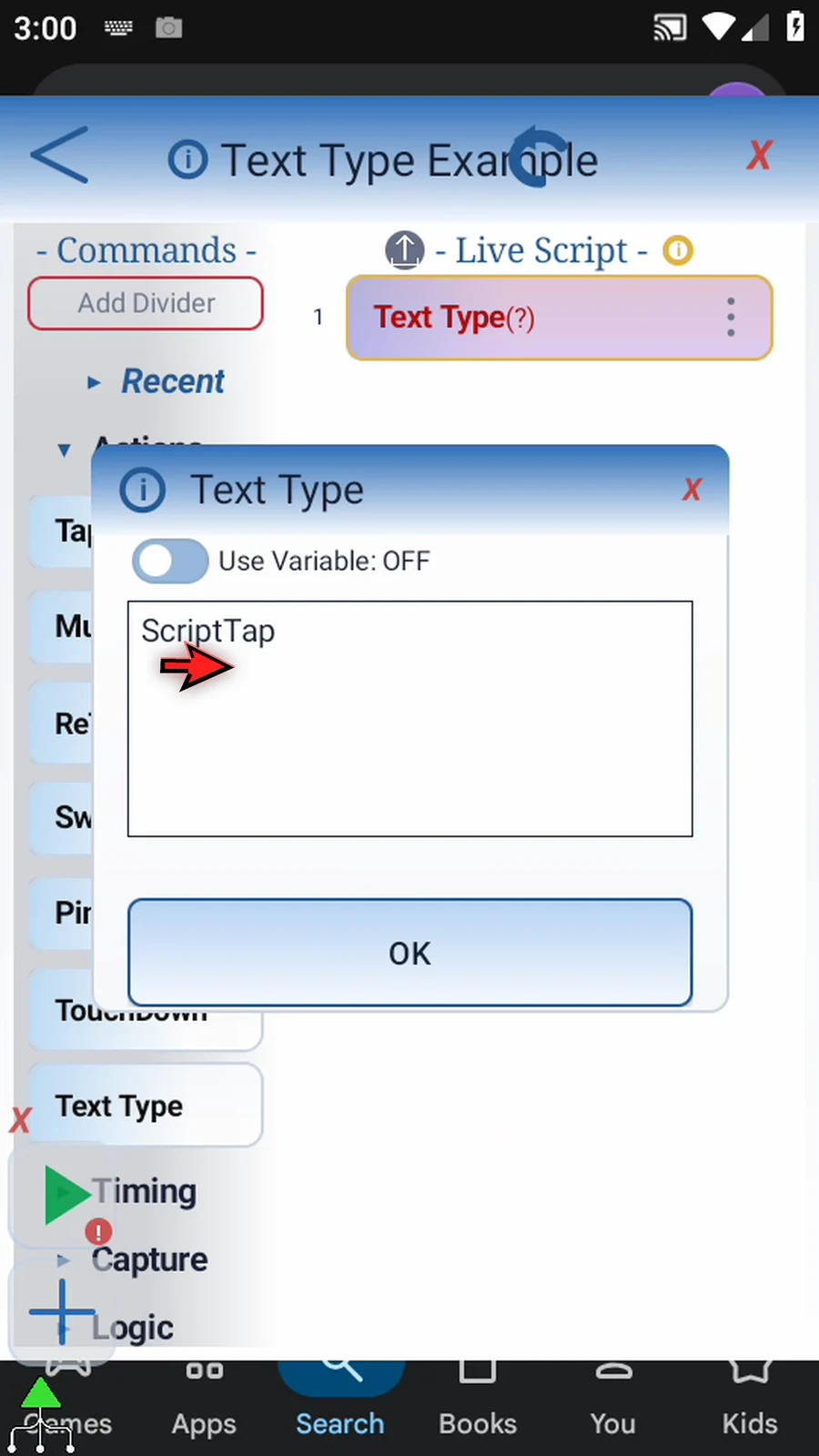
    Text Type step 9: Enter the text you want ScriptTap to type. We'll use ScriptTap in this example.
  10. Step 10

    The text box accepts spaces, punctuation, special characters, and multiple lines. Tap OK to save.
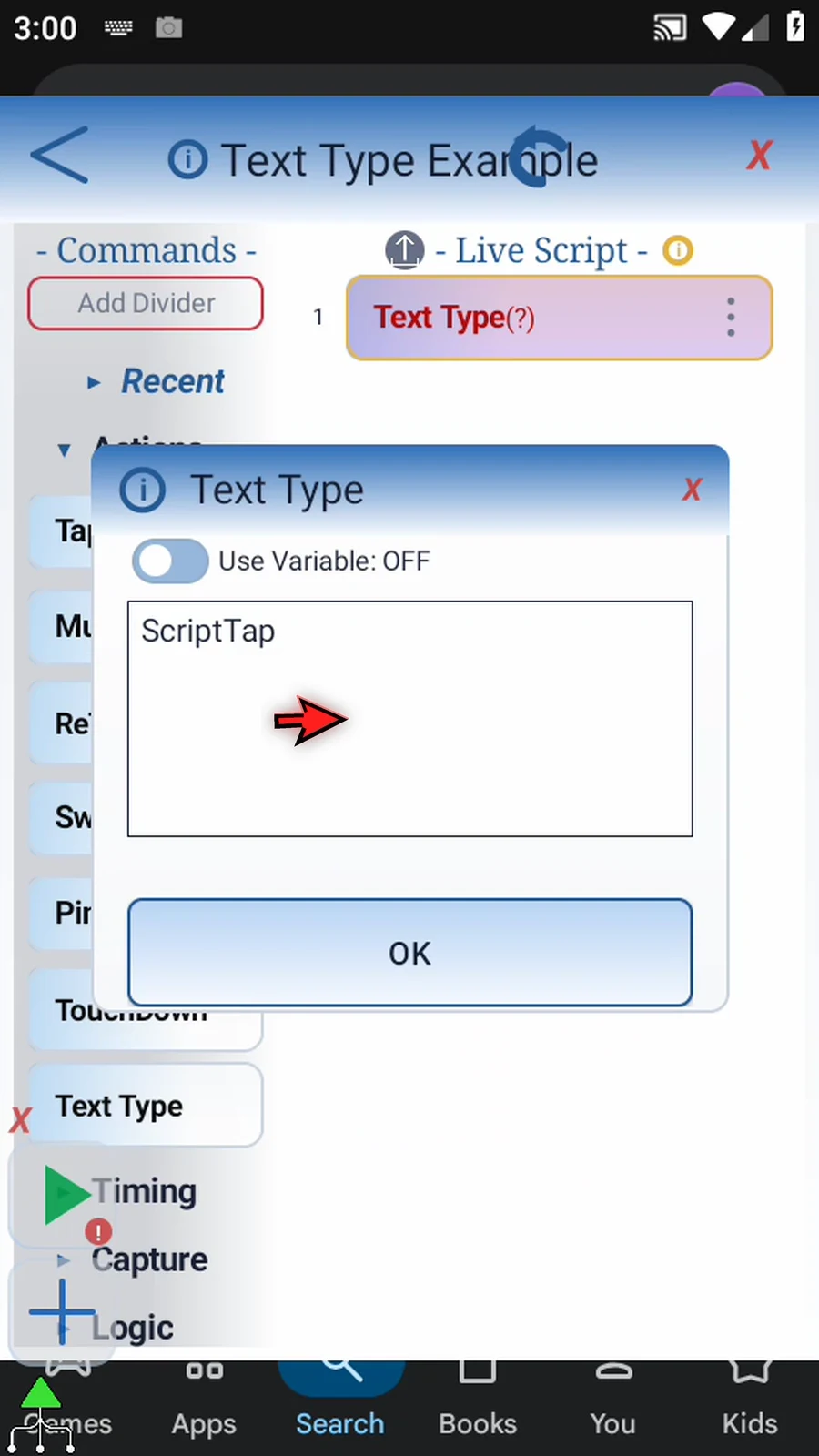
    Text Type step 10: The text box accepts spaces, punctuation, special characters, and multiple lines. Tap OK to save.
  11. Step 11

    Line breaks and the Enter marker are also supported. In a multiline field, they become line breaks.
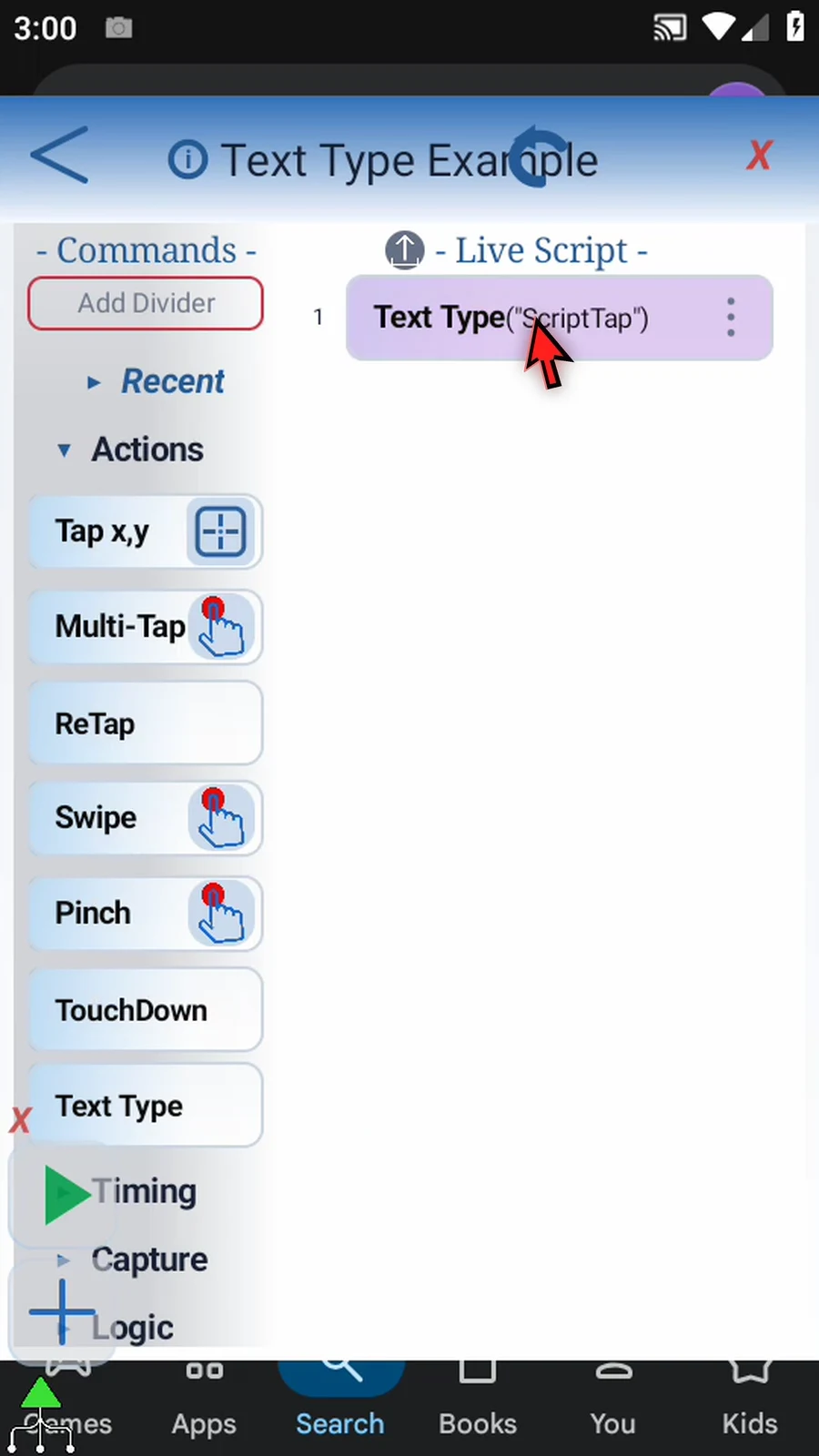
    Text Type step 11: Line breaks and the Enter marker are also supported. In a multiline field, they become line breaks.
  12. Step 12

    For a single-line field, ScriptTap uses the first line and requests its supported Enter action. Later lines are discarded. Submission requires the field to expose that action on Android eleven or later.
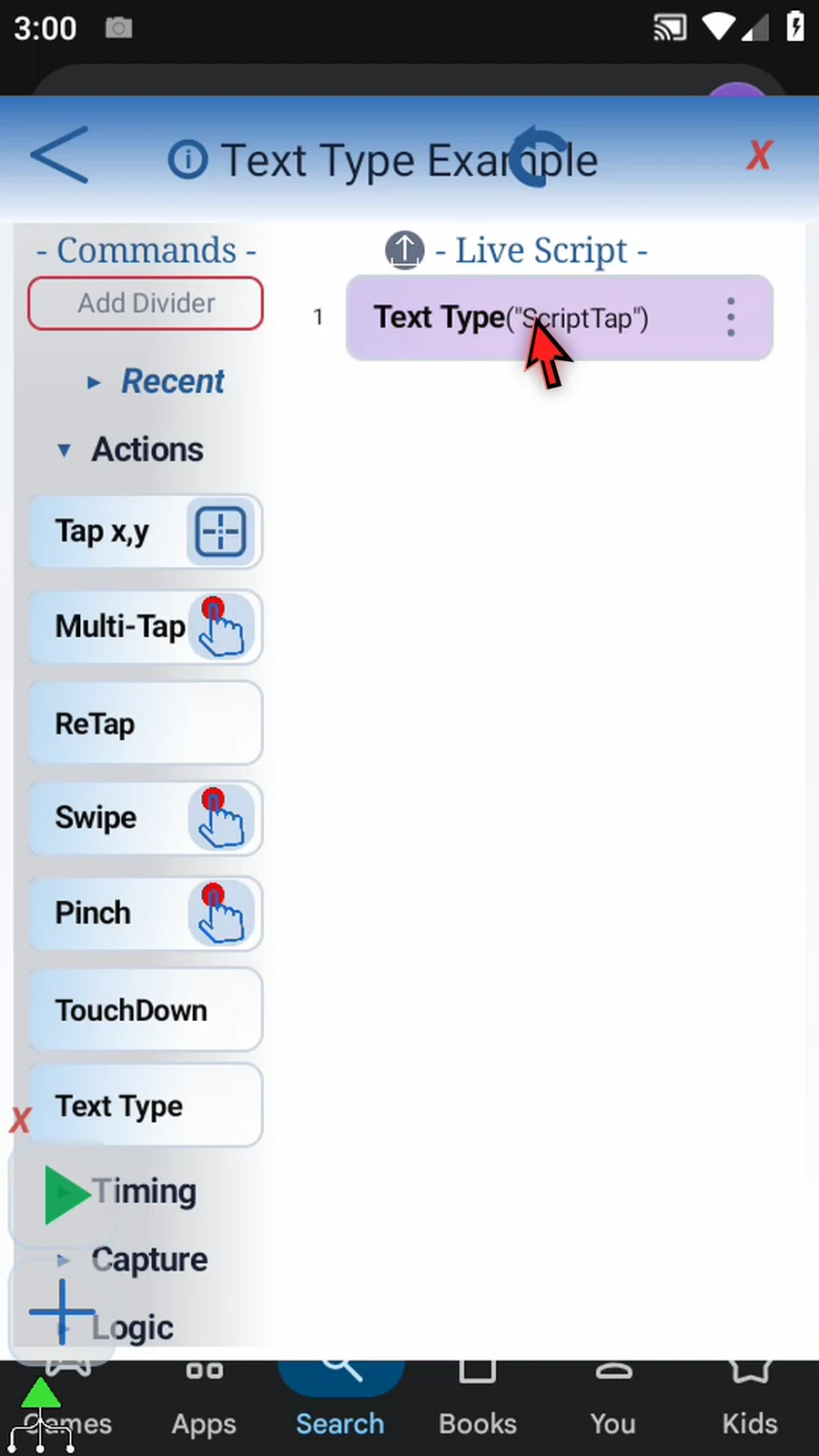
    Text Type step 12: For a single-line field, ScriptTap uses the first line and requests its supported Enter action. Later lines are discarded. Submission requires the field to expose that action on Android eleven or later.
  13. Step 13

    Text Type needs an editable field. Focus the intended field before running; it sets the field text rather than appending keystrokes.
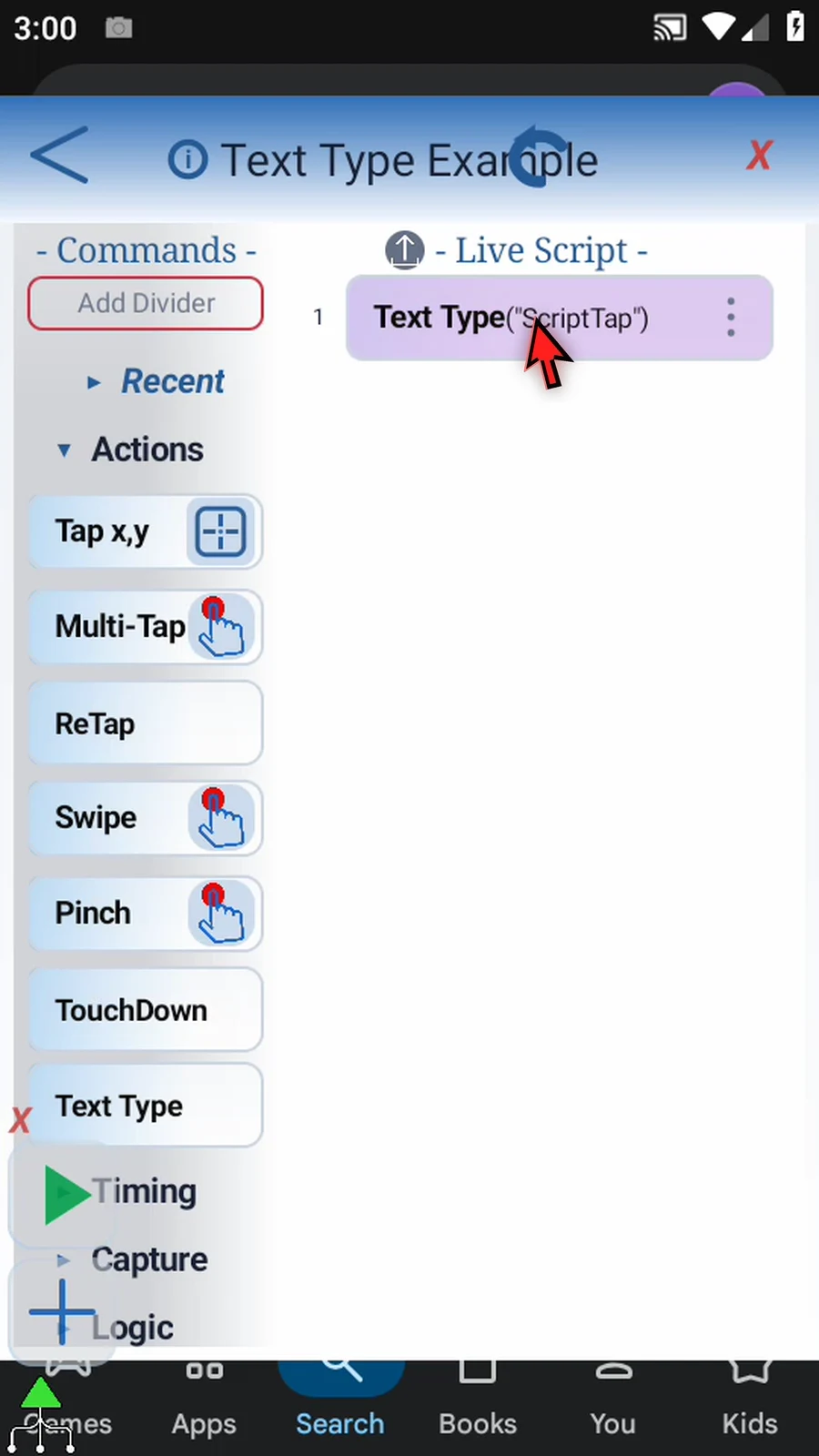
    Text Type step 13: Text Type needs an editable field. Focus the intended field before running; it sets the field text rather than appending keystrokes.
  14. Step 14

    Close the editor. In Play Store, open Search, then tap the search box.
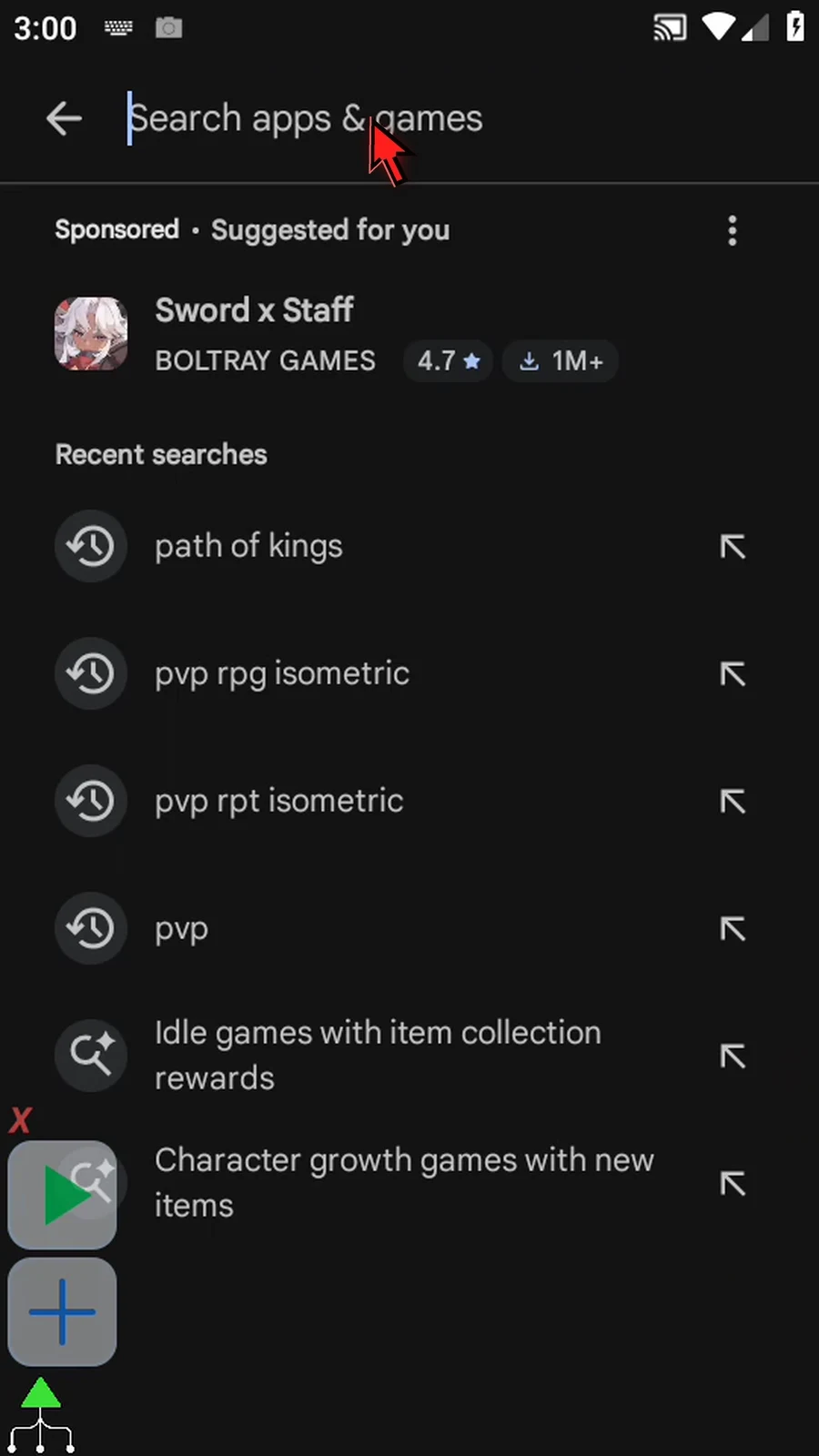
    Text Type step 14: Close the editor. In Play Store, open Search, then tap the search box.
  15. Step 15

    When the script is complete, simply use the Play button in the main overlay.
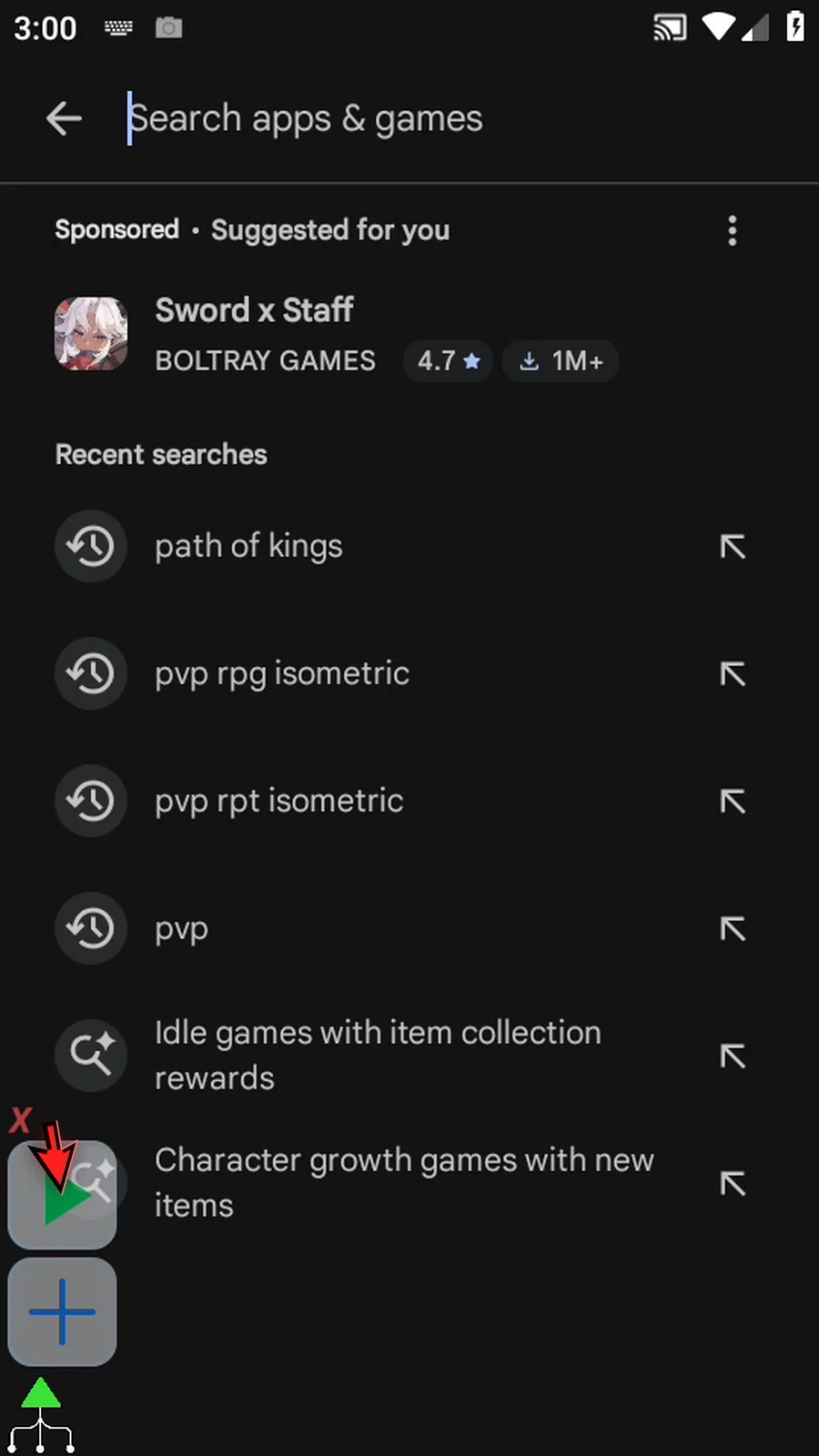
    Text Type step 15: When the script is complete, simply use the Play button in the main overlay.
  16. Step 16

    ScriptTap appears automatically in the search field, and the script stops automatically. Text Type performs the typing; you choose the destination field.
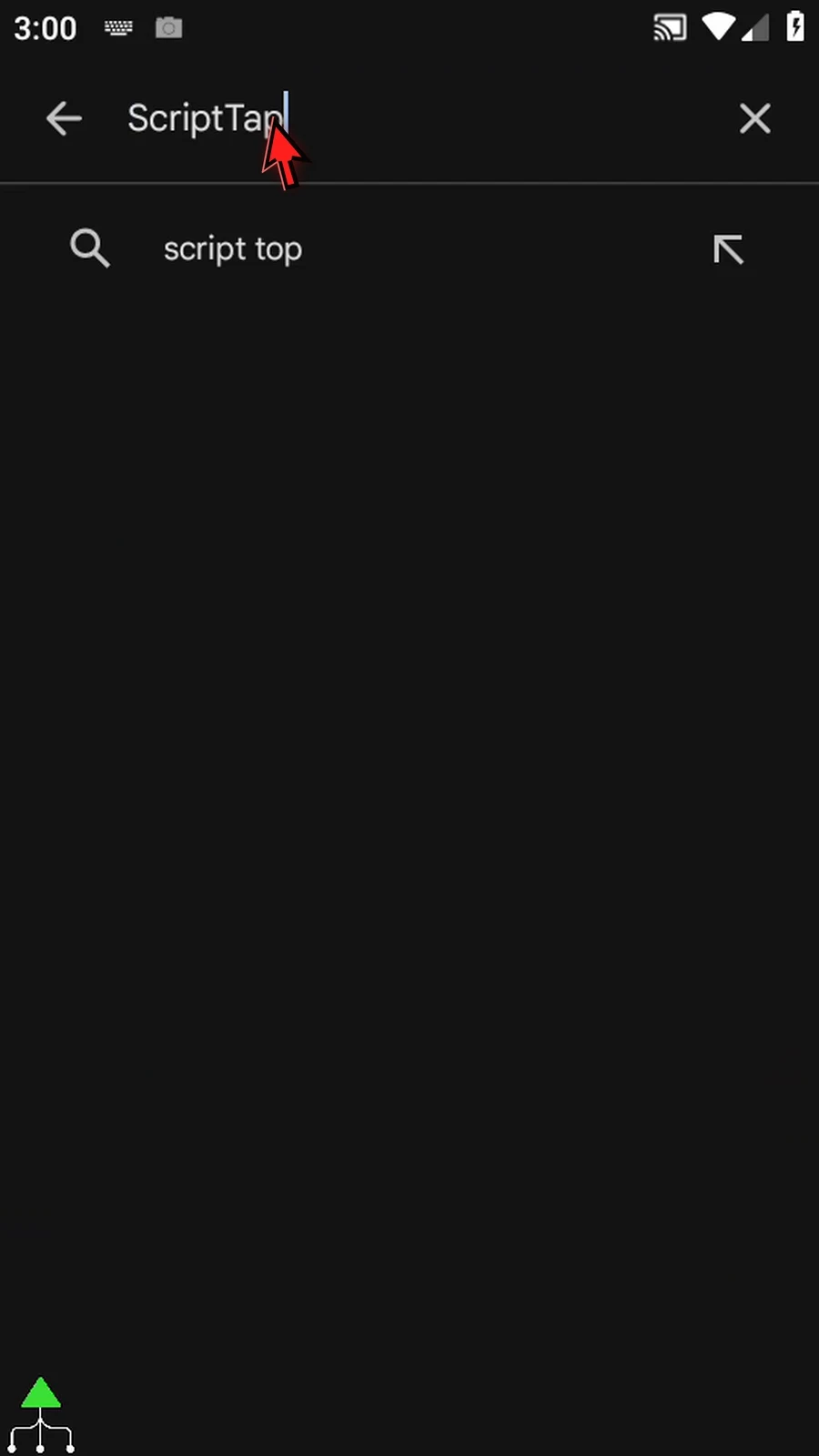
    Text Type step 16: ScriptTap appears automatically in the search field, and the script stops automatically. Text Type performs the typing; you choose the destination field.