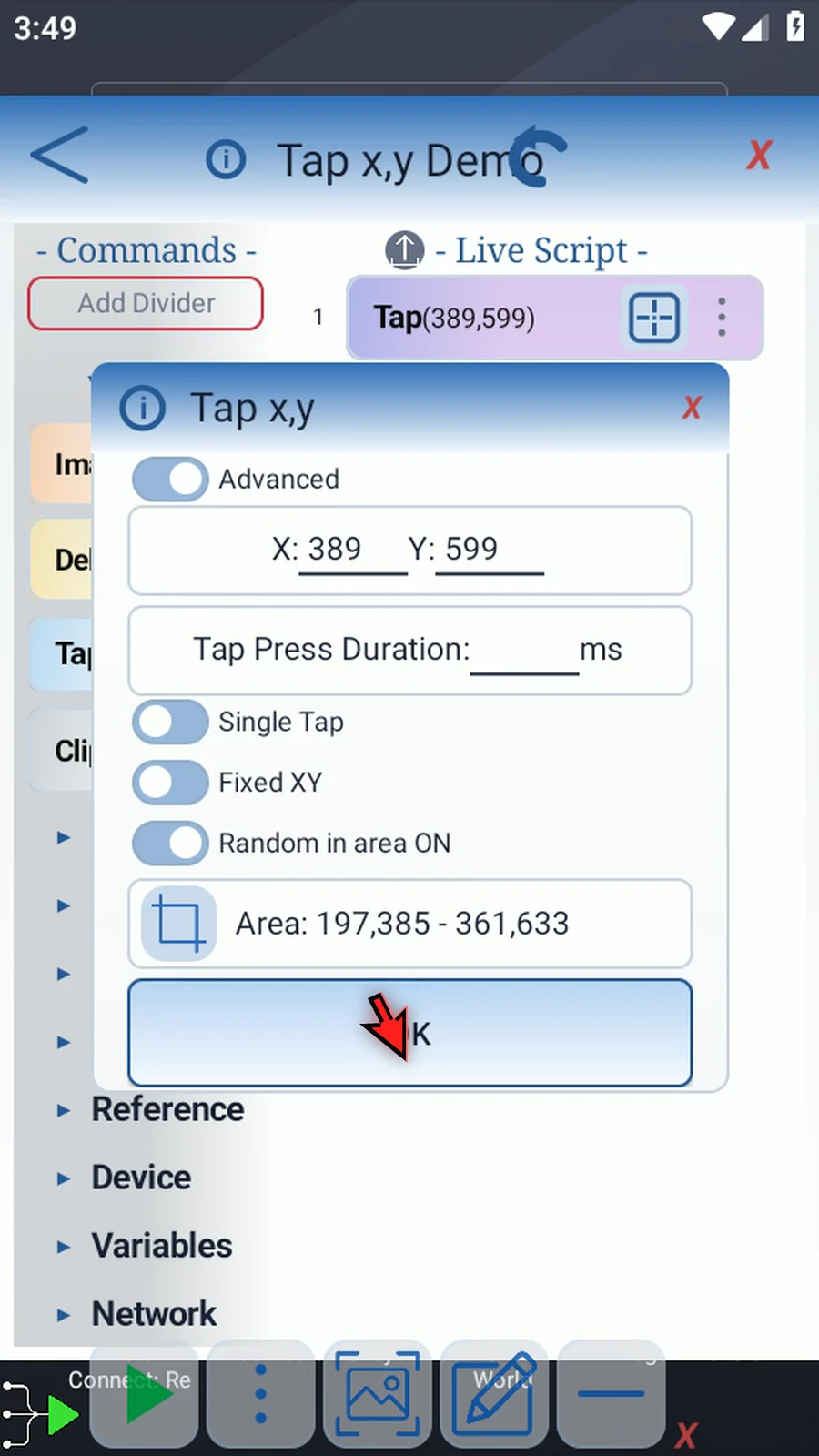
Command video guide
Tap x,y - Basic
Create a blank script, add Tap x,y, select the tap coordinate, and run it. Watch the walkthrough or follow each action below.
Watch the walkthrough
Step-by-step guide
-
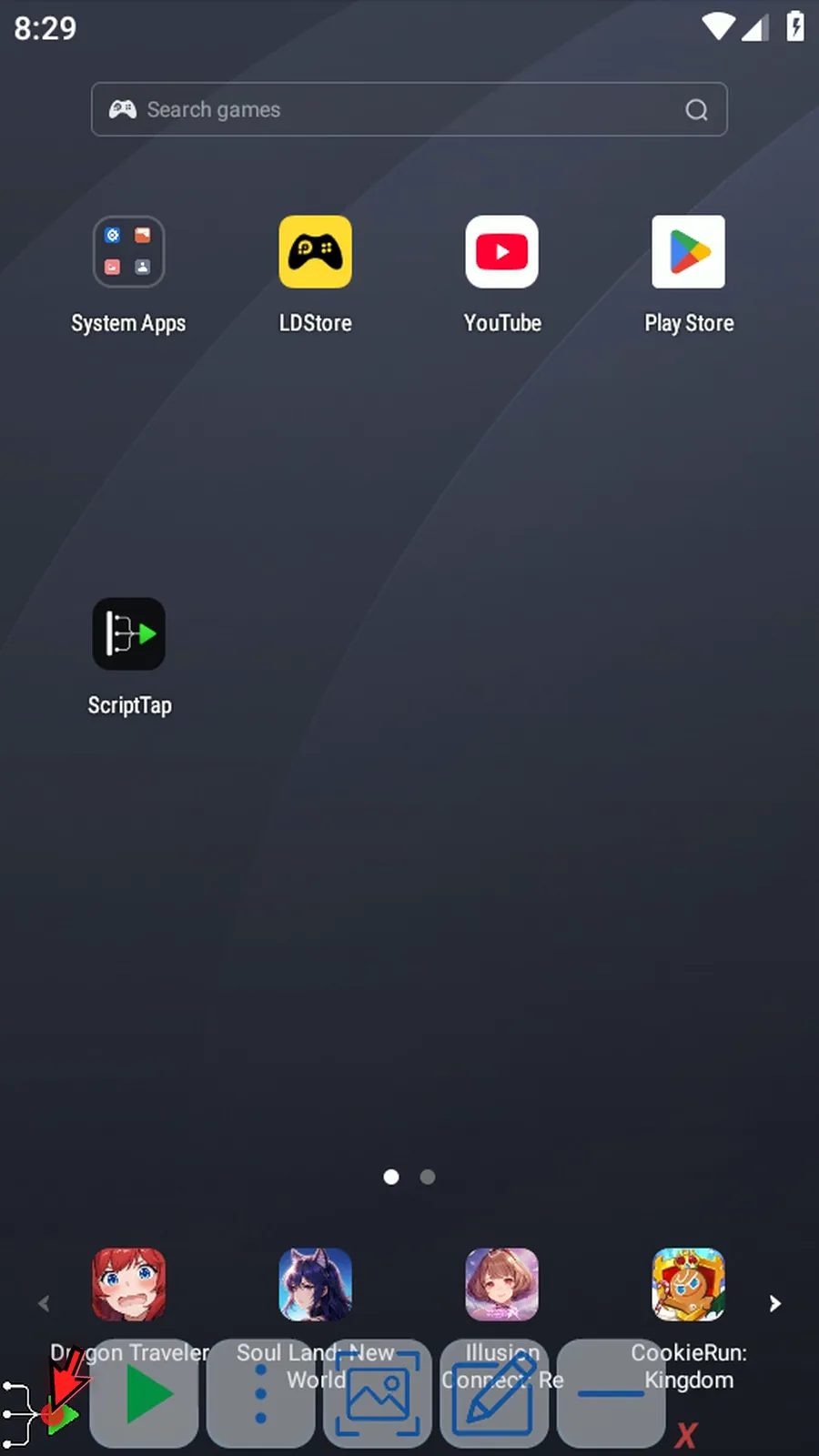
Step 01 Tap the ScriptTap main button to expand the overlay.
-
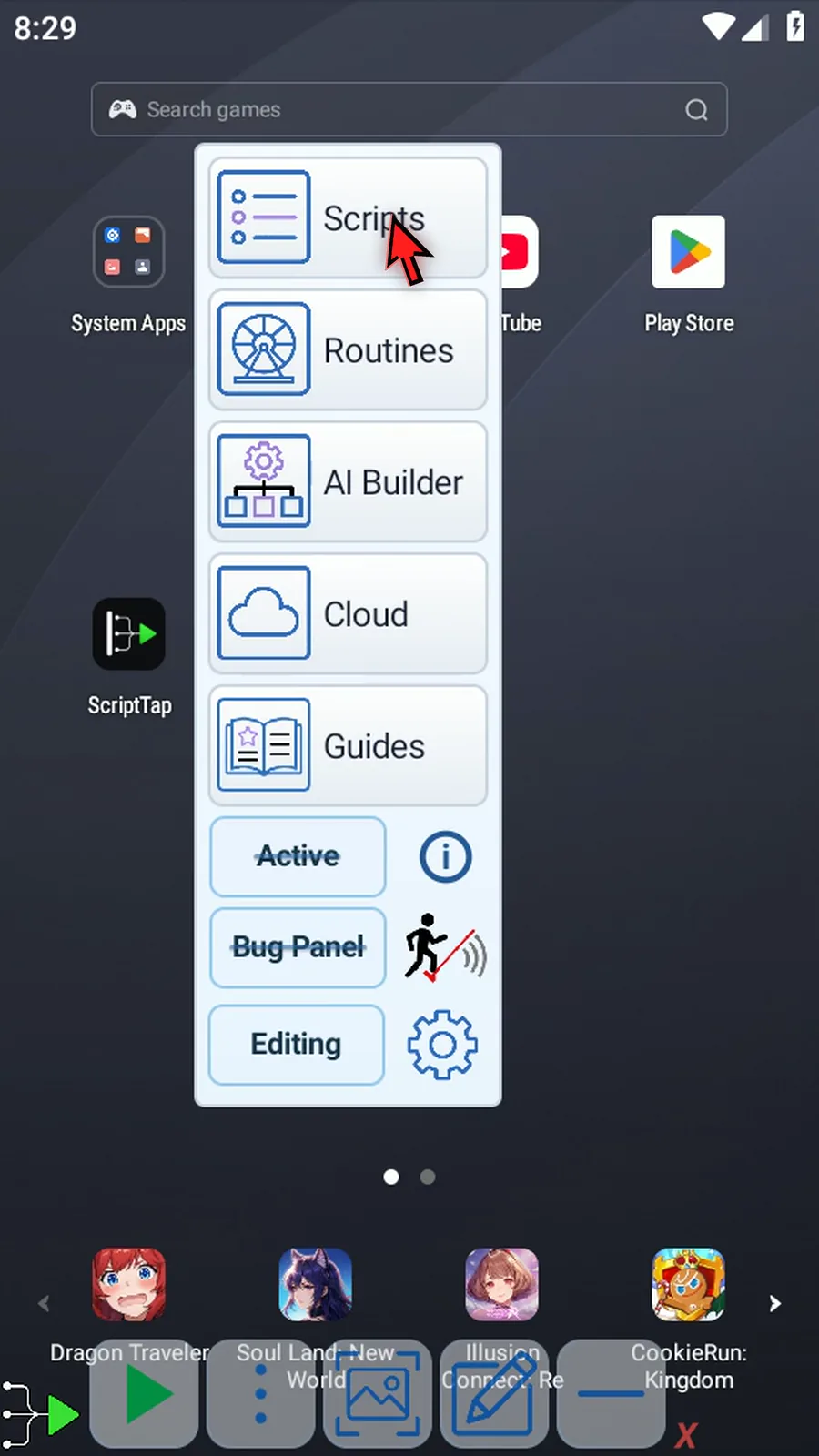
Step 02 Open the three-dot menu. After it appears, choose Scripts.
-
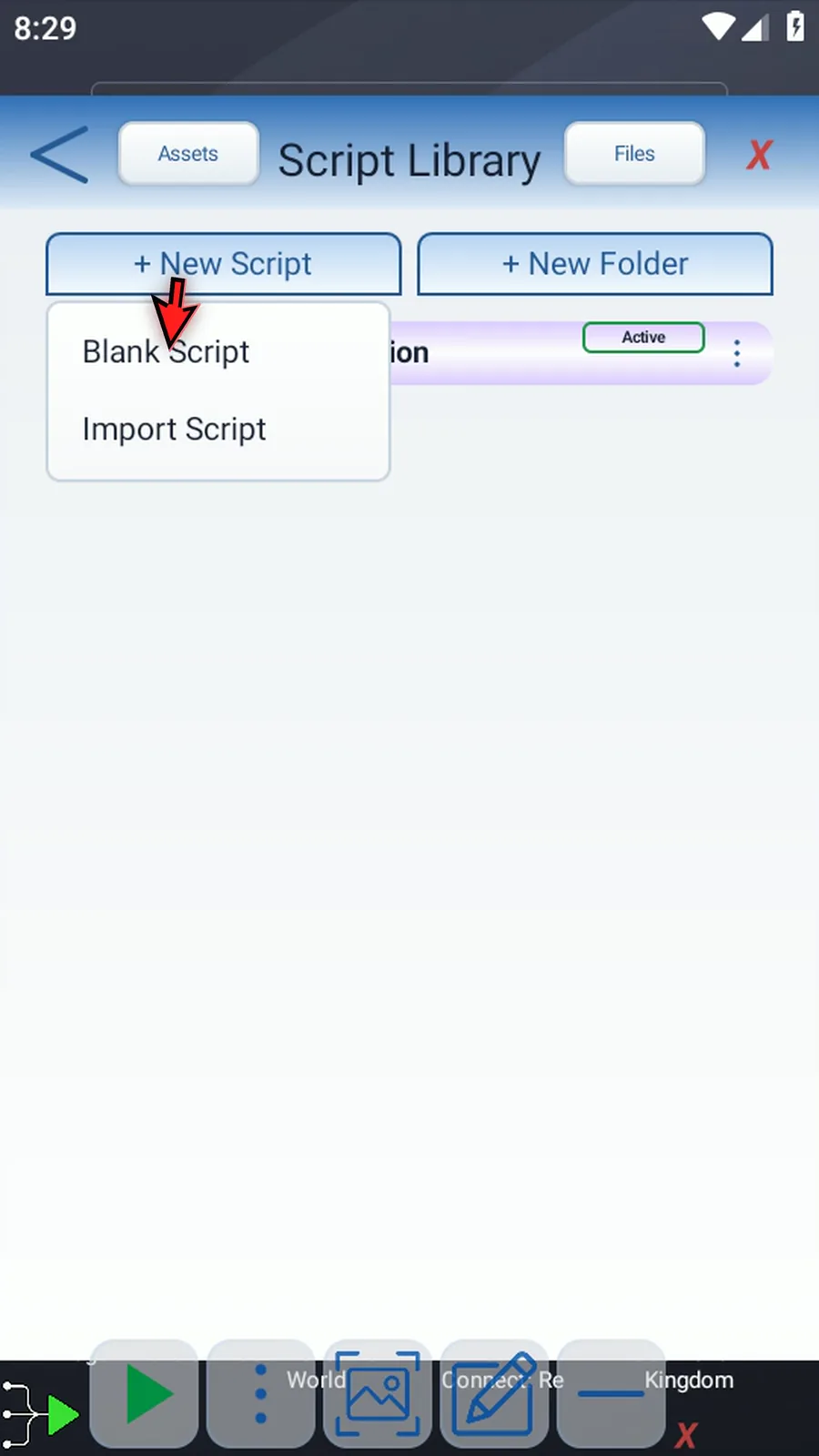
Step 03 Tap New Script. When the menu opens, choose Blank Script.
-
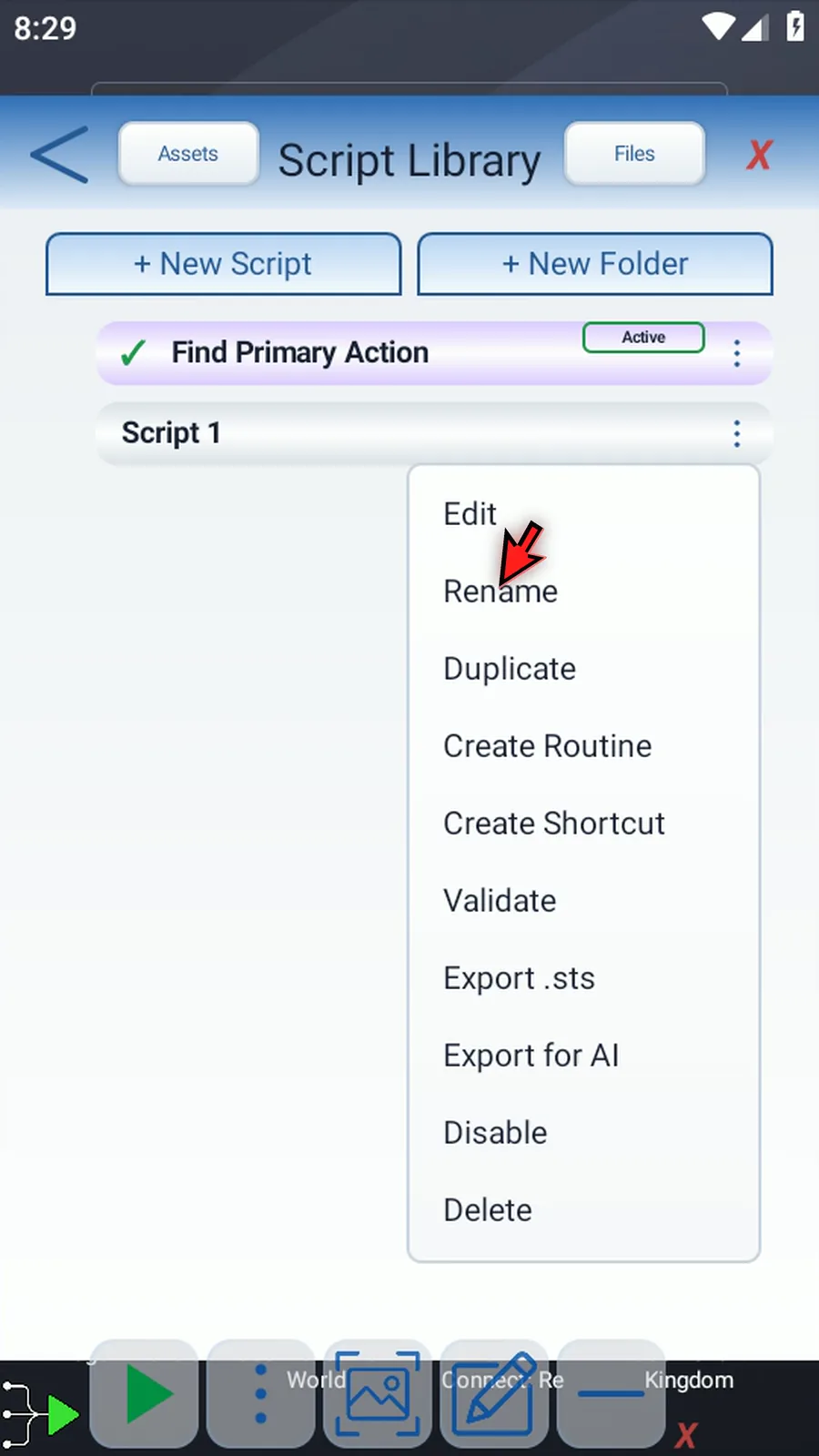
Step 04 Open the script's three-dot menu. When it appears, choose Rename.
-
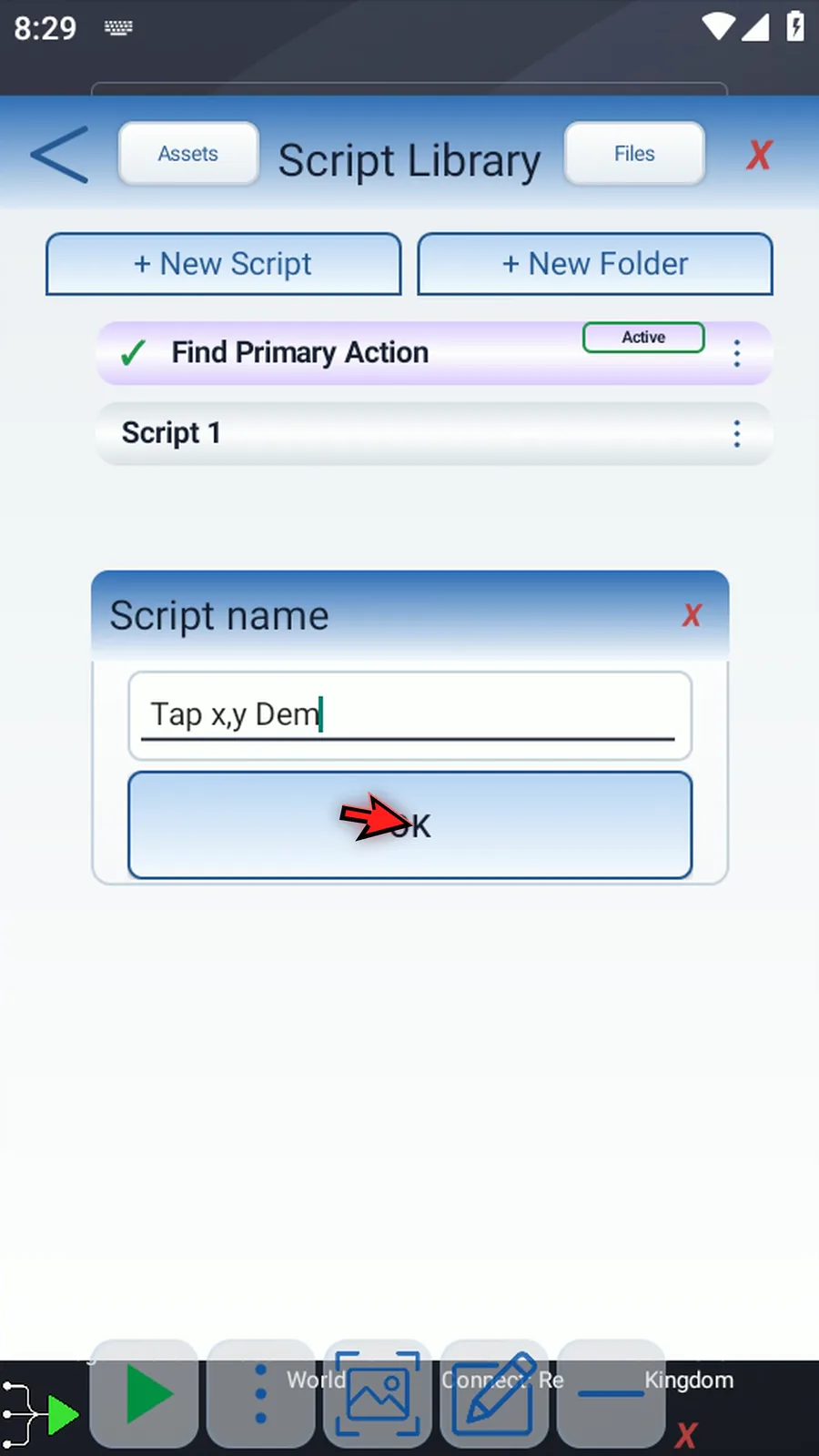
Step 05 Pick a name for your script, enter it, then tap OK.
-
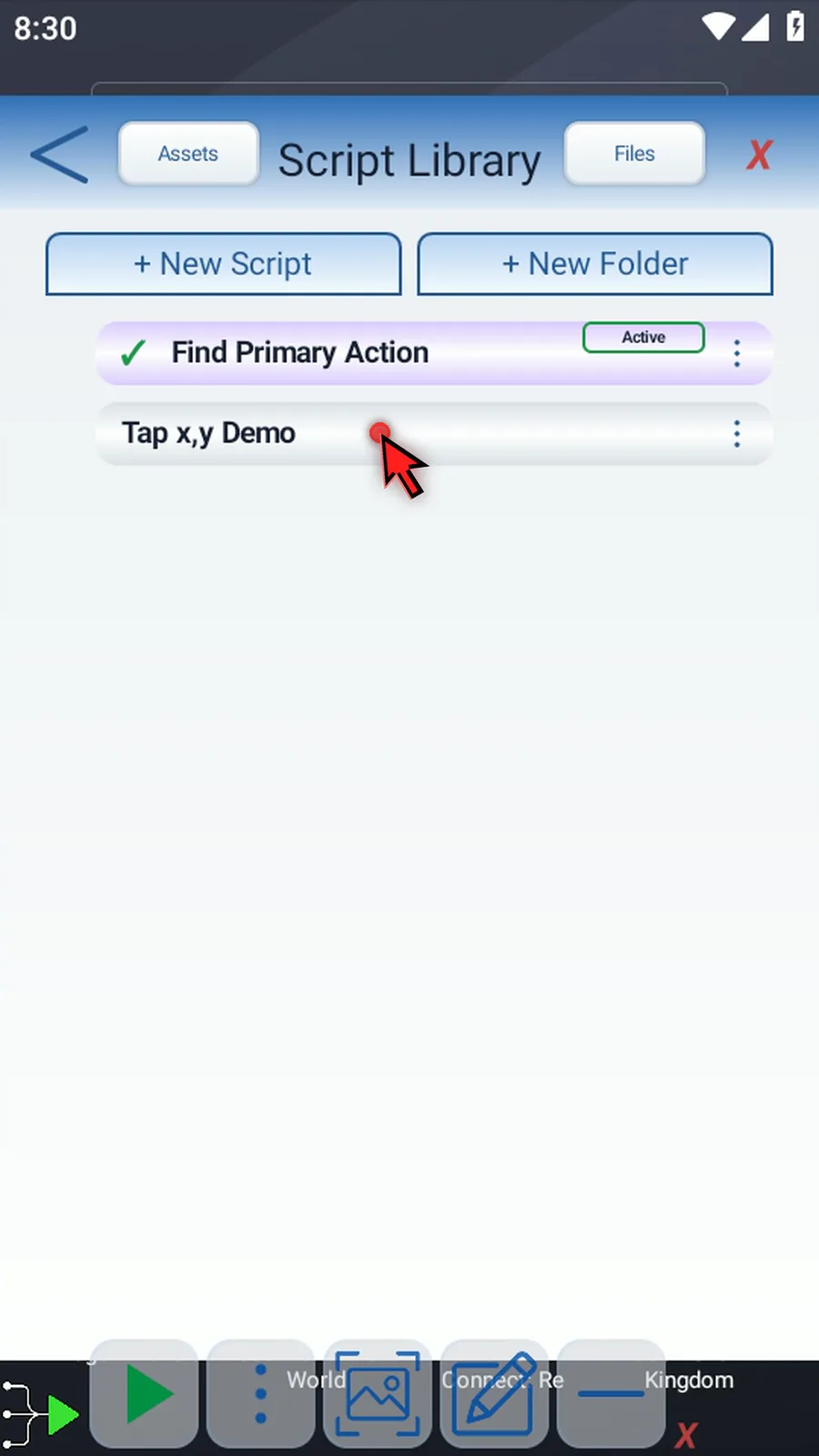
Step 06 Double-tap the script card to open the editor.
-
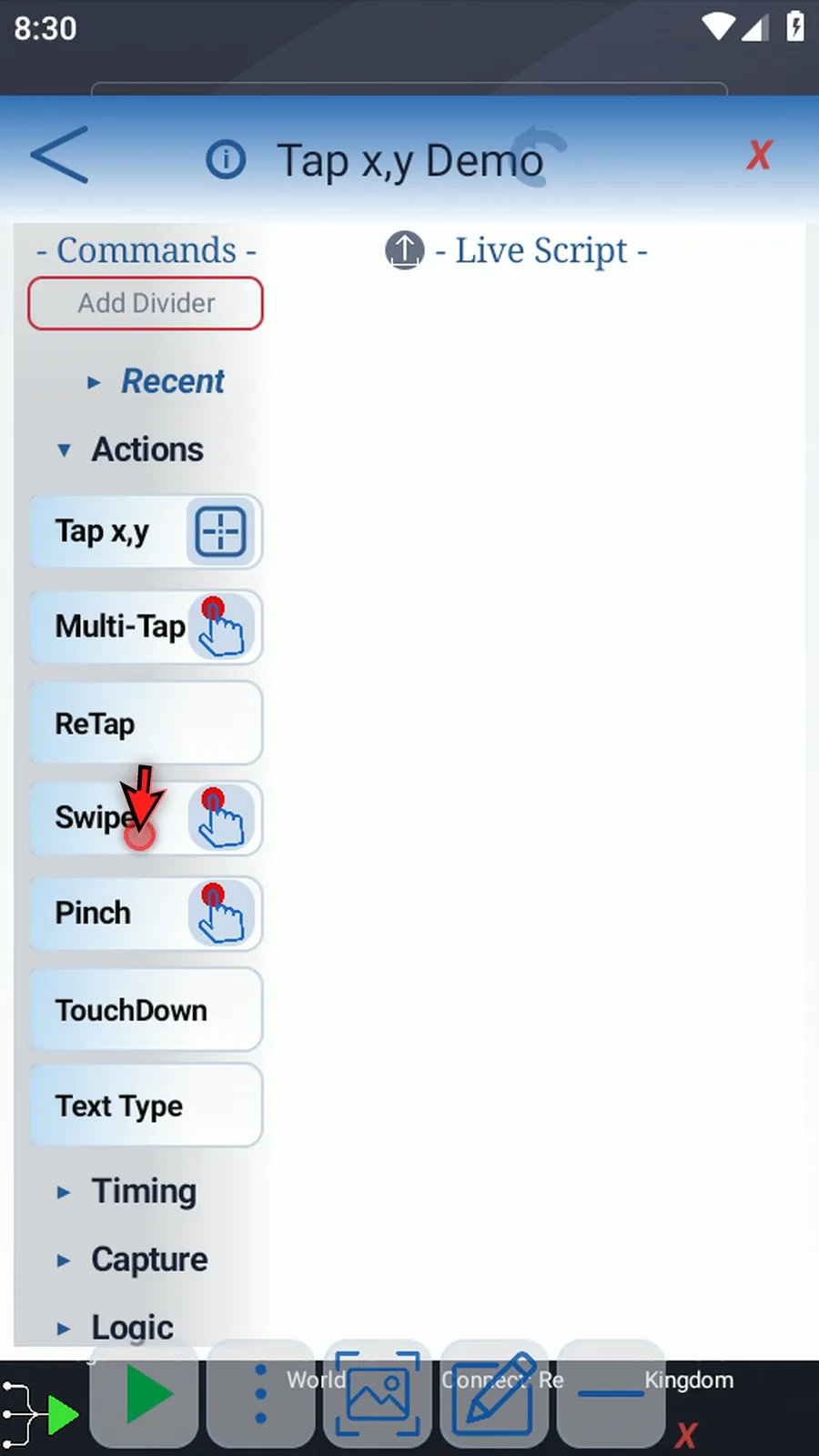
Step 07 On the left, expand Actions.
-
Step 08 Drag Tap X Y and release on the blue line.
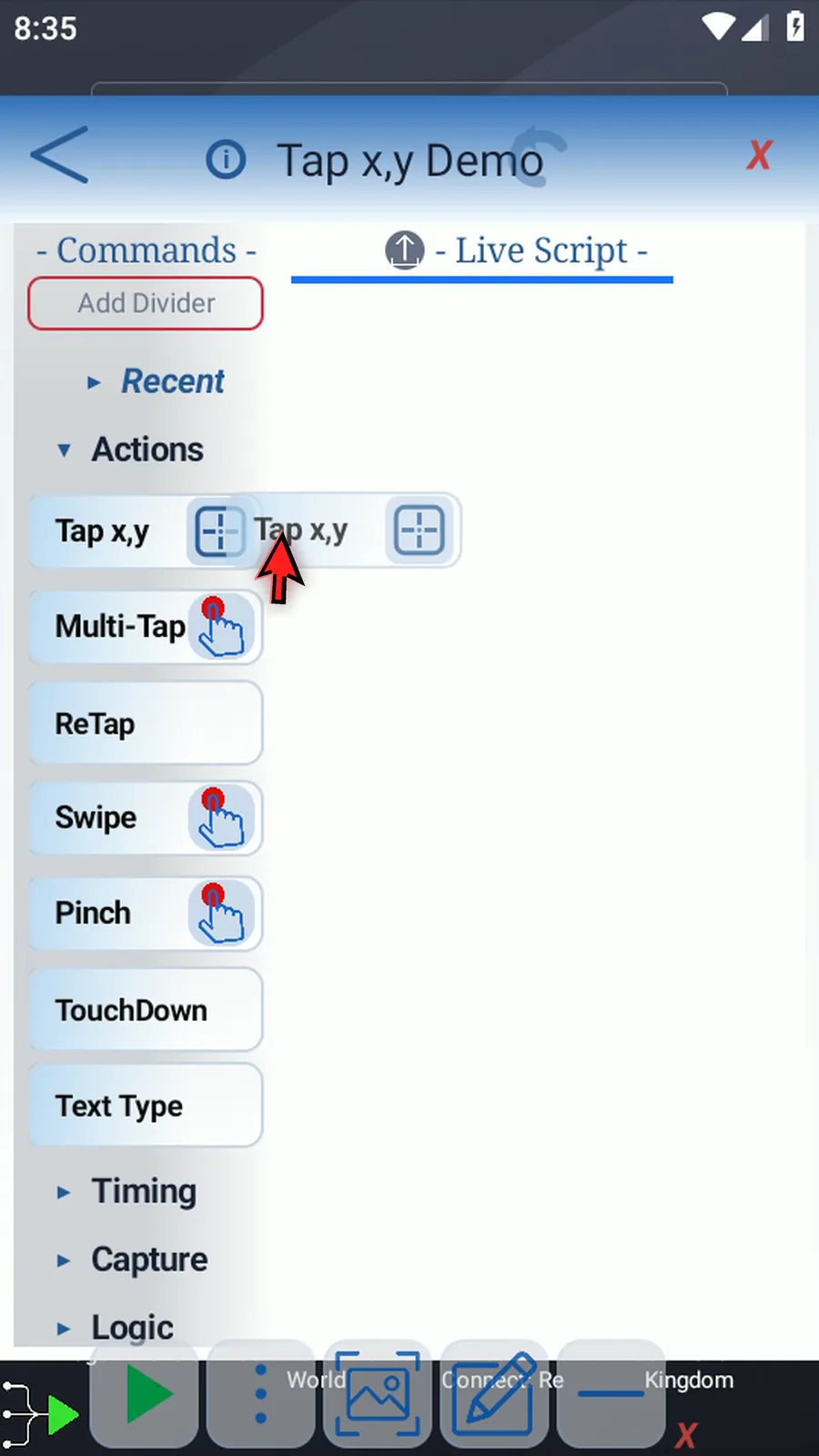
-
Alternative Double-tapping appends it to the end instead.
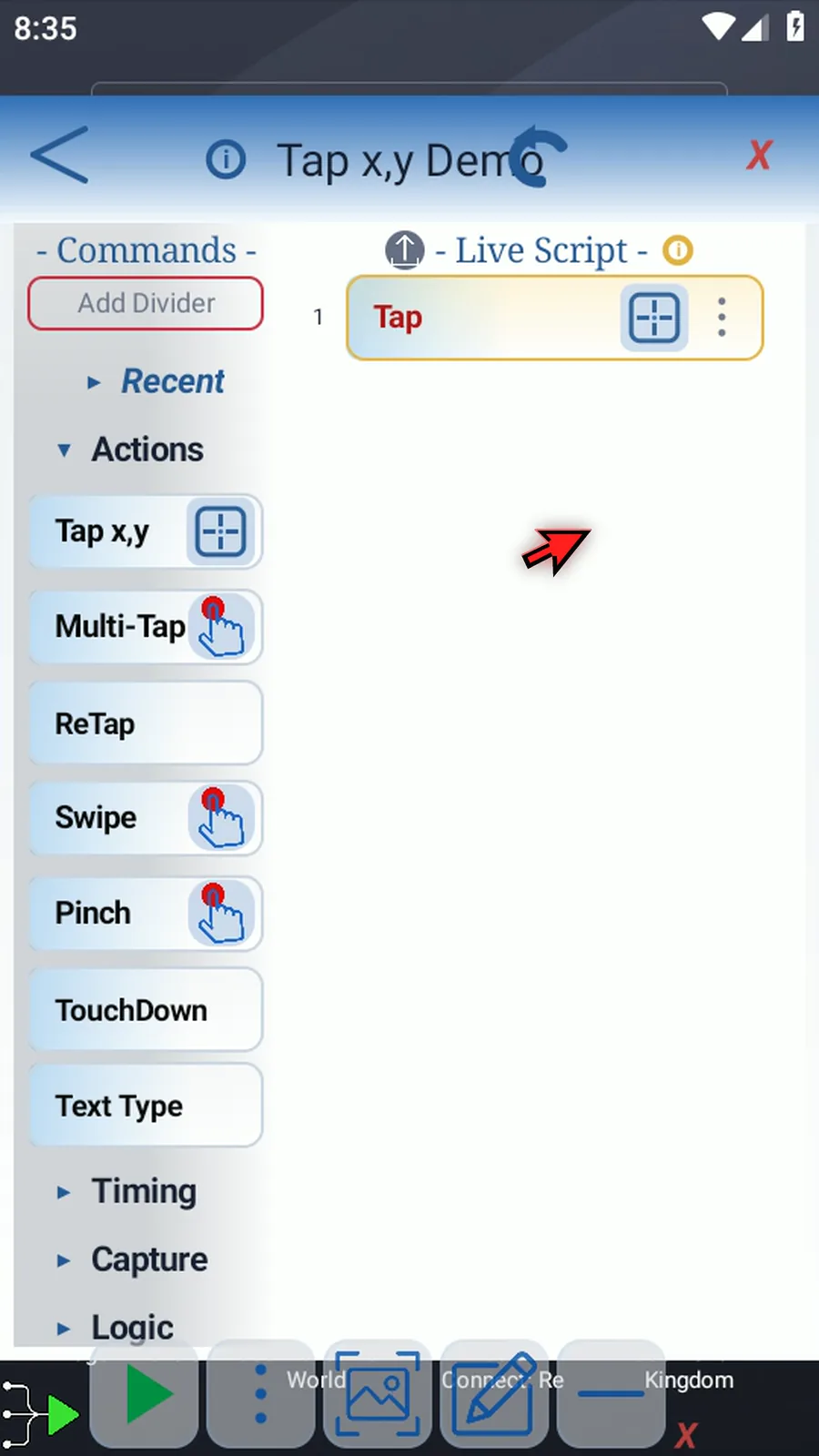
-
Step 09 Tap the blue selector icon.
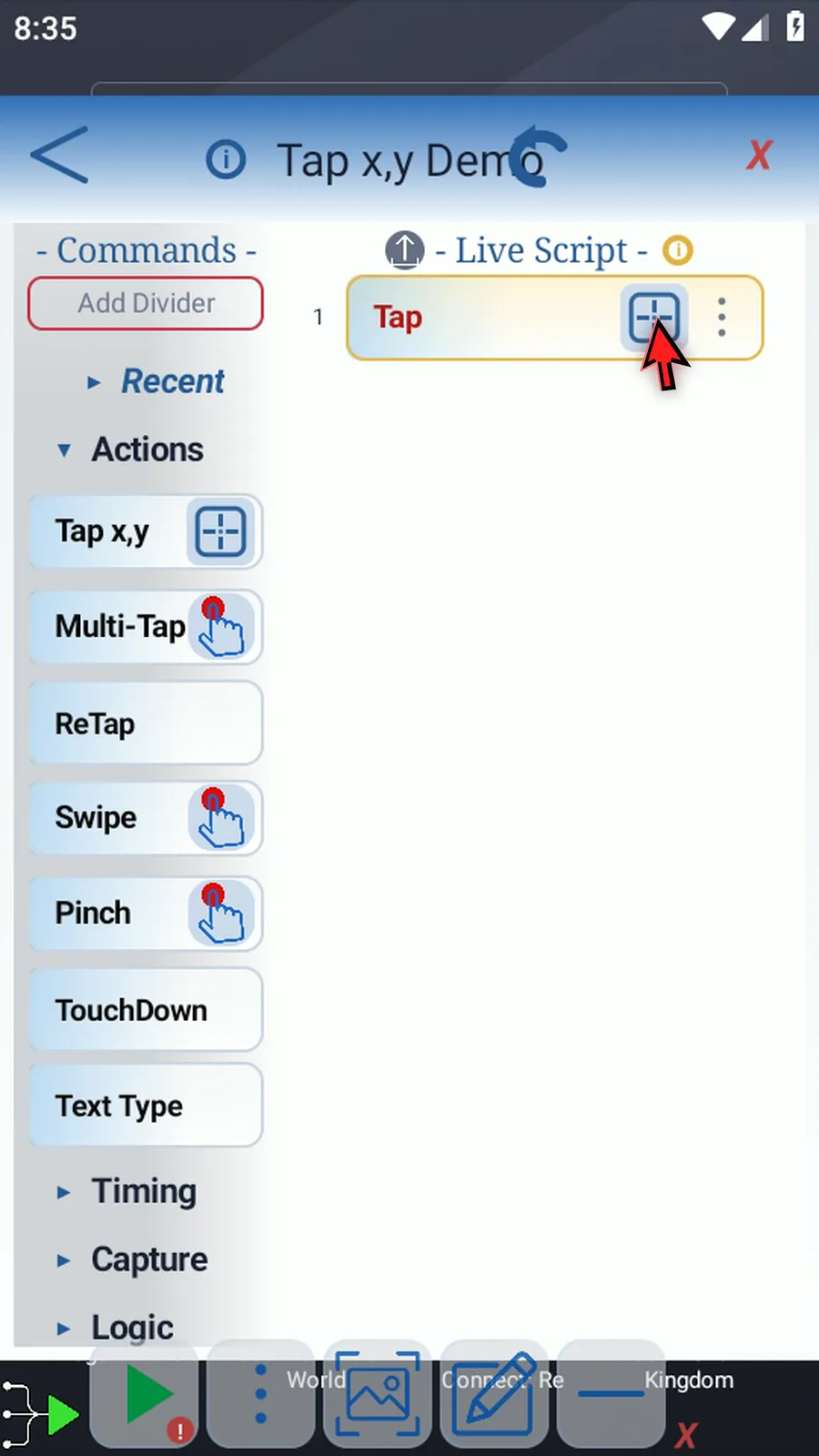
-
Step 10 If Android asks, allow screen capture.
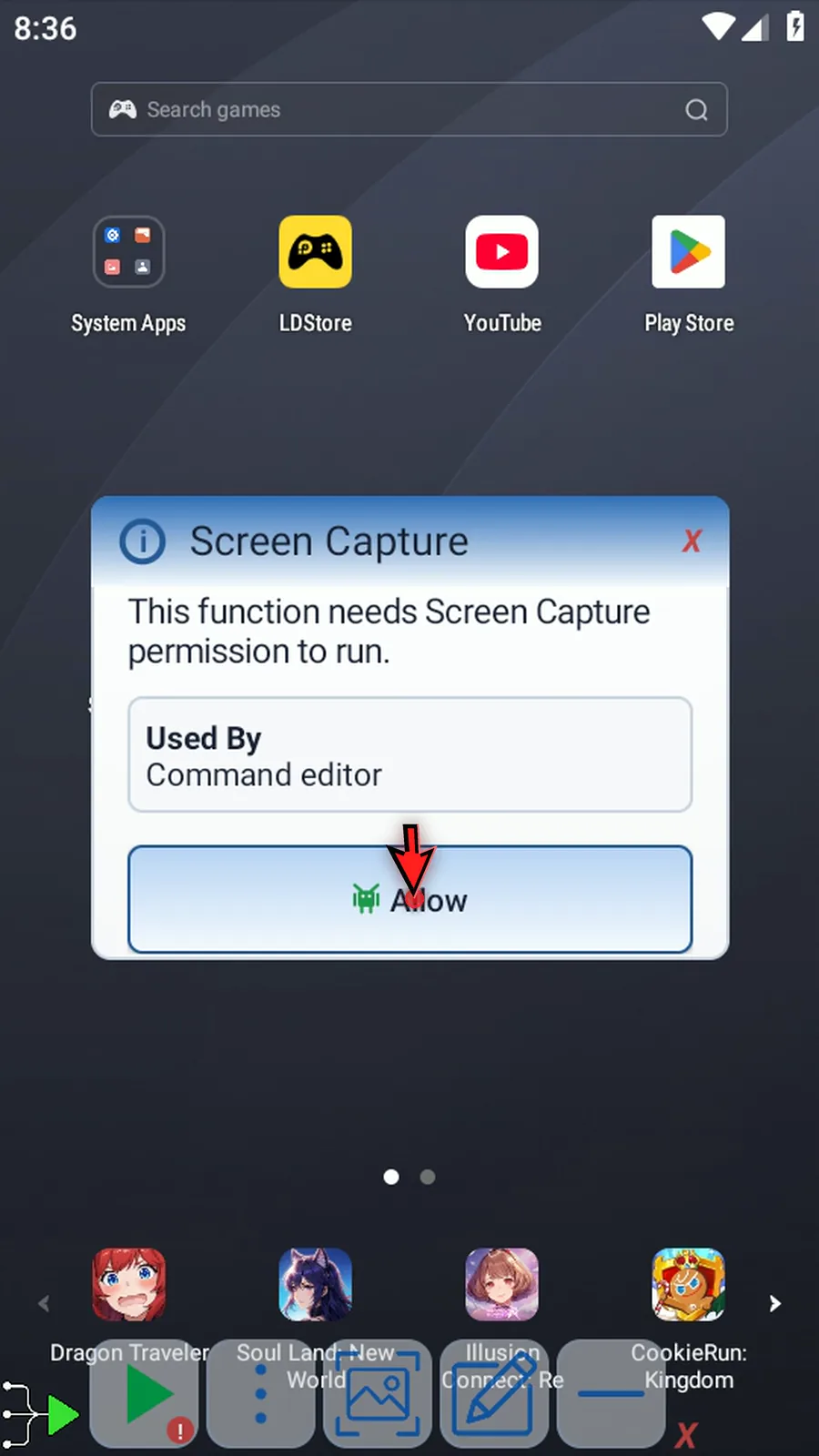
-
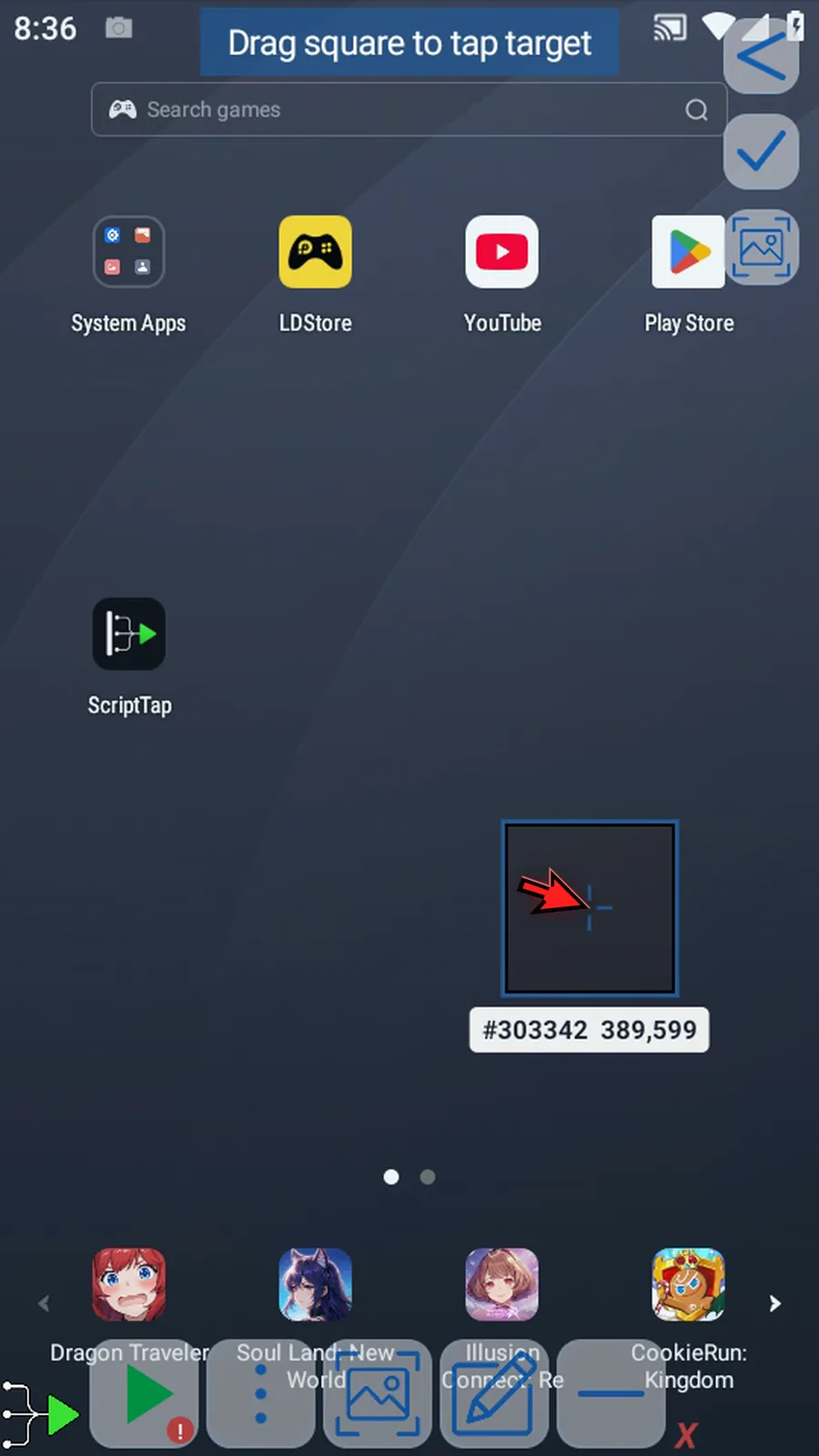
Step 11 Drag the target square. Its X and Y coordinates and pixel color update beside it.
-
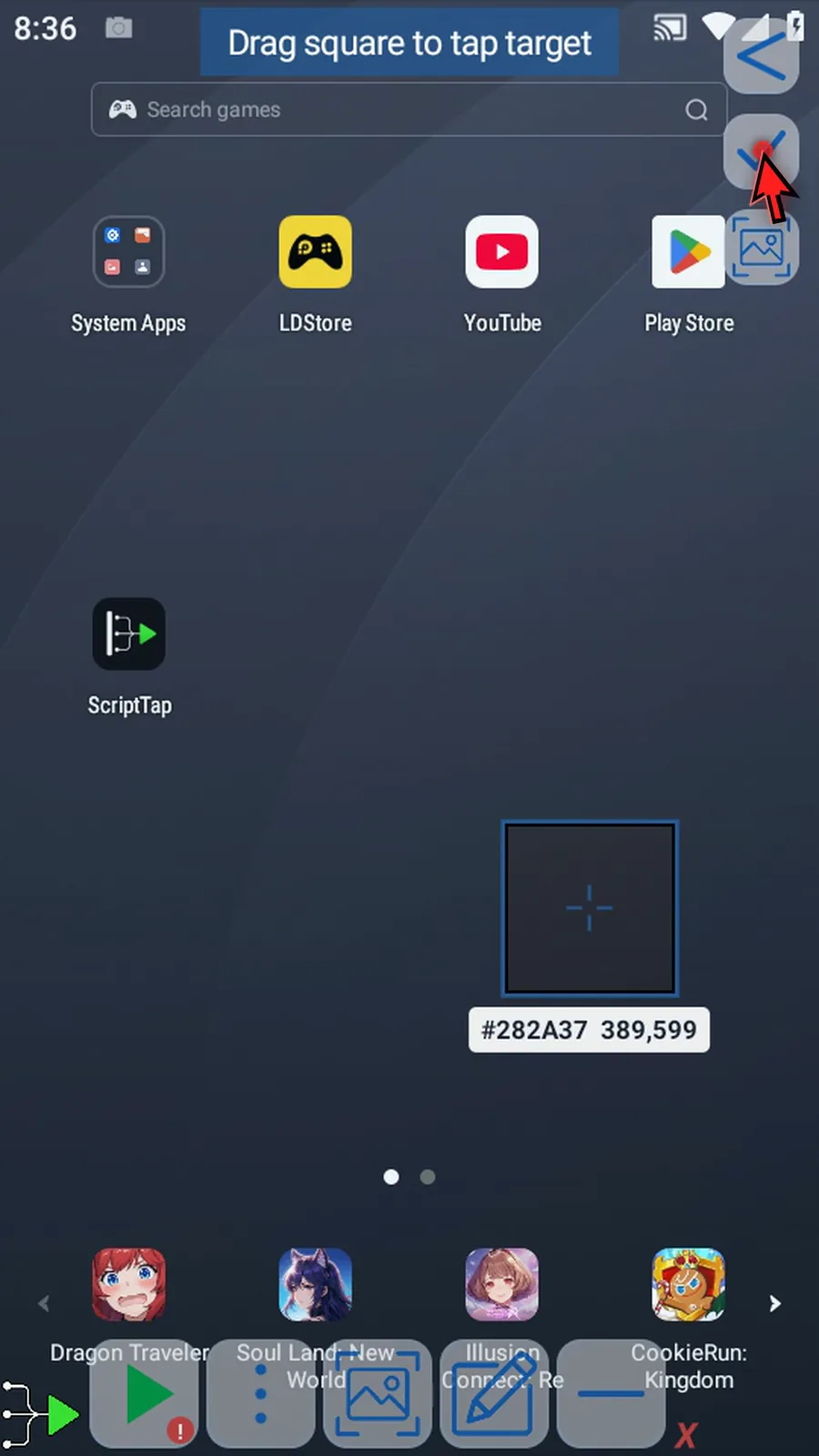
Step 12 Tap the checkmark to save.
-
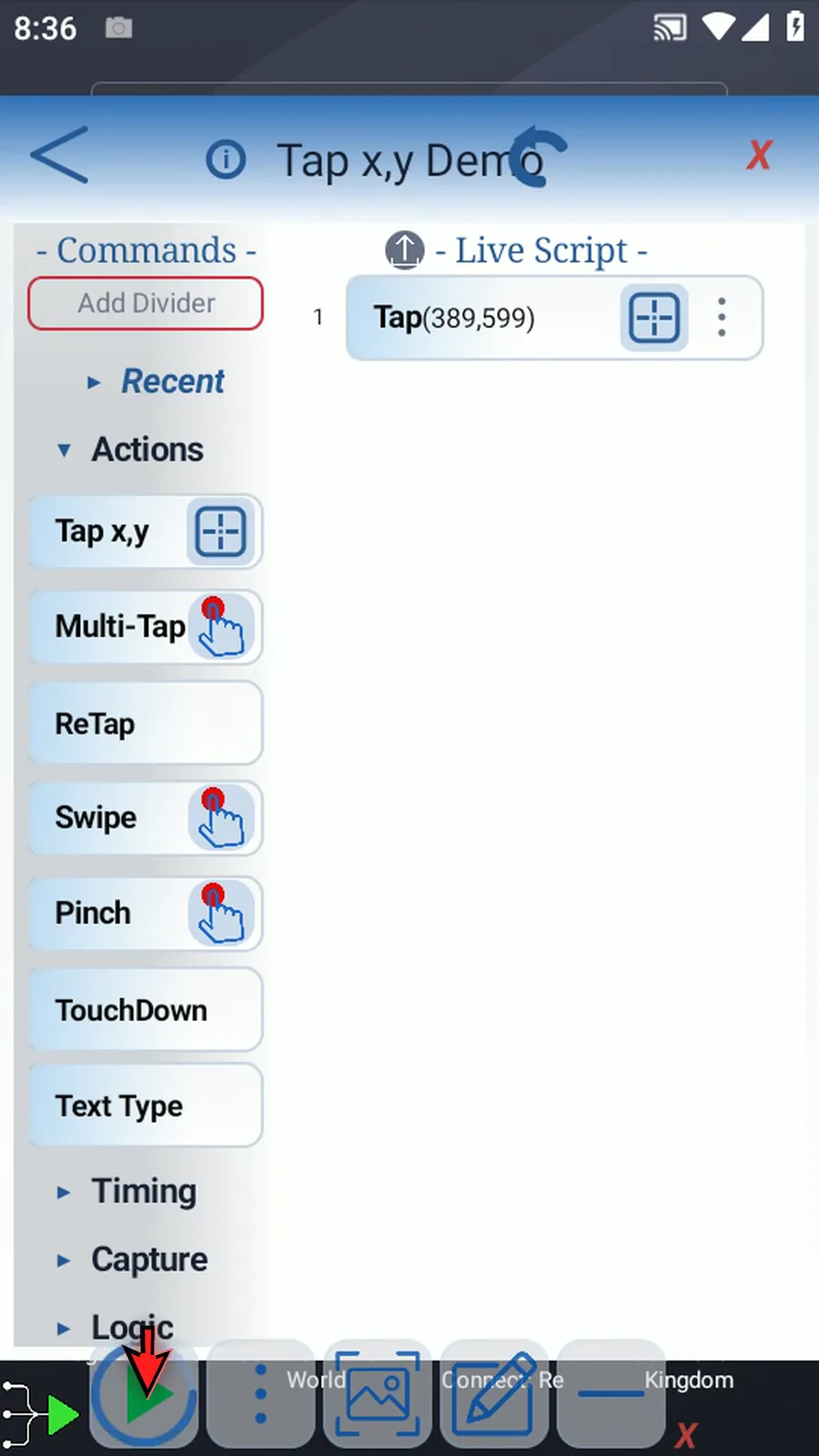
Step 13 When the script is complete, simply use the Play button in the main overlay. It runs the saved tap, then stops automatically.
Command video guide
Tap x,y - Advanced
Configure press duration, repeated taps, variable arrays, and random tap areas. Watch the walkthrough or follow each action below.
Watch the walkthrough
Step-by-step guide
-
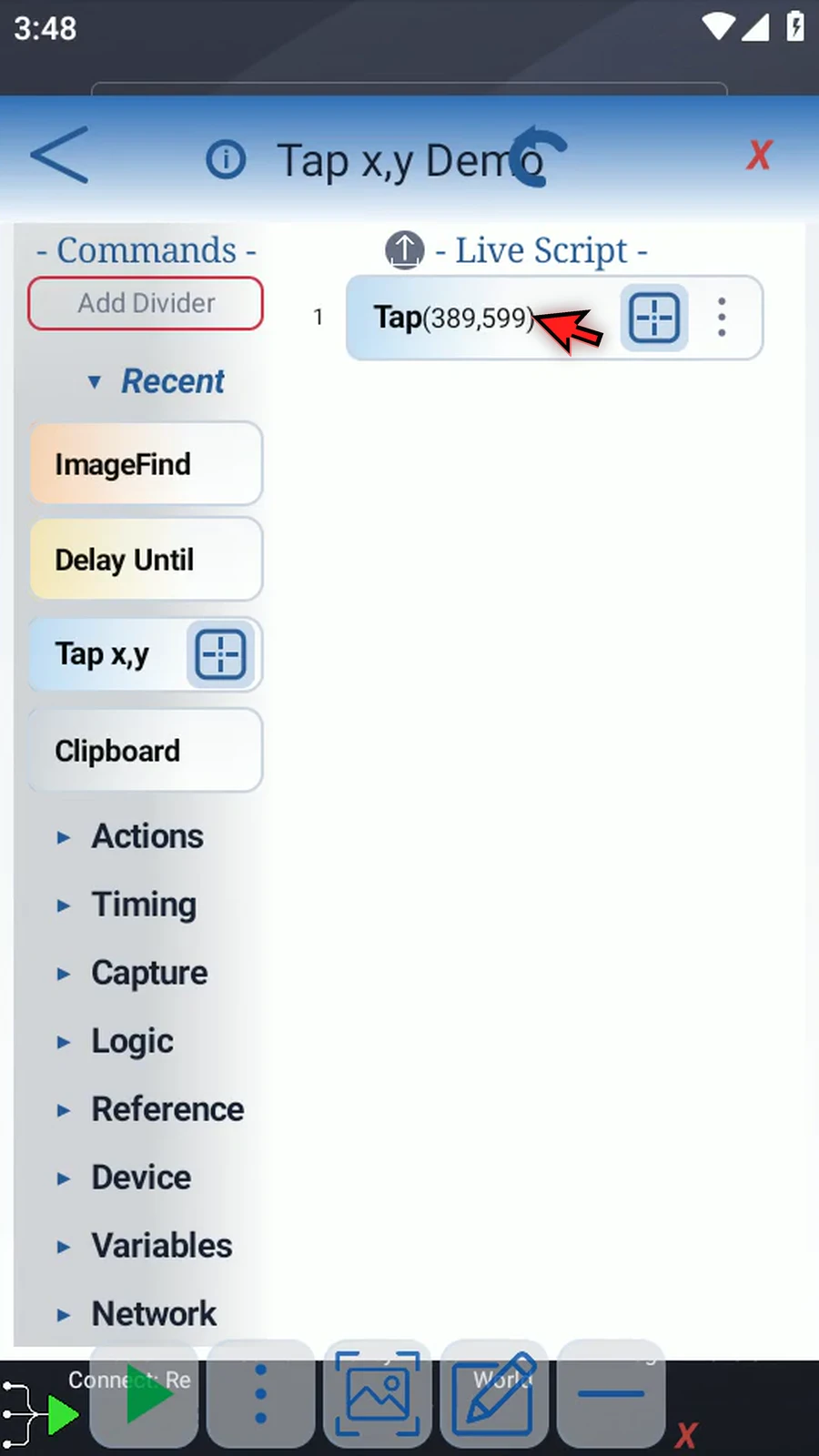
Step 01 Tap X Y supports advanced features. Double-tap the command to open its options.
-
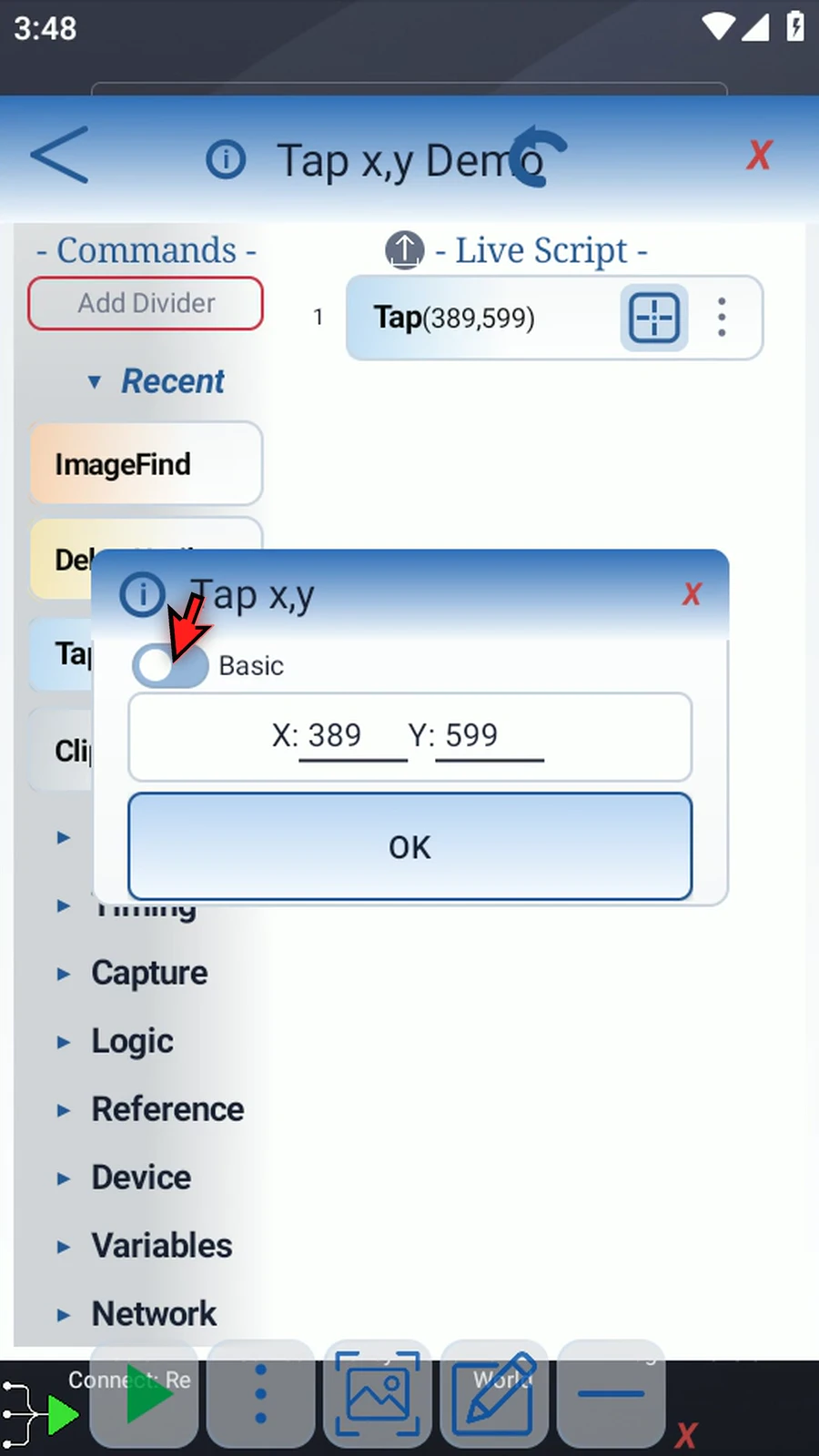
Step 02 Switch from Basic to Advanced to see the extra tap controls.
-
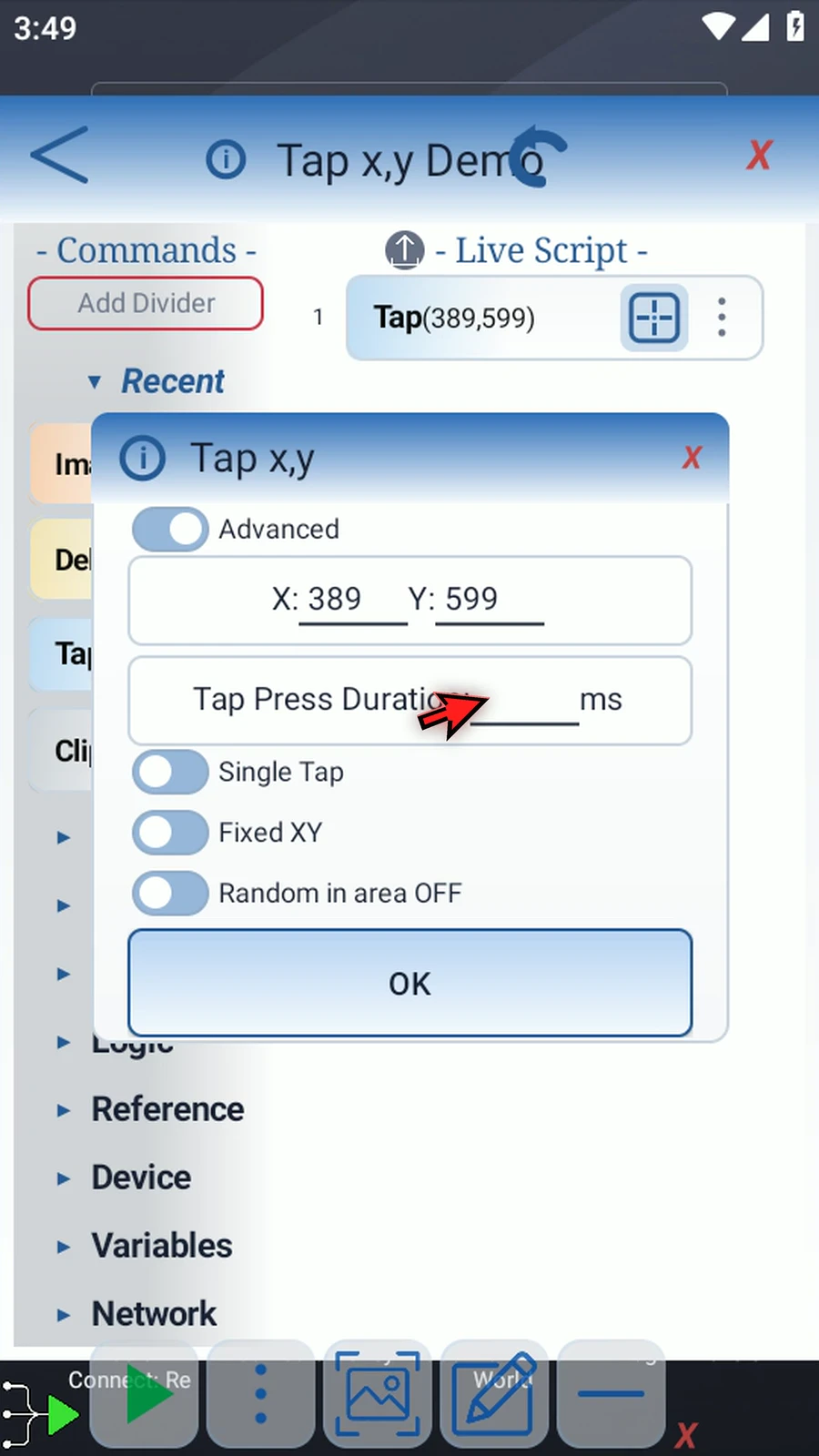
Step 03 Tap Press Duration sets how long the screen stays pressed, in milliseconds. Leave it blank to use your ScriptTap settings.
-
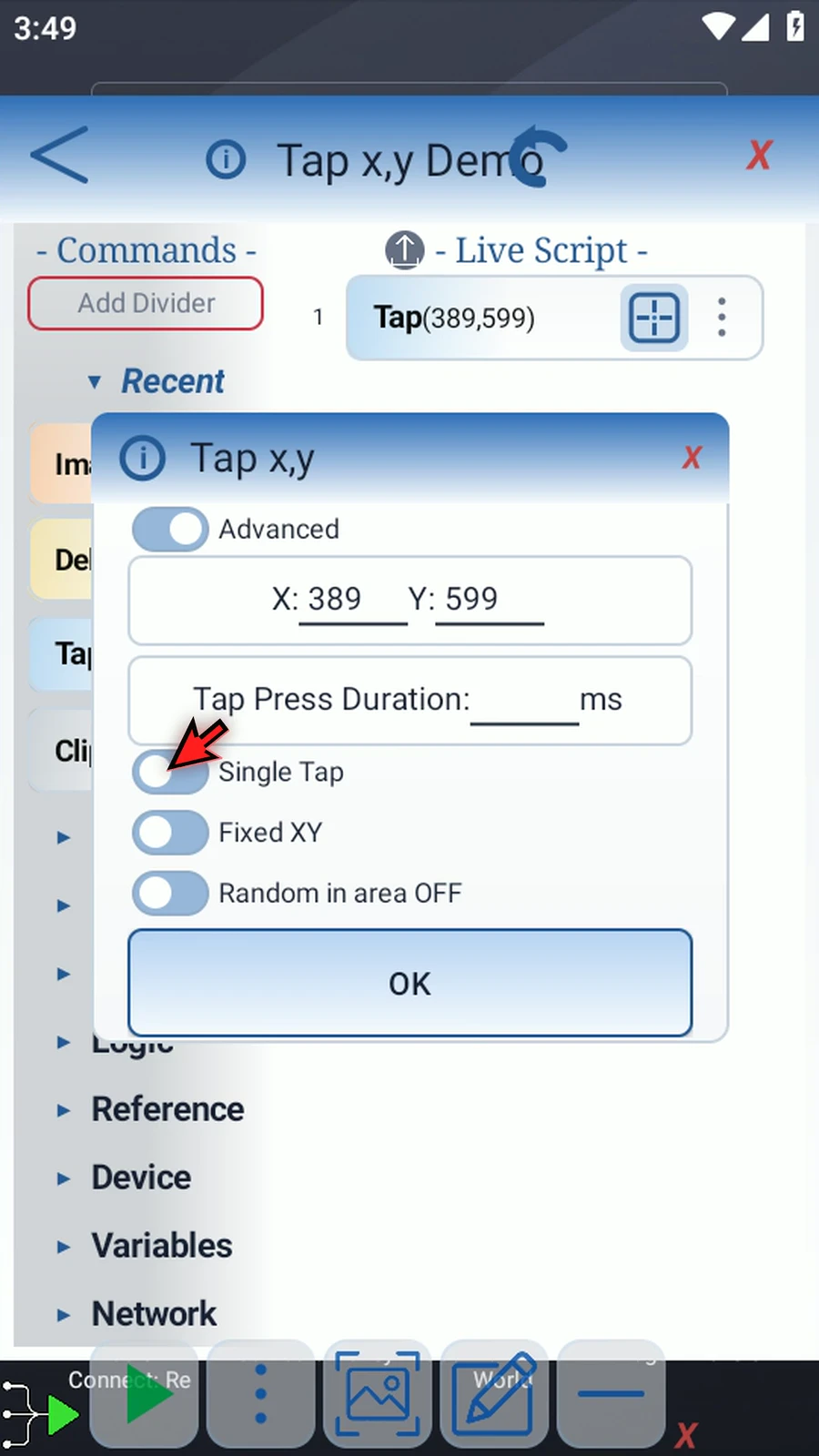
Step 04 Single Tap performs one tap. Switch to Repeat for multiple taps.
-
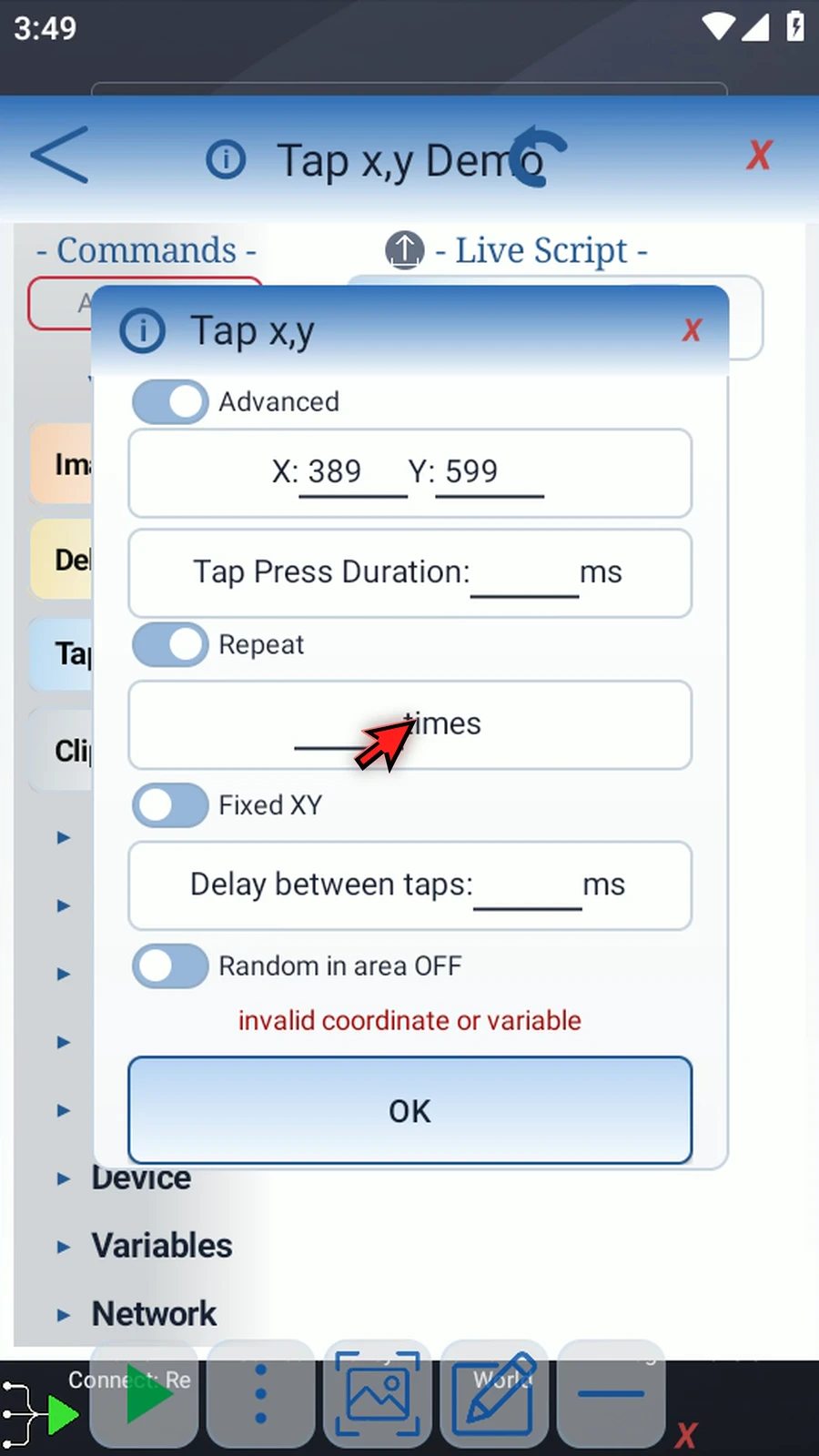
Step 05 Enter the number of taps in the times field. Numeric fields can also use an Integer variable set earlier in your script.
-
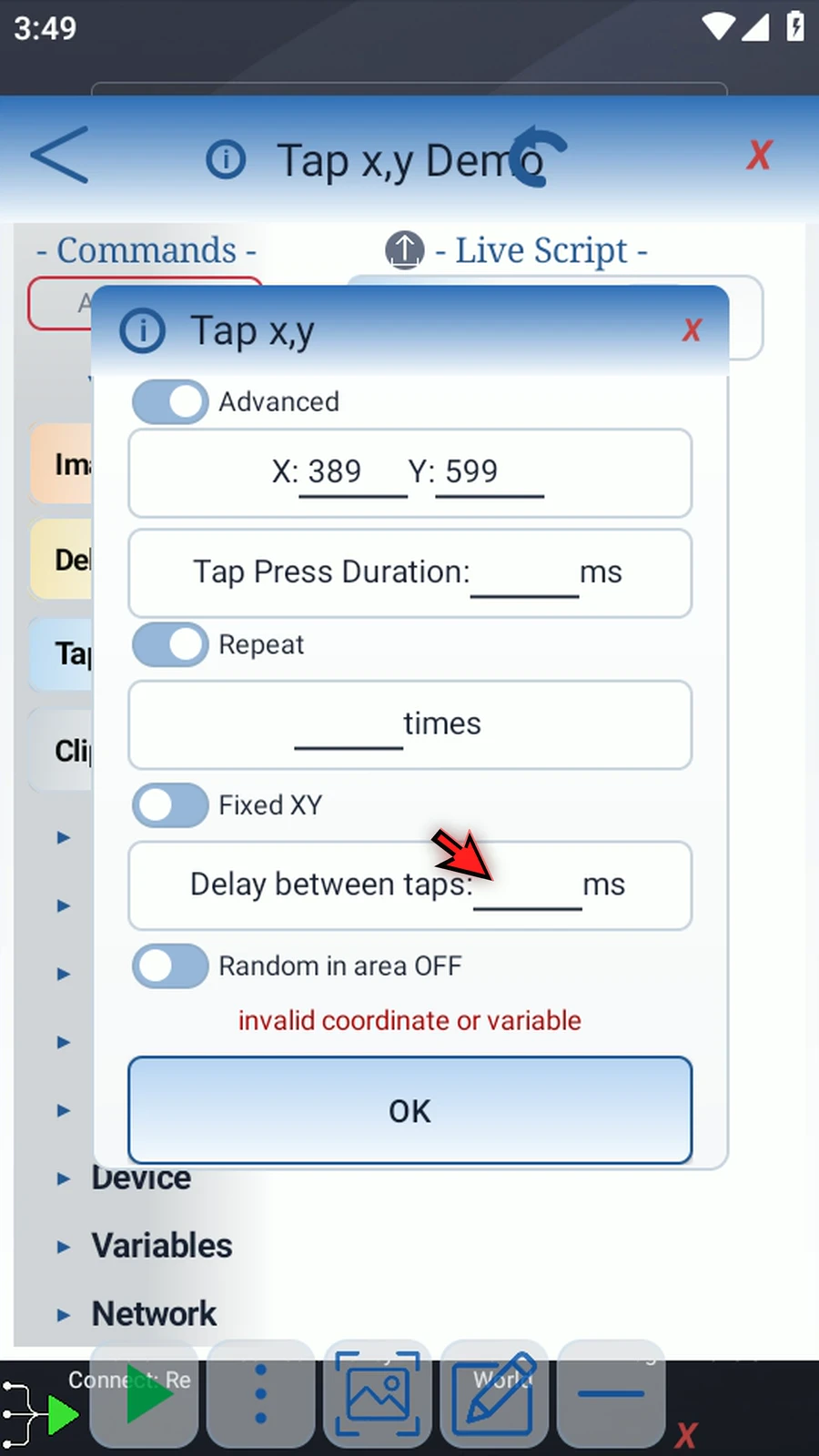
Step 06 Delay between taps is optional, in milliseconds. Leave it blank for no added delay, or enter a value to space the taps apart.
-
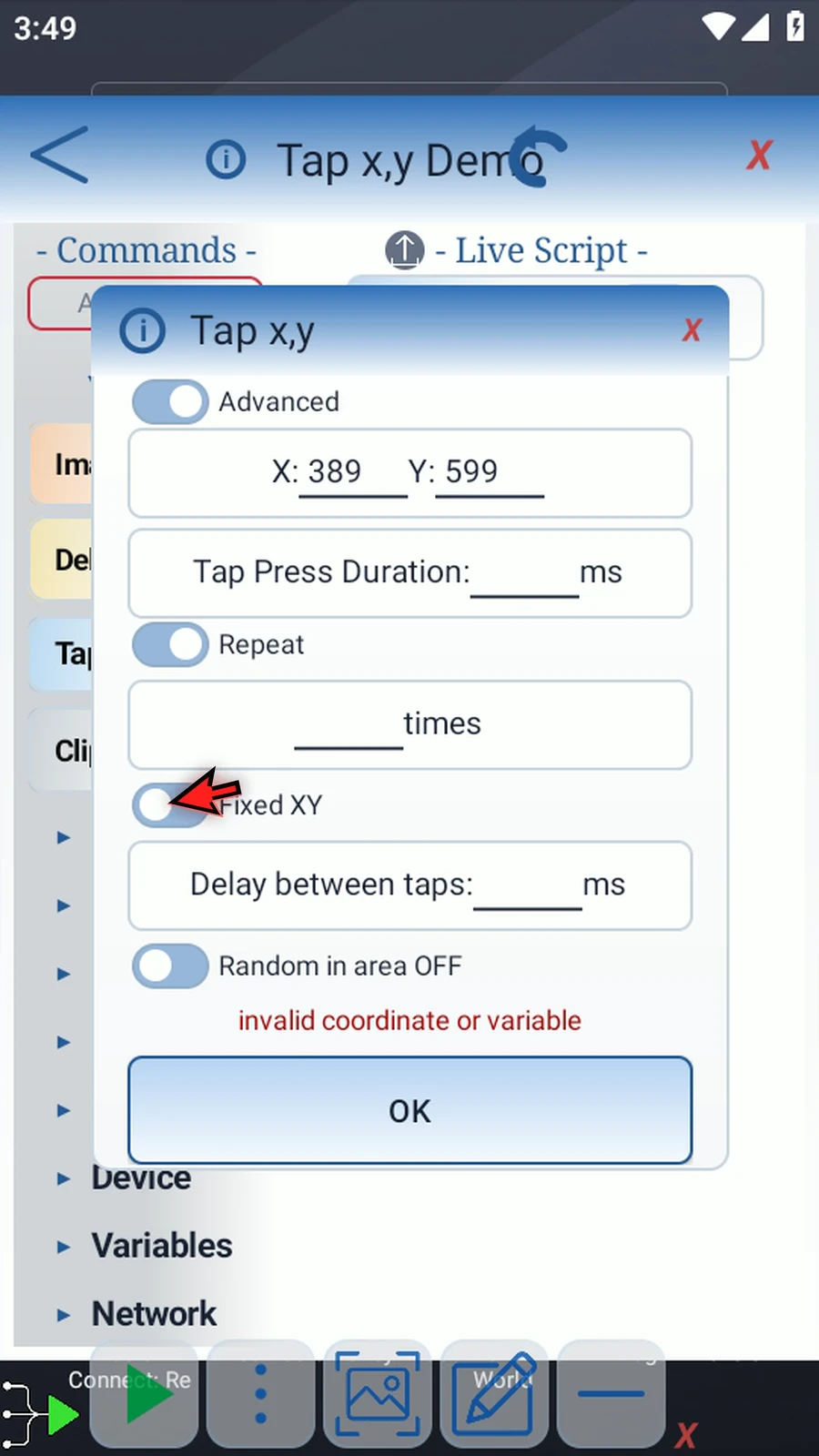
Step 07 Fixed X Y uses the coordinates at the top. Switch to Variable Array to tap a series of points.
-
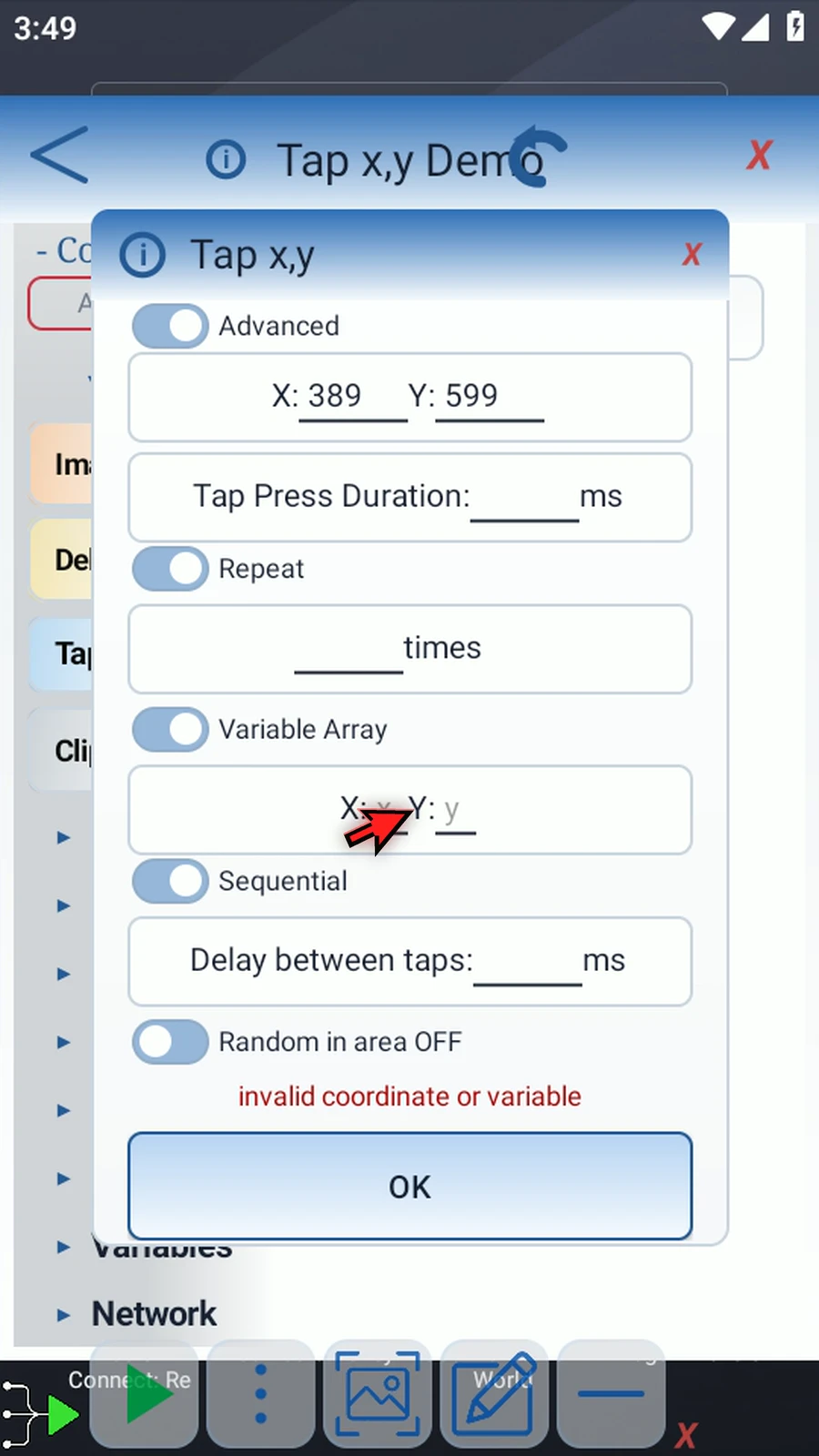
Step 08 Choose your X and Y arrays. ScriptTap pairs entries with the same index and taps those points in order. Other commands can fill these arrays as your script runs.
-
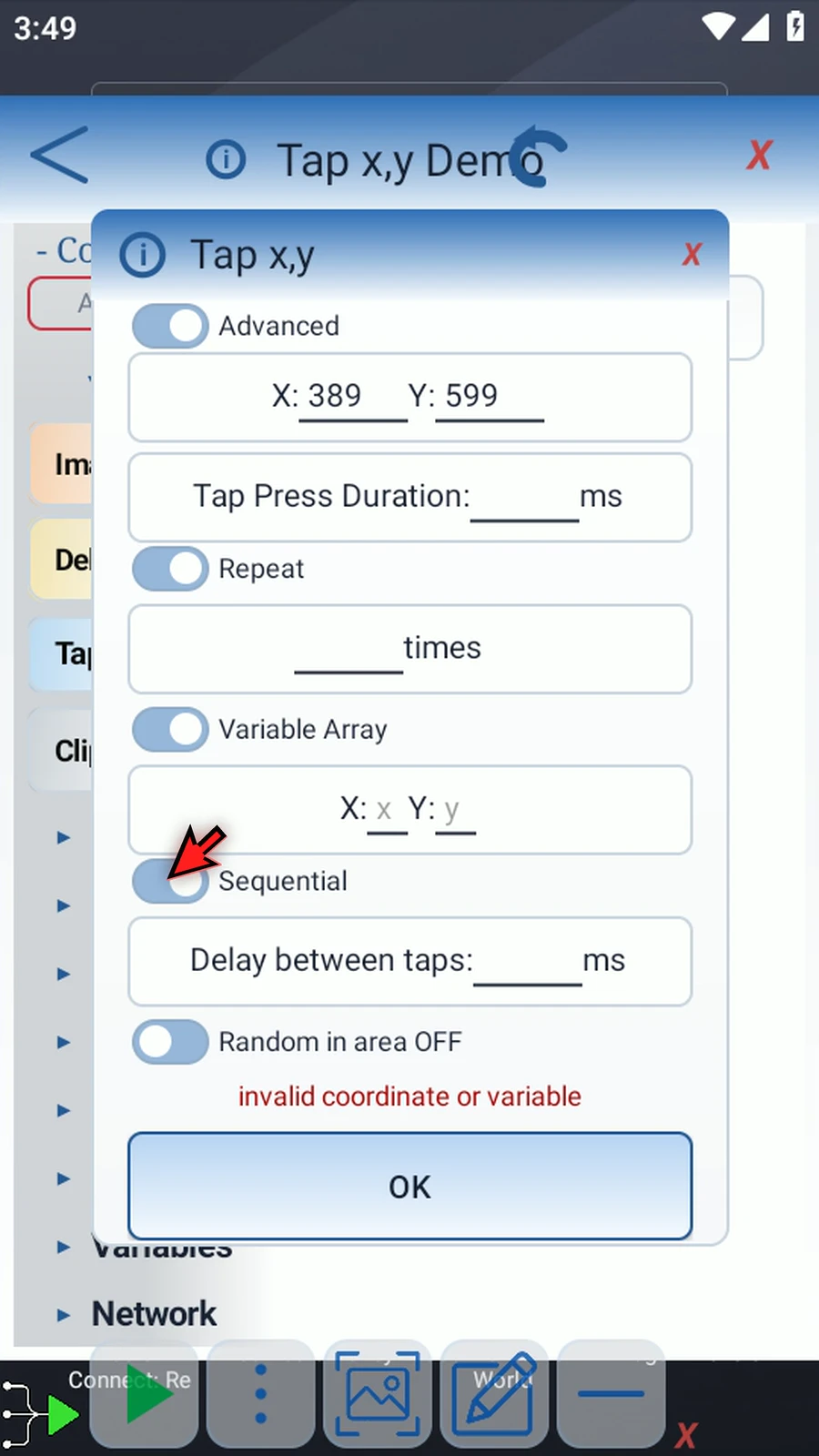
Step 09 With Repeat enabled, Sequential repeats the whole list. For two points and two repeats, that is A, B, then A, B.
-
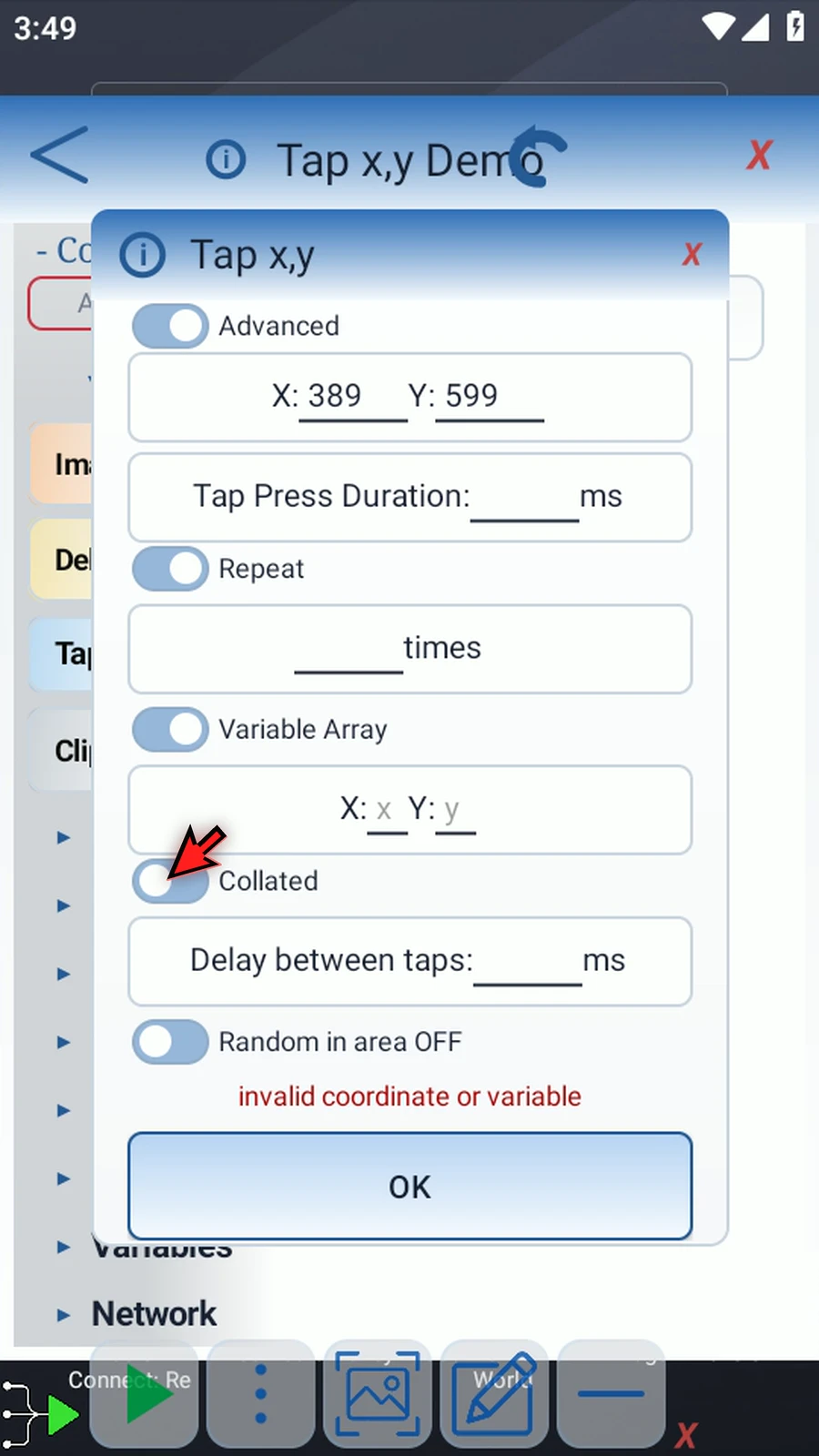
Step 10 Collated finishes the repeats at each point before moving on: A, A, then B, B.
-
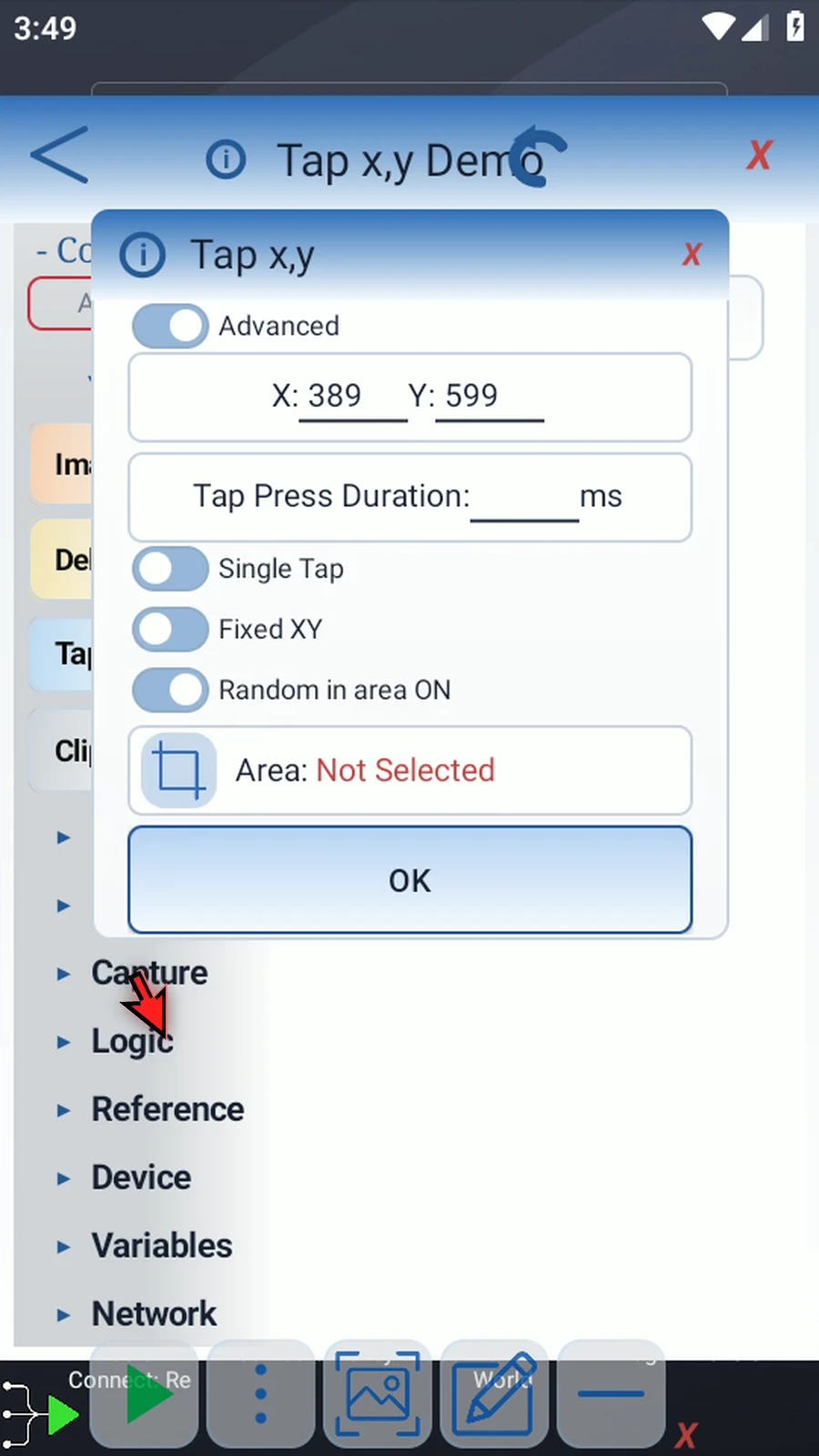
Step 11 Turn on Random in area to choose a random tap location inside a region.
-
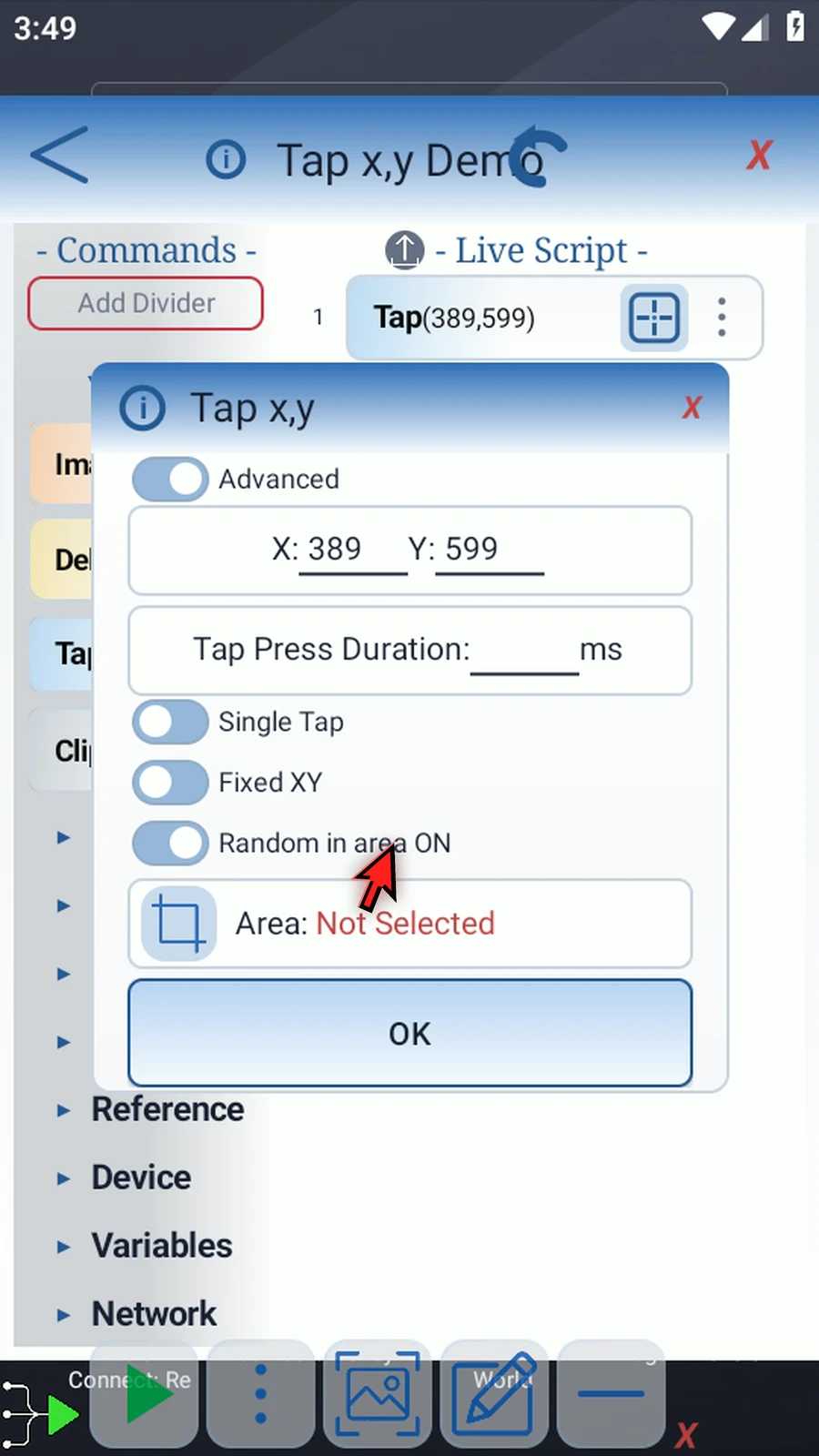
Step 12 This replaces the coordinates above and switches off Repeat and Variable Array. Each run makes one tap inside your selected area.
-
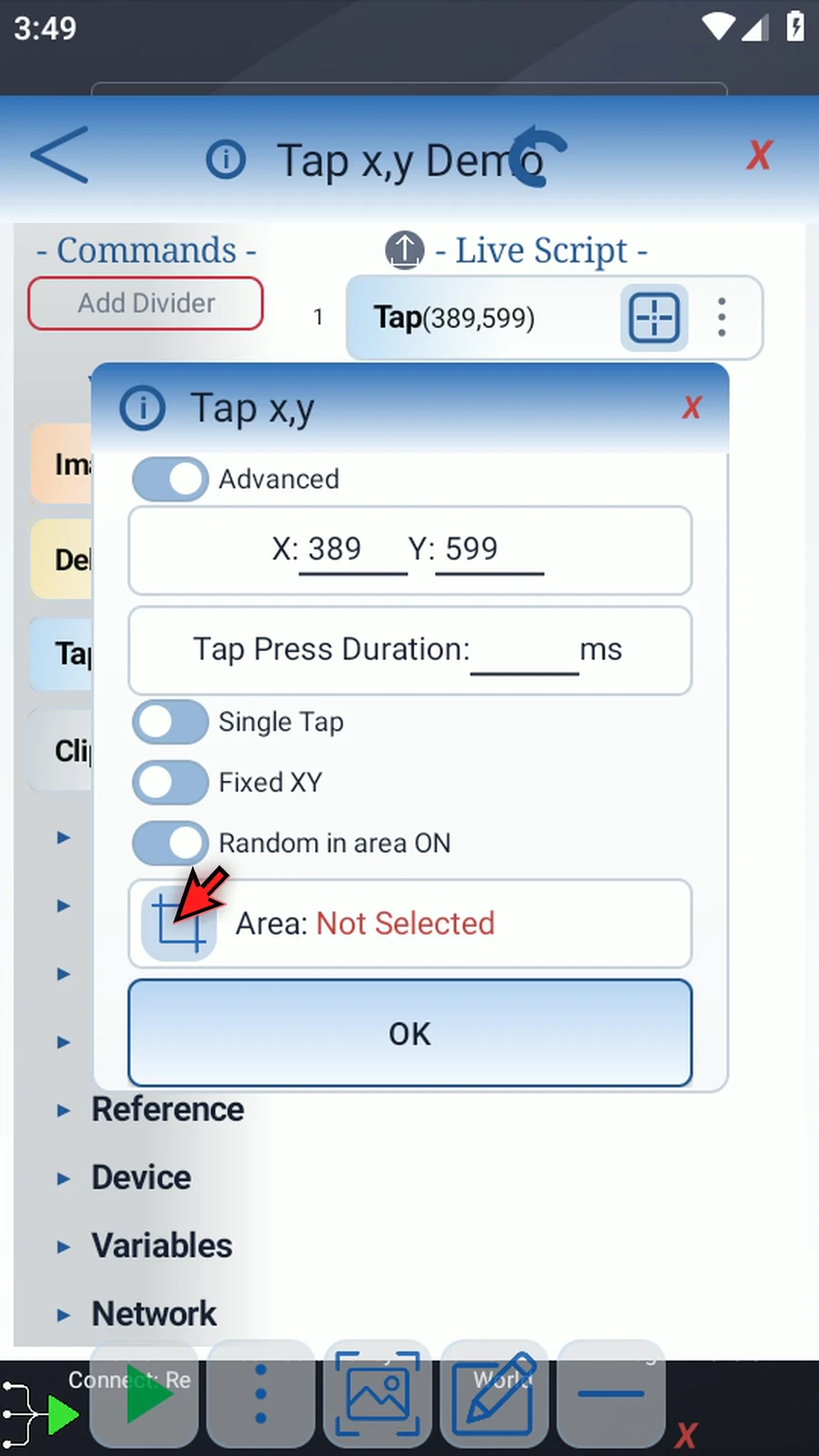
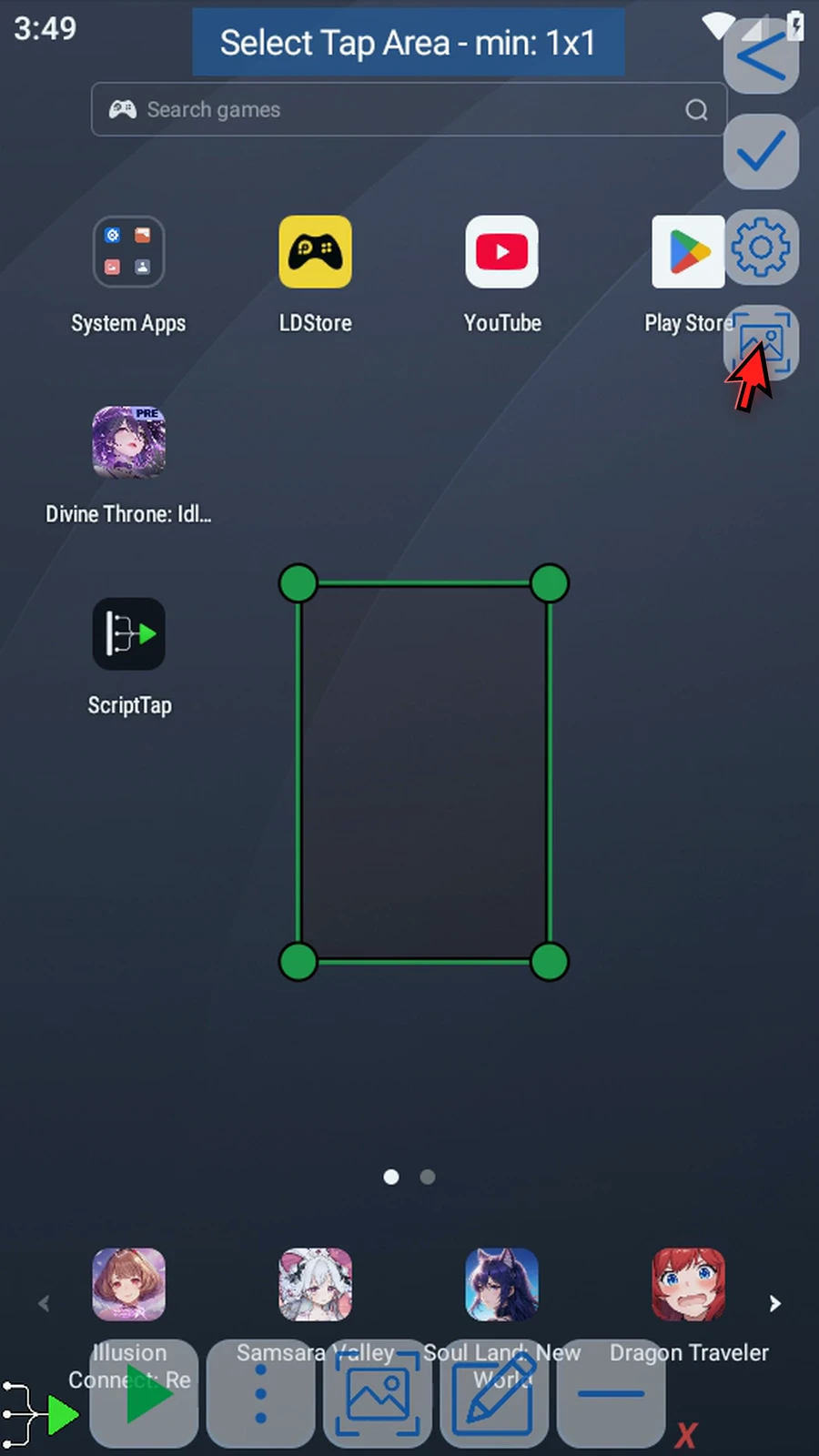
Step 13 Tap the blue area icon to select the region visually. If Android asks, allow screen capture.
-
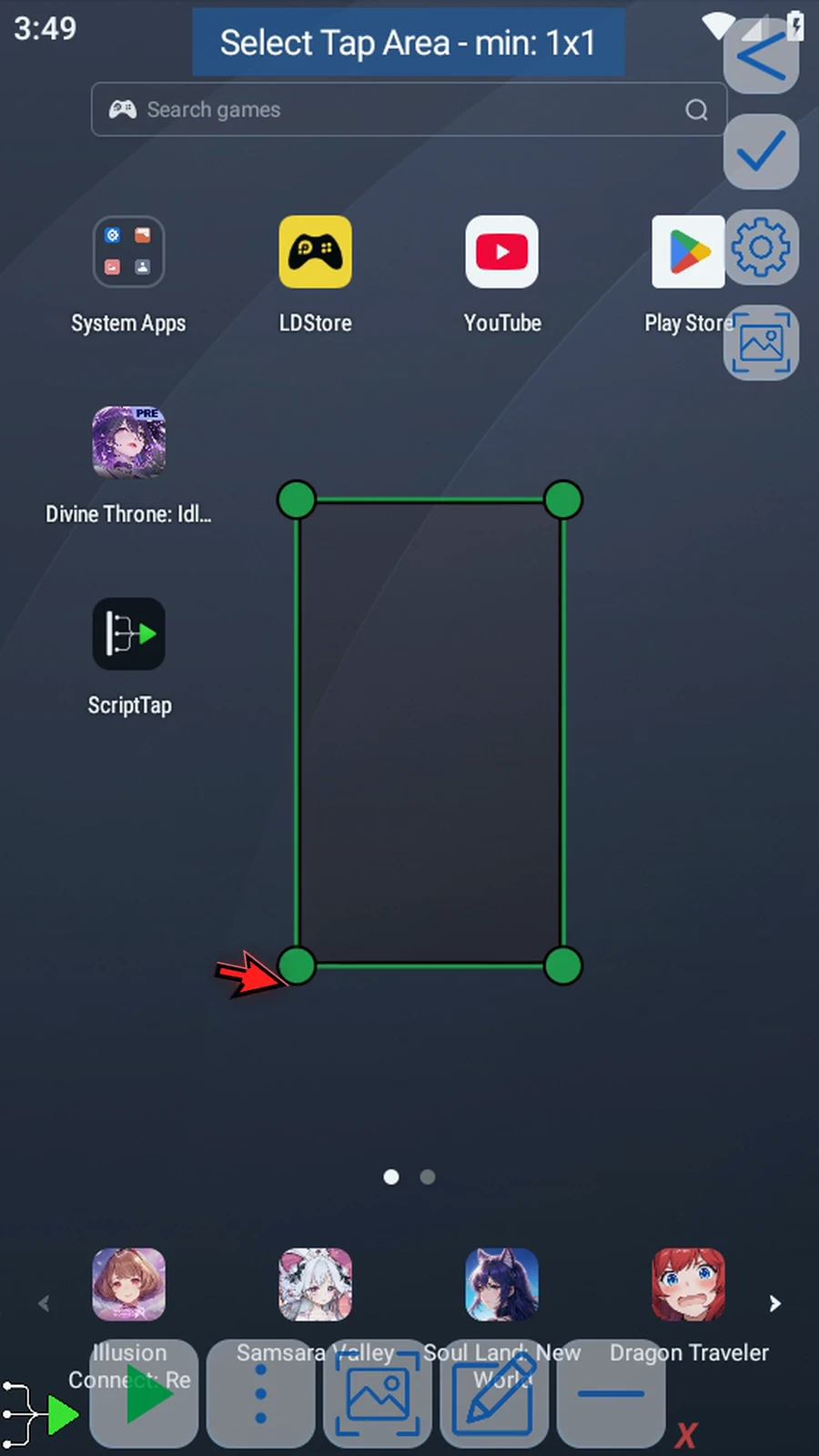
Step 14 The green box marks your tap area. Drag a corner to resize it, or drag inside the box to move the whole selection.
-
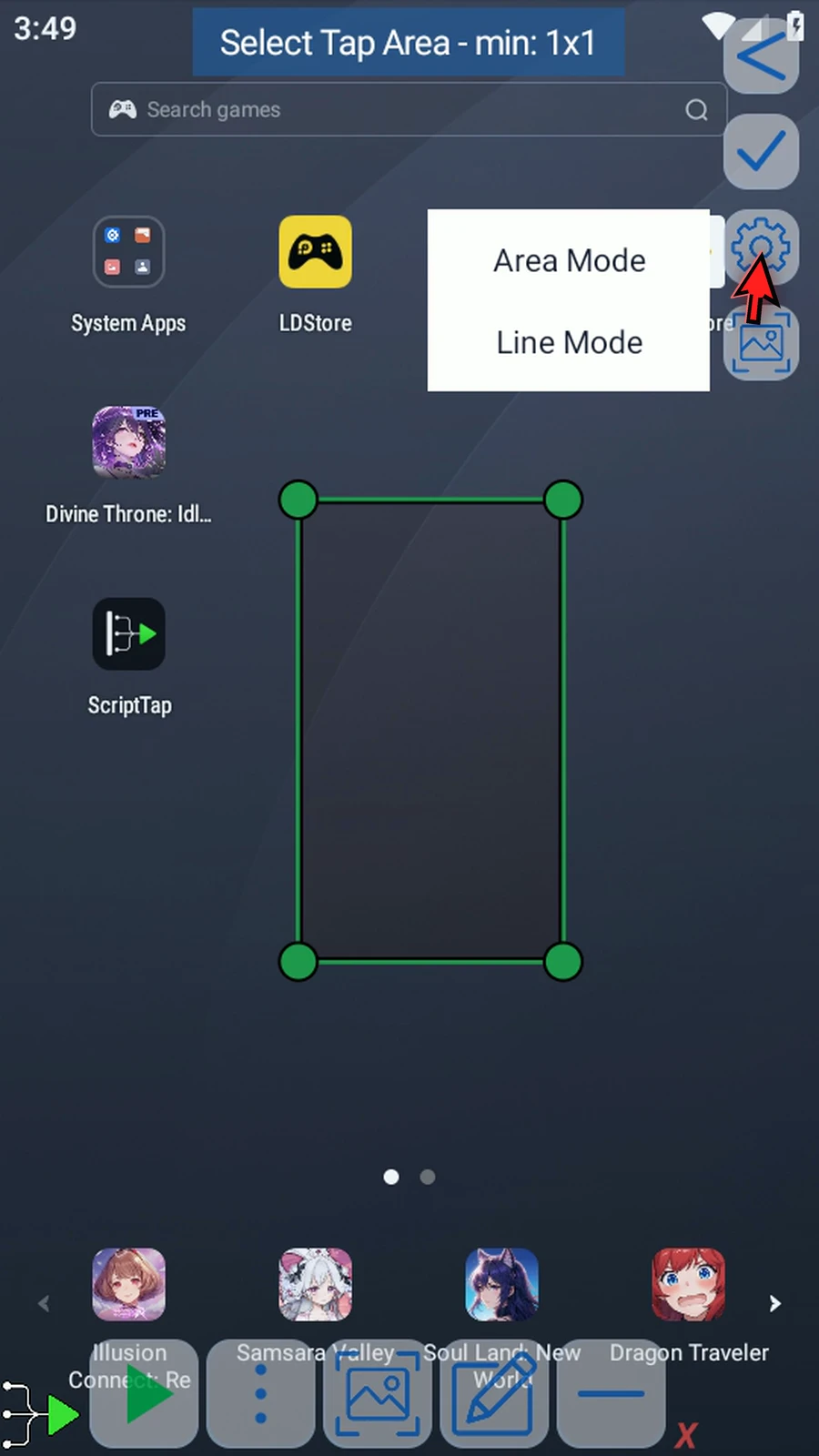
Step 15 The cog lets you choose Area Mode or Line Mode.
-
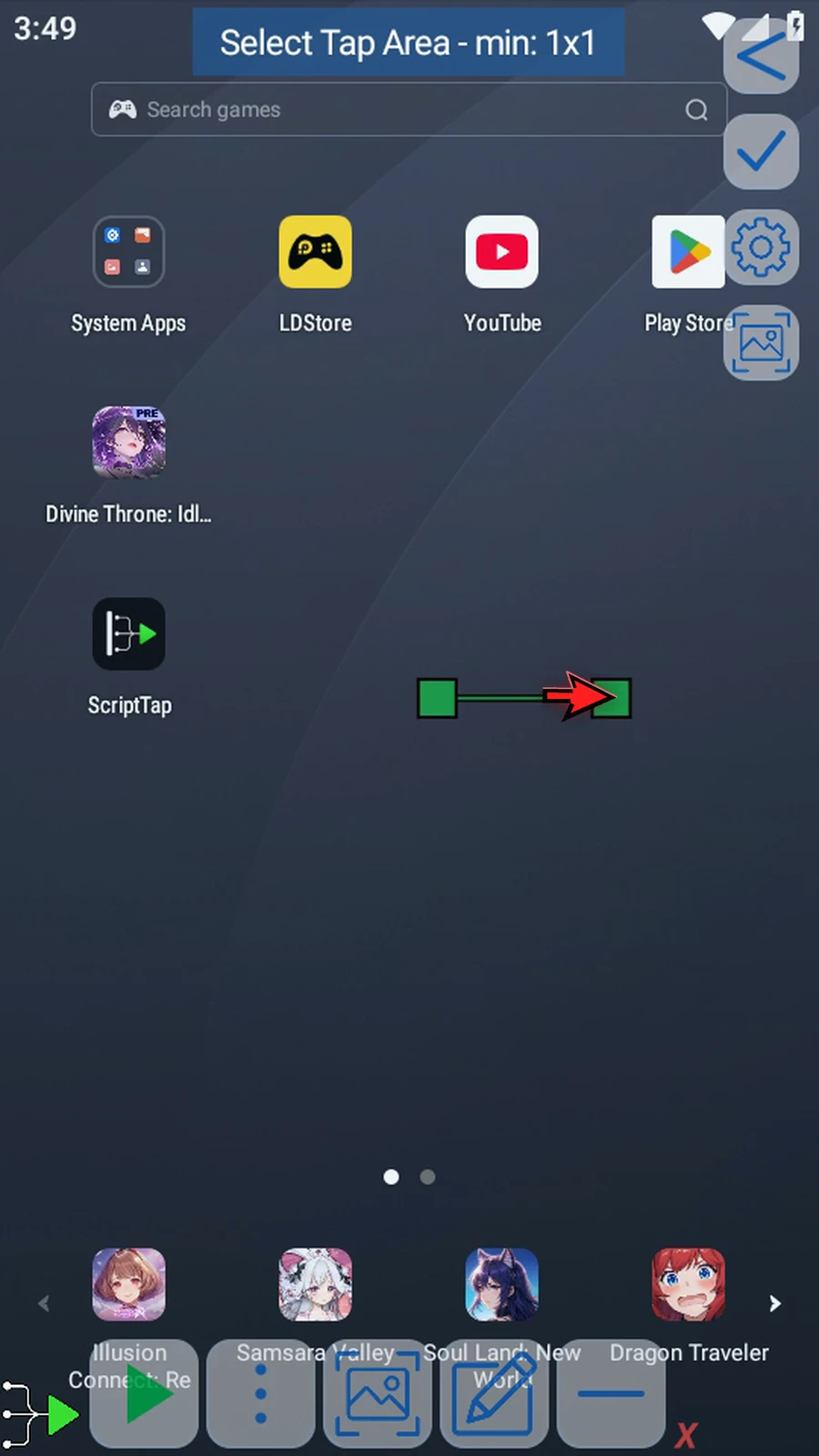
Step 16 Line Mode gives you a narrow selection. Drag its endpoints to change the length or direction, and drag the line itself to reposition it. You can make the line horizontal or vertical.
-
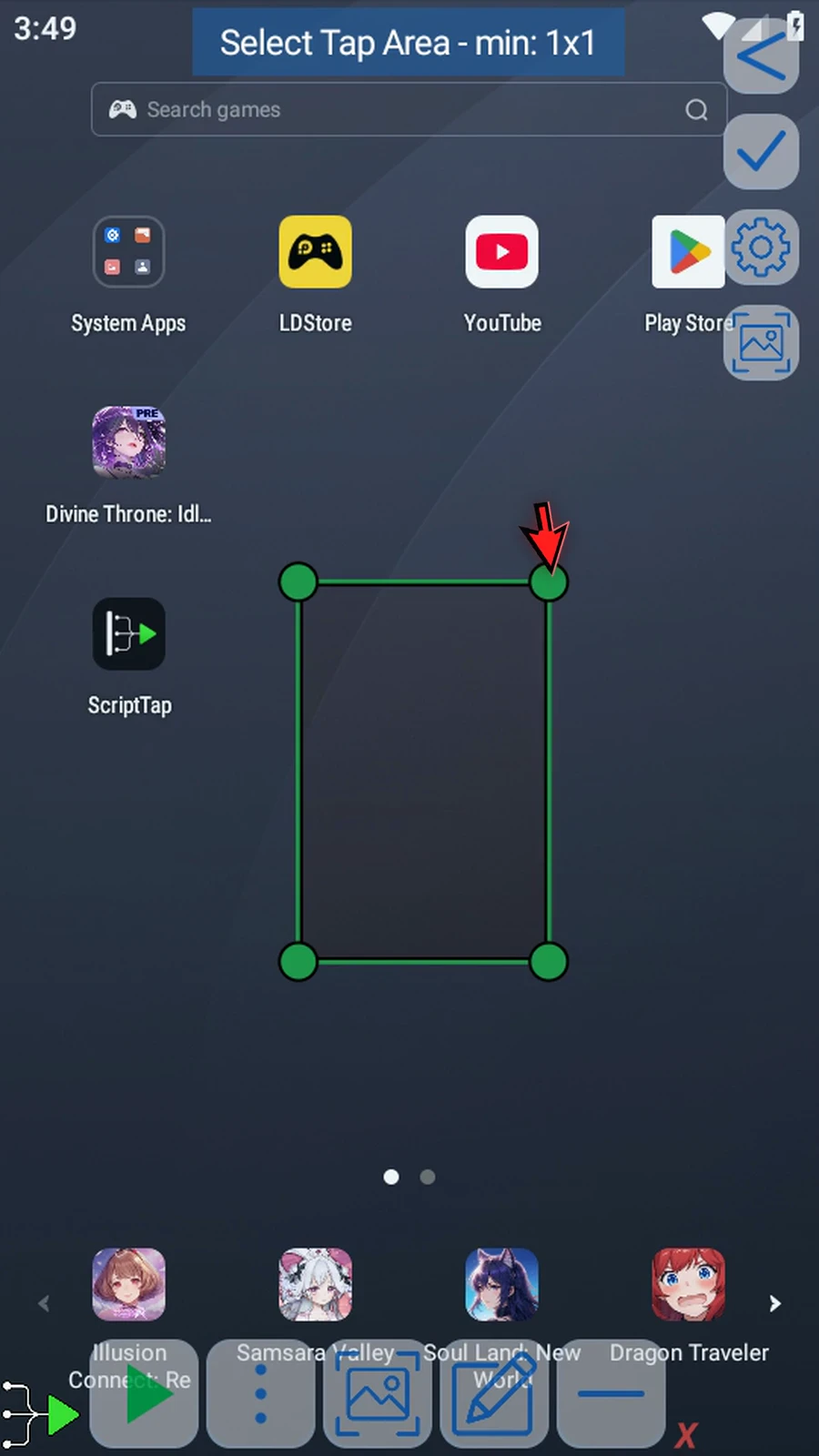
Step 17 Choose Area Mode to return to a rectangle. Drag its corners to fine-tune the boundaries of your target region.
-
Step 18 The screenshot icon lets you use a saved screenshot as the background. For a screen that is hard to keep open, capture it first using the main overlay, then select that screenshot here.
-
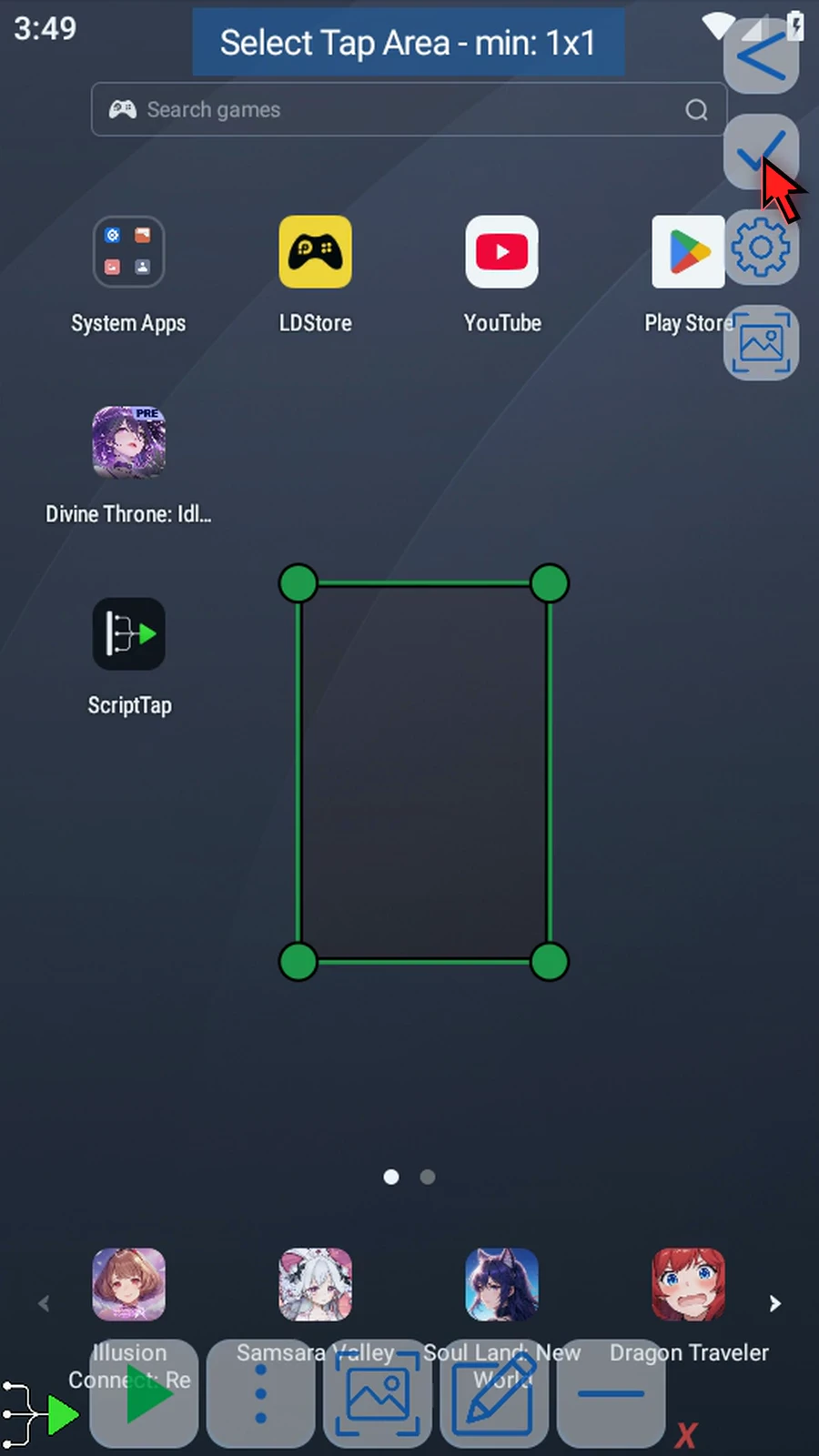
Step 19 Tap the checkmark to return with your selection. The command is only saved when you press OK in its footer.
-
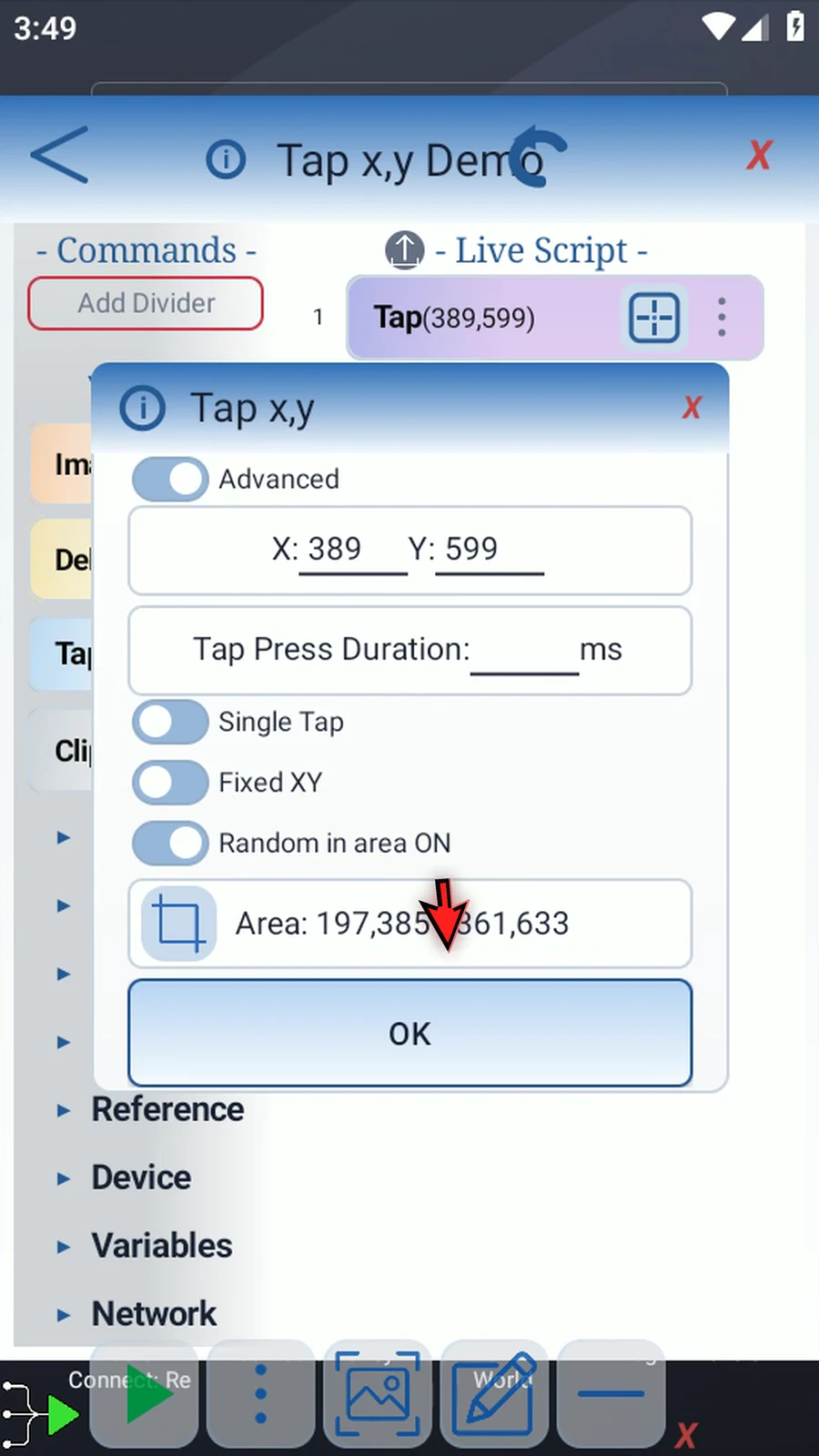
Step 20 For precise coordinates, tap the area frame to edit its top-left and bottom-right values manually.
-
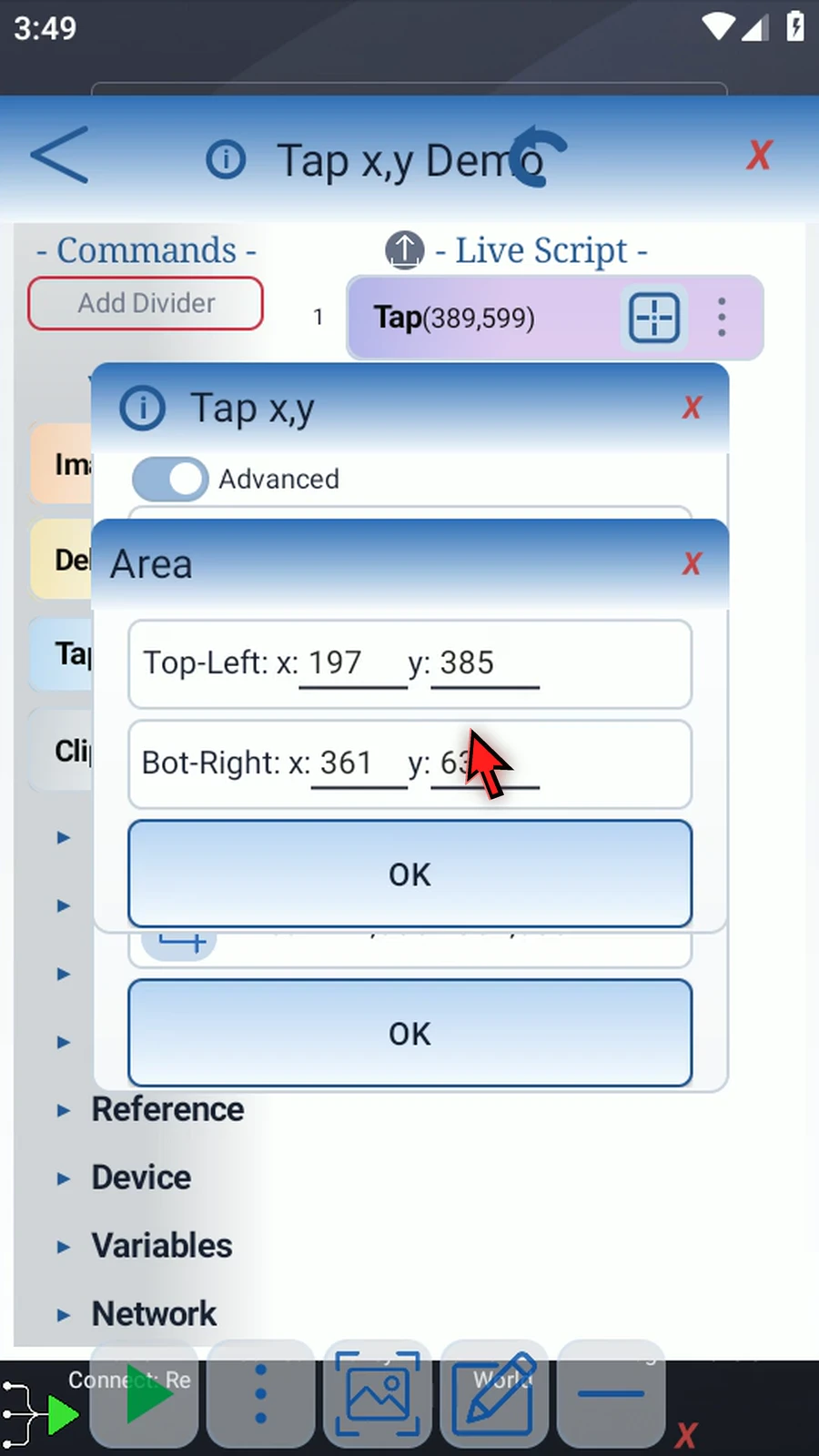
Step 21 Enter exact values, or use Integer variables for coordinates that change with your script.
-
Step 22 Tap OK to update the area.
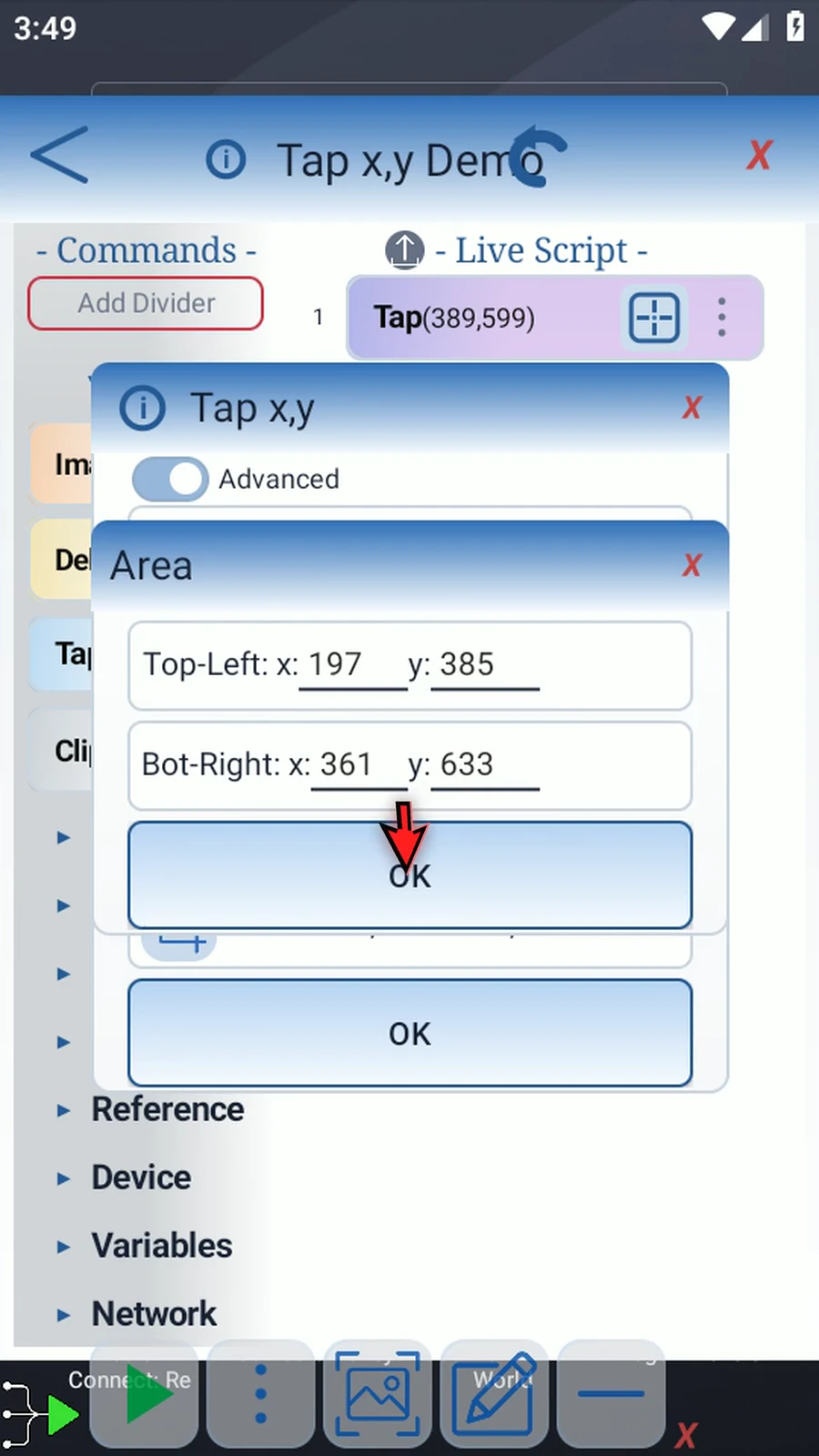
-
Step 23 Then tap OK in the command footer to save your changes.