Command video guide
TTS Reader
TTS Reader turns text into speech using Android's installed text-to-speech system. Speak Text reads a message or an earlier String variable; Read UI reads accessible interface text; Read OCR reads text from a selected screen area; Stop stops ScriptTap-owned Reader speech. The guide narration is separate from the Android voice heard in the example.
Create and name a new blank script, open the editor, collapse the extra overlay controls and Recent, and expand Device. Manually drag TTS Reader into the script, then open the inserted row. Choose Speak Text. Use In sets output scope: This Script Only is local, while Script Thread shares outputs within the run's call thread.
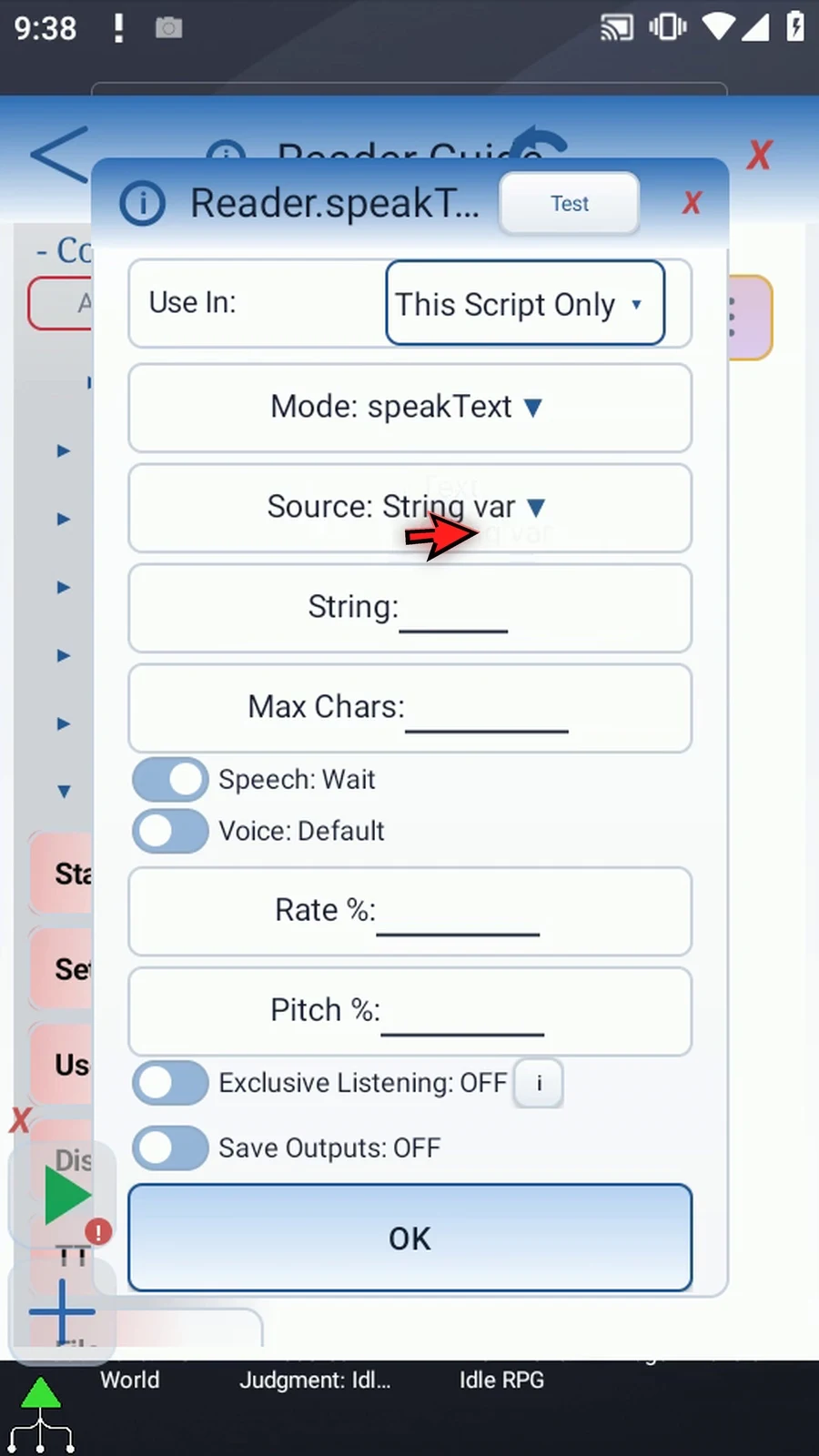
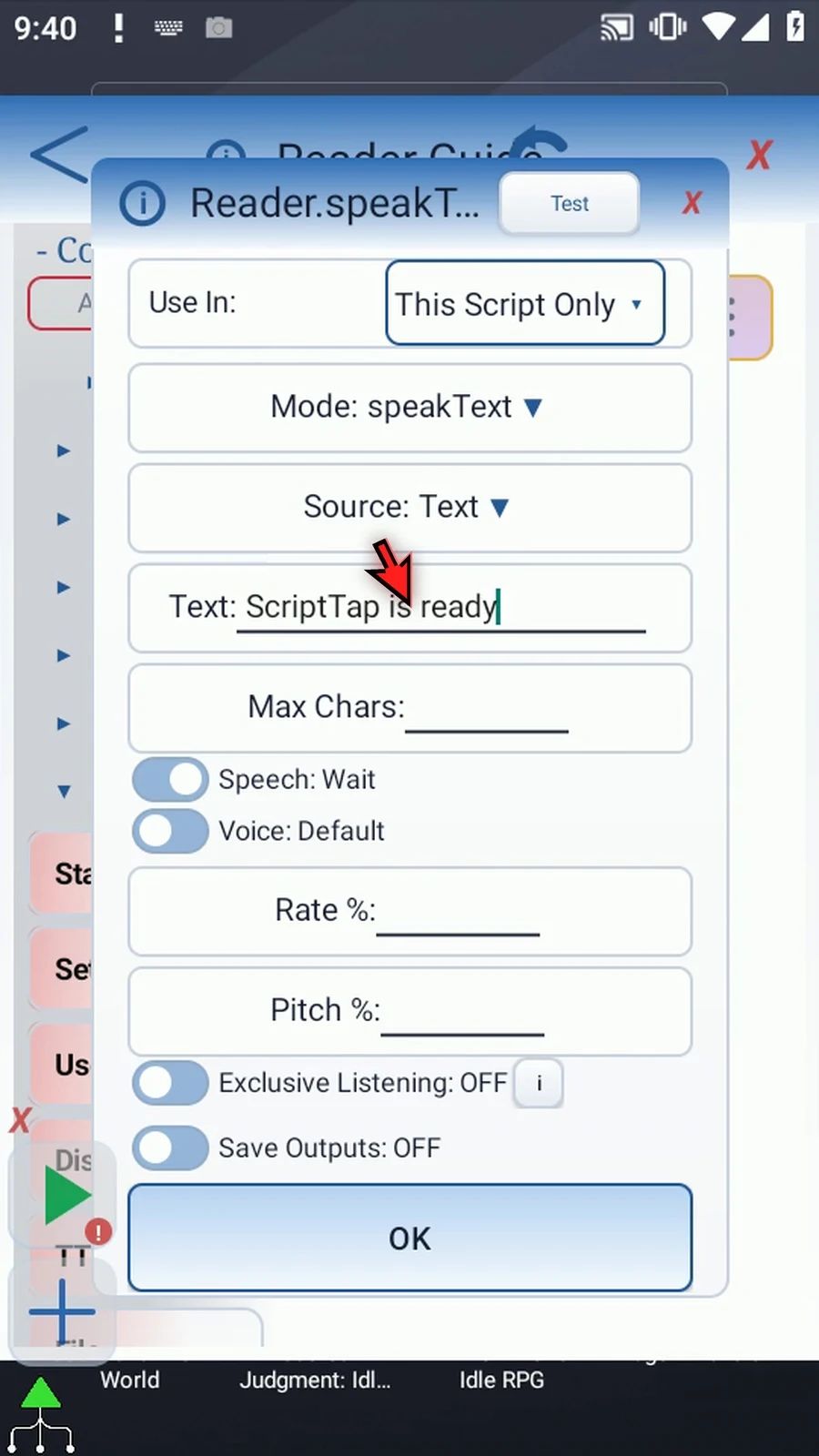
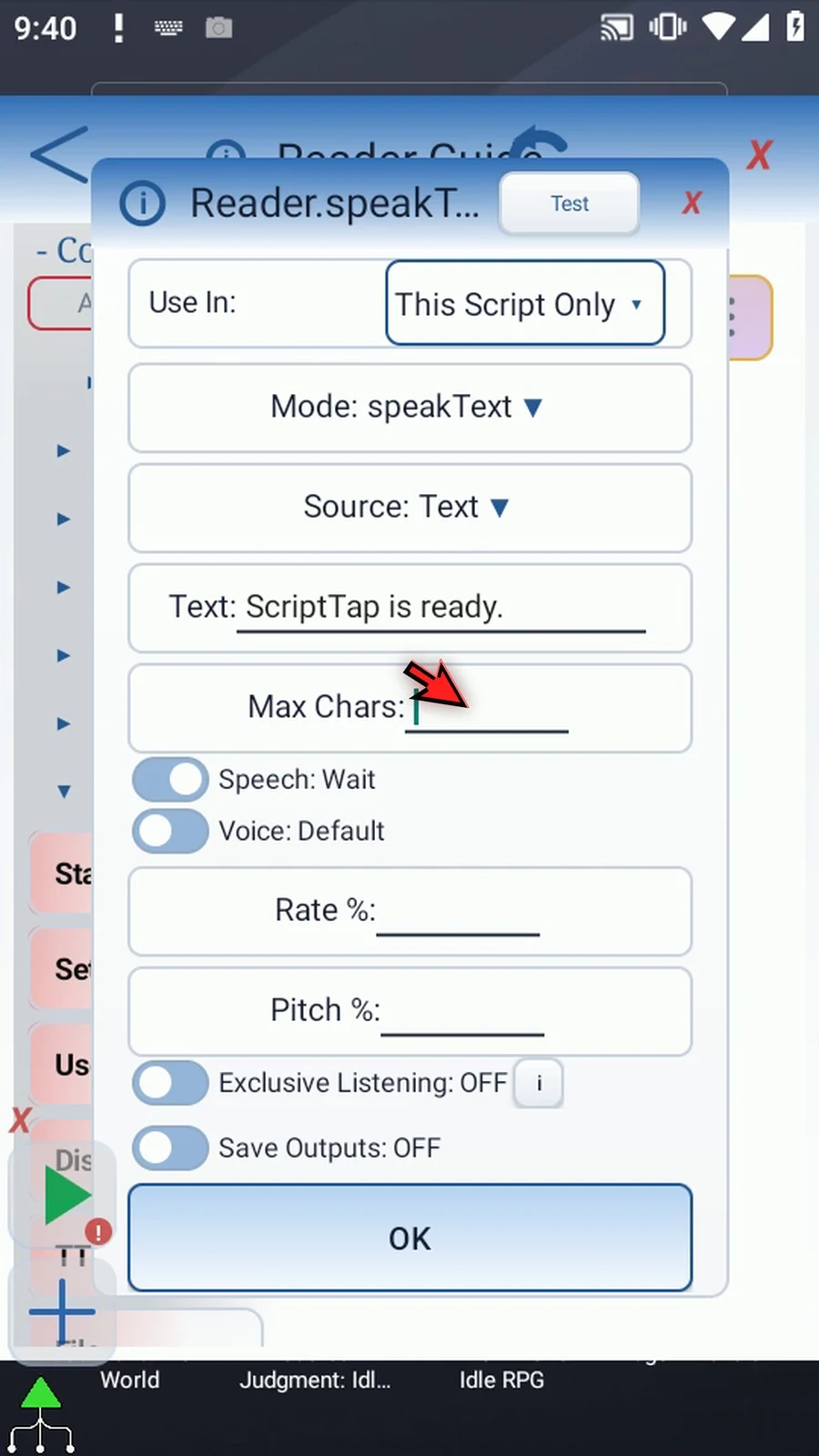
Source offers Text or an earlier String variable. Inspect String var, then return to Text and type ScriptTap is ready. Set Max Chars to 80. The limit accepts 1–10000 characters or a prior Integer variable. Rate and Pitch accept 50–200 percent or prior Integer variables; set both to 100.
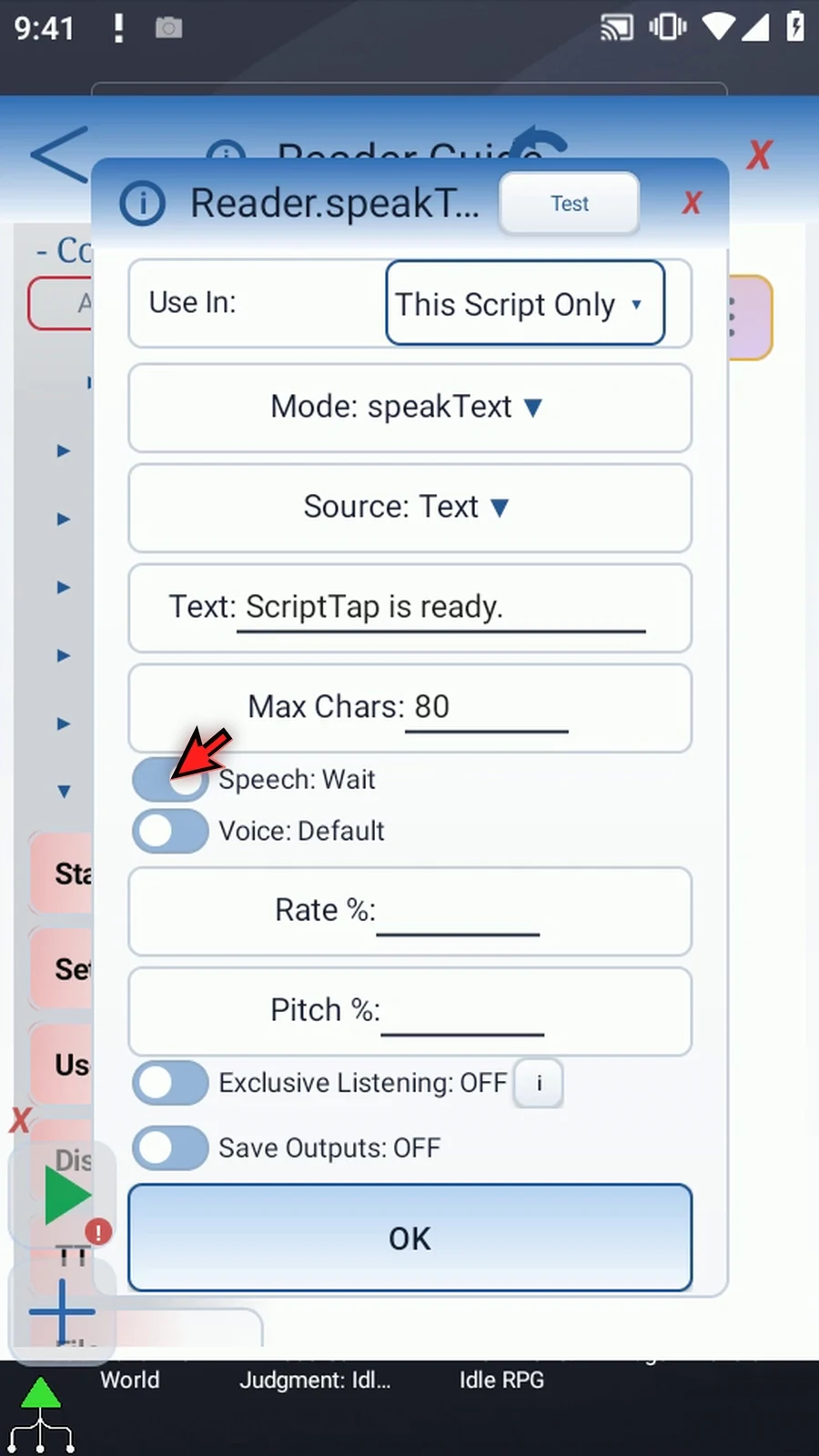
Speech Concurrent starts or queues speech and returns immediately. Consecutive unchanged wording, after trimming and collapsing whitespace, is skipped without rewriting optional outputs. Different wording may queue while earlier speech is active. Wait waits within the current branch until speech finishes; it can repeat the same message normally. This example uses Wait.
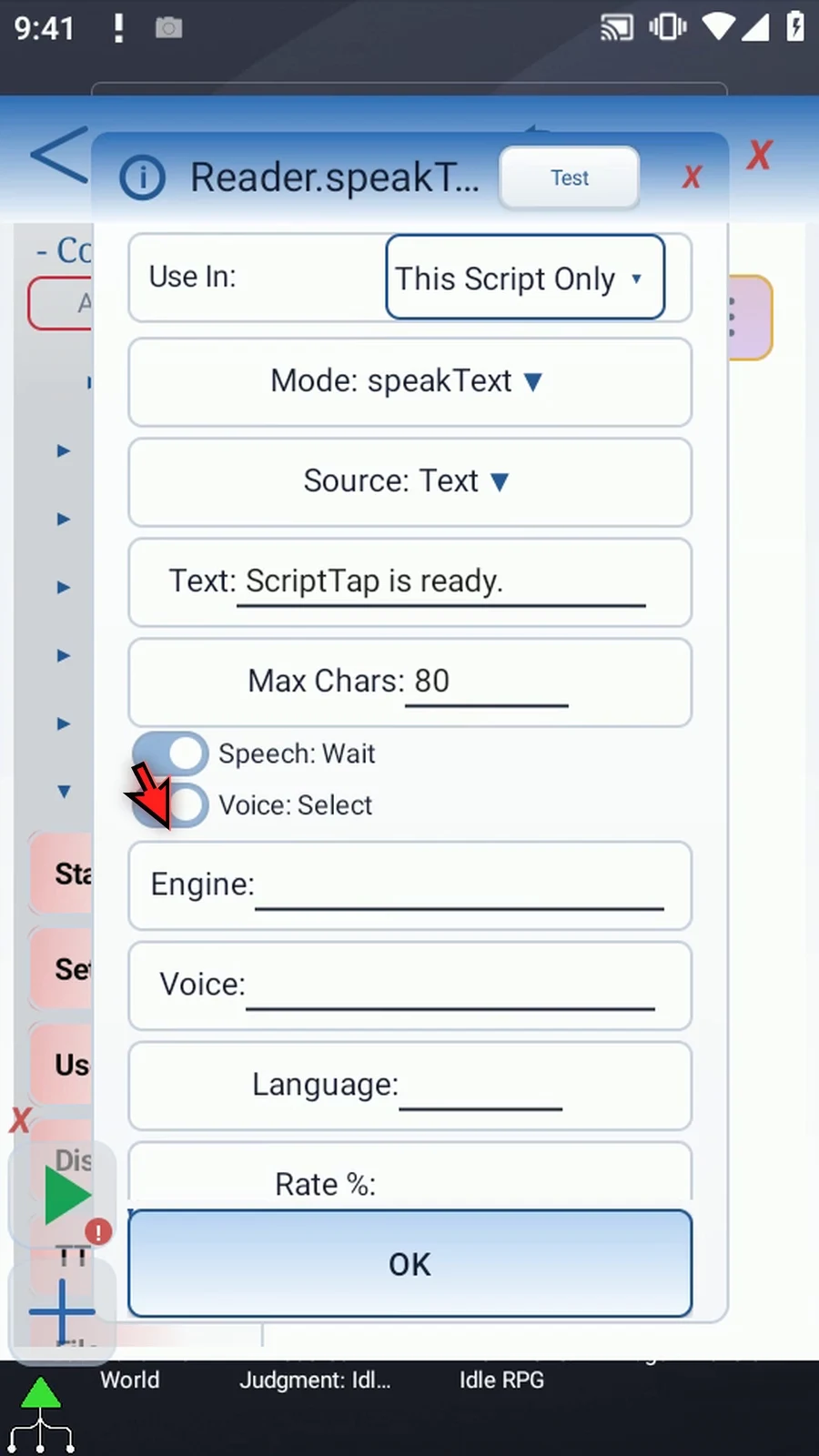
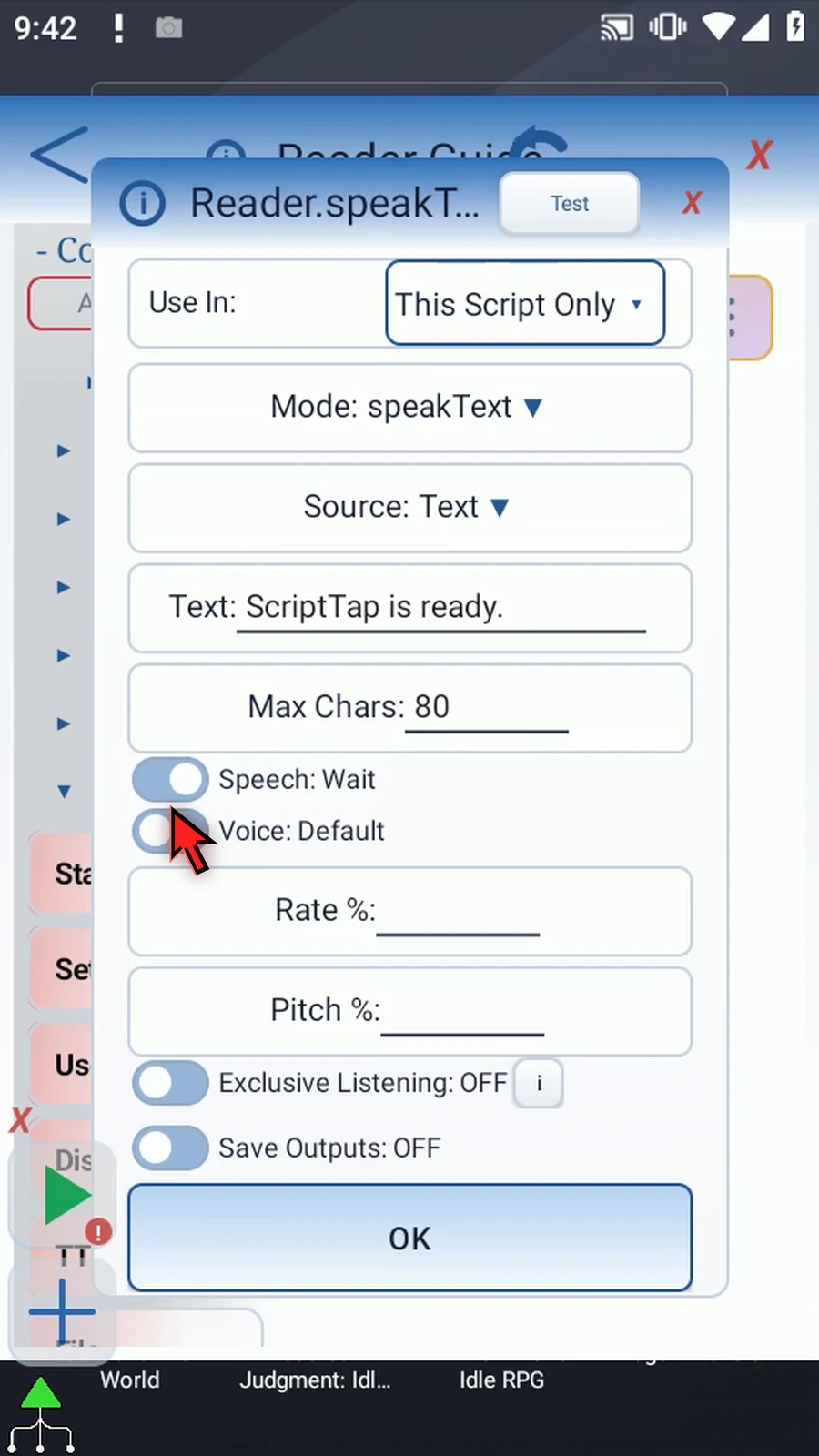
Voice Select exposes an installed engine's package name, voice name, and language tag. Supplied choices must exist on the Android device; unavailable choices report a setup error. Return to Default for this example. Reader uses Android's installed text-to-speech system, not the video's narration voice.
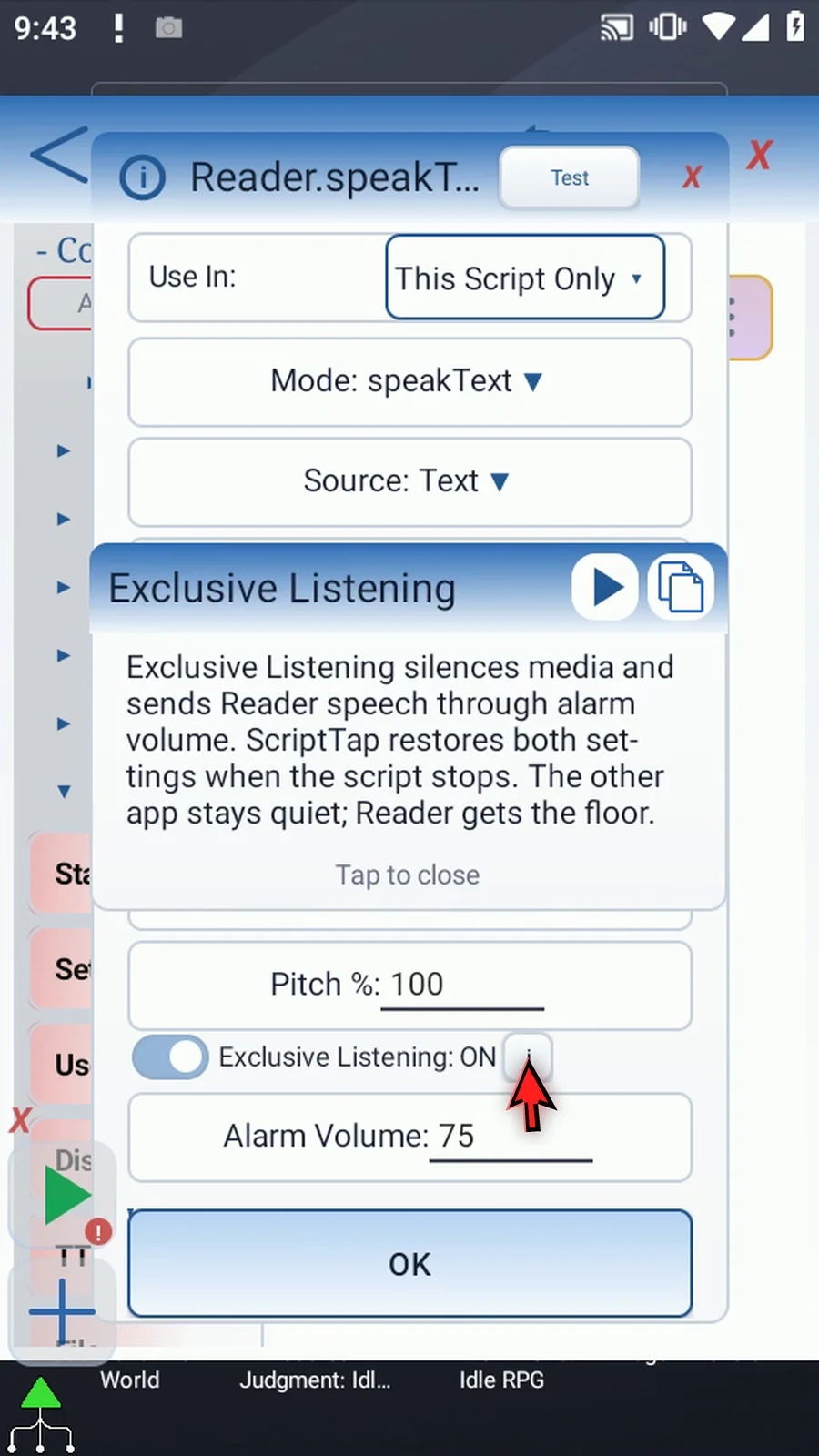
Exclusive Listening is optional. Enable it and set Alarm Volume to 75. It temporarily mutes Media and routes Reader through Alarm at the chosen level. Original Media and Alarm levels return when the run or Test preview ends; it does not pause another app's playback.
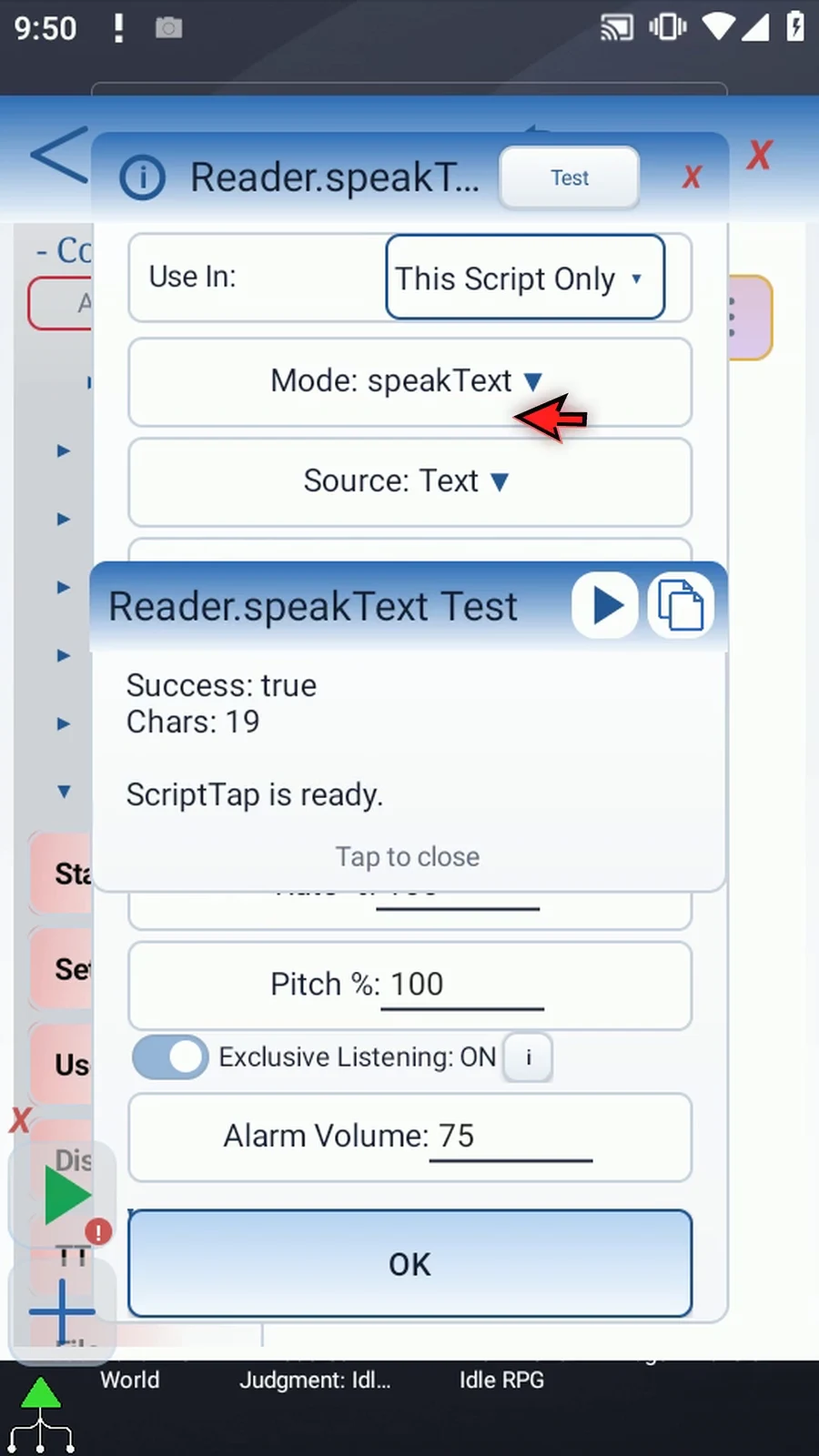
Enable Save Outputs, then Text → String s1, Success → Boolean b1, and Error → String s2. Each optional switch retains its destination when turned off. Use the compact header Test to preview without saving or playing the script. The example succeeds and processes 19 characters. Close the result and save Reader.
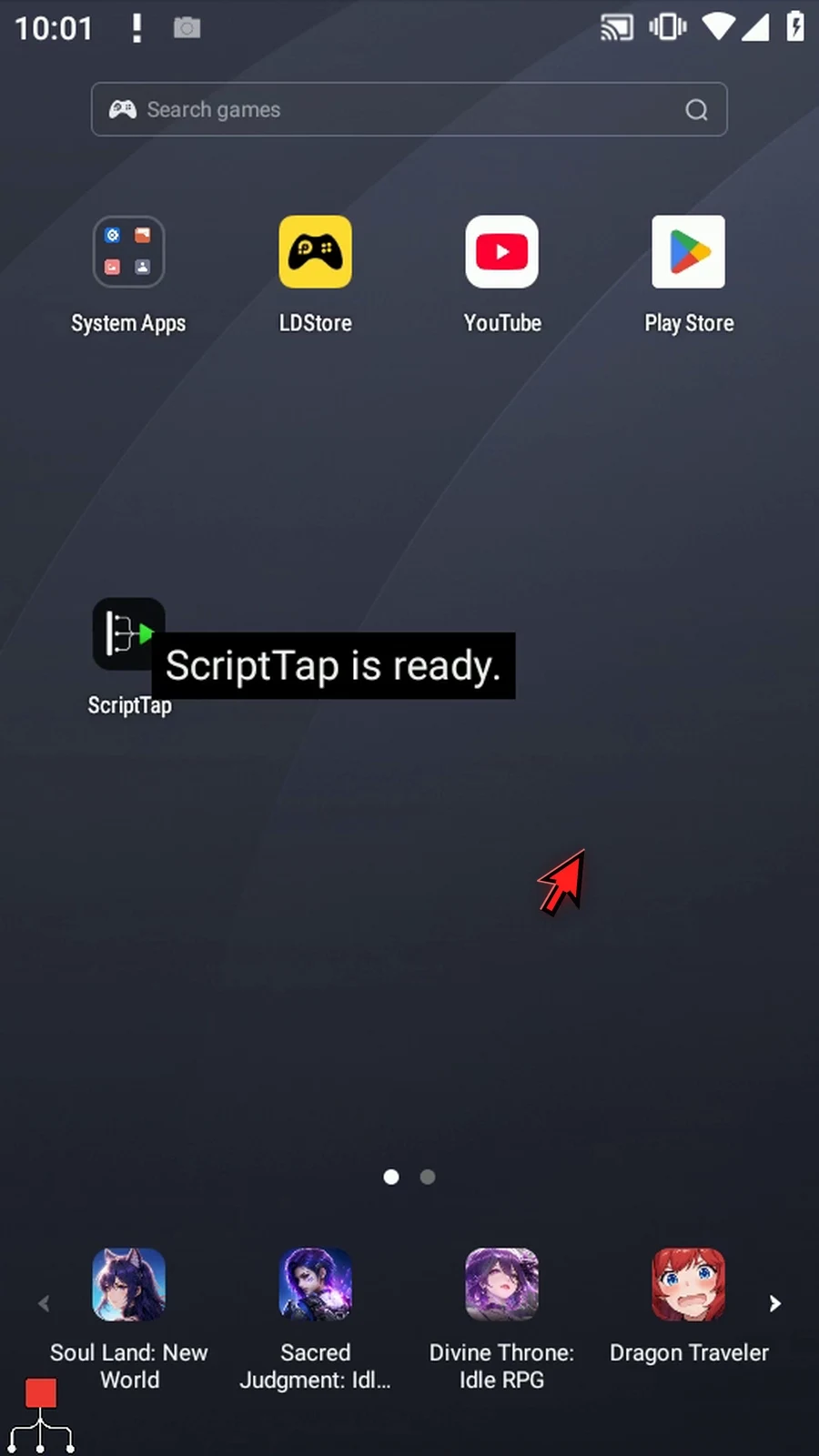
Manually drag Display after Reader. Keep Once, use variable s1, tap the Area text to enter bounds 100,360–440,520, and set lifespan 8000 ms. Display is not required for speech; it makes the saved words visible for eight seconds.
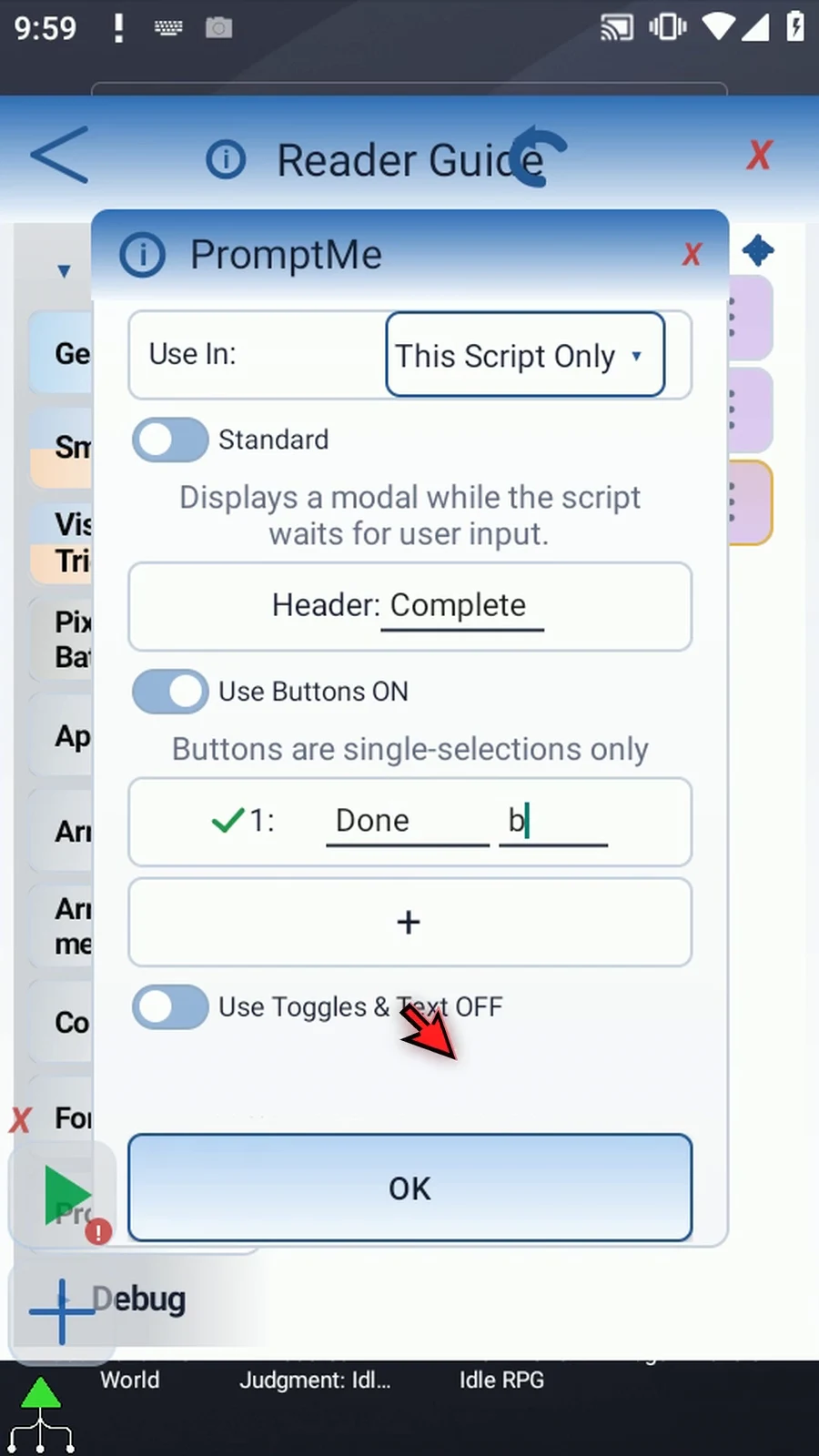
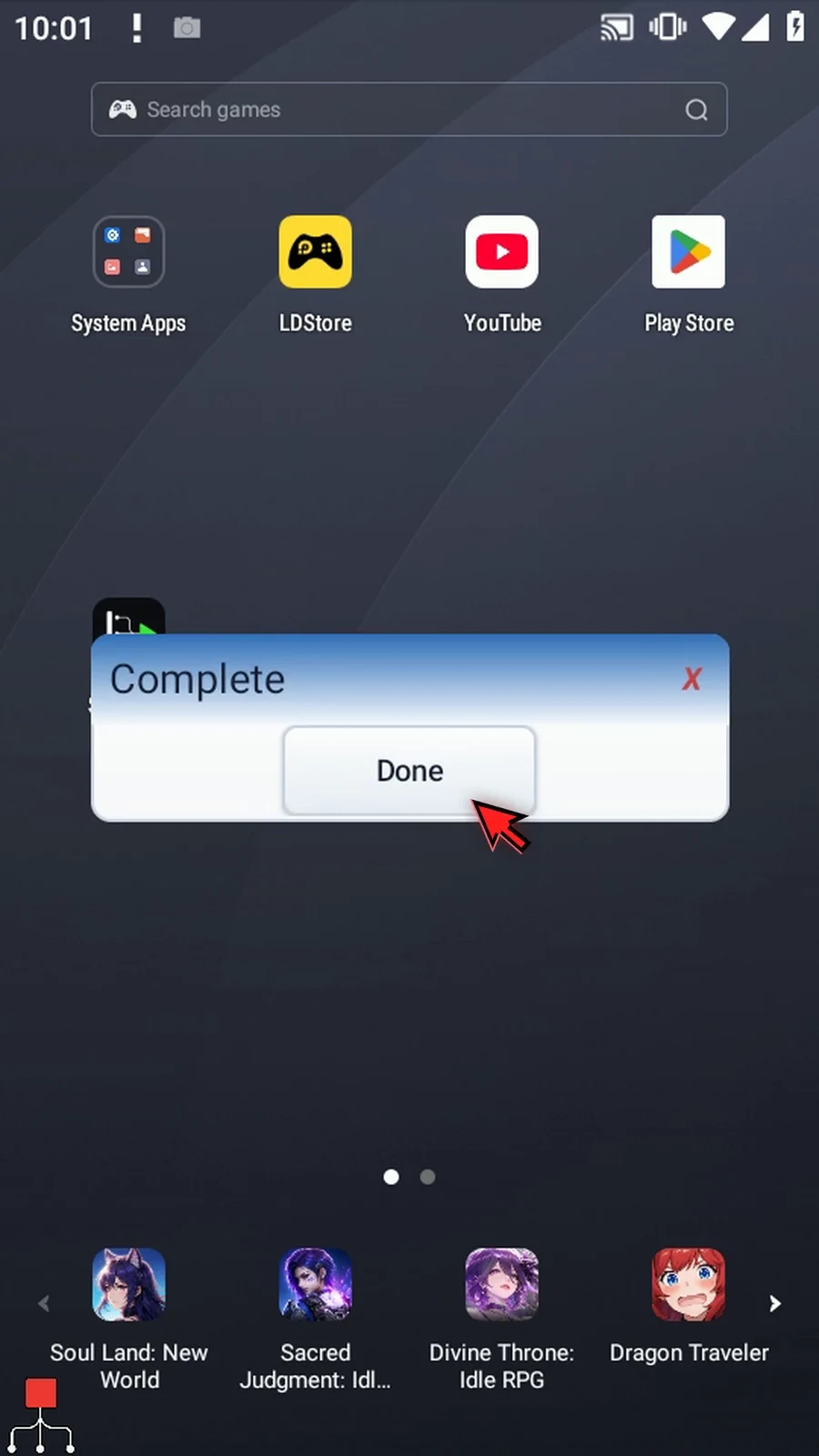
Under Advanced, manually drag PromptMe after Display. Keep Standard, set Header Complete, add Done → Boolean b2, and leave Toggles & Text off. This supporting prompt acknowledges completion.
Play from the main overlay. Reader speaks first, then Display shows ScriptTap is ready. for the full timed interval, and Complete appears. Press Done to finish naturally. Read UI, Read OCR, and Stop examples reuse this shared script in the other native-mode guide tabs.
Intro & Speak Text
Step-by-step guide
Step 01 TTS Reader turns text into speech using Android's installed text-to-speech system. It can speak a message, read accessible interface text, read a screen area with OCR, or stop speech started by ScriptTap.
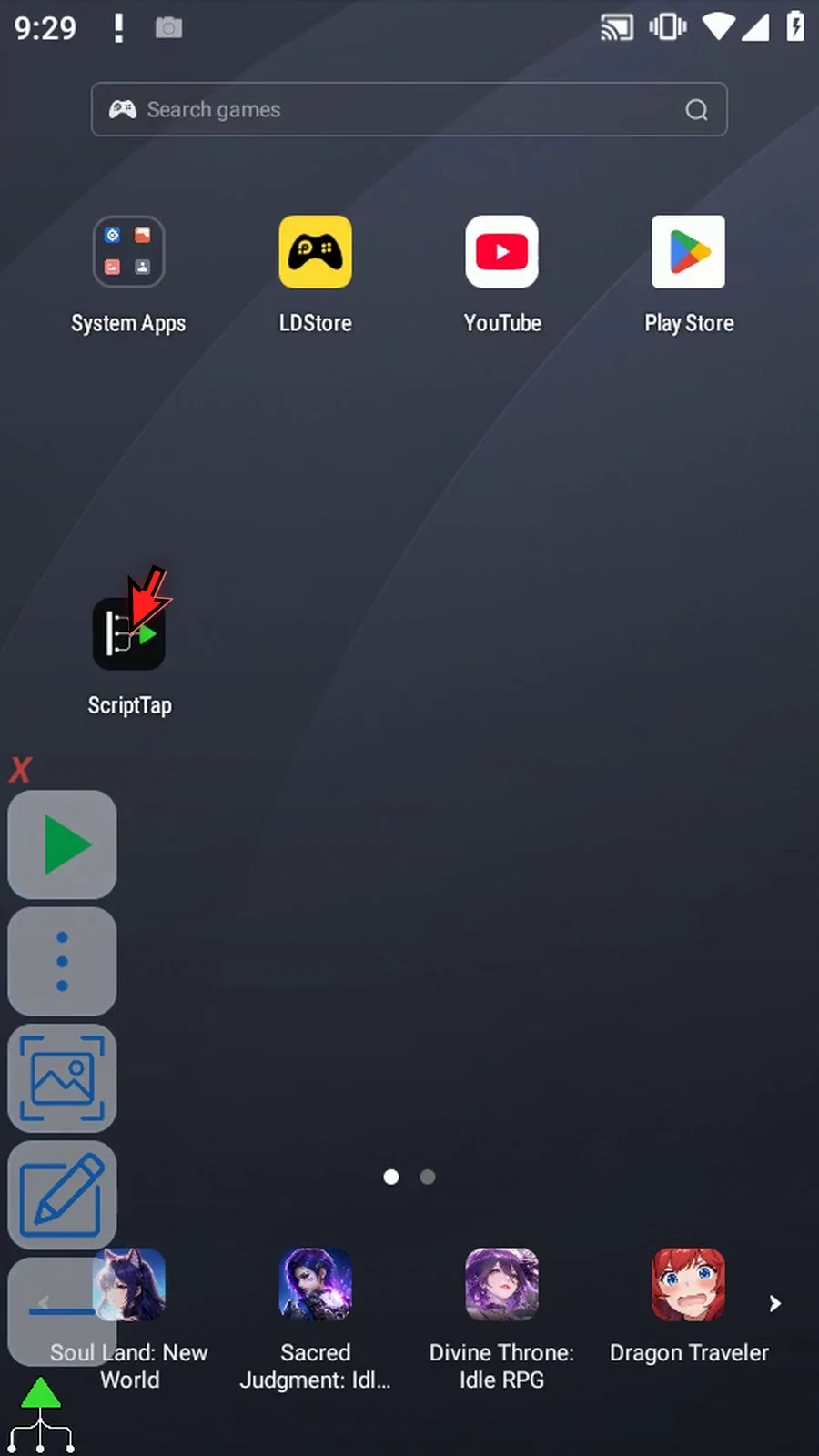
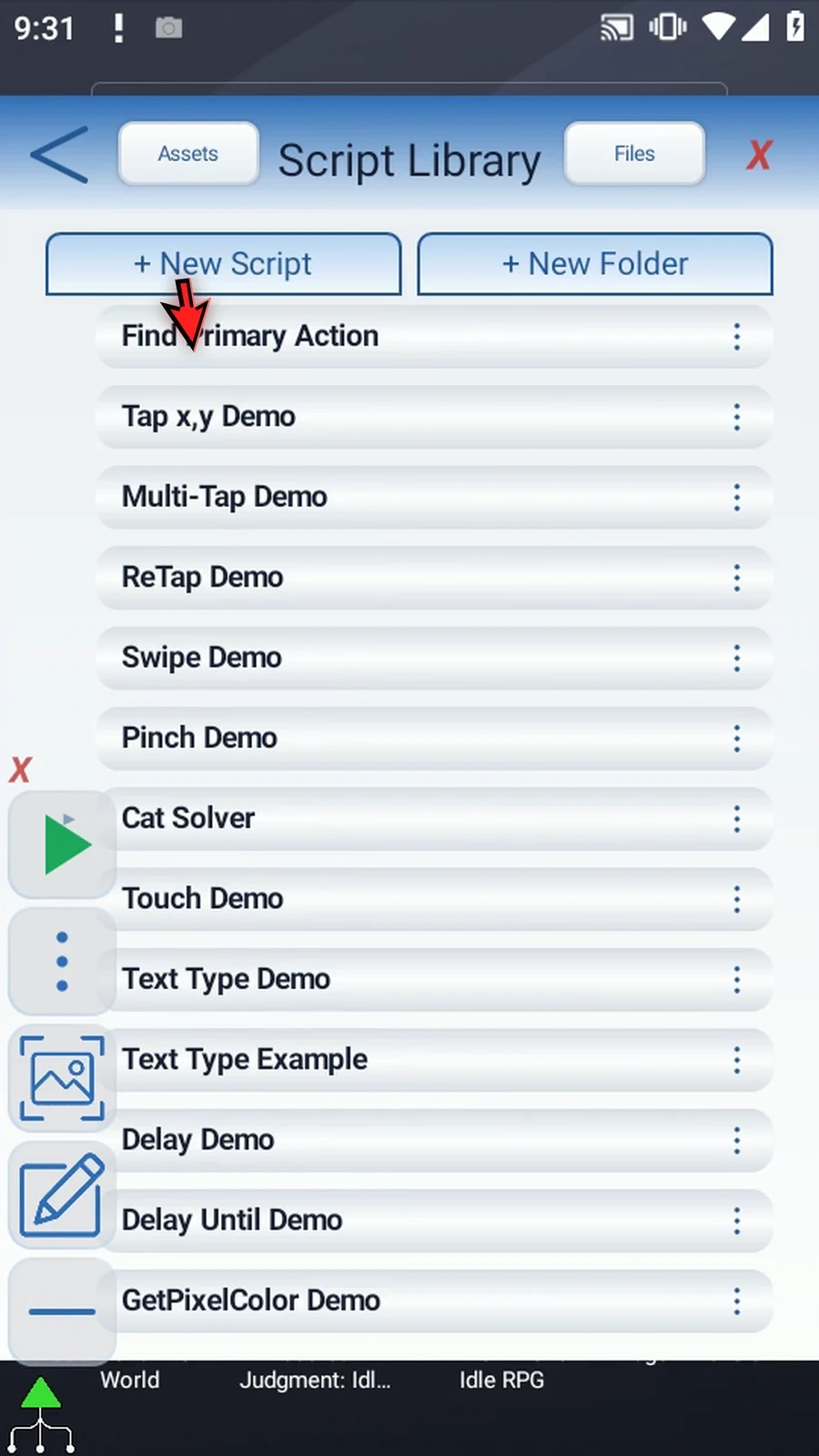
Step 02 Let's build a short Speak Text example. Open Scripts and create a new blank script.
Step 03 Find the new blank script, open its menu, and choose Rename. Leave the other scripts unchanged.
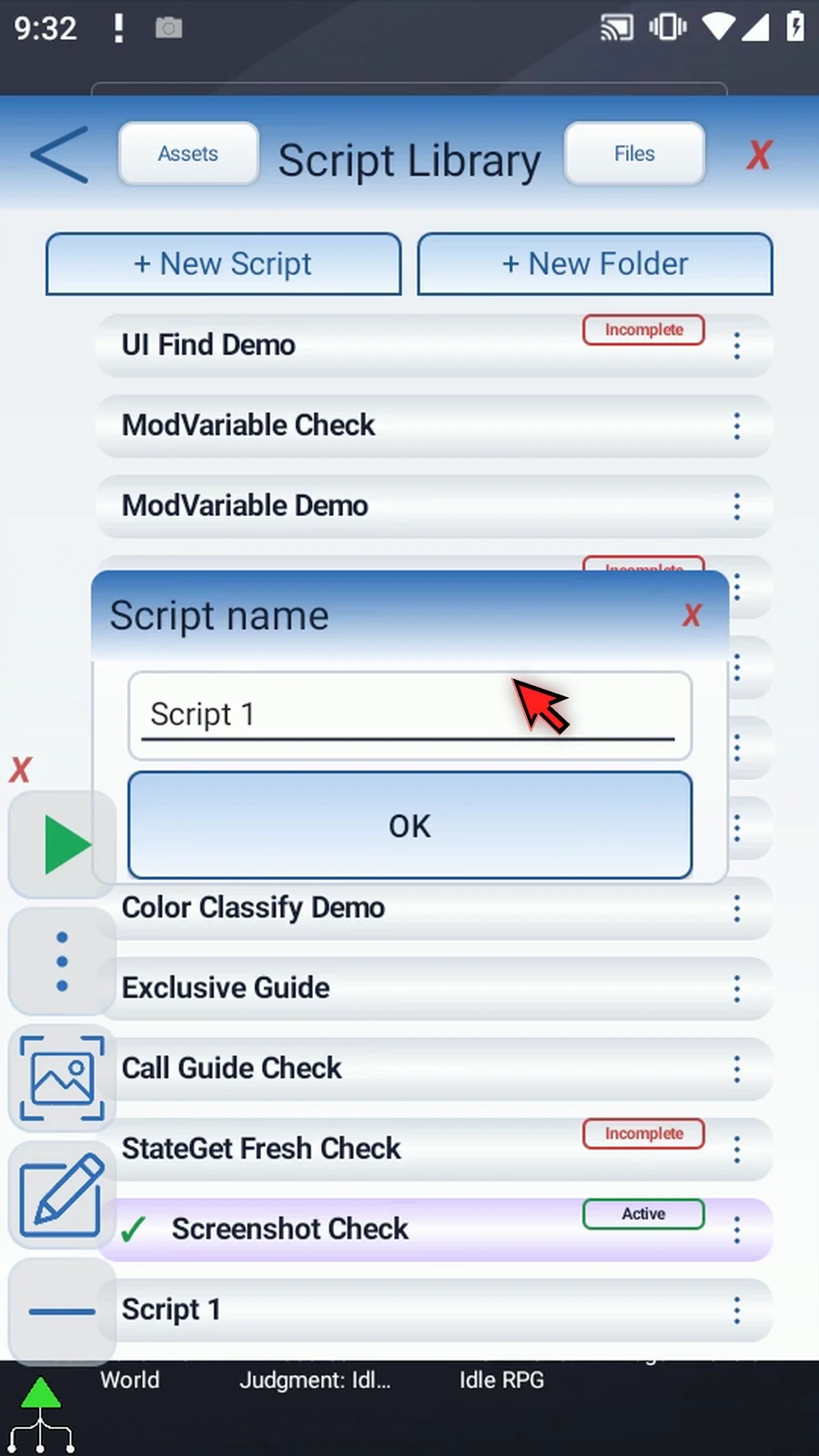
Step 04 Give the example a descriptive name, save it, and select the new script so it becomes active.
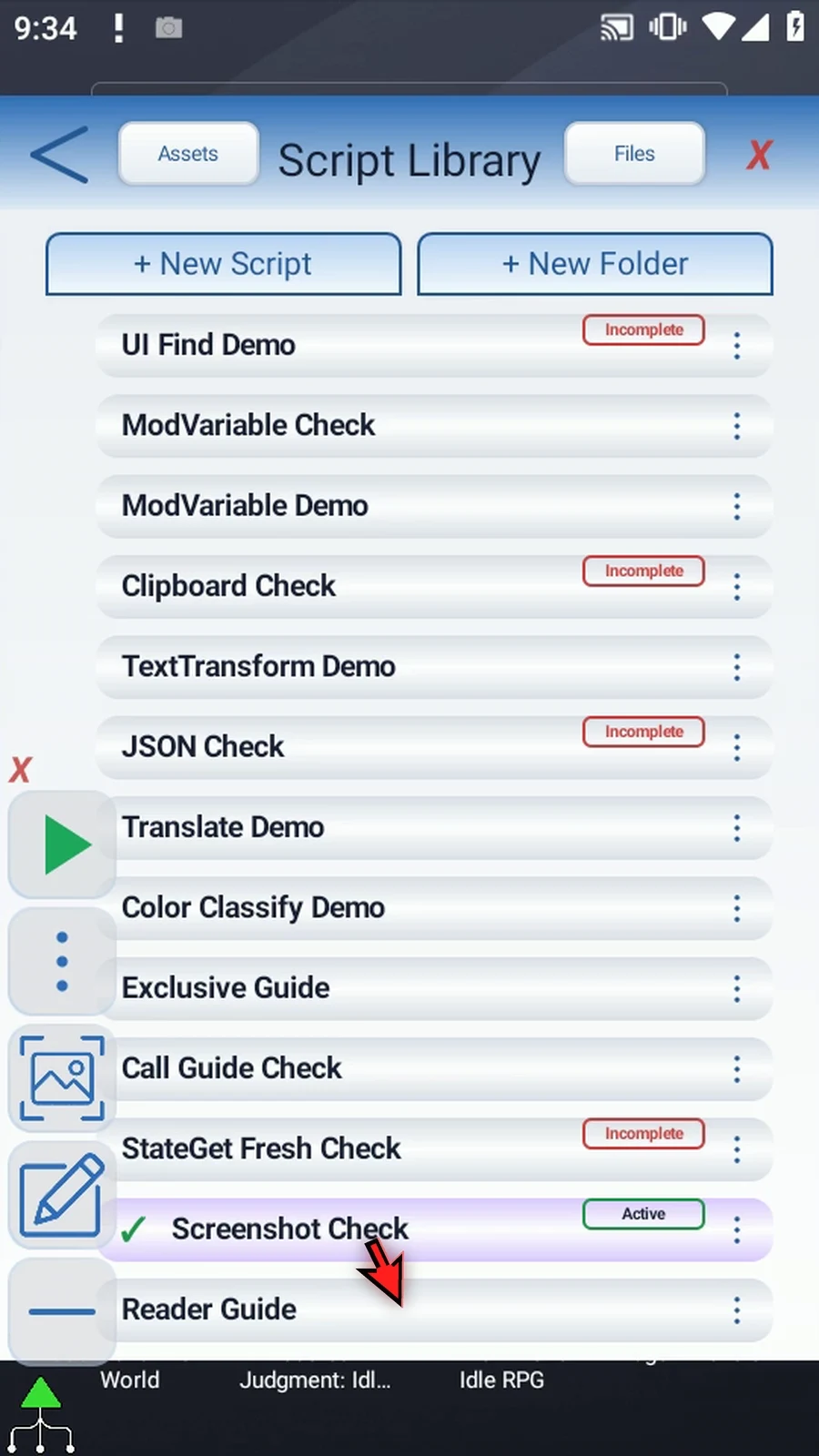
Step 05 Open the Script Editor. Collapse the extra overlay controls and Recent, then expand the Device category.
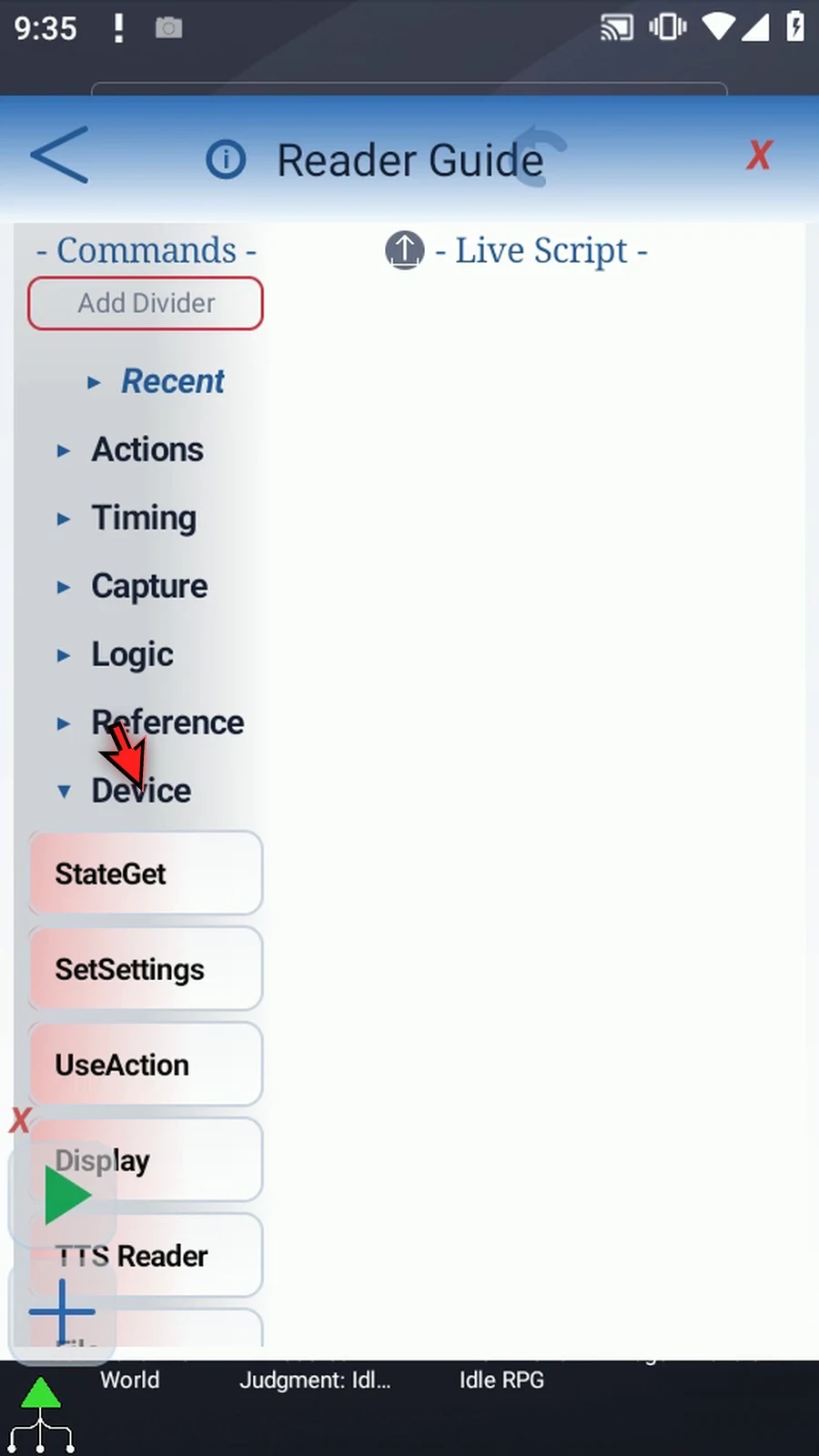
Step 06 Manually drag TTS Reader from the palette into the script. Then open the inserted command to configure it.
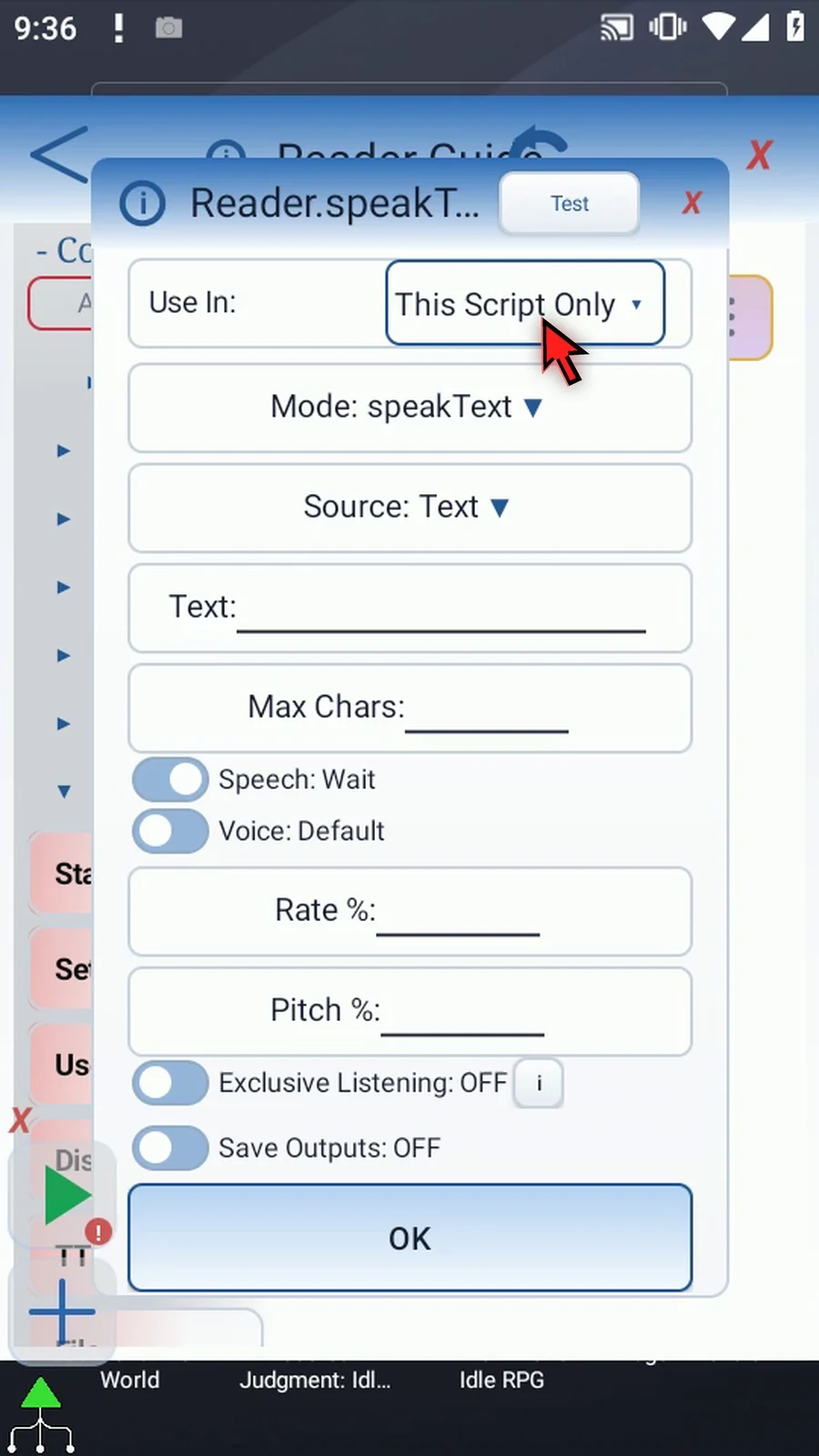
Step 07 The Mode list contains Speak Text, Read UI, Read OCR, and Stop. We'll use Speak Text here. The other guide tabs show how to reuse this example for reading and stopping speech.
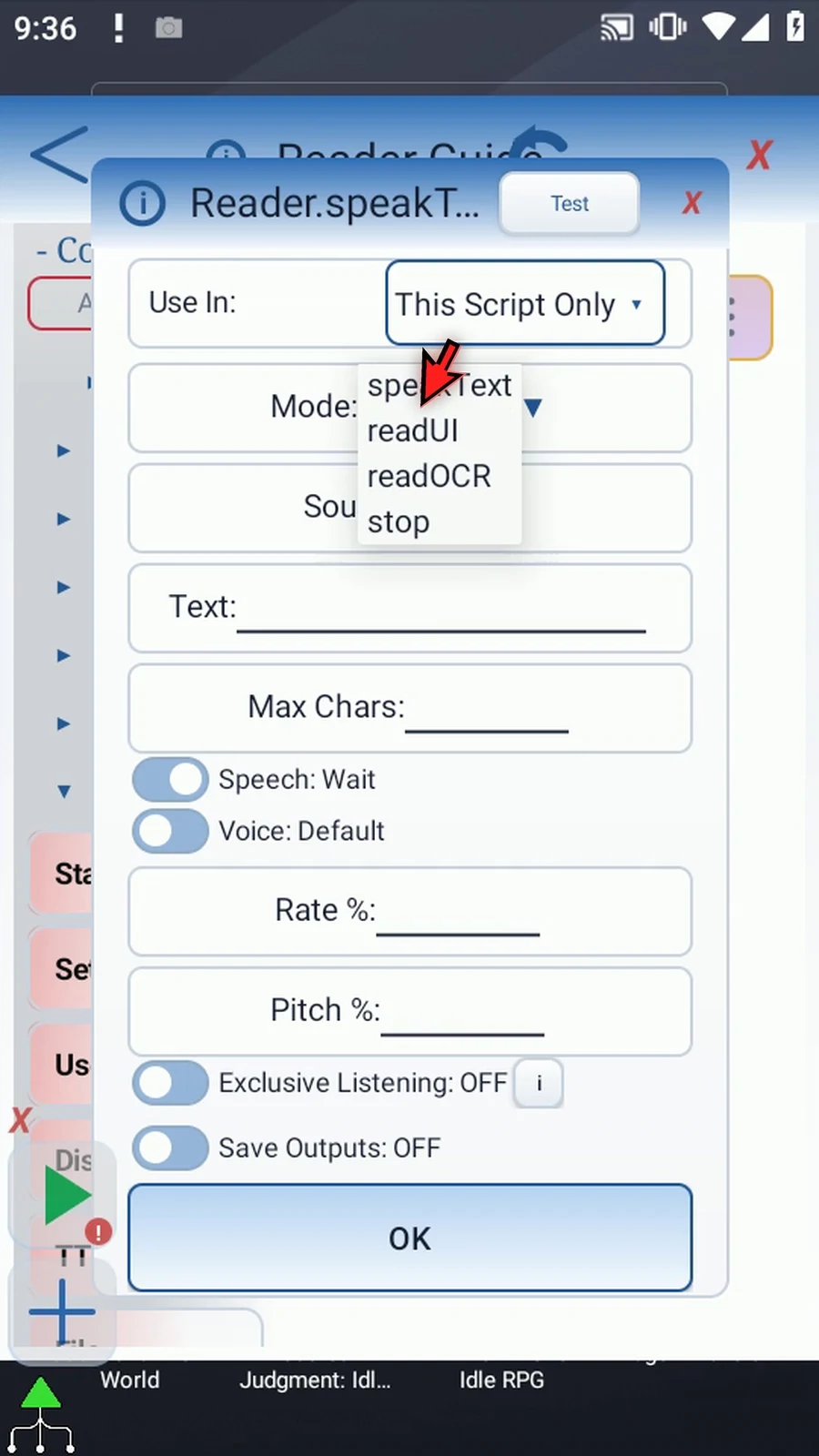
Step 08 Use In controls the scope of Reader's outputs. This Script Only keeps them local; Script Thread shares them within the run's call thread. We'll keep This Script Only.
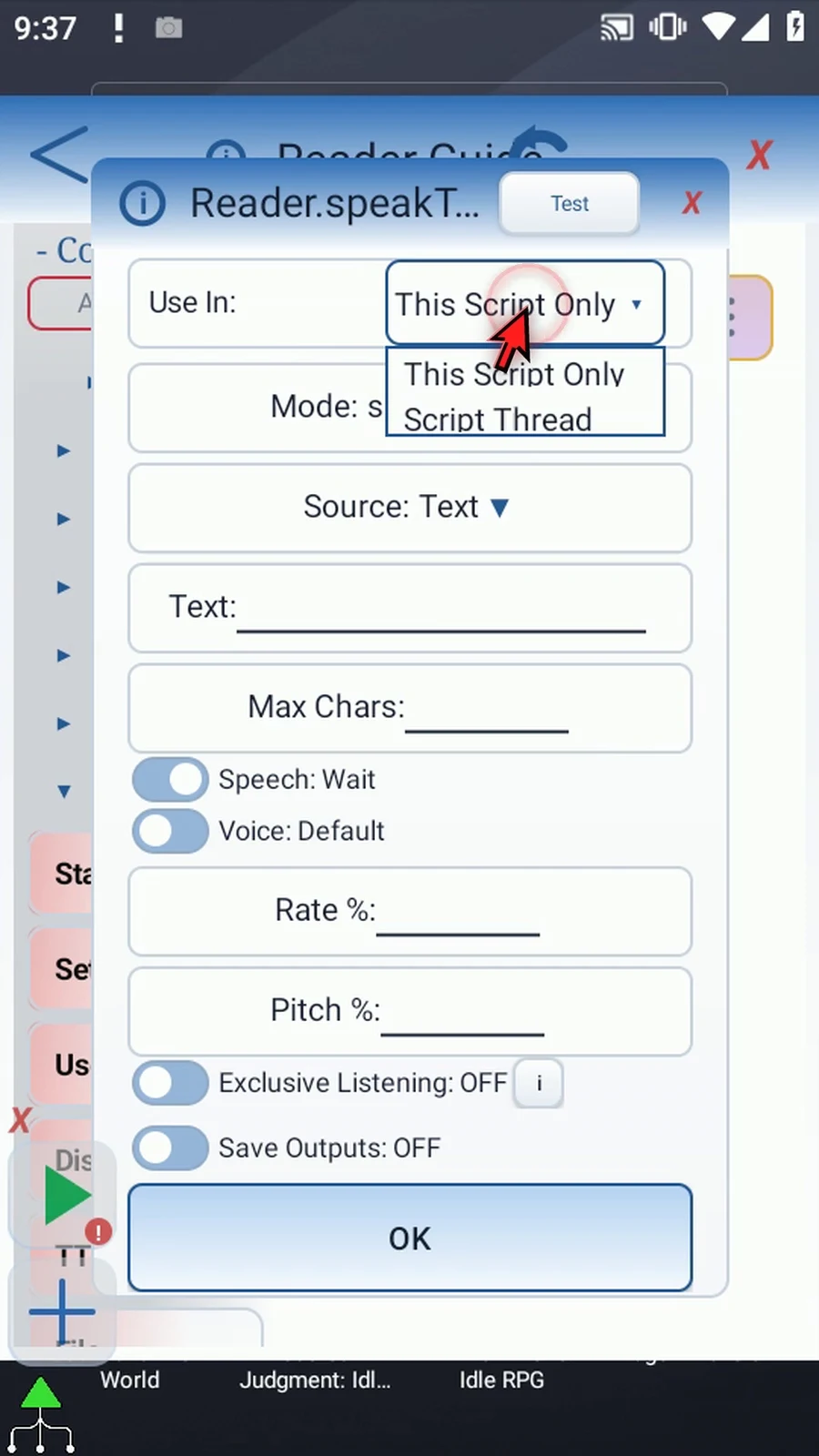
Step 09 Source can be Text or a String variable created earlier in the script. Choose String var to see its input field. We are not using a variable source in this example.
Step 10 Switch back to Text and type a short message. We'll use: ScriptTap is ready.
Step 11 Max Chars limits how much text Reader processes. It accepts one to ten thousand characters, or a prior Integer variable. Set eighty for our short example.
Step 12 Speech Concurrent starts speech and lets the script continue immediately. Consecutive unchanged wording is skipped; different text can queue while earlier speech is still active.
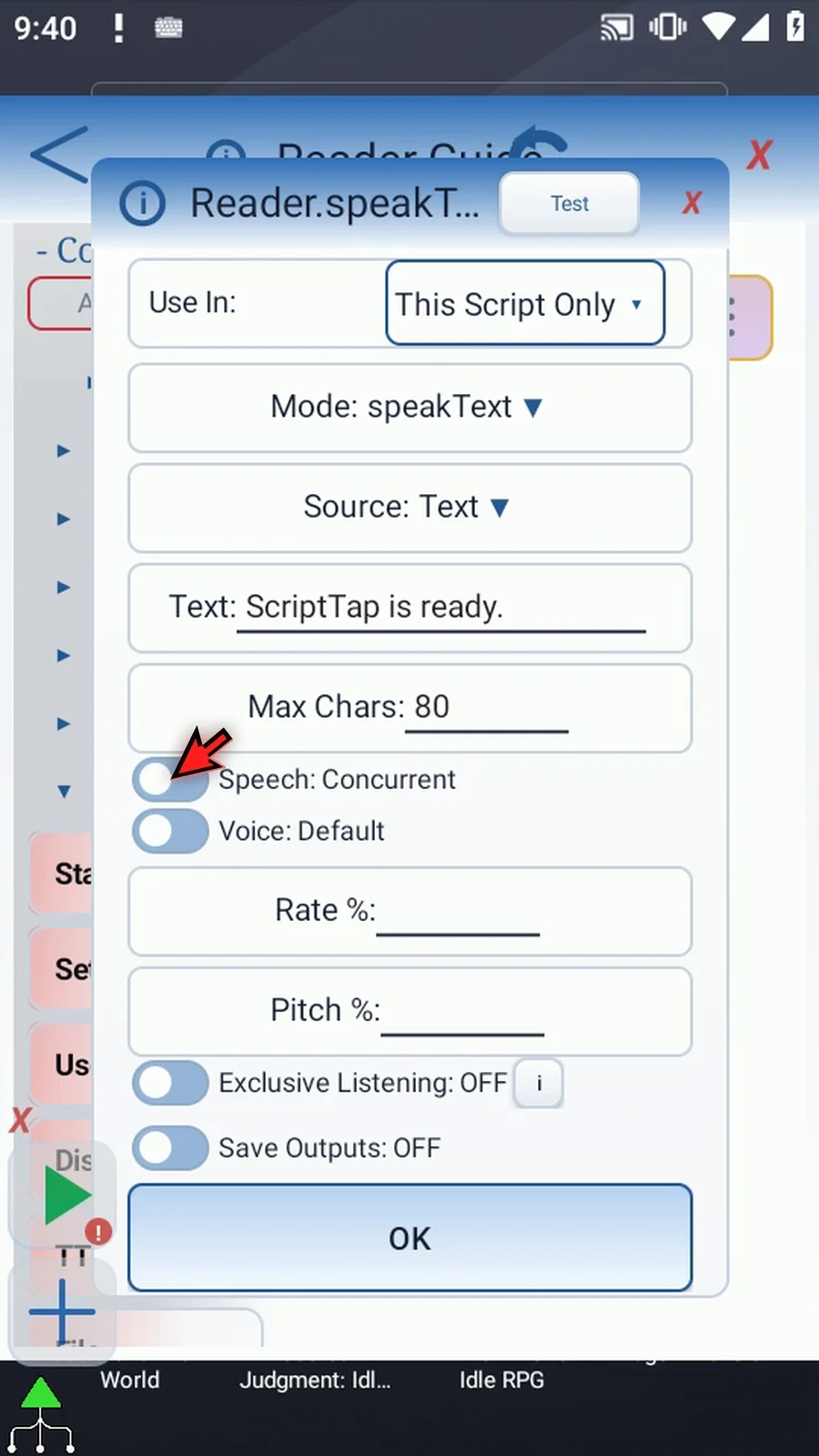
Step 13 Switch back to Wait. This makes the current branch wait until speech finishes before moving to the next command.
Step 14 Voice Select exposes fields for an installed engine's package name, a voice name, and a language tag. Any choices you supply must be available on this Android device.
Step 15 For this example, switch back to Default to use the device's default text-to-speech voice.
Step 16 Rate and Pitch each accept fifty to two hundred percent, or prior Integer variables. Use one hundred for both to keep normal speed and pitch.
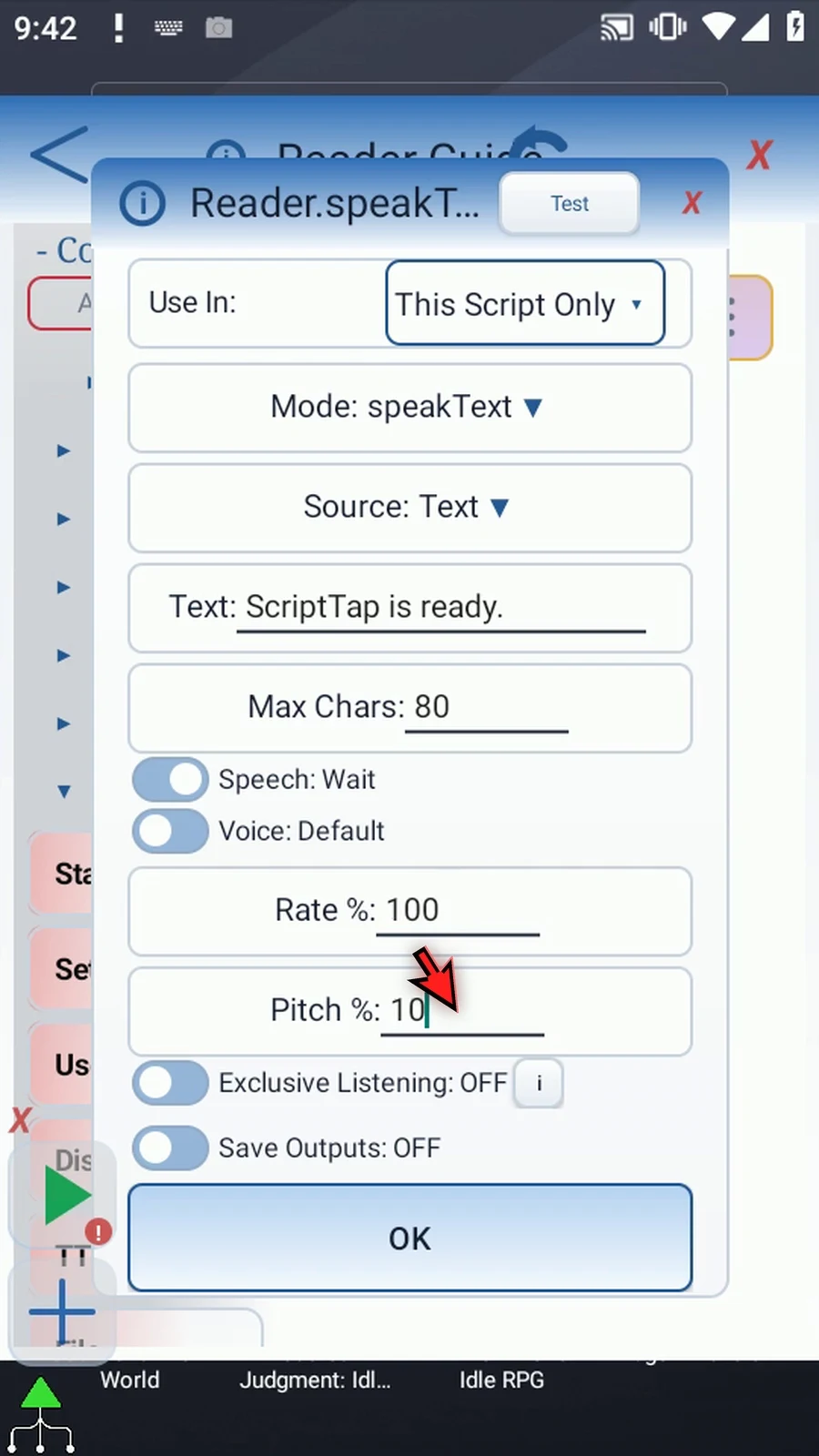
Step 17 Exclusive Listening is optional and starts off. Turn it on for this example, then set Alarm Volume to seventy-five percent.
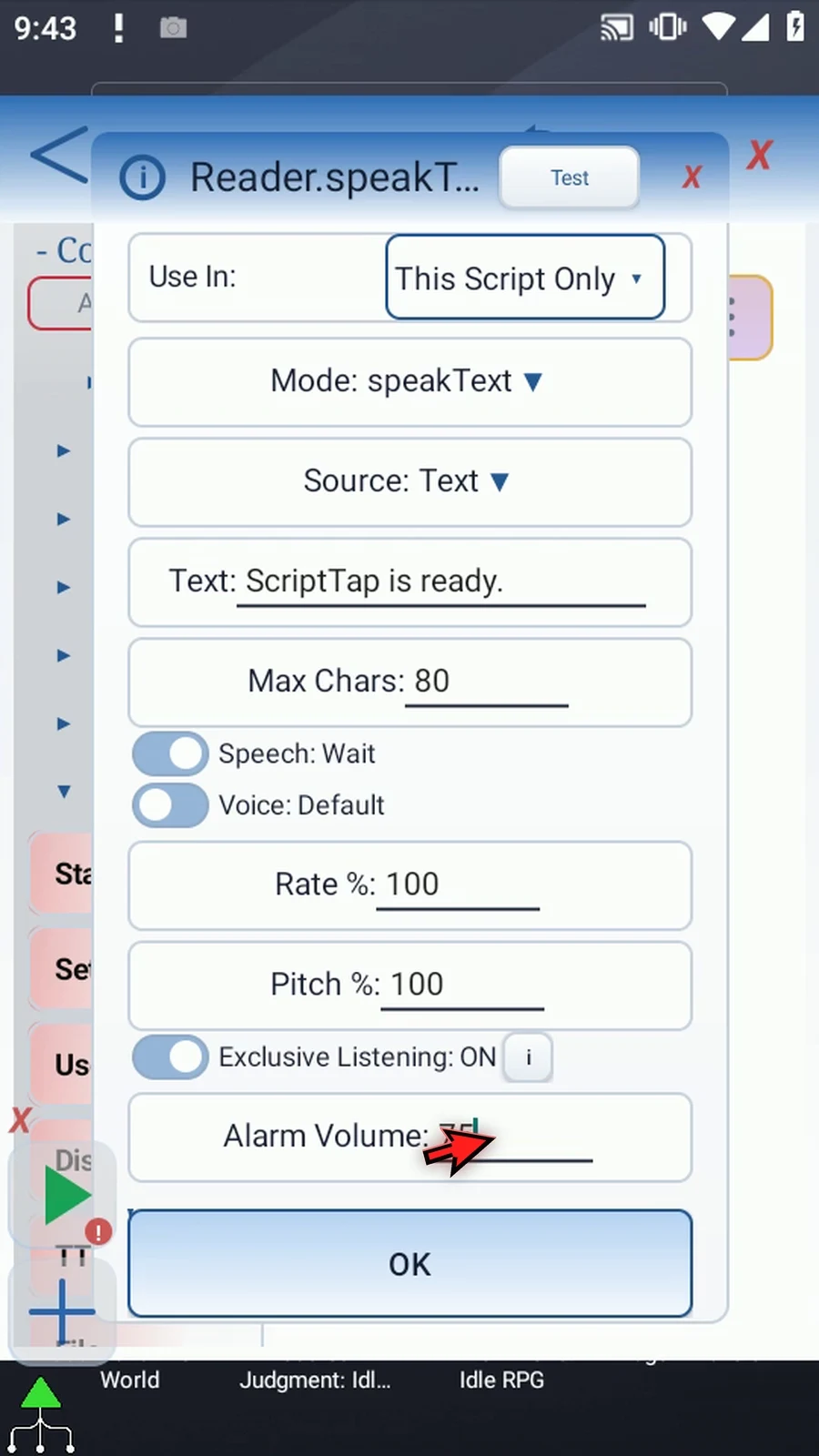
Step 18 This temporarily mutes Media and routes Reader speech through the Alarm stream at the chosen level. The original Media and Alarm levels return when the script or Test preview ends. It does not pause another app's playback.
Step 19 Enable Save Outputs, then Text. Store the resolved words in s one, a String variable. A later command can use those same words.
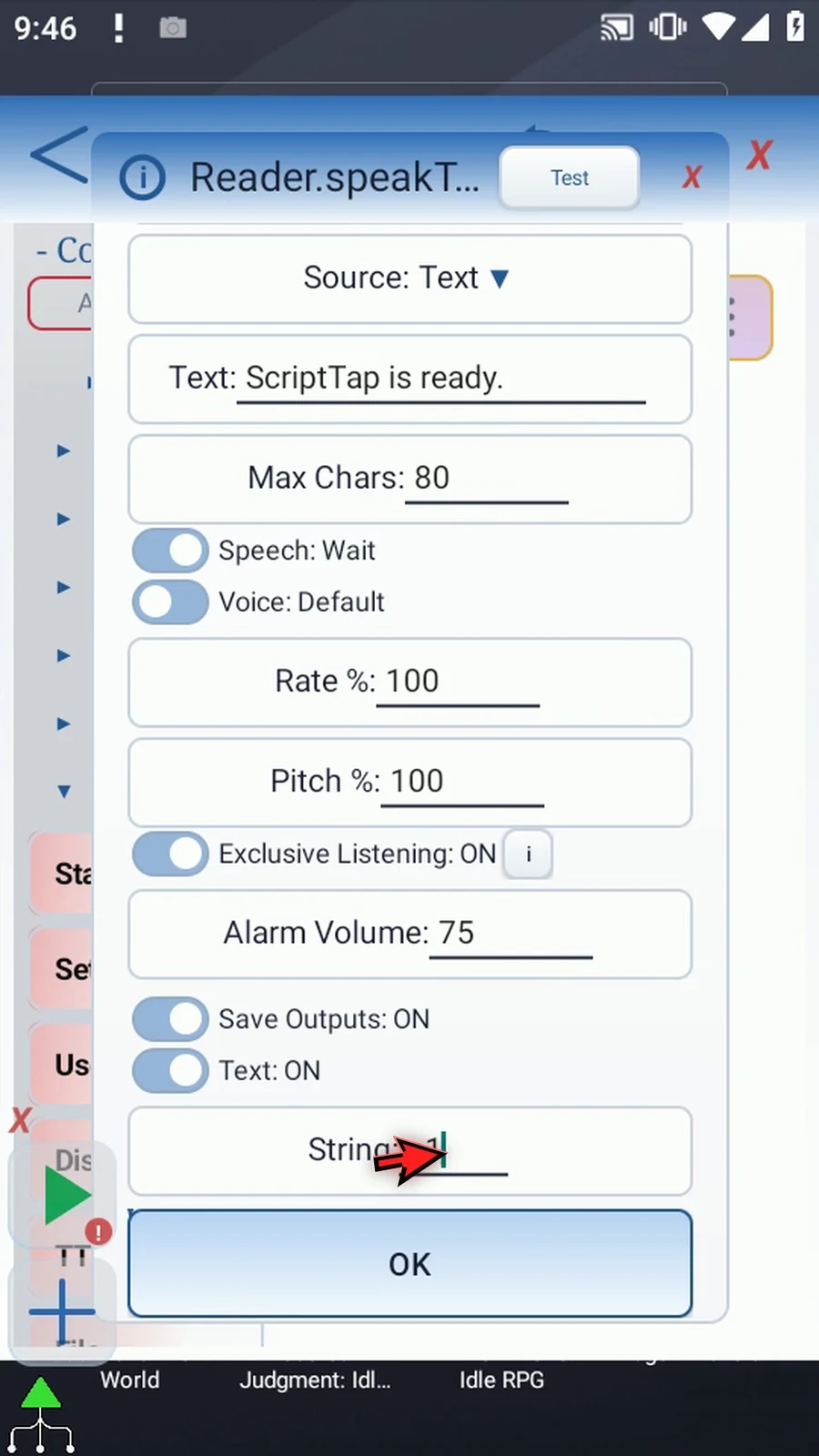
Step 20 Success is an optional Boolean output. Enable it and use b one, so later script steps can check whether Reader succeeded.
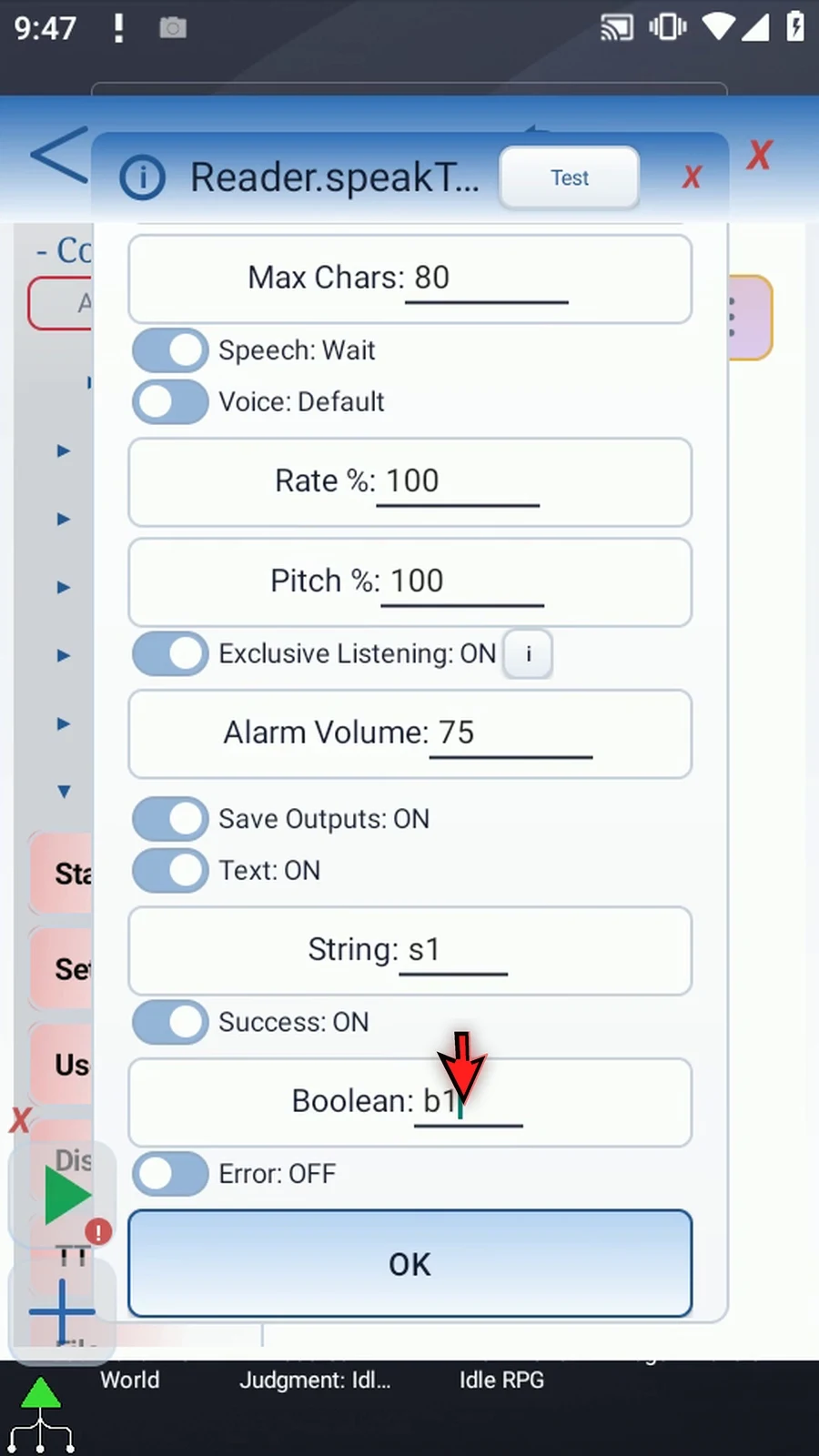
Step 21 Error is an optional String output for error details. Enable it and use s two. These output switches retain their destinations when turned off.
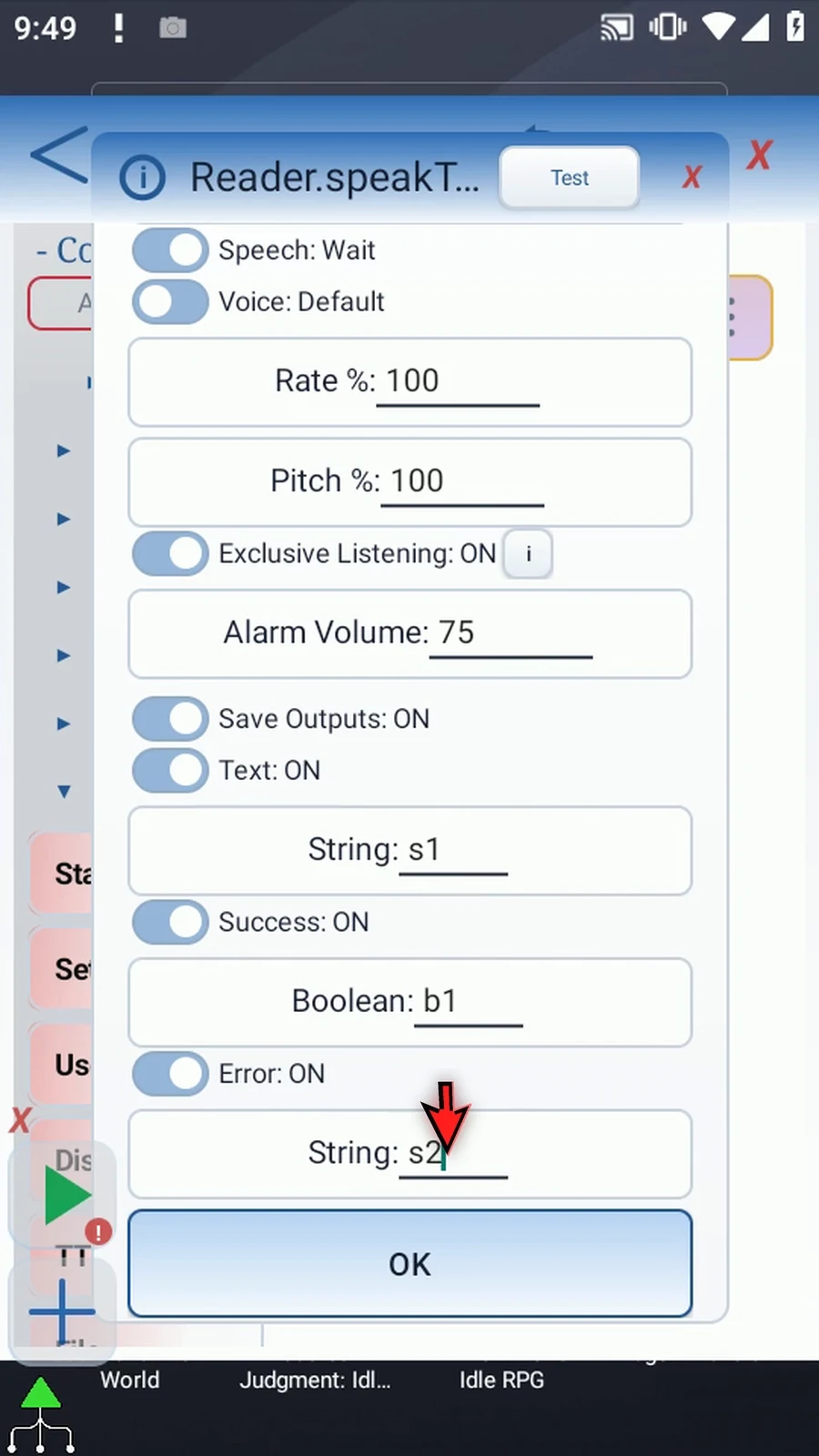
Step 22 Use the header Test button to preview the device's voice without saving or playing the script. Listen to the example.
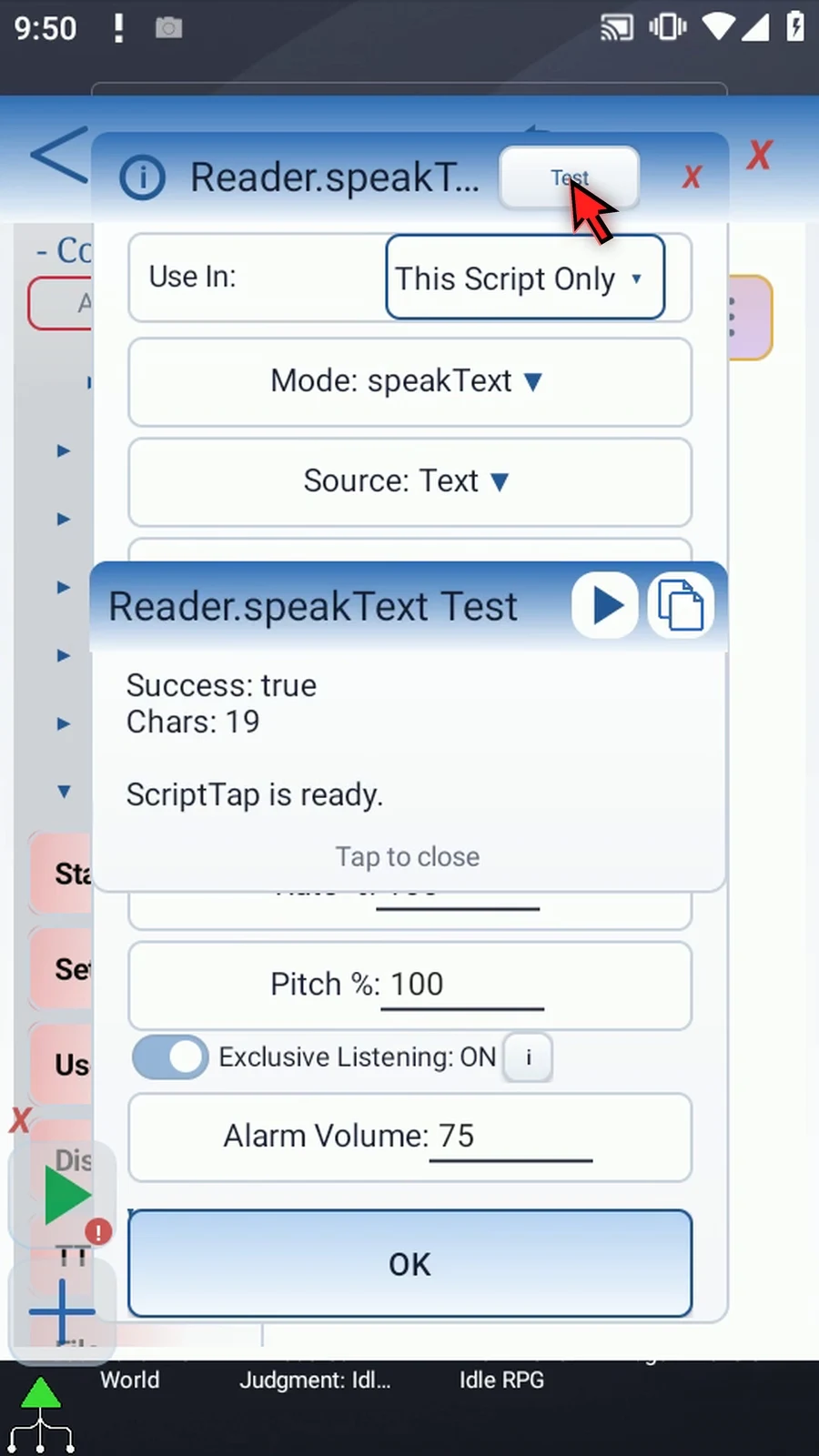
Step 23 The preview succeeded and processed nineteen characters. Close the result, then tap OK to save the Reader command.
Step 24 Next, manually drag Display after Reader. It is not required for speech; we're adding it to show the text output on screen.
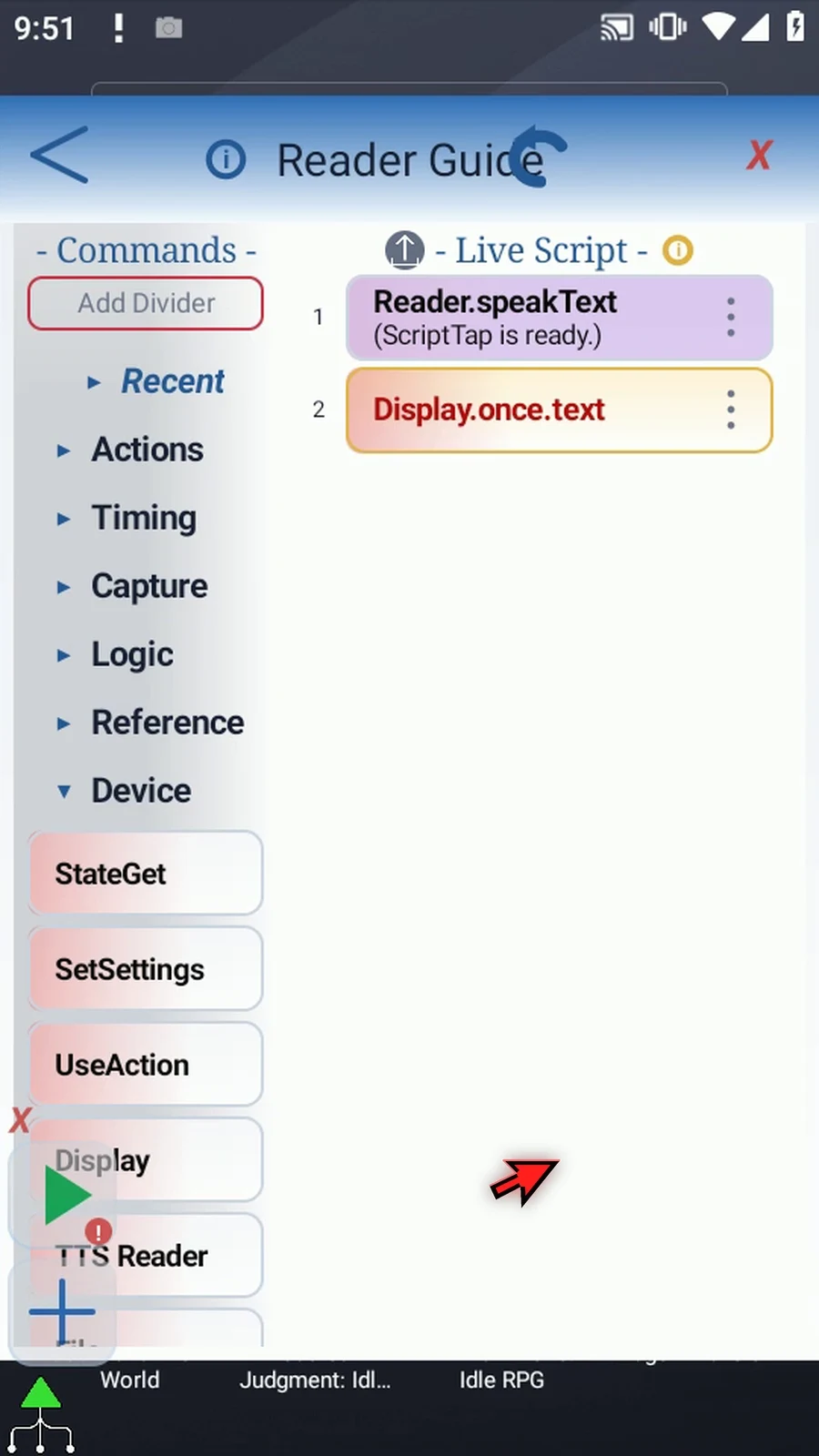
Step 25 Open Display, keep Once mode, choose a variable source, and enter s one. This uses the words saved by Reader.
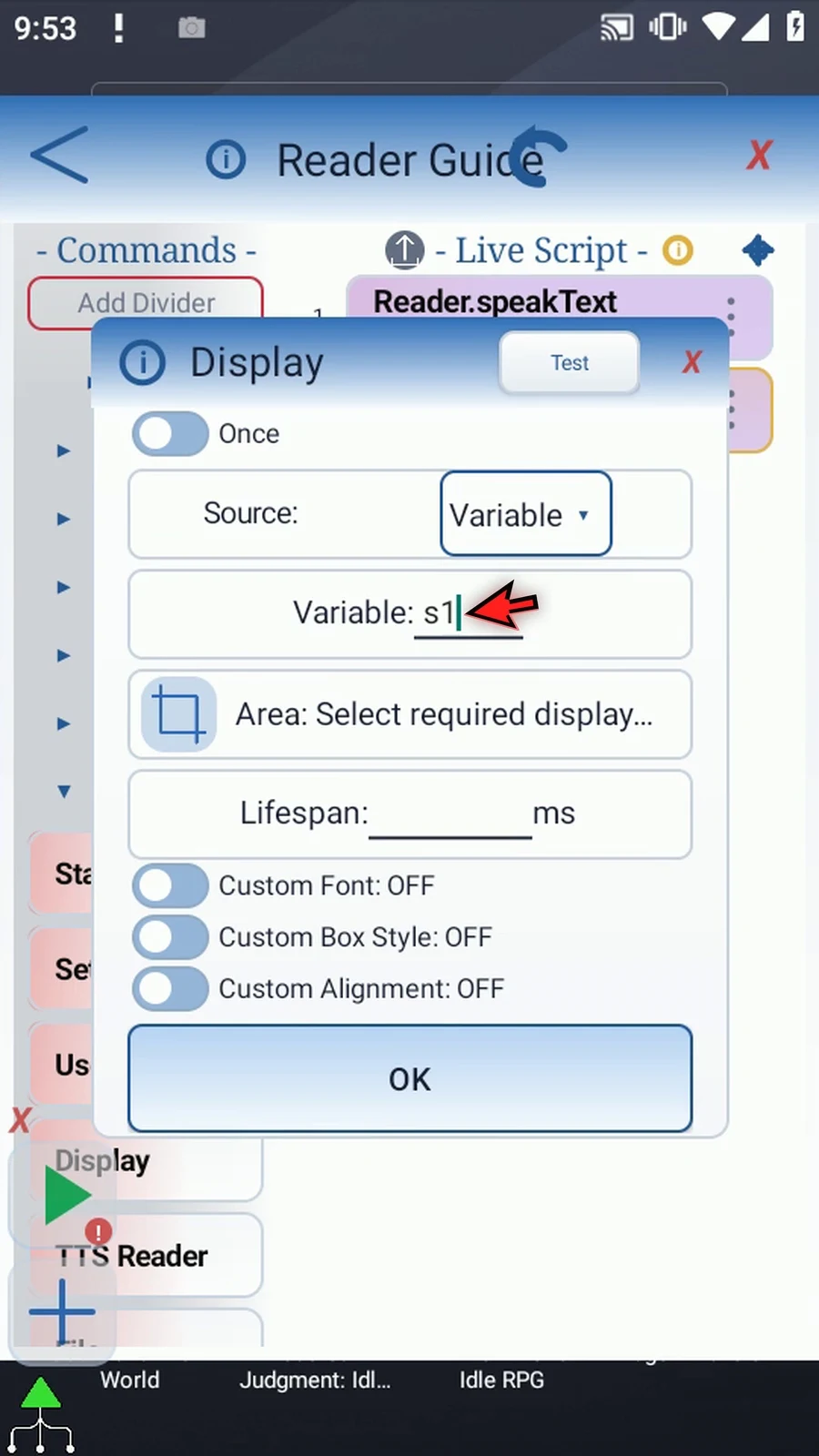
Step 26 Display also needs a screen area. Tap the area's text to enter exact bounds, and choose a clear rectangle in the middle of the screen.
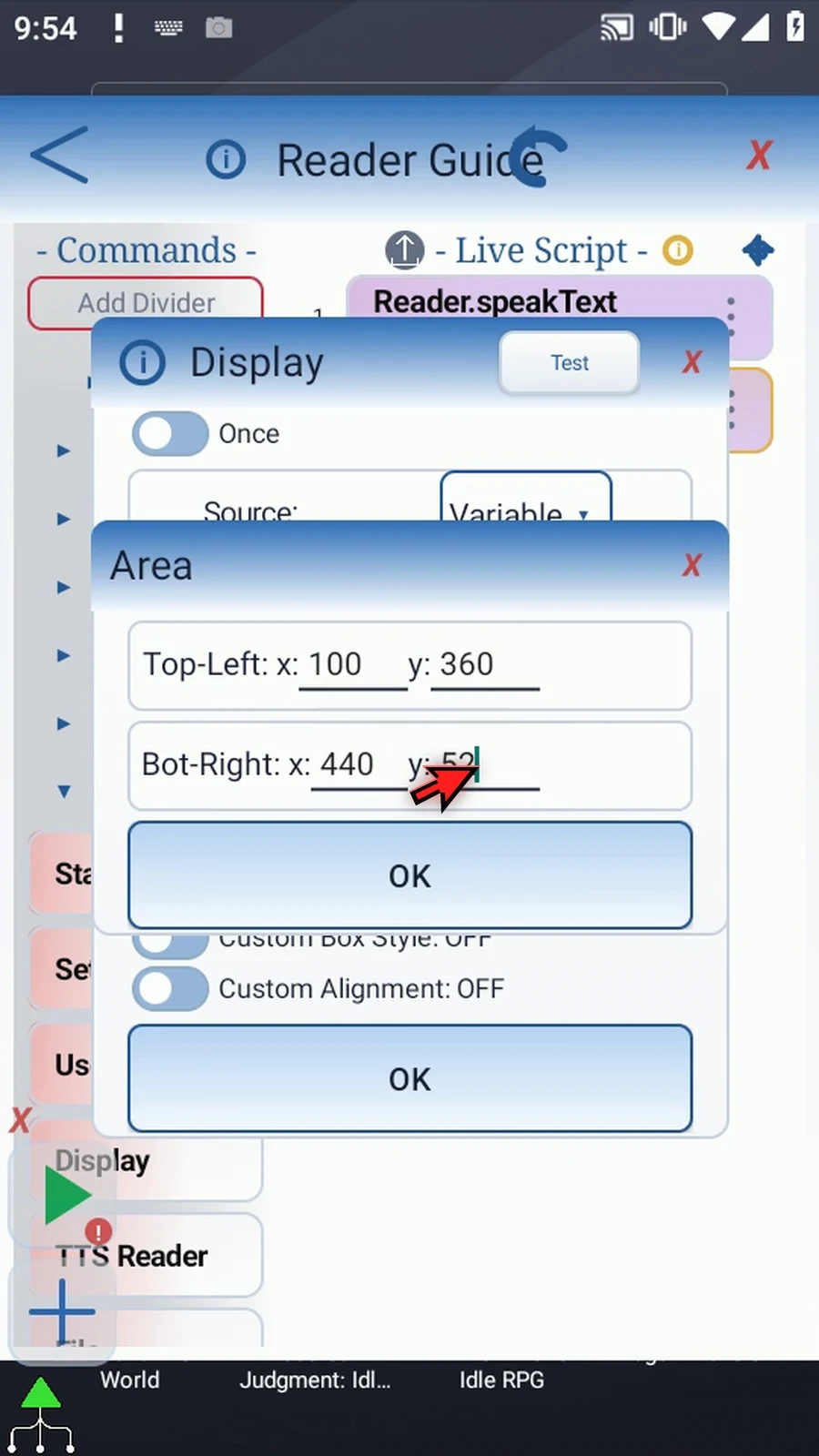
Step 27 Set the Once lifespan to eight thousand milliseconds, so the text stays visible for eight seconds. Save Display.
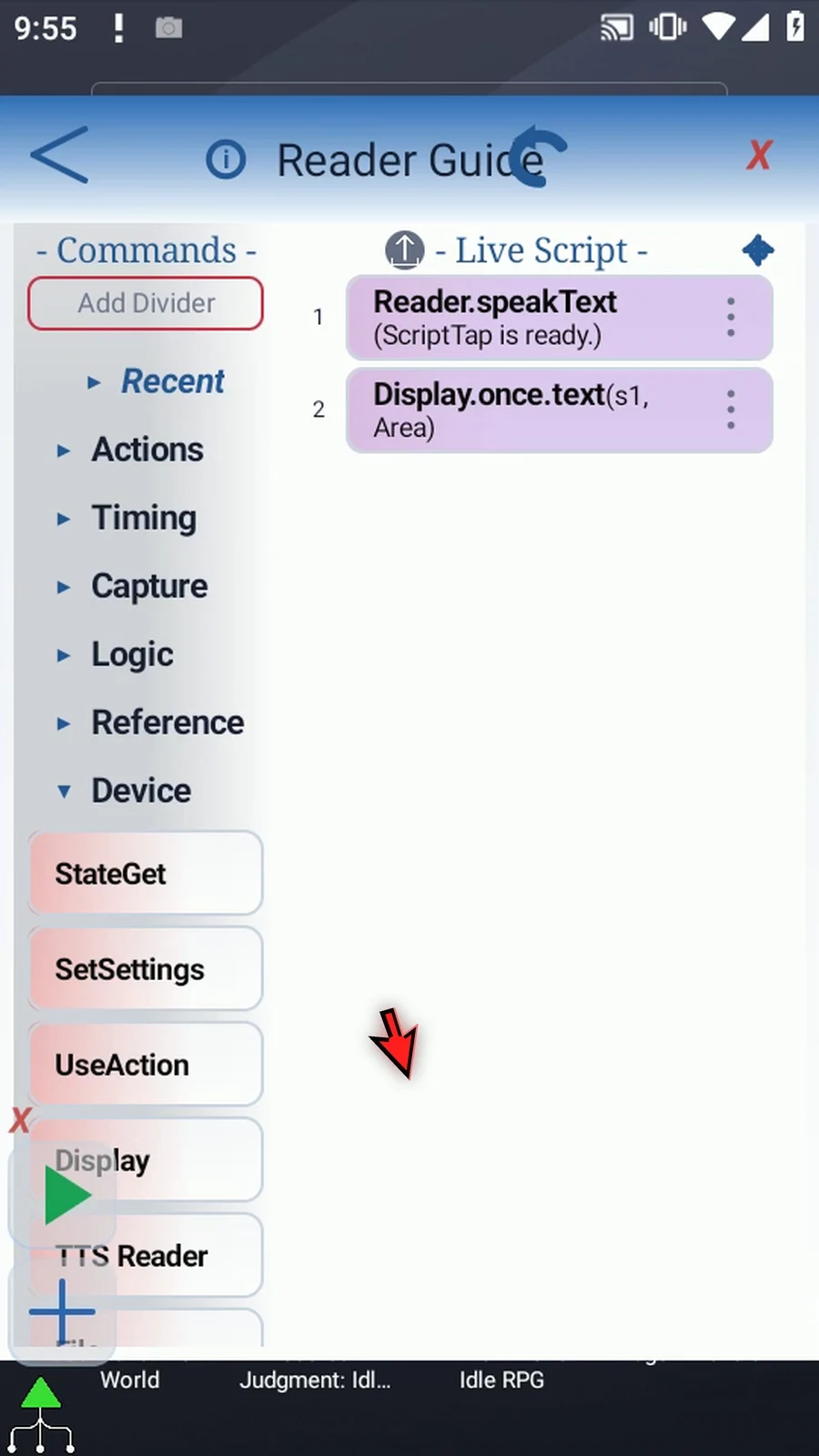
Step 28 Under Advanced, manually drag PromptMe after Display. This gives us a visible confirmation when the script reaches the end.
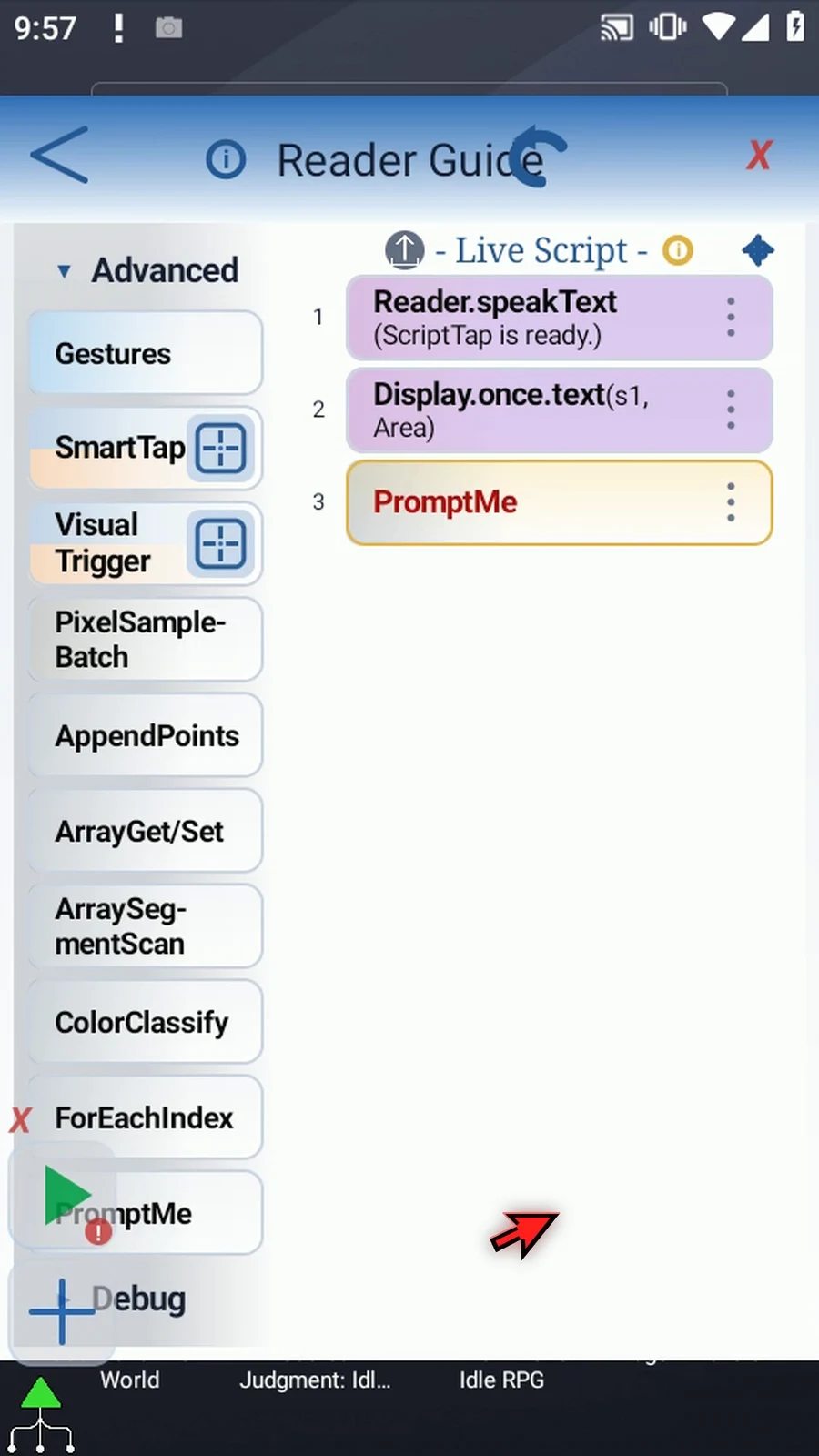
Step 29 Open PromptMe, keep the regular style, and set its header to Complete. Leave Toggles and Text off.
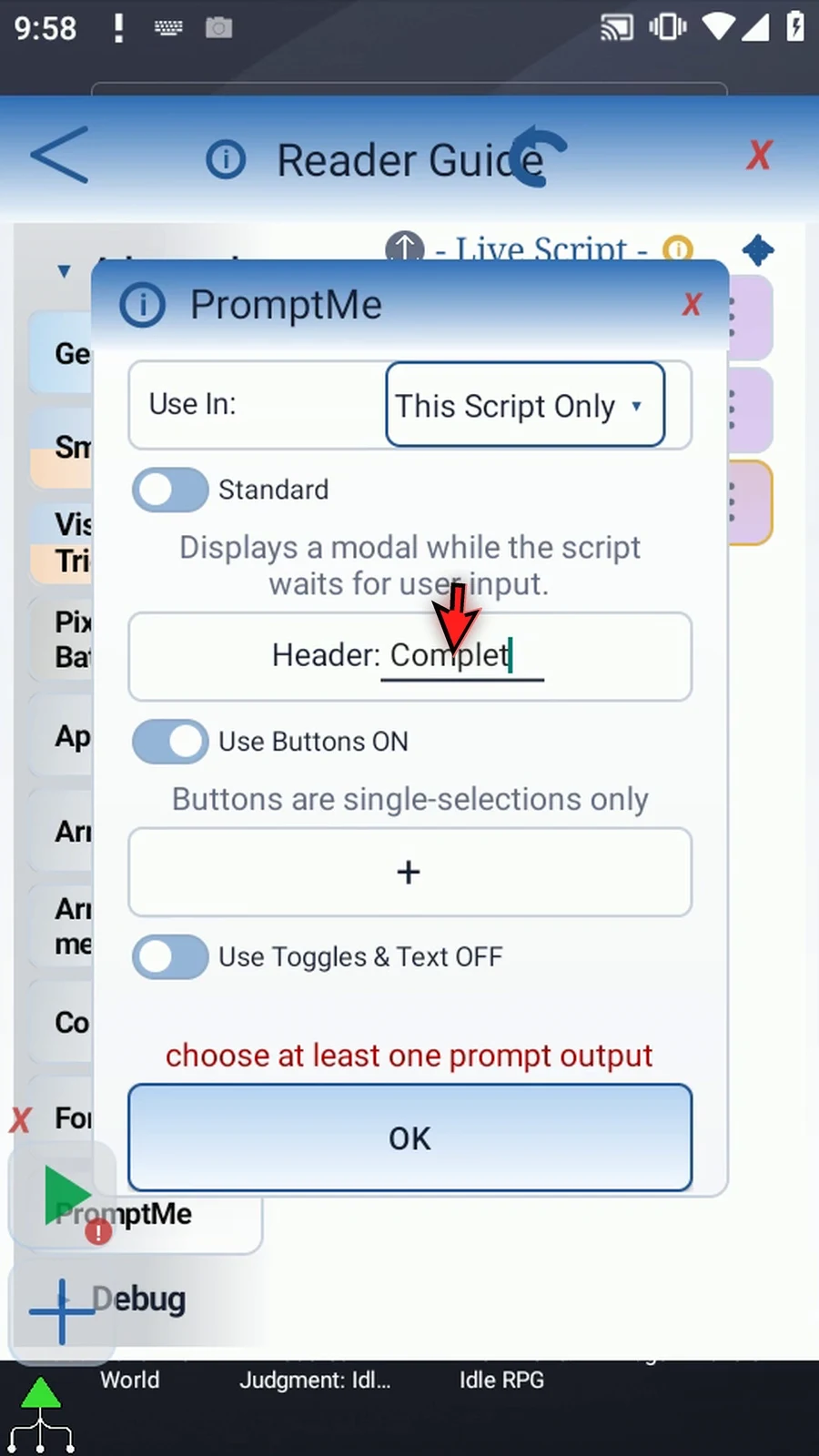
Step 30 Add a button named Done and assign Boolean b two. The button lets us acknowledge the confirmation. Save the prompt.
Step 31 Our three-command script speaks the message, displays the saved text, and shows a completion prompt. Reader uses Wait, so Display does not start until speech has finished.
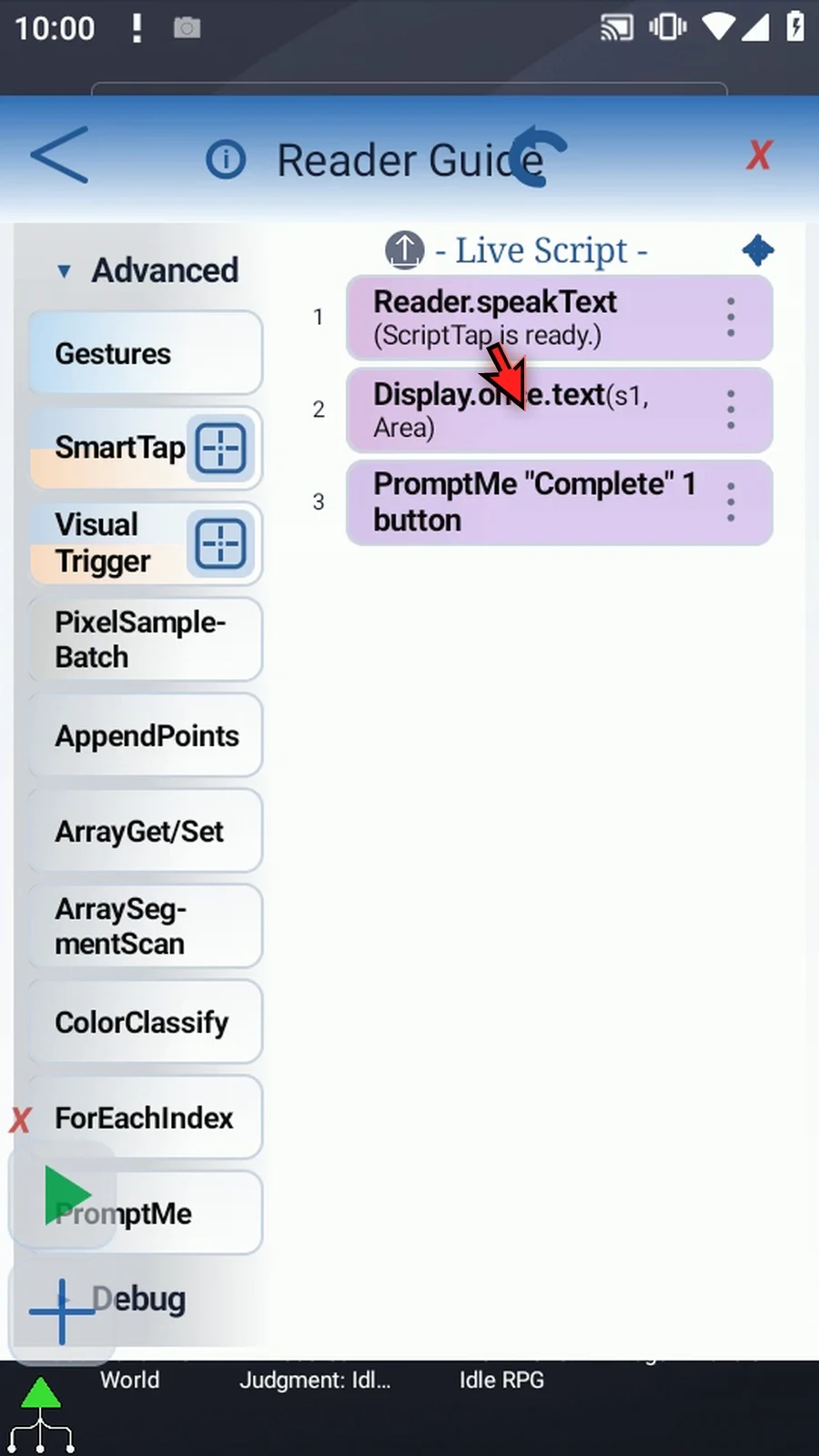
Step 32 When the script is complete, simply use the Play button in the main overlay.
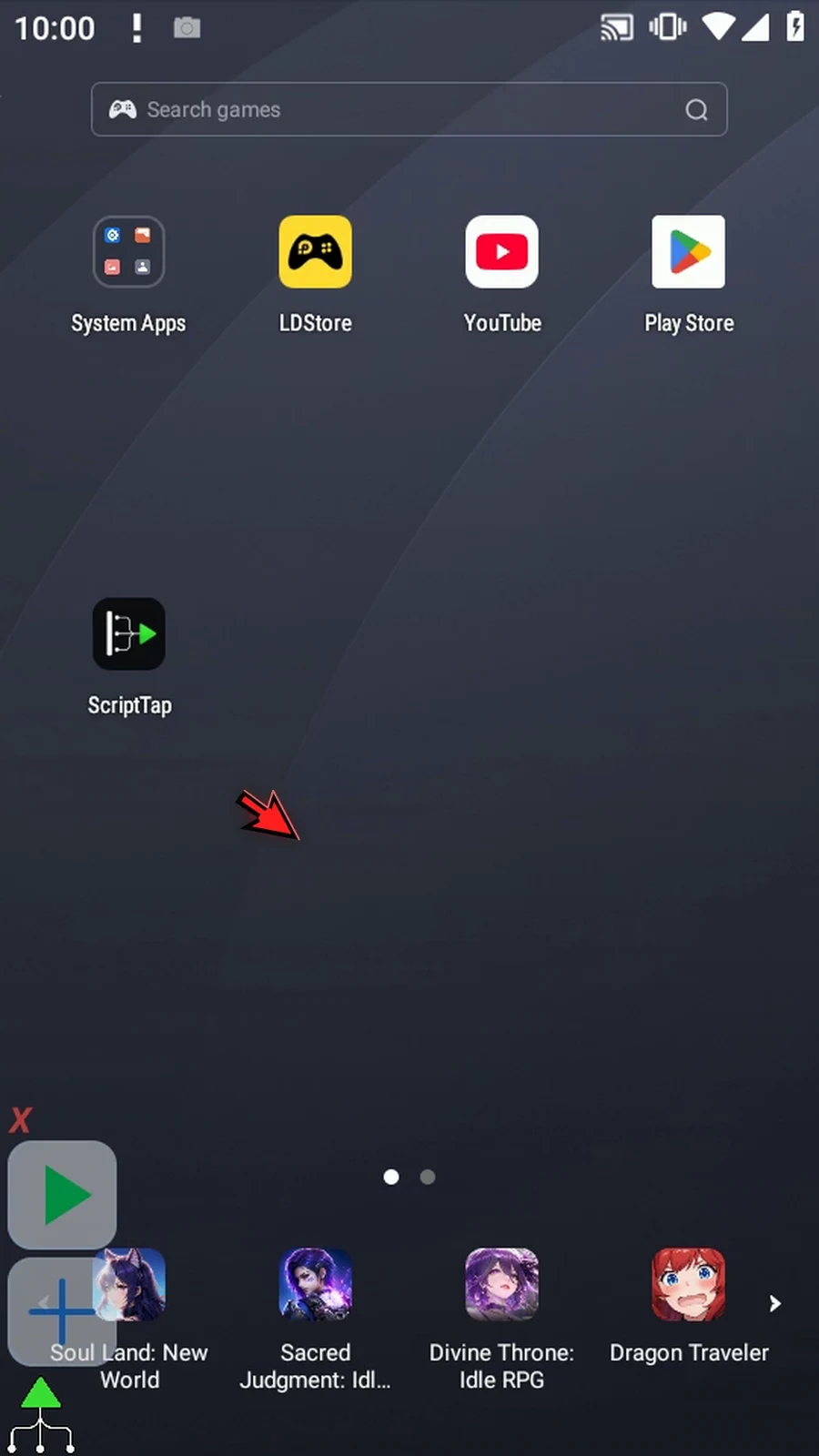
Step 33 Reader finishes speaking, then Display shows the words stored in s one. The text remains visible for eight seconds.
Step 34 The completion prompt appears next. Press Done to finish the script naturally. Exclusive Listening restores the original Media and Alarm levels when the run ends.
Step 35 Use Speak Text for spoken messages and variable results. Use Read UI for accessible interface text, Read OCR for text drawn on screen, and Stop for ScriptTap's own speech. Those examples are in the other tabs.