Command video guide
SetVariable
SetVariable stores a named value so later commands can reuse it. It does not type into an app or display a dialog by itself. This walkthrough covers Single mode and demonstrates a String displayed by a supporting PromptMe command.
Create and name a separate script. Expand Variables, manually drag SetVariable into Live Script, then double-tap the inserted row.
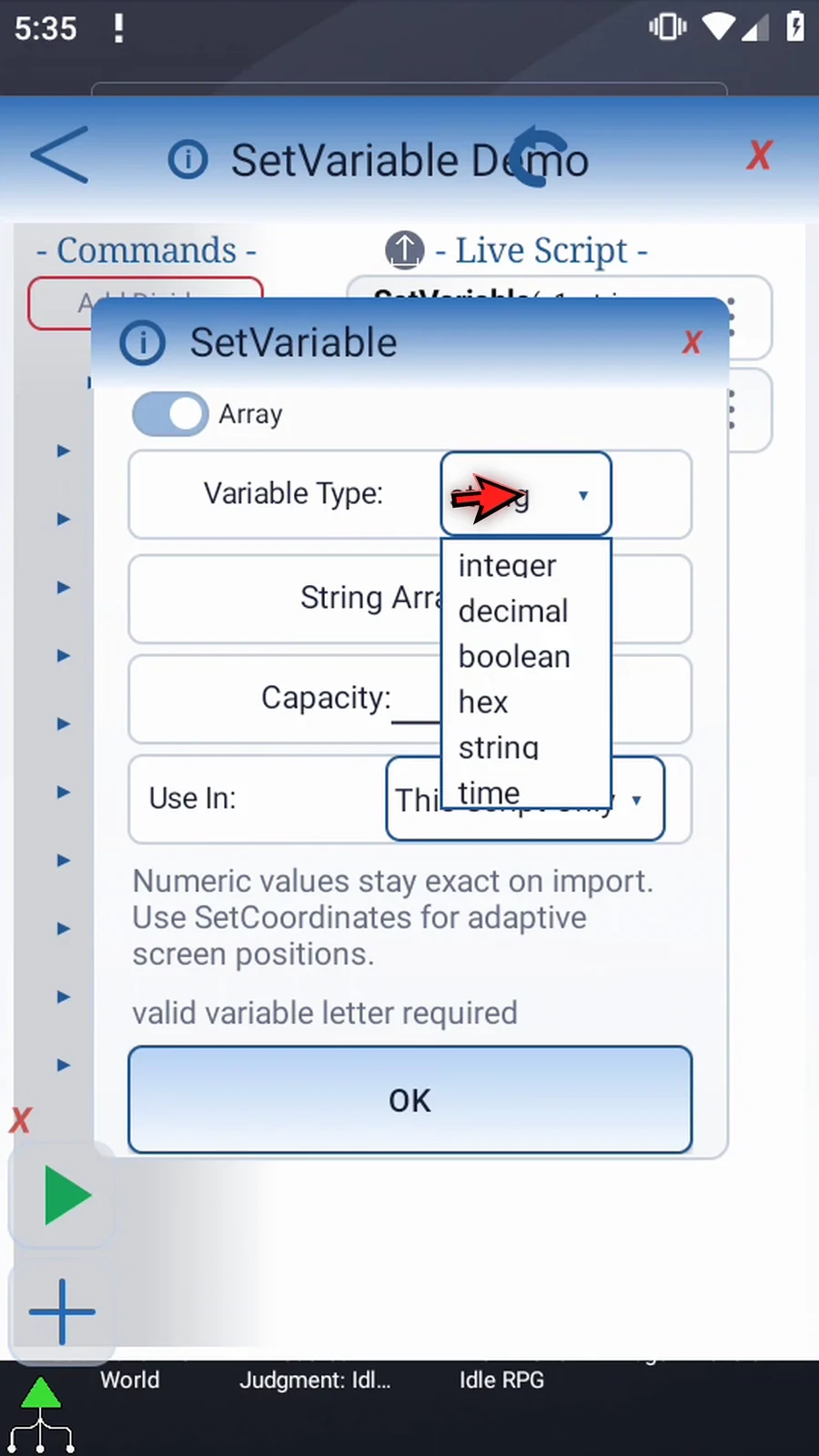
- Integer: whole numbers. Decimal: fractional numbers. Boolean: True or False. Hex: a color. String: text. Time: a time value.
- Name: one English letter, optionally followed by an index from 1 to 4096. Names are case-insensitive. Names sharing a letter in the same scope must share a type. This example uses String
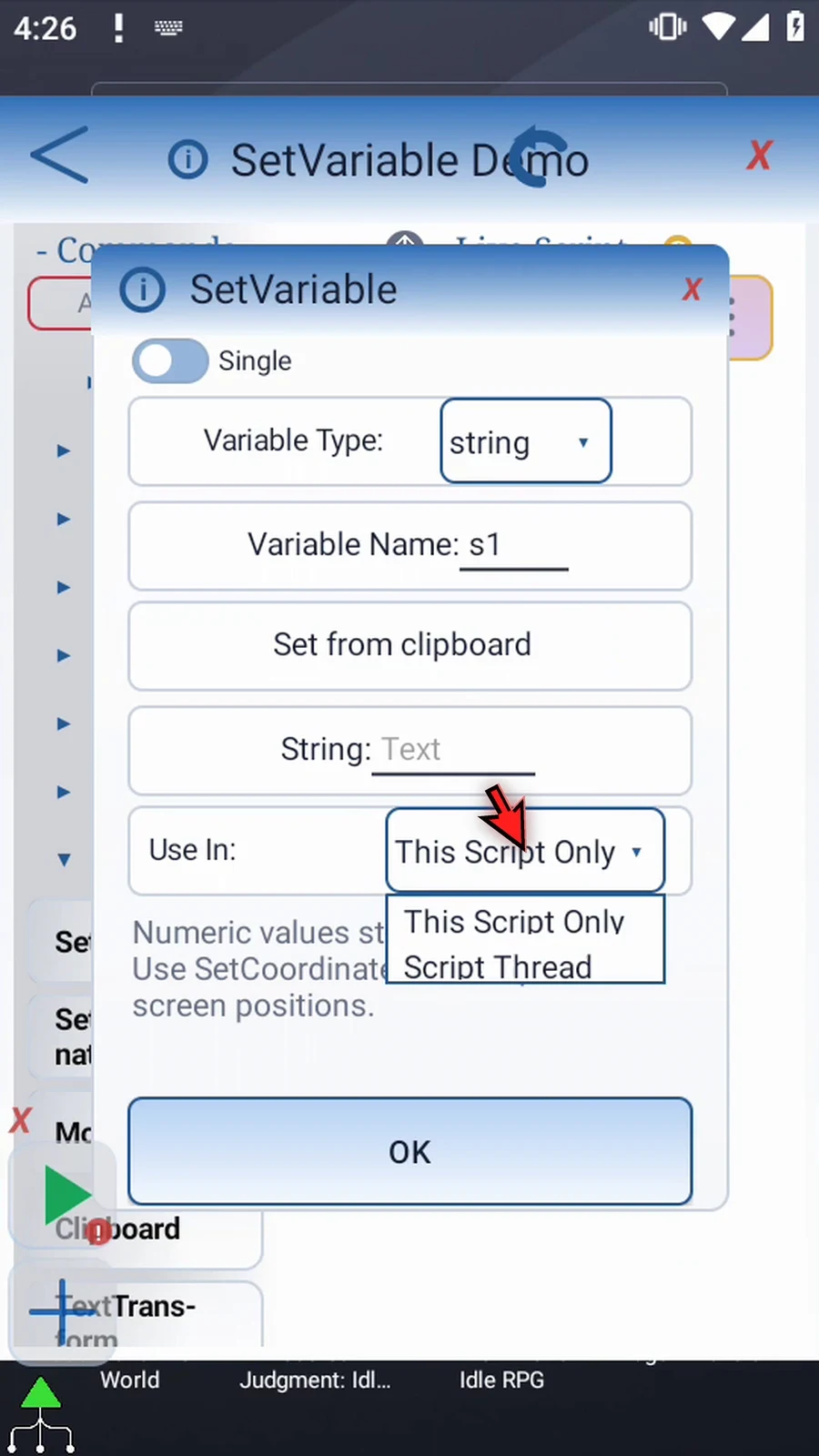
s1. - Use In: This Script Only keeps the value local; Script Thread shares it within the current script thread.
- Value: enter a literal, or a previously written variable of the same type. Define a source variable before using it. The demonstration uses literal text Hello ScriptTap.
- Set from clipboard: a Single String can read the device clipboard when the command runs. Enabling this option requires consent. This example declines and keeps the typed value.
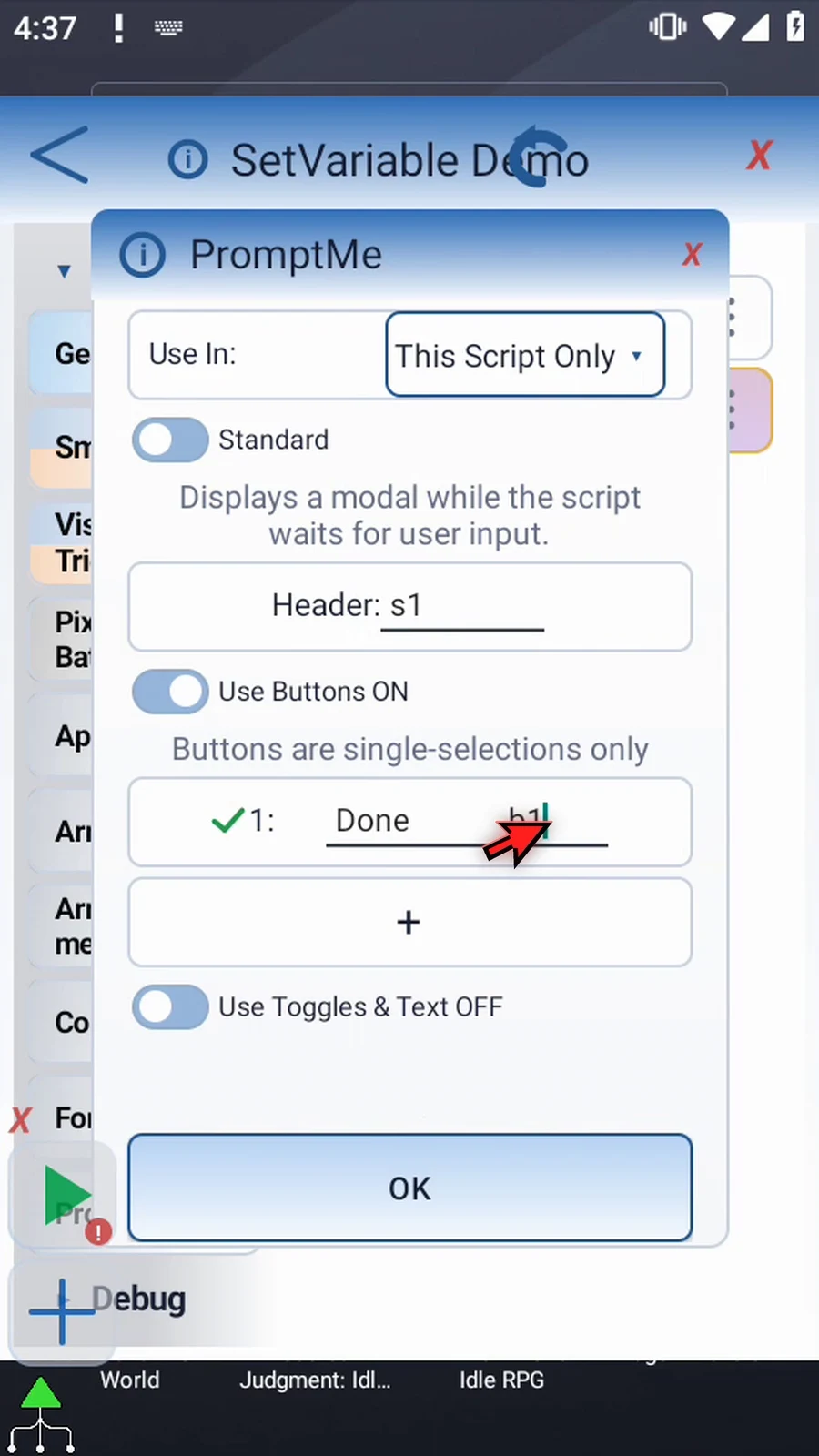
Save with OK; reopen the command to confirm its settings. Manually drag PromptMe after SetVariable. Keep Standard mode, set Header to s1, add a Done button, and use Boolean b1 for that button's output. Leave Use Toggles & Text off. The header resolves the defined String's value; the button flag does not modify it.
Close the editor and use Play. SetVariable assigns the text before PromptMe reads it, so the header displays Hello ScriptTap. Press Done to finish automatically. The same stored value can be reused by later messages, text typing and transformations.
Single Variables
Step-by-step guide
Step 01 Set Variable gives a value a name so later commands can use it. Use it to prepare text, numbers, colors, or flags for a script. Here, we will store some text and display its value with PromptMe.
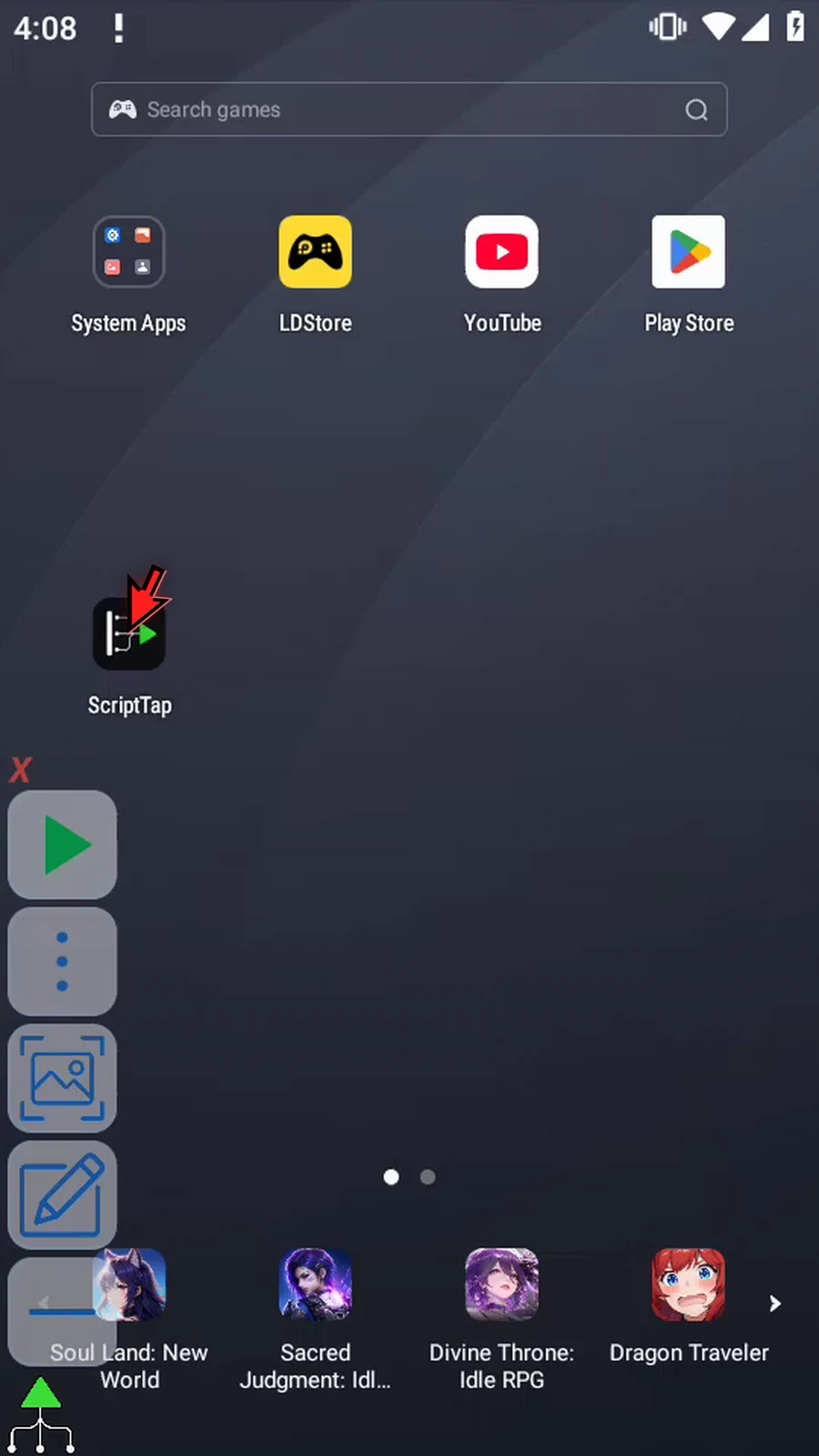
Step 02 Open the main overlay menu, then choose Scripts to open the Script Library.
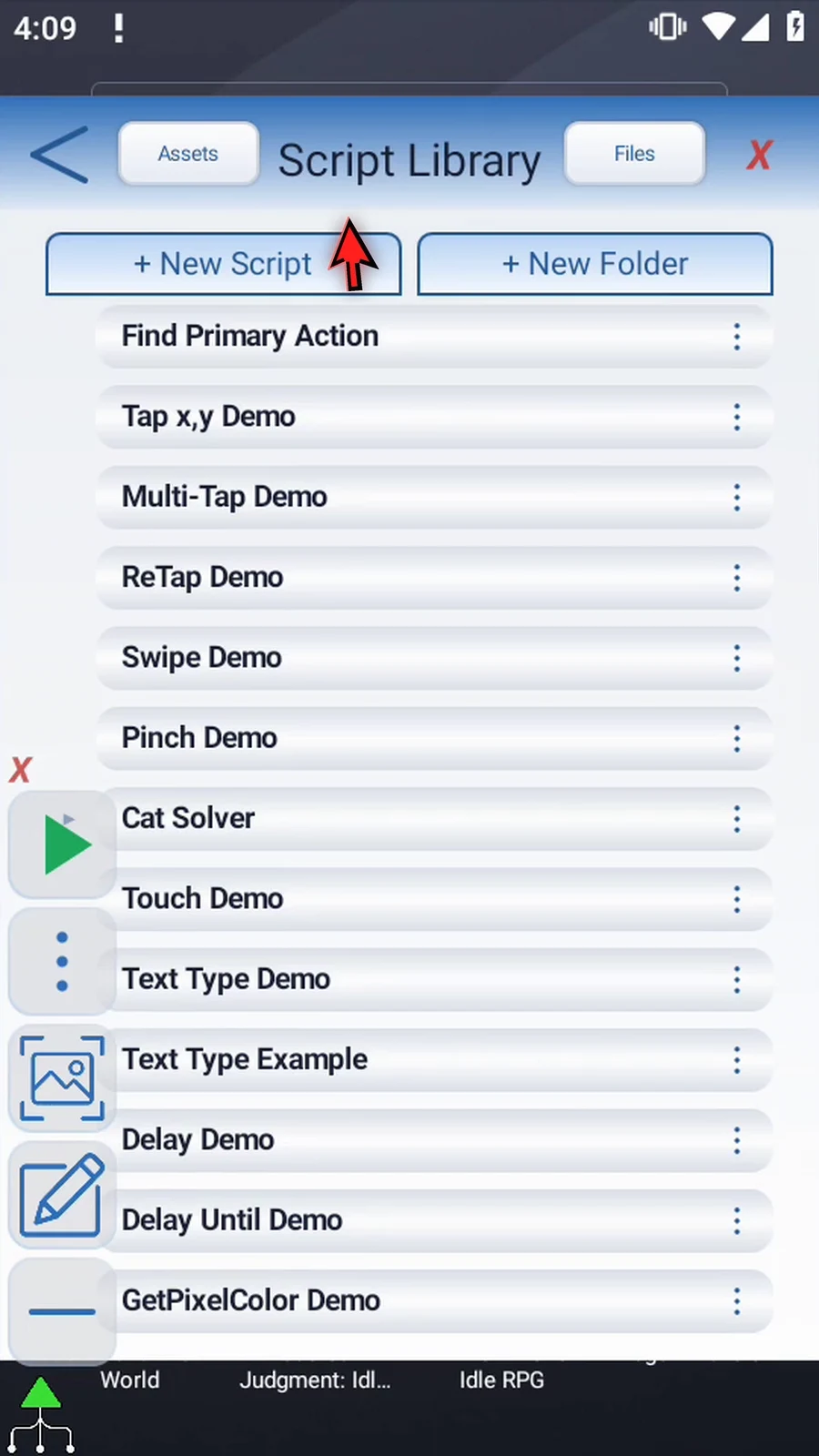
Step 03 Tap New Script and choose Blank Script.
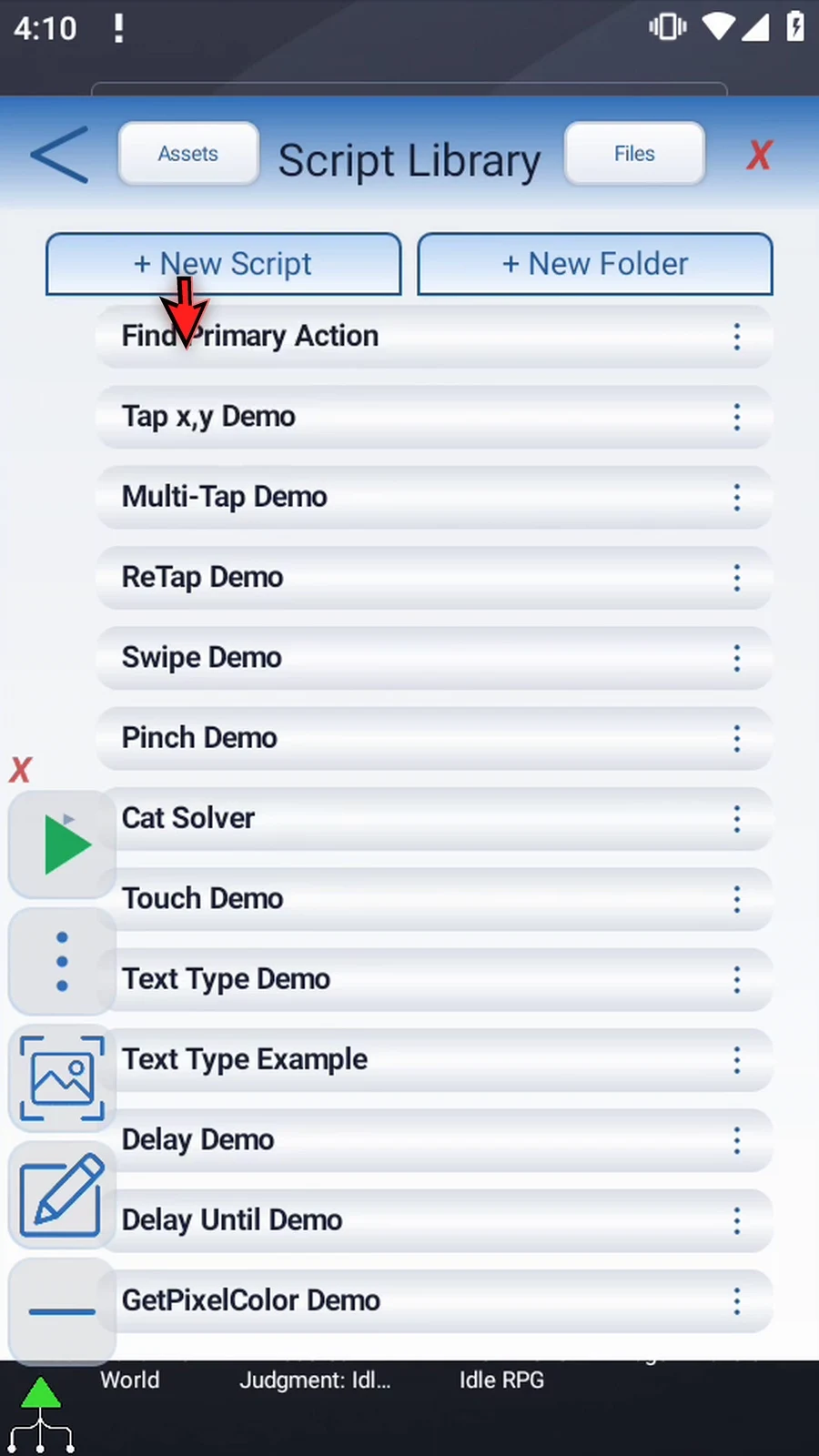
Step 04 Scroll to the new row if it is outside the visible list. This will be a separate example; existing scripts remain unchanged.
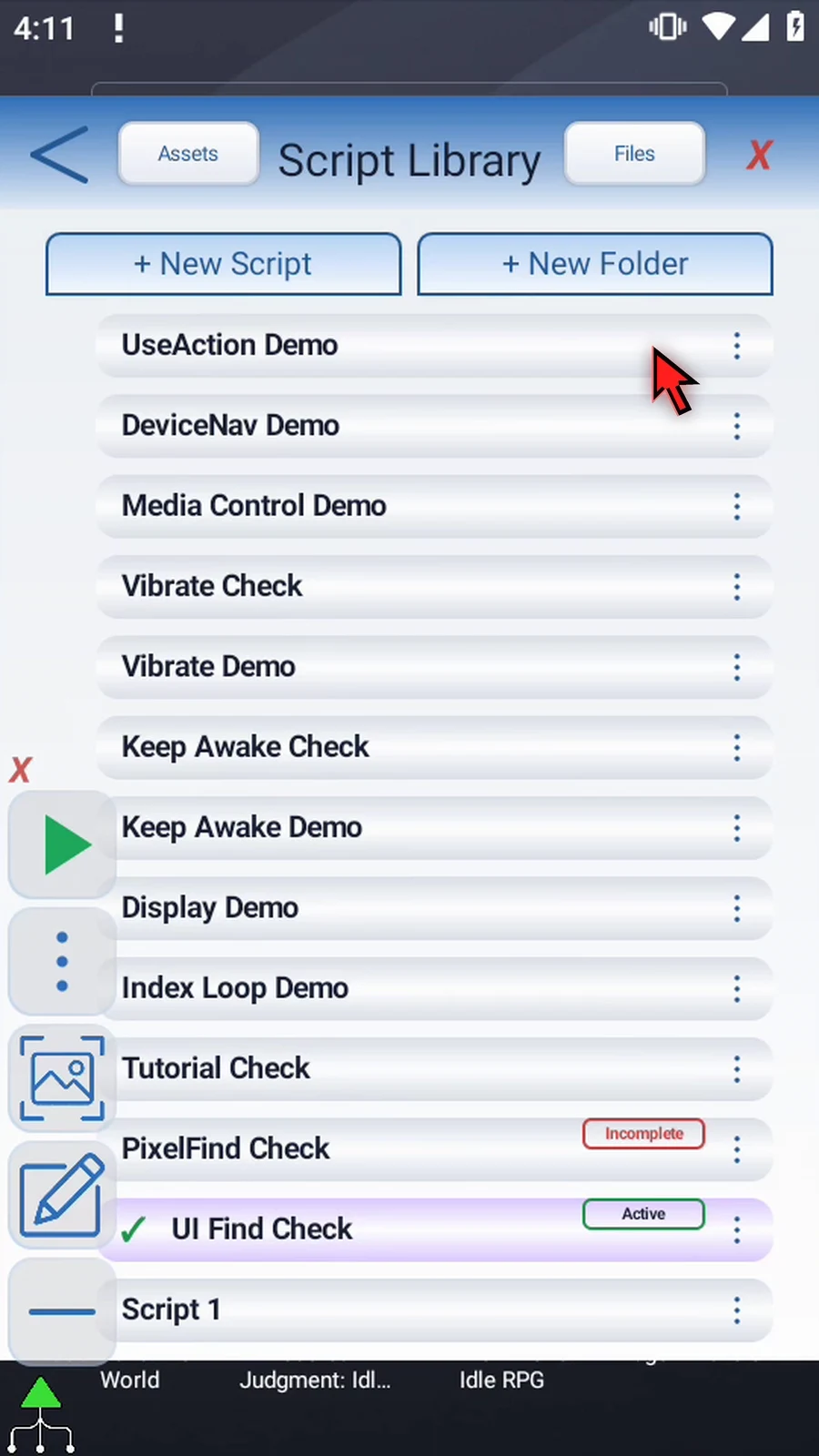
Step 05 Open the new script's three-dot menu and choose Rename. Give it a descriptive name so it is easy to find again, then tap OK.
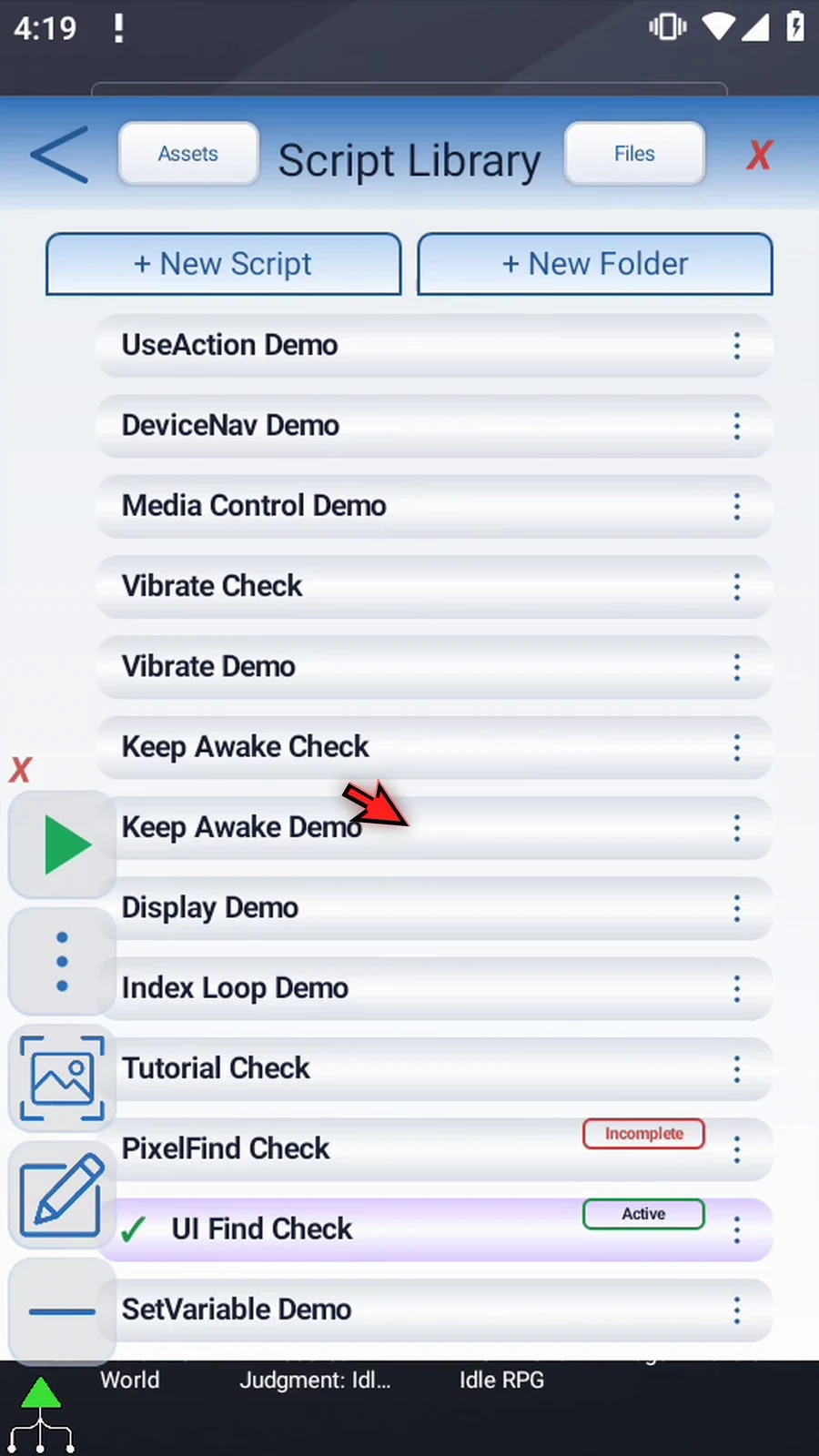
Step 06 Select the new script, open the Script Editor, and collapse the extra overlay controls.
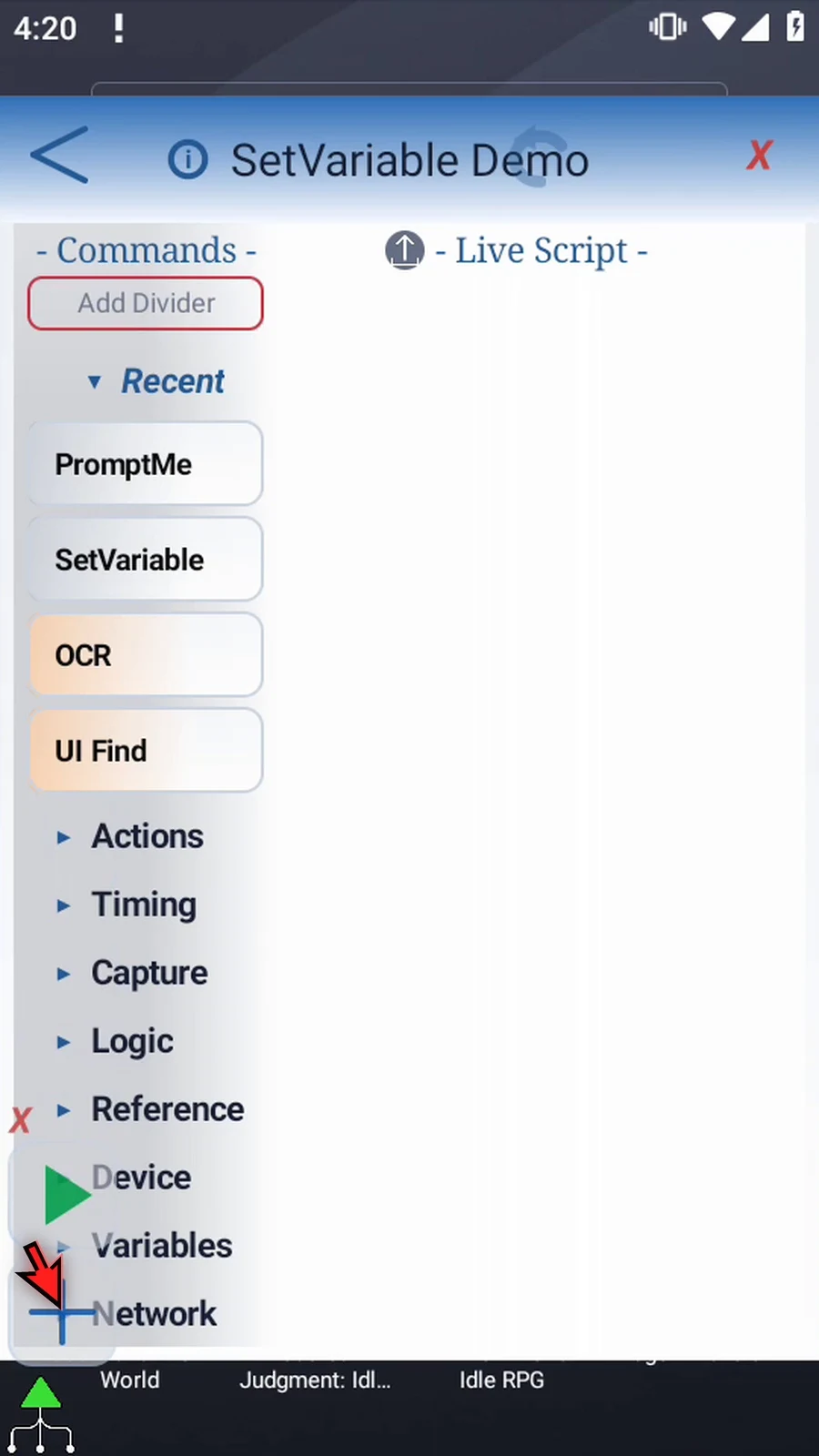
Step 07 Collapse Recent if needed. Expand Variables, then drag Set Variable from the palette into the Live Script column. Release at the insertion line. Double-tap the new frame to open its settings.
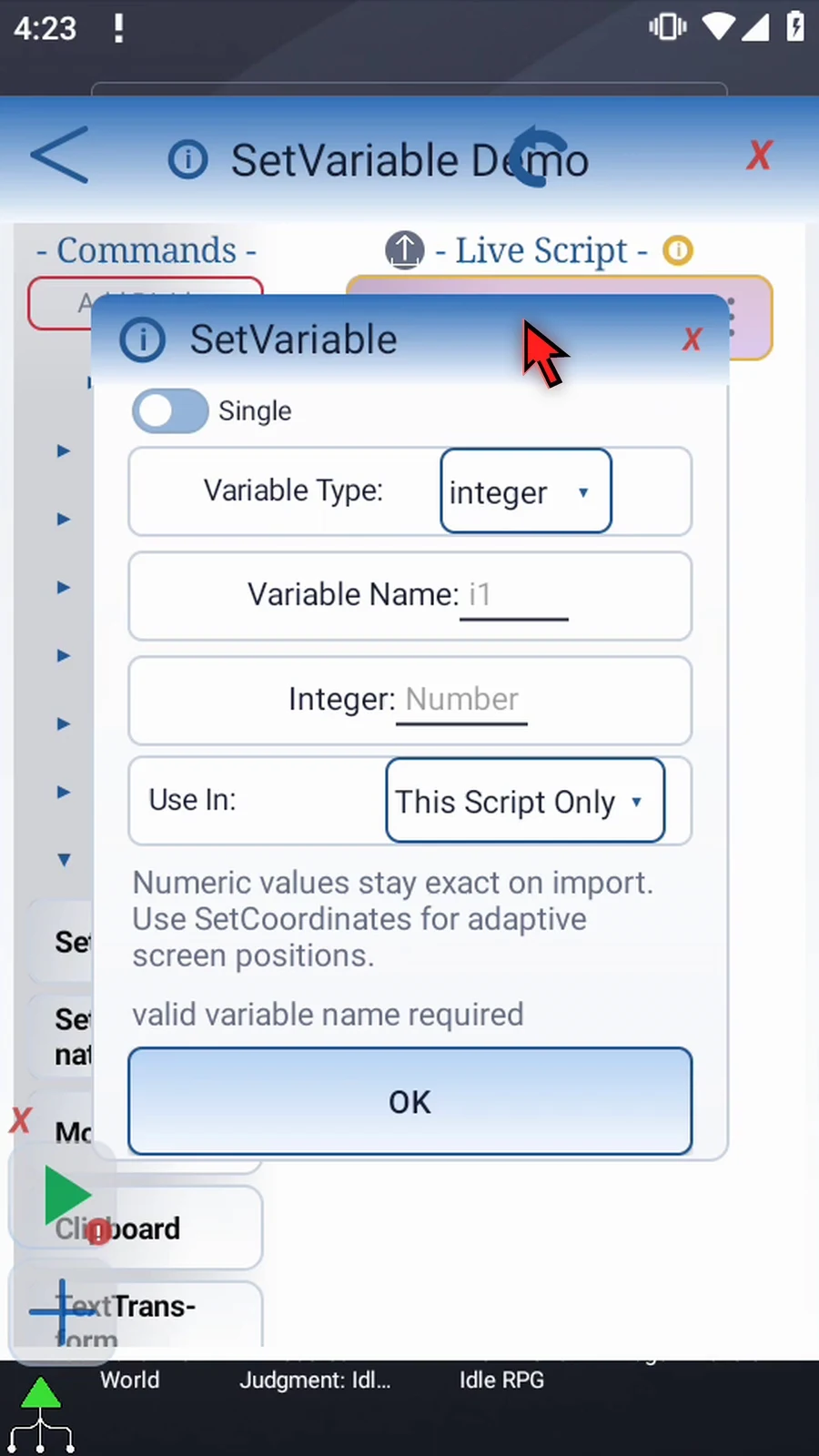
Step 08 Integer is for whole numbers; Decimal allows fractions; Boolean stores True or False; Hex stores a color; String stores text; and Time stores a time. We will use String in this example. This walkthrough covers Single mode.
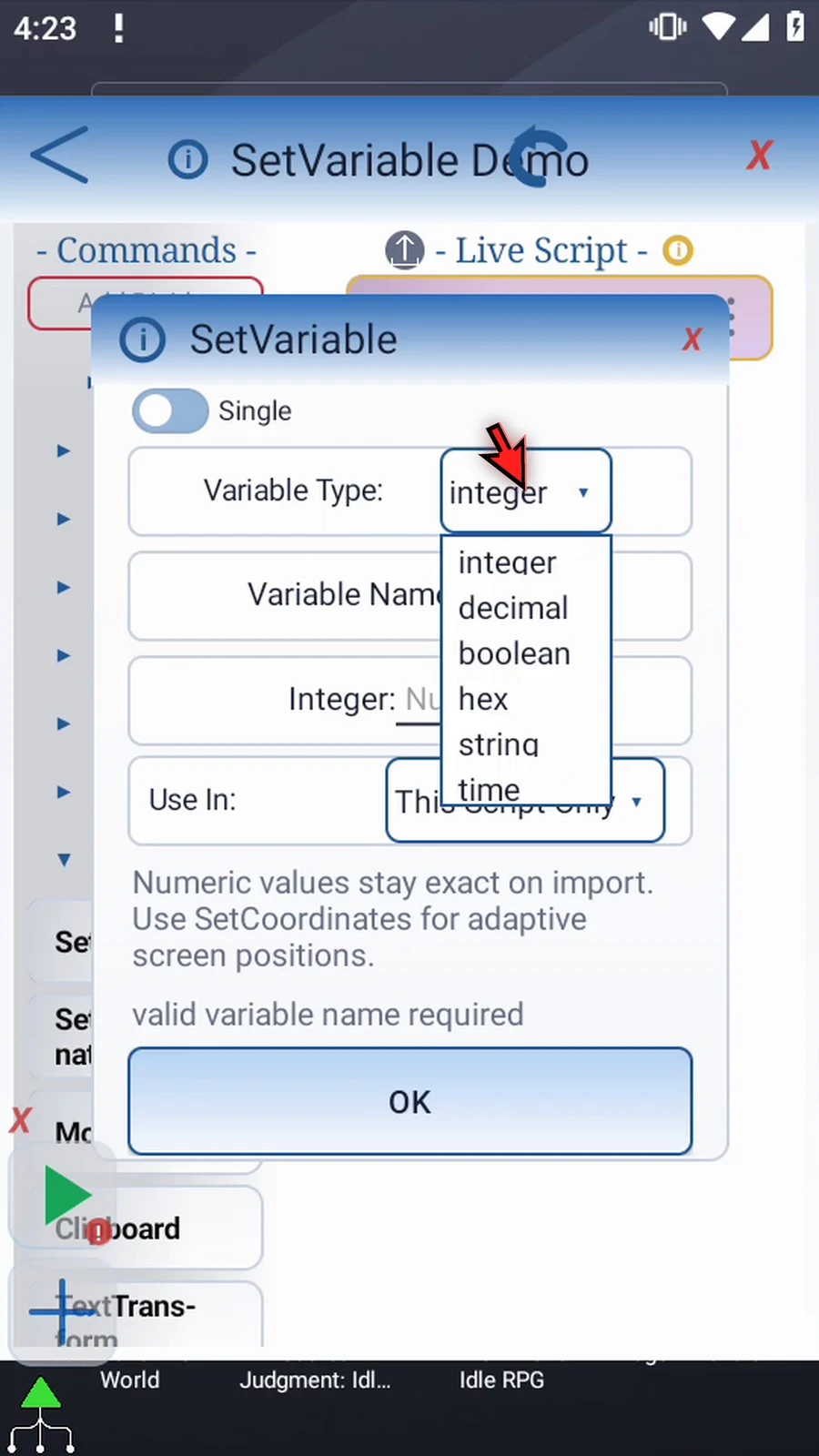
Step 09 A variable name uses one English letter, optionally followed by an index from one to four thousand ninety-six. Names ignore letter case. Keep the same type for names that share a letter in the same scope. We will name this String s1.
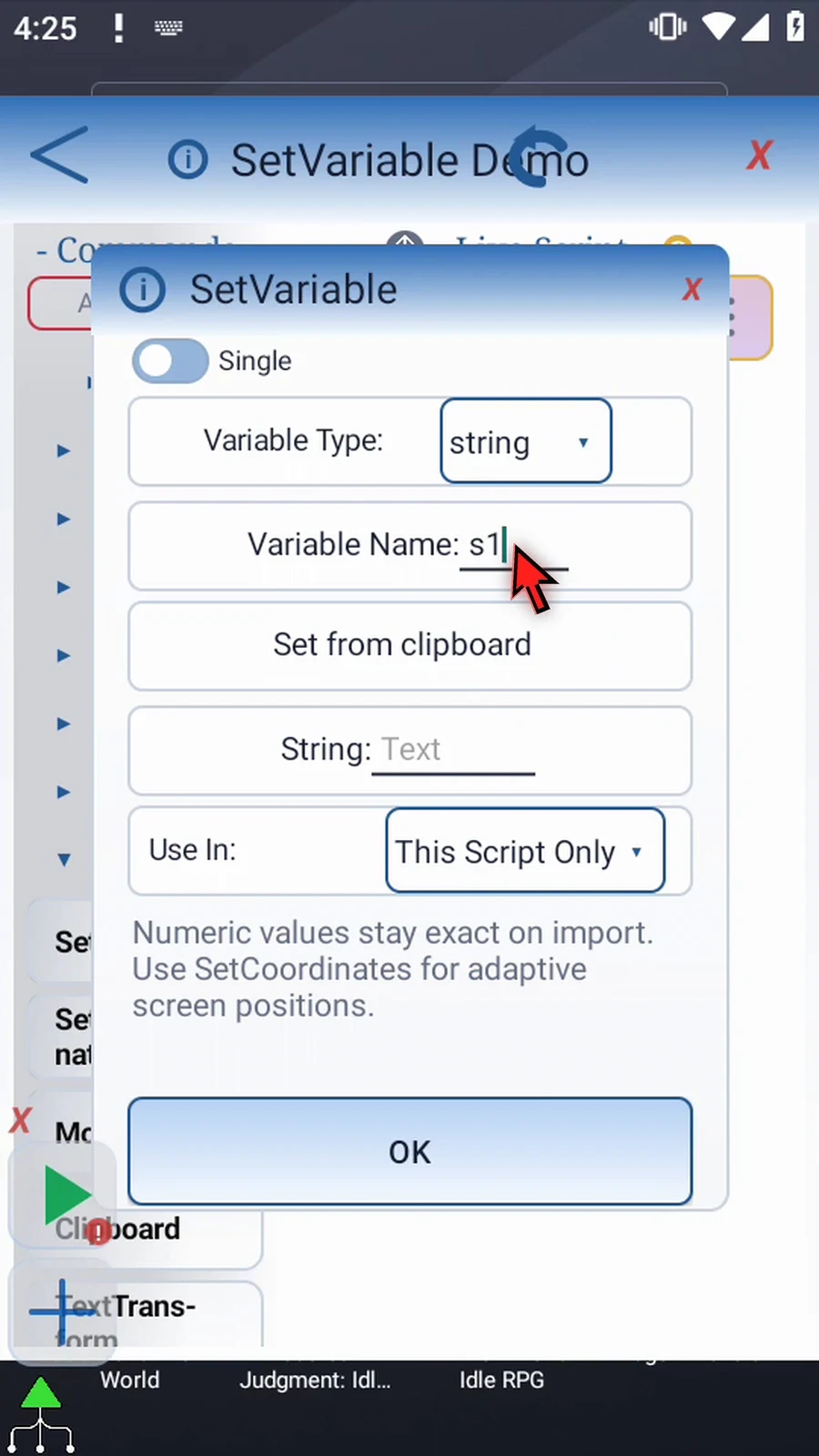
Step 10 Use In controls the variable's scope. This Script Only keeps it local. Script Thread shares it within the current script thread. We will keep This Script Only.
Step 11 Enter Hello ScriptTap as the value. Set Variable stores this text when the script reaches the command. It does not type into an app or show a dialog by itself.
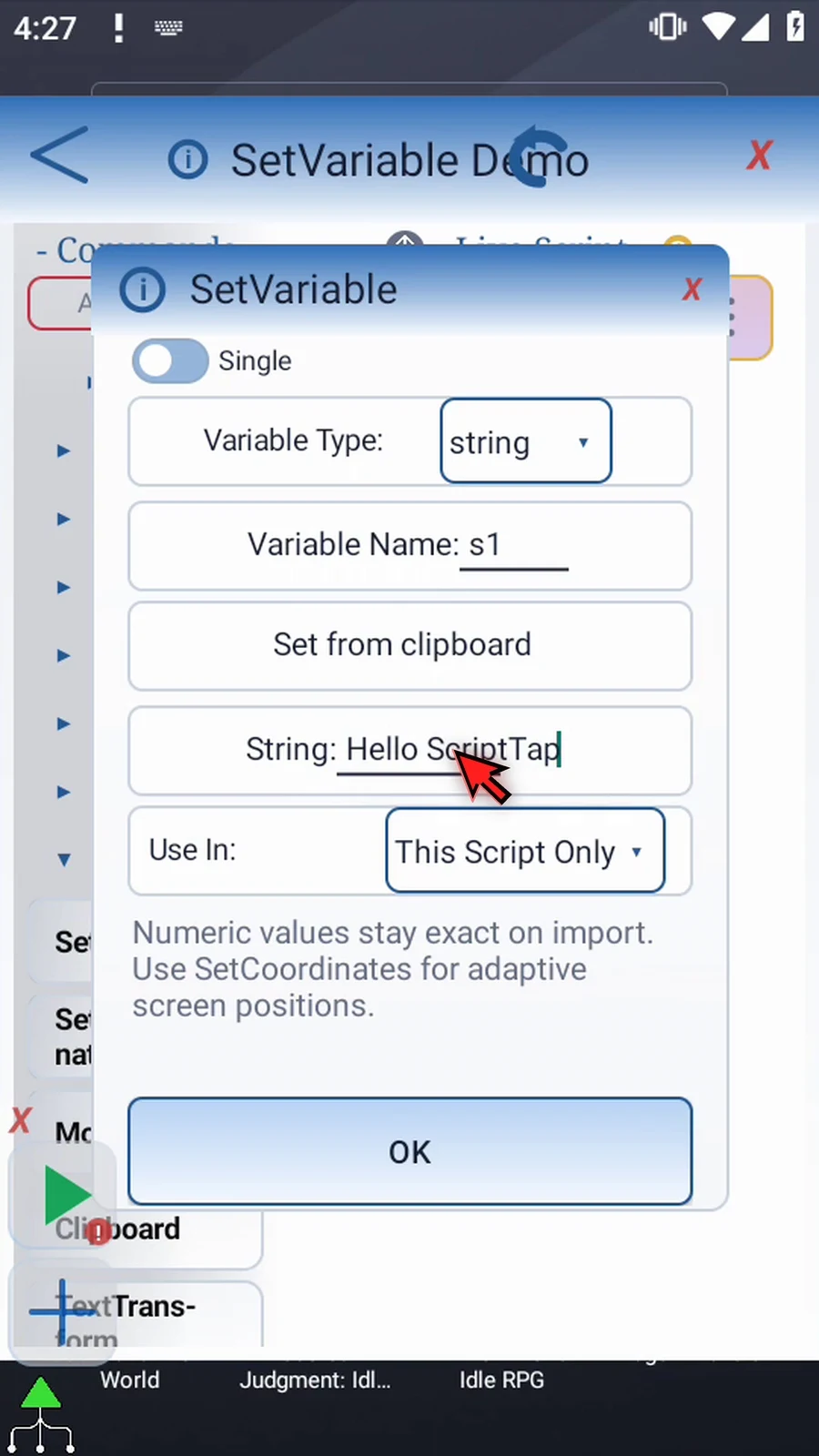
Step 12 The value can also come from an earlier variable of the same type. Define that source first. Here, we are using literal text.
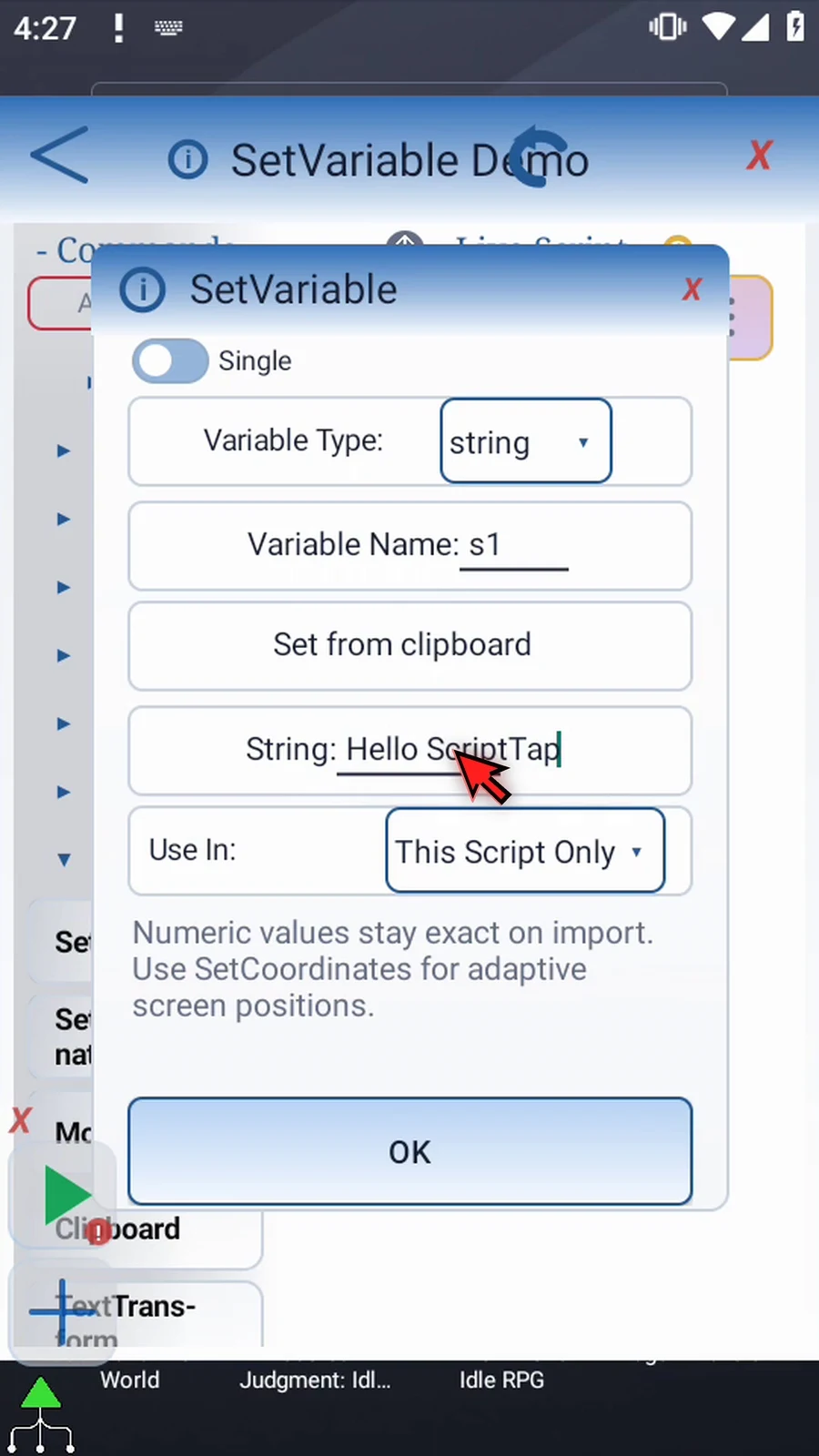
Step 13 A Single String can also read the current device clipboard when the command runs. That option asks for consent. We will decline and keep our typed value.
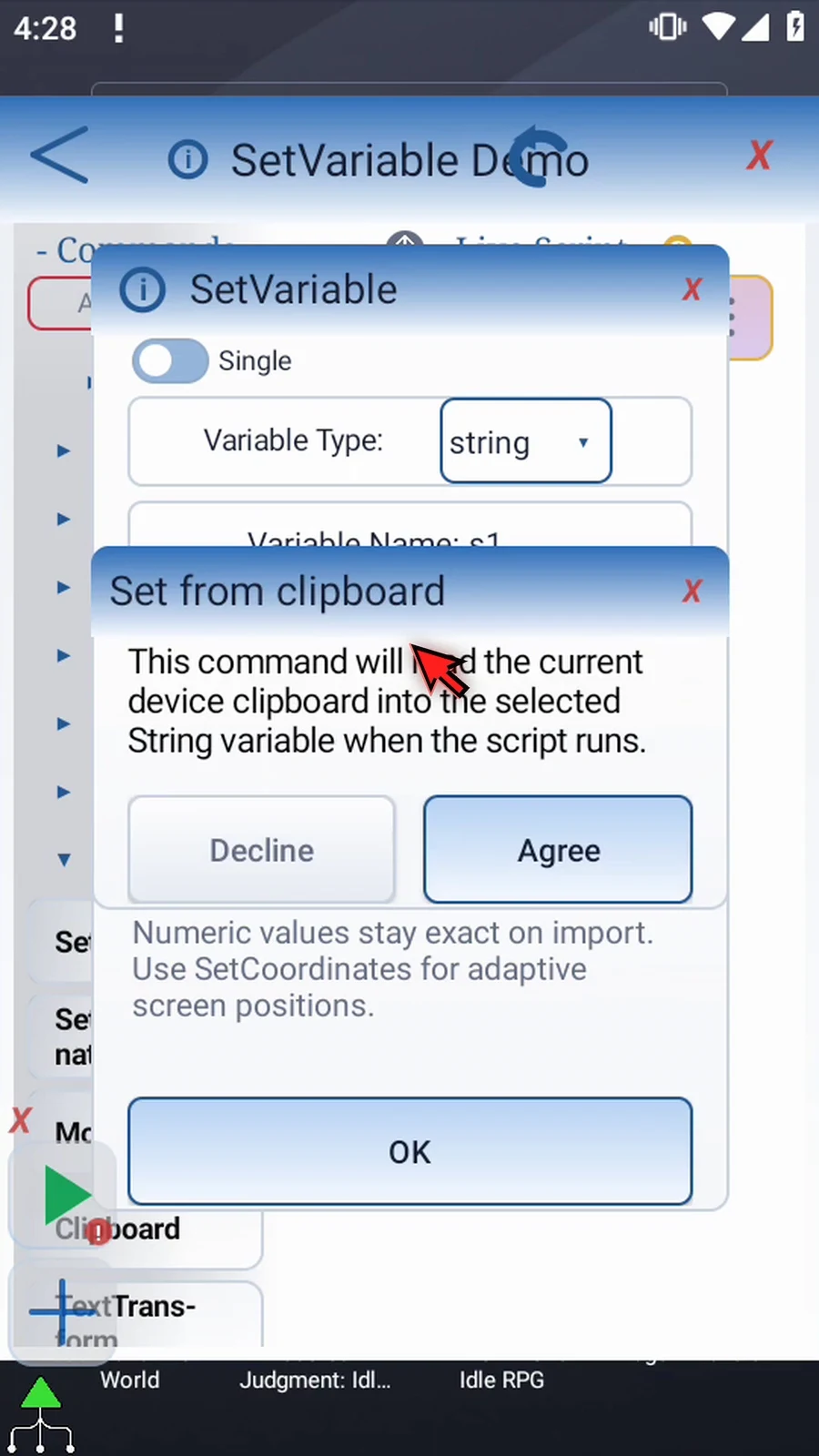
Step 14 Tap OK. The script row shows the variable's name, type, and value.
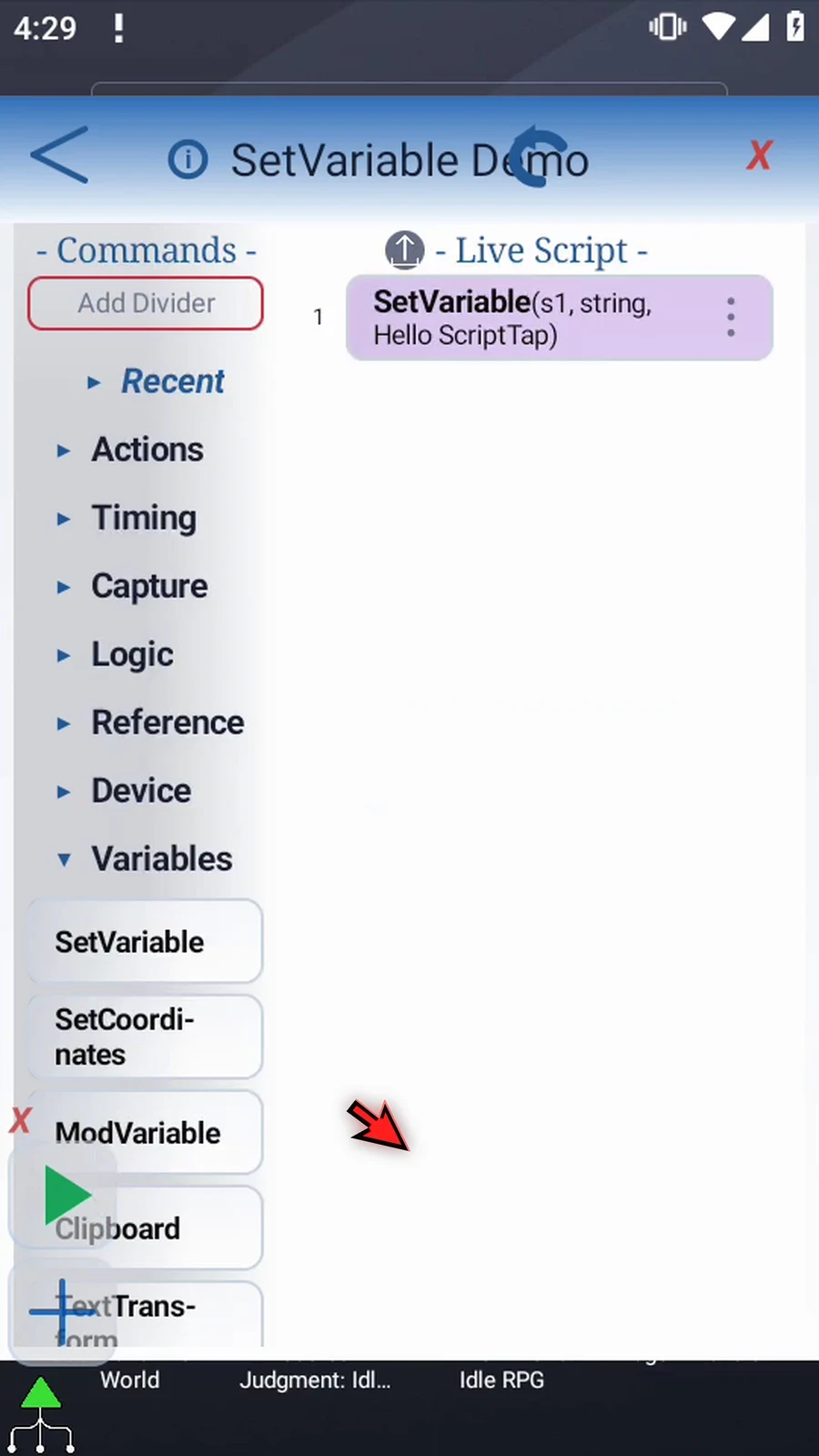
Step 15 Reopen the command to confirm the settings are saved, then close it with the X.
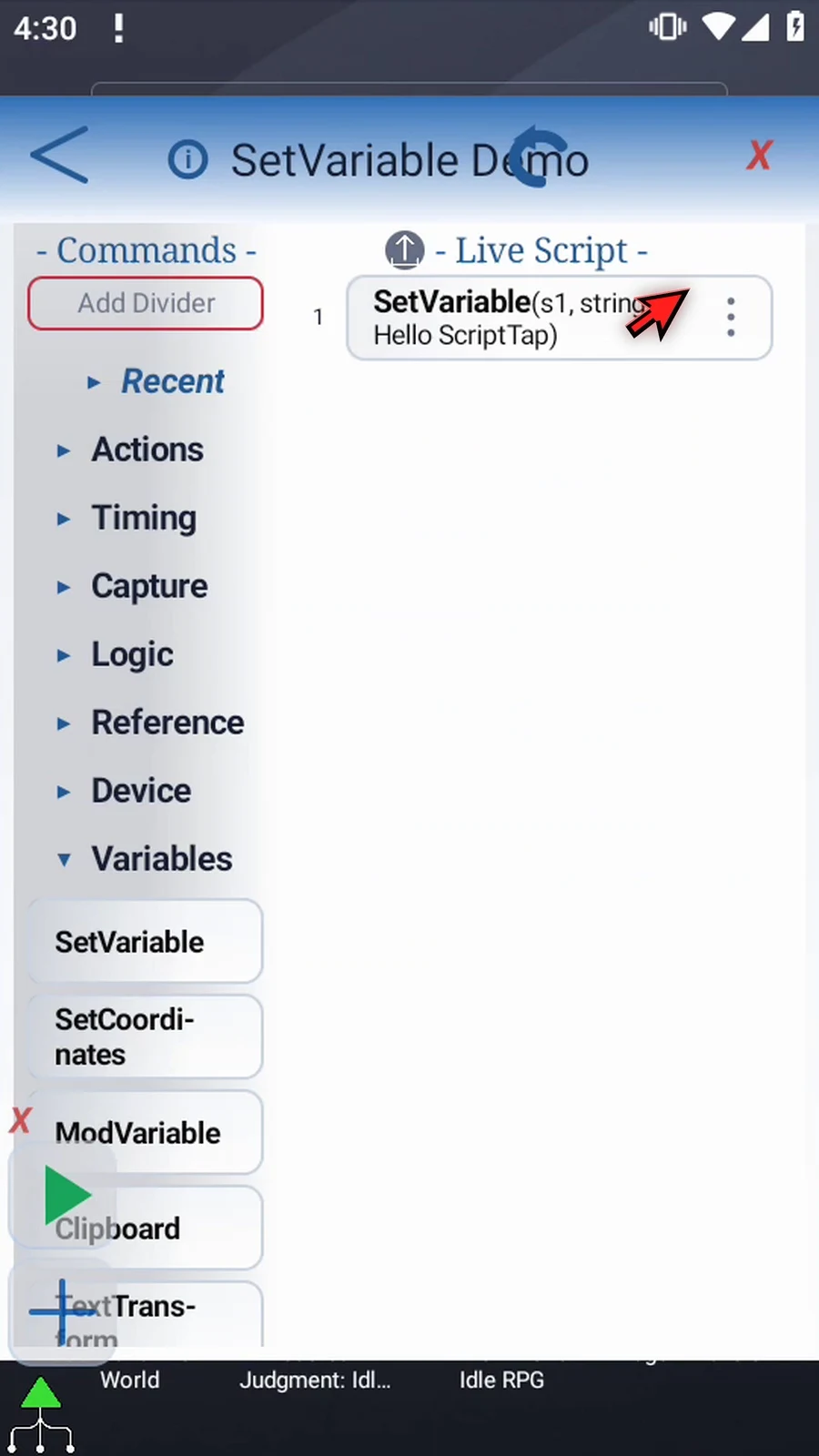
Step 16 To make the result visible, collapse Variables, expand Advanced, and scroll to PromptMe. Drag it after Set Variable. This supporting command displays the stored text; it does not create our String variable.
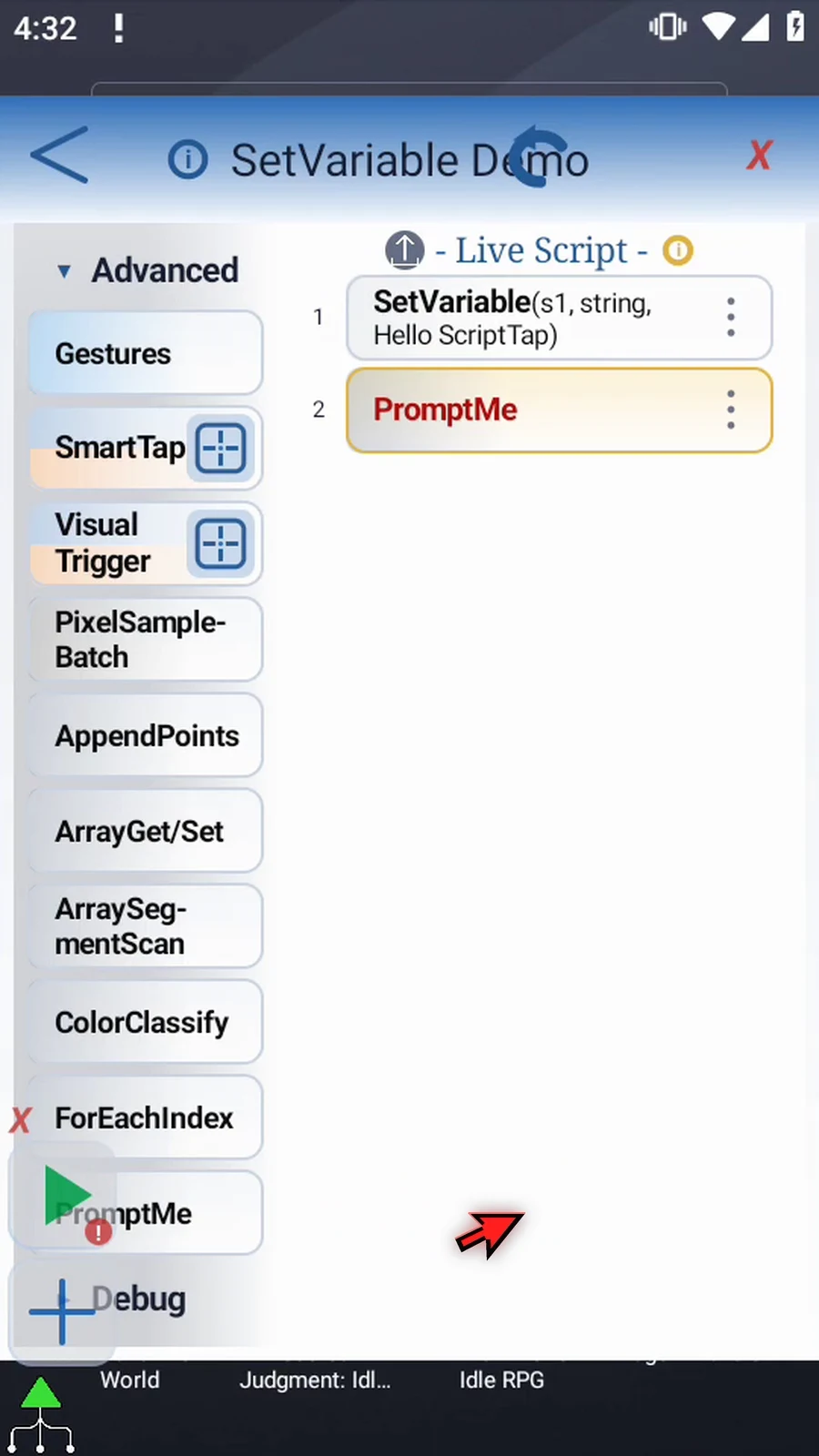
Step 17 Open PromptMe. Keep Standard mode and enter s1 in Header. PromptMe recognizes this defined String name and displays its current value, rather than the name itself.
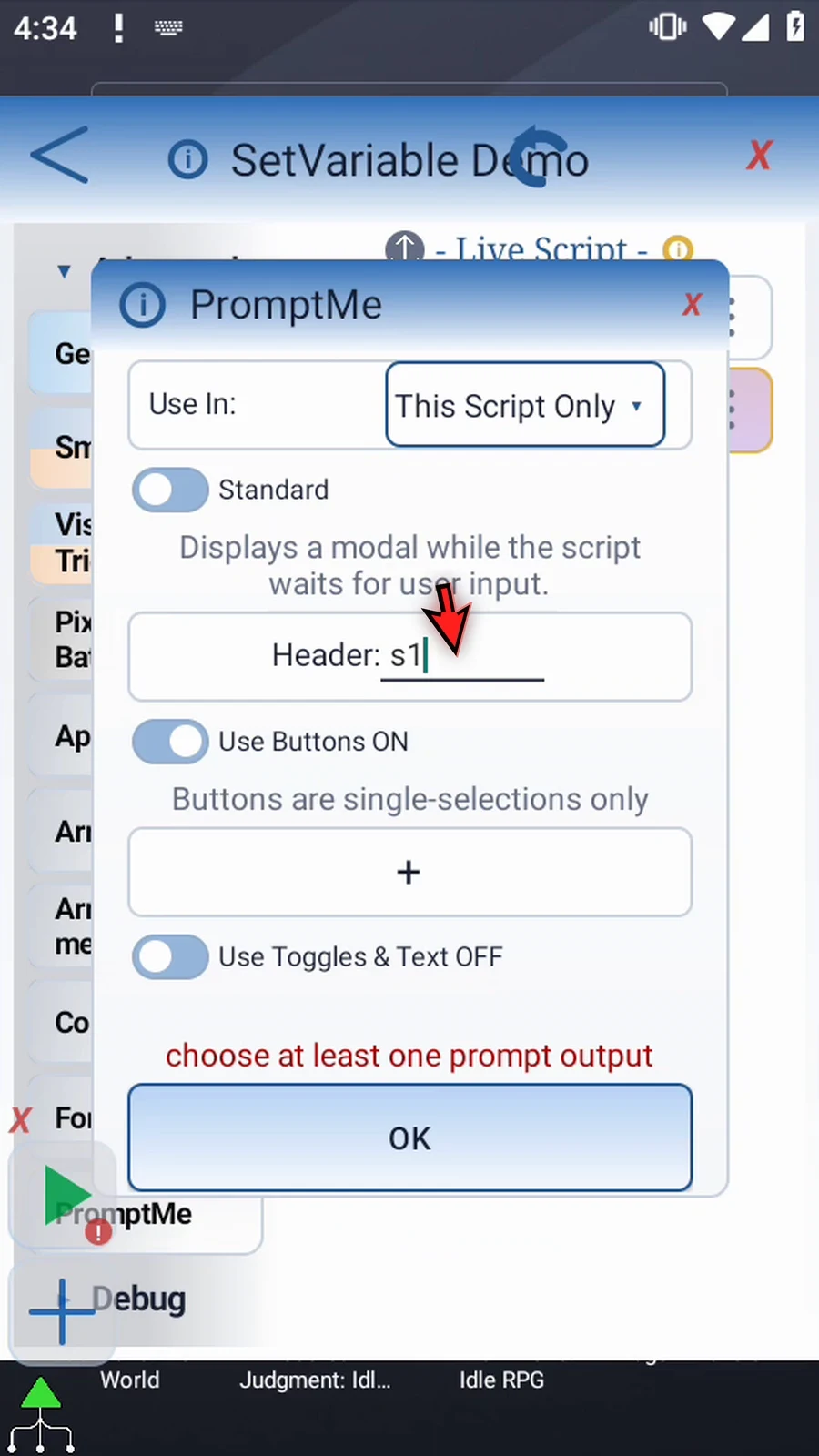
Step 18 Click the plus to add a button. Set its caption to Done. Enter b1 for its Boolean output. That flag records which button was pressed; it does not change s1. Now tap OK.
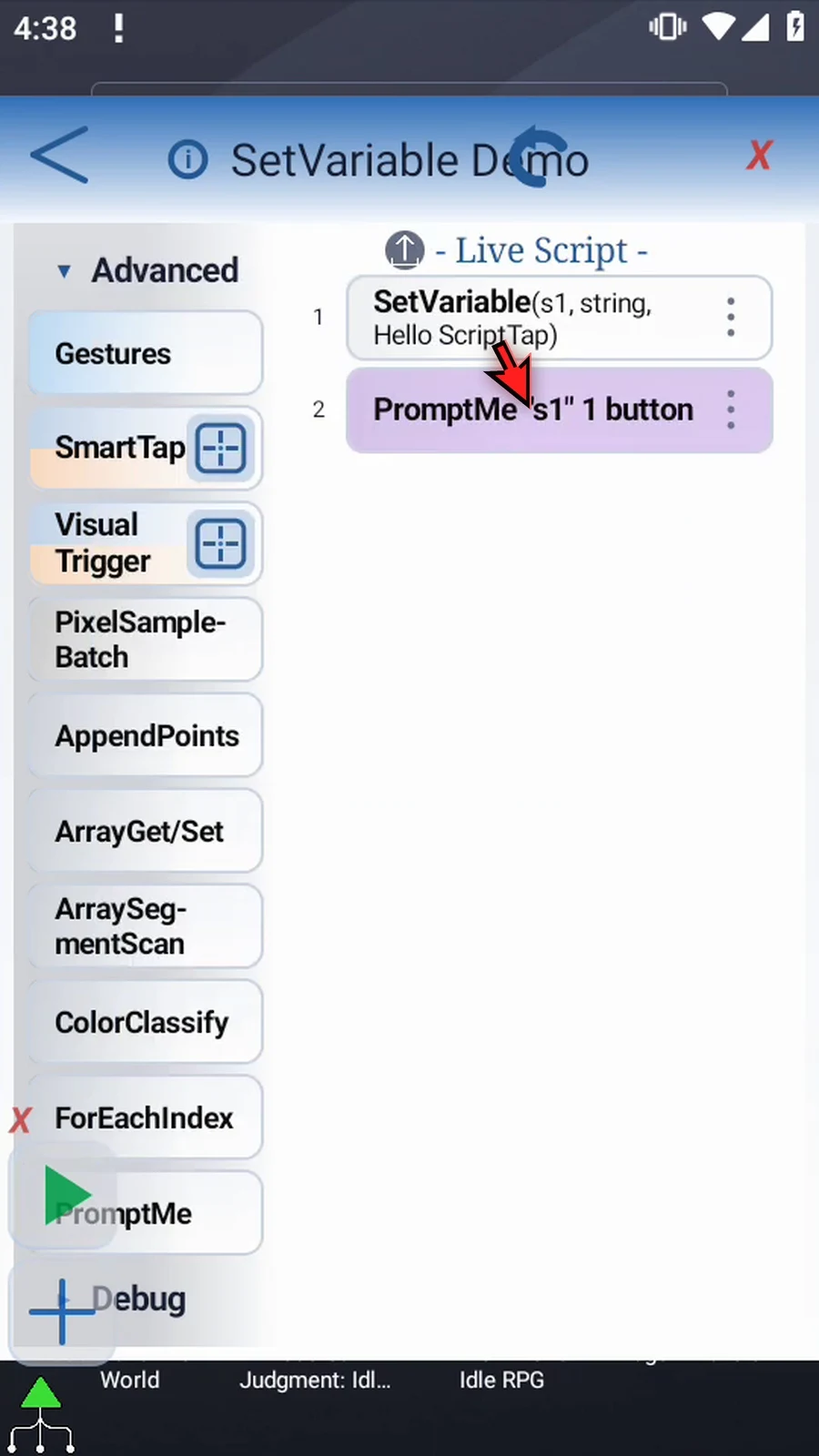
Step 19 Our script sets s1 to Hello ScriptTap, then reads s1 for the prompt header. The second command makes the stored value visible.
Step 20 Close the editor to return to the home screen.
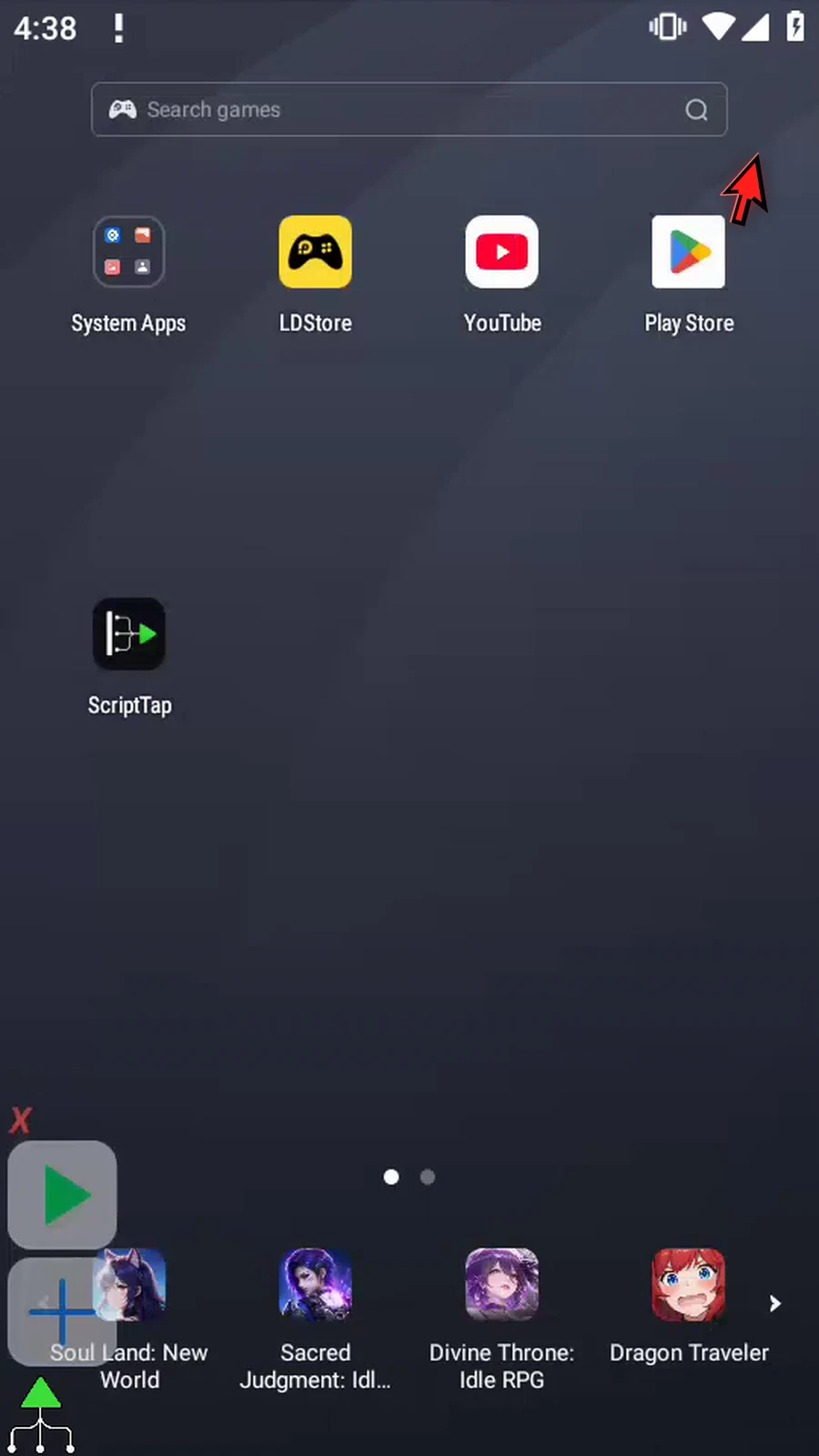
Step 21 When the script is complete, simply use the Play button in the main overlay.
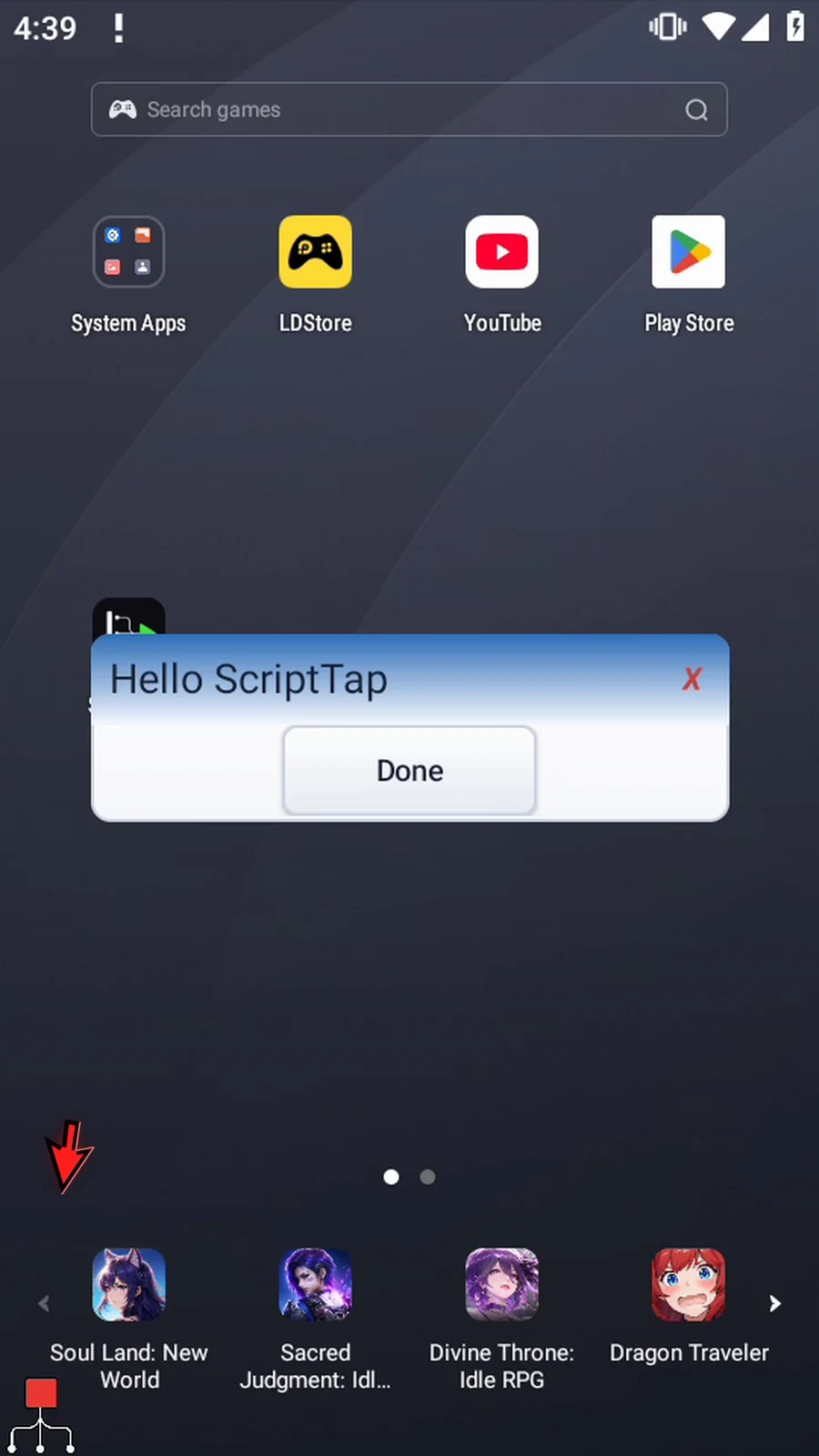
Step 22 The header now says Hello ScriptTap, the value assigned by our script. Later commands can use the same String for messages, text typing, or transformations.
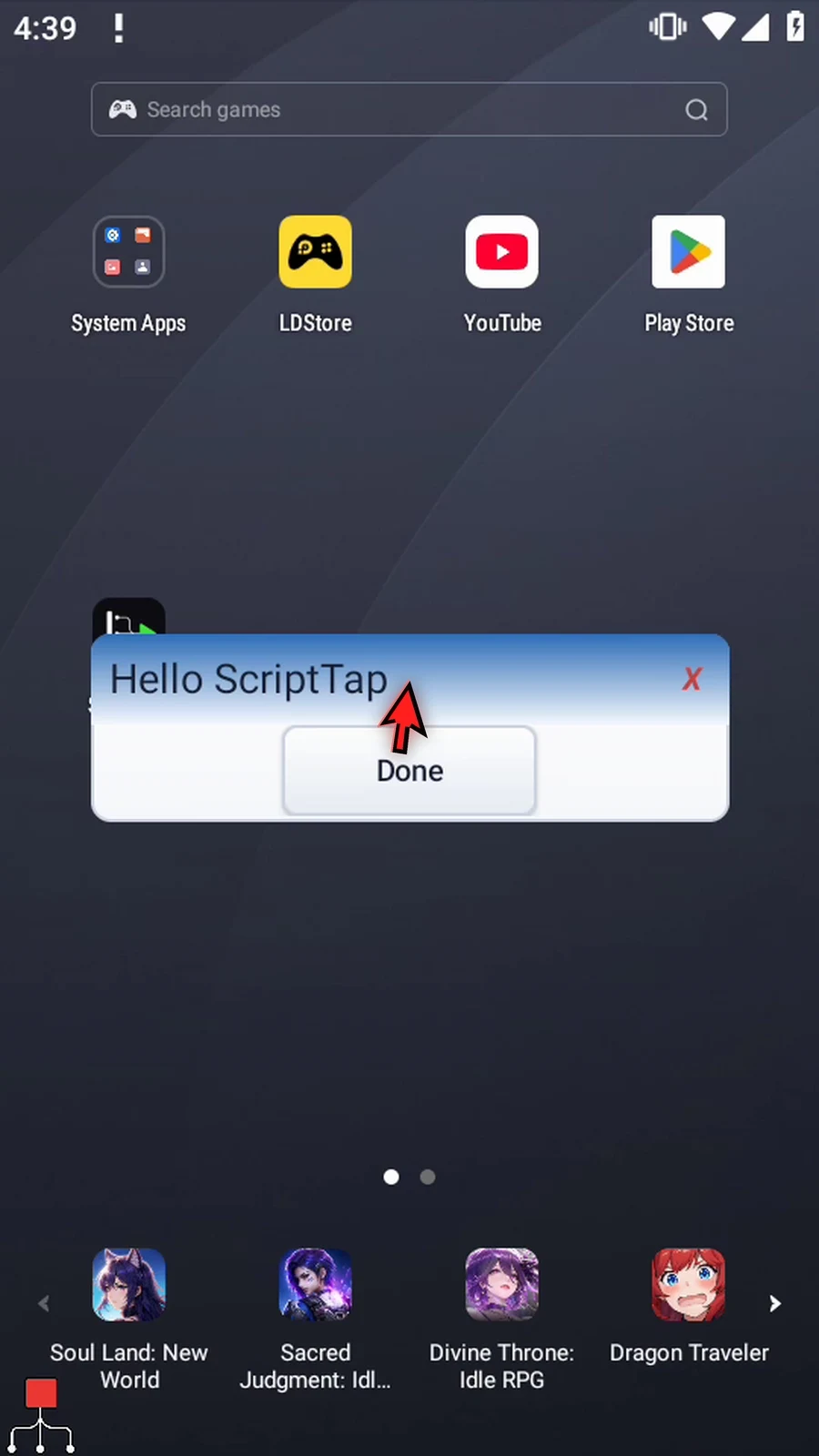
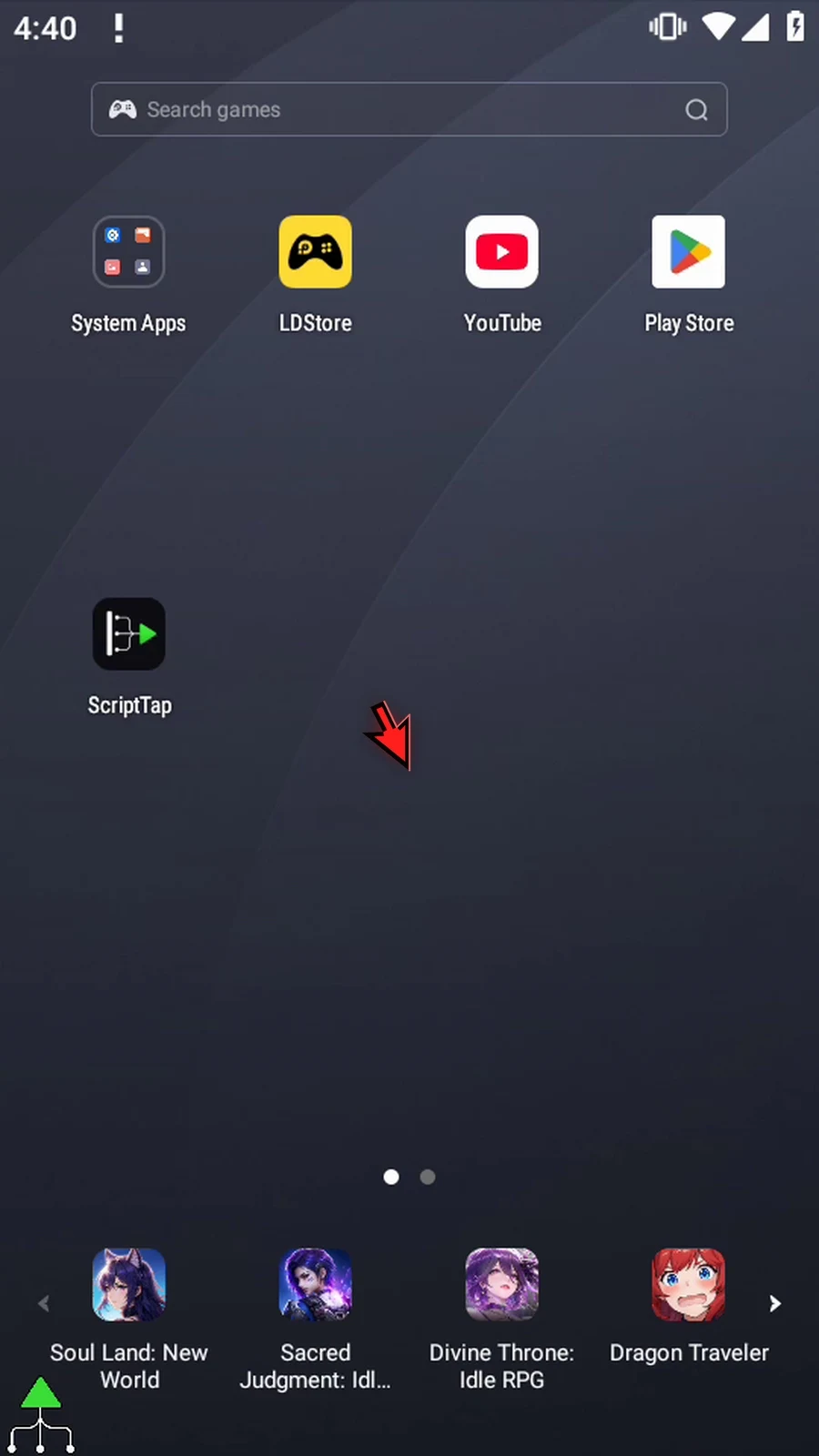
Step 23 Press Done. The script finishes automatically. Use the stored value in later commands whenever your script needs to reuse information.
Array mode declares a typed letter family for indexed values. Continue the script created in Single Variables; keep its existing PromptMe confirmation.
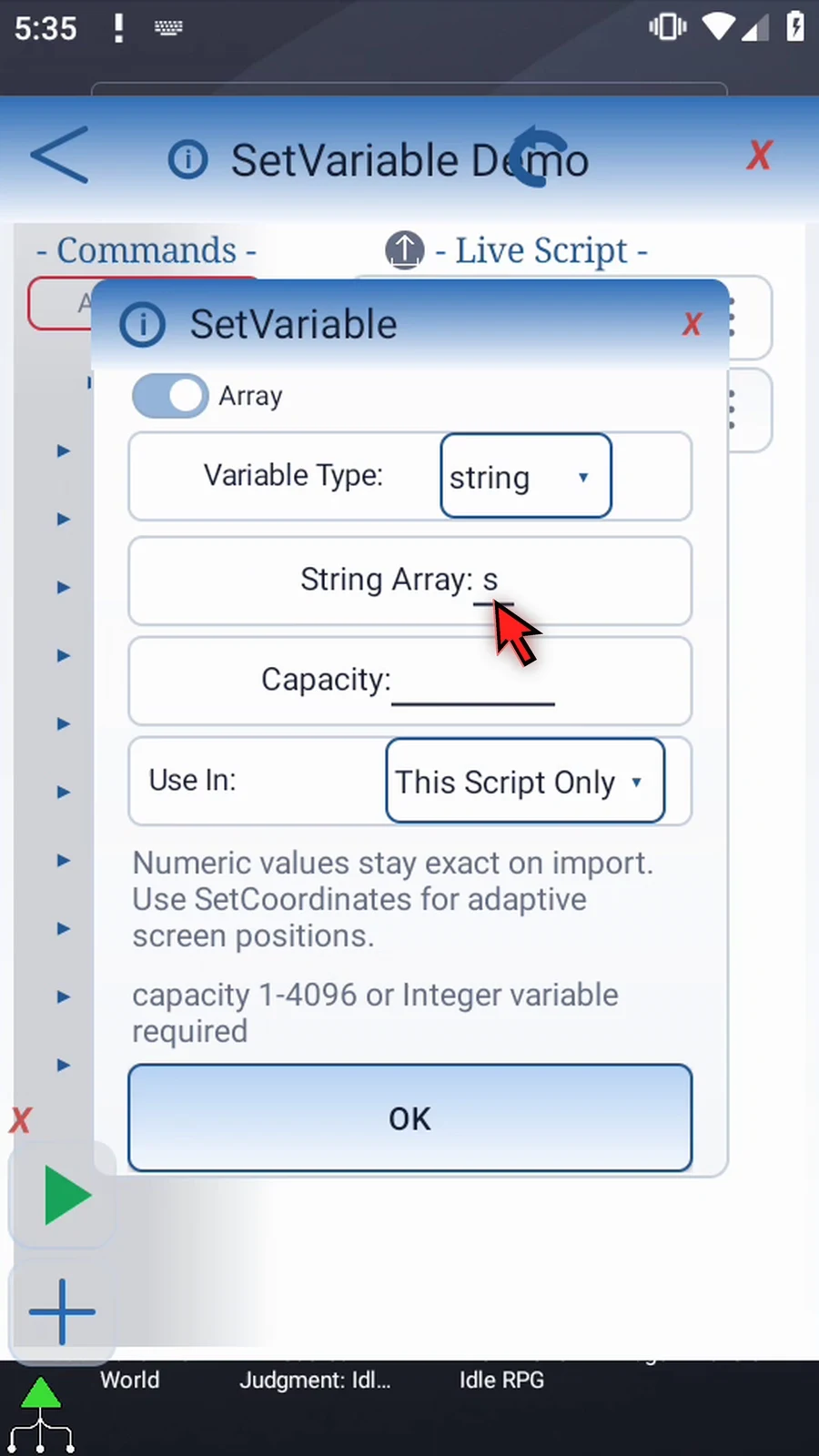
Open the first SetVariable and switch Single to Array. Keep String and enter only s in String Array. Indexed values use names such as s1 and s2. Letter case is ignored, and the entire visible letter family shares one type and scope.
Capacity accepts a 1–4096 Integer literal or an earlier Integer variable. Set it to 3 for the displayed s1–s3 range. Counts are not separate variable declarations or per-slot type boundaries. An ordinary String array is declaration-only: it does not fill its slots. Missing String values read as empty text.
Keep This Script Only and save. Expand Variables, scroll the palette if necessary, and manually drag a second SetVariable between the declaration and PromptMe. Keep Single, choose String, name its destination s1, and enter First slot. This assignment supplies the text; it does not fill the other positions.
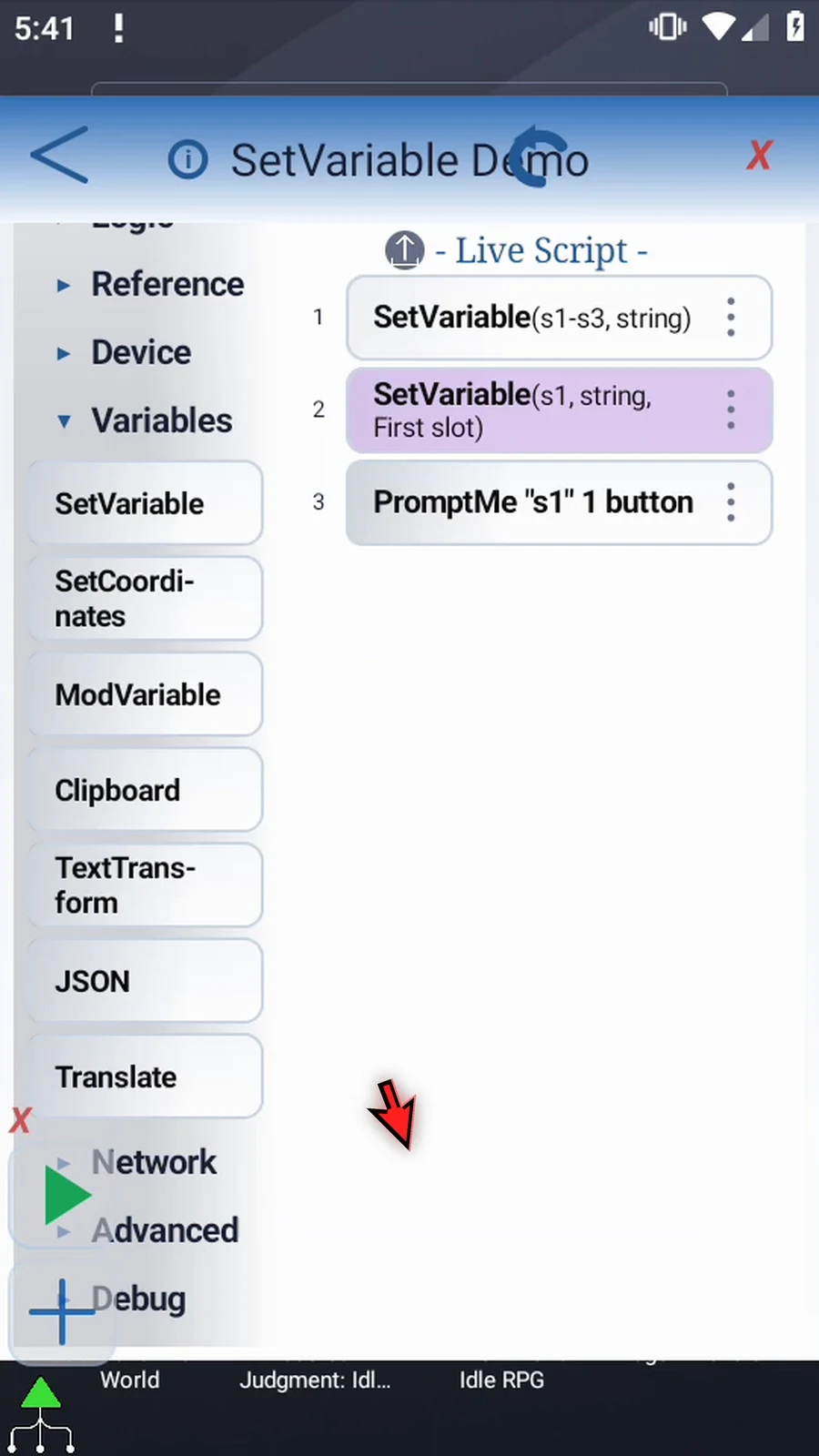
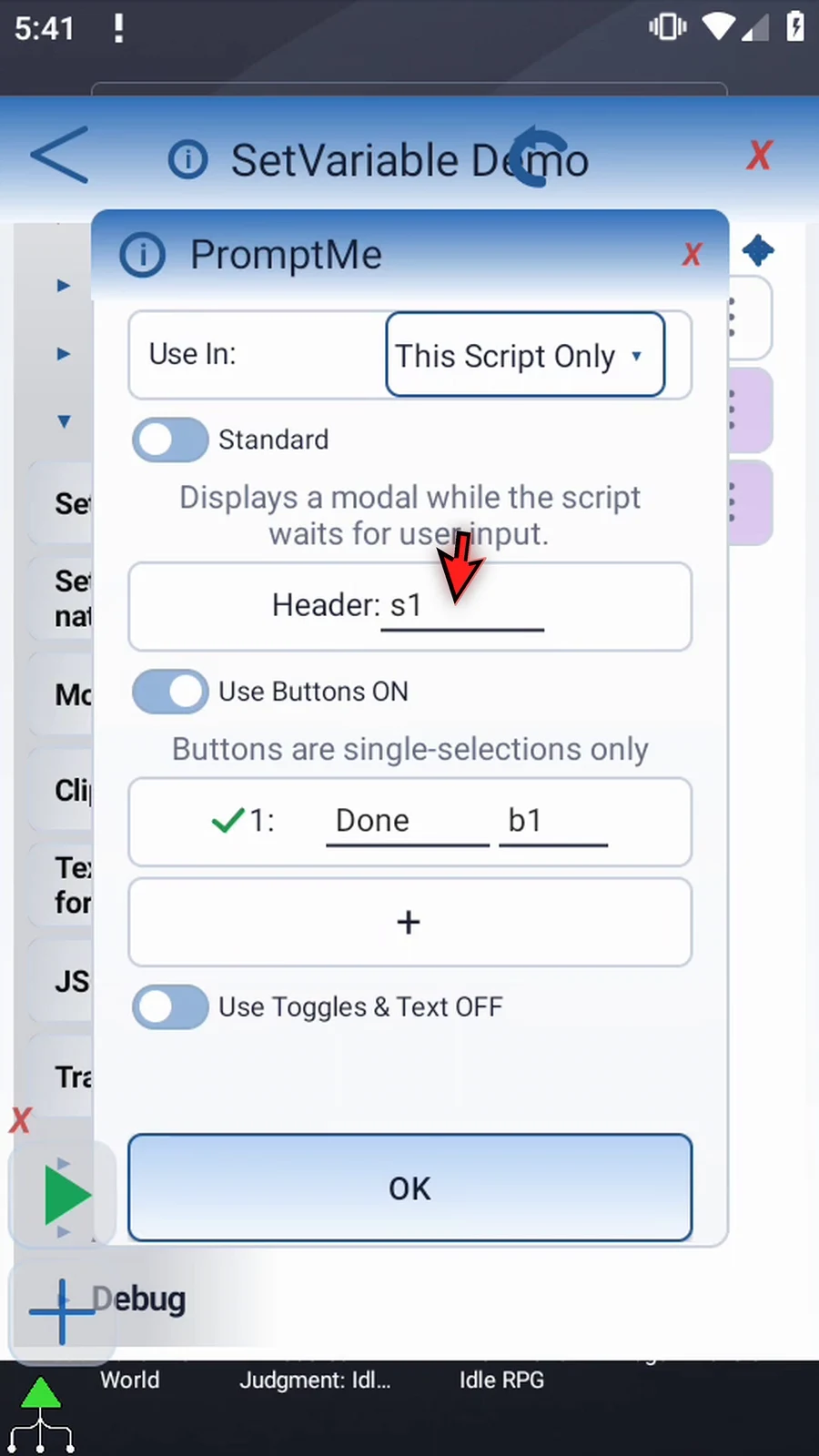
Check the existing PromptMe header s1 and Done button output b1, then close settings unchanged. The script declares the family, writes one value, and displays it in that order. Range-writing commands can populate larger collections without one assignment per position.
Close the editor and use Play. PromptMe shows First slot. Press Done to finish automatically.
Arrays
Step-by-step guide
Step 01 Set Variable's Array mode declares a typed letter family for indexed values. Later commands can work with individual positions or ranges. We will continue the Single example and display one String value.
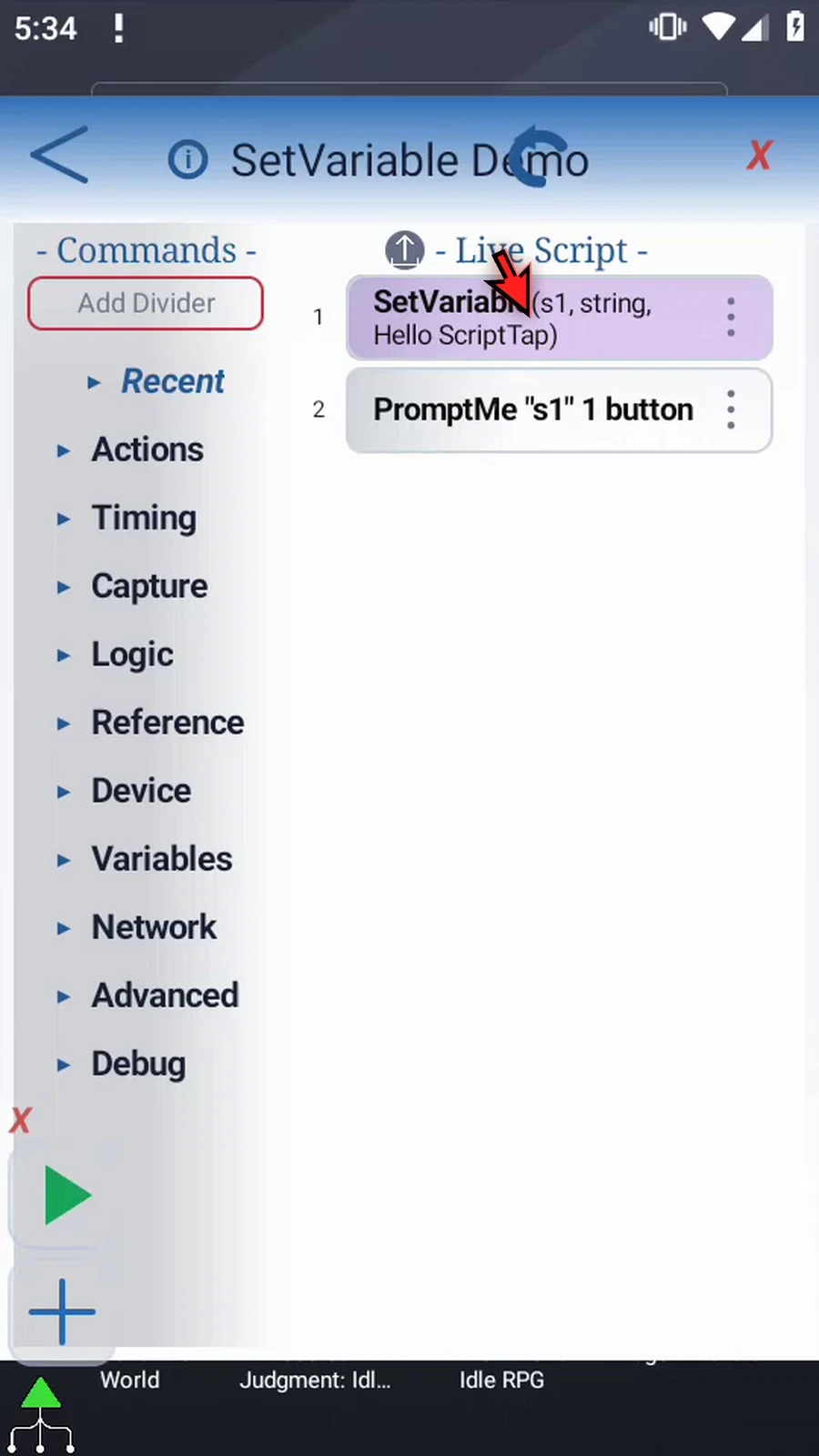
Step 02 Open the first Set Variable command. Switch Single to Array.
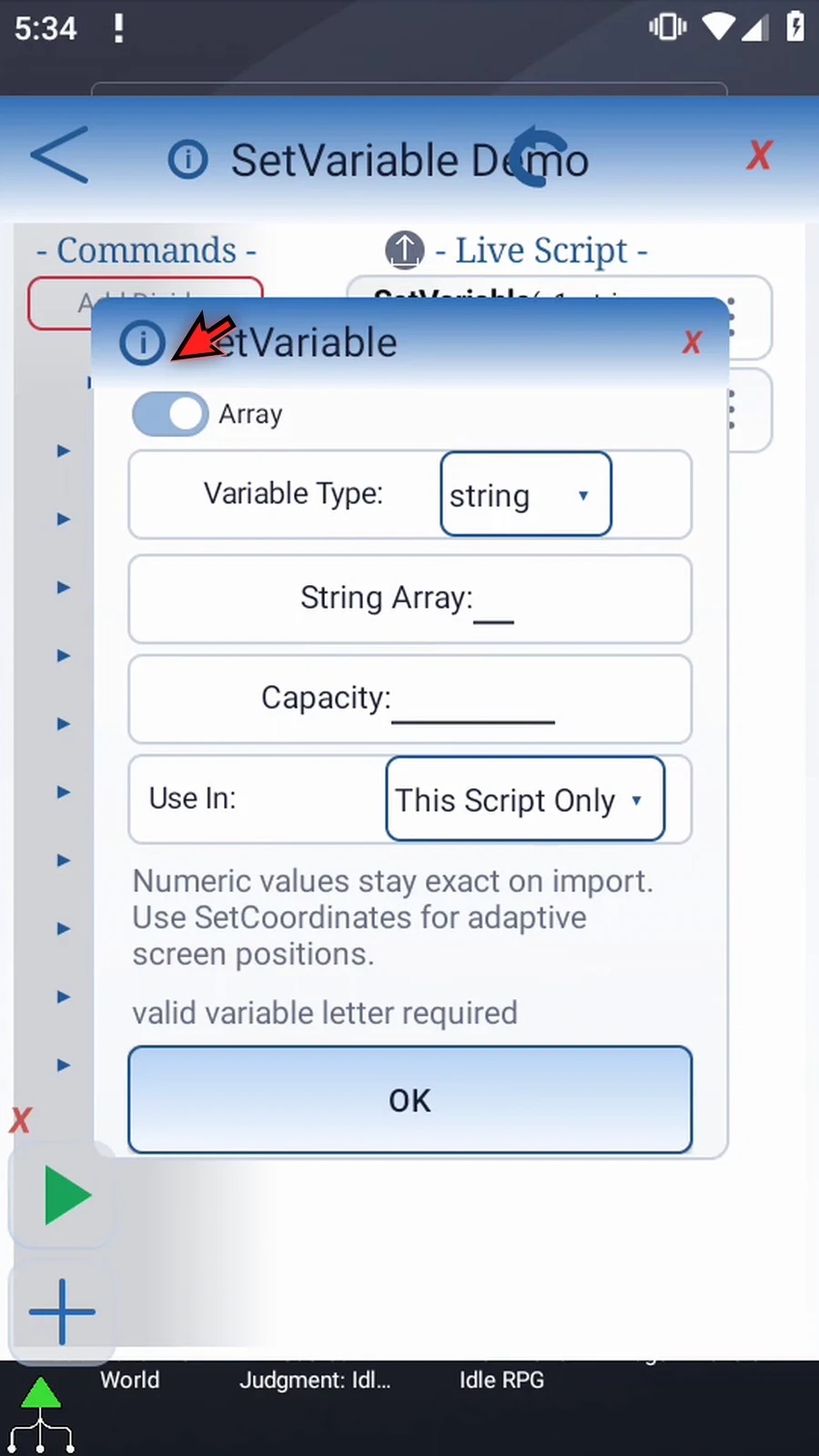
Step 03 Keep String for text. Integer, Decimal, Boolean, Hex, and Time are also available. Every slot using the same letter in this scope shares one type.
Step 04 Enter just the letter s for the String family. Its indexed positions are named s1, s2, and so on. Letters ignore case.
Step 05 Capacity accepts an Integer from one to four thousand ninety-six, or an Integer variable defined earlier. We will enter three. This does not create filled values or give individual positions separate types.
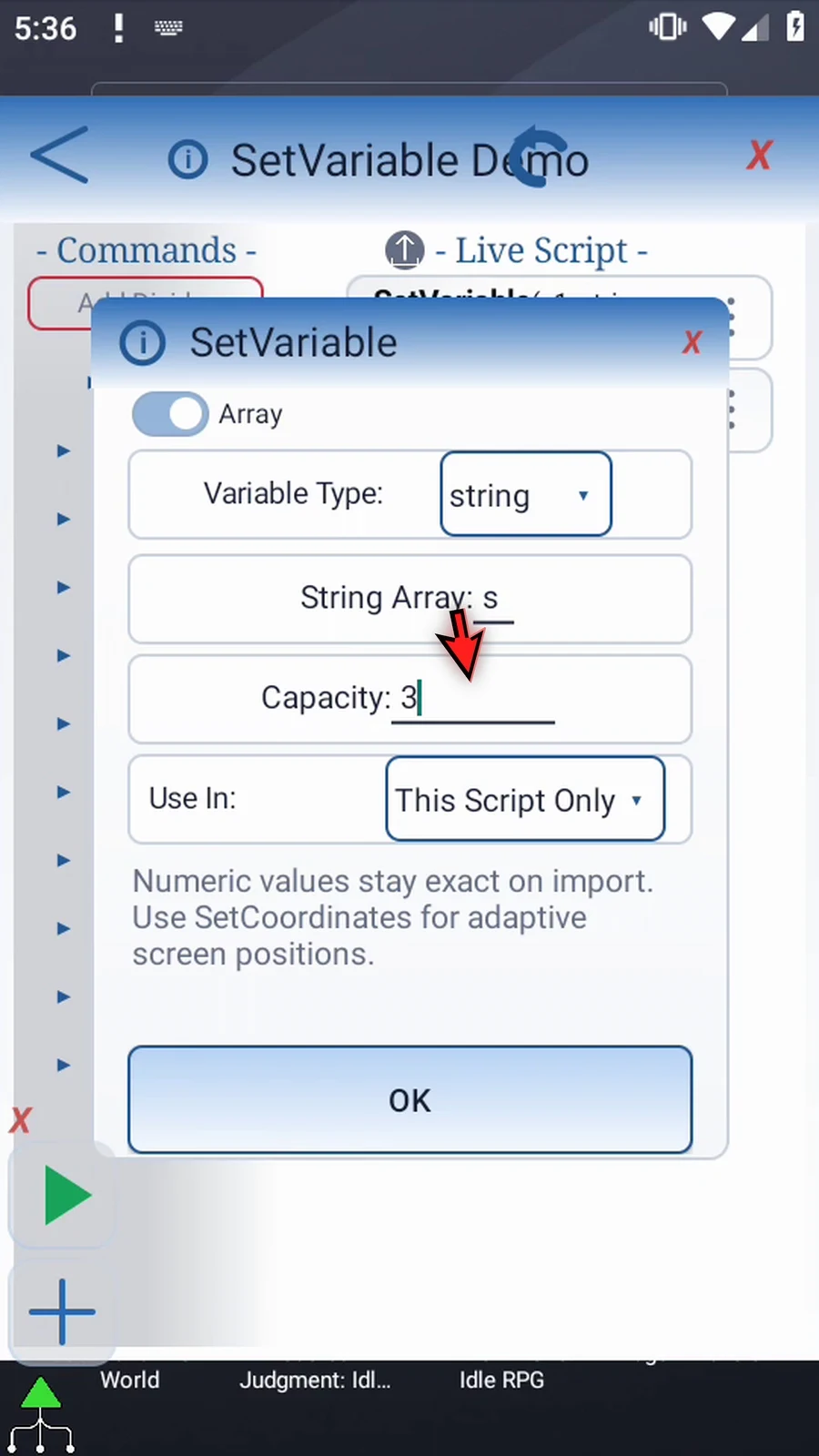
Step 06 Use In chooses This Script Only or Script Thread. Keep This Script Only, matching the commands in this example.
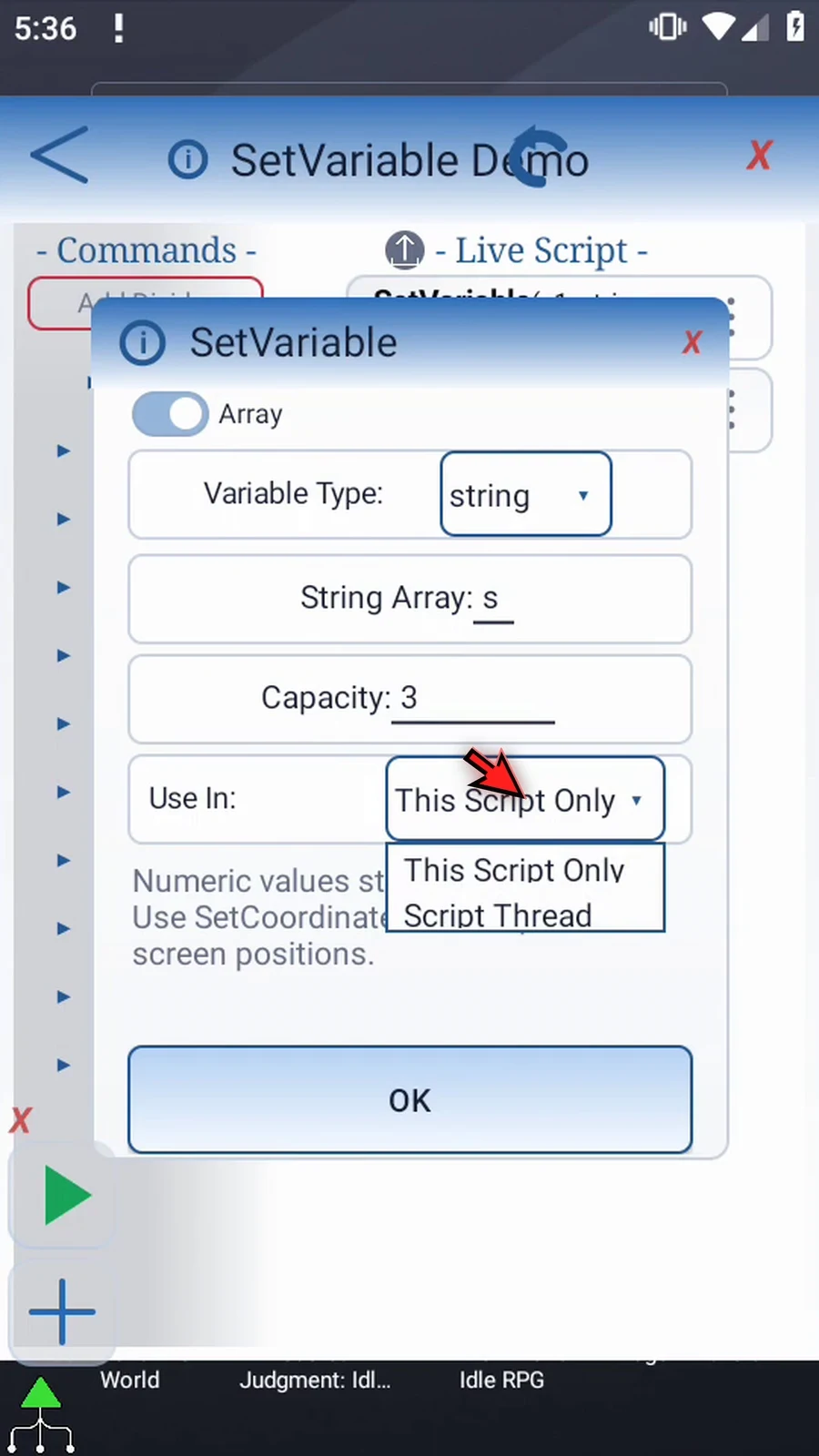
Step 07 Tap OK. The row shows s1 through s3. An ordinary String array is declaration-only: it does not fill its positions. An unwritten String reads as empty text.
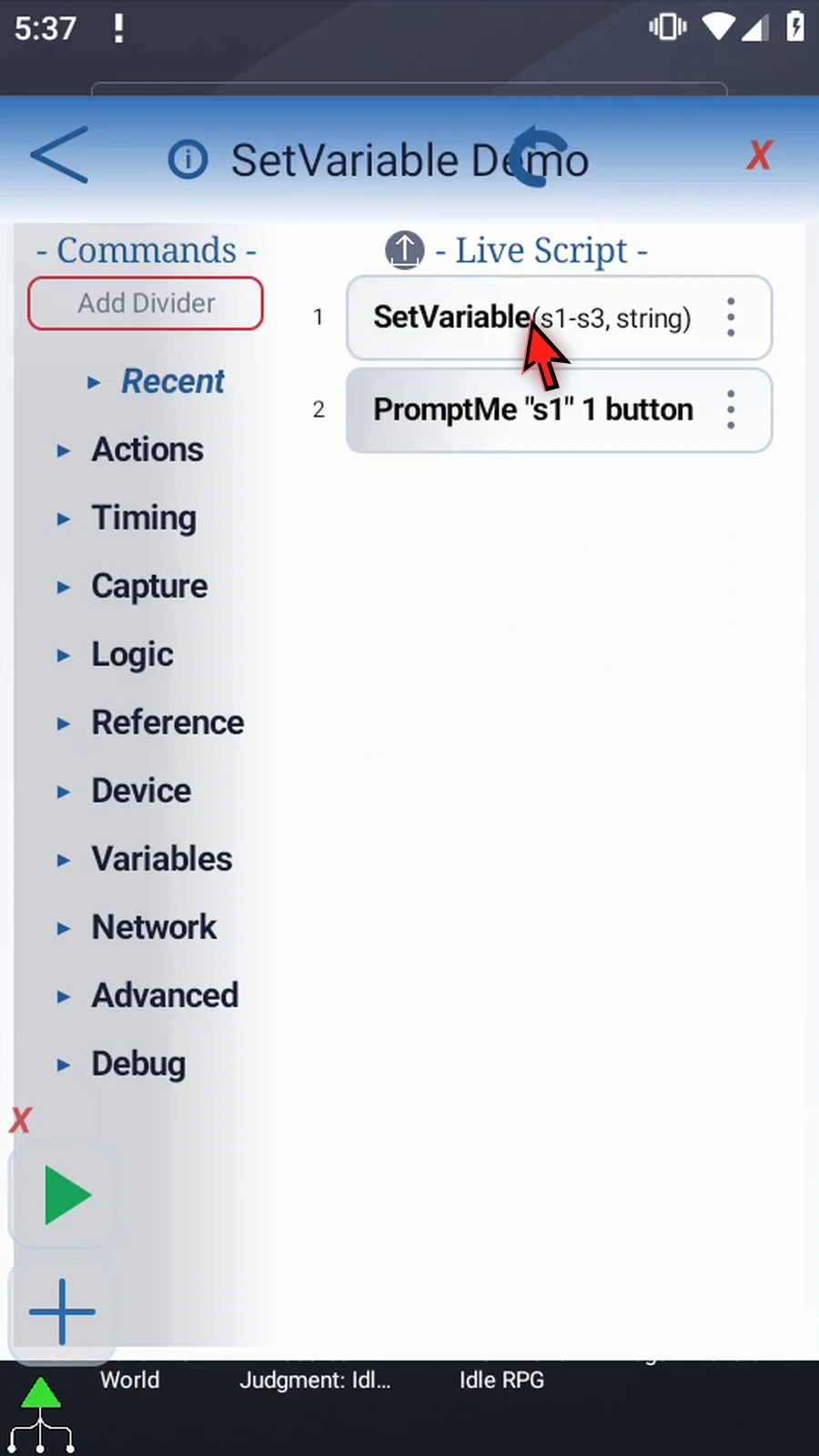
Step 08 To make a value visible, expand Variables and scroll the palette upward if needed. Drag a second Set Variable between the declaration and PromptMe. Watch the insertion line before releasing.
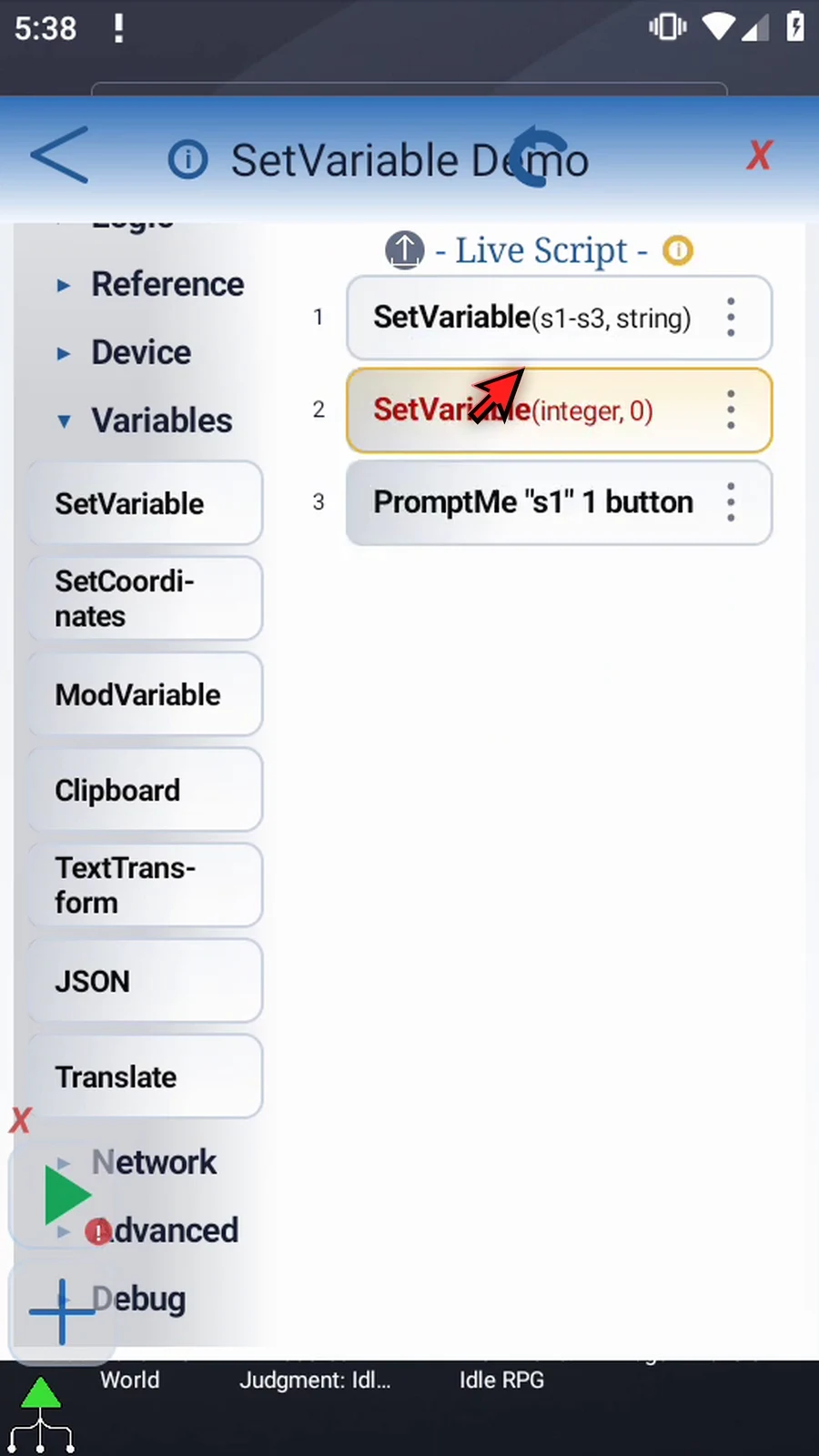
Step 09 Open the new command. Keep Single mode and choose String so its type matches the s family.
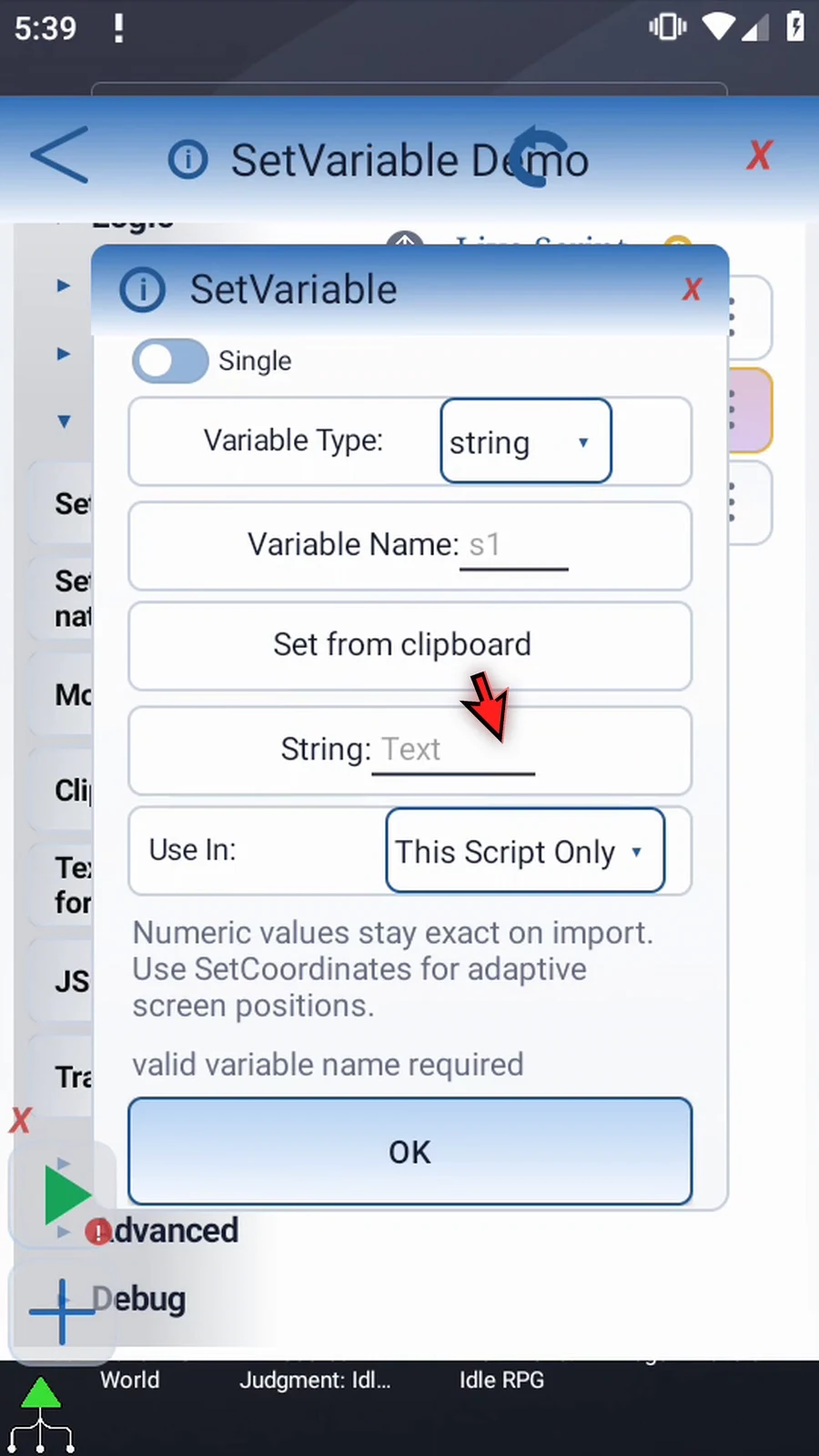
Step 10 Set the name to s1, the first indexed position. Keep the same local scope.
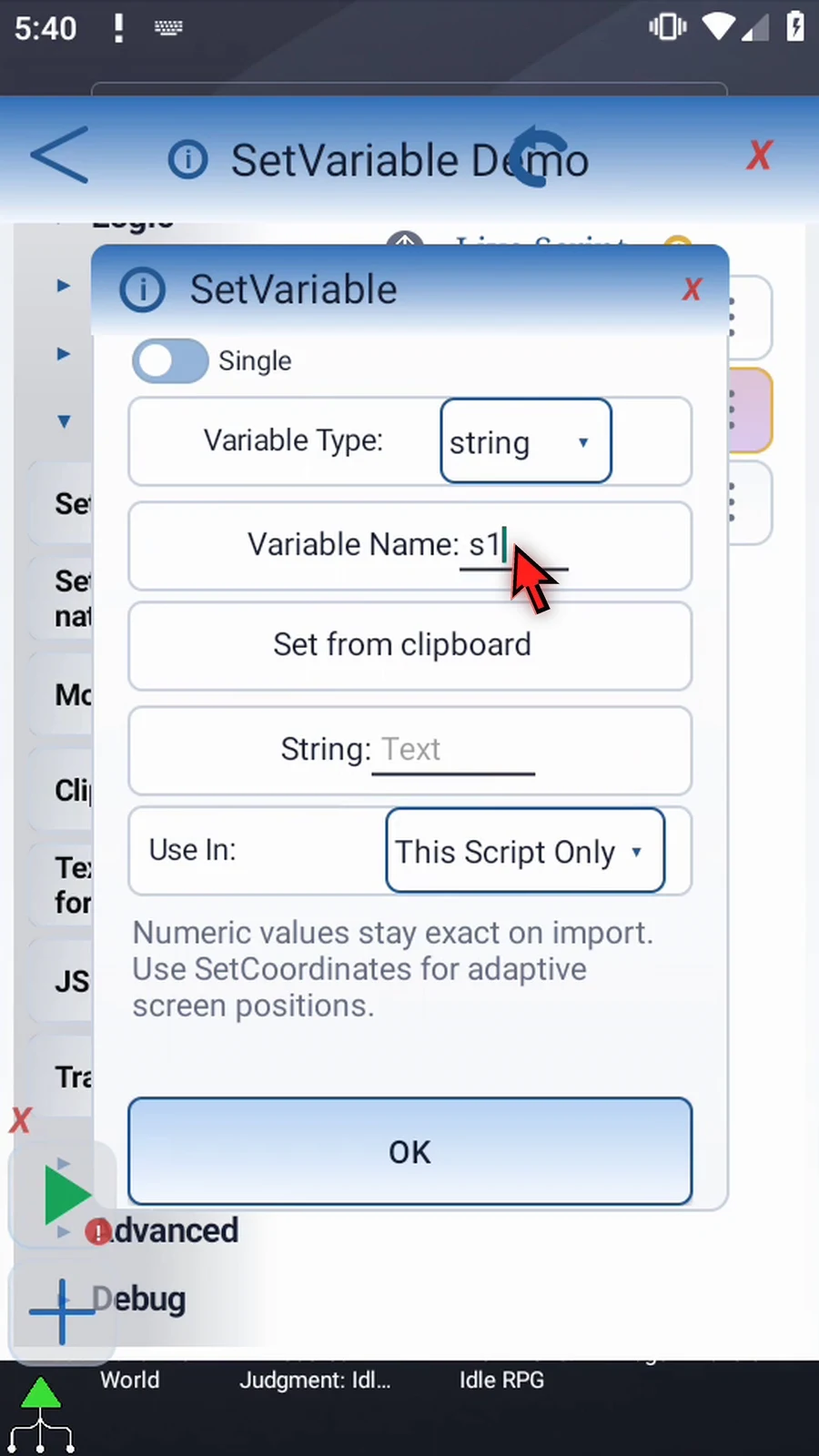
Step 11 Enter First slot as its value, then tap OK. This assignment writes s1; it does not fill the other positions.
Step 12 The existing PromptMe reads s1 in its header. Its Done button writes b1 only as confirmation. Check these settings, then close with the X without changing them.
Step 13 The first command declares the typed family. The second writes one value, and the third displays it. Range-writing commands can fill larger collections without a separate assignment for each position.
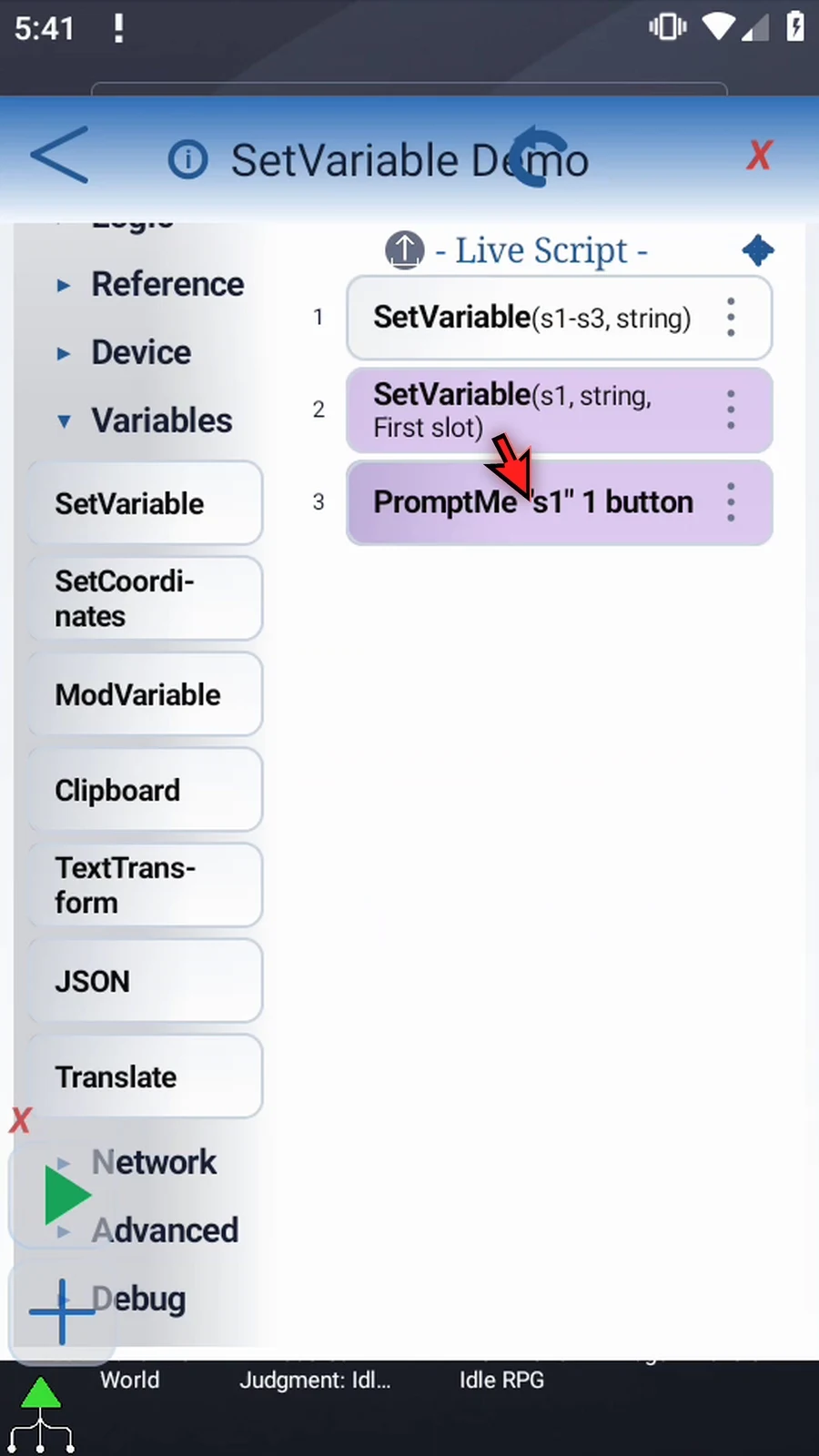
Step 14 Close the editor to return to the home screen.
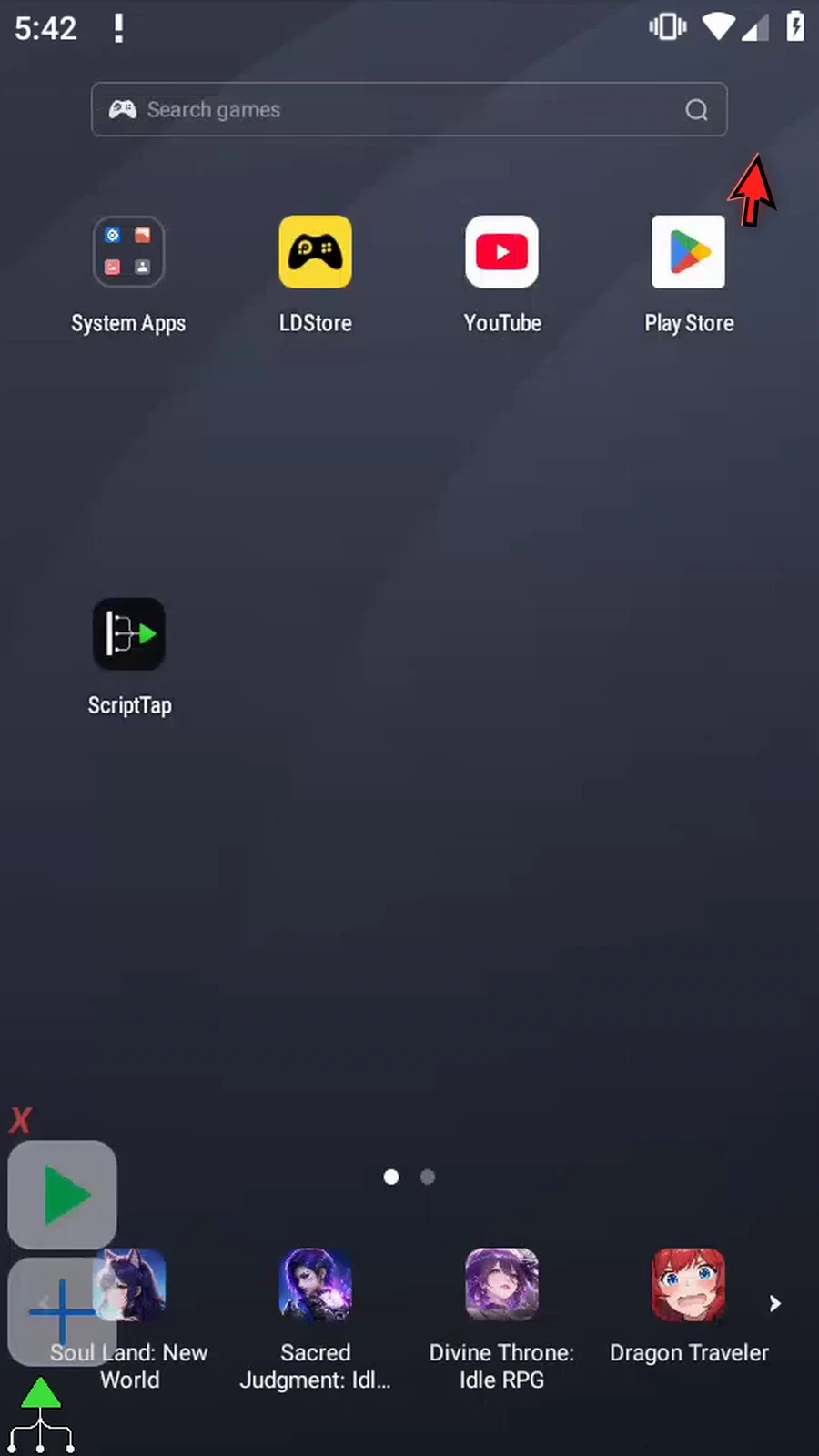
Step 15 When the script is complete, simply use the Play button in the main overlay.
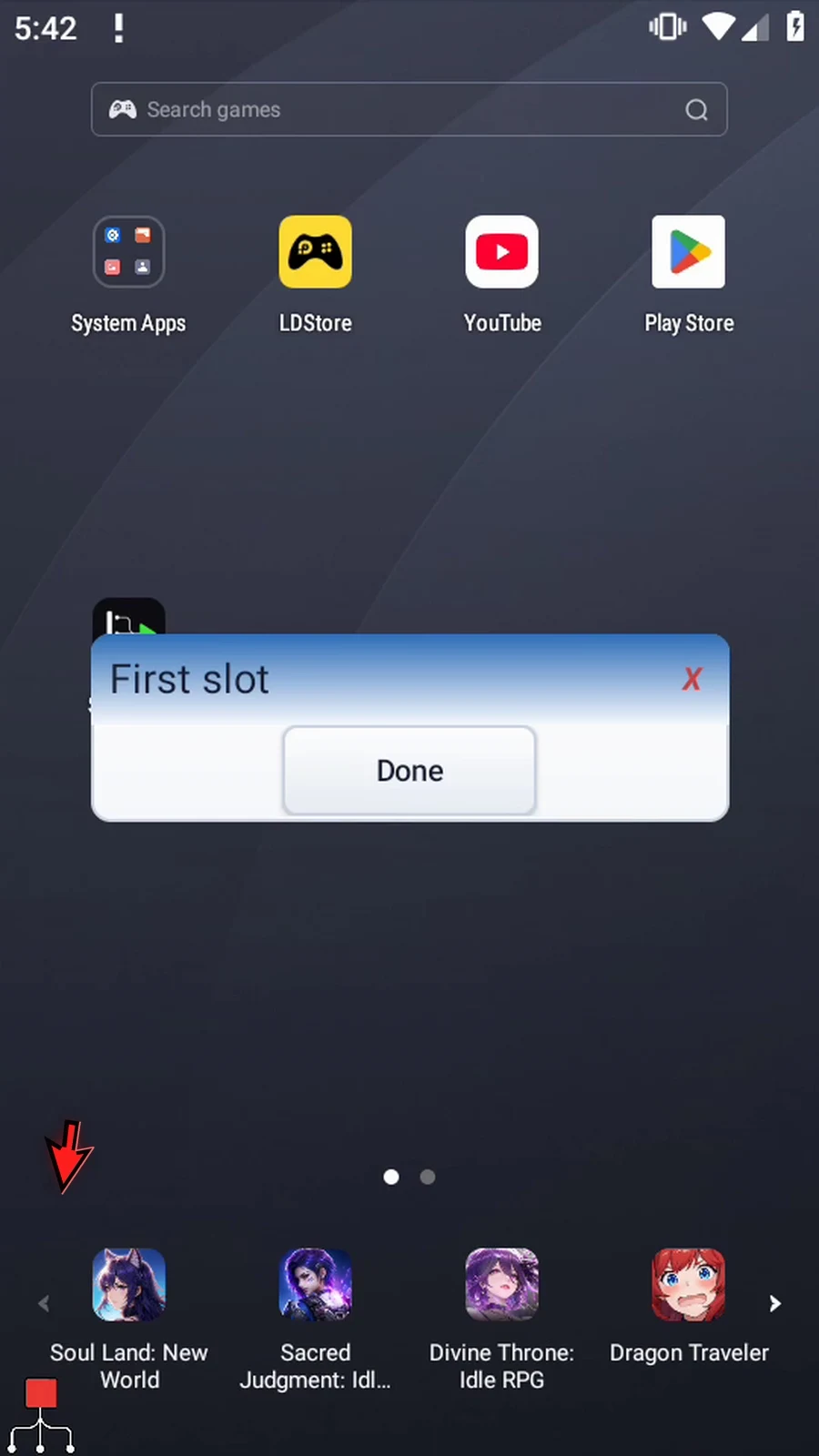
Step 16 PromptMe displays First slot, the text written to s1 after the family was declared. The array declaration itself did not supply that text.
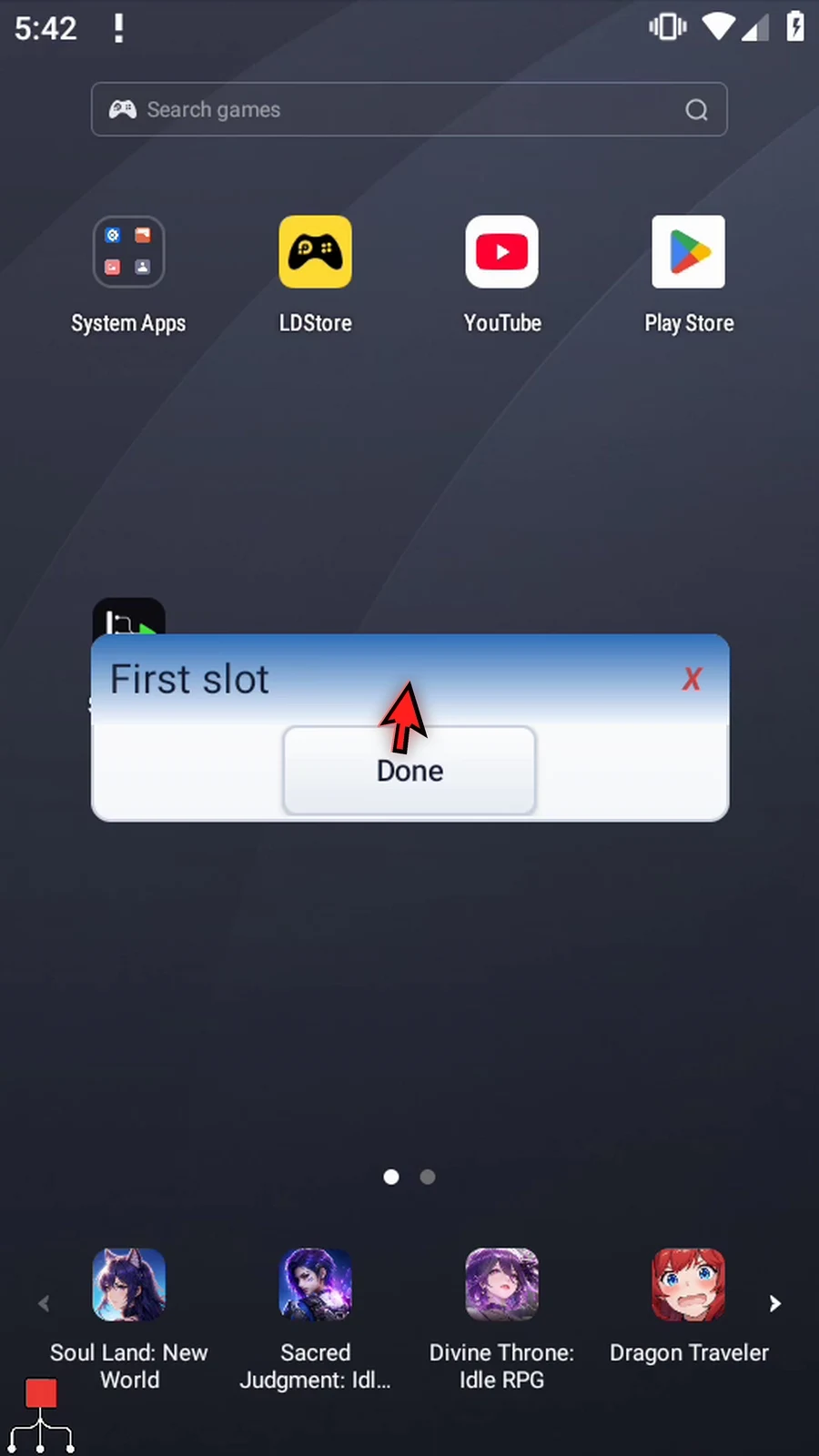
Step 17 Press Done to finish automatically. Declare the matching type and scope before later commands use an indexed collection.