Command video guide
Swipe - Basic
Create a script, record and replace a swipe, review Exact mode, and replay the saved path.
Watch the walkthrough
Step-by-step guide
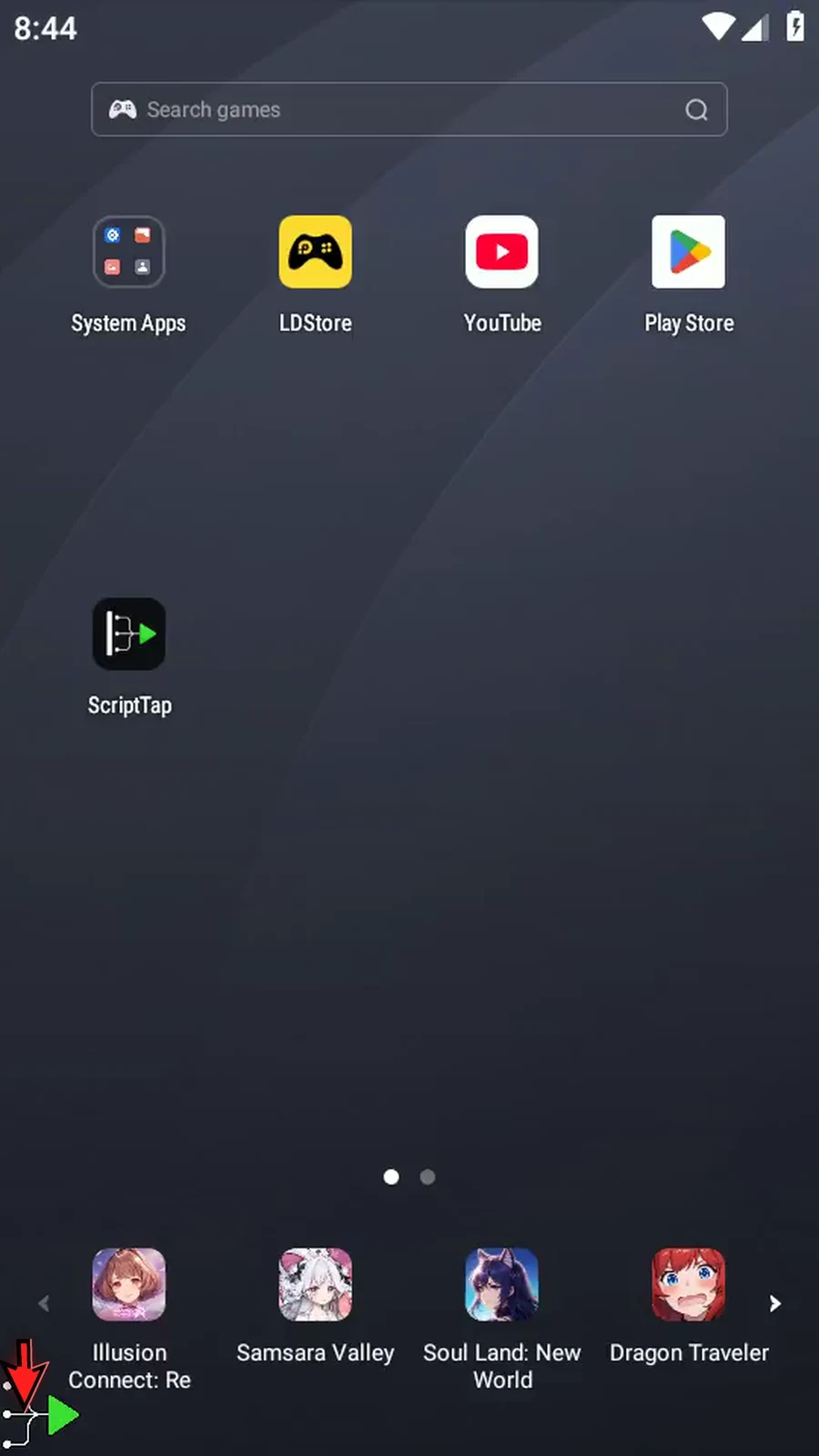
Step 01 Swipe records a continuous movement for your script to replay. Start by expanding the ScriptTap main overlay.
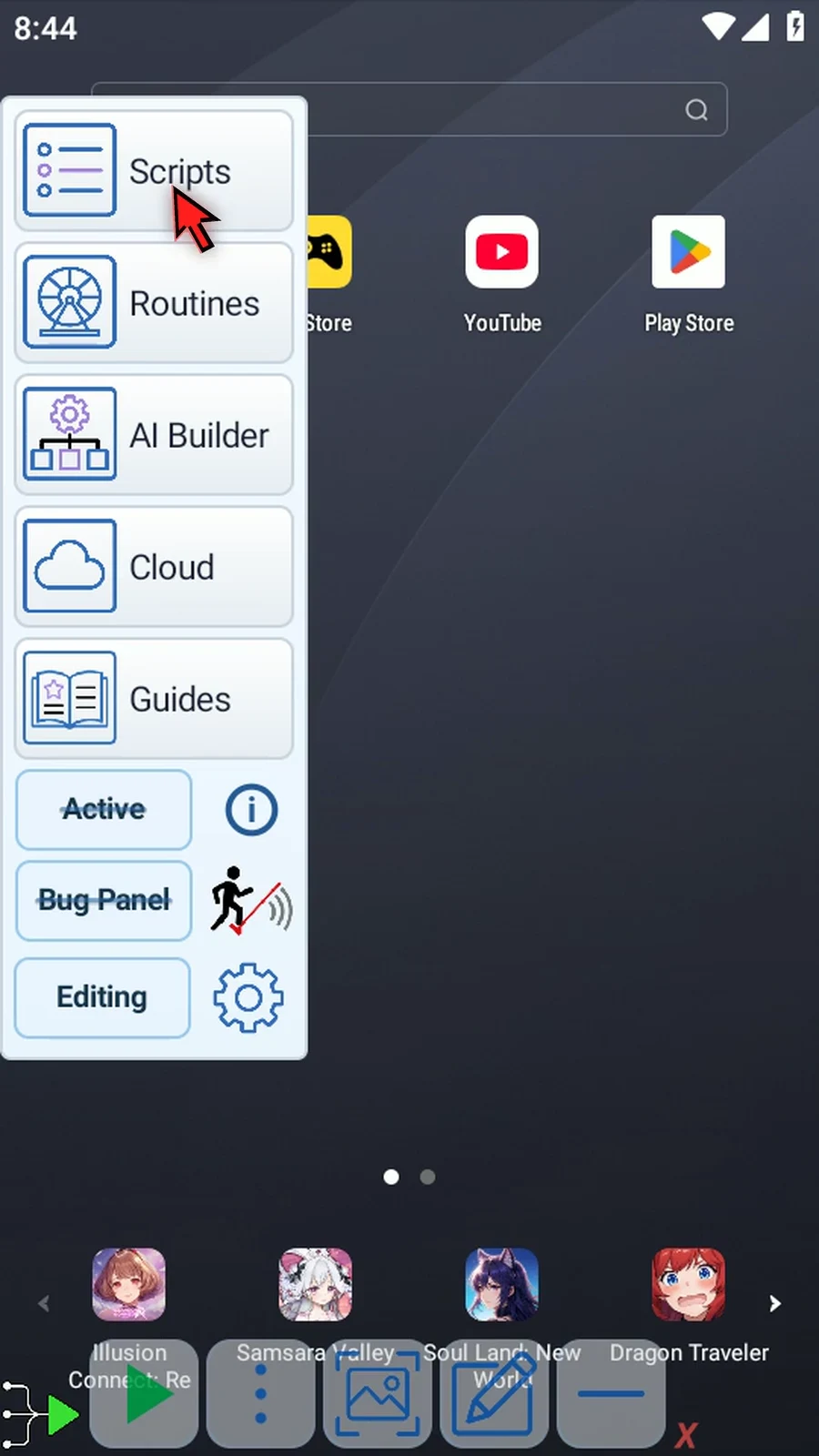
Step 02 Open the three-dot menu. Choose Scripts.
Step 03 Tap New Script. Choose Blank Script to create your script.
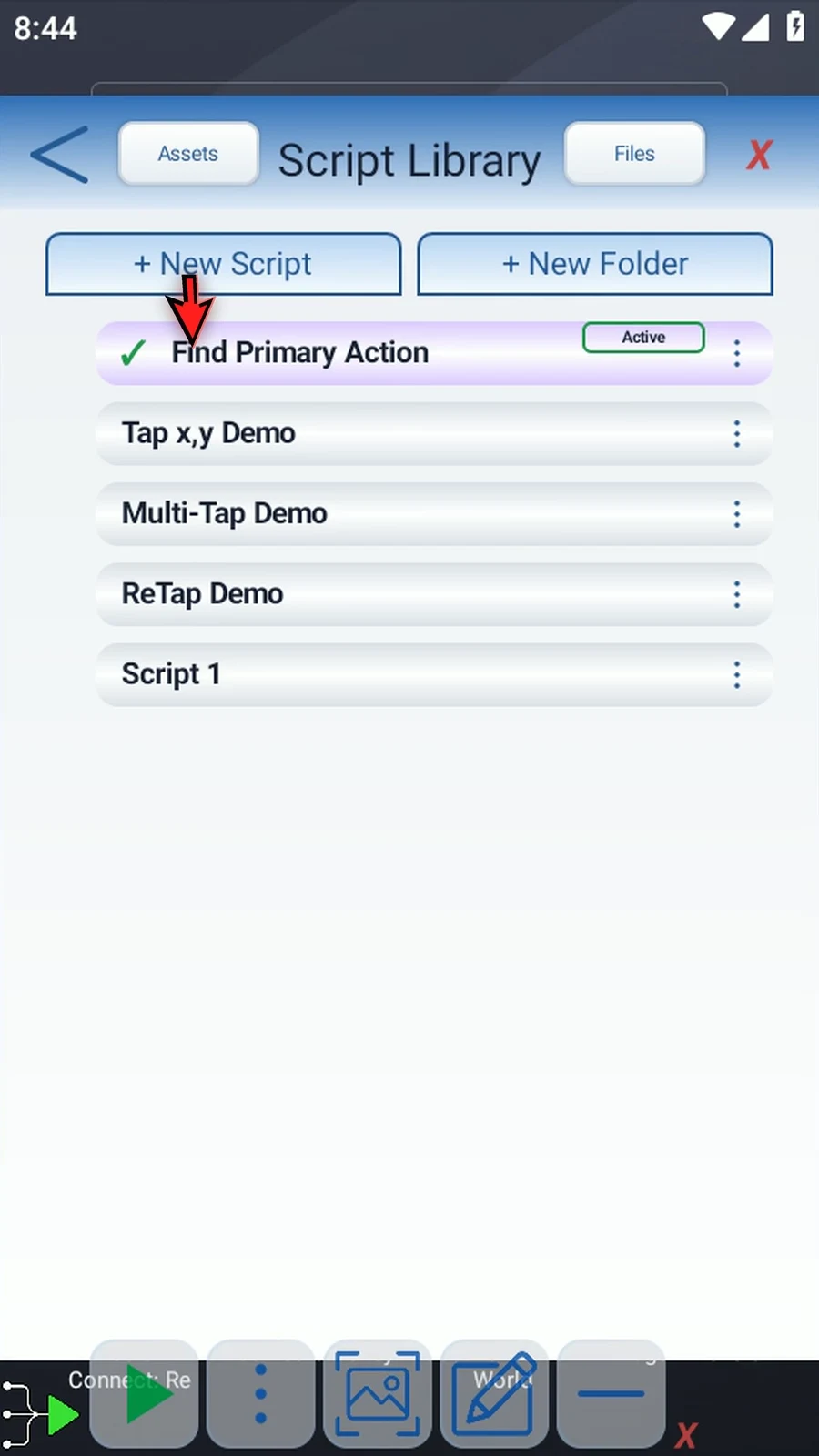
Step 04 Select your new script.
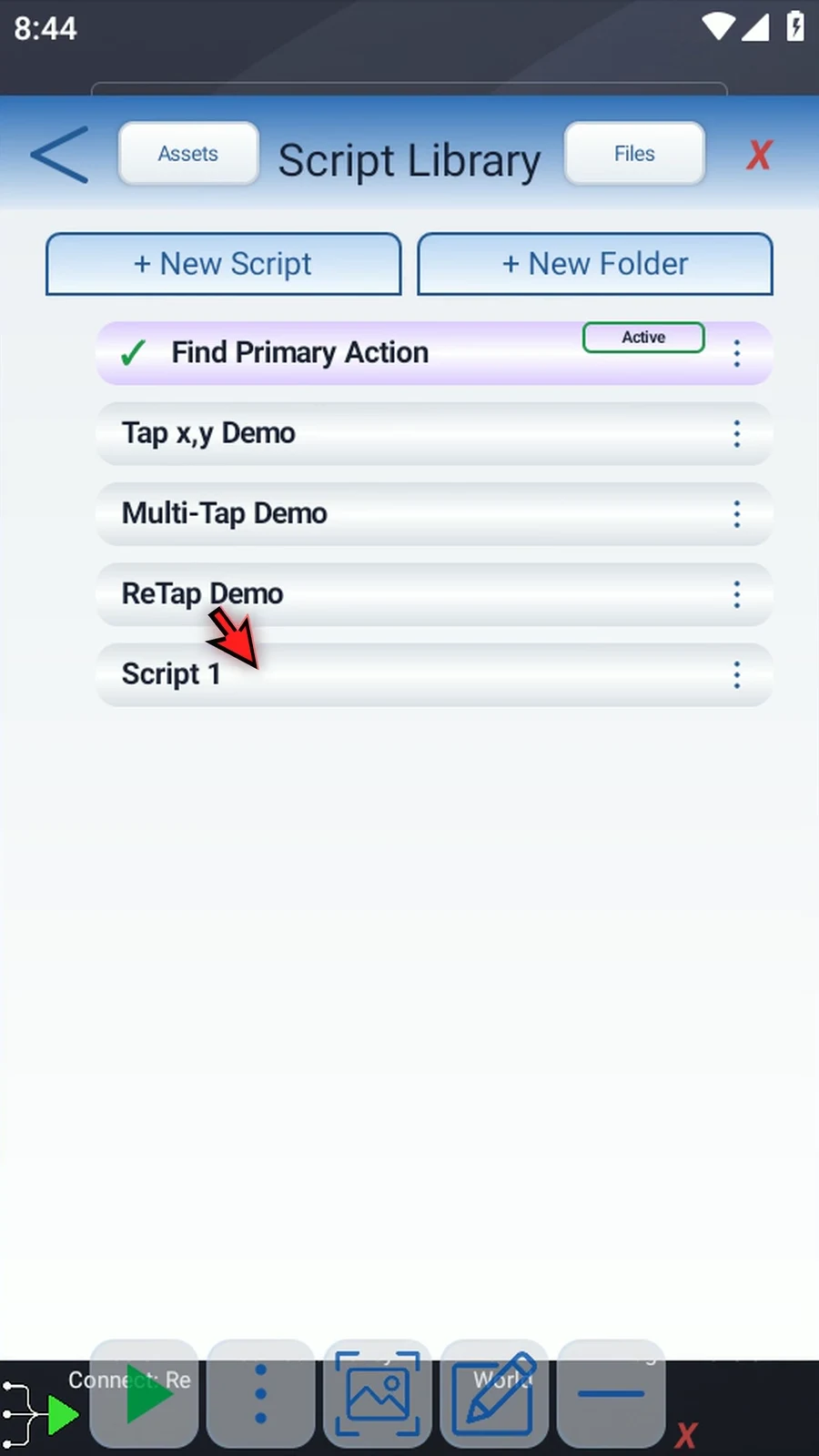
Step 05 Open its three-dot menu. Choose Rename.
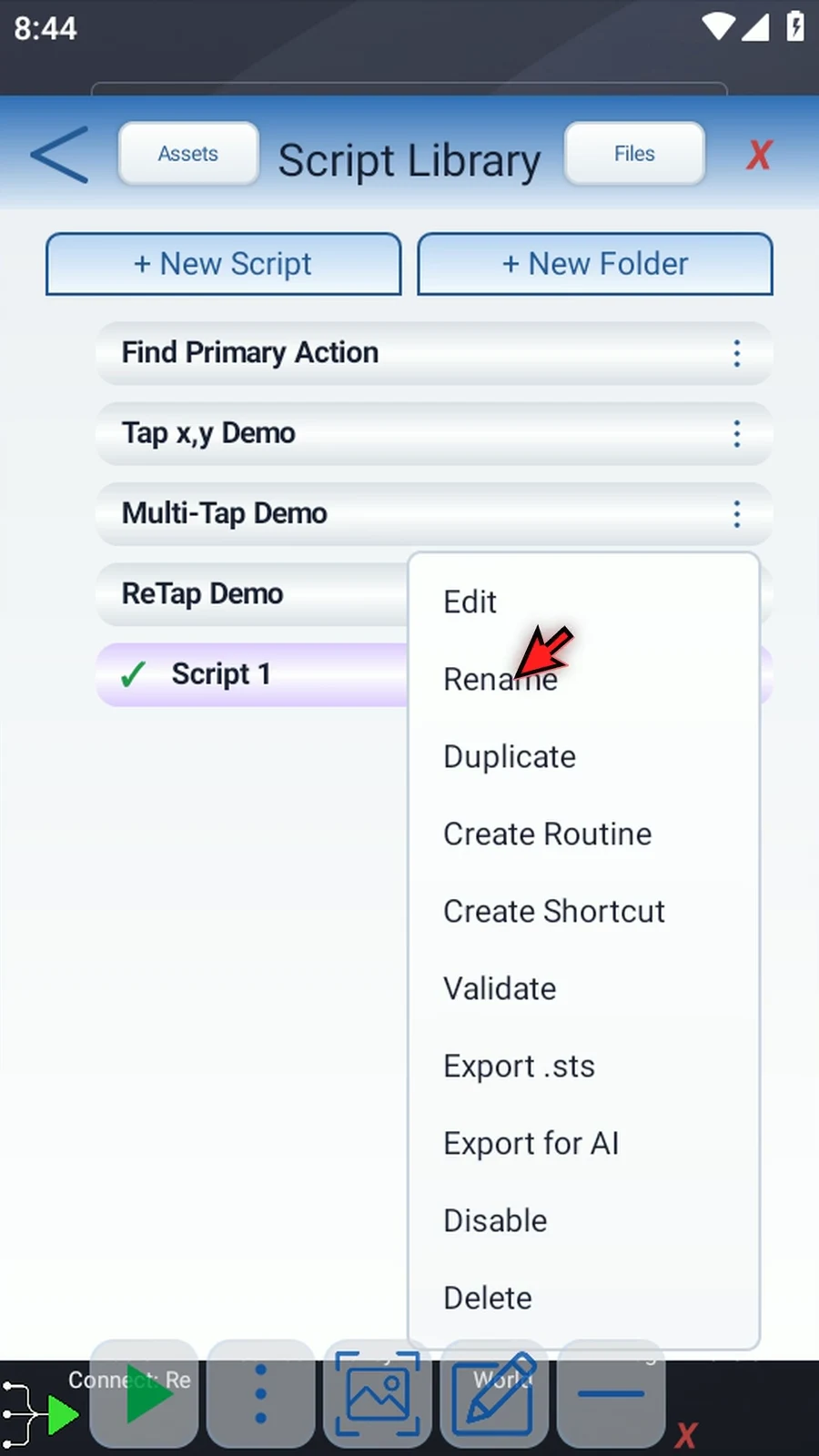
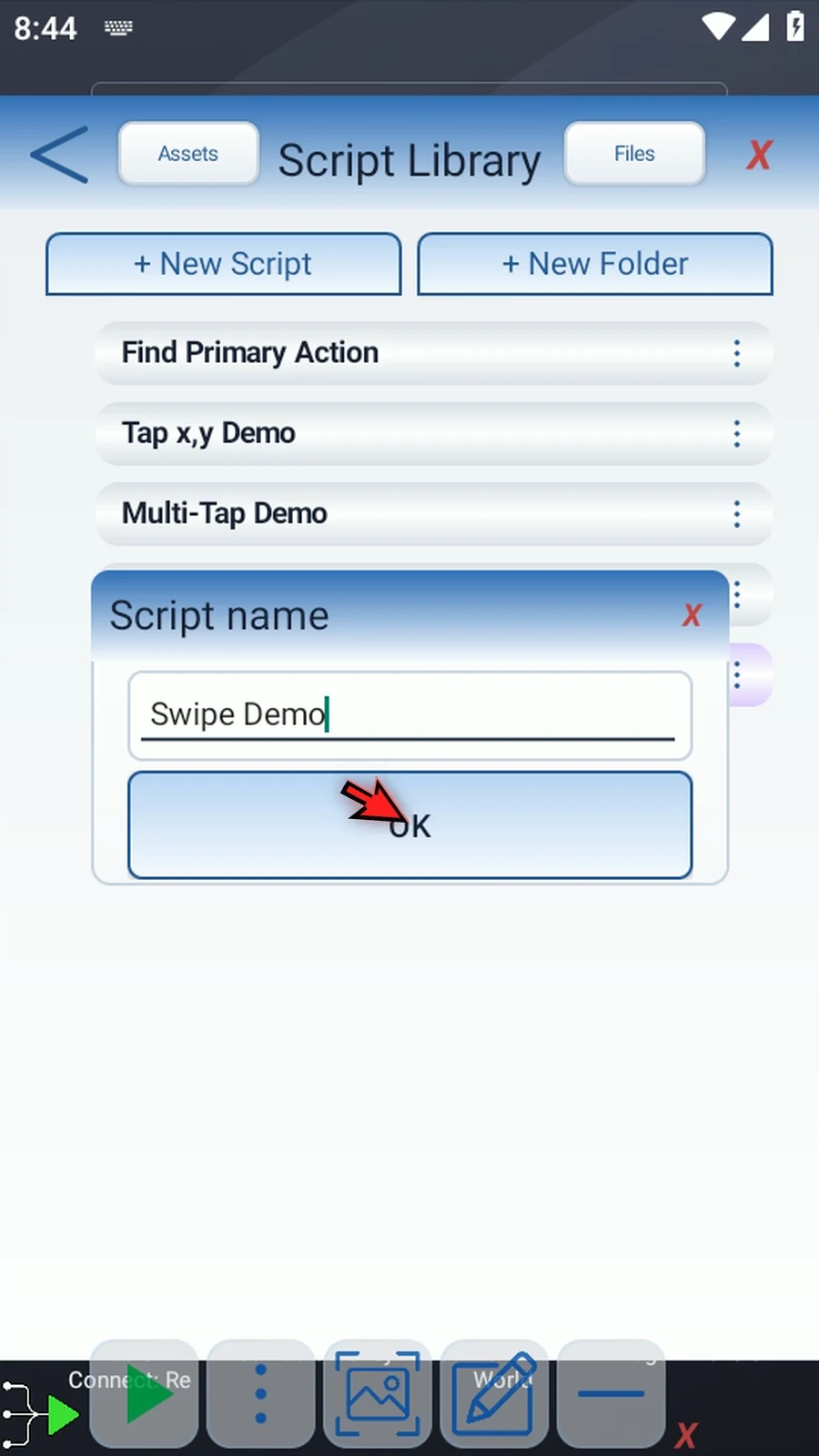
Step 06 Pick a name for your script and enter it. Then tap OK.
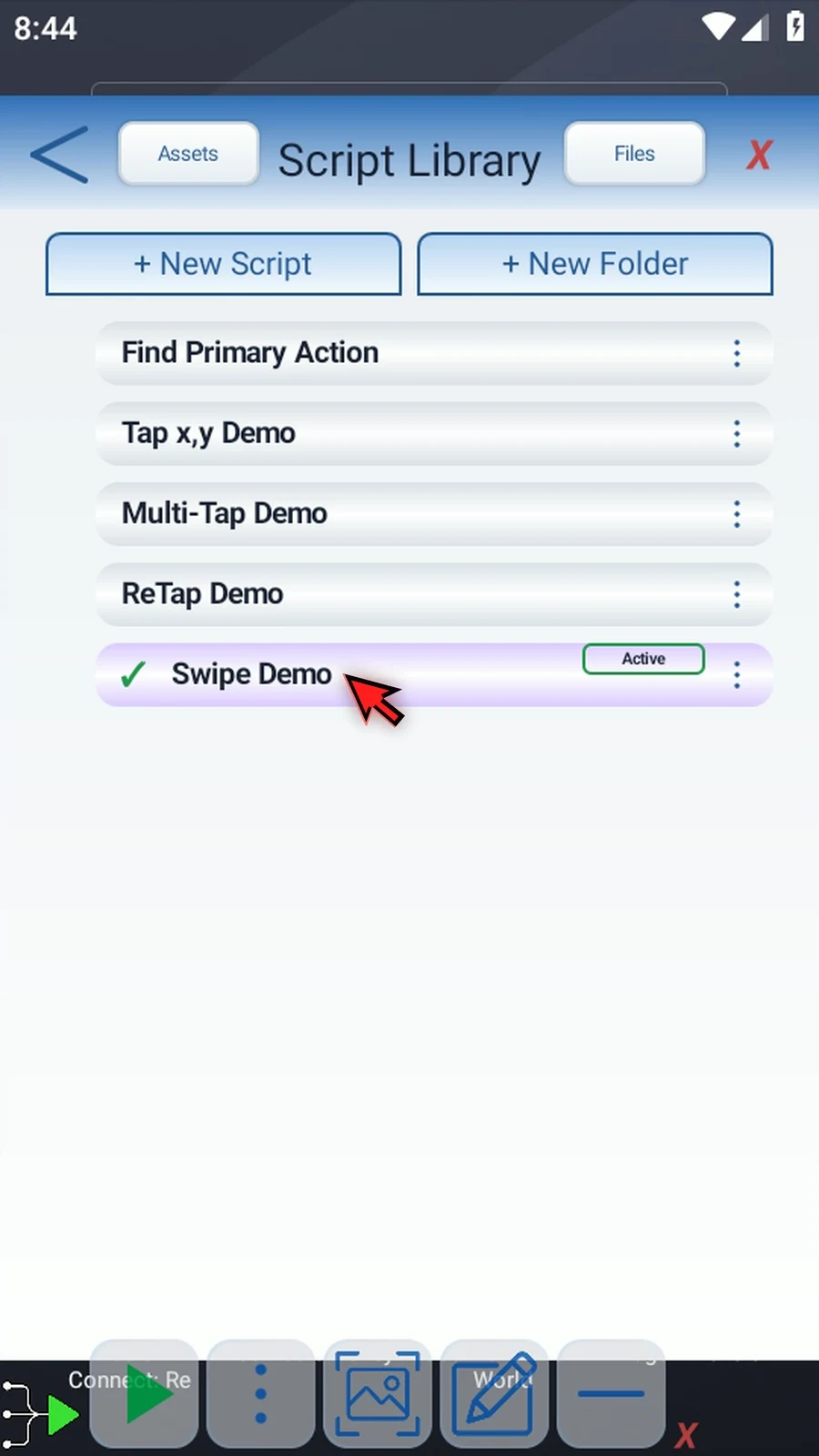
Step 07 Double-tap the script card to open the editor.
Step 08 On the left, expand Actions.
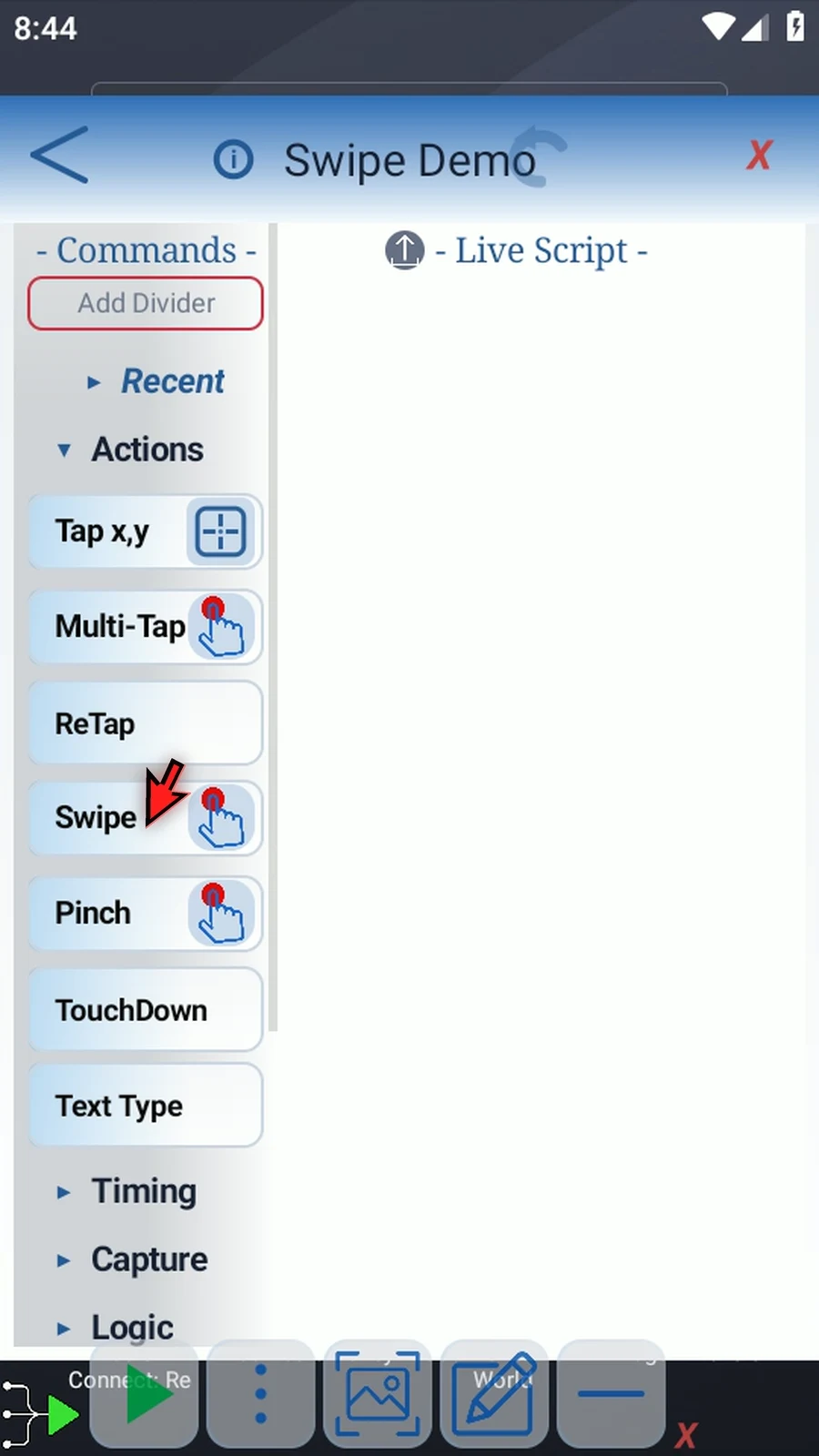
Step 09 Drag Swipe into the live script and release on the blue insertion line. Double-tapping Swipe appends it instead.
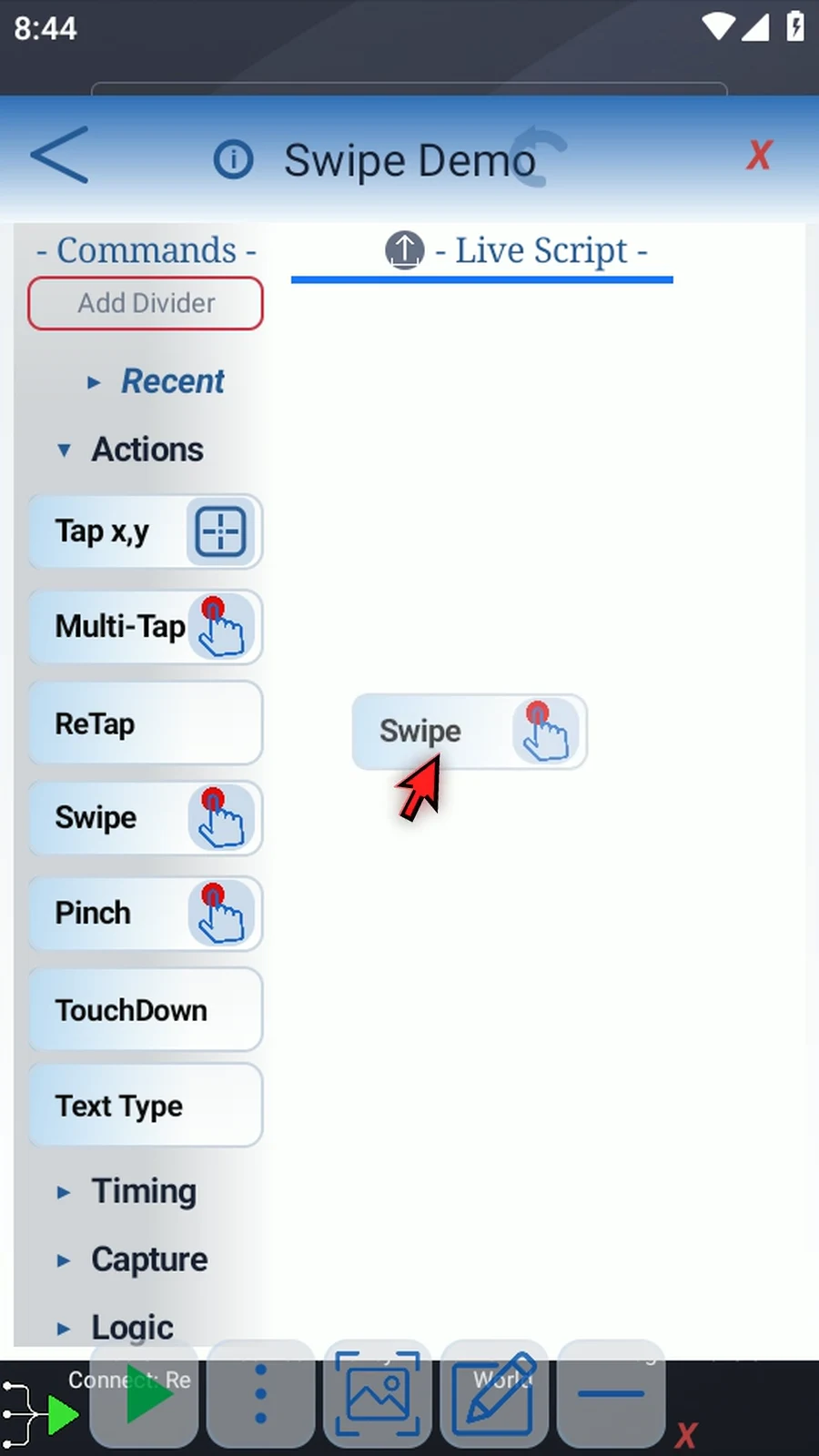
Step 10 Tap the recording icon on the command. If Android asks, allow screen capture.
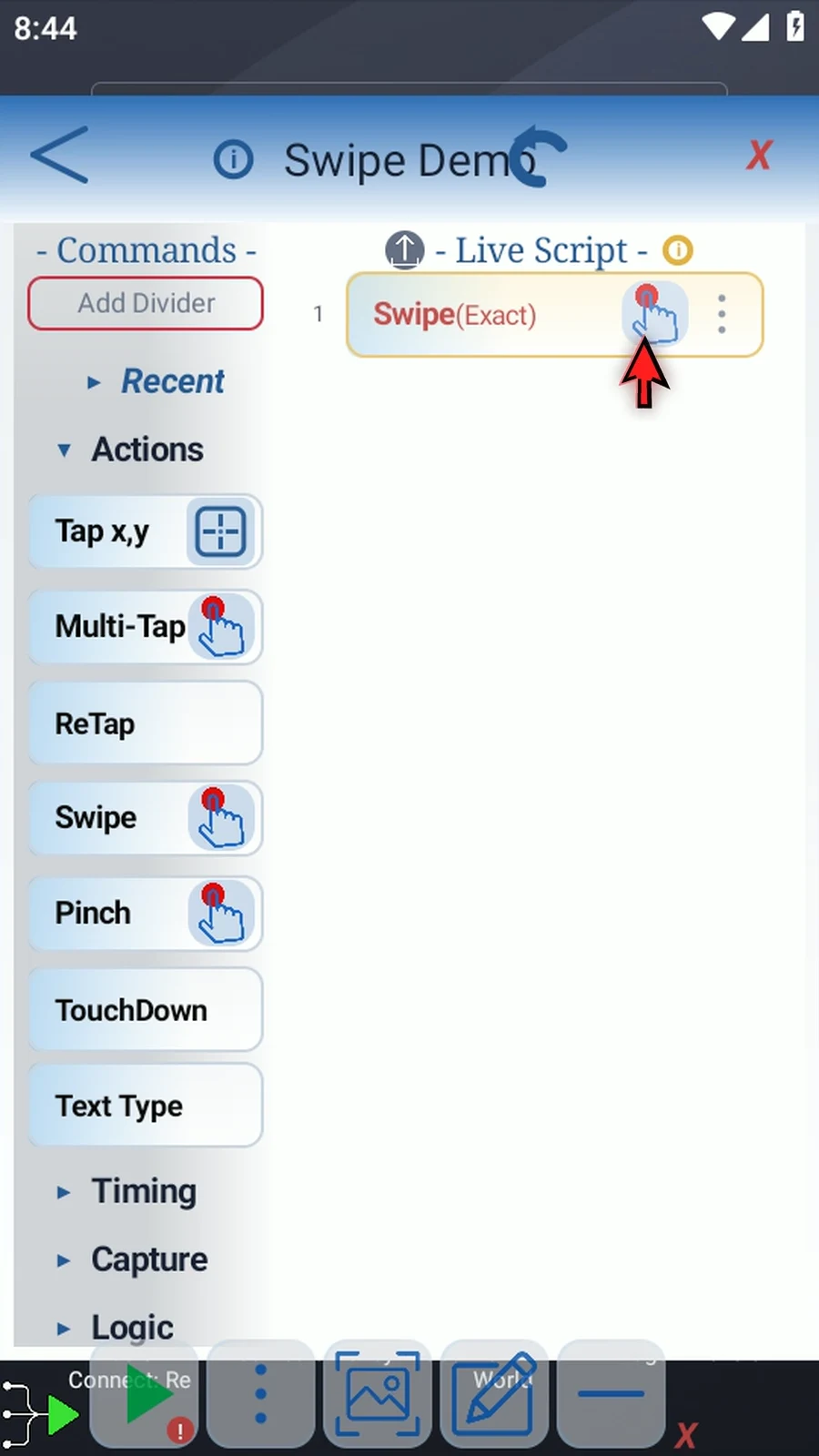
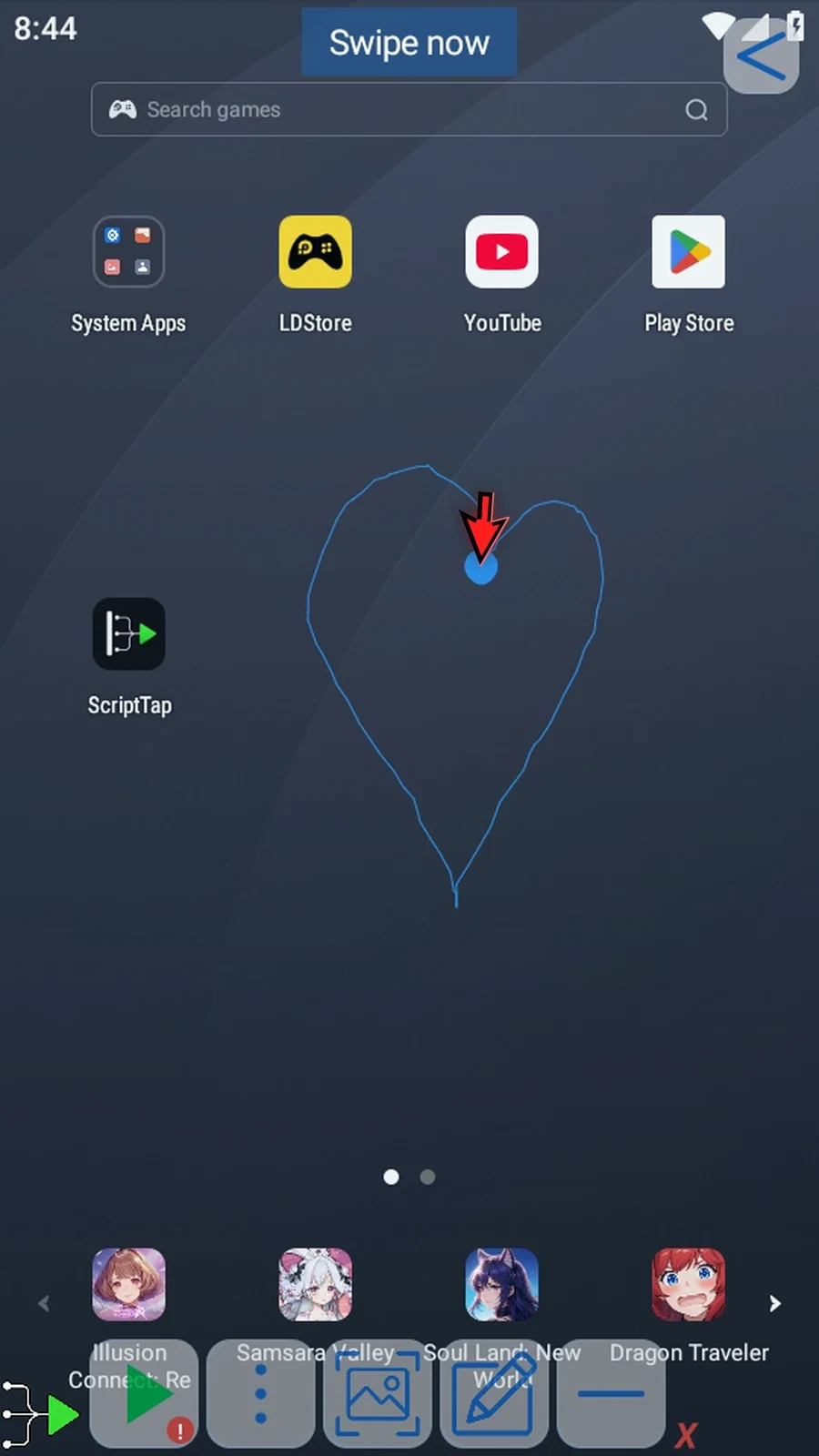
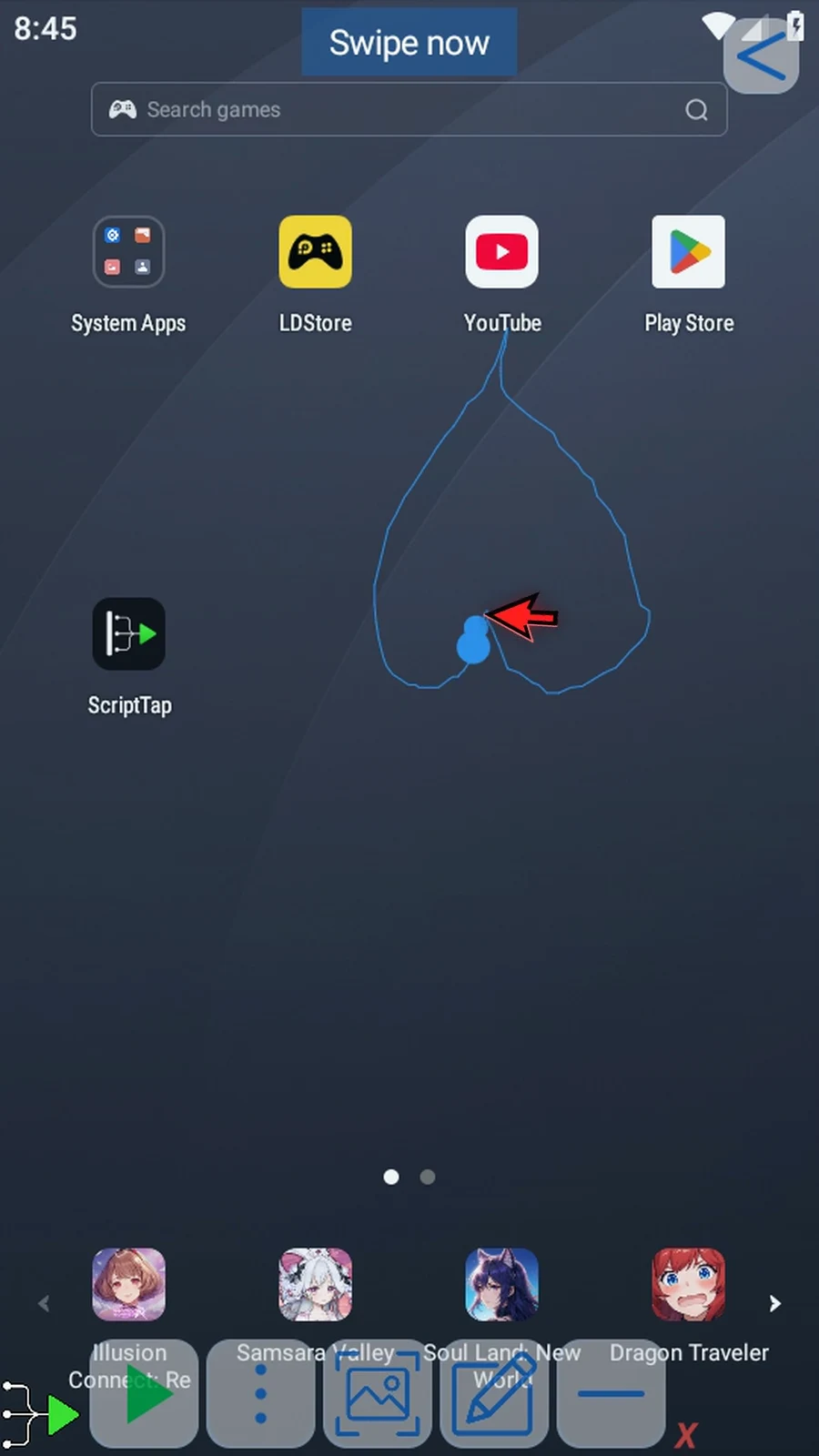
Step 11 Draw the swipe you want to replay, then release. ScriptTap captures the path and returns to the editor.
Step 12 Double-tap the command frame to review its options.
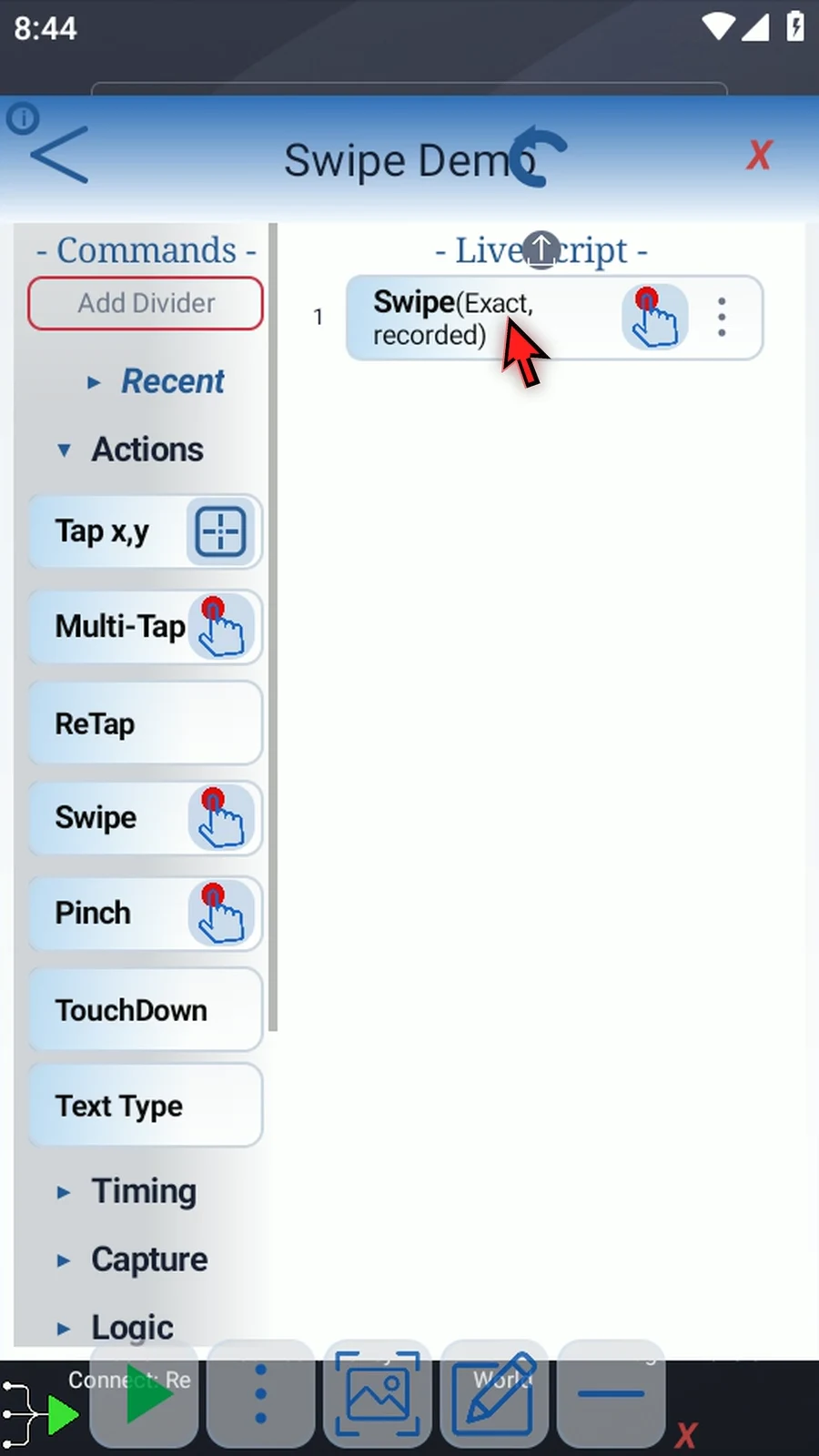
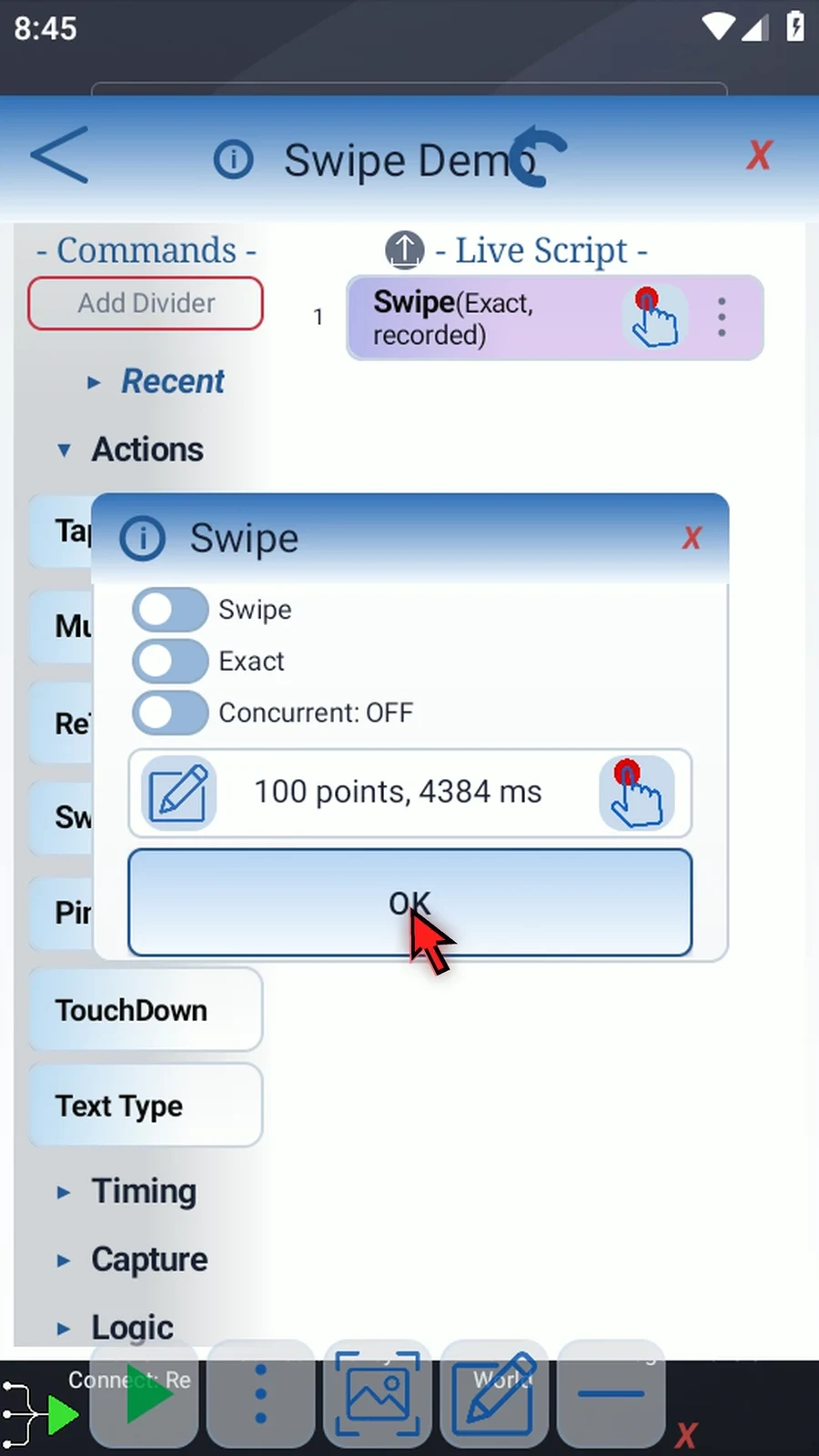
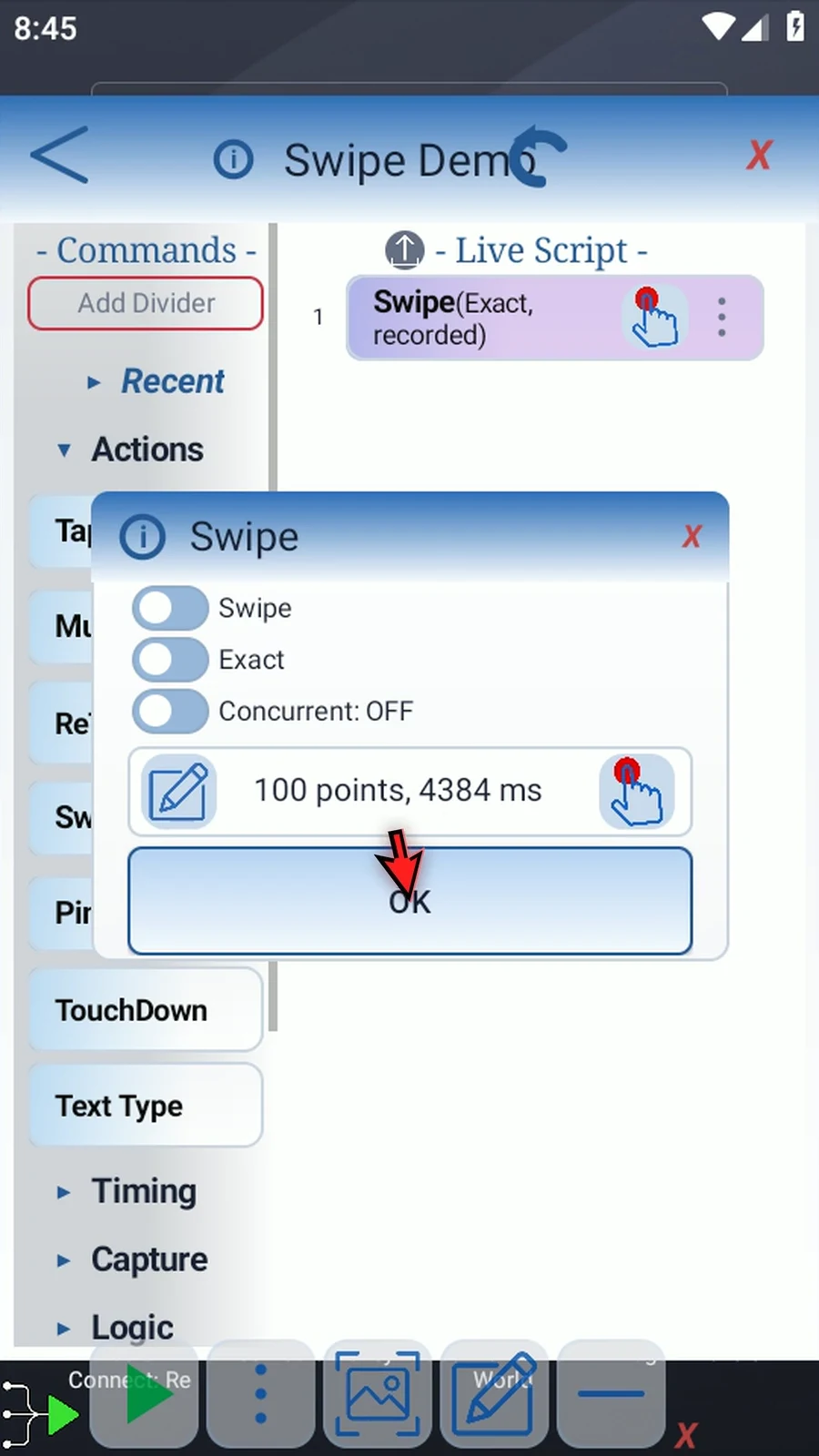
Step 13 Keep Swipe and Exact selected for this first example. Exact follows your recorded path using its saved duration.
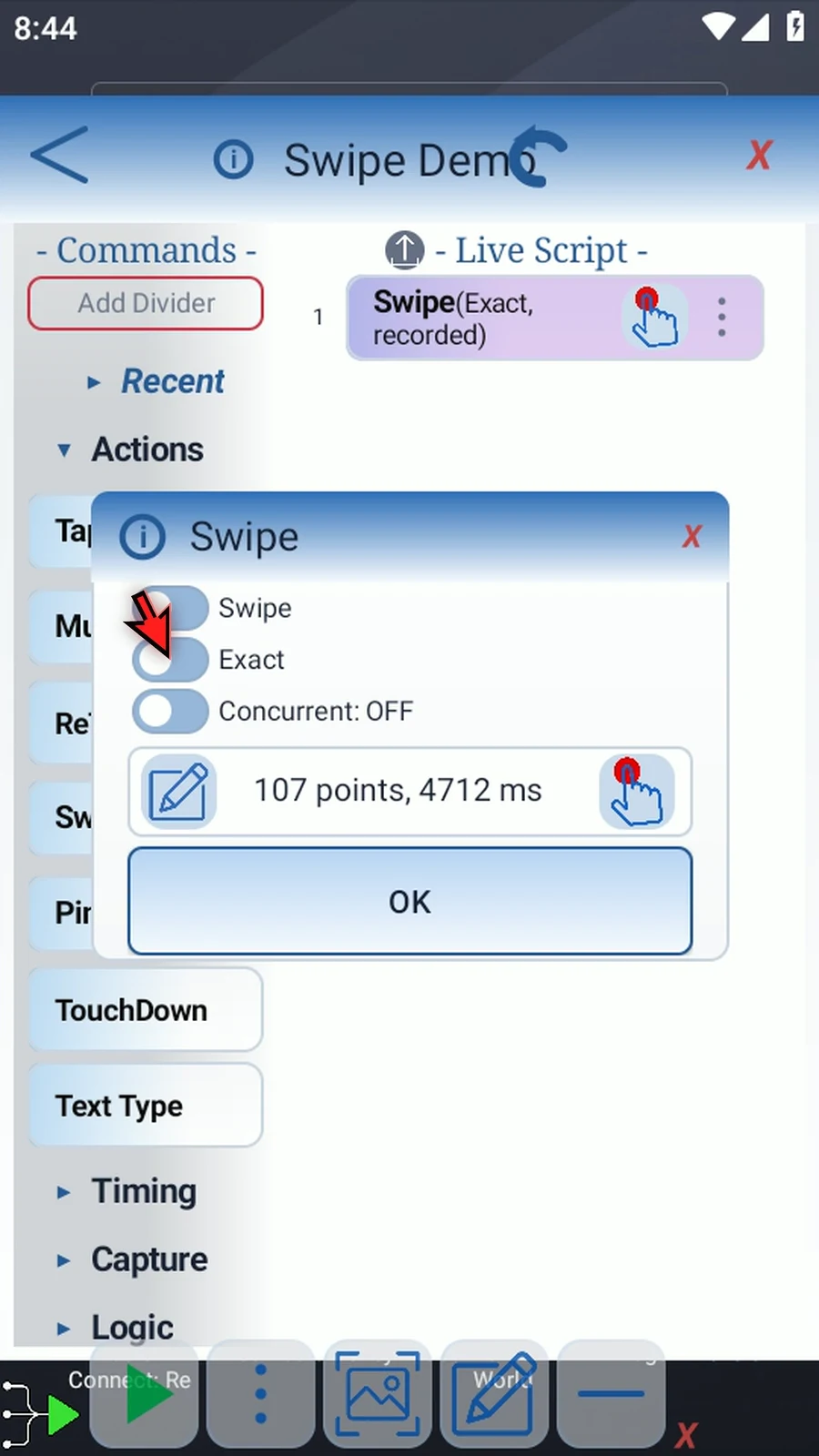
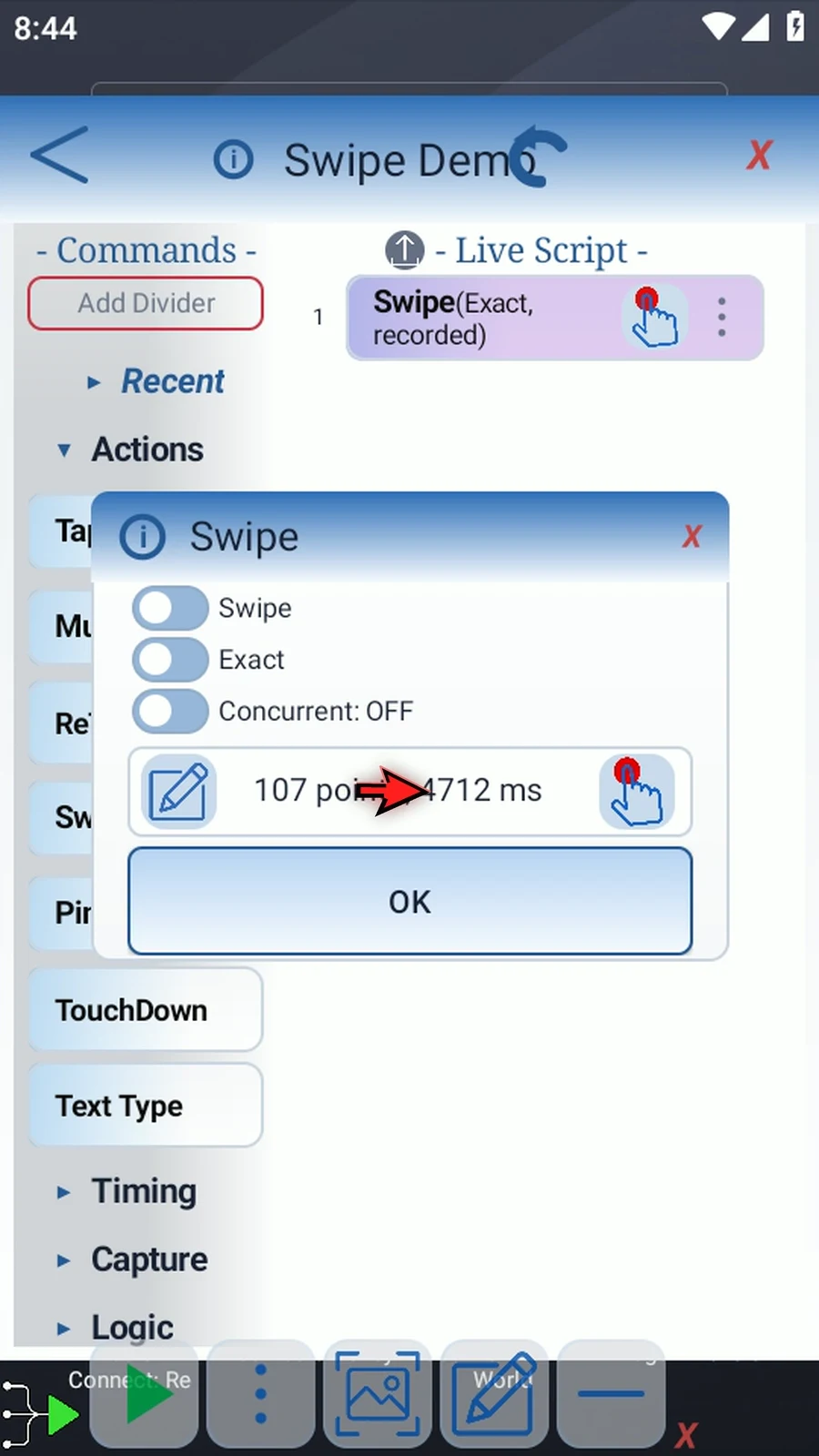
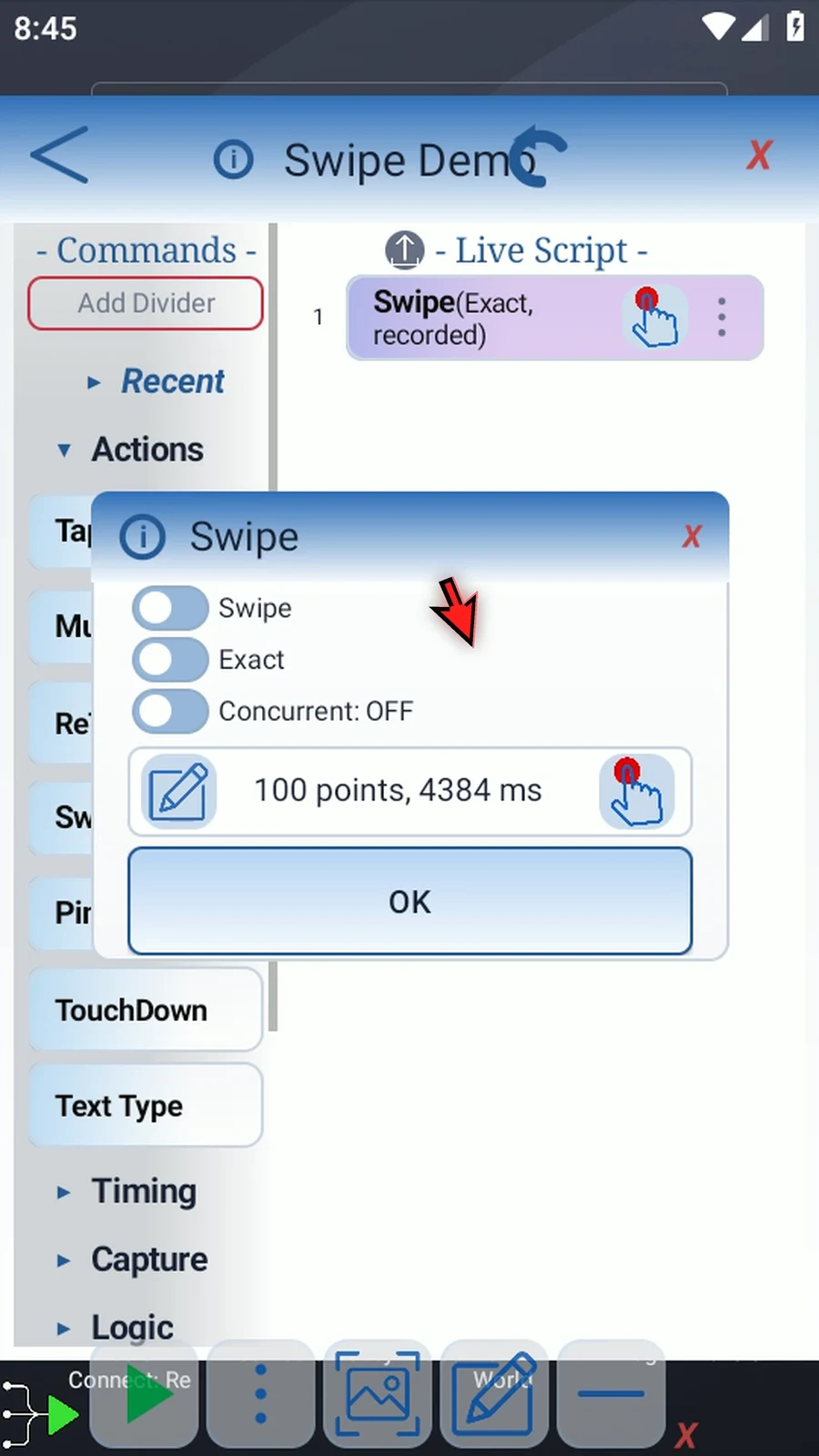
Step 14 The path row shows the number of points and its duration in milliseconds.
Step 15 To replace the path, tap the recording icon again. Draw the replacement swipe slowly, then release to return with the new path.
Step 16 Tap OK to save your settings.
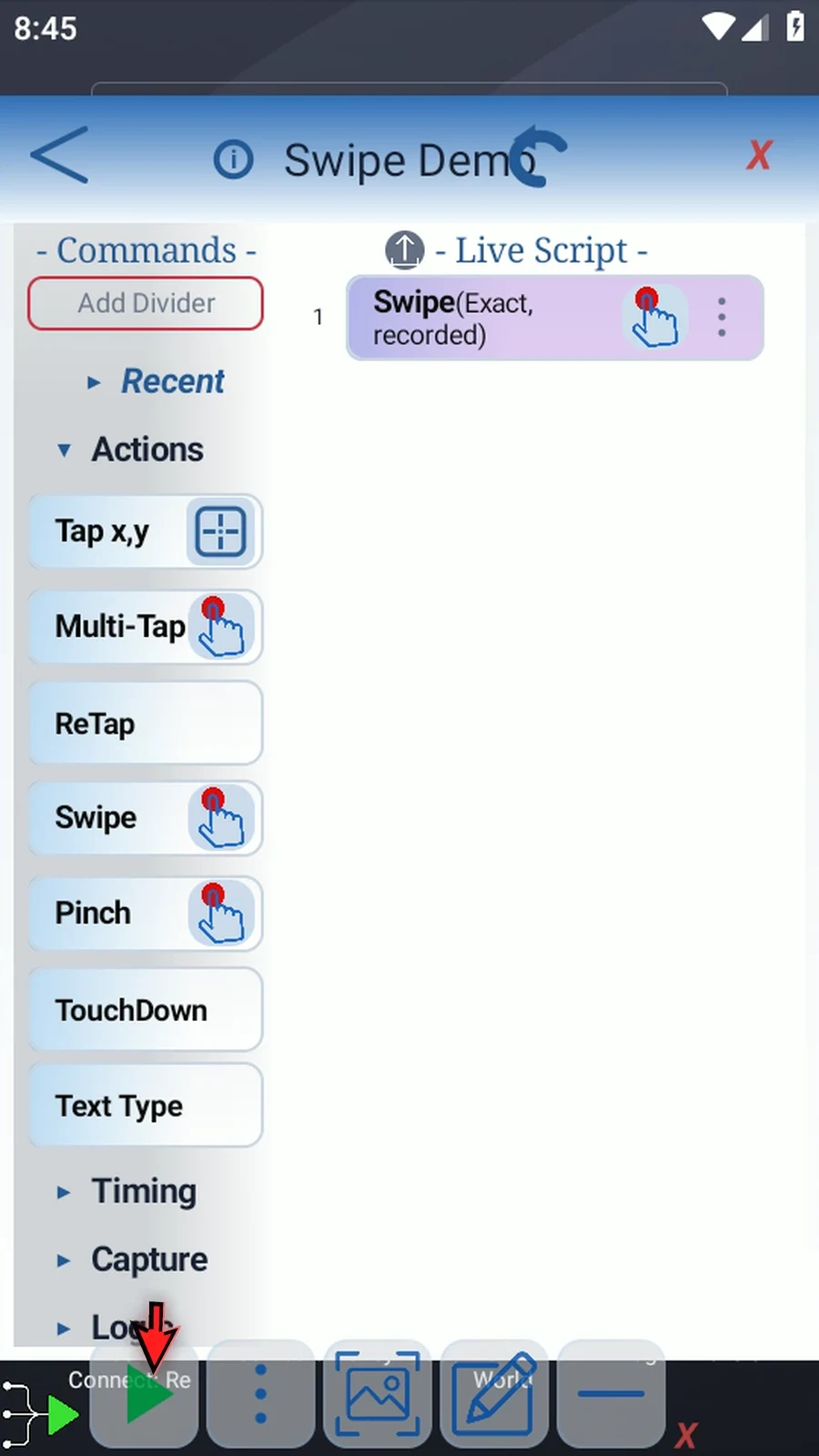
Step 17 When the script is complete, simply use the Play button in the main overlay.
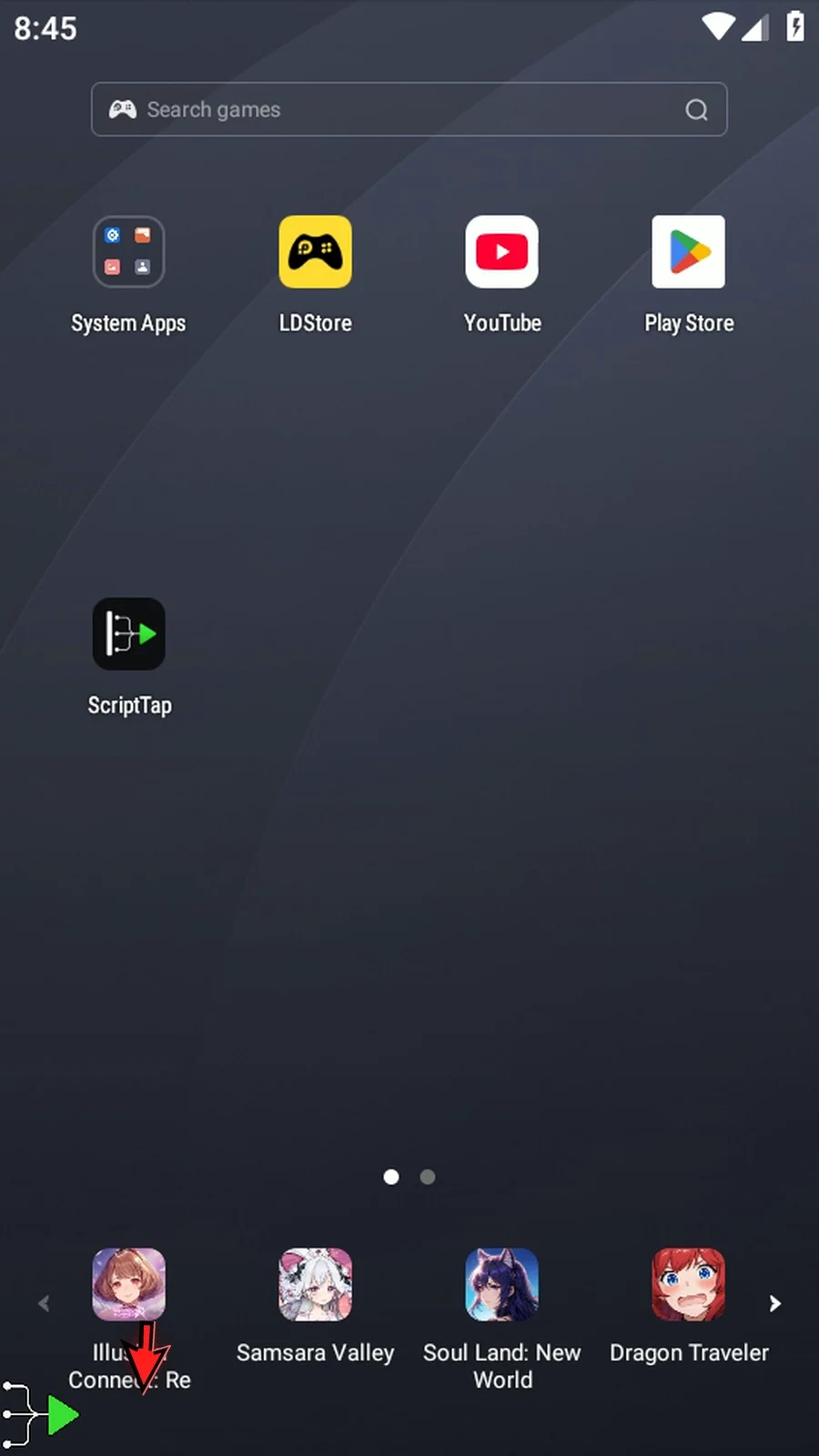
Step 18 ScriptTap replays the recorded swipe. This script then stops automatically.
Command video guide
Swipe - Advanced
Explore Drag, Quick, Exact, and Concurrent, then edit the trajectory, coordinates, and point timing.
Watch the walkthrough
Step-by-step guide
Step 01 Open the recorded Swipe command to explore its other settings. We will use both paths shown in Basic.
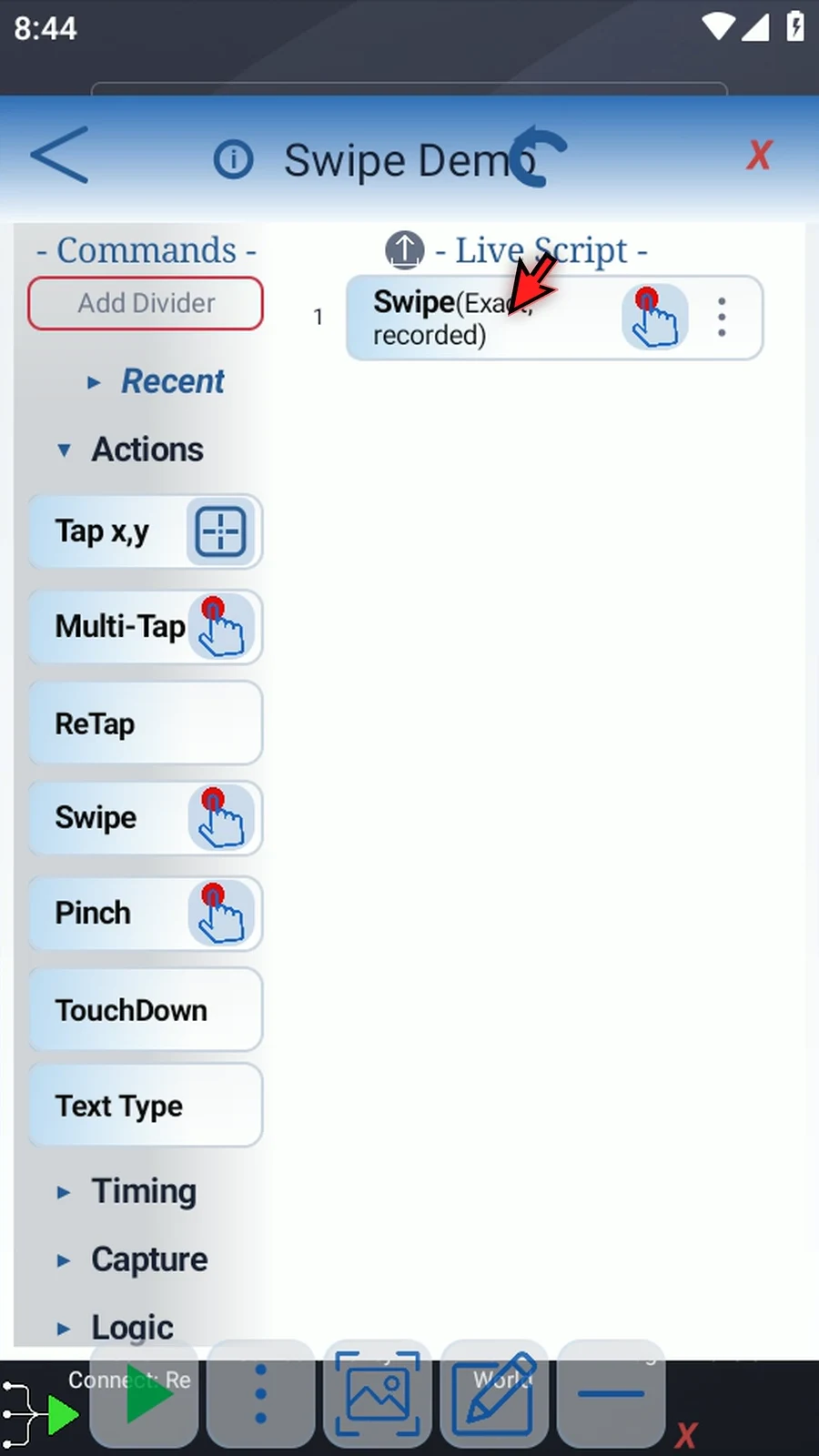
Step 02 Switch Swipe to Drag when the movement needs an initial press and hold. Press Dur sets the initial hold in milliseconds. Leave it blank for one thousand, enter a number, or use an Integer variable defined earlier in the script.
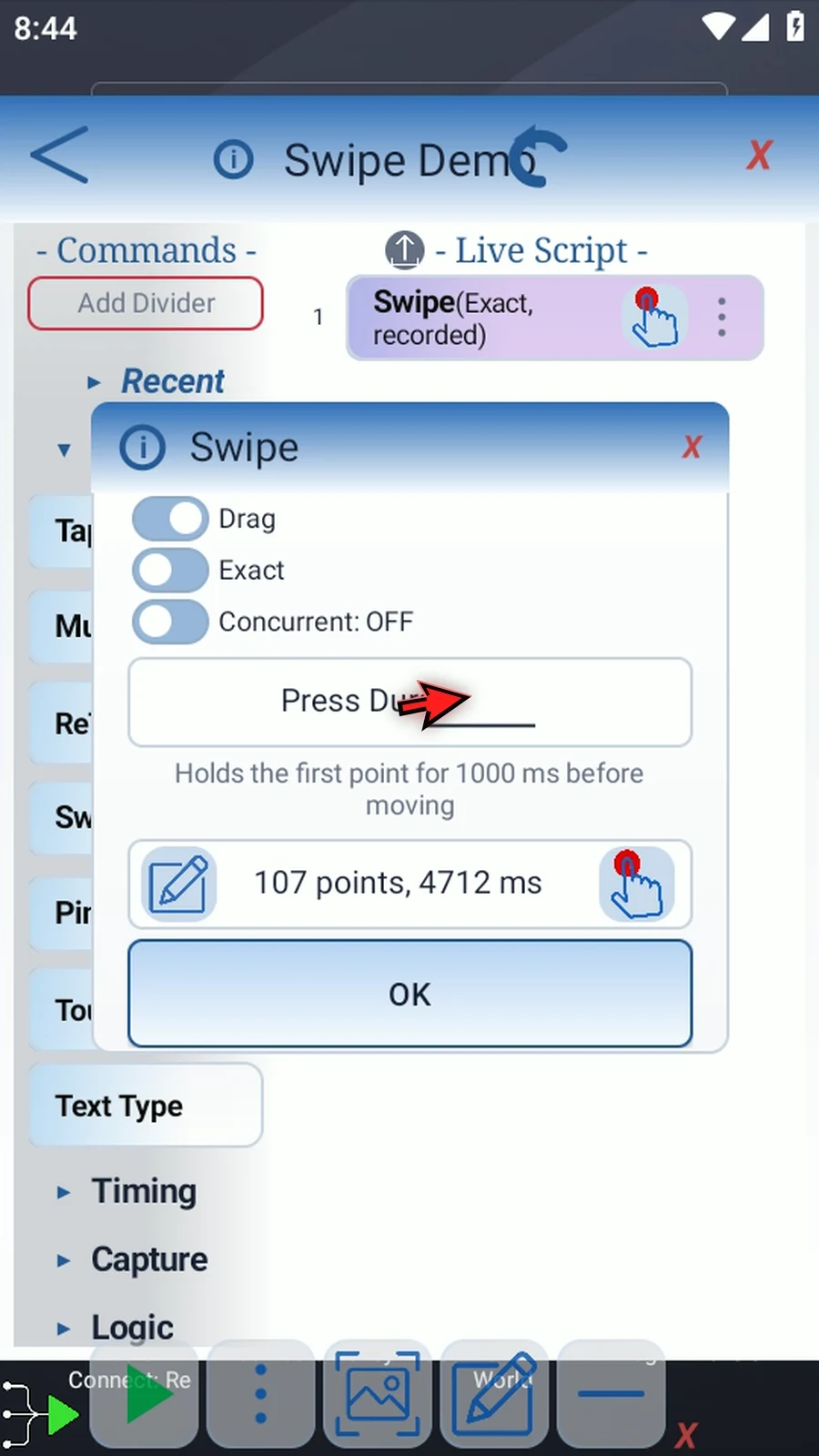
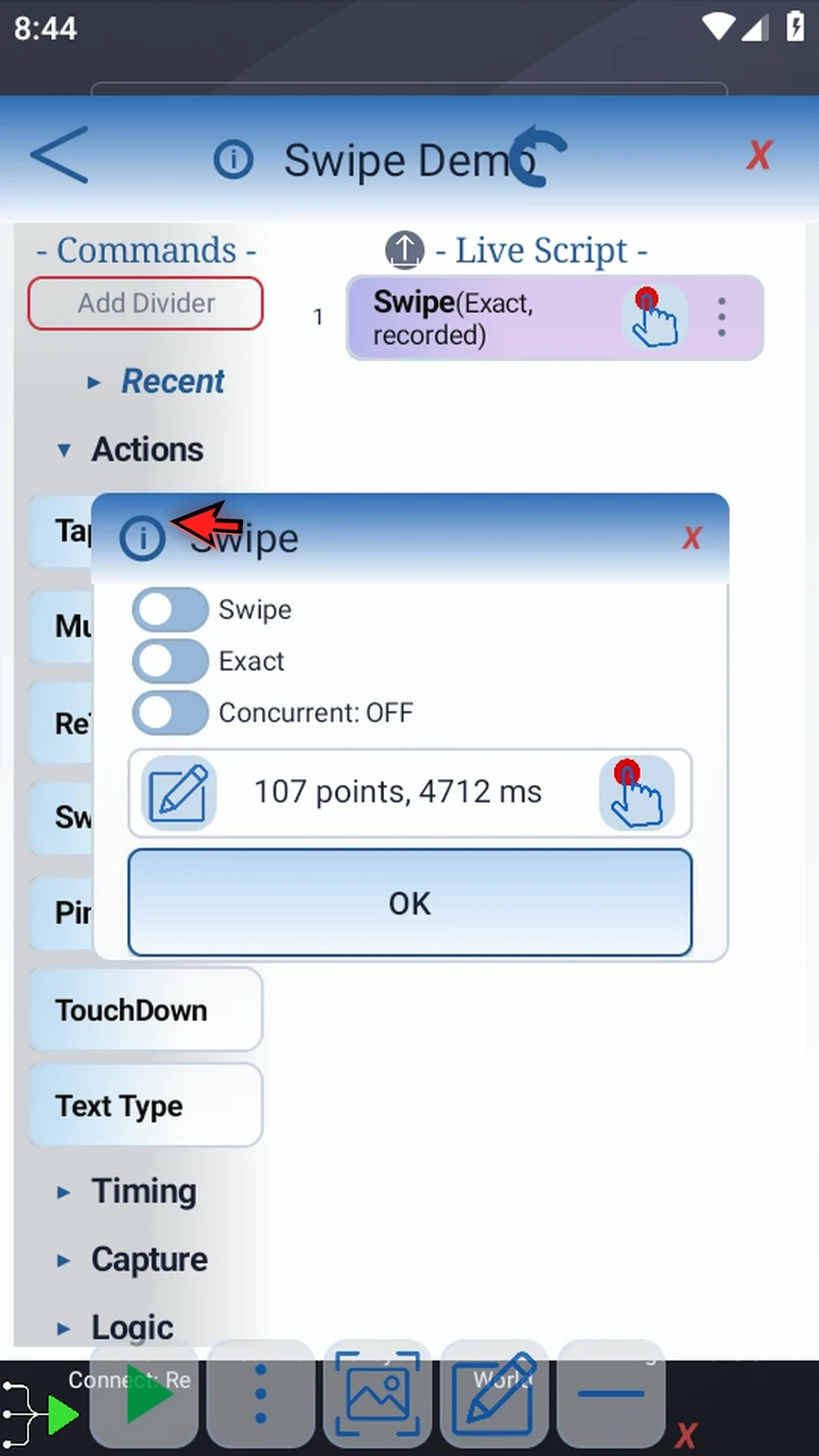
Step 03 Switch back to Swipe when no initial hold is needed.
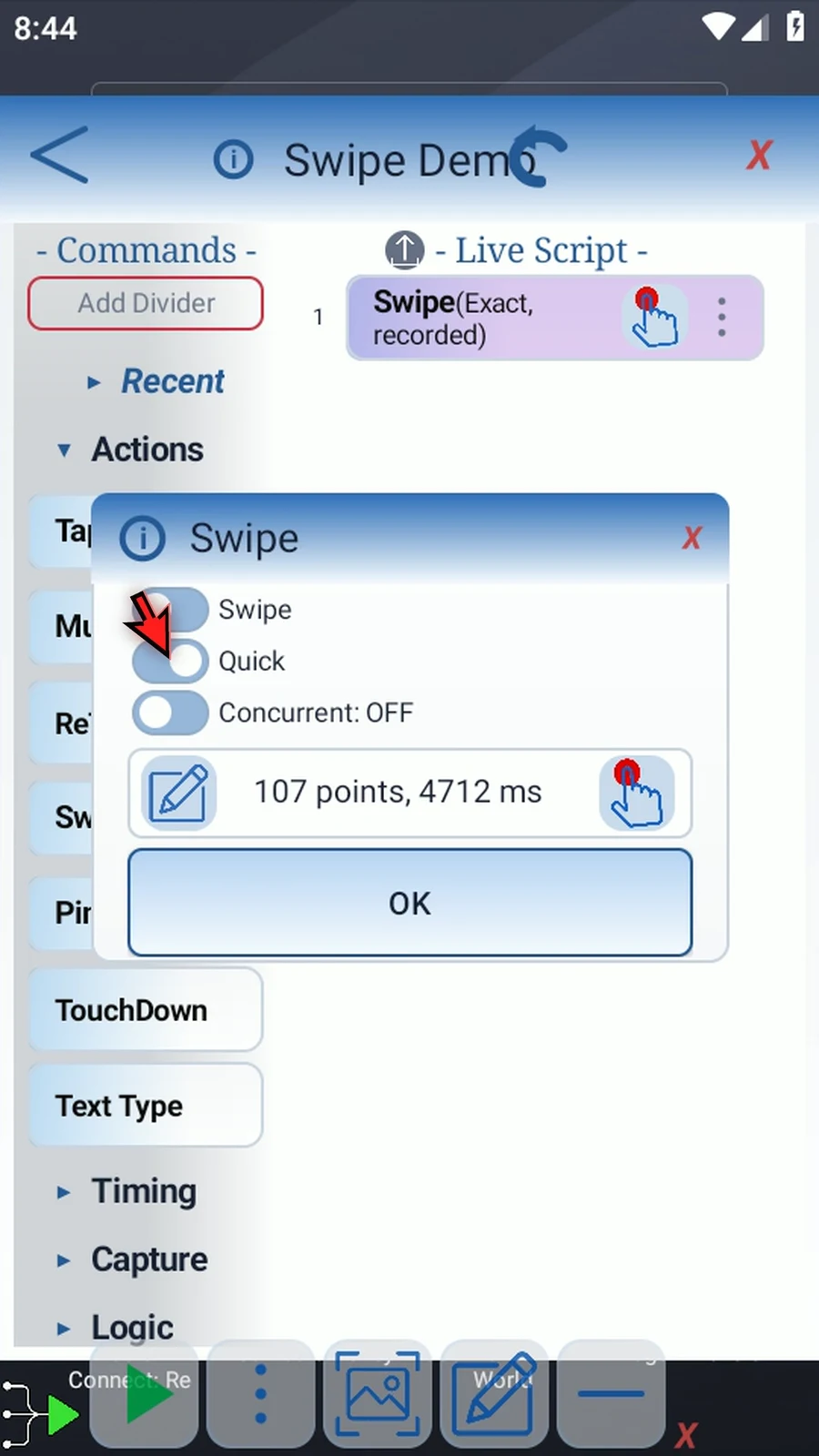
Step 04 Quick uses a straight line between the first and last recorded points, with a short, ninety-millisecond movement.
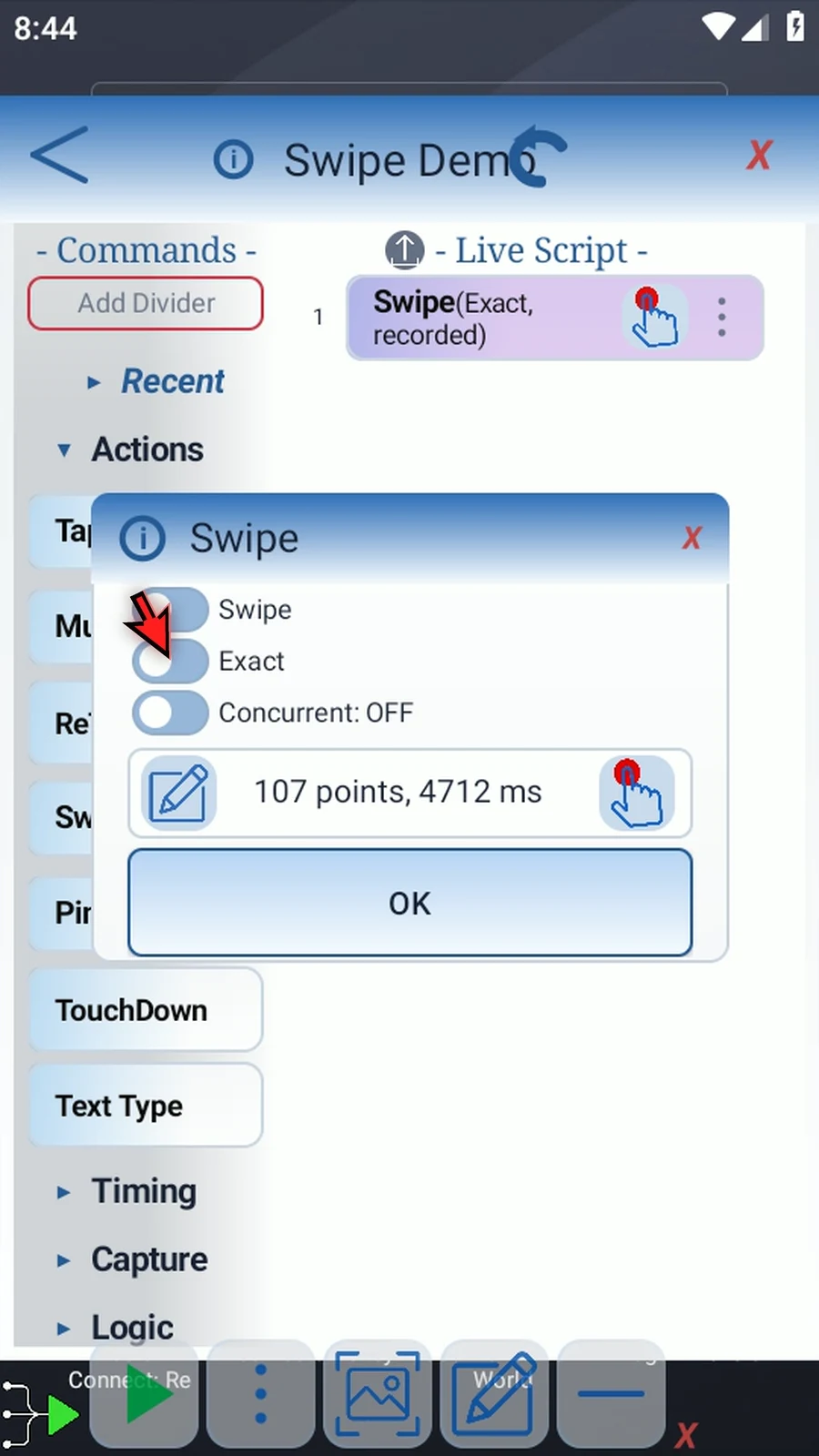
Step 05 Switch back to Exact to keep the full path and its saved duration.
Step 06 Concurrent combines adjacent Swipe and Pinch commands that also have Concurrent enabled. Their gestures start together. Stay within the device limit shown here.
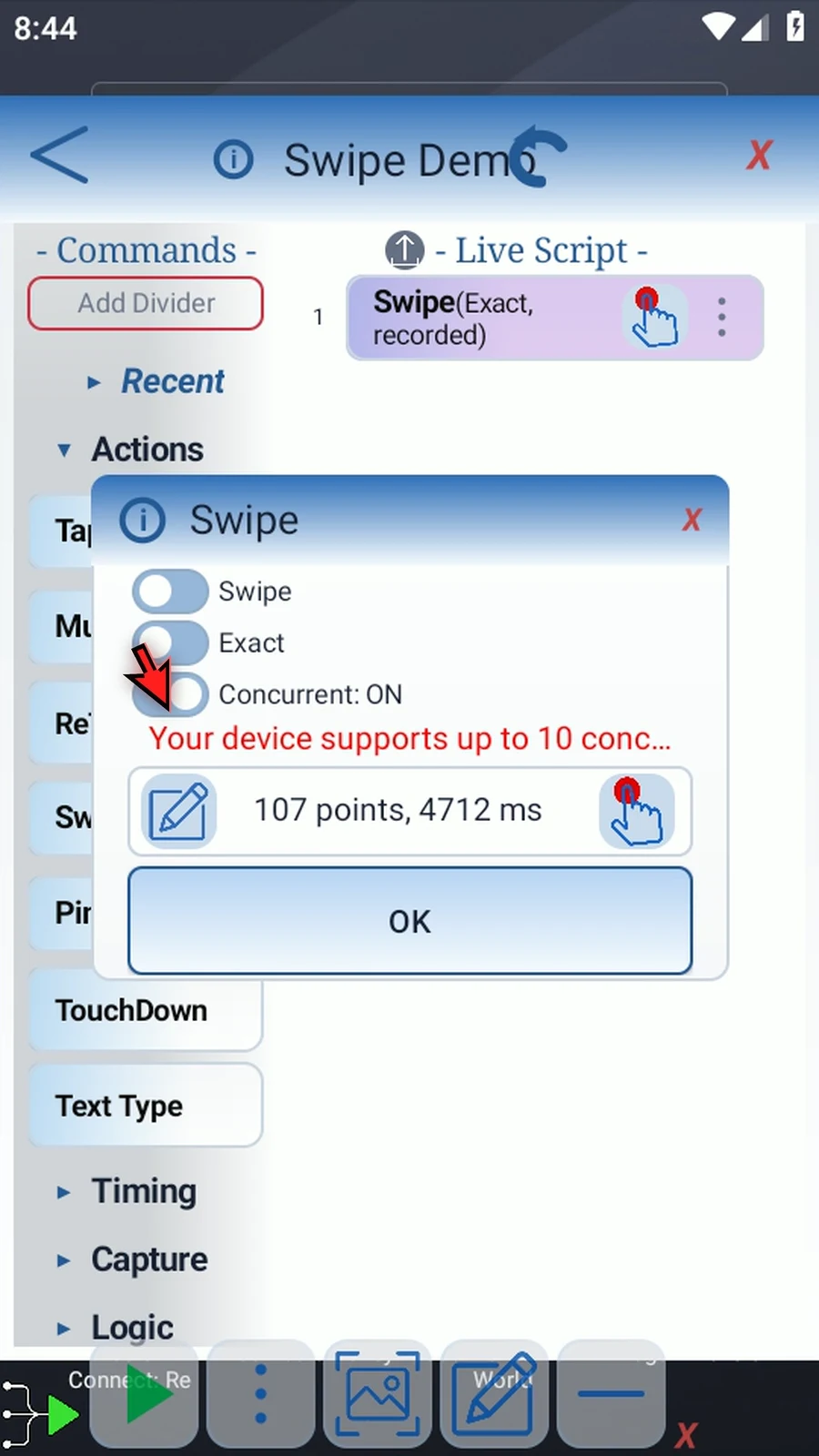
Step 07 Leave Concurrent off for this single-command example.
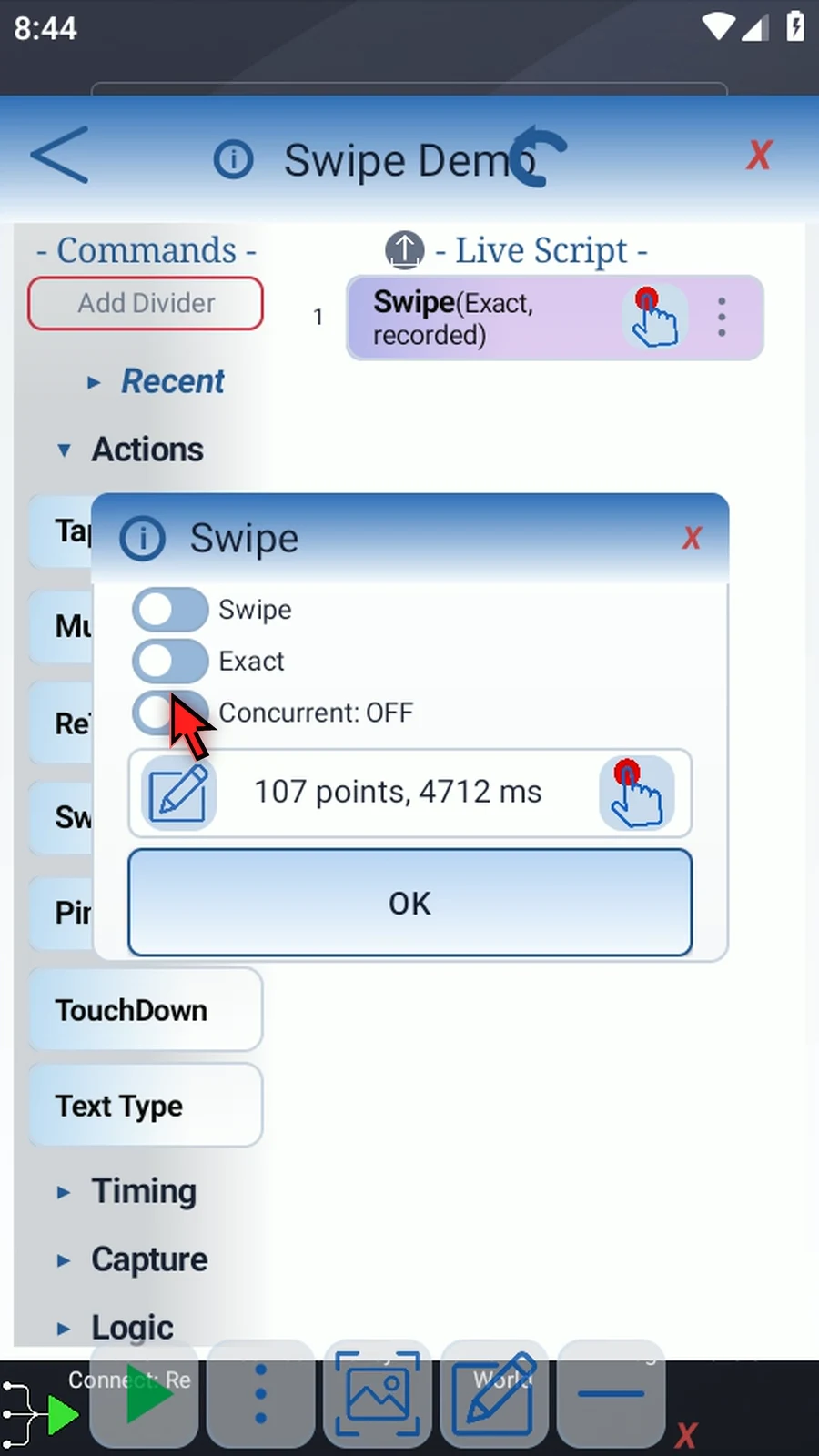
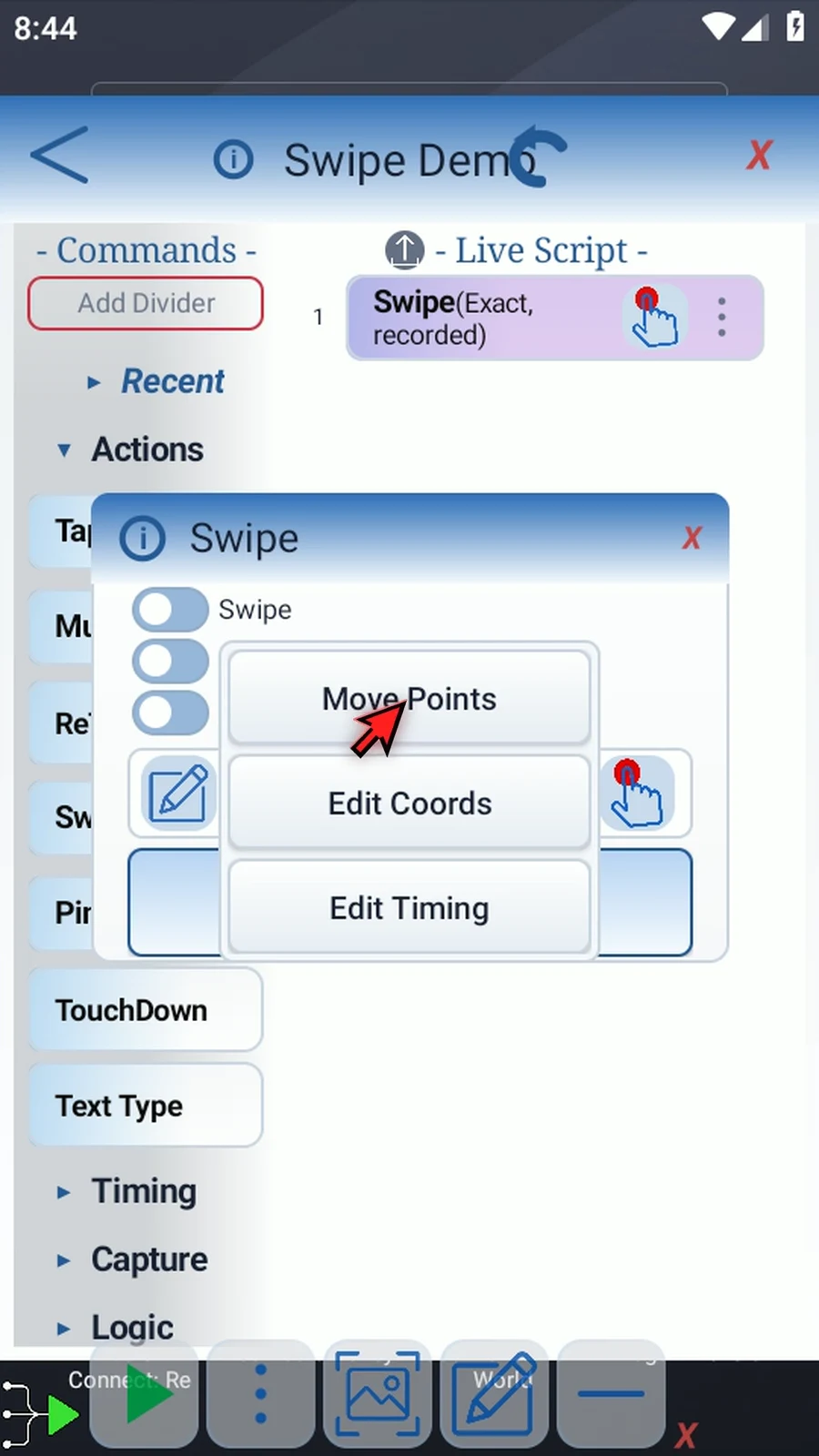
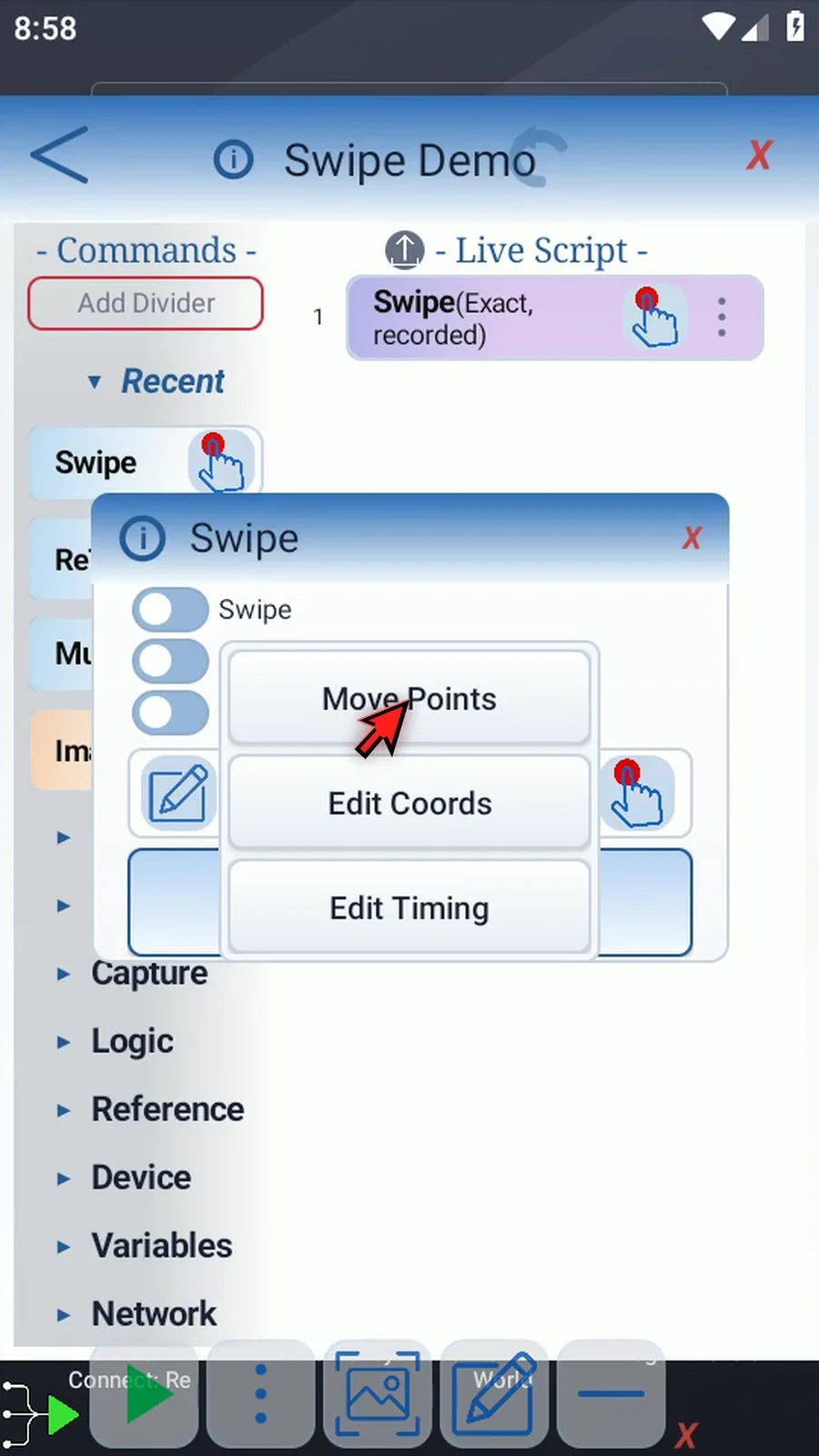
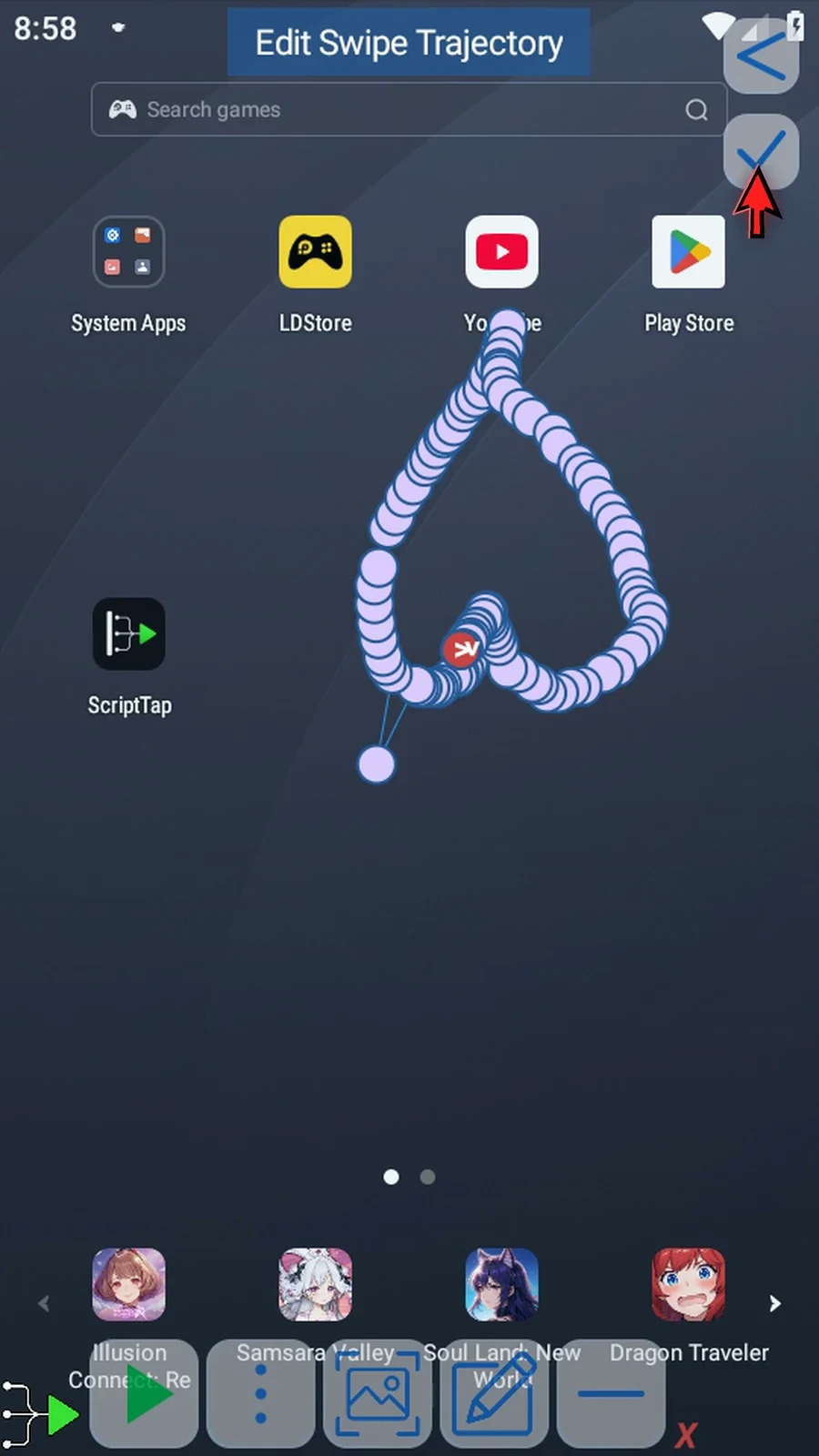
Step 08 Open the edit menu to adjust the saved path. Choose Move Points. If Android asks, allow screen capture.
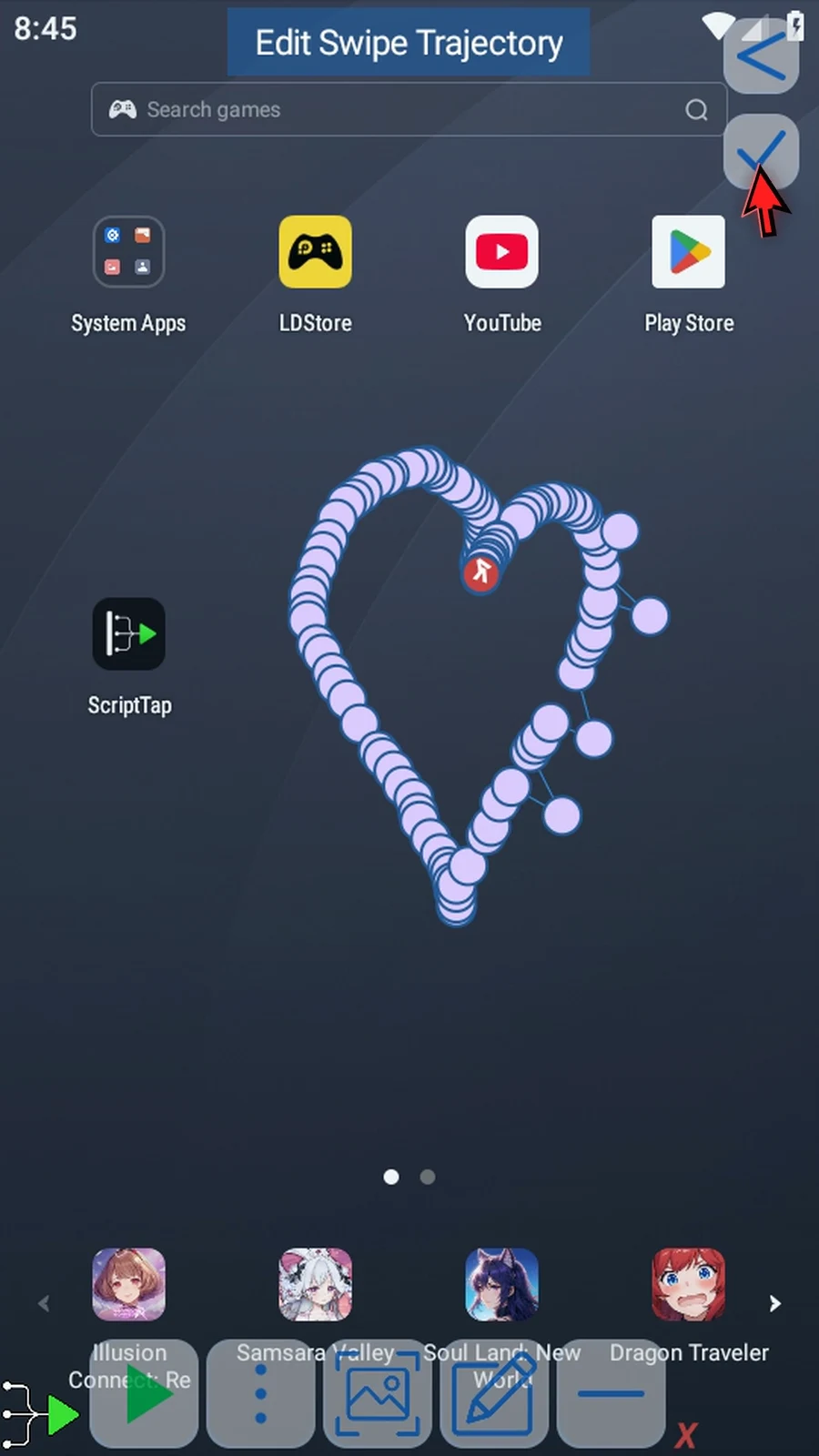
Step 09 Drag a point to reshape the trajectory. Green marks the start and red marks the end.
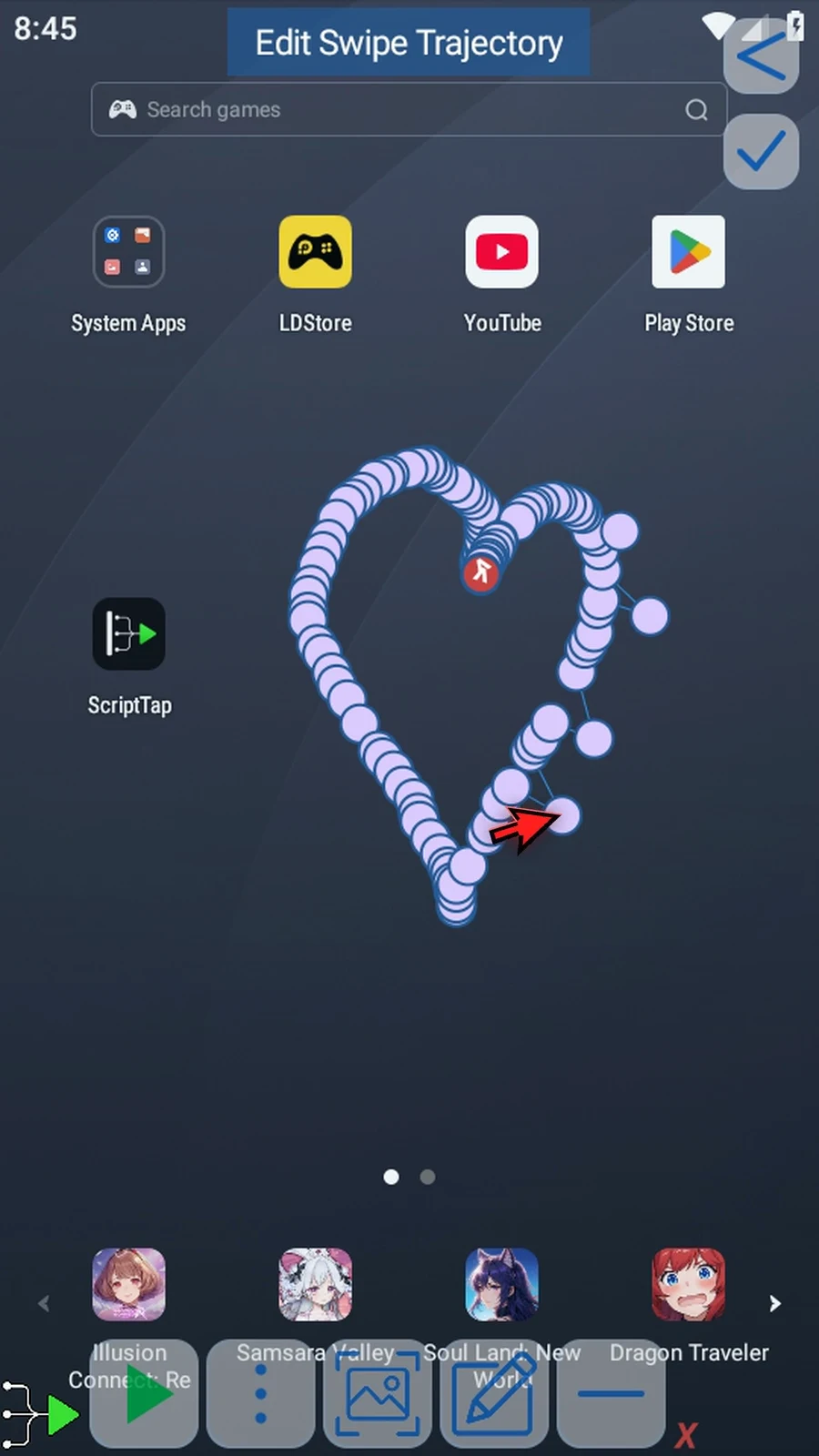
Step 10 Tap the checkmark to return with your changes.
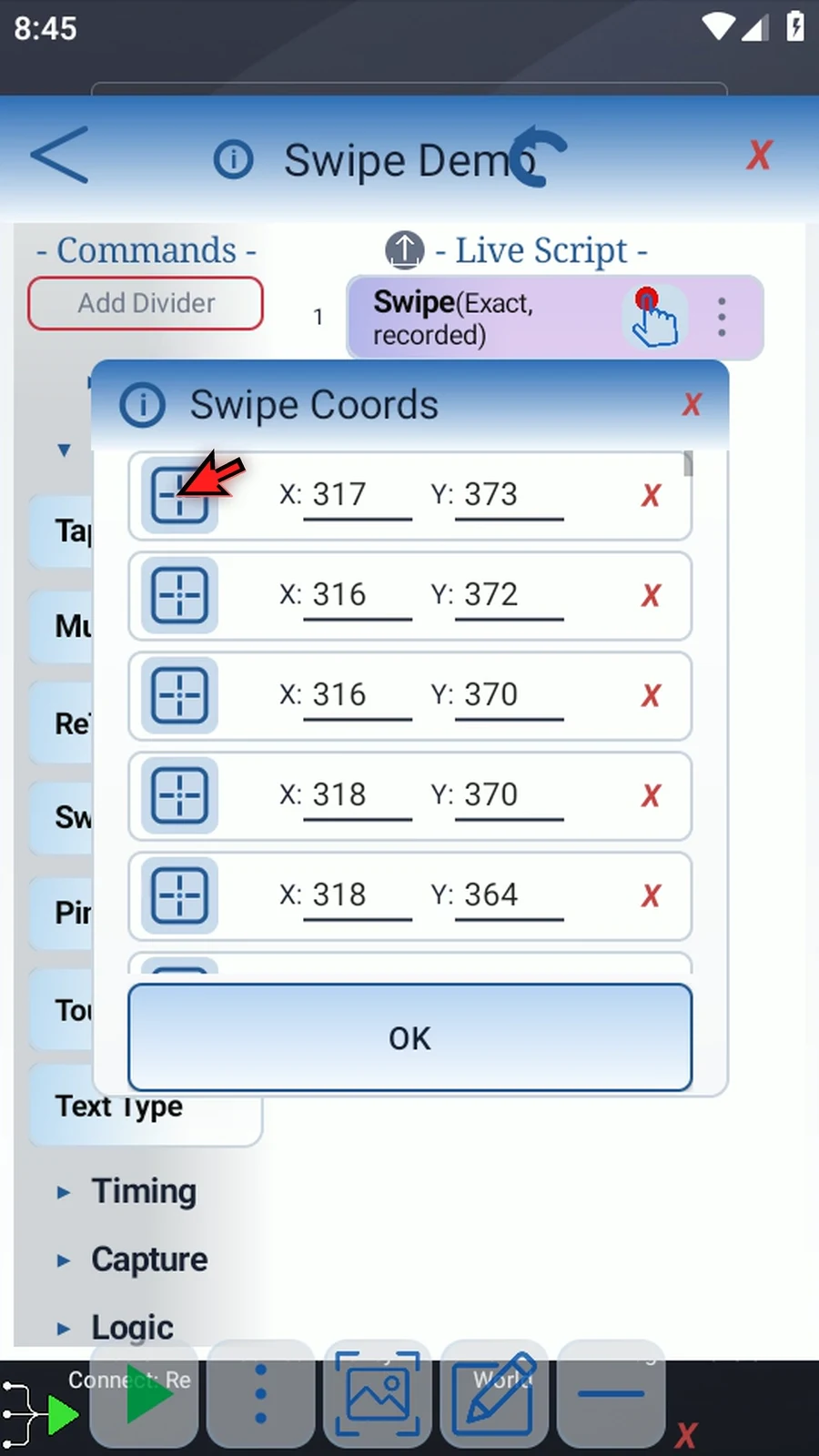
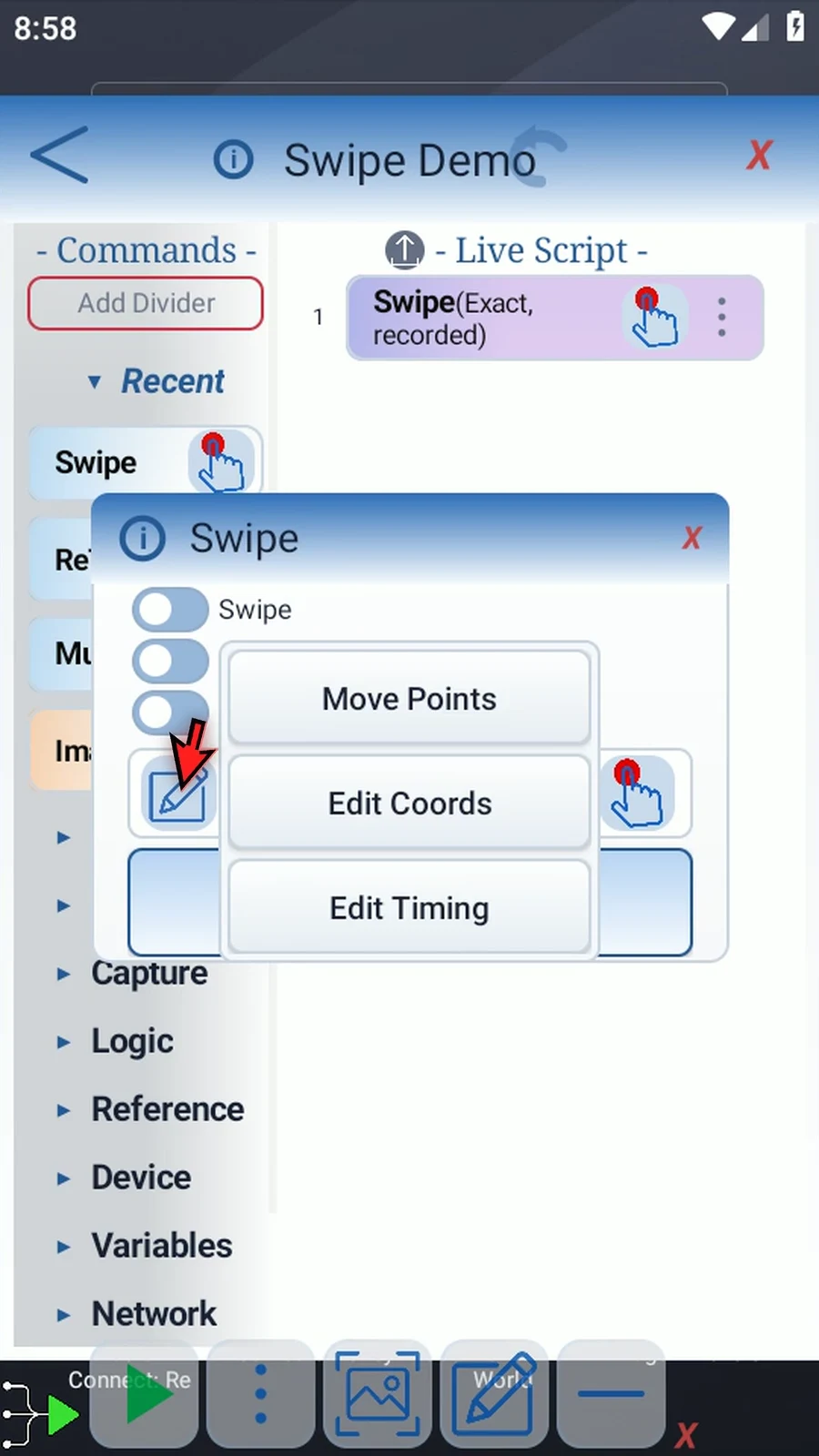
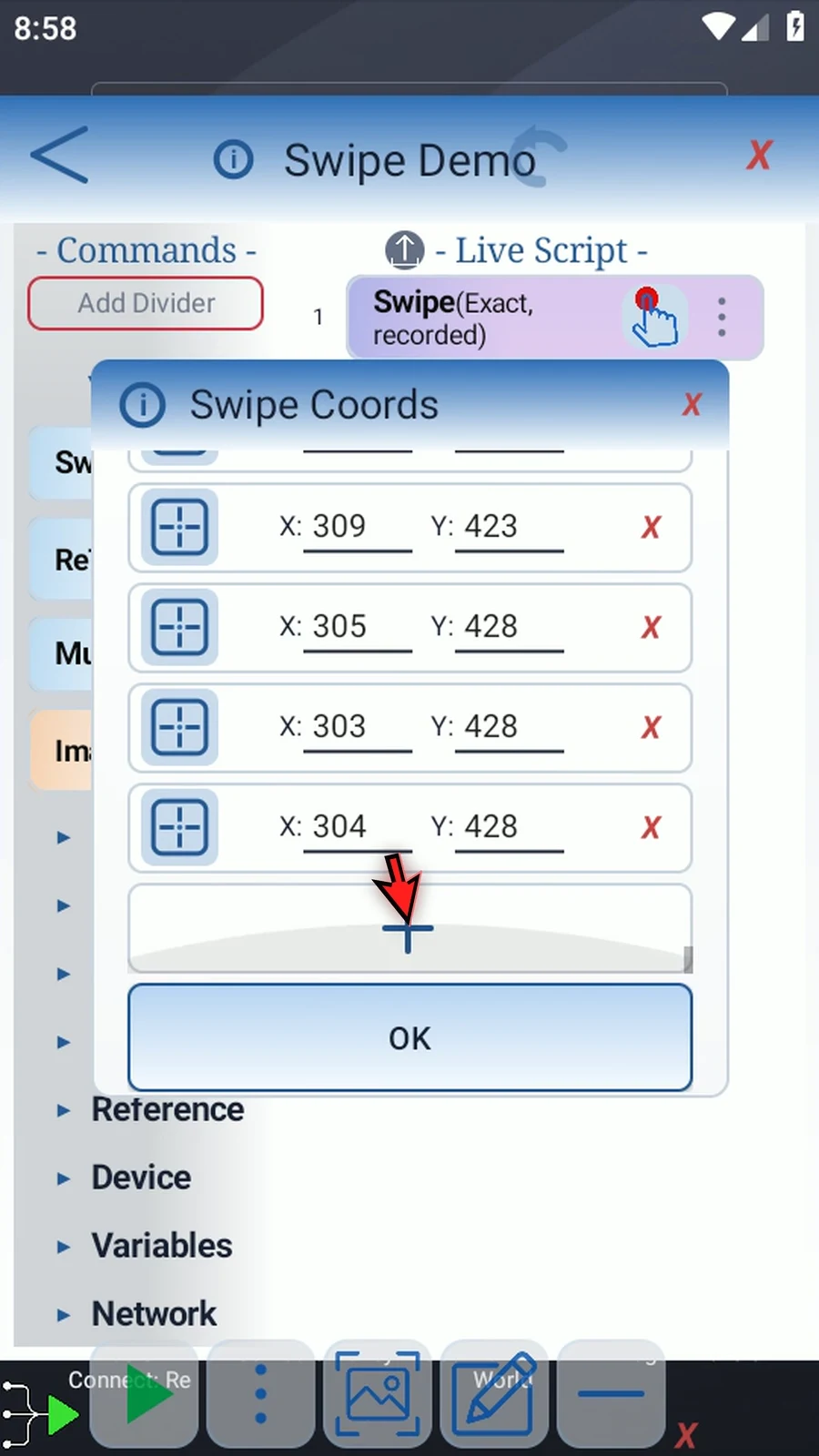
Step 11 Open the edit menu again and choose Edit Coords. Each row contains one point's X and Y coordinates. Edit these directly, or use its selector icon to position that point visually.
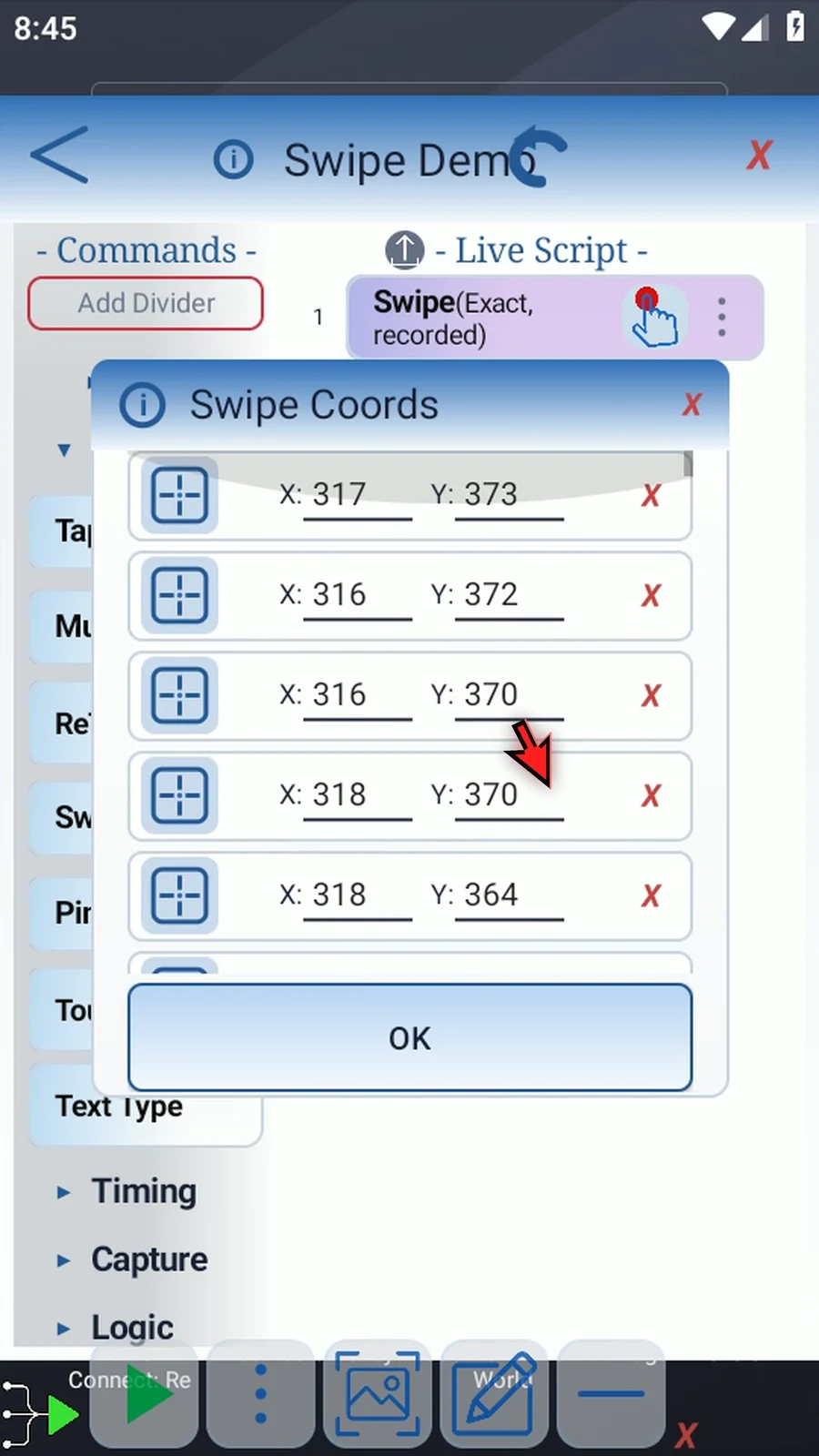
Step 12 Scroll to inspect the other point rows.
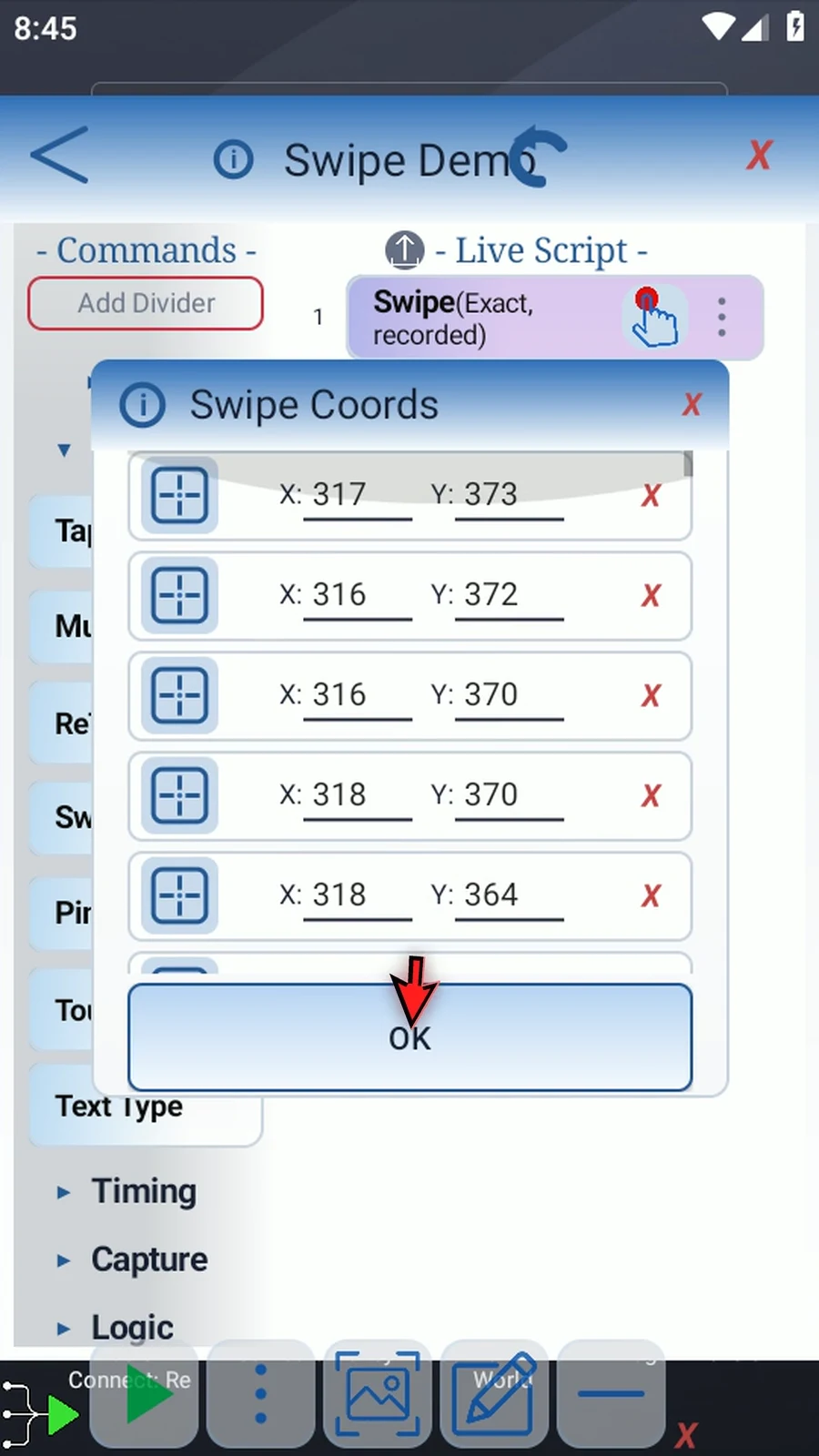
Step 13 Tap OK to return to Swipe options.
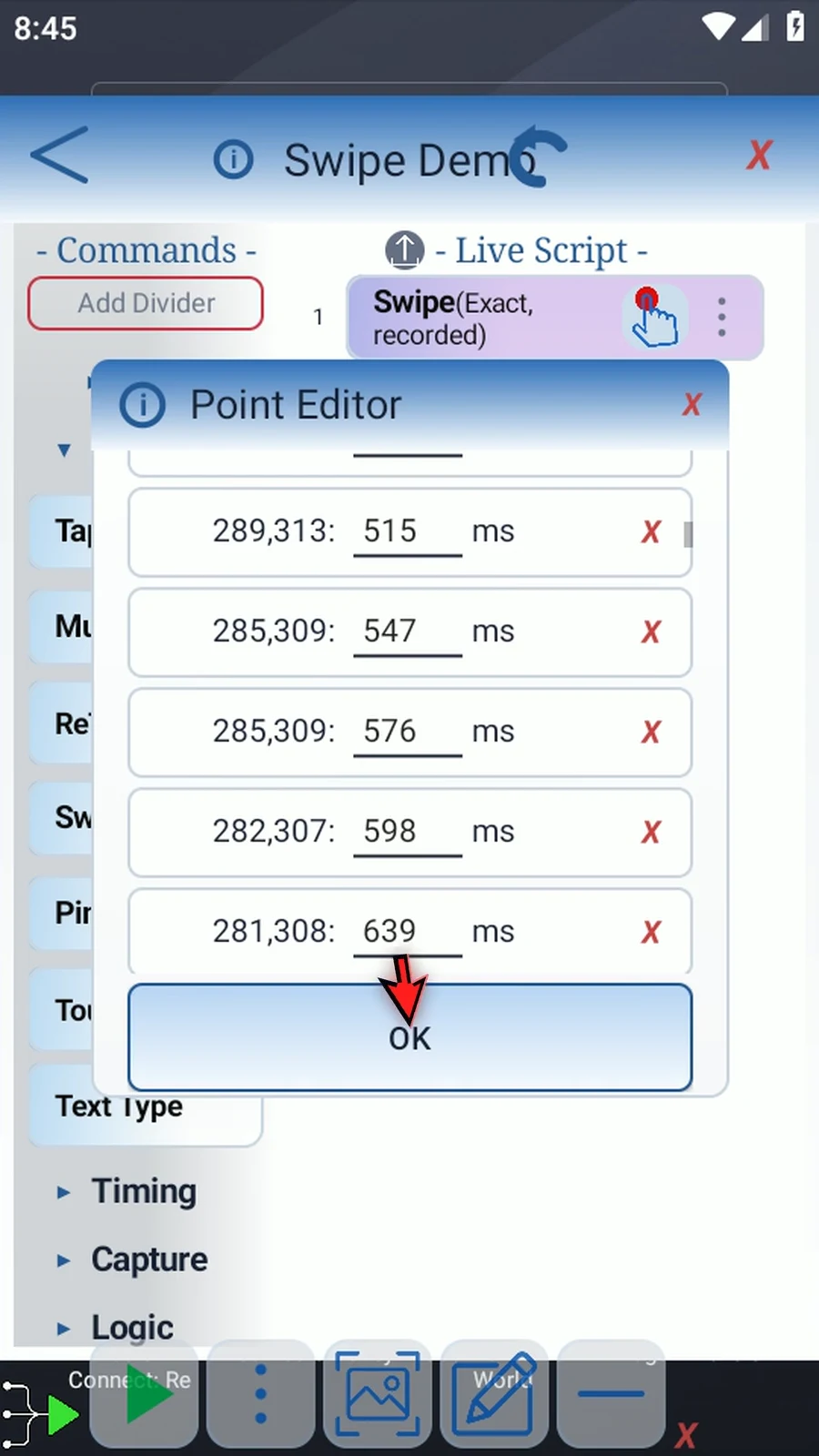
Step 14 Open the edit menu and choose Edit Timing. Point Editor shows each point's time in milliseconds from the start. Keep times in path order; the last point determines the saved duration.
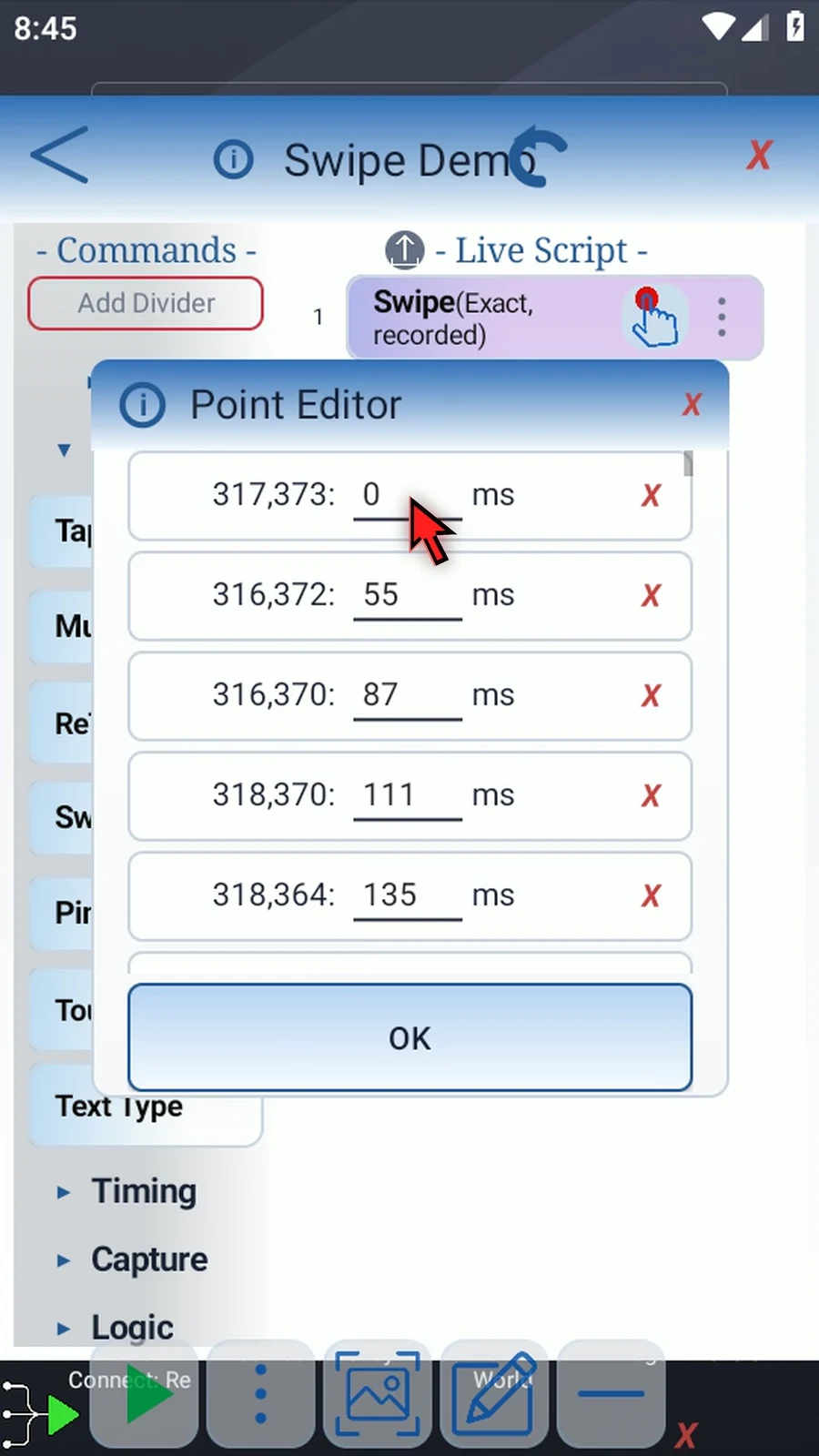
Step 15 Tap OK to return to Swipe options.
Step 16 The recording icon replaces the entire trajectory with a new swipe. Draw the replacement path and release. The point count and duration update to match.
Step 17 On the replacement path, reopen Move Points to adjust an individual point.
Step 18 Move the point to the position you want.
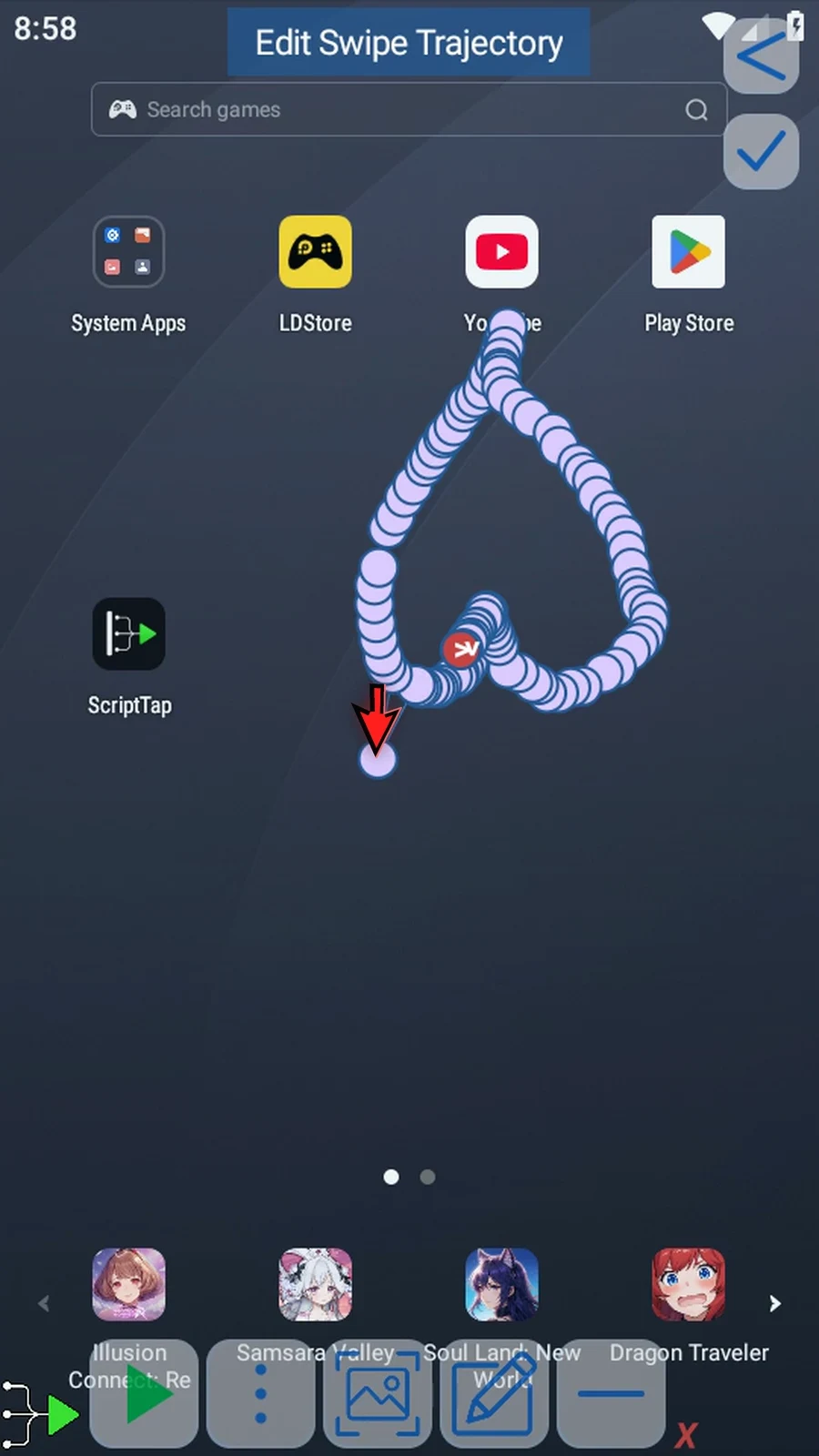
Step 19 Double-tap a point to edit its time in milliseconds.
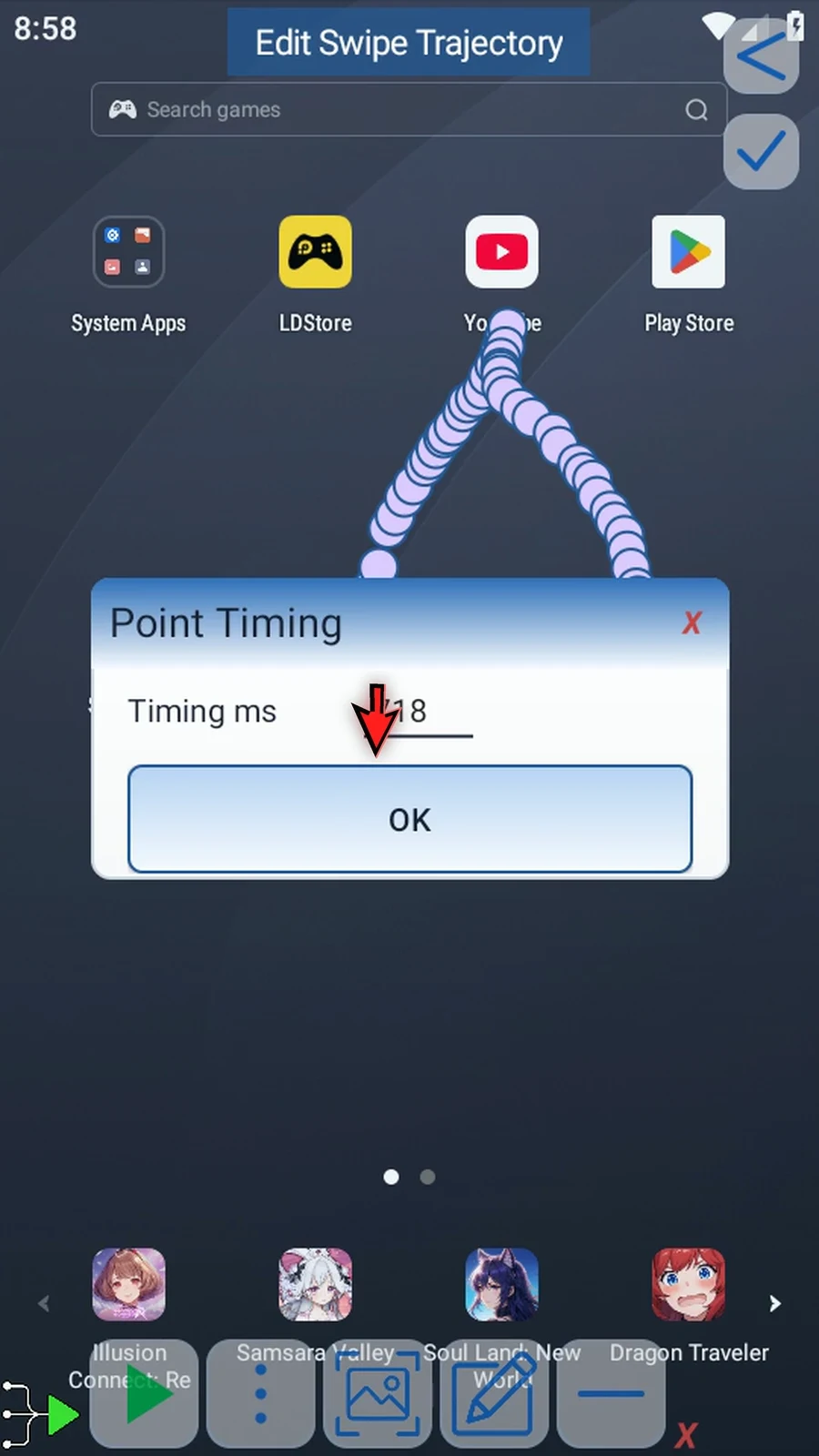
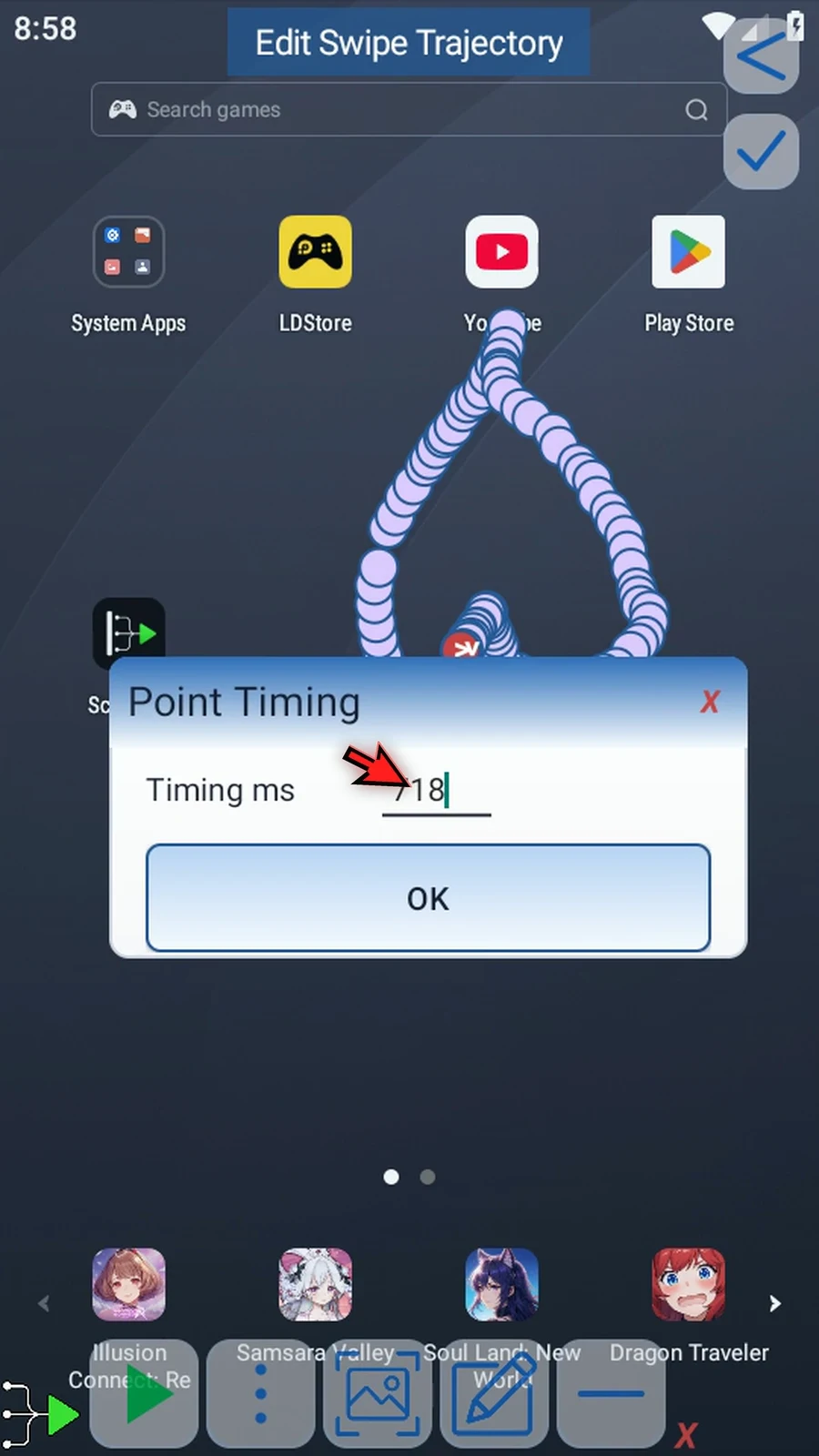
Step 20 You can move this window by its title. The time field is measured from the start of the gesture.
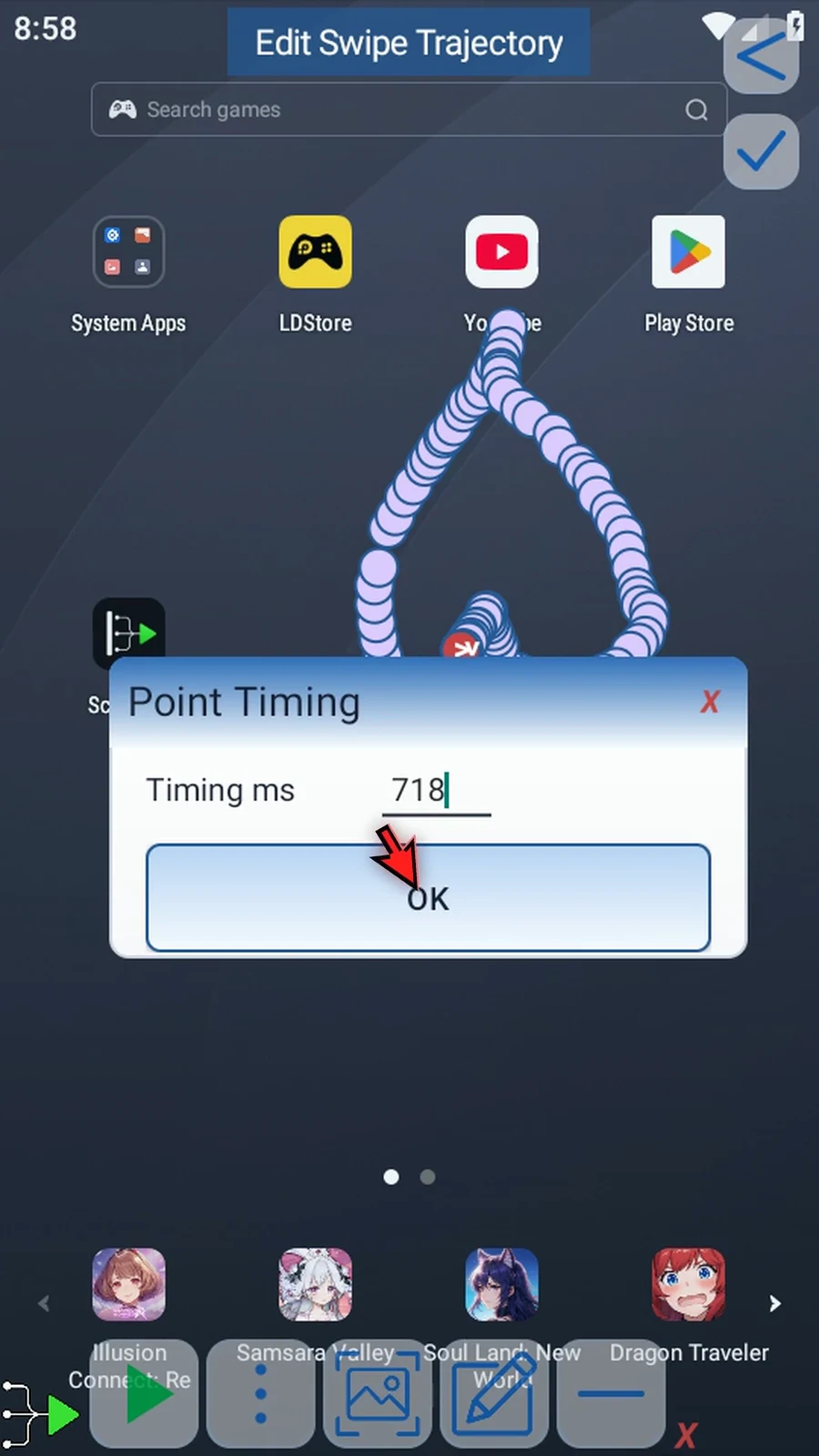
Step 21 Tap OK to return to the trajectory.
Step 22 Tap the checkmark to return to Swipe options.
Step 23 Open Edit Coords again to find the point controls at the bottom.
Step 24 Scroll to the bottom of the point list. The plus button adds a point at the end. A row's red X removes it, but a swipe must keep at least two points.
Step 25 Tap OK to return with your coordinate settings.
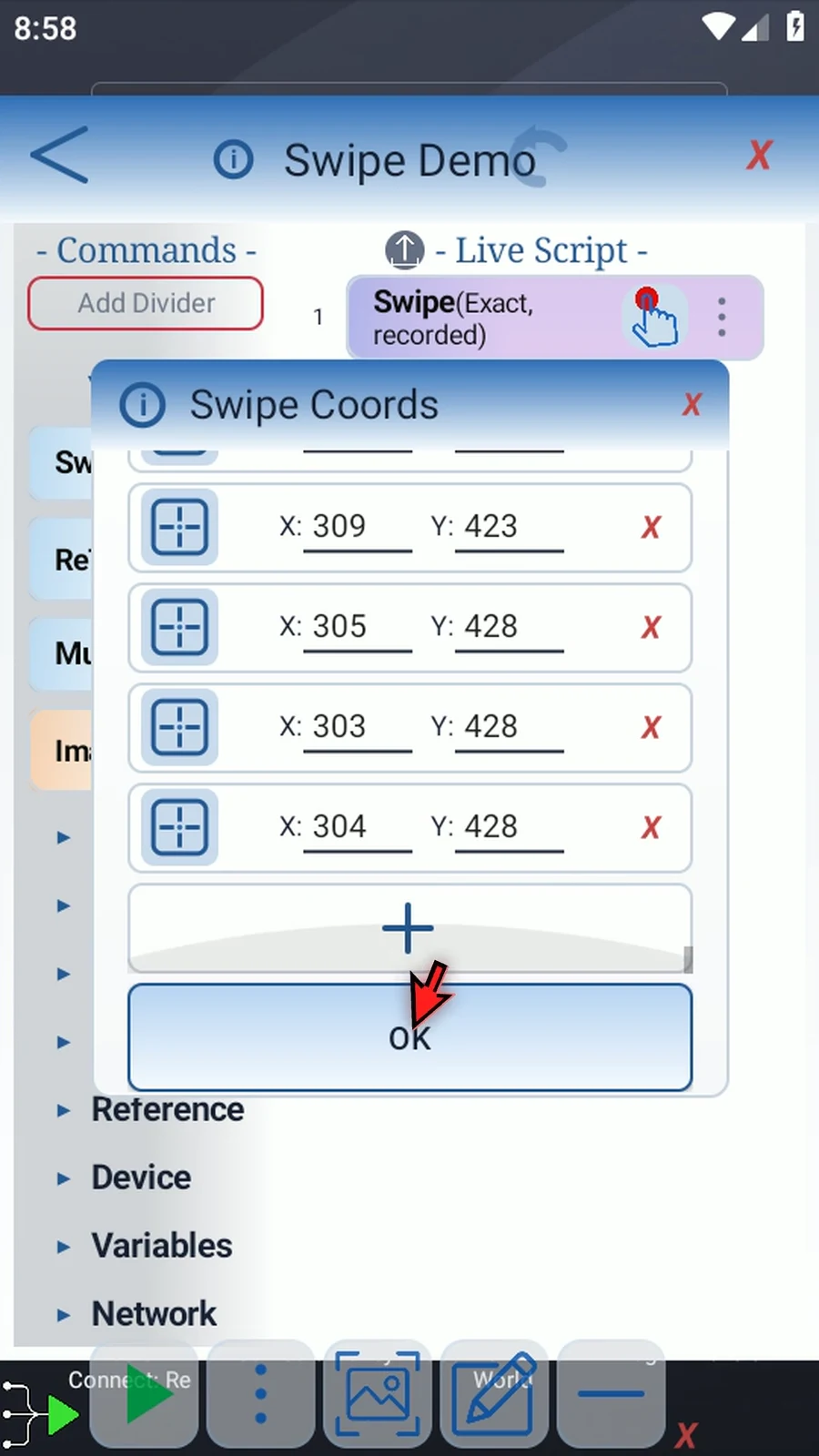
Step 26 Finally, tap OK in Swipe options to save the command.