Command video guide
SetCoordinates
SetCoordinates stores a literal screen position in Integer variables for later commands. It does not tap or read the screen during play. Unlike ordinary numeric assignments, these coordinates can adapt during supported imports.
Point writes X and Y to two distinct Integer variables. Area writes left, top, right, and bottom to four distinct Integer variables. The selectors choose the geometry; the output fields name the destinations. Switching modes clears the outgoing mode’s settings. Use In selects This Script Only or Script Thread scope.
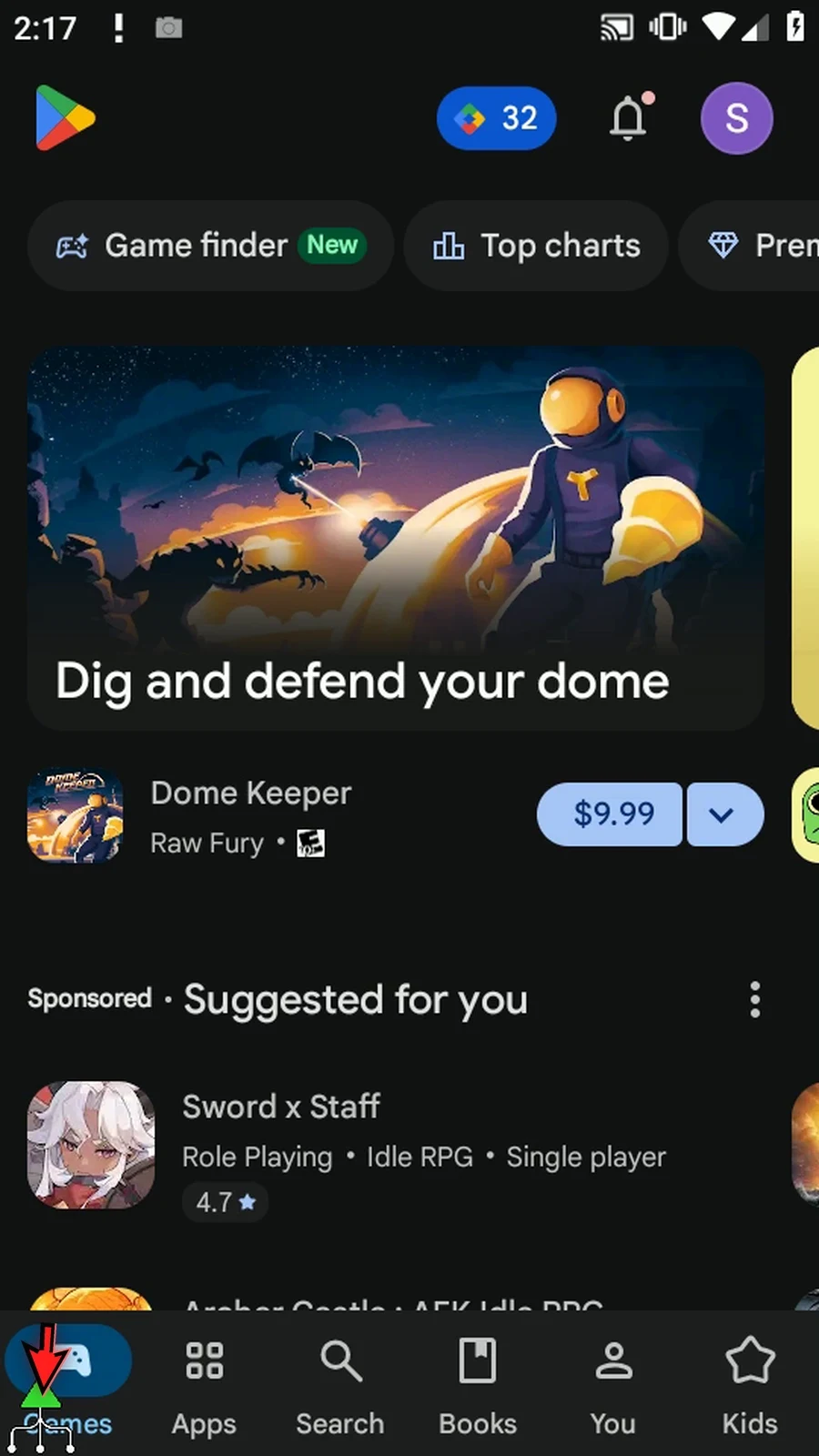
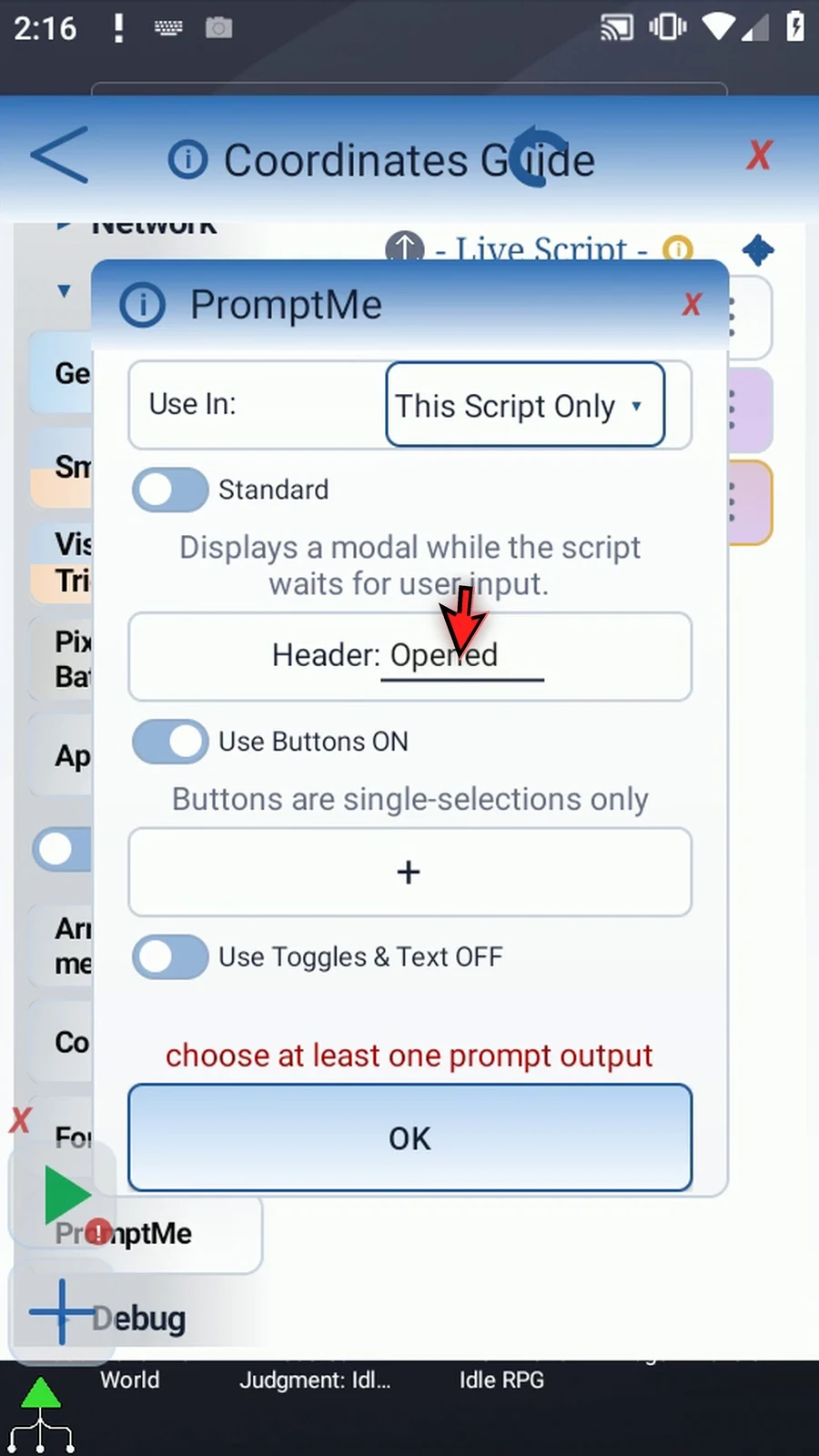
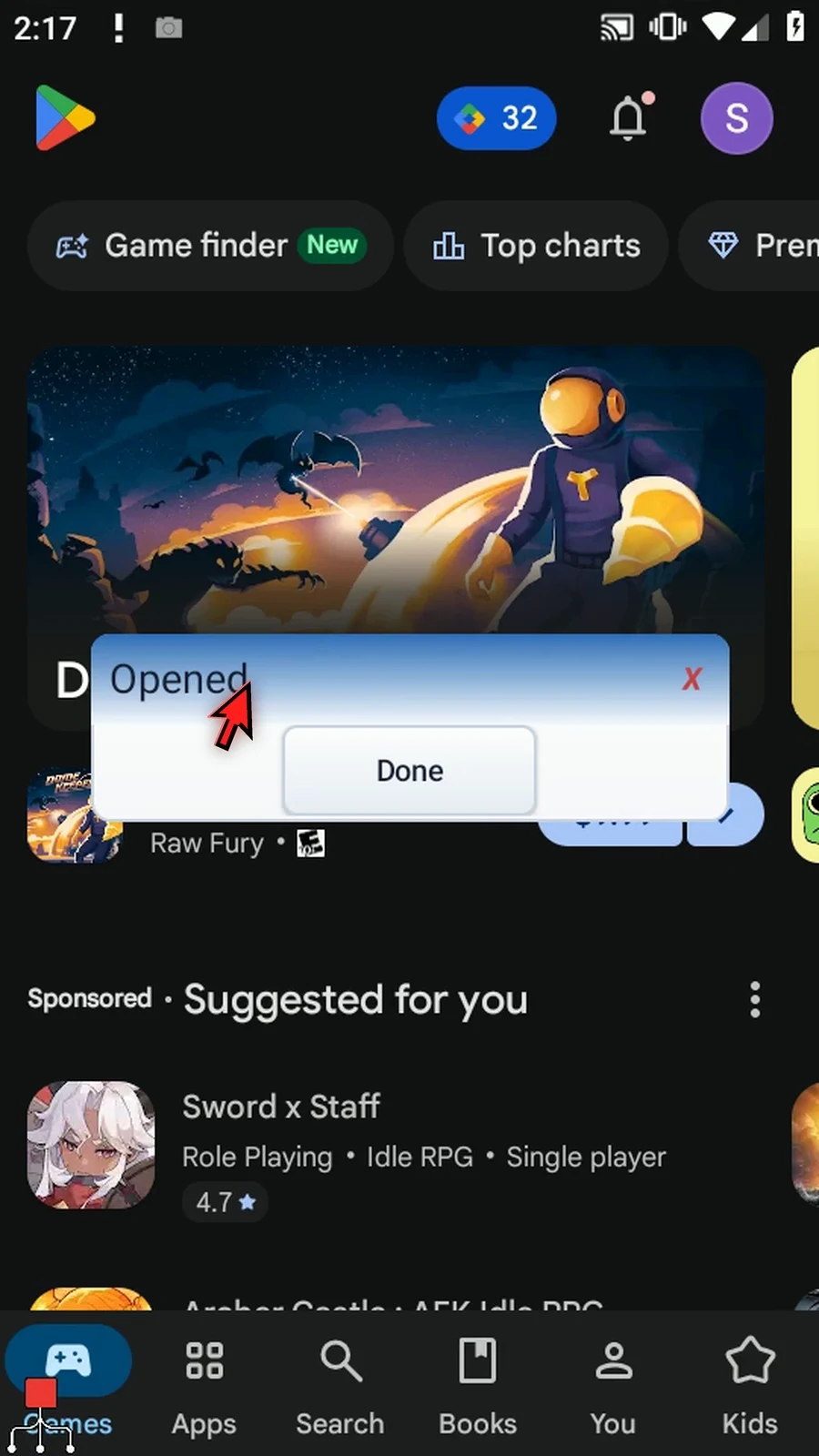
This guide first explores Area around the ScriptTap icon, then uses Point for Play Store. SetCoordinates writes x1 and y1, Tap uses those variables, and Standard PromptMe shows an Opened header with a Done button through b1. All three commands are manually dragged into the new script.
Manual and Public Cloud imports adapt coordinates when Transpose Coordinates is selected. Personal Cloud imports adapt automatically; Bridge imports keep the exact values. Ordinary SetVariable numbers do not gain this coordinate-import behavior. If Android asks, allow screen capture when opening a selector.
Watch the walkthrough
Step-by-step guide
Step 01 Set Coordinates stores a screen point or rectangle in Integer variables for later commands. Unlike ordinary number assignments, these coordinates can adapt when a script is imported for another device. In this example, a Tap will use the saved point to open Play Store.
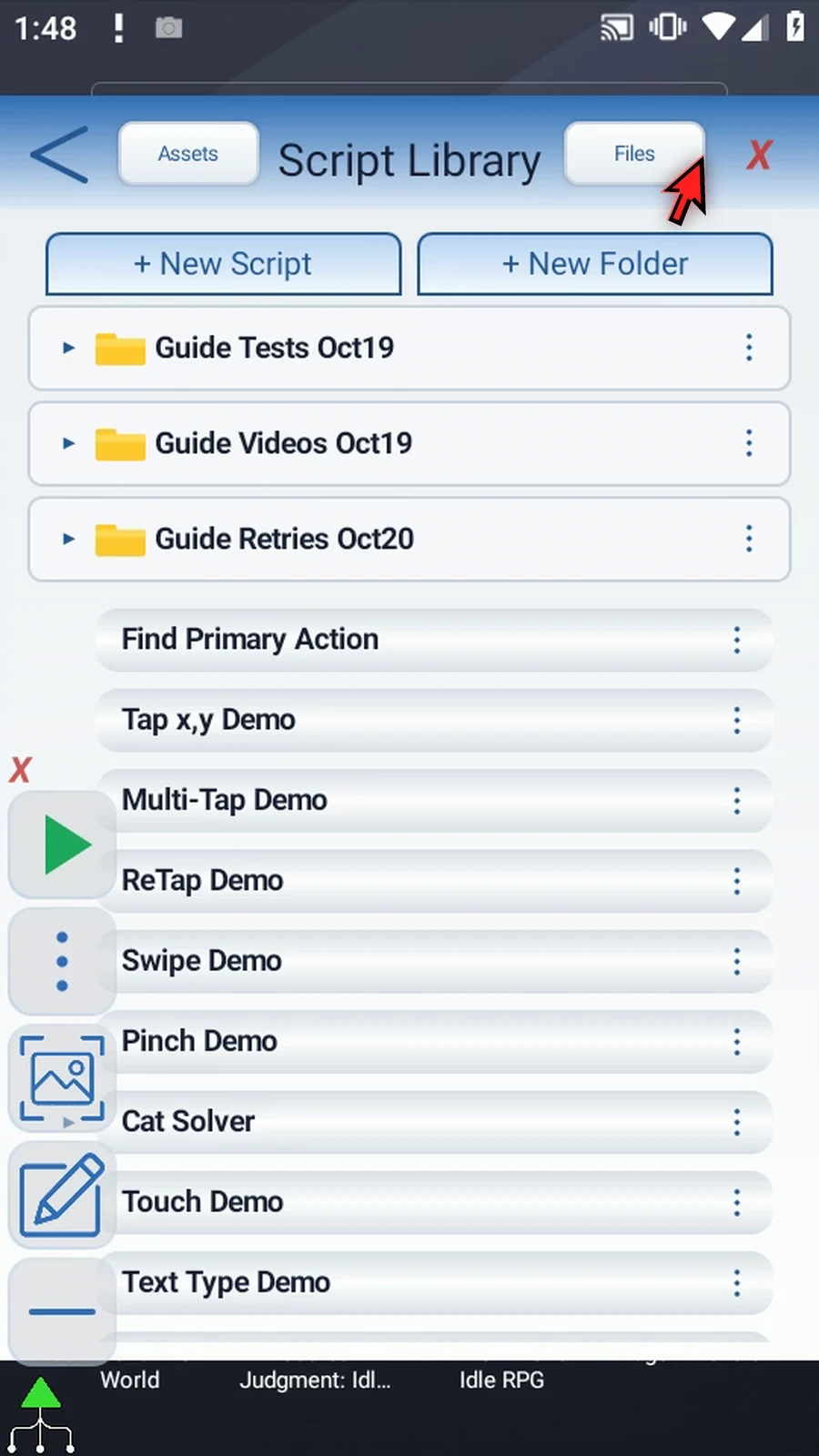
Step 02 Create a new blank script in the Script Library.
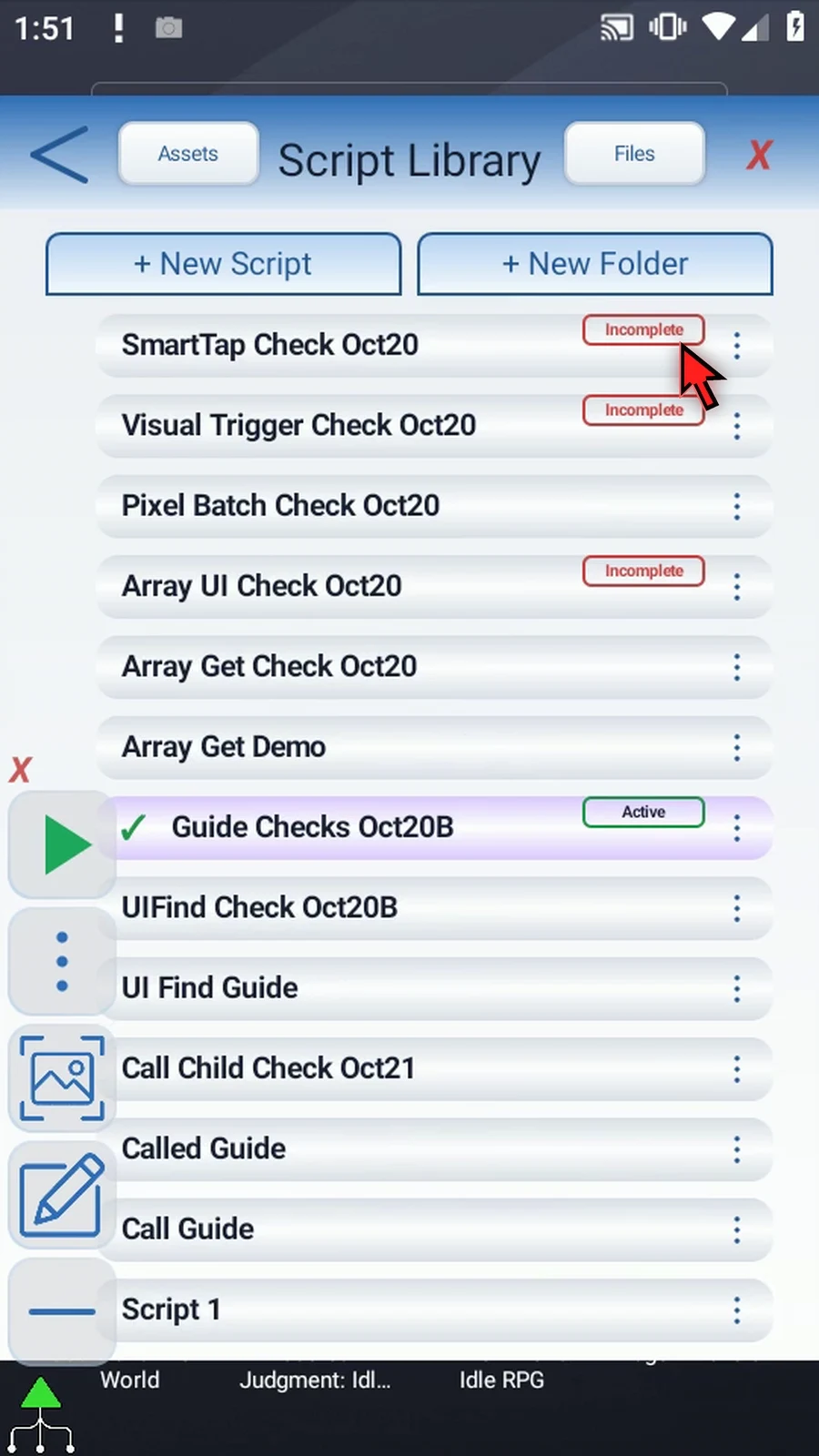
Step 03 Open the new script's menu, choose Rename, and give it a clear name.
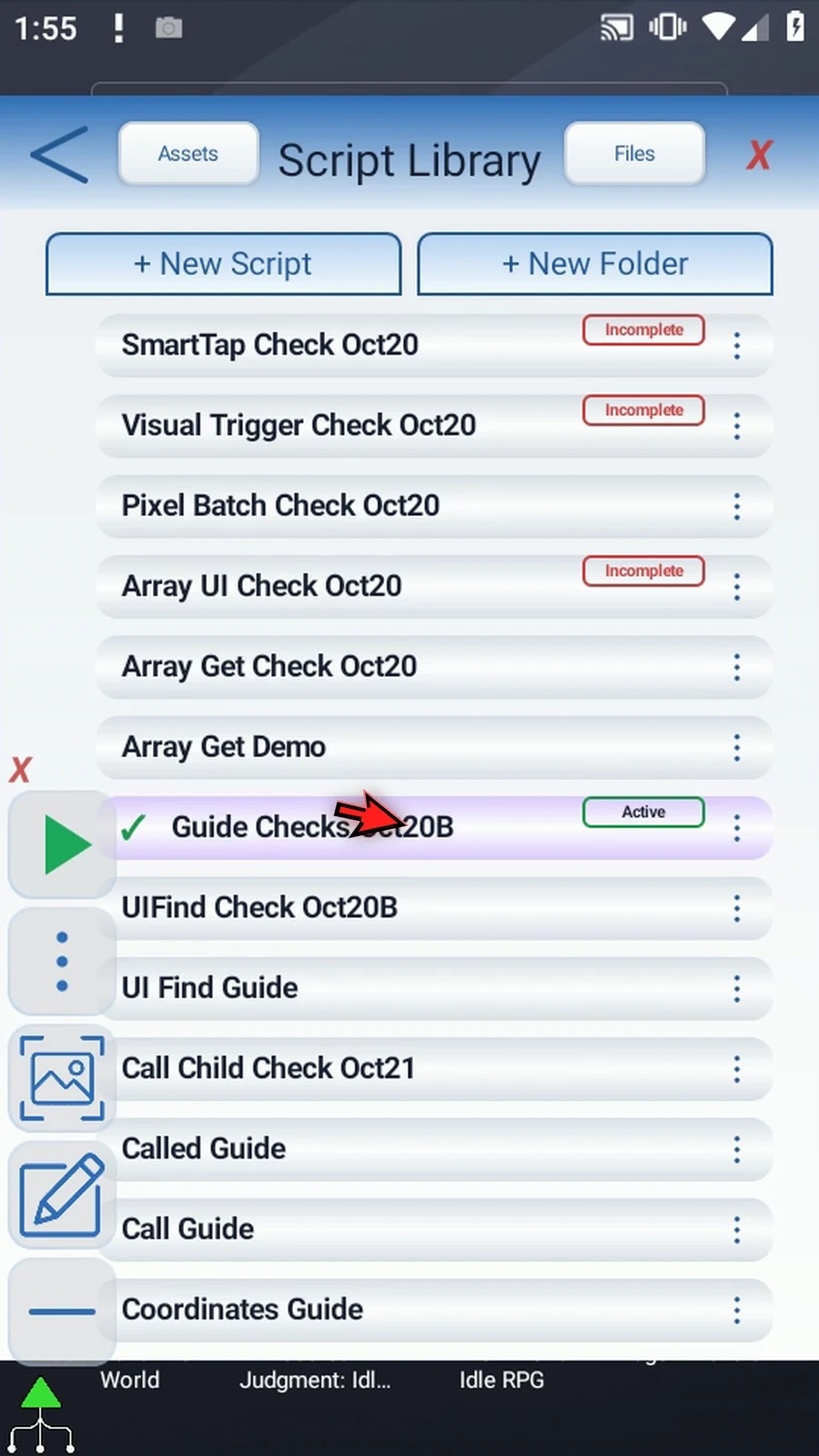
Step 04 Select the new script, close the library, and open its editor. Collapse the extra overlay controls to make room.
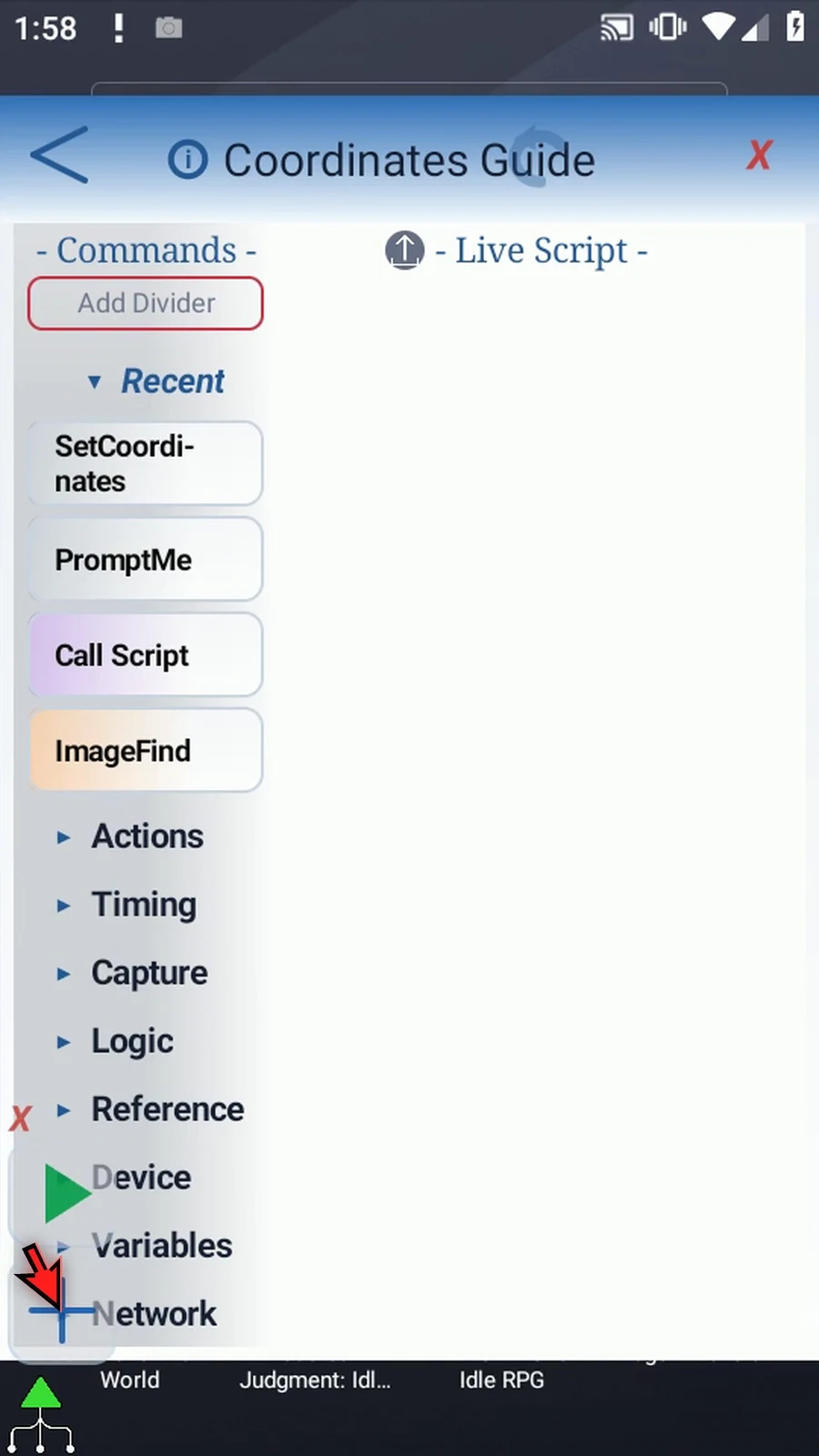
Step 05 Under Variables, drag Set Coordinates into the live script, then open its new row.
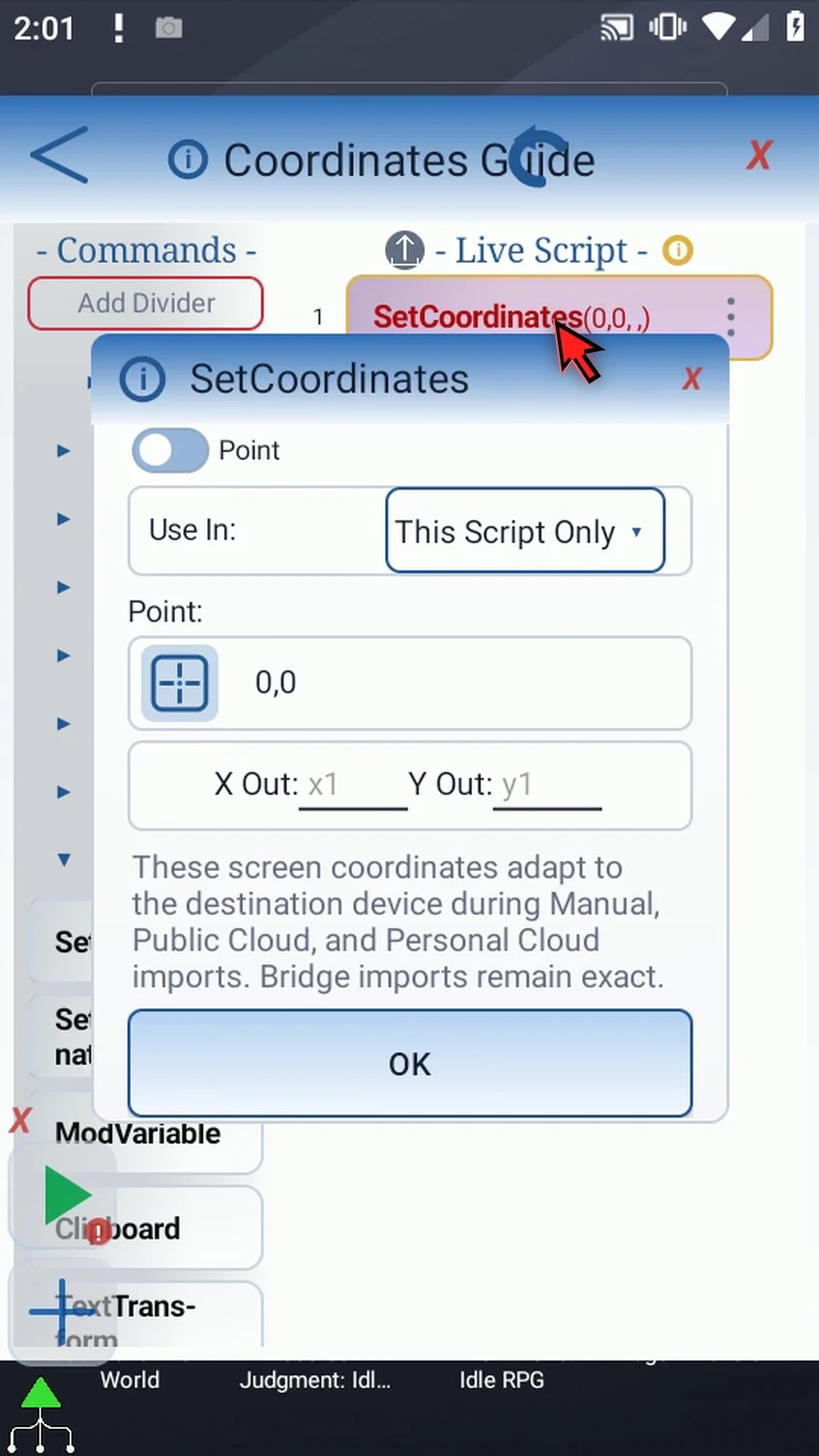
Step 06 There are Point and Area modes. Point stores X and Y. Area stores left, top, right, and bottom edges in four distinct Integer outputs. Let us look at Area first.
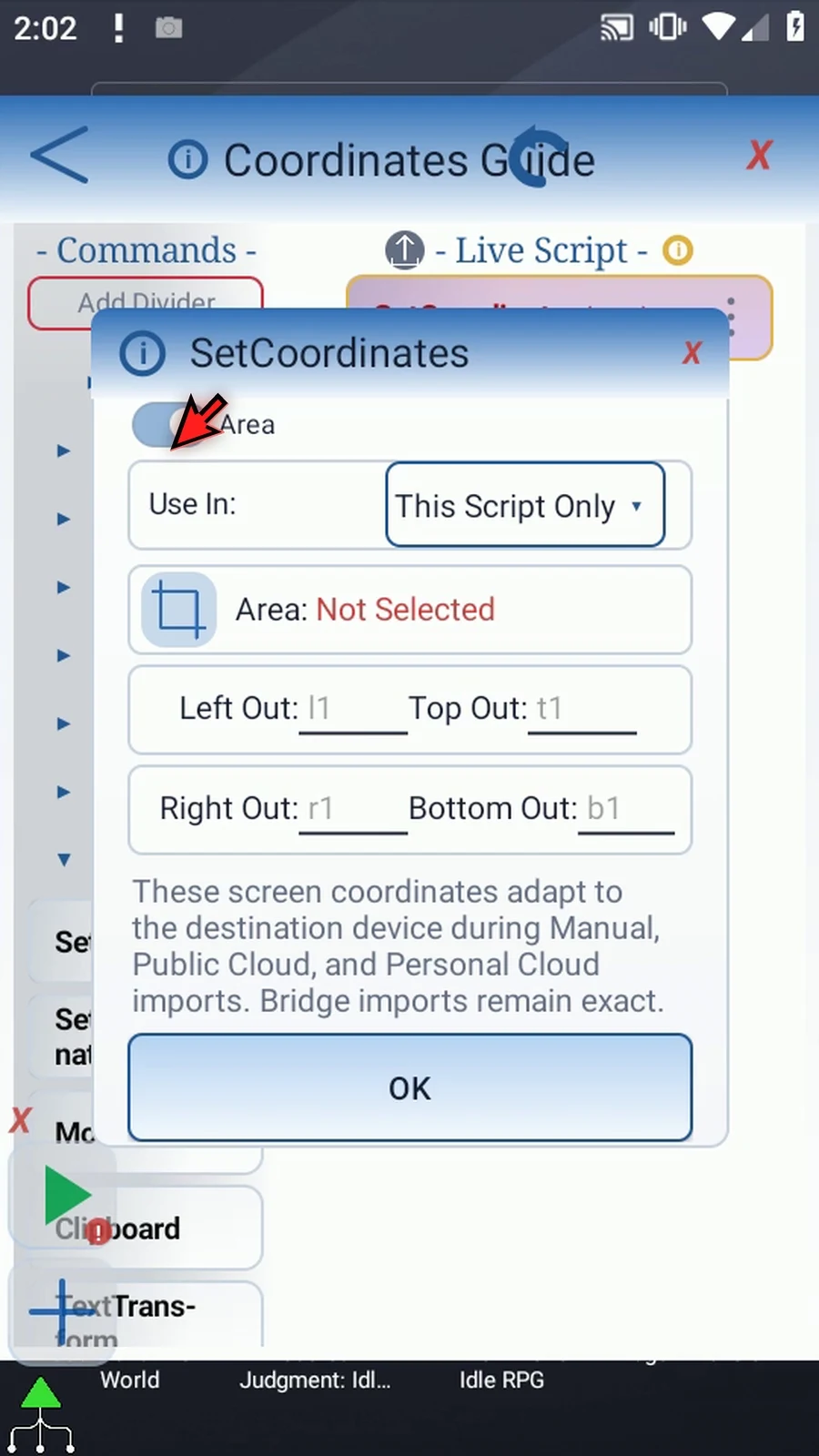
Step 07 Use the Area selector to choose a rectangle. If Android asks, allow screen capture. Drag the corners around the region you want, then confirm with the checkmark.
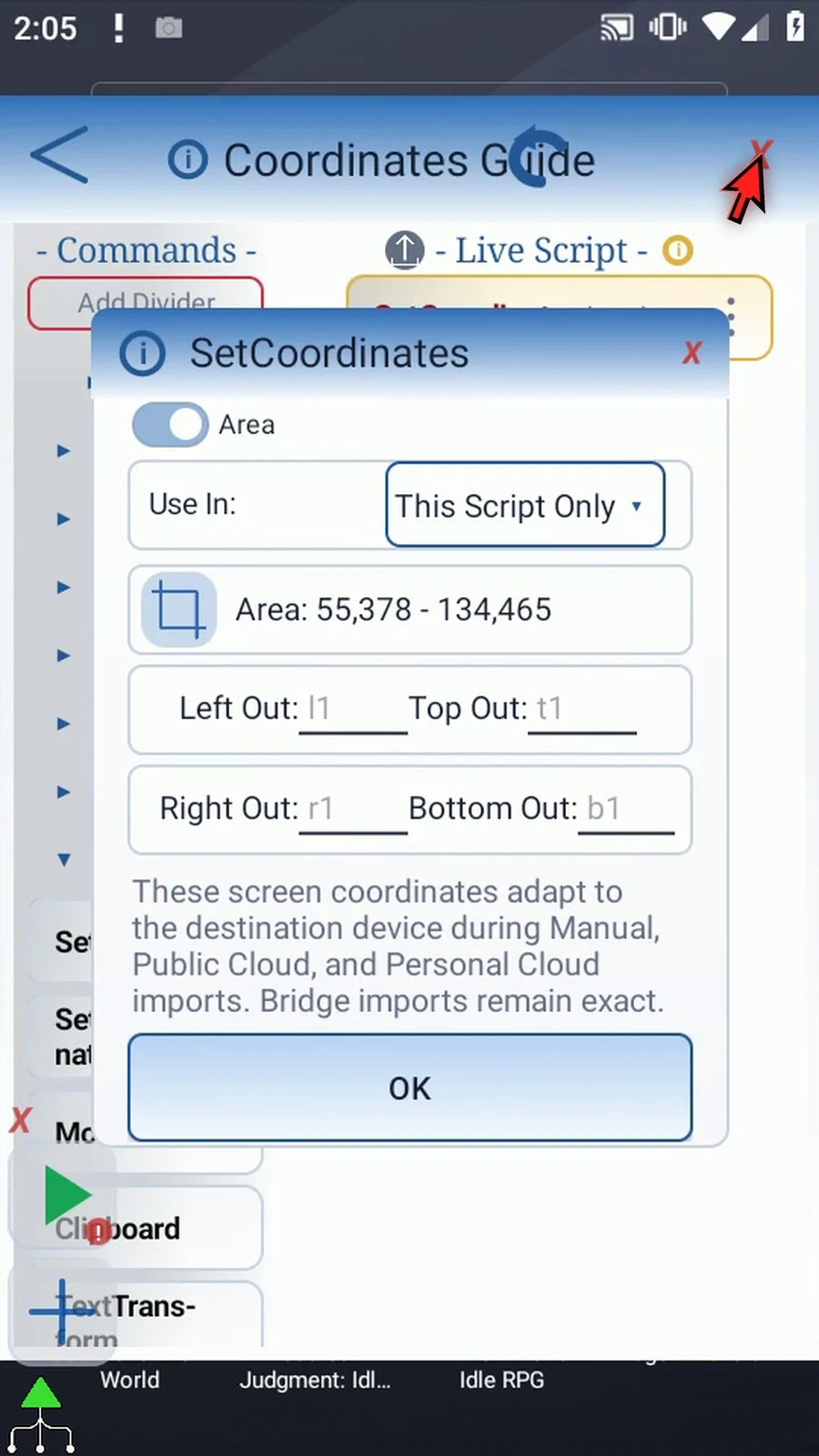
Step 08 These four fields choose where each edge will be saved. For example, a one through a four can hold left, top, right, and bottom. All four outputs must be different Integer variables.
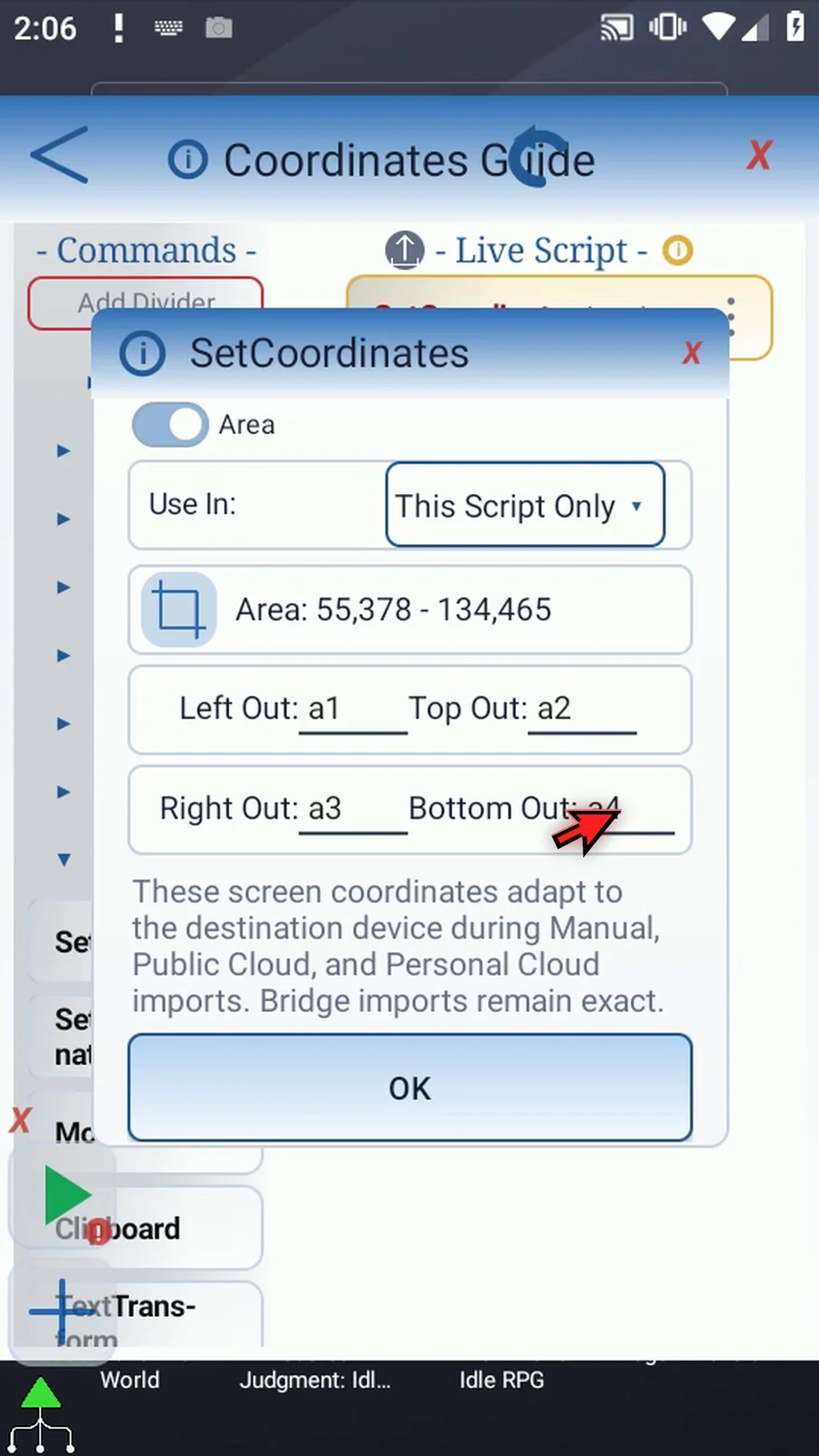
Step 09 Switching modes clears the outgoing mode's settings. These are alternatives, not two saved profiles. We will use Point for the running example.
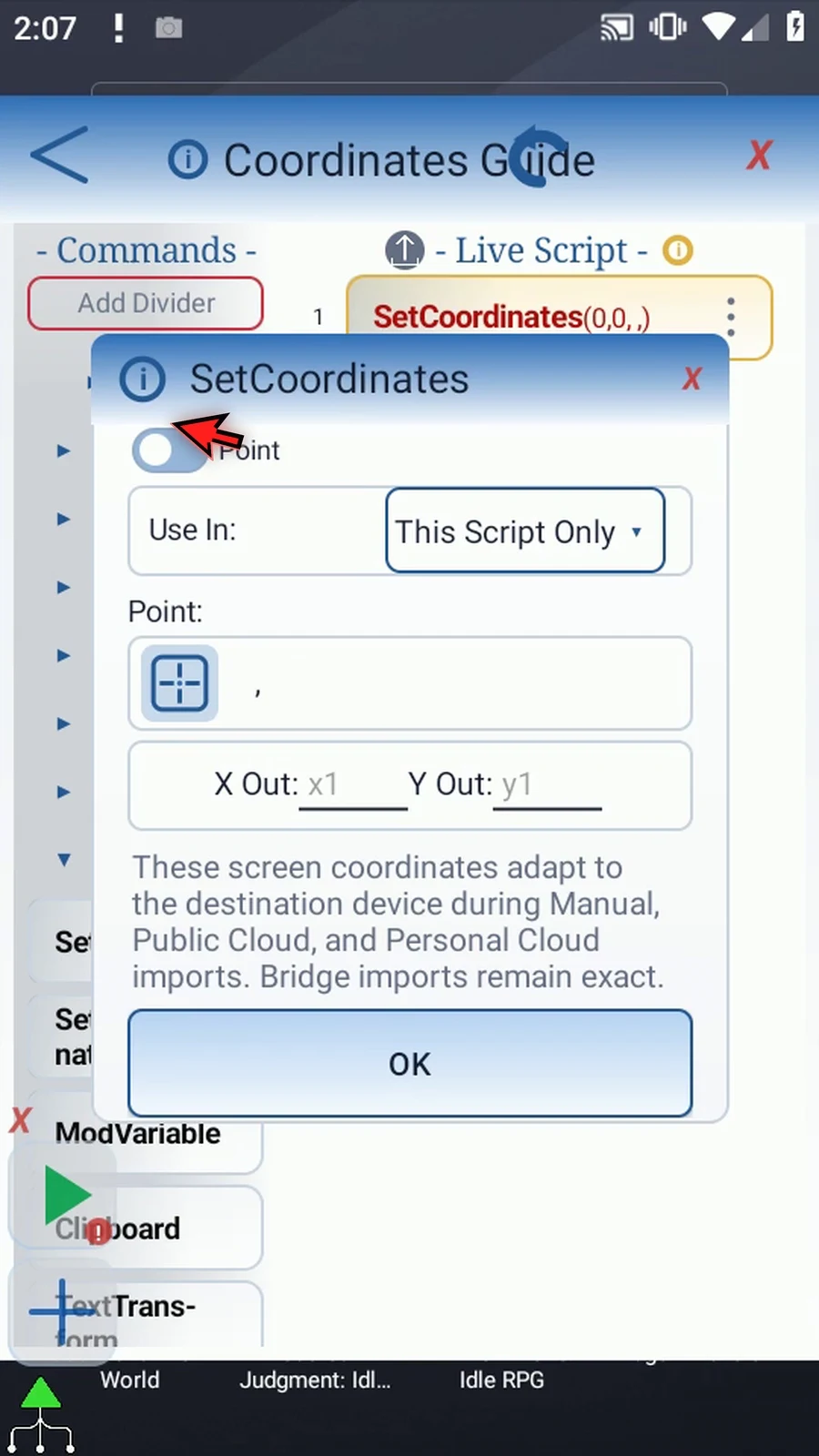
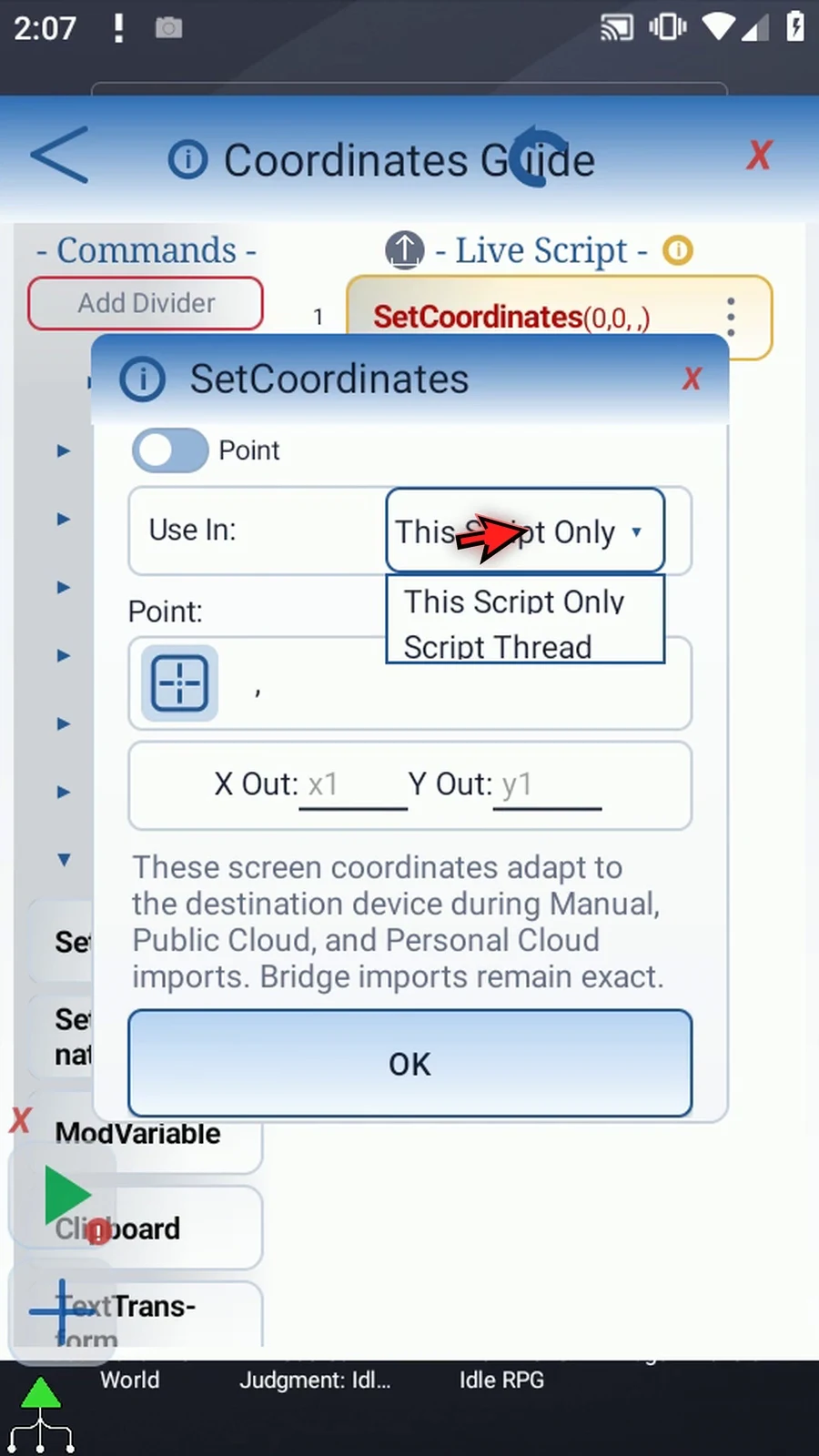
Step 10 Use In controls the outputs' scope. This Script Only keeps them local; Script Thread makes them available in the calling script thread. Keep This Script Only here.
Step 11 Open the Point selector and drag its square until the center is over Play Store. The checkmark saves that position back into the same command draft.
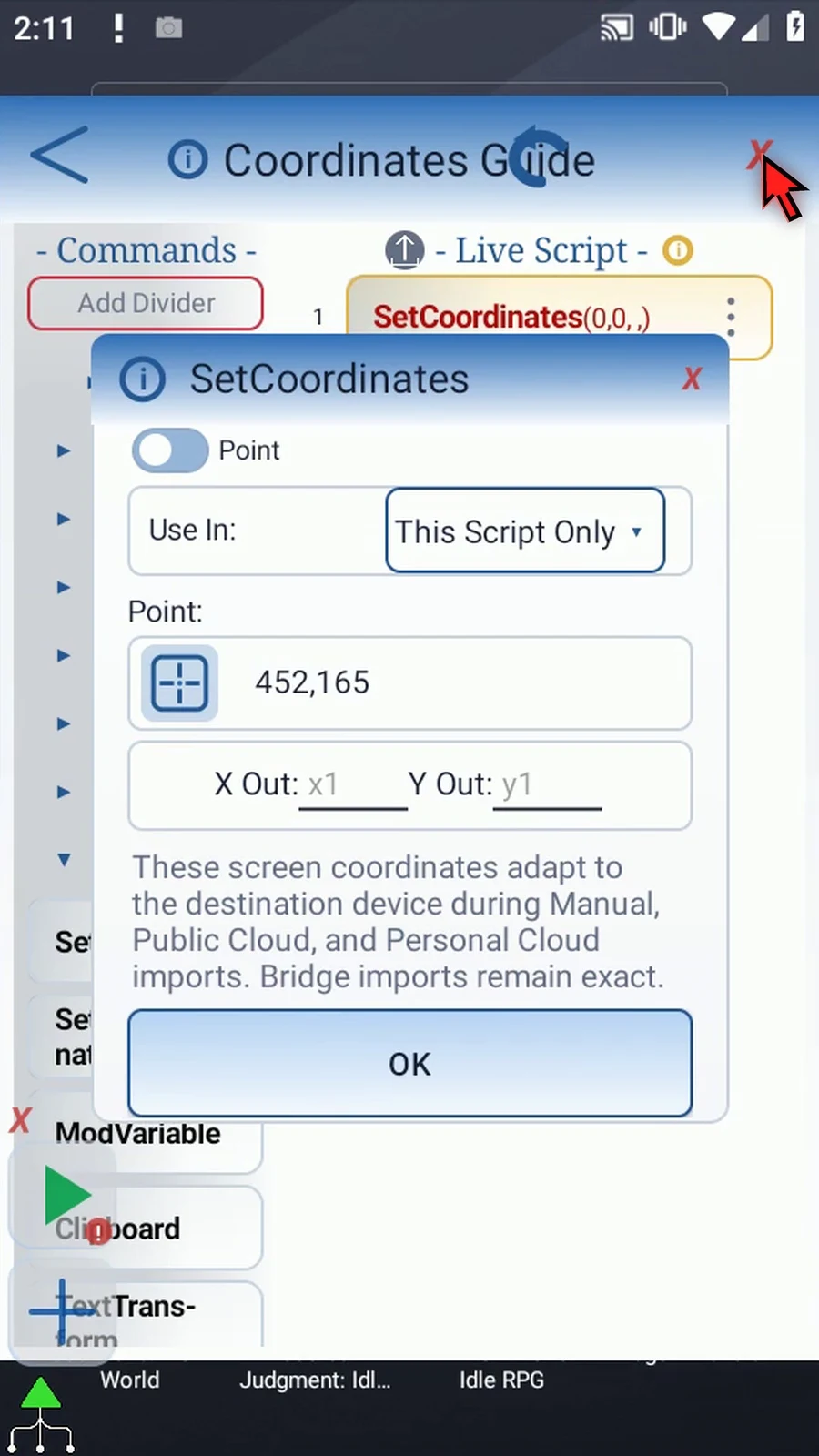
Step 12 Enter x one and y one as the two Integer outputs. Set Coordinates stores the selected literal position in these variables when the script reaches this command. It does not perform a tap itself.
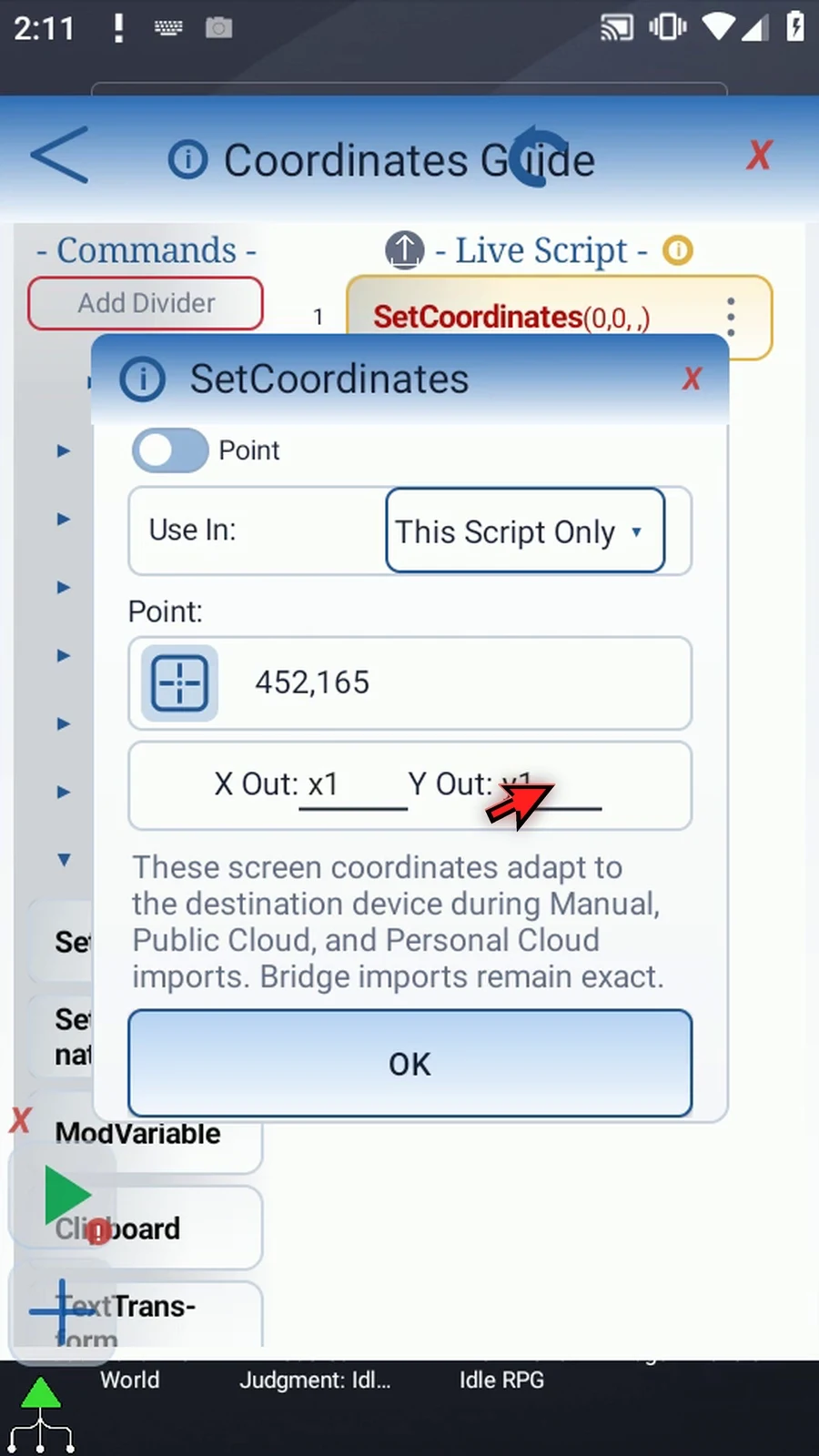
Step 13 During Manual or Public Cloud import, coordinates adapt when Transpose Coordinates is selected. Personal Cloud adapts them automatically. Bridge imports keep the exact coordinates. Save the command when setup is complete.
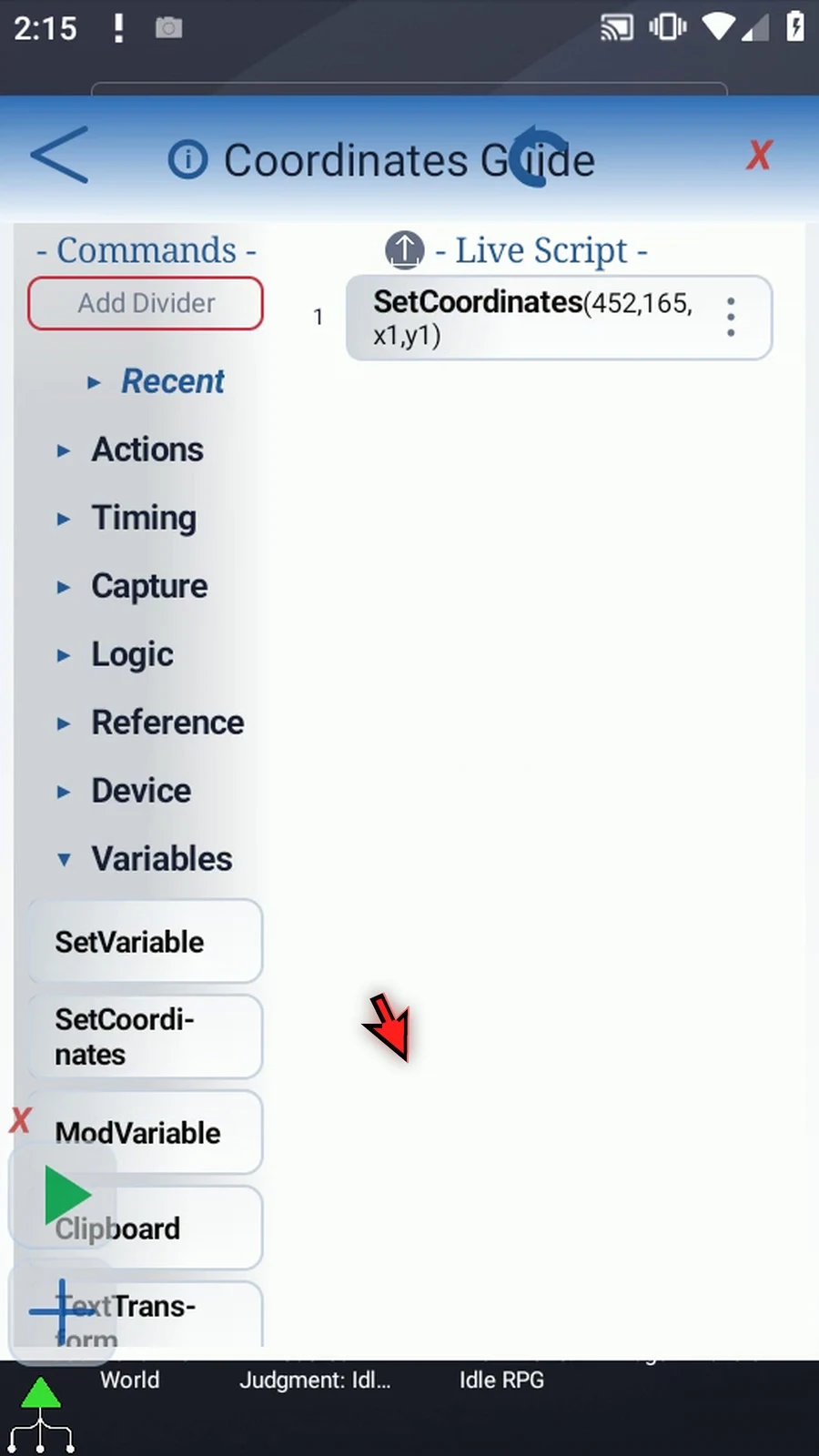
Step 14 Now drag Tap after Set Coordinates and open it. This supporting command will use the stored point, so we can see a useful result.
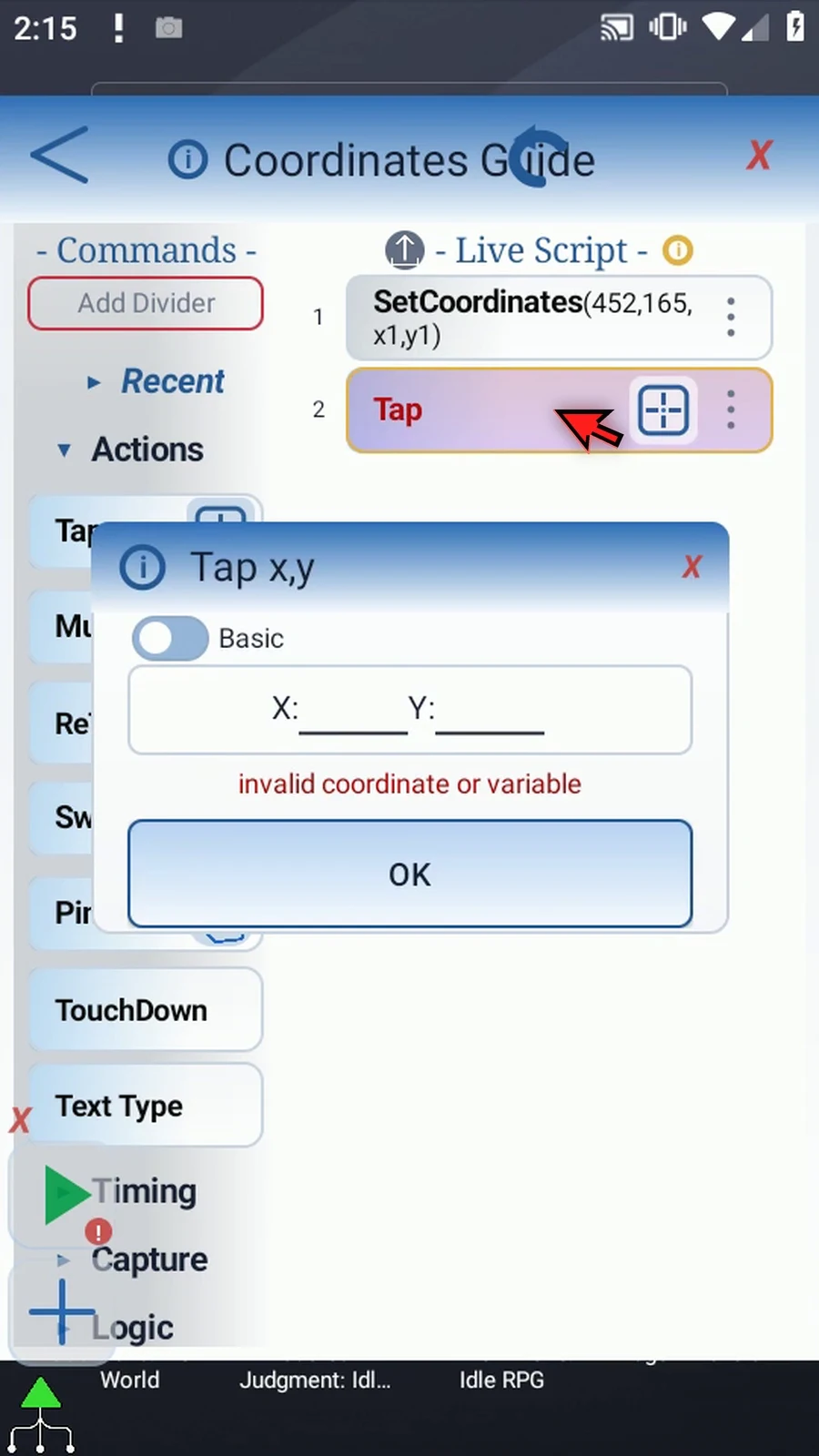
Step 15 Use x one for X and y one for Y, then save. These are the variables created by Set Coordinates, not new fixed numbers.
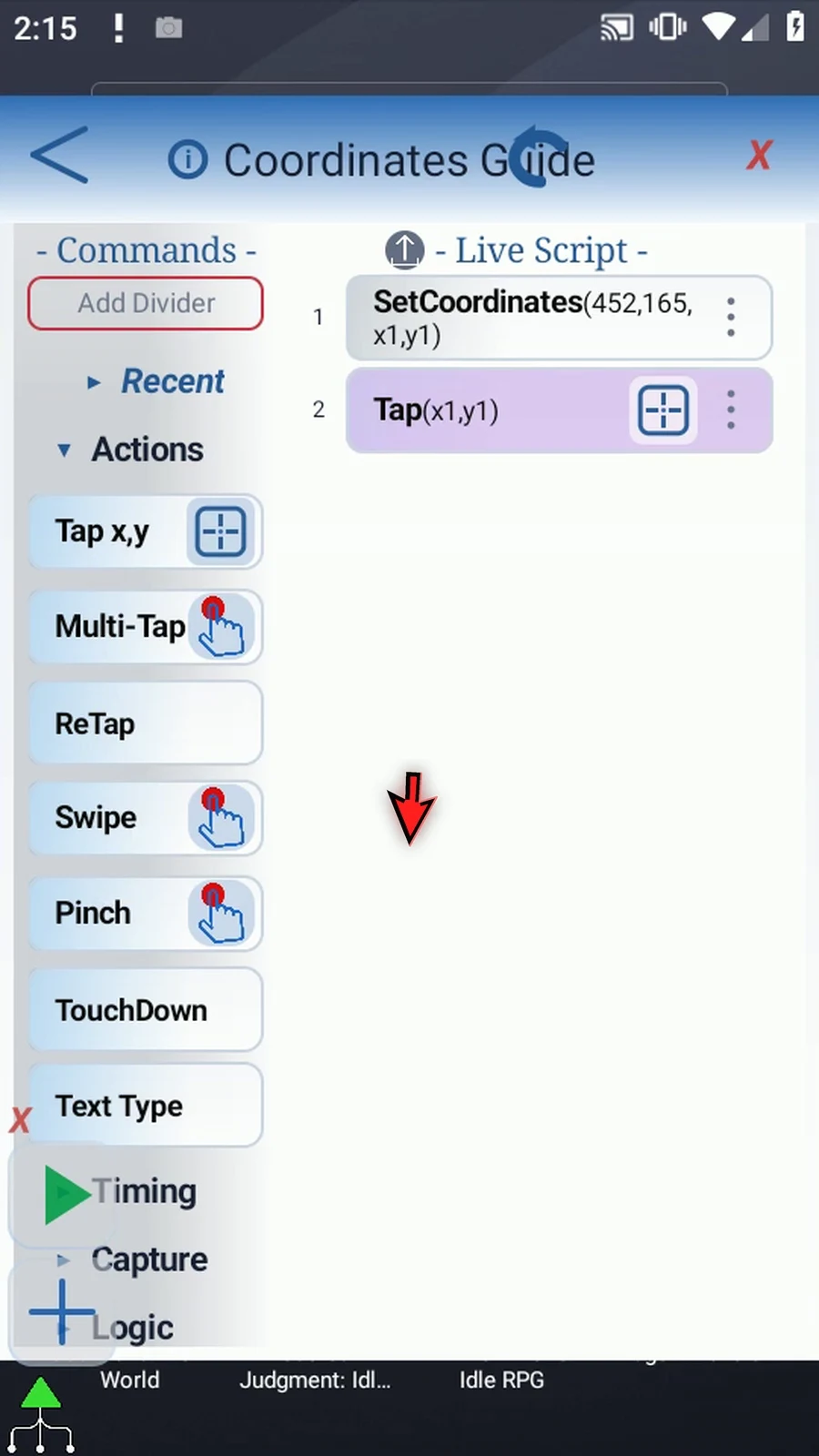
Step 16 For a clear confirmation, open Advanced and scroll to PromptMe.
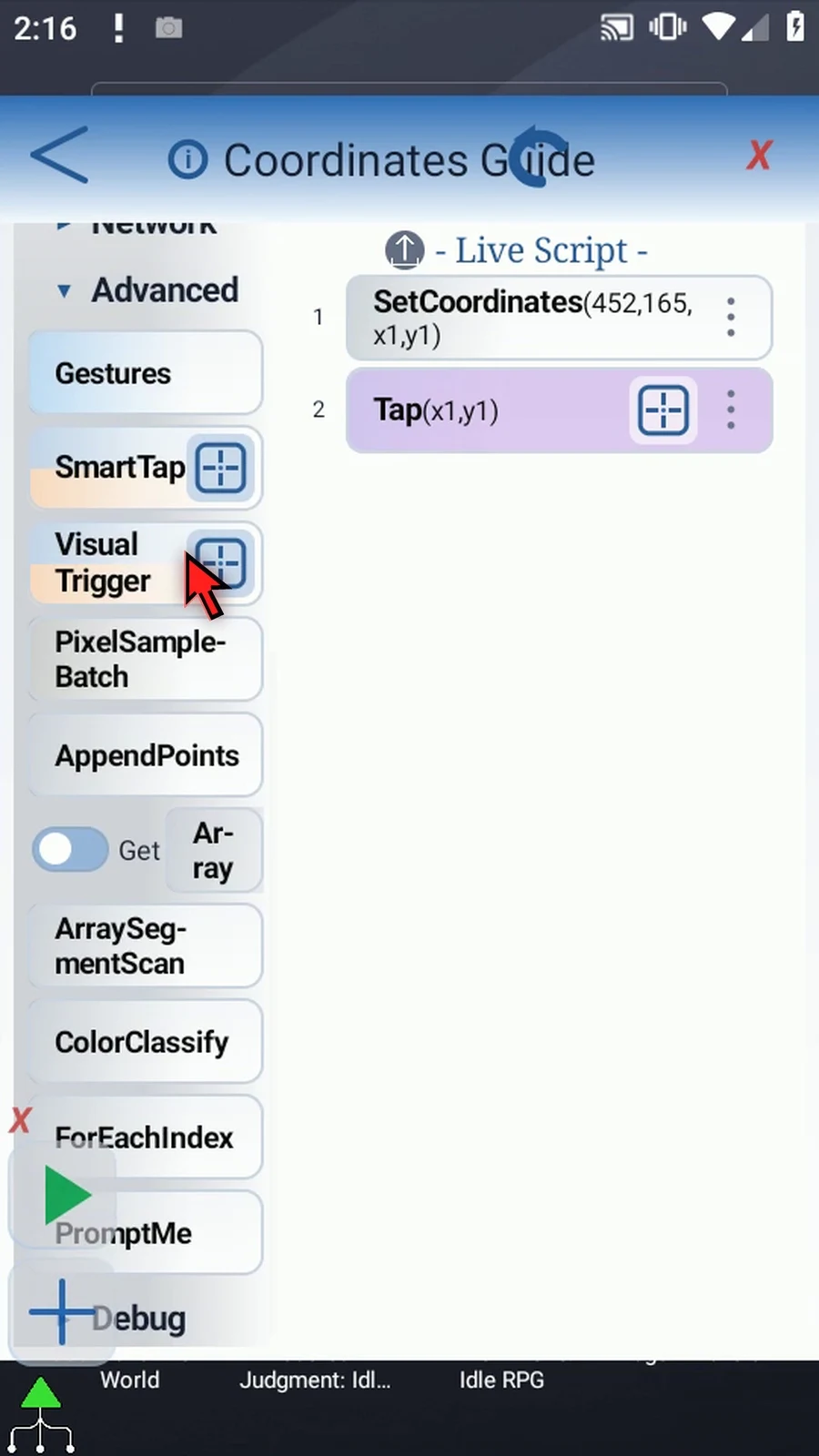
Step 17 Drag PromptMe after the Tap and open its settings.
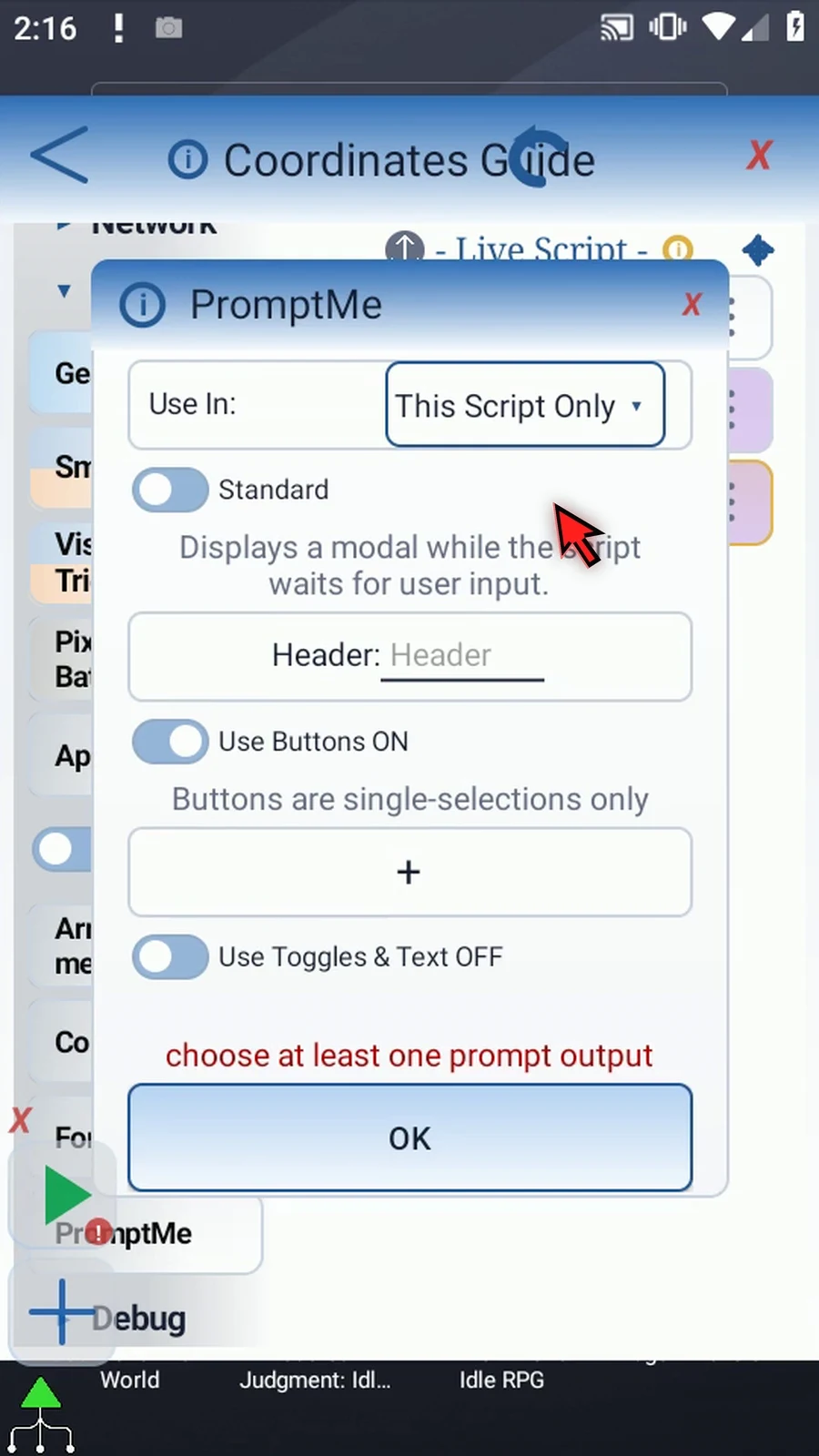
Step 18 Keep Standard mode and enter Opened as the header.
Step 19 Add a button and enter Done for its caption.
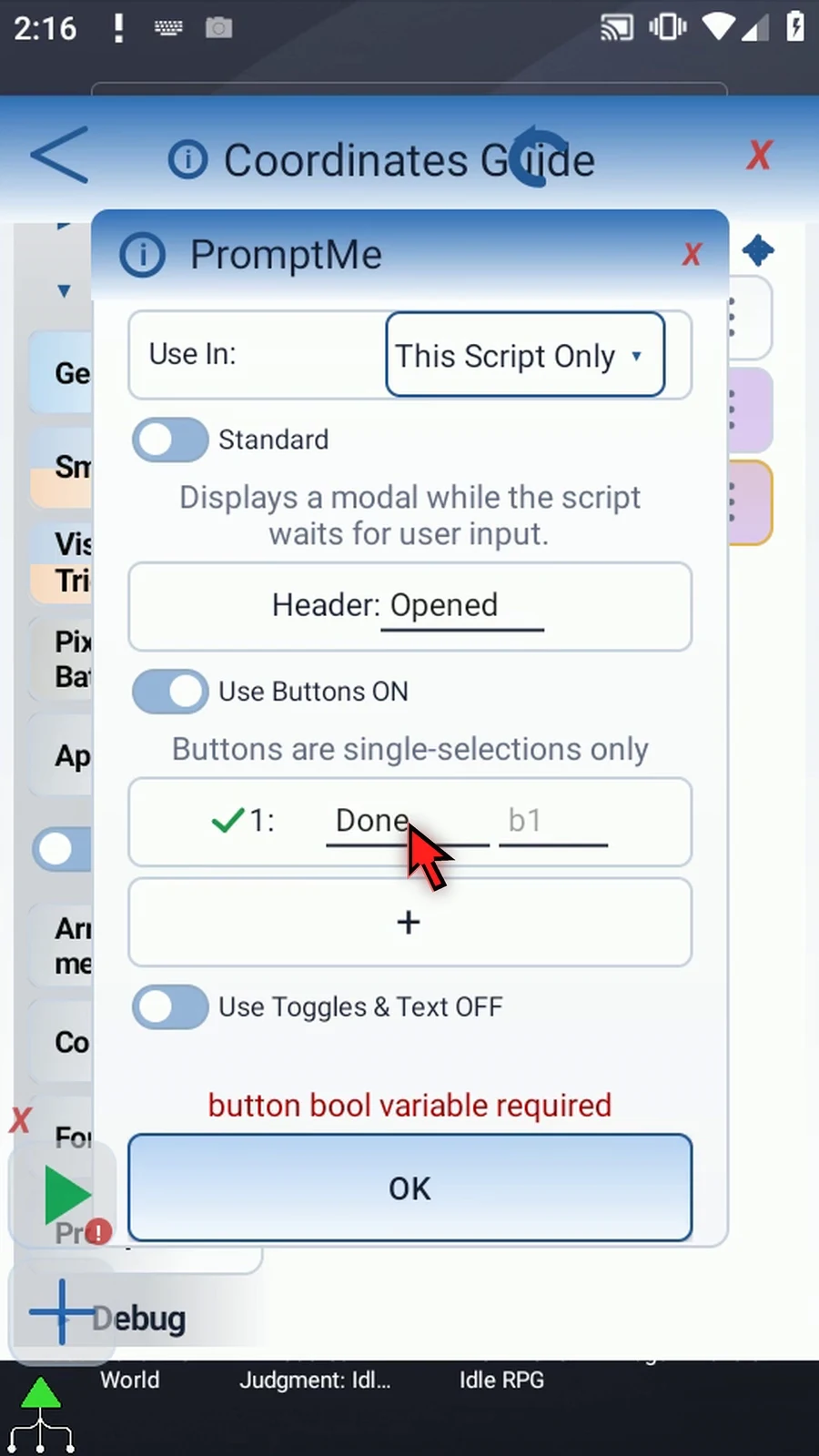
Step 20 Use Boolean b one for the button's output, then save the command.
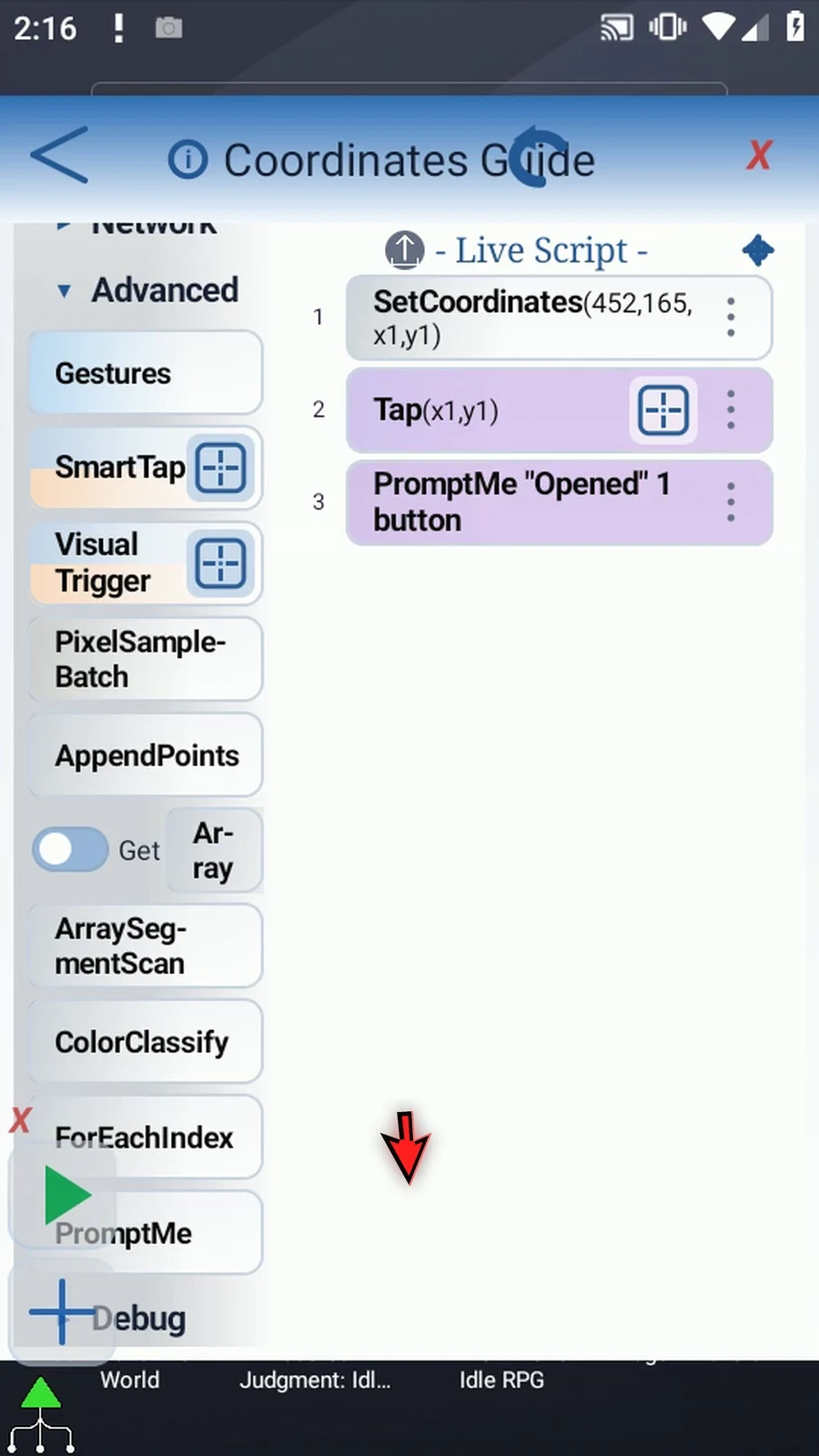
Step 21 The finished script stores a point, taps that point using its two variables, and shows a confirmation. Set Coordinates is useful when later actions need a reusable position that can adapt during supported imports.
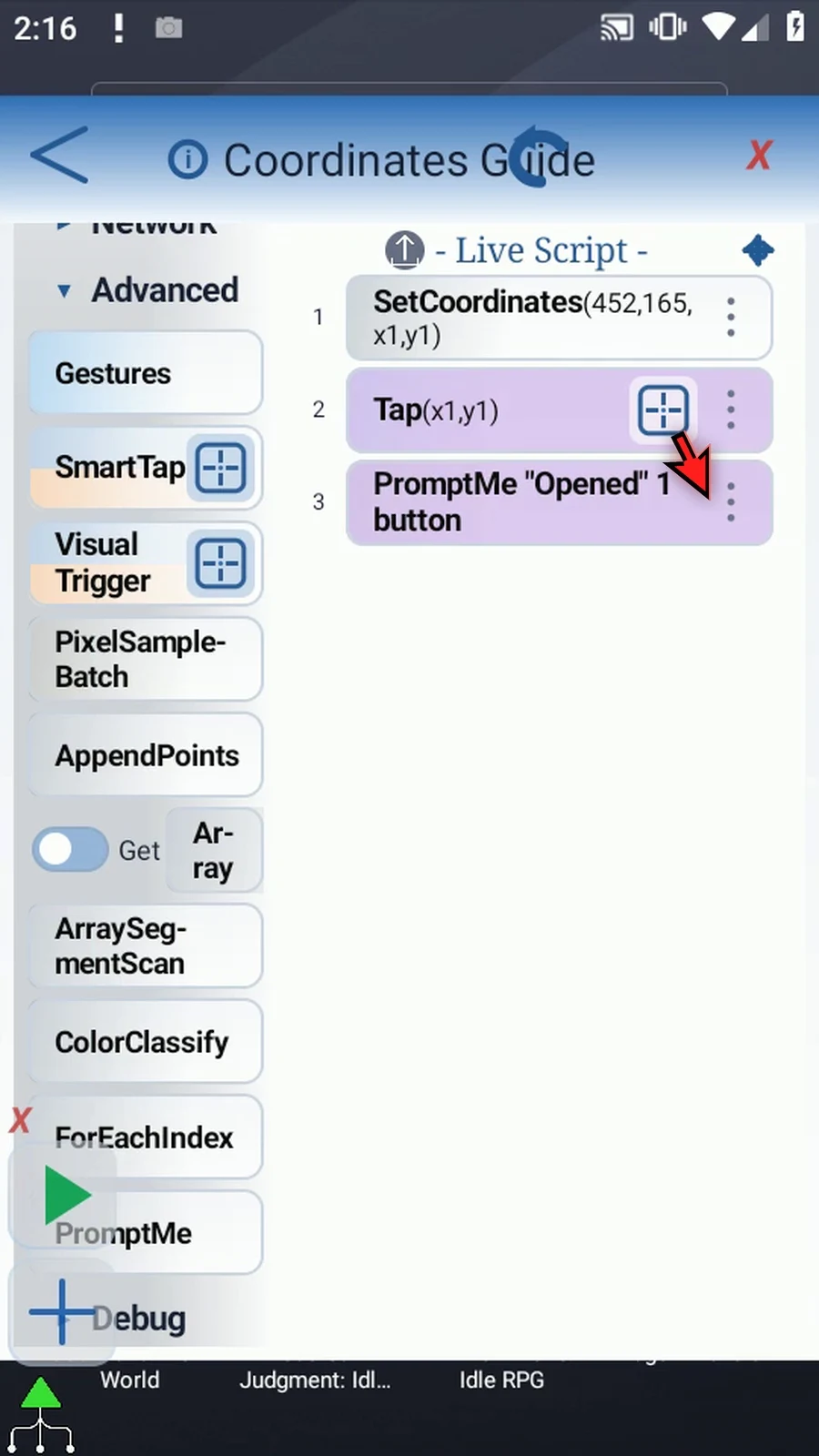
Step 22 Close the editor and expand the main overlay.
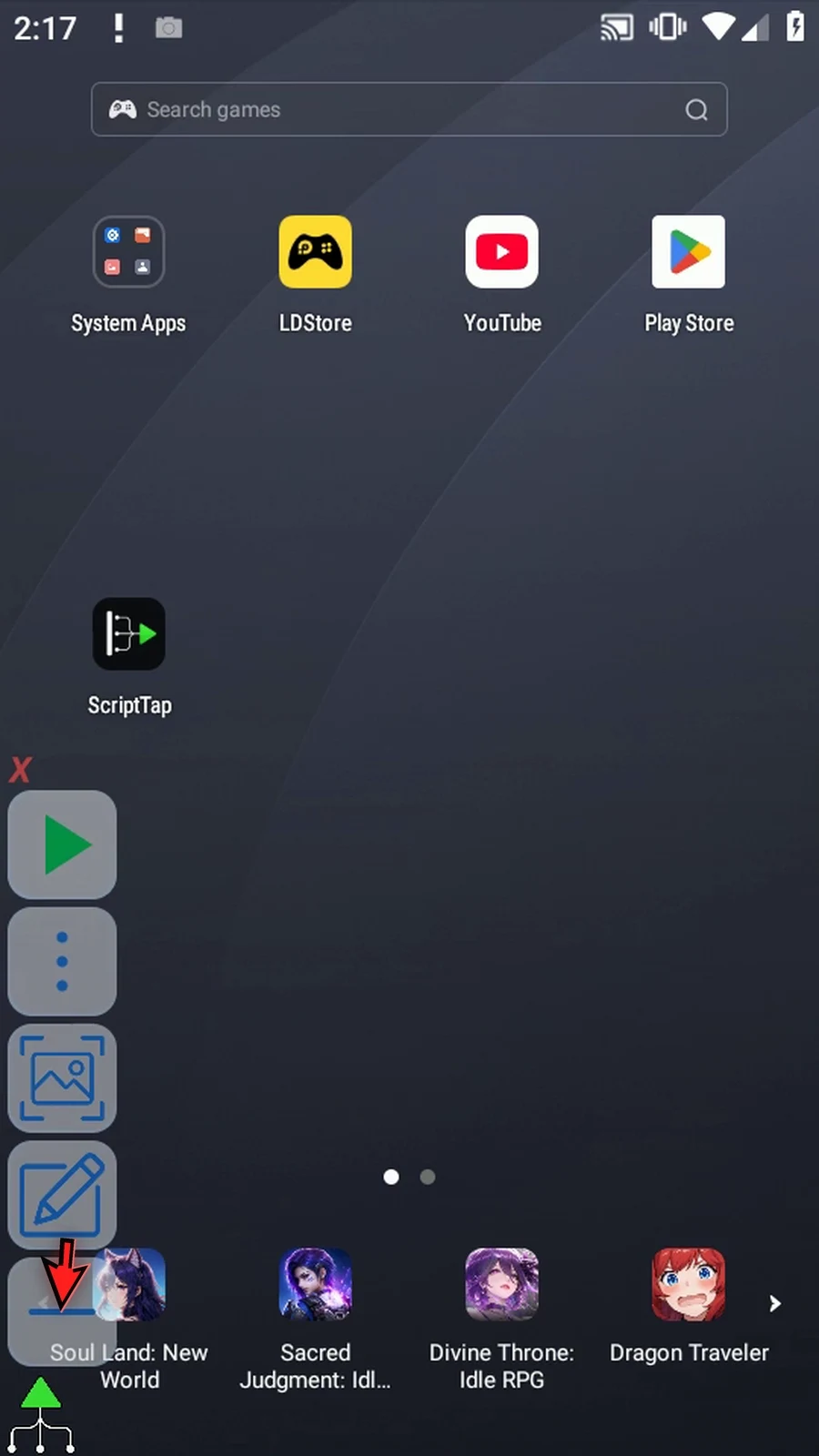
Step 23 When the script is complete, simply use the Play button in the main overlay.
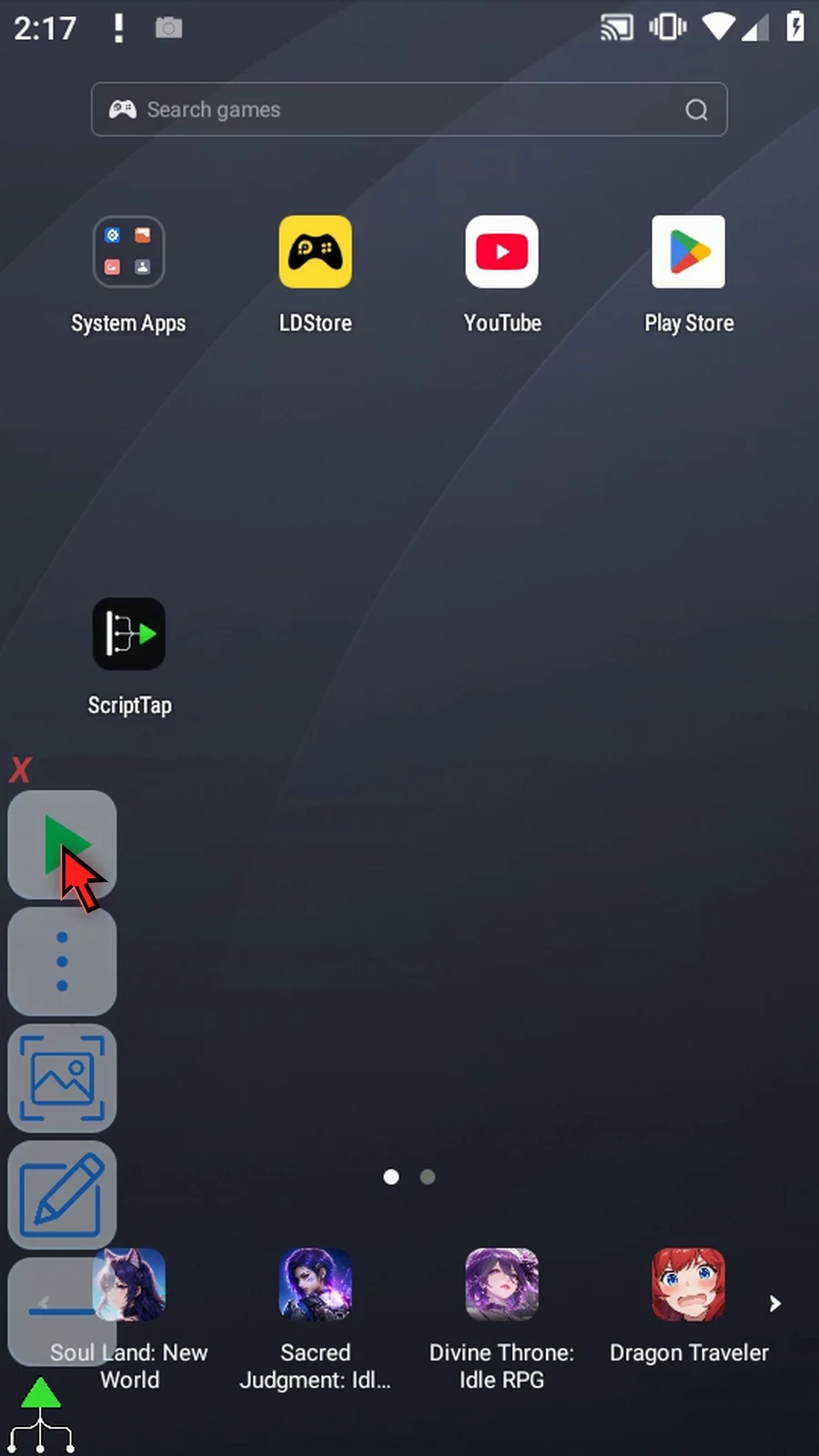
Step 24 Play Store opens at the selected point, and the confirmation appears. Choose Done to finish.
Step 25 The script stops automatically. Use Point for two coordinate outputs, or Area when later commands need all four edges of a rectangle.