Command video guide
File
File reads, creates, or appends document data. This introduction demonstrates Create + Text: write a new text file in a chosen folder, then show the actual returned name with PromptMe.
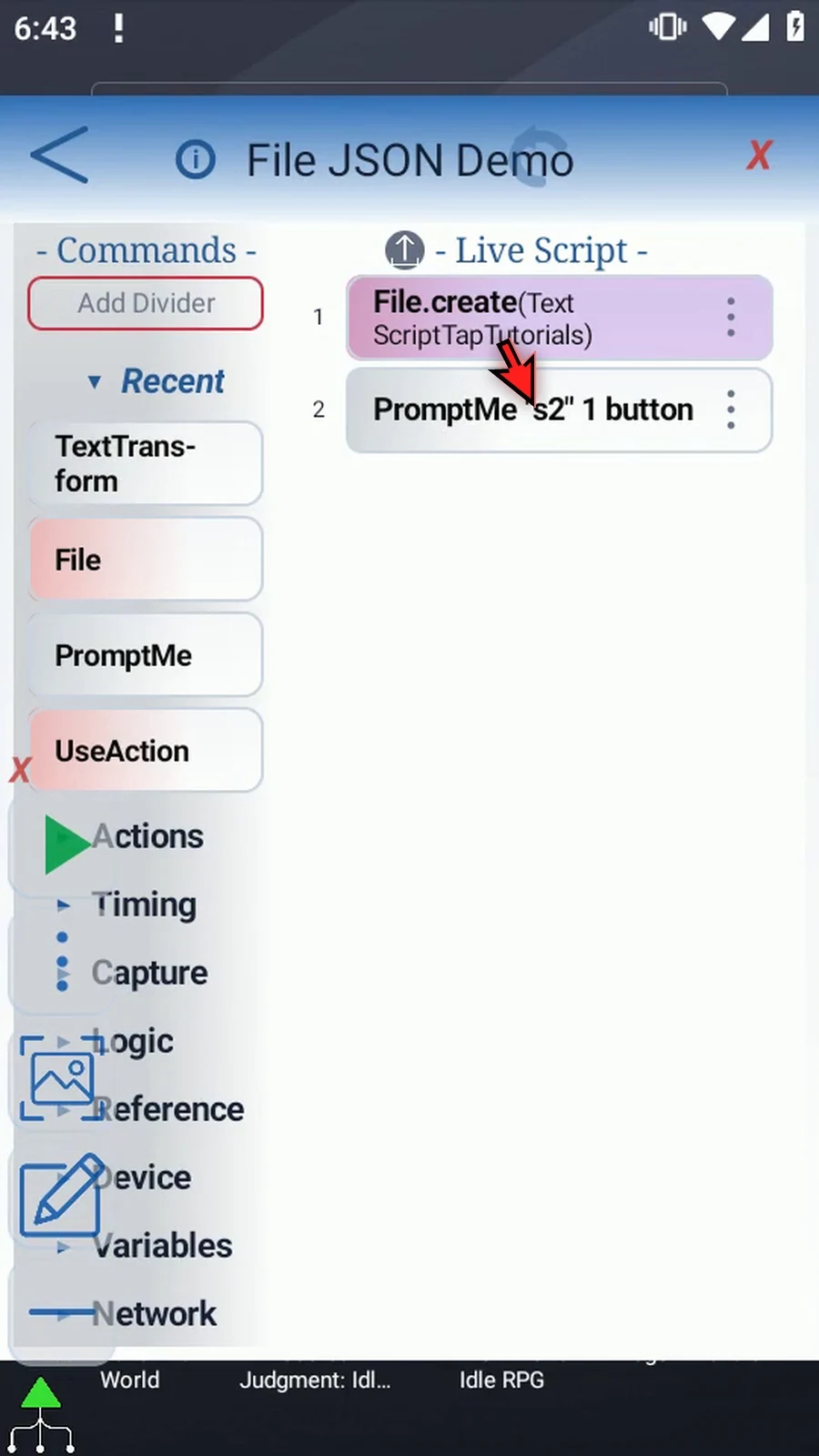
Open Scripts from the main overlay menu. In the Script Library, create a new Blank script, rename it, select it and open its editor. Manually drag File from Device into the live script. Open the row and use the header Mode button to select Create. Keep Format: Text.
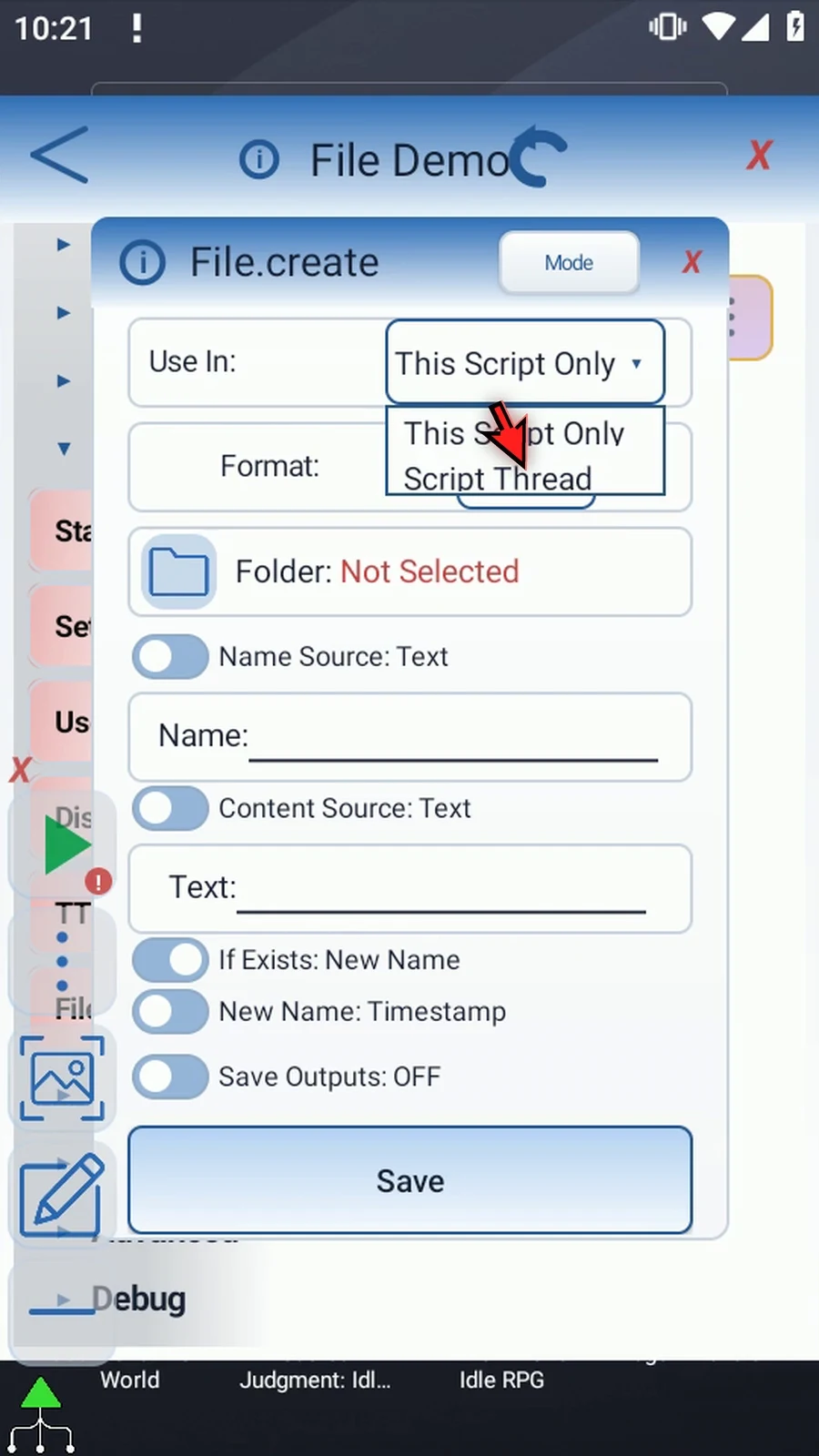
- Use In: keep This Script Only for local outputs. Script Thread is available when the values need to be visible to called scripts in the same run.
- Folder: select only the intended destination in Android's folder picker. If Android asks, allow folder access. The example uses the dedicated ScriptTapTutorials folder.
- Name Source: Text for a name entered directly, or String Variable for a value prepared by an earlier command. The example requests
GuideNote.txt. - Content Source: enter Text directly or choose an earlier String variable. The example writes
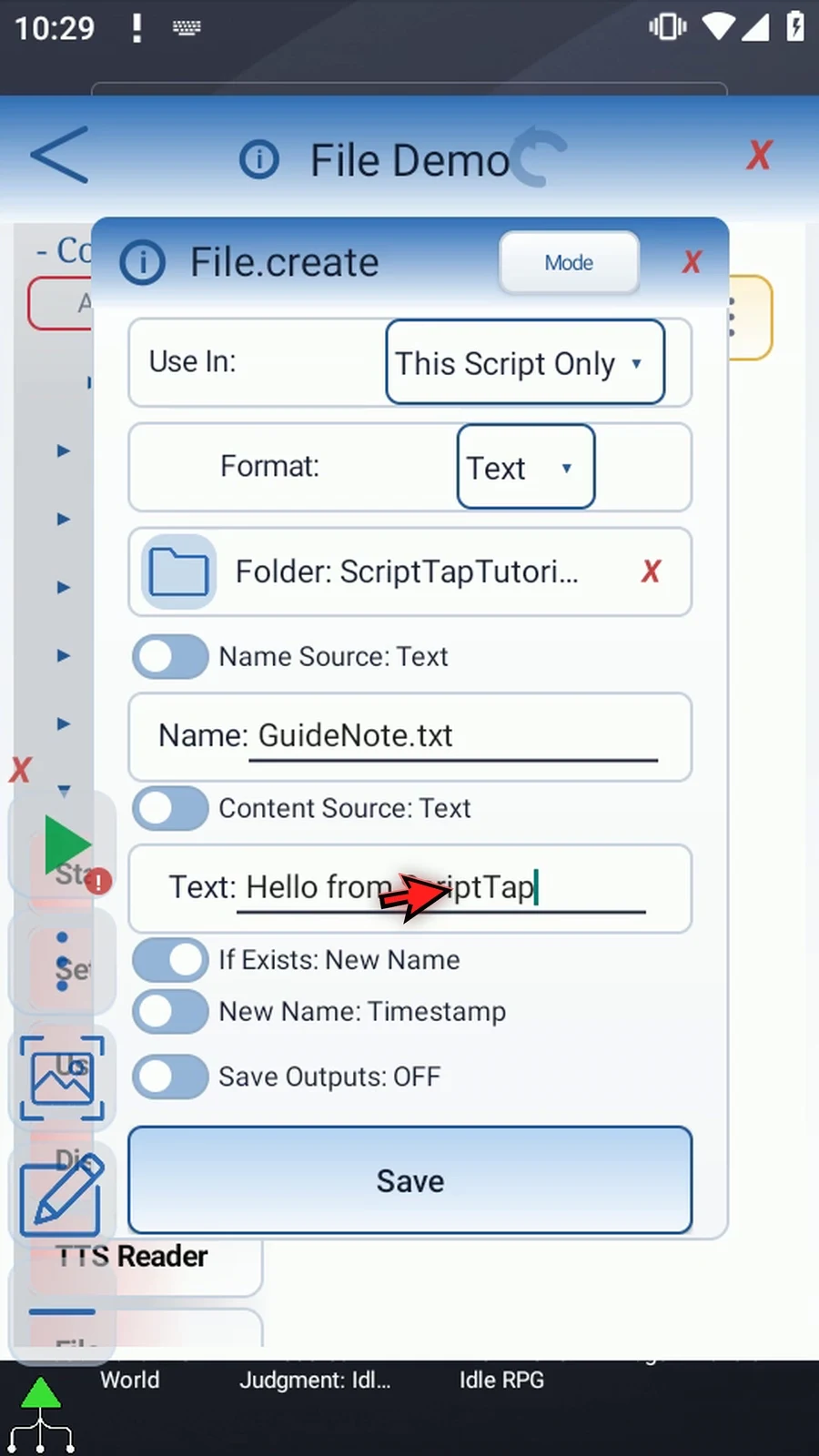
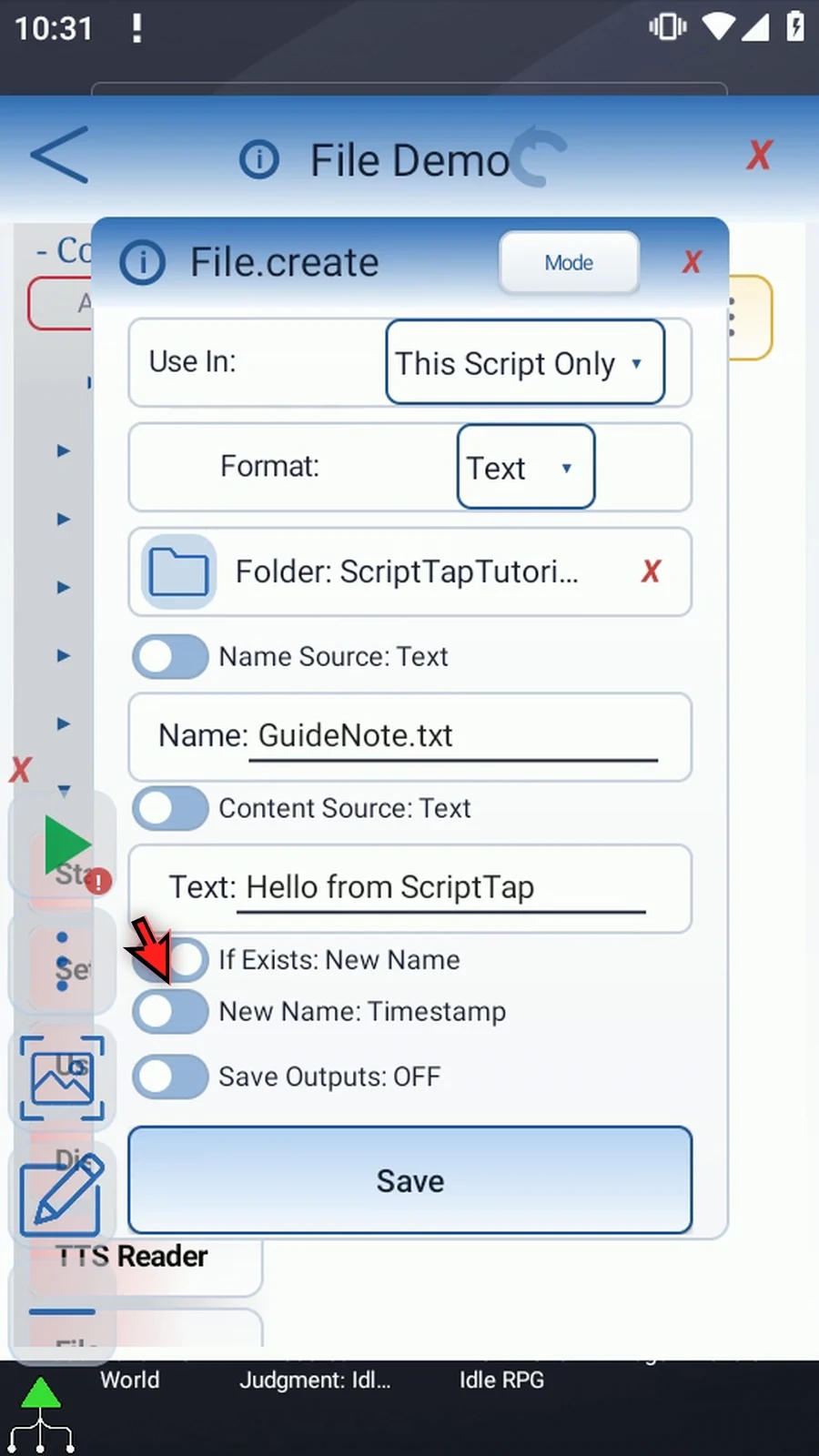
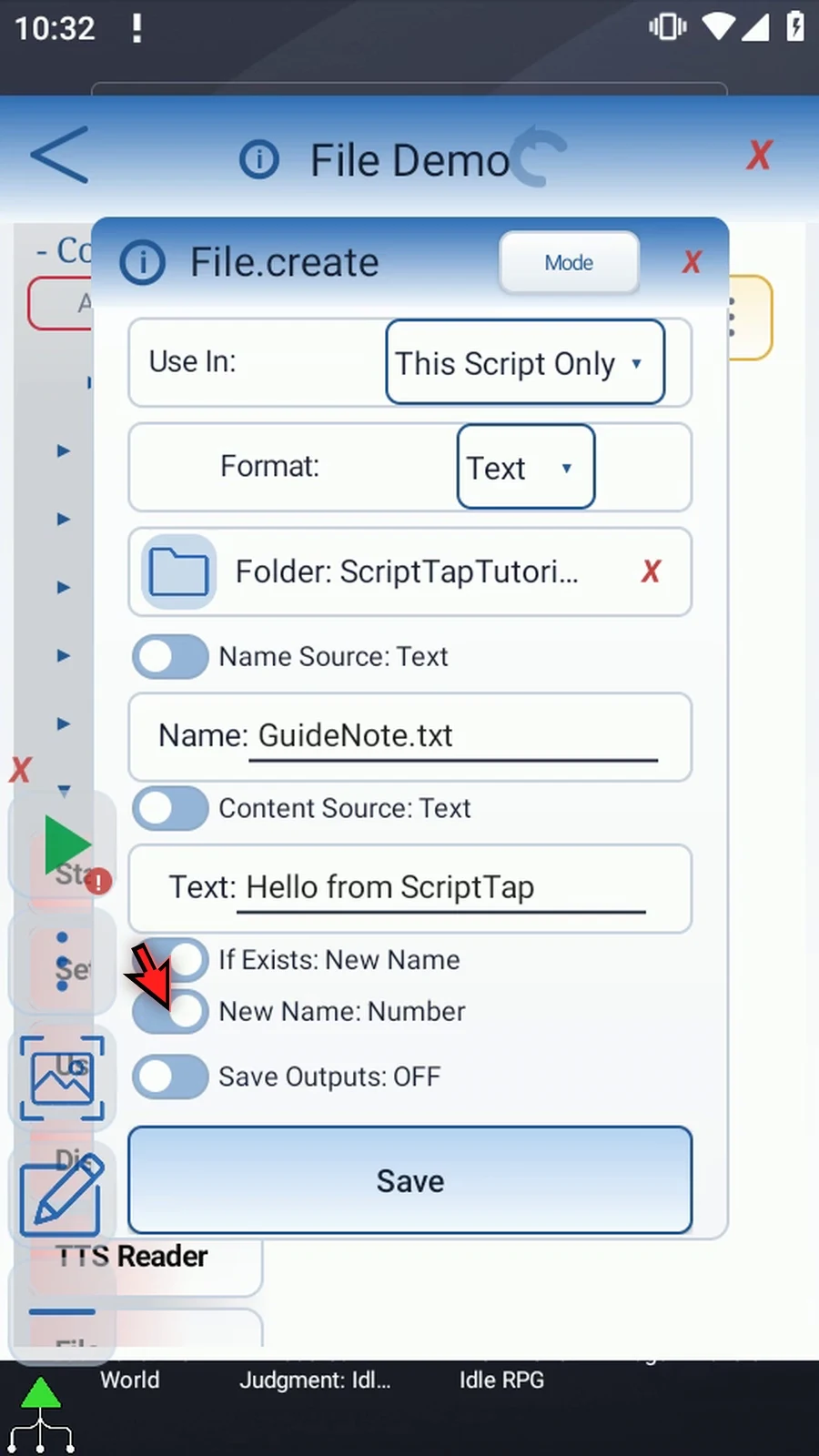
Hello from ScriptTap. Choose the source before entering data: switching away clears that source's outgoing value. - If Exists: New Name creates a separate document; Overwrite replaces the existing file and should be used only deliberately. New Name supports Timestamp and Number. The recorded example uses Number, with the original filename already present, to demonstrate automatic collision naming without replacing it.
Optional outputs: enable Save Outputs, then independently select Success Boolean b1, Error String s1, Final Name String s2, and Final URI String s3. Success reports the operation result; a successful operation returns an empty error String. Final Name is the actual collision-resolved filename. Final URI is Android's reference to the created document, not its readable filename.
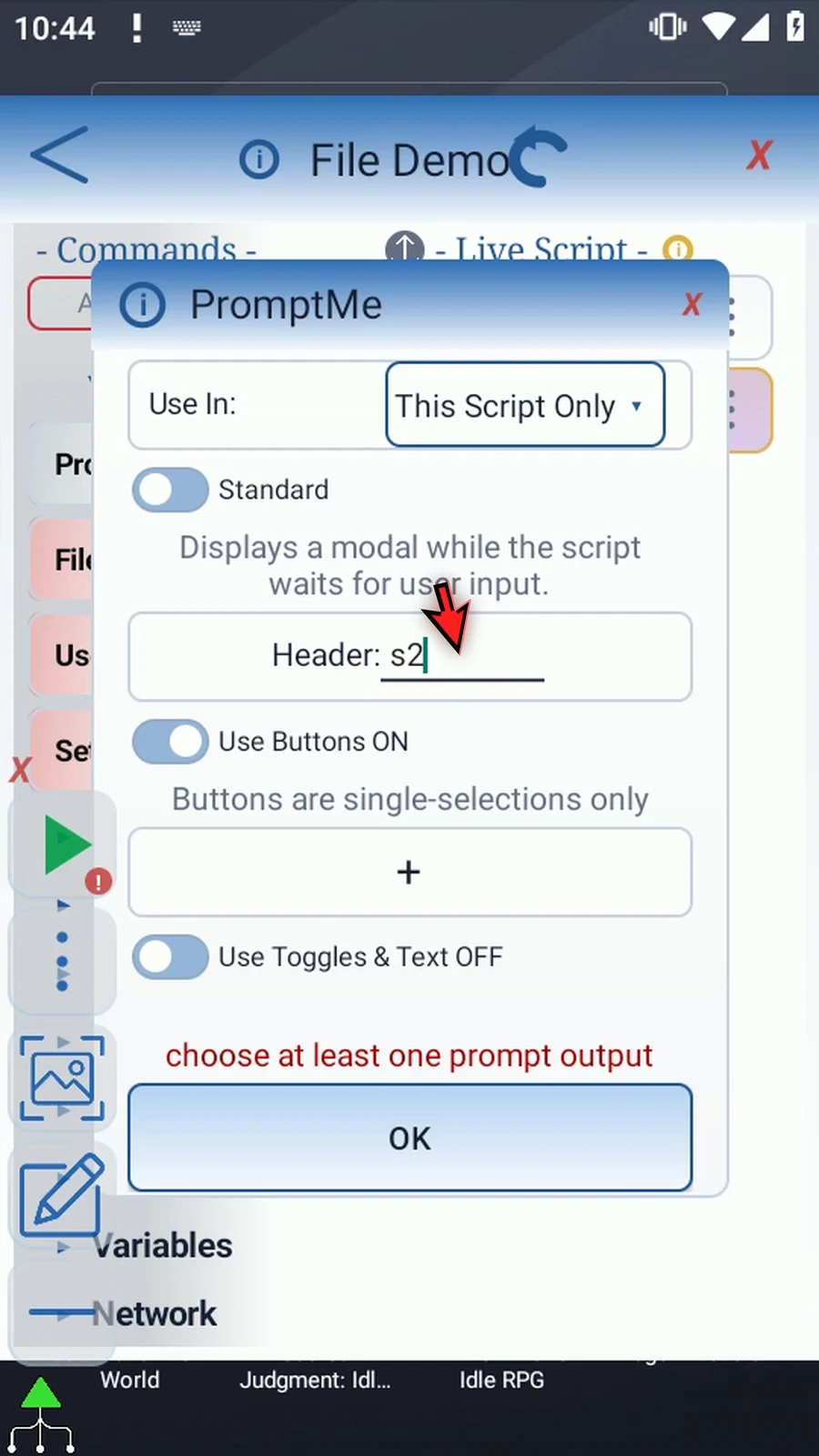
Save File. Manually drag a supporting PromptMe after it. In Standard mode, use s2 for Header and add a Done button with Boolean b2. The two-command sequence writes the document first, then displays its actual name. Press Done to finish.
Editing does not create the file; the write happens during Play. Use a dedicated tutorial folder and New Name for a non-overwriting demonstration. CSV and JSON are separate formats, while Read brings file data into variables and Append adds data to an existing file.
Intro & Create Text
Step-by-step guide
Step 01 File lets a script read, create, or append data in files. In this introduction, we'll create a plain-text file and display its actual name with PromptMe. File performs the write; PromptMe only shows the result.
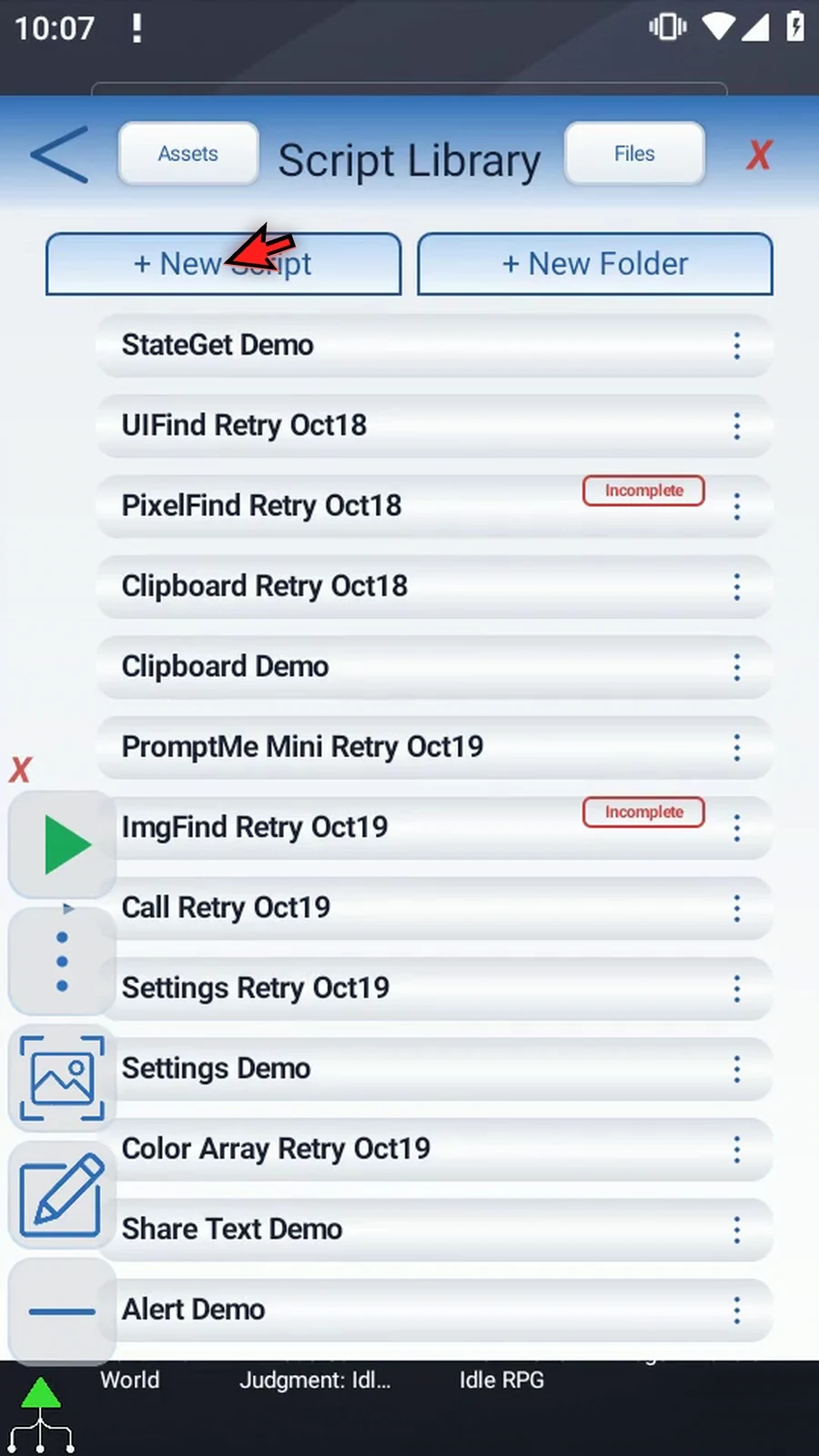
Step 02 From the Script Library, use New Script and choose Blank. The new script is added to the library. Bring its row into view.
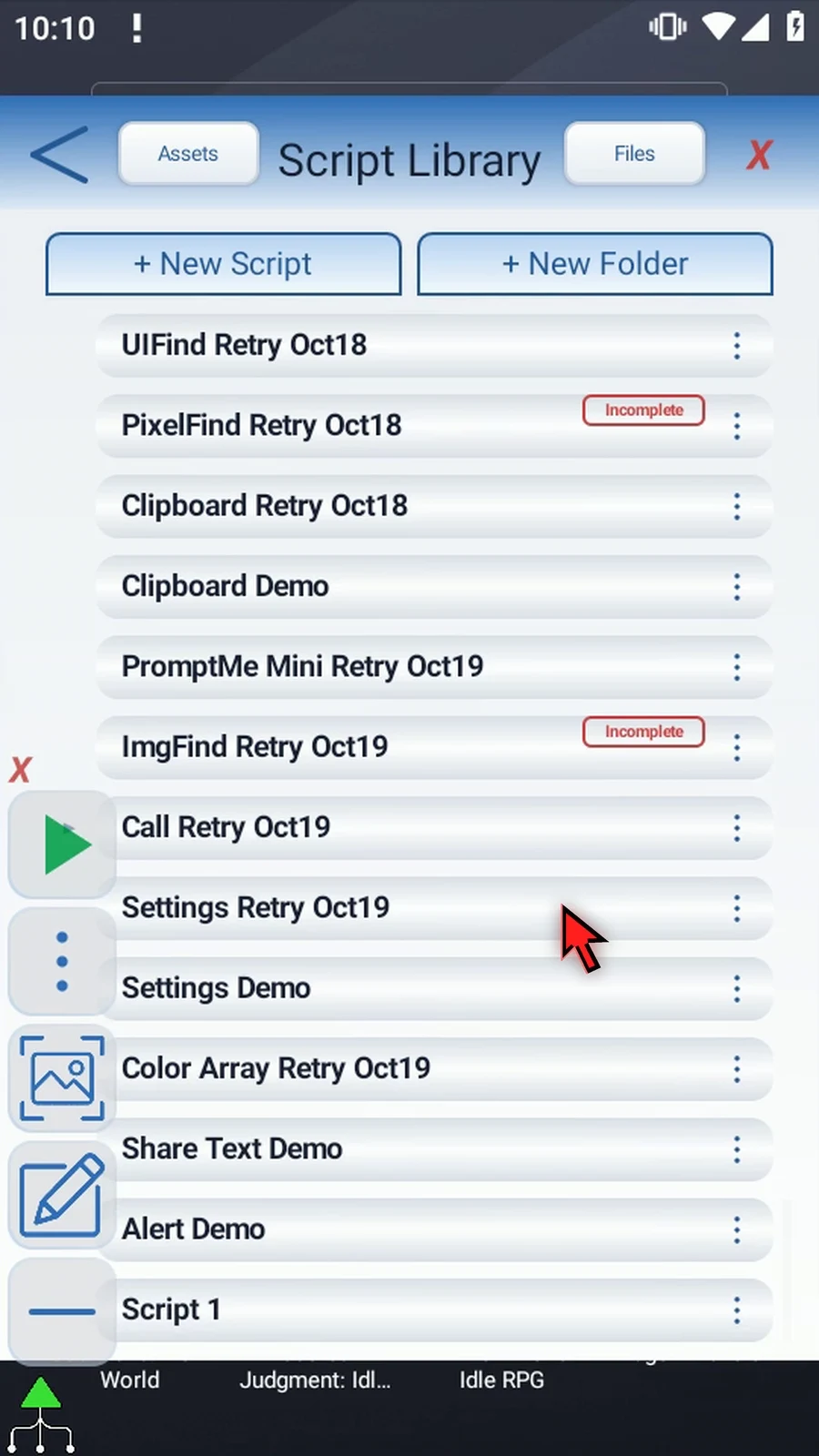
Step 03 Open the menu on the new script's row and choose Rename. Tap the name field, then replace the default name with a clear name for your example. Use OK to confirm it.
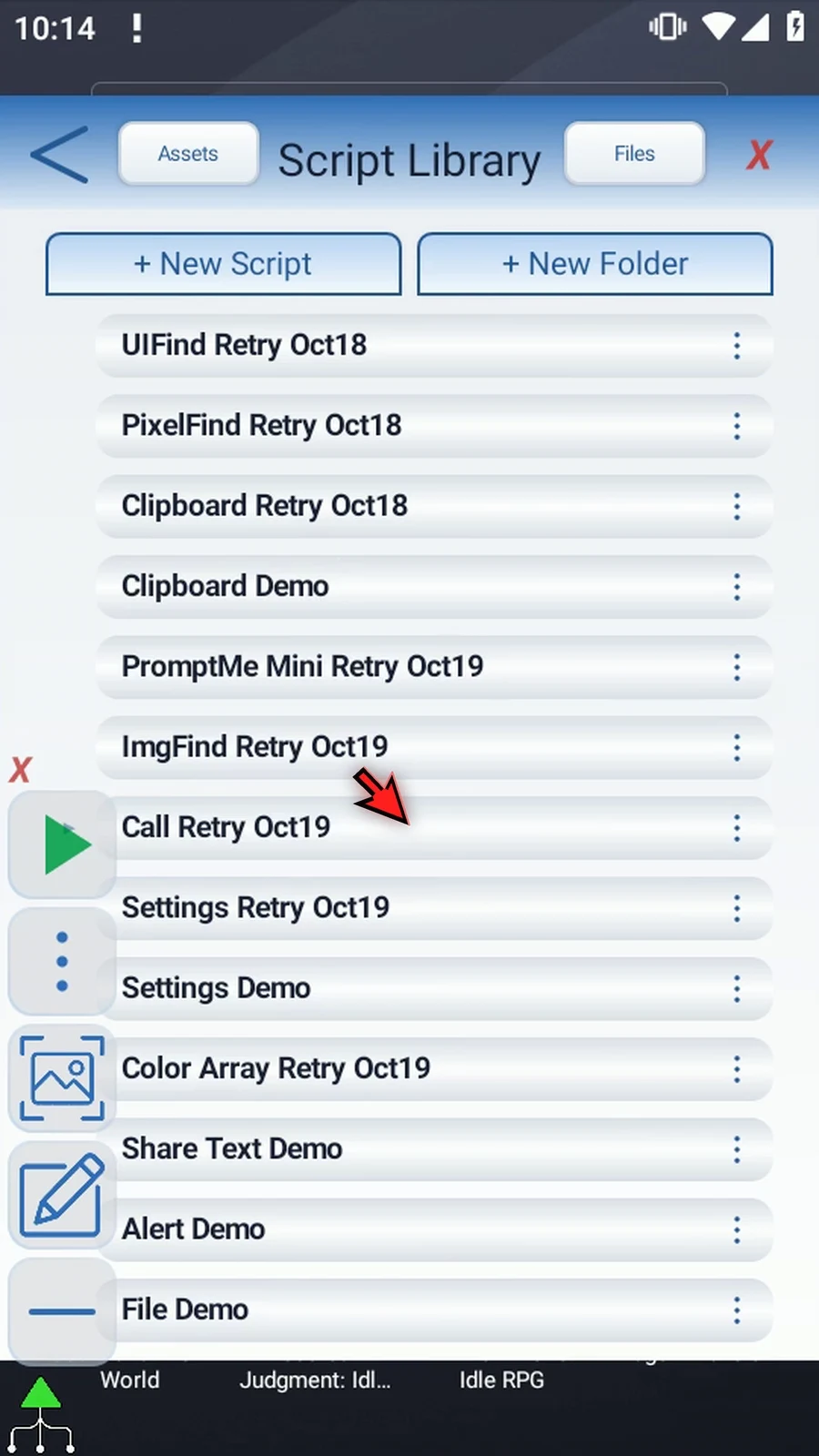
Step 04 Select the new script and open its editor from the main overlay. Existing scripts stay unchanged.
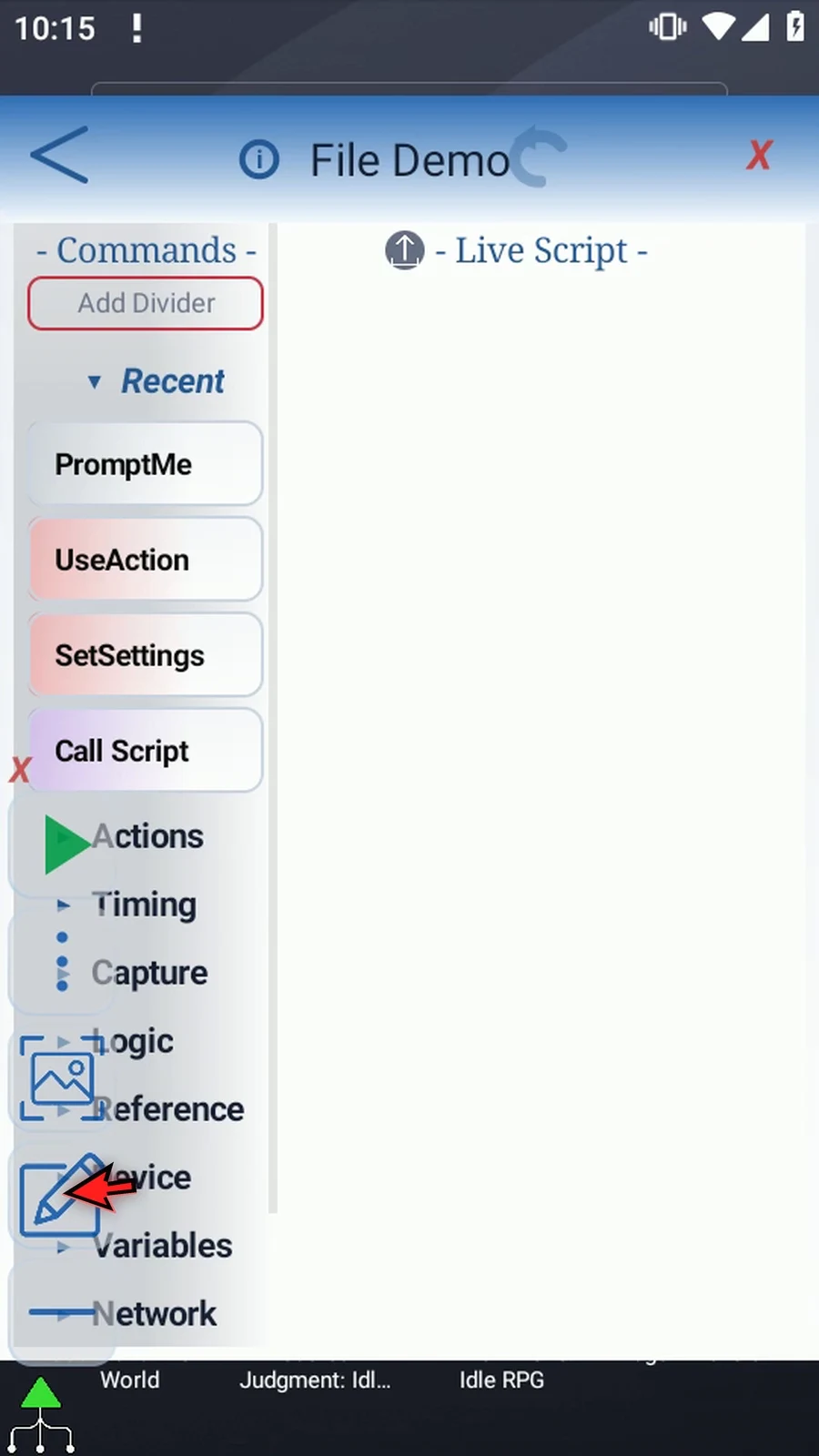
Step 05 Expand Device and scroll to File. Drag the command into the live script. The blue insertion line shows where the new command will be placed.
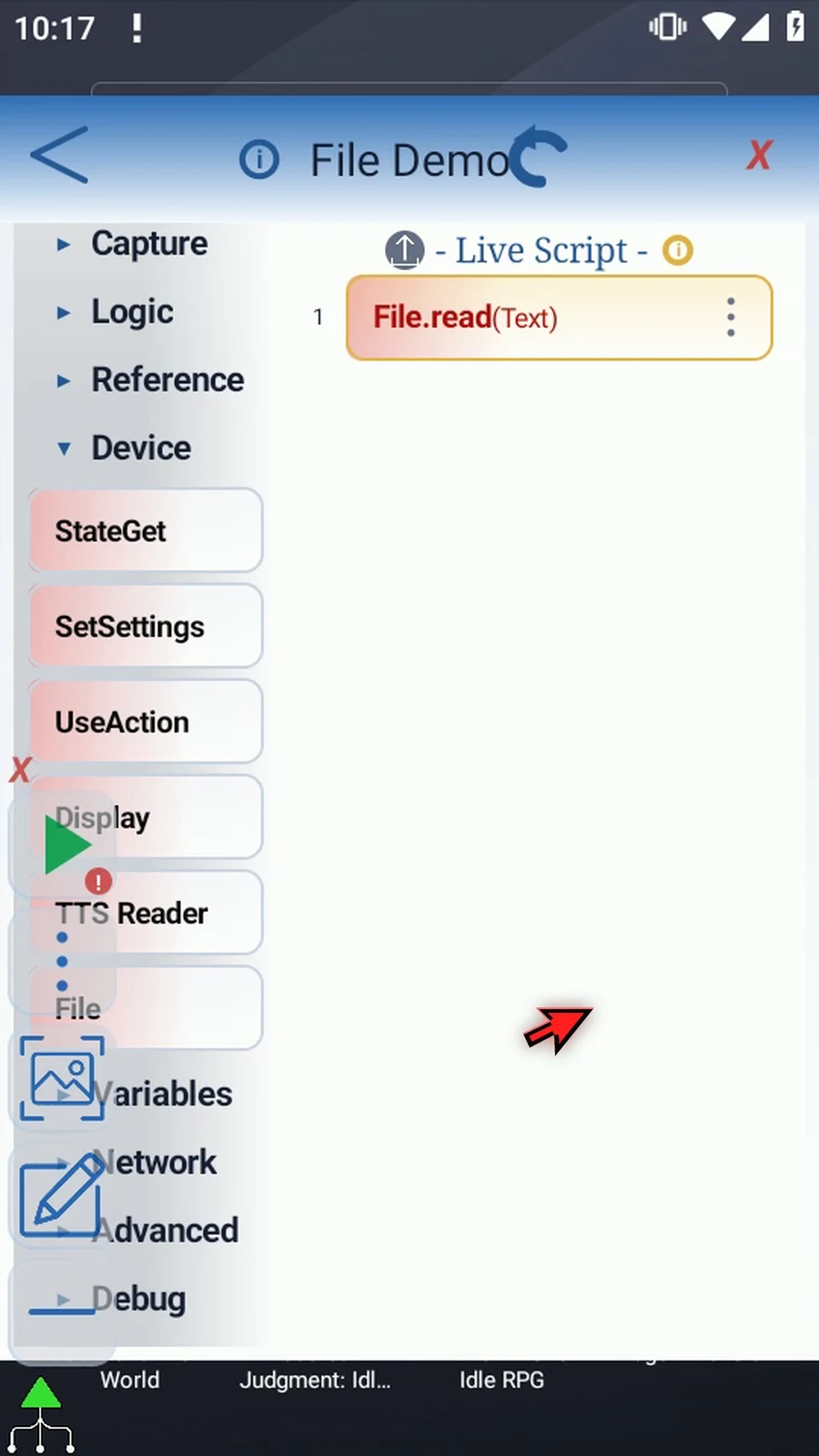
Step 06 Open File. The Mode button cycles through Read, Create, and Append. Choose Create for this example. Set the operation before entering its details.
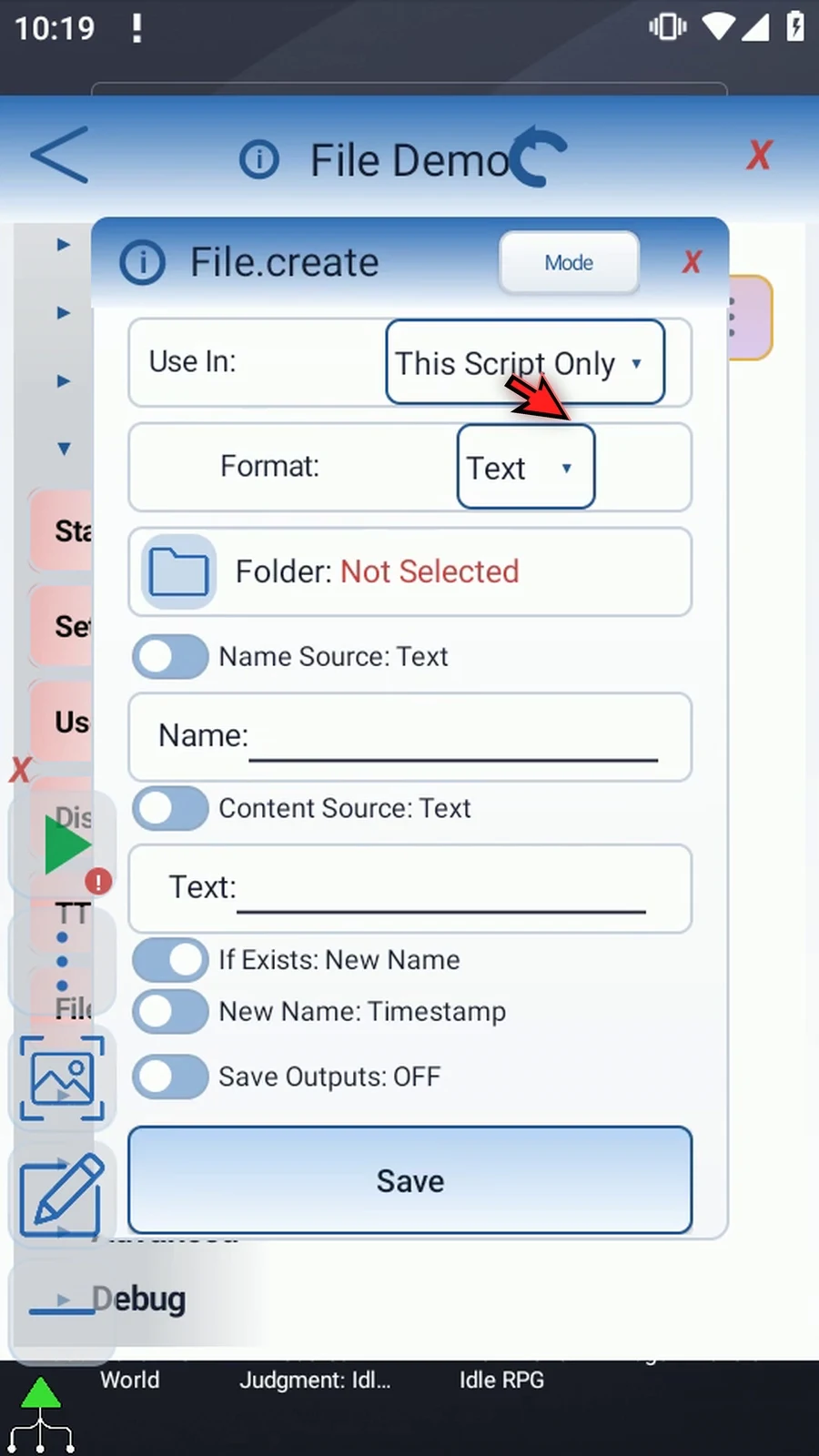
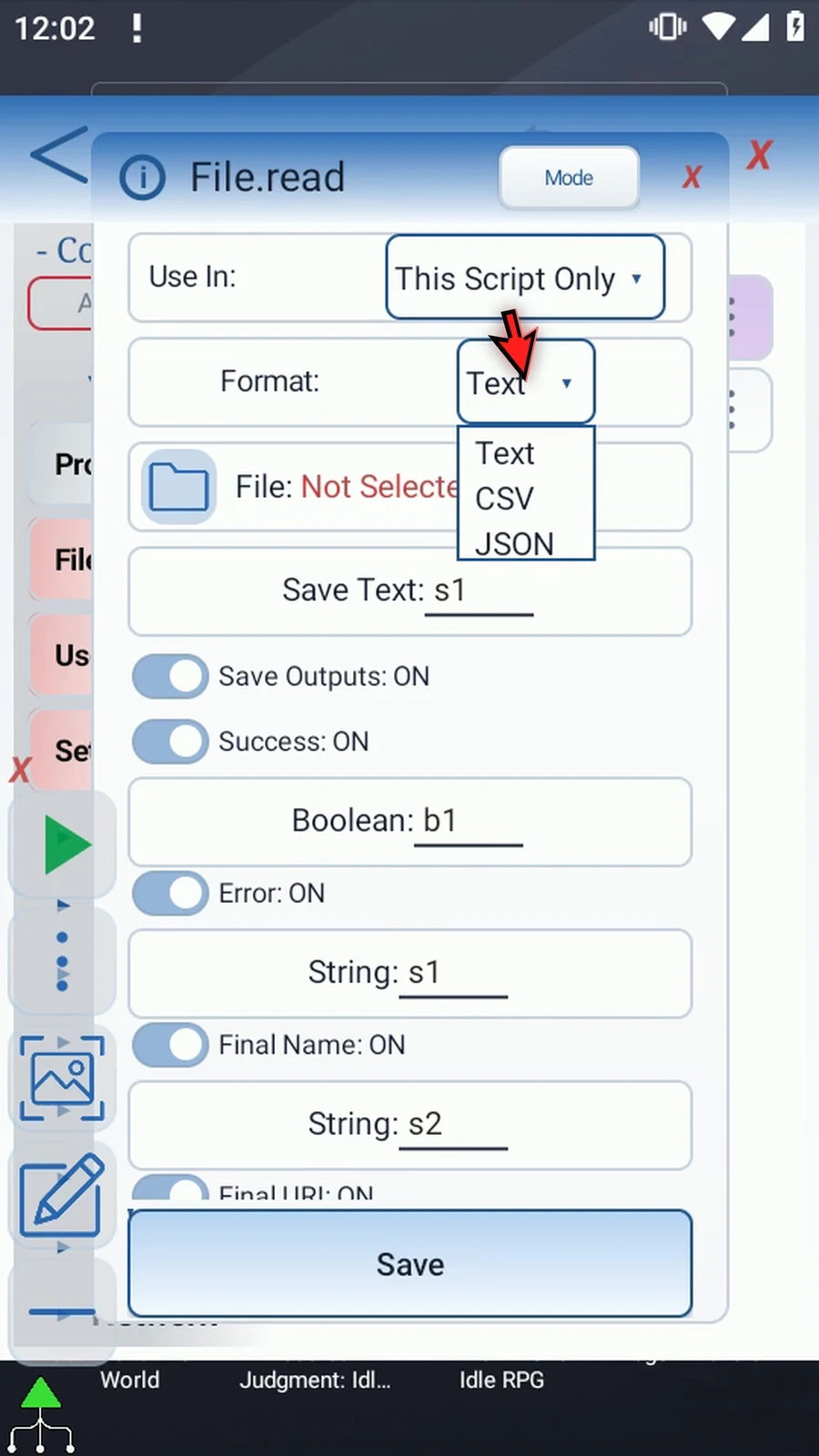
Step 07 Open Format and keep Text. Text stores ordinary text; CSV stores comma-separated table data, and JSON stores structured data. This example uses a simple text file.
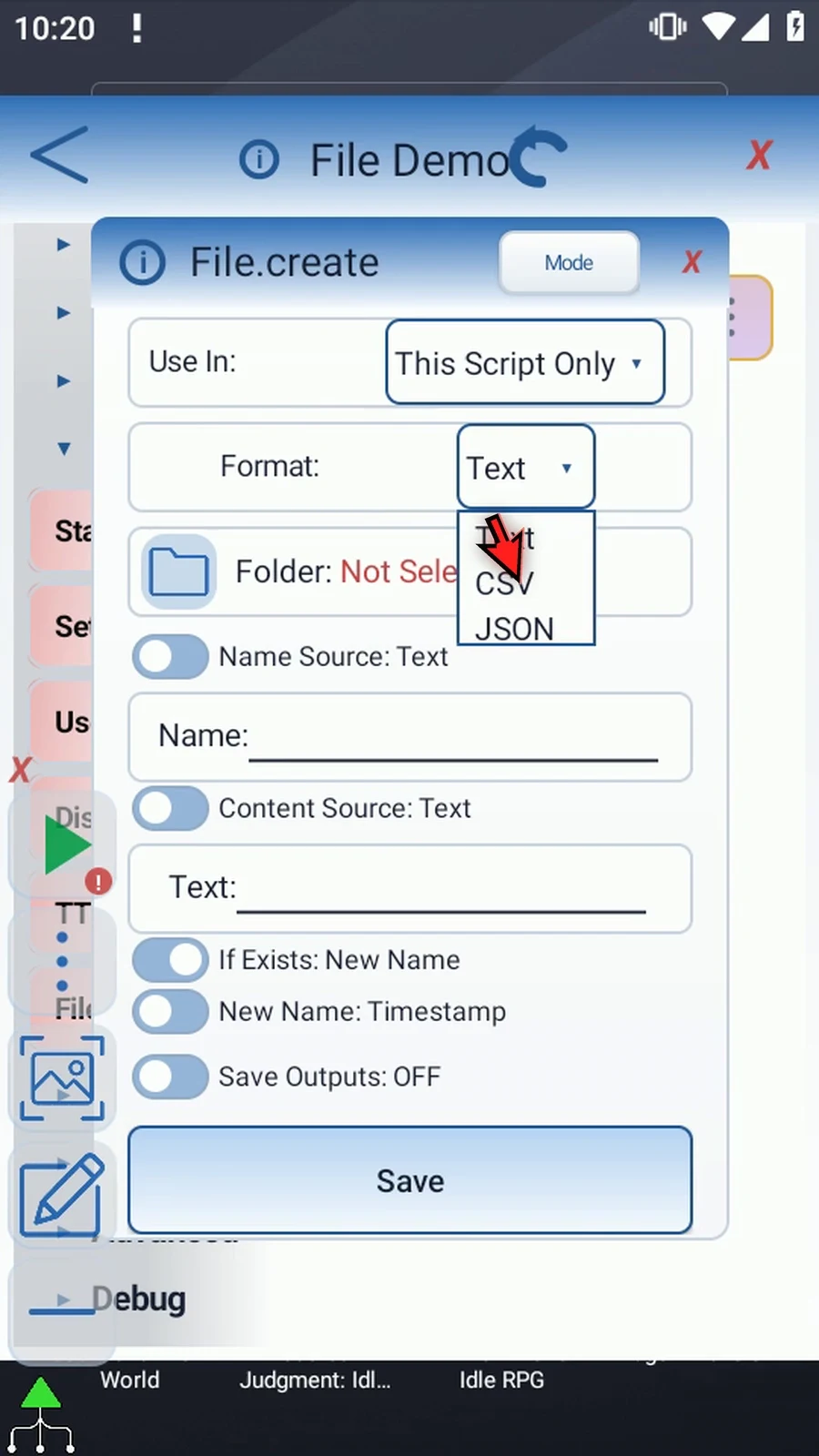
Step 08 Keep Use In set to This Script Only. This keeps the outputs local. Script Thread is available when the values need to be visible to called scripts in the same run.
Step 09 Use the Folder selector to choose where the file will be created. Select the intended folder in Android's file picker. If Android asks, allow folder access.
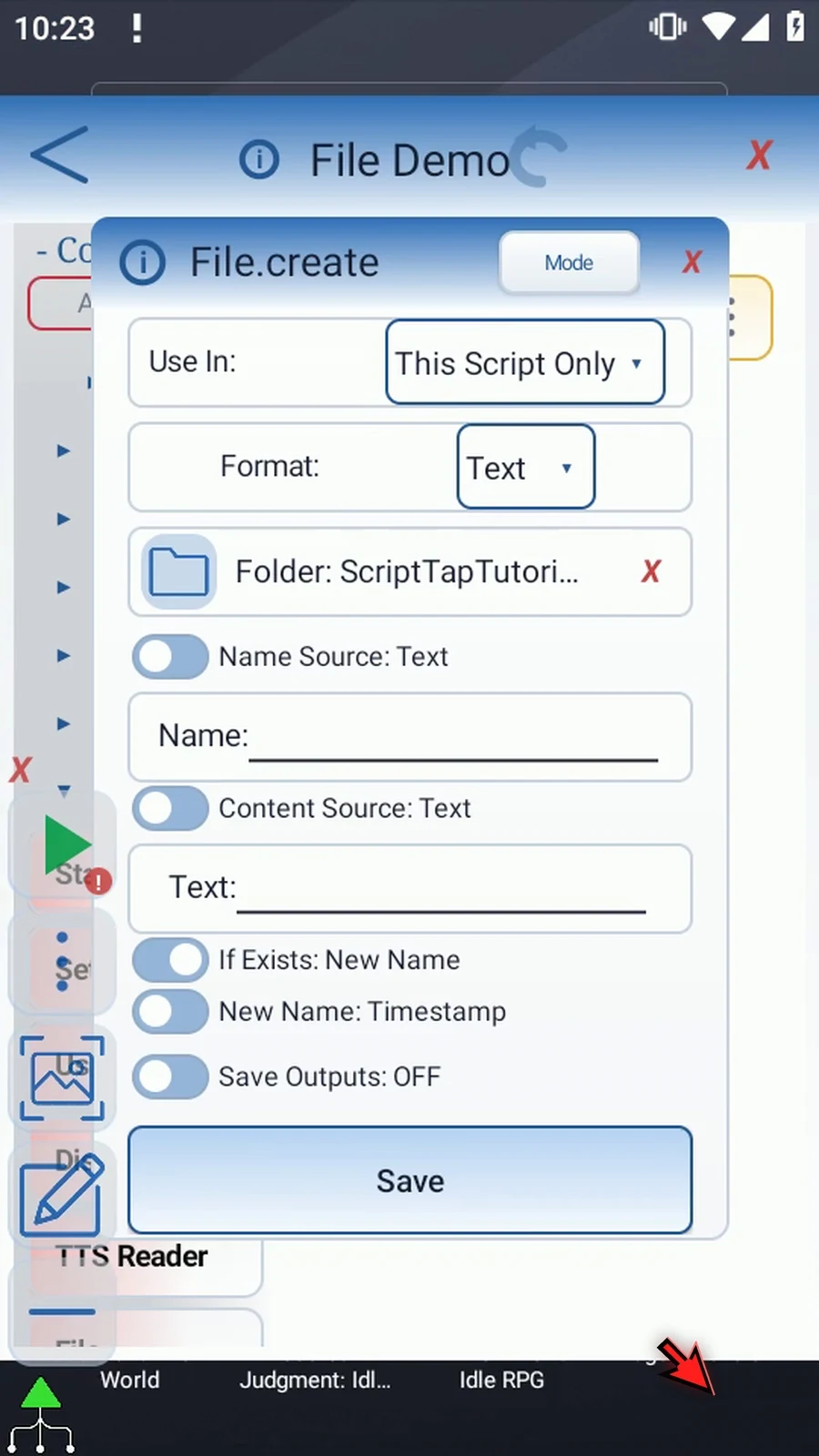
Step 10 Name Source can use text entered here, or a String variable prepared earlier in the script. Choose the source first: switching away clears that source's value. We'll return to Text.
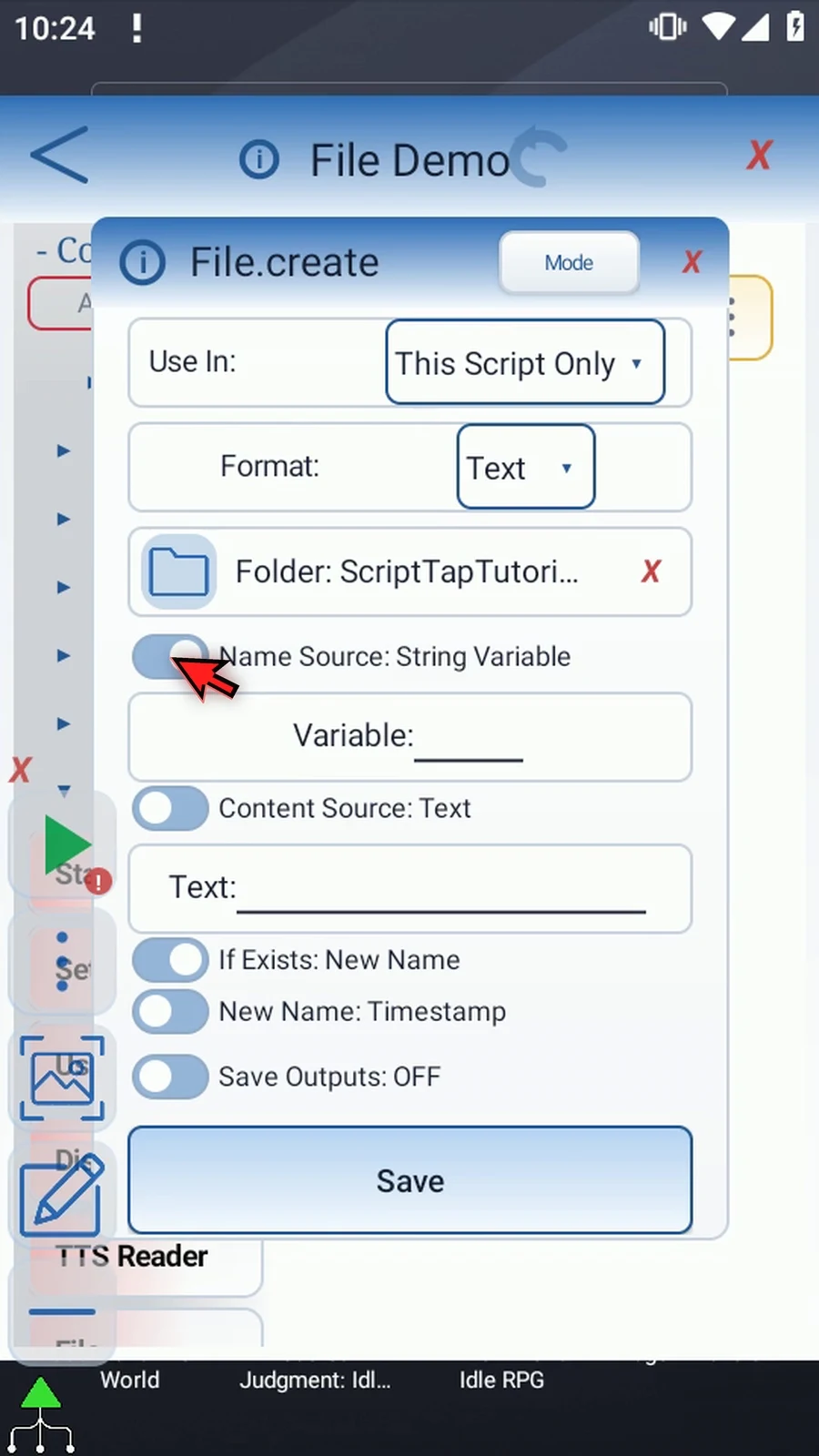
Step 11 Enter a filename, including the text-file extension. We'll use GuideNote dot txt. This is the requested name; the final name can differ if that name already exists.
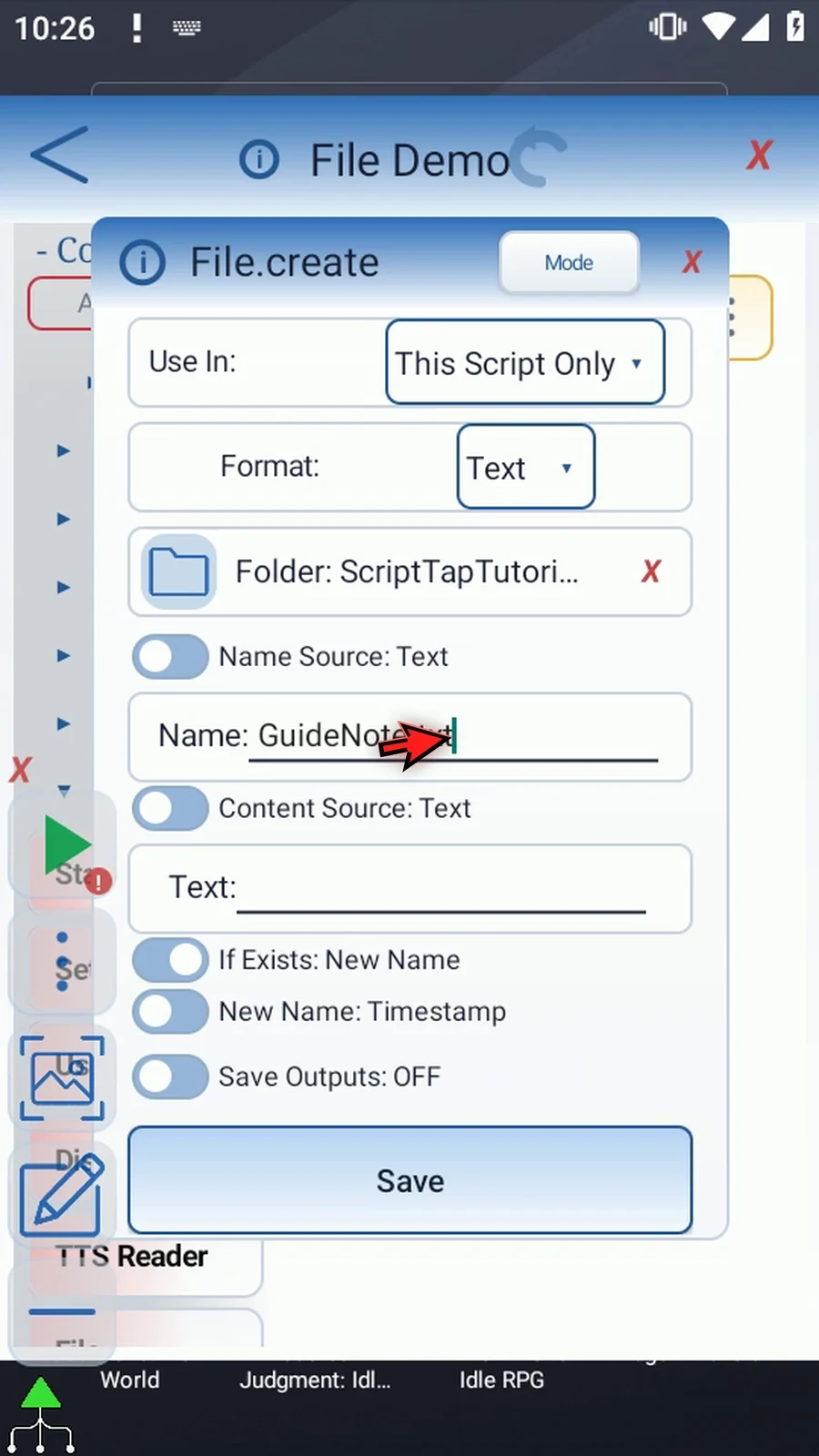
Step 12 Content Source has the same choice: enter text here, or read an earlier String variable. Switching sources clears the outgoing value. We'll use Text in this example.
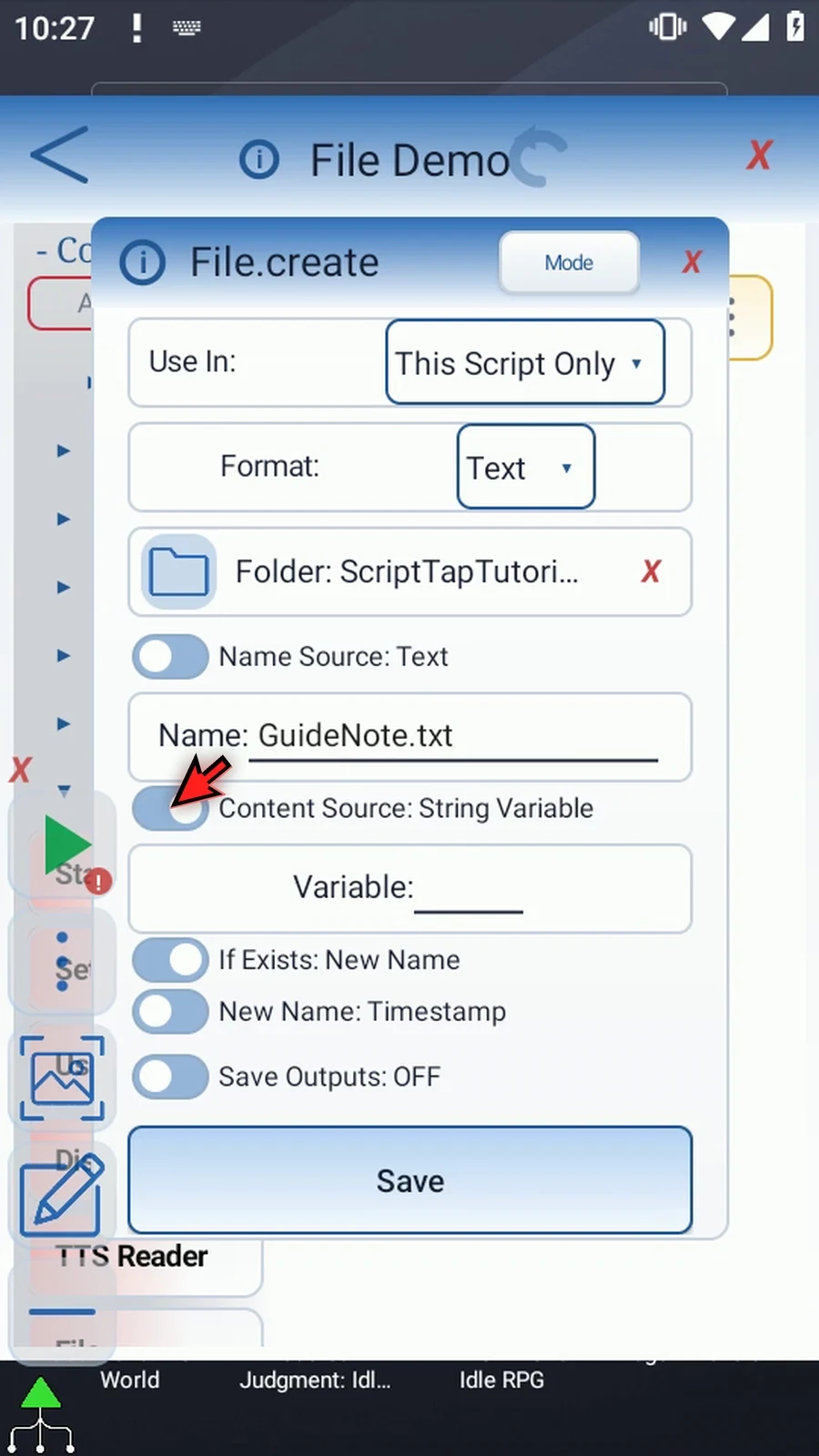
Step 13 Enter the text to save. We'll use Hello from ScriptTap. These characters become the file's contents when the command runs.
Step 14 If Exists controls a name collision. Overwrite replaces the existing file, so use it only deliberately. New Name creates a separate file instead. We'll keep New Name to protect the existing example.
Step 15 New Name can use a timestamp or a number to make a distinct filename. Choose Number here. A file with the original name already exists in the tutorial folder, so this run will demonstrate automatic renaming.
Step 16 Turn on Save Outputs to choose optional results. Success, Error, Final Name, and Final URI are independent. Enable only the results that later commands need.
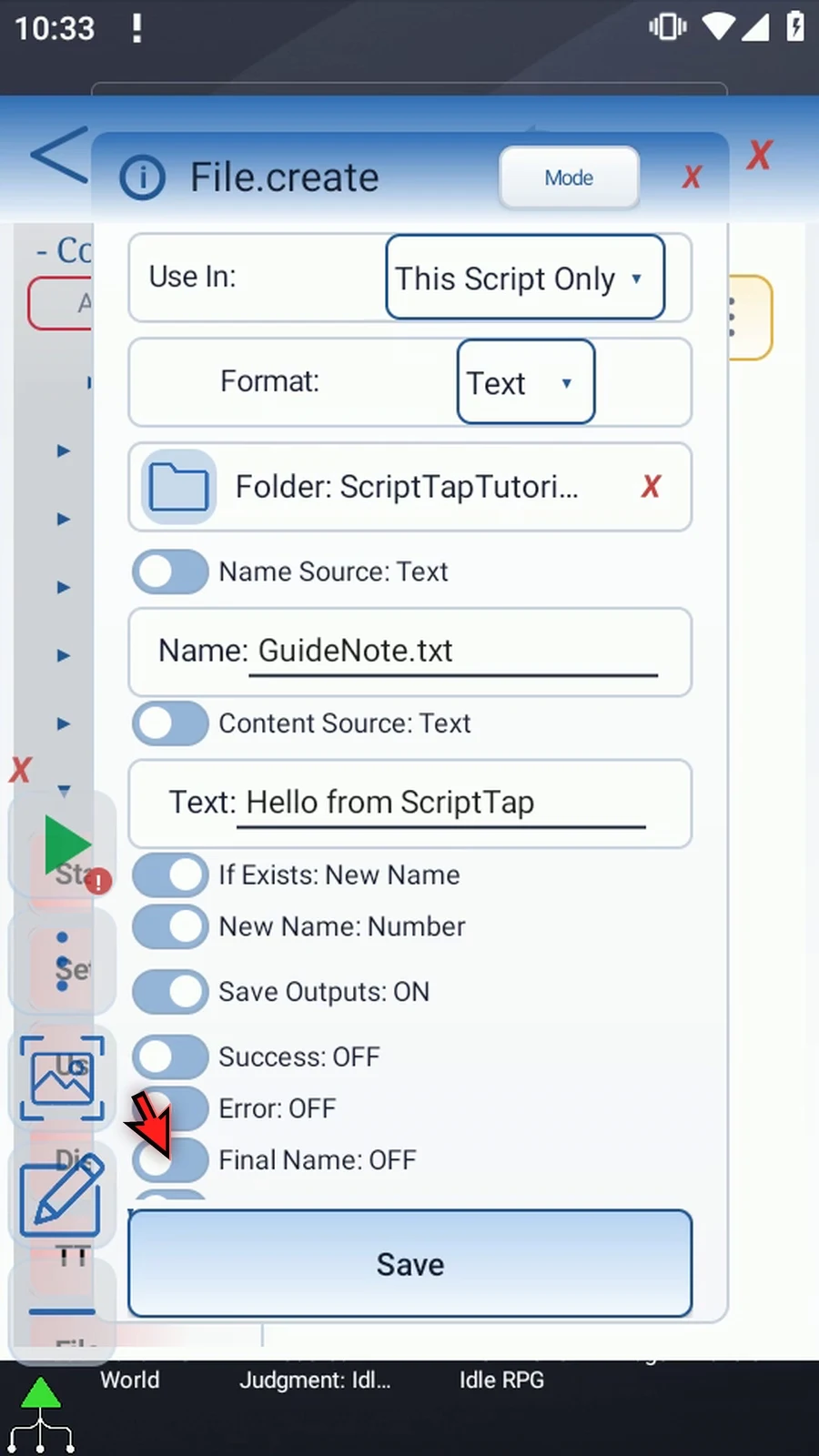
Step 17 Enable Success and use Boolean b1. It reports whether the file operation succeeded.
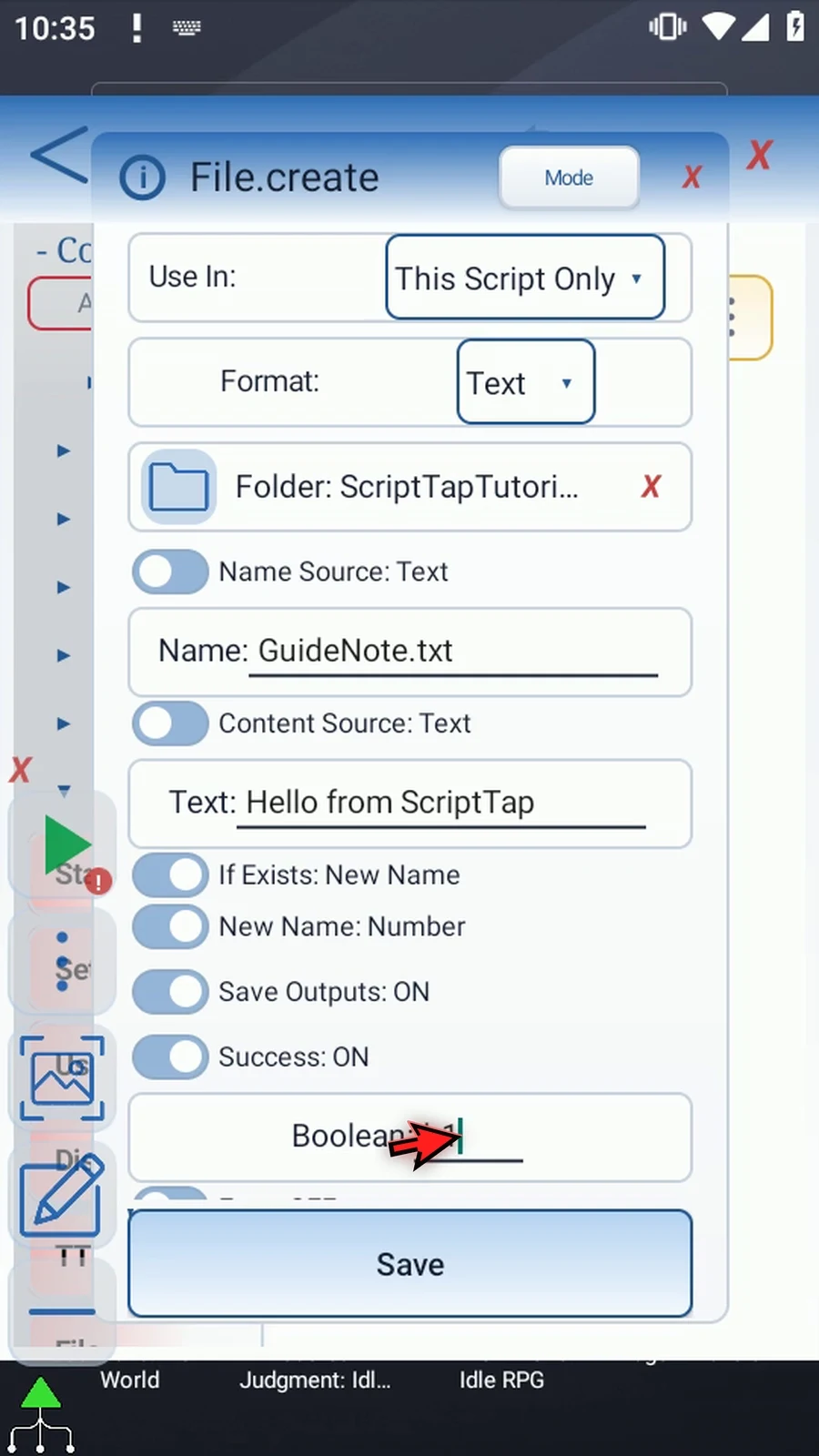
Step 18 Enable Error and use String s1. This gives later commands error information if the operation fails; a successful operation returns an empty error string.
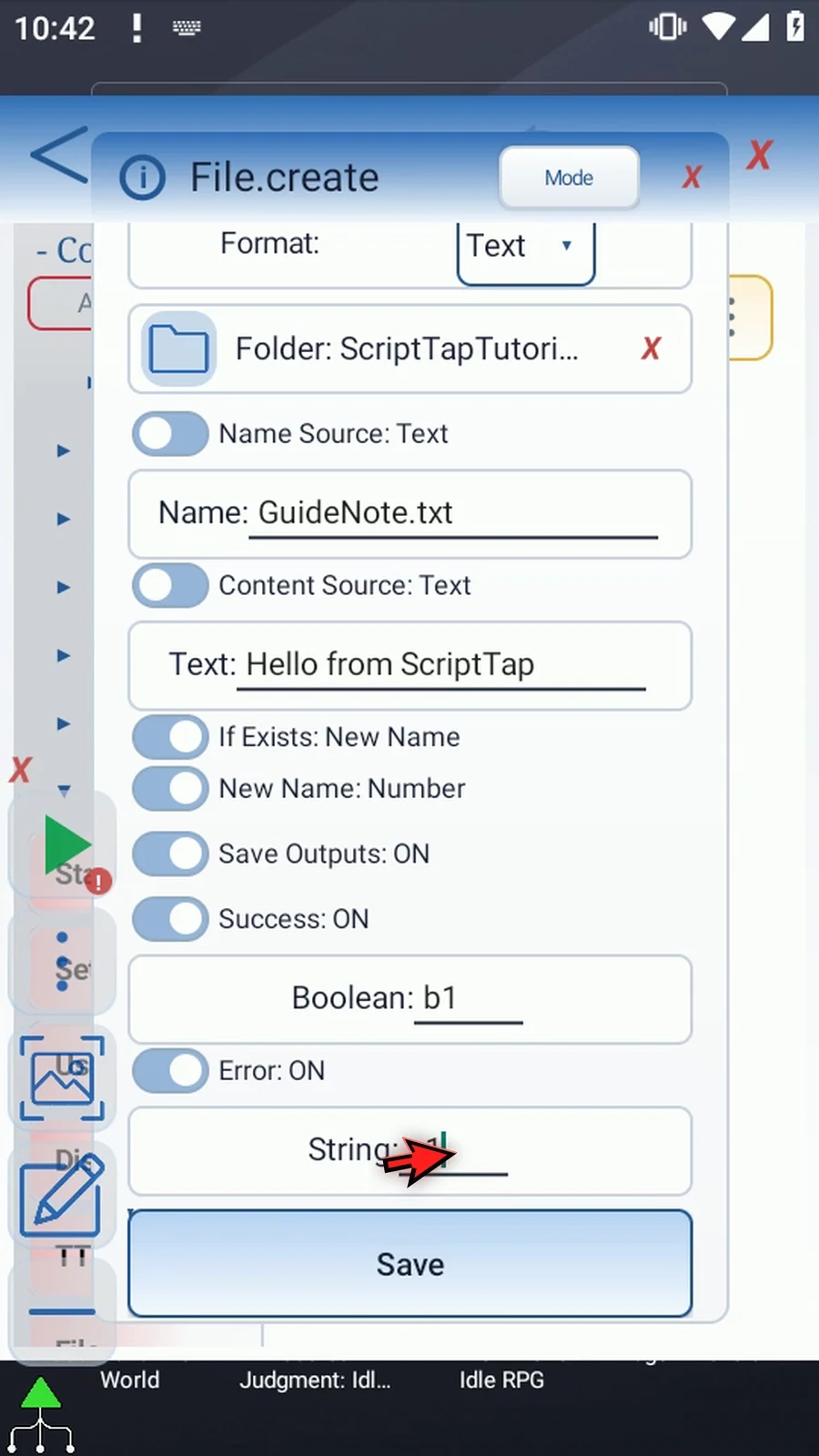
Step 19 Enable Final Name and store it in String s2. This is the actual filename after the collision policy is applied. We'll display this value in the confirmation.
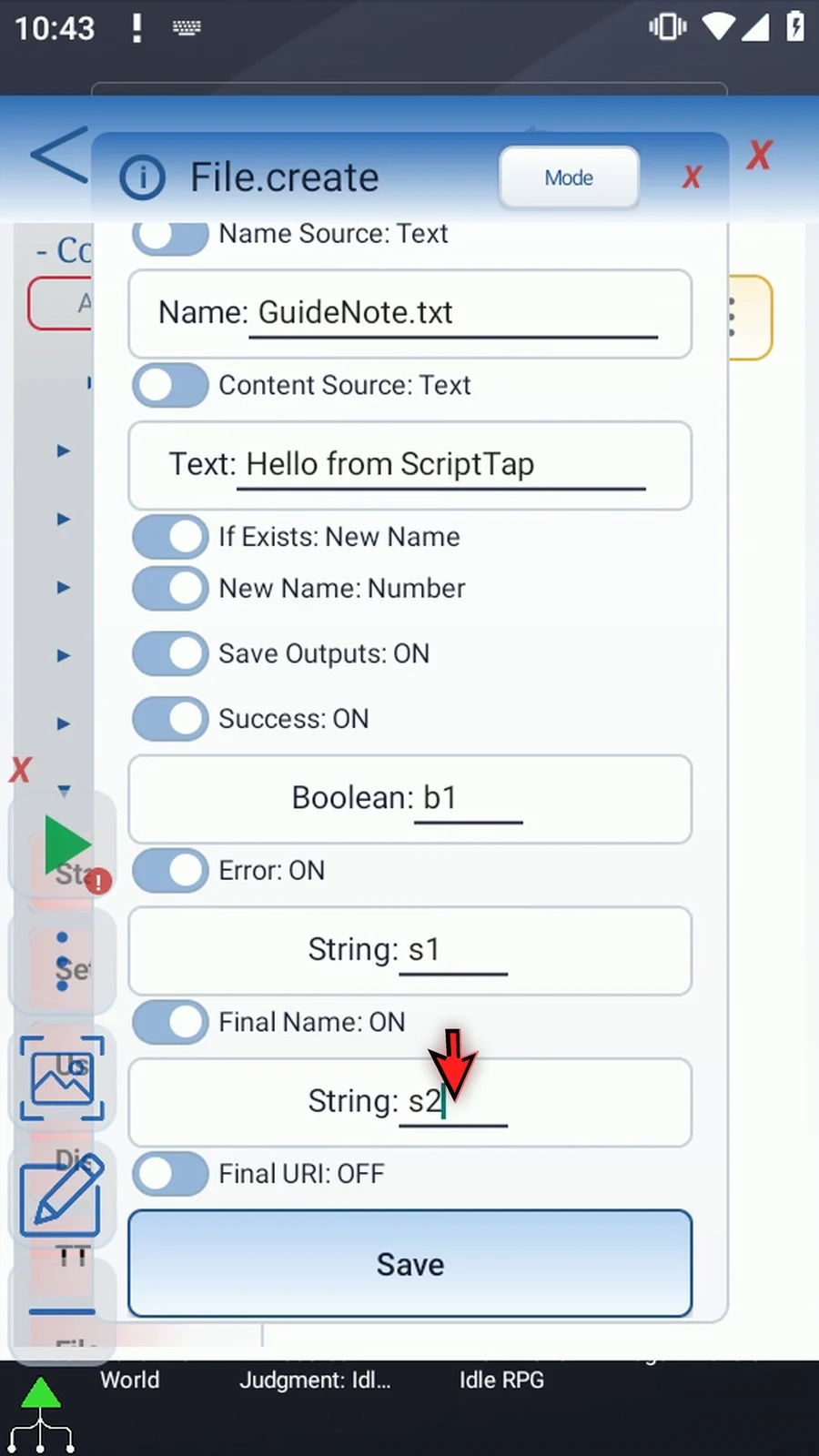
Step 20 Enable Final URI and use String s3. A URI is Android's reference to the created document, which can be useful for later processing. It is separate from the readable filename.
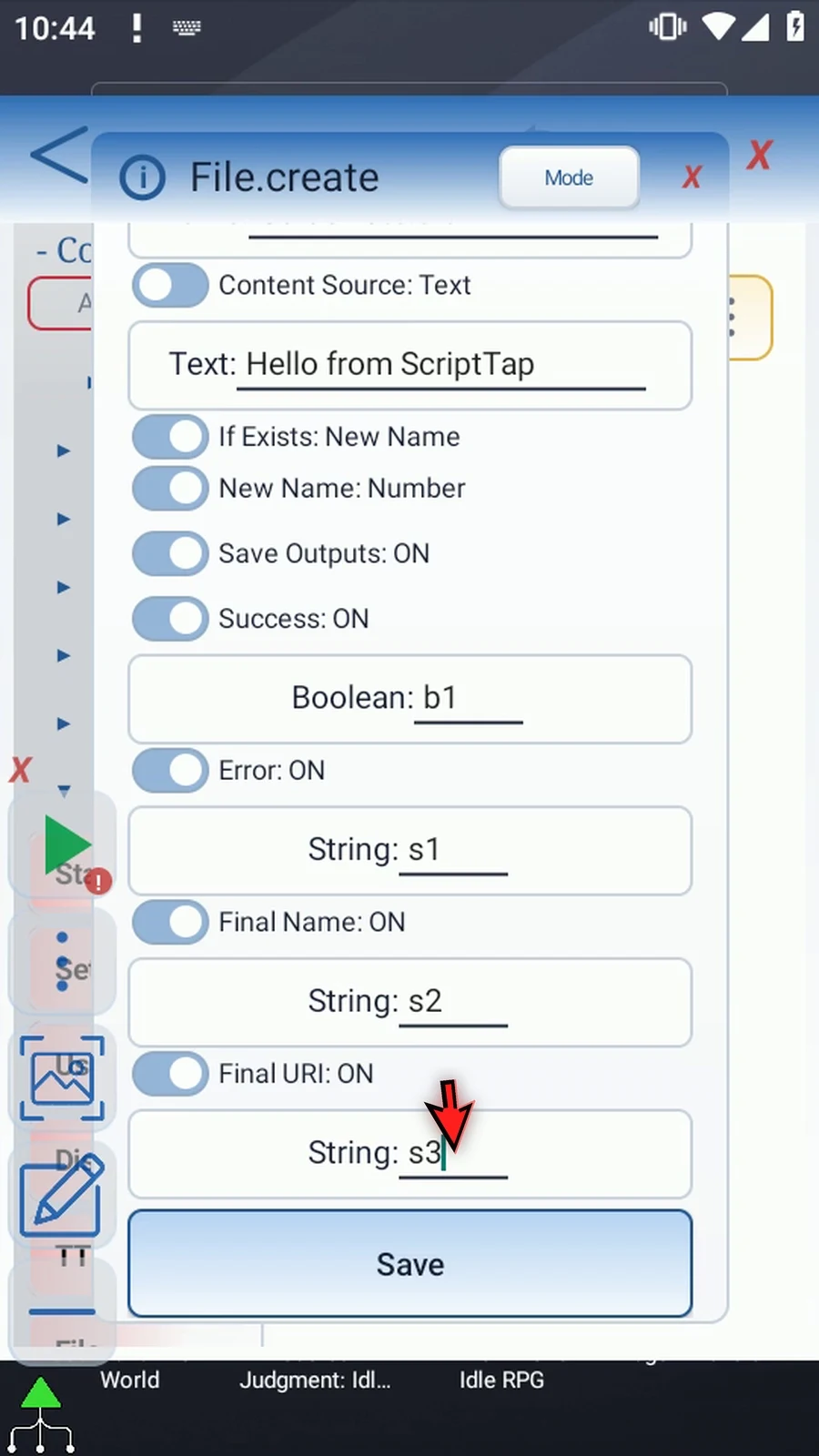
Step 21 Save the File command. The example now has a complete Create operation with a folder, filename, text, and its chosen outputs.
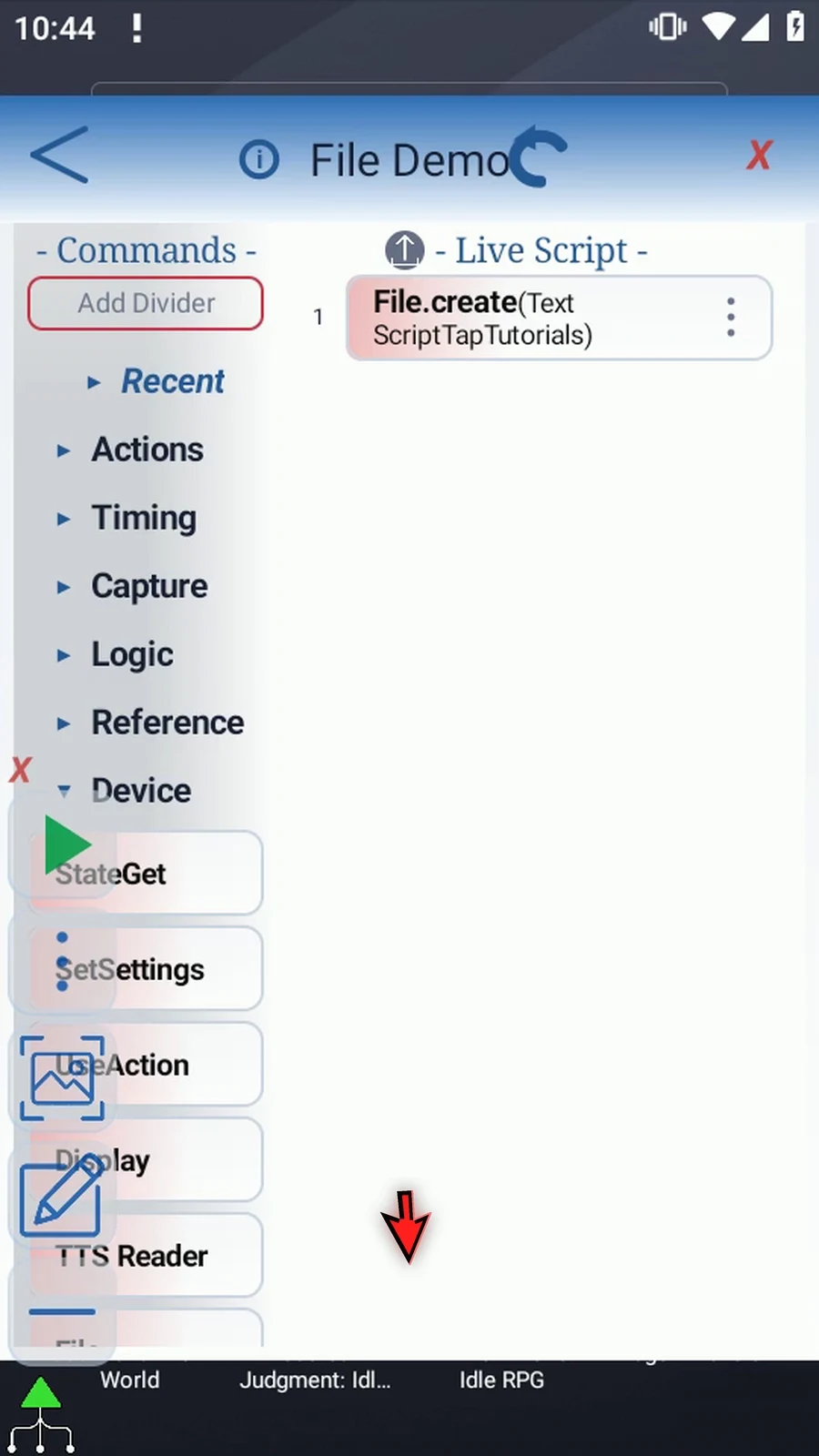
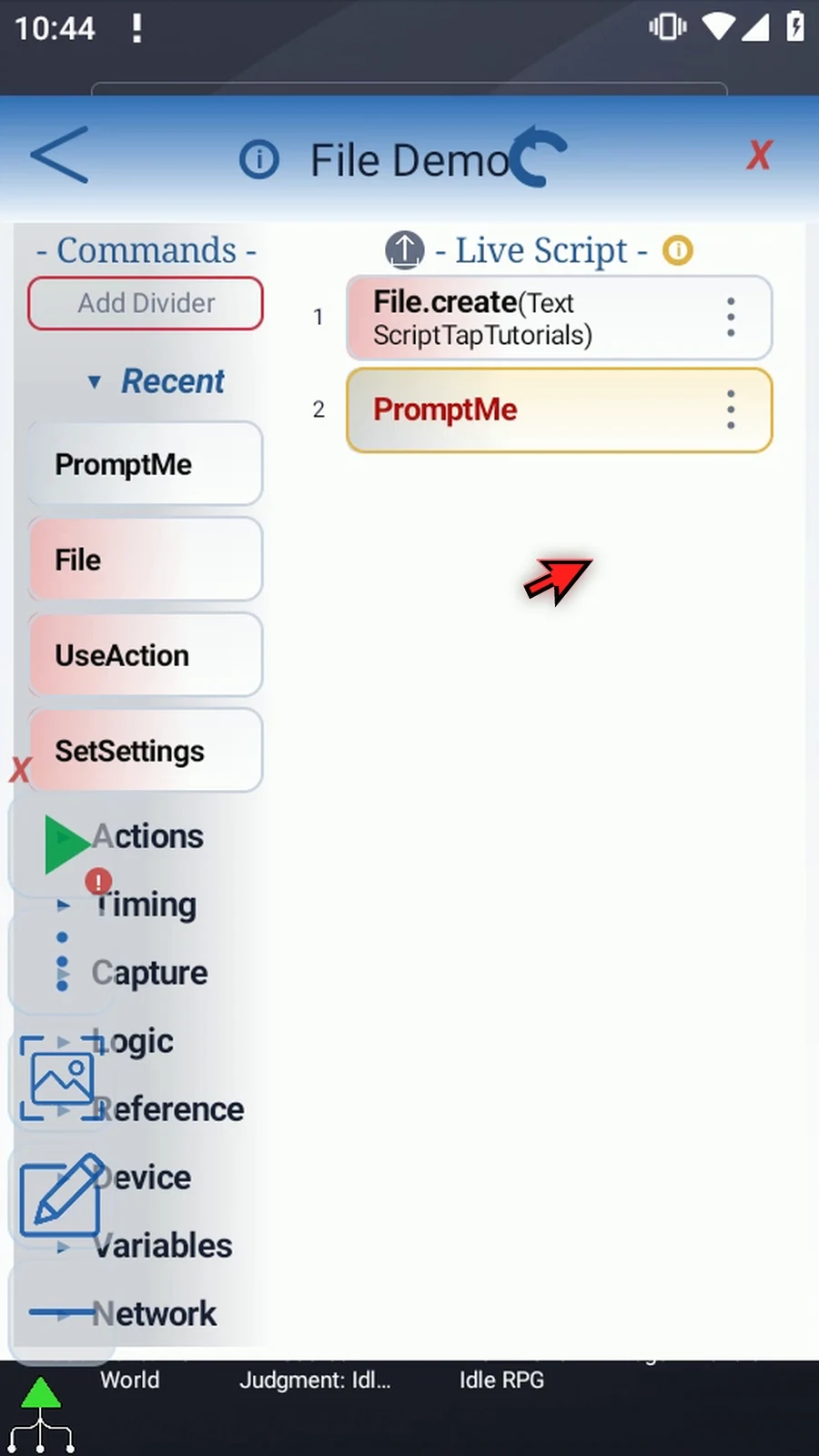
Step 22 Add PromptMe after File by dragging it from the command list. This supporting command makes the returned filename visible while the script waits for us.
Step 23 Open PromptMe in Standard mode and enter s2 in Header. PromptMe will display the filename stored by File, rather than the literal characters s2.
Step 24 Add one button named Done and give it Boolean b2. The button lets us close the confirmation without reusing File's Success variable.
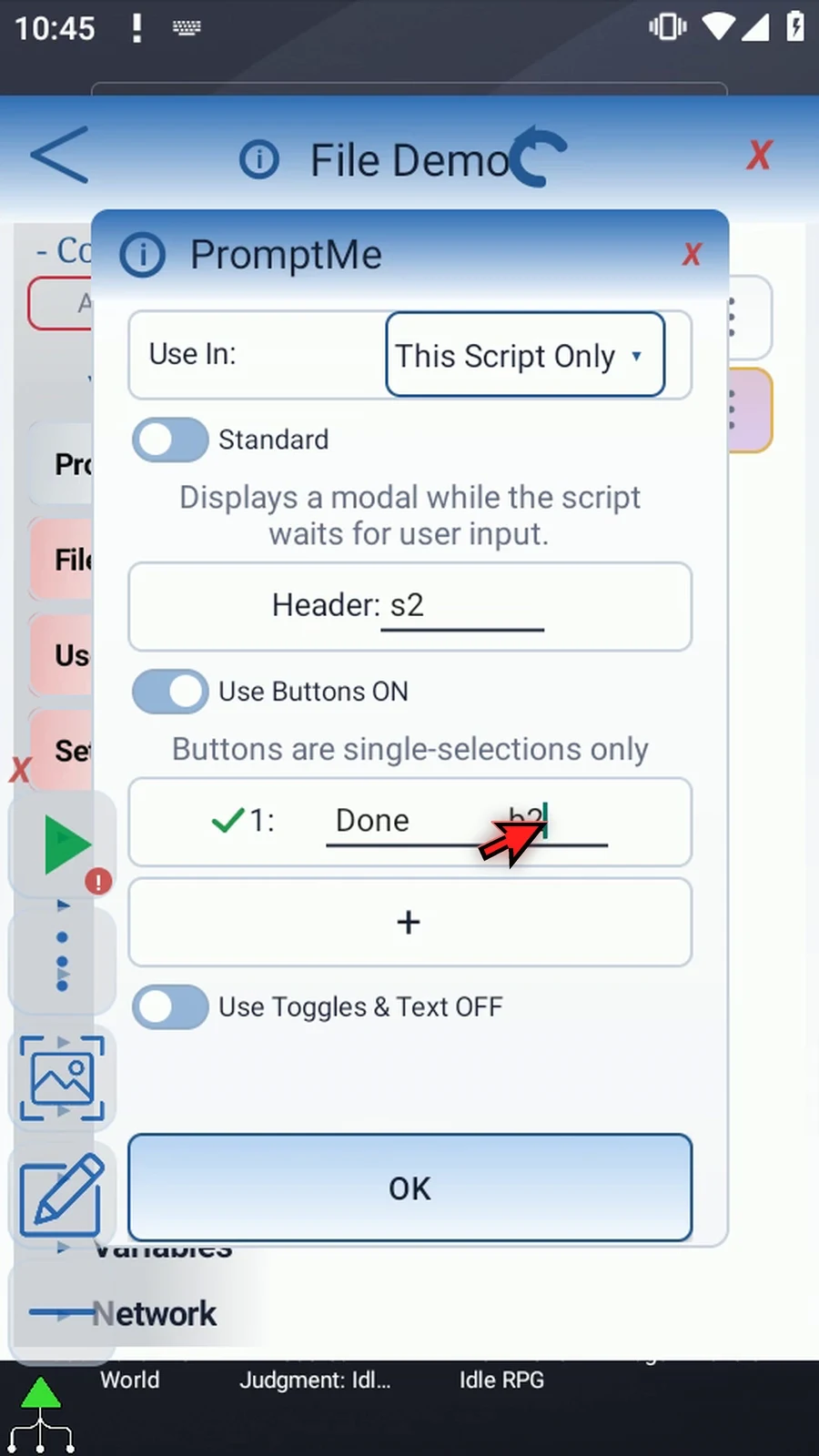
Step 25 Tap OK. File comes first and writes the document; PromptMe follows and reads its returned name. Only these two commands are needed.
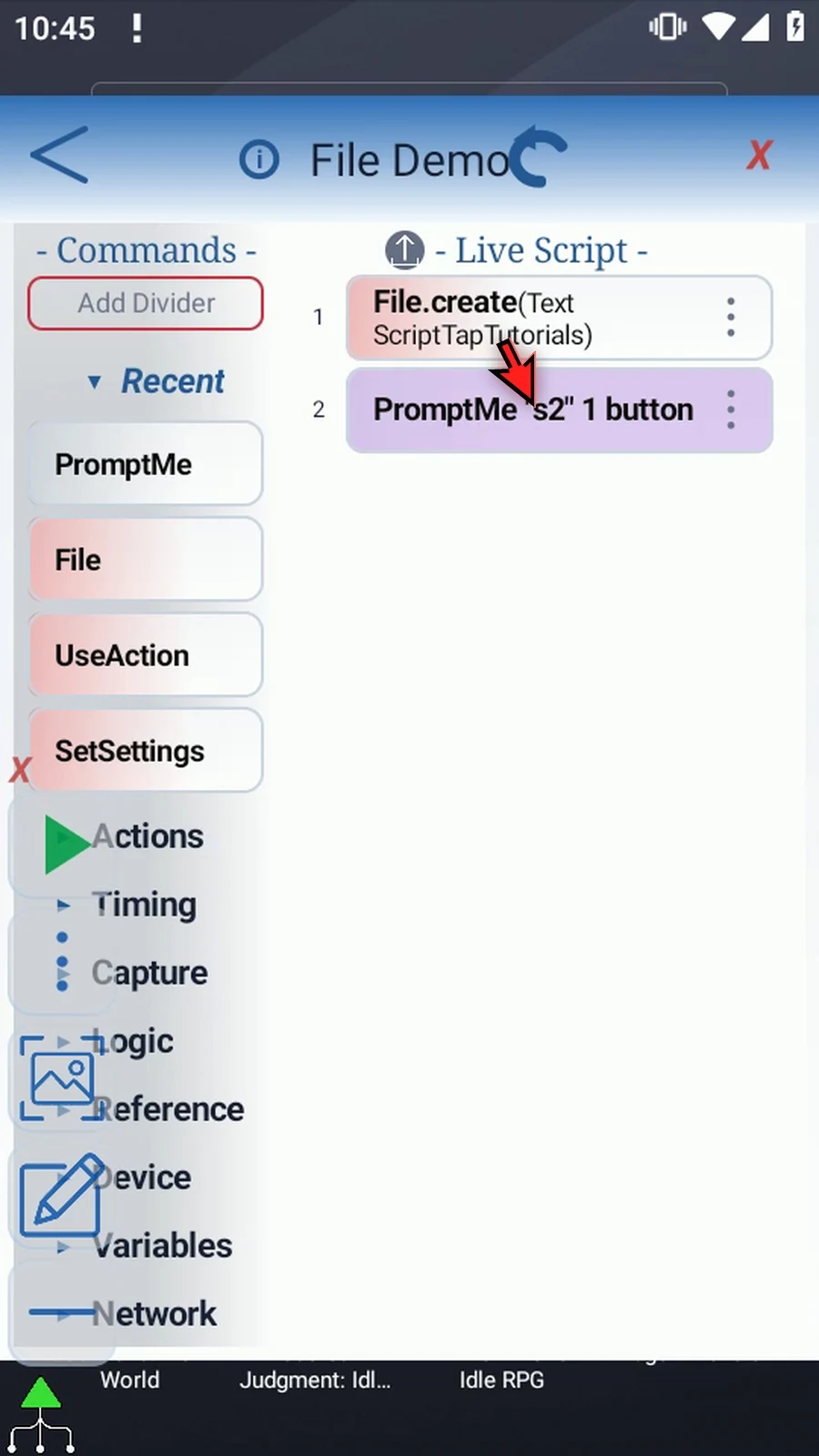
Step 26 Nothing is written just by editing the command. The file is created during Play. This example uses the dedicated tutorial folder and New Name, so it does not replace an existing file.
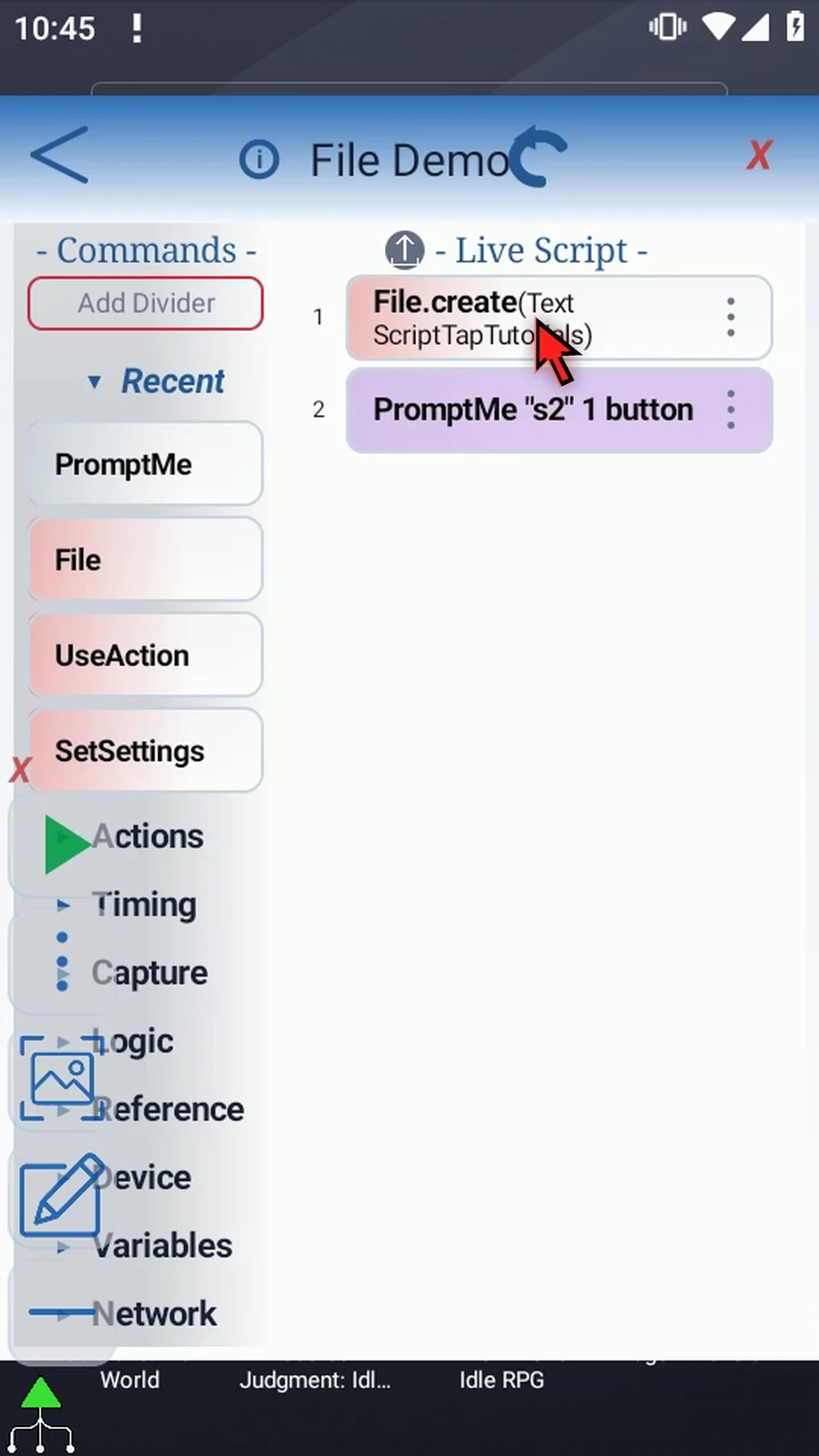
Step 27 When the script is complete, simply use the Play button in the main overlay.
Step 28 The confirmation displays the actual numbered filename. File created a separate document because the original name was already taken. This visible value comes from the Final Name output s2.
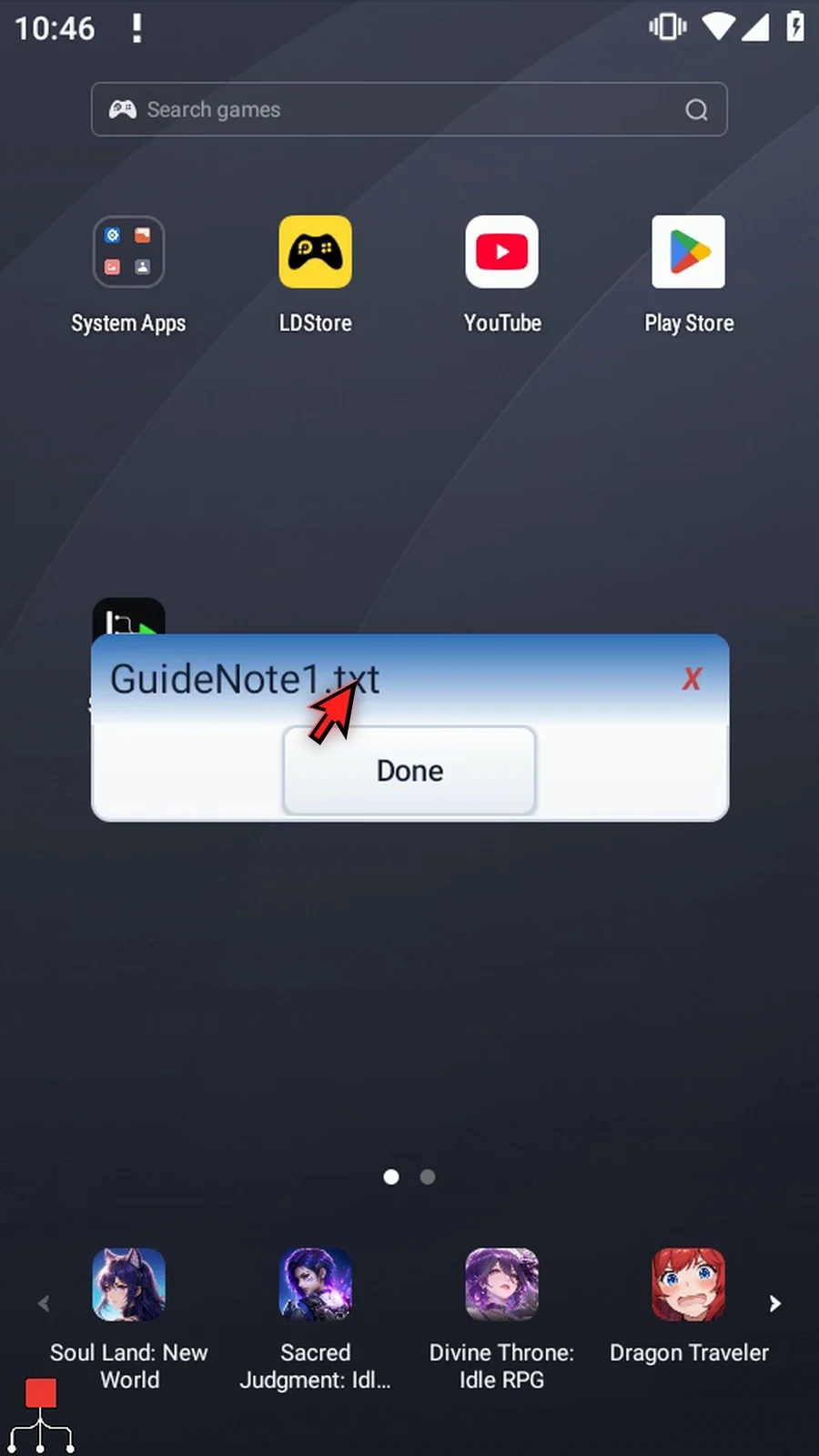
Step 29 Press Done to close the confirmation. The script then finishes automatically.
Step 30 The text file is now saved in the chosen folder. Use File Read to bring its contents into a variable, or Append to add more data. Choose each operation and format for the job your script needs.
File Read loads a selected document's text into one String for later commands. It does not rewrite, append to or delete that document. This guide continues with a separate copy of the two-command example from Intro & Create Text.
Open File and use its header Mode button until File.read appears. Keep Format: Text. Choose the operation before its file selection: Read needs an existing document, whereas Create selected a destination folder.
- File: choose the text document created in the introduction through Android's file picker. If Android asks, allow file access. Play uses this saved document reference and does not open the picker. Reselect the file if it becomes unavailable or its permission is revoked.
- Save Text: use String
s4for the returned characters. Keep the content destination separate from any enabled Error String so one output does not replace the other. - Optional status: keep Success Boolean
b1and Error Strings1. These describe the operation, not the document contents. Final Name and Final URI are turned off; this Read example does not need those creation results. - Read limit: Text reads are capped at 256 KB. A truncated read can succeed while the Error output contains
text_truncated_256kb. Check status before assuming the entire file was read.
Save File. Open the supporting PromptMe, change Header from s2 to s4, keep Standard mode and the Done button with Boolean b2, then tap OK. No extra SetVariable is required for File's output.
During Play, File reads first and PromptMe displays the actual Hello from ScriptTap text. Done closes the confirmation and the script finishes automatically. File contents are deliberately not included in the run log; the real visual confirmation demonstrates the returned value.
Use the resulting String with TextTransform, Text Type or another later command. CSV cell/row/column reading and JSON are separate format guides.
Read Text
Step-by-step guide
Step 01 File Read brings text from a document into a String variable, ready for later commands. It reads the file without changing it. We'll display the returned text with PromptMe so the result is easy to see.
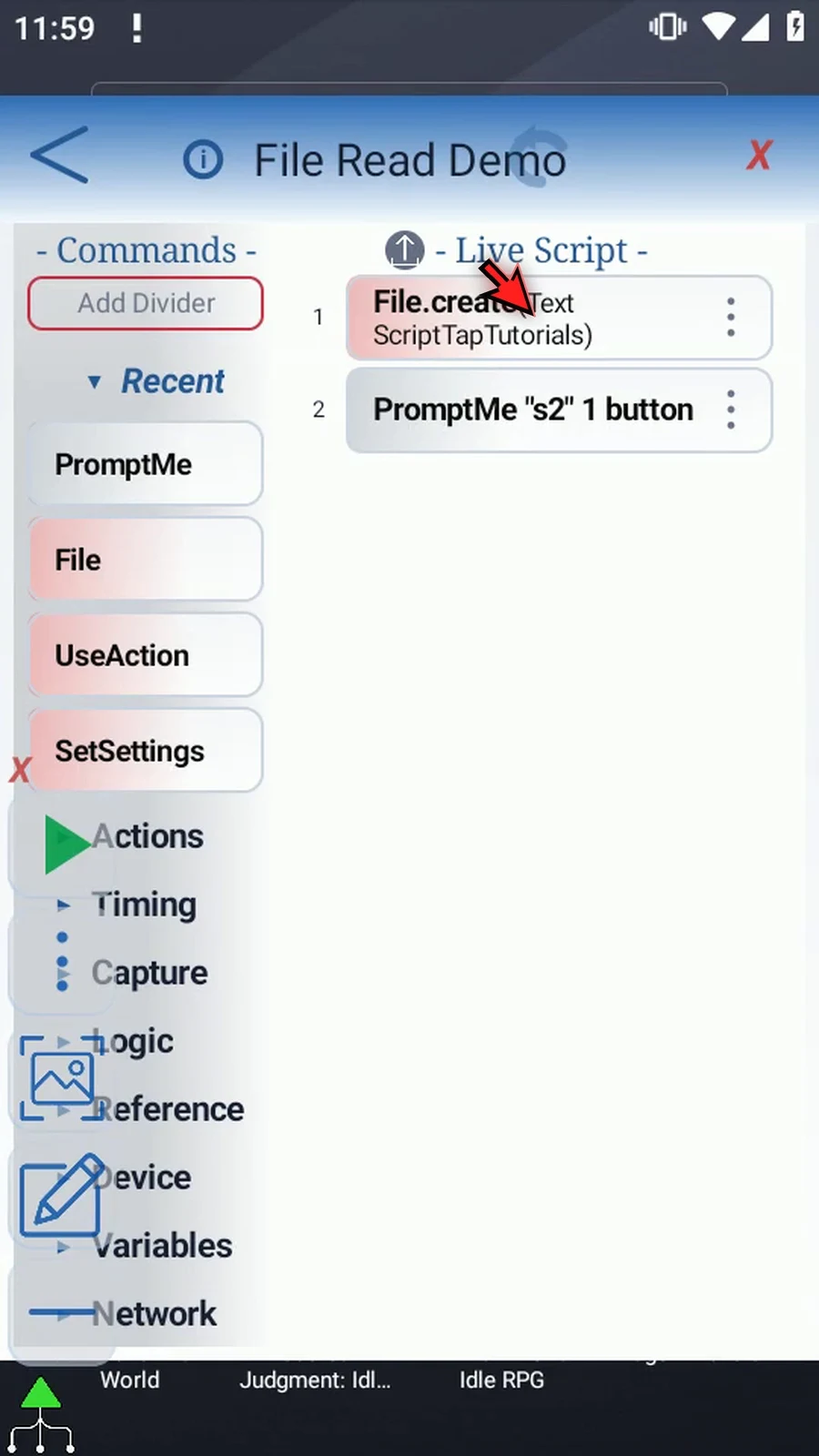
Step 02 This example continues with a copy of the two-command script from the introduction. That guide created our text file and added PromptMe. Here, we'll change the operation and the value that the confirmation displays.
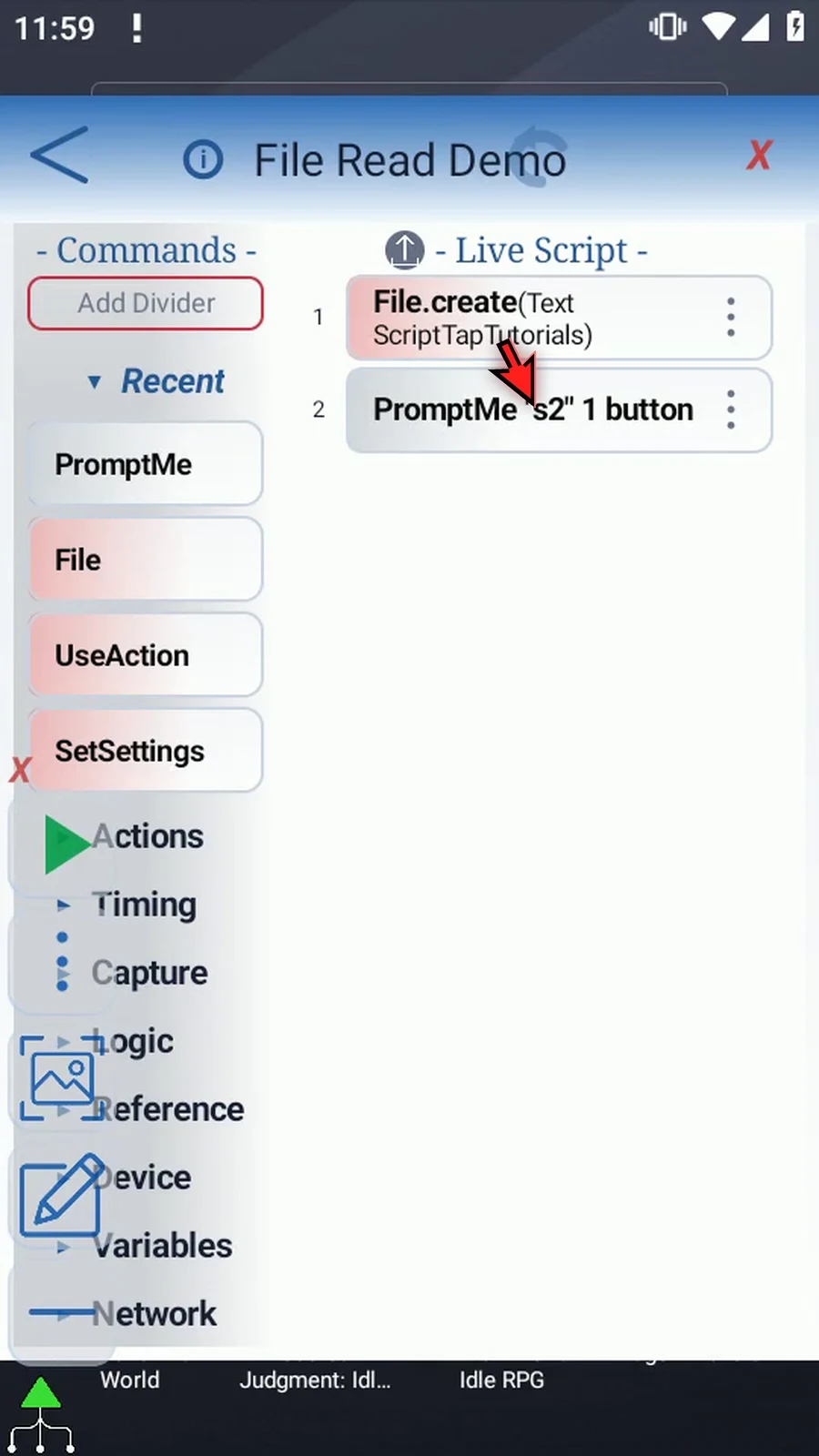
Step 03 Open File and use the header's Mode button until File Read appears. Choose the operation first. Read selects an existing file, rather than the destination folder used by Create.
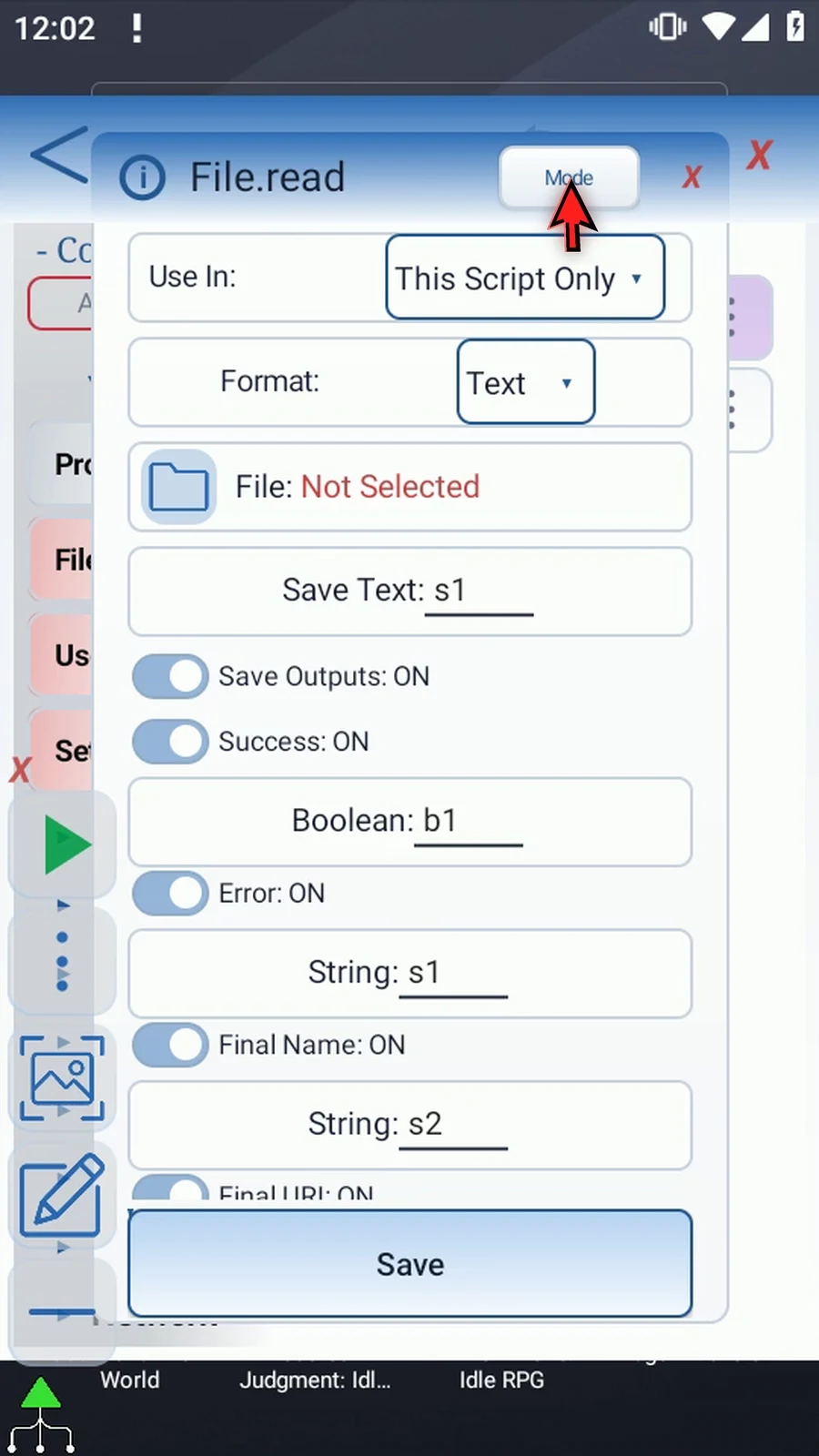
Step 04 Keep Format set to Text. This reads the file's characters into one String. It does not extract CSV cells or parse JSON data.
Step 05 Use the File selector and choose the text file created in the introduction. Select the document itself, not a folder. If Android asks, allow file access.
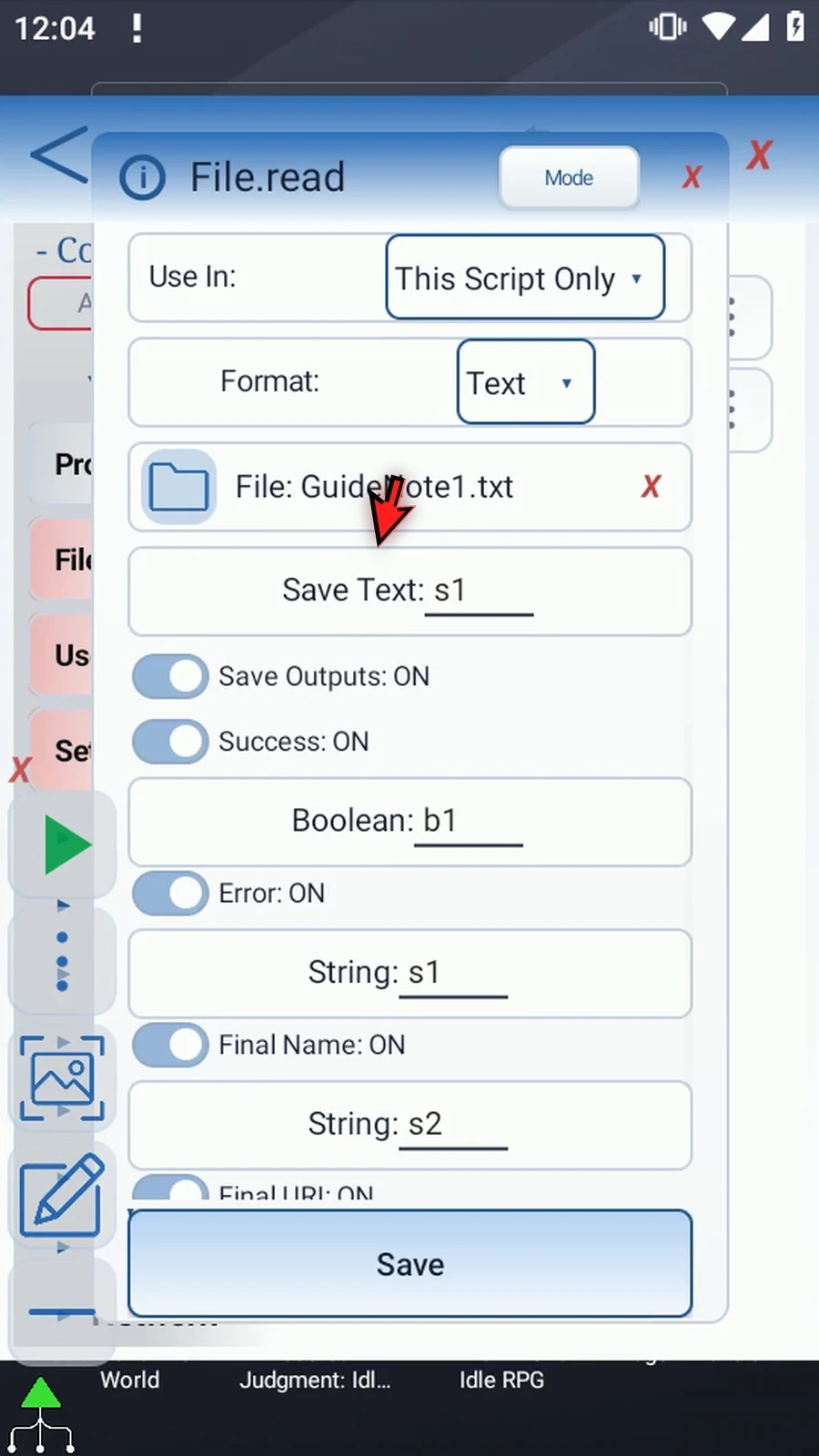
Step 06 The selection gives ScriptTap an Android reference to that document. Play uses the saved selection and does not open a picker. If the file becomes unavailable or access is revoked, select it again here.
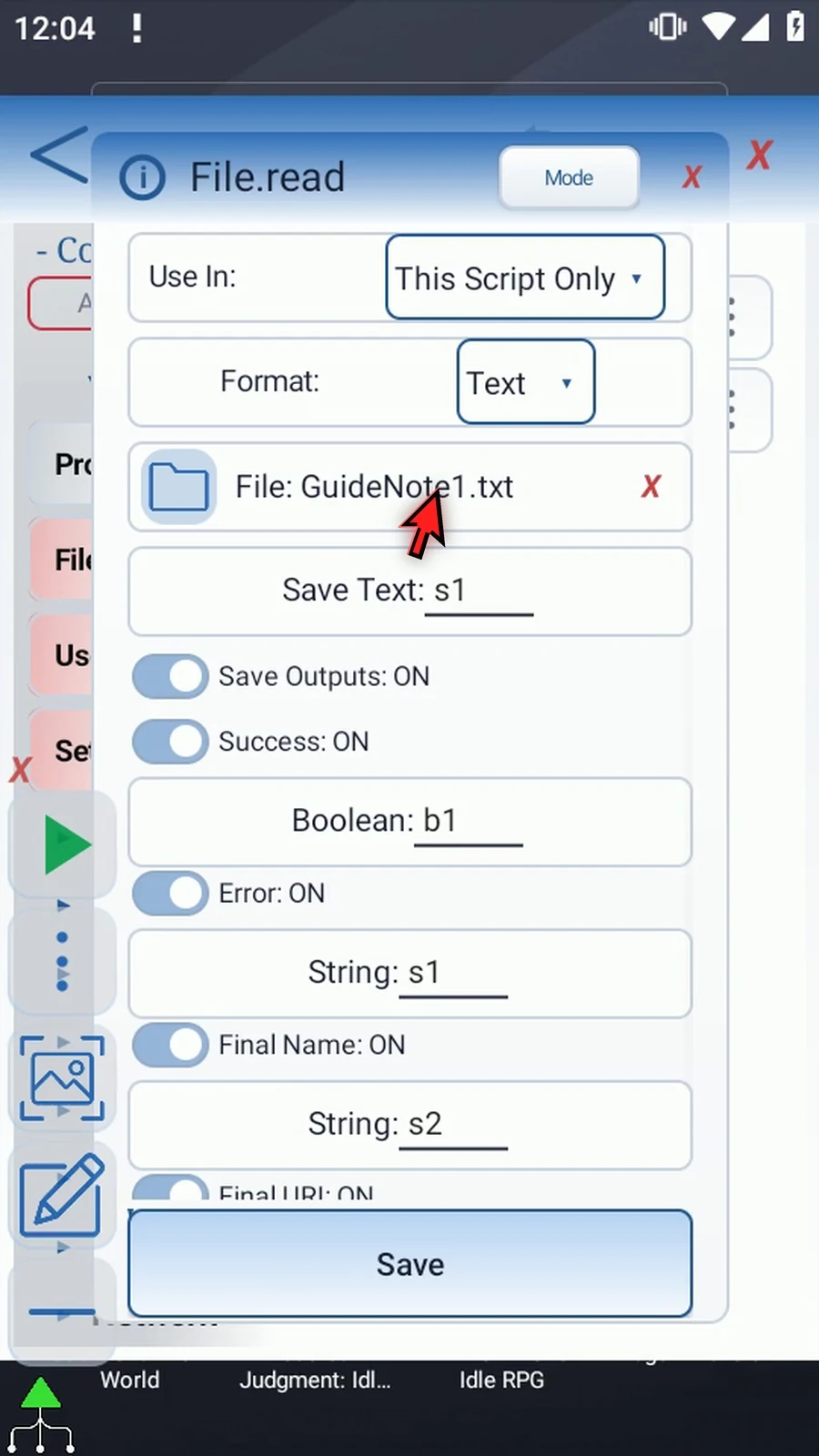
Step 07 In Save Text, use String s4 for the file's contents. Keep this separate from the optional Error String s1. The content output and the error output serve different purposes and should not overwrite each other.
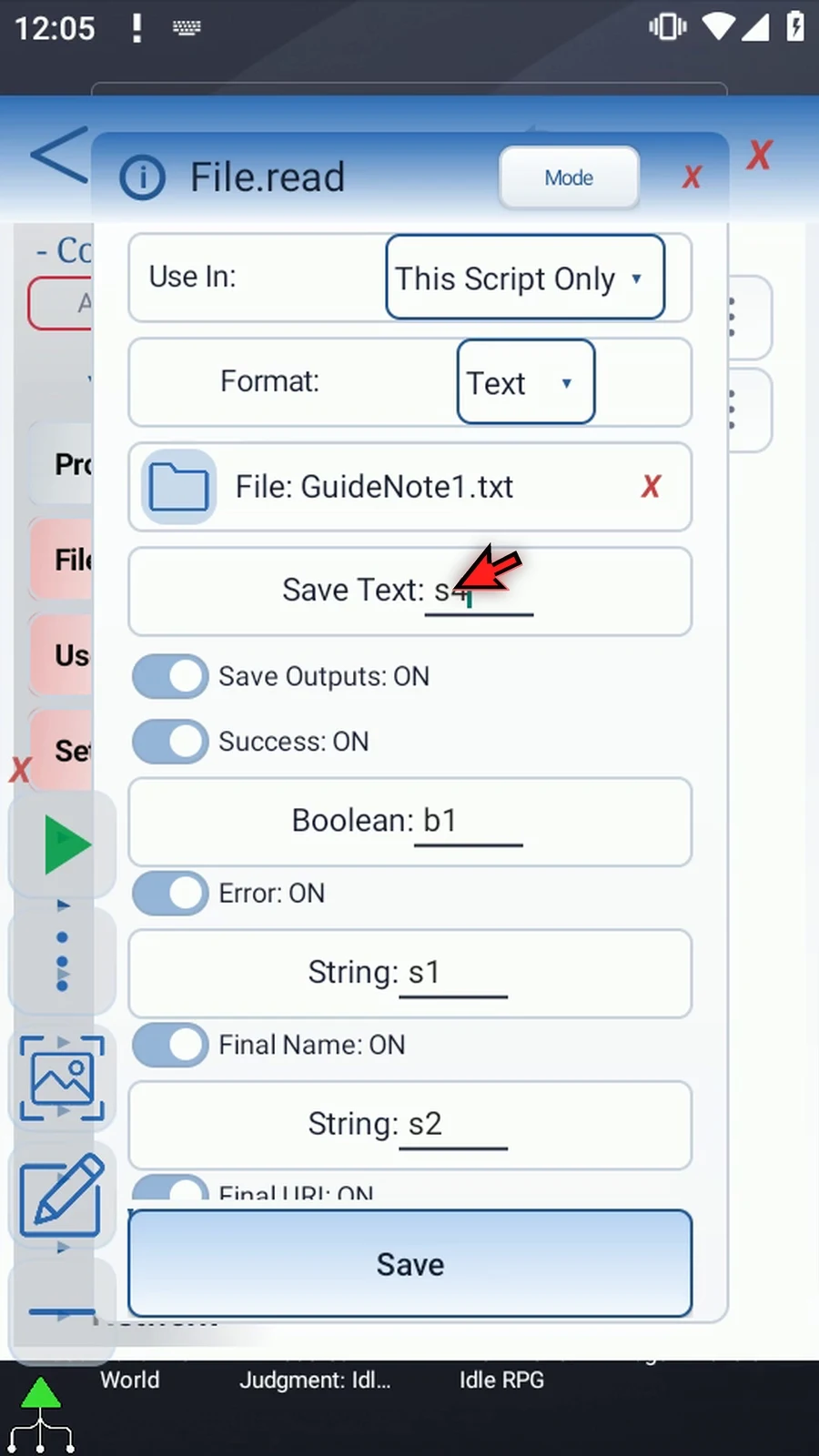
Step 08 Keep the optional Success Boolean b1 and Error String s1 from the introduction. These report the operation's status. Save Text is the separate output that receives the document's characters.
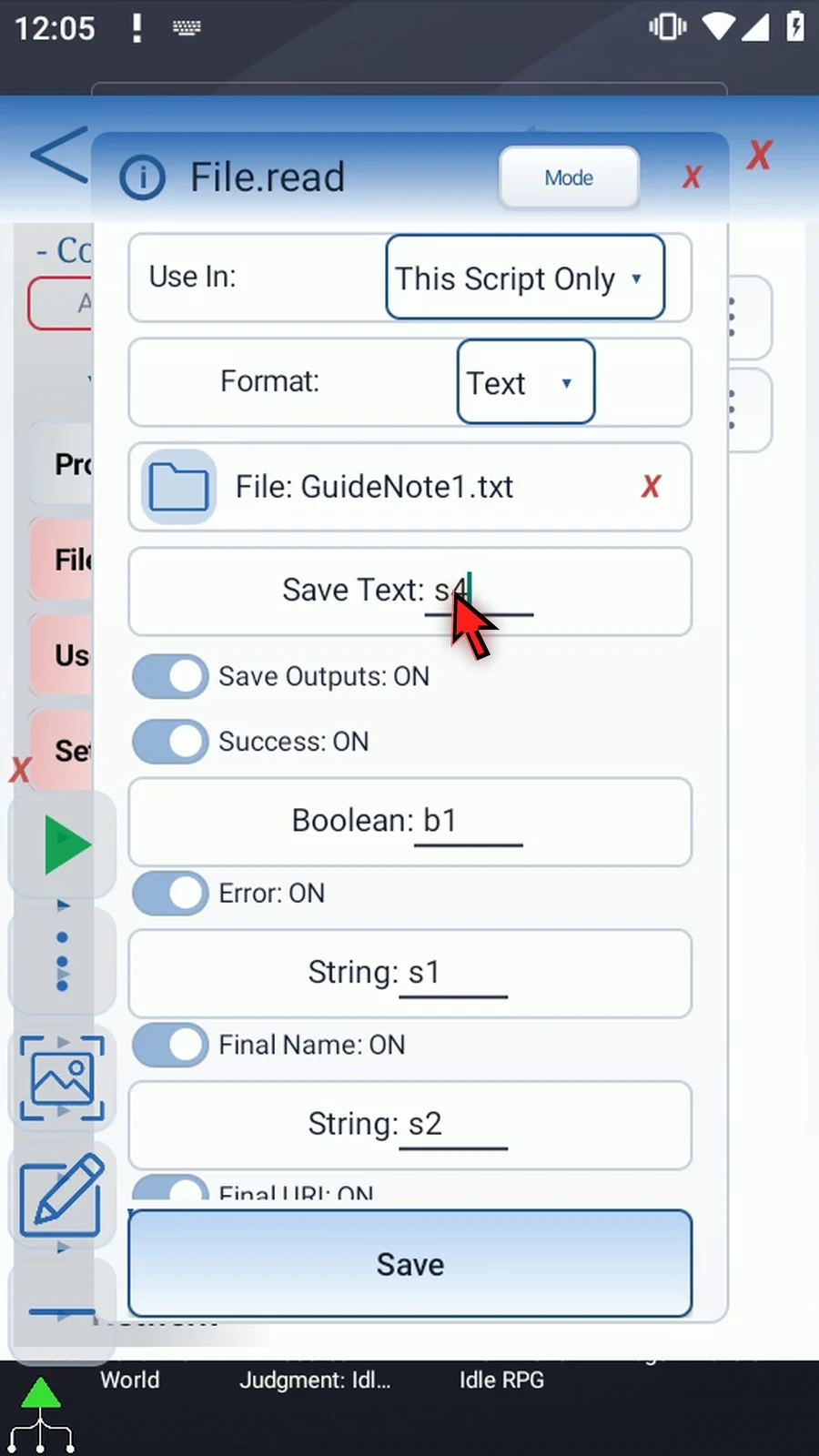
Step 09 Turn off Final Name and Final URI for this Read example. Those creation results are not needed here. The file's text will go to s4.
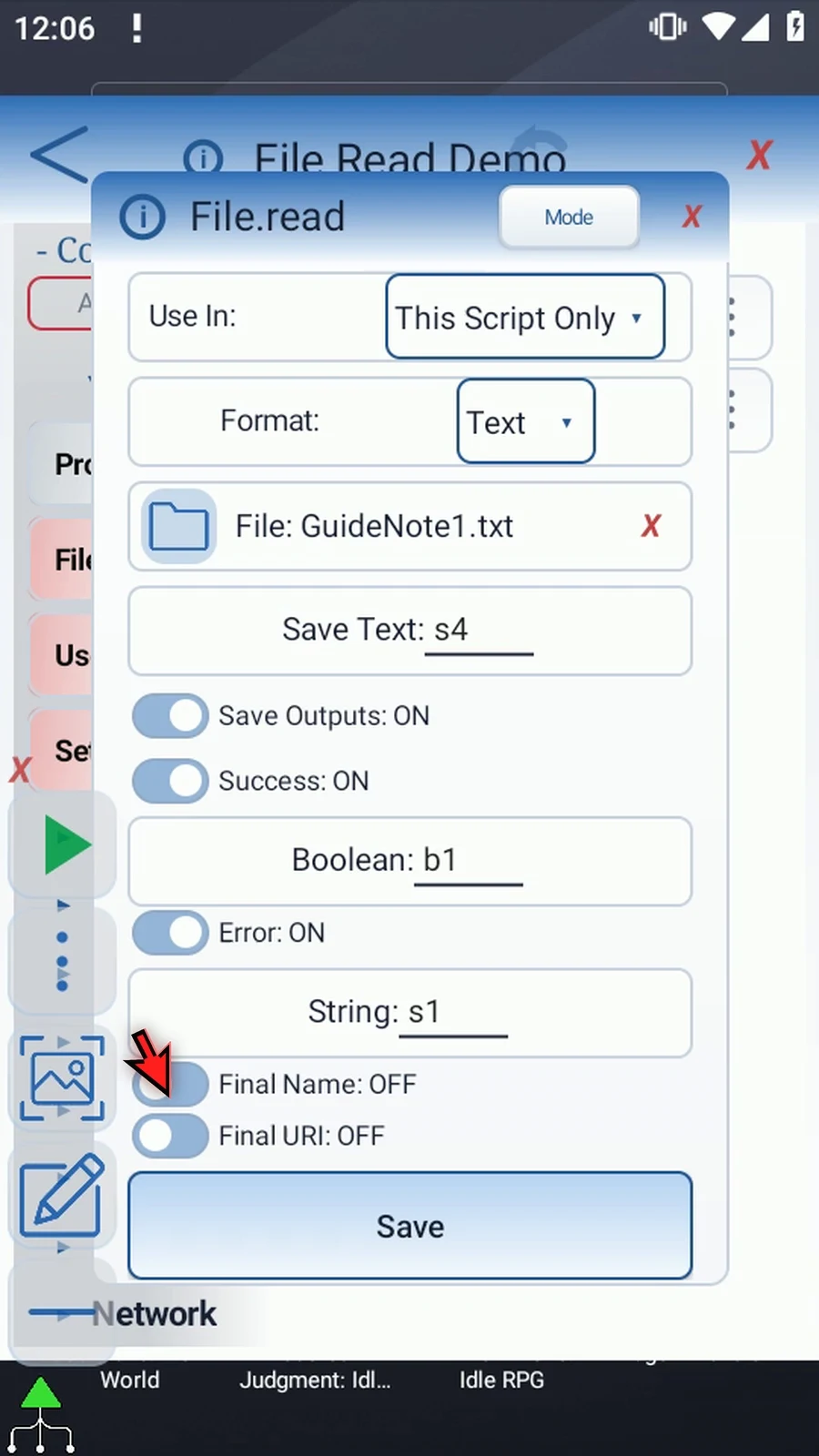
Step 10 Text Read has a limit of two hundred and fifty-six kilobytes. If the text is truncated, Success can still be true while Error reports the truncation. Check that status when your script needs the entire file.
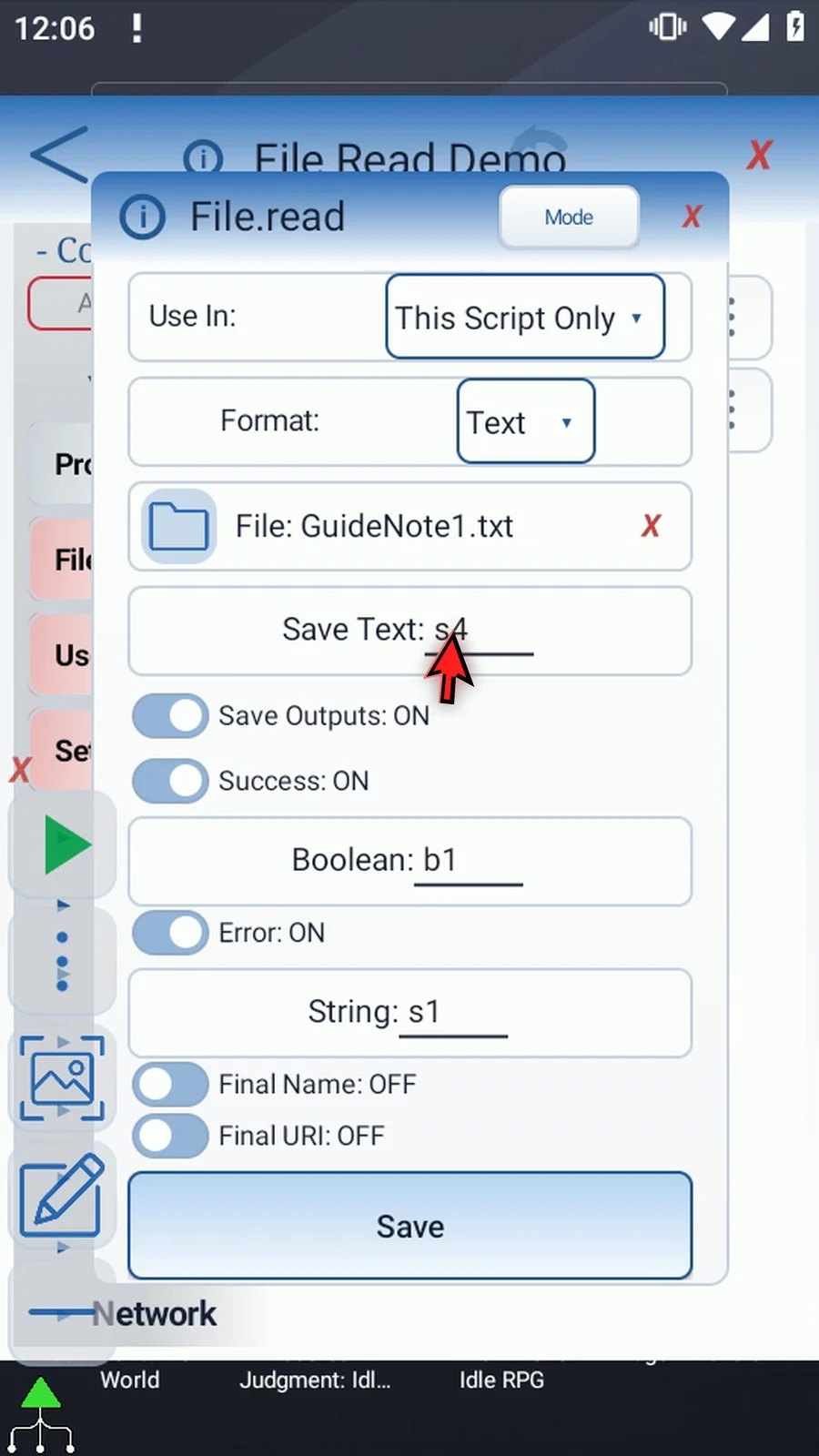
Step 11 Save the command. Its row now shows File Read, Text, and the selected filename. Editing this setup does not read or modify the file; the read happens during Play.
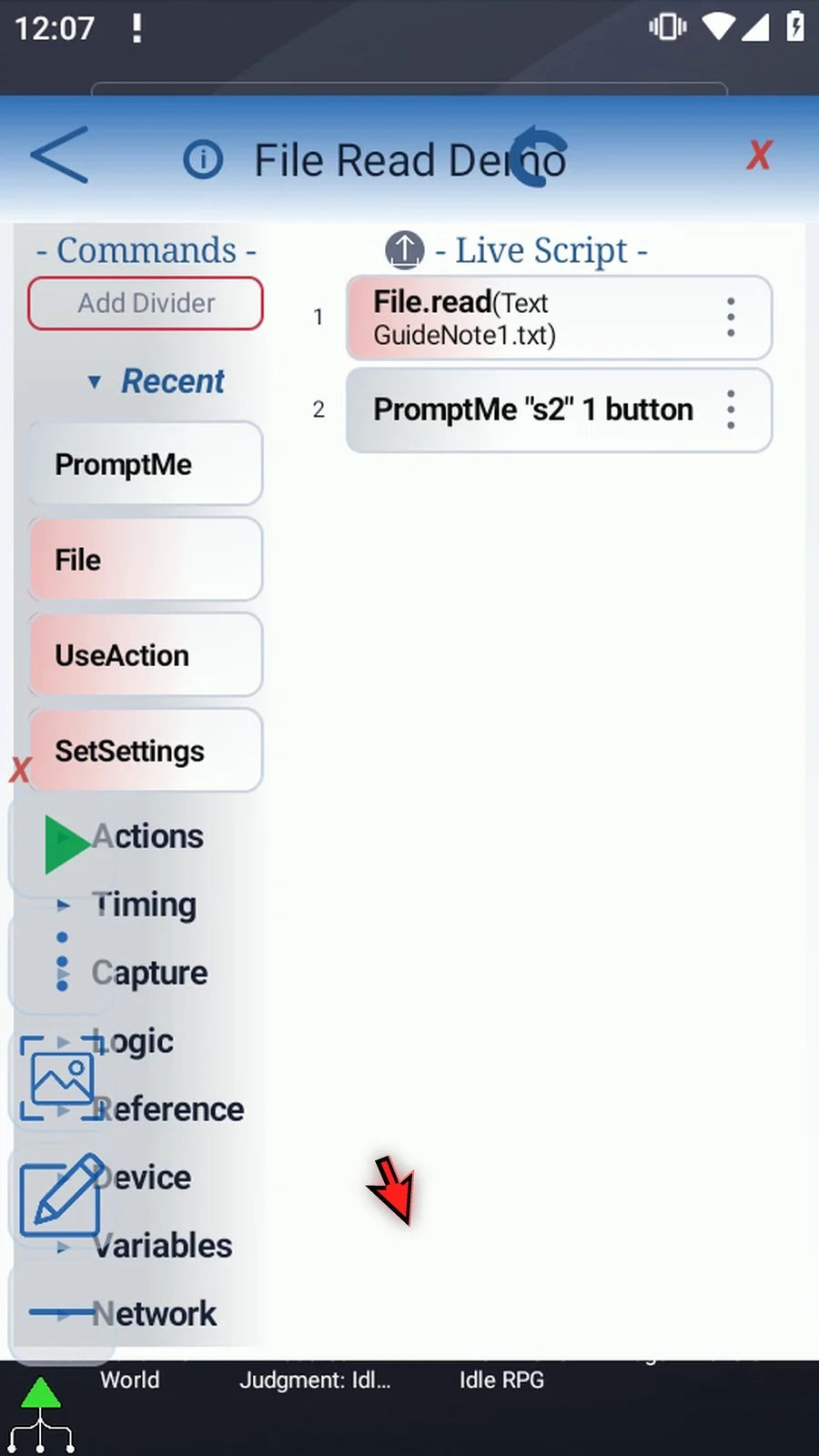
Step 12 Open the existing PromptMe and change Header from s2 to s4. This is the same String that File Read writes. PromptMe will display the returned text, not the literal characters s4.
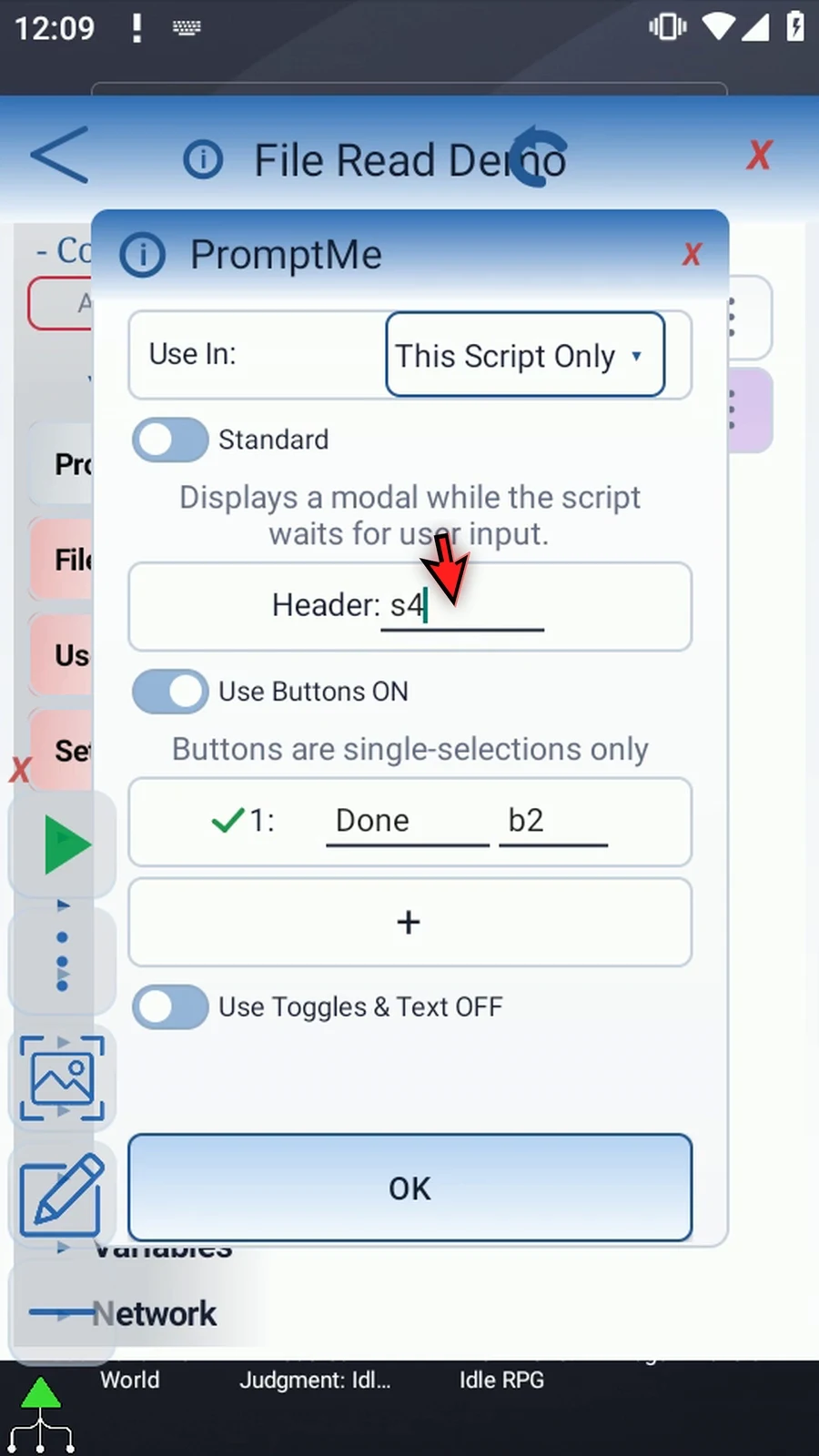
Step 13 Keep Standard mode and the existing Done button with Boolean b2. PromptMe is only a visual confirmation for this example; other scripts can use the text directly with their next command.
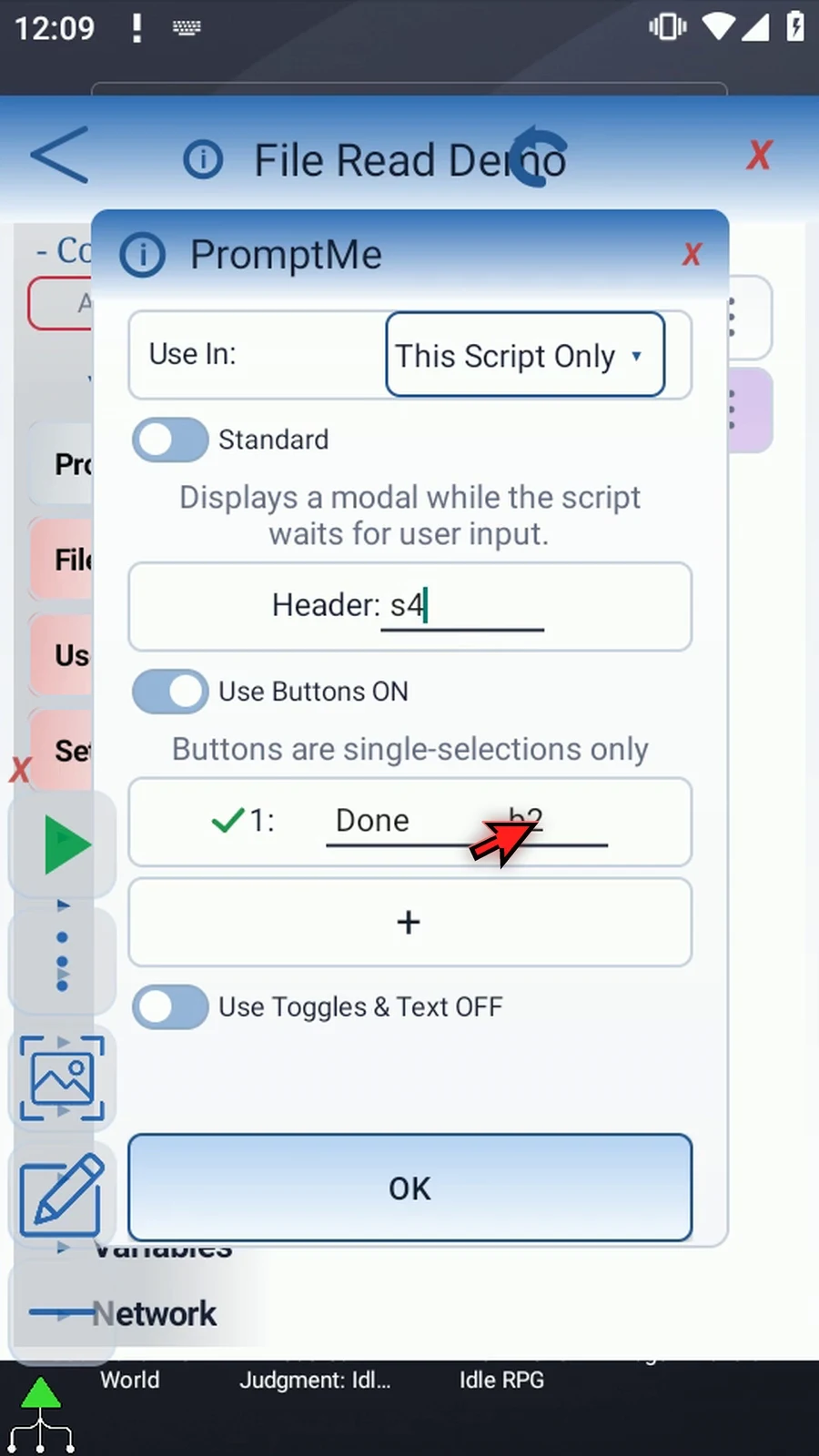
Step 14 Tap OK. File comes first and loads the text. PromptMe follows and displays it. No extra SetVariable command is needed to prepare this output.
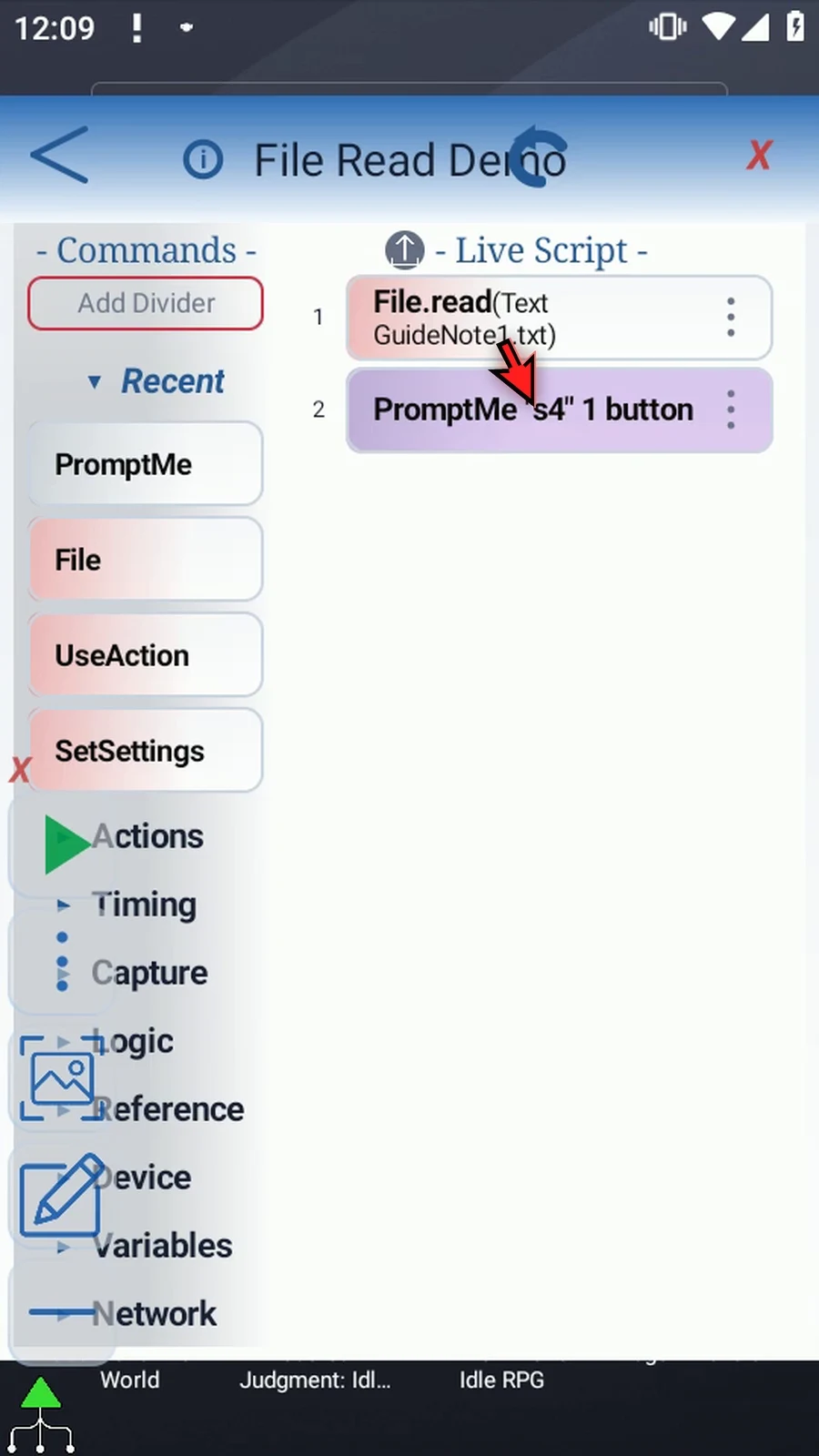
Step 15 When the script is complete, simply use the Play button in the main overlay.
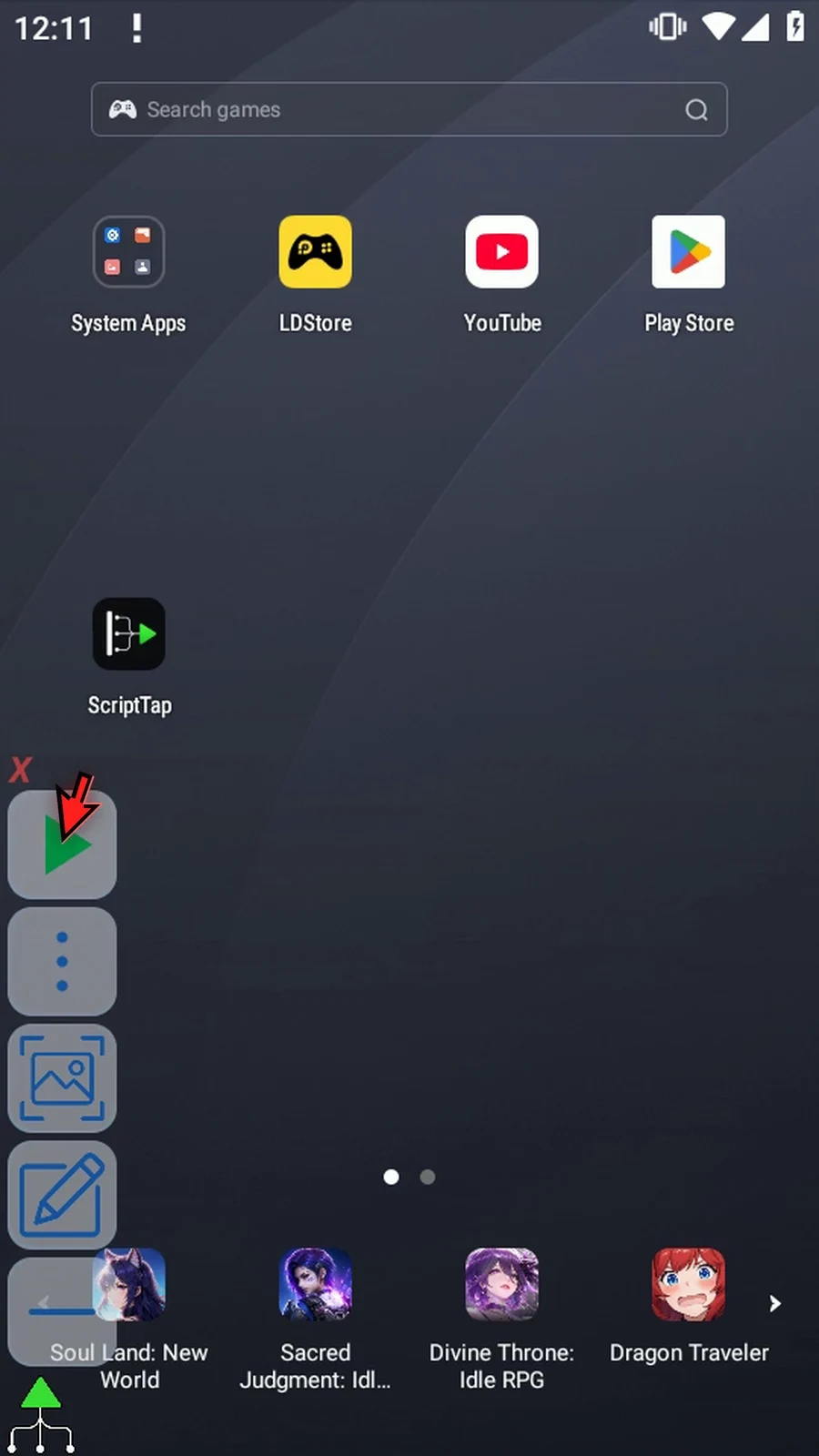
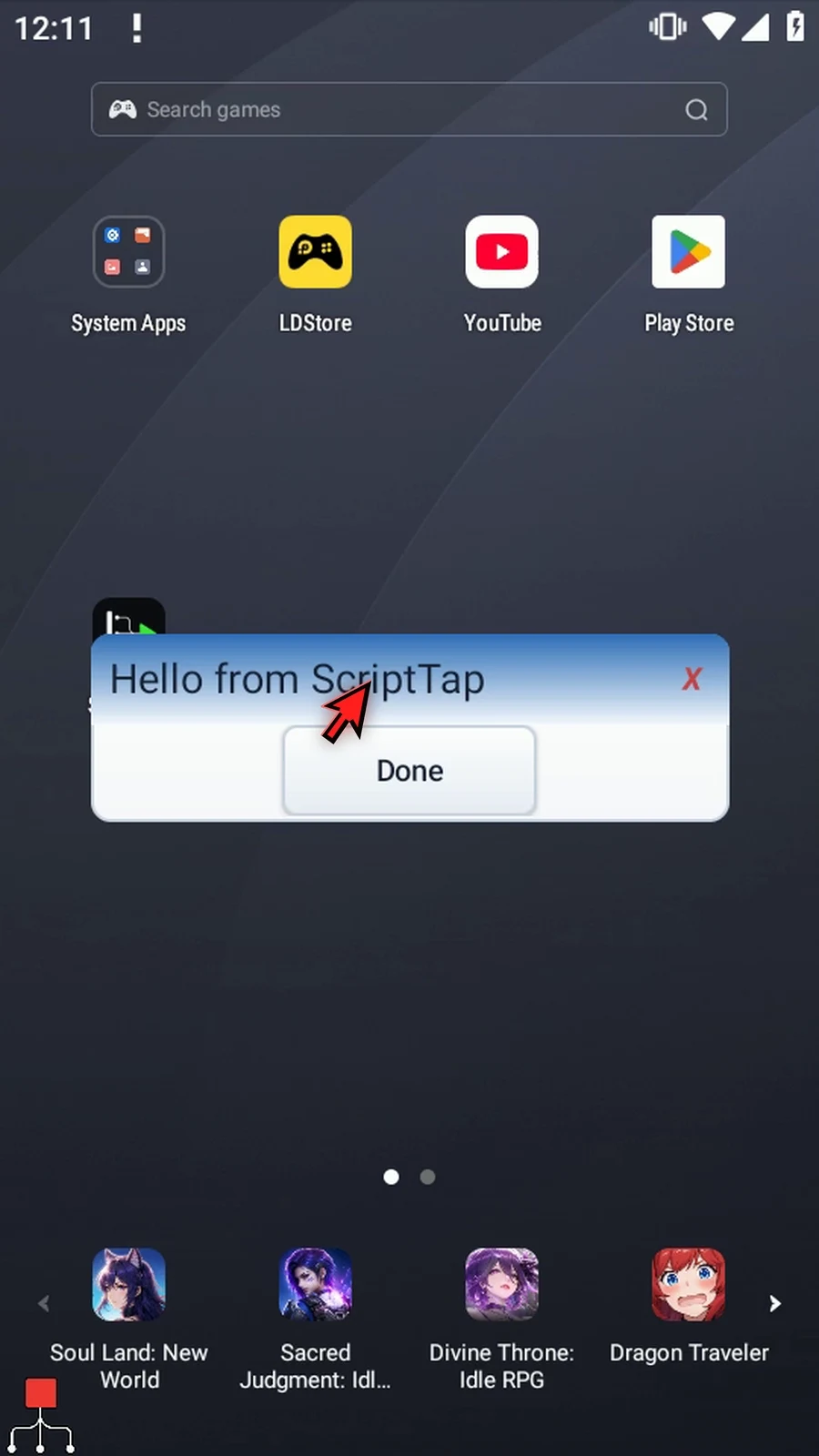
Step 16 The confirmation shows Hello from ScriptTap. These are the actual characters read from the selected file. The document has not been rewritten or appended to.
Step 17 Press Done to close the confirmation. The script then finishes automatically.
Step 18 Use File Read when a script needs prepared text from a document. Later commands can transform that String, display it, or type it into another app. File provides the data; your script decides how to use it.
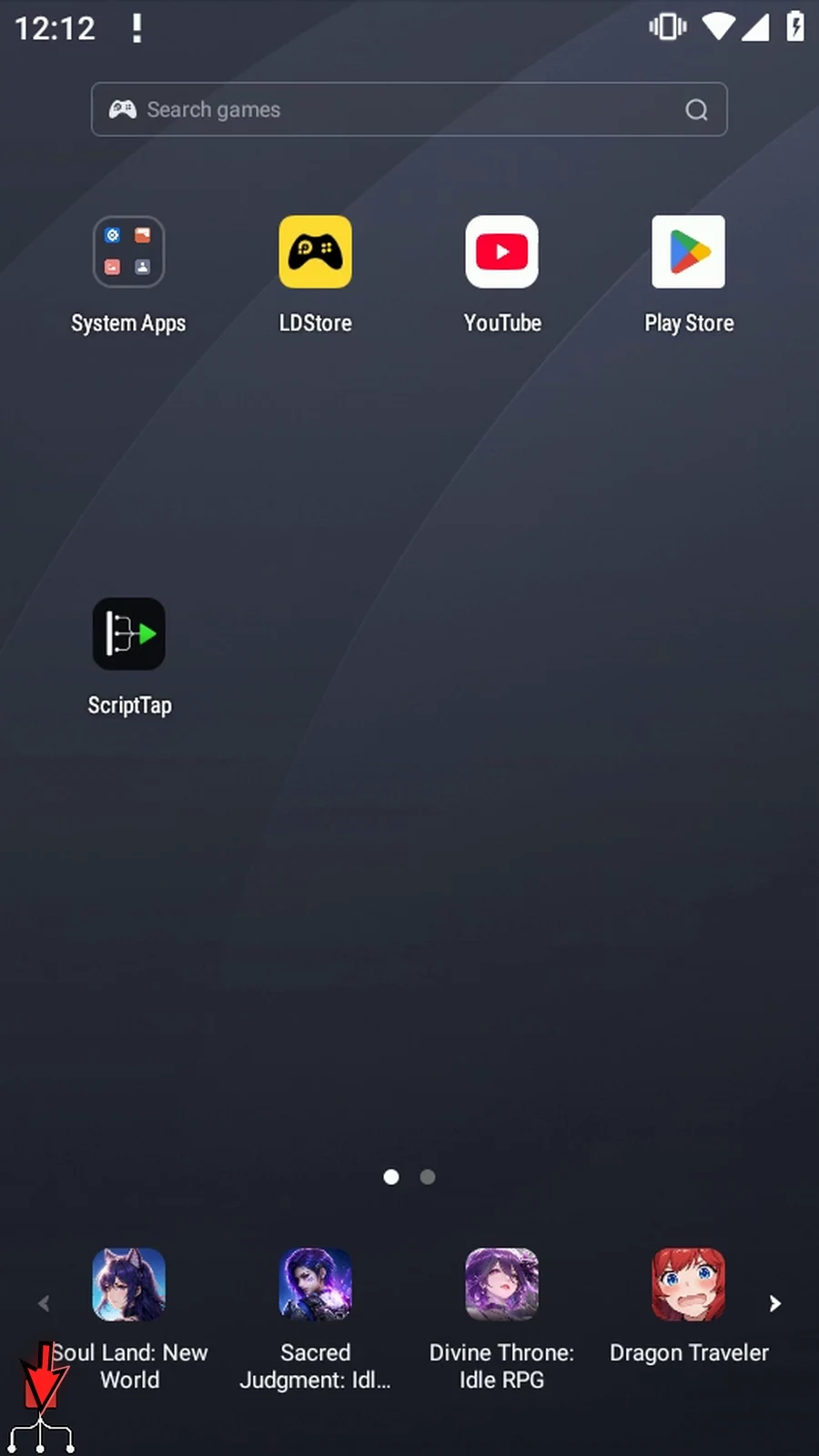
File Append adds characters to the end of an existing document, preserving the text already there. Use it for notes, running records or other text that should grow as a script runs. Every run appends again.
This video continues with a separate copy of the Read Text example. The introduction created the tutorial document, and the existing Standard PromptMe displays String s4.
- Operation: open the first File command and use the header Mode button until File.append appears. Set the operation before choosing its file. Keep Format: Text; Append supports Text or CSV, not JSON.
- File: use Android's document picker to select the tutorial file itself, not a folder. If Android asks, allow file access. Append needs saved write access; Play uses the saved selection and does not open a picker. Reselect the file if it becomes unavailable or its permission is revoked.
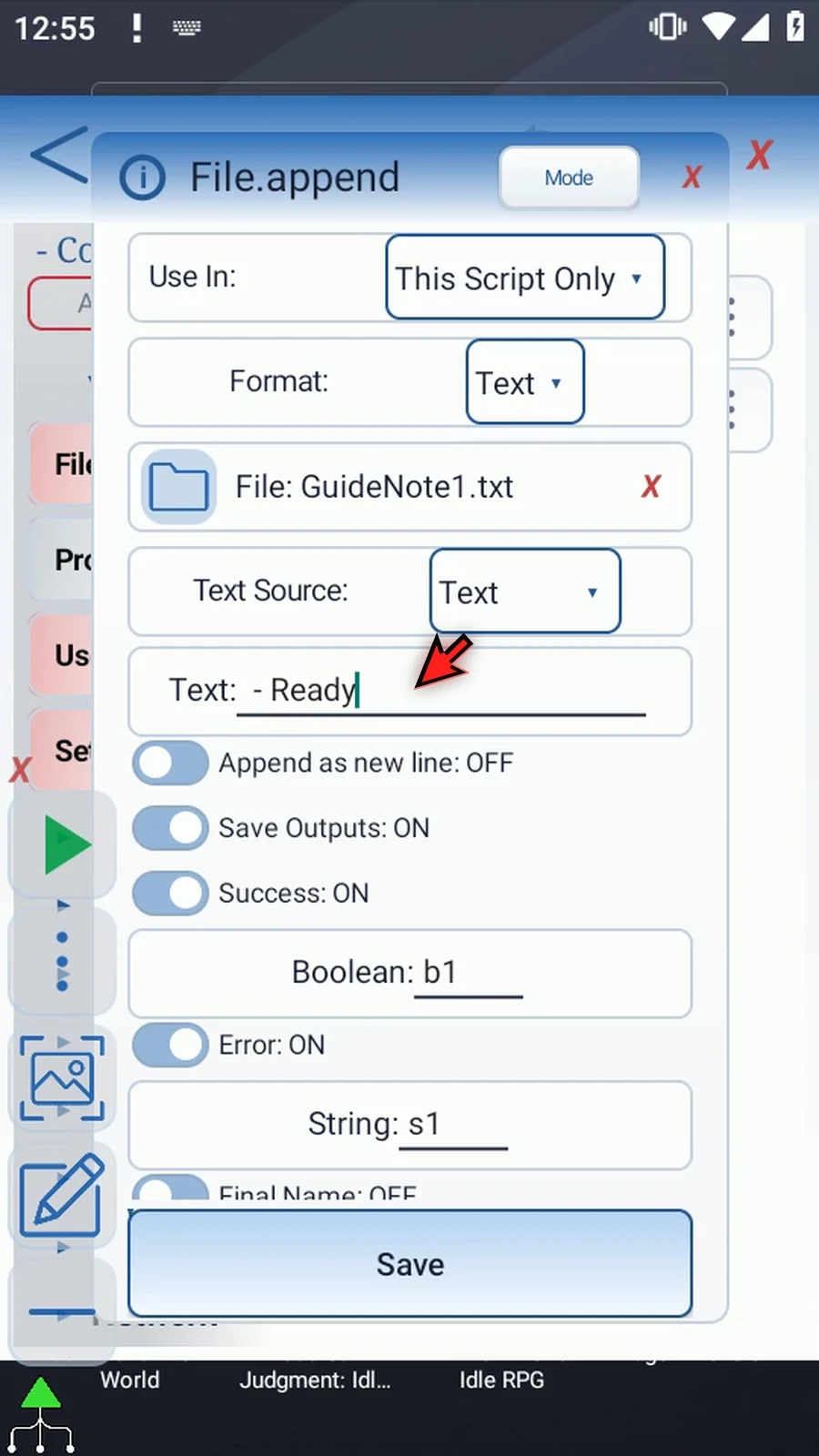
- Text Source: Text uses the characters entered here. String var reads an already prepared String, named in Variable. This example returns to Text and enters
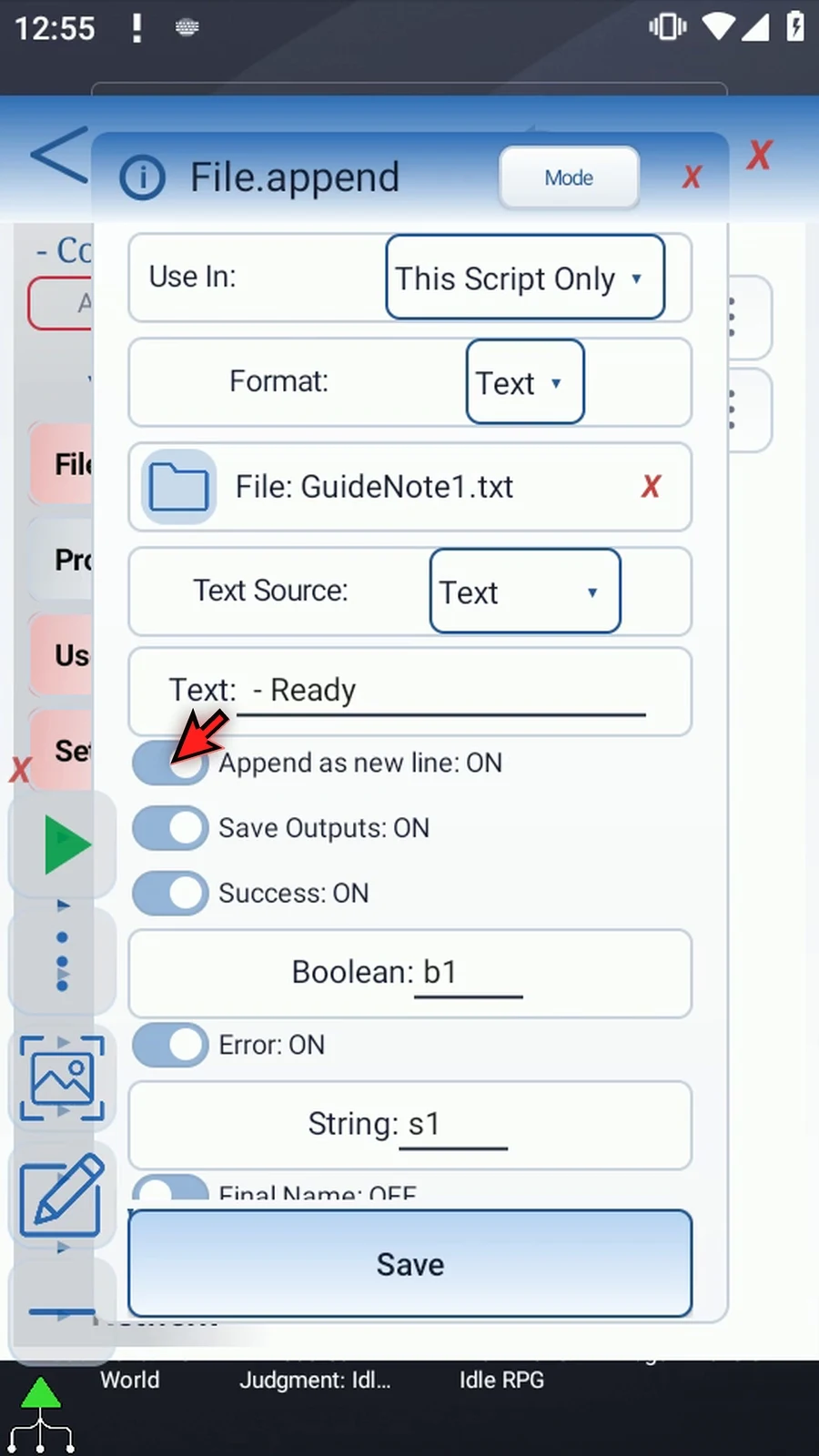
- Ready, including the leading space. - Append as new line: ON adds a newline after the incoming text. It does not insert a newline before it. OFF appends the supplied characters without that extra terminator. Prepare any leading separator or newline in your source text.
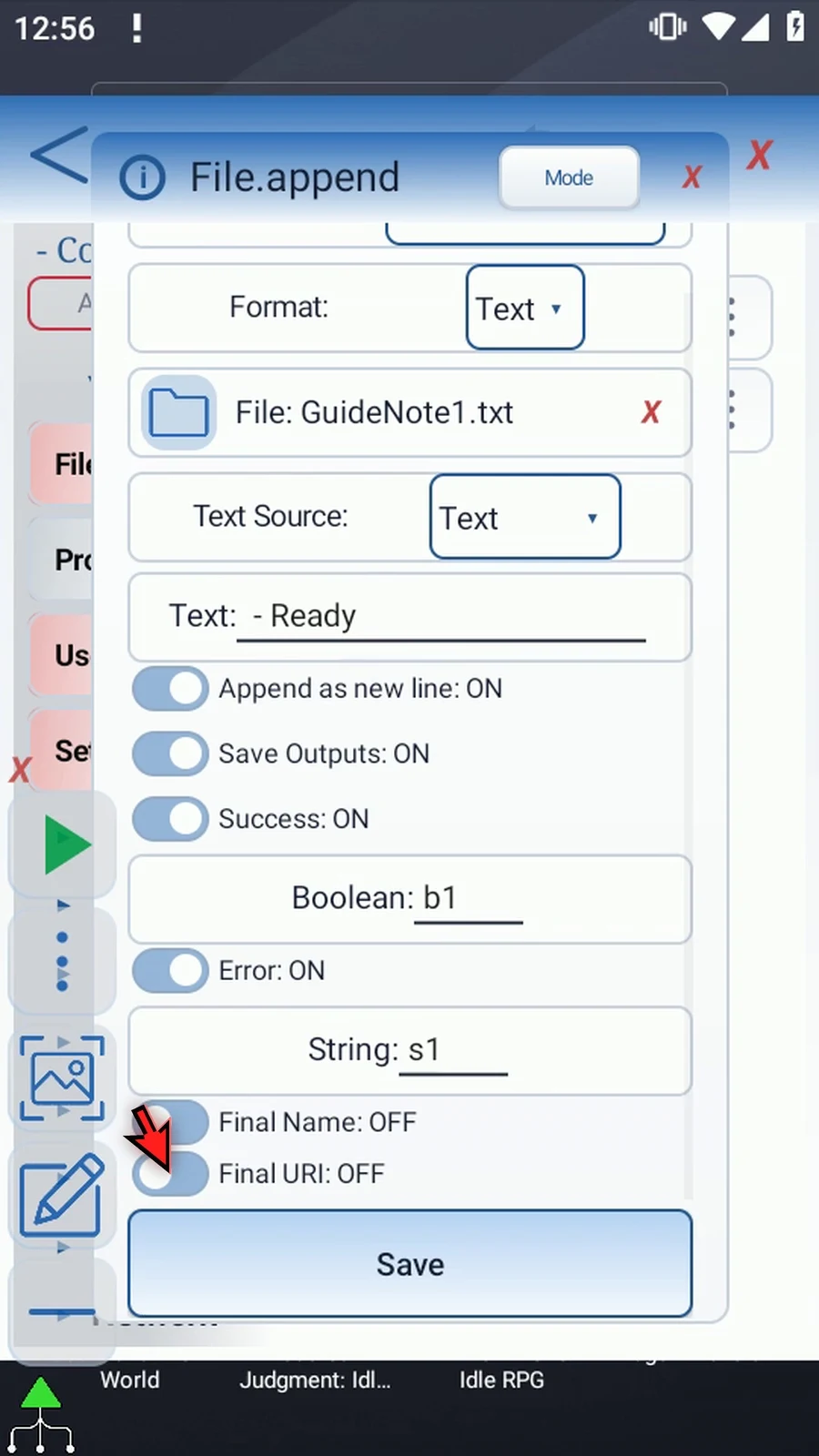
- Optional status: keep Success Boolean
b1and Error Strings1. These report the append operation, not the document contents. Final Name and Final URI remain OFF in this existing-file example.
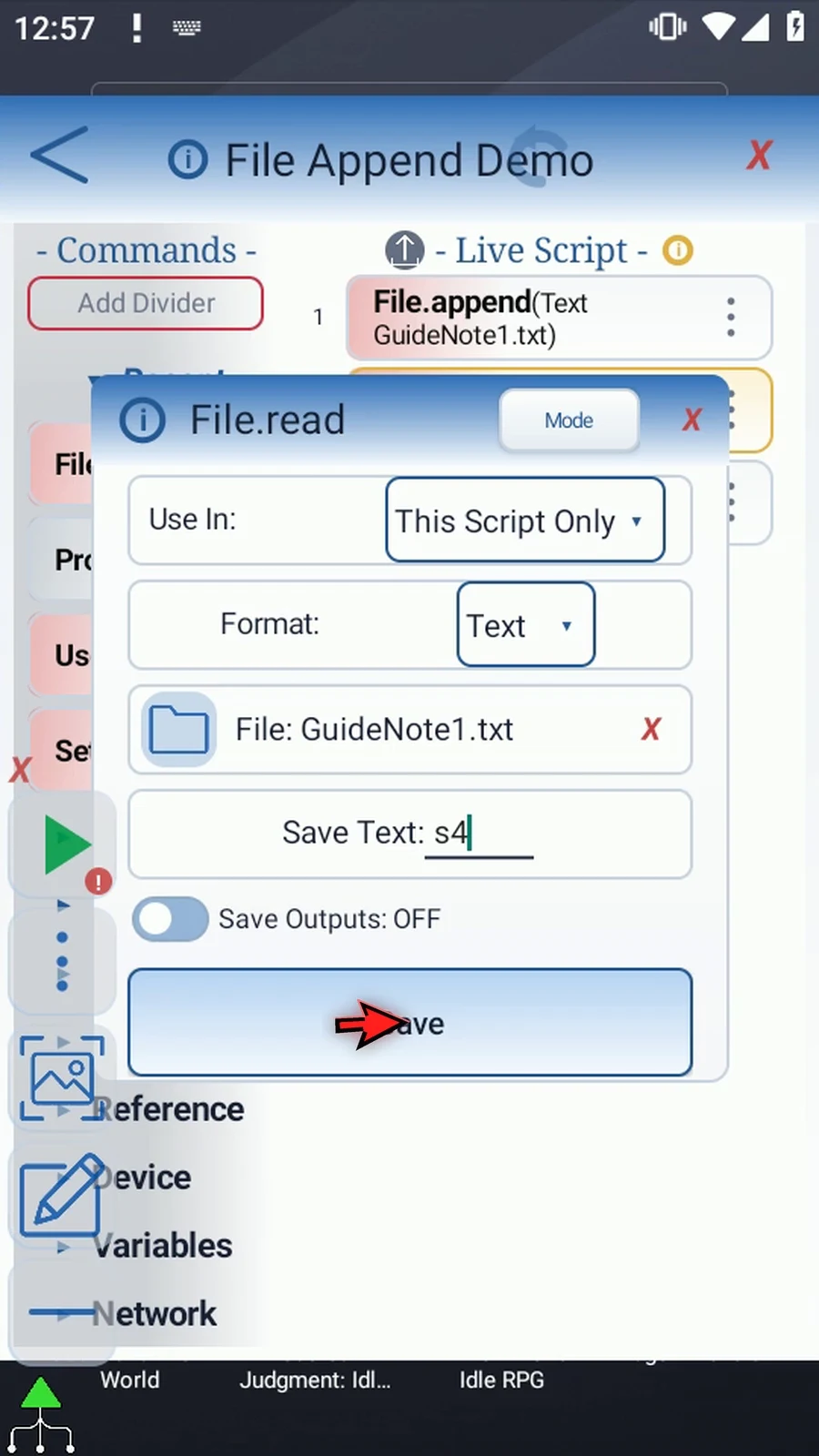
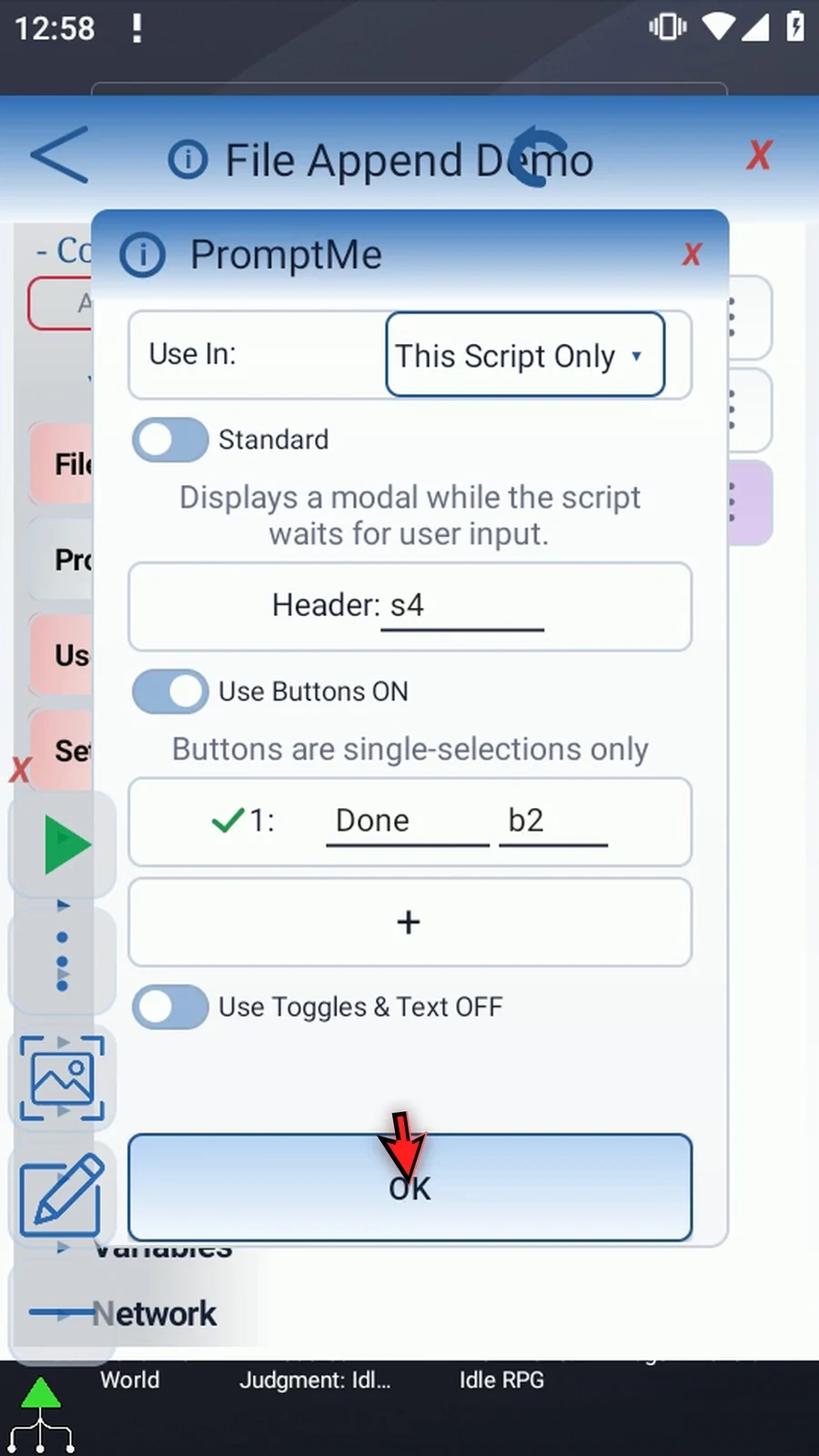
Save Append. Manually drag a second File between it and PromptMe. Keep this supporting command in Read / Text, select the same file, and set Save Text: s4. Leave its optional outputs OFF so it does not replace Append's status. The existing PromptMe keeps Header: s4, Standard mode and the Done button with Boolean b2.
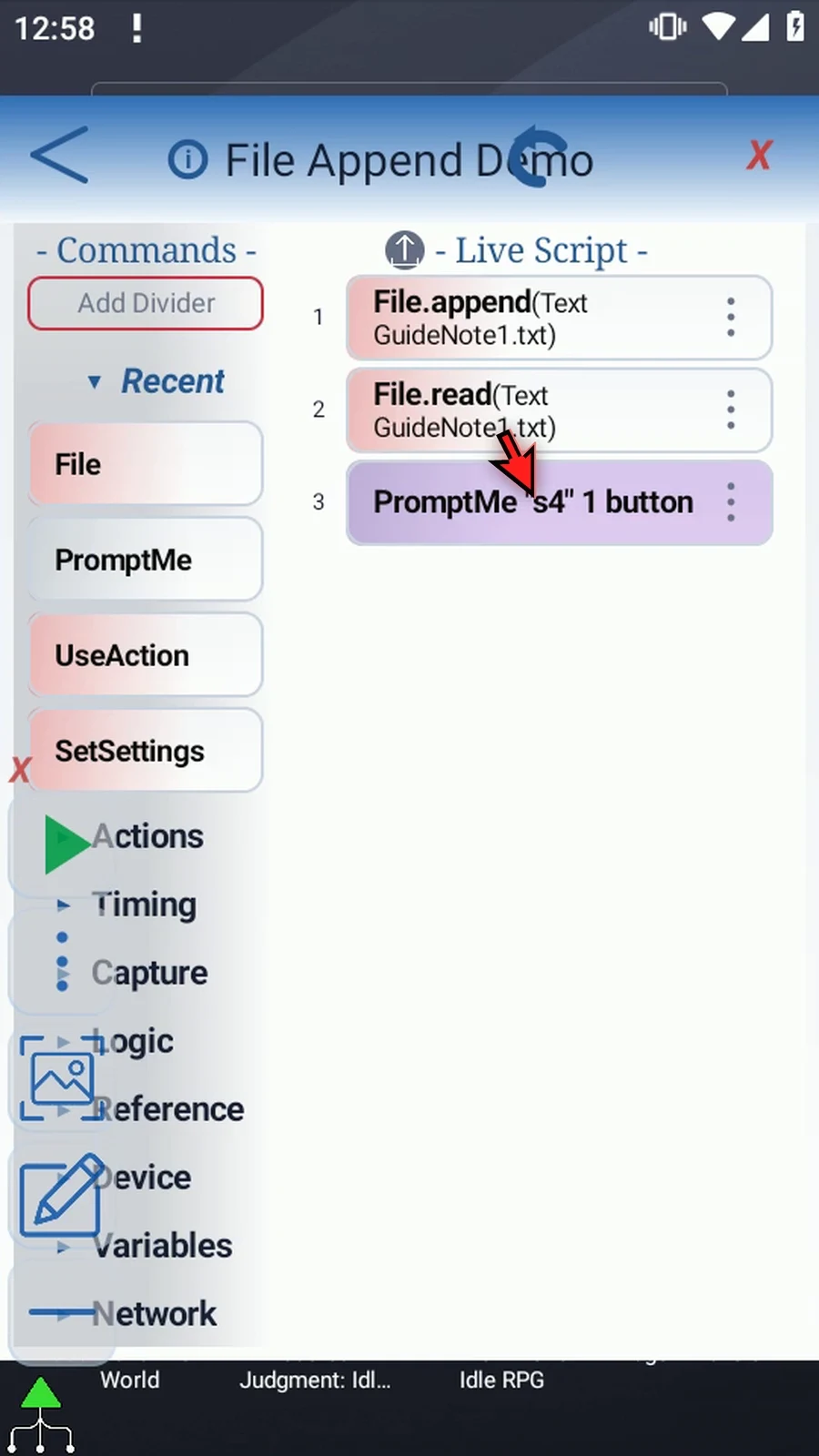
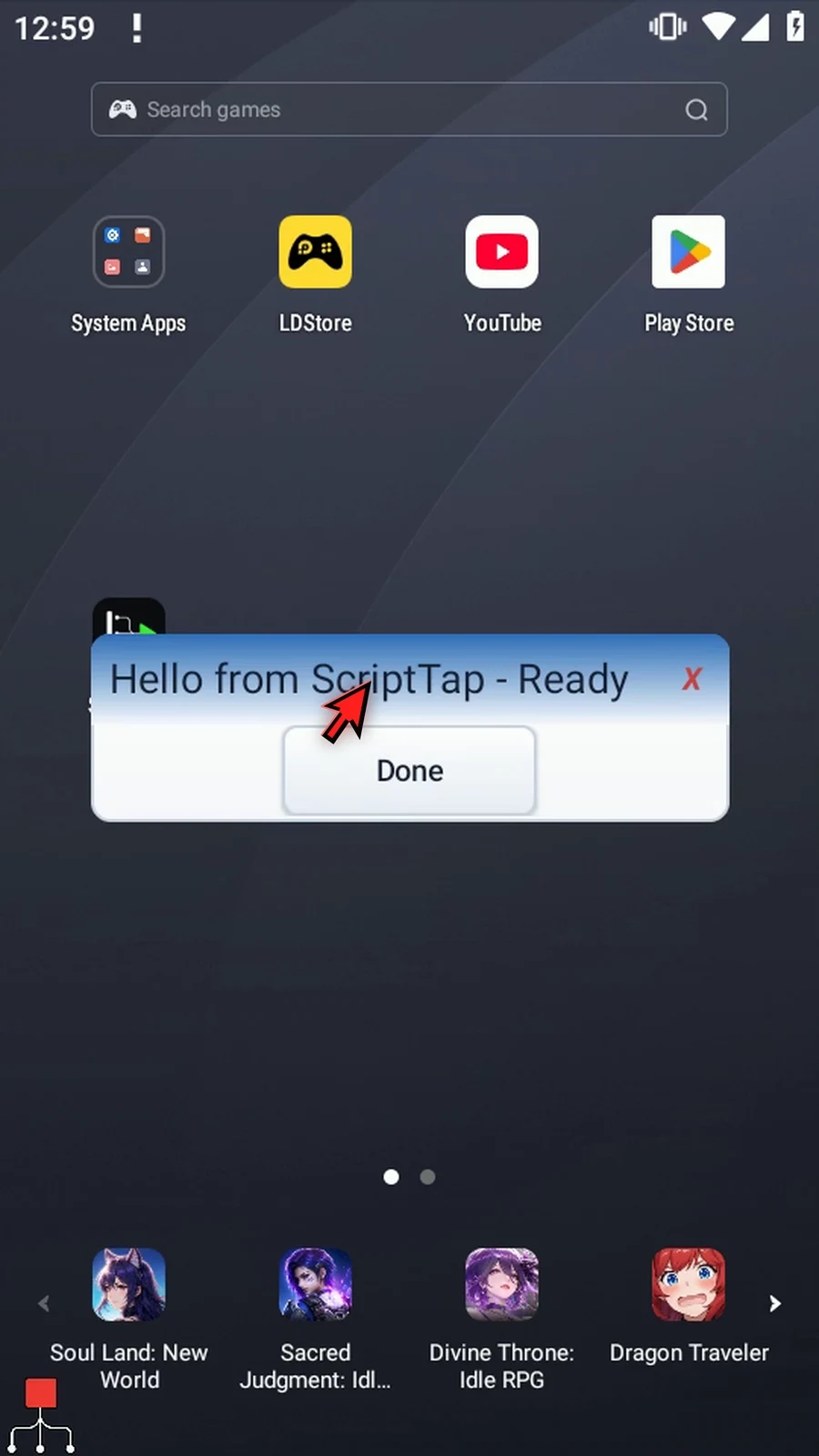
The three commands run in order: Append → Read → PromptMe. Play adds the suffix, reads the updated document and displays the real Hello from ScriptTap - Ready result. Done closes the confirmation and the script finishes automatically. Read and PromptMe are supporting confirmation; the featured command is Append.
Choose your target carefully: a second run adds the suffix again. Append does not replace existing contents. Use Create's explicit Overwrite option only when replacement is intended. CSV append and the other formats have separate guides.
Append Text
Step-by-step guide
Step 01 File Append adds text to the end of an existing document without replacing what is already there. It's useful for building notes or a running record. We'll read the file back and use PromptMe to display the result.
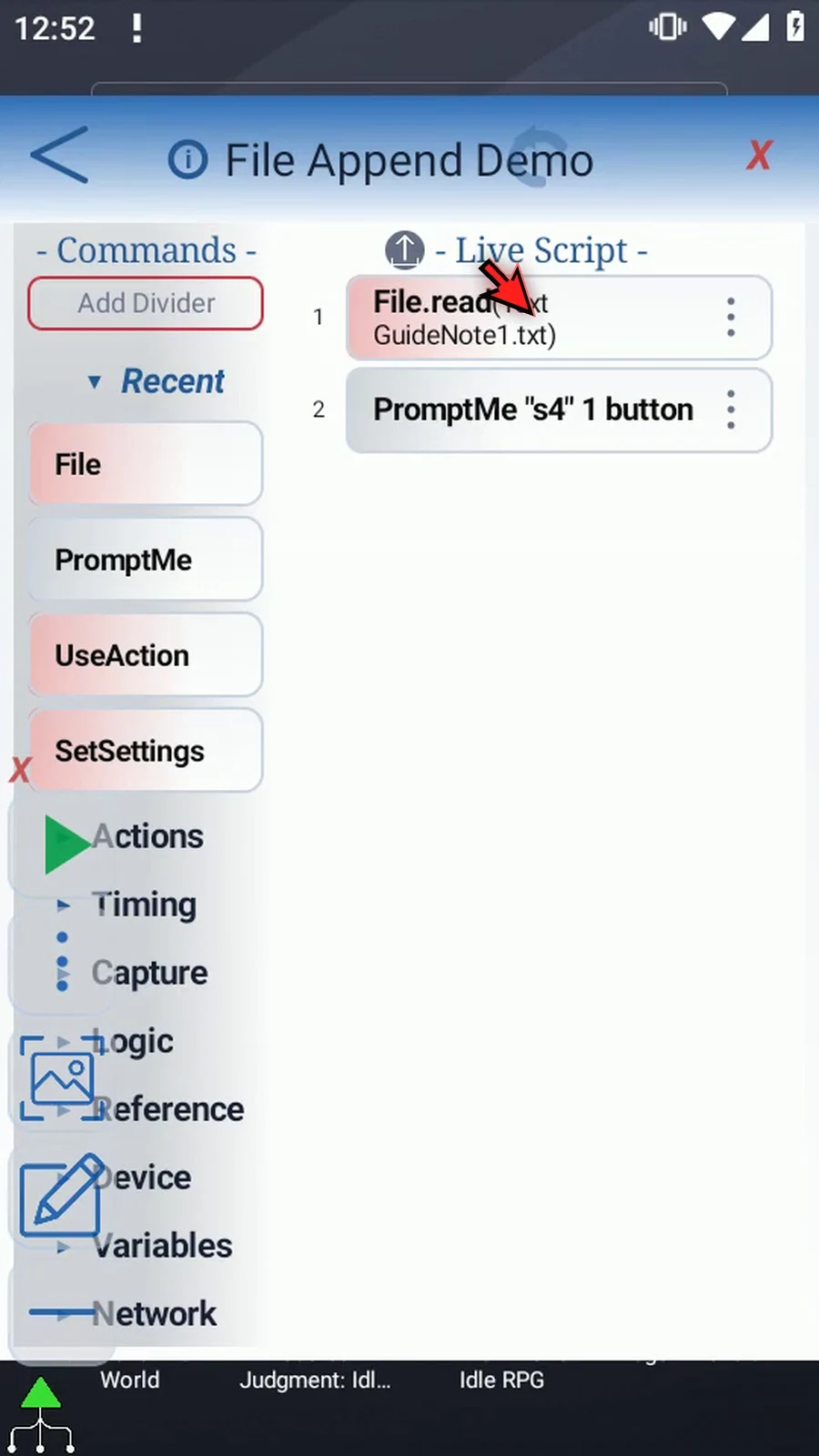
Step 02 This example continues with a copy of the Read Text script. The introduction prepared our text file, and PromptMe already displays String s4. We'll change the first File command to Append and add a separate Read afterwards.
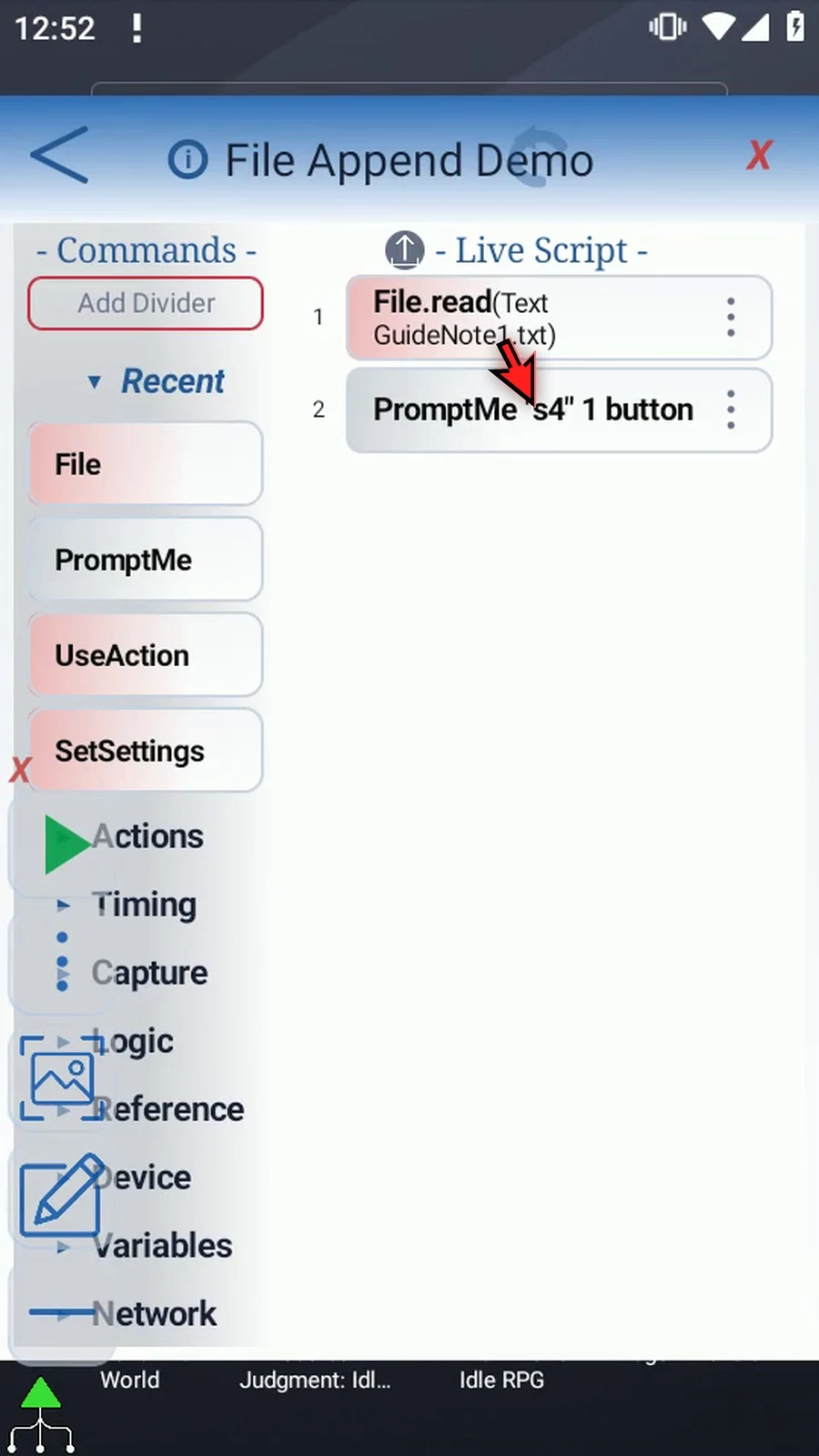
Step 03 Open File and use its header Mode button until File Append appears. Set the operation before selecting the file. Append needs an existing document that ScriptTap can write to.
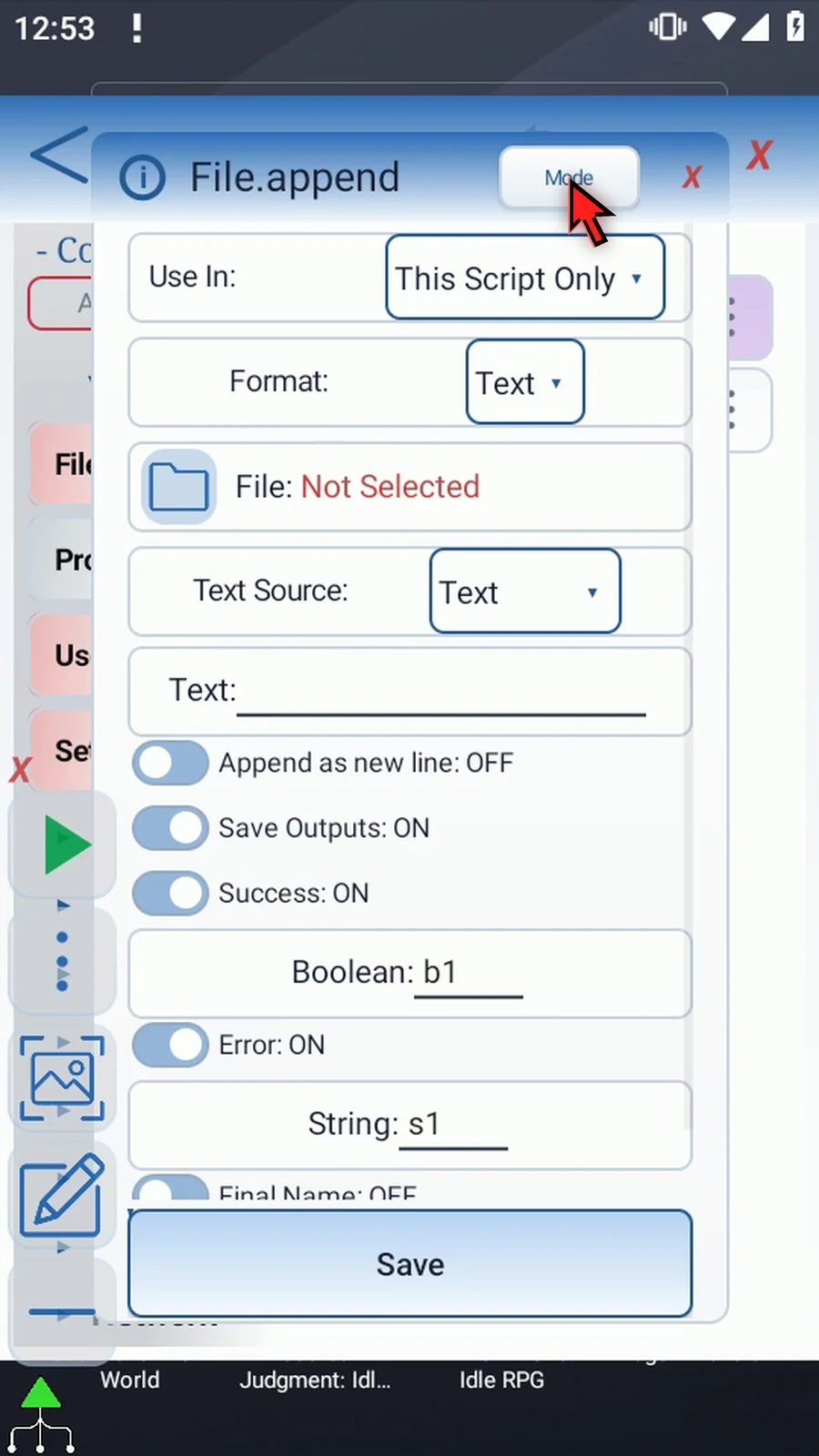
Step 04 Append supports Text or CSV. JSON has no Append option. Keep Format set to Text for this example.
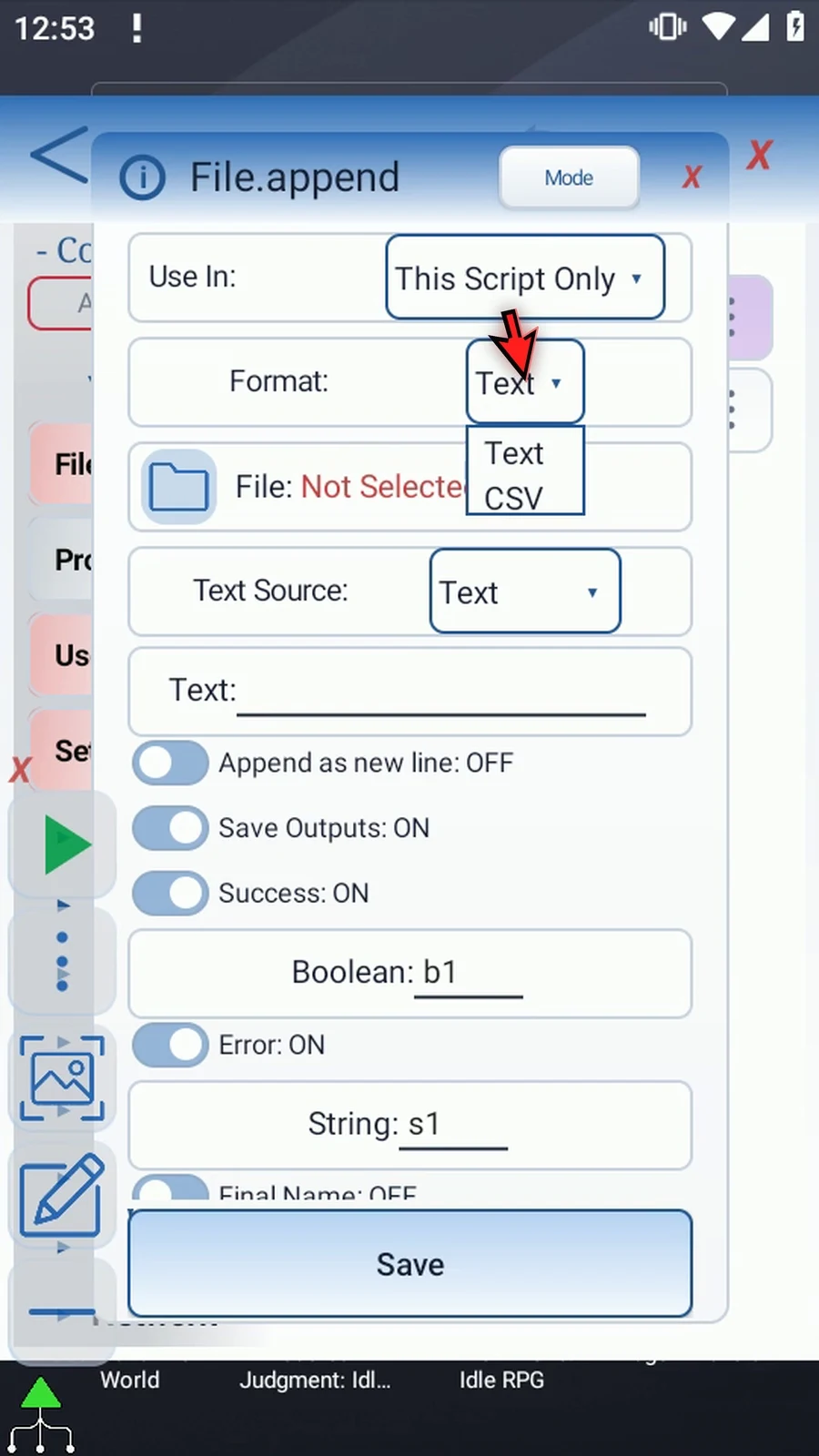
Step 05 Use the File selector and choose the tutorial document created in the introduction. Select the file itself, not its folder. If Android asks, allow file access.
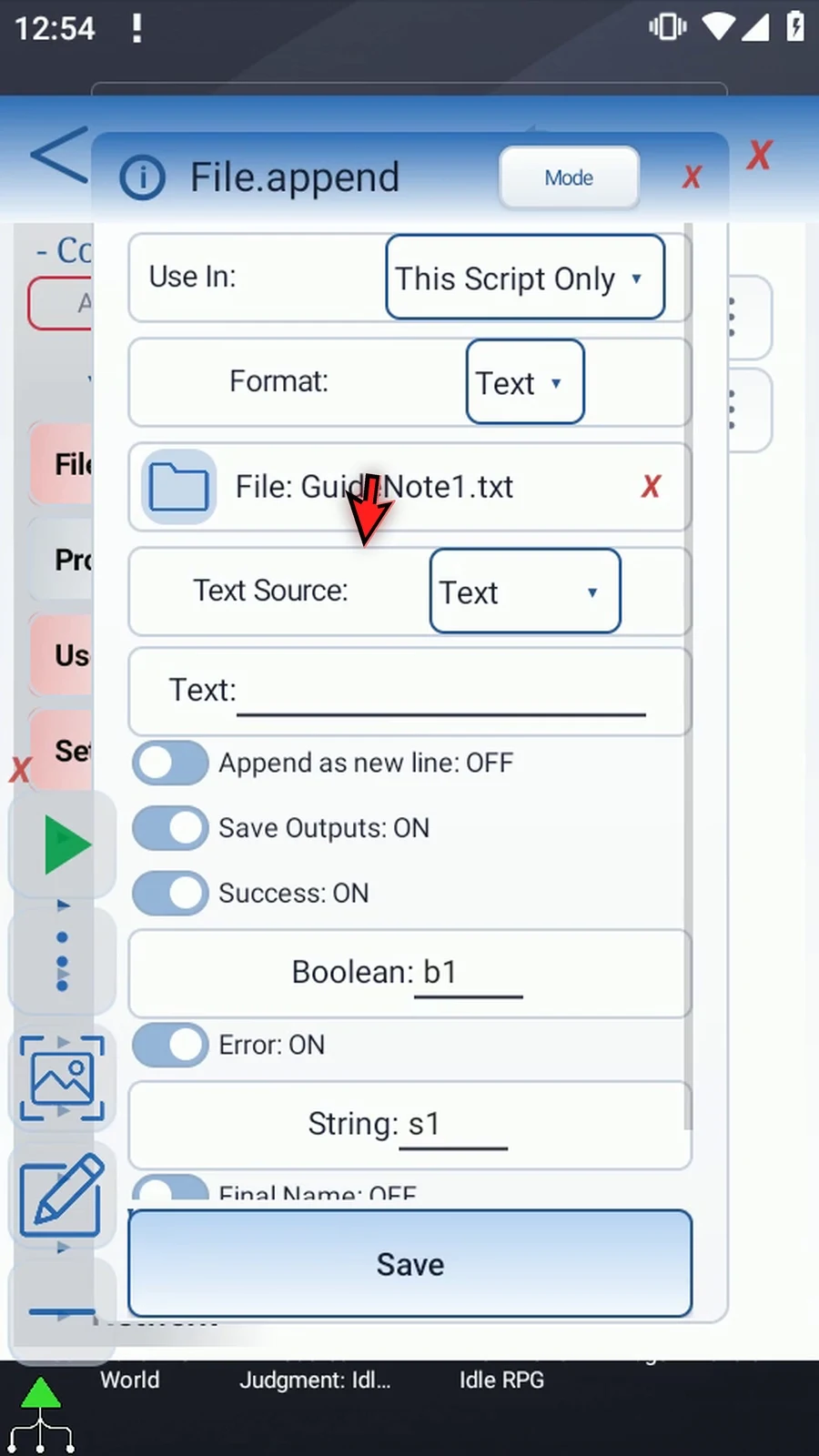
Step 06 Text Source can use text entered here or a String prepared by an earlier command. With String var, the Variable field takes that String's name. This is useful when the text changes during Play.
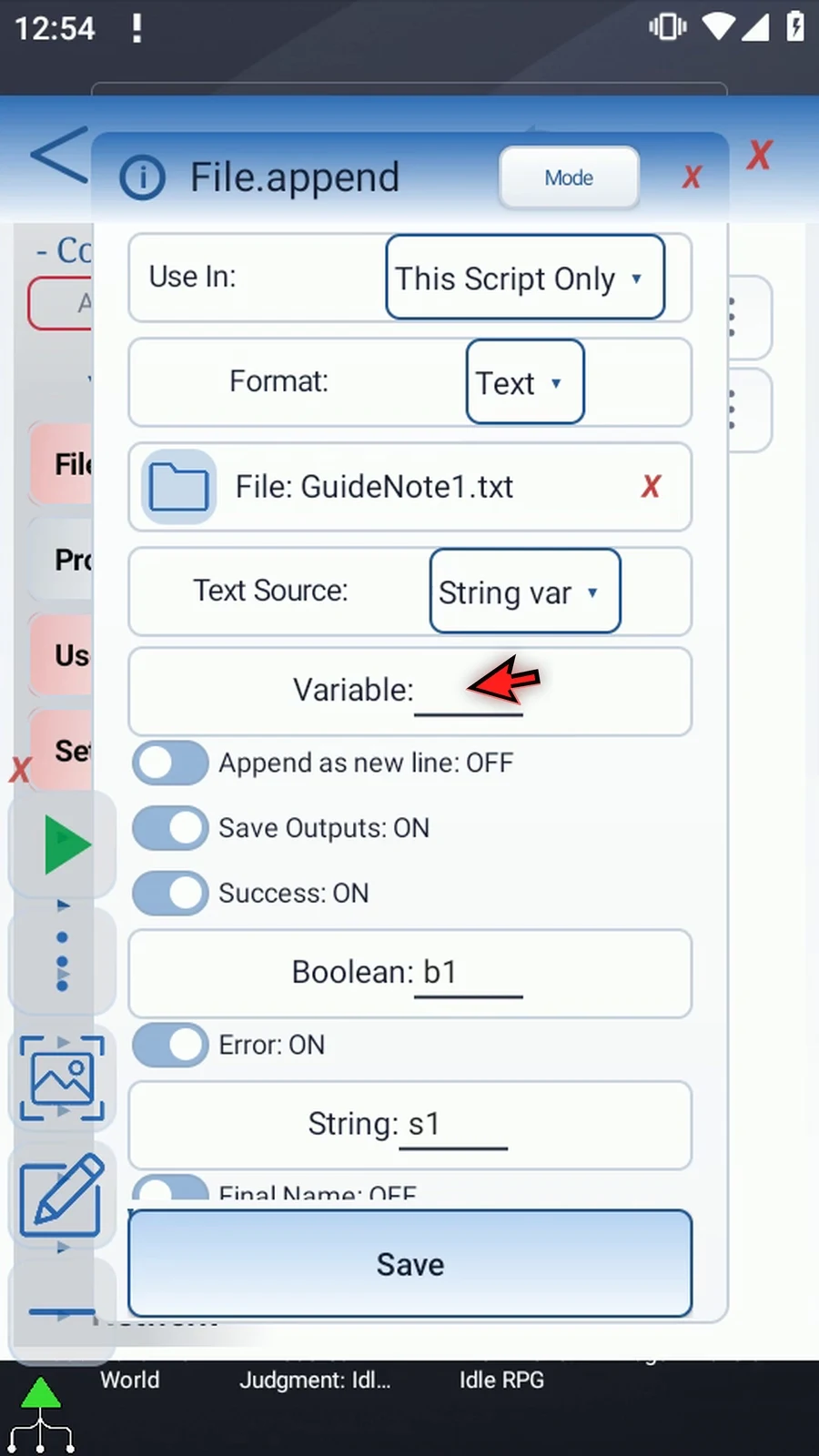
Step 07 We'll use Text in this example. Choose it again before entering the characters to append.
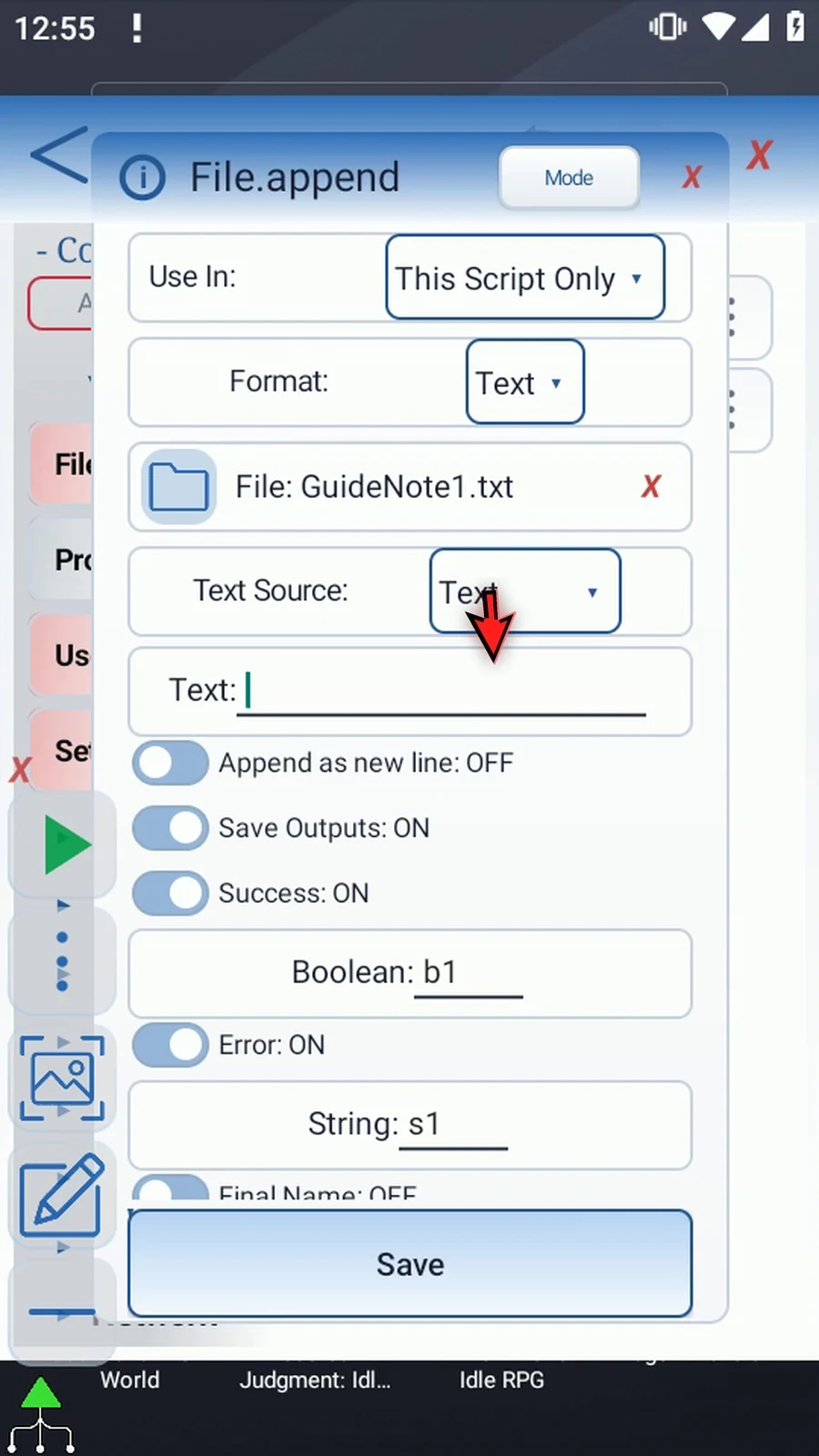
Step 08 Our file contains Hello from ScriptTap. Enter a space, a dash, another space, and Ready. That leading separator keeps the added words apart from the existing sentence.
Step 09 Turn on Append as new line. This adds a newline after the incoming text. It does not insert one before it. With this option off, the characters are appended exactly as supplied.
Step 10 Keep the optional Success Boolean b1 and Error String s1 from the earlier example. They report the append operation's status, not the file's characters. Final Name and Final URI stay off; we aren't creating a new file here.
Step 11 Save the command. Its row now shows File Append and the selected filename. Saving this setup does not change the document. The append happens during Play.
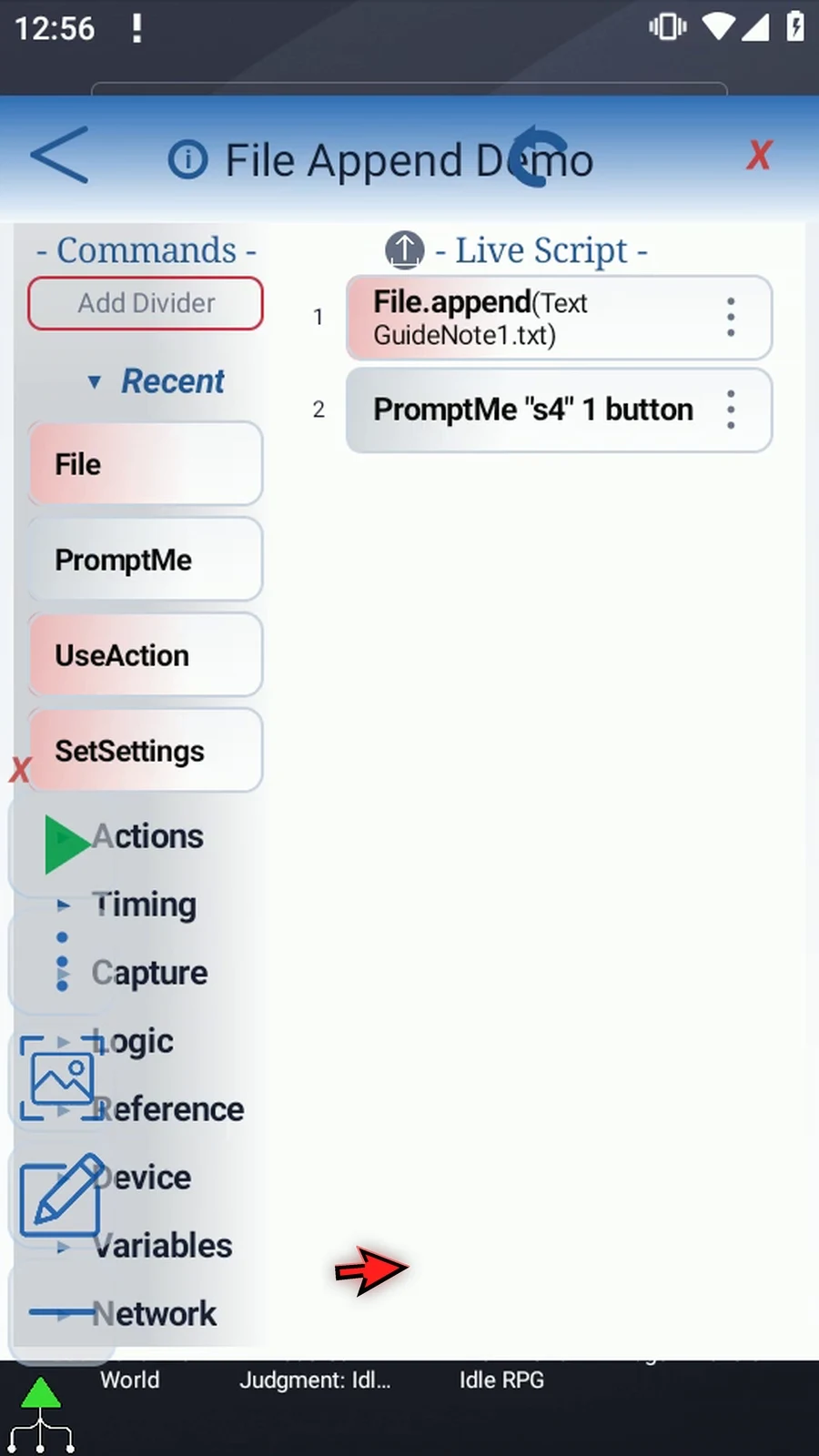
Step 12 To make the result visible, drag another File command between Append and PromptMe. This supporting command will read the document after the new text has been added.
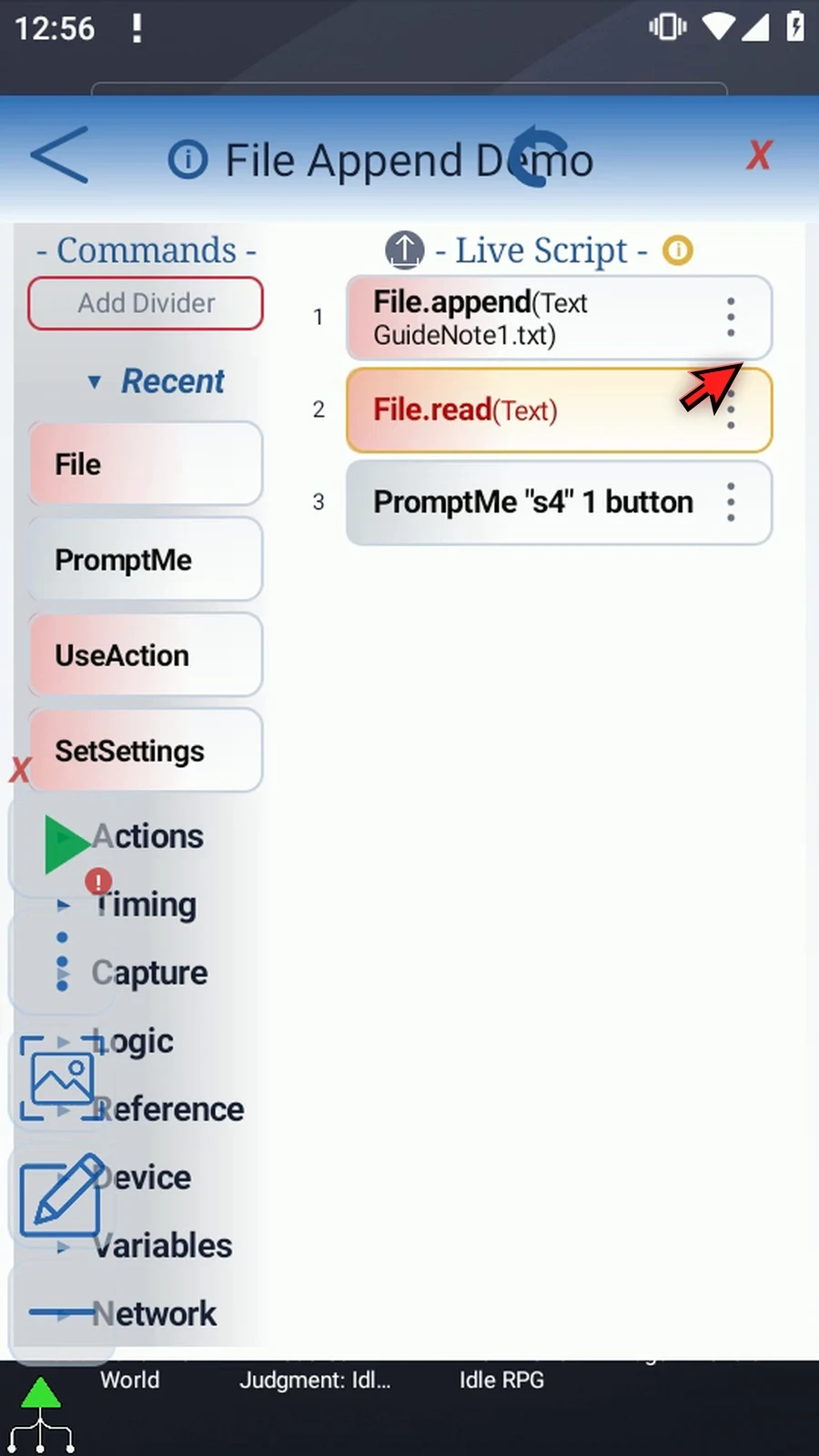
Step 13 Open this second File command. Keep Read and Text, and choose the same document through Android's file picker. This step only reads the updated file; it does not append any more text. Set Save Text to s4. Leave optional outputs off so the status from Append remains separate, then save.
Step 14 The existing PromptMe already uses Header s4, Standard mode, and a Done button with Boolean b2. It will display the text returned by the second File command. Keep these settings and tap OK.
Step 15 The order is important: append the new text, read the updated file, then display it. Read and PromptMe are only here to confirm what the featured Append command did.
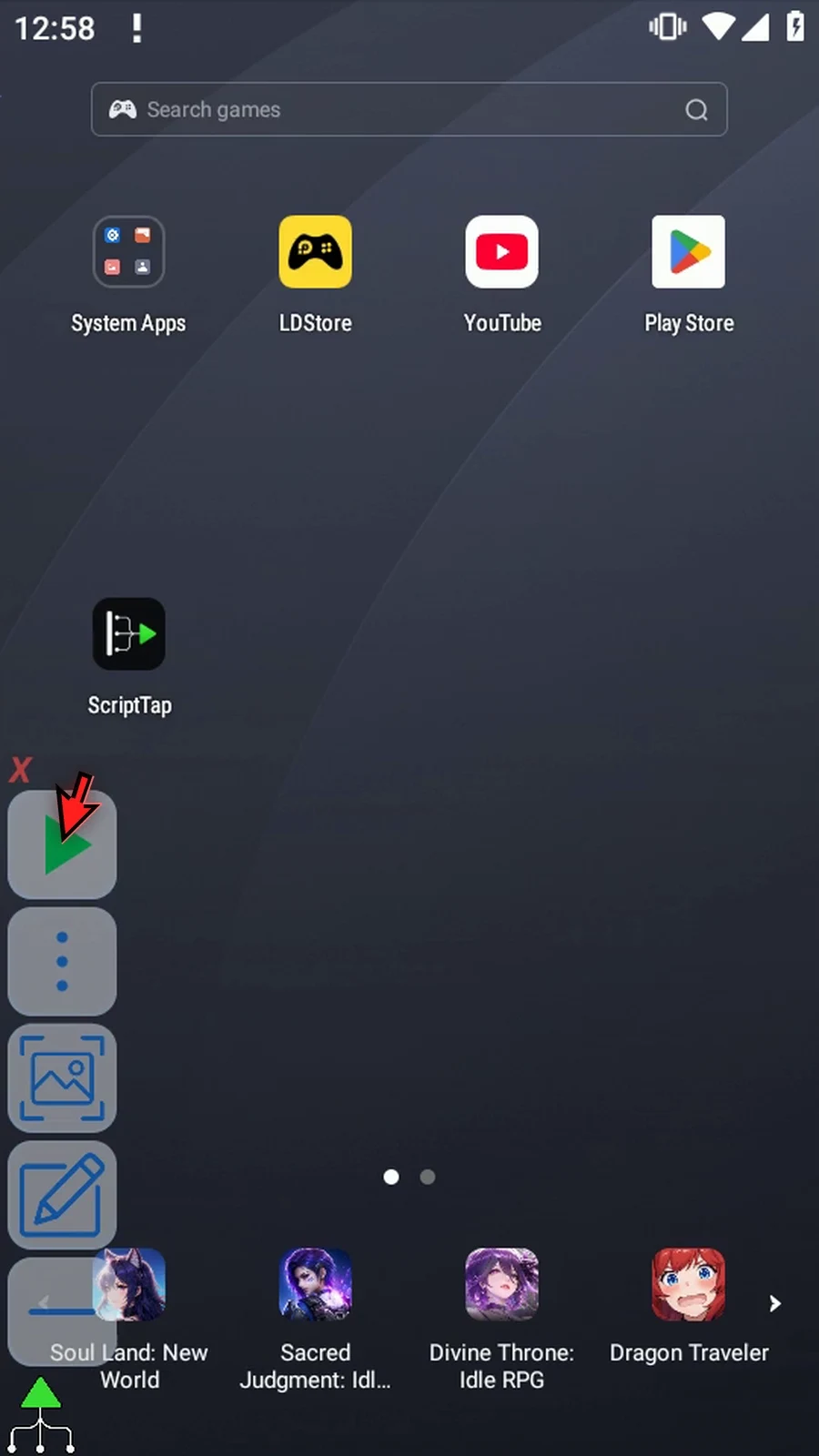
Step 16 When the script is complete, simply use the Play button in the main overlay.
Step 17 PromptMe shows Hello from ScriptTap, followed by the dash and Ready. The original text is still there, with our new text added at the end. This is the actual text read from the updated document.
Step 18 Press Done to close the confirmation. The script then finishes automatically.
Step 19 Every run appends again, so choose your target file carefully. Use Append when you want to add to an existing document. Use Create with its explicit overwrite option only when replacing a file is what you intend.
File Create can write a CSV document for later script steps. CSV means comma-separated values: text arranged into rows and columns. This example creates a two-column header for the Append CSV and CSV reading guides.
Continue with a separate copy of the Intro & Create Text example. That guide prepared the destination folder, safe new-name policies, four optional outputs and the supporting Standard PromptMe. No accepted script is edited.
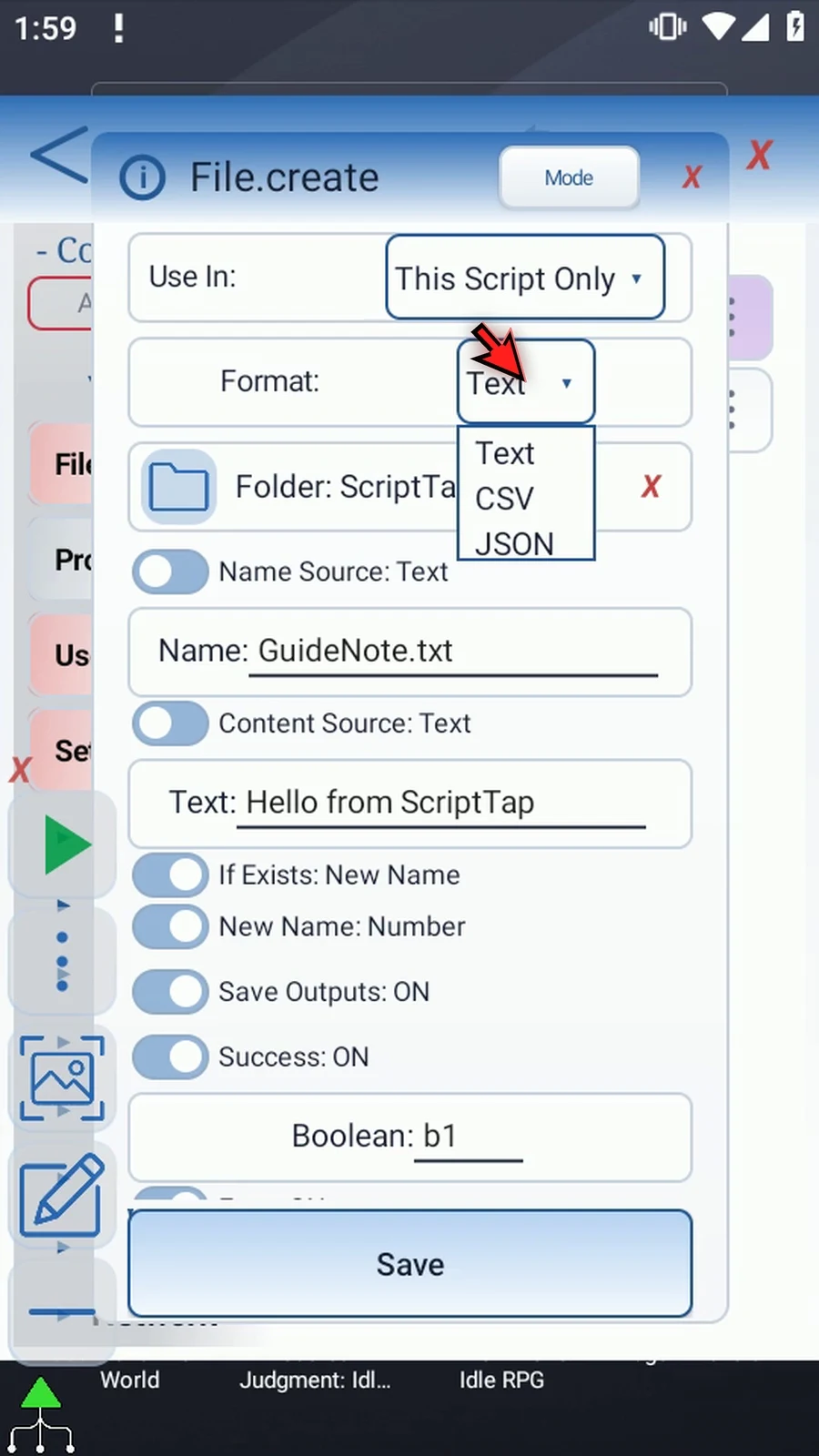
- Format: keep File.create and choose CSV. The format changes the data controls; it is not a separate command type.
- Folder and name: keep the selected tutorial folder and enter
GuideTable.csv. The introduction covers the normal Android folder picker and access. File uses the saved folder during Play. - CSV Source — CSV text: writes the supplied characters exactly. This guide enters
Name,Value, producing two header cells. File does not validate or repair the literal table; use correct CSV commas and quoting. - CSV Source — String array row: reads already prepared String variables and serializes one CSV row, automatically quoting and escaping cells where needed and adding a newline. Array is the letter, Start is the first source index, and Count is the number of cells. For example,
s, Start1, Count2uses String valuess1ands2. This option is shown in the editor only; this video's actual run uses CSV text. - Source ranges: Start and Count accept positive numbers or prior Integer variables. Every source slot must contain a String, and the selected range must remain within slots 1–4096. Choose the source before entering its values; a true source change clears its outgoing payload.
- If Exists: keep New Name / Number. This chooses an available filename instead of overwriting an existing document. The Intro explains Timestamp, Number and the explicit Overwrite choice.
- Outputs: keep Success Boolean
b1, Error Strings1, Final Names2and Final URIs3. The actual final name may differ when a requested name already exists.
Save File. Keep the existing PromptMe in Standard mode, with Header s2 and a Done button writing Boolean b2. It confirms the actual created filename, not the CSV contents. Play creates the file and shows its name; Done closes the confirmation and the script finishes automatically.
Continue with Append CSV to add a data row. The Cell, Row and Column reading guides then use the resulting table. Use CSV for structured rows and columns, rather than treating the entire document as one unstructured String.
Create CSV
Step-by-step guide
Step 01 File Create can prepare a CSV document for a script to use later. CSV means comma-separated values: text arranged in rows and columns. We'll create a small table header, ready for the Append and Read examples that follow.
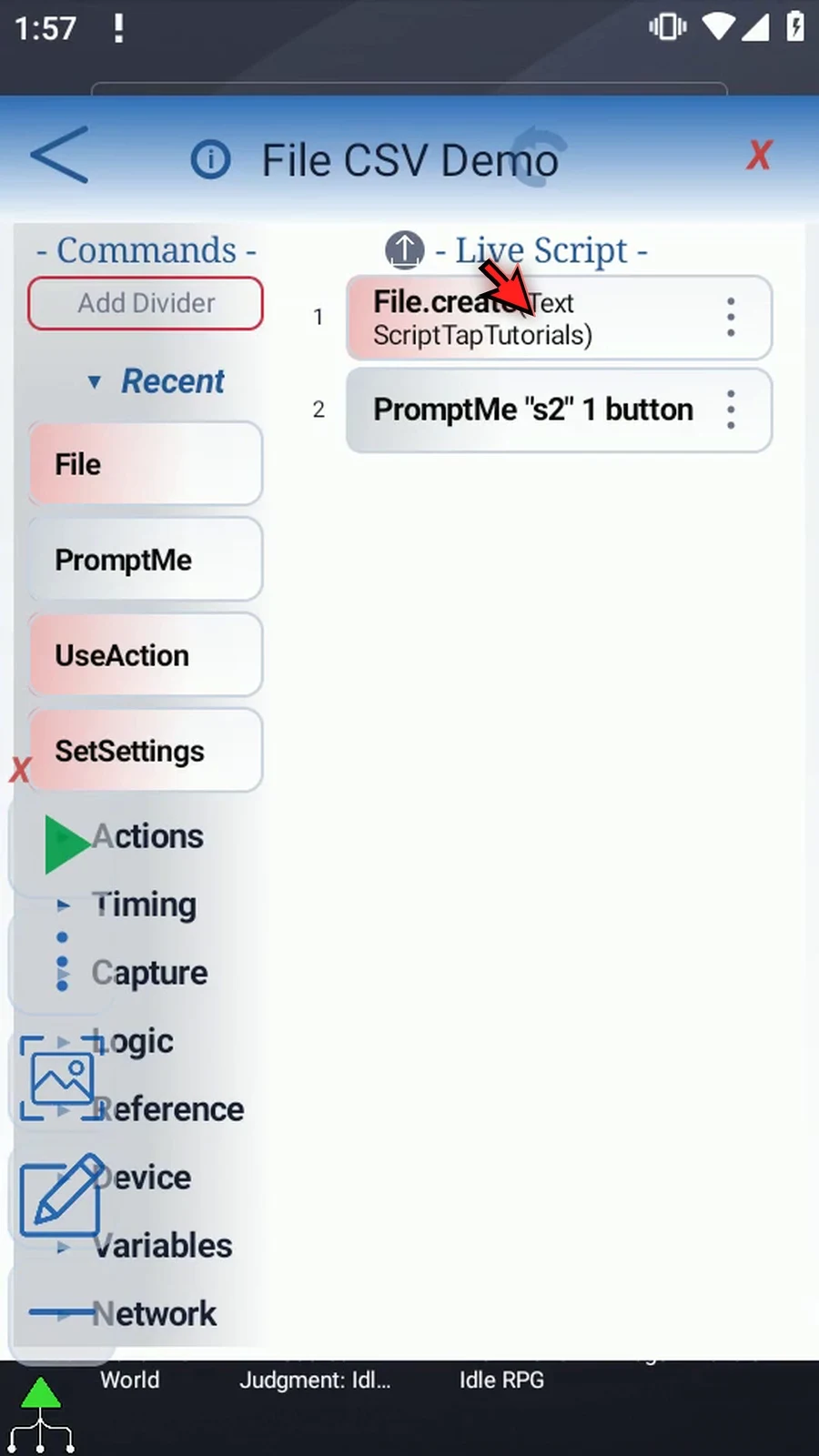
Step 02 This example continues with a copy of the introduction's script. Its destination folder, safe new-name options, status outputs, and PromptMe confirmation are already set up. We'll change the format, filename, and data.
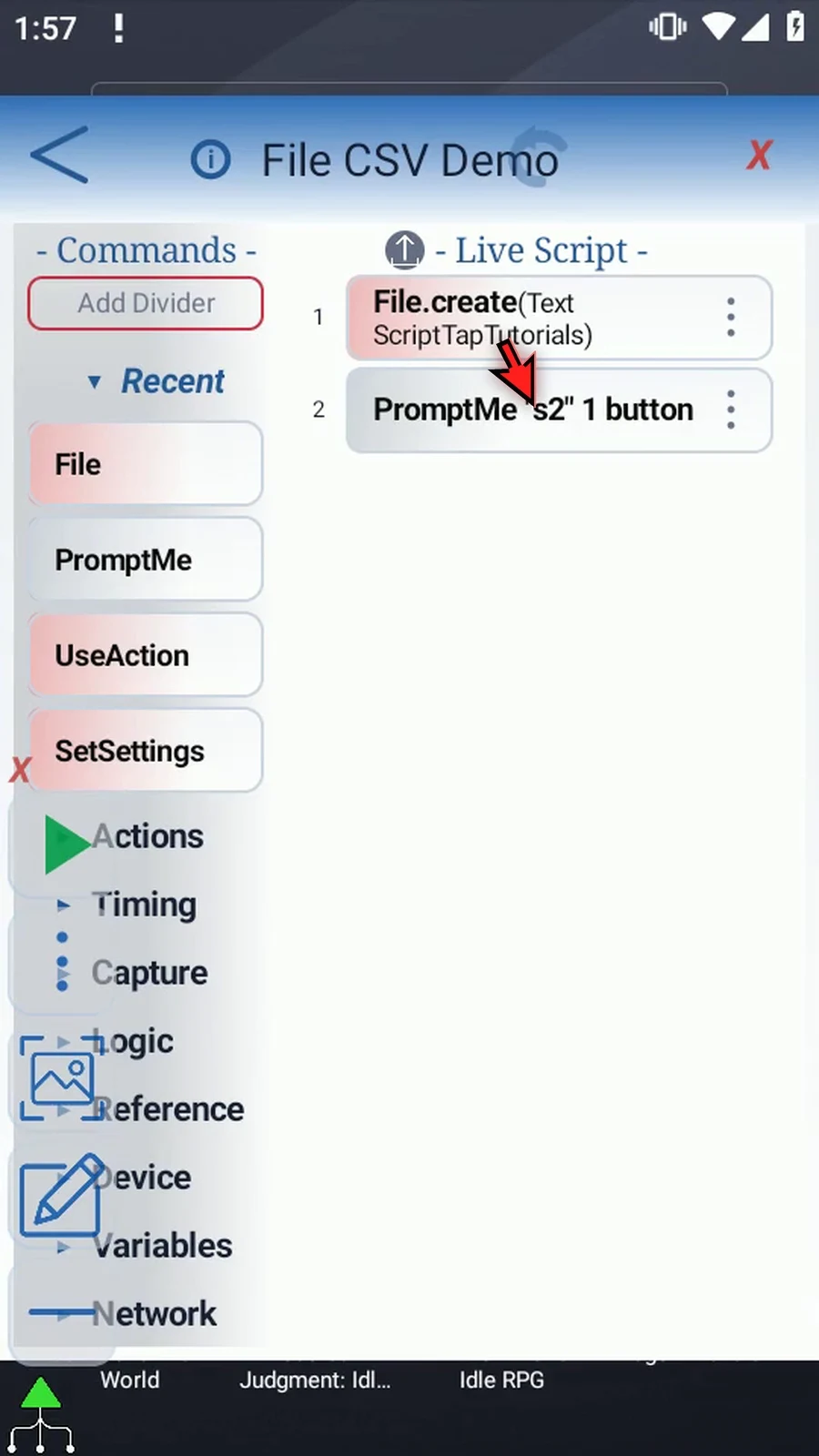
Step 03 Open File, keep Create, and change Format to CSV. This changes the data controls. The destination folder and naming options remain part of the same Create command.
Step 04 Keep the selected tutorial folder and use a filename ending in dot CSV. The introduction explains folder selection and access. We'll create a separate file for these table examples.
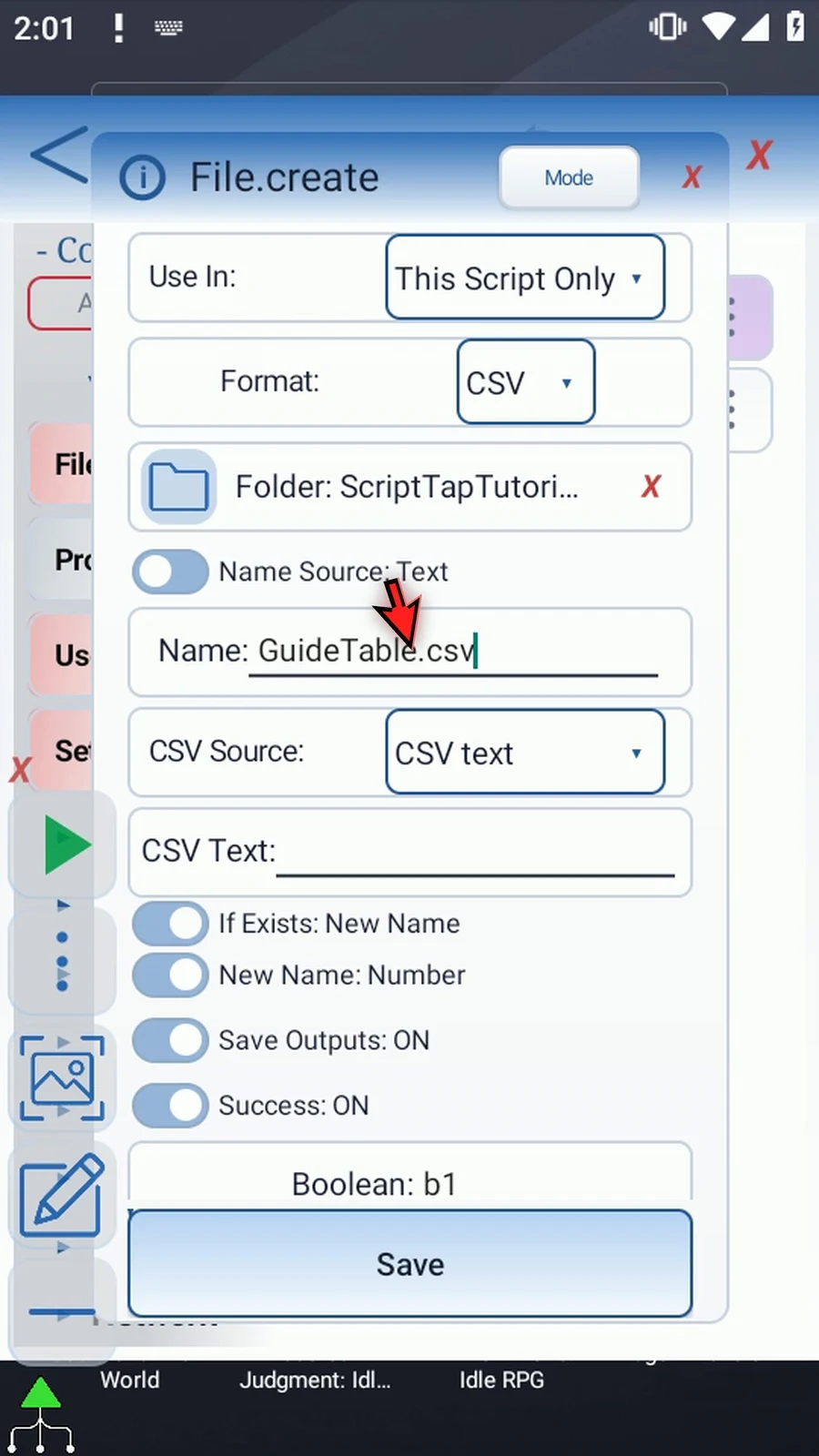
Step 05 CSV Source has two choices. CSV text writes the characters entered here. String array row uses String variables that an earlier command has already prepared. Let's look at that option before returning to text.
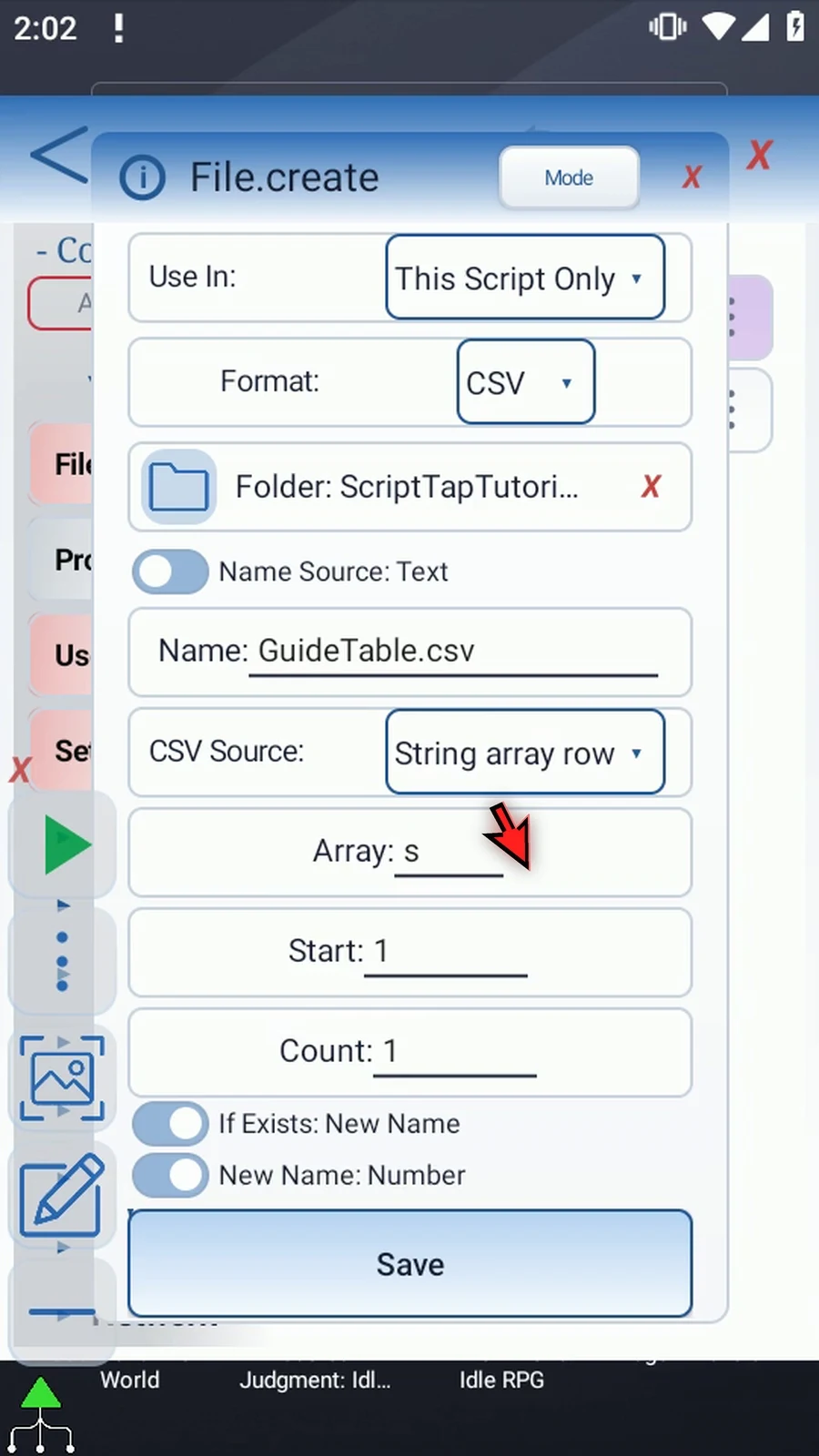
Step 06 Array is the variables' letter. Start is the first index, and Count is the number of cells. For example, s, Start one, and Count two would use String s1 and String s2. Both must already hold String values.
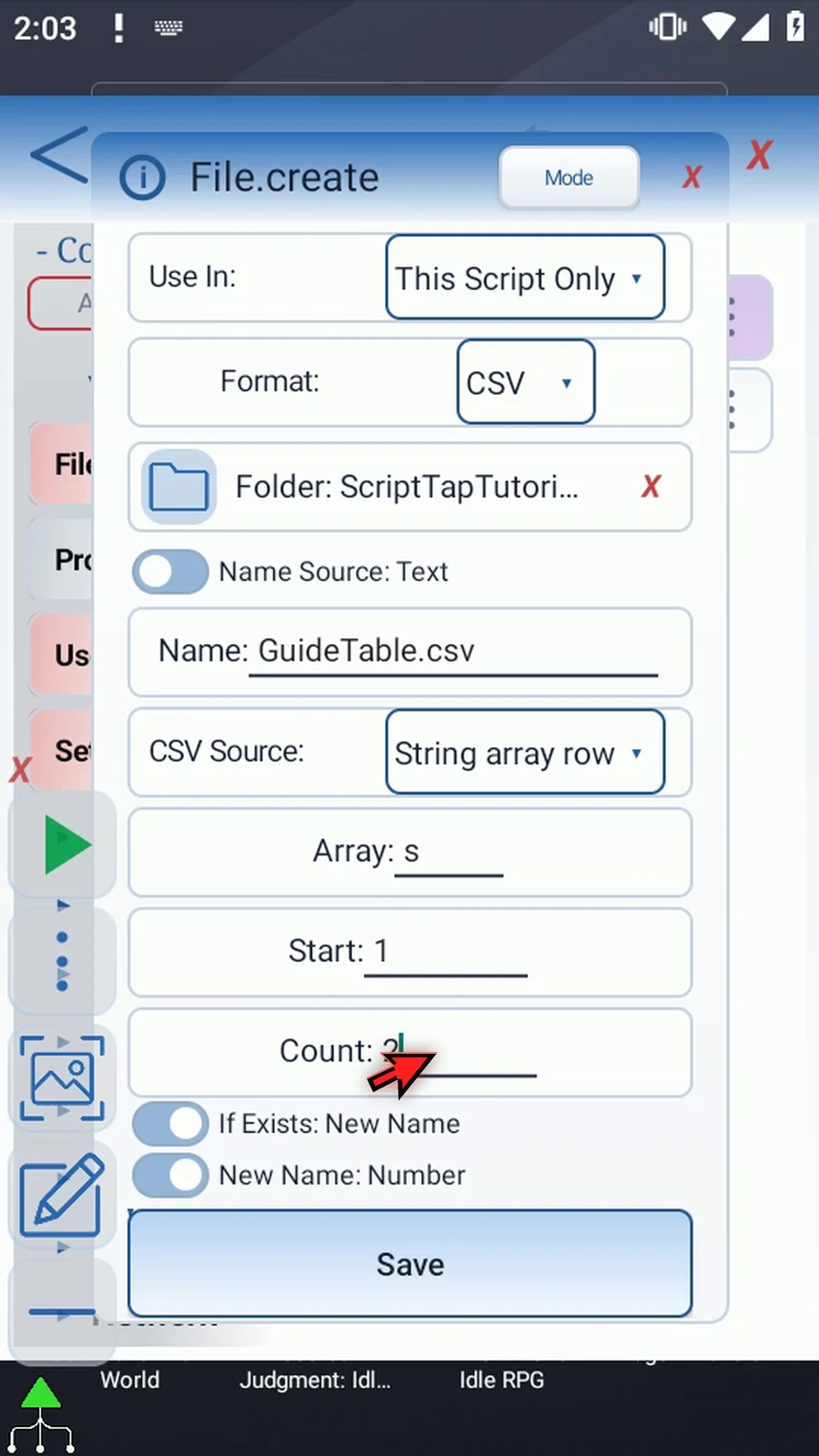
Step 07 This source creates one CSV row, adding quotes and escaping where needed, then a newline. Start and Count can be positive numbers or Integer variables. Keep the source range within slots one through four thousand and ninety-six.
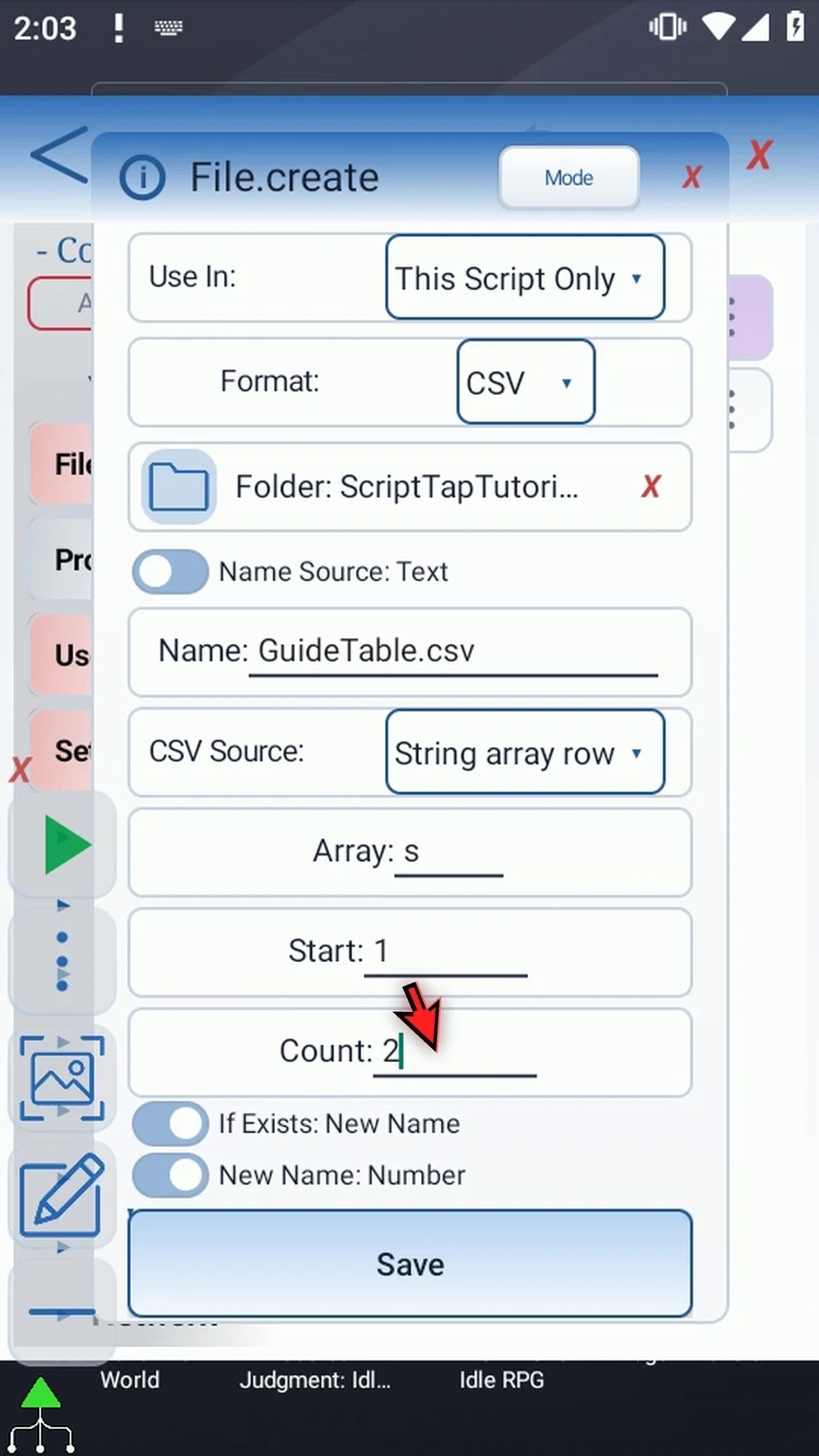
Step 08 We'll use CSV text for this example. Choose it before entering the table header. Switching the source clears the outgoing source values.
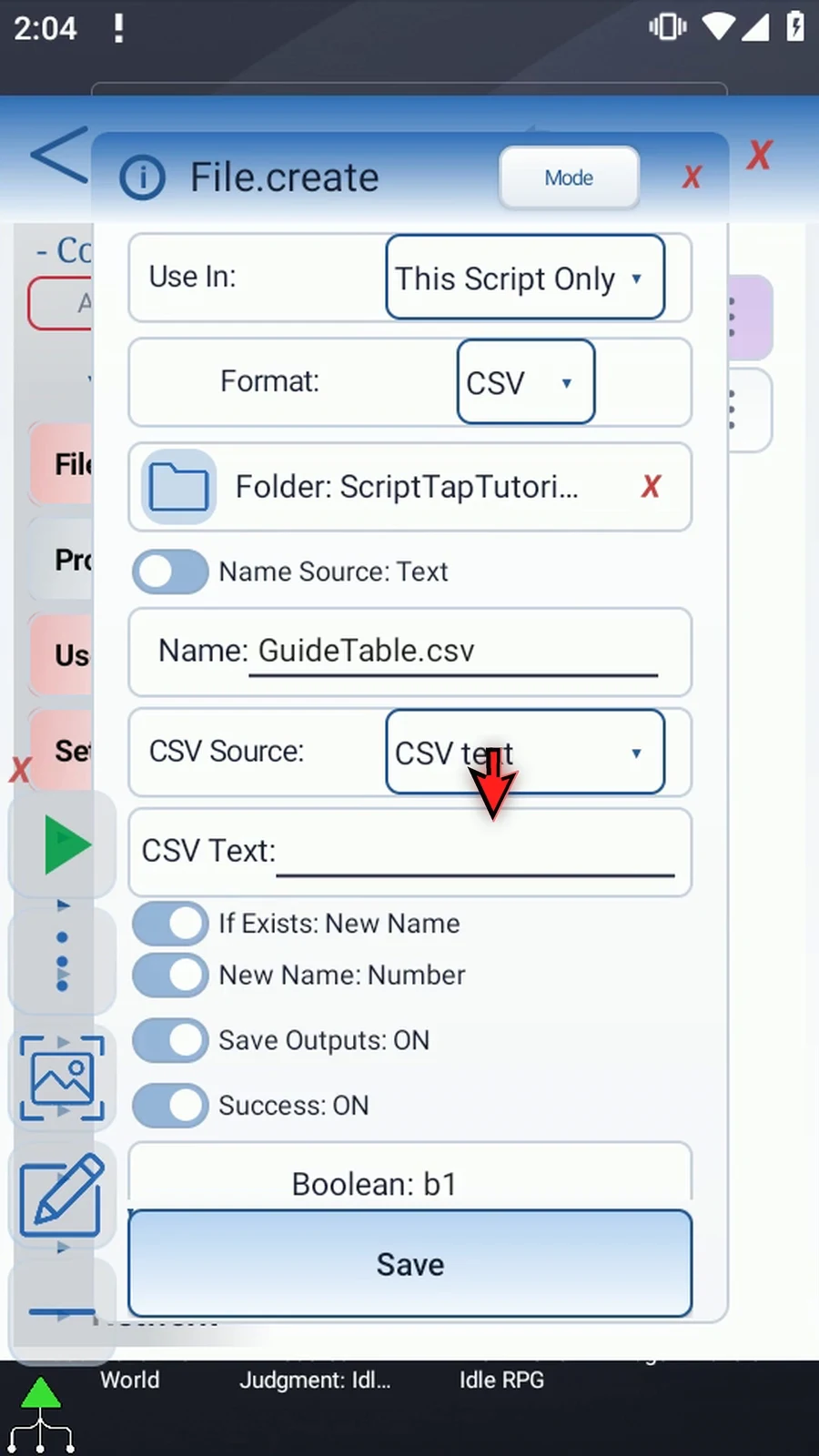
Step 09 Enter Name, a comma, and Value. This gives our table two header cells. CSV text is written exactly as entered; File does not repair its structure. Use proper CSV quoting when a cell contains a comma, a quote, or a line break.
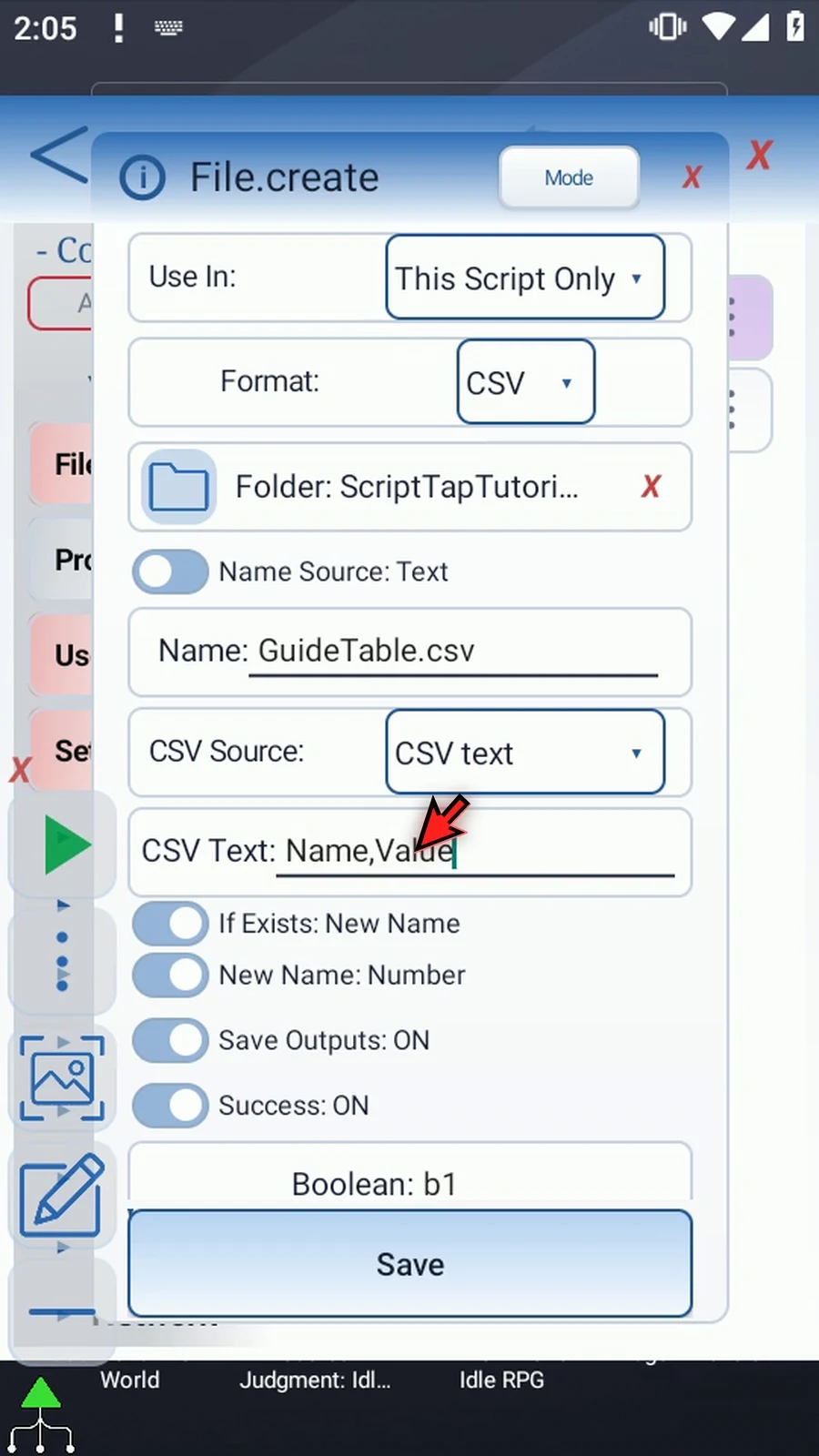
Step 10 Keep If Exists set to New Name, with Number selected. This protects an existing file by choosing an available name instead of replacing it. The introduction explains both naming options and explicit Overwrite.
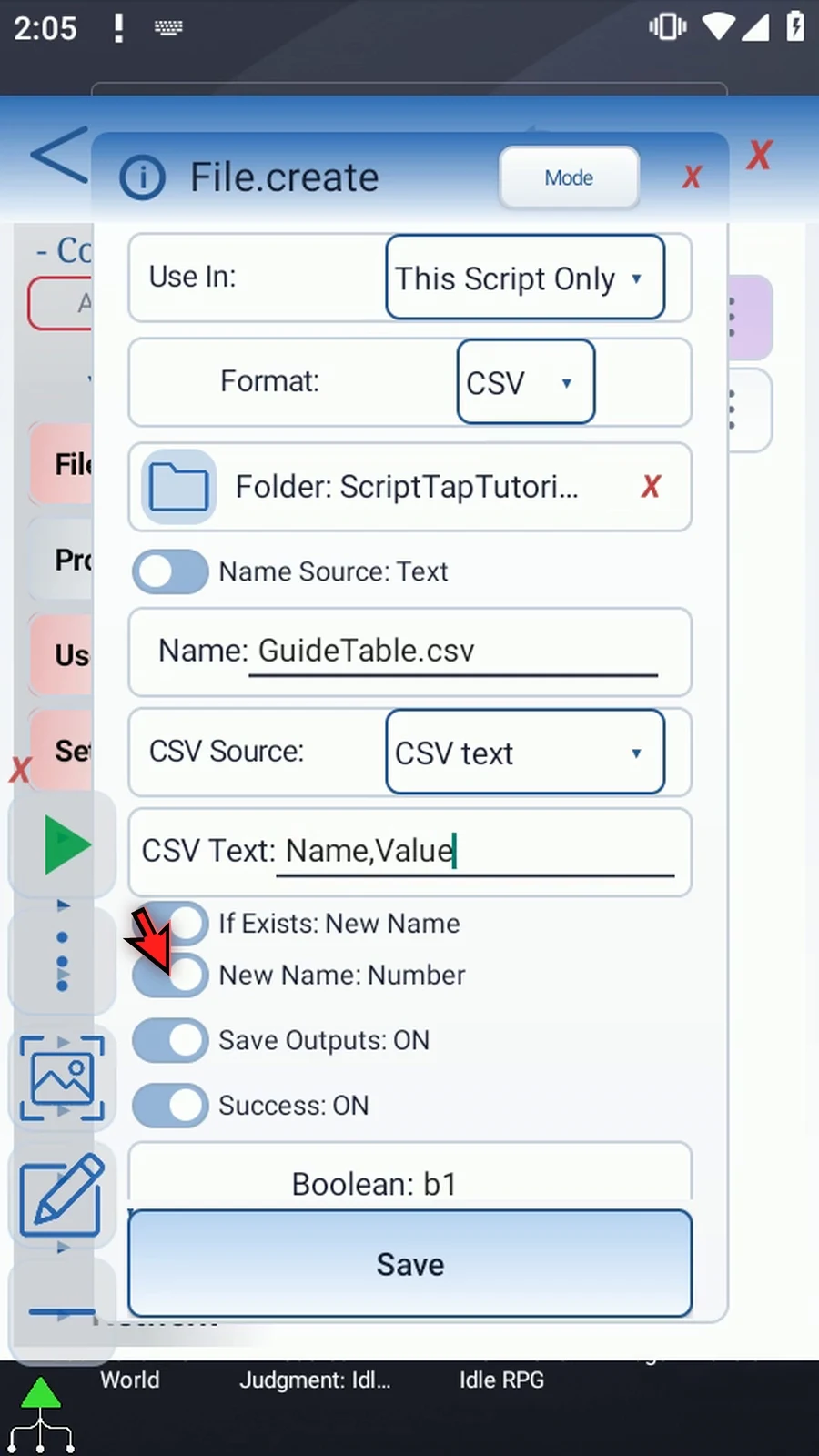
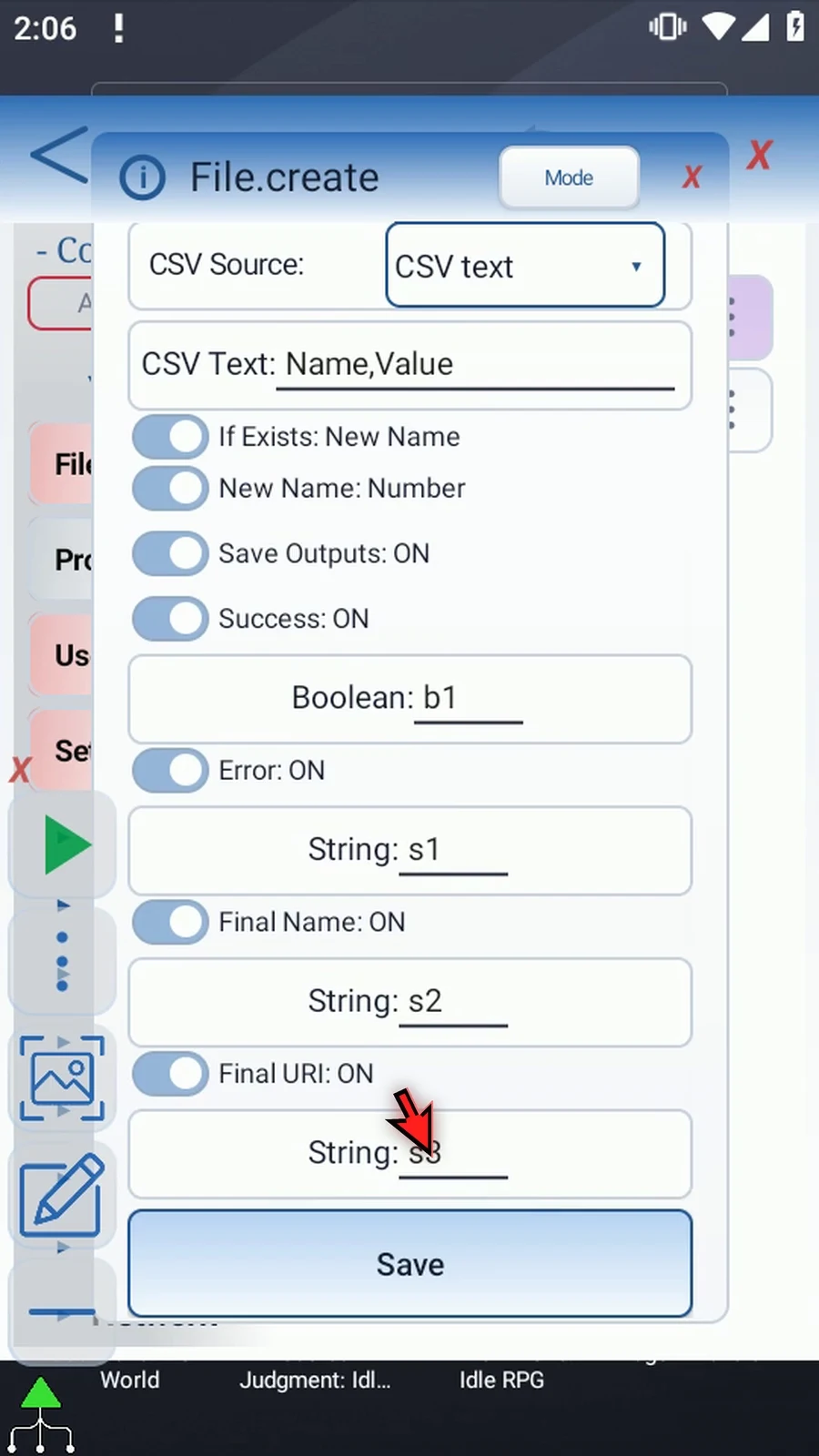
Step 11 Keep Success b1, Error s1, Final Name s2, and Final URI s3. The final name can differ from the requested name if a file already exists. PromptMe will show the actual name returned in s2.
Step 12 Save File. Its row now shows Create with CSV format. The file has not been created yet; this happens when the script plays.
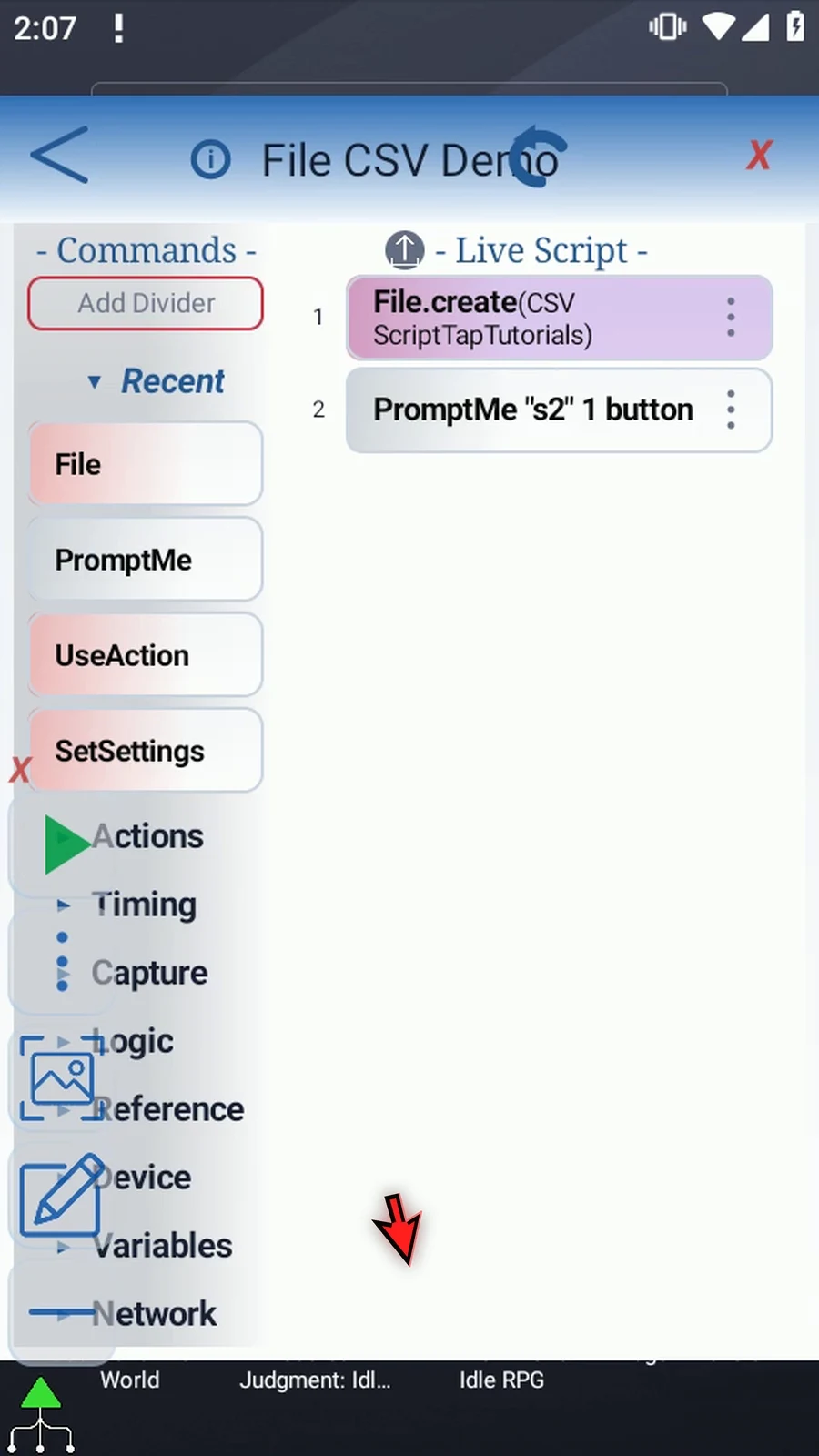
Step 13 The existing Standard PromptMe uses Header s2 and a Done button with Boolean b2. It confirms the created filename, not the table's contents. Keep those settings and tap OK.
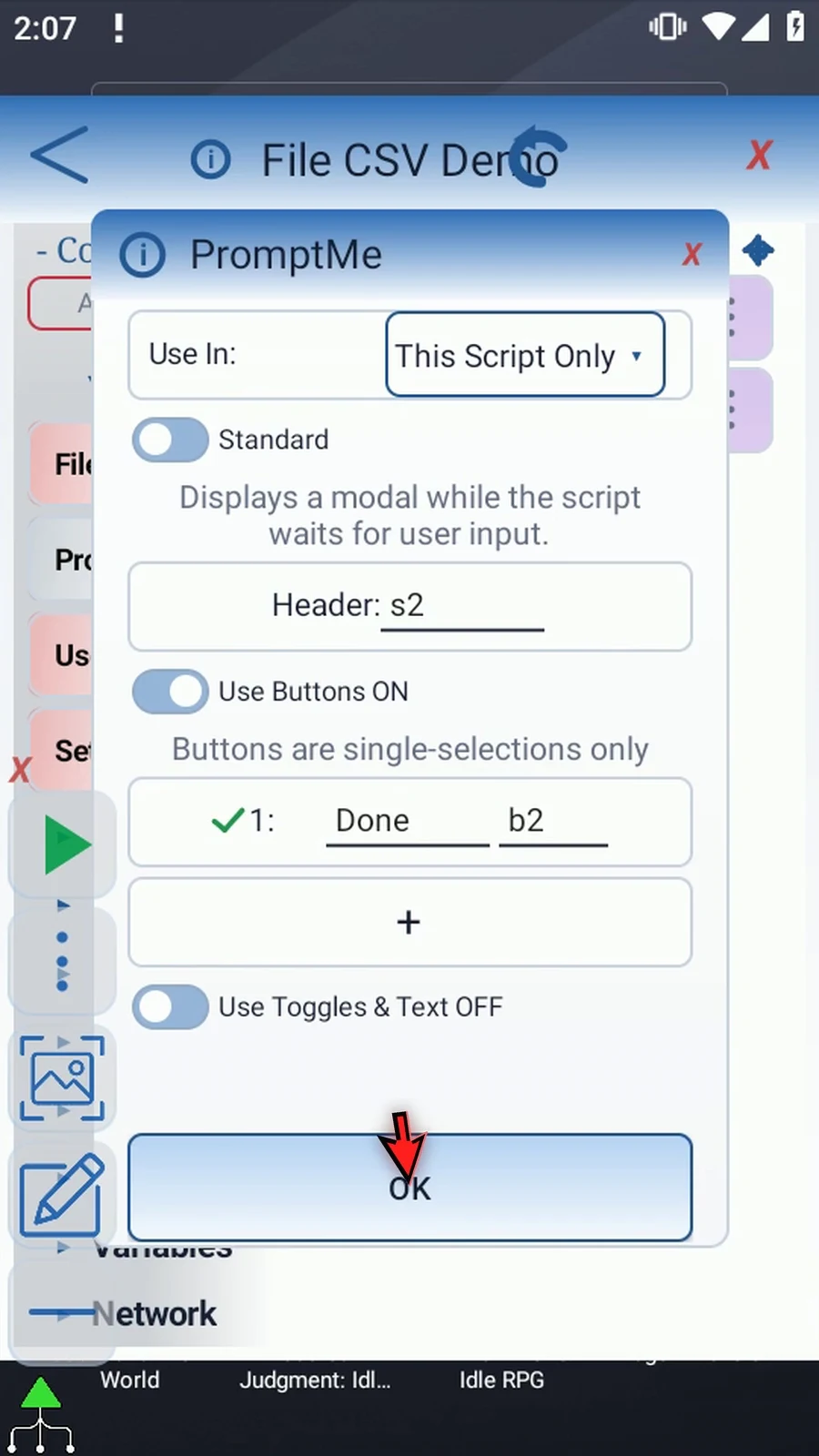
Step 14 When the script is complete, simply use the Play button in the main overlay.
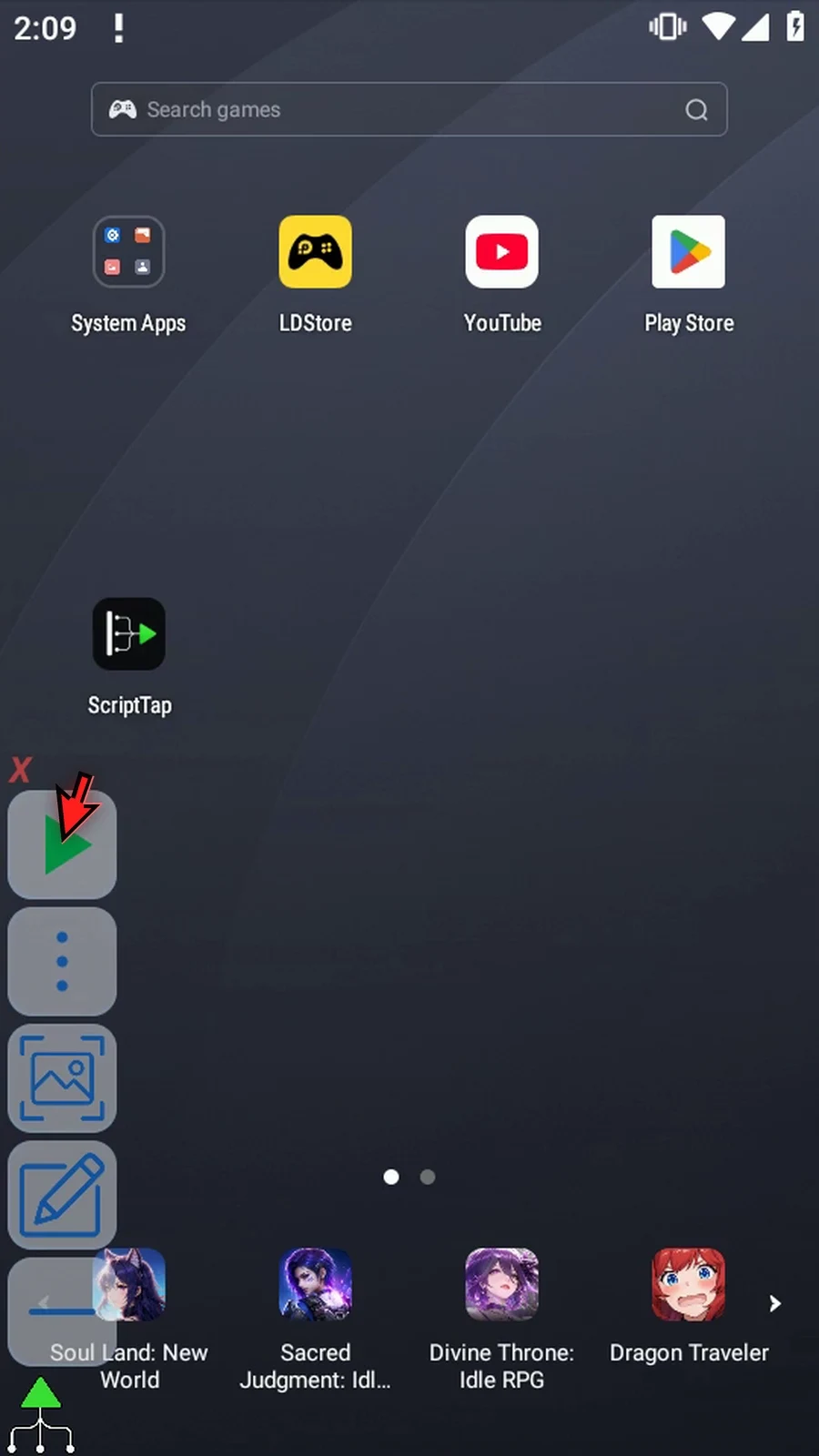
Step 15 The confirmation shows our new CSV filename. File has created the document in the selected folder. Its first row contains Name and Value, ready for later commands to add or read data.
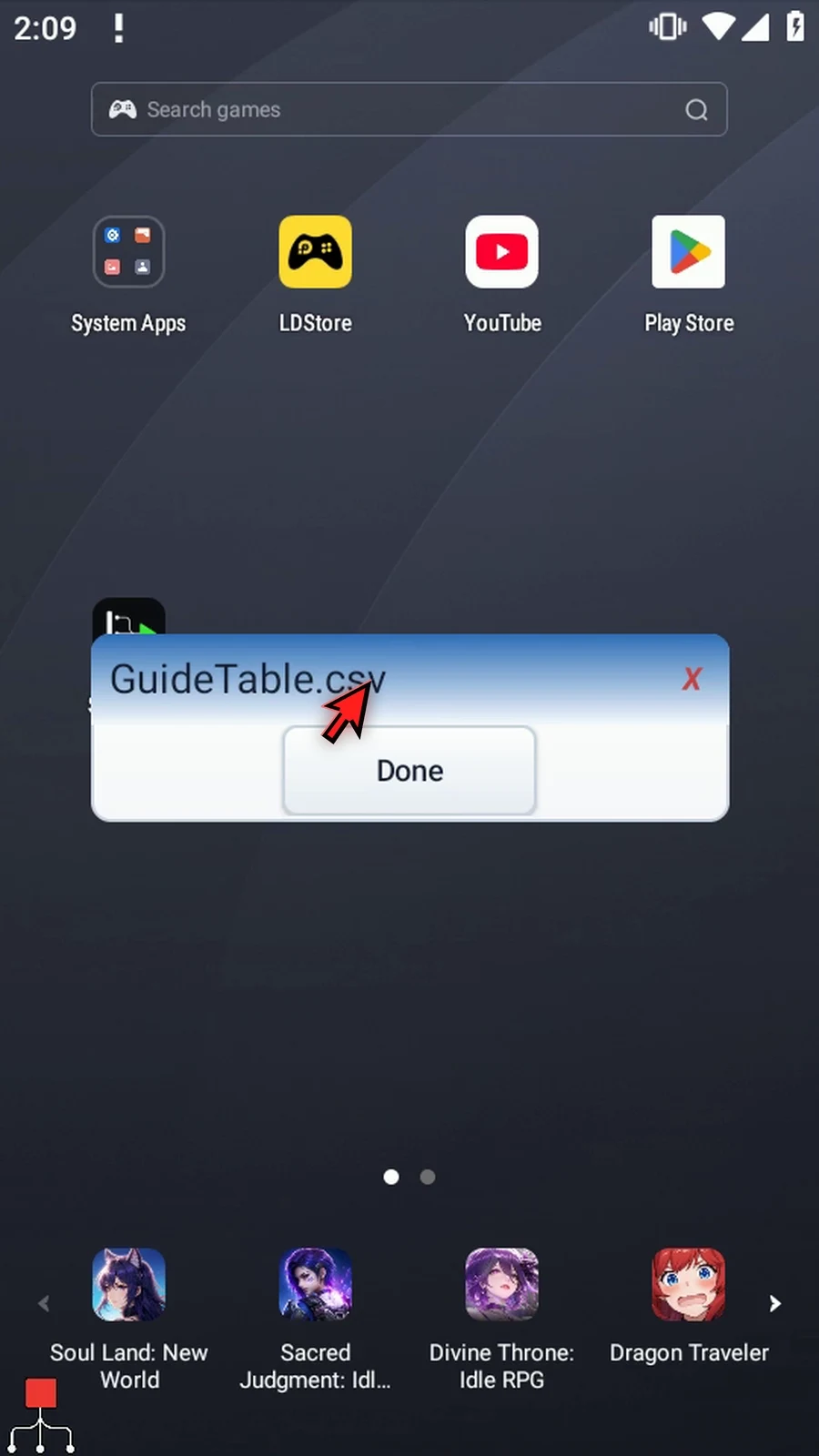
Step 16 Press Done to close the confirmation. The script then finishes automatically.
Step 17 Use CSV when later steps need rows and columns rather than one unstructured text string. Continue with Append CSV to add a data row, then the Cell, Row, and Column guides to read the values back.
File Append adds a CSV row to an existing table without replacing earlier rows. Use it to add new entries as a script runs. Every run appends again.
The Create CSV guide prepared GuideTable.csv with the two-cell header Name,Value. This video starts with a separate copy of the Read Text script, including its supporting Standard PromptMe. Accepted scripts are not edited.
- Operation and format: open the existing File and use its header Mode button until File.append appears. Choose the operation before its file. Set Format to CSV. Append supports Text or CSV, not JSON.
- File: use Android's document picker to select the existing table itself, not its folder. If Android asks, allow file access. Append needs saved write access. Play uses the saved selection; it does not open a picker.
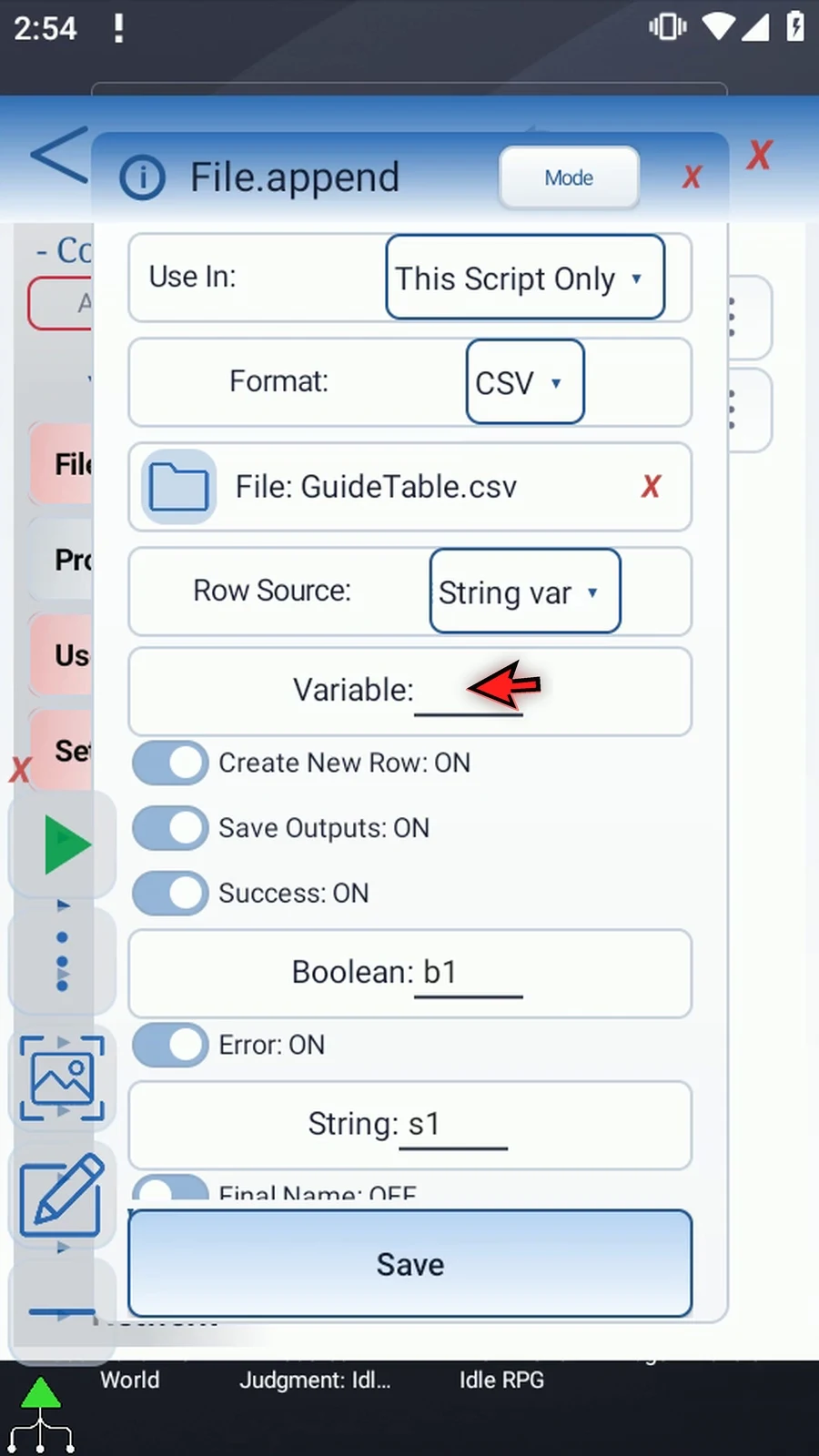
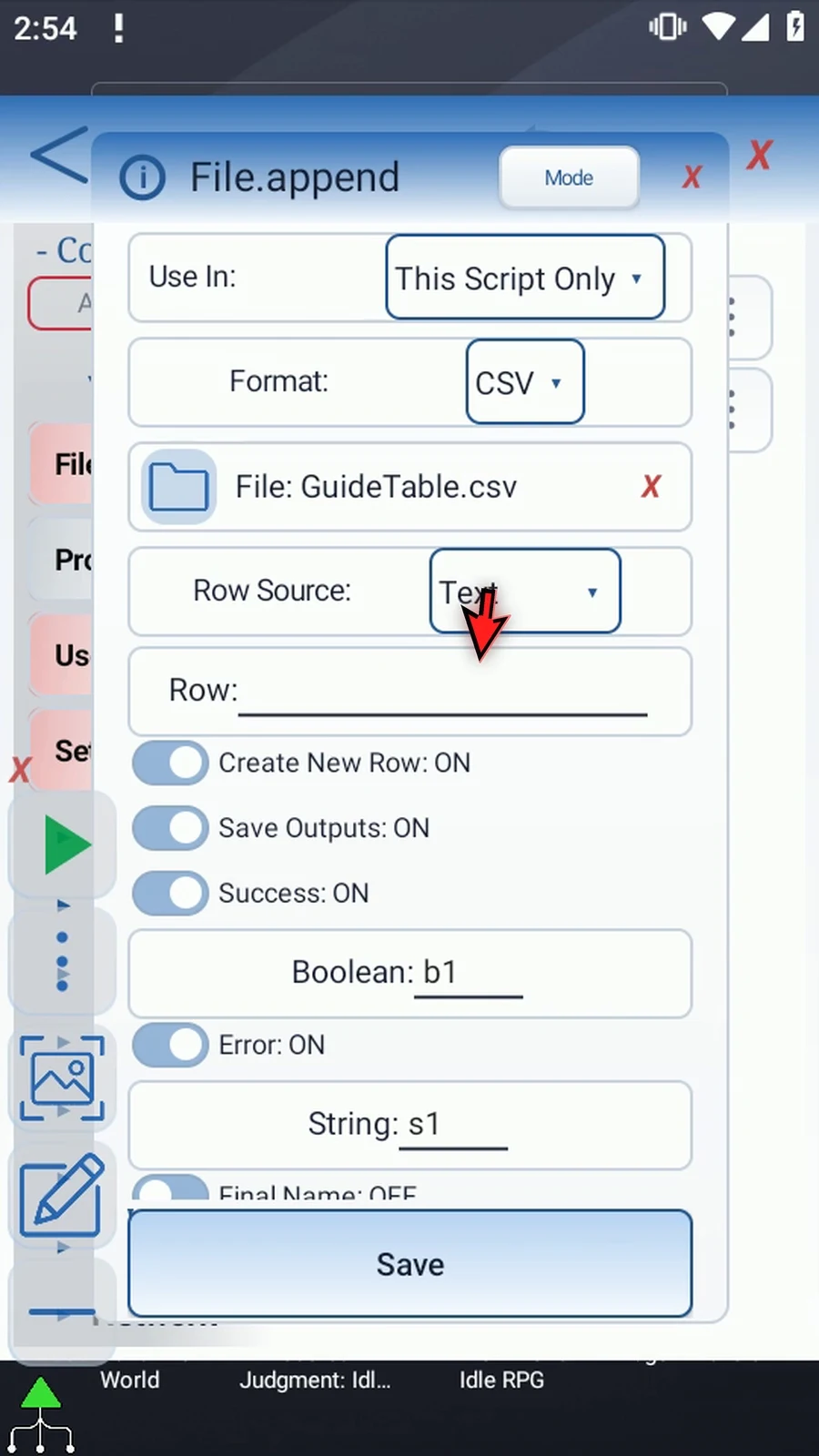
- Row Source: Text uses the CSV row entered here. String var uses an already prepared String named in Variable. That String contains one logical CSV row; this source does not directly consume an array of cells. Choose the source before entering its value.
- Example row:
"ScriptTap, Demo",Ready. Quotes keep the first comma inside the first cell; the comma after the closing quote separatesReadyinto the second cell. CSV Append parses and re-serializes exactly one logical row with proper escaping. A malformed row fails. - Create New Row: ON adds a newline boundary before append if the existing file does not already end with a line break. OFF removes that safeguard. CSV Append always writes a terminator after the incoming row. This is different from Text Append's optional trailing newline. The example's original ten-byte header has no newline, so keep ON.
- Status outputs: keep Success Boolean
b1and Error Strings1. They report Append's status, not its row contents. Final Name and Final URI stay OFF in this existing-file example.
Save Append. Manually drag a second File between it and PromptMe. Keep Read / CSV / Cell, select the same table, set Row: 2, Column: Header, Header: Value and Save Cell: s4. Header matching uses the first row, is case-sensitive after trimming and takes the first exact match. Leave Read's optional outputs OFF so it does not replace Append's status. Dedicated CSV reading guides explain these controls in detail.
Keep the existing PromptMe in Standard mode, with Header s4 and a Done button writing Boolean b2. The order is Append → Read → PromptMe. Play appends one row and displays the actual Ready cell from row two. The quoted comma stayed inside the first cell, so Ready remains in the second column. The original header remains intact. Done closes the confirmation and the script finishes automatically.
Read and PromptMe are supporting confirmation; the featured command is CSV Append. Choose the target carefully, because each subsequent run adds another row. Continue with CSV Cell, Row and Column reading guides to retrieve table data.
Append CSV
Step-by-step guide
Step 01 File Append can add a CSV row to an existing table without replacing its earlier rows. It's useful for adding new entries as a script runs. We'll append one row, read a cell back, and show the actual result with PromptMe.
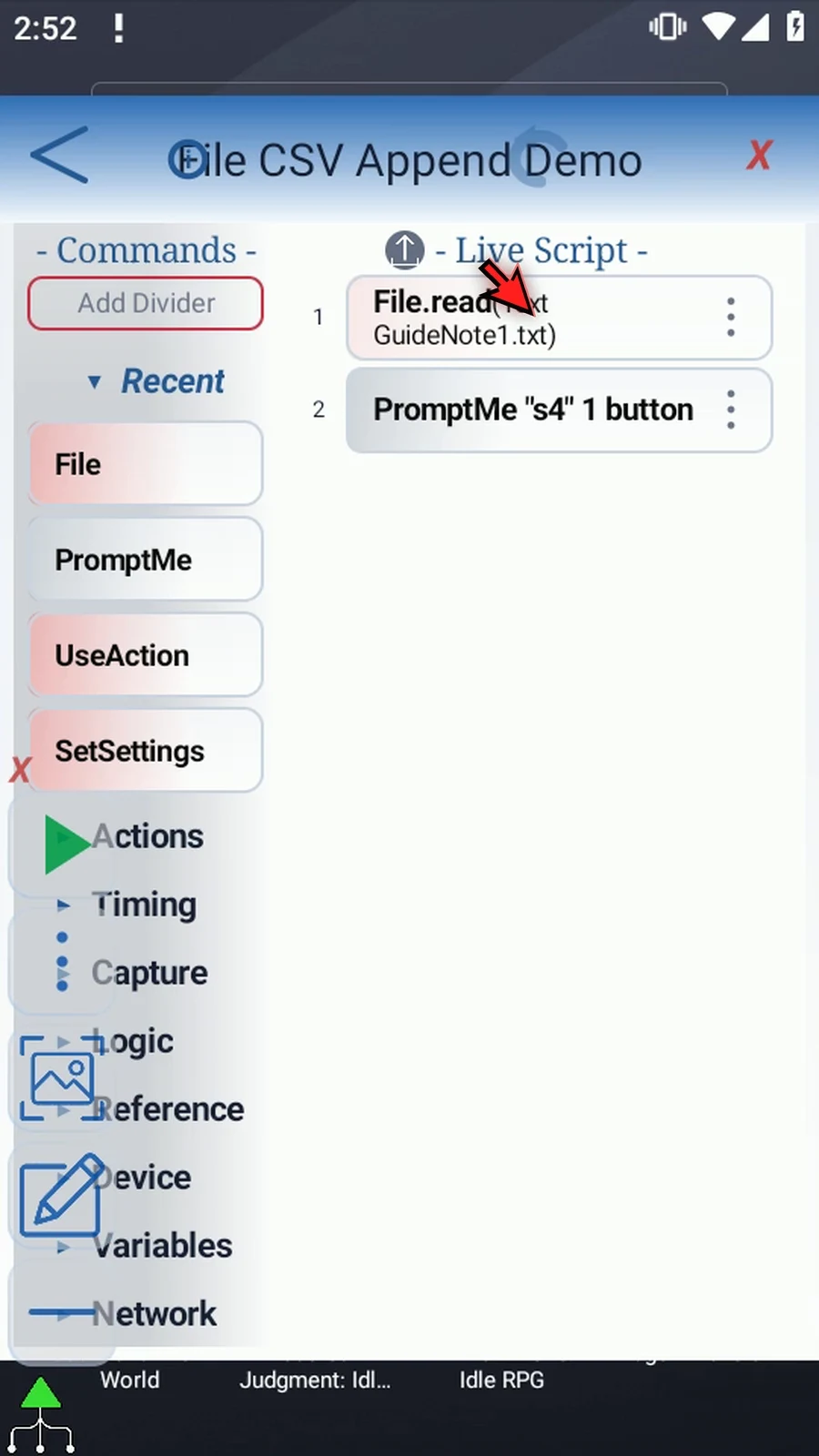
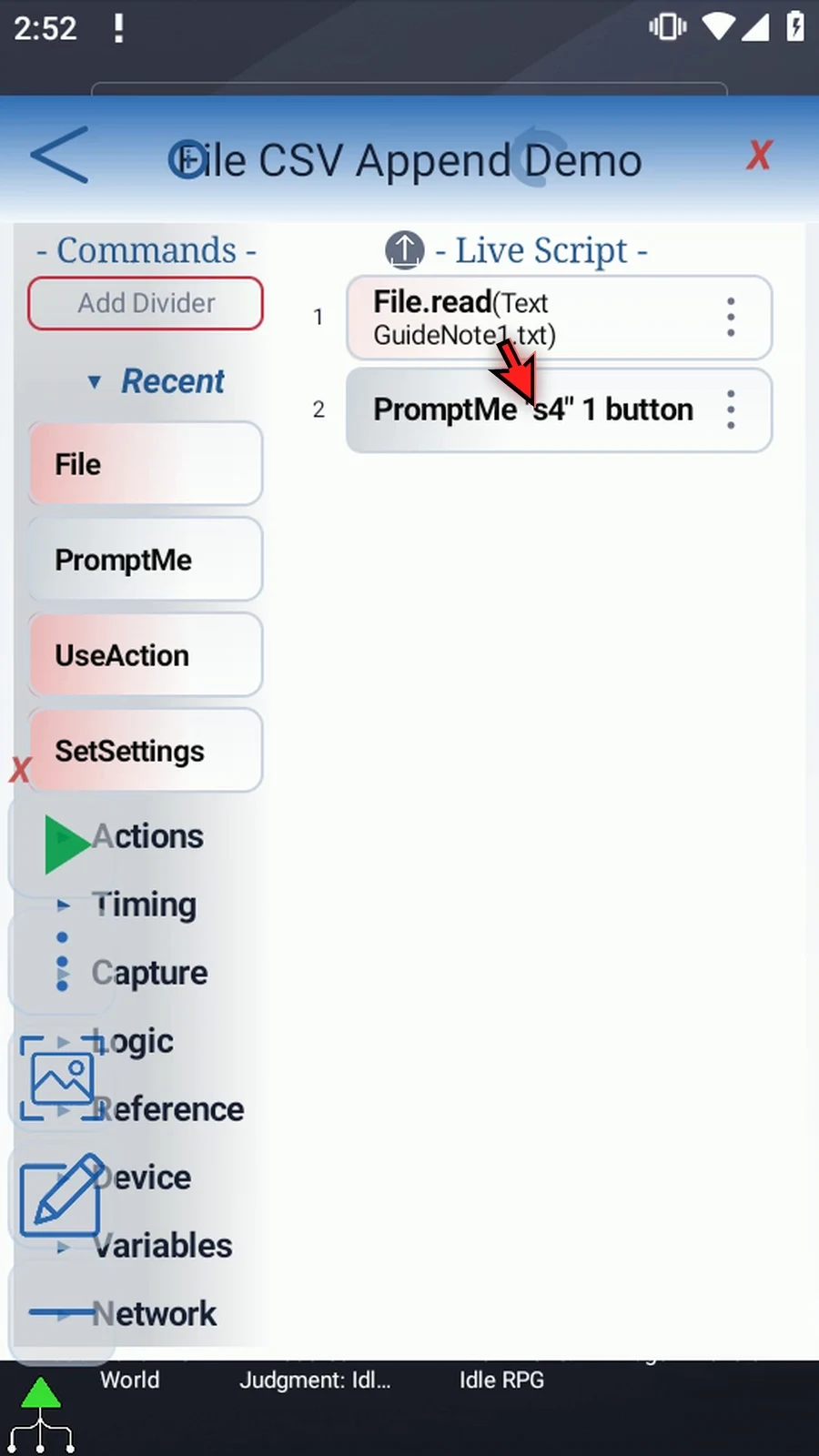
Step 02 The Create CSV guide prepared our table with Name and Value as its two headers. This example starts with a copy of the Read Text script, including PromptMe. We'll change the first File command and add a separate read afterwards.
Step 03 Open File. Use its header Mode button until File Append appears. Choose the operation before selecting the document, because Append needs an existing file that ScriptTap can write to.
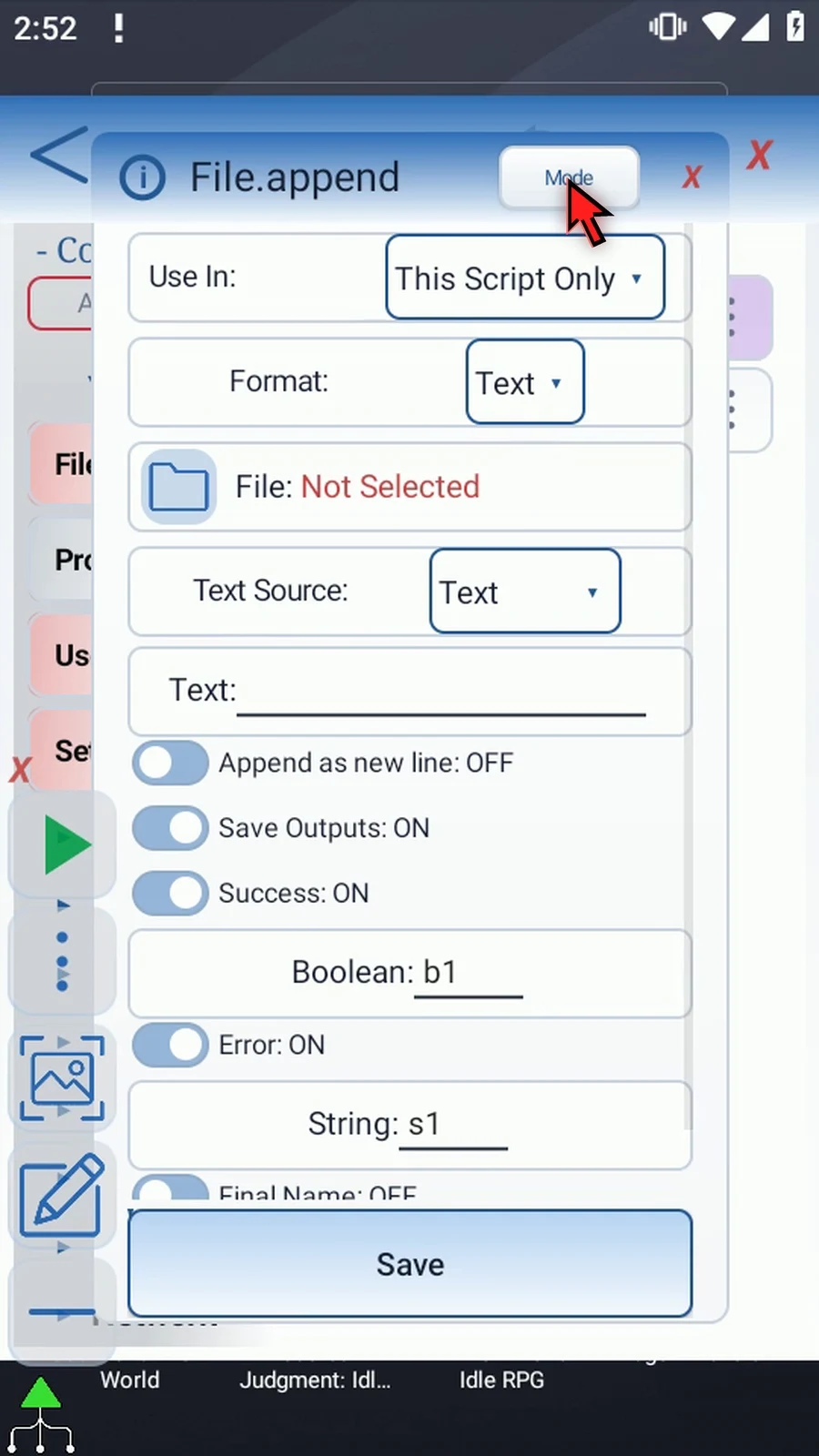
Step 04 Set Format to CSV. Append supports Text or CSV; JSON has no Append option. CSV displays controls for adding a table row.
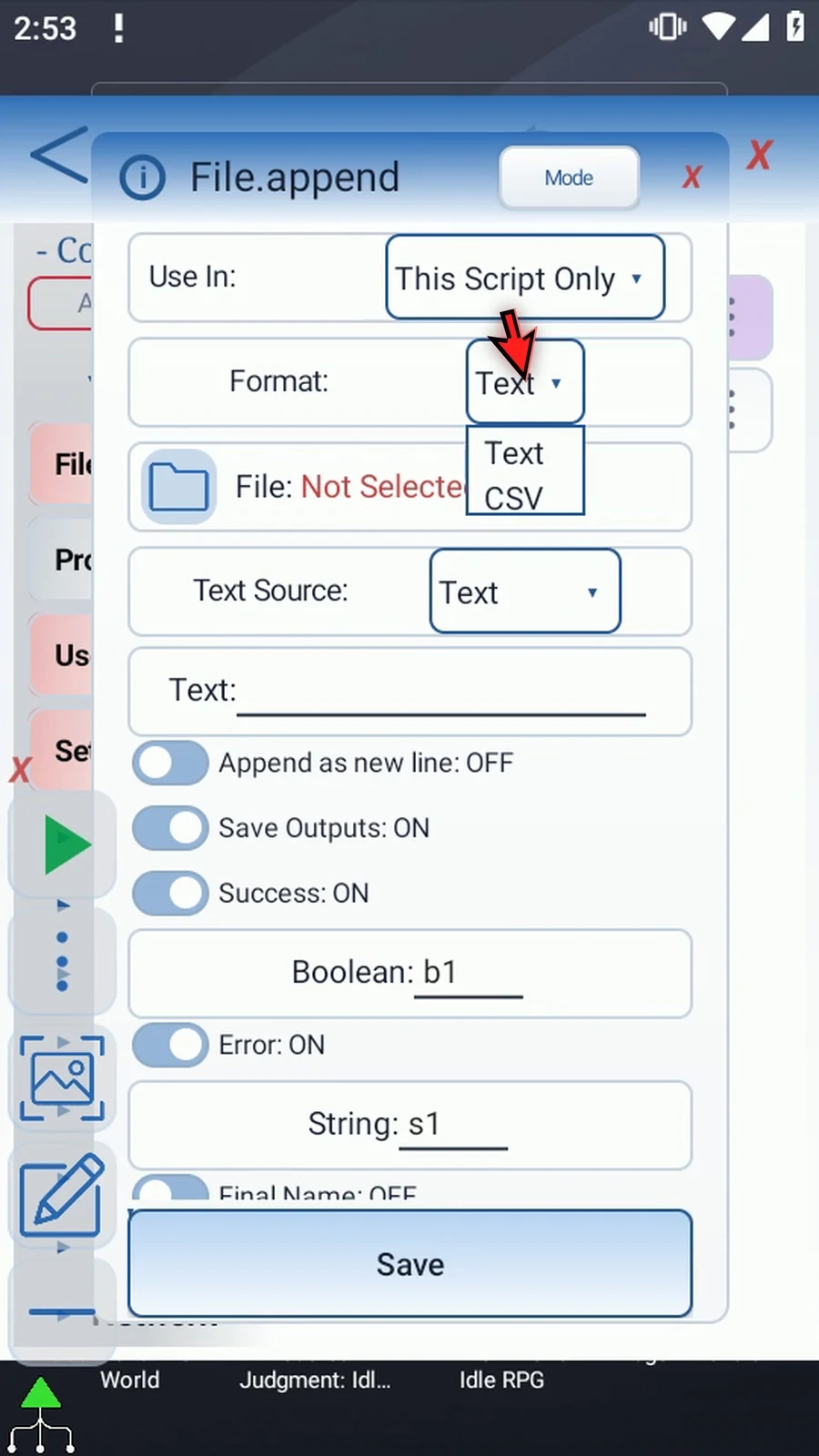
Step 05 Use the File selector to choose the table created in the Create CSV guide. Select the document itself, not its folder. If Android asks, allow file access.
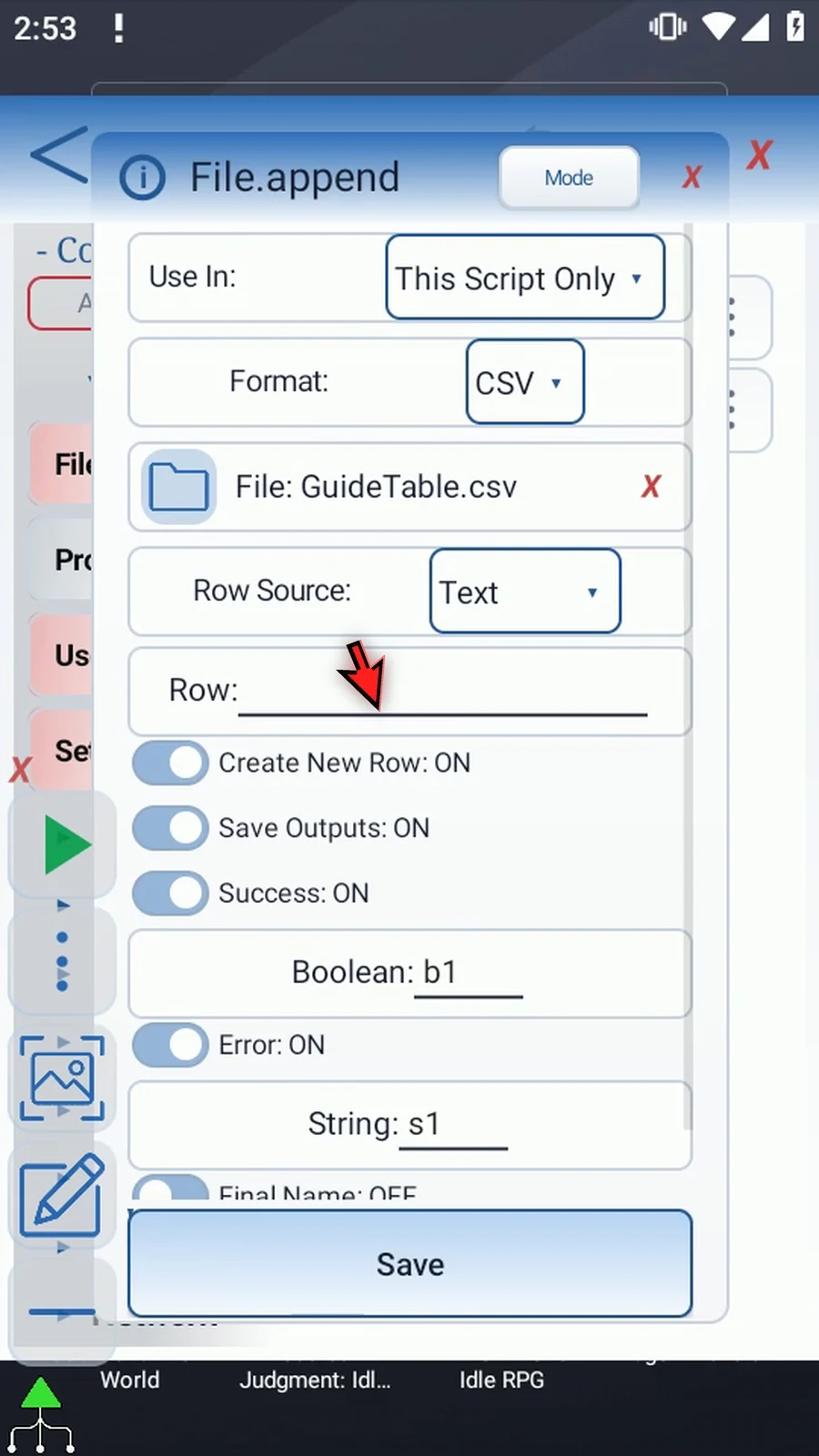
Step 06 Row Source can use Text entered here or a String prepared by an earlier command. String var shows a Variable field for that String's name. The String must contain one CSV row; this option does not directly read an array of cells.
Step 07 We'll use Text for this example. Choose it again before entering the row.
Step 08 Enter ScriptTap, Demo in quotation marks, then a comma and Ready. The quoted comma belongs inside the first cell; the comma after the closing quote separates the second cell. Append parses exactly one logical CSV row and writes it back with proper CSV escaping. A malformed row is an error.
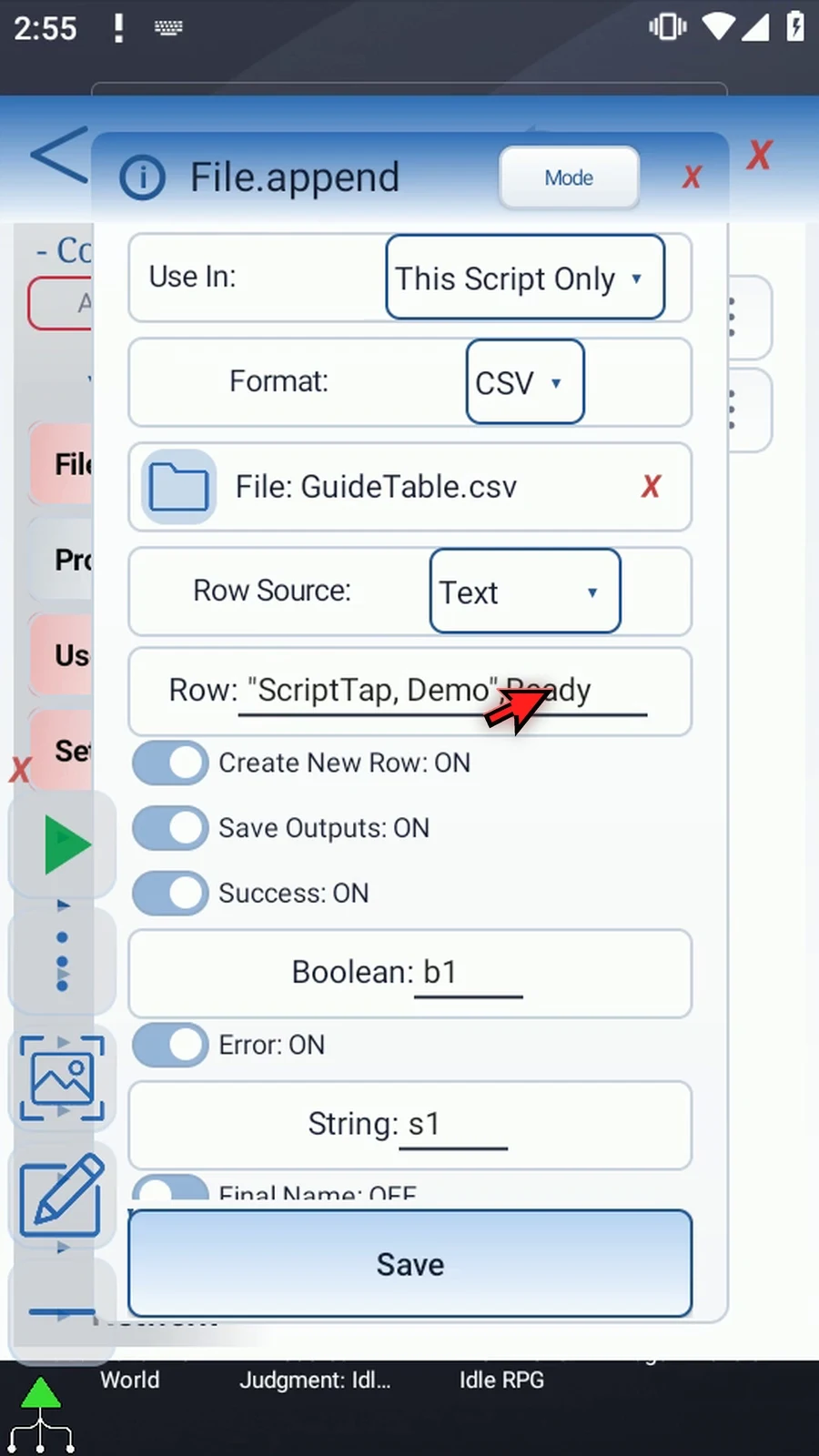
Step 09 Keep Create New Row on. If the existing file doesn't end with a line break, this adds the boundary before the appended row. Turning it off removes that safeguard. CSV Append always ends the incoming row with a line break. This differs from Text Append's trailing-newline option.
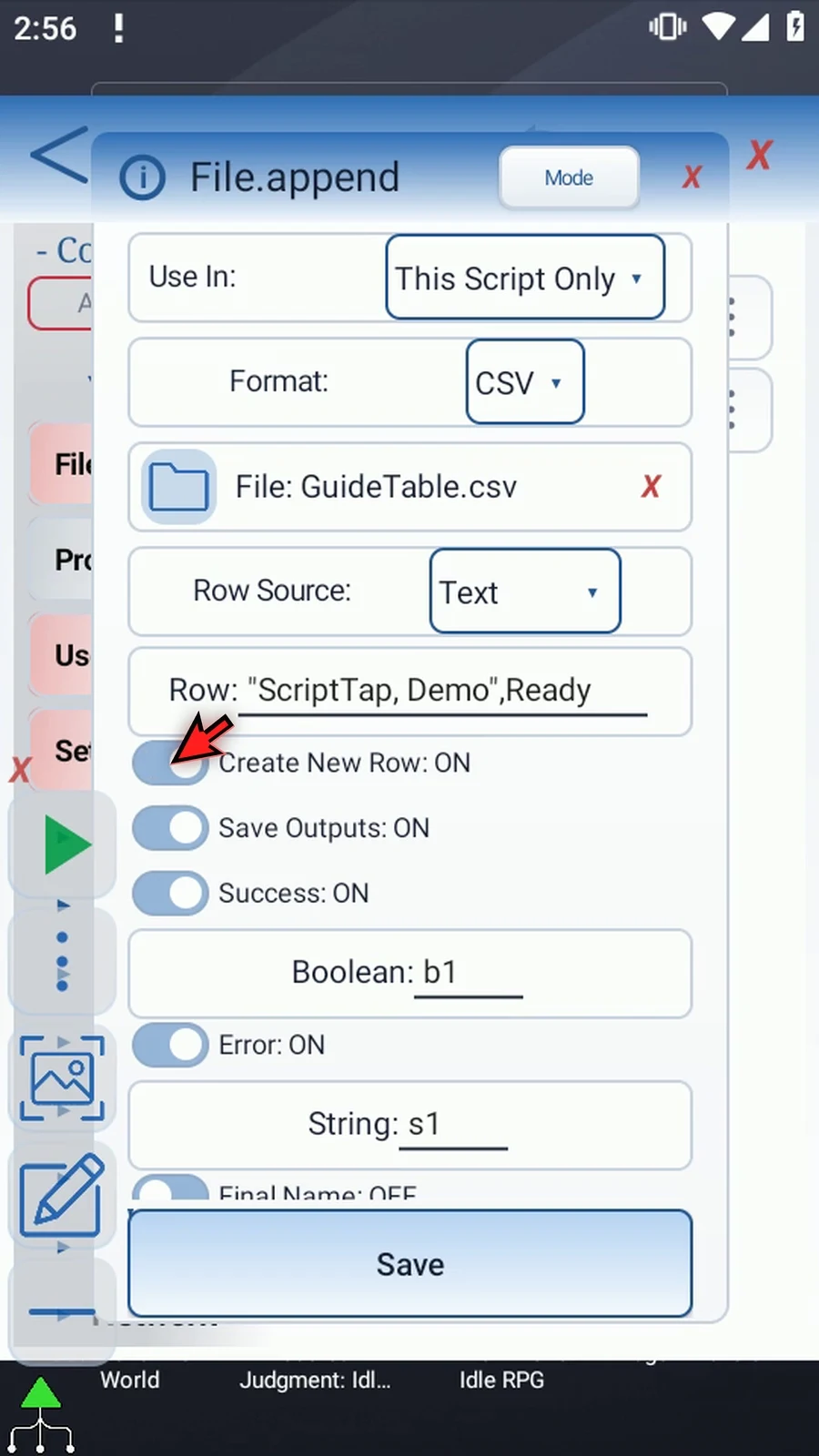
Step 10 Keep Success Boolean b1 and Error String s1. These report whether Append succeeded; they are separate from the cell we'll read afterwards. Final Name and Final URI stay off because we aren't creating a document here.
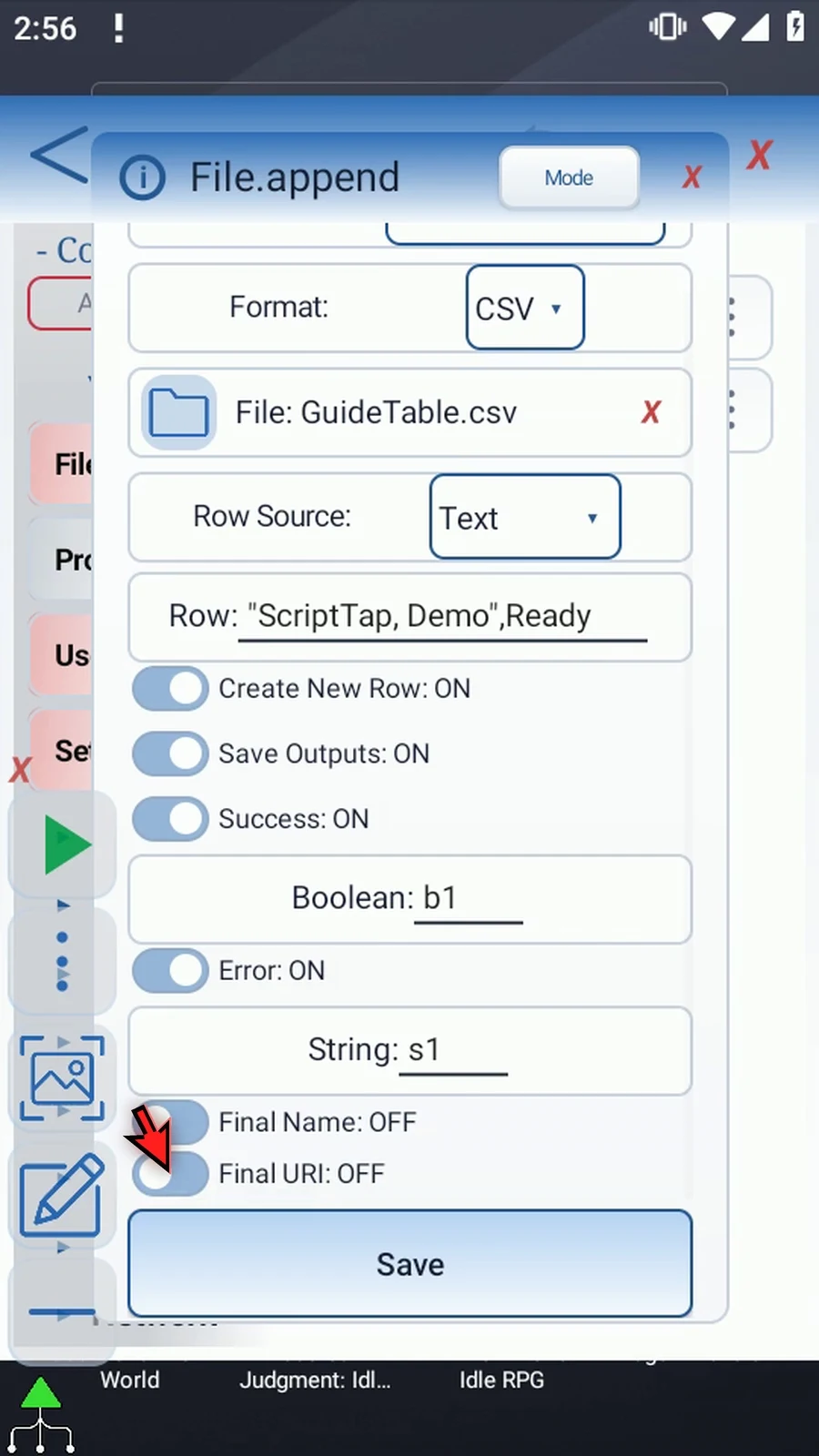
Step 11 Save File Append. Saving the command doesn't change the document. The row is added only when the script plays.
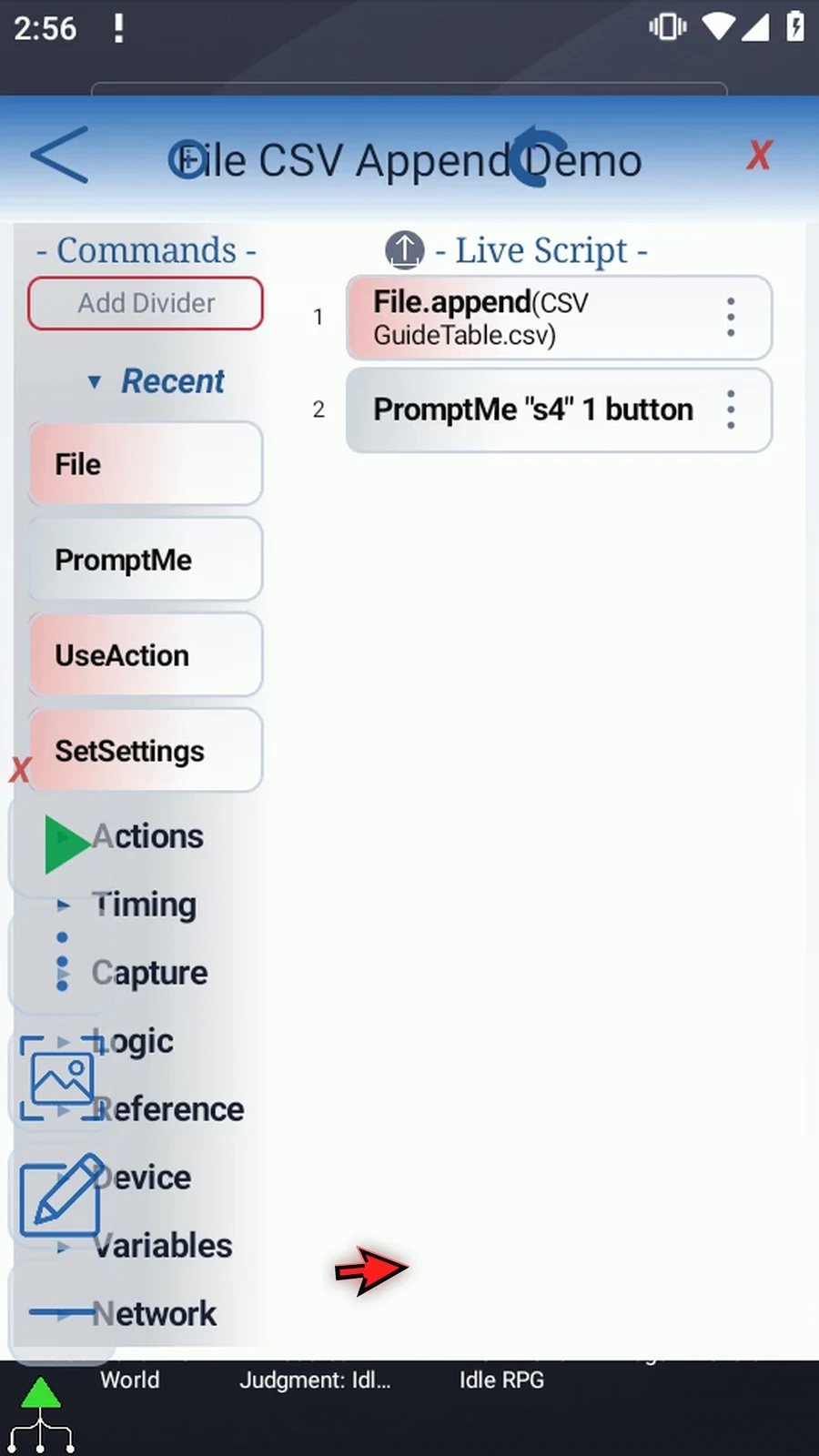
Step 12 Drag another File command between Append and PromptMe. This supporting step will read the updated table after Append has added the new row.
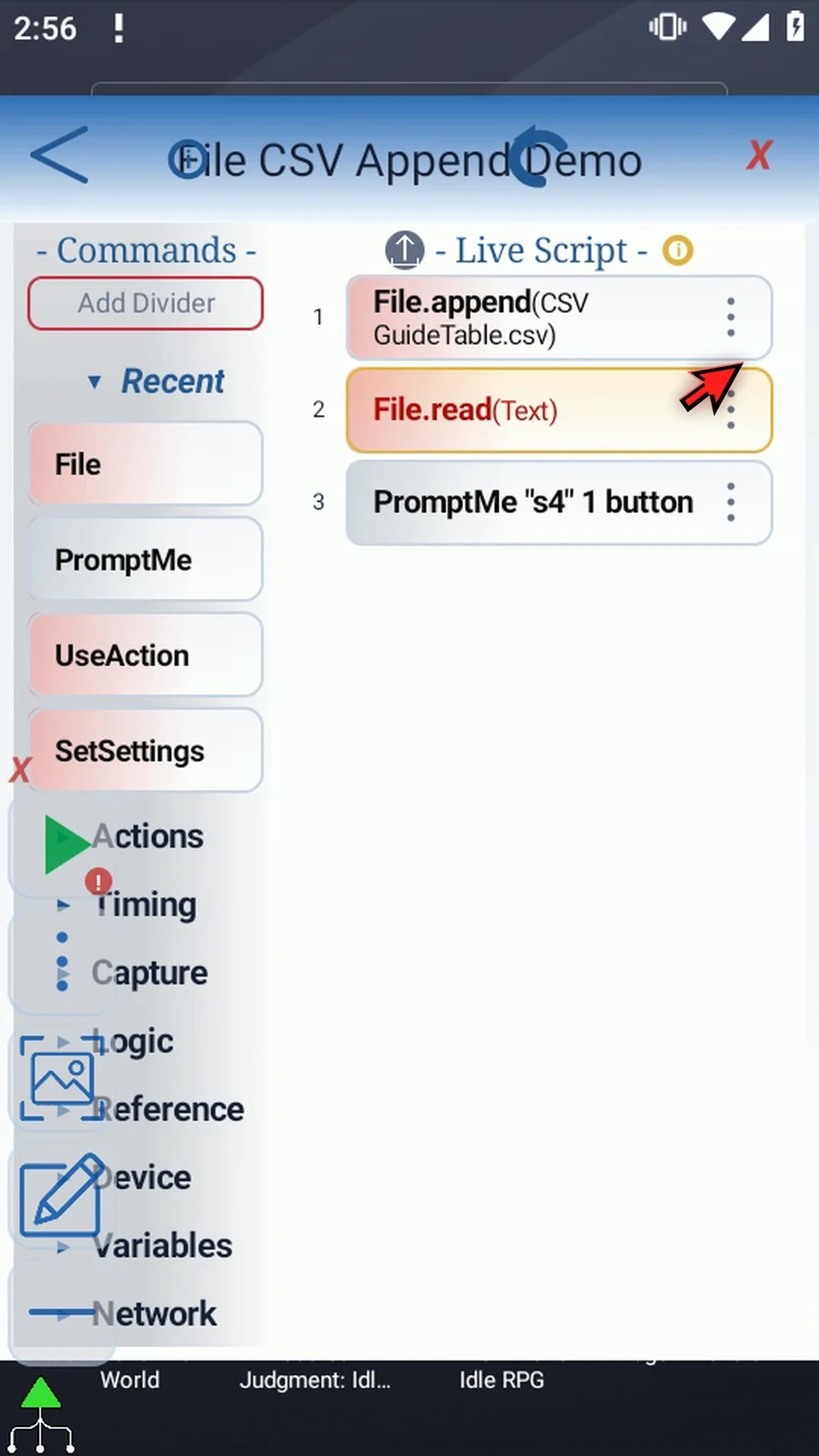
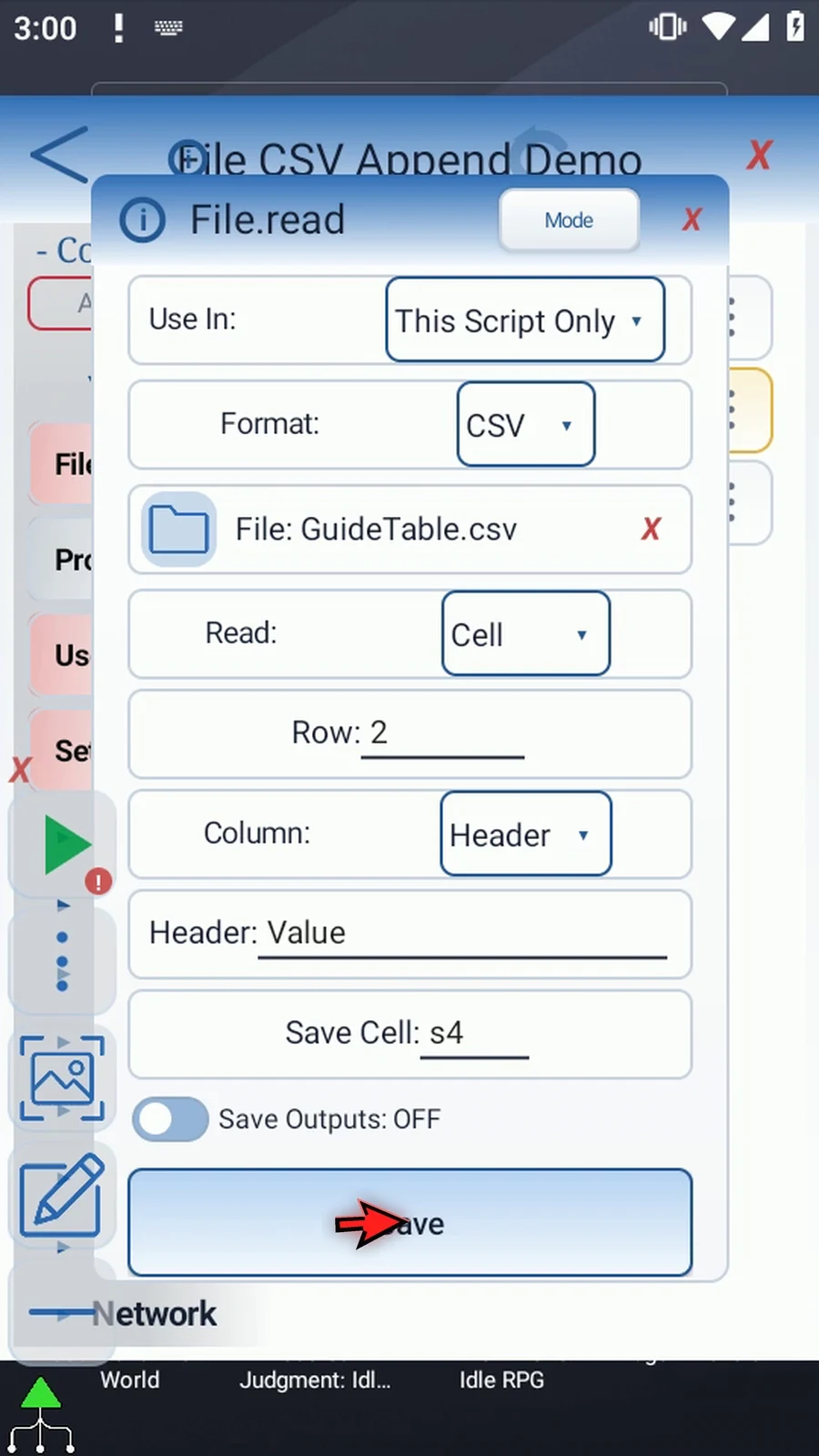
Step 13 Open the new File command. Keep Read, set CSV, and select the same table. It must be the same document, because another file would not show the row we just added. Keep Read set to Cell. Enter row two: row one contains our headers, and the new data starts on row two. The Column control lets you choose a number or a header. Choose Header, and enter Value exactly as it appears in our header. Header matching is case-sensitive, so keep the capital V. Read will store the cell as a String value for commands that follow. Set Save Cell to s4. Leave optional outputs off, then save.
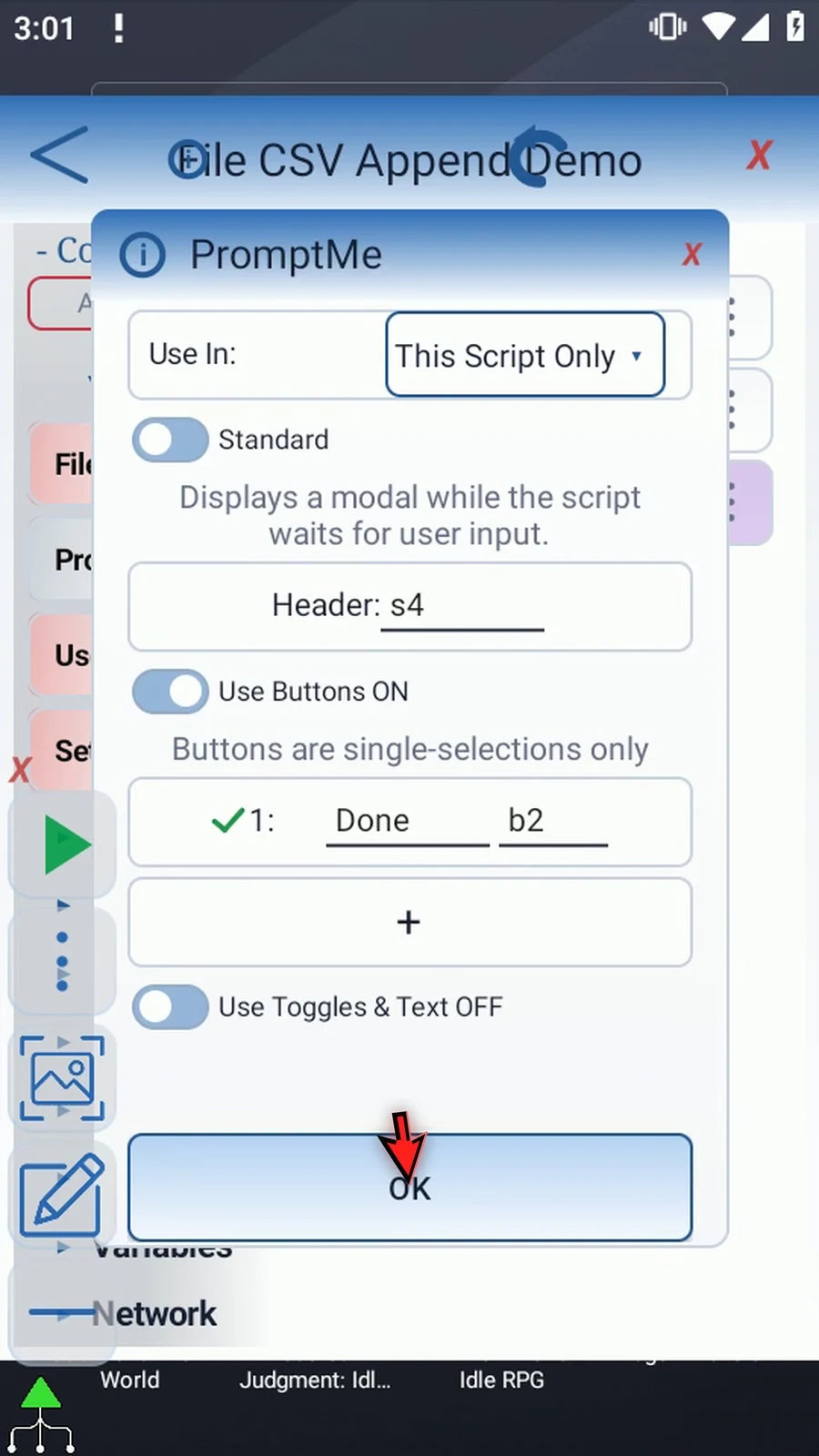
Step 14 The existing PromptMe uses Standard mode, Header s4, and a Done button with Boolean b2. It will display the cell returned by Read, not the append status. Keep these settings and tap OK.
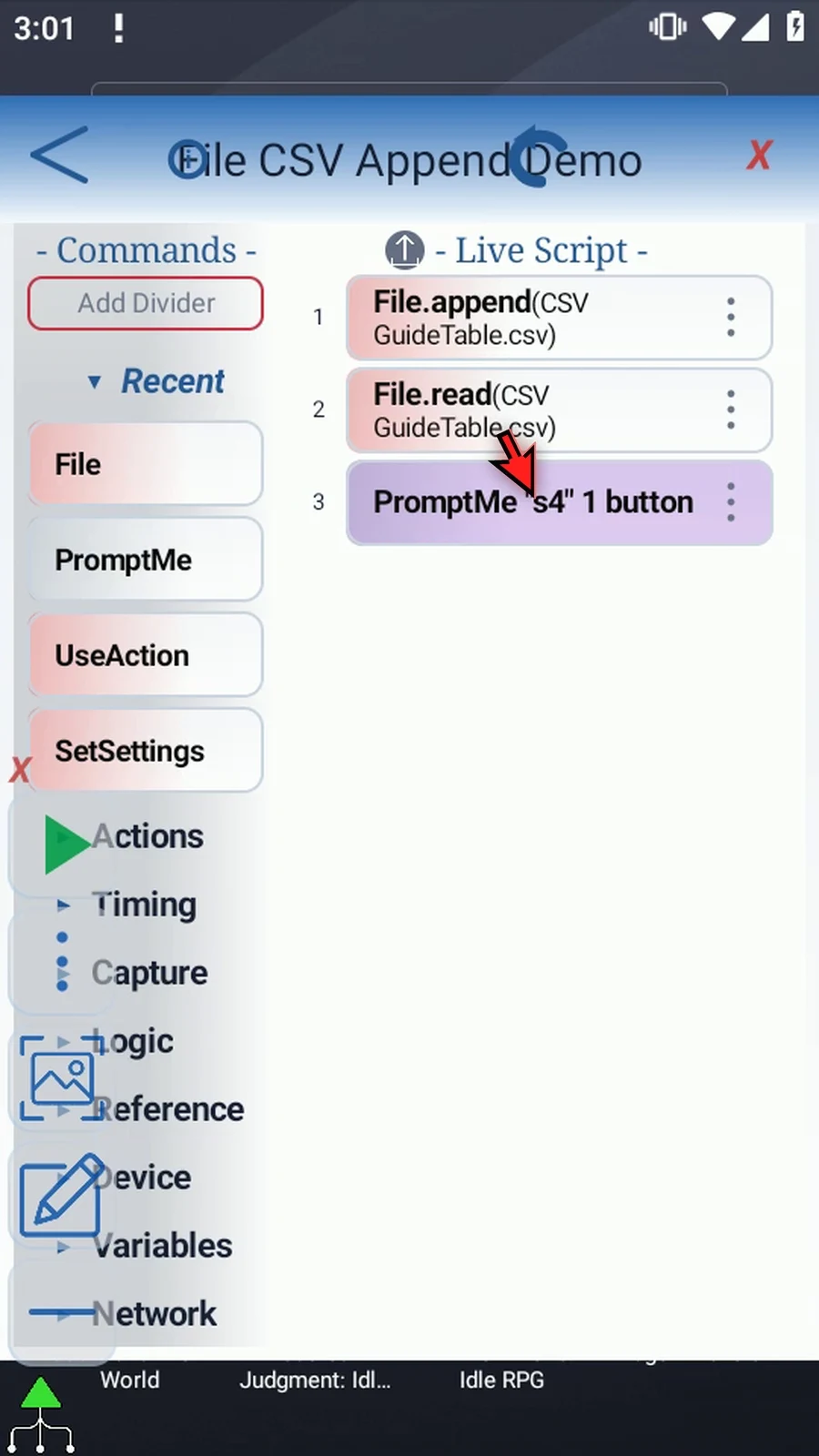
Step 15 The order is Append, Read, then PromptMe. The last two commands simply make the featured Append command's result visible.
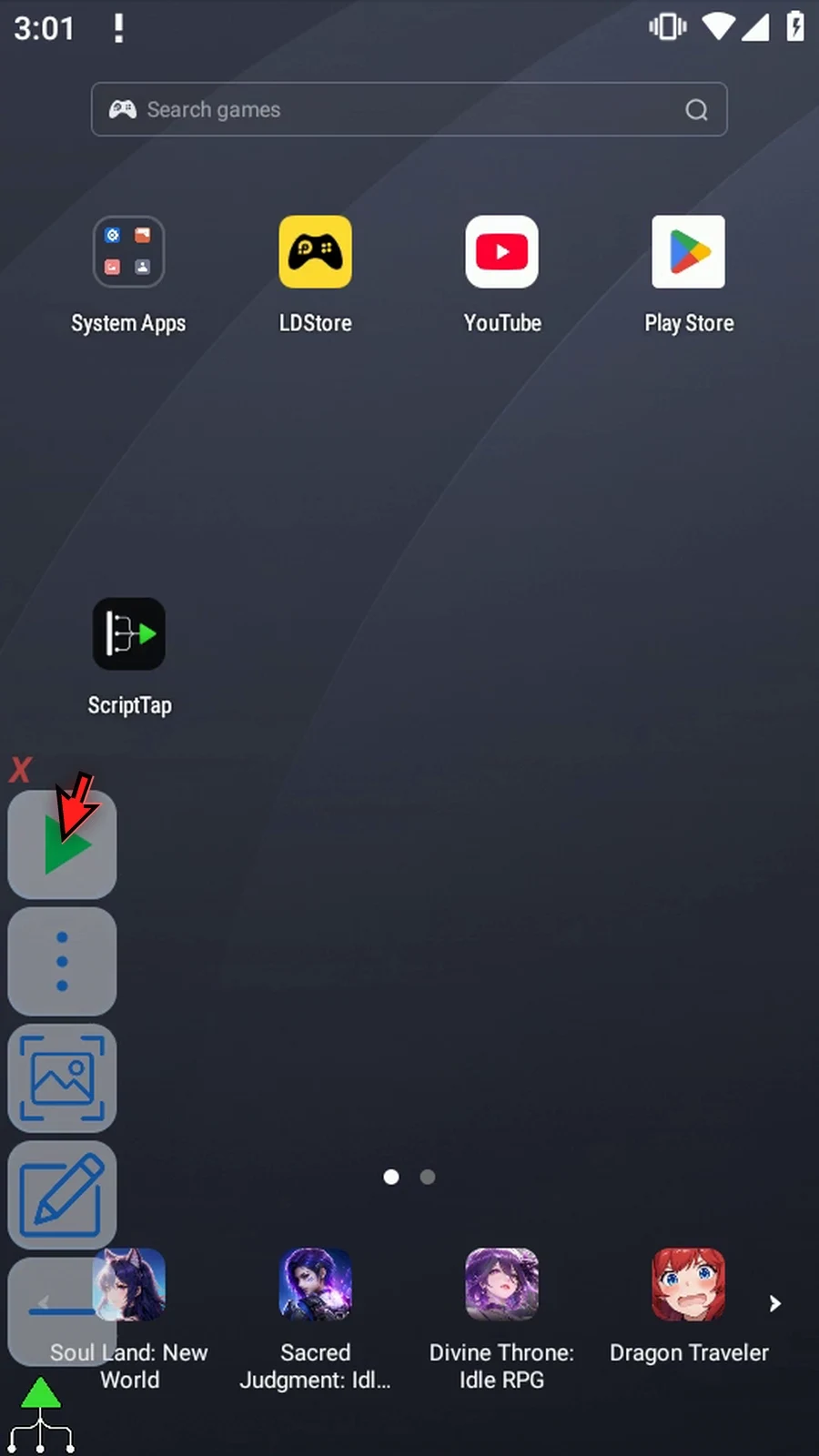
Step 16 When the script is complete, simply use the Play button in the main overlay.
Step 17 PromptMe shows Ready. That's the Value cell from row two, read from the updated table. The quoted comma stayed inside the first cell, so Ready remained in the second column. The original header is still there.
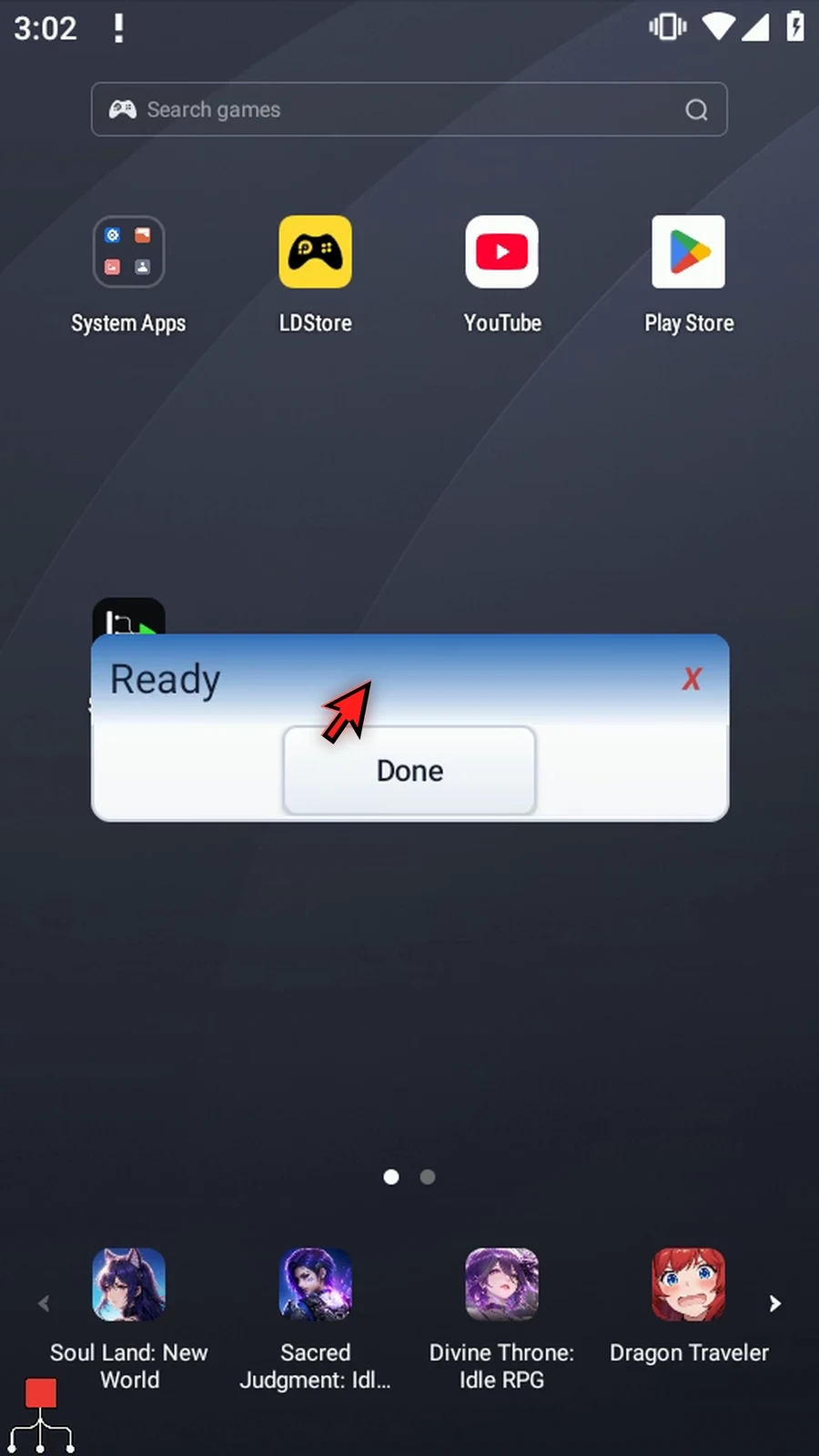
Step 18 Press Done to close the confirmation. The script then finishes automatically.
Step 19 Each run appends another row, so choose your table carefully. Use CSV Append when you want to add a new entry to an existing table. Use the CSV reading guides to retrieve individual cells, rows, or columns afterwards.
File Read's CSV Cell option retrieves one value from a table and stores it as a String for later commands. This example reads row two, column two and uses PromptMe to display the actual Ready value.
Create CSV and Append CSV prepared GuideTable.csv with Name,Value as its header and one data row, "ScriptTap, Demo",Ready. This video continues with a separate copy of the Read Text script and its existing Standard PromptMe; no accepted script is edited. The introduction shows the original manual command drags.
- Operation and format: keep File.read and choose CSV. This parses the table structure instead of returning the whole document as one text String.
- File: choose the table itself through Android's normal document picker, not its folder. If Android asks, allow file access. Play uses the saved read-access selection; it does not open a picker. Reselect the file if it becomes unavailable or access is revoked.
- Read: Cell returns one String. Row and Column return multiple cells into String-array slots and have separate guides. Choose the mode before entering its destination.
- Row: indexes start at1. The example uses2 because row1 contains the header and row2 contains the data added in Append CSV.
- Column — Number: uses a1-based column index. Enter2 for Value;1 would select Name. Row and numeric Column accept positive whole numbers or Integer-variable tokens prepared by an earlier command. The selected cell must exist.
- Column — Header: looks up a literal name in the first row. The example shows
Value. Both the lookup and table header are trimmed, but matching is case-sensitive; the first exact match wins if a name is repeated. This is an alternative to counting columns, not a separate File command. - Choose before entering: a true column-source change clears its outgoing value. After showing Header, this video returns to Number and re-enters2 for the actual run. The Header runtime was also verified in Append CSV's supporting Read.
- Save Cell: set
s4. This stores the cell as a String for later commands. Keep it separate from status outputs. - Optional status: keep Success Boolean
b1and Error Strings1. Final Name and Final URI stay OFF because this example does not create a file. Missing files, unavailable access, invalid indexes, missing headers or malformed CSV can fail the read. CSV reads are capped at1MB; truncation fails rather than returning partial table data.
Save File. Keep the existing PromptMe in Standard mode, with Header s4 and a Done button writing Boolean b2. Play reads the cell and displays Ready, not the filename or the Success flag. Done closes the confirmation and the script finishes automatically. Read does not modify the document.
Use Cell when a later command needs one table value. Continue with Read CSV Row or Read CSV Column to retrieve several values as a String array.
Read CSV Cell
Step-by-step guide
Step 01 File Read's Cell option retrieves one value from a CSV table, ready for another command to use. We'll read a cell from our tutorial table and display the actual value with PromptMe.
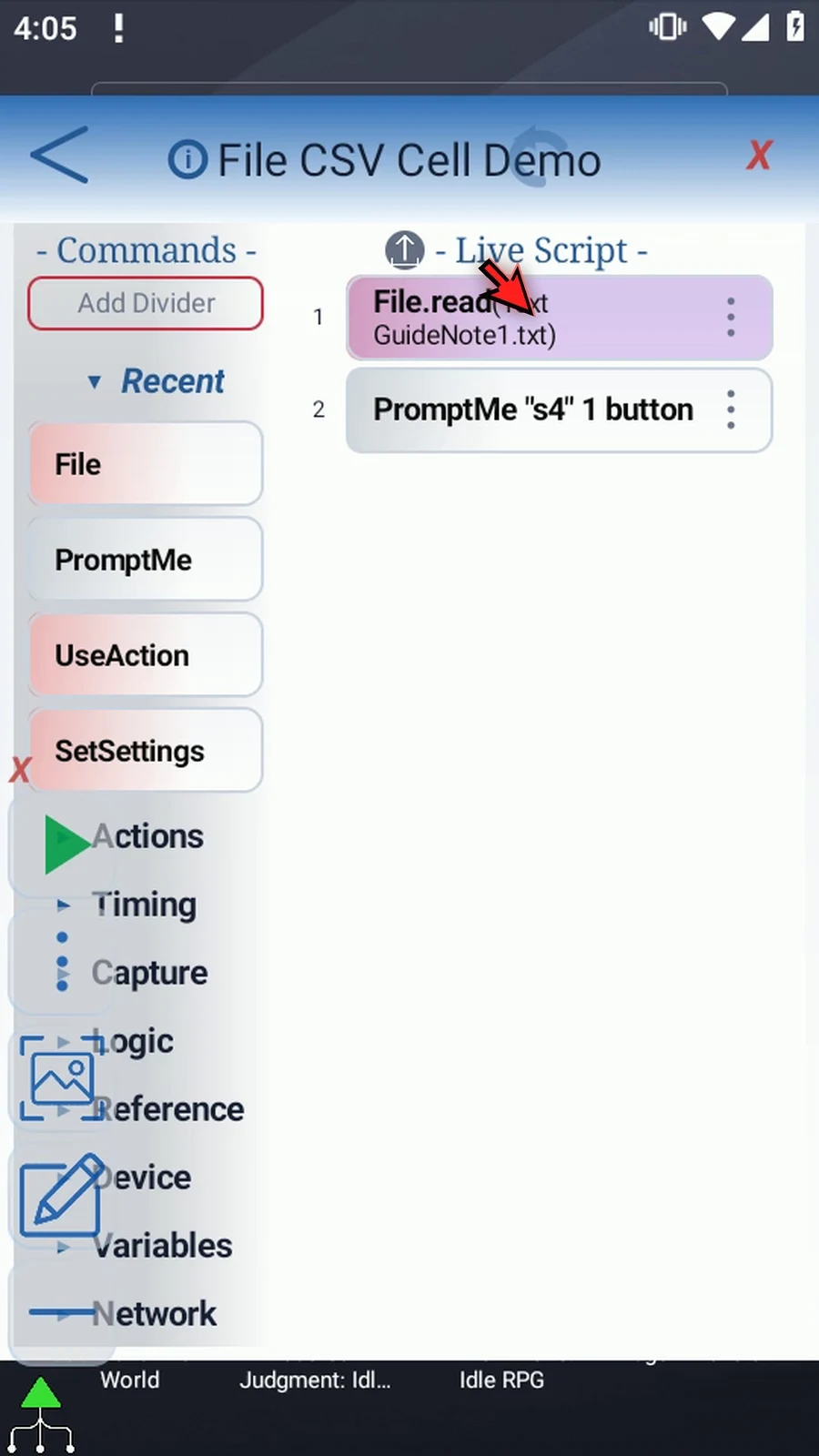
Step 02 Create CSV and Append CSV prepared our table with Name and Value headers, followed by one data row. This video continues with a separate copy of the Read Text script and its supporting PromptMe.
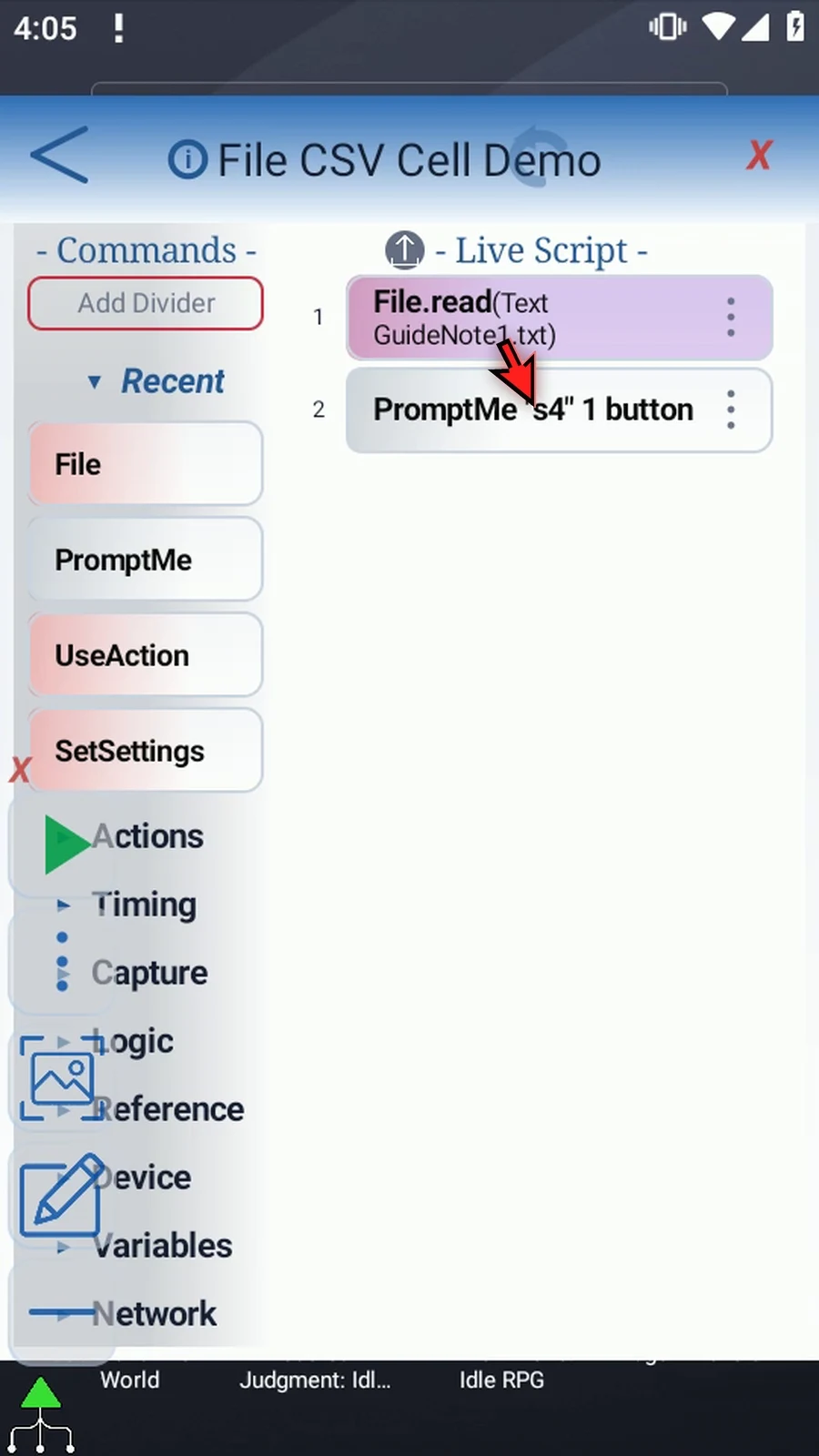
Step 03 Open File, keep Read, and choose CSV. This reads the table structure rather than returning the whole document as one text string.
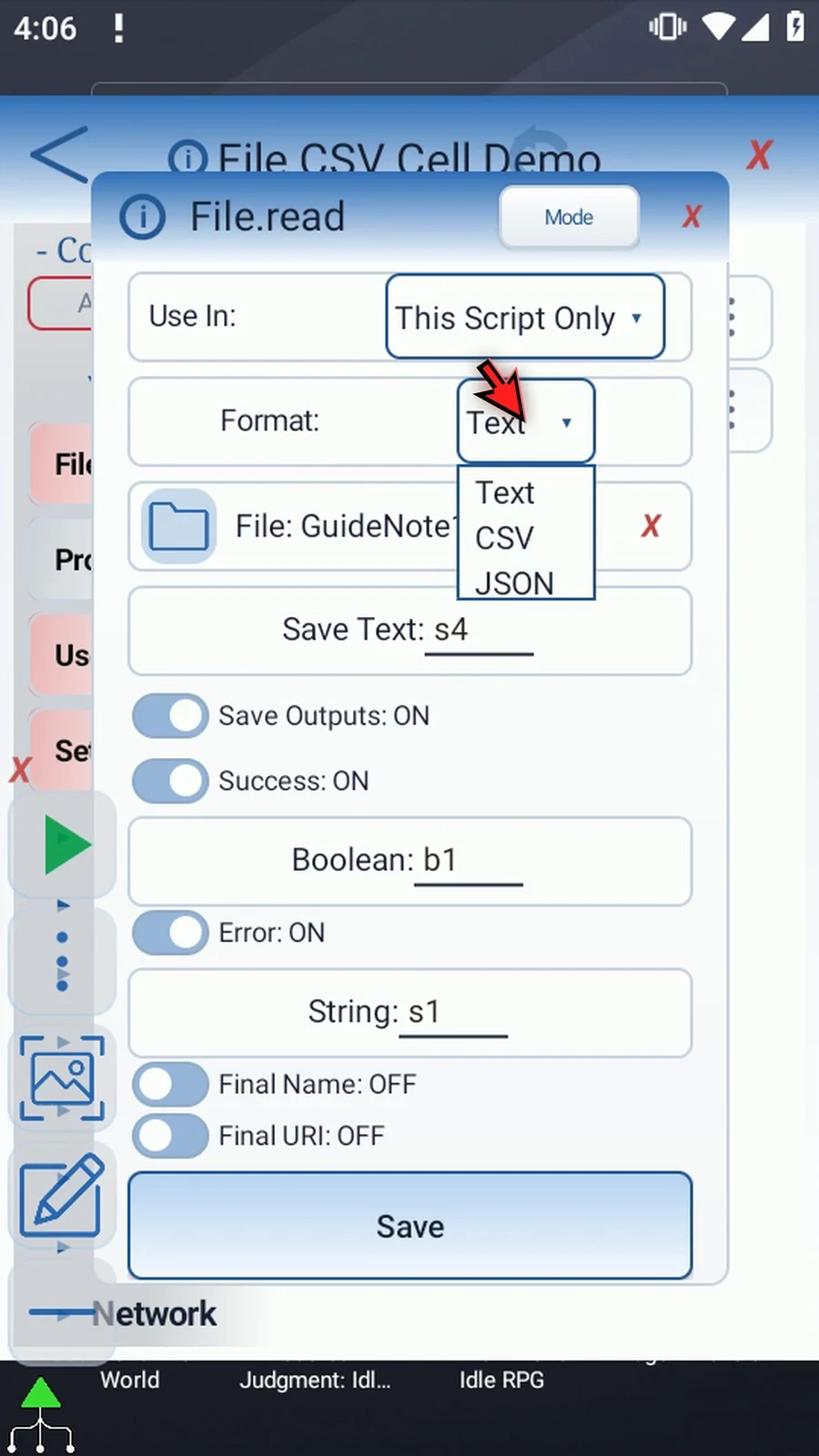
Step 04 Select the tutorial table through the File selector. Choose the document itself, not its folder. If Android asks, allow file access. Play uses this saved selection.
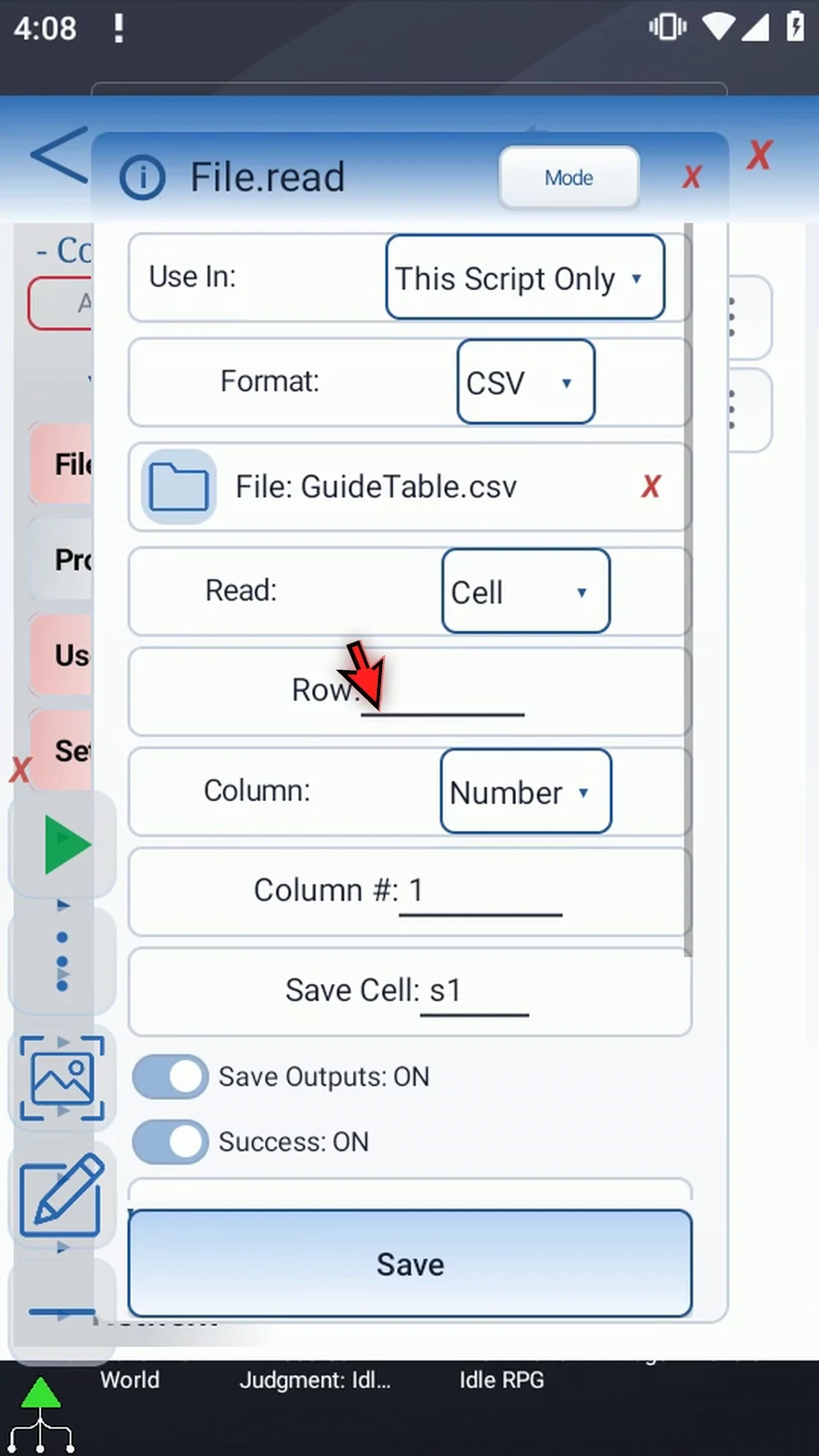
Step 05 Read offers Cell, Row, and Column. Cell returns one String. Row and Column return several cells into a String array, covered in their own guides. Keep Cell before entering its destination.
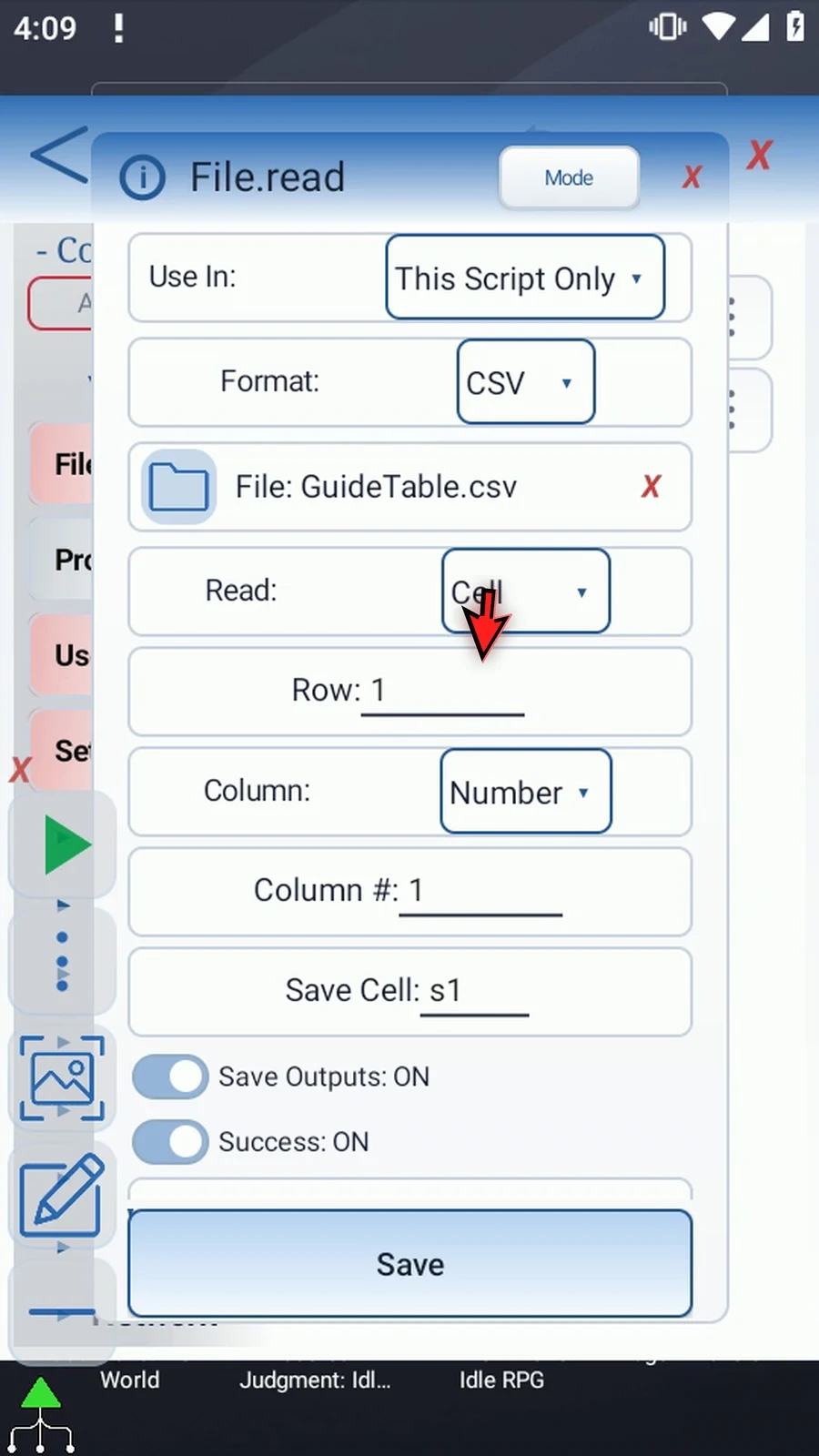
Step 06 Enter row two. Indexes start at one: row one is our header, and row two contains the data added in the Append CSV guide.
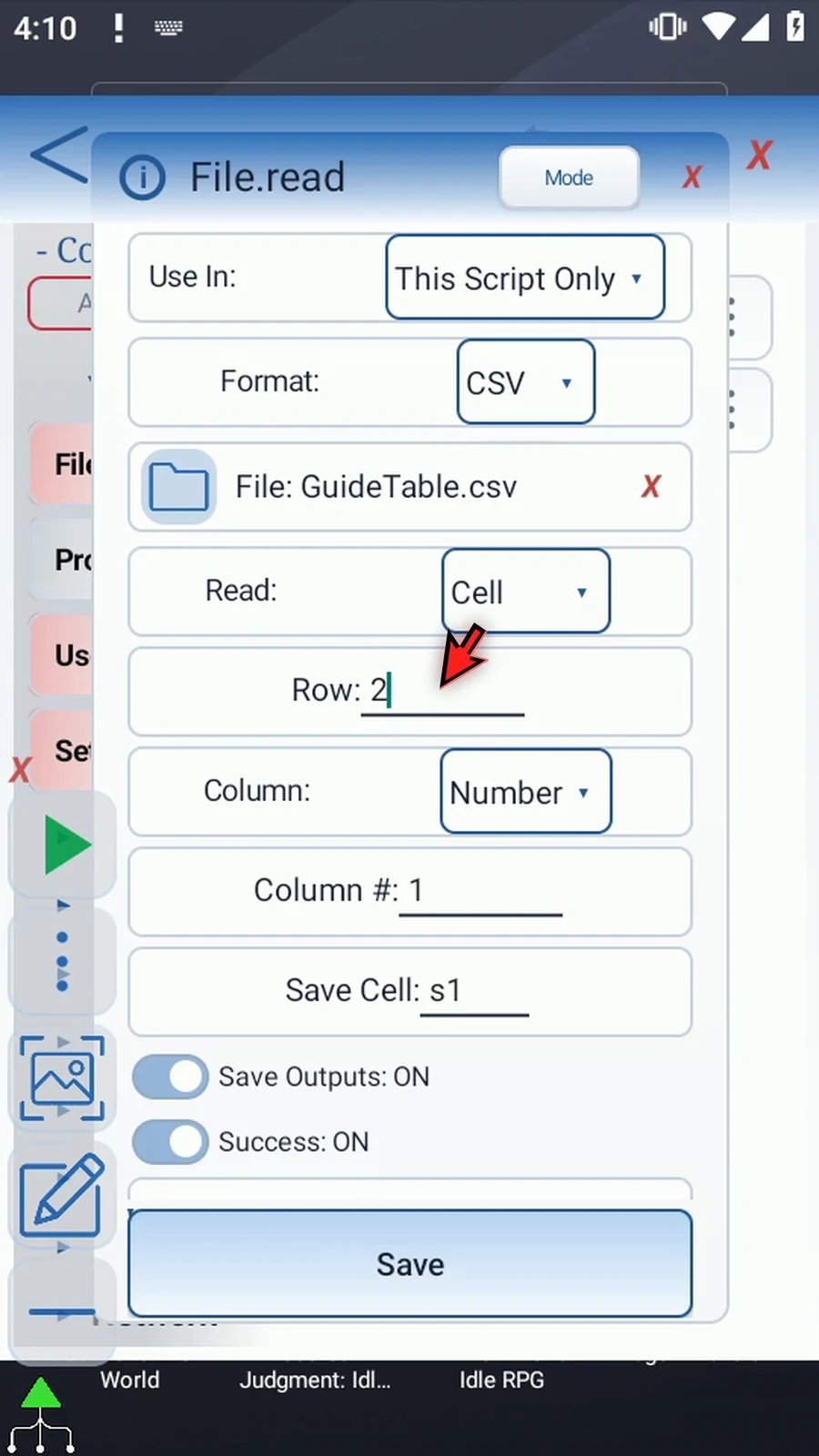
Step 07 Keep Column set to Number and enter two. Column one is Name; column two is Value. Together, row two and column two identify our cell.
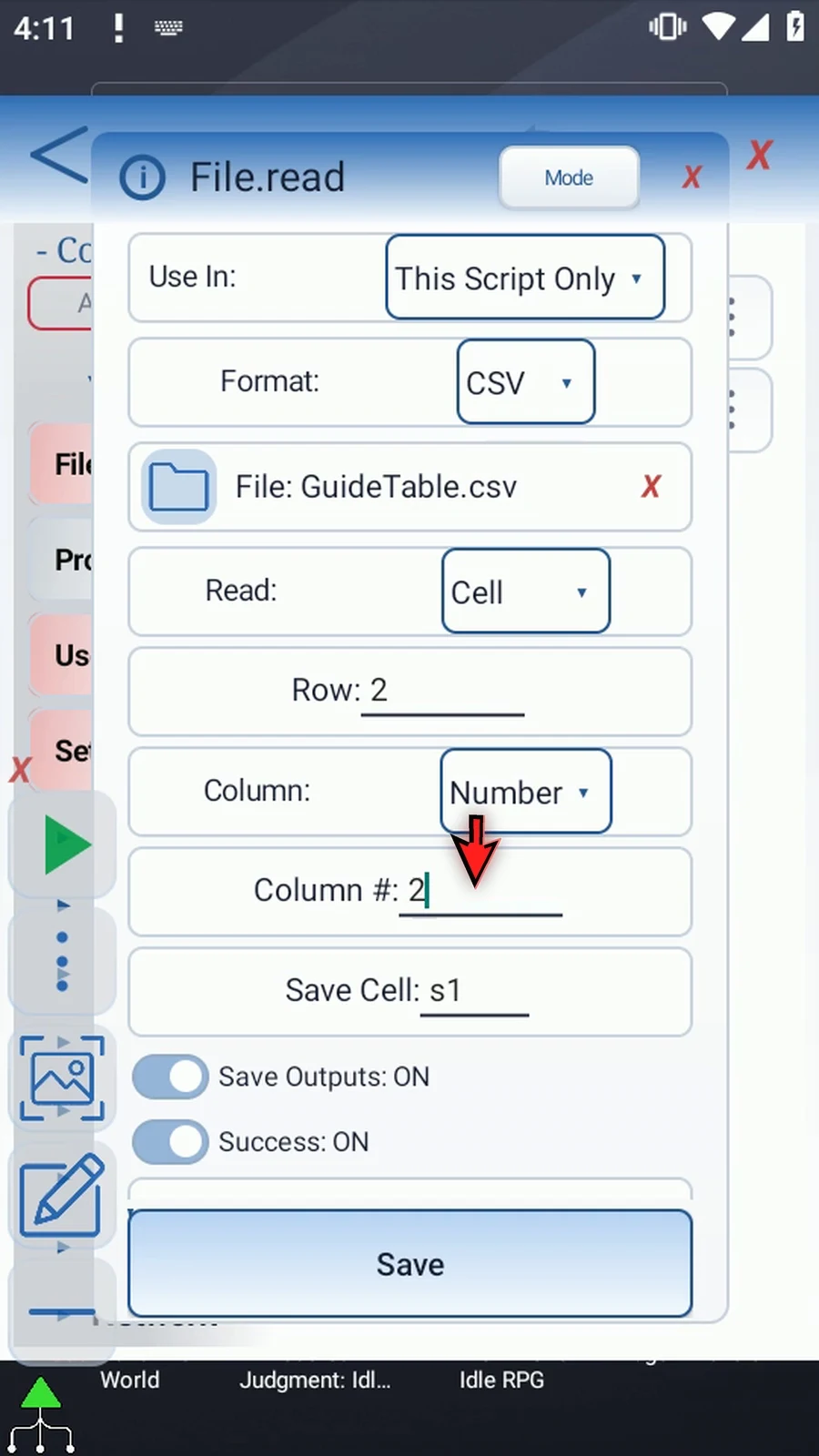
Step 08 Header is another way to select a column. Choose it and enter Value, matching our first row. Matching ignores surrounding spaces but is case-sensitive, so the capital V matters. If a header occurs more than once, the first exact match is used.
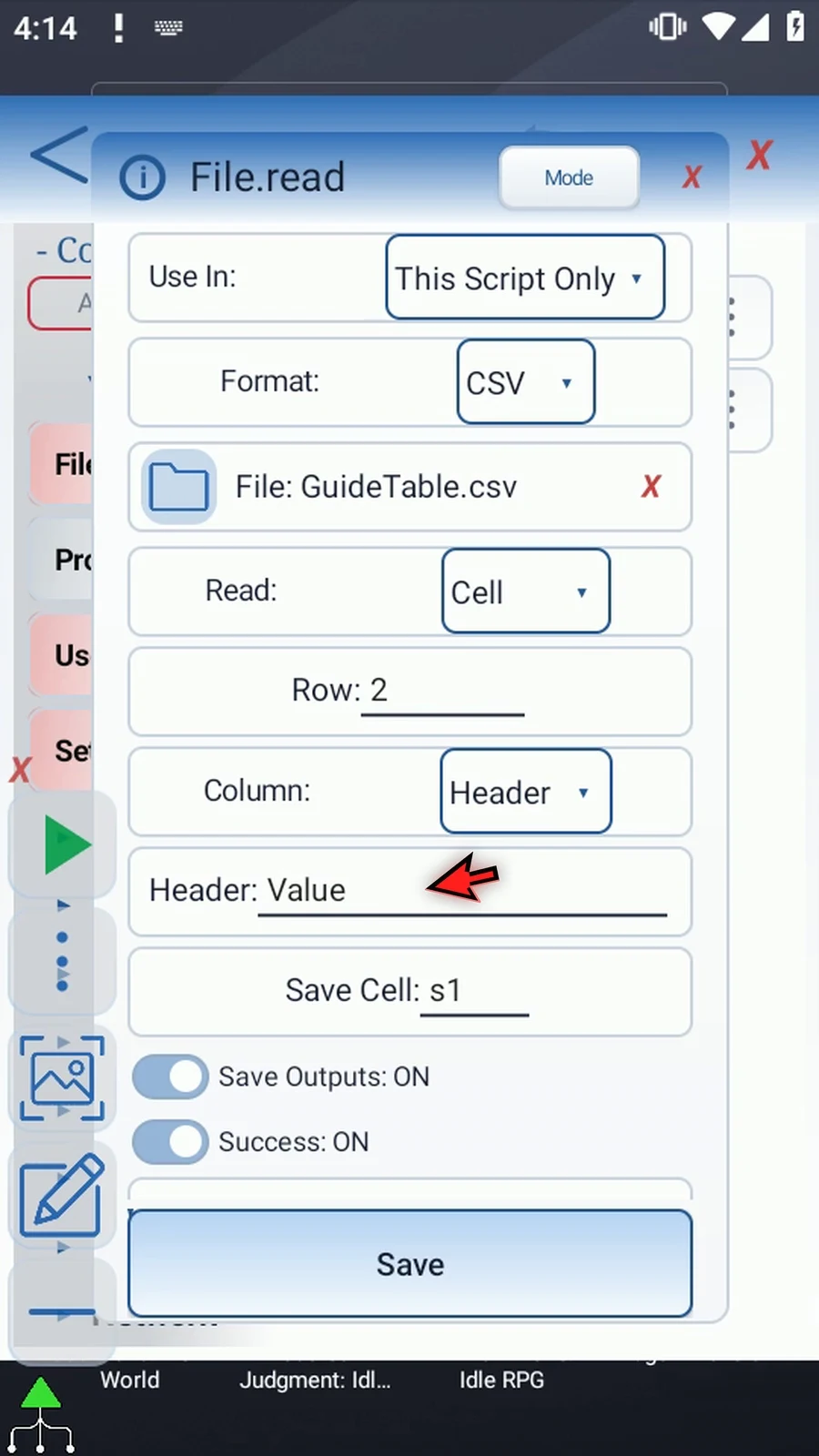
Step 09 We'll use Number in this example. Switch back and re-enter two. Changing the column source clears the outgoing value, so choose the source before entering it.
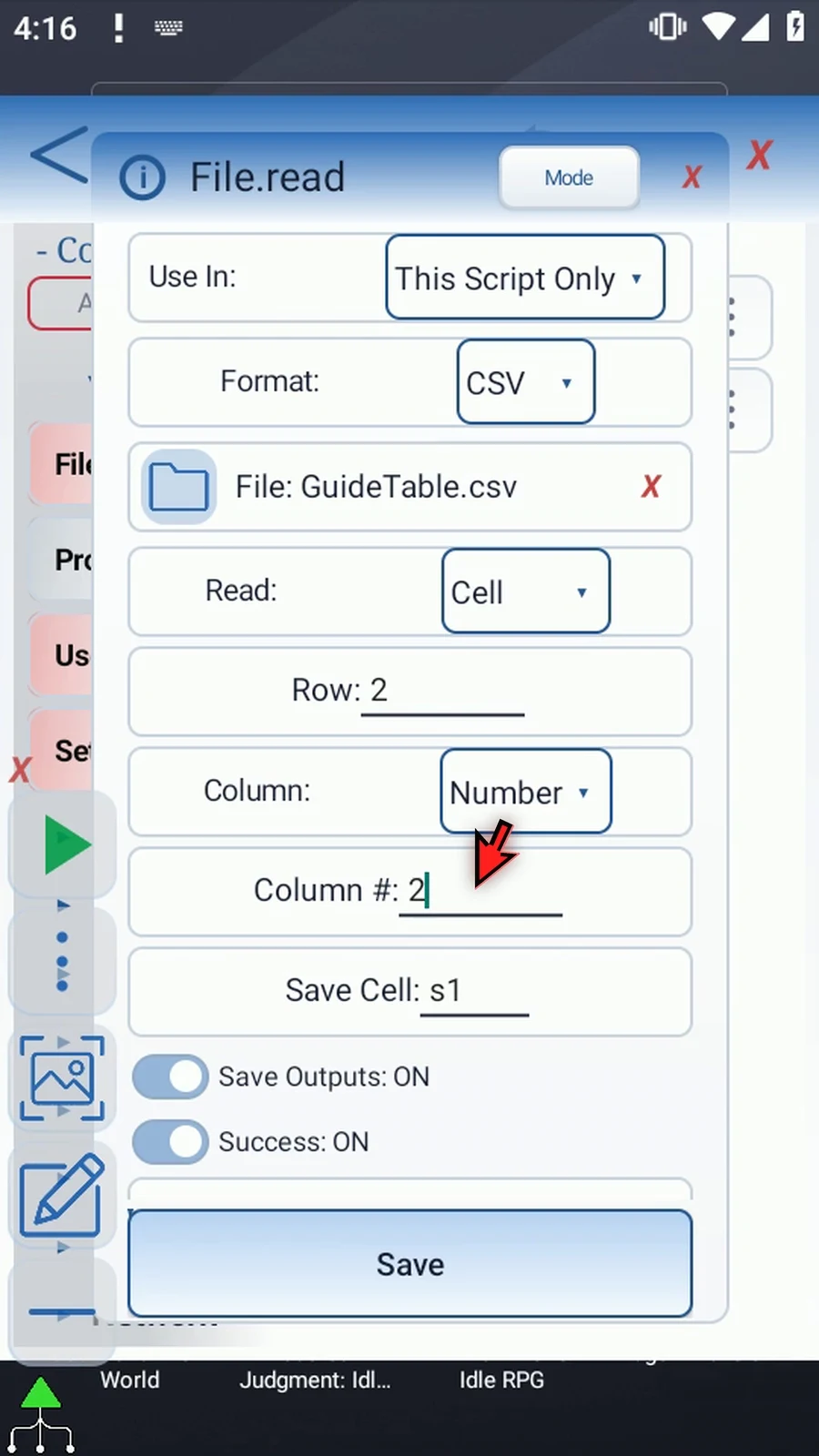
Step 10 Set Save Cell to s4. This String holds the cell's value for later commands. Our existing PromptMe already displays s4.
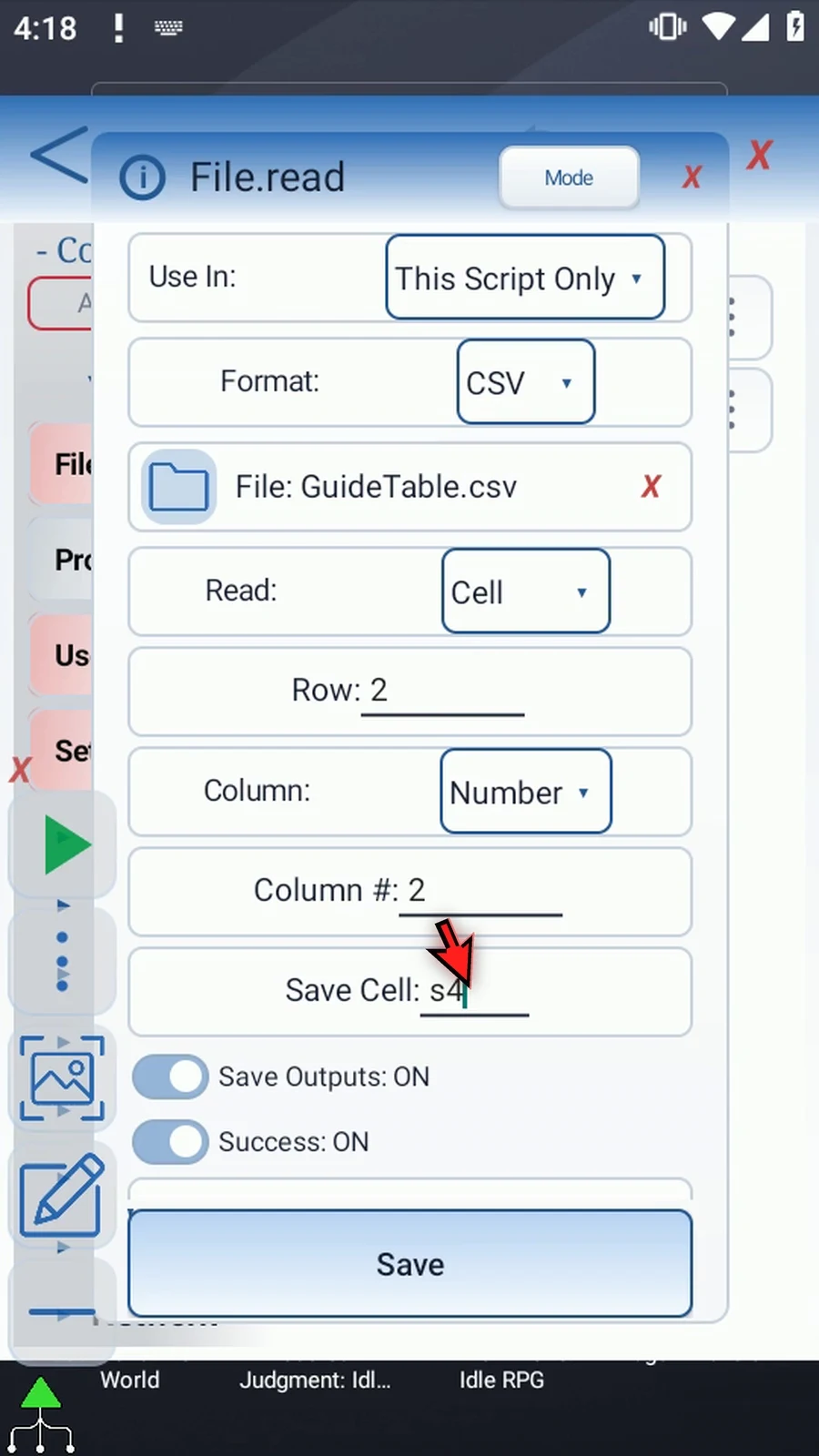
Step 11 Keep Success Boolean b1 and Error String s1. These report the read operation, while s4 holds the cell. Final Name and Final URI stay off; we aren't creating a file.
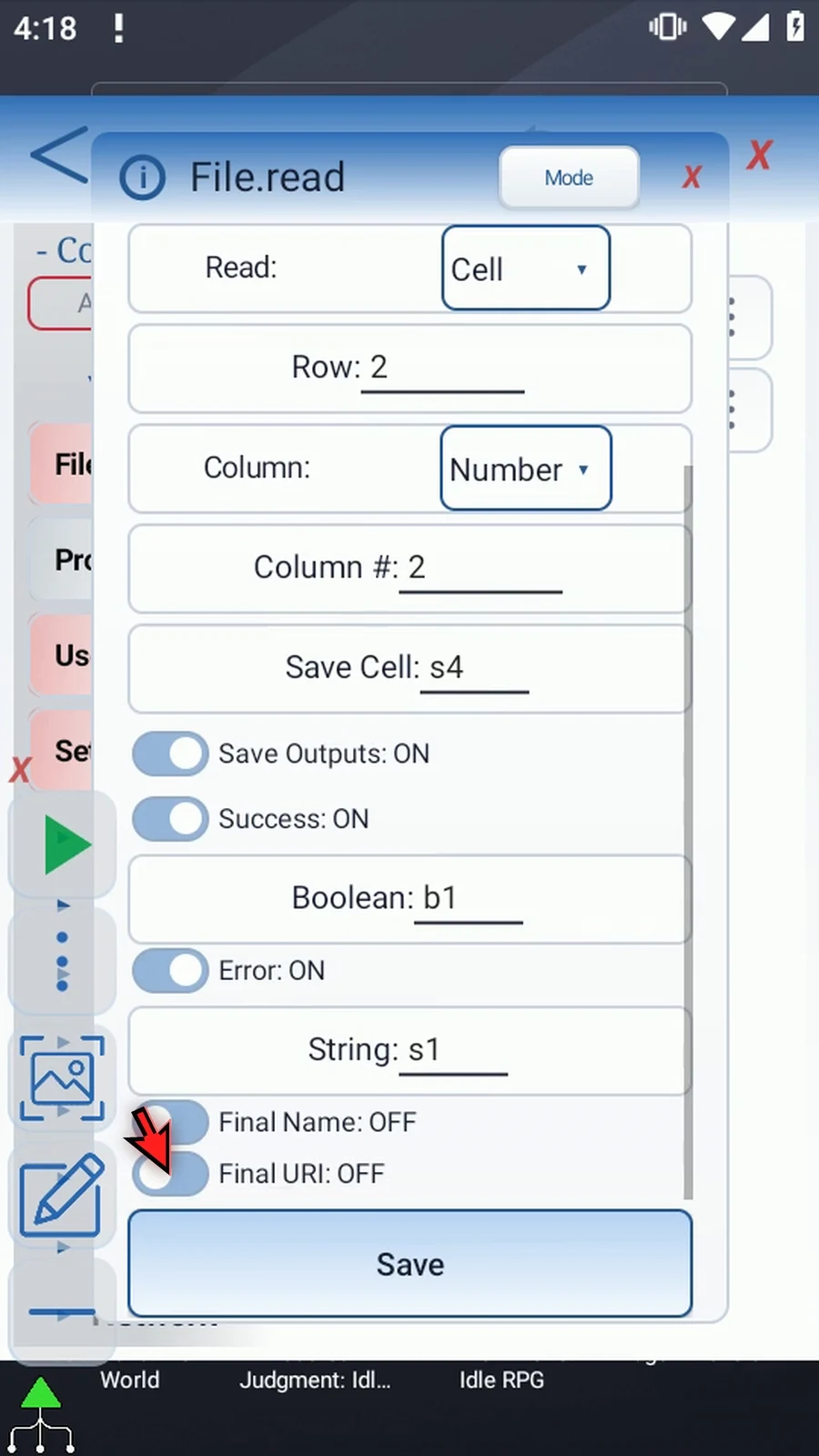
Step 12 Row and numeric Column accept positive whole numbers or Integer variables prepared earlier. The cell must exist. Missing files, invalid indexes, or an unmatched header can fail the read. CSV reads are limited to one megabyte; an oversized table fails rather than returning a partial result.
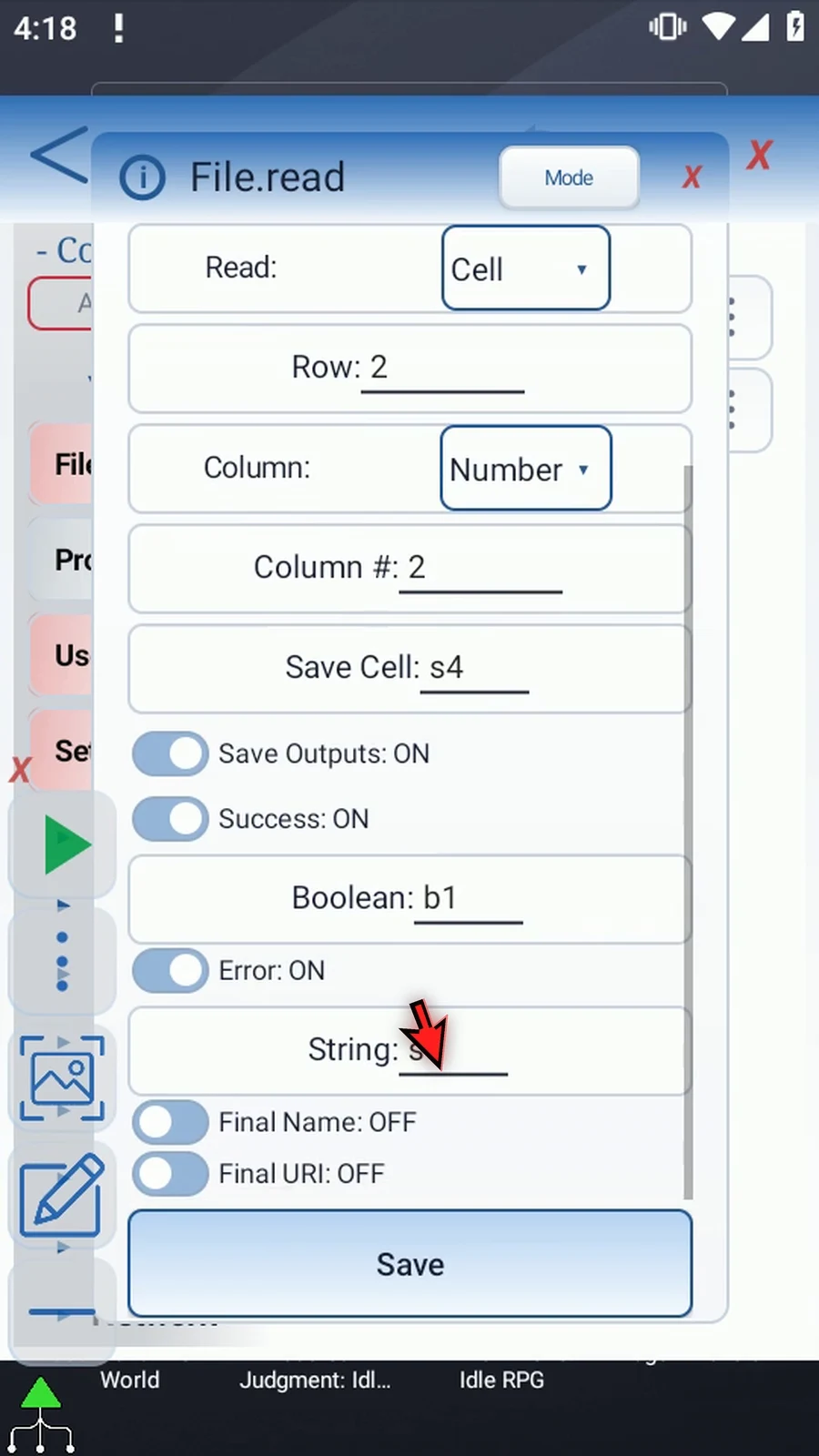
Step 13 Save the command. Read does not change the table. During Play, it retrieves the selected cell from the saved document.
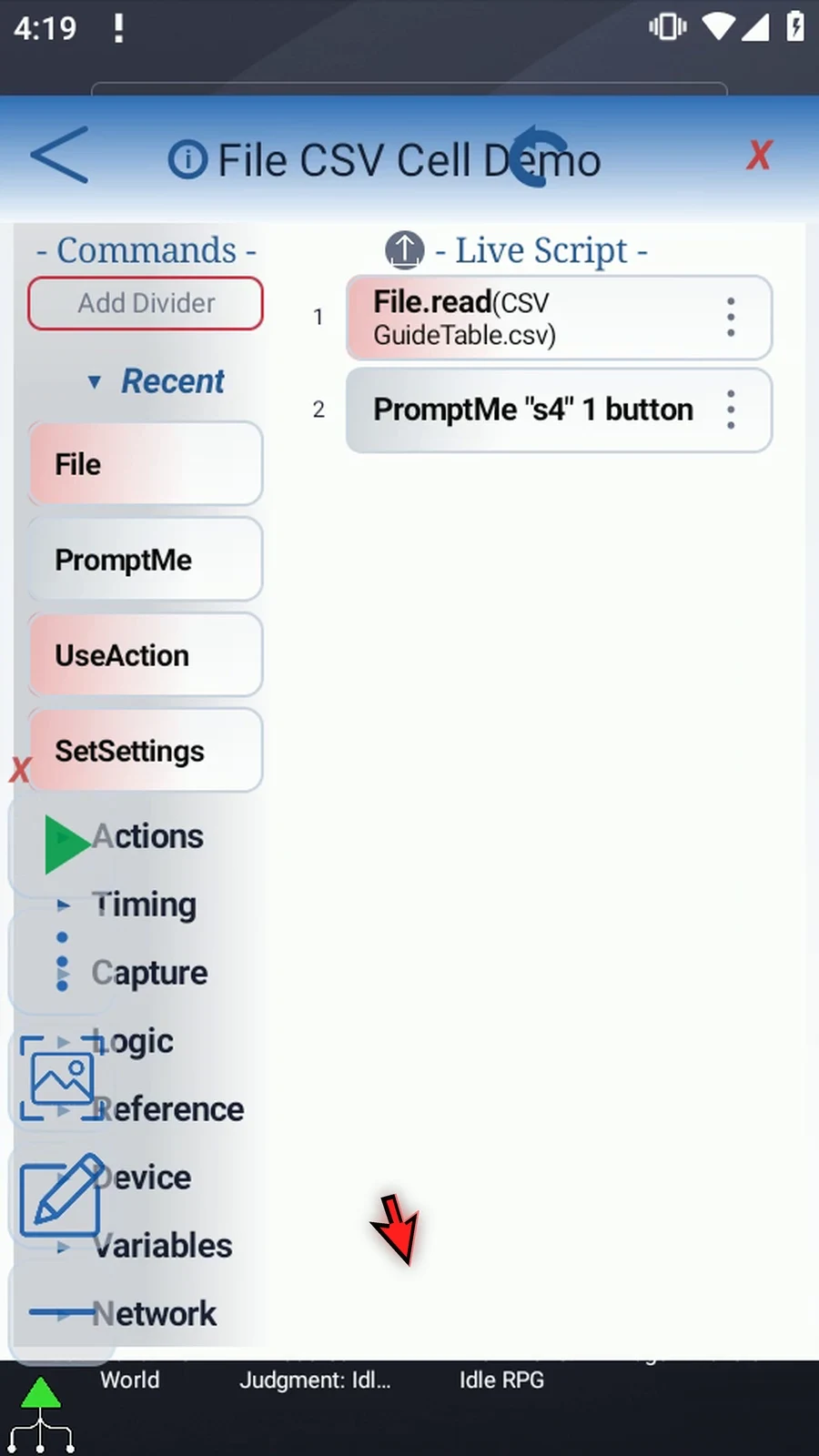
Step 14 The existing PromptMe keeps Standard mode, Header s4, and a Done button with Boolean b2. It will display the String returned by Read. Keep these settings and tap OK.
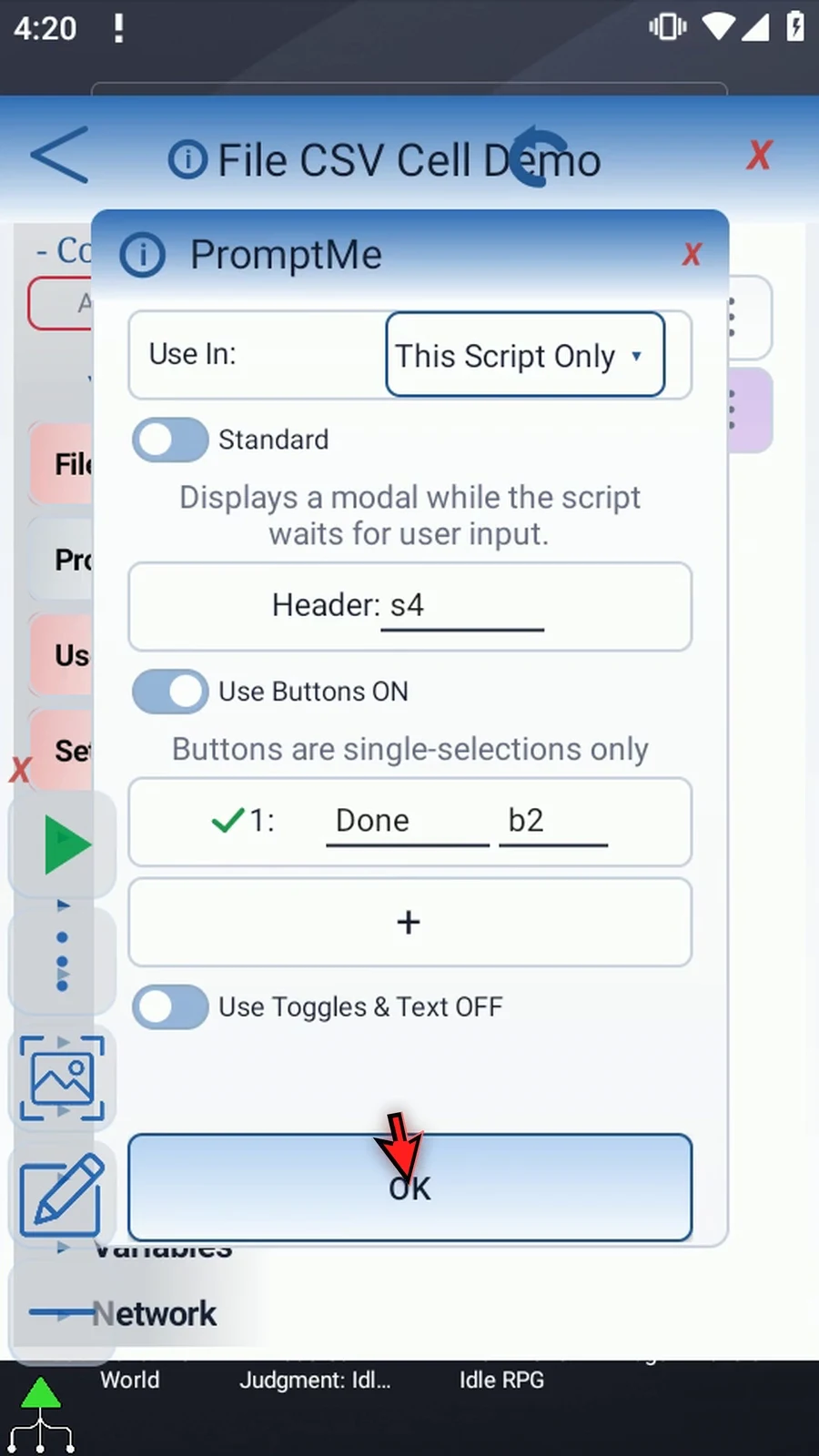
Step 15 When the script is complete, simply use the Play button in the main overlay.
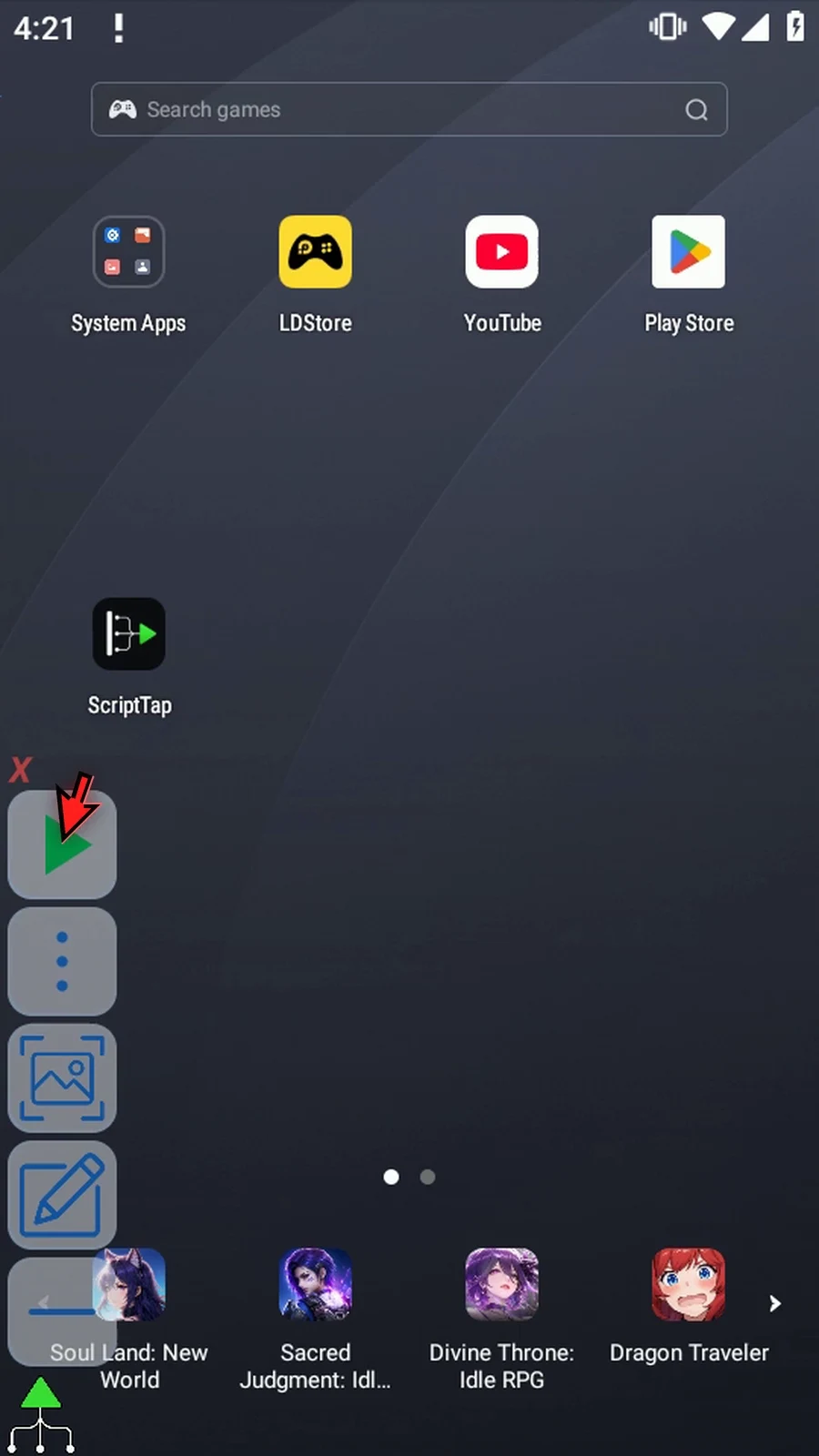
Step 16 PromptMe shows Ready, the actual value at row two, column two. This is the cell's text, not the filename or the Success flag. Another command could use the same String.
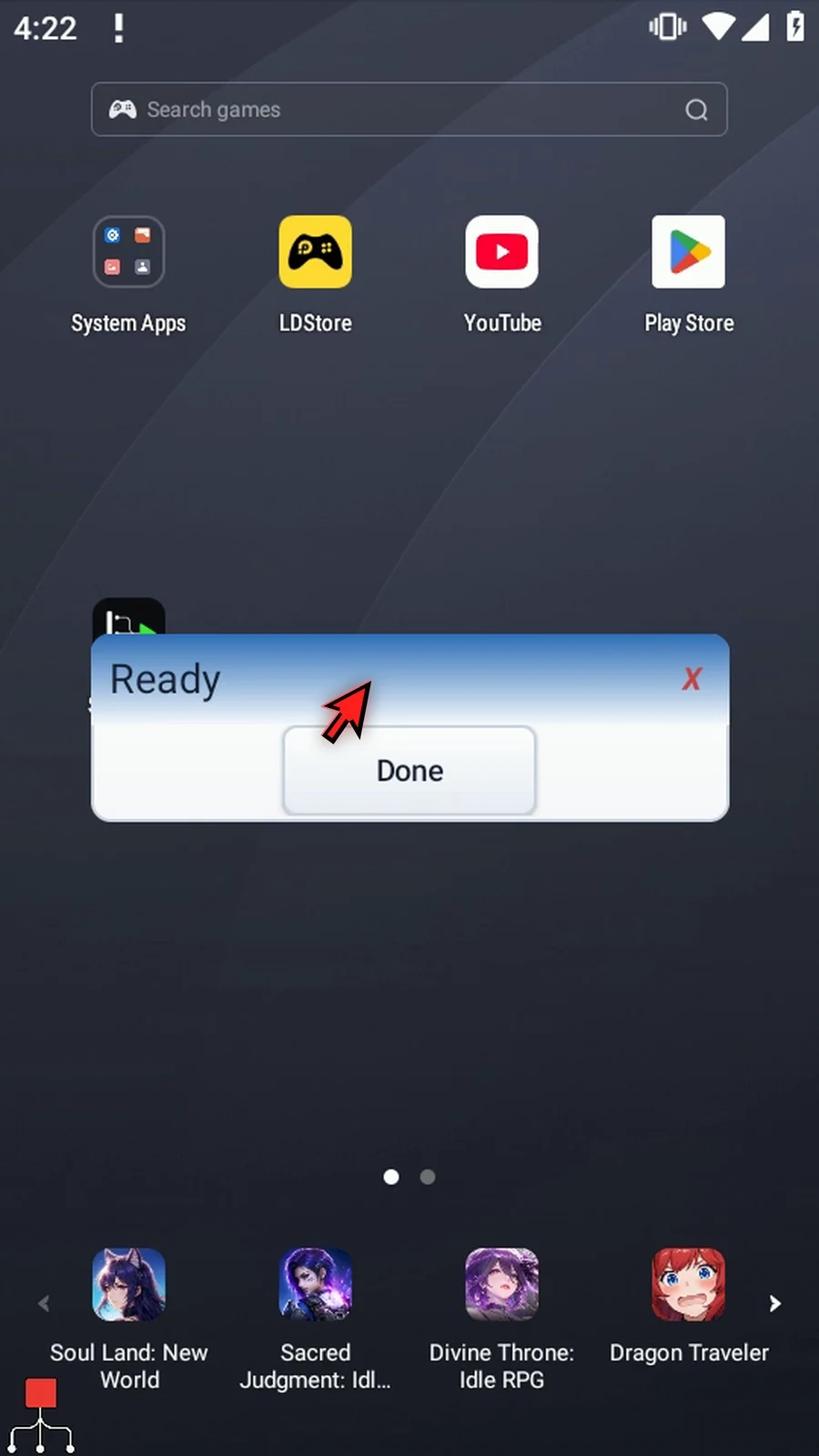
Step 17 Press Done to close the confirmation. The script then finishes automatically.
Step 18 Use Cell when you need one value from a table. Continue with Row or Column when you need several values as a String array.
File Read's CSV Row option retrieves several cells across one table row into a String array. Later commands can use each cell separately. This example reads two cells and uses a supporting TextTransform Join and PromptMe to show both actual values.
Continue with a separate copy of the Read CSV Cell example. The saved GuideTable.csv has Name,Value as its first row and "ScriptTap, Demo",Ready as its second row. Create CSV and Append CSV show that setup; Cell explains the saved Android document selection. The introduction shows the original manual command drags. Accepted scripts are not edited.
- Mode: keep File.read with CSV format and choose Read: Row before entering the destination. Leaving Cell clears its scalar Save Cell setting; Row and Column share their array settings.
- Source coordinates: keep Row
2, Column: Number, and enter Column #1. Positions are 1-based. Row reads across from this starting cell. Header lookup is also available, as explained in Cell. - Destination: keep Array
s, set Start to4and Count to2. The two cells go tos4ands5. Start is the first destination slot, not the first CSV row or column. - Range: Row, numeric Column, Start and Count accept positive whole numbers or earlier Integer-variable tokens. The entire destination range must remain within 1–4096. The starting source cell must exist. If Count extends past the selected row, remaining returned values are empty Strings.
- CSV parsing: a comma inside a quoted cell remains part of that cell. CSV syntax quotation marks are parsed rather than returned as literal surrounding quotes.
- Status: keep independent Success Boolean
b1and Error Strings1; Final Name and Final URI stay OFF. These are separate from cell values. Unavailable files/access, invalid coordinates or ranges, missing headers and malformed CSV can fail. Reads are capped at 1MB; an oversized table fails rather than returning a partial table. Read does not modify the document.
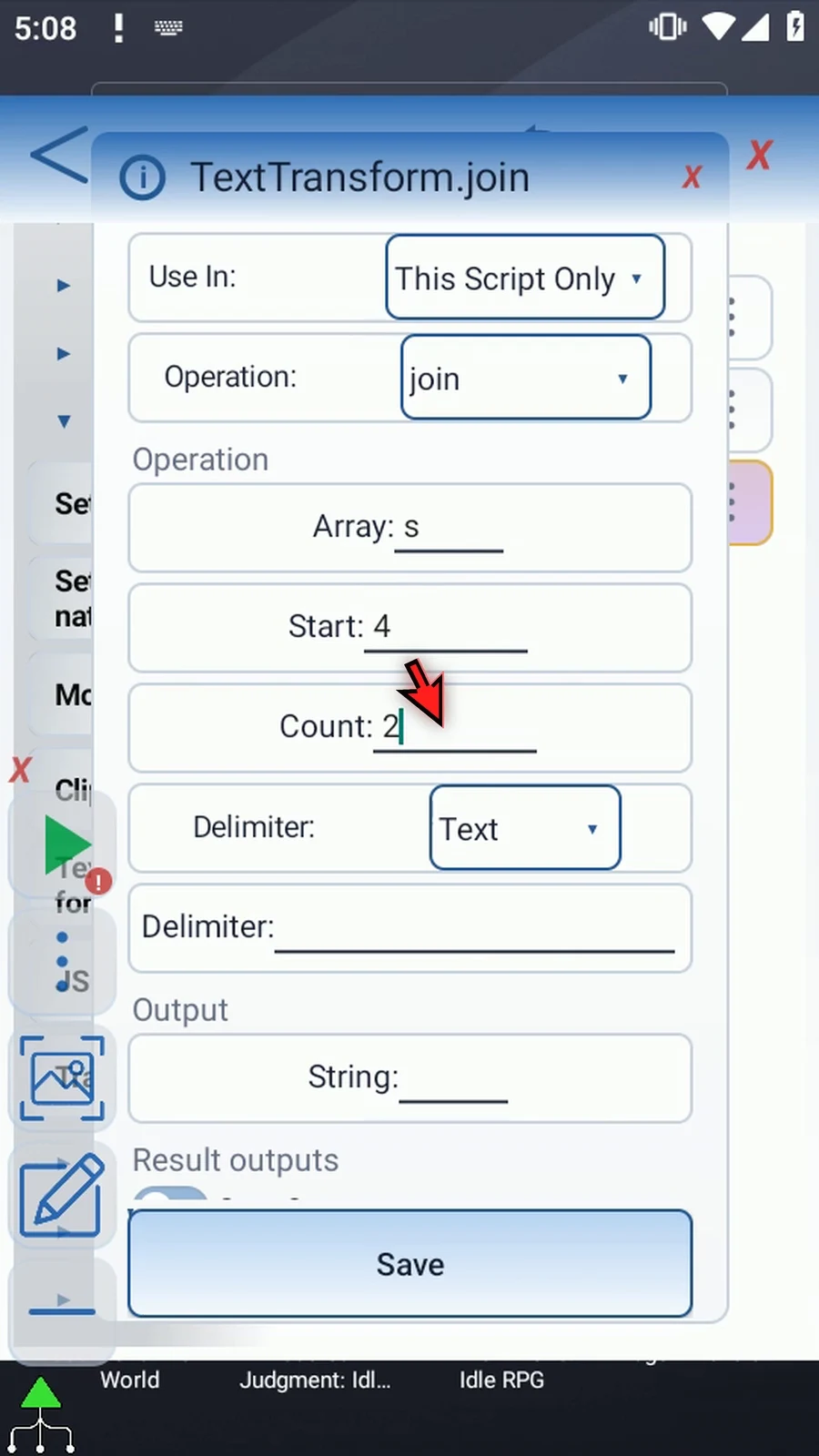
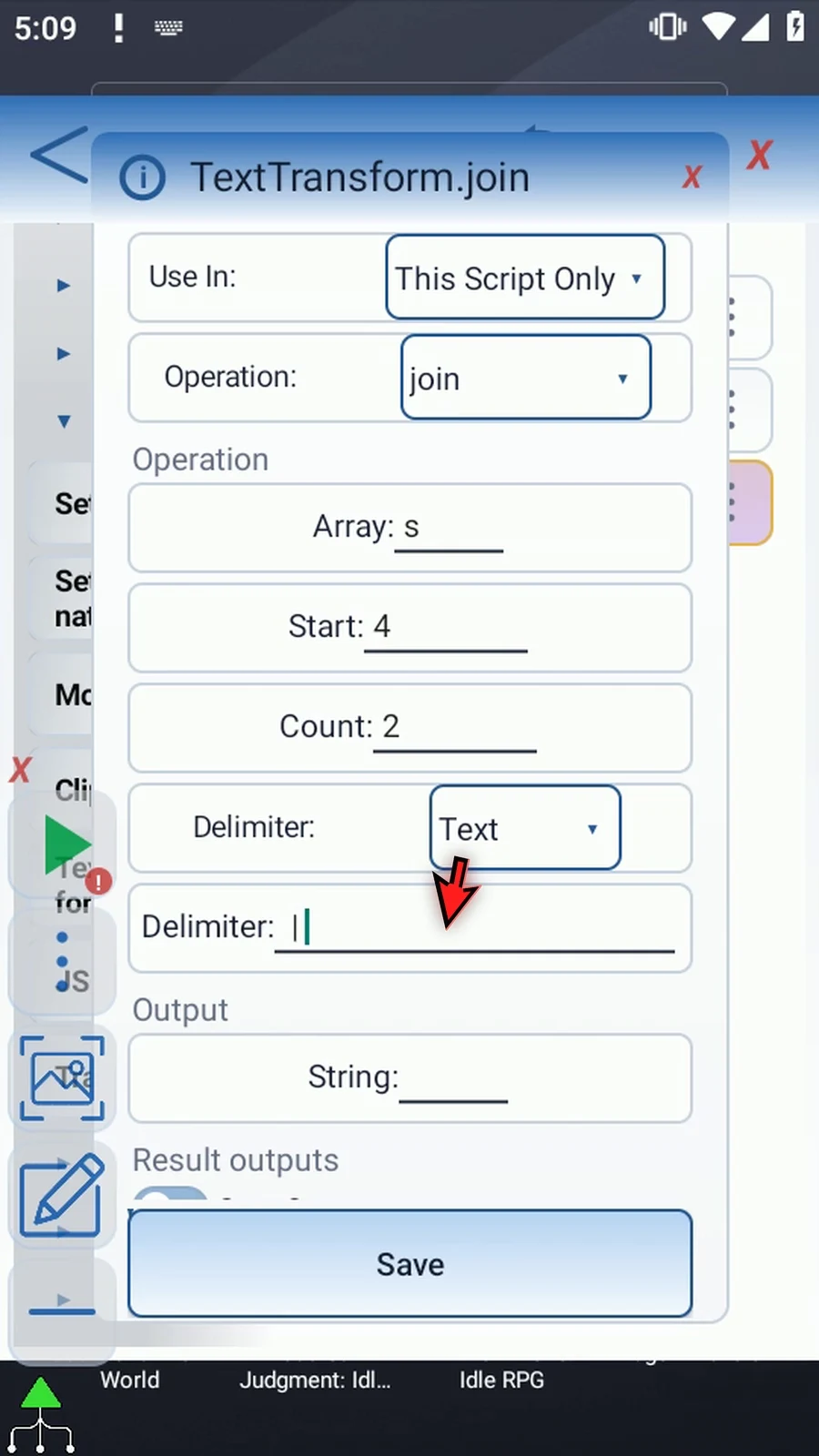
Manually drag TextTransform into the script and choose Join. Set Array s, Start 4, Count 2, Delimiter: Text with | (space, vertical bar, space), and String output s6. Keep its optional Save Outputs OFF. Save and manually drag Join between File and PromptMe.
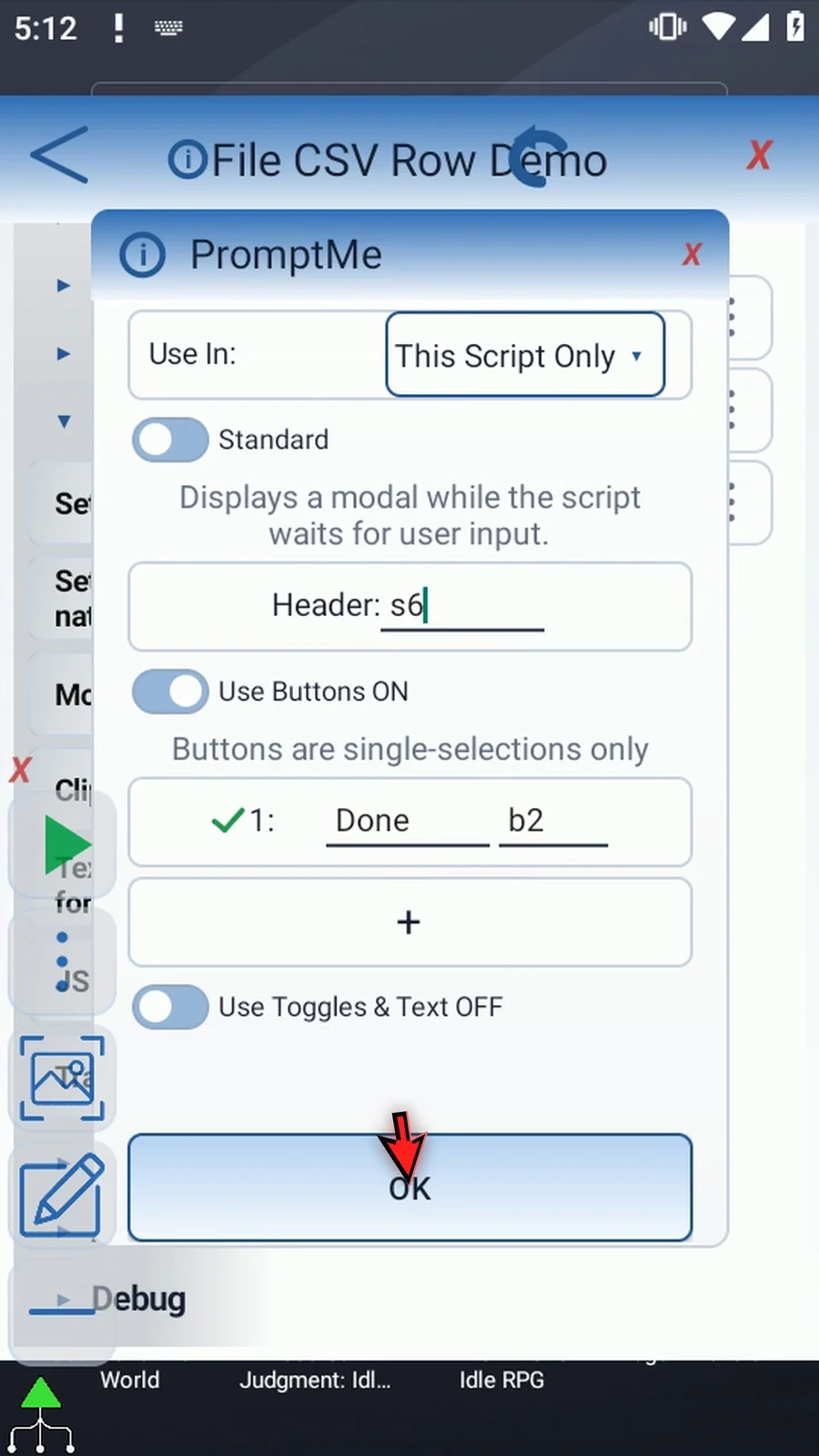
Change the existing Standard PromptMe Header to s6; keep its Done button with Boolean b2. Play runs File → Join → PromptMe and displays ScriptTap, Demo | Ready, the actual two cells from row two. Done closes the confirmation and the script finishes automatically. Other scripts can use s4 and s5 directly without joining them.
Use Row for several values across one table entry. Use Read CSV Column for values down the table.
Read CSV Row
Step-by-step guide
Step 01 File Read's Row option retrieves several cells across one CSV row into a String array. This lets later commands use each value separately. We'll read two cells and display both with PromptMe.
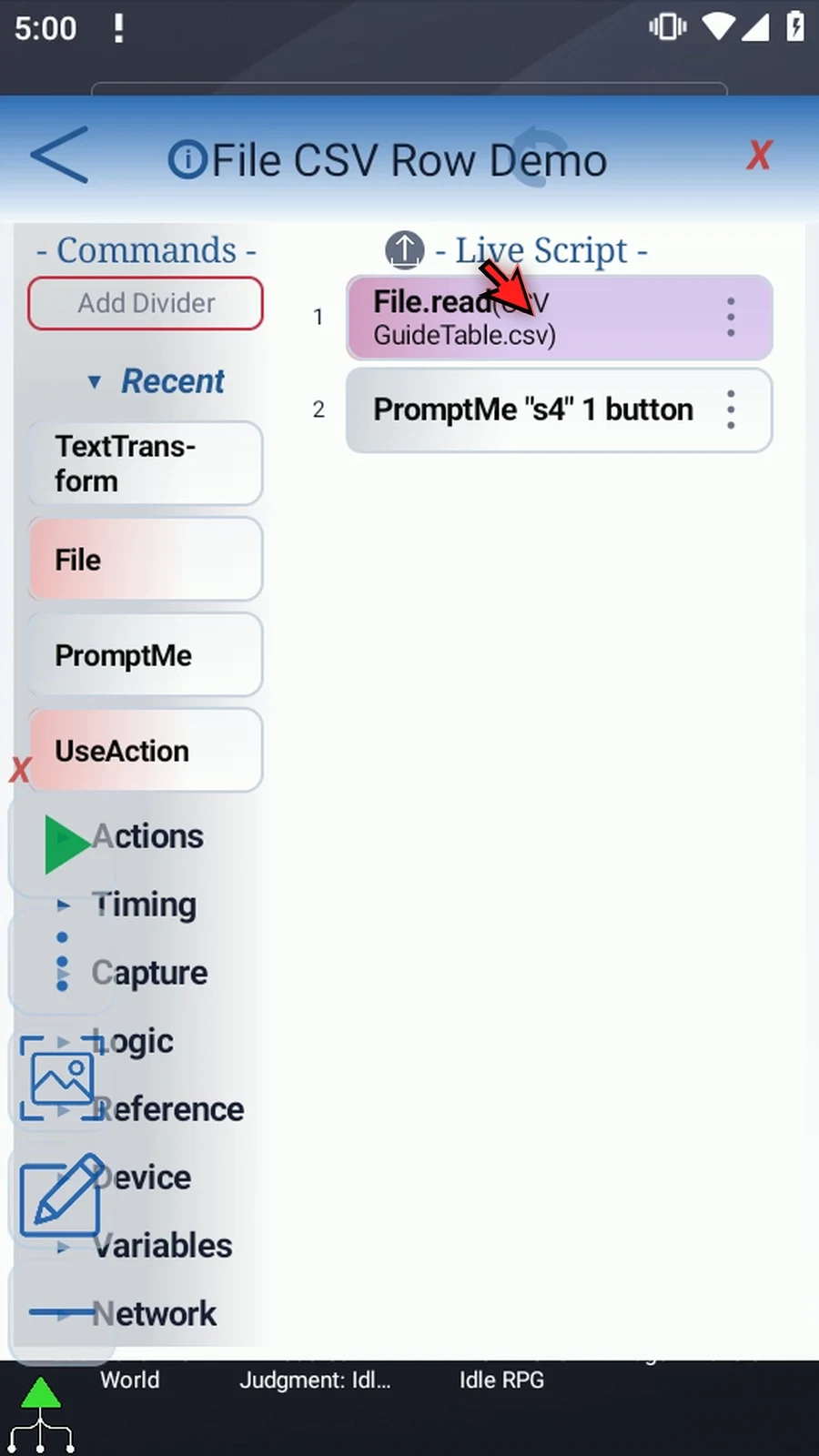
Step 02 Our tutorial table already contains Name and Value headers and one data row. This separate copy keeps File Read and PromptMe. The Cell guide explains the saved file selection, and the Intro shows the original command drags.
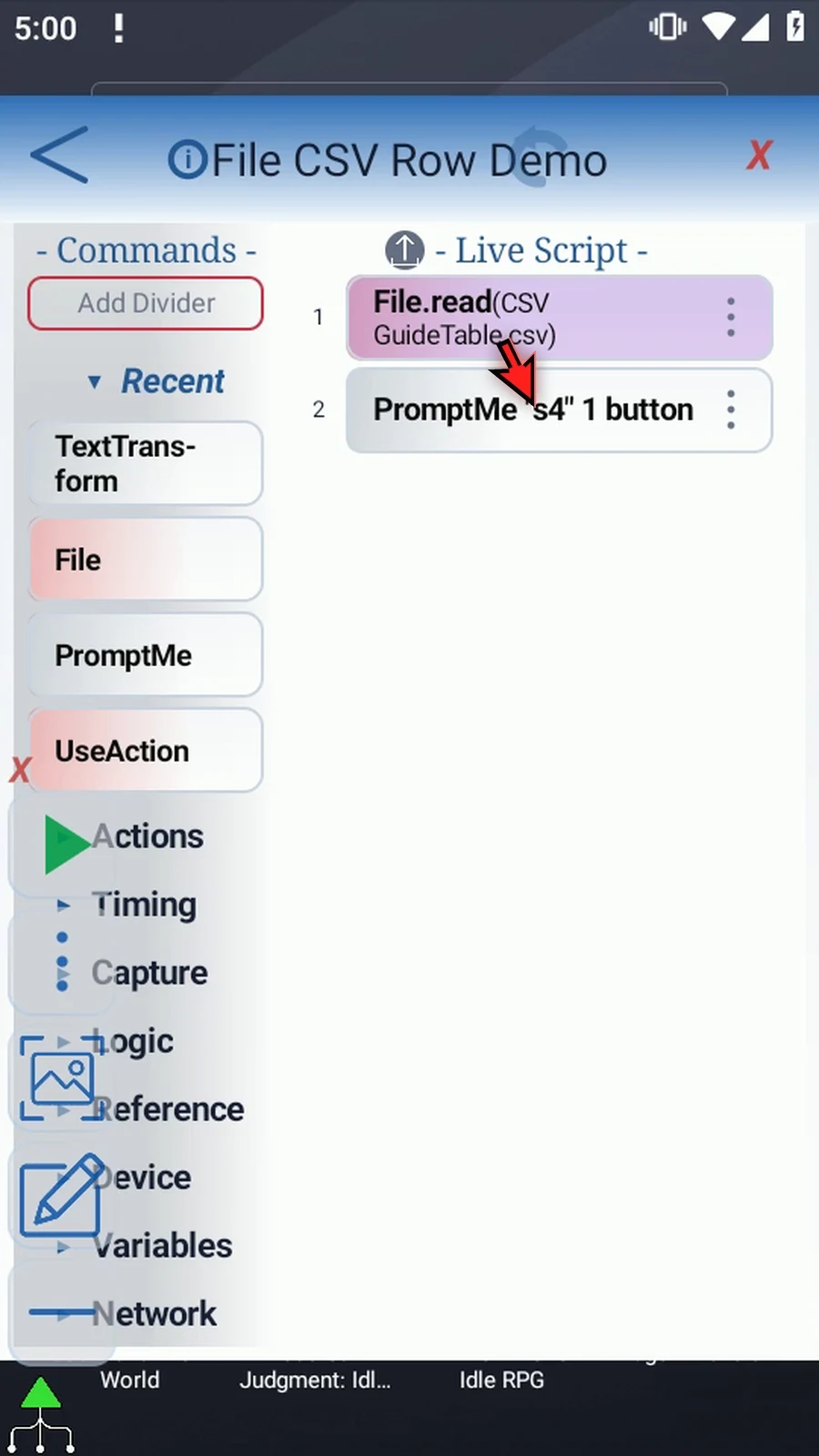
Step 03 Open File and change Read from Cell to Row. Make this choice before entering the array destination. Switching away from Cell clears its old Save Cell setting.
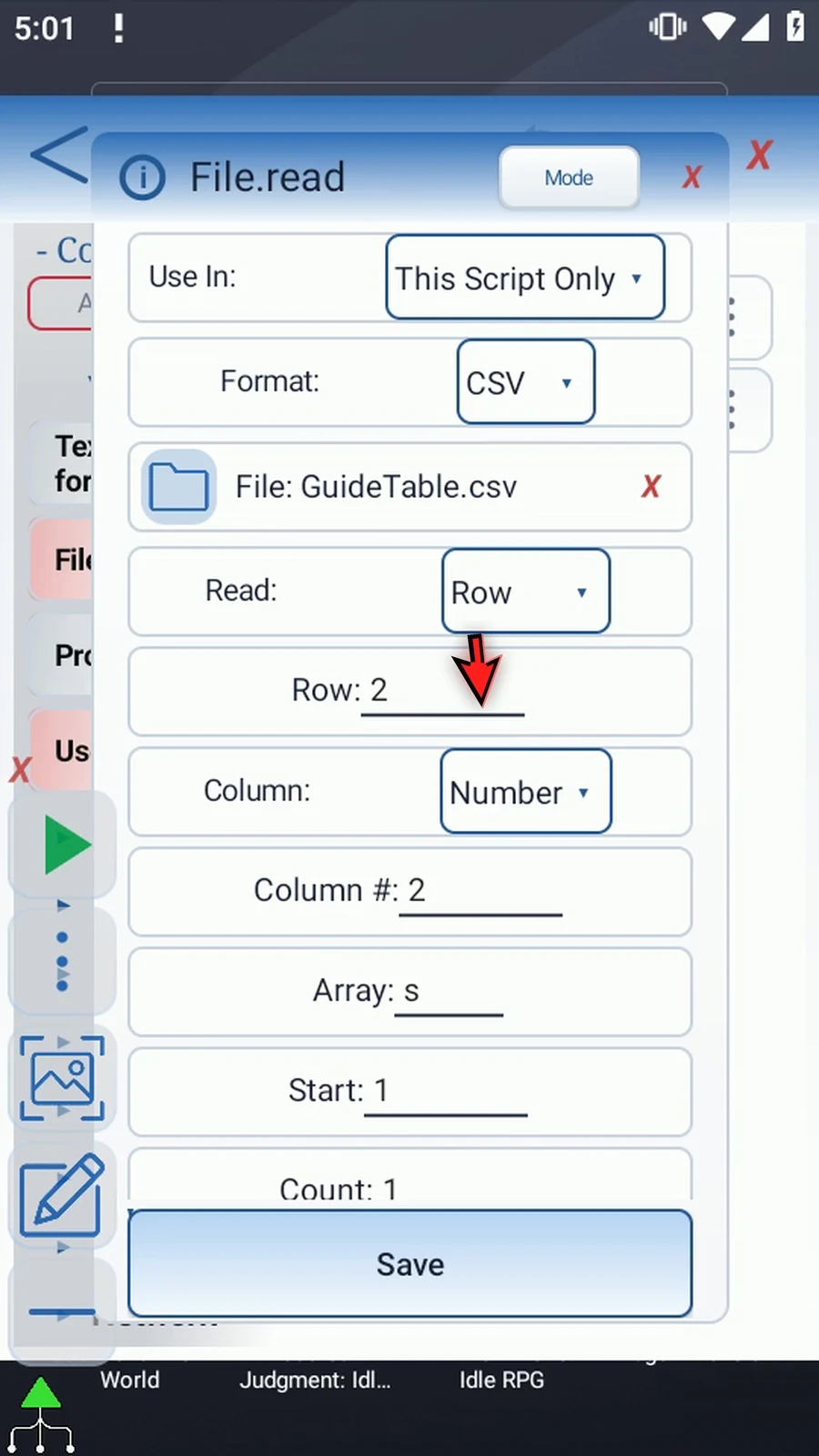
Step 04 Keep Row two, then change numeric Column to one. These are one-based positions in the table. Row reads across from that starting cell, so we'll include both Name and Value.
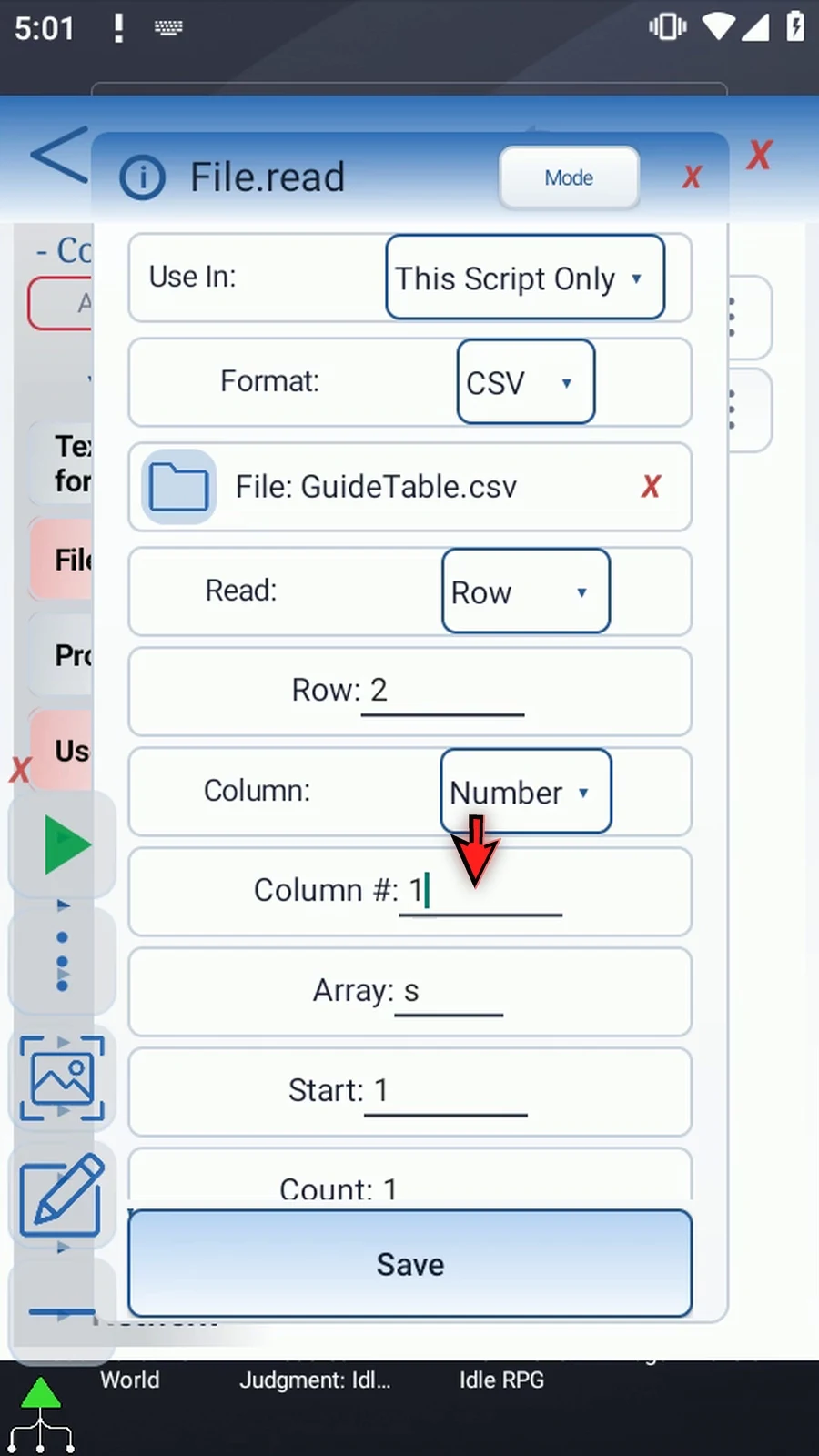
Step 05 Keep Array set to s and change Start to four. These are destination slots, not table coordinates. The first returned cell goes into s4, followed by s5.
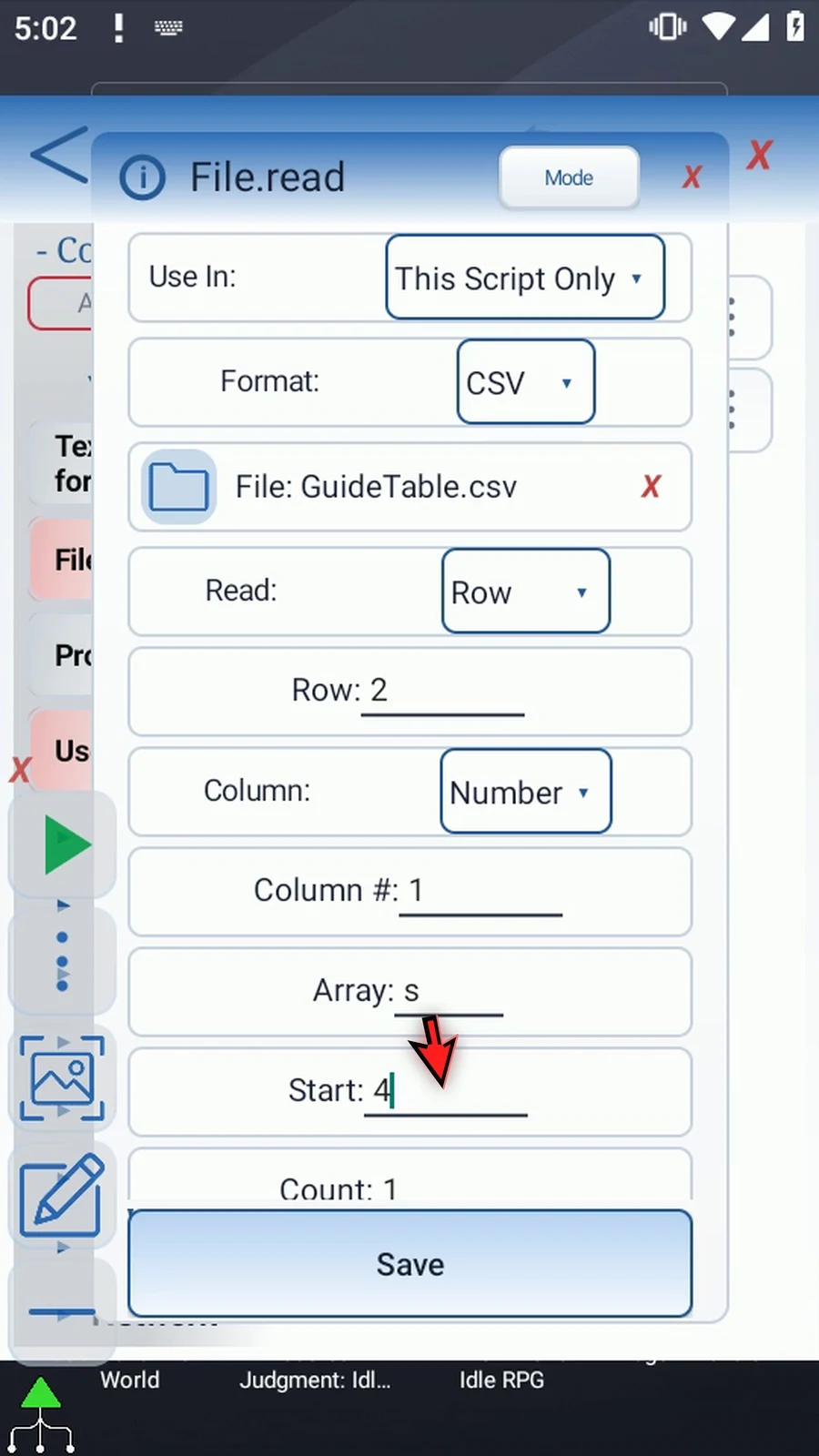
Step 06 Set Count to two. This reads two cells across the selected row. A comma inside a quoted CSV cell stays part of that cell; it does not create an extra value.
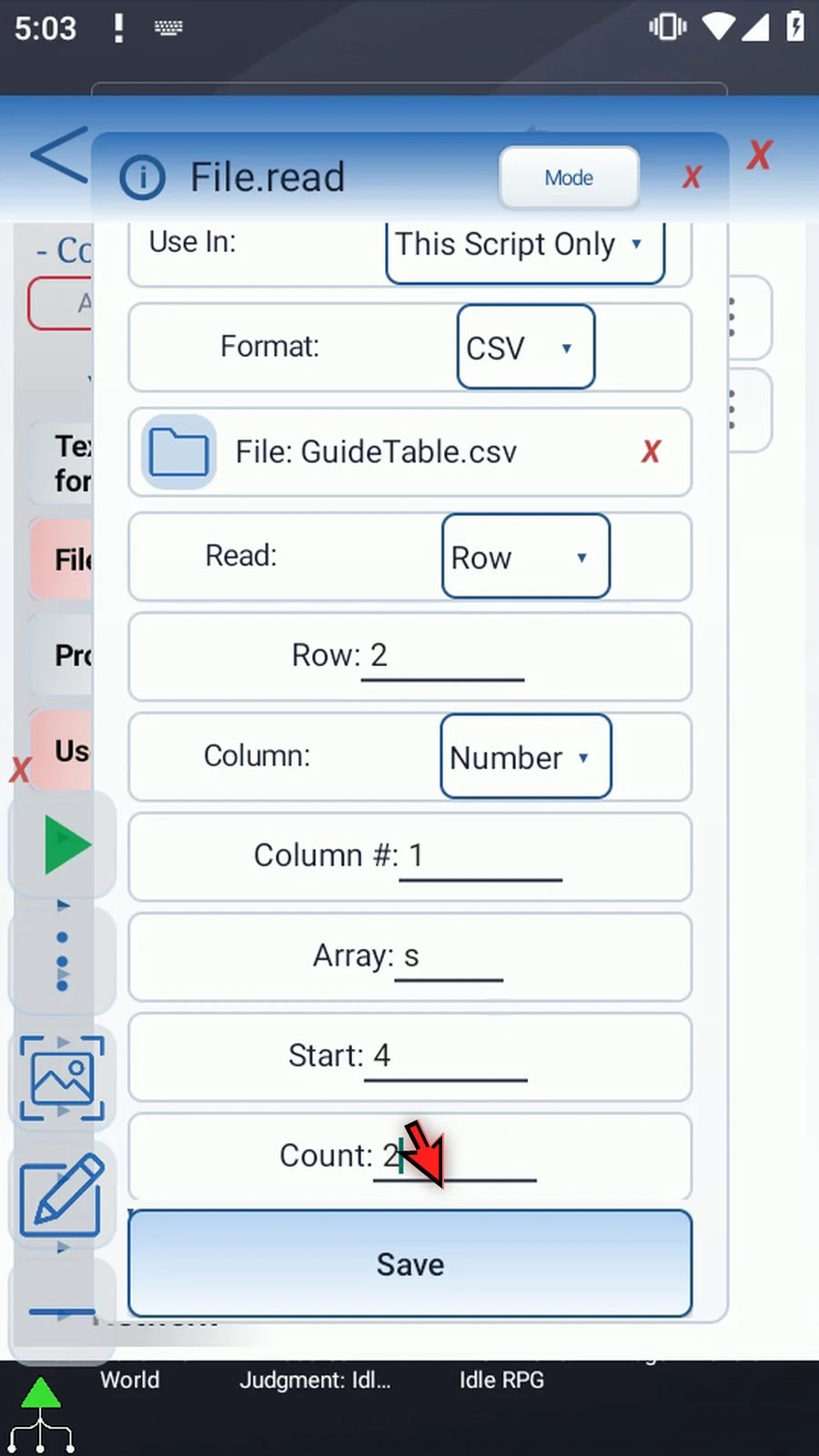
Step 07 Start and Count accept positive whole numbers or Integer variables prepared earlier. Keep the entire destination range within one through four thousand ninety-six. The starting cell must exist. If the requested count extends past the row, remaining outputs are empty Strings.
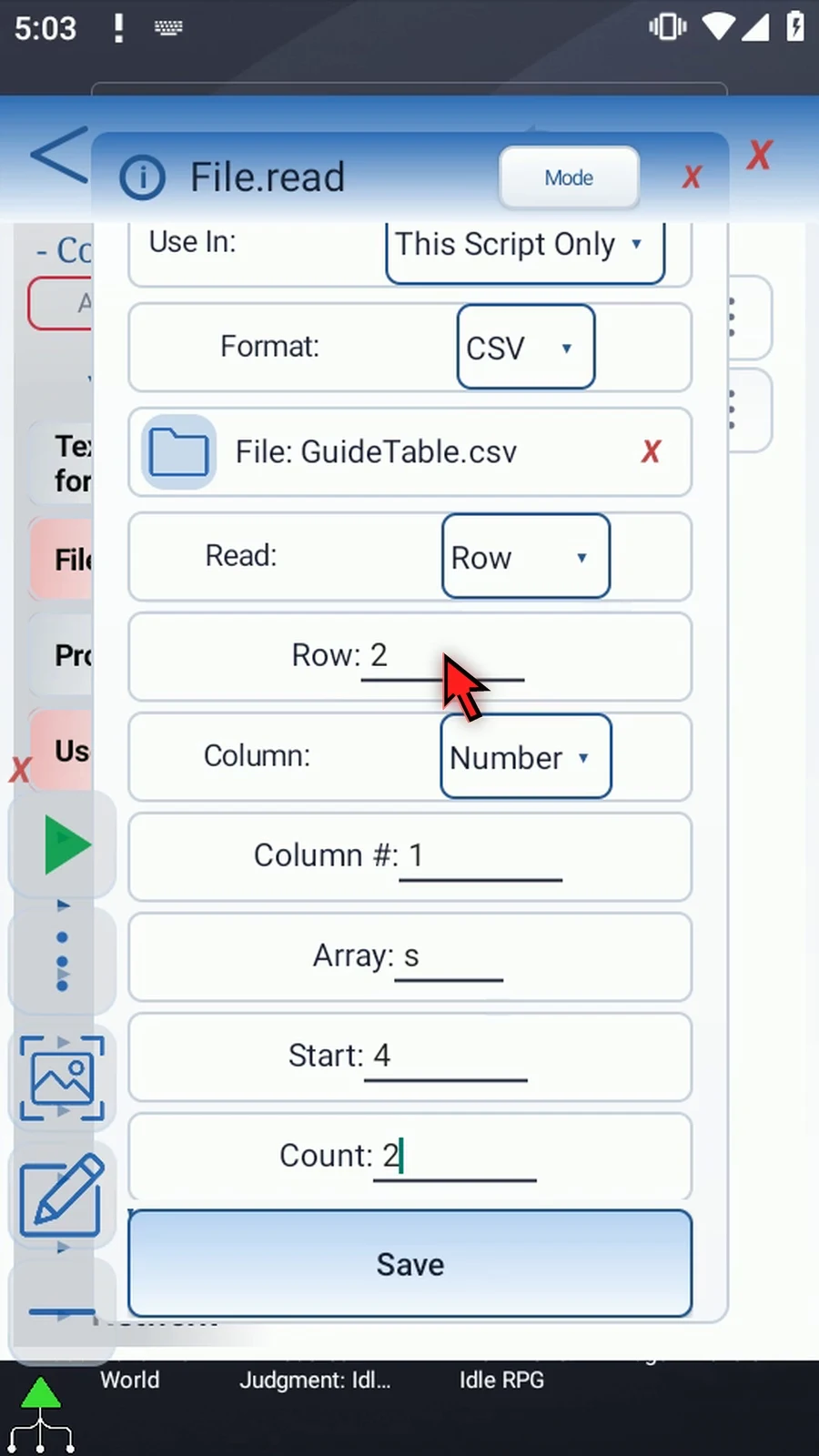
Step 08 Keep Success Boolean b1 and Error String s1. They report the read operation, while s4 and s5 hold the cells. Final Name and Final URI stay off.
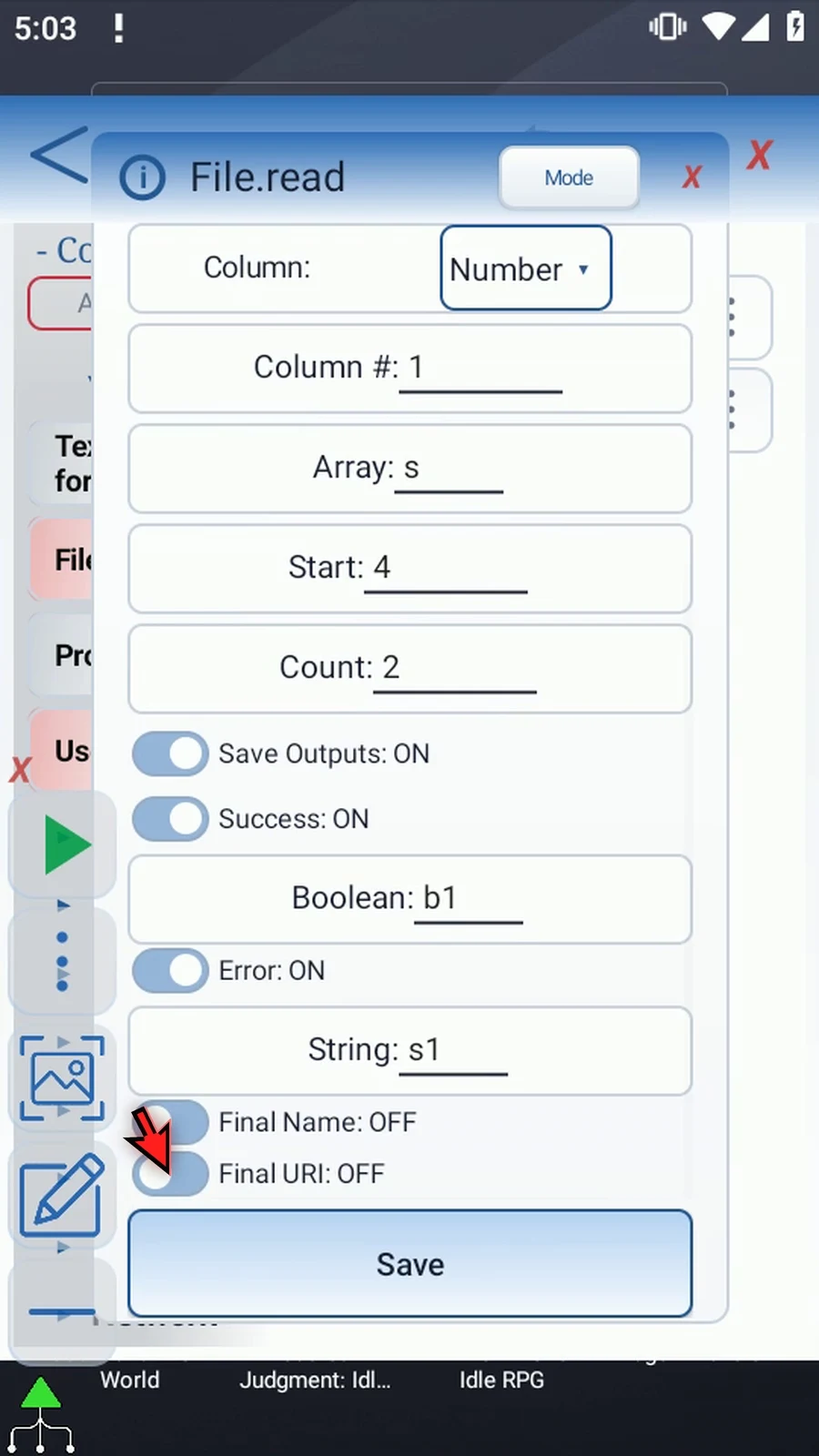
Step 09 Save File. Read leaves the table unchanged. Invalid selections or malformed CSV can fail, and tables larger than one megabyte are rejected rather than partially read.
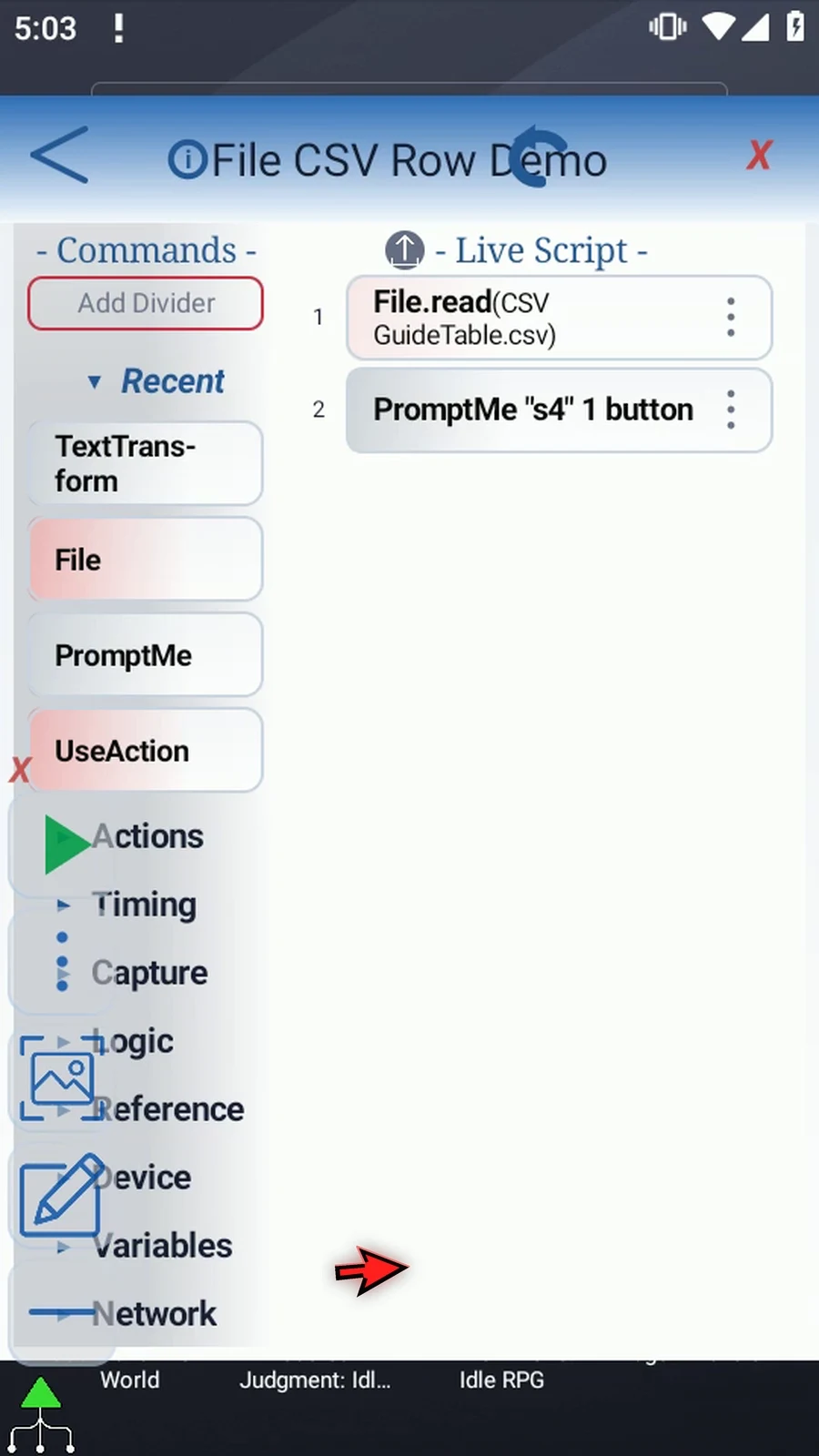
Step 10 For a clear confirmation, we'll combine the two returned Strings with Text Transform's Join operation. Expand Variables and find Text Transform.
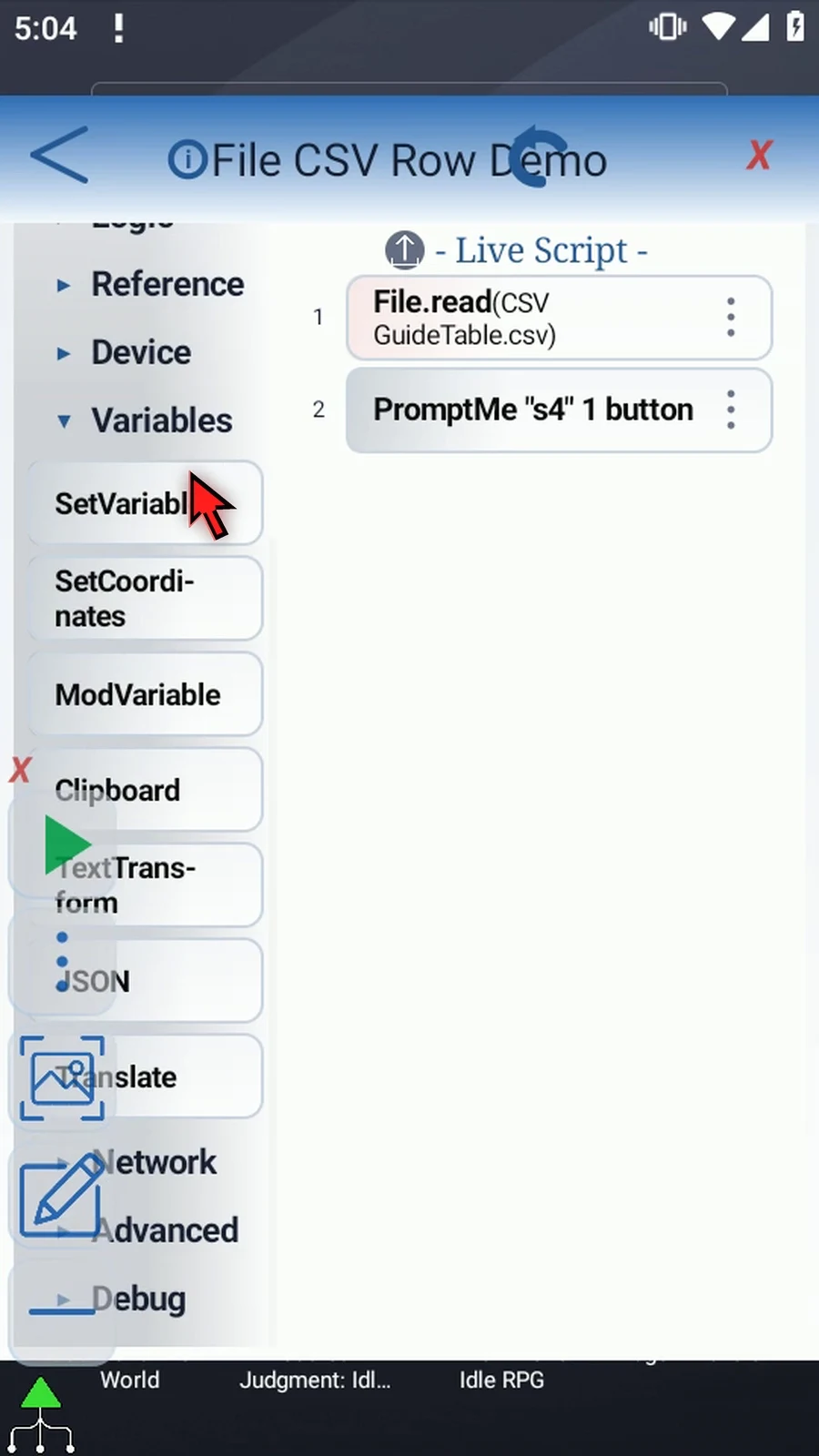
Step 11 Drag Text Transform into the script. We'll move it before PromptMe after its settings are saved.
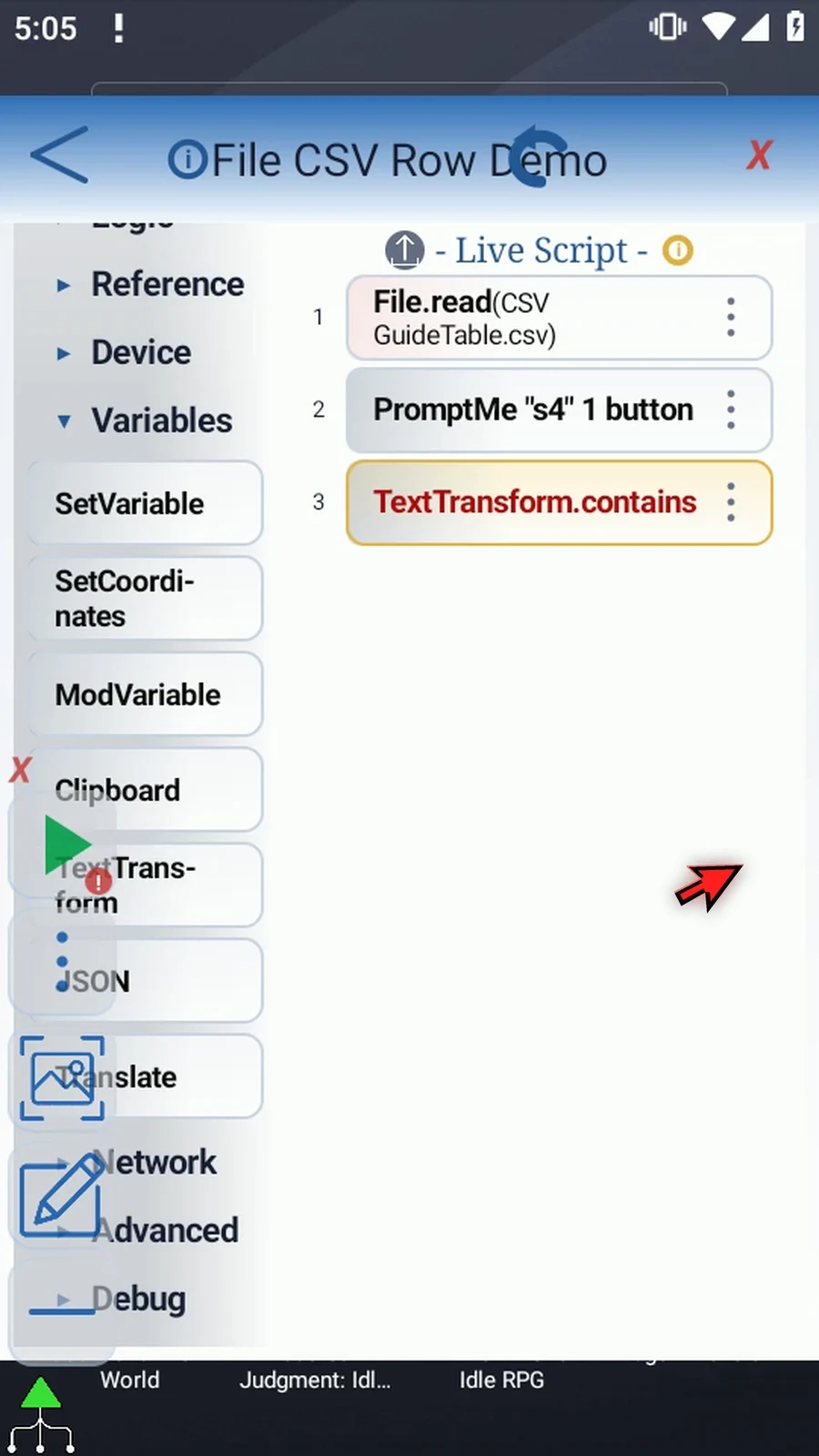
Step 12 Open the new command and choose Join. Keep This Script Only, so it uses the values returned by our File command.
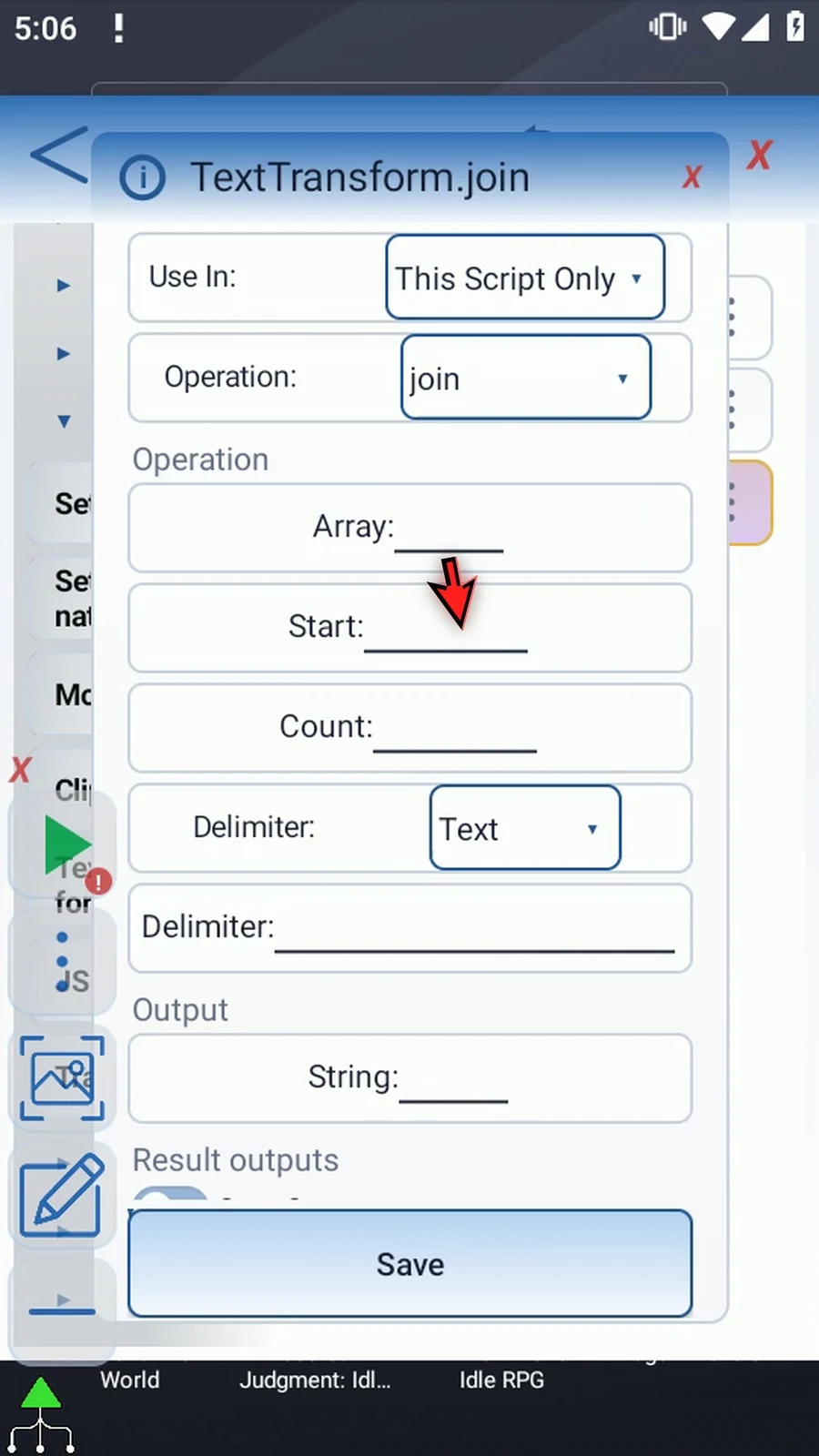
Step 13 Set Array to s. This is the String array filled by File. Set Start to four, then Count to two. Join will read s4 and s5, keeping our File status outputs separate.
Step 14 Keep Delimiter set to Text. Enter a space, a vertical bar, and another space. This separates the two cell values in our confirmation without changing them.
Step 15 Set Join's output String to s6. Keep its optional Save Outputs off and save. The Text Transform Join guide explains this supporting command in detail.
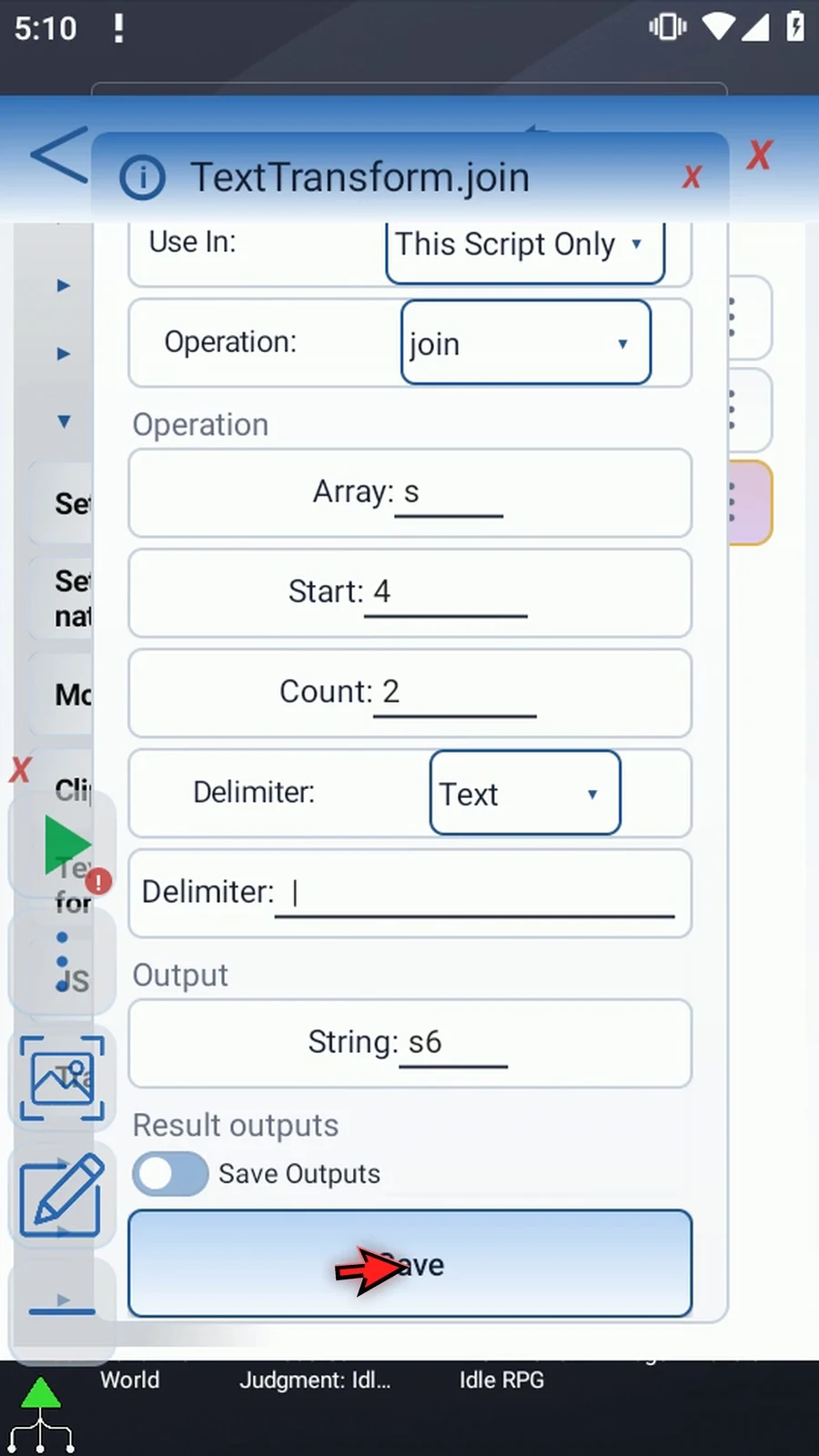
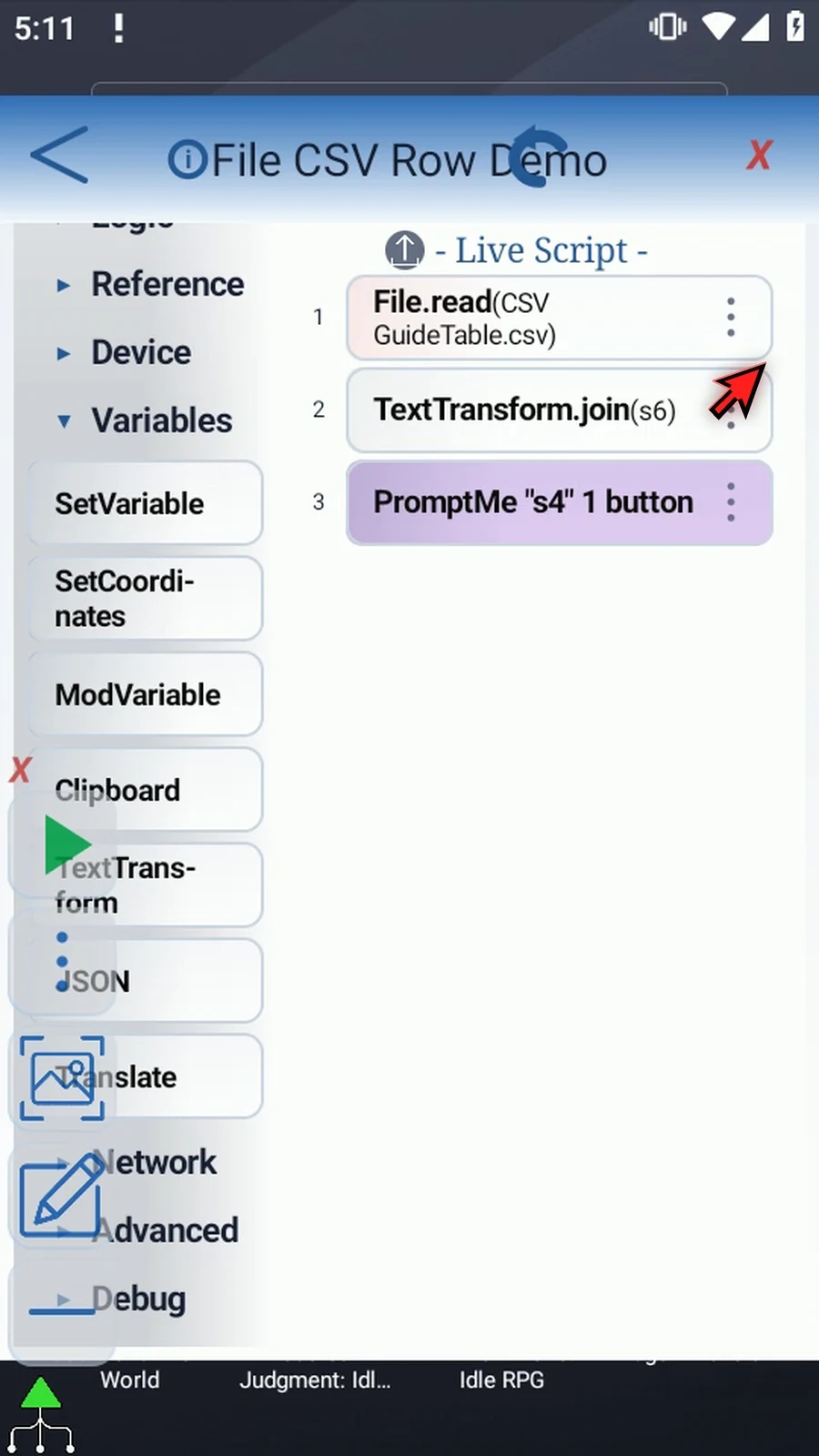
Step 16 Drag Join between File and PromptMe. File must fill the array first, Join combines those cells, and PromptMe displays the combined result.
Step 17 Open the existing PromptMe and change its Header to s6. Keep Standard mode and the Done button with Boolean b2, then tap OK.
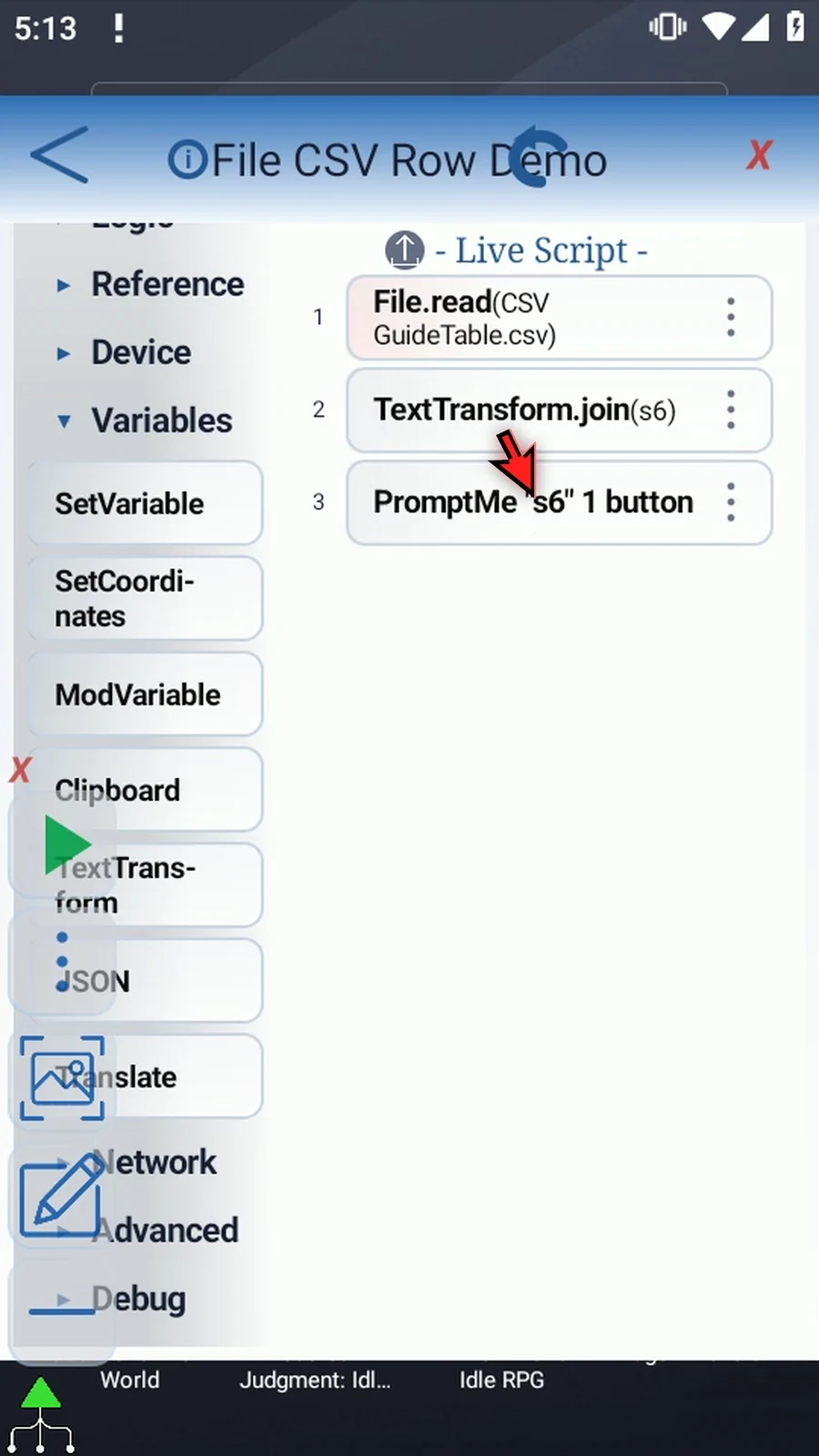
Step 18 This is the complete example: Read a CSV row, join the returned cells, and show the result. Other scripts can use those array values directly without joining them.
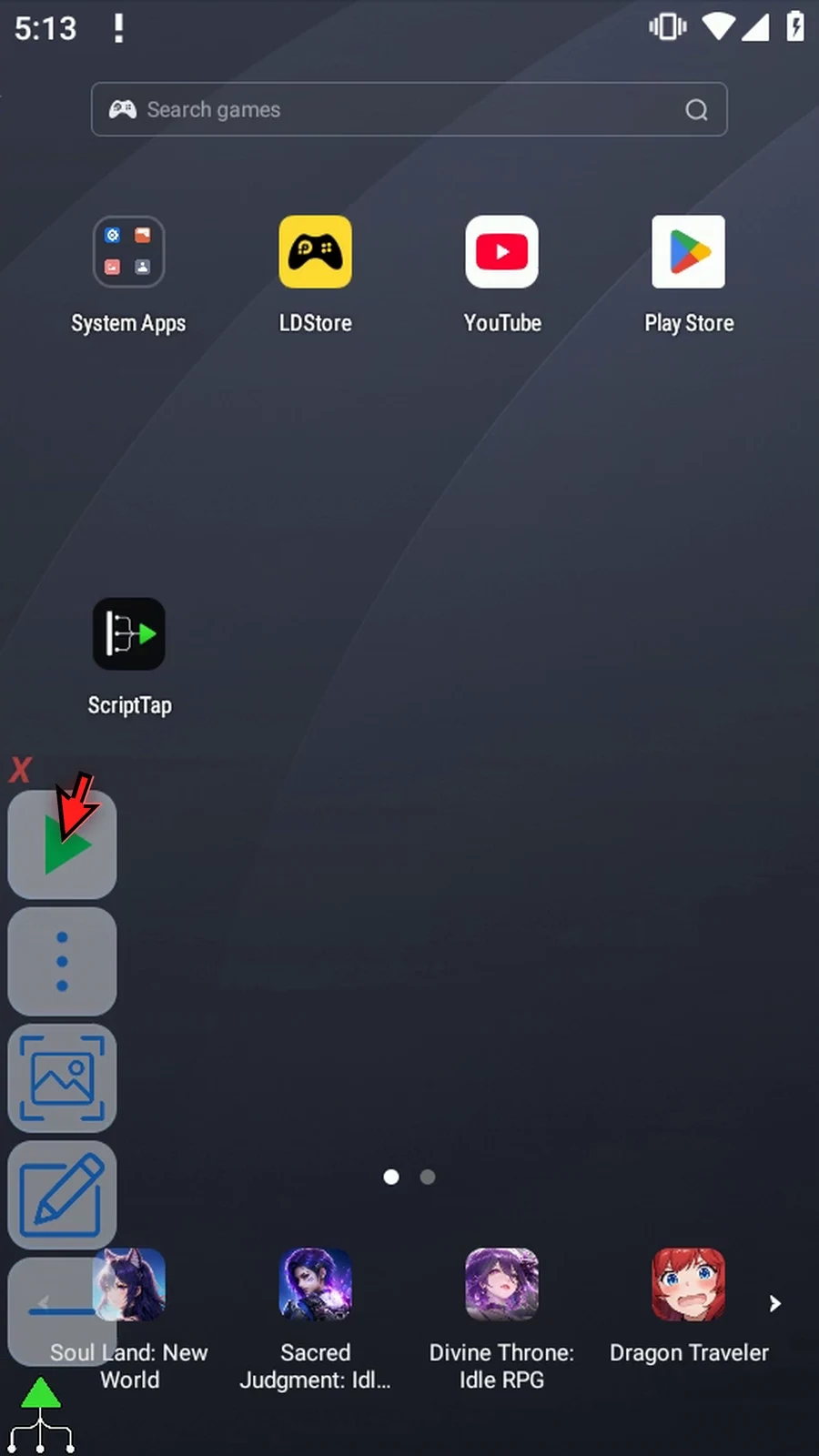
Step 19 When the script is complete, simply use the Play button in the main overlay.
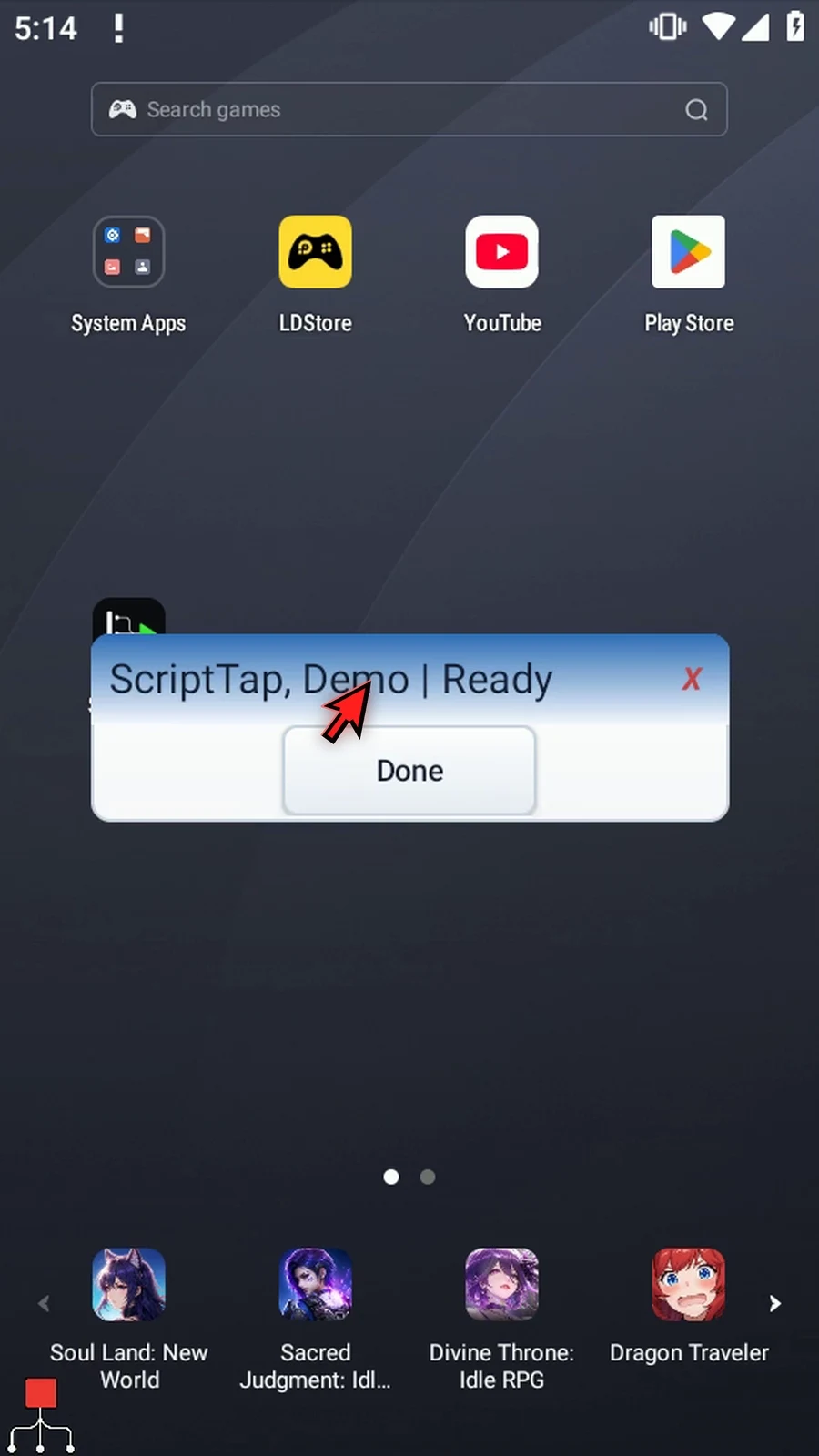
Step 20 PromptMe shows ScriptTap, Demo, followed by the separator and Ready. These are the two actual cells from row two. The comma remained inside the first cell, and the quotation marks were handled by the CSV parser.
Step 21 Press Done. The confirmation closes and the script finishes automatically.
Step 22 Use Row to retrieve several values across one table entry. Use Column when you need values down the table instead.
File Read's CSV Column option collects the same field from several table rows into a String array. This example returns two cells down the Value column, then uses the supporting Join and PromptMe from Read CSV Row to display both actual values.
Continue with a separate copy of the Row example. Its saved GuideTable.csv contains Name,Value on the first row and "ScriptTap, Demo",Ready on the second. Create CSV and Append CSV explain that table; Cell explains the Android document selection. Row shows the manual supporting-command drag and configuration. No new commands are inserted in this follow-up, and accepted scripts are not edited.
- Read: choose Column. Row and Column intentionally share their Array, Start and Count settings; this change retains them.
- Starting row: set Row to
1. Positions are 1-based. Row 1 includes the header itself; start at row 2 to skip it. - Column: choose Header and enter
Value. Lookup uses the first row, ignores surrounding spaces, is case-sensitive, and selects the first exact match. Switching from Number to Header clears the outgoing numeric-column setting. Number is an alternative for a 1-based column position, as explained in Cell. - Destination: keep String Array
s, Start4, Count2. Values down the selected column go tos4thens5. Start is the destination slot, not a table coordinate. - Ranges: Row, numeric Column, Start and Count accept positive whole numbers or earlier Integer-variable tokens. The entire destination range must remain within 1–4096. The selected column and starting row must exist. Missing cells farther down, including requests past the table, return empty Strings.
- Status: keep Success Boolean
b1and Error Strings1independent of the returned cells; Final Name and Final URI stay OFF. Read does not modify the document. Missing access, invalid selections, absent headers or malformed CSV can fail. CSV reads above 1MB fail rather than return a partial table.
The existing TextTransform Join reads Array s, Start 4, Count 2, with literal delimiter | and output s6. Its optional status outputs stay OFF. Standard PromptMe uses Header s6 and Done Boolean b2. Play displays Value | Ready: the header and next cell in that column. Done closes the confirmation and the script finishes automatically.
Use Column for the same field from several rows, Row for several fields across one entry, and Cell for a single value.
Read CSV Column
Step-by-step guide
Step 01 File Read's Column option retrieves values down one CSV column into a String array. This is useful when later commands need the same field from several table entries. We'll read two values and display both.
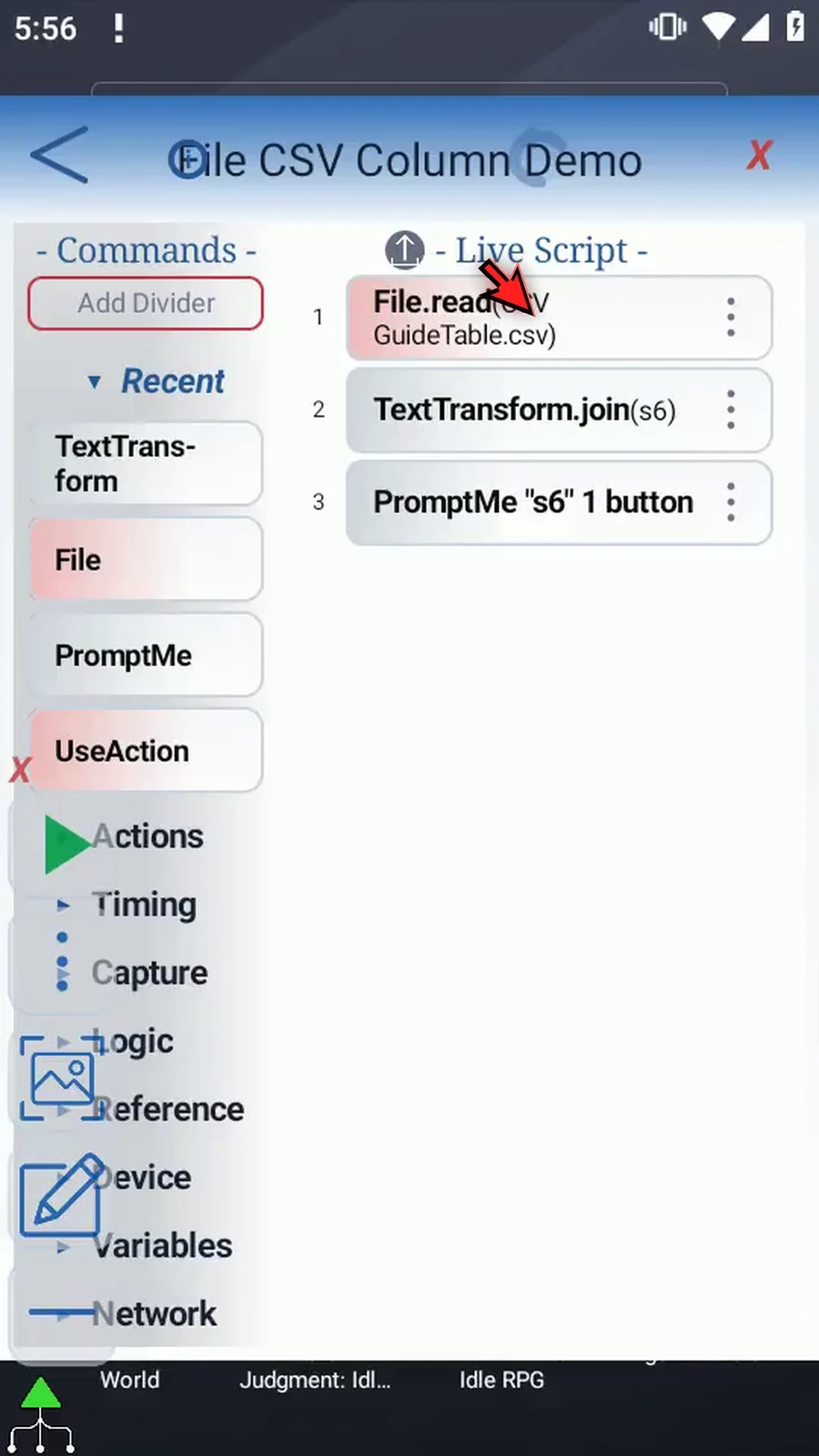
Step 02 This copy keeps the table, Join, and PromptMe from the Row example. That guide shows the supporting command's manual drag and setup. Create CSV and Append CSV explain how our sample table was made.
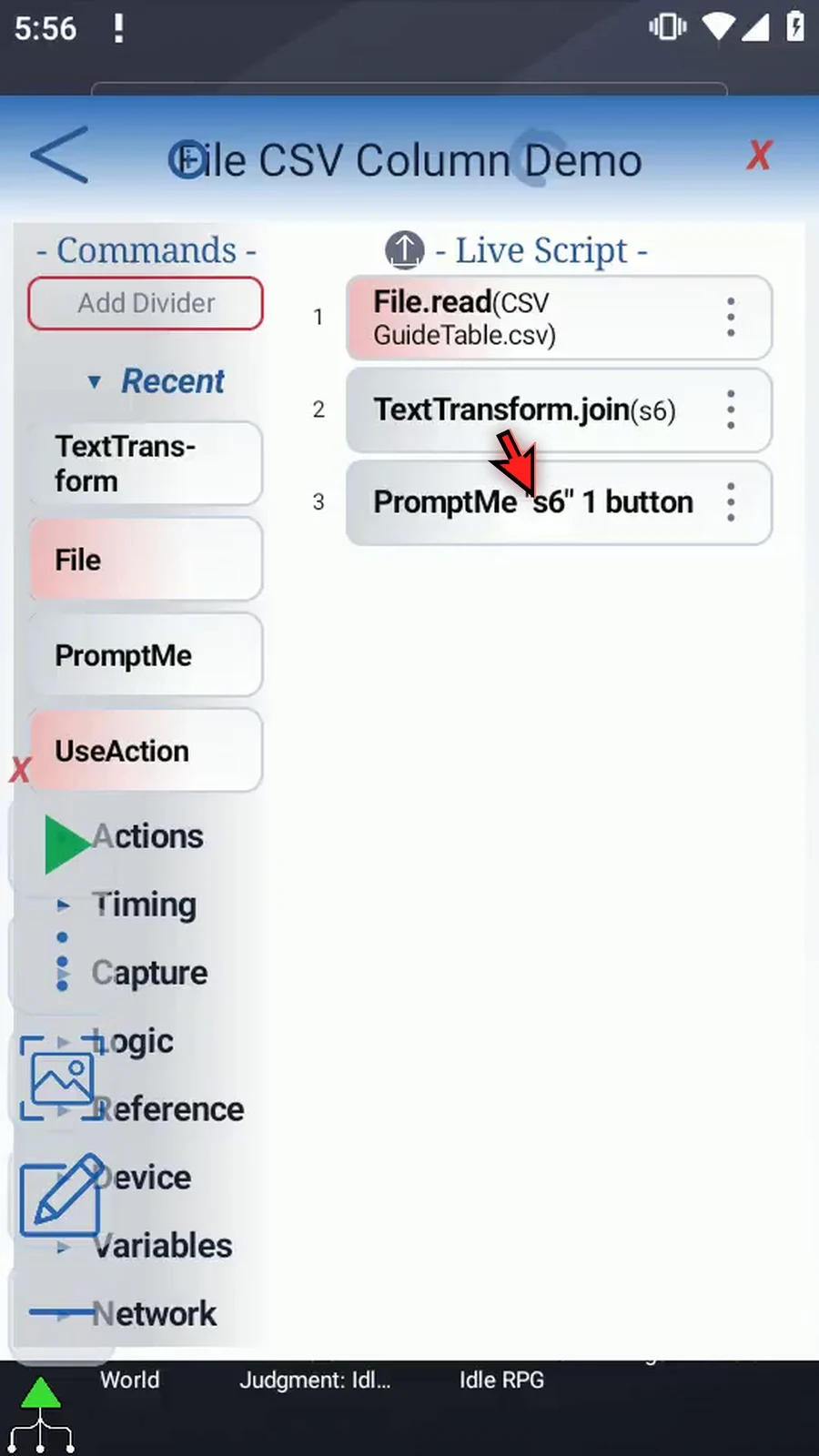
Step 03 Open File and change Read from Row to Column. Row reads across the table; Column reads down it. These two modes share their array settings, so our existing destination is retained.
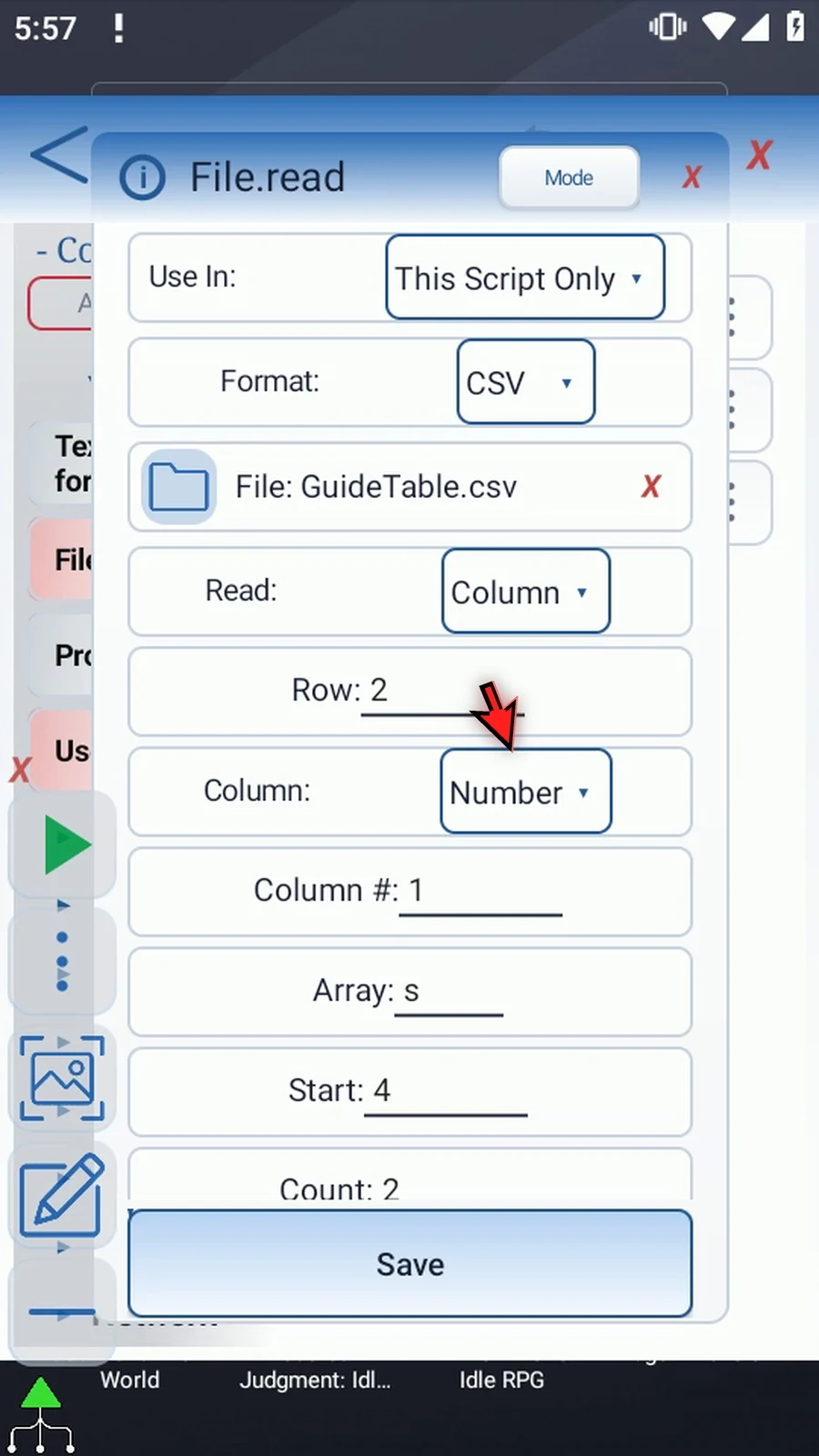
Step 04 Change Row to one. Row is the first table row to read, and positions start at one. This includes the header row in our result. Start at row two when you want to skip that header.
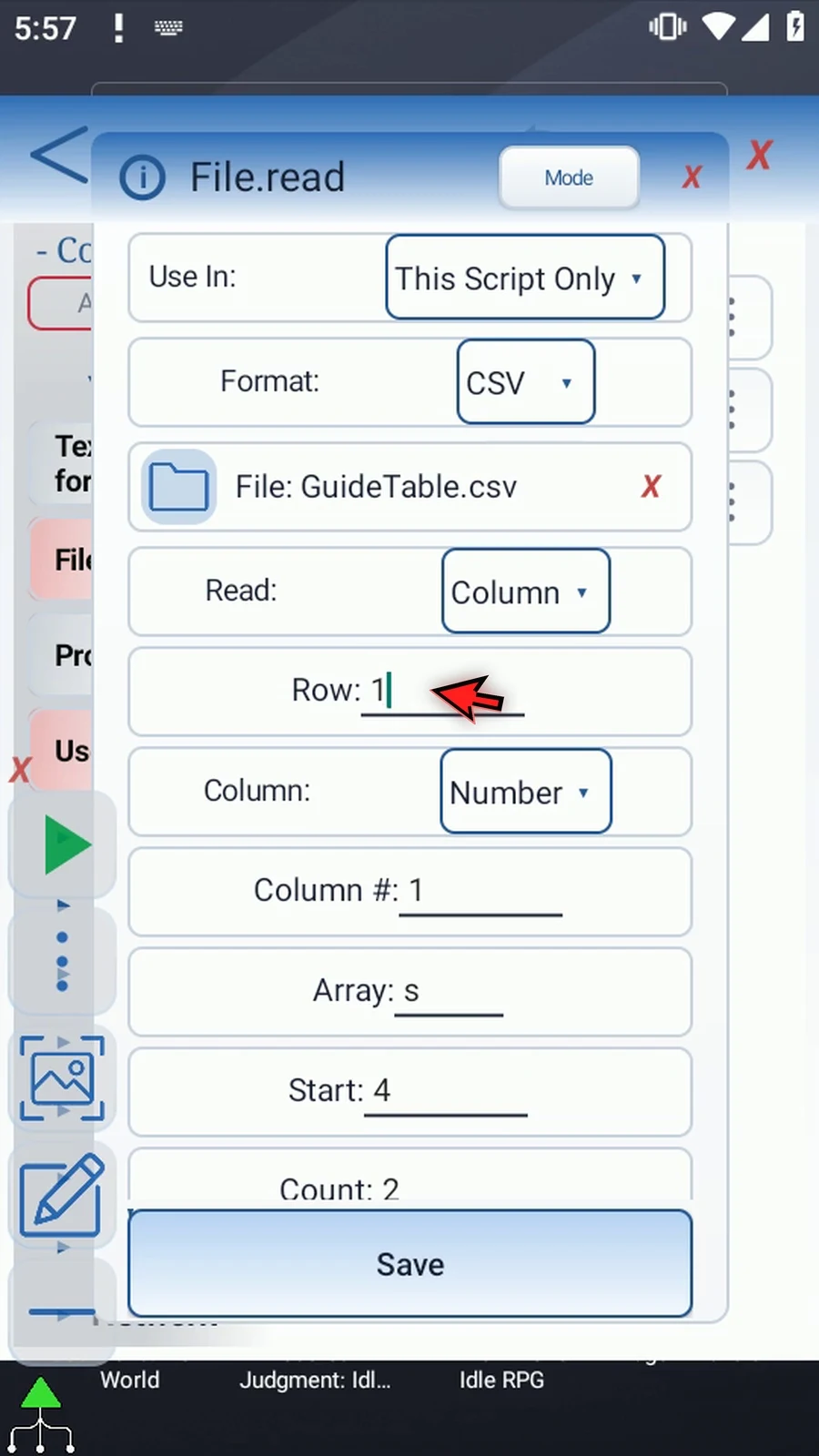
Step 05 Change Column from Number to Header and enter Value. Header selects a column by its first-row label instead of its position. Switching to Header clears the old numeric column setting.
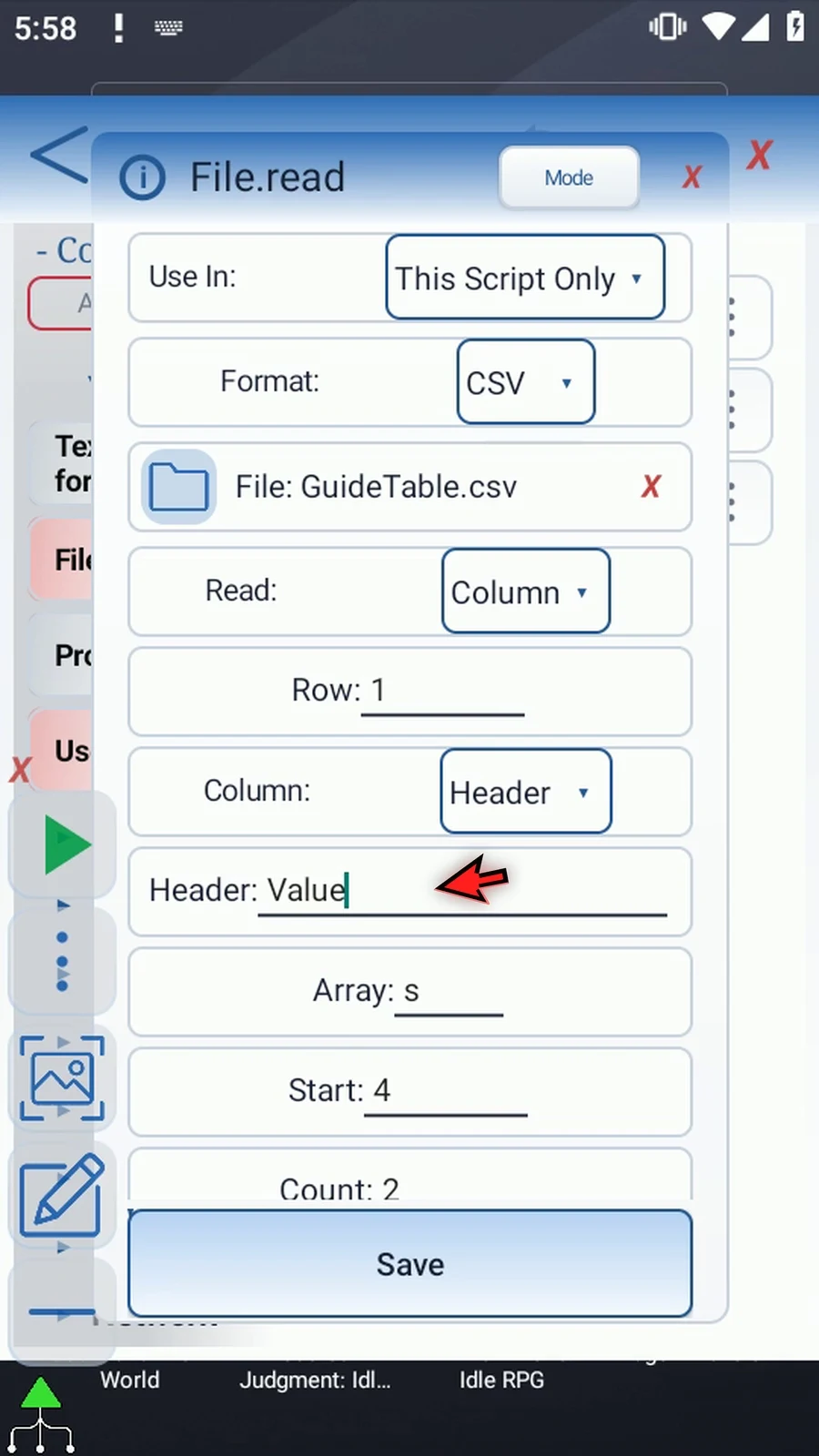
Step 06 Header lookup is case-sensitive. Leading and trailing spaces are ignored, and the first exact match is used if a label appears more than once. Number remains available for a one-based column position, as shown in the Cell guide.
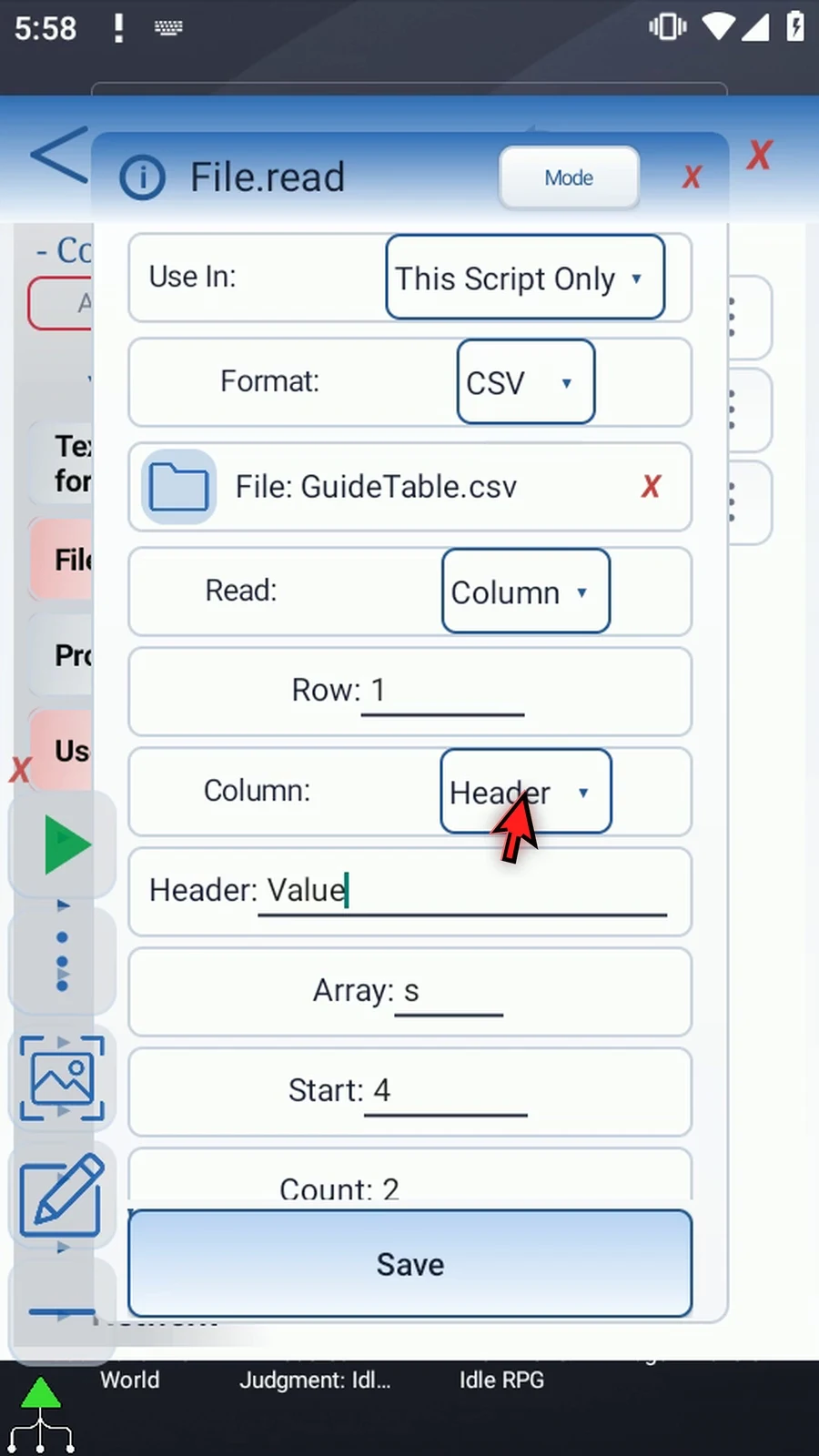
Step 07 Keep Array s, Start four, and Count two. File reads two values down the selected column into s4 and s5. Start is the first destination slot, not the starting table row.
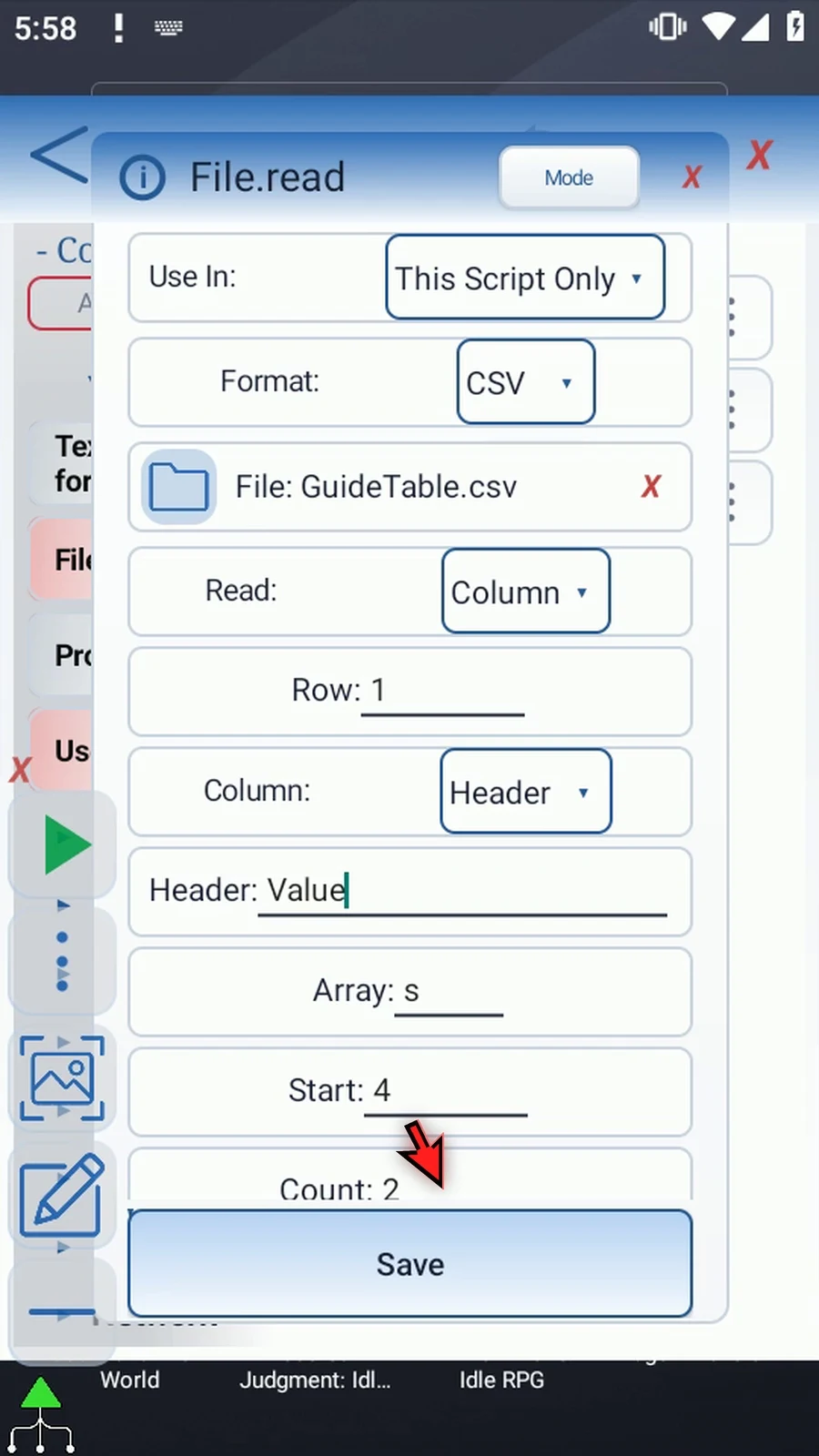
Step 08 Row, numeric Column, Start, and Count accept positive whole numbers or Integer variables set earlier. Keep the entire destination range within one through four thousand ninety-six. The selected column and starting row must exist; missing cells farther down return empty Strings.
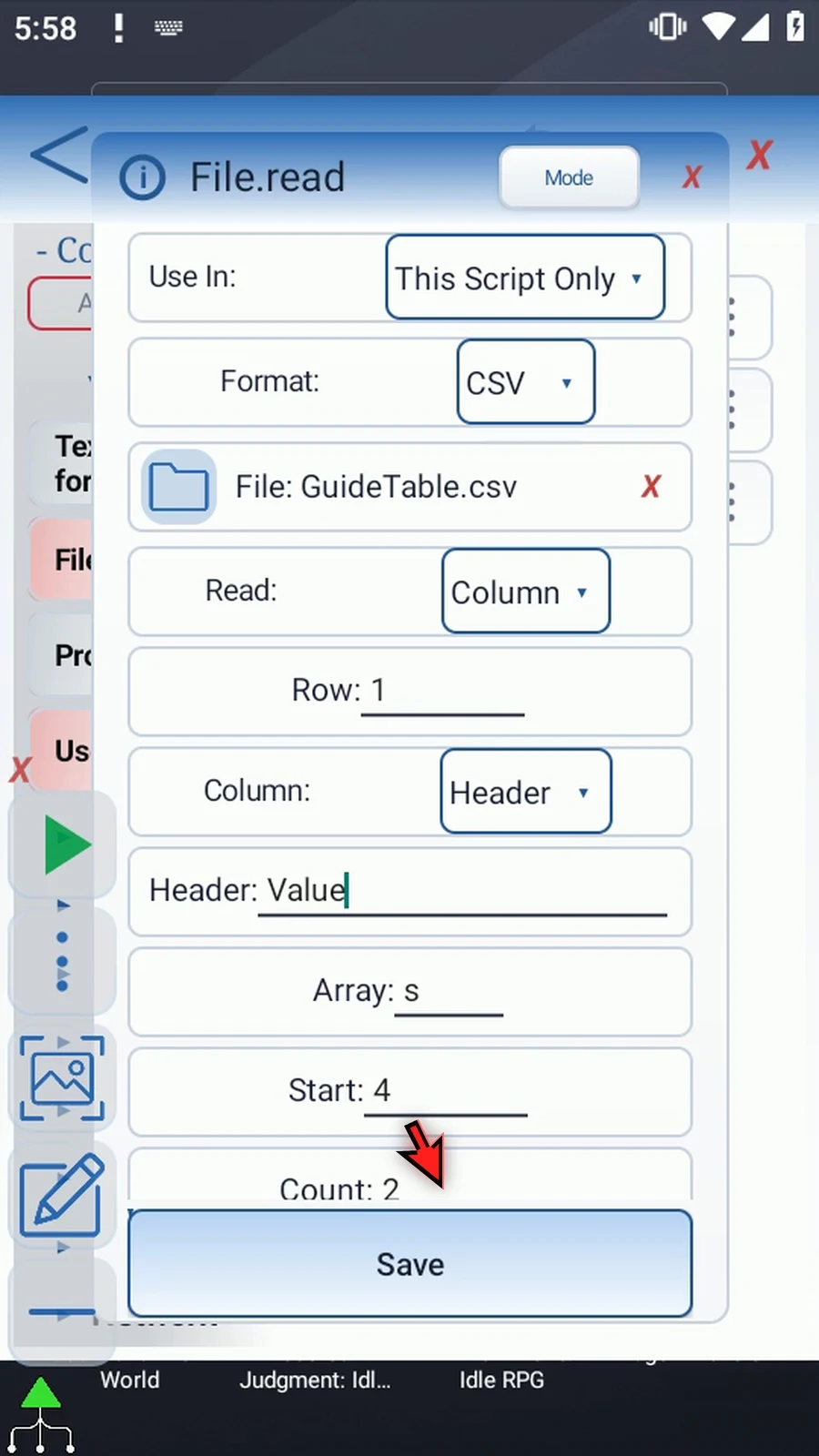
Step 09 Keep Success Boolean b1 and Error String s1. They report the read operation, separately from the returned cells. Final Name and Final URI stay off. Read does not change the table.
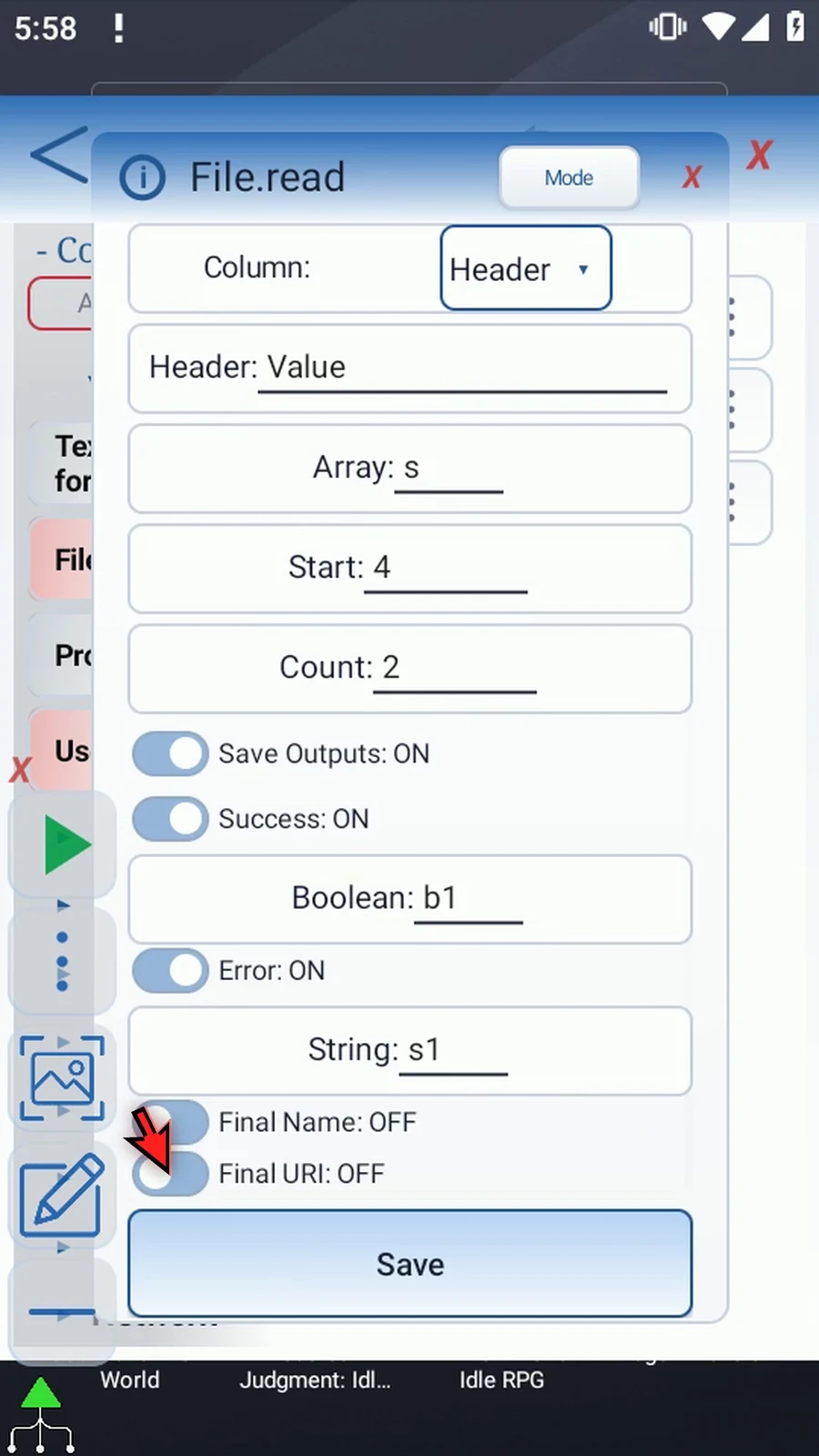
Step 10 Save File. Missing access, invalid selections, or malformed CSV can fail. CSV reads are limited to one megabyte; larger tables are rejected rather than partially read.
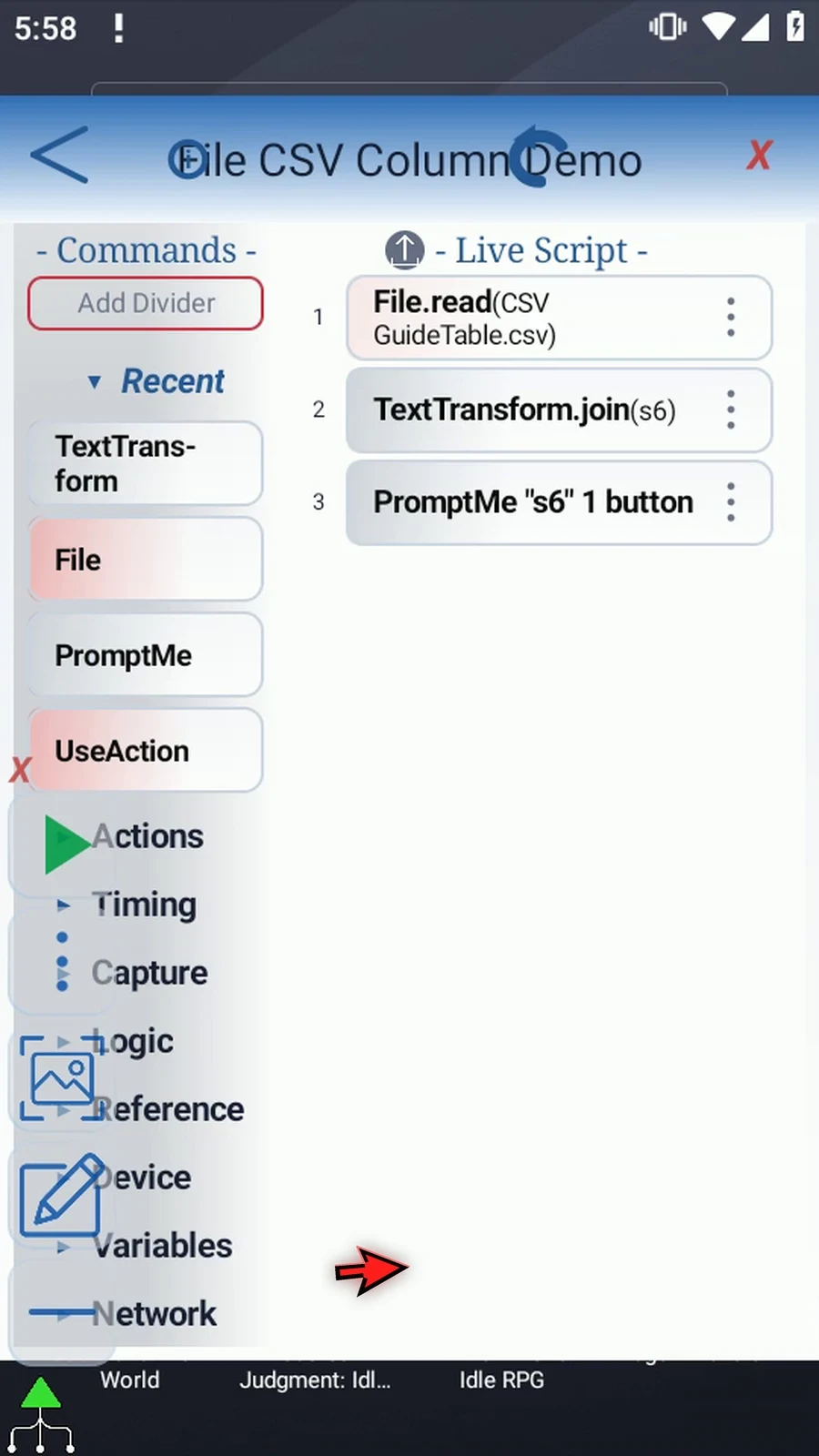
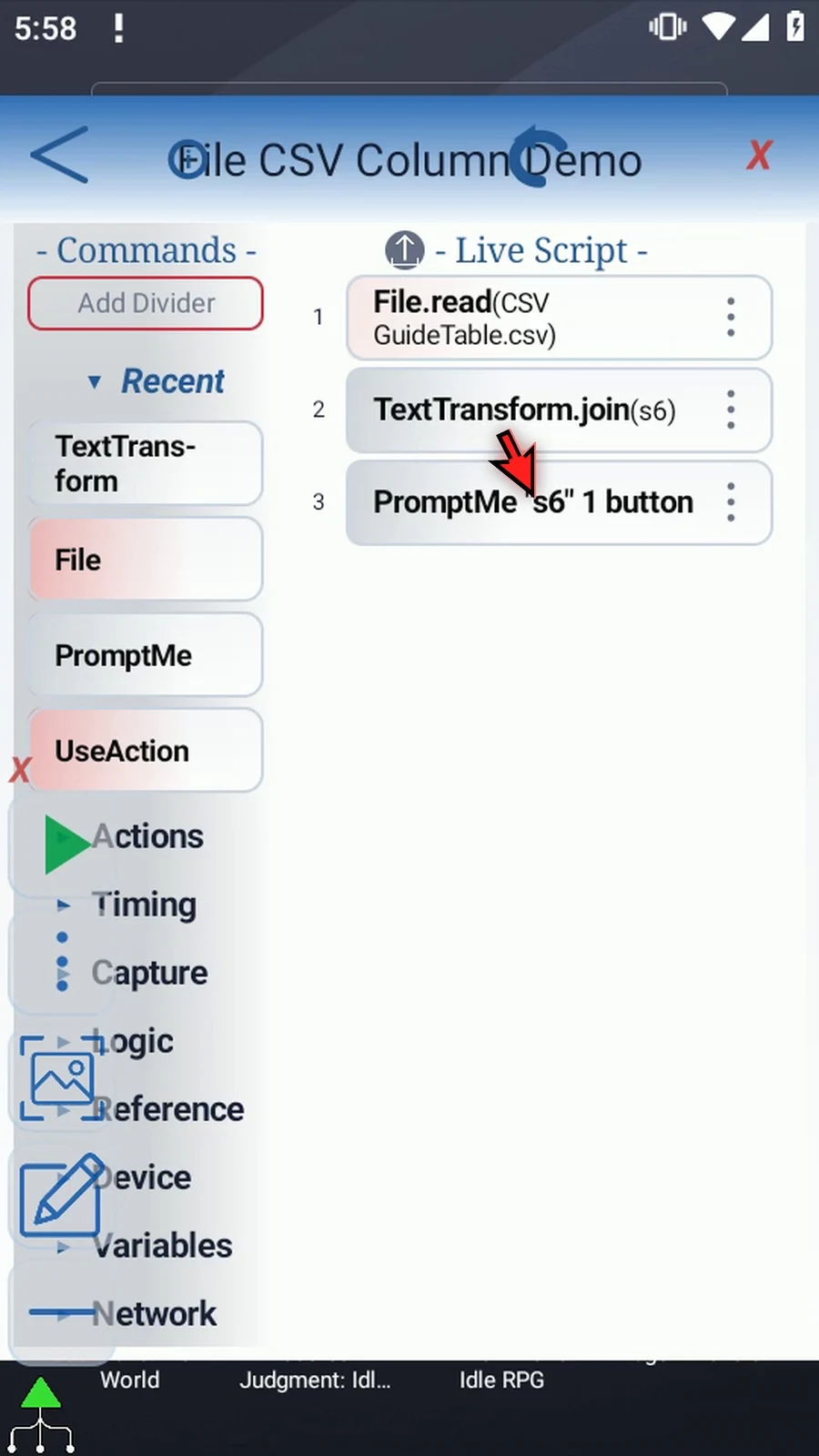
Step 11 The existing Join reads s4 and s5, separates them with a vertical bar, and puts the combined text in s6. PromptMe displays s6. These commands only make our File result easy to see; other scripts can use the array directly.
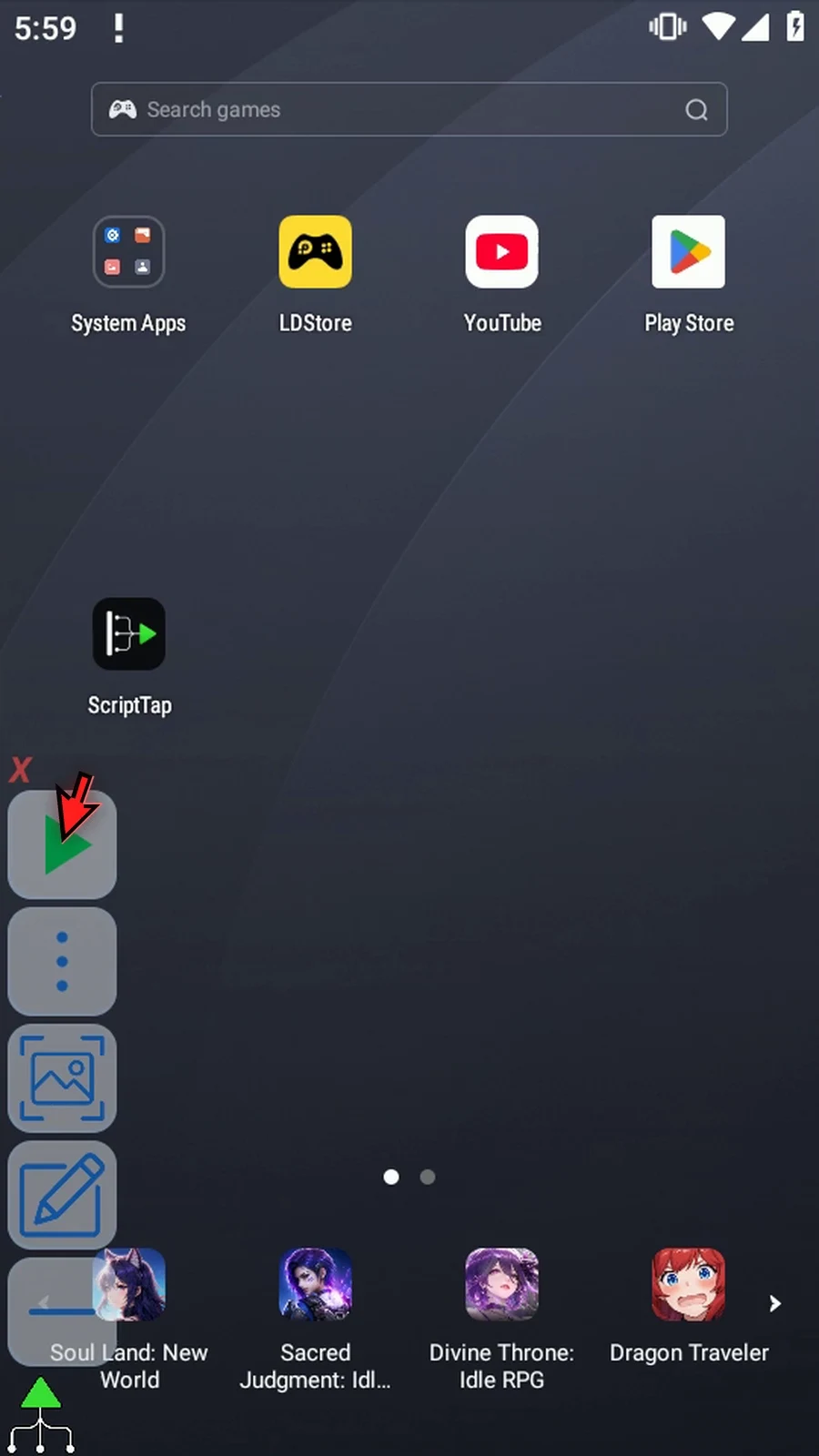
Step 12 When the script is complete, simply use the Play button in the main overlay.
Step 13 PromptMe shows Value, followed by the separator and Ready. Value is the first-row header, and Ready is the next value down that column. File returned both cells in table order.
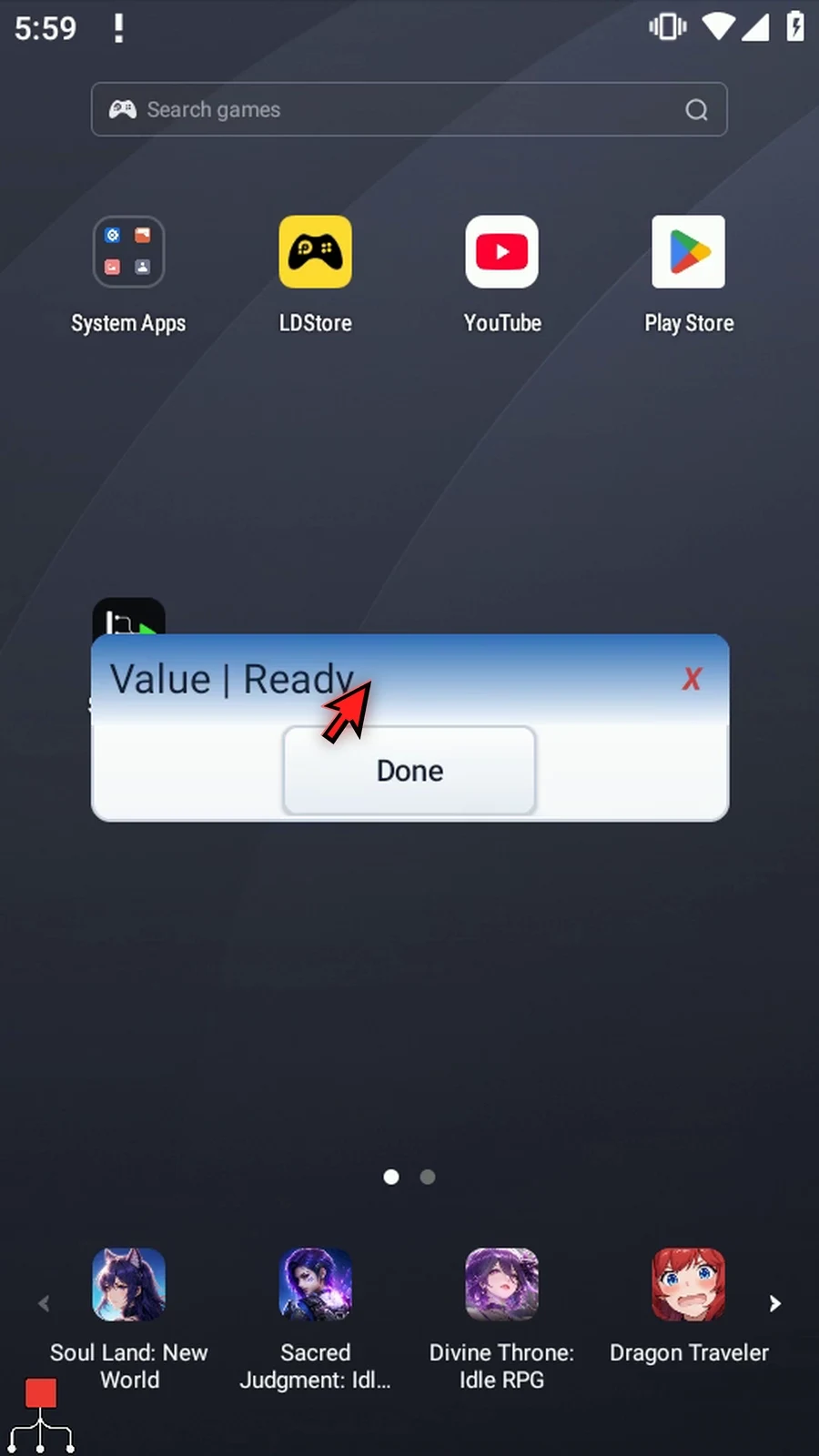
Step 14 Press Done. The confirmation closes and the script finishes automatically.
Step 15 Use Column to collect the same field from several table rows. Use Row for several fields across one entry, or Cell for just one value.
File Create saves prepared JSON text into a document for later File Read commands or other apps to use. JSON organizes data as named values. This example writes a small object with a text status and numeric count, then displays the actual created filename.
Continue with a separate copy of Intro & Create Text. The Intro shows the manual File and PromptMe drags, Android folder selection, durable access, filename sources, naming policies and output setup. This follow-up changes only the format, filename and content; it does not edit the accepted script or insert commands off-camera.
- Operation and format: keep Create and choose JSON. The selected
ScriptTapTutorialsfolder and common naming controls are retained. The outgoing Text-format content is cleared. - Name: use Text and enter
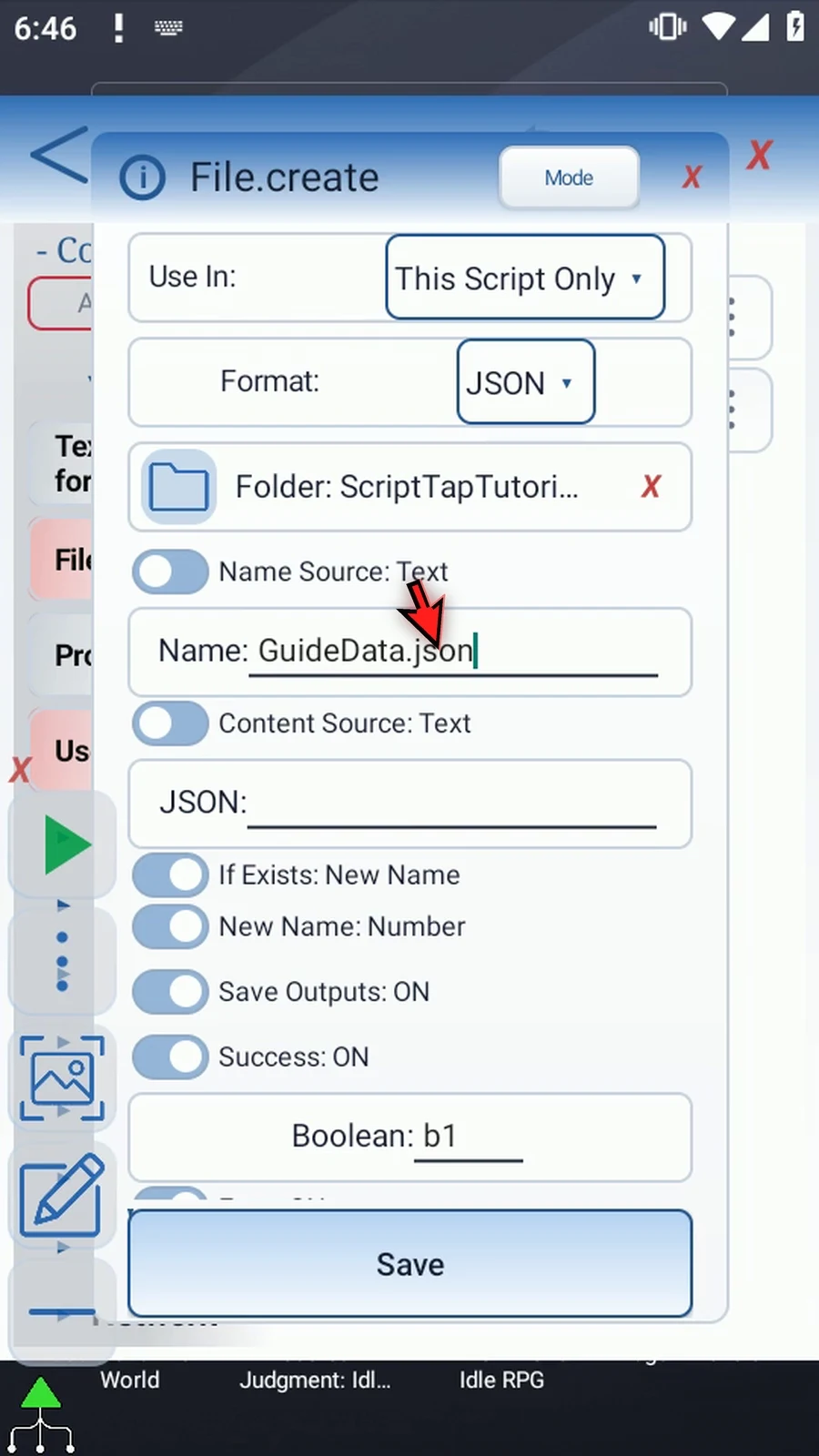
GuideData.json. A prior String variable is also supported for the name, as explained in the Intro. Names cannot be blank or contain path separators, illegal characters or control characters. - Content Source: Text writes the literal JSON text entered here. String Variable uses JSON text prepared by an earlier command. The video first shows that alternate field, then returns to Text before entering the example. A source change retires the outgoing source value; it is not an ordinary retention toggle.
- Data: enter
{"status":"Ready","count":2}. Property names and text values use double quotes; the count is a number. File writes the supplied text unchanged: it does not build, validate, repair or pretty-print JSON. Use the JSON command for structured-data operations. - Safe naming: keep If Exists: New Name and New Name: Number. Existing documents are not replaced. The actual name can differ if the requested one already exists. The Intro explains Timestamp and explicit Overwrite.
- Outputs: keep Success Boolean
b1, Error Strings1, Final Names2and Final URIs3. These independent optional outputs report the creation result. Missing folder access, invalid names or a provider write failure can fail.
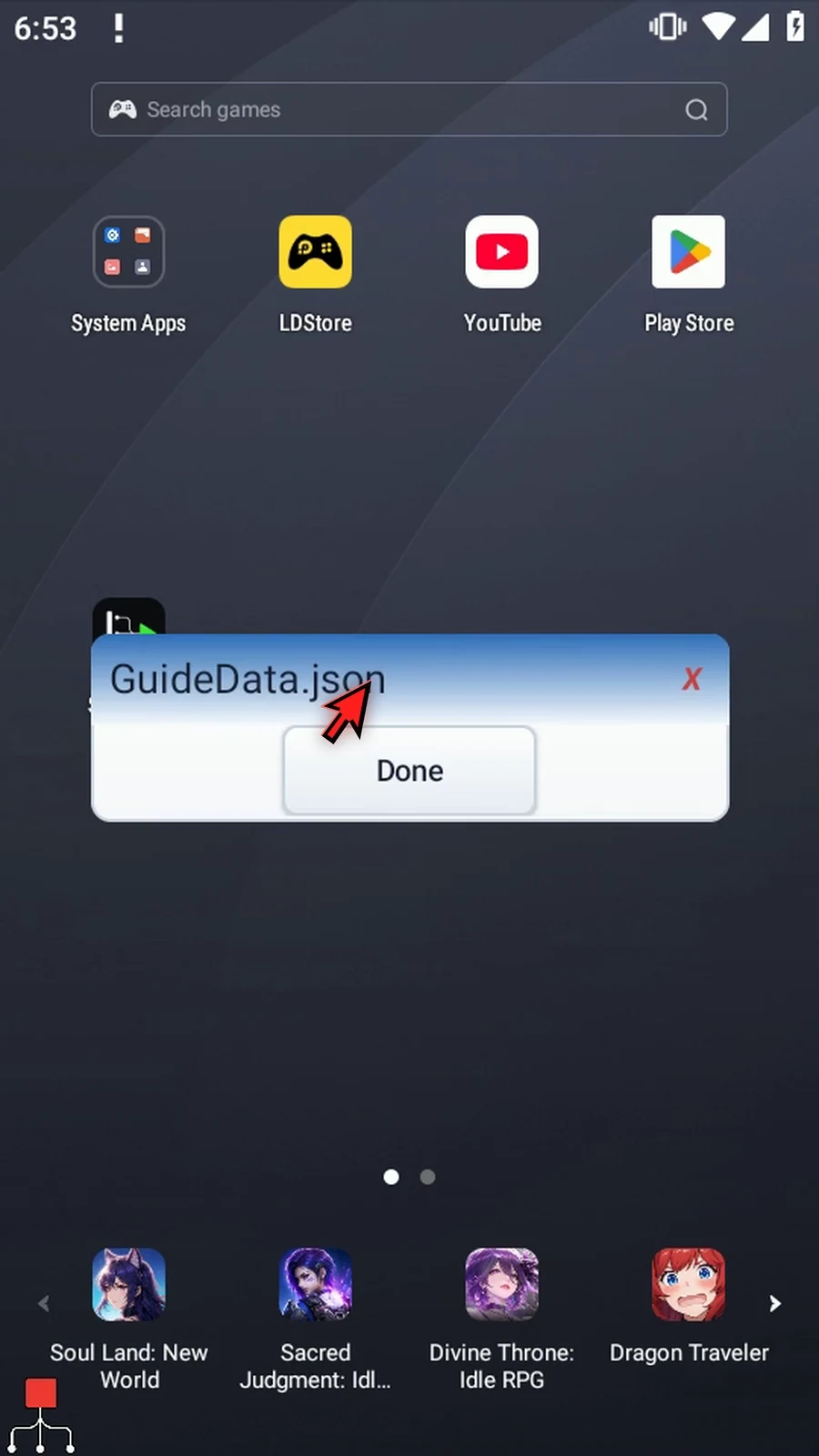
Save File. Saving the command does not create a document; creation happens during Play. Keep the existing Standard PromptMe with Header s2 and Done Boolean b2. Play shows the actual filename, not the document's contents. Done closes the confirmation and the script finishes automatically.
Use Read JSON to load the document as whole-file text. File does not extract individual JSON values; use the JSON command when later steps need parsing or structured-data work.
Create JSON
Step-by-step guide
Step 01 File Create can save prepared JSON text as a document for later steps to read or share. JSON organizes data as named values. We'll save a small example with a status and a count, then confirm the created filename.
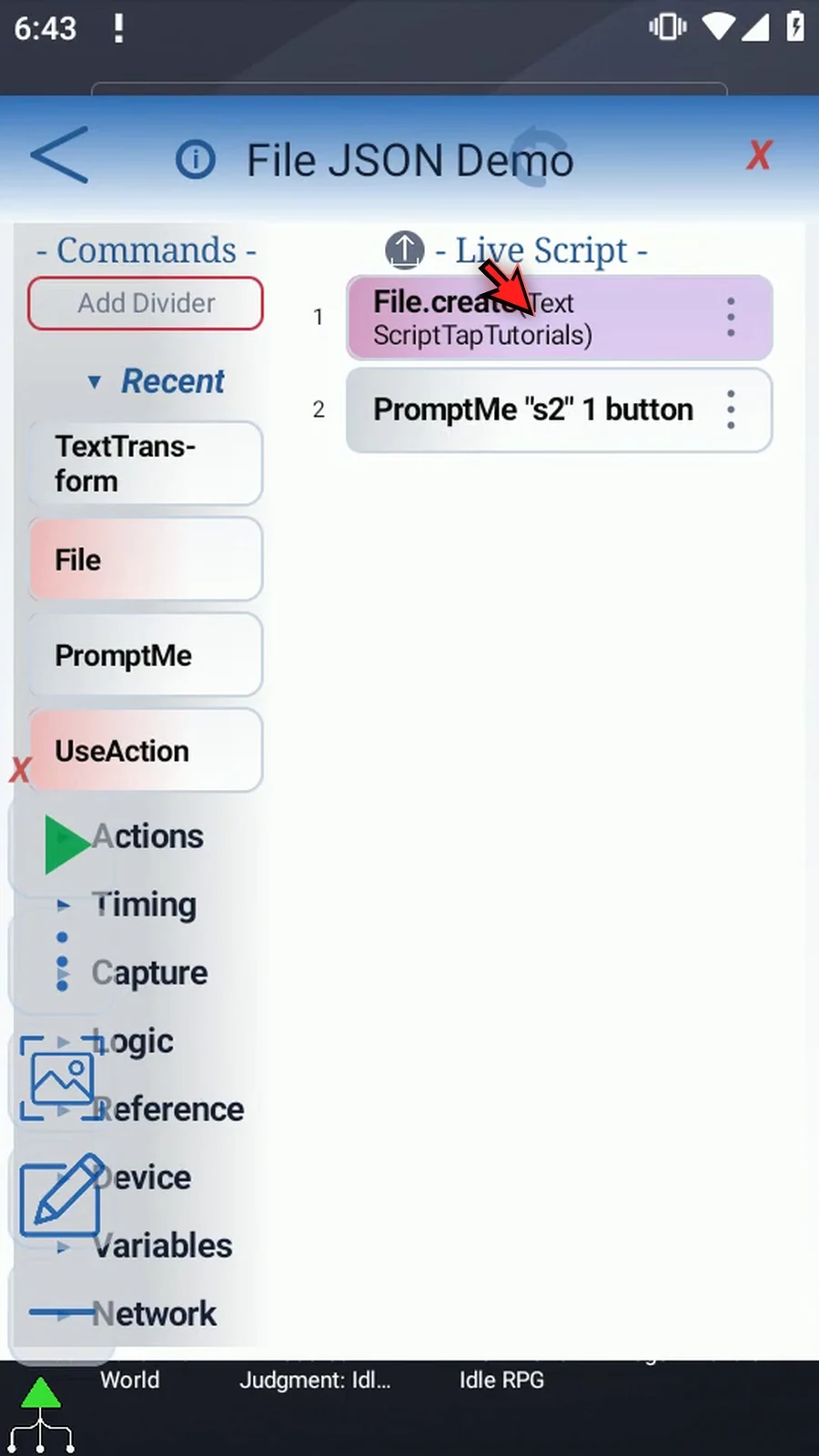
Step 02 This copy keeps the introduction's selected tutorial folder, naming options, outputs, and PromptMe. The Intro shows the original manual command drags and Android folder selection. Here we'll change the format, filename, and data.
Step 03 Open File, keep Create, and change Format to JSON. The editor now shows a JSON data field. The selected destination folder and naming controls stay available.
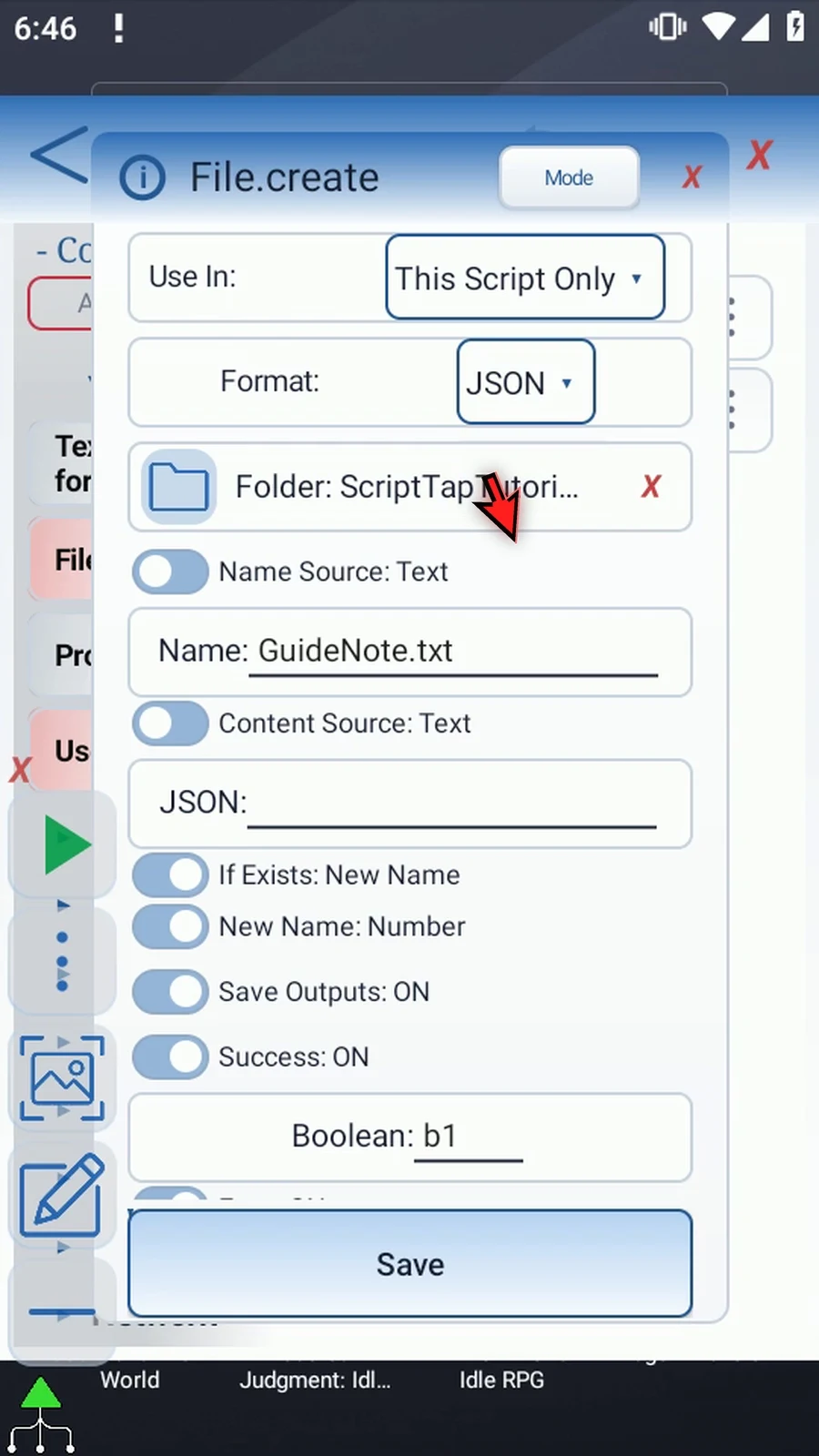
Step 04 Use a filename ending in dot JSON. We'll name this document GuideData dot JSON. Keep the tutorial folder already selected; the introduction explains how to choose a folder and grant access.
Step 05 Content Source can use a String variable prepared by an earlier command. This is useful when the JSON text is generated during play. Choose the source before entering its value; changing sources clears the outgoing setting.
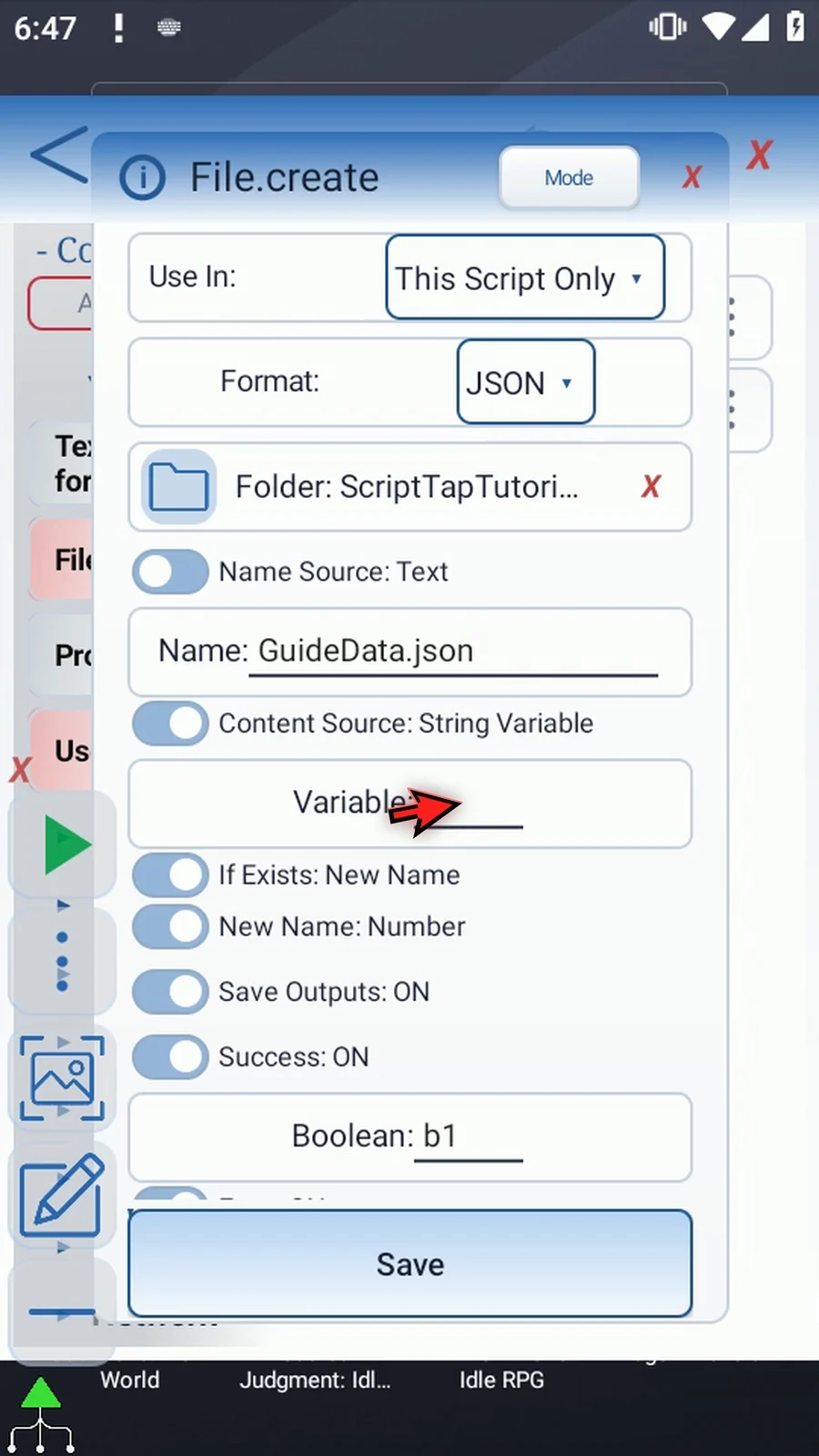
Step 06 For this example, switch Content Source back to Text. We'll enter the JSON directly instead of using a variable.
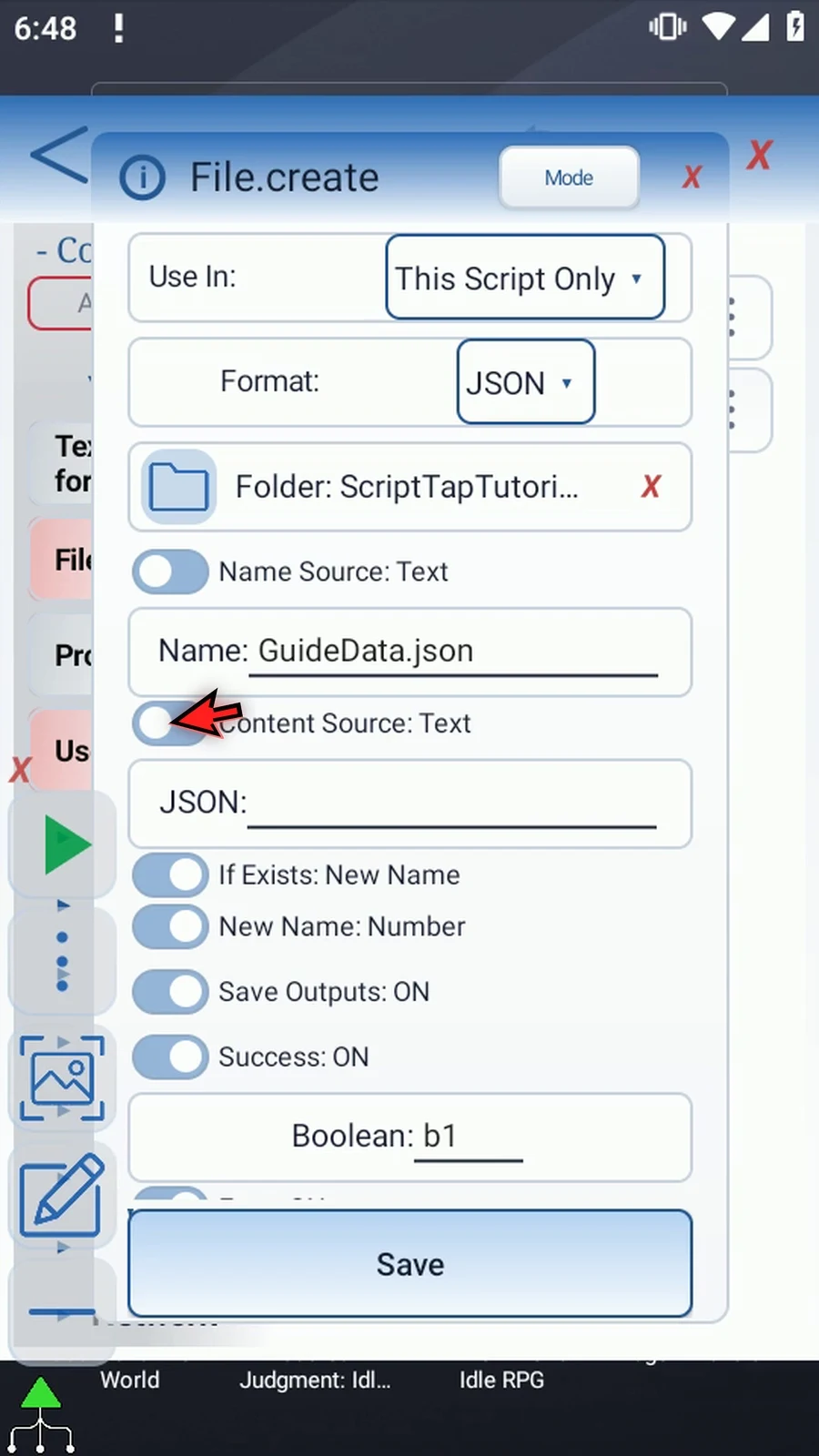
Step 07 Enter this small JSON object: status is the text Ready, and count is the number two. Use double quotes around property names and text values. File writes the text supplied; it does not build, validate, or repair JSON for you.
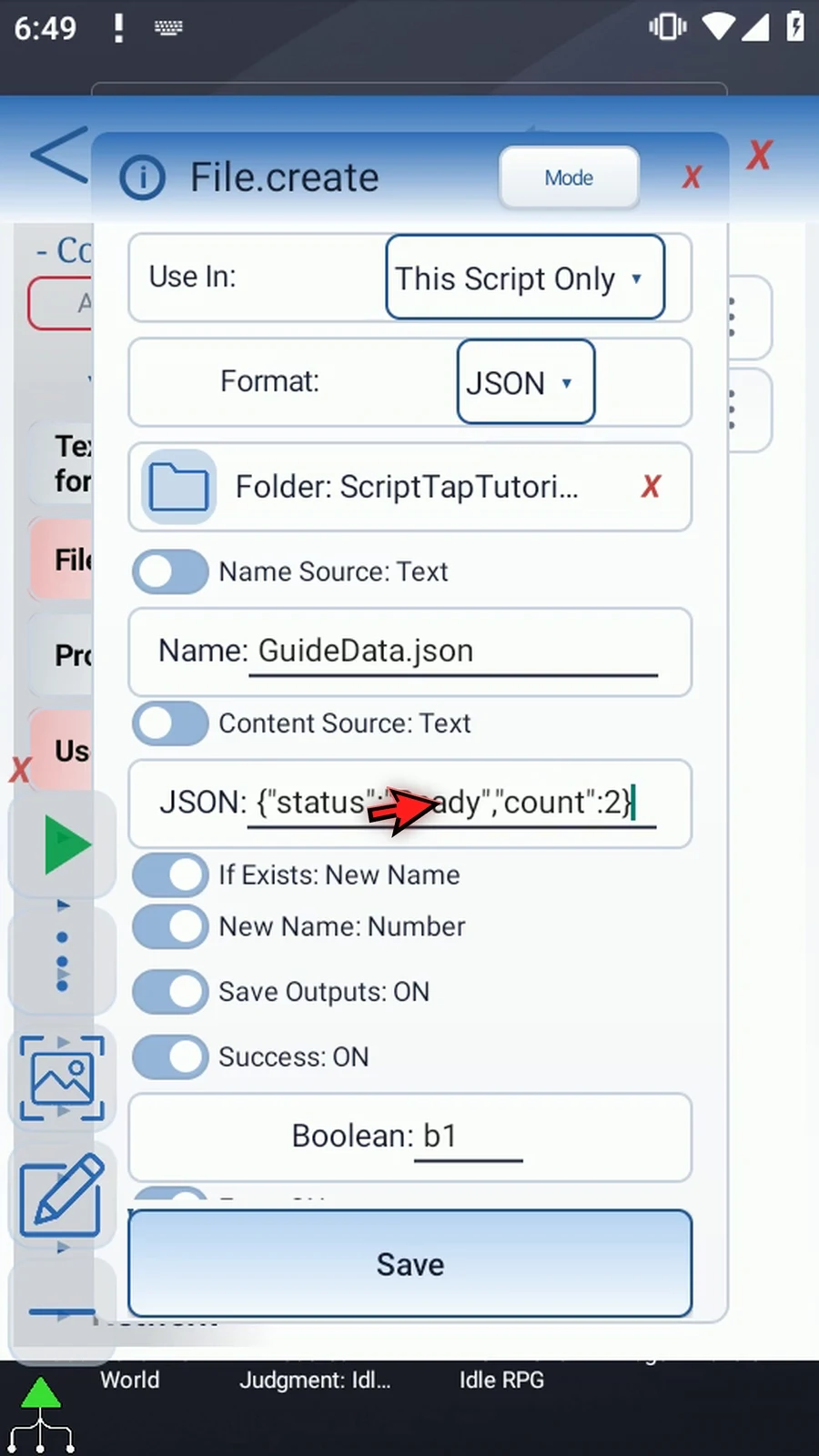
Step 08 Keep If Exists set to New Name, with Number selected. This chooses an available name instead of replacing an existing file. The introduction explains Timestamp and the explicit Overwrite option.
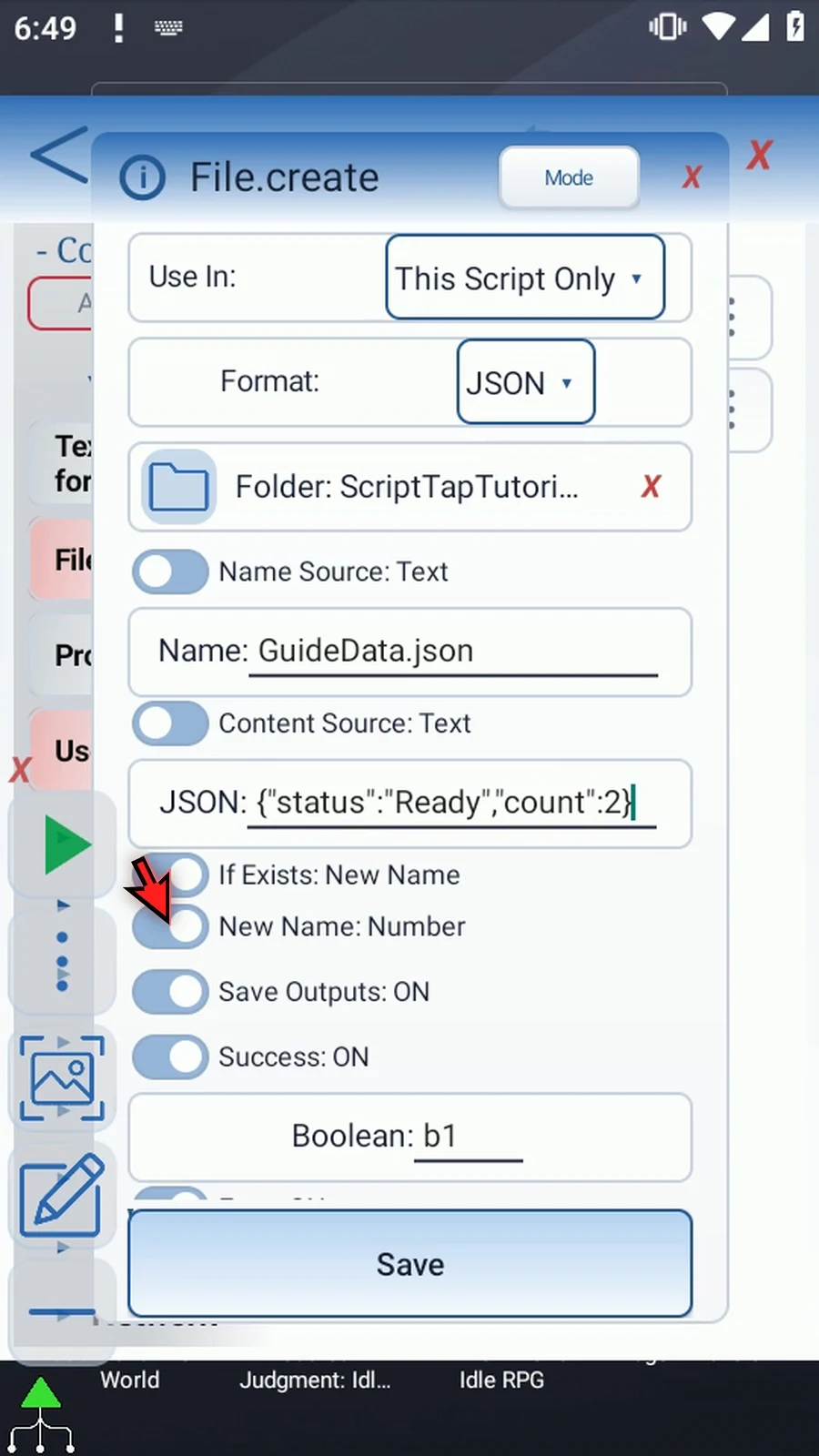
Step 09 Keep Success b1, Error s1, Final Name s2, and Final URI s3. PromptMe will display the actual name from s2, which may differ from the requested name when a file already exists.
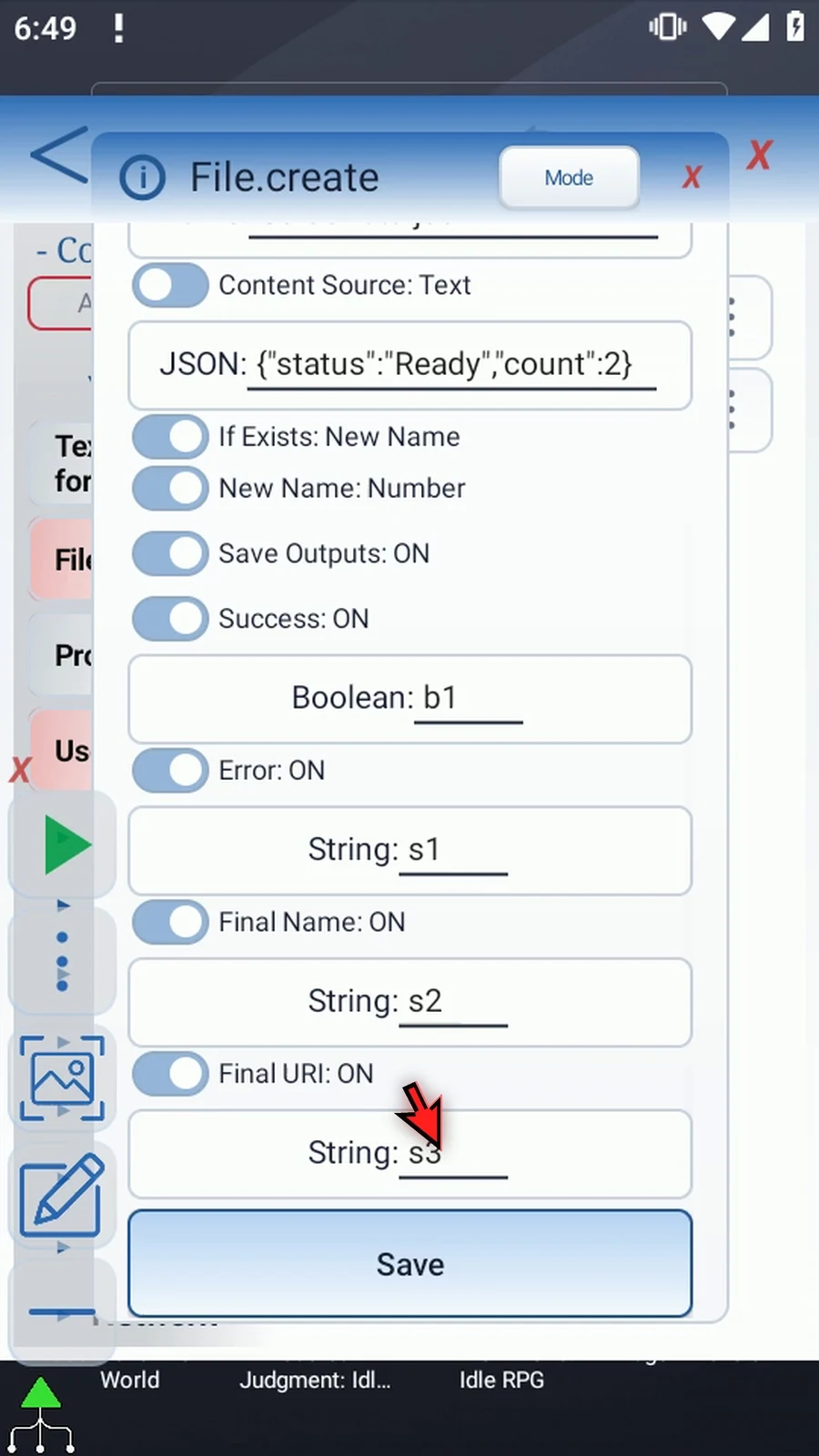
Step 10 Save File. Its row now shows Create with JSON format. The document is created when the script plays, not when you save the command.
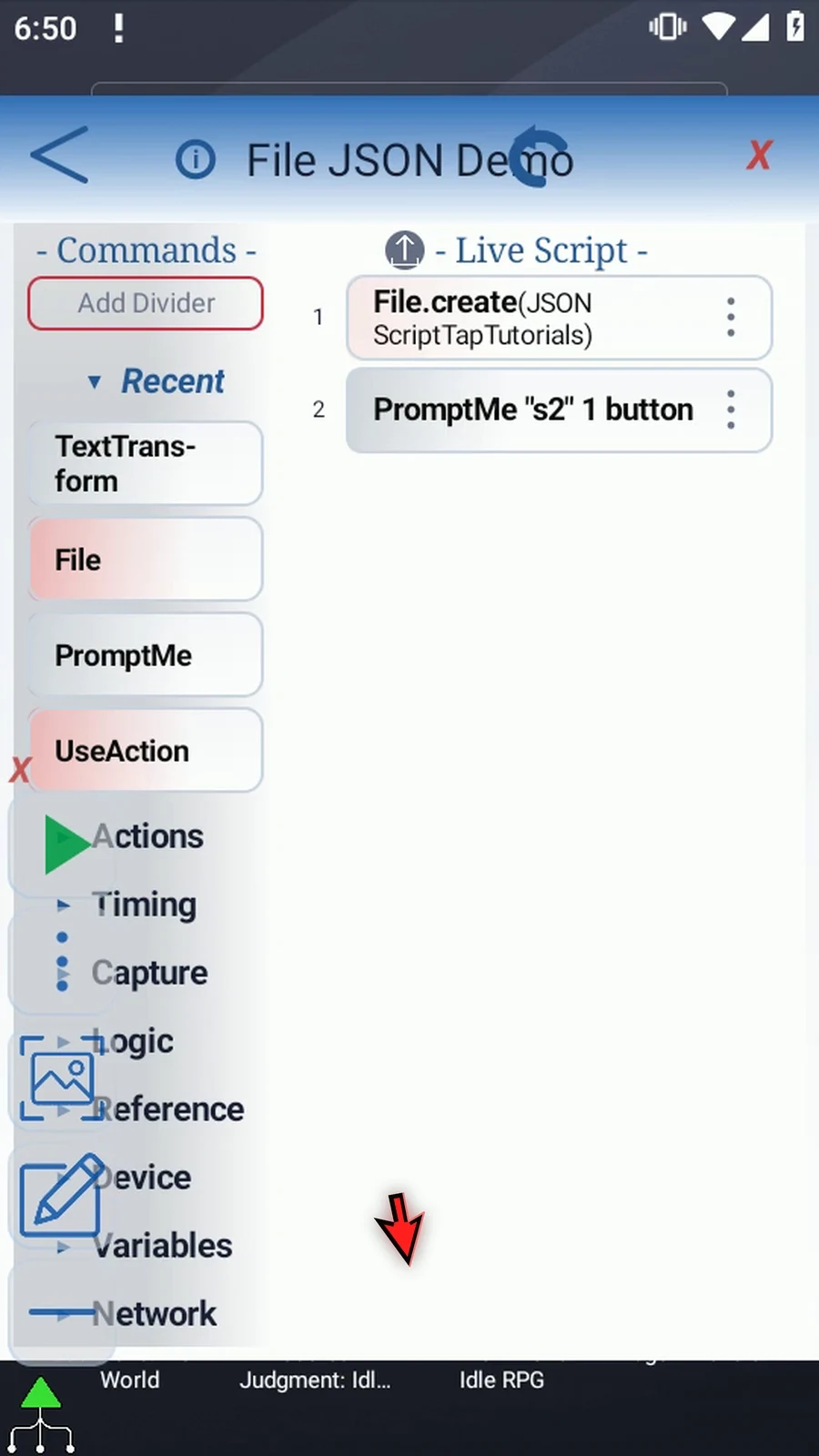
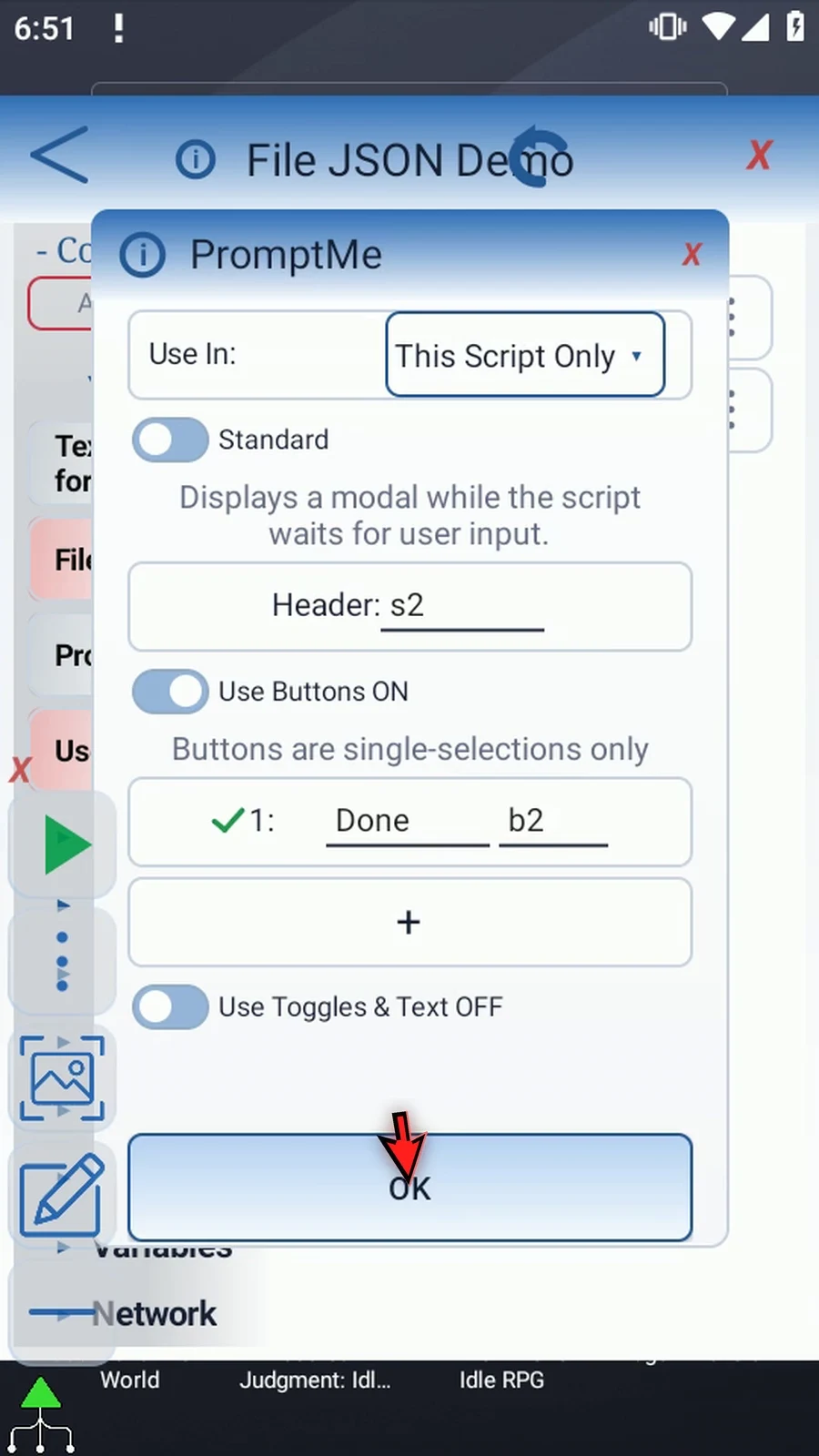
Step 11 The existing Standard PromptMe uses Header s2 and a Done button with Boolean b2. It confirms the filename, not the JSON contents. Keep these settings and tap OK.
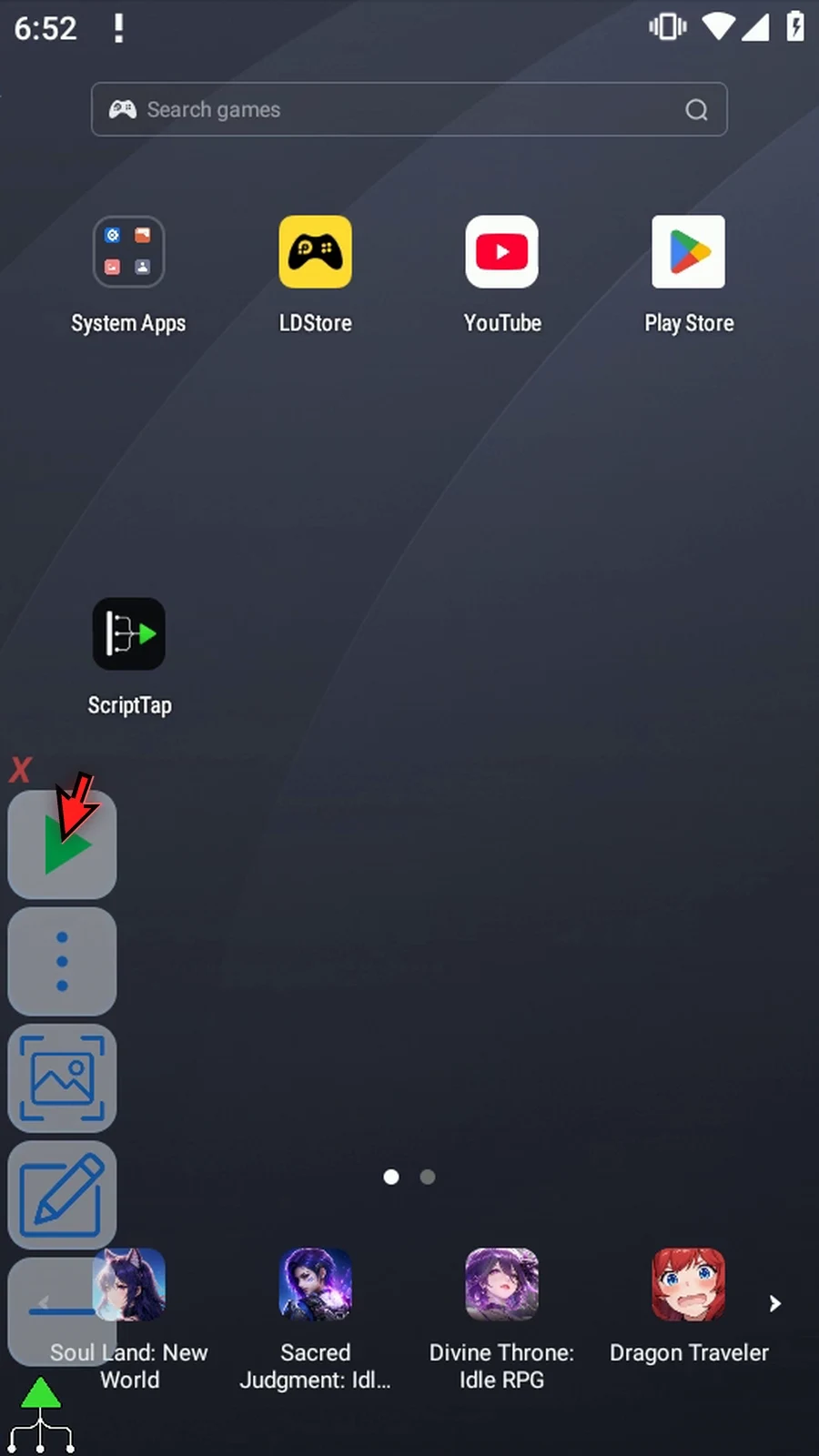
Step 12 When the script is complete, simply use the Play button in the main overlay.
Step 13 The confirmation shows the actual JSON filename. File has saved our supplied text in the selected folder, ready for a later File Read or another app to use.
Step 14 Press Done. The confirmation closes and the script finishes automatically.
Step 15 Use File Create to save the JSON text you already have. File Read's JSON format loads that document as text. Use the JSON command when later steps need to parse or work with its individual values.
File Read's JSON format loads a saved document as text into a String variable. Later commands can display, send or parse that text. File does not validate JSON, pretty-print it, extract a field, or transform its contents.
Continue with a separate copy of Read Text. Create JSON prepares the document used here: GuideData.json containing {"status":"Ready","count":2}. The Intro shows the original manual File and PromptMe drags; Read Text explains Android document selection. No commands are inserted off-camera and accepted scripts are not edited.
- Operation and format: keep Read and choose JSON. Text and JSON share the same String destination, so
s4is retained when the format changes. The label becomes Save JSON; this is still a String output, not a separate JSON-variable type. - Document: tap the file selector and choose the owned
GuideData.jsondocument, not its folder. The editor uses Android's document picker and saves durable read access. Play opens the saved selection without a picker. No raw filesystem path or broad-storage workaround is needed. - Destination: keep This Script Only and Save JSON
s4. This receives the raw document text. The separate JSON command can use it for structured-data operations. - Status: keep independent Success Boolean
b1and Error Strings1, separate froms4. Final Name and Final URI stay OFF. An unavailable file, lost durable read access or provider failure can fail. - Read limit: Text and JSON reads are capped at 256KB (262,144 bytes). A larger document is truncated, but the read still succeeds; the optional Error String can contain
text_truncated_256kb. Do not assume Success means the entire oversized document was returned. Truncation may leave incomplete JSON, so check before parsing it. - No file changes: Read does not modify the selected document. Saving the command does not read it; the operation runs during Play.
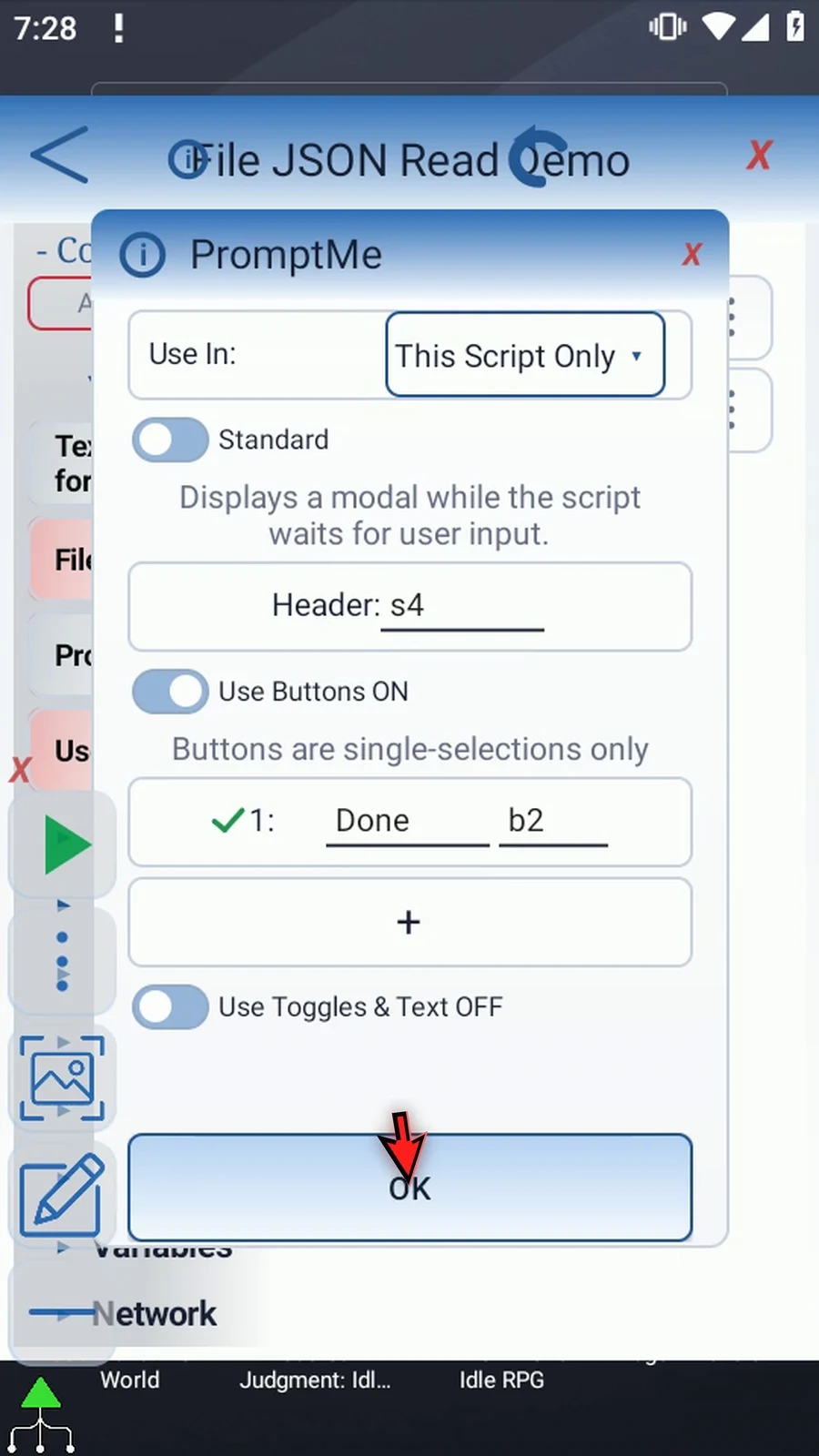
Keep the existing Standard PromptMe with Header s4 and Done Boolean b2. Play displays the actual 28-byte JSON object, including its quotes and braces. This is the loaded document text, not just the extracted Ready value. Done closes the confirmation and the script finishes automatically.
Use File Read for loading the document's text. Use the separate JSON command when later steps need parsing or individual values.
Read JSON
Step-by-step guide
Step 01 File Read's JSON format loads a JSON document as text into a String variable. This makes saved data available to later commands. It does not parse the JSON or select individual values. We'll read our small document and display the returned text.
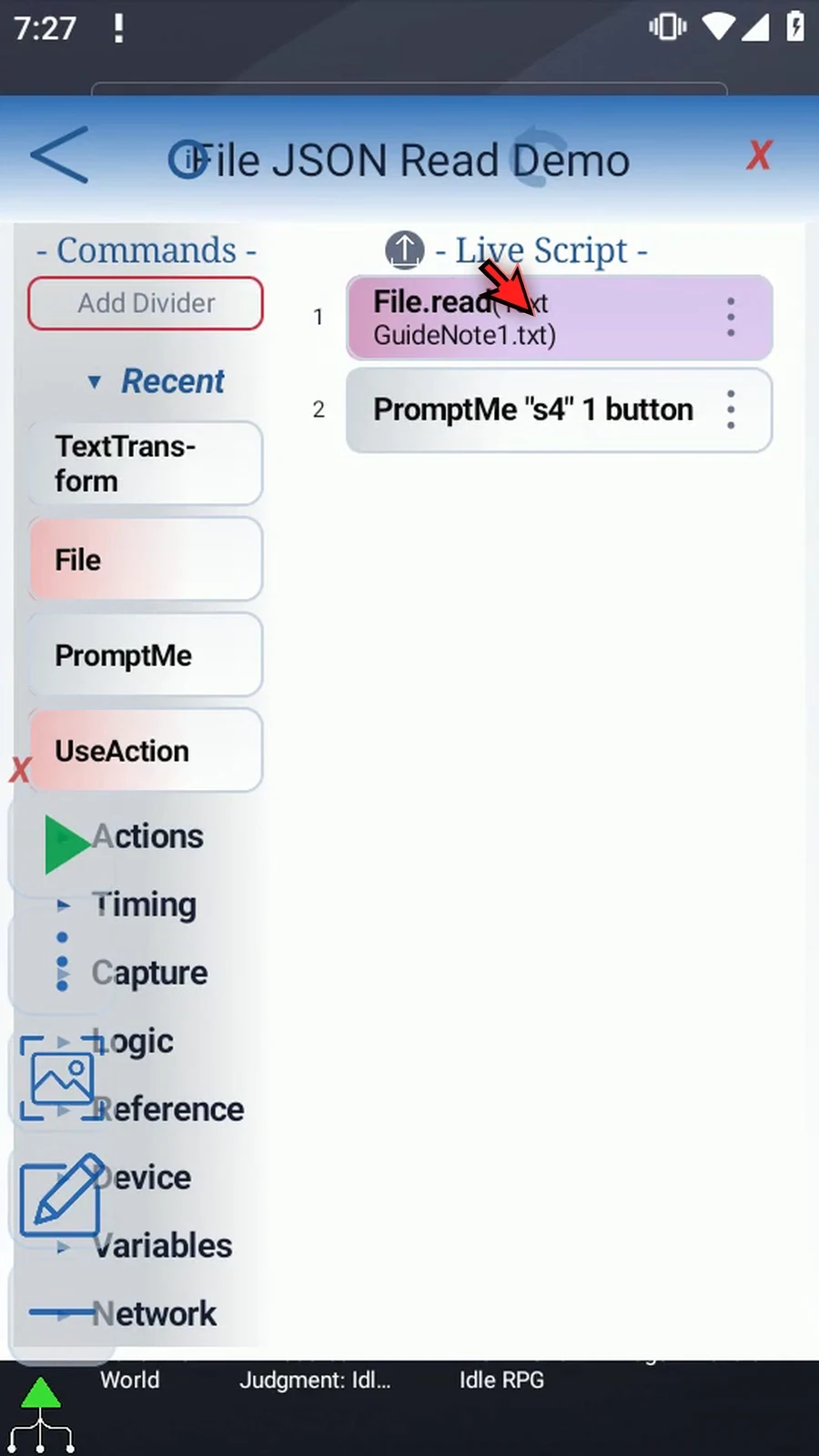
Step 02 We'll read the document made in Create JSON. This separate copy keeps the Read Text example's output and PromptMe settings. The Intro shows the original manual command drags, and Read Text explains Android document selection.
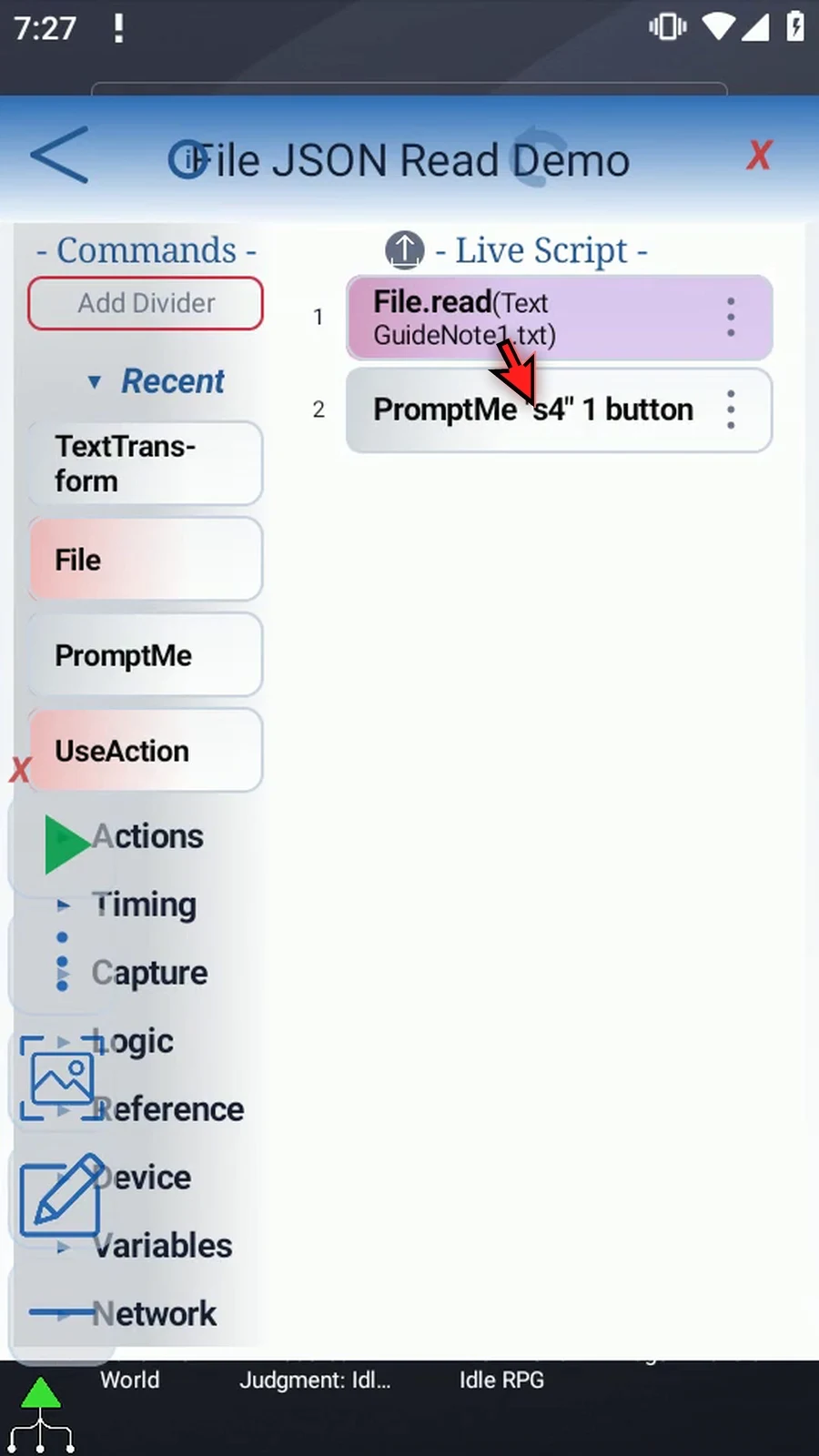
Step 03 Open File, keep Read, and choose JSON as the format. Save JSON still uses our existing String destination, because Text and JSON share this output setting.
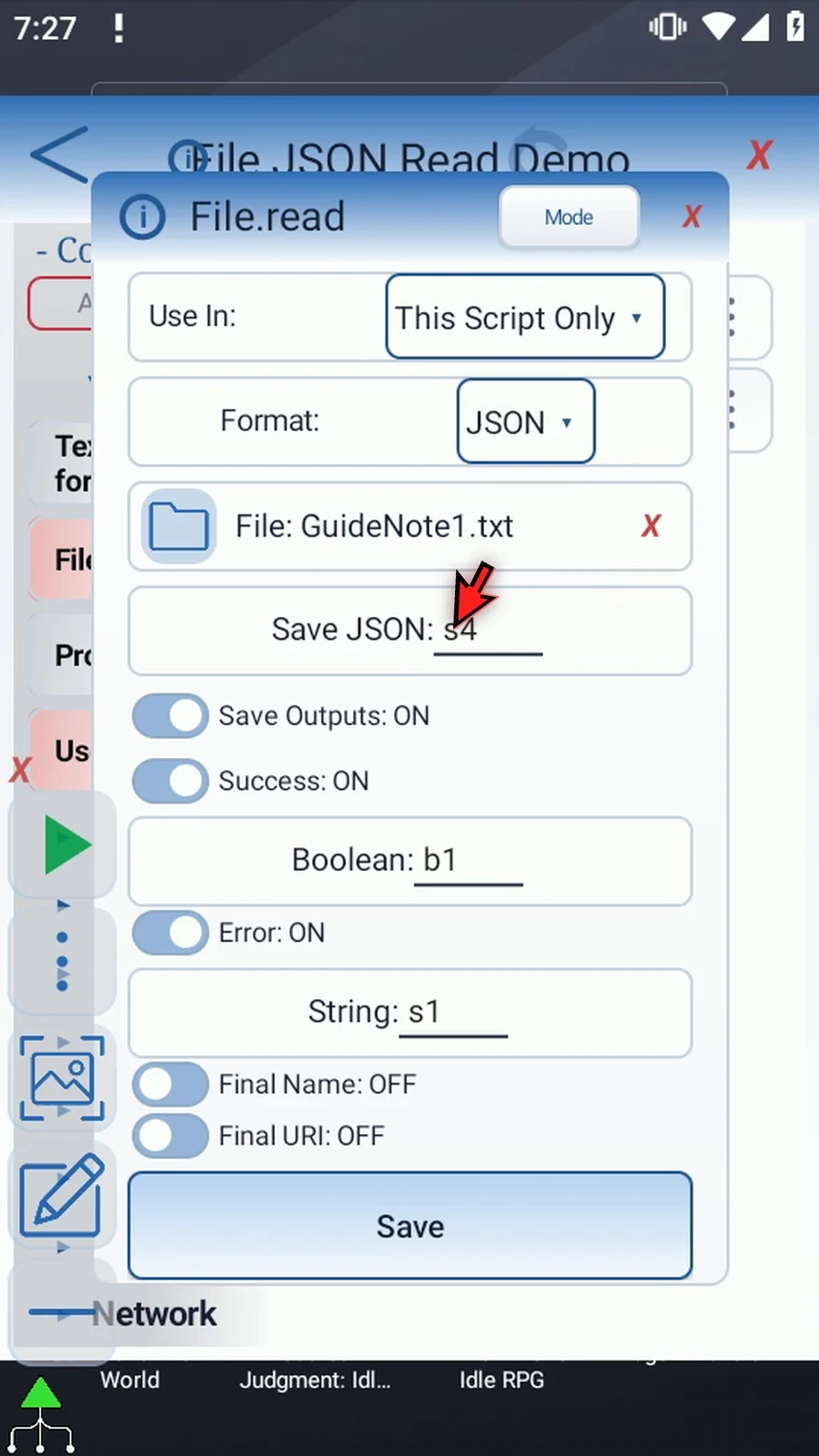
Step 04 Tap the file selector and choose GuideData dot JSON from the tutorial folder. Select the document itself, not the folder. ScriptTap saves this selection and its read access, so Play can open the file without showing a picker.
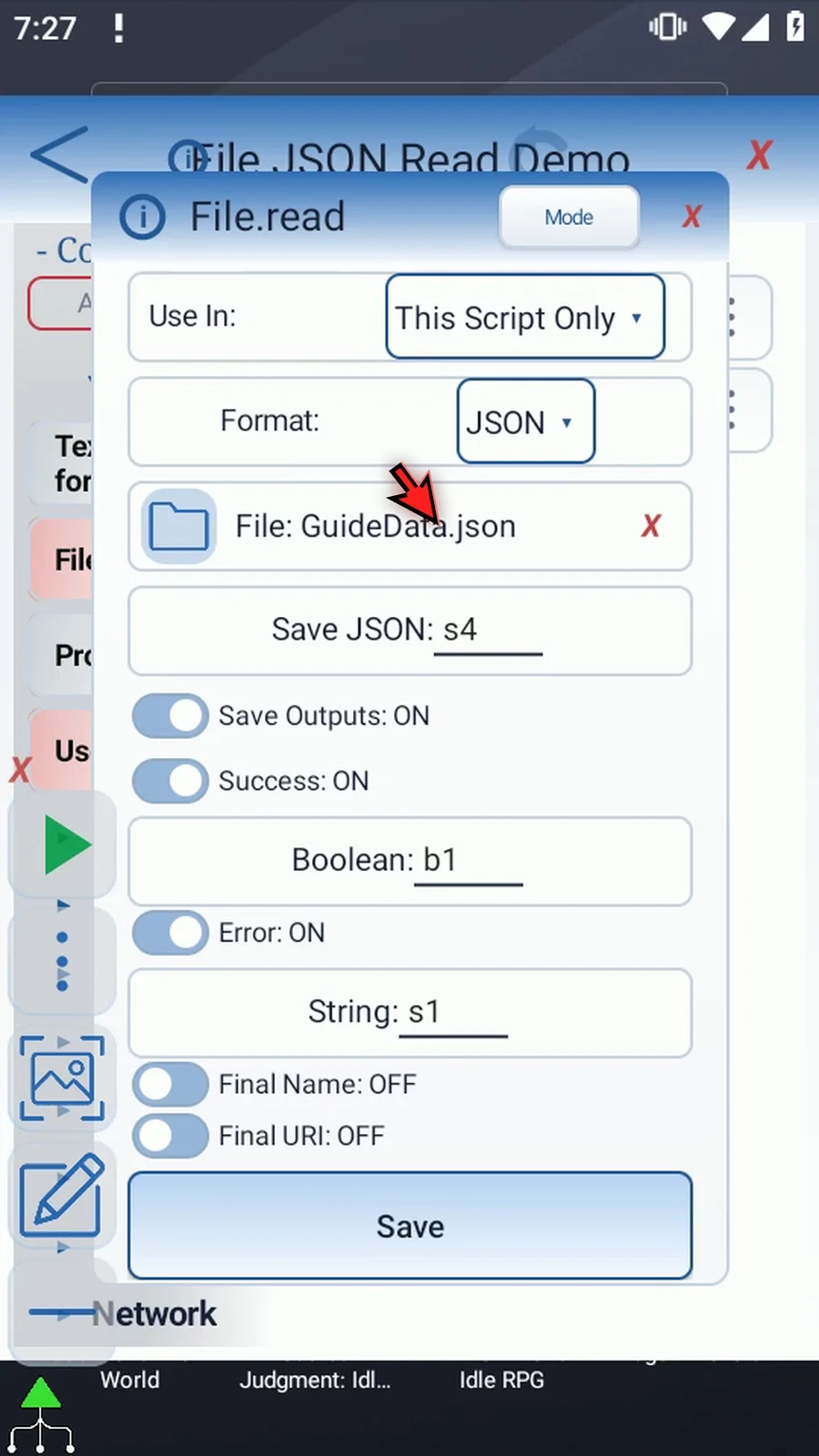
Step 05 Keep Save JSON set to s4 and This Script Only. Despite the field's label, the result is an ordinary String containing the document's text. Later commands can display it, send it, or pass it to the JSON command.
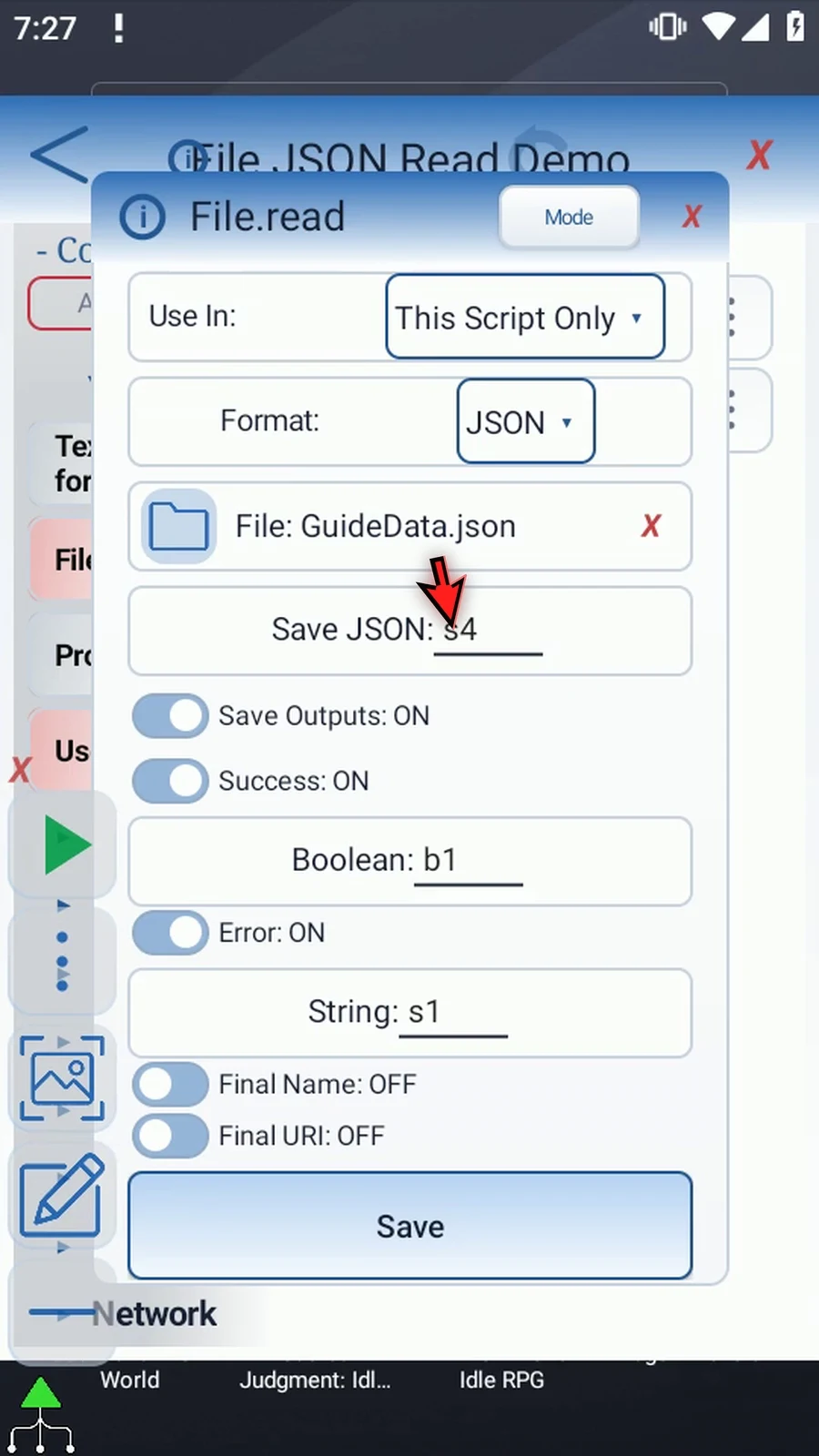
Step 06 Keep Success Boolean b1 and Error String s1, separately from the returned text. Final Name and Final URI stay off. A missing file, lost access, or a read failure can be reported through these optional outputs.
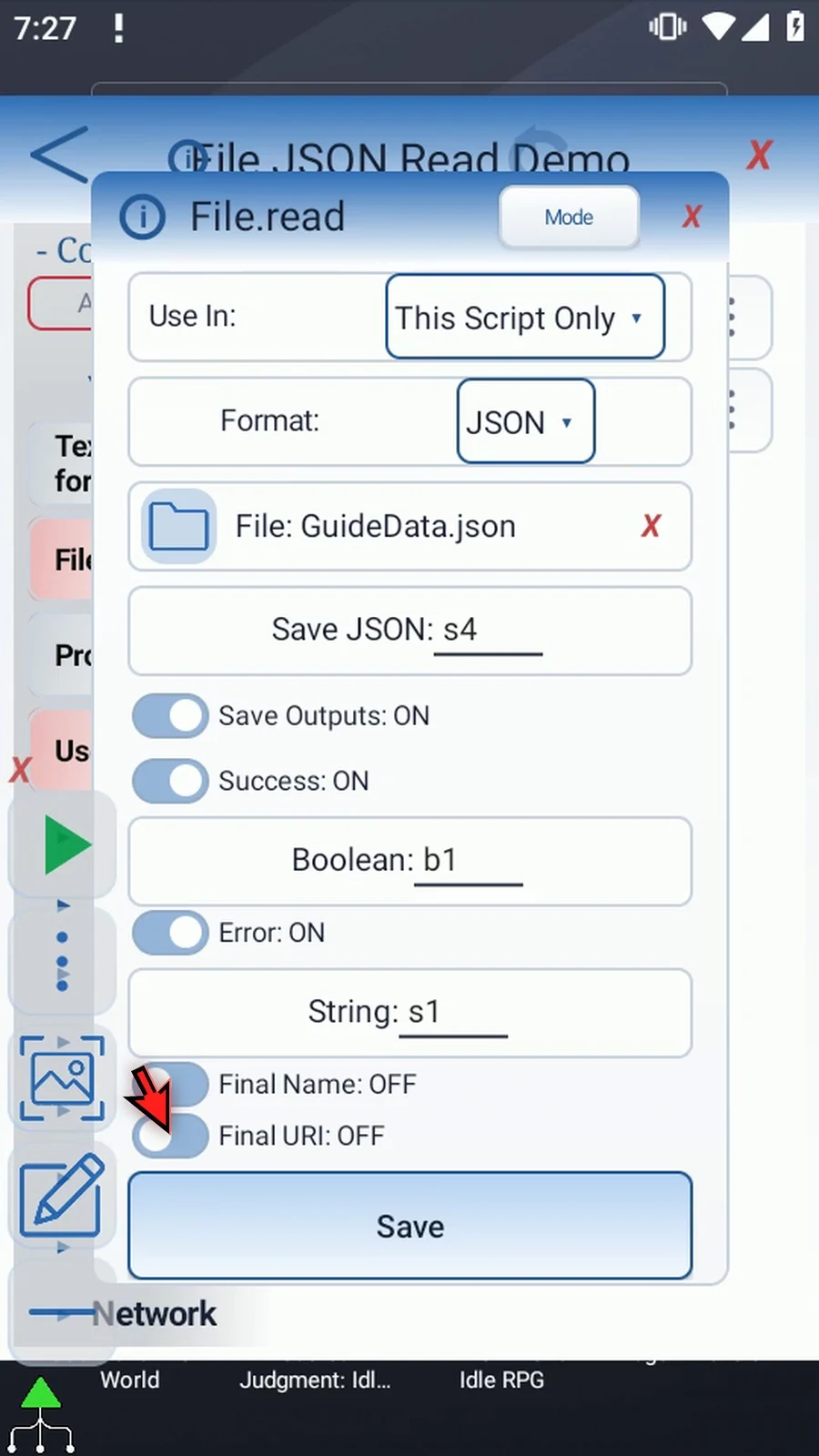
Step 07 Text and JSON reads are limited to two hundred fifty-six kilobytes. A larger file is cut at that limit. The read can still succeed, but the optional Error String reports the truncation. This may leave incomplete JSON, so check the result before parsing it.
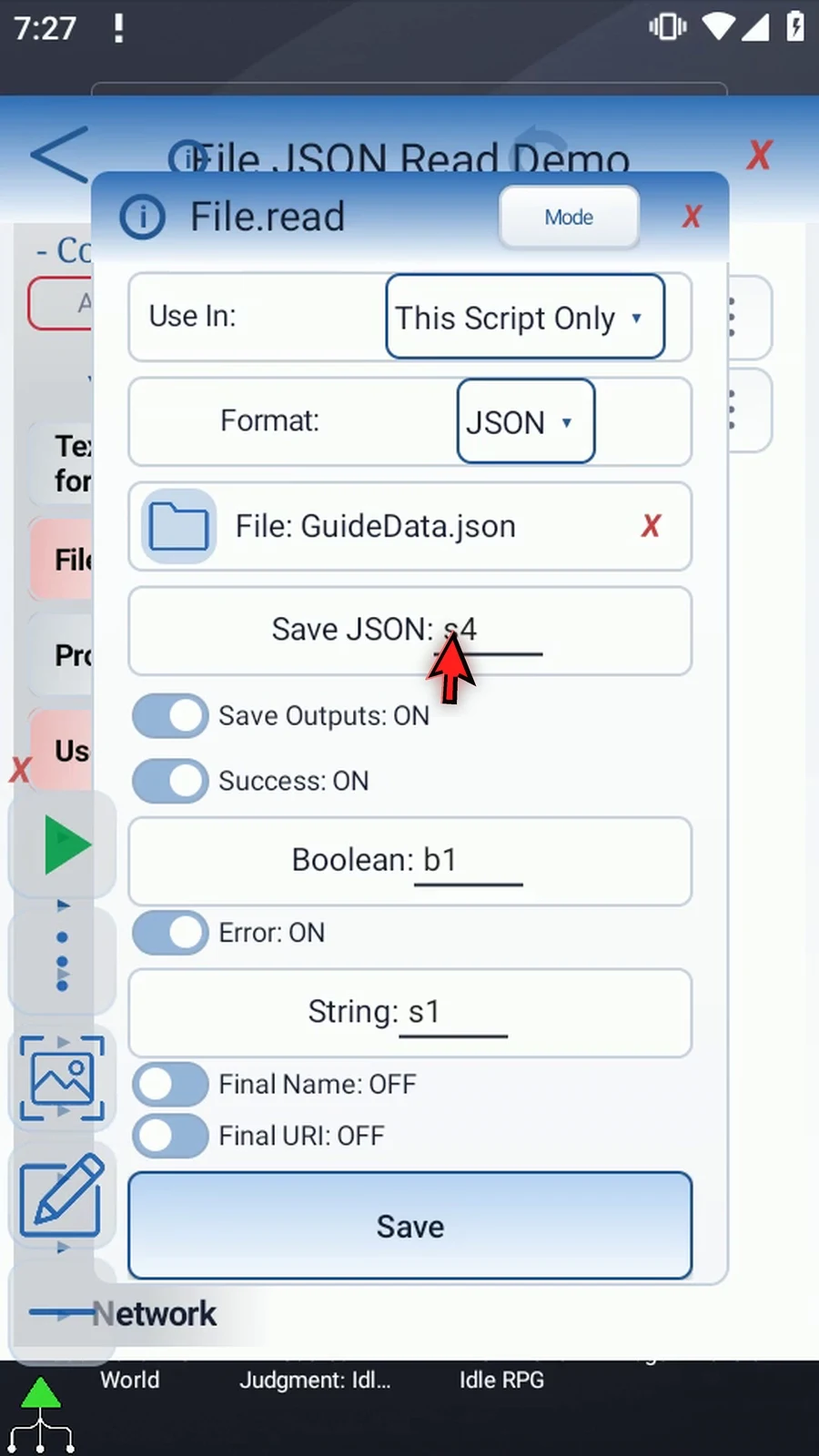
Step 08 Save File. Read leaves the document unchanged. The command will load its text only when the script plays.
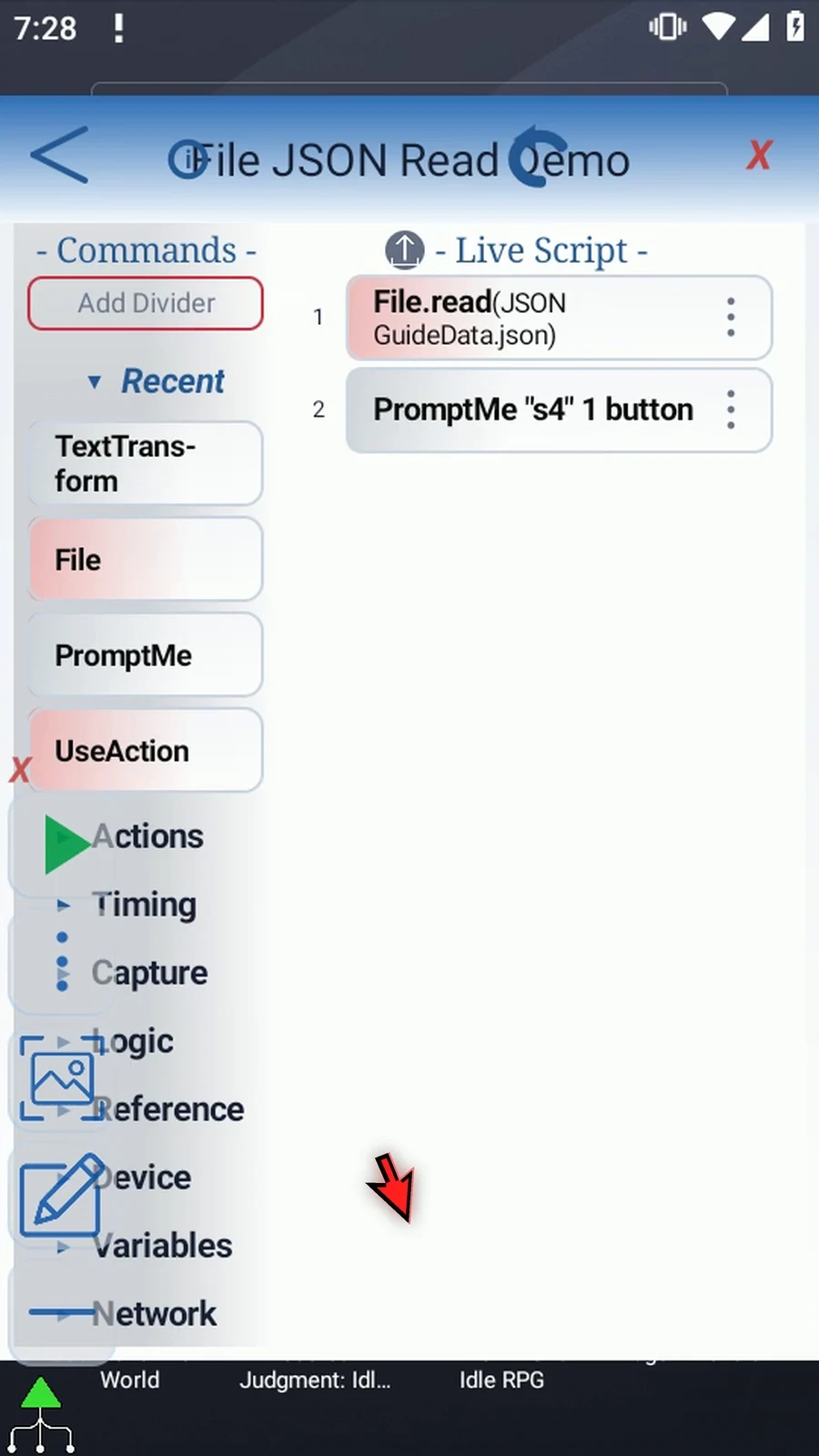
Step 09 The existing Standard PromptMe uses Header s4 and a Done button with Boolean b2. It will display the text File returns. Keep these settings and tap OK.
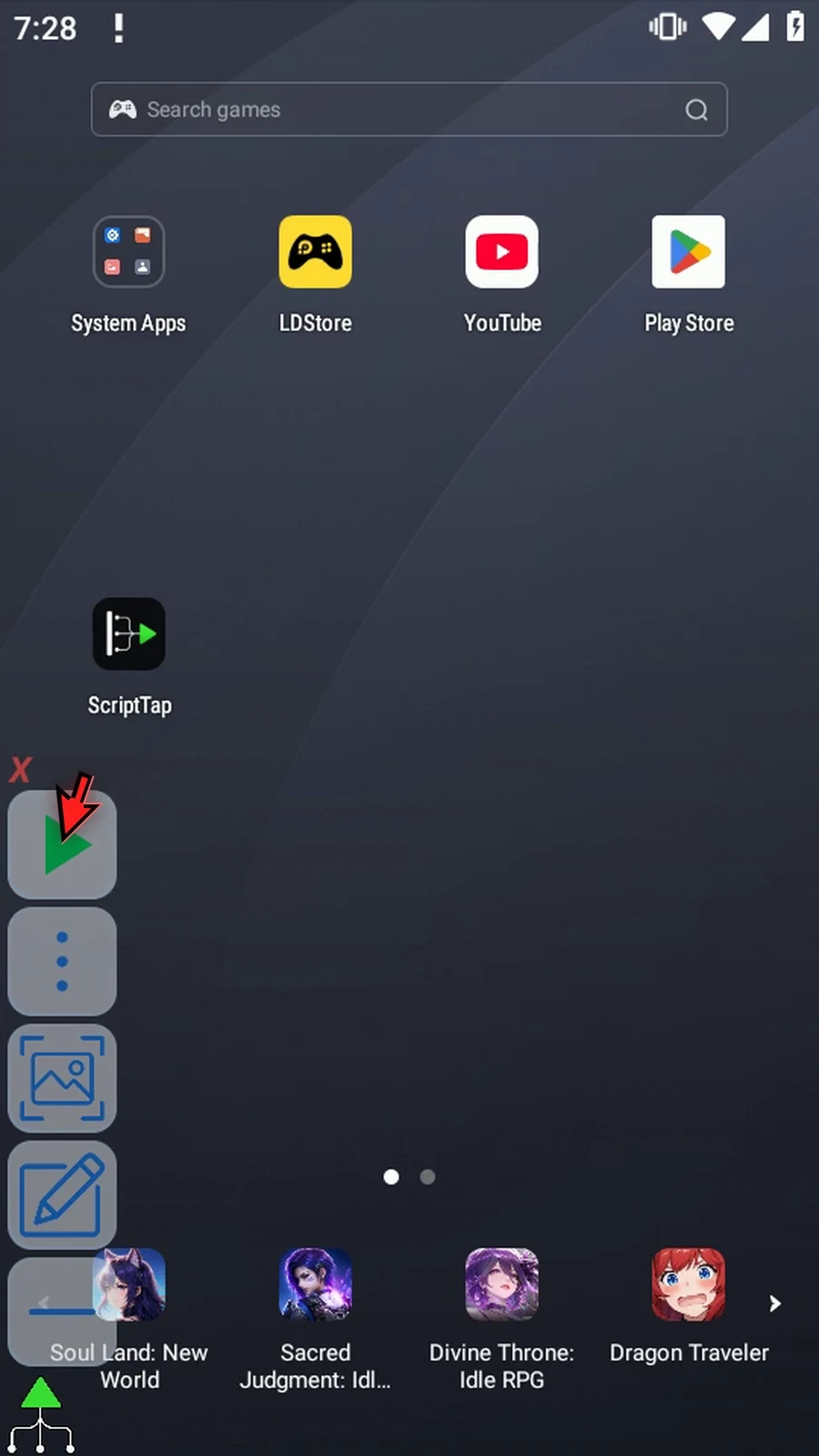
Step 10 When the script is complete, simply use the Play button in the main overlay.
Step 11 PromptMe shows the full text of our small JSON object, including its quotes, braces, status, and count. File has loaded the document into s4; it has not extracted just the Ready value.
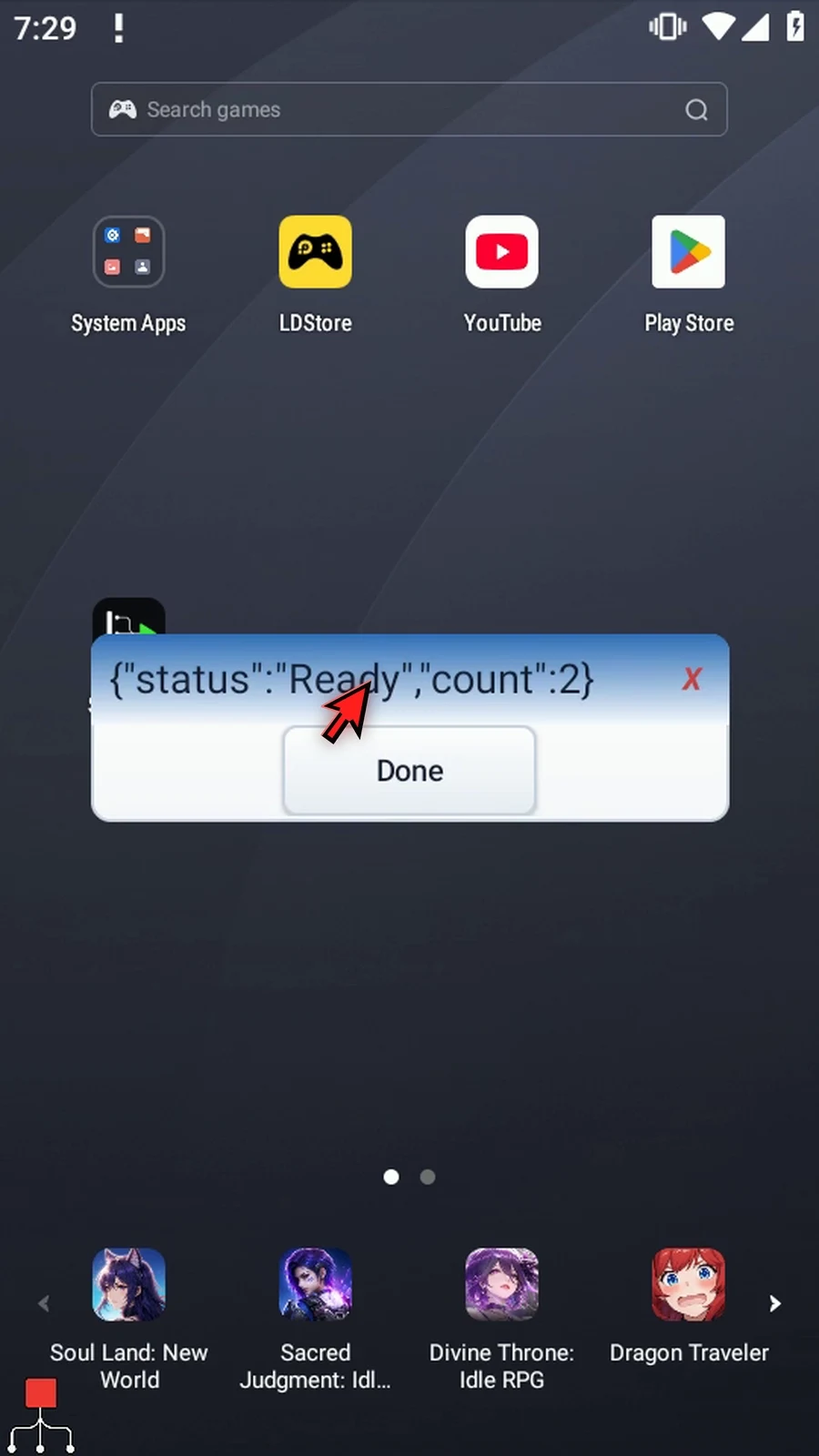
Step 12 Press Done. The confirmation closes and the script finishes automatically.
Step 13 Use File Read when a later step needs a saved JSON document as text. Use the separate JSON command when you need to parse that text or work with individual fields.