Command video guide
StateGet
StateGet reads current device information into variables for conditions, calculations and later commands. It does not change settings. Each execution takes a new reading; it is not a background monitor. This guide tours the available groups and builds the shortest orientation example: StateGet → PromptMe.
Create and name a new script. Manually drag StateGet from Device, then double-tap its script row. The top label shows the device's Android API level. Enable only the groups you need. Each enabled group needs at least one destination, using the displayed Integer, Decimal, Boolean or String type. Give each selected output its own destination; blank outputs are not requested.
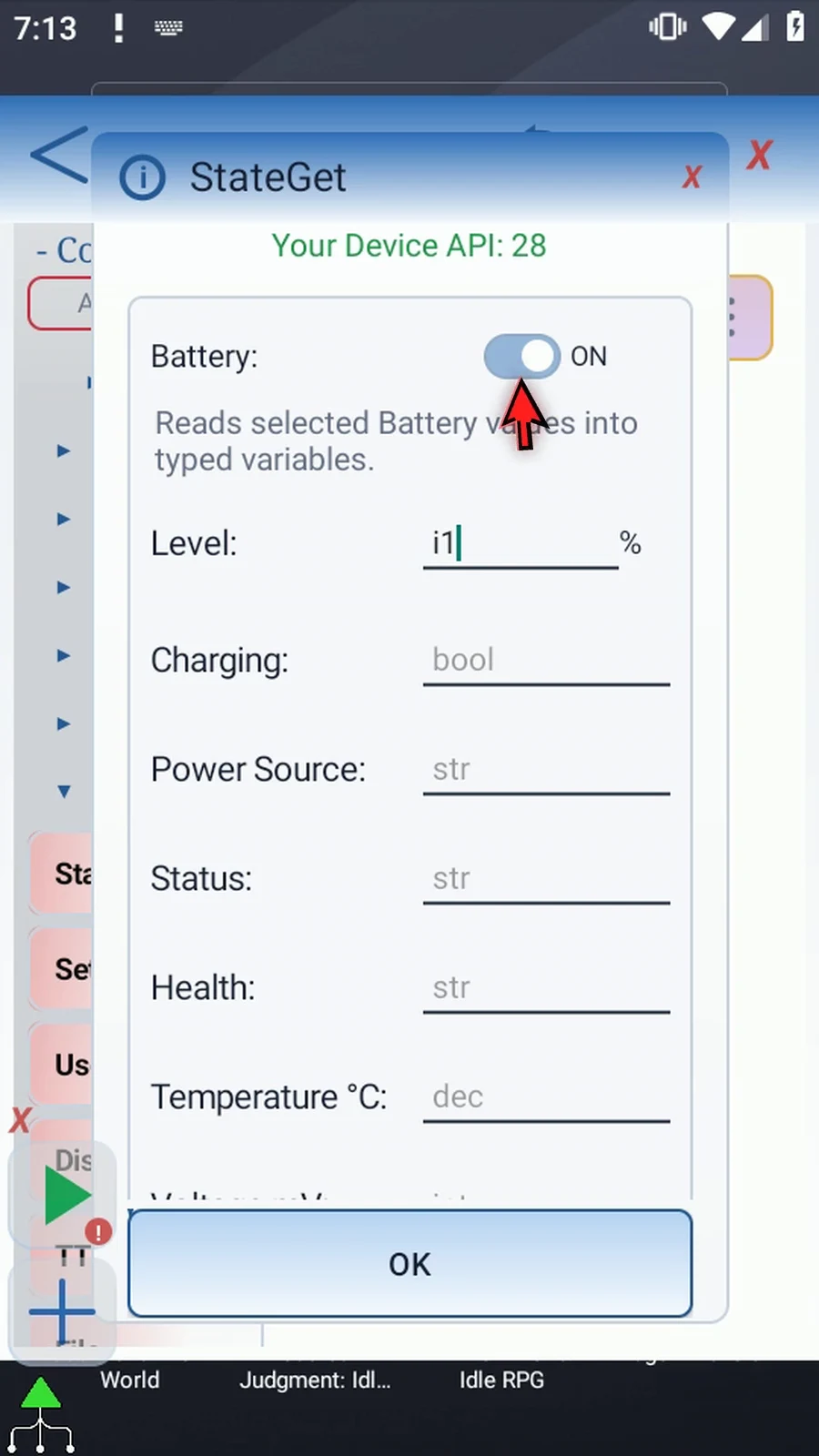
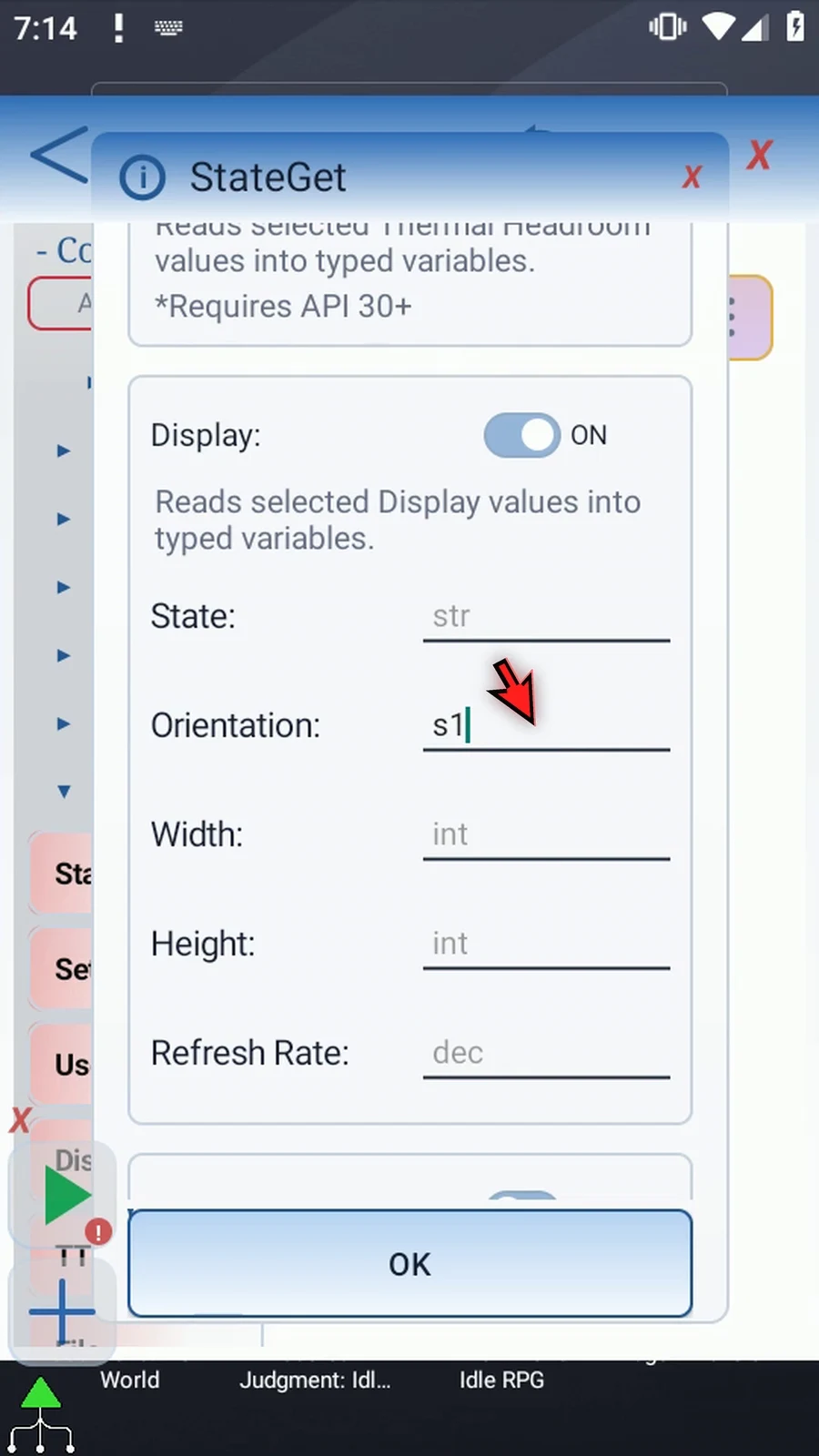
For the example, enable Display and set Orientation → s1. Leave its other outputs blank and the other groups off. Battery i1 and Network Traffic RX → i2, TX → i3 are shown as setup examples and switched off again before saving; their retained fields are dormant.
Network Traffic measures Integer receive/transmit rates in KiB/s. Naming a traffic output reveals Sample Time. Both rates share one sample from 250–60000 ms, default 1500 ms. The command waits for the sample before publishing available results. Network's estimated connection speeds are not measured traffic.
Some outputs depend on Android version, hardware or access. Grant required access during setup, before Play. An unavailable reading leaves its destination unchanged: initialize a fallback first if later commands need a known value. StateGet has no separate Success or Error outputs. Run Logs summarize the selected keys and availability counts without recording returned values.
Save StateGet. Manually drag PromptMe below it, keep Standard, set Header → s1 and add Done → b1. Keep Toggles & Text off. PromptMe displays the stored String, not the literal token. Close the editor and use Play in the Main Overlay. The real result is portrait; choose Done to finish. Test on the actual target device, because available readings differ.
All 27 state groups and output types
API numbers are Android platform levels. Availability also depends on hardware and access. Blank outputs are not requested. Use a unique, correctly typed destination for each selected output.
| Group | Outputs | Availability |
|---|---|---|
| Battery | Level (Integer, %); Charging (Boolean); Power Source (String); Status (String); Health (String); Temperature °C (Decimal); Voltage mV (Integer); Current mA (Decimal); Capacity mAh (Decimal); Energy Wh (Decimal) | API 26+. |
| Charge Time | Remaining Seconds (Integer); Is Charging (Boolean) | API 28+. |
| Power | Power Saver (Boolean); Device Idle (Boolean); Screen Interactive (Boolean) | API 26+. |
| Advanced Power | Light Idle (Boolean); Low Power Standby (Boolean) | API 33+. |
| Thermal Status | Level (Integer, 0–6) | API 29+. |
| Thermal Headroom | Headroom (Decimal) | API 30+. |
| Display | State (String); Orientation (String); Width (Integer); Height (Integer); Refresh Rate (Decimal, Hz) | API 26+. |
| Display Settings | Brightness (Integer, %); Adaptive (Boolean); Rotation Lock (Boolean); Timeout Milliseconds (Integer); Dark Mode (Boolean); Clock Format (String) | API 26+. |
| Device Lock | Locked (Boolean); Secure Lock Configured (Boolean) | API 26+. |
| Audio | Music Active (Boolean); Microphone Muted (Boolean); Ringer Mode (String); Output Route (String; API 33+); Call Volume (Integer, %); Media Volume (Integer, %); System Volume (Integer, %); Alert Volume (Integer, %); Message Volume (Integer, %) | API 26+. |
| Do Not Disturb | Current Mode (String) | API 26+. |
| Network | Connected (Boolean); Internet Validated (Boolean); Transport (String); Metered (Boolean); VPN Active (Boolean); Captive Portal (Boolean); Estimated Download KB/s (Integer); Estimated Upload KB/s (Integer); Data Saver (String) | API 26+. |
| Network Conditions | Roaming (Boolean); Congested (Boolean); Suspended (Boolean) | API 28+. |
| Network Traffic | RX KB/s (Integer); TX KB/s (Integer) | API 26+. |
| Wi-Fi | Enabled (Boolean); Connected (Boolean); Signal Level (Integer, 0–4); Link Speed Mbps (Integer) | API 26+. Wi-Fi hardware. |
| Wi-Fi Link Rates | RX Mbps (Integer); TX Mbps (Integer) | API 29+. Wi-Fi hardware. |
| Cellular Signal | Level (Integer, 0–4) | API 28+. Telephony radio support. |
| NFC | Enabled (Boolean) | API 26+. NFC hardware. |
| Location Services | Enabled (Boolean) | API 26+. |
| Airplane Mode | Enabled (Boolean) | API 26+. |
| Memory | Available MB (Integer, MiB); Total MB (Integer, MiB); Low Memory (Boolean) | API 26+. |
| Storage | Free MB (Integer, MiB); Total MB (Integer, MiB) | API 26+. |
| Uptime | Seconds (Integer) | API 26+. |
| Cellular Network | Generation (String) | API 26-32 / 33+ basic. Telephony radio support. Phone State on API 26–32; Basic Phone State on API 33+. |
| Call State | State (String) | API 26+. Phone-call support. Phone State access. |
| Bluetooth | Enabled (Boolean); Audio Connected (Boolean); Headset Connected (Boolean) | API 26+. Bluetooth hardware. Nearby Devices access on API 31+. |
| Flashlight | Enabled (Boolean); Strength (Integer; API 33+) | API 26+ / strength 33+. Camera flash hardware. |
Network Traffic RX/TX are sampled Integer KiB/s rates, sharing one 250–60000 ms interval (default 1500 ms). Network estimated speeds are connection estimates, not measured traffic. Memory/storage values use binary megabytes (MiB). Music Active is Android audio activity, not verified player state. Location Services reports enabled state, not coordinates.
Device information and an orientation example
Step-by-step guide
Step 01 StateGet reads current device information into variables, so later commands can make decisions using it. For example, a script can check the battery or display orientation. It reads settings without changing them. We will read the current orientation and display the result with PromptMe.
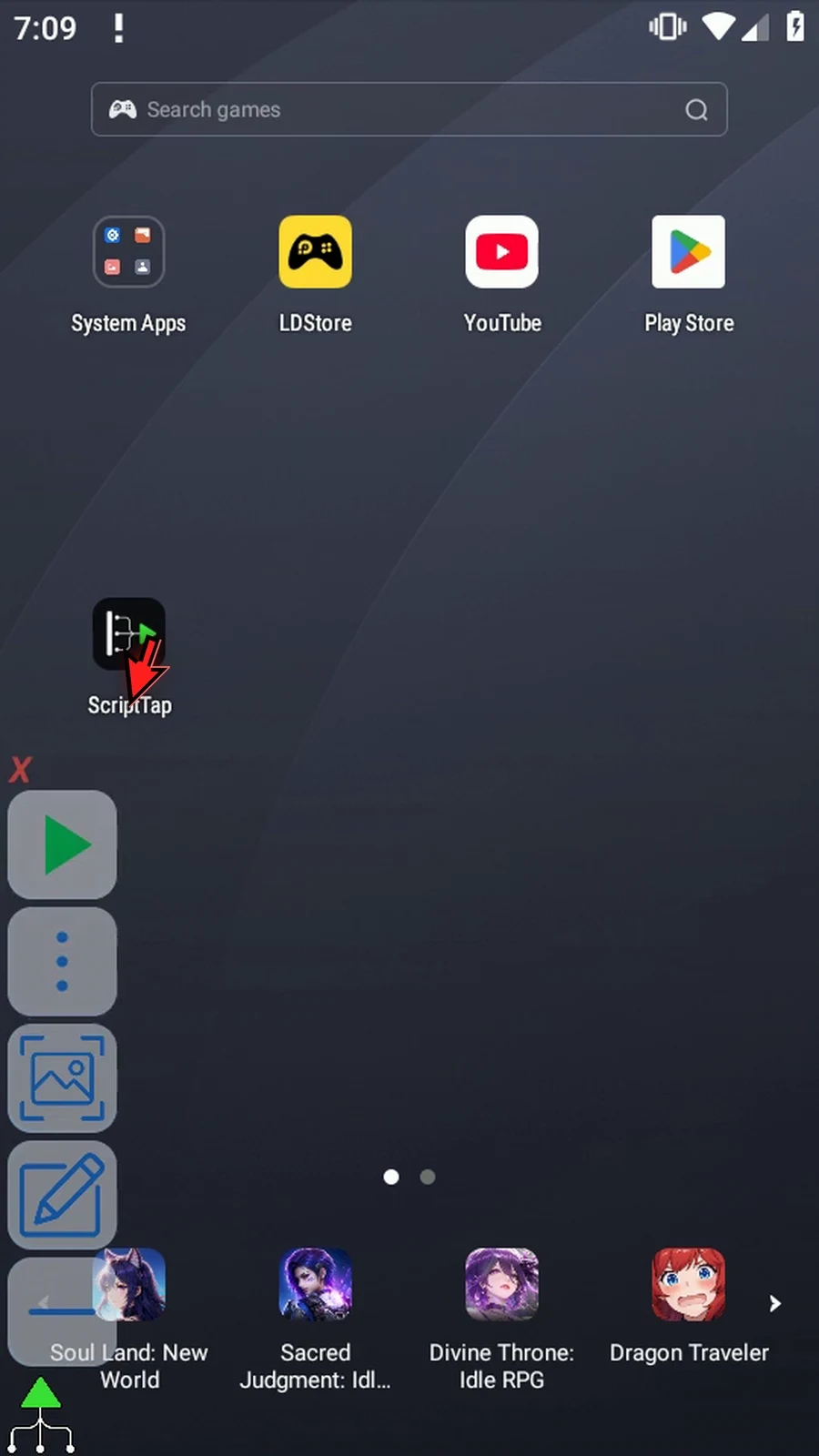
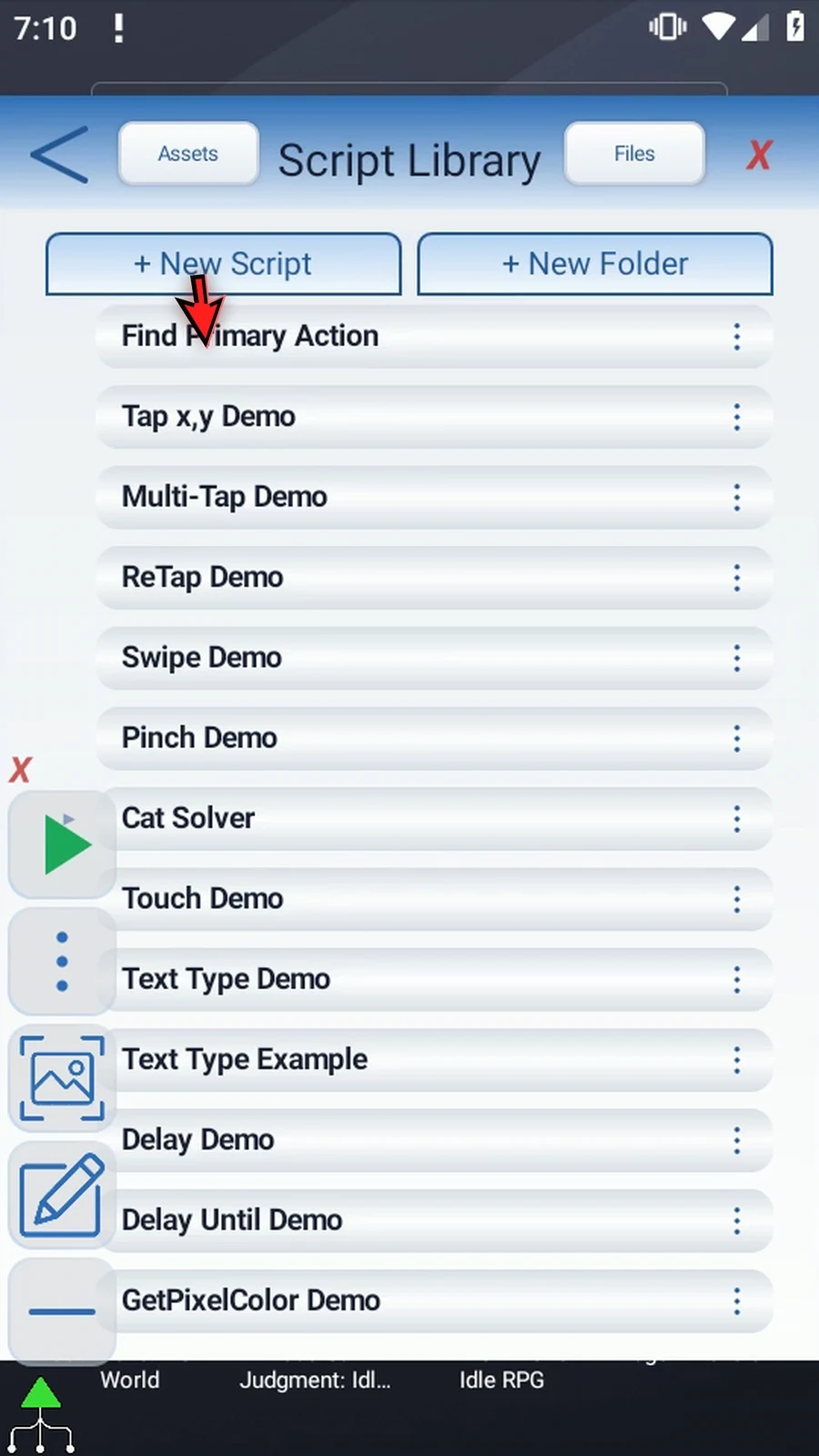
Step 02 Open Scripts from the main menu and create a new blank script. Keep existing scripts unchanged.
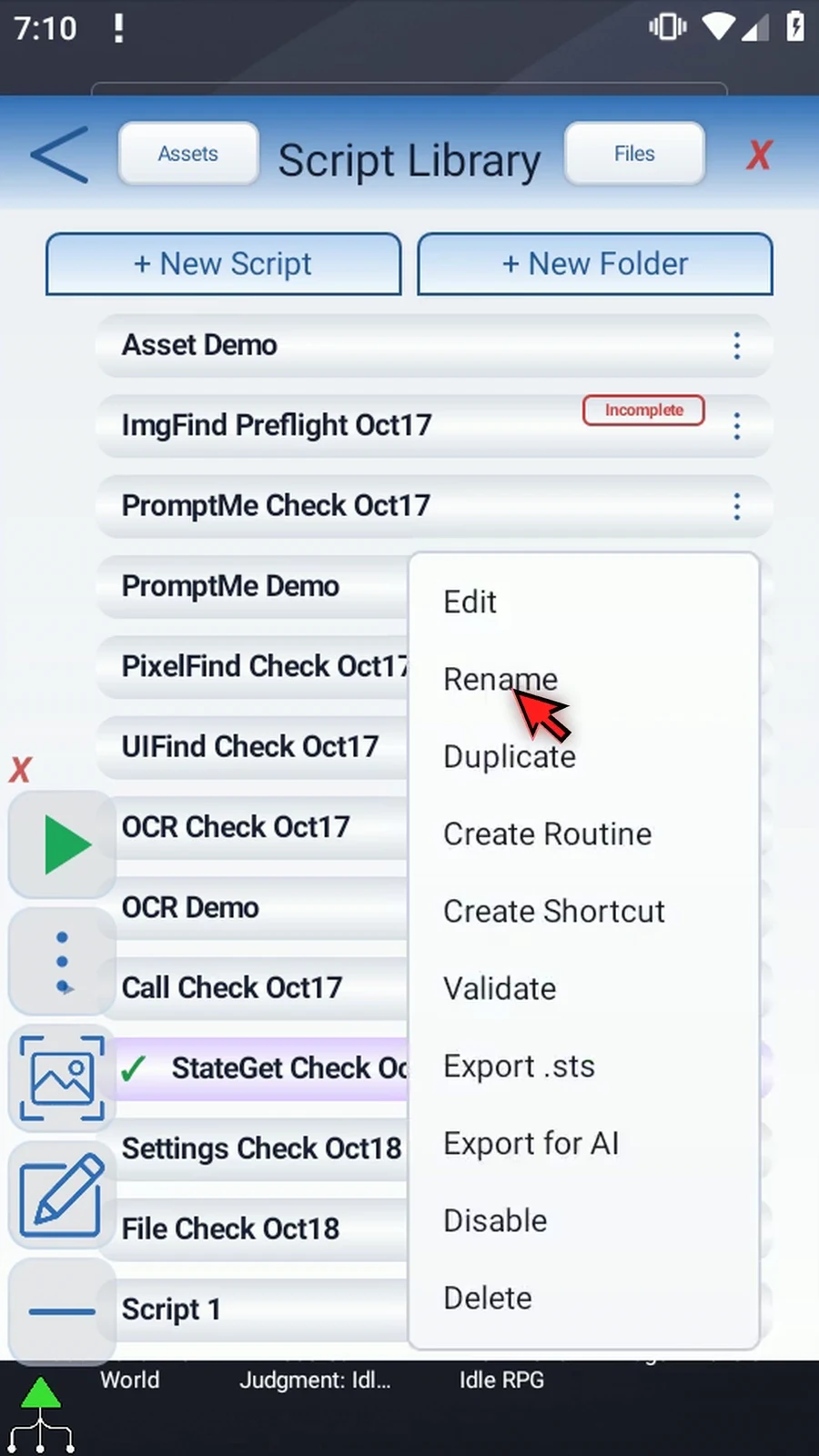
Step 03 Find the newly created script, open its menu and choose Rename. A clear name makes it easier to identify the script you want to run.
Step 04 Give the example a name. We will use StateGet Demo. Save it, select the script and open the editor.
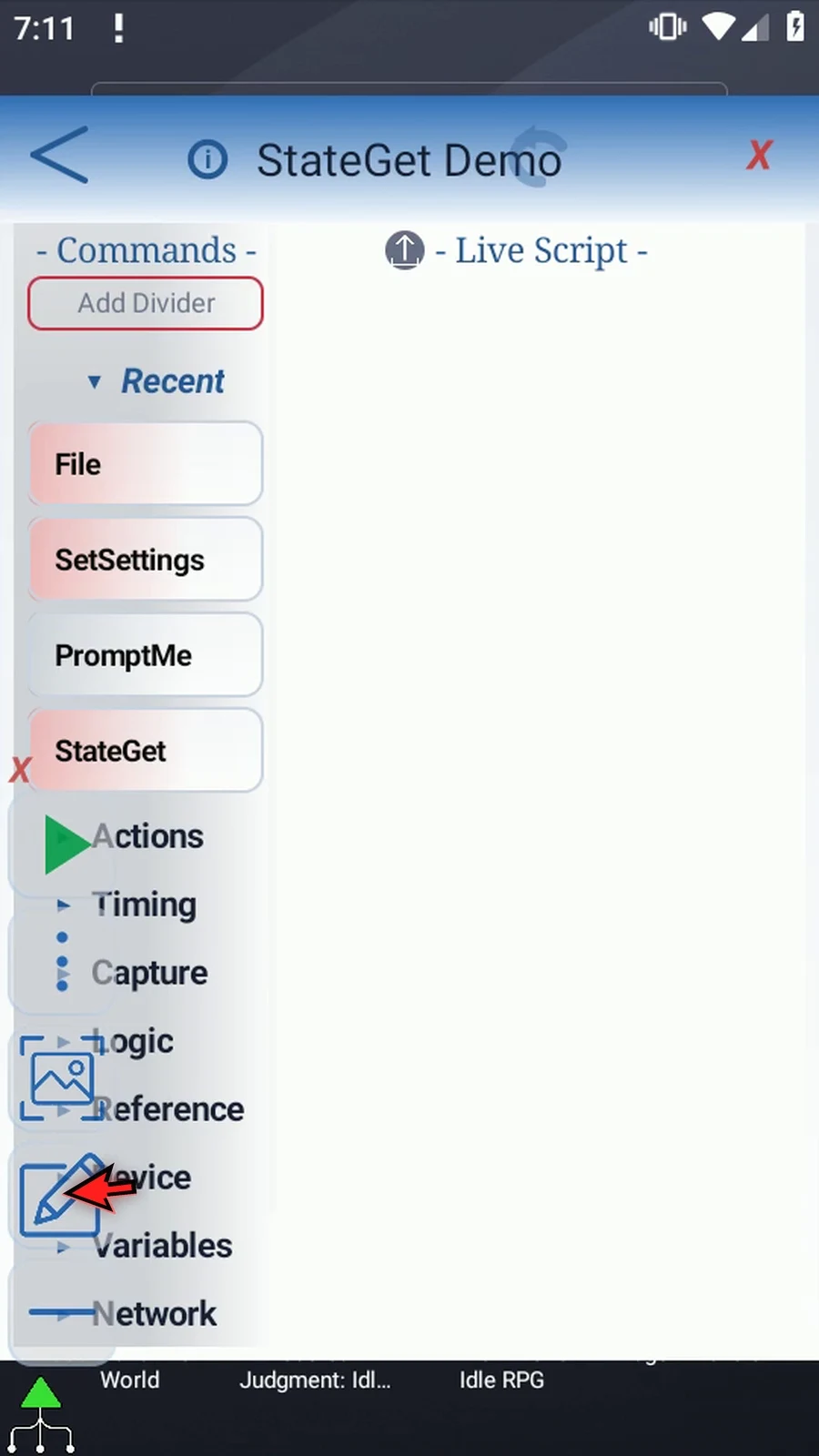
Step 05 In the editor, collapse the Main Overlay to keep the settings clear. Expand Device in the command palette.
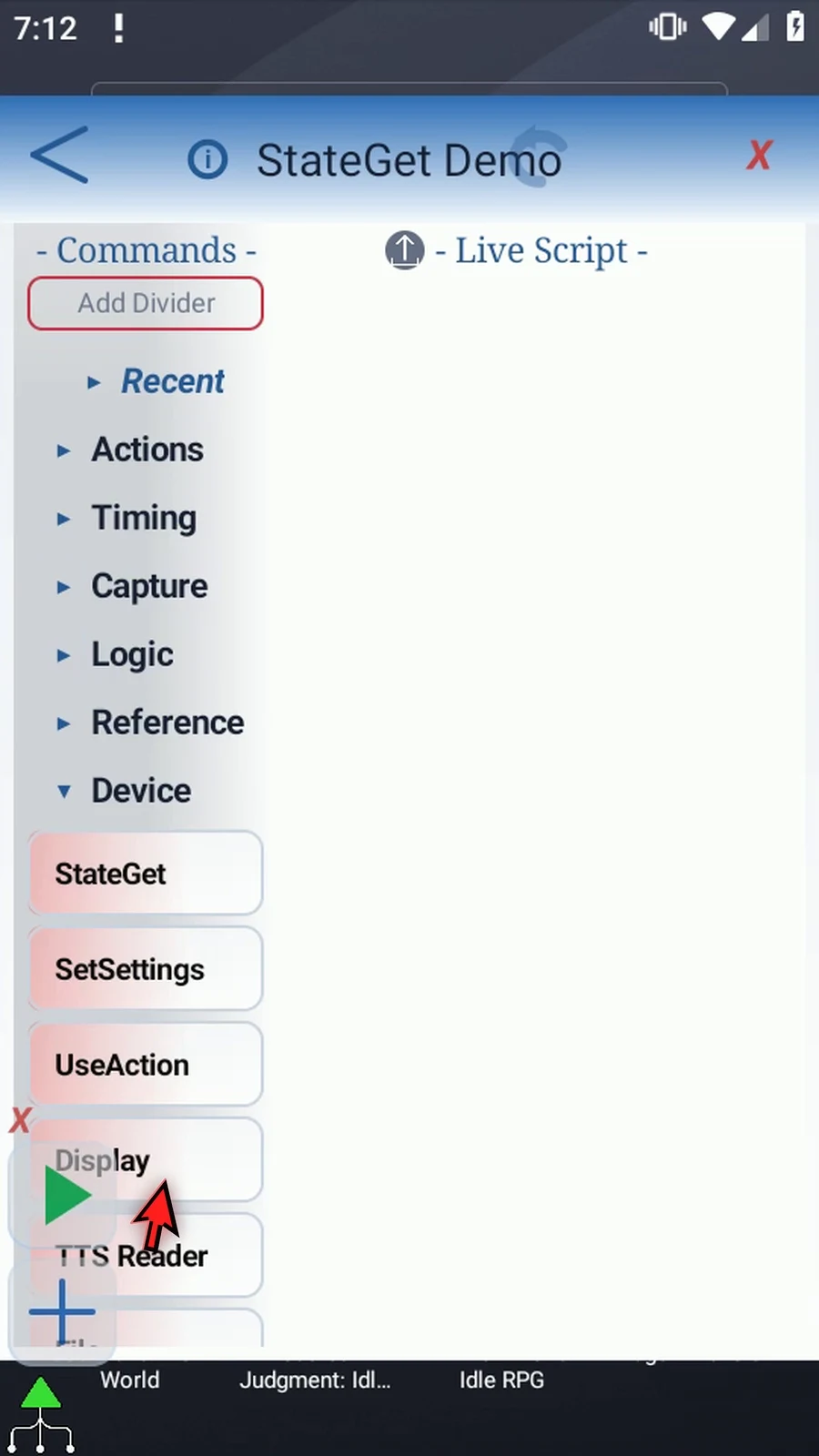
Step 06 Drag StateGet into the script. Double-tap the new row to open its settings.
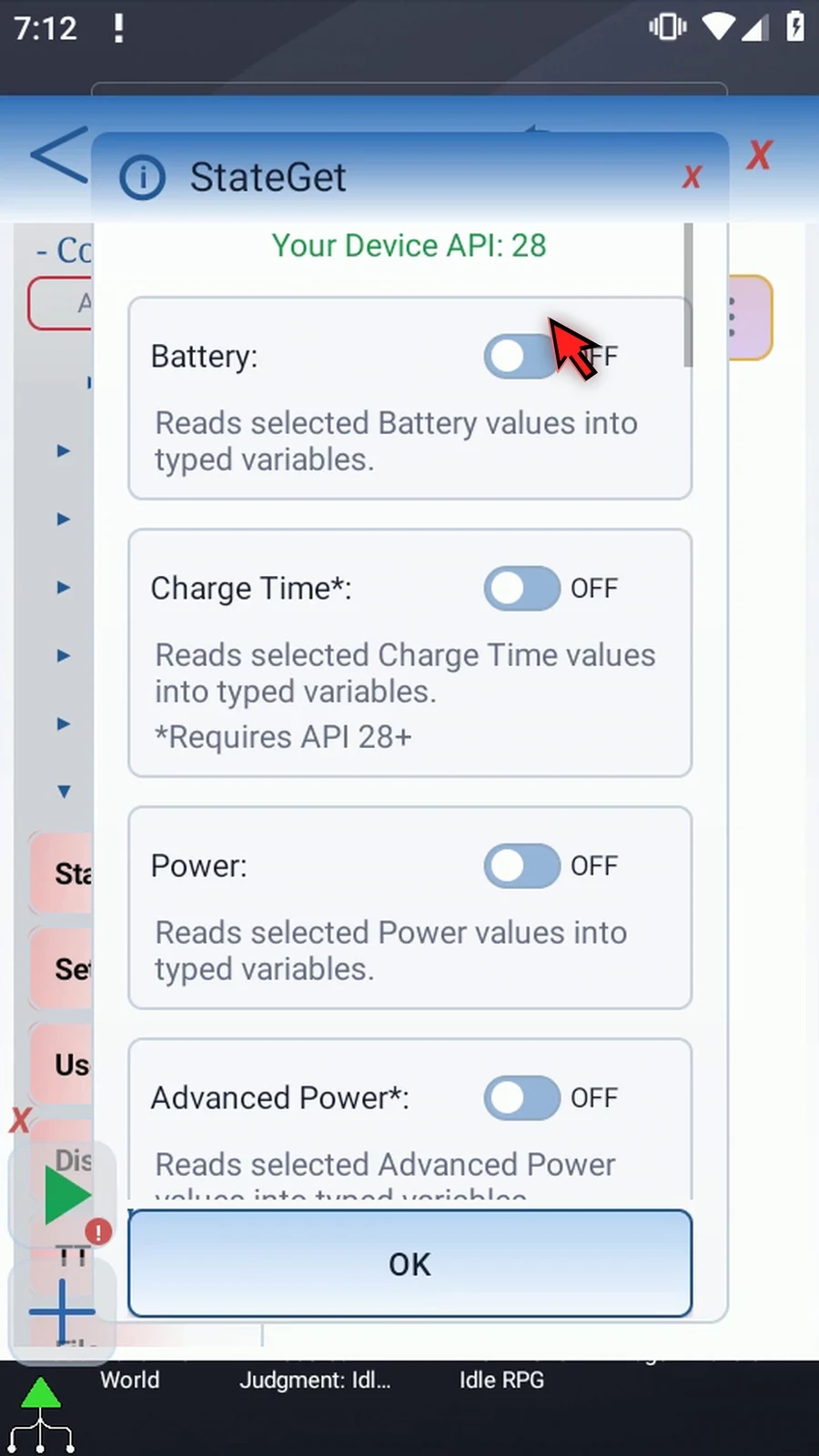
Step 07 The number at the top is this device's Android A P I level. Some readings need a newer Android version or particular hardware. Those requirements are shown beside the relevant group or output. Enable only the groups your script needs.
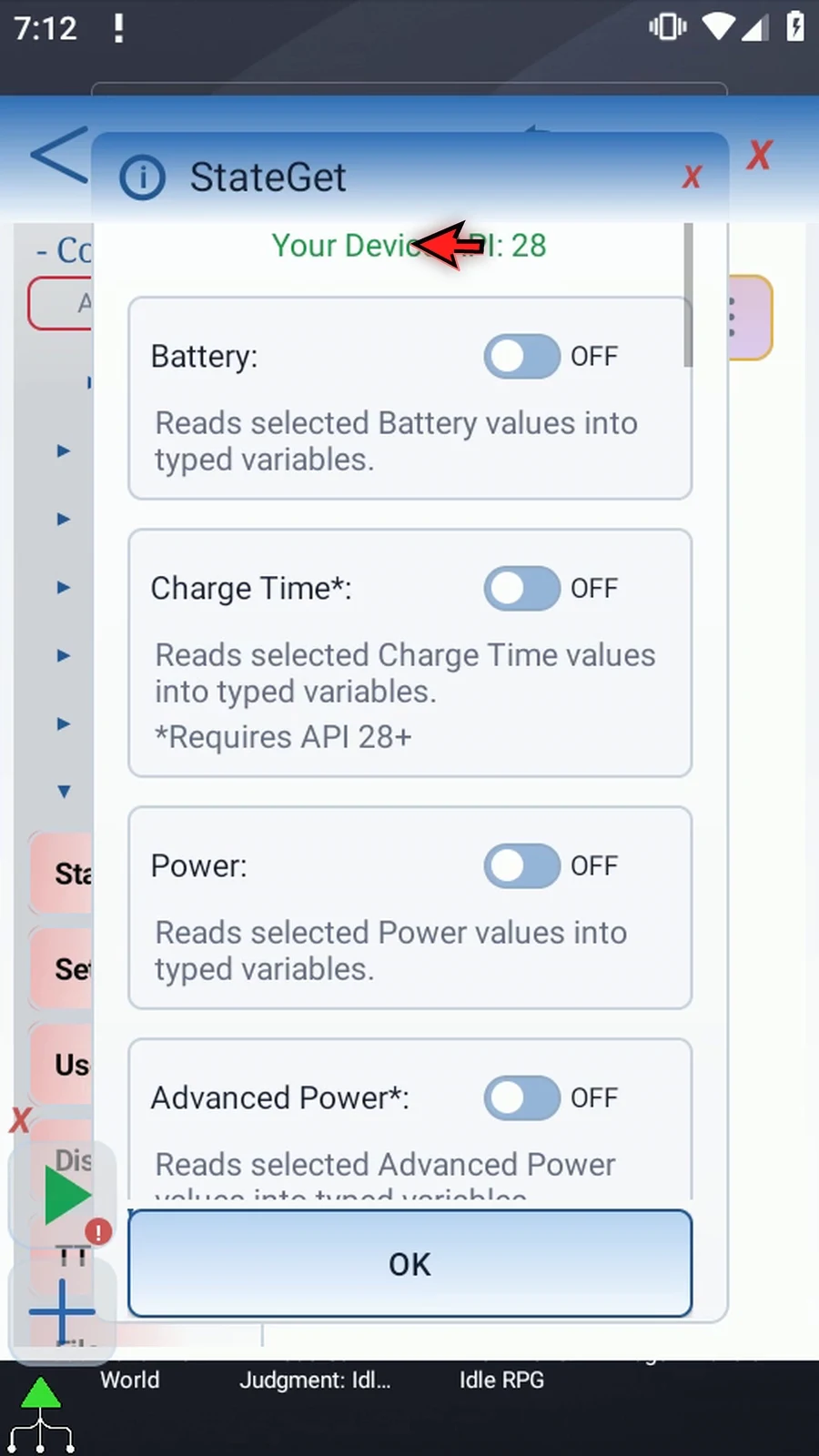
Step 08 Turn Battery on to see its outputs. These include percentage, charging, power source, health, temperature and electrical measurements. The hints show the required variable type: Integer, Boolean, String or Decimal. Each enabled group needs at least one destination; leave unwanted outputs blank.
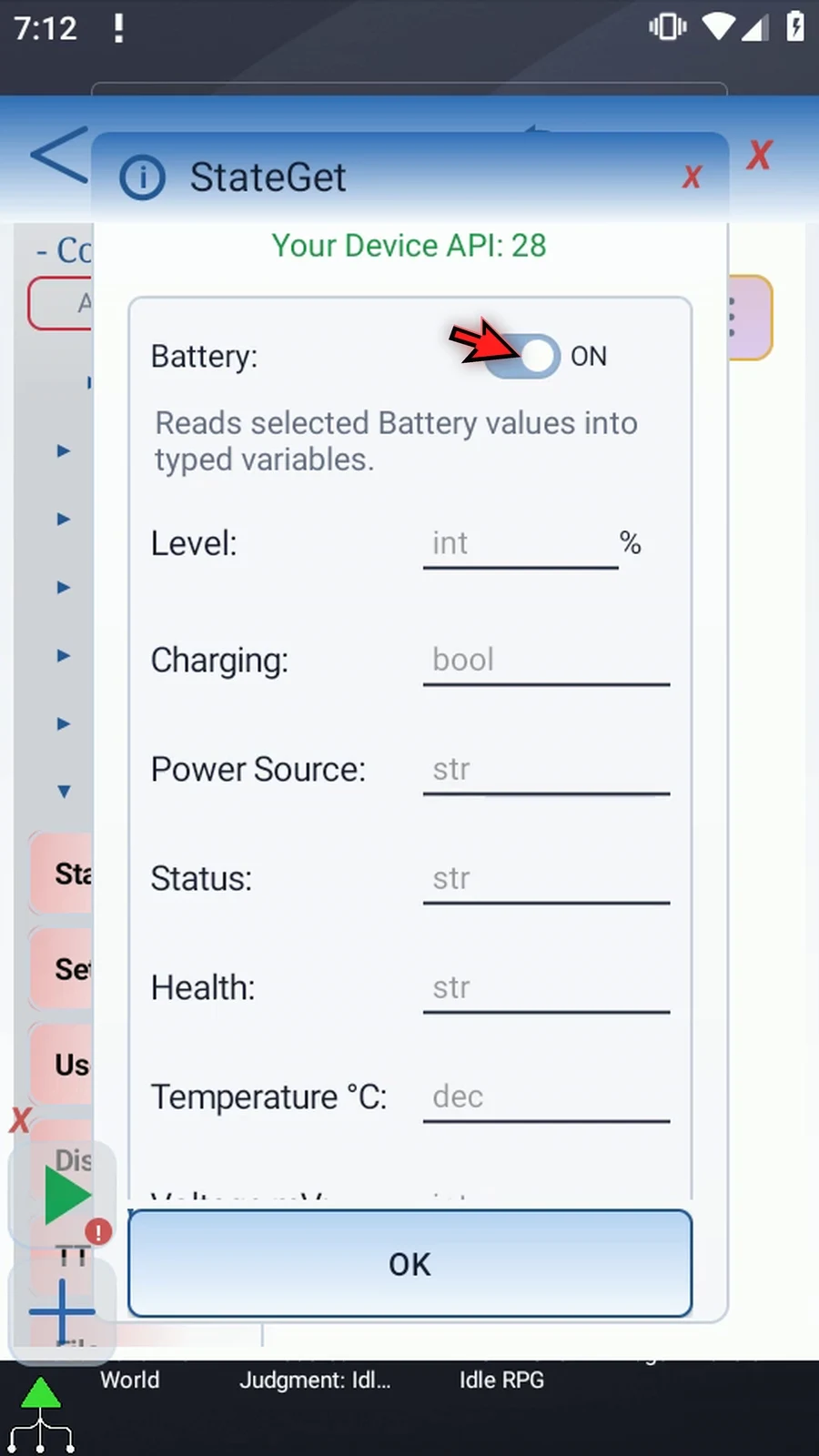
Step 09 For example, i1 can receive the Integer battery percentage. Use a different destination for each selected output, with the type shown beside it. We will turn Battery off again because this example only needs orientation.
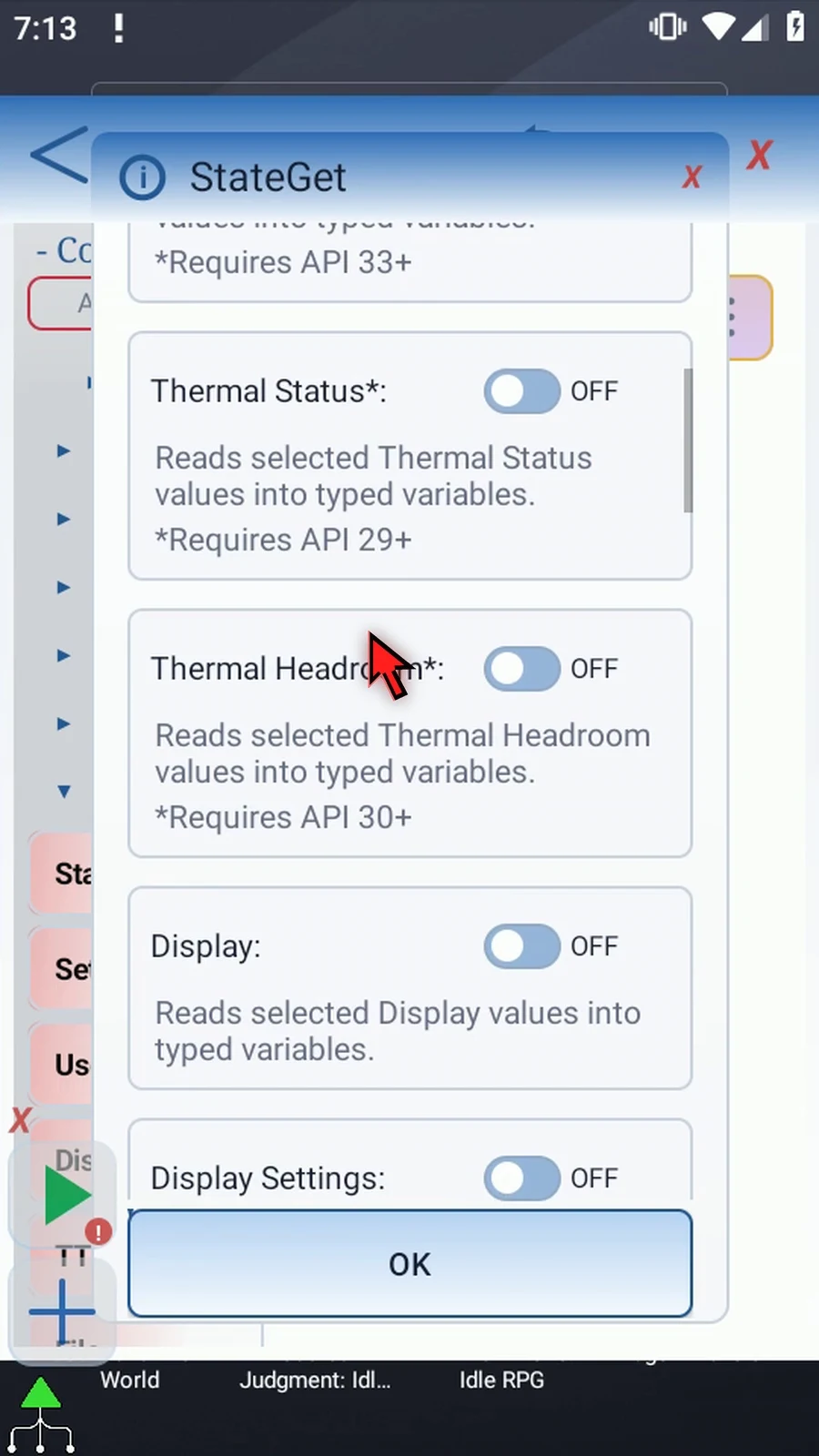
Step 10 Charge Time reads the estimated remaining charging time. Power reports power saving, idle and whether the screen is interactive. Advanced Power adds newer idle states. Thermal Status and Thermal Headroom report heating-related information on supported Android versions.
Step 11 Display reads the screen state, orientation, pixel dimensions and refresh rate. Turn Display on. Set Orientation to s1, a String destination. Leave the other fields empty so this command requests only orientation.
Step 12 Display Settings reads brightness, adaptive brightness, rotation lock, screen timeout, dark mode and clock format. Device Lock reports whether the device is locked and whether a secure lock is configured. These are readings, not switches that change the device.
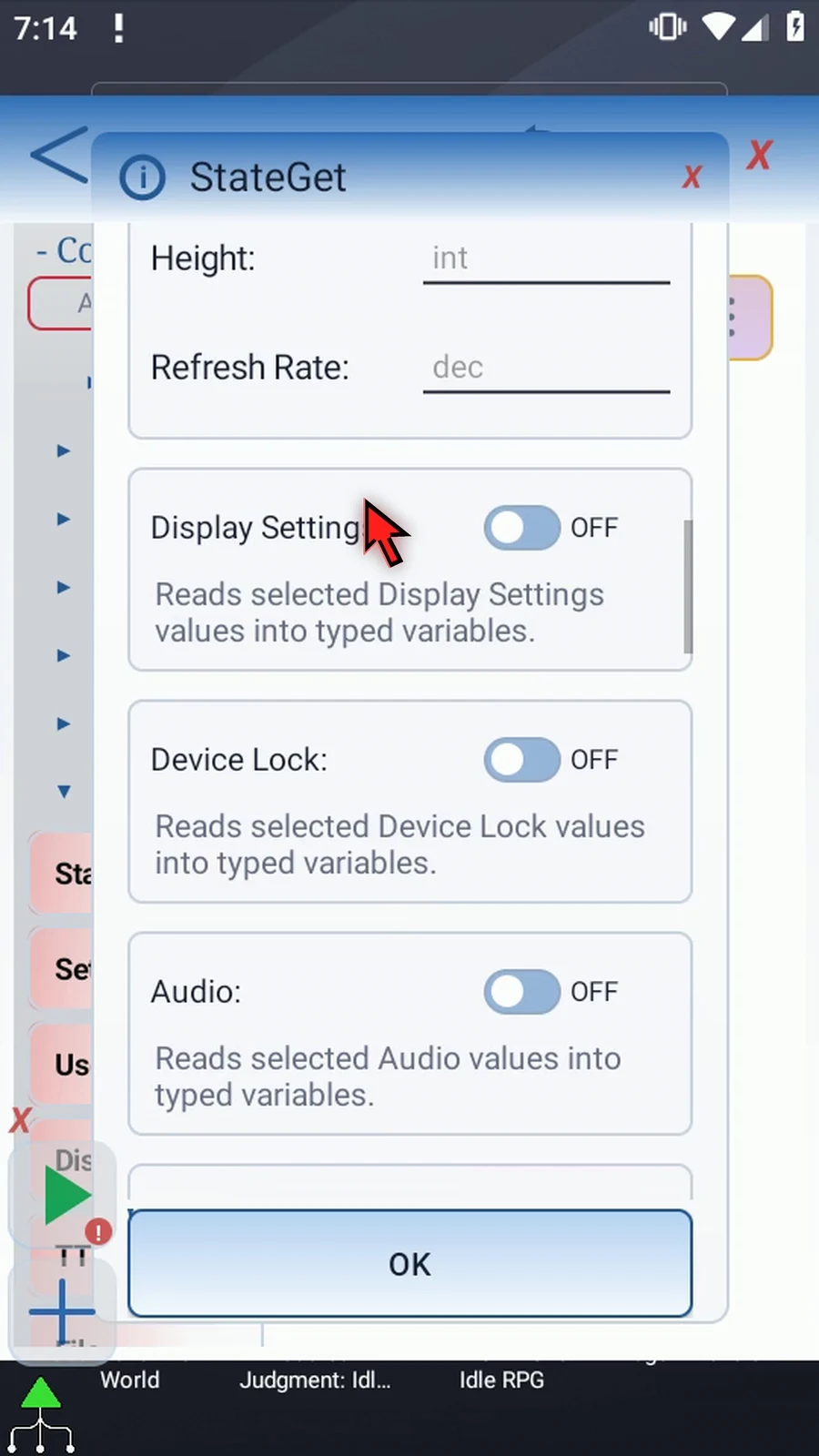
Step 13 Audio reads volume levels, ringer mode, microphone mute and Android music-audio activity. Music active does not prove a particular media player is playing. Output-route availability depends on Android. Do Not Disturb reads the current interruption mode.
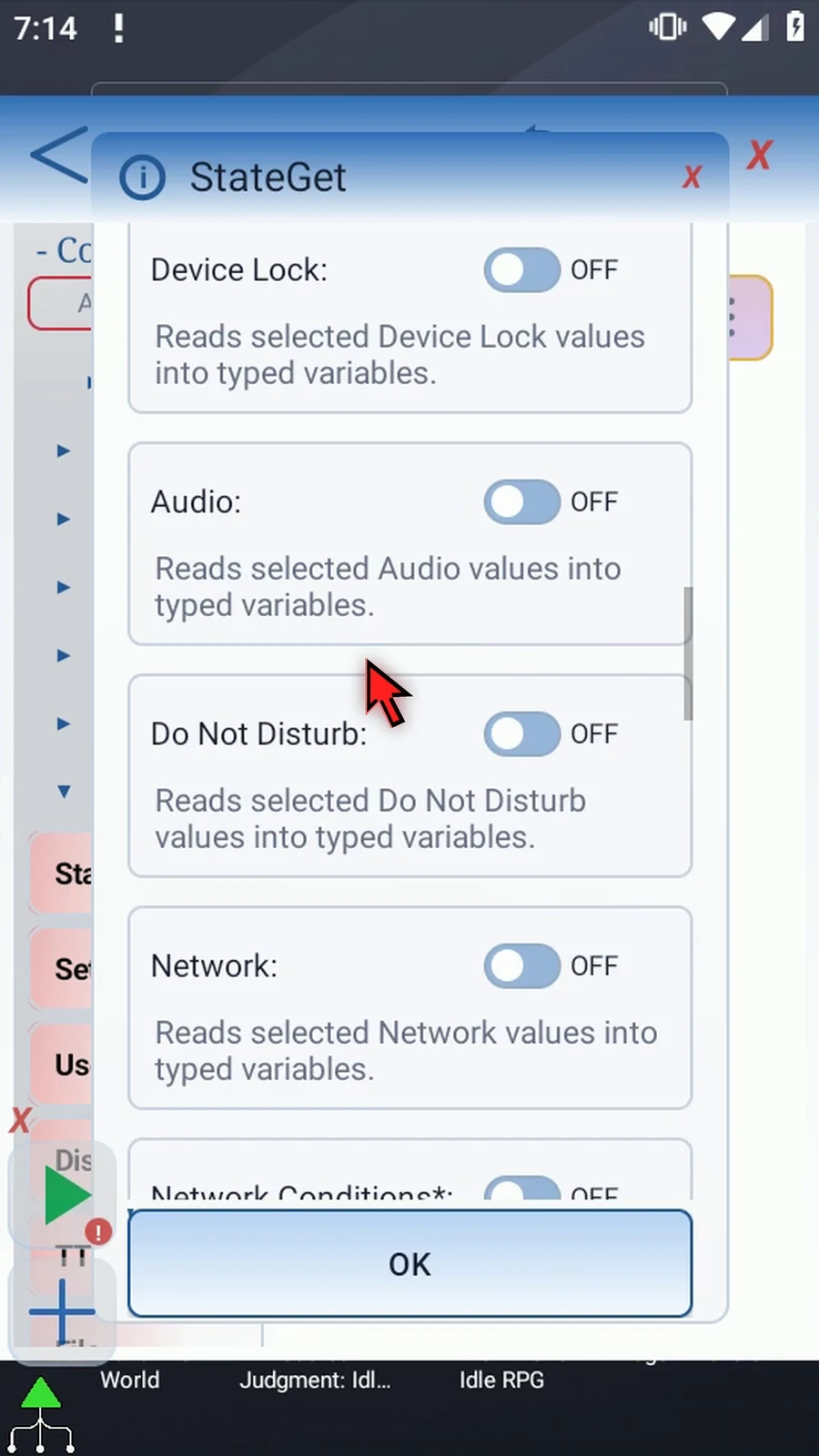
Step 14 Network reports connectivity, validated internet access, transport, metering and related connection information. Its estimated speeds describe the connection, not measured traffic. Network Conditions adds roaming, congestion and suspension information where supported.
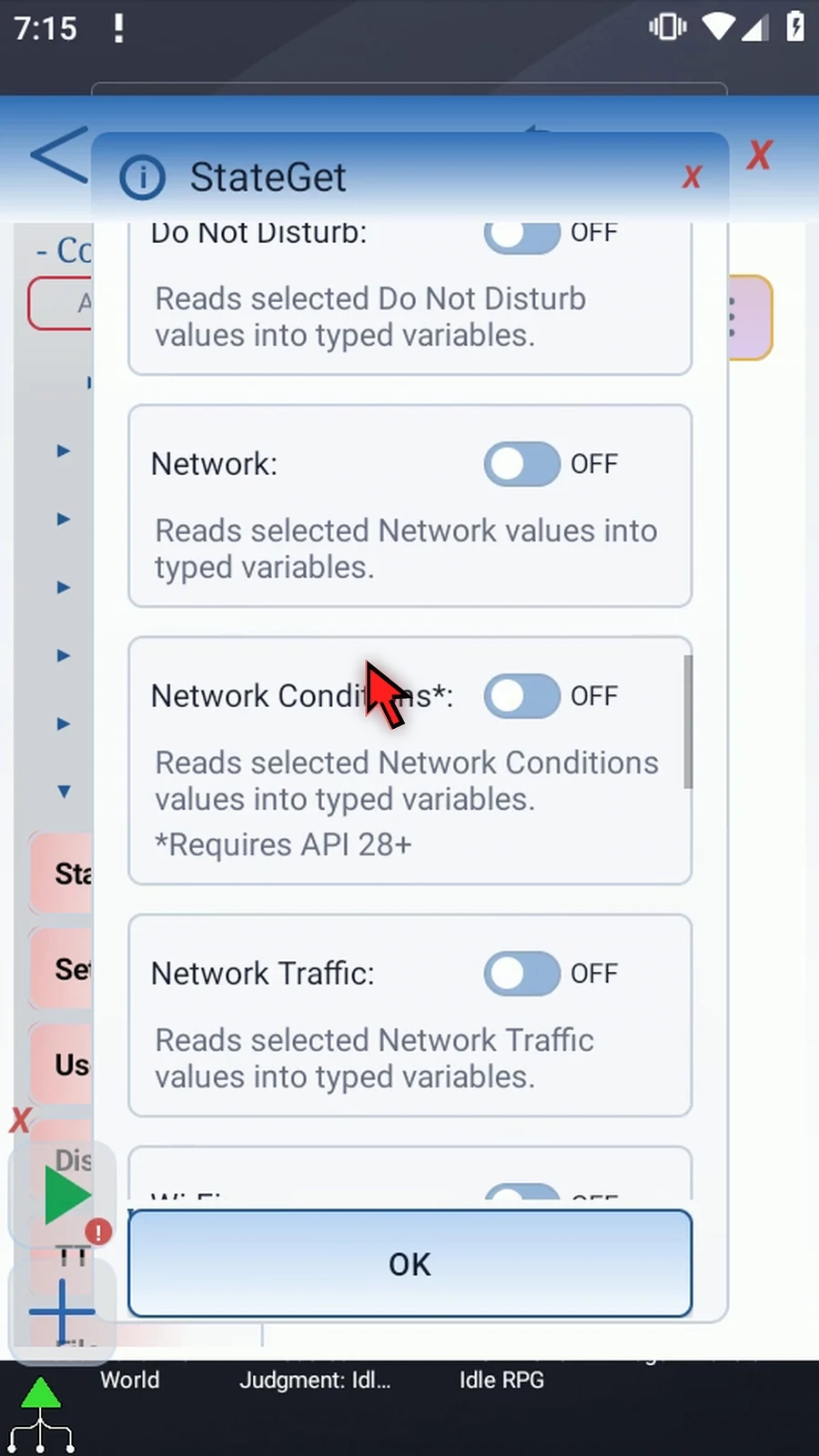
Step 15 Network Traffic measures receive and transmit rates instead. Turn it on and assign Integer destinations, such as i2 for R X and i3 for T X. Selecting a traffic output reveals Sample Time. Both rates use the same sample.
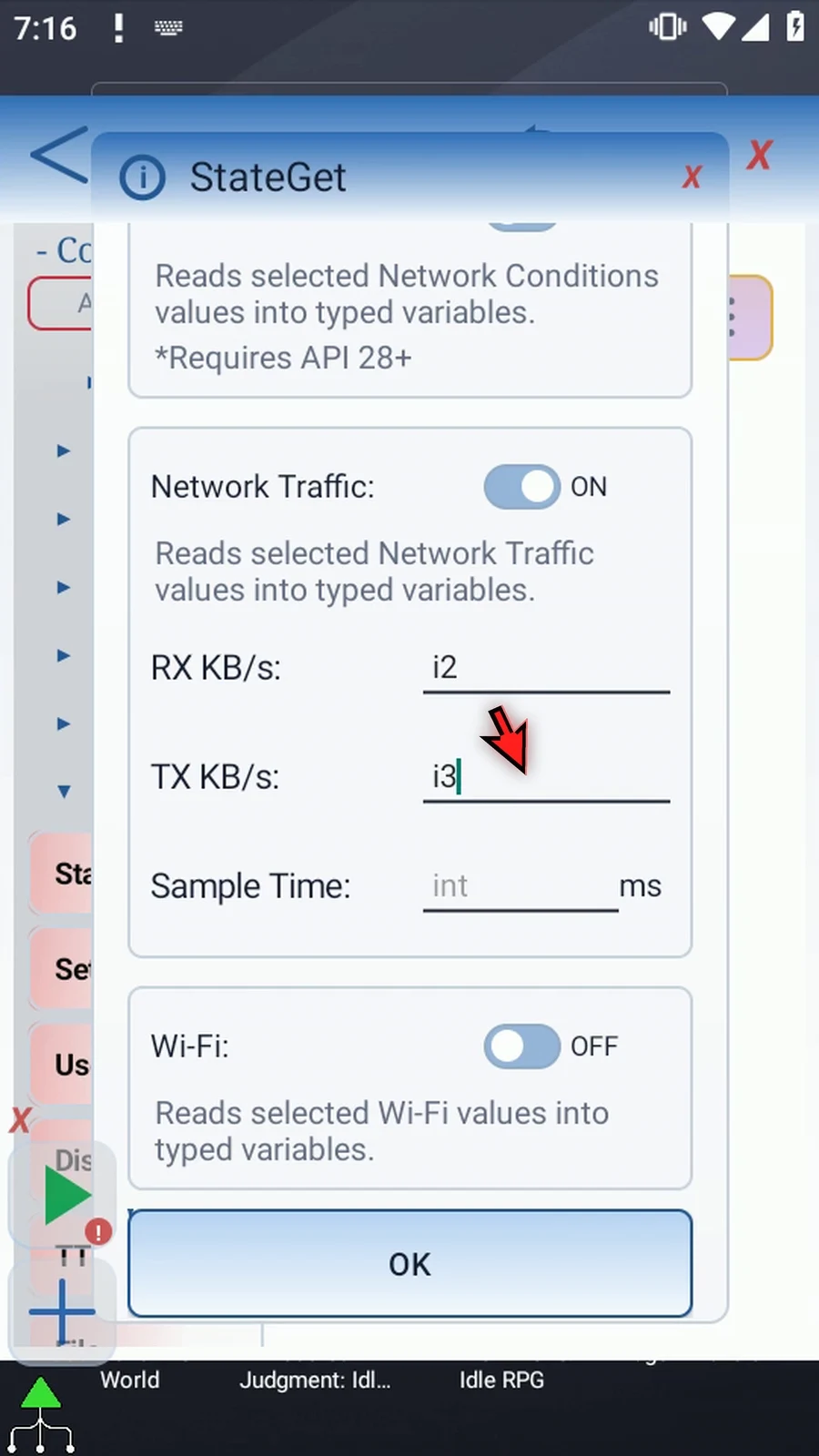
Step 16 Enter 1500 milliseconds for a one-and-a-half-second sample. The supported range is 250 to 60000 milliseconds. StateGet waits for this measurement before publishing its available results. We will turn Network Traffic off again and keep the orientation-only demo.
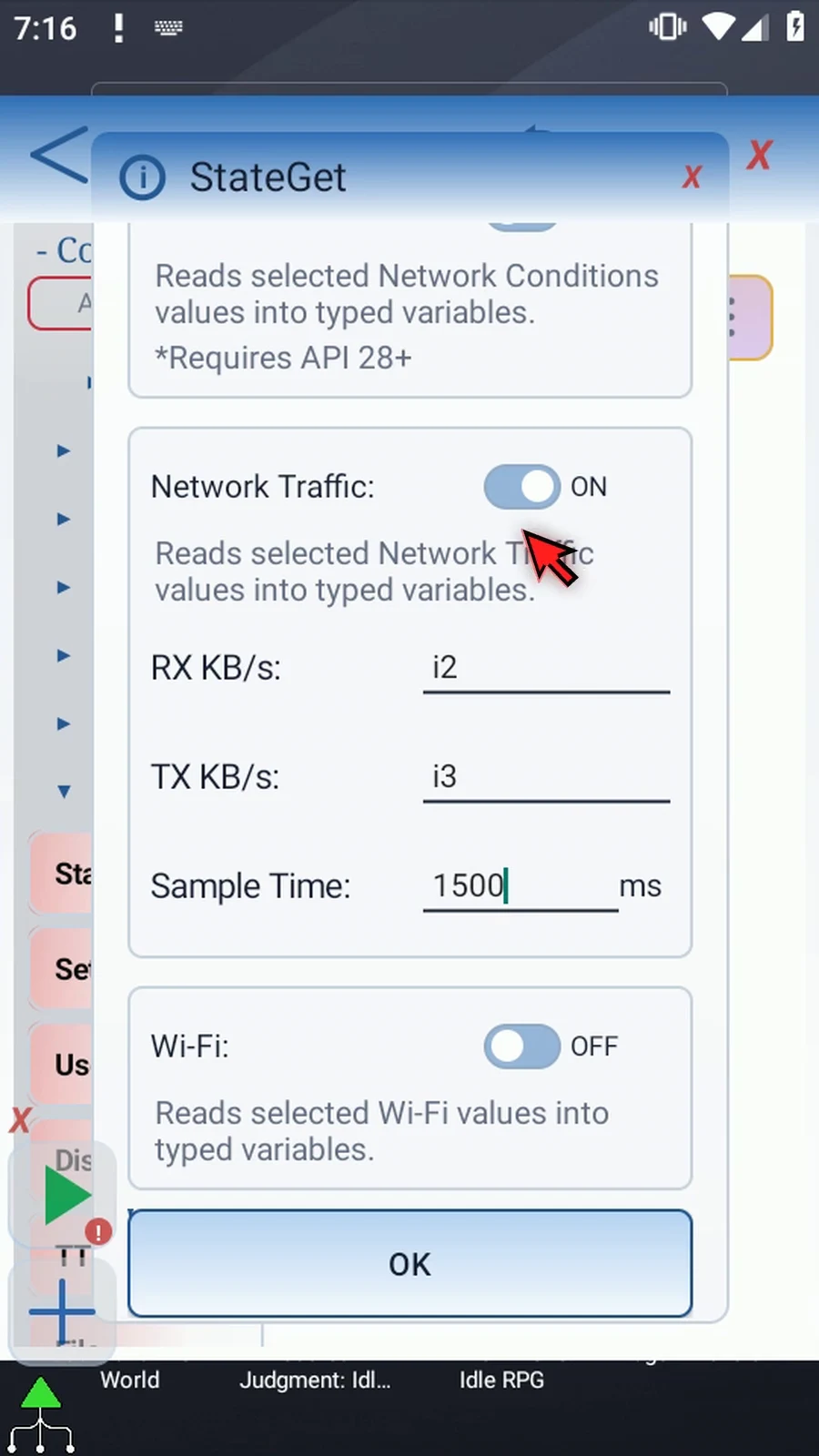
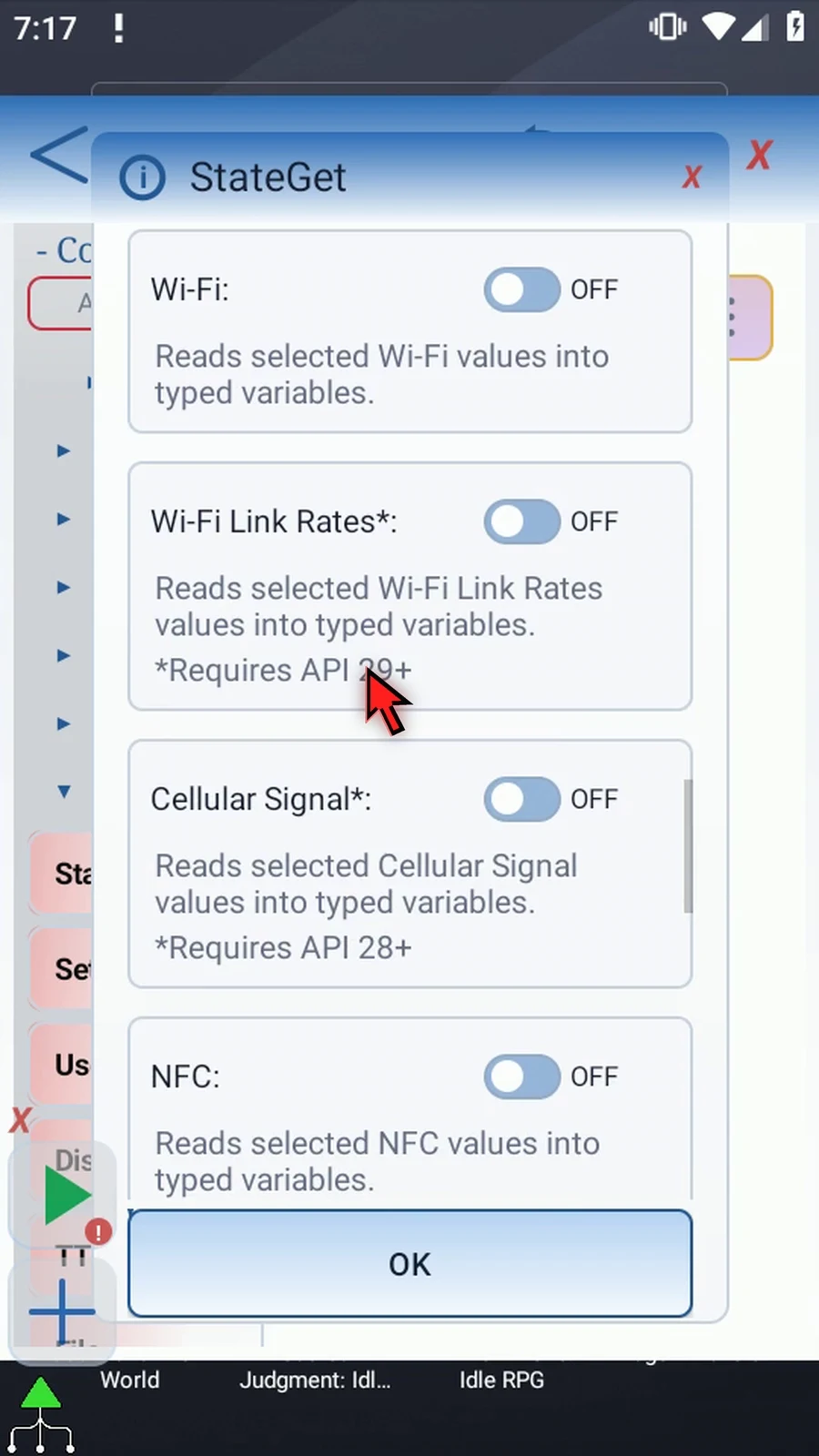
Step 17 Wi-Fi reads its enabled and connected states, signal level and link speed. Wi-Fi Link Rates adds receive and transmit link rates on supported Android versions. Cellular Signal reads the signal level, and N F C reports whether it is enabled.
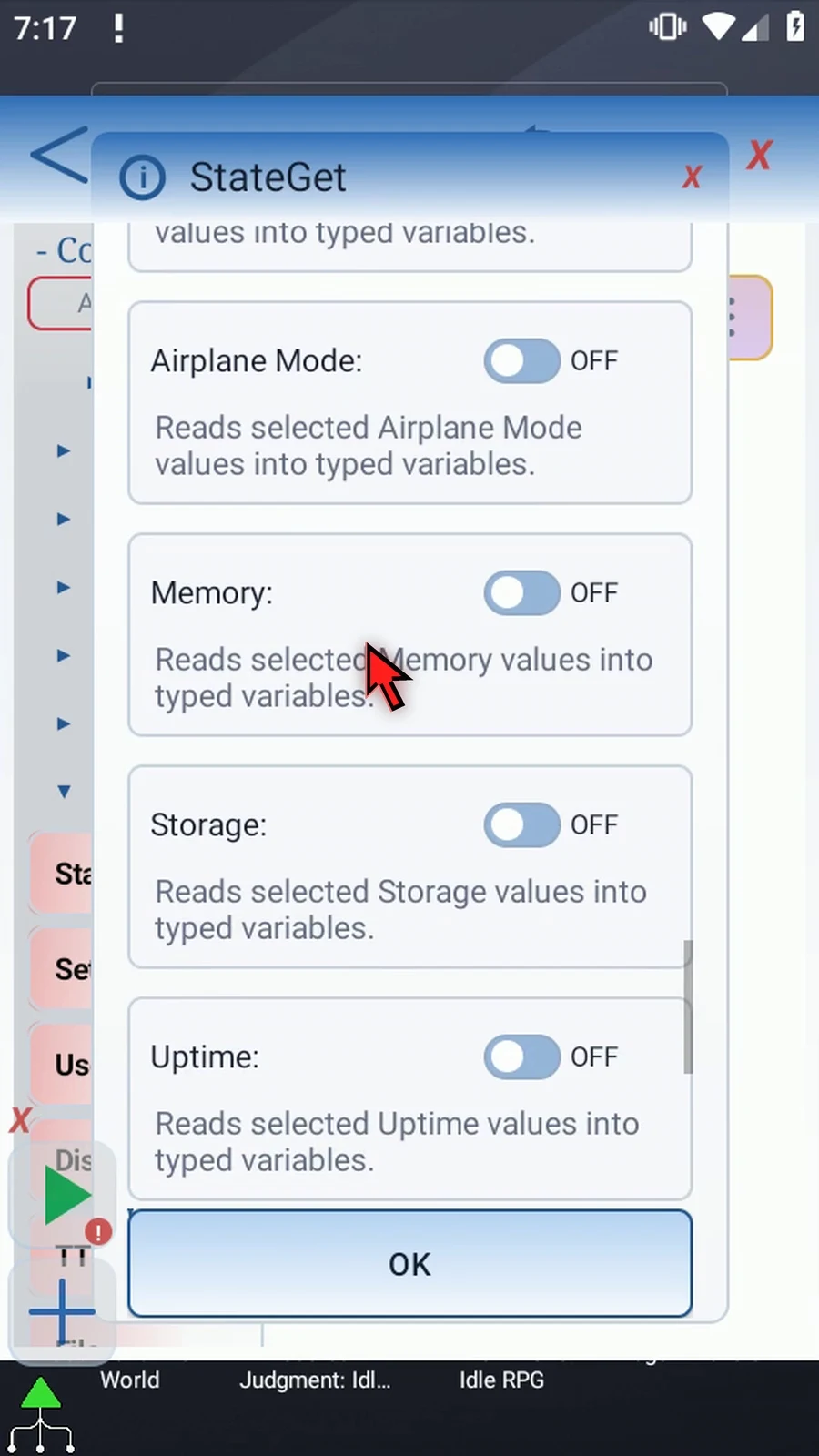
Step 18 Location Services and Airplane Mode read their enabled states. Memory reports available and total memory plus the low-memory flag. Storage reads free and total space, while Uptime reads elapsed seconds since the device started.
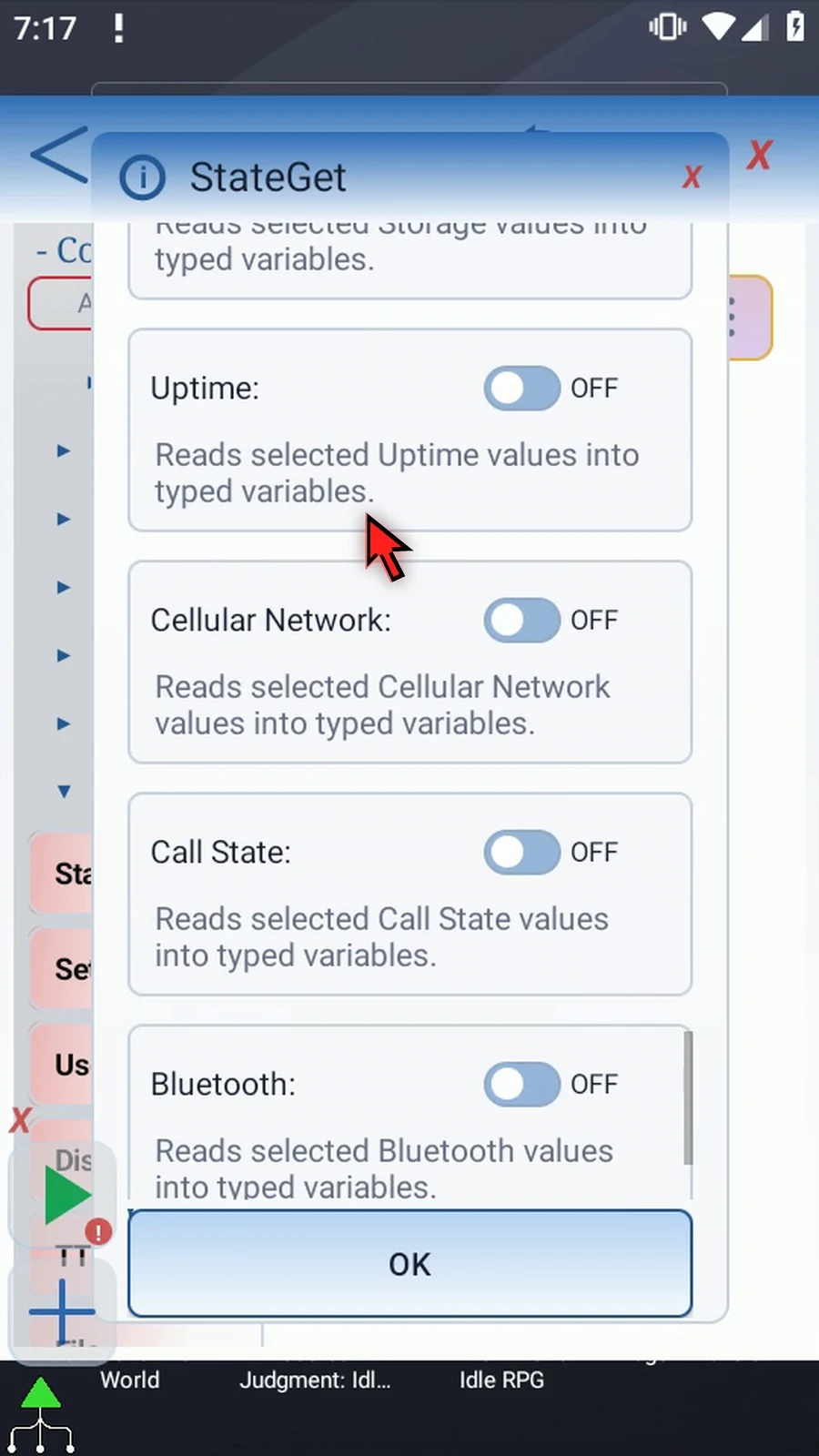
Step 19 Cellular Network reads the network generation, and Call State reads the phone-call state. Some phone information requires Phone State access. Bluetooth reads enabled and connection states; newer Android versions require Nearby Devices access. Grant any required access during setup, before Play.
Step 20 Flashlight reads whether the torch is enabled, and its strength where the device and Android version support that reading. StateGet never turns it on. All these groups follow the same pattern: enable a group, then name the typed outputs you need.
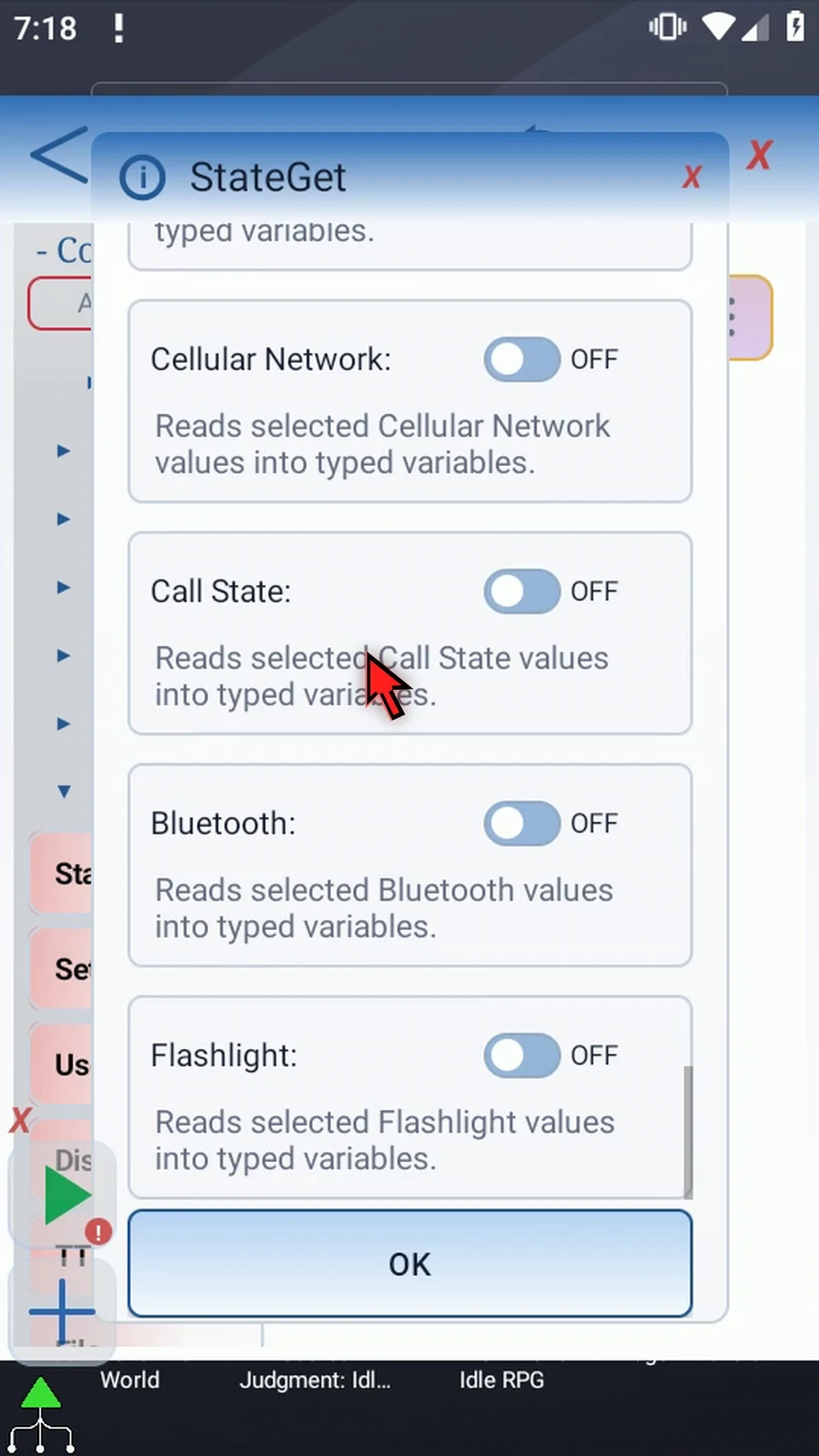
Step 21 An unavailable reading leaves that destination unchanged; it does not automatically write zero or an empty value. Initialize a variable first if later commands need a known fallback. StateGet has no separate Success or Error output. Run Logs summarize selected readings and availability counts without recording their returned values.
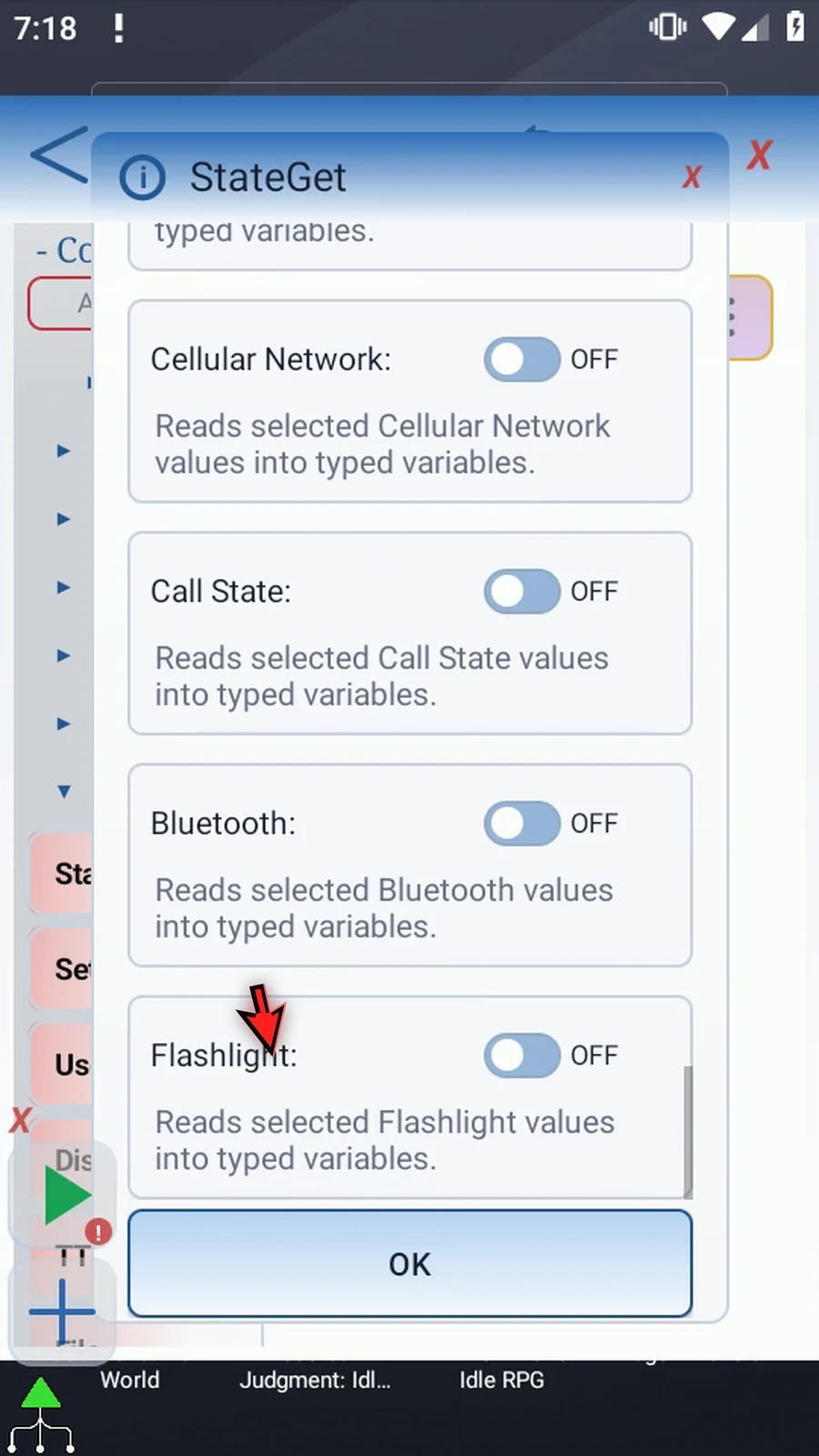
Step 22 Tap O K to save. Only Display is enabled in our example. The other groups stay off, even if their earlier field values were retained.
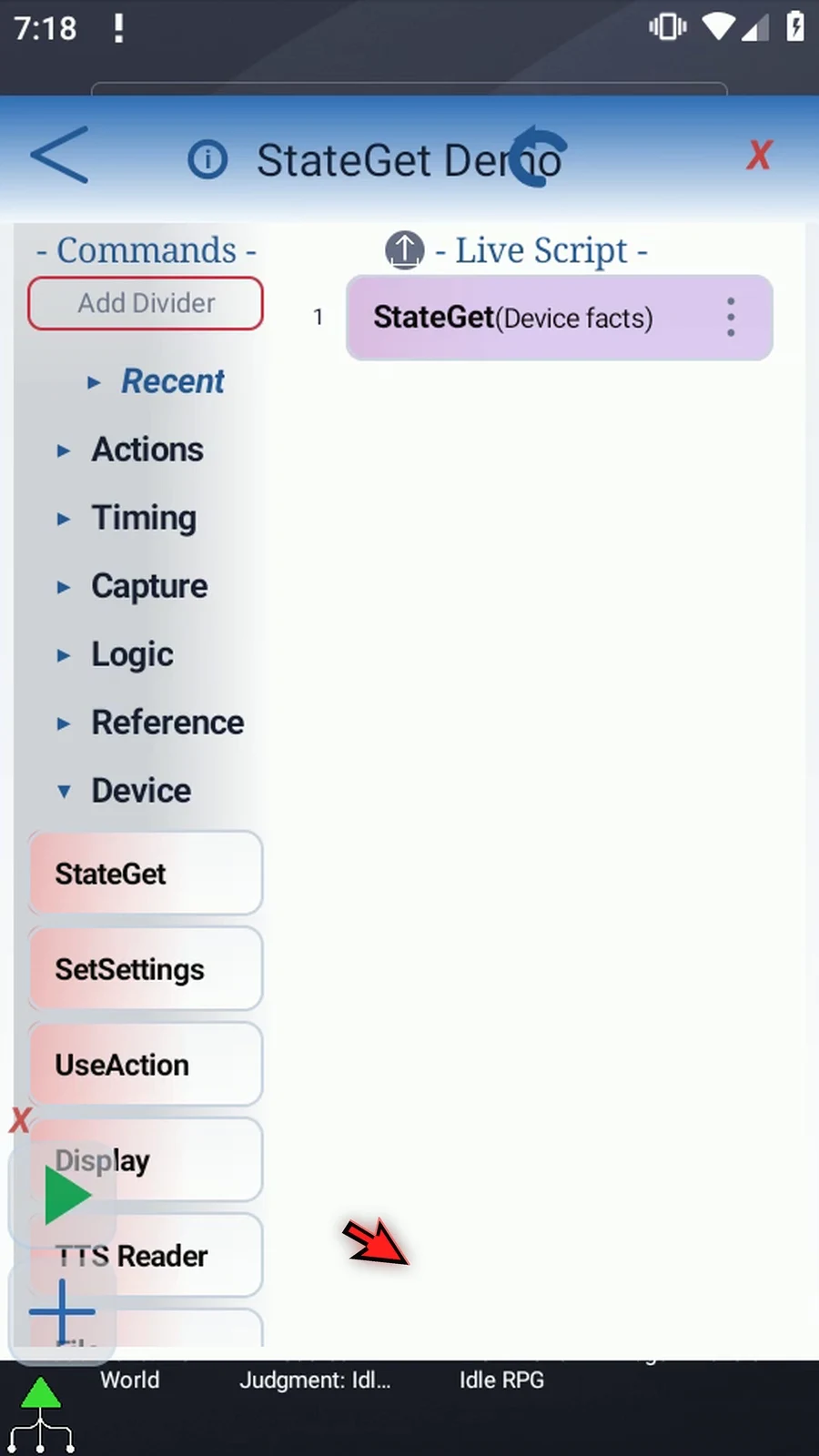
Step 23 Now drag PromptMe below StateGet. This supporting command will display the String that StateGet writes, so we can see the result clearly.
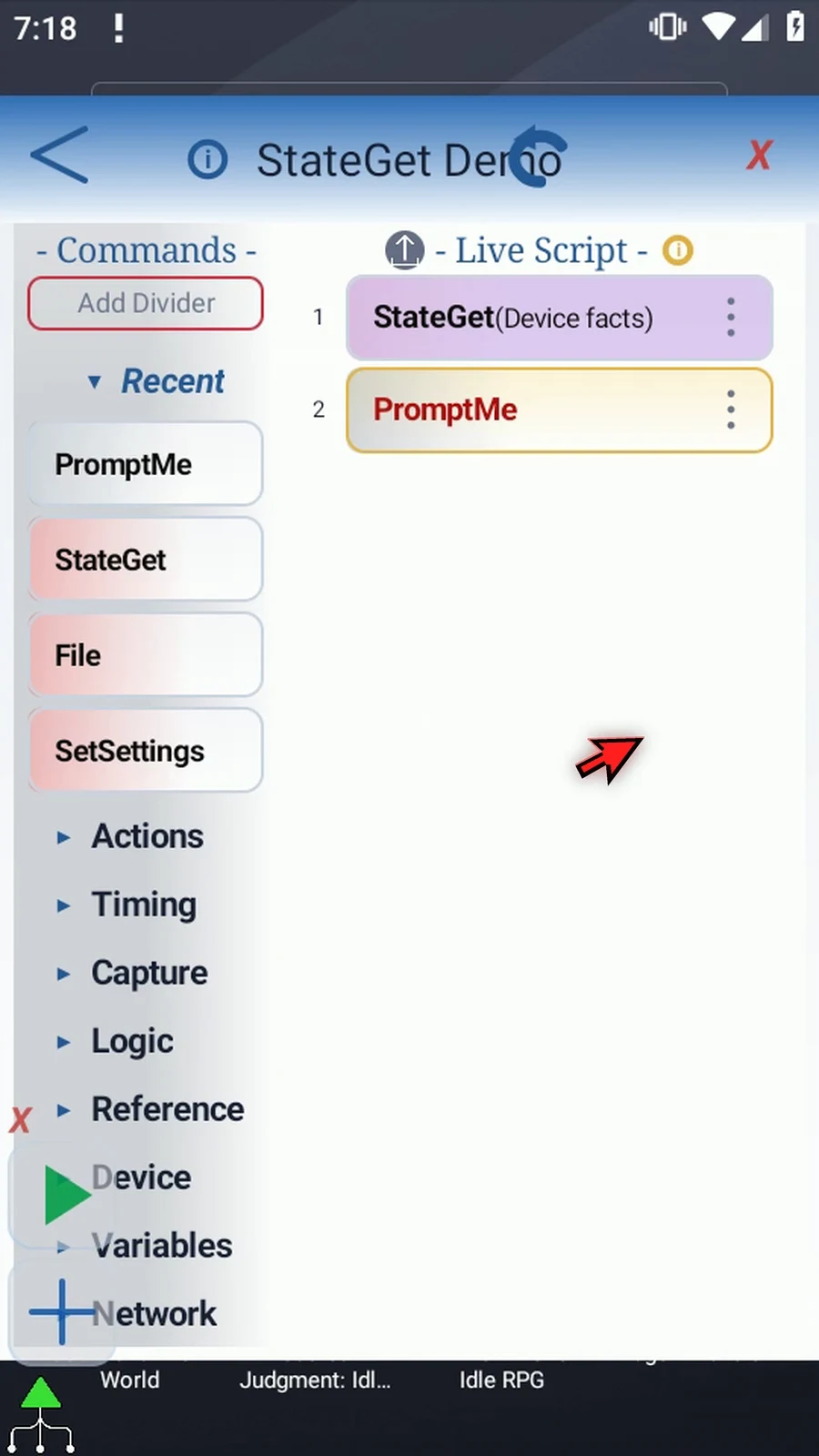
Step 24 Keep Standard. Set Header to s1, then add a Done button with b1 as its Boolean output and save. The header will use the stored String value, not the literal variable name.
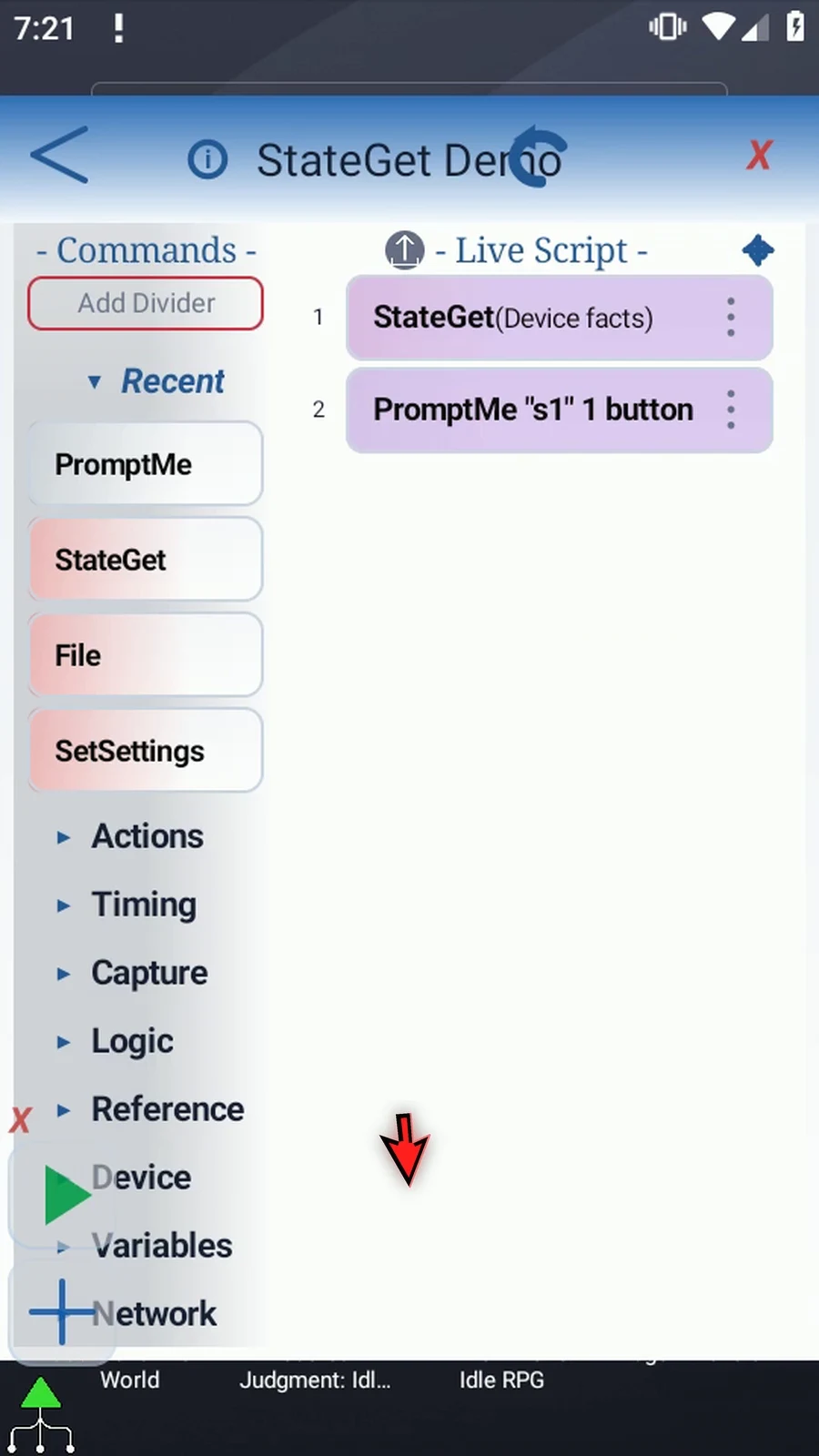
Step 25 When the script is complete, simply use the Play button in the main overlay.
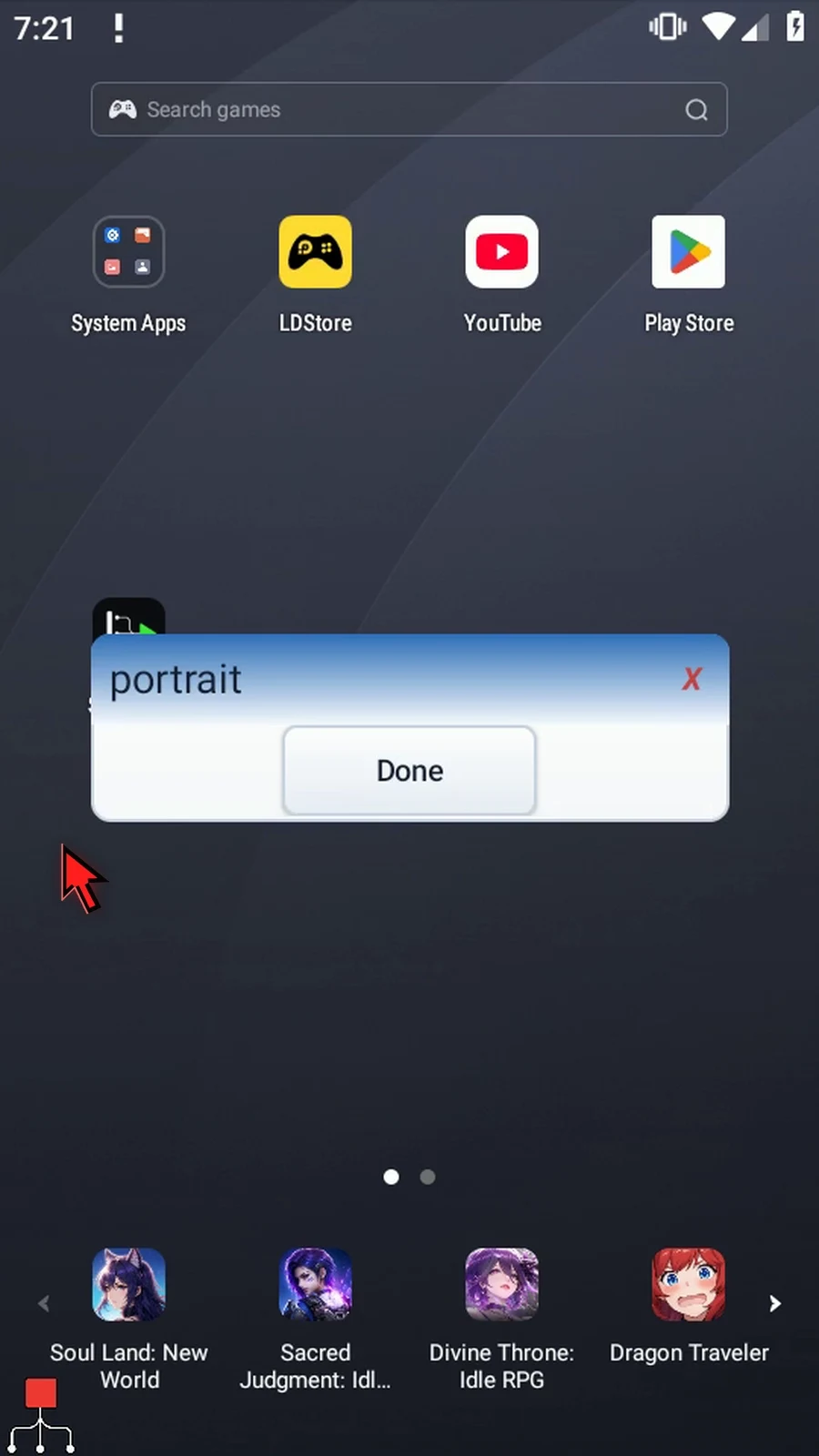
Step 26 The prompt shows portrait. StateGet read the current display orientation and wrote it to s1. PromptMe is only displaying that value. Choose Done to finish the script.
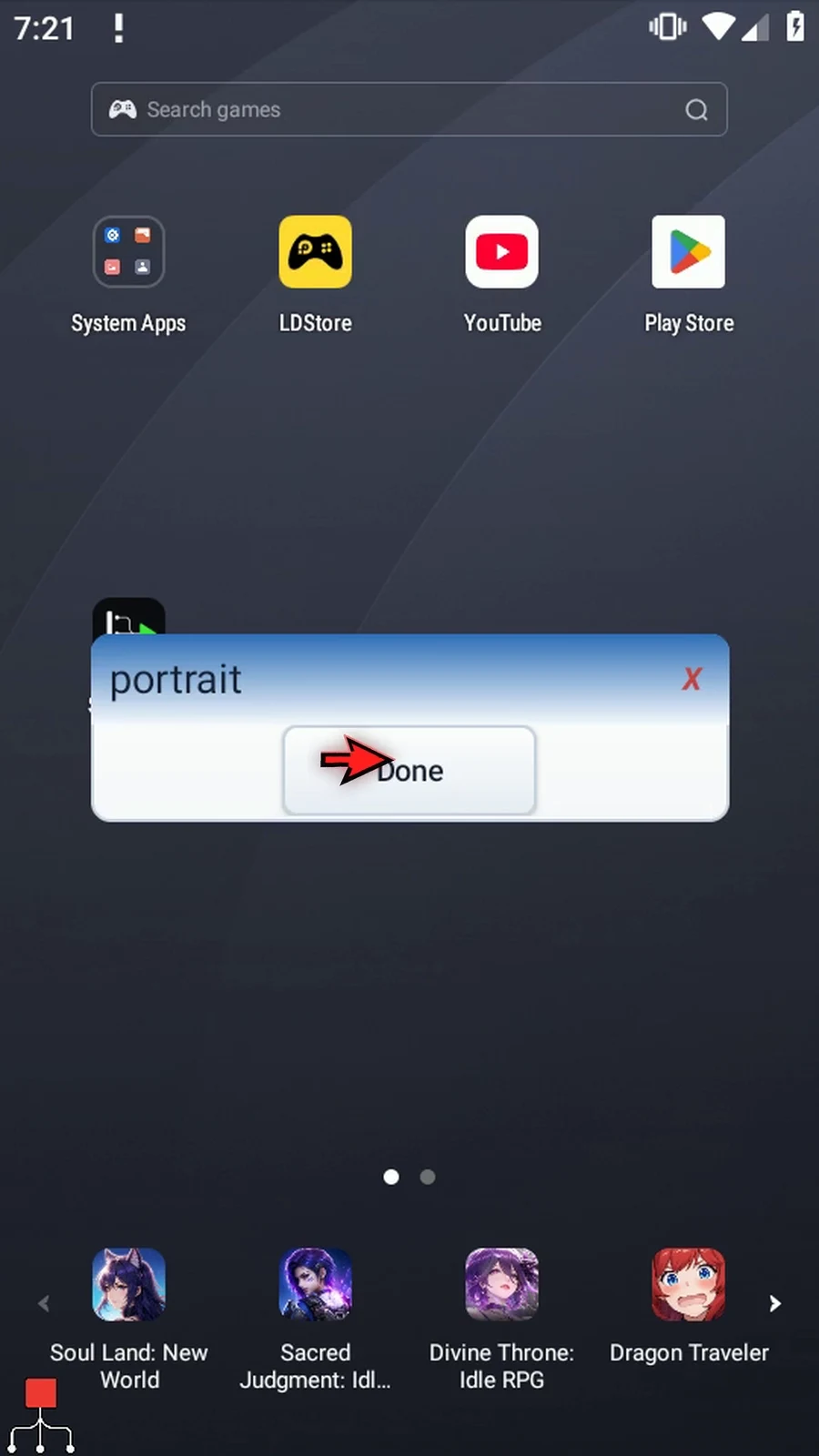
Step 27 Use StateGet before a condition, calculation or other command that needs current device information. Each time StateGet is reached, it takes a new reading; it is not a background monitor. Keep requests focused and test on the device where the script will run, because available readings can differ.