Command video guide
SetSettings
SetSettings changes selected Android device settings or opens a Settings page for later actions. Enable only the frames this command should apply. An OFF frame leaves that device setting unchanged, even when it retains an earlier value.
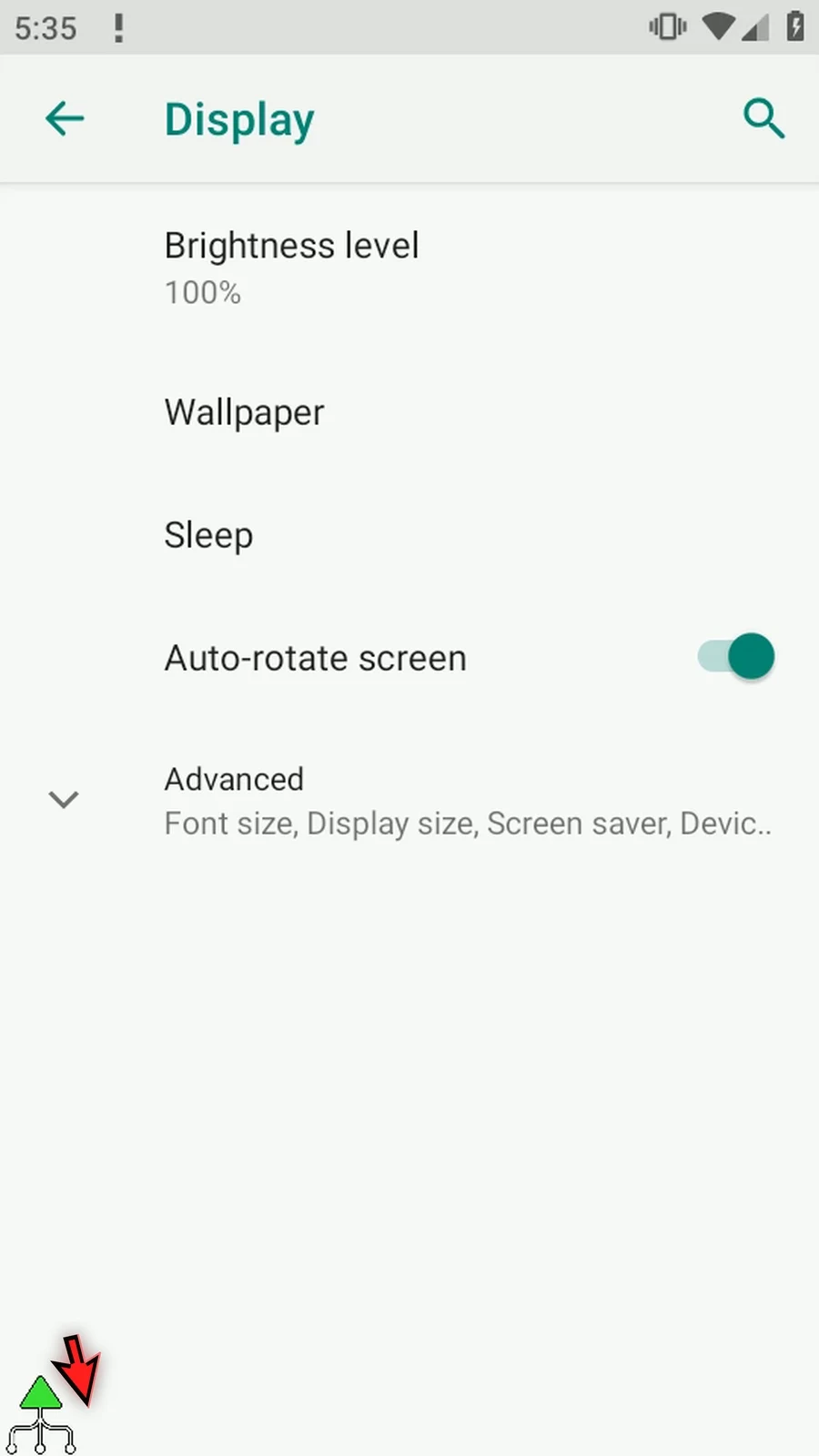
Create and name a new script, open Device, manually drag SetSettings into the script, and double-tap its row. The walkthrough tours the settings without applying them, then runs a one-command Open Settings Page → Display example.
Brightness: Manual accepts 0–100%; Adaptive delegates adjustment to Android. Returning to Manual restores its dormant percentage. Brightness, Rotation Lock, Screen Timeout and Clock Format require Write Settings access. Use the frame's Allow button, then ScriptTap's explanation, to reach Android's permission controls. If Android asks, allow system settings changes. The page-opening example does not need this access.
Volume: Call, Media, System, Alert (alarms), and Message (notifications) each have independent Apply and 0–100% fields. Apply OFF skips that stream while retaining its value; numeric 0 is an applied value, not a skip marker. Enable at least one valid stream when the Volume frame is ON.
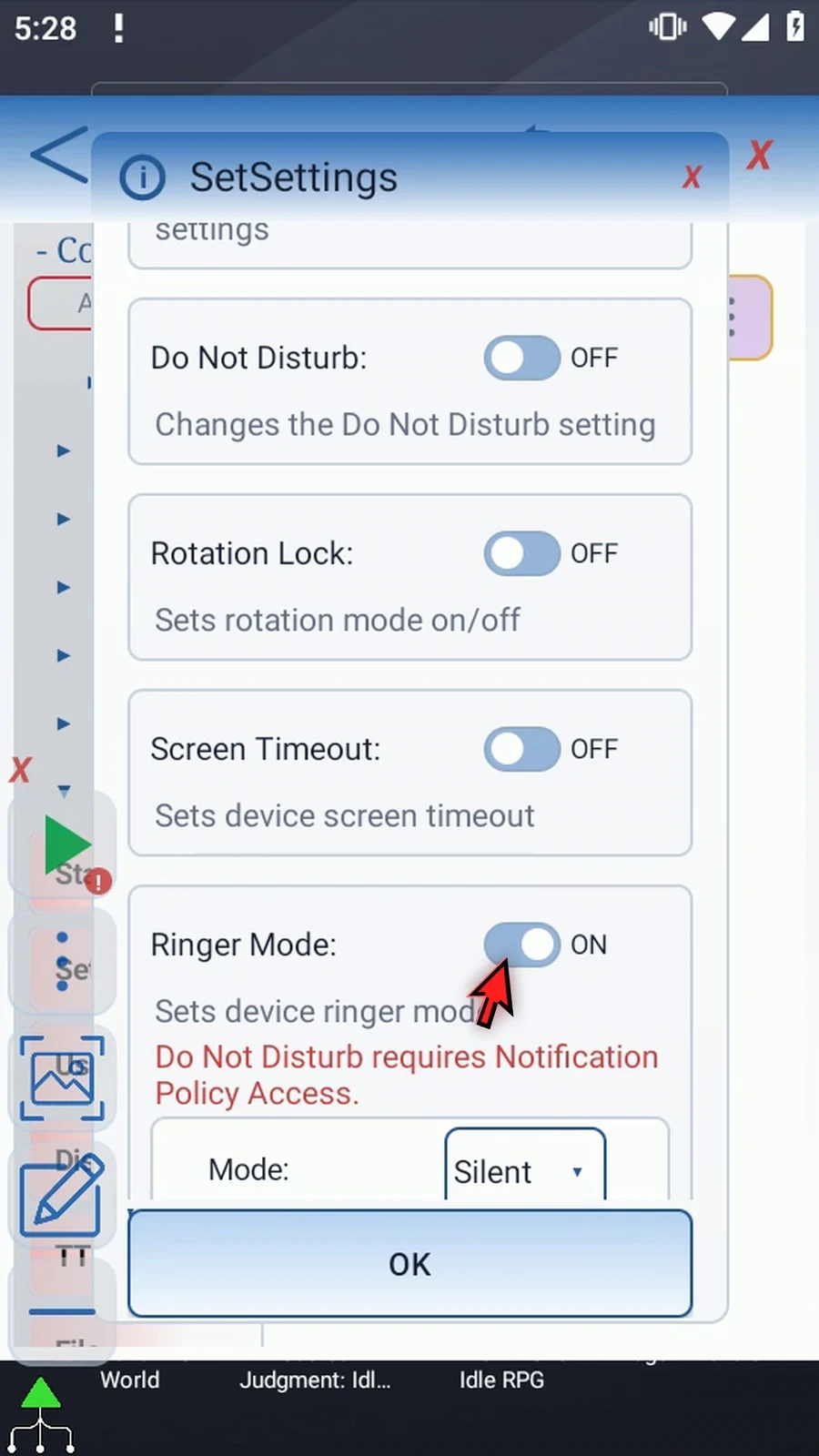
Do Not Disturb: Off disables the interruption filter; Priority Only uses Android's configured priority rules; Alarms Only allows alarms; Total Silence requests Android's total-silence filter. This setting requires Notification Policy access. If Android asks, allow Do Not Disturb access. Ringer Mode offers Normal, Vibrate and Silent; Silent can also require that policy access. Read the current device's warning.
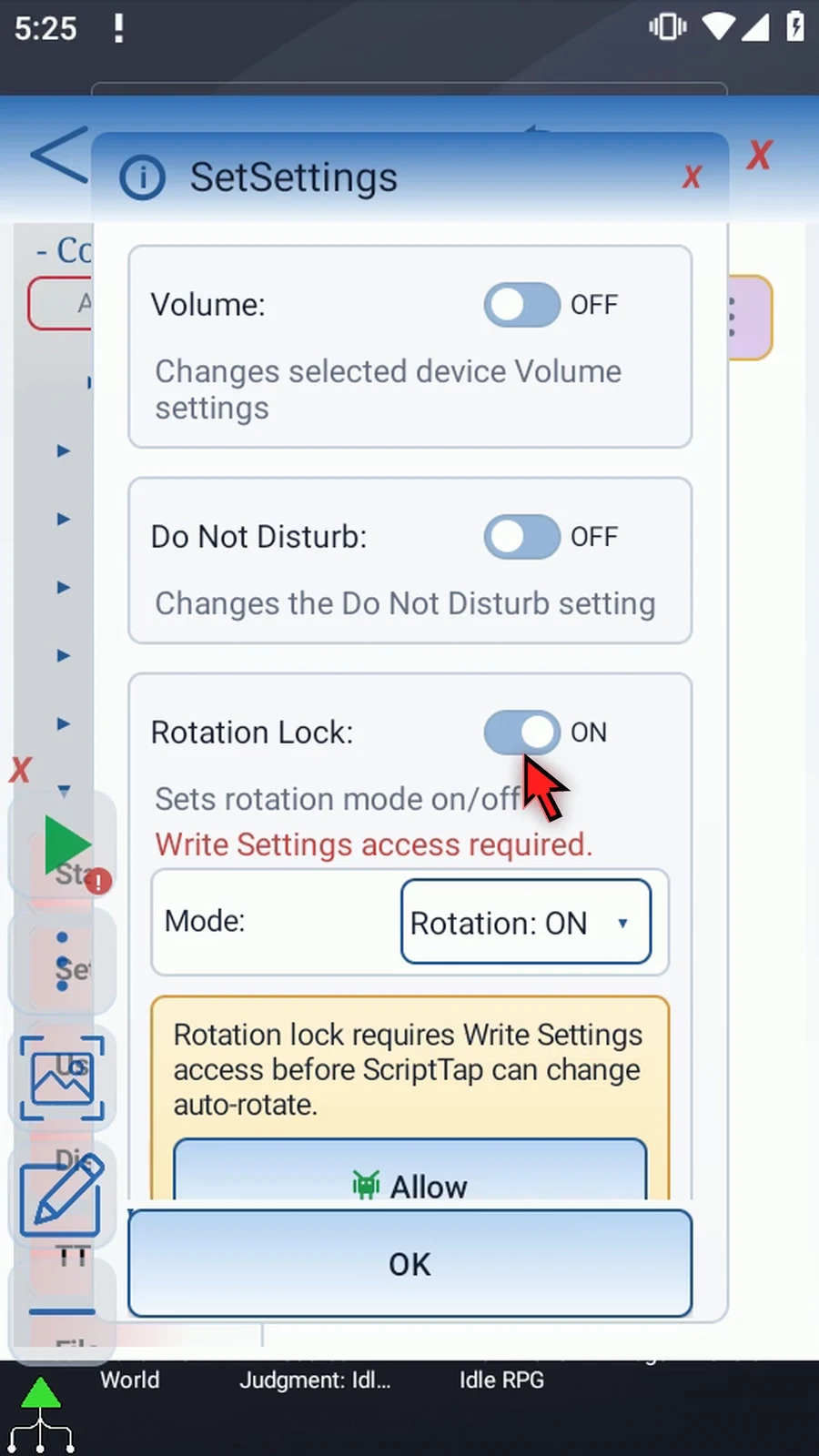
Rotation Lock: the child choice Rotation: ON locks orientation, while Rotation: OFF enables auto-rotation. This differs from turning the entire frame OFF, which leaves rotation unchanged. Screen Timeout accepts a positive millisecond value; 30000 is thirty seconds. It is a persistent Android setting and is not restored automatically when Play ends.
Clock Format: choose Device Default, 12-hour or 24-hour. Device Default follows Android's default preference. Flashlight provides Off/On only on a supported torch device. Flashlight Strength additionally requires API 33+, a supported torch, and an enabled Flashlight frame set to On. Its 0–100% range maps minimum supported on-strength to maximum; 0% does not turn the torch off. This emulator truthfully marks those unavailable features rather than demonstrating an invented result.
Open Settings Page: Main, Display, Sound, Notifications, Accessibility, Apps, Location, Date & Time, Input Method, Language, Battery Saver, Wi-Fi and Bluetooth open their corresponding Android Settings screens. They do not operate the switches there. Wi-Fi/Bluetooth pages never silently toggle radios. Use separate Delay Until or UIFind commands for follow-up interaction.
Enabled frames dispatch once in fixed order, from Brightness through Open Settings Page. If a frame fails, ScriptTap logs it and continues to later selected frames. Availability depends on Android API level, device hardware and granted access; an unavailable feature does not gain a hidden workaround.
For the visible example, leave every other frame OFF, enable Open Settings Page, and choose Display. Save with OK, close the editor, and use Main Overlay Play. The real Android Display page opens and the one-command script finishes automatically. No brightness, volume, clock, rotation, timeout or notification policy setting is changed by this example.
Choose device settings and open Android pages
Step-by-step guide
Step 01 SetSettings lets a script change selected Android device settings, or open a Settings page for later actions. We will tour its controls, then use a one-command example to open Display settings.
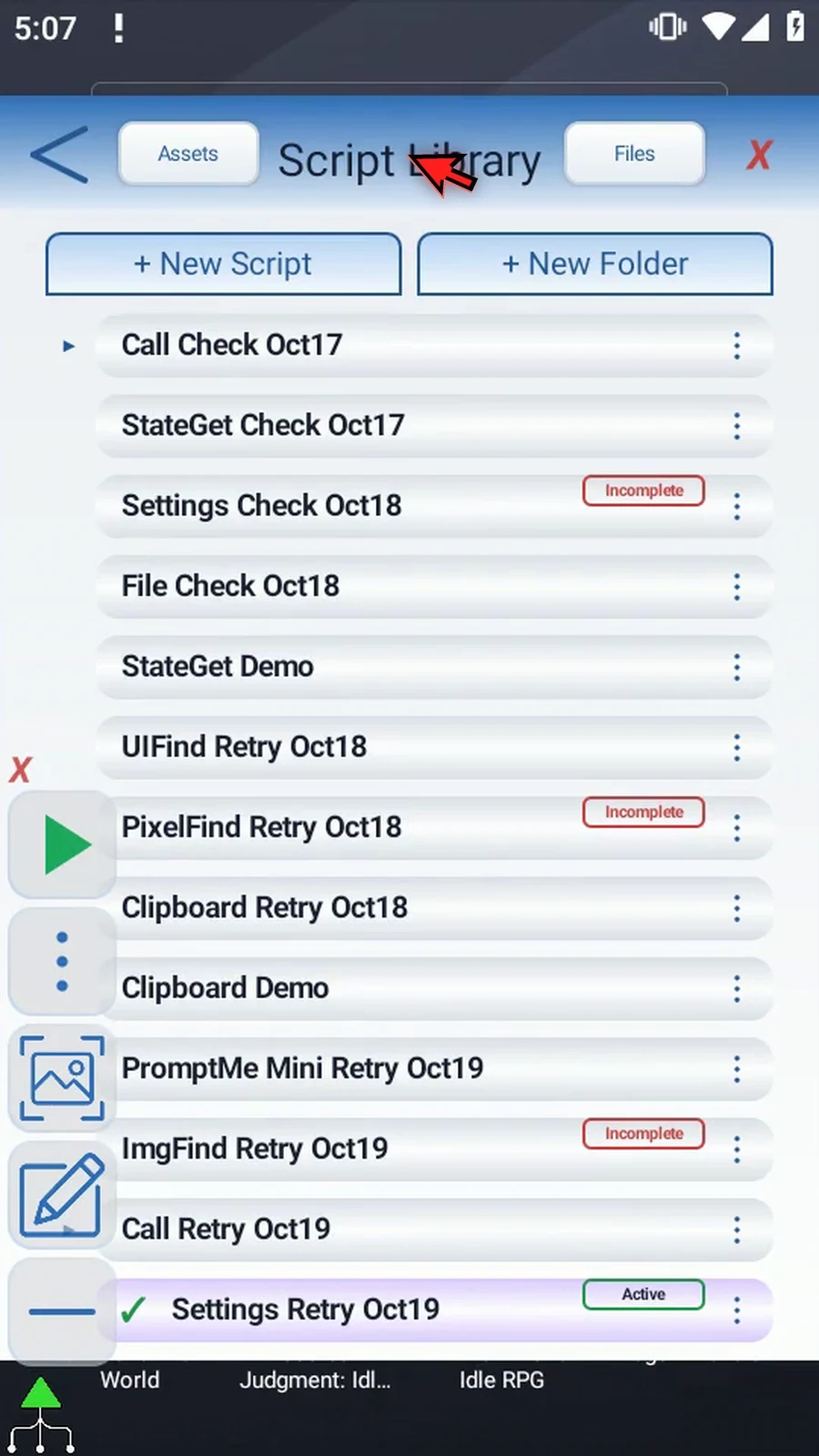
Step 02 Create a new blank script in the Library. Scroll just enough to reveal its new row.
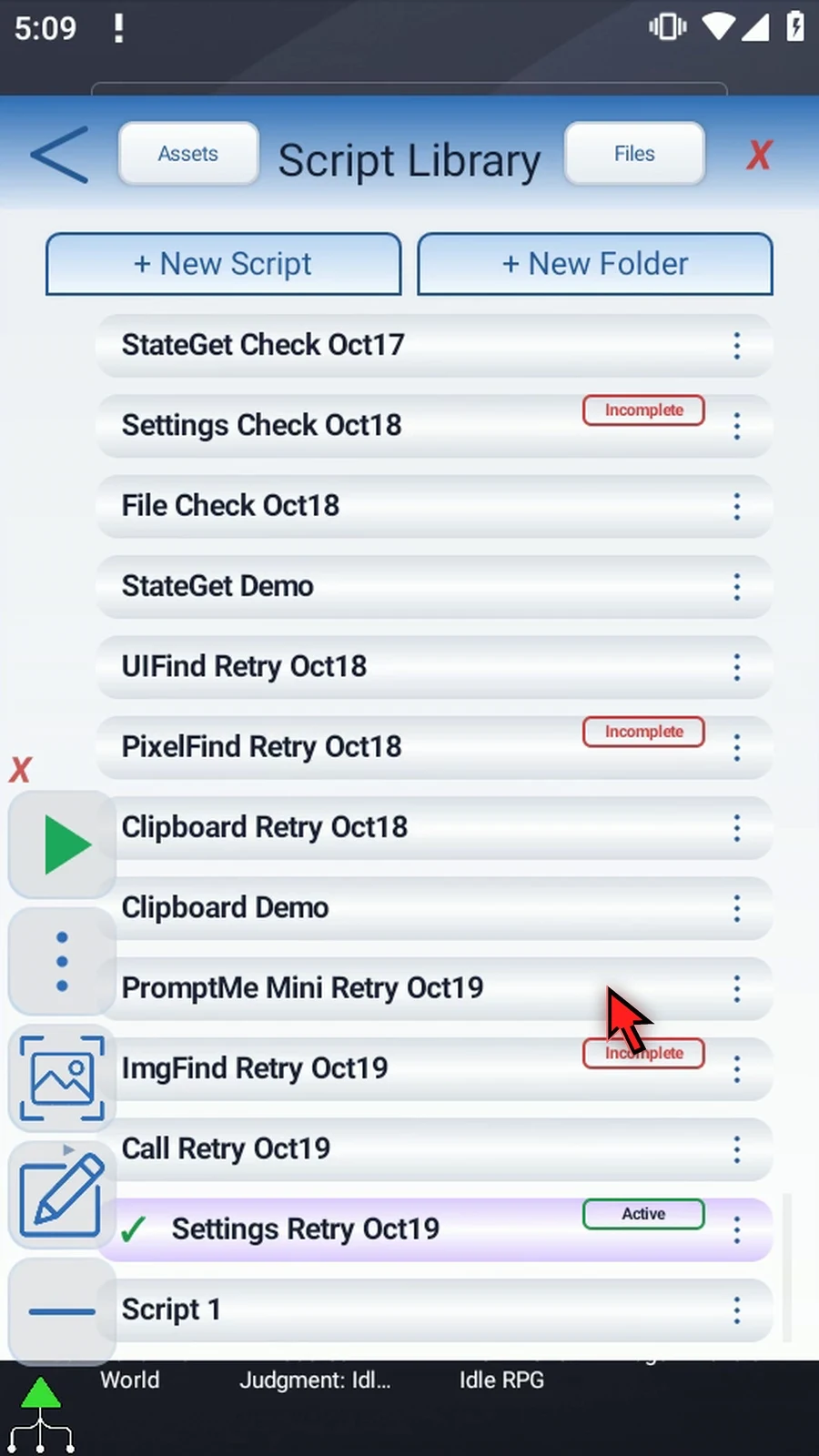
Step 03 Open the new script's menu, choose Rename, and pick a name for your example.
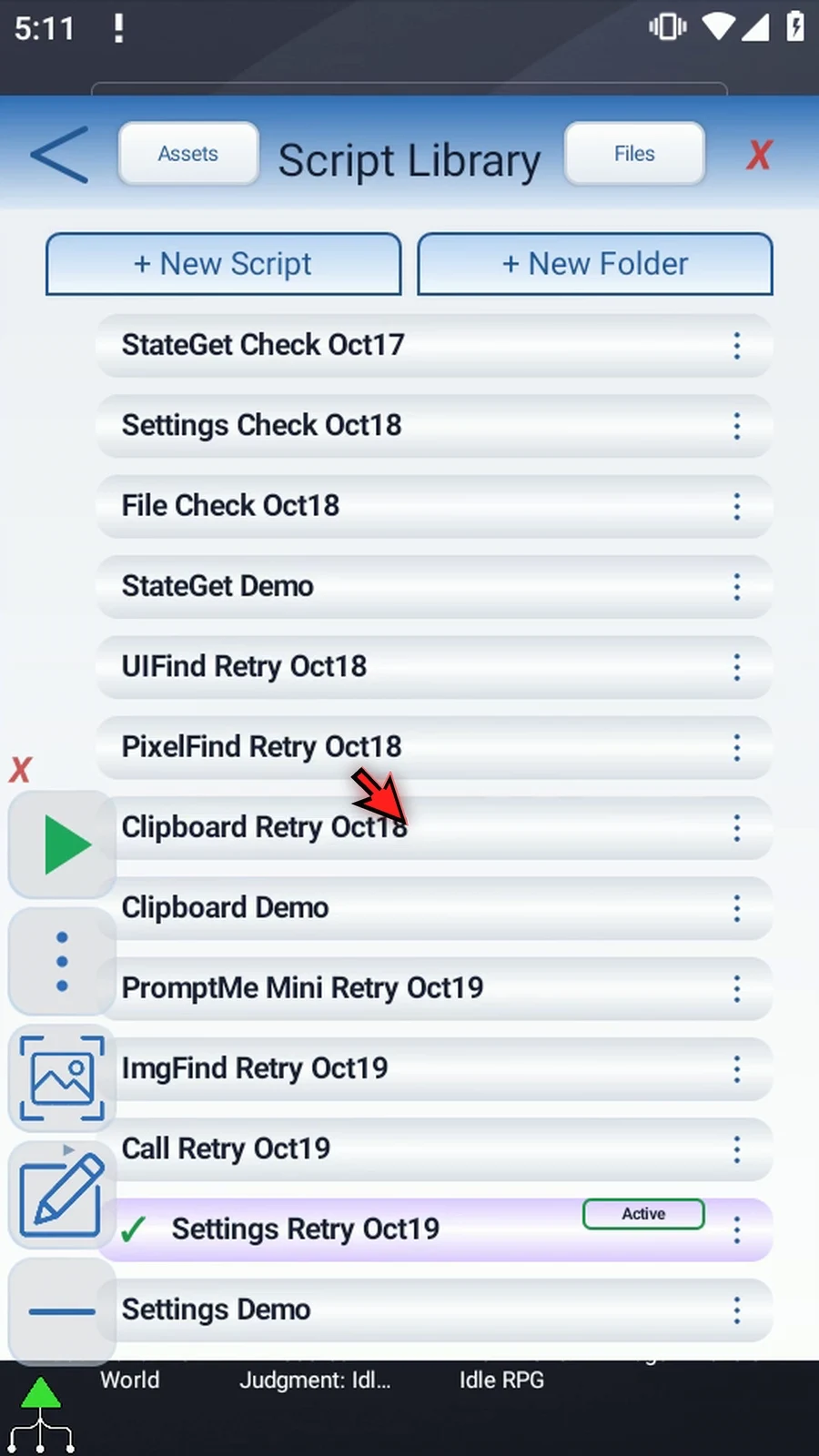
Step 04 Select the new script, then open its editor from the main overlay.
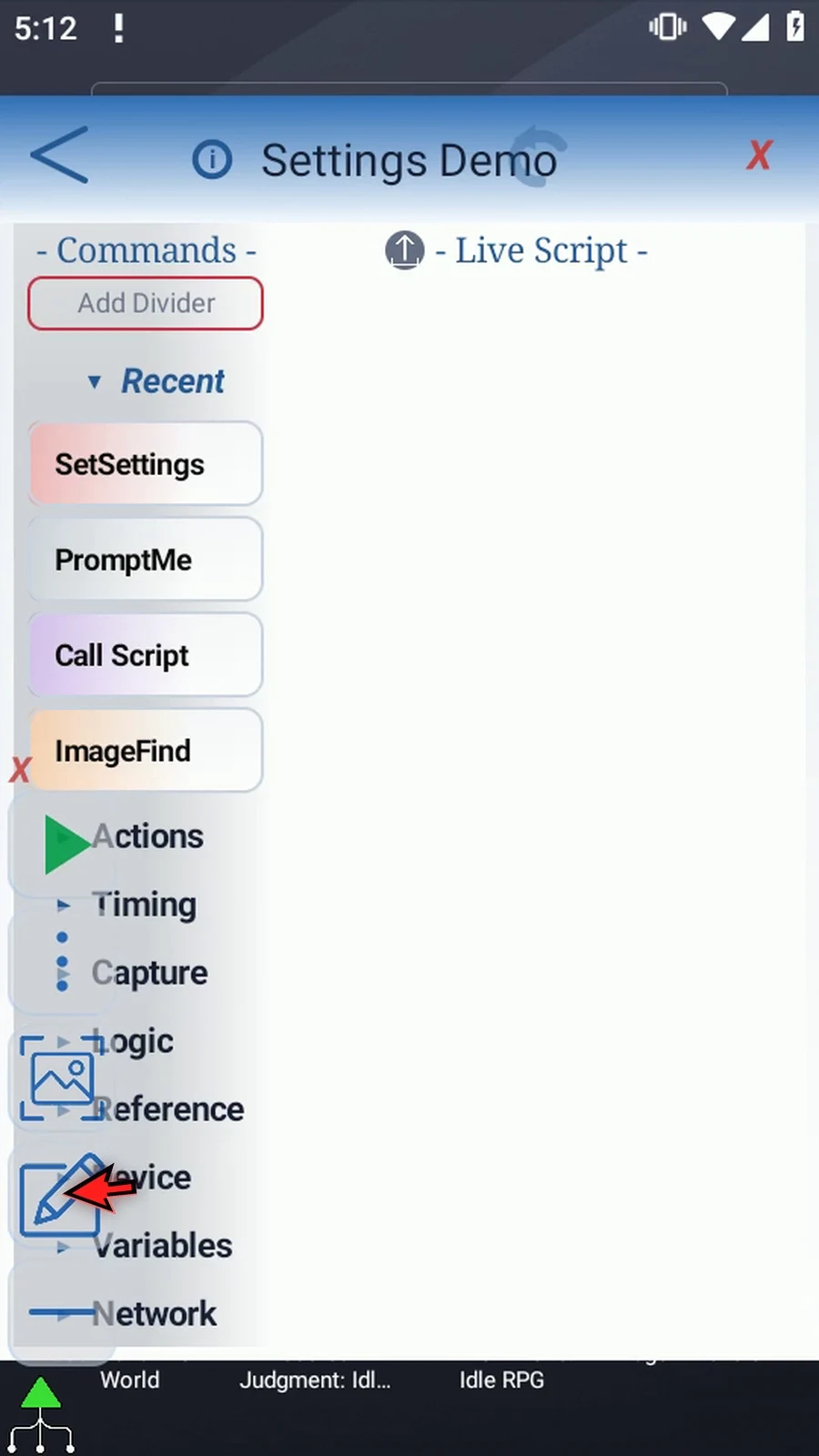
Step 05 Open Device and manually drag SetSettings into the script. Double-tap the new row to edit it.
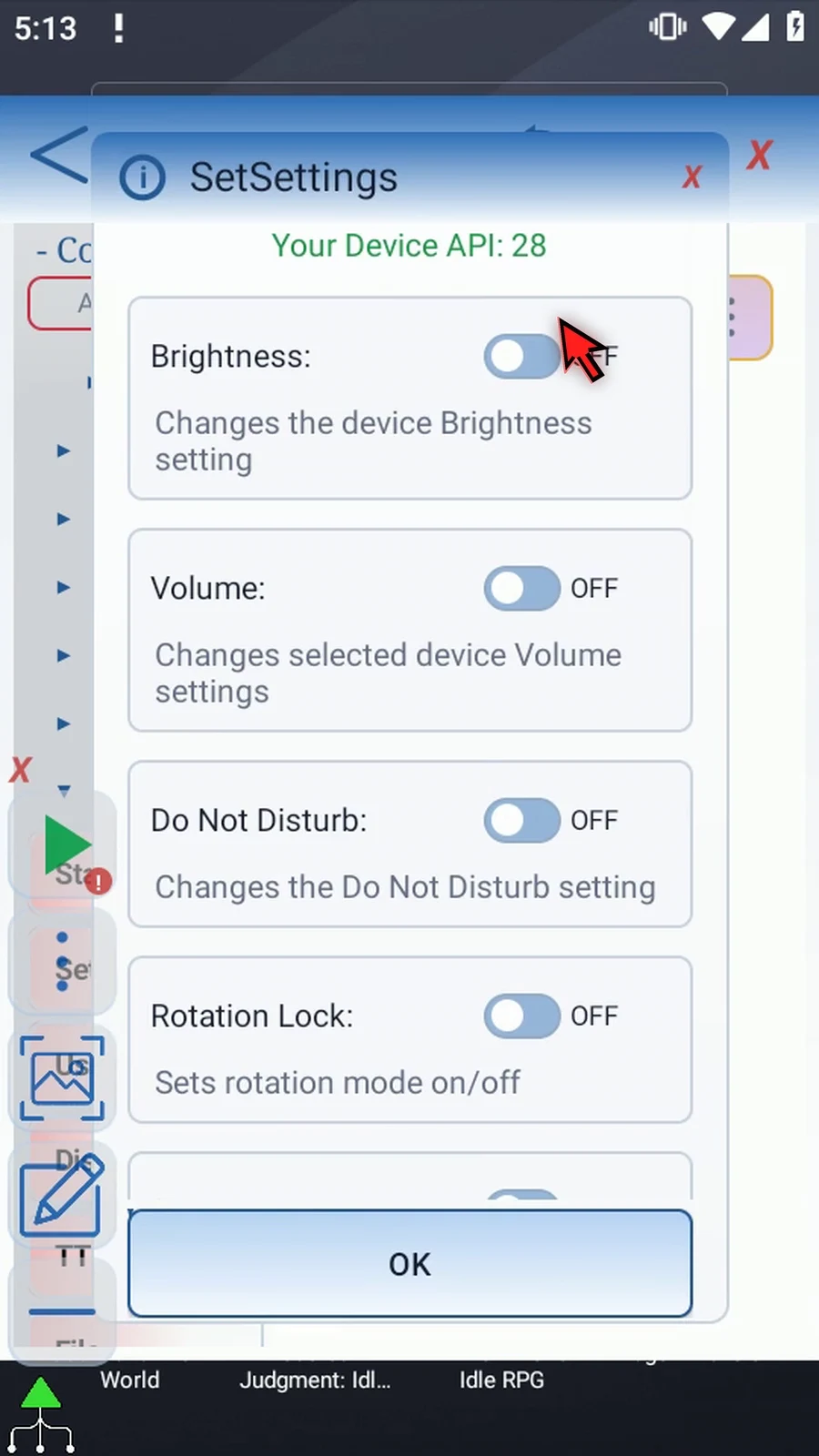
Step 06 Each frame has its own switch. Turn on only the settings this command should apply. A frame left off does not change that setting, even if it contains an earlier value.
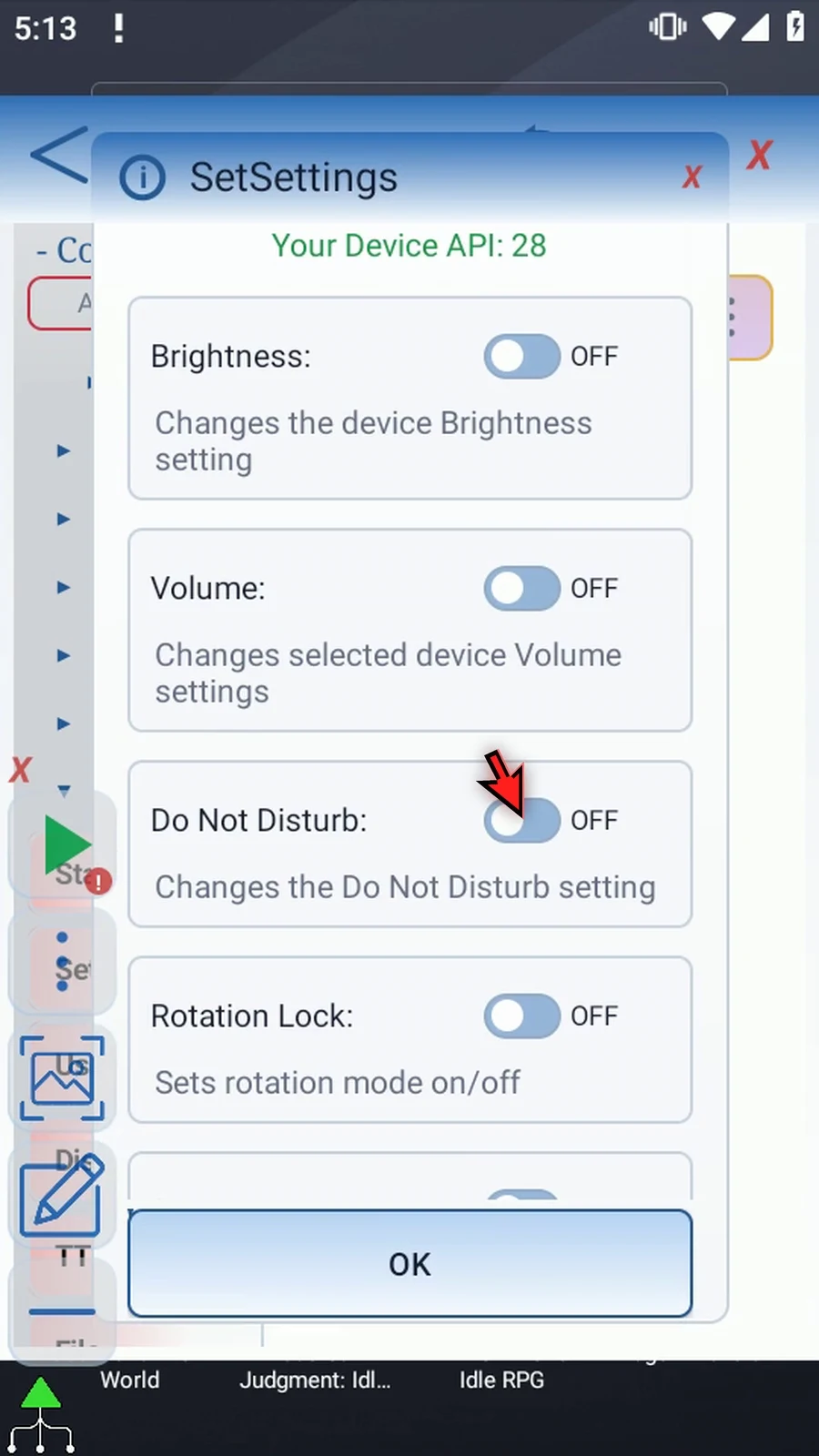
Step 07 Turn on Brightness. Manual accepts a percentage from zero to one hundred. Here we enter twenty-five as a draft value; nothing is applied while editing.
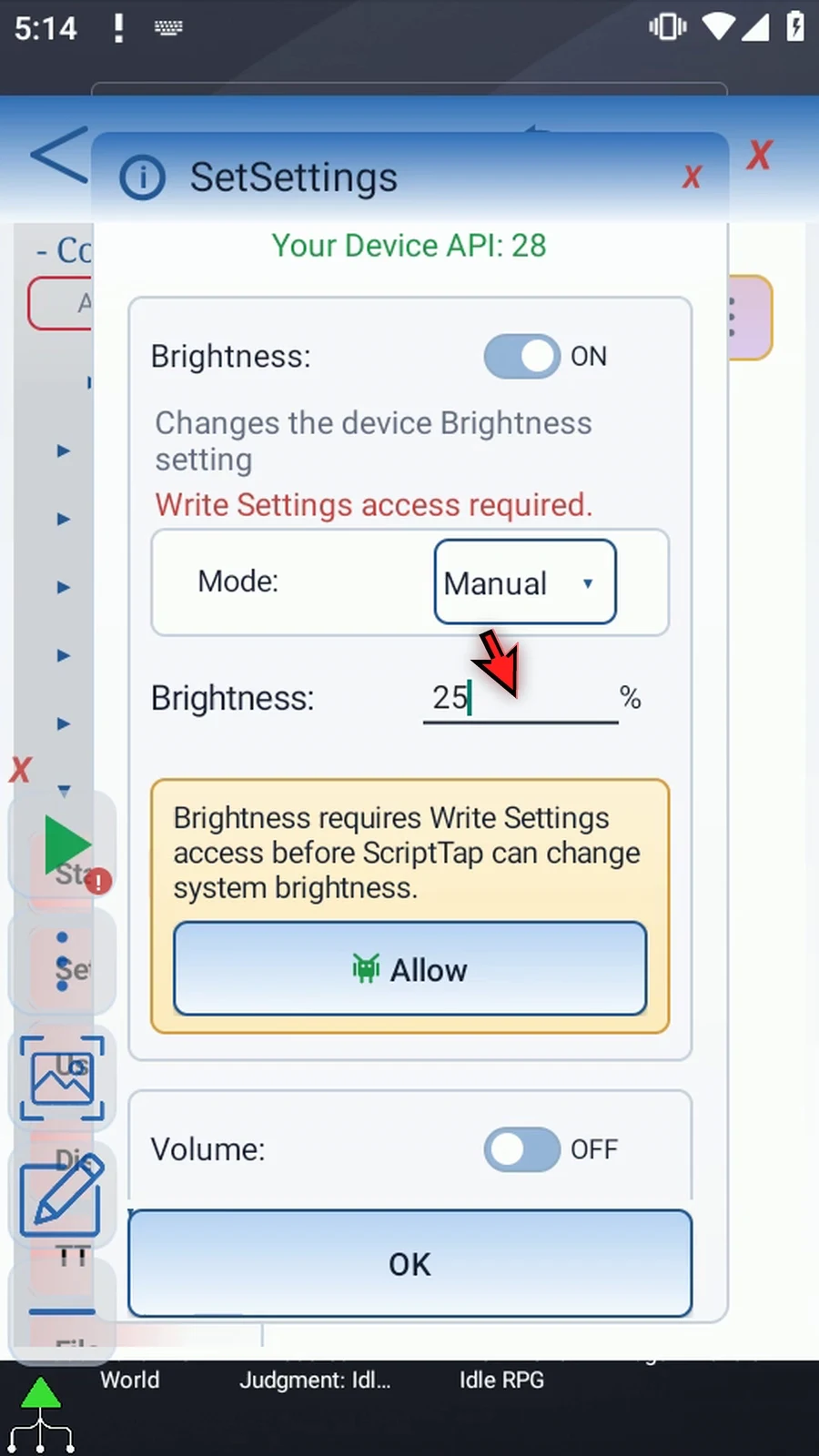
Step 08 Adaptive lets Android adjust brightness. Switching back to Manual restores the earlier percentage, so the mode change does not erase it.
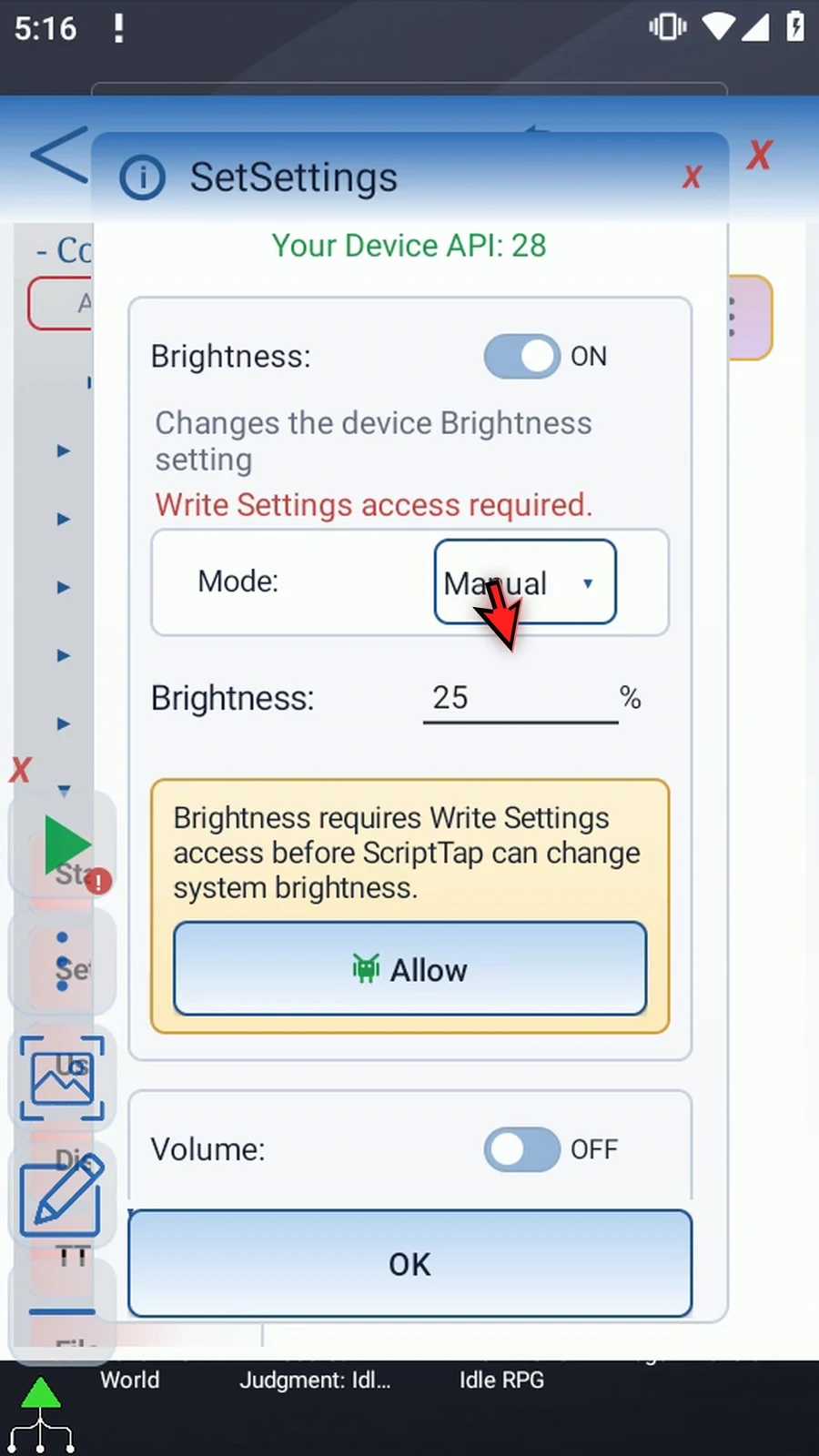
Step 09 Brightness requires Write Settings access. Allow opens ScriptTap's explanation, then Android's permission page. If Android asks, allow system settings changes.
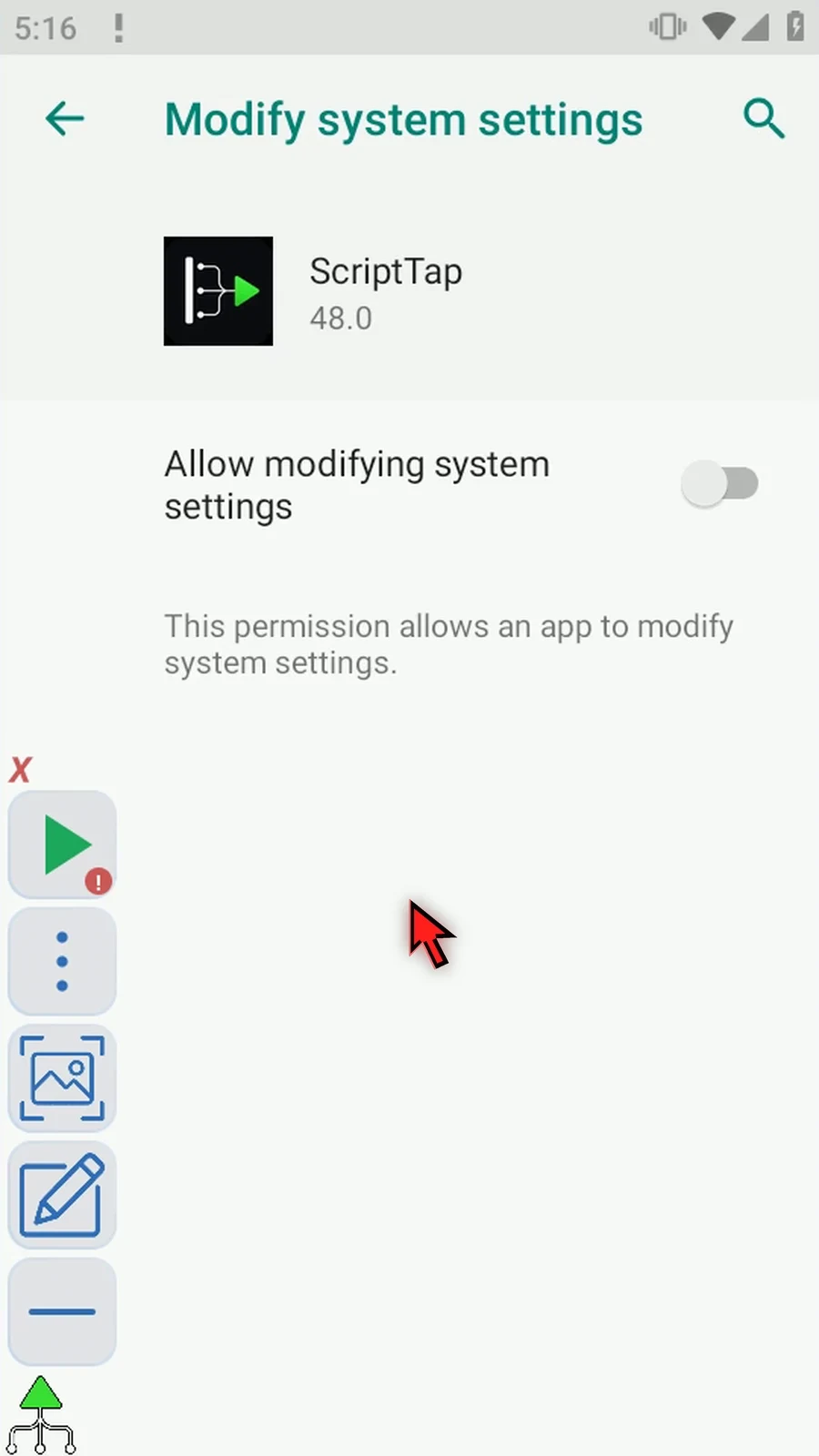
Step 10 Our example will only open a Settings page, so we can leave this permission off and go back. Turn the Brightness frame off before continuing.
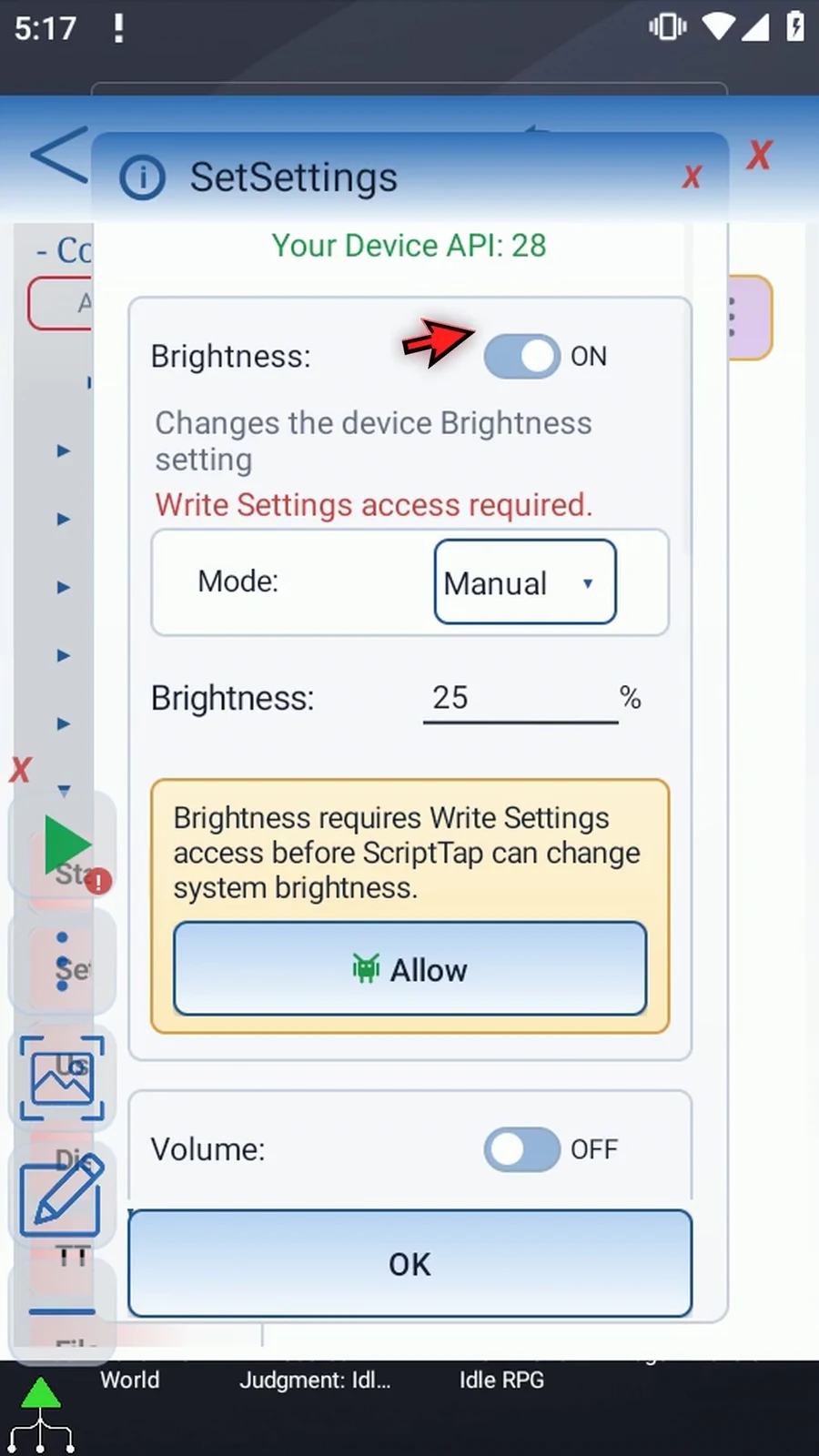
Step 11 Turn on Volume. Each stream has an independent Apply switch and percentage. Enable Call and enter twenty-five to see how a selected stream is configured.
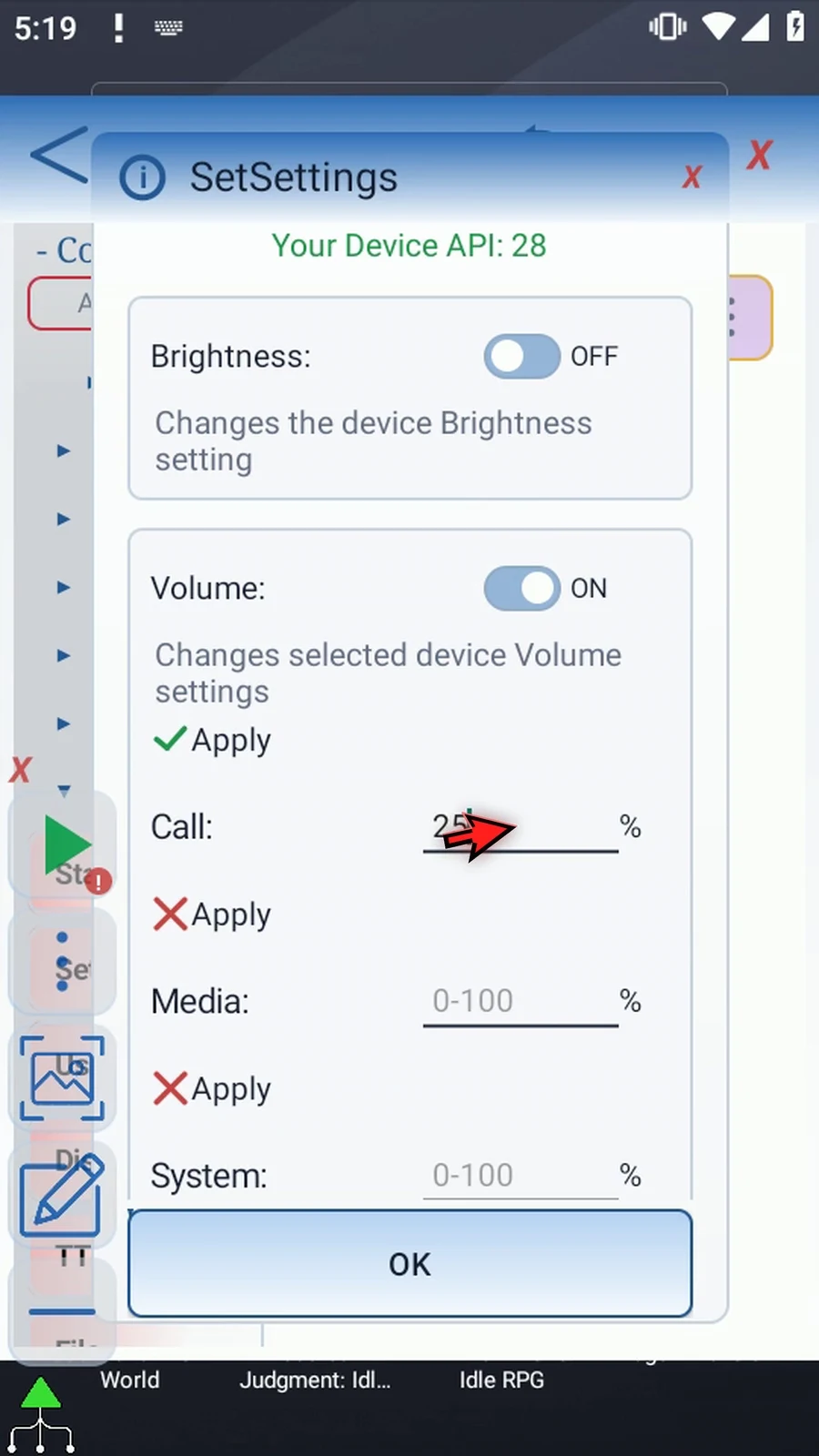
Step 12 Turn Call's Apply off. Its percentage stays available, but this stream will be skipped. A numeric zero is an applied volume value; it does not mean skip.
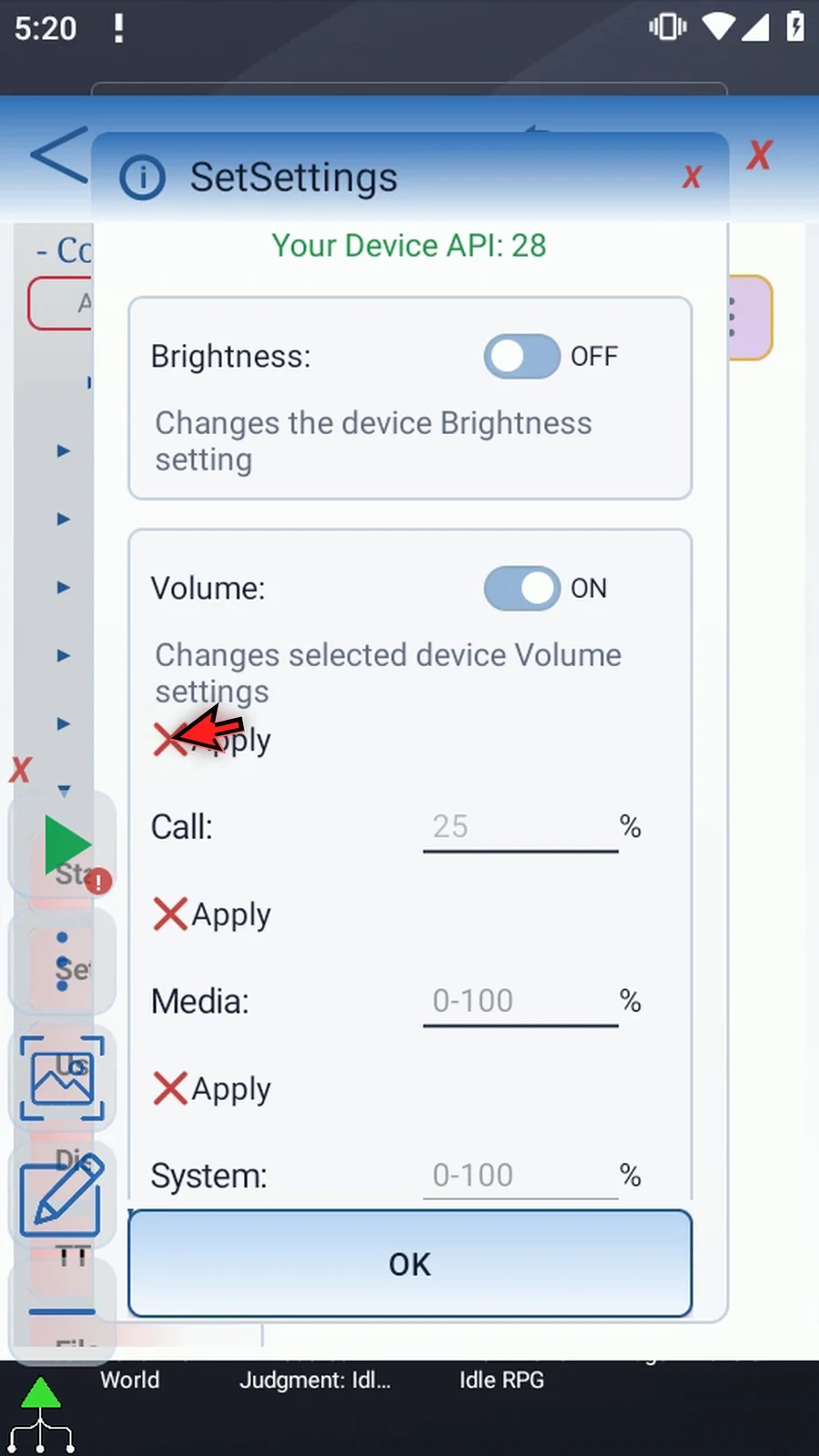
Step 13 The five streams are Call, Media, System, Alert for alarms, and Message for notifications. Select only the streams you need, then leave the Volume frame off for this example.
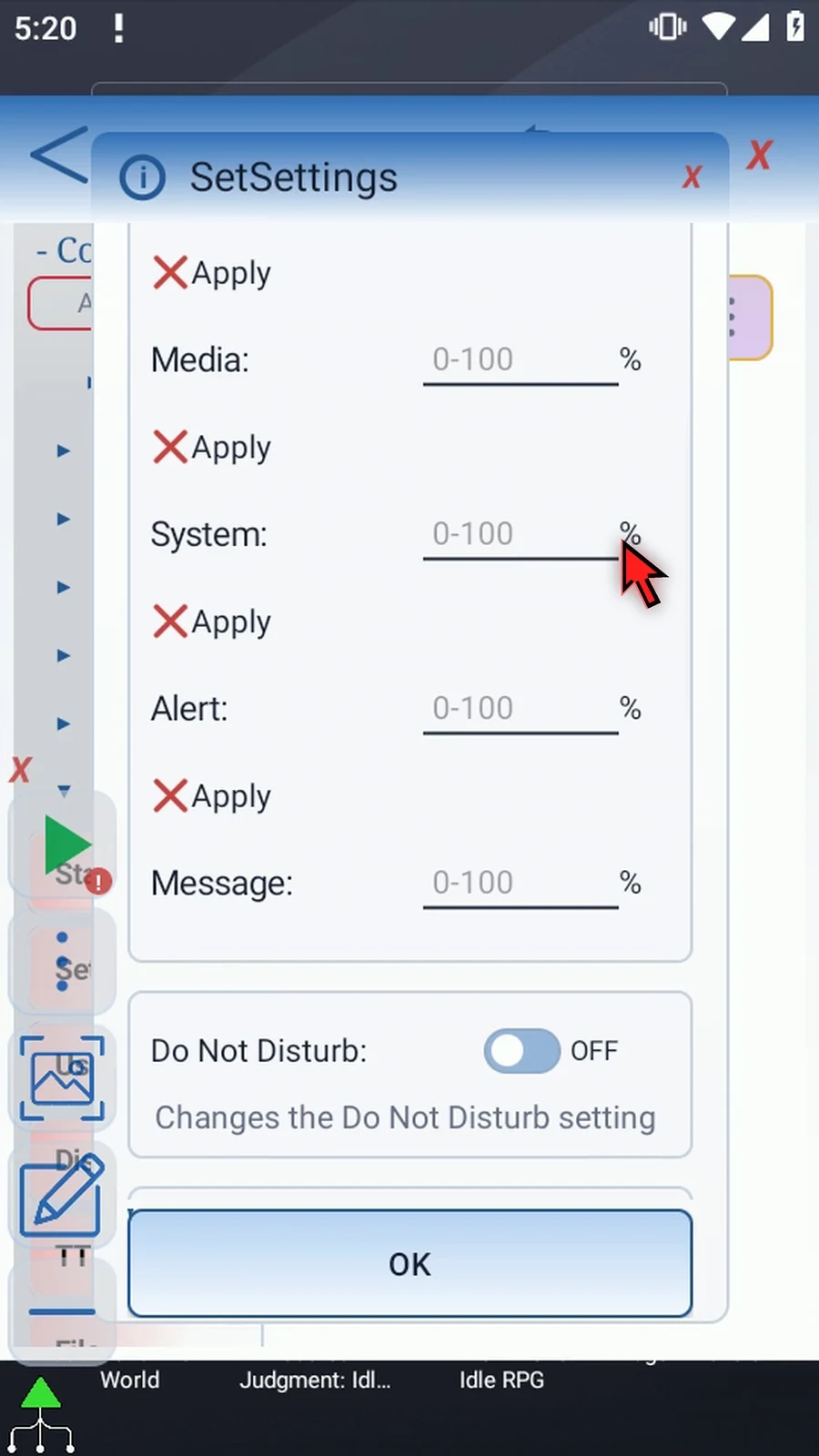
Step 14 Do Not Disturb controls Android's interruption filter. Turn its frame on and open the Mode list.
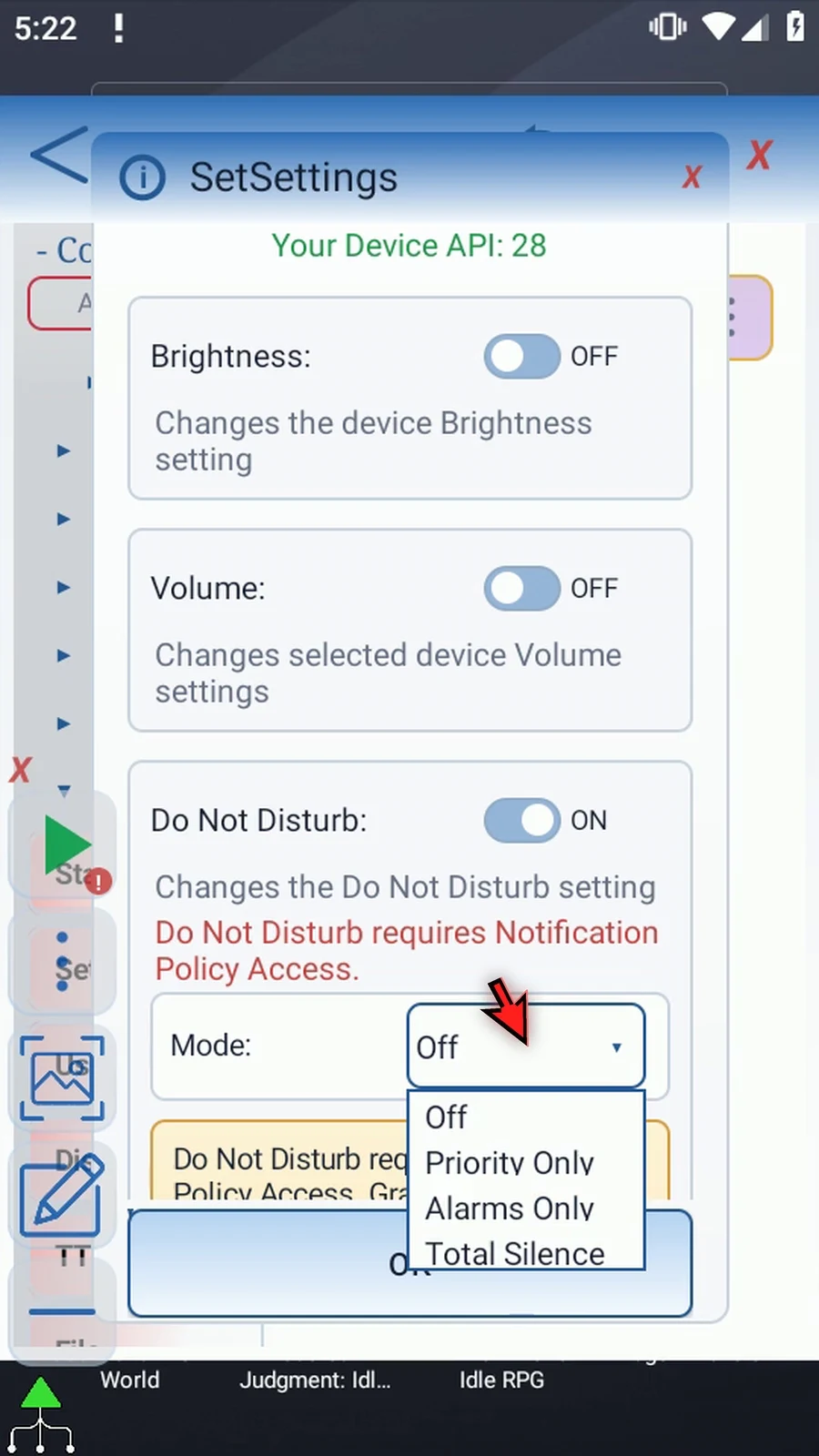
Step 15 Off disables Do Not Disturb. Priority Only uses Android's configured priority rules. Alarms Only allows alarms, while Total Silence requests Android's total-silence filter.
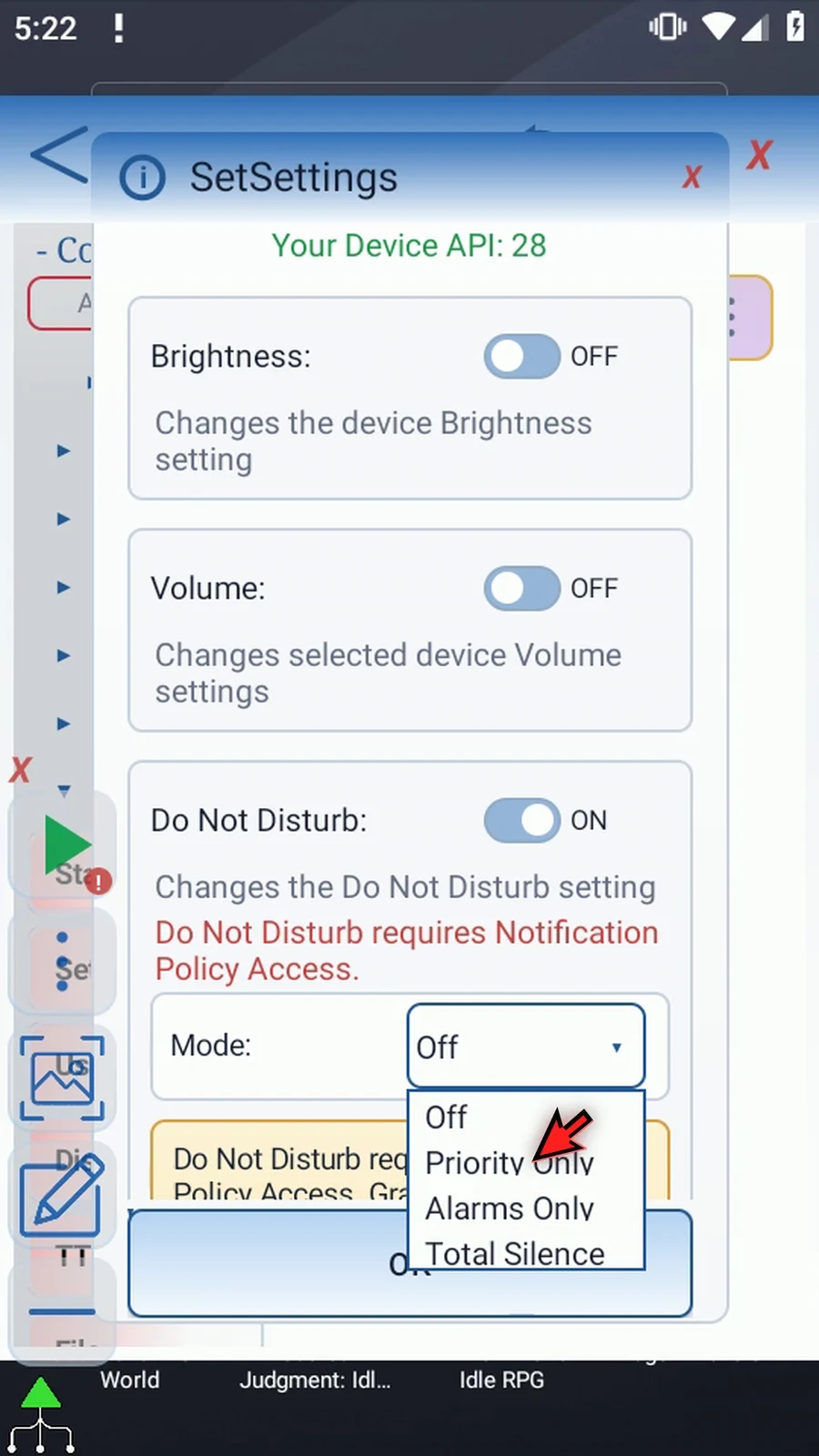
Step 16 This setting needs Notification Policy access. If Android asks, allow Do Not Disturb access. We are not changing it here, so turn this frame off.
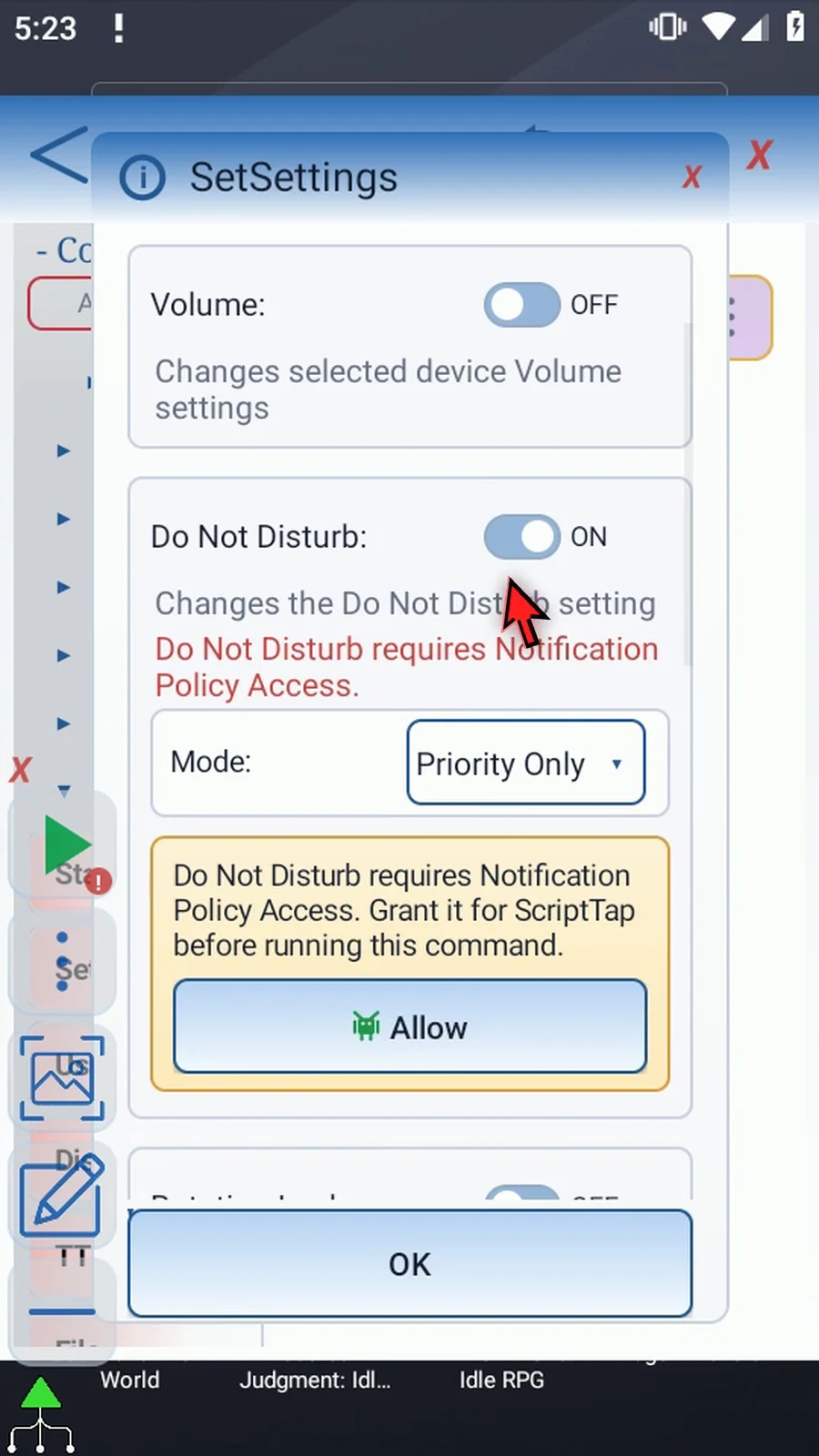
Step 17 Enable Rotation Lock to inspect its Mode choices. Inside the frame, Rotation on locks orientation; Rotation off enables auto-rotation.
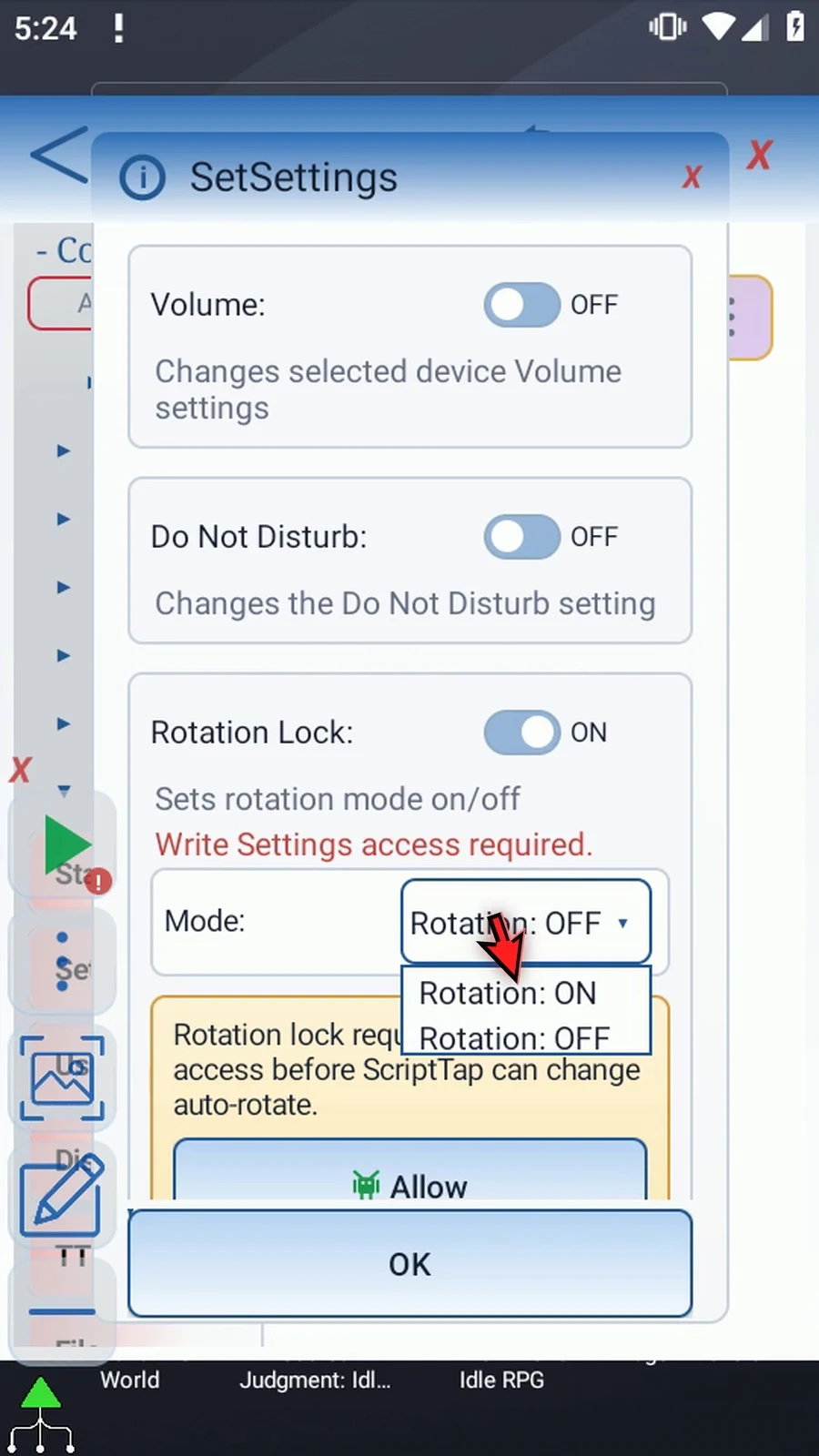
Step 18 That Mode choice is separate from the frame switch. Leaving the entire frame off keeps the device's rotation setting unchanged. Turn the frame off now.
Step 19 Screen Timeout takes a positive number of milliseconds. Thirty thousand means thirty seconds before the screen times out.
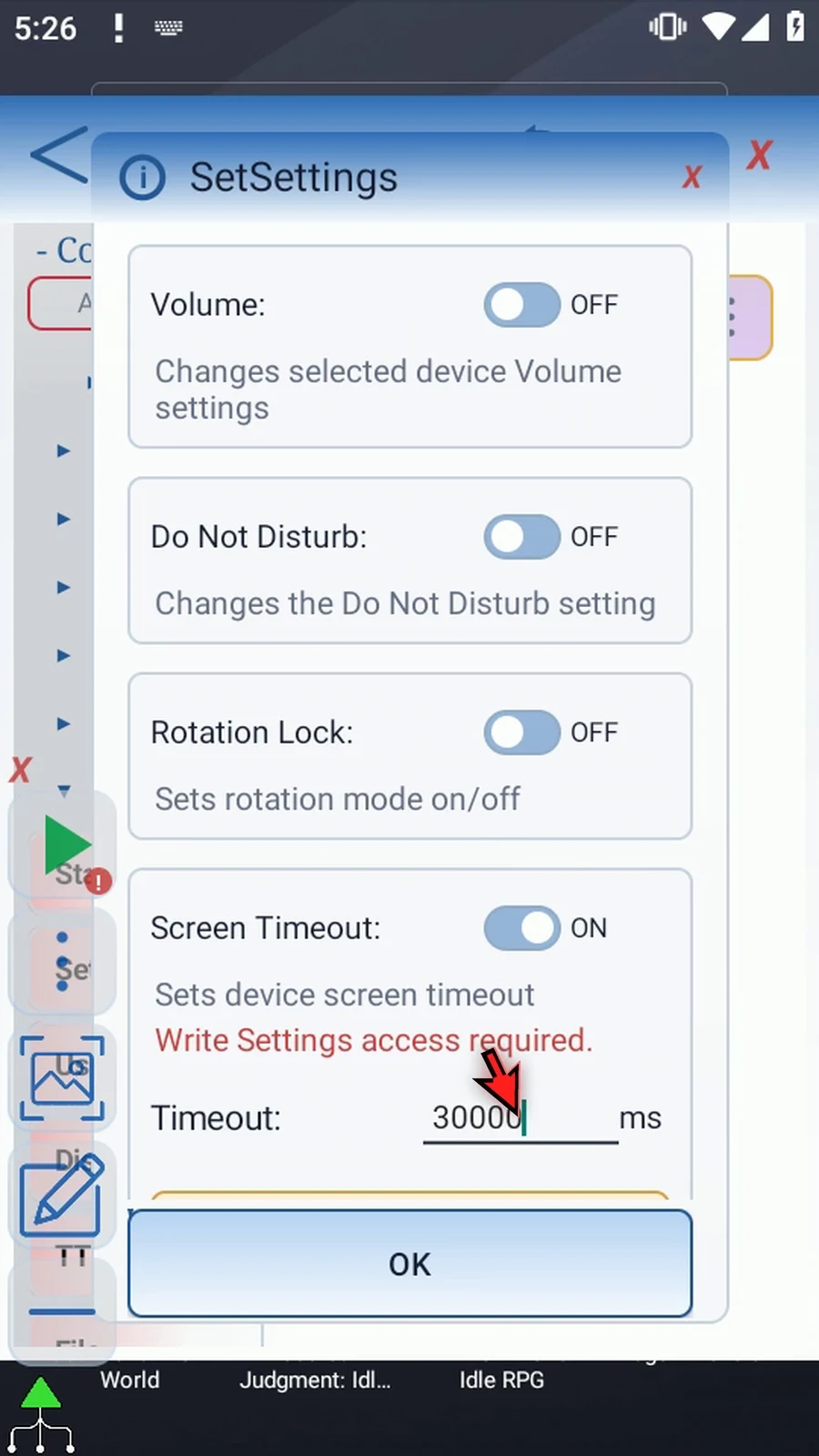
Step 20 Screen Timeout is a persistent Android setting; it is not restored automatically when the script ends. Leave this frame off for our page-opening example.
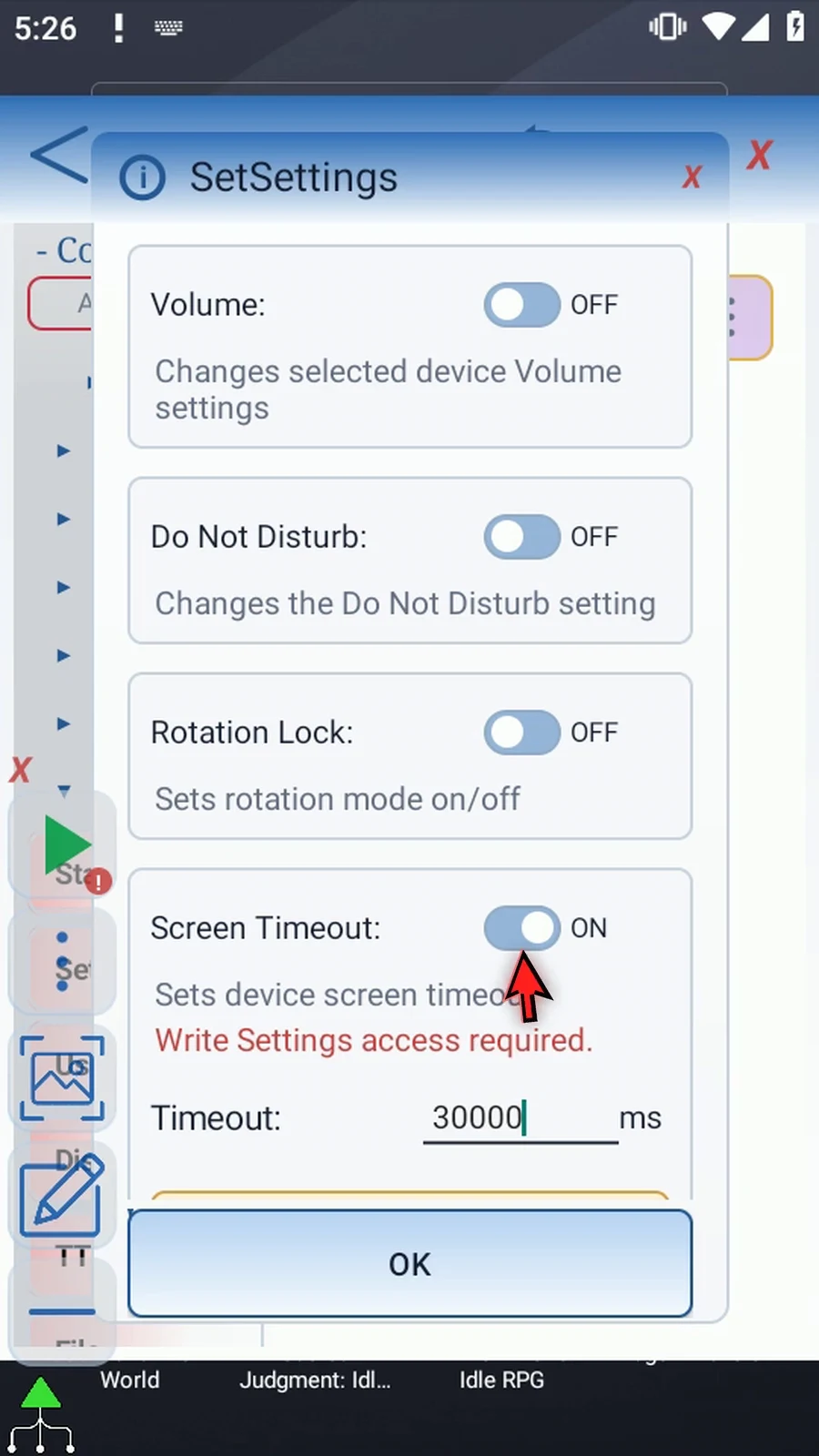
Step 21 Ringer Mode offers Normal, Vibrate, and Silent. Open the list and choose Silent to see its access requirement.
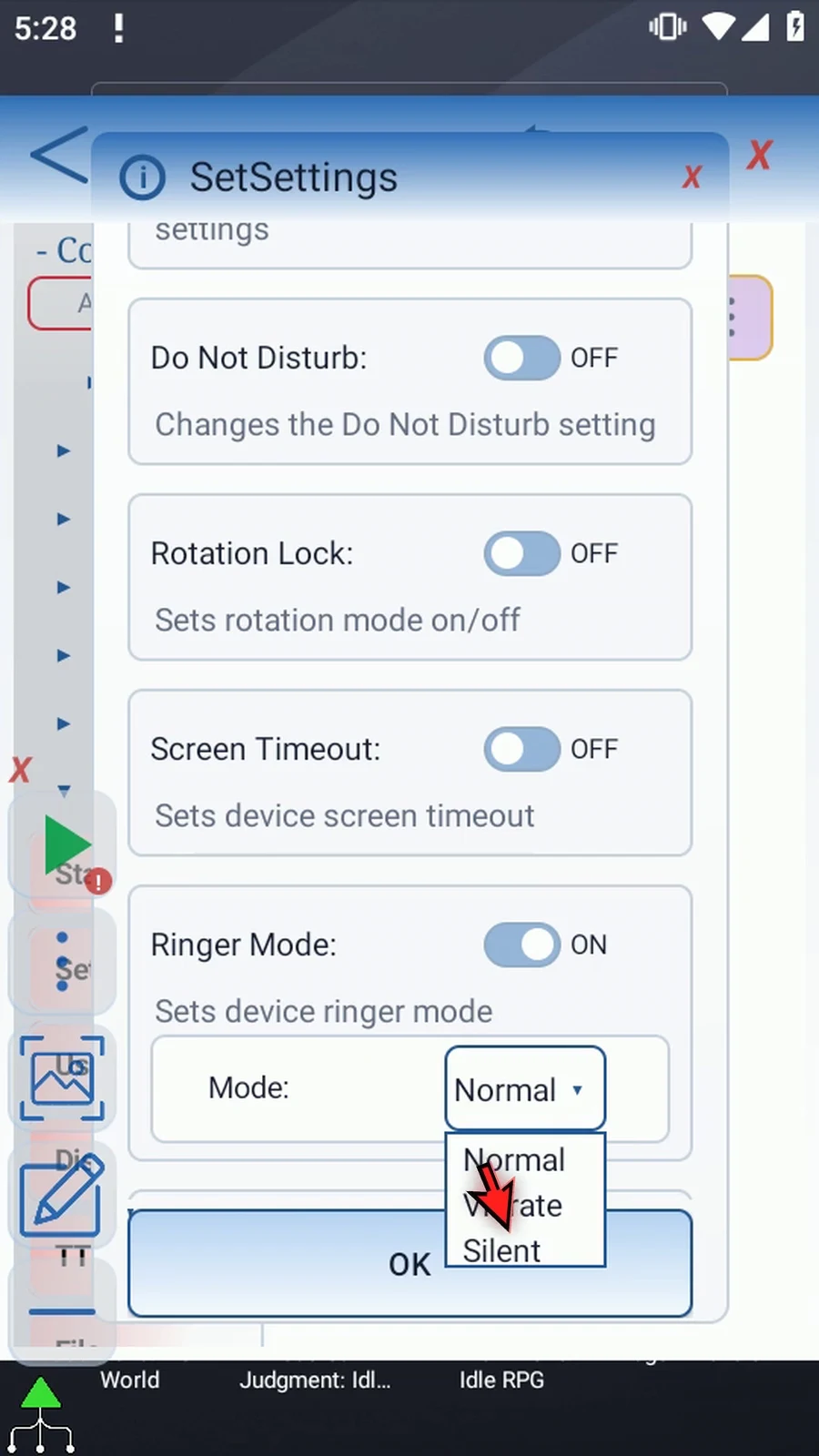
Step 22 Silent may require Notification Policy access, as the warning shows. Turn the Ringer Mode frame off to leave the device's current sound mode alone.
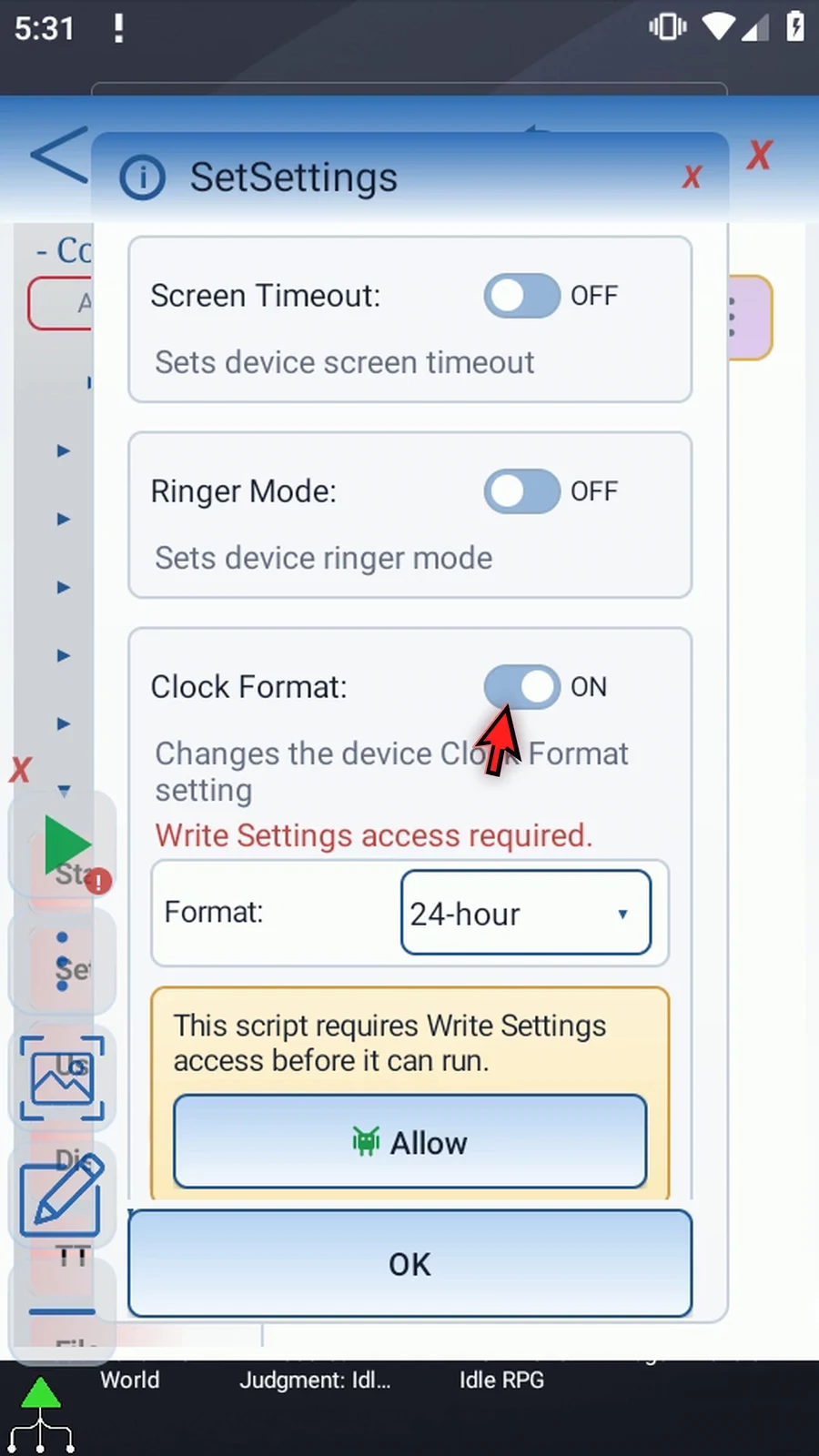
Step 23 Clock Format offers Device Default, twelve-hour, and twenty-four-hour display. Device Default follows Android's default preference. Select twenty-four-hour to inspect the setting.
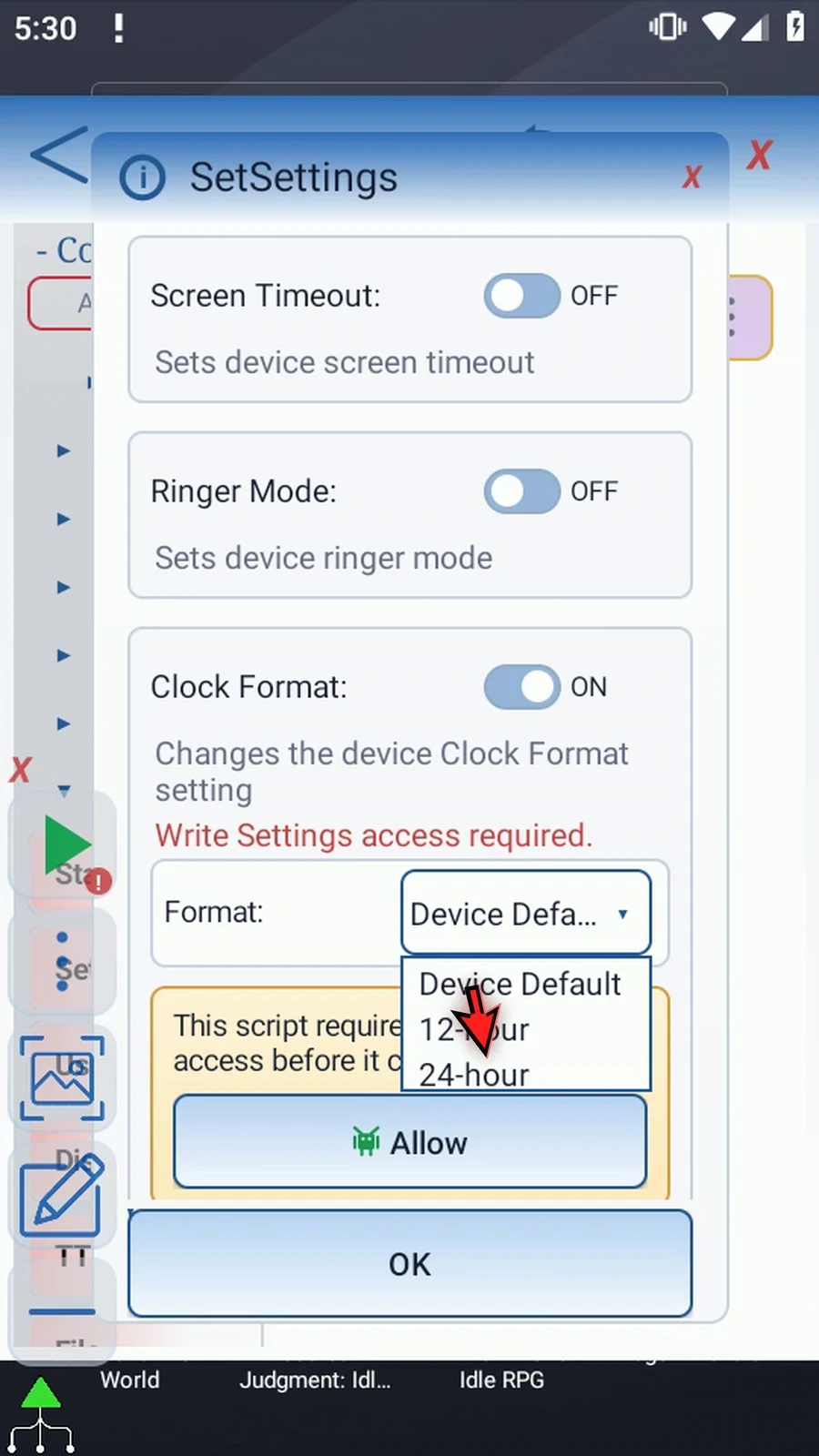
Step 24 Clock Format also needs Write Settings access. We will leave it off; turning a frame off keeps its choice without applying it.
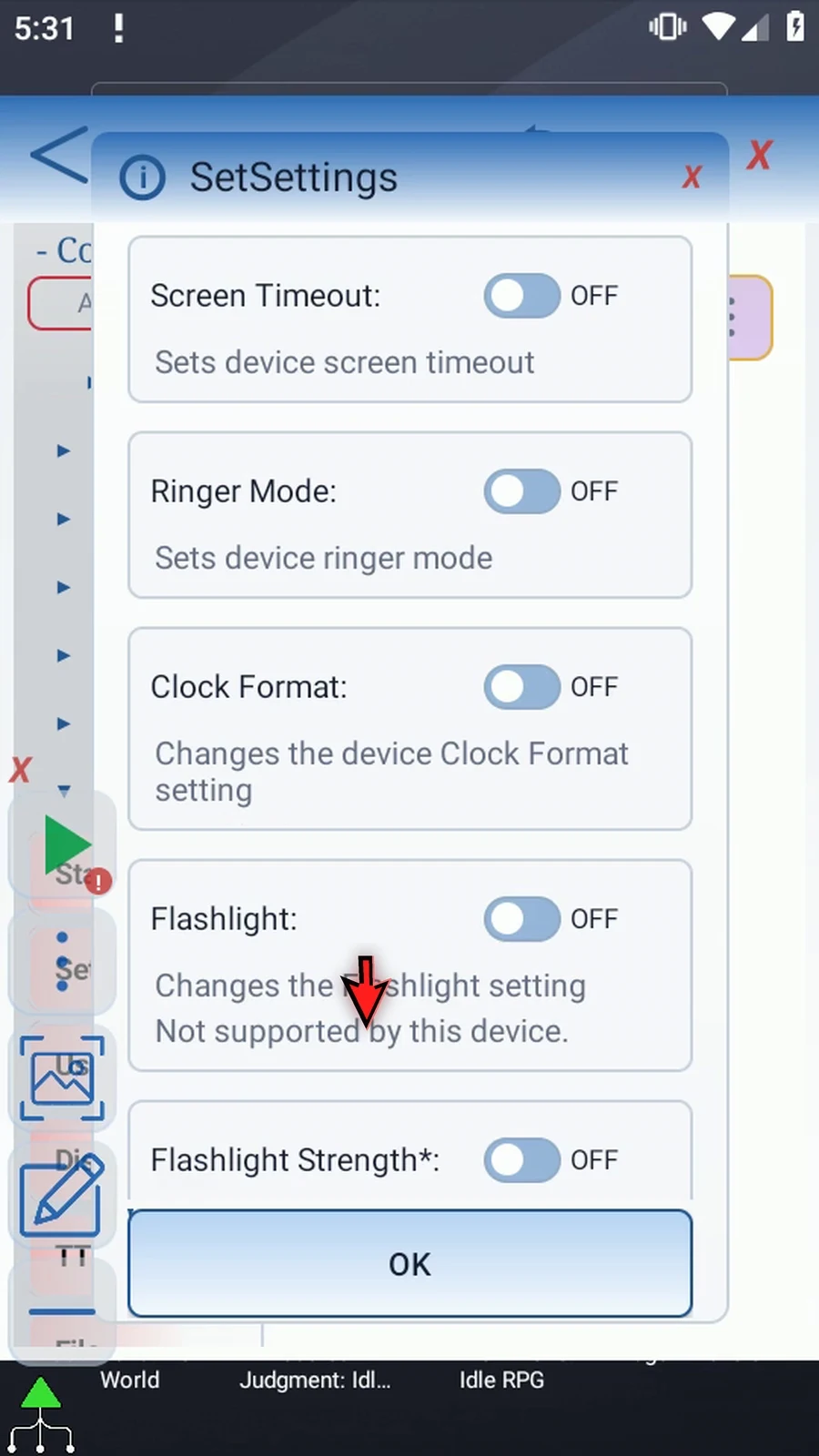
Step 25 Flashlight can turn a supported device's torch on or off. This emulator has no supported torch, so ScriptTap marks the feature unavailable instead of pretending it can run.
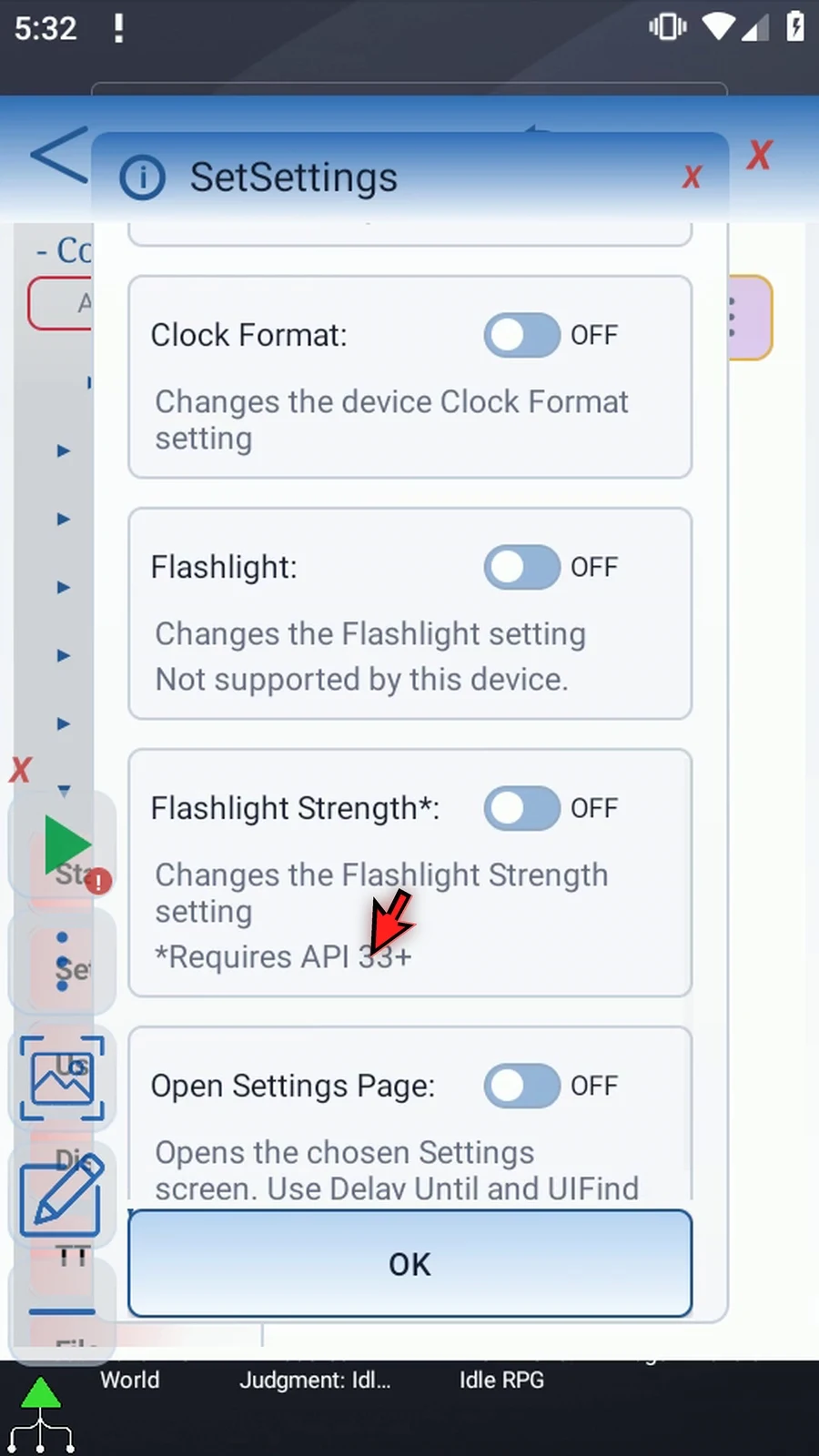
Step 26 Flashlight Strength needs Android API thirty-three or later and a supported torch with Flashlight on. Zero percent means the minimum supported on-strength, not off; one hundred means the maximum.
Step 27 Open Settings Page opens a system screen without changing its switches. Turn this frame on and open the Page list.
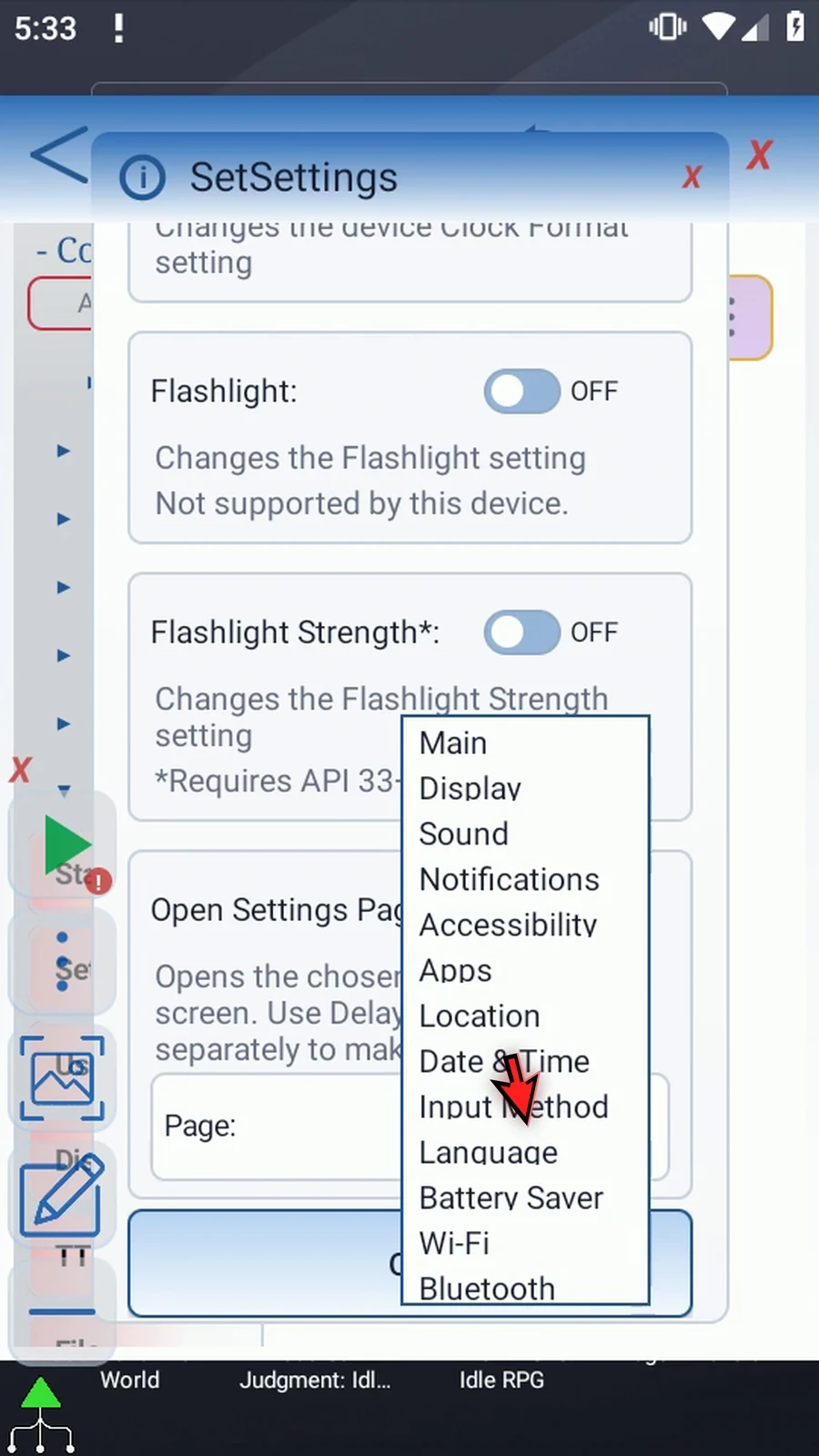
Step 28 You can open Main, Display, Sound, Notifications, and other listed pages. Wi-Fi and Bluetooth only open their Settings pages; they do not toggle those radios.
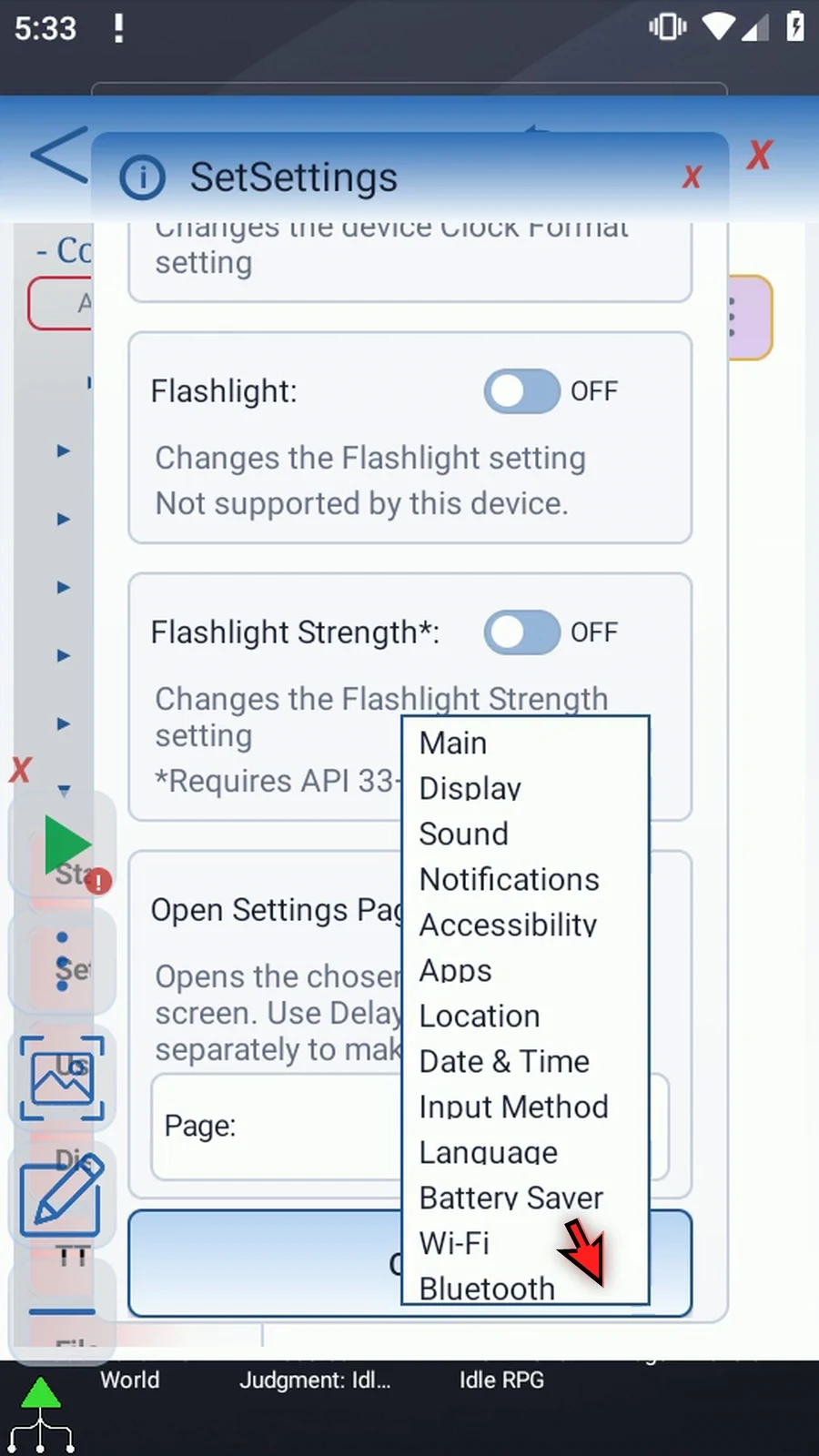
Step 29 Choose Display. For actions after a page opens, use a separate Delay Until or UI Find command to wait for the screen you need.
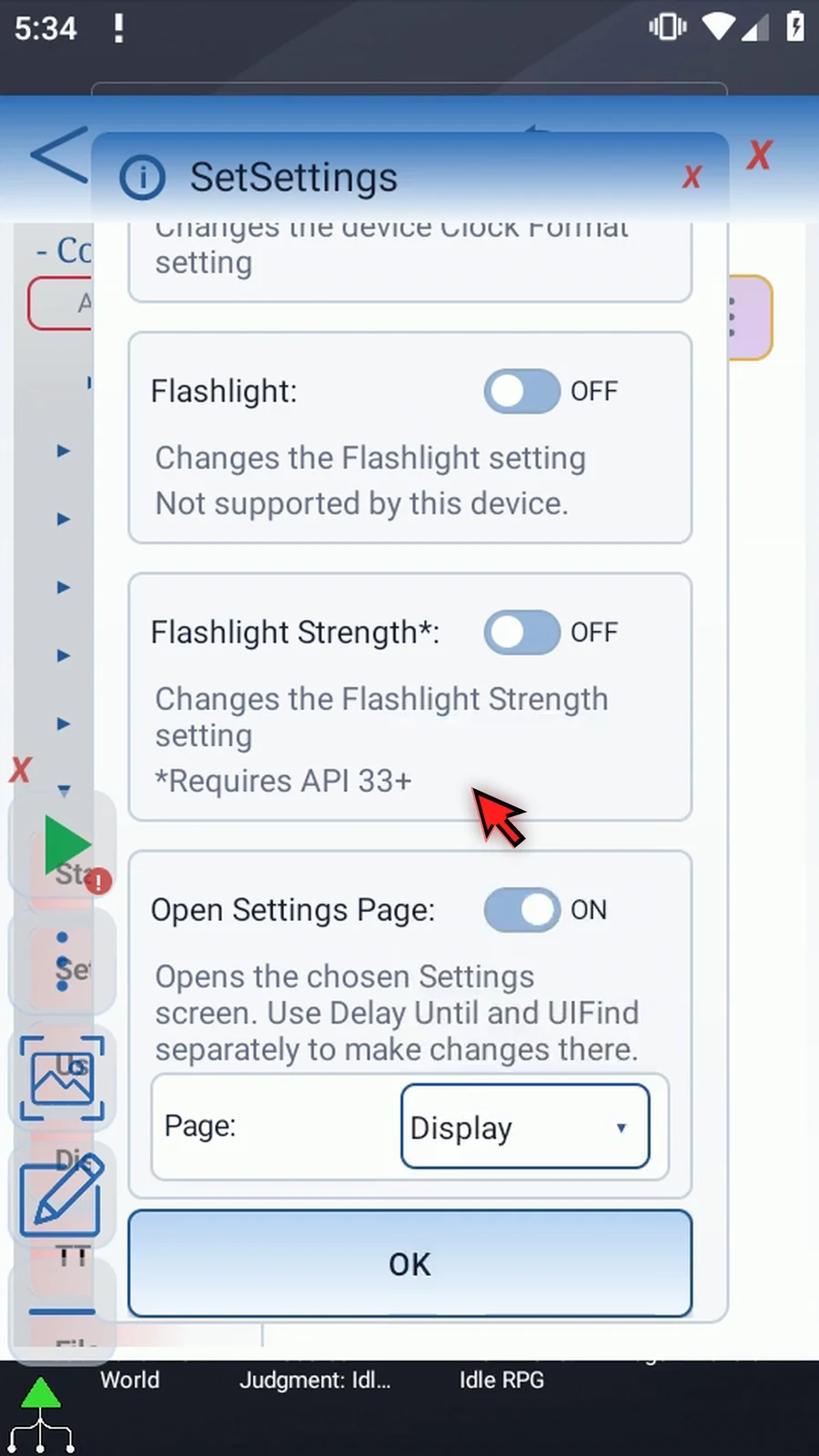
Step 30 Only enabled frames run. ScriptTap applies them once, from Brightness down to Open Settings Page. If one frame fails, it logs the failure and continues to the next selected frame.
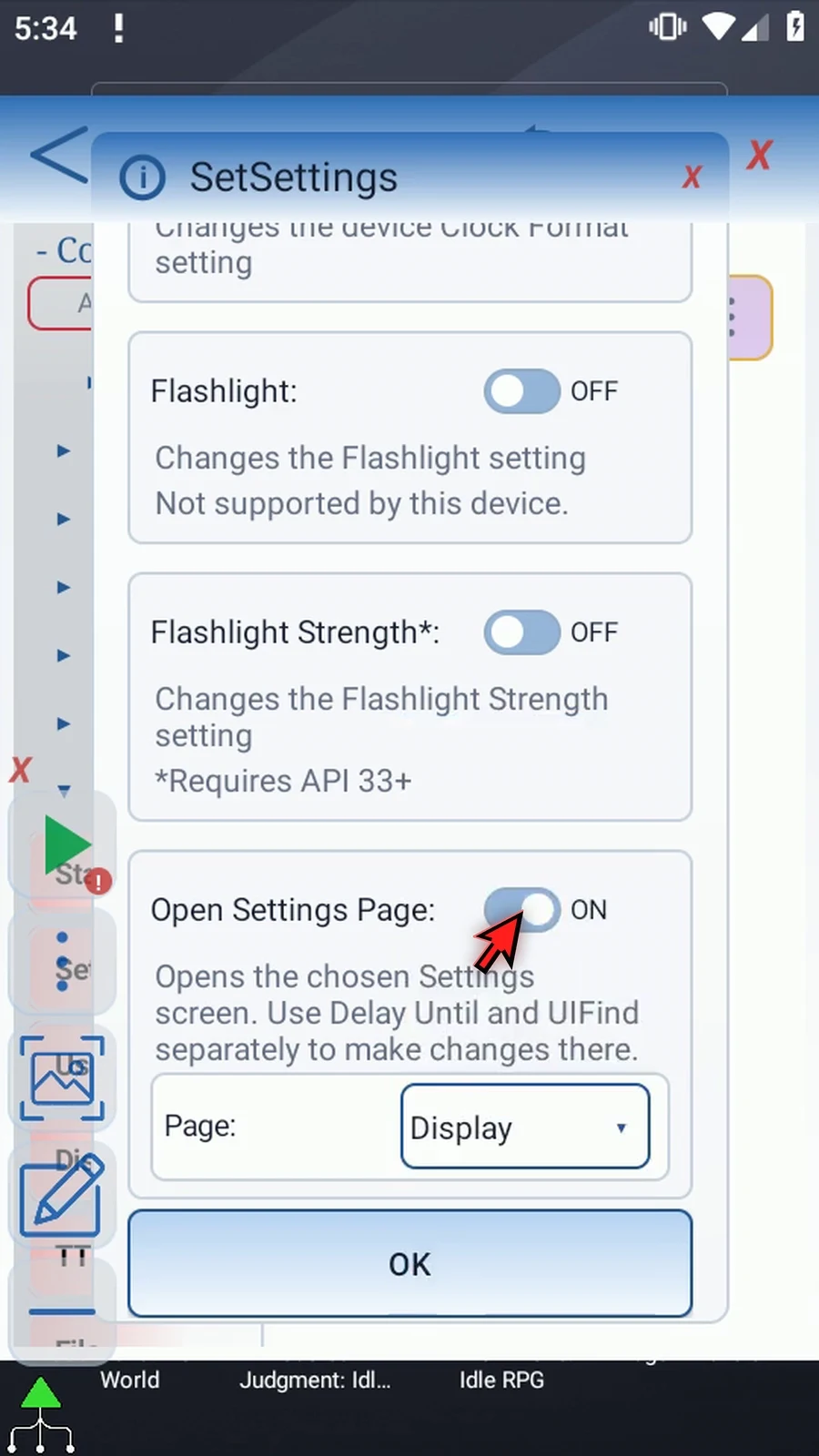
Step 31 Tap OK. Our script contains just SetSettings, configured to open Display. Close the editor when you are ready to try it.
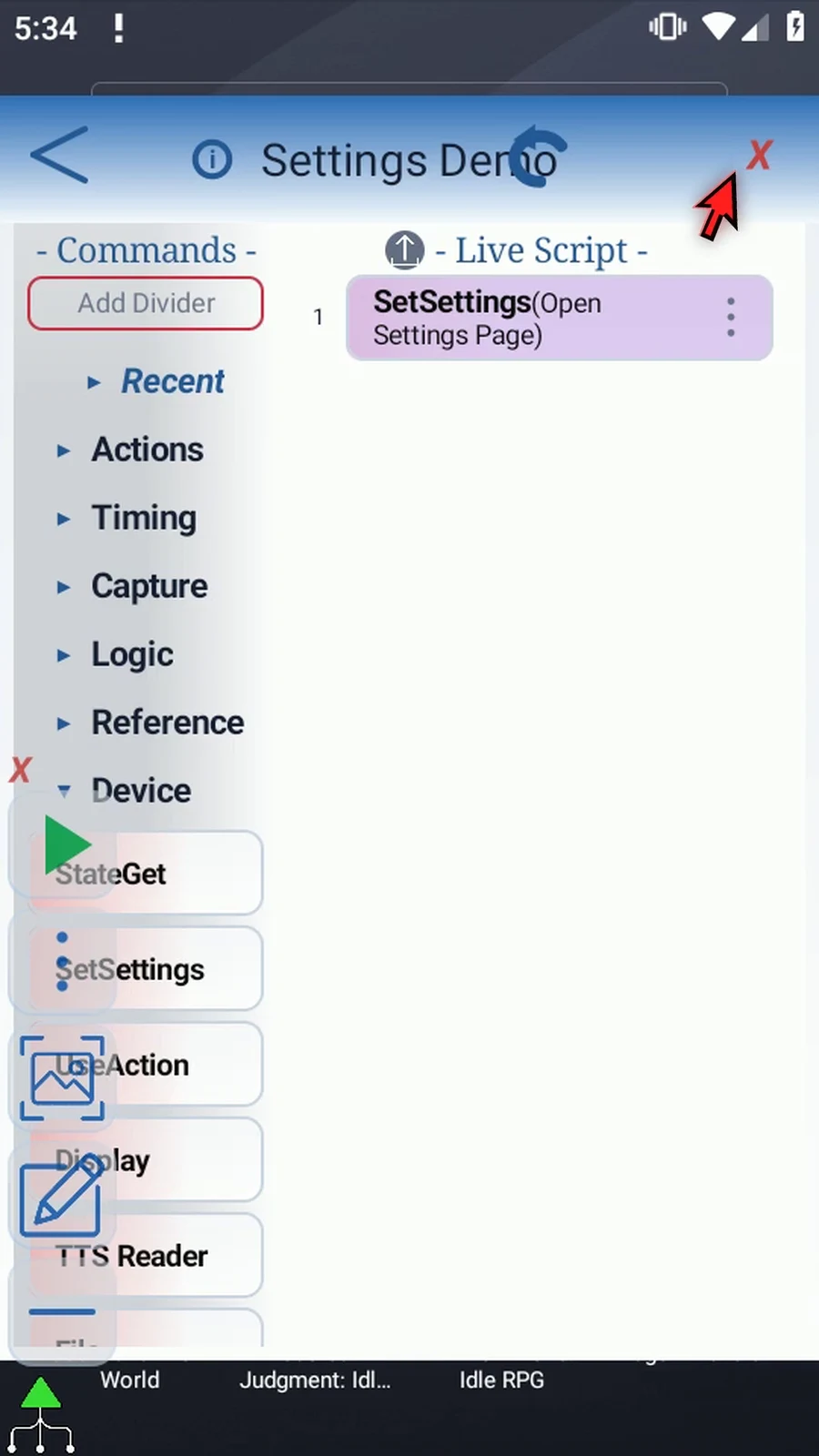
Step 32 When the script is complete, simply use the Play button in the main overlay.
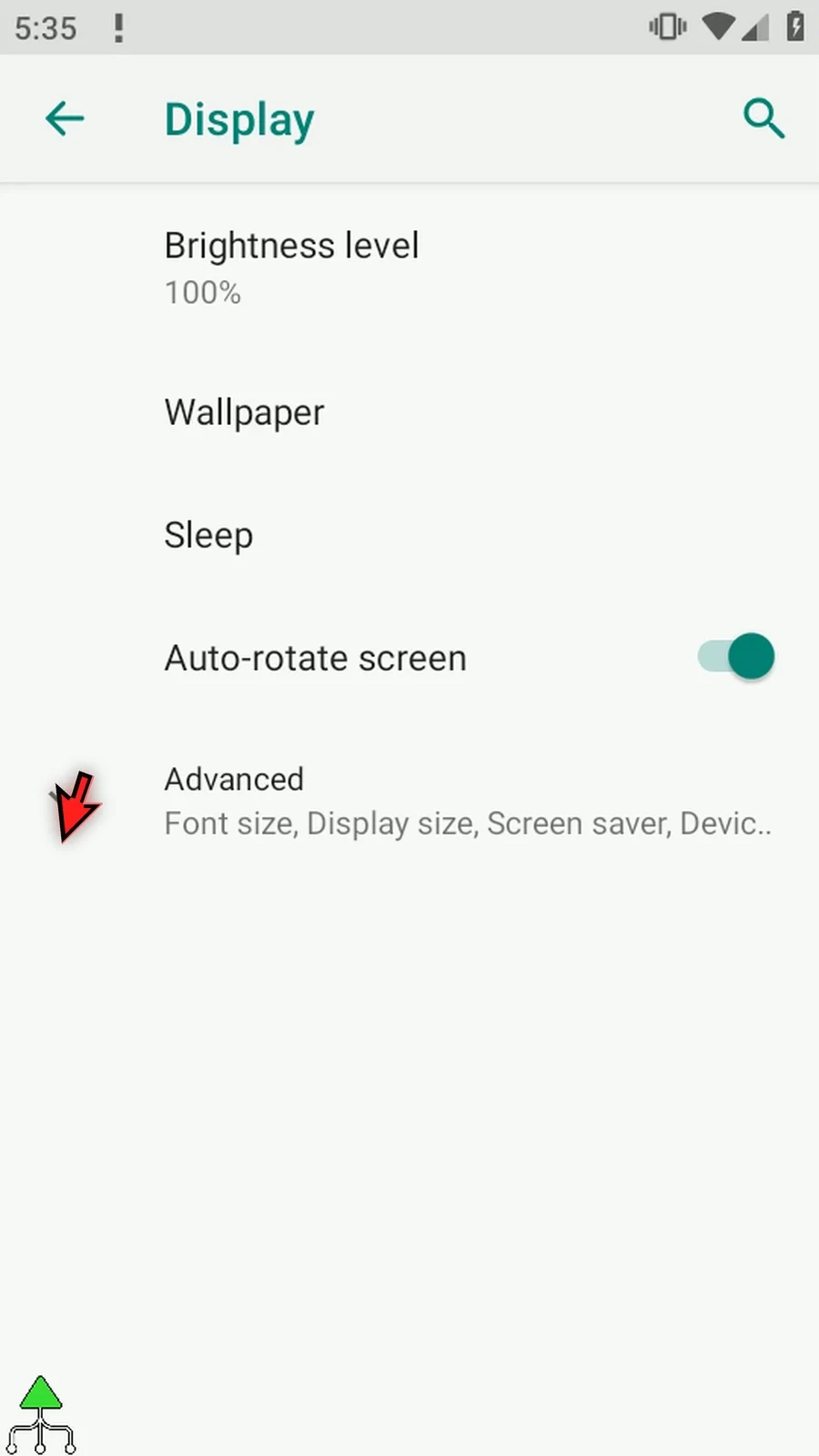
Step 33 Android's Display settings is now open, and the one-command script finishes automatically. SetSettings opened the page; it did not operate the settings there.