Command video guide
Clipboard
Clipboard reads or writes plain Android clipboard text. Set writes a literal or an existing String variable. Get reads clipboard text into a String for later commands. Neither mode automatically pastes or types into another app.
Create and name a new script. Under Variables, manually drag Clipboard into the script and double-tap its row. Keep the same Use In scope for related commands: This Script Only is local; Script Thread shares variables across the calling script thread. Switching Get/Set clears outgoing mode fields, so configure the mode you intend to save.
Choose Clipboard.set. Text Source → Text accepts literal text, including an empty value. String var uses a String that an earlier command has already filled in the selected scope. In the example, use literal ScriptTap. Enable Save Outputs, Success → b1 and Error → s2. Save only stores the settings; Play performs the clipboard write.
Drag a second Clipboard command below Set. Keep Clipboard.get and set Save Text → s1. Optional Boolean Success and String Error outputs are available in both modes. These outputs let later conditions handle a failed operation; they do not automatically stop the script.
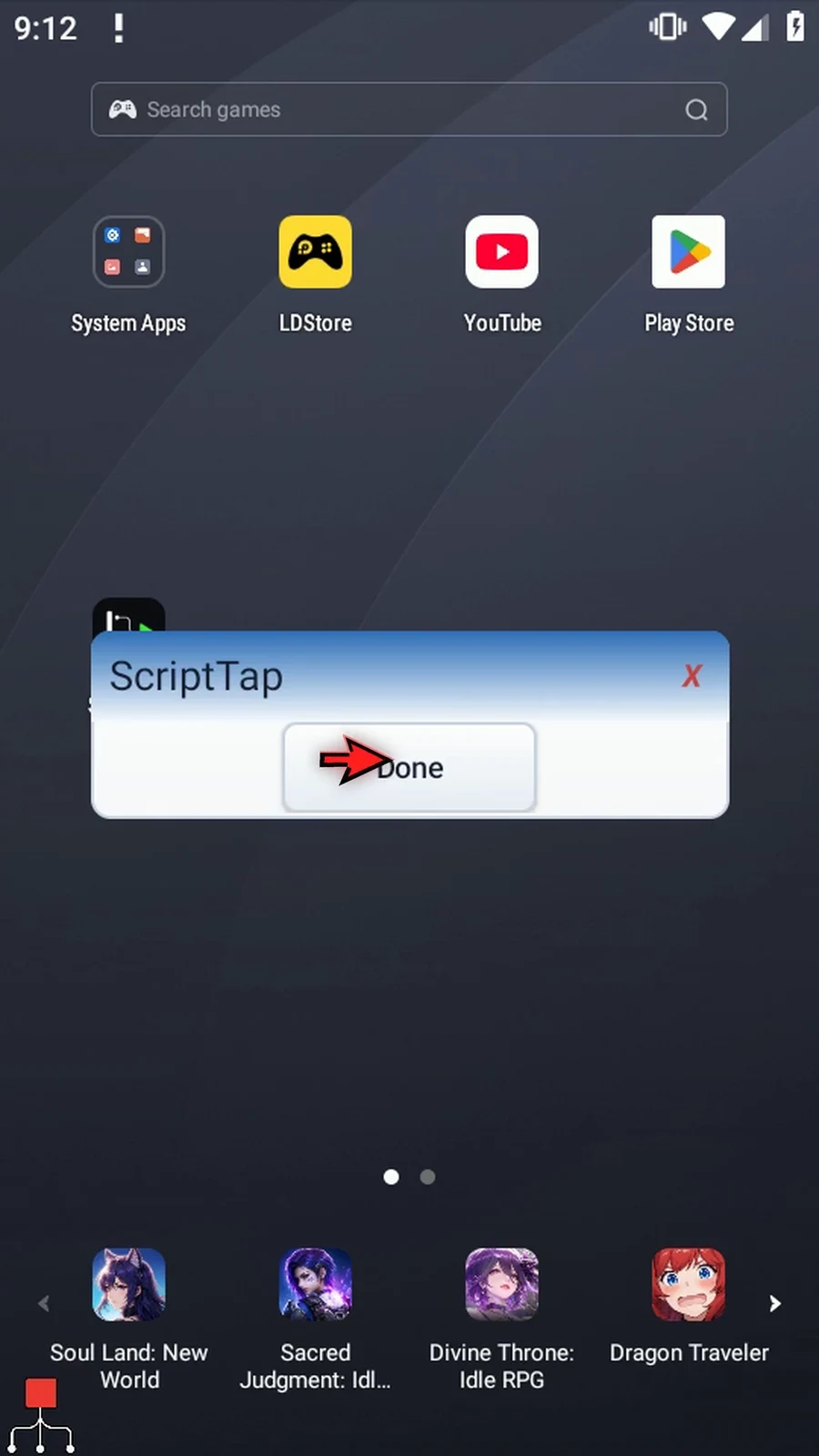
Drag PromptMe below Get. Keep Standard, set Header → s1, and add Done → b2. This supporting command displays the retrieved String. Close the editor and use Play in the Main Overlay. The real prompt shows ScriptTap; choose Done to finish.
Android may restrict clipboard access by device or version. Empty or unavailable reads write an empty String; use optional status outputs when you must distinguish failures. Clipboard handles plain/coercible text, not image/file transfers, and does not append, watch, poll or paste. Set replaces the current clipboard text. A missing or wrong-type String source does not change the clipboard. Do not expose private clipboard contents in demonstrations. Ordinary Clipboard logs summarize status and text length without logging the text itself.
Read and write plain clipboard text
Step-by-step guide
Step 01 Clipboard moves plain text between Android's clipboard and your script. Set writes text to the clipboard. Get reads it into a String variable for later commands. Neither mode automatically pastes or types into another app. We will write ScriptTap, read it back, and display the result with PromptMe.
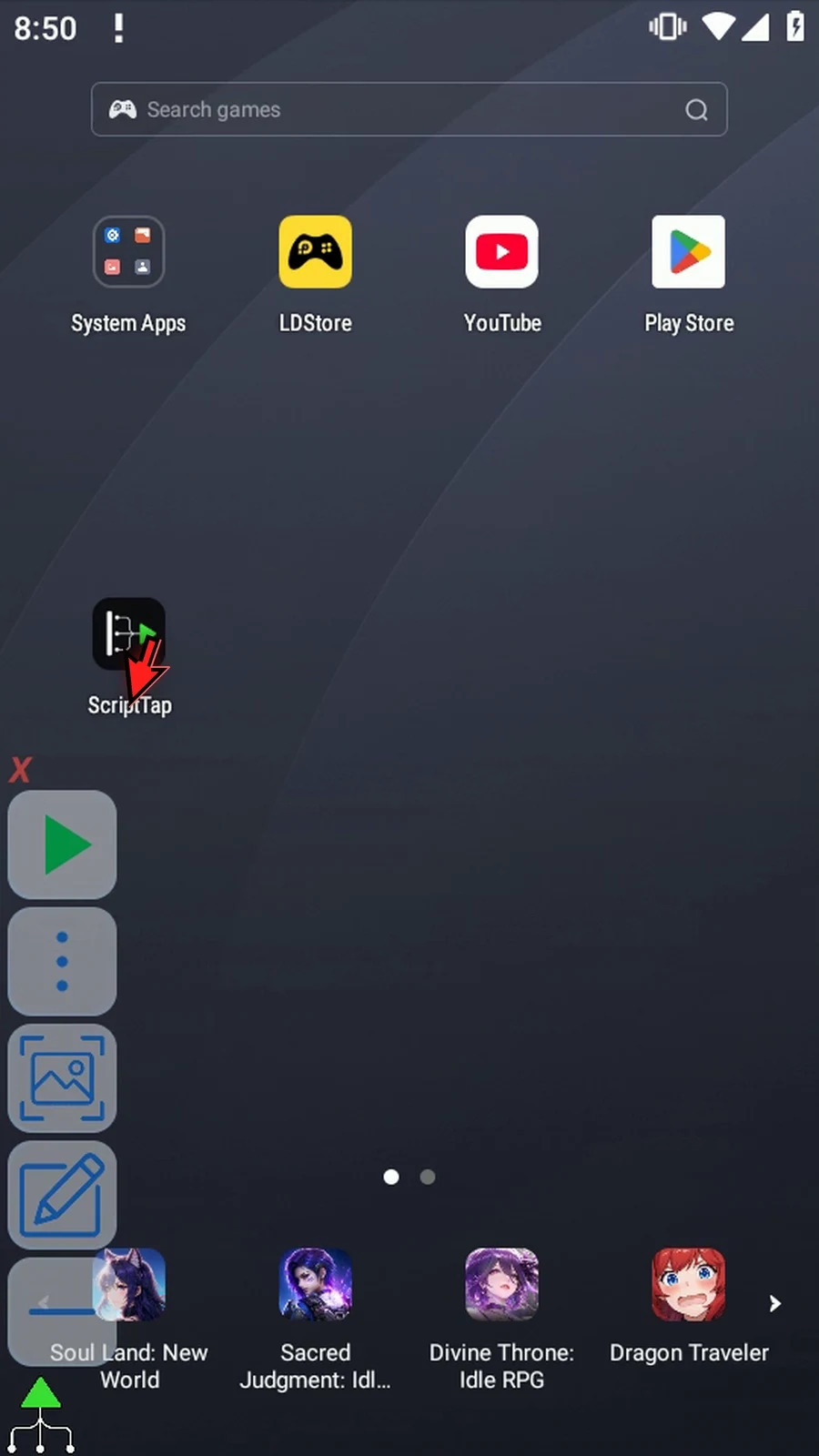
Step 02 Open Scripts from the main menu and create a new blank script.
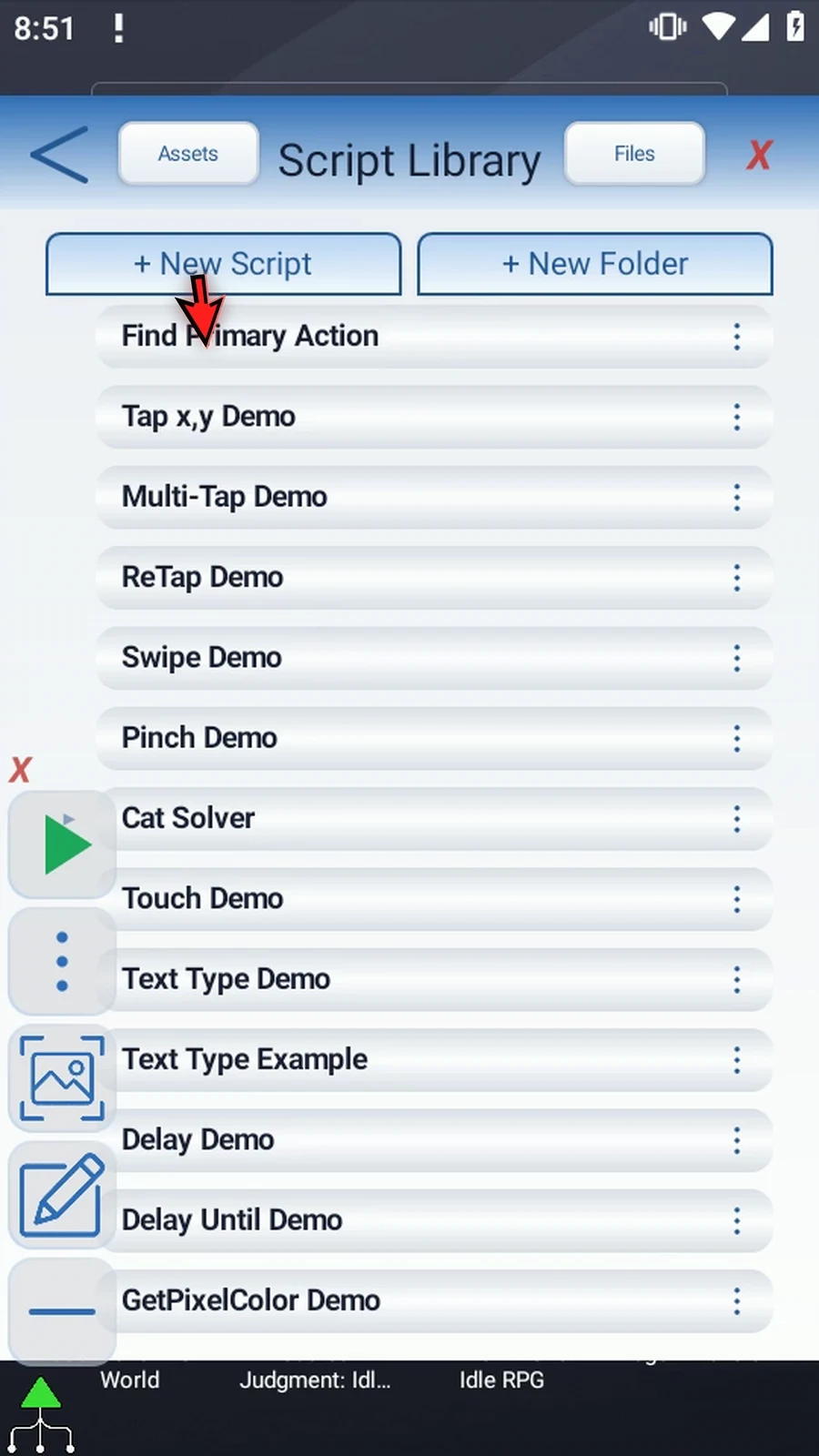
Step 03 Find the newly created blank script. Scroll down if your library contains several scripts. Yours may have different names. Existing scripts do not need to be changed.
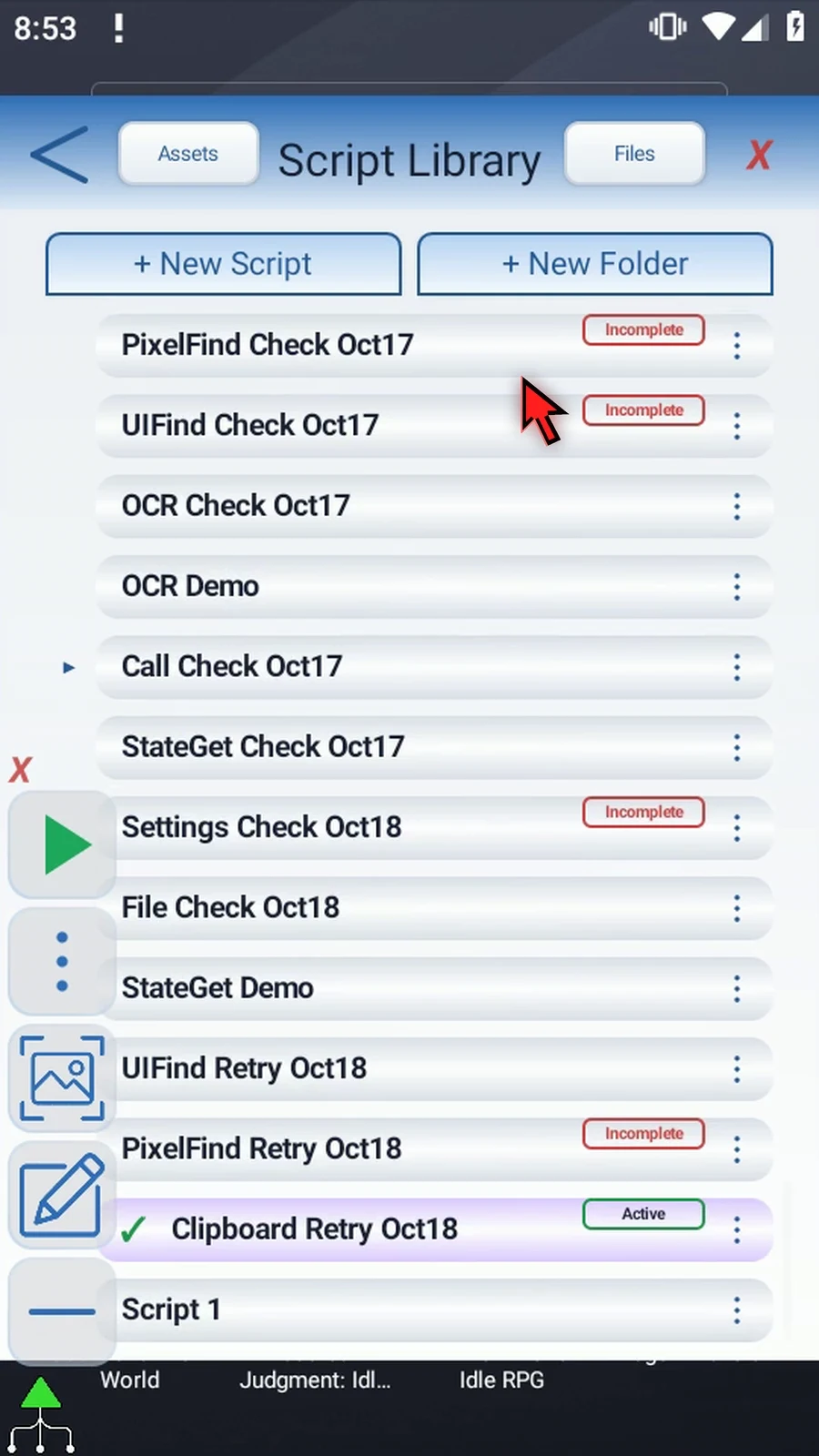
Step 04 Open the new script's menu and choose Rename. Give it a clear name, save it, select it and open the editor.
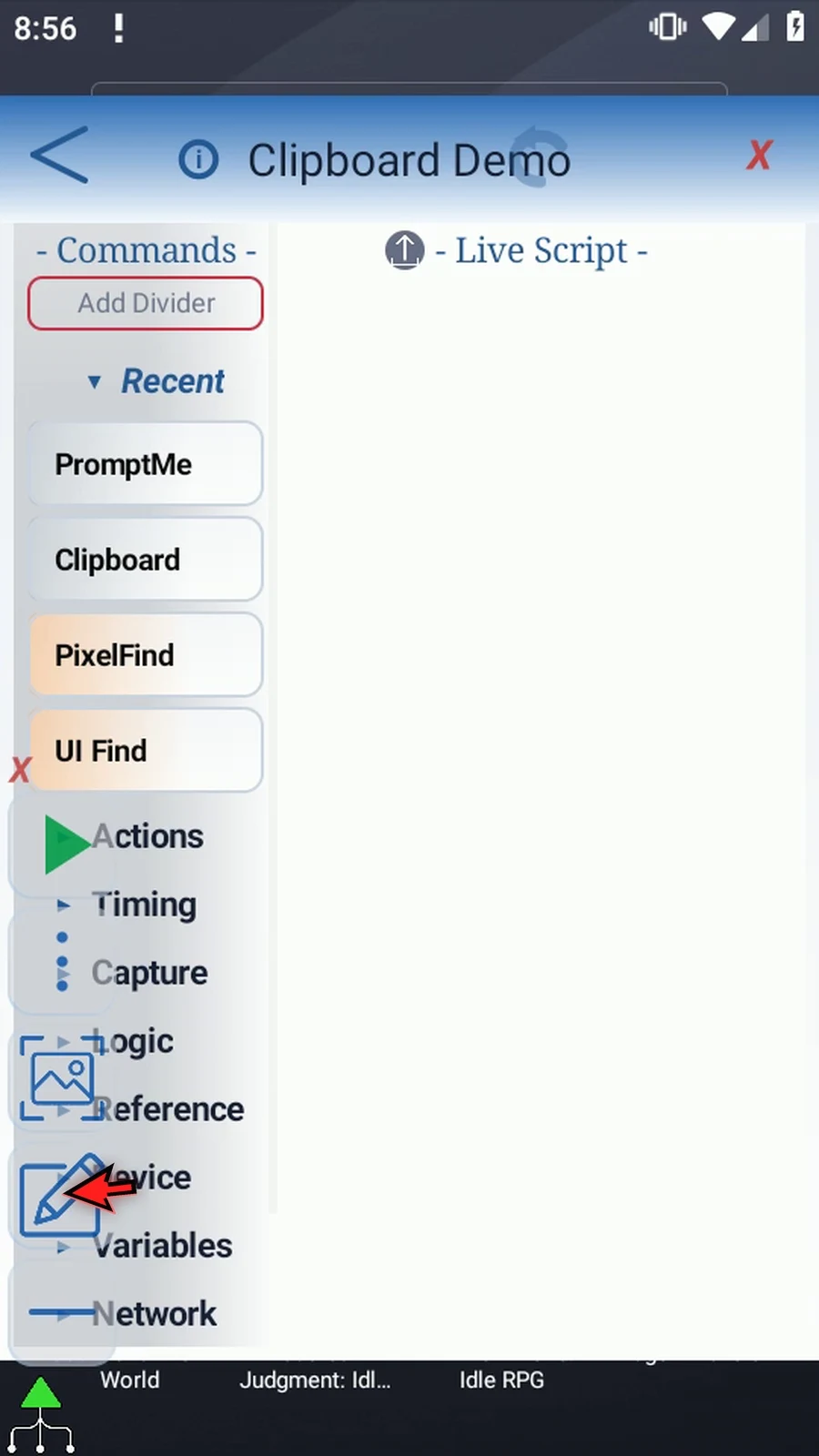
Step 05 Collapse the Main Overlay and expand Variables. Drag Clipboard into the script, then double-tap its new row to open the settings.
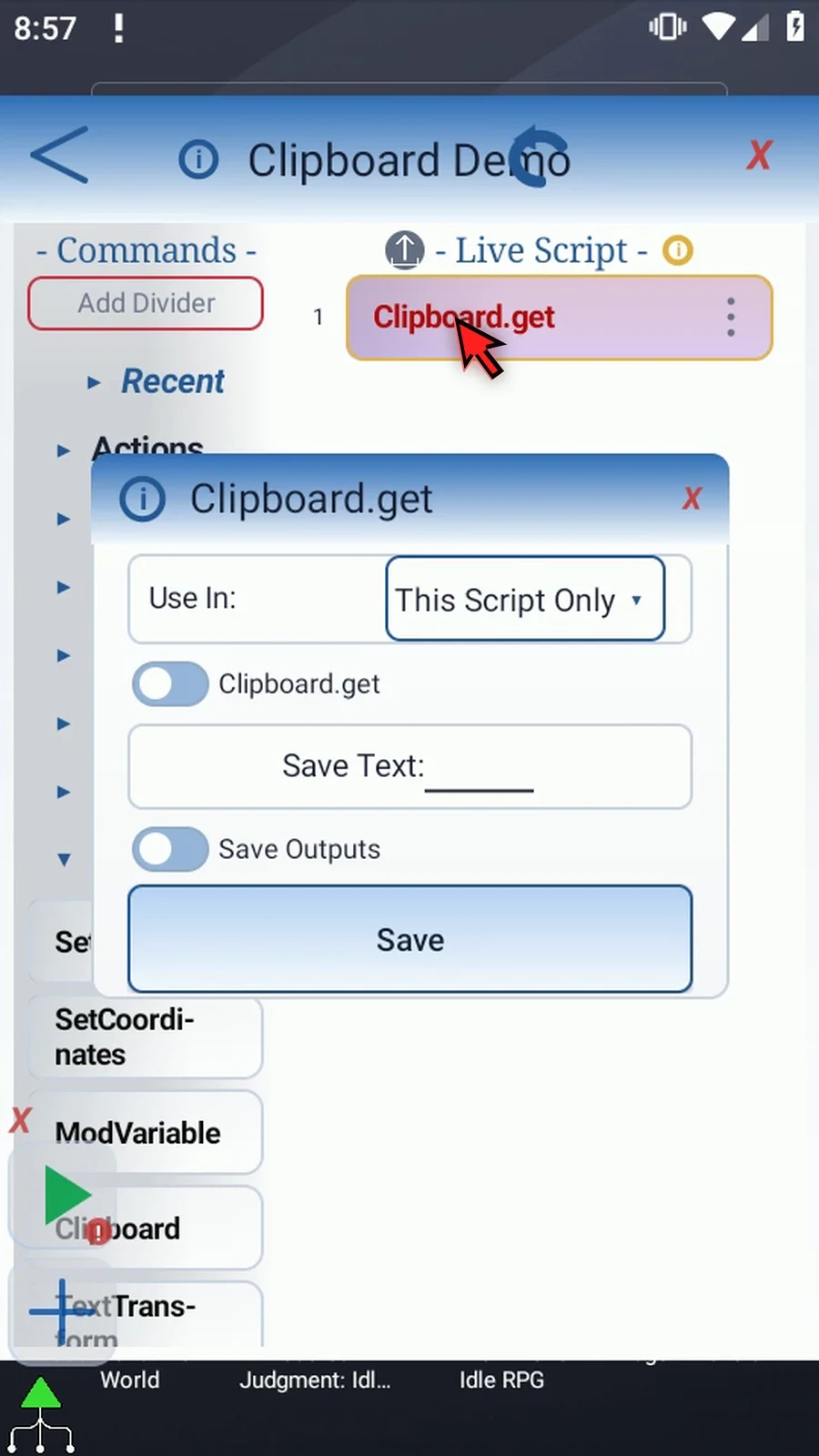
Step 06 Use In chooses the scope for variable sources and outputs. This Script Only keeps them local. Script Thread shares them across the calling script thread. We will keep This Script Only throughout this example.
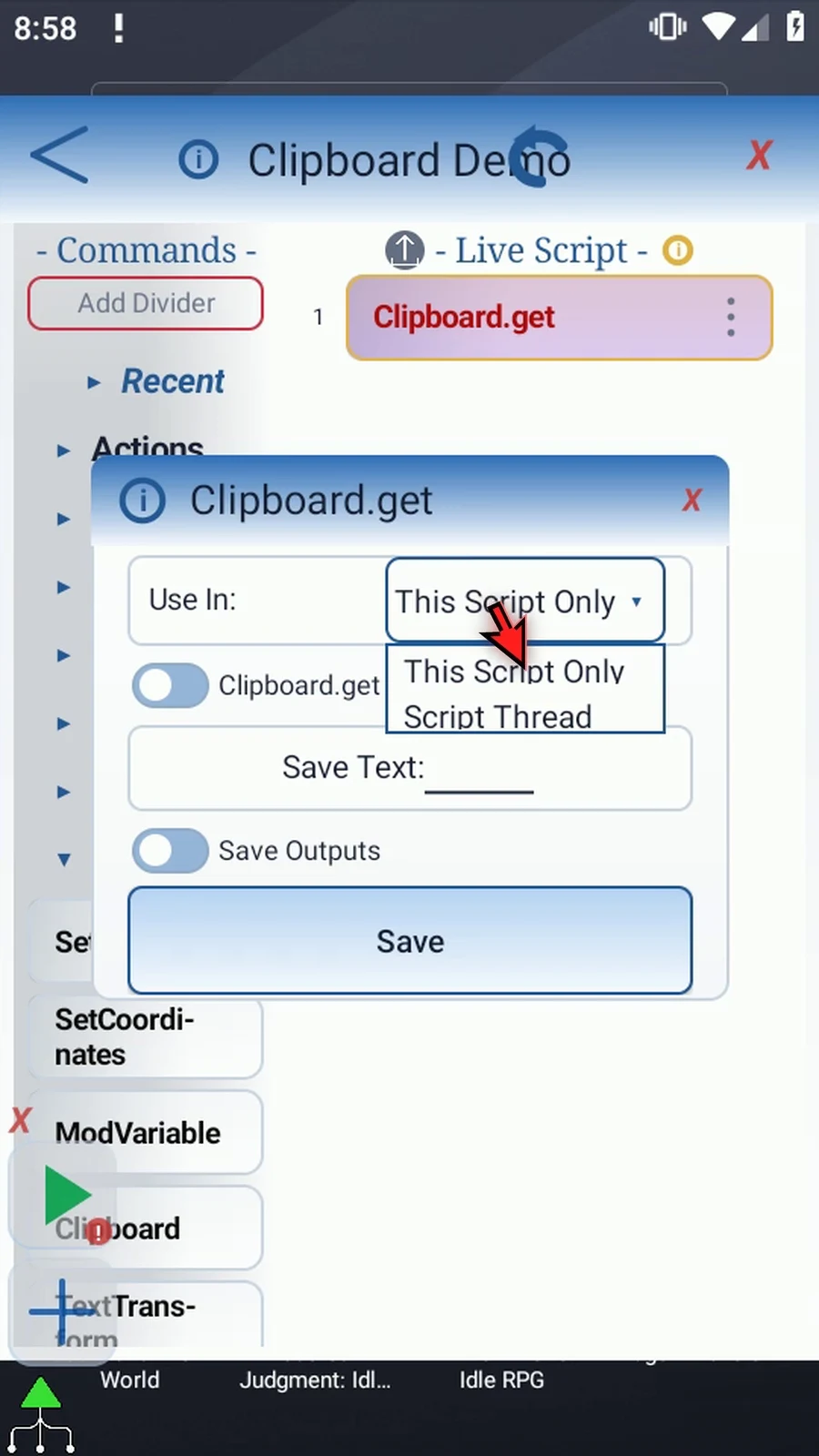
Step 07 Switch to Clipboard Set. This writes a new clipboard value when Play reaches the command. Switching between Get and Set clears the fields belonging to the mode you leave, so configure the mode you intend to save.
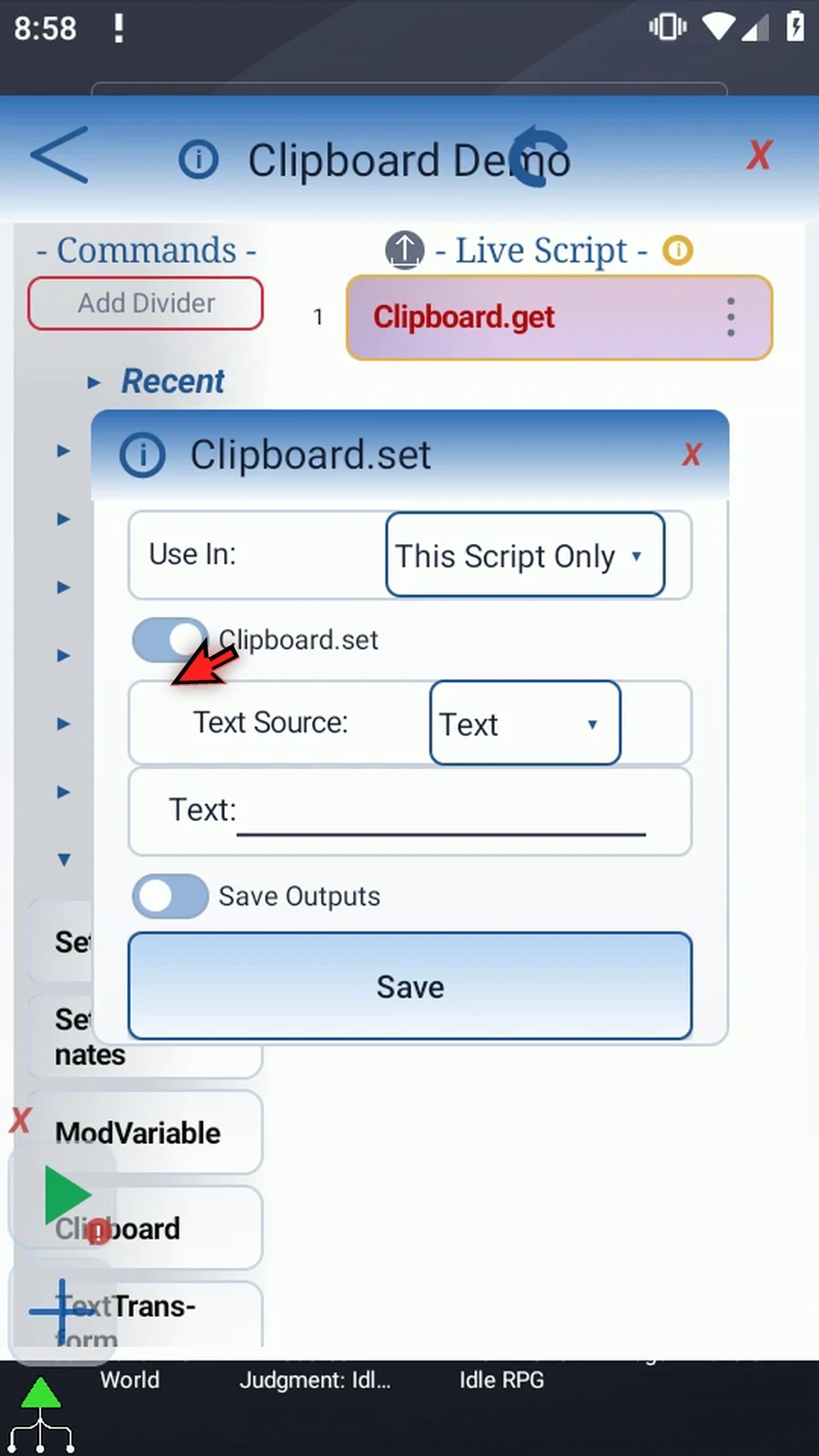
Step 08 Text Source can be literal Text or a String variable that an earlier command has already filled. The variable must contain text and use the selected scope. For this example, choose Text and enter ScriptTap. An empty literal is also allowed; it writes an empty text value.
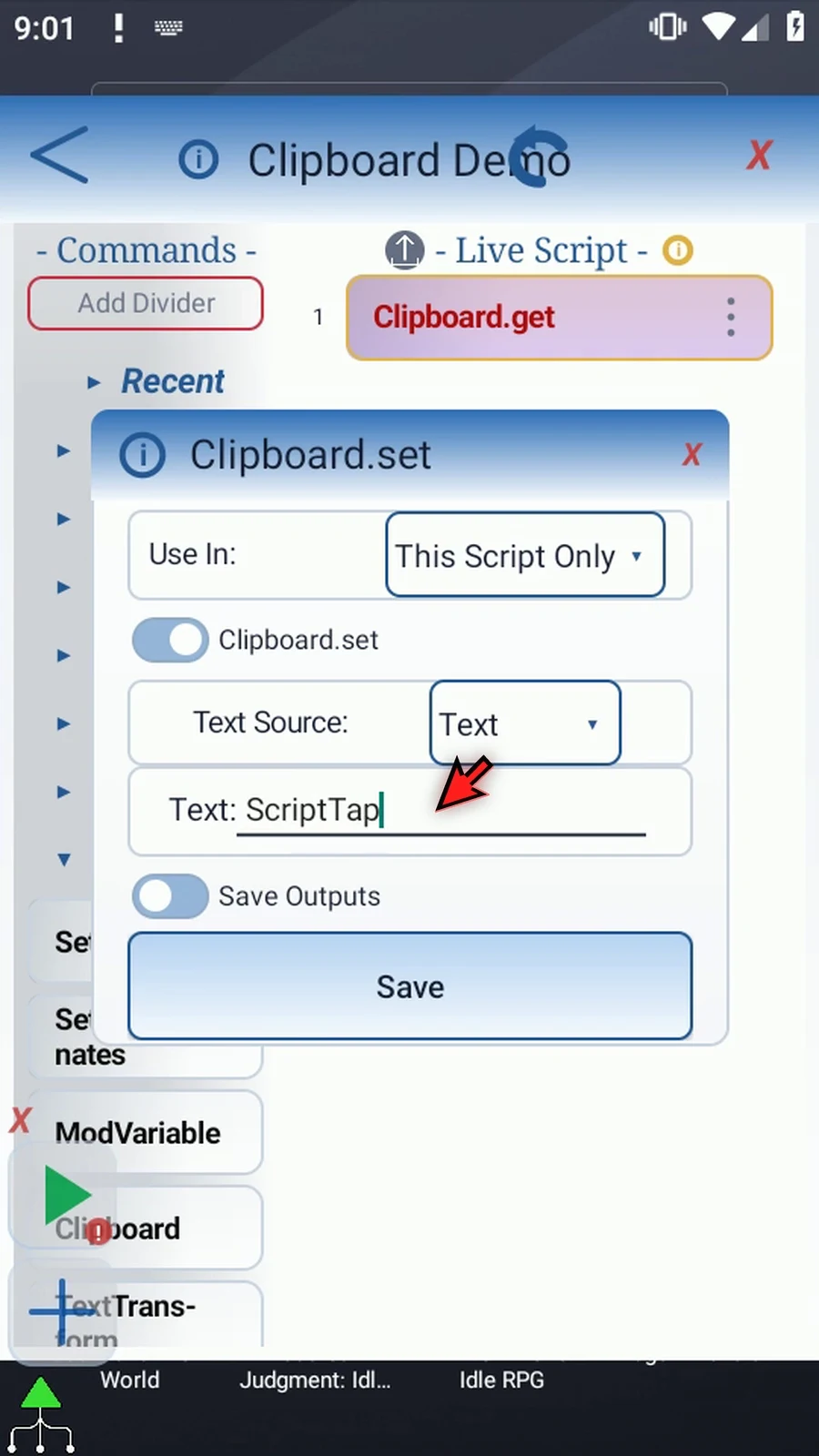
Step 09 Save Outputs provides optional status variables in either mode. Enable Success and use b1 for its Boolean result. Enable Error and use s2 for its String message. These let later conditions respond to a failed operation; they do not automatically stop the script.
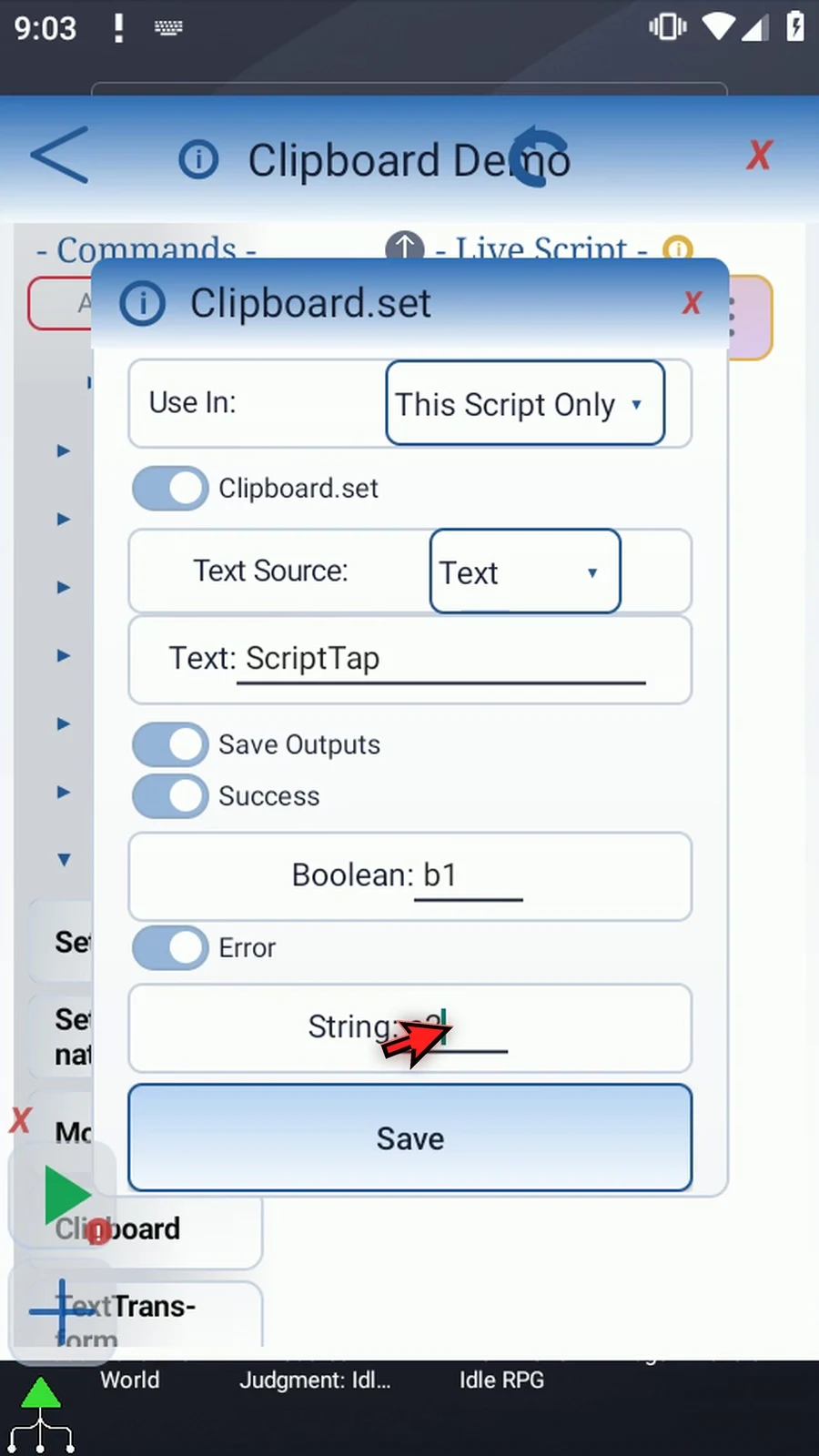
Step 10 Save the Set command. This only saves its settings; it has not changed the clipboard yet.
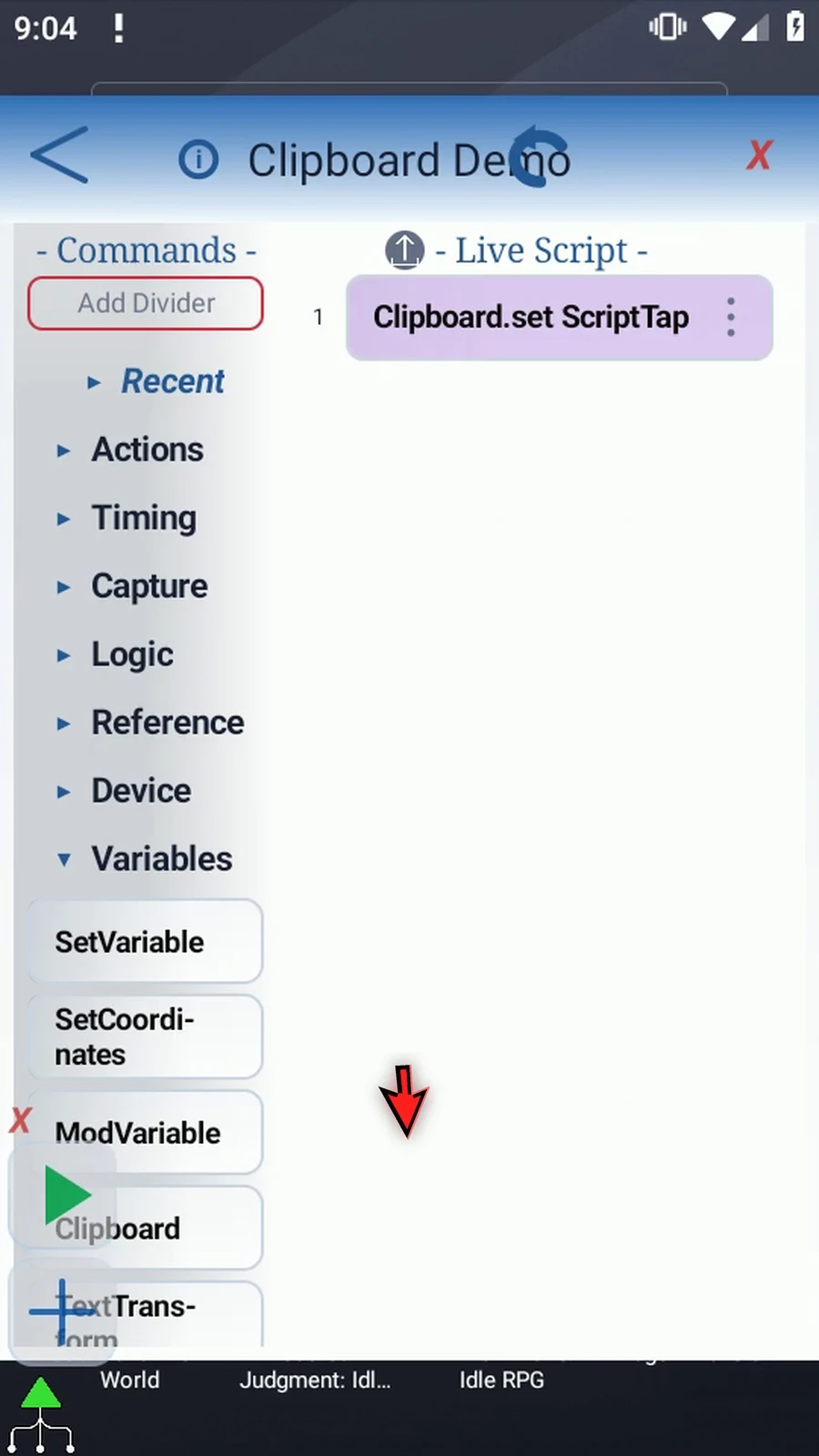
Step 11 Now drag a second Clipboard command below it. Keep Get and enter s1 under Save Text. This String will receive the clipboard text when the command runs. Keep the same local scope, then save.
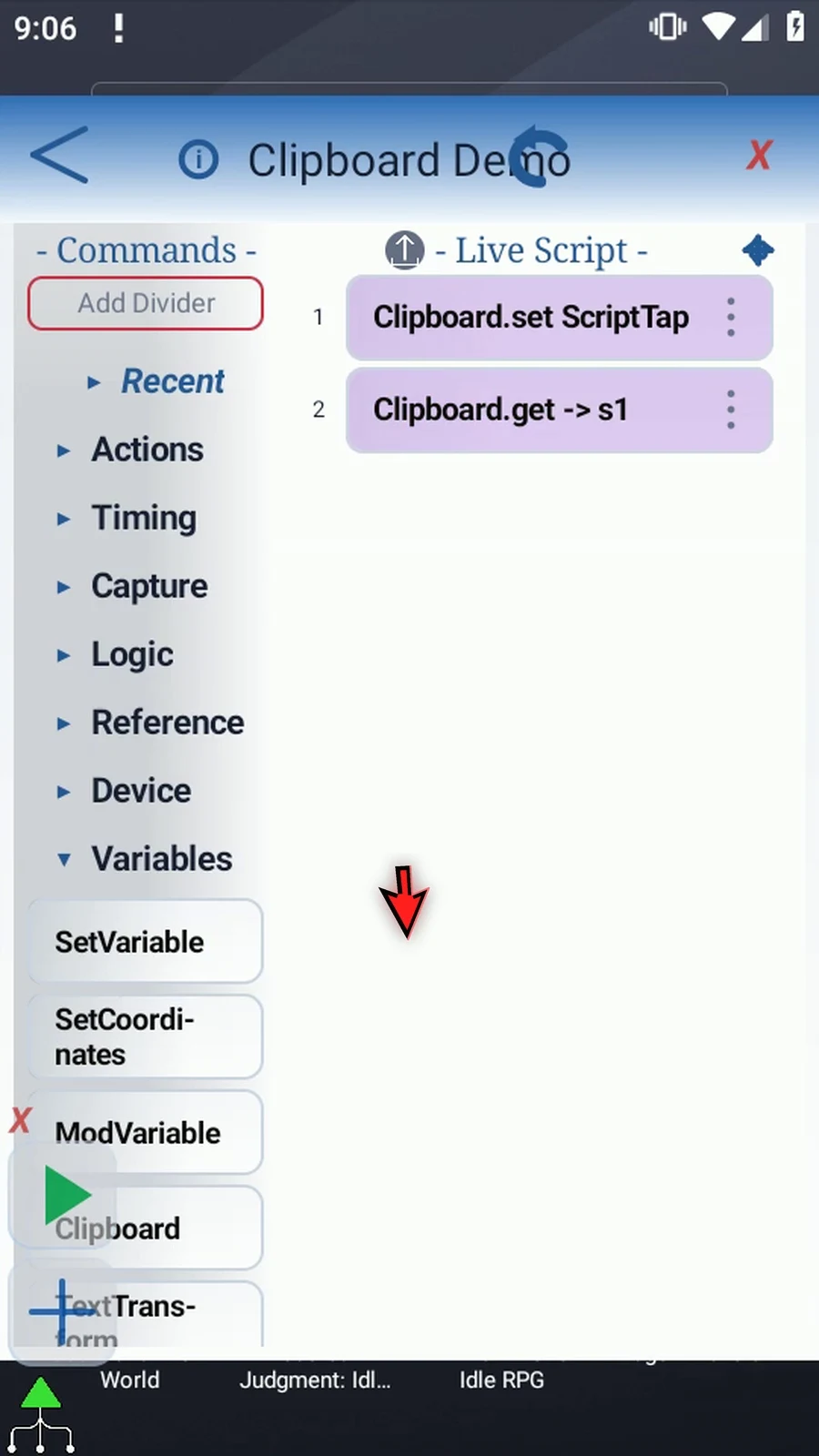
Step 12 Android can restrict clipboard access depending on the device and version. If the clipboard is empty or unavailable, Get writes an empty String. Use its optional Success and Error outputs when your script needs to distinguish that situation. Clipboard handles text, not image or file transfers.
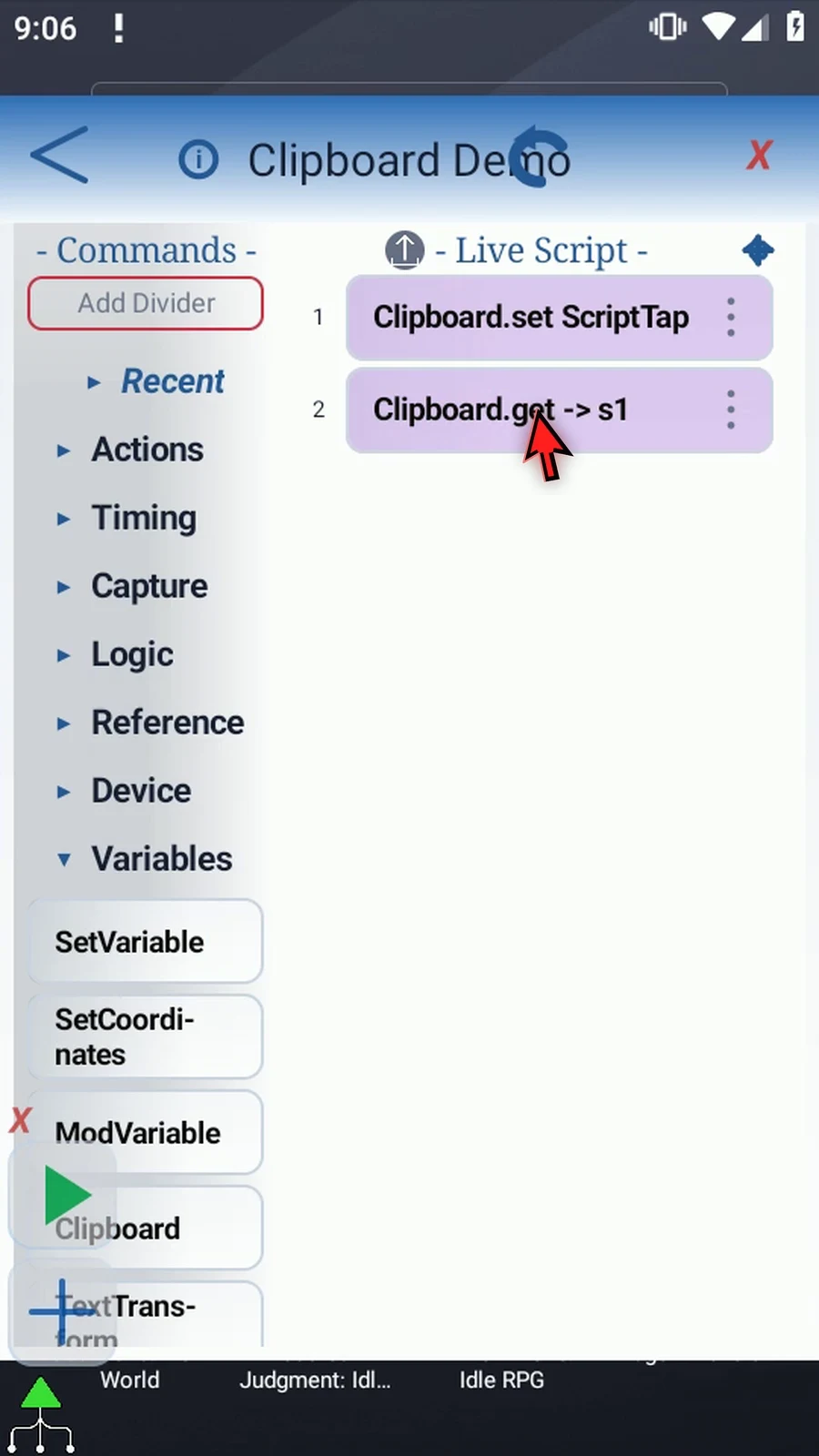
Step 13 Drag PromptMe below Get. This supporting command makes the retrieved value visible, so we can confirm what Clipboard actually read.
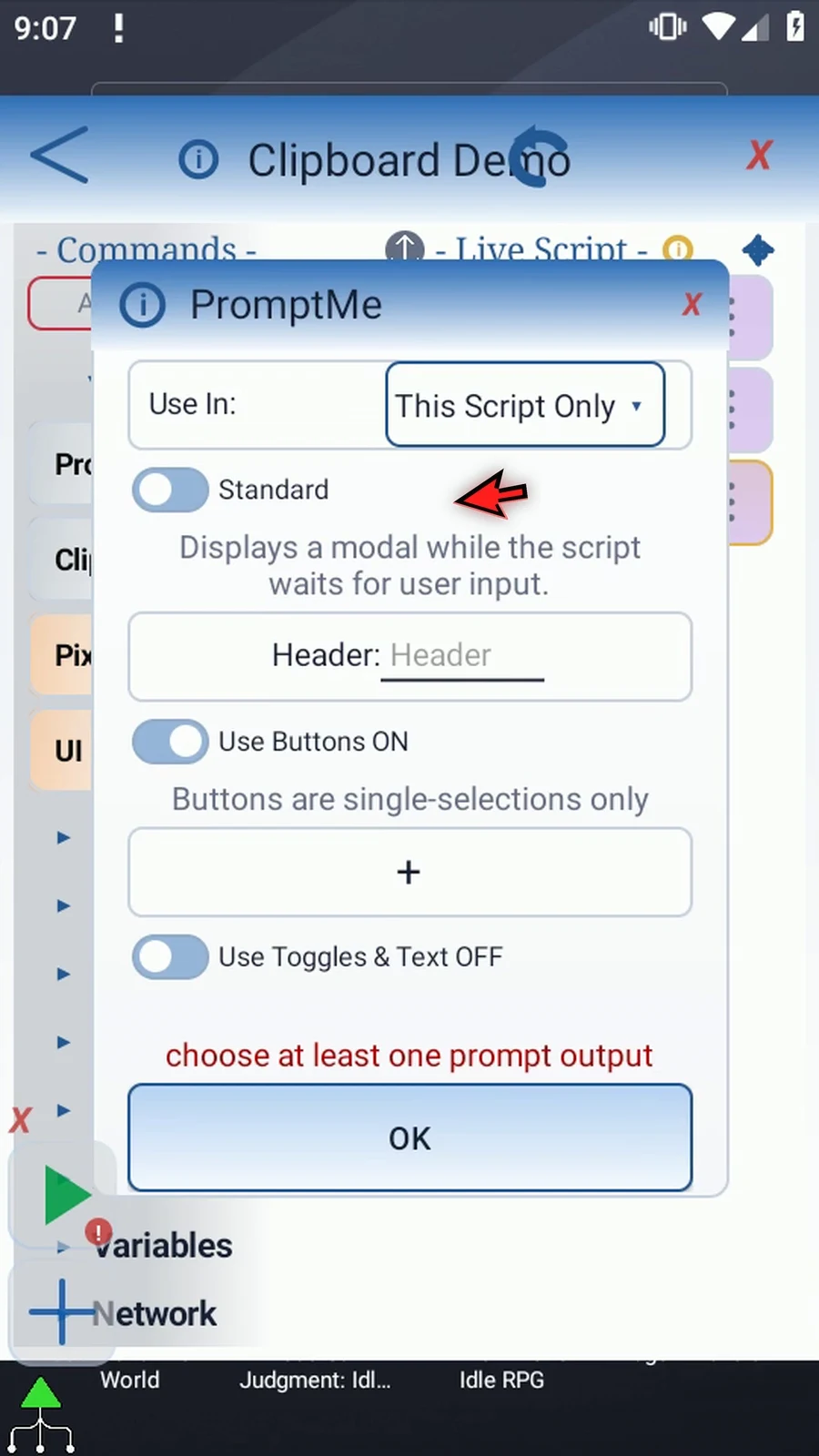
Step 14 Keep Standard. Set Header to s1, add a Done button with b2 as its Boolean output, and save. The prompt will show the text stored in s1, not the literal variable name.
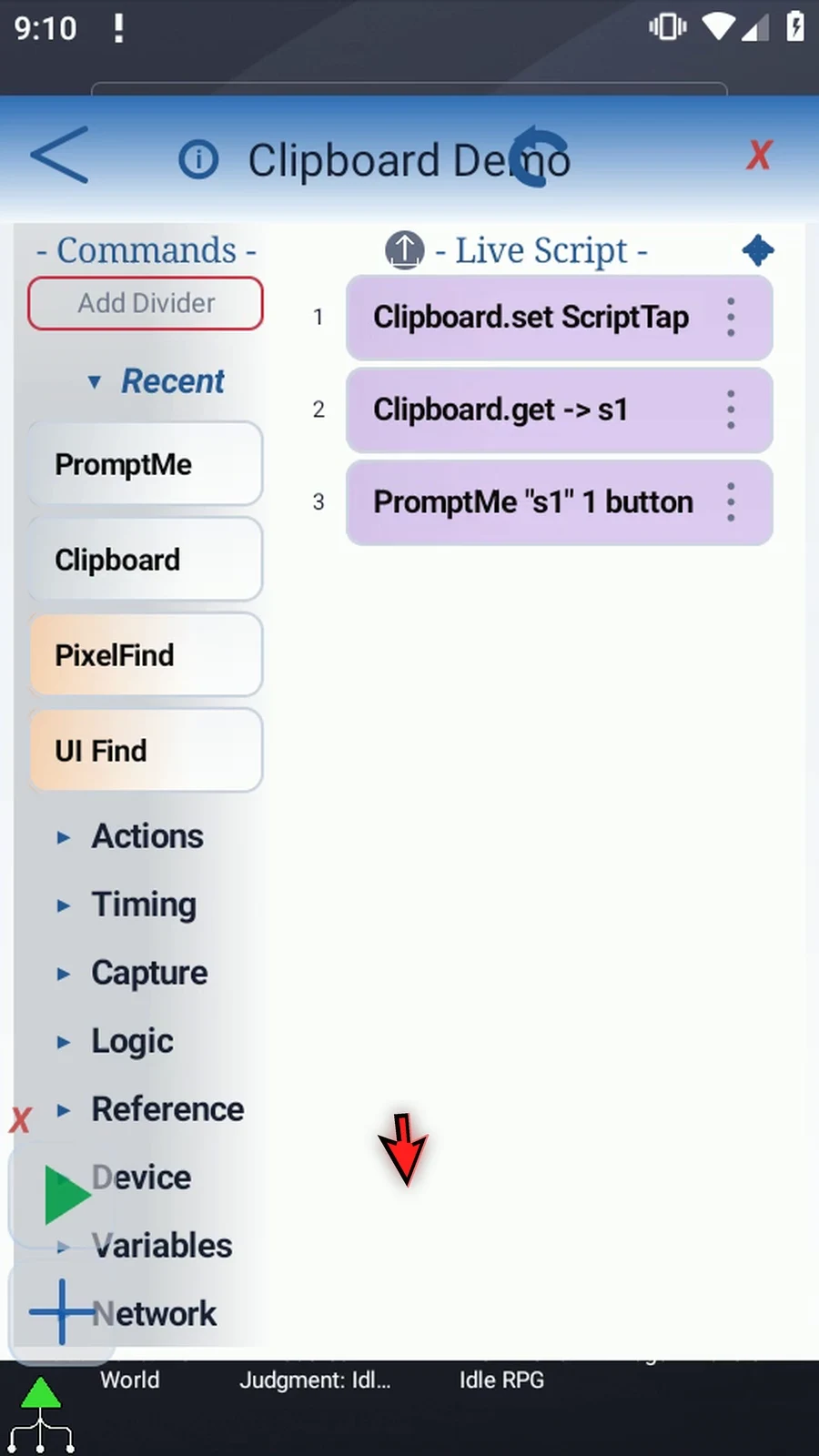
Step 15 When the script is complete, simply use the Play button in the main overlay.
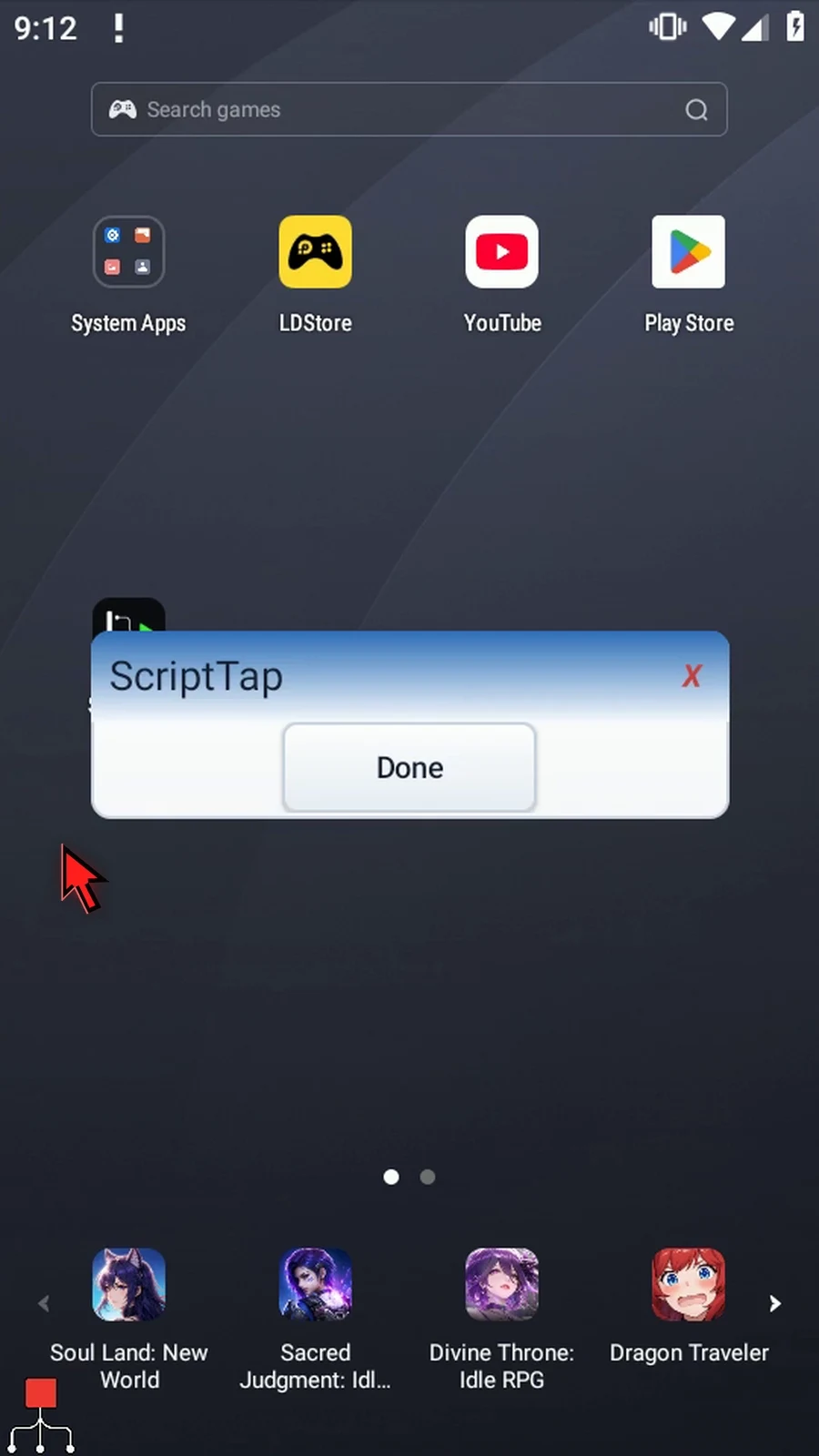
Step 16 The prompt shows ScriptTap. Set wrote our example text, Get read it into s1, and PromptMe displayed it. Choose Done to finish the script.
Step 17 Use Clipboard when later commands need copied text, or when a script needs to prepare text for another app. Writing the clipboard replaces its current text. Reading or writing it does not paste, append, watch for changes, or handle rich clipboard data. Keep private clipboard text out of demonstrations.