ScriptTap
ReTap

Command video guide

ReTap

Create a script and choose a location during playback. Configure Repeat, Set Coordinates, variable scope, tap timing, and input timeouts.

Watch the walkthrough

Step-by-step guide

  1. Step 01

    ReTap lets you choose a tap location while your script is running. Start by expanding the main overlay.
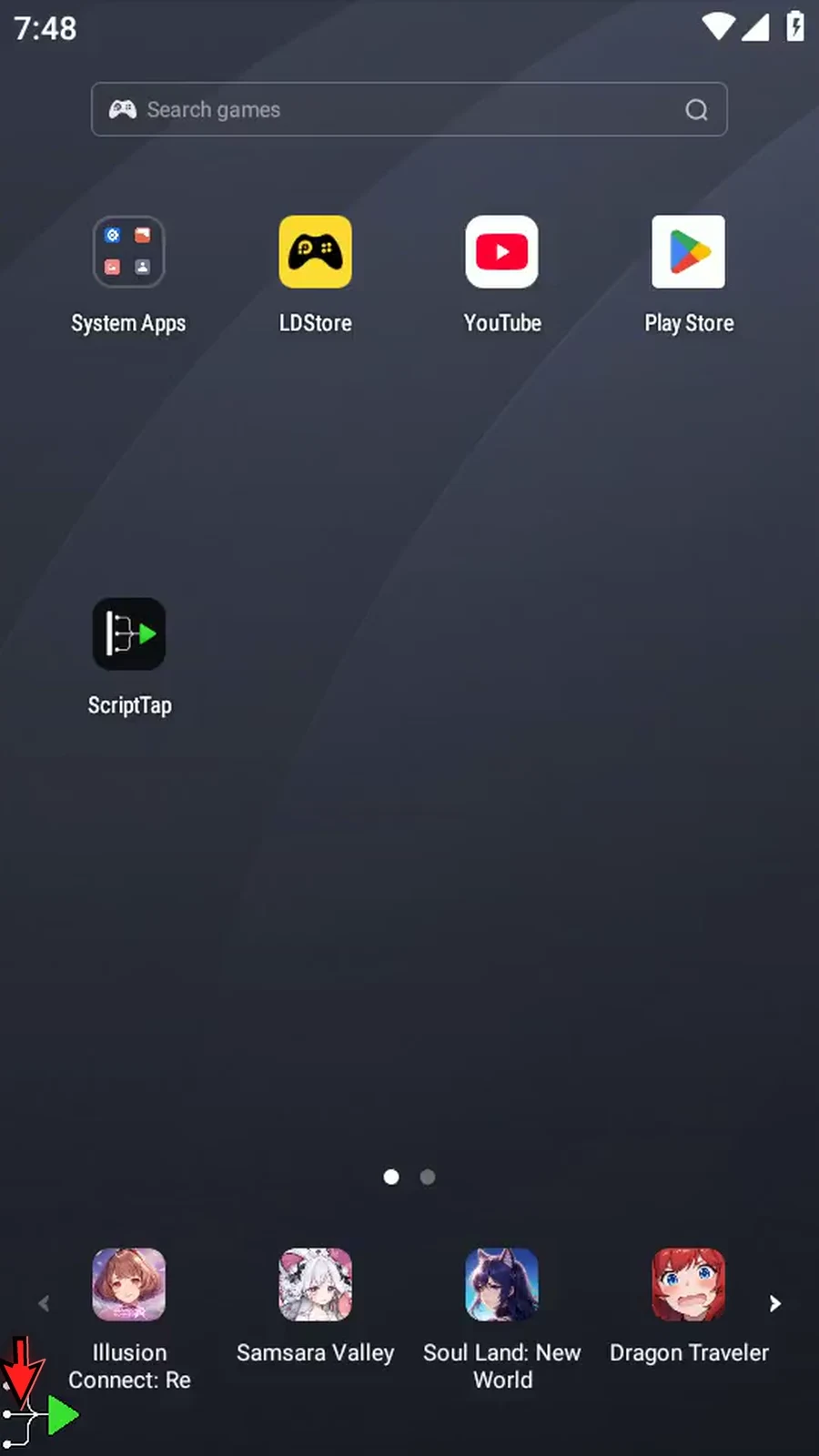
    ReTap step 1: ReTap lets you choose a tap location while your script is running. Start by expanding the main overlay.
  2. Step 02

    Open the three-dot menu. Choose Scripts.
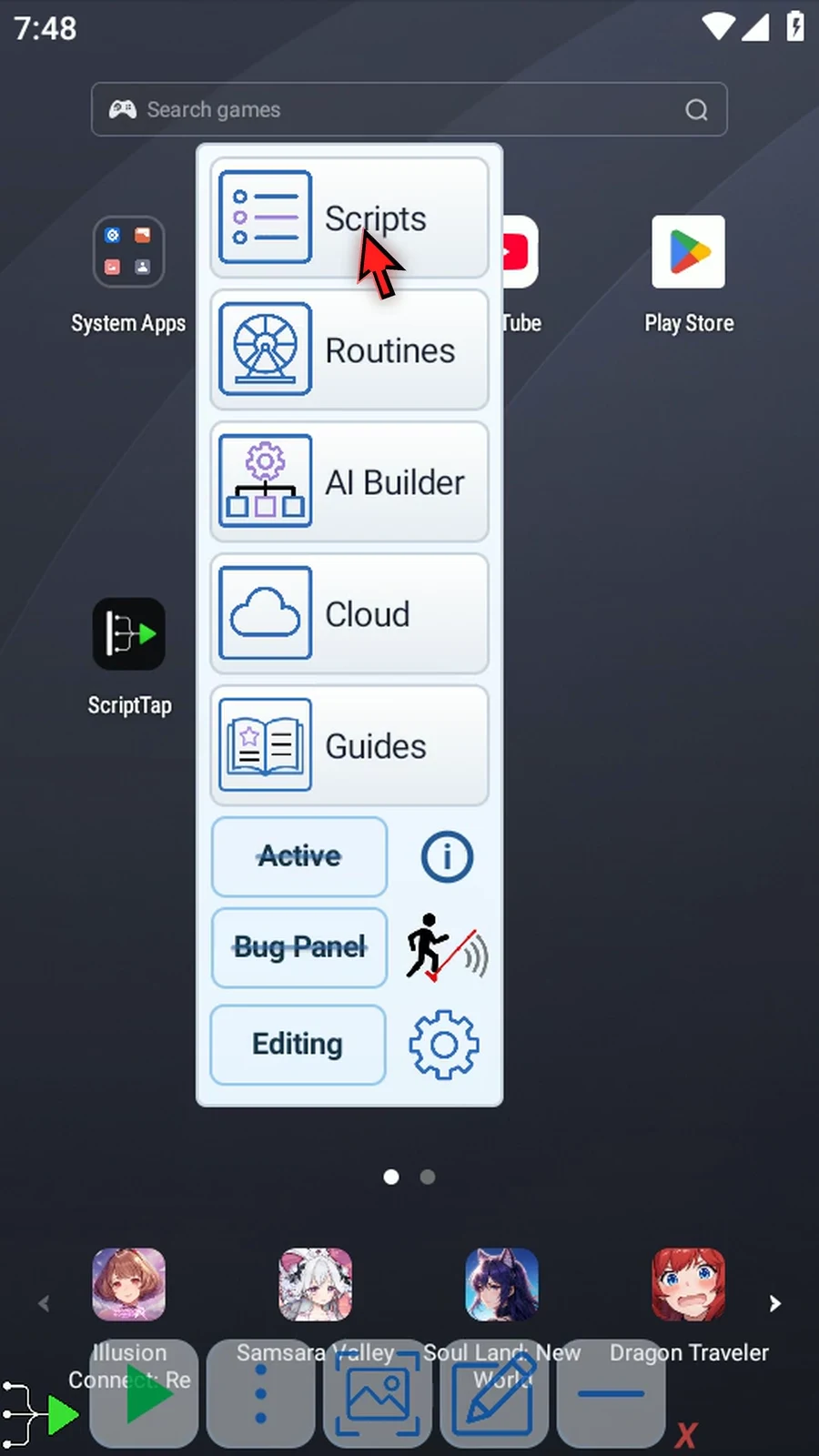
    ReTap step 2: Open the three-dot menu. Choose Scripts.
  3. Step 03

    Tap New Script. Choose Blank Script to create your script.
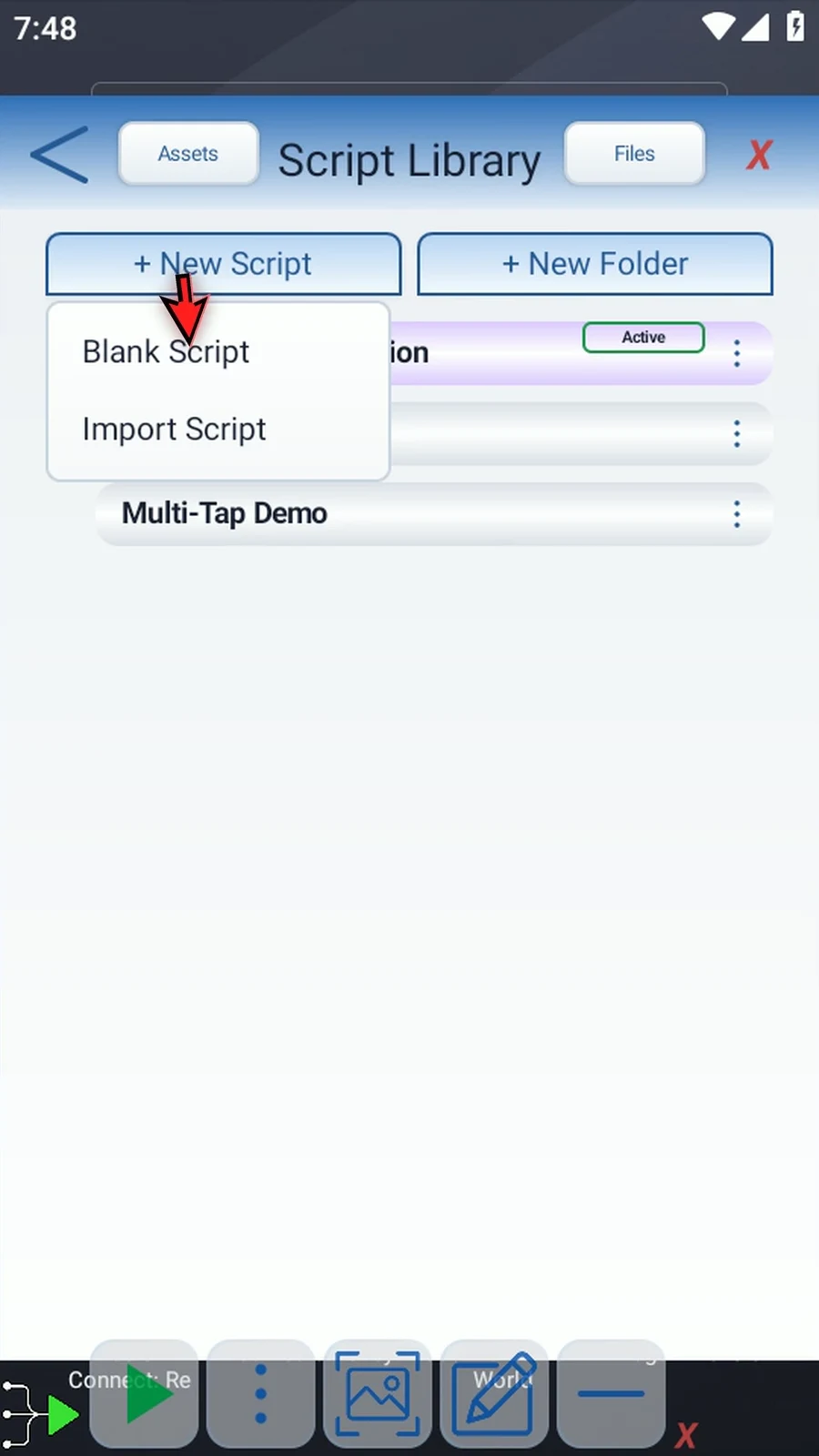
    ReTap step 3: Tap New Script. Choose Blank Script to create your script.
  4. Step 04

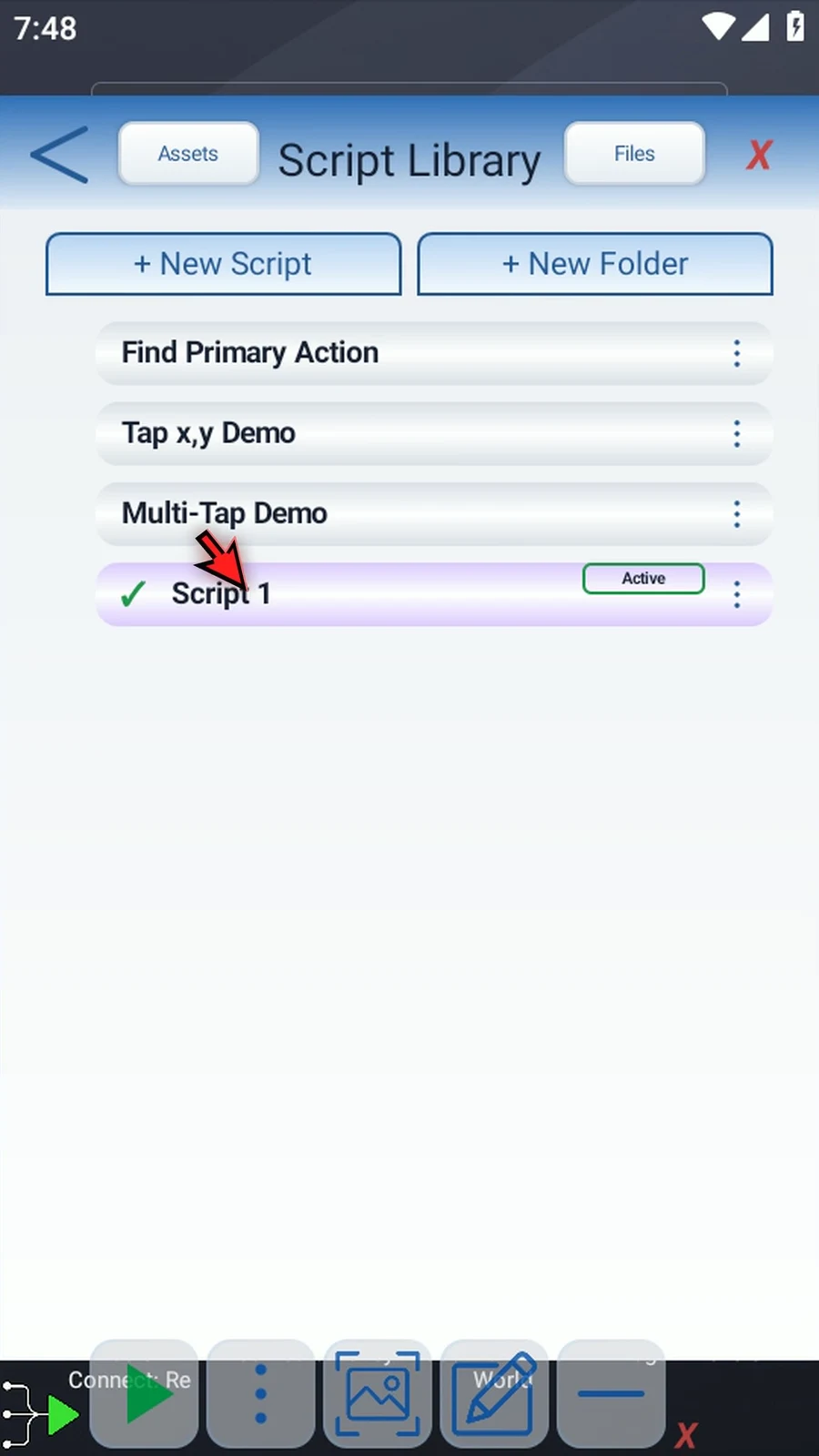
    Select your new script.

    ReTap step 4: Select your new script.
  5. Step 05

    Open its three-dot menu. Choose Rename.
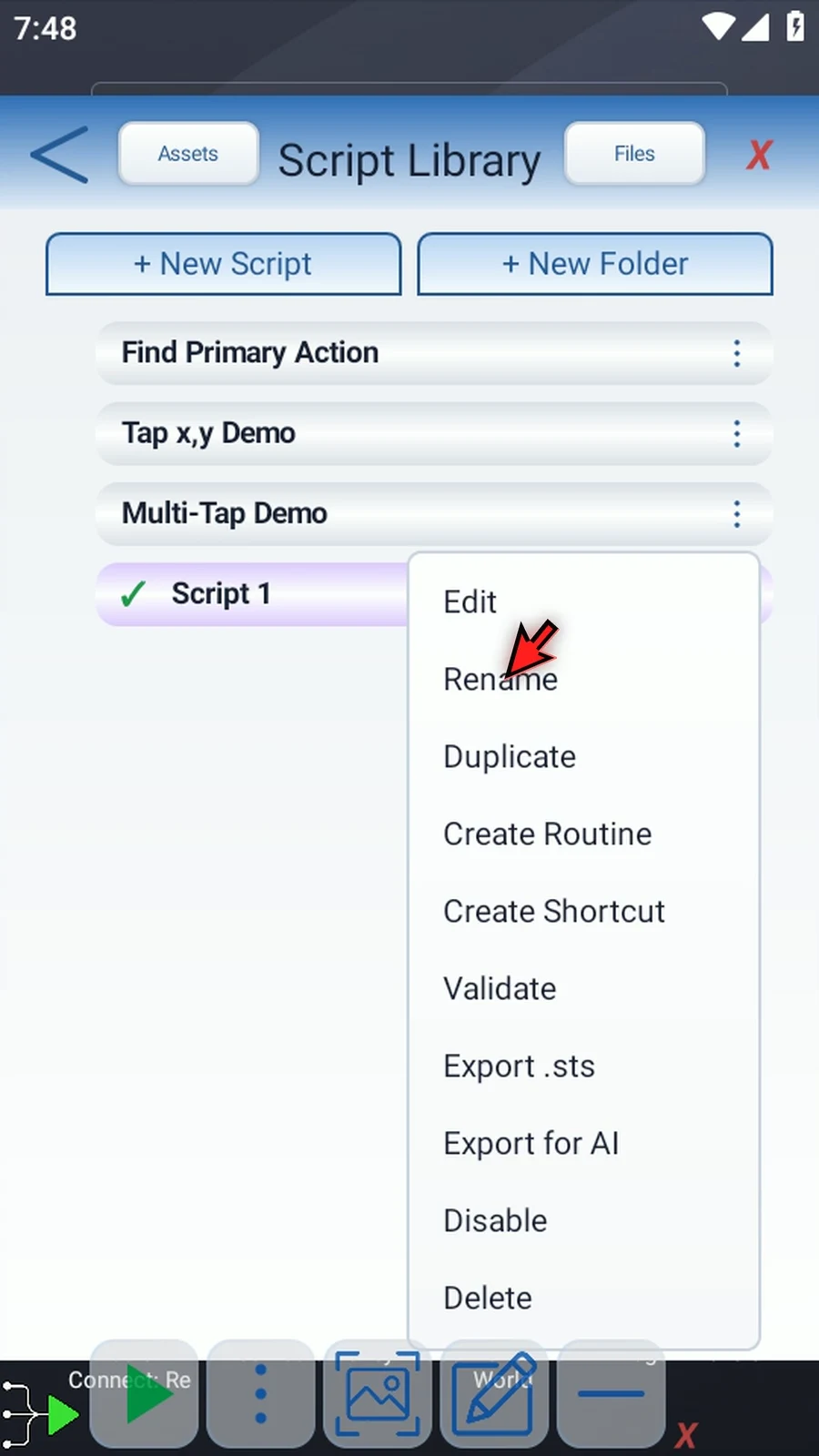
    ReTap step 5: Open its three-dot menu. Choose Rename.
  6. Step 06

    Pick a name for your script and enter it. Then tap OK.
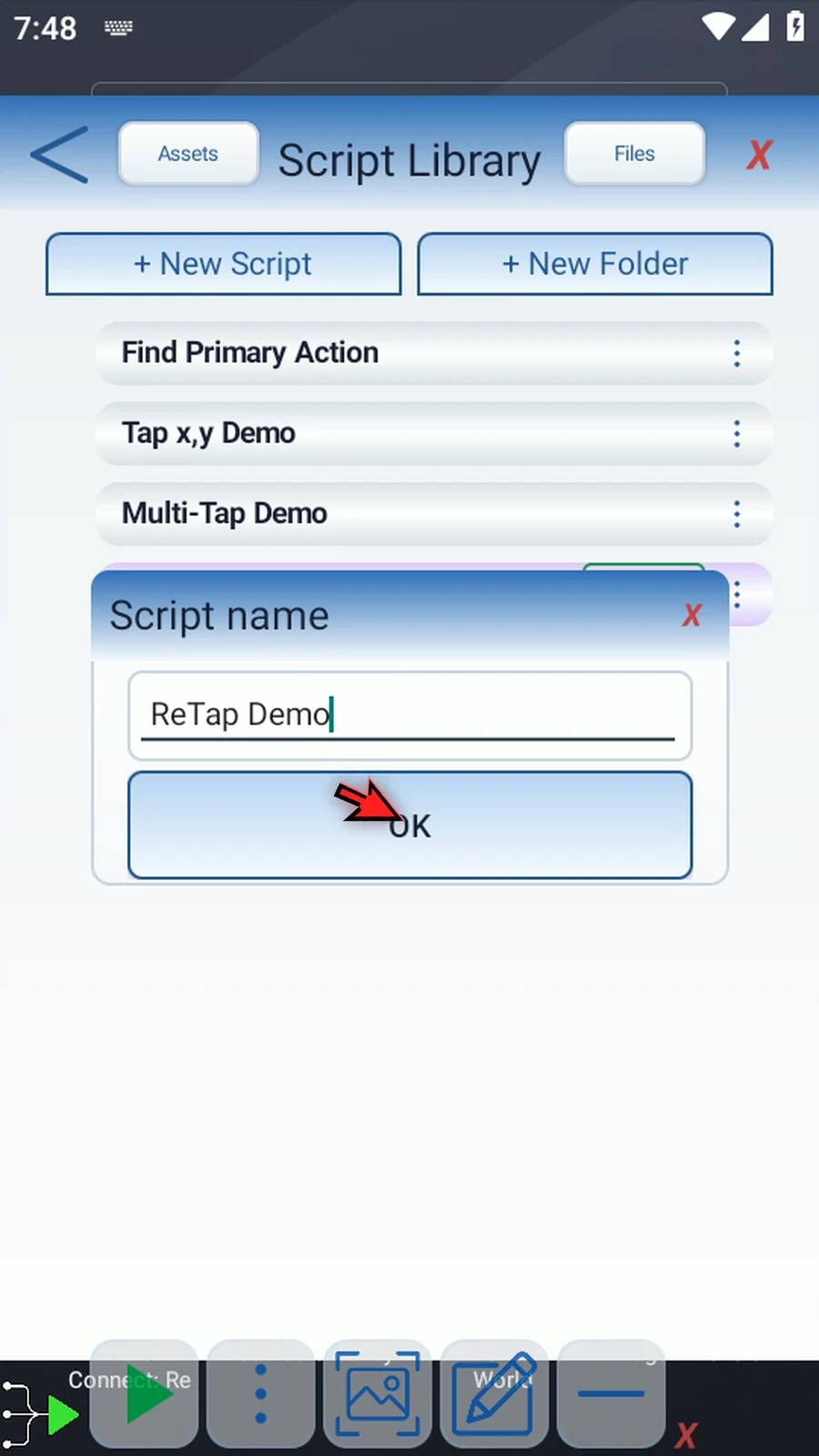
    ReTap step 6: Pick a name for your script and enter it. Then tap OK.
  7. Step 07

    Double-tap the script card to open the editor.
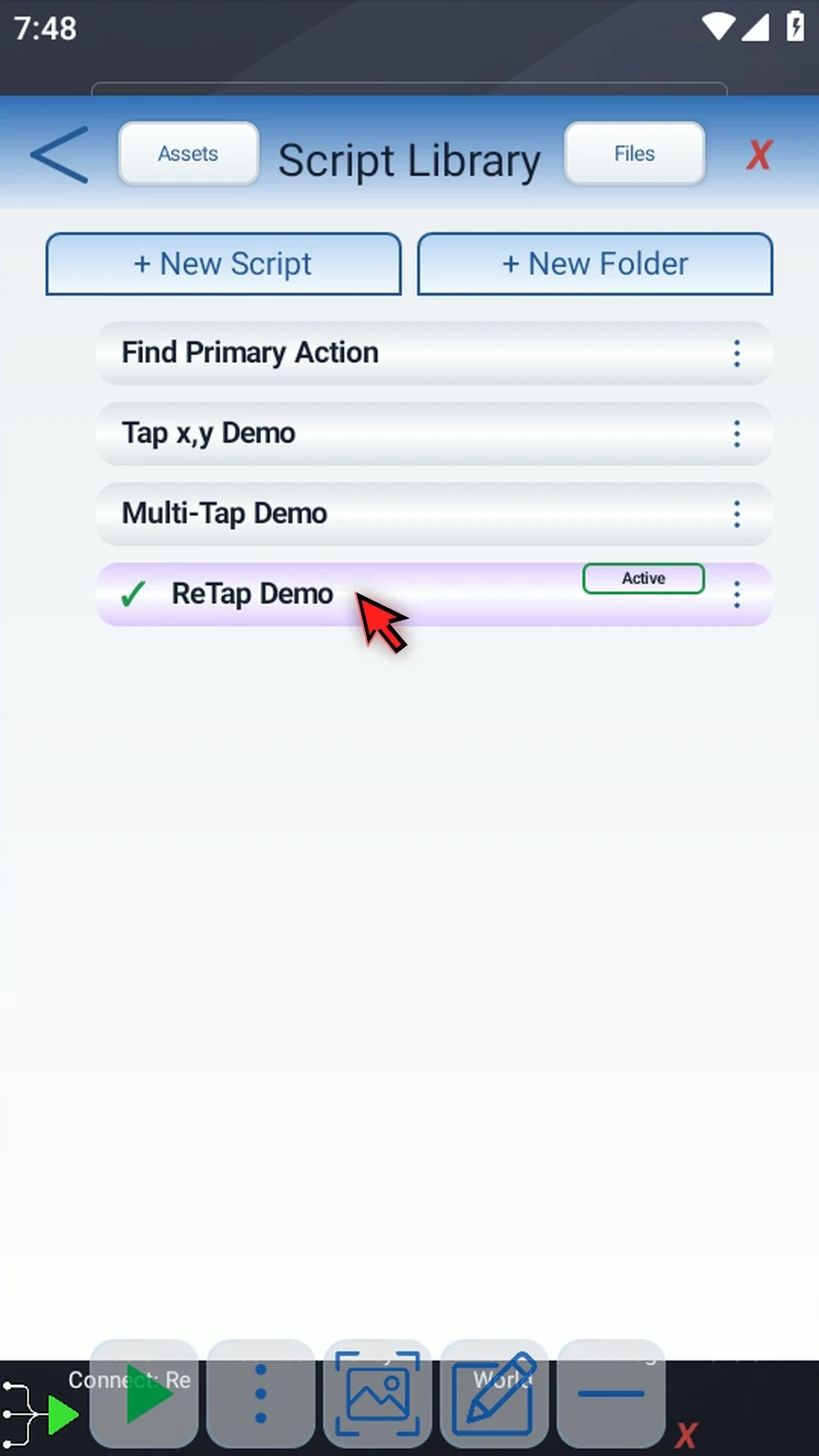
    ReTap step 7: Double-tap the script card to open the editor.
  8. Step 08

    On the left, expand Actions.
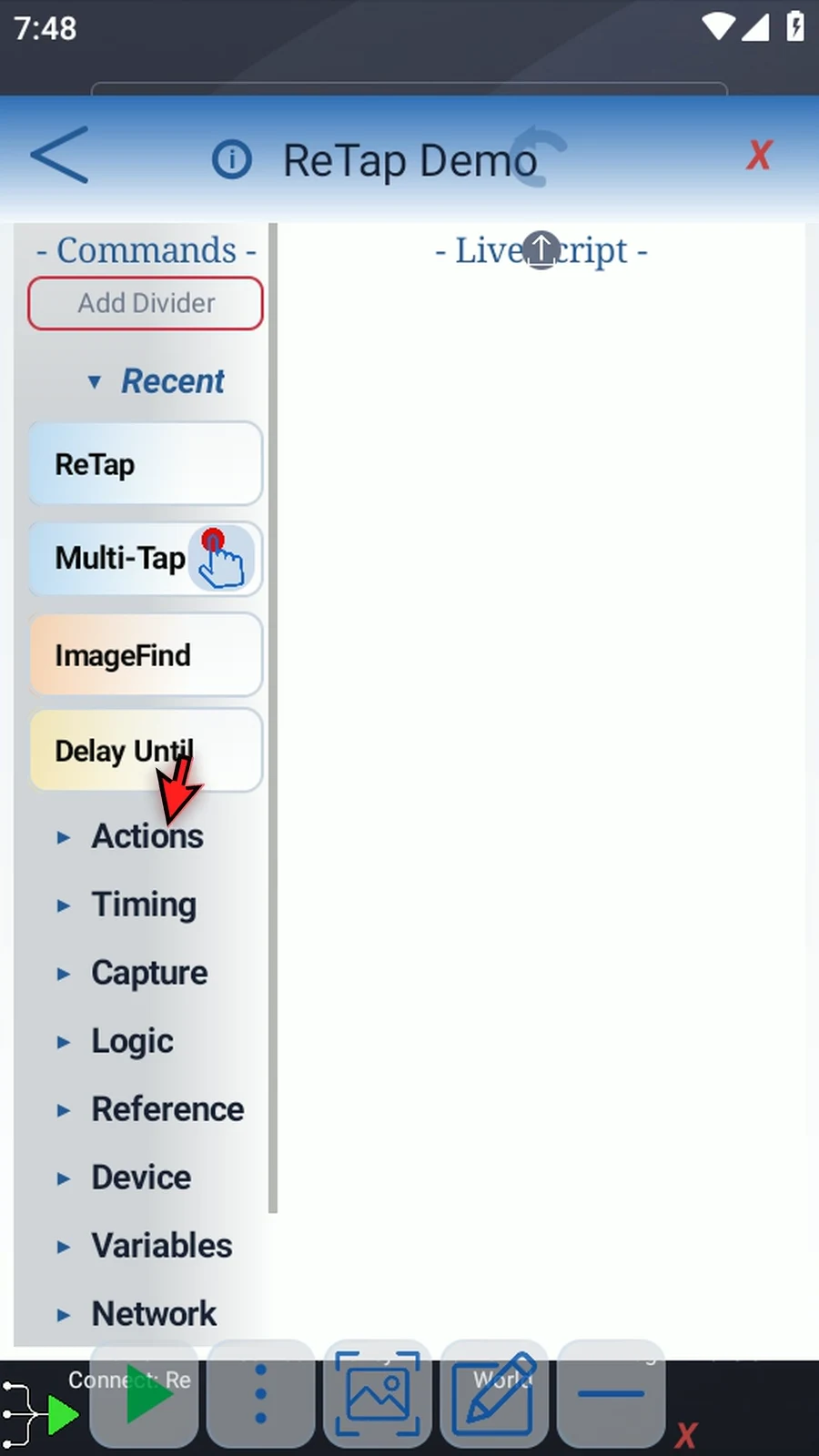
    ReTap step 8: On the left, expand Actions.
  9. Step 09

    Drag ReTap and release on the blue line. Double-tapping appends it to the end instead.
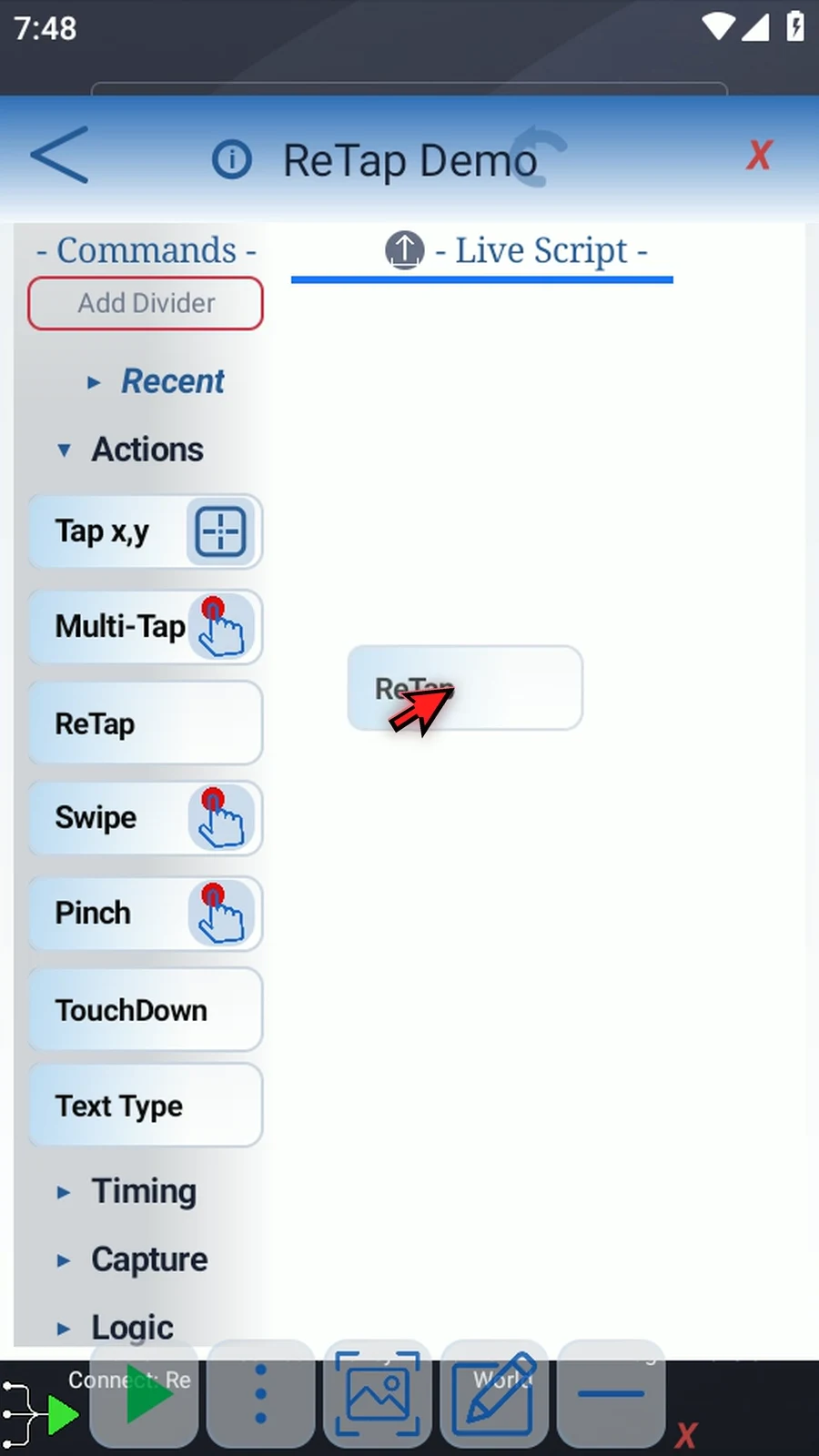
    ReTap step 9: Drag ReTap and release on the blue line. Double-tapping appends it to the end instead.
  10. Step 10

    Double-tap the command frame to open its options.
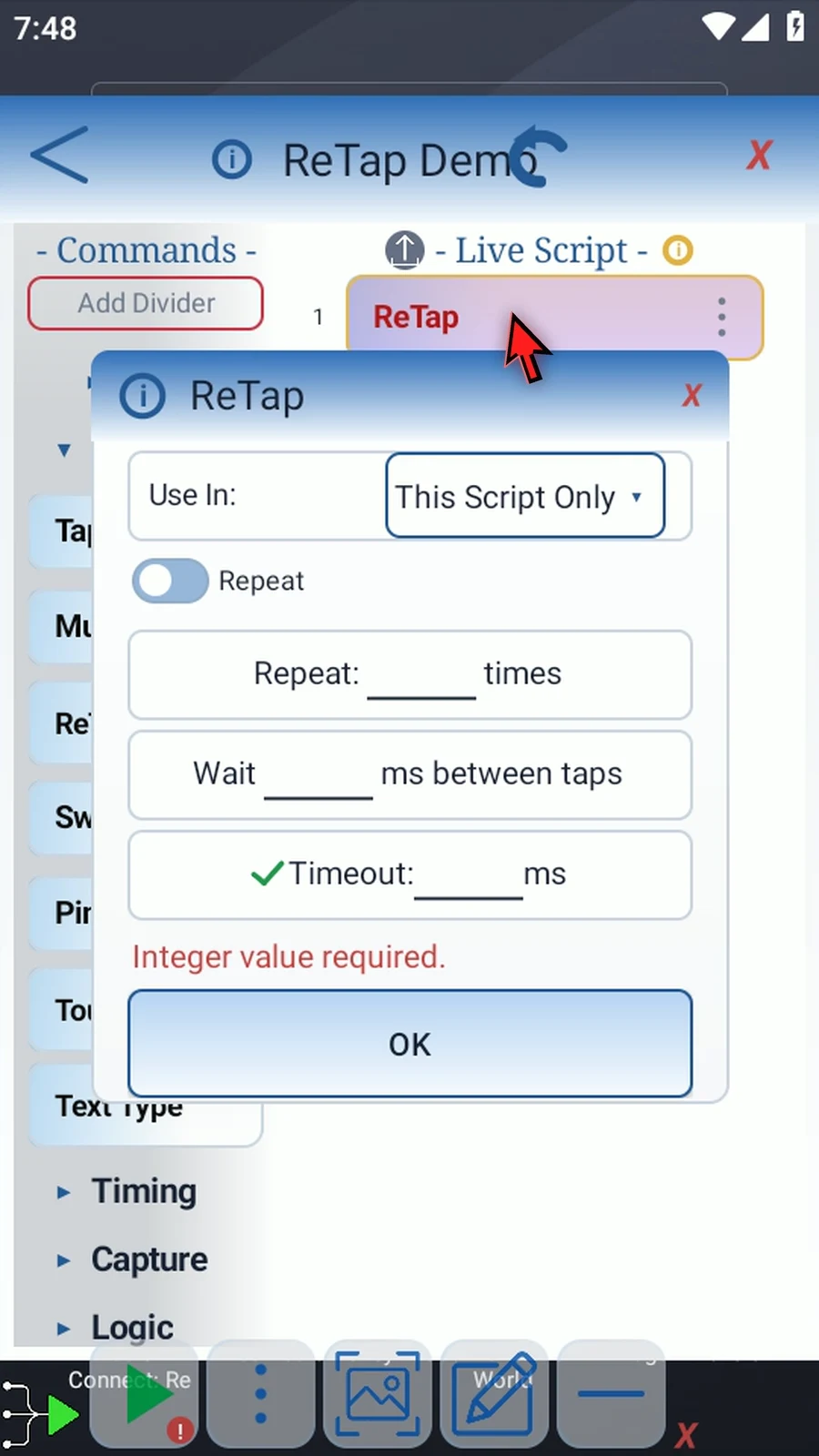
    ReTap step 10: Double-tap the command frame to open its options.
  11. Step 11

    Use In controls where coordinate output variables are available: This Script Only, or the wider Script Thread. We will keep This Script Only.
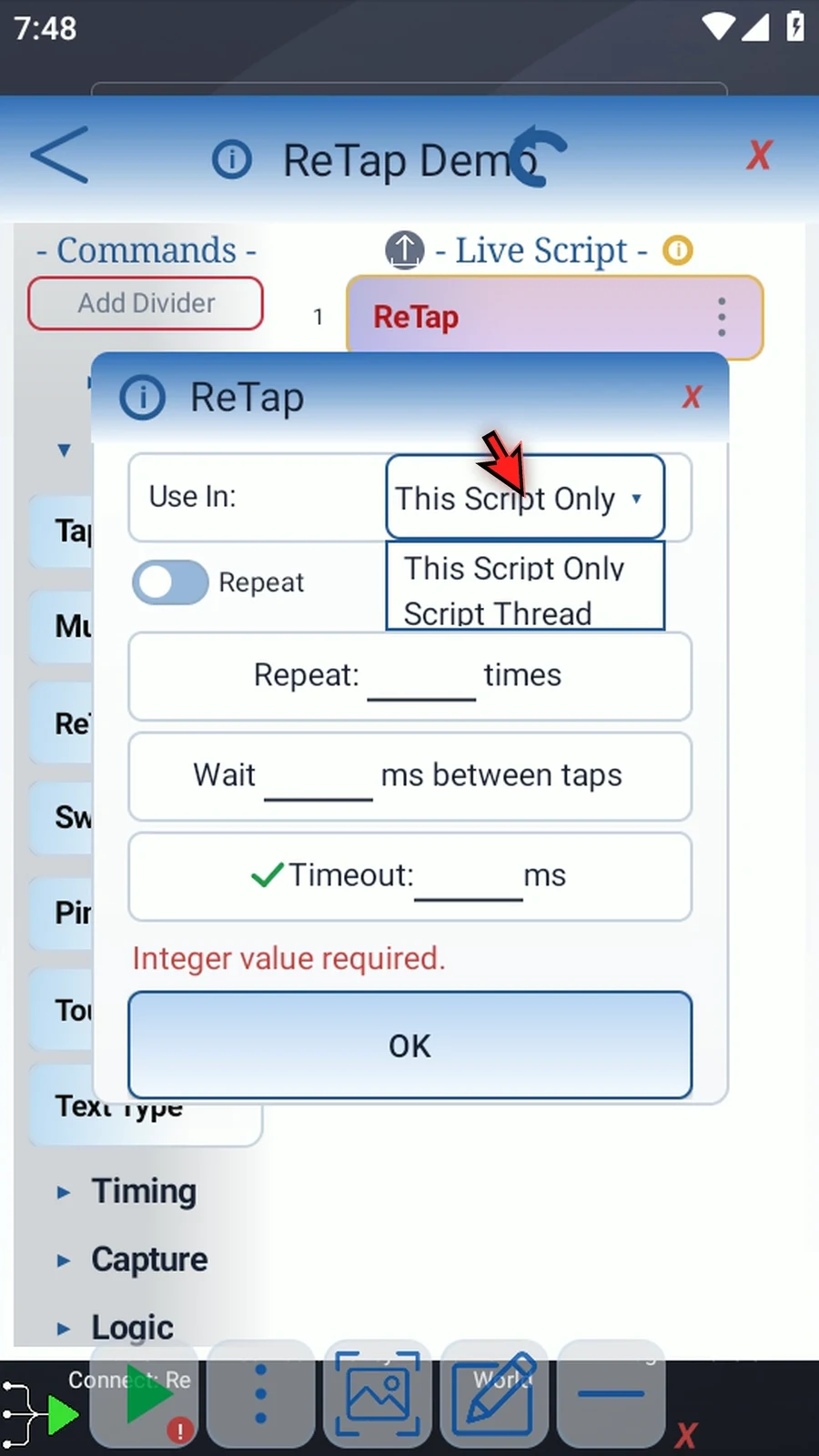
    ReTap step 11: Use In controls where coordinate output variables are available: This Script Only, or the wider Script Thread. We will keep This Script Only.
  12. Step 12

    Switch to Set Coordinates to capture your chosen location into two Integer variables, without sending repeated taps.
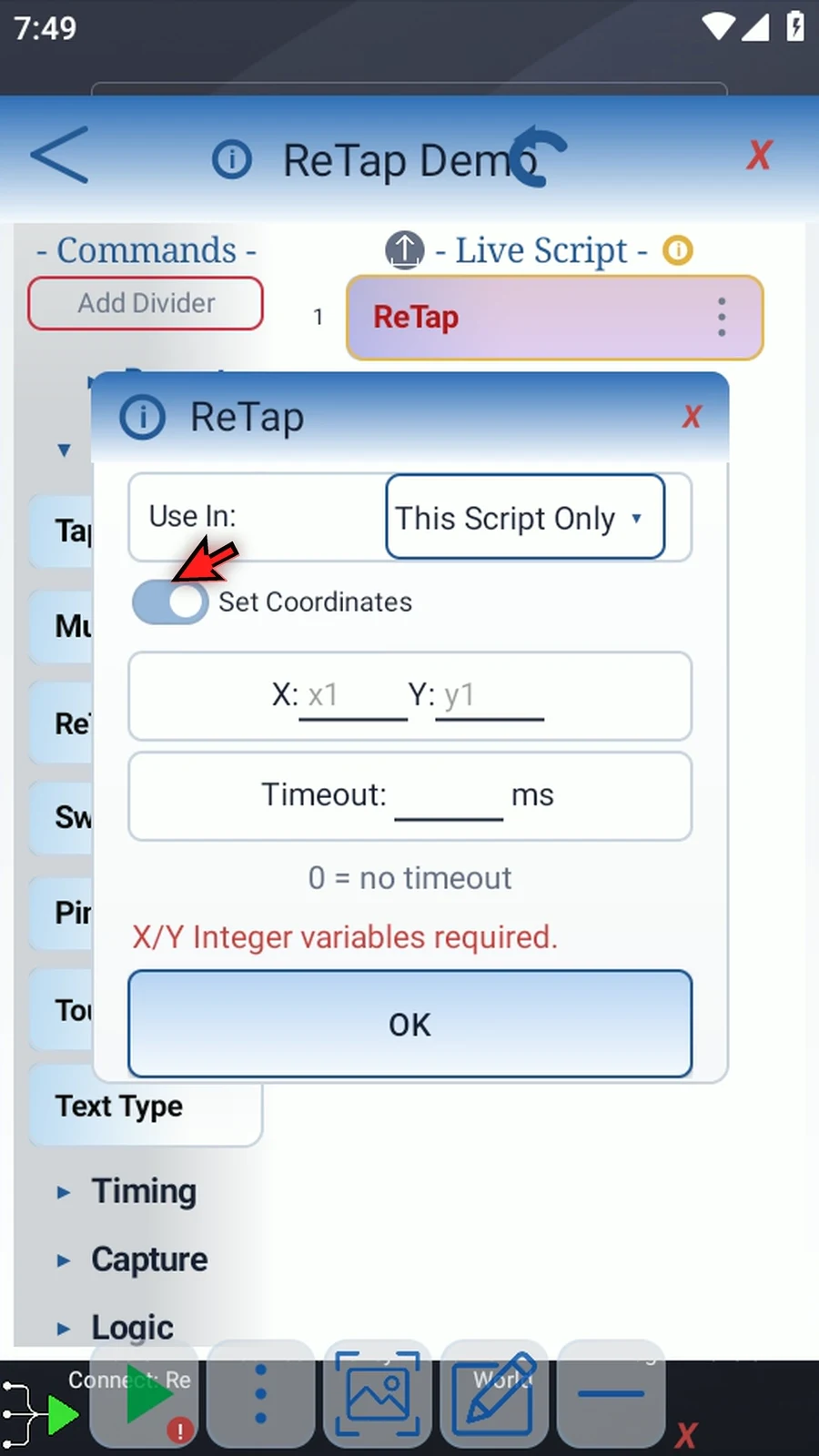
    ReTap step 12: Switch to Set Coordinates to capture your chosen location into two Integer variables, without sending repeated taps.
  13. Step 13

    Enter names for the X and Y output variables. ReTap writes the captured coordinates to those names in your selected scope.
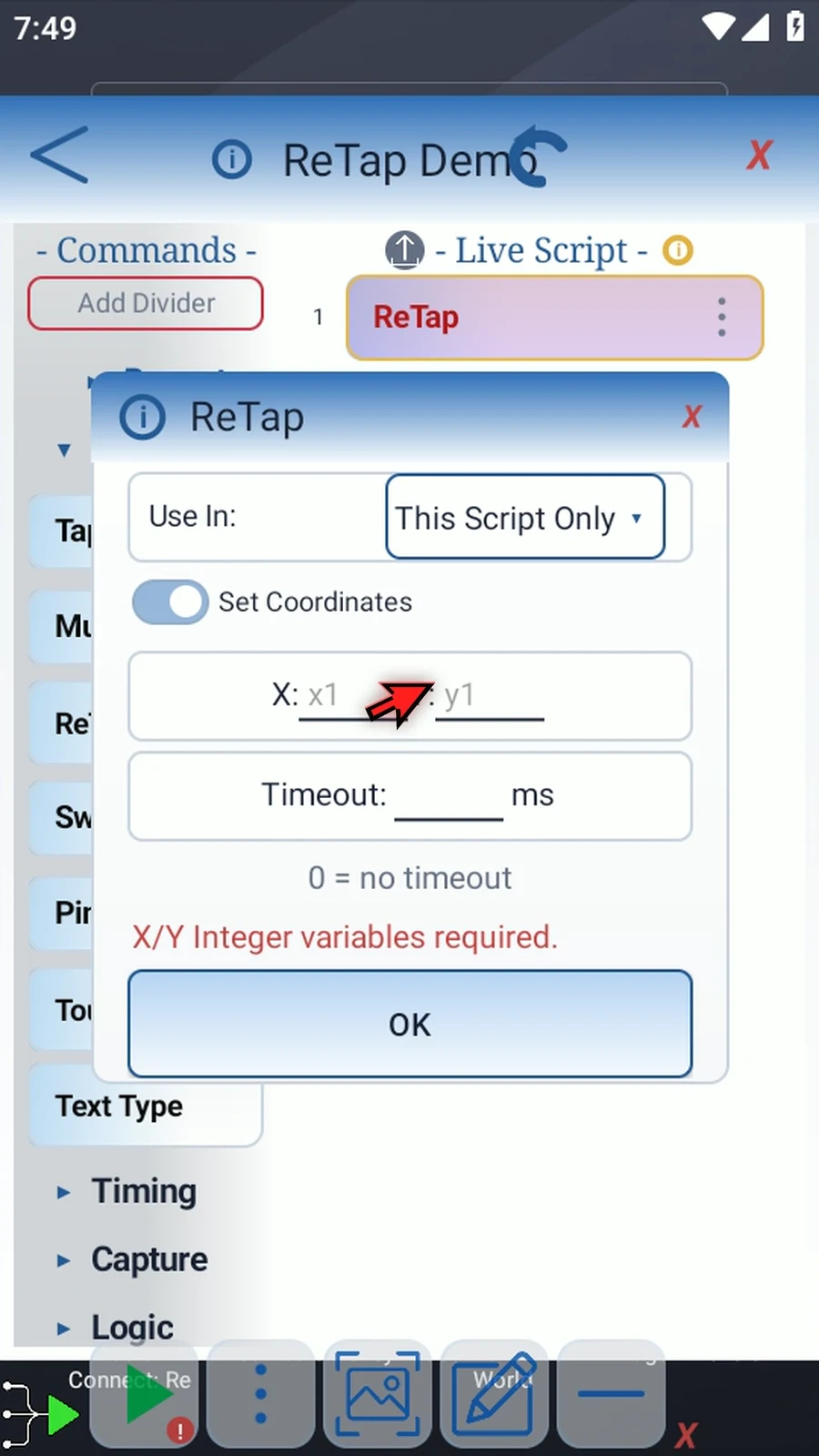
    ReTap step 13: Enter names for the X and Y output variables. ReTap writes the captured coordinates to those names in your selected scope.
  14. Step 14

    In Set Coordinates mode, Timeout limits how long ReTap waits for your input. Enter zero for no timeout.
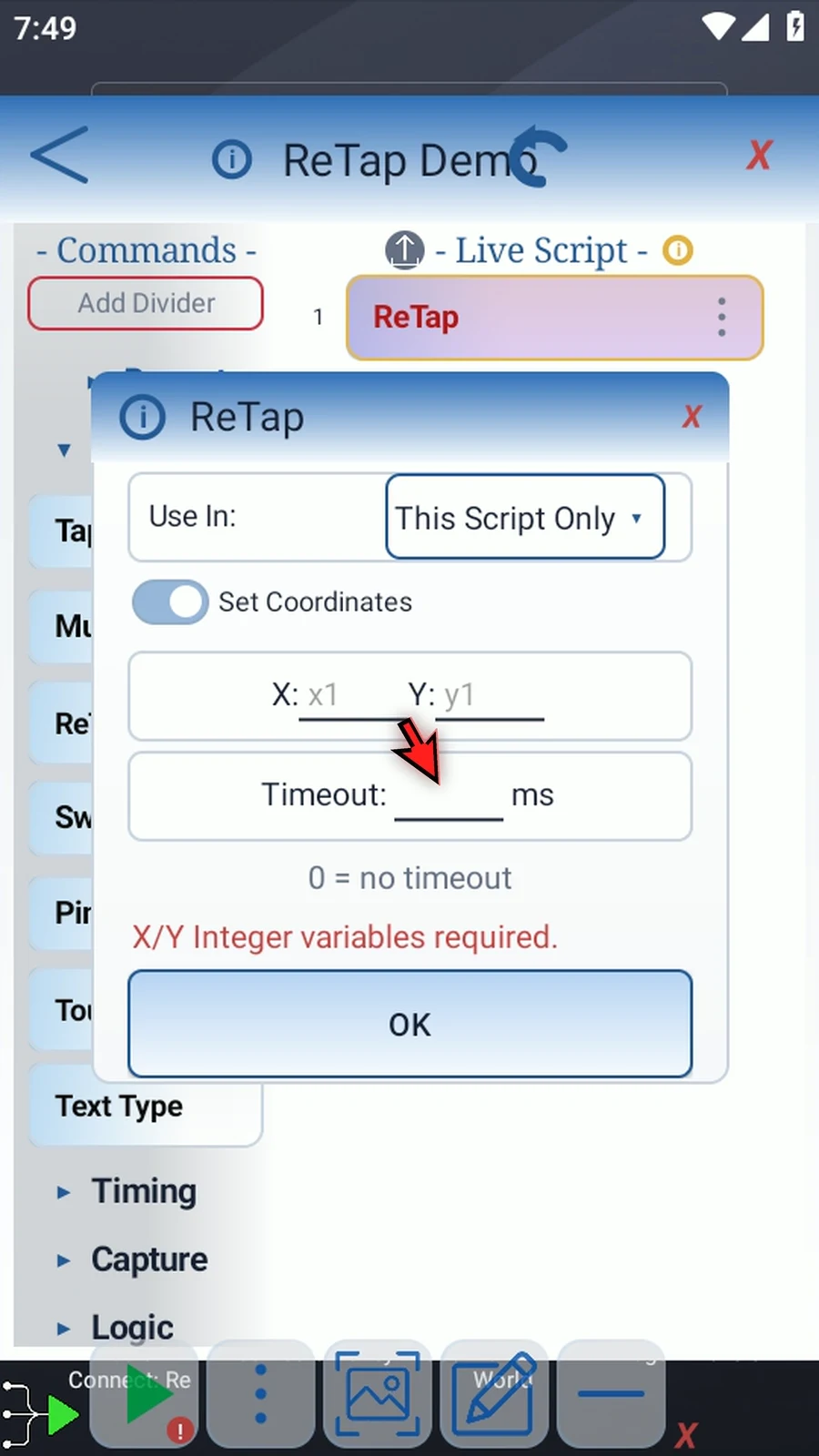
    ReTap step 14: In Set Coordinates mode, Timeout limits how long ReTap waits for your input. Enter zero for no timeout.
  15. Step 15

    Switch back to Repeat to replay the location you choose during playback.
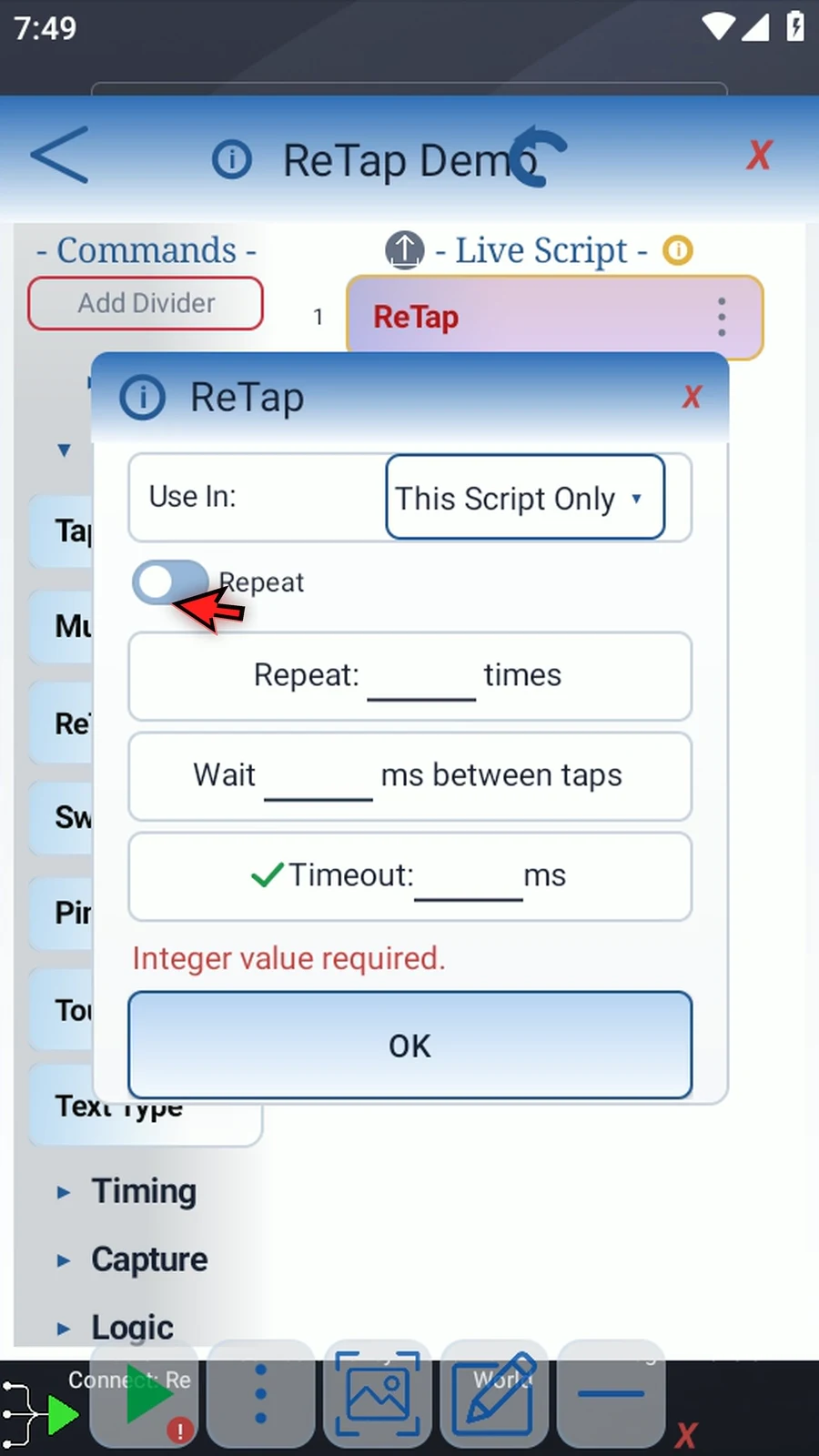
    ReTap step 15: Switch back to Repeat to replay the location you choose during playback.
  16. Step 16

    Enter how many times to tap. Here, we enter fifty.
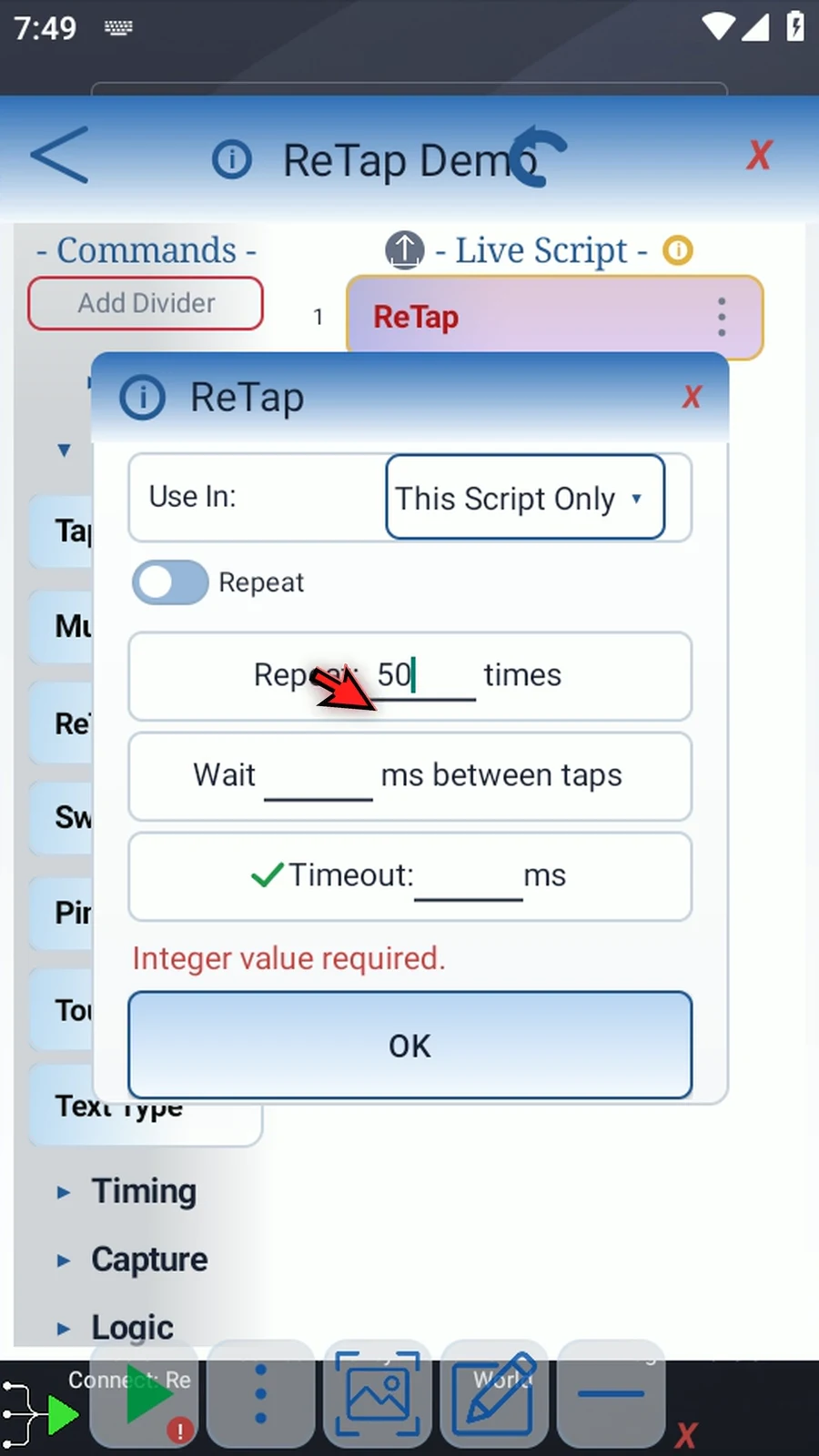
    ReTap step 16: Enter how many times to tap. Here, we enter fifty.
  17. Step 17

    Wait sets the pause between taps in milliseconds. Here, we enter fifty milliseconds.
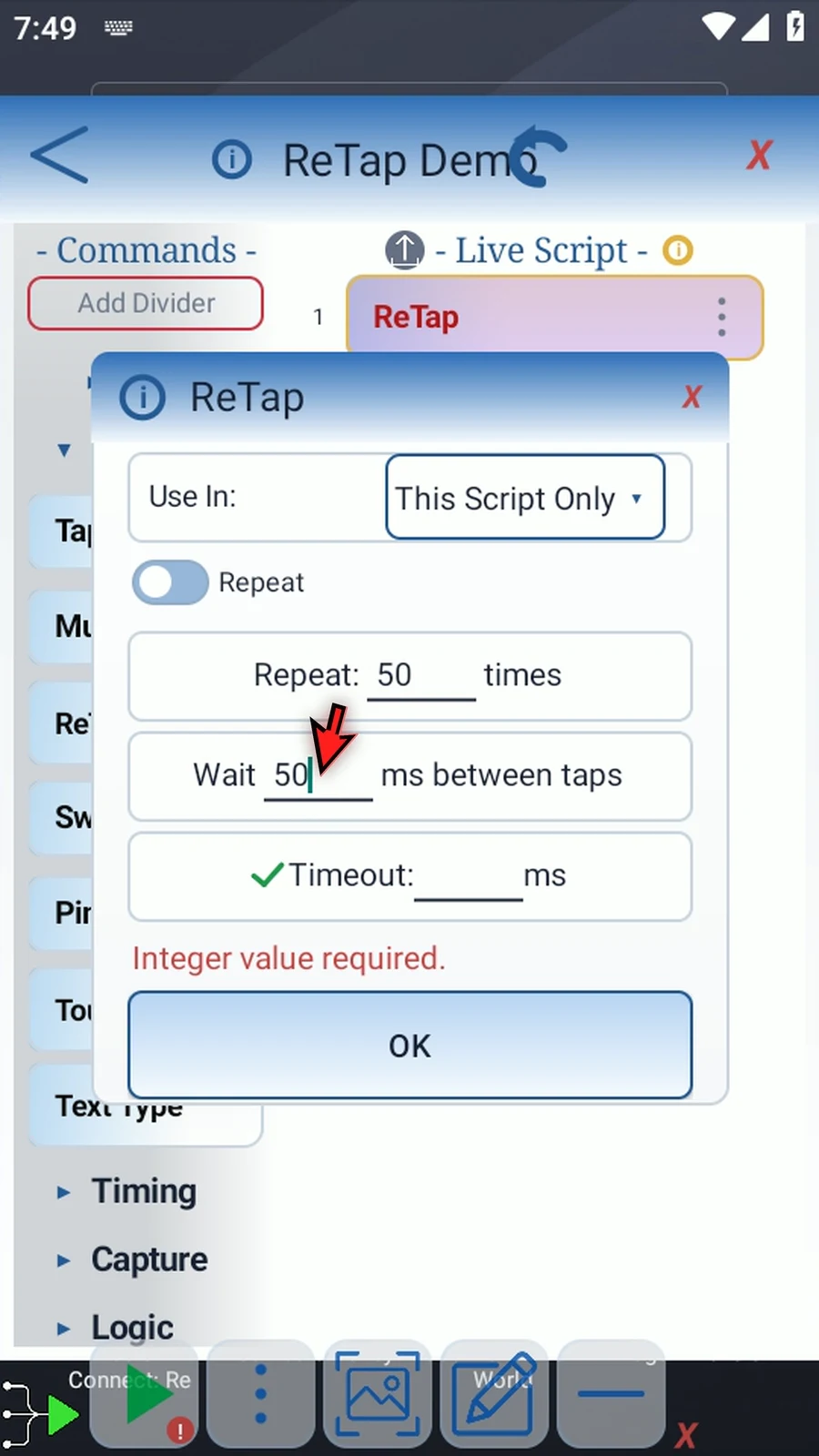
    ReTap step 17: Wait sets the pause between taps in milliseconds. Here, we enter fifty milliseconds.
  18. Step 18

    Zero is also a valid wait value, but Android is likely to drop some taps at that speed during script playback. Use a small wait for more reliable results.
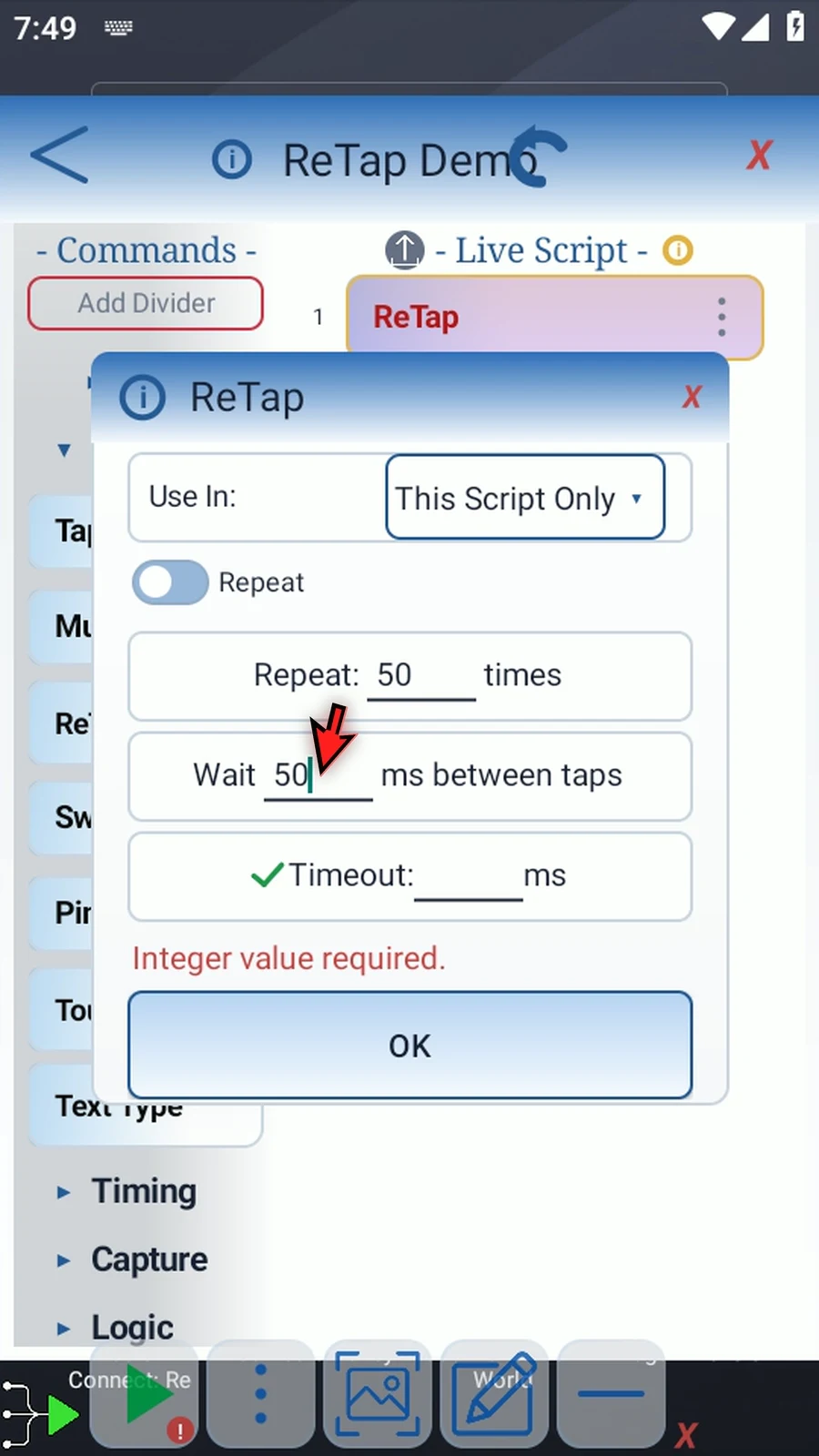
    ReTap step 18: Zero is also a valid wait value, but Android is likely to drop some taps at that speed during script playback. Use a small wait for more reliable results.
  19. Step 19

    The optional Timeout limits waiting for your chosen location, not the repeated tapping. Here, three thousand milliseconds allows three seconds. Uncheck Timeout to wait without a limit.
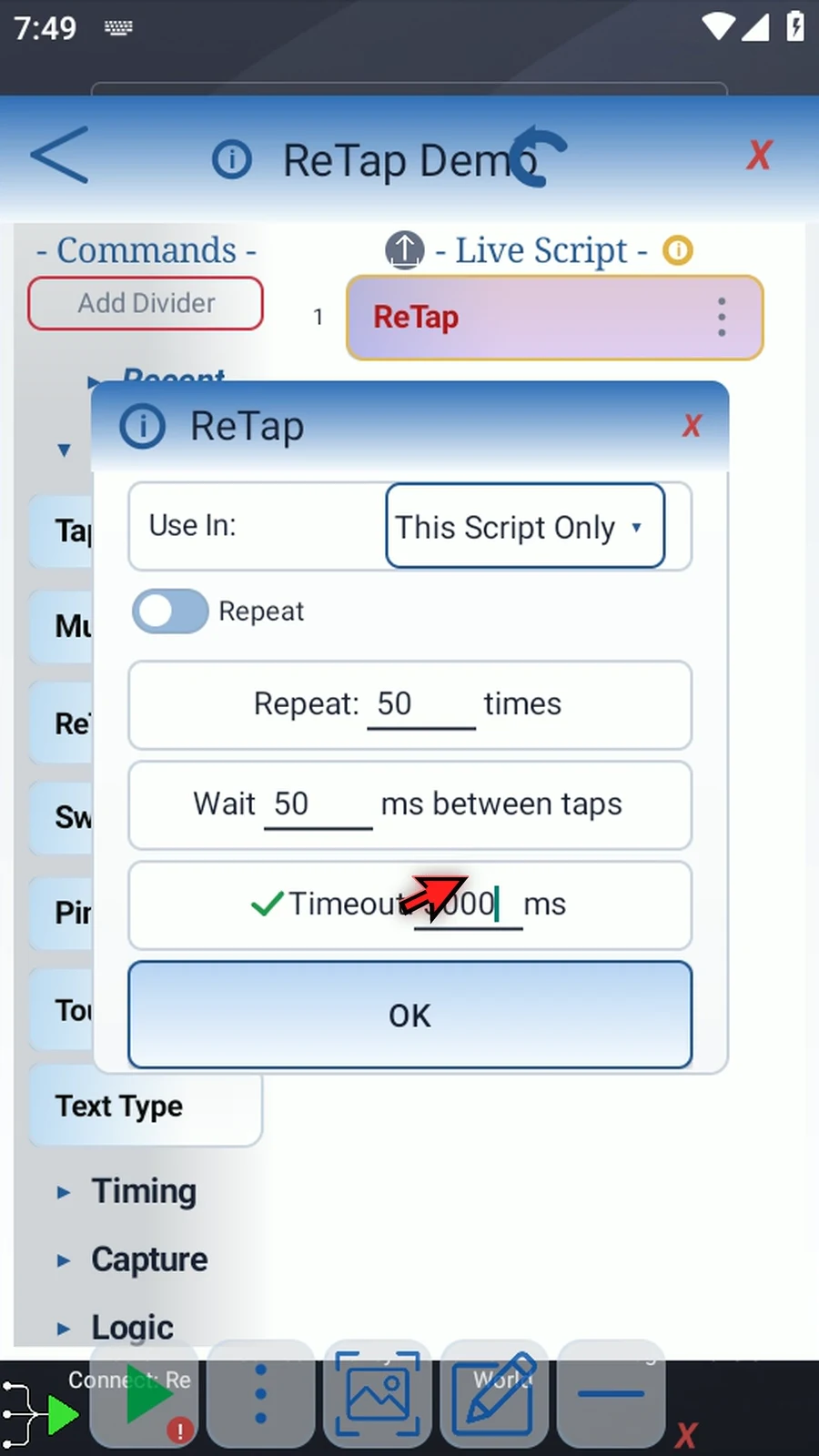
    ReTap step 19: The optional Timeout limits waiting for your chosen location, not the repeated tapping. Here, three thousand milliseconds allows three seconds. Uncheck Timeout to wait without a limit.
  20. Step 20

    The repeat count, wait, and timeout fields also accept Integer variables defined earlier in the script.
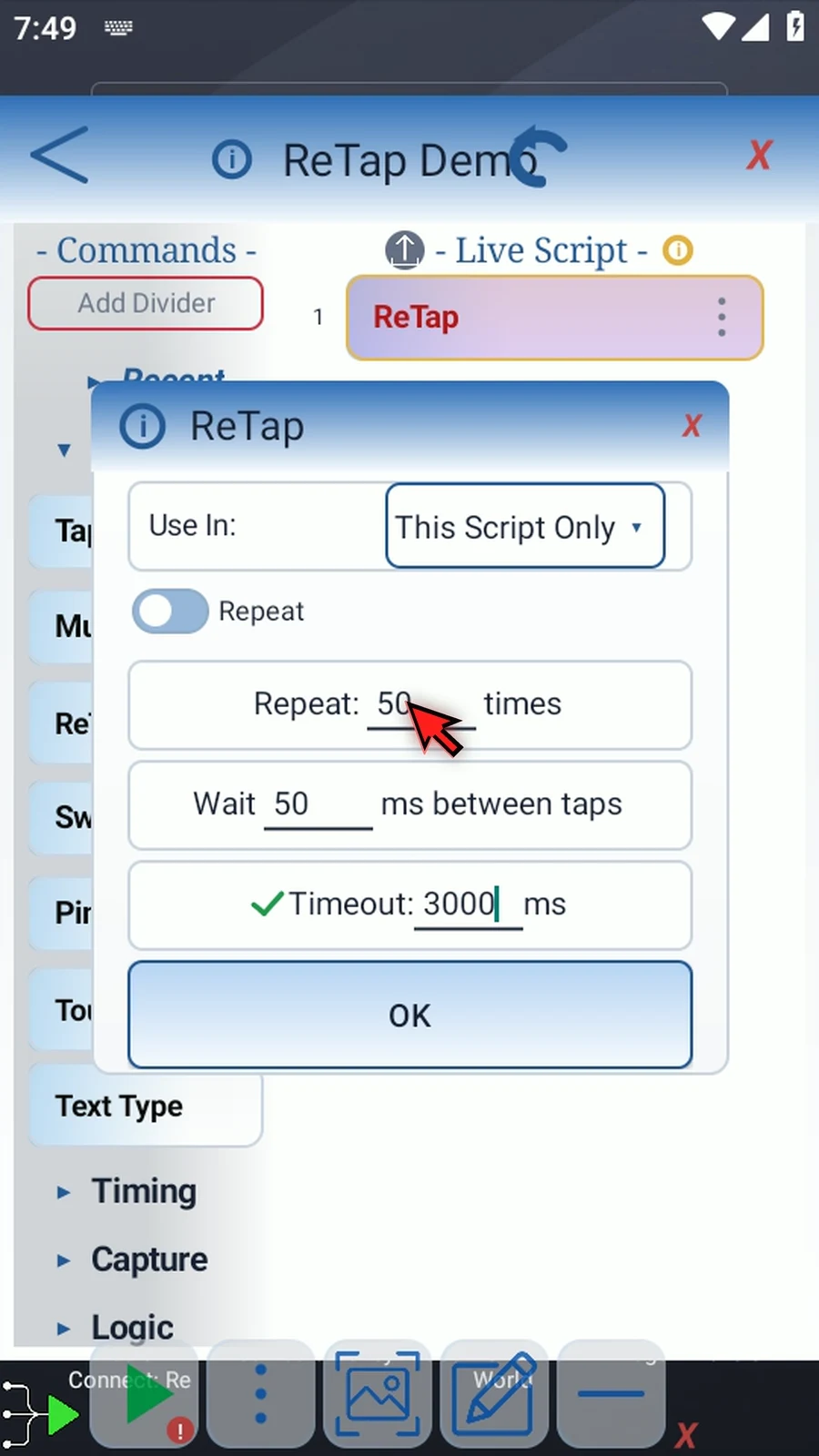
    ReTap step 20: The repeat count, wait, and timeout fields also accept Integer variables defined earlier in the script.
  21. Step 21

    Tap OK to save your settings.
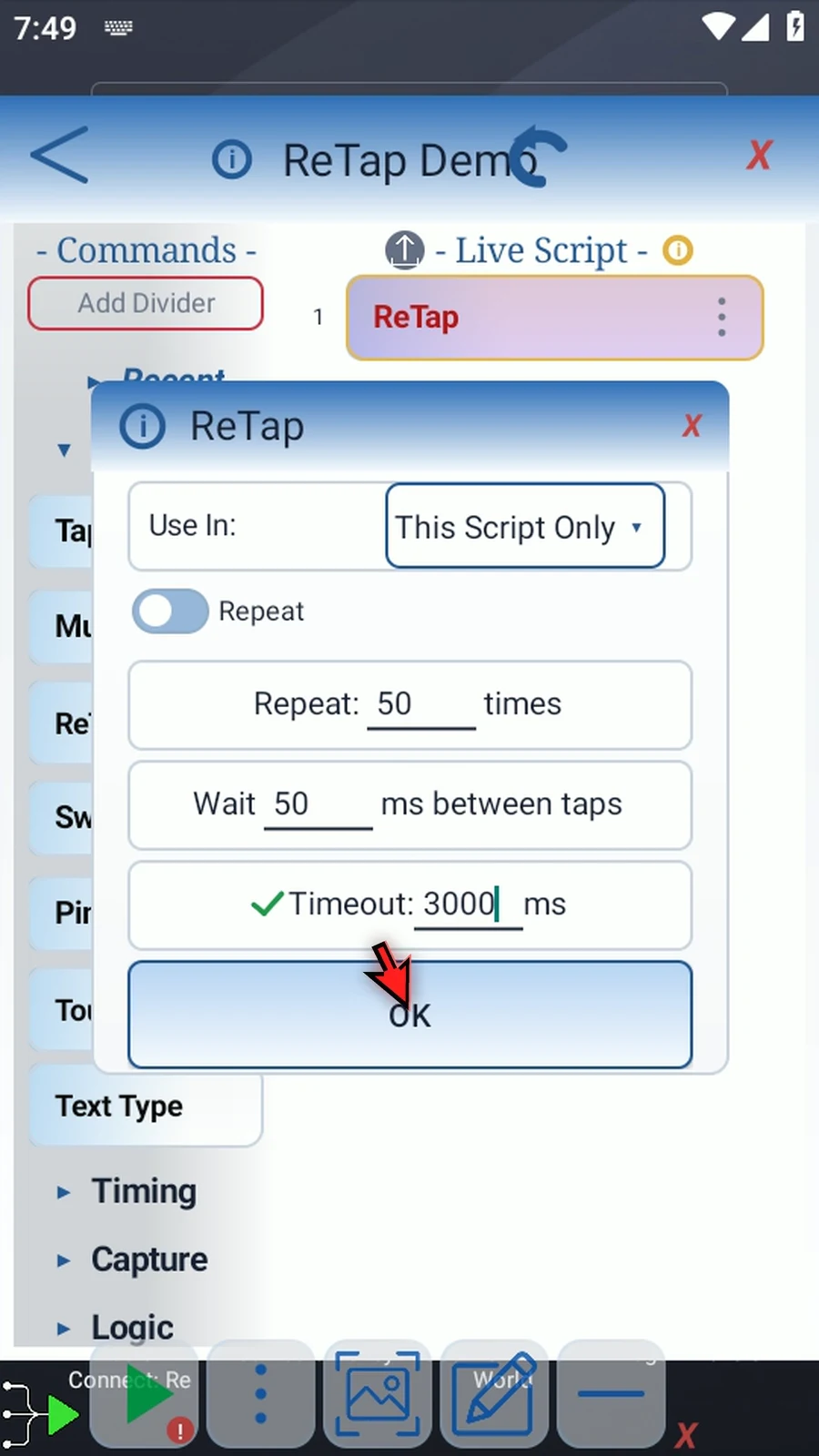
    ReTap step 21: Tap OK to save your settings.
  22. Step 22

    When ReTap waits for input, tap the screen location you want it to repeat. If the input timeout expires first, the script continues without those taps.
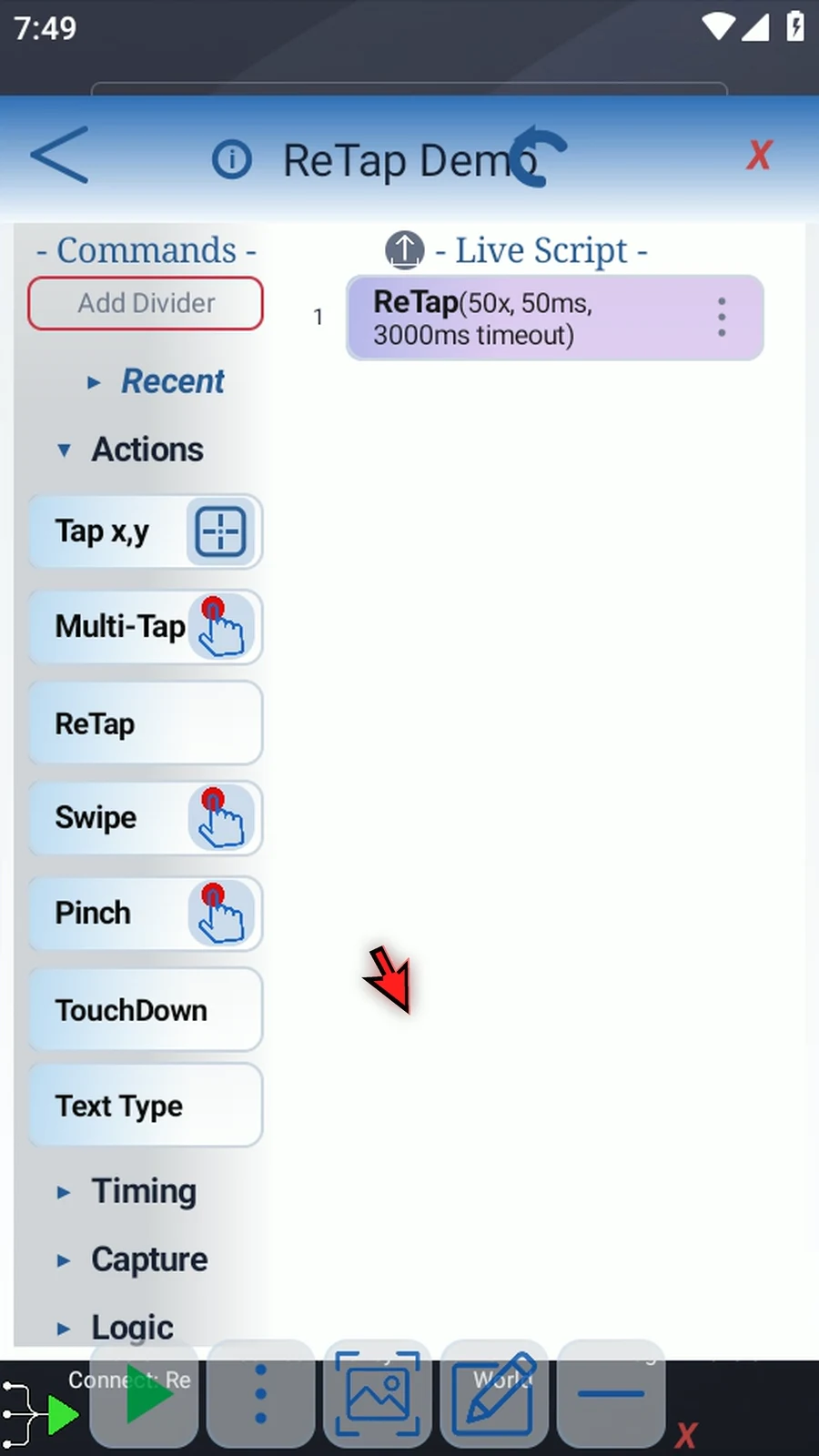
    ReTap step 22: When ReTap waits for input, tap the screen location you want it to repeat. If the input timeout expires first, the script continues without those taps.
  23. Step 23

    When the script is complete, simply use the Play button in the main overlay.
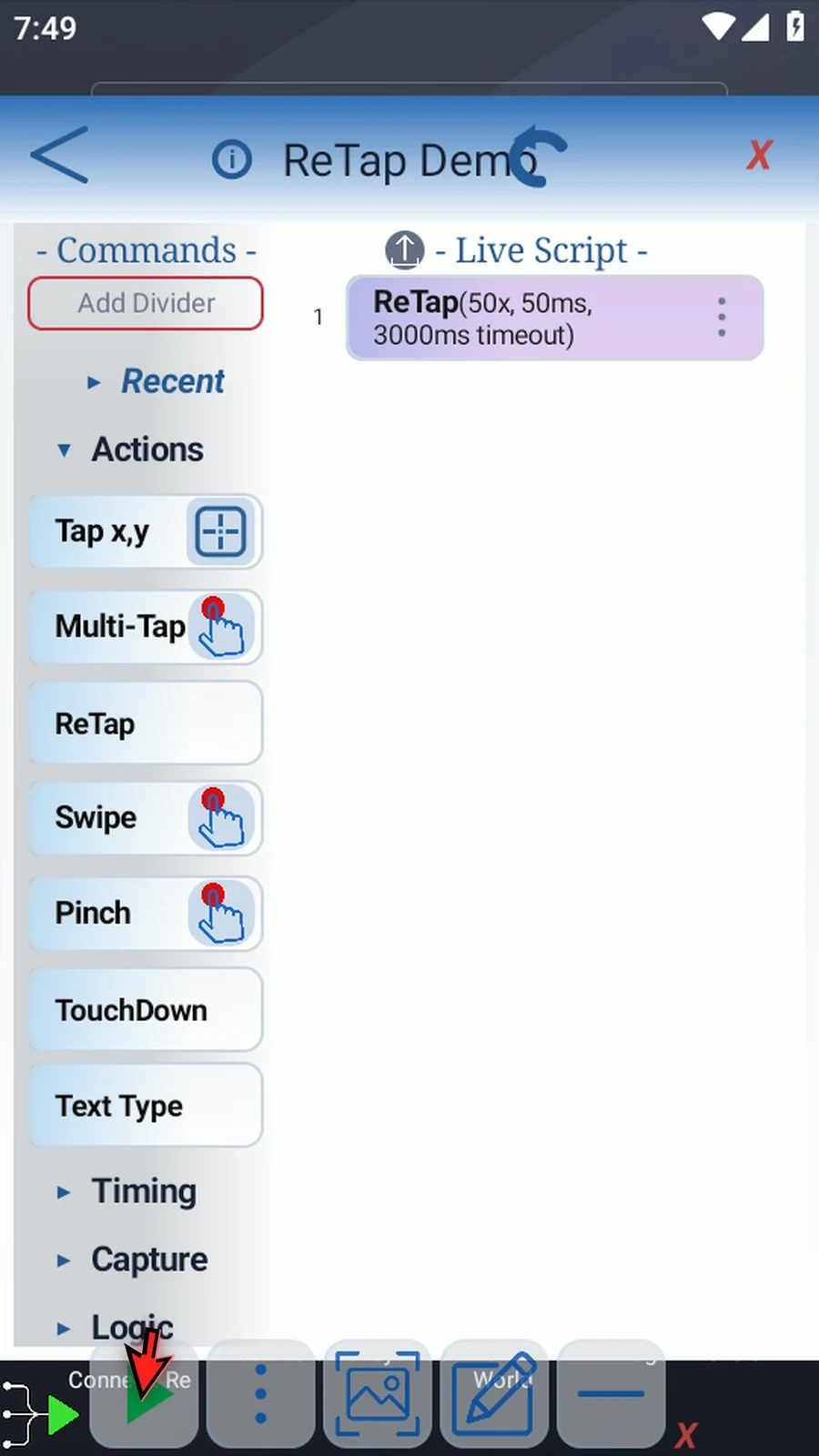
    ReTap step 23: When the script is complete, simply use the Play button in the main overlay.
  24. Step 24

    Tap your chosen location. ReTap repeats it using your count and wait settings. This script then stops automatically.
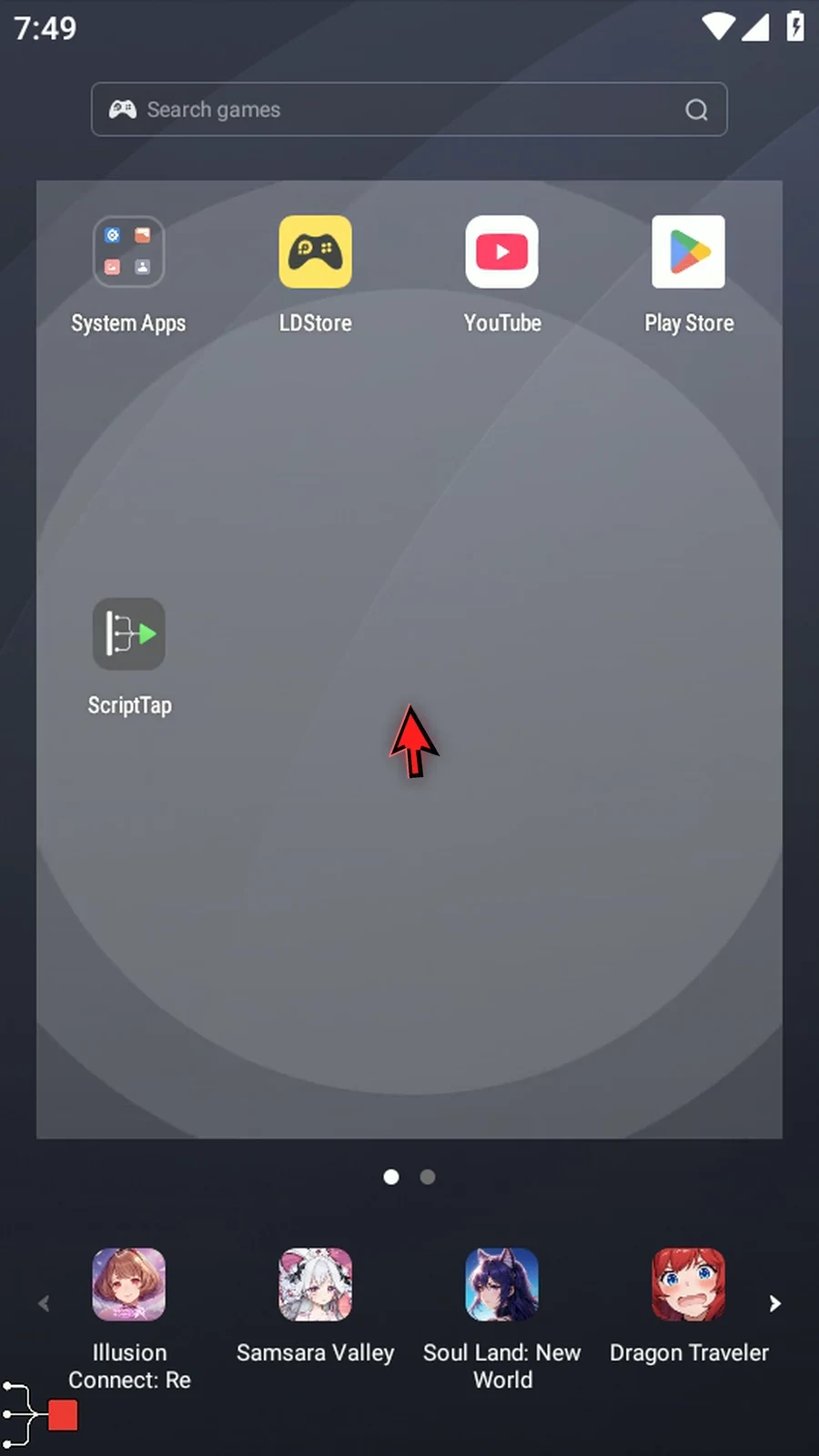
    ReTap step 24: Tap your chosen location. ReTap repeats it using your count and wait settings. This script then stops automatically.