Command video guide
ArraySegmentScan
ArraySegmentScan inspects an existing typed array without reading the screen or changing that array. Match its letter, Value Type and scope to the SetVariable declaration. This Script Only is local; Script Thread uses the calling thread scope. Integer, Decimal, Boolean, Hex, String and Time are supported. Hex matching is exact; use ColorClassify for confidence-based color matching.
Start is a one-based original position; Length is a number of positions, not the final index. Both accept Integer literals or prior Integer variables. The range must fit the declared capacity, up to 4096. Forward starts at Start; Reverse starts at the other end of that range. Reported indexes remain original array positions. A zero Length scans nothing and produces no-match outputs.
Where shown, Empty Value defines the typed empty sentinel; unwritten slots are also empty. Active Mask reads a prior Boolean array: only true positions are eligible, and false positions break runs. Found writes a Boolean; Index and Count write Integers. Enable only the outputs needed by later commands. A true mode change clears the old mode-specific settings and destinations, so check them again.
The Intro builds a fresh five-command script with genuine palette drags: declare local Integer array a with capacity eight; ArraySet Bulk writes 0,5,5,0,9,9,9,0; ArraySegmentScan uses First Non-Empty; Display reads i1 for five seconds; PromptMe shows Scanned/Done using its separate Boolean b2.
First Non-Empty returns the first occupied position. With Empty Value 0, the first useful value is 5 at position 2. Found b1 is true, Index i1=2, Value i2=5, and Count i3=1. Display shows 2, not the stored value 5. Follow-up tabs reuse this script.
Watch the walkthrough
Step-by-step guide
Step 01 Array Segment Scan inspects values already stored in an array. It can find a position, count matching values, or describe a continuous run. It does not read the screen or change the source array. We will build one small script and display a real result.
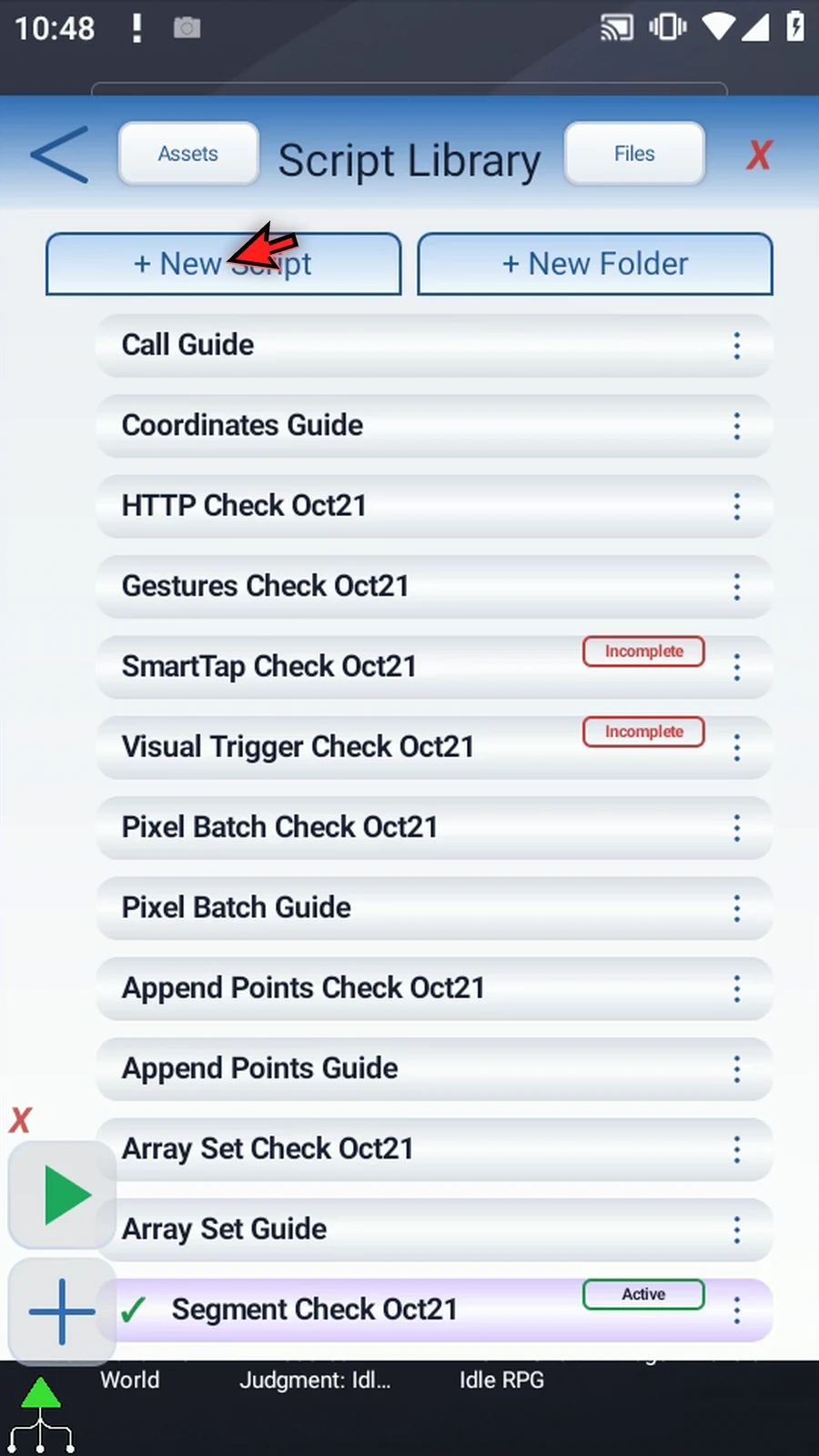
Step 02 Choose New Script, then Blank Script. Open the new script's menu and choose Rename.
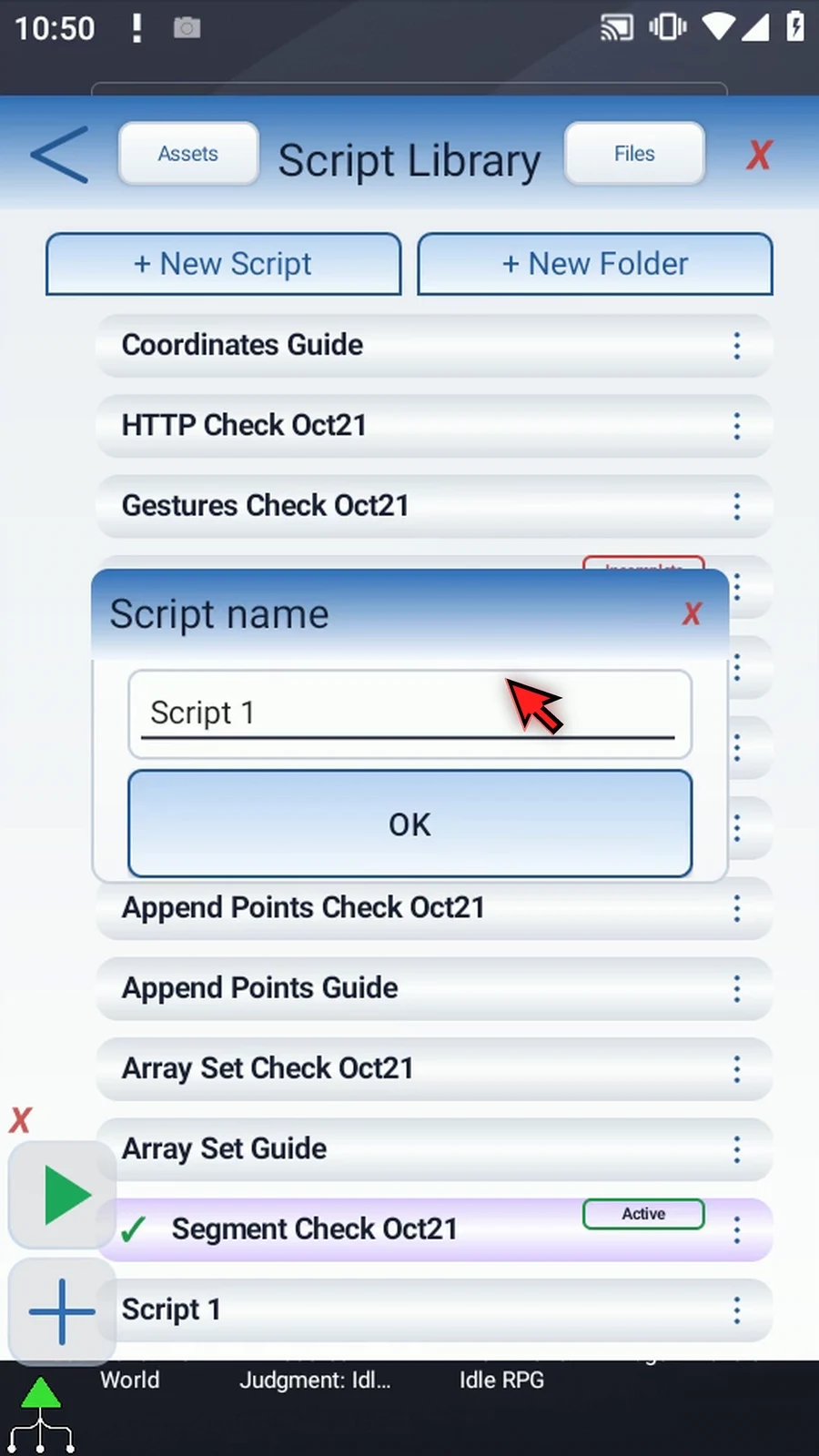
Step 03 Pick a name for your script. Select it, close the library, and open the editor from the main overlay.
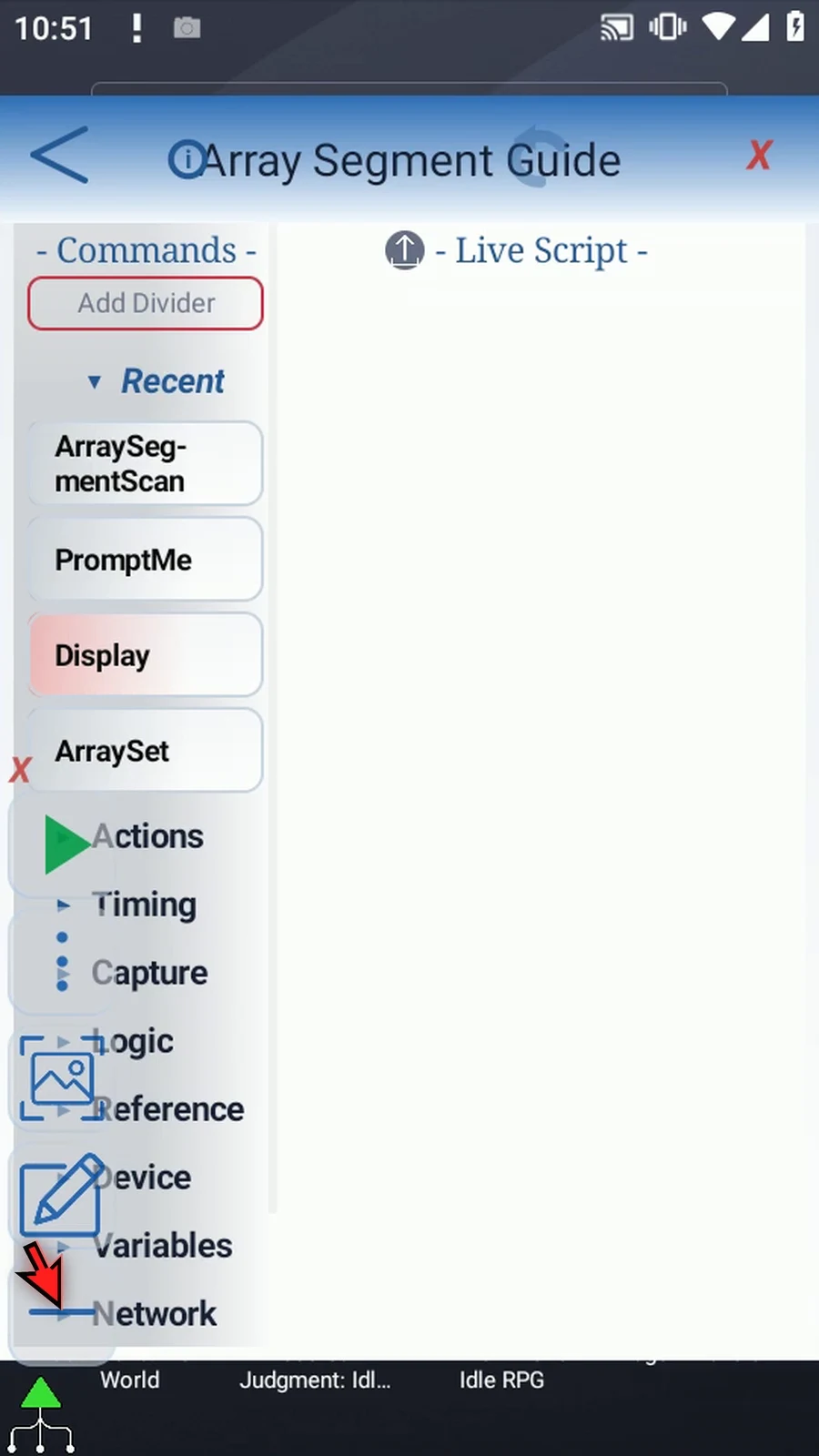
Step 04 Find Set Variable under Variables. Scroll the palette so the command is higher, then drag it straight across into the script. The scan needs an array to inspect, so this supporting command declares it before the scan runs.
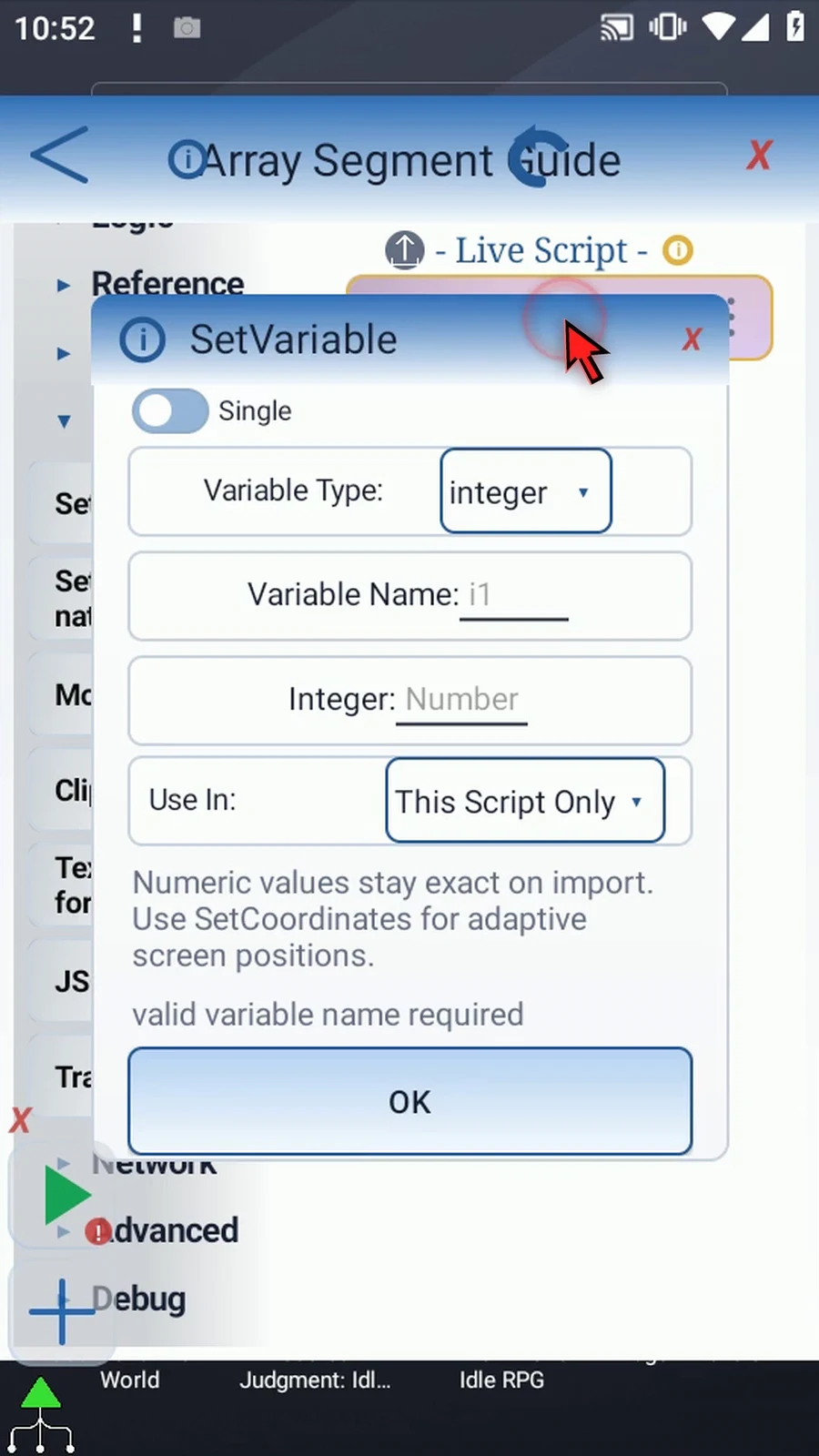
Step 05 Choose Array. Use the local Integer array a with capacity eight, then save. The array letter, type, and scope must agree in the commands that use it.
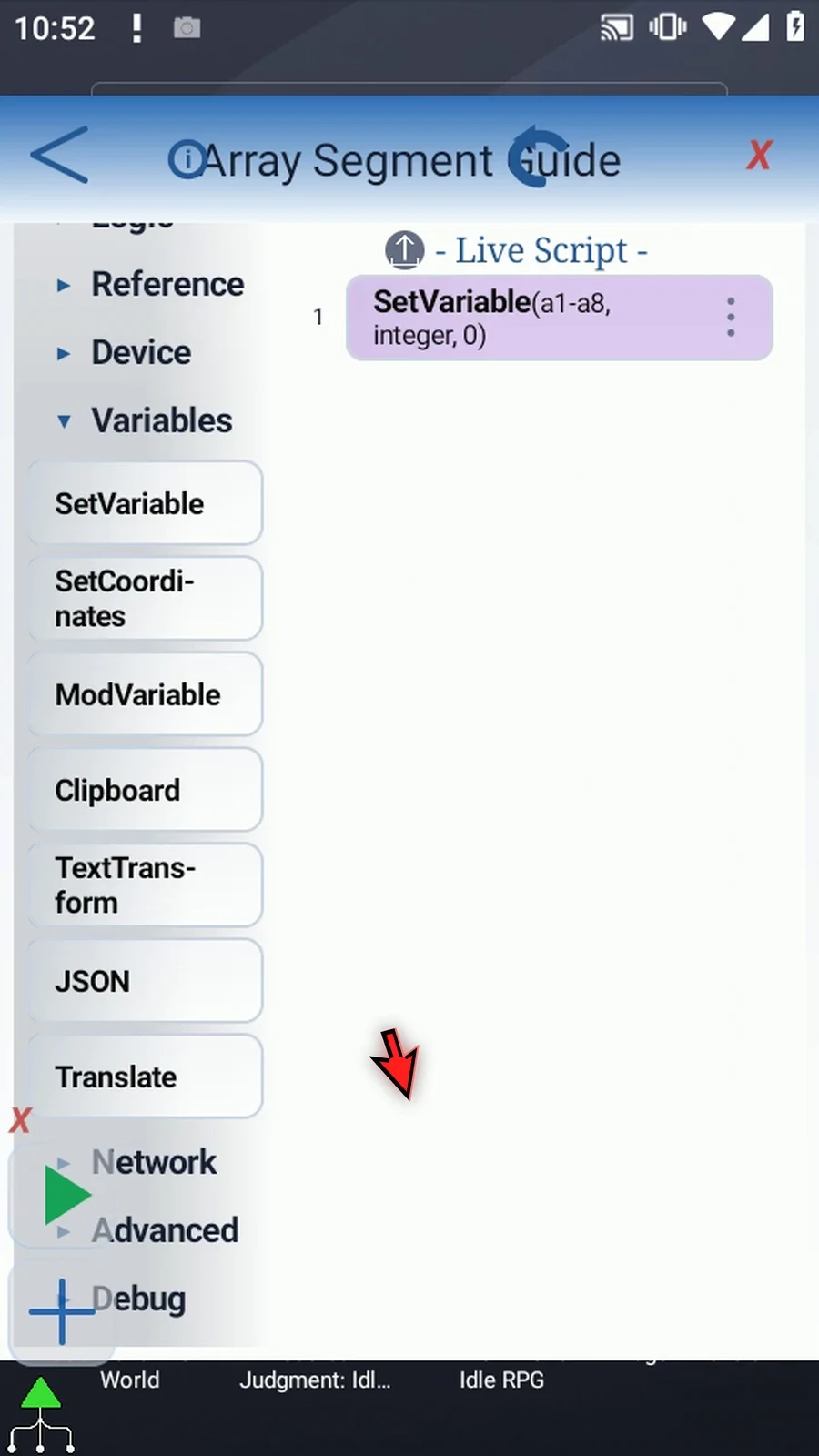
Step 06 Next, open Advanced. Choose Set on the shared Array Get and Set tile, then drag Array Set below the declaration.
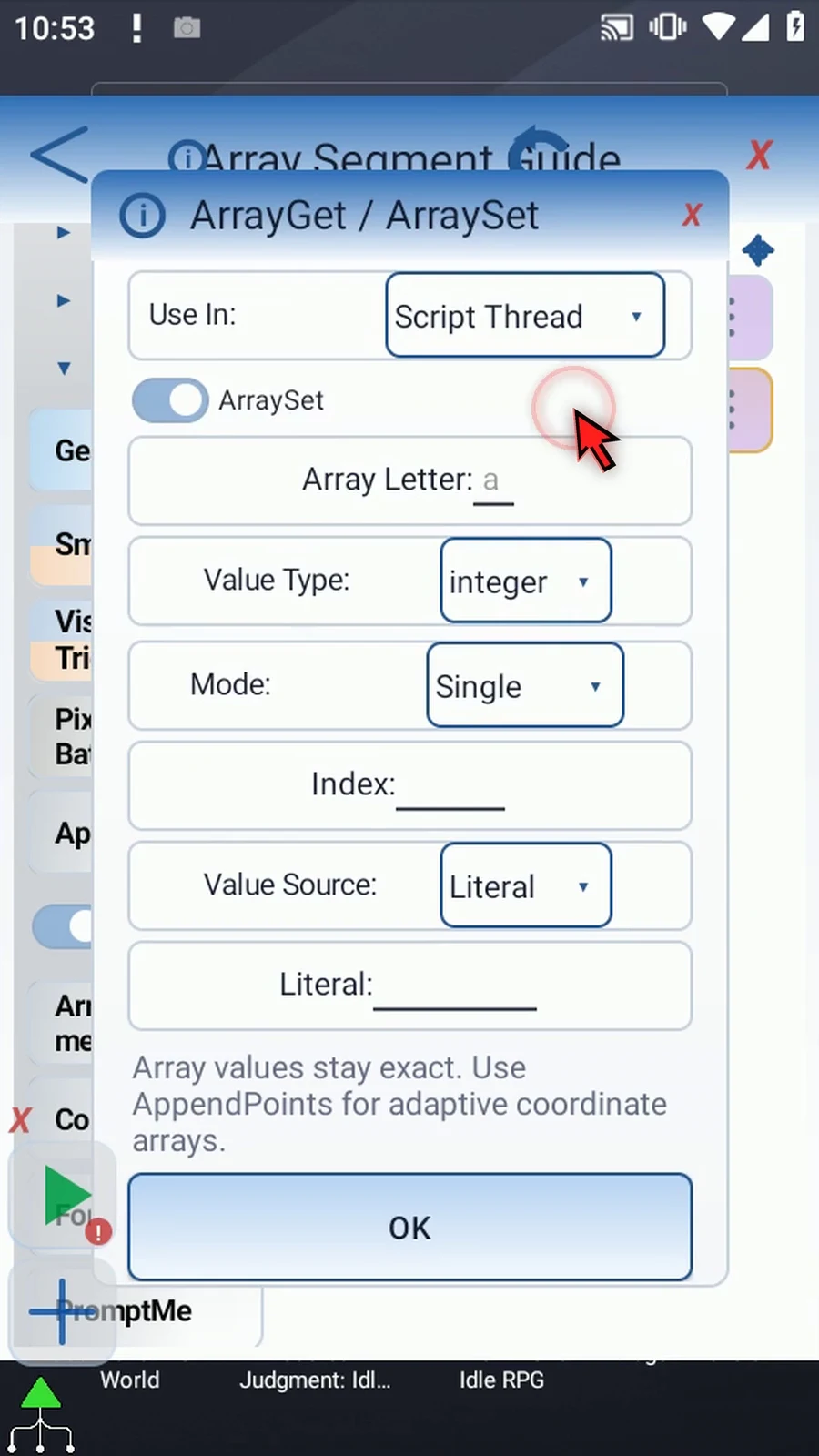
Step 07 Use array a, Integer, and This Script Only. Choose Bulk so we can give the eight positions an easy-to-recognize pattern.
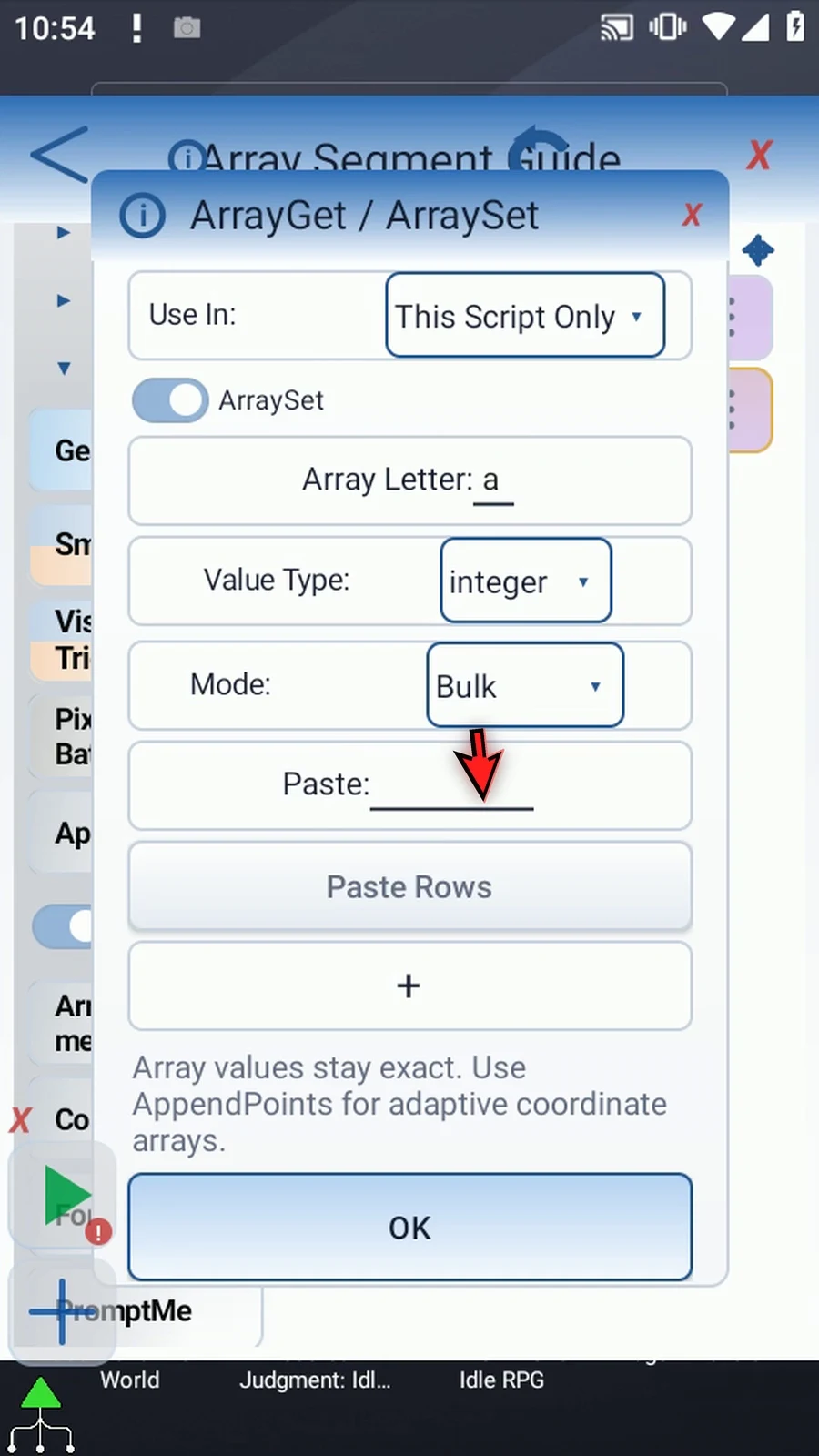
Step 08 Enter the position and value pairs, then choose Paste Rows. Positions one, four, and eight contain zero. Positions two and three contain five. Positions five through seven contain nine.
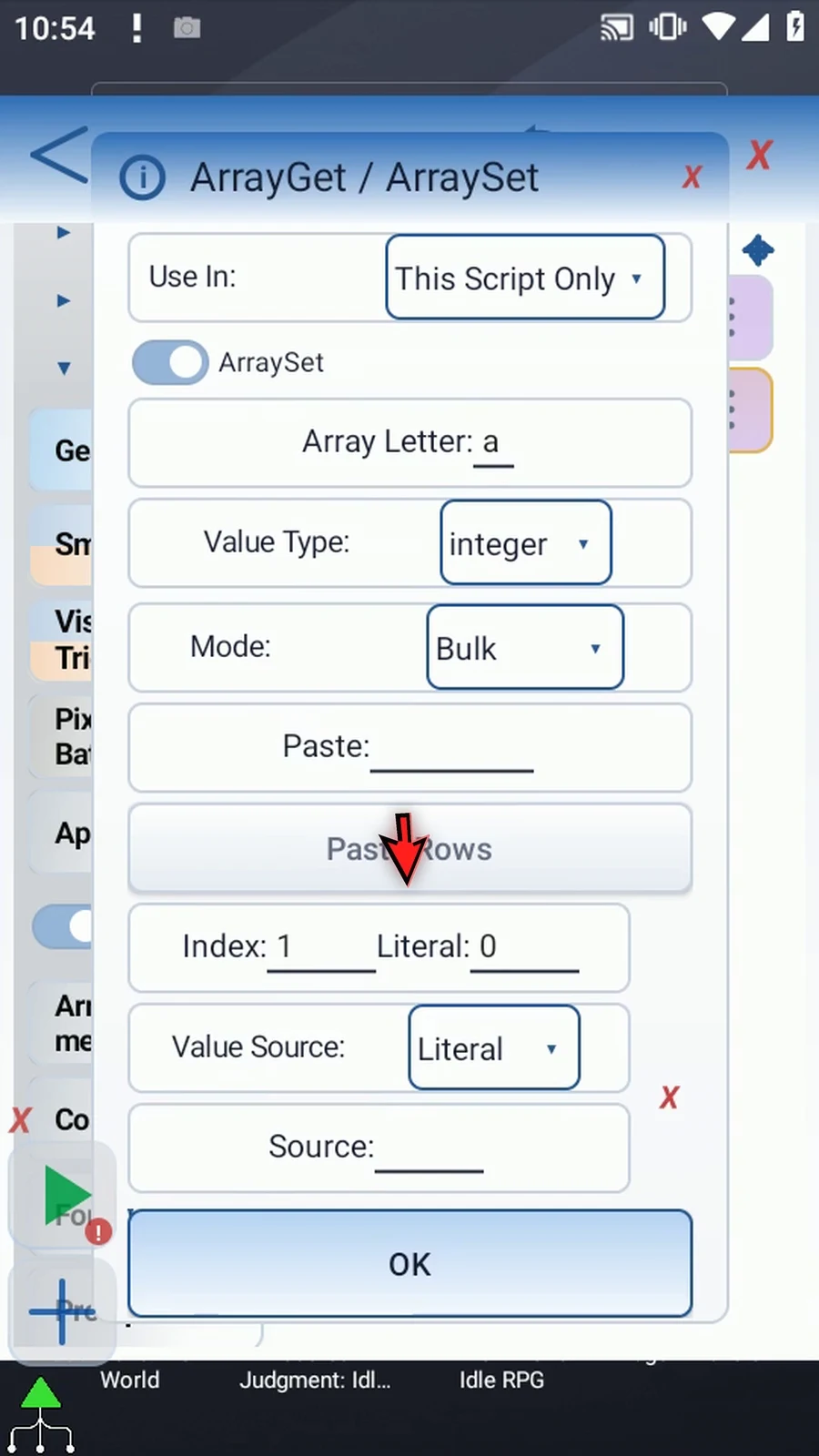
Step 09 Each pair becomes an enabled row. Review the first and last positions, then save. This setup gives the scan both empty values and repeated groups to work with.
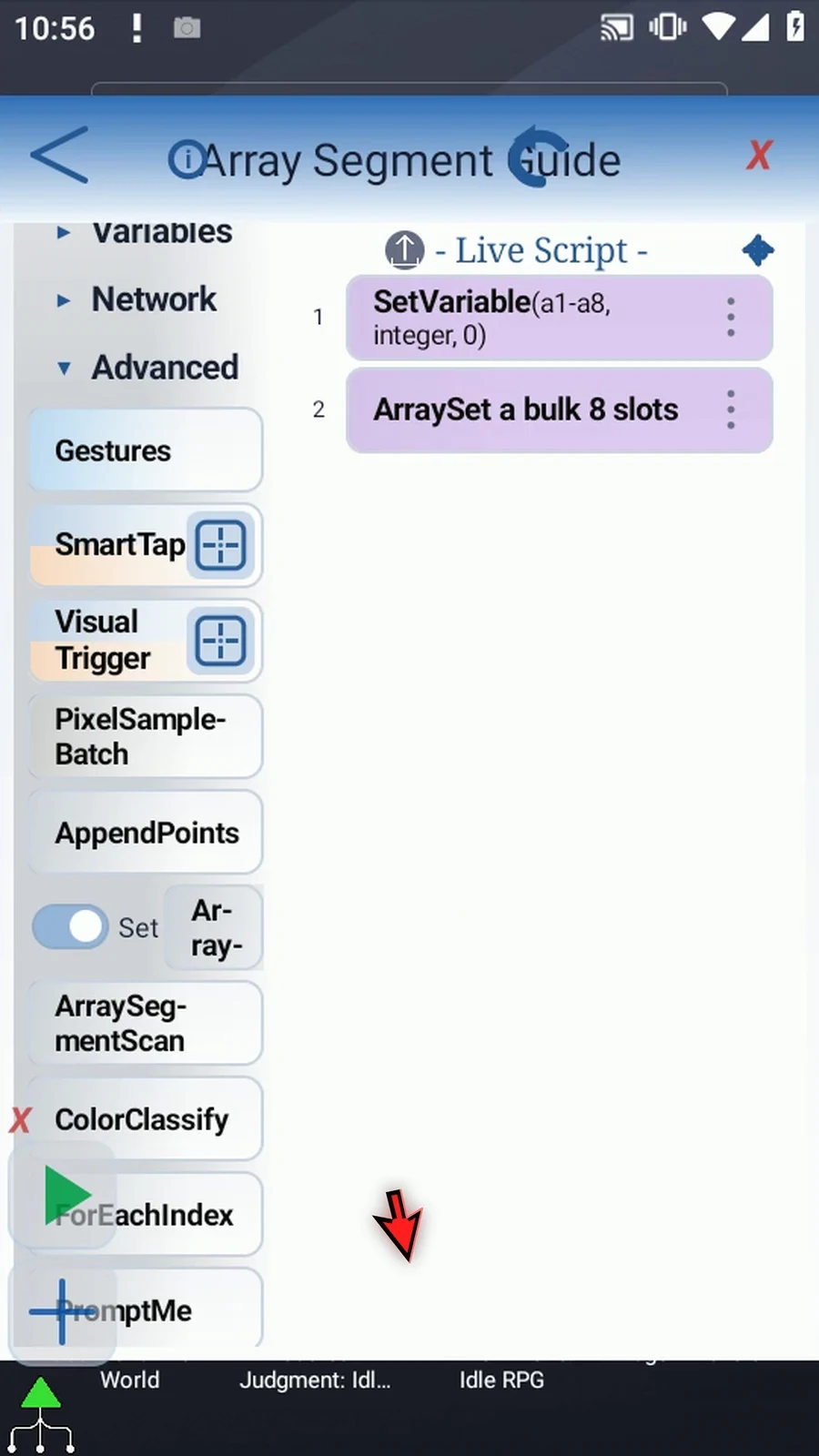
Step 10 Drag Array Segment Scan below Array Set, then open it. The setup must run before the scan.
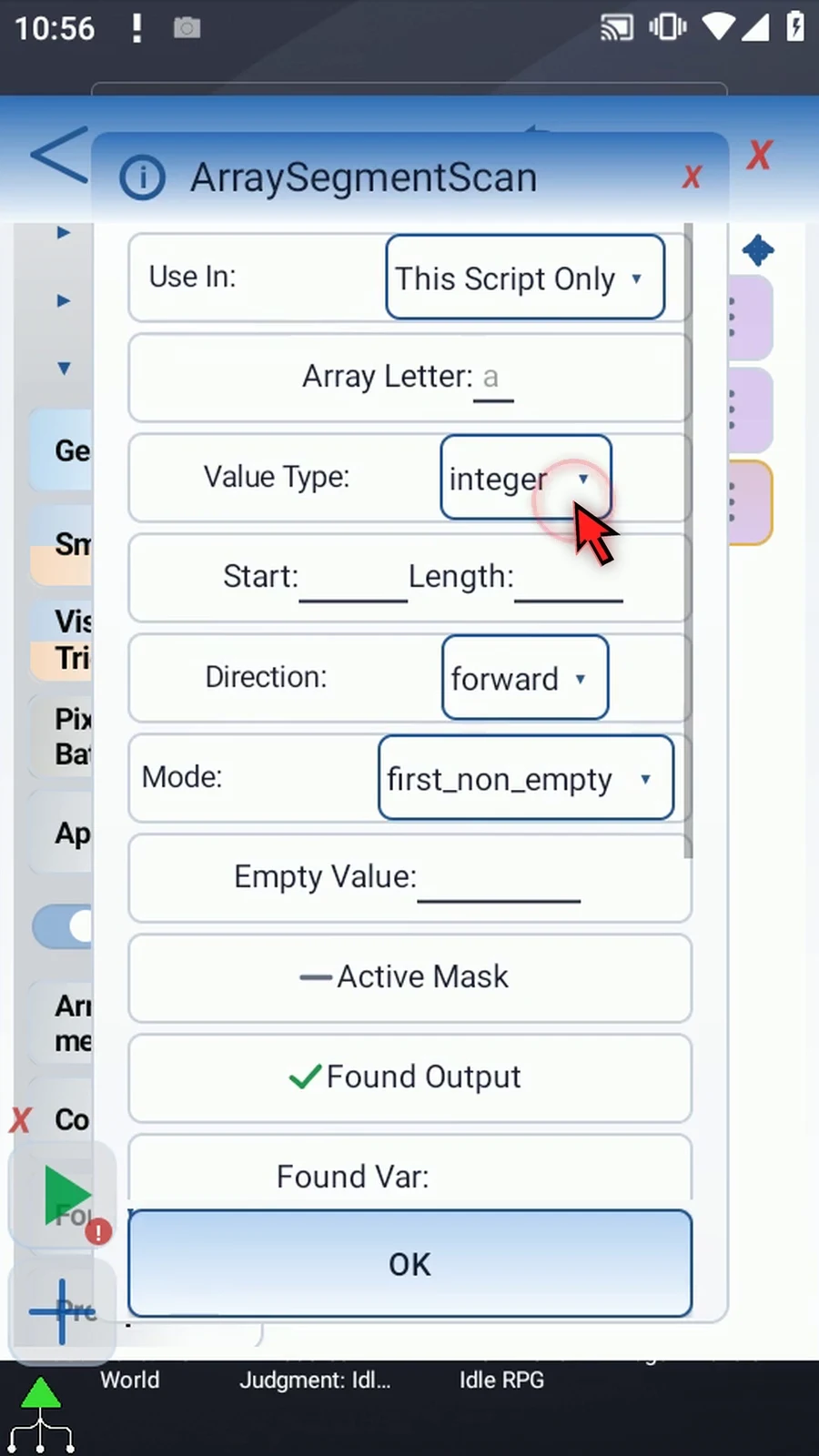
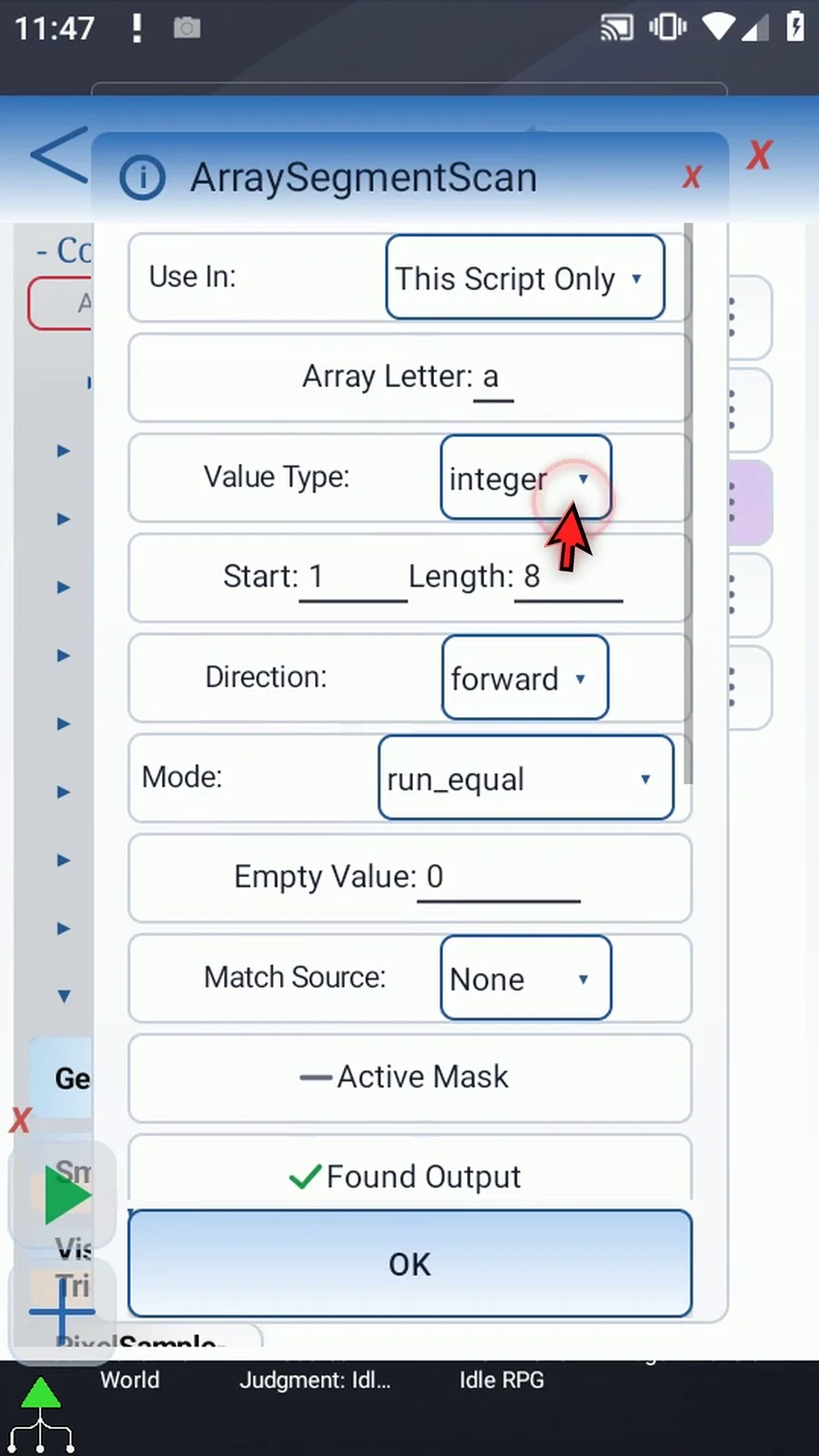
Step 11 Use In chooses This Script Only or Script Thread. Keep the same scope as the declaration. This example uses This Script Only.
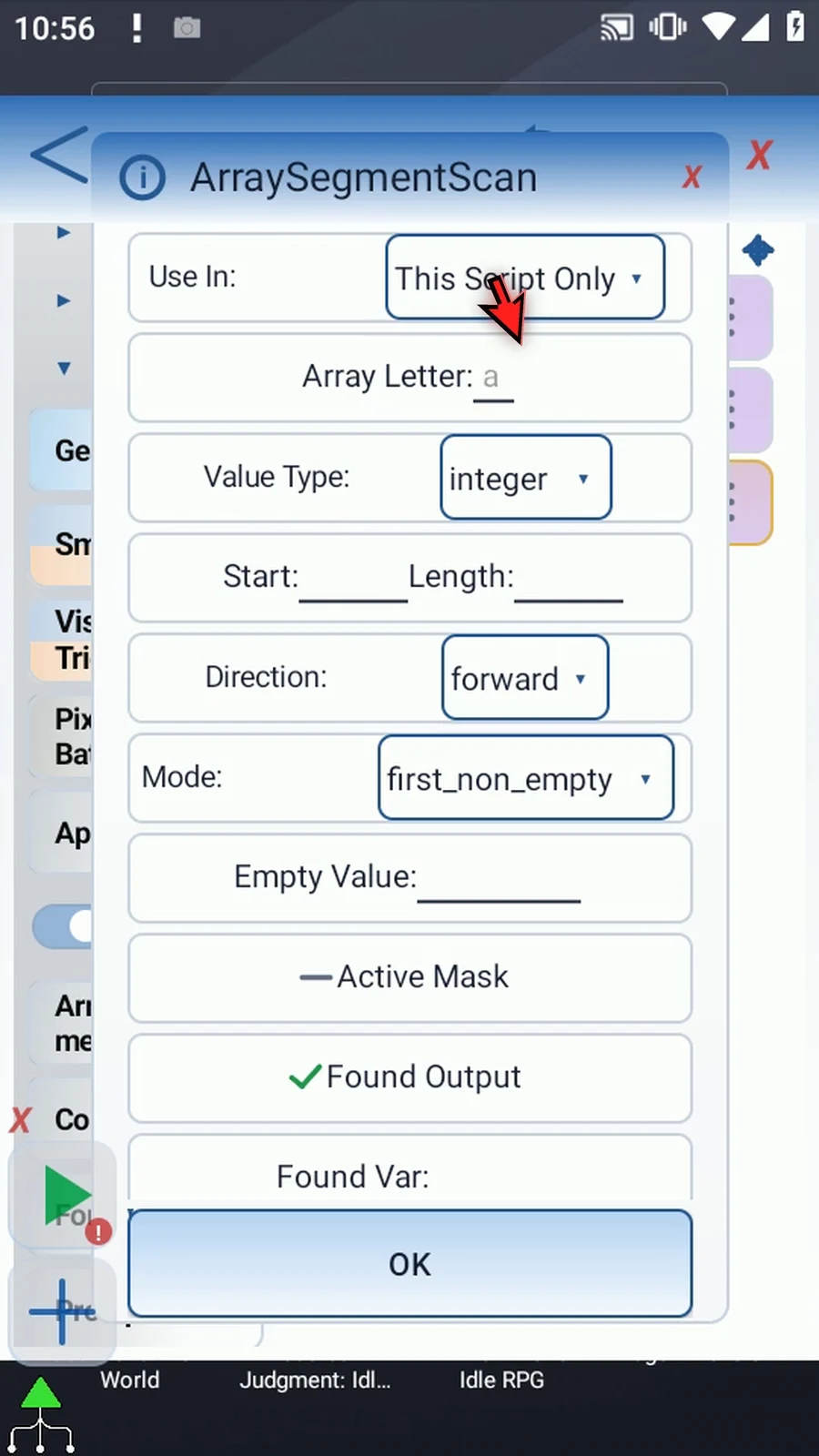
Step 12 Choose array a. Value Type must match its declaration. Integer, Decimal, Boolean, Hex, String, and Time arrays are supported. Hex comparisons are exact; Color Classify is the command for confidence-based color matching.
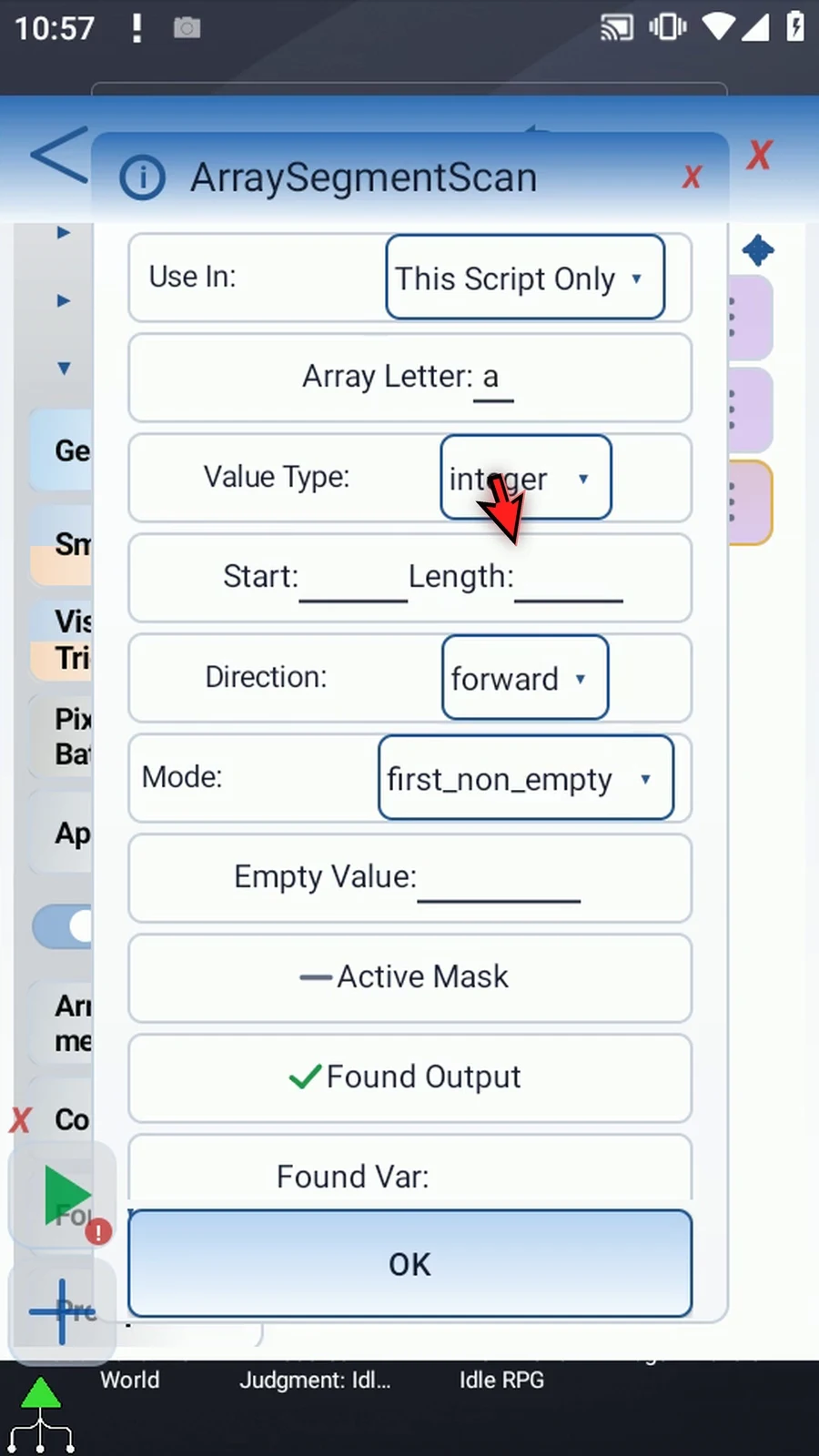
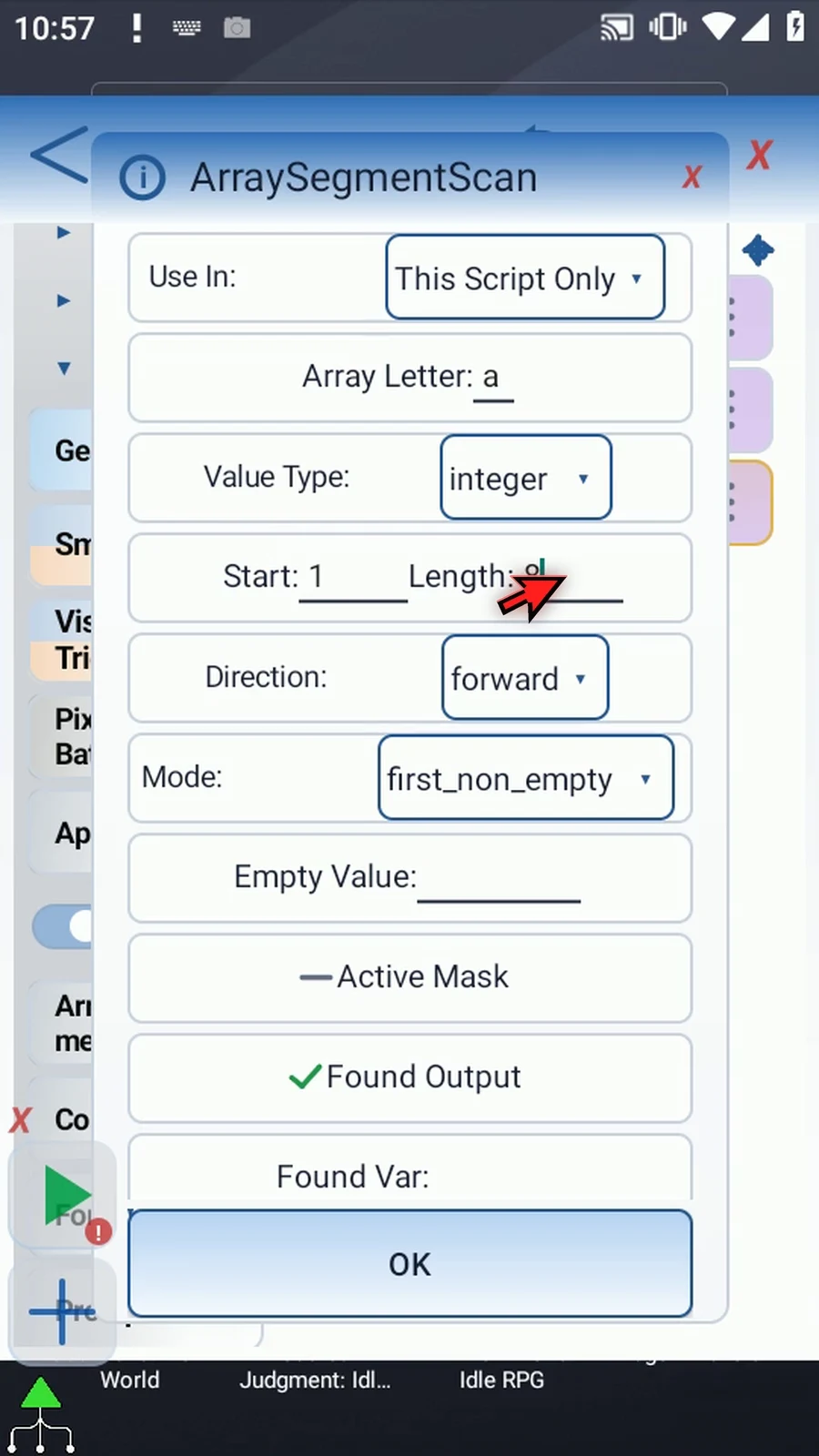
Step 13 Start is the first position, counting from one. Length is how many positions to inspect, not the last index. Set Start to one and Length to eight. These fields also accept previously written Integer variables. The range must fit the declared capacity.
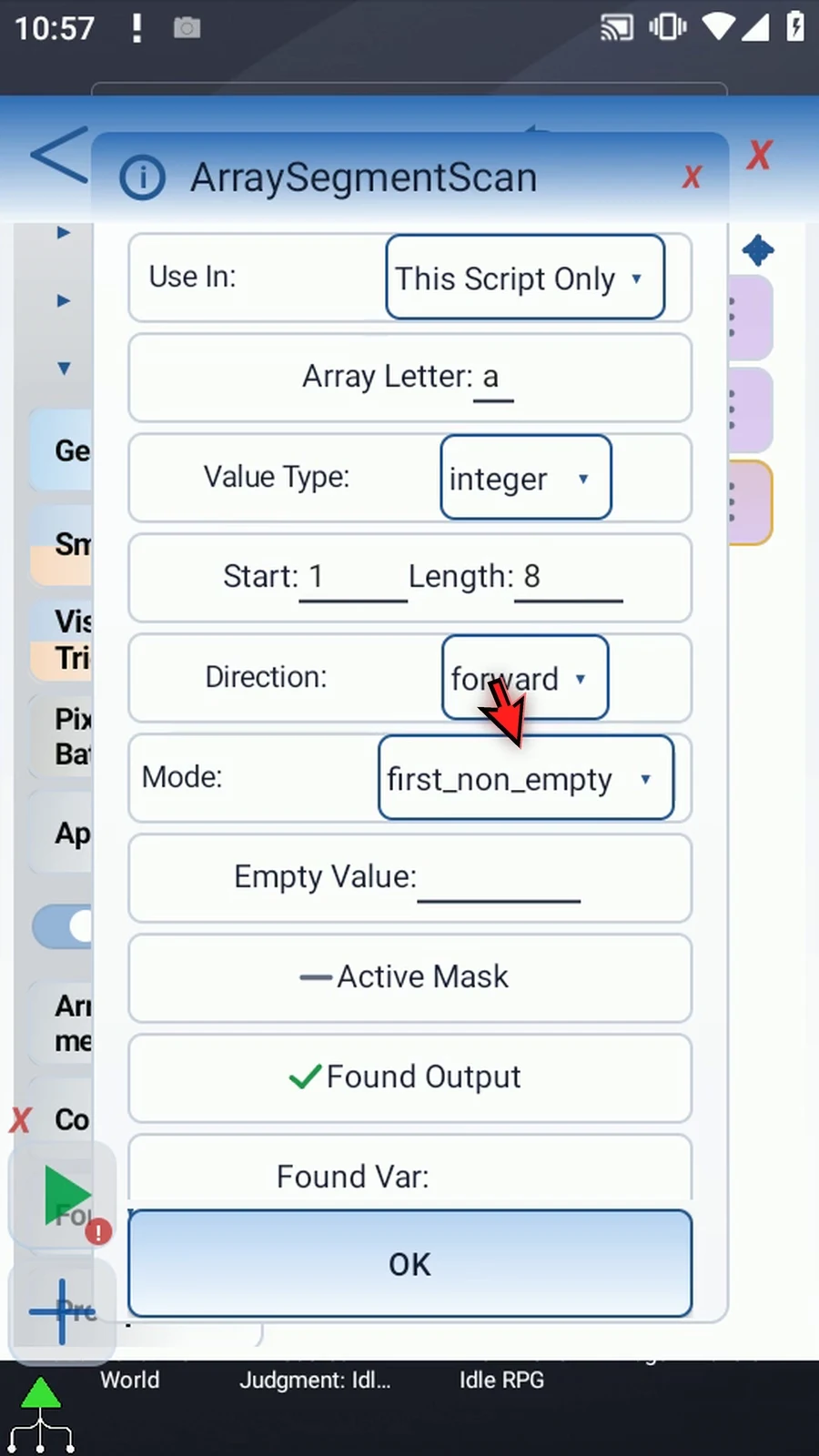
Step 14 Forward examines this range from its beginning. Reverse starts at the other end. Output indexes still refer to the original array positions. We will keep Forward.
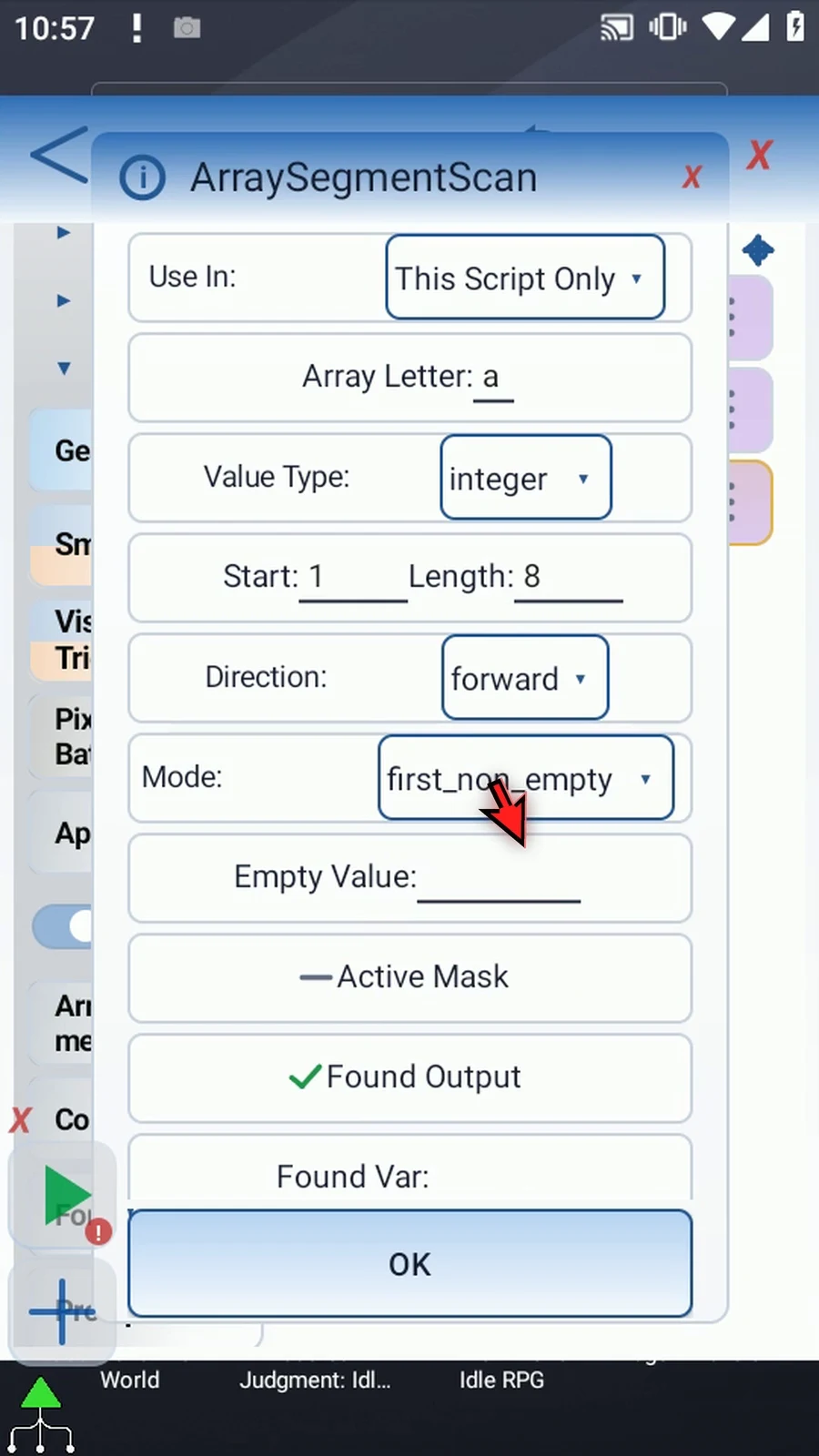
Step 15 Choose First Non-Empty. It finds the first occupied position in the chosen direction. Changing scan modes clears settings that belong to the previous mode, so check the settings and outputs again.
Step 16 Set Empty Value to zero. An unwritten position is empty, and a stored value equal to this setting is also treated as empty. In this example, zero is a marker, not a useful item.
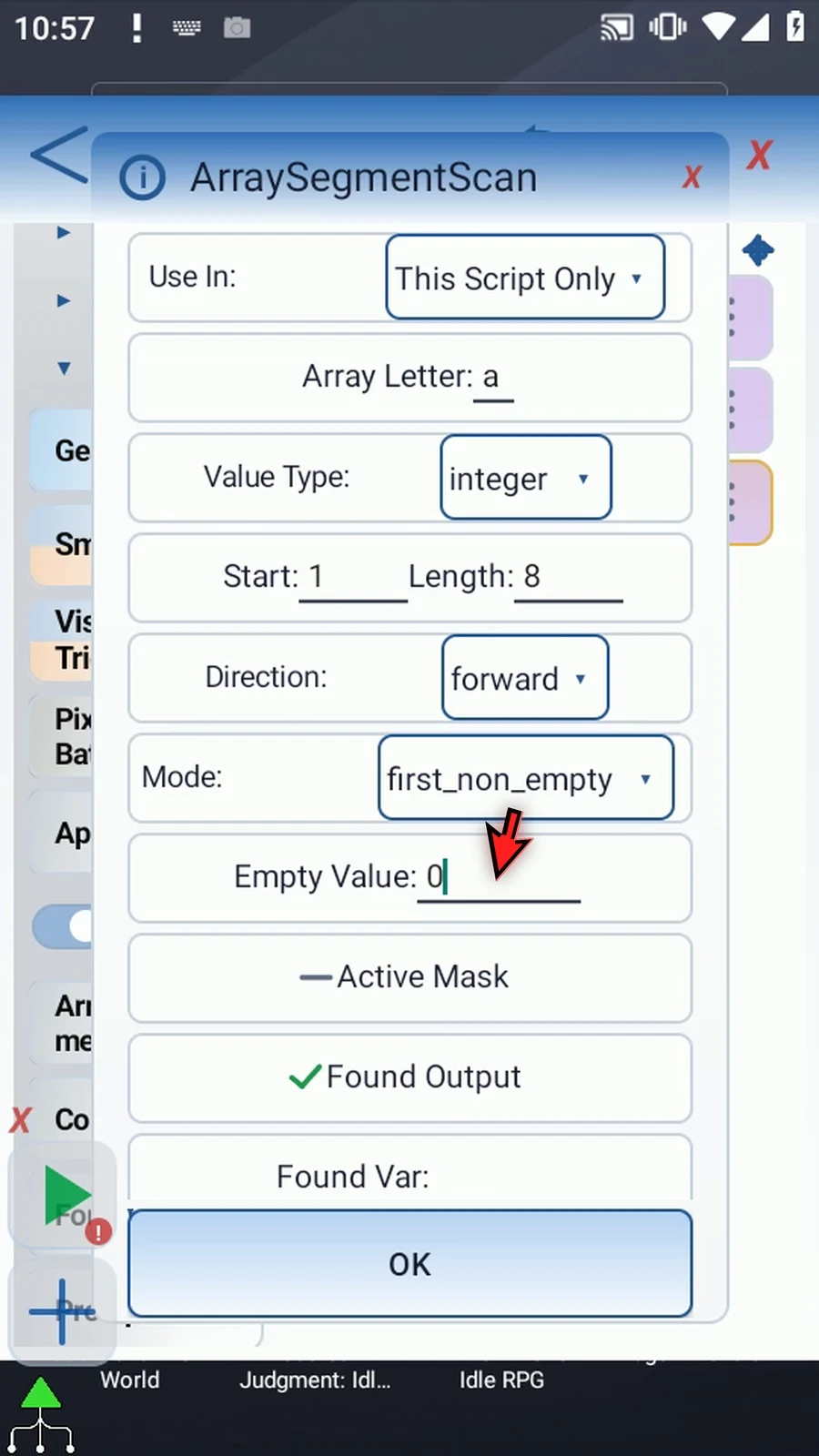
Step 17 Active Mask optionally uses a previously prepared Boolean array. Only positions whose mask is true are eligible. A false position also breaks a run. We do not need a mask here, so leave it off.
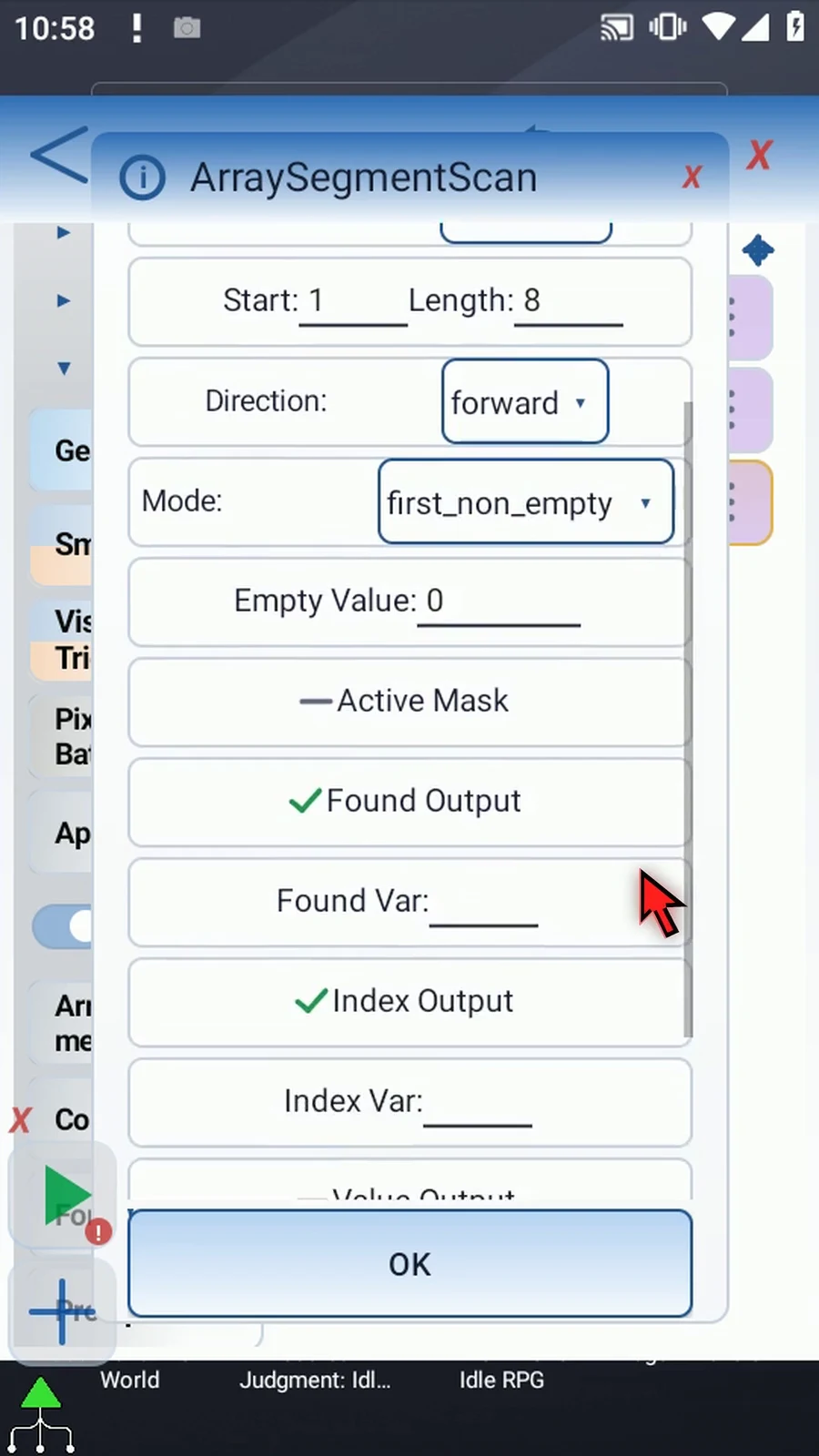
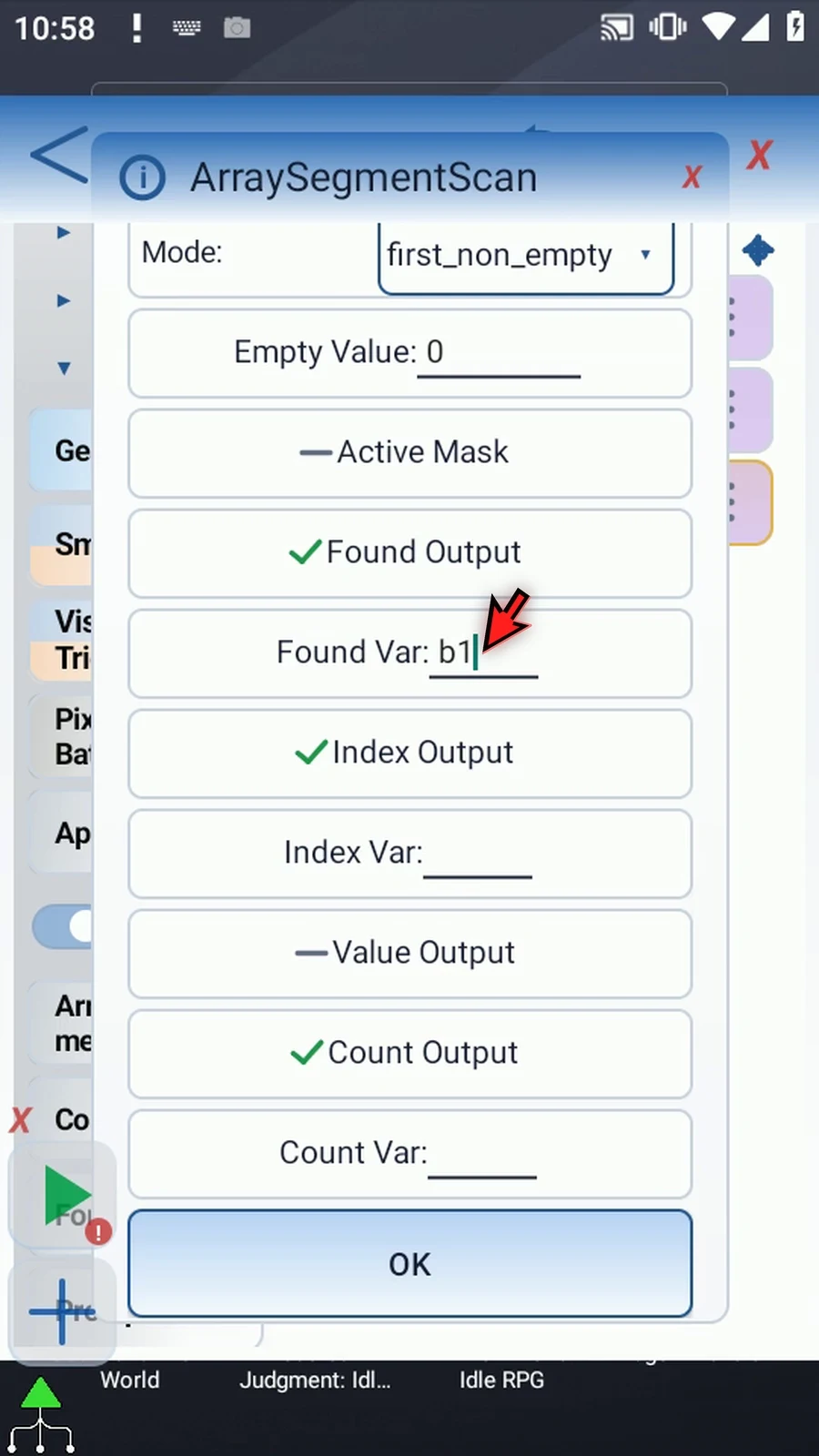
Step 18 Found Output writes a Boolean result: true when something was found, false otherwise. Enable it and use b one. A green check means on; a dash means off.
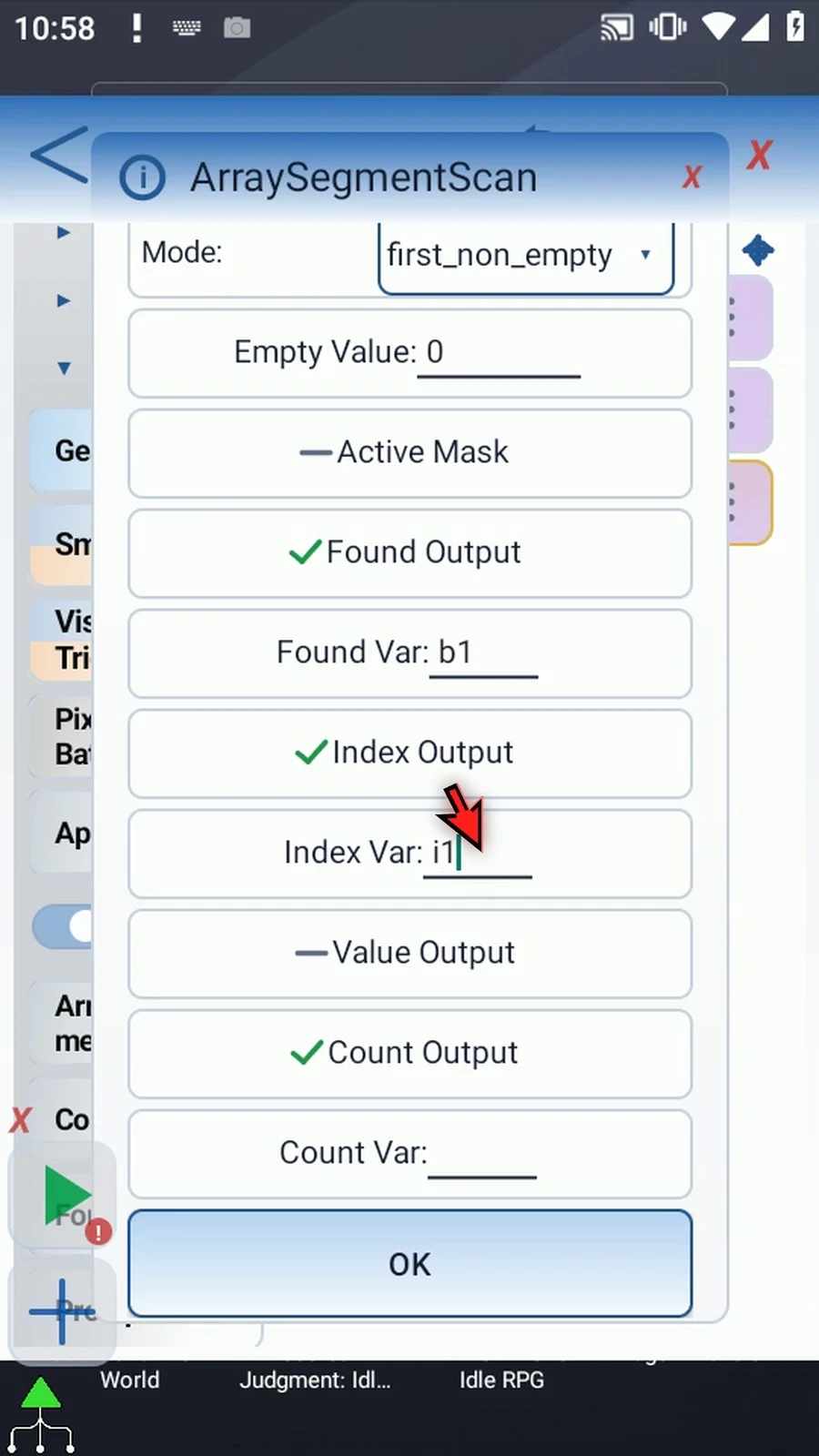
Step 19 Index Output writes the matching position as an Integer. Enable it and use i one. This is the result our Display command will show.
Step 20 Value Output writes the matching value in the array's type. Enable it and use i two. Our array is Integer, so this destination is also Integer.
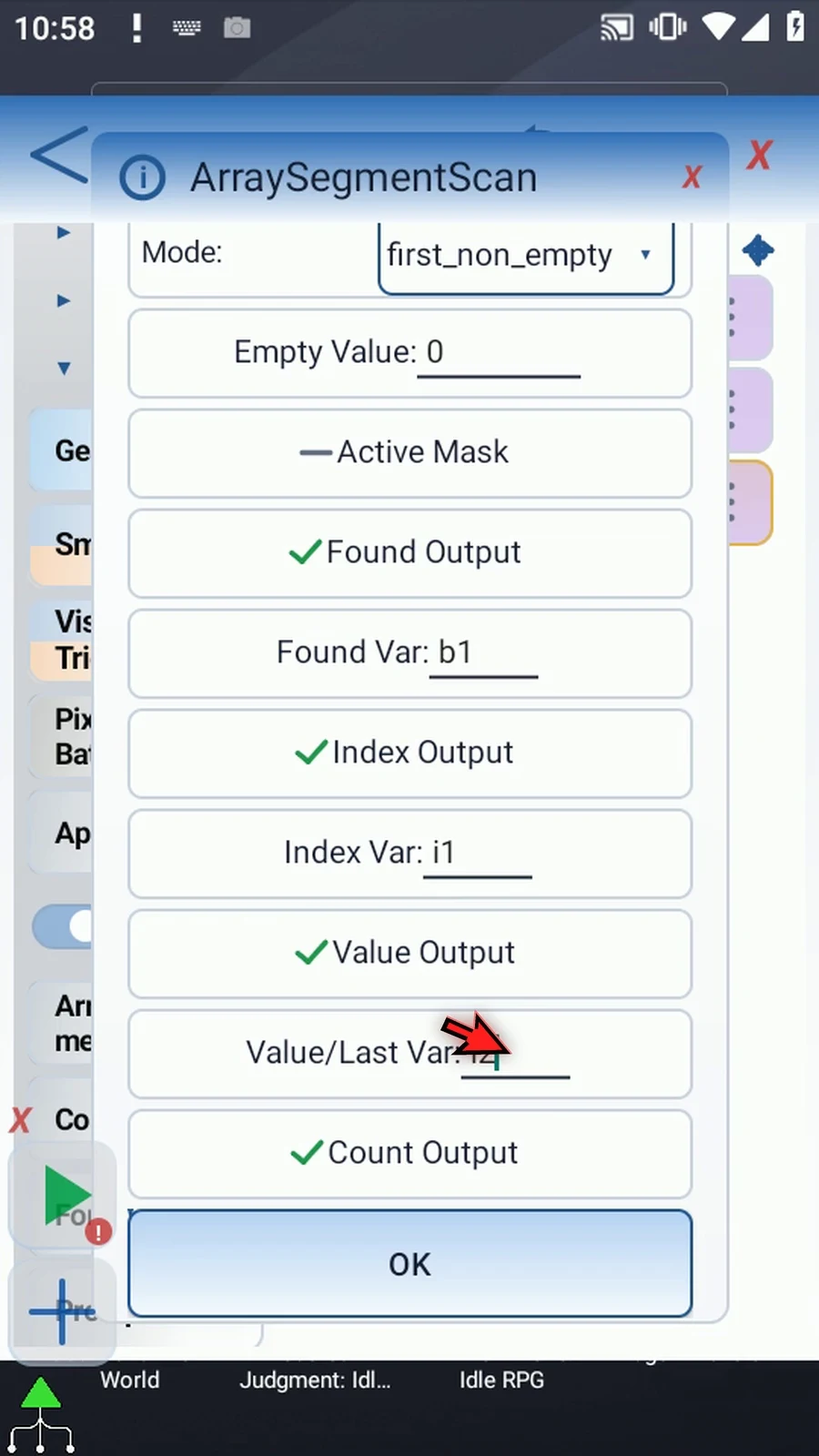
Step 21 Count Output uses an Integer destination. Enable it and use i three. First Non-Empty returns one when it finds an item; counting modes use this output for the full count.
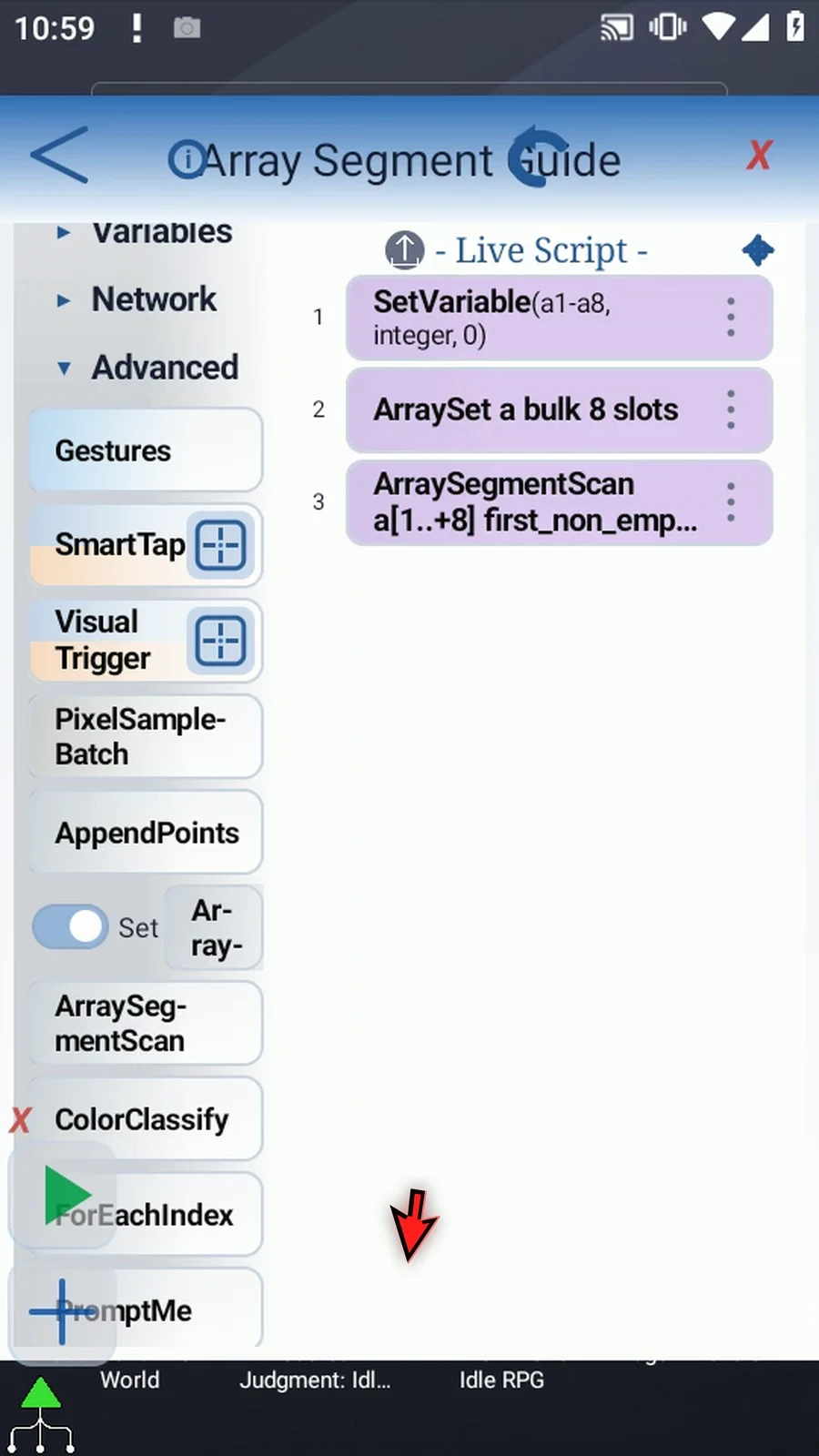
Step 22 Now drag Display below the scan. It makes the numerical result visible, rather than leaving it only in a variable.
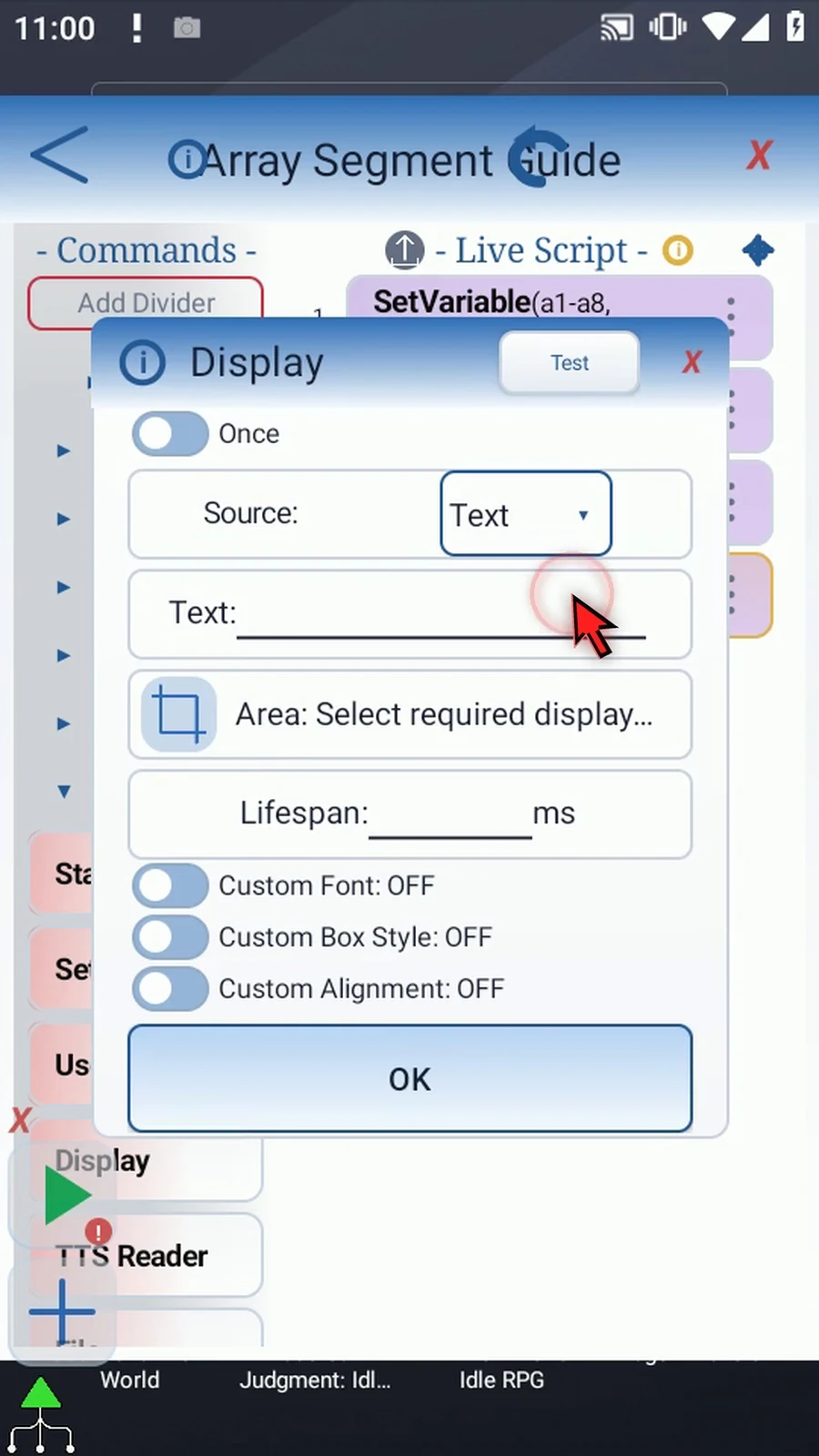
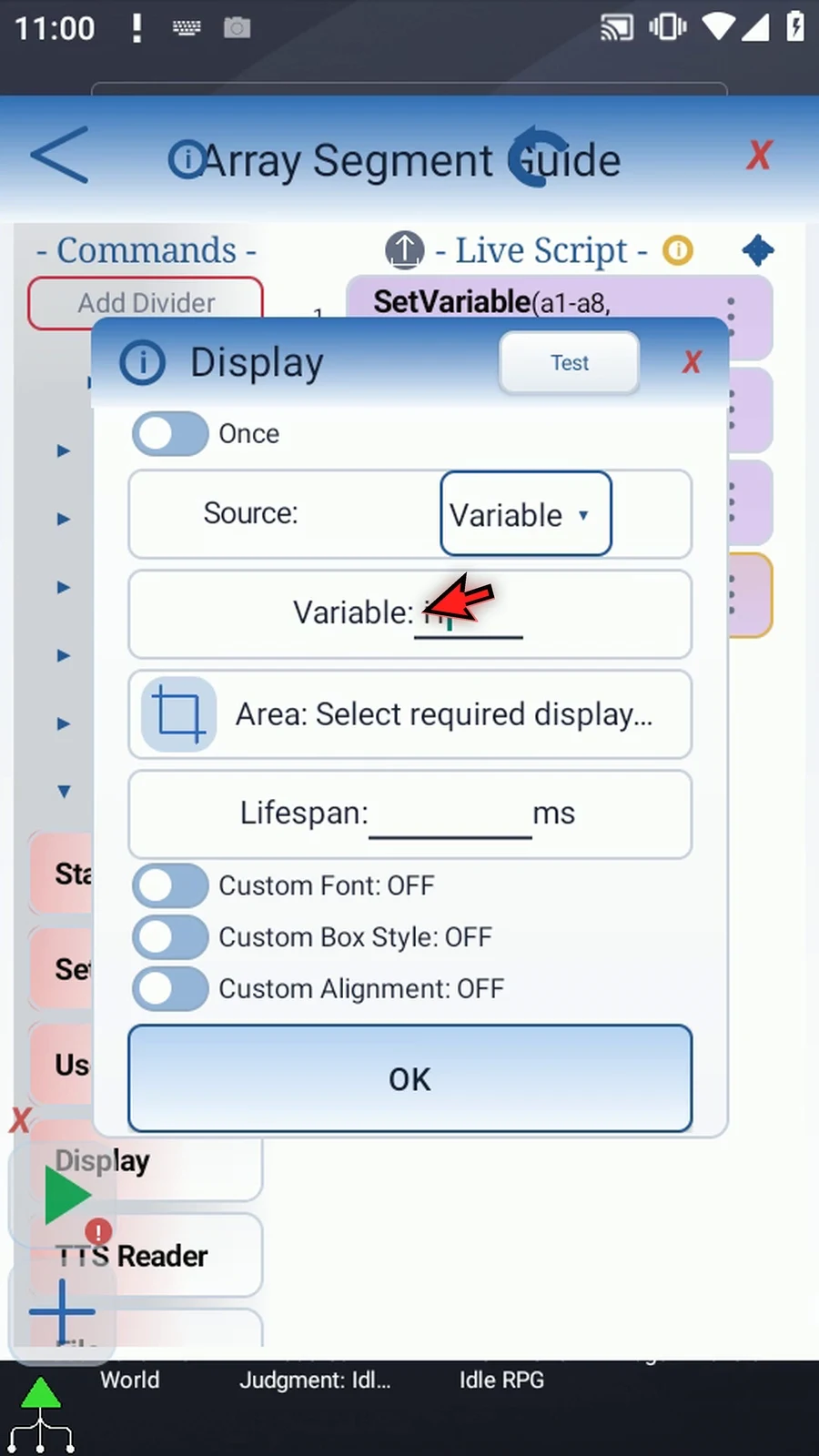
Step 23 Choose Variable as the text source and enter i one. We are displaying the position, not the array value stored there.
Step 24 Choose an area away from the main overlay. The area icon opens a visual selector. If Android asks, allow screen capture. Here, go back and use the area label to enter exact boundaries: left one hundred, top three hundred, right four hundred forty, and bottom six hundred.
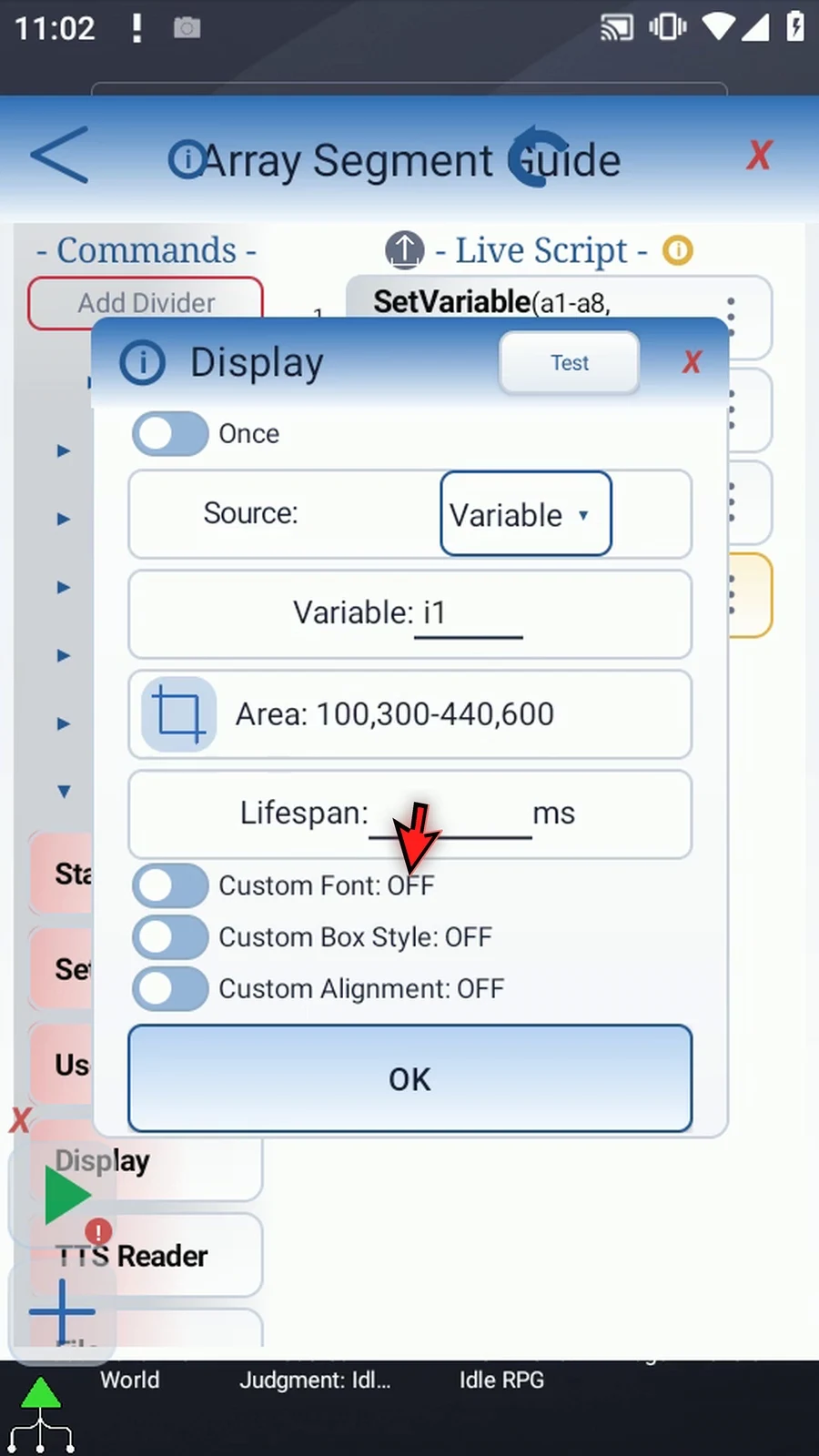
Step 25 Set Lifespan to five thousand milliseconds, then save. This leaves the actual result visible for five seconds.
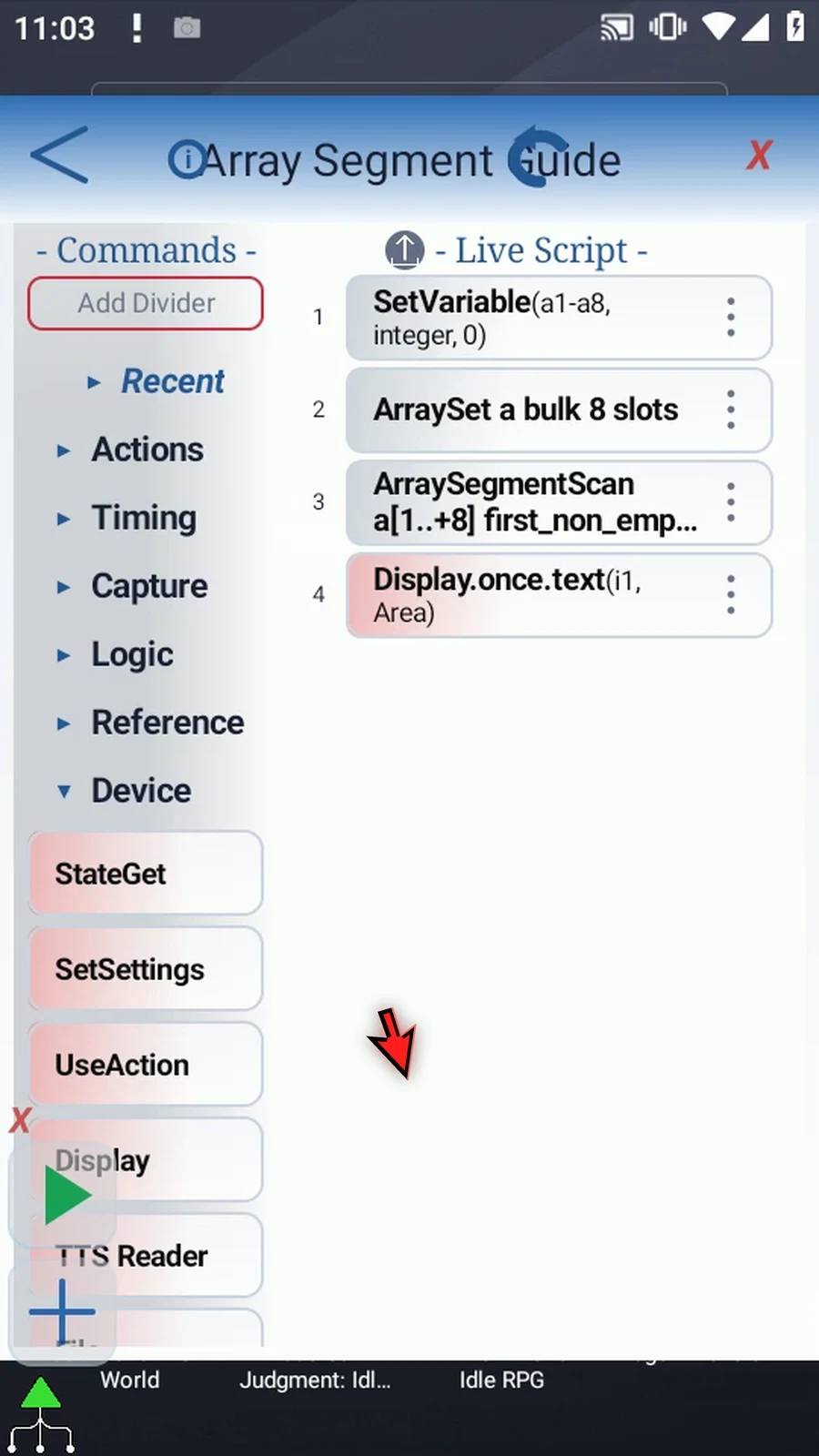
Step 26 Finally, drag Prompt Me below Display. Its Scanned header and Done button provide a clear completion confirmation.
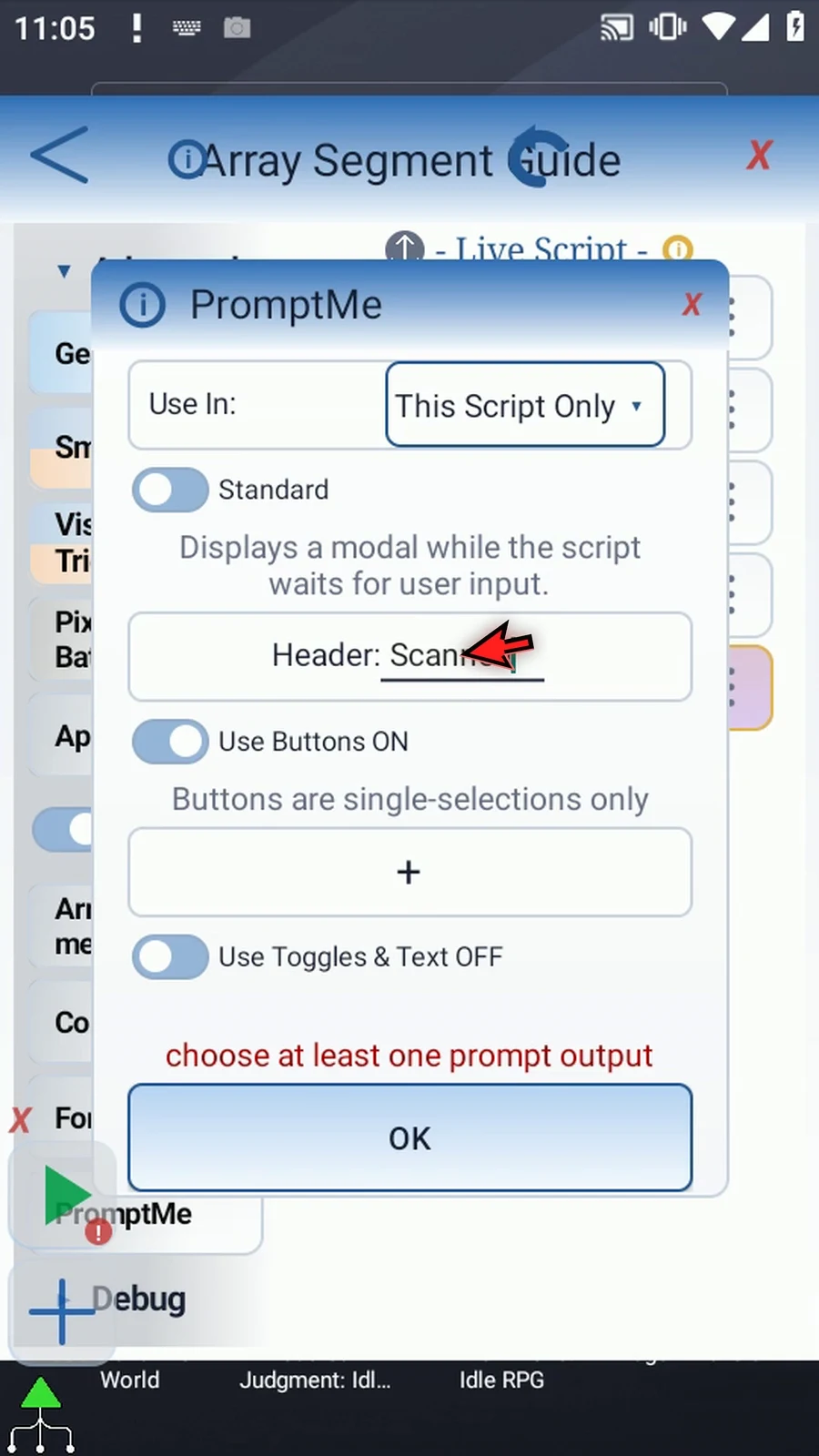
Step 27 Add one Done button and use b two for its output. This is separate from the scan's Found result in b one. Save the prompt.
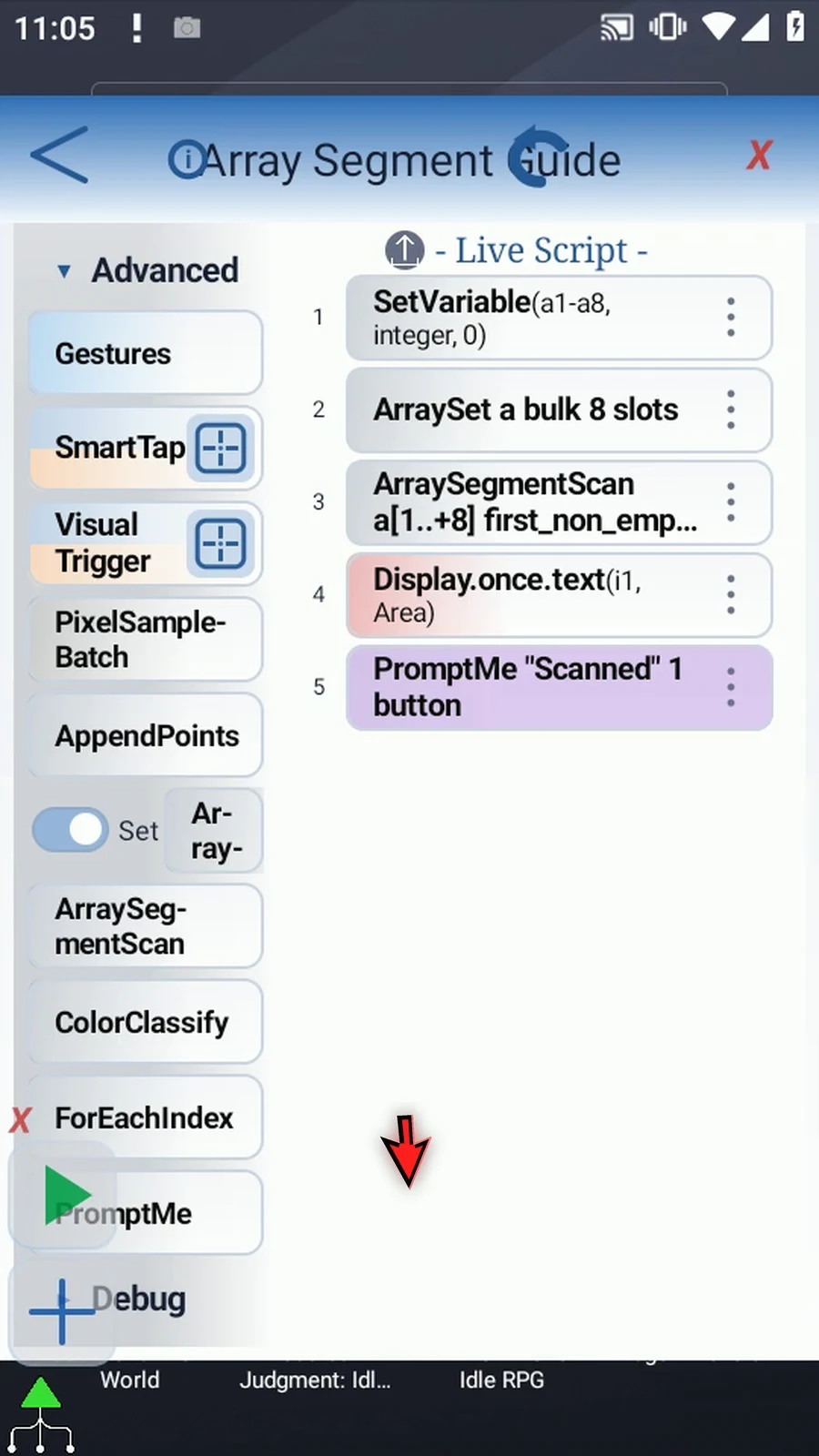
Step 28 The script declares the array, fills its eight values, scans it, displays the index, and confirms completion. The first non-empty value is five at position two.
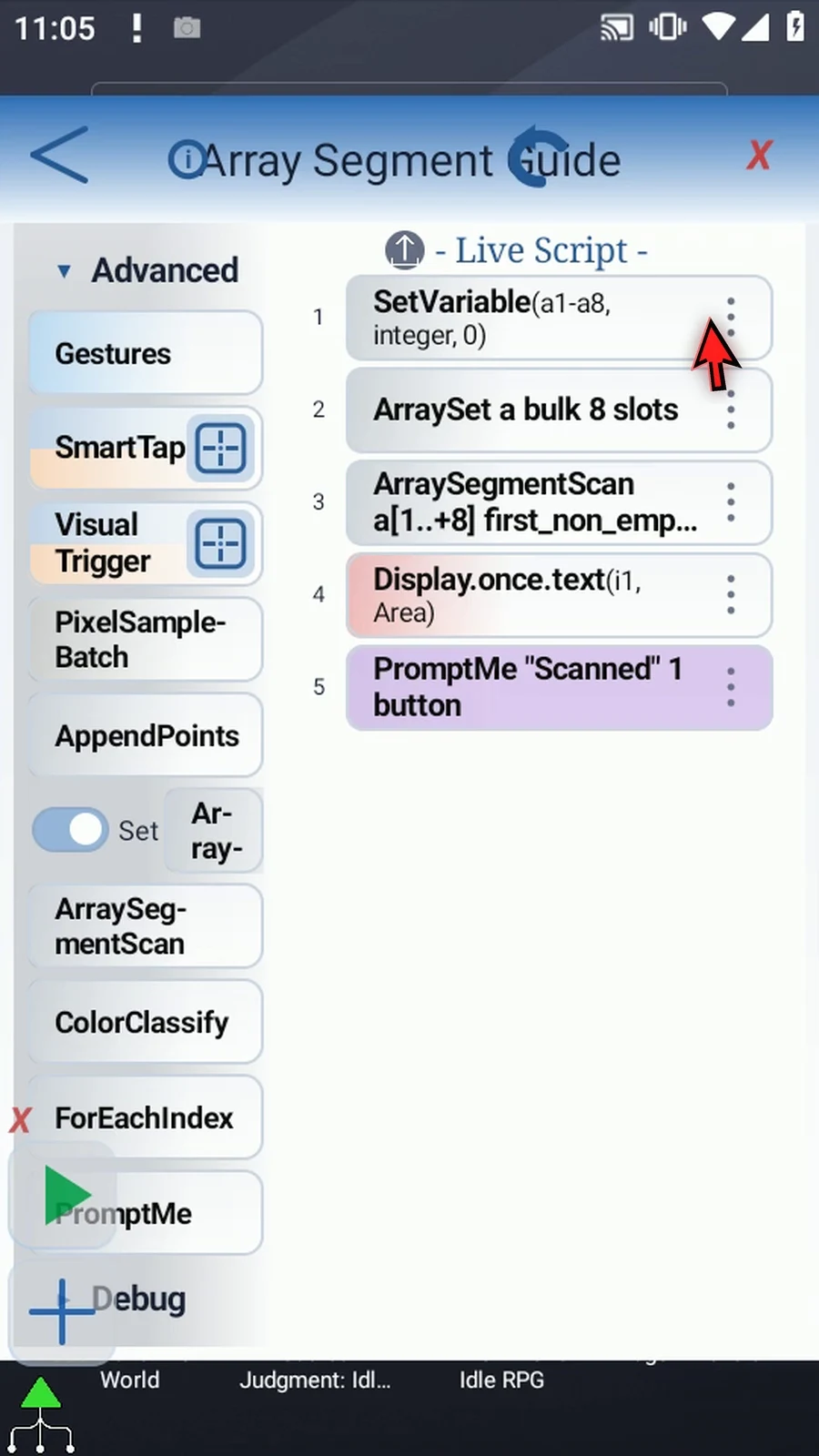
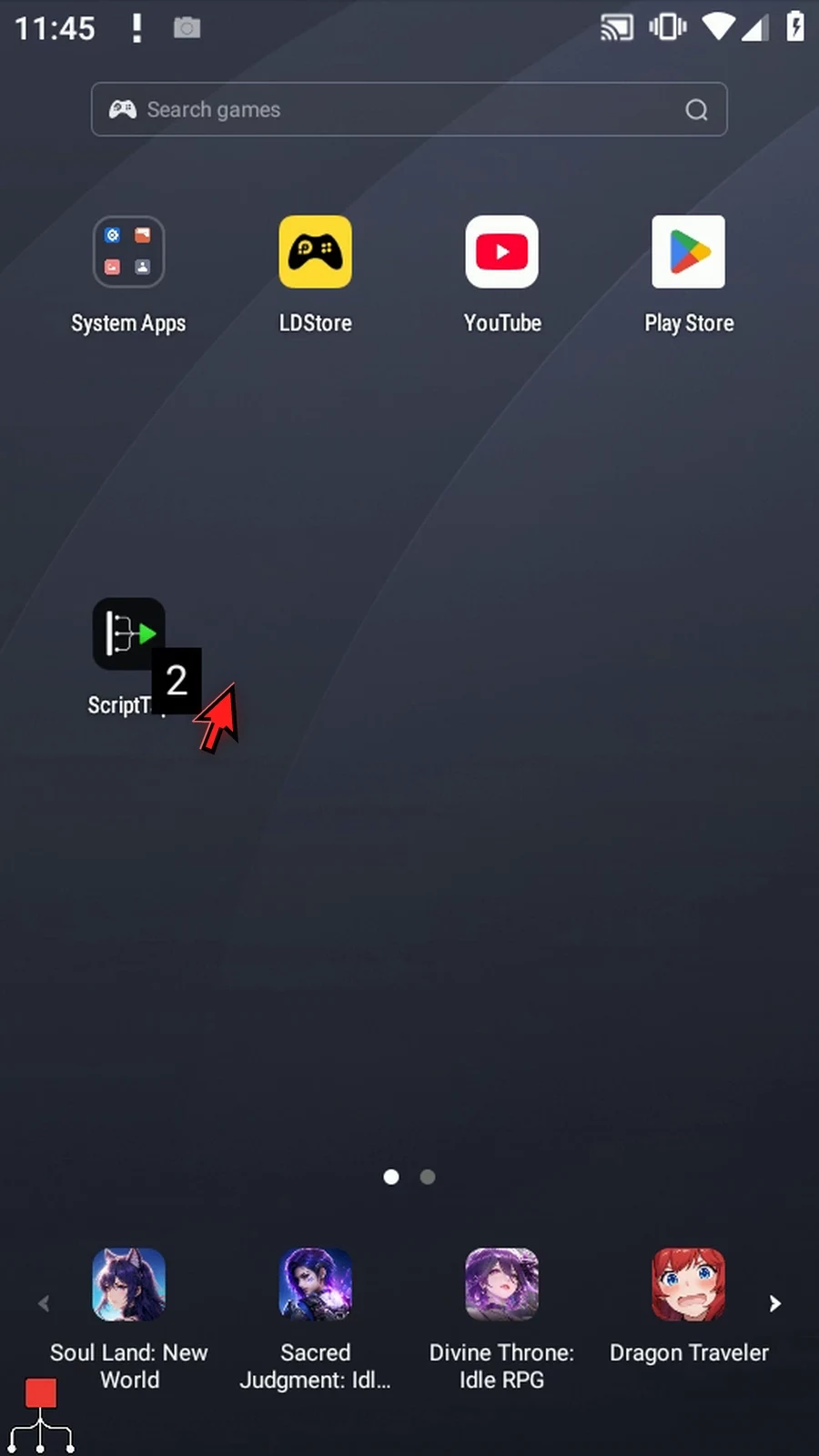
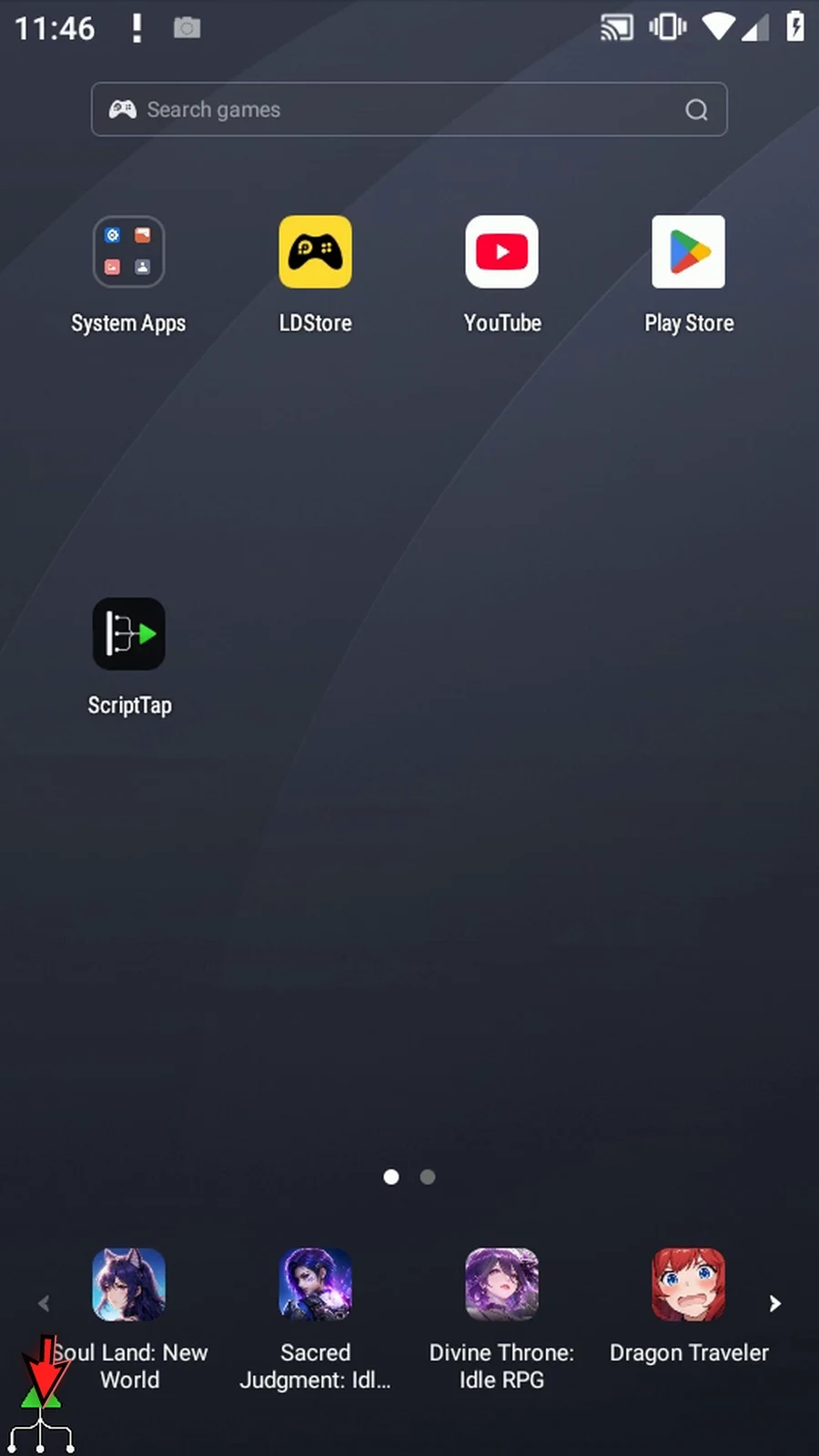
Step 29 Close the editor and expand the main overlay.
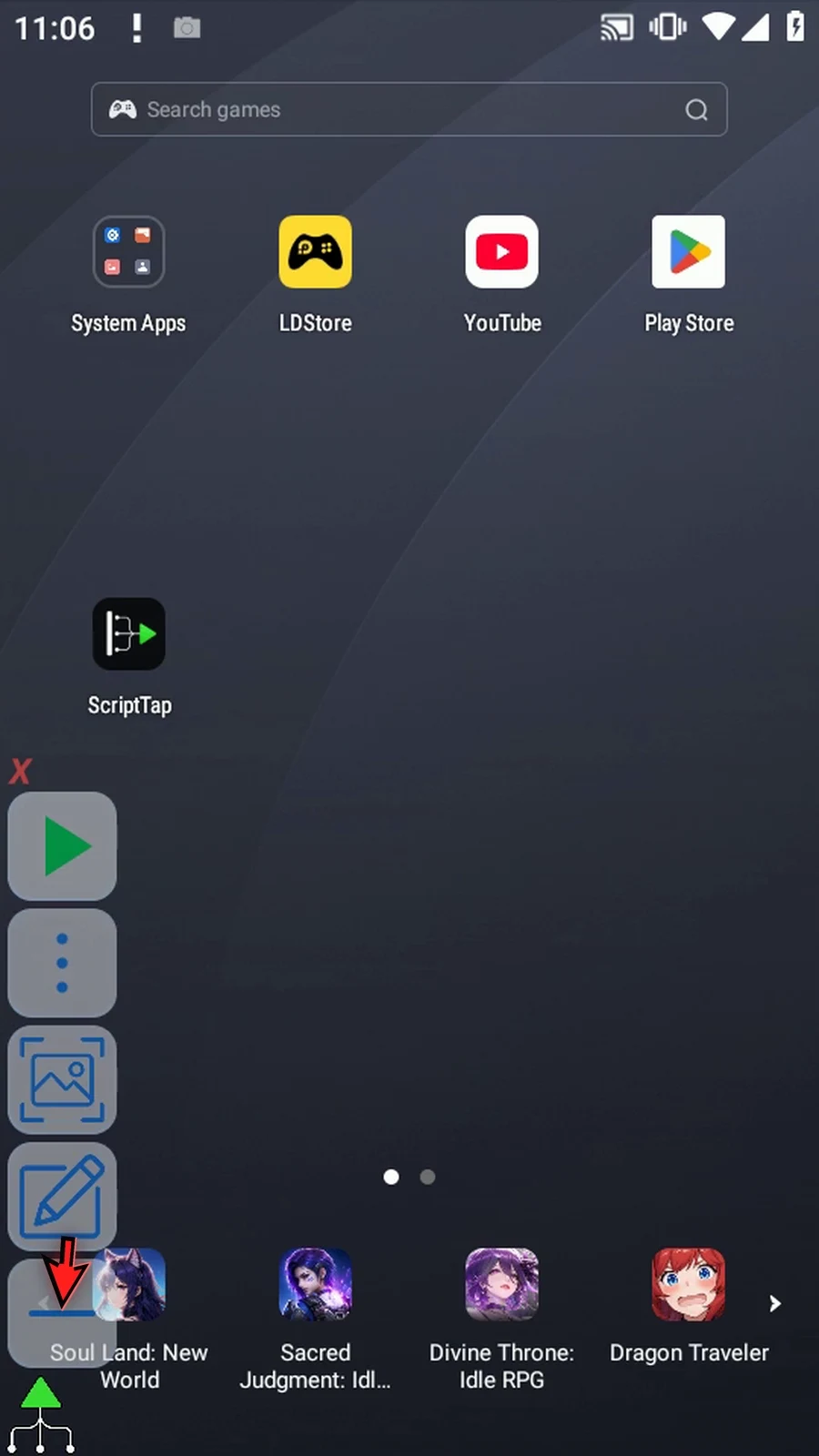
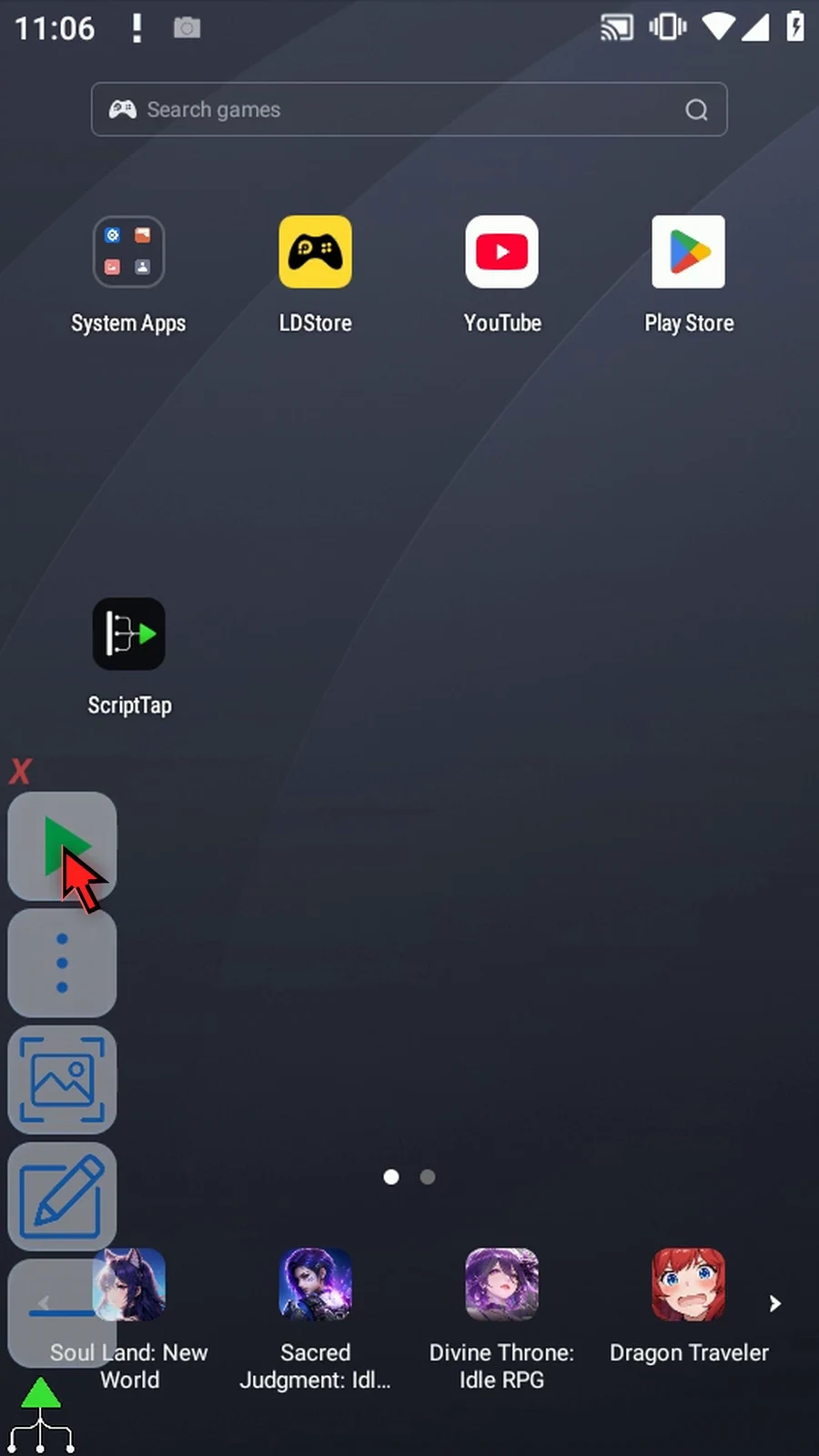
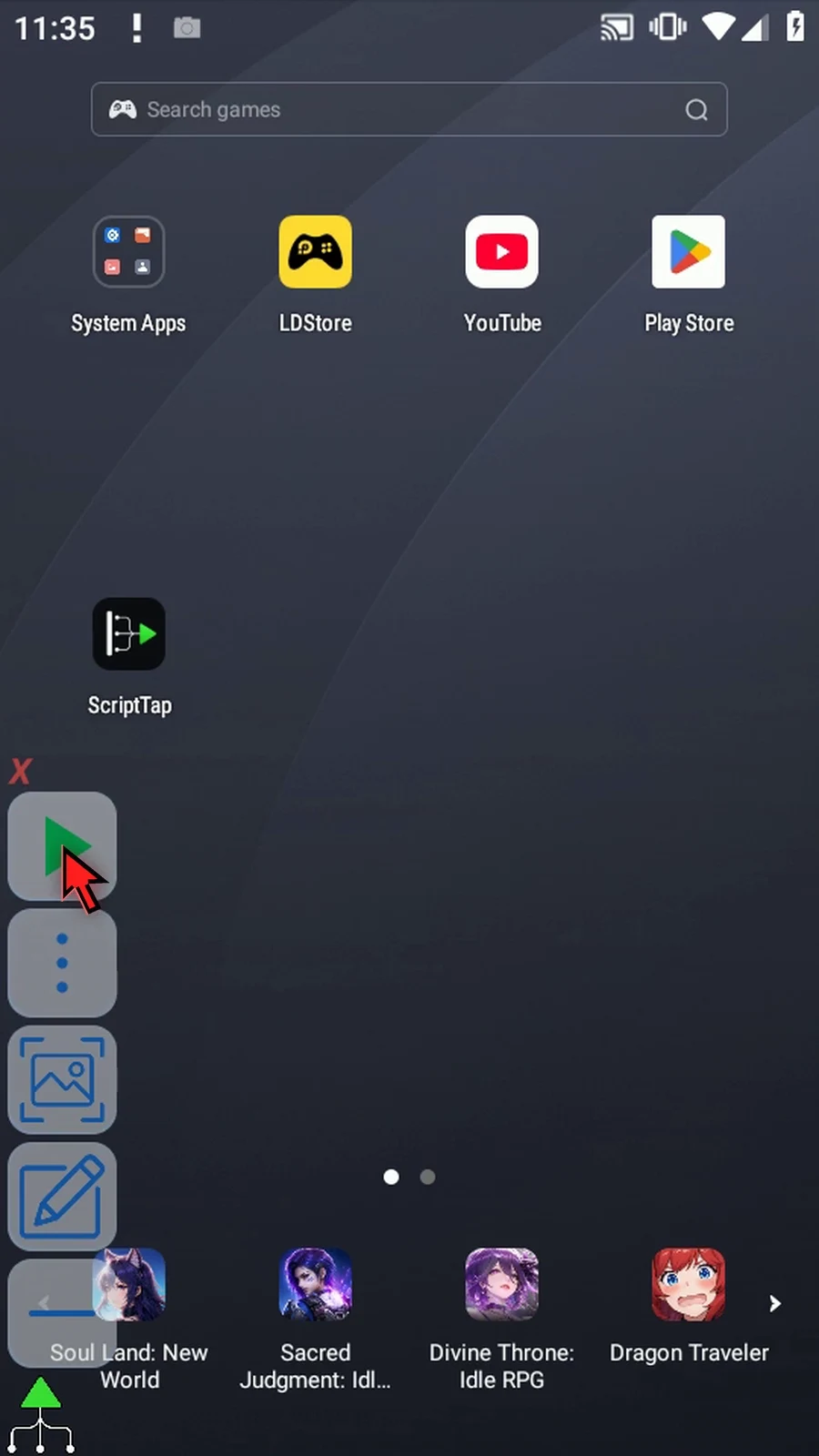
Step 30 When the script is complete, simply use the Play button in the main overlay.
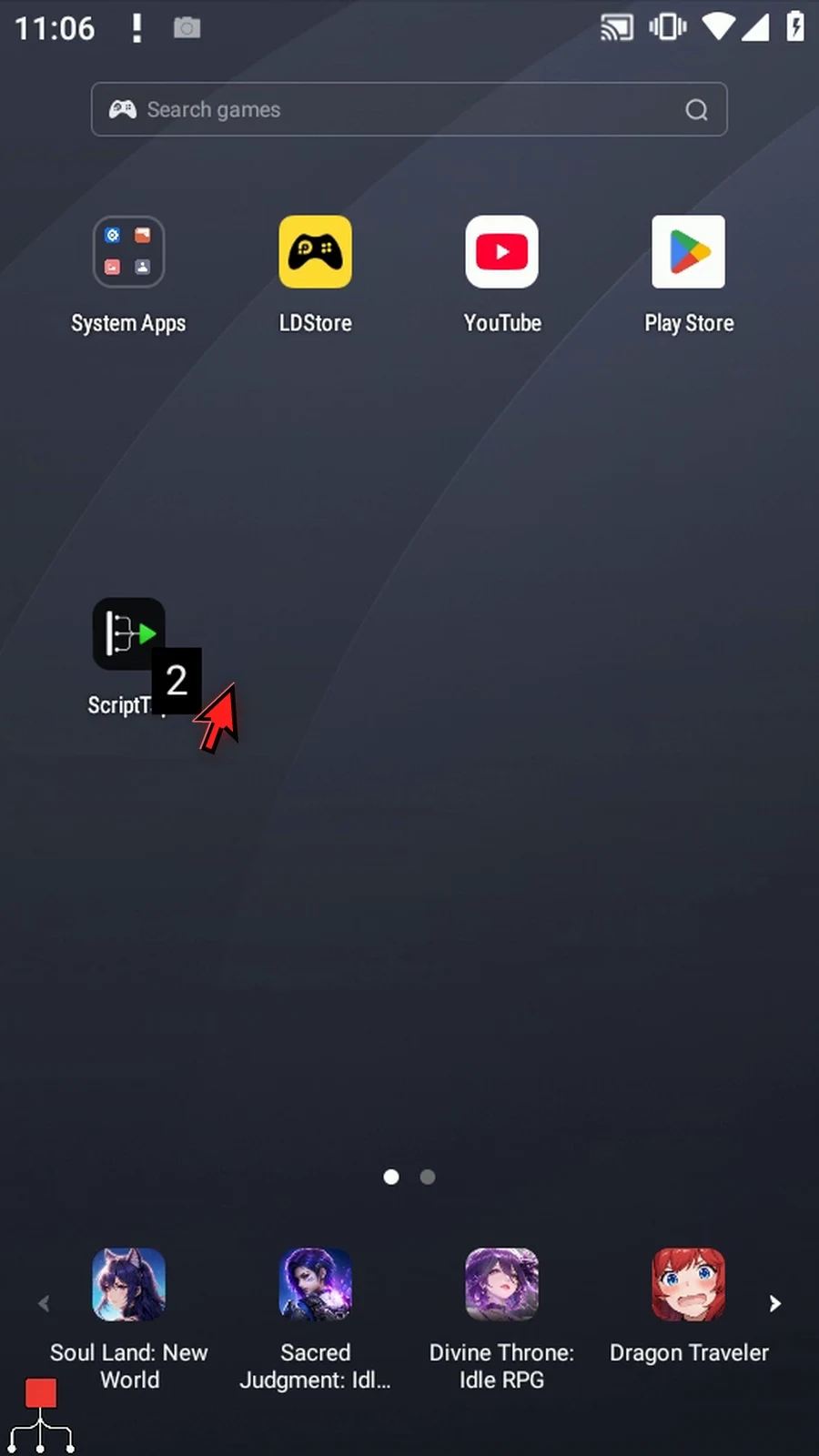
Step 31 Display shows two: the original position of the first non-empty value. The scan has not changed the array.
Step 32 The Scanned prompt confirms that the following command was reached. Tap Done to finish.
Step 33 Use First Non-Empty to locate the next useful item. The other tabs reuse this script to demonstrate empty positions, exact matches, counts, and runs.
ArraySegmentScan inspects an existing typed array without reading the screen or changing that array. Match its letter, Value Type and scope to the SetVariable declaration. This Script Only is local; Script Thread uses the calling thread scope. Integer, Decimal, Boolean, Hex, String and Time are supported. Hex matching is exact; use ColorClassify for confidence-based color matching.
Start is a one-based original position; Length is a number of positions, not the final index. Both accept Integer literals or prior Integer variables. The range must fit the declared capacity, up to 4096. Forward starts at Start; Reverse starts at the other end of that range. Reported indexes remain original array positions. A zero Length scans nothing and produces no-match outputs.
Where shown, Empty Value defines the typed empty sentinel; unwritten slots are also empty. Active Mask reads a prior Boolean array: only true positions are eligible, and false positions break runs. Found writes a Boolean; Index and Count write Integers. Enable only the outputs needed by later commands. A true mode change clears the old mode-specific settings and destinations, so check them again.
First Empty returns the first unwritten slot or value equal to Empty Value. The example uses sentinel 0 and displays i1=1. Found is true, Value is 0, and Count is 1. Use the returned original position when a later ArraySet command needs an available slot. The Intro builds the supporting script.
First Empty
Step-by-step guide
Step 01 First Empty locates the first empty position in a selected array range. Use it when the next part of a script needs an available slot. We will continue the five-command script built in the Intro.
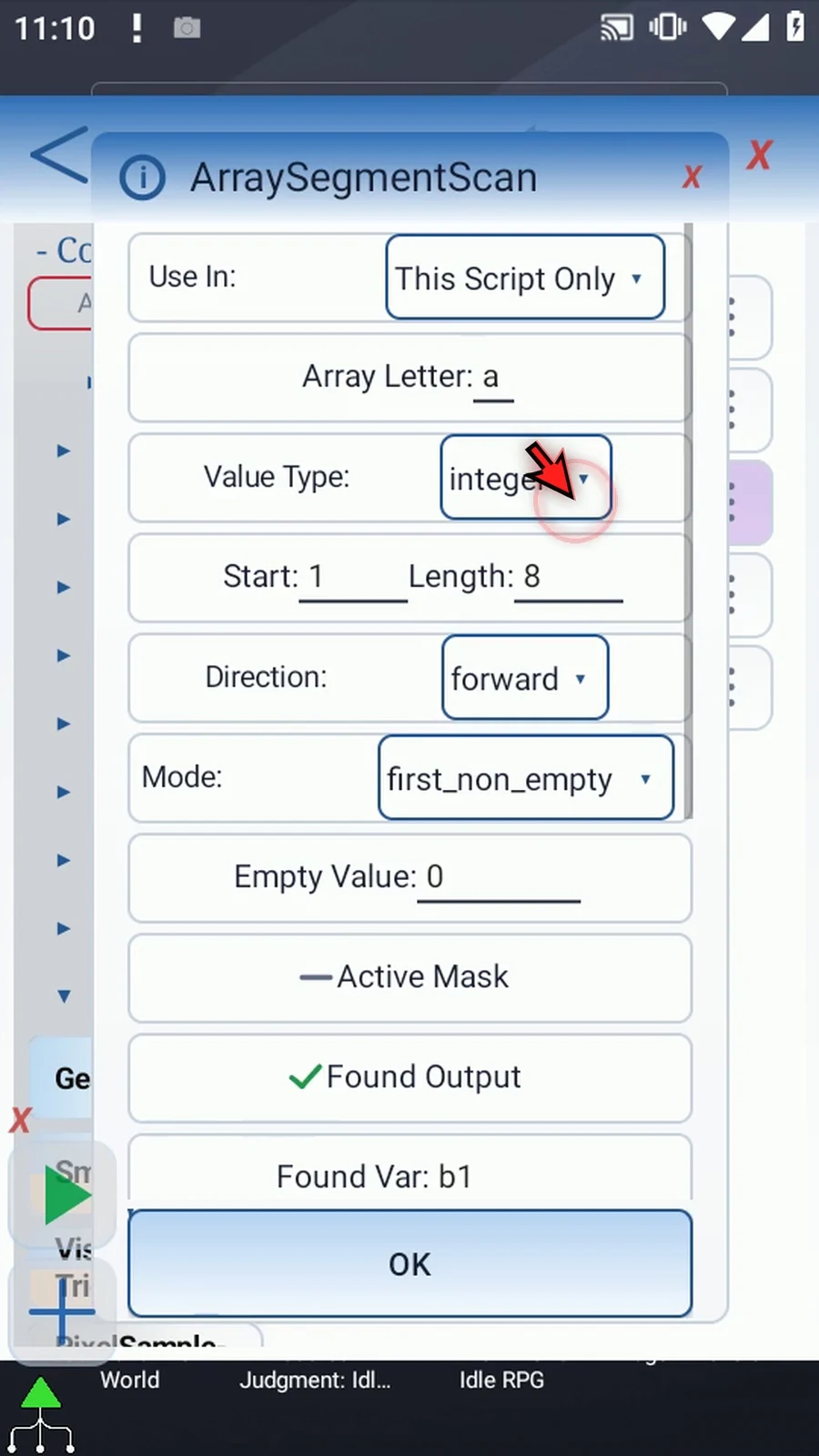
Step 02 Choose First Empty. Keep local Integer array a, Start one, Length eight, and Forward. Set Empty Value to zero, and leave Active Mask off. Changing modes clears the old mode's settings, so re-enter the required fields and destinations.
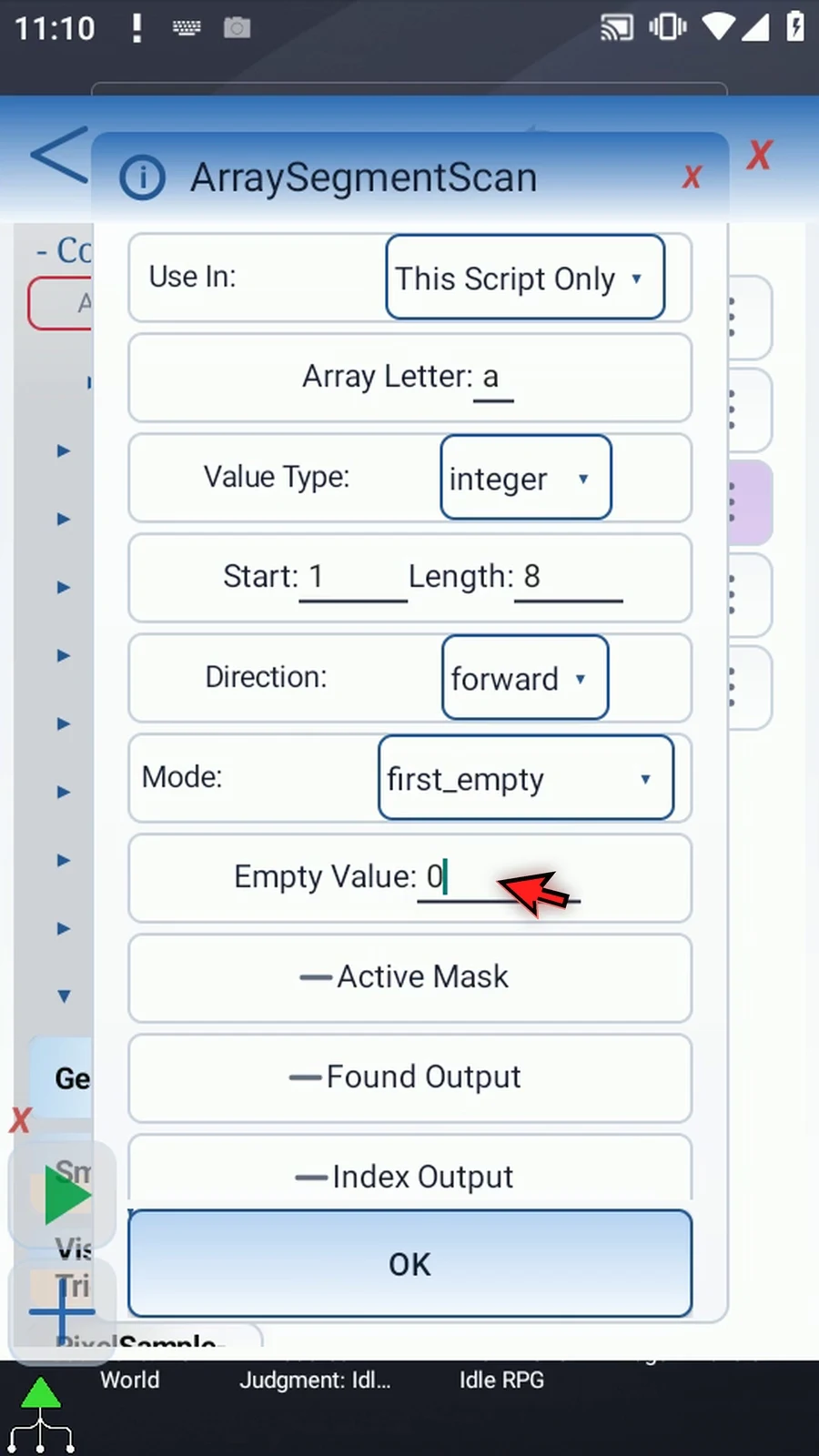
Step 03 Scroll to the outputs and enable Found. Store the result in Boolean b one, so later commands can test whether the scan found a qualifying position.
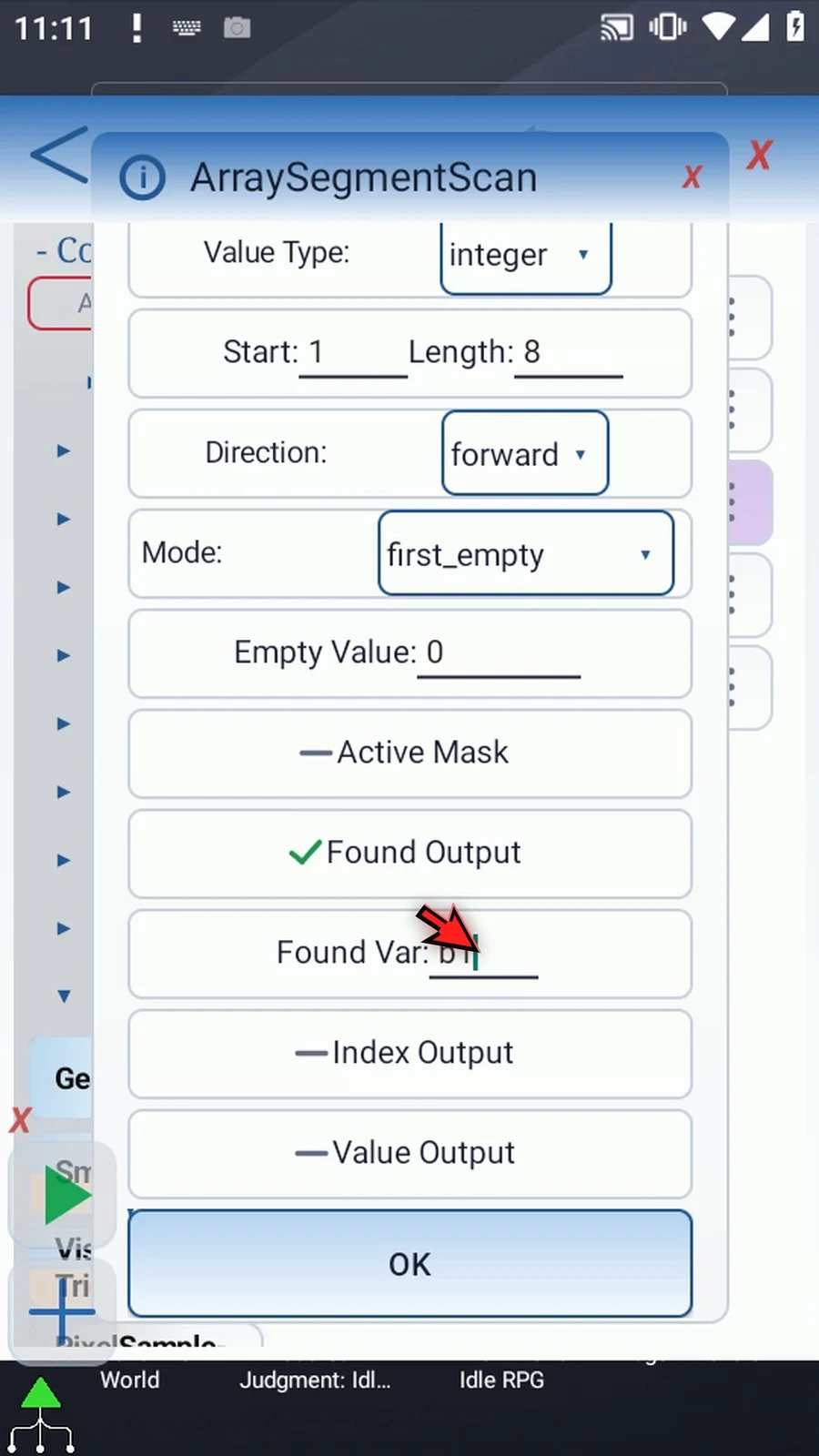
Step 04 Enable Index and store the original array position in Integer i one. This identifies the first empty slot.
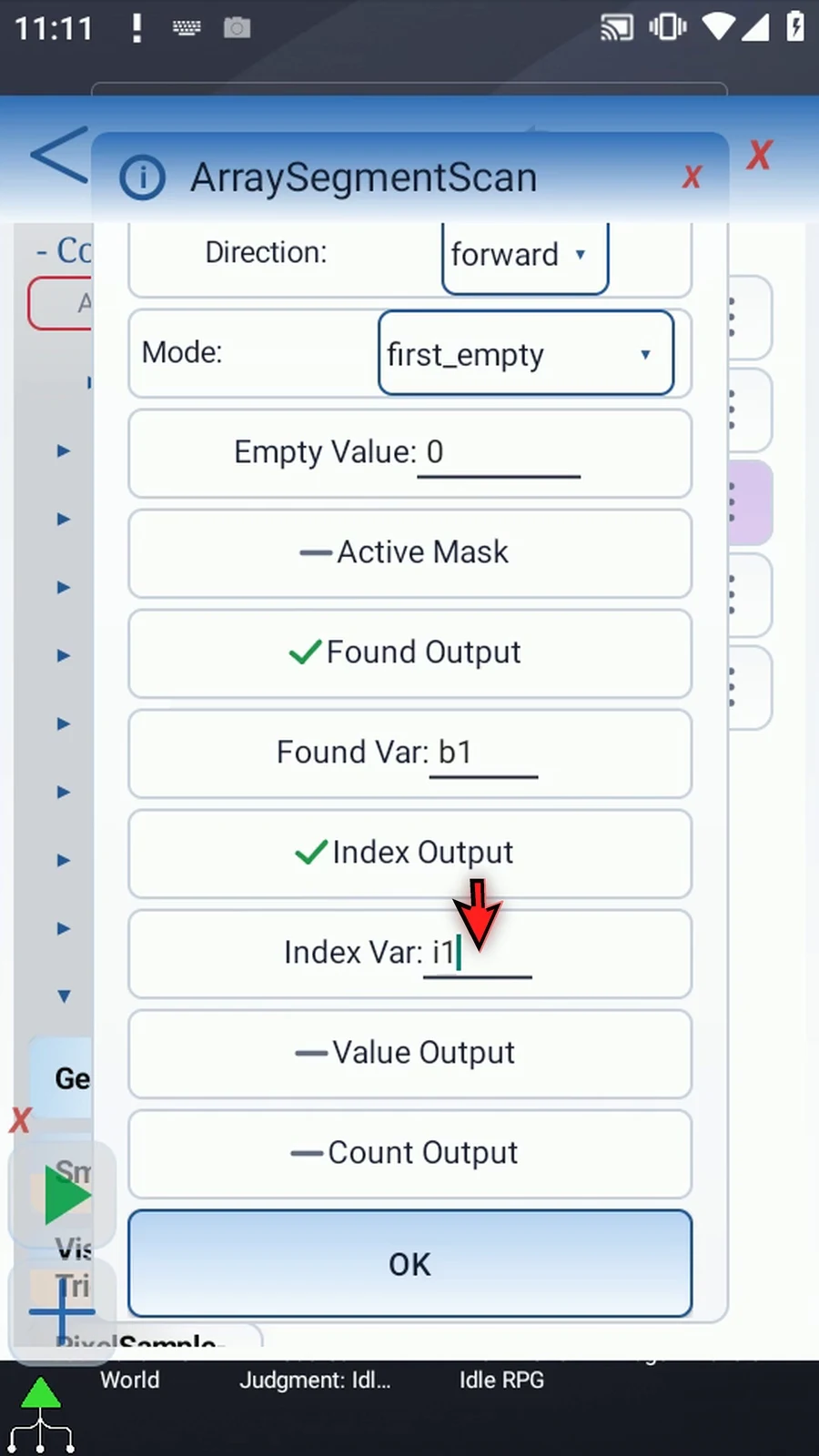
Step 05 Enable Value and use i two. This receives zero in our example, because zero is the configured empty value.
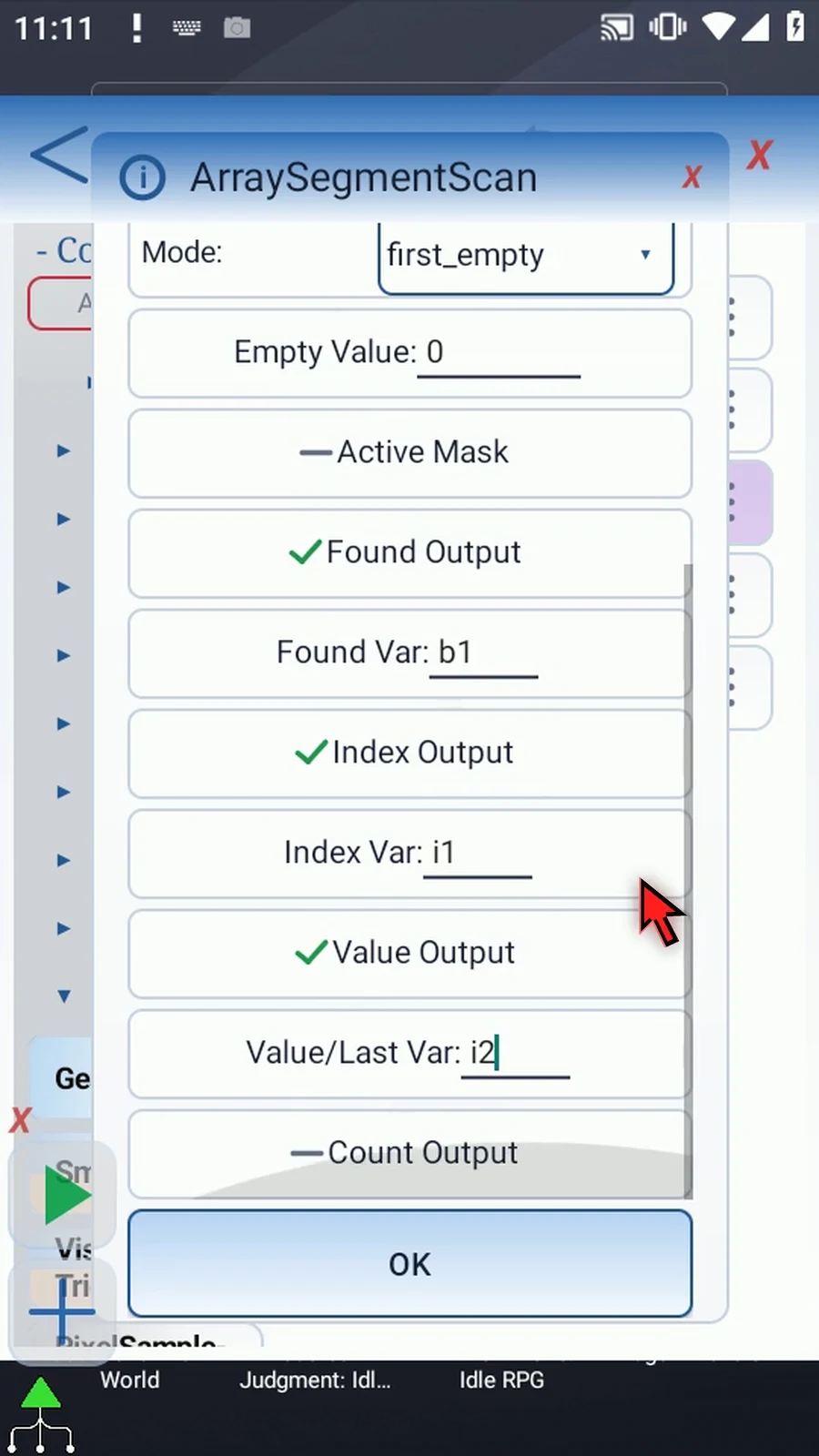
Step 06 Enable Count and use Integer i three. First Empty returns one if it finds a position, or zero if it does not.
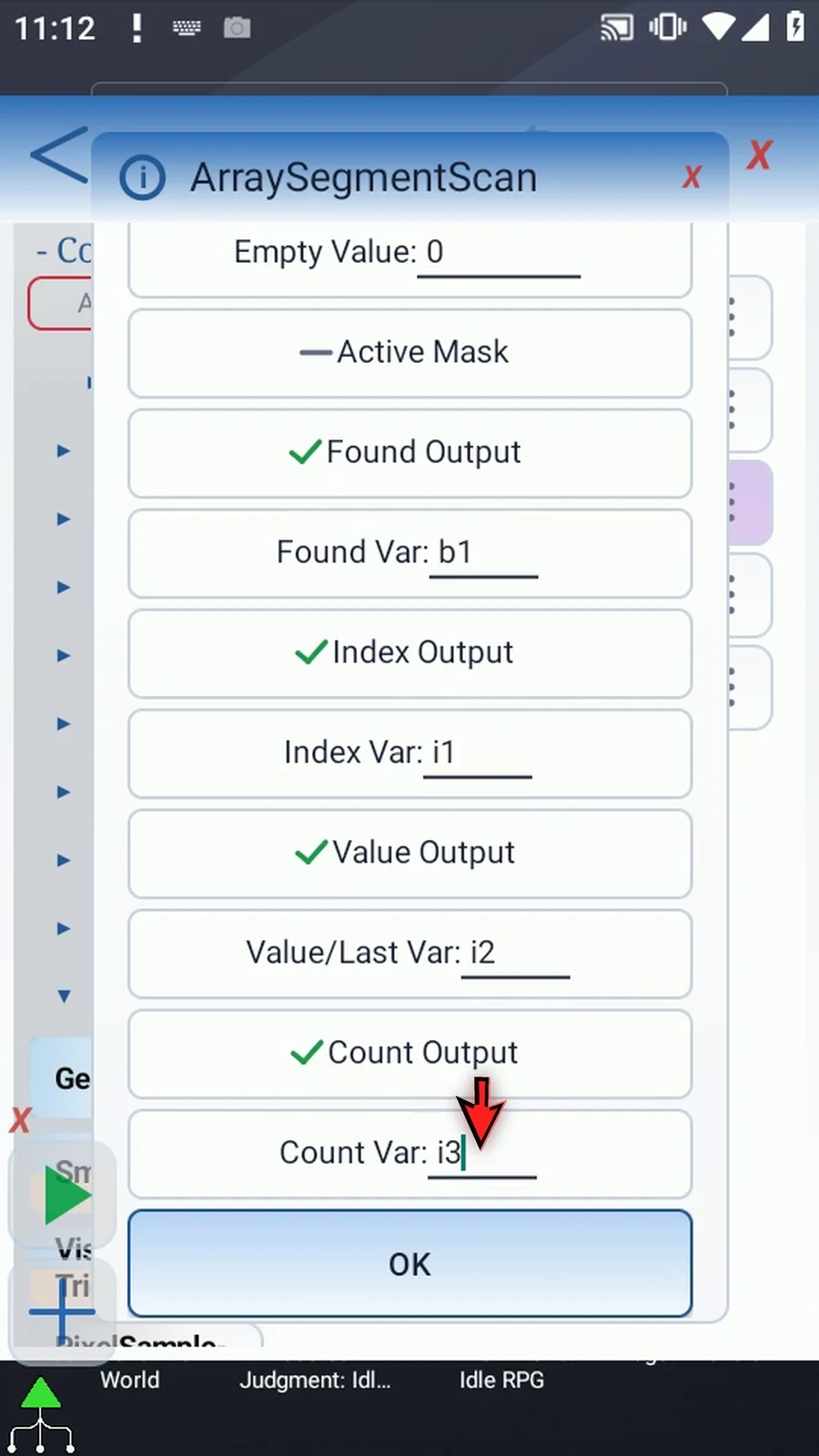
Step 07 Save the scan settings. The array declaration and Bulk setup remain unchanged.
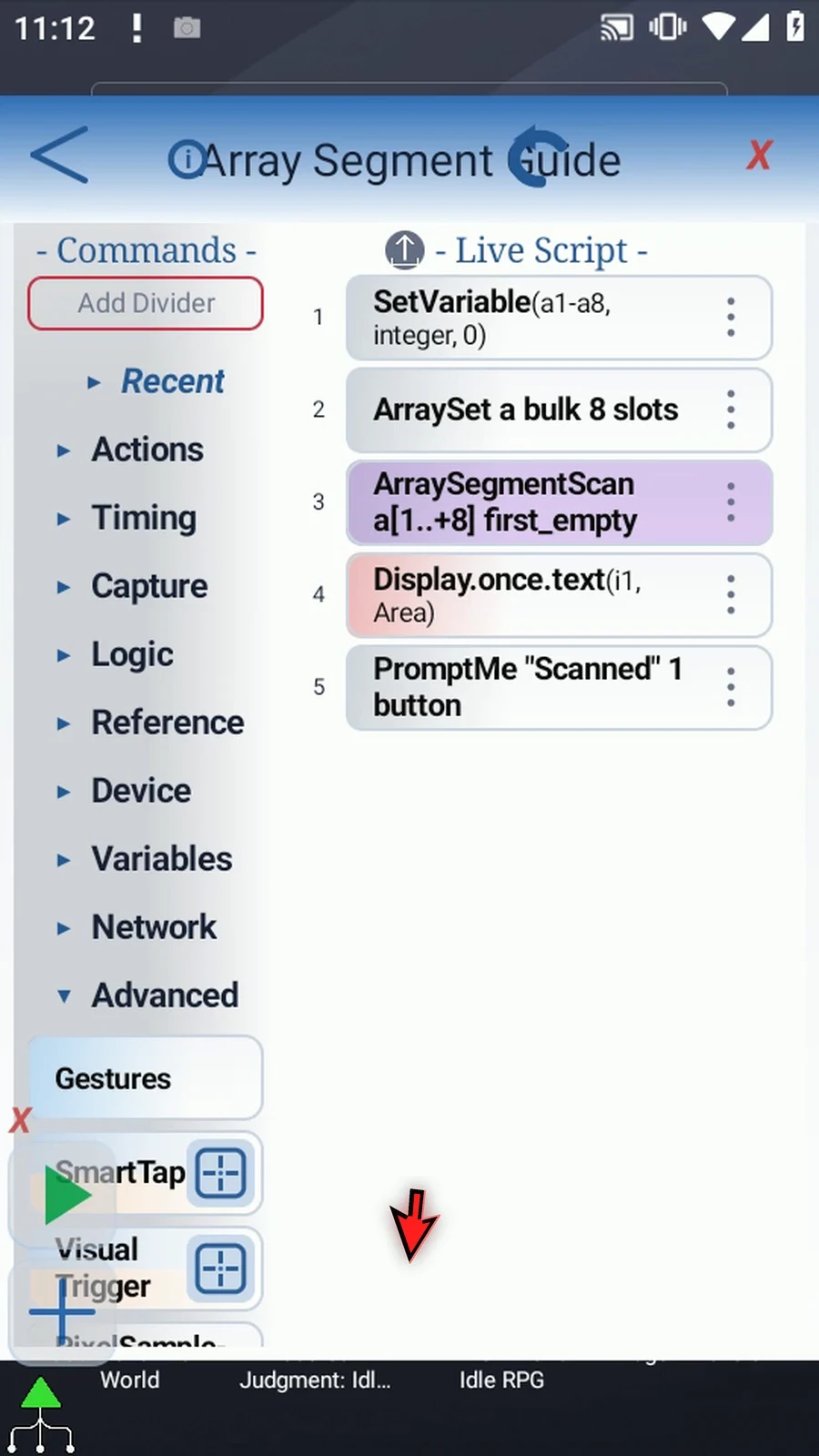
Step 08 Open Display and set its text variable to i one. Keep its existing area and five-second lifespan, then save.
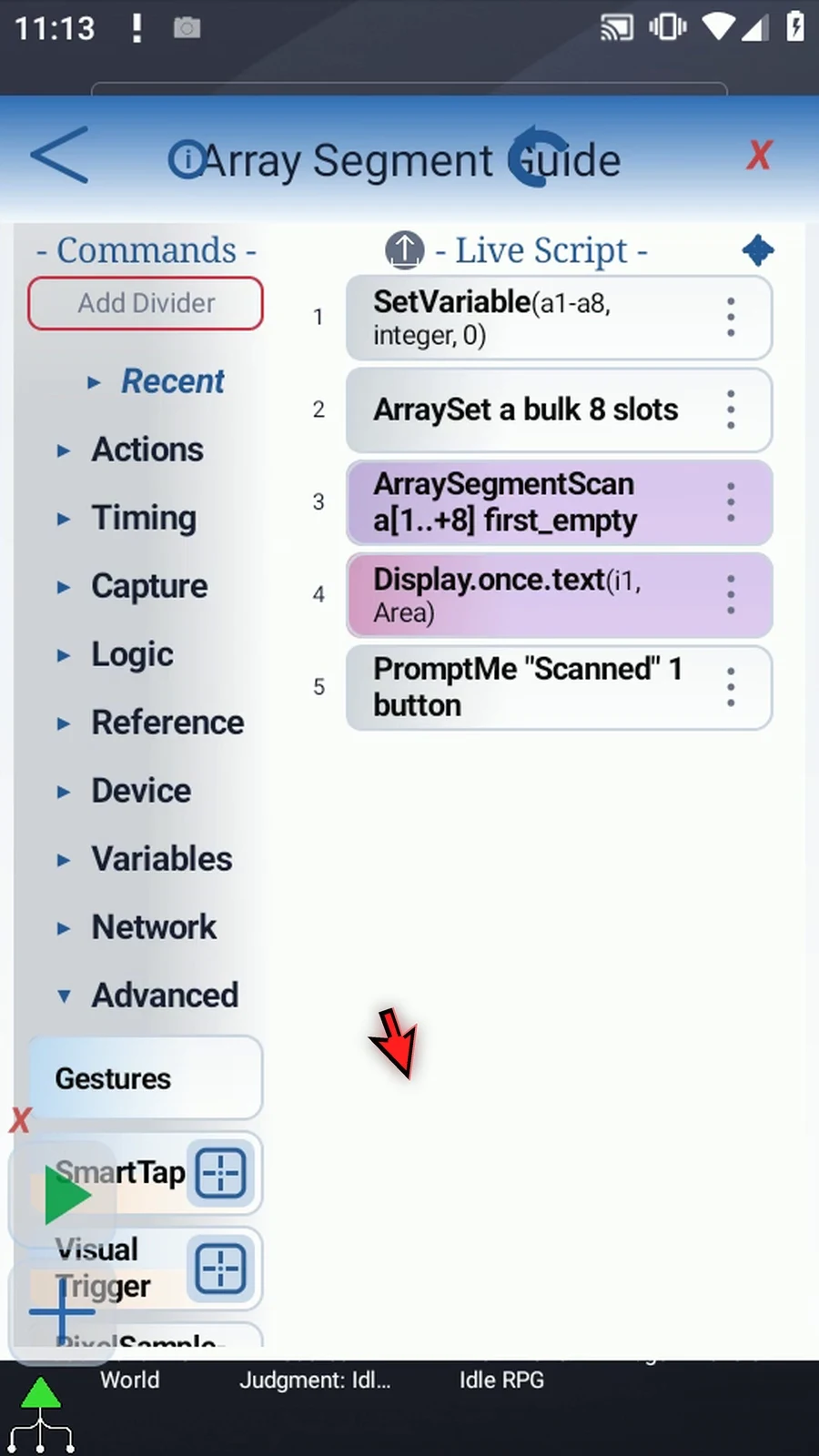
Step 09 The supporting commands prepare zero, five, five, zero, nine, nine, nine, zero. The scan uses that same pattern, and Prompt Me confirms completion.
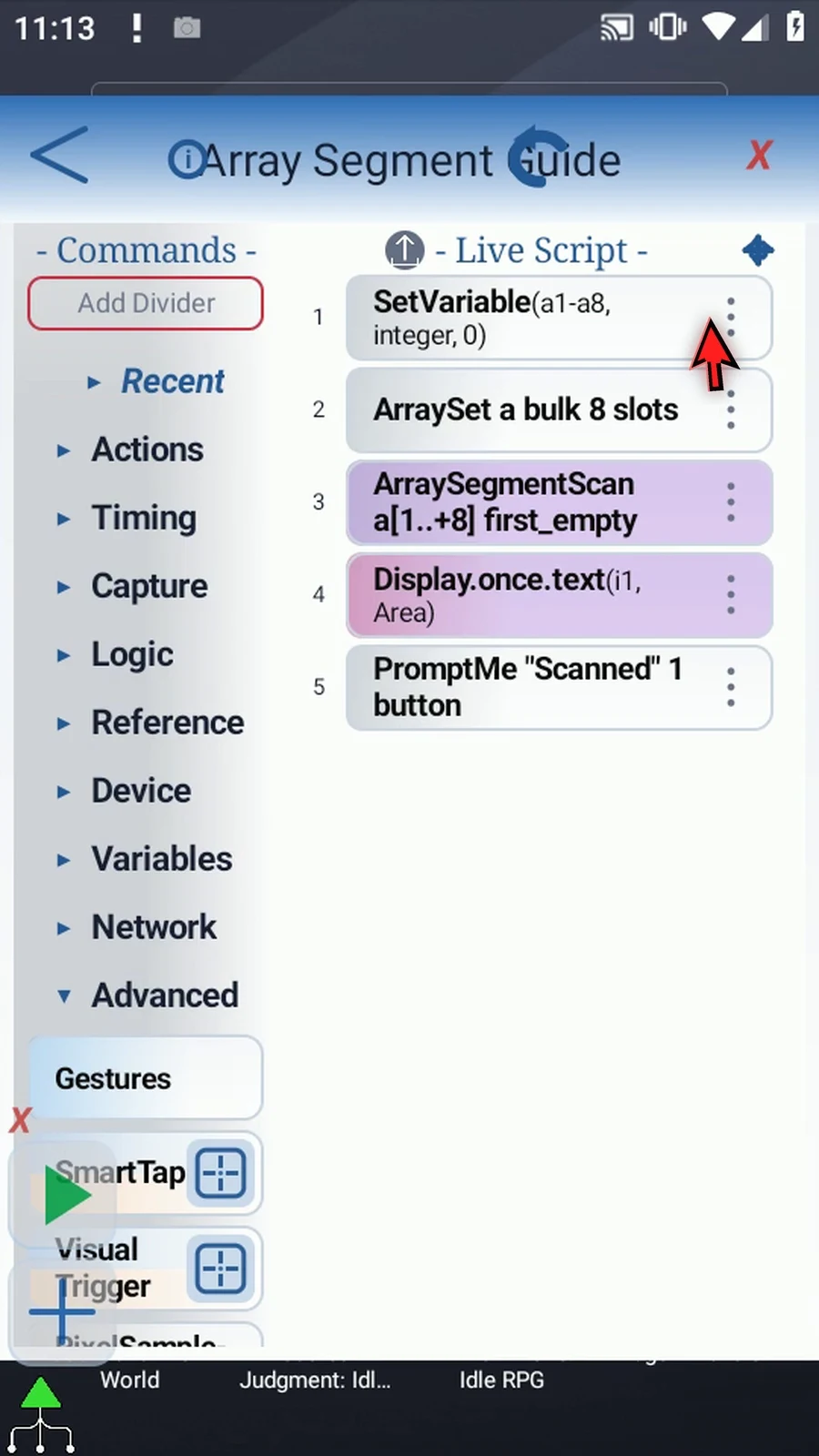
Step 10 Close the editor and expand the main overlay.
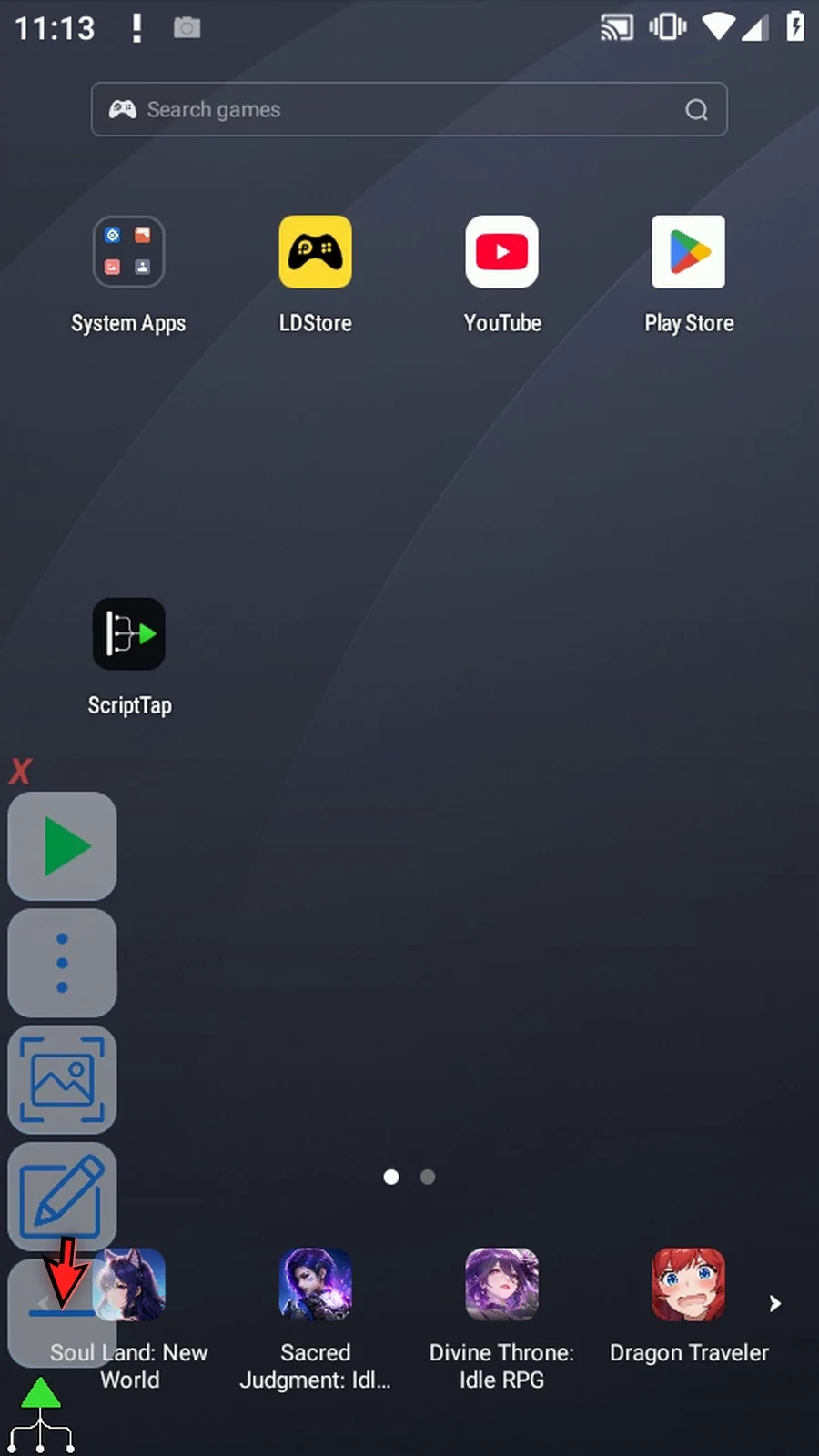
Step 11 When the script is complete, simply use the Play button in the main overlay.
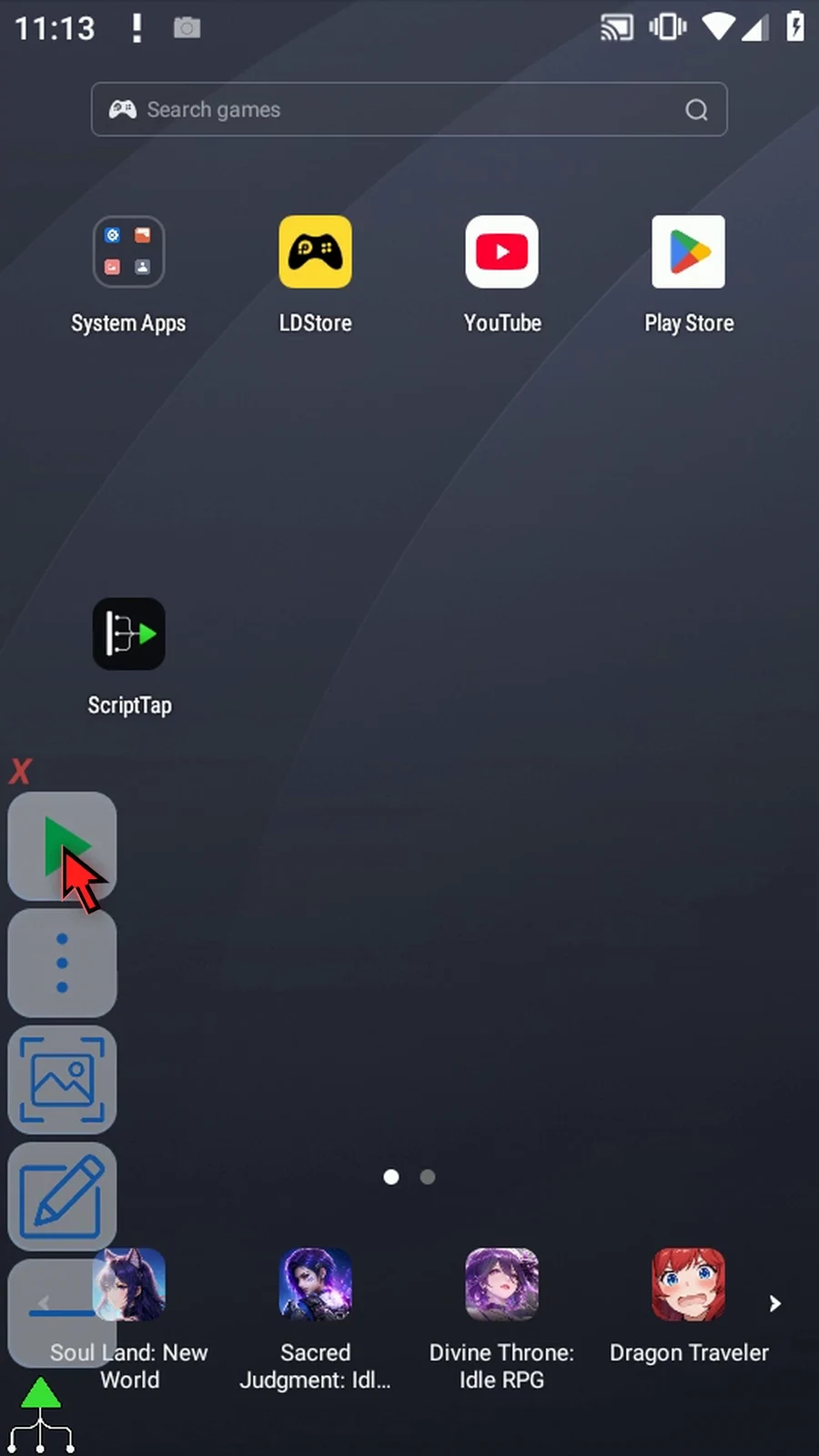
Step 12 Display shows one. The first position contains zero, which we defined as empty. Found is true, the returned value is zero, and Count is one.
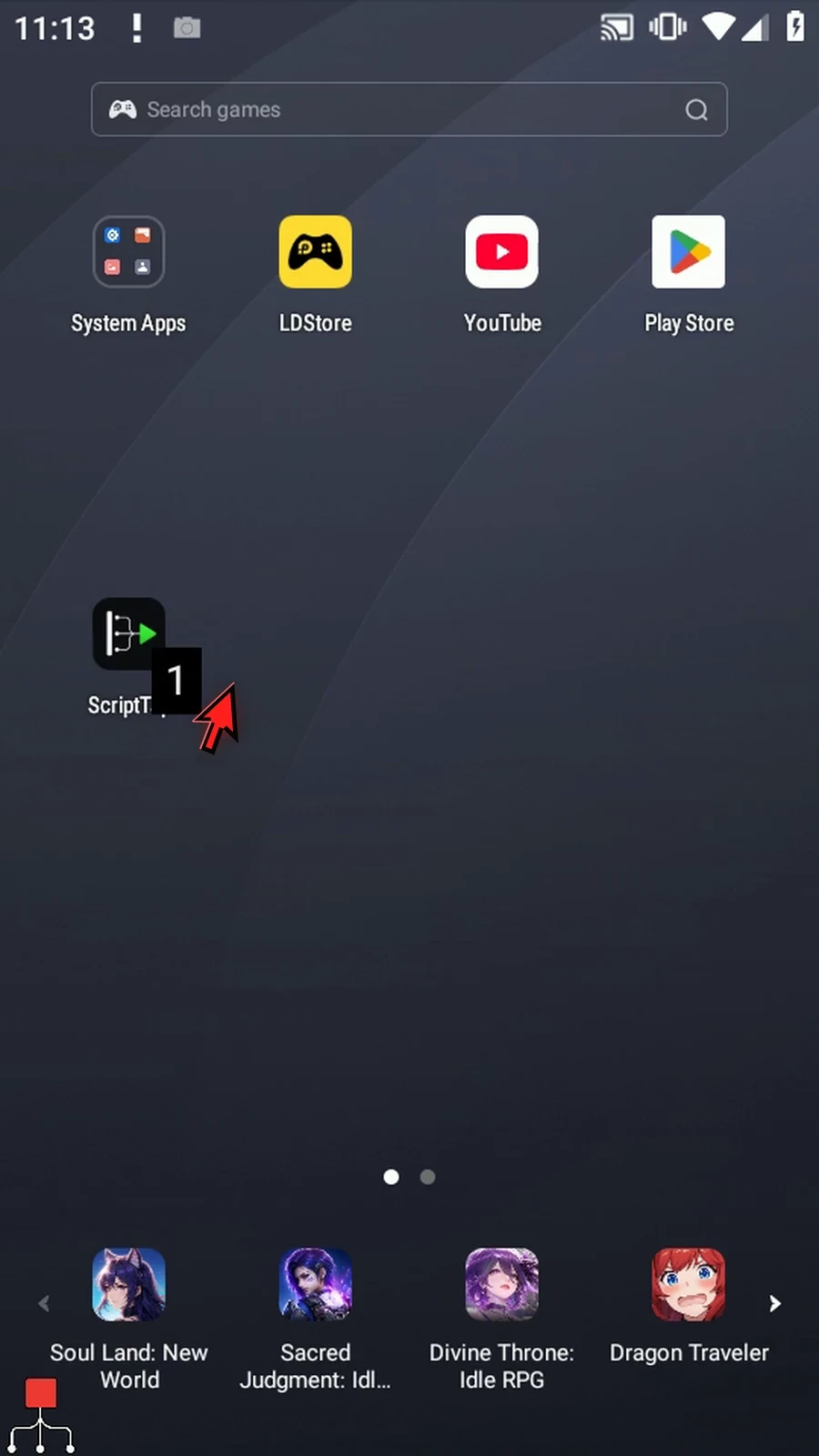
Step 13 The Scanned prompt confirms completion. Tap Done to finish the run.
Step 14 An unwritten position also counts as empty. Use this result to choose where a later Array Set command should write.
ArraySegmentScan inspects an existing typed array without reading the screen or changing that array. Match its letter, Value Type and scope to the SetVariable declaration. This Script Only is local; Script Thread uses the calling thread scope. Integer, Decimal, Boolean, Hex, String and Time are supported. Hex matching is exact; use ColorClassify for confidence-based color matching.
Start is a one-based original position; Length is a number of positions, not the final index. Both accept Integer literals or prior Integer variables. The range must fit the declared capacity, up to 4096. Forward starts at Start; Reverse starts at the other end of that range. Reported indexes remain original array positions. A zero Length scans nothing and produces no-match outputs.
Where shown, Empty Value defines the typed empty sentinel; unwritten slots are also empty. Active Mask reads a prior Boolean array: only true positions are eligible, and false positions break runs. Found writes a Boolean; Index and Count write Integers. Enable only the outputs needed by later commands. A true mode change clears the old mode-specific settings and destinations, so check them again.
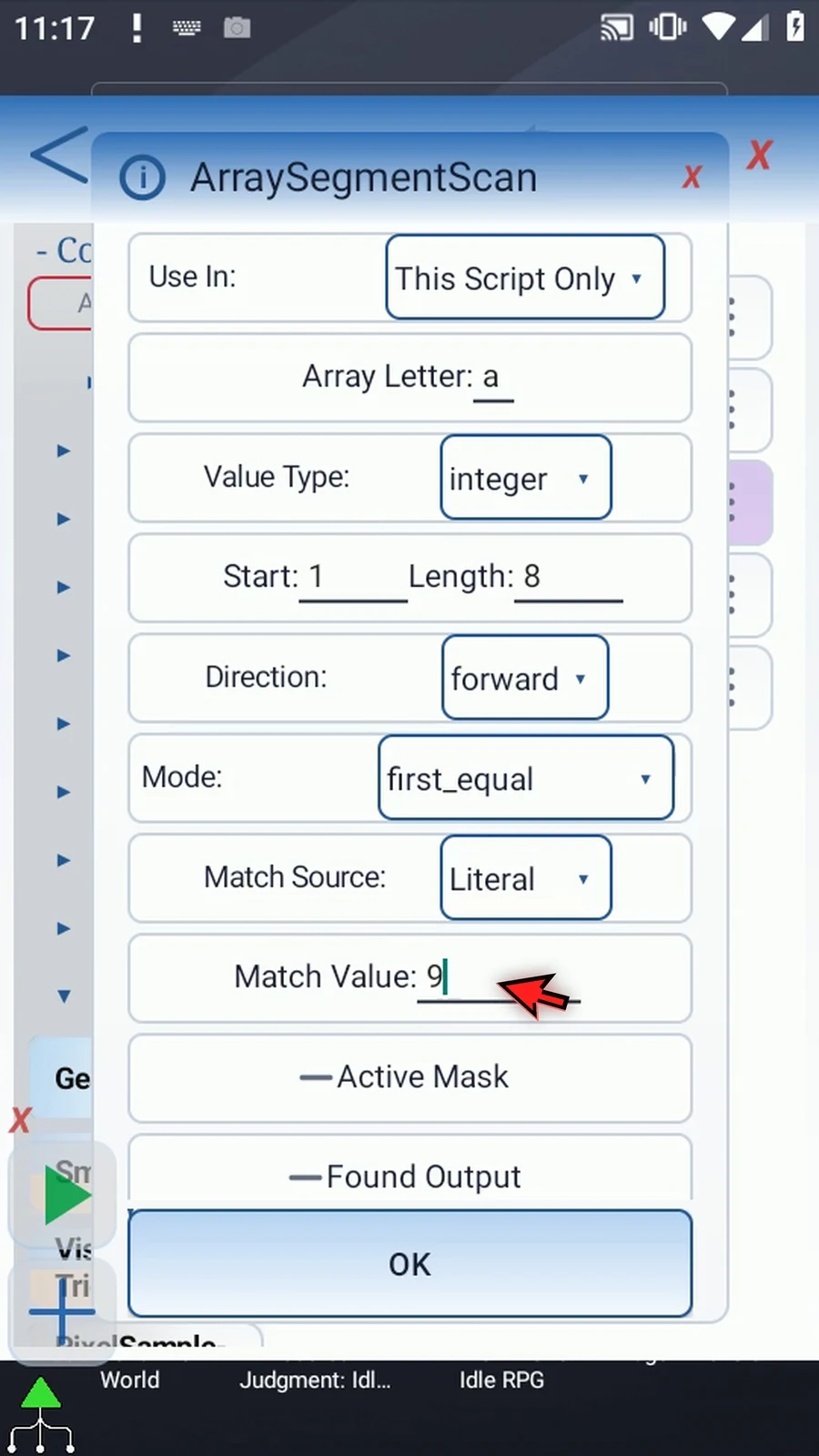
First Equal needs an explicit Match Source: Literal or a prior Variable of the array's type. It returns one first exact match, not the total. With Literal 9, Found is true, Index i1=5, Value i2=9, and Count i3=1. Display shows the index 5. Variable is shown before returning to Literal for this example.
First Equal
Step-by-step guide
Step 01 First Equal locates the first exact match in an array range. It returns the original position and value, so later commands can use the matching item. We will continue the five-command script built in the Intro.
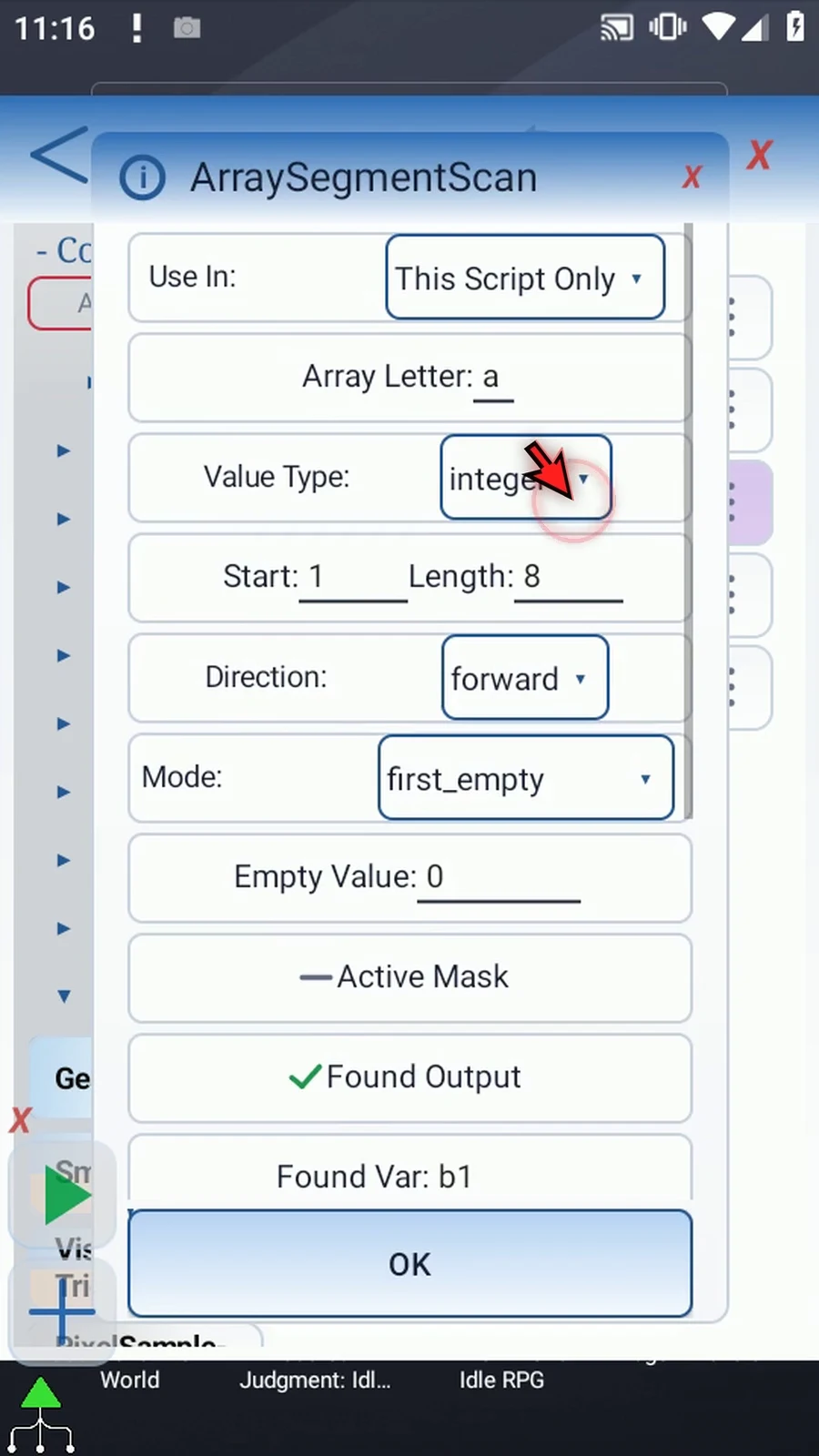
Step 02 Choose First Equal. Keep local Integer array a, Start one, Length eight, and Forward. Changing modes clears the old mode's settings, so re-enter the required fields and destinations.
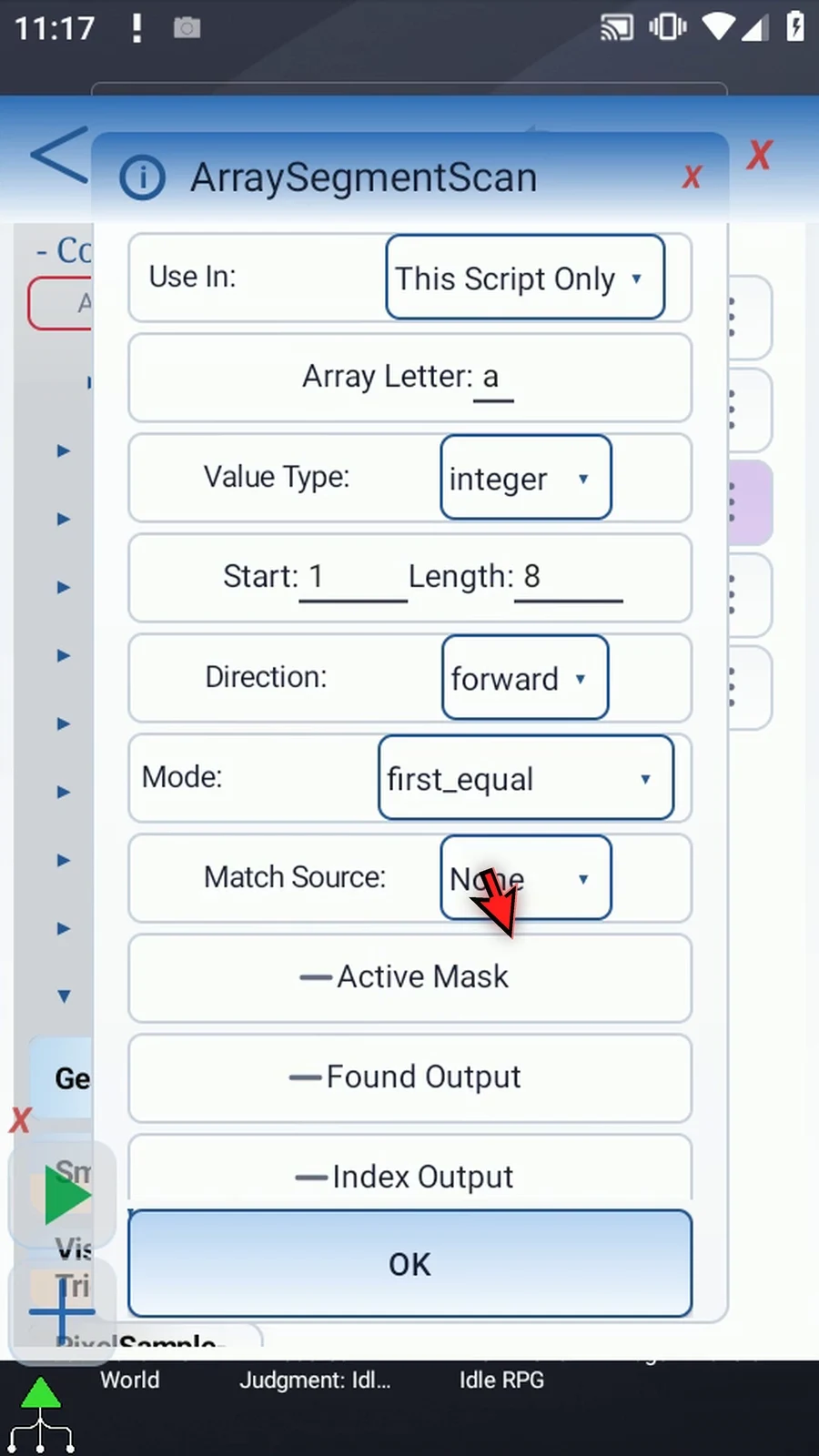
Step 03 Match Source can be Literal or a previously written Variable of the matching type. We will use Literal and enter nine.
Step 04 Scroll to the outputs and enable Found. Store the result in Boolean b one, so later commands can test whether the scan found a qualifying position.
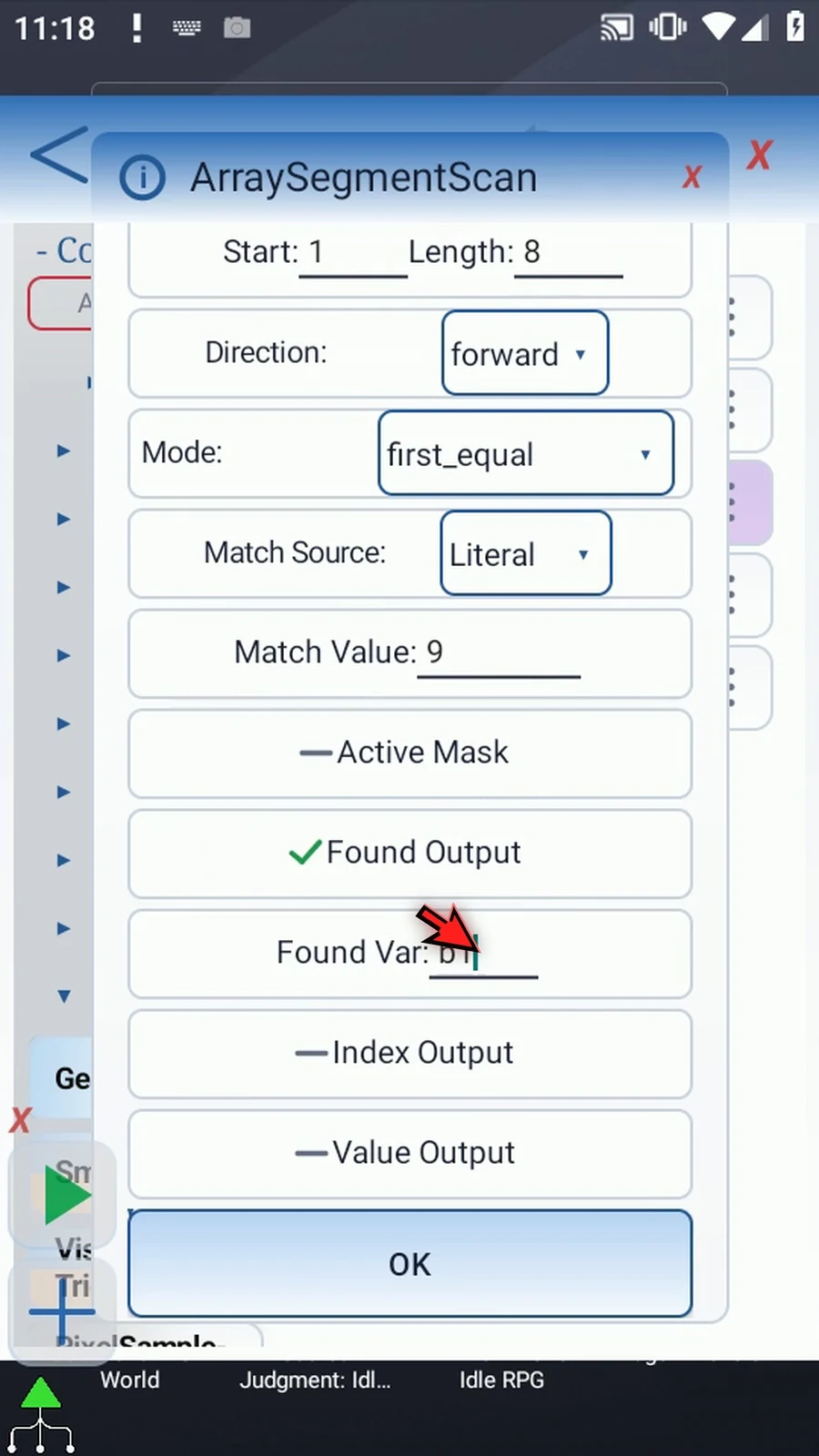
Step 05 Enable Index and store the original array position in Integer i one. This identifies the first exact match.
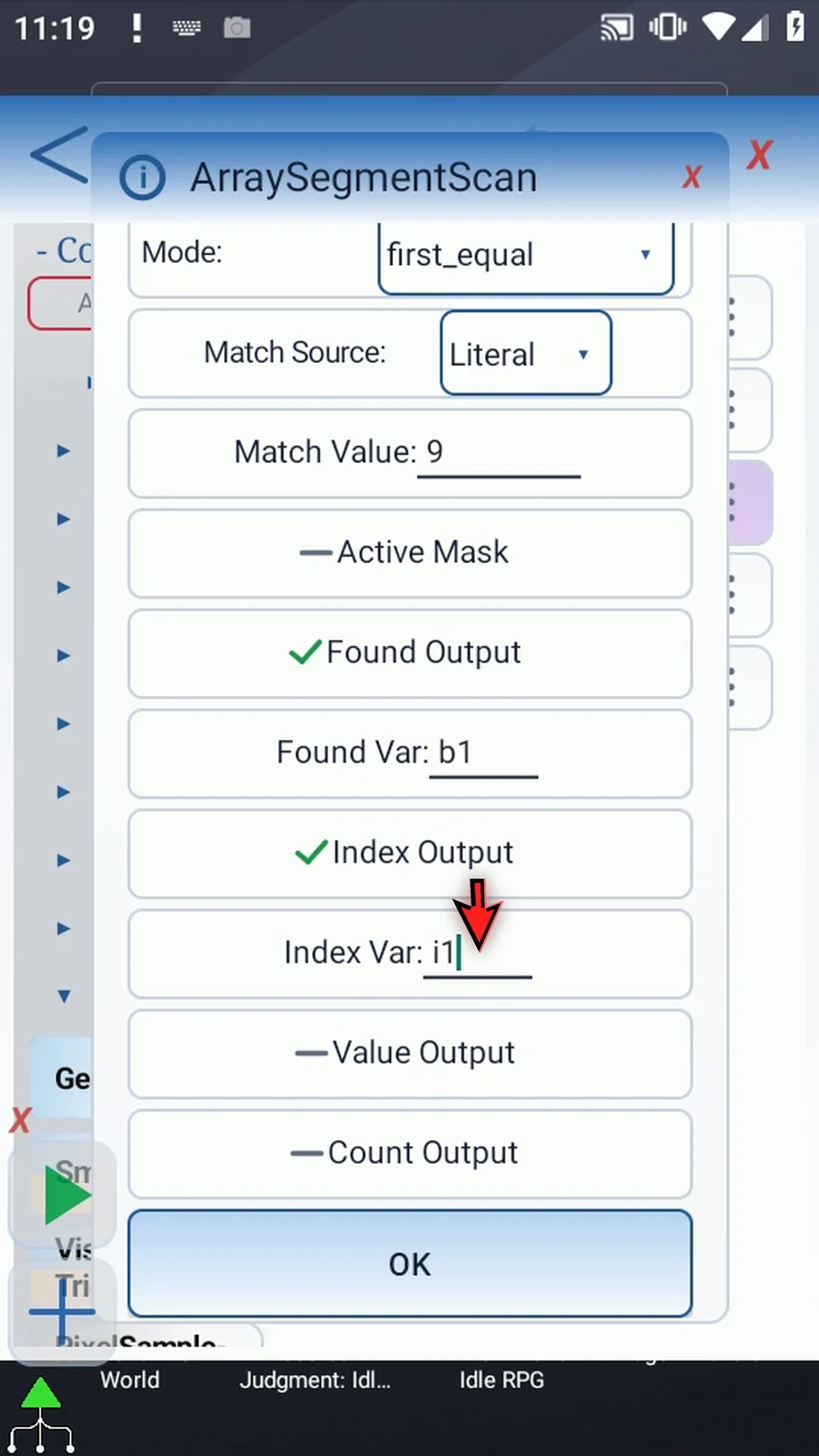
Step 06 Enable Value and use i two. This receives the first matched value, which is nine in our example.
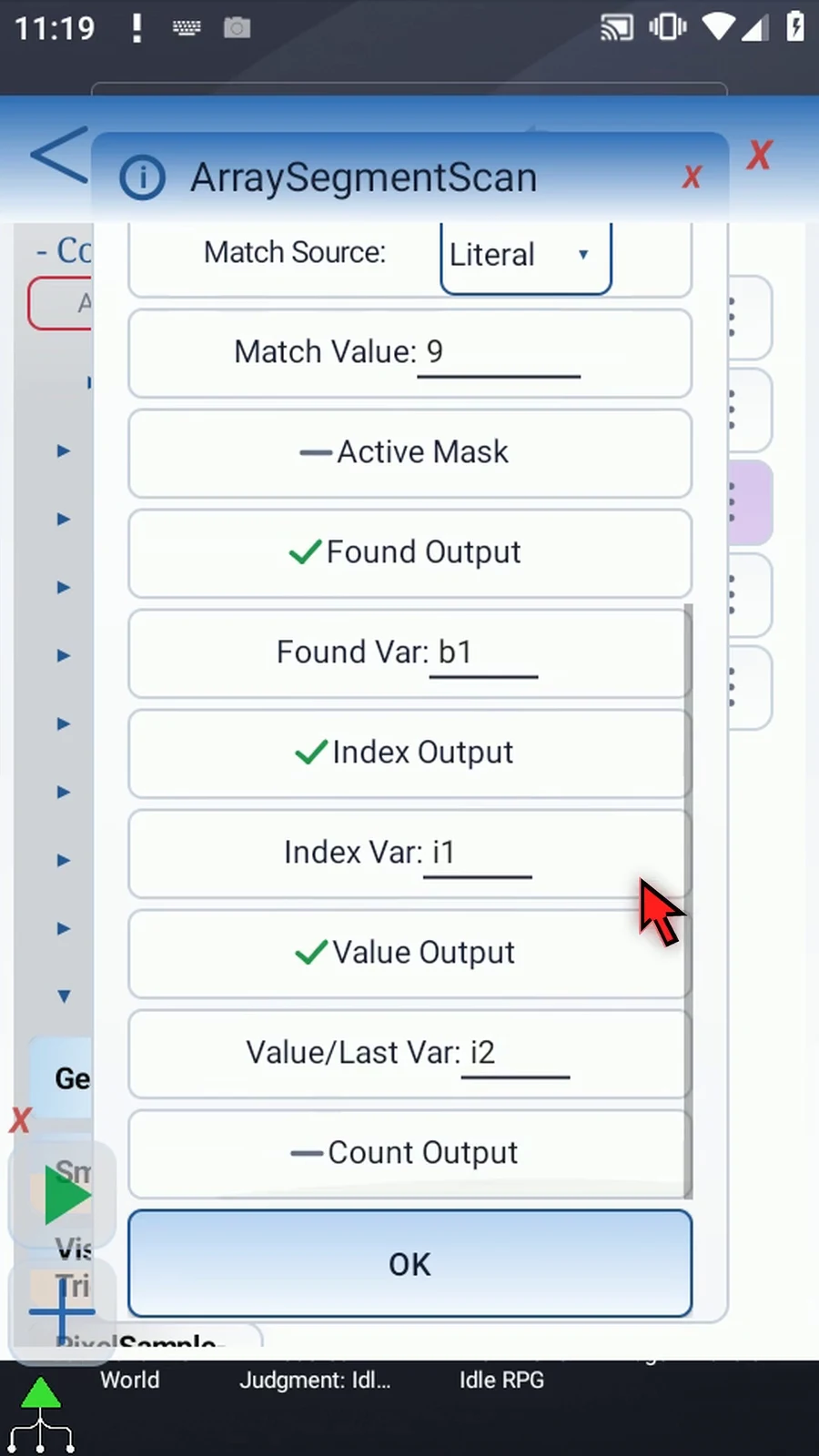
Step 07 Enable Count and use Integer i three. First Equal returns one for a successful match, not the total number of matching positions.
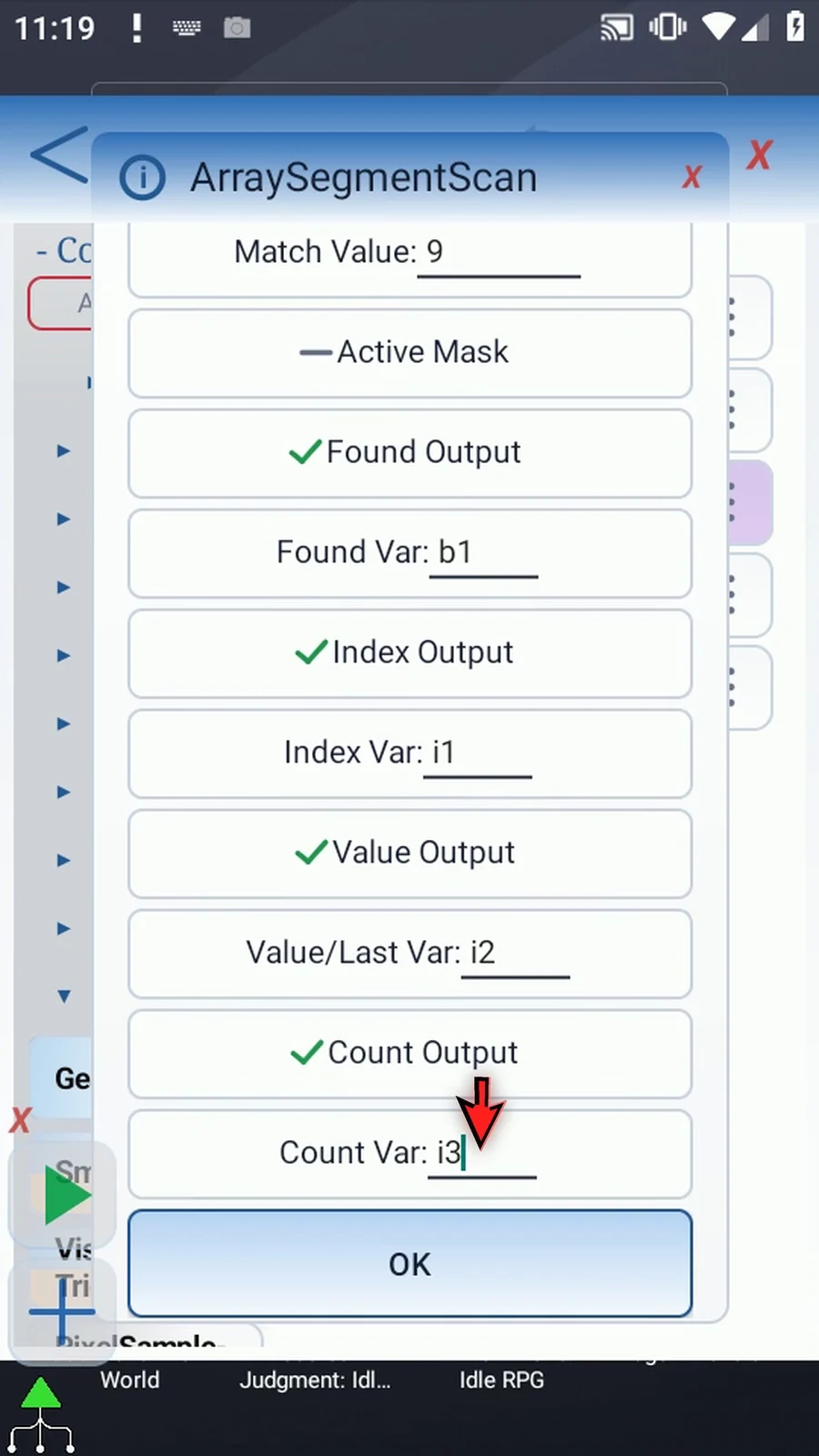
Step 08 Save the scan settings. The array declaration and Bulk setup remain unchanged.
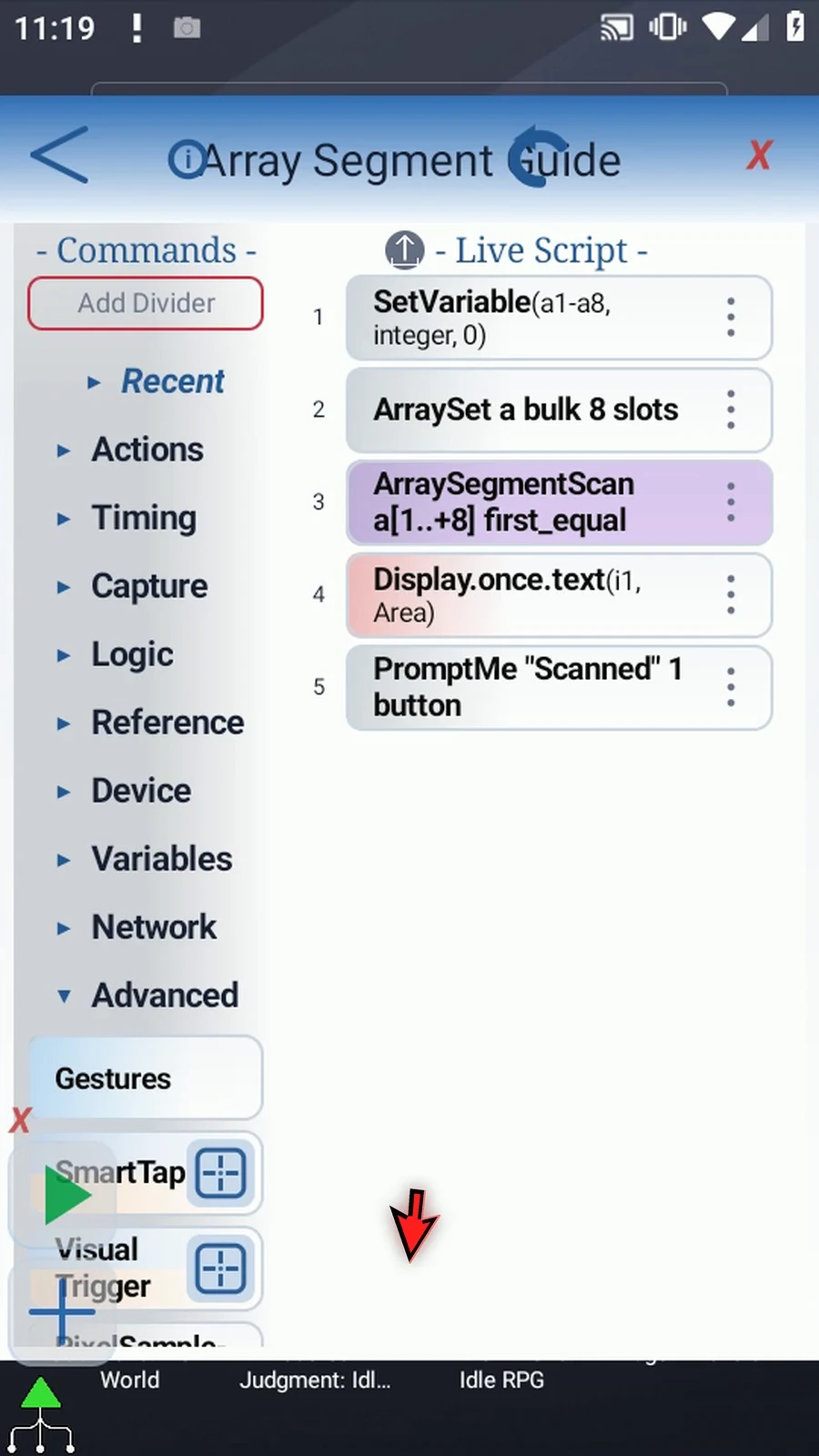
Step 09 Open Display and set its text variable to i one. Keep its existing area and five-second lifespan, then save.
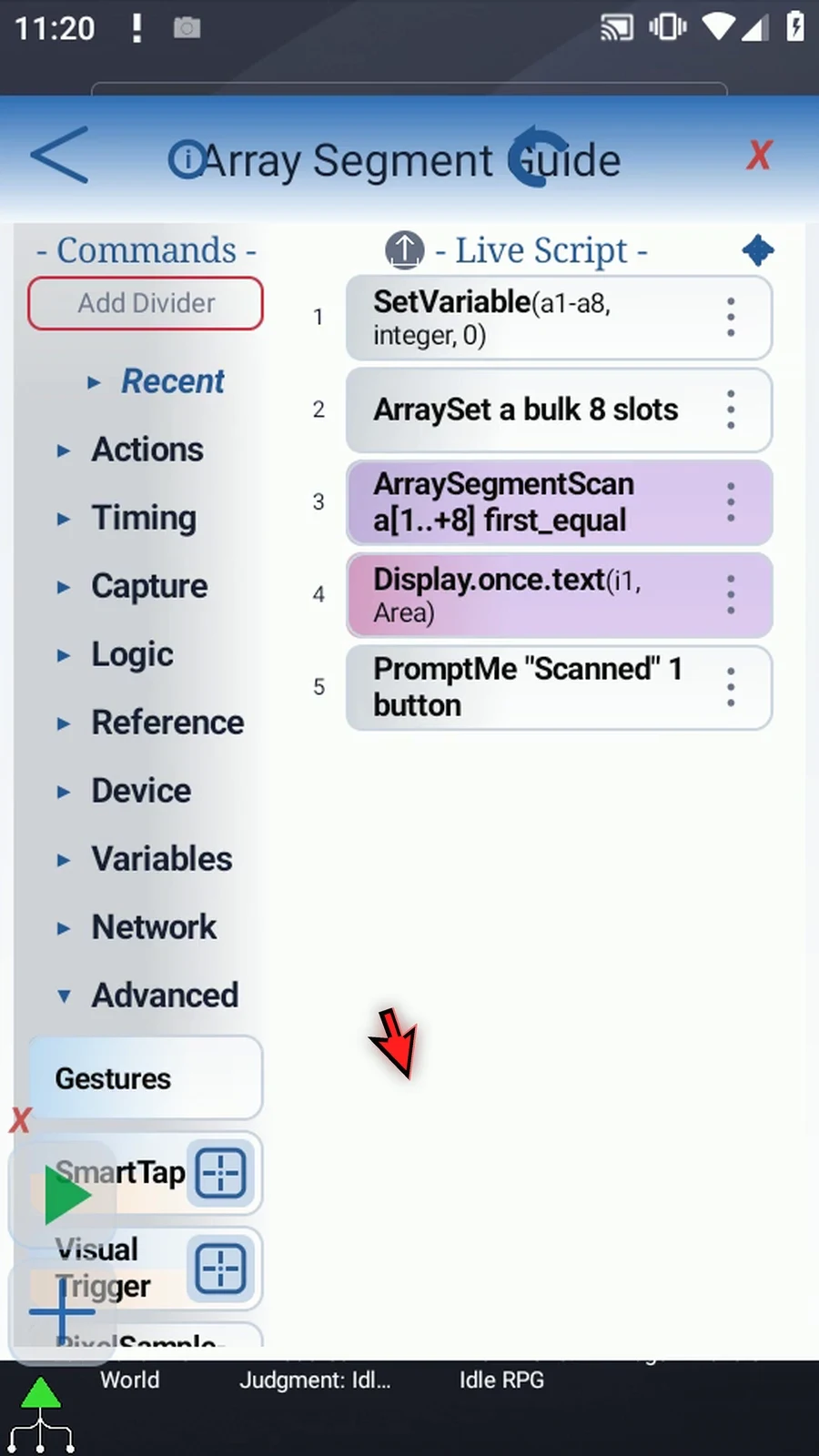
Step 10 The supporting commands prepare zero, five, five, zero, nine, nine, nine, zero. The scan uses that same pattern, and Prompt Me confirms completion.
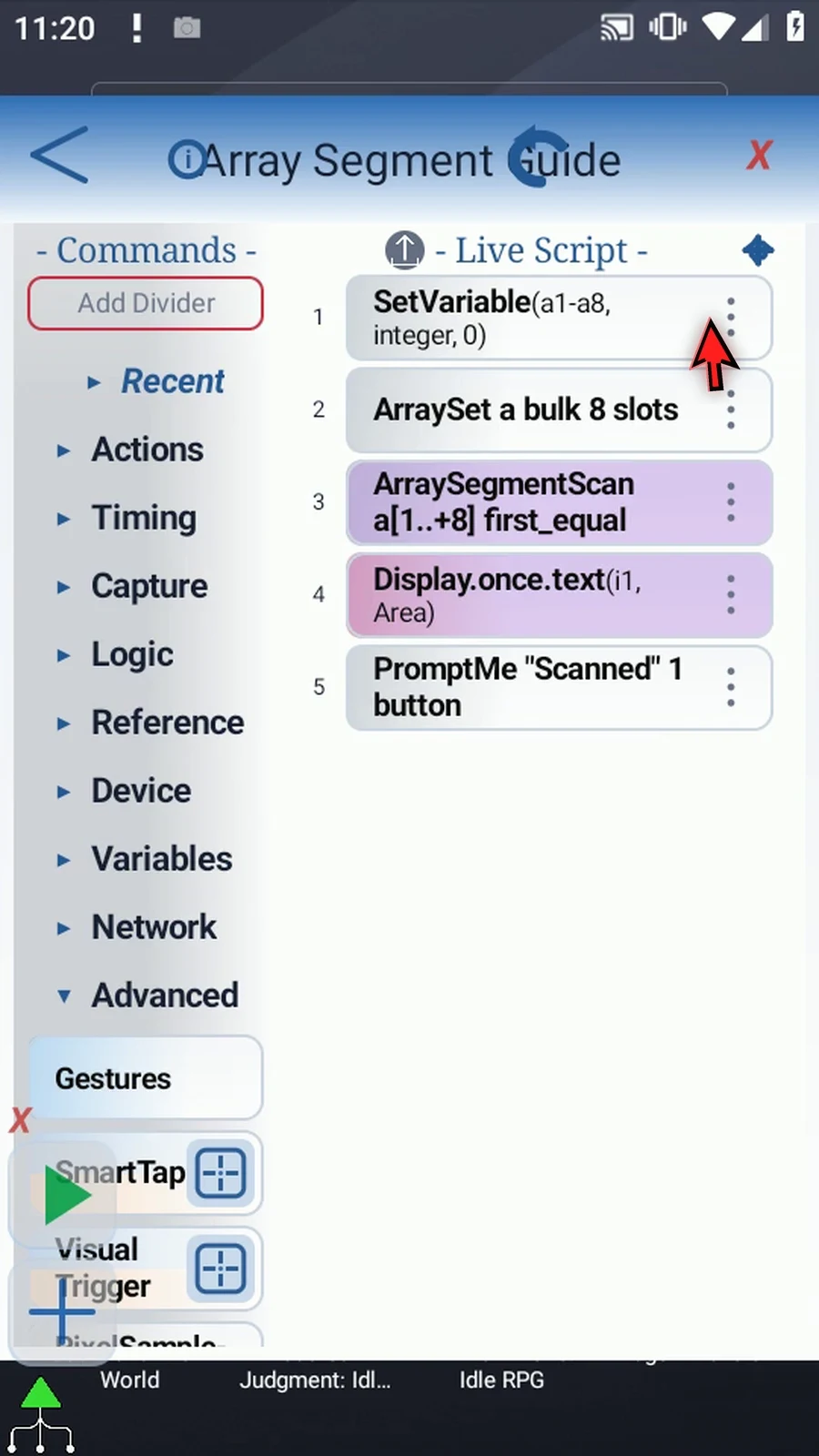
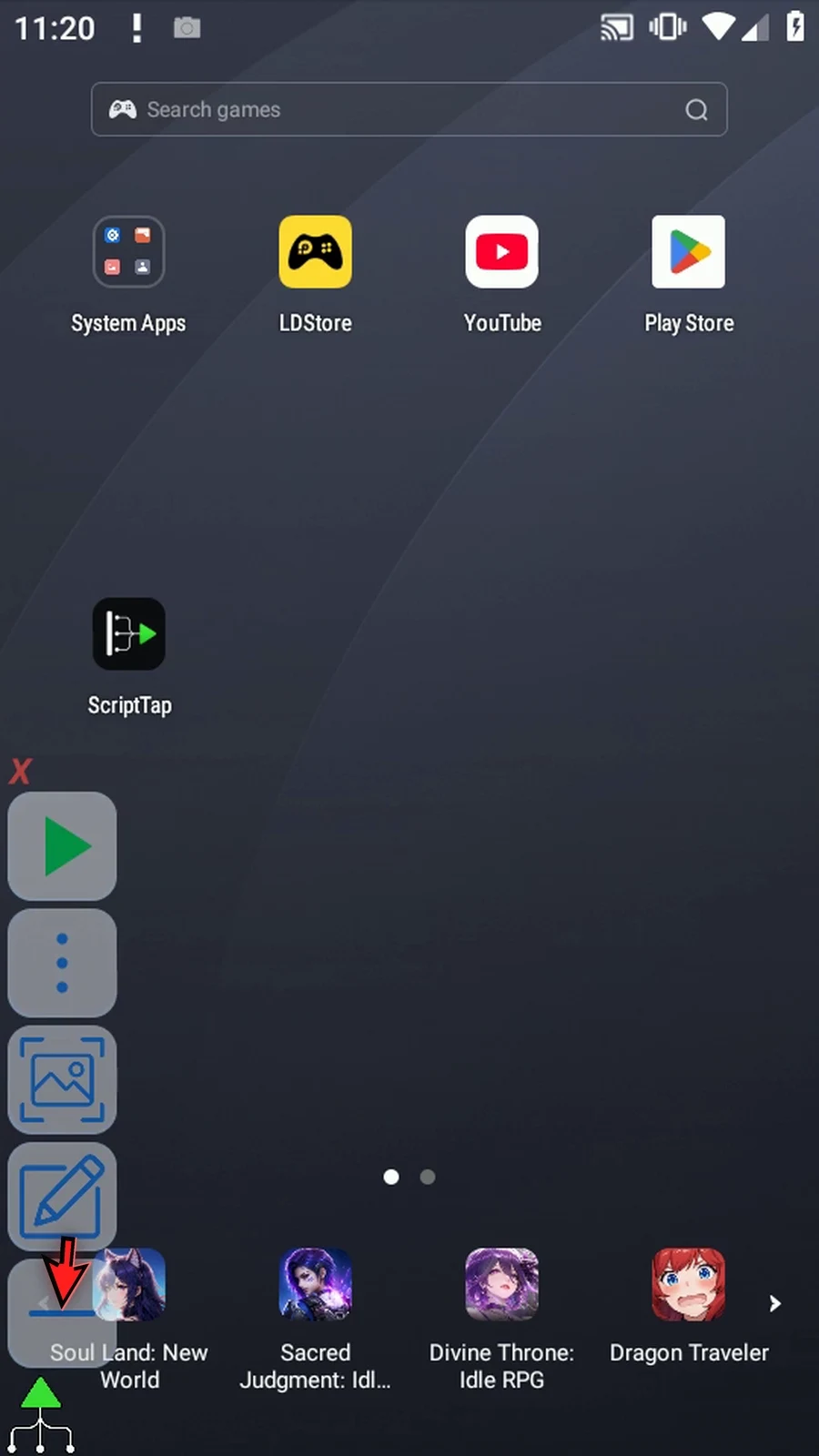
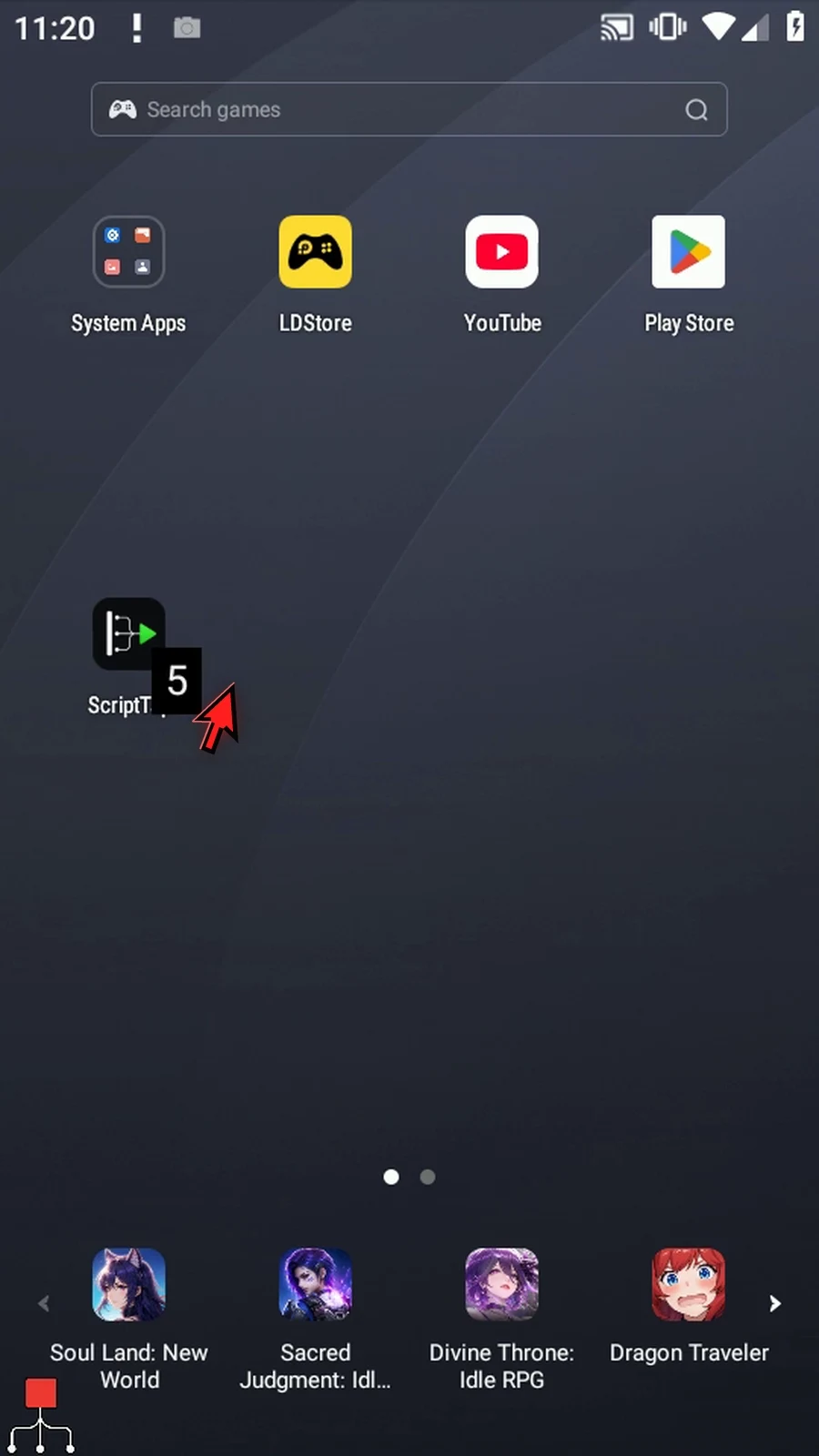
Step 11 Close the editor and expand the main overlay.
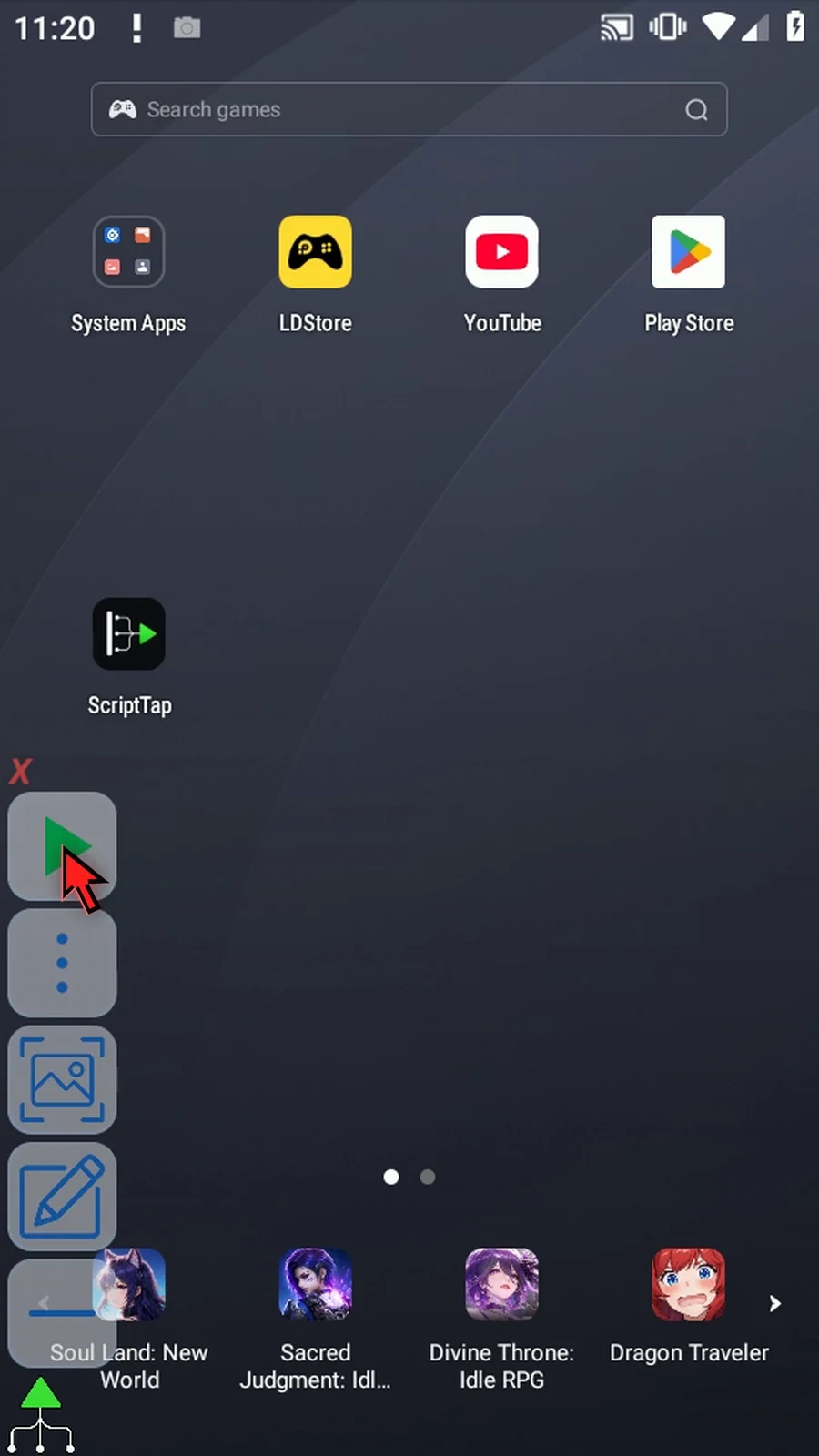
Step 12 When the script is complete, simply use the Play button in the main overlay.
Step 13 Display shows five: the first position containing nine. Found is true, Value is nine, and Count is one. The other nines are not counted in this mode.
Step 14 The Scanned prompt confirms completion. Tap Done to finish the run.
Step 15 Use First Equal when you need one matching position. Use Count Equal when you need the total number of matches.
ArraySegmentScan inspects an existing typed array without reading the screen or changing that array. Match its letter, Value Type and scope to the SetVariable declaration. This Script Only is local; Script Thread uses the calling thread scope. Integer, Decimal, Boolean, Hex, String and Time are supported. Hex matching is exact; use ColorClassify for confidence-based color matching.
Start is a one-based original position; Length is a number of positions, not the final index. Both accept Integer literals or prior Integer variables. The range must fit the declared capacity, up to 4096. Forward starts at Start; Reverse starts at the other end of that range. Reported indexes remain original array positions. A zero Length scans nothing and produces no-match outputs.
Where shown, Empty Value defines the typed empty sentinel; unwritten slots are also empty. Active Mask reads a prior Boolean array: only true positions are eligible, and false positions break runs. Found writes a Boolean; Index and Count write Integers. Enable only the outputs needed by later commands. A true mode change clears the old mode-specific settings and destinations, so check them again.
Count Equal counts every exact match across the range, whether adjacent or separated. Match Source Literal uses 9; Variable can read a prior matching typed value. The example displays i3=3. Index and Value still describe the first match: position 5 and value 9. Found is true.
Count Equal
Step-by-step guide
Step 01 Count Equal counts every exact match in the selected array range. It is useful when later logic depends on how many items have a particular value. We will continue the five-command script built in the Intro.
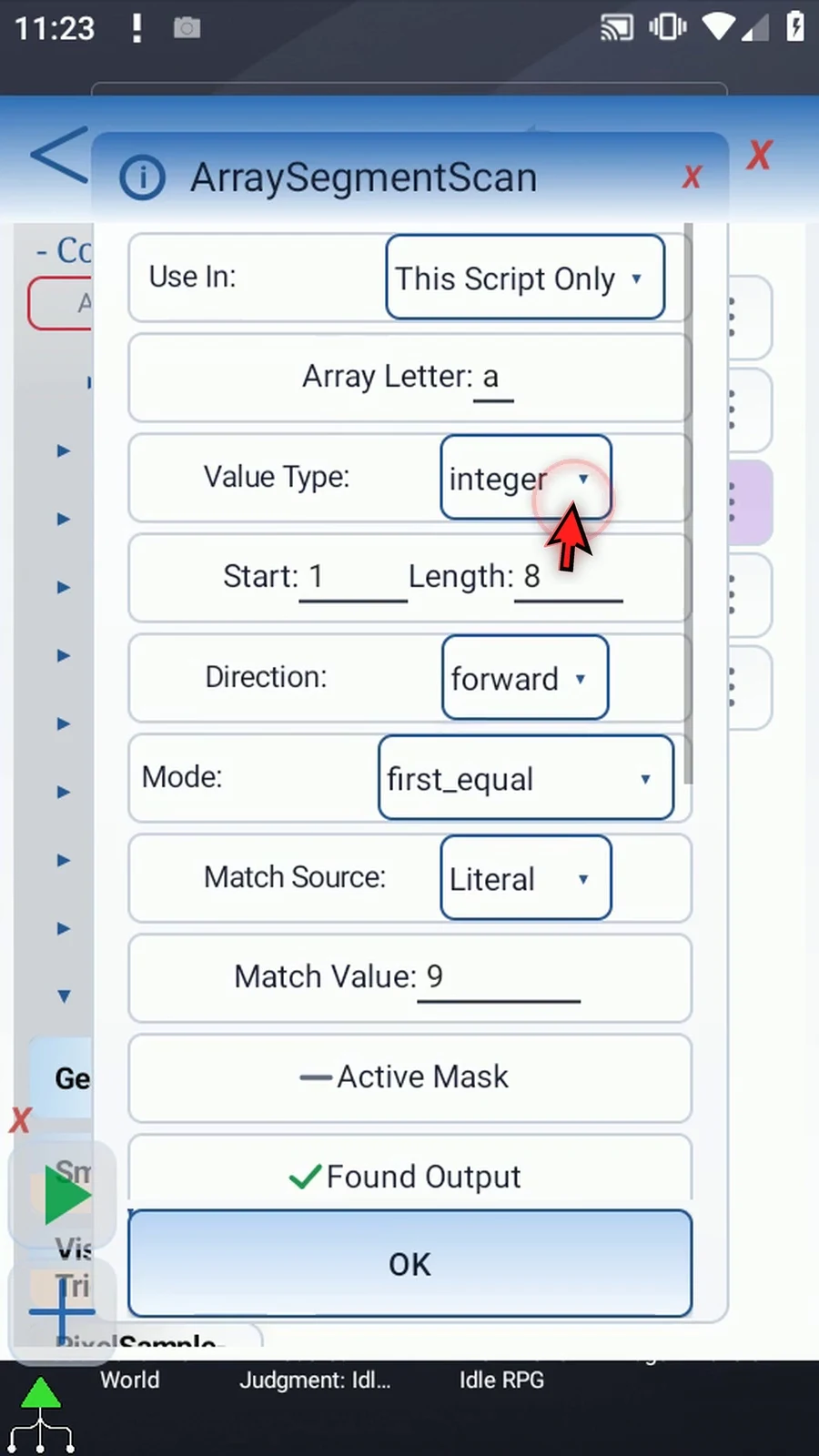
Step 02 Choose Count Equal. Keep local Integer array a, Start one, Length eight, and Forward. Changing modes clears the old mode's settings, so re-enter the required fields and destinations.
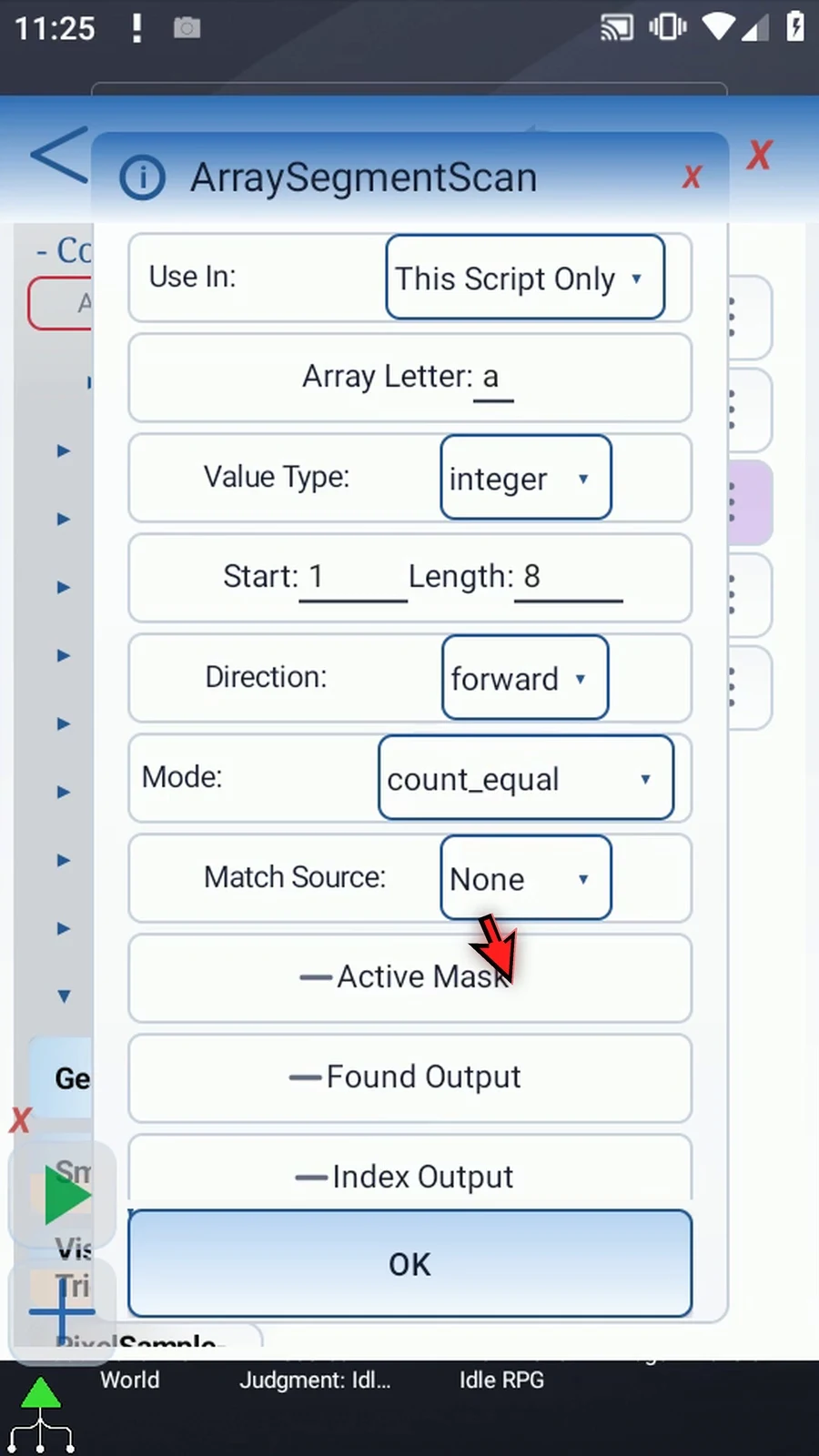
Step 03 Use Literal as Match Source and enter nine. Variable instead reads a previously written value of the array's type.
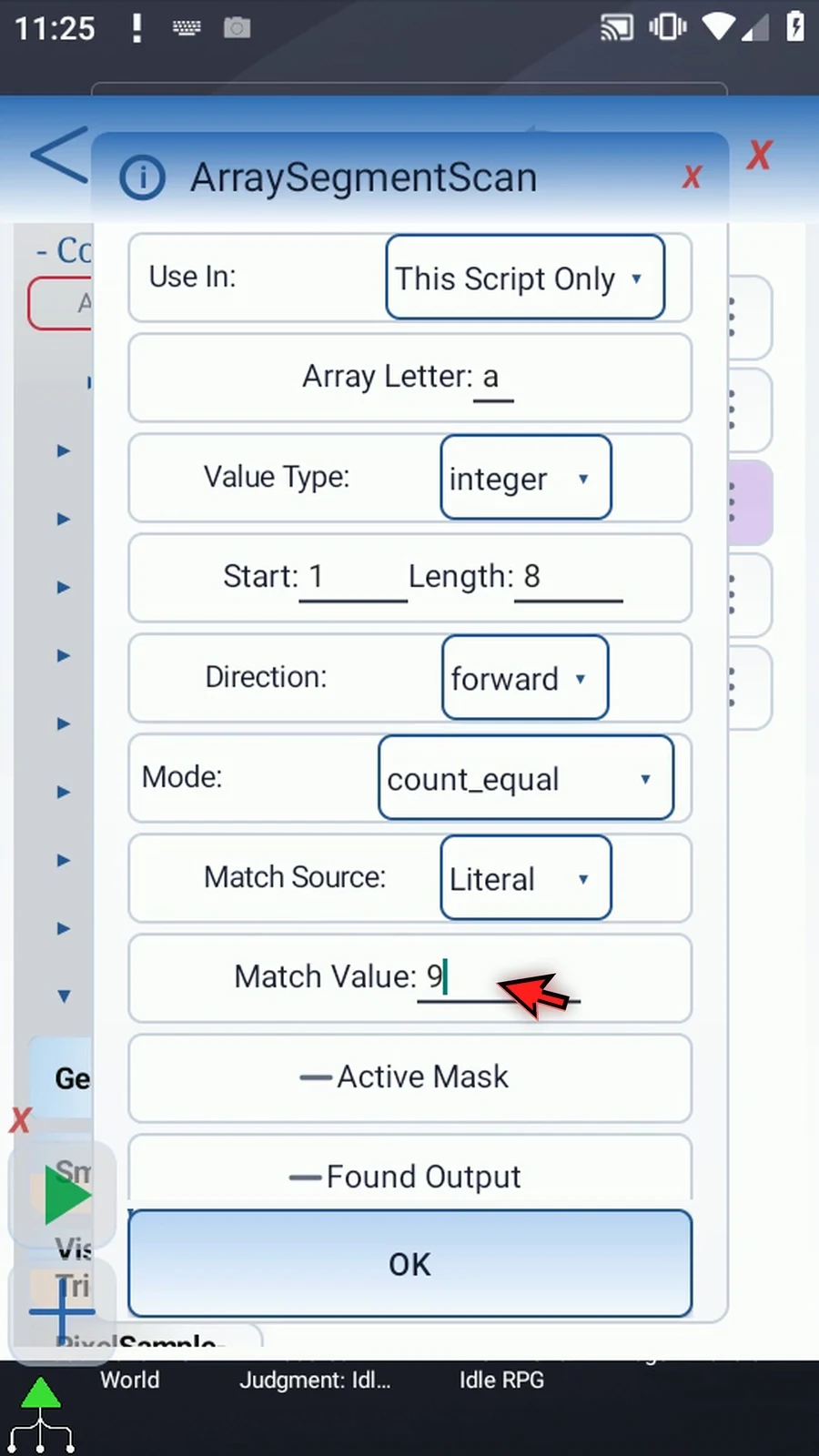
Step 04 Scroll to the outputs and enable Found. Store the result in Boolean b one, so later commands can test whether the scan found a qualifying position.
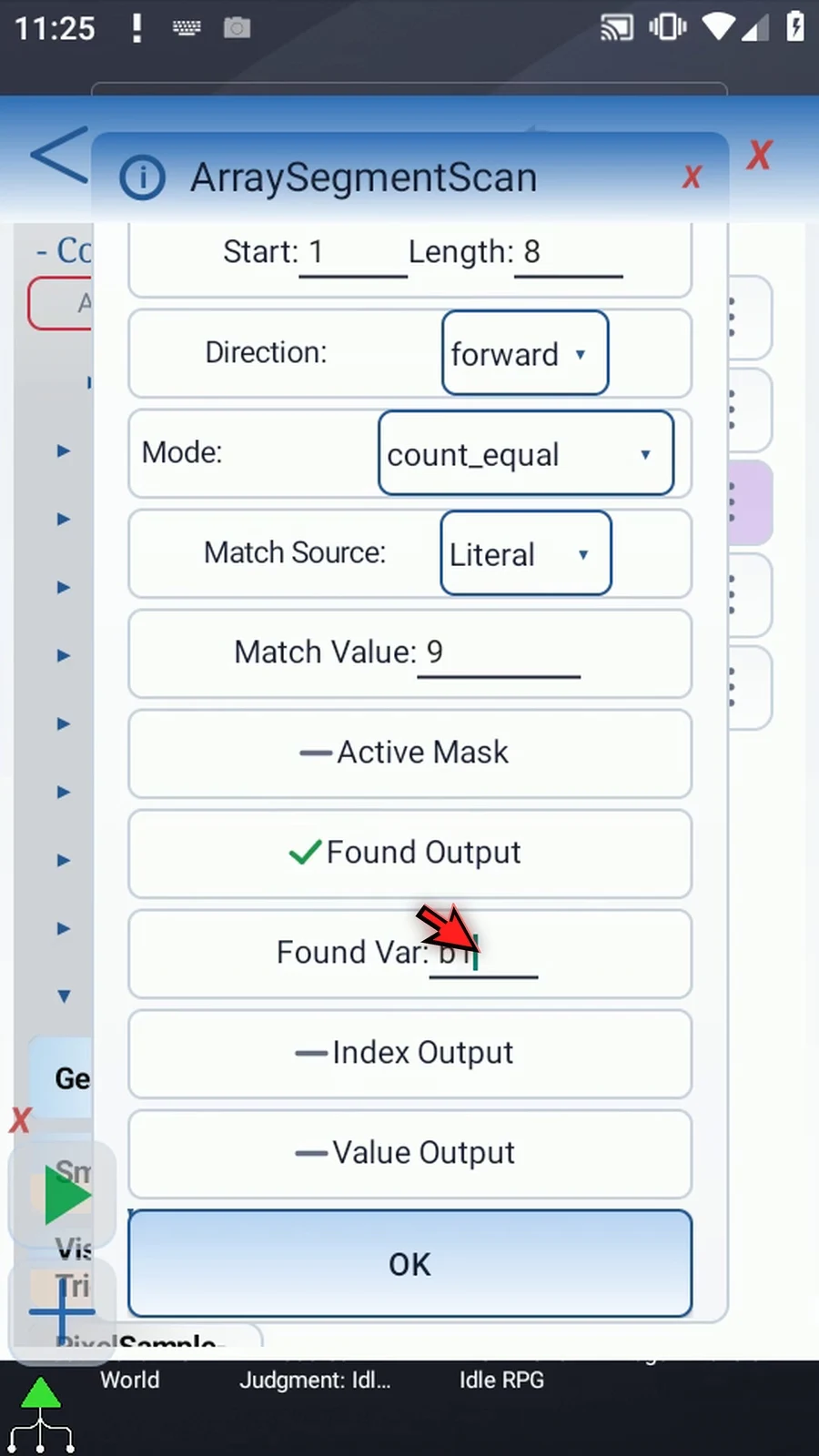
Step 05 Enable Index and use Integer i one. Even when counting every match, this output still identifies the first matching position.
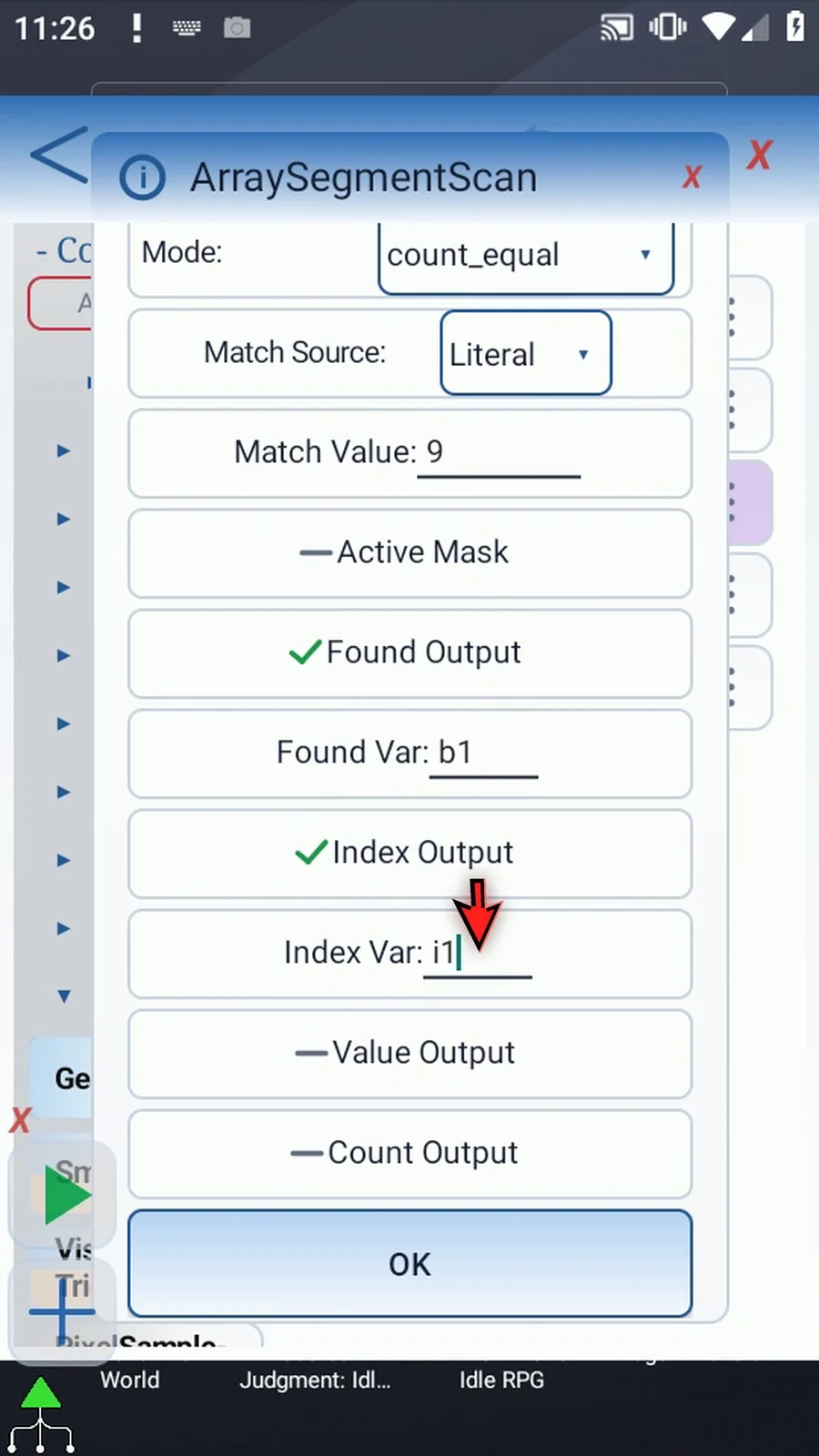
Step 06 Enable Value and use i two. This receives the first matched value, which is nine in our example.
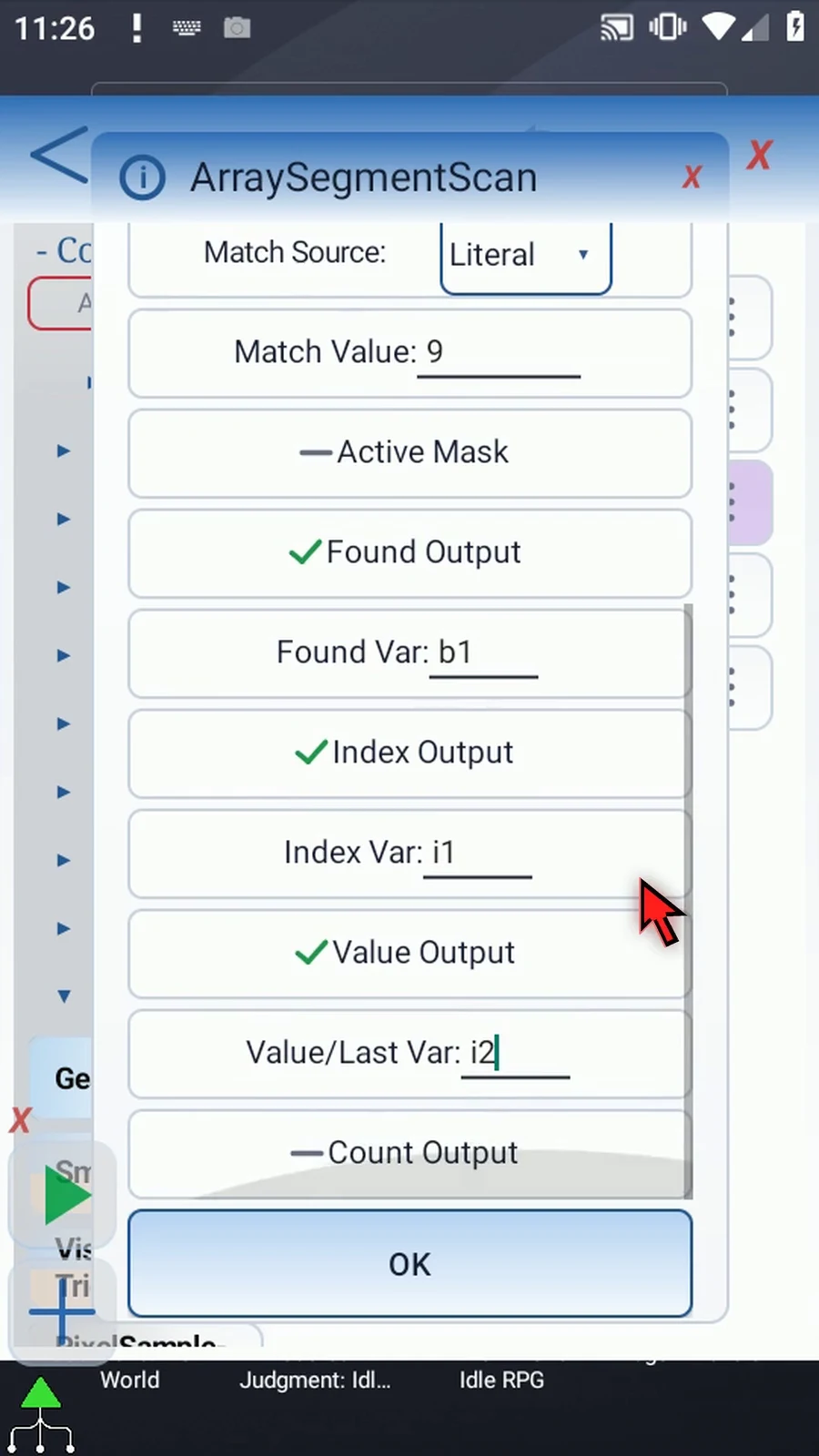
Step 07 Enable Count and use Integer i three. This is the total number of exact matches across the range, including separated matches.
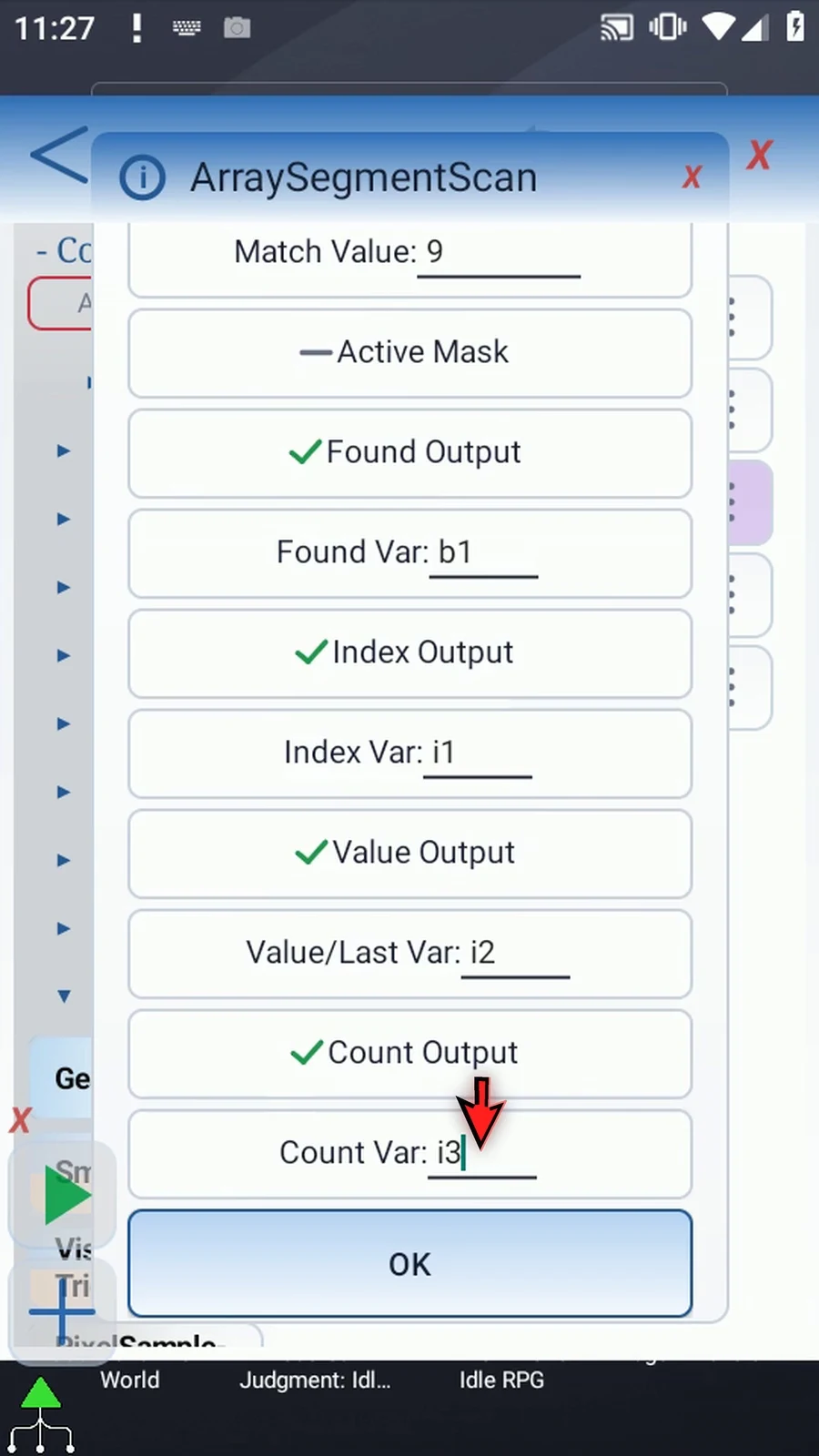
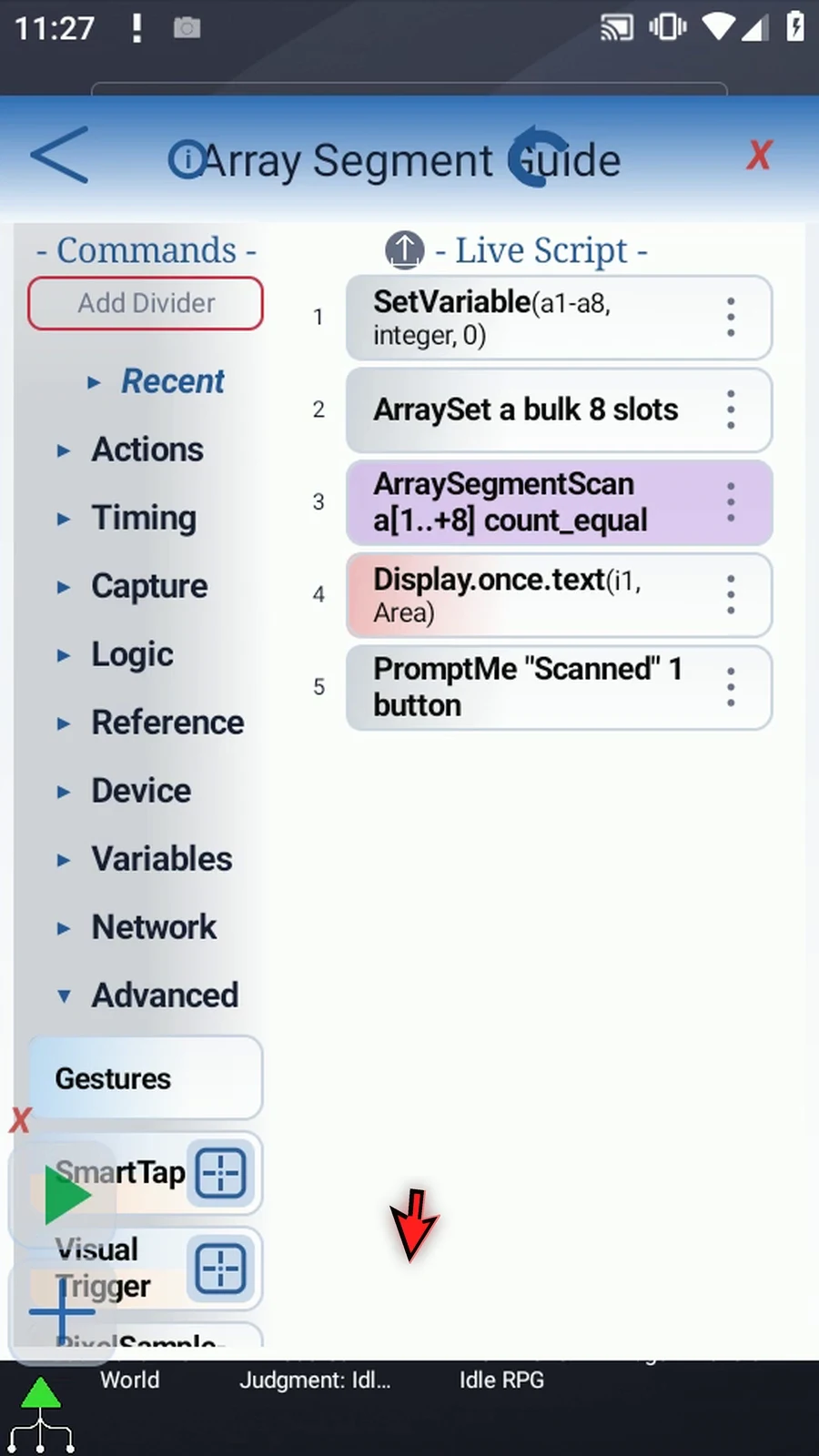
Step 08 Save the scan settings. The array declaration and Bulk setup remain unchanged.
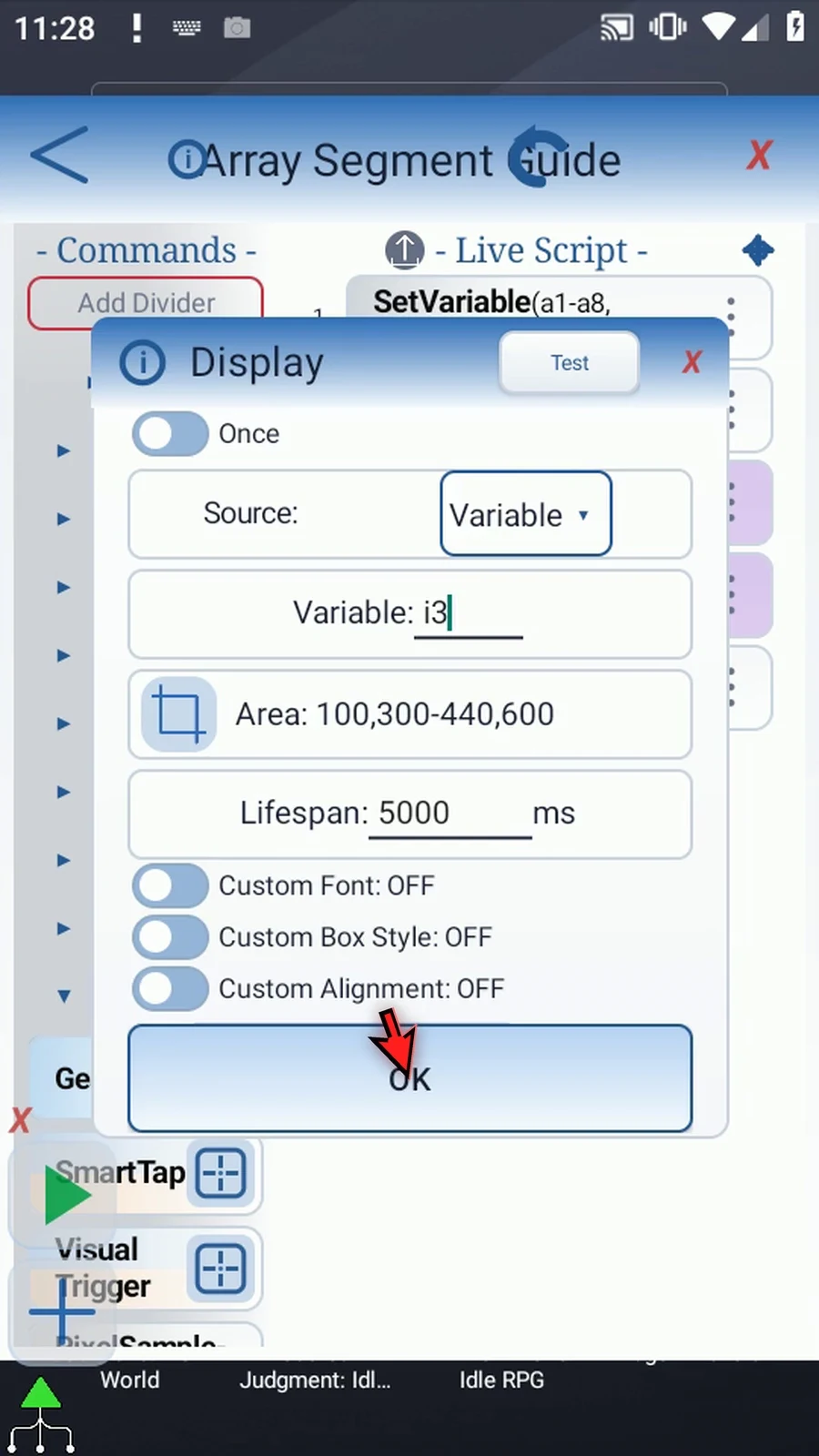
Step 09 Open Display and set its text variable to i three. Keep its existing area and five-second lifespan, then save.
Step 10 The supporting commands prepare zero, five, five, zero, nine, nine, nine, zero. The scan uses that same pattern, and Prompt Me confirms completion.
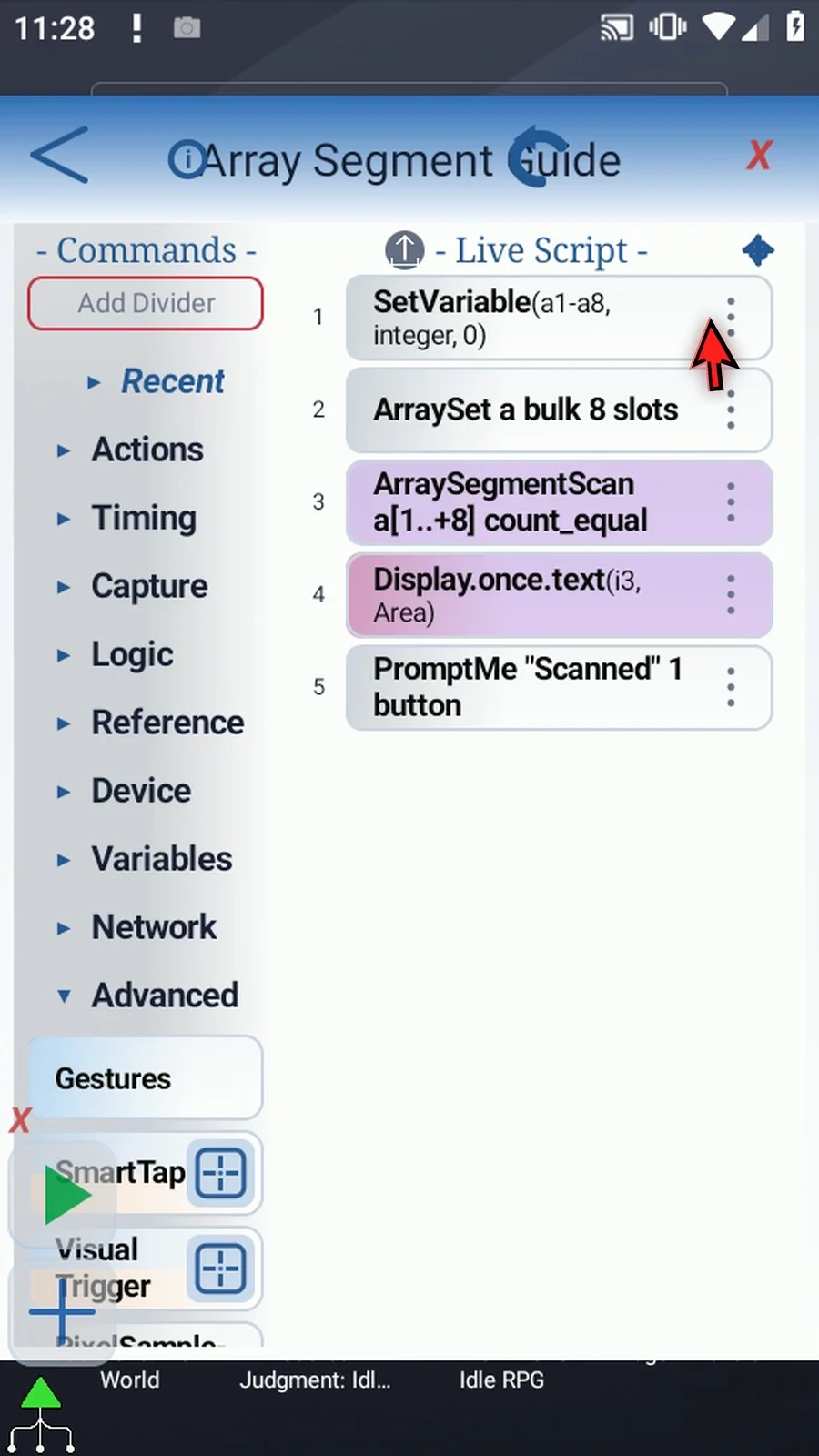
Step 11 Close the editor and expand the main overlay.
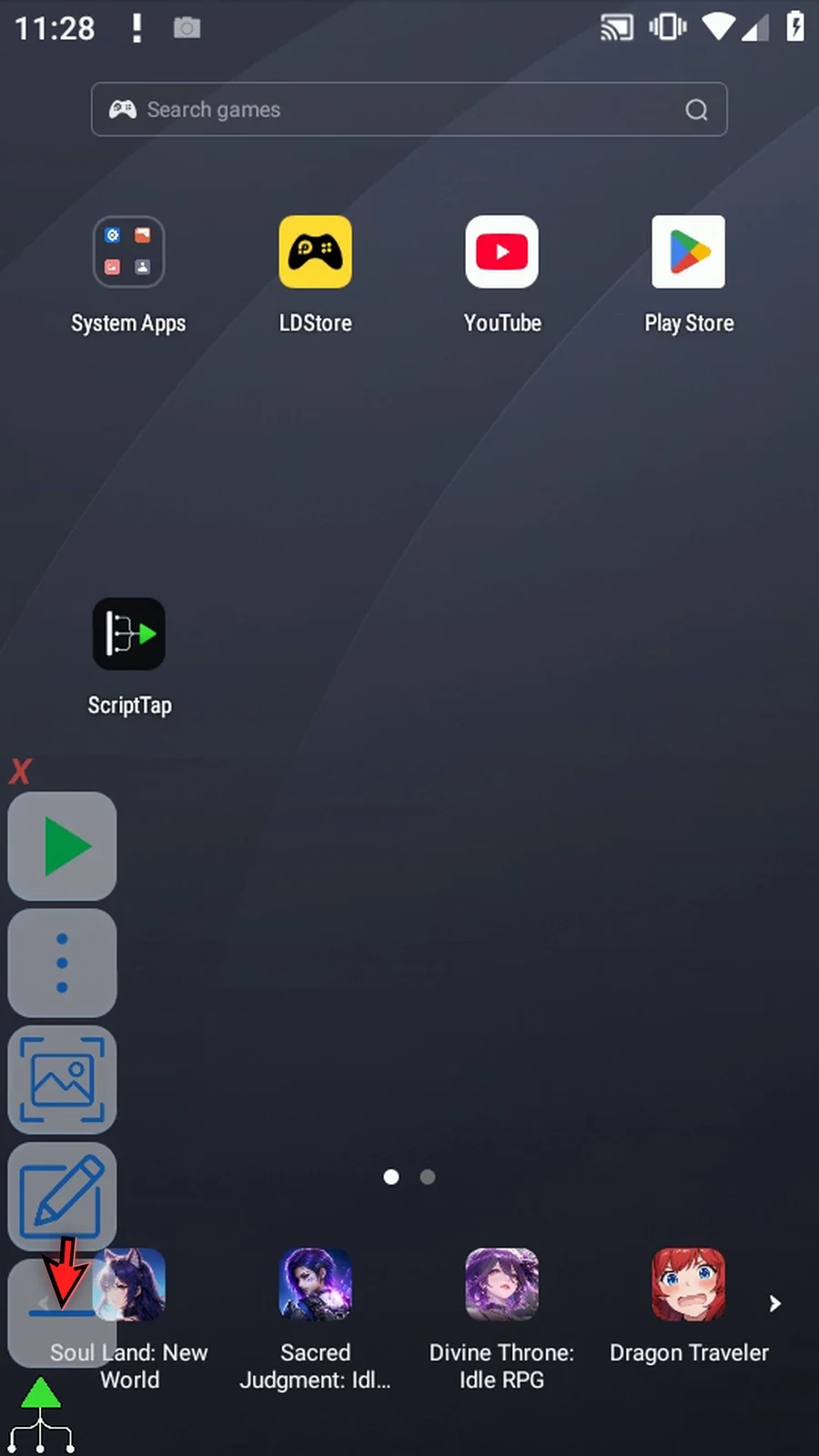
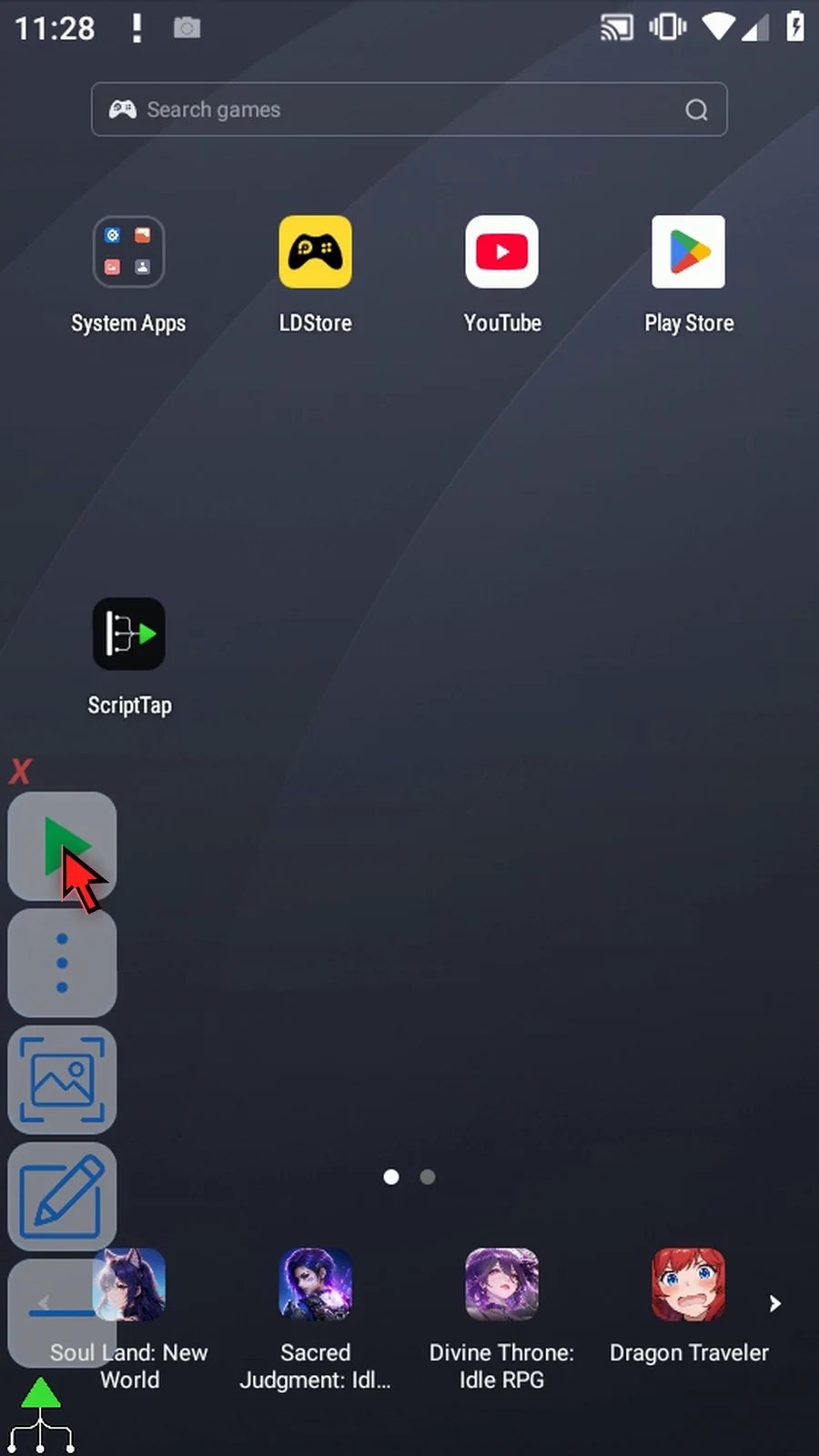
Step 12 When the script is complete, simply use the Play button in the main overlay.
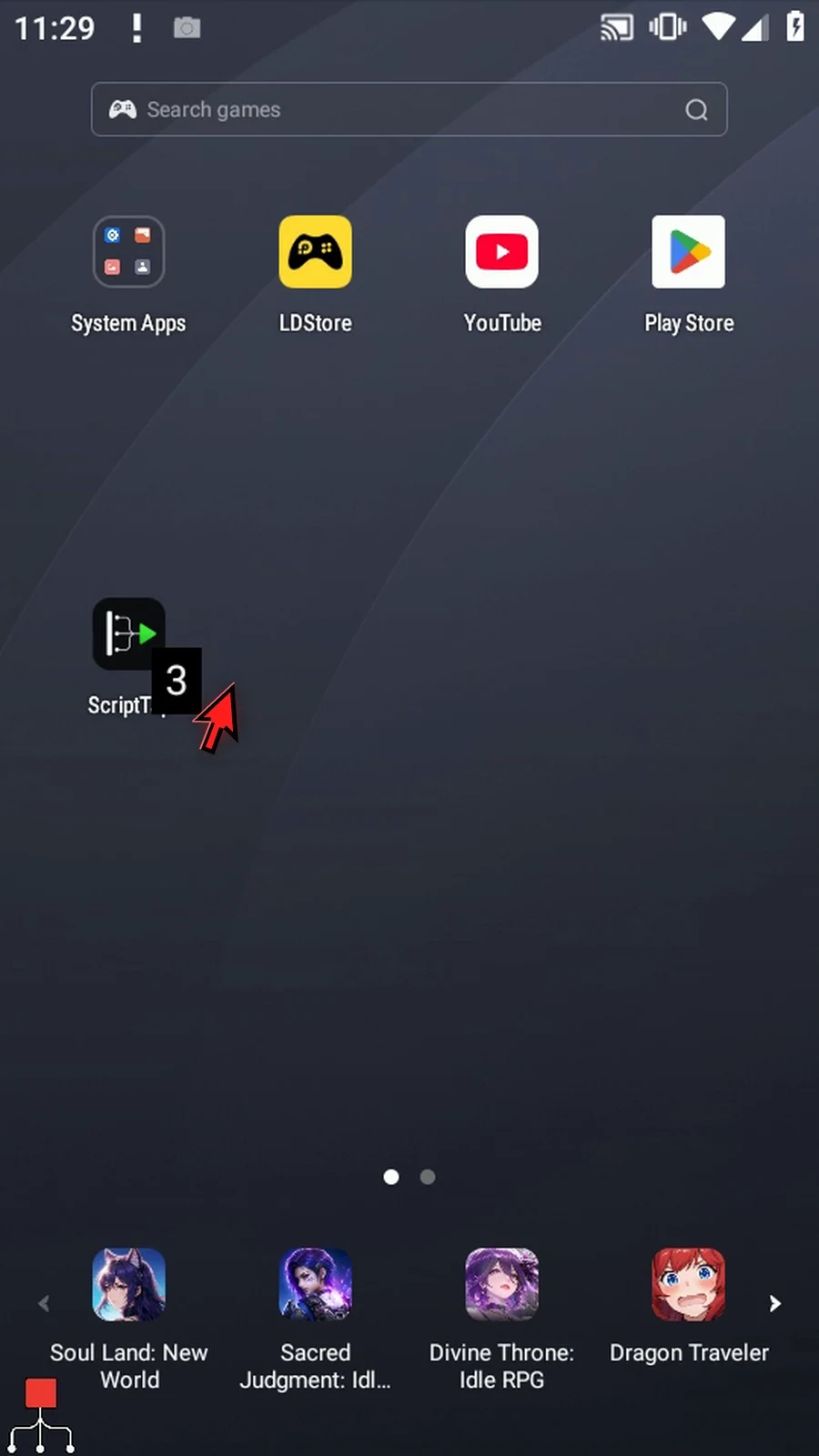
Step 13 Display shows three. Nine occurs at positions five, six, and seven. Found is true, Index is five, and Value is nine.
Step 14 The Scanned prompt confirms completion. Tap Done to finish the run.
Step 15 Count Equal counts matches across the range even when they are separated. A continuous run is a different question, covered in Run Equal.
ArraySegmentScan inspects an existing typed array without reading the screen or changing that array. Match its letter, Value Type and scope to the SetVariable declaration. This Script Only is local; Script Thread uses the calling thread scope. Integer, Decimal, Boolean, Hex, String and Time are supported. Hex matching is exact; use ColorClassify for confidence-based color matching.
Start is a one-based original position; Length is a number of positions, not the final index. Both accept Integer literals or prior Integer variables. The range must fit the declared capacity, up to 4096. Forward starts at Start; Reverse starts at the other end of that range. Reported indexes remain original array positions. A zero Length scans nothing and produces no-match outputs.
Where shown, Empty Value defines the typed empty sentinel; unwritten slots are also empty. Active Mask reads a prior Boolean array: only true positions are eligible, and false positions break runs. Found writes a Boolean; Index and Count write Integers. Enable only the outputs needed by later commands. A true mode change clears the old mode-specific settings and destinations, so check them again.
Count Non-Empty counts all occupied positions, not distinct values or continuous groups. Empty Value 0 excludes the three zeros. The two fives and three nines produce i3=5, shown by Display. Index and Value identify the first occupied item: position 2, value 5. Found is true.
Count Non-Empty
Step-by-step guide
Step 01 Count Non-Empty counts the occupied positions in an array range. Use it to measure how much useful data is present, without requiring one particular value. We will continue the five-command script built in the Intro.
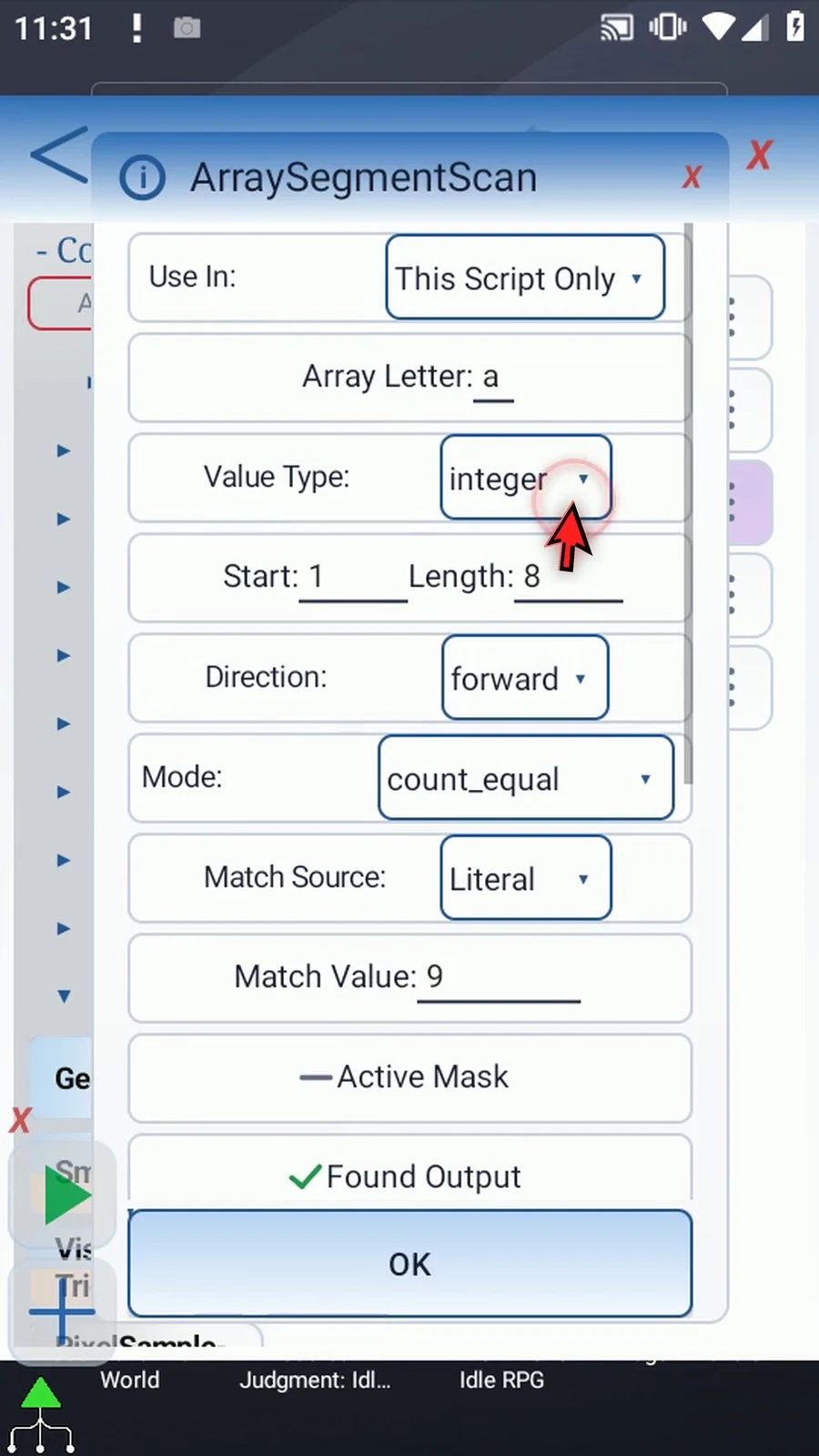
Step 02 Choose Count Non-Empty. Keep local Integer array a, Start one, Length eight, and Forward. Set Empty Value to zero, and leave Active Mask off. Changing modes clears the old mode's settings, so re-enter the required fields and destinations.
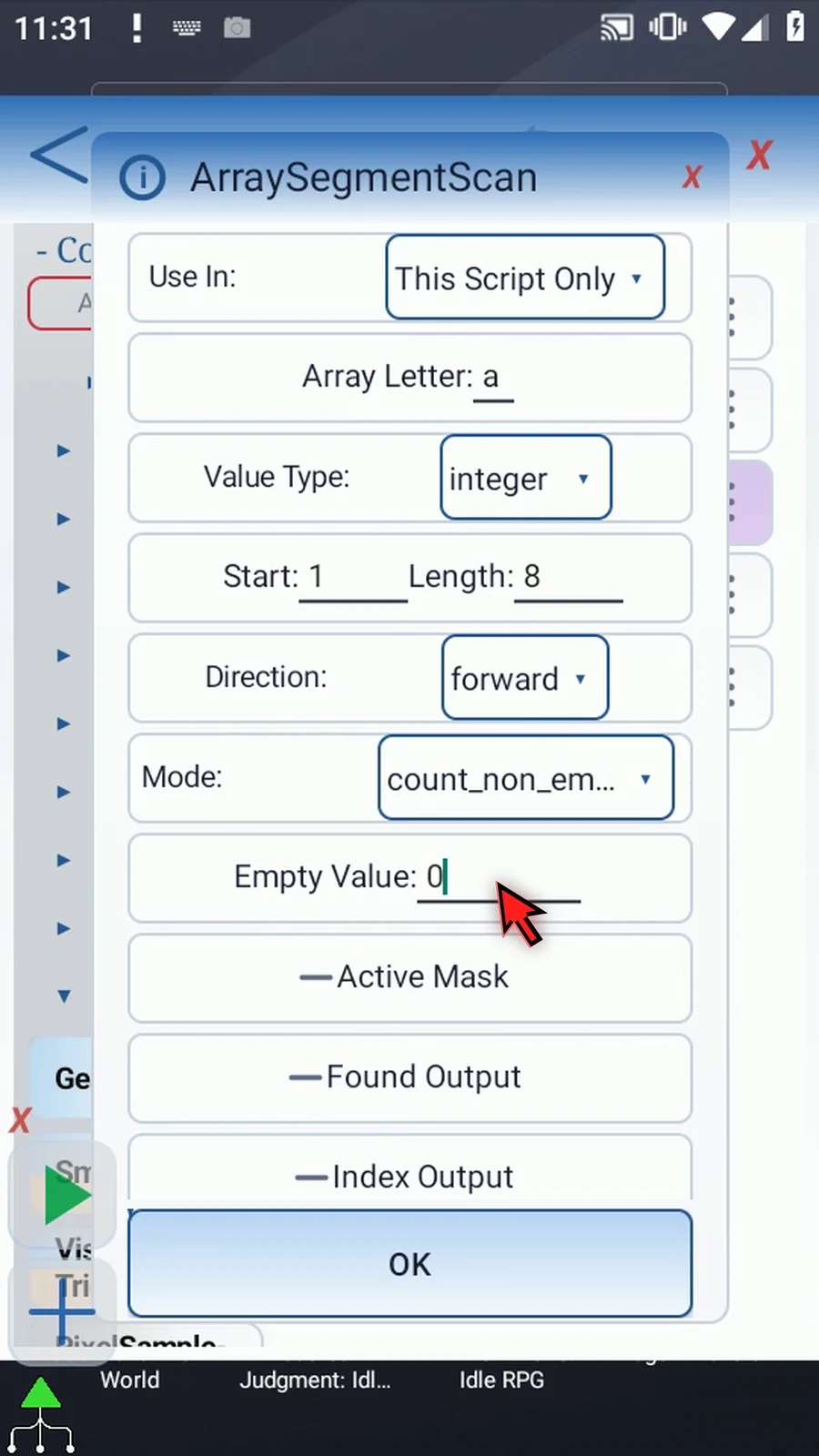
Step 03 Scroll to the outputs and enable Found. Store the result in Boolean b one, so later commands can test whether the scan found a qualifying position.
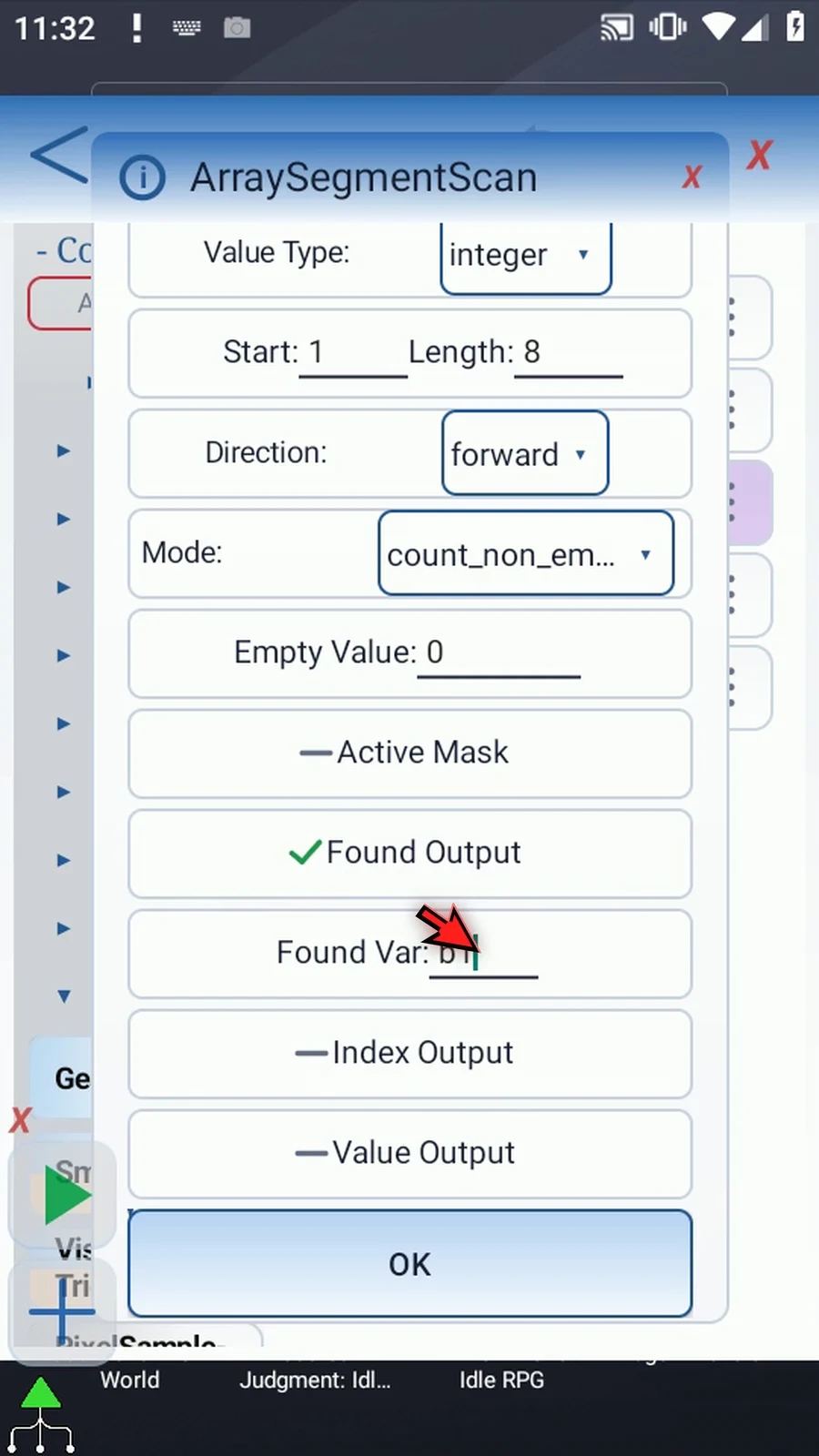
Step 04 Enable Index and use Integer i one. This identifies the first occupied position, rather than the total count.
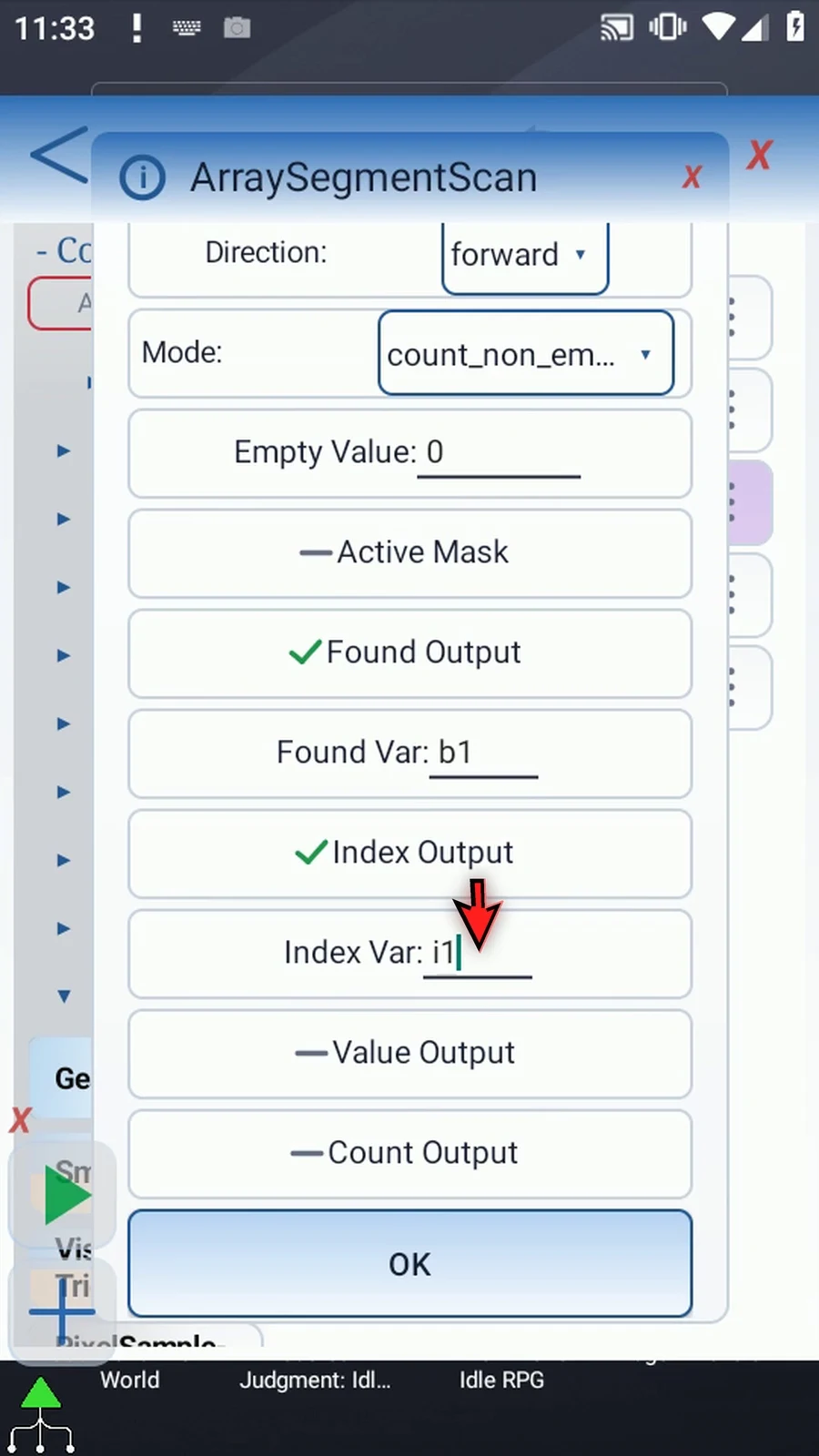
Step 05 Enable Value and use i two. This receives the first occupied value, which is five in our example.
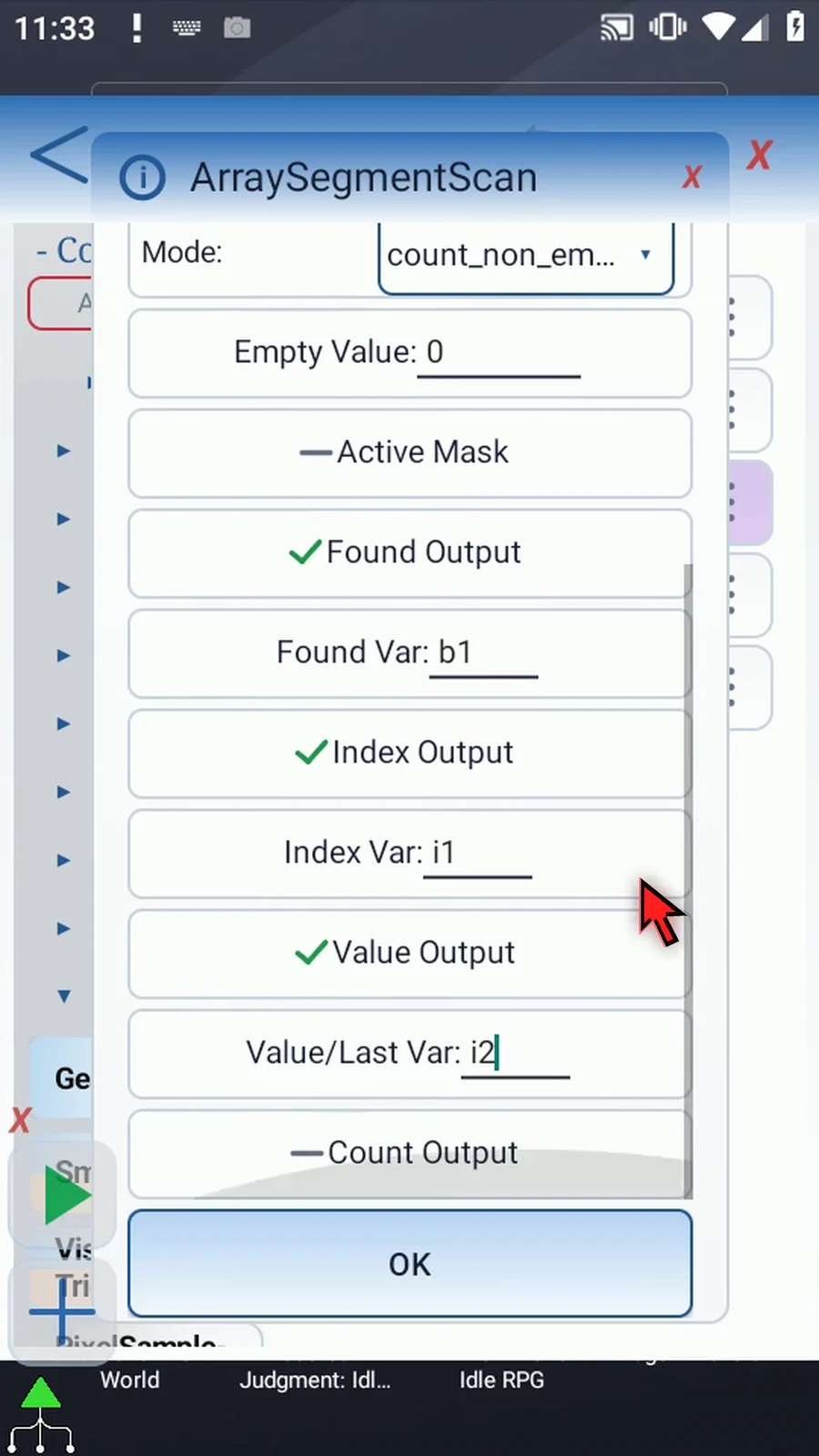
Step 06 Enable Count and use Integer i three. This counts occupied positions, not distinct values or continuous groups.
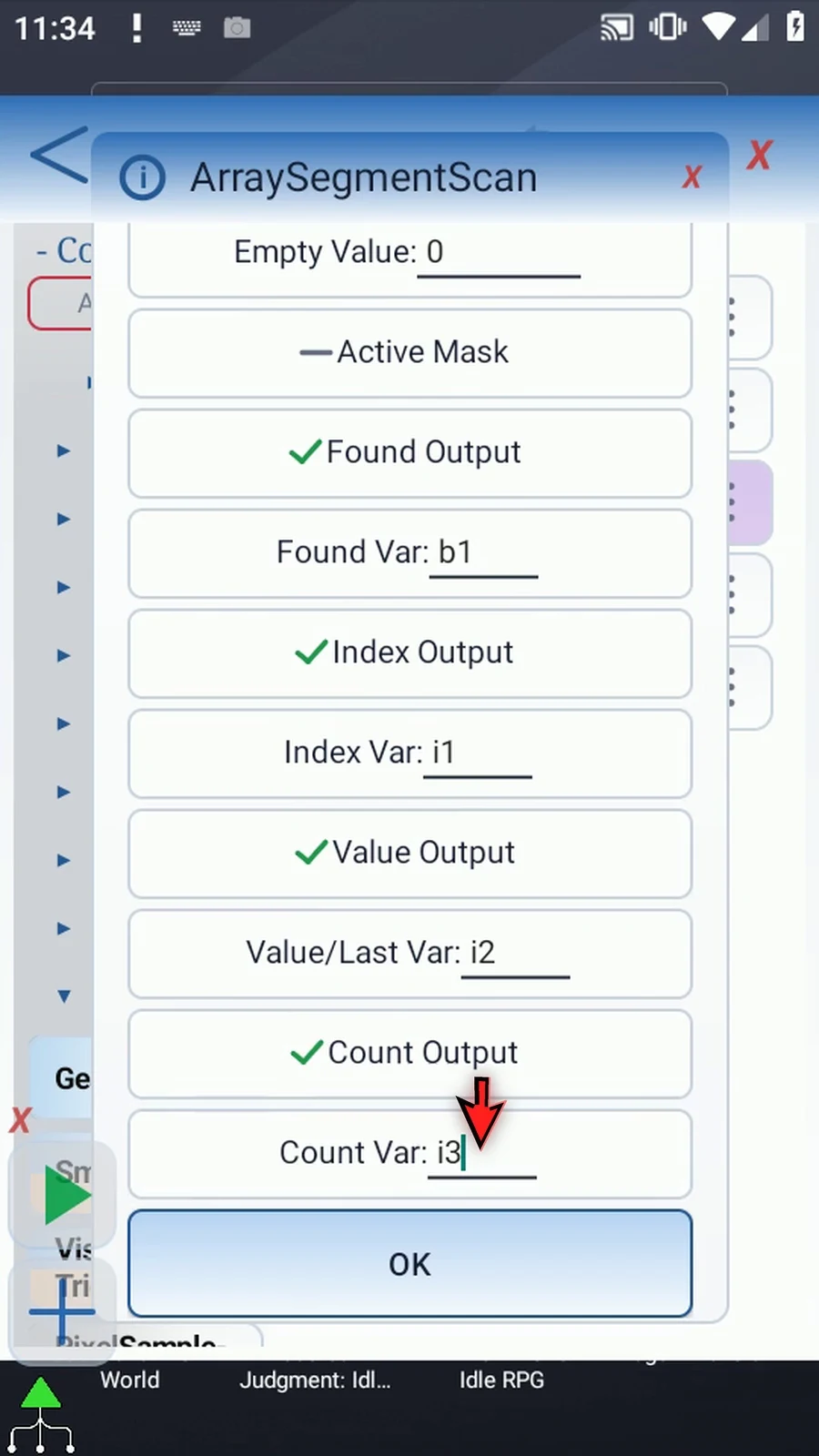
Step 07 Save the scan settings. The array declaration and Bulk setup remain unchanged.
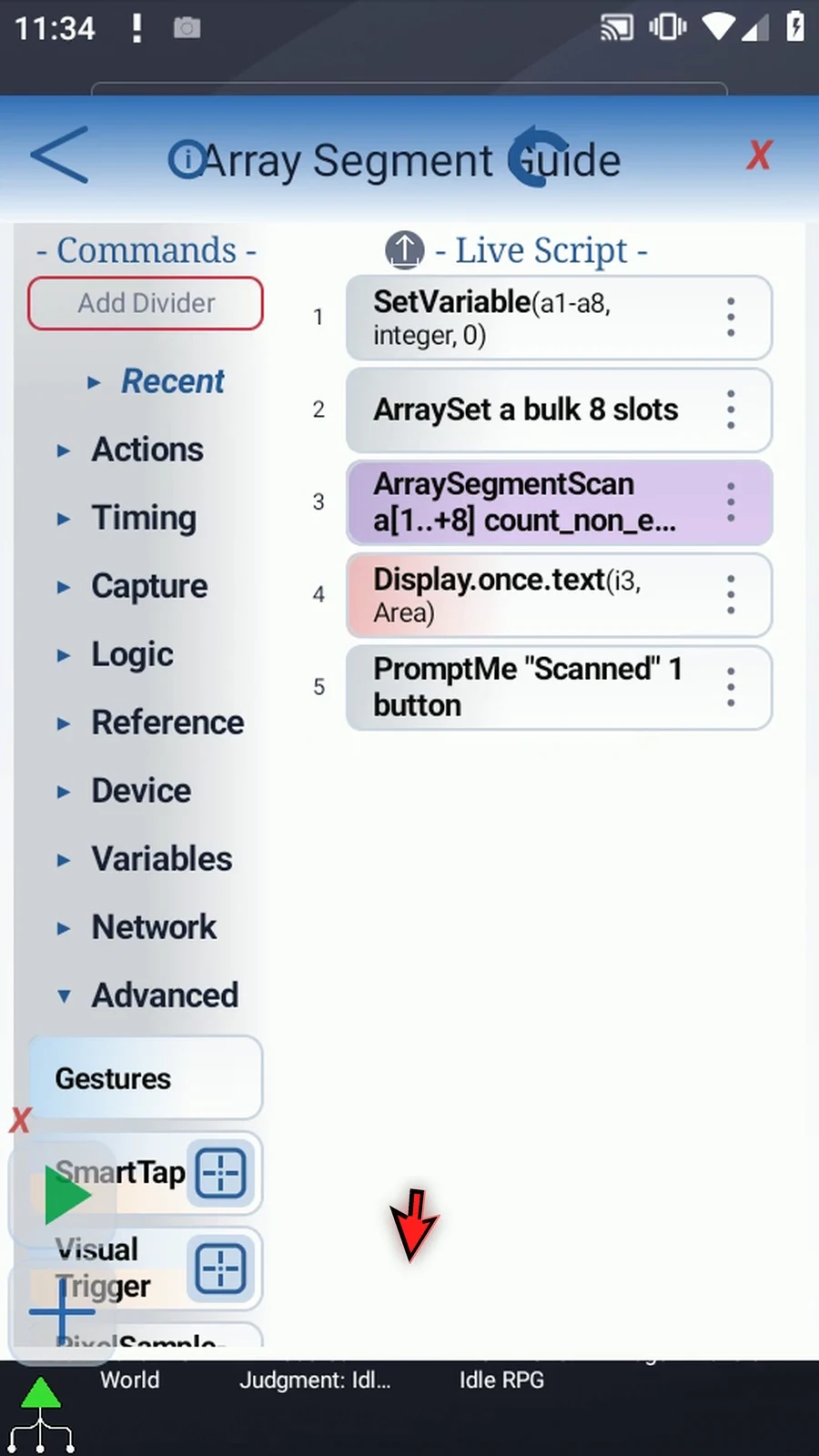
Step 08 Open Display and set its text variable to i three. Keep its existing area and five-second lifespan, then save.
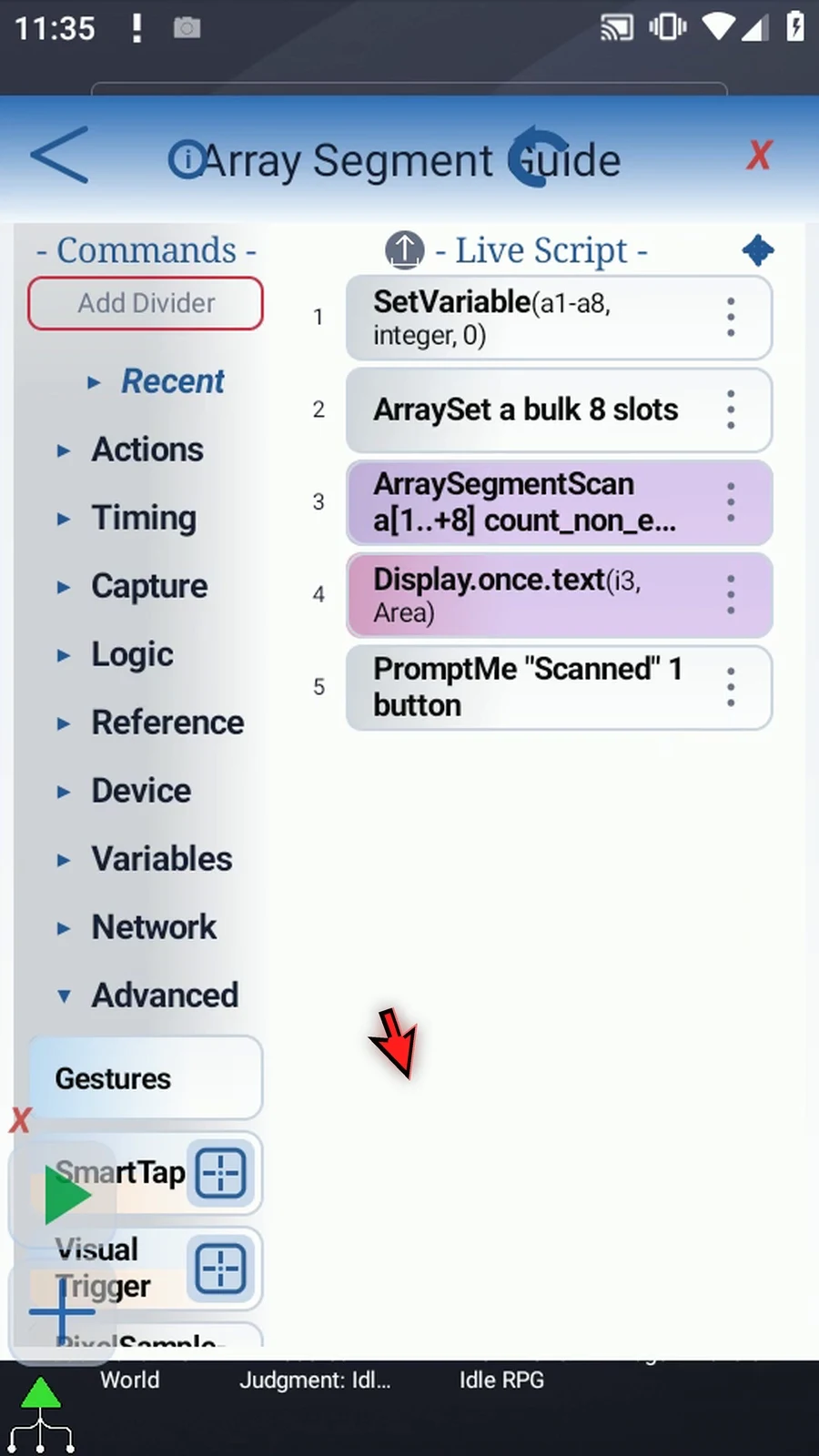
Step 09 The supporting commands prepare zero, five, five, zero, nine, nine, nine, zero. The scan uses that same pattern, and Prompt Me confirms completion.
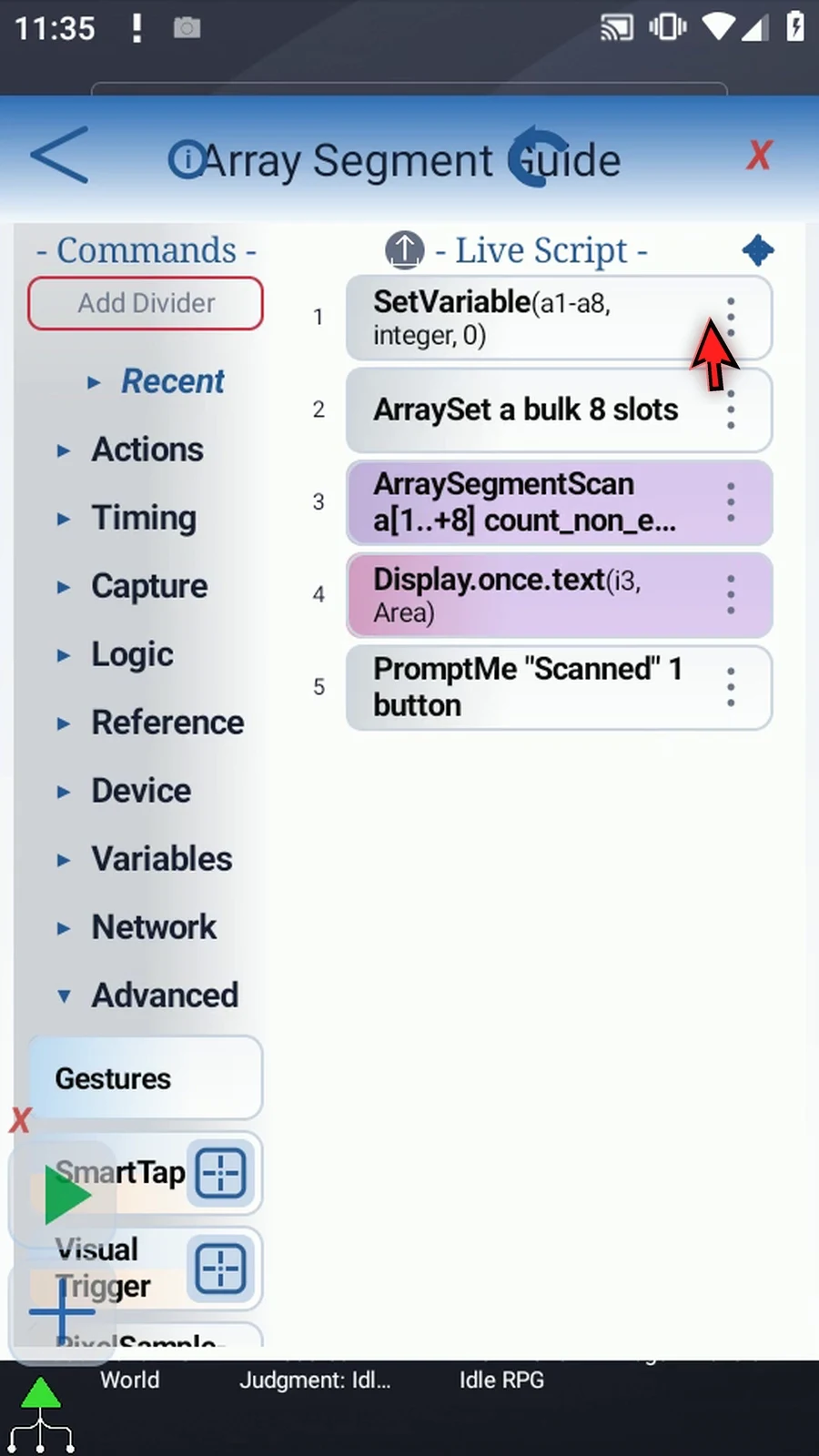
Step 10 Close the editor and expand the main overlay.
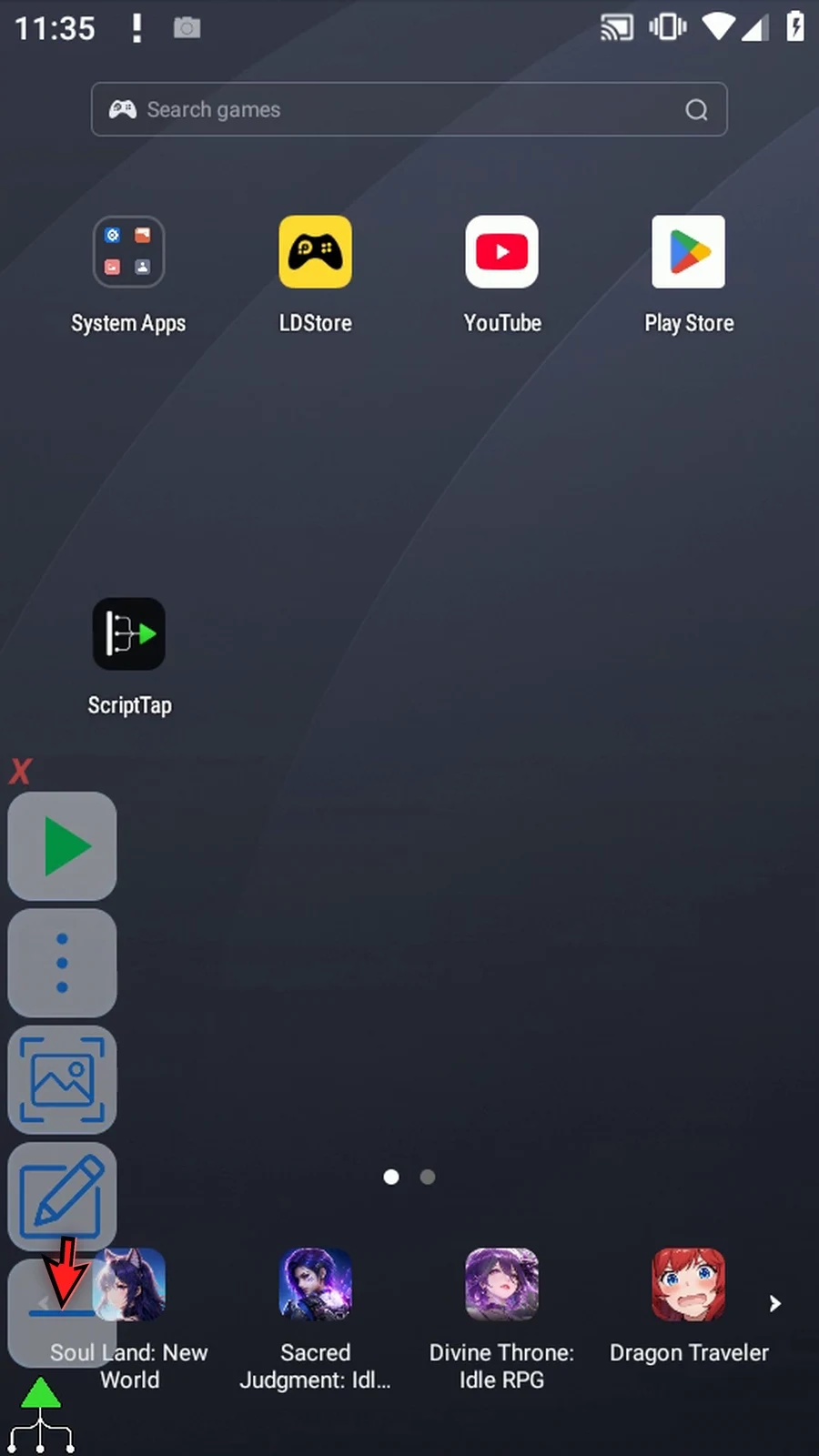
Step 11 When the script is complete, simply use the Play button in the main overlay.
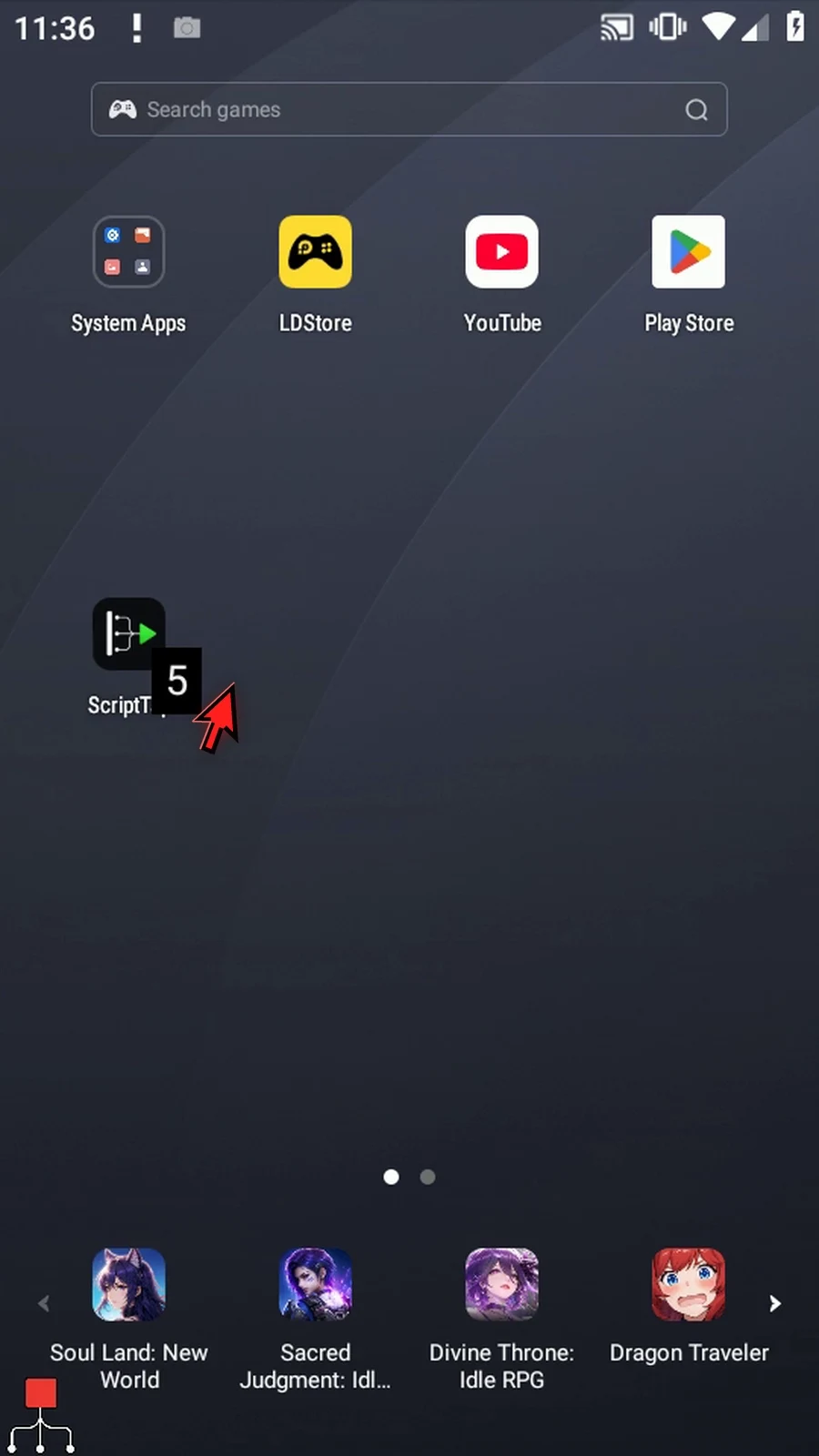
Step 12 Display shows five. The two fives and three nines are occupied positions. The three zeros are excluded. Found is true, with the first non-empty index two and value five.
Step 13 The Scanned prompt confirms completion. Tap Done to finish the run.
Step 14 The values do not need to match or be adjacent. Count Non-Empty measures occupied positions, not the number of distinct values or continuous groups.
ArraySegmentScan inspects an existing typed array without reading the screen or changing that array. Match its letter, Value Type and scope to the SetVariable declaration. This Script Only is local; Script Thread uses the calling thread scope. Integer, Decimal, Boolean, Hex, String and Time are supported. Hex matching is exact; use ColorClassify for confidence-based color matching.
Start is a one-based original position; Length is a number of positions, not the final index. Both accept Integer literals or prior Integer variables. The range must fit the declared capacity, up to 4096. Forward starts at Start; Reverse starts at the other end of that range. Reported indexes remain original array positions. A zero Length scans nothing and produces no-match outputs.
Where shown, Empty Value defines the typed empty sentinel; unwritten slots are also empty. Active Mask reads a prior Boolean array: only true positions are eligible, and false positions break runs. Found writes a Boolean; Index and Count write Integers. Enable only the outputs needed by later commands. A true mode change clears the old mode-specific settings and destinations, so check them again.
Run Equal measures one continuous equal-value group, rather than adding matches from separate groups. Match Source None automatically selects the first non-empty value. Literal or Variable targets a chosen value instead, including an explicitly matched empty sentinel. A false mask position breaks a run.
With None, Empty Value 0 and Forward, the first selected value is 5 at positions 2 and 3. Index is 2, Value is 5 and Count is the run length 2. Display reads i3=2. Zero at position 4 ends this selected run; later nines are not added.
Run Equal
Step-by-step guide
Step 01 Run Equal measures one continuous group of equal values. Unlike Count Equal, it does not add values from separate groups. A false mask position also breaks a run. We will continue the five-command script built in the Intro.
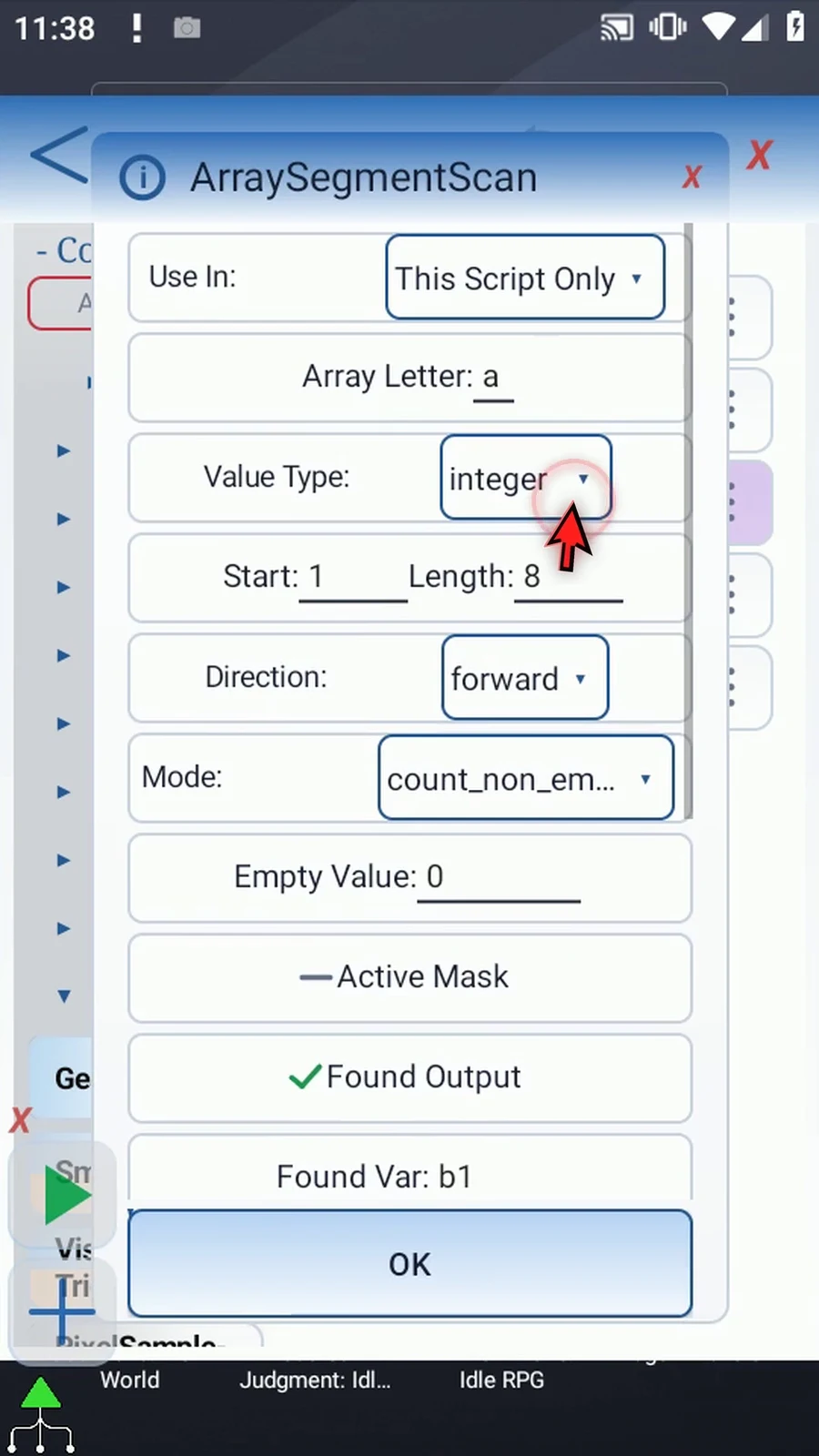
Step 02 Choose Run Equal. Keep local Integer array a, Start one, Length eight, and Forward. Set Empty Value to zero, with Active Mask off. Changing modes clears the old mode's settings, so re-enter the required fields and destinations.
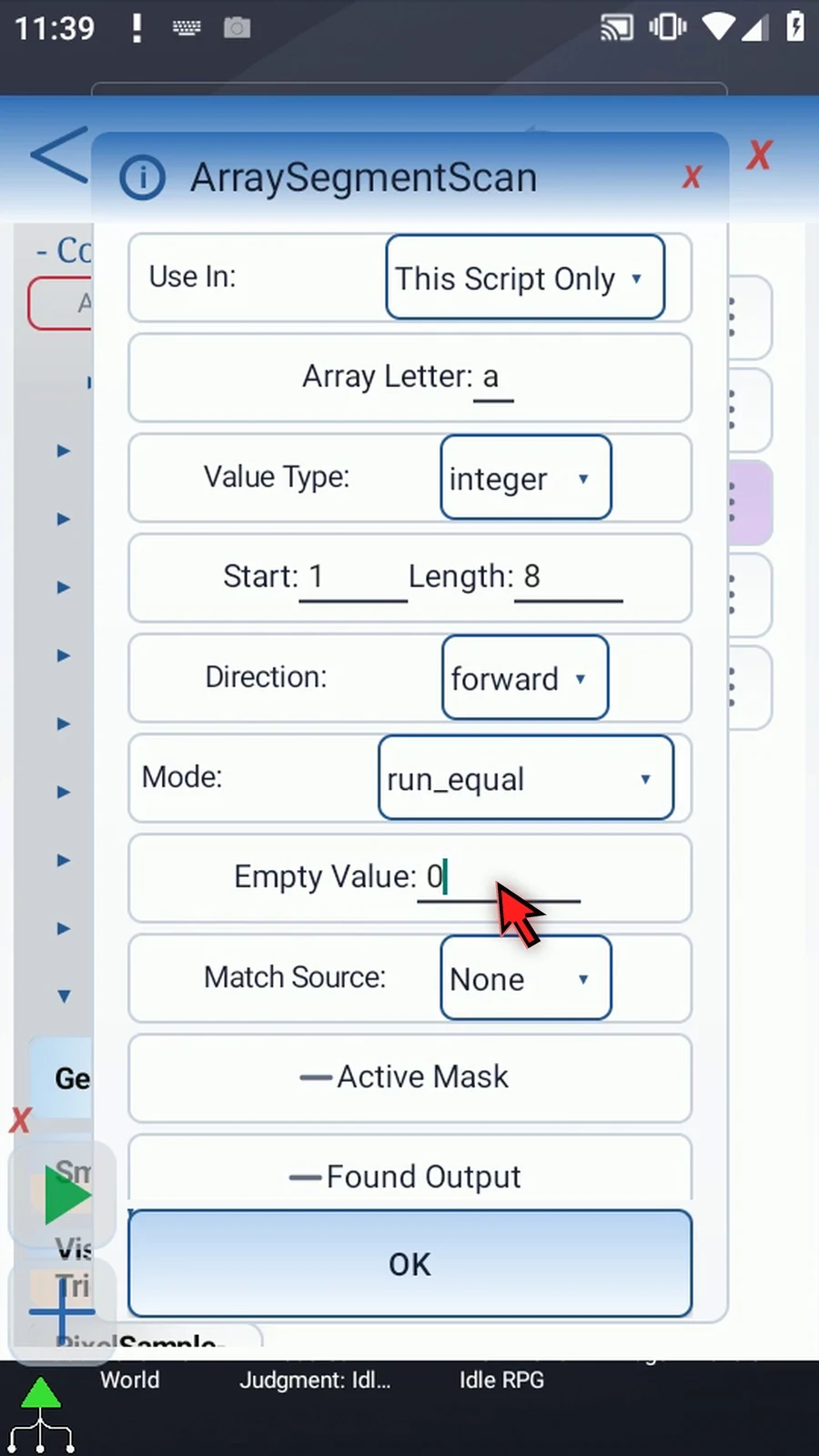
Step 03 With Match Source set to None, the scan automatically selects the first non-empty value and its continuous equal run. Literal or Variable instead selects a particular value to look for. Keep None for this example.
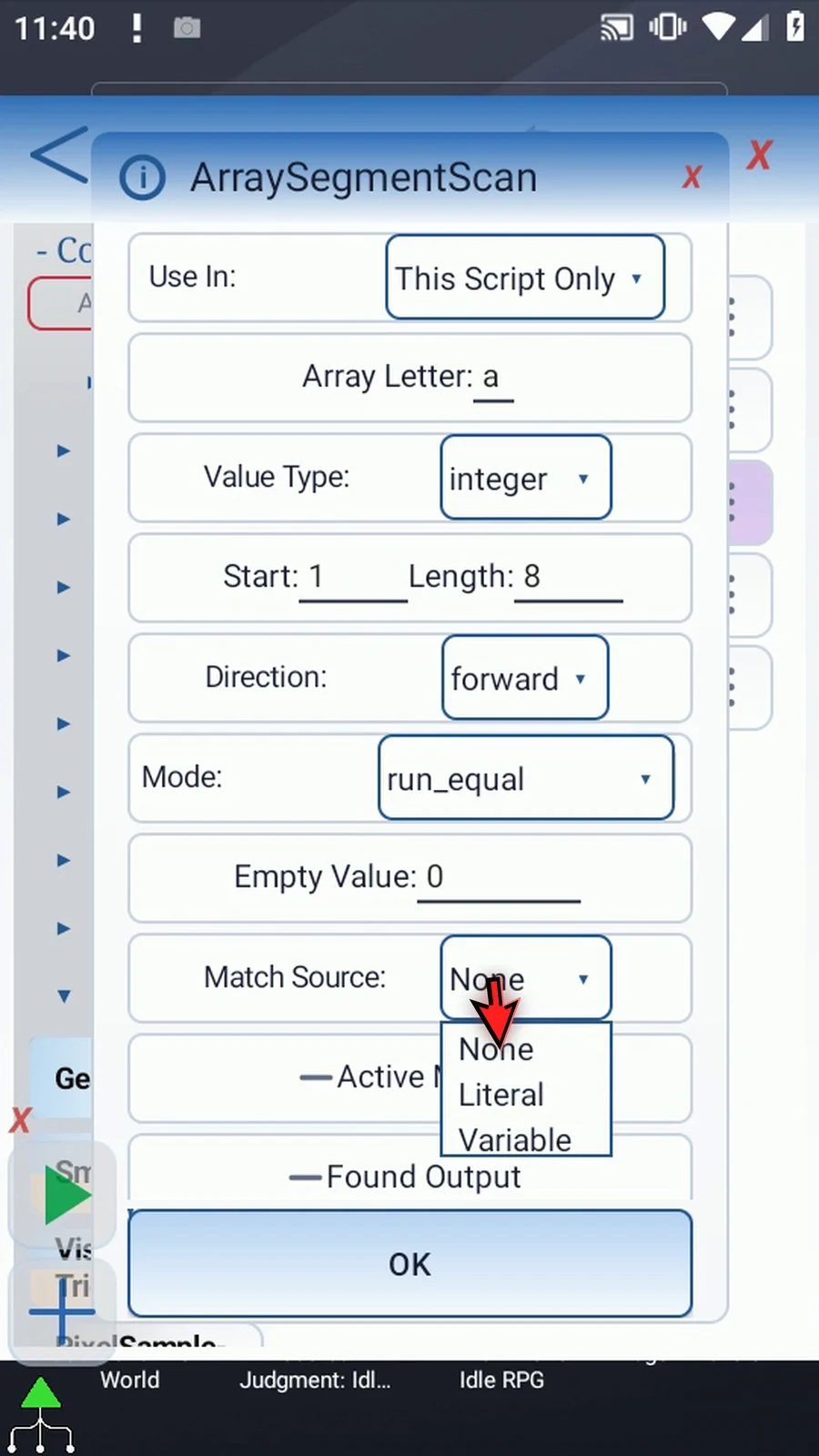
Step 04 Scroll to the outputs and enable Found. Store the result in Boolean b one, so later commands can test whether the scan found a qualifying position.
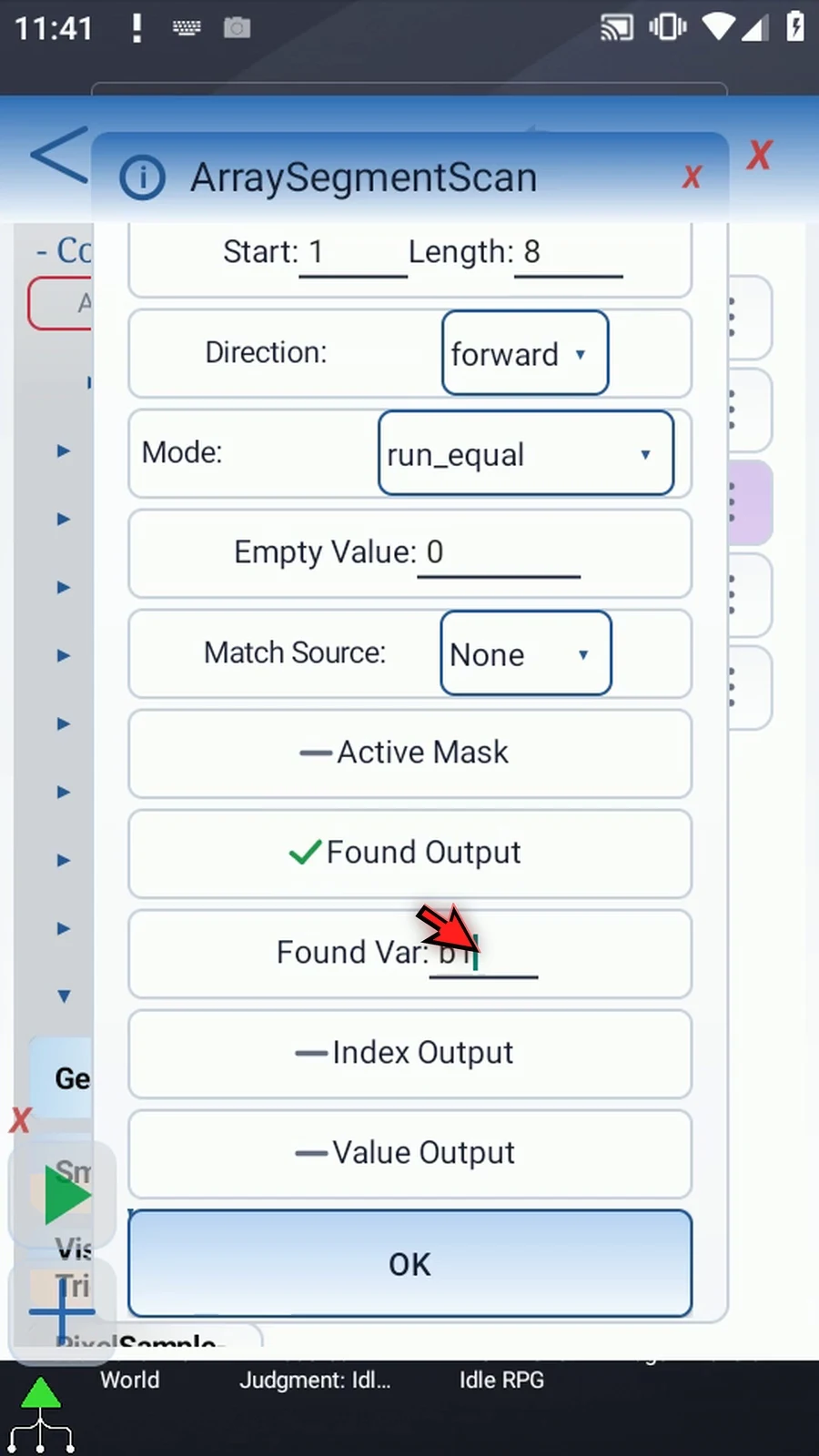
Step 05 Enable Index and use Integer i one. This identifies where the selected continuous run begins in the original array.
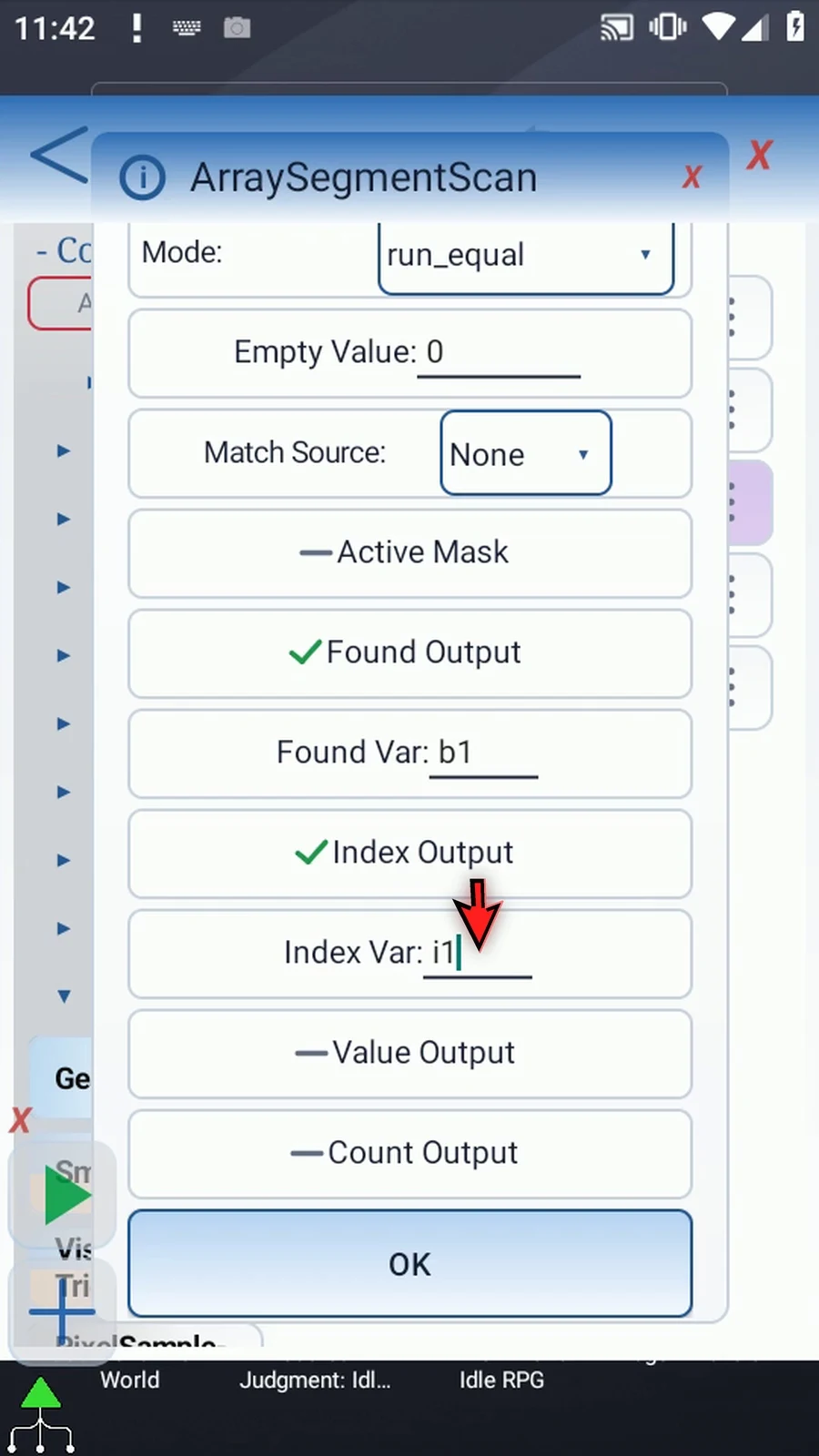
Step 06 Enable Value and use i two. This receives the value of that run, which is five in our example.
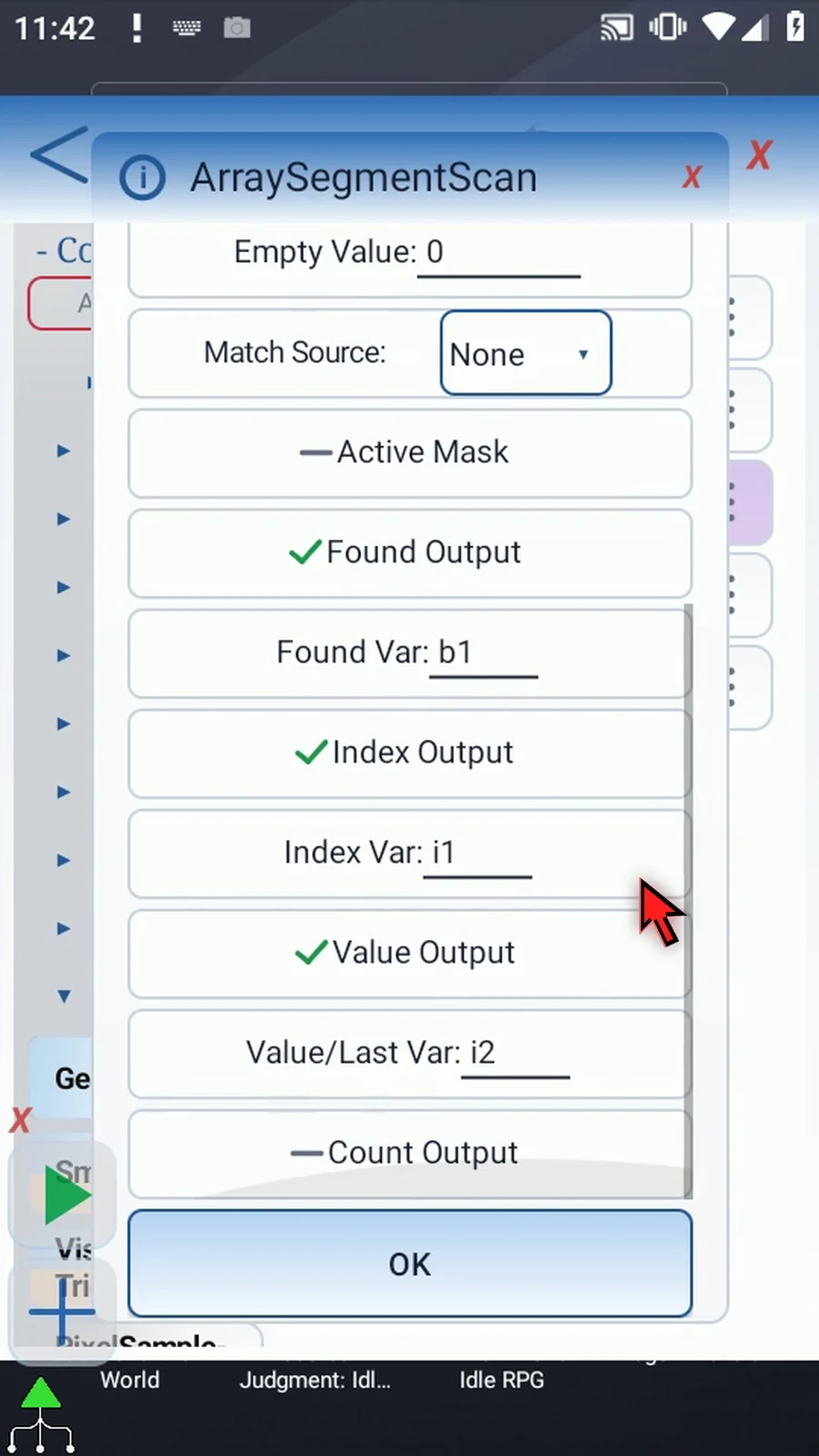
Step 07 Enable Count and use Integer i three. For Run Equal, Count is the selected run length, not a total across separate groups.
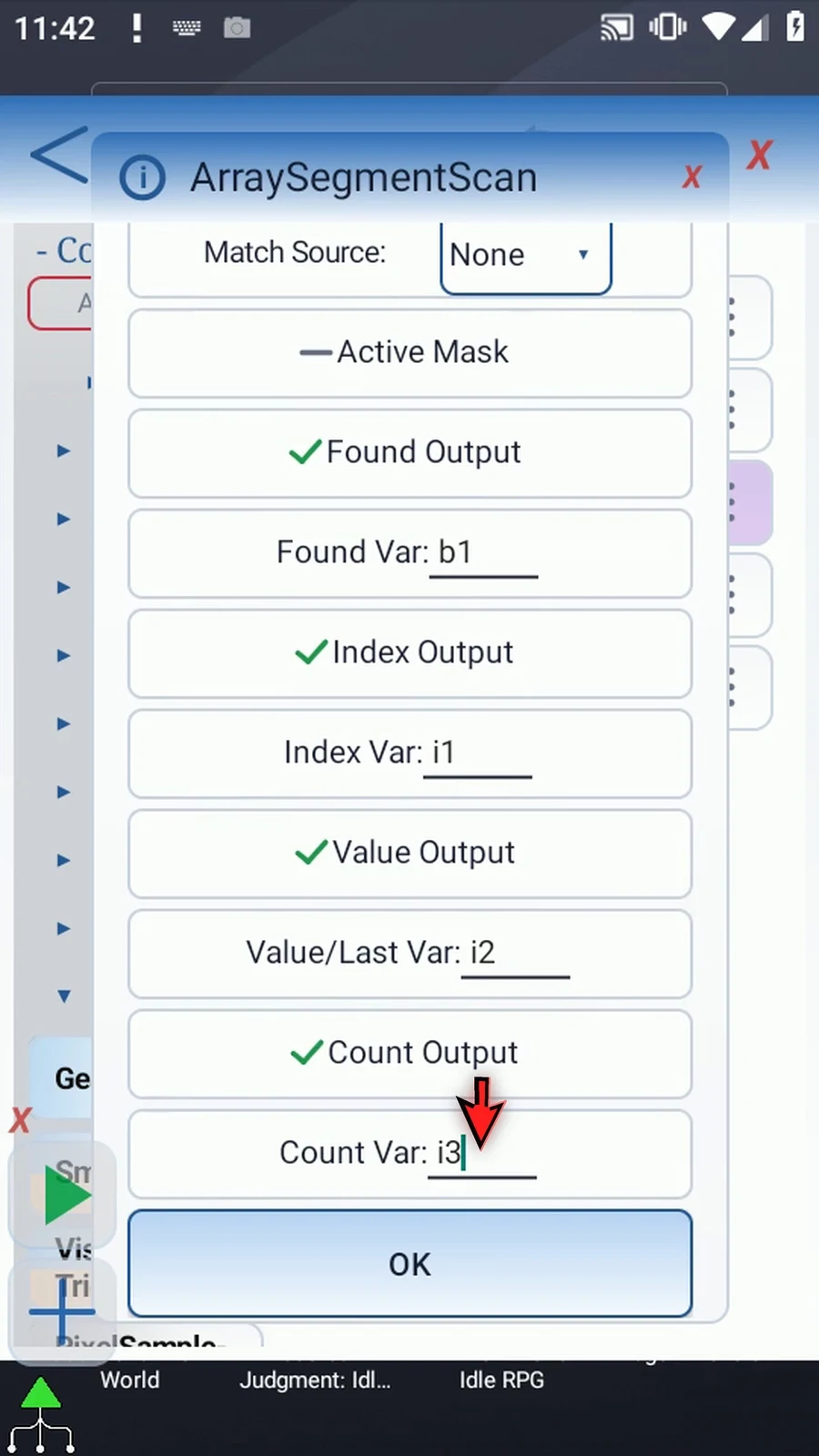
Step 08 Save the scan settings. The array declaration and Bulk setup remain unchanged.
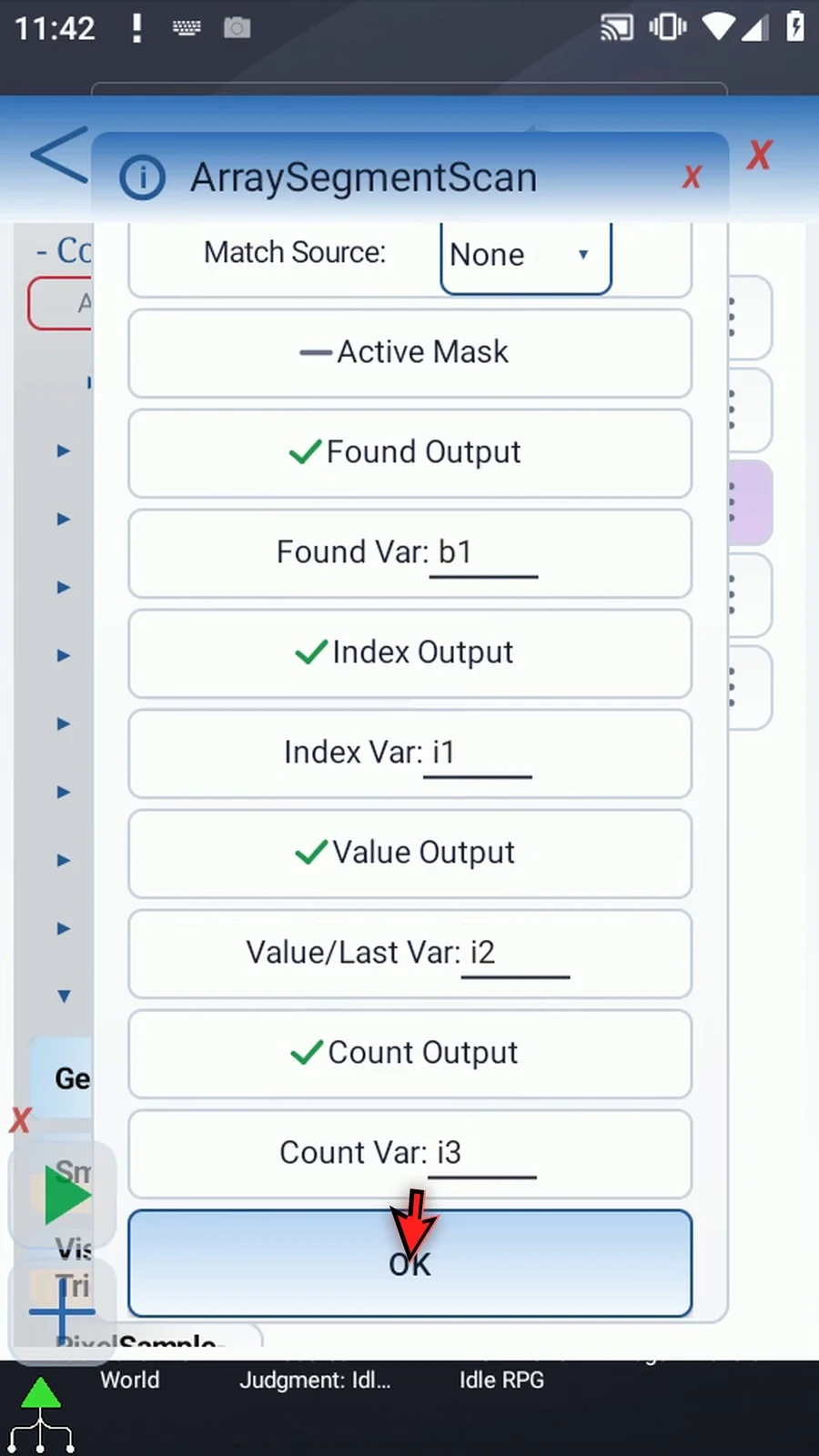
Step 09 Open Display and set its text variable to i three. Keep its existing area and five-second lifespan, then save.
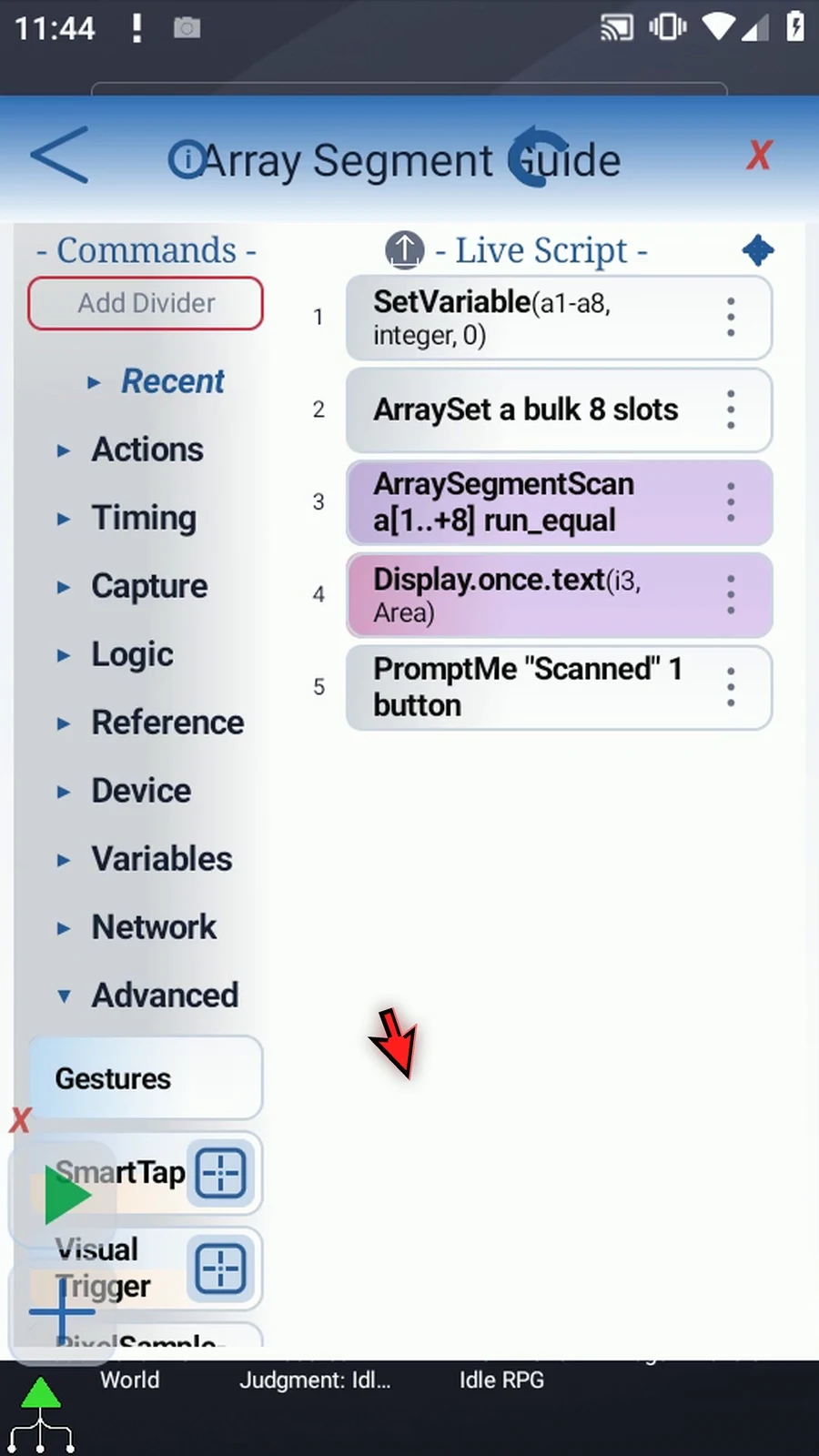
Step 10 The supporting commands prepare zero, five, five, zero, nine, nine, nine, zero. The scan uses that same pattern, and Prompt Me confirms completion.
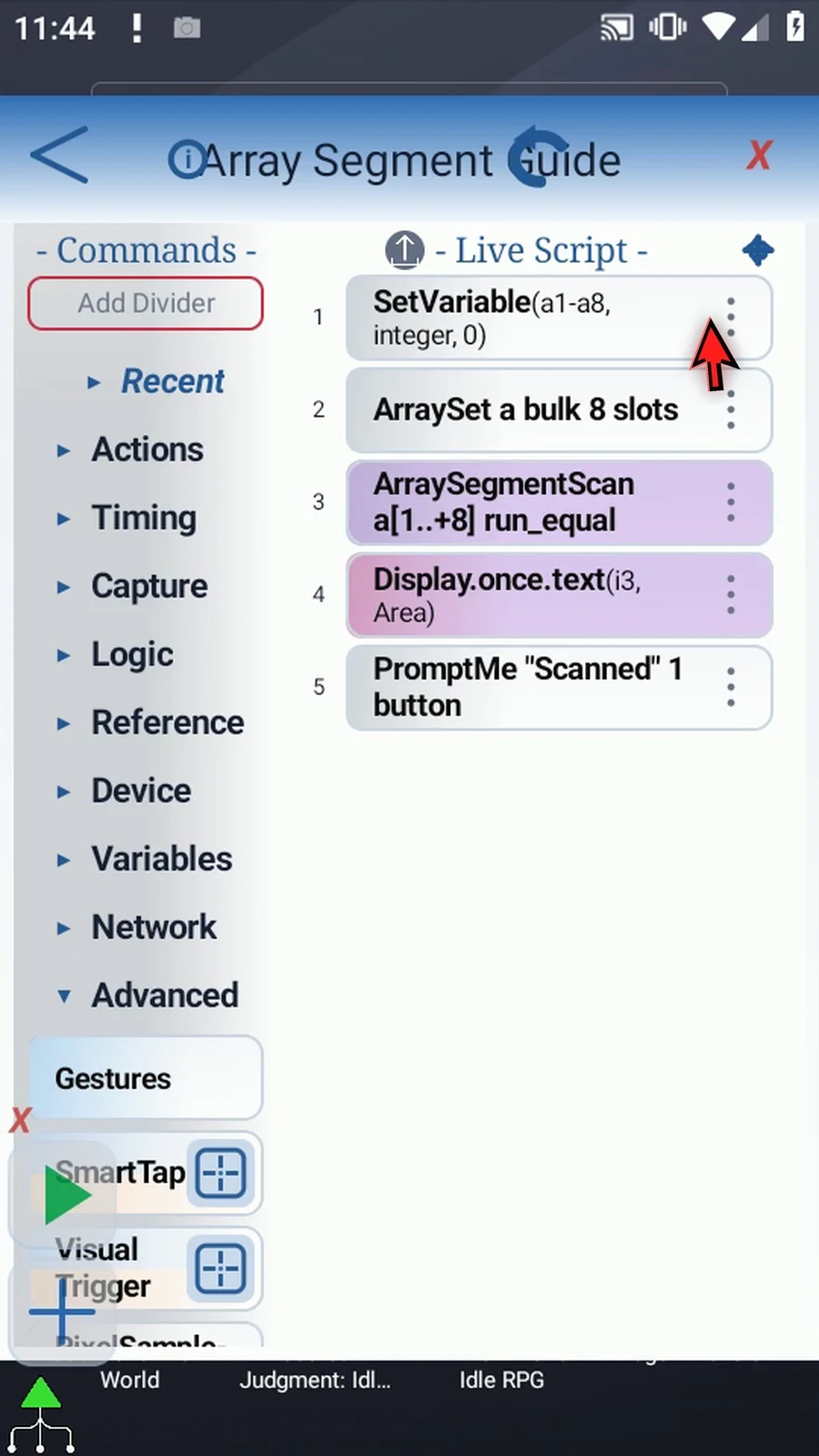
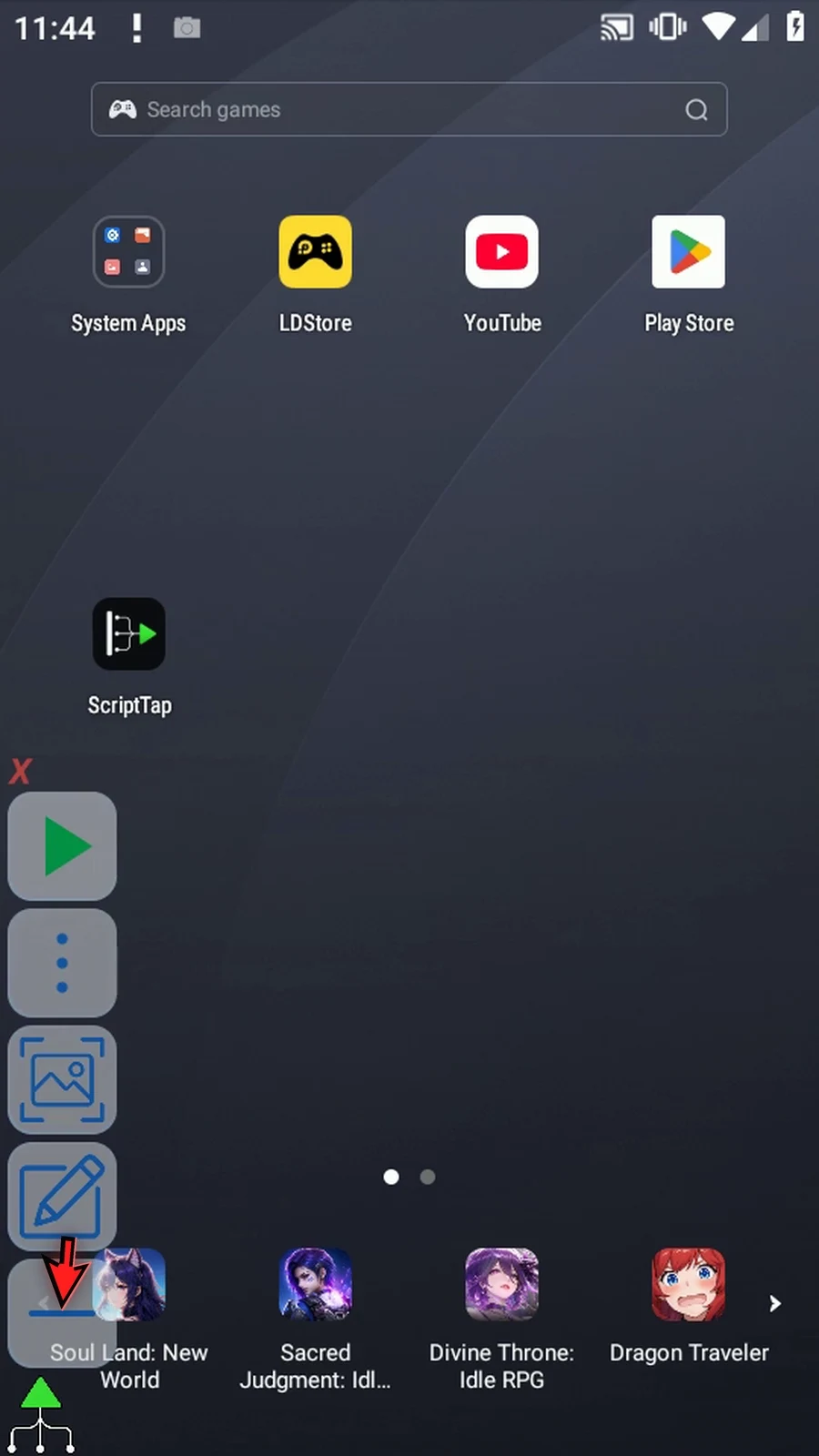
Step 11 Close the editor and expand the main overlay.
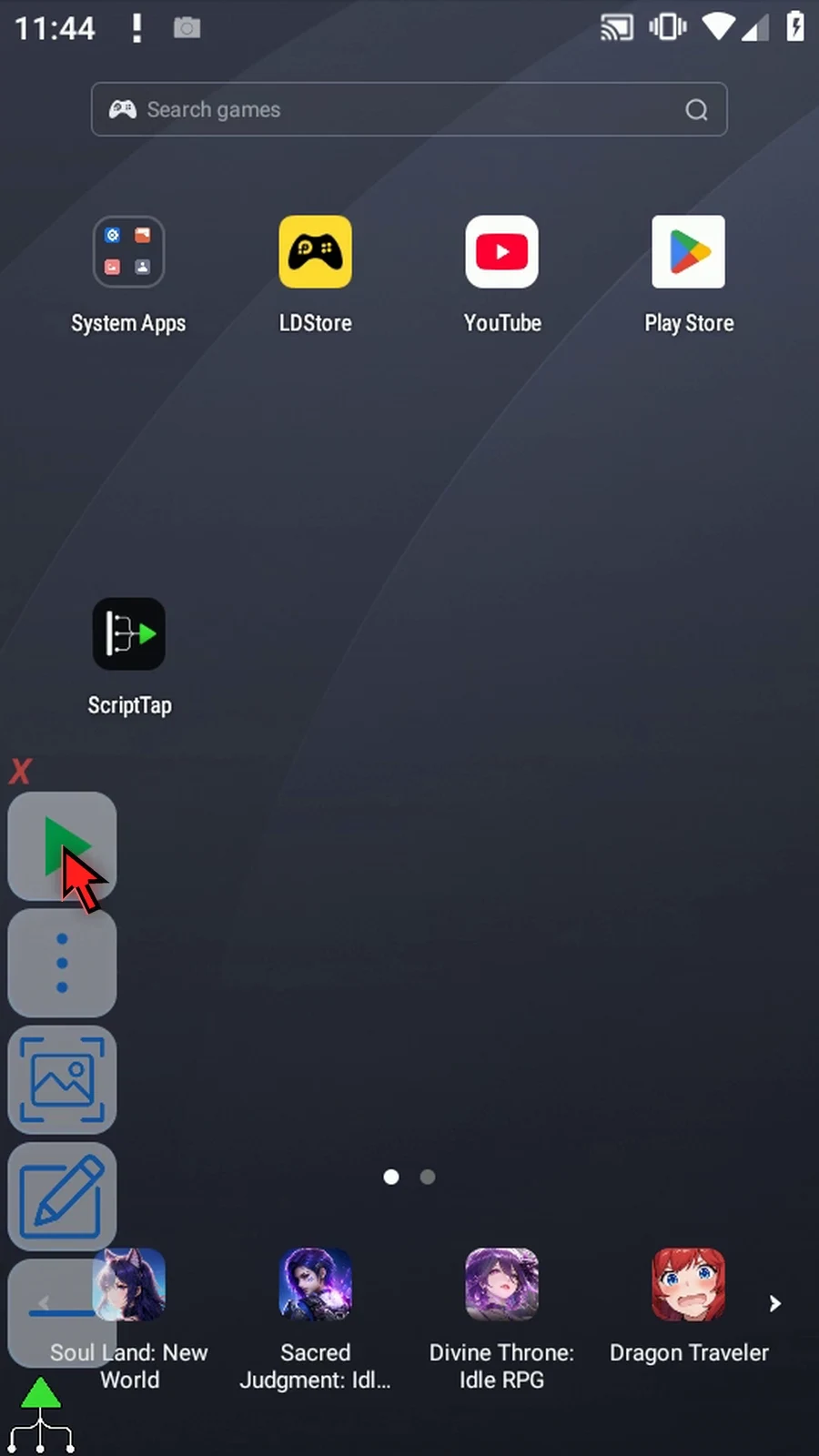
Step 12 When the script is complete, simply use the Play button in the main overlay.
Step 13 Display shows two. The first non-empty run contains five at positions two and three. Zero at position four ends that run. The later group of nines is not added to its length.
Step 14 The Scanned prompt confirms completion. Tap Done to finish the run.
Step 15 Choose Run Equal when adjacency matters. Reverse changes which end of the range is examined first; the reported index still uses the original array position.
ArraySegmentScan inspects an existing typed array without reading the screen or changing that array. Match its letter, Value Type and scope to the SetVariable declaration. This Script Only is local; Script Thread uses the calling thread scope. Integer, Decimal, Boolean, Hex, String and Time are supported. Hex matching is exact; use ColorClassify for confidence-based color matching.
Start is a one-based original position; Length is a number of positions, not the final index. Both accept Integer literals or prior Integer variables. The range must fit the declared capacity, up to 4096. Forward starts at Start; Reverse starts at the other end of that range. Reported indexes remain original array positions. A zero Length scans nothing and produces no-match outputs.
Where shown, Empty Value defines the typed empty sentinel; unwritten slots are also empty. Active Mask reads a prior Boolean array: only true positions are eligible, and false positions break runs. Found writes a Boolean; Index and Count write Integers. Enable only the outputs needed by later commands. A true mode change clears the old mode-specific settings and destinations, so check them again.
Run Boundary selects the first matching run in the chosen direction and also counts matching runs across the range. Literal 9 selects positions 5 through 7. Found b1 is true; Index i1=5 is the lower first boundary; Value/Last i2=7 is the upper last boundary, not the matched value. Both boundary destinations are Integers even when the source array uses another type, and they remain ordered lower-to-higher with Reverse.
Count i3=1 is the number of matching runs, not the number of matched positions. The separate Run Length Output i4=3 is the selected run's length, shown by Display. A false mask position breaks a run.
Run Boundary
Step-by-step guide
Step 01 Run Boundary reports the beginning and end of a matching run, its length, and how many matching runs exist in the selected range. Use it when later commands need both boundaries. We will continue the five-command script built in the Intro.
Step 02 Choose Run Boundary. Keep local Integer array a, Start one, Length eight, and Forward. Set Empty Value to zero and leave Active Mask off. Changing modes clears the old mode's settings, so re-enter the required fields and destinations.
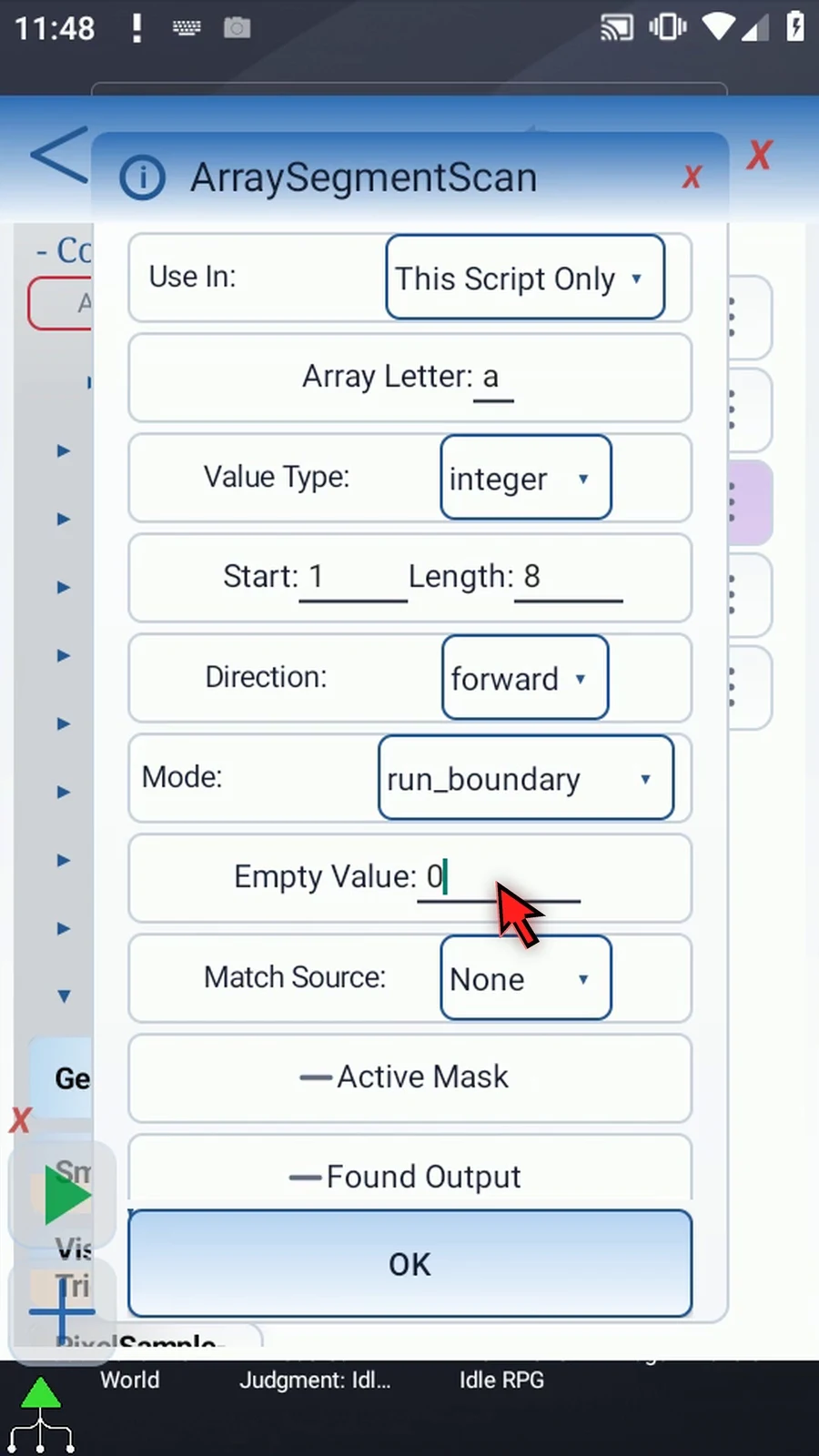
Step 03 Choose Literal as Match Source and enter nine. The command will find runs containing that value and select the first run in the chosen direction.
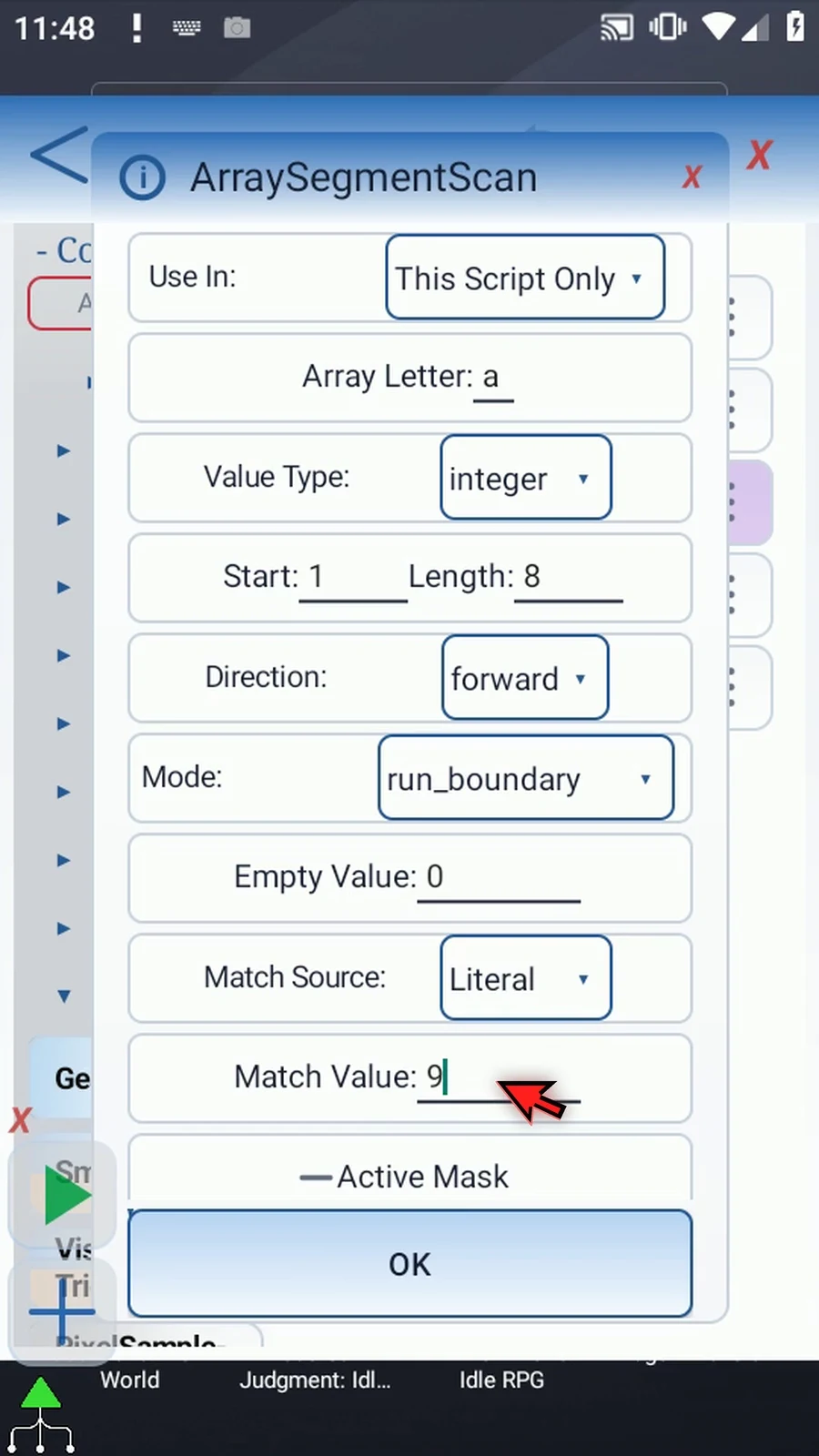
Step 04 Scroll to the outputs and enable Found. Store the result in Boolean b one, so later commands can test whether the scan found a qualifying position.
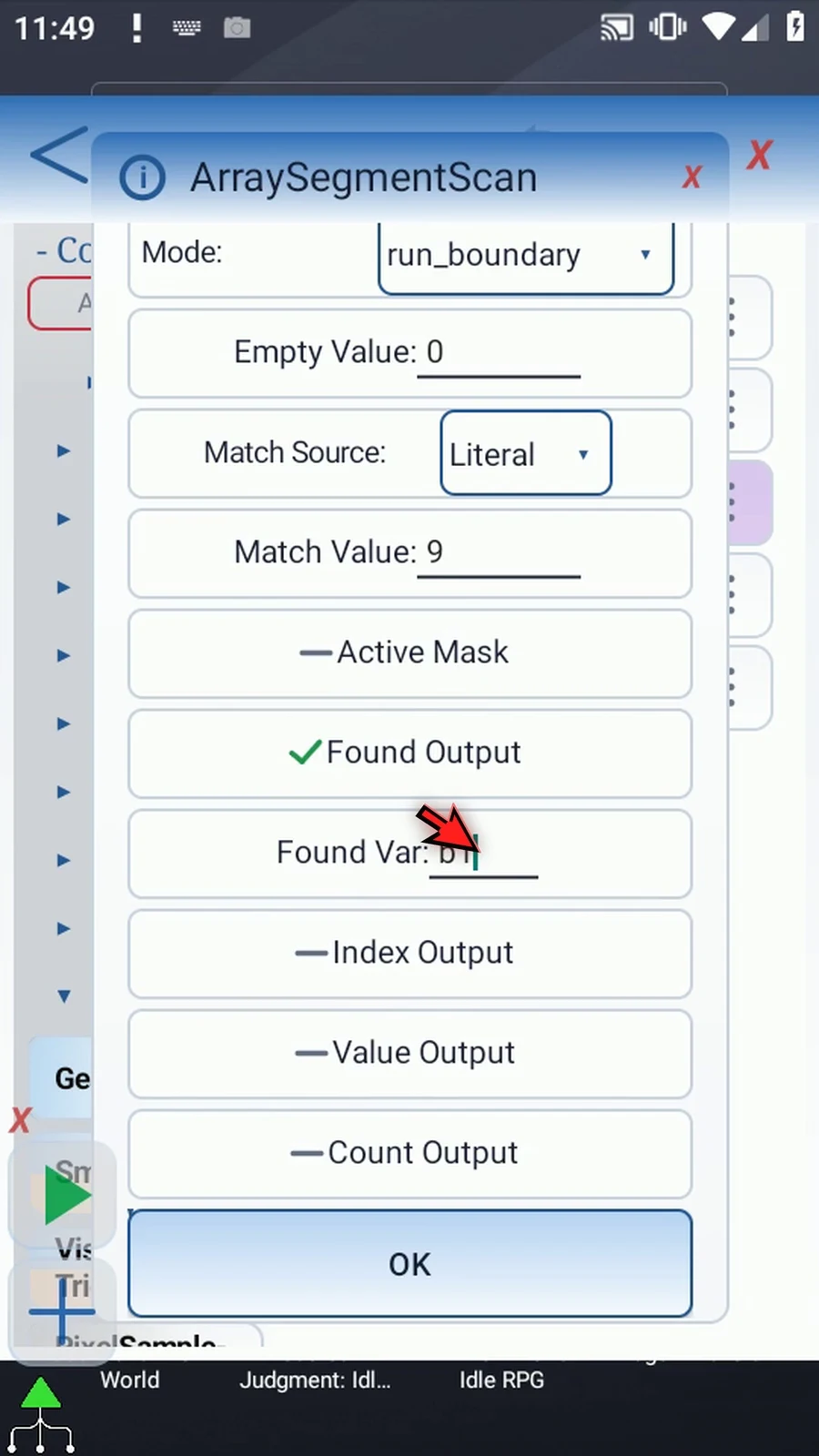
Step 05 Enable Index and use Integer i one. This stores the lower first boundary of the selected run in the original array.
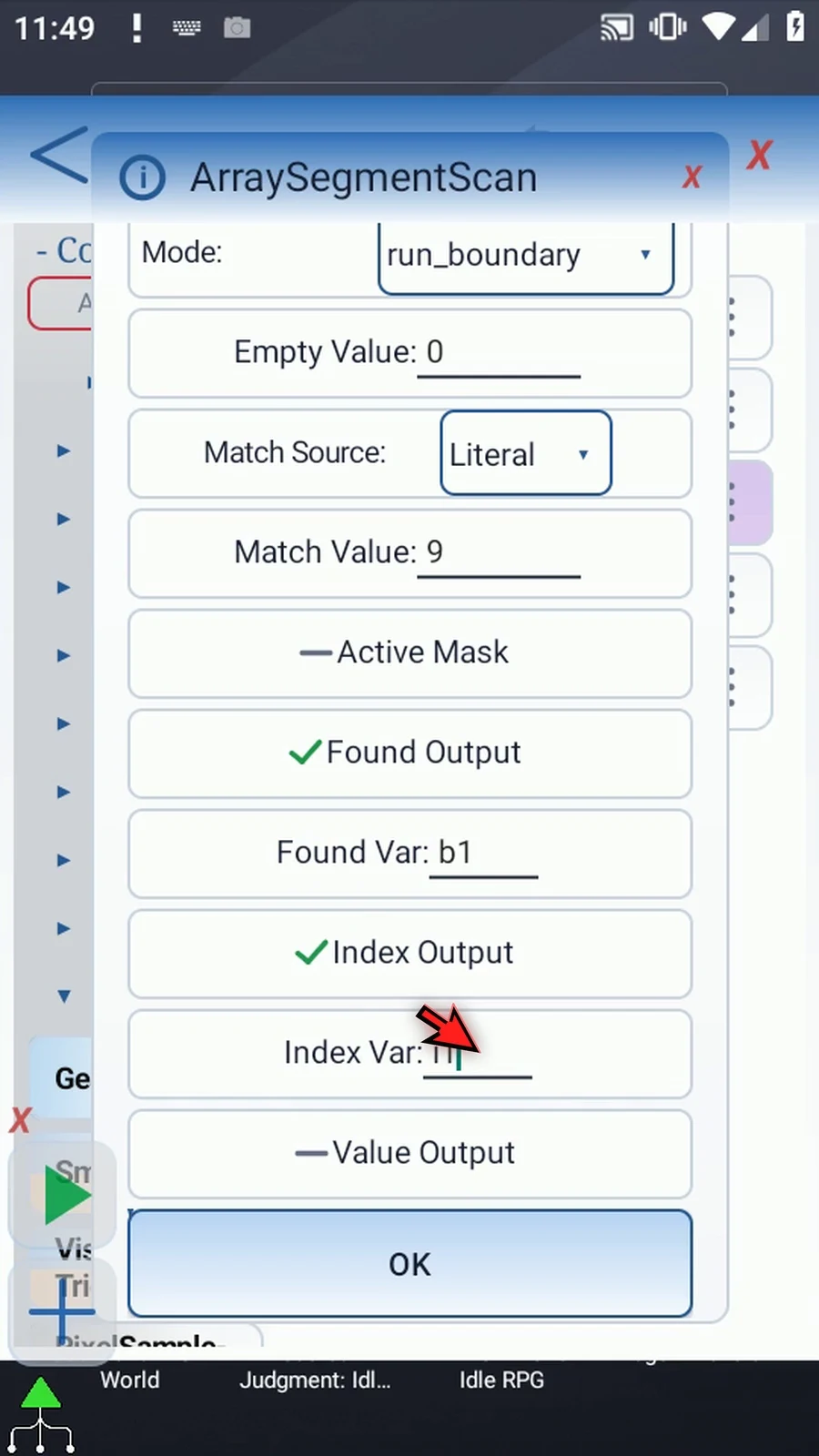
Step 06 Enable Value and Last, and use Integer i two. Here it stores the upper last boundary, not the matched value. Both boundaries are Integers.
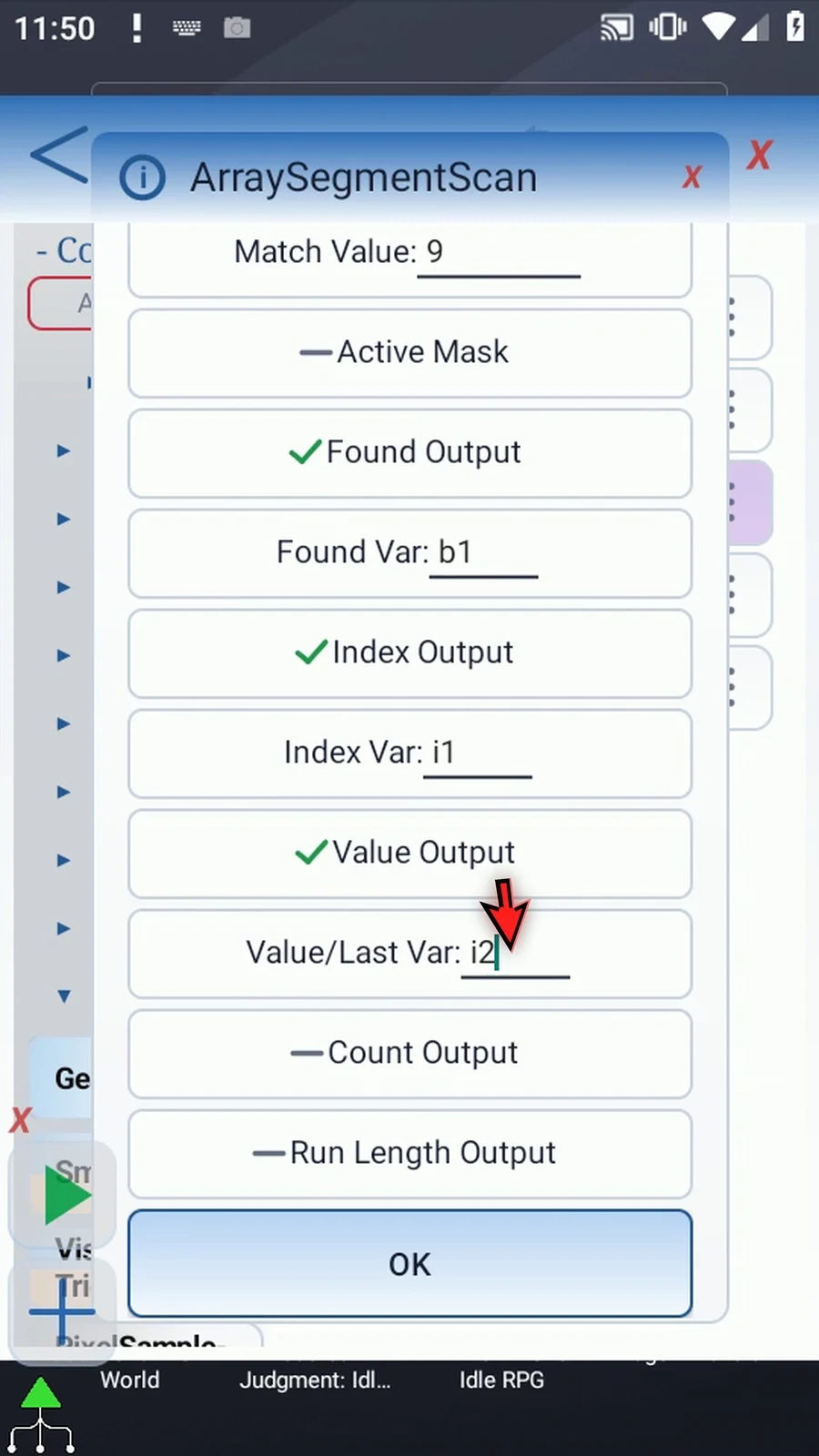
Step 07 Enable Count and use Integer i three. Here Count means the number of matching runs, not the number of positions inside one run.
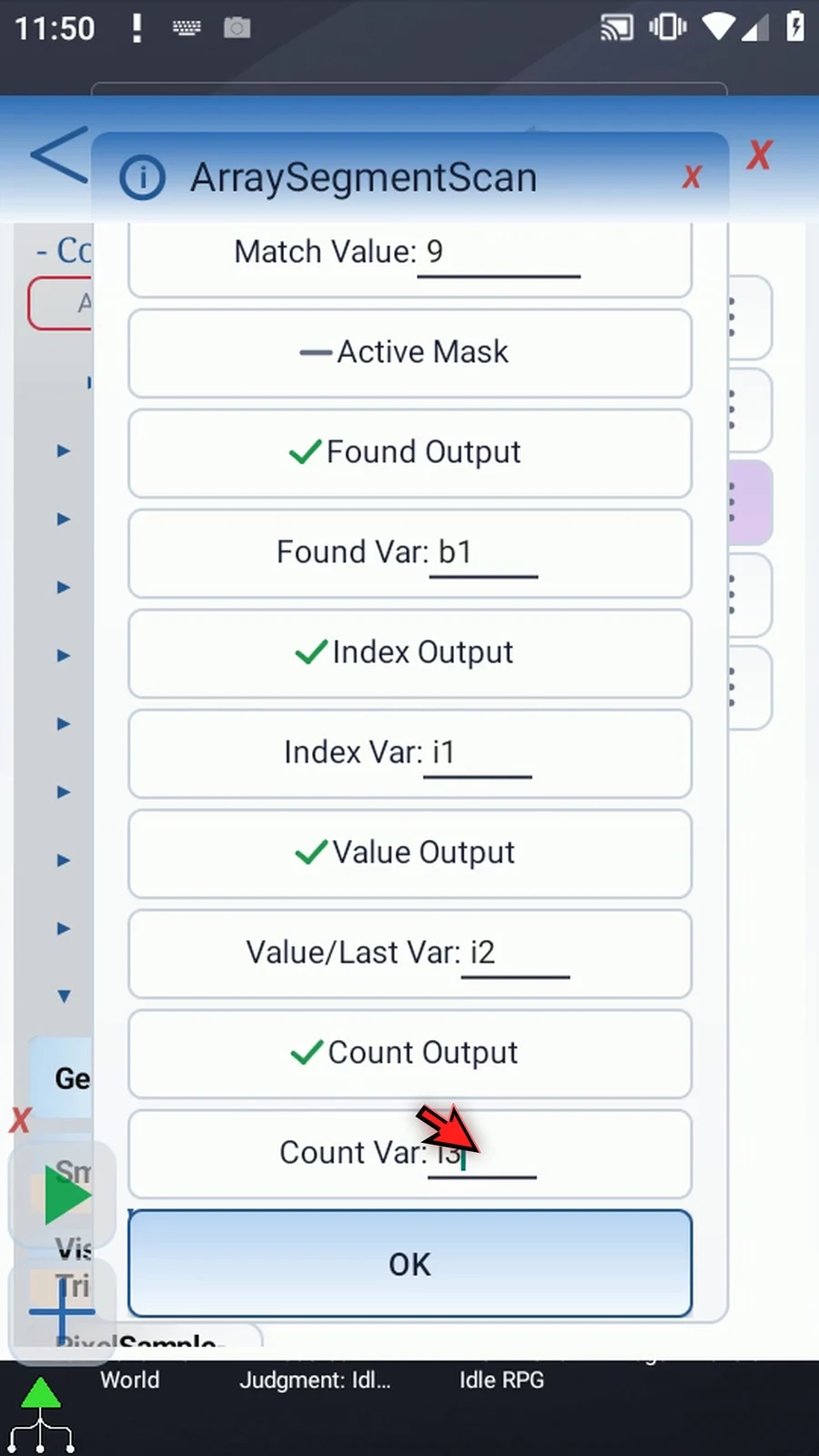
Step 08 Enable the separate Run Length Output and use Integer i four. This stores the number of positions in the selected run. We will display this value.
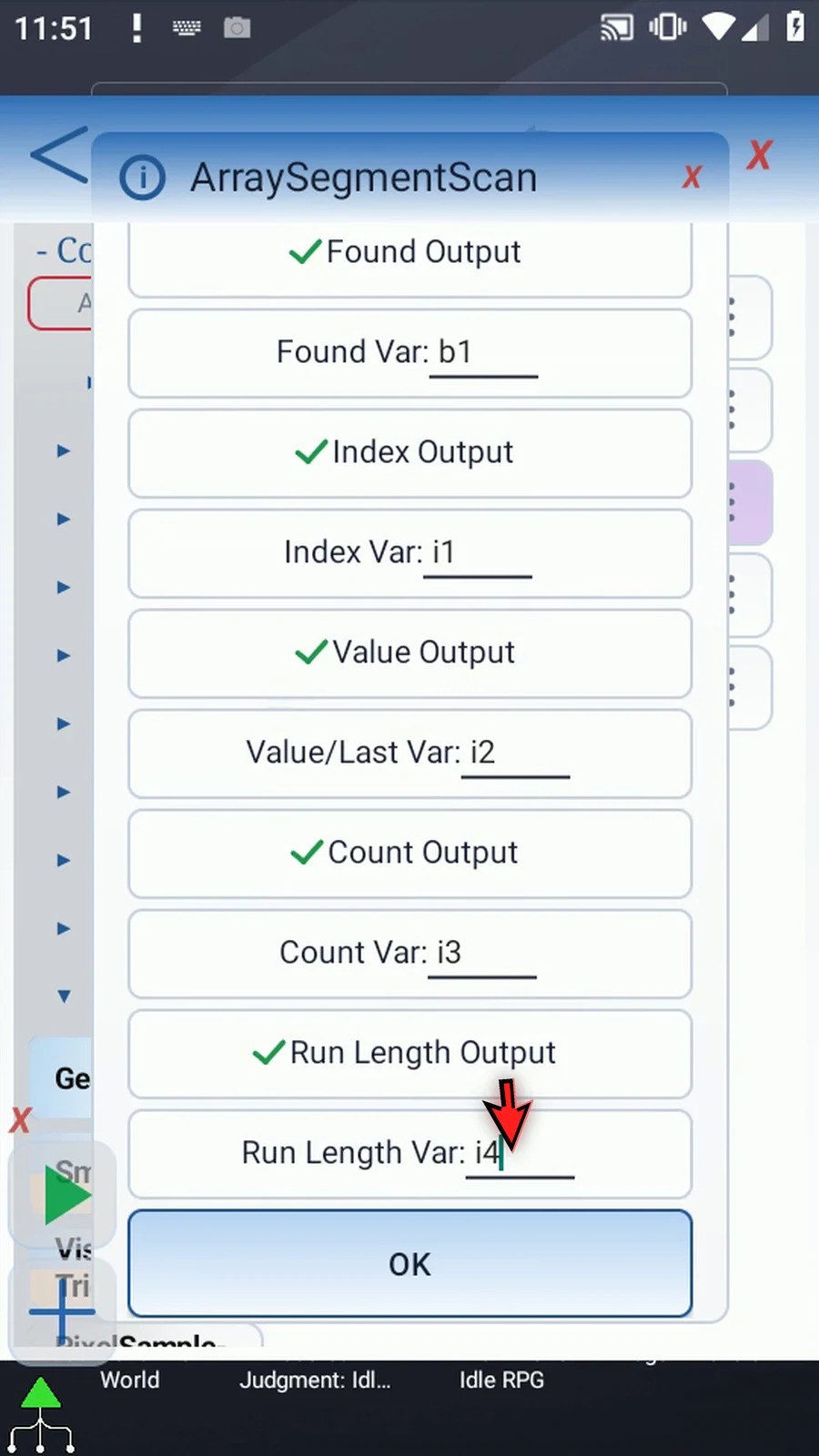
Step 09 Save the scan settings. The array declaration and Bulk setup remain unchanged.
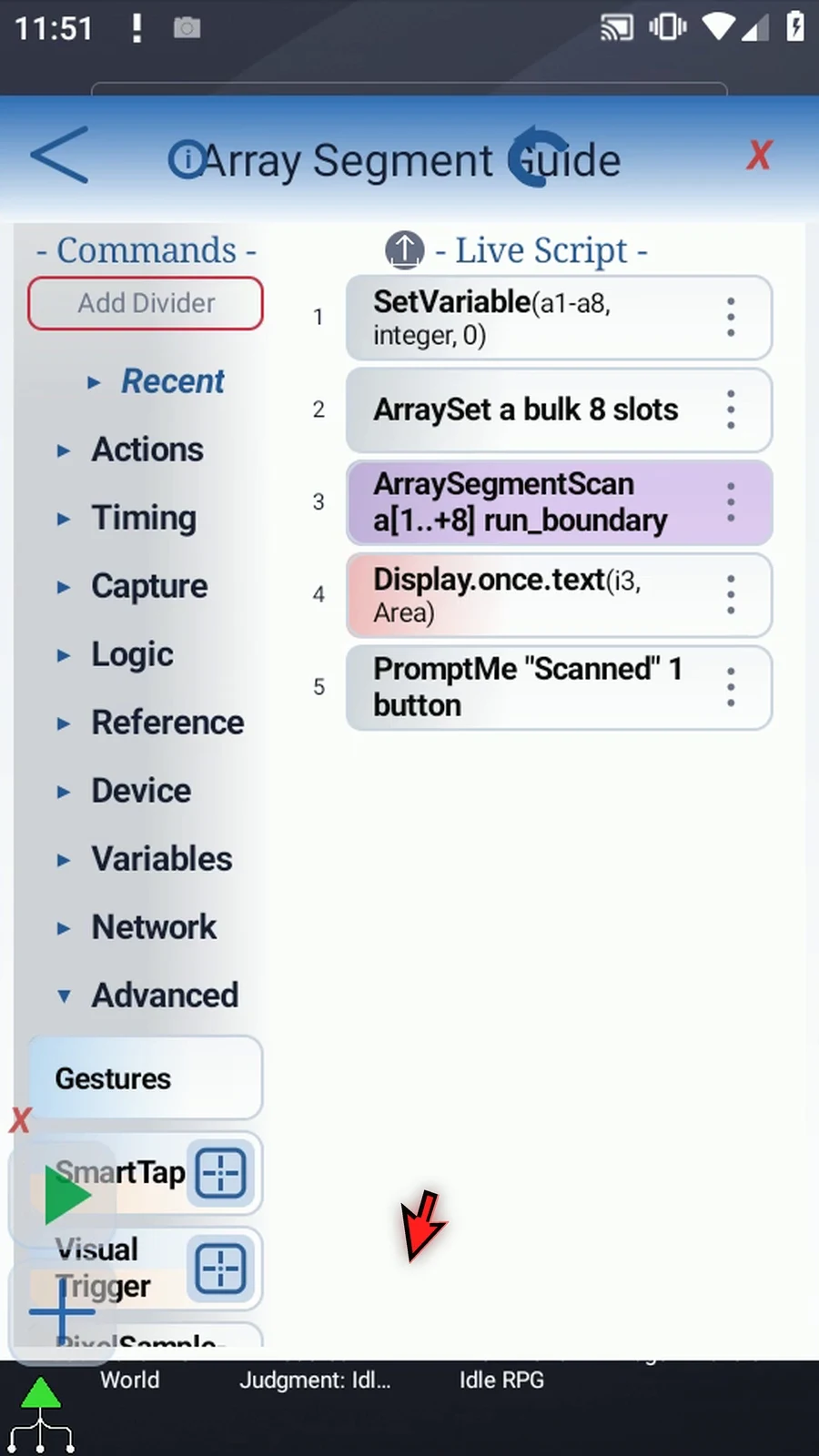
Step 10 Open Display and set its text variable to i four. Keep its existing area and five-second lifespan, then save.
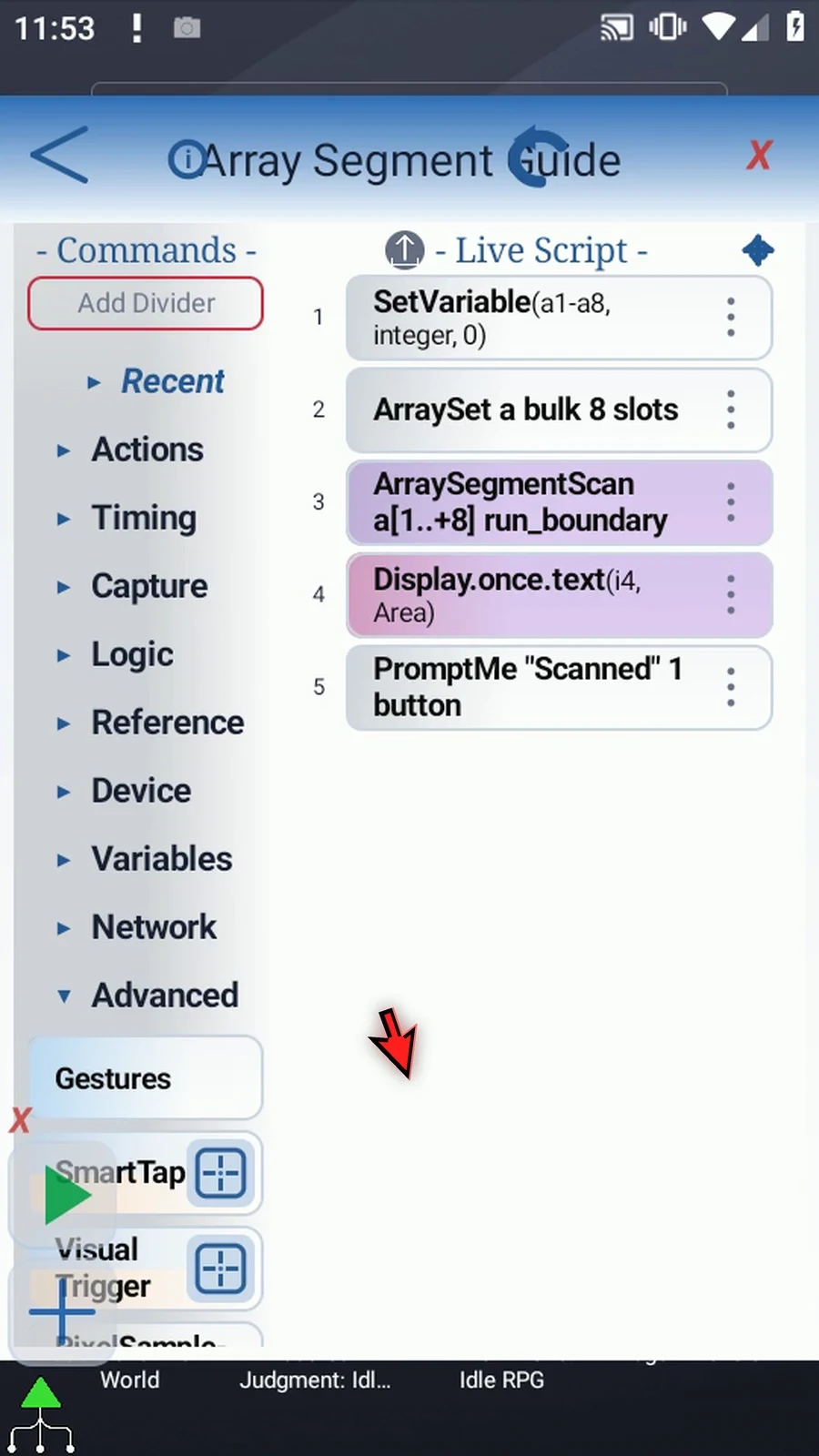
Step 11 The supporting commands prepare zero, five, five, zero, nine, nine, nine, zero. The scan uses that same pattern, and Prompt Me confirms completion.
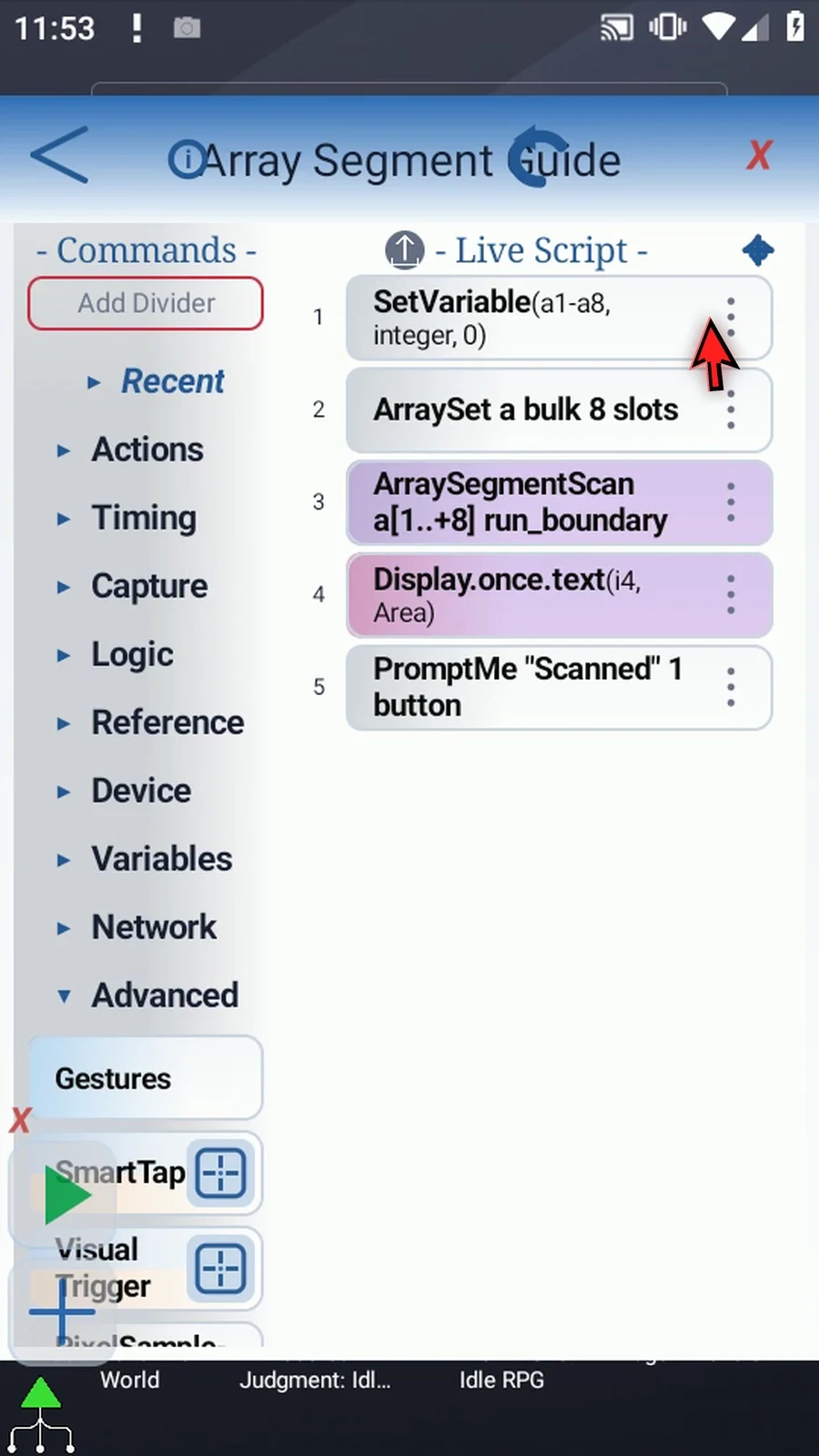
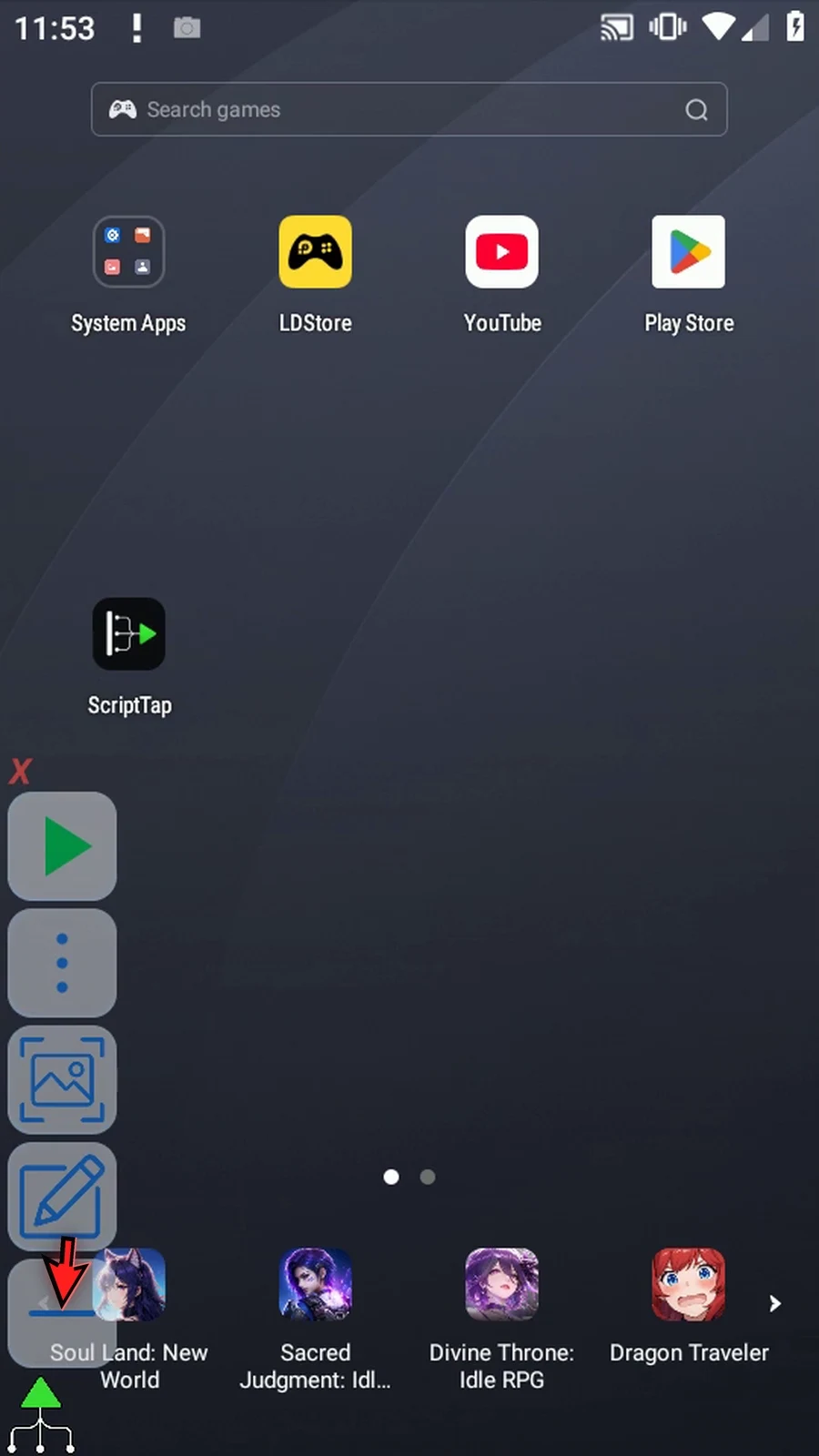
Step 12 Close the editor and expand the main overlay.
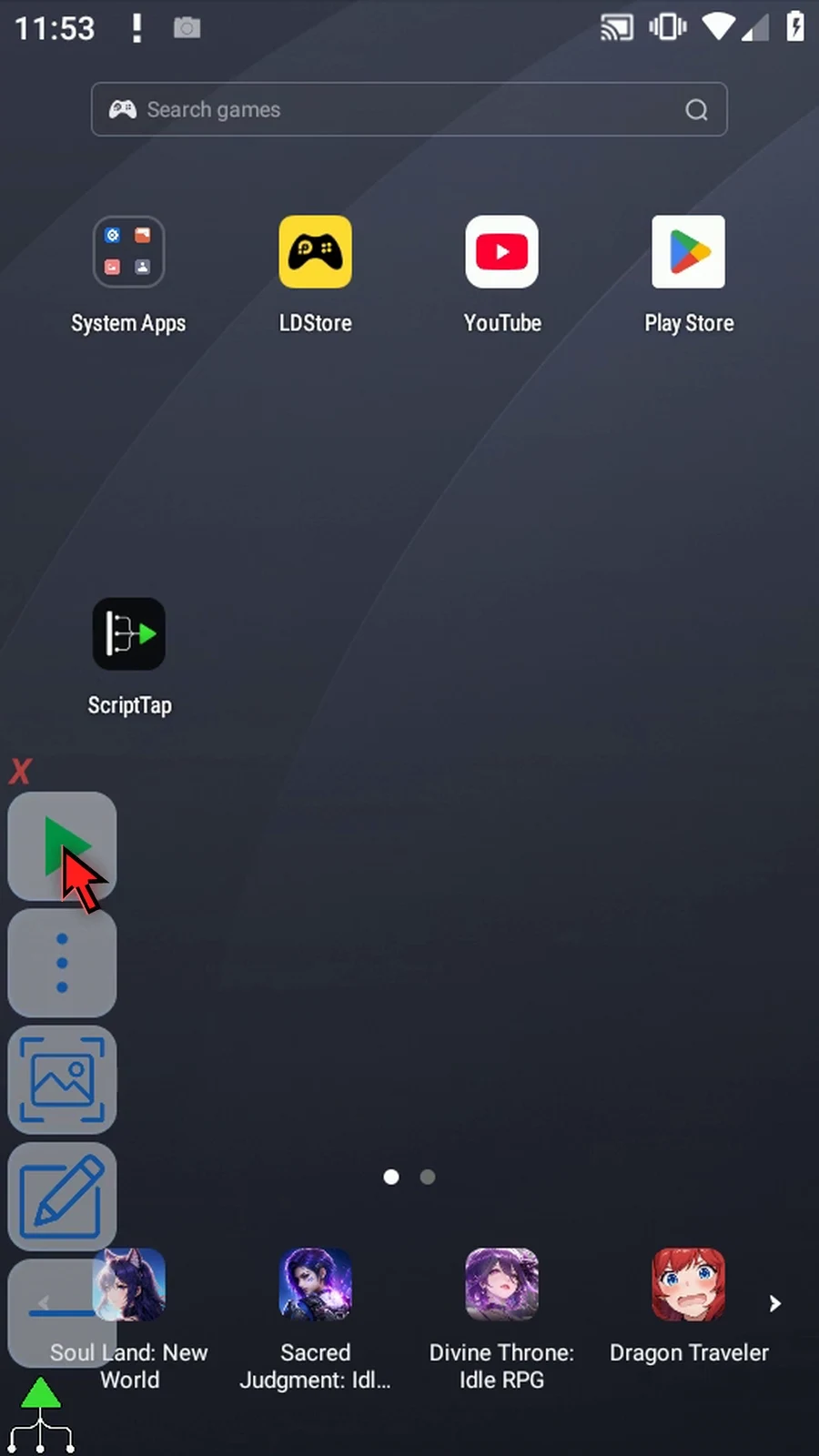
Step 13 When the script is complete, simply use the Play button in the main overlay.
Step 14 Display shows three, the selected run's length. Its boundaries are positions five and seven. There is one matching run, so Count is one; the matched value nine is not the last-boundary output.
Step 15 The Scanned prompt confirms completion. Tap Done to finish the run.
Step 16 Run Boundary separates four useful facts: first position, last position, number of matching runs, and selected run length. A false mask position breaks a run.