Command video guide
PixelSampleBatch
PixelSampleBatch samples several known coordinates from one current screen image. Use it for board or grid checks that need the same screen state. GetPixelColor is suitable for one-off single-pixel checks.
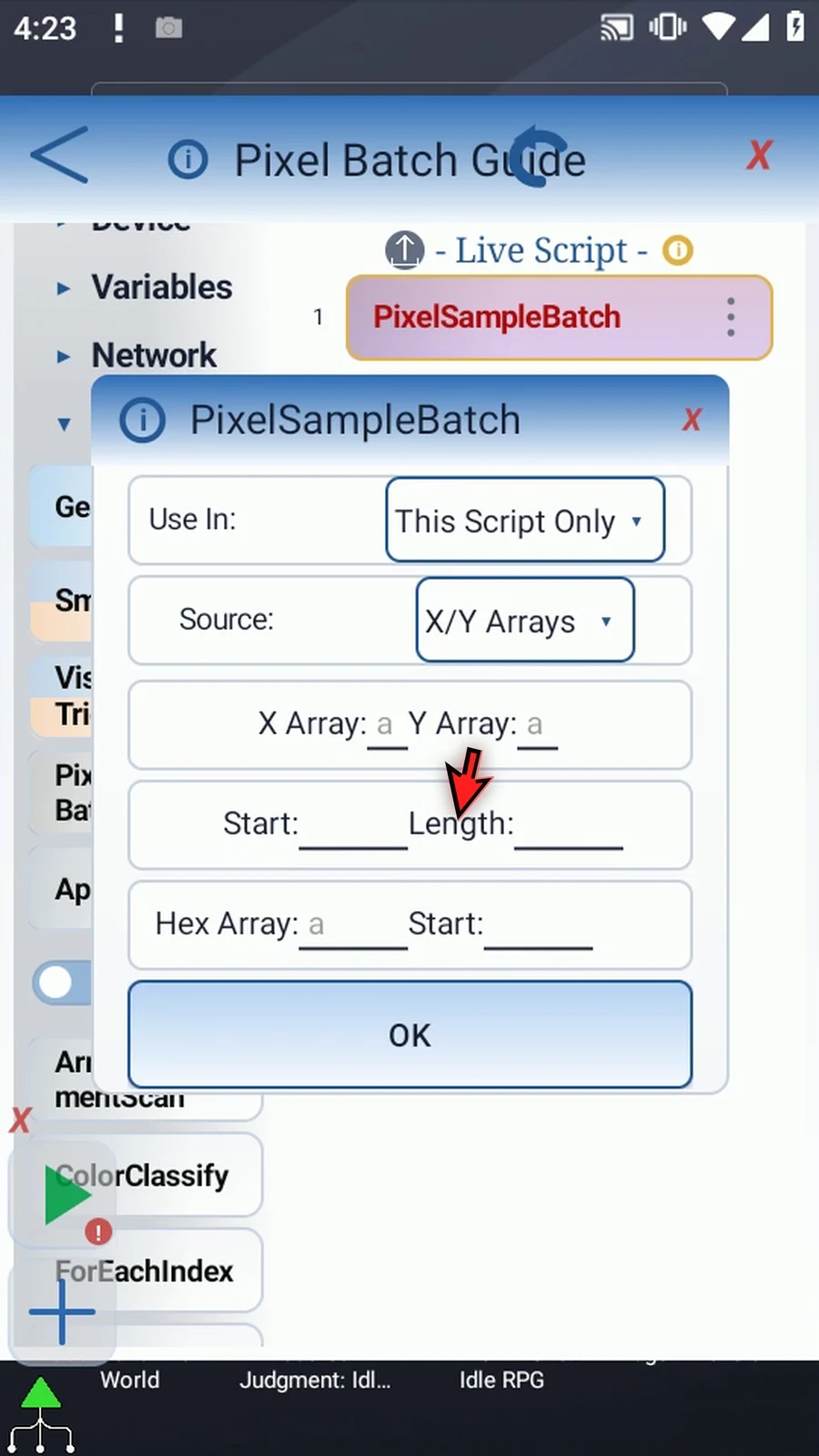
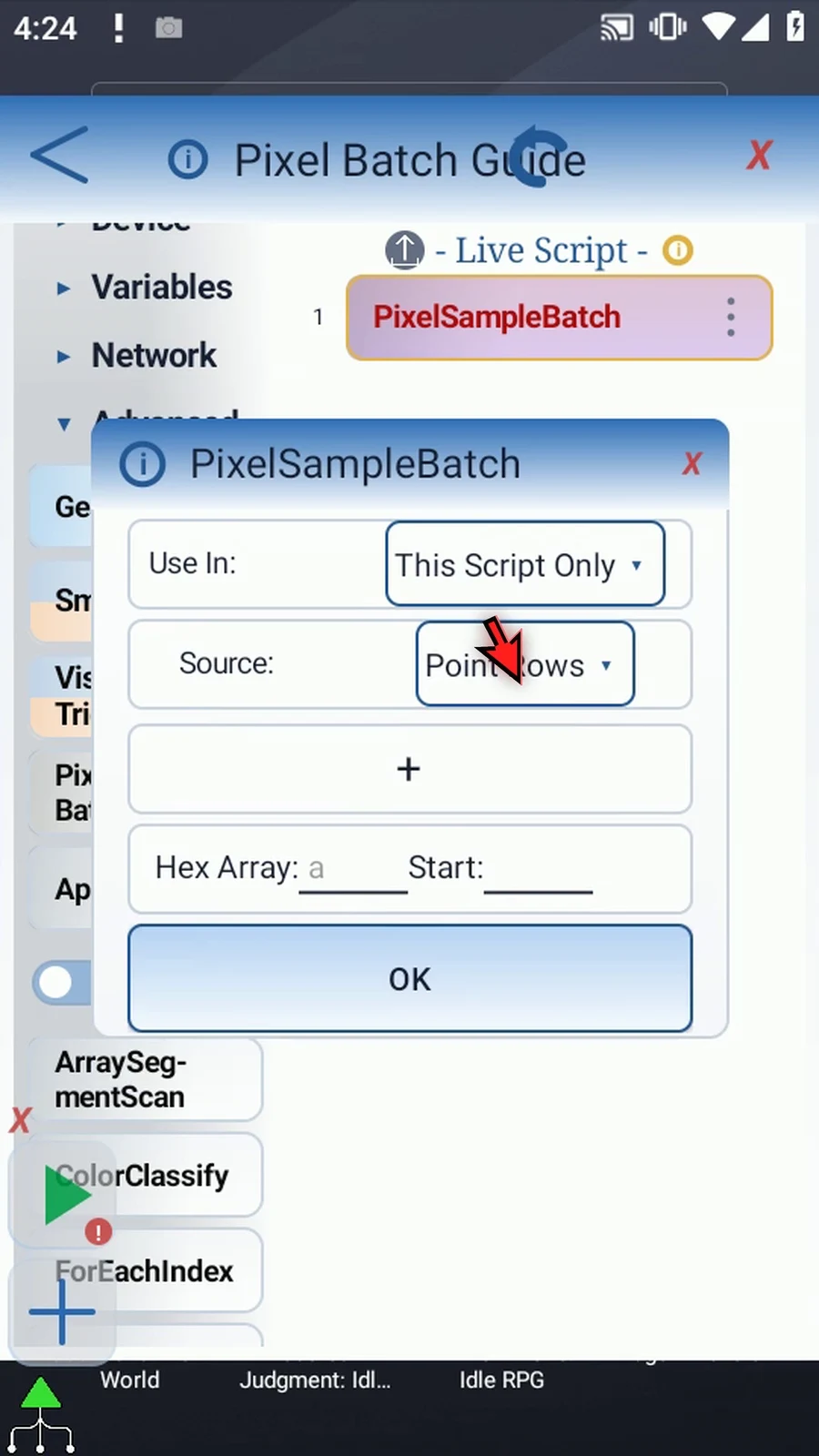
Point Rows accepts literal X/Y coordinates or prior Integer variables. Plus adds a row, Enabled skips a row without erasing its coordinates, and the addressed red X deletes it. Enabled rows retain order. X/Y Arrays instead pairs coordinates from two previously written Integer arrays, using Start and Length. Changing source clears outgoing source facts.
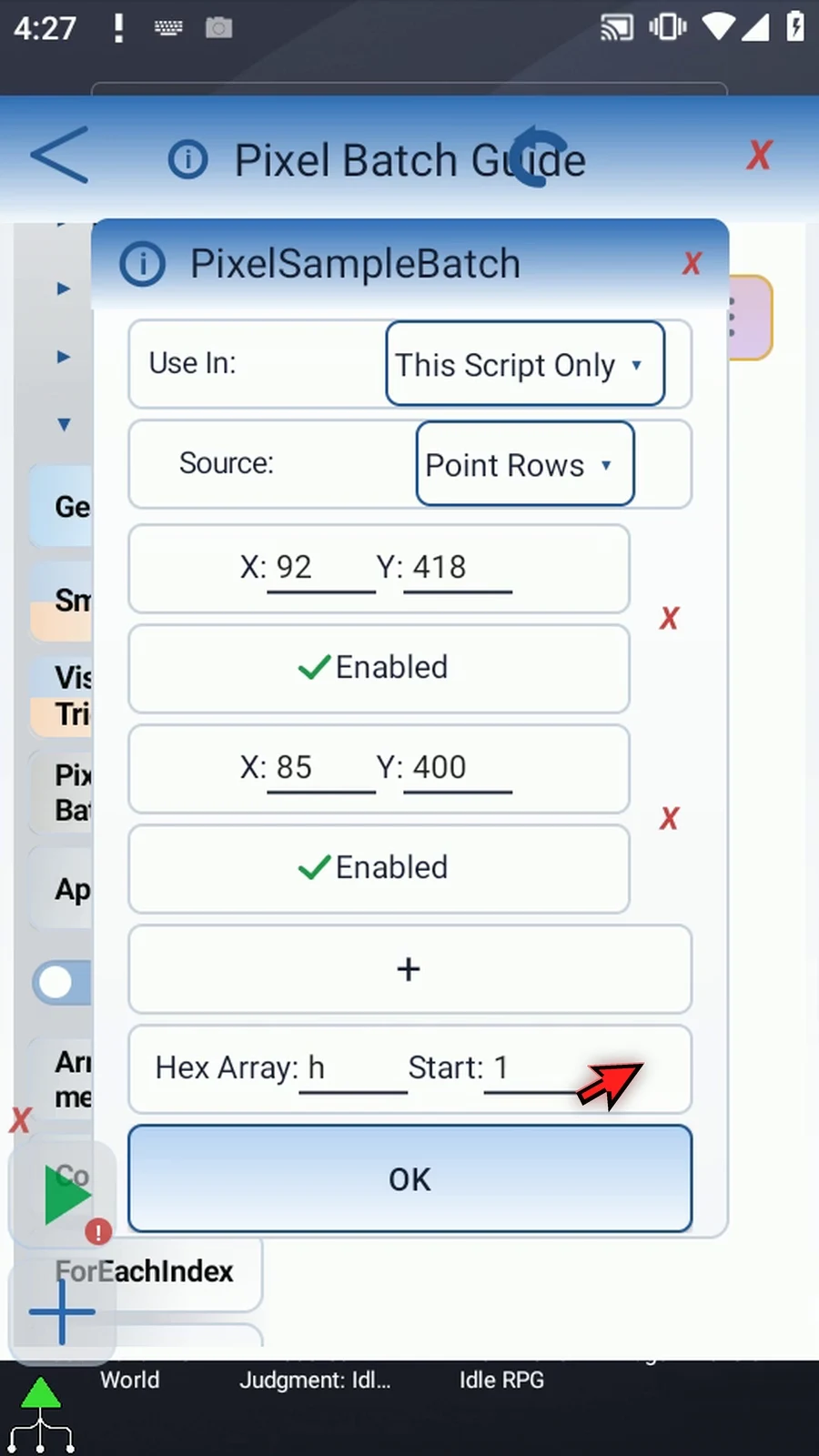
Choose the Hex output array letter and its starting index. Up to 2048 points may be sampled per command; the whole output range must fit within 1..4096. Invalid coordinates, capture failures or an invalid destination range do not publish a partial batch. Use In controls local or Script Thread output scope.
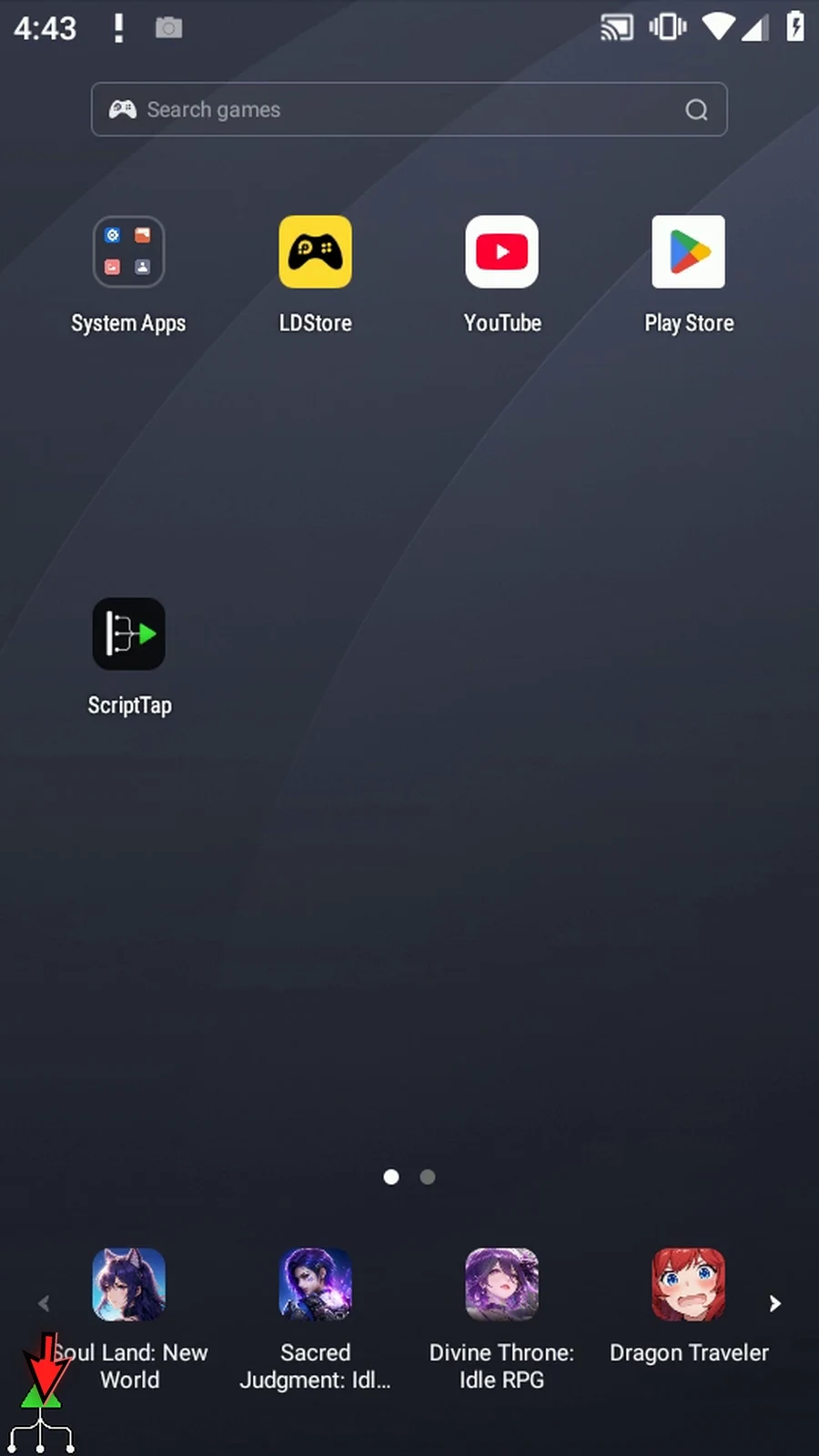
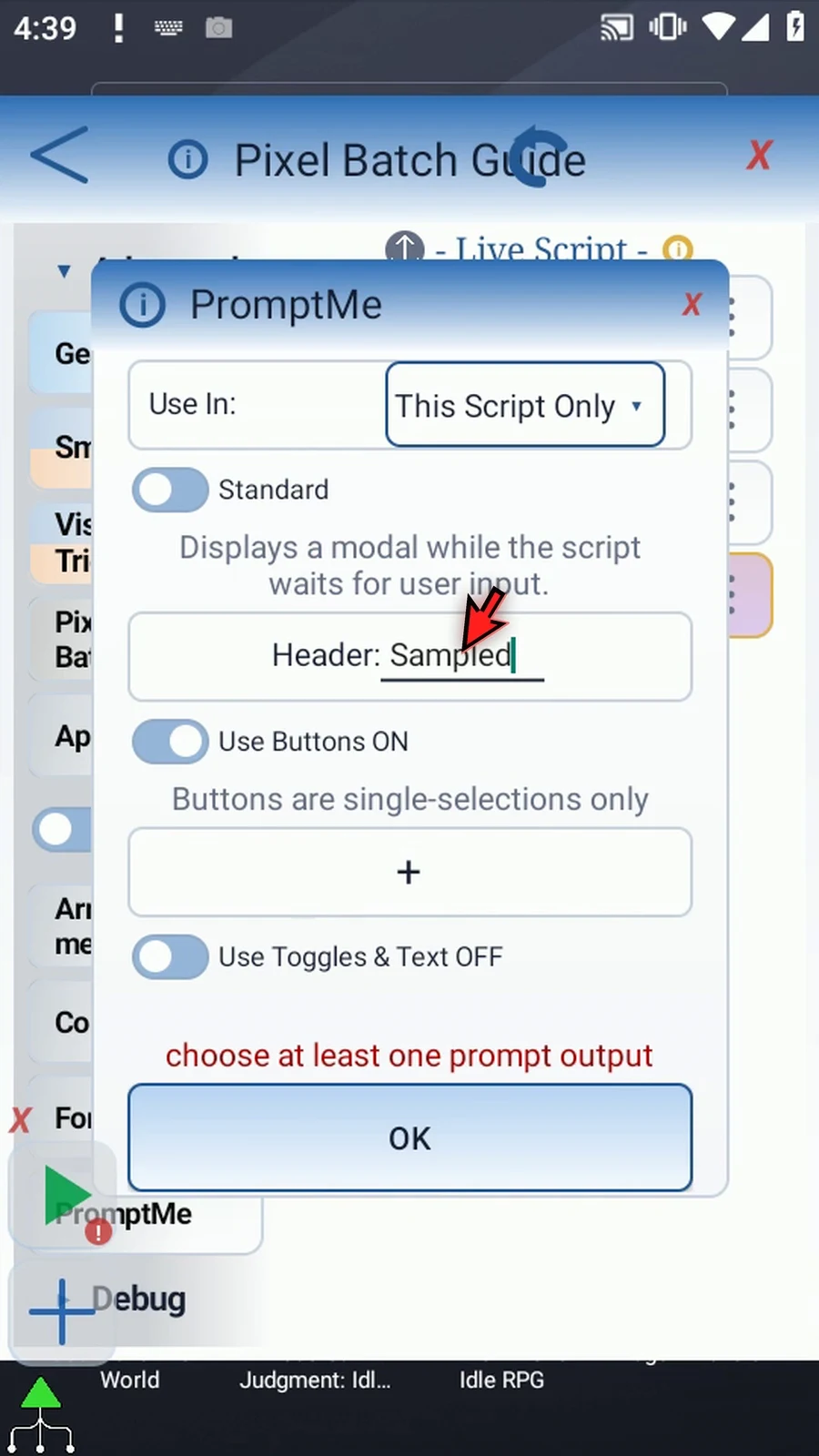
The new four-command demonstration samples the green and dark parts of the ScriptTap icon at 92, 418 and 85, 400 into h1/h2. Two supporting Once Displays show 38C034 and 0D0E12 for four seconds each; they read saved values and do not resample. Standard PromptMe with Sampled/Done and Boolean b1 confirms completion. All four commands are genuinely dragged into the editor. If Android asks, allow screen capture.
Watch the walkthrough
Step-by-step guide
Step 01 PixelSampleBatch reads several known screen positions from one current screen image and saves their colors in a Hex array. It is useful for checking a board or grid without taking a separate screen image for every point.
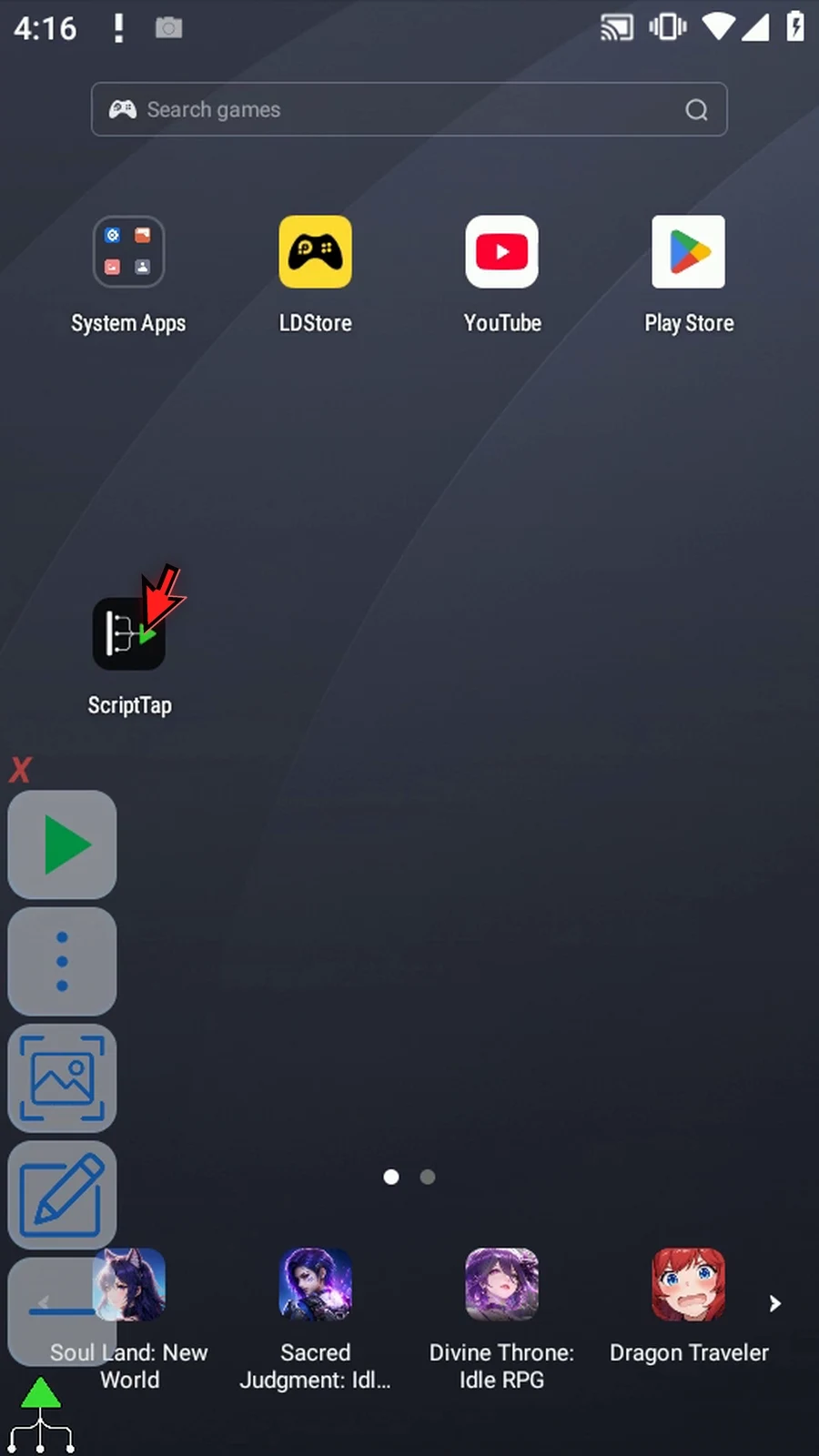
Step 02 Open the Script Library and create a new Blank Script. Find the new entry so we can give it a clear name.
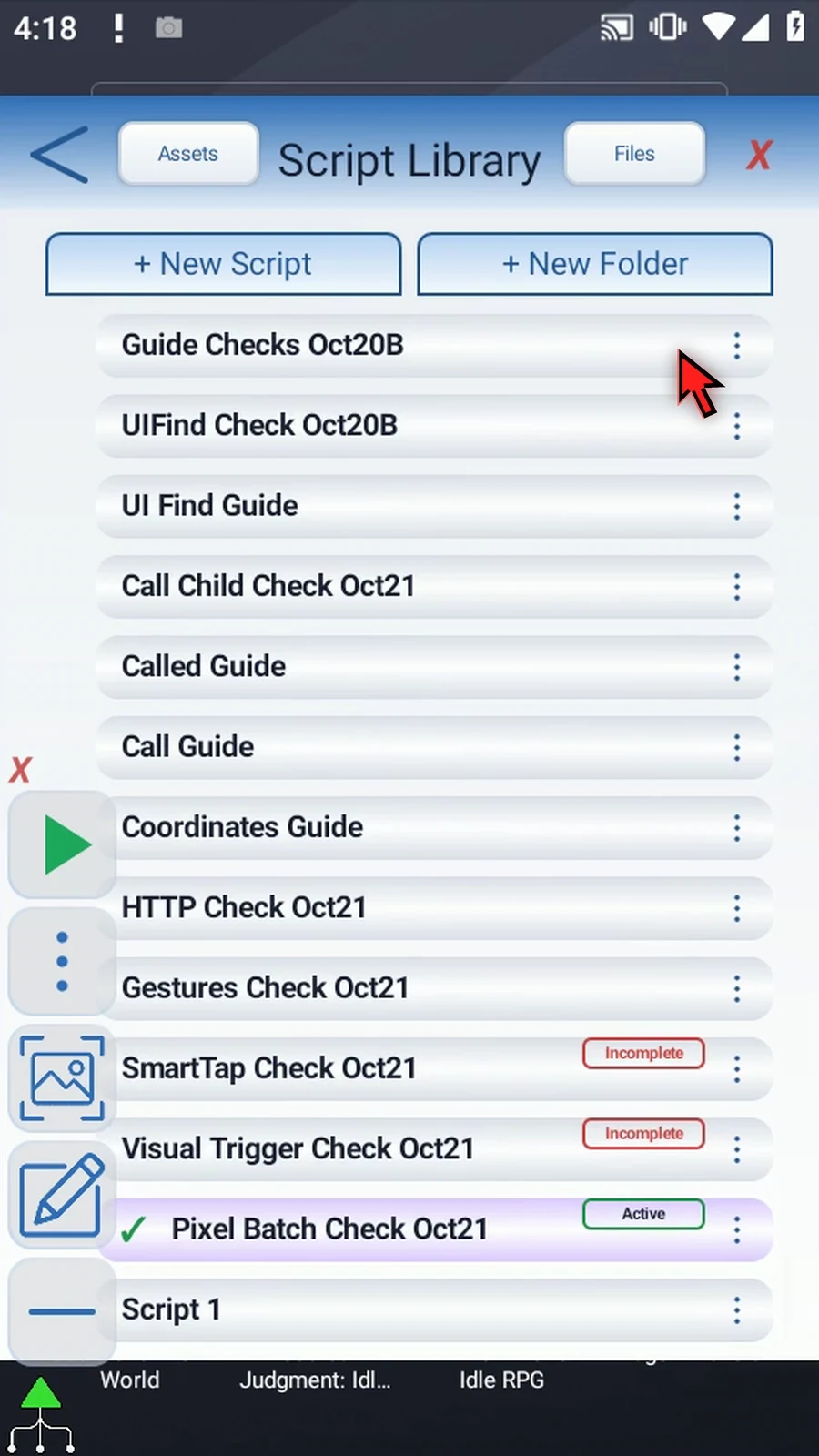
Step 03 Open its menu, choose Rename, and enter a clear name. Confirm the name, select the script, and open its editor.
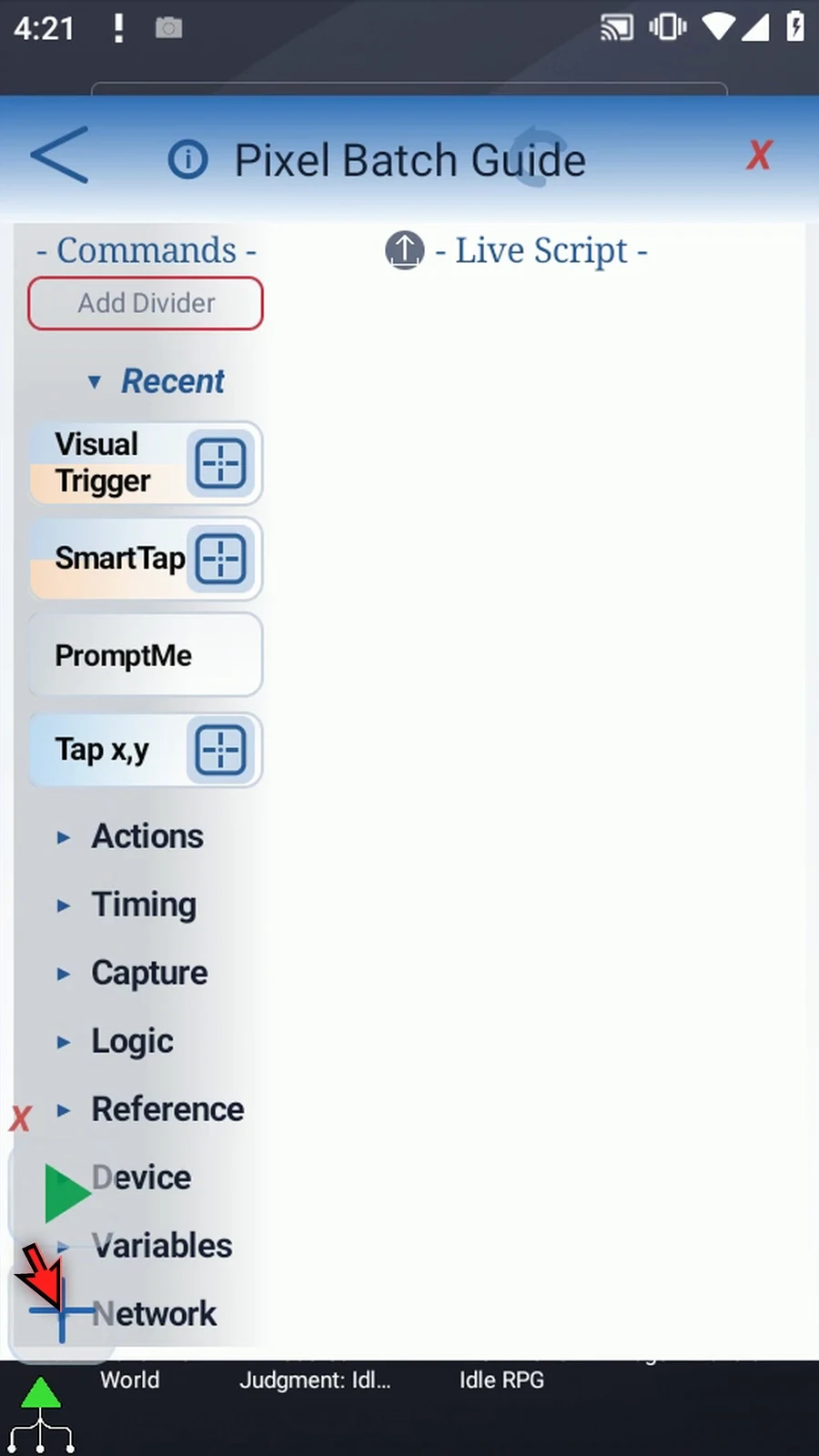
Step 04 Collapse Recent if needed, expand Advanced, and scroll to PixelSampleBatch.
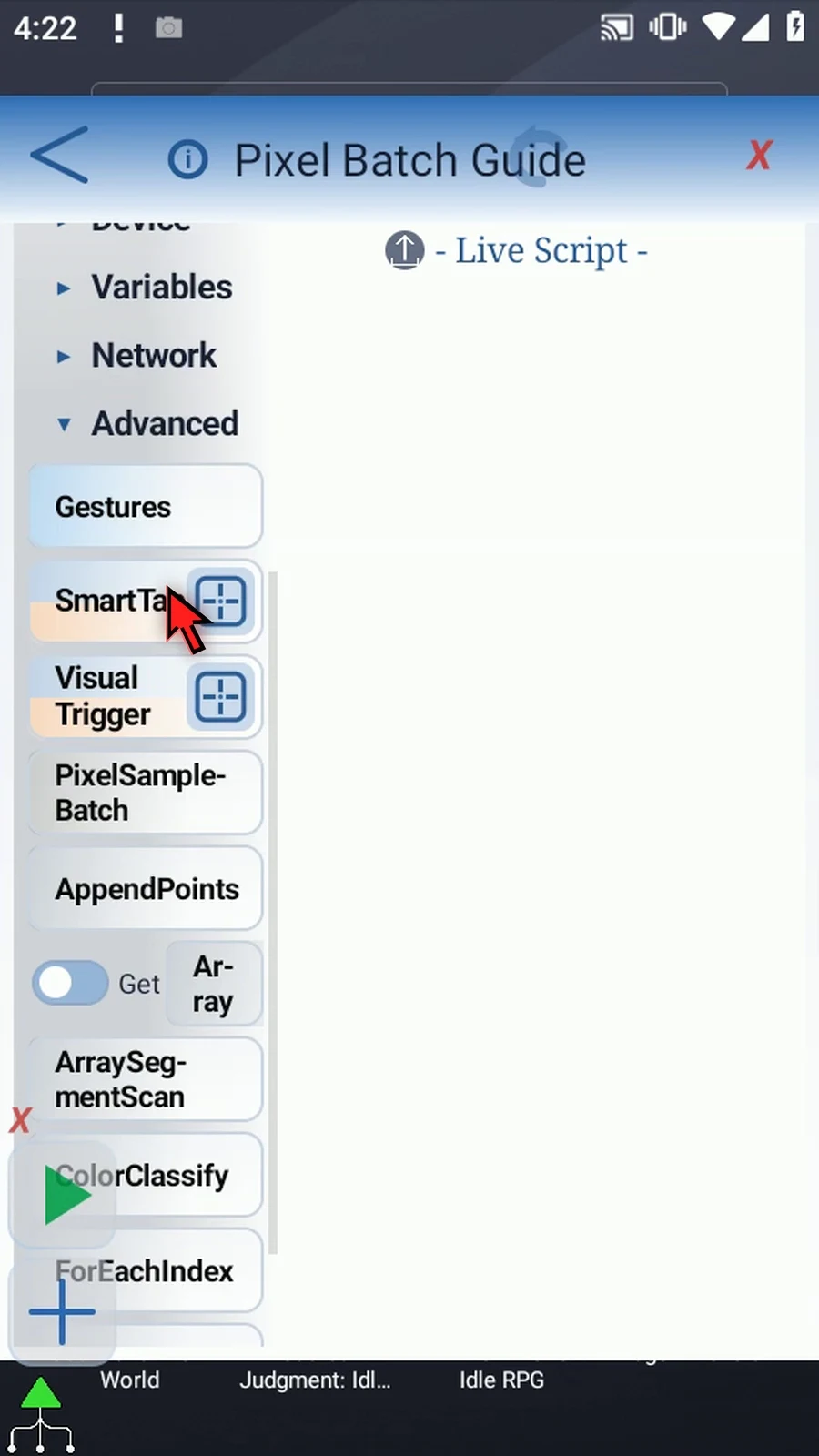
Step 05 Drag PixelSampleBatch into the script. Open the command to choose its source.
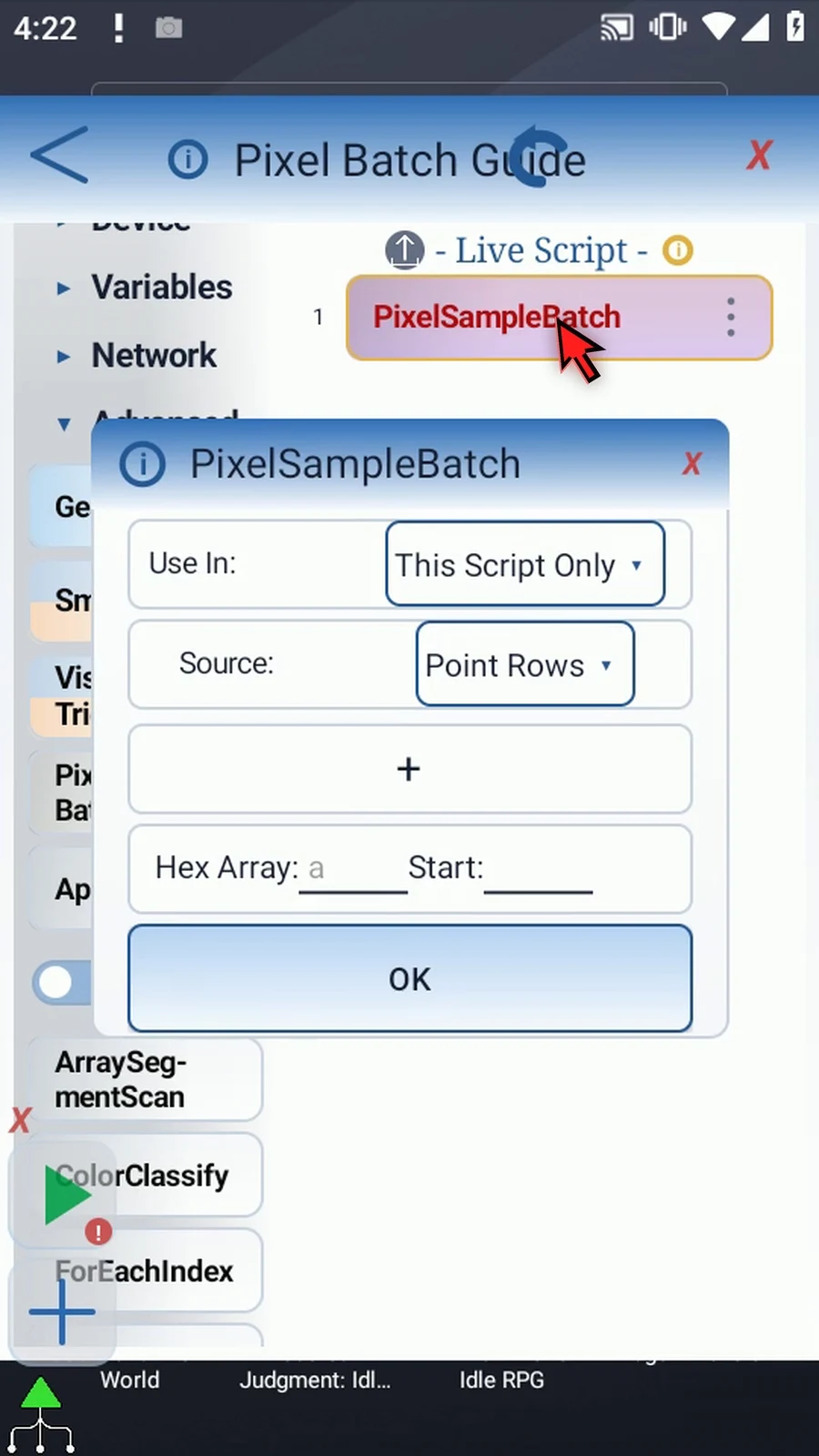
Step 06 X and Y Arrays reads paired coordinates from two Integer arrays created earlier in the script. Start chooses the first input slot, and Length chooses how many pairs to sample.
Step 07 We'll use Point Rows instead. Changing source clears the outgoing source settings, so choose your source before entering the coordinates.
Step 08 Use In controls whether the output belongs only to this script or is shared with its script thread. We'll keep This Script Only.
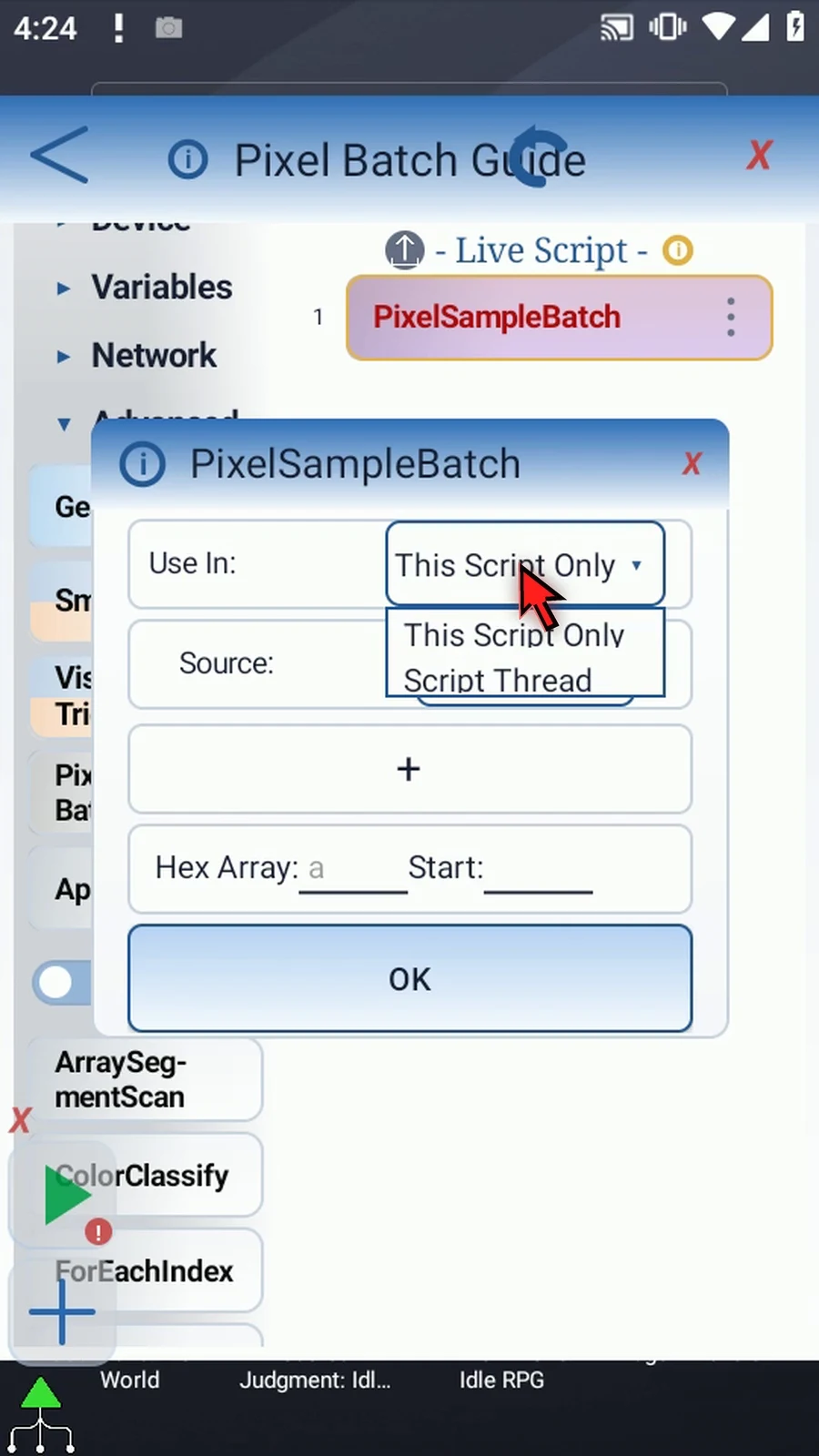
Step 09 Add a point and enter its X and Y coordinates. Our first point is inside the green part of the ScriptTap icon. Each coordinate can also use an Integer variable written earlier in the script.
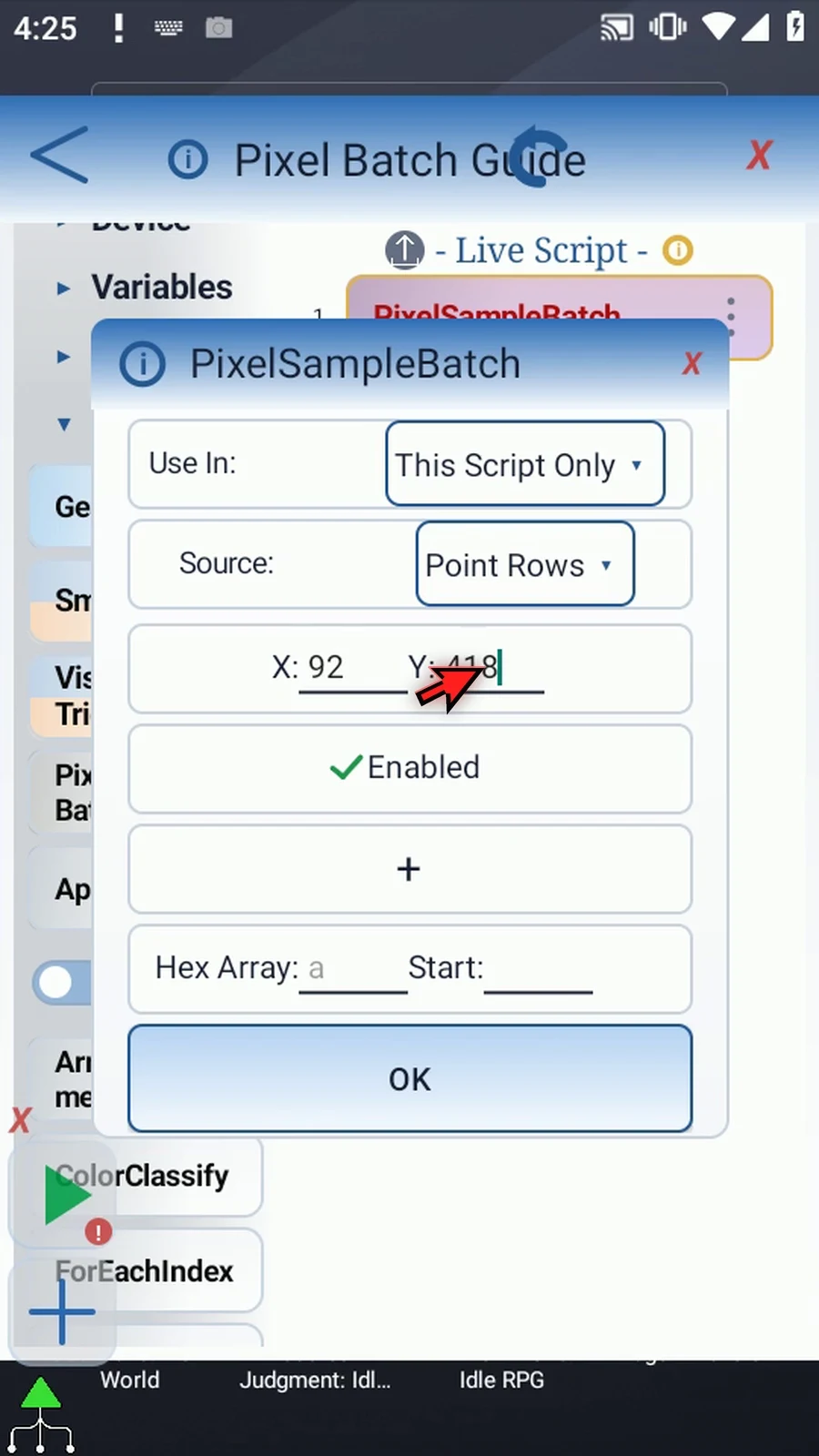
Step 10 Add a second point inside the icon's dark background. Both positions will be sampled from the same image.
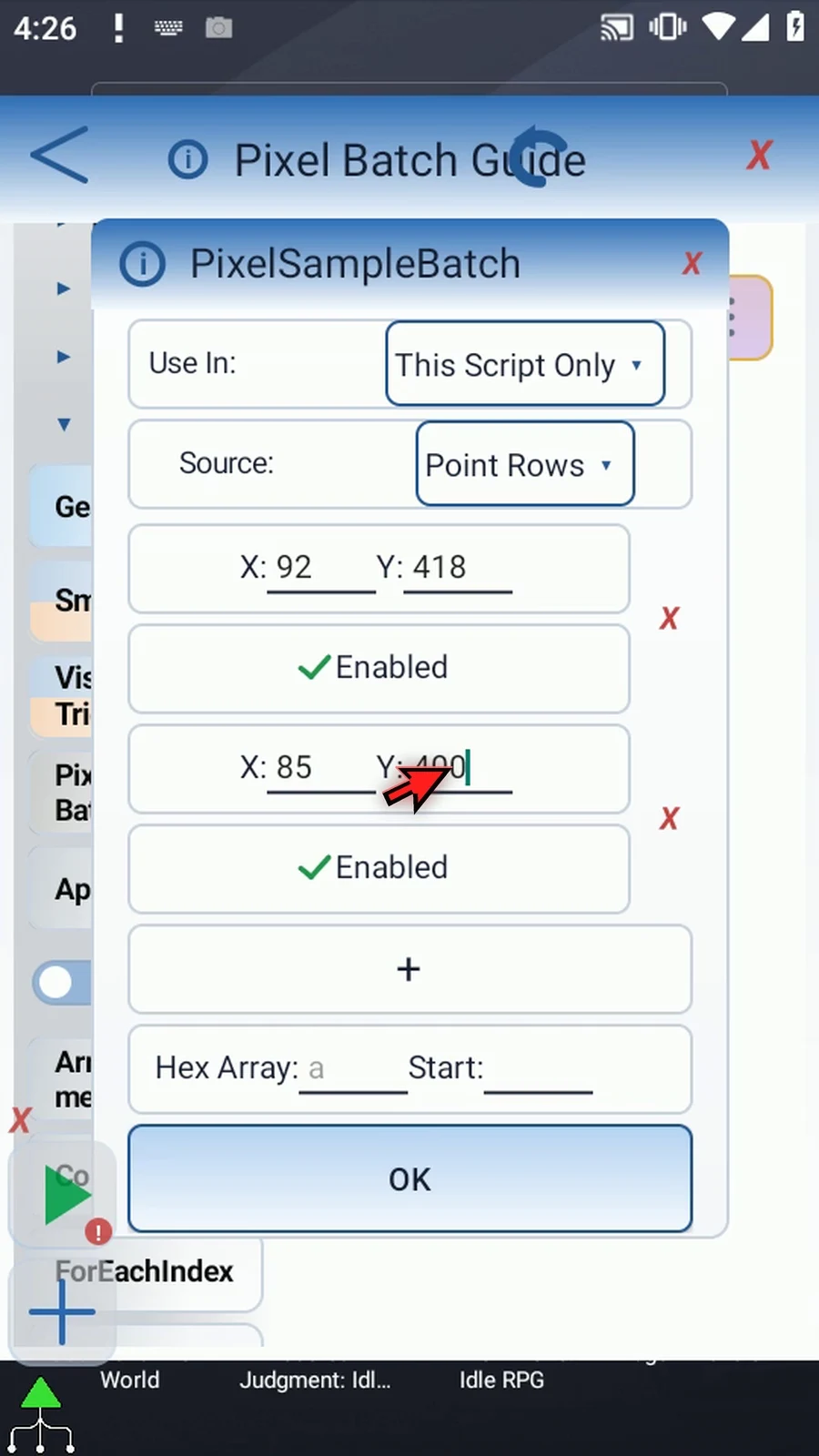
Step 11 Enabled lets you skip a row without deleting its coordinates. Turn the second row off, then back on. The red X removes that row; the plus adds another.
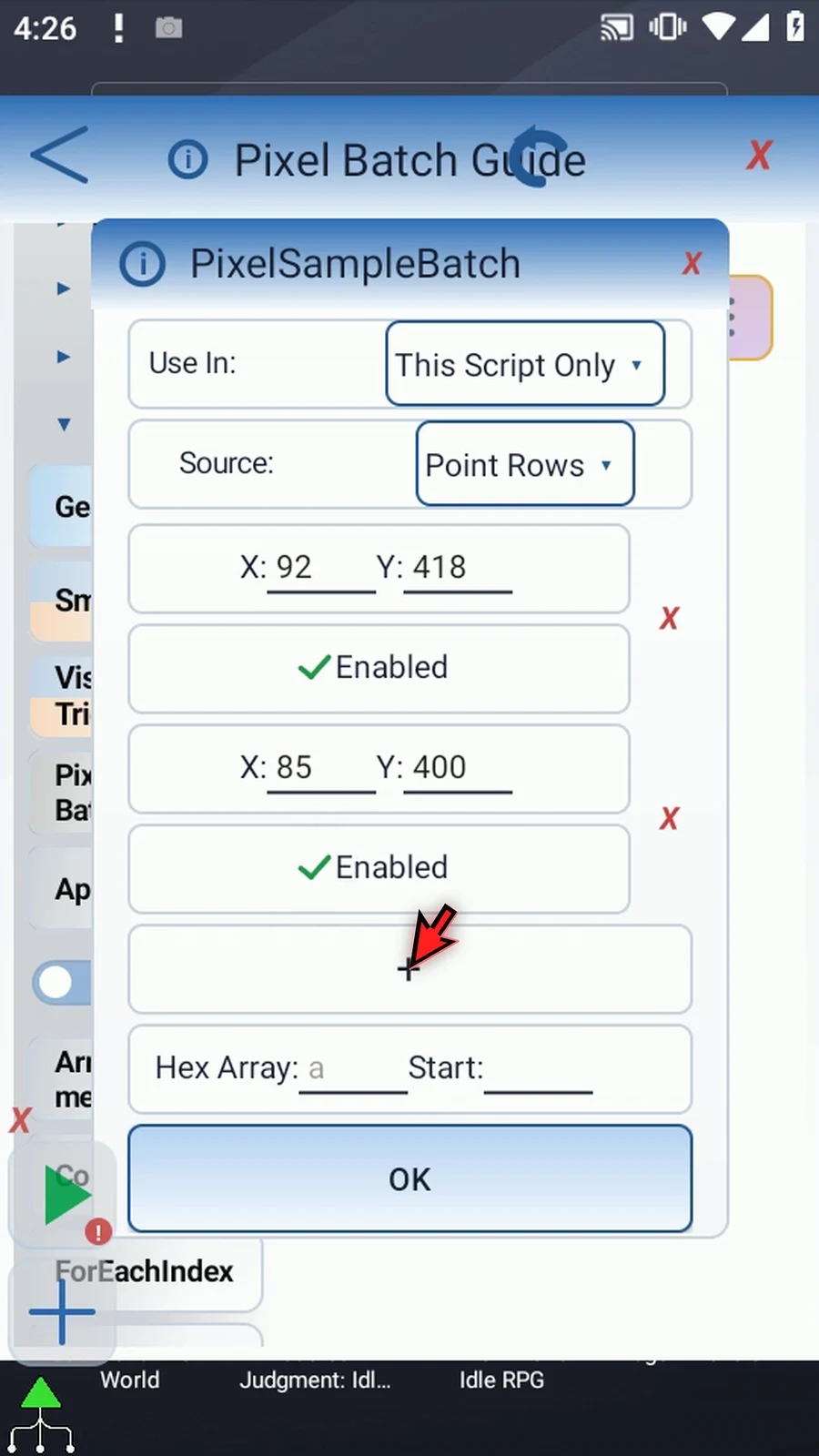
Step 12 Choose h as the Hex output array and one as its starting slot. The enabled rows keep their order, so our two colors will go into h1 and h2.
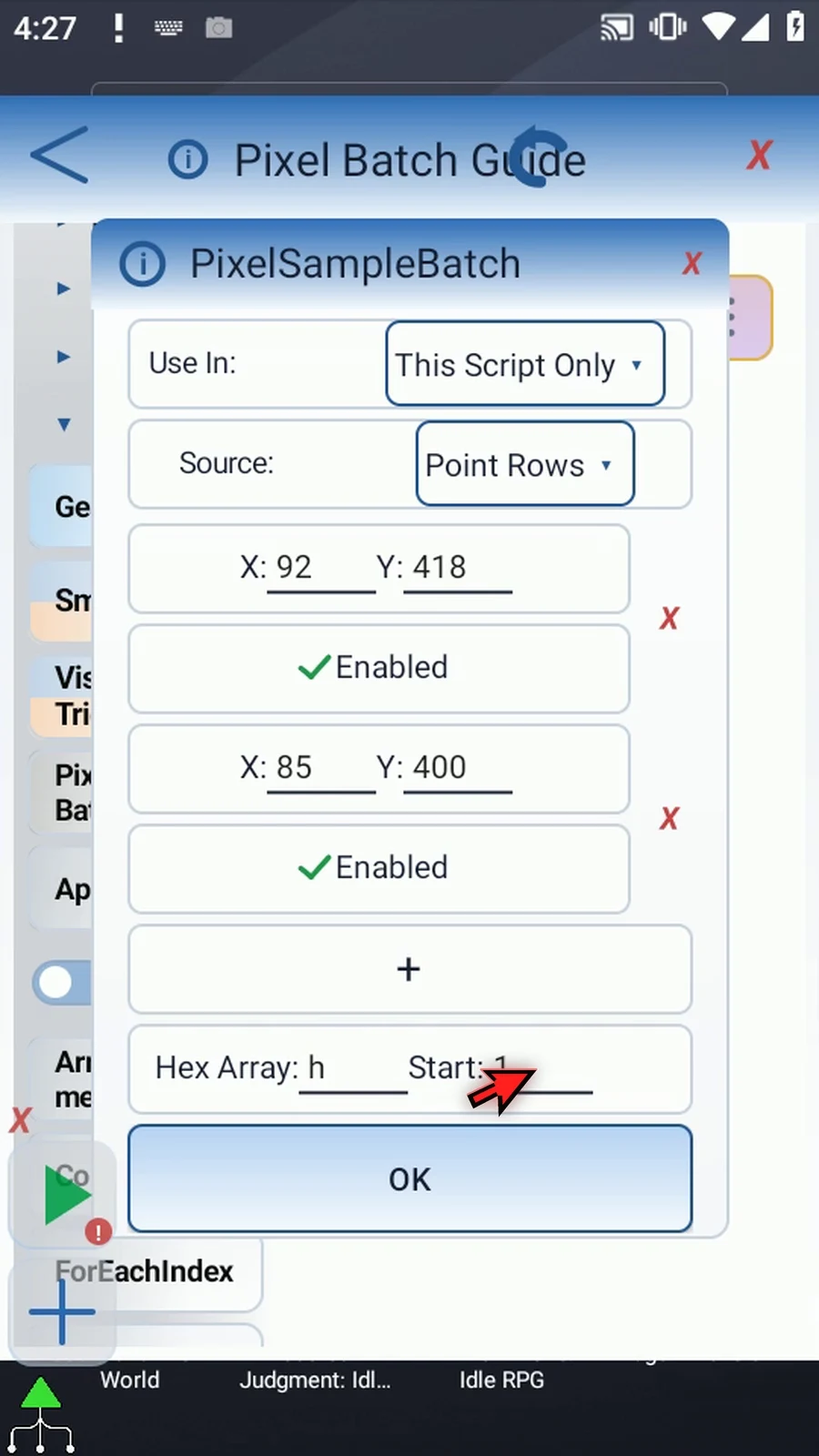
Step 13 One batch can sample up to two thousand forty-eight points. The full output range must fit within slots one through four thousand ninety-six. Invalid inputs or a failed capture do not publish a partial set of colors.
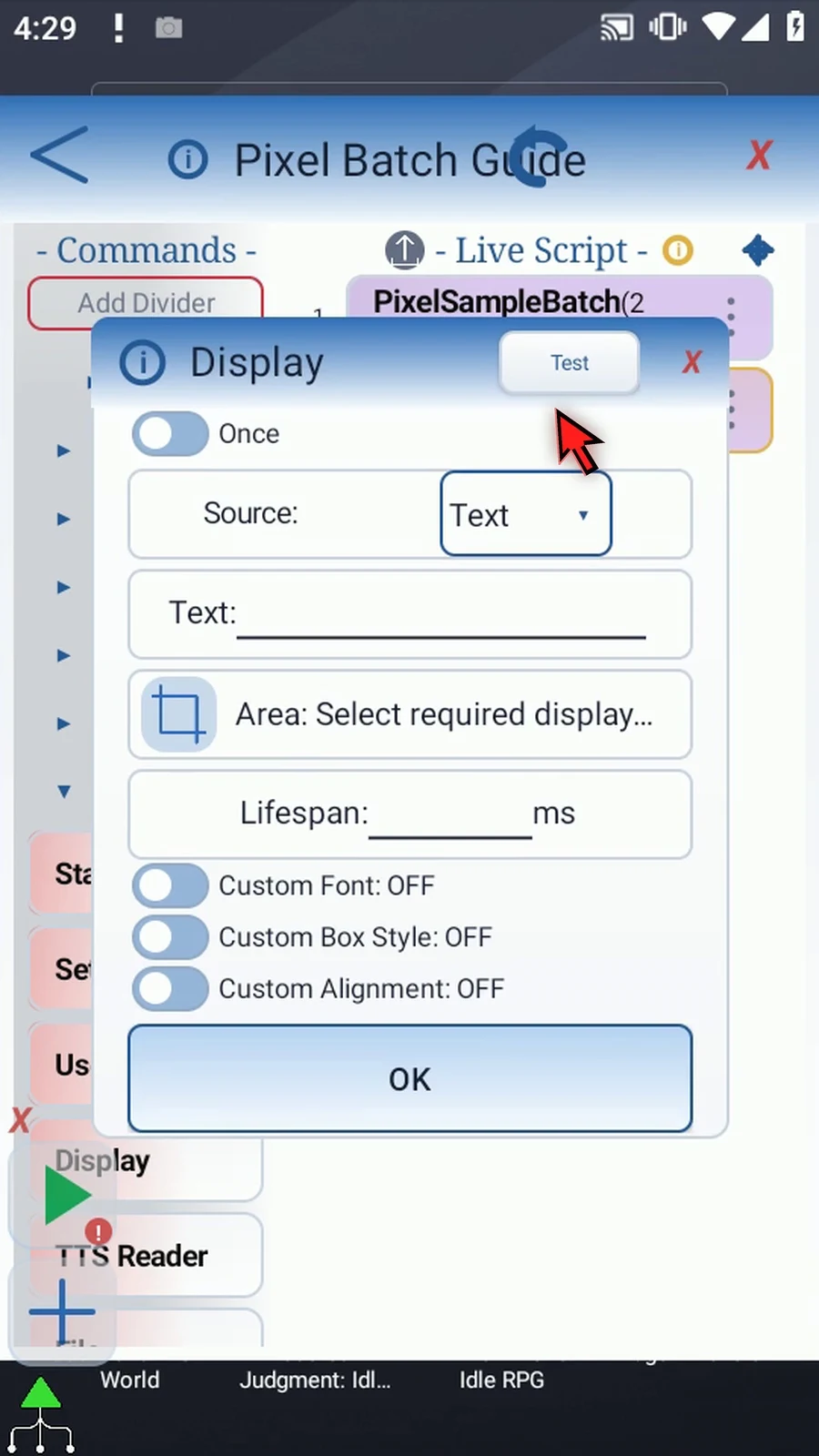
Step 14 To make the result visible, drag Display underneath from Device. This supporting command will show a sampled value; it does not perform the sampling.
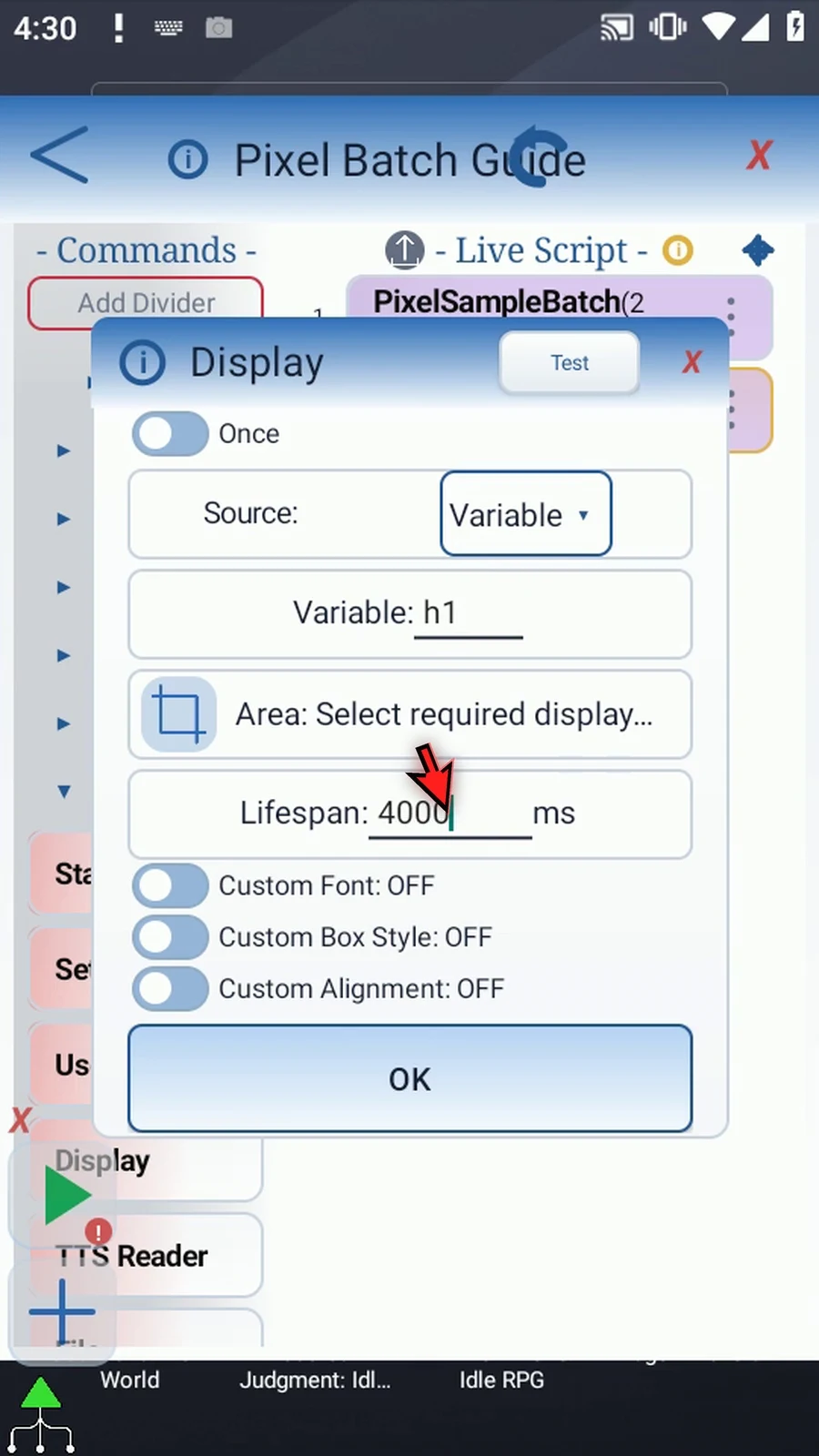
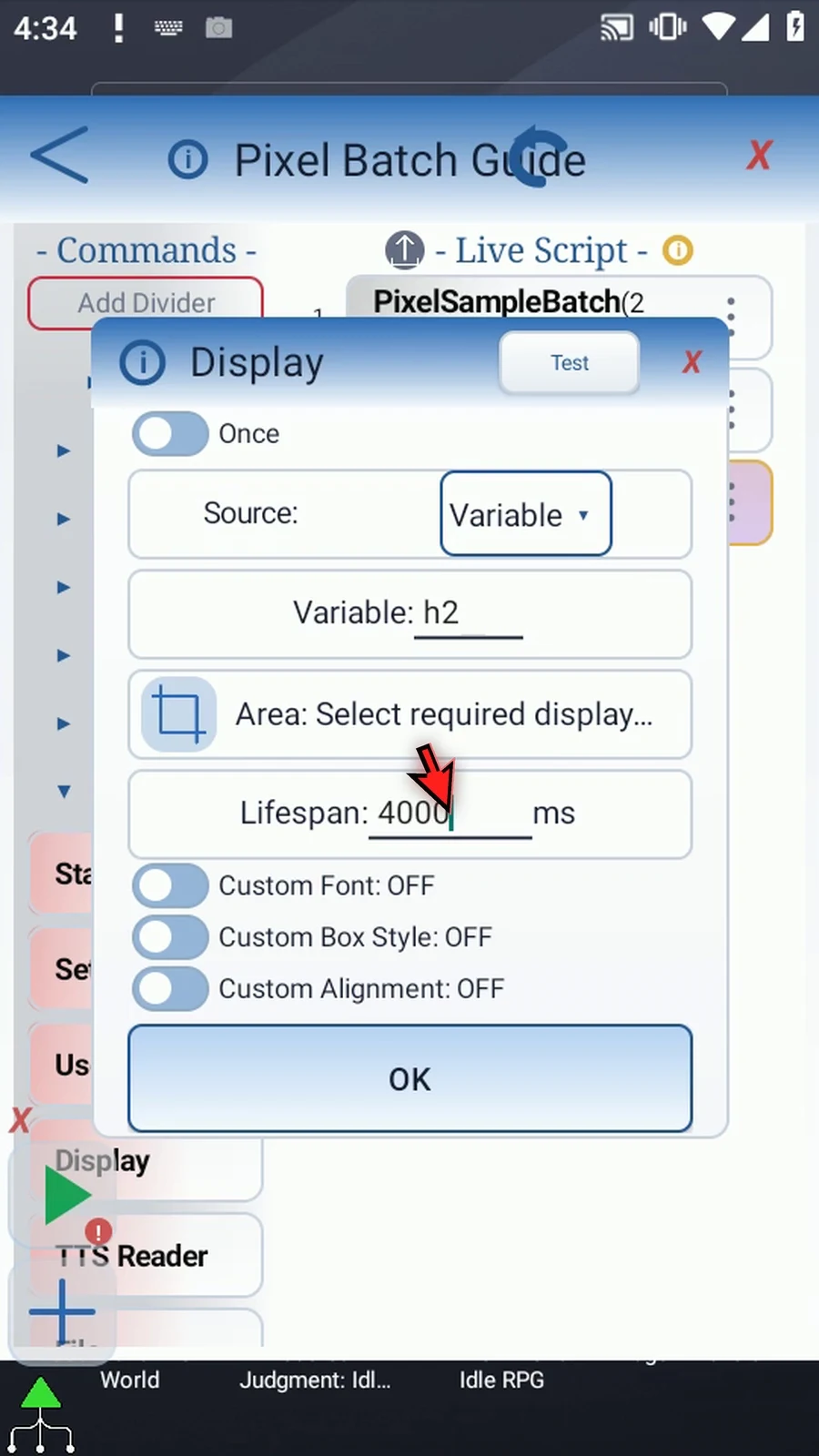
Step 15 Keep Once mode, choose Variable, and enter h1. Set its lifespan to four thousand milliseconds, or four seconds.
Step 16 Choose a clear area for the result. If Android asks, allow screen capture. Use the checkmark to return, then save Display.
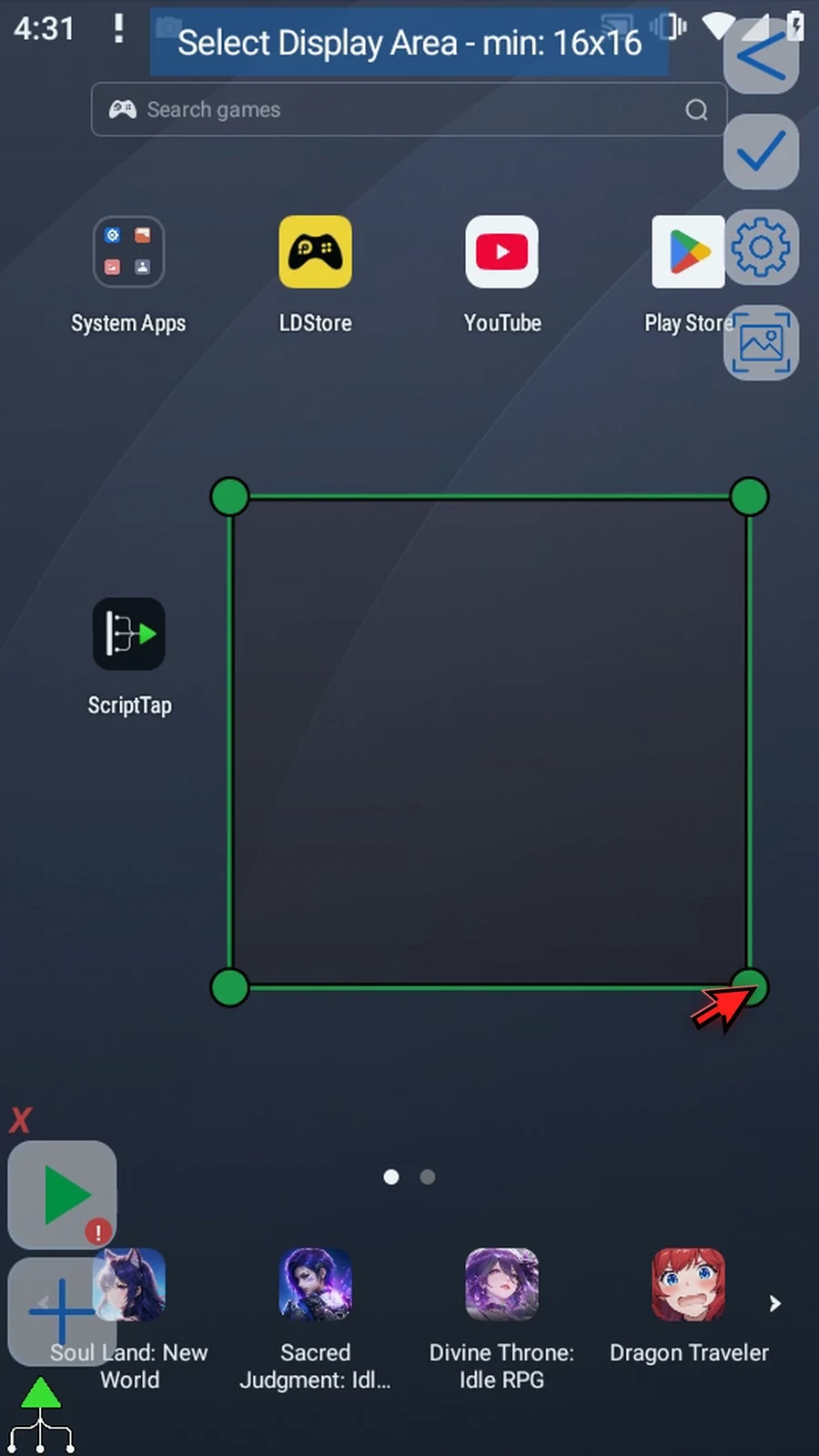
Step 17 Drag another Display underneath and open it. This will show the second saved color without reading the screen again.
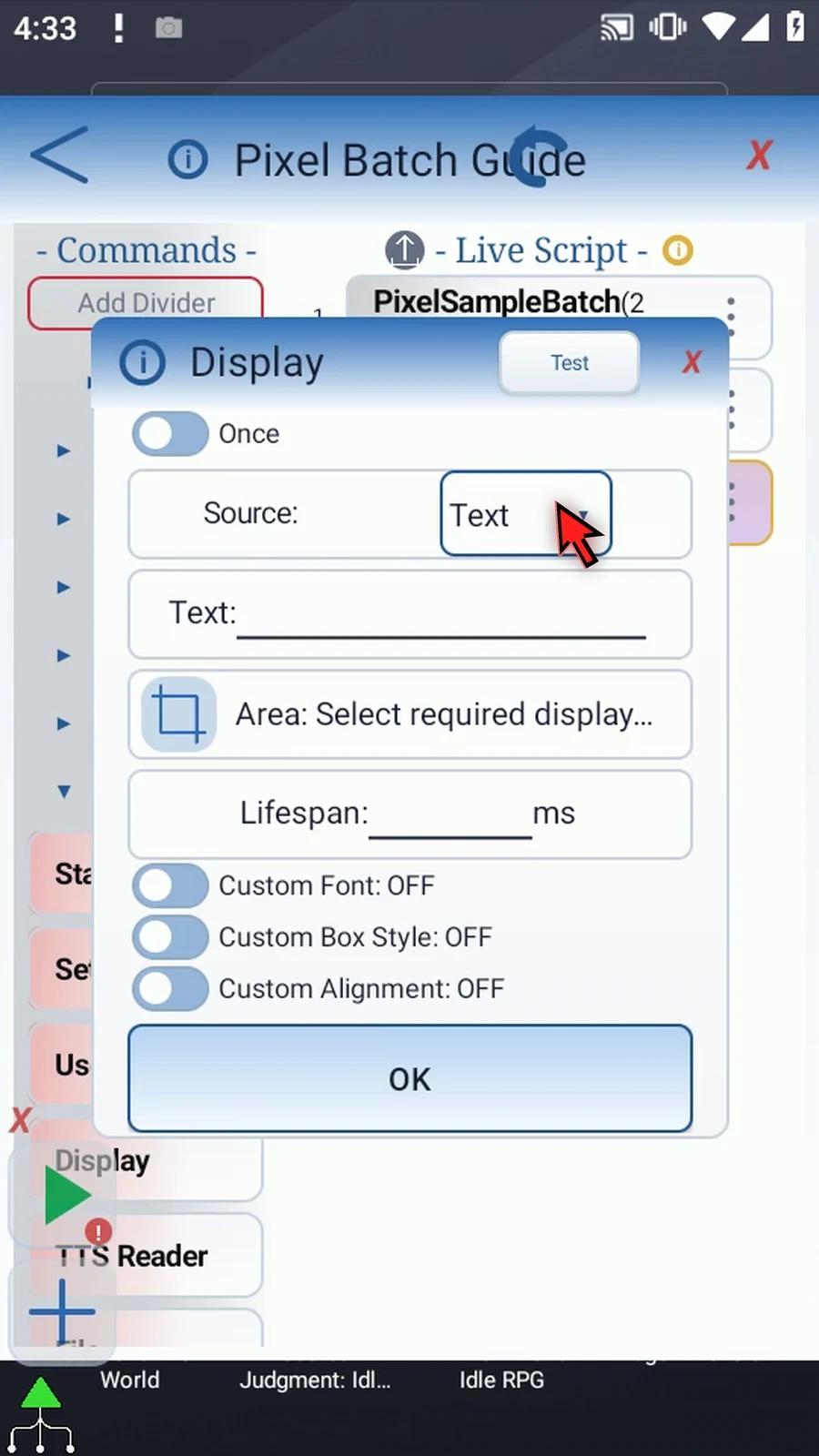
Step 18 Choose Variable and enter h2. Keep Once mode and use the same four-second lifespan.
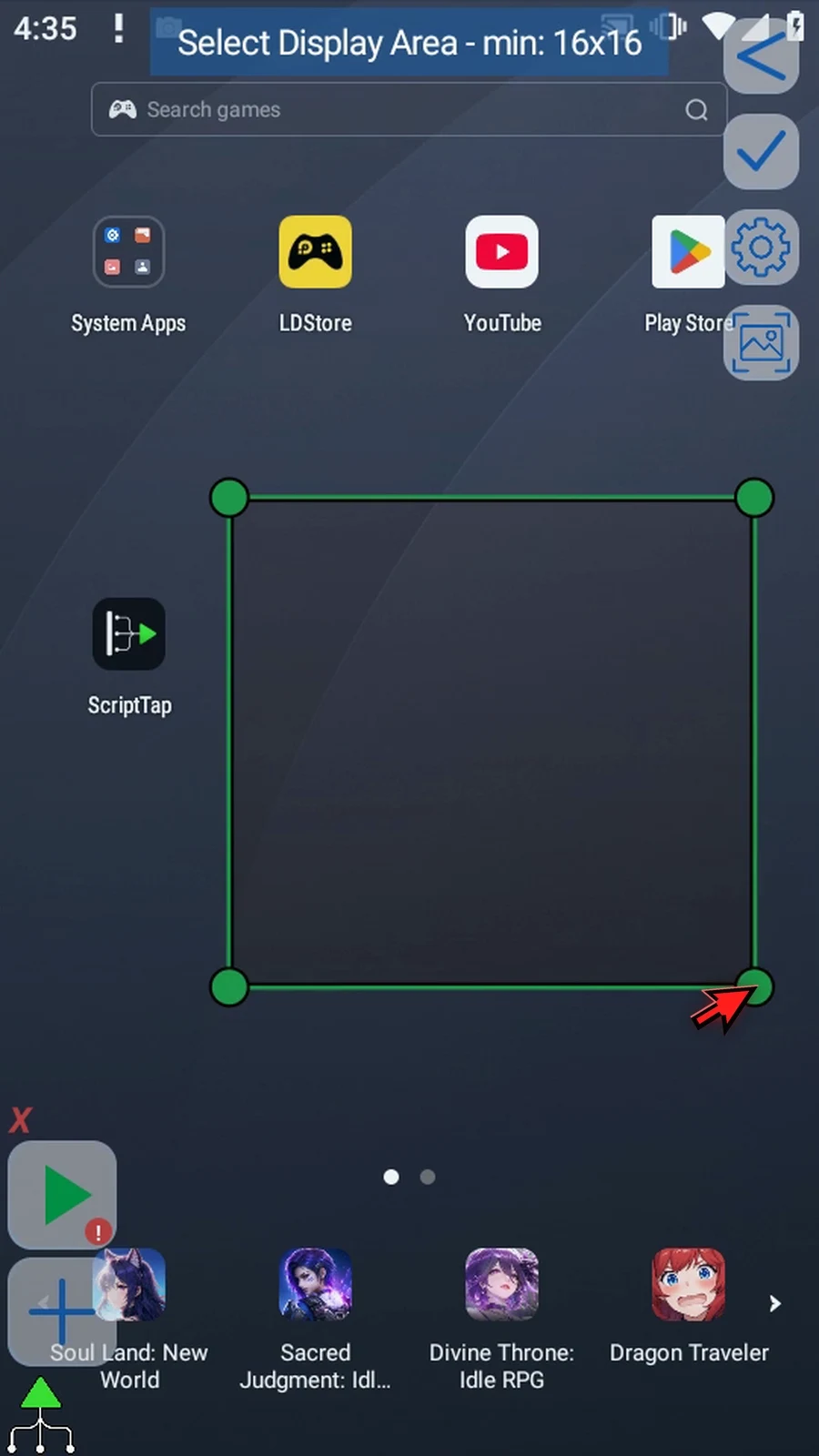
Step 19 Select a clear area for this value, confirm with the checkmark, and save Display.
Step 20 Finally, return to Advanced and find PromptMe.
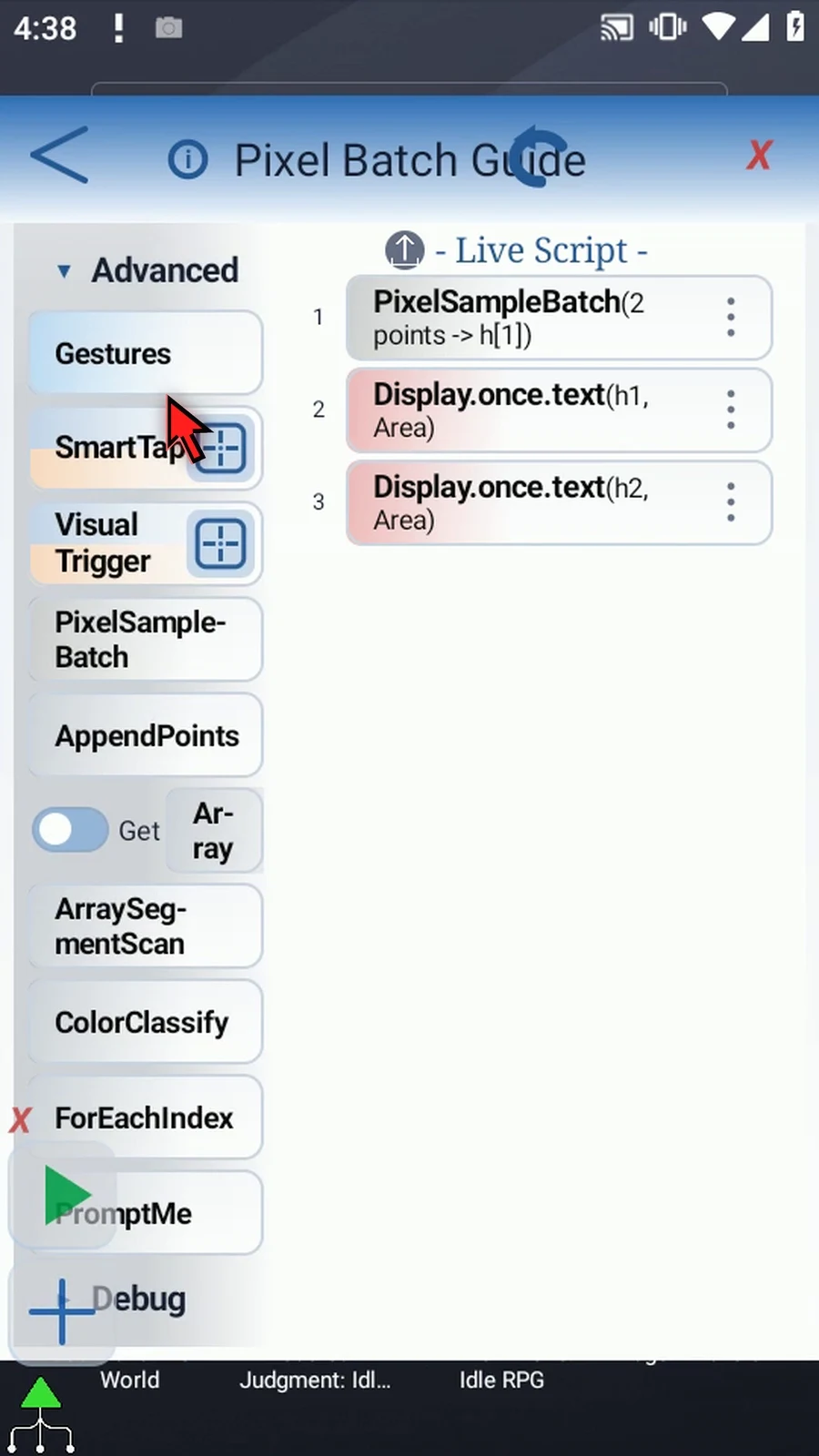
Step 21 Drag PromptMe underneath as a visible completion check, then open it.
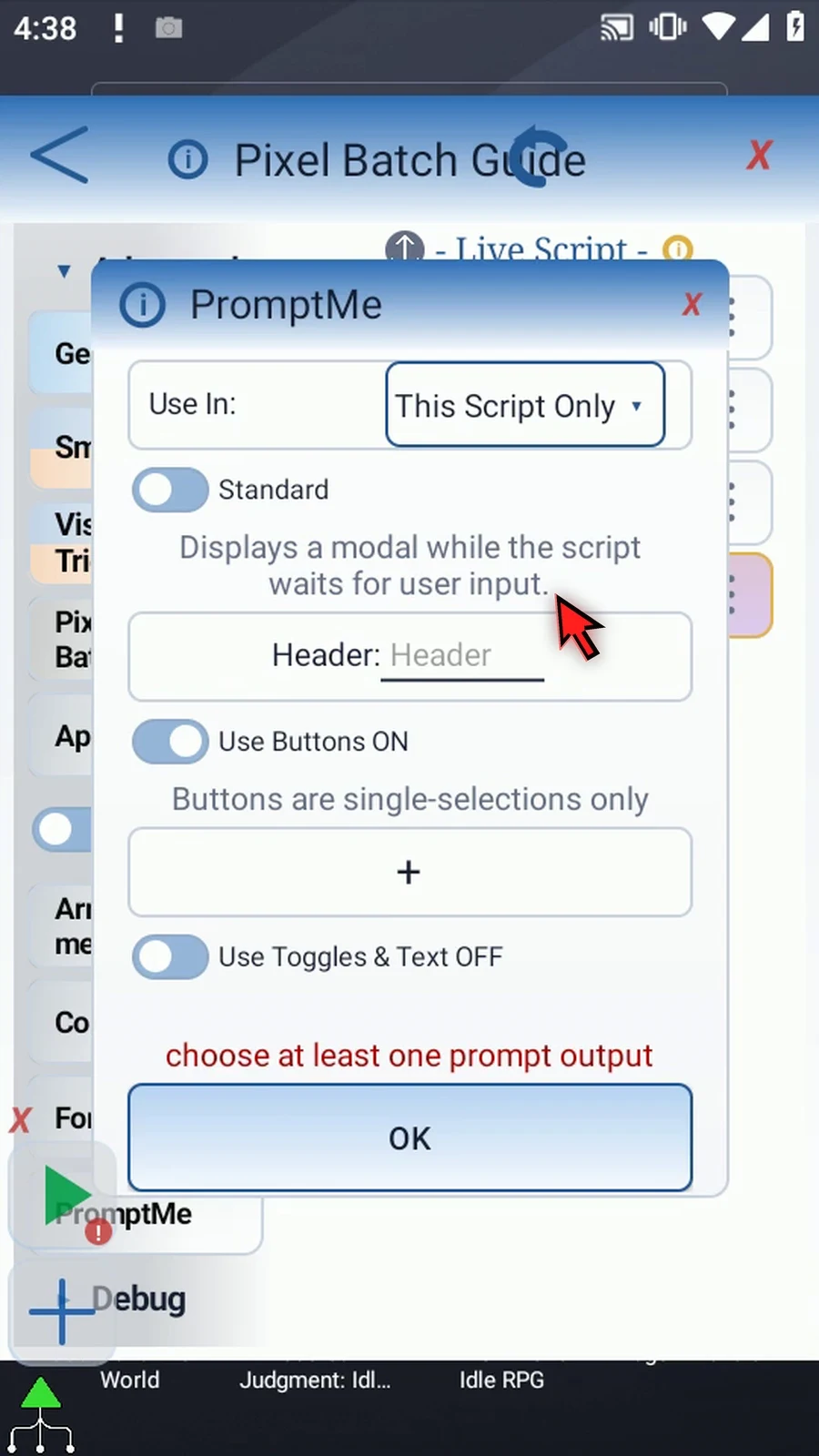
Step 22 Keep Standard mode and enter Sampled as the header.
Step 23 Add a button and give it the caption Done.
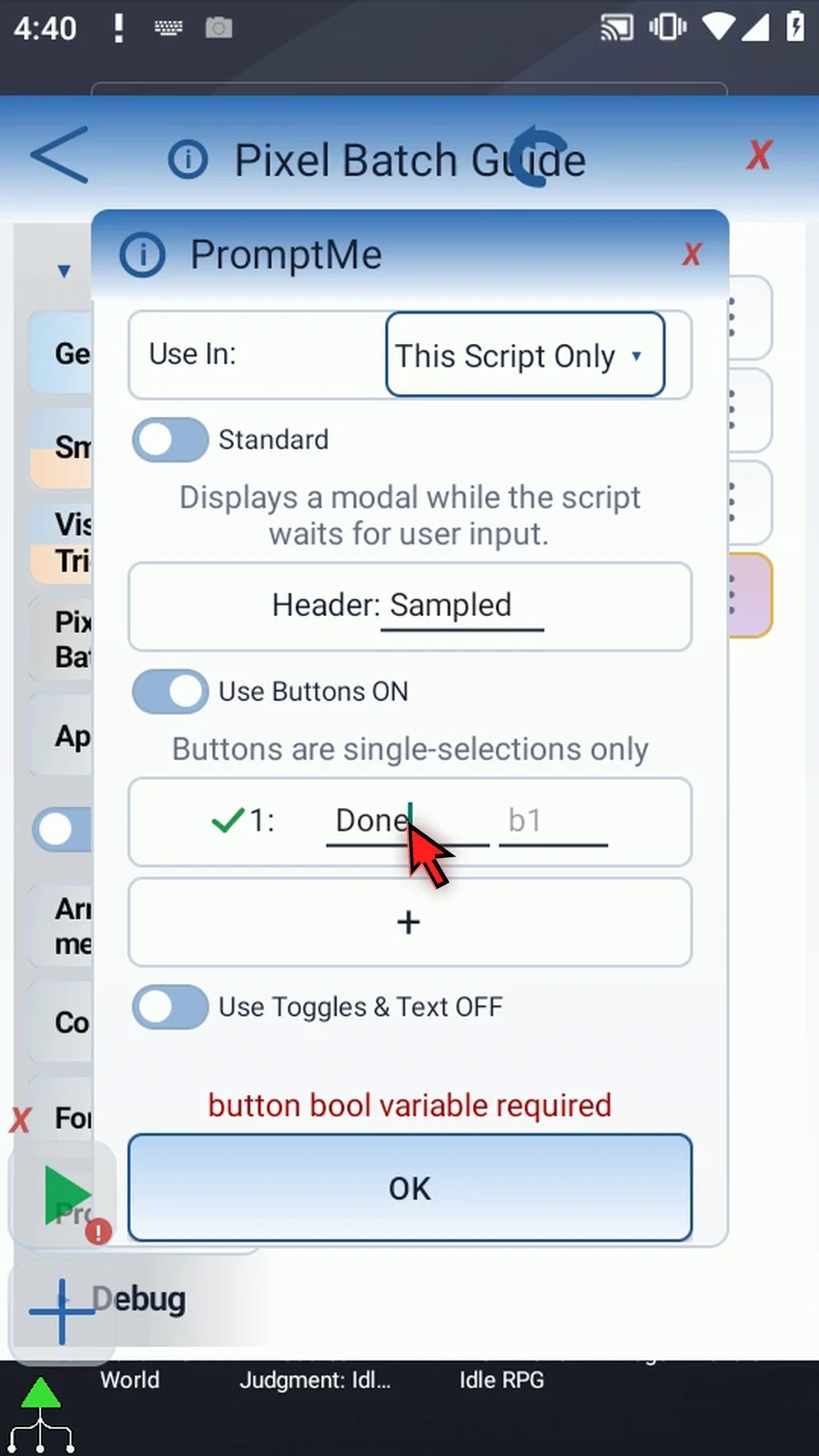
Step 24 Assign b1 as the button's Boolean output, then save PromptMe.
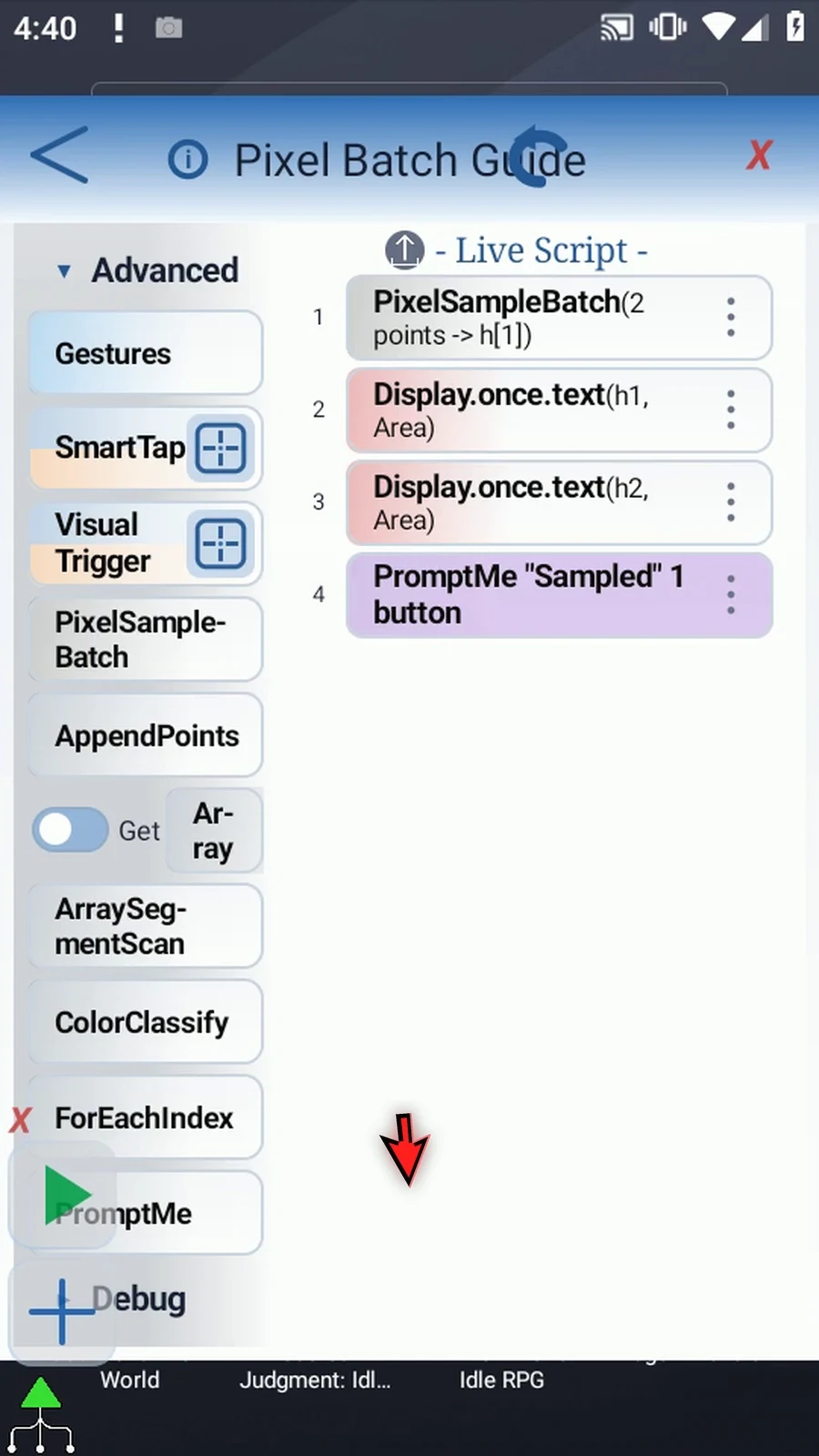
Step 25 PixelSampleBatch reads both colors first. The two Display commands show those saved values in order, and PromptMe confirms that the sequence has finished.
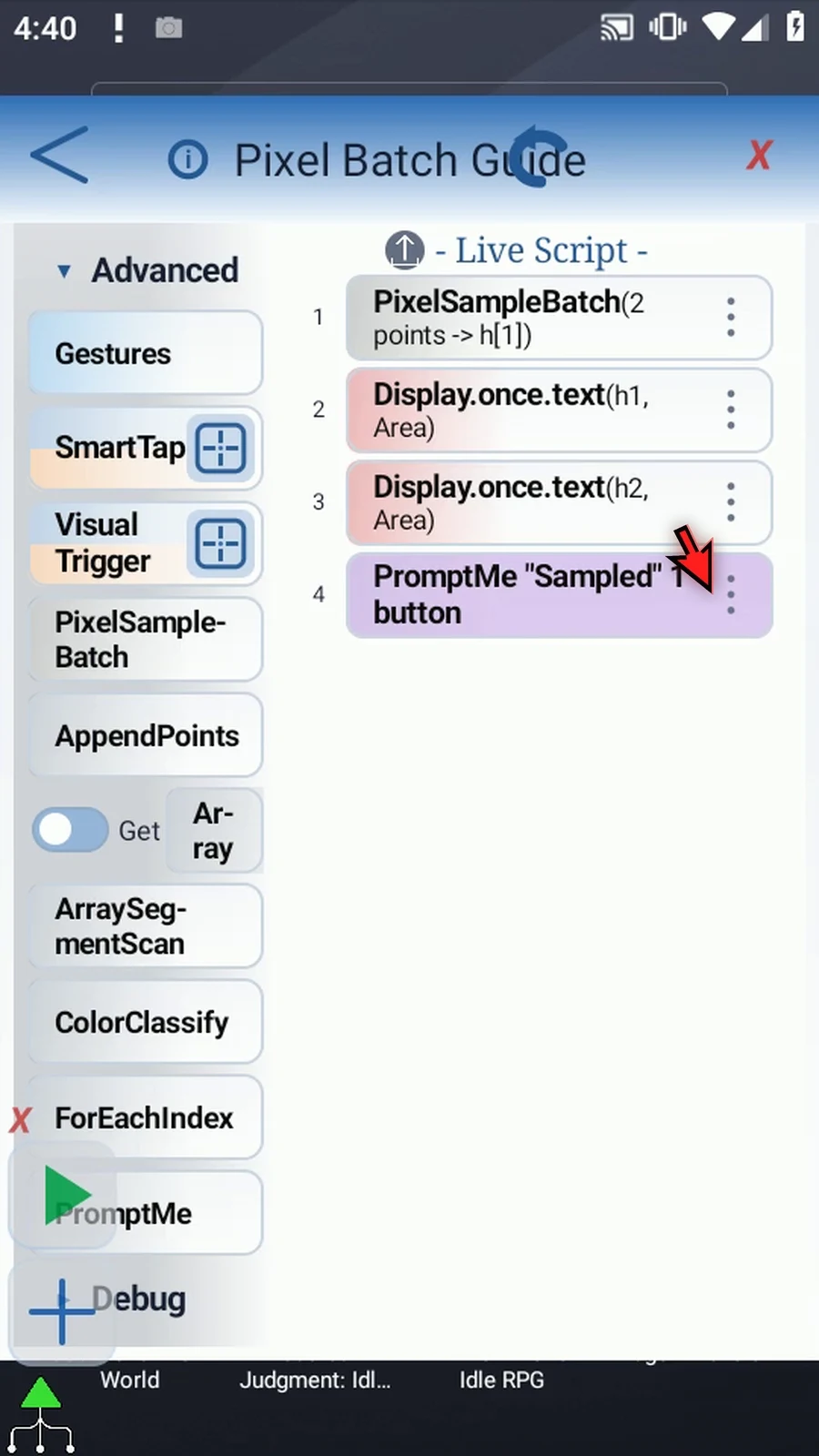
Step 26 Close the editor. The two sample points are on the ScriptTap icon, so leave the home screen visible.
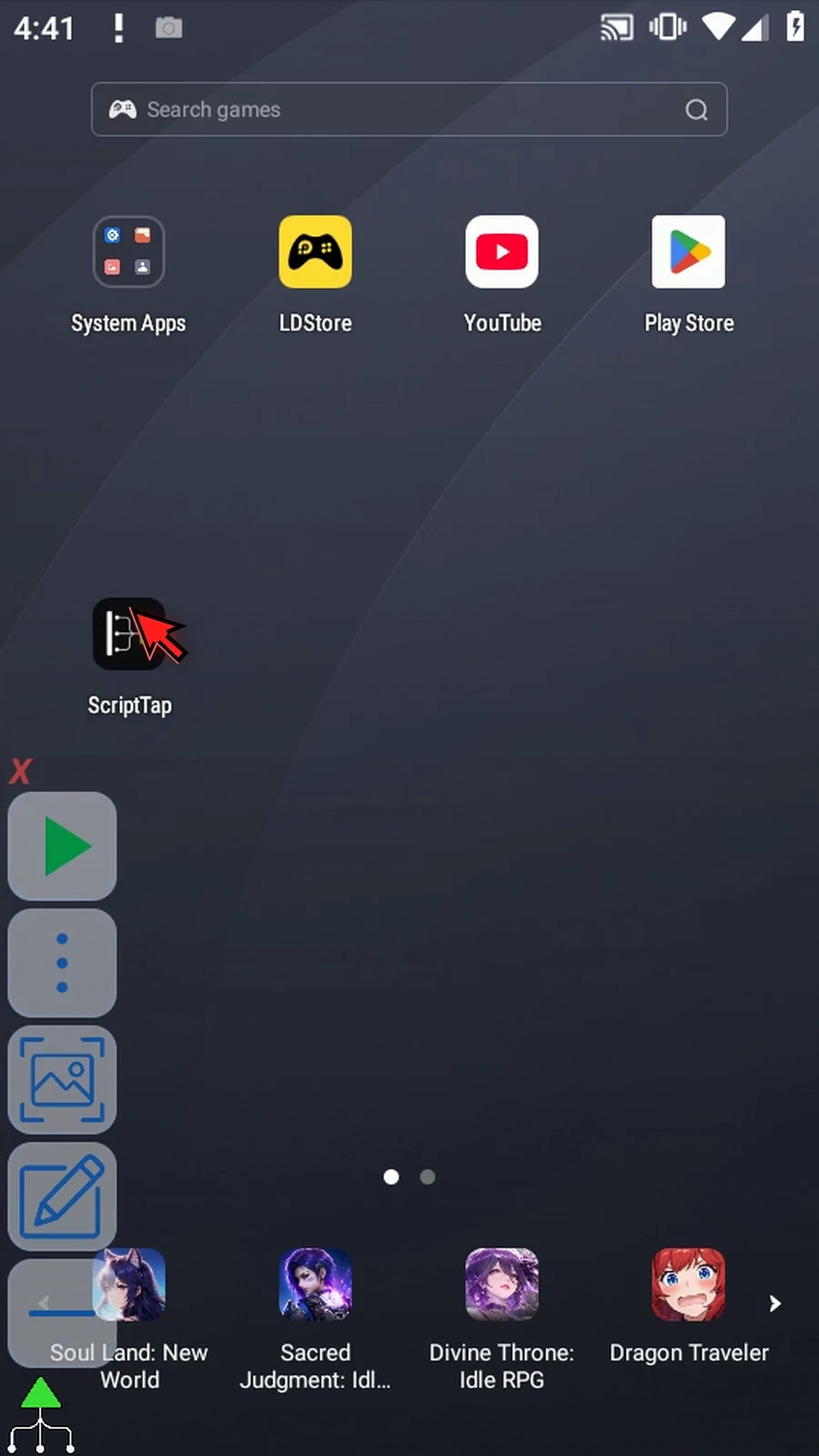
Step 27 When the script is complete, simply use the Play button in the main overlay.
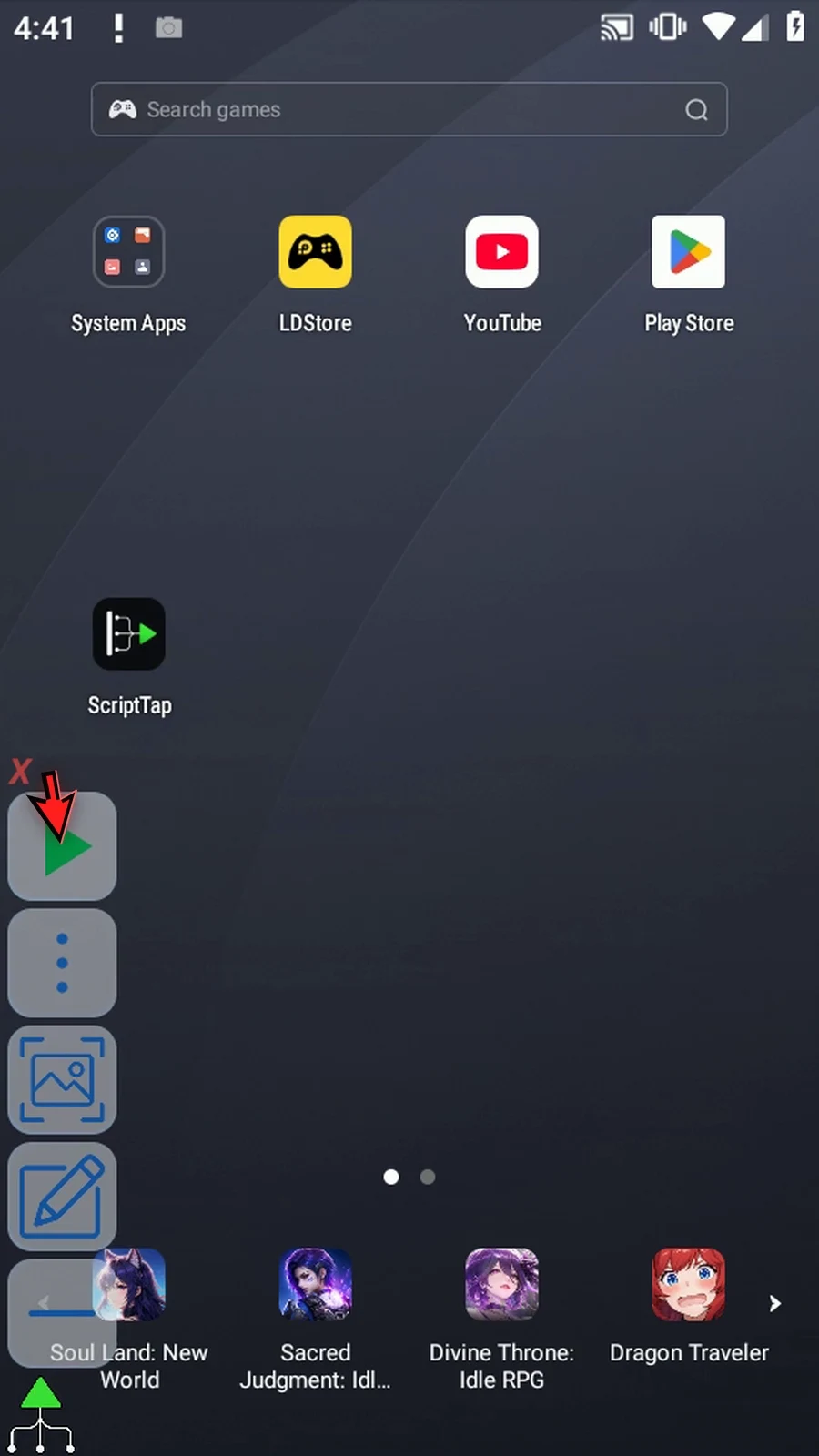
Step 28 First we see h1, then h2. These are the two colors captured together, not two separate readings taken while Display is running.
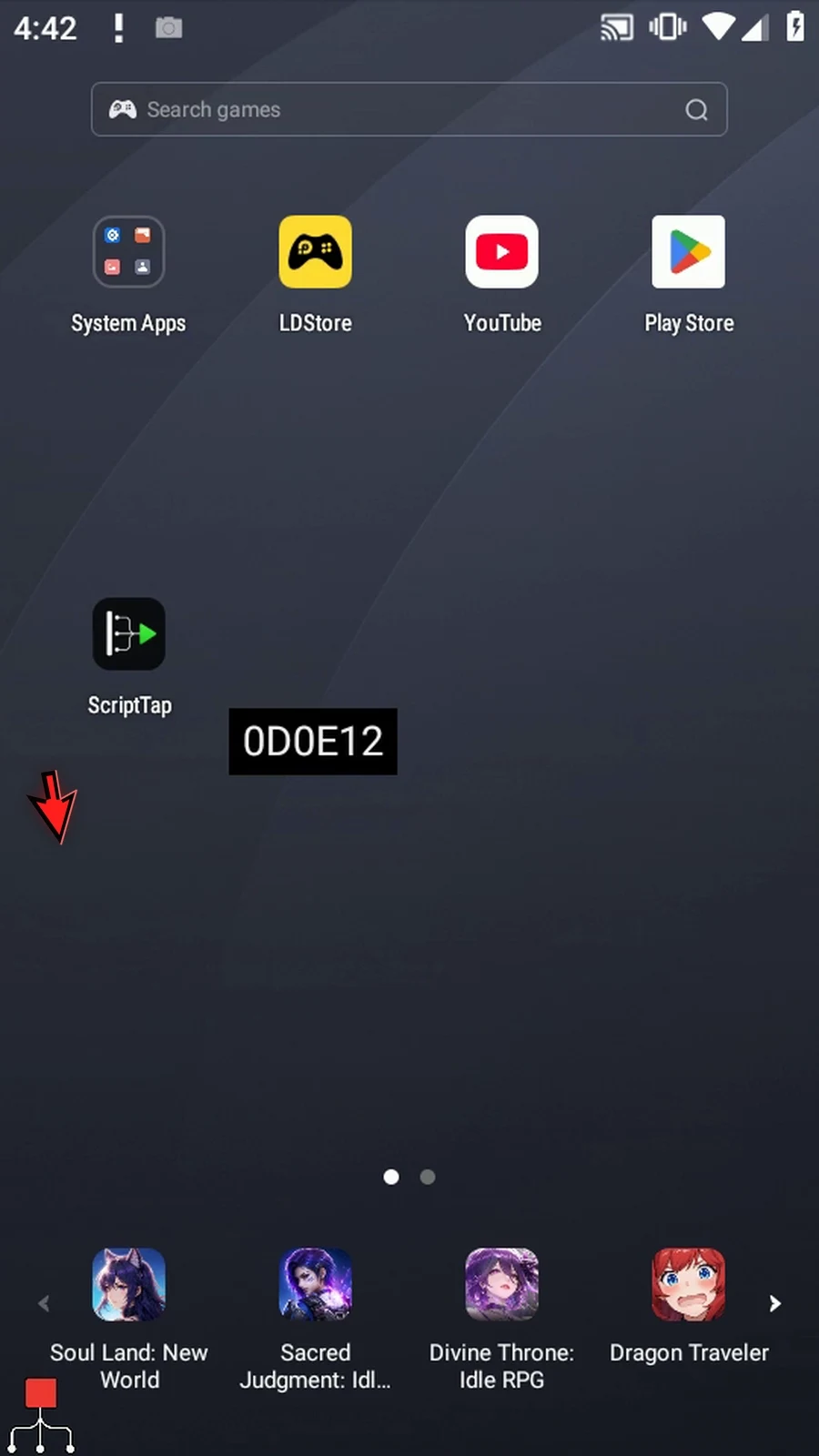
Step 29 Tap Done, and the script finishes automatically. Use GetPixelColor for a single one-off check, and PixelSampleBatch when several known positions need the same screen state.