Command video guide
AppendPoints
AppendPoints prepares paired X/Y Integer coordinate arrays for later commands. It stores coordinates; it does not find objects, detect grids or read the screen.
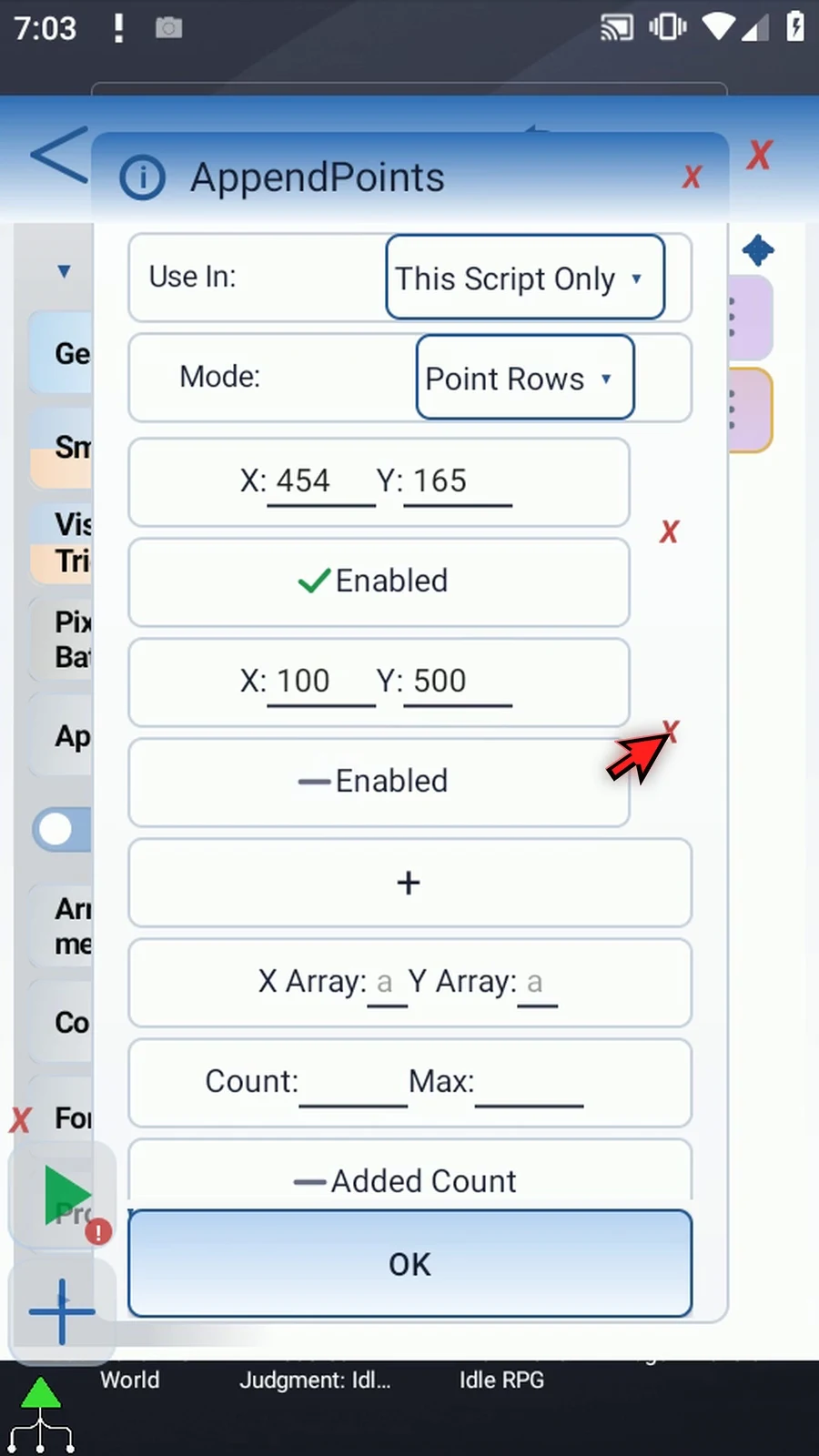
Point Rows adds enabled X/Y pairs in row order. Plus adds a row, Enabled skips it without deleting its coordinates, and the addressed red X removes it. Coordinates can be Integer literals or prior Integer variables. Grid instead generates positions using Rows, Columns, Left, Top, X/Y Pitch and X/Y Offset. X Pitch advances columns; Y Pitch advances rows. Row Major lists each row first; Column Major lists each column first. Switching modes clears outgoing source settings.
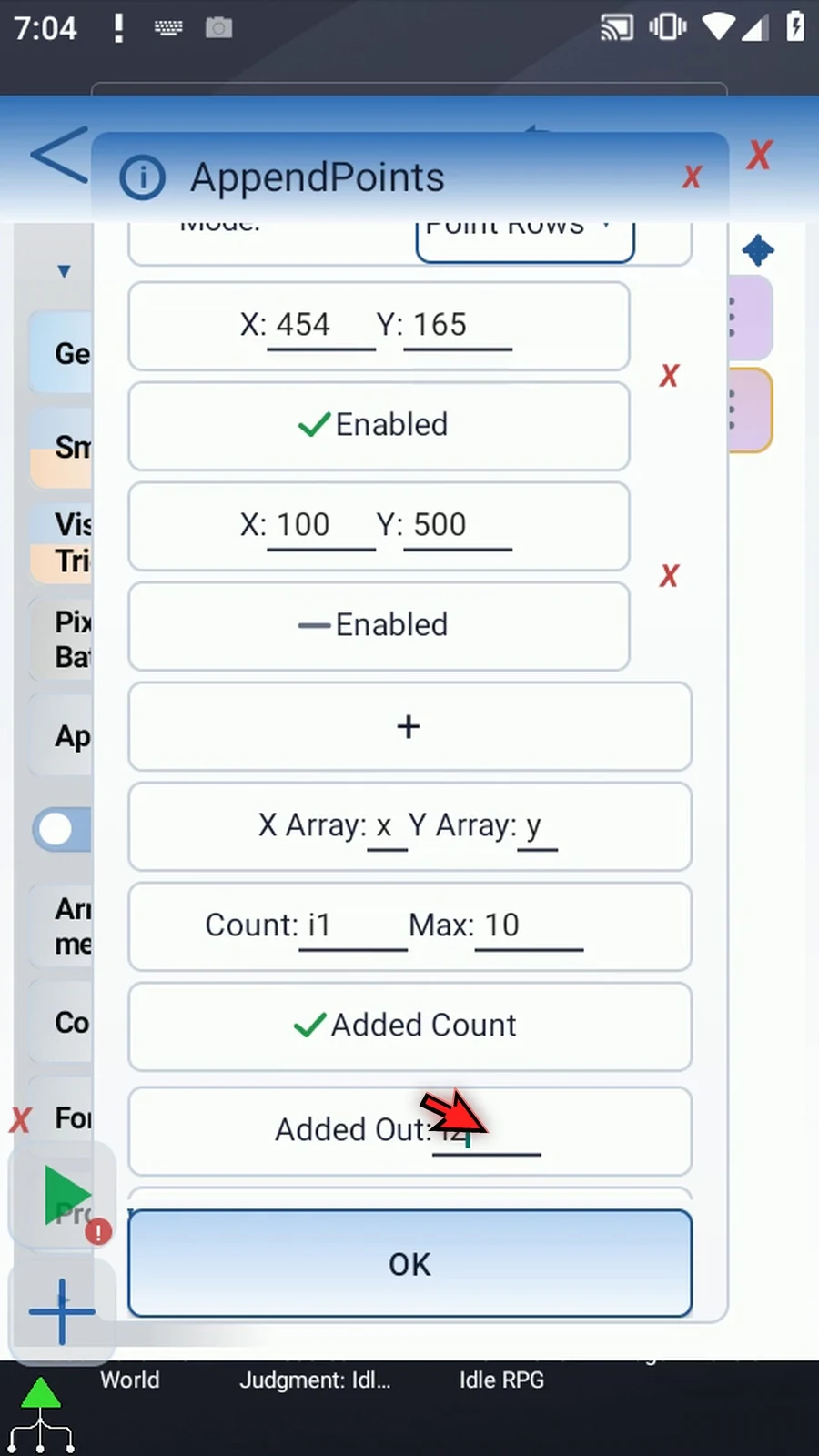
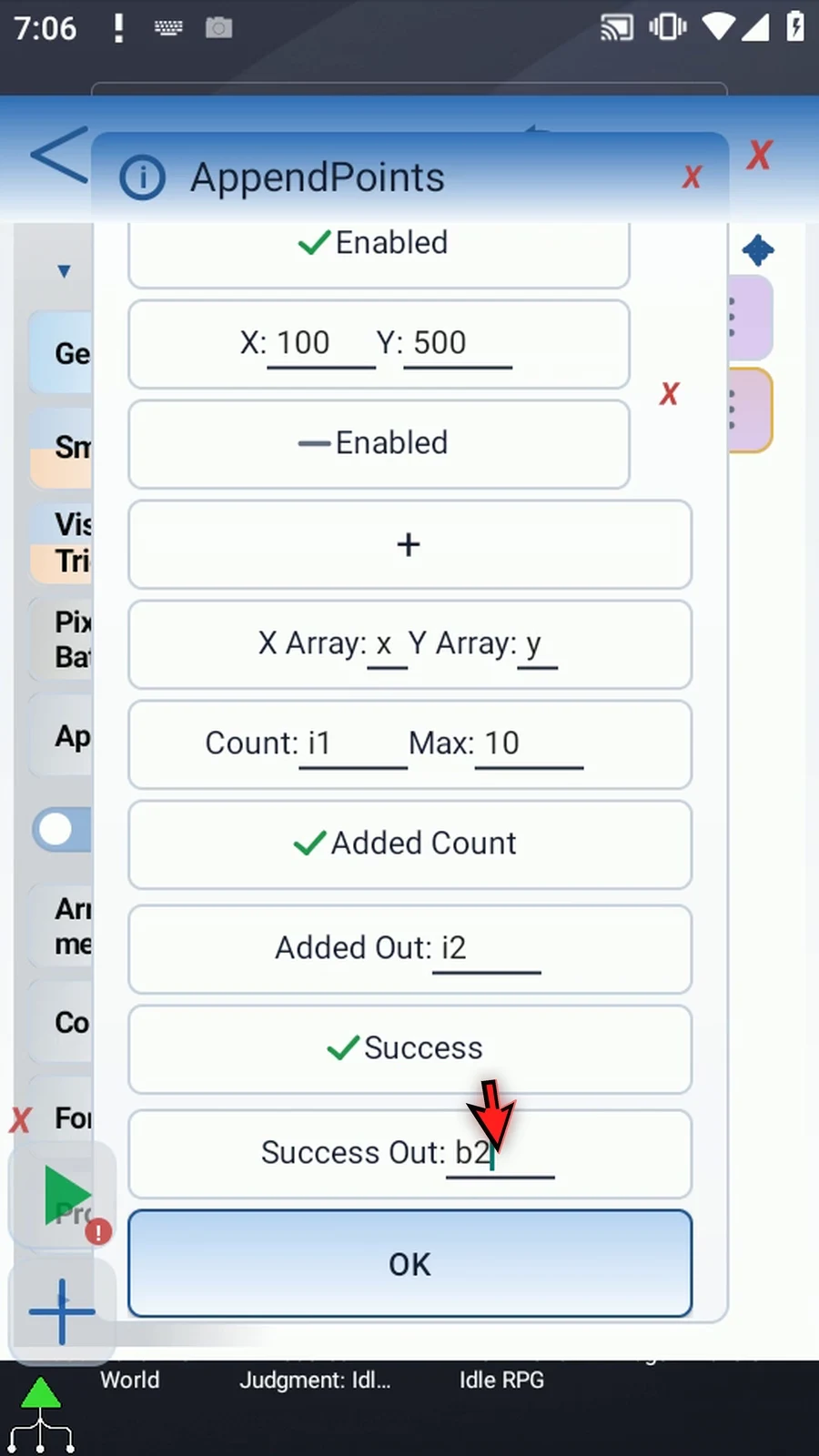
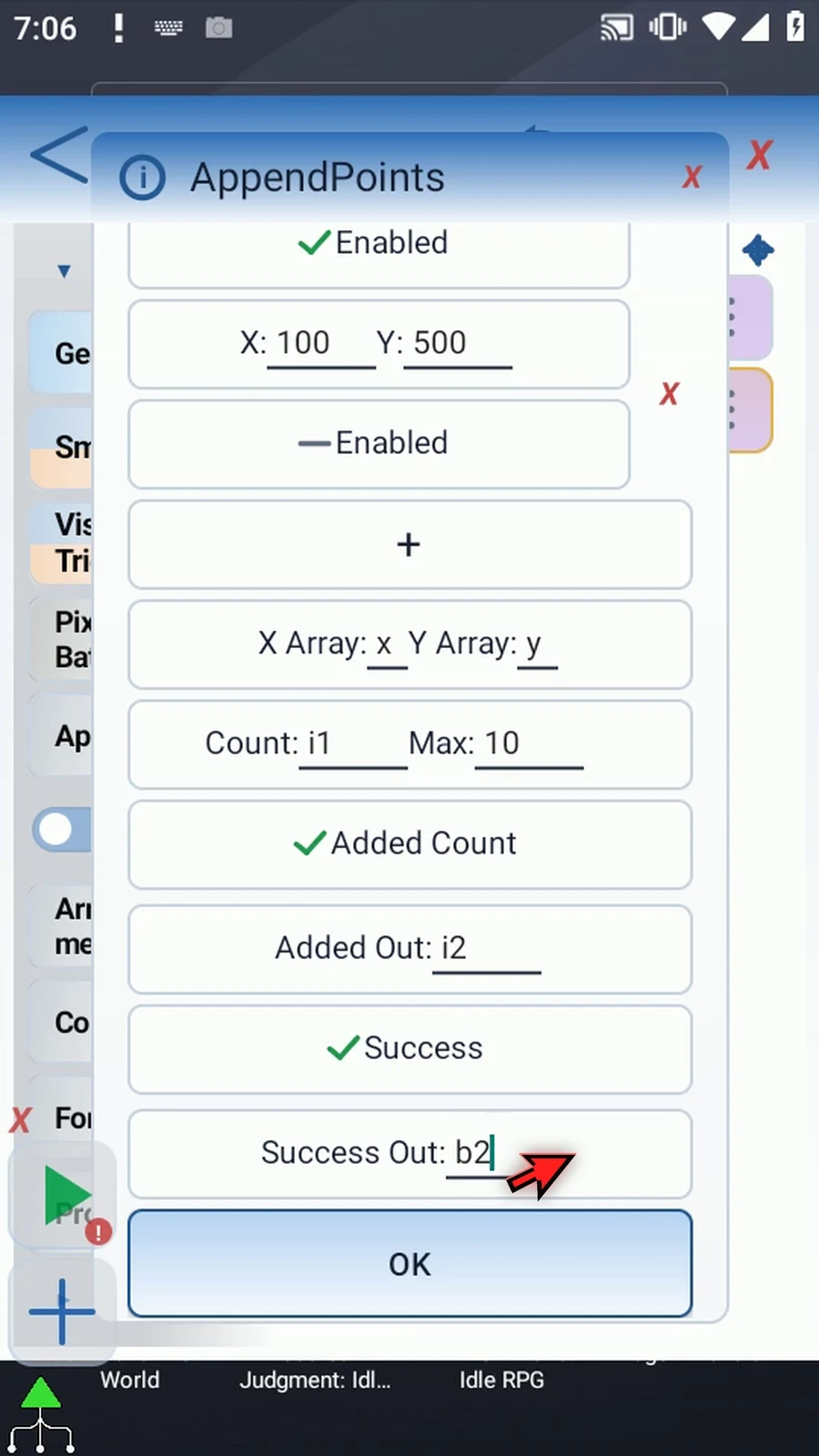
Count is a prior Integer variable holding the existing point count. Appending starts at Count+1 and updates Count. Max limits the total list to at most 4096 points. Invalid inputs or an append beyond Max/4096 publish no partial append. Added Count optionally writes the number added; Success optionally writes a Boolean. Use In selects This Script Only or Script Thread output scope.
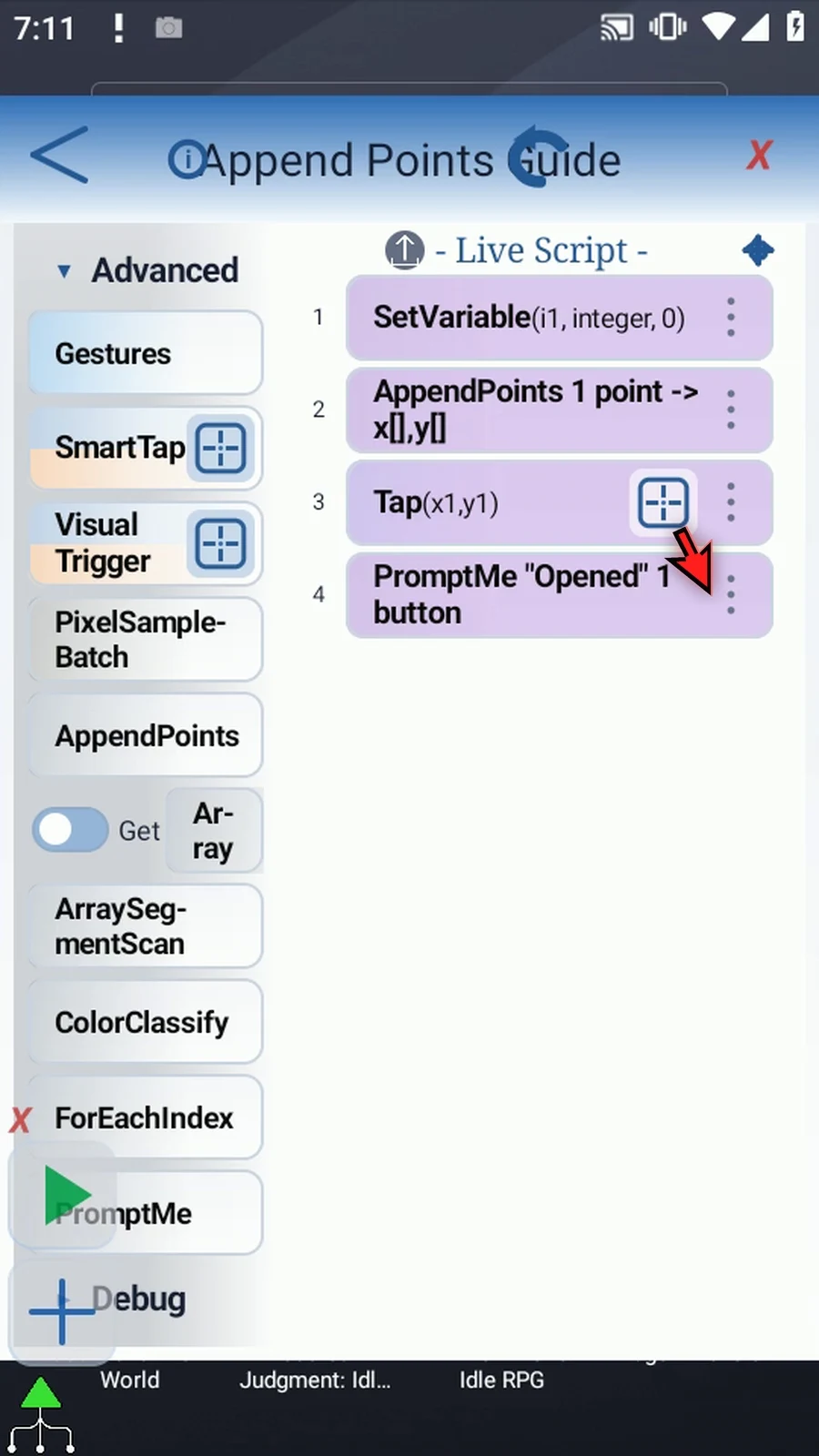
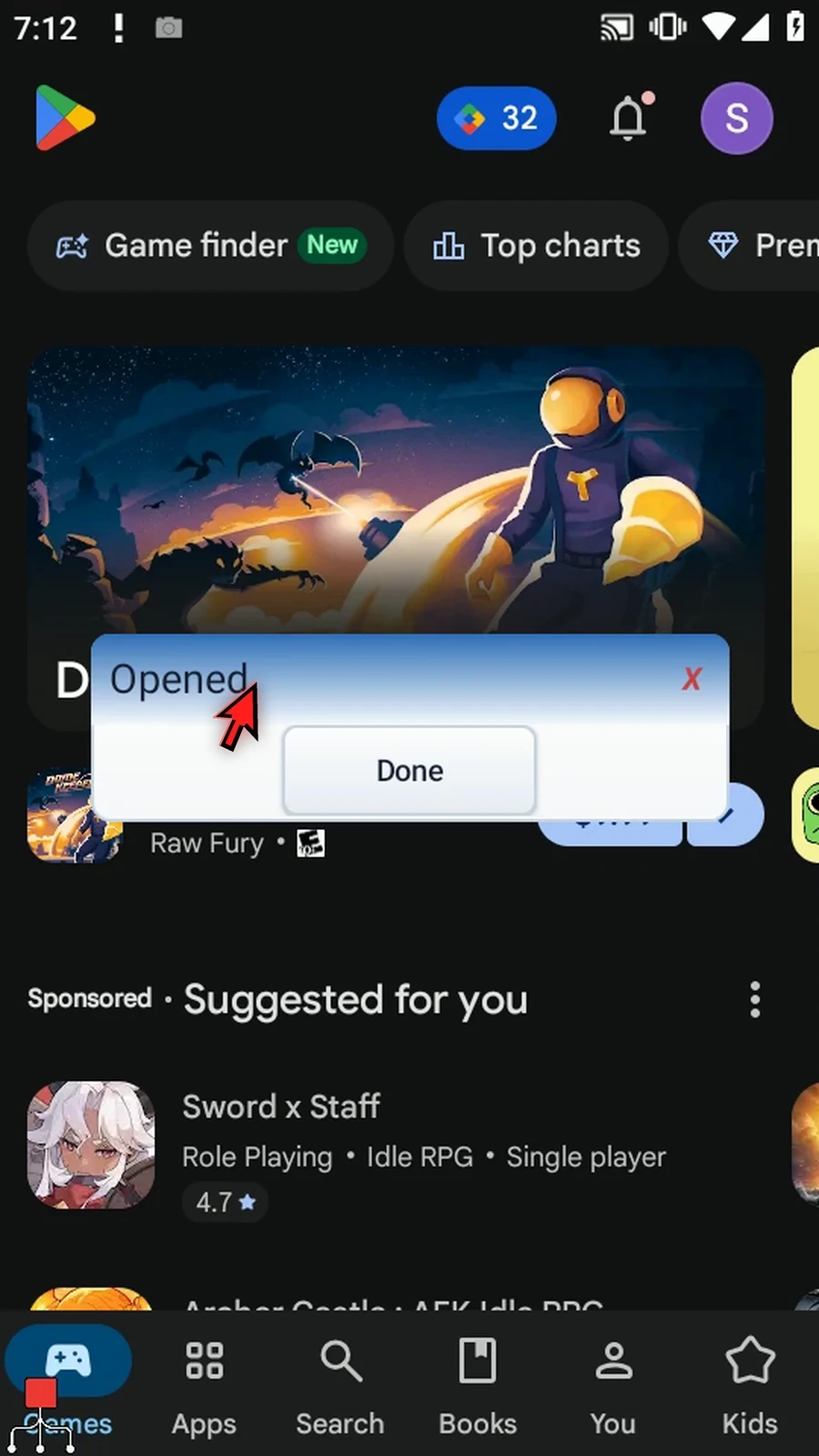
The fresh four-command example initializes i1=0, appends the enabled Play Store point 454, 165 to x1/y1 while retaining a disabled second row, and uses Tap with those variables. Added Count writes i2 and Success writes b2. Standard PromptMe shows Opened/Done through b1. All four commands are genuinely dragged into the script.
Watch the walkthrough
Step-by-step guide
Step 01 AppendPoints builds paired X and Y coordinate arrays for later commands. You can add individual point rows or generate a regular grid. It stores coordinates; it does not find objects or read the screen.
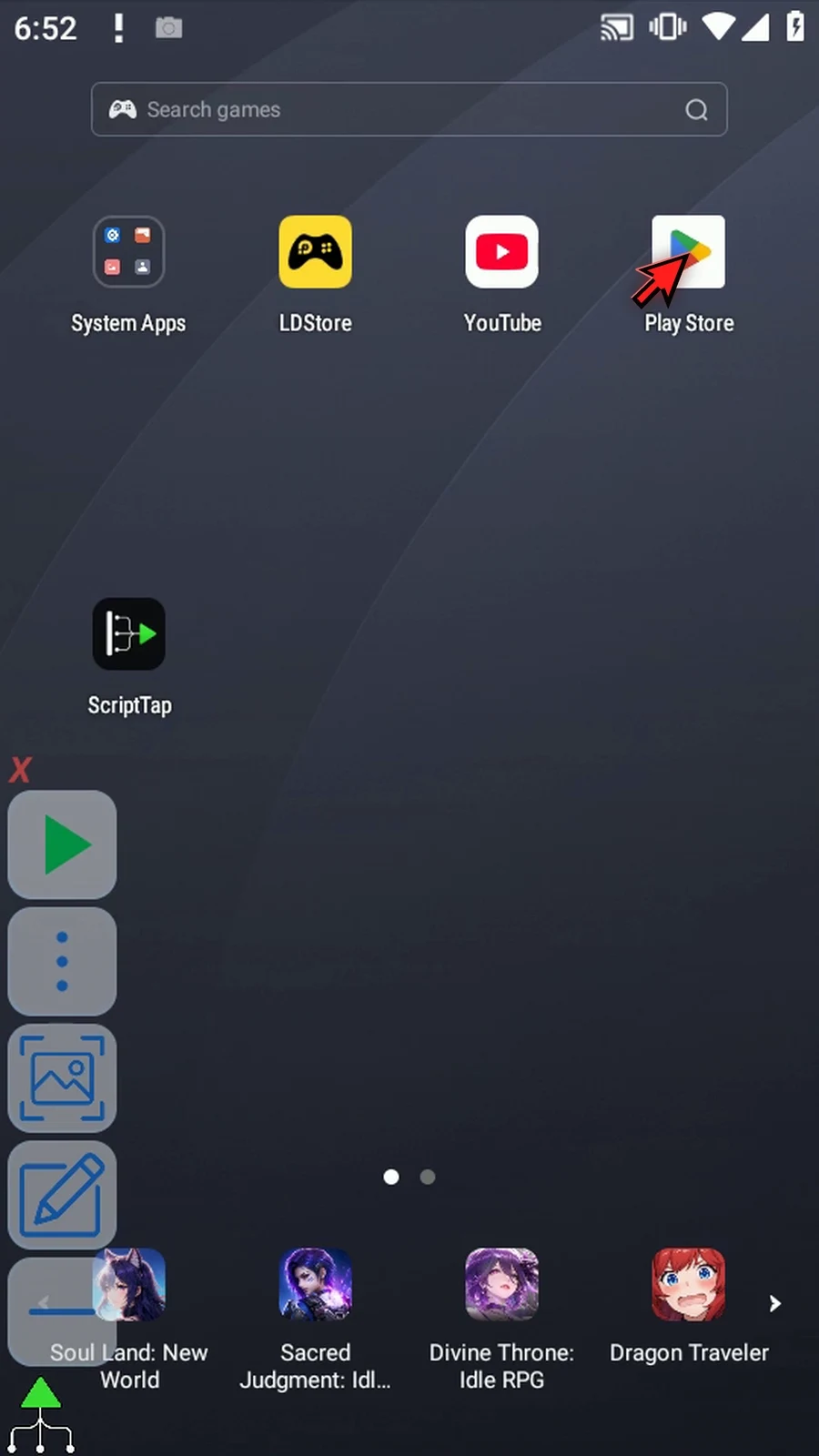
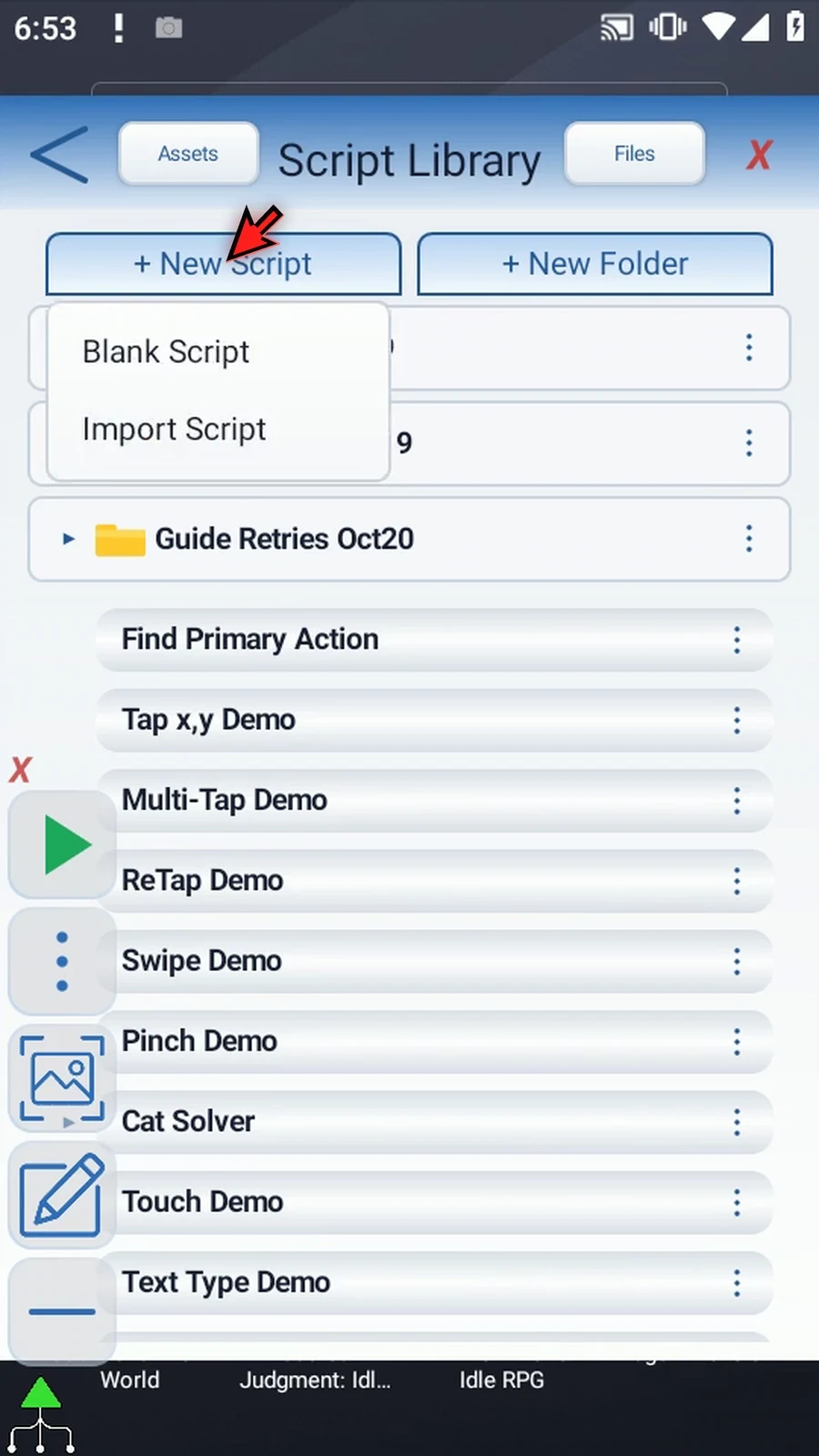
Step 02 Open the main overlay menu and choose Scripts. Use New Script, then choose Blank Script.
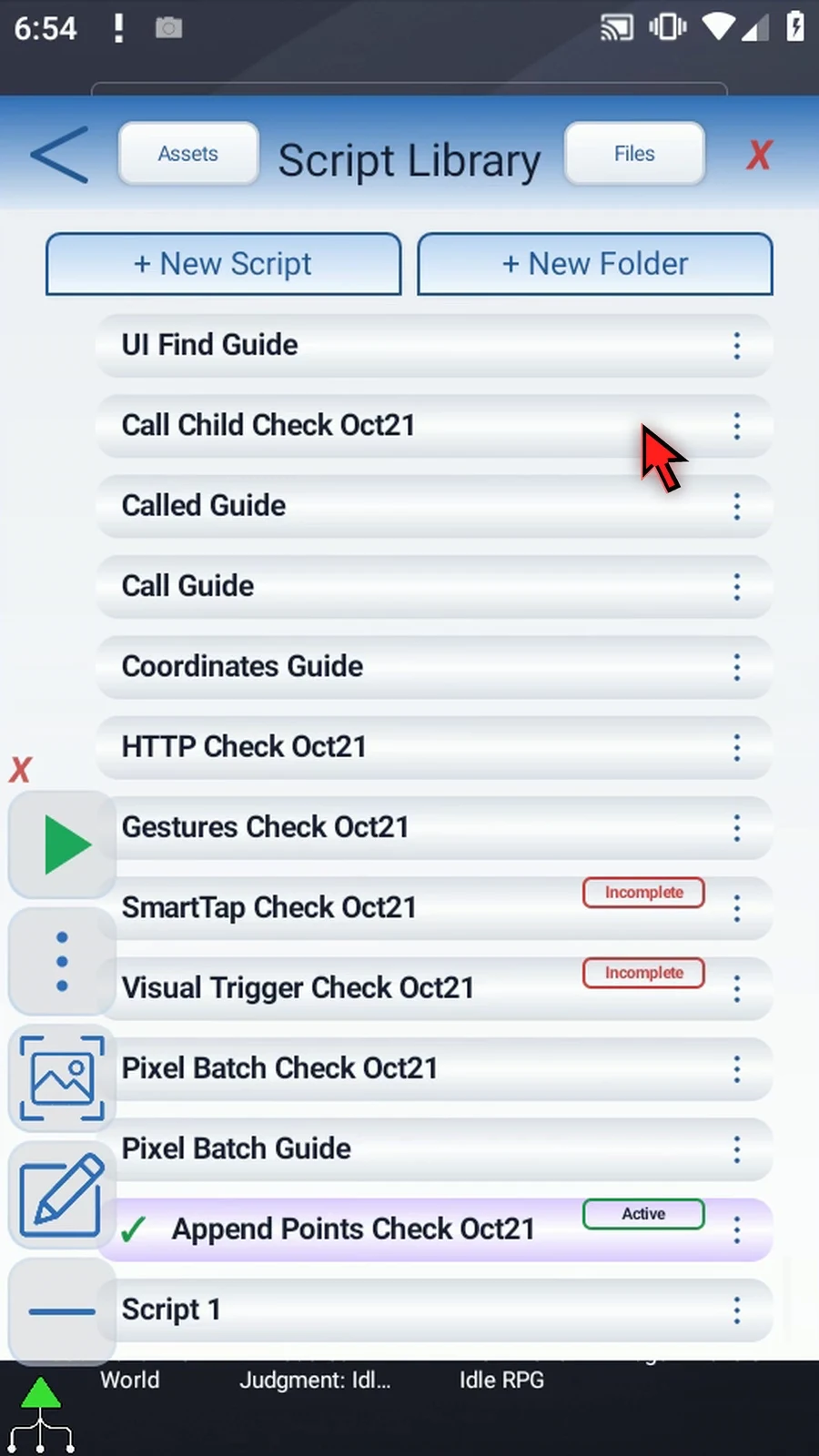
Step 03 Scroll through the Library until the new entry is visible. We'll give it a clear name before building the example.
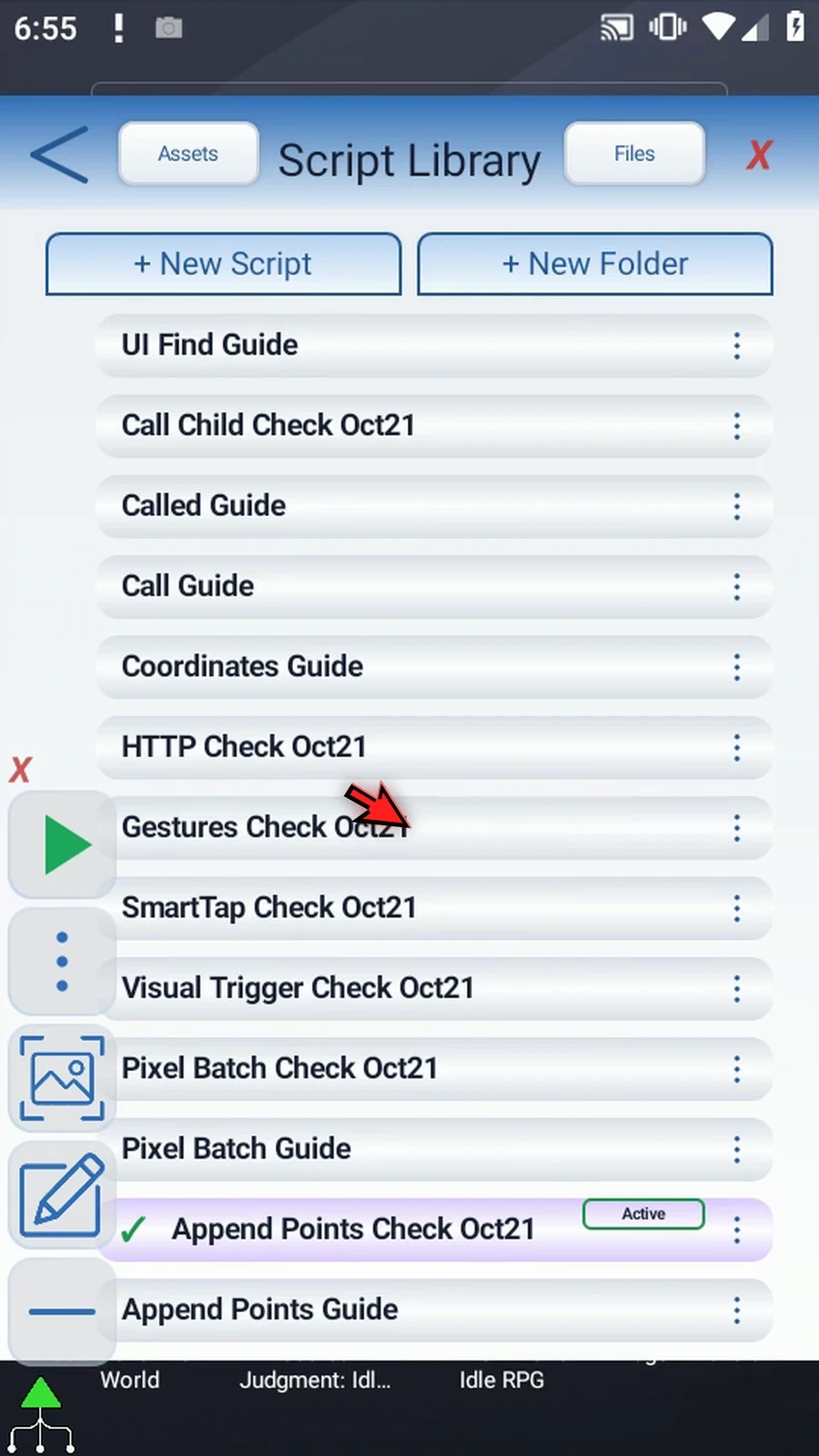
Step 04 Open the new entry's menu and choose Rename. Select the name field, replace the default name with a clear name for your script, and confirm.
Step 05 Select the renamed script, close the Library, and open its editor. Use the minus to minimize the main overlay if it covers the command palette.
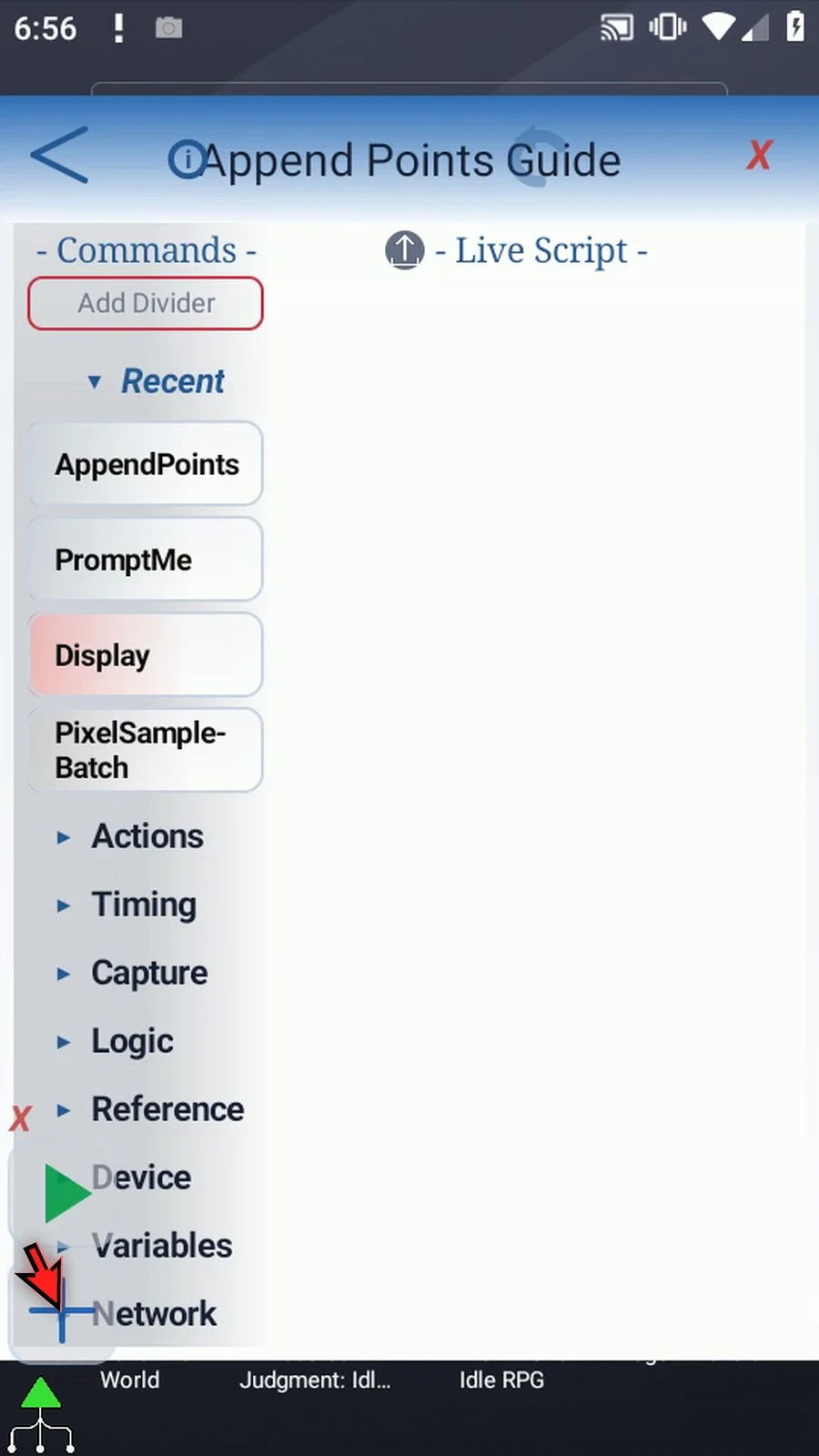
Step 06 First, drag SetVariable from Variables into the script. This supporting command will initialize our point count before AppendPoints runs.
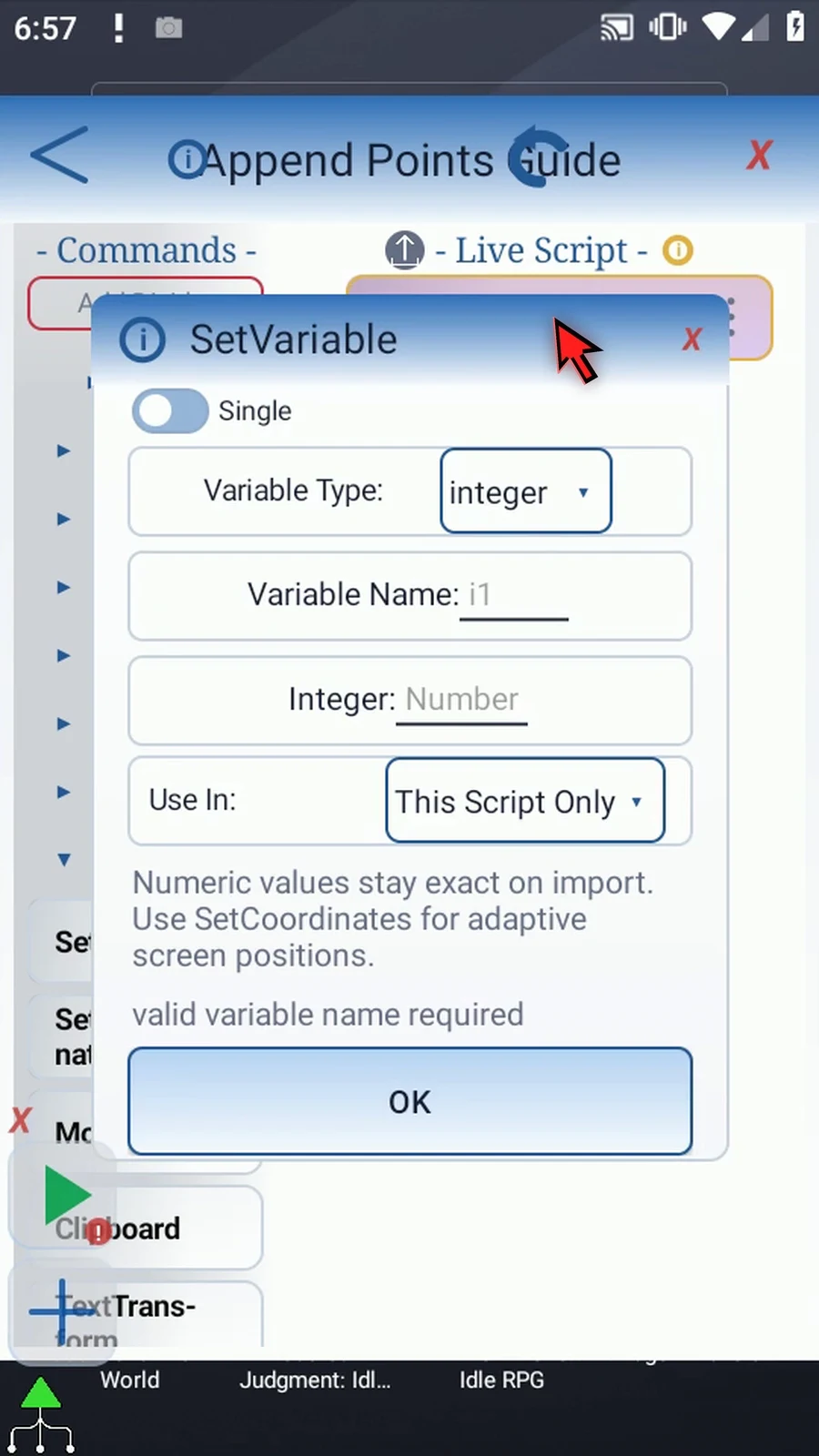
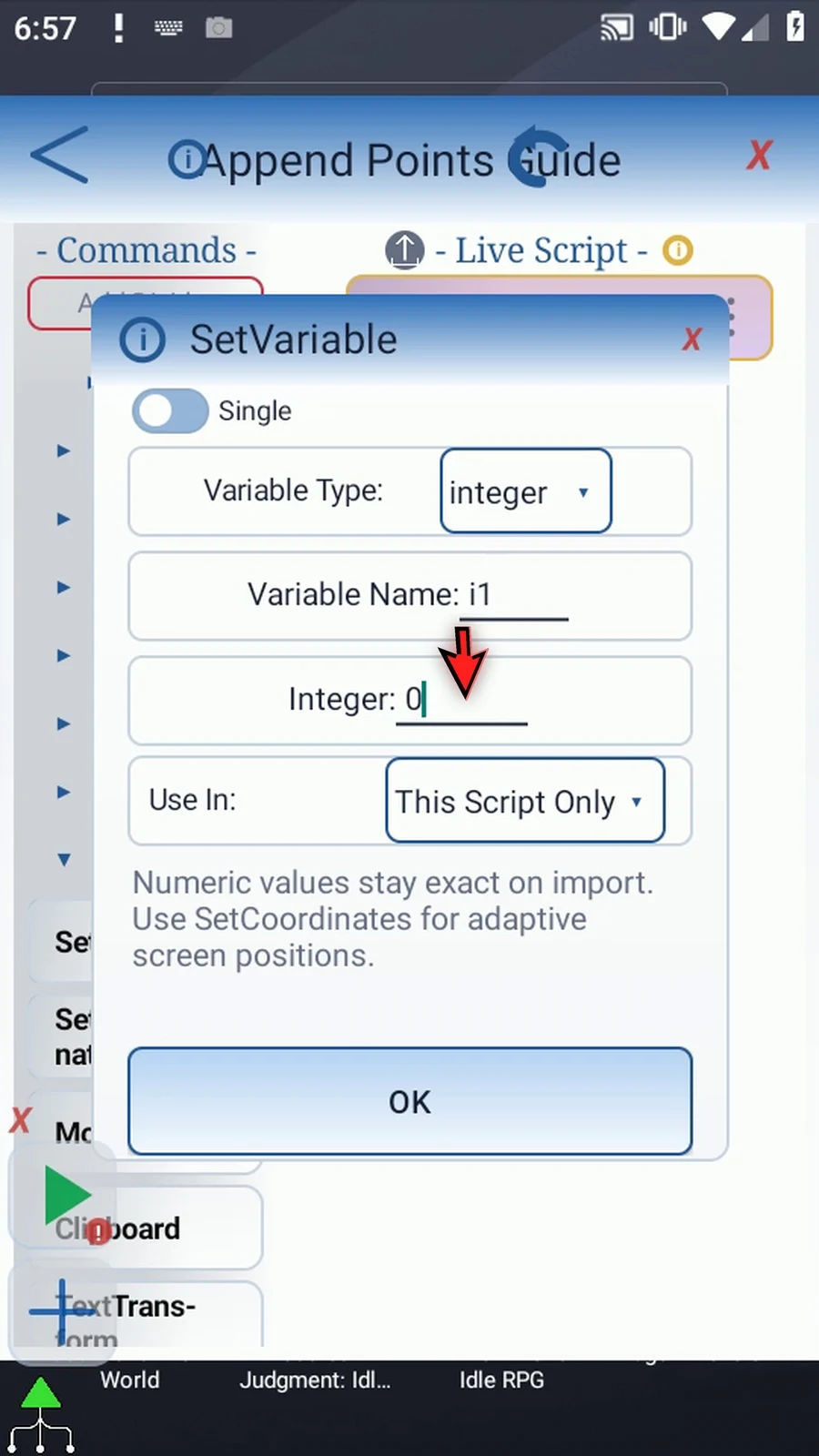
Step 07 Keep Single mode, choose Integer, name the variable i1, and give it the value zero. Zero means that our coordinate list starts empty. Save the command.
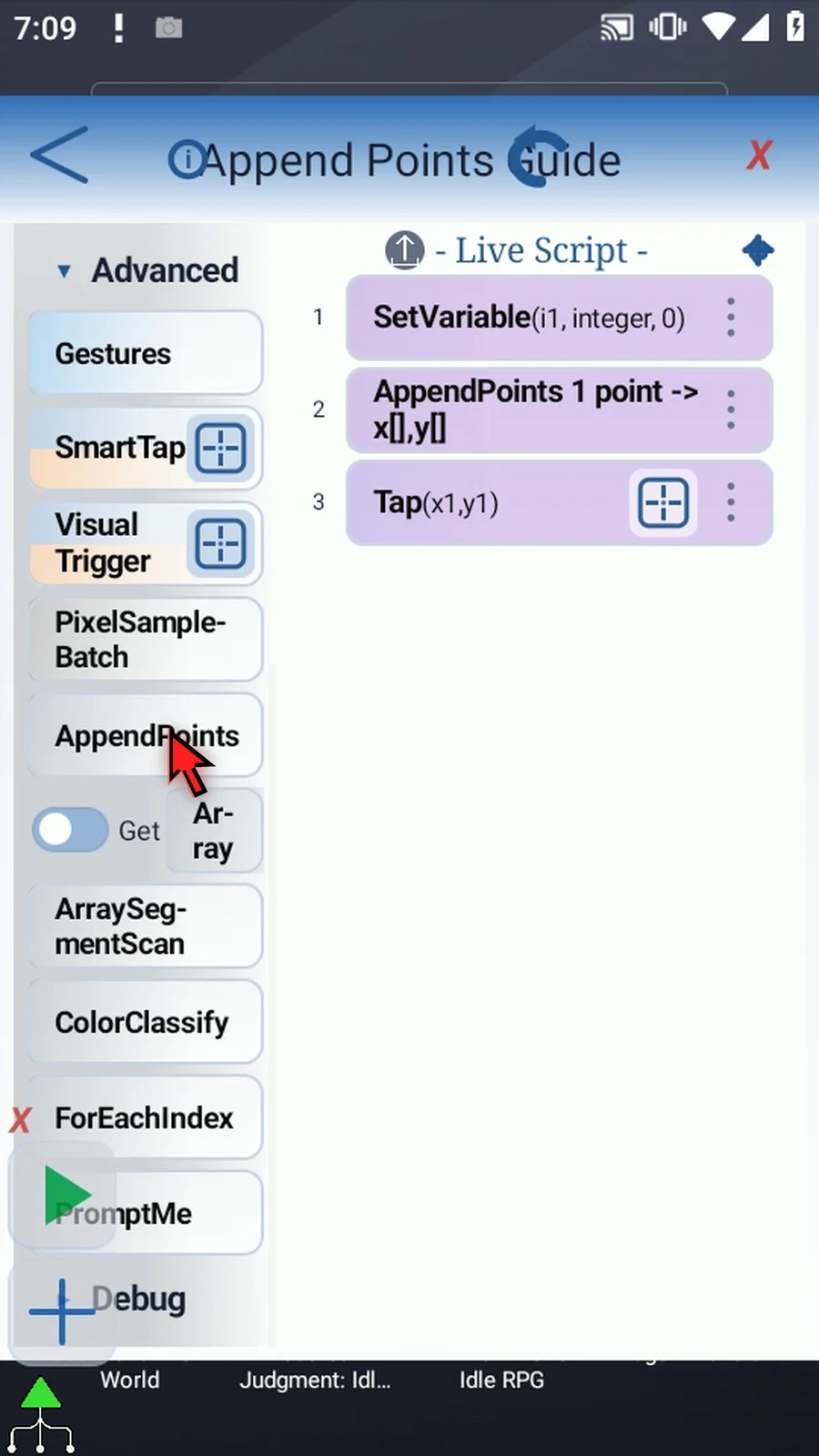
Step 08 Return to the command groups, expand Advanced, and scroll to AppendPoints. Drag it underneath the count initializer, then open its settings to see the two modes.
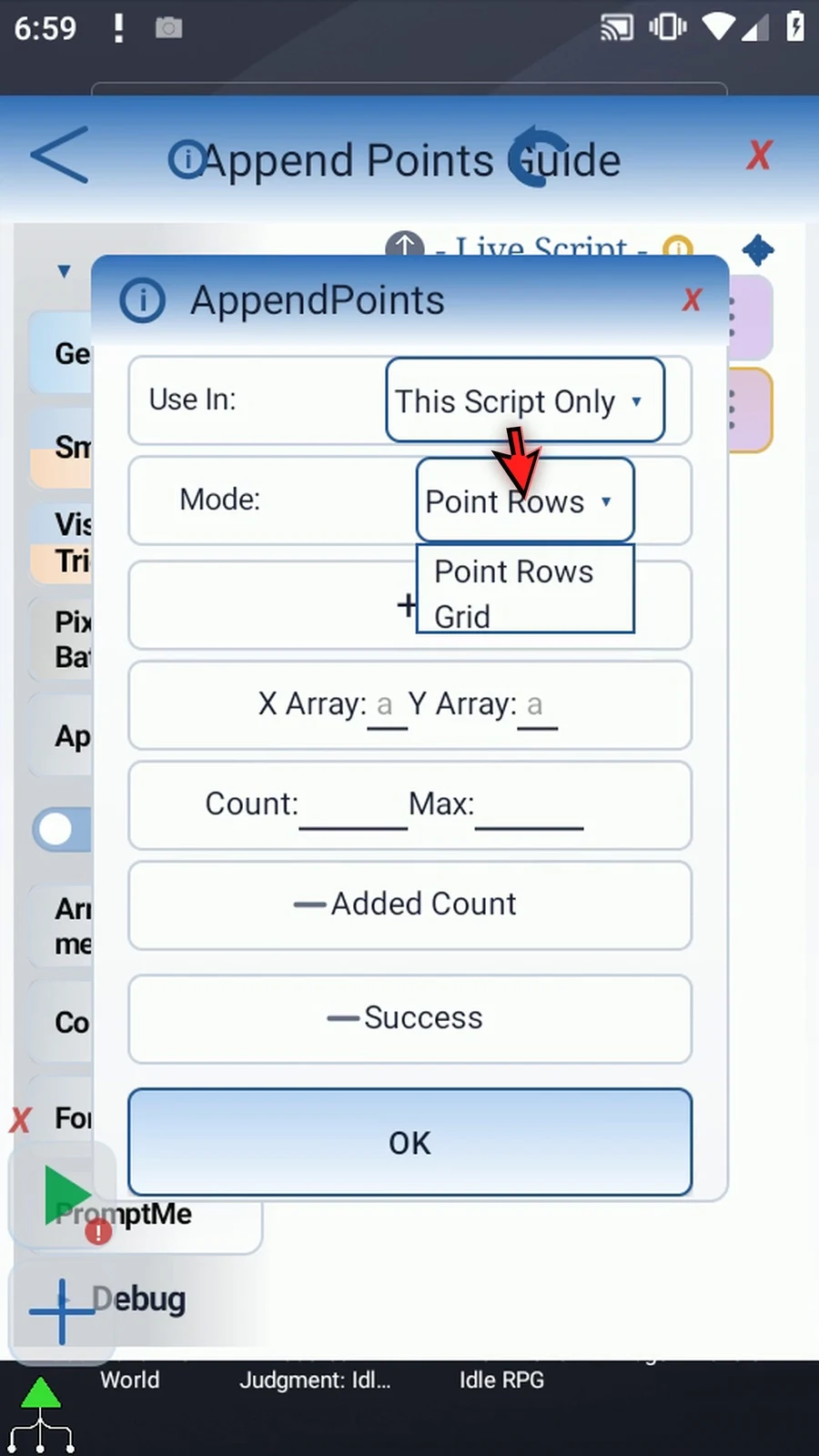
Step 09 Grid generates regularly spaced positions. Rows and Columns set the grid size. Left and Top set its origin. X Pitch separates columns, and Y Pitch separates rows.
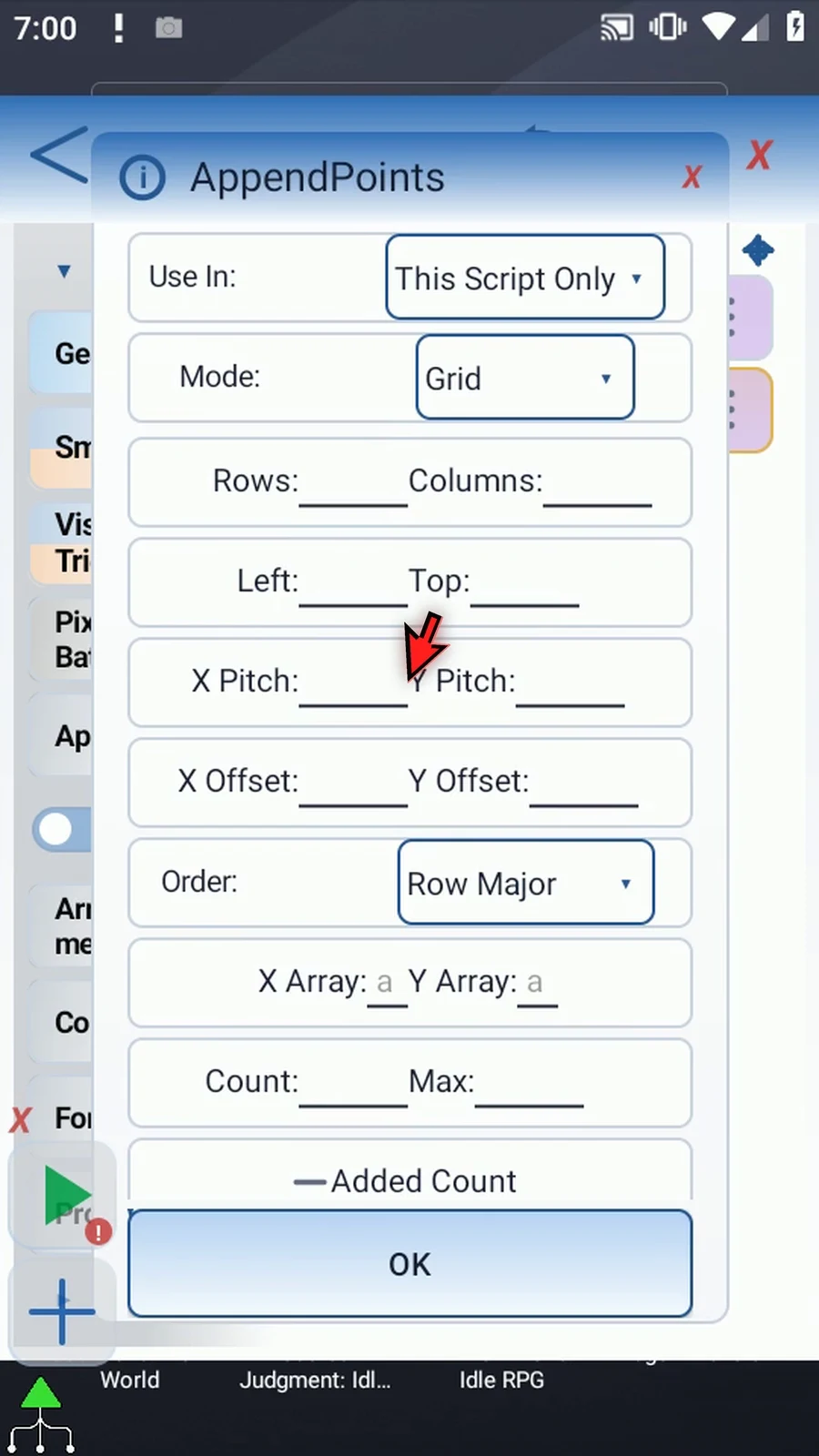
Step 10 X and Y Offset shift every generated position. Geometry fields accept Integer literals or Integer variables written earlier in the script. Grid generation does not detect a grid in an image.
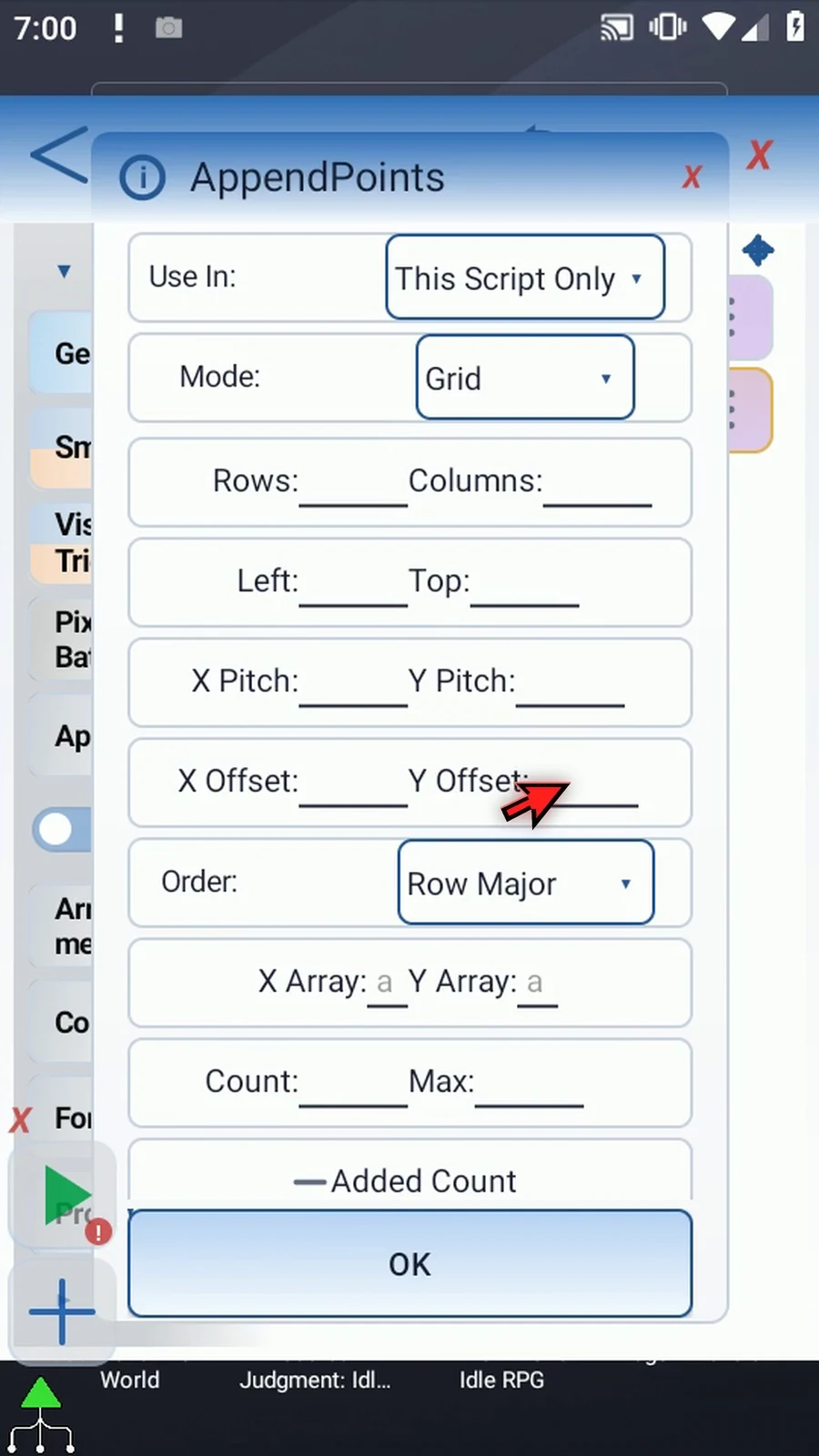
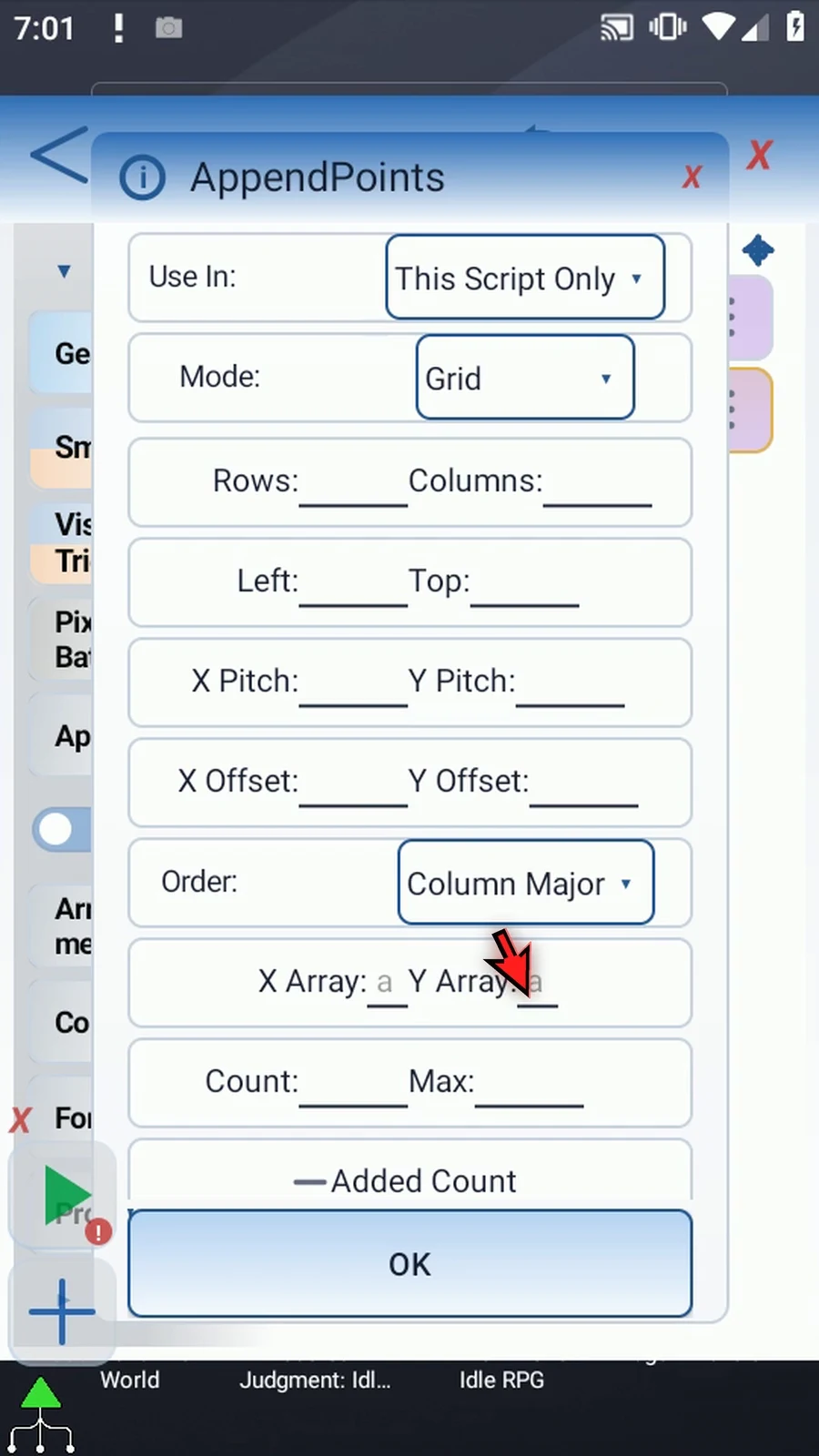
Step 11 Row Major lists positions across each row first. Column Major lists them down each column first. The order determines which coordinate pair goes into each array slot.
Step 12 We'll use Point Rows in this example. Switching modes clears the outgoing mode's settings, so choose the mode before entering your coordinates.
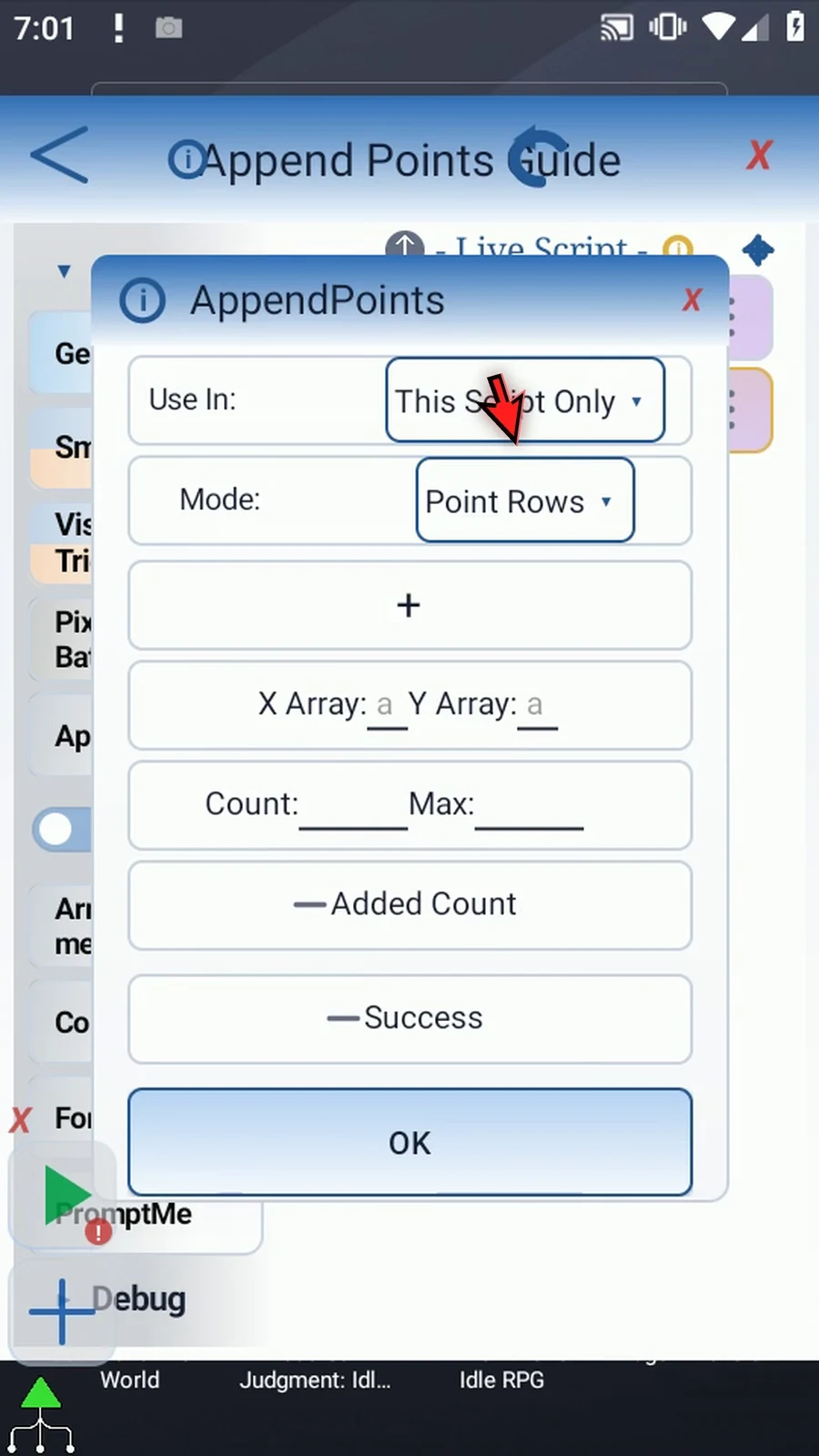
Step 13 Use In chooses whether the outputs belong only to this script or are shared with its script thread. We'll keep This Script Only.
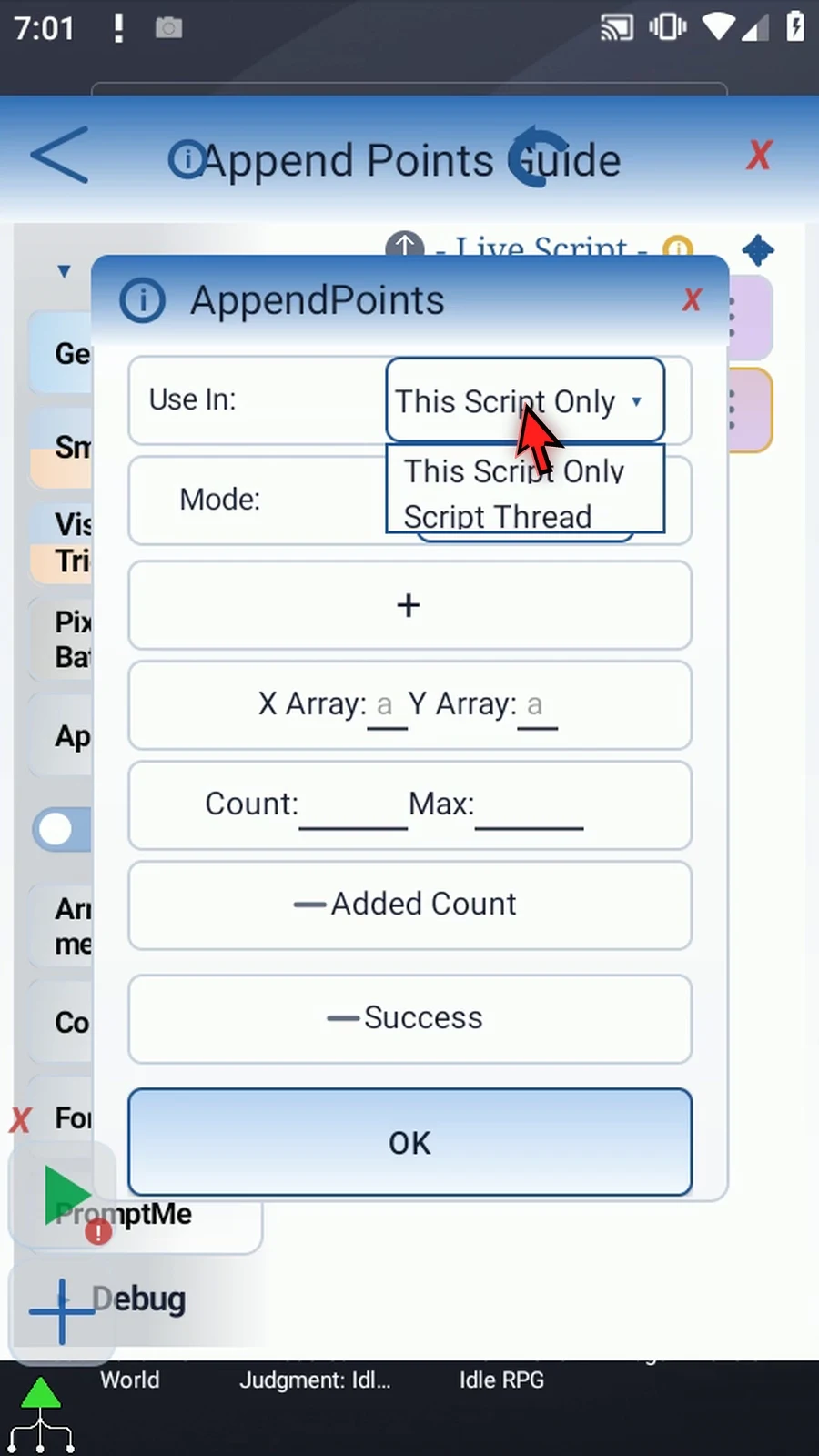
Step 14 Use the plus to add a row. Enter the X and Y coordinates of Play Store on this home screen. Either coordinate can also use an Integer variable written earlier.
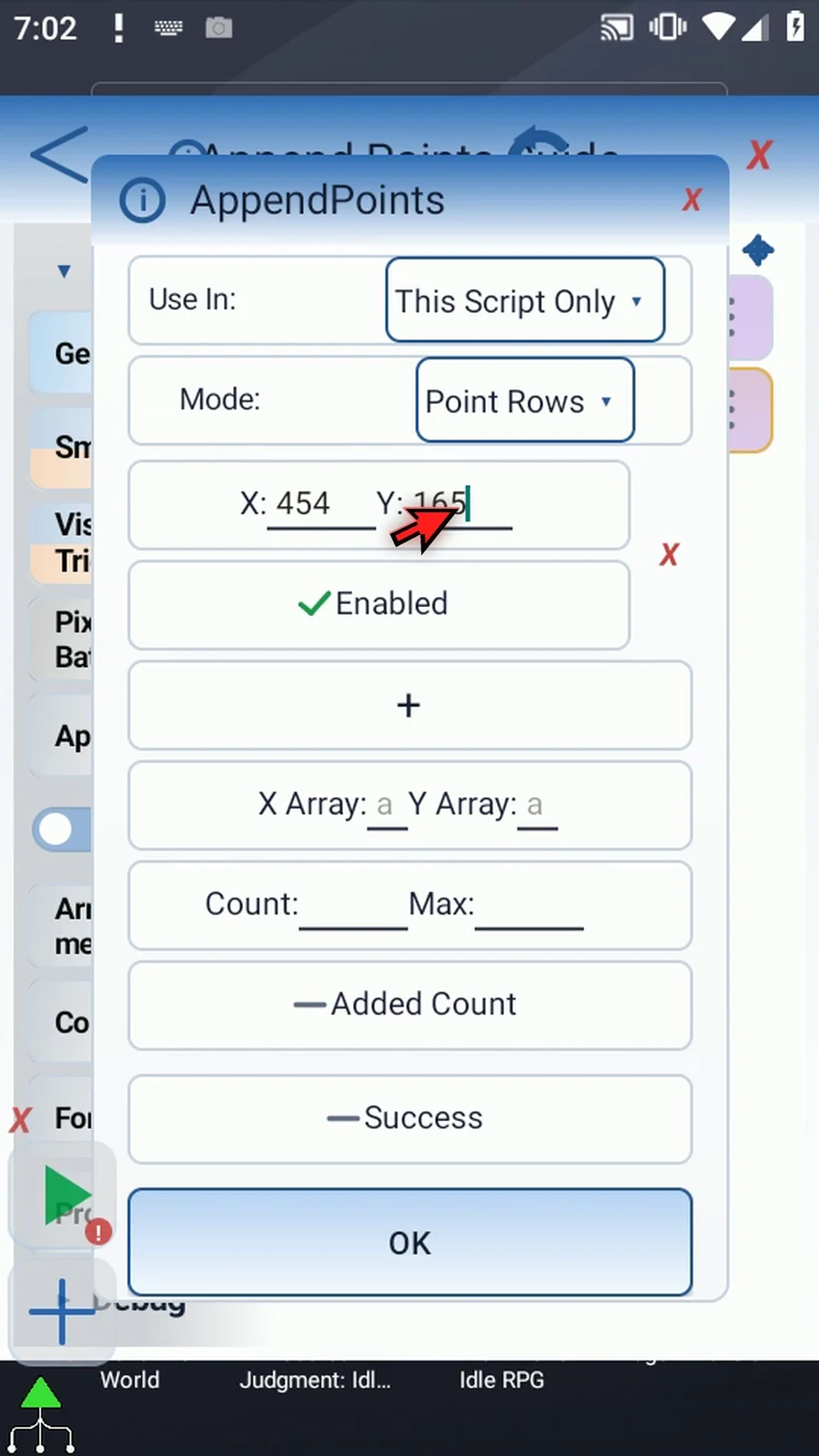
Step 15 Add another point to see how rows work. Enabled lets you skip a point without deleting its coordinates. We'll turn this second row off. Its red X would remove it.
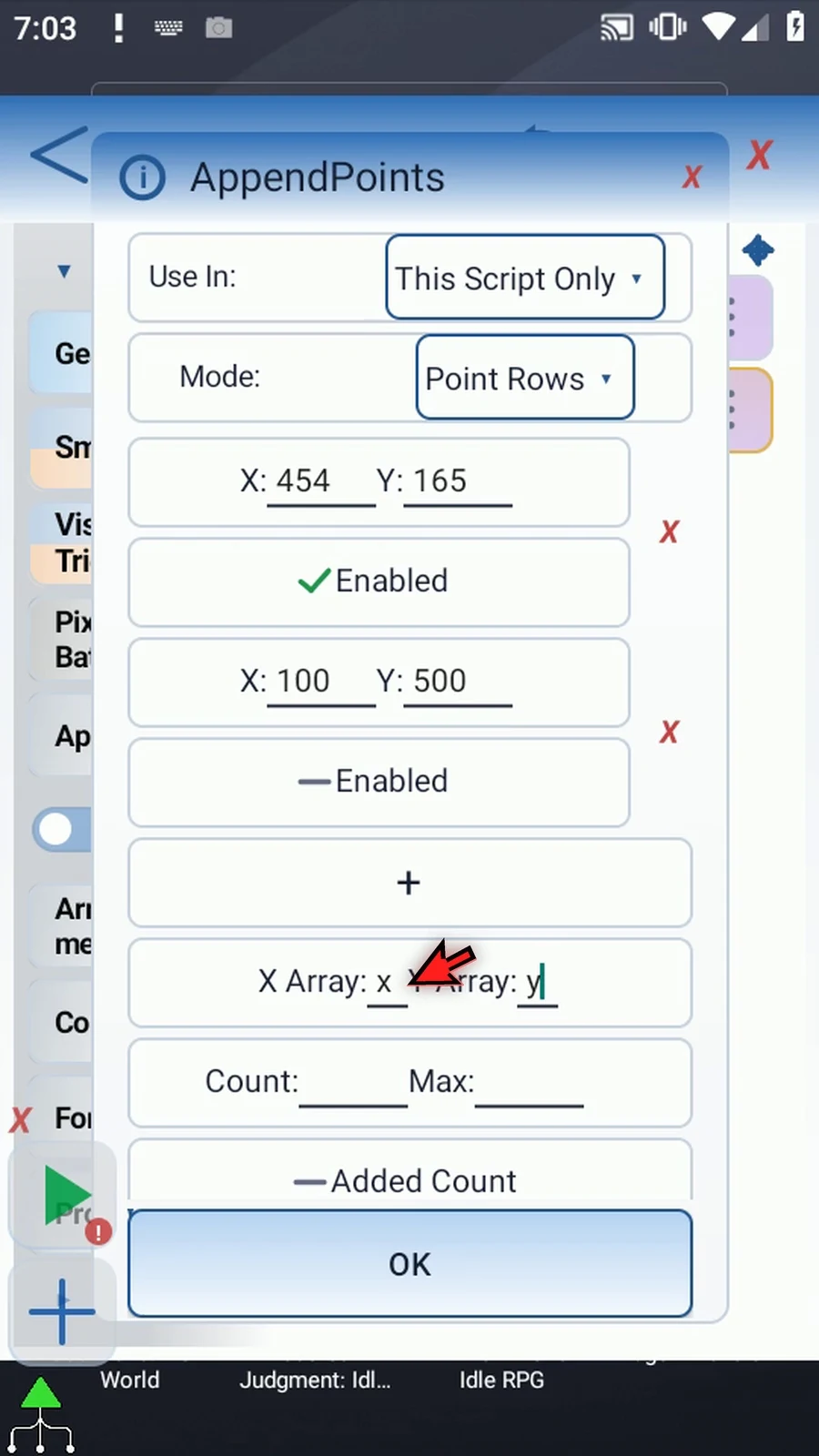
Step 16 Name the X array x and the Y array y. The enabled points keep their order. Each position uses matching slots, such as x1 and y1.
Step 17 Set Count to i1 and Max to ten. Count is the existing number of points. Appending starts at Count plus one, then updates Count. The maximum prevents the list from growing beyond your chosen limit.
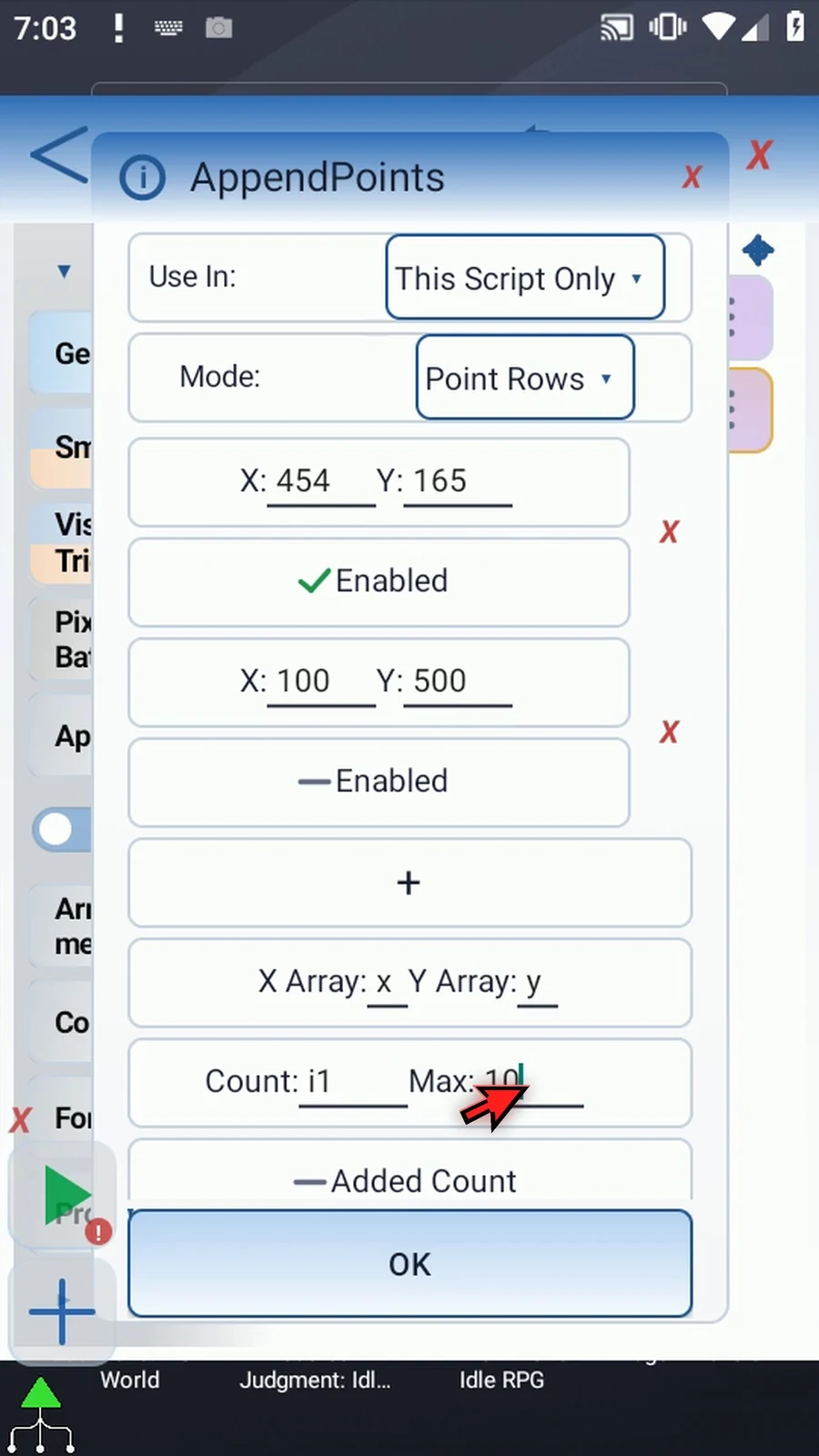
Step 18 Scroll to Added Count and turn it on. This optional output saves how many points this command added. Use i2 as its Integer destination.
Step 19 Scroll to Success and turn it on too. Its Boolean output tells later commands whether the append succeeded. Reveal the output field and use b2 as its destination.
Step 20 The full coordinate list is limited to four thousand ninety-six points. Invalid inputs or an append that exceeds the maximum do not publish a partial append. Save AppendPoints.
Step 21 To show how a later command uses these coordinates, drag Tap underneath from Actions. Open it to replace literal coordinates with variables.
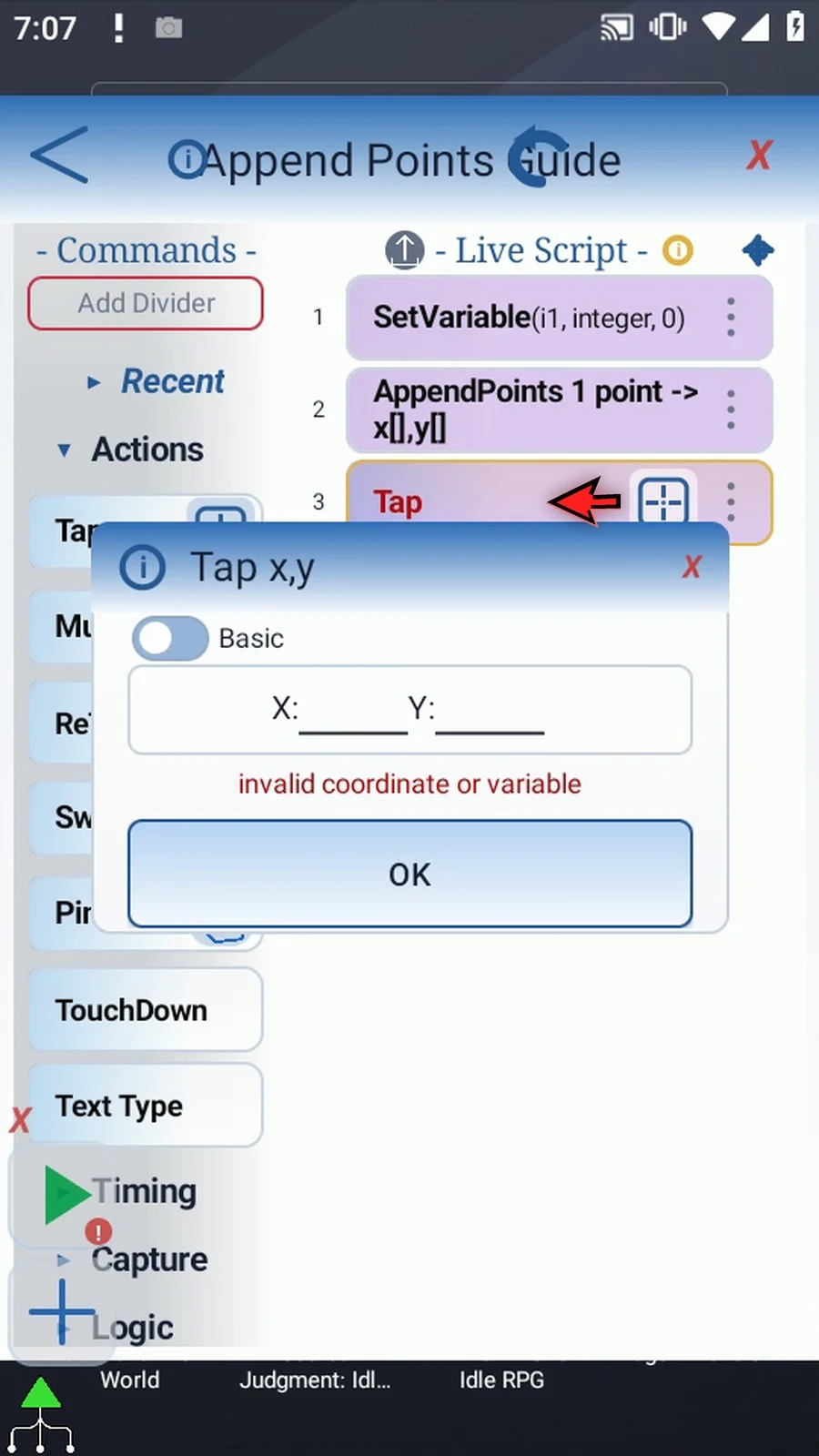
Step 22 Set X to x1 and Y to y1, then save. Tap will use the first coordinate pair written by AppendPoints, instead of its own fixed numbers.
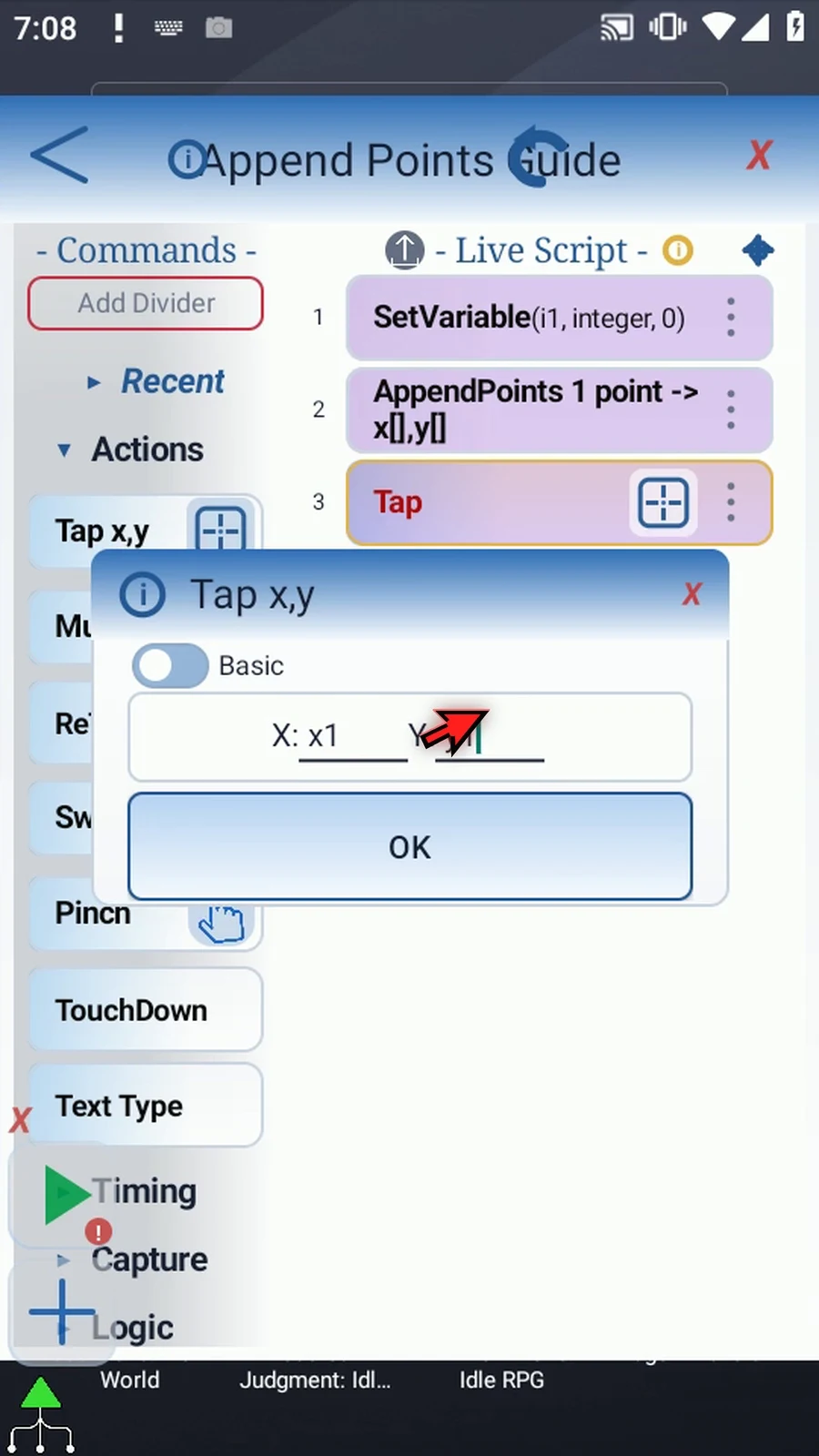
Step 23 Return to the command groups, expand Advanced, and scroll down to PromptMe. We'll use it as a visible completion check.
Step 24 Drag PromptMe underneath the Tap command, then open it.
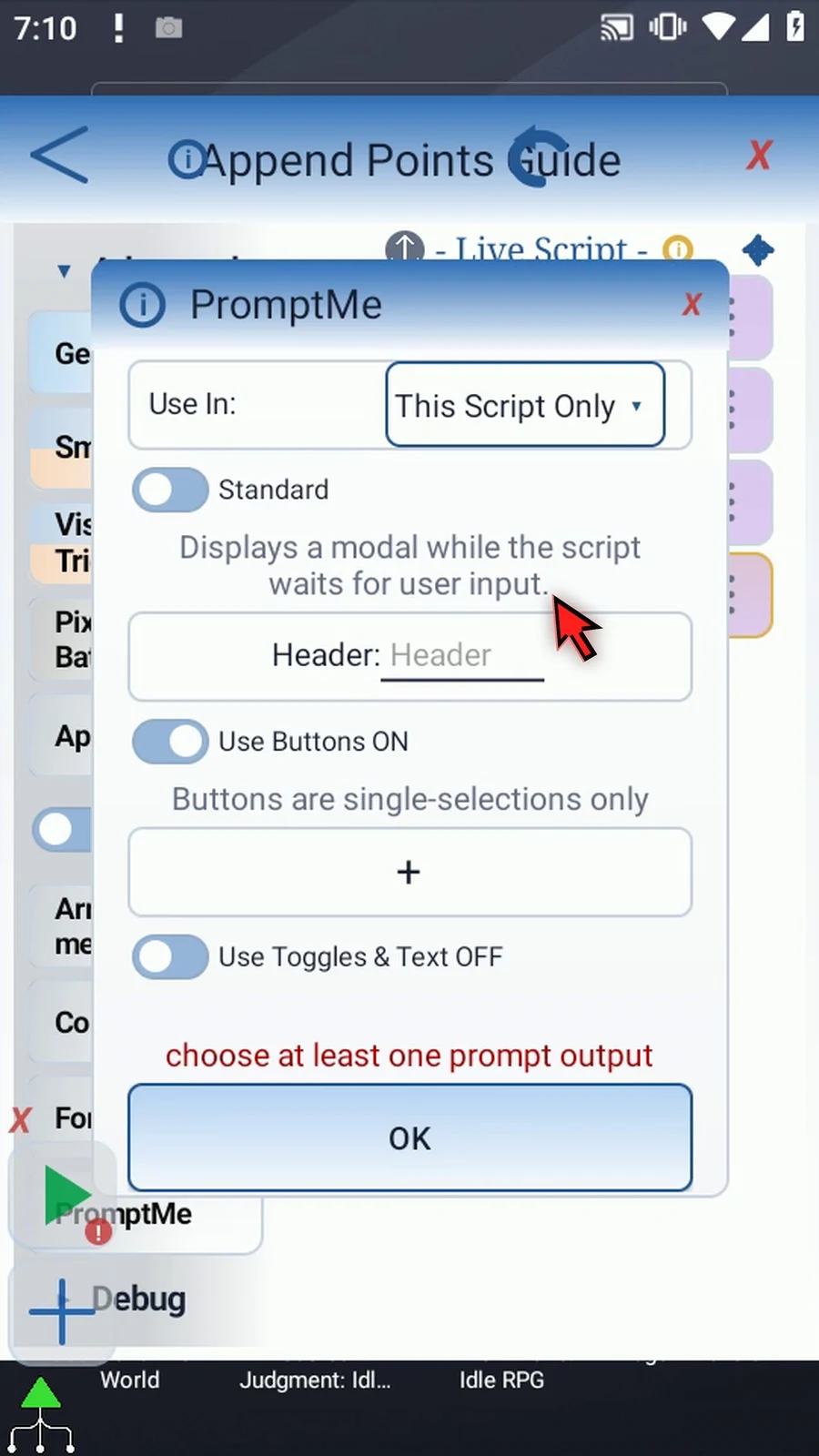
Step 25 Keep Standard mode and enter Opened as the header.
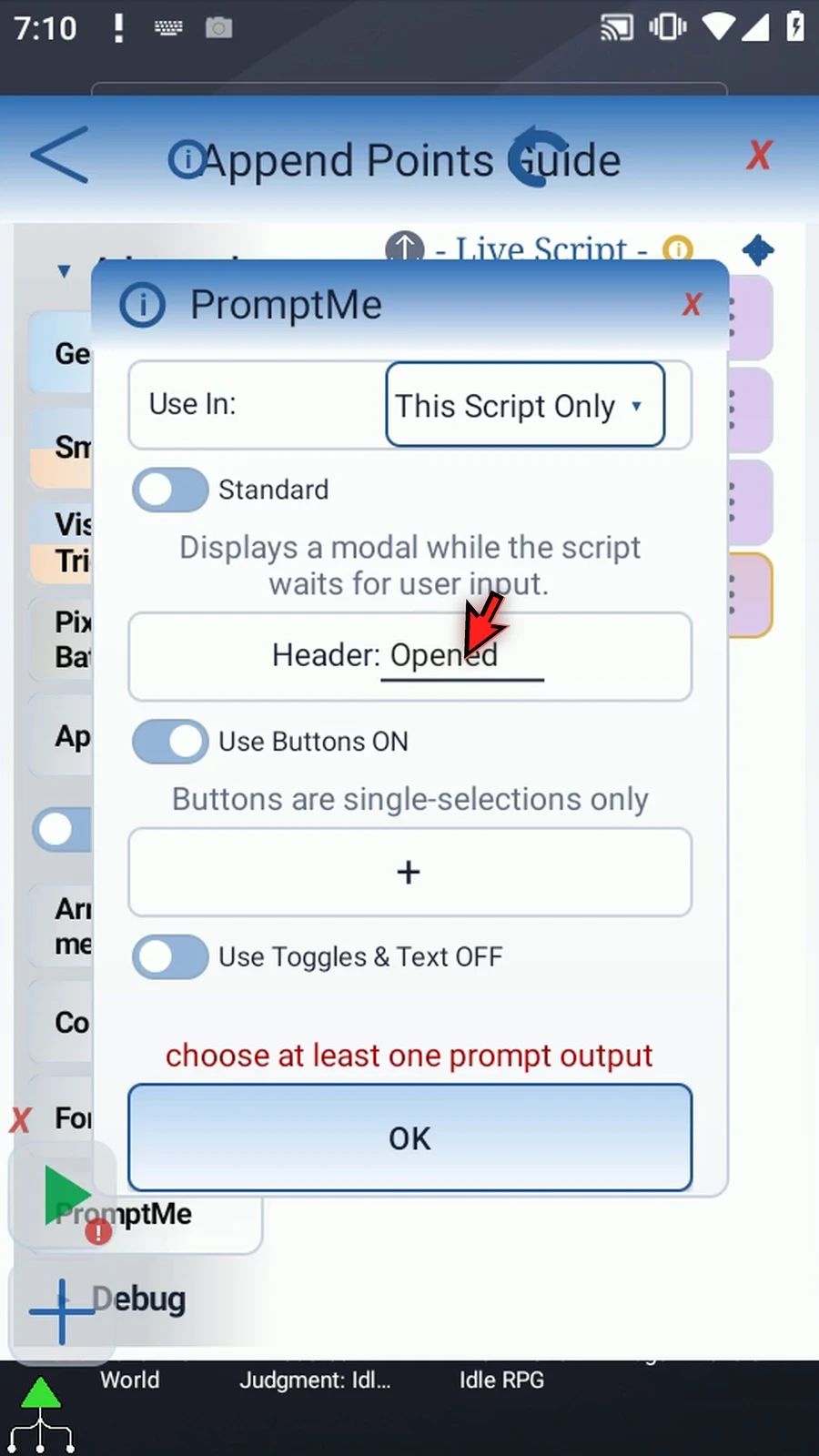
Step 26 Use the plus to add a button, then enter Done as its caption.
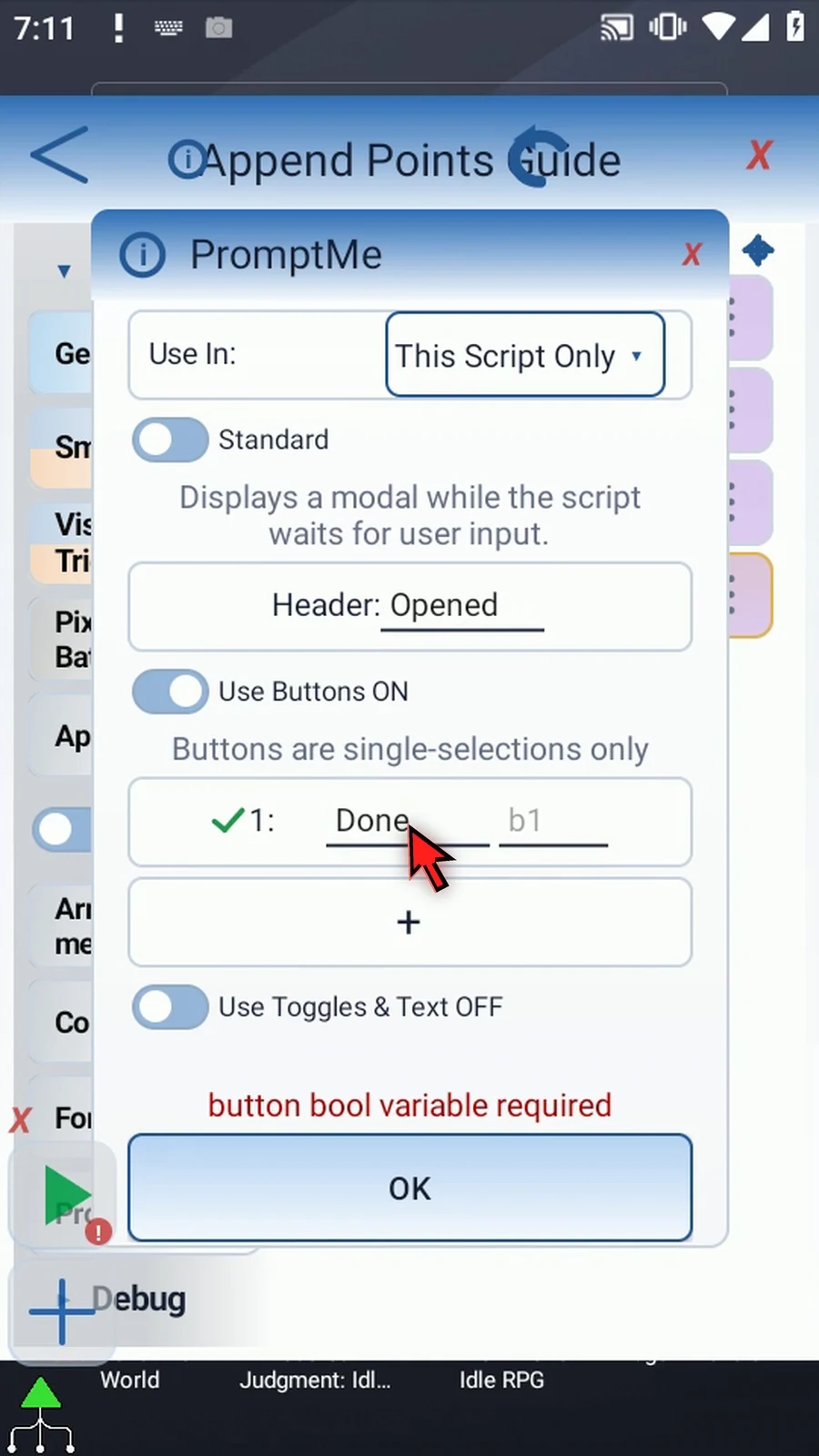
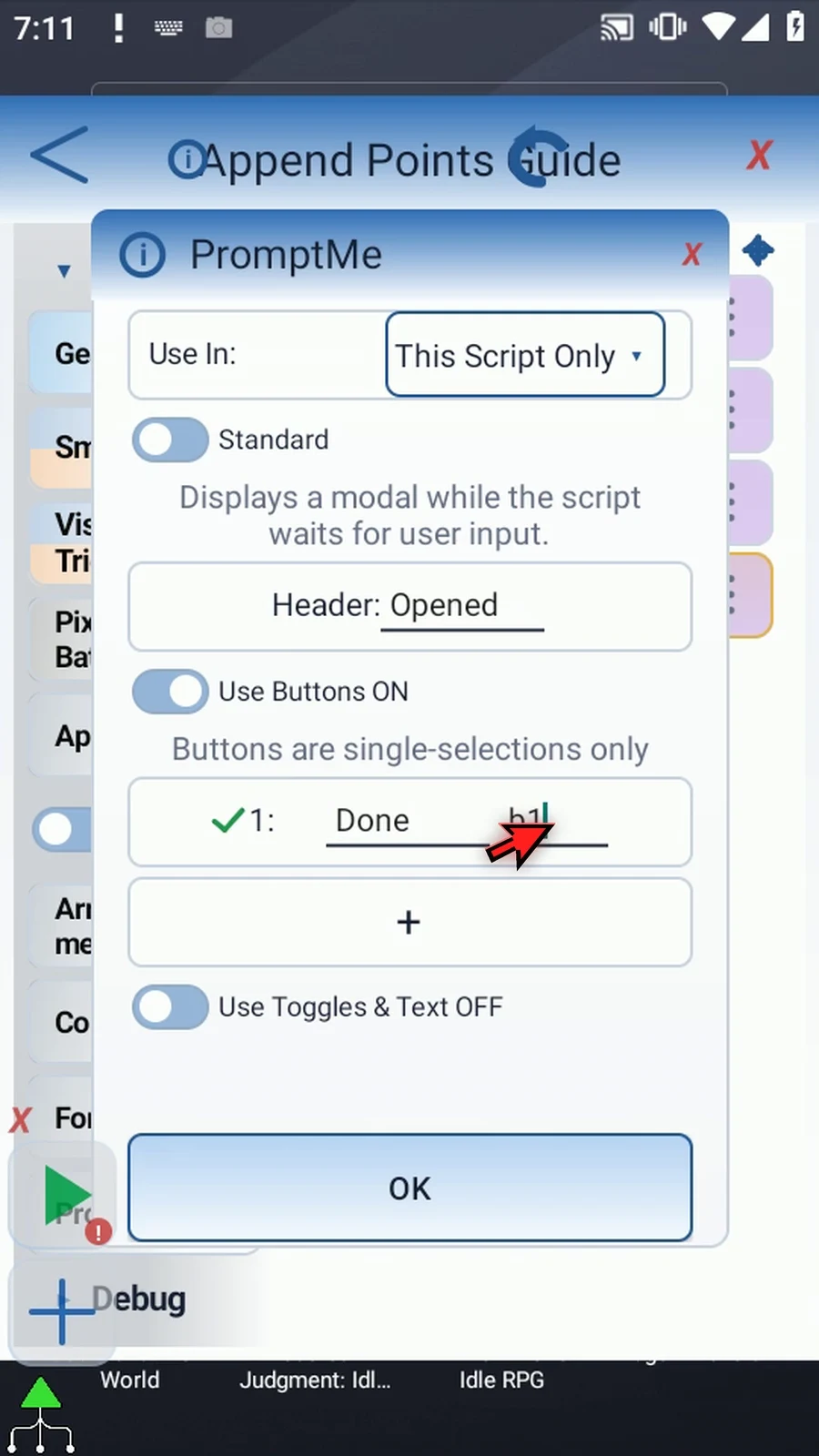
Step 27 Assign b1 as the button's Boolean output, then save PromptMe.
Step 28 Our script resets the count, appends the enabled point, taps the resulting x1 and y1 coordinates, and shows confirmation. With more enabled rows, later commands can process the remaining pairs too.
Step 29 Close the editor and leave the home screen visible. These coordinates are specific to this screen layout.
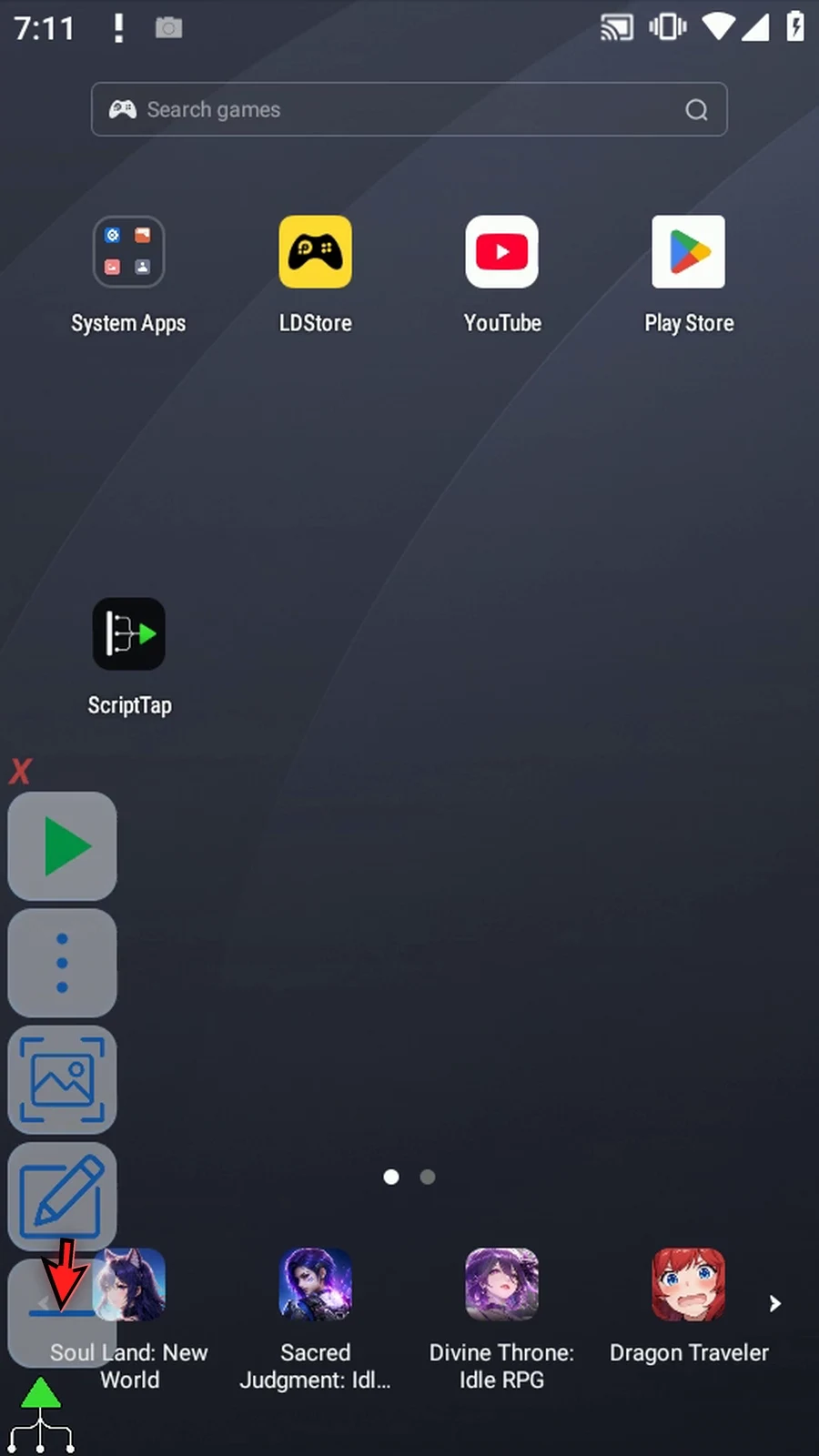
Step 30 When the script is complete, simply use the Play button in the main overlay.
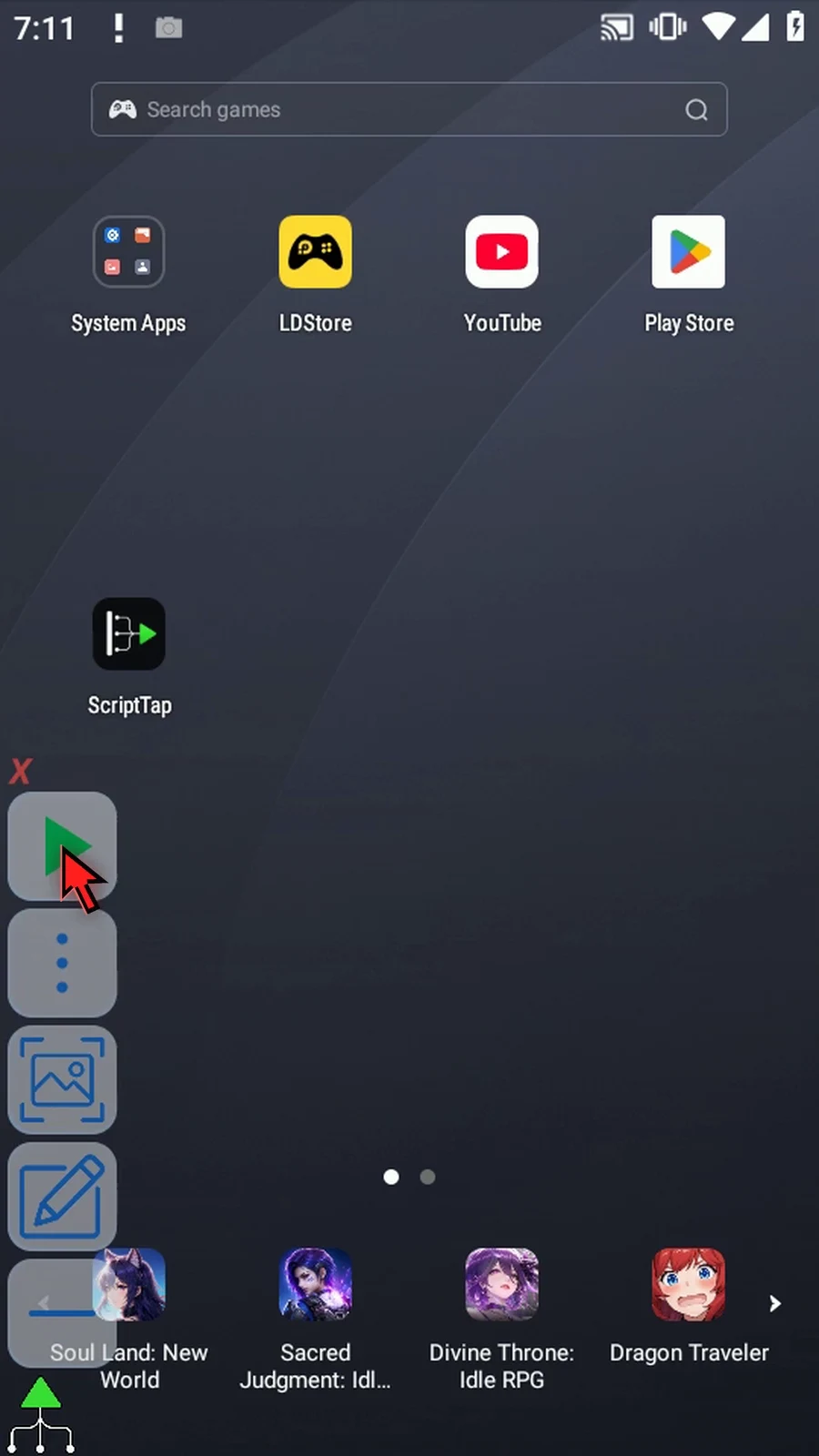
Step 31 Play Store opens using the saved coordinate pair. PromptMe confirms that execution reached the end. Tap Done, and the script finishes automatically.
Step 32 Use Point Rows for chosen positions and Grid for regular spacing. AppendPoints prepares the coordinate data; later commands decide what to do with it.