Command video guide
PixelFind
PixelFind searches screen pixels for selected colors. It can return one location or several results, optionally tap them, and save coordinates. This Overview explains the options without running a script. It uses color values, not image assets.
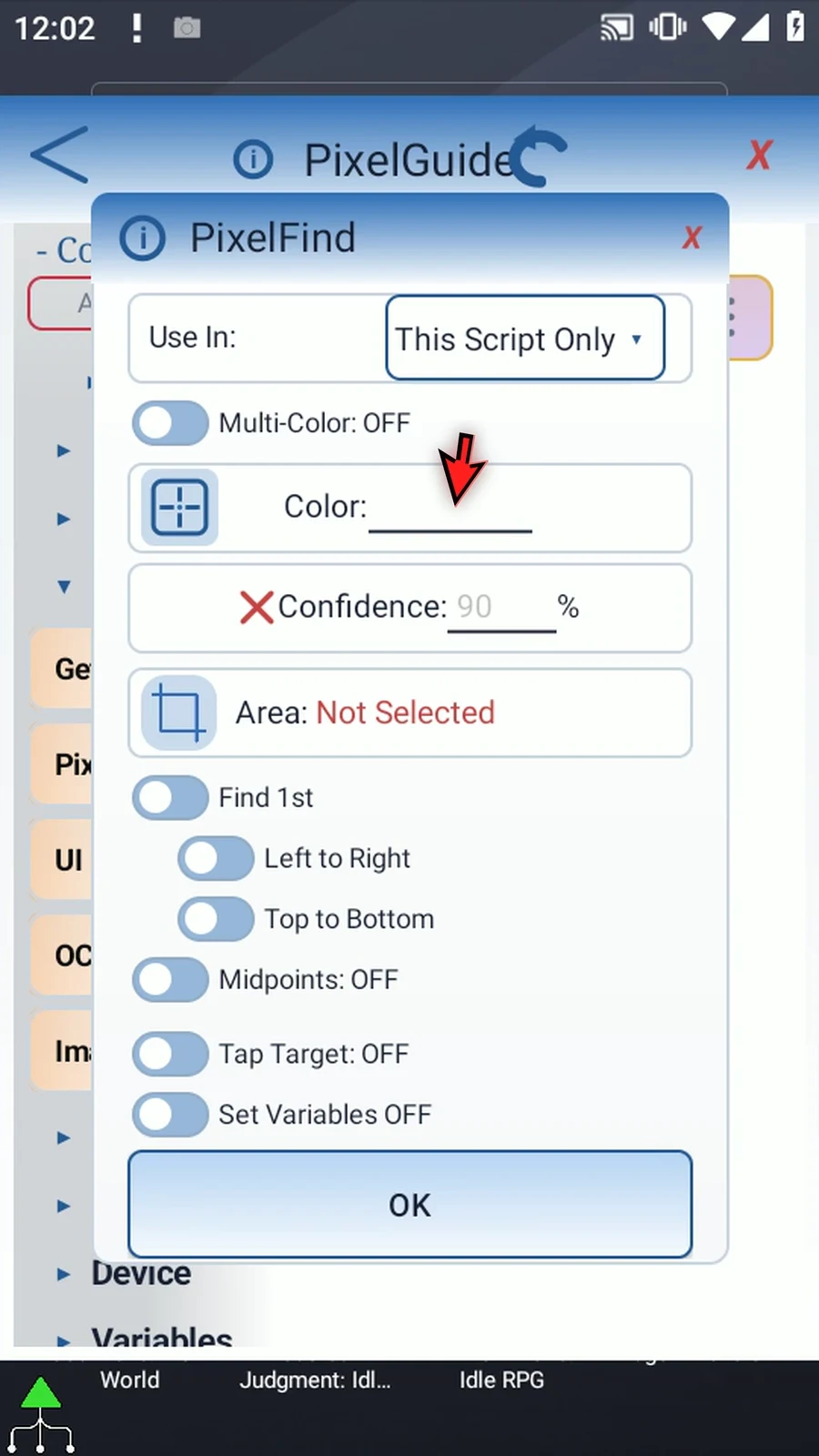
Drag PixelFind from Capture. Use In chooses This Script Only or Script Thread for saved output variables. Color accepts six hexadecimal digits without a number sign, or an earlier Hex variable. The square picker samples one screen color.
Multi Color exposes additional rows, up to twenty colors. Plus adds a row; the row red X removes that specific color. The hand capture tool collects multiple samples in one visit and replaces the list with those samples in selected order. Classify uses that color order.
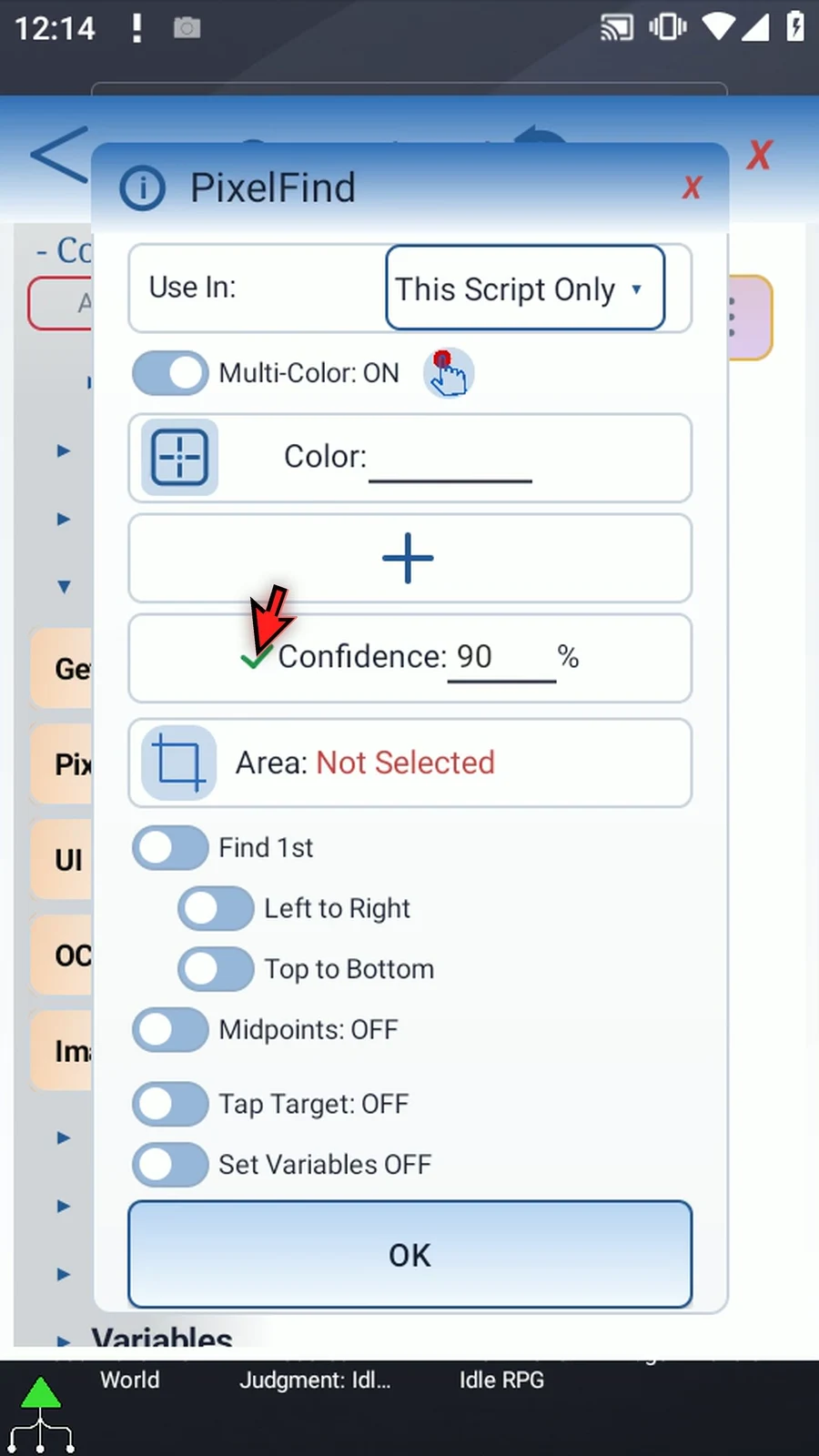
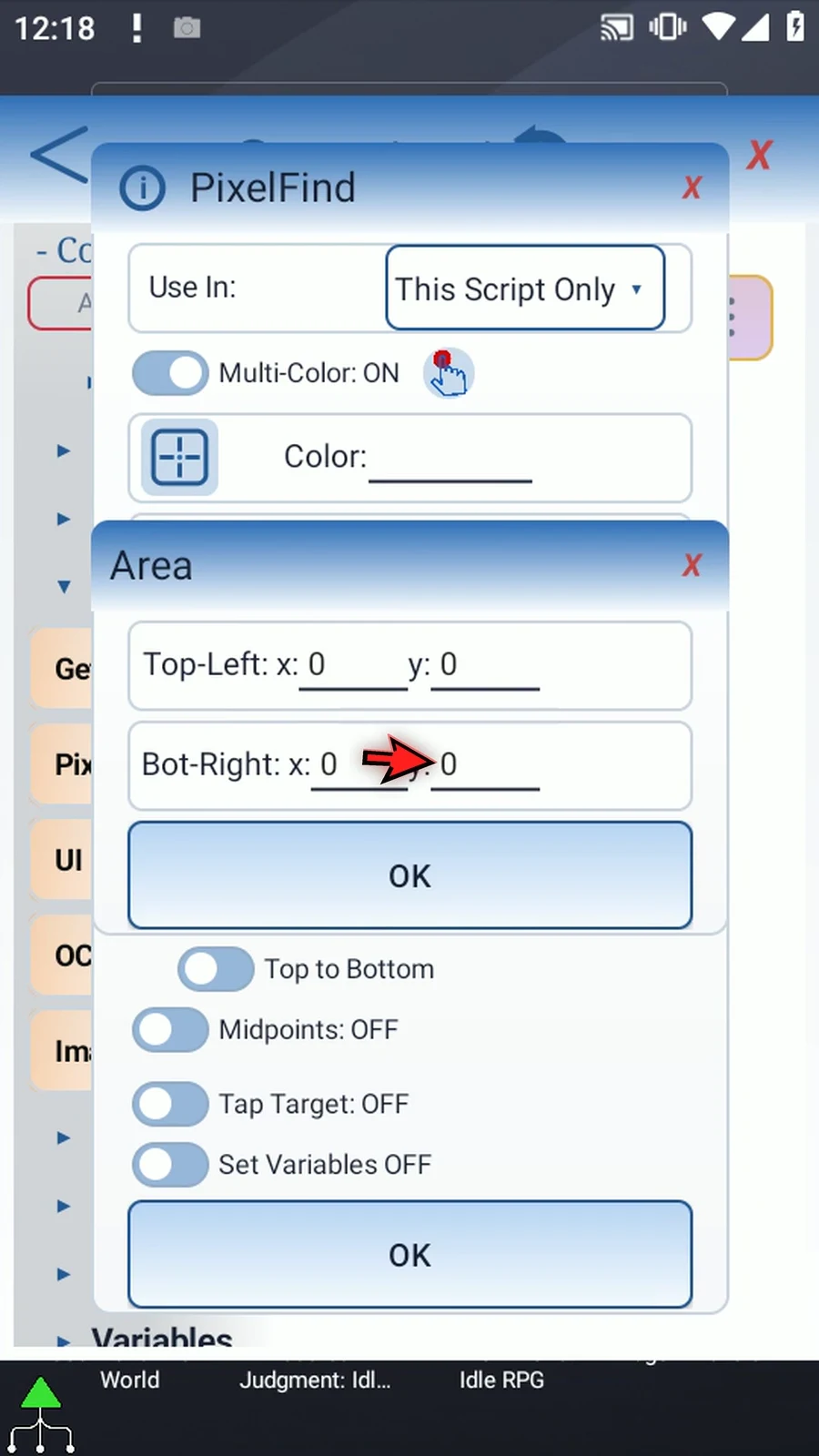
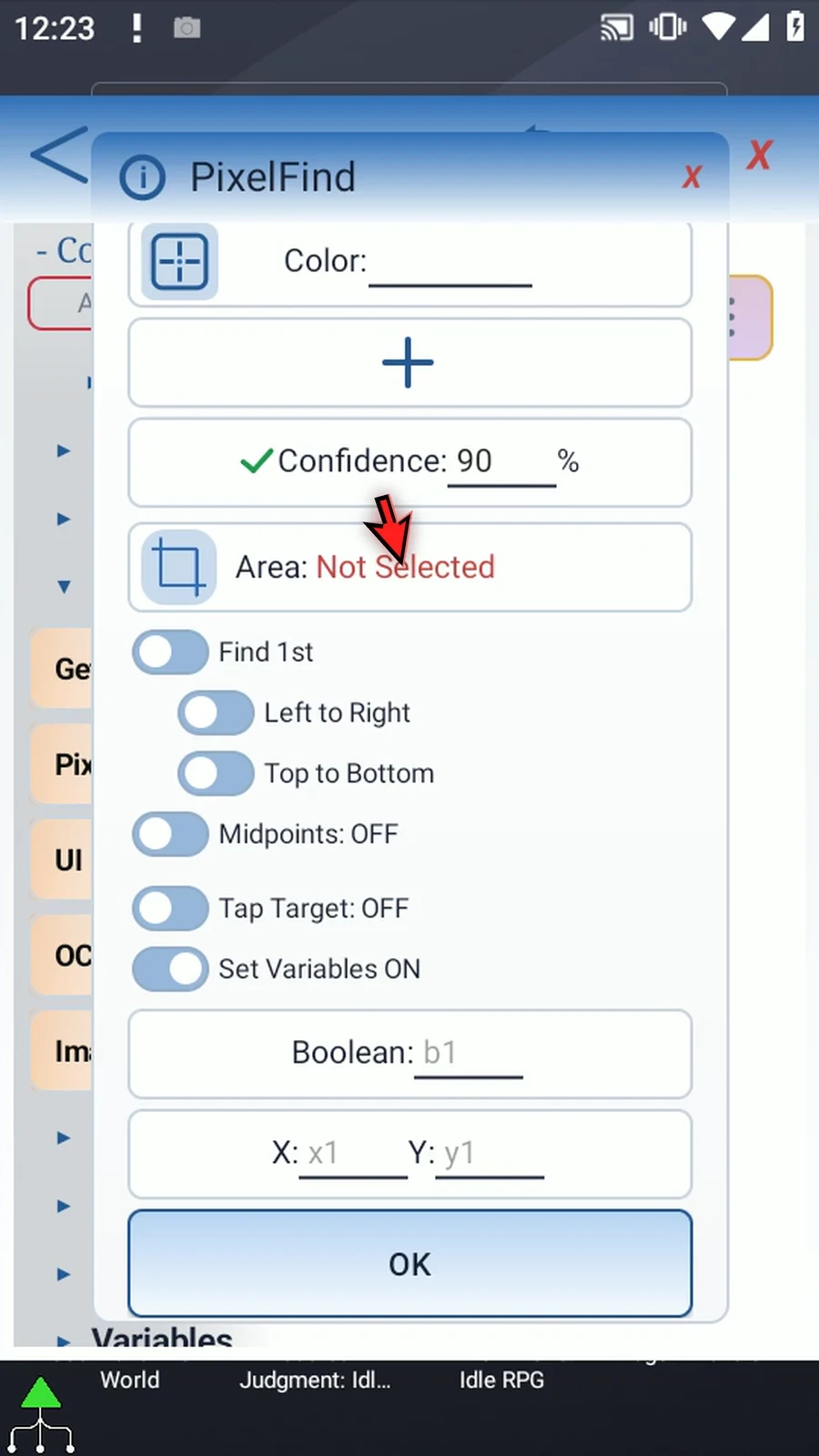
Confidence OFF requires an exact color. ON accepts a percentage from 1–100, or an earlier Integer variable. At 100 the match is exact; lower values allow greater variation. The fresh ON field shows 90. Area restricts the search to a rectangle; its selector and manual top-left/bottom-right coordinates are alternative ways to define that region. Keep it small and relevant.
The Find1st / FindAll switch changes the search strategy. Find1st stops at the first matching pixel. Its left/right and top/bottom switches control scan direction; the result is not automatically a shape center. FindAll collects up to Max Results, from 1–4096 or an earlier Integer value. Fill this limit before playing.
In FindAll, Midpoints groups connected matching pixels and returns rounded component centers. Without it, matching pixels are individual candidates. Ignore Radius suppresses additional accepted points near an earlier one; zero means none. With Midpoints enabled, the radius is applied to component centers.
Tap Target is optional. Center taps returned match positions. Set Coordinates uses fixed X/Y, earlier Integer variables, or a selected screen target. FindAll with Center can tap each returned result; a fixed target is tapped once. Leave Tap Target OFF for a read-only search.
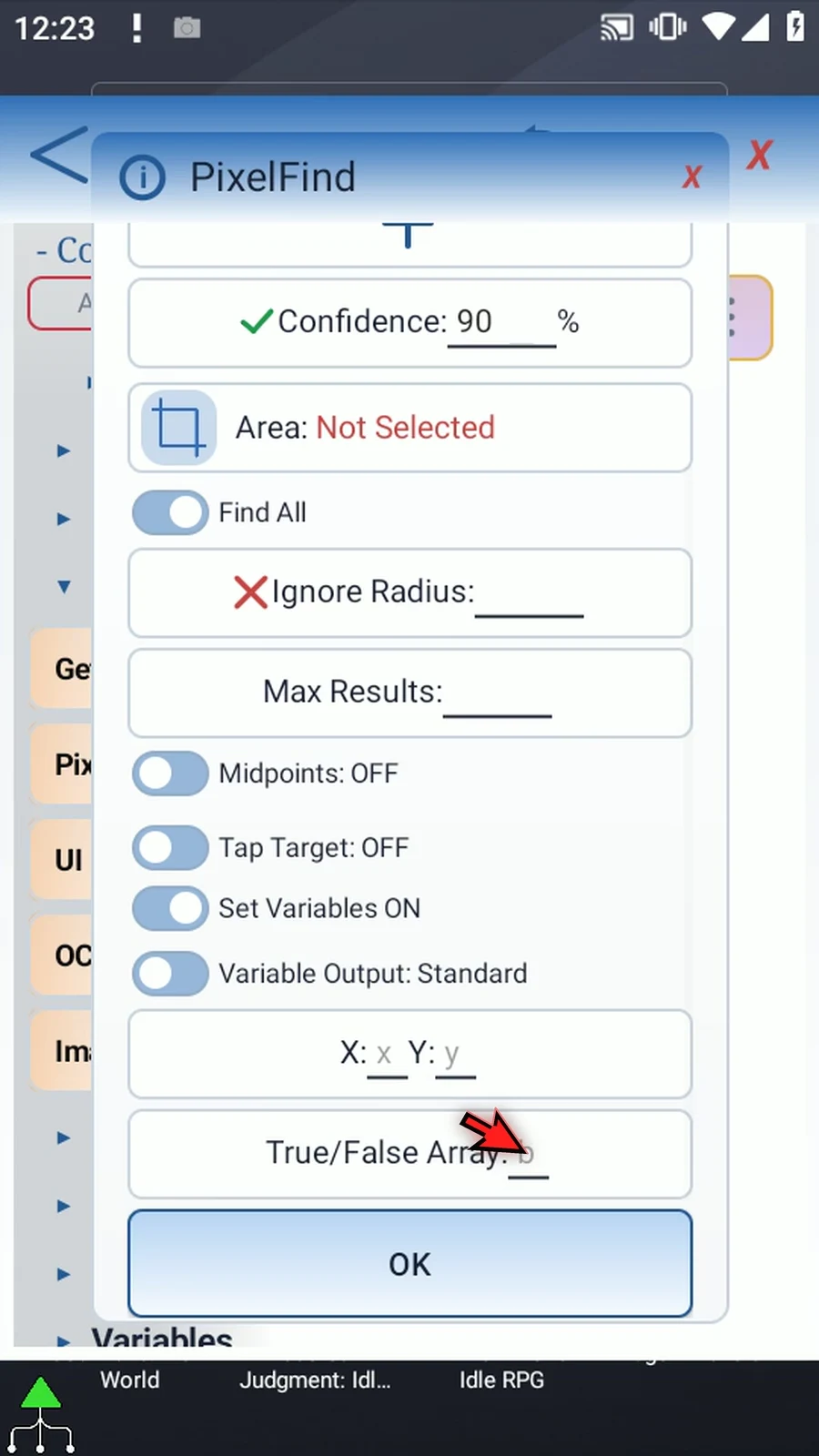
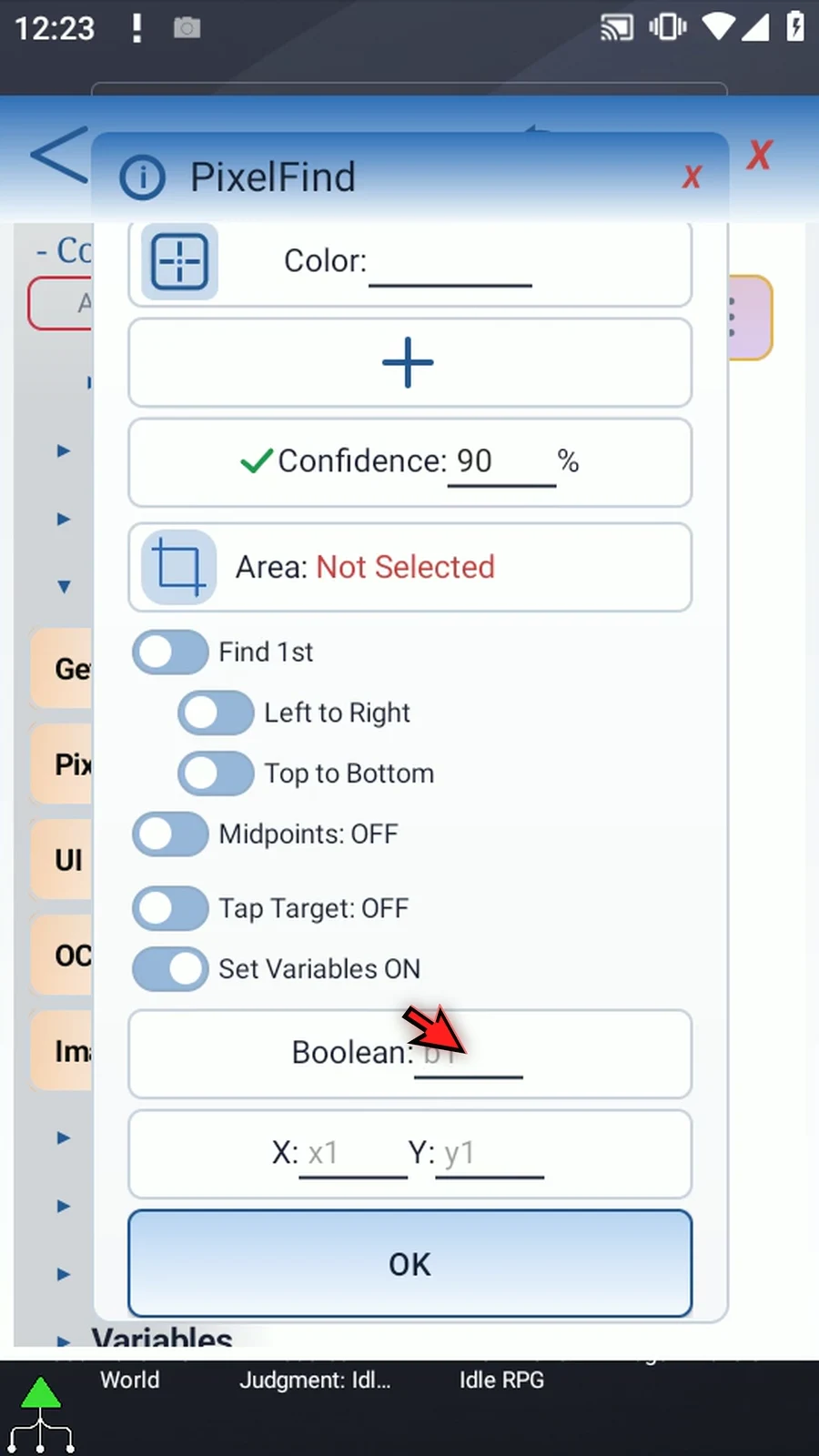
Set Variables exposes typed destinations. Find1st uses a Boolean scalar for found status and Integer scalar X/Y coordinates, such as b1, x1 and y1. FindAll Standard uses aligned Boolean and Integer X/Y arrays. Arrays use one-letter destinations such as b, x and y; later commands address slots such as x1 and y1. Unused slots are false or zero. Allocated array capacity is not the number of matches.
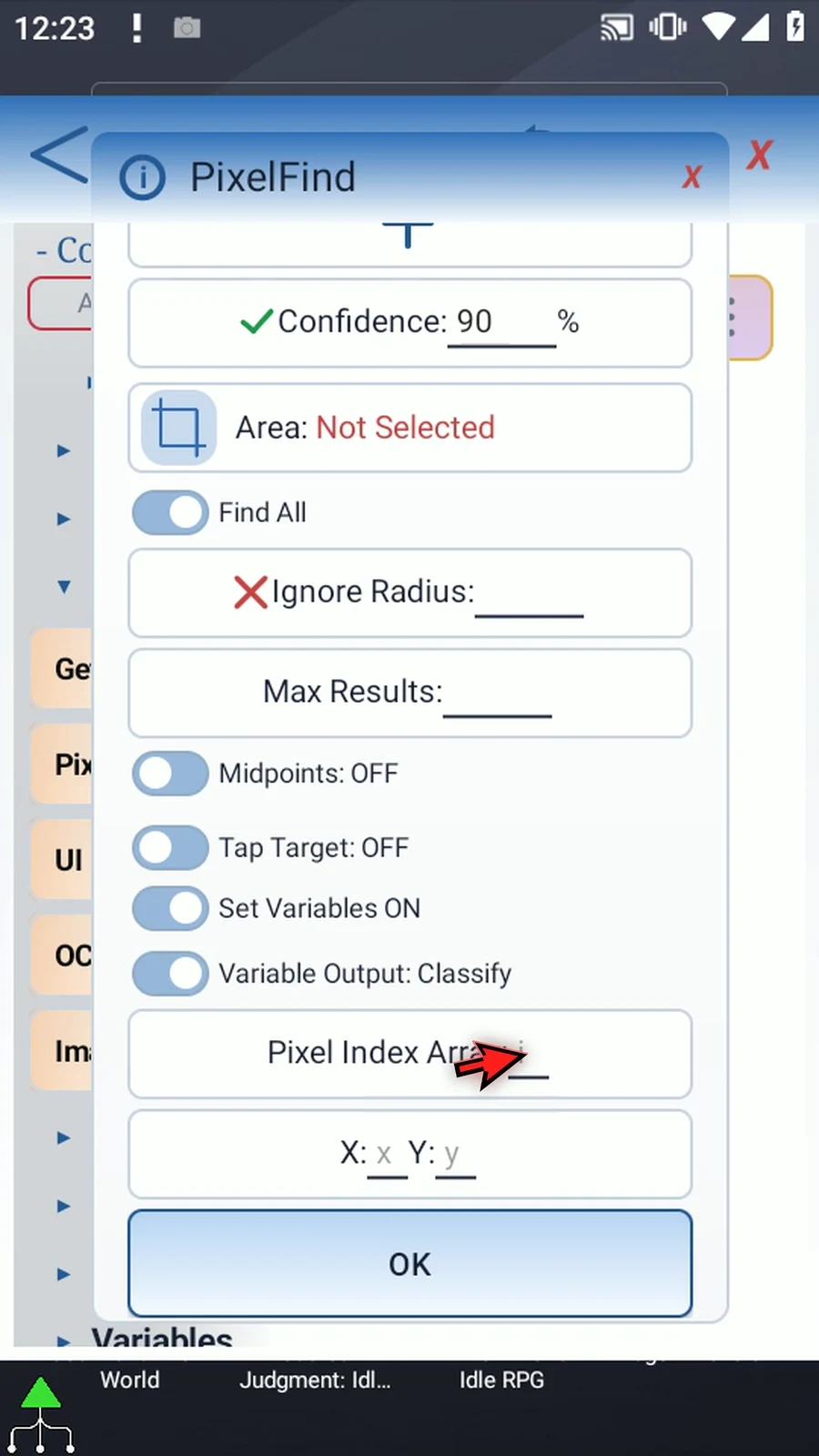
FindAll Classify replaces the Boolean array with an Integer Pixel Index array, alongside aligned Integer X/Y arrays. Index 1 identifies the first listed color, 2 the second; zero means an unused slot. Keep the same slot across index, X and Y when consuming a result.
Changing Find1st/FindAll or Standard/Classify clears the outgoing mode-specific output fields. Choose the final mode, then enter and verify destinations. Use distinctive sampled colors and test on the target device: backgrounds, animation and display differences can affect matching. This tour cancels its draft without saving or playing.
Overview
Step-by-step guide
Step 01 PixelFind looks for specified colors on the screen. It can locate one matching pixel or collect several results, optionally tap them, and save coordinates for later commands. Unlike image matching, it needs color values rather than an image asset. This overview explains the options without playing a script.
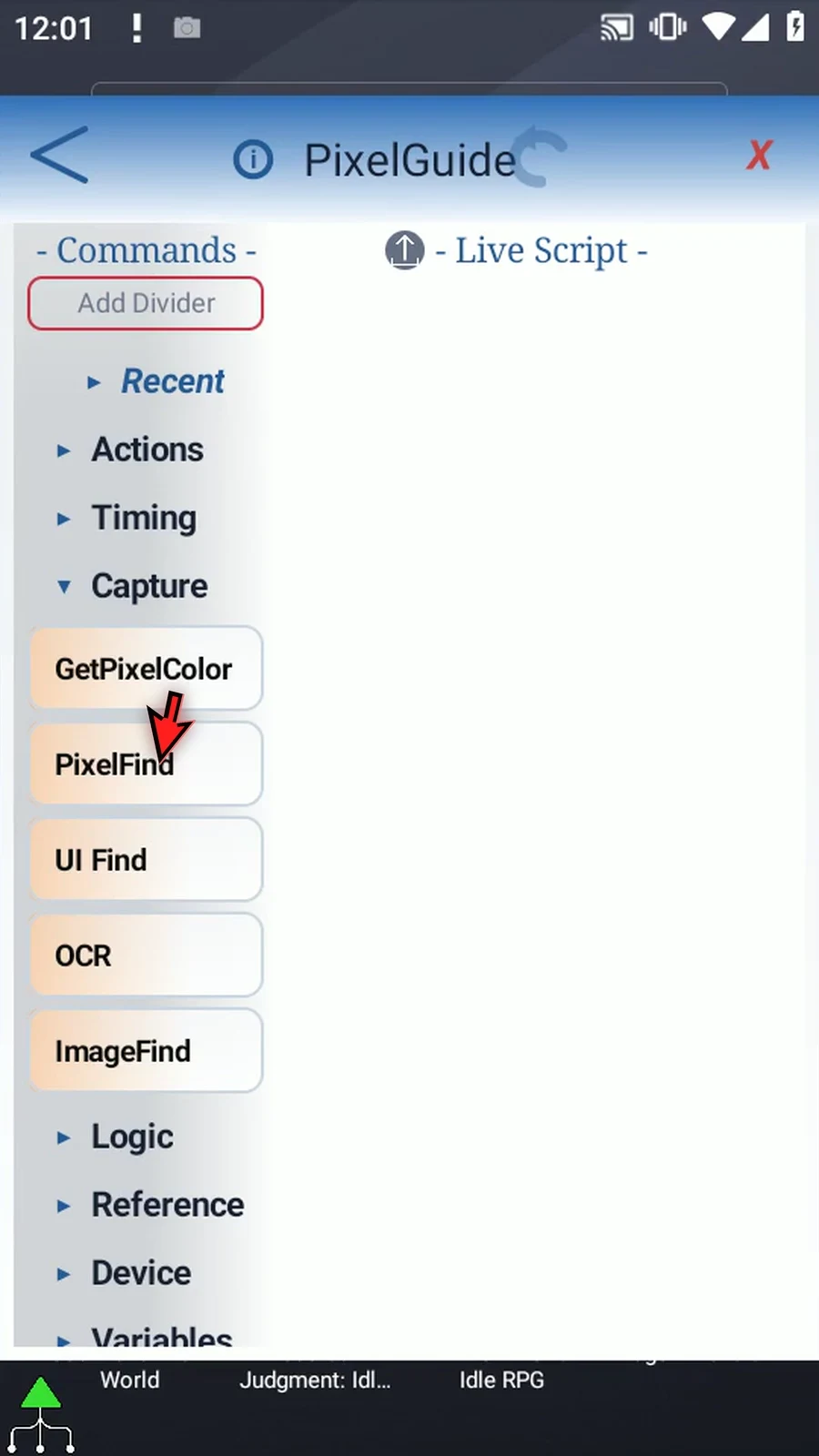
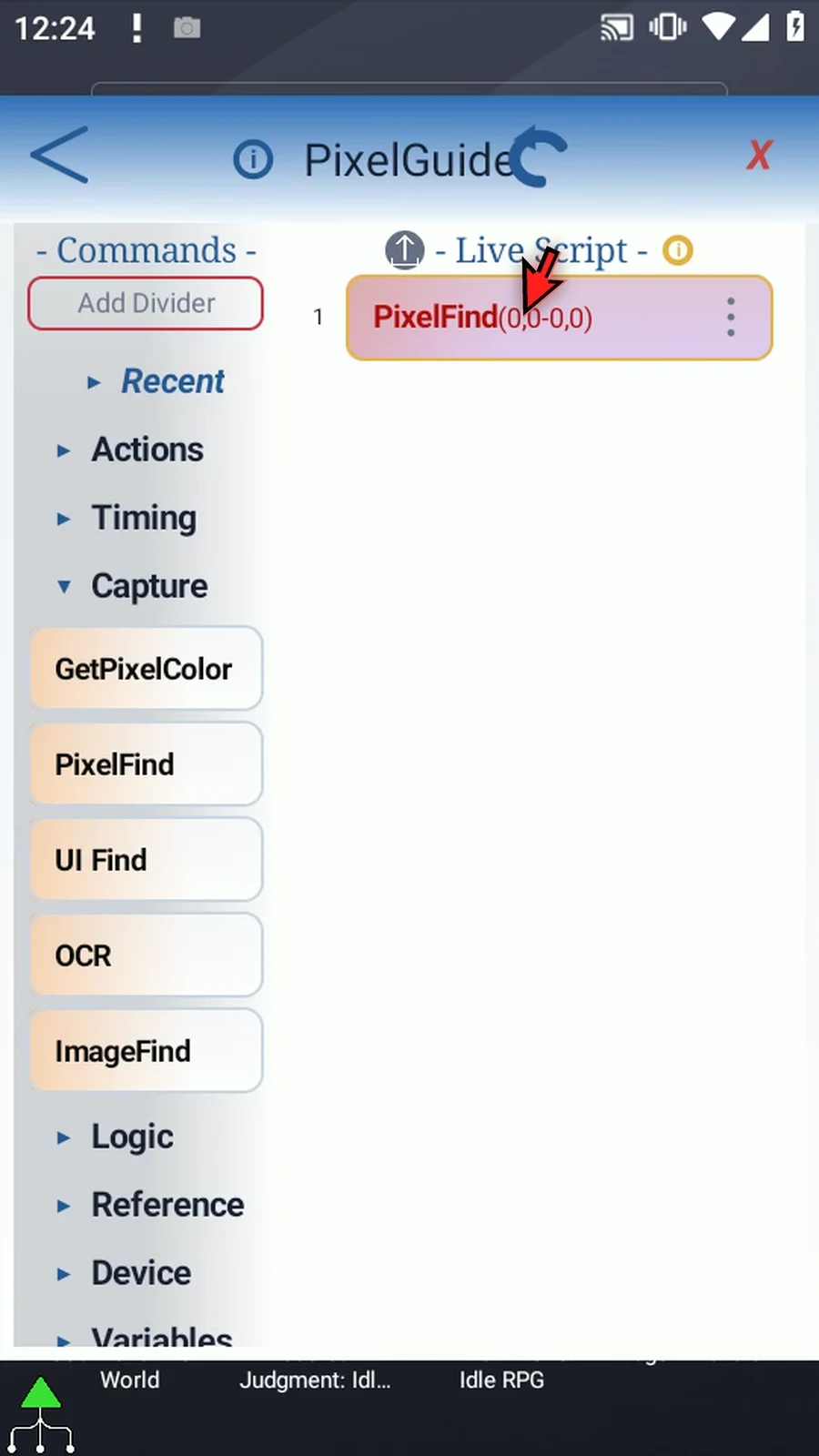
Step 02 Drag PixelFind from Capture into the script, then open the placed row. Start with the color to look for, restrict the search area, and choose whether you need the first result or all results.
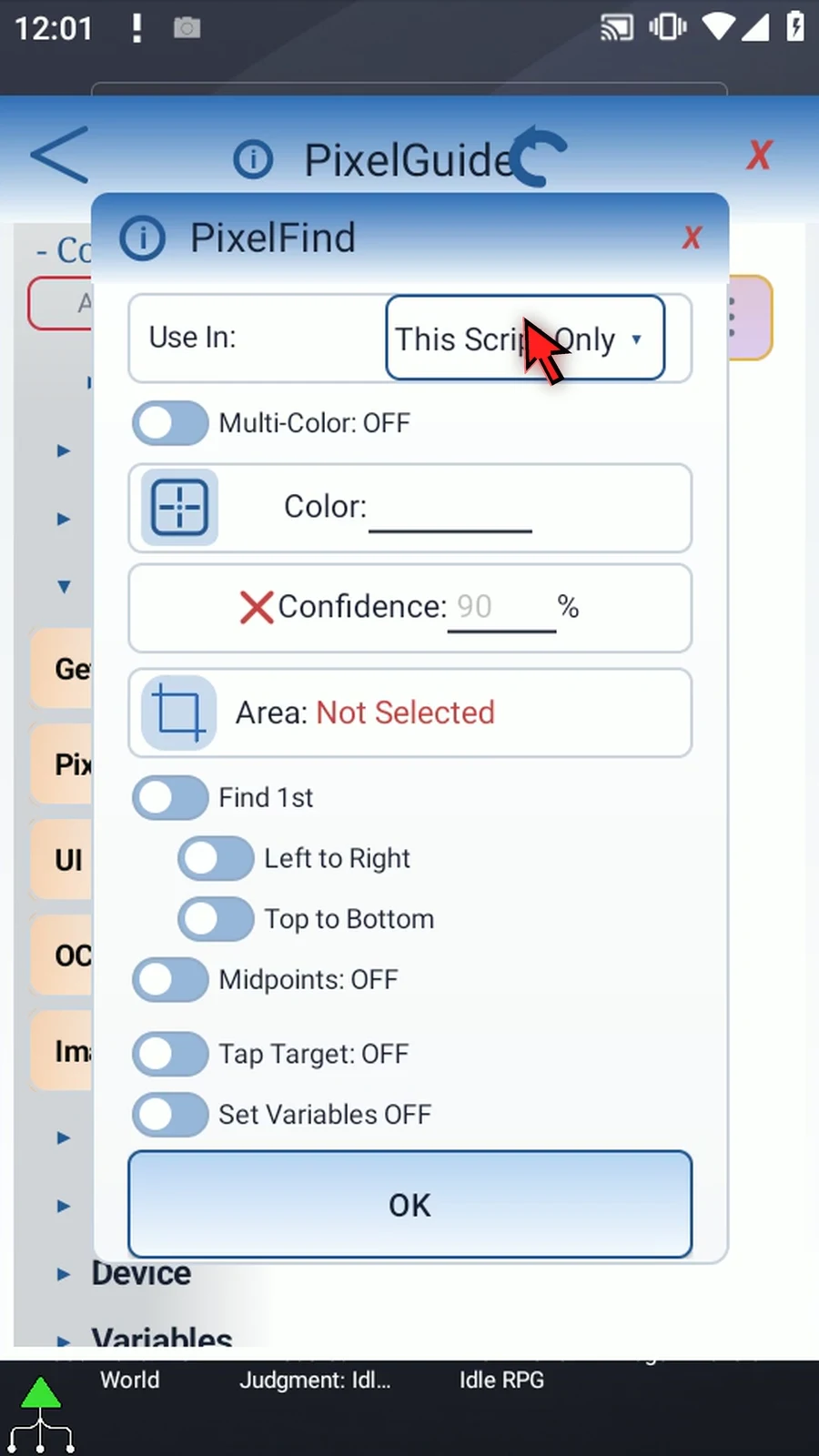
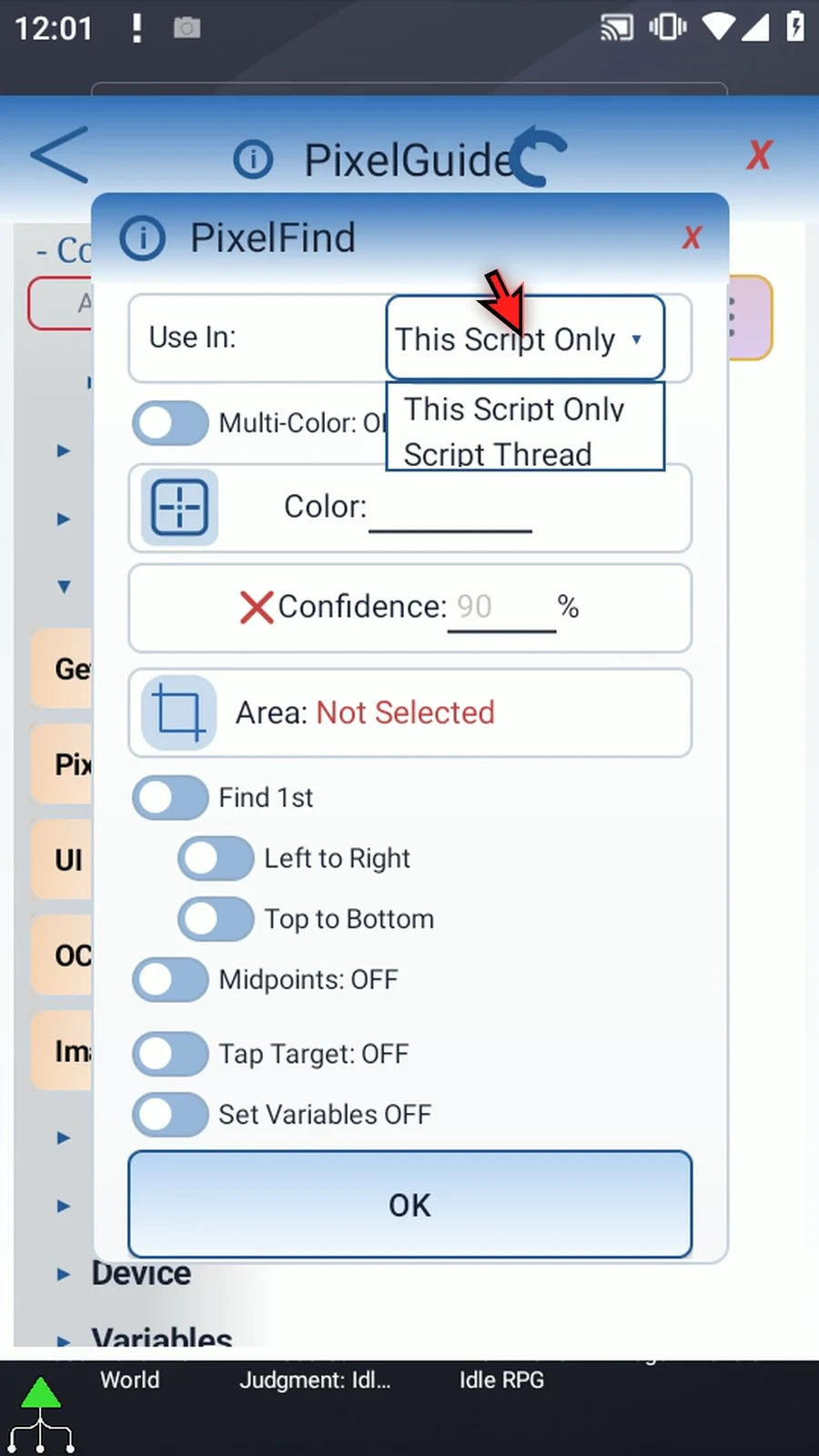
Step 03 Use In selects the scope of the output variables. This Script Only keeps results local. Script Thread allows related scripts in the same thread to use them. Choose the scope that matches the later commands consuming these results.
Step 04 Color accepts a six-digit hexadecimal color without the number sign, or a Hex variable written earlier. The square beside the field opens a screen color picker. Sampling the actual screen is usually easier than guessing its color value.
Step 05 Turn Multi Color on to manage several target colors. The plus button adds a color row, up to twenty colors. Each row has its own color picker. Remove an unwanted row with its red X; this removes that color, not the whole command.
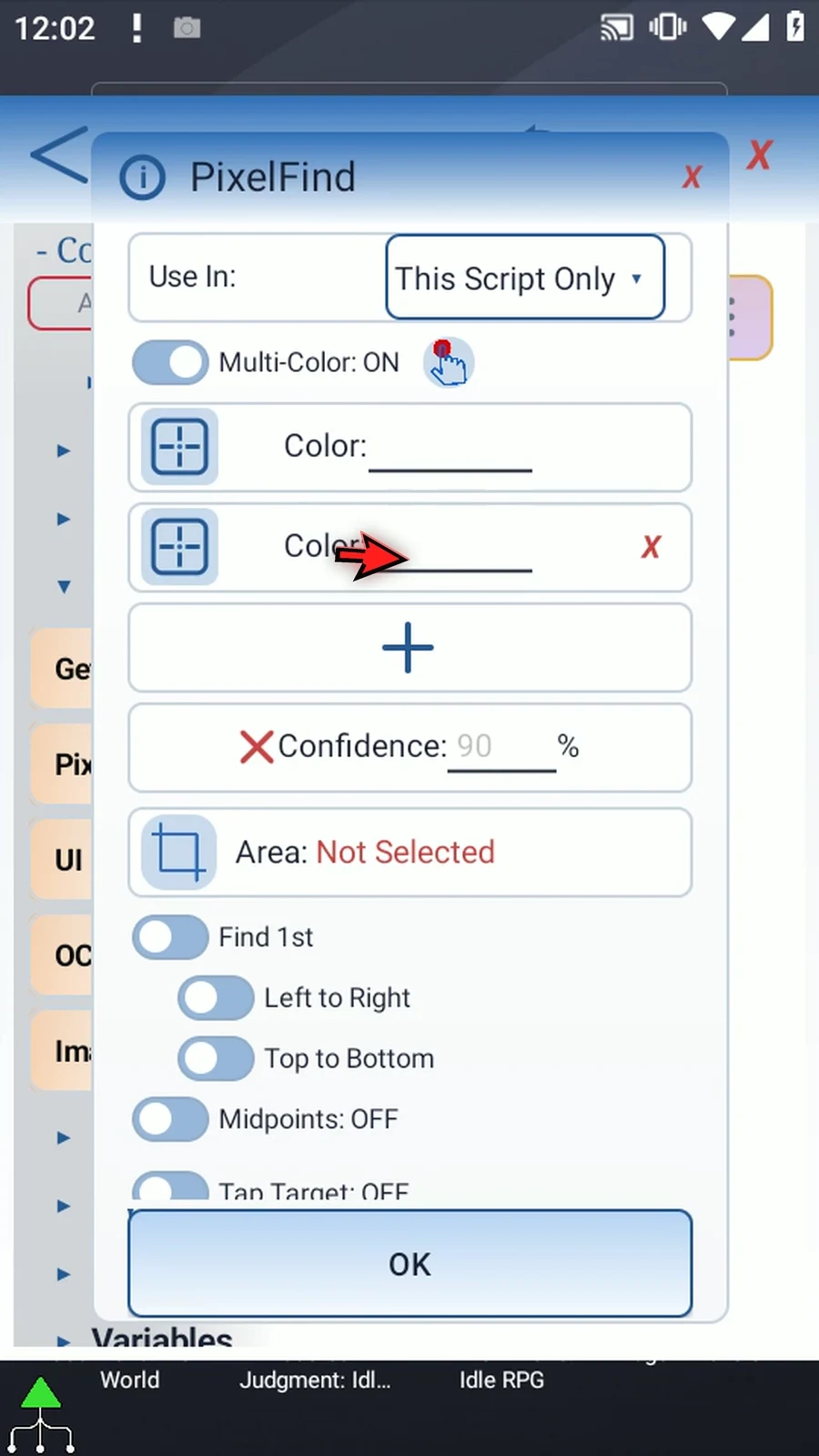
Step 06 The hand capture button lets you collect several screen samples in one visit. Saving that selection replaces the color list with the chosen samples in their selected order. This order matters later if you use Classify output to identify which color matched.
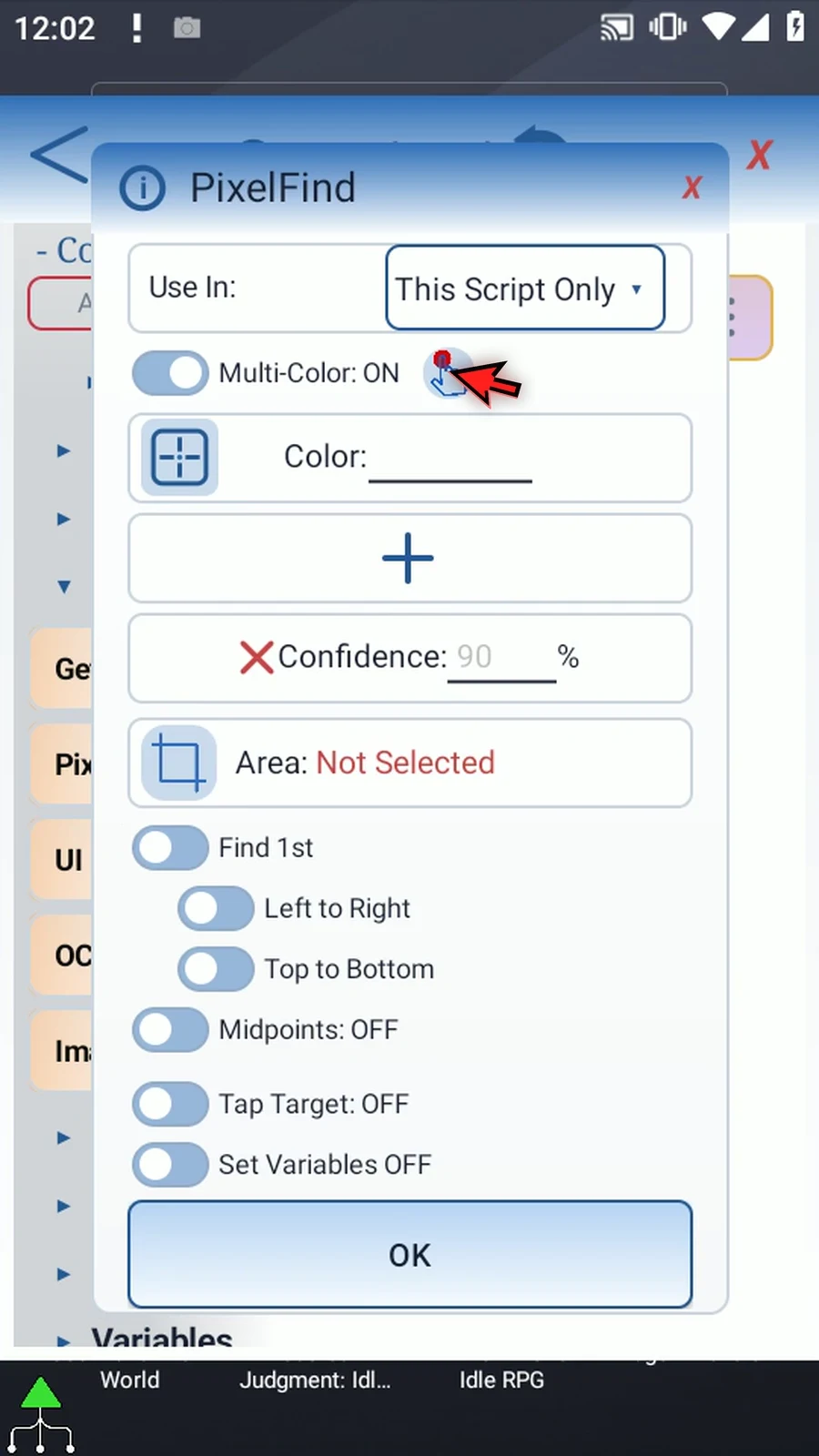
Step 07 Confidence off requires an exact color match. Turn it on to allow a match at the chosen confidence percentage. One hundred still requires an exact match; lower values allow more variation. Start strict and loosen it only as needed, because common colors can produce unrelated matches.
Step 08 Area limits where PixelFind searches. Use its selector to choose a rectangle, or open the coordinate fields for precise values. A small, relevant area makes the search more specific and avoids matching the same color elsewhere on the screen.
Step 09 Find Mode offers Find First and Find All. Find First stops at the first matching pixel in the selected scan direction. Find All collects matching results up to your result limit. They share the colors and search area, but expose different search and output controls.
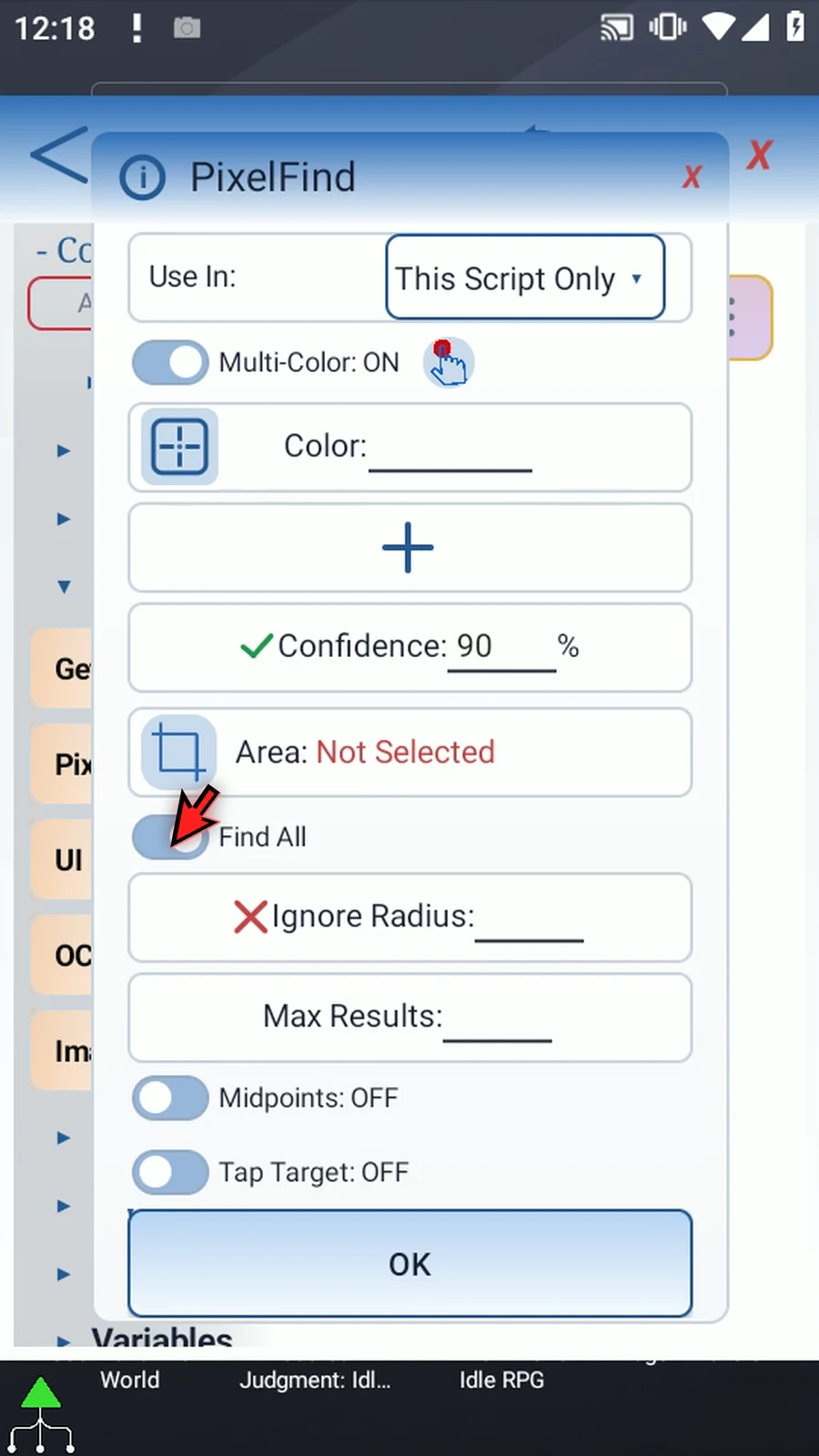
Step 10 In Find First, the two direction switches choose left to right or right to left, and top to bottom or bottom to top. They decide which matching pixel is encountered first. This is not automatically the center of a colored shape.
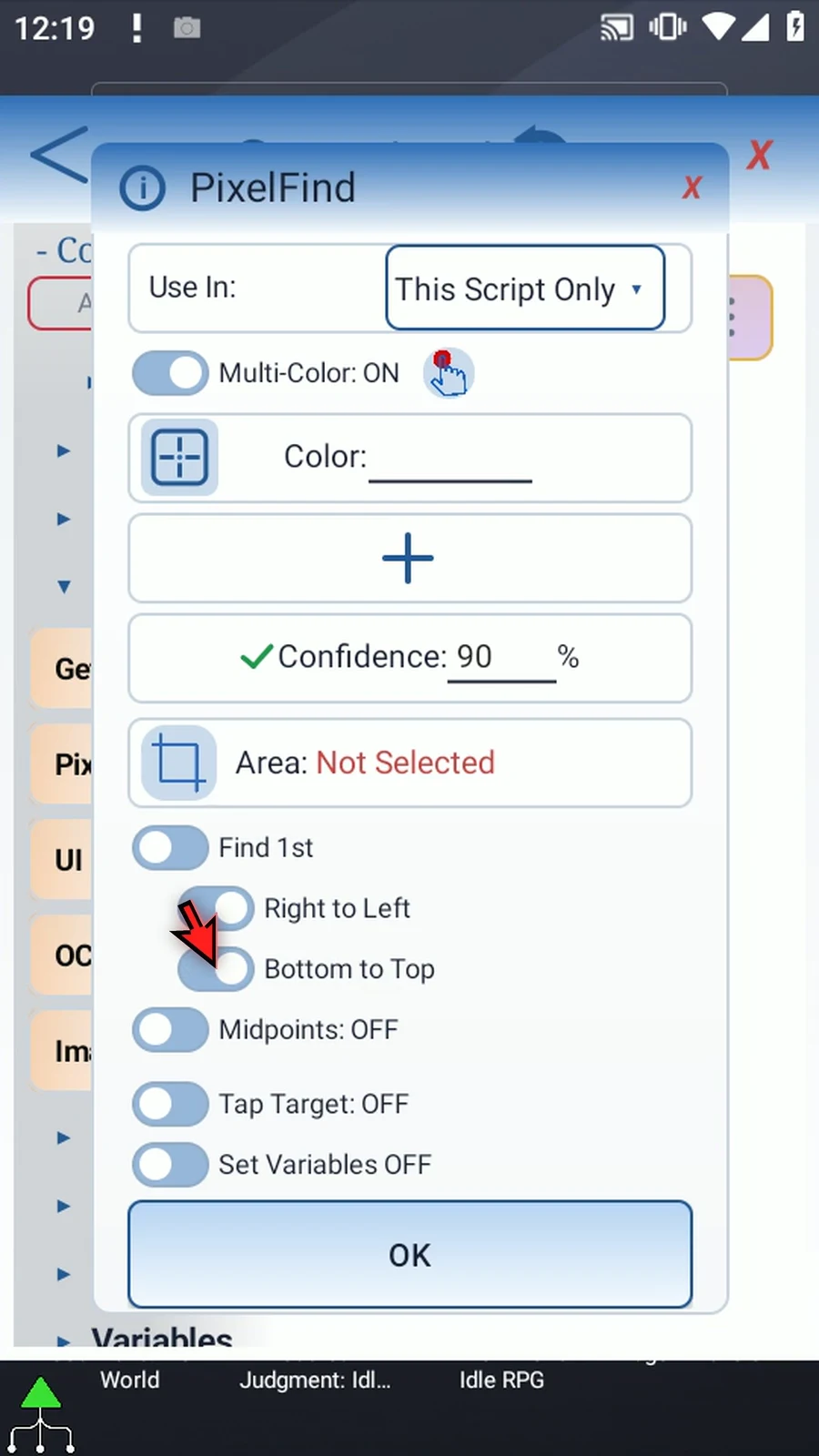
Step 11 Tap Target is optional. Leave it off when you only need to find a color or save its location. Turn it on to perform a tap after a successful match. Center uses the returned match location, rather than an unrelated fixed screen position.
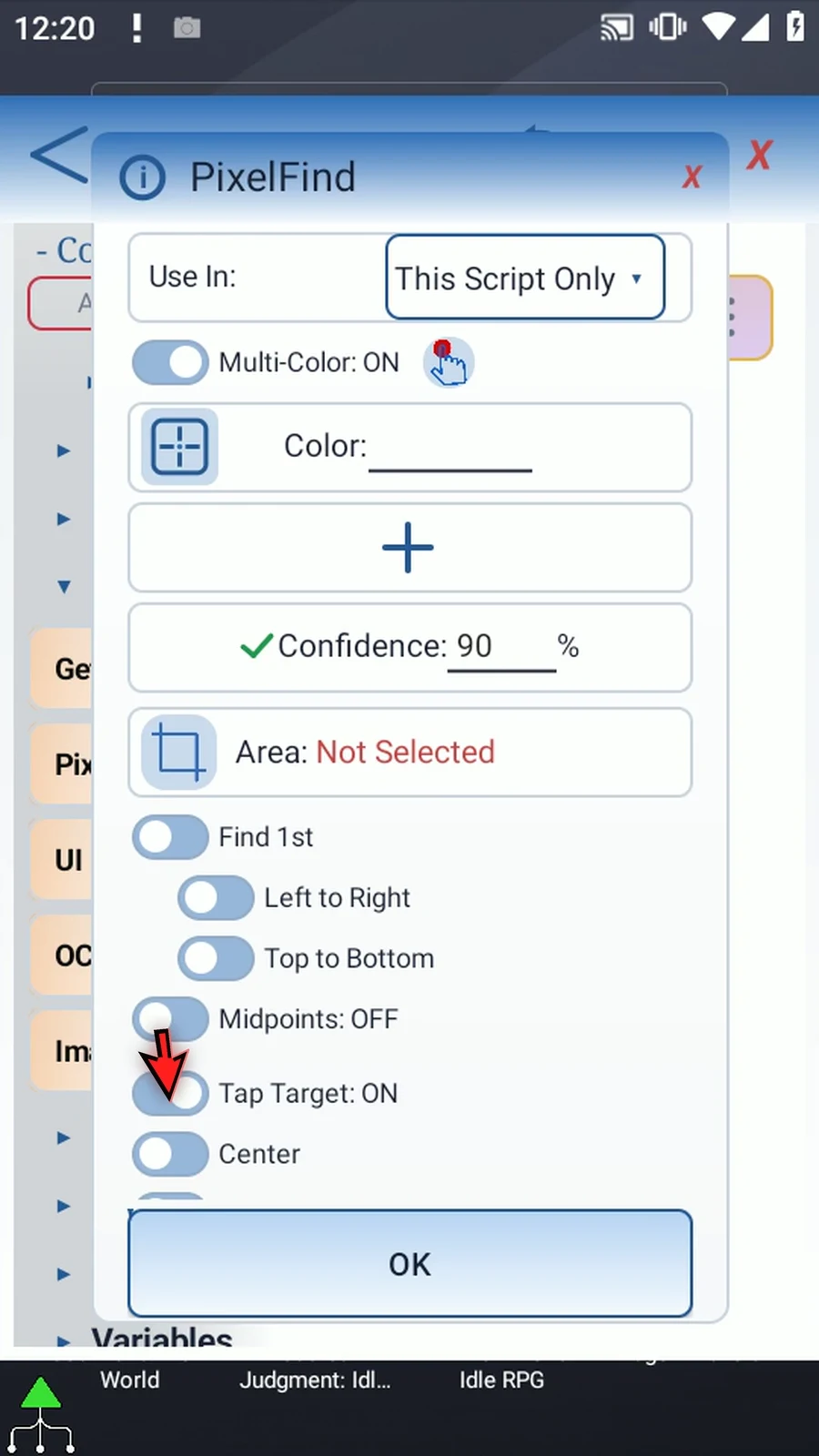
Step 12 Choose a fixed X and Y when the match should trigger a tap somewhere else. You can enter coordinates, use earlier Integer variables, or select the target on screen. In Find All, a fixed target is tapped once, while Center can tap each returned result. Turn tapping off for a read-only search.
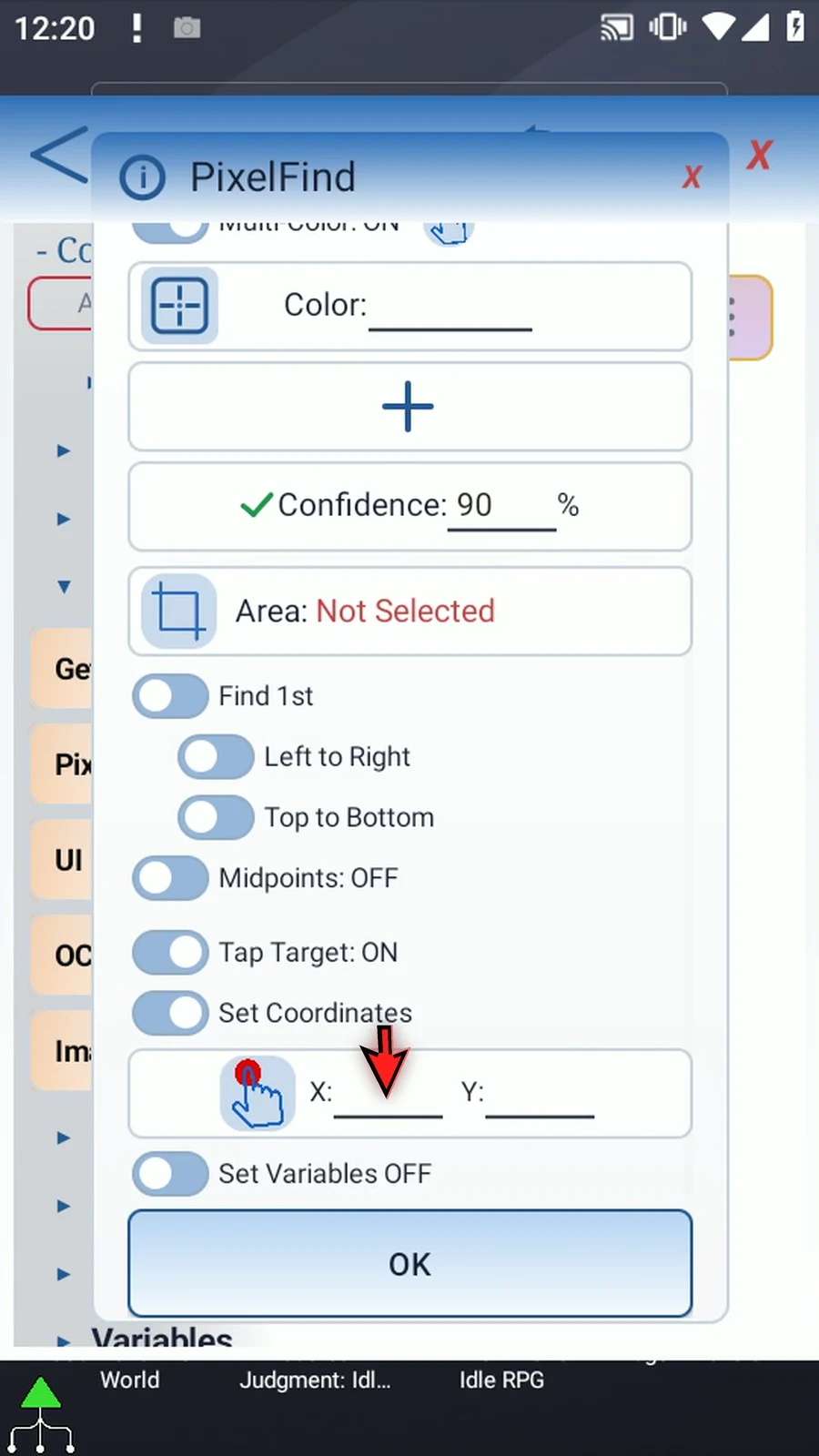
Step 13 Set Variables lets later commands use the result. In Find First, Boolean reports whether a match was found, while Integer X and Y hold its coordinates. Enter destination names such as b1, x1 and y1, using the matching variable types. These are scalar destinations, not array letters.
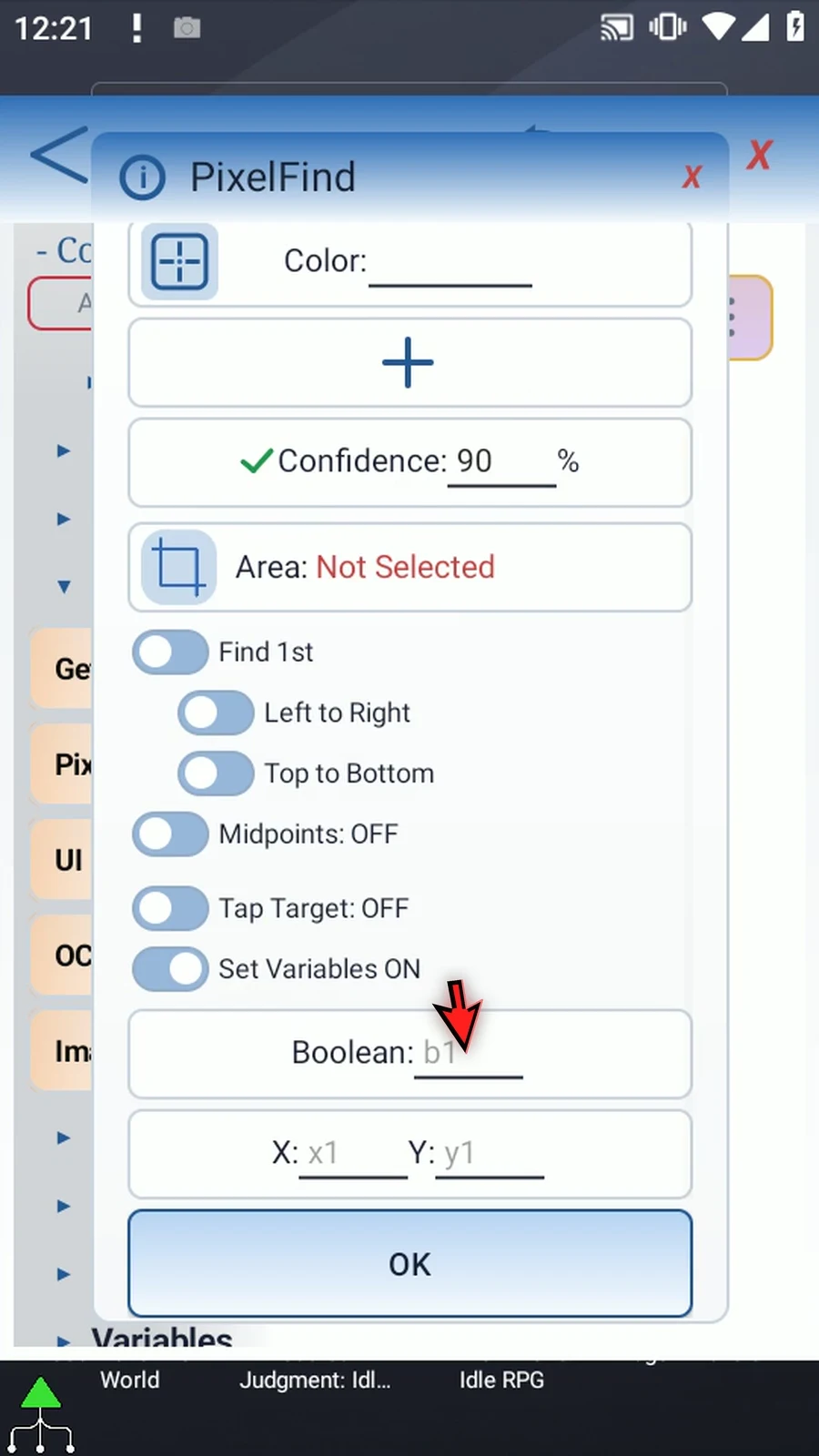
Step 14 Switch Find Mode to Find All. This mode is useful when several matching locations matter. Its Max Results limits how many results can be returned, from one to four thousand ninety-six. You can also supply an earlier Integer variable. Fill this limit before playing the command.
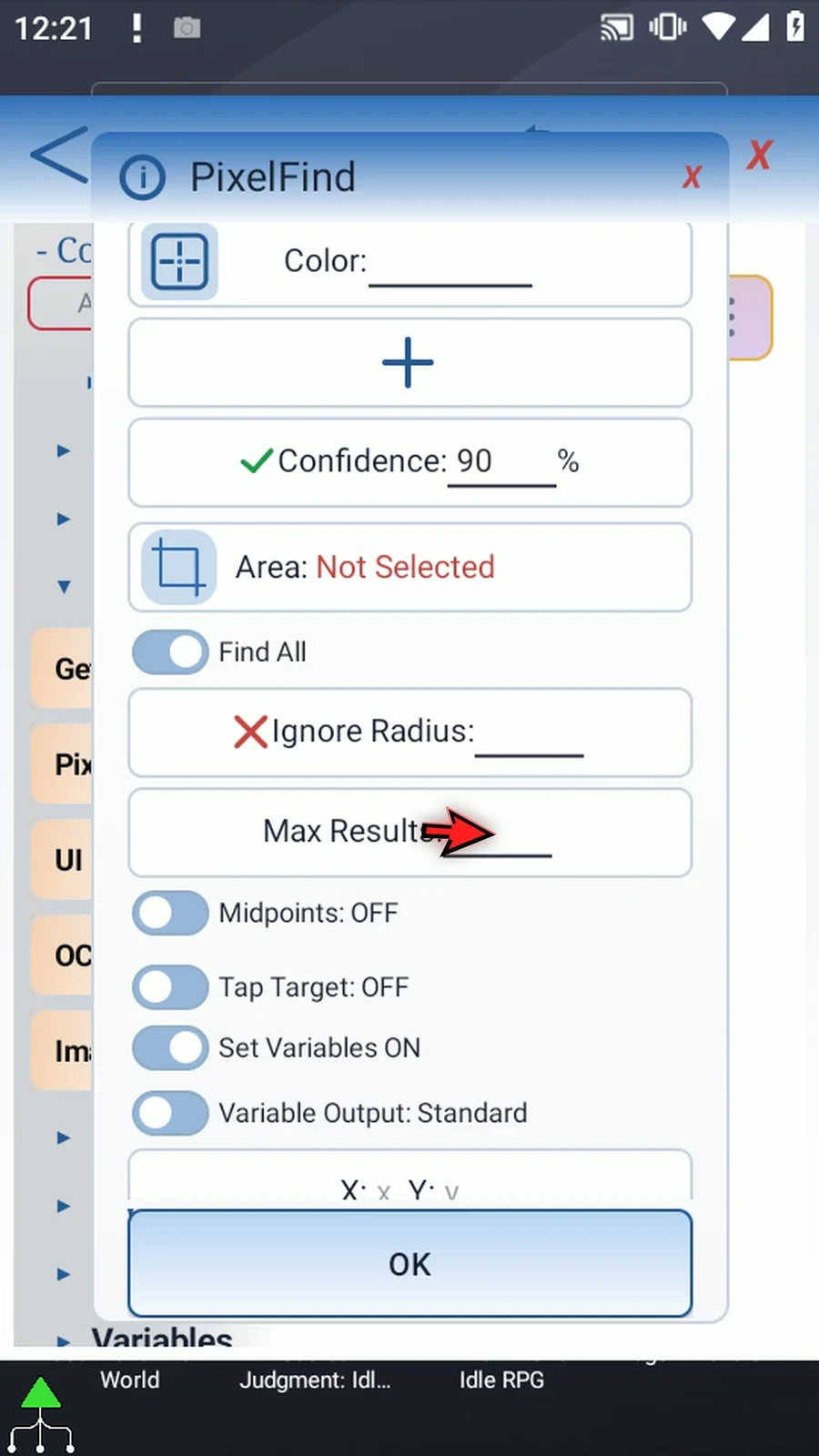
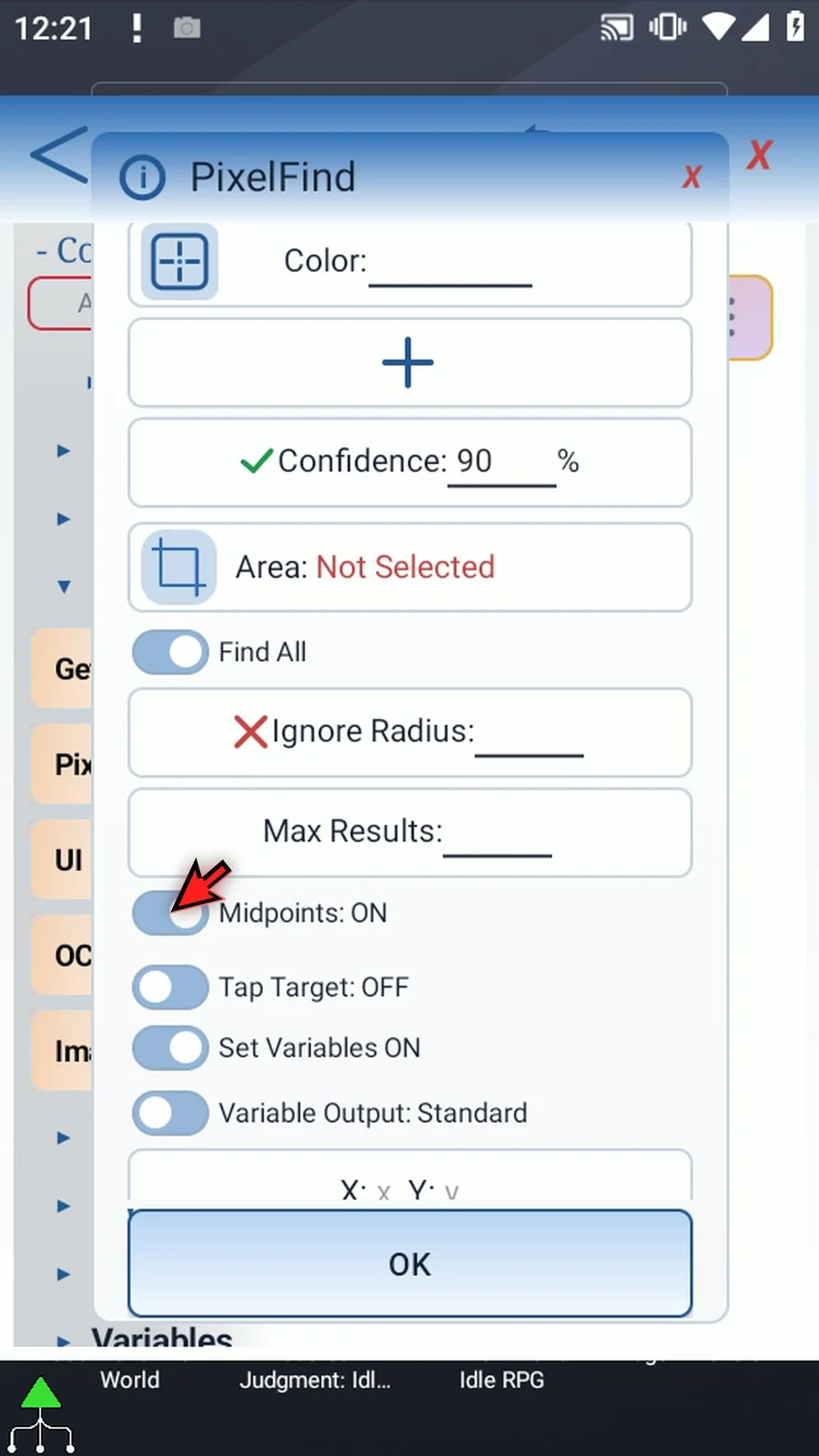
Step 15 Midpoints groups connected matching pixels and returns the rounded center of each group. This can turn a solid colored region into one useful target instead of many neighboring pixels. Turn it off when you want individual matching pixels rather than region centers.
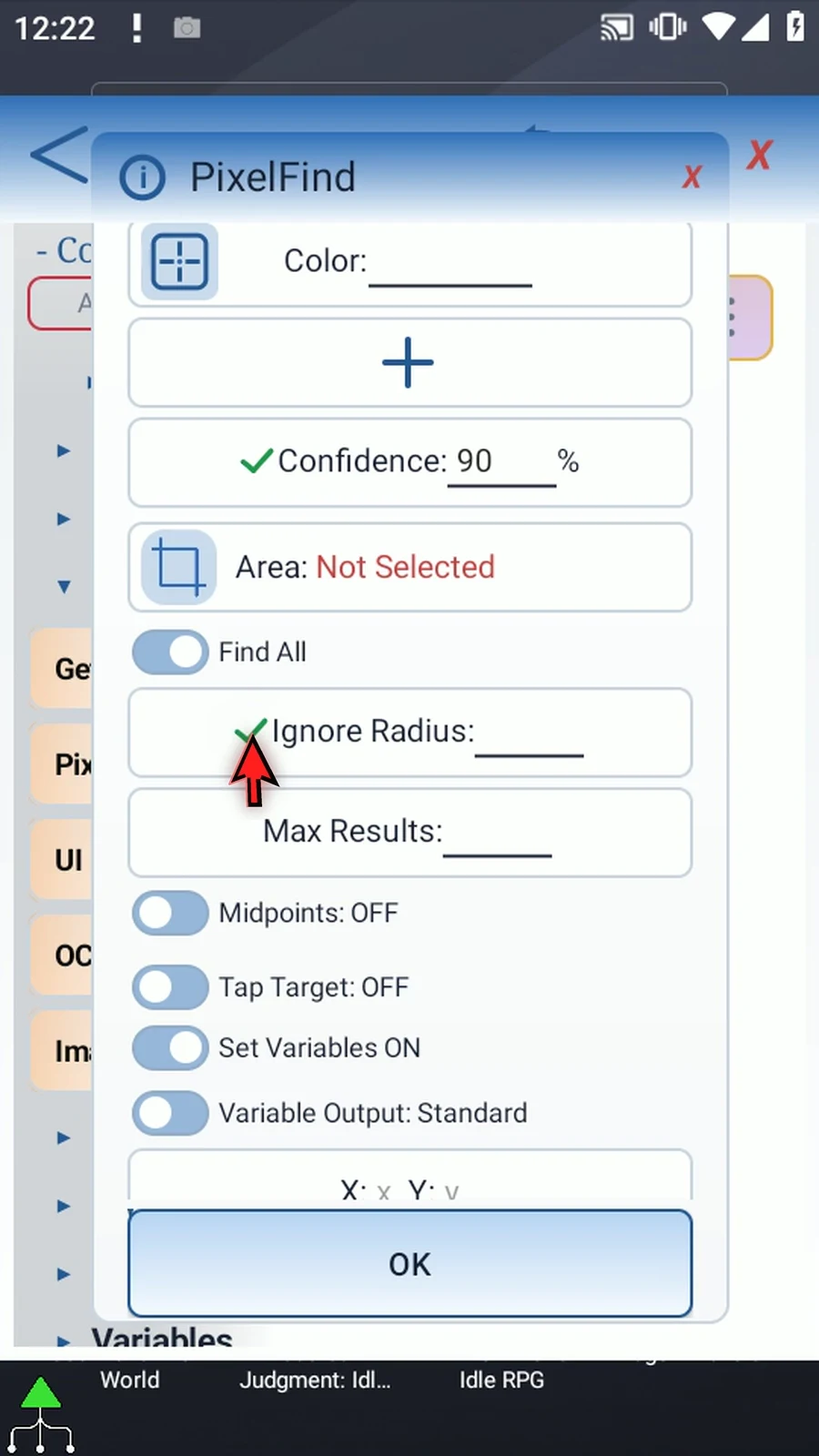
Step 16 Ignore Radius suppresses additional results close to a point already accepted. Use it to avoid several nearby targets from the same feature. Zero means no distance suppression. With Midpoints on, the radius is applied to the returned region centers. It does not change the search rectangle.
Step 17 With Set Variables on, Find All offers Standard and Classify outputs. Standard stores aligned arrays: Boolean marks valid result slots, while the X and Y Integer arrays store matching coordinates. Slot one in each array describes the same result, and so on. Unused slots are false or zero.
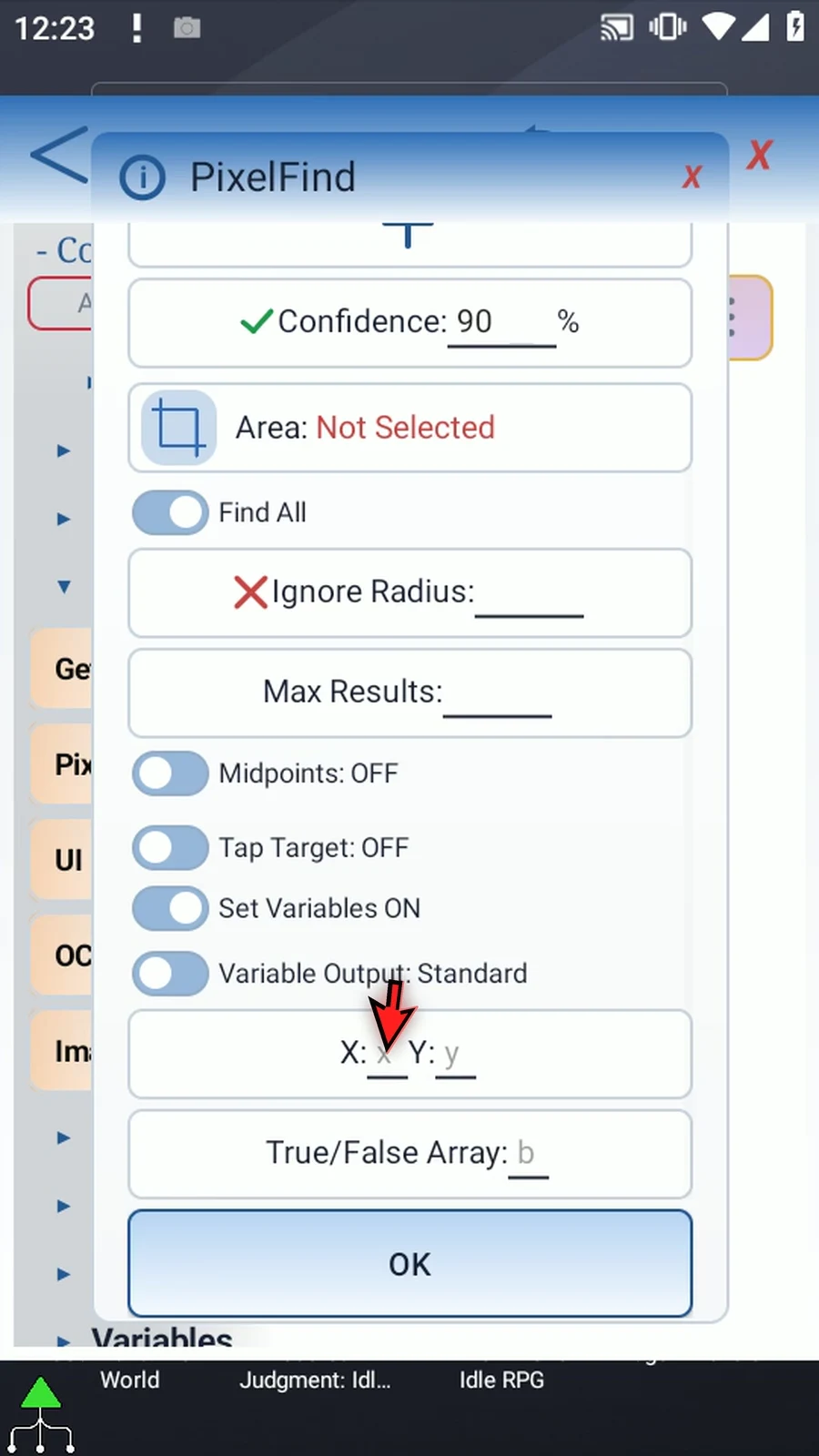
Step 18 Array destinations use one letter, such as x, y and b. Later commands address individual slots, such as x1 and y1. Do not treat the array's allocated capacity as the number of matches. Use valid result slots, and keep X and Y from the same slot together.
Step 19 Choose Classify when you need to know which listed color matched. It replaces the Boolean array with an Integer Pixel Index array, alongside the aligned X and Y arrays. One means the first listed color, two means the second, and zero marks an unused slot.
Step 20 Changing Find First versus Find All, or Standard versus Classify, resets the output fields belonging to the outgoing mode. Choose the final mode before filling destinations, then check the visible fields. PixelFind can search and save results without performing a tap.
Step 21 For reliable matching, pick a distinctive color from the real screen, keep the search area tight, and test on the device where the script will run. Background changes, animations and display differences can affect colors. Use a separate practical guide to see the shortest working setup and its result.
Step 22 This was an option tour, so close without saving the draft or playing the script. Use Find First for one location, Find All Standard for several locations, and Find All Classify when the color's identity also matters.
PixelFind can locate a screen color and tap its position automatically. This practical guide creates a new one-command script that samples green inside the Play Store icon and opens the app with Find1st.
Create and name a fresh script, then manually drag PixelFind from Capture. Keep This Script Only and Multi Color OFF. The square picker samples a six-digit color from the actual screen; it does not create an image asset. If Android asks, allow screen capture.
Confidence OFF requires an exact color. Select a tight Area around the icon so unrelated pixels elsewhere cannot match. Keep Find1st, Left to Right, Top to Bottom and Midpoints OFF. The first matching pixel is chosen by scan order, not by the center of the whole icon.
Enable Tap Target and retain Center to tap the returned match location. Optionally enable Set Variables: b1 stores the Boolean found status, and Integer x1/y1 store its coordinates for later commands. No supporting command is needed for the automatic tap.
Save, close the editor, and start with the icon visible inside the selected region. Use Play in the main overlay: the matched tap opens Play Store, and the script stops automatically. Test on the target device because icon position and display colors can change. The Overview explains the other settings.
Intro & Find First
Step-by-step guide
Step 01 PixelFind can locate a screen color and tap its position automatically. In this example, we'll sample green inside the Play Store icon, limit the search to that icon, and use Find First to open the app.
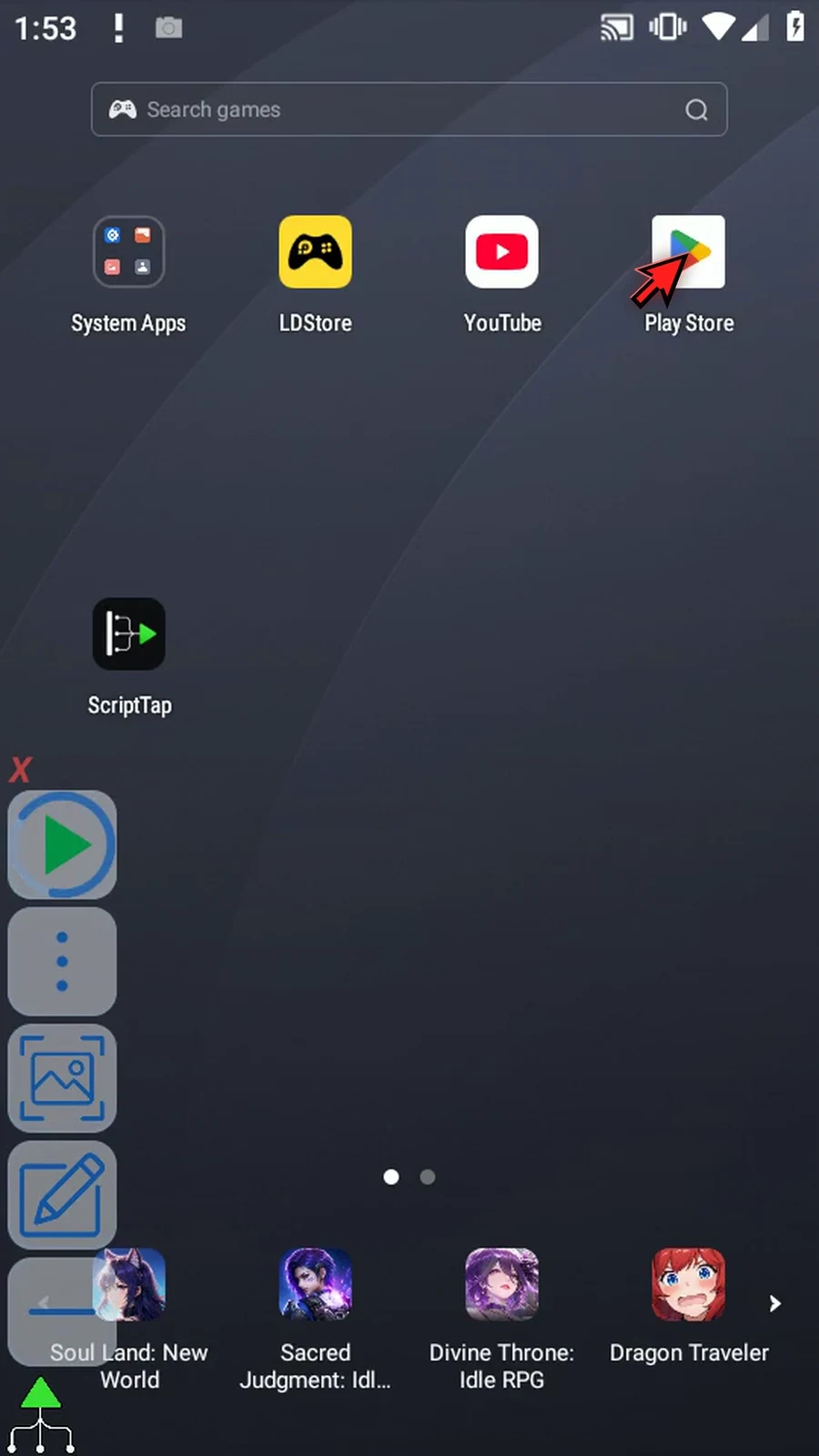
Step 02 Open Scripts, create a new script, and pick a name. We'll build this example from scratch, using just one PixelFind command.
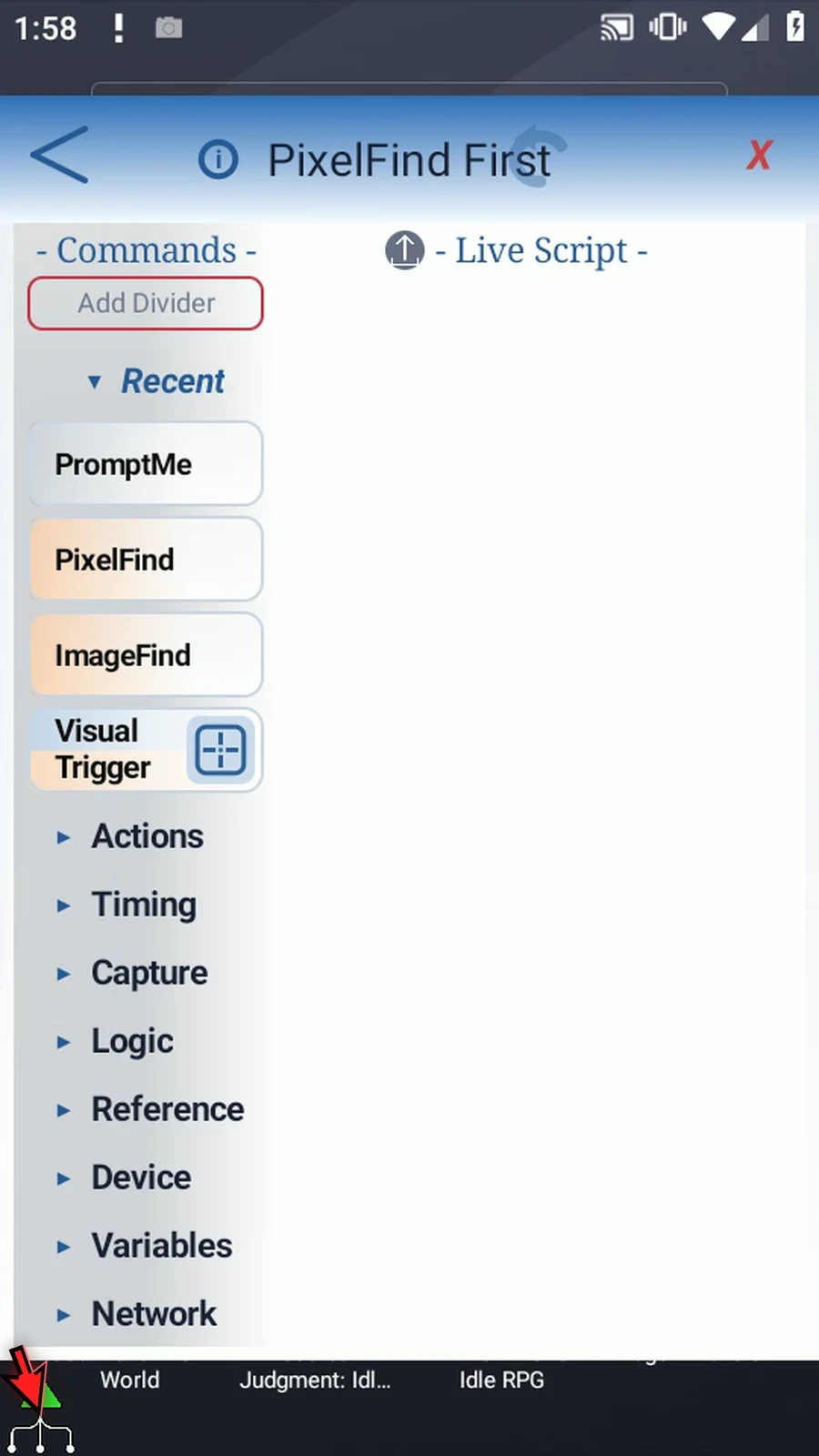
Step 03 Expand Capture and drag PixelFind into the script. Then open the placed command to configure it.
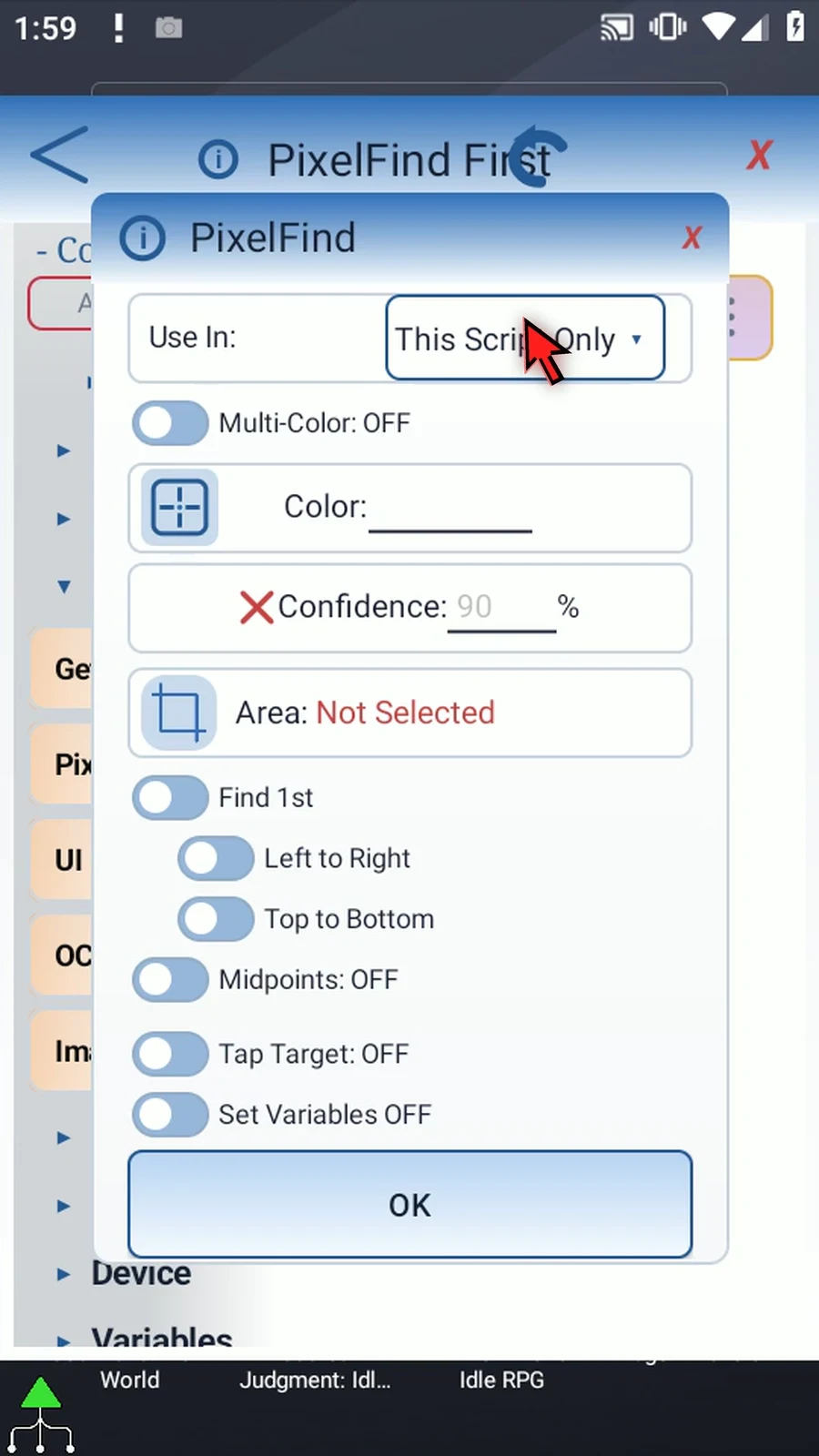
Step 04 Keep Use In set to This Script Only, and leave Multi Color off. We only need one target color in this example.
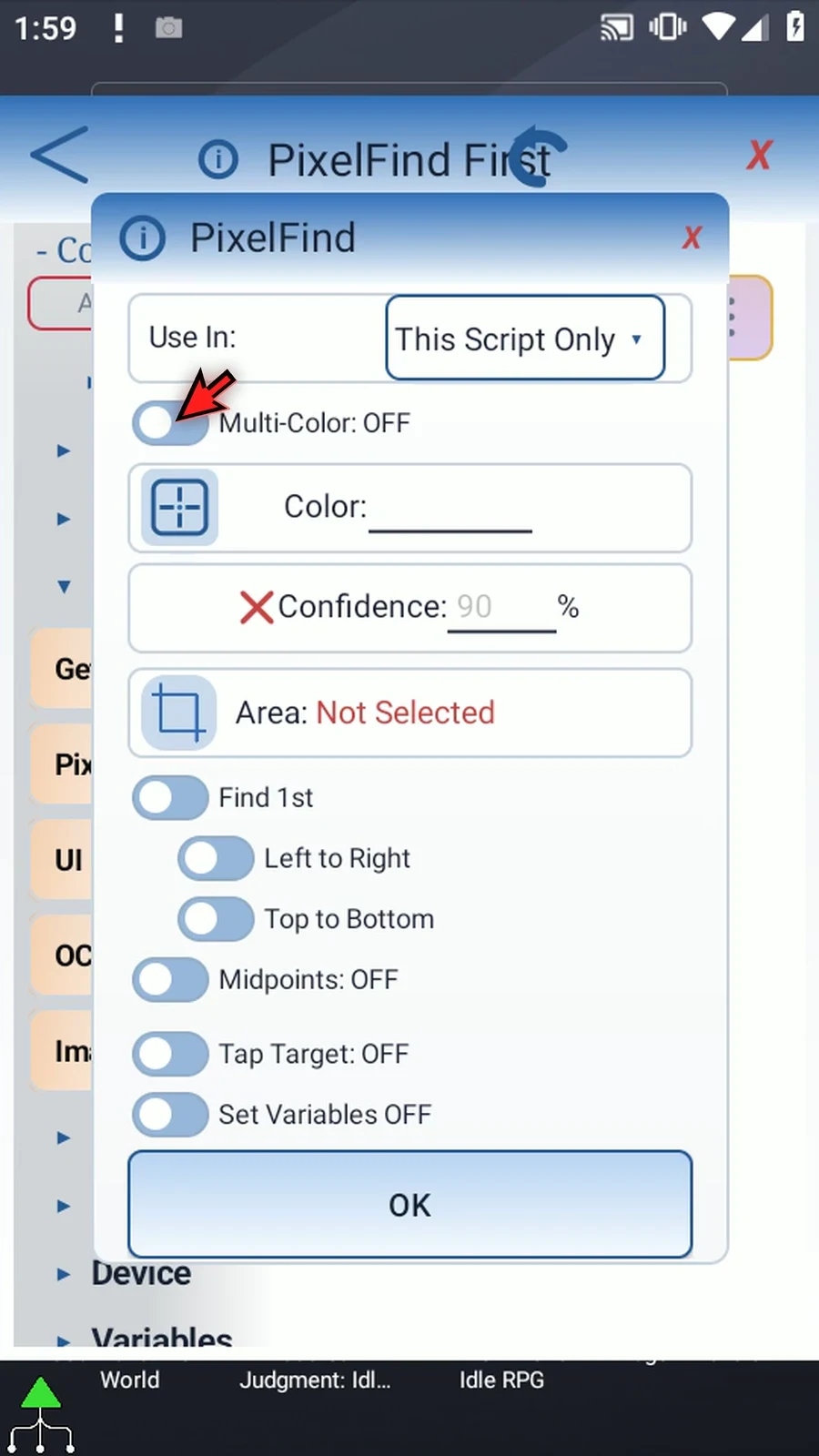
Step 05 Open the square color picker. If Android asks, allow screen capture. Drag the sampling square onto green inside the Play Store icon, then save the selection. This captures a color value, not an image asset.
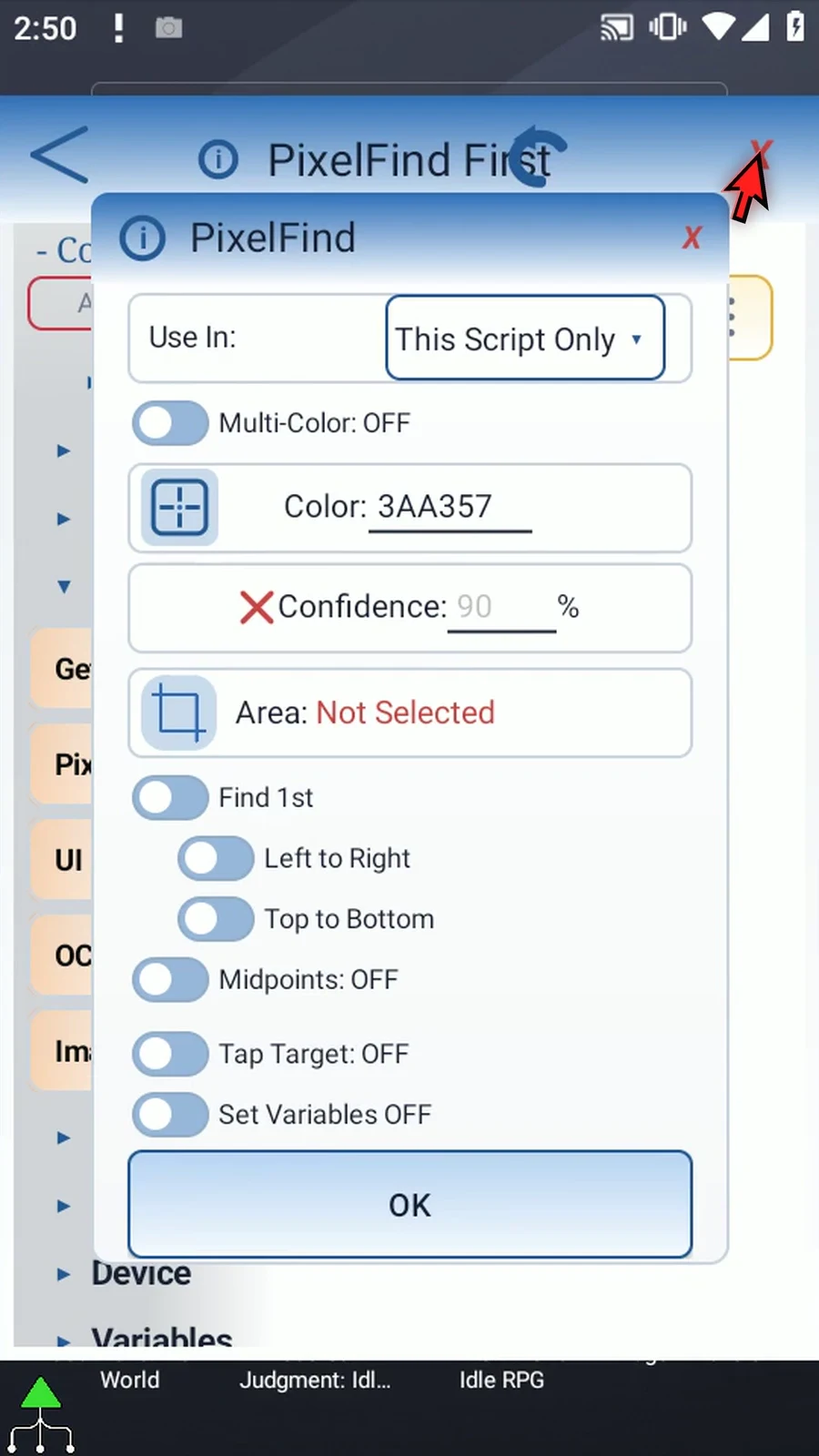
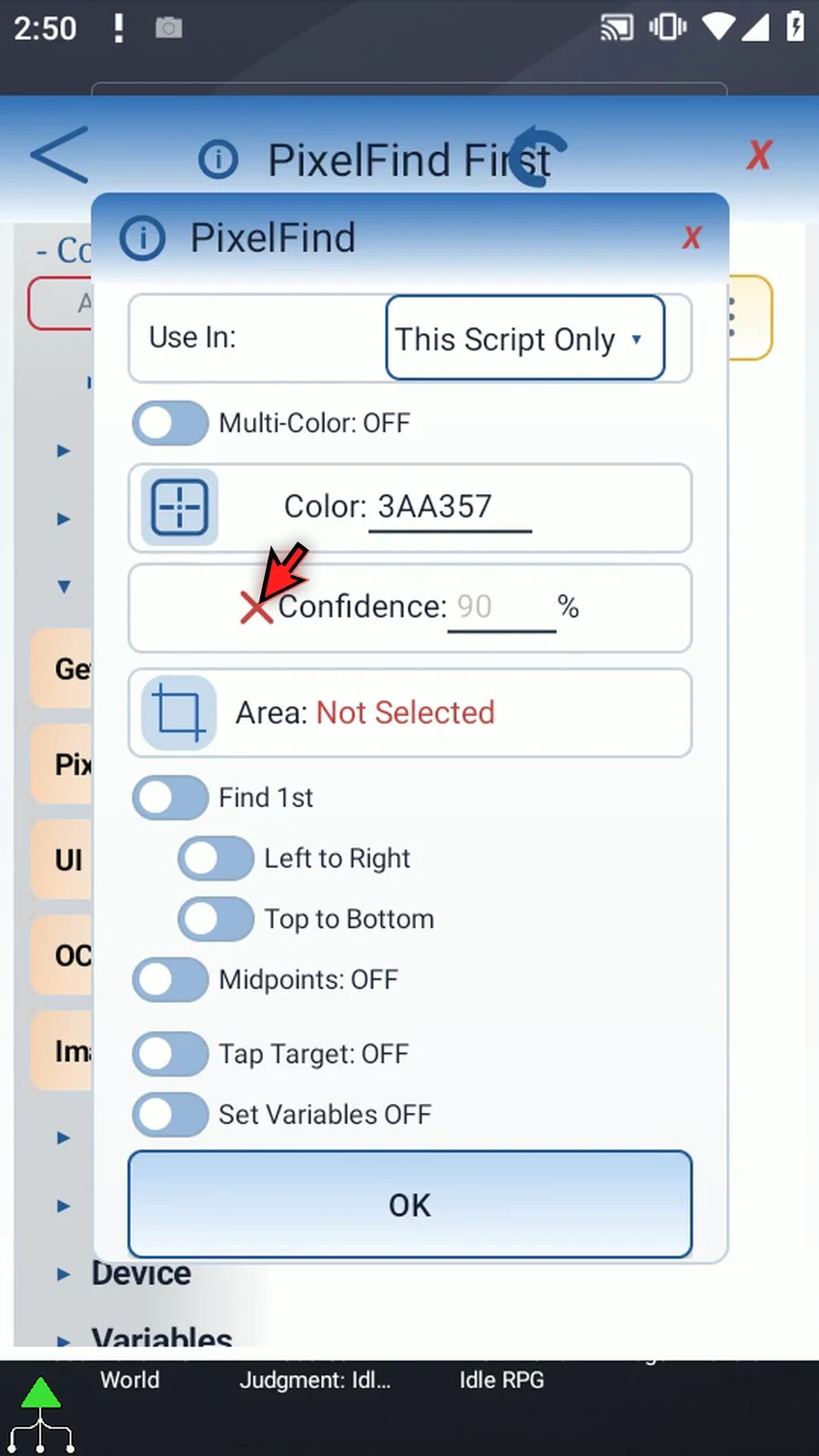
Step 06 Leave Confidence off for an exact color match. If the screen colors vary on your device, Confidence can allow some variation, as explained in the Overview.
Step 07 Open Area and drag the corners around the Play Store icon. A small search region avoids unrelated pixels of the same color elsewhere. Save the area when the icon is inside it.
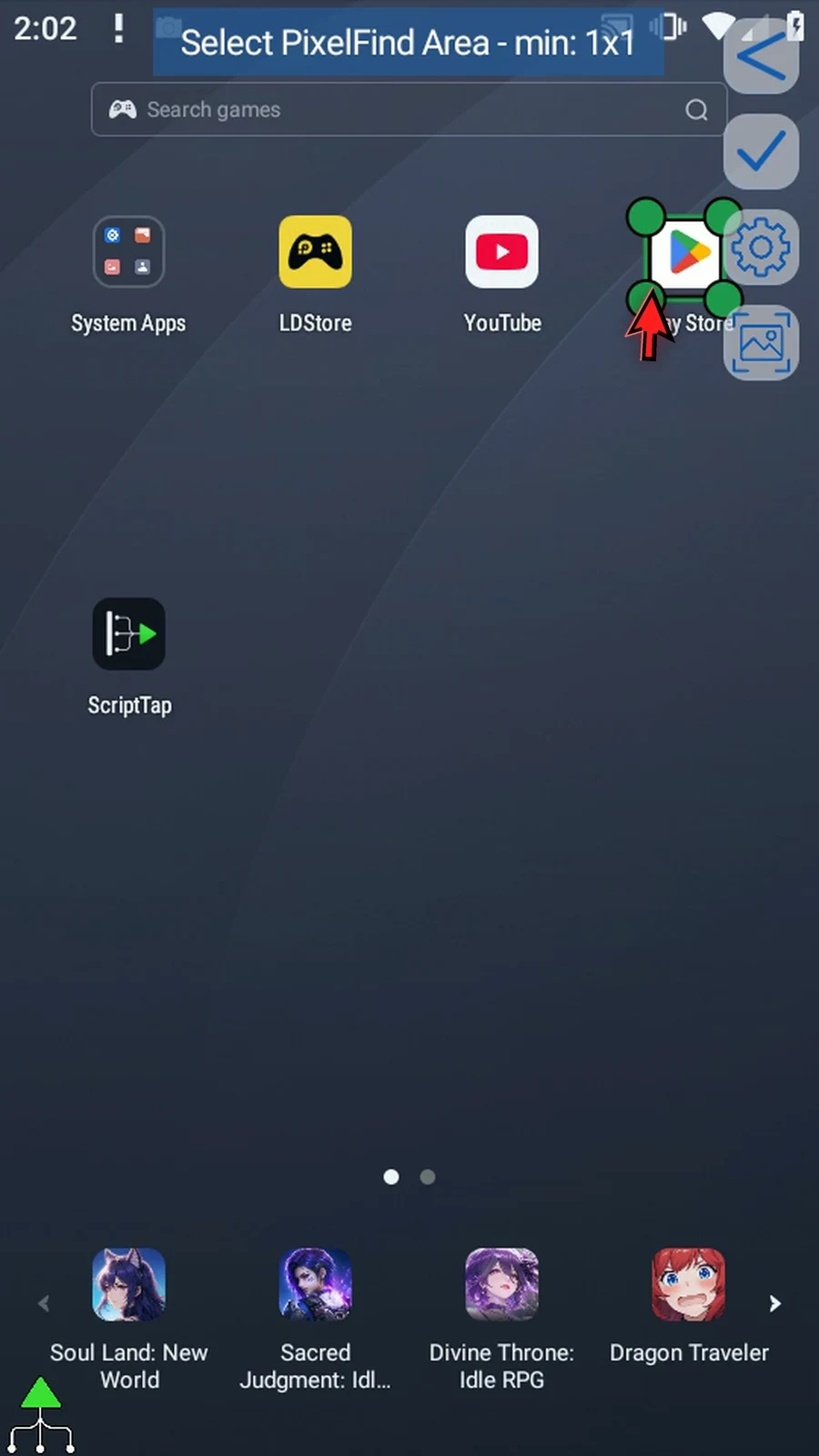
Step 08 Keep Find First, Left to Right, and Top to Bottom. PixelFind stops at the first matching pixel in that scan order. Leave Midpoints off: we want a matching pixel, not the center of a connected region.
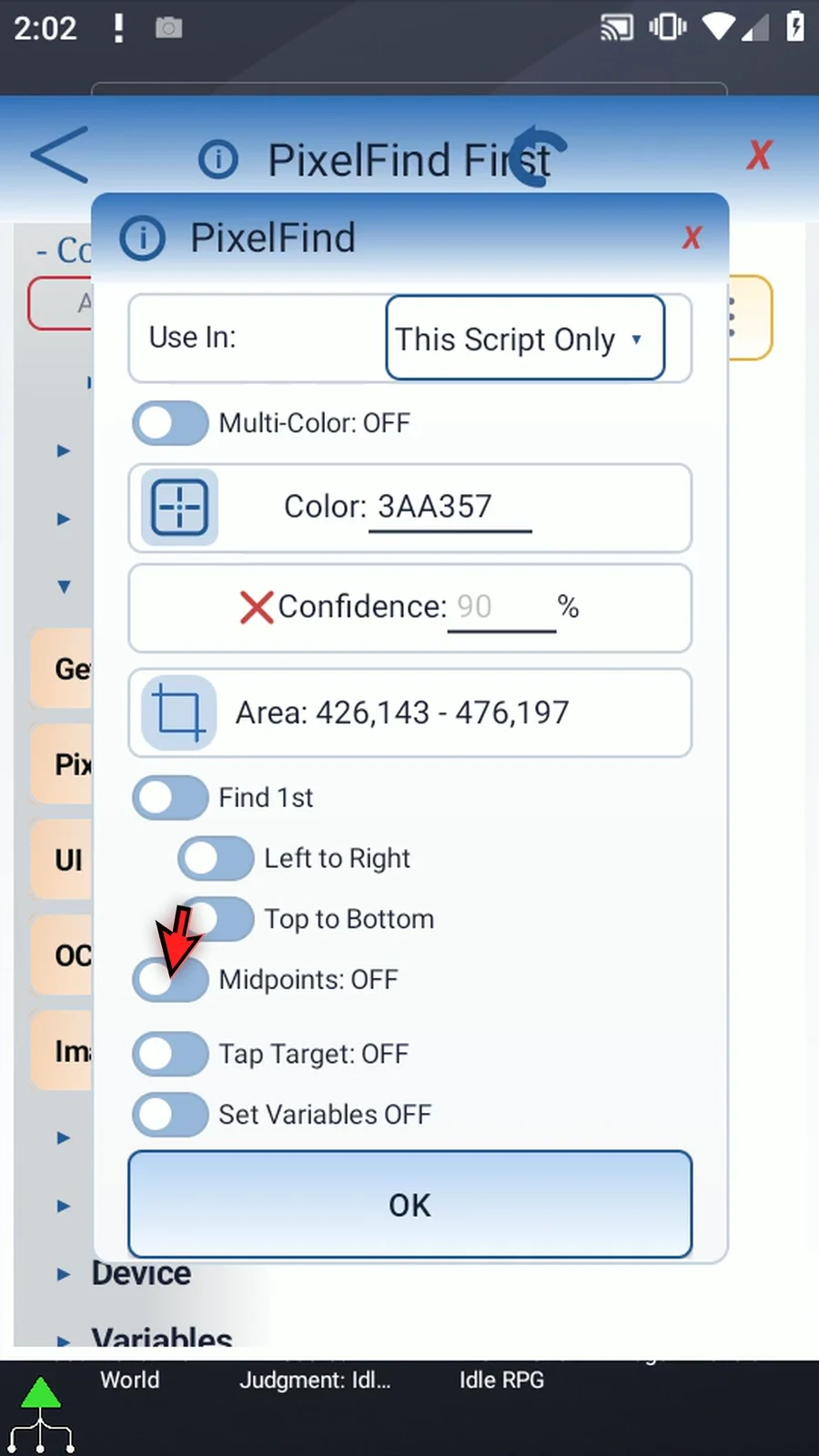
Step 09 Turn Tap Target on and leave it set to Center. Here, Center means the returned match location. Since that pixel is inside the icon, tapping it will open Play Store.
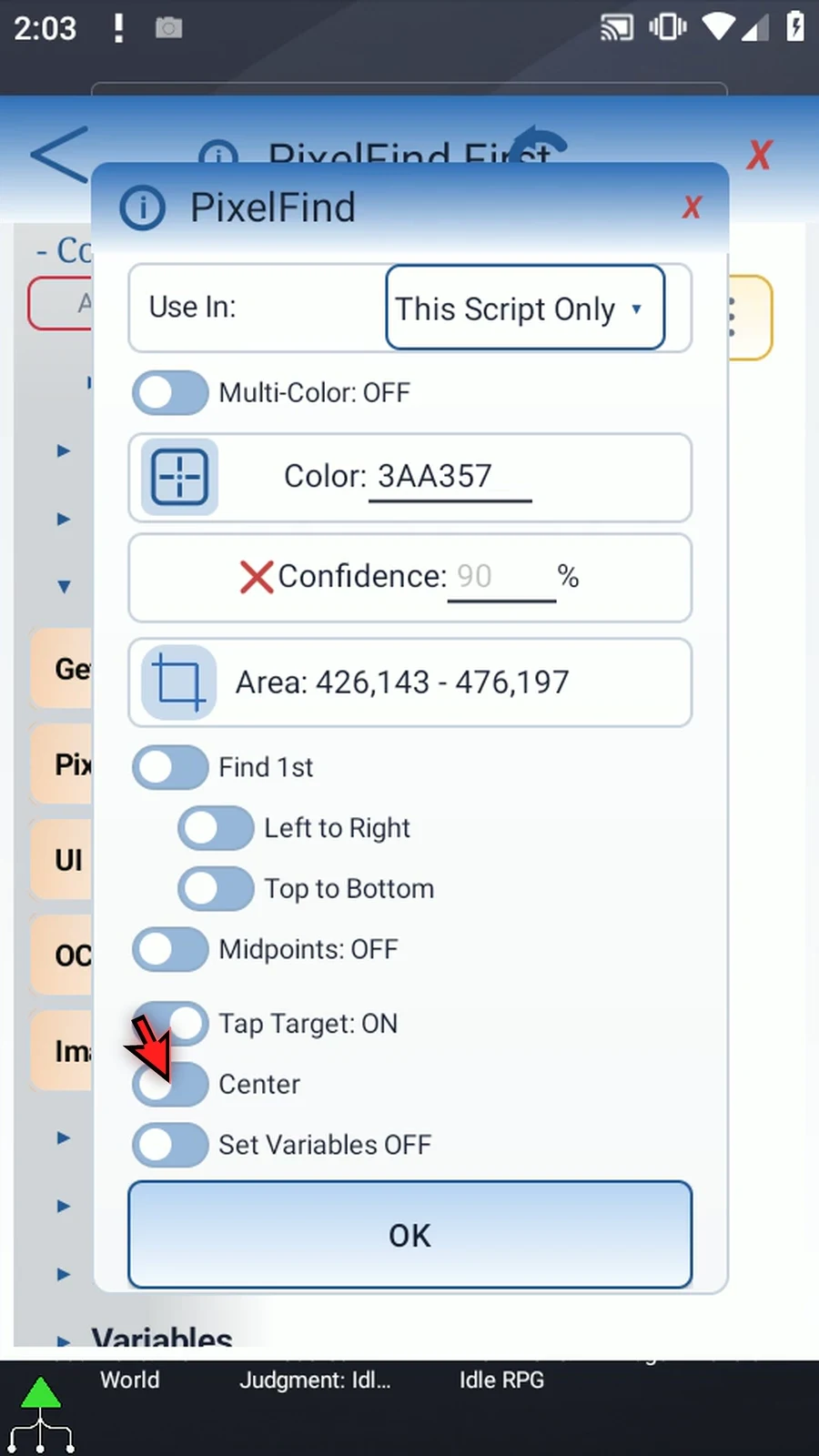
Step 10 Set Variables is optional, but useful for later commands. Turn it on and enter b1 for the Boolean found status, and x1 and y1 for the Integer coordinates. These save the result; no extra command is needed to perform our tap.
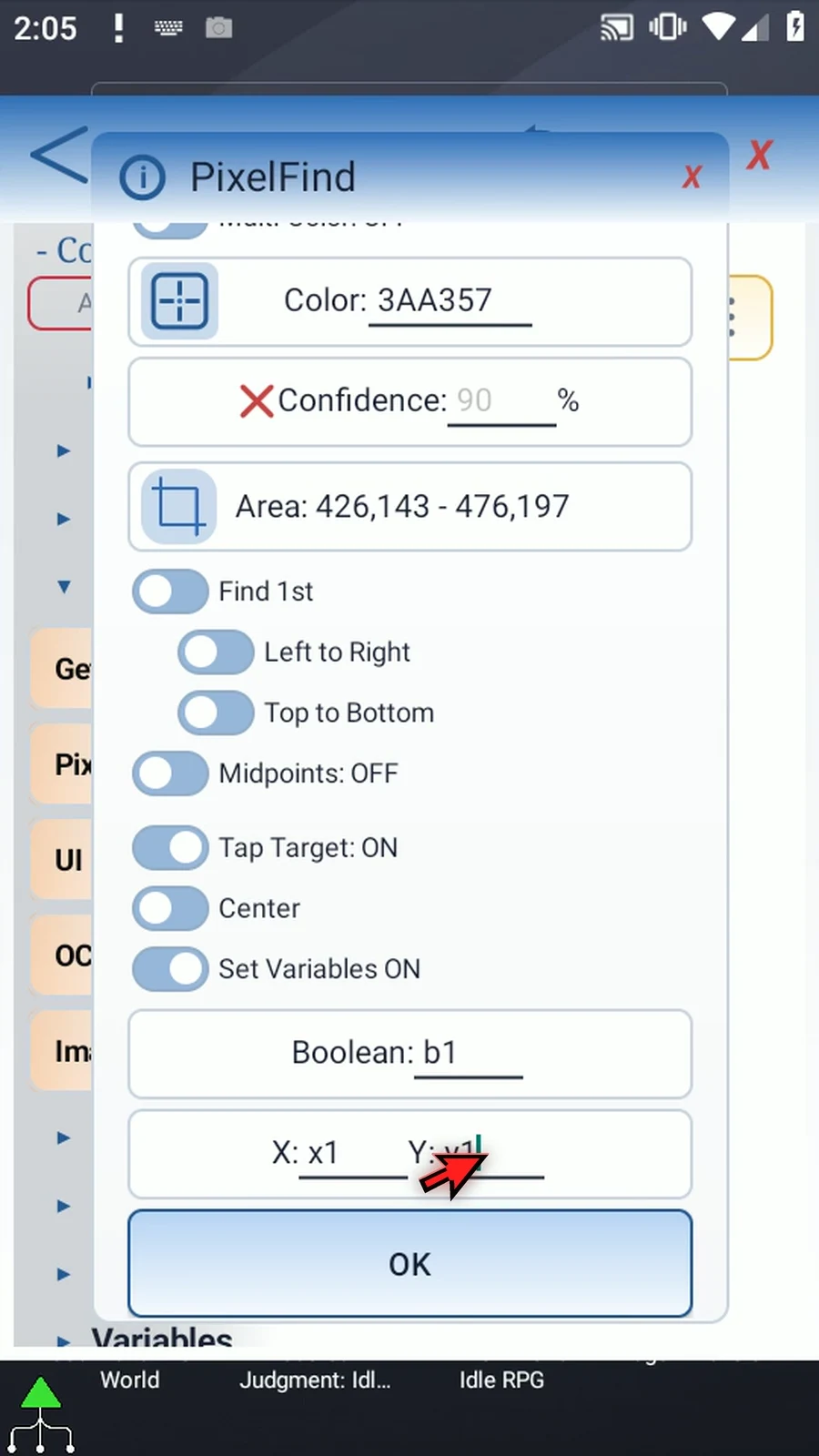
Step 11 Save the command and close the editor. Start from the home screen with the same icon visible inside the selected search area.
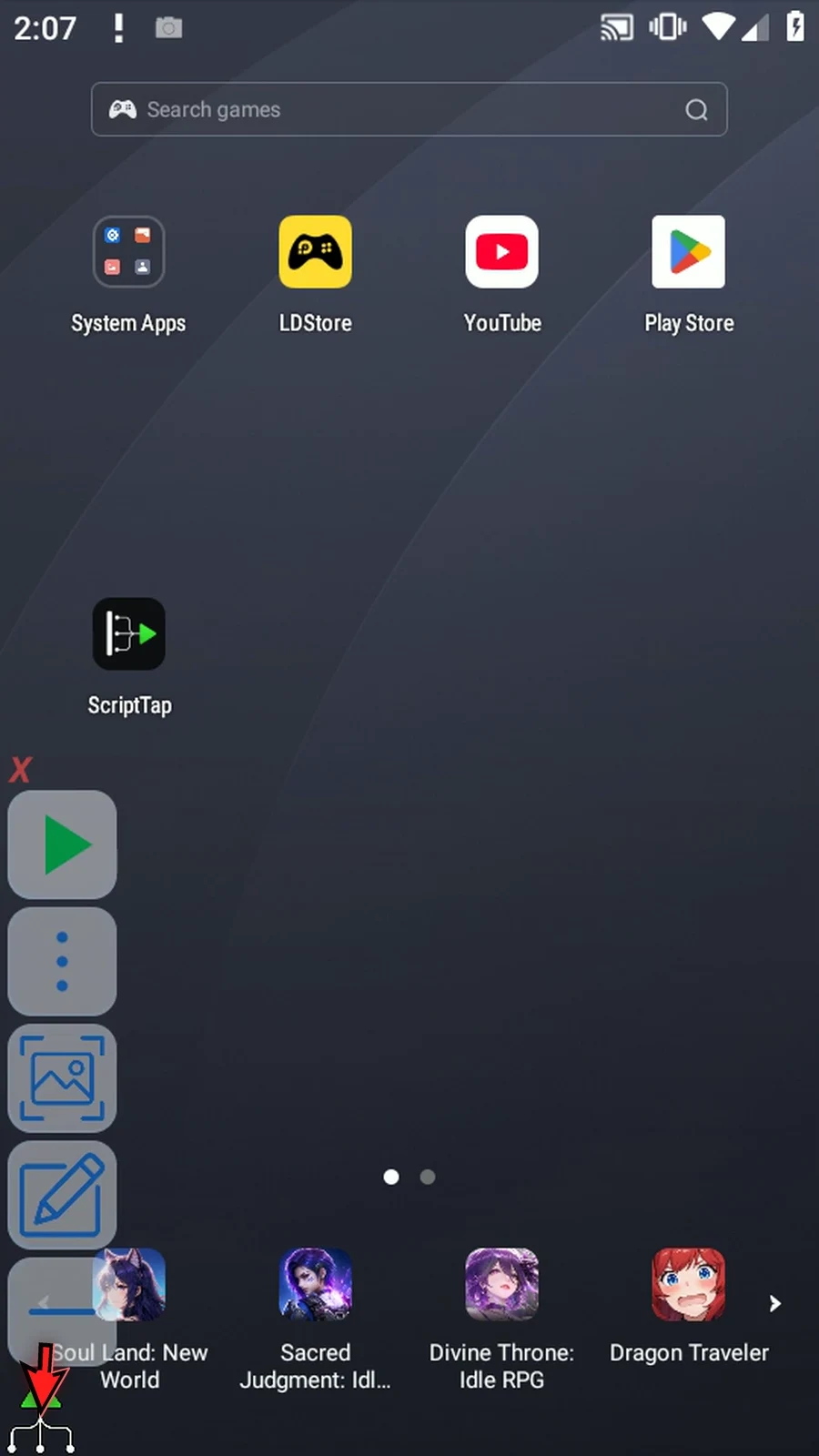
Step 12 When the script is complete, simply use the Play button in the main overlay.
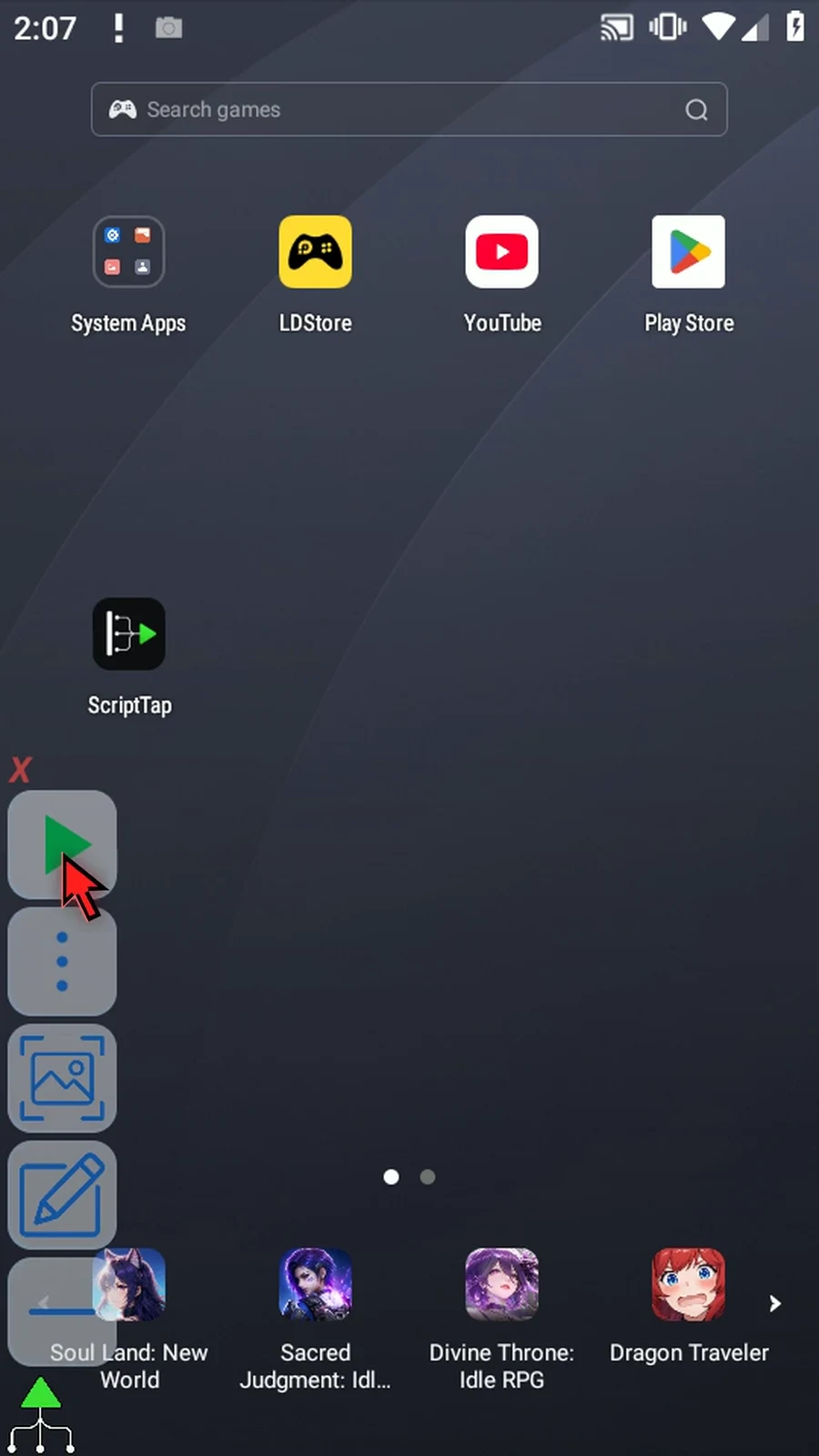
Step 13 PixelFind finds the green pixel and taps its location, opening Play Store. The script stops automatically. Test your own setup on the device where it will run, because icon position and display colors can change.