
Command video guide
SmartTap
SmartTap recognizes image states and decides whether to tap when the same command is revisited. This Overview explains every control without Test or Play. The Asset Creation tab reuses the shared cropping guide.
A working command needs a search Area and at least two enabled positive assets, with up to ten rows. This tour inspects one sample row rather than saving a runnable setup. Choose distinct states, preserve their intended order, and keep only useful, stable pixels. SmartTap accepts the first approved match in saved enabled-row order; it does not choose the globally highest score.
Each row has Enabled, Label and optional Confidence. Global Confidence is a whole percentage from 1 to 100, default 90. Higher values are stricter. A positive row value overrides global confidence; blank or zero uses global confidence. Do not enter a fraction or percent sign. Avoid semi-transparent edge pixels that change with the background.
Center taps the matched image center. Set Coordinates taps a fixed X/Y location, entered literally or supplied by earlier Integer variables. The coordinate outputs still describe the matched image, not that fixed tap location.
All four triggers accept the first approved match of a run. Switch Only and Every Change tap again when the approved asset changes; seeing the same approved asset repeatedly does not retrigger them. First Seen taps only for the first approved match. Every Match taps for every approved match, including repeated recognition of the same asset. State belongs to that SmartTap command and resets for a new run; use a Loop when repeated checks are needed. A failed search does not invent a matched state.
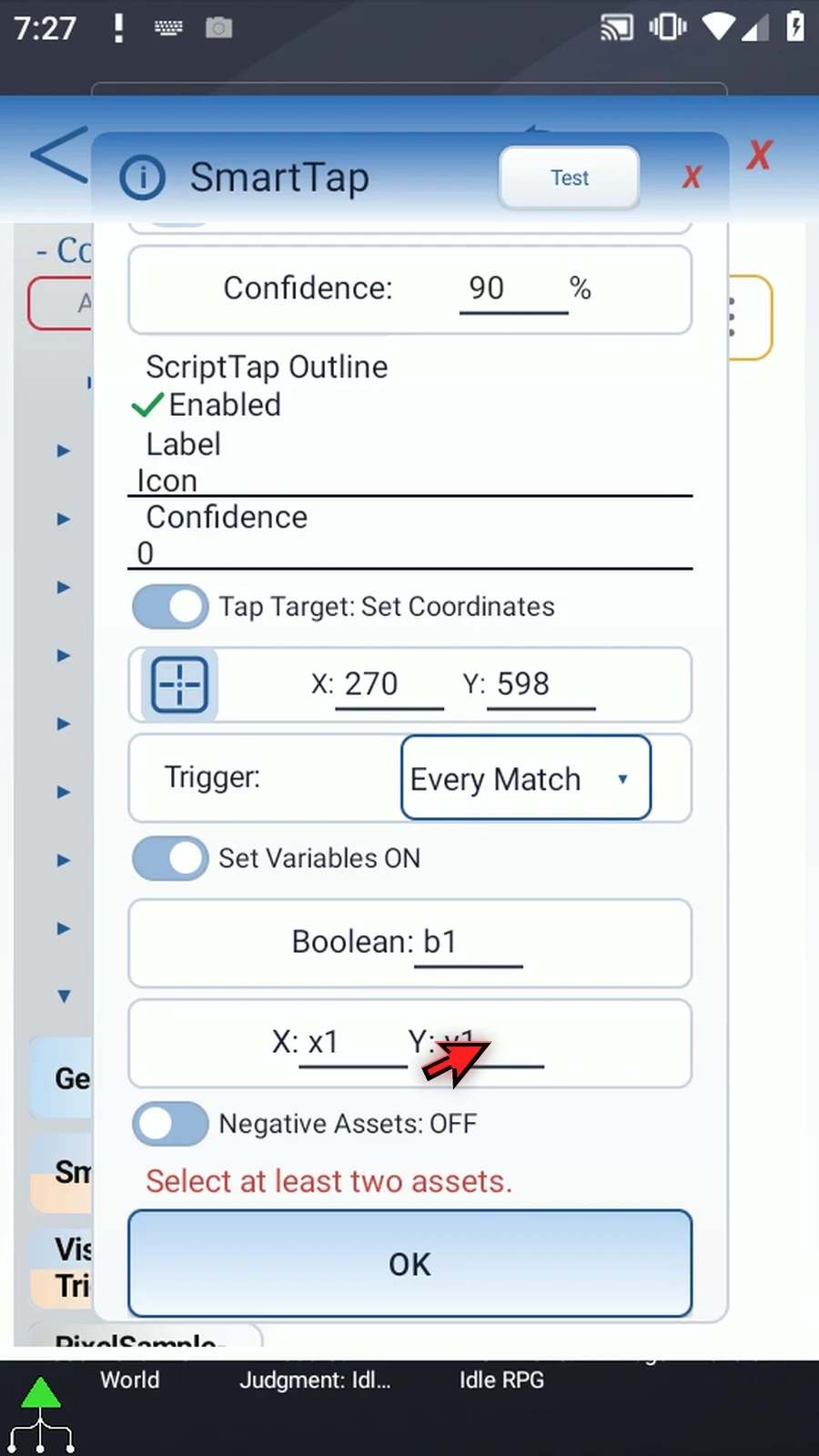
Set Variables offers optional destinations in This Script Only or Script Thread scope. Boolean b1 is True only when that execution successfully dispatches a tap, otherwise False. Integer x1/y1 store the approved matched center, even when trigger policy suppresses the tap; without an approved match those coordinates remain unchanged.
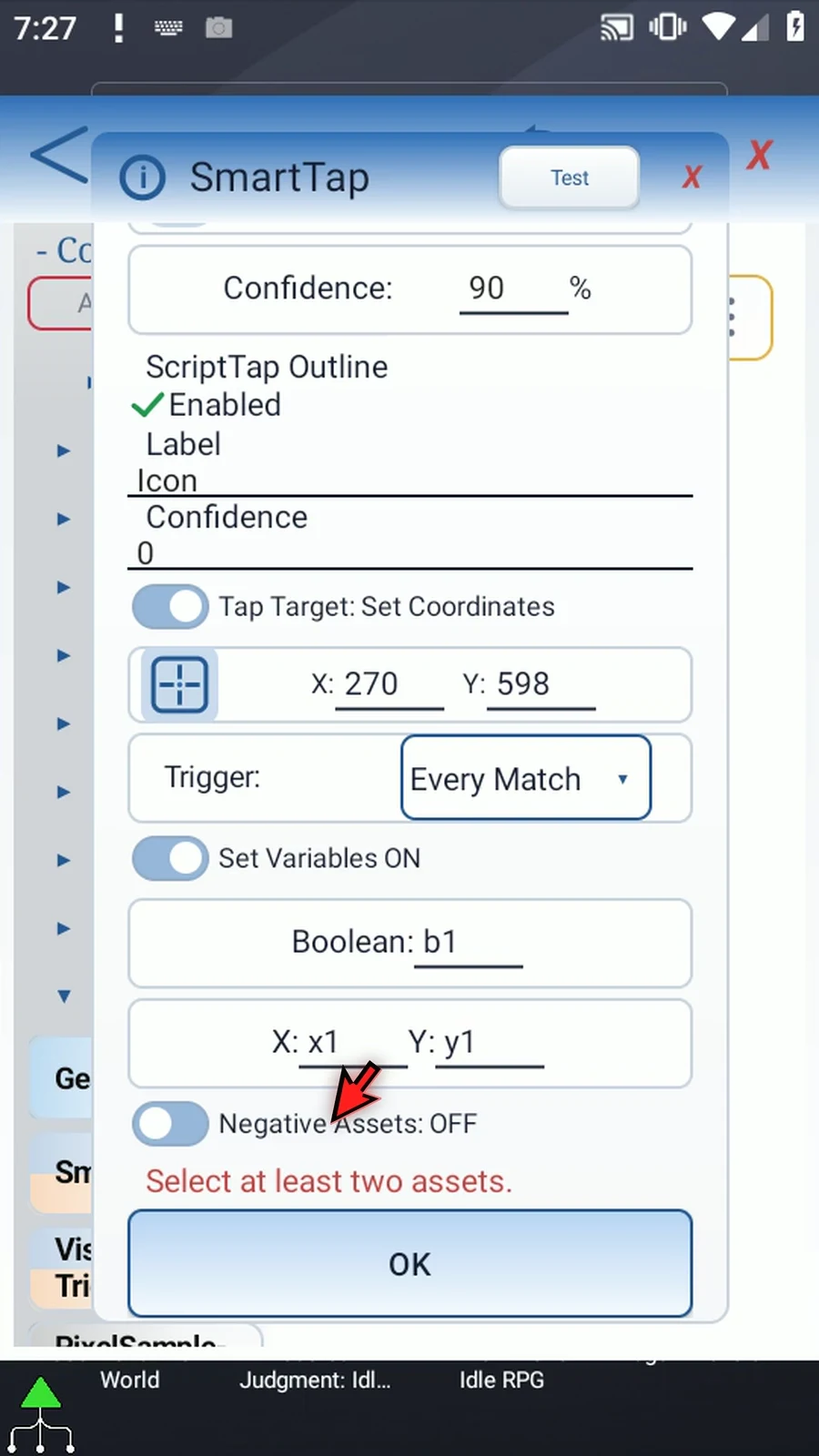
Negative Assets can reject positive candidates when an unwanted image matches nearby; up to ten can be selected. They are mentioned here without a negative-asset demonstration. Complete the active fields before using header Test or saving OK. This tour closes its unsaved draft.
Watch the walkthrough
Step-by-step guide
Step 01 SmartTap recognizes images and decides whether to tap based on the last approved match. It is useful when a script revisits the same visual controls and should react to a new state instead of tapping blindly. This Overview explains the options without Test or Play.
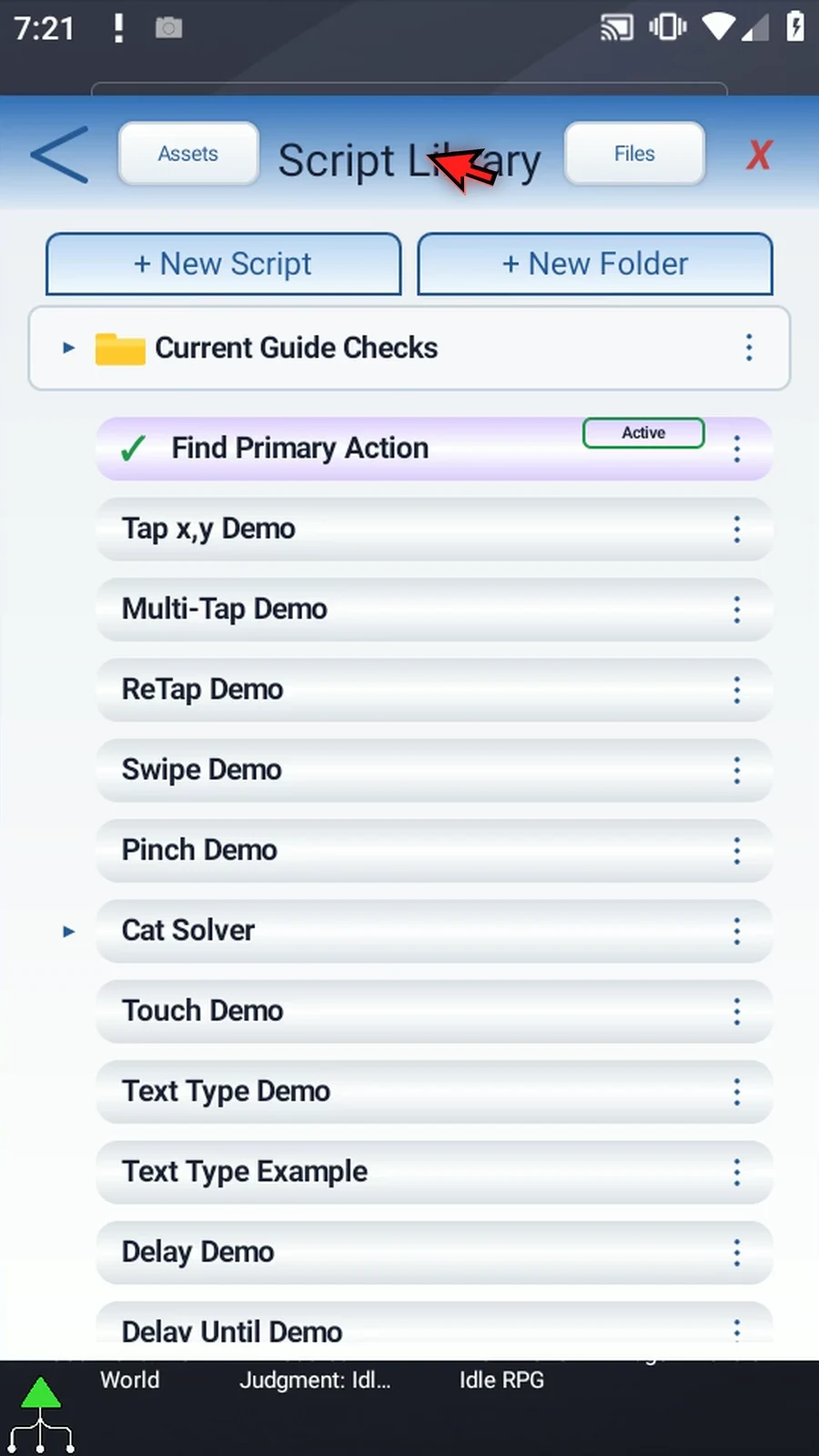
Step 02 Create a blank script for this tour. We will inspect one SmartTap draft, then discard its settings. This keeps the option tour separate from a runnable demonstration.
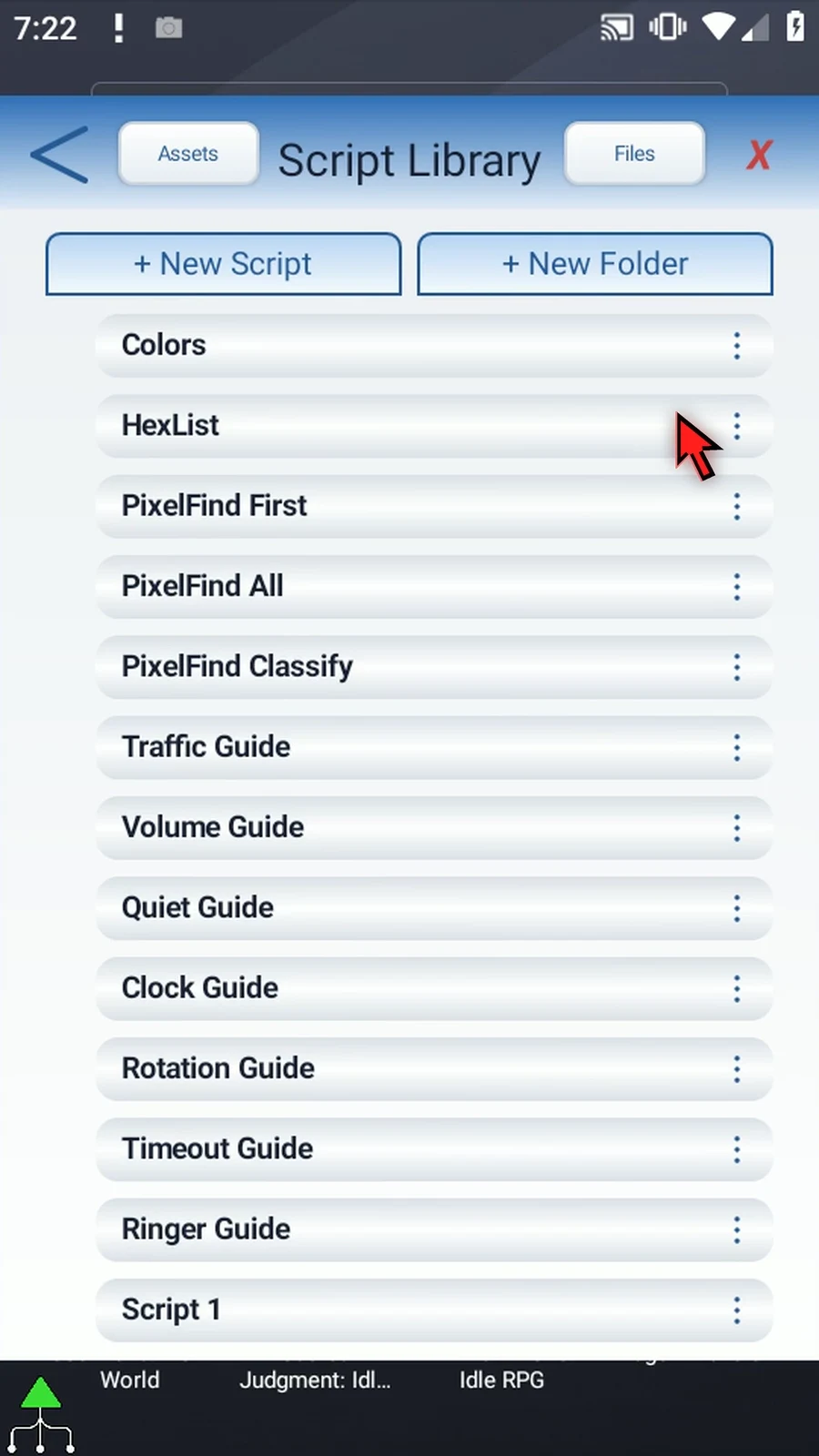
Step 03 Give the new script a clear name and open its editor. Existing scripts stay unchanged.
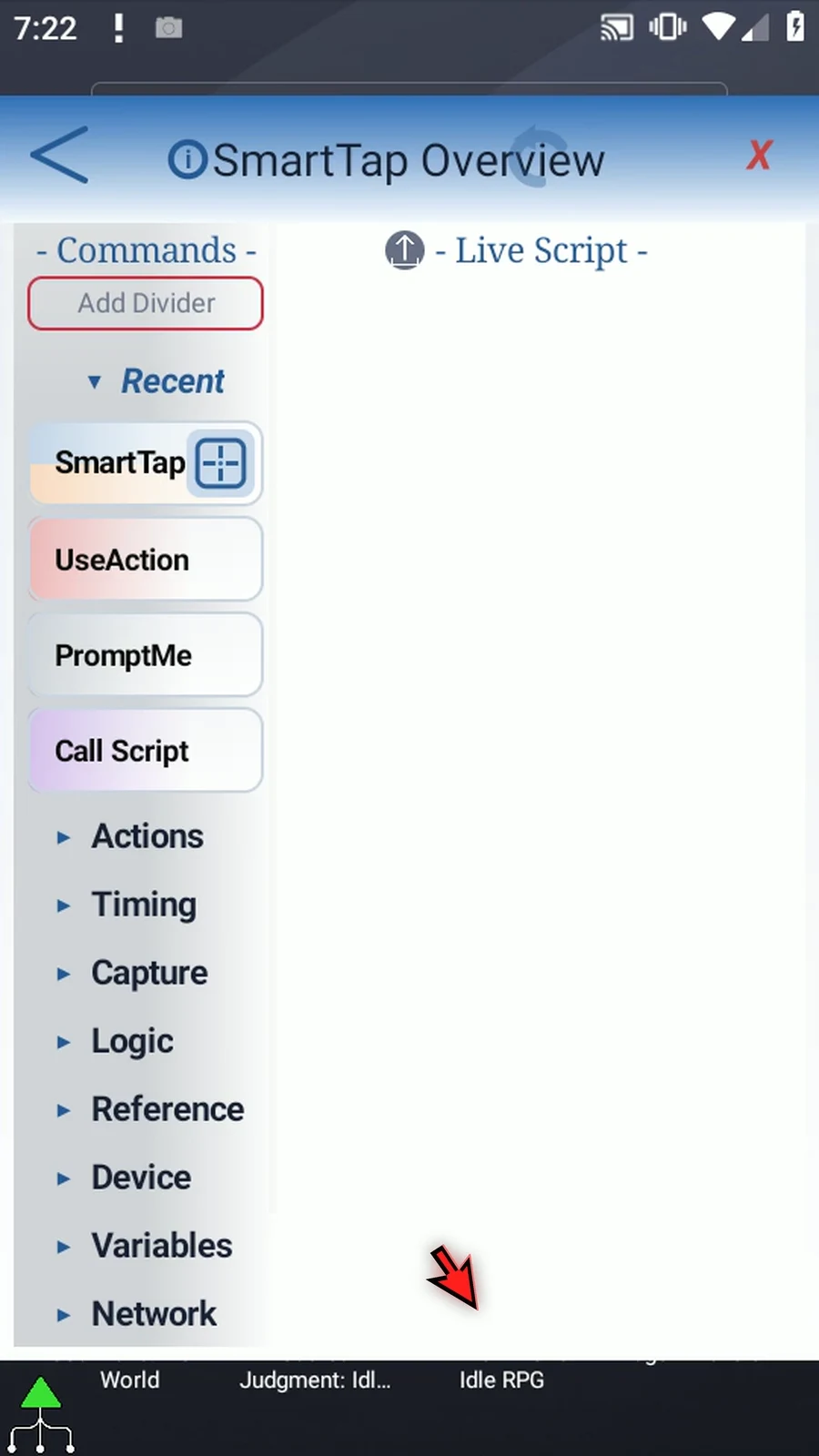
Step 04 Open Advanced and drag SmartTap into the live script. Then open the placed command. Always drag a new command from the palette; opening its saved row is a separate action.
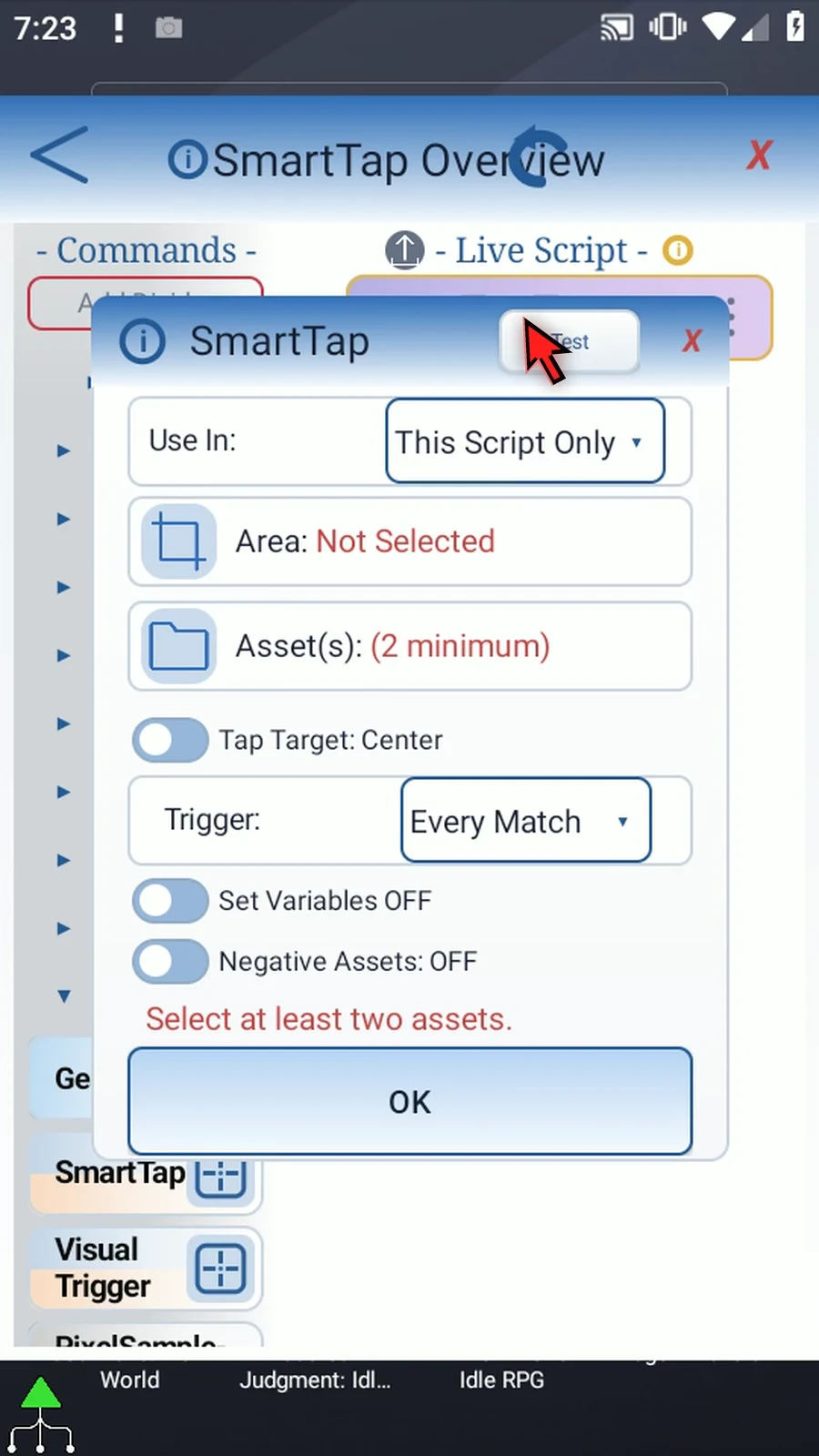
Step 05 Use In chooses where the optional output variables will be saved. This Script Only keeps them local. Use Script Thread when other scripts in the same thread need those results, and keep later readers in that same scope.
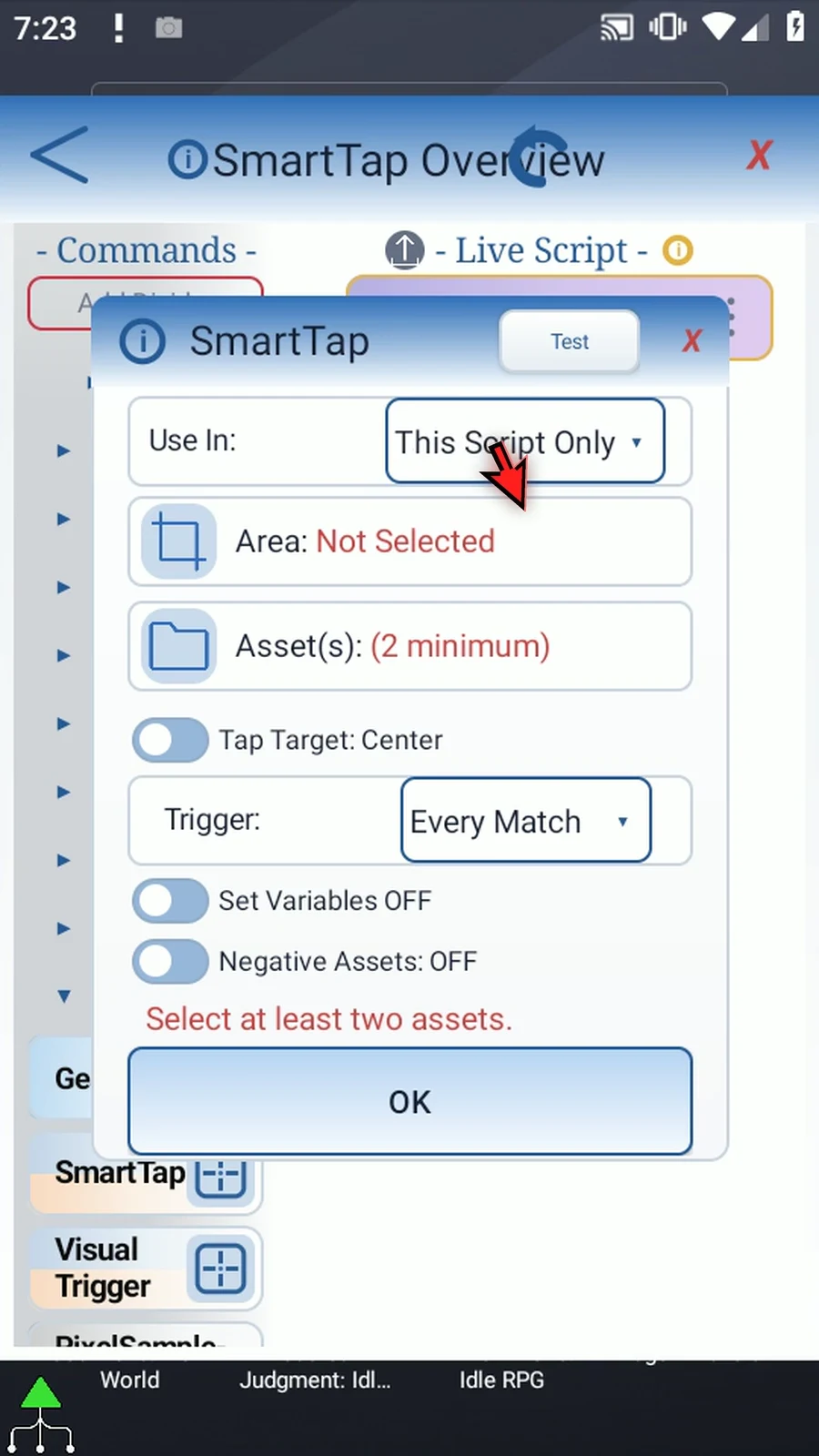
Step 06 Area limits where SmartTap looks for its images. The text opens numeric coordinates; the icon opens a visual selector. Drag the corners around the relevant part of the screen, then accept. A smaller useful area can reduce matching work.
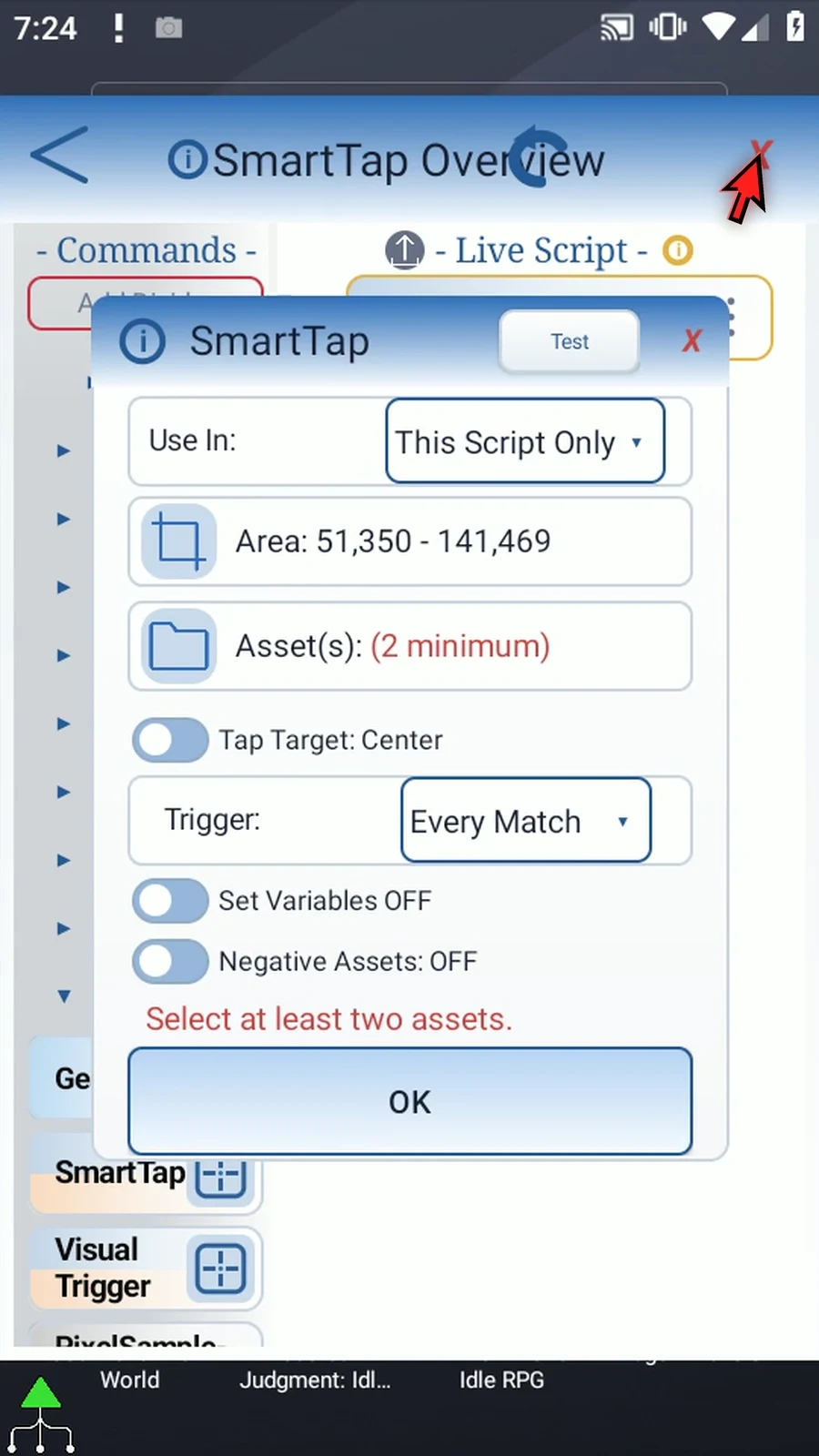
Step 07 Asset selections are the visual states SmartTap can recognize. A working command needs at least two enabled assets, with up to ten rows. We will inspect one sample row here. The shared Asset Creation tab explains how to prepare and crop reusable images.
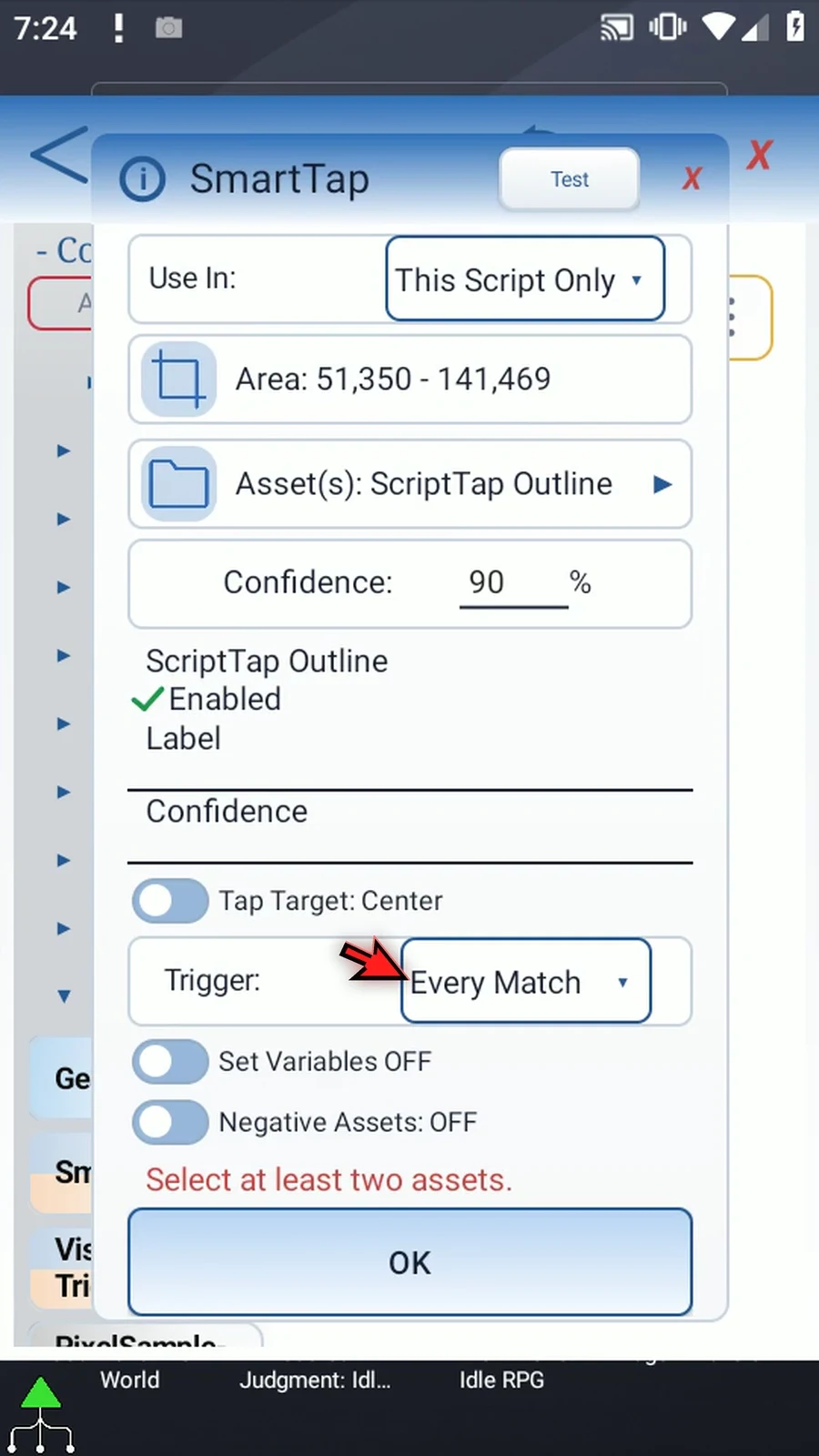
Step 08 Each row shows its asset name, an Enabled switch, a Label and an optional Confidence. Enabled decides whether that row participates. The label makes a recognized state easier to identify. We will call this sample Icon.
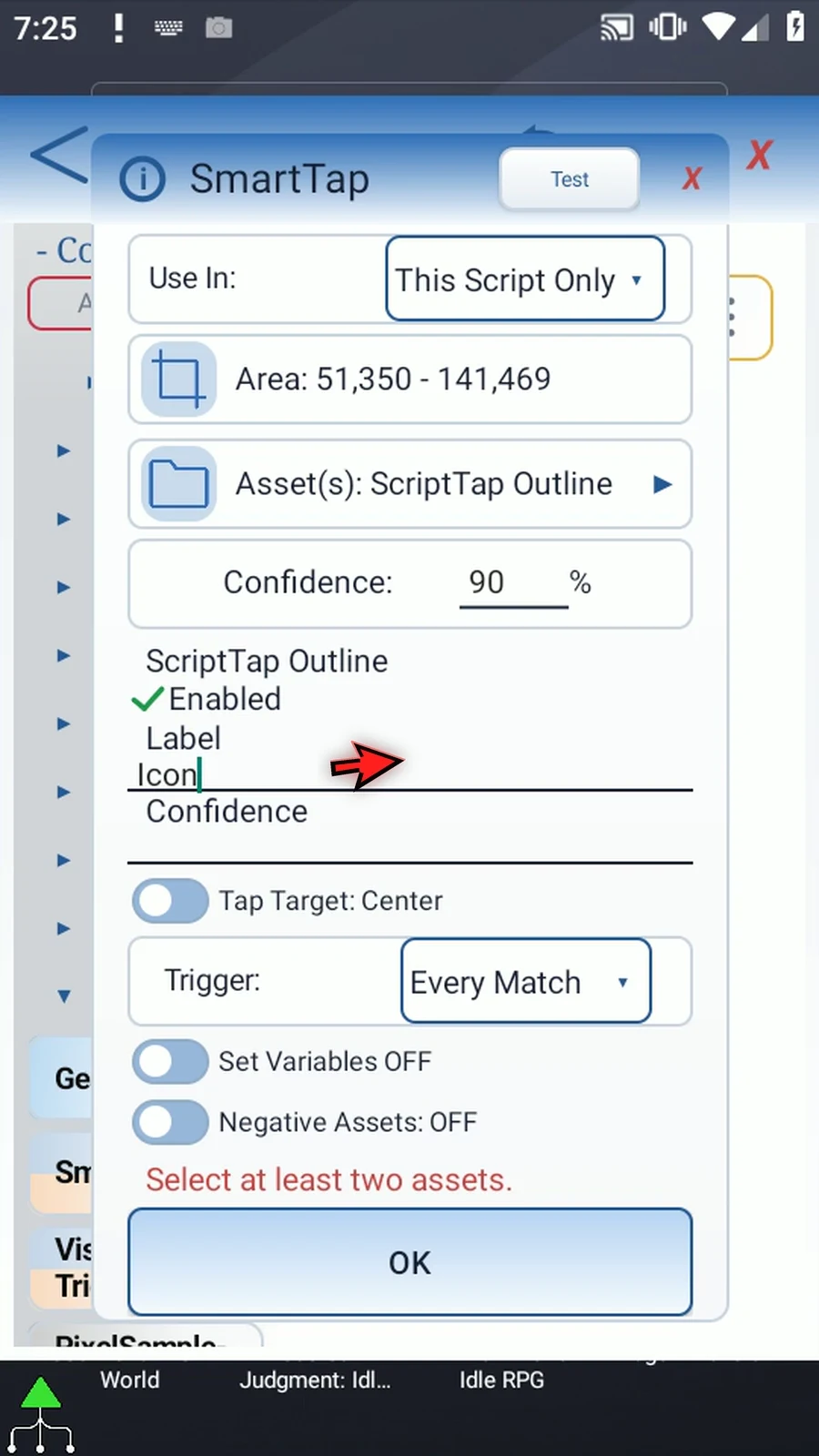
Step 09 Global Confidence is a whole percentage from one to one hundred. Higher values are stricter; lower values allow more color variation. Ninety is the default. This is image similarity, not a probability that the script is correct.
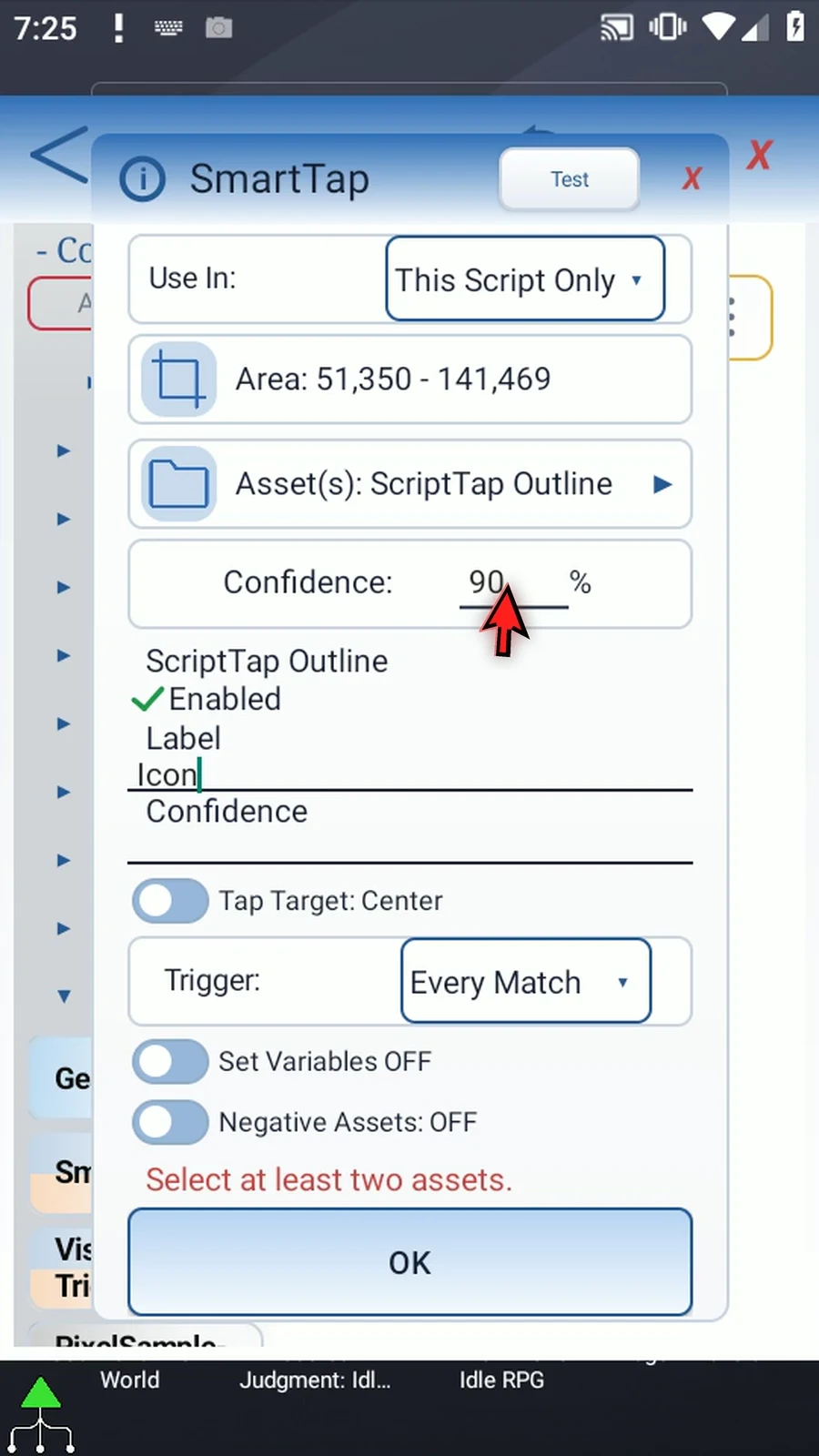
Step 10 A positive row Confidence overrides the global value. One hundred requests an exact match. Blank or zero uses the global setting instead. These controls take whole percentages, without a percent sign. We will show one hundred, then return this row to zero.
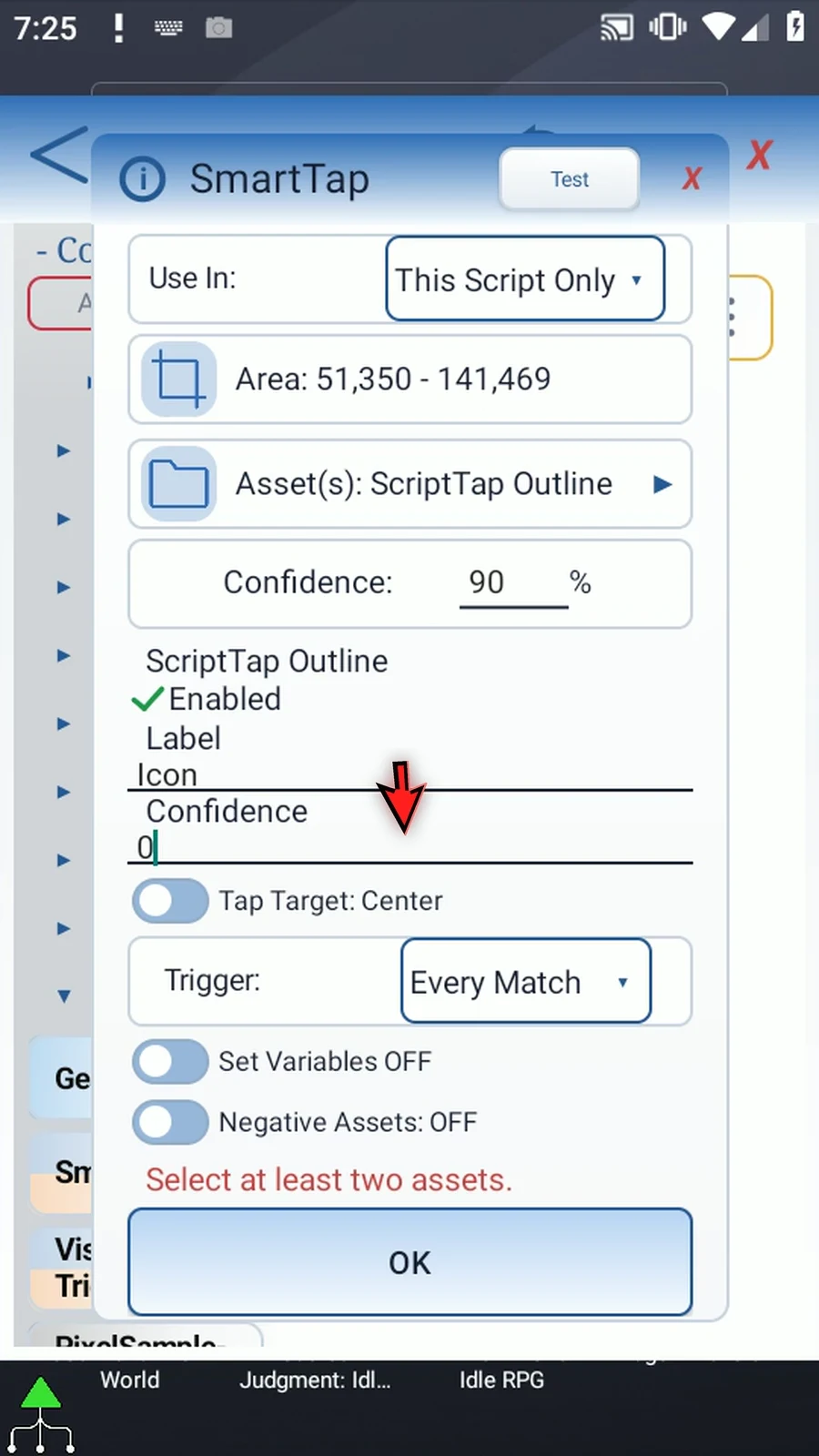
Step 11 Asset order matters. SmartTap checks enabled rows in their saved order and accepts the first approved match. Distinct, tightly cropped states make that choice easier to predict. Avoid unstable, semi-transparent edge pixels, and use only the pixels needed for reliable recognition.
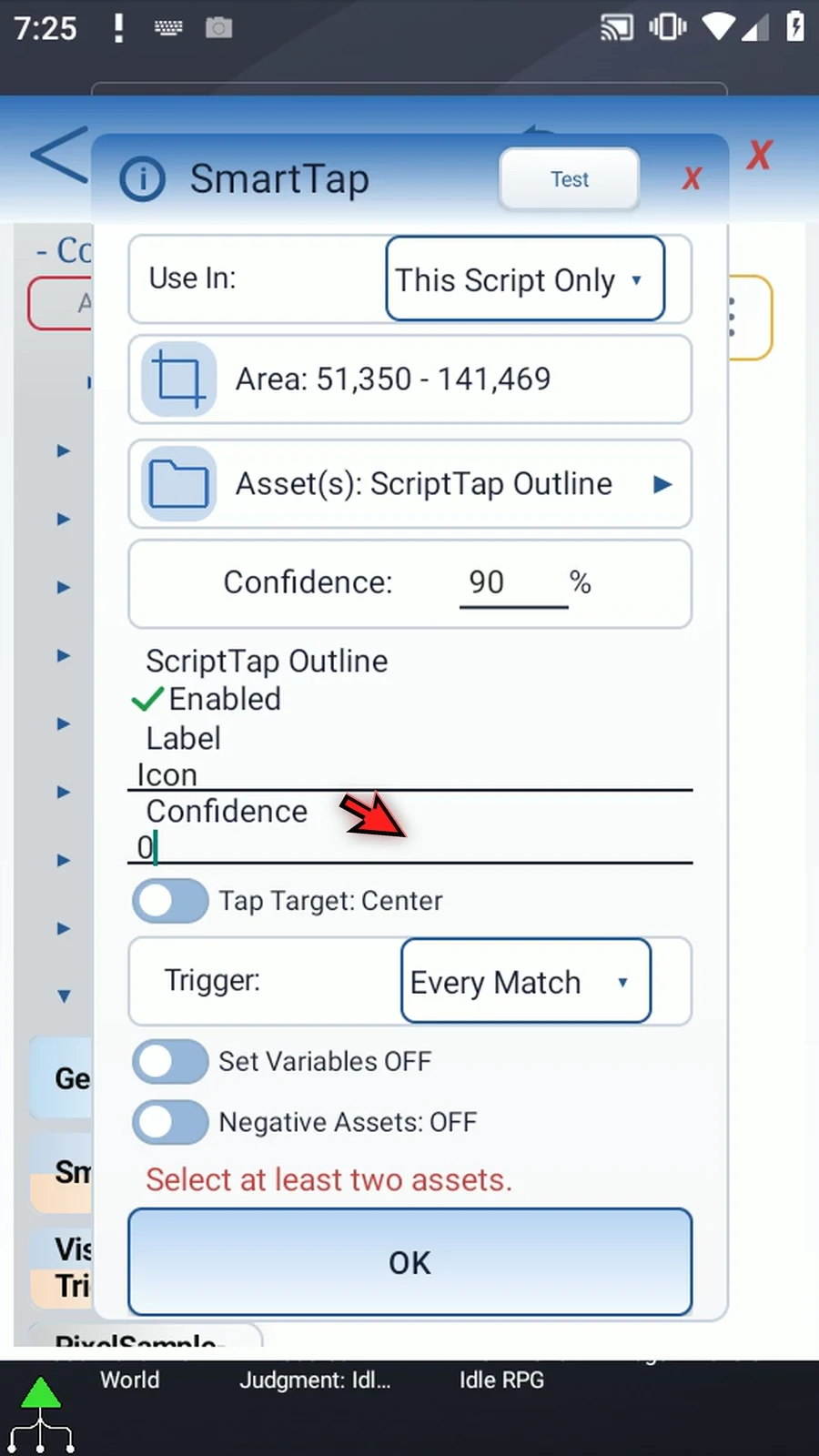
Step 12 Tap Target Center taps the center of the matched image. Set Coordinates taps a fixed location instead. The target icon lets us choose a safe empty spot; its X and Y fields can also use earlier Integer variables.
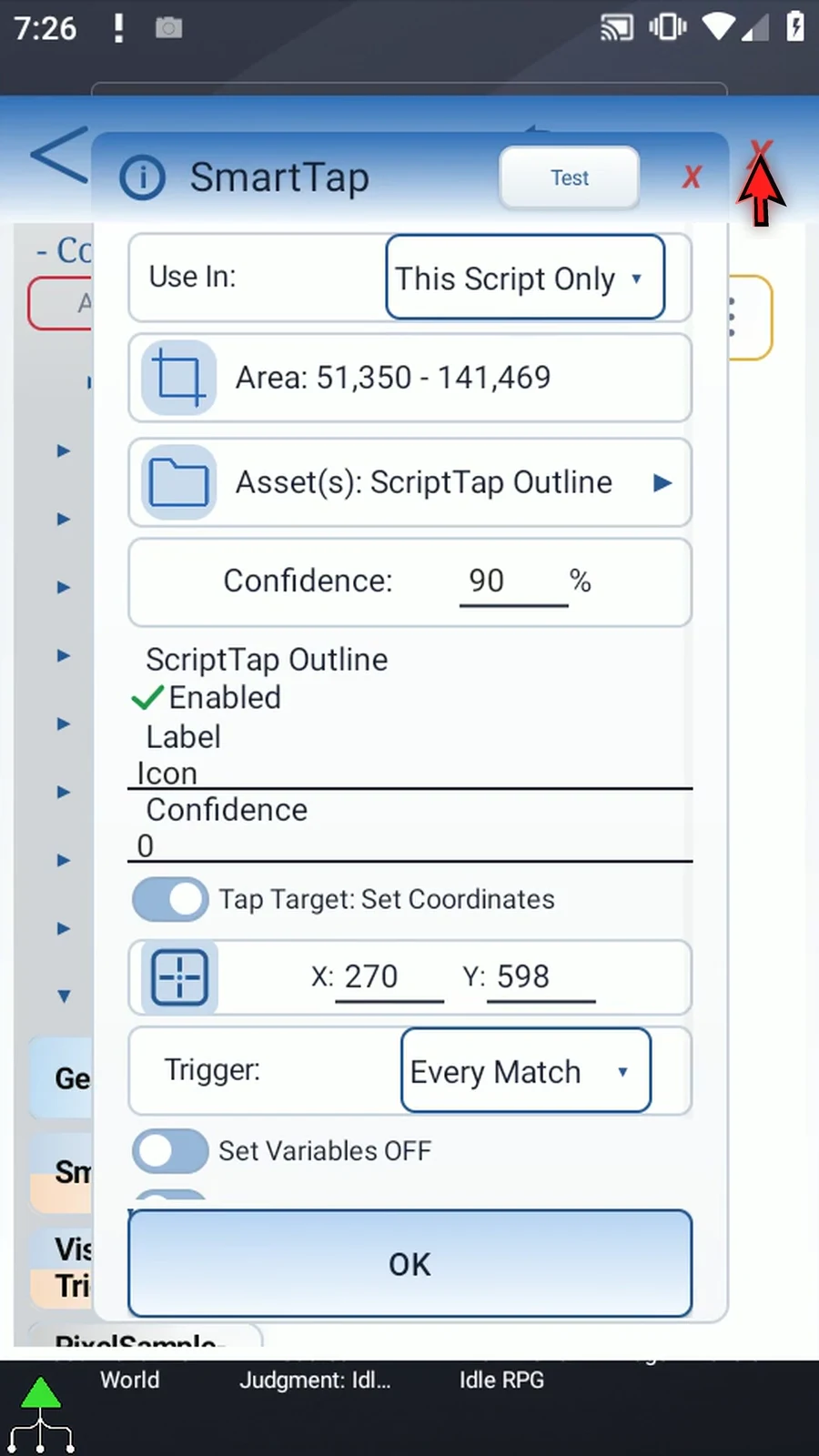
Step 13 Trigger chooses when a recognized image should cause a tap. These choices matter when the same SmartTap command is visited again, such as inside a Loop. Its remembered state belongs to that command and resets for a new run.
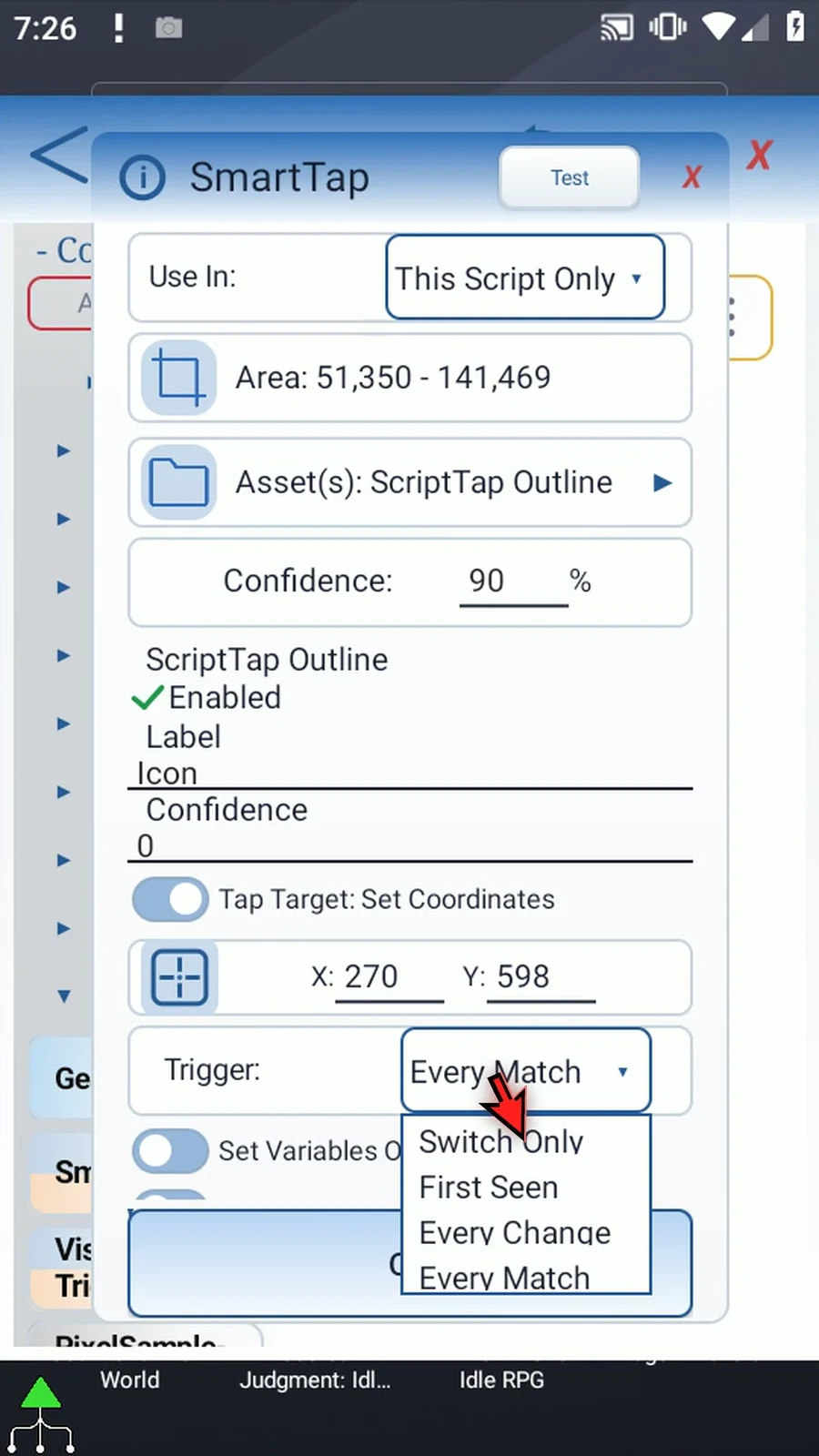
Step 14 Switch Only accepts the first approved match. On later visits, it taps again only when a different approved asset is recognized. Seeing the same asset repeatedly does not cause repeated taps.
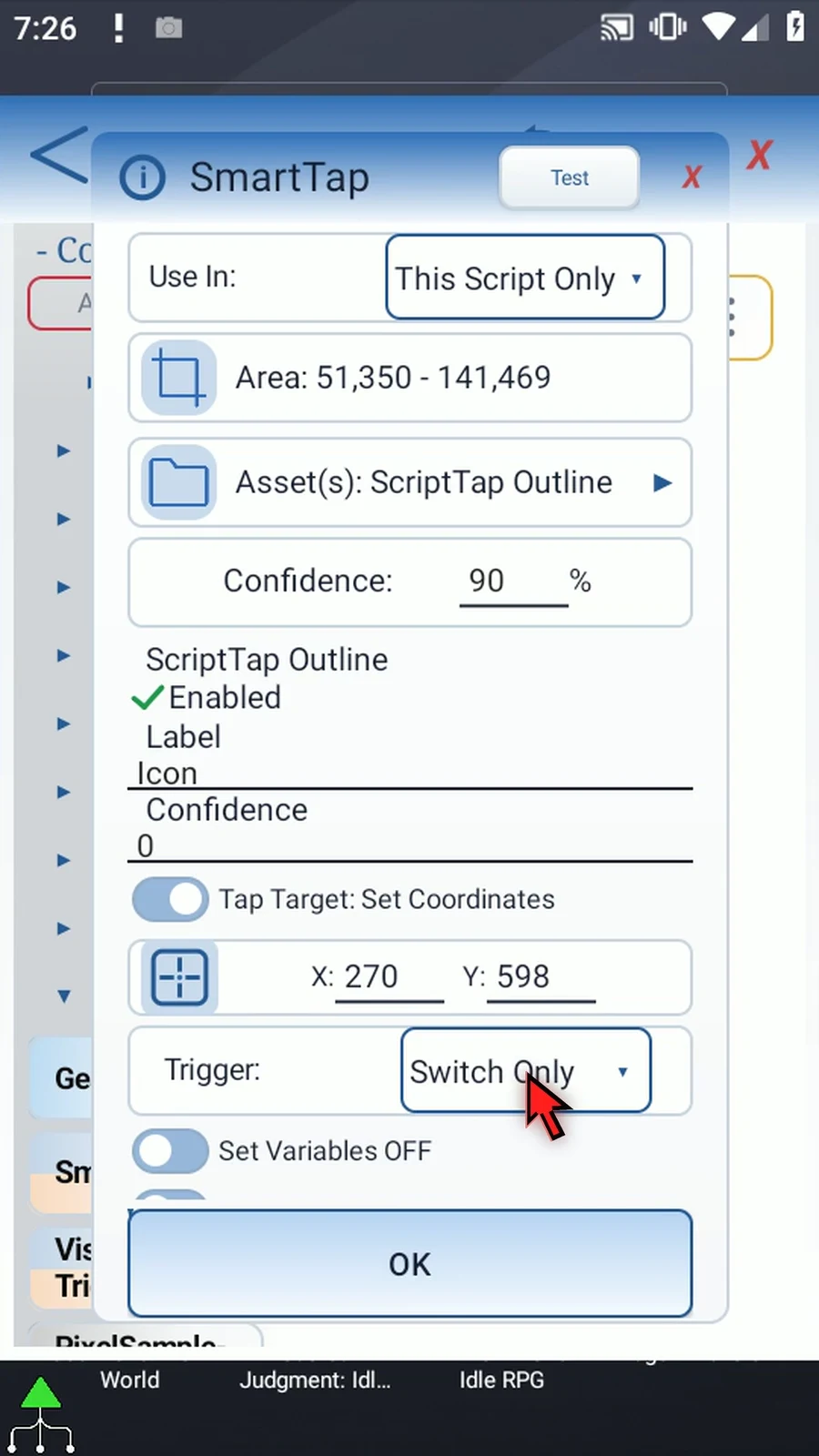
Step 15 First Seen taps for the first approved match in that run, then suppresses further taps from this command. Choose it when a repeated check should act only once.
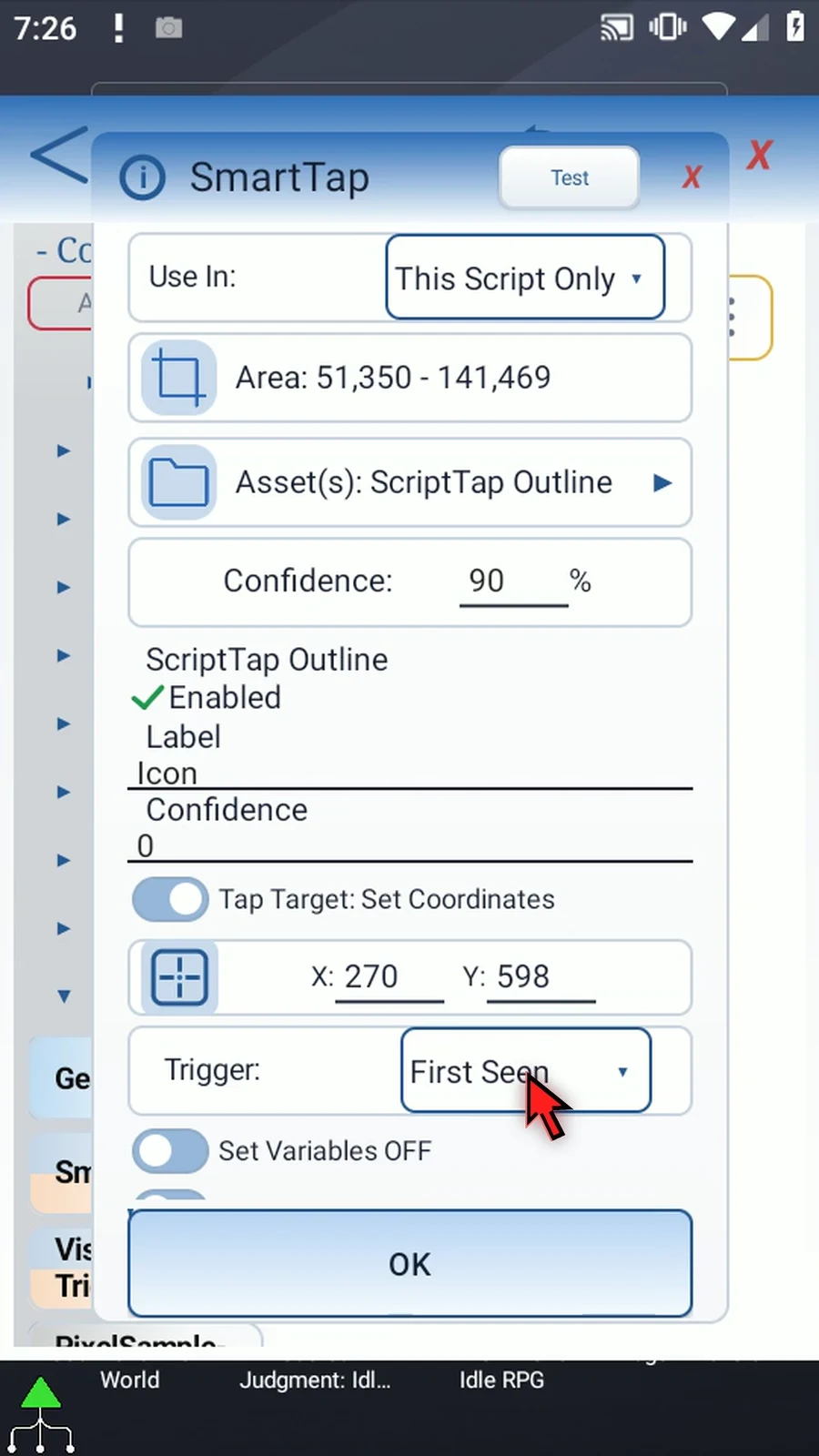
Step 16 Every Change also accepts the first approved match and responds when the approved asset changes. Repeating the same matched asset does not trigger another tap. An unsuccessful image search does not invent a new matched state.
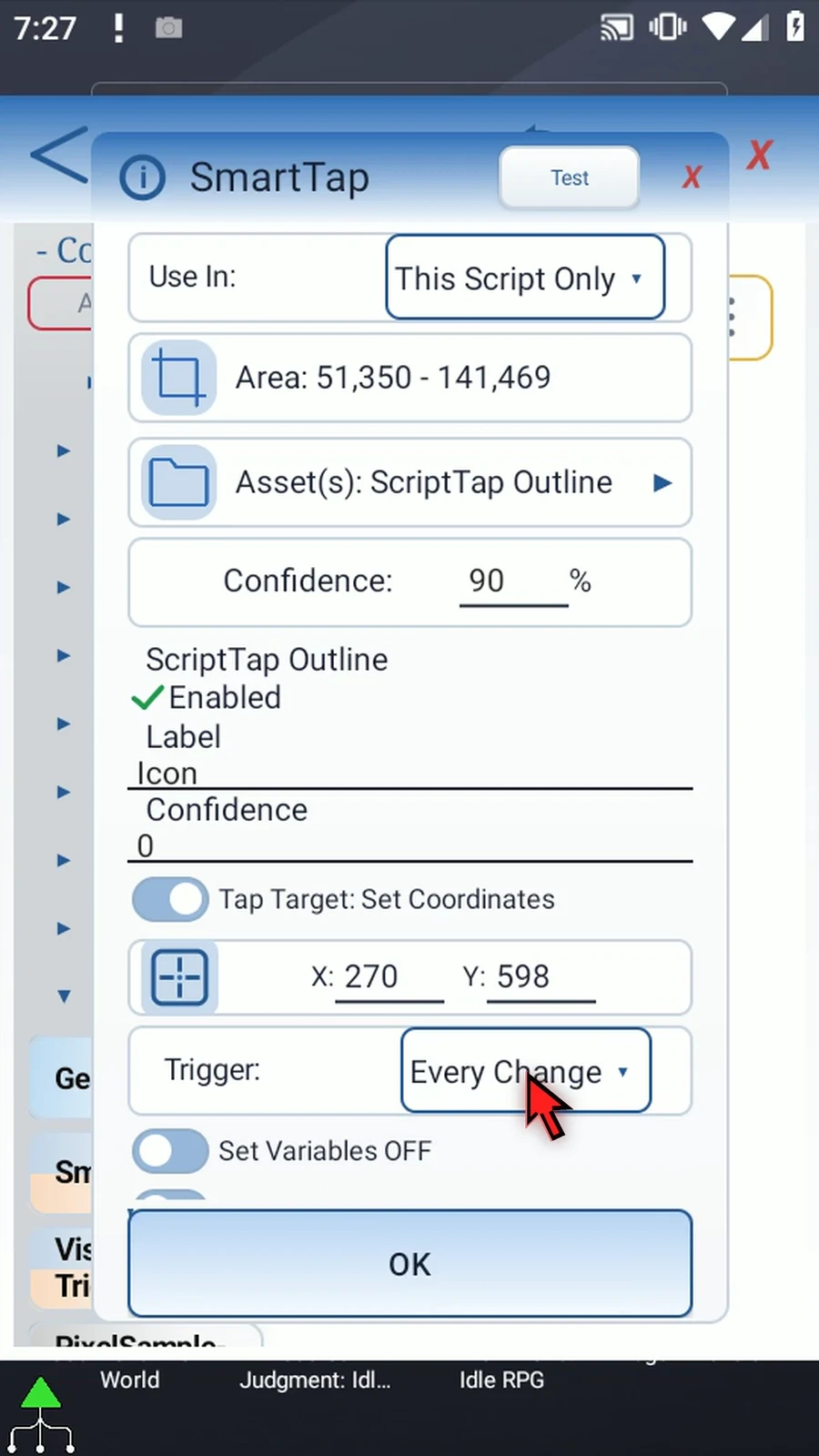
Step 17 Every Match taps on every visit that finds an approved image, even when it is the same asset as before. Use this when each successful check should act again.
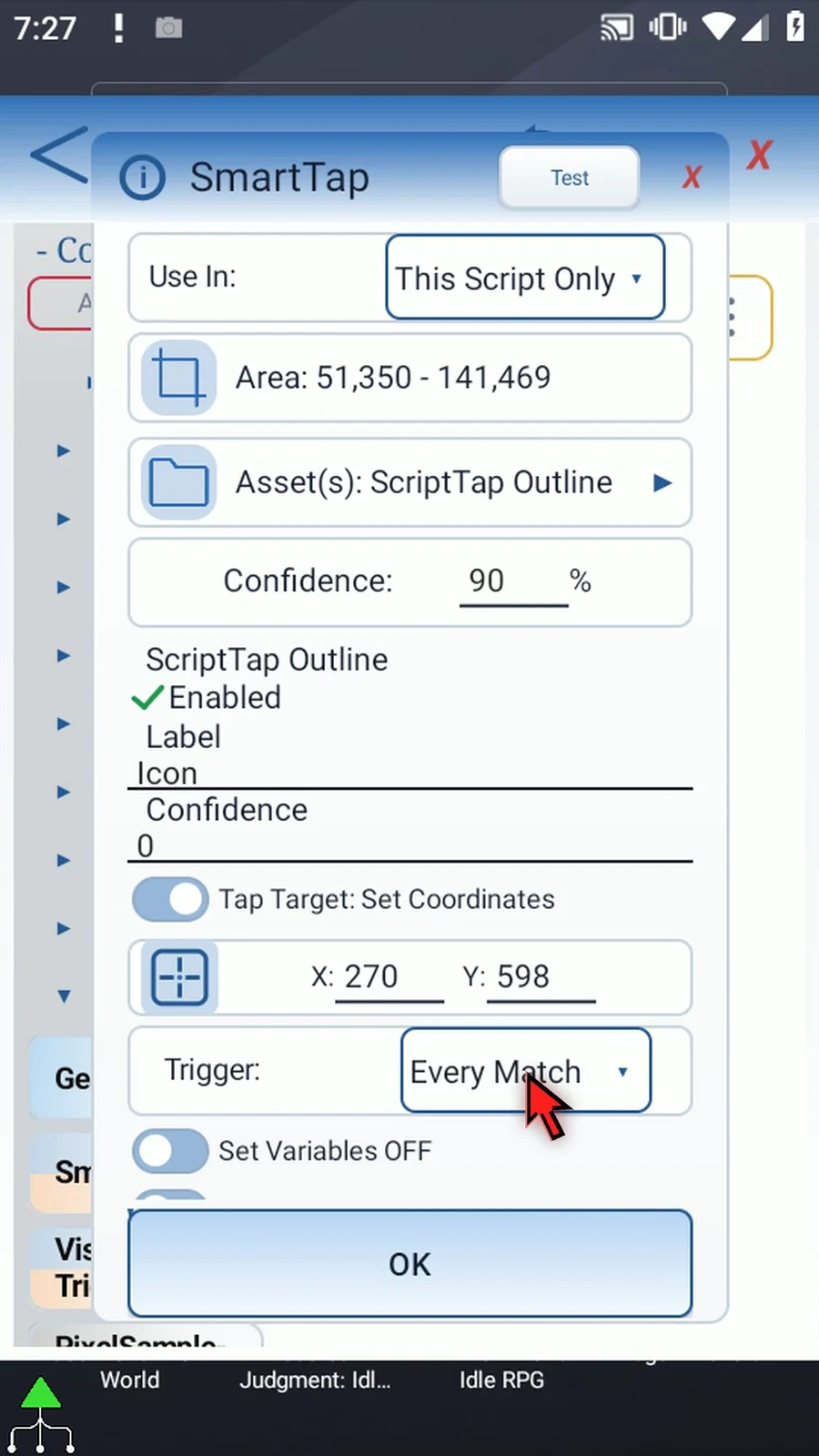
Step 18 Set Variables exposes optional result destinations. Boolean b1 is True only when this execution successfully sends a tap; otherwise it is False. This is a tap result, not just an image-found flag. The full variable name includes its number.
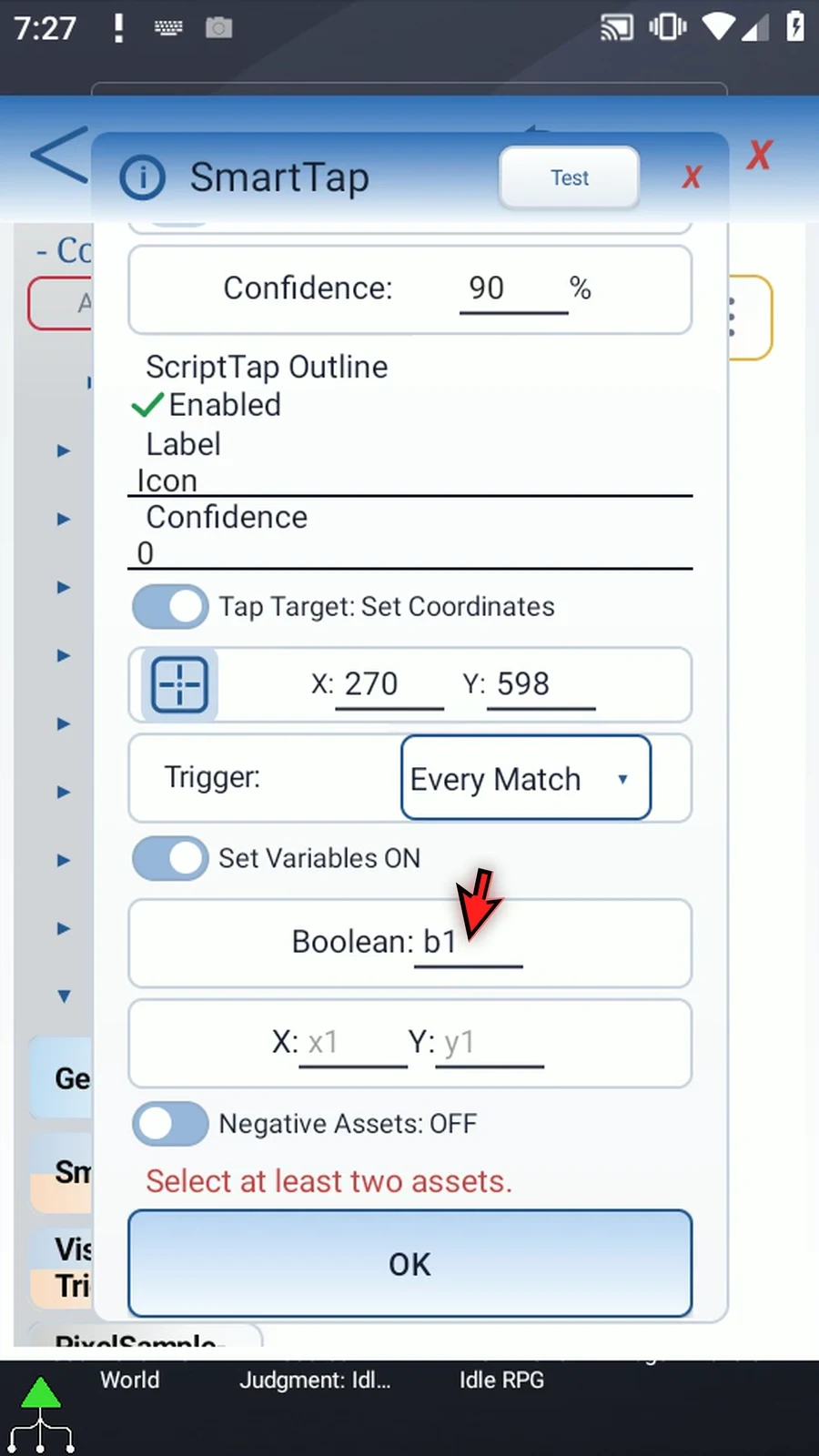
Step 19 The X and Y outputs store the matched image center. We use Integer variables x1 and y1. These coordinates describe the match even when Set Coordinates sends the tap somewhere else. Without an approved match, the coordinate destinations remain unchanged.
Step 20 Negative Assets can reject an otherwise matching candidate when an unwanted image is found near it. Up to ten can be selected. We leave this option off here; the shared Asset Creation video covers preparing image assets.
Step 21 The header Test checks the current draft, so use it deliberately after the active settings are complete. This option tour does not run Test or Play. One inspected row is not a runnable configuration: a real SmartTap command still needs at least two enabled assets.
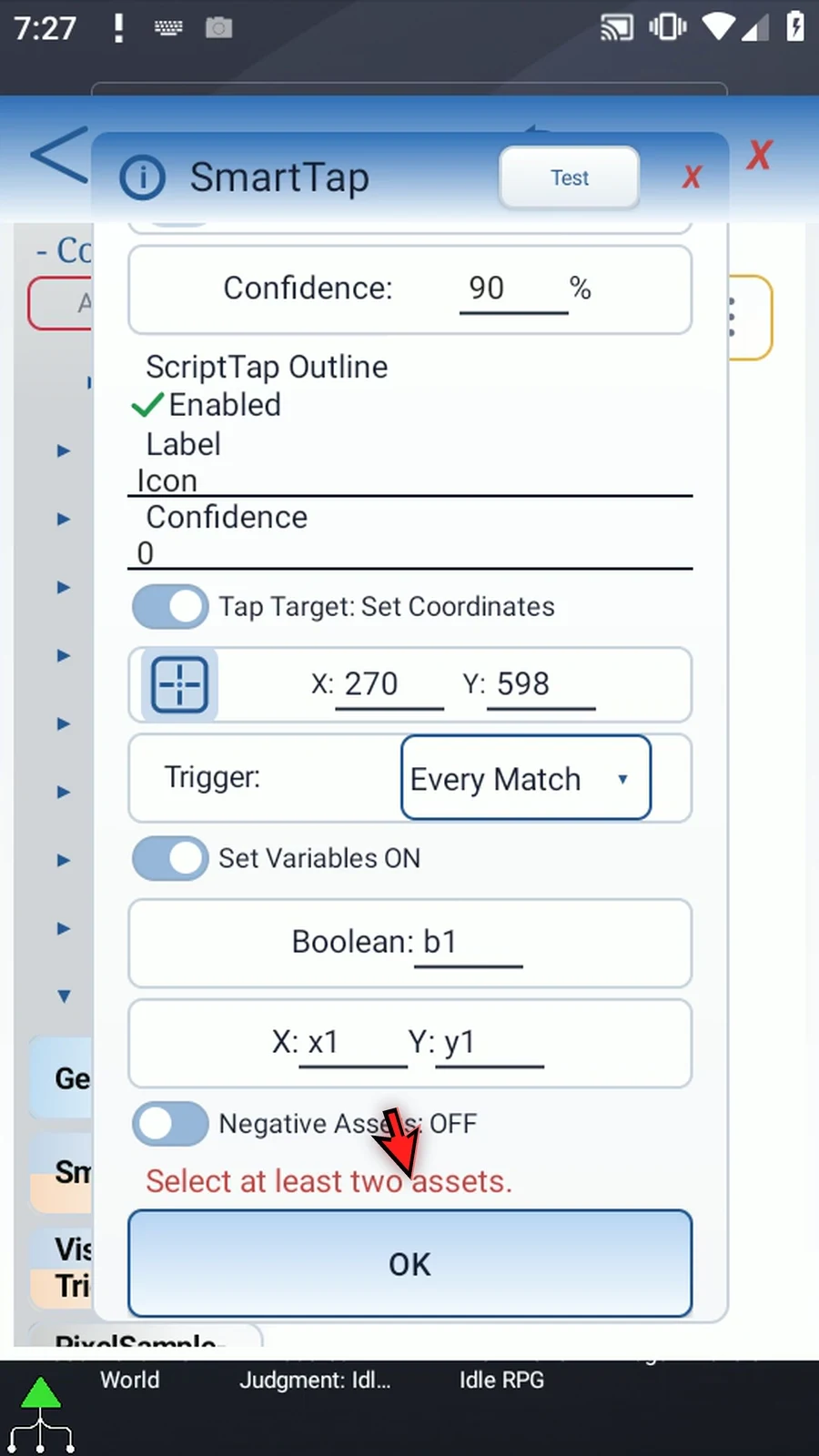
Step 22 Close the modal to discard this tour draft. For a real script, finish the assets, area and active target, then save with OK. Test with your own images, and check the tap results during normal script playback.
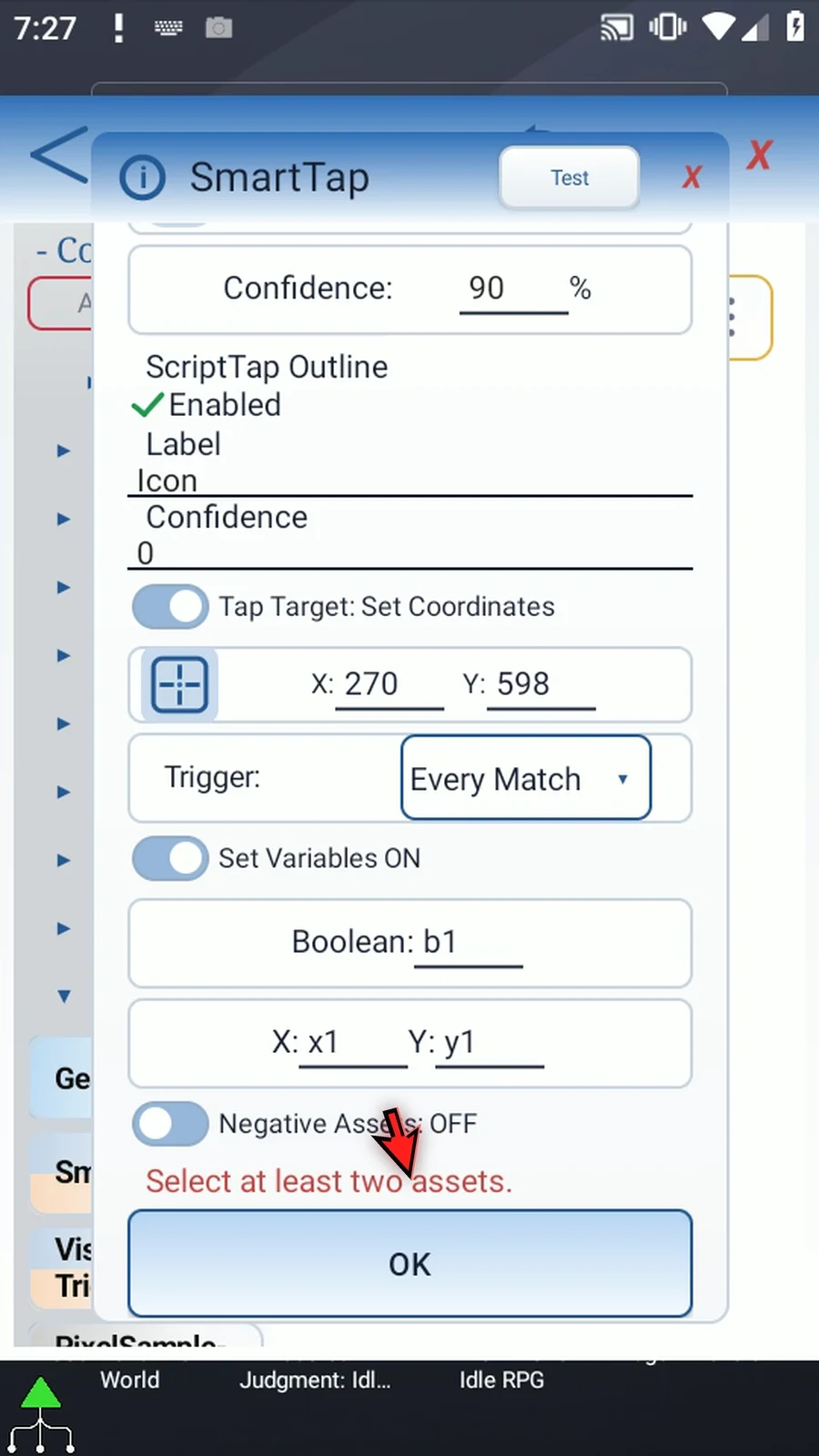
Create the image asset once, then select it in this command. This is the same shared video used by the other image-matching guides.