Image-matching preparation
Asset Creation
Create one small reference image and reuse it in commands that support image matching. This shared guide uses a portion of the ScriptTap launcher icon; command-specific guides explain matching settings.
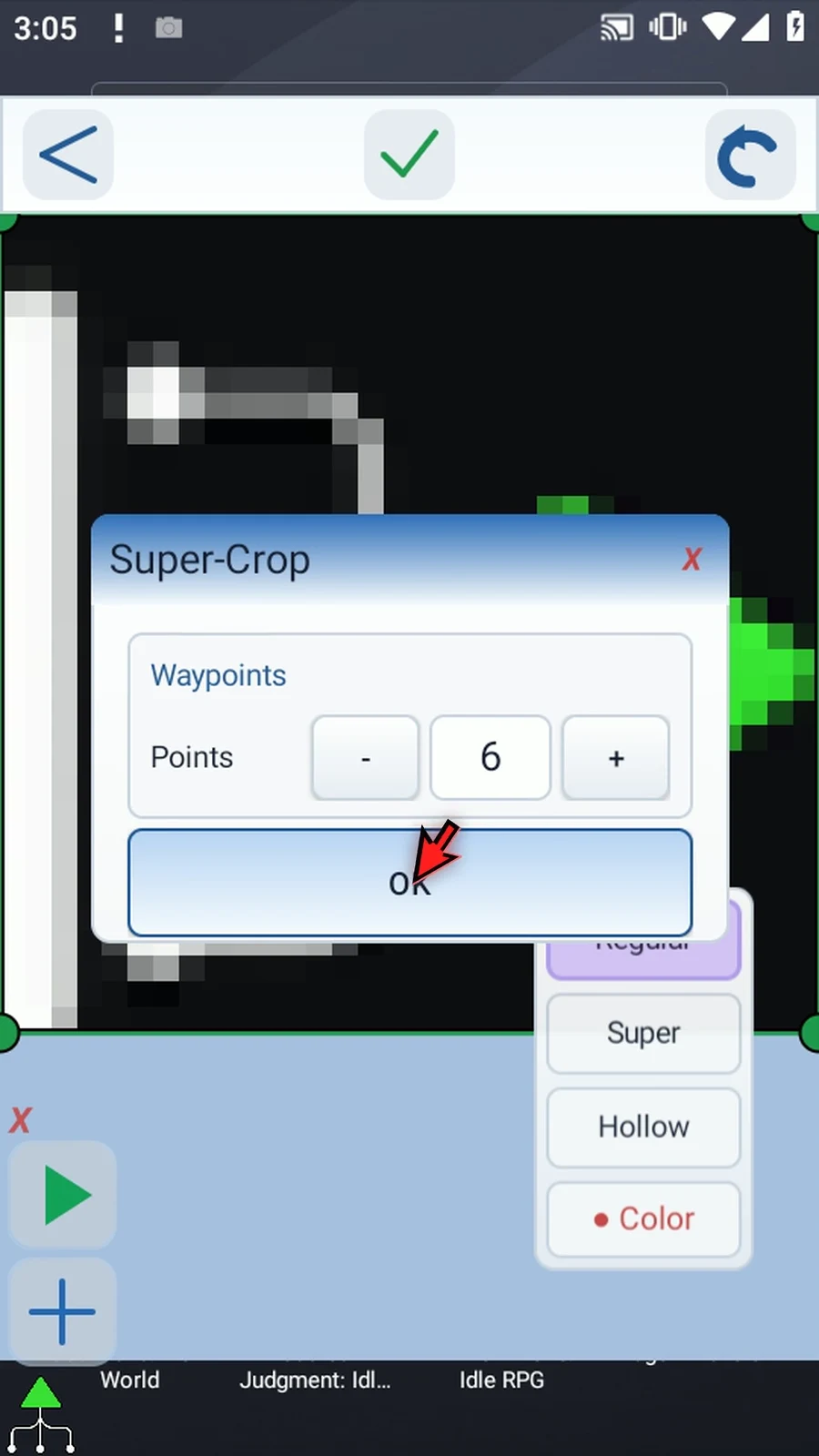
Regular Crop makes a rectangle. Super Crop makes a custom shape with three to sixteen points. Hollow Crop removes a transparent middle; position its inner shape before fitting the outer boundary, which cannot cross it. Color Crop keeps a sampled color within a chosen tolerance across the entire image, including disconnected regions.
First reduce the source to 32×32 pixels or smaller; Super, Hollow and Color are unavailable before that. Assets must be at least 4×4 pixels. In Color Crop, set tolerance to 30, sample green, then change it to 0 to see the selection update: zero retains only exact color matches.
Use as few non-transparent pixels as practical for faster matching, while retaining distinctive detail. Avoid semi-transparent edges that blend with changing backgrounds. The saved example keeps a hollow triangle inside the icon's solid green area.
Asset Creation
Step-by-step guide
Step 01 An image asset is a small reference image that ScriptTap can look for during script play. Create it once, then reuse it in commands that support image matching. We will use part of the ScriptTap icon.
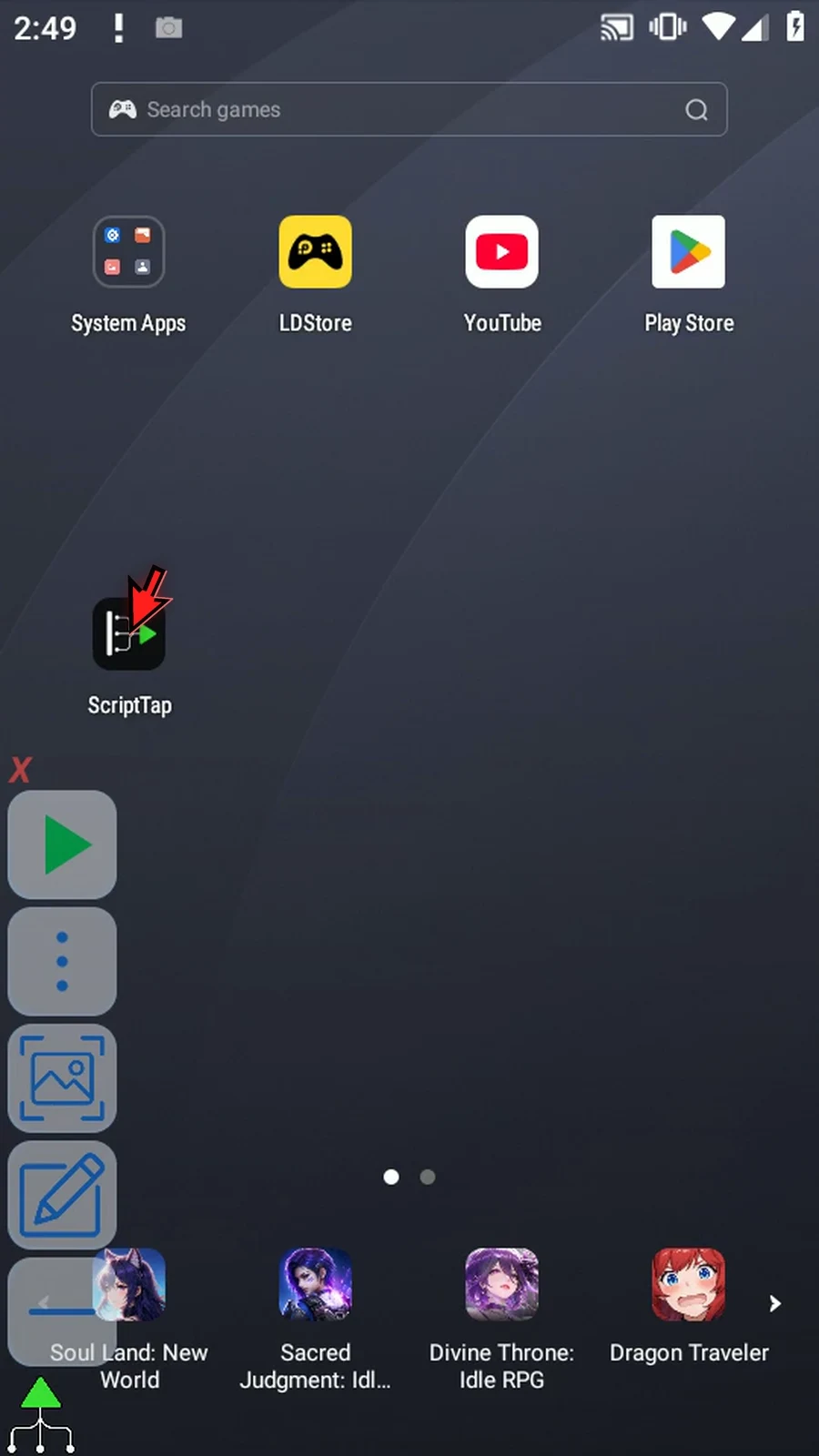
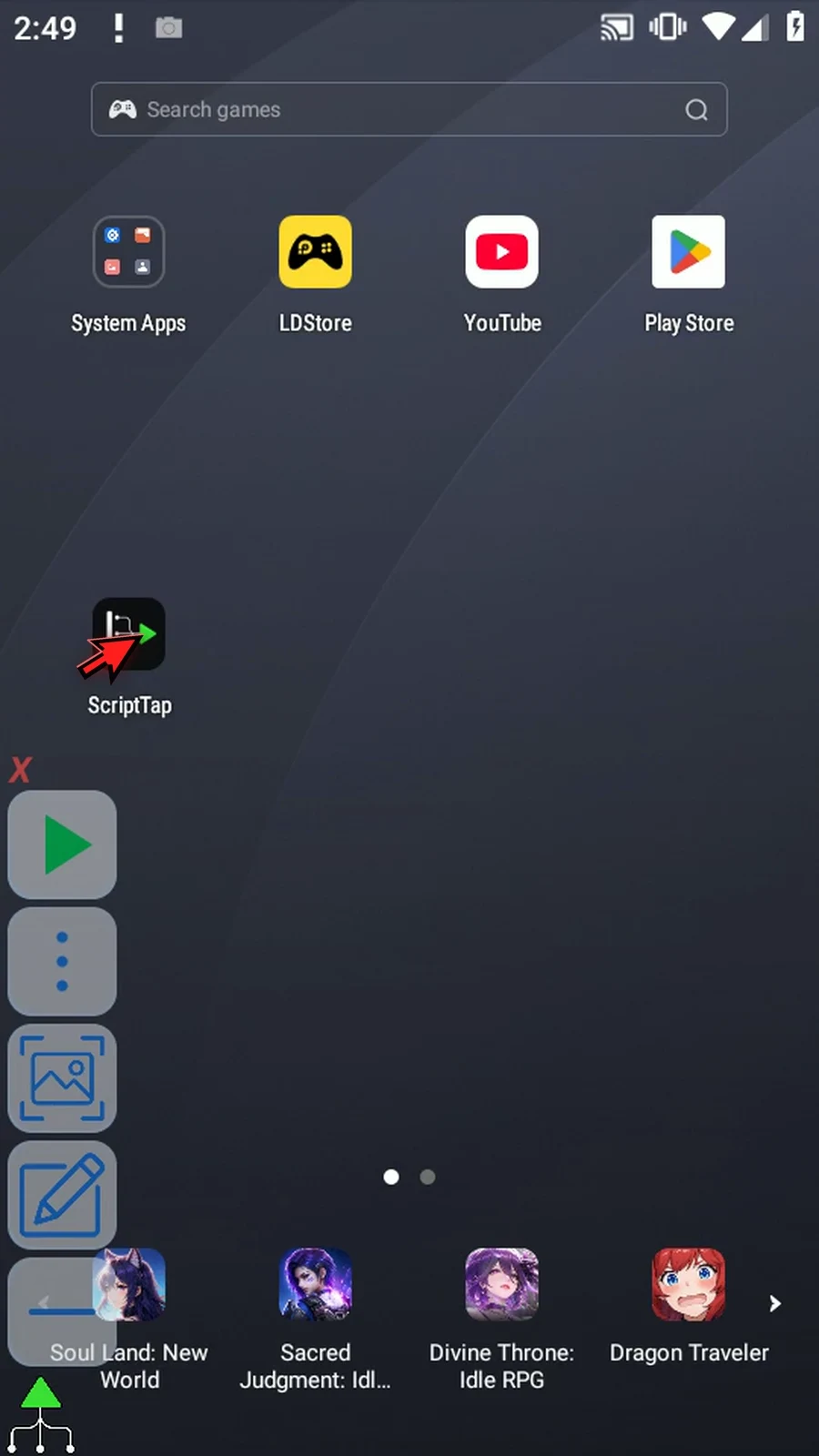
Step 02 Choose stable, distinctive detail. Using fewer non-transparent pixels makes image matching faster, so keep as few pixels as practical without making the target ambiguous. The crop tools let us remove pixels we do not need.
Step 03 First, create a new script to give this example and its asset an organized home.
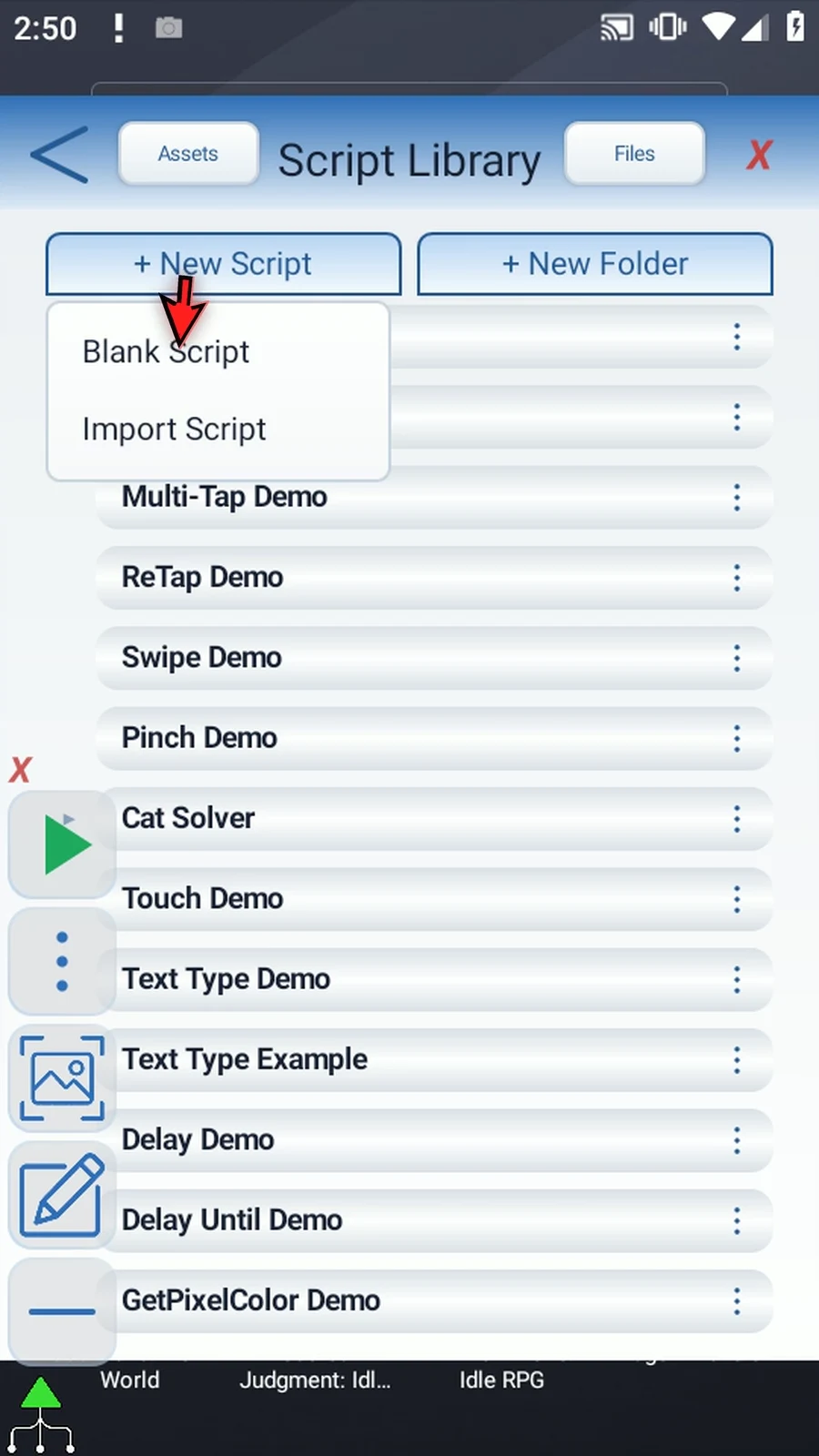
Step 04 Name it Asset Demo. We will leave existing scripts unchanged.
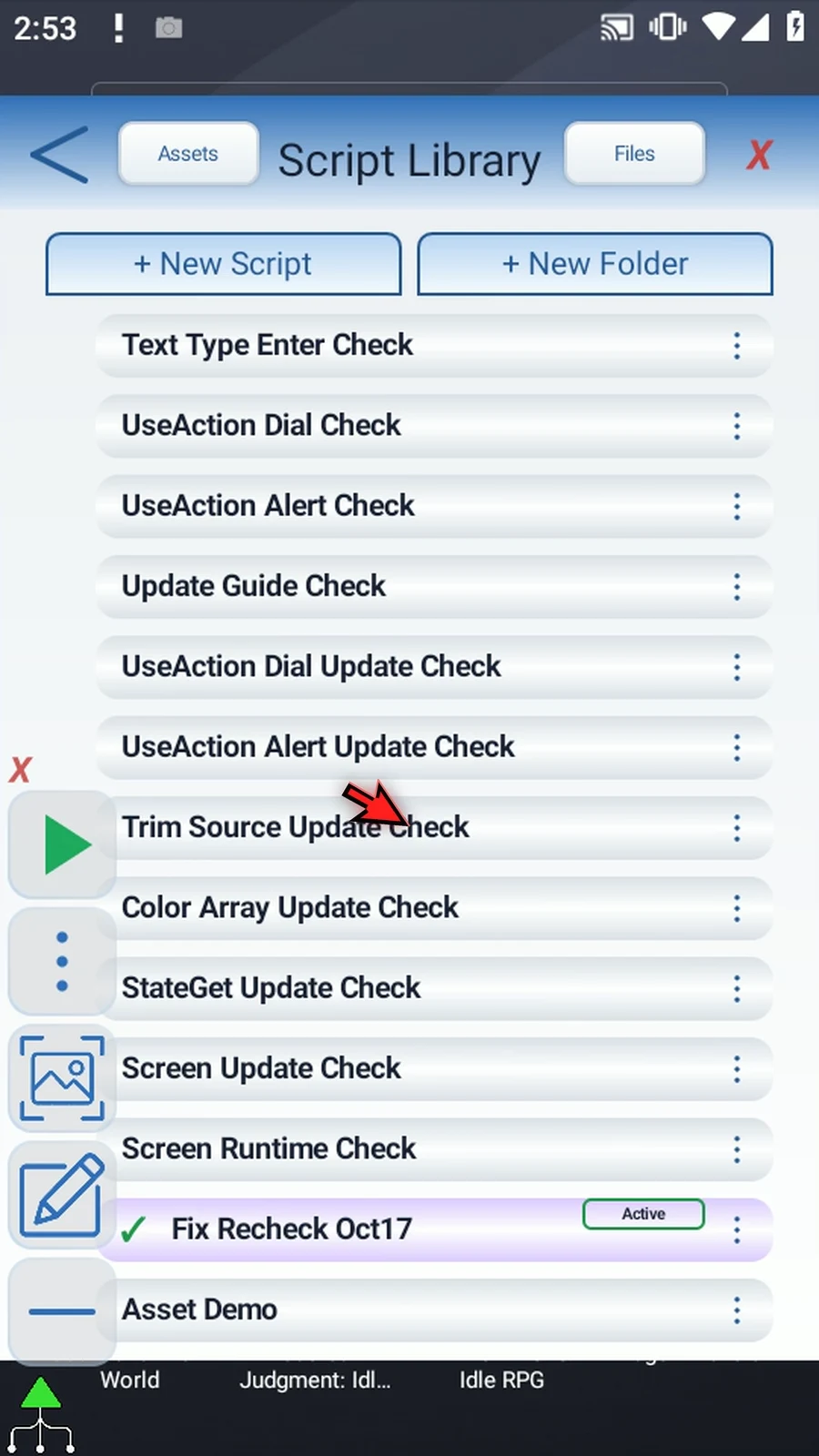
Step 05 Close the library and leave the ScriptTap icon visible on the home screen.
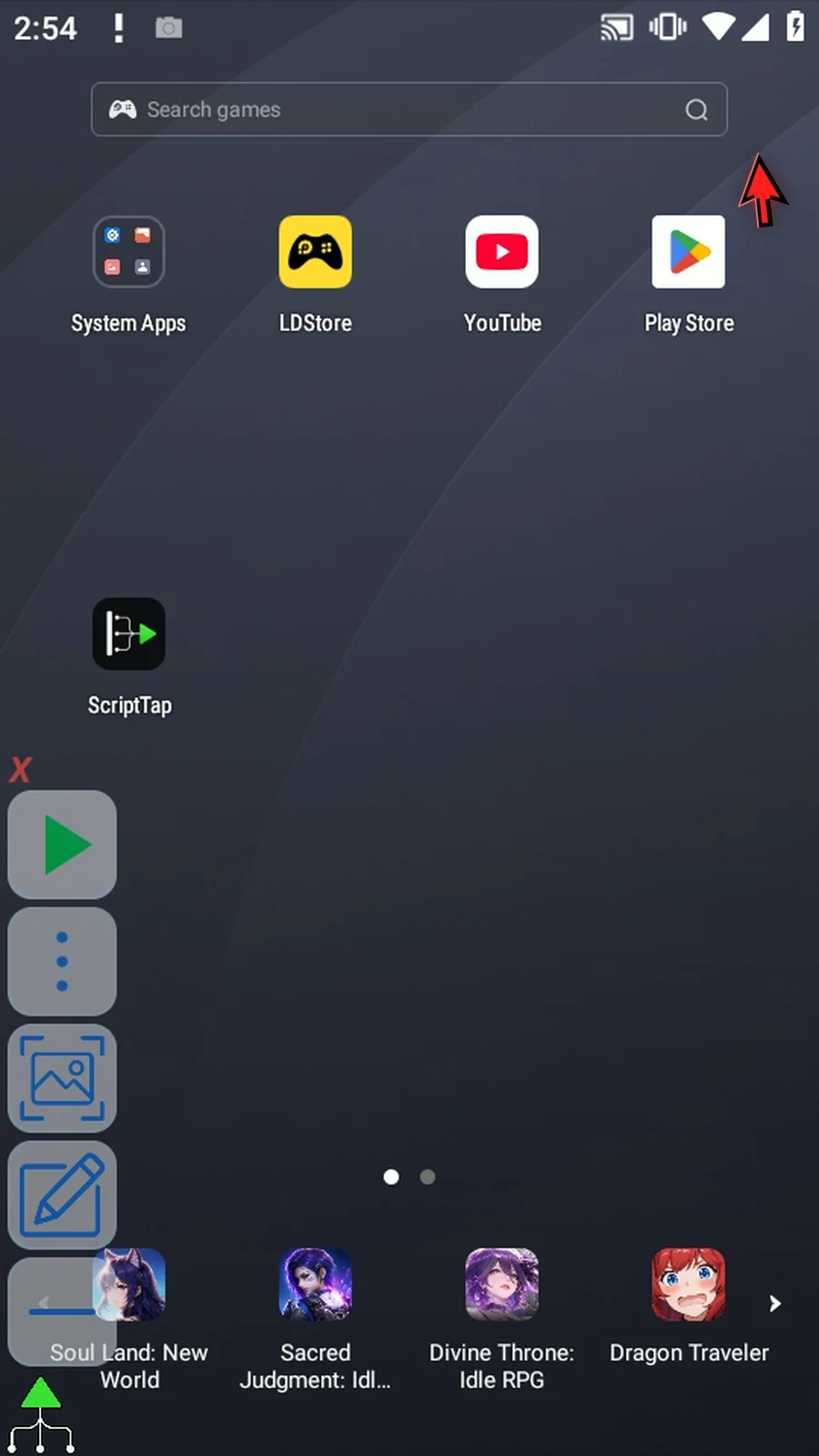
Step 06 Tap Screenshot in the main overlay, then immediately tap the Crop icon that appears. If Android asks, allow screen capture. This opens the captured screen directly in the crop interface.
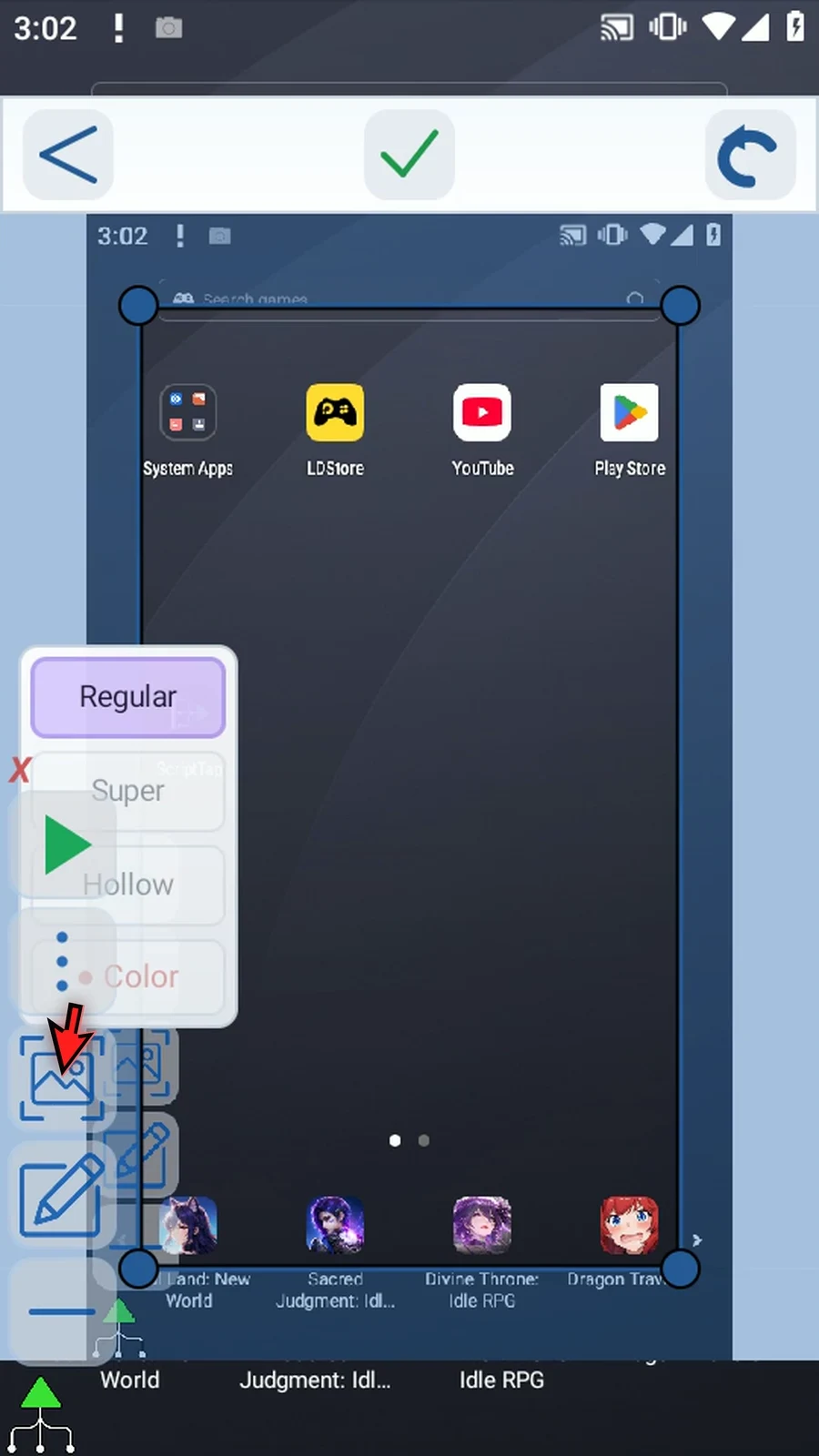
Step 07 Regular Crop keeps a rectangular area. Drag inside the initial selection to reposition it without resizing. Move the floating tools out of the way, then drag the corner handles around a small part of the icon.
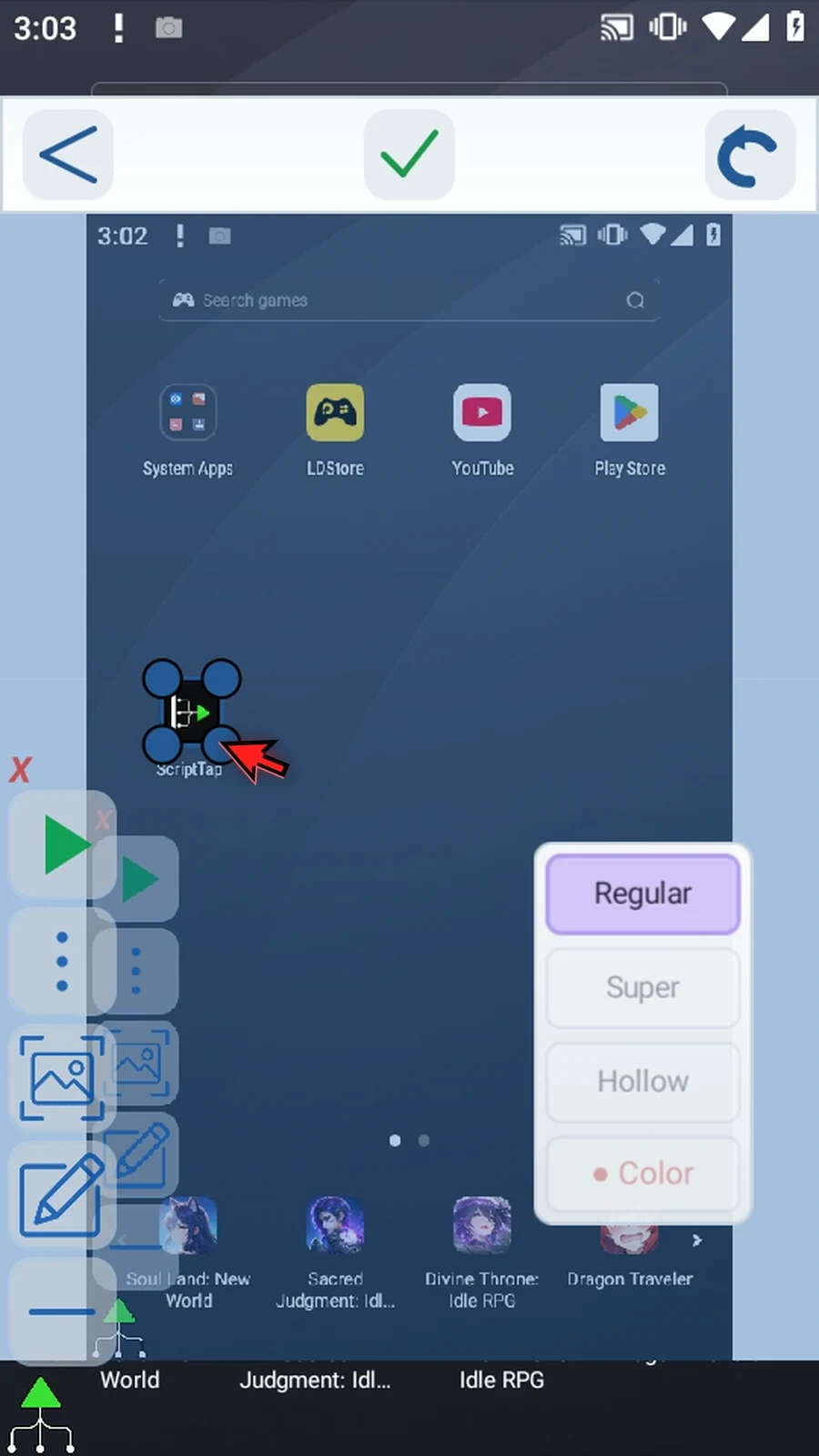
Step 08 Assets must be at least four by four pixels and no larger than thirty-two by thirty-two. If the first crop is larger, tap the check mark and follow Crop Again to refine it in an enlarged view.
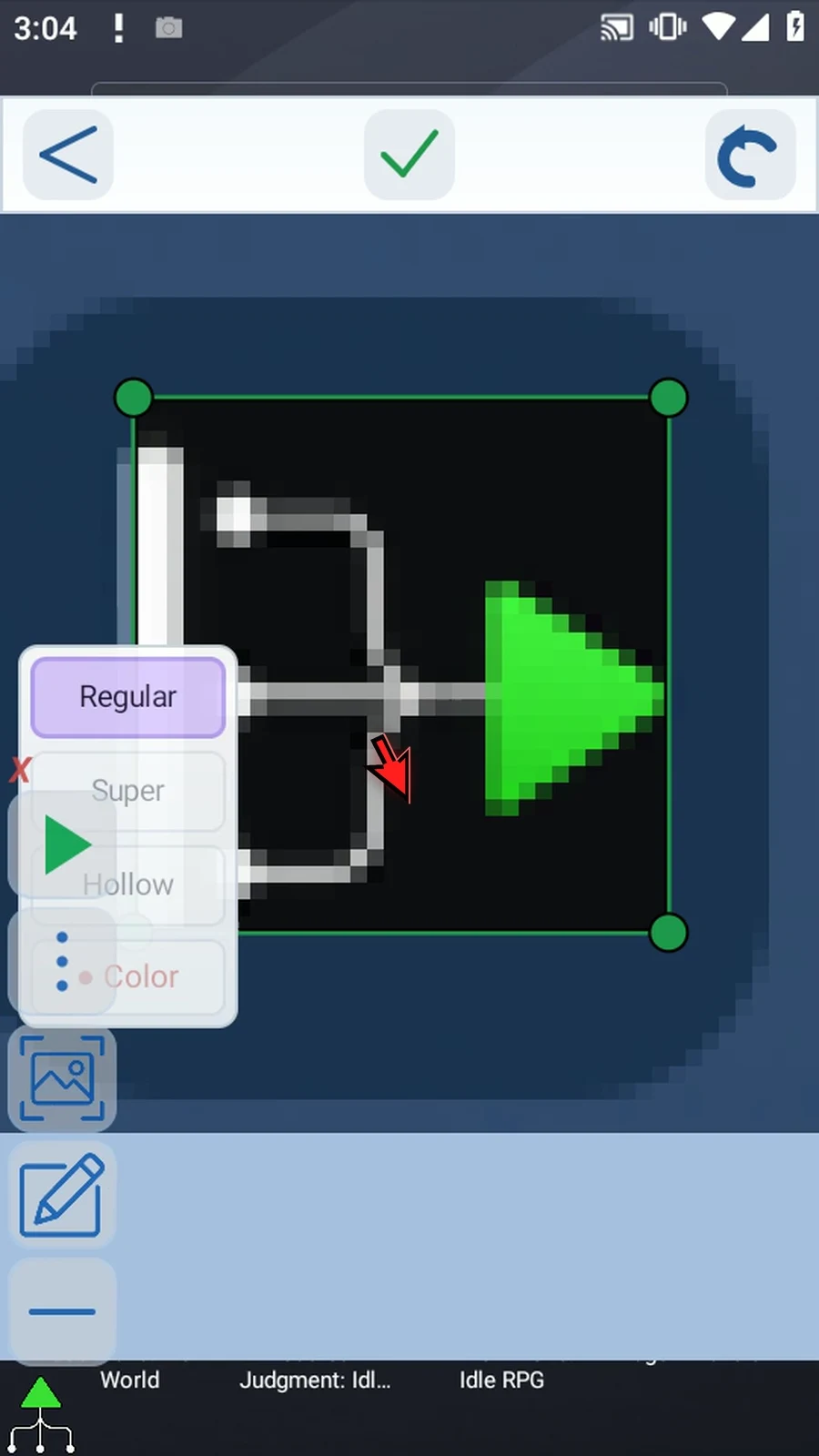
Step 09 Tap the check mark, then Crop More. This applies the rectangular crop. Super, Hollow, and Color Crop are unavailable until the initial crop has been reduced to thirty-two by thirty-two pixels or smaller.
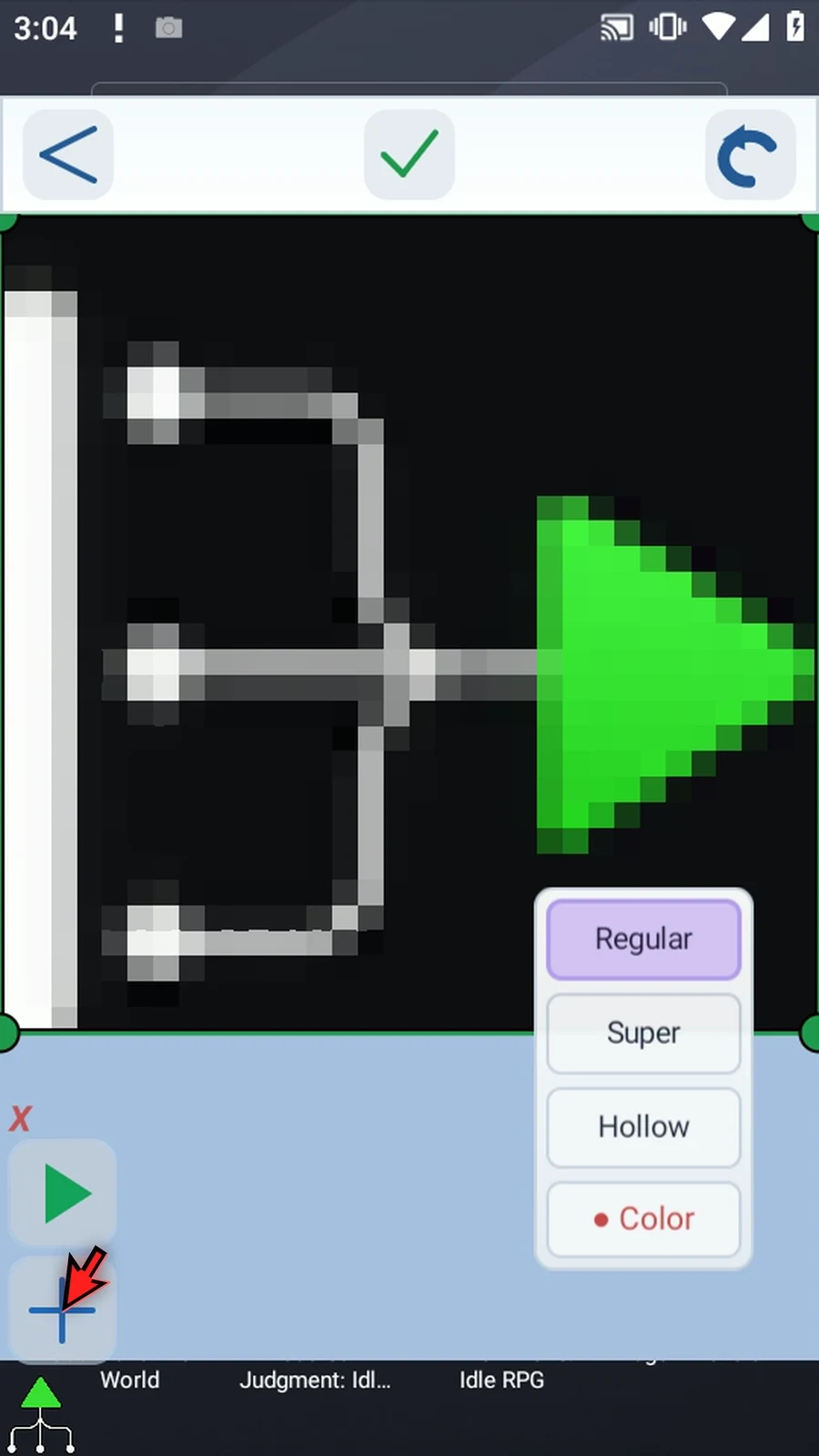
Step 10 Super Crop creates a custom shape instead of a rectangle. Choose between three and sixteen waypoints. We will use six to outline an irregular part of the icon.
Step 11 Drag the first three points around the upper edge and the arrow tip. The outline follows the points, and the preview shows which pixels will be kept.
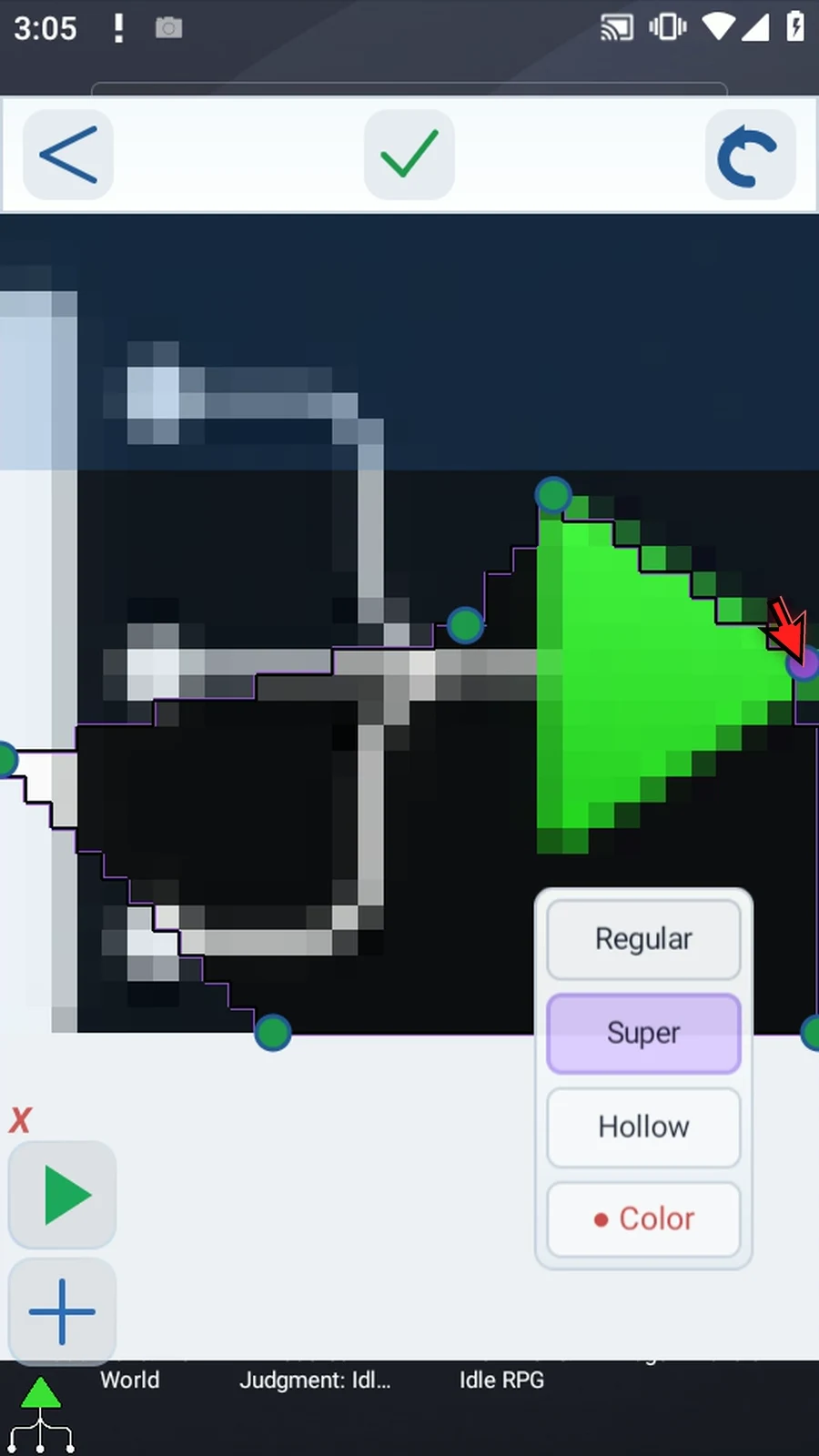
Step 12 Position the remaining points around the lower edge and the white branch. More points let you follow a more detailed outline. Pixels outside the custom shape will become transparent.
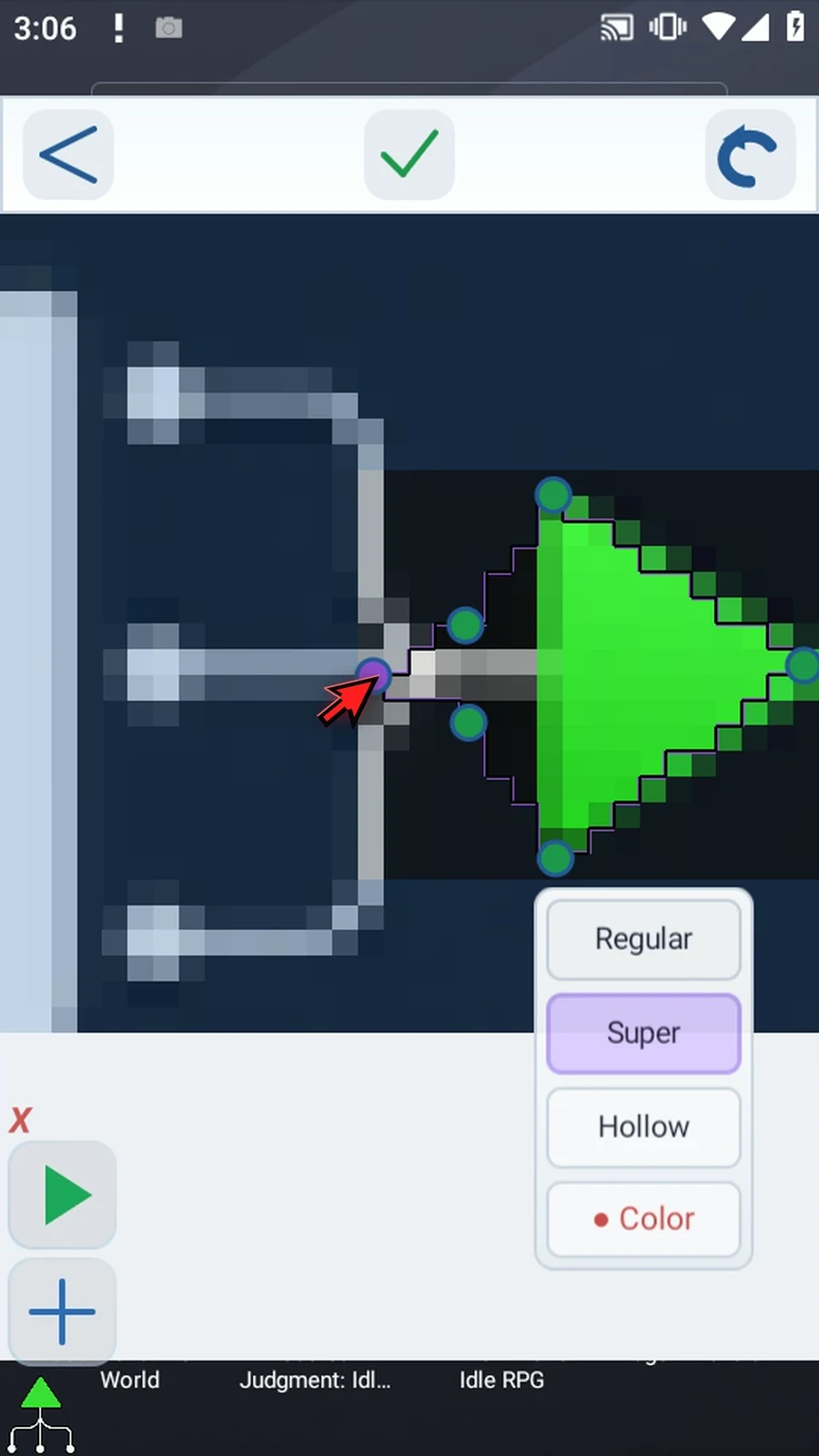
Step 13 This is a custom-shaped mask, not a rectangular selection. Before applying it, we will switch modes to compare the other tools on the same original crop.
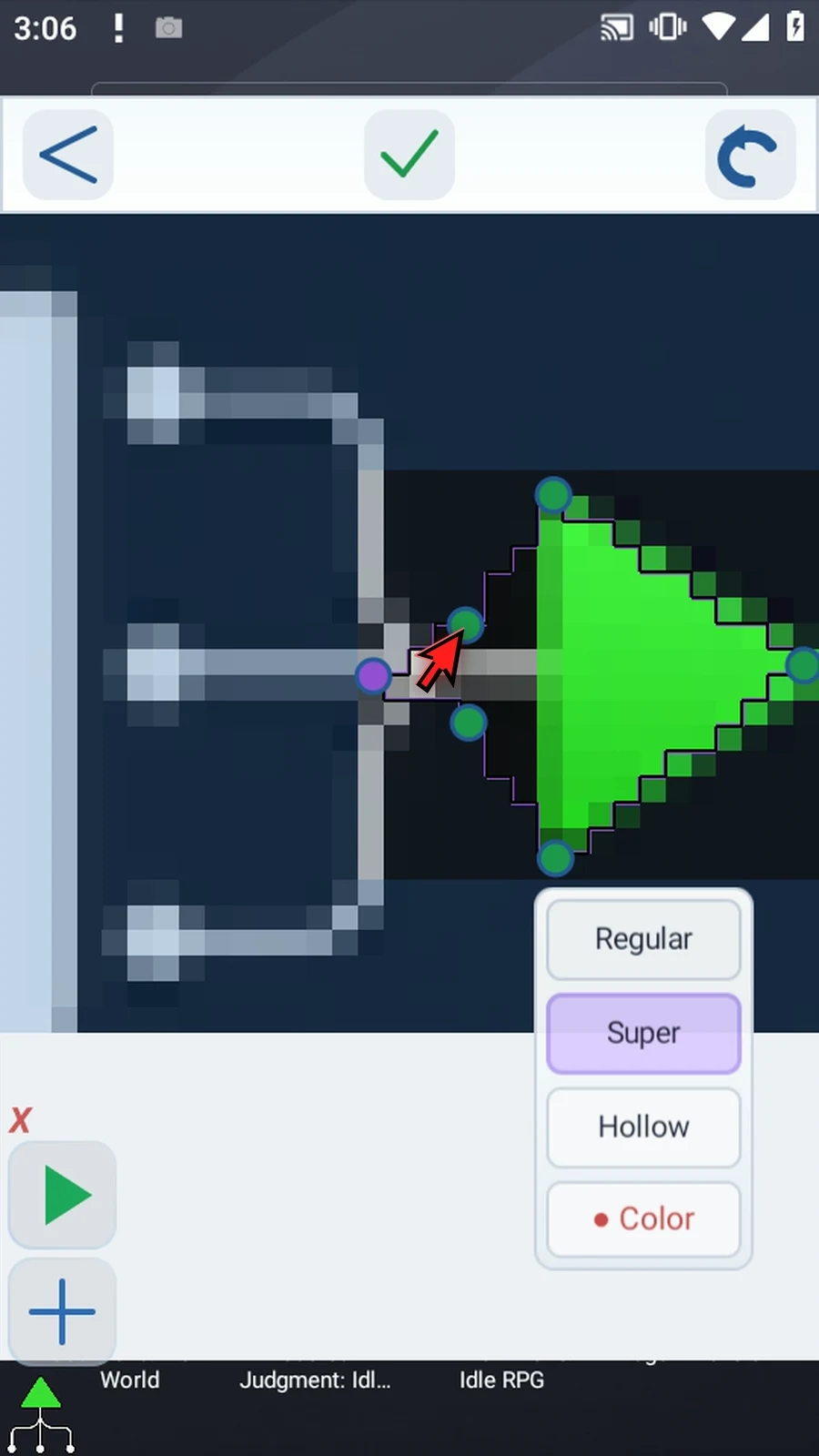
Step 14 Color Crop keeps only a selected color, within a tolerance you define. We are demonstrating it before Hollow Crop so the green, white, and black parts are still available for comparison.
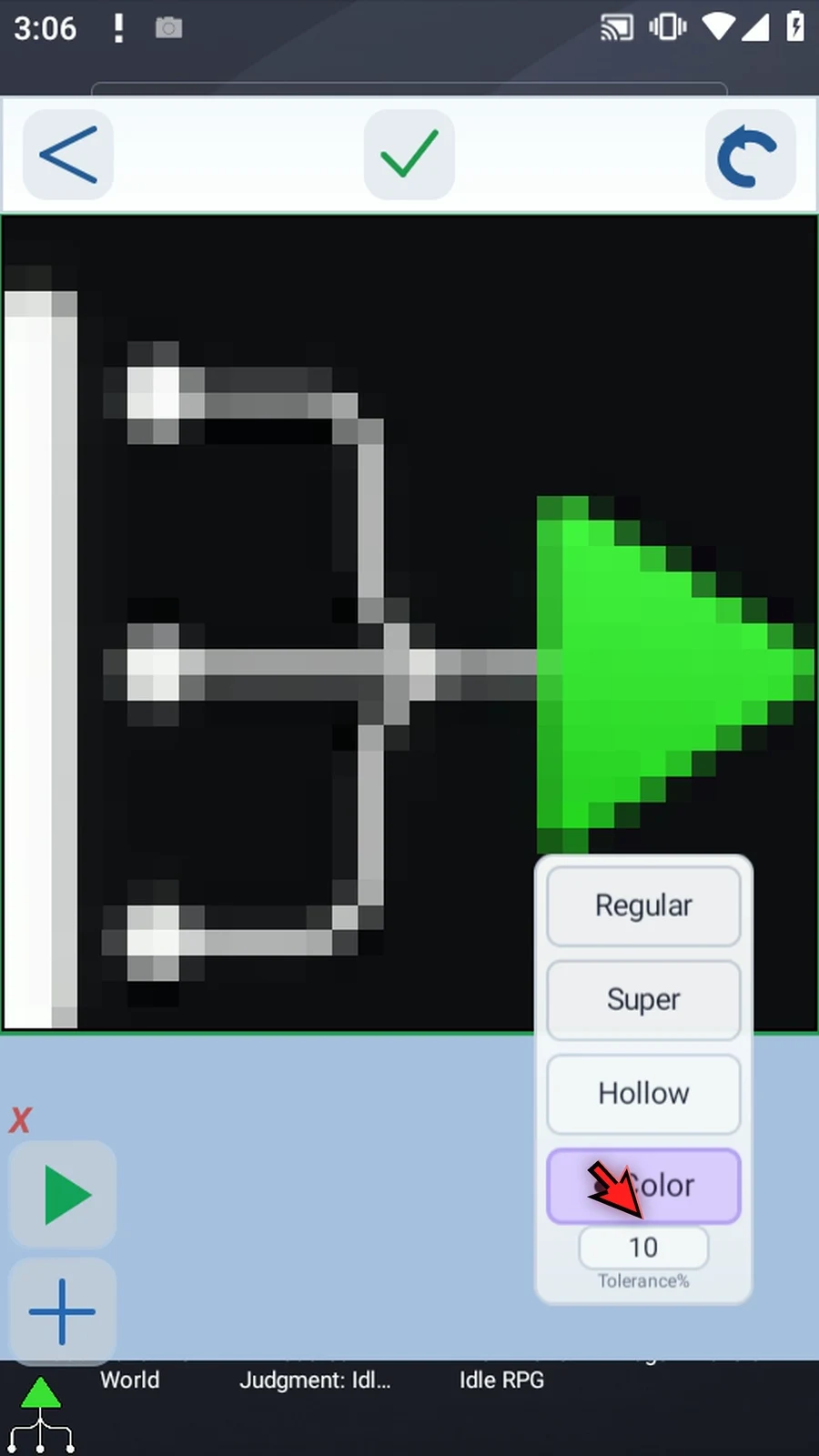
Step 15 Set Tolerance to thirty first. This allows nearby color shades to be included when we select a color.
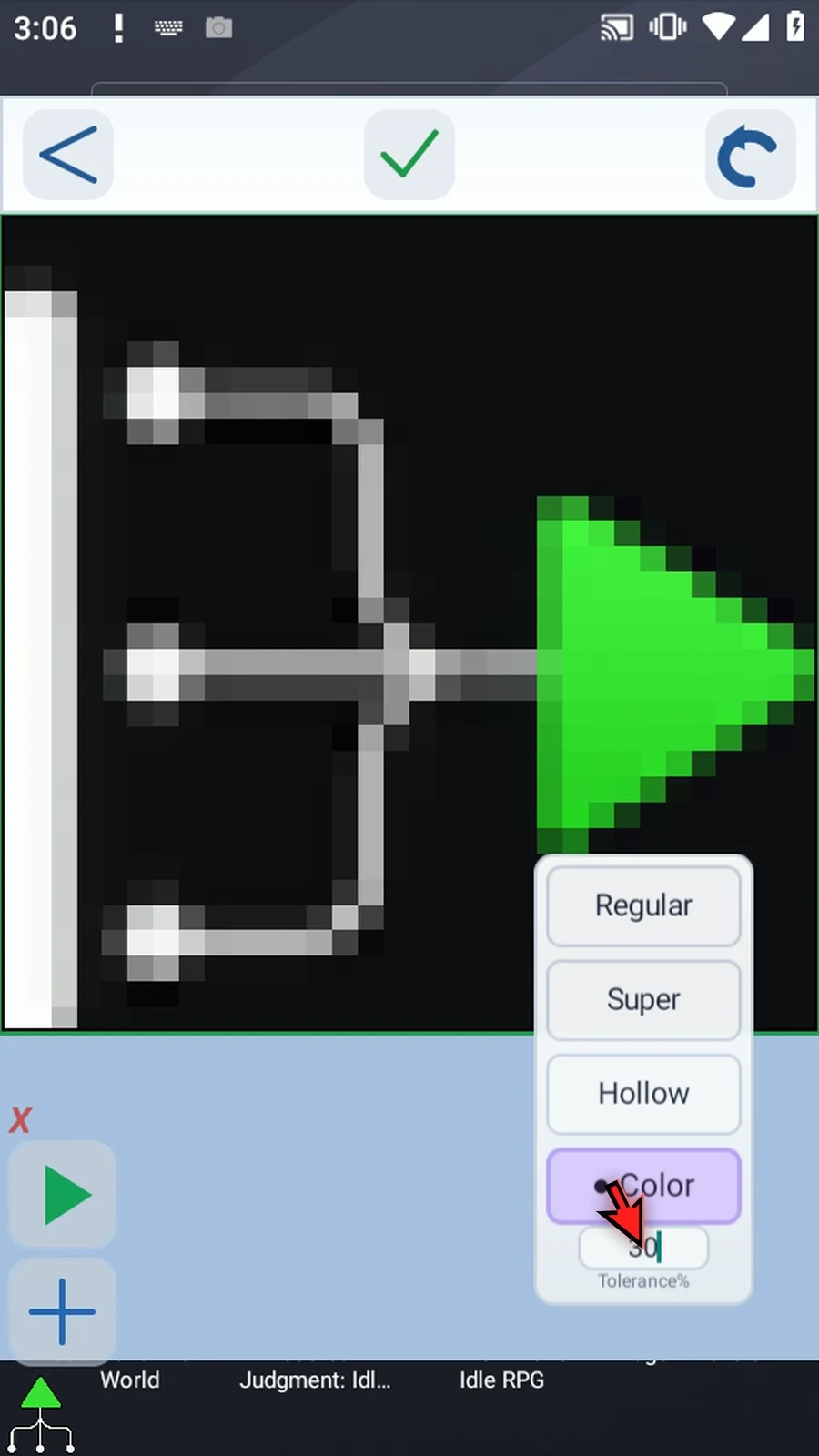
Step 16 Now tap a green pixel. The green shades are kept, while the white and black parts are excluded.
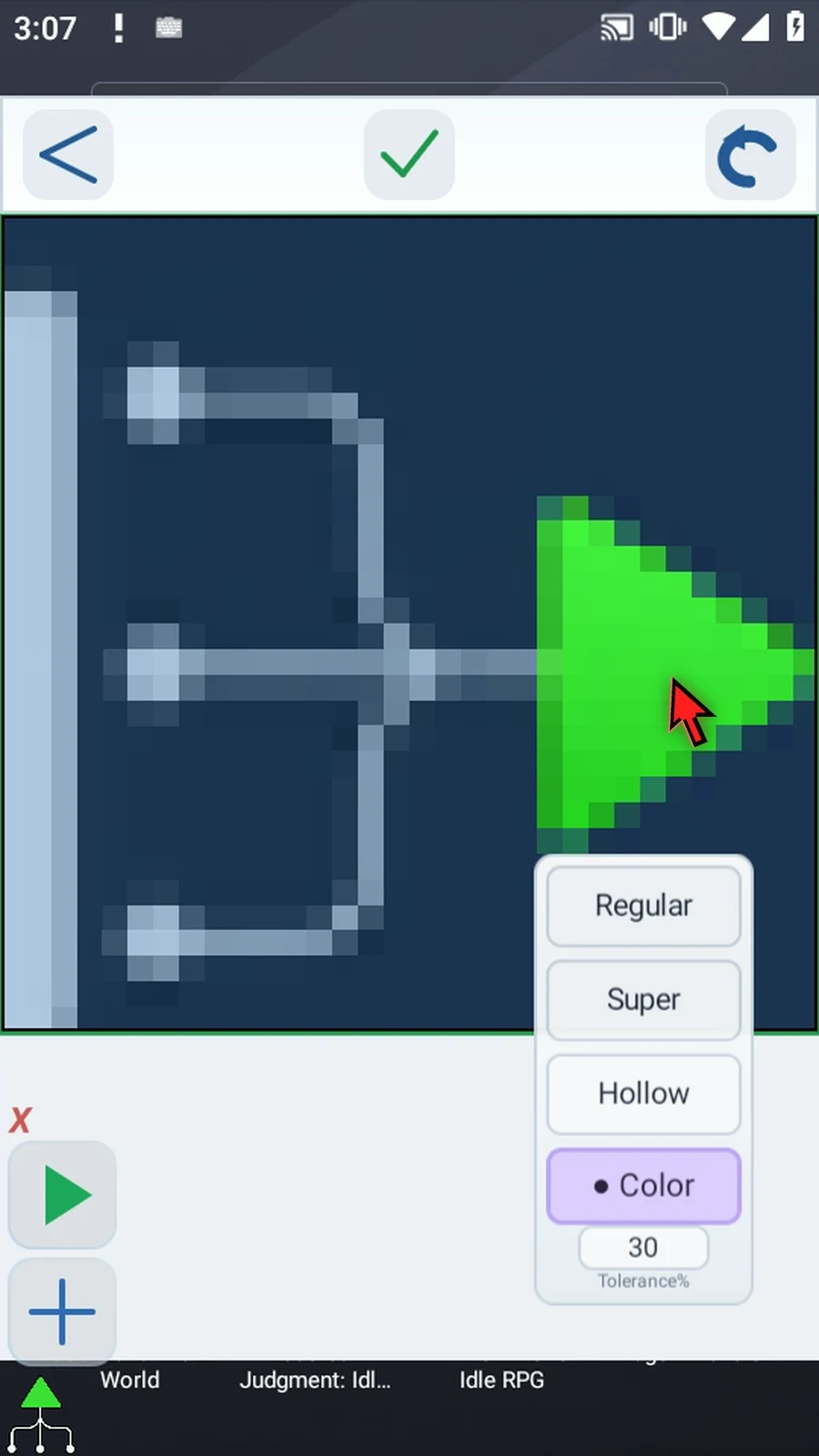
Step 17 Color Crop checks the entire image, not just the area connected to the pixel you tapped. Separate, disconnected patches are also kept when their colors fall within the chosen tolerance.
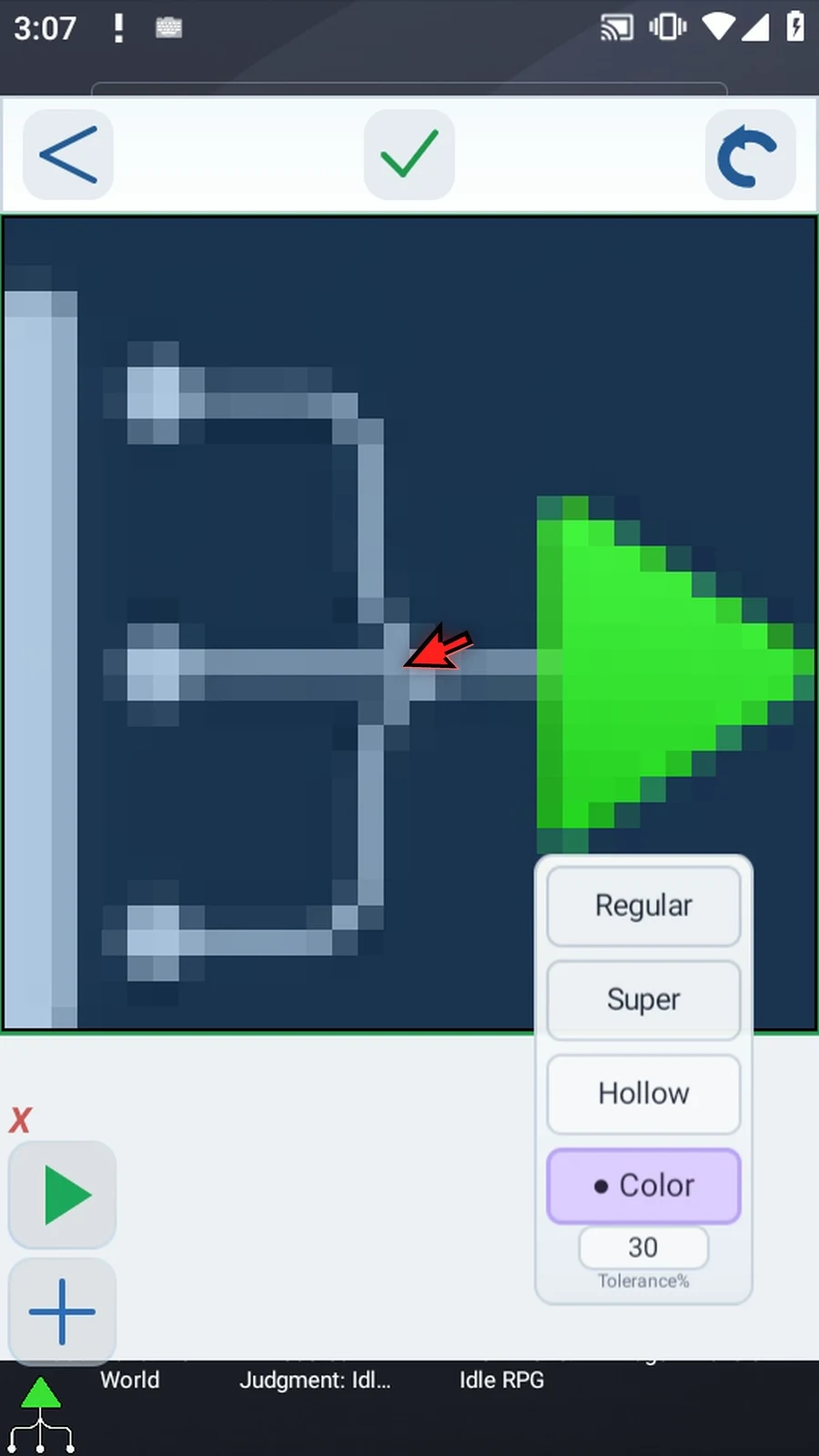
Step 18 Change Tolerance to zero without sampling again. The selected area updates immediately as the tolerance changes.
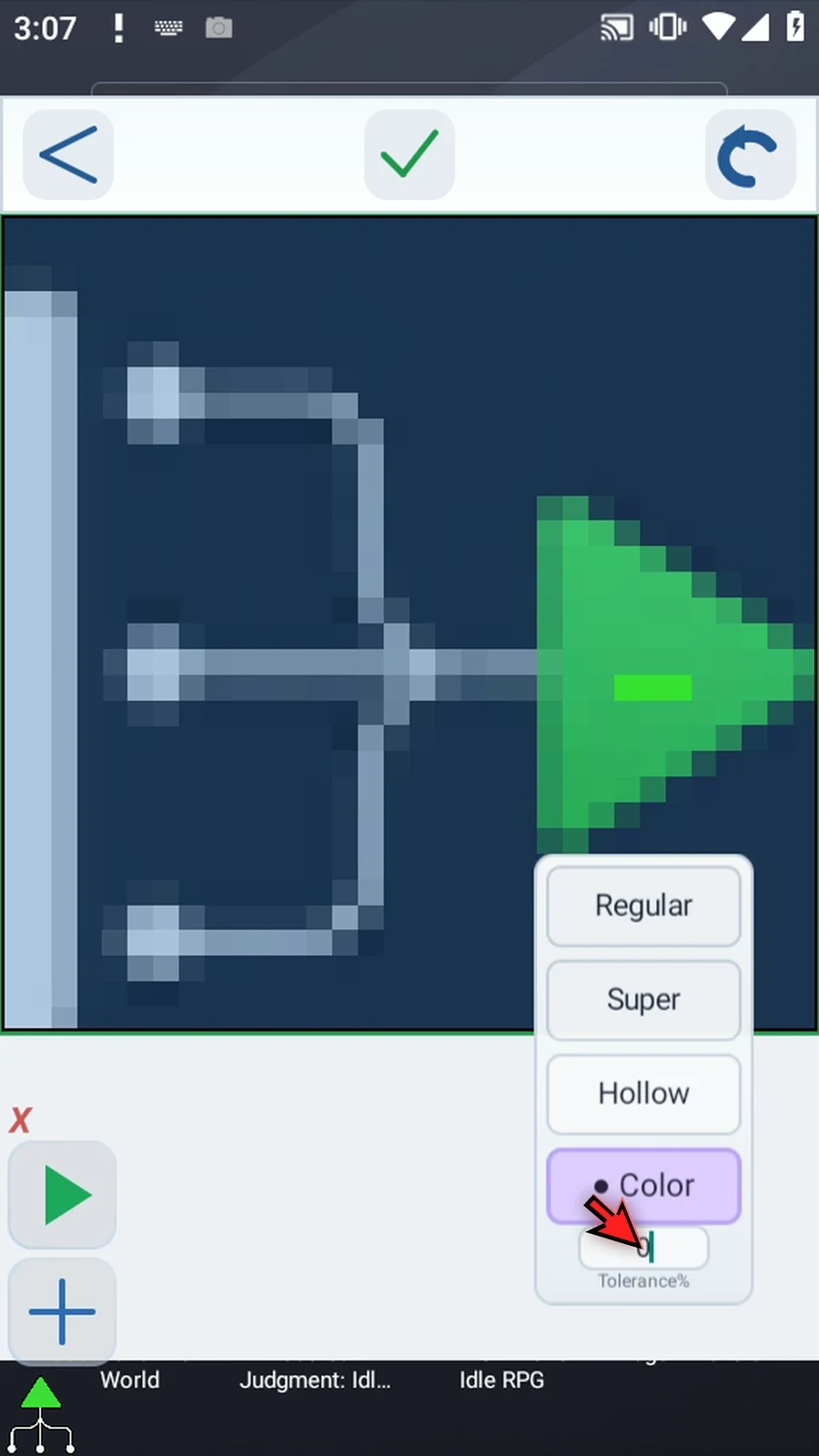
Step 19 Zero keeps only exact matches to the sampled color. Any color deviation is excluded, including other green shades. A higher tolerance includes more variation. Choose the level that keeps the useful detail you actually need.
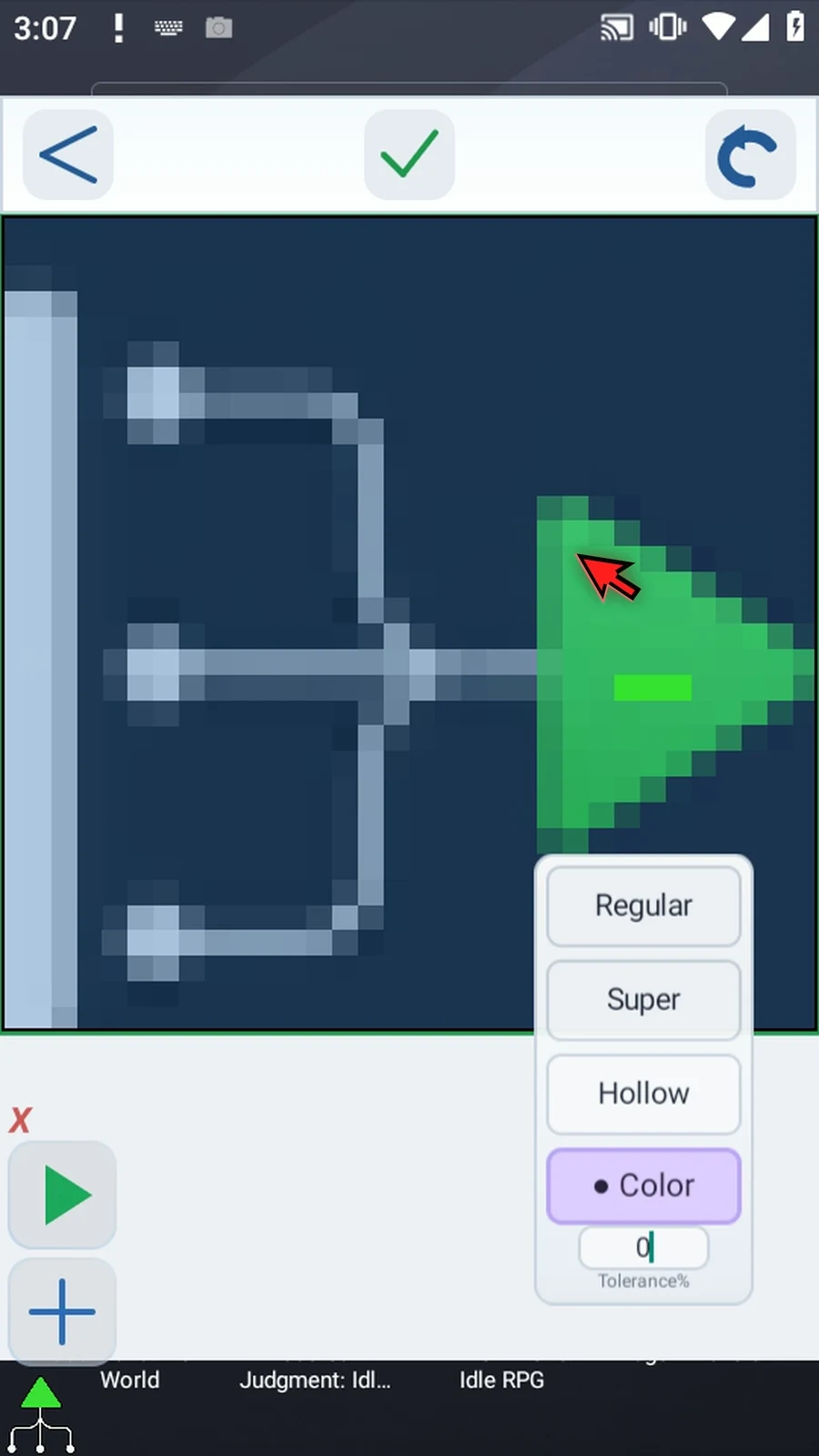
Step 20 We will leave that color comparison unapplied. Return to Regular Crop to restore the full rectangular source, then choose Hollow Crop for our reusable asset.
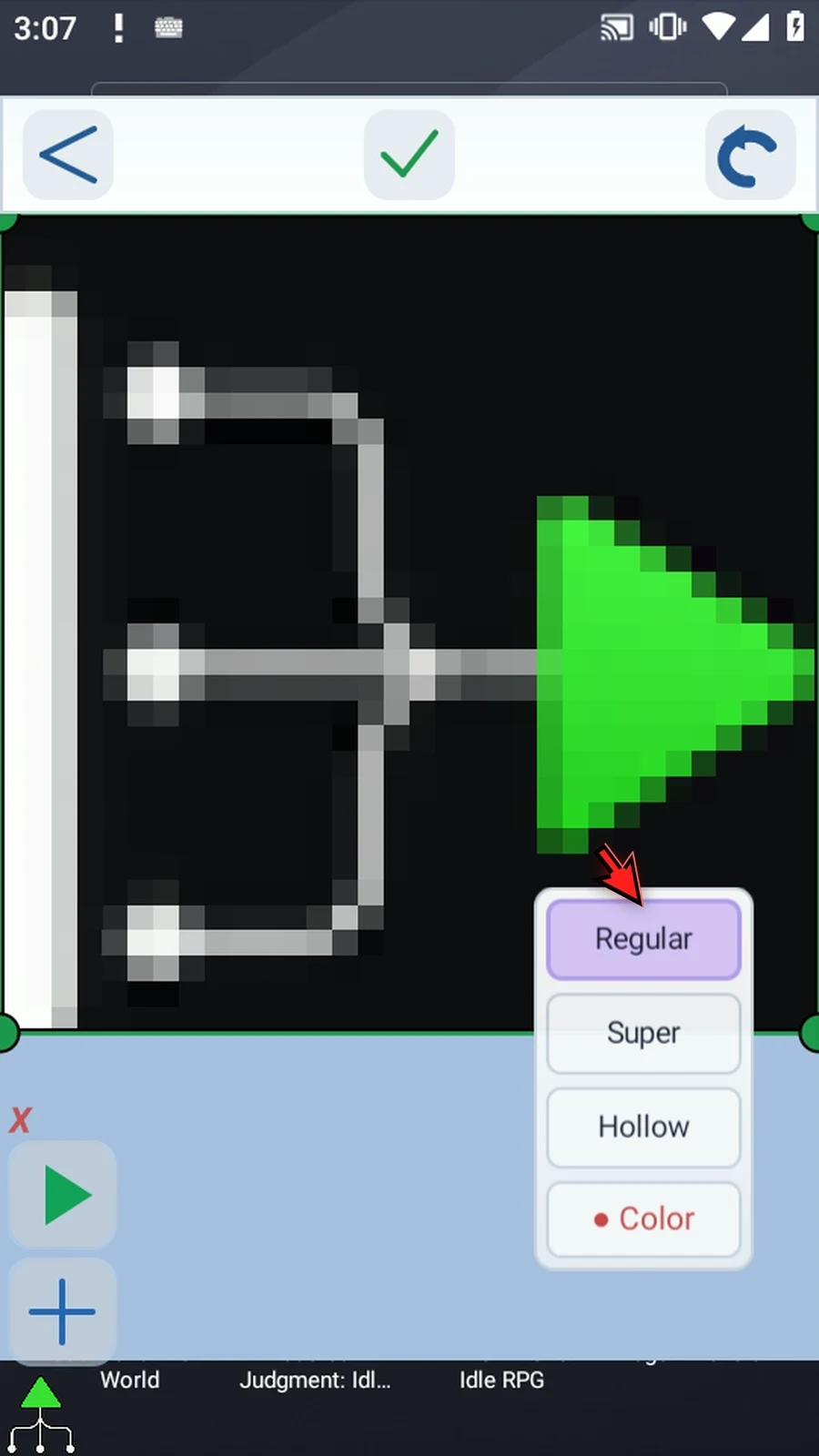
Step 21 Hollow Crop creates a shape with a transparent middle. Set both Outer and Inner to three points, because the icon contains a triangle.
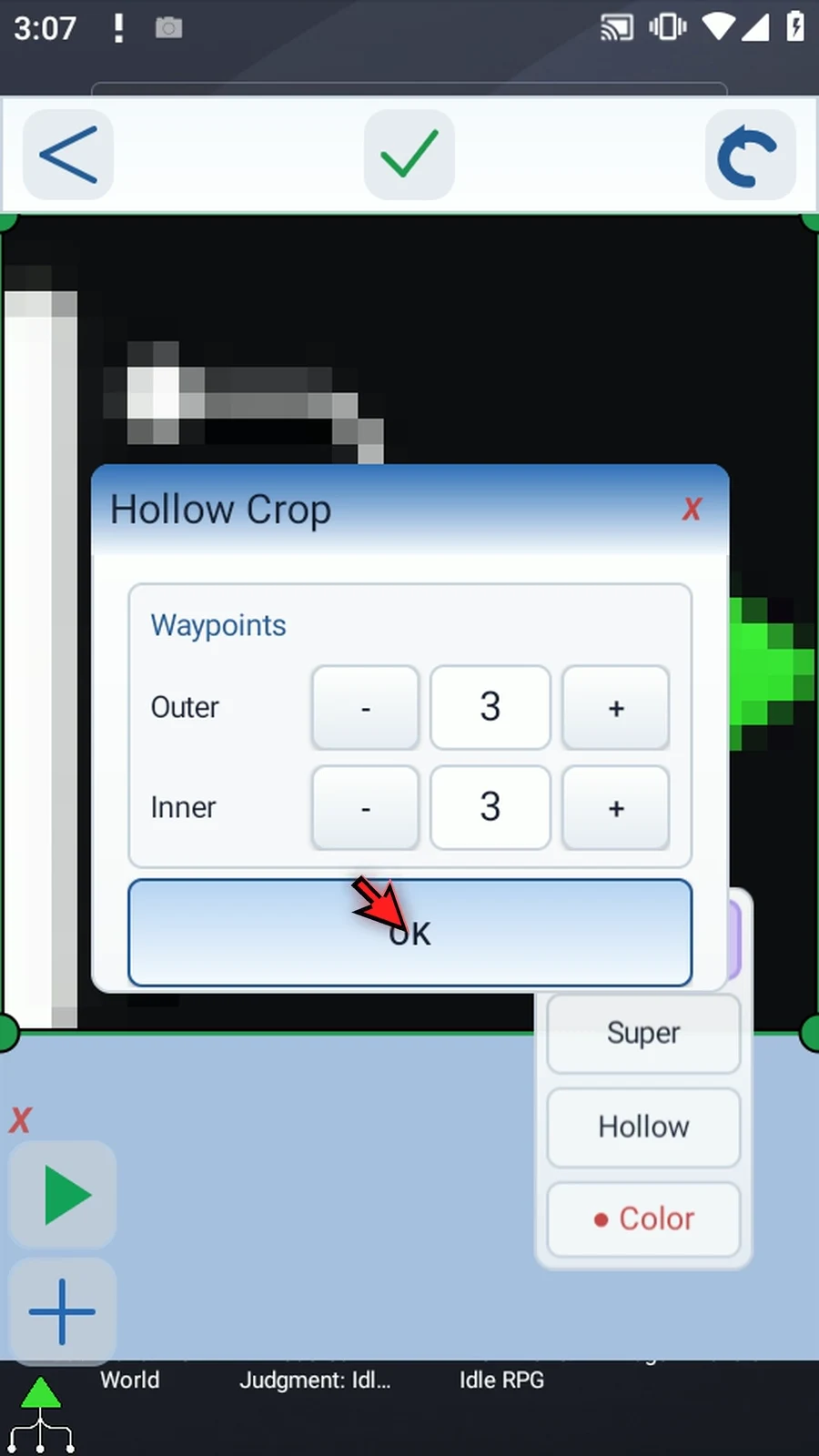
Step 22 Set the inner shape first. Move its red points to mark the middle we want to remove. This area will not contribute pixels to image matching.
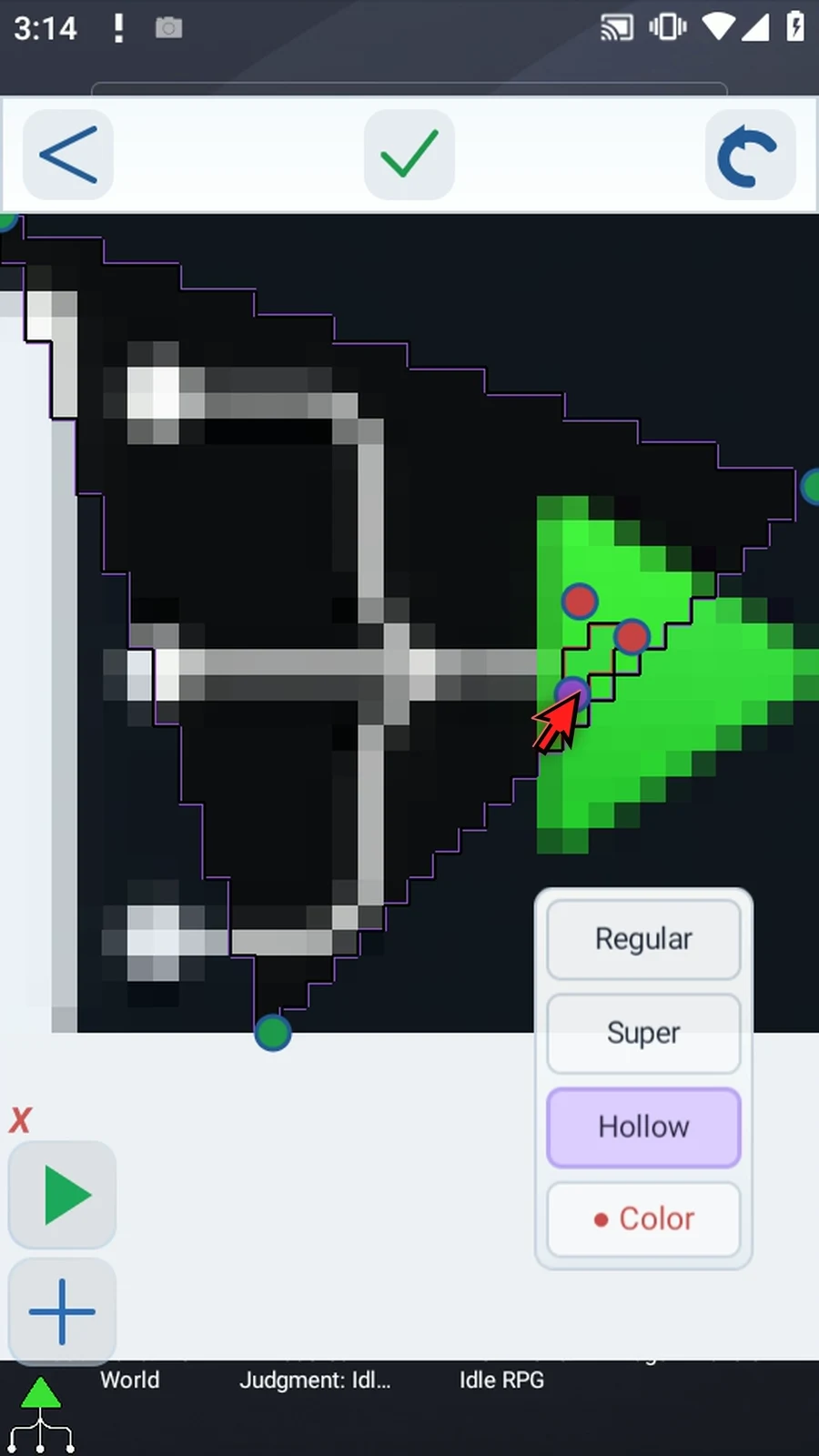
Step 23 Now fit the outer shape around it. The outer boundary is prevented from crossing into the inner shape, which is why we positioned the inner points first.
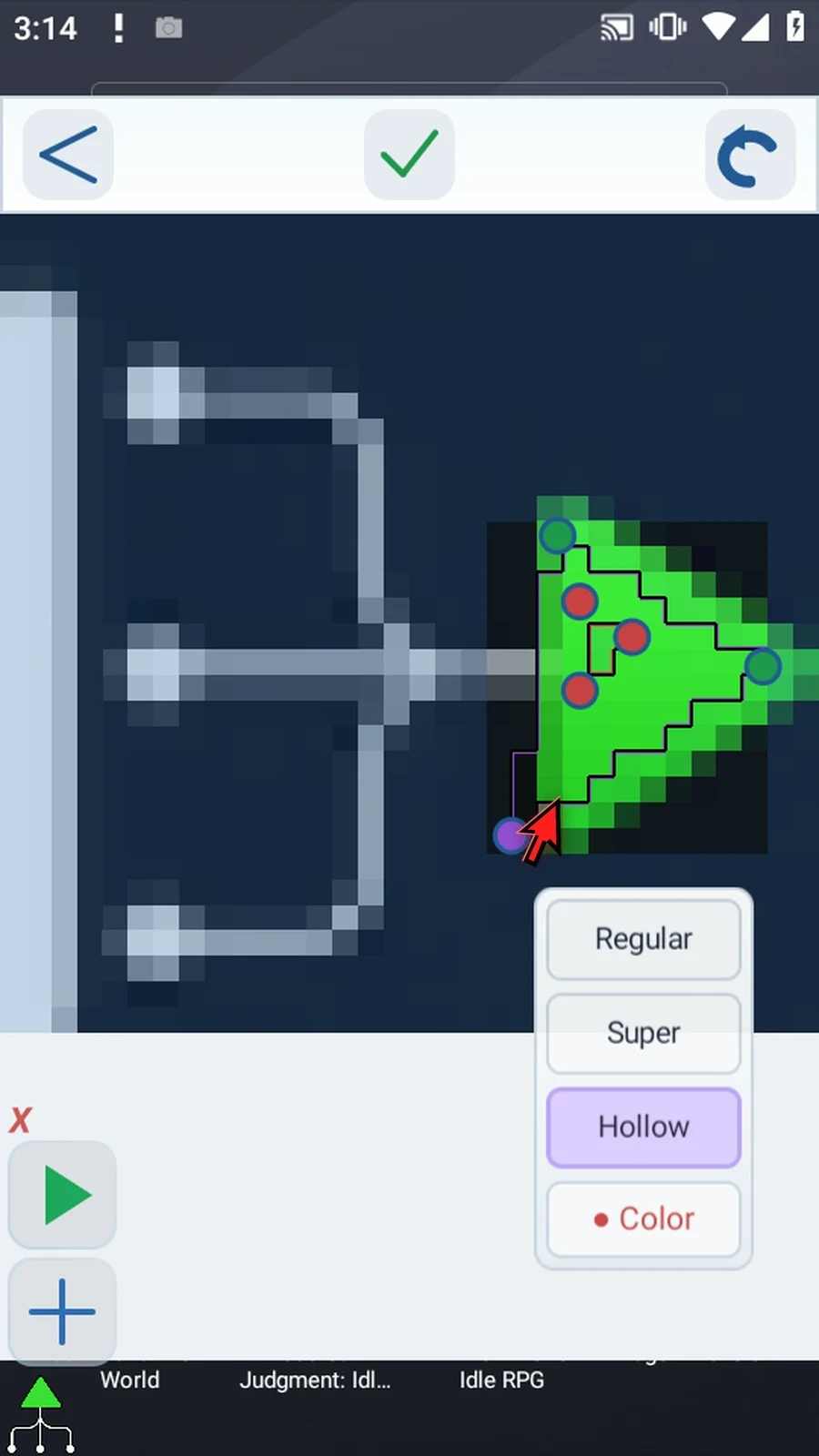
Step 24 Keep the boundary inside the solid part of the image. Semi-transparent edge pixels blend with whatever is behind them. Their captured colors can change with the background and make future image matching unstable, so crop them out when possible.
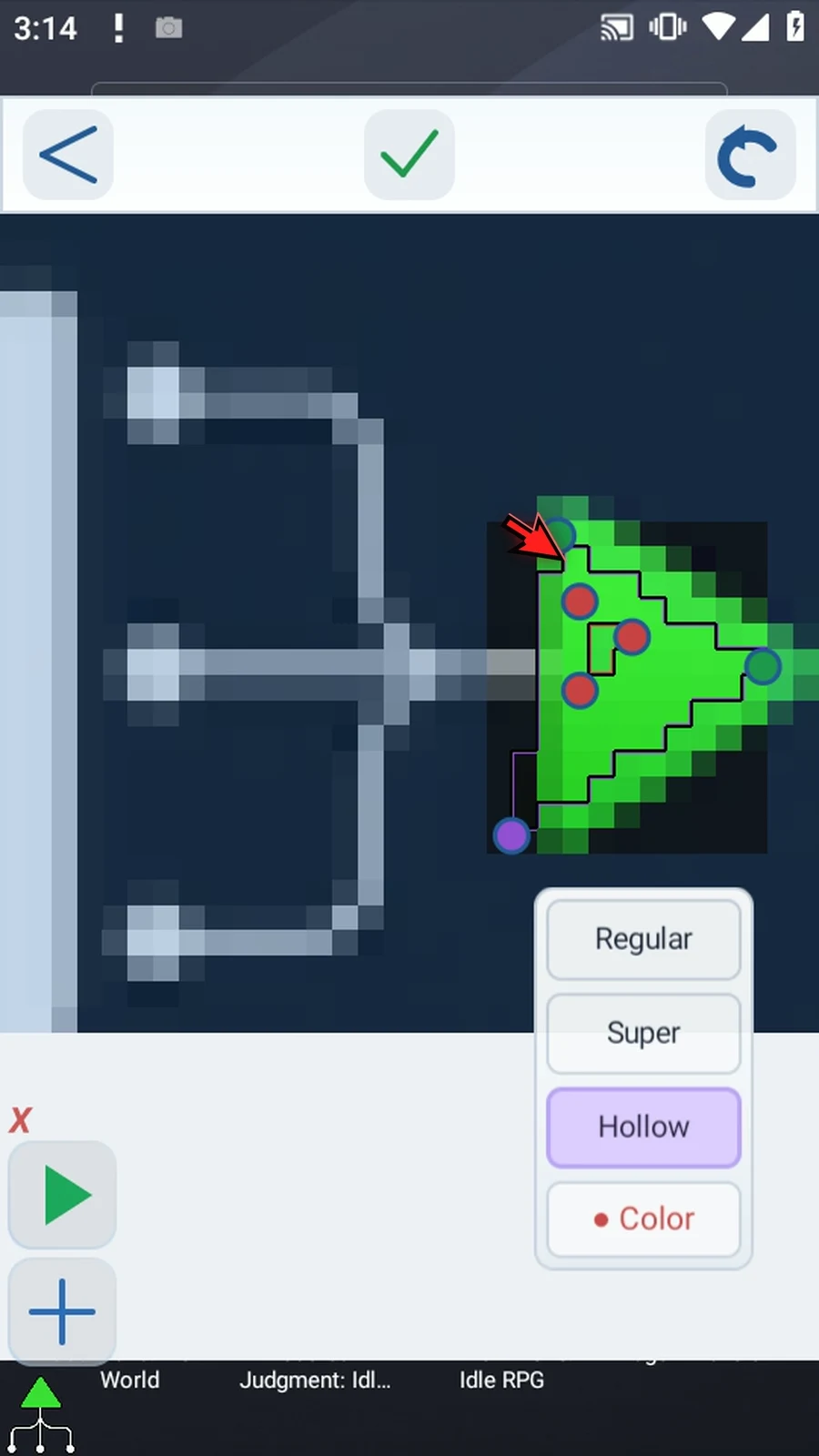
Step 25 Tap the check mark and choose Crop More to apply the hollow shape. The checkerboard shows transparency outside the shape and in its middle.
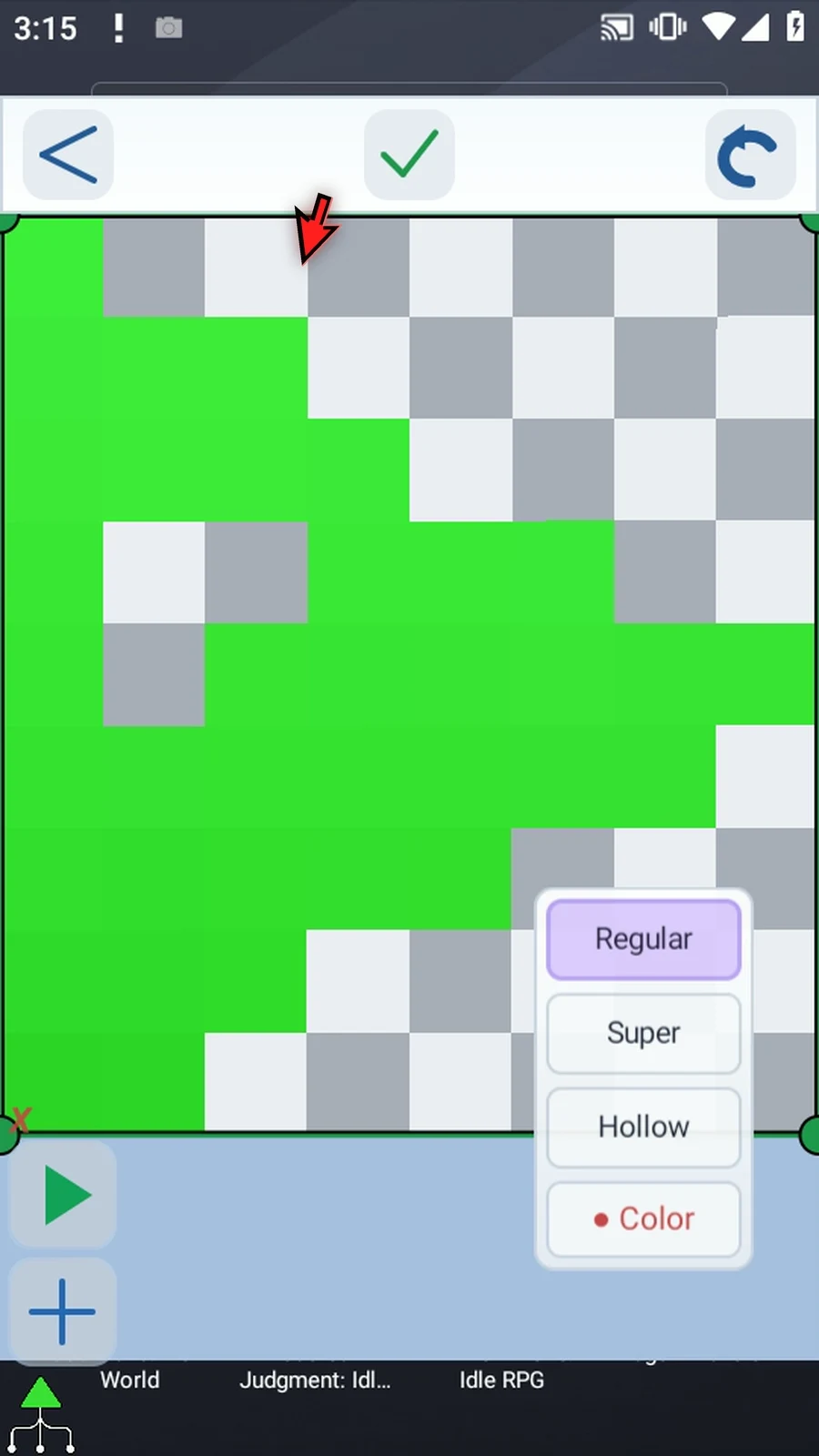
Step 26 We have kept the triangle outline and removed its middle. Fewer non-transparent pixels mean less matching work during script play. Keep the smallest useful, distinctive pattern rather than unnecessary background or a large filled area.
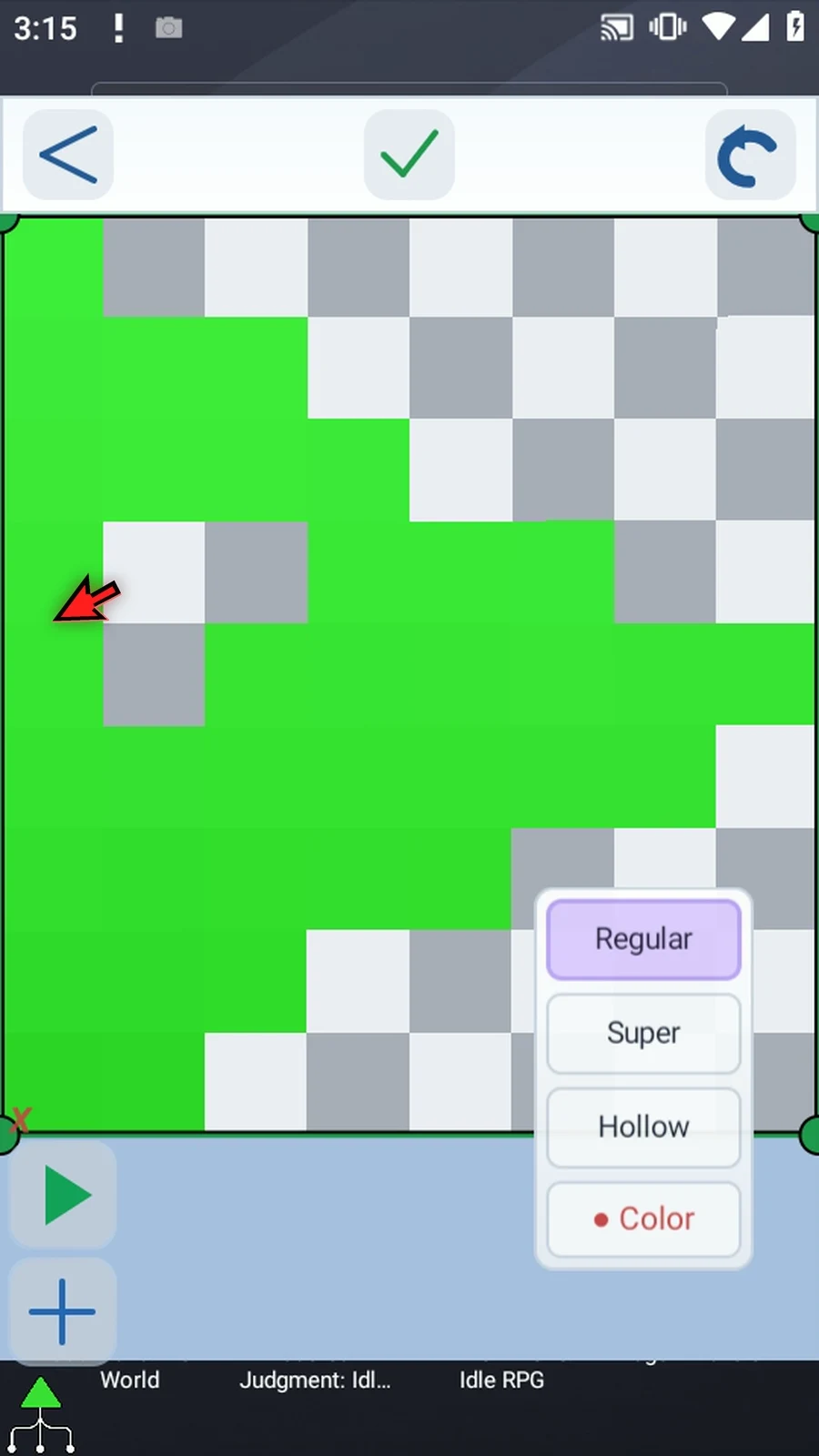
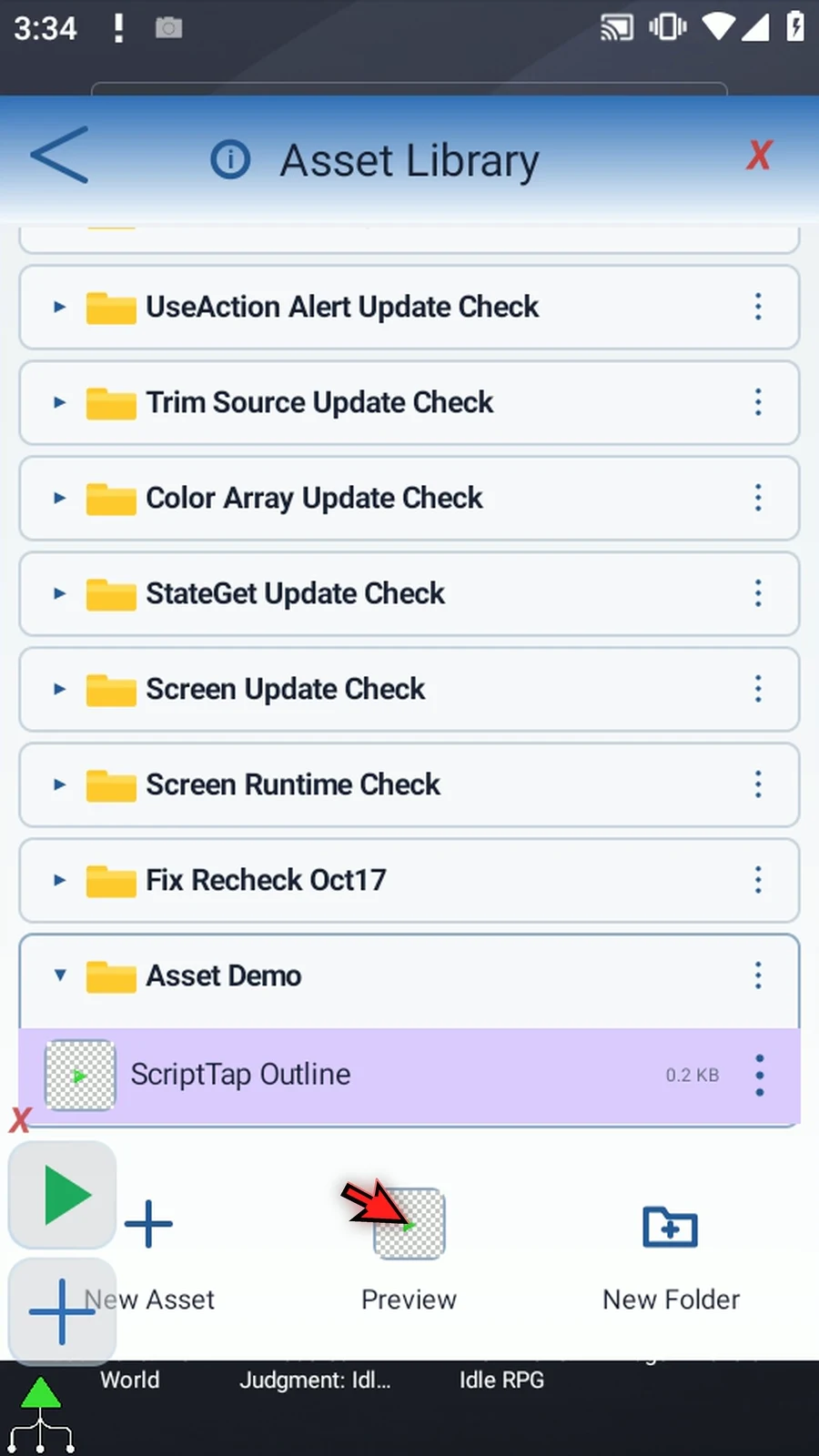
Step 27 Tap the check mark again, then Save. The preview shows the asset that will be stored.
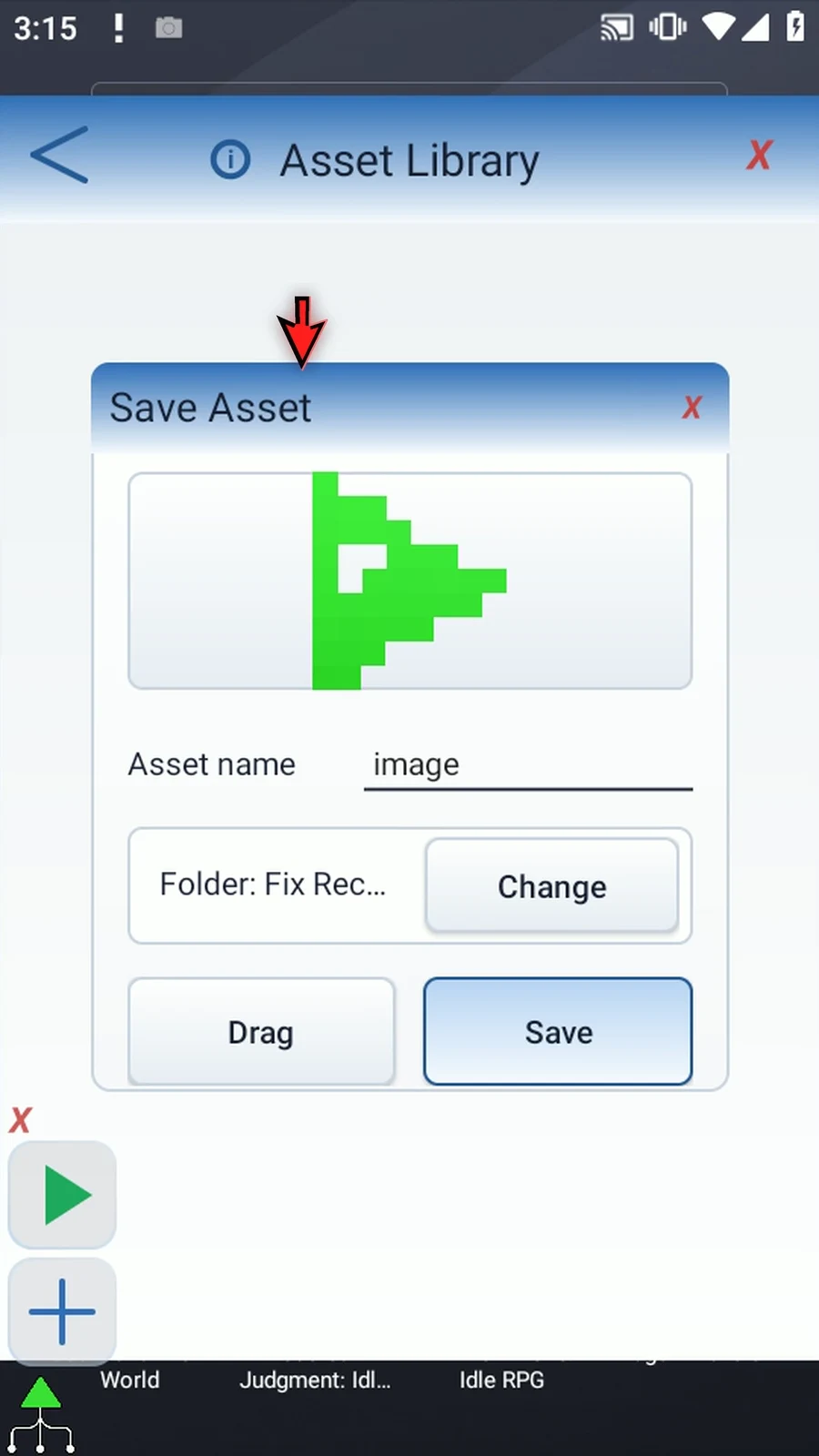
Step 28 Give it a descriptive name. We will use ScriptTap Outline.
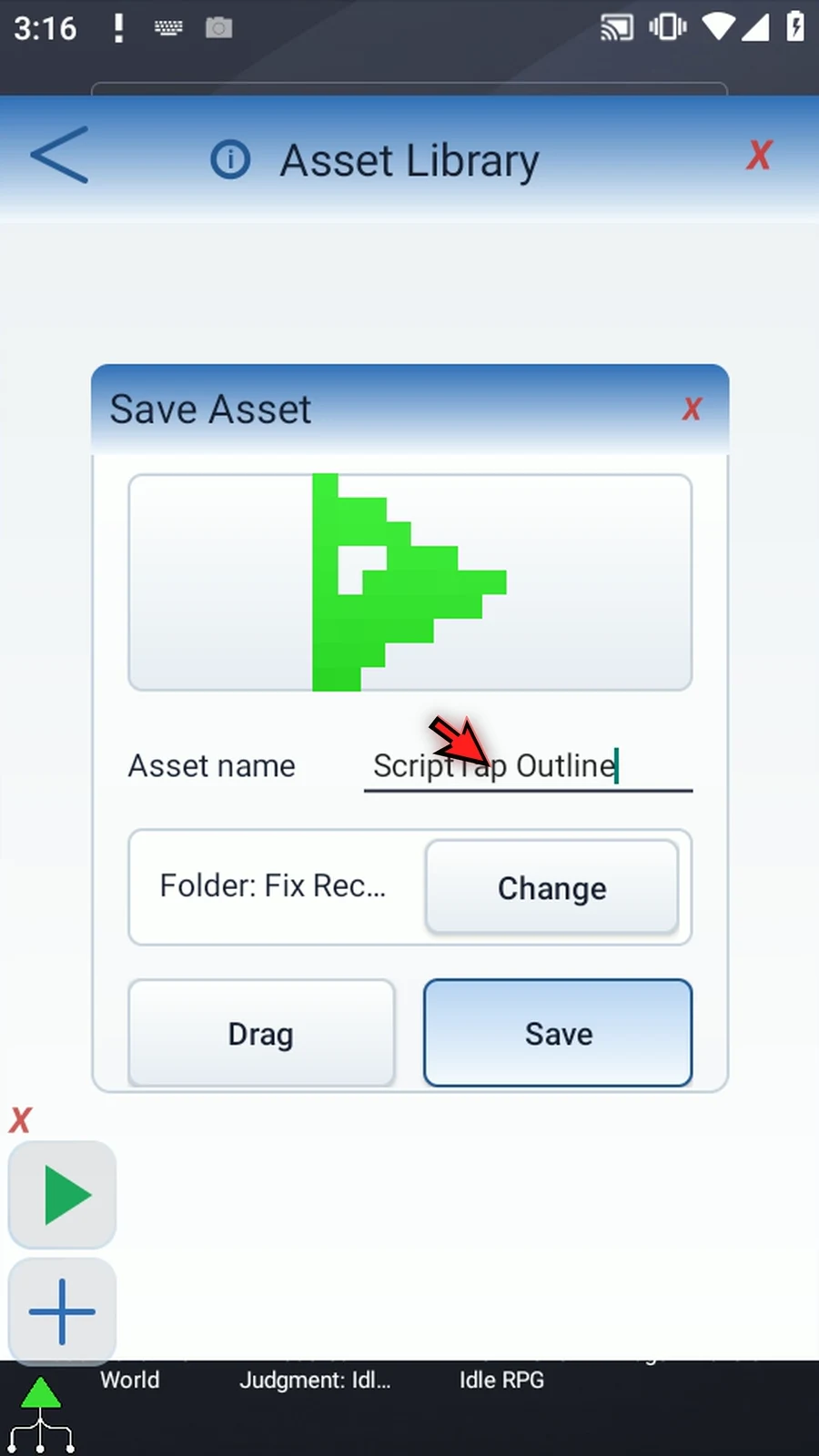
Step 29 Check the destination folder before saving. Our asset belongs to Asset Demo. Use Change if you want a different destination; Drag is another way to choose a folder.
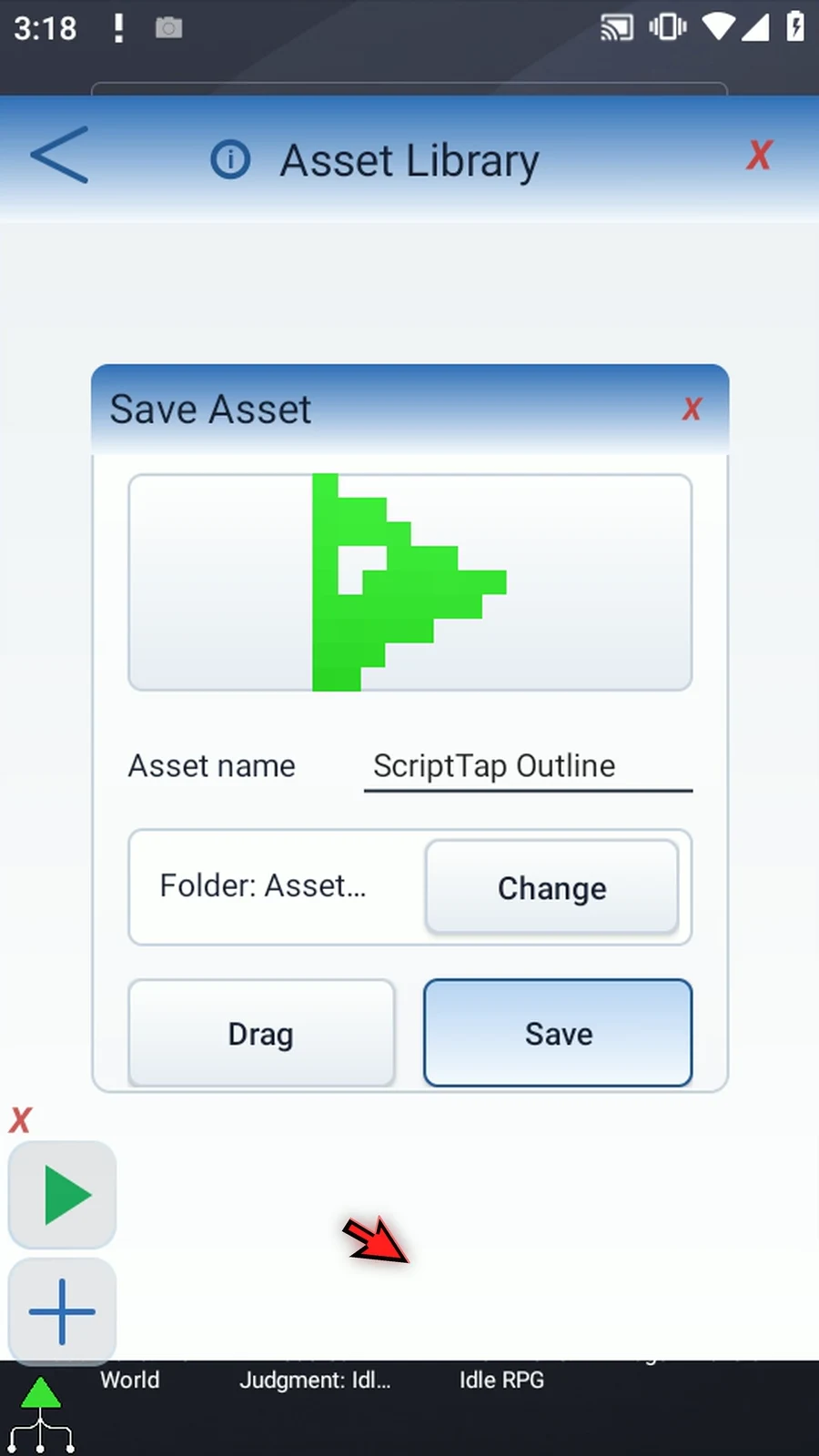
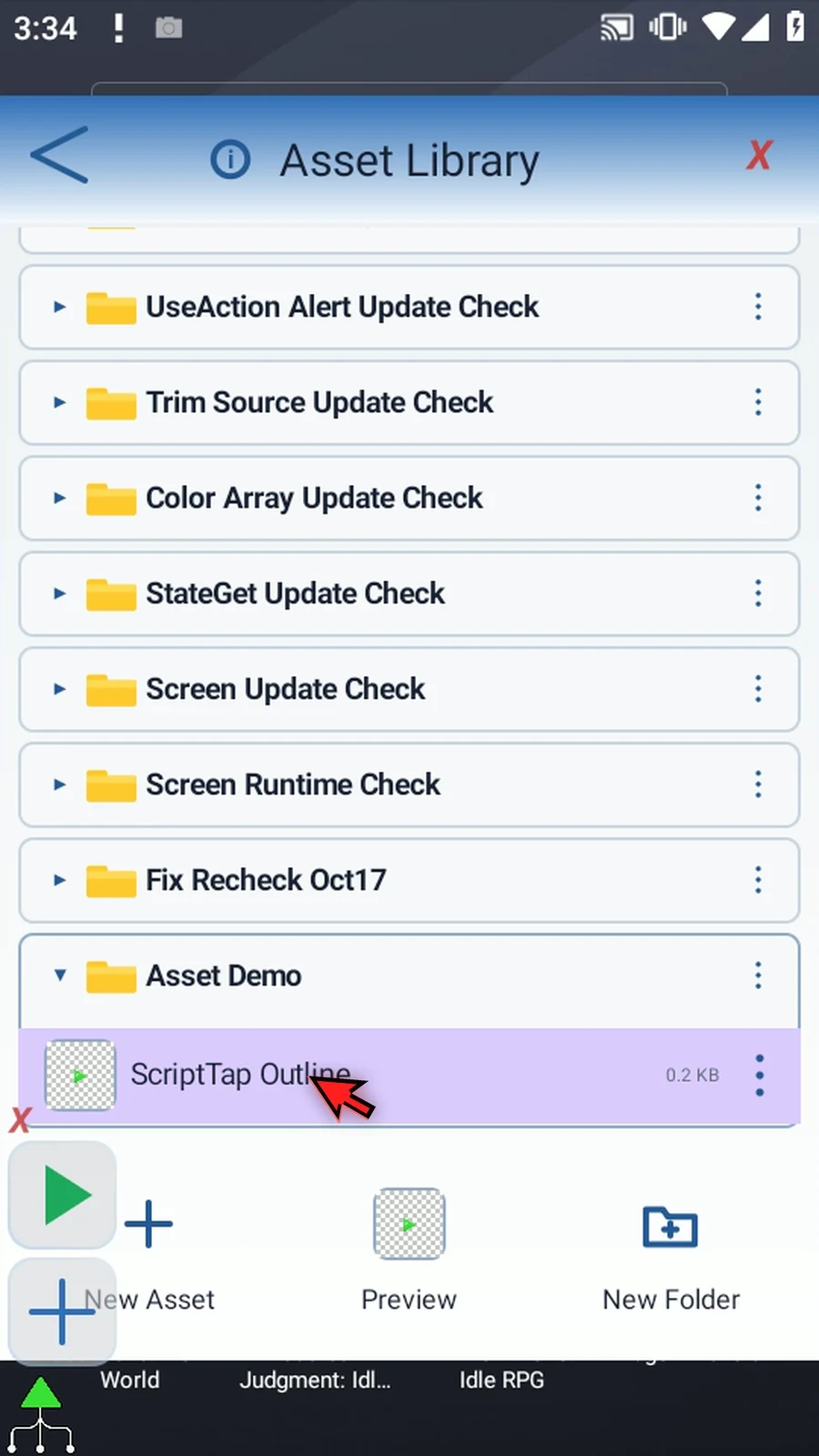
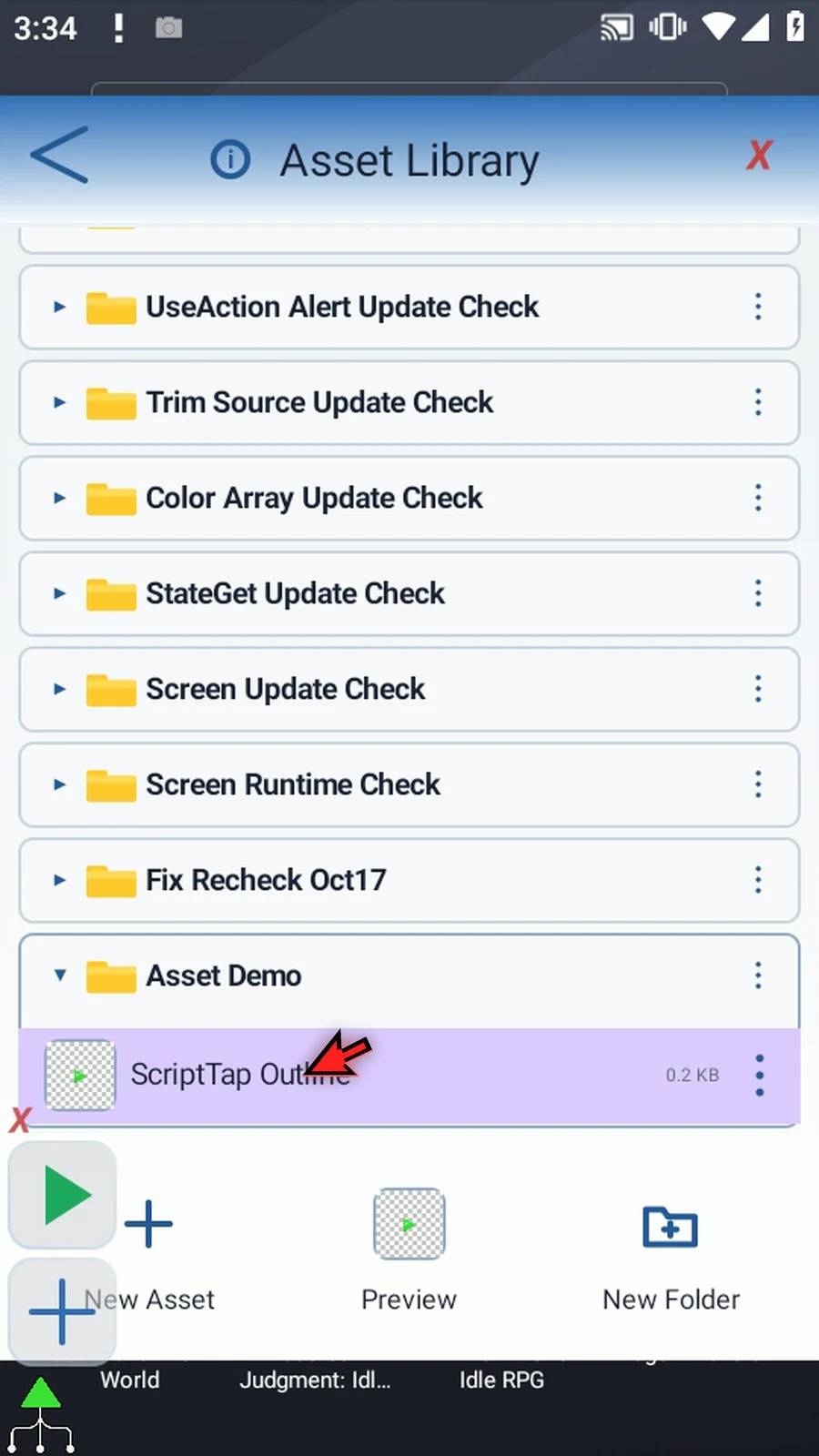
Step 30 Tap Save. The asset now appears in the Asset Library, ready to select from an image-matching command.
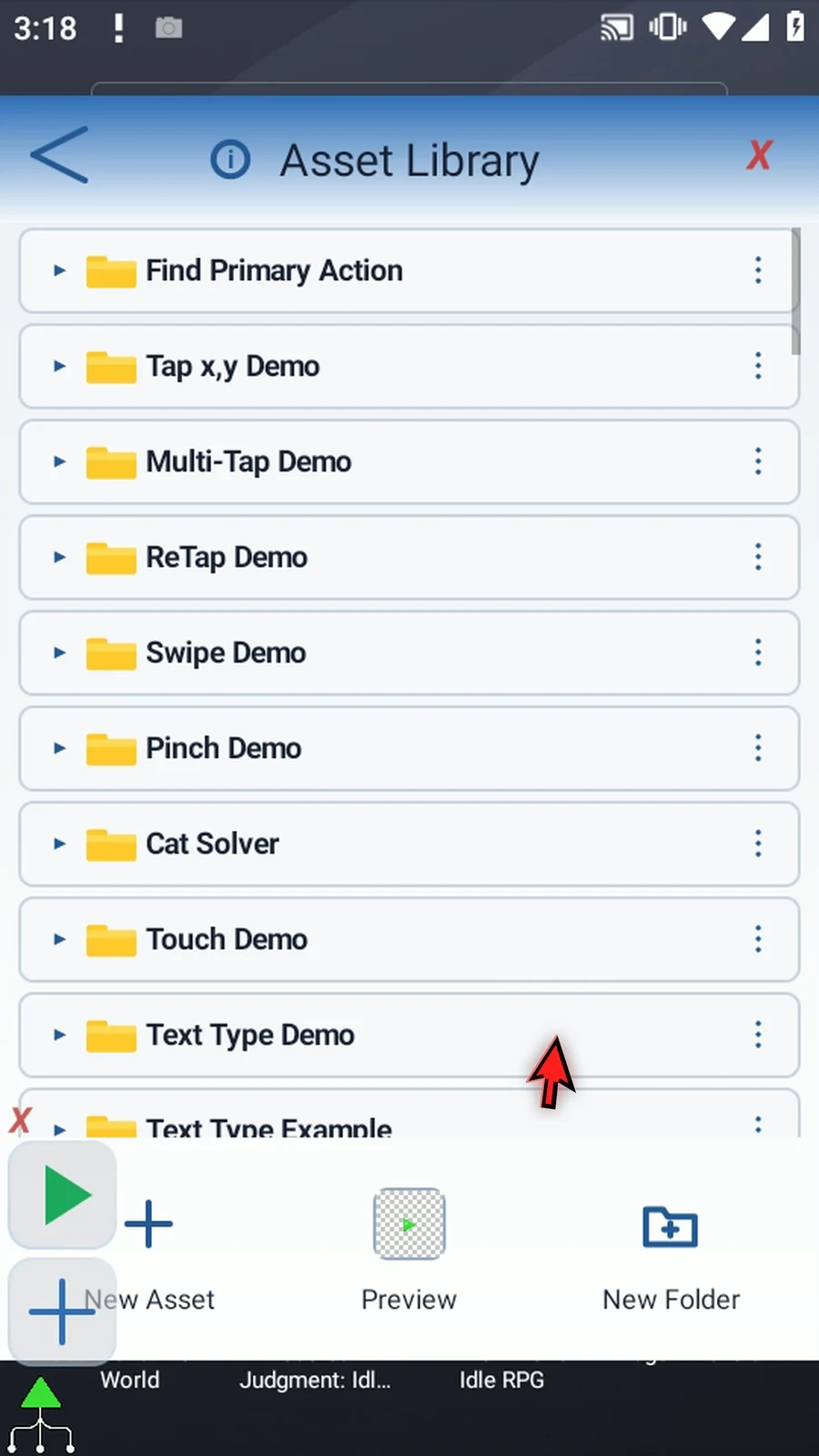
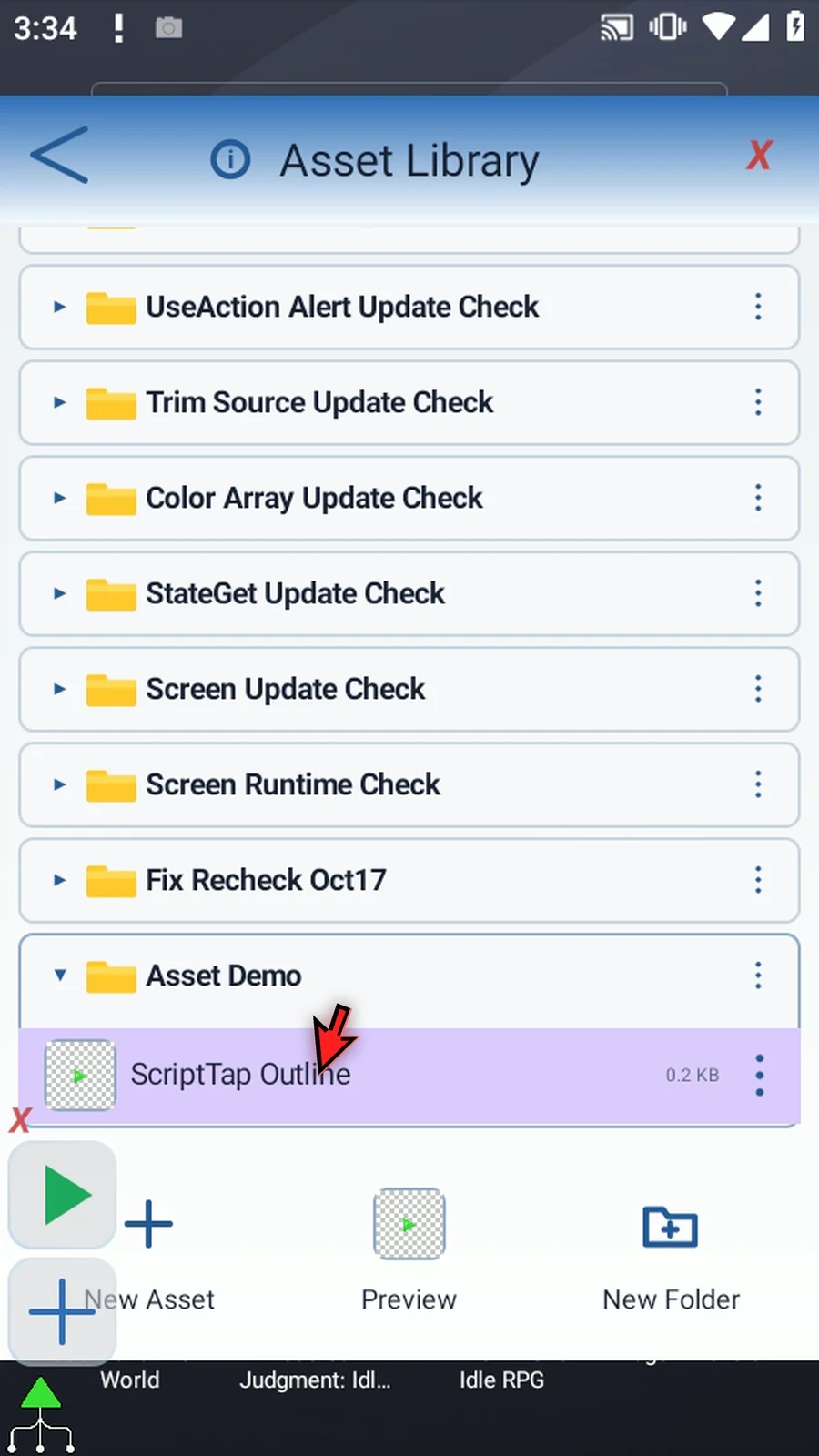
Step 31 Scroll to Asset Demo in the library, then select ScriptTap Outline. Its thumbnail shows the transparent background.
Step 32 You can reuse this same asset in other commands. Their guides will show how to select it and configure matching. You do not need to create a separate copy for every command.
Step 33 Some image-matching commands also support negative assets, which exclude unwanted matches. Their command guides explain those settings; a separate negative-asset demonstration is not needed here.
Step 34 The asset is saved. Continue with the image-matching command guide you need.