Command video guide
ImgFind
ImgFind checks a selected part of the screen for reference images. It can tap a match, save matching results for later commands, or do both. This Overview tours the editor without pressing Test or Play. The palette names the command ImageFind, inside Capture.
Create a separate named script and manually drag the command from the palette into the editor. Open its placed row to configure it. Basic exposes the everyday matching settings; Advanced adds scan order, target coordinates and result modes. Switching back to Basic clears Advanced-only settings.
Area limits the screen region to search. Resize its handles or drag inside to reposition it. Reuse an existing reference through Recent Gallery or Browse All Scripts; do not recreate the same crop for each command. The shared Asset Creation tab explains all crop tools. Keep distinctive stable pixels, use as few non-transparent pixels as practical, and exclude blended semi-transparent edges that change with the background.
Confidence starts at 90. A higher percentage is stricter; 100 requires exact active pixels. Tap Target can tap a matching picture. Set Variables independently enables saved results. Basic uses full names such as Boolean b1 and Integer coordinates x1/y1. Use In selects This Script Only or Script Thread; readers must use the same scope.
Advanced Find 1st can search left-to-right or right-to-left and top-to-bottom or bottom-to-top. Center taps the match center. Fixed coordinates tap the configured X/Y instead, using literals or prior Integer variables; coordinate outputs still describe the matched image, not that fixed tap point.
Classify adds matched asset State, numbered Index, Found, X/Y and measured Confidence outputs. When several assets qualify, saved asset order determines the identity; no match reports Unknown. The scalar Classify practical is currently deferred while its Confidence output type is being reconciled with the documented contract.
Find All collects multiple locations. Max Results defaults to 255 and accepts 1–4096 or a prior Integer variable. Standard stores a Count plus aligned X and Y arrays. Classify offers Count plus Asset Index, X and Y arrays. Results are ordered top-to-bottom, then left-to-right. With Tap Target ON, every accepted result is tapped in that order; fixed coordinates are a Find 1st-only behavior. Provide output arrays with enough declared capacity and keep paired indexes aligned.
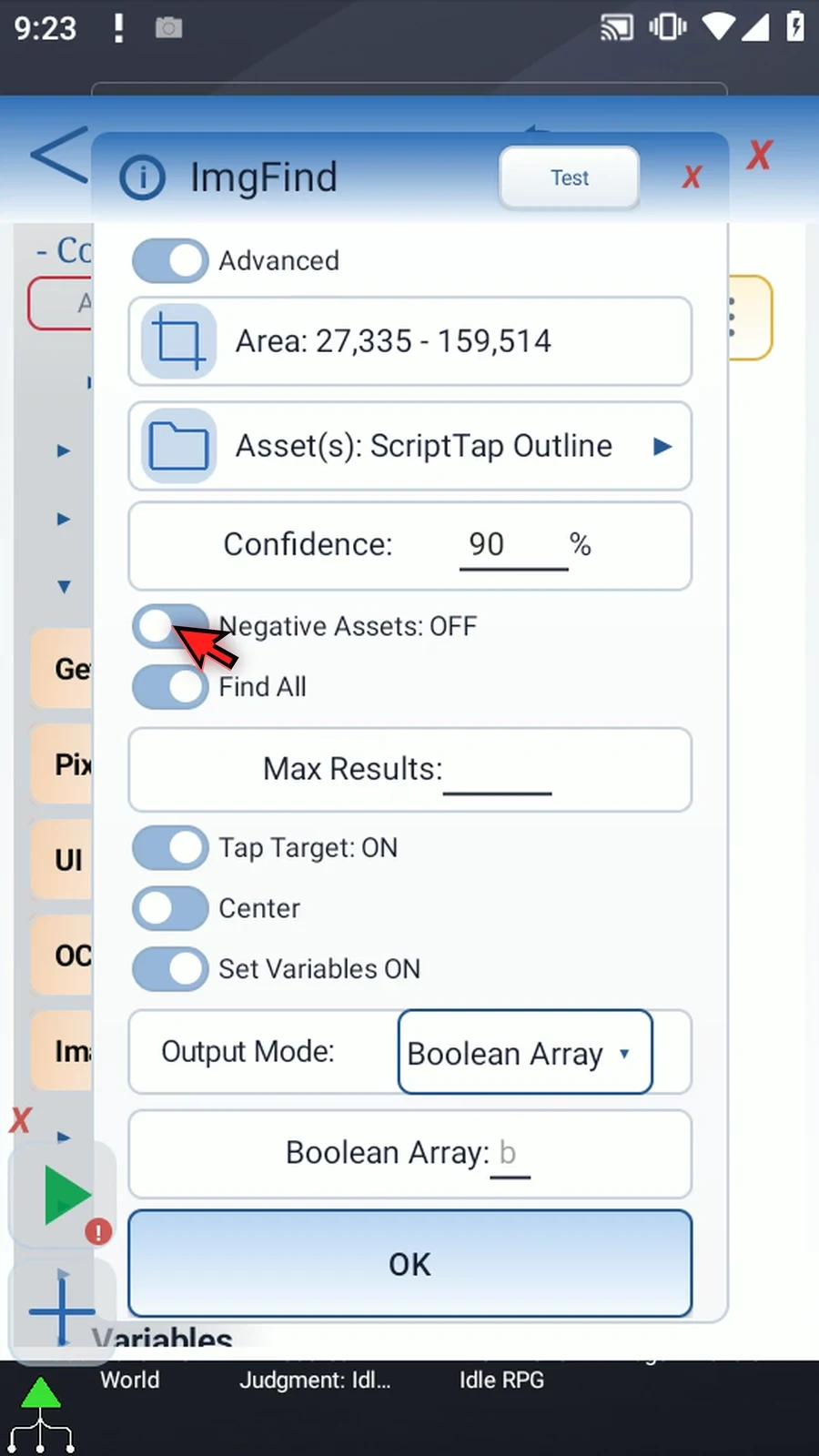
Boolean Array stores one Boolean result per selected asset, not one per matching position. Switching result mode clears outgoing destinations, so configure the new fields afterward. Negative Assets can reject unwanted nearby image matches; this tour mentions them without demonstrating a negative asset.
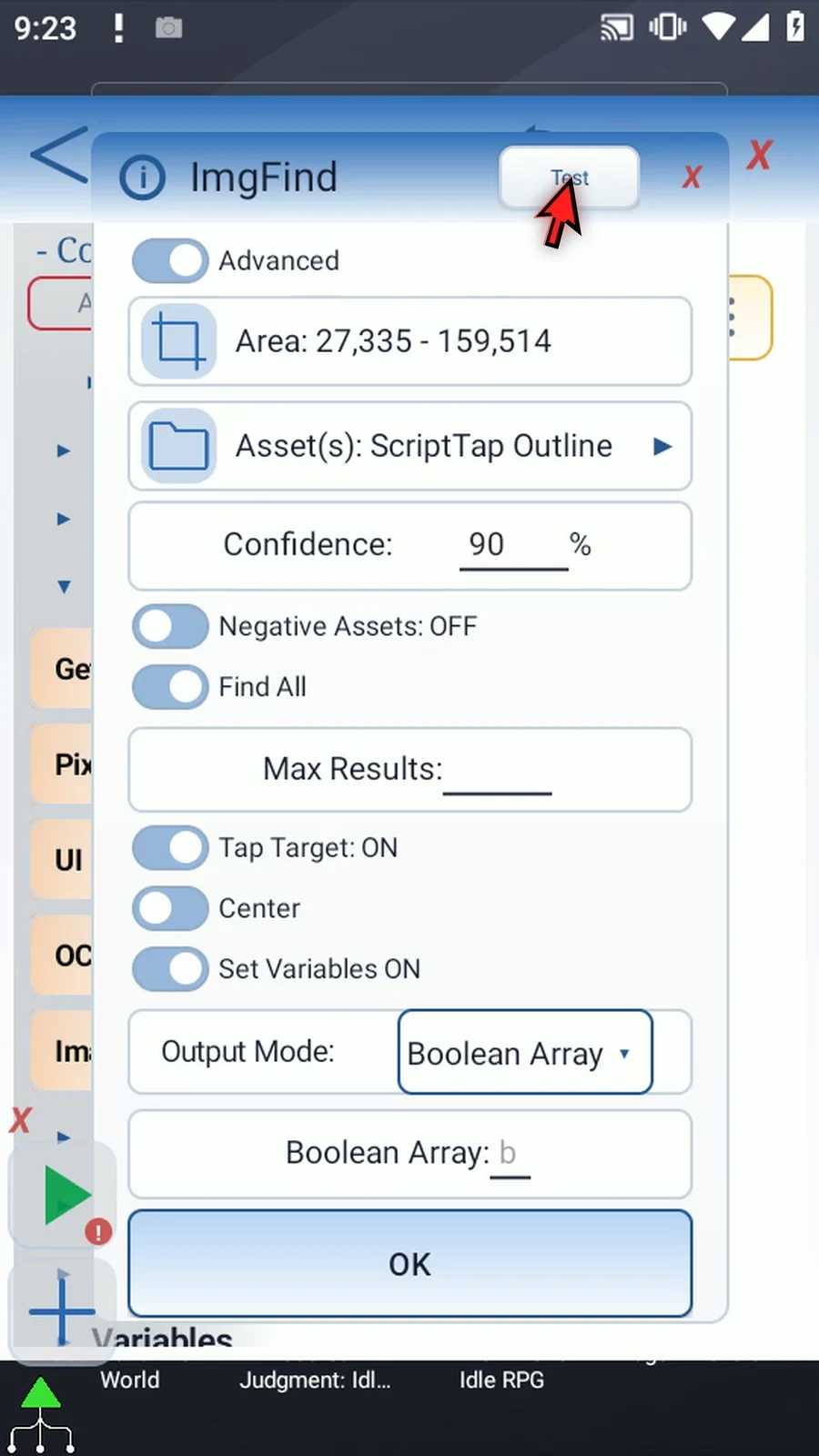
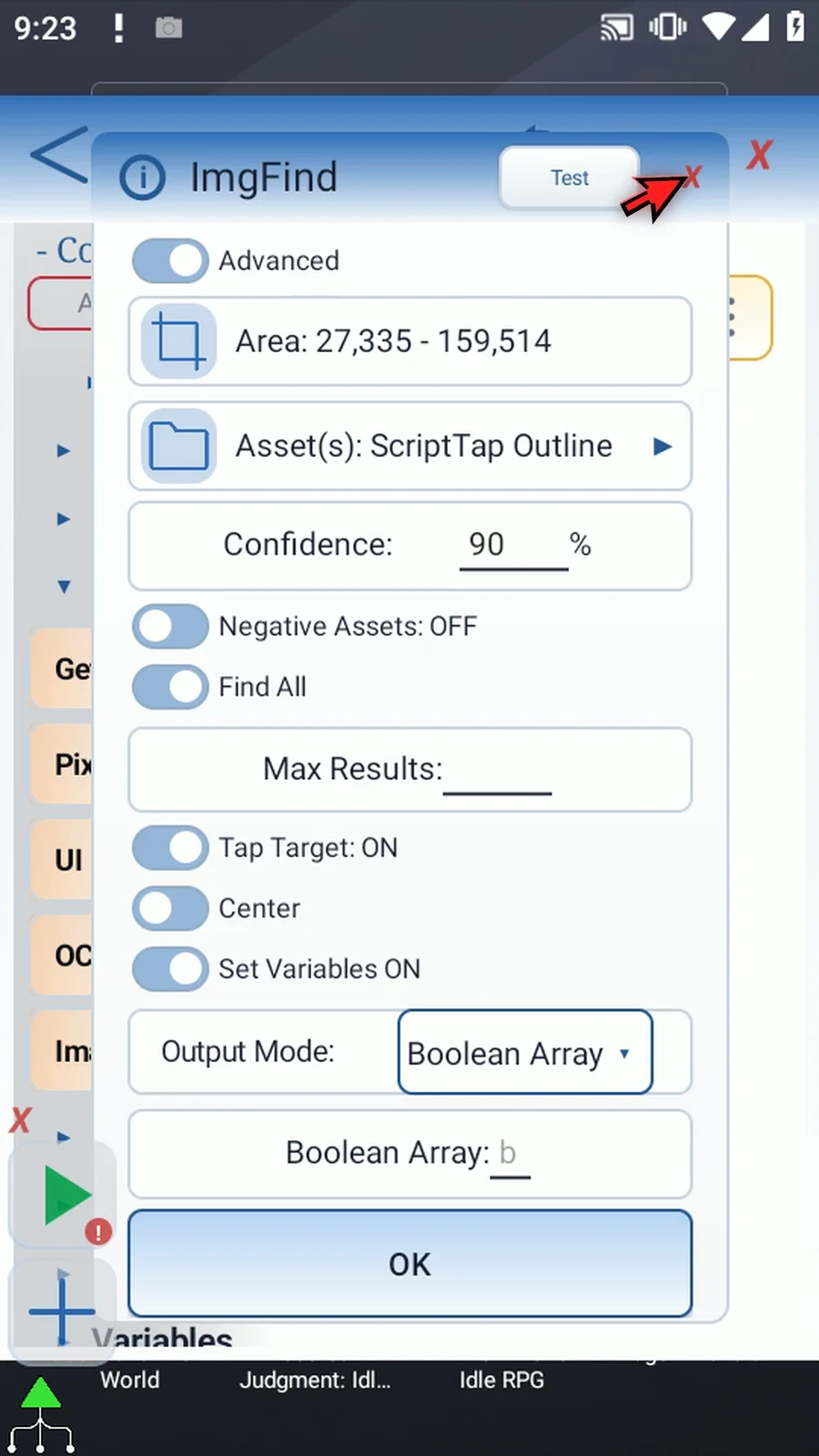
Header Test checks the current setup before saving. ImgFind performs a check when it runs; it does not wait indefinitely for an image to appear. Use Delay Until → Image for a wait. This option-only tour closes its unsaved draft; the Basic tab will show a complete working example.
Overview
Step-by-step guide
Step 01 ImgFind looks for a small reference picture inside a chosen part of the screen. It can tap a match or save results for later commands. This overview explains Basic and Advanced controls; the separate Basic guide shows a complete working example.
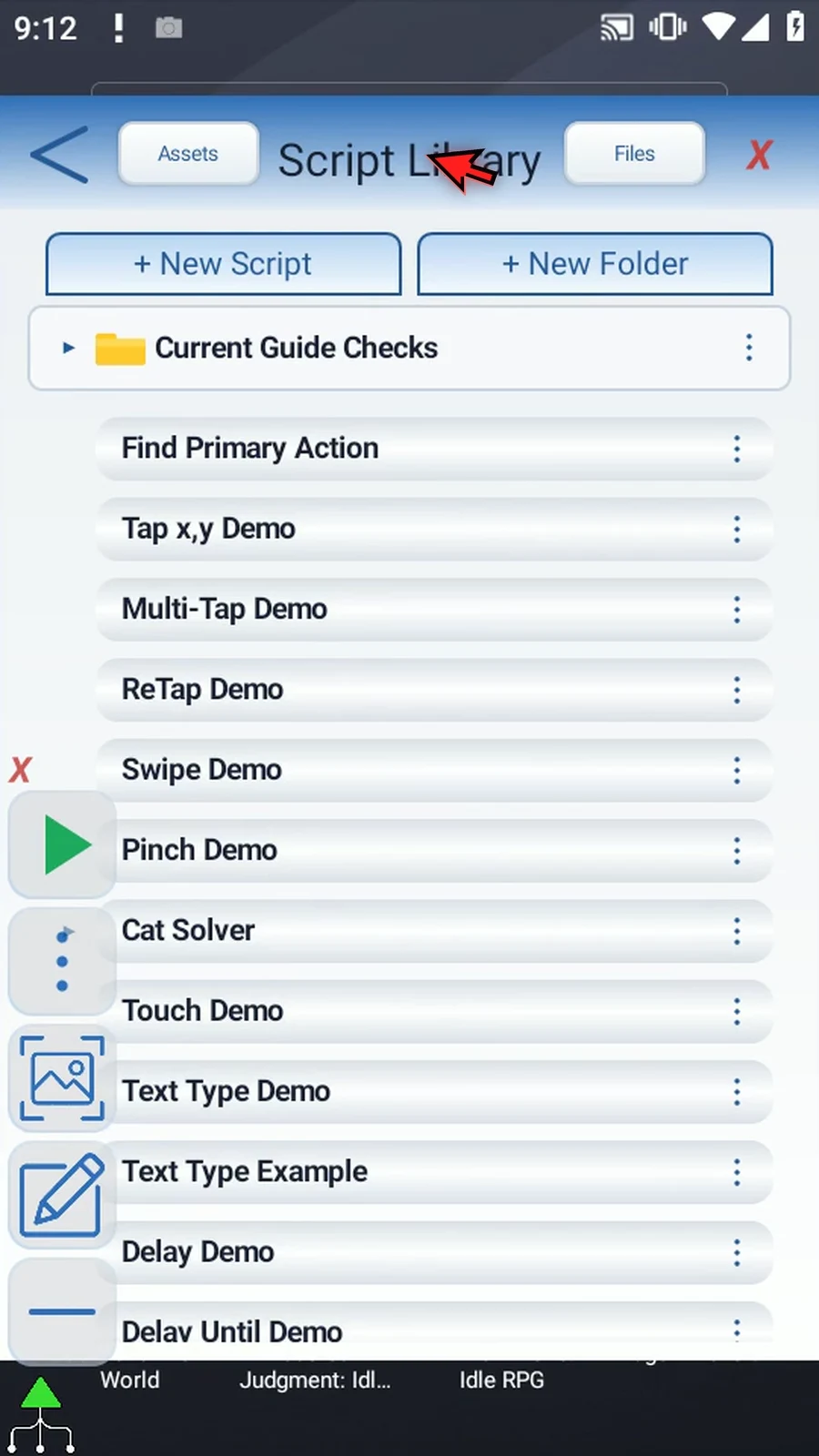
Step 02 Create a separate blank script and give it a clear name. New scripts appear at the bottom of the library, so scroll there if needed.
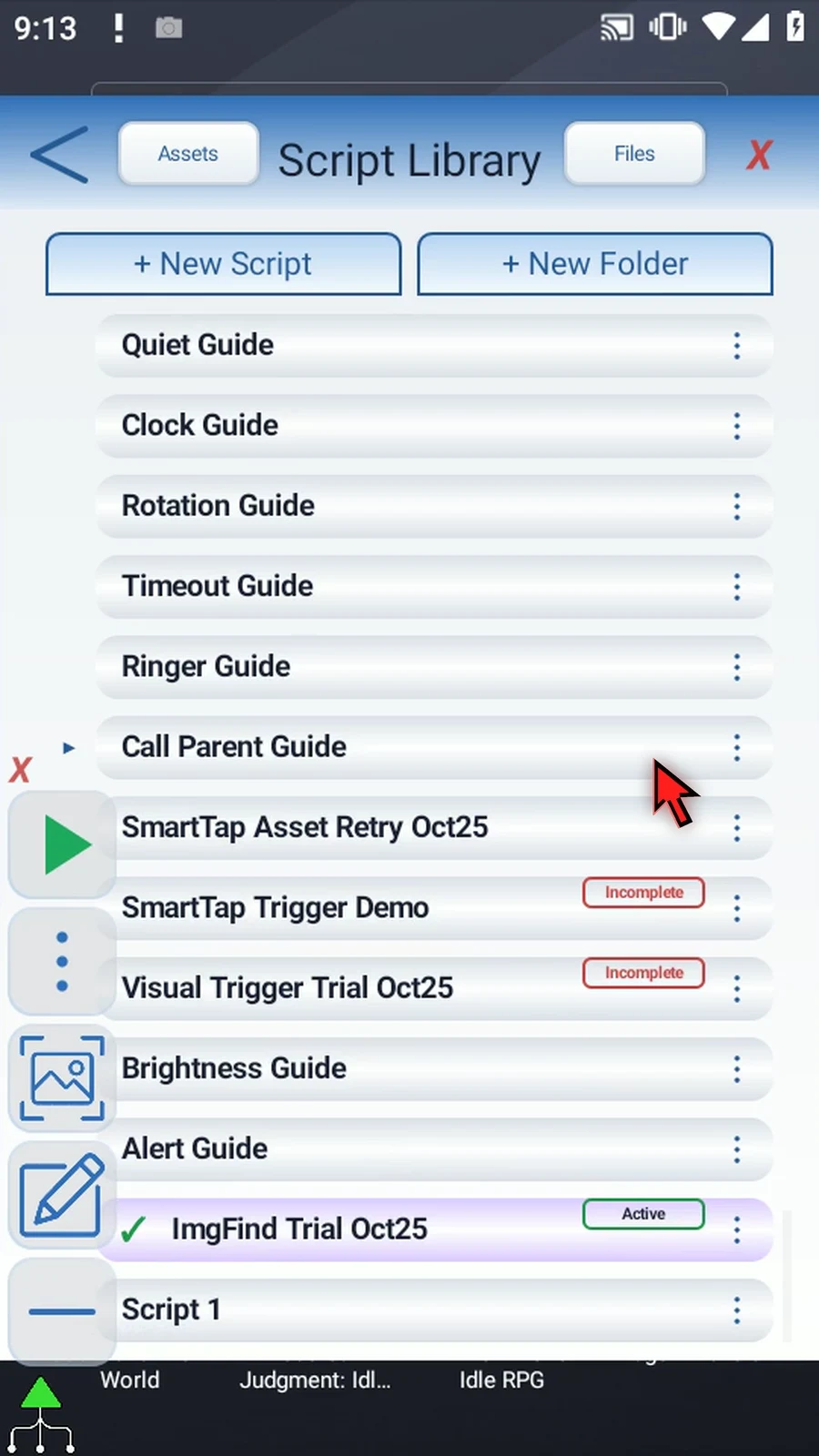
Step 03 We will call this ImgFind Overview. Select the new script and open its editor, leaving other scripts unchanged.
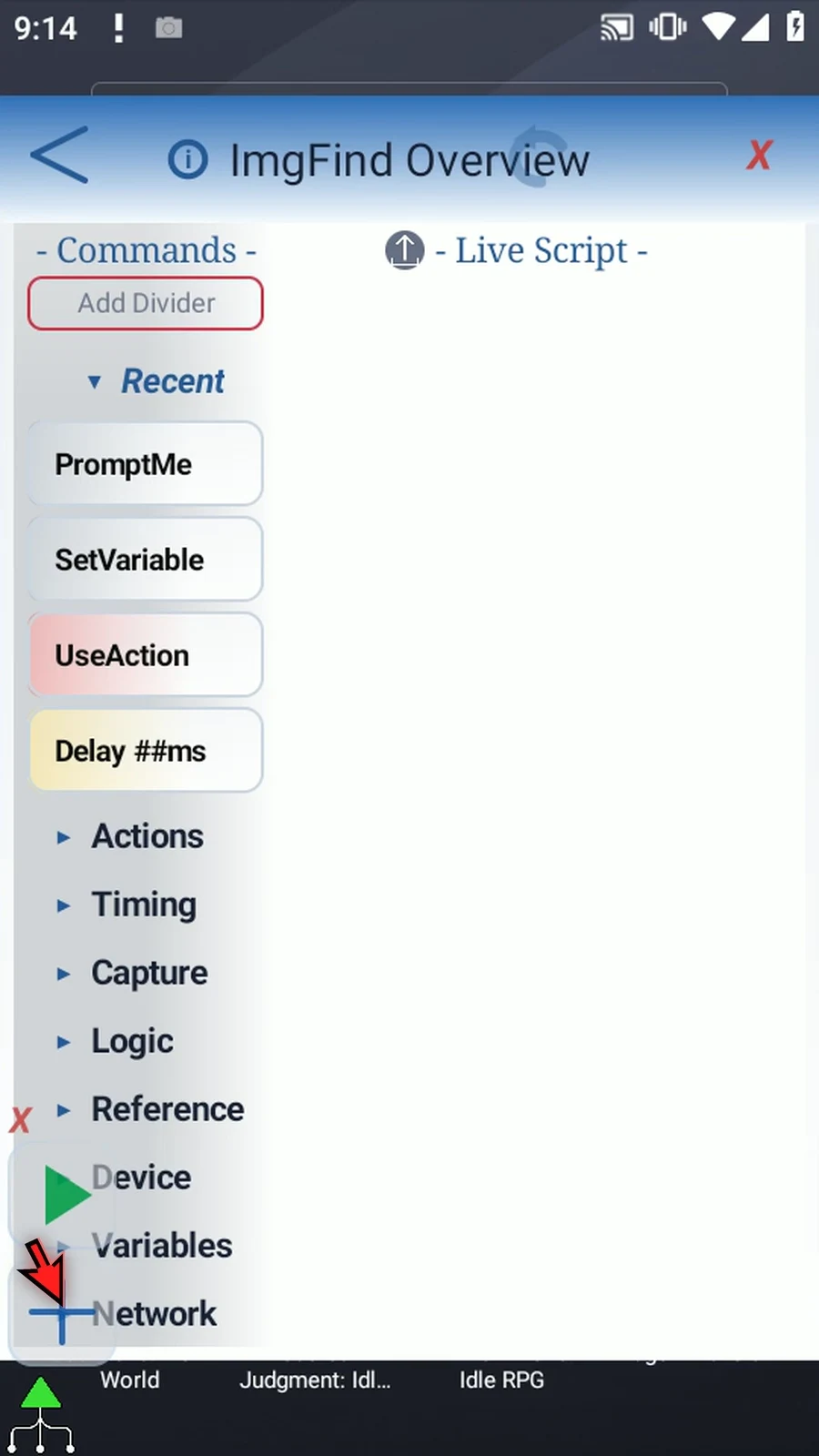
Step 04 The palette calls it Image Find, inside Capture. Drag it into the script, then open its placed row to change settings. Dragging adds the command; opening that row does not add another one.
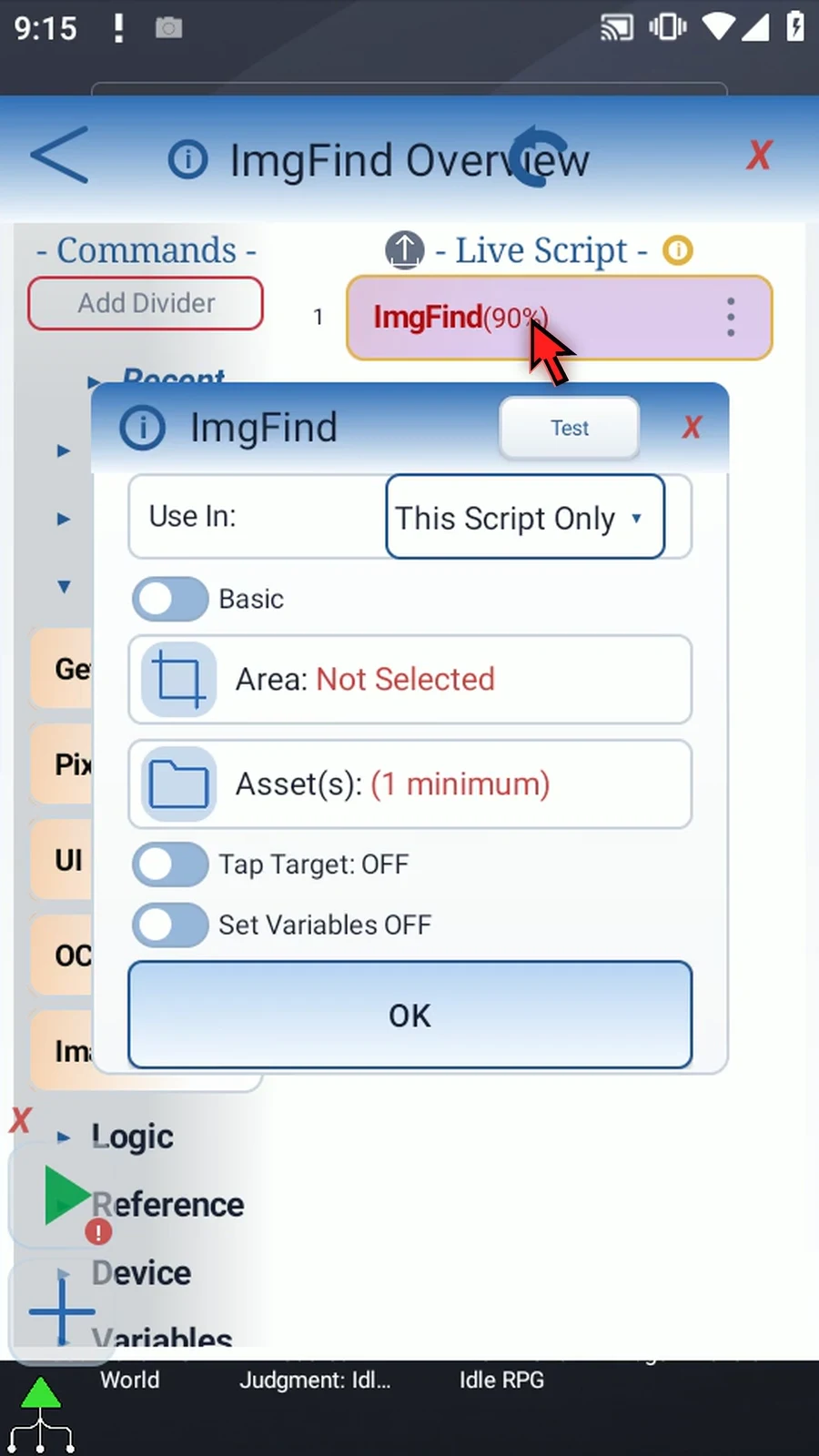
Step 05 Basic shows the everyday setup: a search Area, reference assets, Confidence, an optional tap, and optional saved results. The Basic and Advanced switch changes which controls are available. We will start with Basic.
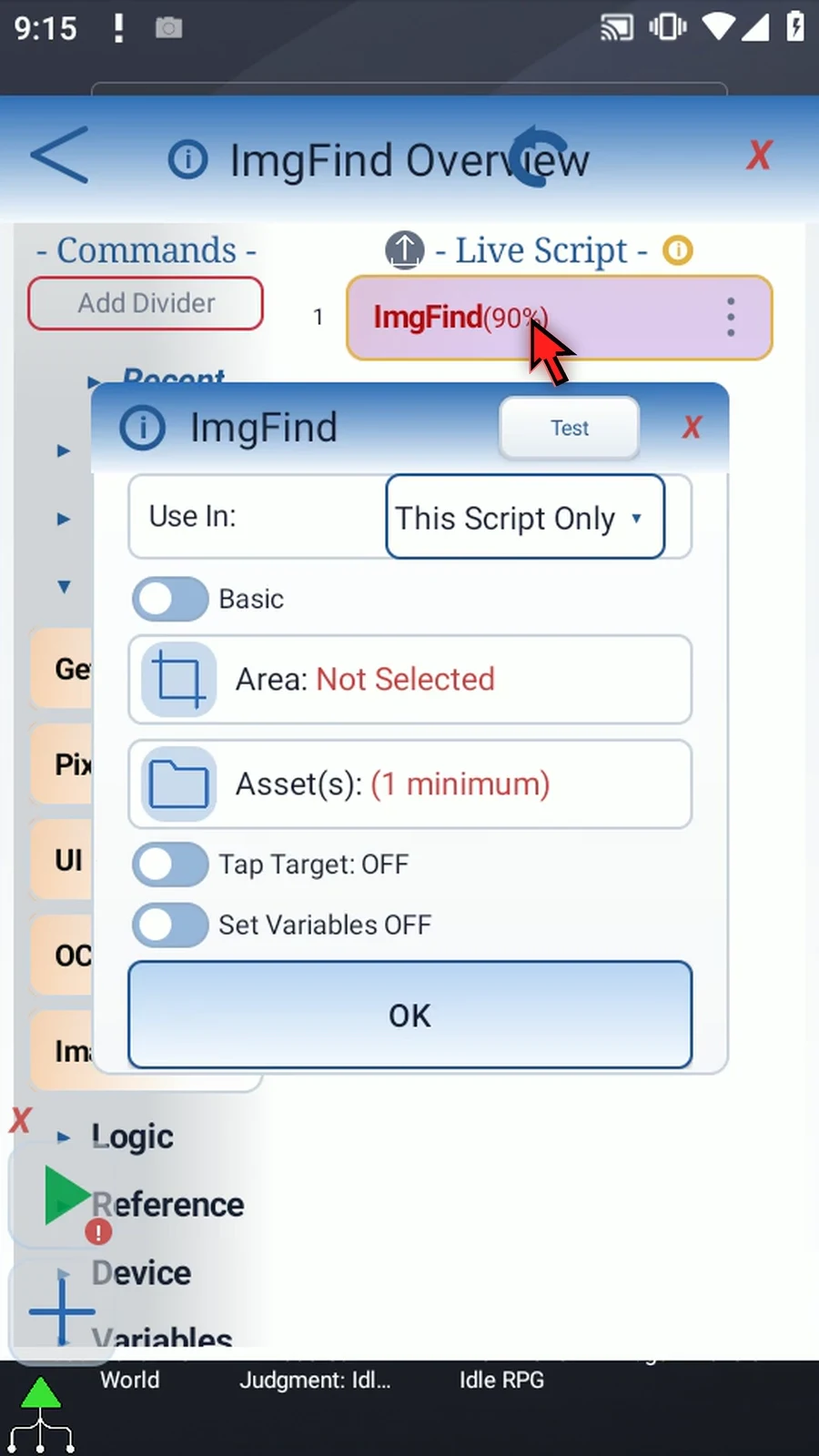
Step 06 Use In selects the scope for saved output variables. This Script Only keeps the results local. Script Thread makes them available to other scripts in that thread; later readers must use the same scope.
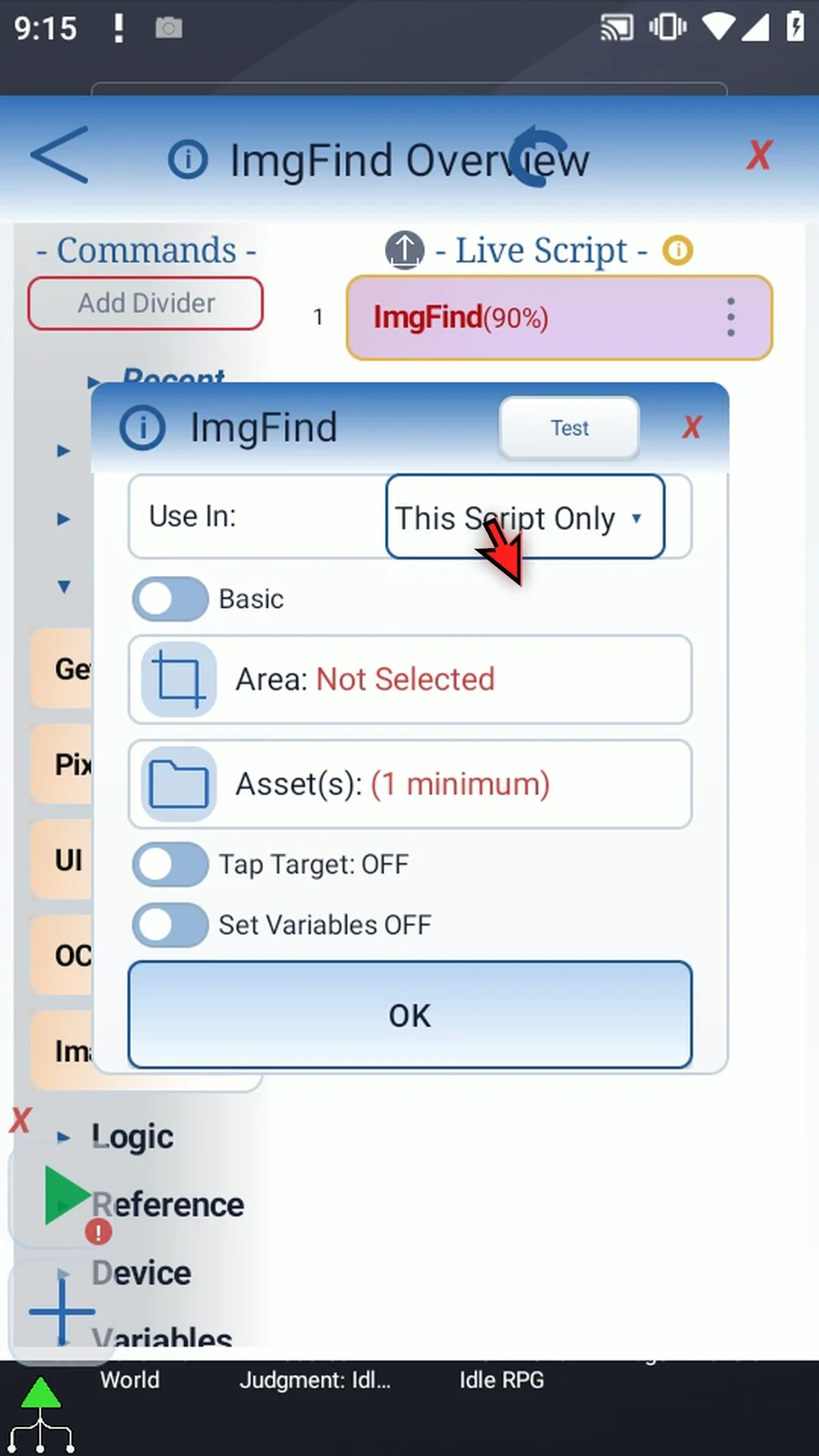
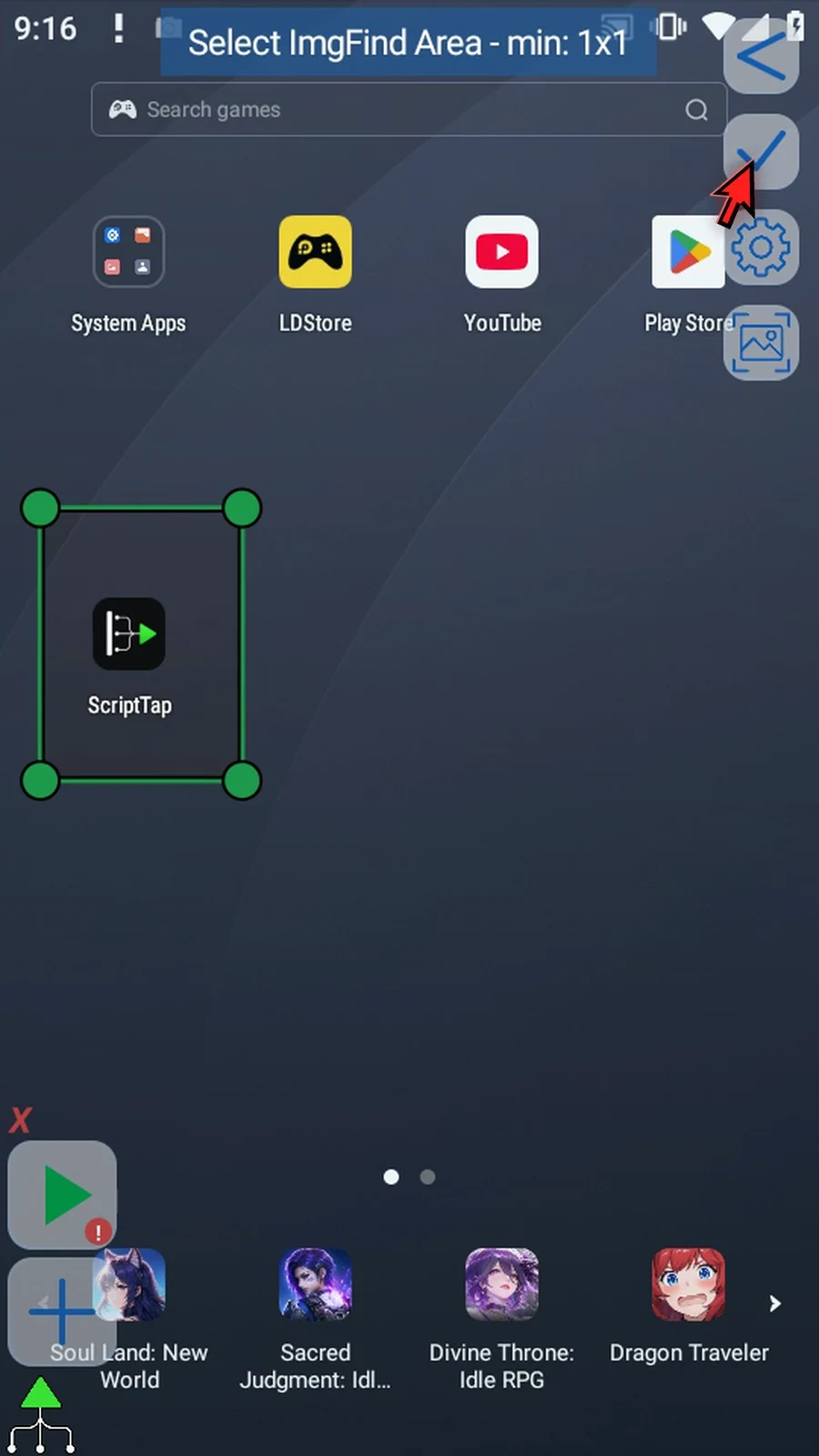
Step 07 Area limits where ImgFind searches. Resize the rectangle with its corner handles, or drag inside to move it. Keep the desired picture inside it. If Android asks for screen capture permission, grant it before continuing.
Step 08 An asset is the reference picture. Reuse the ScriptTap icon portion from the Asset Creation guide; cropping does not need to be repeated here. Recent Gallery and Browse All Scripts help locate existing assets. Selected previews show their numbered order.
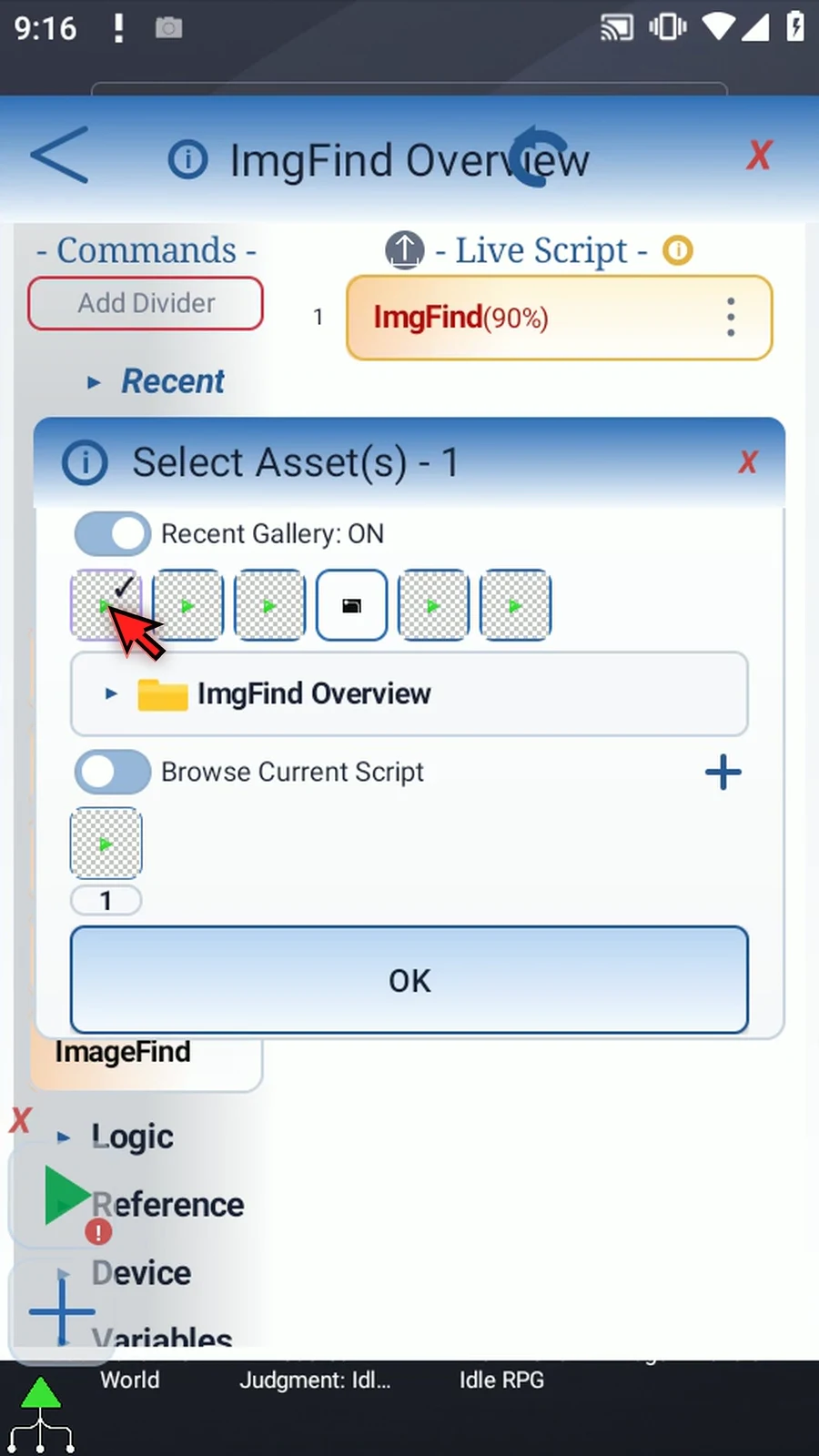
Step 09 Confidence controls how close a picture must match. New commands start at ninety percent. A higher value is stricter; one hundred requires exact active pixels. Use a small, stable asset and avoid blended edge pixels that change with the background.
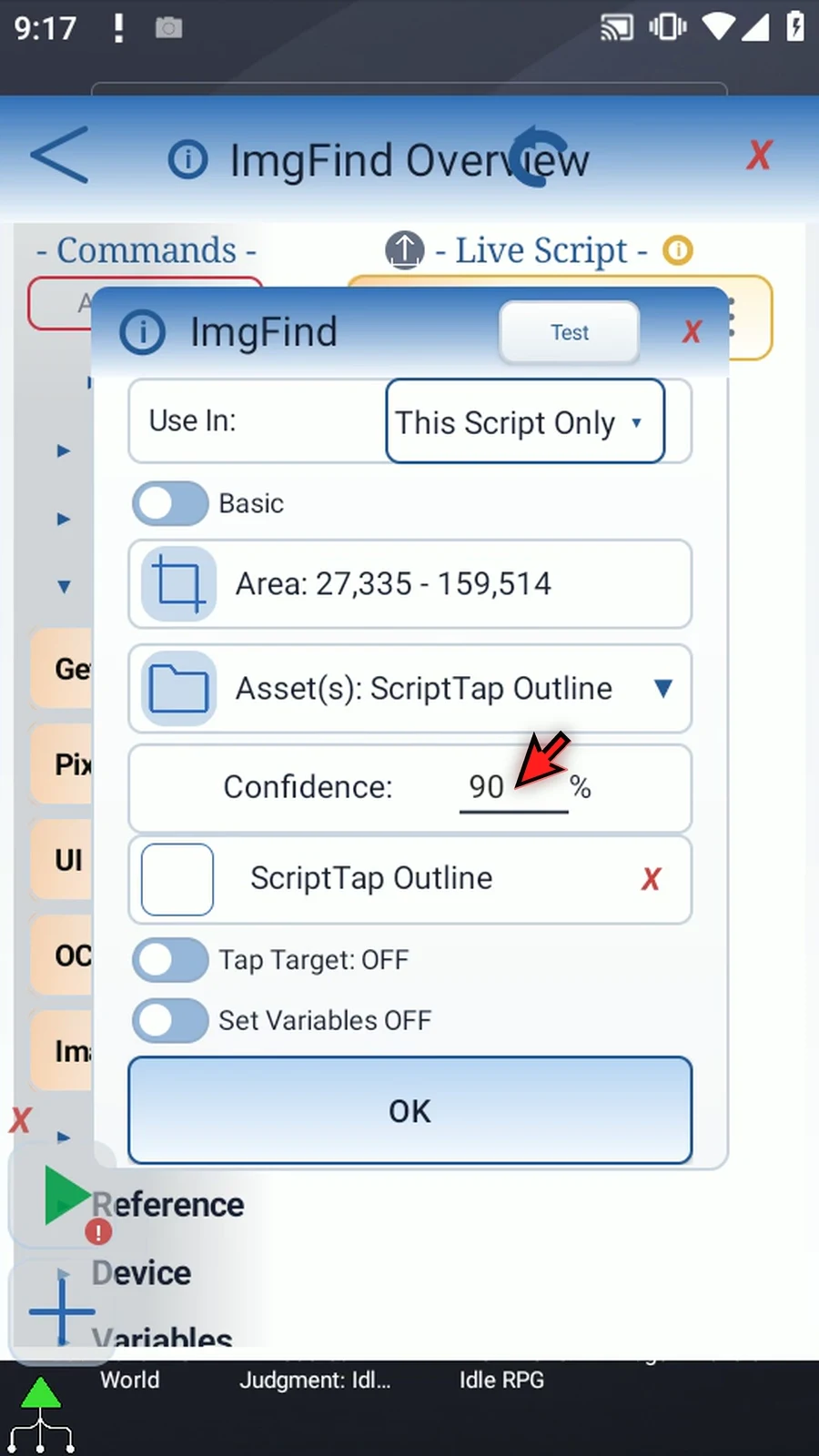
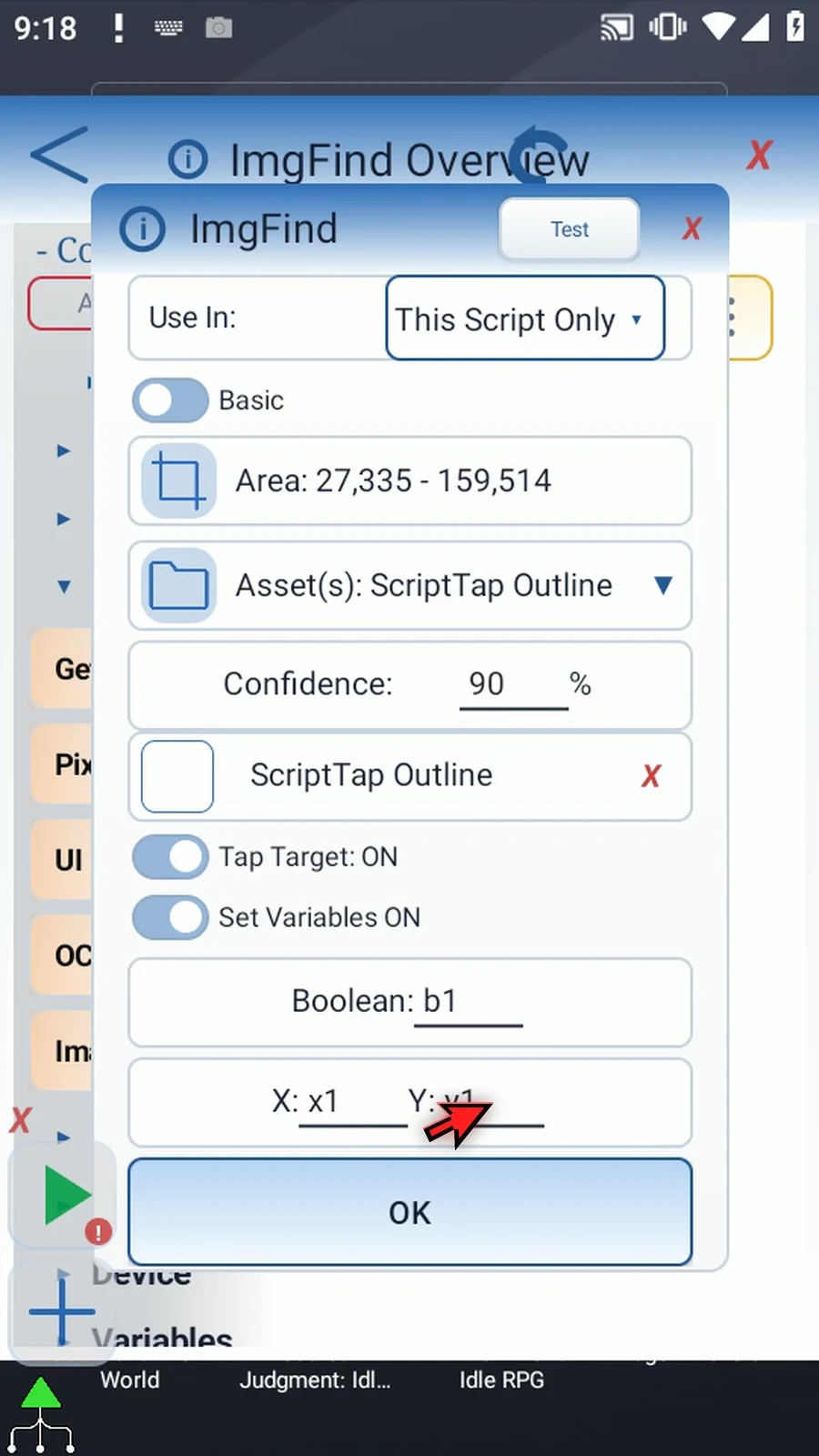
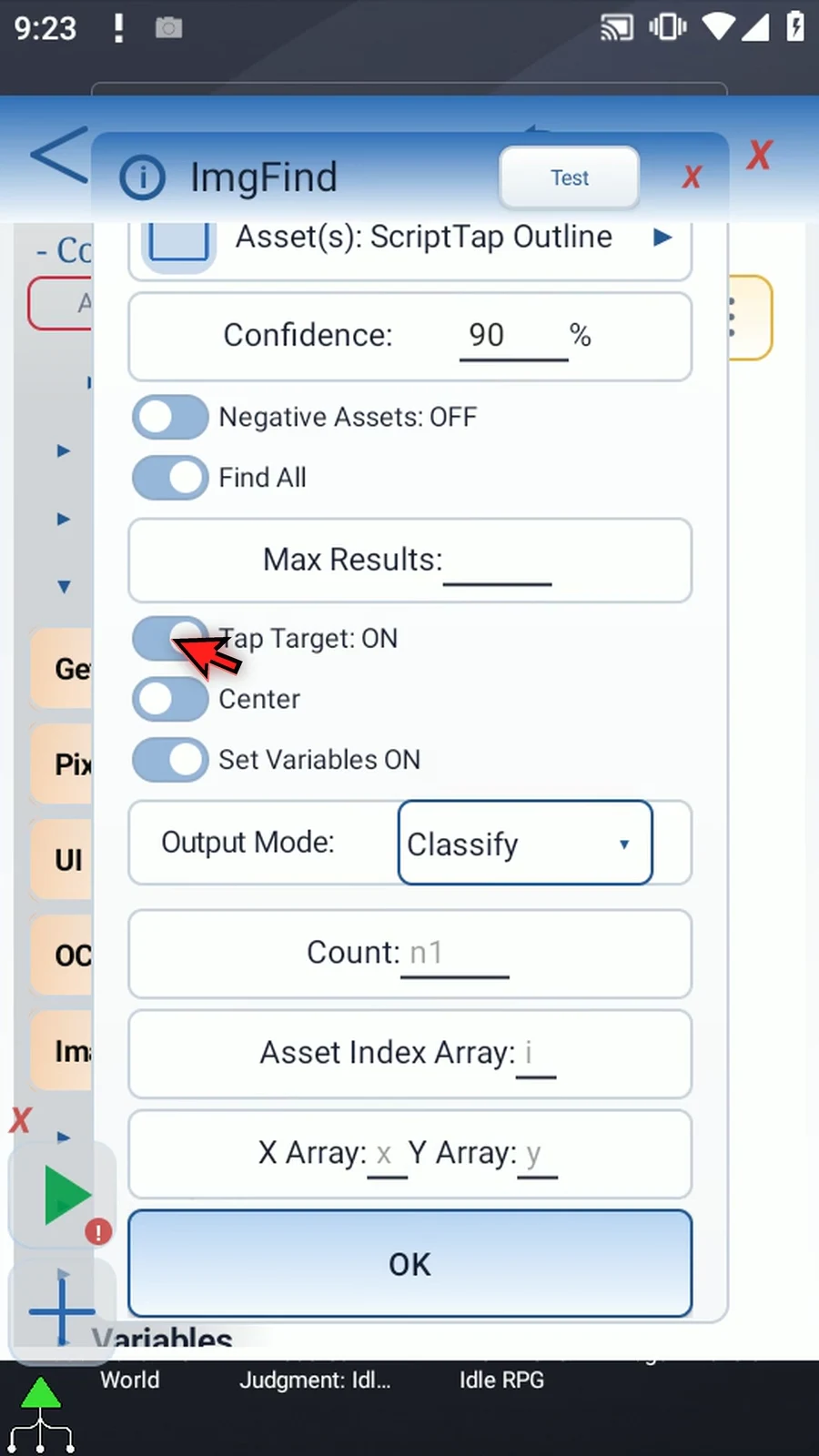
Step 10 Tap Target can tap the matching picture. Set Variables can instead, or also, save a Boolean found result and Integer X and Y coordinates. Give destinations full variable names, such as b1, x1 and y1. Later commands can use those saved values.
Step 11 Advanced adds multiple-result searches, search directions, negative assets, fixed tap coordinates and extra output modes. Moving back to Basic clears advanced-only settings, so check the command after changing modes.
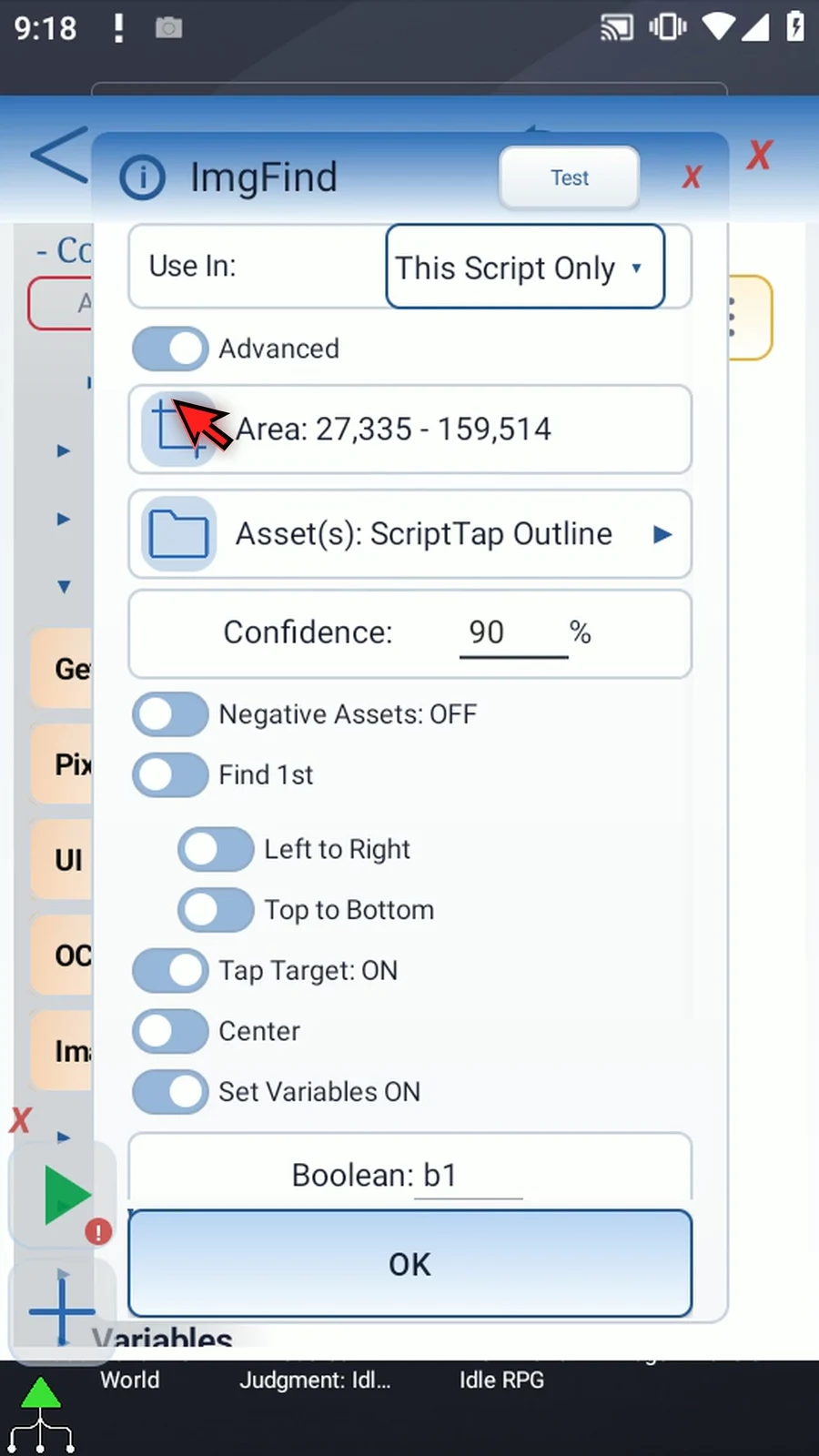
Step 12 Find First chooses one accepted match. Its direction switches let you prefer left to right or right to left, and top to bottom or bottom to top. These choices order the physical matches; they do not change what the reference image looks like.
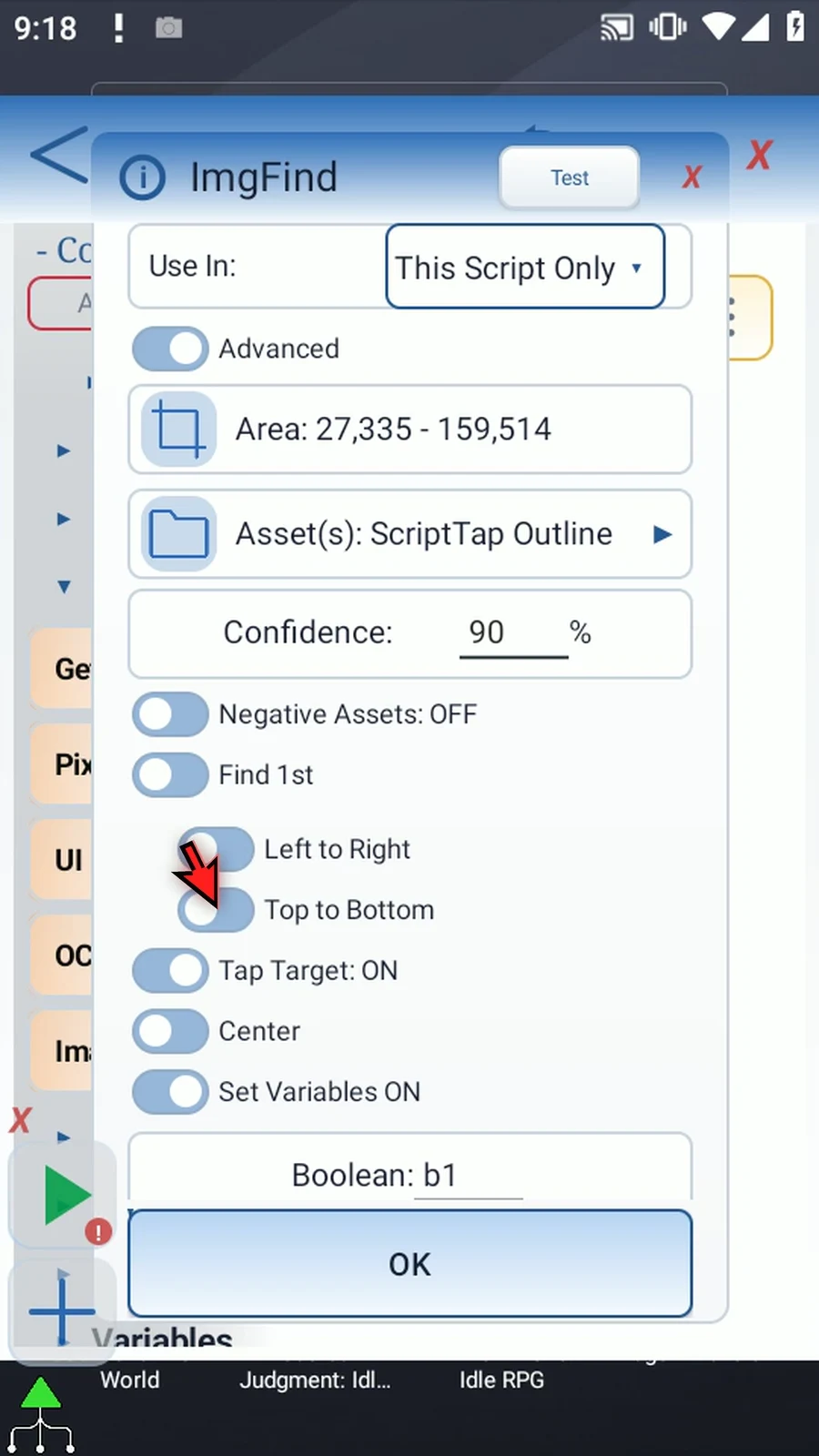
Step 13 With Tap Target on, Center uses the matched picture center. Set Coordinates uses a fixed X and Y instead. Those coordinates may be literal numbers or earlier Integer variables. Saved match coordinates still describe the picture, not the fixed tap target.
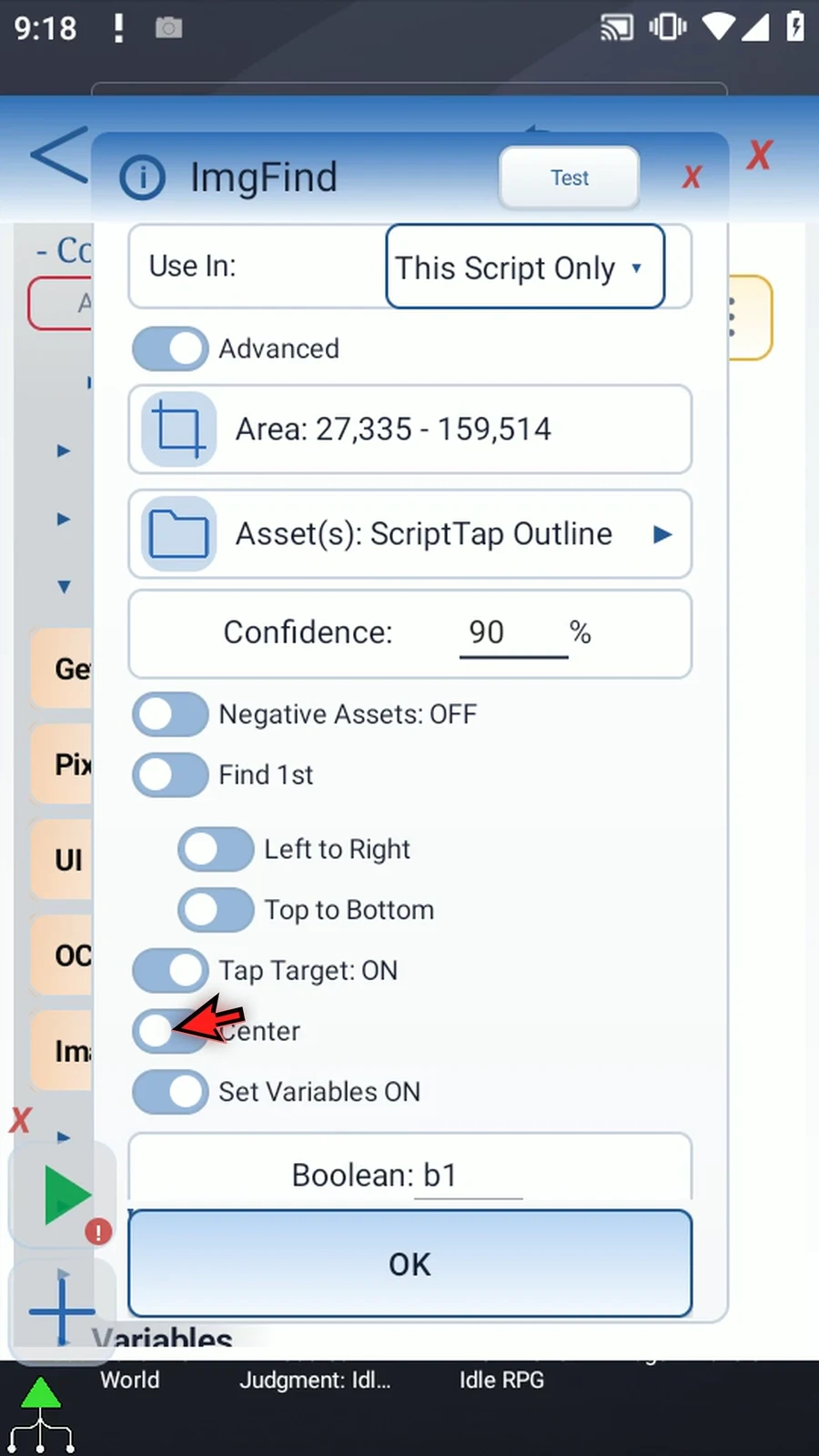
Step 14 Set Variables exposes Output Mode. Standard saves the usual found and coordinate results. Classify can identify which selected asset matched, with its name, one-based index, found state, coordinates and measured confidence. The lowest-numbered matching asset wins; no match gives an unknown result.
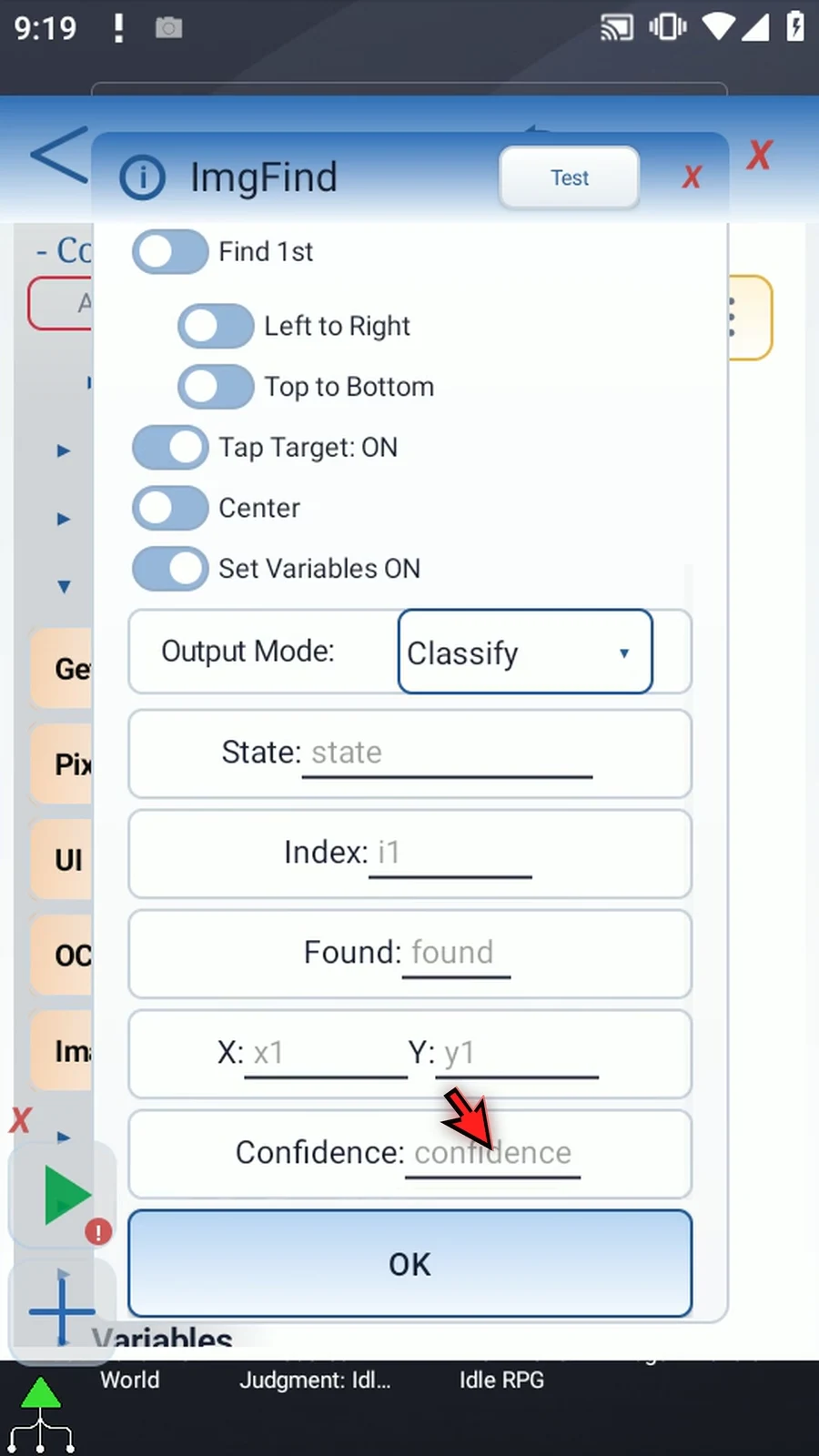
Step 15 Find All returns multiple accepted matches. Max Results defaults to two hundred fifty-five and accepts one to four thousand ninety-six, or an earlier Integer variable. Standard saves a Count and X and Y arrays. Classify also records which asset produced each match, using an Index array. Results follow top-to-bottom, then left-to-right order. With Tap Target on, each accepted match is tapped; fixed target coordinates apply only to Find First.
Step 16 Boolean Array answers a different question: was each selected asset found? It writes one Boolean row per asset in selected order, not one row per matching position. Repeated copies of the same picture do not create extra asset rows. Changing Output Mode clears the outgoing mode destinations.
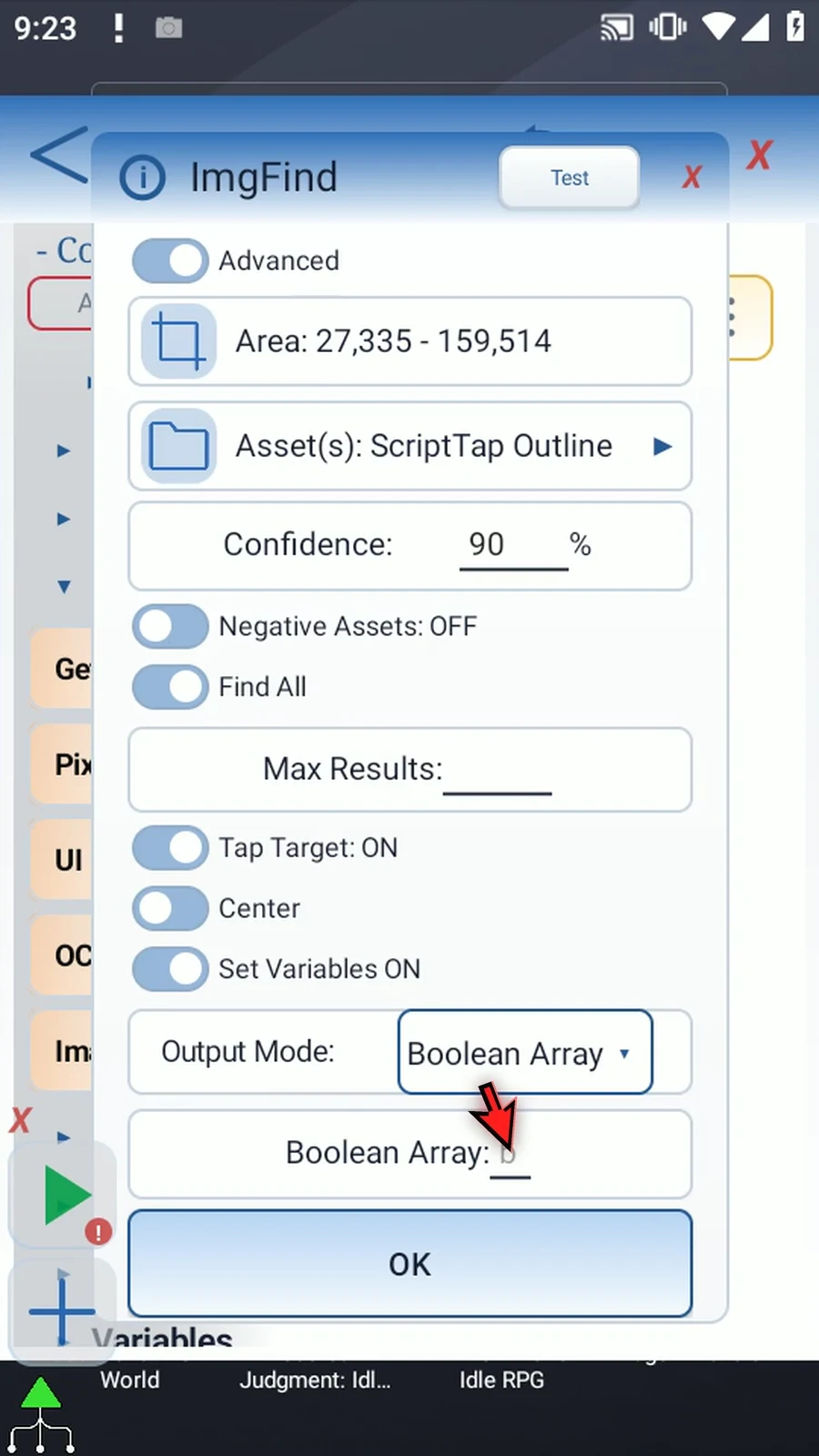
Step 17 Negative assets can reject unwanted look-alikes using their own confidence threshold. They are optional and are not demonstrated in this overview. Keep the positive reference small: fewer non-transparent pixels generally mean less matching work.
Step 18 Header Test checks the current image setup while temporarily hiding ScriptTap windows, then returns a result. Complete the required fields first. Normal script playback performs the command when that script line is reached; ImgFind itself is not a wait-until command.
Step 19 Use the Asset Creation tab for cropping, Basic for a complete find-and-tap example, and the Advanced sections for specialized results. This overview closes its unsaved draft; it has not run a script or tapped the matched image.
Create the image asset once, then select it in this command. This is the same shared video used by the other image-matching guides.
Asset Creation
ImgFind looks for a reference picture inside a selected screen area. It lets a script act on a visual target rather than relying only on a fixed position. This Basic example performs a real match and tap, then displays the saved results.
Create a separate ImgFind Basic Guide script. Manually drag ImageFind from Capture into the editor, open its placed row and select Basic. Reuse ScriptTap Outline from Recent Gallery; the shared Asset Creation tab explains making the original reference.
Keep Confidence 90. Higher values are stricter; 100 requires exact active pixels. The reference keeps its genuine original 8×9 pixels. Use stable distinctive pixels and avoid semi-transparent edges that change with their background. Fewer useful active pixels and a smaller search area usually reduce matching work.
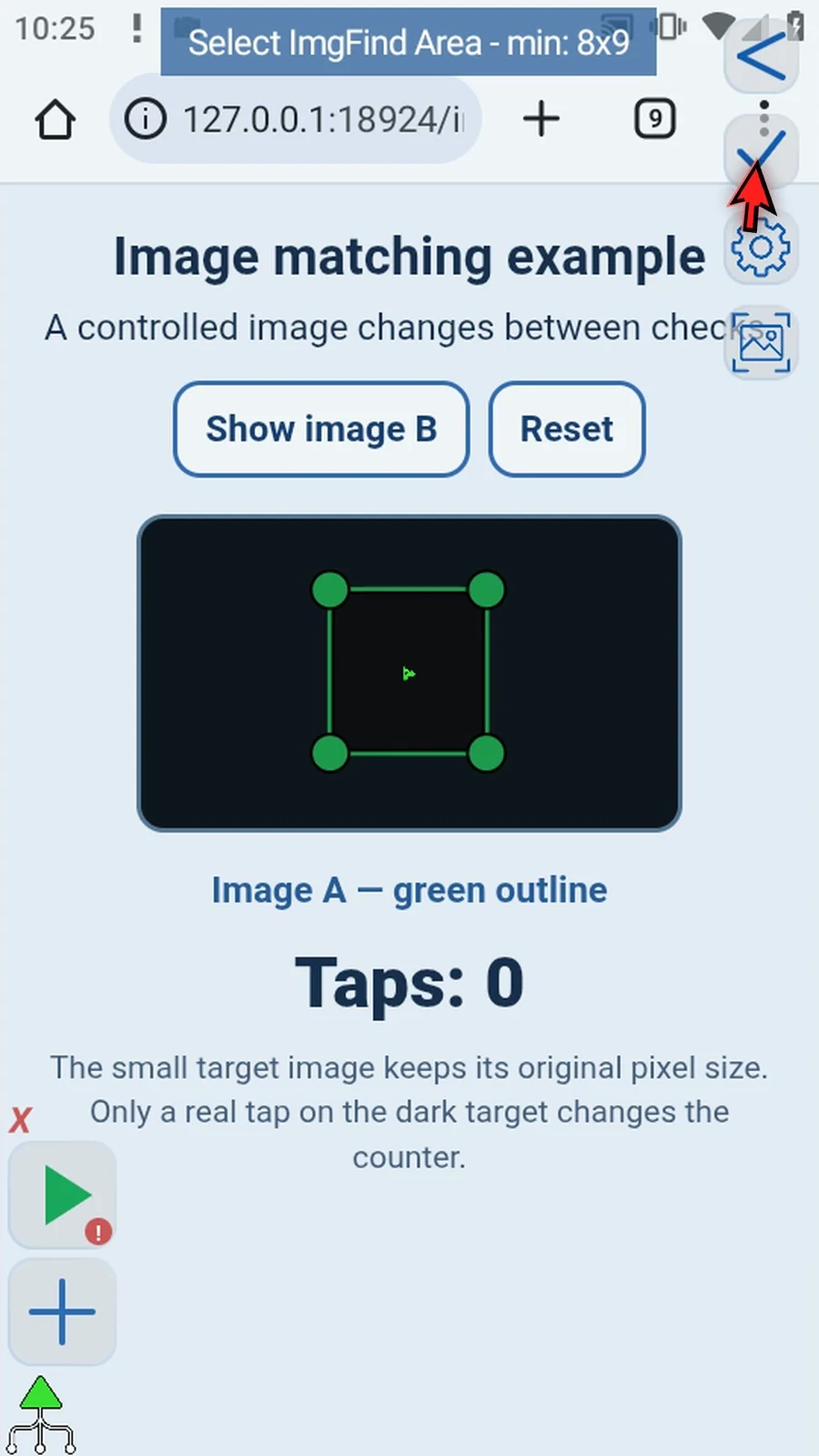
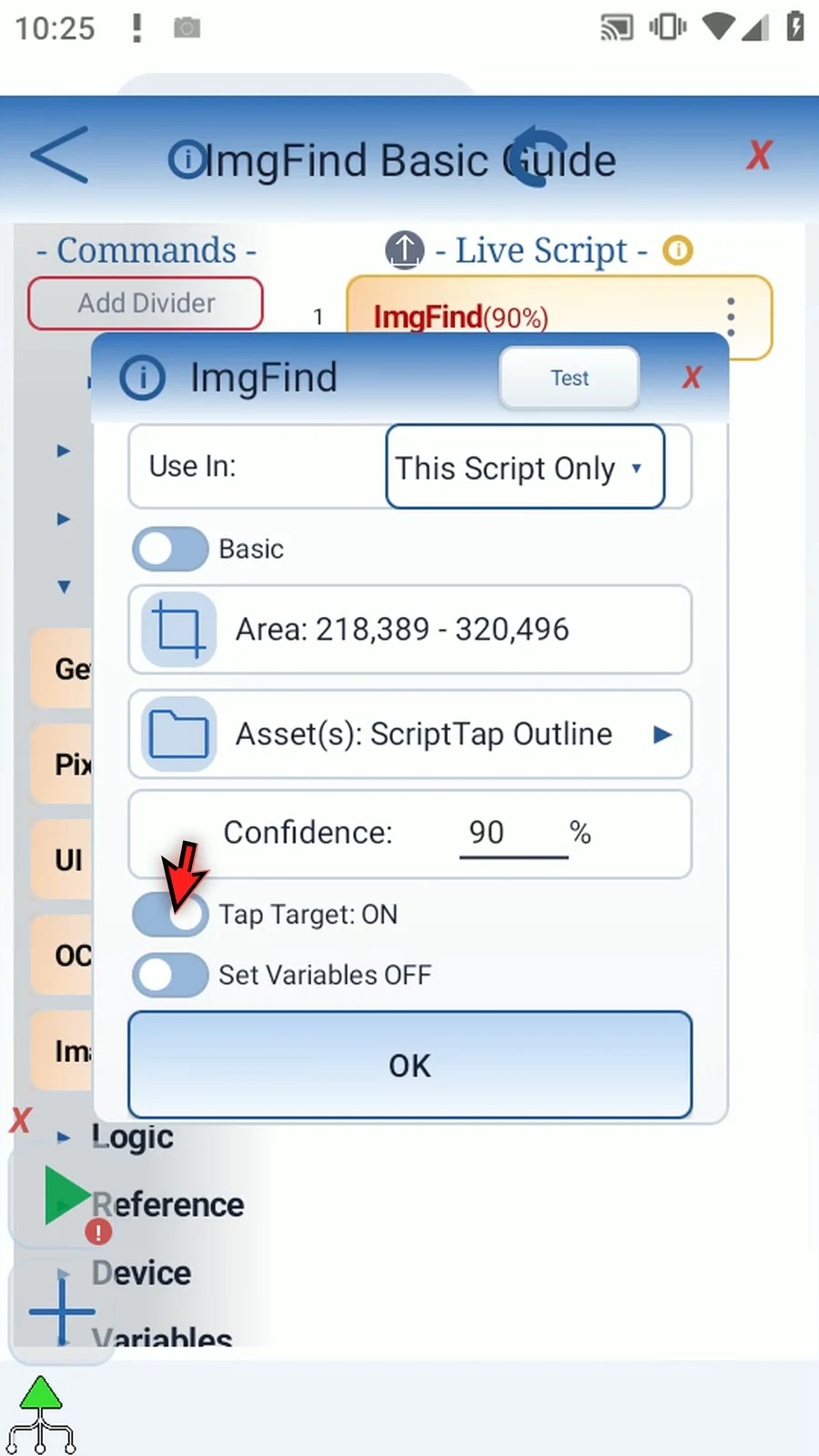
Select Area around the small icon on the controlled practice screen. Drag its corners to resize and its interior to reposition. Grant Android screen capture access if requested. Turn Tap Target ON to tap the matched center. Enable Set Variables, keep This Script Only, and enter Boolean b1 with Integer coordinates x1 and y1. Save the command.
Manually drag SetVariable afterward: Single → String → s1, This Script Only, with Found=&b1 X=&x1 Y=&y1. Ampersand references format the values produced by ImgFind; the successful result is not typed as fixed text.
Manually drag Standard PromptMe last. Use Header s1 and a Done button writing Boolean b2. Leave text inputs and toggles off. The complete sequence is ImgFind → SetVariable → PromptMe.
Use the Main Overlay Play button. The genuine result is Found=True X=270 Y=444, and the practice target counter rises from 0 to 1. Coordinates belong to this example device and area; select the correct region for your own app. Tap Done for natural completion.
ImgFind checks when its script line is reached. It does not wait for a picture to appear; use Delay Until → Image for a wait. See Overview for Advanced controls and other result modes.
Basic
Step-by-step guide
Step 01 ImgFind locates a reference picture in a selected screen area. This lets a script react to an image instead of relying only on a fixed tap position. We will find a small ScriptTap icon portion, tap its center, and display the found result and coordinates.
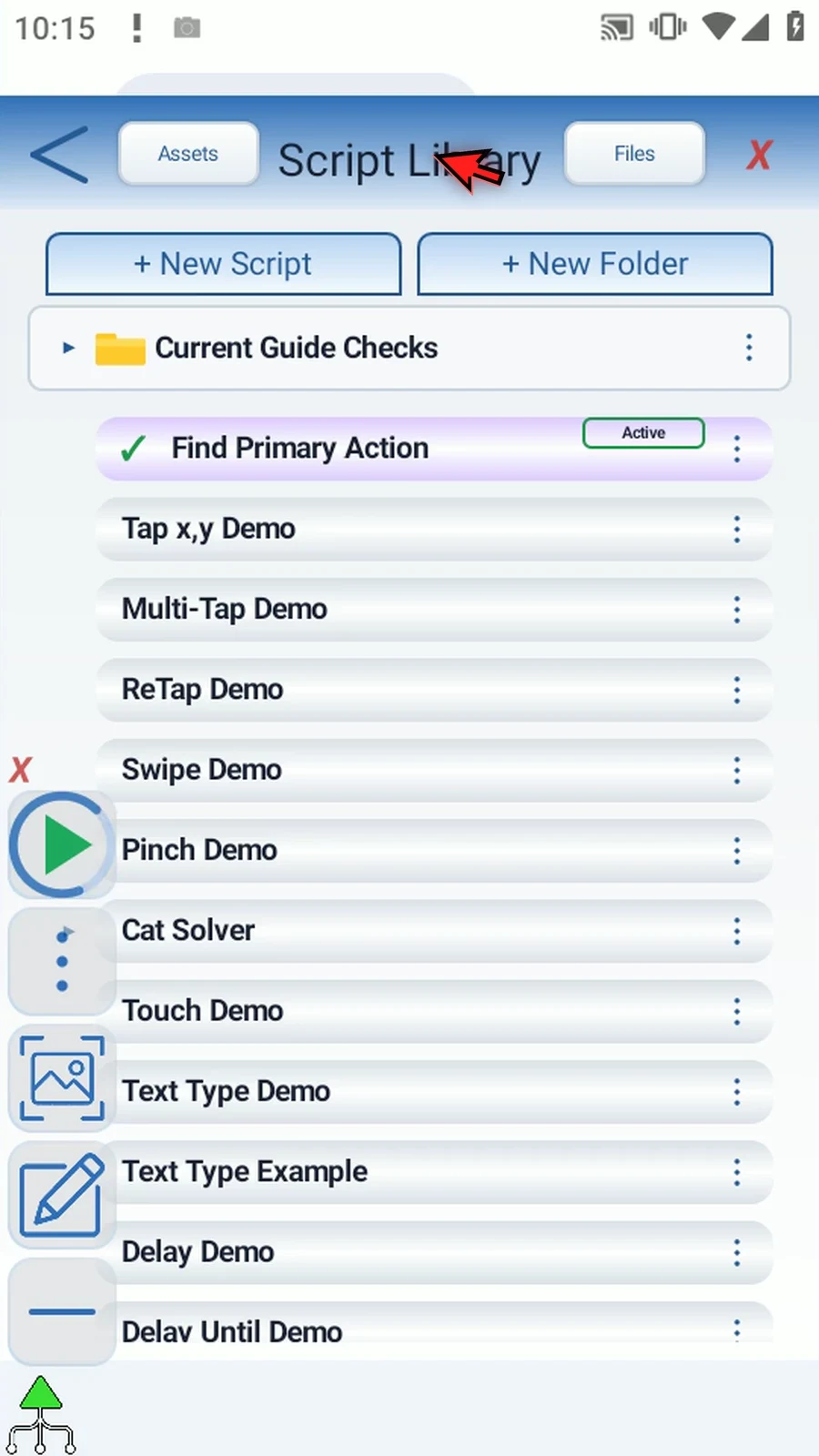
Step 02 Create a new blank script and give it a clear name. Use a separate script for this example so existing scripts remain unchanged.
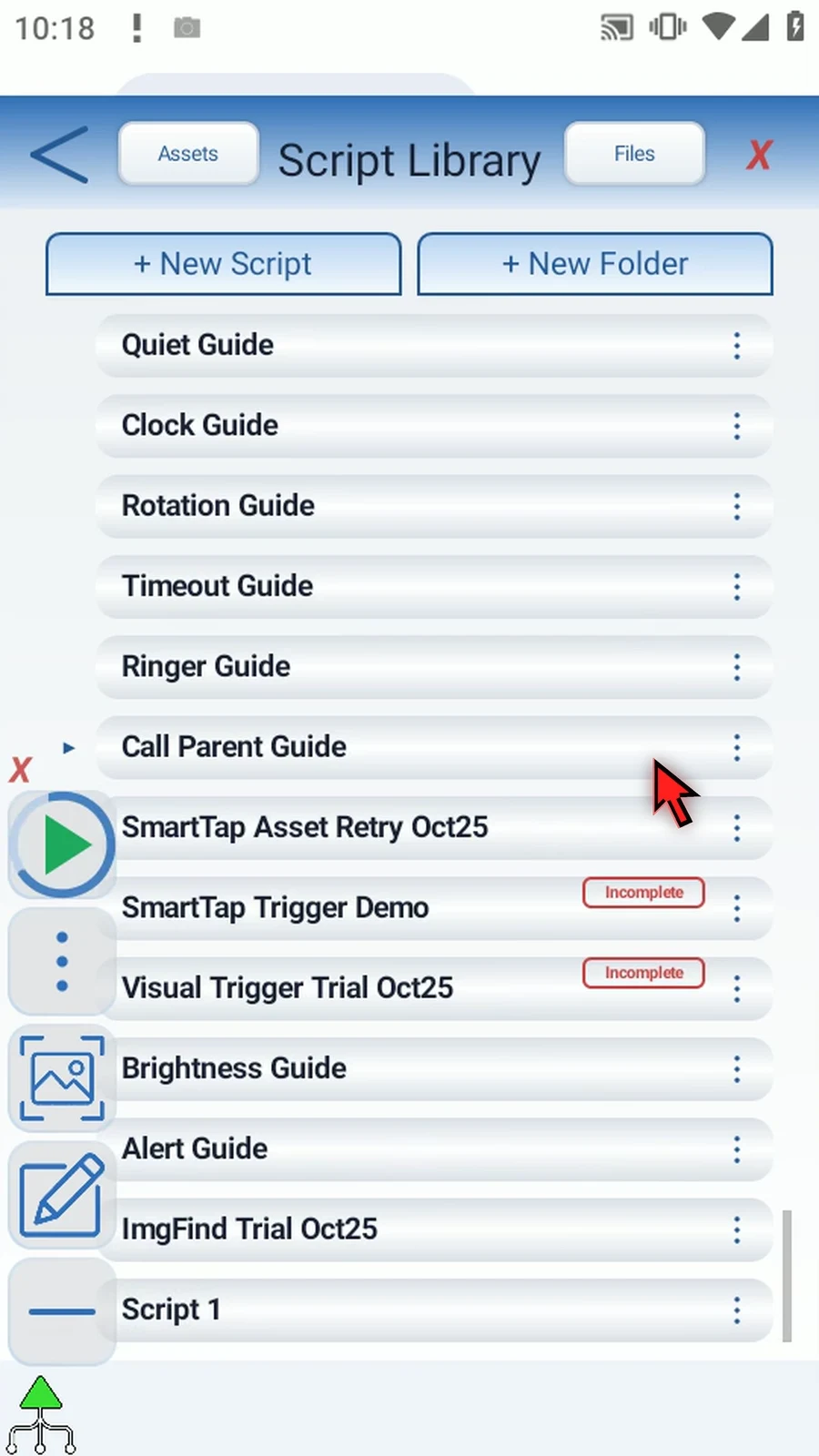
Step 03 We will use ImgFind Basic Guide. Select it and open the editor, ready to add the command.
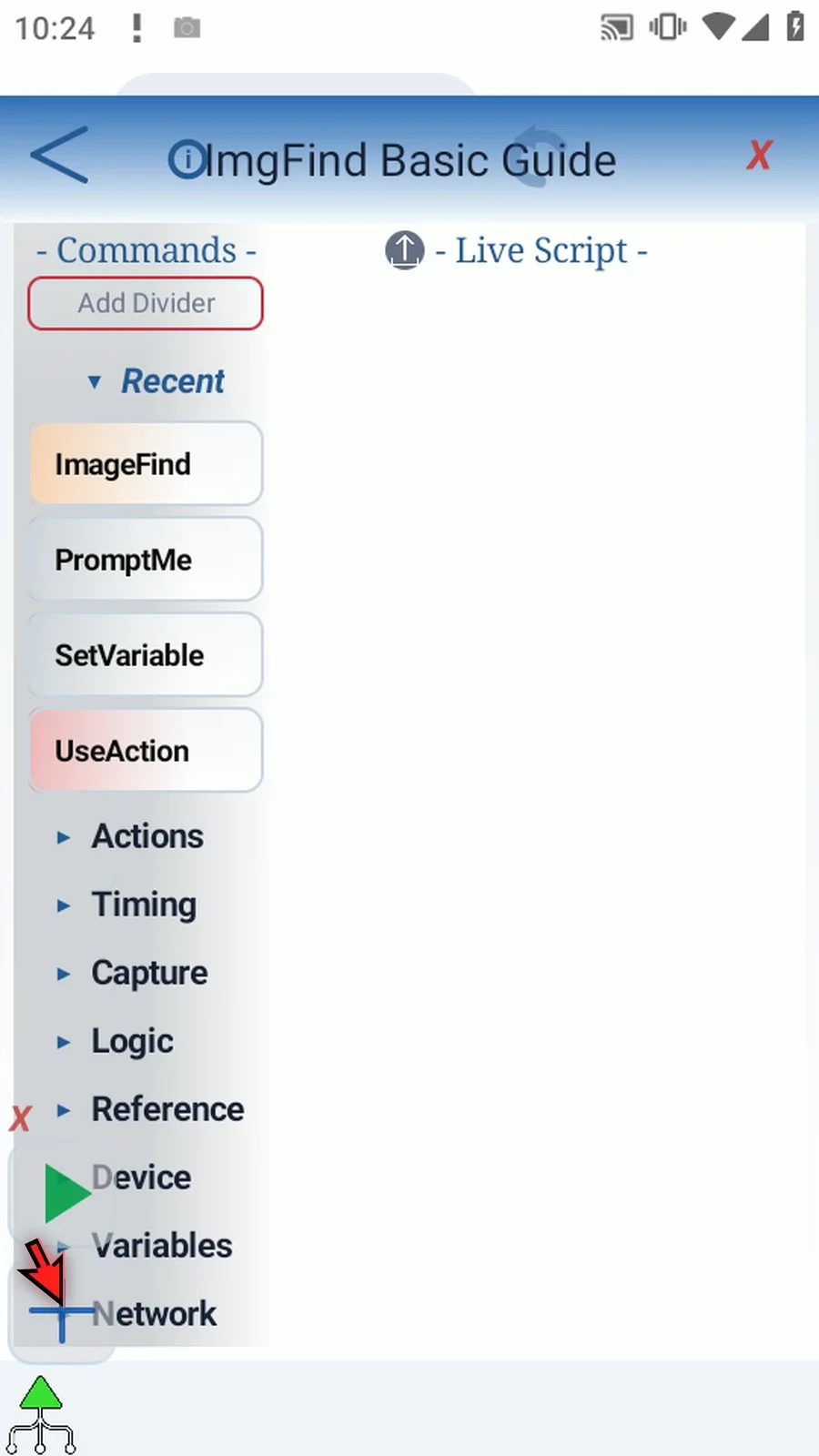
Step 04 Drag Image Find from Capture into the script. Open its placed row and select Basic. The overview explains the additional Advanced controls.
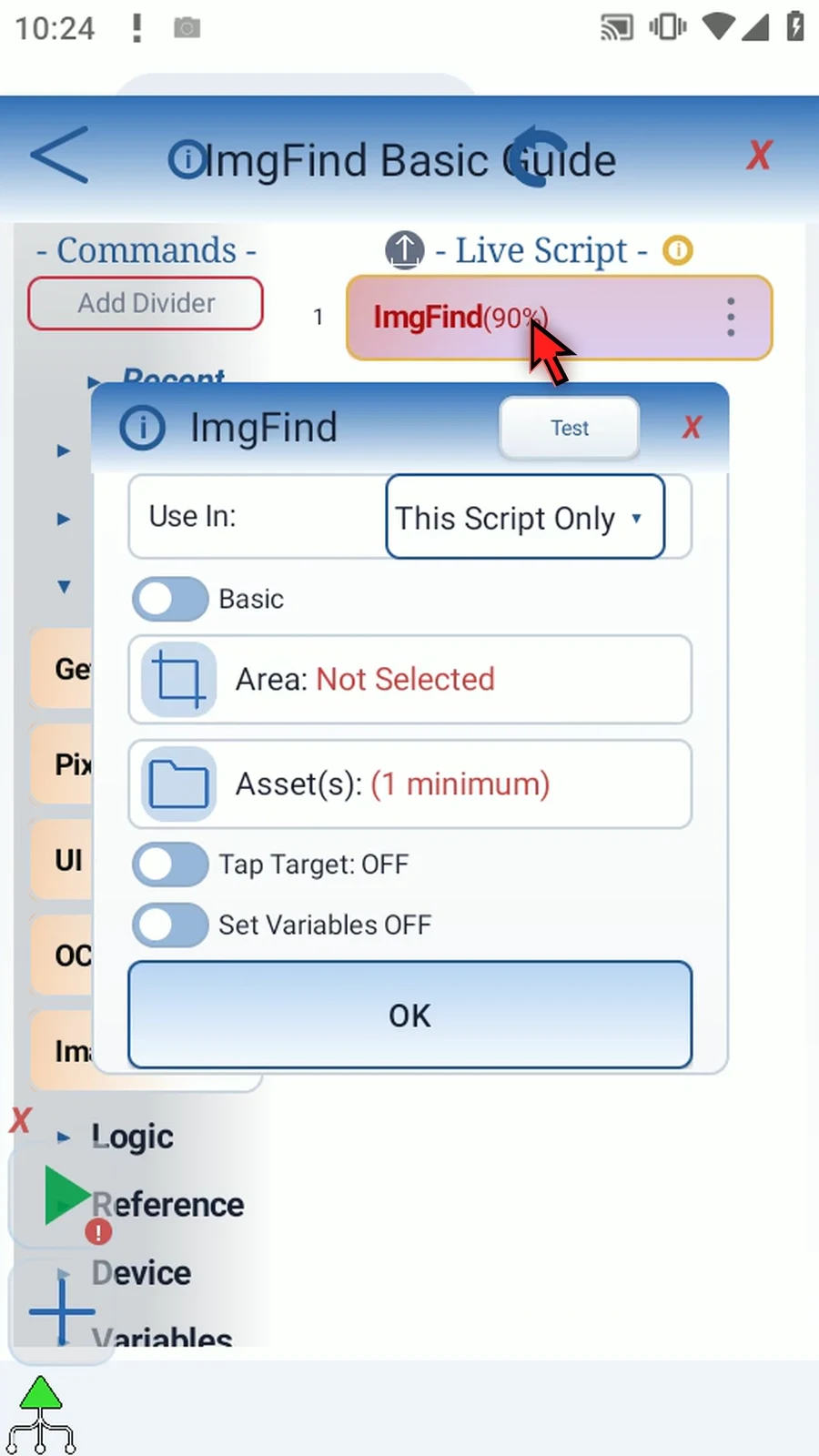
Step 05 Choose the existing ScriptTap Outline asset from Recent Gallery. It is a small portion of the real icon, kept at its original pixel size. Use the Asset Creation tab if you need to make your own reference image.
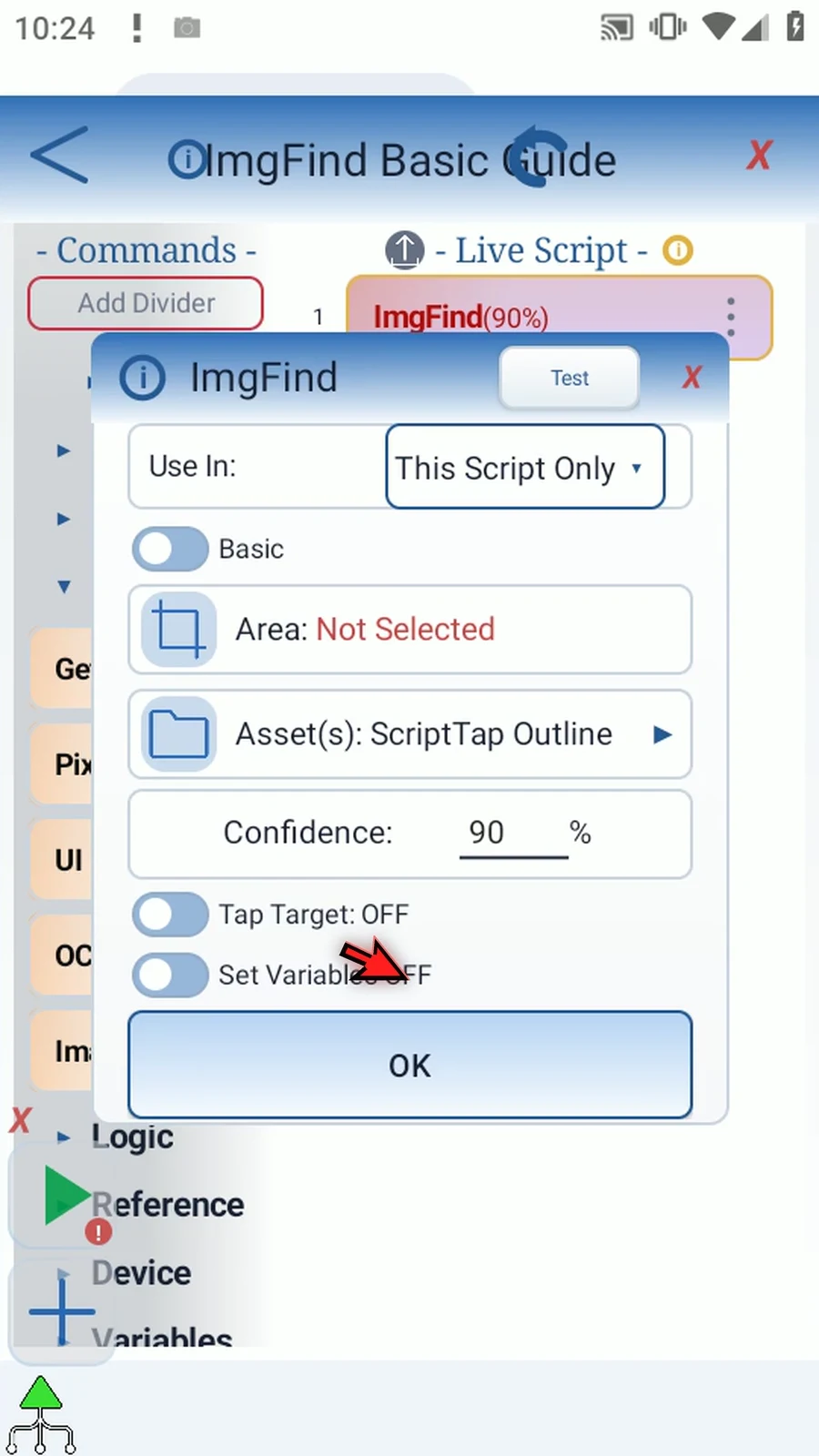
Step 06 Keep Confidence at ninety percent for this example. Higher values demand a closer match; one hundred requires exact active pixels. A small crop with stable colors is usually faster and more reliable than a large picture with changing background edges.
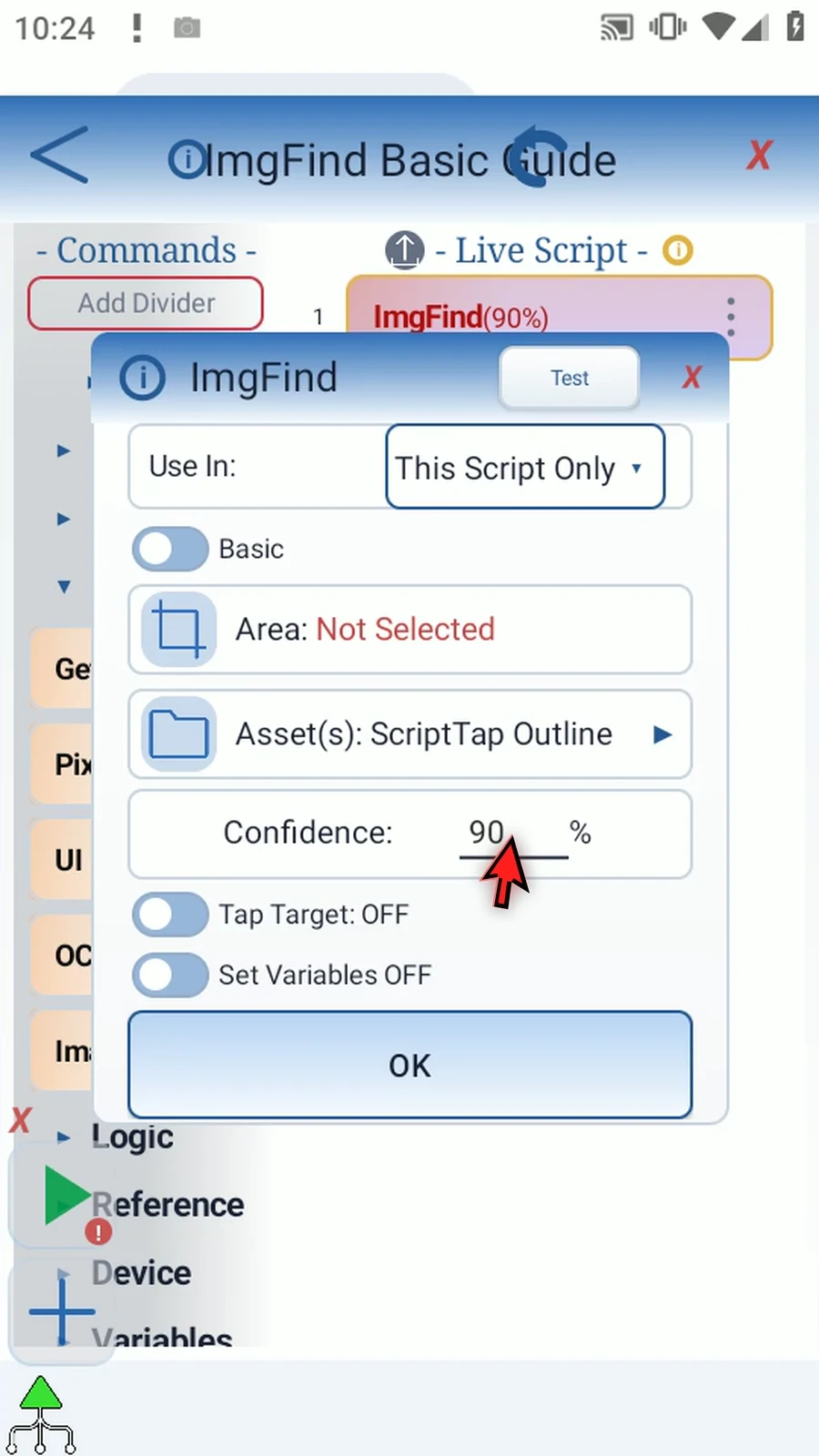
Step 07 Open Area and place the rectangle around the small picture on the practice screen. Corners resize it; dragging inside repositions it. A smaller search area reduces the work. If Android requests screen capture permission, grant it before continuing.
Step 08 Turn Tap Target on. In Basic, this taps the accepted matching image at its center. On this practice screen, only a real tap on the dark target increases the counter.
Step 09 Turn Set Variables on and keep Use In at This Script Only. Save the Boolean result in b1 and the Integer coordinates in x1 and y1. These are full variable names. The following commands will read the same local values.
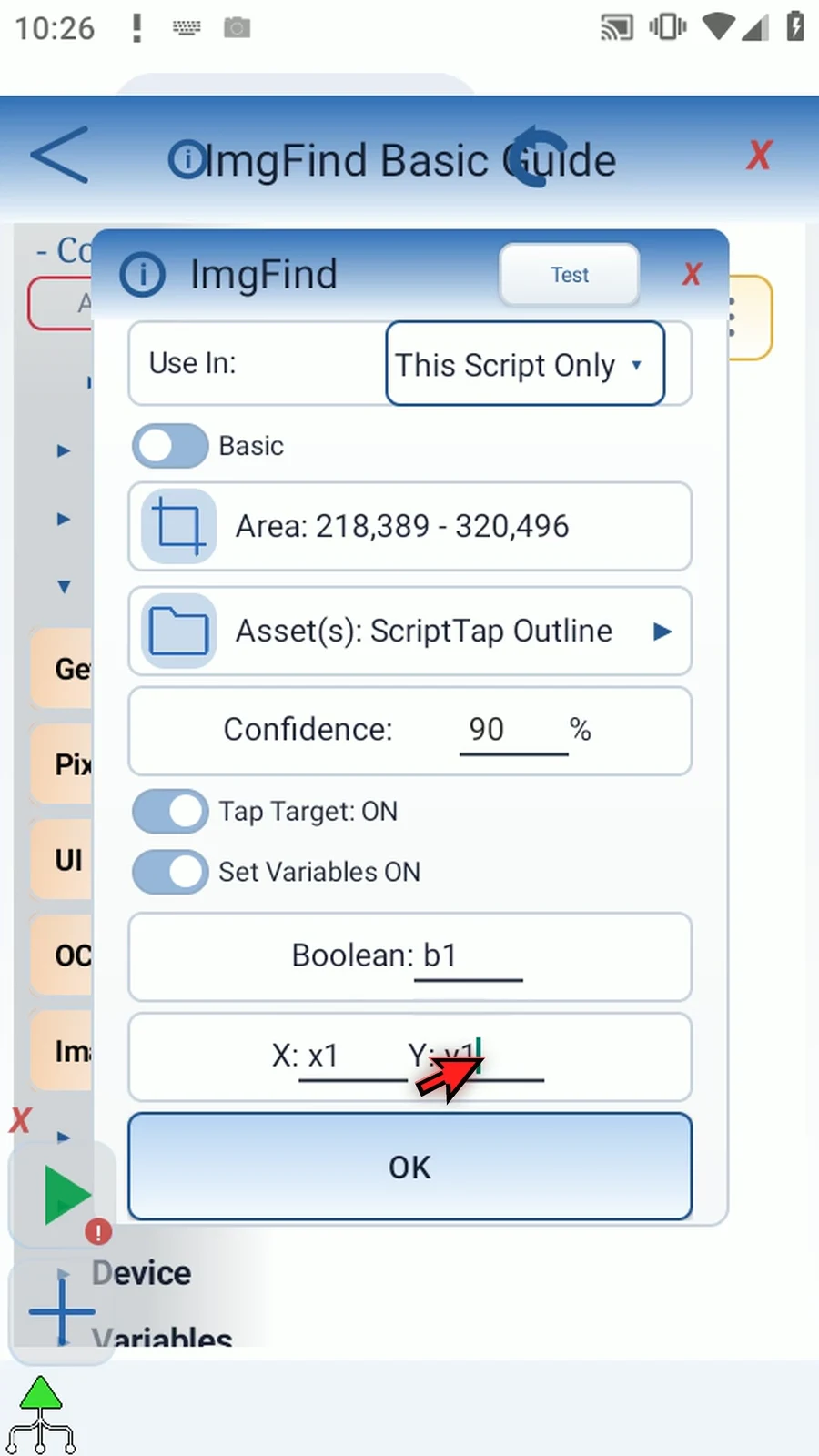
Step 10 Drag SetVariable after ImgFind. Choose String, name it s1, and enter Found equals ampersand b1, X equals ampersand x1, and Y equals ampersand y1. The ampersands insert the saved values into readable text.
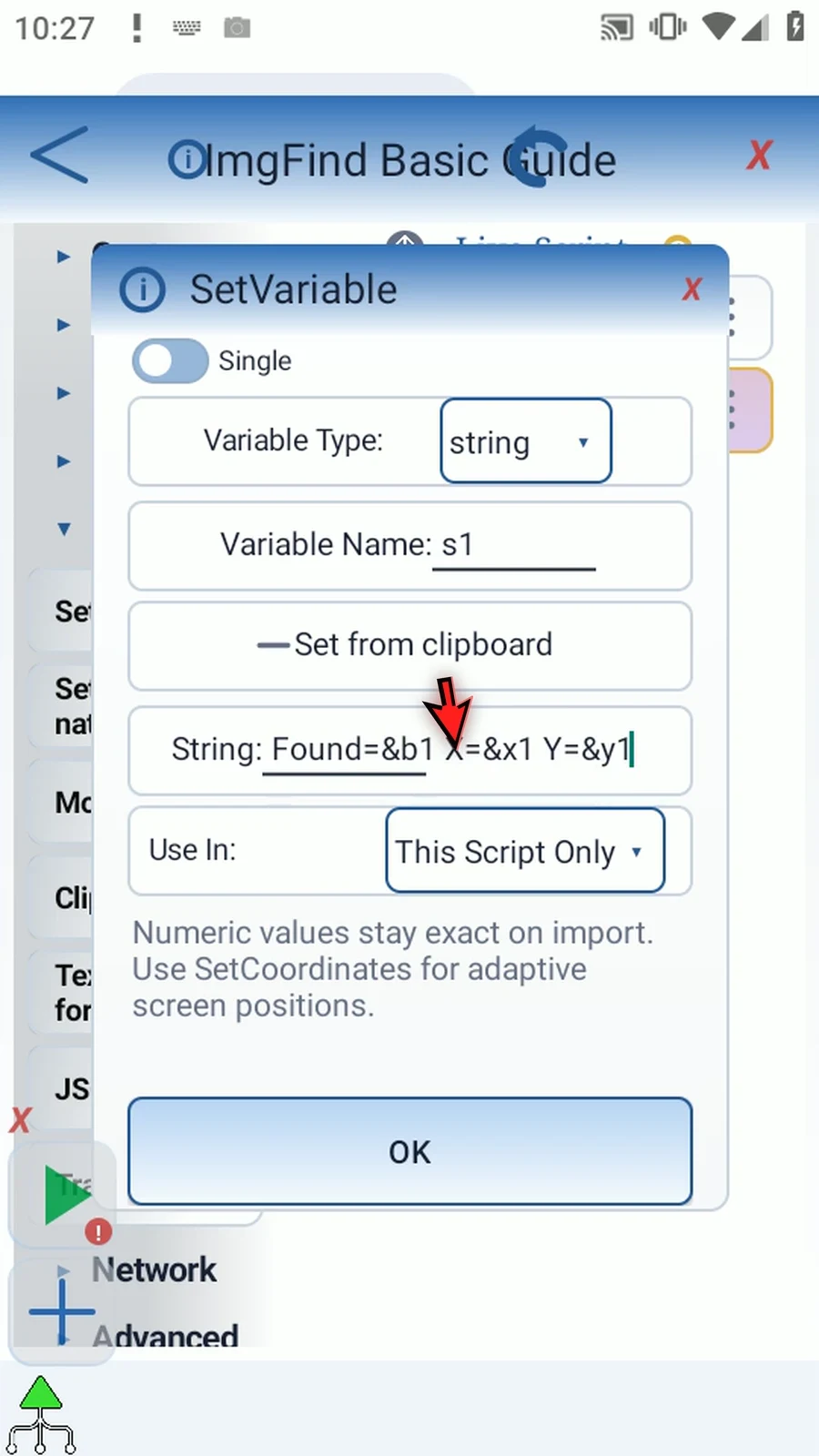
Step 11 Drag PromptMe next. Keep Standard mode and use s1 for Header. Add a Done button with Boolean output b2. PromptMe makes the actual ImgFind result visible; it is a supporting step, not part of the image search.
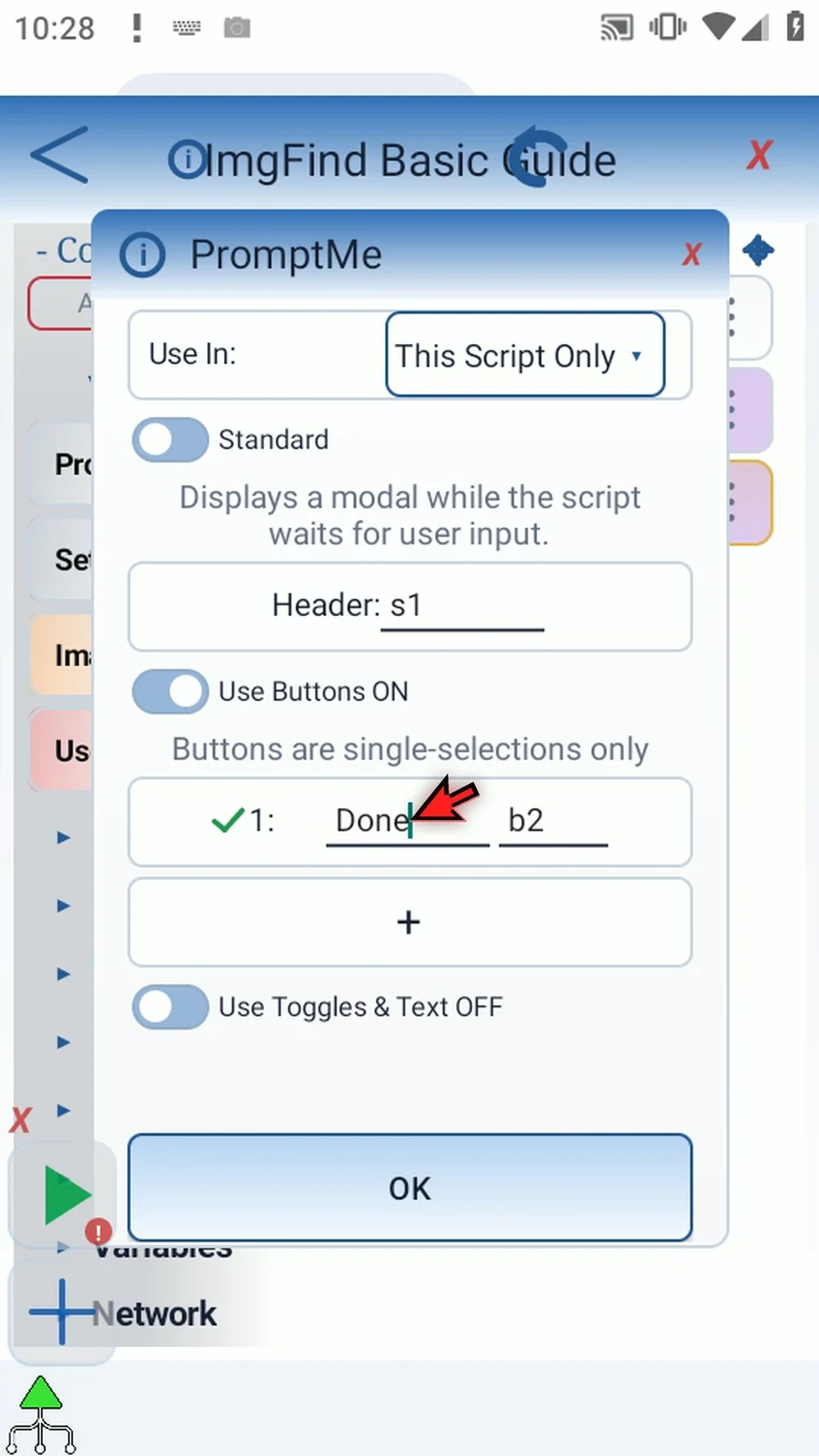
Step 12 The finished script has three commands: ImgFind, a String that formats its outputs, and PromptMe. ImgFind checks the image once when reached. To wait for an image before continuing, use Delay Until Image instead.
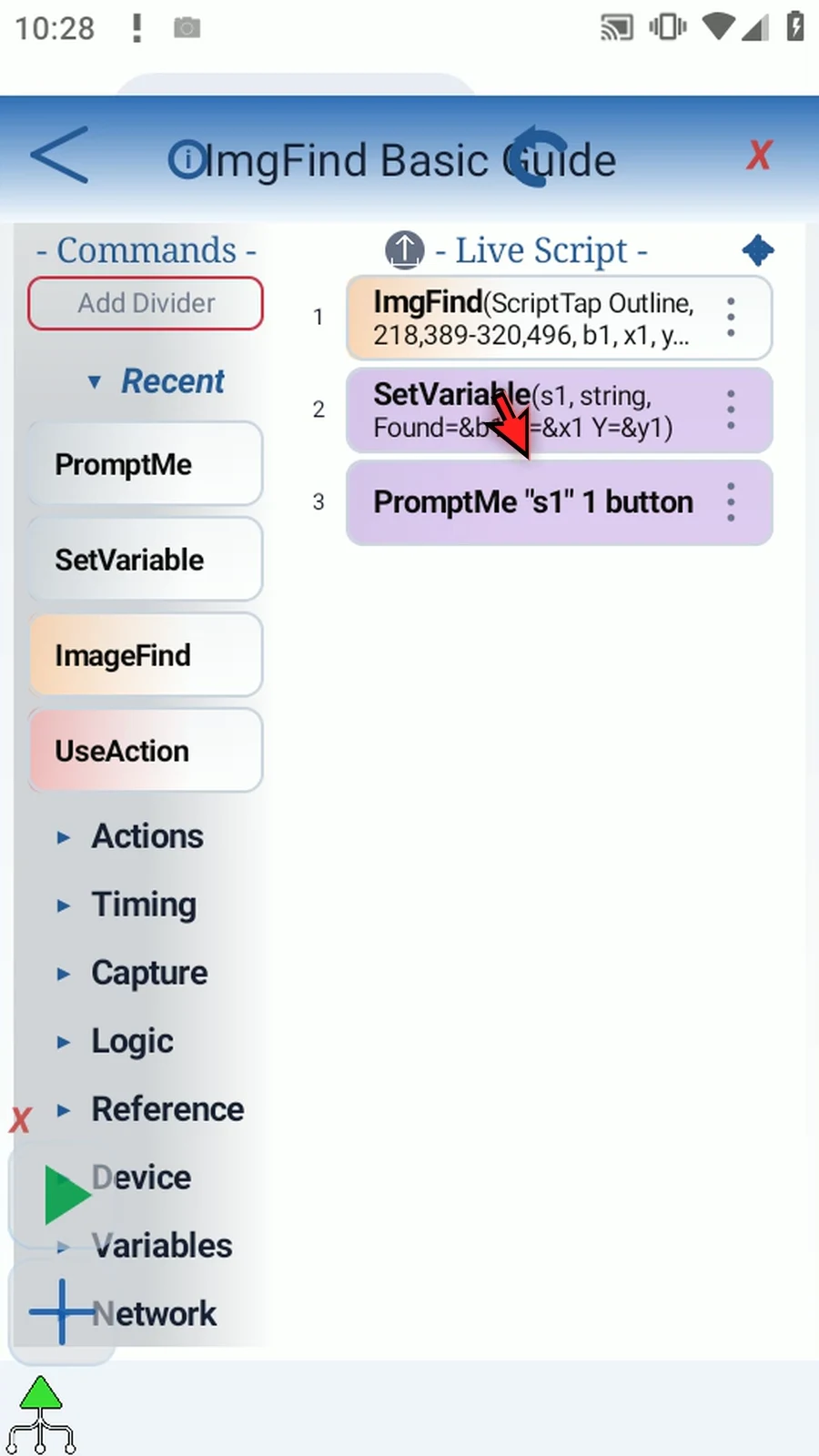
Step 13 When the script is complete, simply use the Play button in the main overlay. ImgFind searches the chosen area, taps the matched center, and then PromptMe displays its saved results.
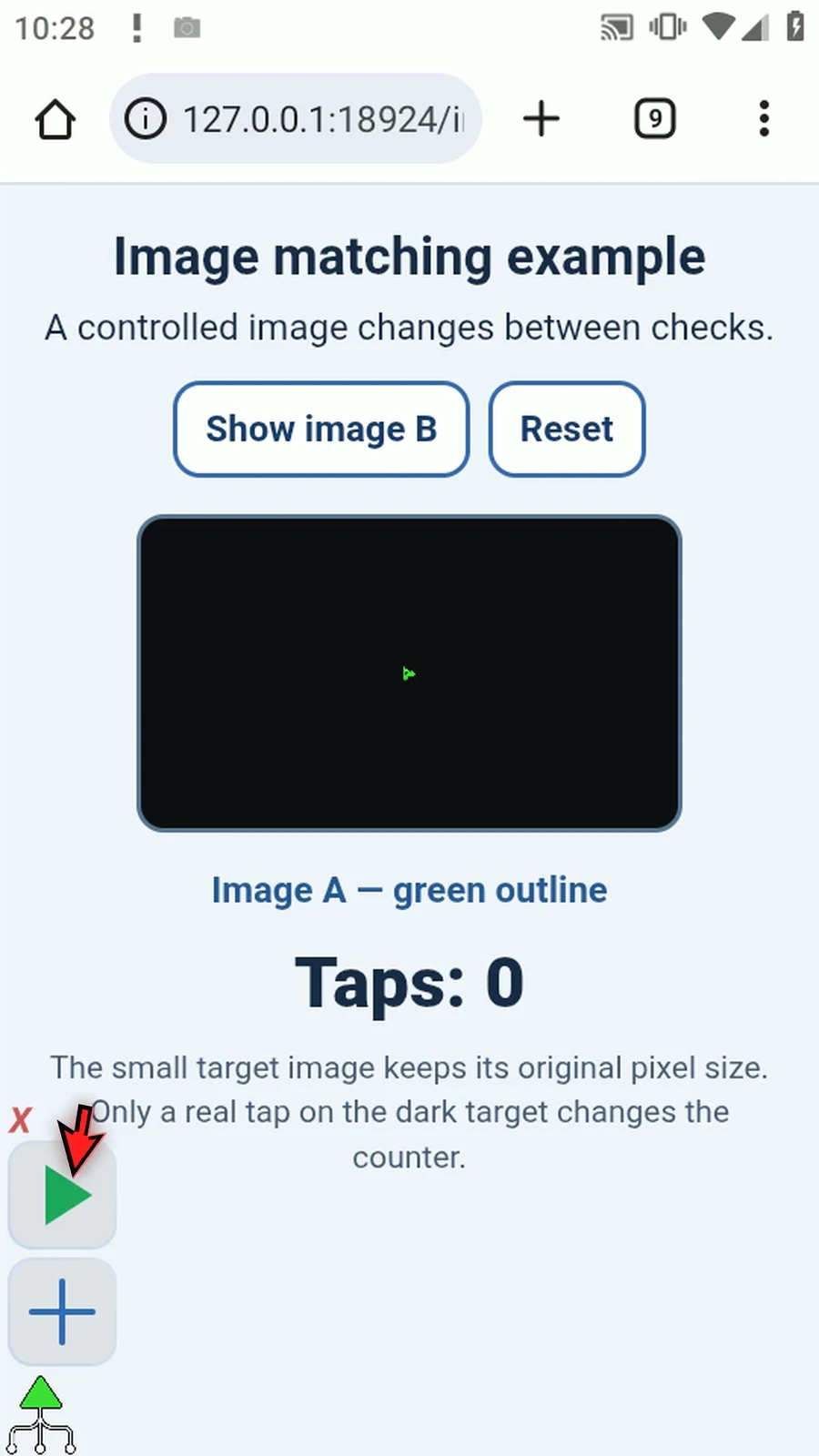
Step 14 Found is True, and X and Y show the matched center. The target counter increased by one, confirming that ImgFind dispatched a real tap. Tap Done to close the result; the script then finishes automatically.
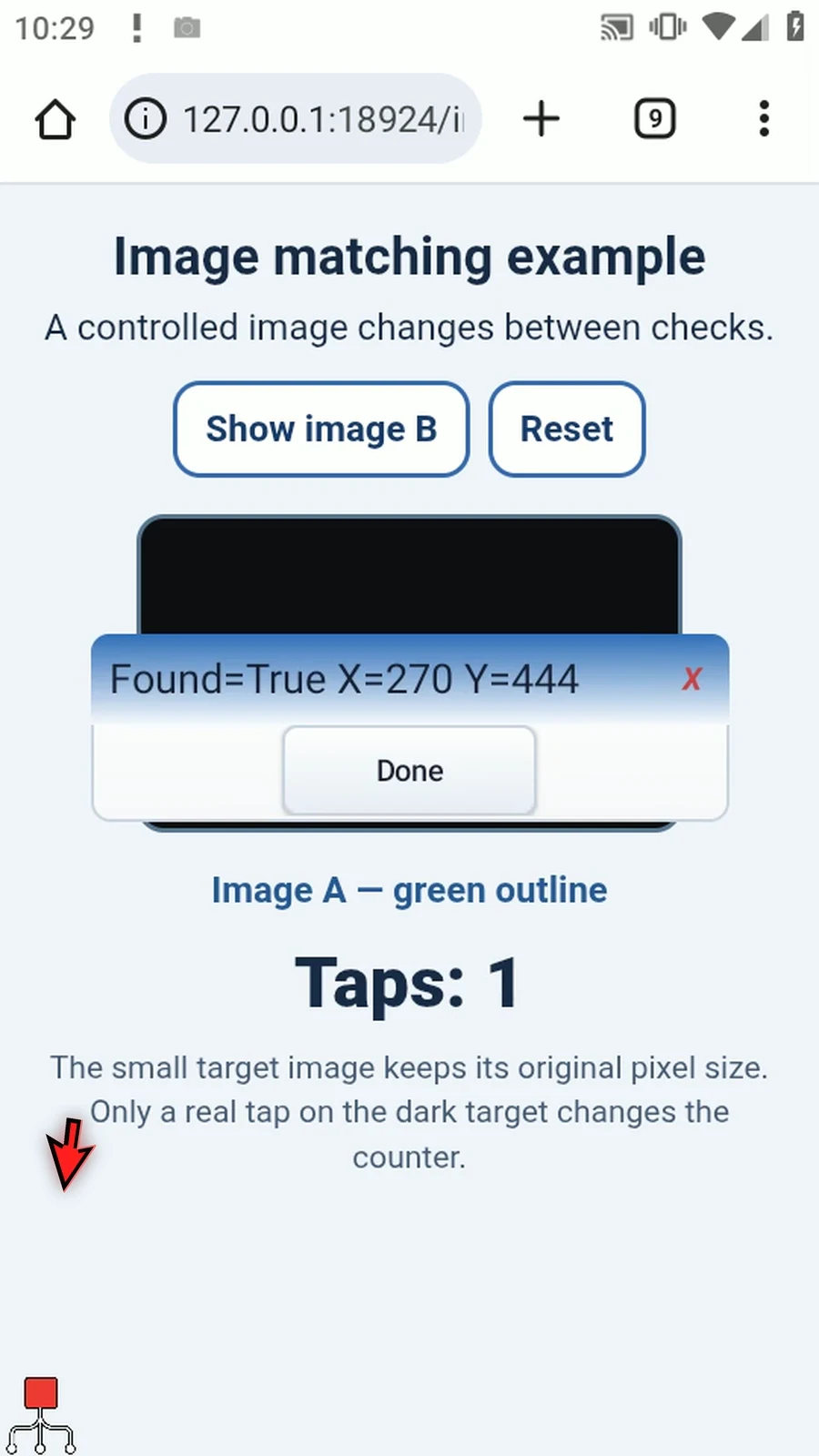
Step 15 Use ImgFind when a visual target may move but its appearance remains recognizable. Keep the asset and search area as small and stable as practical, and test on the device and app you will automate.
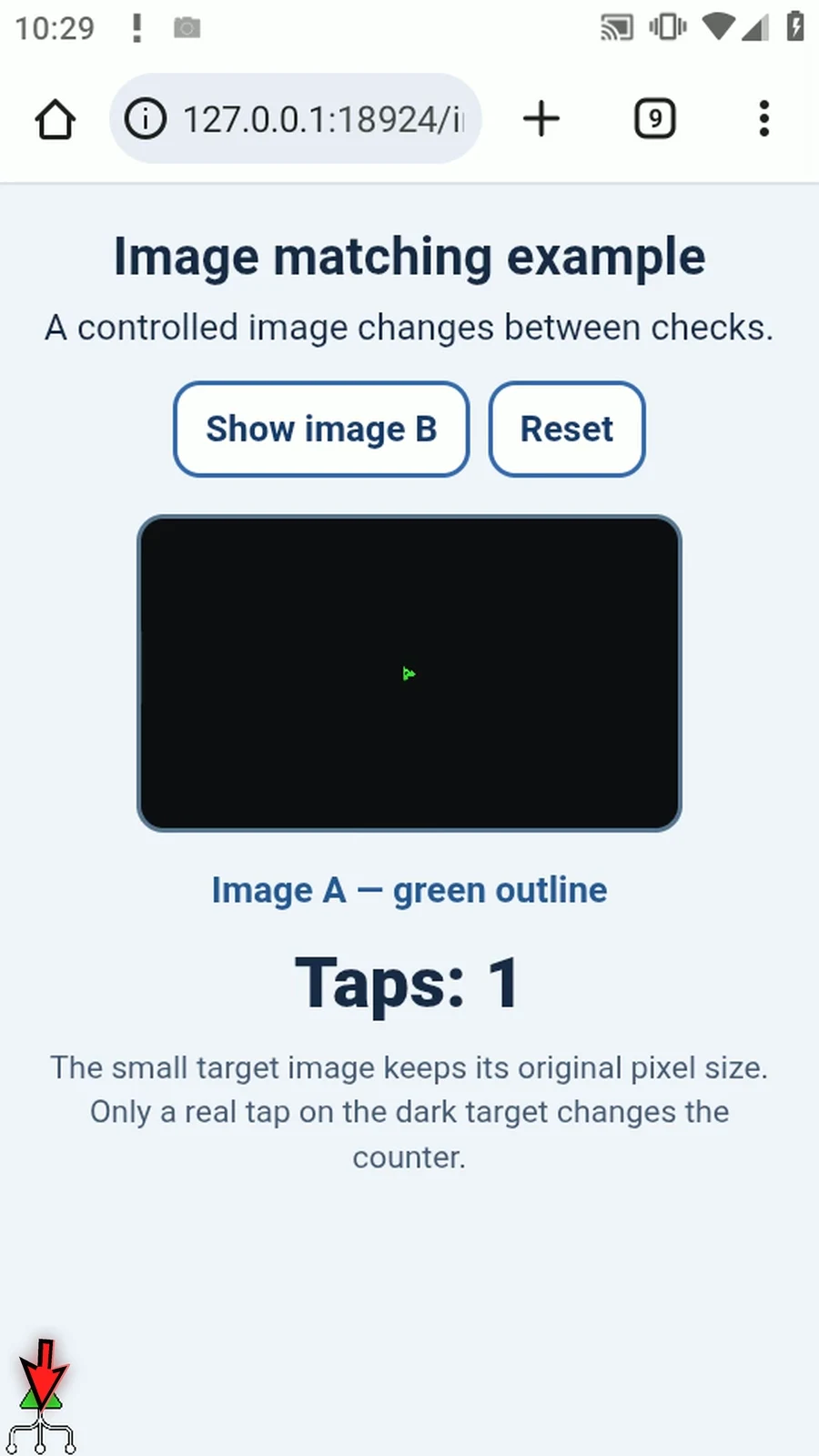
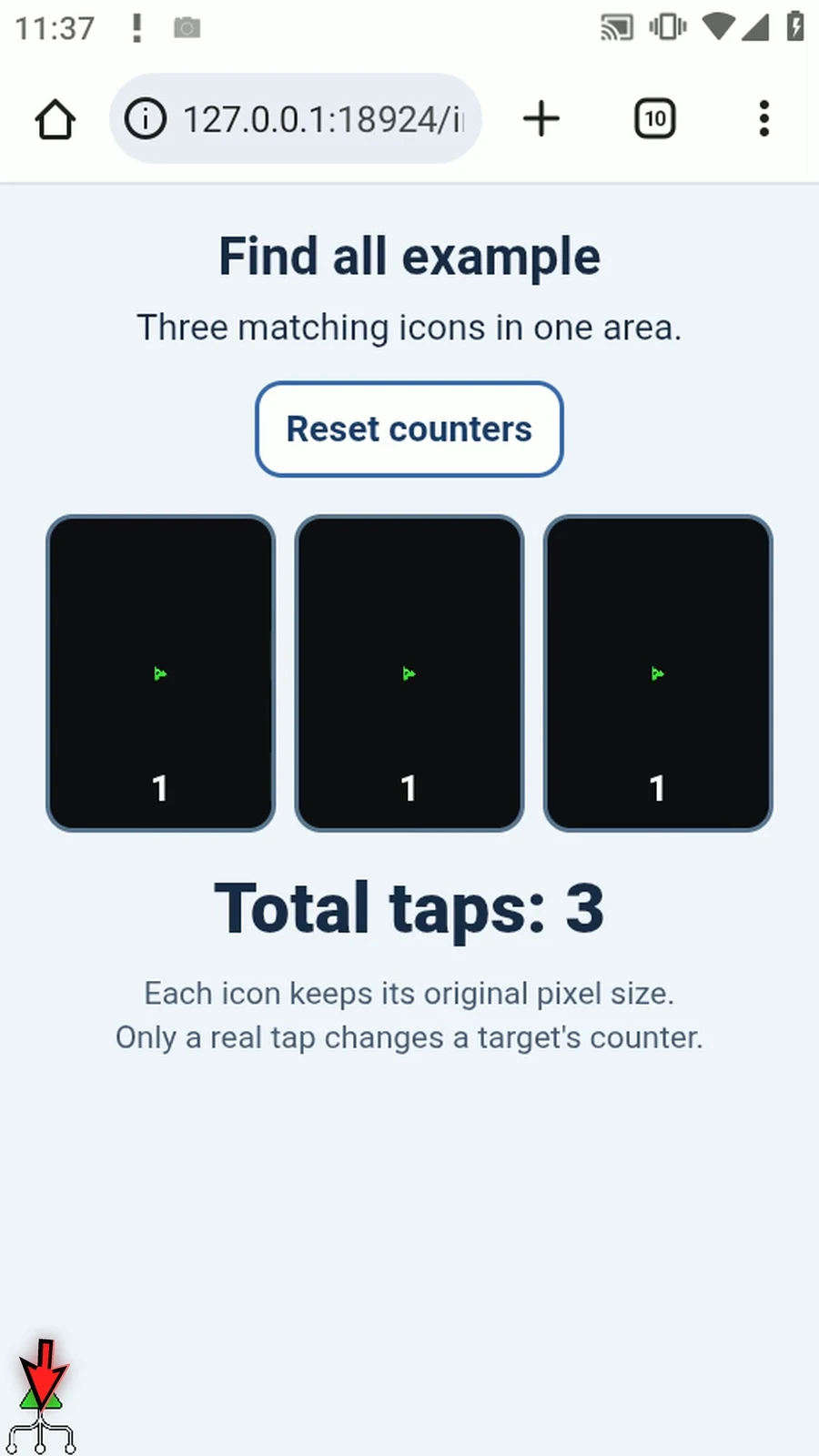
Find All gathers multiple matches of a reference image within one search area. This example finds and taps three genuine pictures, then displays their Count and X coordinates.
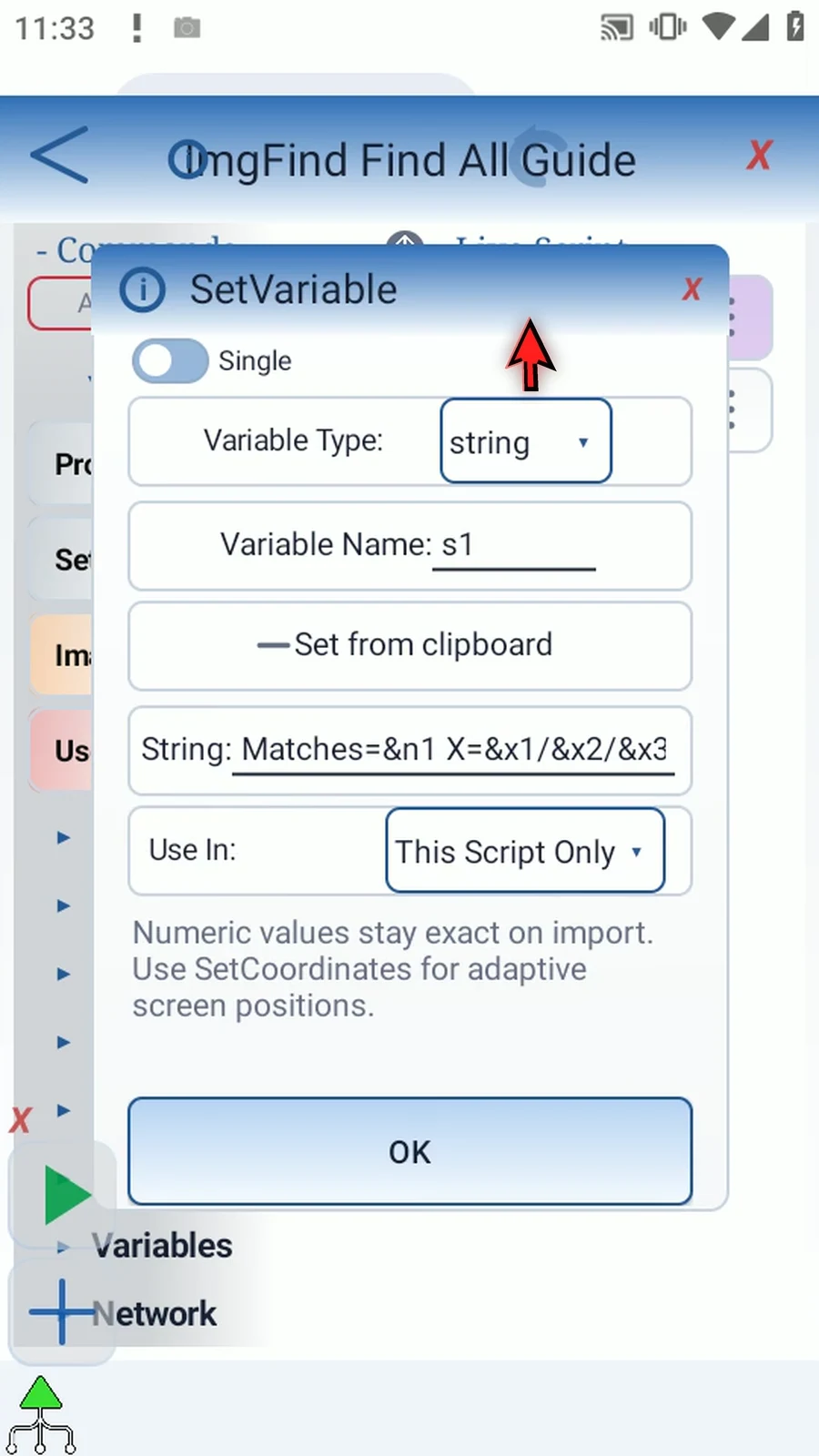
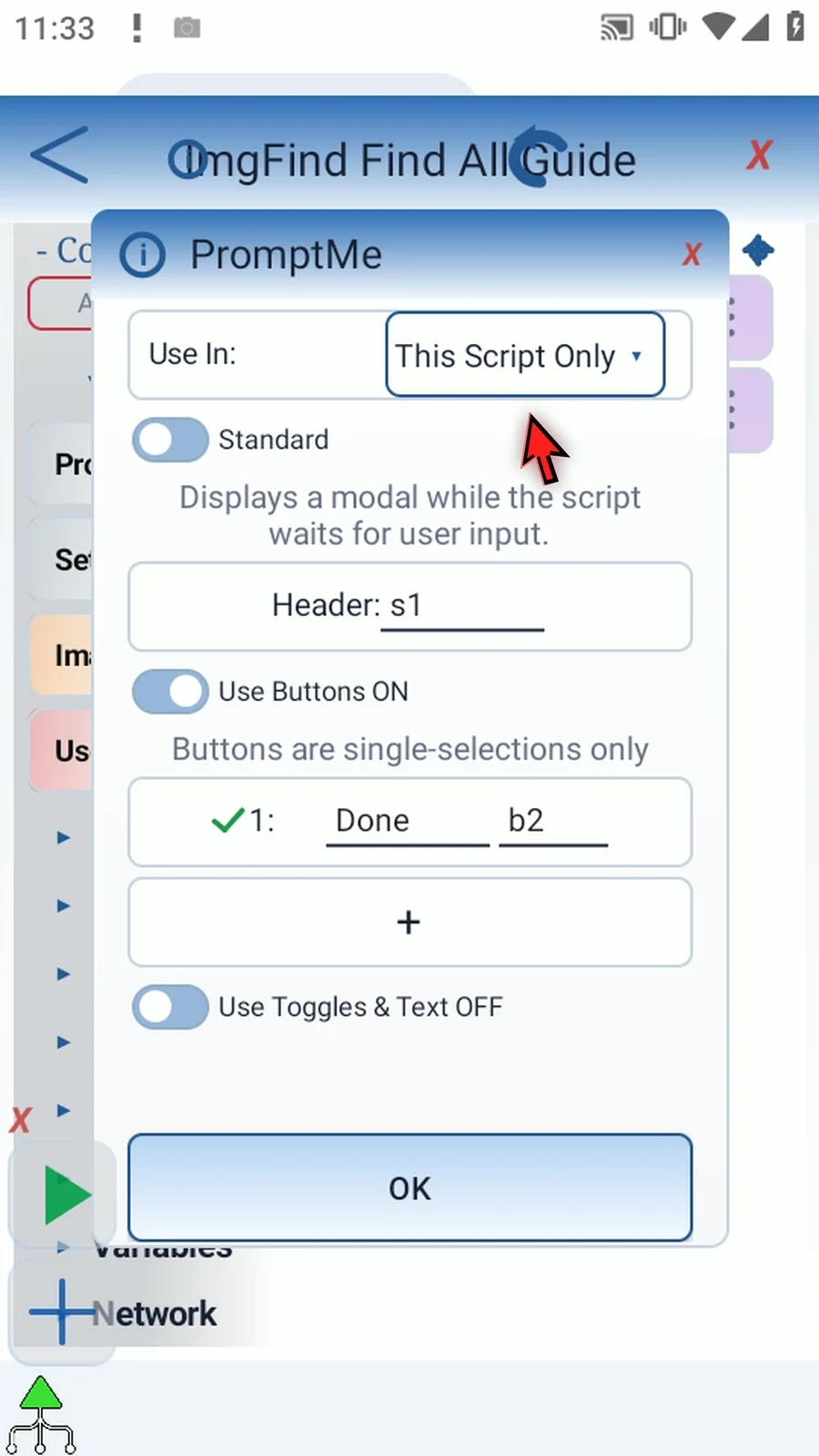
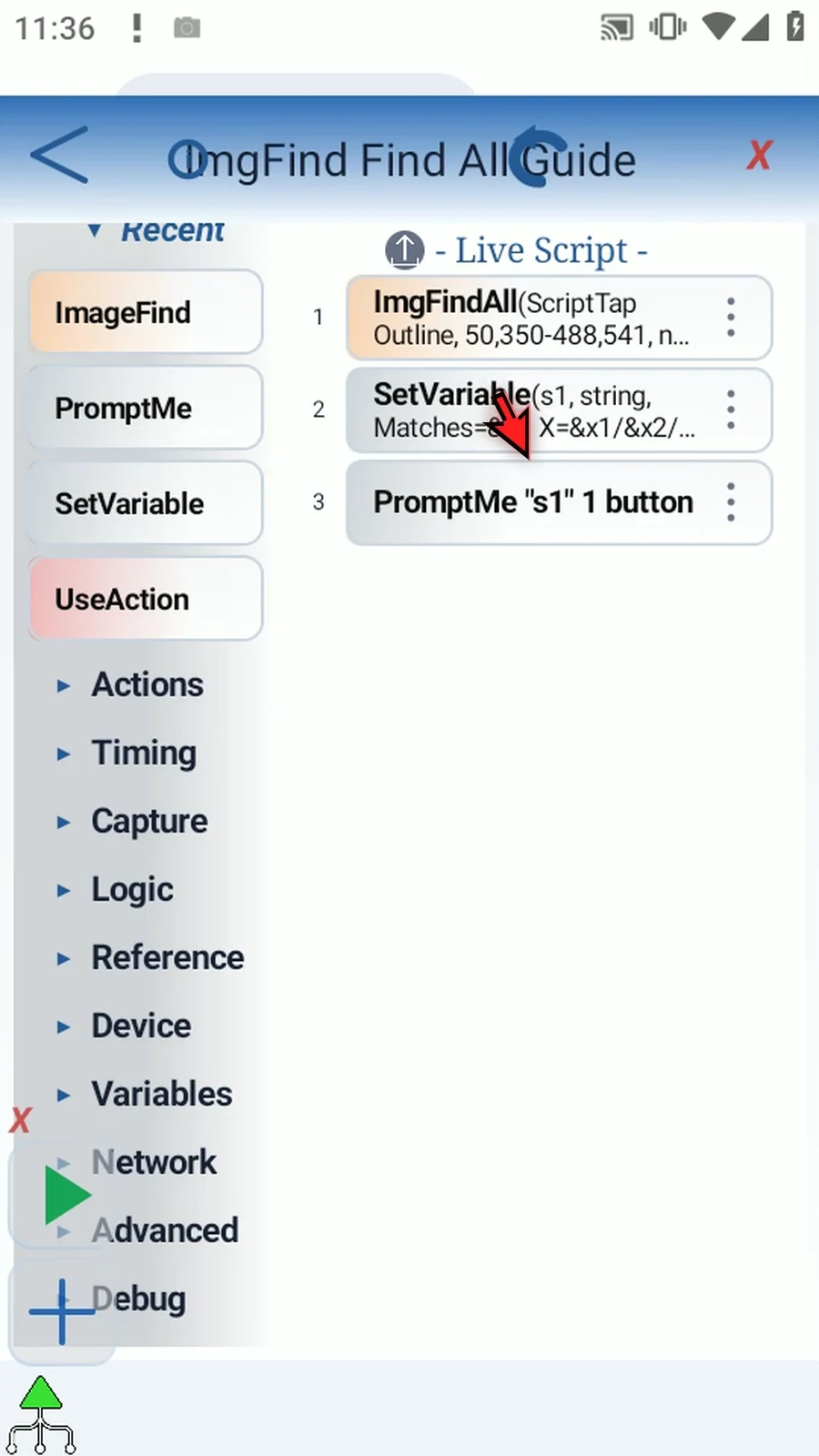
Use a separate ImgFind Find All Guide script. The supporting String → PromptMe pattern from Basic is already prepared: String s1 contains Matches=&n1 X=&x1/&x2/&x3; Standard PromptMe uses Header s1 and a Done button writing b2. The result is calculated, not fixed text.
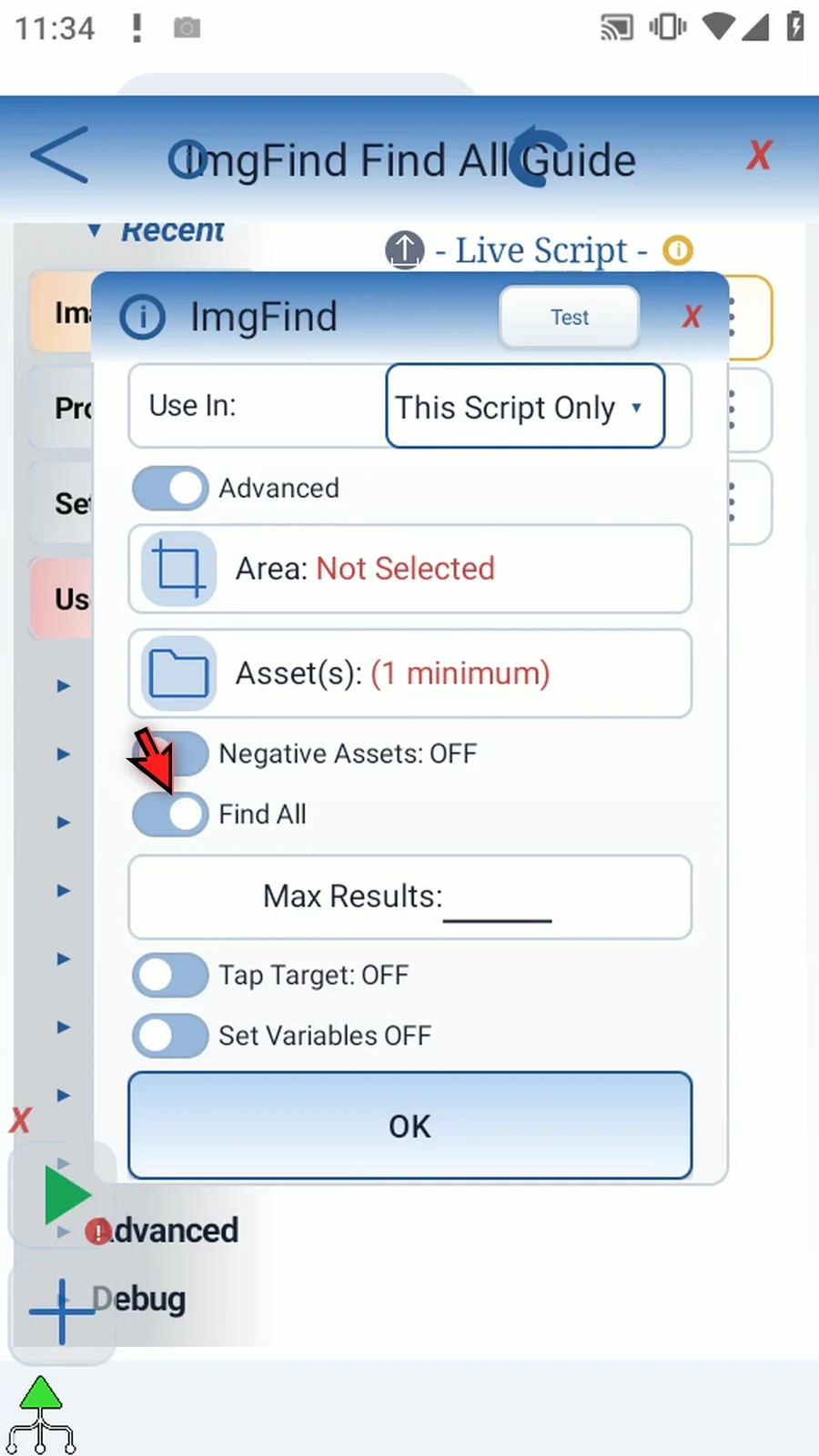
Manually drag ImageFind above those steps. Select Advanced and enable Find All. Choose ScriptTap Outline from Recent Gallery. Reuse the genuine original-size reference from the shared Asset Creation guide.
Keep Confidence 90 and Negative Assets off. Higher confidence requires closer agreement. Negative assets can reject unwanted matches. Keep distinctive stable pixels; fewer useful non-transparent pixels and a smaller search area usually reduce matching work.
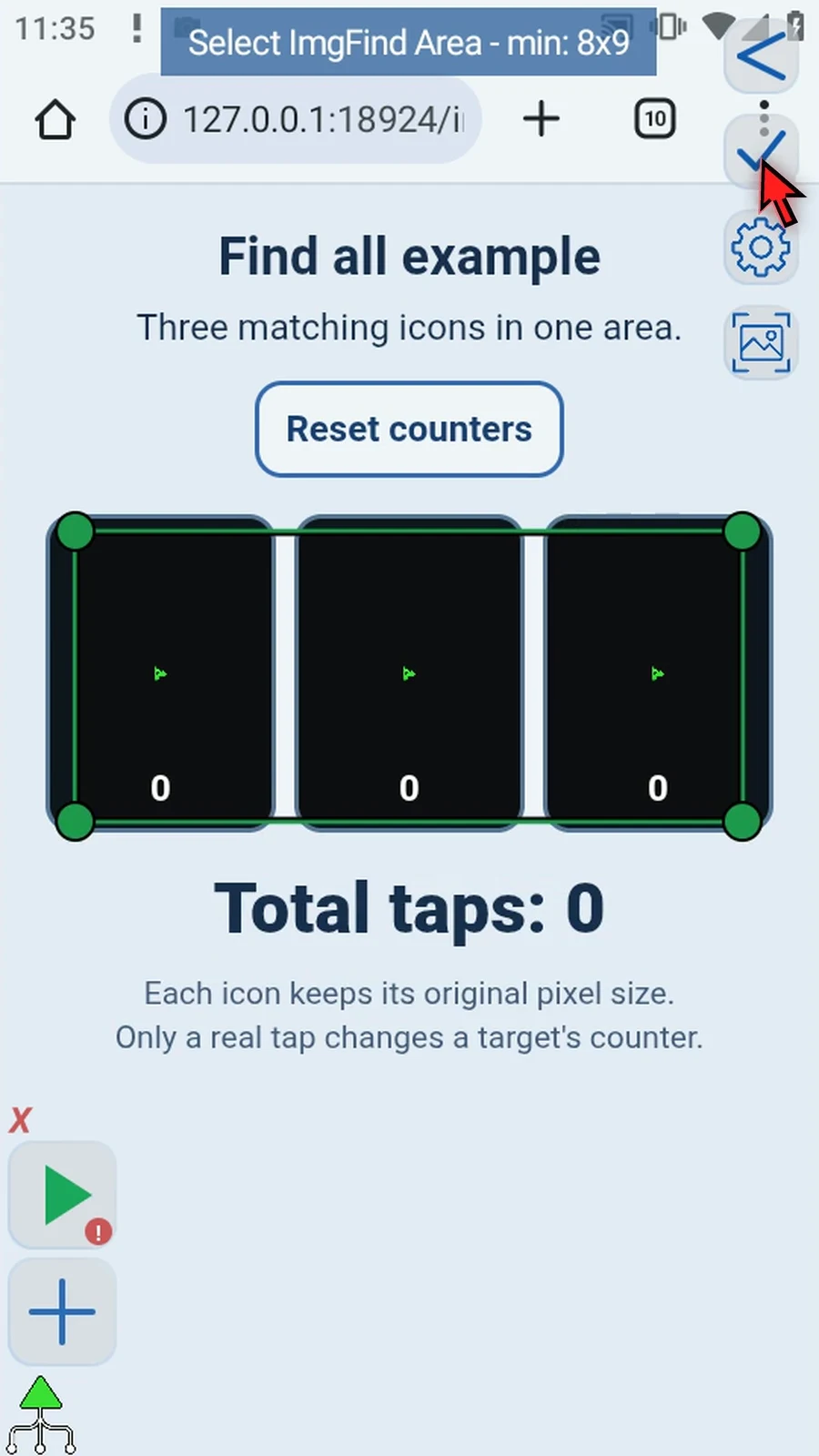
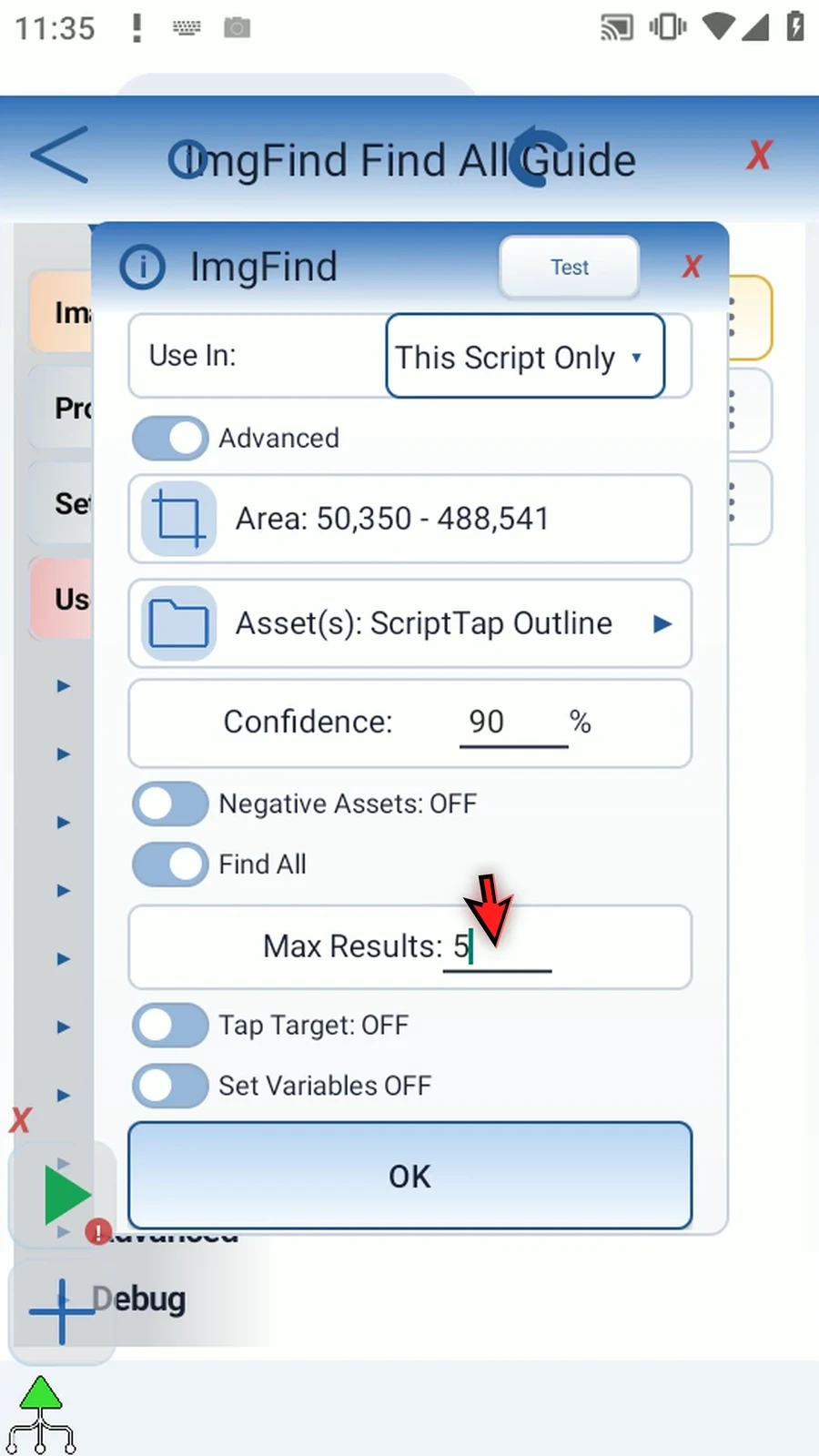
Select an Area containing all three practice pictures. Drag corners to resize, or drag inside to reposition. Set Max Results 5; this caps matches returned by the search, not array capacity. Additional matches may be omitted when the cap is reached.
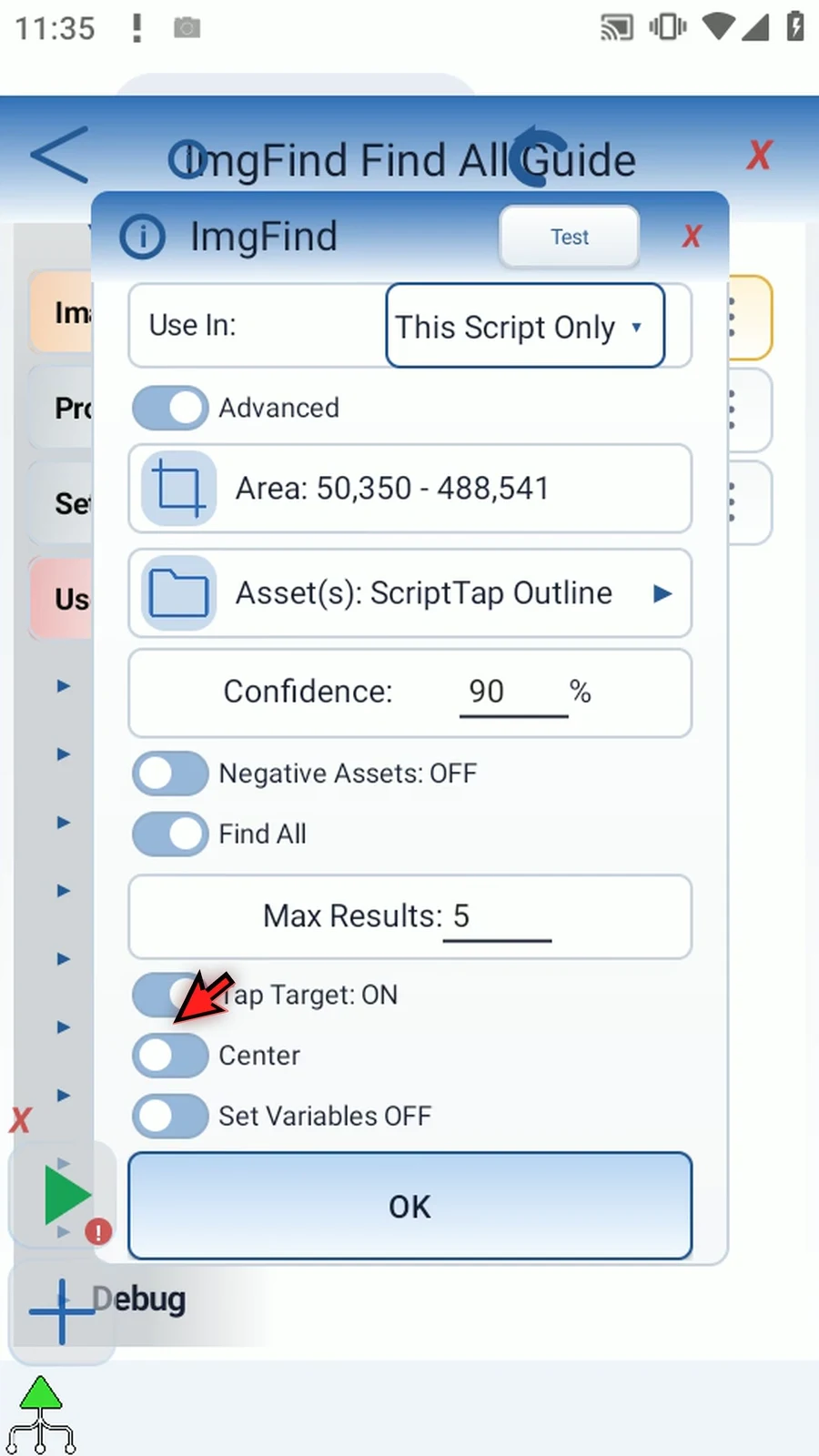
Enable Tap Target and keep Center. Each accepted matching picture receives a tap. Enable Set Variables, keep This Script Only and choose Standard output. Save Count in n1 and enter single-letter Integer array names x and y.
Read corresponding entries together: x1/y1, x2/y2, and so on, up to Count. Unused entries are zero, not extra matches. This demonstration displays the first three X entries only because the controlled screen contains three targets.
Save, then use Main Overlay Play. The real result is Matches=3 X=106/270/434; all three counters rise from 0 to 1. The associated Y coordinates are 444. These positions belong to this device and example, not a universal screen layout. Tap Done for natural completion.
Use this mode for repeated visual targets. See Overview for the other output modes; the Basic tab explains the supporting display commands.
Find All
Step-by-step guide
Step 01 Find All locates multiple copies of a reference image in one screen area. It can collect their coordinates and optionally tap every accepted match. Here, three copies of the same small ScriptTap icon portion will produce three results.
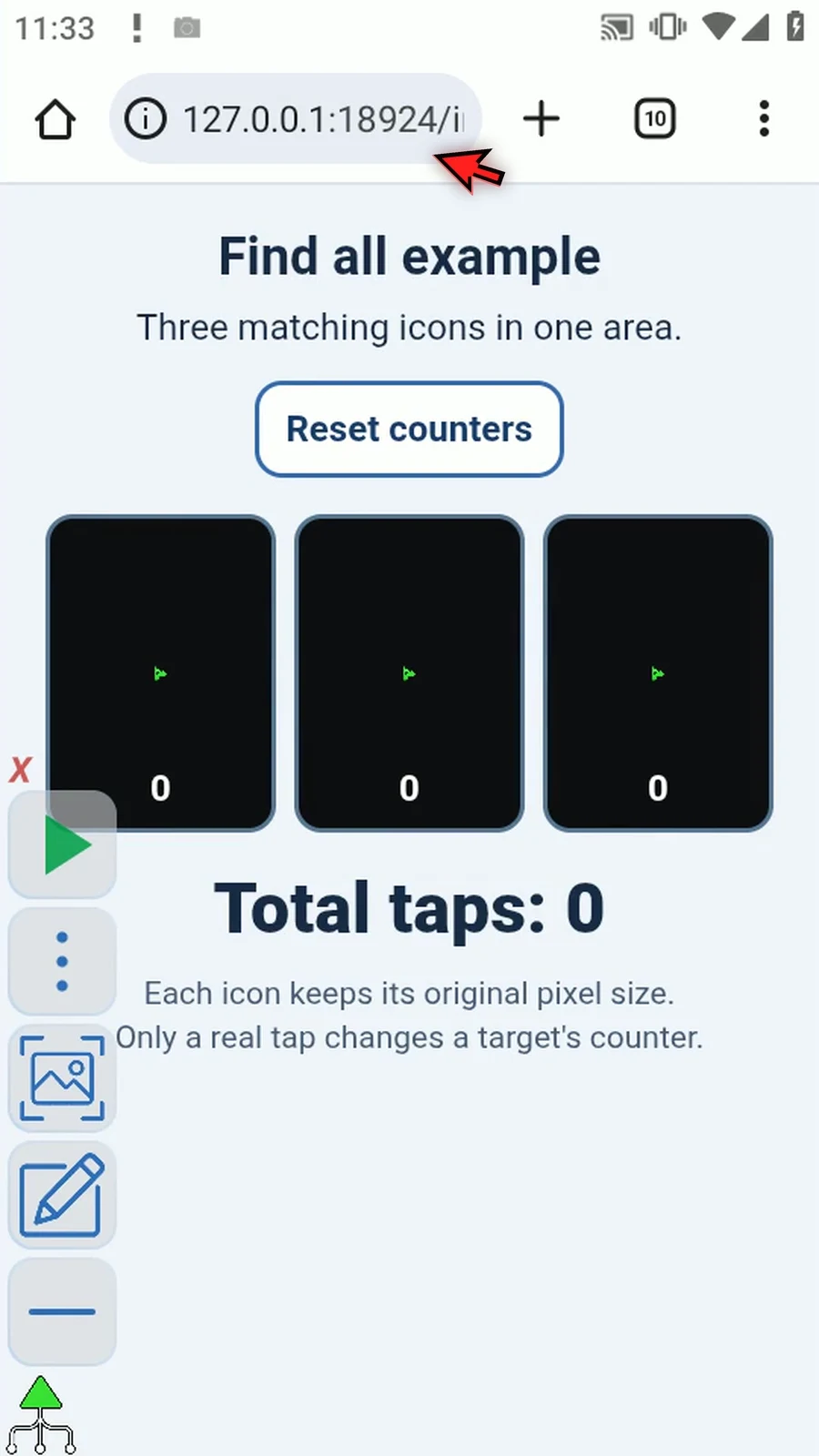
Step 02 Use a separate Find All Guide script. The two display steps from the Basic guide are ready here. String s1 formats Count n1 and the first three X entries, x1, x2, and x3. Each ampersand inserts the value saved by the search.
Step 03 PromptMe uses s1 as its header and has a Done button. It will display the actual search results. Refer to Basic for building these two supporting steps; our focus here is Find All.
Step 04 Drag Image Find above both display commands. Open its placed row, switch to Advanced, then turn Find All on. Unlike a single-match search, this mode gathers multiple accepted matches from the chosen region.
Step 05 Select the existing ScriptTap Outline from Recent Gallery. All three practice targets contain this same reference at its original pixel size. The shared Asset Creation tab explains how to prepare the reference.
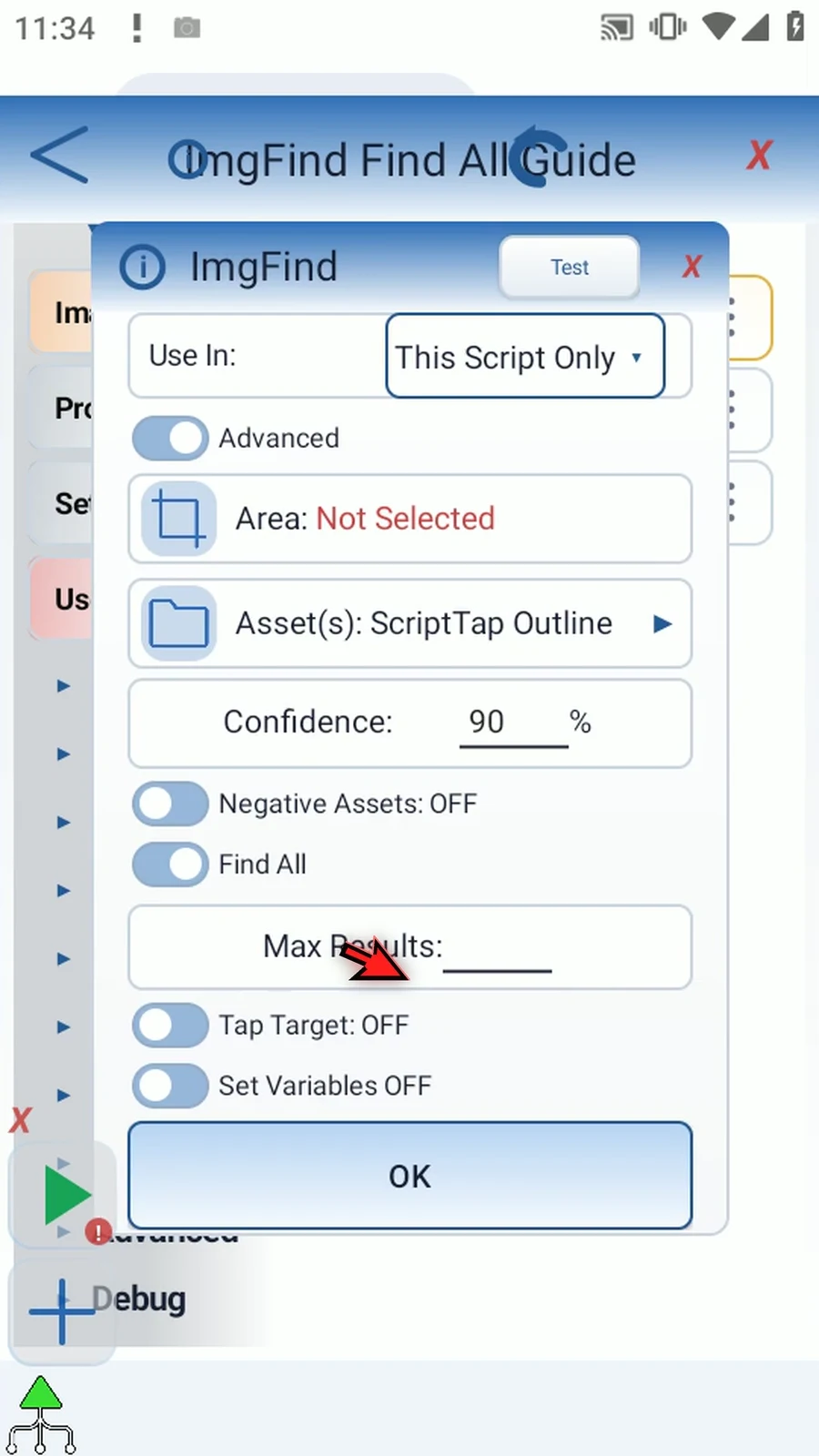
Step 06 Keep Confidence at ninety percent. Higher values require closer agreement with the reference. Negative assets can reject unwanted matches; leave them off in this example. Small, stable reference pixels usually make matching faster and more reliable.
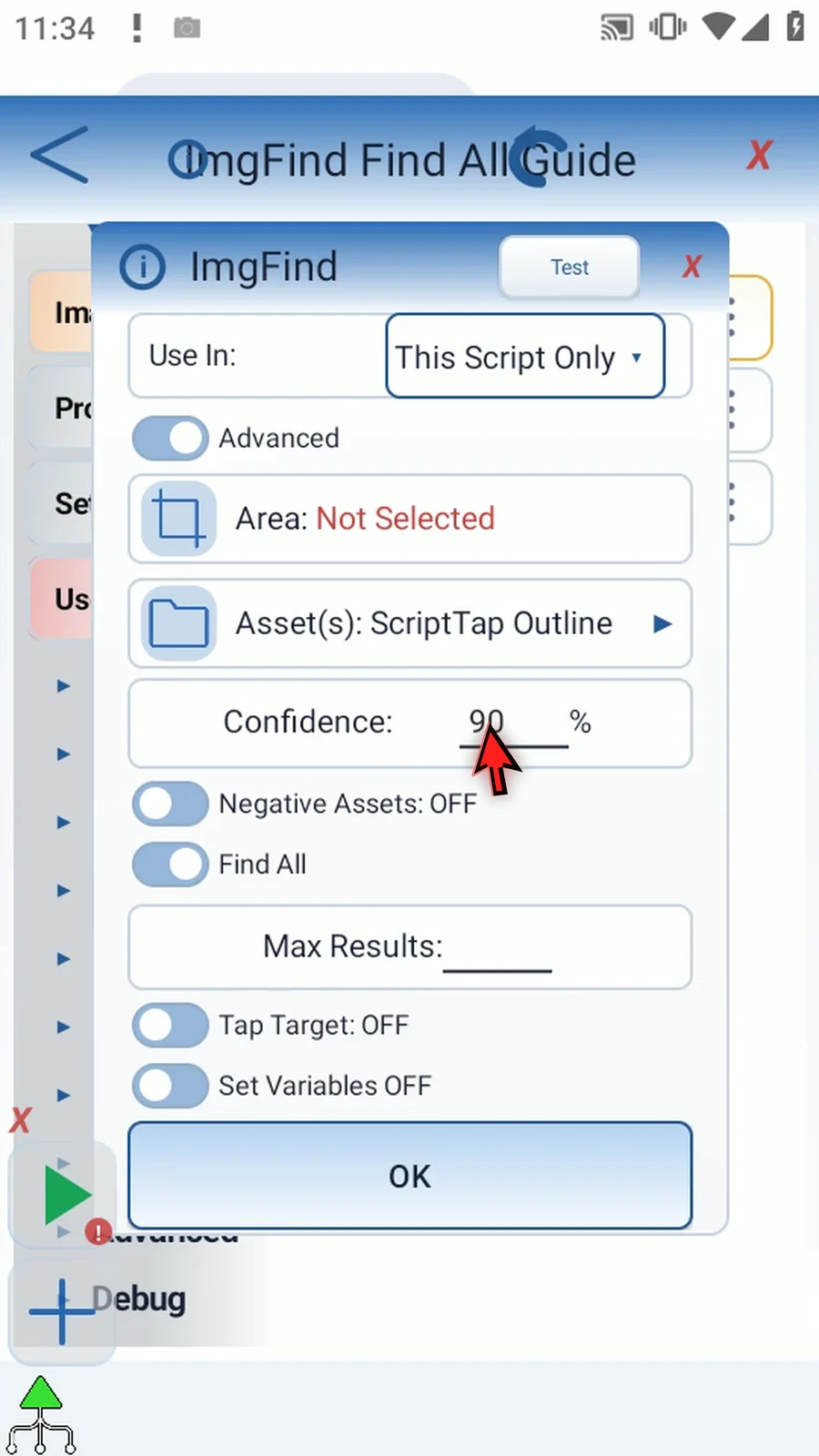
Step 07 Select a search area that contains all three pictures. Move the corners to resize the rectangle, and drag inside to reposition it if needed. Keep unrelated parts of the screen outside the search area.
Step 08 Set Max Results to five. This limits how many matches this search returns. It is not the number of array slots. If the limit is reached, additional matches may not be included.
Step 09 Turn Tap Target on and leave the location at Center. Find All will tap each accepted match, not just the first one. Each practice target has its own counter, so the real taps will be visible.
Step 10 Enable Set Variables. Keep This Script Only and use Standard output. Save Count in n1. For the coordinate arrays, enter just x and y, one letter for each array. Their numbered entries, such as x1 and y1, refer to the same match.
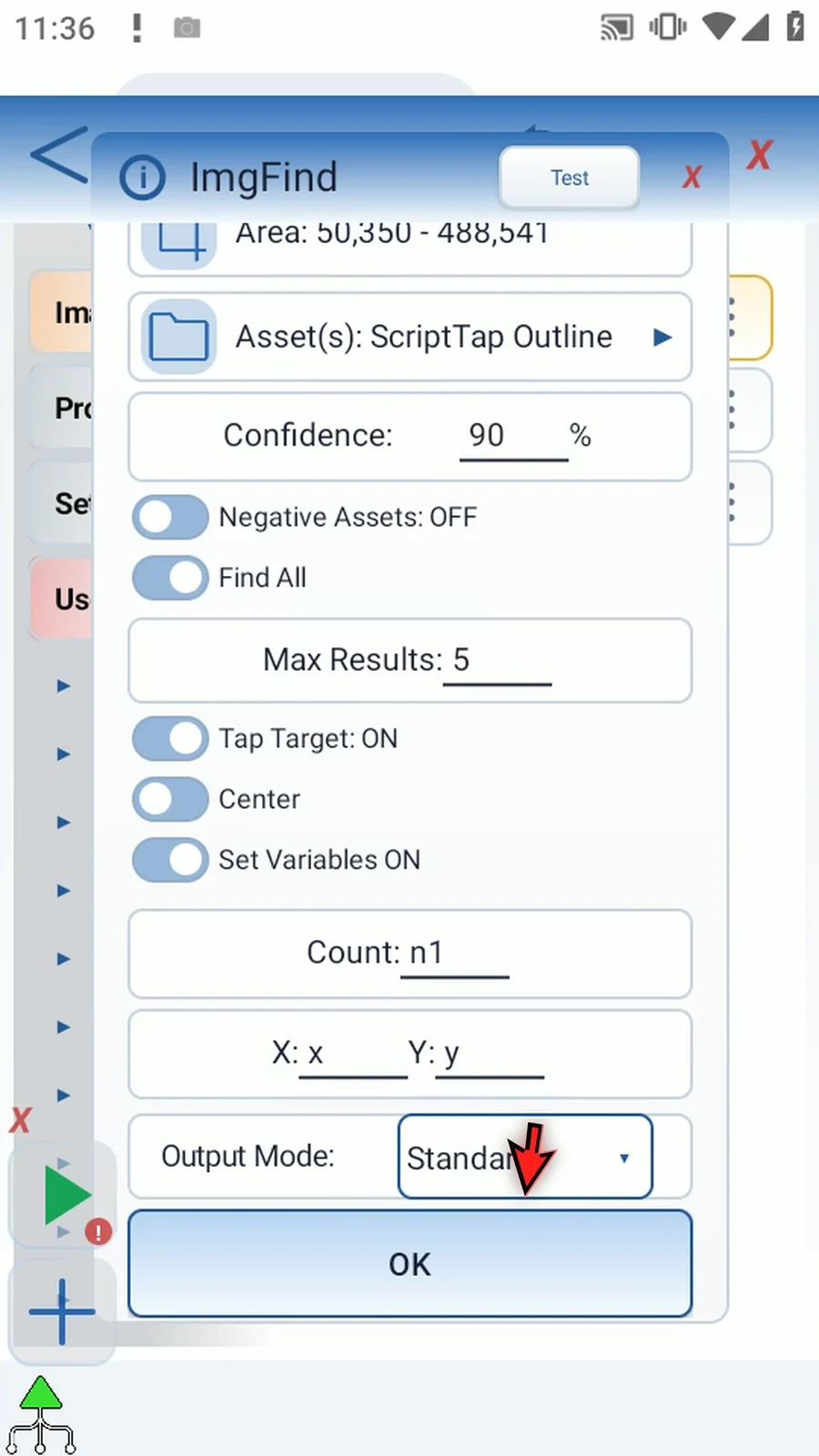
Step 11 Count tells later commands how many result rows are valid. Read corresponding X and Y entries together, up to that count. Unused array entries are zero; do not treat them as additional matches. Save the command.
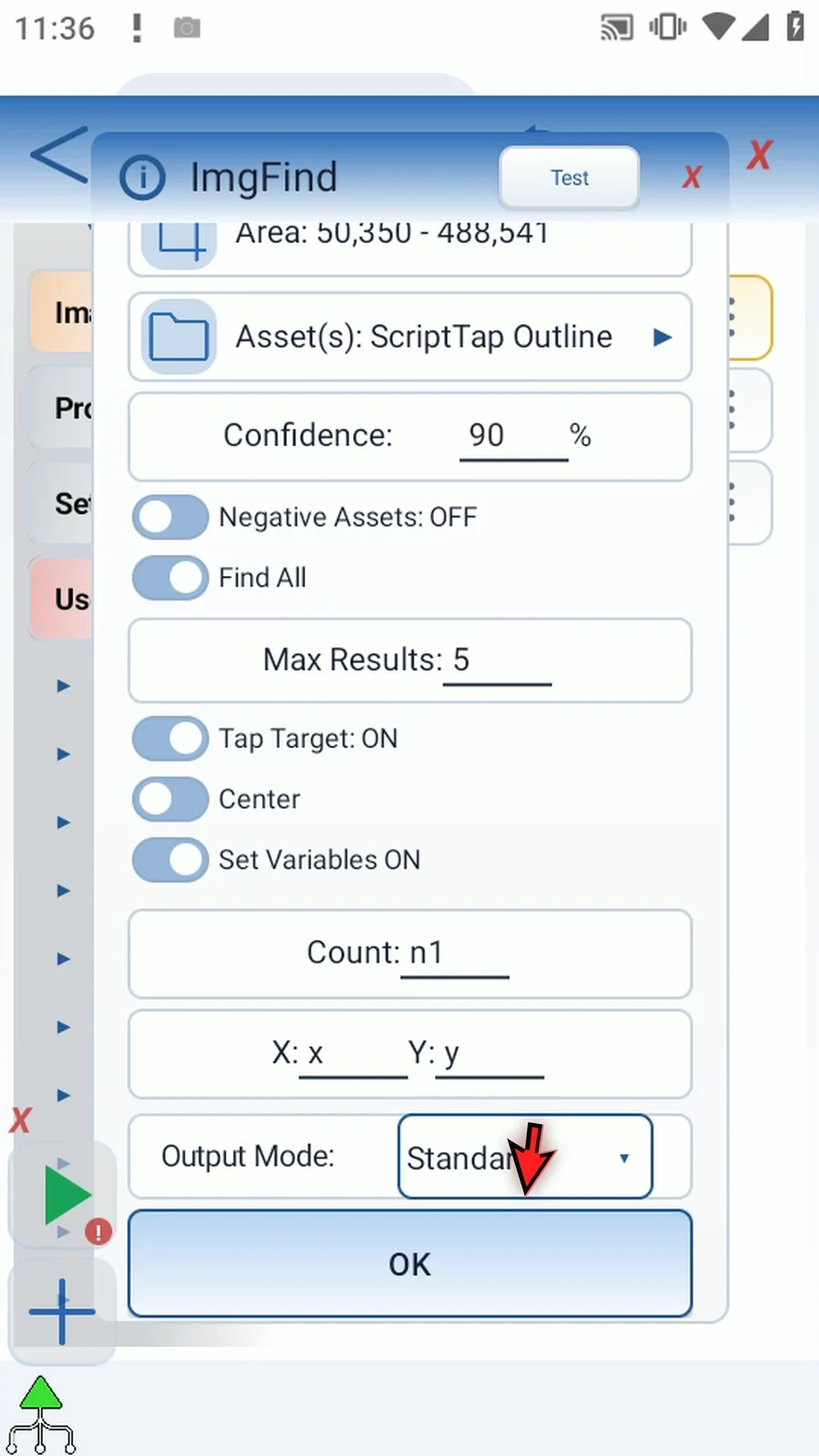
Step 12 The script now searches first, formats the results second, and displays them last. The display text reads the first three X entries because this controlled example contains three targets. In your own script, use Count to process the returned rows.
Step 13 When the script is complete, simply use the Play button in the main overlay. Watch all three target counters and the result prompt.
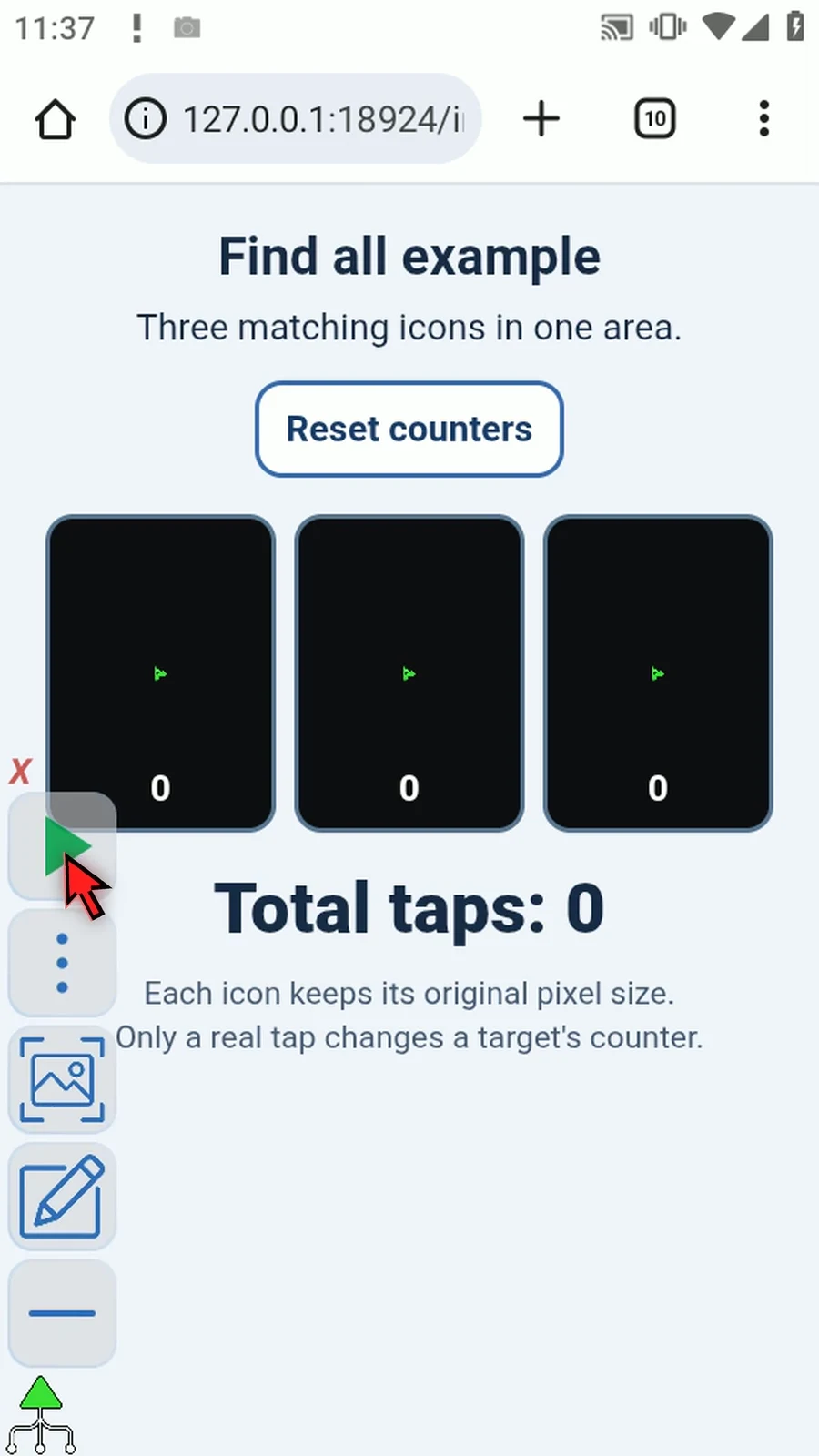
Step 14 Count is three, and the displayed X values identify the three matching centers. Every target counter increased to one, confirming a separate tap on each match. Tap Done to close the prompt and finish the run.
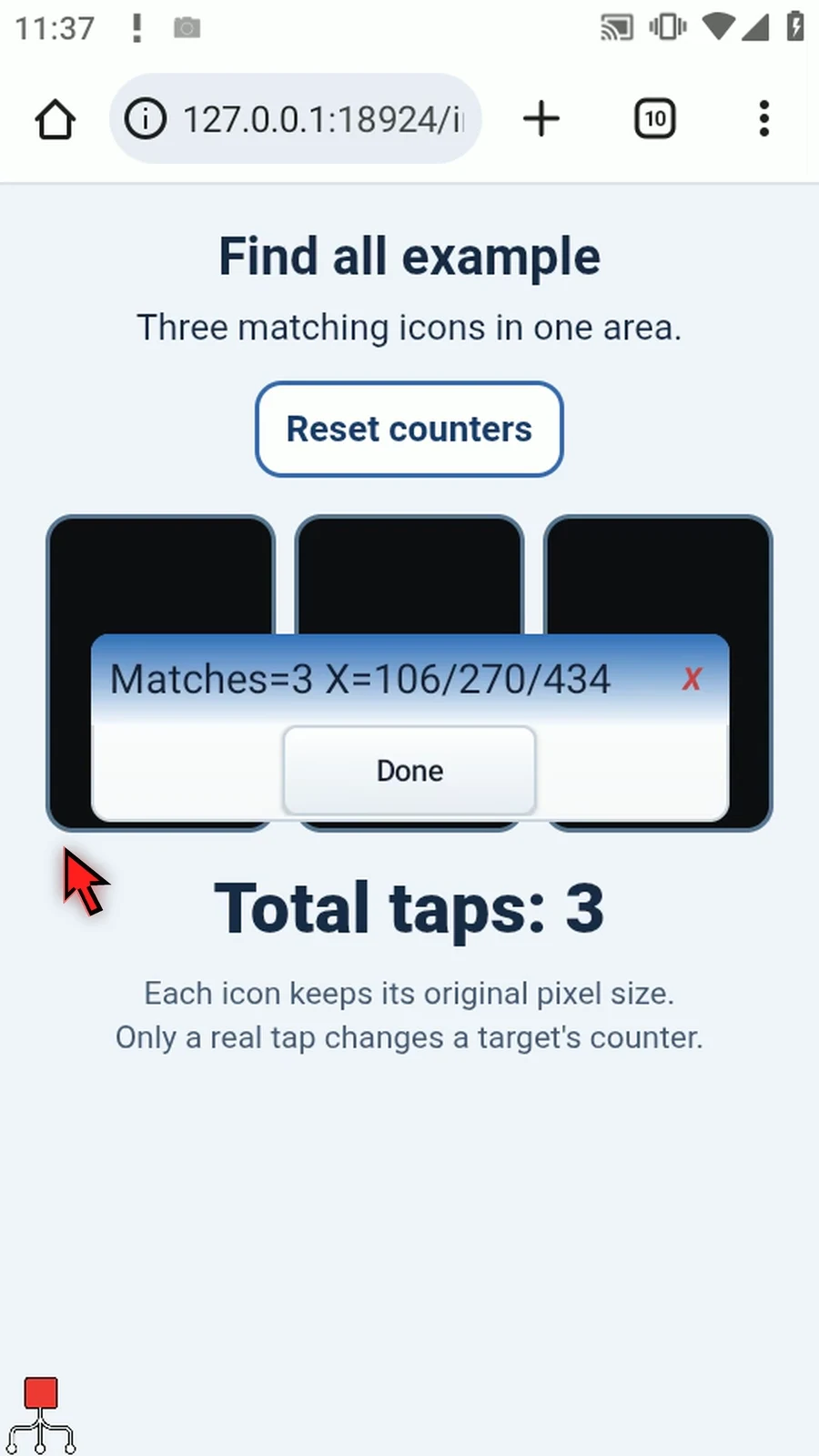
Step 15 Use Find All when later commands need multiple matching positions, or when the same action should reach several matching pictures. Set a suitable result limit, use Count, and test the asset and area on your intended device.