Command video guide
Call Script
Call Script runs another saved script, then continues with the parent's next command when that script returns. Use it to keep reusable steps in one place.
This example prepares two new scripts. Call Helper uses a String and Standard PromptMe to display Child running with a Continue button. The parent's prepared String and PromptMe display Returned to parent with Done. Each PromptMe header references String variable s1; the messages are String values, not literal variable names.
Collapse the Main Overlay controls, expand Reference, and manually drag Call Script into the parent. Move its row before the supporting String and PromptMe. Double-tap the placed Call row, scroll to Call Helper, and select it. Call refers to that saved child; it does not copy its commands into the parent.
A target can be an unattached script in the same folder or an existing direct child again. Calls form a parent-and-child tree with up to five levels including the root. Parents, siblings, other branches, and invalid cycles are not eligible targets. Call Script has no separate Basic or Advanced mode.
The small pencil beside the child name opens that saved child's editor. Changes there affect calls using it; they are not private copies. Use Back to return to the parent. The command's menu also offers target selection/change and Open.
Close the editor and press Play without reselecting the parent. Child running appears first while the normal sequential Call waits. Tap Continue: the child reaches its end, Call returns, and Returned to parent appears. Tap Done for natural completion. No second Play is required.
See Break Call for an early return from inside a helper, and the SetVariable and PromptMe guides for the supporting confirmations.
Watch the Call Script guide
Step-by-step guide
Step 01 Call Script runs another saved script, then continues with the parent's next command when that script returns. Use it to keep reusable steps in one place. Two visible prompts will make this handoff easy to follow.
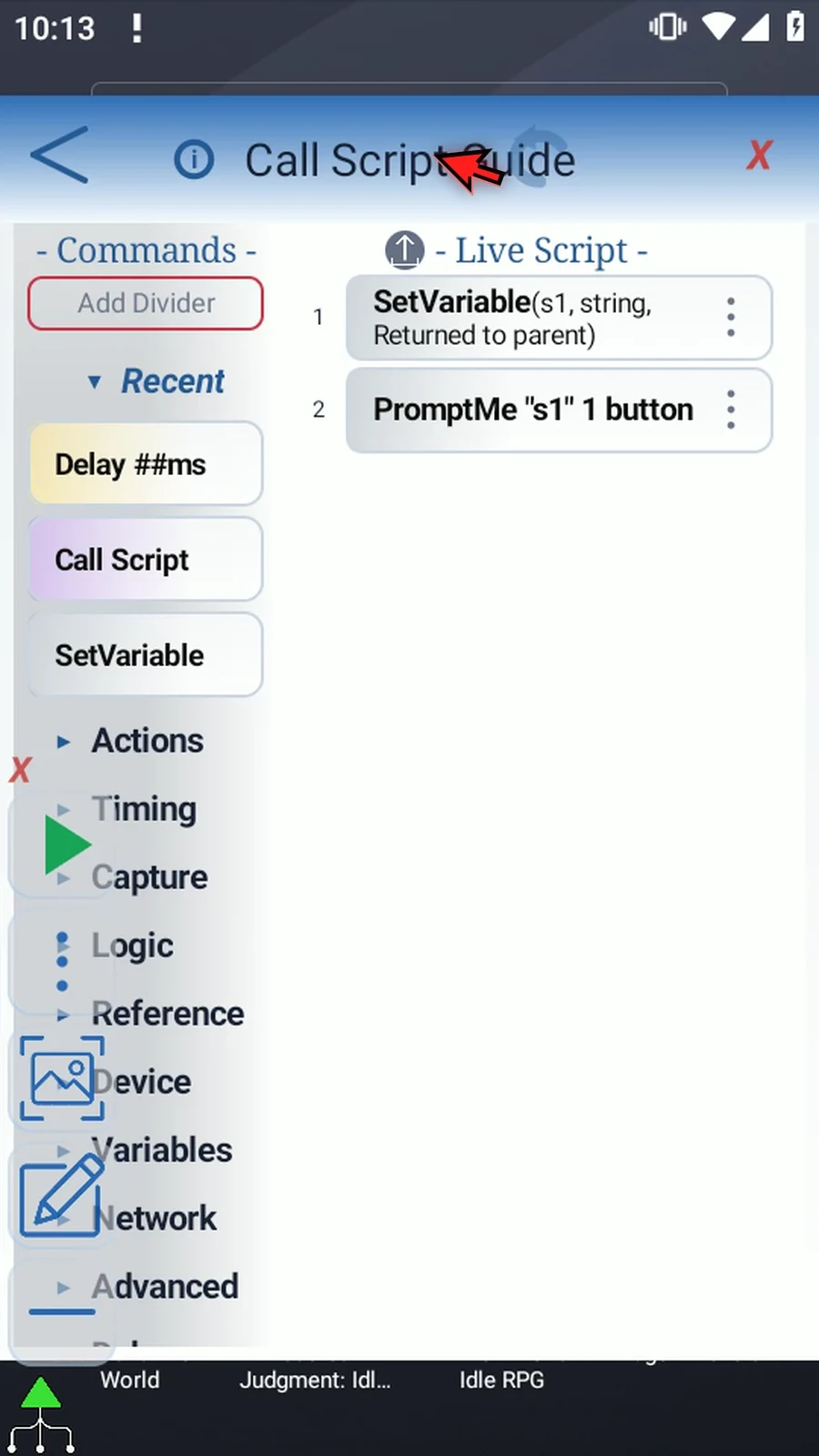
Step 02 This example uses two new scripts. Call Helper has a String and Prompt Me to display Child running. The parent's prepared String and Prompt Me will display Returned to parent. The String supplies each prompt's header; the prompt lets us see which script is running.
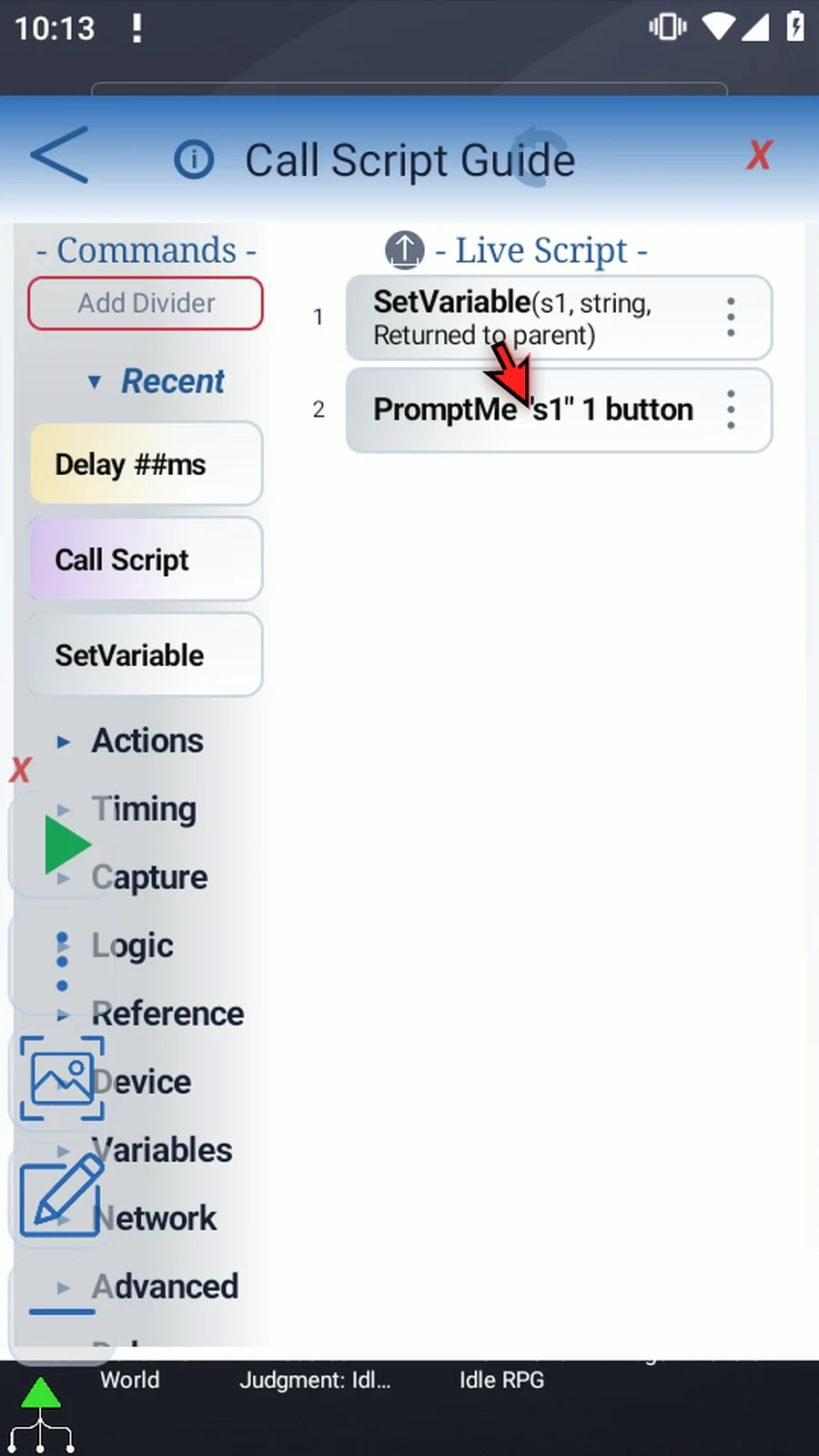
Step 03 Collapse the Main Overlay controls to clear the editor, then open Reference in the command palette.
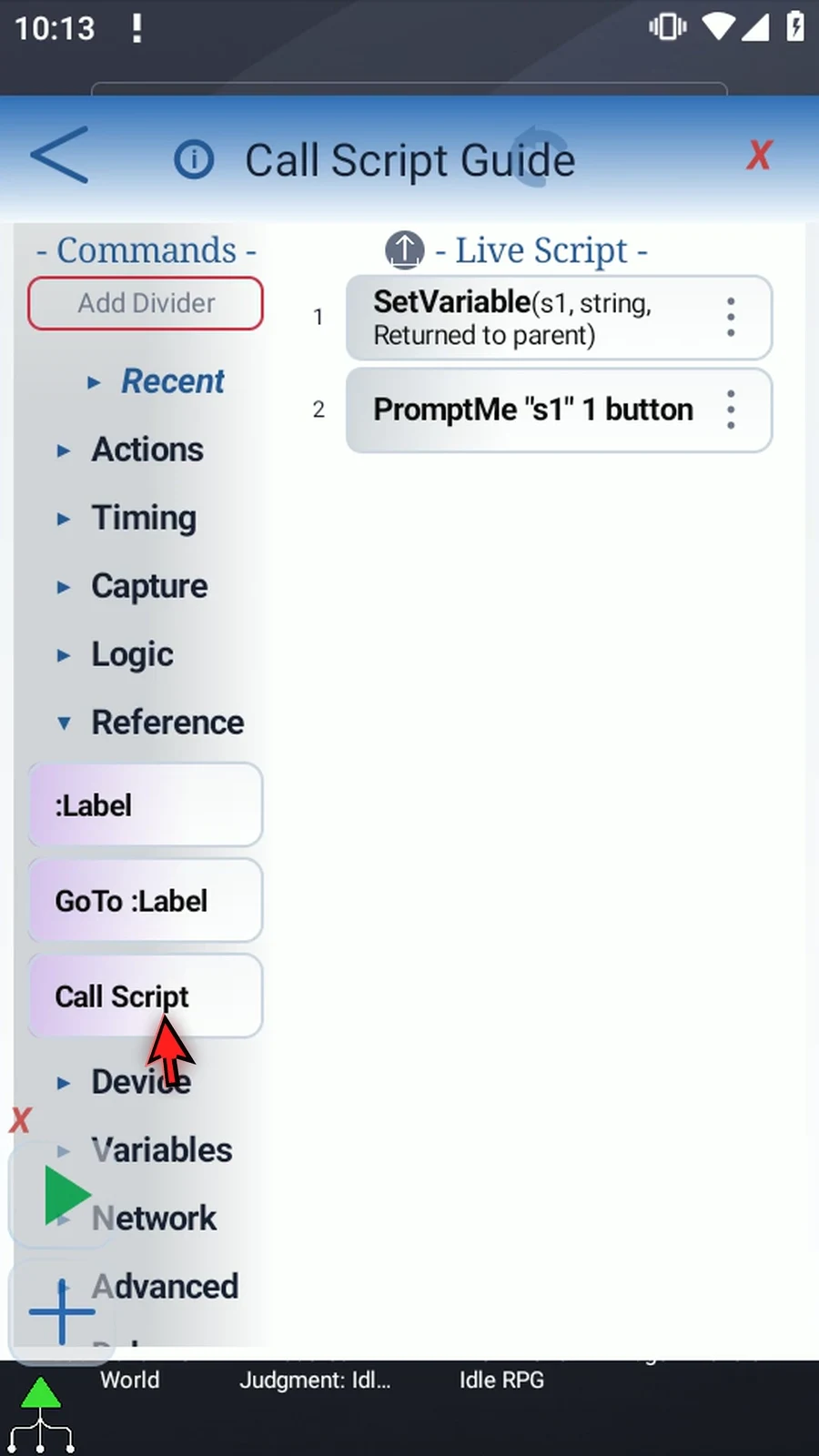
Step 04 Drag Call Script into the parent, then move its row before the String and Prompt Me. Call must come first so the helper runs before the parent's confirmation.
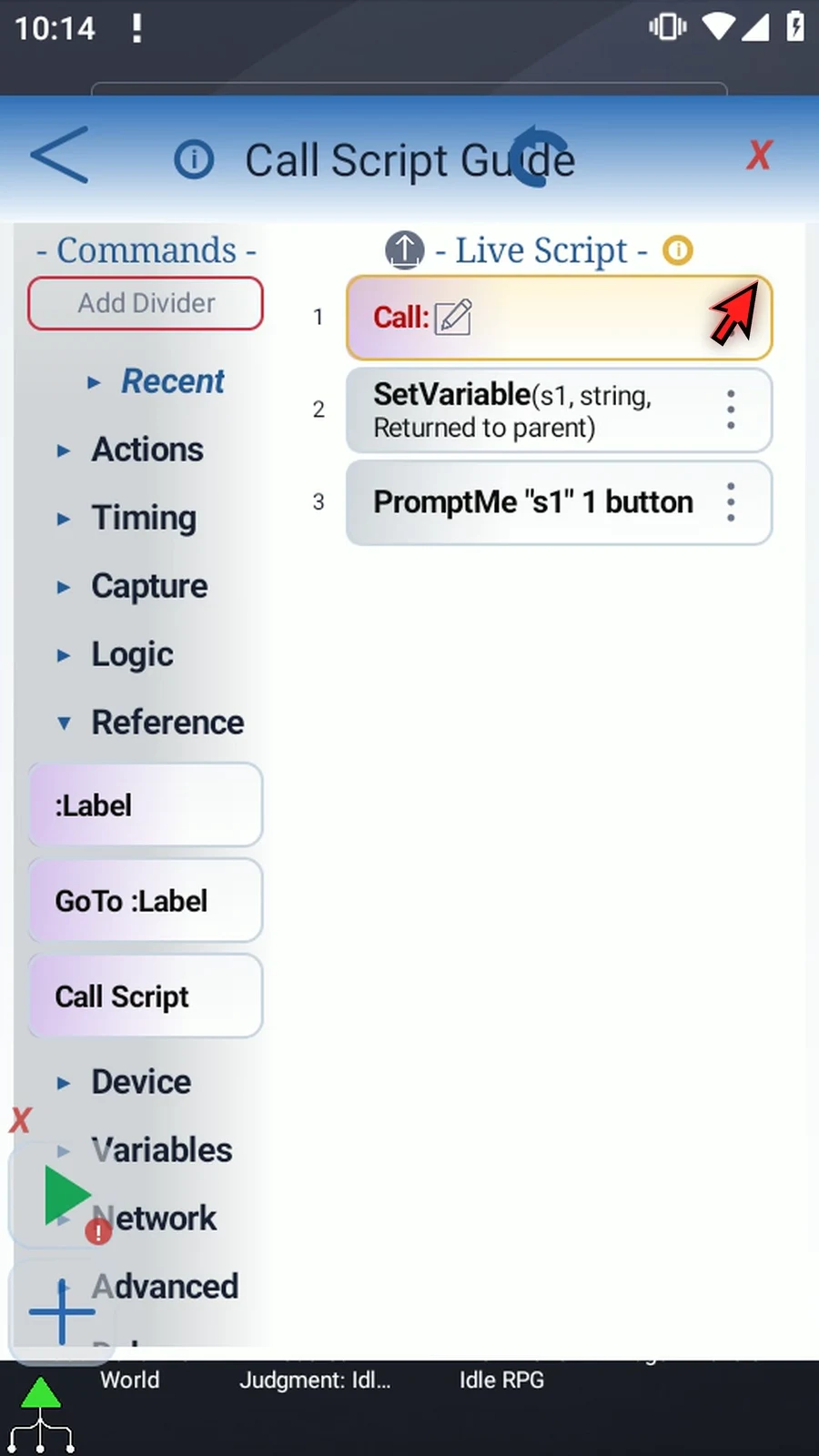
Step 05 Double-tap the placed Call row to open its target picker. Scroll to Call Helper and select it. Call refers to that saved script; it does not copy the helper's commands into the parent.
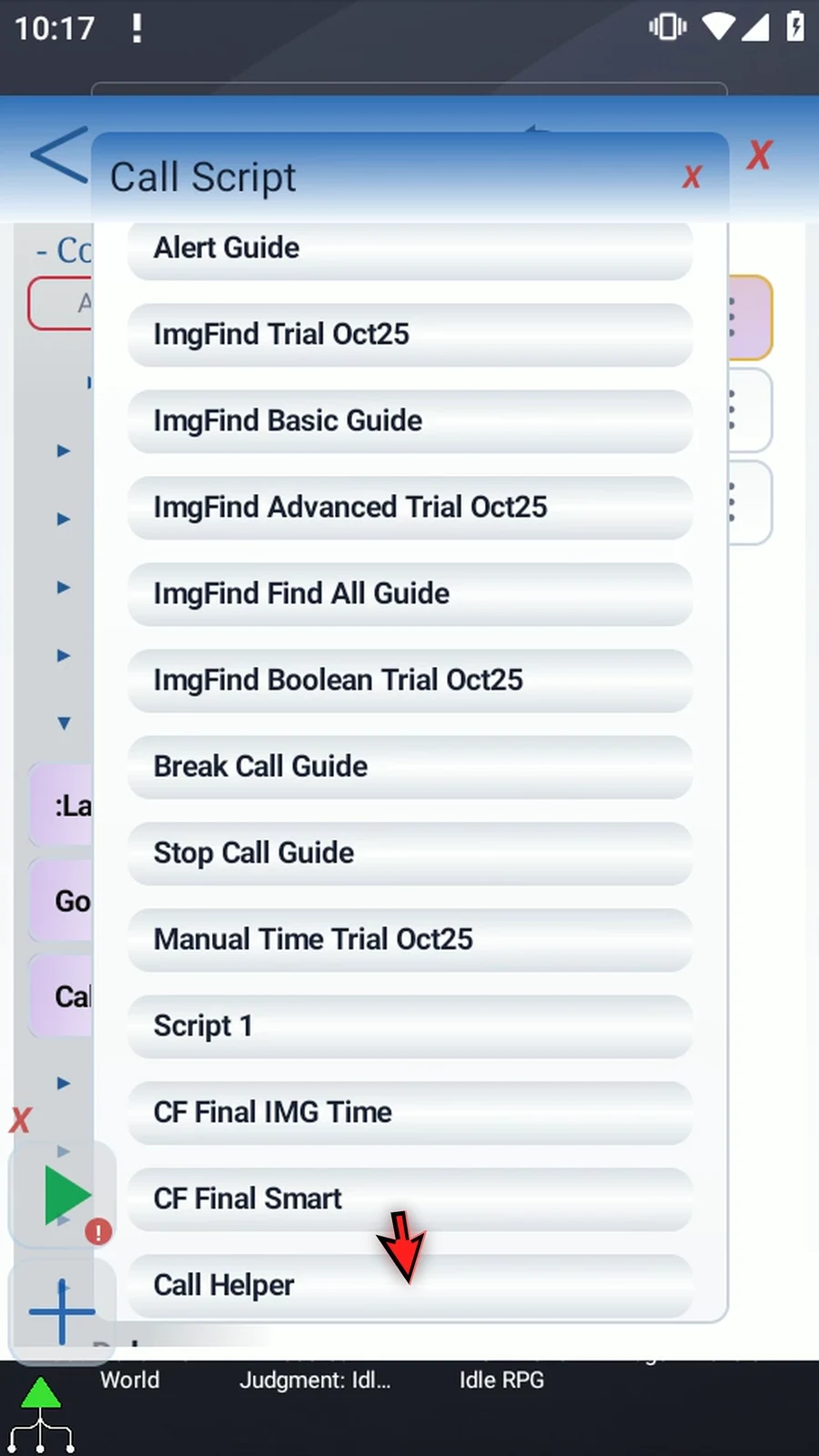
Step 06 Choose an unattached script in the same folder, or an existing direct child again. Calls form a parent-and-child tree with up to five script levels, including the root. A parent, sibling, another branch, or an invalid cycle is not an eligible target. There is no separate Basic or Advanced mode.
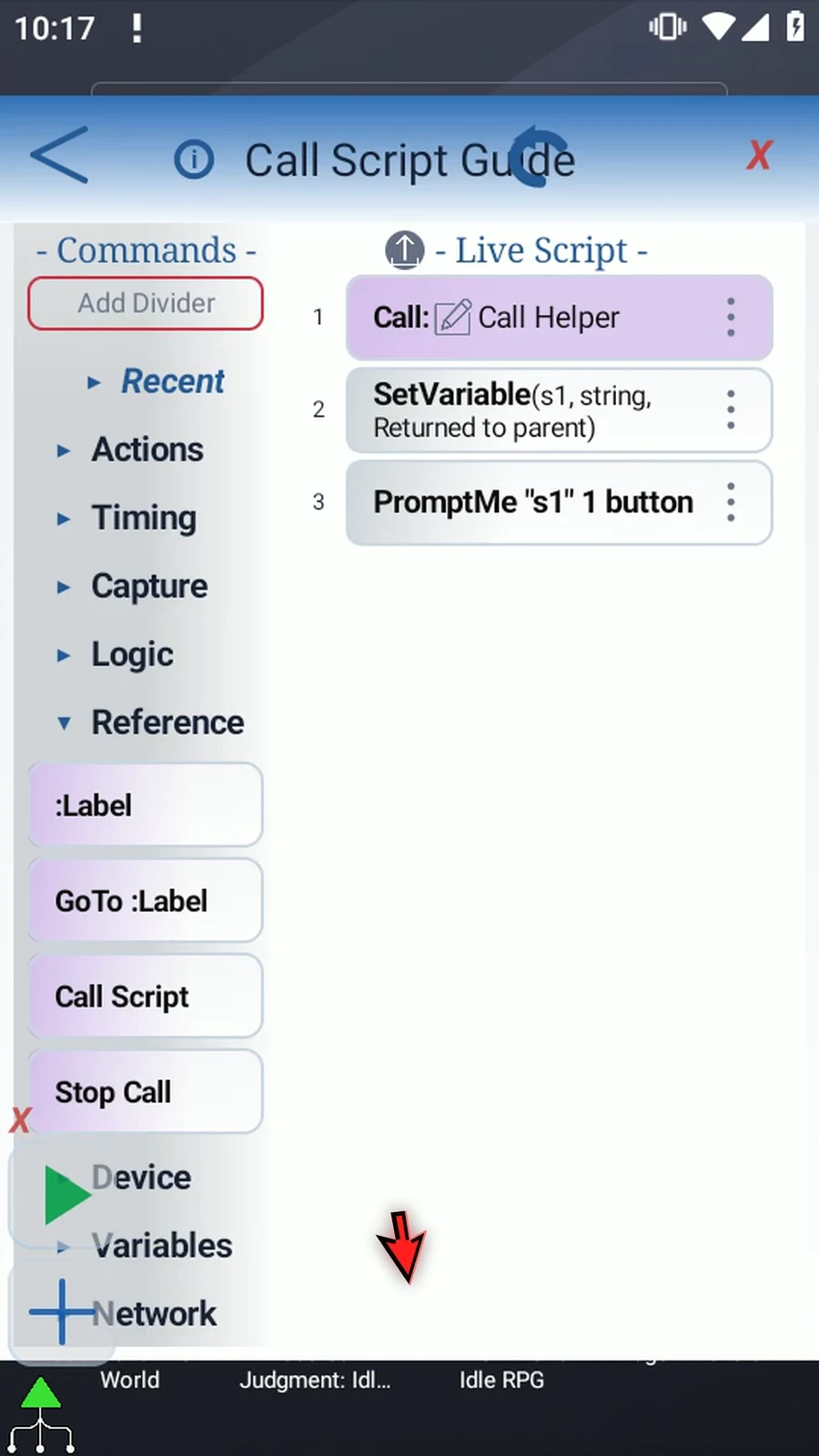
Step 07 The small pencil beside the helper's name opens its editor. This is the same saved helper, so changes here affect calls using it. Our two supporting commands show Child running with a Continue button. The back arrow returns to the parent.
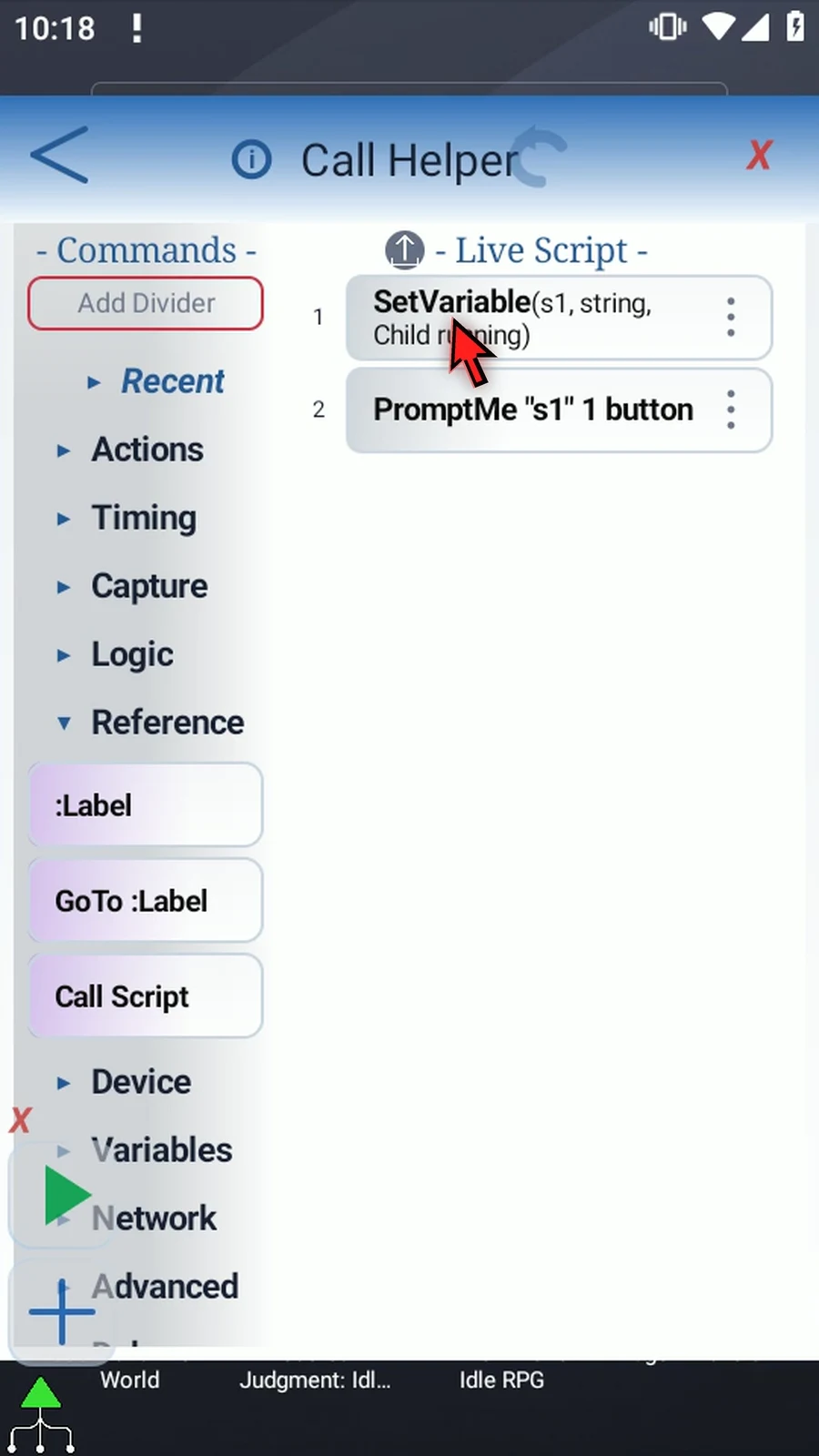
Step 08 The parent now calls the helper, then sets its own message and displays it. In this normal sequential path, Call waits for the helper to return before the parent's next command runs. Break Call is only needed when a helper should return early.
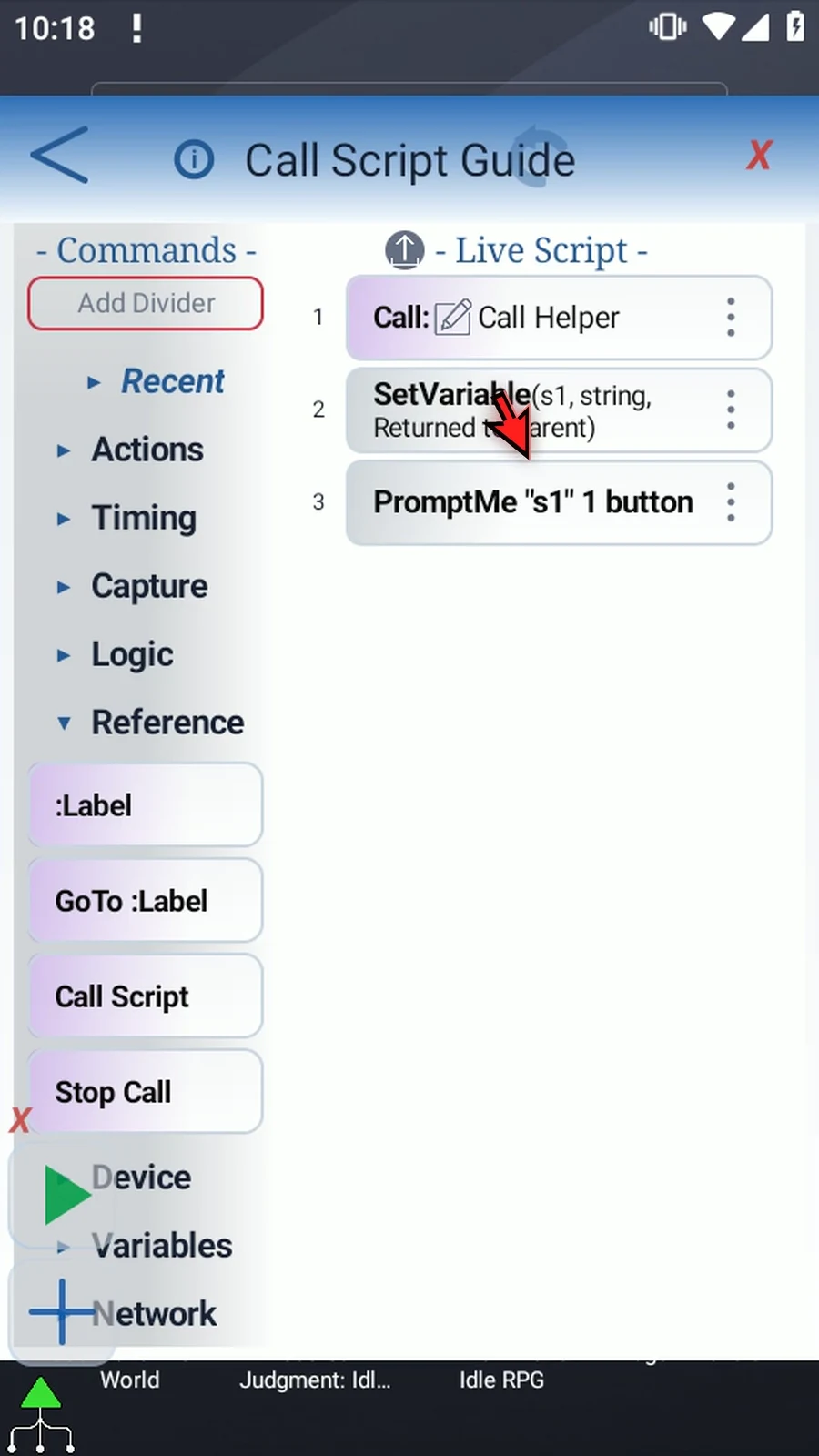
Step 09 Close the editor. If the Main Overlay controls are collapsed, use the plus button to expand them.
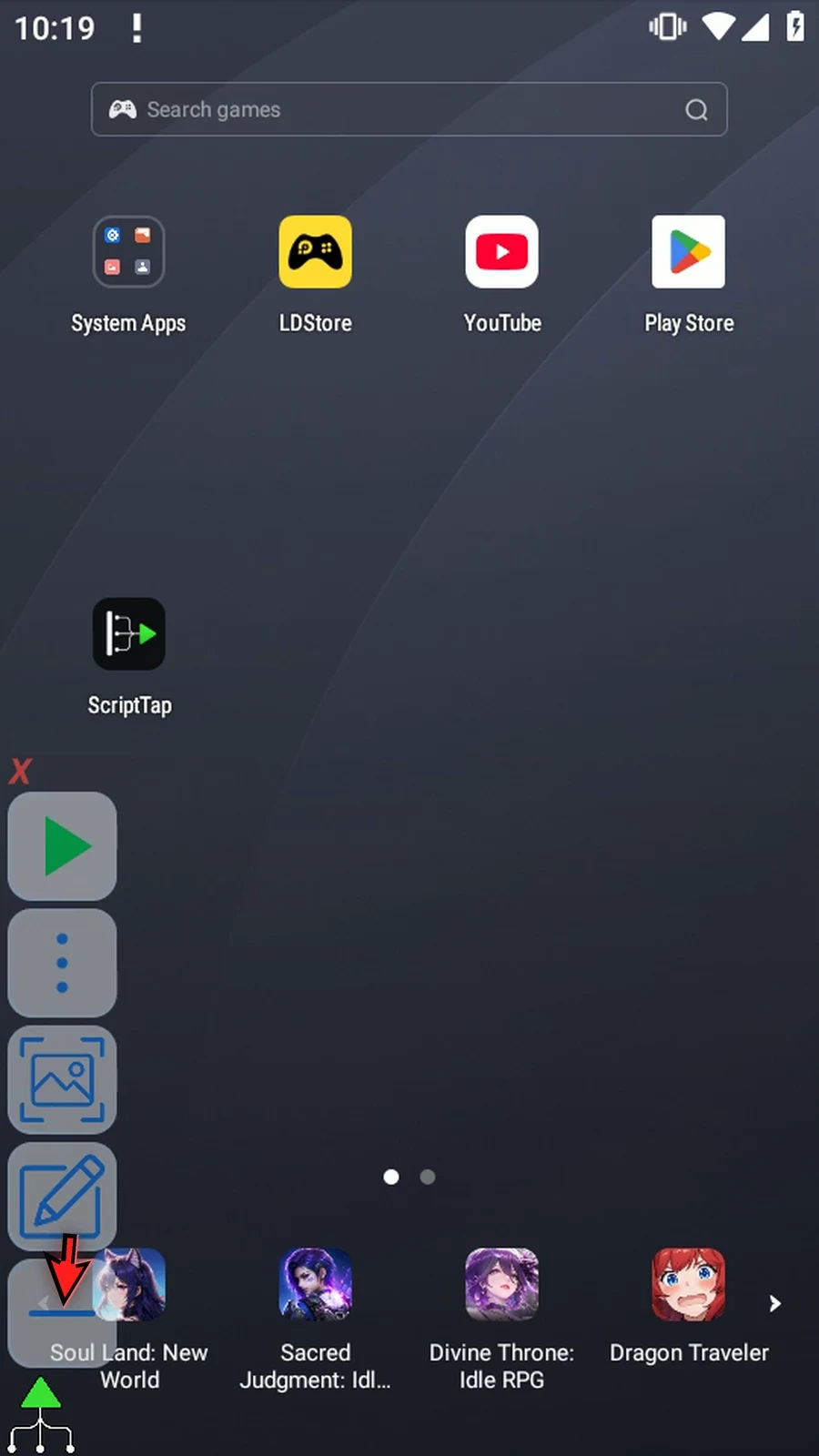
Step 10 When the script is complete, simply use the Play button in the main overlay.
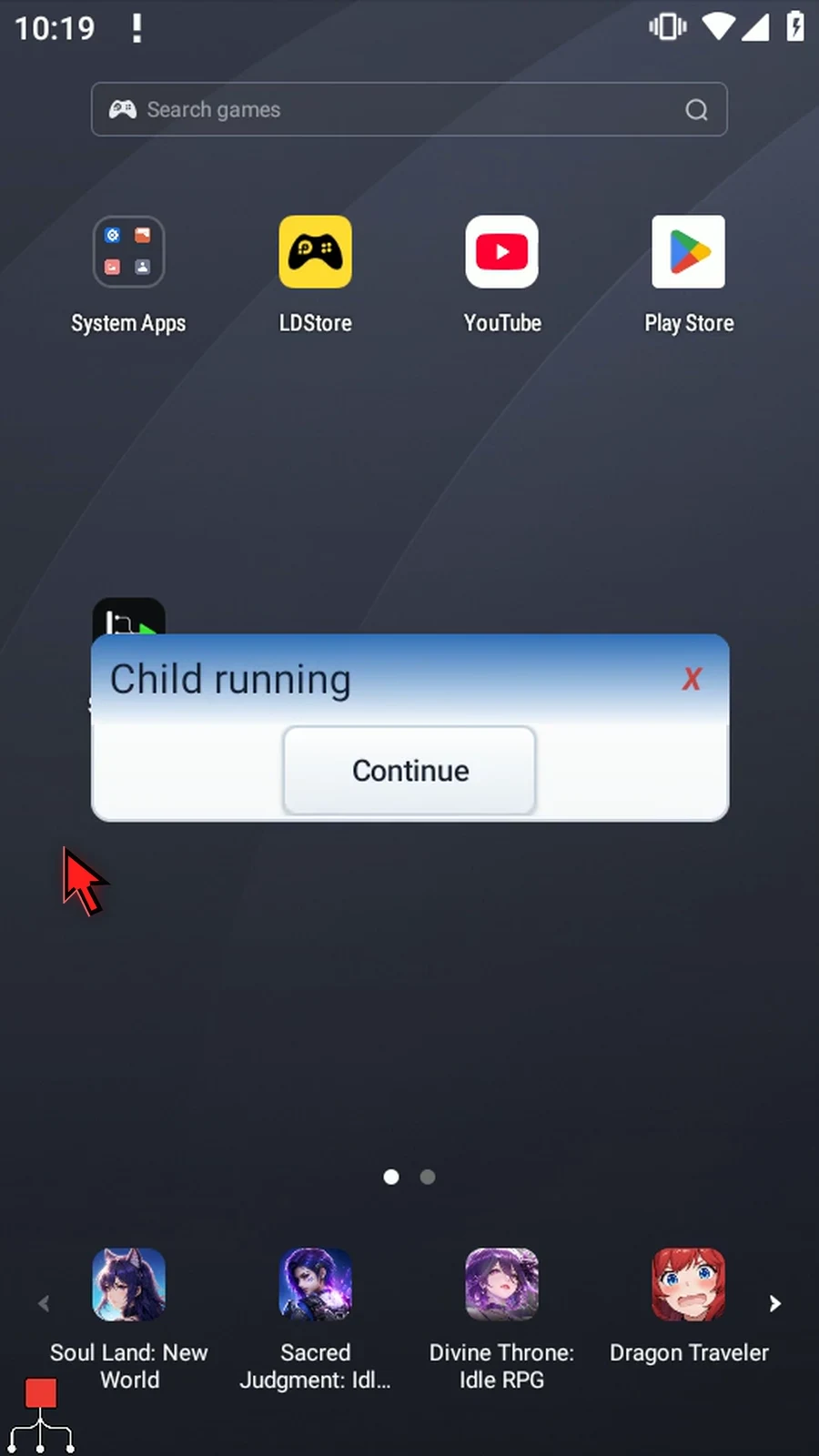
Step 11 Child running appears first. The parent is waiting at Call while the helper's Prompt Me waits for our input.
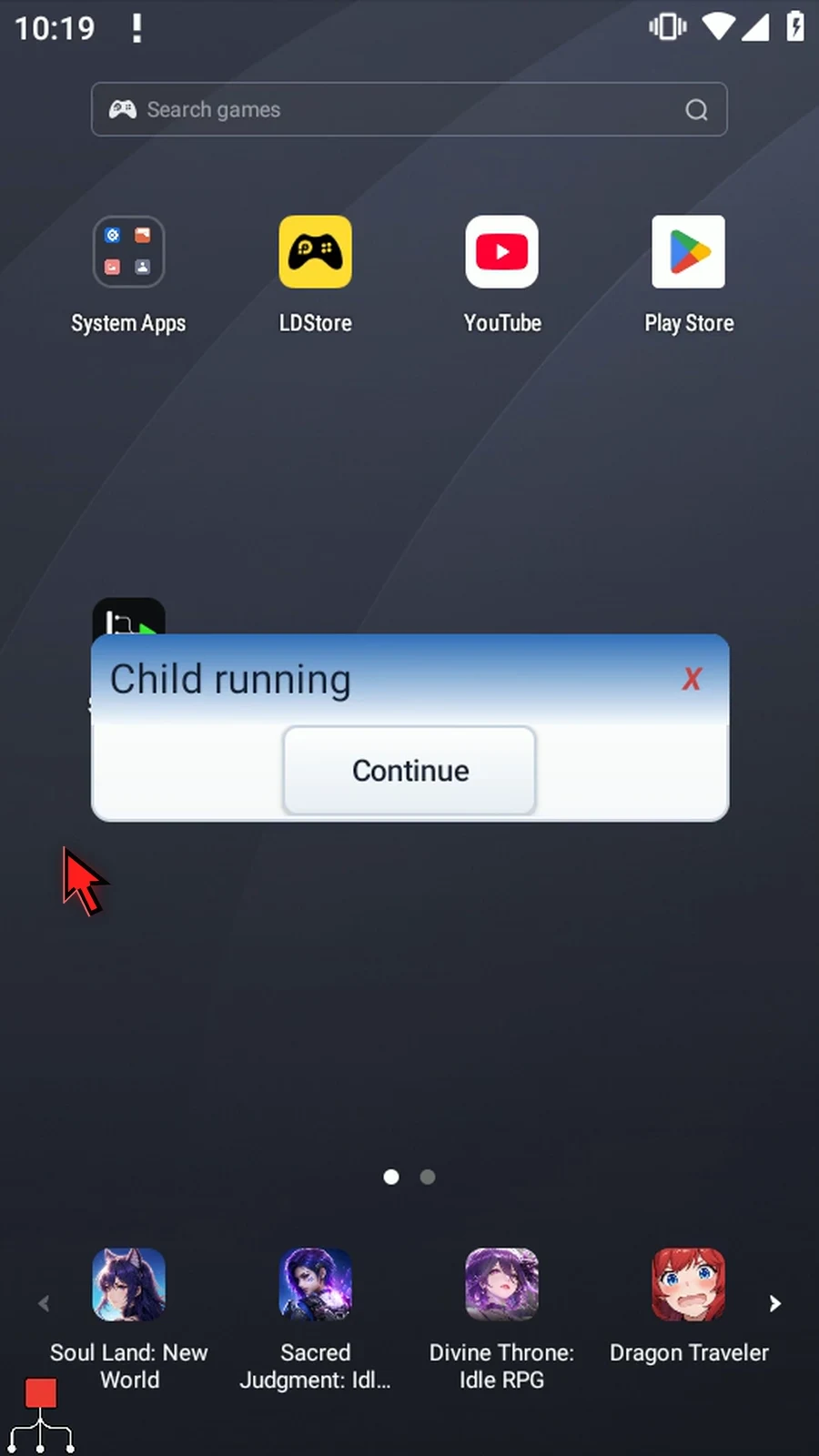
Step 12 Tap Continue. This is the helper's last command, so it finishes normally and Call returns to the parent. No second Play is needed.
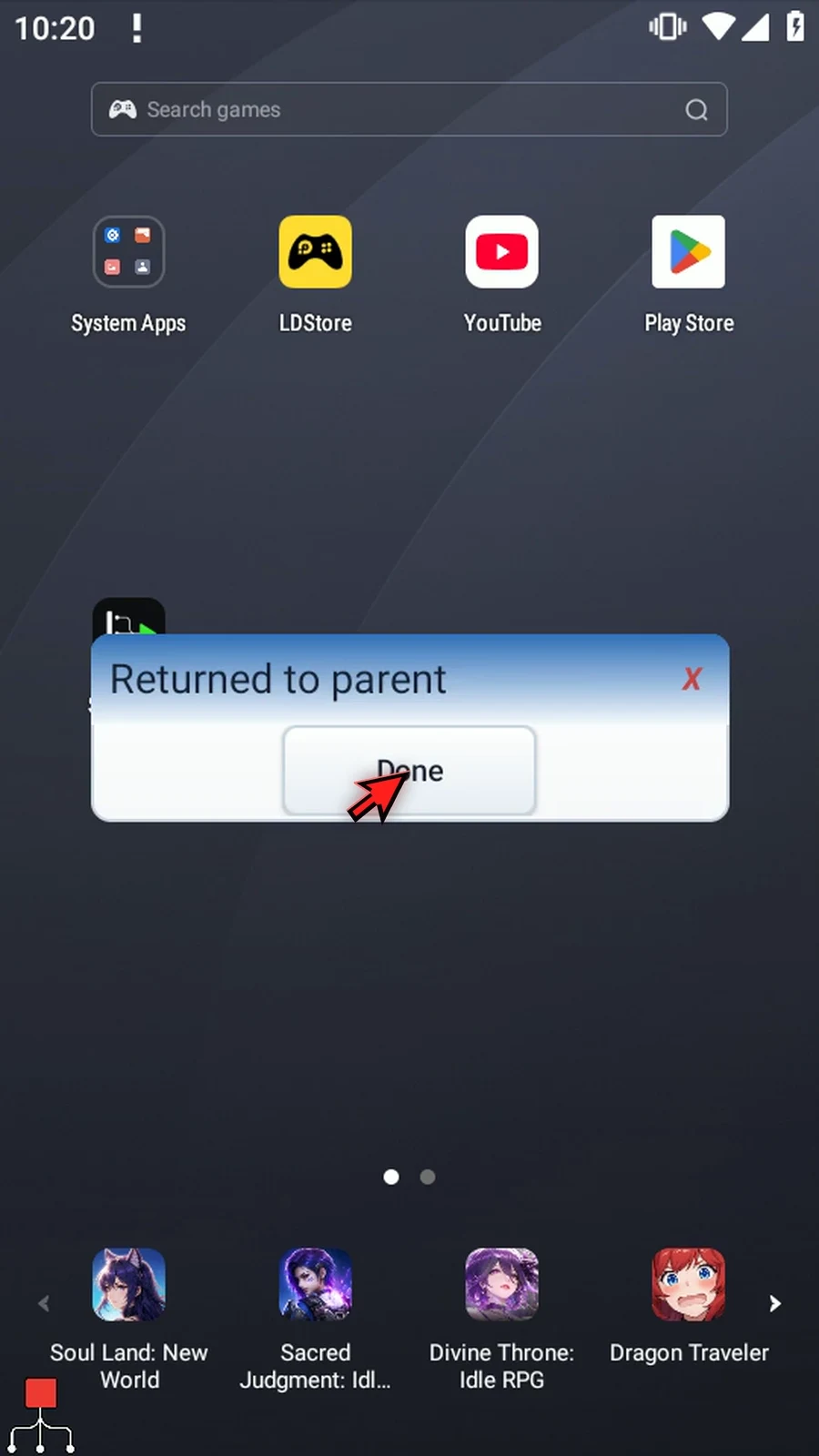
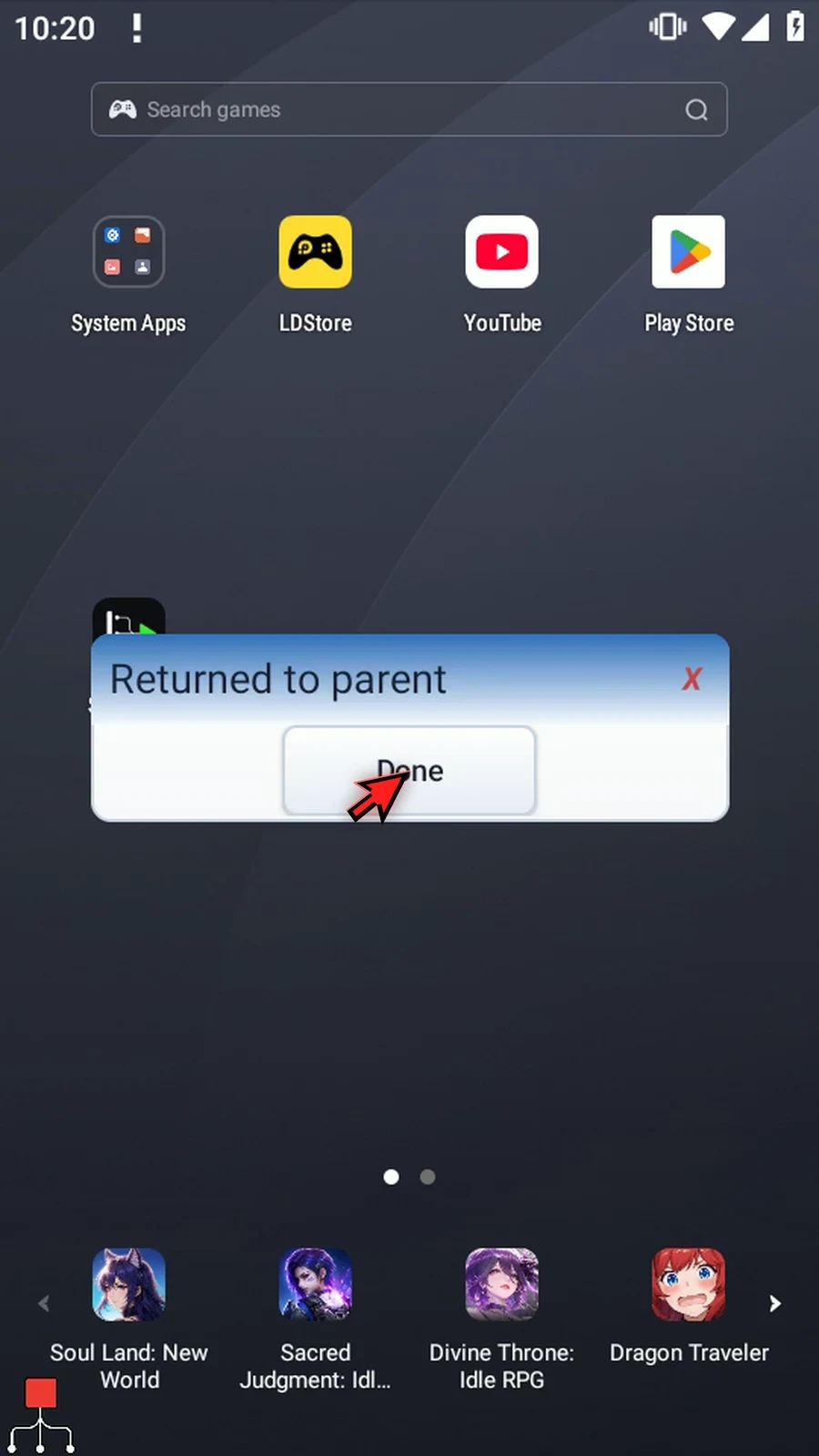
Step 13 Returned to parent is the confirmation after Call. It shows that the parent continued normally. Tap Done to finish; the script stops automatically.
Step 14 Use Call Script to reuse a saved sequence and continue your parent workflow when it returns. The String and Prompt Me guides explain the supporting confirmations used in this example.