
Command video guide
Visual Trigger
Visual Trigger waits for a visual position condition, then taps the selected target. Use it when a fixed delay does not reliably identify the right moment. This Overview shows the settings without Test or Play; the practical tabs build short working examples.
Exactly two of three retained slots must be enabled. Mode offers OR, AND and XOR: any, all, or exactly one accepted comparison. Our two-trigger alignment example gives the same outcome with all three. Disabling a slot keeps its settings; changing Pixel Line/Asset clears the outgoing source settings.
Delay waits after the condition is met and before the tap. Timeout limits waiting; zero removes that limit. Stable Frames requires consecutive matching frames. Press is the tap's hold duration. Timing values are literal numbers, not coordinate-variable fields.
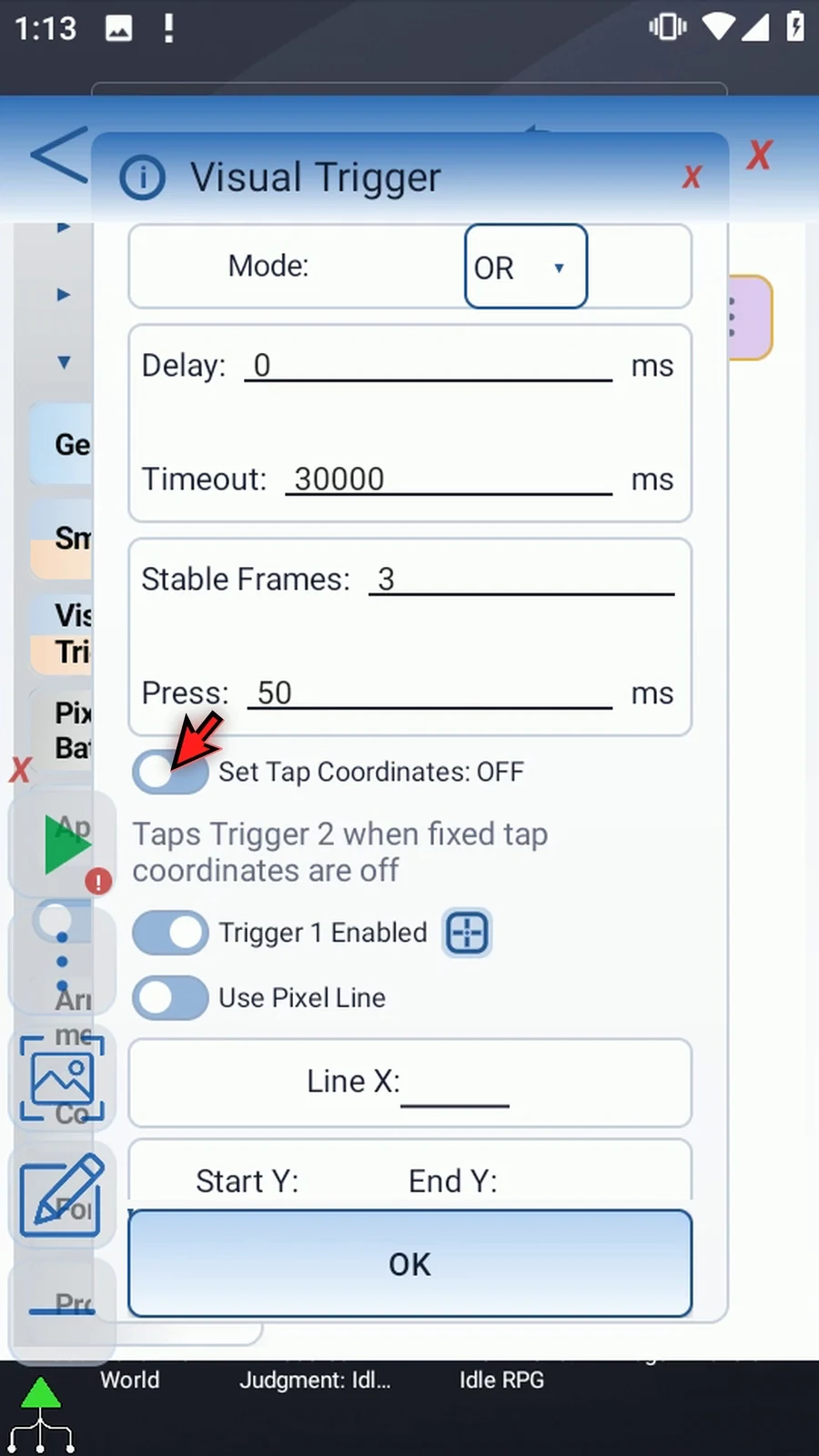
With Set Tap Coordinates ON, enter a fixed X/Y location or earlier Integer variable references. With it OFF, the final tap uses Trigger 2's matched image center, requiring Trigger 2 to be enabled and use Asset. Pixel Line examples require a fixed target.
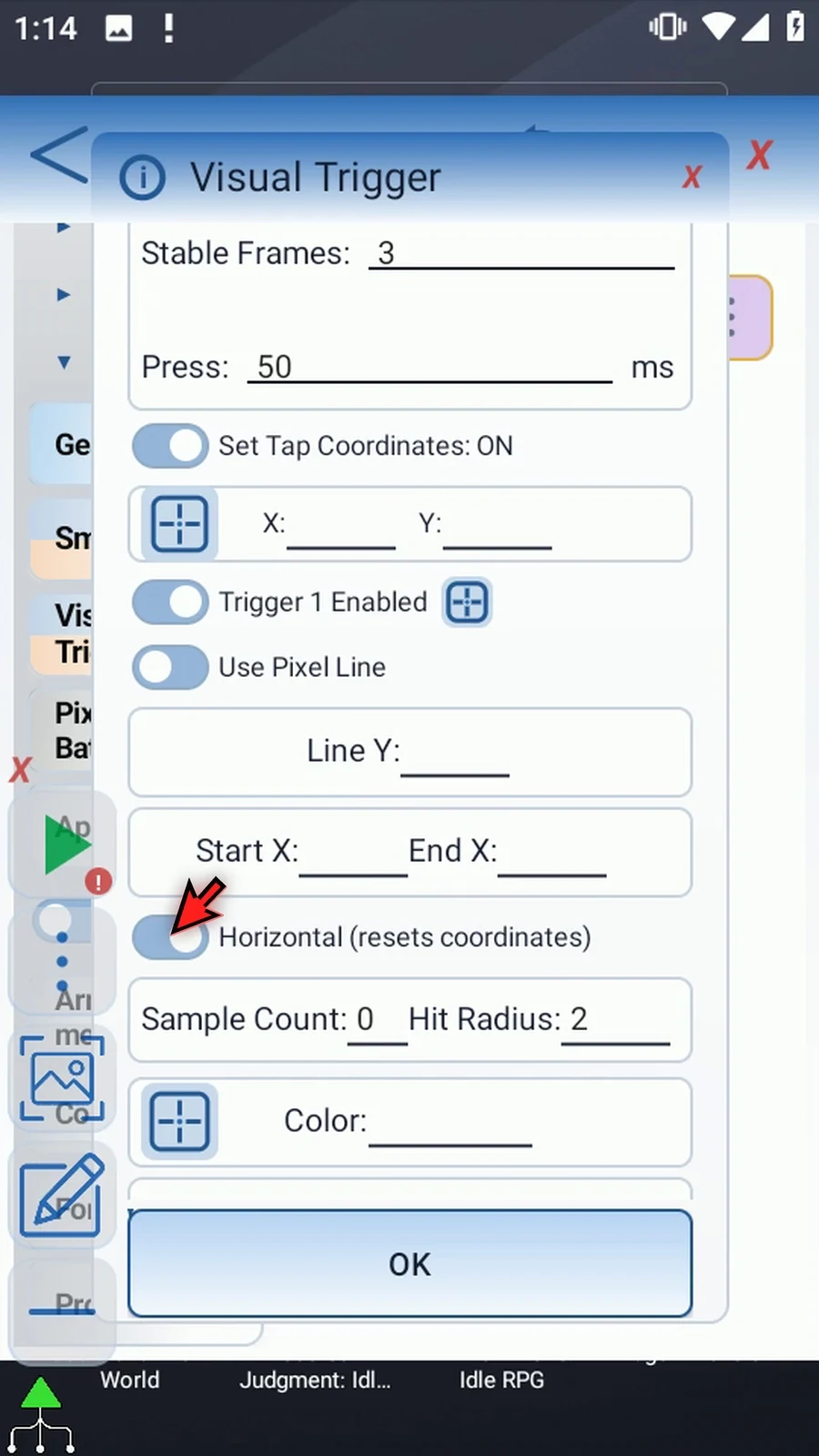
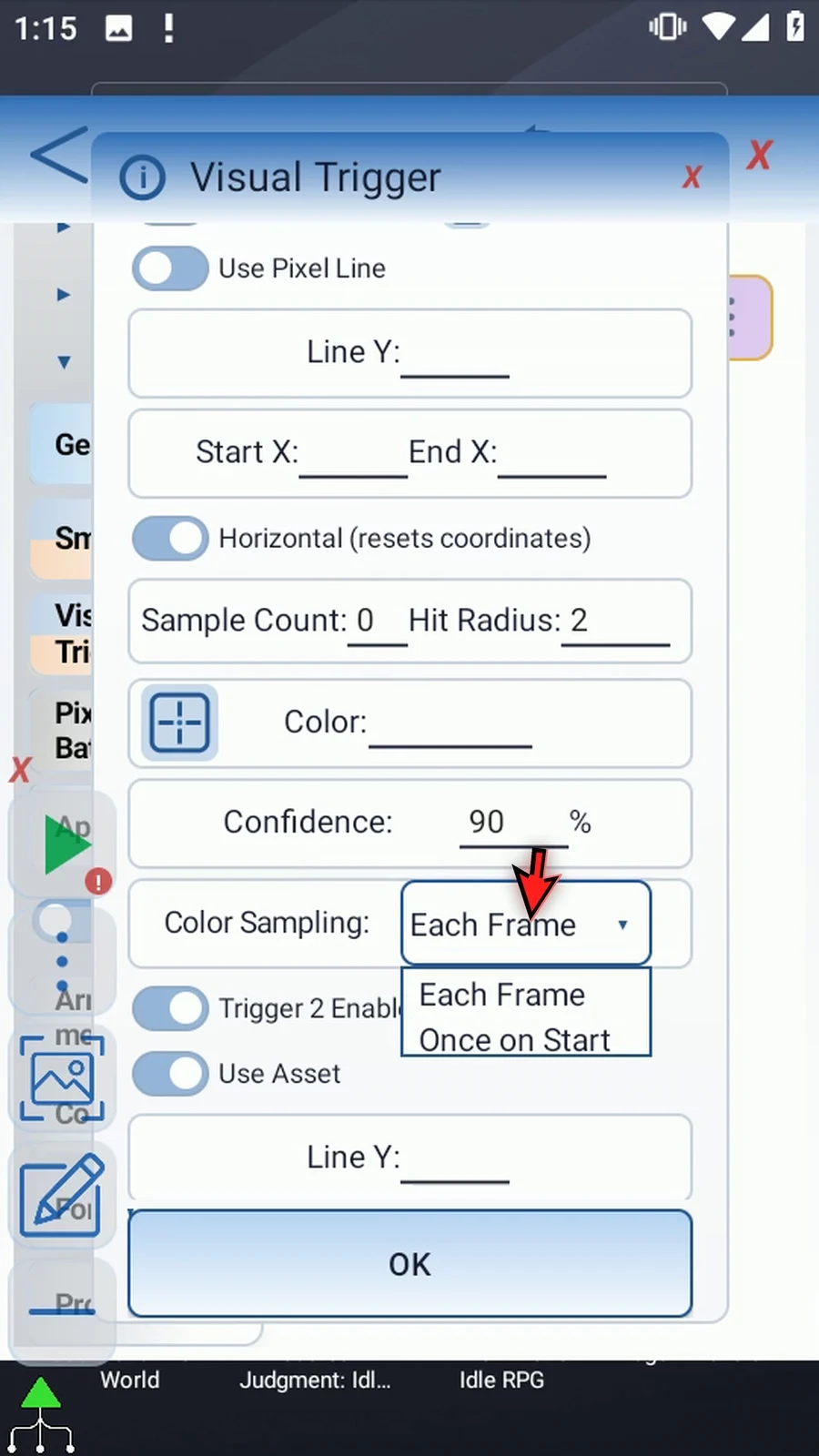
Horizontal lines compare X positions; vertical lines compare Y positions. Changing orientation resets coordinates, so choose it first. Sample Count 0 chooses sampling automatically. Hit Radius allows a positional difference in pixels. Pixel Line uses a chosen hexadecimal color and separate color confidence. Each Frame tracks current color matches; Once on Start retains the initial matches as a reference.
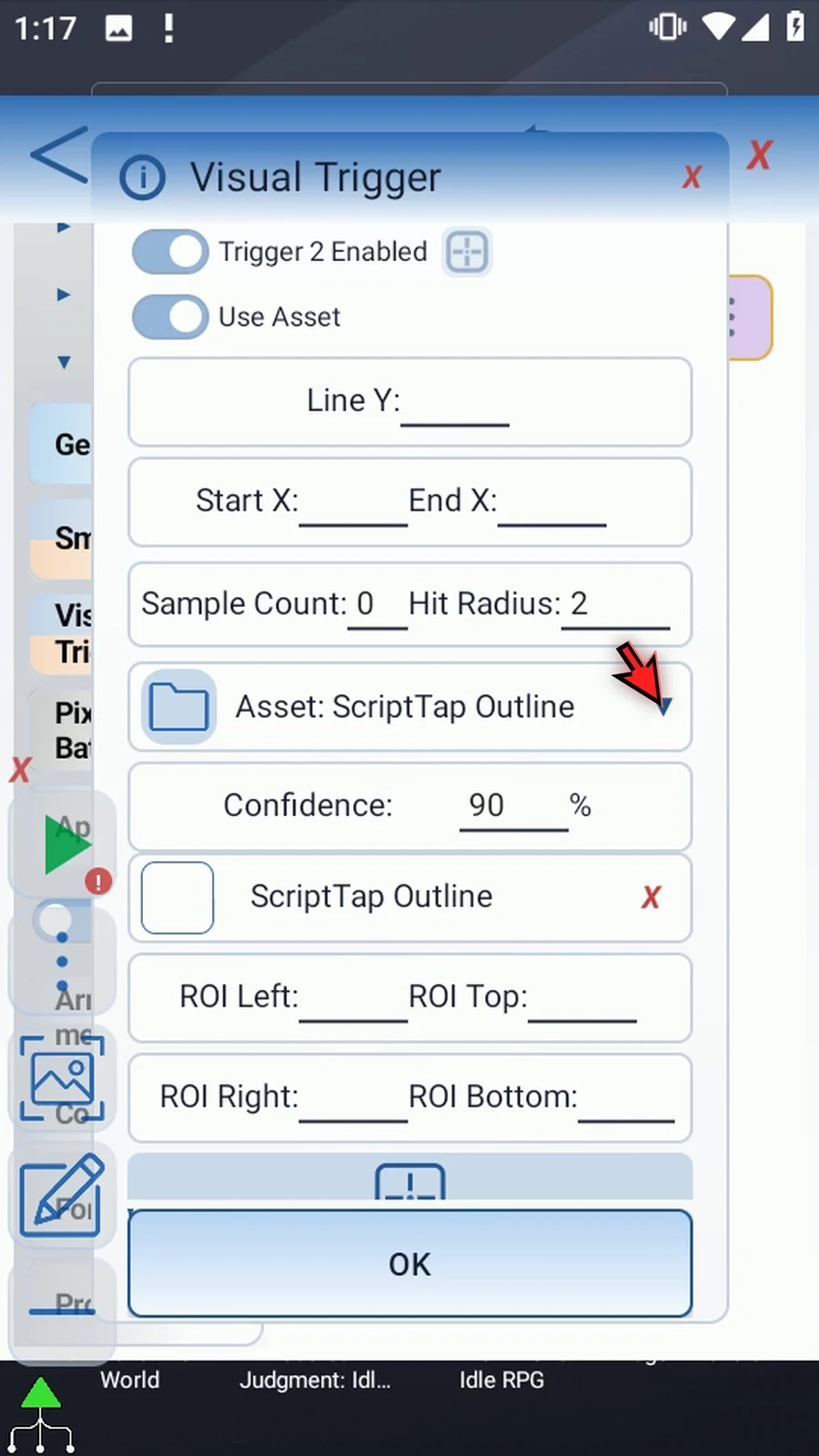
Asset uses a saved image with its own image confidence. Expand its heading to see the selected image and its removal control. The ROI bounds limit the image search; keep them relevant and exclude competing look-alikes. Asset Tip Point selects the image point used for position comparison, not the final image-center tap. Reuse the same genuine ScriptTap icon asset and the shared Asset Creation guide instead of cropping it again.
Watch the walkthrough
Step-by-step guide
Step 01 Visual Trigger waits for a visual position condition, then taps the selected target. It can compare colored pixels along lines or locate an image asset. This overview shows the settings without running a demonstration.
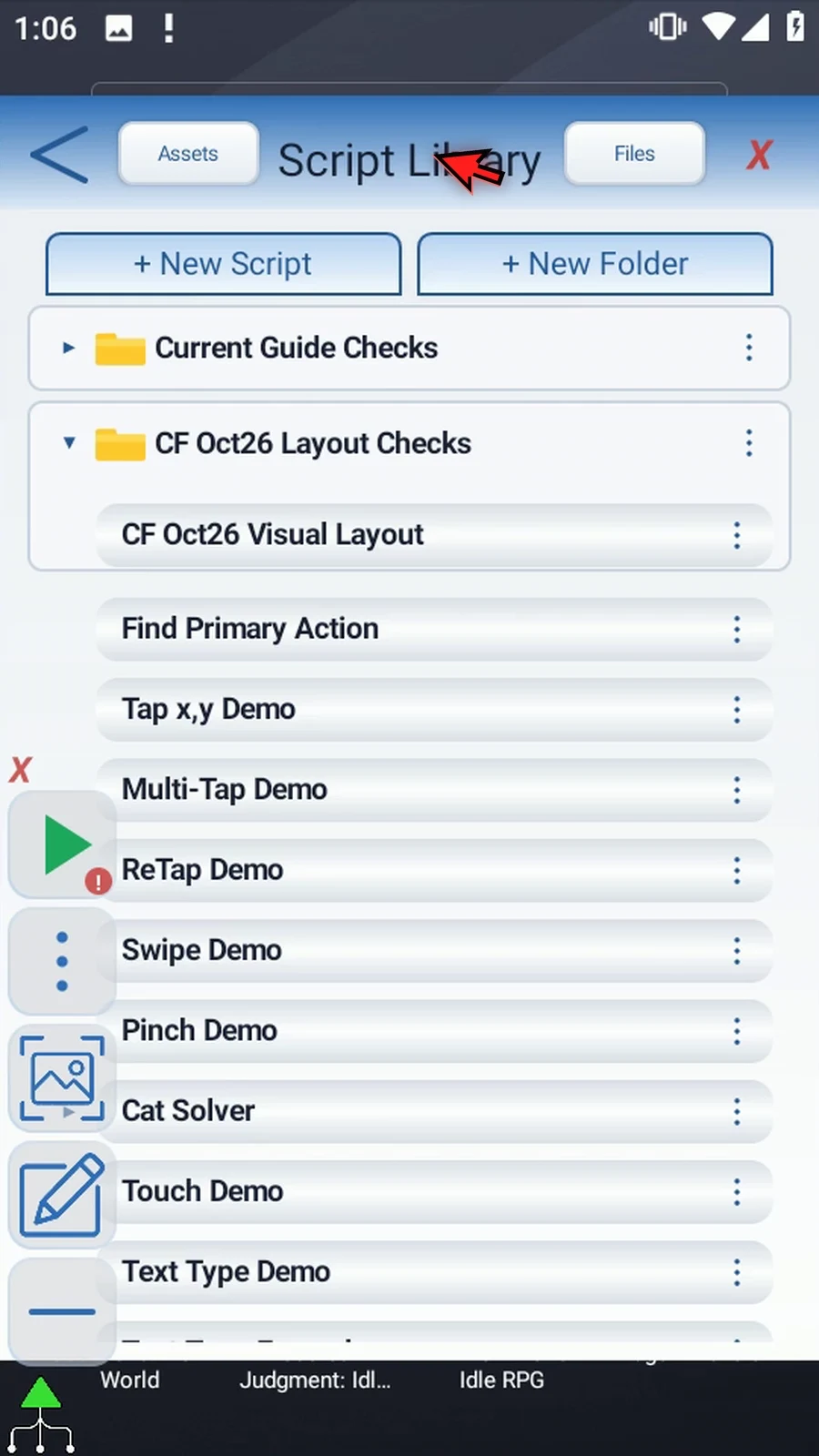
Step 02 Create a blank script. In this library, the new script appears at the end, so scroll down to find it. Open its three-dot menu and choose Rename. Replace the default name with a clear name for your guide, then save it. Open the renamed script. We will use this same script for both practical examples, adding only the commands needed to make the result visible. Your other scripts do not need to change.
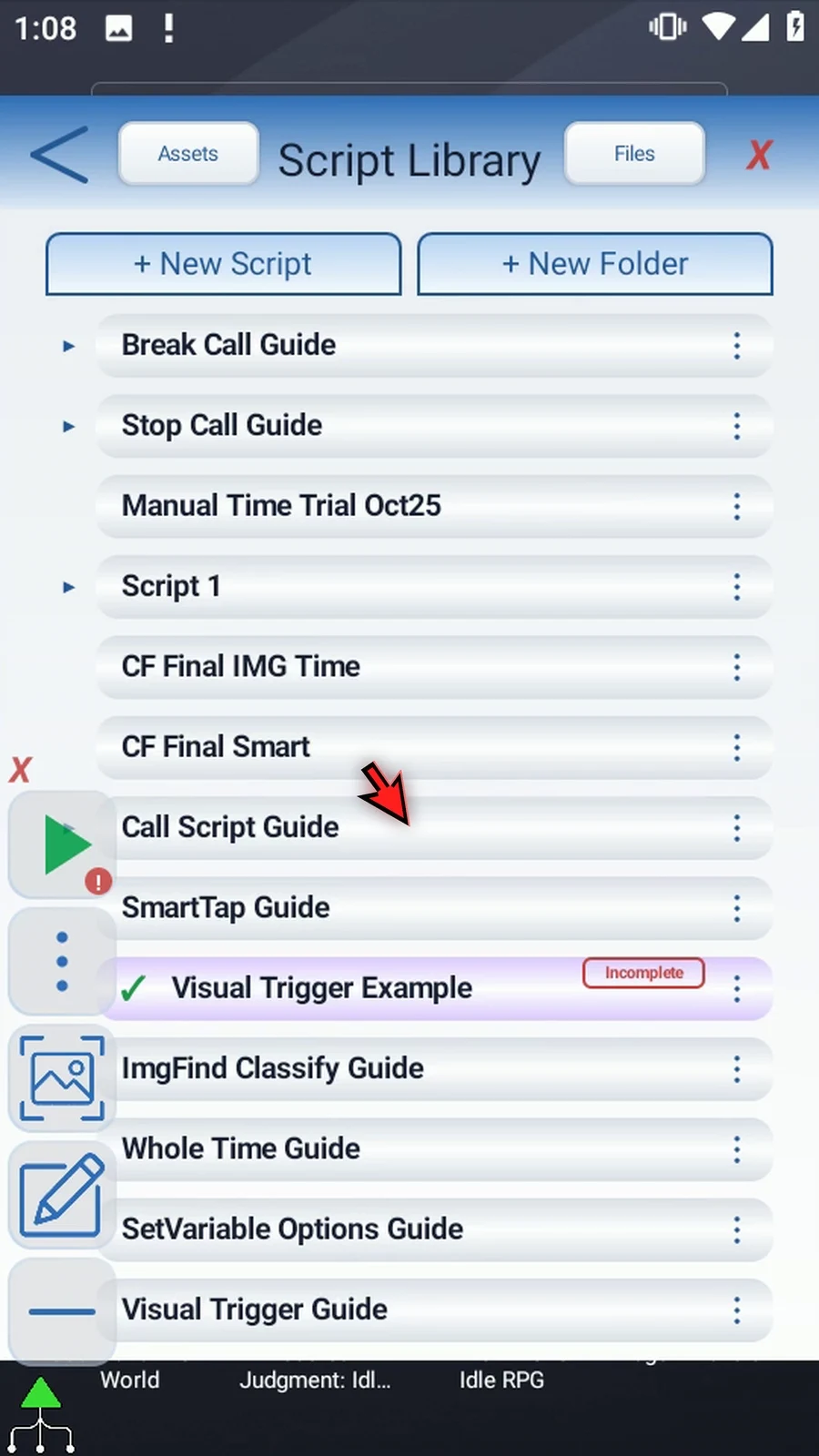
Step 03 Open Advanced and drag Visual Trigger into the script. Then open its placed command. The practical guides will add a short confirmation sequence around it.
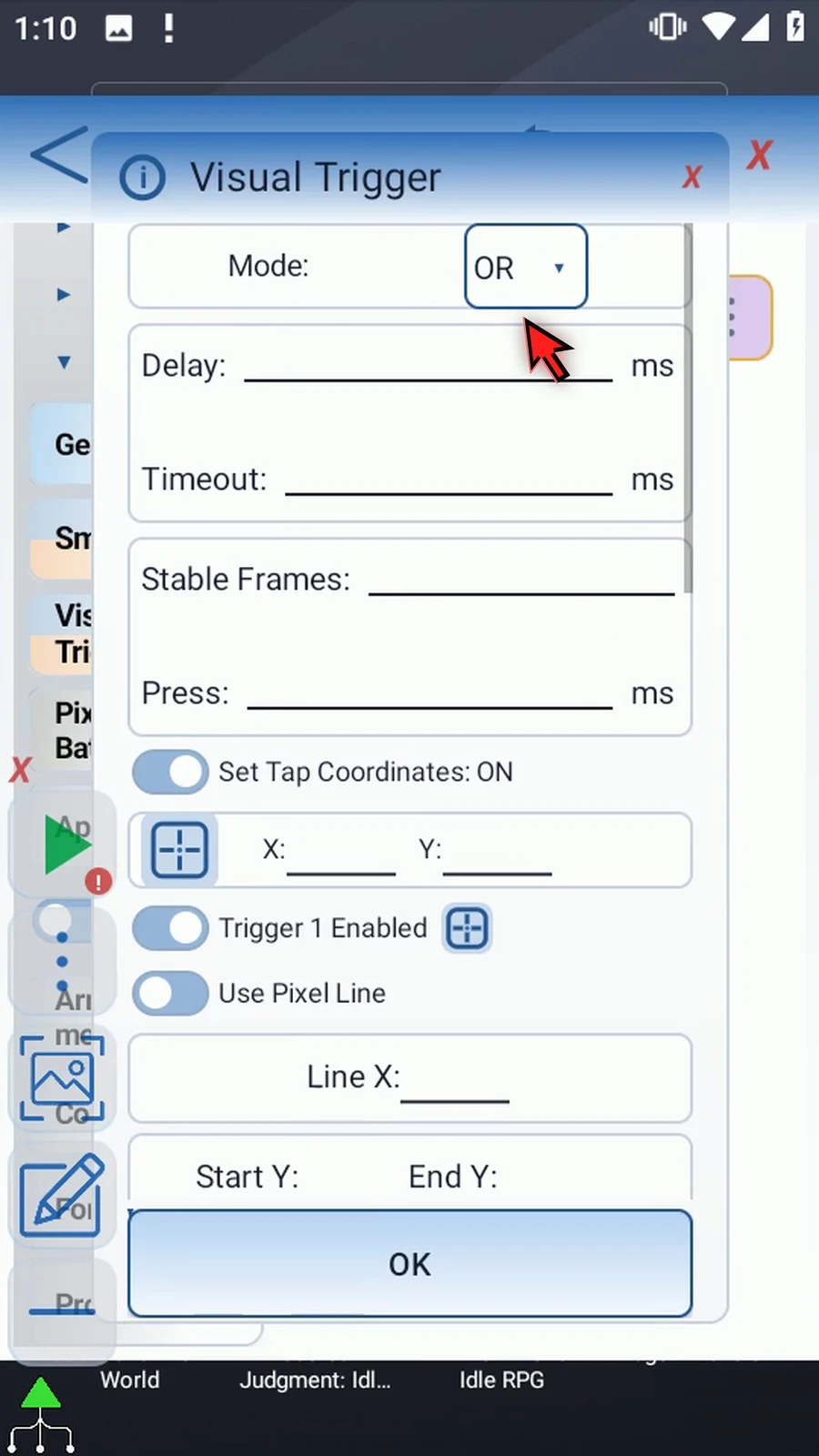
Step 04 Mode offers OR, AND, and XOR: any, all, or exactly one accepted comparison. Exactly two trigger slots must be enabled. In our two-trigger alignment example, all three modes give the same result; we'll use OR.
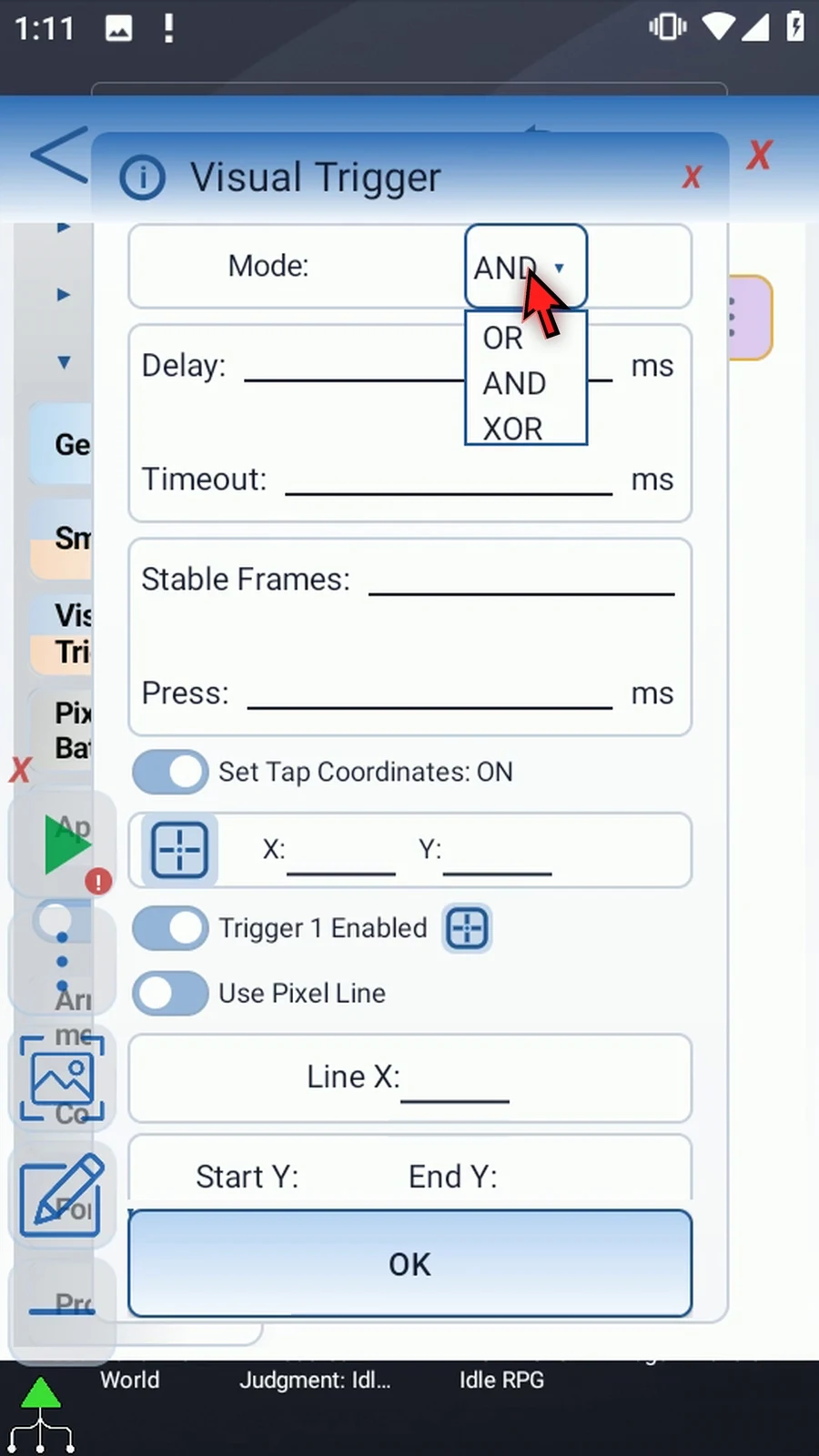
Step 05 Delay waits after the condition is met, before the tap. Timeout limits how long to wait for the condition; zero removes that limit. Both values are in milliseconds. We'll use no extra delay and a thirty-second timeout.
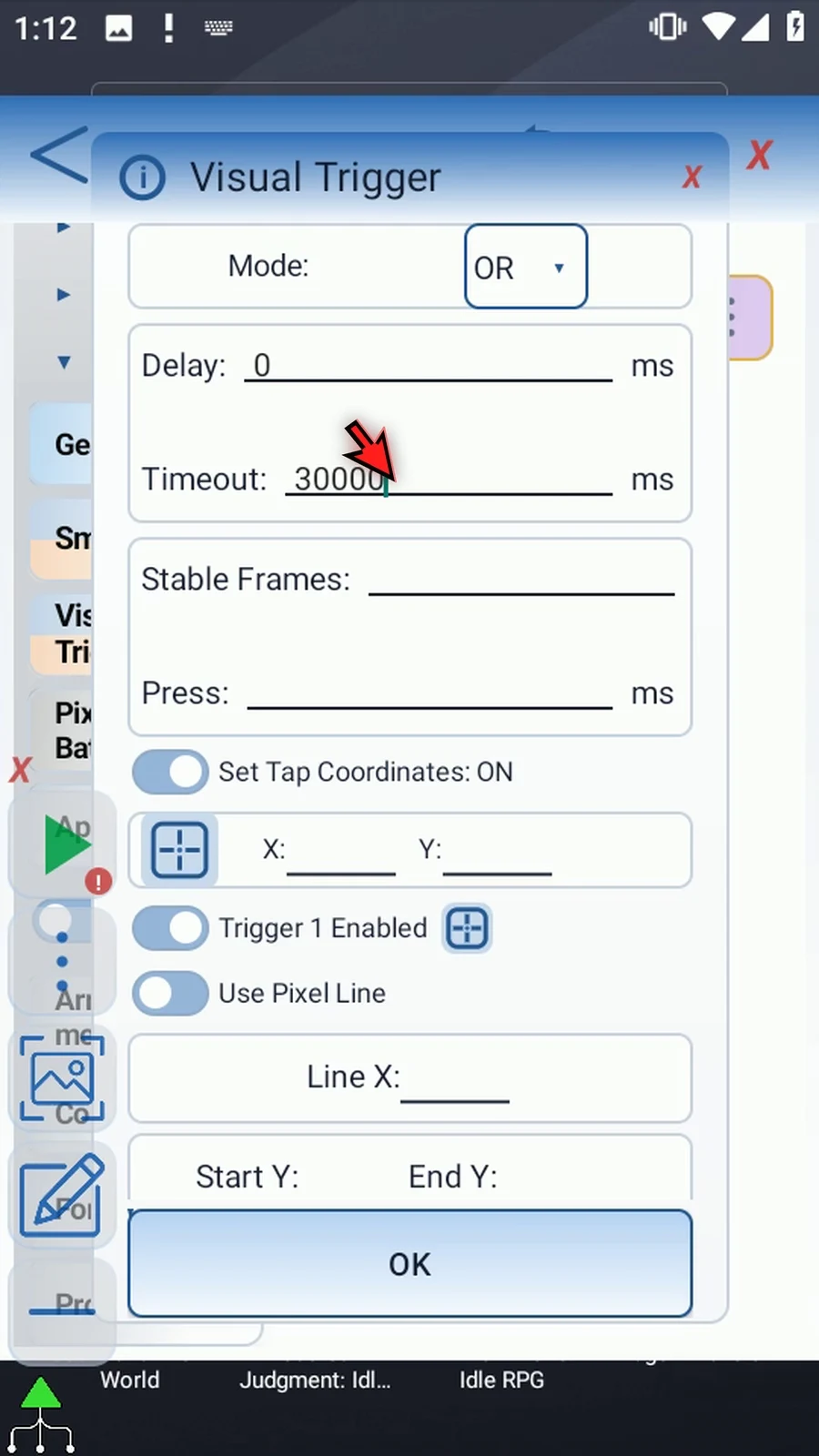
Step 06 Stable Frames requires consecutive matching frames, which helps reject brief visual changes. Press sets how long the resulting tap stays down. We'll use three stable frames and a fifty-millisecond press.
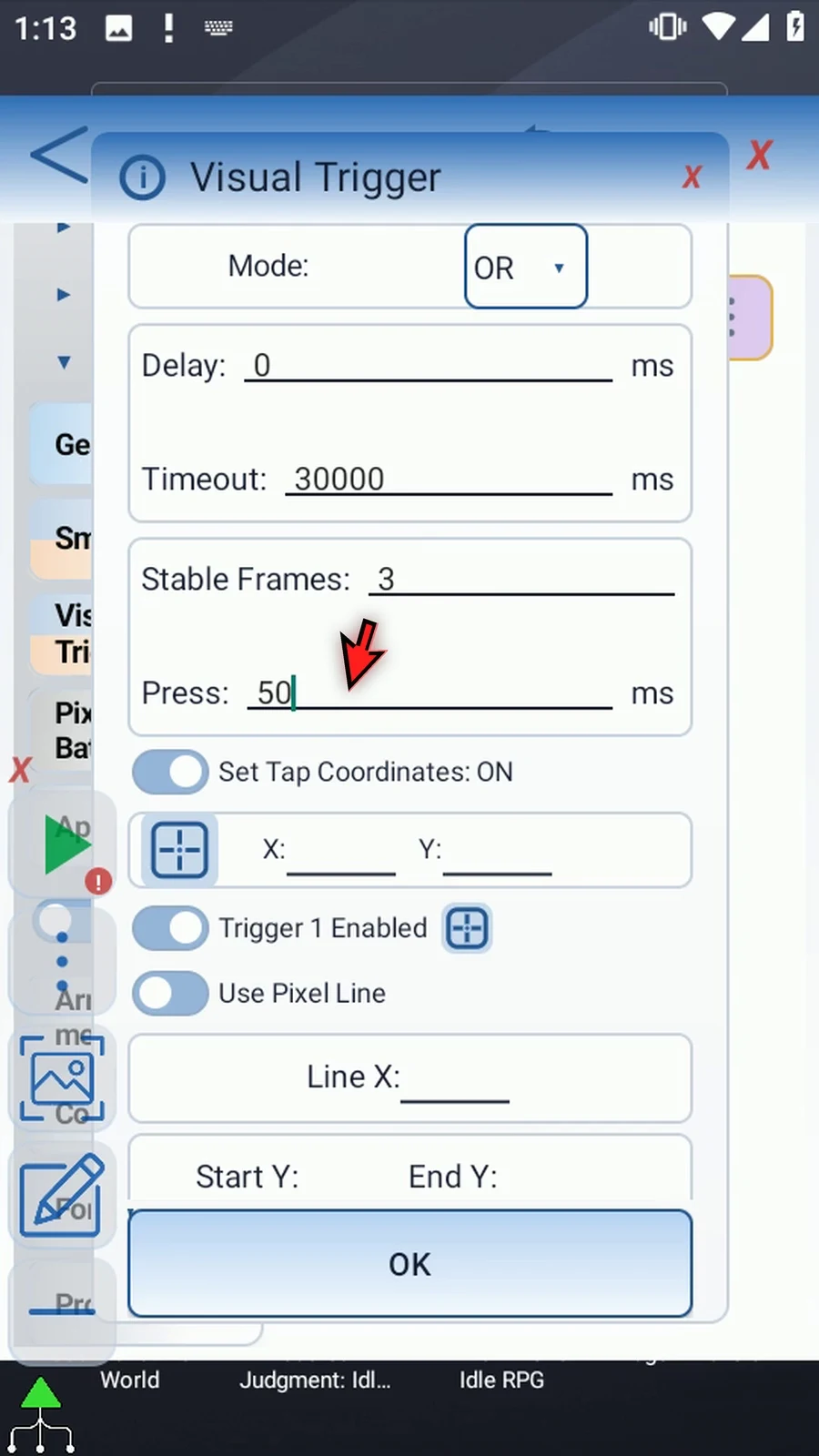
Step 07 Set Tap Coordinates chooses a fixed X and Y target. Coordinates can be numbers or Integer variable references. Turn it off to tap Trigger Two's matched image center. That option requires Trigger Two to be an enabled Asset source; Pixel Line examples use a fixed target.
Step 08 Each enabled slot has a source and line geometry. Horizontal lines compare X positions; vertical lines compare Y positions. Set the orientation first, because changing it resets the coordinates. The target icon opens the line selector. If Android asks, allow screen capture.
Step 09 Sample Count controls how many positions are sampled along the line; zero chooses the count automatically. Hit Radius allows a small positional difference in pixels. These settings are separate from color or image confidence.
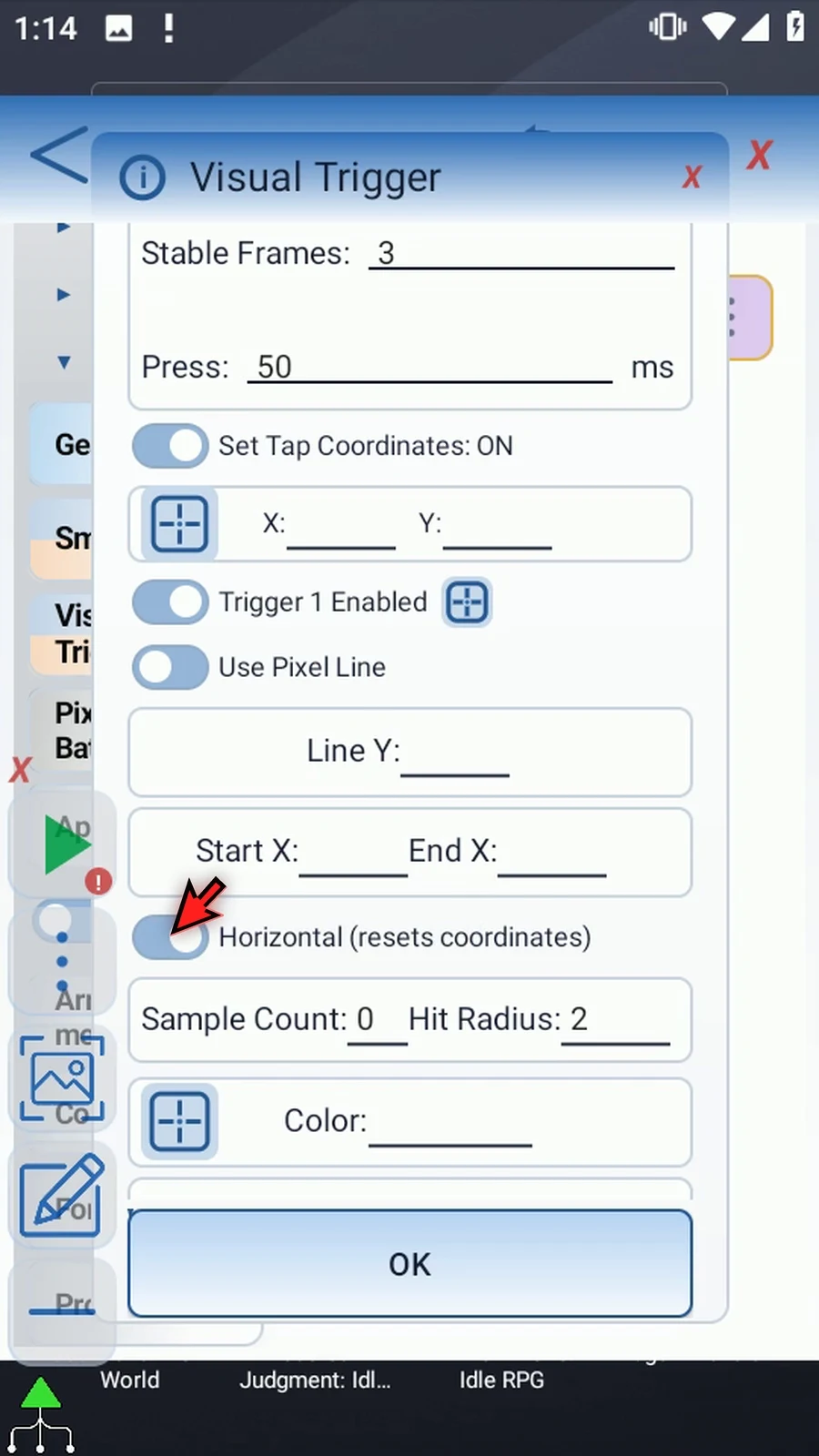
Step 10 Pixel Line looks for the selected color along its line. Choose the color with the square selector or enter its hexadecimal value. Color confidence controls how much color variation is accepted.
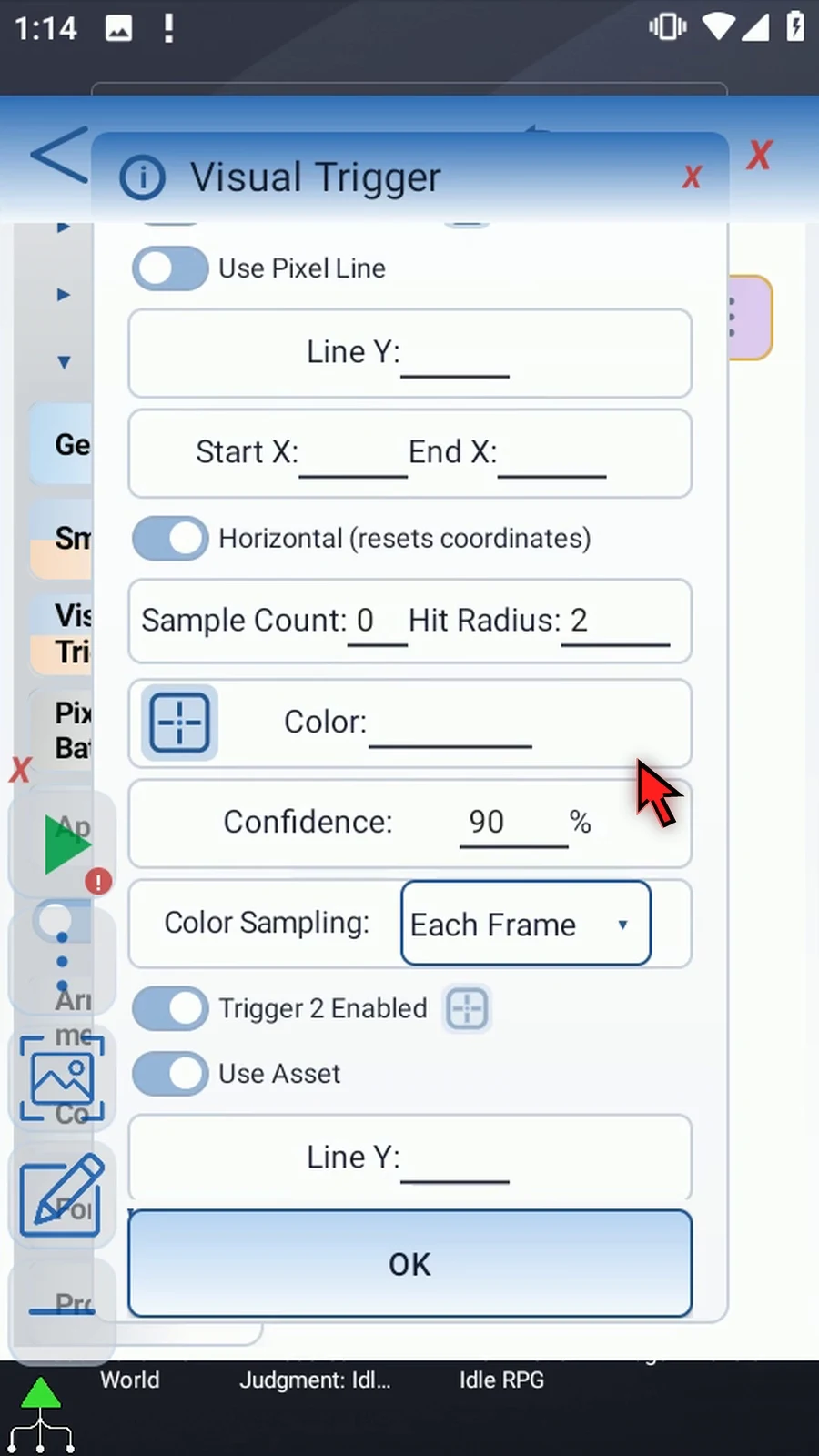
Step 11 Each Frame checks the current colors repeatedly. Once on Start captures that line's color matches at the beginning of the command and keeps them as a reference. A stationary reference and a moving marker are a useful combination.
Step 12 Asset finds a saved image instead of sampling a color. Choose the existing ScriptTap icon portion. Image confidence is separate from color confidence and positional Hit Radius. The shared Asset Creation tab explains how to prepare an image; we do not need to crop another one here.
Step 13 The ROI fields and area selector limit where the image is searched for. A small, relevant region is faster and avoids competing look-alikes. Pointer Tip selects the point inside the image used for the position comparison; it is not the final tap point when Trigger Two's image center is the target.
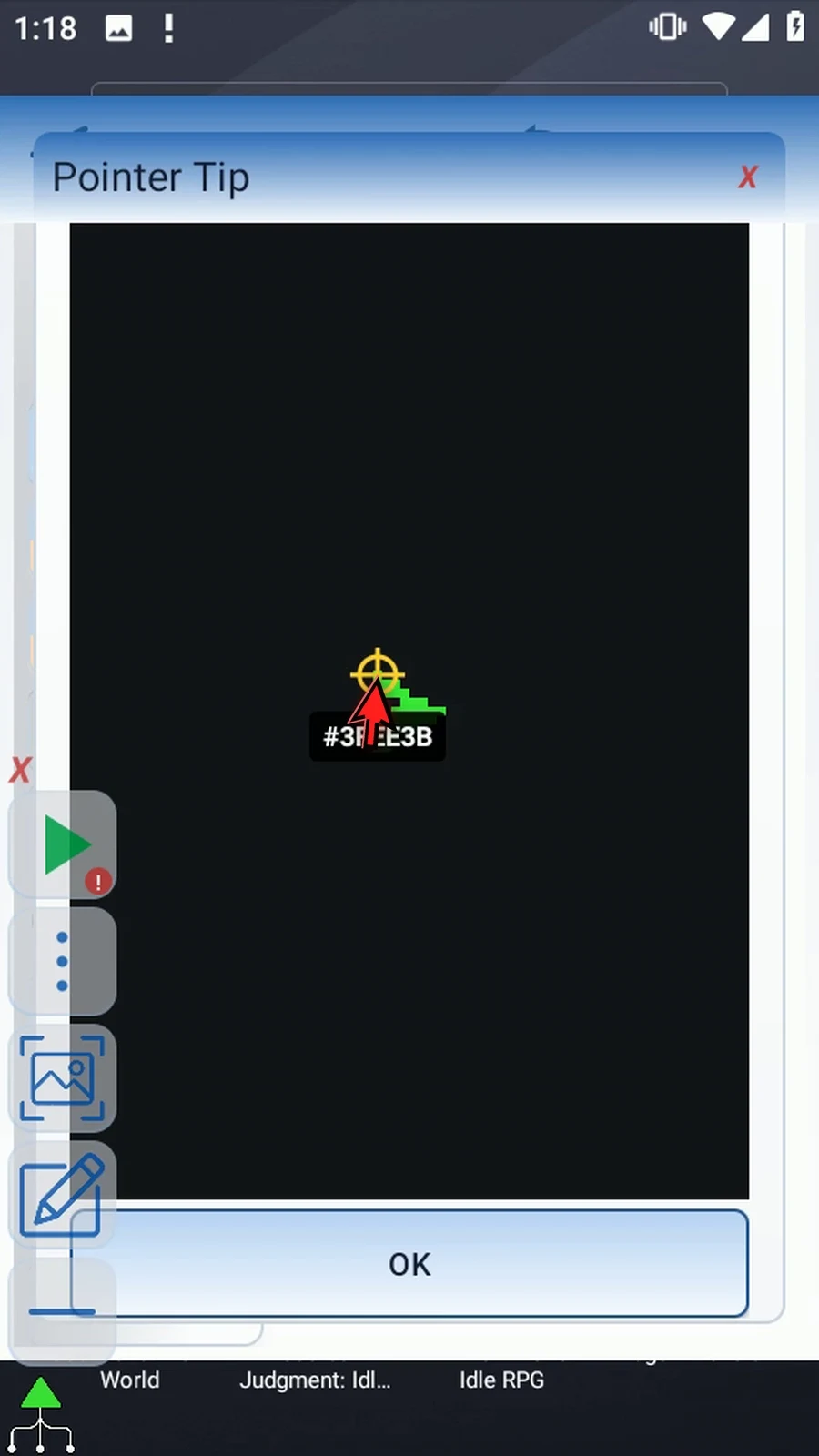
Step 14 There are three retained slots, but exactly two must be enabled. Disabling a slot keeps its settings. Changing between Pixel Line and Asset clears the outgoing source settings, so configure the new source before playing.
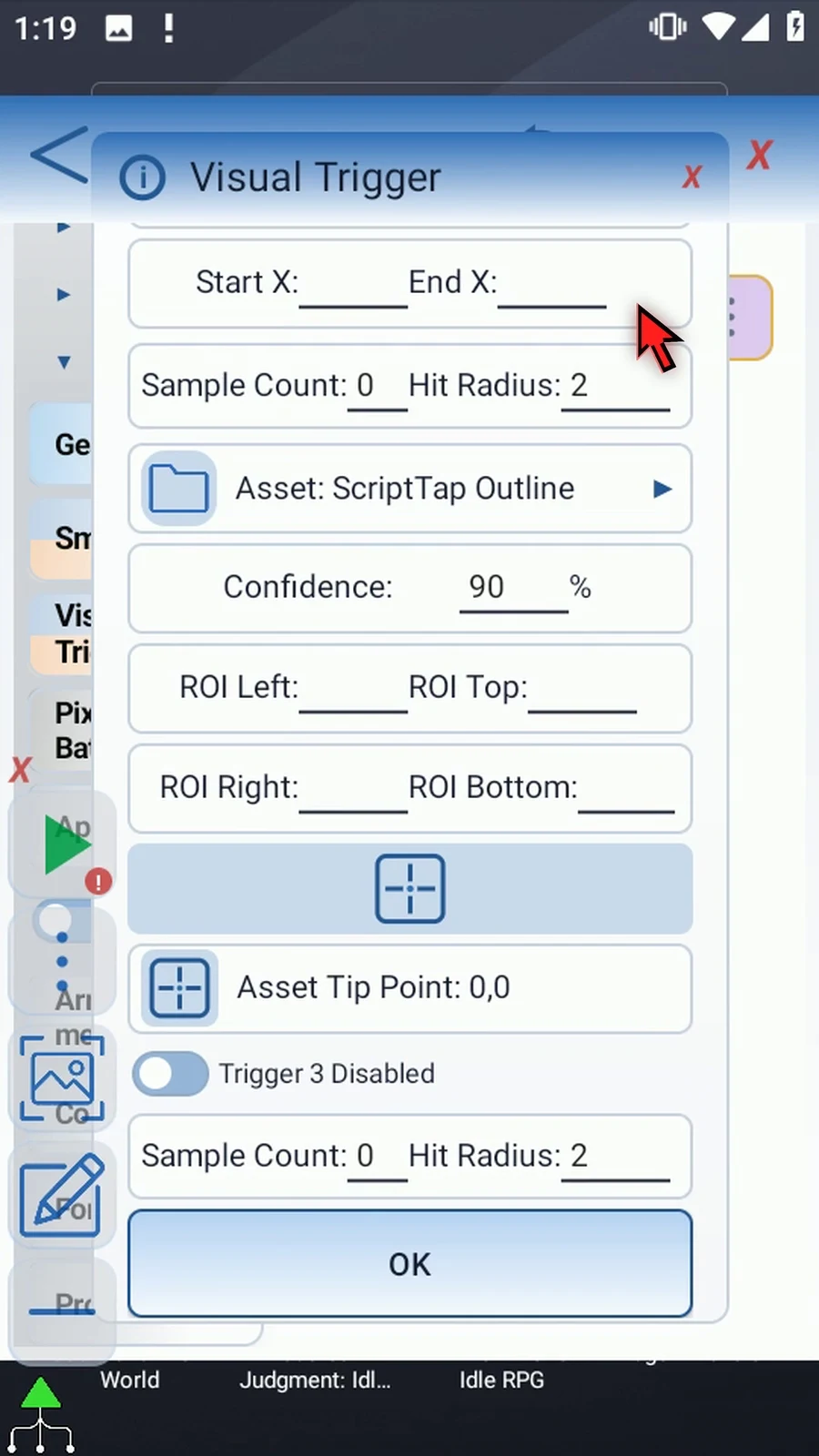
Step 15 Save with OK. This settings tour has not run the script. Use the Pixel Line and Asset tabs for complete working examples, including a visible tap result and a Prompt Me confirmation.
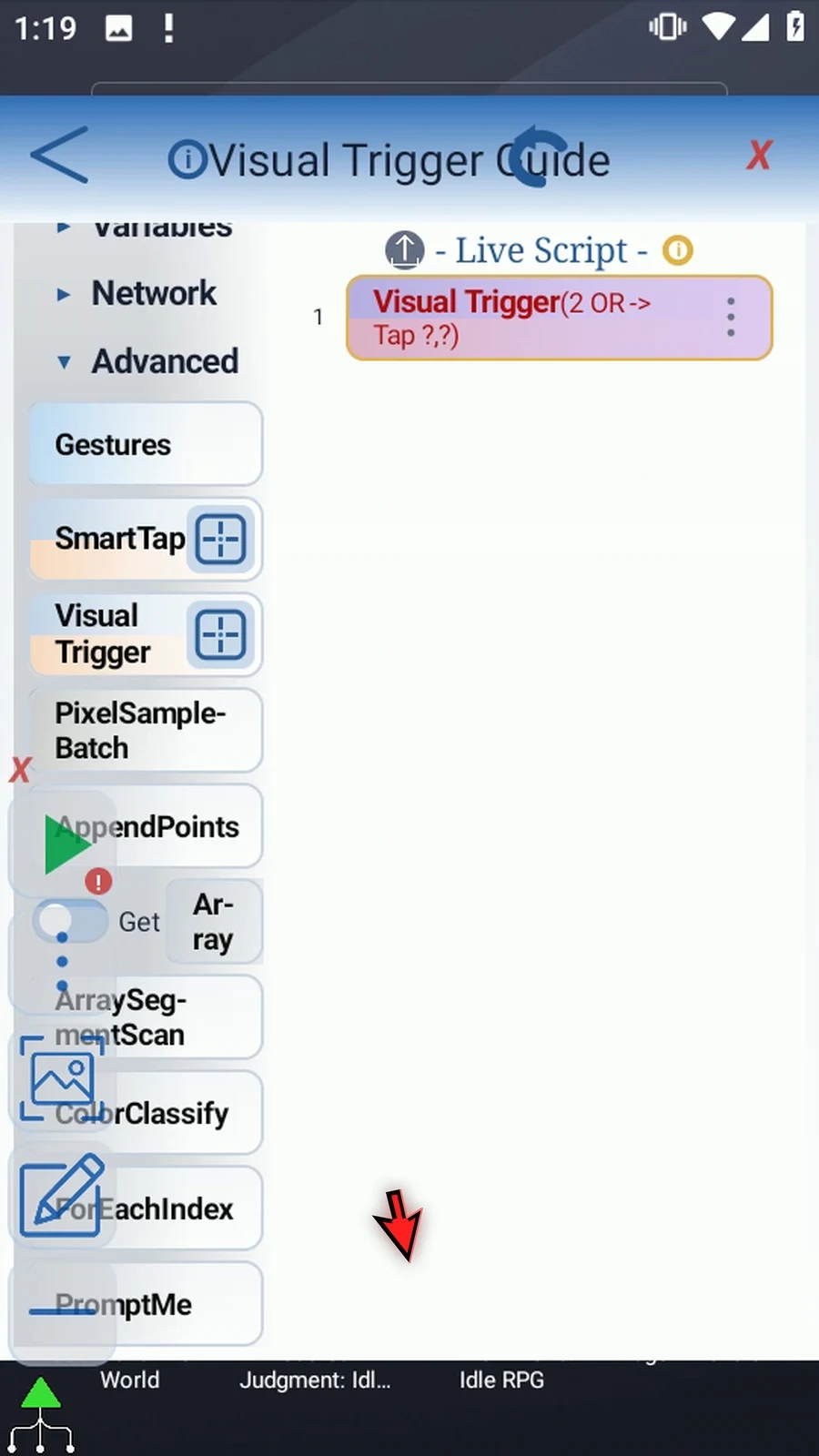
Pixel Line waits for colored positions to line up. This example compares a stationary upper reference with a moving lower marker, then performs one fixed-target tap. It does not repeatedly tap while waiting.
Continue the script created in Overview. Manually drag a String SetVariable before Visual Trigger and Standard PromptMe after it. String s1 supplies the header Visual Trigger finished; the Done button writes Boolean b1. These supporting commands make completion visible.
Use Set Tap Coordinates ON for this Pixel Line example. A line selector defines where to inspect pixels, not a swipe to execute. Choose orientation before coordinates: horizontal lines compare X positions and vertical lines compare Y positions.
The upper green reference uses Once on Start. The lower green marker uses Each Frame. Its verified color can be entered directly as hexadecimal 39E434. Both use automatic sampling (Sample Count 0), a 2-pixel Hit Radius and 100% color confidence for this controlled surface. Color confidence and positional Hit Radius serve different purposes.
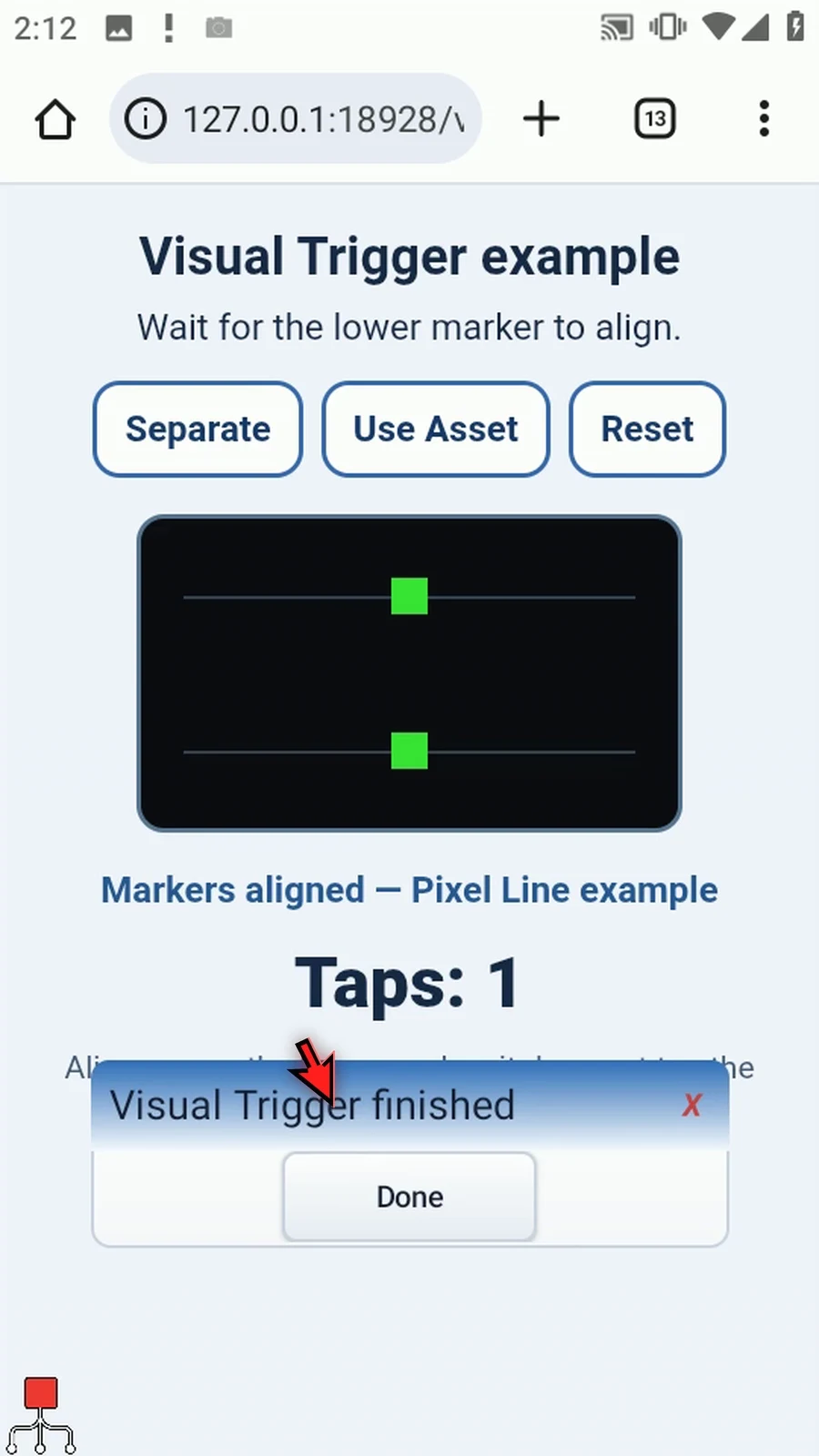
Exactly two slots are enabled; Trigger 3 remains disabled. Keep OR, no extra Delay, Timeout 30000 ms, Stable Frames 3 and Press 50 ms. During Play, the counter stays at zero while the markers are apart. Align moves the lower marker without tapping the target. The accepted condition produces one genuine tap and PromptMe appears. Move its header if it covers the result, then press Done; the script stops naturally.
See Asset for image-based position matching, or Overview for the complete settings tour. If Android asks, allow screen capture.
Pixel Line
Step-by-step guide
Step 01 Pixel Line lets Visual Trigger wait for colored positions to line up, instead of relying on a fixed delay. We'll compare a stationary reference with a moving marker, then make one tap.
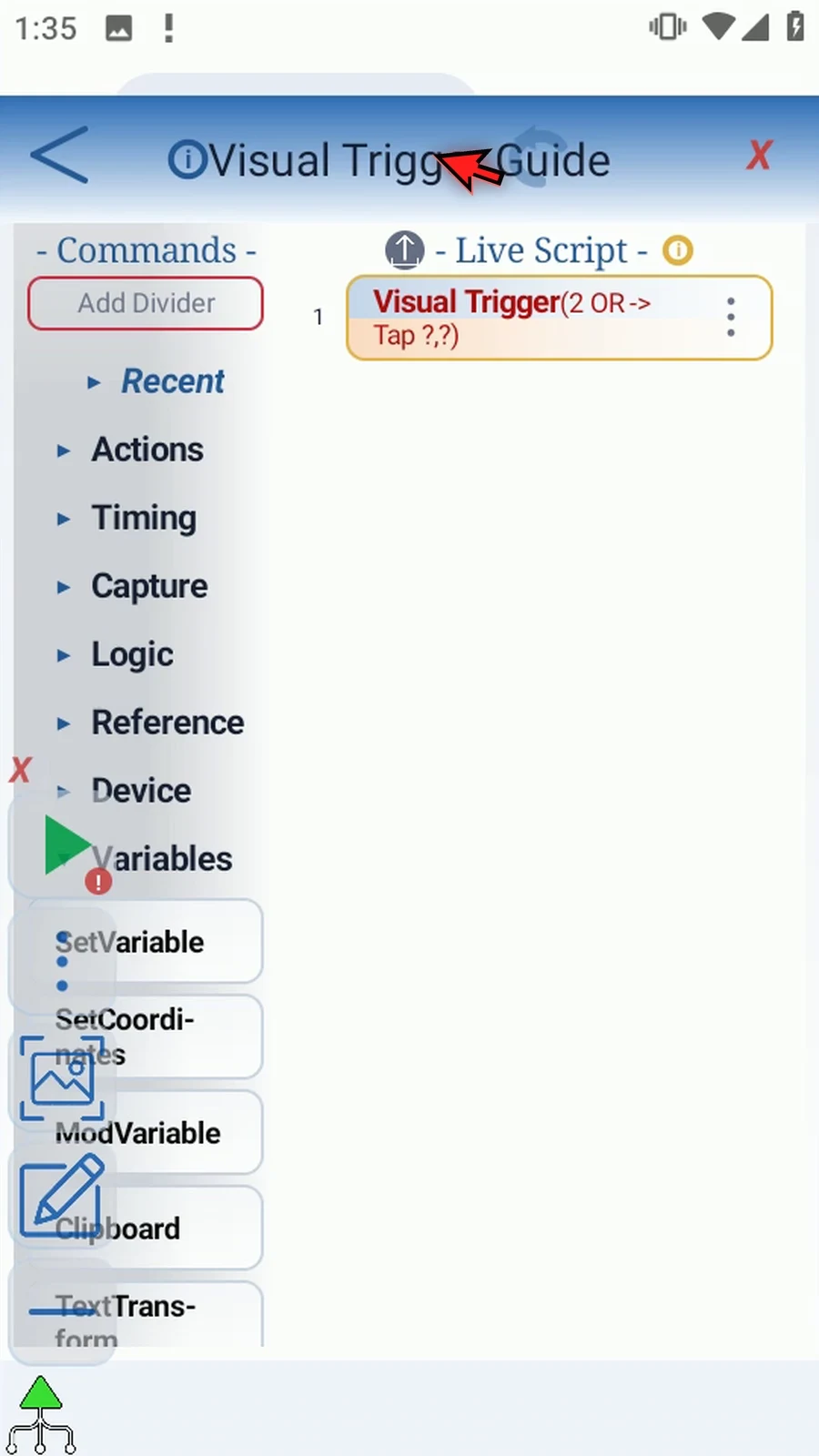
Step 02 The Visual Trigger command comes from the Overview. We'll put a String before it and Prompt Me after it. These supporting commands make completion easy to see, without adding repeated taps.
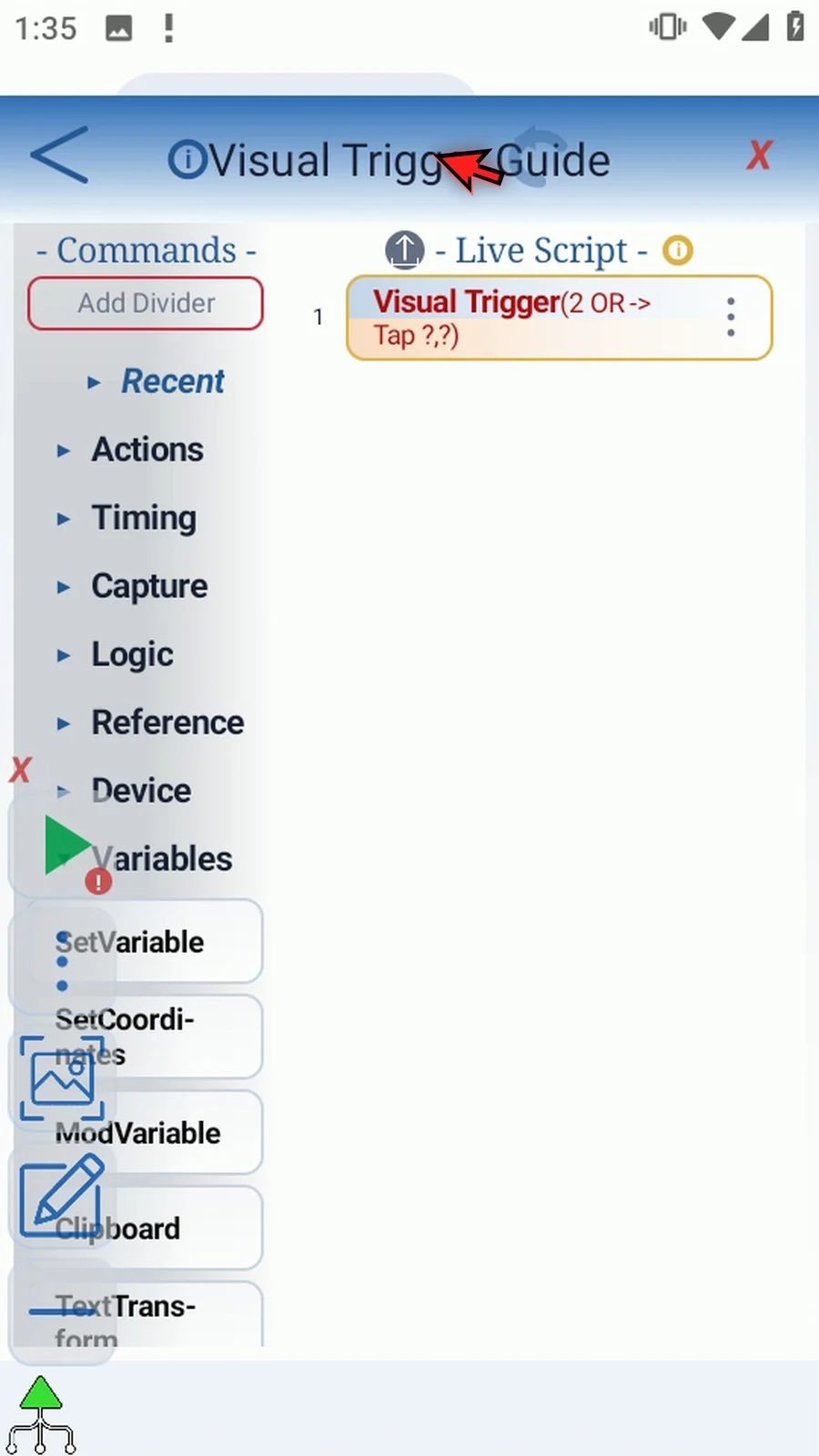
Step 03 Under Variables, drag SetVariable above Visual Trigger. Open its placed command and choose String as the variable type. Keep Single mode and use s1 as the variable name. In the String field, type Visual Trigger finished. Save with OK. This text supplies the confirmation header after the wait and tap.
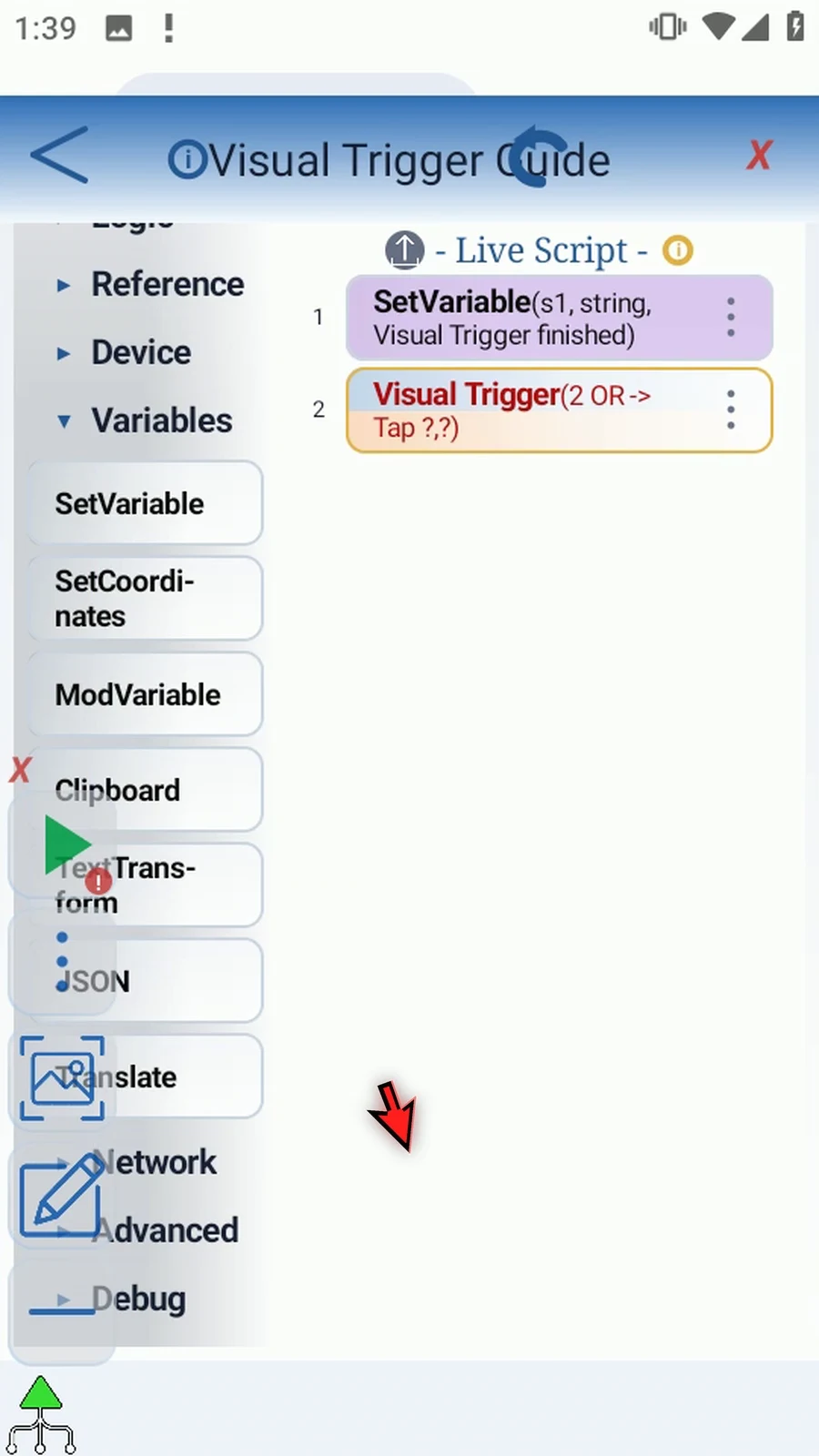
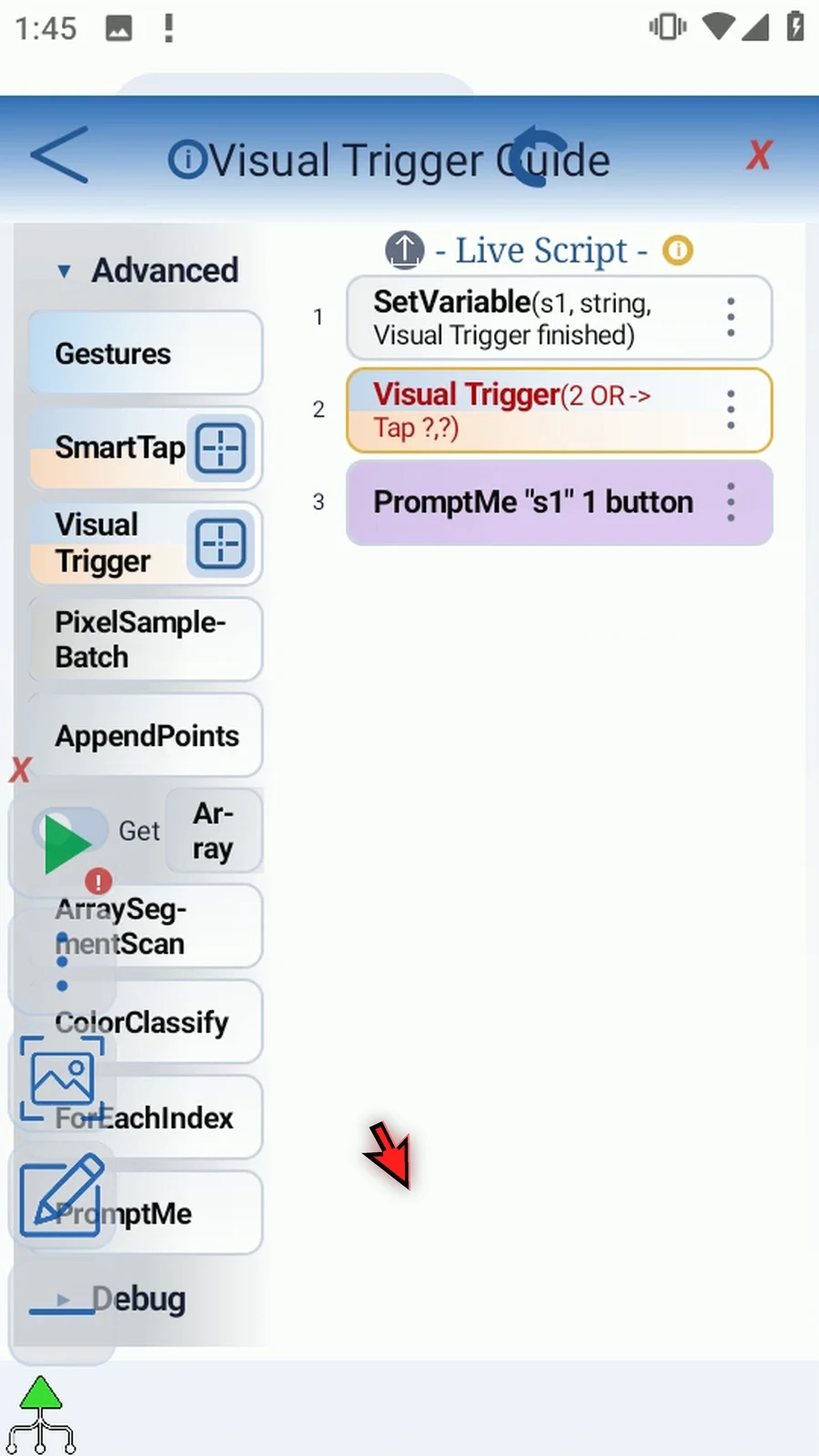
Step 04 Open Advanced, scroll to Prompt Me, and drag it below Visual Trigger. Open the placed command and keep Standard mode. Type s1 into Header, so the text we just stored becomes the title. Use Buttons is already on. Press plus to add one button. Set its Boolean variable to b1 and its caption to Done. Save with OK. When Prompt Me appears during play, Done will let us finish the script.
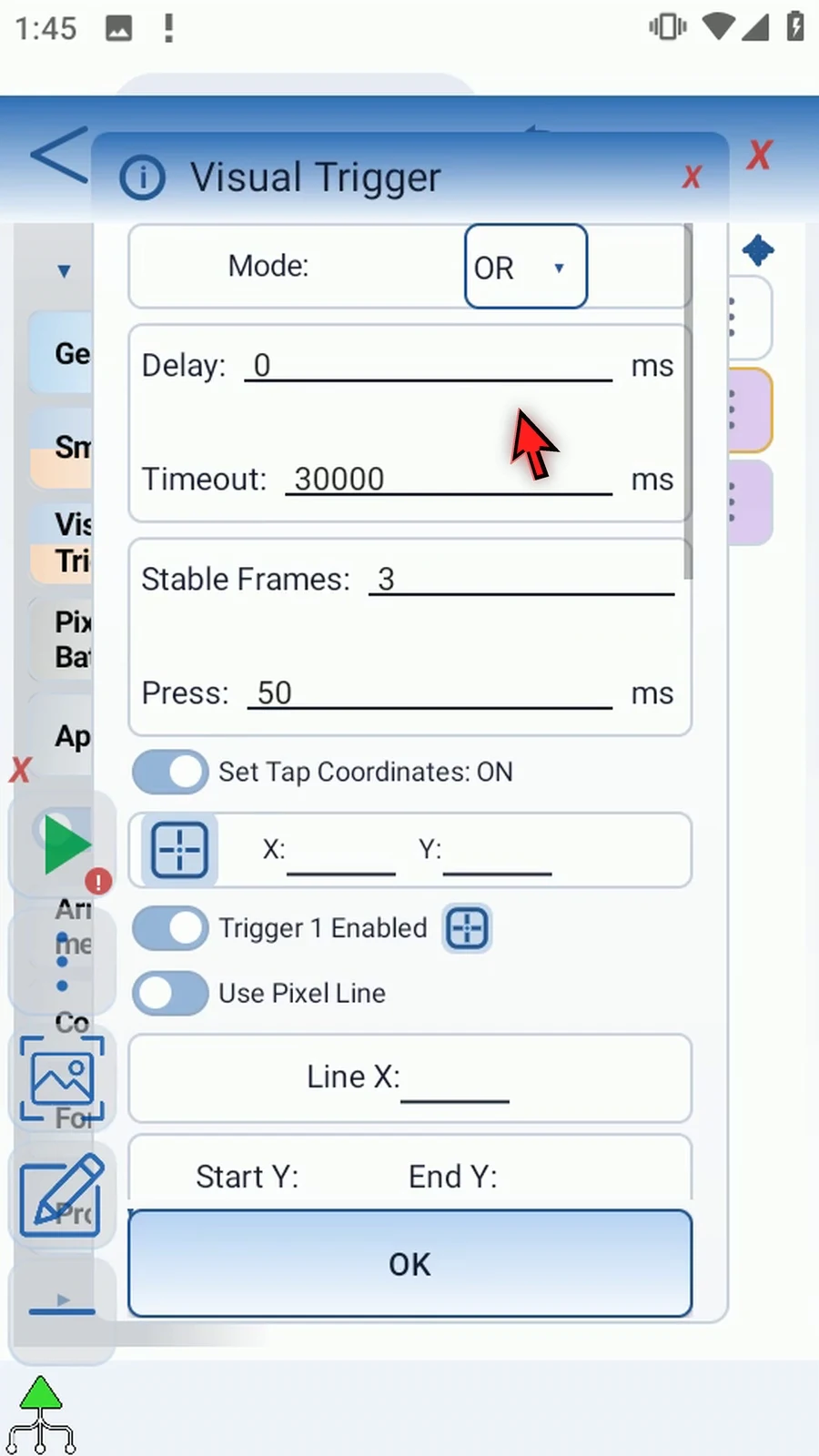
Step 05 Open Visual Trigger. Keep OR, no extra delay, a thirty-second timeout, three stable frames, and a fifty-millisecond press. The command will wait for the position condition before tapping.
Step 06 For this Pixel Line example, keep Set Tap Coordinates on and open its selector. If Android asks, allow screen capture. Drag the square onto the dark tap target, then save the point.
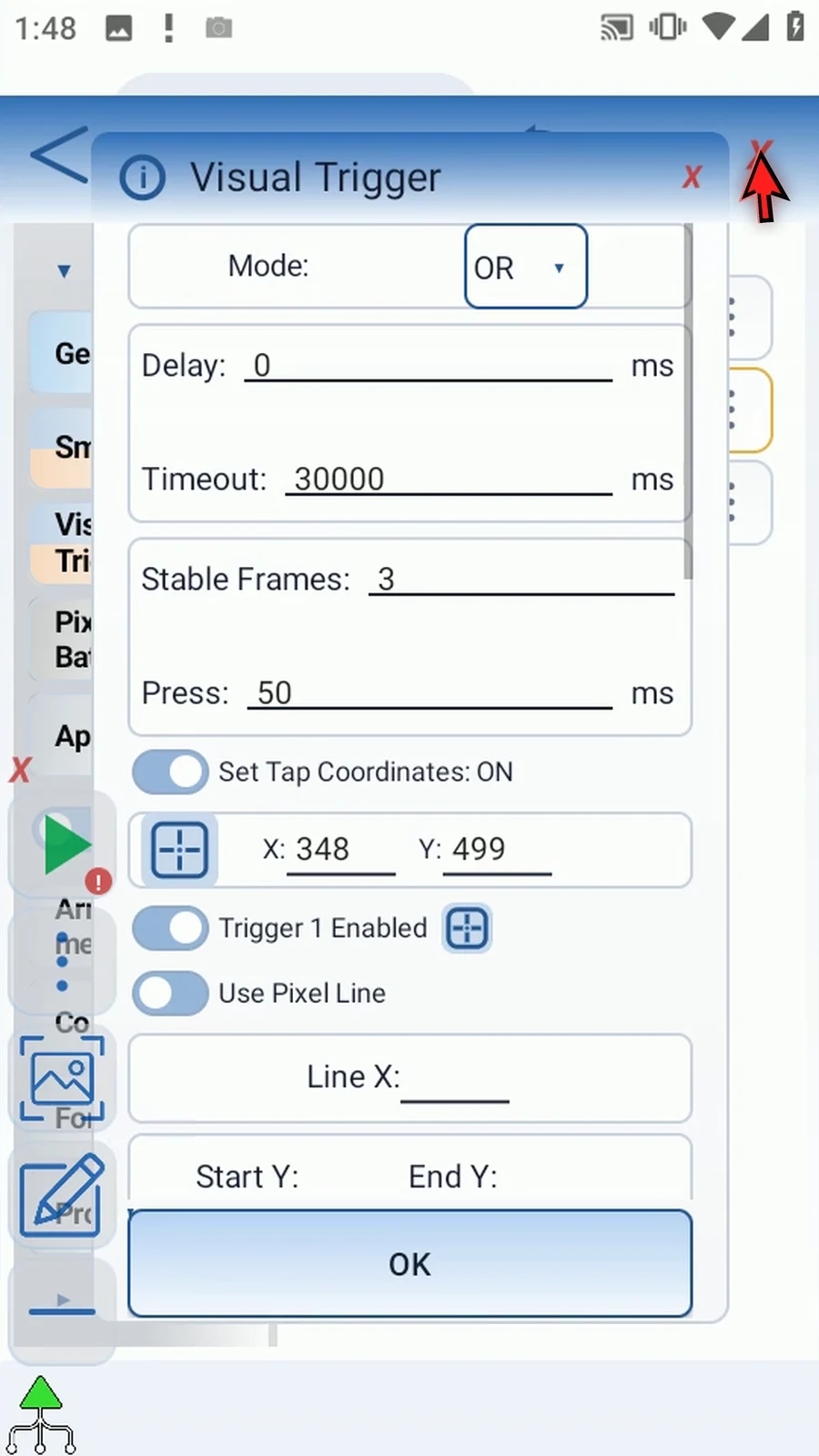
Step 07 Configure Trigger One as Pixel Line. Draw a horizontal line through the upper marker and save it. The line defines where to inspect colors; it is not a swipe that the script will perform.
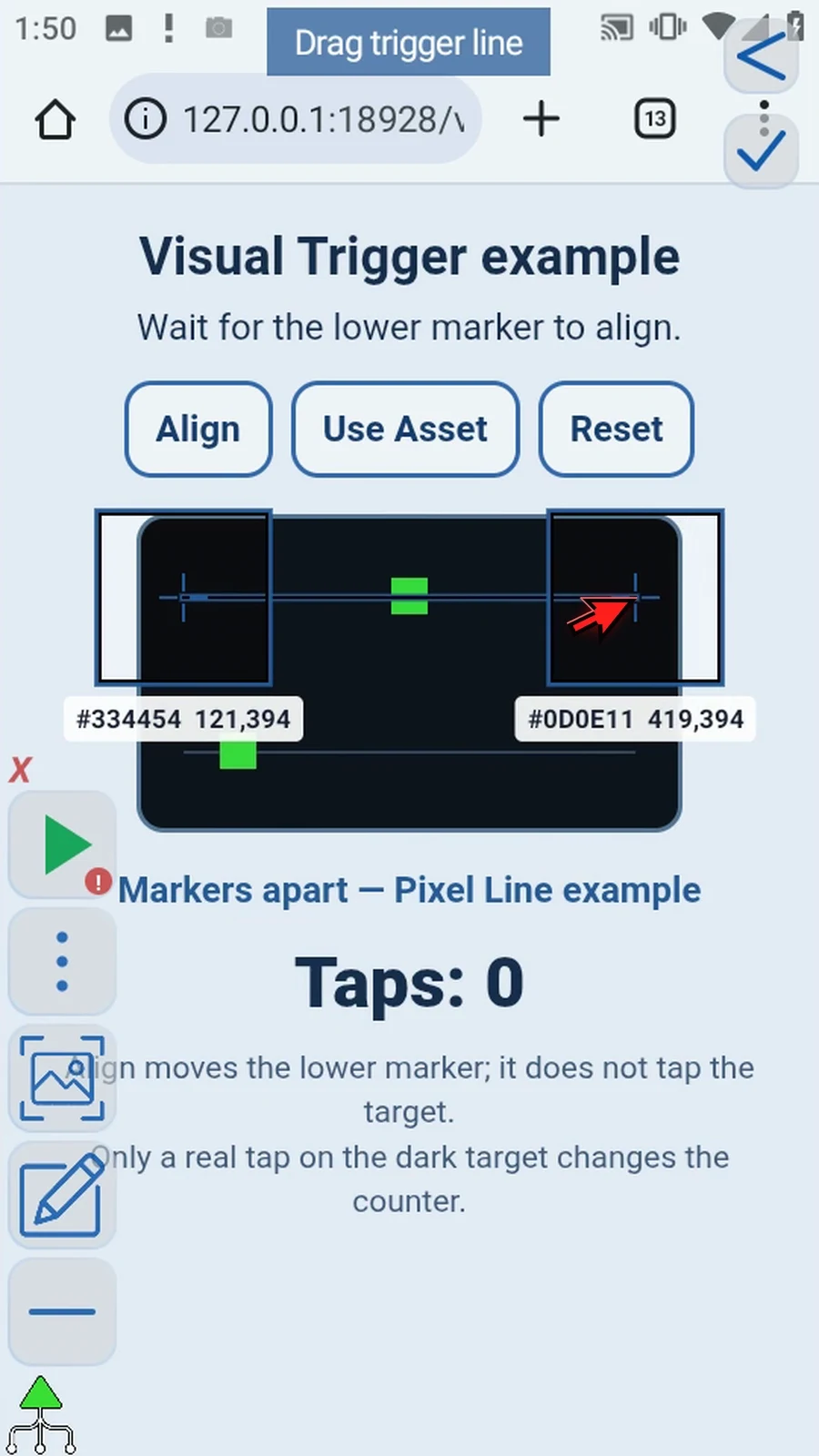
Step 08 Select the reference marker's green color and use one hundred percent color confidence for this precise marker. Keep Sample Count at zero for automatic sampling and Hit Radius at two pixels. Once on Start remembers this stationary reference when the command begins.
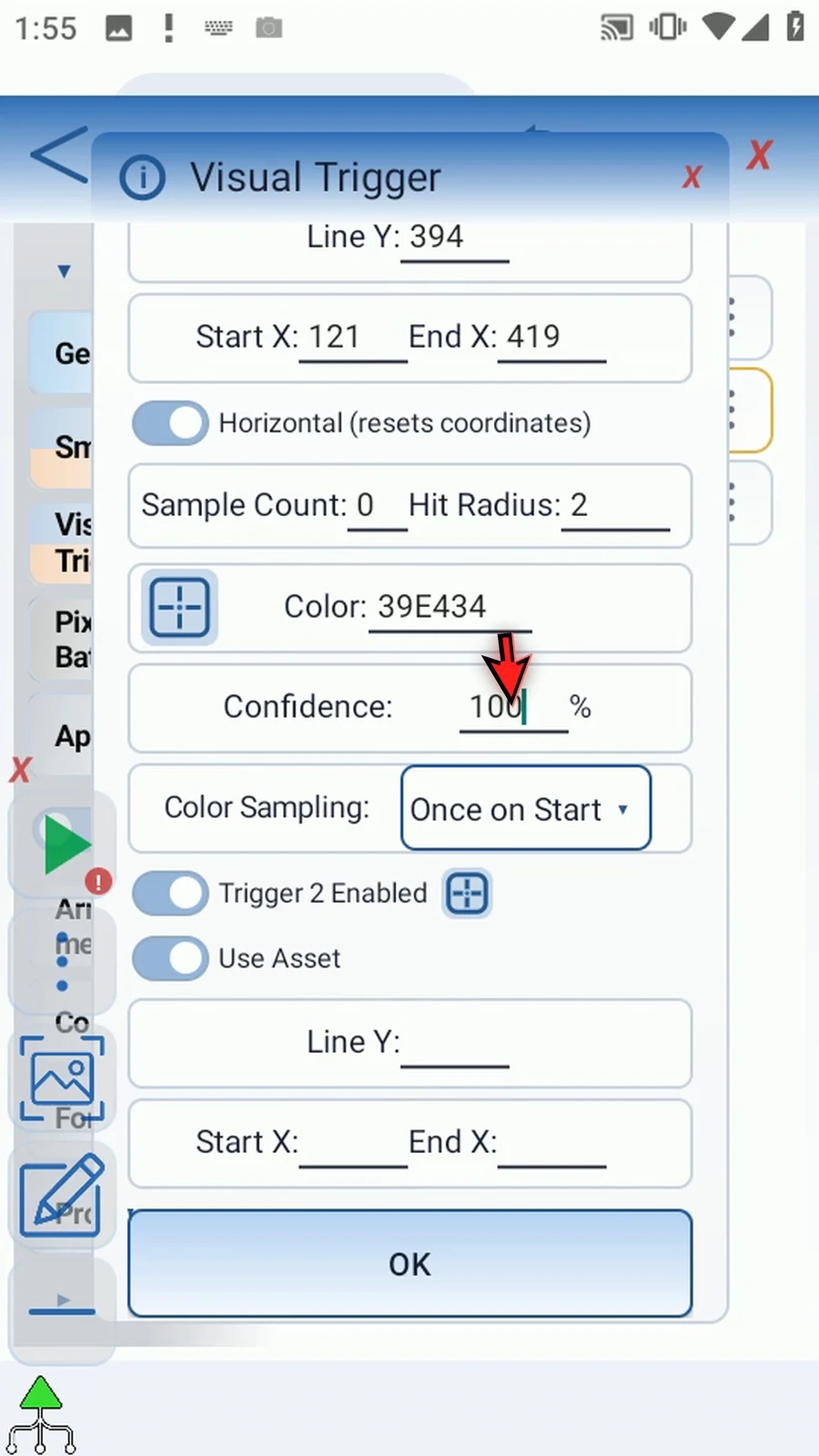
Step 09 Enable Trigger Two and choose Pixel Line. Switching source types clears the old source settings. Trigger Three stays disabled, leaving exactly two enabled slots.
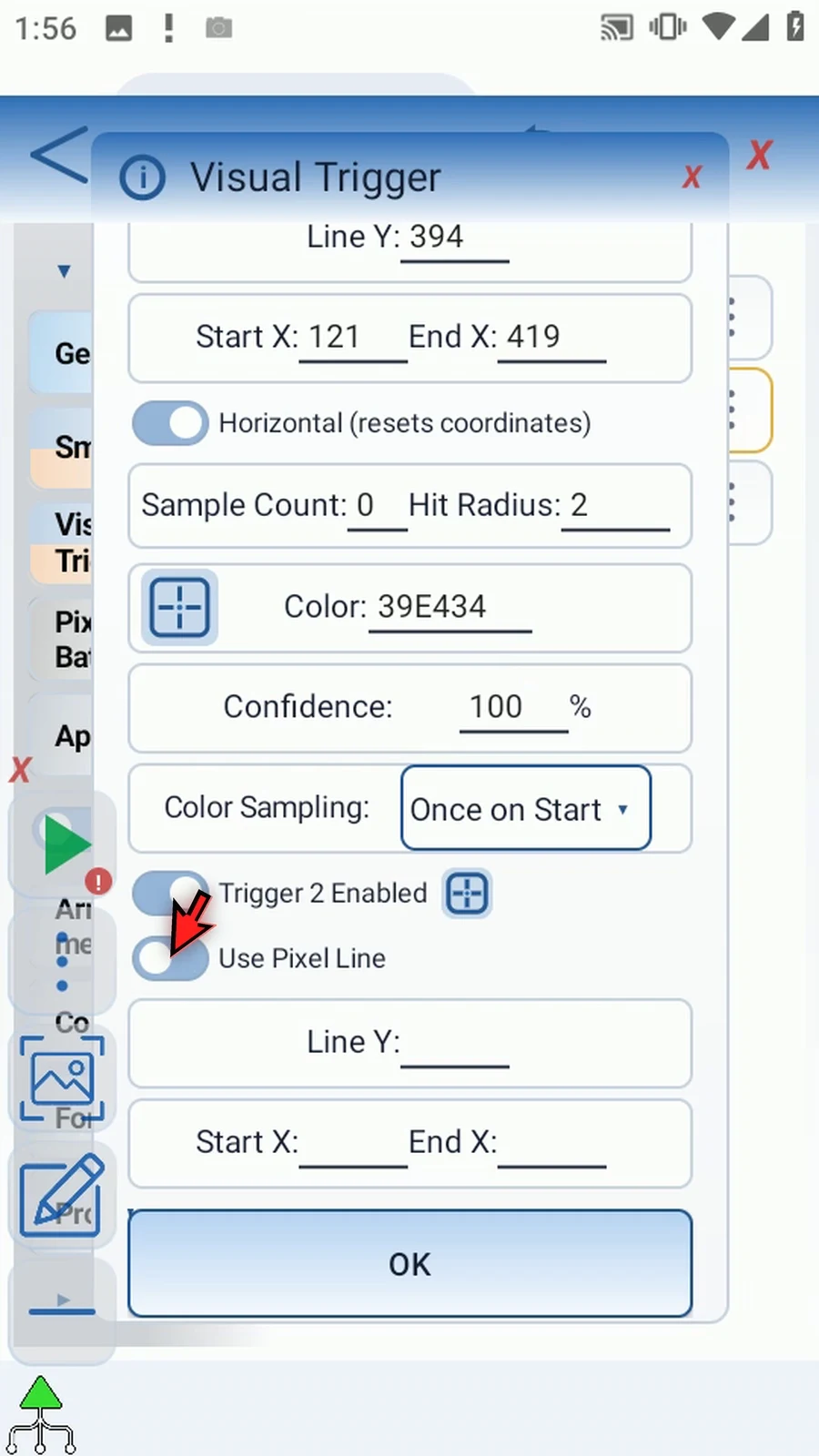
Step 10 Open Trigger Two's line selector. Drag the endpoints to make a horizontal line through the lower marker, then save it. The line is a sampling area, not an action that moves the marker.
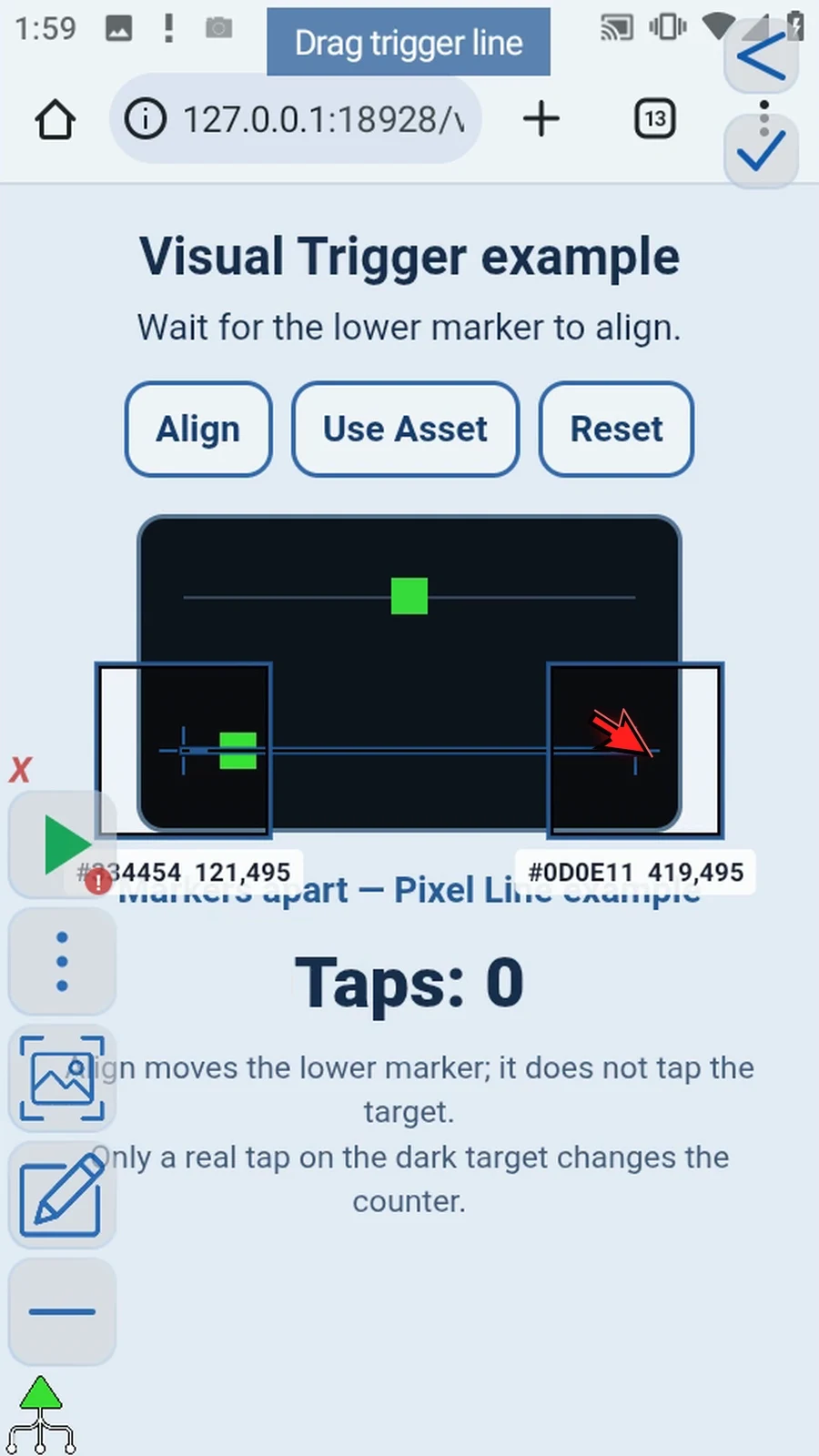
Step 11 Scroll to Trigger Two's color controls. Enter the same verified green, hexadecimal three nine E four three four. Set color confidence to one hundred percent. Keep Each Frame to track the moving position, automatic sampling, and a two-pixel Hit Radius.
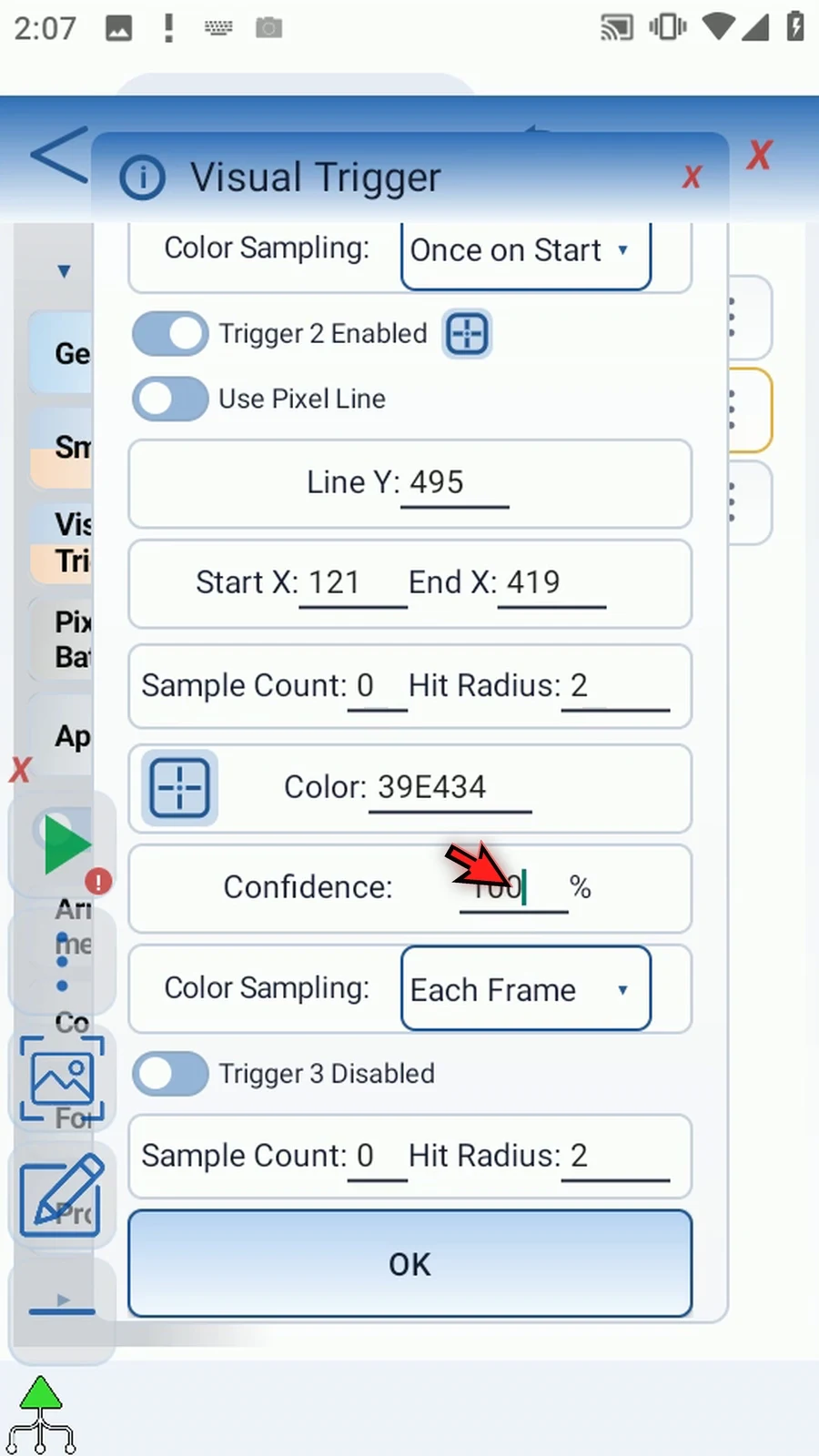
Step 12 Save with OK. The three-command script sets the confirmation text, waits and taps with Visual Trigger, then displays Prompt Me. No loop or repeated tapping is needed.
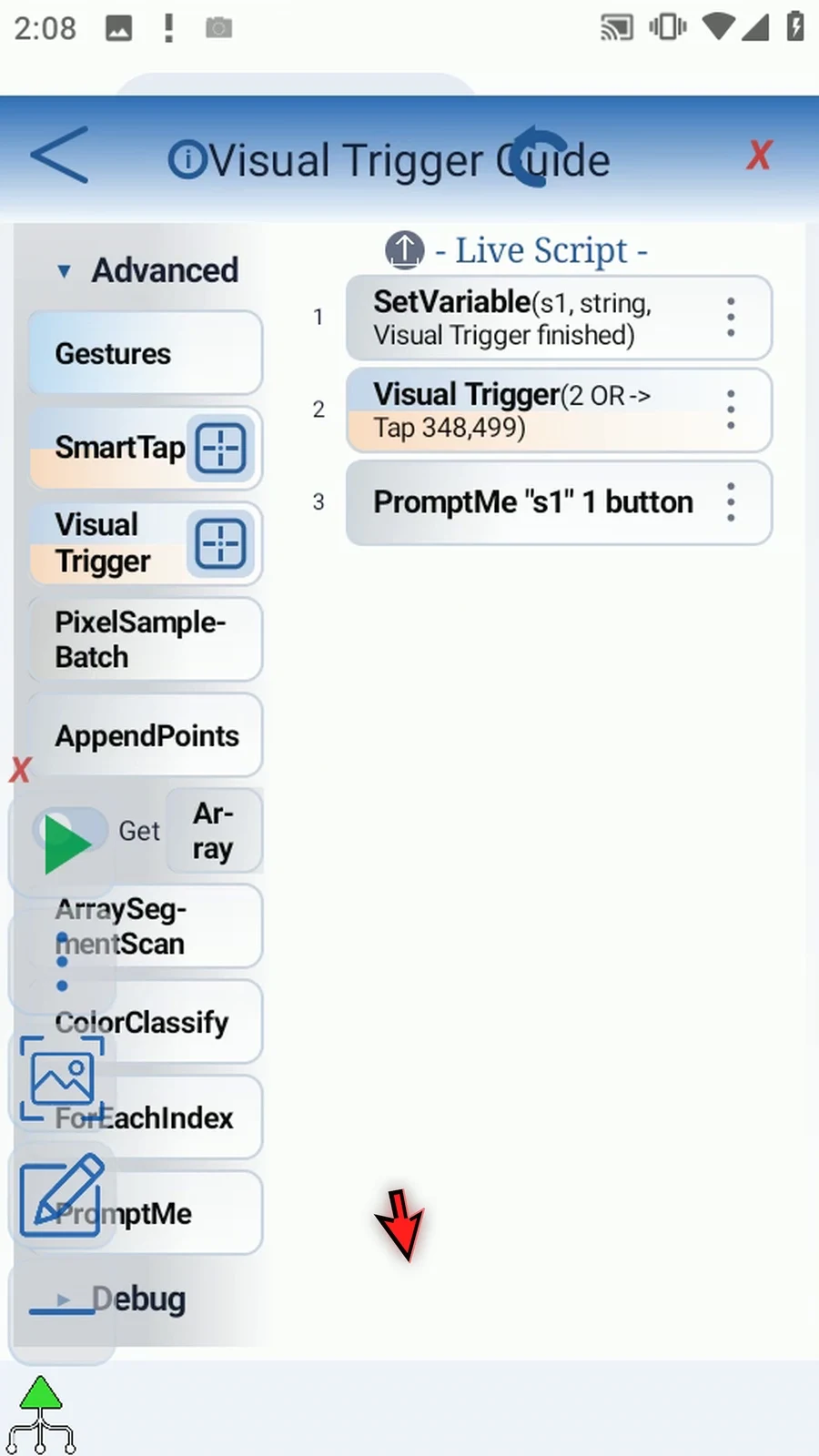
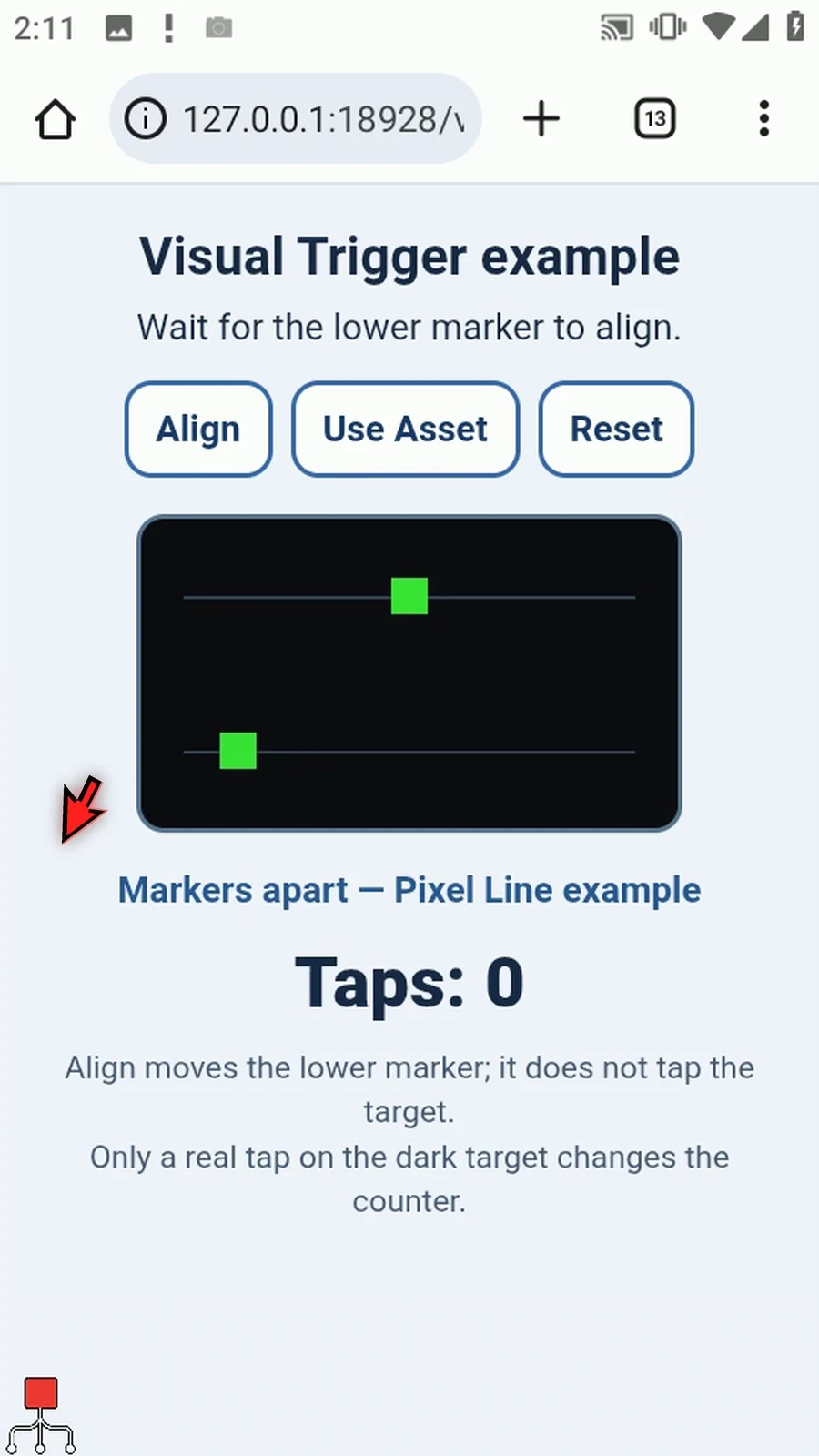
Step 13 Close the editor and reset the example. The markers start apart and the counter is zero. The Align control moves the lower marker; it does not add a target tap.
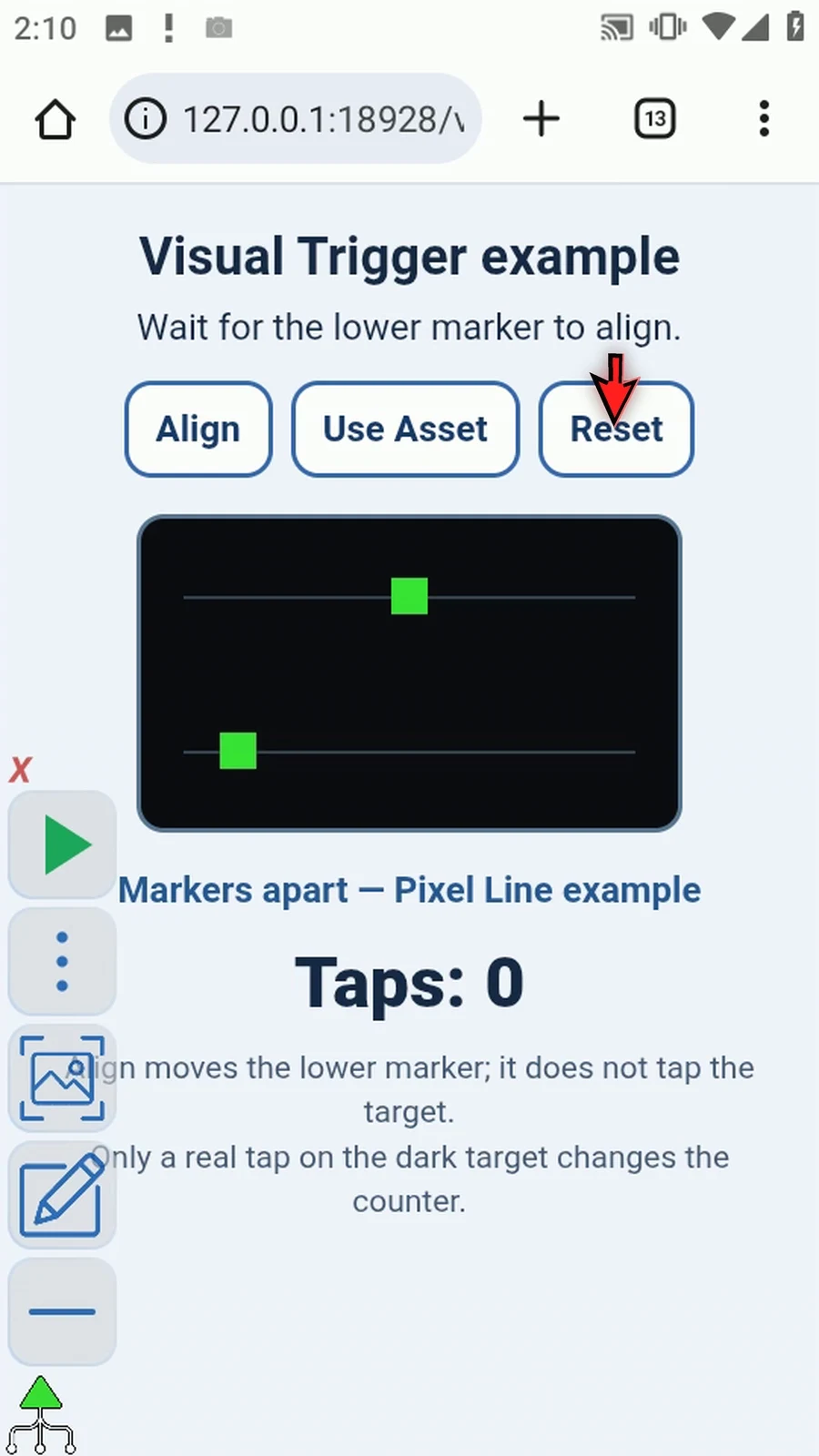
Step 14 When the script is complete, simply use the Play button in the main overlay.
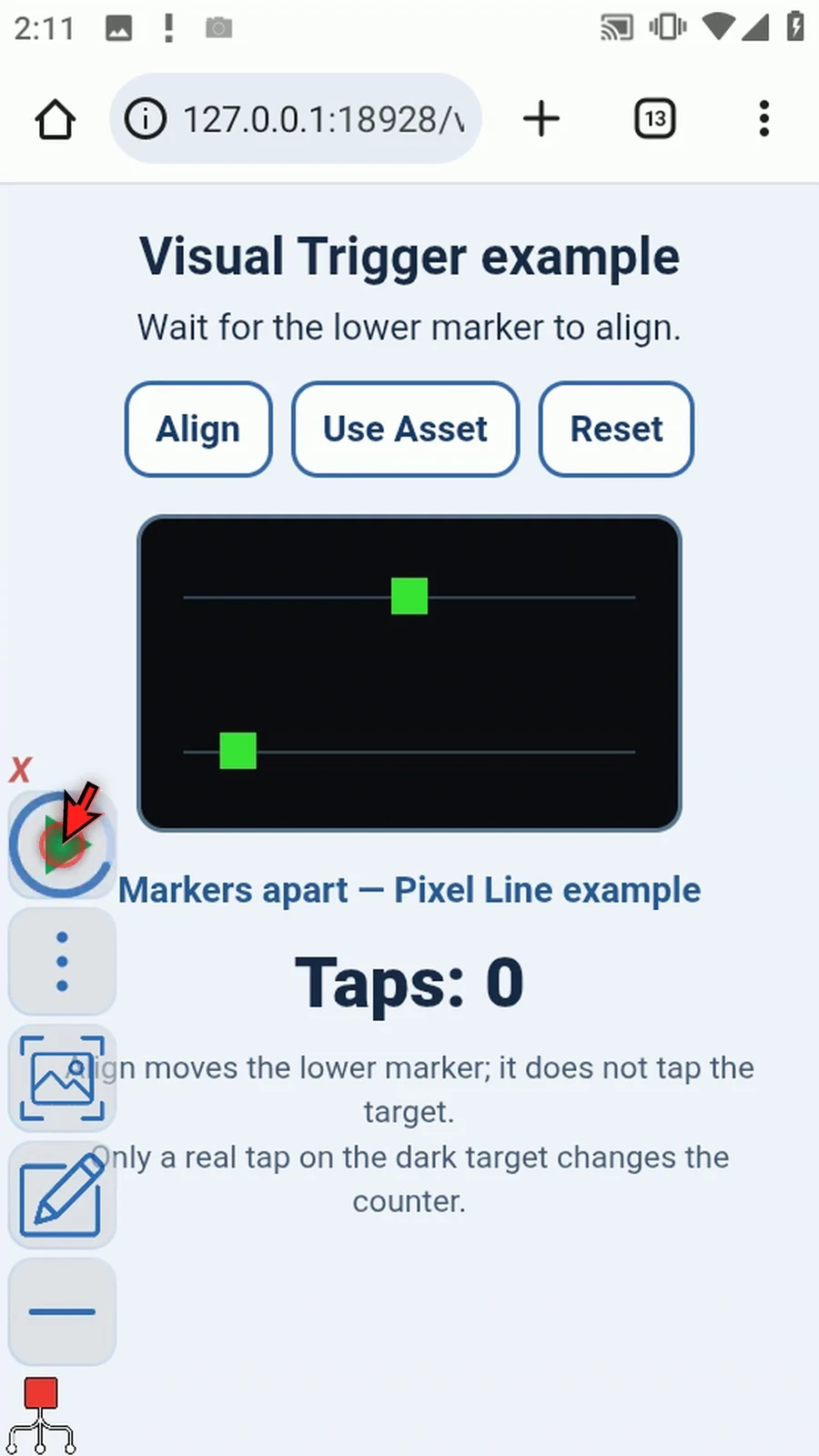
Step 15 The markers are apart, so Visual Trigger is still waiting. The counter remains zero and the confirmation has not appeared.
Step 16 Now move the lower marker into alignment. After three consecutive matching frames, Visual Trigger performs its fixed-target tap. The counter becomes one, and Prompt Me confirms that the next command was reached.
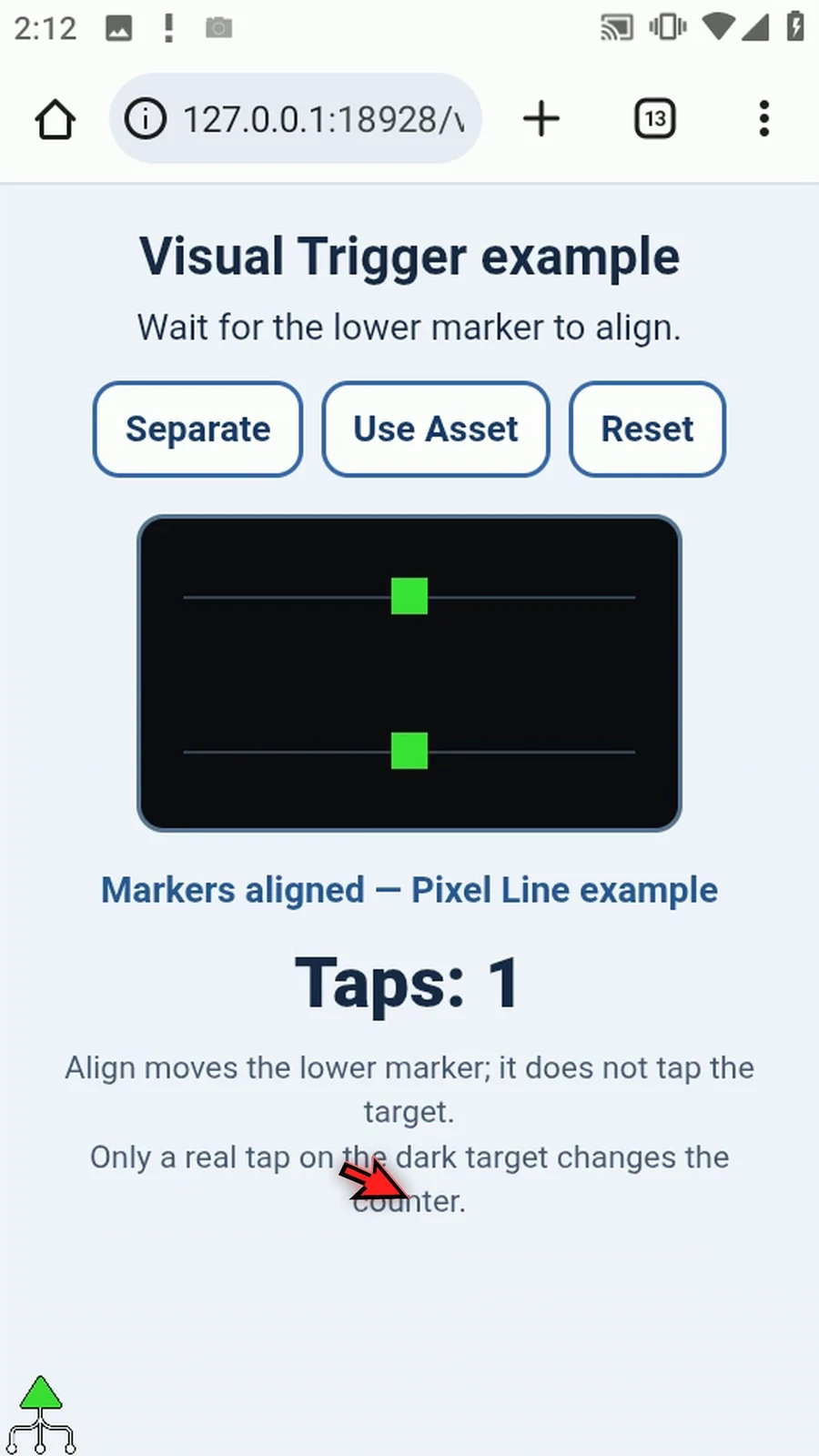
Step 17 Press Done to finish. The script stops automatically. Use the Asset guide when an image, rather than a colored marker, provides the moving position.
Asset uses a saved image as a visual position source. This example waits until the ScriptTap icon portion aligns with a stationary reference, taps the matched image center once, and displays a PromptMe confirmation.
Reuse the three-command script from Pixel Line: String s1 supplies the header, Visual Trigger waits and taps, and Standard PromptMe pauses at Done. Trigger 1 remains the stationary Pixel Line reference sampled Once on Start.
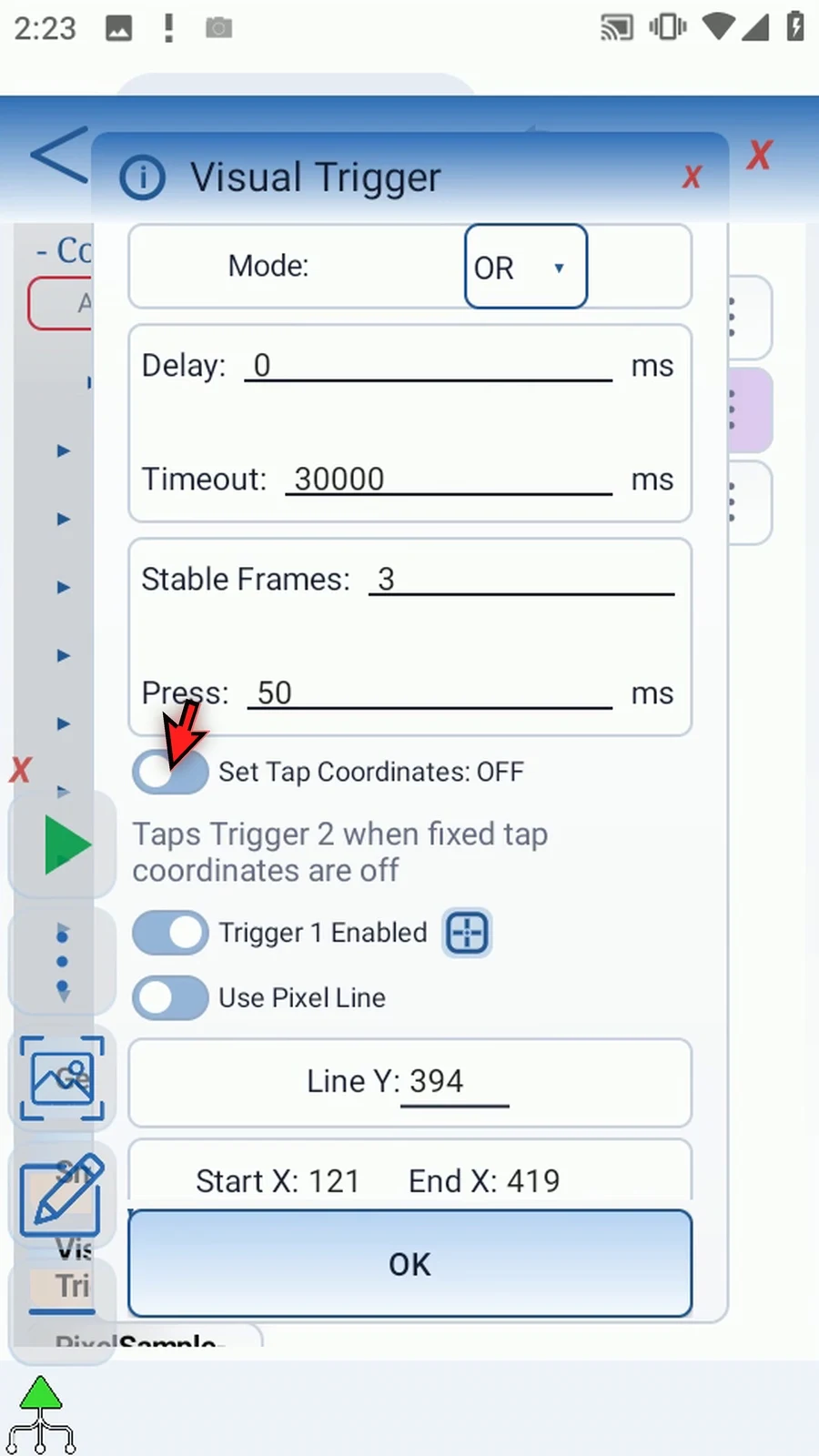
Turn Set Tap Coordinates OFF. The final tap uses Trigger 2's matched image center, so Trigger 2 must be enabled and use Asset. The fixed coordinates are cleared. Switching source types clears the outgoing source settings; configure the image controls before playing.
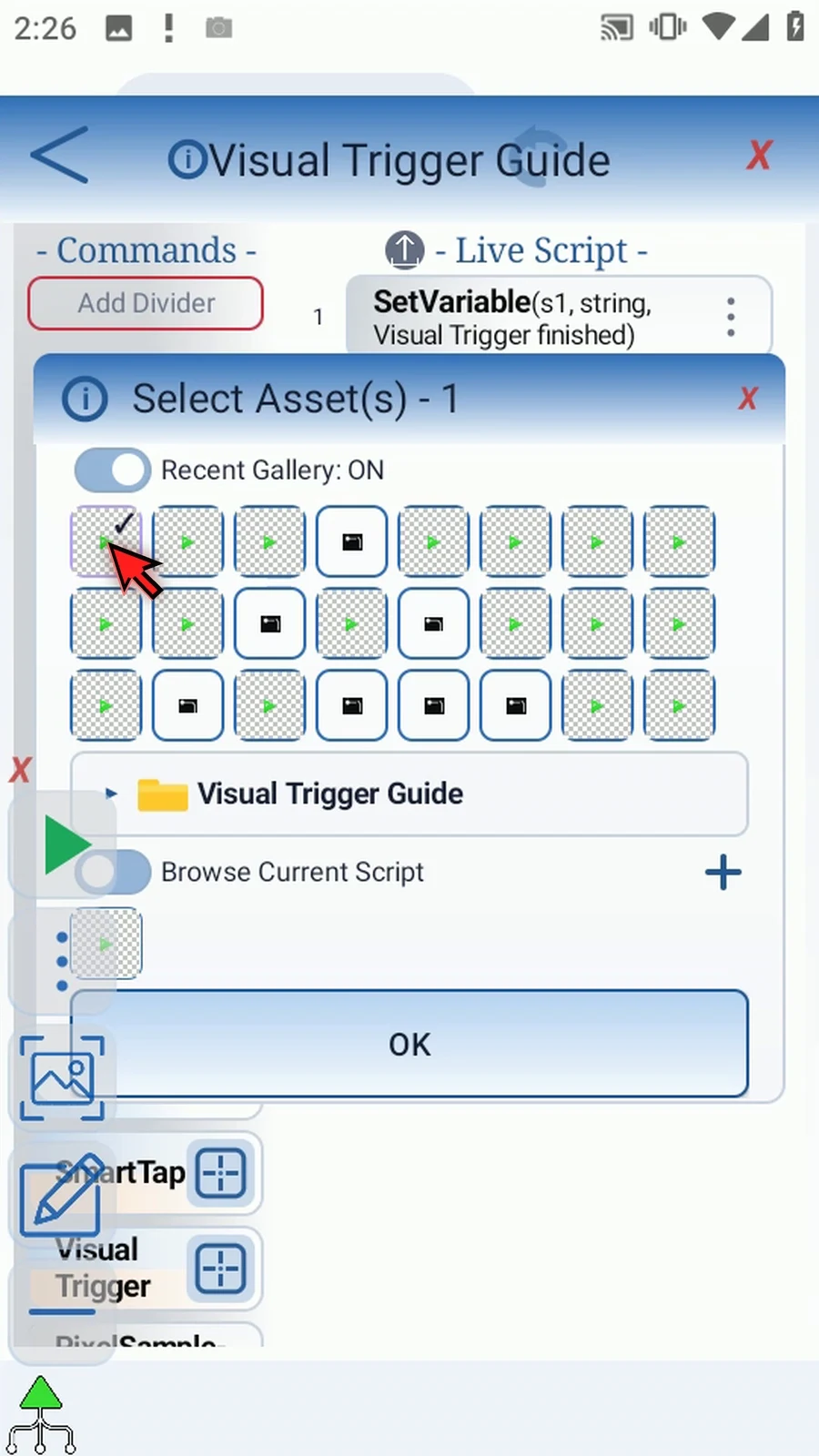
Select the existing ScriptTap Outline image. ScriptTap may append a name suffix when copying it into the current script; the image itself is unchanged. The shared Asset Creation tab explains preparing an image, so this guide does not repeat cropping.
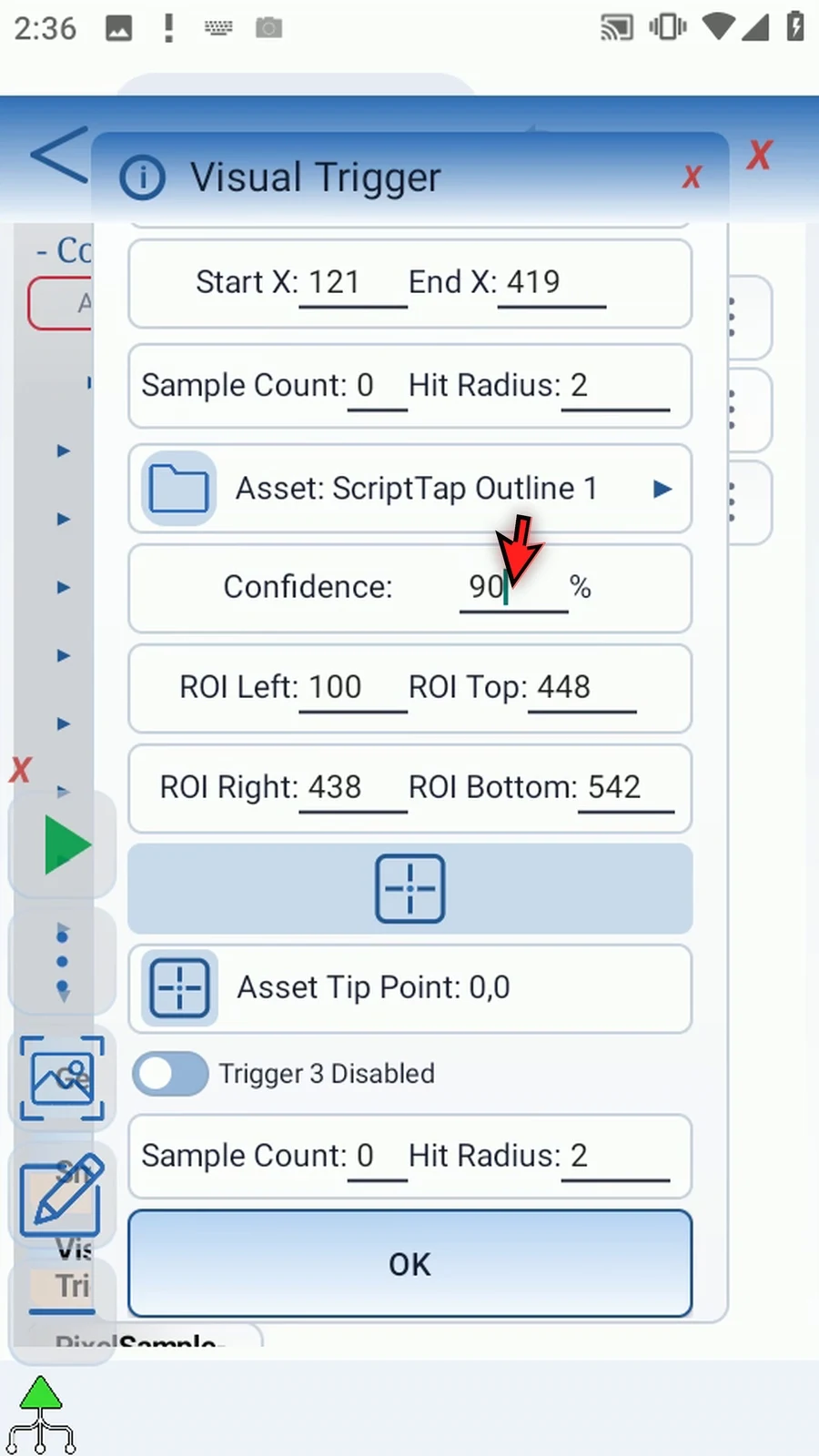
Limit the ROI to the lower lane. Exclude the upper green reference and competing look-alikes. A small relevant search region reduces unnecessary matching work. Choose Asset Tip Point 0,0 for position comparison. That tip is not the image-center tap target.
Use 90% image confidence, Hit Radius 2, Stable Frames 3 and Press 50 ms. Confidence decides whether the image matches; Hit Radius decides whether its position is close enough to the reference. Keep exactly two enabled slots.
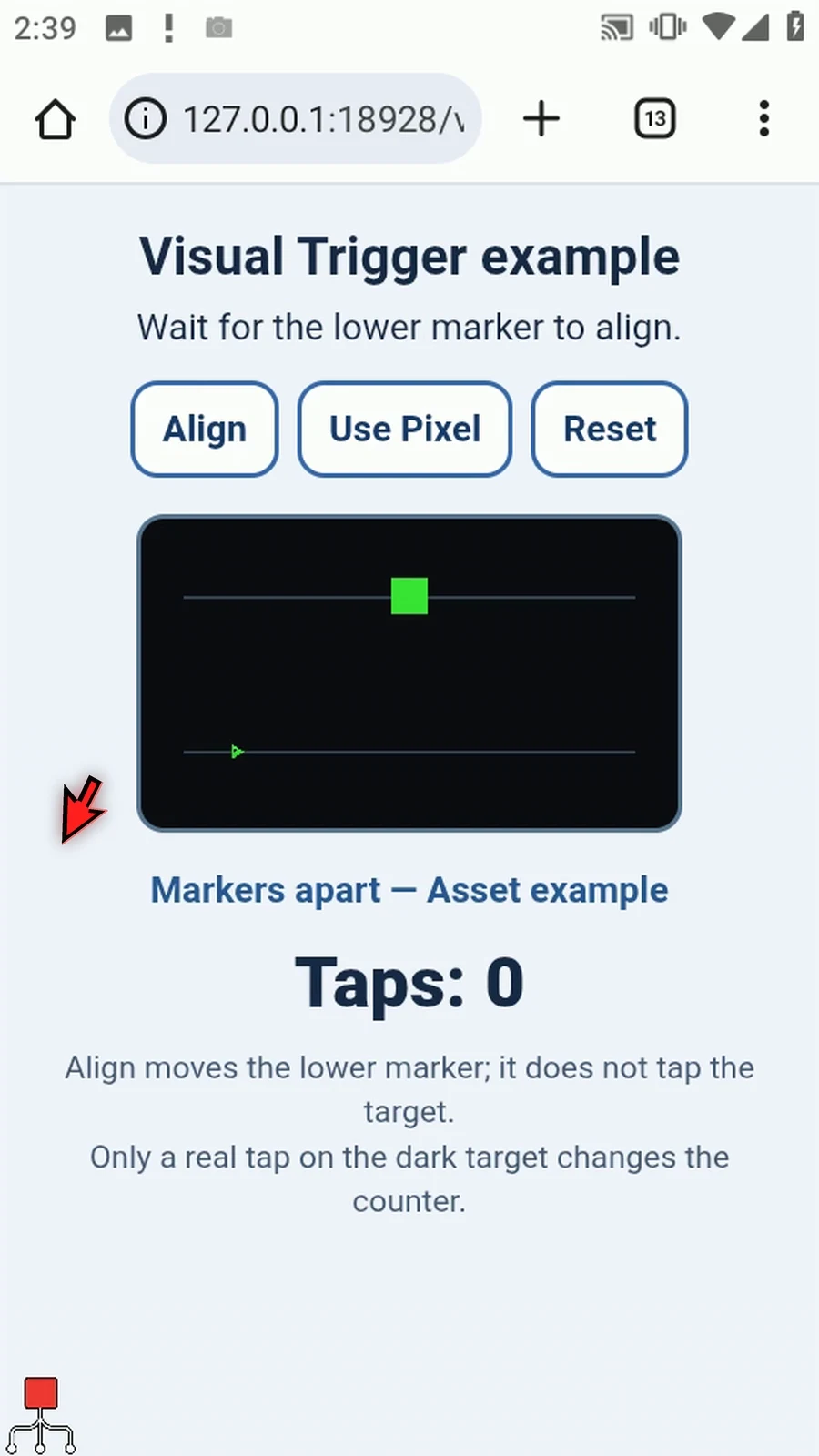
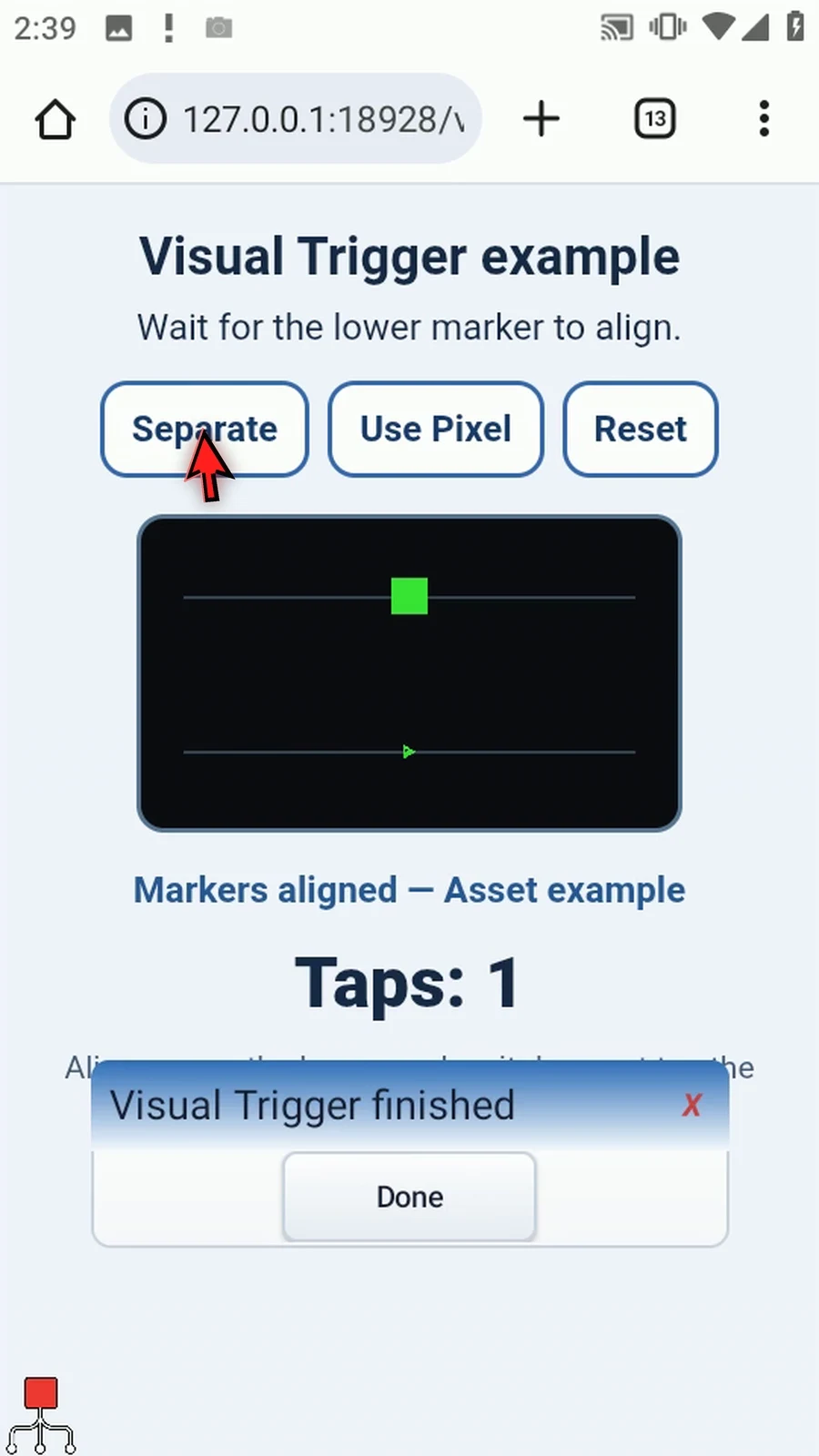
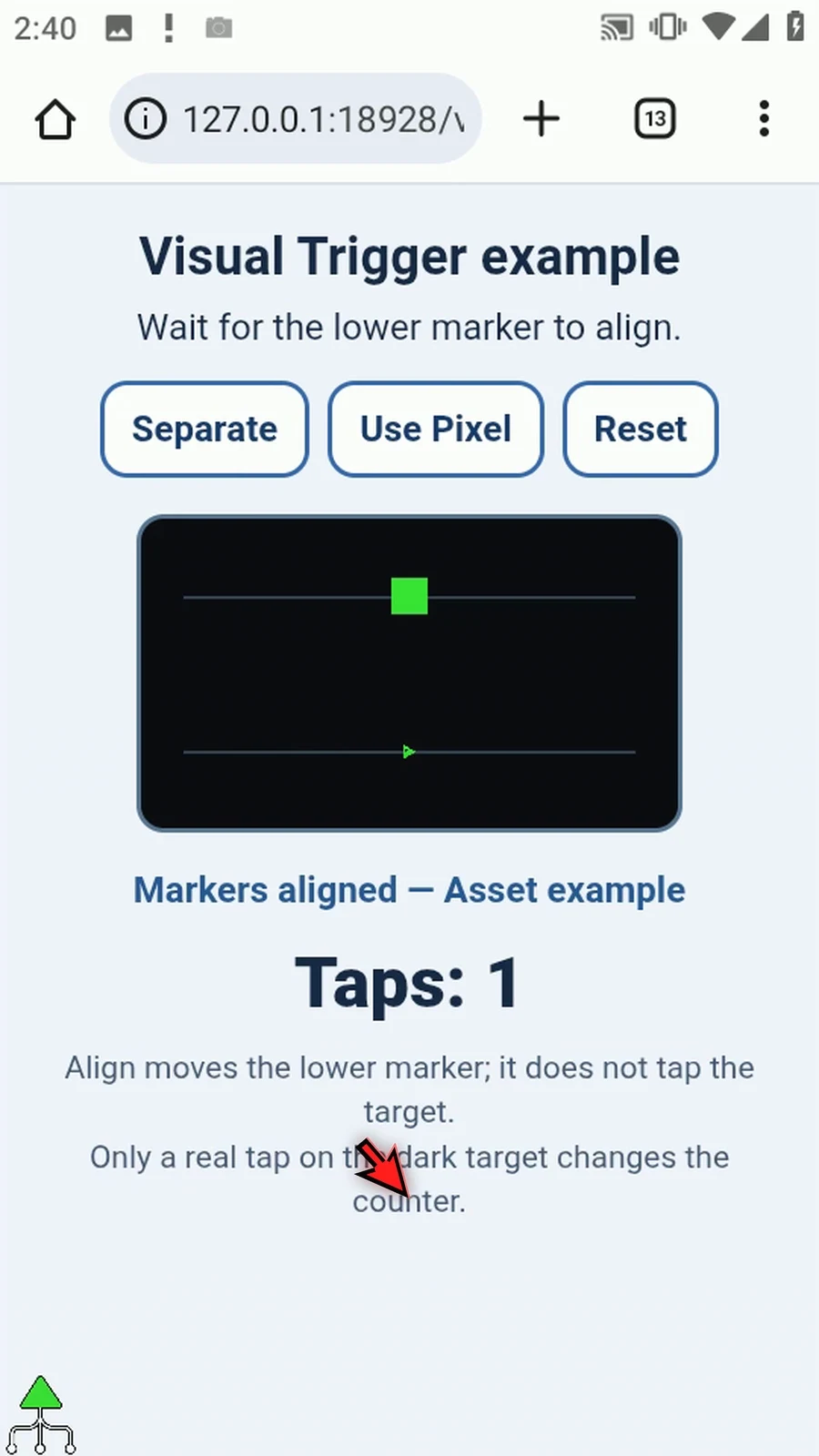
During Play, zero taps are produced while the image is apart. Align moves it without tapping the target. After the condition is stable, one actual image-center tap changes the counter to one and PromptMe appears at its saved lower position. Press Done; the script stops naturally. If Android asks, allow screen capture.
Asset
Step-by-step guide
Step 01 Visual Trigger can compare the position of an image asset with a visual reference, then tap the matched image. We'll reuse the short script from Pixel Line and the saved portion of the ScriptTap icon.
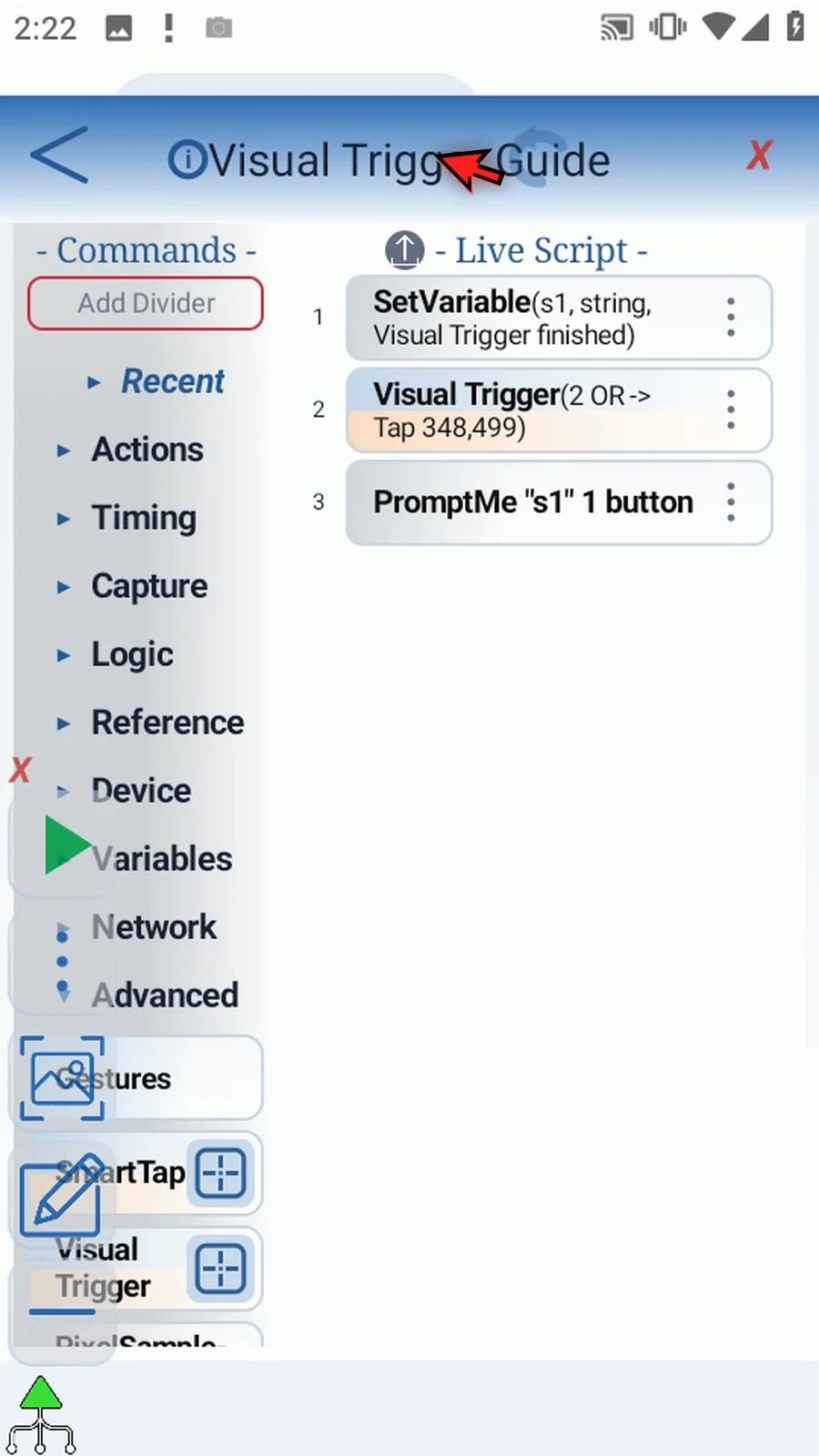
Step 02 String s1 supplies the confirmation header, Visual Trigger performs the wait and tap, and Standard Prompt Me pauses at Done. The first trigger remains our stationary Pixel Line reference, sampled Once on Start.
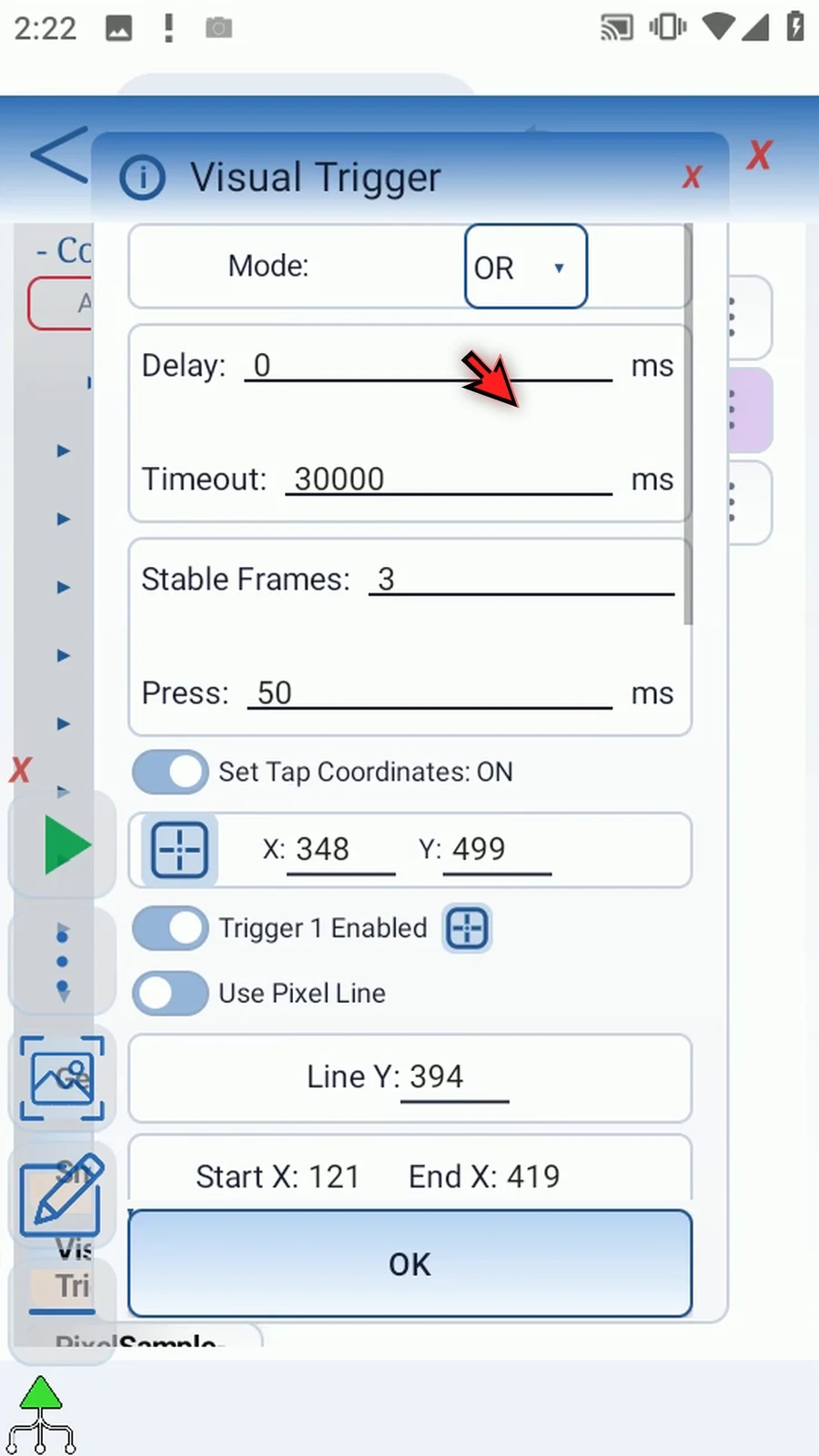
Step 03 Turn Set Tap Coordinates off. This clears the fixed coordinates and uses Trigger Two's matched image center for the final tap. Trigger Two must be enabled and use Asset for this target mode.
Step 04 Choose Asset for Trigger Two, then select the existing ScriptTap Outline. For creating your own image, use the shared Asset Creation tab. Switching source types clears the outgoing settings, so we need to configure the asset controls.
Step 05 Restrict the search area to the lower lane where the icon can move. Exclude the upper green reference, because a simple green asset could also match that shape. A narrow, relevant region reduces unnecessary matching work. If Android asks, allow screen capture.
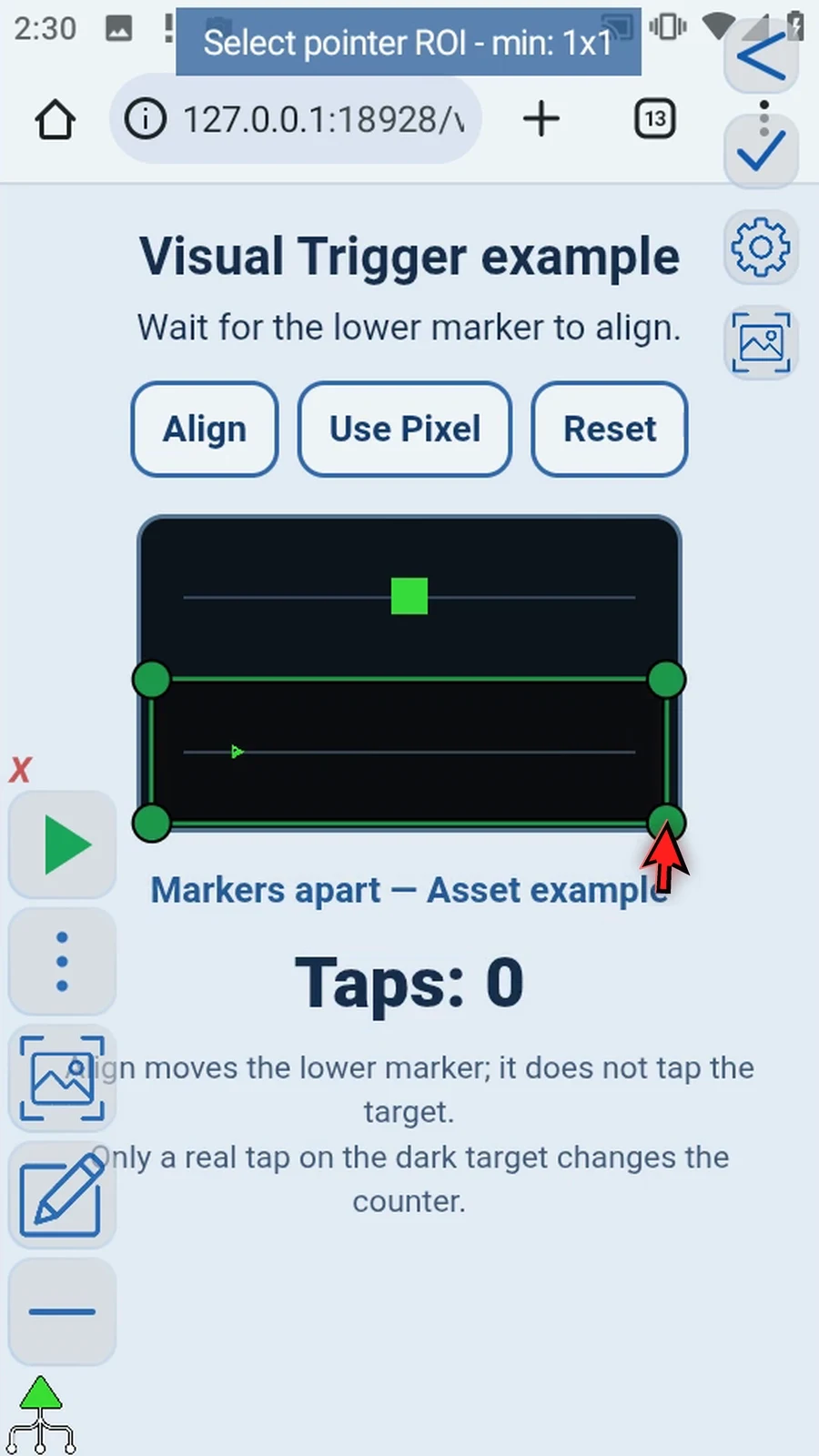
Step 06 Open Asset Tip Point and select the top-left pixel. That point is used to compare positions along the horizontal axis. The final tap will still use the matched image's center, not this tip.
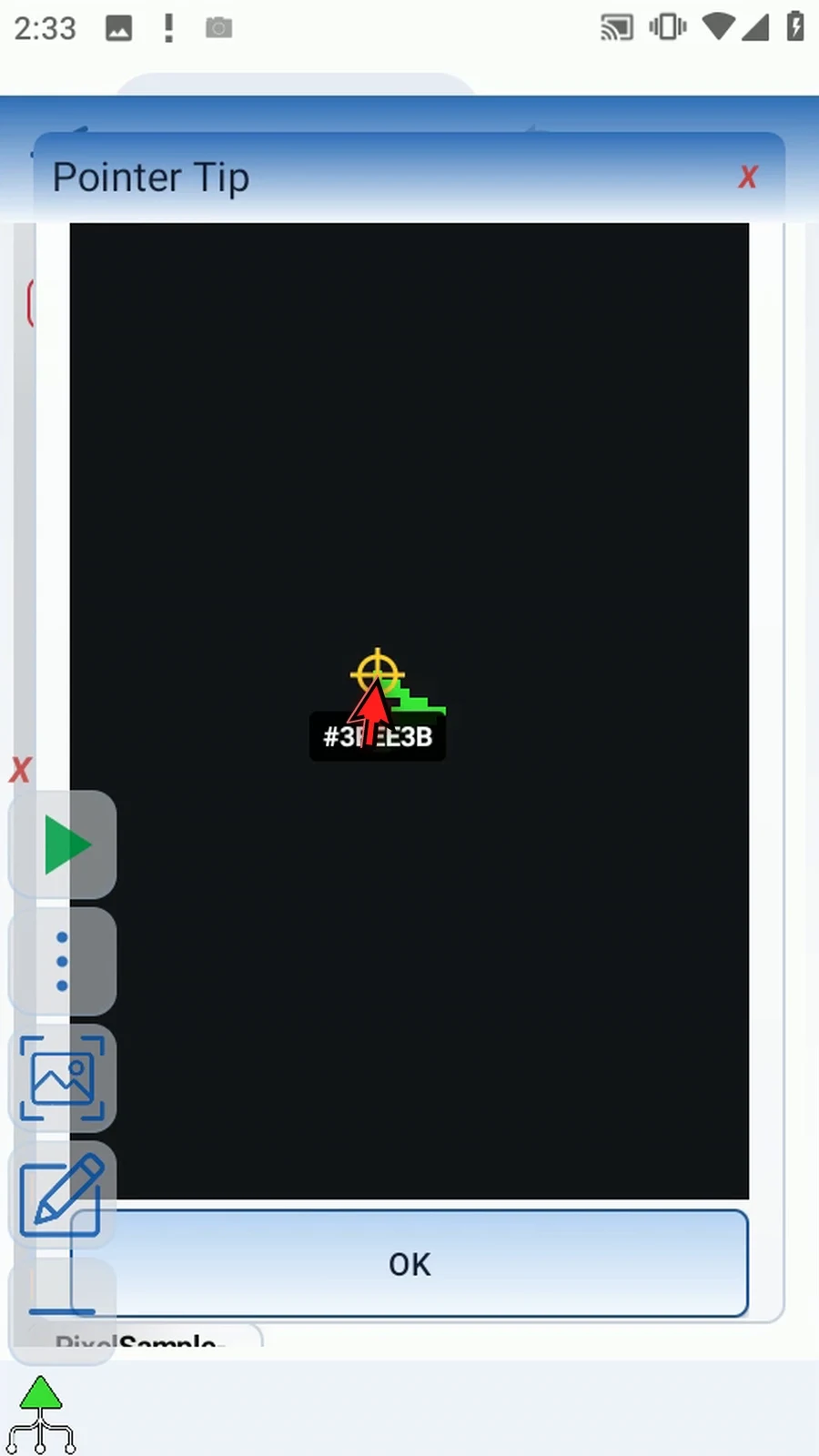
Step 07 Use ninety-percent image confidence and a two-pixel Hit Radius. Image confidence decides whether the icon is a match; Hit Radius decides whether its position is close enough to the reference. Keep three stable frames and the fifty-millisecond press.
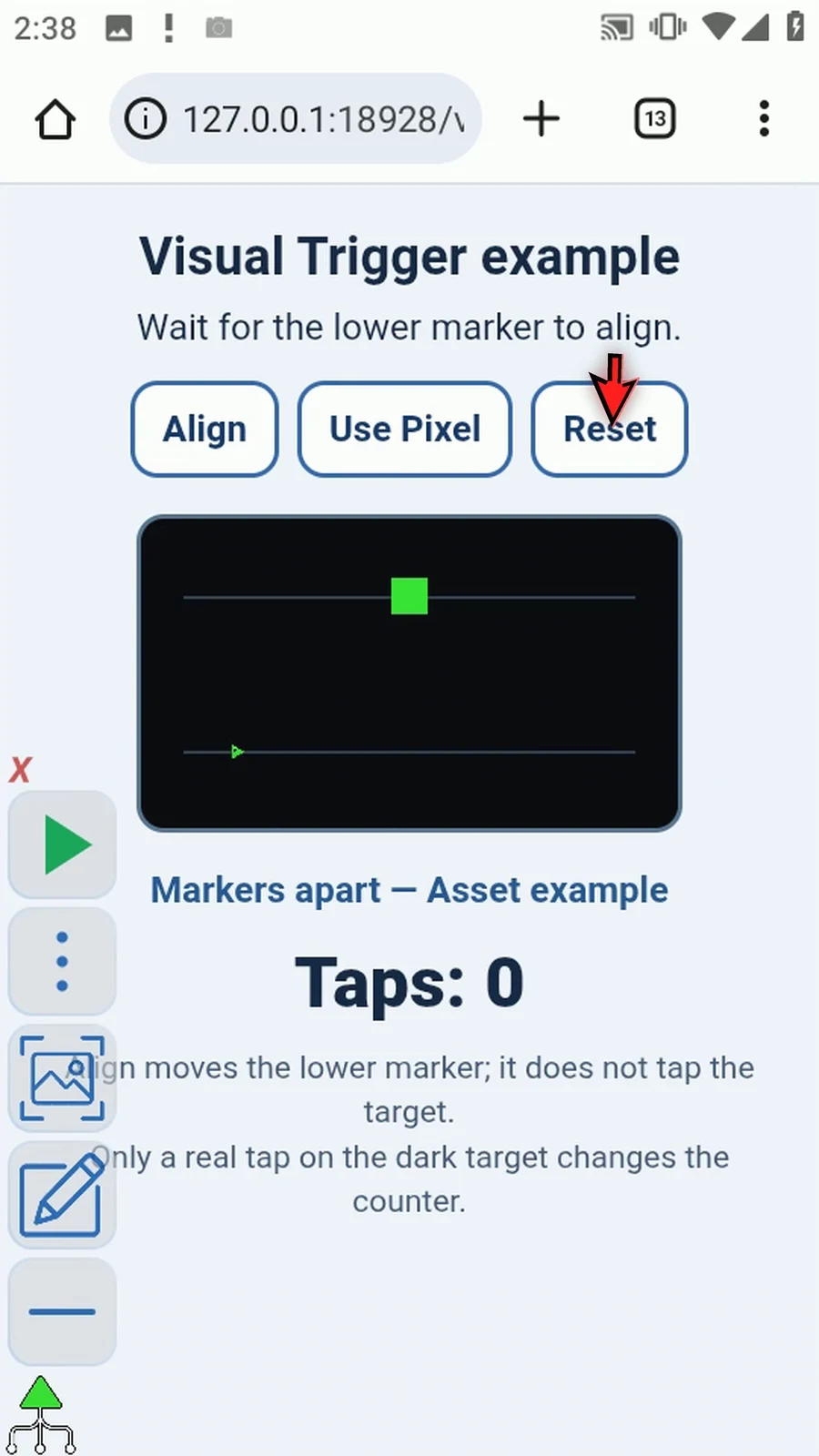
Step 08 Close the editor, use the asset version of the example, and reset it. The icon keeps its original pixel size. Only an actual tap on the dark target changes the counter.
Step 09 When the script is complete, simply use the Play button in the main overlay.
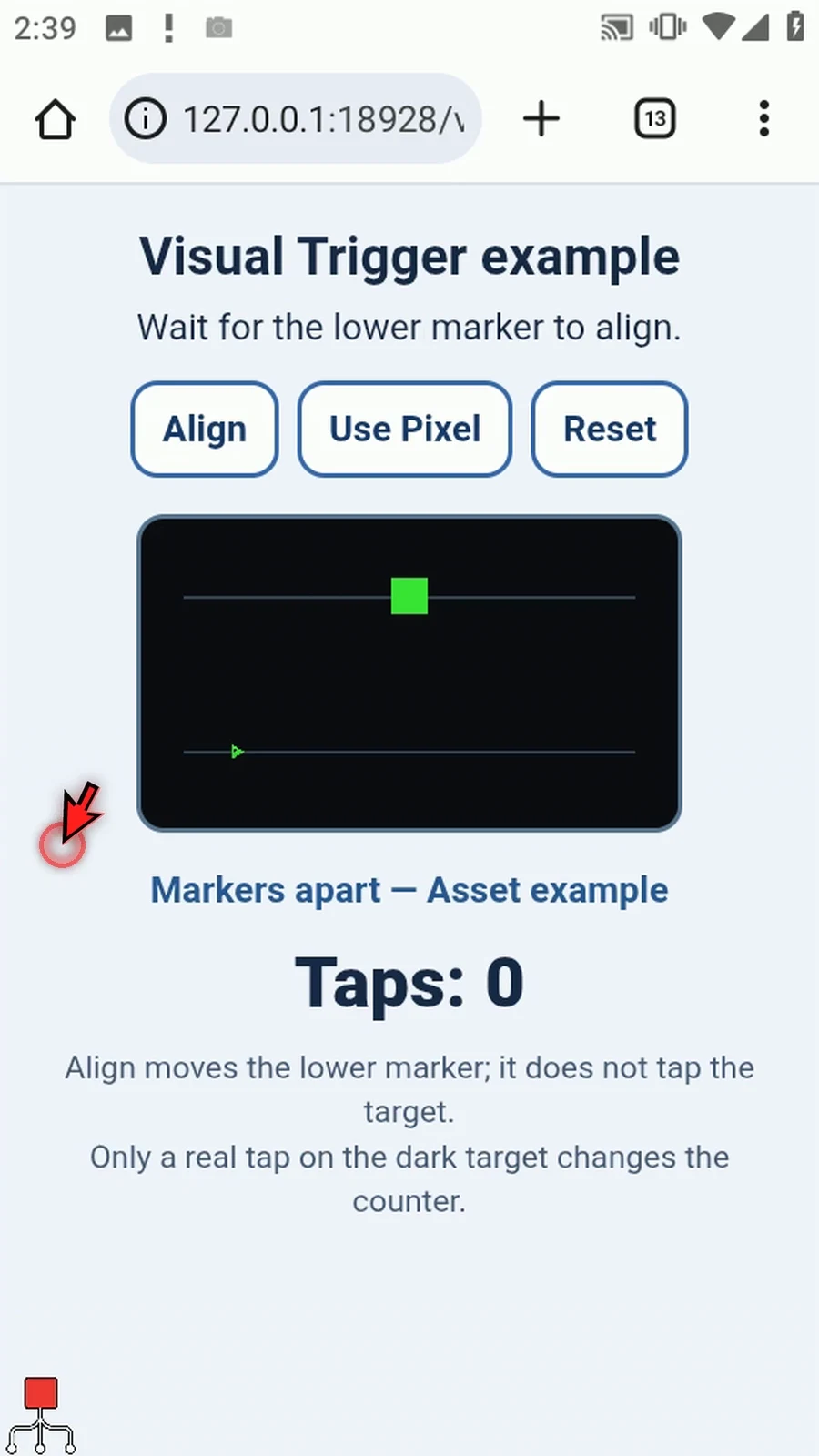
Step 10 The icon is not aligned with the reference, so the command keeps waiting. There are still zero taps.
Step 11 Move the icon into alignment. Visual Trigger finds it in the lower search region and accepts three matching frames. It taps the image center, the counter becomes one, and Prompt Me appears below the result.
Step 12 Press Done. The script stops automatically. Use the Overview for the other controls, and keep search regions specific when similar shapes could compete with your asset.
Create the image asset once, then select it in this command. This is the same shared video used by the other image-matching guides.