
Respond to the screen, not a guess
Wait for the screen you need
Keep a script from moving ahead before its target is visible. Choose a signal that represents readiness, narrow the search, and test both absent and present states. A fixed Delay measures elapsed time; it does not prove an app has finished loading.
Watch a real image condition control the next step
Choose the signal that fits your need
| What you need | Tool to consider |
|---|---|
| Find a labeled button or another element an app exposes through Android Accessibility. | UI Find. Some games and custom views expose little useful element information. |
| Read visible words from screen pixels and use that text in later commands. | OCR: Optical Character Recognition. It converts text in an image into usable text. |
| Recognize a distinctive icon or other saved picture. | ImgFind. Optional negative assets can reject unwanted nearby look-alikes. |
| Read the color at one known point. | GetPixelColor. |
| Search a region for color-matching points. | PixelFind. |
For conditional waiting, Delay Until supports Image, UI Element, and Pixel among its modes. OCR is a separate command, not an option in that menu. See the Delay Until guide for all six modes.
Build the smallest visible test
Use a separate script and an existing reference
This example uses a new script named Wait and the existing ScriptTap Outline reference. Do not recreate the crop for every command. The shared asset-creation guide explains all crop modes and how to retain stable, distinctive pixels.
The video uses a neutral practice page with show/hide buttons. You can use the equivalent practice controls below on your Android device. The page itself does not control ScriptTap.
Add a wait, not a guessed pause
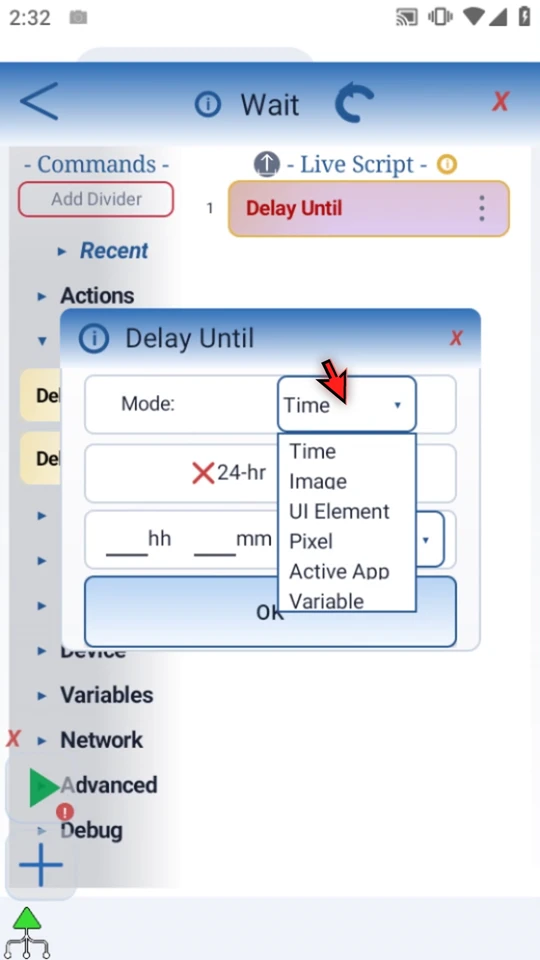
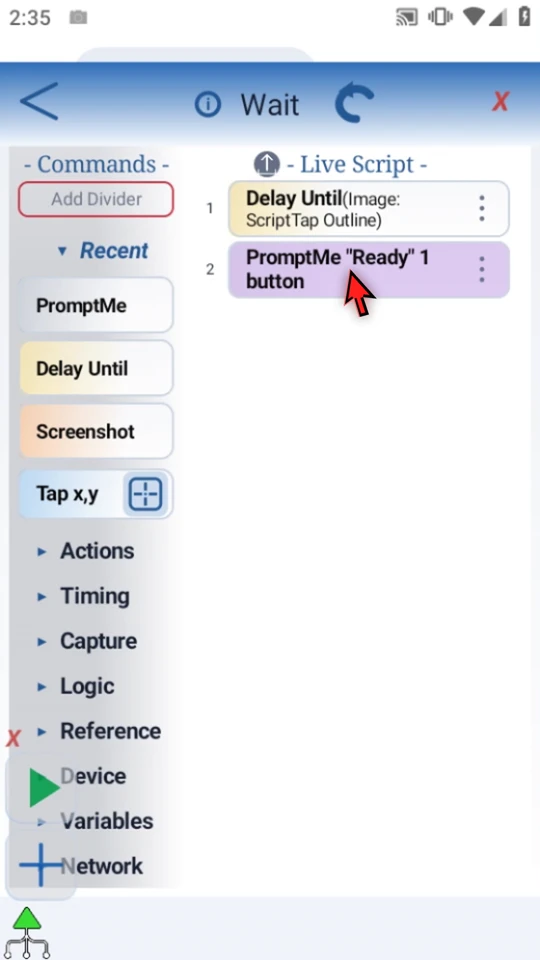
In the editor, expand Timing and manually drag Delay Until into Live Script. Open the placed row, then choose Mode → Image.
Limit the region to the useful location
Open the Area selector. If Android asks, allow screen capture. Drag the green handles around the left practice icon's location and confirm with the check mark. Searching a focused region excludes unrelated candidates and reduces work.
The recorded example uses
71,410–141,480. Select bounds for your own screen rather than copying these device-specific coordinates.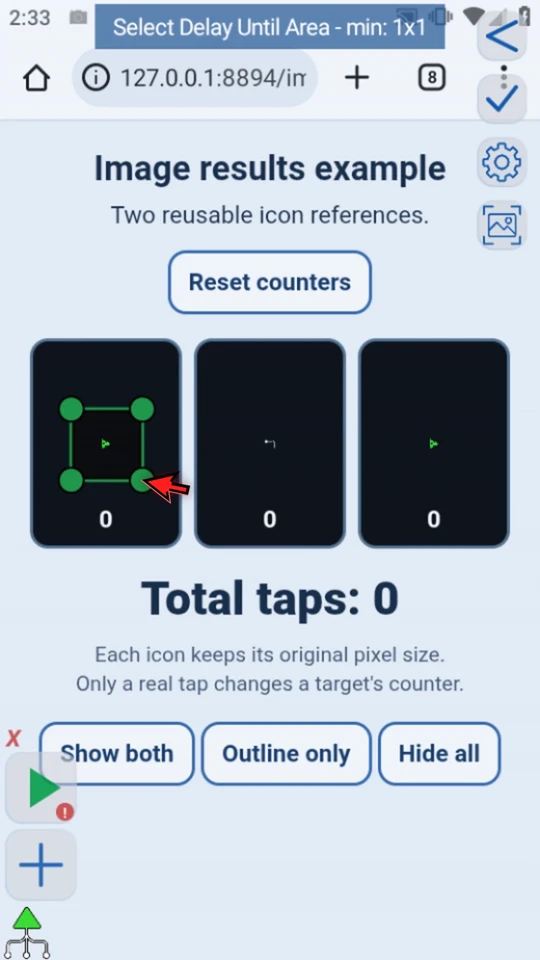
Reuse a small, stable image
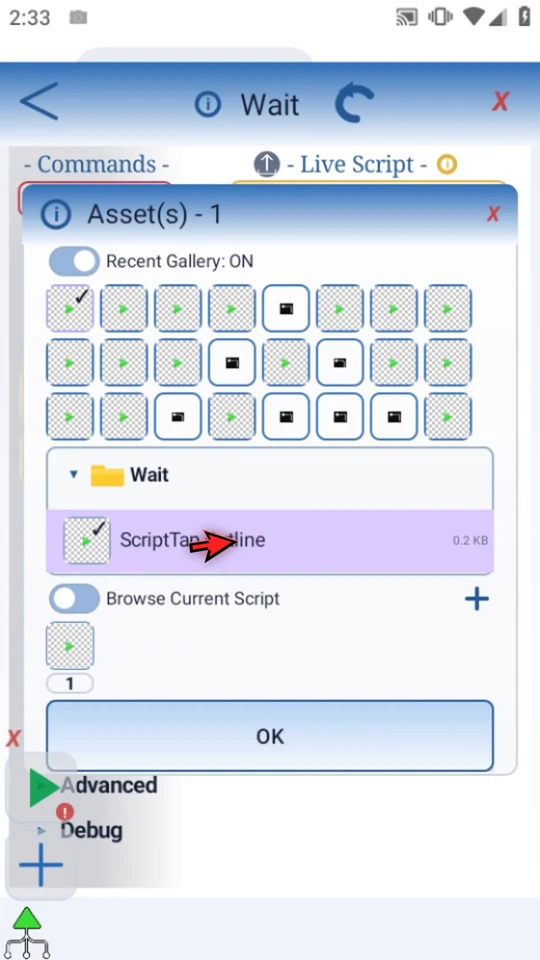
Open the asset folder, expand the current script's folder, select ScriptTap Outline, then confirm. Keep distinctive pixels and as few non-transparent pixels as practical. Remove blended or semi-transparent edges that change with the background. More active pixels mean more matching work.
ImgFind's negative assets can help reject look-alikes; this Delay Until example does not use a negative asset.
Set strictness and checking frequency
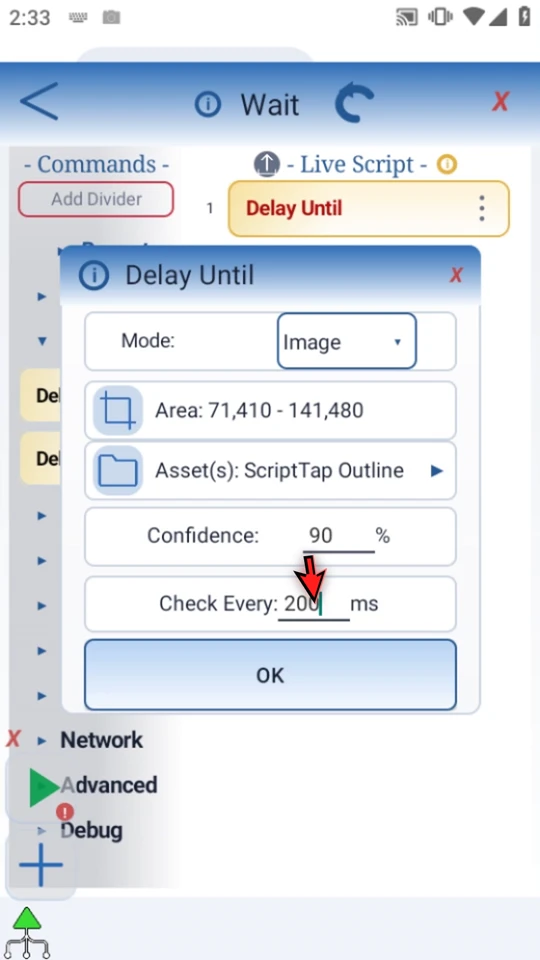
Enter Confidence 90. A higher threshold is stricter; 100 requires exact active pixels. Do not lower it until unrelated pictures start matching.
Enter Check Every 200 ms. Shorter intervals can react sooner but require more work. This is not a timeout. If the condition never becomes true, use the main overlay's Stop control. Choose OK to commit the completed command.
Make continuation visible
Open Recent and manually drag PromptMe below the wait. Keep Standard and This Script Only. Enter Header Ready, add a button caption Done, type its actual Boolean output
b1, and choose OK.The whole script is Delay Until (Image) → PromptMe. The prompt is a visible finish point, not an extra readiness test.
Test the absent and present states
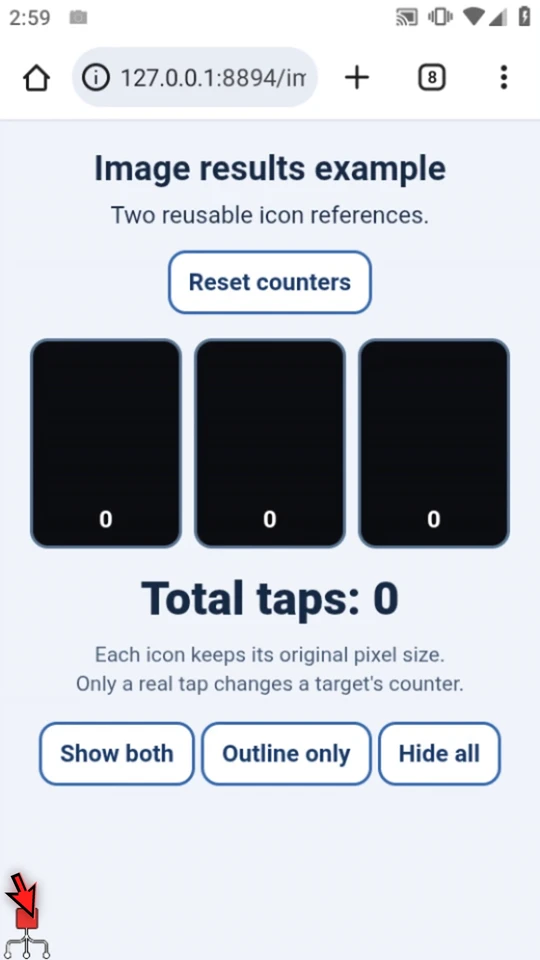
Close the editor and choose Hide all on the practice page. Start the script with Main Overlay Play. The script remains running without Ready because the reference is absent.
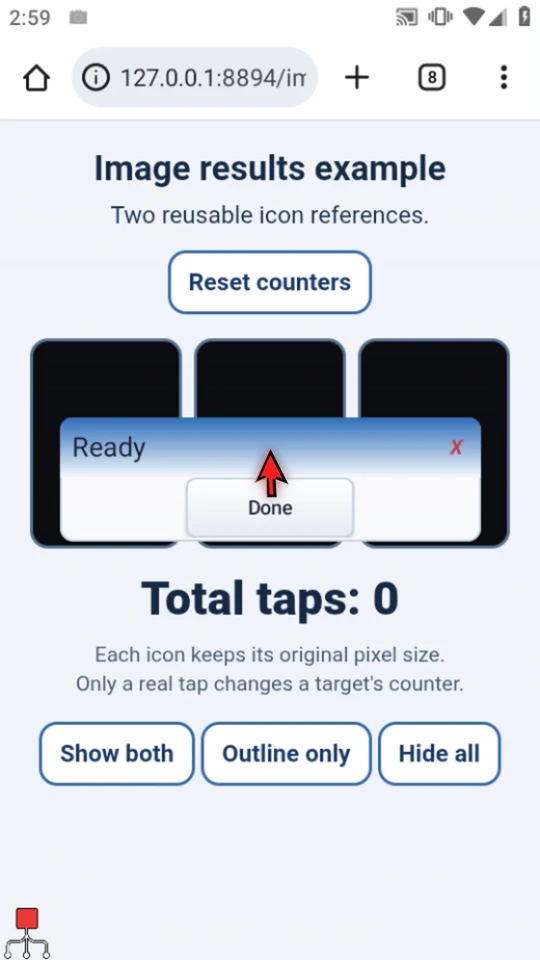
Choose Show both. When the image condition becomes true, the script continues and displays Ready. Choose Done for natural completion. The video preserves the real wait and the actual image-to-prompt transition.
Try the practice controls
Open this section on the Android device you use with ScriptTap. These are the same original-size icon references used in the video. Select an area for your current layout; the recorded coordinates will not necessarily fit this page.
Image results example
Two reusable icon references.
Total taps: 0
Each icon keeps its original pixel size.
Only a real tap changes its counter.
The images are intentionally small. Keep browser zoom unchanged during a test. To inspect the exact sample image, save ScriptTap Outline as a PNG. Create your ScriptTap reference with the asset-creation guide, or reuse one you already saved.