
Get ready to automate
Permissions & Android setup
Let your scripts send the input you request, and keep ScriptTap's controls available while another app is open. Start with the two required Android permissions, then allow other access only when your chosen feature needs it.
Watch the setup
Follow the steps
Open ScriptTap's setup
Open ScriptTap from its Android launcher icon. If a required permission is missing, setup explains what needs to be allowed. Read the purpose, use, and privacy information. Your device's Android labels and layout may differ from this example.
Keep controls visible over other apps
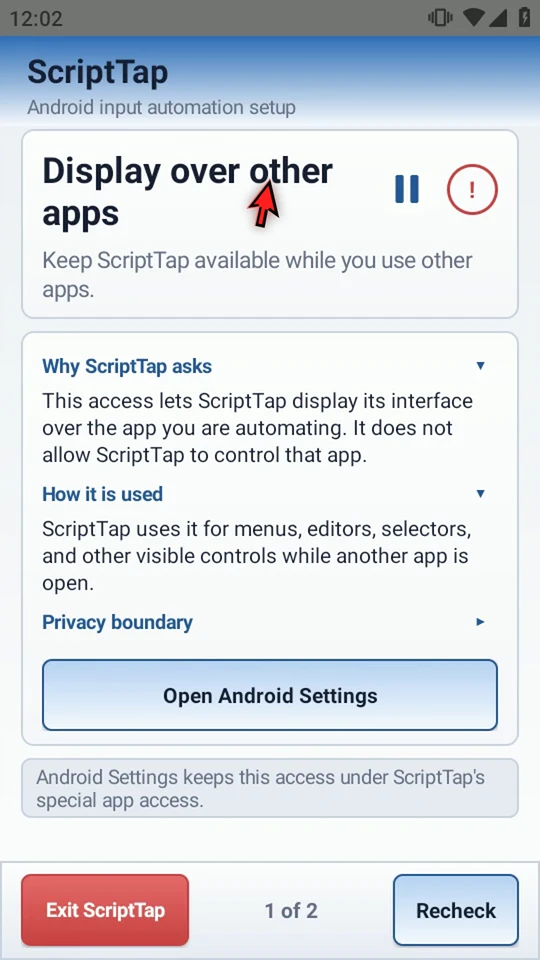
Display over other apps lets ScriptTap draw its menus, editor, selectors, and floating controls while another app is open. It does not send taps by itself.
Choose Open Android Settings. Enable Allow display over other apps for ScriptTap. Return to ScriptTap if Android does not bring you back automatically.
Enable the automation input you request
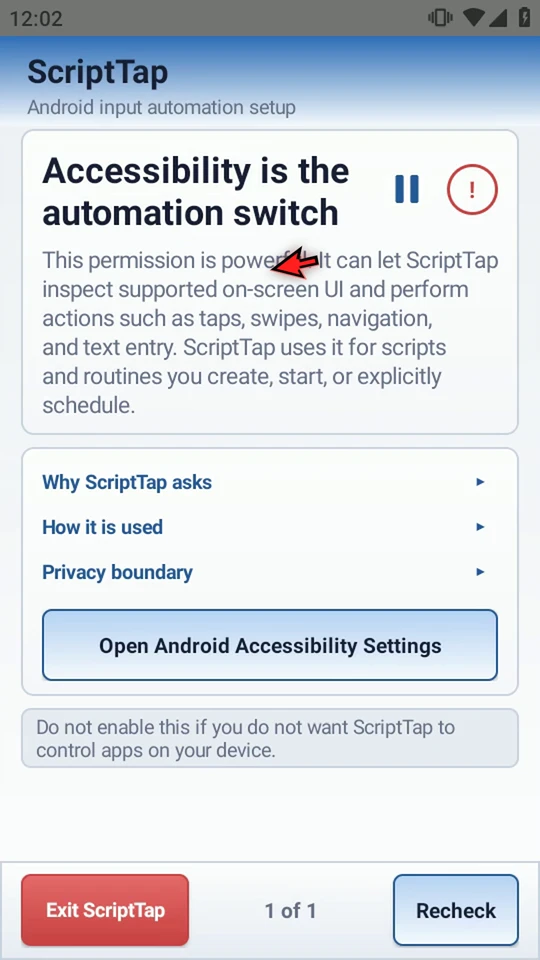
Accessibility is used for supported on-screen UI inspection and scripted taps, swipes, navigation, and text entry. It is powerful access. Enable it only if you want ScriptTap to control apps through scripts and routines you create, start, or explicitly schedule.
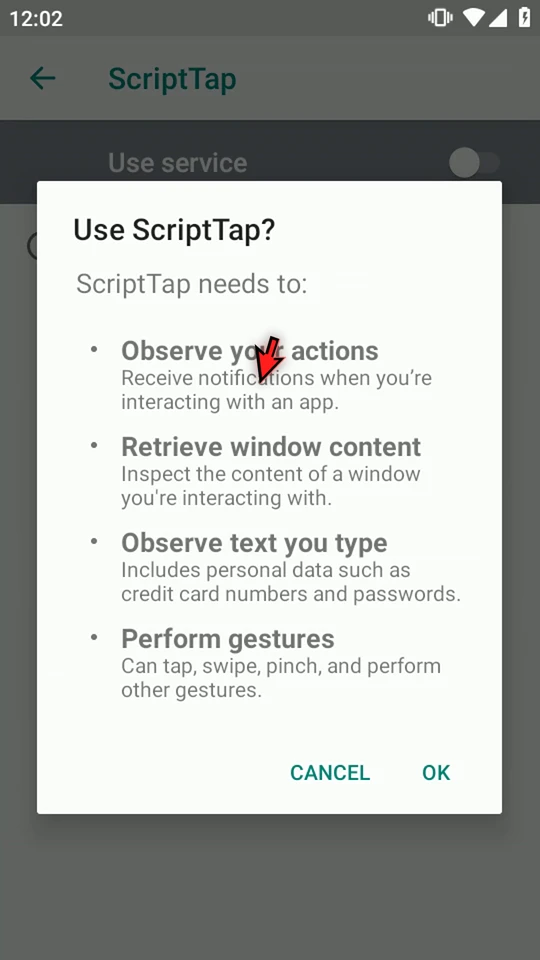
Choose Open Android Accessibility Settings, then ScriptTap in the services list. Enable Use service, read Android's warning, and confirm if you agree. The list may be called Downloaded apps, Downloaded services, or Installed services on your device.
Check that startup finished
When both required permissions are available, startup can finish. Tap ScriptTap's main button to expand its controls over your current app.
Review access later
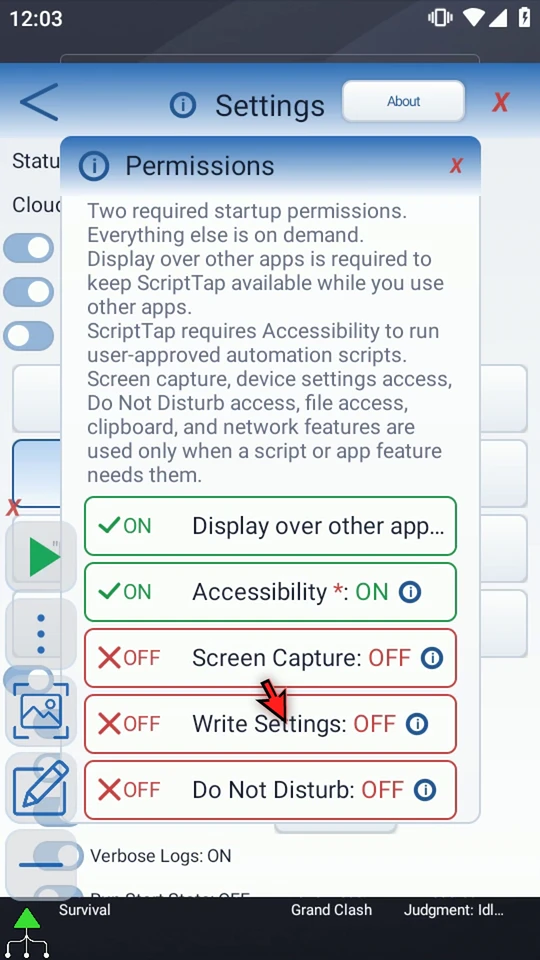
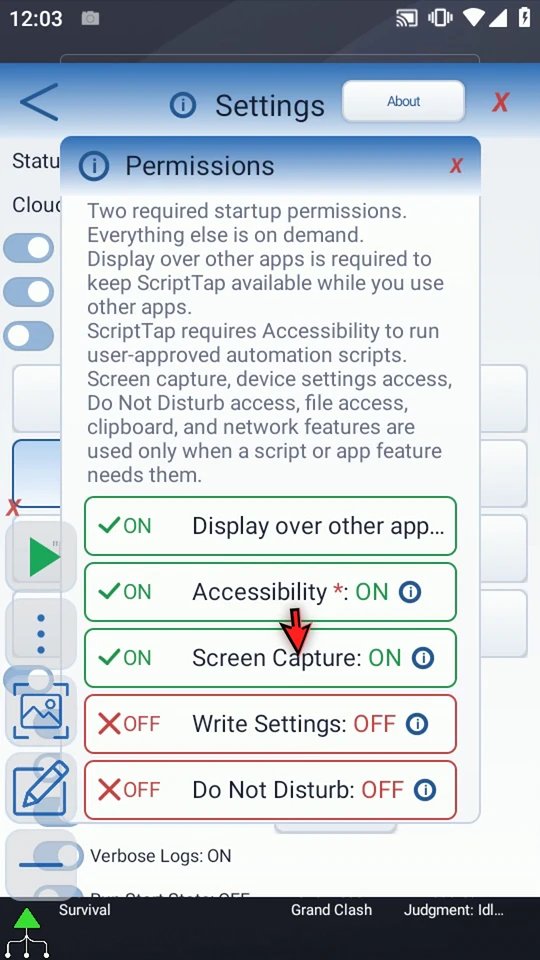
Open the main overlay menu, use the settings gear, and choose Permissions. The rows show current access. They are status indicators; selecting a row starts the relevant permission flow rather than silently granting access.
The first two rows are the startup requirements. An optional row showing OFF is not an error unless your selected feature needs it.
Allow screen reading when needed
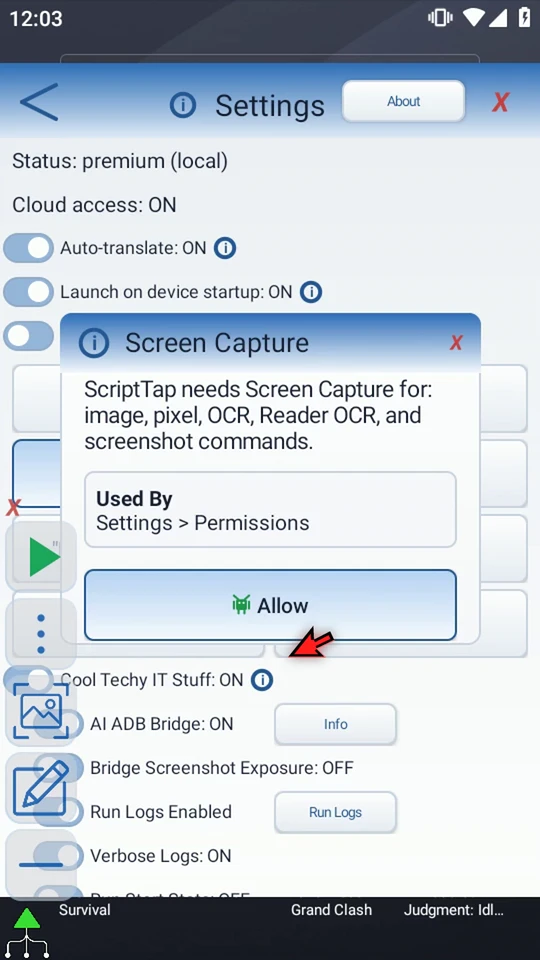
Screen Capture supports image and pixel checks, screenshots, and reading text from images. Optical character recognition, or OCR, converts text in an image into usable text for display or later commands.
Select Screen Capture, read the explanation, and choose Allow. If Android asks, allow screen capture. Android may ask again when a new capture session starts; the exact confirmation varies.
Open Permissions again to check the result. In this example, Screen Capture is ON for the current session.
Find which features depend on a permission
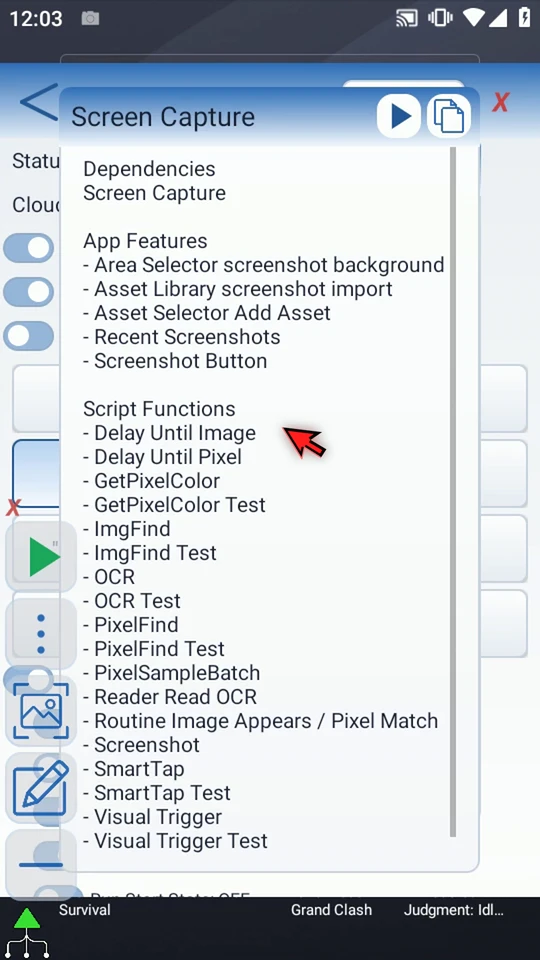
Use the information icon beside a row. Its dependency list shows the features and commands that need that access, helping you decide what your particular workflow requires. Tap to close the explanation and return to Permissions.
Leave unrelated access off
Write Settings is for device-setting features such as brightness or rotation. Do Not Disturb access is for commands that change that mode. Neither is needed just to start ScriptTap. Allow them when you choose a feature that needs them.
Close Permissions and Settings when finished. Next, build a small script and test it before adding more steps.
Put setup to use
Read the full narration
Set up ScriptTap so your scripts can send input and its controls stay available over other apps. Android requires two startup permissions. Other access is needed only when a feature uses it.
Open ScriptTap. If required access is missing, setup explains what you need to allow. Android labels and layouts can differ between devices.
Display over other apps keeps ScriptTap's menus, editor, and controls visible while you use another app. This permission lets ScriptTap draw its own interface; it does not send taps by itself.
Choose Open Android Settings and enable Allow display over other apps for ScriptTap. Return to ScriptTap if Android does not bring you back automatically.
Accessibility provides the automation input you request, such as taps, swipes, navigation, and text entry. It can also inspect supported on-screen interface elements. This is powerful access, so enable it only if you want ScriptTap to control apps.
Open Android Accessibility Settings, choose ScriptTap from the services list, and find Use service. Your device may call this section Downloaded apps or Installed services.
Enable the service. Read Android's warning, then confirm if you agree. ScriptTap uses this access for scripts and routines you create, start, or explicitly schedule.
Once both required permissions are available, startup can finish. Tap the main button to show ScriptTap's controls over your current app.
To review access later, open the main menu, use the settings gear, and choose Permissions. The panel shows what is currently available.
The first two rows are the required startup permissions. An optional row being off is not an error unless your chosen feature needs that access.
Screen Capture lets ScriptTap check images and pixel colors, take screenshots, and read text from images. That last process is optical character recognition, or O C R: it converts text in an image into text you can display or use in later commands.
Select Screen Capture and read why it is needed. Choose Allow. If Android asks, allow screen capture. The system may ask again when a new capture session starts.
Open Permissions again and check the result. Screen Capture is now on for this session. The status reflects available access, not a script action.
Use the information icon beside a permission to see which features and commands depend on it. This helps you decide what access a particular workflow needs.
Write Settings is for features such as changing brightness or rotation. Do Not Disturb access is for commands that change that mode. Leave these off until you need the corresponding feature; they are not required just to start ScriptTap.
Complete Android permission screens yourself. ScriptTap does not grant access behind those screens. Once setup is ready, build a small script and test it before adding more steps.