
Your first automation
Build your first working script
Want to repeat the same few steps with one button? Build a small script, run it, and see exactly when it reaches the end. This example taps the Play Store icon, pauses for two seconds, and displays a Done button.
Watch the walkthrough
Follow the steps
Create a separate script
Open the main overlay menu, choose Scripts, then New Script → Blank Script. This leaves your existing scripts unchanged.
Open the new row's menu, choose Rename, enter First Working Script, and tap OK.
Select what Play will run
Tap the new script. Its Active badge identifies the script Play will run. Open the editor with the pencil control. Collapse the extra overlay controls with the minus button if they obstruct the palette.
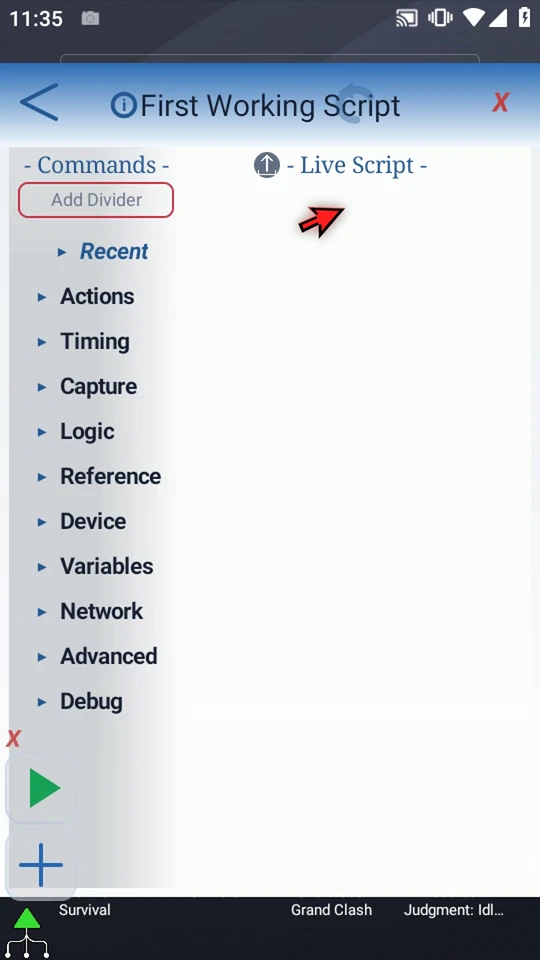
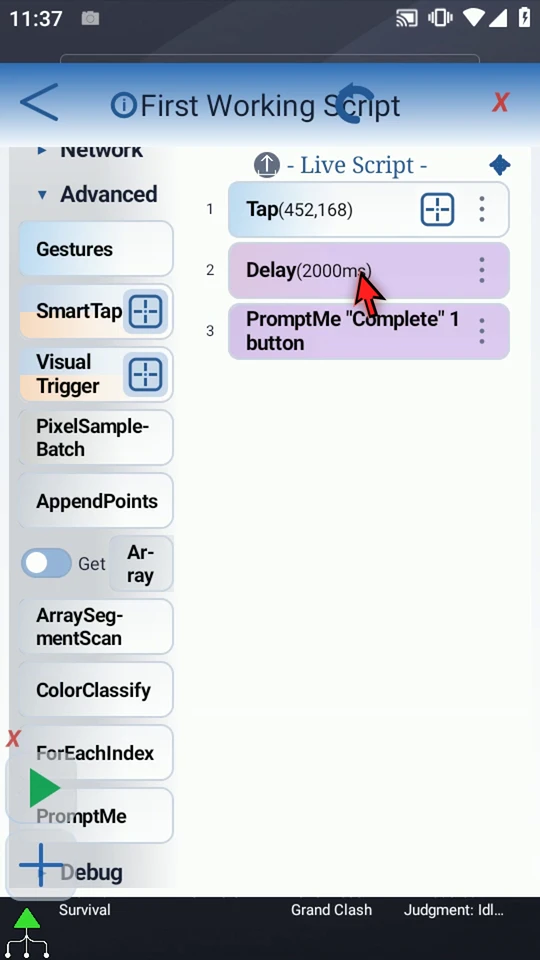
The command palette is on the left; your script is on the right. Commands run from top to bottom.
Drag in a Tap and choose its target
Expand Actions. Drag Tap from the palette into the empty script. Use the target-square on the placed Tap row. If Android asks, allow screen capture.
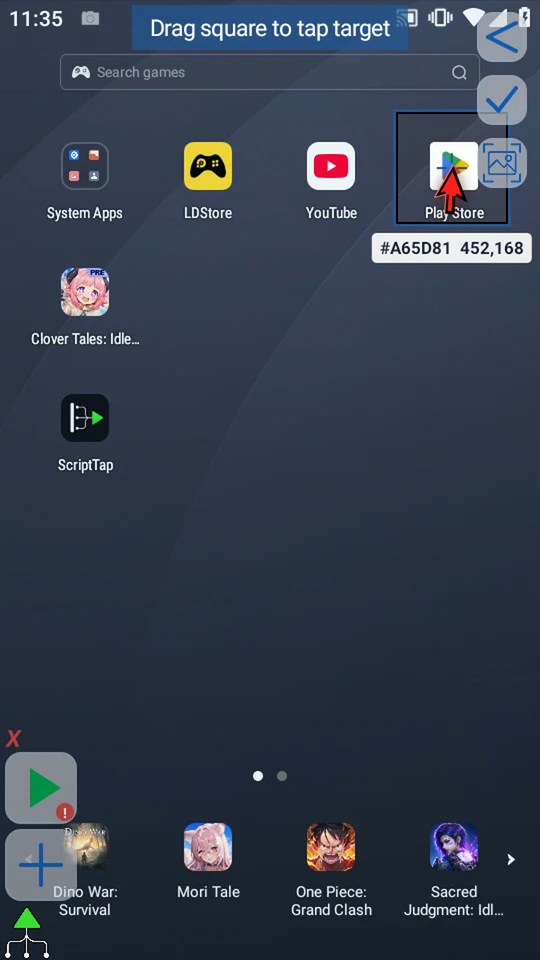
Drag the target square onto the Play Store icon and confirm with the check mark. Tap now holds the selected coordinates; no manual coordinate entry is needed.
Add a two-second pause
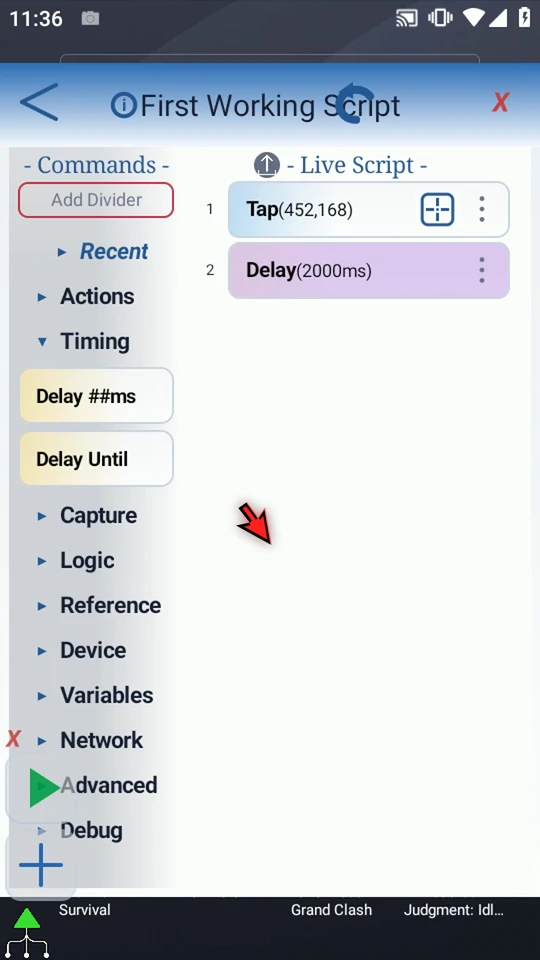
Collapse Actions and expand Timing. Drag Delay below Tap. Double-tap the placed Delay, enter 2000 milliseconds, and tap OK.
A Delay is a fixed pause, not an app-readiness check. Use a condition-based wait when later steps must wait for a specific state.
Make completion visible
Collapse Timing, expand Advanced, and scroll to PromptMe. Drag it below Delay, then double-tap the placed command.
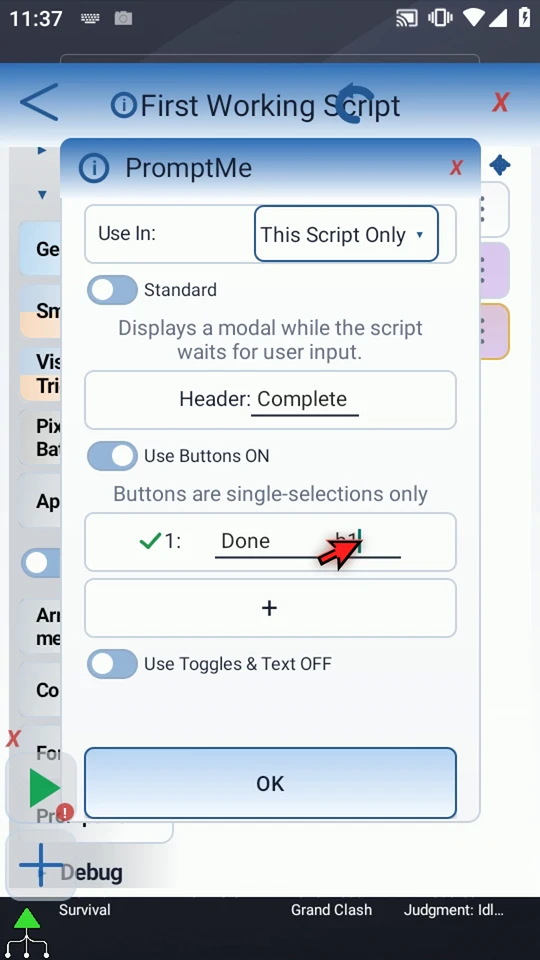
Keep Standard mode. Enter Complete as the header. Keep Use Buttons ON and add one button with the plus control. Set its caption to Done and enter b1 in its Boolean output field. Leave Use Toggles & Text OFF, then tap OK.
The Boolean field stores the button's answer. This short script does not use that answer afterward.
Check the order
The script should contain Tap → Delay (2000 ms) → PromptMe. The prompt confirms that the script reached its final step; it does not confirm that Play Store has finished loading.
Run from the correct starting screen
Close the editor. Return to Android Home, where you selected the icon. A coordinate tap acts on whatever currently occupies that position.
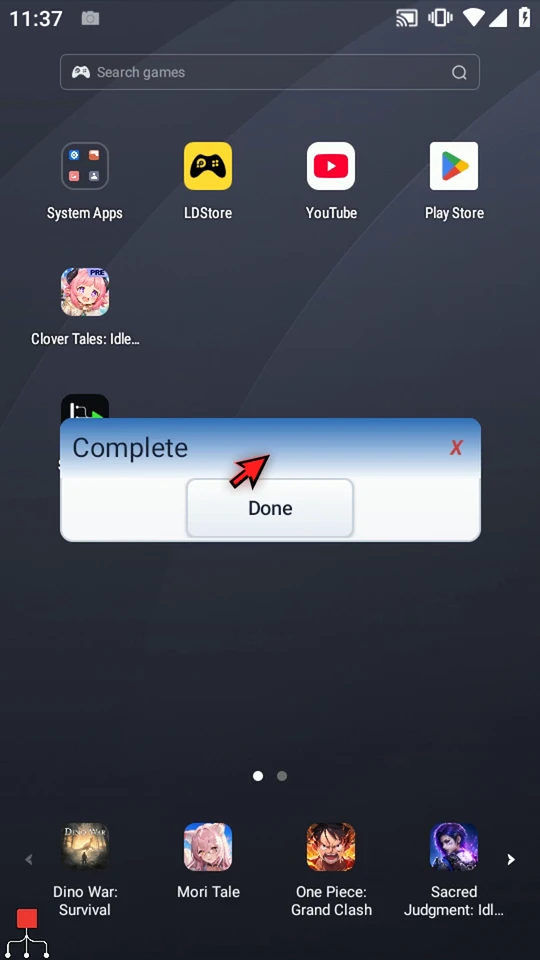
Use the Play button in the main overlay. The script sends the tap, waits two seconds, and displays the completion prompt. Choose Done to close it and finish. The actual app-loading state may vary.
Repeat safely, then extend
The script stops automatically after its final command. Return to the same starting screen before running it again. Start with a small sequence, test it, and add the next useful step only after the current steps work.
Go deeper
Read the full narration
Want to carry out the same few steps with one button? Build a script once and use Play to repeat it. We will tap the Play Store icon, pause for two seconds, and show a message confirming that the script reached its final step.
Open the main menu and choose Scripts. Tap New Script, then Blank Script. This creates a separate example without changing your existing scripts.
Open the new script's menu and choose Rename. Give it a descriptive name so you can recognize it later, then tap OK.
Select your new script. The Active badge identifies what Play will run. Open its editor, then collapse the extra overlay controls to make room.
The command palette is on the left. Your script is on the right, where commands run from top to bottom. We will add just three steps.
Expand Actions and drag Tap into the empty script. Dragging shows exactly where the new step will be inserted.
Use the target-square on the placed Tap row. If Android asks, allow screen capture. Drag the square onto the Play Store icon, then confirm with the check mark.
Tap now contains the selected position. You did not need to type the coordinates. Choose the target on your own device, because icon positions can differ.
Collapse Actions and expand Timing. Drag Delay below Tap. This gives the app a short pause before our final step.
Double-tap the placed Delay, enter two thousand milliseconds, and tap OK. That is two seconds. Delay is a fixed pause, not a check that the app has finished loading.
Collapse Timing and expand Advanced. Scroll to PromptMe, then drag it below Delay. This prompt will make the end of our script visible.
Double-tap PromptMe. Keep Standard mode and enter Complete as the header. Add one button using the plus control.
Name the button Done. Enter b one in its Boolean output field. This is where ScriptTap stores the button's answer; we do not need to use that answer elsewhere in this example.
Tap OK. Our three commands will tap the Play Store icon, wait two seconds, and display the completion prompt, in that order.
Close the editor. Start on Android Home, where we selected the icon. A coordinate tap acts on whatever is currently at that position.
When the script is complete, simply use the Play button in the main overlay.
The completion prompt appears after our pause. This confirms the script reached its final step; it does not prove the app has finished loading. Choose Done to close the prompt and finish.
The script stops automatically. Return to the same starting screen before running it again. Start small, test the result, and then add the next useful step.