
Describe a small workflow, then review what was built
Build a script with a coding agent
Have a coding agent create a fresh practice script through ScriptTap's published interface instead of placing each command manually. Keep its access narrow, inspect the result, and run a small visible test before relying on it.
From an agent request to a working confirmation
The recording retains the agent's real work and wait period. The desktop view contains only the new demonstration chat; the private connection setup is prepared off camera.
Create something small enough to verify
Prepare a private connection to the intended device
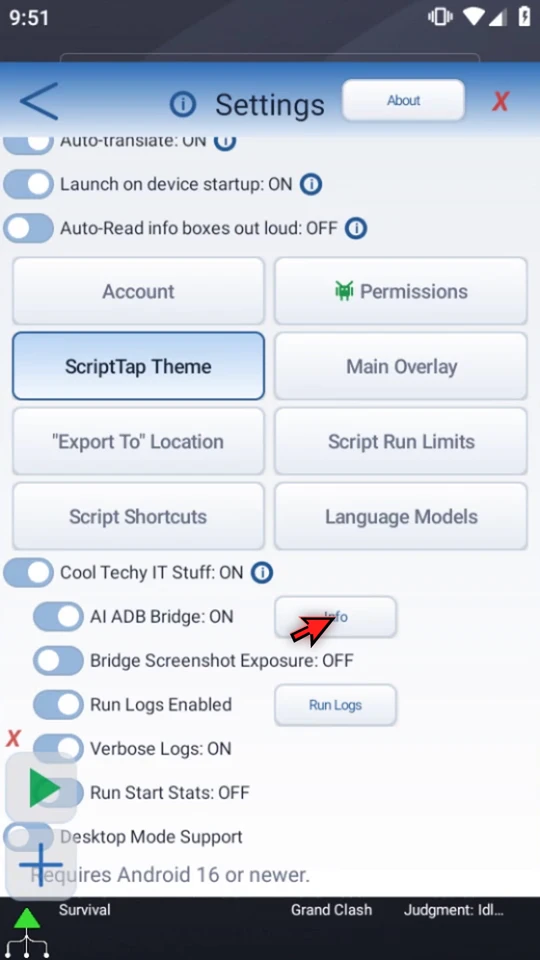
ADB means Android Debug Bridge, the computer-to-Android connection. In ScriptTap's Settings, use Cool Techy IT Stuff → AI ADB Bridge. Bridge access requires a signed-in, verified ScriptTap account. Use Info → Copy Bridge Setup to provide the supported setup to a trusted coding tool, selecting the exact device serial. The setup contains a private token: never put it in a public prompt, screenshot, recording or repository.
This video uses an already-prepared testing emulator. Bridge Screenshot Exposure is a separate option and stays off; script authoring does not require the agent to inspect screenshots or logs.
Give the agent one bounded creation task
Open a new task. Ask for a new practice script, forbid edits to existing scripts, and forbid automatic playback. Have the agent verify the intended device and read authenticated
GET /healthfor the installed version's exact contract and supported routes. Do not ask it to guess fields from an old example.In this real demonstration, the agent creates Agent with exactly two enabled commands through one
POST /scripts/transaction. It does not use the JSON file-import picker, select the new script, or press Play.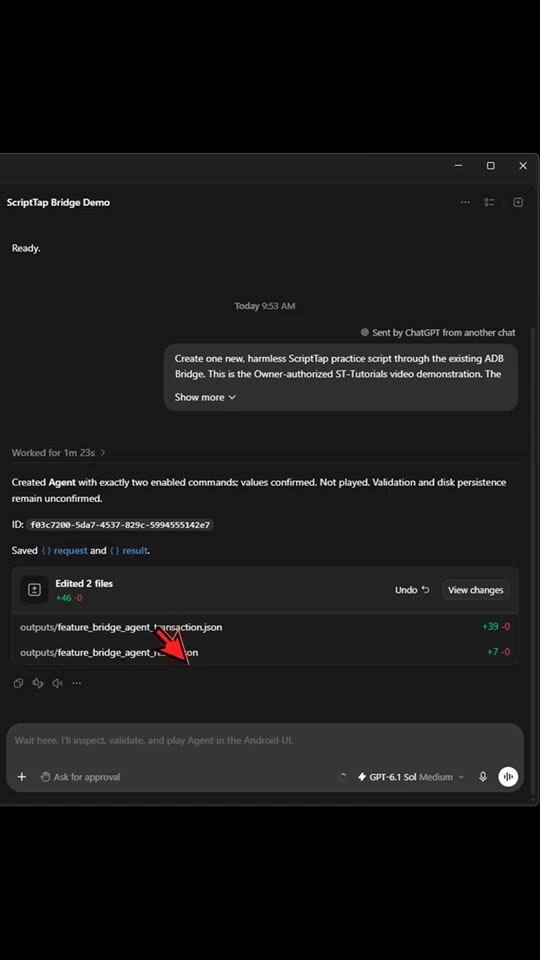
Inspect the actual Android script
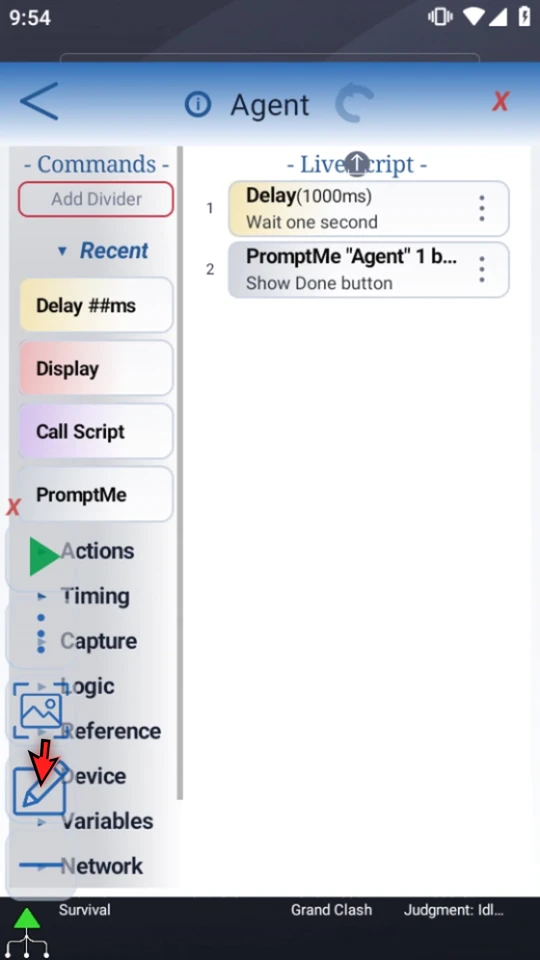
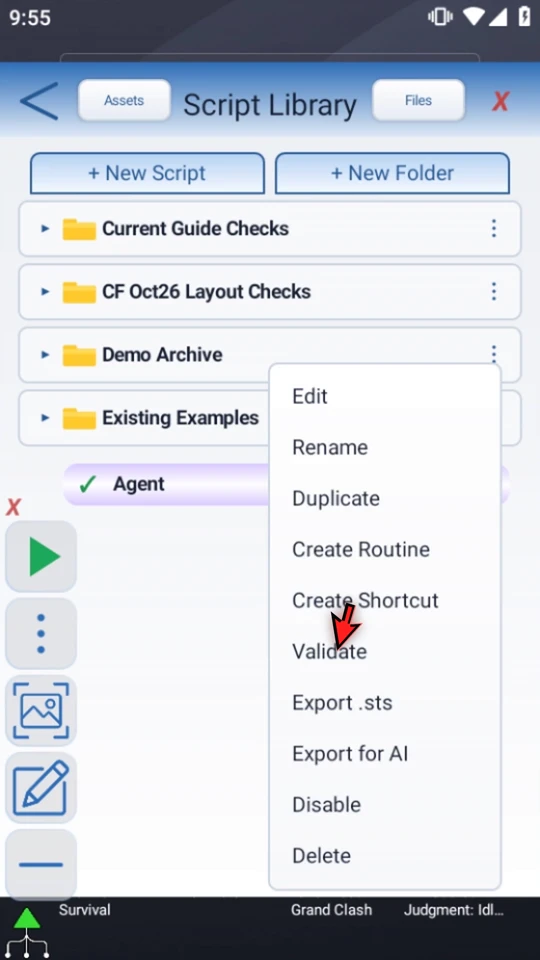
Return to Script Library, select the new Agent script, then open the Editor. Check the actual number and order of rows: Delay 1000ms → Standard PromptMe. A confident agent message is not a substitute for this review.
Check the settings, not just the row names
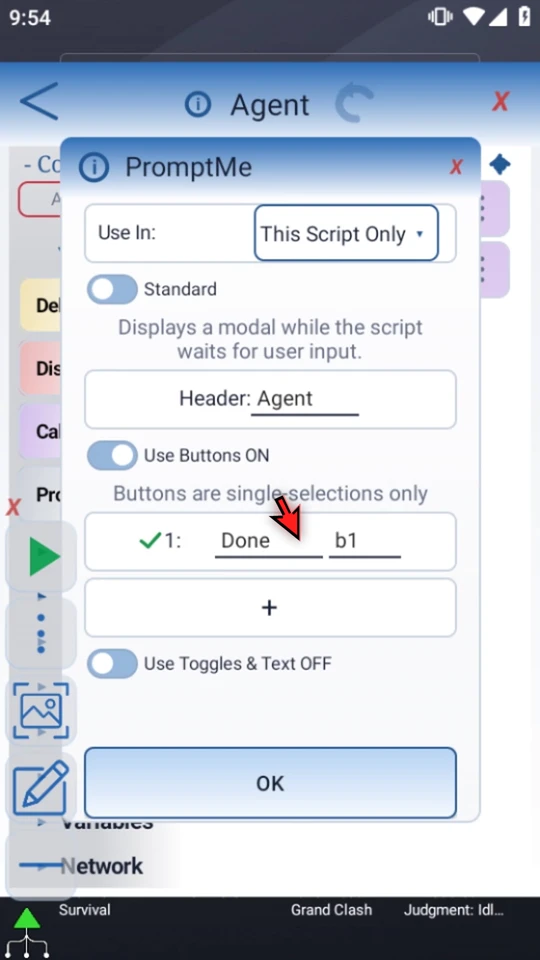
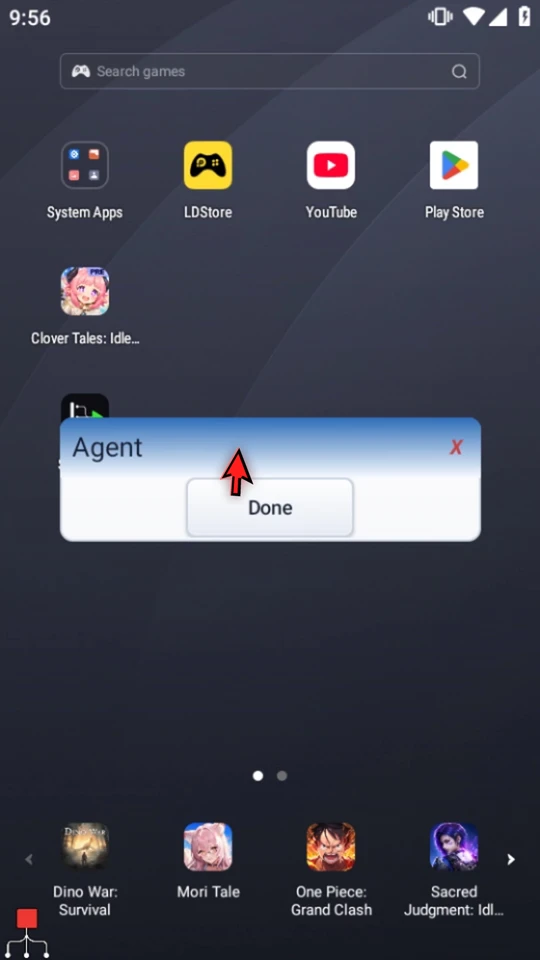
Open each placed row. Delay must be the literal 1000ms. PromptMe must use Standard, header Agent, and a single Done button writing to local Boolean b1 in This Script Only. Close the settings without changing them after inspection.
Validate before testing
Use Validate in the script's three-dot menu. Allow validation to finish and resolve any incomplete setup. Bridge writes schedule validation after a restartable 20-second quiet period without another Bridge write. There is no Bridge validation-status route; observational reads do not start or retry validation.
Creating through Bridge does not grant Android permissions to the script's commands. This short example needs no screen coordinates, image assets, unrelated app actions, speech or audio.
Run and confirm the useful result
Return to the Android home screen and use Play in Main Overlay. After the real one-second wait, Agent appears. Choose Done; the script completes and Main Overlay returns to green idle. This confirms this two-command example on this device, not every future script the agent may generate.
Start with a narrow request
After privately preparing the supported connection, the central request can be simple. Add your device identity and access boundaries without exposing the token:
Create one new practice script named Agent. Wait 1000 milliseconds, then show a Standard PromptMe with header Agent and one Done button writing to local Boolean b1. End after Done. Verify the intended device and use its live health contract. Do not edit existing scripts, read unrelated data, or play automatically. Report the newly created script ID.
The filmed task also specifies the exact permitted files, a single transaction, and no retry after an uncertain outcome. For implementation details, use the current public AI and Bridge contract, not this illustrative request as a JSON schema.
Keep automation access deliberate
- Use a trusted coding tool, an exact device identity and the smallest write scope that meets the need.
- Keep the Bridge token in private connection handling, not public text, URLs or recordings. Prefer authenticated headers over token-bearing URLs.
- Use only the live route inventory and canonical fields. A package envelope and a Bridge transaction are different transport formats.
- Do not automatically retry an uncertain creation: the first request may already have created the script.
- Review command configuration, wait for validation, provide any command-specific permissions, and test in a controlled environment before relying on an agent-built workflow.
- Turn Bridge off when the connection is no longer needed, without disrupting other authorized work.
Review the result with confidence
Read the full narration
Build a ScriptTap script from a coding-agent conversation, then inspect and test it on Android. The ADB Bridge lets an authorized tool create scripts through the app's published interface, without placing each command manually.
ADB means Android Debug Bridge: the connection between the computer and Android. In ScriptTap's Settings, use Cool Techy IT Stuff and AI ADB Bridge. Bridge access requires a signed-in, verified ScriptTap account. This example uses our testing emulator.
Bridge Info provides Copy Bridge Setup for the coding agent. That setup contains a private token, so I prepared the connection before filming and will not display it. Keep it private and only connect a tool you trust.
Screenshot exposure is a separate option. This task only needs script authoring, so the agent will not read screenshots, logs, or unrelated script bodies. Its request also forbids changes to existing scripts and automatic playback.
Create a new coding-agent task. Here, I am asking for one fresh practice script named Agent: wait one second, then show an Agent confirmation with one Done button. The existing library must stay unchanged.
The agent first verifies the testing device and reads the live health contract. That contract tells it which routes, fields, types, and command modes this installed ScriptTap version accepts. It should not guess from outdated examples.
Next, the agent builds the complete request. Our example has only Delay and Standard PromptMe, with literal text and local Boolean output b1. It needs no app account actions, image assets, screen coordinates, or audio.
The agent submits one script transaction to create the new script. Bridge writes directly into ScriptTap; this workflow does not use the JSON file-import picker. Creating a script does not select it or press Play.
An accepted receipt means the script was adopted in memory and persistence was queued. It does not prove disk writing or executable validation has finished. Bridge script writes schedule validation after twenty seconds without another Bridge write.
Return to Script Library and select the new Agent script. Open it in the Editor and review what was actually created. A successful upload is not a substitute for checking that the script matches your request.
Open each placed row. Delay should be one thousand milliseconds. PromptMe should use Standard mode, the Agent header, and one Done button writing to local b1. Close the settings without changing them after the check.
Use Validate from the script's menu and resolve anything incomplete before running. Bridge access does not grant Android permissions for the commands you create. This short prompt example avoids controlling another app.
When the script is complete, simply use the Play button in the main overlay.
After the one-second wait, Agent appears. Choose Done. The script finishes and the Main Overlay returns to green idle. That visible test confirms this two-command example on this device, not every future script an agent might build.
Start with a fresh, observable practice script, keep the agent's write scope narrow, and review each result before relying on it. Keep Bridge credentials out of public chats and recordings. Turn the Bridge off when you no longer need the connection; leave other authorized work undisturbed.