
Fix the missing setting, not a guess
Find missing setup before Play
A command can be saved before all its required settings are complete. Use ScriptTap's explanation to find exactly what needs attention, correct it, then test what your script actually does.
From a missing duration to a working script
Find the reason and correct it
Start with the visible warning
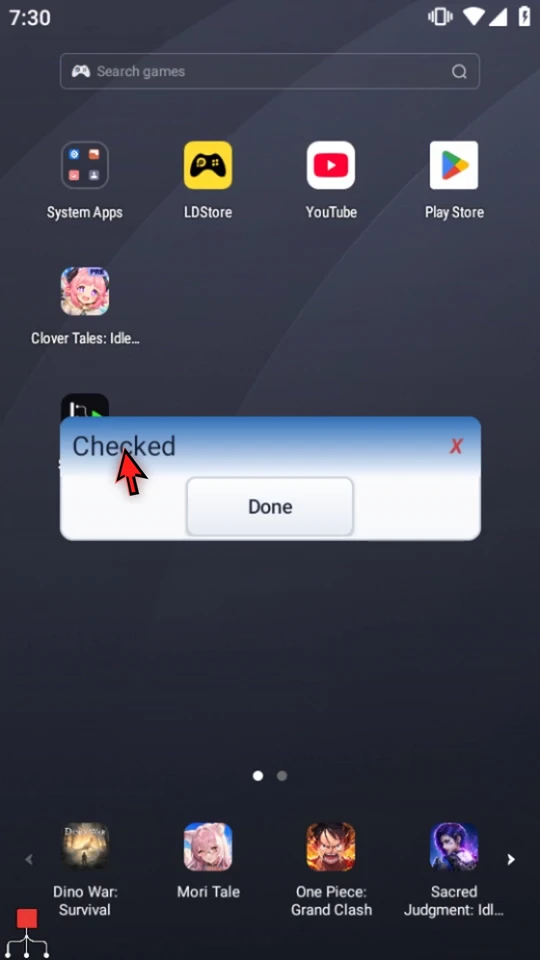
This separate practice script, Validate, contains an unfinished Delay followed by a complete PromptMe confirmation. Delay has no duration, so its row shows incomplete styling. The prepared prompt displays Checked with a Done button writing to
b1.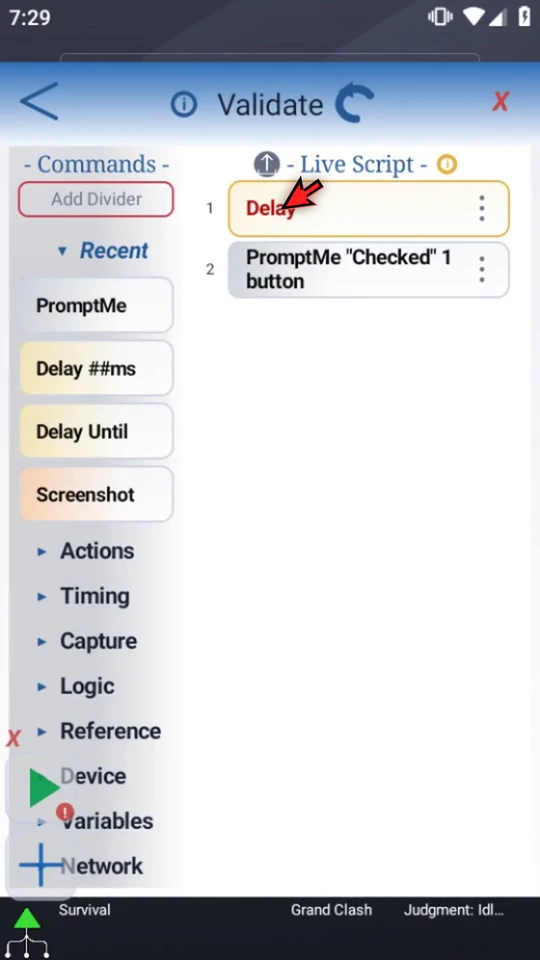
Read the script-level report
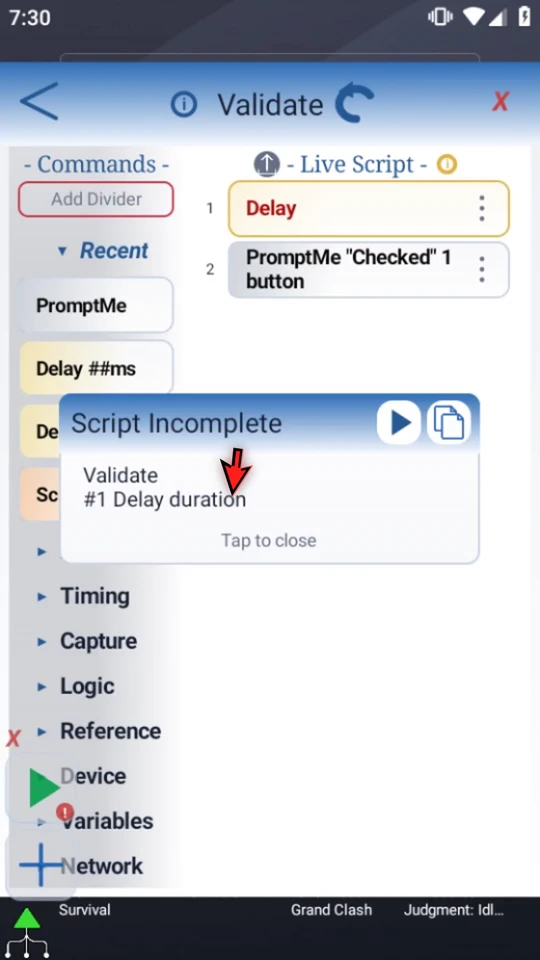
Choose the warning icon beside Live Script. The current report identifies the affected script and command number. In this example it reads Validate — #1 Delay duration. Tap the report's body to close it.
Ask why that command is incomplete
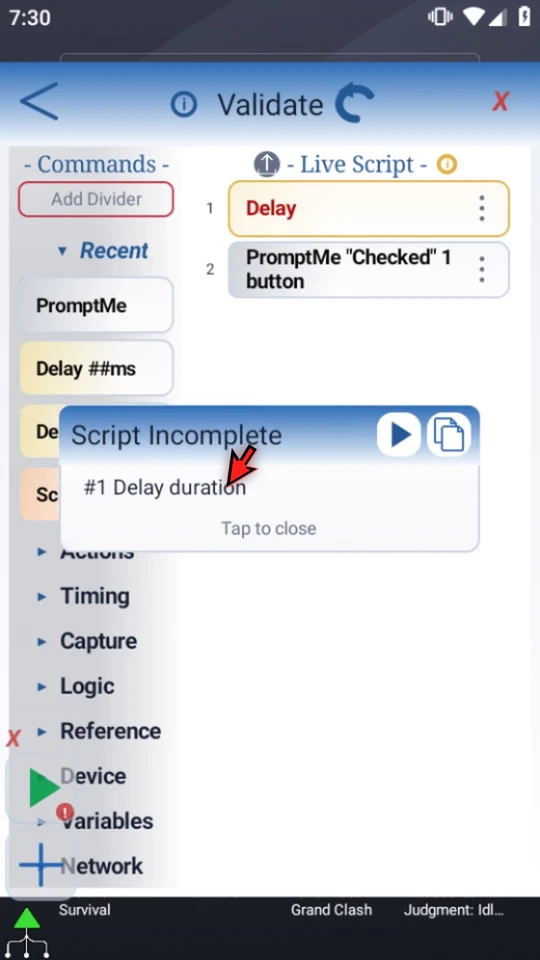
Open the unfinished row's three-dot menu and choose Why incomplete. This gives the command-specific reason. Read it before changing settings; here it confirms that the missing value is Delay's duration.
Commit the missing value
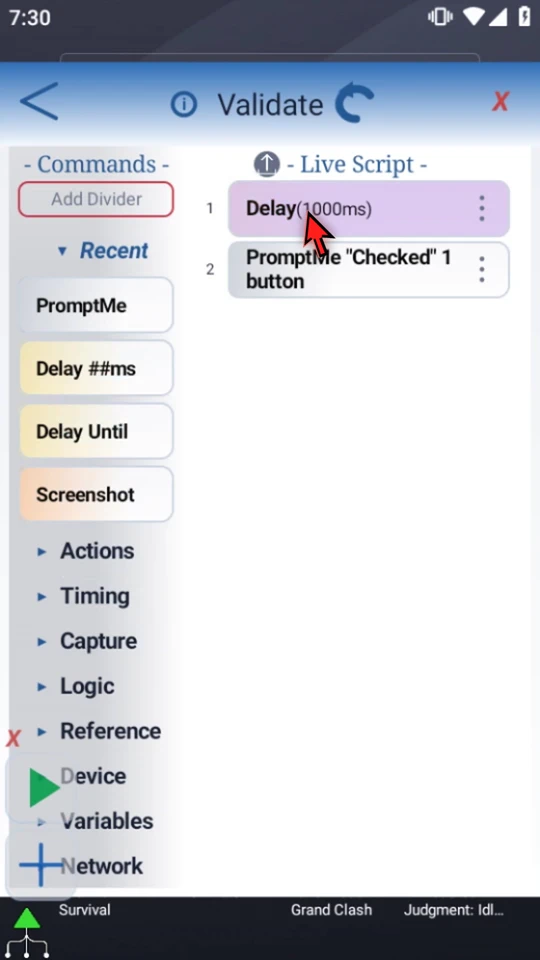
Close the explanation, then double-tap the existing Delay row in Live Script. Enter 1000 and choose OK. That is a one-second wait. The saved row becomes Delay(1000ms), and the incomplete warning clears.
There is no separate Editor Save. OK commits the settings; the modal's X leaves the command unchanged. Merely saving a blank draft does not make it complete.
Request a fresh Library check when needed
Use the up-level arrow beside Live Script to return to Script Library. Open that script's three-dot menu and choose Validate. This requests a configuration check; it does not run the script's actions. Follow the current status rather than repeatedly requesting another check.
Confirm the actual result
Close the library and use Main Overlay Play. The video preserves the real one-second wait, then the Checked prompt appears. Choose Done to finish naturally. A screen-dependent script should instead be tested from its intended app and starting screen.
Two checks, two questions
Validation: are the required settings and supported relationships configured? A real test: does this workflow produce the result you need on your device?
A completed row does not establish that another app's layout, coordinates, image reference, loading time, access, or changing content will match your expectations. Work in small steps and test the relevant result after fixing the reported setup.
Build and test in small steps
Read the full narration
Find missing setup before you run a script. ScriptTap marks unfinished commands and explains what they still need, so you can fix the specific problem instead of guessing.
Here, Delay has no duration. The Checked prompt after it is already configured; it will give us a visible result when the corrected script reaches the end.
Choose the warning icon beside Live Script. The report names the script, command number, and missing setting. In this case, command one needs a Delay duration.
For a single command, close that report, open its three-dot menu, and choose Why incomplete.
This command-level explanation points to the same missing duration. Read the reason first, then open the command's settings to correct it.
Double-tap the existing Delay row to edit it. Its duration is blank.
Enter one thousand milliseconds and choose OK. That gives this example a one-second wait before the confirmation prompt.
The Delay now shows its saved duration, and the incomplete warning clears. This means the required setup passed validation, not that every screen target or real-world outcome has been tested.
You can also request a fresh check from the script's three-dot menu in Script Library by choosing Validate. Validation checks configuration; it does not perform the script's actions for you.
Now test the expected behavior. Close the library and press Play. After the one-second delay, the Checked prompt appears.
Choose Done to finish naturally. We have corrected the missing setting and confirmed this small script's actual result.
Use the reported reason to complete setup, then test in the intended app. Validation and a real test answer different questions, and both help you build a reliable workflow.