
Build, confirm, and test
Script Editor basics
Turn a sequence into a script you can understand. Place commands in order, finish their required settings, and test a small example before adding more complexity.
Watch the editor workflow
Follow the steps
Start with a separate script
Use a new, empty script for practice. This example is named Editor Basics Demo. If you need the library and selection steps, start with Your first working script.
Find commands by purpose
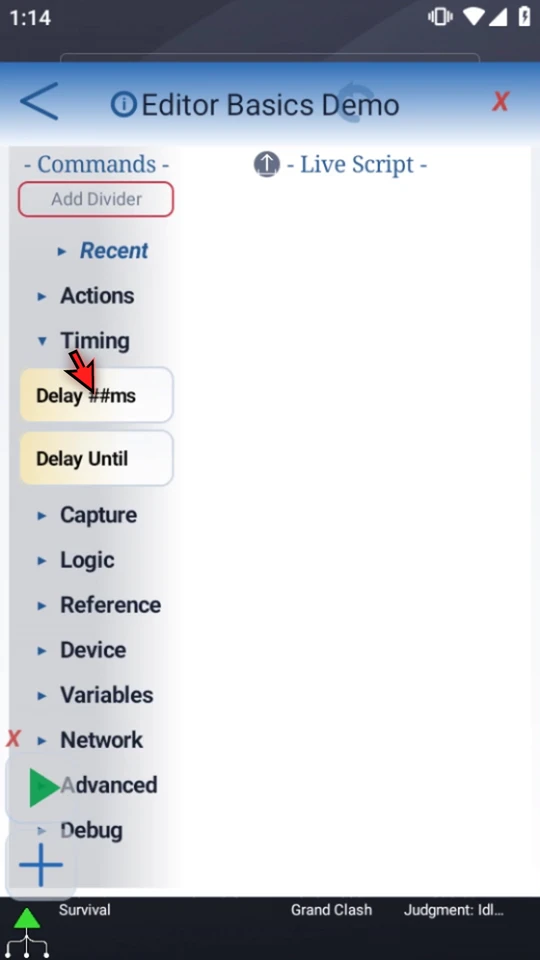
The Commands palette is on the left; Live Script is on the right. Expand a category to see its commands. Recent provides quick access to recently used commands. Open Timing to find Delay.
Drag a command into the sequence
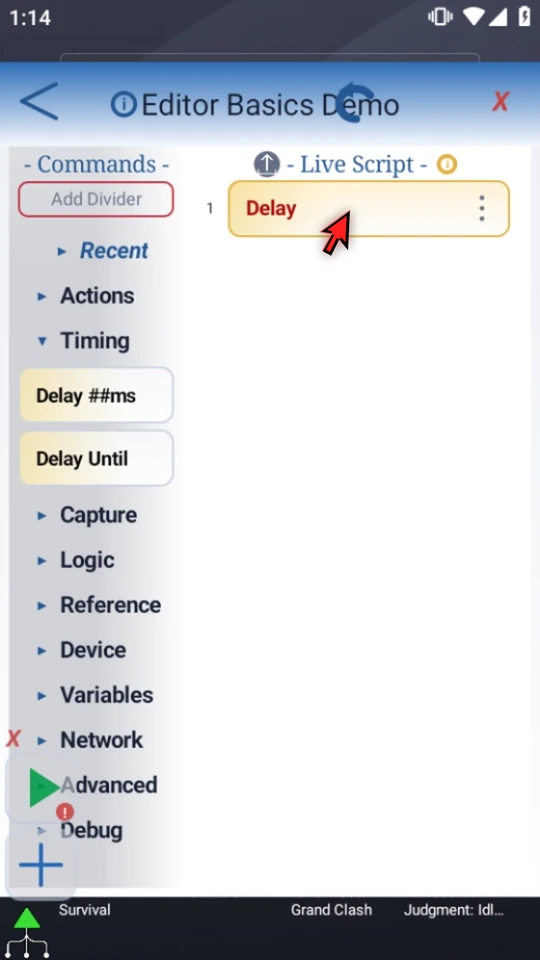
Drag Delay from the palette into Live Script. Watch the insertion line, then release. The video shows the actual full drag rather than inserting by tapping. The new row is red because its required time is not configured.
Configure the placed row
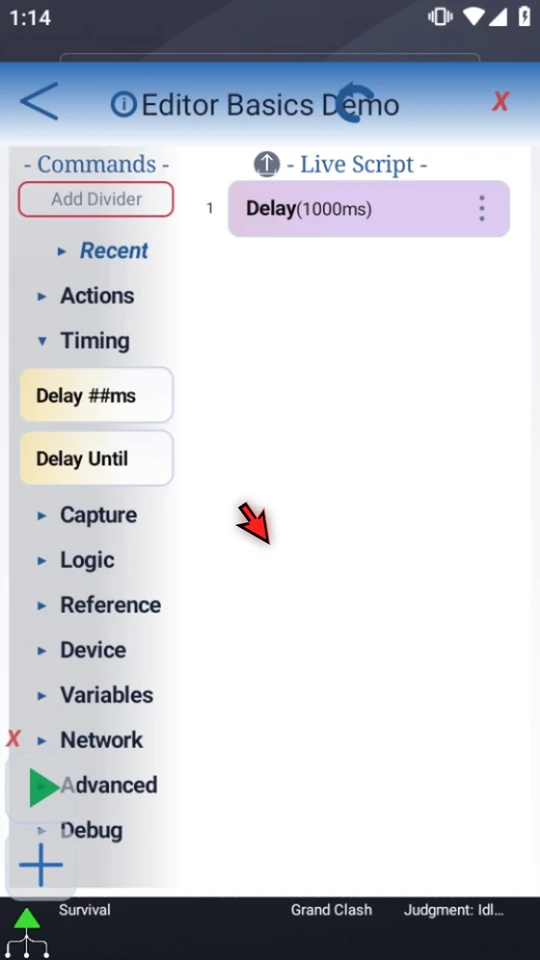
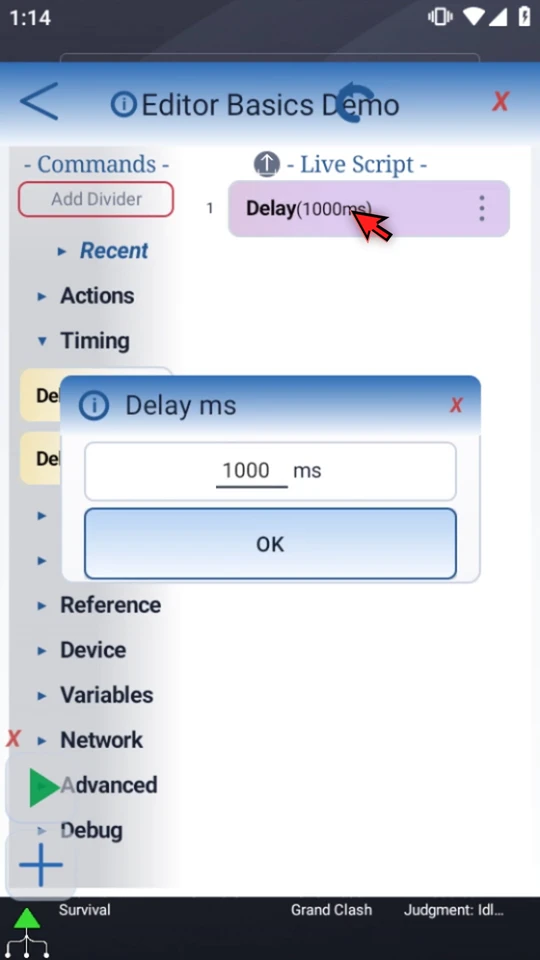
Double-tap the row in Live Script, enter 1000, then choose OK. Delay pauses this script for 1000 milliseconds: one second. The row now displays the saved value.
Cancel a change you do not want
Open Delay, replace the draft with 5000, then use the modal's X. Reopen the same command: its saved value is still 1000. Close the unchanged draft again. This distinguishes editing a field from committing it.
Add a visible finish point
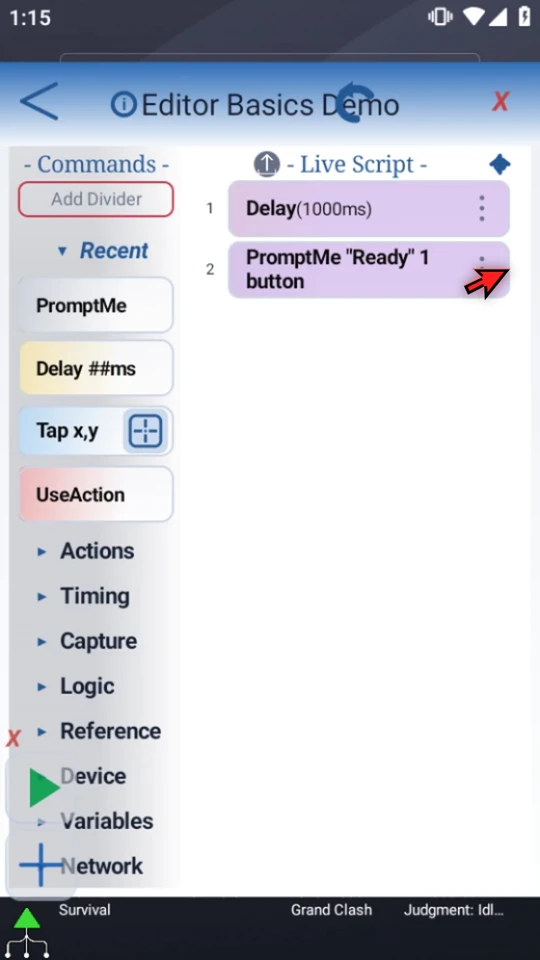
Open Recent and manually drag PromptMe below Delay. Double-tap its placed row. Keep Standard mode and This Script Only. Set Header to Ready, add one button, enter caption Done, and type the actual Boolean output name
b1. A gray placeholder is not a configured value.Choose OK. The two numbered rows show the intended order: wait, then display the prompt. See the PromptMe guide for its other controls and modes.
Check settings before playing
There is no separate editor Save button. Use OK in a command's settings to commit its draft; use Cancel or its X to leave the original unchanged. A saved blank or invalid field can remain incomplete and block Play. Complete the required setup before running the script.
Run and confirm the result
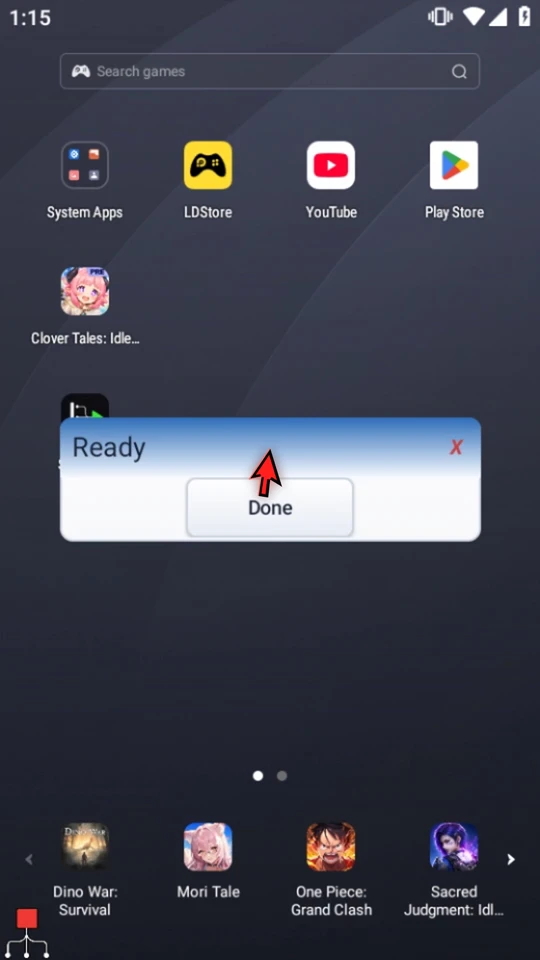
Close the editor and use Main Overlay Play. The video preserves the actual one-second Delay and the prompt's appearance. The genuine Ready prompt confirms the script reached its next command. Choose Done for natural completion.
Build on this example
Read the full narration
Turn a sequence of actions into a script you can understand and test. The editor lets you place commands in order, configure each step, and see what still needs attention. We are using a new, empty demonstration script.
Commands are on the left; your Live Script is on the right. Open a category to find commands by purpose. Recent keeps recently used commands close. We will start with Delay, from Timing.
Drag Delay from the command palette into Live Script. Watch the insertion line, then release. Adding a command does not finish its setup: the red text shows this row still needs a value.
Double-tap the placed row to open its settings. Enter one thousand milliseconds, which is one second, then choose OK. The row now shows the saved value. Delay simply pauses this script for that amount of time.
To leave a command unchanged, cancel its draft. Here we type five thousand, then use the modal's X. Reopen the row: the saved value is still one thousand. A draft is not a committed change.
Next, add a visible finish point. Open Recent and drag PromptMe below Delay. Row numbers show the execution order: wait first, then show the prompt.
Open the placed PromptMe row. Use Standard mode, add the header Ready, and add one button. Call it Done and save its result in Boolean b one, using This Script Only. Choose OK when these fields are complete.
Use OK to commit command settings. There is no separate editor Save button. OK can also retain unfinished or invalid fields, so check that required setup is complete before Play. A saved draft is not necessarily a runnable command.
Close the editor to return to your app. The script remains available in your library. This example needs no target app or changing screen: its confirmation prompt will make the result clear.
When the script is complete, simply use the Play button in the main overlay.
The Ready prompt confirms that the script reached its next command after the Delay. Choose Done to finish. Build in small steps, confirm each setting, and test your sequence before adding more complexity.