
Control automation without leaving your app
Main Overlay
Keep your current app visible while you select, edit, start, or stop a script. Move ScriptTap's floating controls out of the way and choose a layout that fits your workspace.
Watch the controls in use
Follow the steps
Show controls when you need them
Open ScriptTap, then tap its main button to expand the bar. Tap the button again to hide the whole bar. The video uses large, vertical controls; your layout may differ.
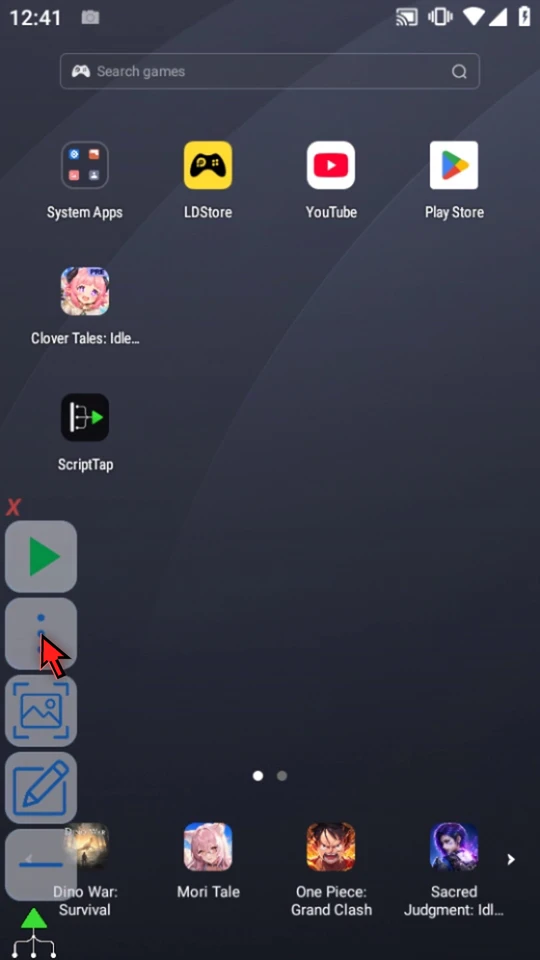
Move controls away from your target
Drag the main button to reposition the bar. It docks to a screen edge and remembers its position. Use minus for a compact bar containing Play and plus; use plus to restore the other controls.
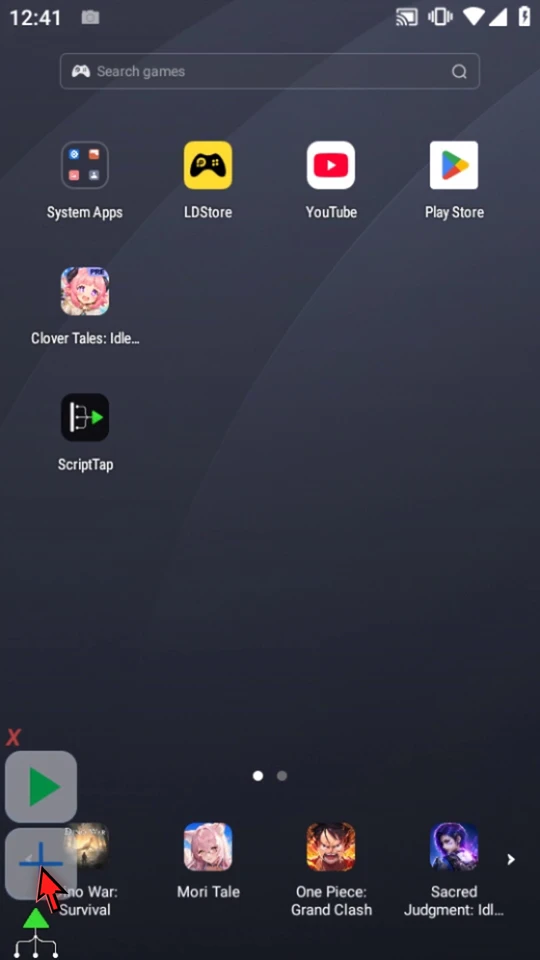
Check which script will run
Open the menu and choose Scripts. The selected script has an Active badge. This example uses a separate Overlay Controls Demo script. The pencil opens the selected script's editor.
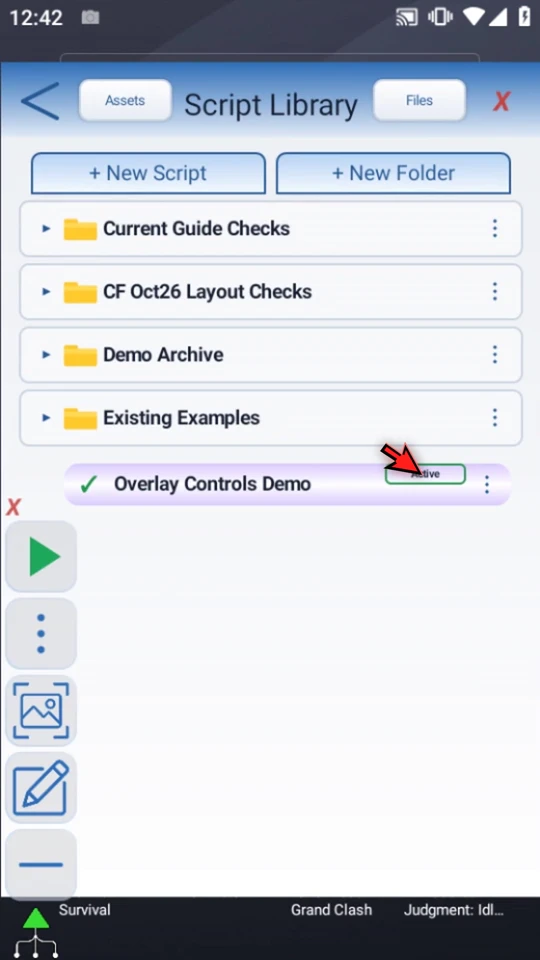
Start, stop, and start a fresh run
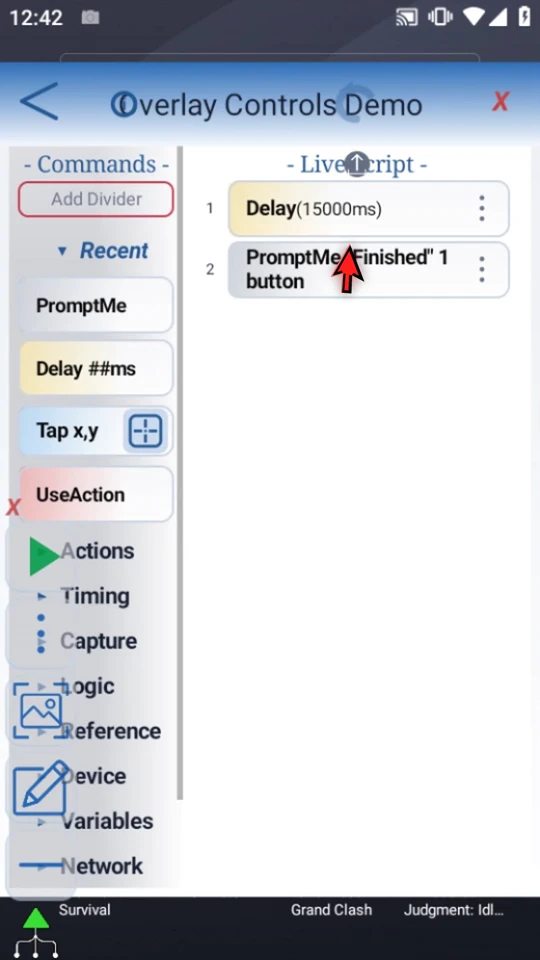
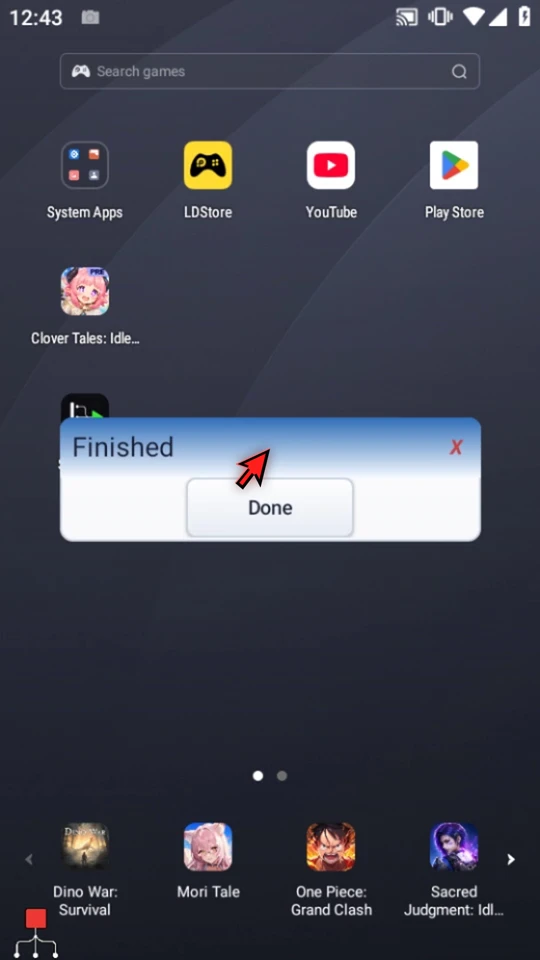
The example contains a fifteen-second Delay followed by a Standard PromptMe with a Finished header and Done button. Close the editor and use Main Overlay Play. While running, the main control becomes a red Stop.
The first run is stopped during its Delay. Play starts a new run from the beginning. The video then preserves the full fifteen-second wait, shows the genuine Finished prompt, and uses Done for natural completion.
Choose a comfortable layout
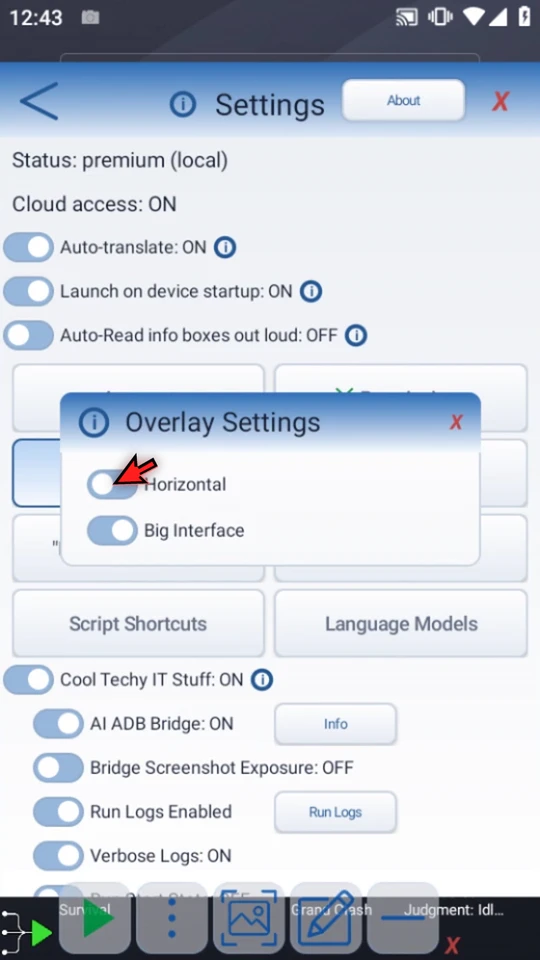
Open the menu, select the settings gear, then Main Overlay. Switch between horizontal and vertical layouts or small and big controls. Changes apply immediately. The example returns to its original large vertical layout.
Capture a reference for image-based workflows
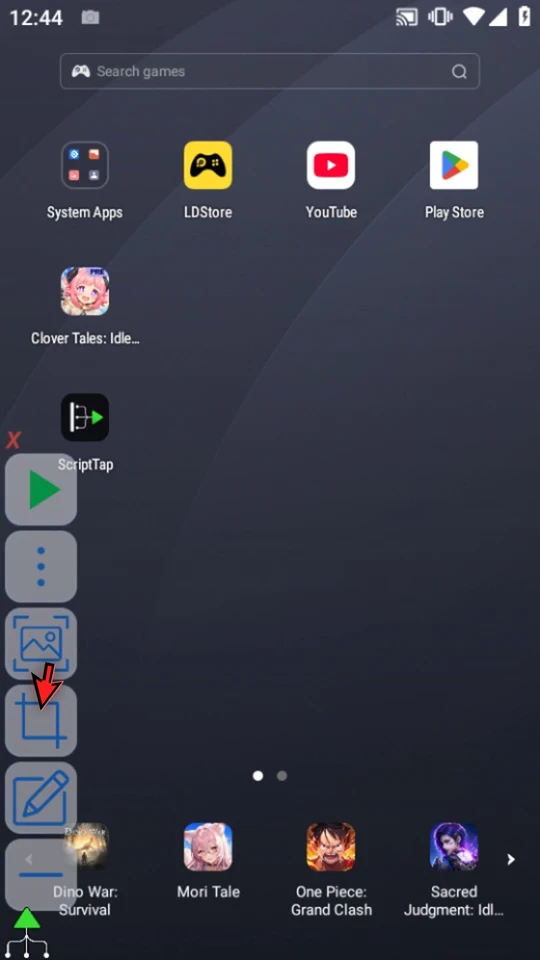
The screenshot button captures the current screen. If Android asks, allow screen capture. A Crop button then opens asset creation from that capture. This video points out the real Crop button without creating another asset.
See Creating an asset for the crop tools and saving a reusable matching reference.
Close ScriptTap when finished
Use the red X while idle to close ScriptTap's interface. Open ScriptTap from its Android launcher icon when you need the controls again. Your preferred layout and position are retained.
Put the controls to use
Read the full narration
Keep your automation controls close without leaving the app you are using. ScriptTap's Main Overlay gives you quick access to scripts, screenshots, and run controls.
Tap the main button to show its controls. We are using a large, vertical layout here. Your chosen layout may look different.
Drag the main button to move the controls away from something you need to see or tap. The bar docks to a screen edge, and its position is remembered.
Use minus for a compact bar with Play and plus. Use plus to restore the other controls. Tap the main button to hide the whole bar, then tap it again when you need it.
The menu opens the Script Library and other features. Play uses the selected script, identified by its Active badge. We will use a separate demonstration script.
The pencil opens the selected script's editor. This simple example waits fifteen seconds, then shows a Finished prompt. That gives us a clear way to see the effect of starting and stopping a run. Close the editor when ready.
When the script is complete, simply use the Play button in the main overlay.
The main control becomes a red Stop while the script runs. Use Stop to end this run. Stopping is not the same as pausing it for later.
Play starts this example again from its first command. It is a new run, not a continuation of the stopped pause. We will let the full fifteen-second Delay finish this time, so the completion prompt can appear.
The Finished prompt confirms that this run reached its final command. Choose Done to finish the example. ScriptTap returns to its main button.
Make the controls fit your workspace. Open the menu, use the settings gear, and choose Main Overlay. Switch between horizontal and vertical layouts, or small and big controls. Changes apply immediately. Choose the combination that keeps your screen usable.
The screenshot button captures your current screen for image-based workflows. If Android asks, allow screen capture. The Crop button opens asset creation from a capture. Use the separate asset creation guide for the cropping tools and saving a matching asset.
Use the red X when you are finished using ScriptTap. Open ScriptTap from Android Home when you need its controls again. You can keep your preferred layout and position for your next session.