
Inspect a detail before changing your script
Preview a draft before committing
Check how a compact control will look while its settings are still open. This example uses PromptMe Mini's temporary editor preview to compare a titled panel with a small headerless widget, then cancels the draft and runs the unchanged saved script.
A preview is not a commit or a full run
Compare a draft without replacing the saved command
Keep a known saved result
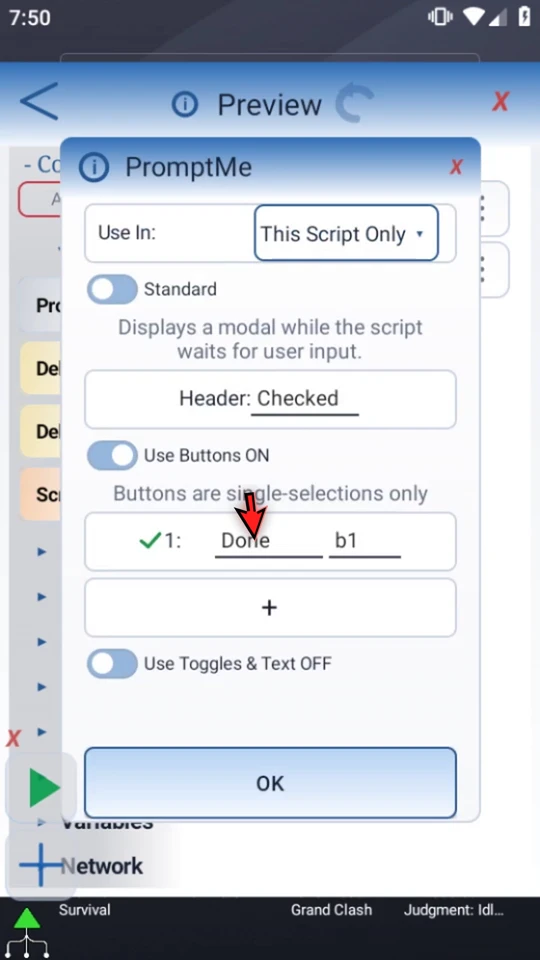
The separate practice script Preview contains Delay(1000ms) followed by Standard PromptMe with header Checked and a Done button writing to
b1. This gives us a clear saved result to compare after canceling the draft.Open a placed command, then change its draft
Double-tap the existing PromptMe row in Live Script and switch to Mini. Keep Buttons, Persistent OFF, Header ON, and Size: Default. Enter title Preview, button variable
i1, and one button caption Go. Do not choose OK yet.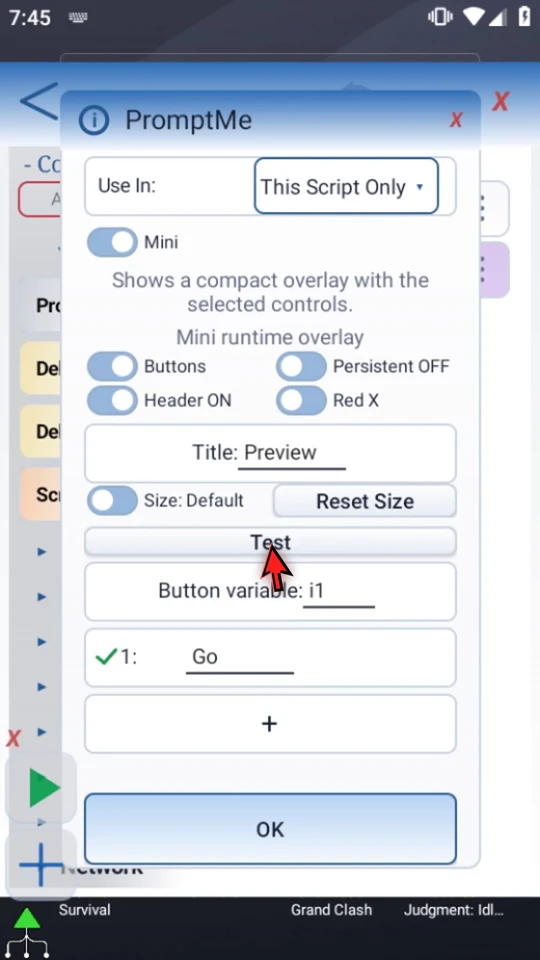
Use the brief titled preview
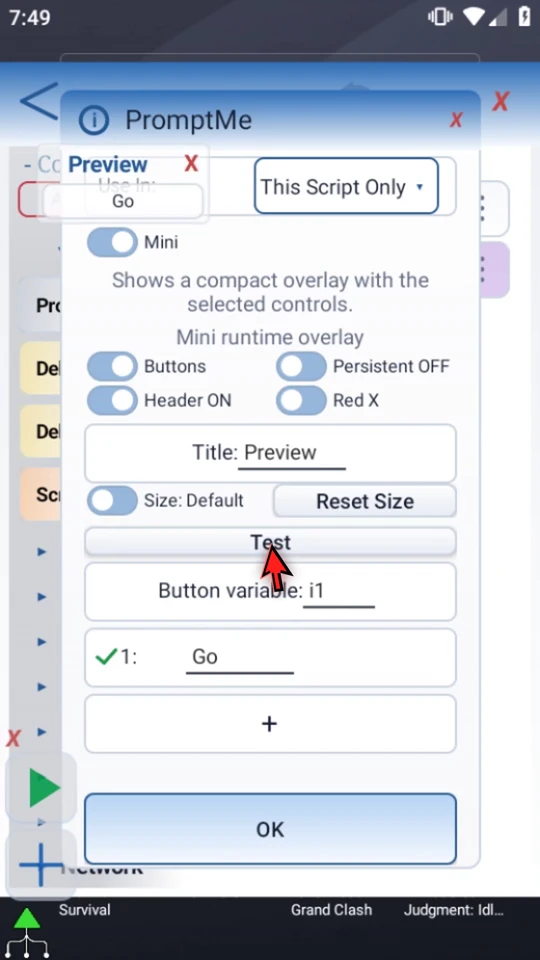
Choose Test. A Preview panel with a Go button appears above the editor, then closes automatically after three seconds. This is an appearance preview: it does not run the earlier Delay or write a runtime button result.
Compare a headerless widget
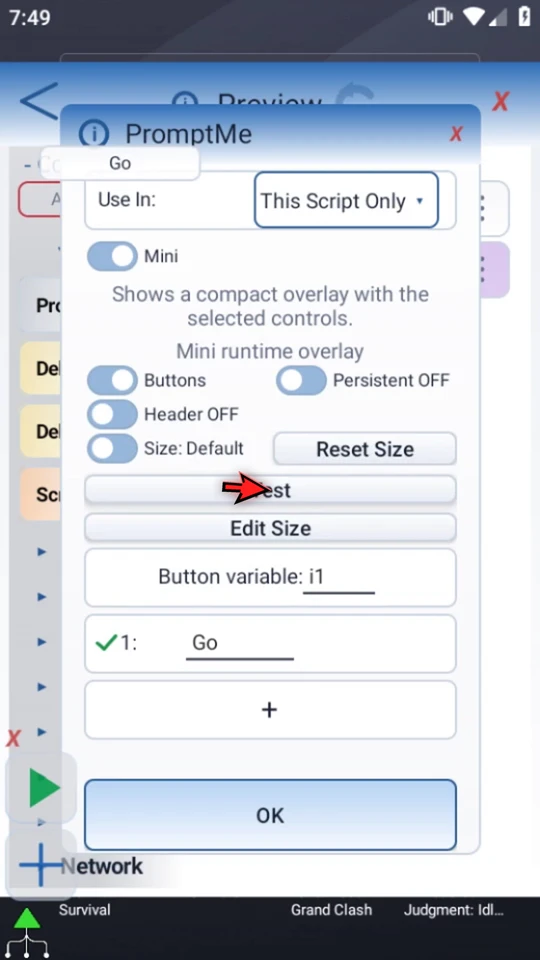
Turn Header OFF and choose Test again. The new brief preview contains only the Go button, without a title bar. The video preserves both previews' real appearances and automatic expiry rather than holding them on screen indefinitely.
Cancel changes you do not want to keep
Close the command settings with their red X. Reopen the saved row: Standard, Checked, and Done → b1 remain. Previewing did not commit the Mini draft. Use OK when you intend to save command settings.
Test the saved workflow separately
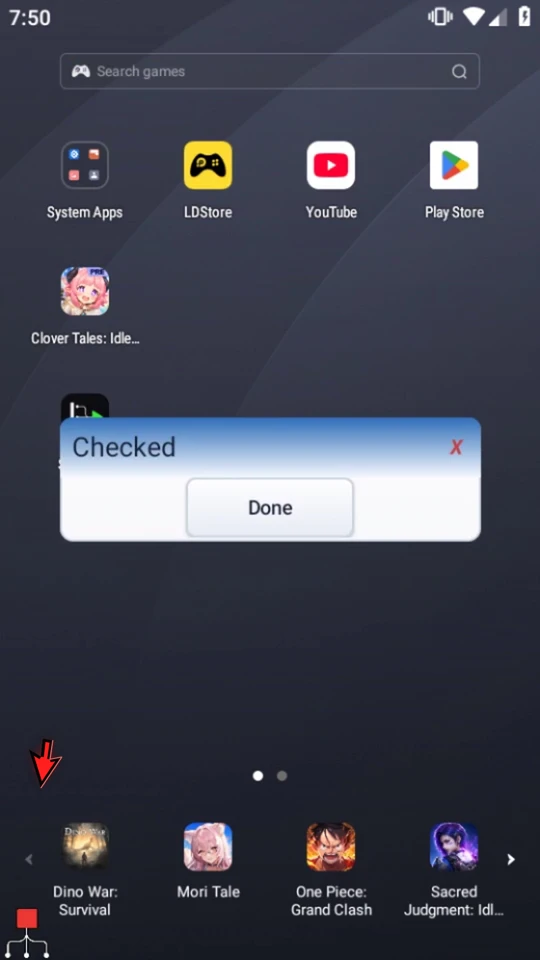
Close the command settings and Editor, then use Main Overlay Play. The saved one-second Delay runs, and the original Checked prompt appears. Choose Done for natural completion. This real run is separate from the editor's temporary Mini previews.
Read what that command's Test actually does
Test is not a universal harmless dry run. Its behavior depends on the command; some tests perform real requests or other actions. Check that command's guide, the intended target, and required access first. An appearance preview does not prove a complete workflow will work in another app.
Validation checks configuration. Preview or Test checks a command-specific detail. Play runs the saved workflow. Use each for the question it actually answers.
Check the right thing
Read the full narration
See how a control will look before changing your working script. A command's Test or preview can help you inspect one part of a workflow before committing its settings or running the full sequence.
We will use PromptMe's Mini preview. Open the existing PromptMe row in Live Script.
Switch this draft to Mini. Its Test button lets you inspect a compact control without playing the script's earlier commands.
For this example, use the title Preview, an integer button output named i one, and one button labeled Go. These are draft settings; we have not saved them.
Choose Test. The Preview control appears above the editor for three seconds, then closes automatically. Use this brief view to inspect its title and button.
This is an appearance preview, not a full script run. It has not played the earlier Delay or written a runtime button result to the integer variable.
Turn Header off, then choose Test again. The brief preview now shows only the Go button: a small widget without a title bar.
To leave the saved script unchanged, close the settings with its red X. This discards the unsaved Mini draft; we have not chosen OK.
Reopen the command. Standard mode, the Checked header, and its Done button are still saved. Test showed the draft; it did not commit it. Use OK when you actually want to save settings.
Now compare a real run. Close the editor and press Play. The saved one-second Delay runs, then the original Checked prompt appears.
Choose Done to finish the real run. This is the saved script's behavior, separate from the temporary Mini previews.
Test behavior depends on the command. Some tests perform real requests or other actions; they are not a universal harmless dry run. Read that command's guide and check the intended target and required access first.
Preview a specific detail, commit only the settings you want, then test the saved workflow in its intended app. Each step answers a different question.