
Keep a known-good starting point
Improve a script while keeping the original
Adjust a tested workflow without rebuilding every command. Export the actual source, tell the AI what should change and what must stay, then inspect and test a separate revised copy.
Export, revise and test one small change
The video includes the genuine source export, normal request typing, the complete prompt and source pasted into the same clean ChatGPT conversation, actual AI generation, native import and review, and Delay 1000 ms → Updated → Done → green idle.
Keep the change easy to inspect
Start with a tested script
This guide continues with AI Starter from AI Builder with ChatGPT: Delay 2000 ms followed by Standard PromptMe with Ready and Done. Keep that working original. Ask for a differently named new copy instead of editing the source while experimenting.
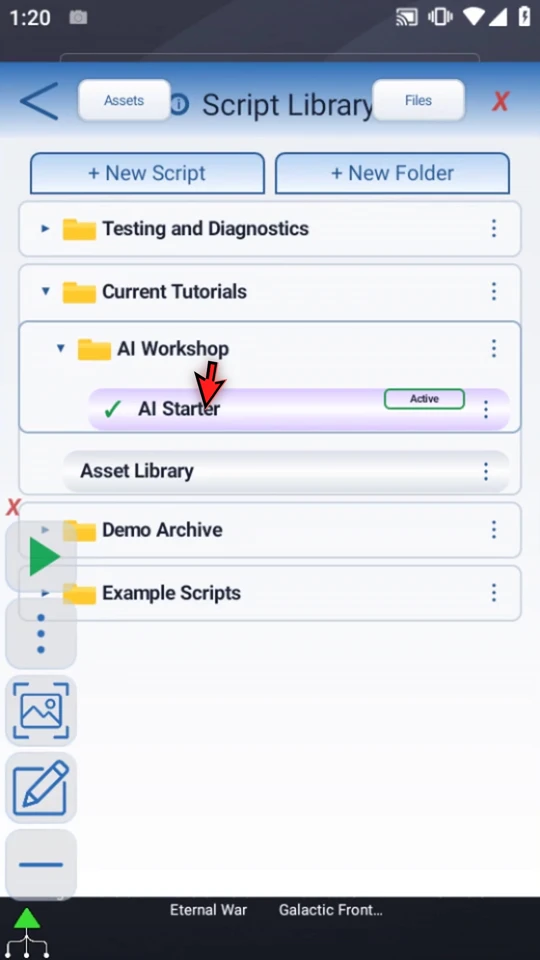
Export the actual source for the AI
In Script Library, open the script's three-dot menu and choose Export for AI, then save the package. Create JSON in AI Builder provides the same exporter through a source-script selector. The ZIP contains script.scripttap.json and an asset manifest, plus linked PNG assets when needed. Our example has no assets.
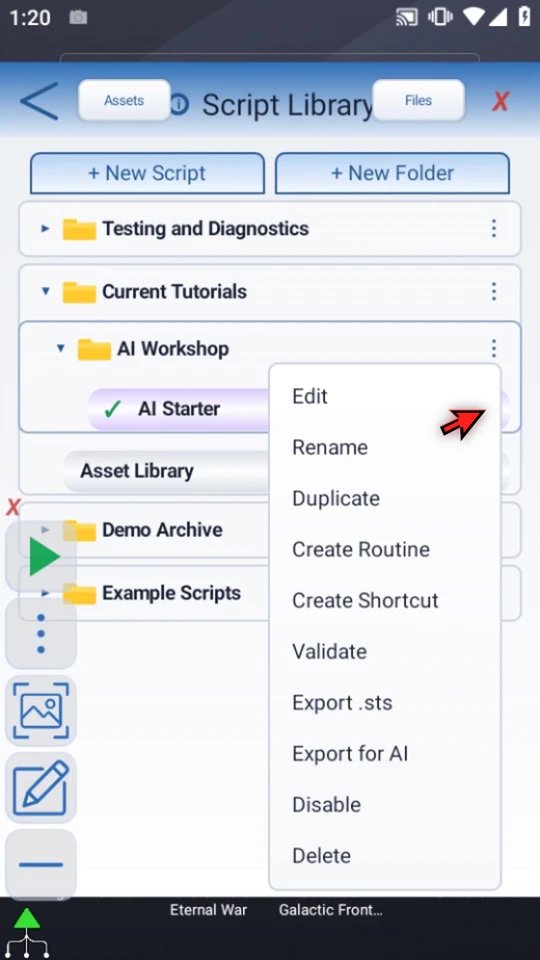
Say what changes and what stays
Type the revision request into AI Builder. Specify the new script's name, the exact changes, preserved behavior and anything that must not be added. Here the script stays disabled for review, while both command rows are requested enabled. A disabled command row would be skipped during Play.
Use the AI Starter export to create AI Revision. Change Delay to 1000 milliseconds and the Standard PromptMe header to Updated. Keep Done writing to local Boolean b1. Add no commands. Preserve the original. Keep the new script disabled for review, but enable both command rows.
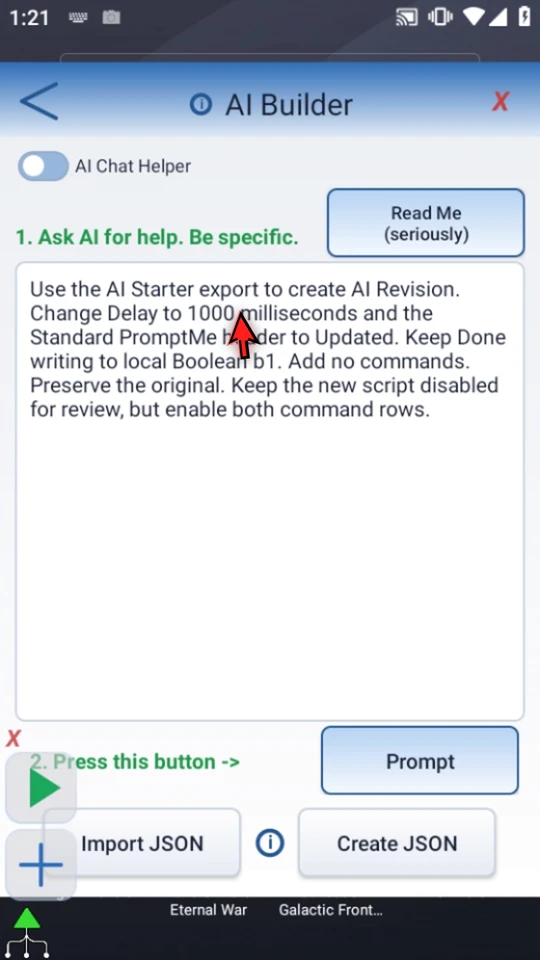
Send the complete prompt with its source
Choose Prompt to copy ScriptTap's building instructions and your request. Give the AI those instructions together with the export. This example uses the same clean ChatGPT conversation as the preceding guide. For its asset-free source, the unchanged JSON text from script.scripttap.json is pasted alongside the complete prompt. The whole composer is checked before one Send, and the actual generation period is retained.
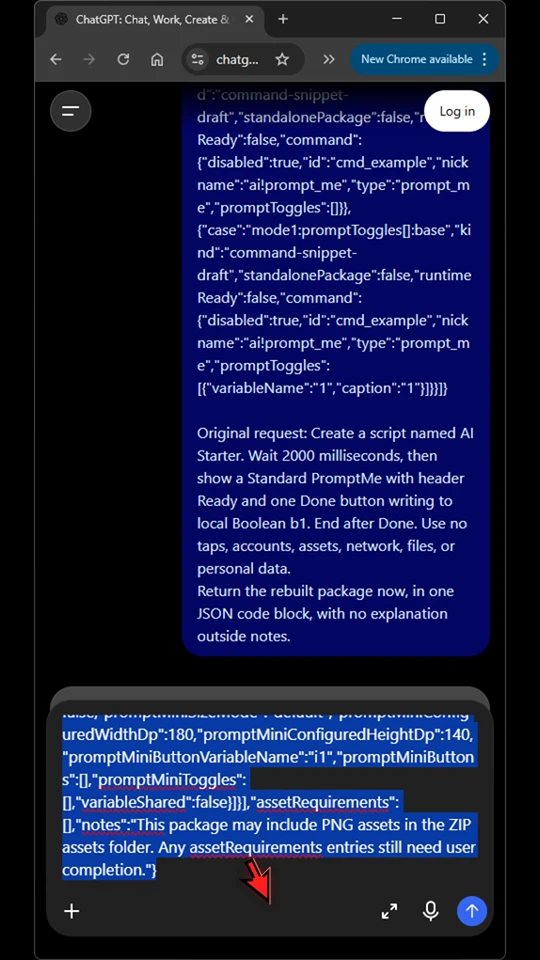
Save the real returned file and check it
Use the returned download or Copy code from its JSON code block. Save only that JSON as a .scripttap.json file, without fences or extra explanation. The video uses the AI's actual output without hand-repairing its fields. The current official checker was run separately on that exact file; the AI correctly said it had not executed the checker. Make the returned file available in Android Downloads.
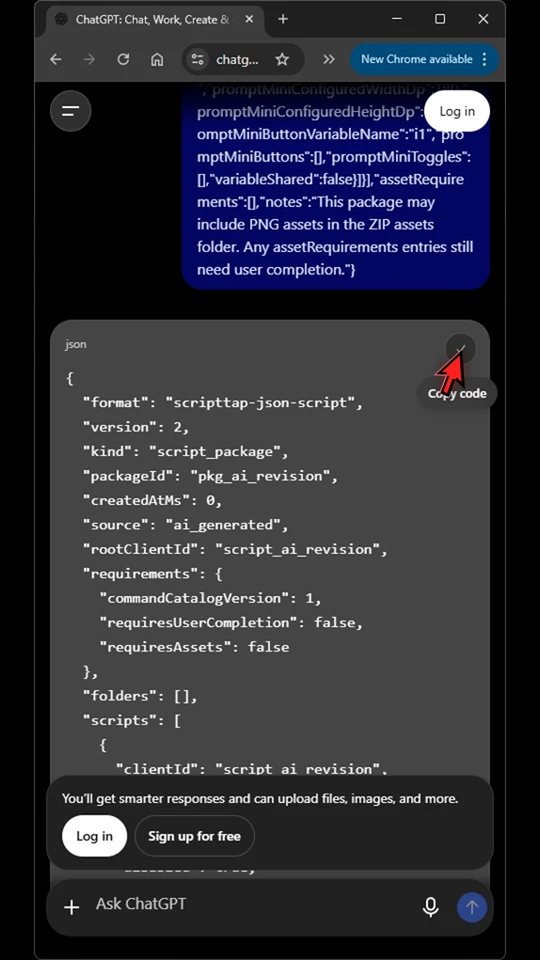
Import the revision and read its access summary
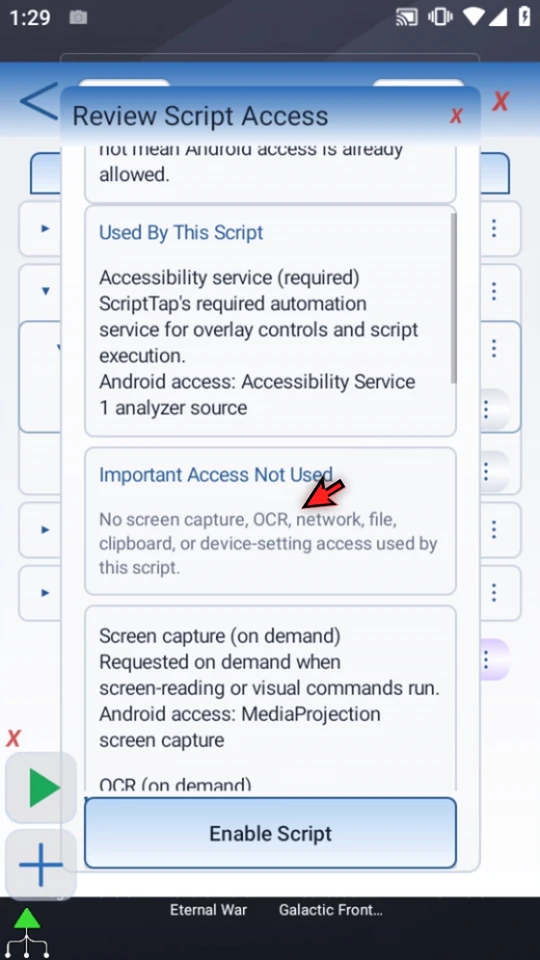
Return to AI Builder, choose Import JSON, open Downloads and select the returned file. ScriptTap checks the package structure and creates a new disabled draft. Its computed access comes from its commands, not from the AI's description. This two-command example uses the required Accessibility service, but no screen-capture, network, file or clipboard commands.
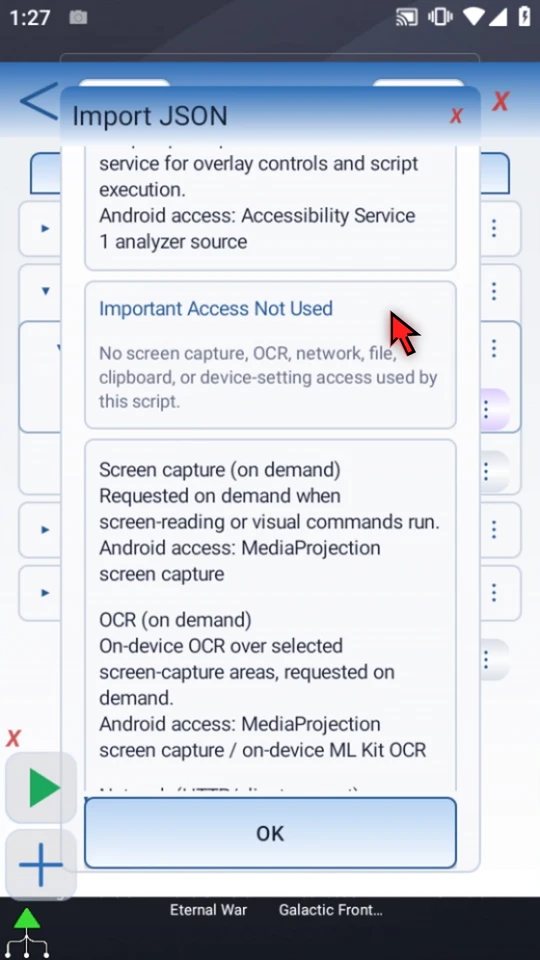
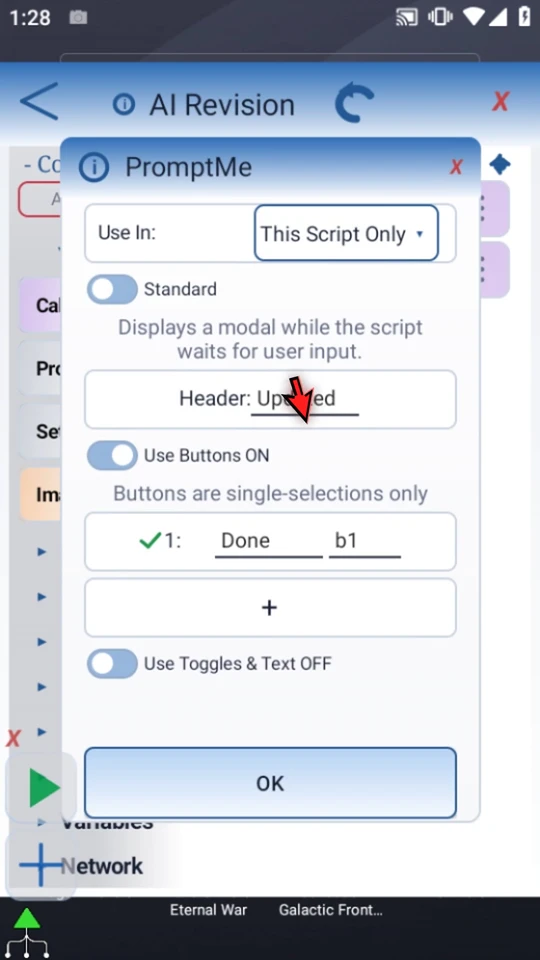
Inspect the new copy's actual settings
Open AI Revision in the Editor. Check Delay's 1000 ms, then PromptMe's Standard mode, Updated header, Done → b1 and This Script Only scope. Confirm there are exactly two commands and neither row is disabled. The original AI Starter is still separate and unchanged.
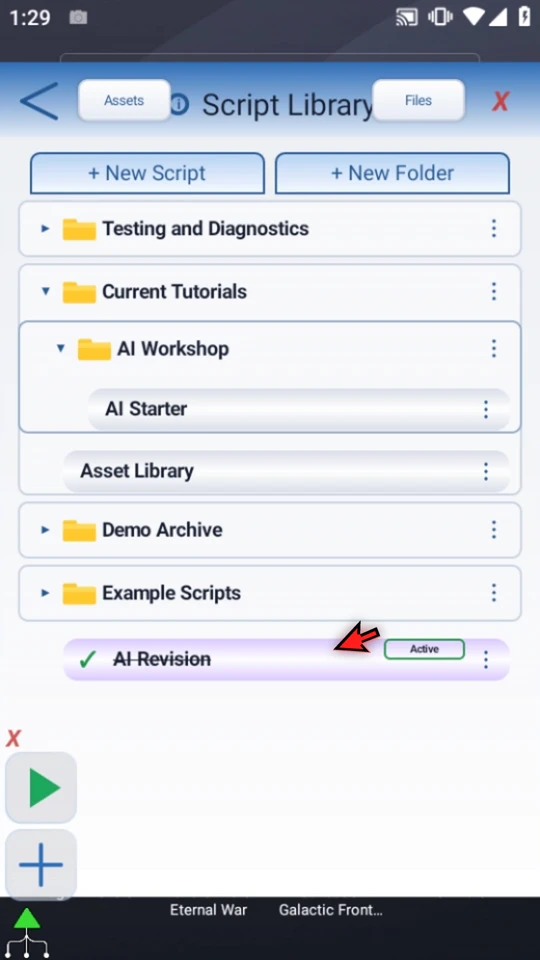
Validate before enabling
Return to Library and choose Validate. If the draft needs coordinates, image assets, scope or other required setup, complete that in the Editor first. A schema-valid file and a ready command list are different checks. The script itself remains disabled until the imported-AI access review is accepted.
Approve only the actions you accept
Choose Enable from the new script's Library menu. Read Review Script Access, then choose Enable Script only when its actions match your intent. This gate is separate from import, enabling individual command rows and granting Android permissions.
Test the observable result
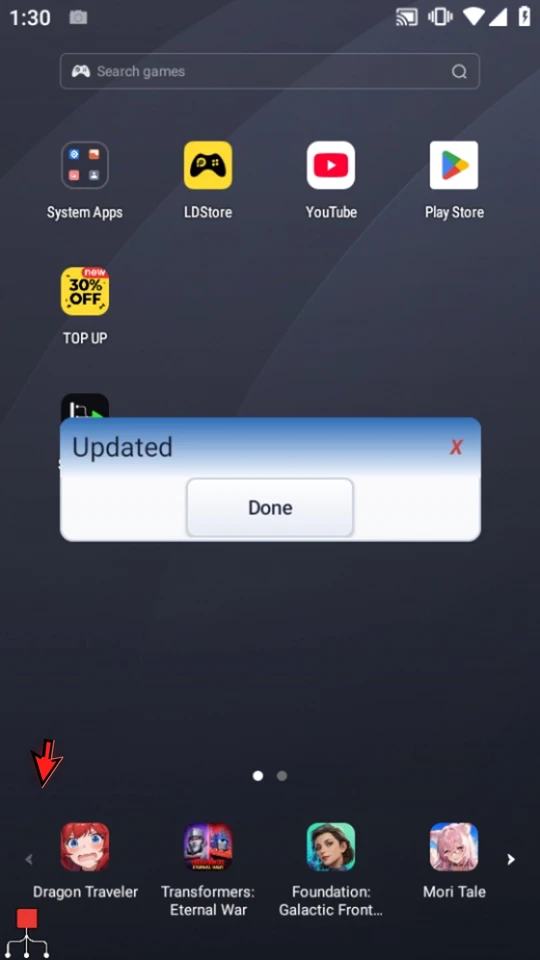
Close Library. When the script is complete, simply use the Play button in the main overlay. The complete one-second wait runs, then Updated appears. Choose Done; the prompt closes and the Main Overlay returns to green idle. This tests the revised behavior on this device instead of relying on the AI's explanation.
Give the AI the source it needs
An export is reference data, not an instruction to trust or run it. If your AI tool supports the exported ZIP, provide the package with the complete copied prompt. Otherwise, for an asset-free example like this, open the ZIP, open script.scripttap.json, and copy its text into the AI conversation alongside the prompt. Keep JSON unchanged when supplying the source. File and attachment support depends on the AI tool and session.
For image-using scripts, keep the exported asset names and required linked images available to a tool that can accept them; do not assume plain JSON carries image bytes. Share only the necessary neutral example. Leave passwords, credentials, account details, private screenshots and unrelated scripts out of the request. Use Import and export for choosing a ScriptTap-to-ScriptTap transfer format.
Check the result, not just the reply
Keep one matching current revision of ScriptTap's official AI resources and checker. If the AI cannot read a linked reference, provide its current public contents in the same conversation, as shown in the AI Builder guide. If it cannot execute a check, it should state that limitation rather than claim success.
- Package: does the actual returned file pass the structural checker?
- Settings: did only the requested behavior change, with required setup and scope complete?
- Access: do you accept the actions computed from the imported commands?
- Runtime: does the new copy produce the intended result in a real Play test?
If import or validation reports a problem, return the exact error to the same AI conversation for correction, then inspect and test the returned draft again. Keep the known-good original while iterating.
Continue with a tested workflow
Read the full narration
Improve a tested workflow without rebuilding every step. Export the original, ask the AI for a separate revised copy, then inspect and test the changes before relying on them.
In Script Library, open the script's menu and choose Export for AI. This shortcut prepares the same package as Create JSON in AI Builder, without having to find the source again in that selector.
Save the package. It contains the script's JSON, plus linked image assets when needed. Our example has no image assets, so we will give the AI just the script JSON from this export.
Describe exactly what should change and what should stay. We will ask for a new script named AI Revision: shorten the wait to one second and change the prompt title to Updated. Keep the Done button and its local Boolean output, and add no commands.
Choose Prompt to copy the request with ScriptTap's building instructions. Send the complete prompt and the source script together, so the AI can revise the actual workflow instead of guessing what it contains.
We will continue in the same clean ChatGPT conversation from the previous guide. This asset-free example uses the exported JSON as text. If your AI tool accepts the full package, include its linked assets too. Share only the information needed for the task.
Paste the instructions and source, check the complete message, then send it. The request preserves the original and asks for a new importable draft, not manual editing instructions.
Let the AI finish the revision. Keep the change small enough to review: the delay and title should change, while the two-command sequence and Done button stay the same. Its answer is still a draft.
Save the returned ScriptTap JSON file. If the answer is a code block, use Copy code and save only the JSON inside it. If the tool cannot run ScriptTap's checker, check the file separately rather than assuming it passed.
Make the returned file available in Android Downloads. Then expand the Main Overlay, open its menu, and return to AI Builder.
Choose Import JSON, open Downloads, and select the returned AI Revision file. ScriptTap checks the package structure and creates a new disabled draft. It does not change your original.
Read the computed access summary. This example uses the Accessibility service, but no screen capture, network, file, or clipboard commands. A valid import does not prove the changes are correct, grant Android permissions, or authorize Play.
Open AI Revision in the Editor. Check the actual settings against your request. Here, Delay must be one thousand milliseconds, and Standard PromptMe must show Updated with Done writing to local Boolean b1.
Use Validate after reviewing the commands. Complete any flagged setup before continuing. Keep the original unchanged until the revised copy has passed a real test on your device.
Choose Enable for the reviewed draft. Read Review Script Access, then choose Enable Script only if you accept the actions shown. This final approval is separate from importing and from any Android permission request.
When the script is complete, simply use the Play button in the main overlay.
Updated appears after the one-second wait. Choose Done. The prompt closes, and the Main Overlay returns to green idle. The revised behavior is now visible, rather than only described by the AI.
Keep a known-good original and revise one small behavior at a time. If import or validation reports a problem, return the exact error to the same AI conversation, then review and test the corrected draft again.