
Keep a portable copy of useful work
Save and reuse a script package
Back up a useful workflow or share it with another ScriptTap installation. Export keeps the original in place. Import creates a separate local copy that you can inspect and test before relying on it.
Export, inspect and test a separate copy
The prepared Transfer Source script has one Standard PromptMe: a Ready header and a Done button with local Boolean output b1. The example has no child scripts or image assets. The confirmation makes the received script's actual execution easy to see.
Keep the original and verify the received copy
Select the script you intend to transfer
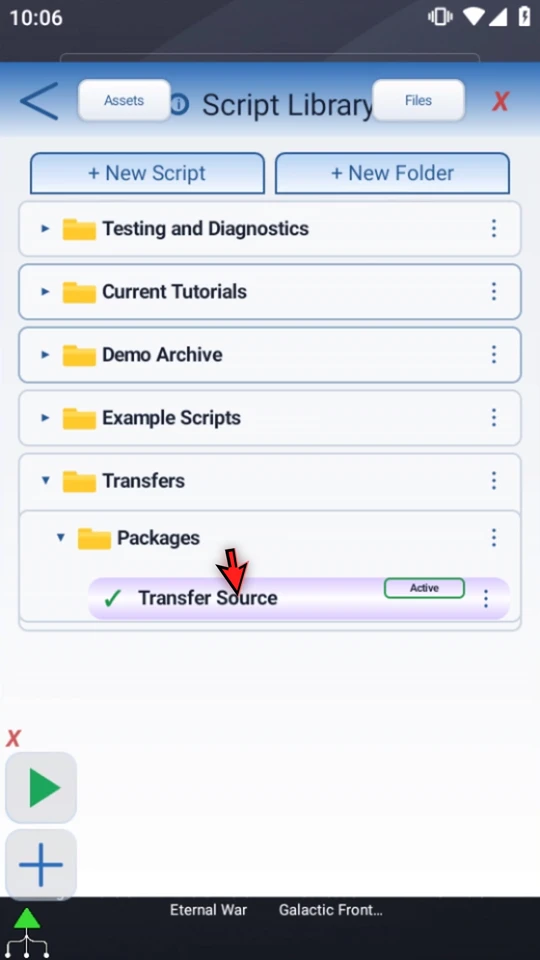
Find the source in its topical Script Library folder and check the active selection. Here it is the prepared one-command Transfer Source under Transfers → Packages. Export does not remove it or move it out of this folder.
Choose ScriptTap's transfer format
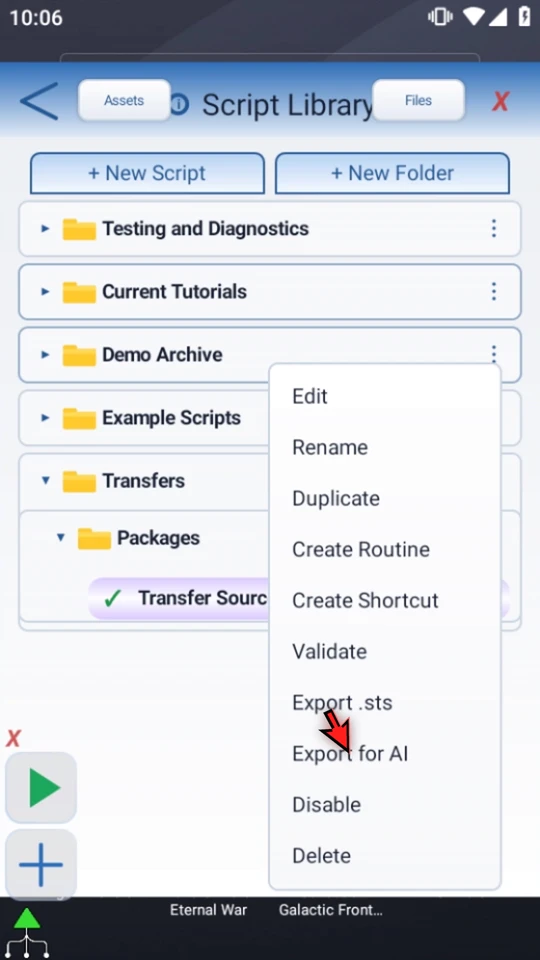
Open the script's three-dot menu and choose Export .sts. Export for AI is a different JSON/ZIP workflow. Changing a filename's extension does not convert one format into another. A native STS package includes the selected script's callable tree and linked assets; this small example needs neither children nor images.
Save a new package without overwriting another
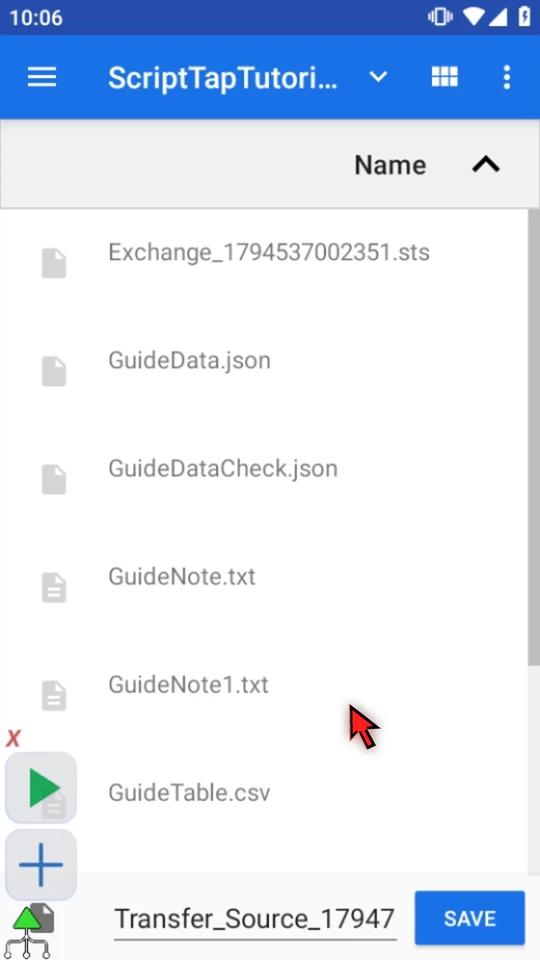
Choose a destination in Android's Save picker. The video uses ScriptTapTutorials and keeps the new generated filename, then selects Save. Wait for the real Export saved result. This picker grants access to the chosen destination without requiring broad storage access.
Find the registered output in Files
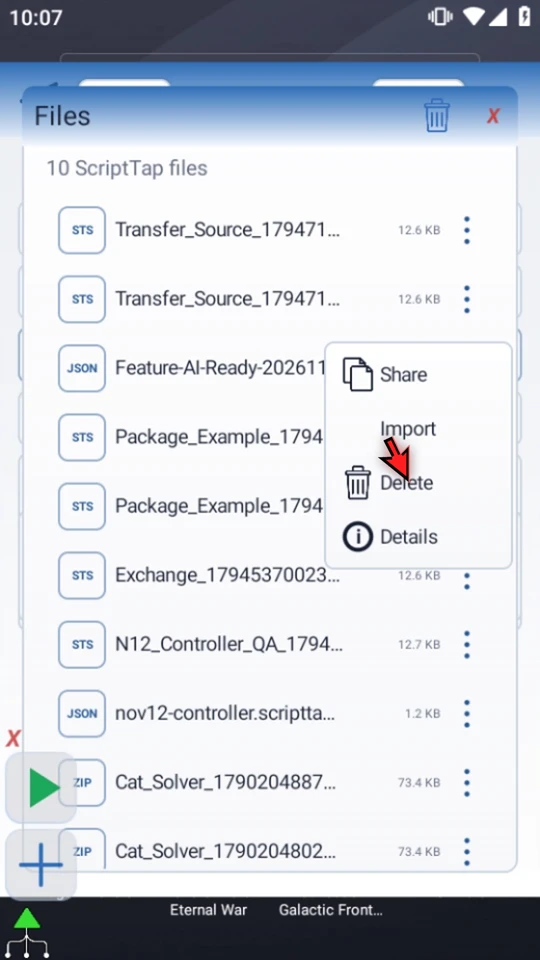
Open Files in the Script Library header. The newest STS output is first here, with a size of about 12.6 KB. Its menu contains Share, Import, Delete and Details. Files lists registered ScriptTap outputs, not every file on the device. Check the filename and details before acting on a similar-looking entry. The video does not share or delete anything.
Import with a deliberate coordinate choice
Choose Import for the package just saved. ScriptTap reads and checks the package, then shows Import Coordinates. Import Exact keeps authored coordinates. Transpose Coords converts literal screen coordinates in supported fields for the receiving device. This example stays on the same device and chooses Import Exact.
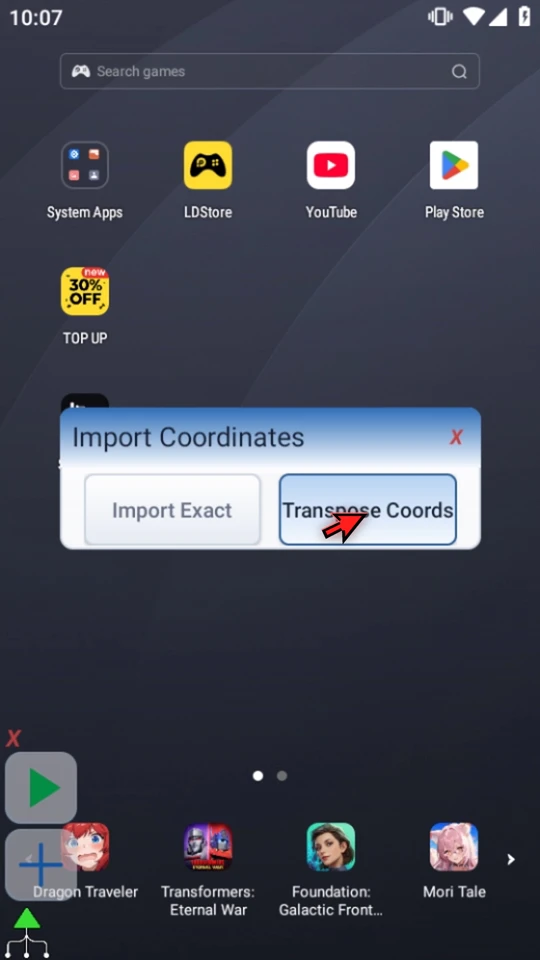
Identify the received copy before editing
The imported script has a new local identity and becomes active. Its display name may be identical to the source, but it is a separate copy. Here the original remains in Packages while the new active copy appears outside that folder. Open the received row's menu and choose Edit.
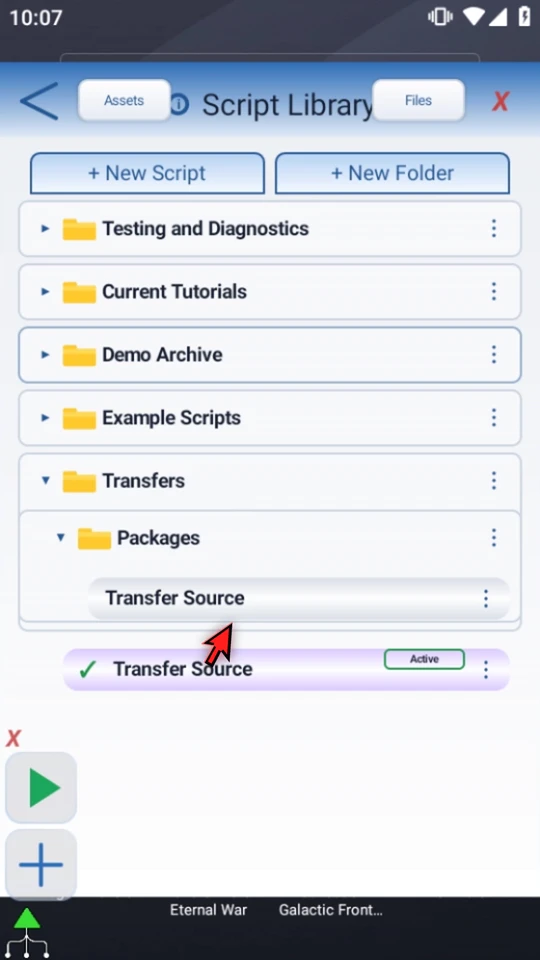
Inspect commands and settings without changing them
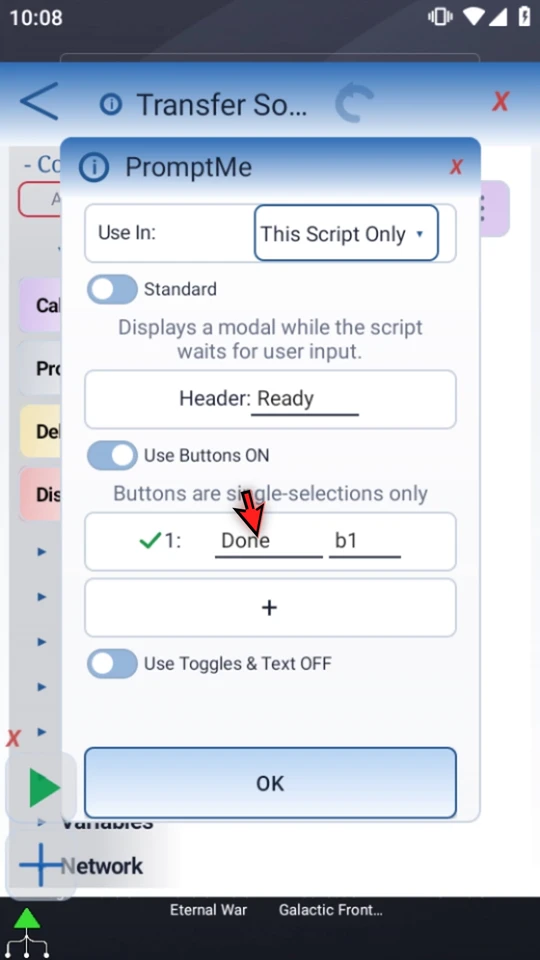
Review the received sequence and open its existing PromptMe settings. This example retains This Script Only, Standard, header Ready, and button Done → b1. Close the inspected settings with X without saving changes. Larger workflows may need new targets, variables, Android permissions or image calibration on the receiving device.
Run the received workflow and observe its result
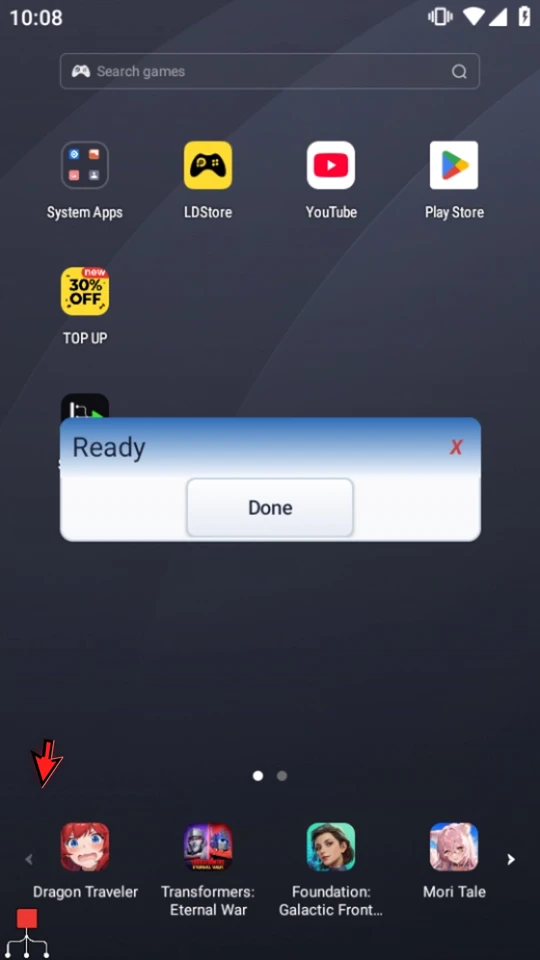
Close the editor. When the script is complete, simply use the Play button in the main overlay. The actual run displays Ready. Choose Done to finish naturally. This is execution of the imported copy, not a settings preview. The original source and saved package remain available.
Use the format intended for the job
- .sts: ScriptTap's native script-package format for ordinary ScriptTap-to-ScriptTap transfer, demonstrated here.
- .scripttap.json: the public AI script-package format. Image requirements are not the image bytes themselves.
- .scripttap.zip: a public AI package containing JSON plus its approved manifest and linked PNG assets.
Use the corresponding import workflow for the real file format. Review exported data before sharing; scripts and assets may contain information you do not intend to make public. See ScriptTap's AI resources for the separate AI package workflow.
Transposition does not redesign an app
Transpose Coords adjusts literal screen coordinates only in supported coordinate fields. It does not follow coordinates stored in variables, arrays or expressions, and it does not change another app's layout. Import Exact leaves authored coordinates unchanged. Neither option proves the received workflow suits the current screen.
Received image assets may require local calibration. Inspect references and test the transferred workflow before relying on recognition or taps. Use a short, visible result while checking a new setup.
Keep the next step manageable
Read the full narration
Keep a portable copy of a useful script, or share it with another ScriptTap installation. Export saves a package without removing your original. We will export this small confirmation script, import a separate copy, inspect it, and run it.
Open the script's three-dot menu. Export STS creates ScriptTap's own transfer format. Export for AI is a different workflow for public JSON or ZIP packages. Renaming one format does not convert it into another. For this ordinary transfer, choose Export STS.
Choose a destination in Android's Save picker and confirm Save. We are using a tutorial folder and a new file name, so no existing file is overwritten. Android gives access to the selected destination; broad storage access is not required for this picker.
Open Files in the Script Library. The new STS package appears with its size. Files lists registered ScriptTap outputs, not every file on the device. Its menu provides Share, Import, Delete, and Details; check the selected file before using an action.
Choose Import for the package you just saved. ScriptTap reads and checks the package before adding its scripts. A native package includes its selected script tree and linked assets. Our short example has one command and no child scripts or images.
Import Exact keeps authored coordinates. Transpose Coords converts literal screen coordinates in supported fields for the receiving device. It does not redesign another app's interface or follow values stored in variables. This example uses the same device, so choose Import Exact.
The imported script is a new local copy and becomes active. The original stays in its existing folder. Check which copy Play will use; a familiar display name does not mean it is the same script. Open the imported copy to review its commands.
Review the imported steps and their settings before running them. This copy contains the same PromptMe confirmation: Ready with a Done button. Larger workflows may need new tap targets, variables, local permissions, or image calibration on the receiving device.
Close the editor when the imported script is ready to test. Importing a package is not proof that its workflow fits the current screen. Use a short visible confirmation while you check a new setup.
When the script is complete, simply use the Play button in the main overlay.
Ready is the imported script's actual result, not an import preview. Choose Done to complete this run. The original script and the saved package remain available. Keep a known-good copy, import only from sources you trust, and test a transferred workflow before relying on it.