
Keep your own workflows available
Keep a private cloud copy
Compare your local ScriptTap library with the private copy under your account. Check whether sync is available, understand when saves reach the cloud, and wait for a real result before relying on it.
One private sync, from status to result
Synchronize your own library
Open the private account workflow
Expand Main Overlay, open its menu and choose Cloud. Then choose Personal in the Cloud header. The Personal Cloud modal lists the library's folders. You do not need to select an active script for a whole-library sync.
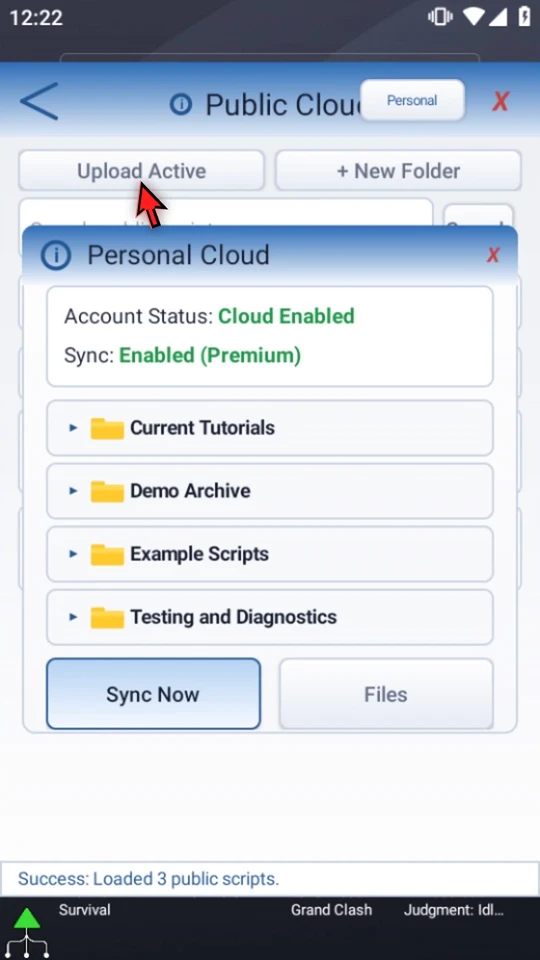
Check access before you start
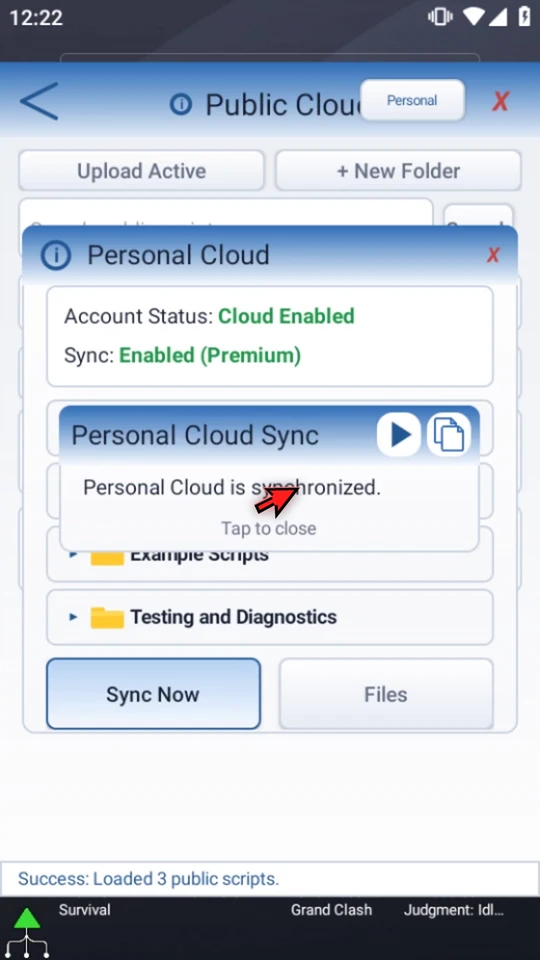
The example shows Account Status: Cloud Enabled and Sync: Enabled (Premium). Sync needs an eligible signed-in, verified account, the required premium entitlement and an internet connection. A local device trial is not that cloud-sync entitlement. If your status reports a gate, resolve that requirement instead of treating a disabled control as a completed backup.
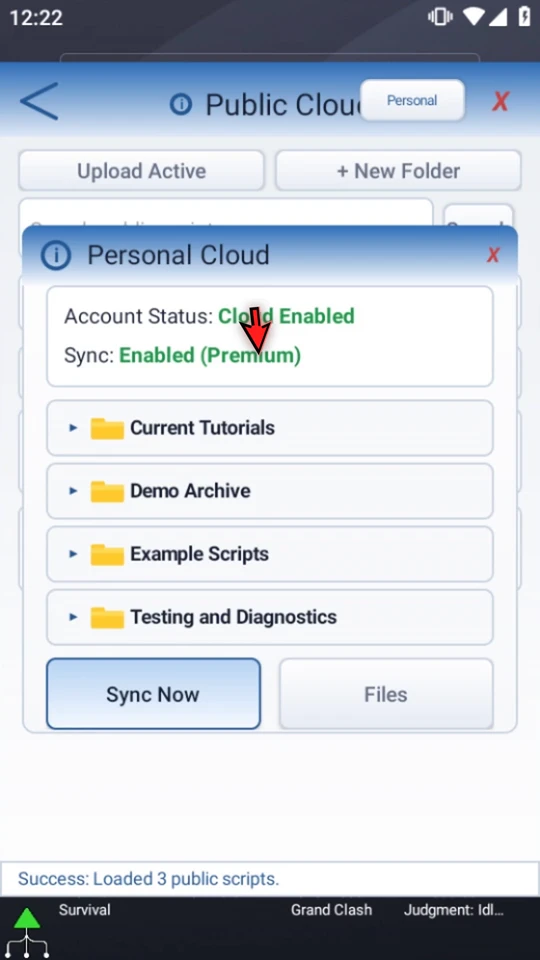
Understand timing and storage limits
Use the Personal Cloud information icon to open Cloud Sync Details. Eligible accounts sync after startup and then every six hours. Ordinary saves stay local-first and do not start an immediate cloud sync. Check the storage cap and warning level displayed for your current setup; the values shown in the video are the example's actual limits.
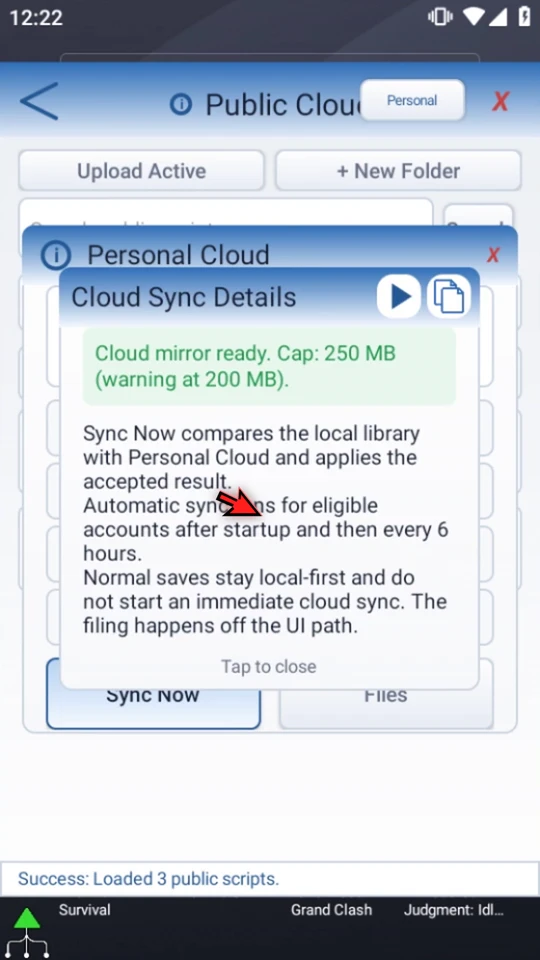
Send one request and let it finish
Close Details and choose Sync Now once. The operation compares the eligible local library with Personal Cloud; it is not an upload of only the active script. Eligible script packages carry linked assets and script relationships, and accepted cloud changes can come back to this device. Wait while Syncing is displayed rather than sending another request.
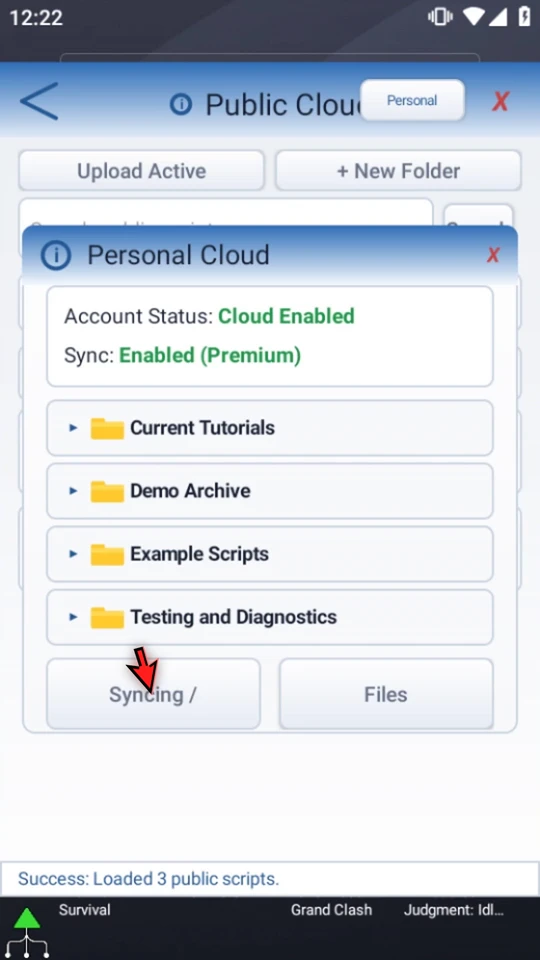
Read the terminal result
The recorded pass ends with Personal Cloud is synchronized. Close the notice using its Tap to close area, then close Personal Cloud and the Cloud screen. If your pass reports an error, retain its exact message and investigate it; do not assume a cloud copy succeeded. This video demonstrates a successful sync on one device, not a second-device restoration.
Before switching devices
- Use the same intended account, confirm sync is available on each device, and check the completed result.
- Sync is bidirectional. A successful pass is not proof that a workflow fits another app's current screen.
- Review Android permissions, literal coordinates and image targets before running a transferred workflow.
- Use a separate exported script package when you need a portable copy outside the sync workflow. Library organization does not require deleting scripts or their bound assets.
- Keep account details and private screen images out of material you share.
Keep the workflow dependable
Read the full narration
Keep your scripts available under your own account without publishing them for other people. Personal Cloud compares your local library with your private cloud copy. We will find its settings, check the sync requirements, and complete one manual sync.
Choose Personal at the top of the Cloud screen. Public Cloud is for sharing with the community; Personal Cloud is the private account workflow. Do not use Upload Active when you mean to synchronize your own library.
Check the status before starting. Here, Cloud Enabled and Sync Enabled, Premium show that this account can synchronize. Cloud access needs an eligible signed-in, verified account and the required premium entitlement, plus an internet connection. The local device trial is not that cloud-sync entitlement.
Open the information icon for Cloud Sync Details. Eligible accounts synchronize automatically after startup and then every six hours. Ordinary saves stay local first; saving a script does not start an immediate cloud sync. Use Sync Now when you want to check the library before switching devices.
Check the displayed storage cap and warning level here too. Sync is a library comparison, not an upload of only the active script. Eligible script packages carry their linked assets and script relationships. Cloud changes can also come back to this device, so use the same intended account on each device.
Choose Sync Now once and wait for its result. The Syncing indicator shows that work is still in progress. Do not start a second request just because the network takes a moment. This example checks the existing library without deleting or editing any scripts.
Personal Cloud is synchronized is the completed result for this pass. It is not proof that a script will work on a different screen. On another device, review permissions, coordinates, and image targets before Play. If sync reports an error instead, keep its exact message and investigate it rather than assuming your backup succeeded.
Close the notice, then leave Personal Cloud. Use private sync to keep your own library available, and Public Cloud only when you mean to share. A separate exported script package is also useful when you need a portable copy outside the sync workflow.