
Find the right automation quickly
Find, copy and organize your scripts
Keep an experiment separate from a script you rely on. Choose what Main Overlay Play will start, make a distinct copy, and group related scripts into folders so your library stays easy to scan.
Organize a small practice library
This video manages two new, empty examples. It does not add commands or run a script. To build and test an automation, use Your first working script.
Keep experiments separate and the list readable
Create a separate practice entry
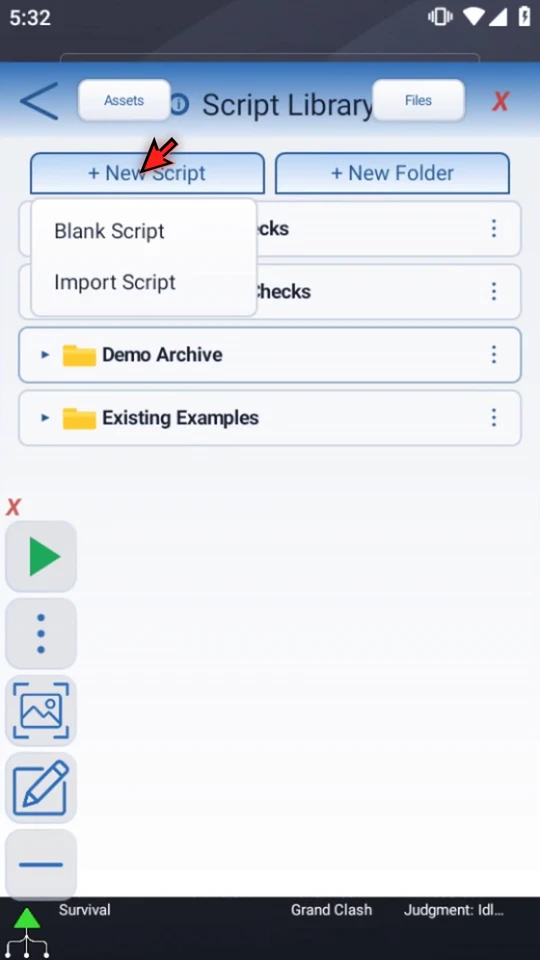
Open the Main Overlay menu and choose Scripts. Keep unrelated folders collapsed. Choose + New Script → Blank Script. Import Script is a separate package workflow; this example starts empty.
Name it and select it deliberately
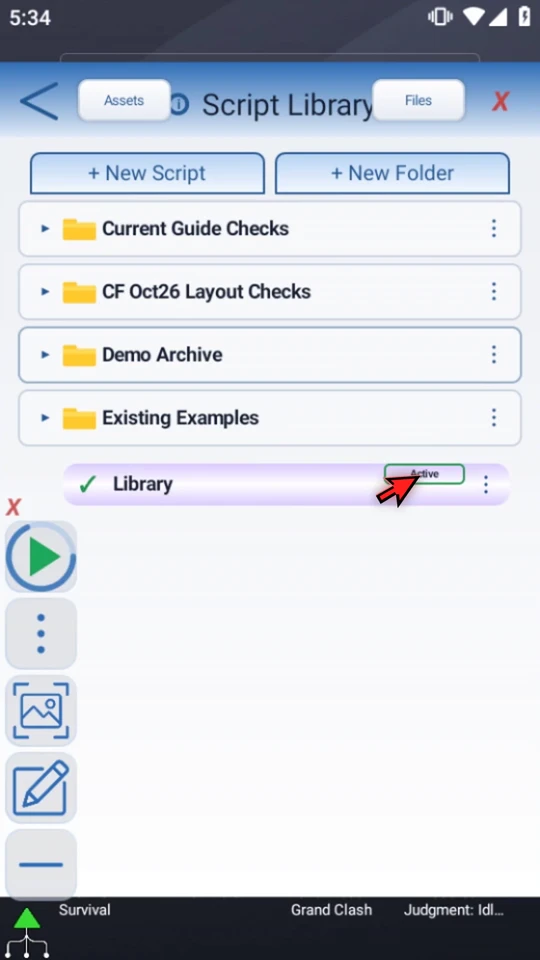
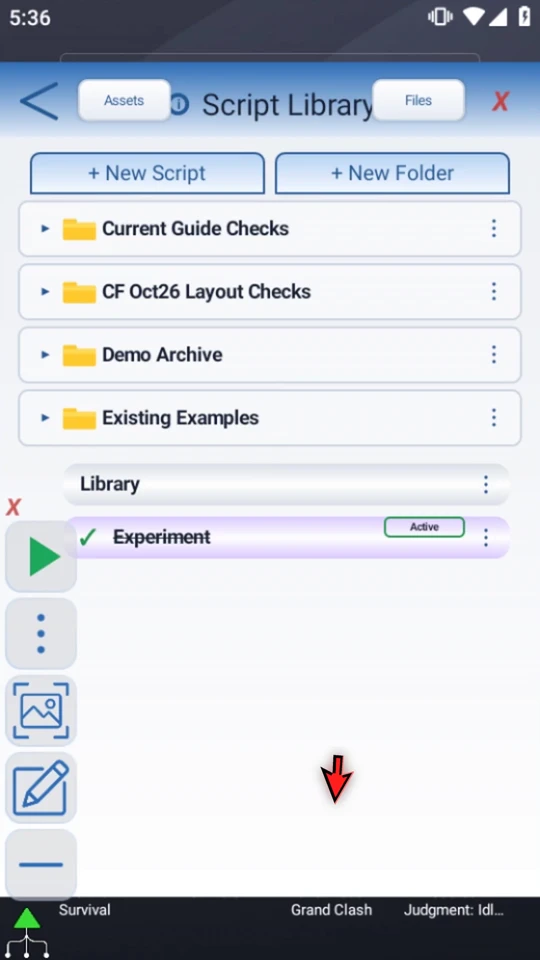
Open the new row's three-dot menu, choose Rename, type a useful name and choose OK. The video uses Library. Single-tap it to make it Active. Creating a blank entry does not select it automatically.
Open the editor without changing the entry
Double-tap the script row to select it and open its editor. The empty Live Script confirms this is a separate blank. Use the header Back arrow to return without adding commands. Double-tapping a library row is not a command-palette insertion.
Make an experiment instead of replacing the original
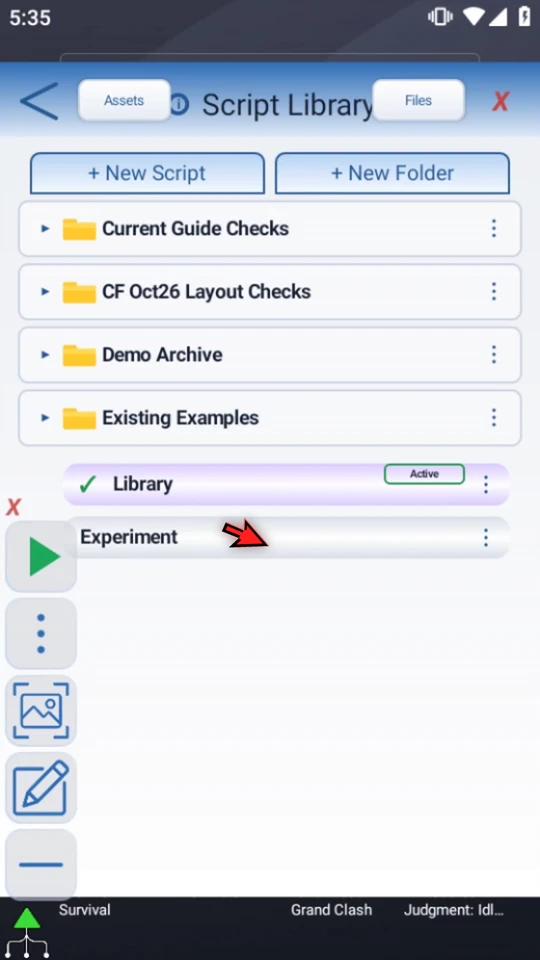
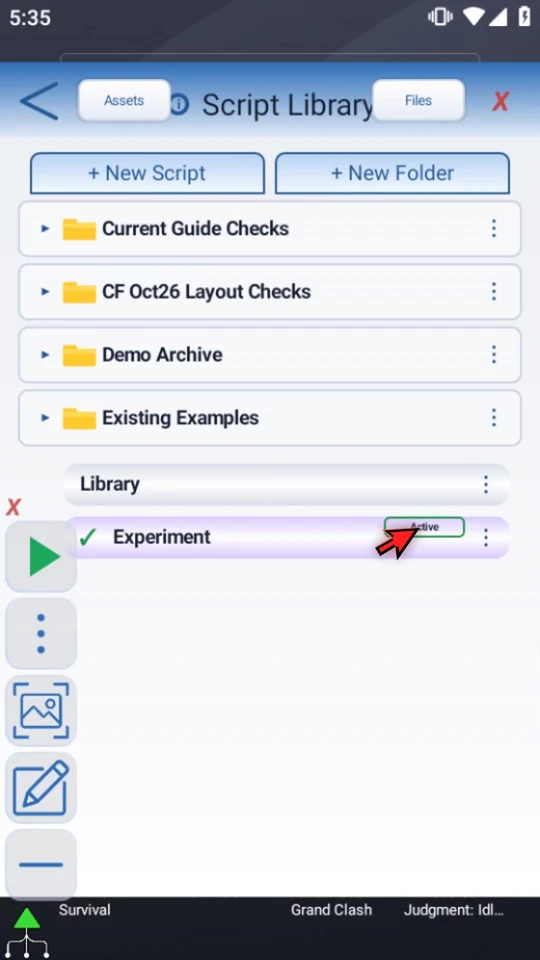
Choose Duplicate from Library's menu. The original remains Active. Rename the second entry Experiment so the two are easy to tell apart. They have separate identities, even if a new copy initially displays the same name.
Distinguish selection from runnable status
Select Experiment, then choose Disable. Its name becomes crossed out while its Active badge remains. Reopen the menu and choose Enable to restore its enabled status. These actions do not add commands, perform validation or prove a workflow works.
Give related work a home
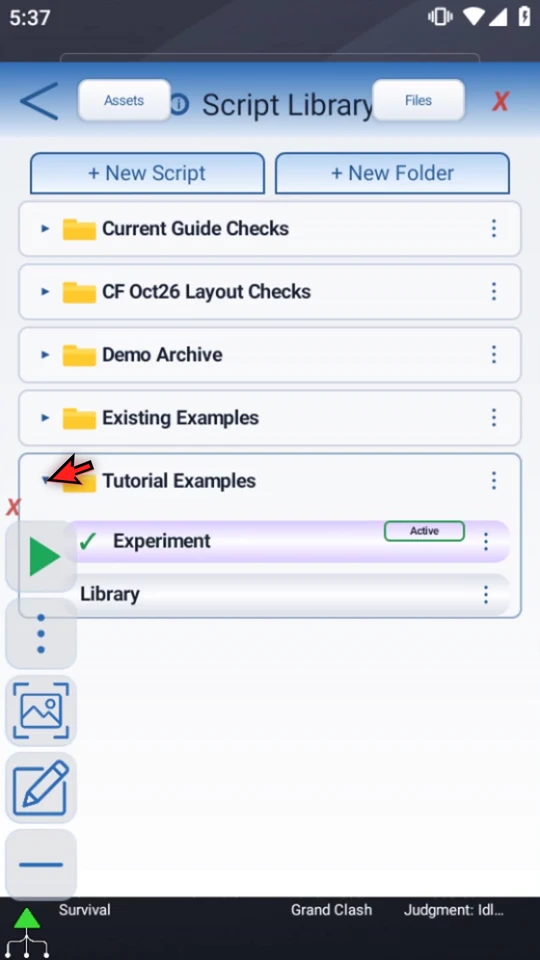
Use + New Folder. The example creates a root-level folder and uses its menu to rename it Tutorial Examples. New Folder uses the current folder context; check where you are organizing your work.
Move, reorder and collapse
Drag each script onto the center of the folder row to move it inside. The video retains both full drags and their real results. Within the expanded frame, drag a row above another and watch the insertion line before releasing. Collapse the folder when you do not need its contents; expand it to return to the same entries.
Choose another action for the job
- Create Routine: start the chosen script from a time or event. See Routines.
- Create Shortcut: set up quick access to the selected script.
- Validate: check command configuration. A validation result is not a runtime test; see Validation.
- Export .sts / Export for AI: use the appropriate sharing or AI-assistance workflow. This video shows where to find these actions, not an export demonstration.
- Delete: read the confirmation. Script trees with five commands or fewer are permanently removed; larger trees use Recycle Bin. Folder deletion has its own scope and is not demonstrated here.
- Assets / Files: open the Asset Library or ScriptTap's file browser from the header.
Folders organize the library. Called child scripts belong to a parent's execution flow; moving entries into a folder does not create a Call Script relationship.
Build on the organized example
Read the full narration
Find the right automation quickly, and keep experiments separate from scripts you rely on. The Script Library lets you choose what Play runs, make a copy, and organize scripts into folders.
Open the main overlay menu and choose Scripts. Existing folders can stay collapsed while you work.
Use New Script, then Blank Script, to start a separate automation. Import Script is for bringing in an existing package; that workflow has its own guide.
Give the script a useful name right away. Open its three-dot menu, choose Rename, and enter Library. A descriptive name is easier to recognize later than a default number.
Single-tap the script to make it active. The Active badge identifies the root script that Main Overlay Play will start. Creating a blank script does not select it automatically.
Double-tap a script to select it and open its editor. This new script is empty. We are only demonstrating library management here, so close the editor without adding commands.
Before experimenting with a working script, use Duplicate to create a separate copy. The original stays available. Duplicating does not automatically change which script is active.
Rename the copy Experiment so the two versions are easy to tell apart. These are separate script entries, not two names for the same script.
Select the experiment, then use its menu to Disable it. The name is crossed out. Active selection and enabled status are different: a disabled script can be selected and edited, but it will not play.
Use Enable when you are ready to make it runnable again. This changes the enabled status; it does not fill in or test the script's commands.
Group related work with New Folder. Rename the folder Tutorial Examples using its menu, just as you renamed a script. Folders help keep the main list short and readable.
Drag a script onto the center of the folder row to move it inside. Move the second script into the same folder. The expanded frame shows what the folder contains.
To change the order within a folder, drag a script above or below another row and watch the insertion line. Drop it where you want it, then collapse the folder when you do not need its contents.
The script menu also offers Create Routine for automatic triggers, Create Shortcut for quick access, Validate for setup checks, and export options for sharing or AI assistance. Delete asks for confirmation. Script trees with five commands or fewer are removed permanently; larger trees go to Recycle Bin. Those workflows have separate guides.
Assets opens the Asset Library; Files opens ScriptTap's file browser. Folders organize your library, while called child scripts belong to a parent script's flow. Keep useful names, select the intended active script, and test changes before relying on them.